in the classroom
Google's mission:  to organize the world's information and make it universally accessible and useful.
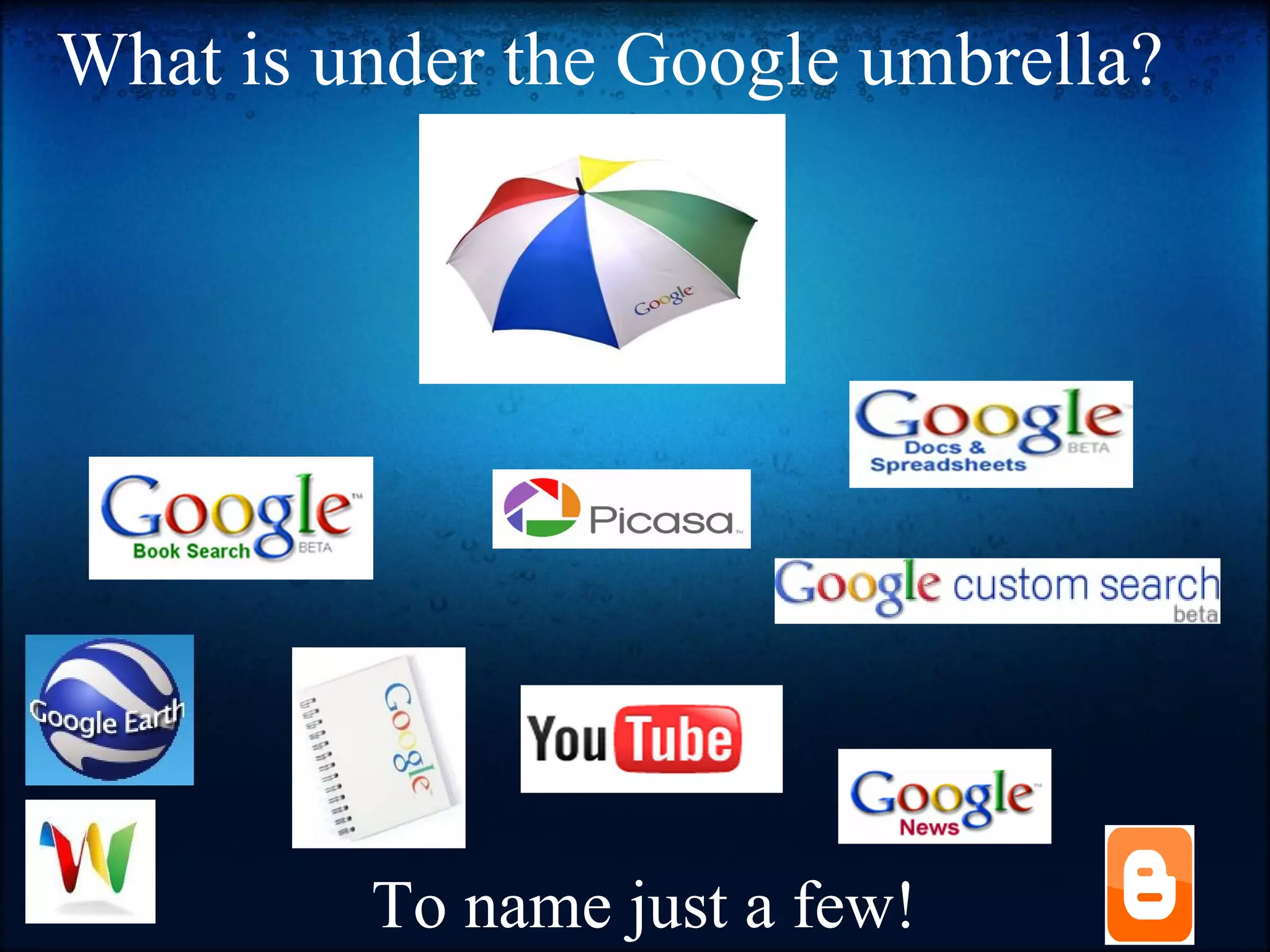
What is under the Google umbrella? To name just a few!
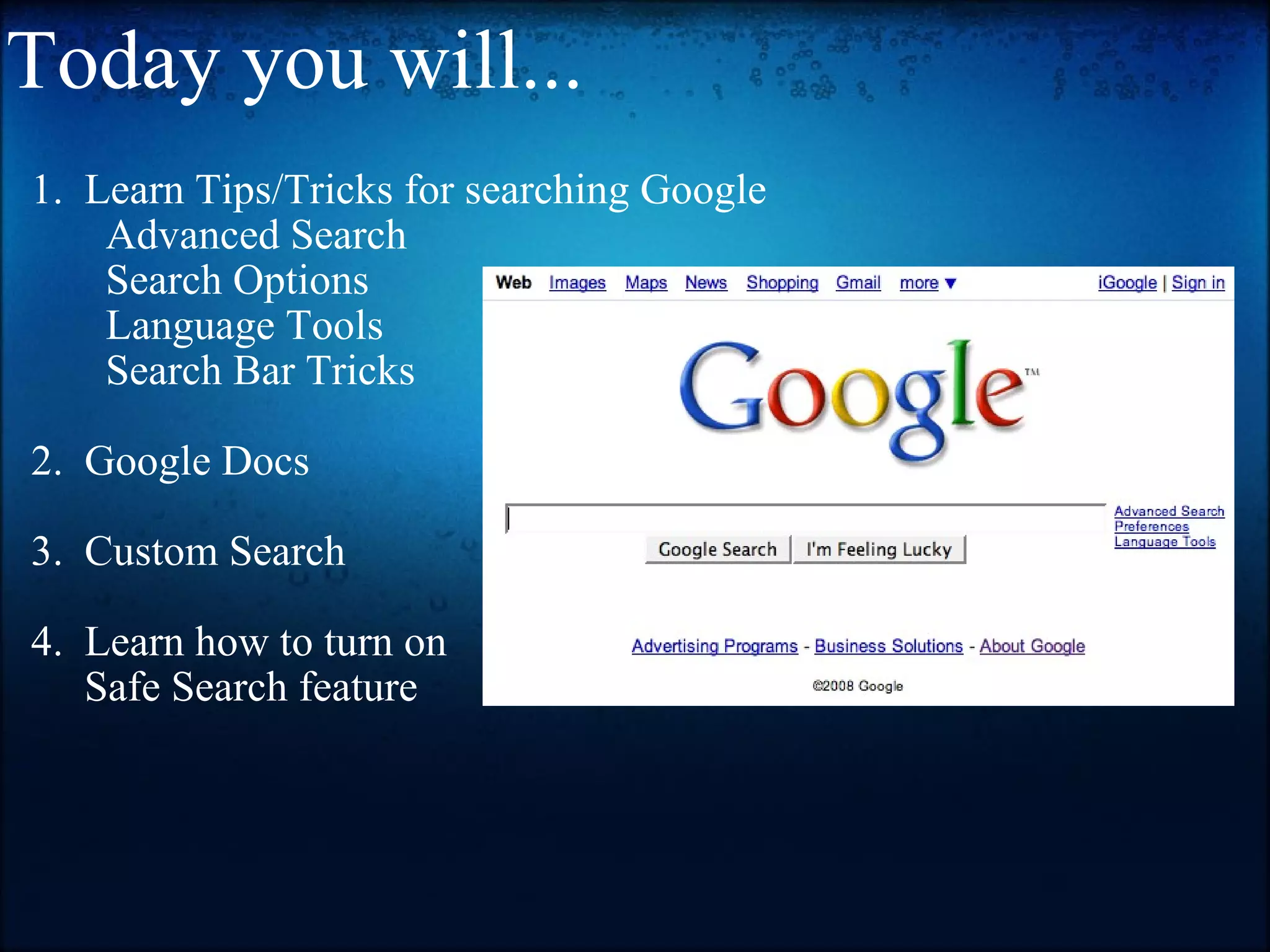
Today you will... 1.  Learn Tips/Tricks for searching Google          Advanced Search         Search Options          Language Tools         Search Bar Tricks   2.  Google Docs   3.  Custom Search   4.  Learn how to turn on        Safe Search feature  
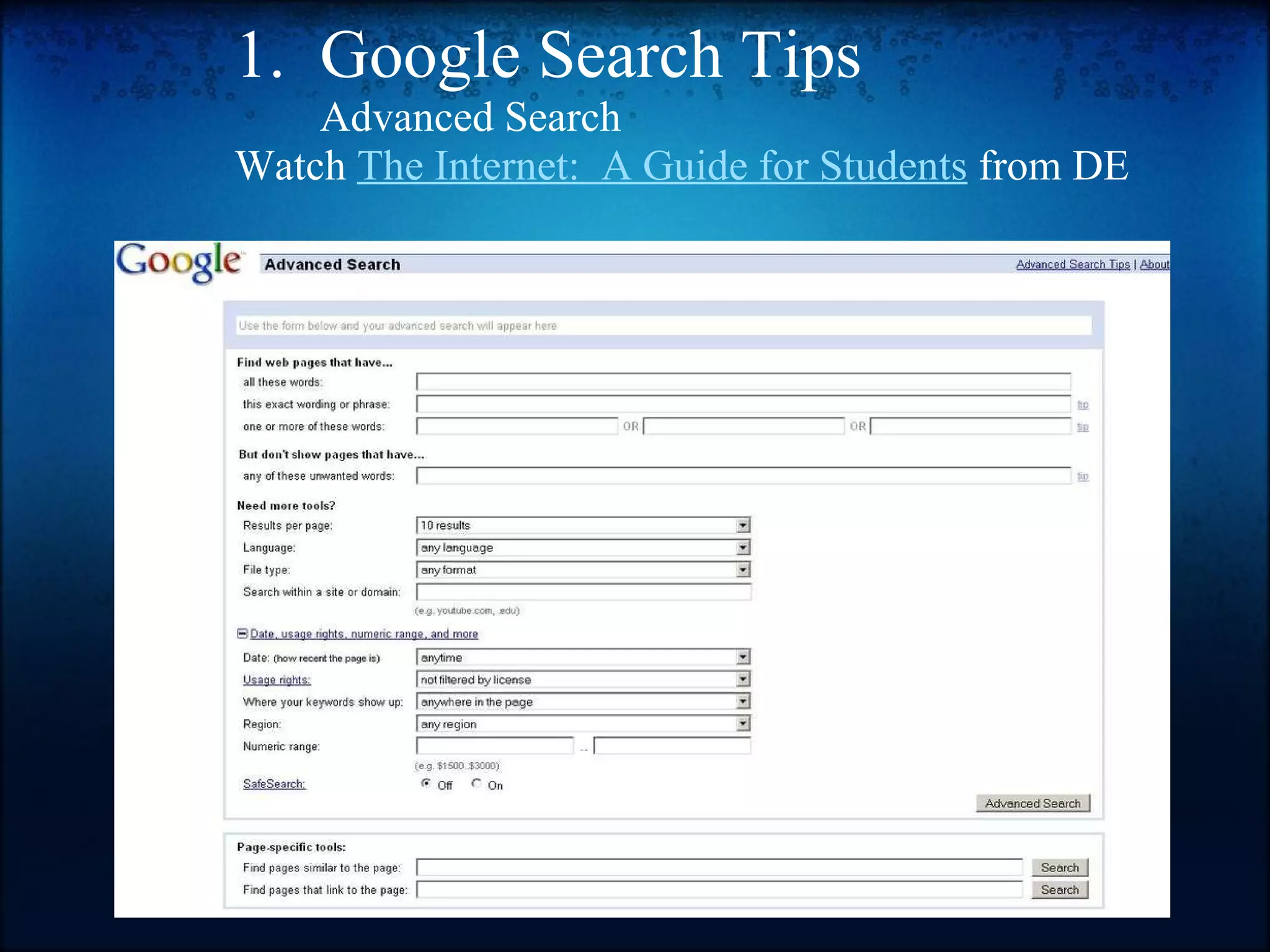
1.  Google Search Tips          Advanced Search Watch  The Internet:  A Guide for Students  from DE
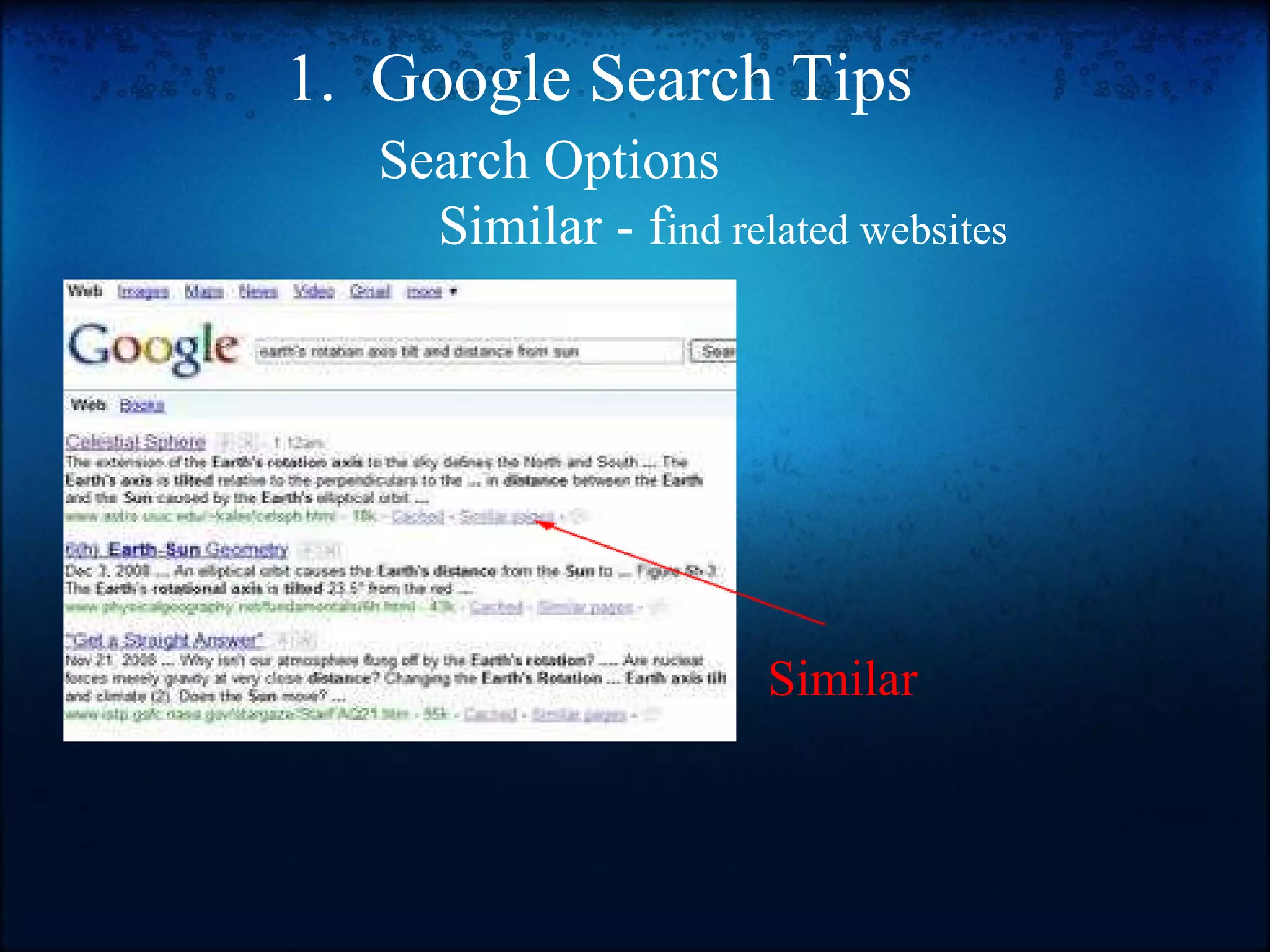
1.  Google Search Tips         Search Options             Similar - f ind related websites   Similar
1.  Google Search Tips         CTRL F   Sometimes there is so much information in a website that we have trouble finding spicific information.  Use CTRL F (COMMAND F on a Mac) to search a wesite, pdf, or document for key words.     Faster and more effective searching!!!
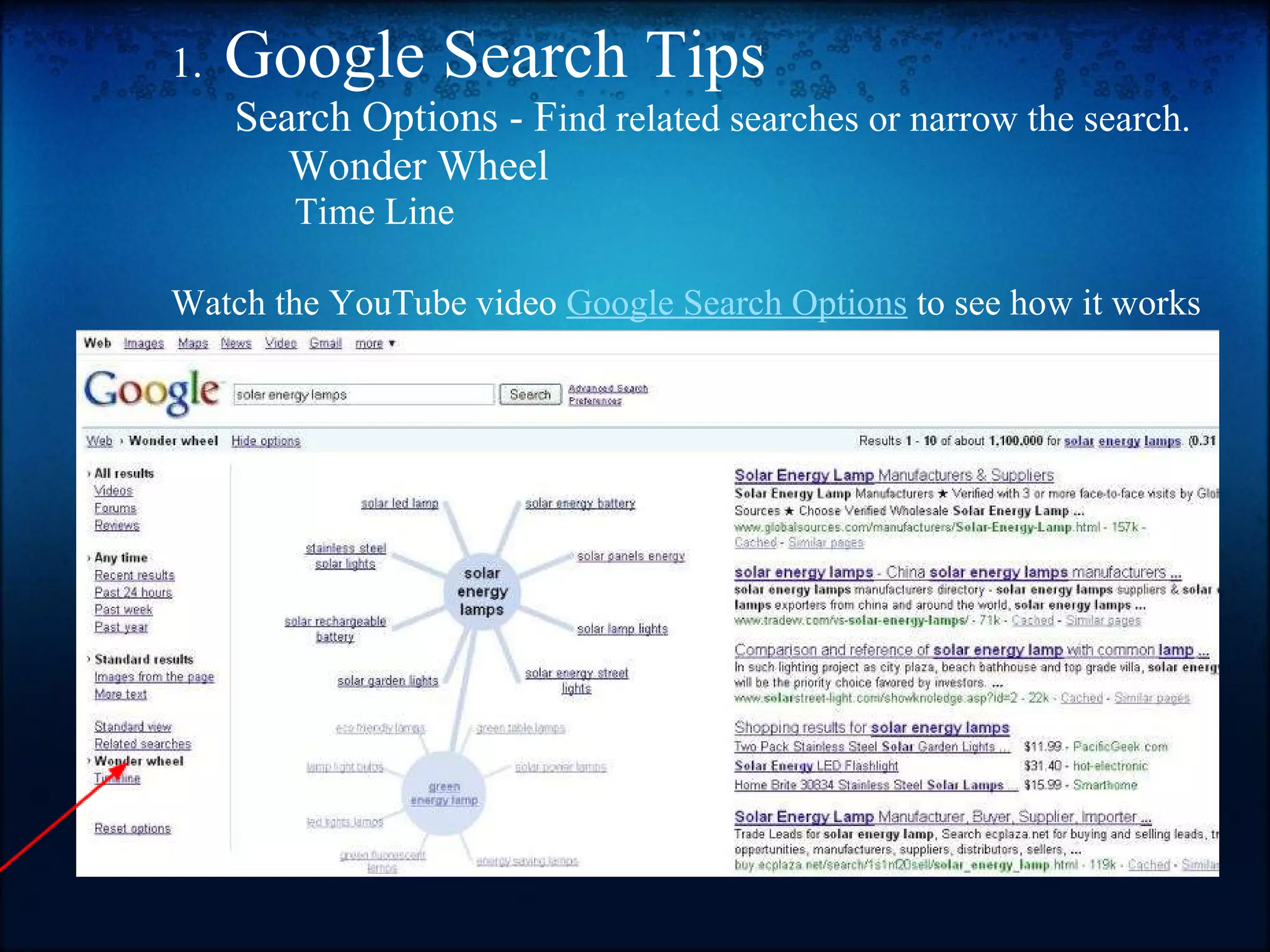
1.   Google Search Tips        Search Options - F ind related searches or narrow the search.             Wonder Wheel                 Time Line   Watch the YouTube video  Google Search Options  to see how it works
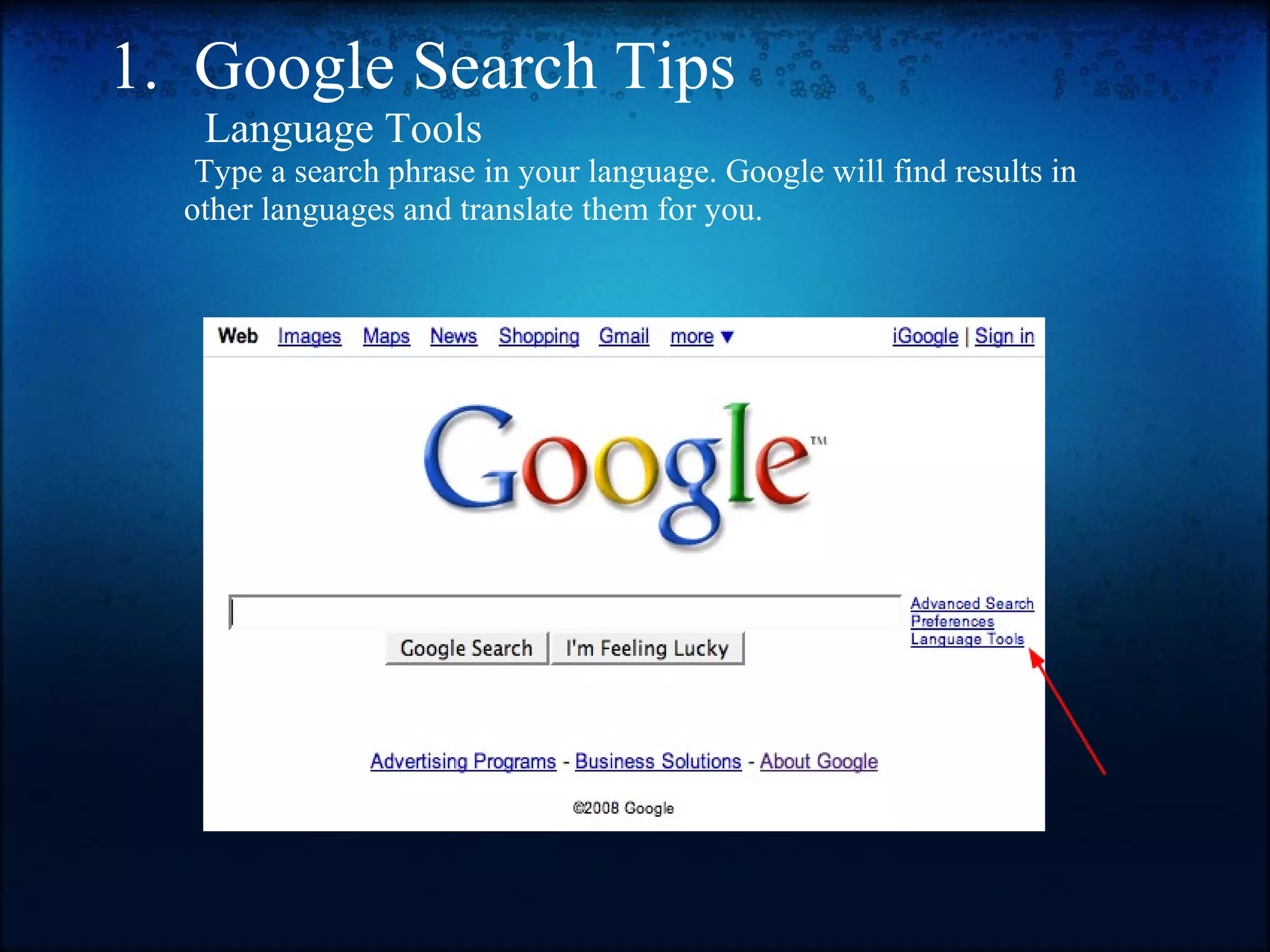
1.  Google Search Tips           Language Tools                   Type a search phrase in your language. Google will find results in                other languages and translate them for you.
1.  Google Search Tips        Search Bar Tips   Calculator To use Google's built-in calculator function, simply enter the calculation you'd like done into the search box. Example:     Book Search If you’re looking for results from Google Book Search, you can enter the name of the author or book title into the search box. Then, click on "Books" from the left-hand navigation to view book content. You can click through on the record to view more detailed info about that author or title. Example:             
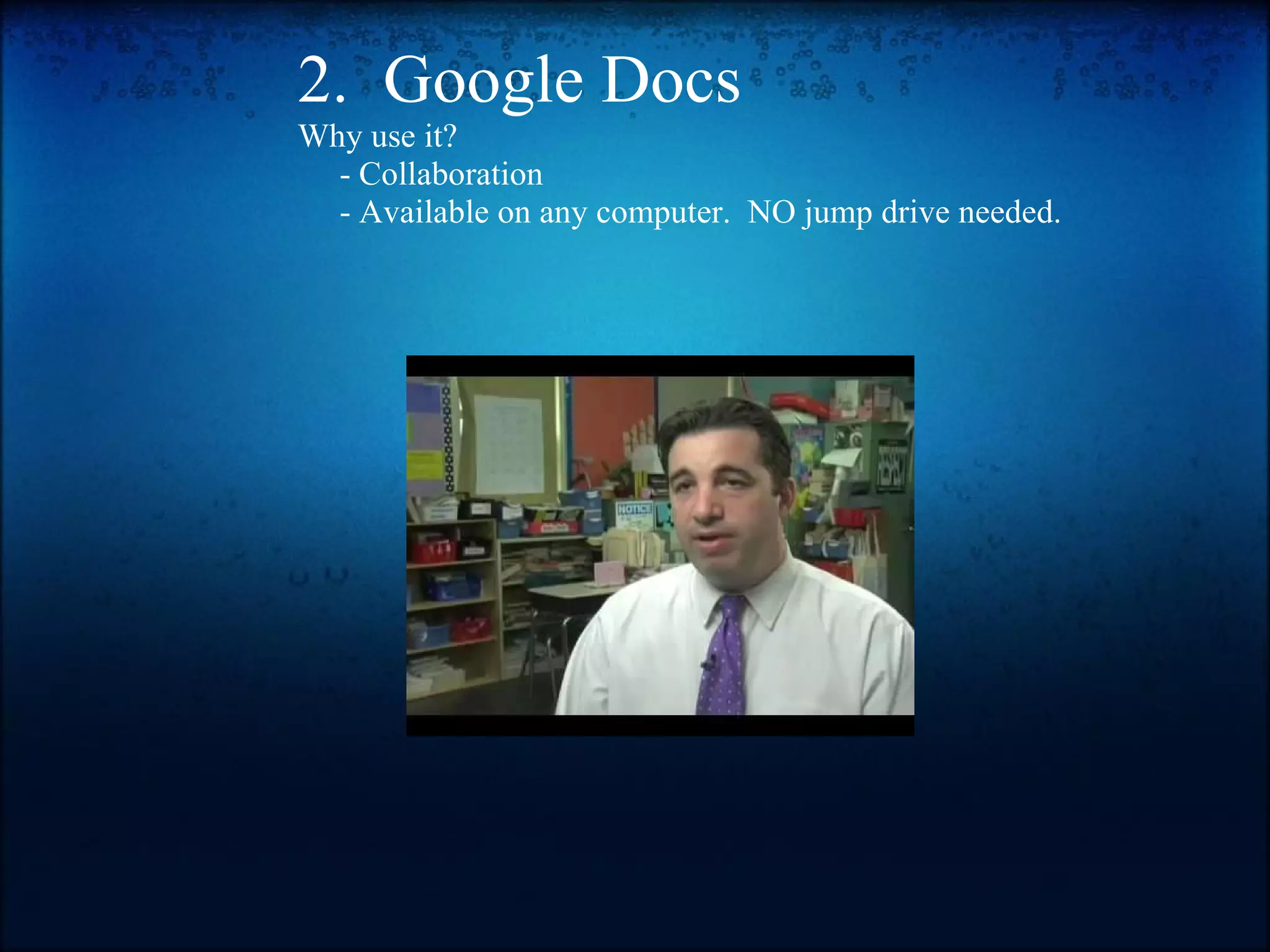
2.  Google Docs Why use it?       - Collaboration       - Available on any computer.  NO jump drive needed.
2.  Google Docs        Student email accounts
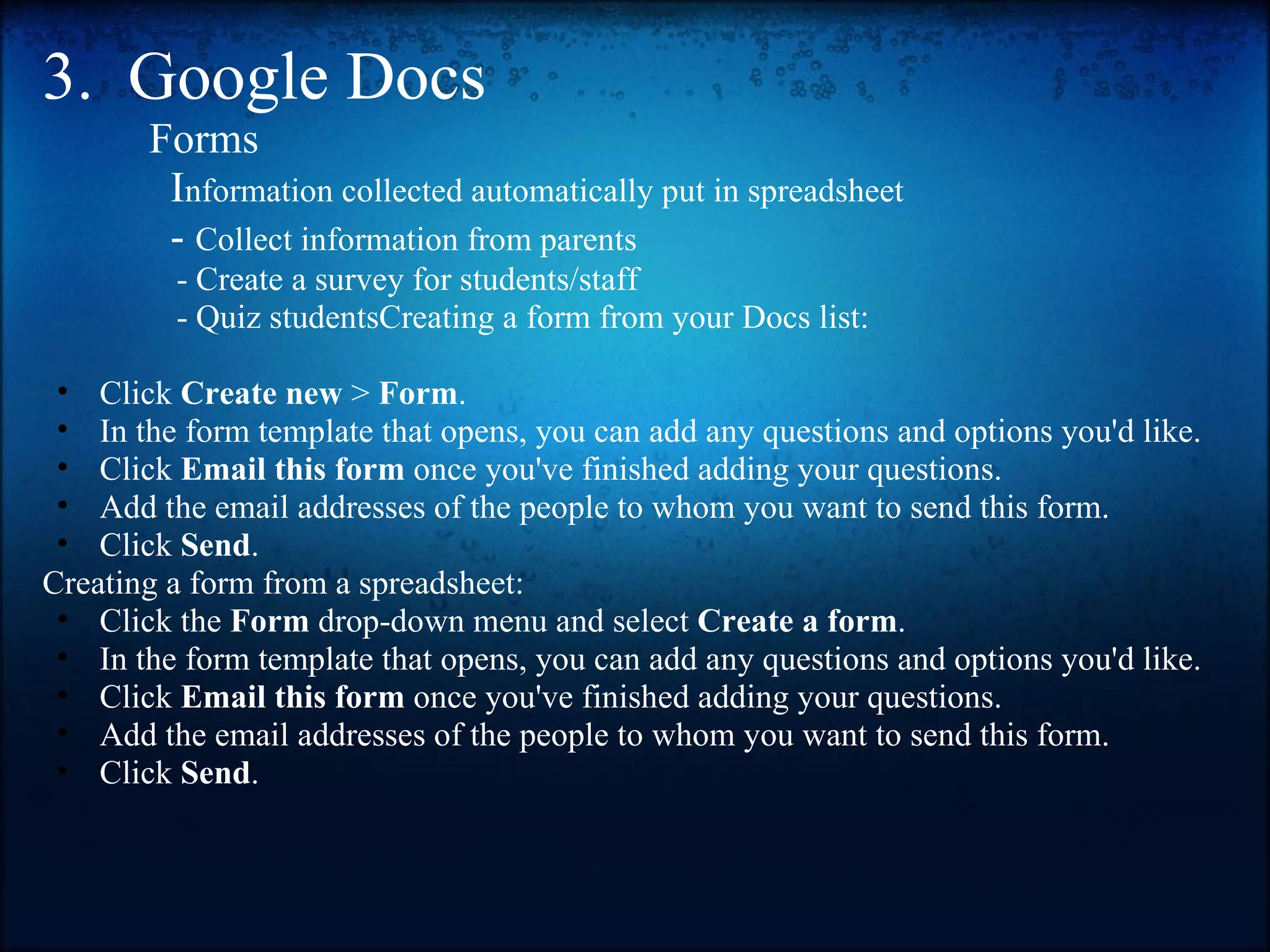
3.  Google Docs            Forms               I nformation collected automatically put in spreadsheet              -  Collect information from parents                  - Create a survey for students/staff                  - Quiz studentsCreating a form from your Docs list:   Click  Create new  >  Form . In the form template that opens, you can add any questions and options you'd like. Click  Email this form  once you've finished adding your questions. Add the email addresses of the people to whom you want to send this form.  Click  Send . Creating a form from a spreadsheet:  Click the  Form  drop-down menu and select  Create a form . In the form template that opens, you can add any questions and options you'd like. Click  Email this form  once you've finished adding your questions. Add the email addresses of the people to whom you want to send this form. Click  Send .
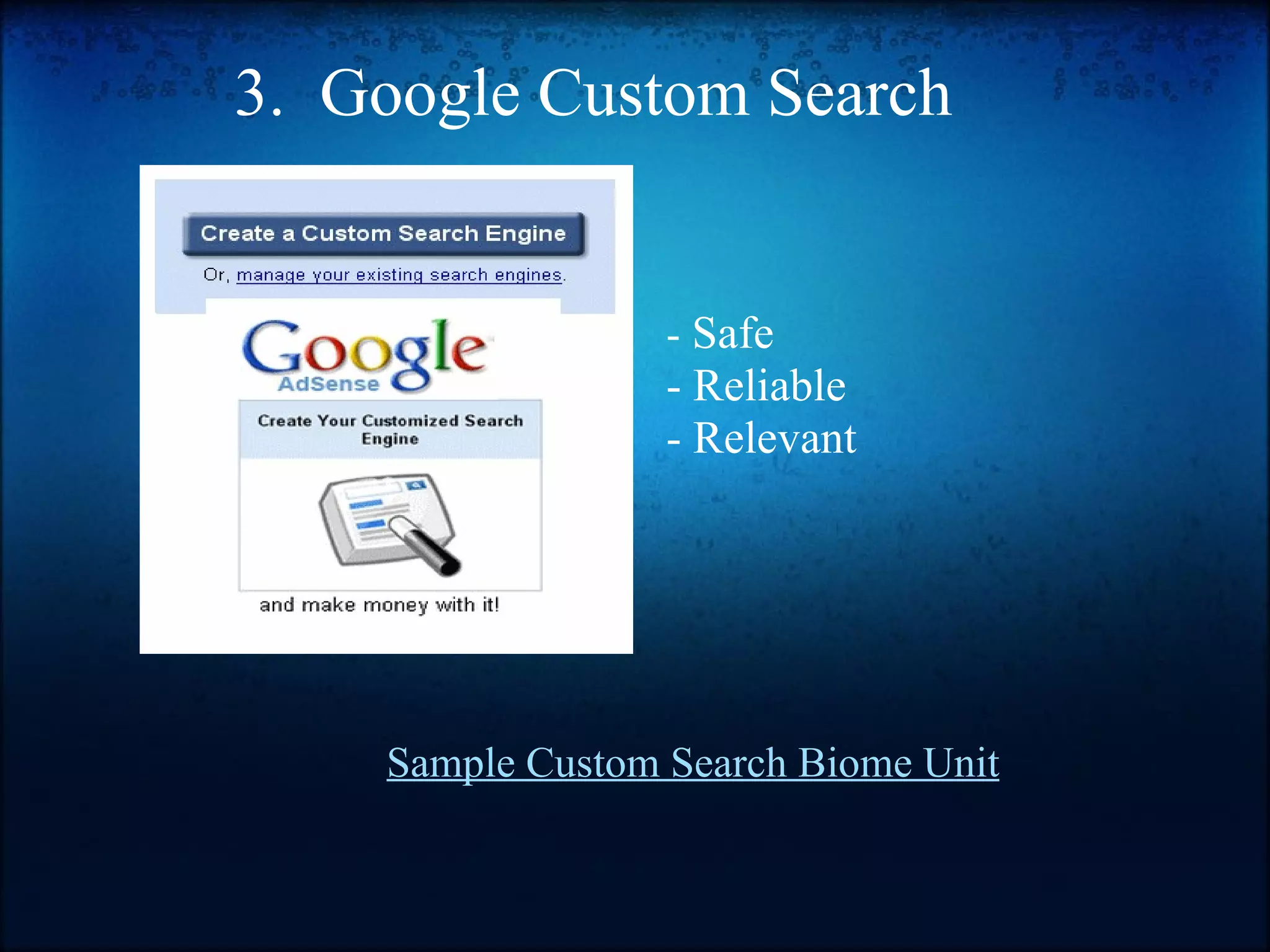
Sample Custom Search Biome Unit       3.  Google Custom Search         -  Safe - Reliable - Relevant
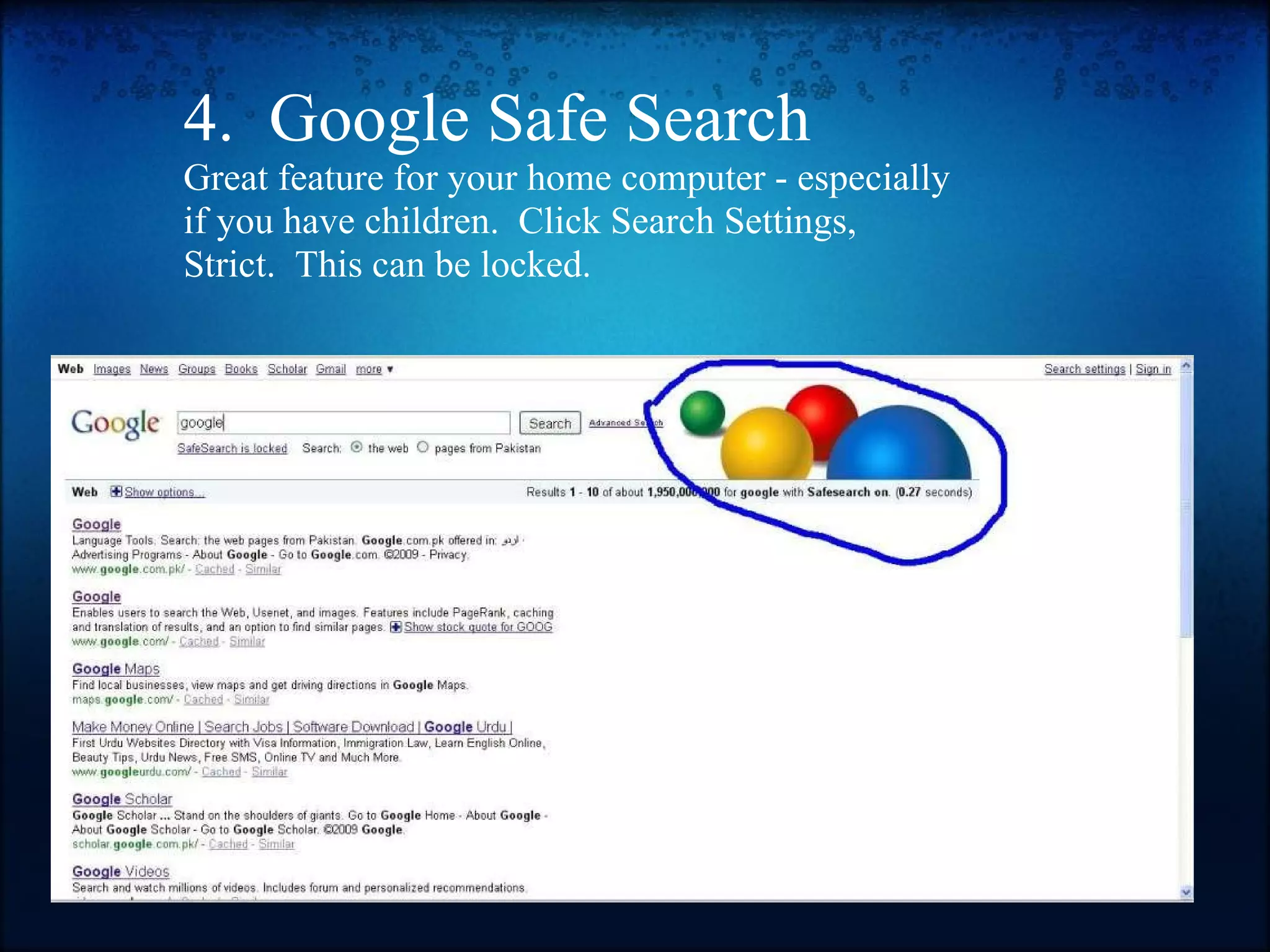
4.  Google Safe Search Great feature for your home computer - especially if you have children.  Click Search Settings, Strict.  This can be locked.
Resources  Sign up for newsletter on new features or tips, find ways to use Google tools to help your students learn, download searching posters, and more...   http://www.google.com/educators/index.html   Lessons to teach your students how to become better at searching for information:    http://www.google.com/educators/p_websearch.html   Full listing of Search Bar Features: http://www.google.com/help/features.html
Video Resources Videos showing classrooms using Google Apps . If you are a visual learner and want to see how it's done versus reading about it...   Using Forms in Google Docs   Google Docs in Plain English

Using google in_the_classroom

  • 1.
  • 2.
    Google's mission:  toorganize the world's information and make it universally accessible and useful.
  • 3.
    What is underthe Google umbrella? To name just a few!
  • 4.
    Today you will...1.  Learn Tips/Tricks for searching Google        Advanced Search        Search Options         Language Tools        Search Bar Tricks   2.  Google Docs   3.  Custom Search   4.  Learn how to turn on       Safe Search feature  
  • 5.
    1.  Google SearchTips         Advanced Search Watch The Internet:  A Guide for Students from DE
  • 6.
    1.  Google SearchTips        Search Options            Similar - f ind related websites   Similar
  • 7.
    1.  Google SearchTips        CTRL F   Sometimes there is so much information in a website that we have trouble finding spicific information.  Use CTRL F (COMMAND F on a Mac) to search a wesite, pdf, or document for key words.    Faster and more effective searching!!!
  • 8.
    1.  GoogleSearch Tips       Search Options - F ind related searches or narrow the search.            Wonder Wheel                Time Line   Watch the YouTube video Google Search Options to see how it works
  • 9.
    1.  Google SearchTips          Language Tools                 Type a search phrase in your language. Google will find results in              other languages and translate them for you.
  • 10.
    1.  Google SearchTips       Search Bar Tips   Calculator To use Google's built-in calculator function, simply enter the calculation you'd like done into the search box. Example:    Book Search If you’re looking for results from Google Book Search, you can enter the name of the author or book title into the search box. Then, click on "Books" from the left-hand navigation to view book content. You can click through on the record to view more detailed info about that author or title. Example:            
  • 11.
    2.  Google DocsWhy use it?      - Collaboration      - Available on any computer.  NO jump drive needed.
  • 12.
    2.  Google Docs      Student email accounts
  • 13.
    3.  Google Docs          Forms               I nformation collected automatically put in spreadsheet             - Collect information from parents                 - Create a survey for students/staff                 - Quiz studentsCreating a form from your Docs list:   Click Create new > Form . In the form template that opens, you can add any questions and options you'd like. Click Email this form once you've finished adding your questions. Add the email addresses of the people to whom you want to send this form. Click Send . Creating a form from a spreadsheet: Click the Form drop-down menu and select Create a form . In the form template that opens, you can add any questions and options you'd like. Click Email this form once you've finished adding your questions. Add the email addresses of the people to whom you want to send this form. Click Send .
  • 14.
    Sample Custom SearchBiome Unit       3.  Google Custom Search         - Safe - Reliable - Relevant
  • 15.
    4.  Google SafeSearch Great feature for your home computer - especially if you have children.  Click Search Settings, Strict.  This can be locked.
  • 16.
    Resources Signup for newsletter on new features or tips, find ways to use Google tools to help your students learn, download searching posters, and more...  http://www.google.com/educators/index.html   Lessons to teach your students how to become better at searching for information:    http://www.google.com/educators/p_websearch.html   Full listing of Search Bar Features: http://www.google.com/help/features.html
  • 17.
    Video Resources Videosshowing classrooms using Google Apps . If you are a visual learner and want to see how it's done versus reading about it...   Using Forms in Google Docs   Google Docs in Plain English

Editor's Notes

  • #2 Hello, my name is Holli Klatt and I'm the Media Specialist  at Cushing.  I've also taught at the middle level for many years, so I can really see how Google Apps can be used from elementary on up - more so in MS and HS.    Let's have a show of hands - How many of you are at the elementary level, MS, HS.     How many of you have a Google account?  
  • #3 The name Google, which was a mispeling of googol, reflects the immense volume of information that exists.   Google seems to be updating every day.   
  • #4 I know everyone is aware of the basic search engine, but lets take a look at all the applications that are currently available.  Go to Google and click on more to see a listing of everything.   Let's face it, we could spend an entire week learning about Google Apps.  Since we only have 50 minutes and I  want to give you time to explore I am only going to share the information I found most helpful as an educator. 
  • #5 Today you will learn tips for searching using Advanced Search Features, how to get more results using search options, language tools, and search bar tricks.   Google Docs   If you want to use Google Docs you'll need to set up an account.      With Google Custom Search yoiu can add specific sites for your students to search.   As a parent I really like the safe search feature for our computers at home
  • #6 Click on link to load. Being a Media Specialist I teach students and teachers about all the databases they have available to them because databases are typically kid friendly and more reliable.  I find that students REALLY, REALLY want to turn to Google.  I figure that if they are going to use Google they might as well do it as effectively and efficiently as possible.  I teach them that the first google button they should click is the Advanced Search button.    This short video clip from Discovery Education shows how to perform an Advanced Search in Google.  If you haven't used DE you should check it out.  There are many great clips to use in the classrooom.  The best part of it is it takes a longer clip and breaks it up into short ones.  It makes it easy to just show th e clip that pertains to your learning target.  If you need help logging in, see your school Media Specialist.   Lets take a few minutes and try some advanced searches.  If anyone can search several domains you get a prize.  
  • #7 Once you perform a search and find a site that looks good, you can click on Similar Pages and find more websites just like it.  Why don't you try.  Advanced Search: Colonial Life   .org     
  • #8 CTRL F isn't a Google feature, it's a web browser feature and works on windows and Mac's.    Let's see what that looks like with our colonial life search...
  • #9 There are many different search options to help you find just what your looking for.  Let's look at this short clip on how to use two of these features:  Wonder Wheel and the Time LIne.
  • #10 Great tool for translating languages.  It's located right on the main page.   Let's take a few minutes and explore.
  • #12 Google Docs is a completely web-based, simplified, free version of Microsoft Office. It provides basic functionality such as word-processing, spreadsheets and presentations.   Google Docs enables multiple people in different locations to collaborate simultaneously on the same doc from any computer with Internet access
  • #13 To have your students use Google Docs they will need email accounts.  You can give them ePal accounts. See your school Media Specialist for help getting set up.
  • #16 At school we have a filter
  • #17 This presentation is posted on the KM ning.  I put the resources at the beginnning so if you want to go back and explore it's easy to find.