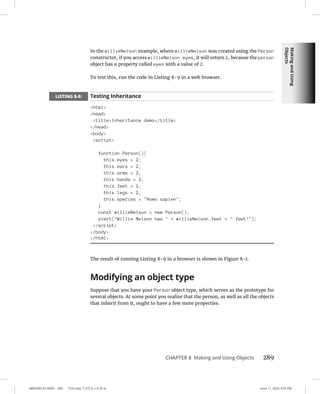
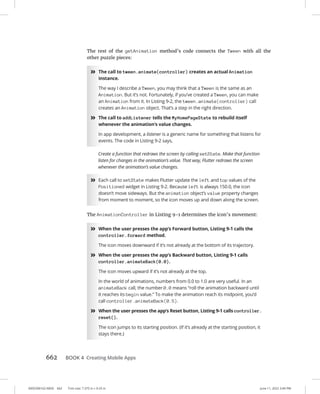
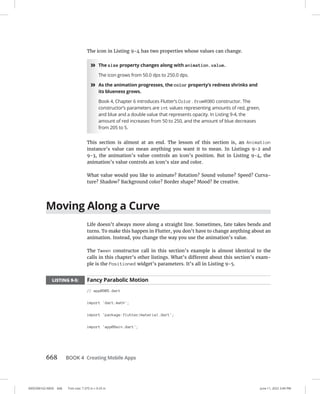
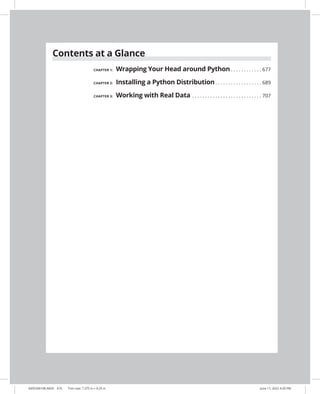
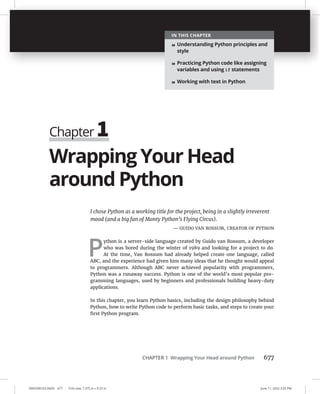
A L L - I N - O N E
2nd Edition
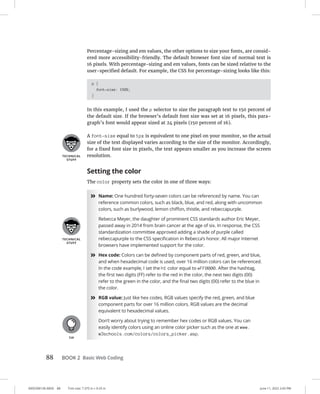
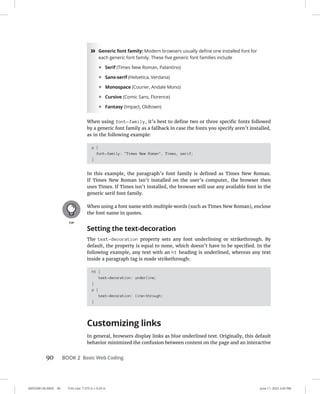
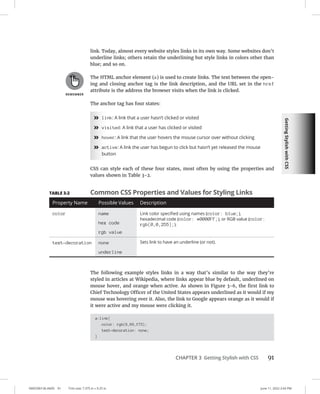
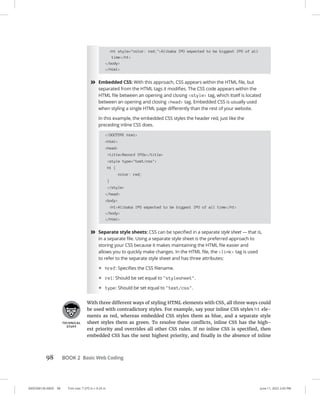
Chris Minnick, et al.
Coding
A
L
L
-
I
N
-
O
N
E
$41.99 USA/$49.99 CAN/£28.99 UK
Minnick, et al.
Cover Image: © shutterstock/antoniodiaz
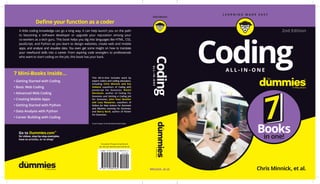
This All-in-One includes work by
expert coders and coding educators,
including Chris Minnick and Eva
Holland coauthors of Coding with
JavaScript For Dummies; Nikhil
Abraham, author of Coding For
Dummies and Getting a Coding Job
For Dummies; John Paul Mueller
and Luca Massaron, coauthors of
Python for Data Science For Dummies
and Machine Learning For Dummies;
and Barry Burd, author of Flutter
For Dummies.
Define your function as a coder
A little coding knowledge can go a long way. It can help launch you on the path
to becoming a software developer or upgrade your reputation among your
co-workers as a tech guru. This book helps you dig into languages like HTML, CSS,
JavaScript, and Python as you learn to design websites, create web and mobile
apps, and analyze and visualize data. You even get some insight on how to translate
your newfound skills into a career. From aspiring code wranglers to professionals
who want to start coding on the job, this book has your back.
Computers Programming/General
Coding
2nd Edition
7 Mini-Books Inside…
• Getting Started with Coding
• Basic Web Coding
• Advanced Web Coding
• Creating Mobile Apps
• Getting Started with Python
• Data Analysis with Python
• Career Building with Coding
0005390112.INDD i Trim size: 7.375 in × 9.25 in June 11, 2022 4:44 PM
Coding
A L L - I N - O N E
0005390112.INDD ii Trim size: 7.375 in × 9.25 in June 11, 2022 4:44 PM
0005390112.INDD iii Trim size: 7.375 in × 9.25 in June 11, 2022 4:44 PM
Coding
A L L - I N - O N E
2nd Edition
by Chris Minnick, Nikhil Abraham,
Barry Burd, Eva Holland, Luca Massaron,
and John Paul Mueller
0005390112.INDD iv Trim size: 7.375 in × 9.25 in June 11, 2022 4:44 PM
Coding All-in-One For Dummies®
, 2nd Edition
Published by: John Wiley  Sons, Inc., 111 River Street, Hoboken, NJ 07030-5774, www.wiley.com
Copyright © 2022 by John Wiley  Sons, Inc., Hoboken, New Jersey
Media and software compilation copyright © 2022 by John Wiley  Sons, Inc. All rights reserved.
Published simultaneously in Canada
No part of this publication may be reproduced, stored in a retrieval system or transmitted in any form or by any
means, electronic, mechanical, photocopying, recording, scanning or otherwise, except as permitted under Sections
107 or 108 of the 1976 United States Copyright Act, without the prior written permission of the Publisher. Requests
to the Publisher for permission should be addressed to the Permissions Department, John Wiley  Sons, Inc., 111
River Street, Hoboken, NJ 07030, (201) 748-6011, fax (201) 748-6008, or online at http://www.wiley.com/go/
permissions.
Trademarks: Wiley, For Dummies, the Dummies Man logo, Dummies.com, Making Everything Easier, and related
trade dress are trademarks or registered trademarks of John Wiley  Sons, Inc. and may not be used without written
permission. All trademarks are the property of their respective owners. John Wiley  Sons, Inc. is not associated with
any product or vendor mentioned in this book.
LIMIT OF LIABILITY/DISCLAIMER OF WARRANTY: WHILE THE PUBLISHER AND AUTHORS HAVE USED THEIR
BEST EFFORTS IN PREPARING THIS WORK, THEY MAKE NO REPRESENTATIONS OR WARRANTIES WITH RESPECT
TO THE ACCURACY OR COMPLETENESS OF THE CONTENTS OF THIS WORK AND SPECIFICALLY DISCLAIM
ALL WARRANTIES, INCLUDING WITHOUT LIMITATION ANY IMPLIED WARRANTIES OF MERCHANTABILITY
OR FITNESS FOR A PARTICULAR PURPOSE. NO WARRANTY MAY BE CREATED OR EXTENDED BY SALES
REPRESENTATIVES, WRITTEN SALES MATERIALS OR PROMOTIONAL STATEMENTS FOR THIS WORK. THE
FACT THAT AN ORGANIZATION, WEBSITE, OR PRODUCT IS REFERRED TO IN THIS WORK AS A CITATION AND/
OR POTENTIAL SOURCE OF FURTHER INFORMATION DOES NOT MEAN THAT THE PUBLISHER AND AUTHORS
ENDORSE THE INFORMATION OR SERVICES THE ORGANIZATION, WEBSITE, OR PRODUCT MAY PROVIDE OR
RECOMMENDATIONS IT MAY MAKE. THIS WORK IS SOLD WITH THE UNDERSTANDING THAT THE PUBLISHER
IS NOT ENGAGED IN RENDERING PROFESSIONAL SERVICES. THE ADVICE AND STRATEGIES CONTAINED HEREIN
MAY NOT BE SUITABLE FOR YOUR SITUATION. YOU SHOULD CONSULT WITH A SPECIALIST WHERE APPROPRIATE.
FURTHER, READERS SHOULD BE AWARE THAT WEBSITES LISTED IN THIS WORK MAY HAVE CHANGED OR
DISAPPEARED BETWEEN WHEN THIS WORK WAS WRITTEN AND WHEN IT IS READ. NEITHER THE PUBLISHER
NOR AUTHORS SHALL BE LIABLE FOR ANY LOSS OF PROFIT OR ANY OTHER COMMERCIAL DAMAGES, INCLUDING
BUT NOT LIMITED TO SPECIAL, INCIDENTAL, CONSEQUENTIAL, OR OTHER DAMAGES.
For general information on our other products and services, please contact our Customer Care Department within
the U.S. at 877-762-2974, outside the U.S. at 317-572-3993, or fax 317-572-4002. For technical support, please visit
https://hub.wiley.com/community/support/dummies.
Wiley publishes in a variety of print and electronic formats and by print-on-demand. Some material included with
standard print versions of this book may not be included in e-books or in print-on-demand. If this book refers to
media such as a CD or DVD that is not included in the version you purchased, you may download this material at
http://booksupport.wiley.com. For more information about Wiley products, visit www.wiley.com.
Library of Congress Control Number: 2022939031
ISBN 978-1-119-88956-4 (pbk); 978-1-119-88957-1 (epub); 978-1-119-89535-0 (epdf)
0005390115.INDD v Trim size: 7.375 in × 9.25 in June 11, 2022 4:46 PM
Contents at a Glance
Introduction. . . . . . . . . . . . . . . . . . . . . . . . . . . . . . . . . . . . . . . . . . . . . . . . . . . . . . . . . 1
Book 1: Getting Started with Coding. . . . . . . . . . . . . . . . . . . . . . . . . . . . 5
CHAPTER 1: What Is Coding? . . . . . . . . . . . . . . . . . . . . . . . . . . . . . . . . . . . . . . . . . . . . . . . . . 7
CHAPTER 2: Programming for the Web. . . . . . . . . . . . . . . . . . . . . . . . . . . . . . . . . . . . . . . 19
CHAPTER 3: Becoming a Programmer. . . . . . . . . . . . . . . . . . . . . . . . . . . . . . . . . . . . . . . . 33
Book 2: Basic Web Coding. . . . . . . . . . . . . . . . . . . . . . . . . . . . . . . . . . . . . . . . 43
CHAPTER 1: Exploring Basic HTML . . . . . . . . . . . . . . . . . . . . . . . . . . . . . . . . . . . . . . . . . . . 45
CHAPTER 2: Getting More Out of HTML. . . . . . . . . . . . . . . . . . . . . . . . . . . . . . . . . . . . . . . 63
CHAPTER 3: Getting Stylish with CSS. . . . . . . . . . . . . . . . . . . . . . . . . . . . . . . . . . . . . . . . . . 79
CHAPTER 4: Next Steps with CSS. . . . . . . . . . . . . . . . . . . . . . . . . . . . . . . . . . . . . . . . . . .  101
CHAPTER 5: Responsive Layouts with Flexbox. . . . . . . . . . . . . . . . . . . . . . . . . . . . . . .  123
CHAPTER 6: Styling with Bootstrap. . . . . . . . . . . . . . . . . . . . . . . . . . . . . . . . . . . . . . . . .  143
Book 3: Advanced Web Coding. . . . . . . . . . . . . . . . . . . . . . . . . . . . . . . .  159
CHAPTER 1: What Is JavaScript?. . . . . . . . . . . . . . . . . . . . . . . . . . . . . . . . . . . . . . . . . . . .  161
CHAPTER 2: Writing Your First JavaScript Program. . . . . . . . . . . . . . . . . . . . . . . . . . . .  173
CHAPTER 3: Working with Variables. . . . . . . . . . . . . . . . . . . . . . . . . . . . . . . . . . . . . . . .  193
CHAPTER 4: Understanding Arrays. . . . . . . . . . . . . . . . . . . . . . . . . . . . . . . . . . . . . . . . .  211
CHAPTER 5: Working with Operators, Expressions, and Statements. . . . . . . . . . . .  225
CHAPTER 6: Getting into the Flow with Loops and Branches. . . . . . . . . . . . . . . . . . .  241
CHAPTER 7: Getting Functional . . . . . . . . . . . . . . . . . . . . . . . . . . . . . . . . . . . . . . . . . . . .  255
CHAPTER 8: Making and Using Objects . . . . . . . . . . . . . . . . . . . . . . . . . . . . . . . . . . . . .  275
CHAPTER 9: Controlling the Browser with the Window Object . . . . . . . . . . . . . . . . .  291
CHAPTER 10: Manipulating Documents with the DOM. . . . . . . . . . . . . . . . . . . . . . . . .  307
CHAPTER 11: Using Events in JavaScript. . . . . . . . . . . . . . . . . . . . . . . . . . . . . . . . . . . . . .  327
CHAPTER 12: Integrating Input and Output. . . . . . . . . . . . . . . . . . . . . . . . . . . . . . . . . . .  339
CHAPTER 13: Understanding Callbacks and Closures. . . . . . . . . . . . . . . . . . . . . . . . . .  355
CHAPTER 14: Embracing AJAX and JSON. . . . . . . . . . . . . . . . . . . . . . . . . . . . . . . . . . . . . .  367
Book 4: Creating Mobile Apps. . . . . . . . . . . . . . . . . . . . . . . . . . . . . . . . .  383
CHAPTER 1: What Is Flutter?. . . . . . . . . . . . . . . . . . . . . . . . . . . . . . . . . . . . . . . . . . . . . . .  385
CHAPTER 2: Setting Up Your Computer for Mobile App Development. . . . . . . . . . . 401
CHAPTER 3: “Hello” from Flutter . . . . . . . . . . . . . . . . . . . . . . . . . . . . . . . . . . . . . . . . . . .  433
CHAPTER 4: Hello Again. . . . . . . . . . . . . . . . . . . . . . . . . . . . . . . . . . . . . . . . . . . . . . . . . . .  469
CHAPTER 5: Making Things Happen . . . . . . . . . . . . . . . . . . . . . . . . . . . . . . . . . . . . . . . .  495
0005390115.INDD vi Trim size: 7.375 in × 9.25 in June 11, 2022 4:46 PM
CHAPTER 6: Laying Things Out. . . . . . . . . . . . . . . . . . . . . . . . . . . . . . . . . . . . . . . . . . . . .  527
CHAPTER 7: Interacting with the User. . . . . . . . . . . . . . . . . . . . . . . . . . . . . . . . . . . . . . .  567
CHAPTER 8: Navigation, Lists, and Other Goodies. . . . . . . . . . . . . . . . . . . . . . . . . . . .  605
CHAPTER 9: Moving Right Along . . . . . . . . . . . . . . . . . . . . . . . . . . . . . . . . . . . . . . . . . . .  653
Book 5: Getting Started with Python. . . . . . . . . . . . . . . . . . . . . . . . .  675
CHAPTER 1: Wrapping Your Head around Python. . . . . . . . . . . . . . . . . . . . . . . . . . . .  677
CHAPTER 2: Installing a Python Distribution. . . . . . . . . . . . . . . . . . . . . . . . . . . . . . . . .  689
CHAPTER 3: Working with Real Data. . . . . . . . . . . . . . . . . . . . . . . . . . . . . . . . . . . . . . . .  707
Book 6: Data Analysis with Python. . . . . . . . . . . . . . . . . . . . . . . . . . .  729
CHAPTER 1: Conditioning Your Data. . . . . . . . . . . . . . . . . . . . . . . . . . . . . . . . . . . . . . . .  731
CHAPTER 2: Shaping Data. . . . . . . . . . . . . . . . . . . . . . . . . . . . . . . . . . . . . . . . . . . . . . . . .  759
CHAPTER 3: Getting a Crash Course in MatPlotLib. . . . . . . . . . . . . . . . . . . . . . . . . . . .  779
CHAPTER 4: Visualizing the Data. . . . . . . . . . . . . . . . . . . . . . . . . . . . . . . . . . . . . . . . . . .  795
Book 7: Career Building with Coding. . . . . . . . . . . . . . . . . . . . . . . . .  813
CHAPTER 1: Exploring Coding Career Paths . . . . . . . . . . . . . . . . . . . . . . . . . . . . . . . . .  815
CHAPTER 2: Exploring Undergraduate and Graduate Degrees. . . . . . . . . . . . . . . . .  829
CHAPTER 3: Training on the Job. . . . . . . . . . . . . . . . . . . . . . . . . . . . . . . . . . . . . . . . . . . .  843
CHAPTER 4: Coding Career Myths. . . . . . . . . . . . . . . . . . . . . . . . . . . . . . . . . . . . . . . . . .  853
Index. . . . . . . . . . . . . . . . . . . . . . . . . . . . . . . . . . . . . . . . . . . . . . . . . . . . . . . . . . . . . . .  861
Table of Contents vii
0005390115.INDD vii Trim size: 7.375 in × 9.25 in June 11, 2022 4:46 PM
Table of Contents
INTRODUCTION. . . . . . . . . . . . . . . . . . . . . . . . . . . . . . . . . . . . . . . . . . . . . . . . . . . . 1
About This Book. . . . . . . . . . . . . . . . . . . . . . . . . . . . . . . . . . . . . . . . . . . . . . . 2
Foolish Assumptions. . . . . . . . . . . . . . . . . . . . . . . . . . . . . . . . . . . . . . . . . . . 2
Icons Used in This Book. . . . . . . . . . . . . . . . . . . . . . . . . . . . . . . . . . . . . . . . 3
Beyond the Book. . . . . . . . . . . . . . . . . . . . . . . . . . . . . . . . . . . . . . . . . . . . . . 4
Where to Go from Here. . . . . . . . . . . . . . . . . . . . . . . . . . . . . . . . . . . . . . . . 4
BOOK 1: GETTING STARTED WITH CODING. . . . . . . . . . . . . . . . . . . 5
CHAPTER 1: What Is Coding?. . . . . . . . . . . . . . . . . . . . . . . . . . . . . . . . . . . . . . . . . . . . 7
Defining What Code Is . . . . . . . . . . . . . . . . . . . . . . . . . . . . . . . . . . . . . . . . . 8
Following instructions. . . . . . . . . . . . . . . . . . . . . . . . . . . . . . . . . . . . . . . 8
Writing code with some Angry Birds. . . . . . . . . . . . . . . . . . . . . . . . . . .9
Understanding What Coding Can Do for You. . . . . . . . . . . . . . . . . . . . . 10
Eating the world with software. . . . . . . . . . . . . . . . . . . . . . . . . . . . . . 10
Coding on the job . . . . . . . . . . . . . . . . . . . . . . . . . . . . . . . . . . . . . . . . . 12
Scratching your own itch (and becoming rich and famous). . . . . . 13
Surveying the Types of Programming Languages . . . . . . . . . . . . . . . . . 13
Comparing low-level and high-level programming languages. . . . 14
Contrasting compiled code and interpreted code. . . . . . . . . . . . . . 15
Programming for the web. . . . . . . . . . . . . . . . . . . . . . . . . . . . . . . . . . 16
Taking a Tour of a Web App Built with Code. . . . . . . . . . . . . . . . . . . . . . 16
Defining the app’s purpose and scope. . . . . . . . . . . . . . . . . . . . . . . . 16
Standing on the shoulders of giants. . . . . . . . . . . . . . . . . . . . . . . . . . 17
CHAPTER 2: Programming for the Web. . . . . . . . . . . . . . . . . . . . . . . . . . . . . . 19
Displaying Web Pages on Your Desktop and Mobile Device. . . . . . . . . 20
Hacking your favorite news website. . . . . . . . . . . . . . . . . . . . . . . . . . 20
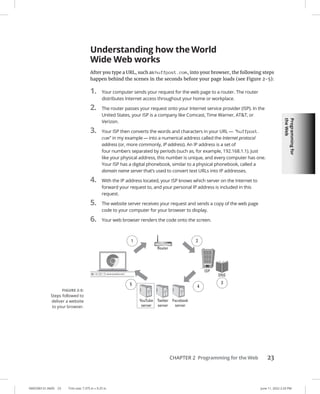
Understanding how the World Wide Web works. . . . . . . . . . . . . . . 23
Watching out for your frontend and backend. . . . . . . . . . . . . . . . . .24
Defining web and mobile applications. . . . . . . . . . . . . . . . . . . . . . . . 25
Coding Web Applications. . . . . . . . . . . . . . . . . . . . . . . . . . . . . . . . . . . . . . 26
Starting with HTML, CSS, and JavaScript . . . . . . . . . . . . . . . . . . . . . . 26
Adding logic with Python, Ruby, or PHP. . . . . . . . . . . . . . . . . . . . . . . 27
Coding Mobile Applications. . . . . . . . . . . . . . . . . . . . . . . . . . . . . . . . . . . . 28
Building mobile web apps. . . . . . . . . . . . . . . . . . . . . . . . . . . . . . . . . . 29
Building native mobile apps. . . . . . . . . . . . . . . . . . . . . . . . . . . . . . . . . 30
Deploying Web Applications in the Cloud. . . . . . . . . . . . . . . . . . . . . . . . 31
0005390115.INDD viii Trim size: 7.375 in × 9.25 in June 11, 2022 4:46 PM
viii Coding All-in-One For Dummies
CHAPTER 3: Becoming a Programmer. . . . . . . . . . . . . . . . . . . . . . . . . . . . . . . . 33
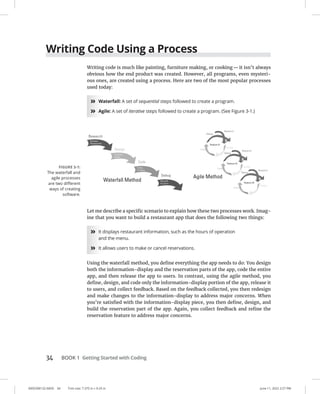
Writing Code Using a Process. . . . . . . . . . . . . . . . . . . . . . . . . . . . . . . . . . 34
Researching what you want to build . . . . . . . . . . . . . . . . . . . . . . . . . 35
Designing your app. . . . . . . . . . . . . . . . . . . . . . . . . . . . . . . . . . . . . . . . 36
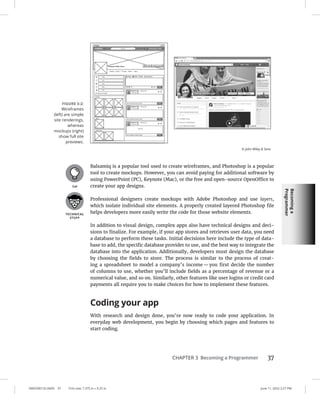
Coding your app . . . . . . . . . . . . . . . . . . . . . . . . . . . . . . . . . . . . . . . . . . 37
Debugging your code. . . . . . . . . . . . . . . . . . . . . . . . . . . . . . . . . . . . . . 38
Picking Tools for the Job. . . . . . . . . . . . . . . . . . . . . . . . . . . . . . . . . . . . . . . 39
Working offline. . . . . . . . . . . . . . . . . . . . . . . . . . . . . . . . . . . . . . . . . . . . 39
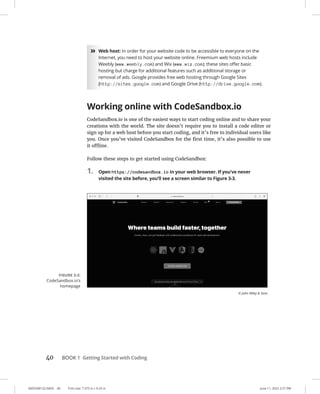
Working online with CodeSandbox.io . . . . . . . . . . . . . . . . . . . . . . . . 40
BOOK 2: BASIC WEB CODING. . . . . . . . . . . . . . . . . . . . . . . . . . . . . . . . . . . 43
CHAPTER 1: Exploring Basic HTML. . . . . . . . . . . . . . . . . . . . . . . . . . . . . . . . . . . . 45
What Does HTML Do?. . . . . . . . . . . . . . . . . . . . . . . . . . . . . . . . . . . . . . . . . 46
Understanding HTML Structure . . . . . . . . . . . . . . . . . . . . . . . . . . . . . . . . 47
Identifying elements. . . . . . . . . . . . . . . . . . . . . . . . . . . . . . . . . . . . . . . 47
Featuring your best attribute. . . . . . . . . . . . . . . . . . . . . . . . . . . . . . . . 49
Standing head, title, and body above the rest . . . . . . . . . . . . . . . . . 50
Getting Familiar with Common HTML Tasks and Elements . . . . . . . . . 52
Writing headlines. . . . . . . . . . . . . . . . . . . . . . . . . . . . . . . . . . . . . . . . . . 53
Organizing text in paragraphs. . . . . . . . . . . . . . . . . . . . . . . . . . . . . . . 54
Linking to your (heart’s) content. . . . . . . . . . . . . . . . . . . . . . . . . . . . . 55
Adding images. . . . . . . . . . . . . . . . . . . . . . . . . . . . . . . . . . . . . . . . . . . . 56
Styling Me Pretty. . . . . . . . . . . . . . . . . . . . . . . . . . . . . . . . . . . . . . . . . . . . . 58
Highlighting with bold, italics, underline, and strikethrough . . . . . 58
Raising and lowering text with superscript and subscript. . . . . . . . 59
Building Your First Website Using HTML. . . . . . . . . . . . . . . . . . . . . . . . . 60
CHAPTER 2: Getting More Out of HTML. . . . . . . . . . . . . . . . . . . . . . . . . . . . . . 63
Organizing Content on the Page. . . . . . . . . . . . . . . . . . . . . . . . . . . . . . . . 64
Listing Data. . . . . . . . . . . . . . . . . . . . . . . . . . . . . . . . . . . . . . . . . . . . . . . . . . 66
Creating ordered and unordered lists. . . . . . . . . . . . . . . . . . . . . . . . 66
Nesting lists . . . . . . . . . . . . . . . . . . . . . . . . . . . . . . . . . . . . . . . . . . . . . . 67
Putting Data in Tables. . . . . . . . . . . . . . . . . . . . . . . . . . . . . . . . . . . . . . . . . 68
Basic table structuring . . . . . . . . . . . . . . . . . . . . . . . . . . . . . . . . . . . . . 69
Stretching table columns and rows . . . . . . . . . . . . . . . . . . . . . . . . . . 70
Aligning tables and cells. . . . . . . . . . . . . . . . . . . . . . . . . . . . . . . . . . . . 72
Filling Out Forms. . . . . . . . . . . . . . . . . . . . . . . . . . . . . . . . . . . . . . . . . . . . . 75
Understanding how forms work. . . . . . . . . . . . . . . . . . . . . . . . . . . . . 75
Creating basic forms. . . . . . . . . . . . . . . . . . . . . . . . . . . . . . . . . . . . . . . 76
Practicing More with HTML. . . . . . . . . . . . . . . . . . . . . . . . . . . . . . . . . . . . 78
Table of Contents ix
0005390115.INDD ix Trim size: 7.375 in × 9.25 in June 11, 2022 4:46 PM
CHAPTER 3: Getting Stylish with CSS. . . . . . . . . . . . . . . . . . . . . . . . . . . . . . . . . 79
What Does CSS Do?. . . . . . . . . . . . . . . . . . . . . . . . . . . . . . . . . . . . . . . . . . . 79
CSS Structure. . . . . . . . . . . . . . . . . . . . . . . . . . . . . . . . . . . . . . . . . . . . . . . . 81
Choosing the element to style. . . . . . . . . . . . . . . . . . . . . . . . . . . . . . . 81
My property has value . . . . . . . . . . . . . . . . . . . . . . . . . . . . . . . . . . . . . 83
Hacking the CSS on your favorite website. . . . . . . . . . . . . . . . . . . . . 84
Common CSS Tasks and Selectors. . . . . . . . . . . . . . . . . . . . . . . . . . . . . . 86
Font gymnastics: Size, color, style, family, and decoration. . . . . . . 86
Customizing links. . . . . . . . . . . . . . . . . . . . . . . . . . . . . . . . . . . . . . . . . . 90
Adding background images and styling foreground images . . . . . 93
Getting Stylish . . . . . . . . . . . . . . . . . . . . . . . . . . . . . . . . . . . . . . . . . . . . . . . 97
Adding CSS to your HTML. . . . . . . . . . . . . . . . . . . . . . . . . . . . . . . . . . . 97
Practicing with CSS . . . . . . . . . . . . . . . . . . . . . . . . . . . . . . . . . . . . . . . . 99
CHAPTER 4: Next Steps with CSS. . . . . . . . . . . . . . . . . . . . . . . . . . . . . . . . . . . .  101
Styling (More) Elements on Your Page. . . . . . . . . . . . . . . . . . . . . . . . . . 102
Styling lists. . . . . . . . . . . . . . . . . . . . . . . . . . . . . . . . . . . . . . . . . . . . . . 102
Designing tables . . . . . . . . . . . . . . . . . . . . . . . . . . . . . . . . . . . . . . . . . 105
Selecting Elements to Style . . . . . . . . . . . . . . . . . . . . . . . . . . . . . . . . . . . 107
Styling specific elements . . . . . . . . . . . . . . . . . . . . . . . . . . . . . . . . . . 107
Naming HTML elements. . . . . . . . . . . . . . . . . . . . . . . . . . . . . . . . . . . 112
Aligning and Laying Out Your Elements. . . . . . . . . . . . . . . . . . . . . . . . . 113
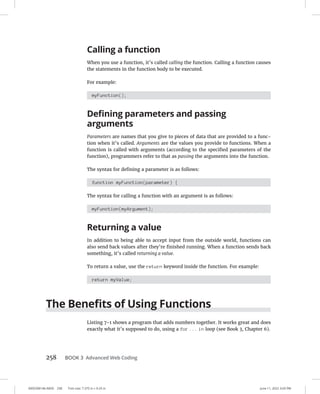
Organizing data on the page. . . . . . . . . . . . . . . . . . . . . . . . . . . . . . . 114
Shaping the div . . . . . . . . . . . . . . . . . . . . . . . . . . . . . . . . . . . . . . . . . . 116
Understanding the box model. . . . . . . . . . . . . . . . . . . . . . . . . . . . . .117
Positioning the boxes. . . . . . . . . . . . . . . . . . . . . . . . . . . . . . . . . . . . . 119
Writing More Advanced CSS . . . . . . . . . . . . . . . . . . . . . . . . . . . . . . . . . . 122
CHAPTER 5: Responsive Layouts with Flexbox. . . . . . . . . . . . . . . . . . .  123
Introducing Responsive Design. . . . . . . . . . . . . . . . . . . . . . . . . . . . . . . . 124
The web is mobile. . . . . . . . . . . . . . . . . . . . . . . . . . . . . . . . . . . . . . . . 124
Why are so many sites mobile-unfriendly?. . . . . . . . . . . . . . . . . . . 124
Introducing mobile-first design. . . . . . . . . . . . . . . . . . . . . . . . . . . . . 124
Making responsive web pages with the viewport meta tag. . . . . 125
Using Flexbox. . . . . . . . . . . . . . . . . . . . . . . . . . . . . . . . . . . . . . . . . . . . . . . 128
Creating boxes. . . . . . . . . . . . . . . . . . . . . . . . . . . . . . . . . . . . . . . . . . . 129
Thinking in one dimension. . . . . . . . . . . . . . . . . . . . . . . . . . . . . . . . . 130
Using multi-line containers . . . . . . . . . . . . . . . . . . . . . . . . . . . . . . . . 133
Make no assumptions. . . . . . . . . . . . . . . . . . . . . . . . . . . . . . . . . . . . . 134
Aligning on the cross-axis. . . . . . . . . . . . . . . . . . . . . . . . . . . . . . . . . . 134
Aligning on the main axis. . . . . . . . . . . . . . . . . . . . . . . . . . . . . . . . . . 136
Modifying flexible boxes. . . . . . . . . . . . . . . . . . . . . . . . . . . . . . . . . . . 137
Changing the order of items. . . . . . . . . . . . . . . . . . . . . . . . . . . . . . . 139
Experimenting with Flexbox . . . . . . . . . . . . . . . . . . . . . . . . . . . . . . . . . . 140
0005390115.INDD x Trim size: 7.375 in × 9.25 in June 11, 2022 4:46 PM
x Coding All-in-One For Dummies
CHAPTER 6: Styling with Bootstrap. . . . . . . . . . . . . . . . . . . . . . . . . . . . . . . . .  143
Figuring Out What Bootstrap Does. . . . . . . . . . . . . . . . . . . . . . . . . . . . . 144
Installing Bootstrap. . . . . . . . . . . . . . . . . . . . . . . . . . . . . . . . . . . . . . . . . . 145
Understanding the Layout Options . . . . . . . . . . . . . . . . . . . . . . . . . . . . 147
Lining up on the grid system. . . . . . . . . . . . . . . . . . . . . . . . . . . . . . . 147
Dragging and dropping to a website . . . . . . . . . . . . . . . . . . . . . . . . 150
Using predefined templates . . . . . . . . . . . . . . . . . . . . . . . . . . . . . . . 151
Adapting layout for mobile, tablet, and desktop . . . . . . . . . . . . . . 151
Coding Basic Web Page Elements. . . . . . . . . . . . . . . . . . . . . . . . . . . . . . 153
Designing buttons. . . . . . . . . . . . . . . . . . . . . . . . . . . . . . . . . . . . . . . . 153
Navigating with toolbars. . . . . . . . . . . . . . . . . . . . . . . . . . . . . . . . . . . 155
Adding icons. . . . . . . . . . . . . . . . . . . . . . . . . . . . . . . . . . . . . . . . . . . . . 157
Practicing with Bootstrap. . . . . . . . . . . . . . . . . . . . . . . . . . . . . . . . . . . . . 158
BOOK 3: ADVANCED WEB CODING. . . . . . . . . . . . . . . . . . . . . . . . . .  159
CHAPTER 1: What Is JavaScript?. . . . . . . . . . . . . . . . . . . . . . . . . . . . . . . . . . . . .  161
What Is JavaScript? . . . . . . . . . . . . . . . . . . . . . . . . . . . . . . . . . . . . . . . . . . 161
The Eich-man cometh. . . . . . . . . . . . . . . . . . . . . . . . . . . . . . . . . . . . . 162
Mocha-licious. . . . . . . . . . . . . . . . . . . . . . . . . . . . . . . . . . . . . . . . . . . . 163
We need more effects!. . . . . . . . . . . . . . . . . . . . . . . . . . . . . . . . . . . . 163
JavaScript Grows Up. . . . . . . . . . . . . . . . . . . . . . . . . . . . . . . . . . . . . . . . . 164
Dynamic scripting language. . . . . . . . . . . . . . . . . . . . . . . . . . . . . . . . 165
What does JavaScript do?. . . . . . . . . . . . . . . . . . . . . . . . . . . . . . . . . . 166
Why JavaScript?. . . . . . . . . . . . . . . . . . . . . . . . . . . . . . . . . . . . . . . . . . . . . 167
JavaScript is easy to learn!. . . . . . . . . . . . . . . . . . . . . . . . . . . . . . . . . 168
JavaScript is everywhere!. . . . . . . . . . . . . . . . . . . . . . . . . . . . . . . . . . 169
JavaScript is powerful!. . . . . . . . . . . . . . . . . . . . . . . . . . . . . . . . . . . . . 172
JavaScript is in demand!. . . . . . . . . . . . . . . . . . . . . . . . . . . . . . . . . . . 172
CHAPTER 2: Writing Your First JavaScript Program. . . . . . . . . . . . . .  173
Setting Up Your Development Environment. . . . . . . . . . . . . . . . . . . . . 173
Downloading and installing Chrome . . . . . . . . . . . . . . . . . . . . . . . . 174
Downloading and installing a code editor. . . . . . . . . . . . . . . . . . . . 174
Reading JavaScript Code. . . . . . . . . . . . . . . . . . . . . . . . . . . . . . . . . . . . . . 181
Running JavaScript in the Browser Window . . . . . . . . . . . . . . . . . . . . . 182
Using JavaScript in an HTML event attribute. . . . . . . . . . . . . . . . . . 182
Using JavaScript in a script element. . . . . . . . . . . . . . . . . . . . . . . . . 183
Including external JavaScript files. . . . . . . . . . . . . . . . . . . . . . . . . . . 185
Using the JavaScript Developer Console. . . . . . . . . . . . . . . . . . . . . . . . 188
Commenting Your Code. . . . . . . . . . . . . . . . . . . . . . . . . . . . . . . . . . . . . . 189
Single-line comments. . . . . . . . . . . . . . . . . . . . . . . . . . . . . . . . . . . . . 190
Multi-line comments. . . . . . . . . . . . . . . . . . . . . . . . . . . . . . . . . . . . . . 190
Using comments to prevent code execution. . . . . . . . . . . . . . . . . . 191
Table of Contents xi
0005390115.INDD xi Trim size: 7.375 in × 9.25 in June 11, 2022 4:46 PM
CHAPTER 3: Working with Variables. . . . . . . . . . . . . . . . . . . . . . . . . . . . . . . .  193
Understanding Variables. . . . . . . . . . . . . . . . . . . . . . . . . . . . . . . . . . . . . 193
Initializing Variables . . . . . . . . . . . . . . . . . . . . . . . . . . . . . . . . . . . . . . . . . 195
Understanding Global and Local Scope. . . . . . . . . . . . . . . . . . . . . . . . . 197
Naming Variables . . . . . . . . . . . . . . . . . . . . . . . . . . . . . . . . . . . . . . . . . . . 199
Creating Constants Using the const Keyword. . . . . . . . . . . . . . . . . . . . 201
Working with Data Types. . . . . . . . . . . . . . . . . . . . . . . . . . . . . . . . . . . . . 202
Number data type. . . . . . . . . . . . . . . . . . . . . . . . . . . . . . . . . . . . . . . . 202
bigInt data type. . . . . . . . . . . . . . . . . . . . . . . . . . . . . . . . . . . . . . . . . . 205
String data type. . . . . . . . . . . . . . . . . . . . . . . . . . . . . . . . . . . . . . . . . . 205
Boolean data type. . . . . . . . . . . . . . . . . . . . . . . . . . . . . . . . . . . . . . . . 208
NaN data type . . . . . . . . . . . . . . . . . . . . . . . . . . . . . . . . . . . . . . . . . . . 209
Undefined data type. . . . . . . . . . . . . . . . . . . . . . . . . . . . . . . . . . . . . . 210
Symbol data type. . . . . . . . . . . . . . . . . . . . . . . . . . . . . . . . . . . . . . . . . 210
CHAPTER 4: Understanding Arrays. . . . . . . . . . . . . . . . . . . . . . . . . . . . . . . . .  211
Making a List . . . . . . . . . . . . . . . . . . . . . . . . . . . . . . . . . . . . . . . . . . . . . . . 211
Array Fundamentals. . . . . . . . . . . . . . . . . . . . . . . . . . . . . . . . . . . . . . . . . 213
Arrays are zero-indexed. . . . . . . . . . . . . . . . . . . . . . . . . . . . . . . . . . . 213
Arrays can store any type of data. . . . . . . . . . . . . . . . . . . . . . . . . . . 214
Creating Arrays . . . . . . . . . . . . . . . . . . . . . . . . . . . . . . . . . . . . . . . . . . . . . 215
Using the new keyword method. . . . . . . . . . . . . . . . . . . . . . . . . . . . 215
Array literal. . . . . . . . . . . . . . . . . . . . . . . . . . . . . . . . . . . . . . . . . . . . . . 215
Populating Arrays . . . . . . . . . . . . . . . . . . . . . . . . . . . . . . . . . . . . . . . . . . . 215
Understanding Multidimensional Arrays. . . . . . . . . . . . . . . . . . . . . . . . 216
Accessing Array Elements . . . . . . . . . . . . . . . . . . . . . . . . . . . . . . . . . . . . 218
Looping through arrays. . . . . . . . . . . . . . . . . . . . . . . . . . . . . . . . . . . 219
Array properties. . . . . . . . . . . . . . . . . . . . . . . . . . . . . . . . . . . . . . . . . . 220
Array methods. . . . . . . . . . . . . . . . . . . . . . . . . . . . . . . . . . . . . . . . . . . 220
Using array methods. . . . . . . . . . . . . . . . . . . . . . . . . . . . . . . . . . . . . . 222
CHAPTER 5: Working with Operators, Expressions,
and Statements. . . . . . . . . . . . . . . . . . . . . . . . . . . . . . . . . . . . . . . . .  225
Express Yourself . . . . . . . . . . . . . . . . . . . . . . . . . . . . . . . . . . . . . . . . . . . . 226
Hello, Operator . . . . . . . . . . . . . . . . . . . . . . . . . . . . . . . . . . . . . . . . . . . . . 226
Operator precedence. . . . . . . . . . . . . . . . . . . . . . . . . . . . . . . . . . . . . 226
Using parentheses. . . . . . . . . . . . . . . . . . . . . . . . . . . . . . . . . . . . . . . . 227
Types of Operators. . . . . . . . . . . . . . . . . . . . . . . . . . . . . . . . . . . . . . . . . . 230
Assignment operators . . . . . . . . . . . . . . . . . . . . . . . . . . . . . . . . . . . . 230
Comparison operators. . . . . . . . . . . . . . . . . . . . . . . . . . . . . . . . . . . . 231
Arithmetic operators. . . . . . . . . . . . . . . . . . . . . . . . . . . . . . . . . . . . . . 231
String operator. . . . . . . . . . . . . . . . . . . . . . . . . . . . . . . . . . . . . . . . . . . 234
Bitwise operators. . . . . . . . . . . . . . . . . . . . . . . . . . . . . . . . . . . . . . . . . 234
Logical operators. . . . . . . . . . . . . . . . . . . . . . . . . . . . . . . . . . . . . . . . . 236
0005390115.INDD xii Trim size: 7.375 in × 9.25 in June 11, 2022 4:46 PM
xii Coding All-in-One For Dummies
Special operators. . . . . . . . . . . . . . . . . . . . . . . . . . . . . . . . . . . . . . . . . 237
Combining operators. . . . . . . . . . . . . . . . . . . . . . . . . . . . . . . . . . . . . 239
CHAPTER 6: Getting into the Flow with Loops and Branches. . .  241
Branching Out. . . . . . . . . . . . . . . . . . . . . . . . . . . . . . . . . . . . . . . . . . . . . . 241
if . . . else statements . . . . . . . . . . . . . . . . . . . . . . . . . . . . . . . . . . . . . 242
Switch statements. . . . . . . . . . . . . . . . . . . . . . . . . . . . . . . . . . . . . . . . 243
Here We Go: Loop De Loop. . . . . . . . . . . . . . . . . . . . . . . . . . . . . . . . . . . 246
for loops. . . . . . . . . . . . . . . . . . . . . . . . . . . . . . . . . . . . . . . . . . . . . . . . 246
for . . . in loops. . . . . . . . . . . . . . . . . . . . . . . . . . . . . . . . . . . . . . . . . . . 248
while loops. . . . . . . . . . . . . . . . . . . . . . . . . . . . . . . . . . . . . . . . . . . . . . 251
do . . . while loops. . . . . . . . . . . . . . . . . . . . . . . . . . . . . . . . . . . . . . . . 252
break and continue statements . . . . . . . . . . . . . . . . . . . . . . . . . . . . 253
CHAPTER 7: Getting Functional. . . . . . . . . . . . . . . . . . . . . . . . . . . . . . . . . . . . . .  255
Understanding the Function of Functions. . . . . . . . . . . . . . . . . . . . . . . 255
Using Function Terminology. . . . . . . . . . . . . . . . . . . . . . . . . . . . . . . . . . 257
Defining a function. . . . . . . . . . . . . . . . . . . . . . . . . . . . . . . . . . . . . . . 257
Function head . . . . . . . . . . . . . . . . . . . . . . . . . . . . . . . . . . . . . . . . . . . 257
Function body . . . . . . . . . . . . . . . . . . . . . . . . . . . . . . . . . . . . . . . . . . . 257
Calling a function. . . . . . . . . . . . . . . . . . . . . . . . . . . . . . . . . . . . . . . . . 258
Defining parameters and passing arguments. . . . . . . . . . . . . . . . . 258
Returning a value. . . . . . . . . . . . . . . . . . . . . . . . . . . . . . . . . . . . . . . . . 258
The Benefits of Using Functions. . . . . . . . . . . . . . . . . . . . . . . . . . . . . . . 258
Writing Functions. . . . . . . . . . . . . . . . . . . . . . . . . . . . . . . . . . . . . . . . . . . . 262
Returning Values. . . . . . . . . . . . . . . . . . . . . . . . . . . . . . . . . . . . . . . . . . . . 263
Passing and Using Arguments. . . . . . . . . . . . . . . . . . . . . . . . . . . . . . . . . 264
Passing arguments by value . . . . . . . . . . . . . . . . . . . . . . . . . . . . . . . 265
Passing arguments by reference. . . . . . . . . . . . . . . . . . . . . . . . . . . . 267
Calling a function without all the arguments . . . . . . . . . . . . . . . . . 267
Setting default parameter values. . . . . . . . . . . . . . . . . . . . . . . . . . . 267
Calling a function with more arguments than parameters. . . . . . 268
Getting into arguments with the arguments object. . . . . . . . . . . . 268
Understanding Function Scope. . . . . . . . . . . . . . . . . . . . . . . . . . . . . . . . 269
Creating Anonymous Functions . . . . . . . . . . . . . . . . . . . . . . . . . . . . . . . 270
Knowing the differences between anonymous and
named functions. . . . . . . . . . . . . . . . . . . . . . . . . . . . . . . . . . . . . . . . . 270
Arrow functions. . . . . . . . . . . . . . . . . . . . . . . . . . . . . . . . . . . . . . . . . . 270
Doing it Again with Recursion. . . . . . . . . . . . . . . . . . . . . . . . . . . . . . . . . 271
Functions within Functions . . . . . . . . . . . . . . . . . . . . . . . . . . . . . . . . . . . 273
CHAPTER 8: Making and Using Objects. . . . . . . . . . . . . . . . . . . . . . . . . . . .  275
Object of My Desire. . . . . . . . . . . . . . . . . . . . . . . . . . . . . . . . . . . . . . . . . . 275
Creating Objects . . . . . . . . . . . . . . . . . . . . . . . . . . . . . . . . . . . . . . . . . . . . 277
Table of Contents xiii
0005390115.INDD xiii Trim size: 7.375 in × 9.25 in June 11, 2022 4:46 PM
Defining objects with object literals. . . . . . . . . . . . . . . . . . . . . . . . . 277
Defining objects with a constructor function . . . . . . . . . . . . . . . . . 278
Making objects with class. . . . . . . . . . . . . . . . . . . . . . . . . . . . . . . . . . 279
Using Object.create. . . . . . . . . . . . . . . . . . . . . . . . . . . . . . . . . . . . . . . 280
Retrieving and Setting Object Properties. . . . . . . . . . . . . . . . . . . . . . . . 280
Using dot notation. . . . . . . . . . . . . . . . . . . . . . . . . . . . . . . . . . . . . . . . 281
Using square bracket notation. . . . . . . . . . . . . . . . . . . . . . . . . . . . . 281
Deleting Properties. . . . . . . . . . . . . . . . . . . . . . . . . . . . . . . . . . . . . . . . . . 283
Working with Methods. . . . . . . . . . . . . . . . . . . . . . . . . . . . . . . . . . . . . . . 284
Using this . . . . . . . . . . . . . . . . . . . . . . . . . . . . . . . . . . . . . . . . . . . . . . . 286
An Object-Oriented Way to Become Wealthy: Inheritance. . . . . . . . . 287
Creating an object using inheritance. . . . . . . . . . . . . . . . . . . . . . . . 288
Modifying an object type. . . . . . . . . . . . . . . . . . . . . . . . . . . . . . . . . . 289
CHAPTER 9: Controlling the Browser with the
Window Object. . . . . . . . . . . . . . . . . . . . . . . . . . . . . . . . . . . . . . . . . .  291
Understanding the Browser Environment. . . . . . . . . . . . . . . . . . . . . . . 291
The user interface. . . . . . . . . . . . . . . . . . . . . . . . . . . . . . . . . . . . . . . . 292
Loader. . . . . . . . . . . . . . . . . . . . . . . . . . . . . . . . . . . . . . . . . . . . . . . . . . 293
HTML parsing. . . . . . . . . . . . . . . . . . . . . . . . . . . . . . . . . . . . . . . . . . . . 294
CSS parsing. . . . . . . . . . . . . . . . . . . . . . . . . . . . . . . . . . . . . . . . . . . . . . 294
JavaScript parsing . . . . . . . . . . . . . . . . . . . . . . . . . . . . . . . . . . . . . . . . 294
Layout and rendering. . . . . . . . . . . . . . . . . . . . . . . . . . . . . . . . . . . . . 295
Investigating the BOM . . . . . . . . . . . . . . . . . . . . . . . . . . . . . . . . . . . . . . . 295
The Navigator object. . . . . . . . . . . . . . . . . . . . . . . . . . . . . . . . . . . . . . 295
The Window object. . . . . . . . . . . . . . . . . . . . . . . . . . . . . . . . . . . . . . . 298
Using the Window object’s methods . . . . . . . . . . . . . . . . . . . . . . . . 304
CHAPTER 10: Manipulating Documents with the DOM. . . . . . . . . . .  307
Understanding the DOM . . . . . . . . . . . . . . . . . . . . . . . . . . . . . . . . . . . . . 307
Understanding Node Relationships. . . . . . . . . . . . . . . . . . . . . . . . . . . . 309
Using the Document Object’s Properties and Methods . . . . . . . . . . . 314
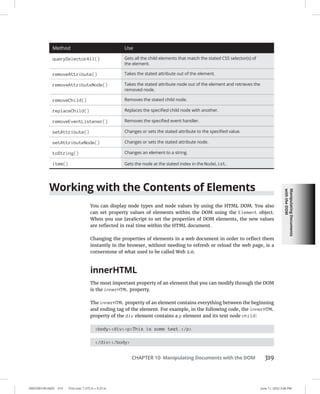
Using the Element Object’s Properties and Methods . . . . . . . . . . . . . 316
Working with the Contents of Elements . . . . . . . . . . . . . . . . . . . . . . . . 319
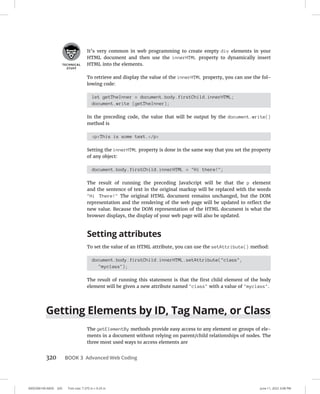
innerHTML. . . . . . . . . . . . . . . . . . . . . . . . . . . . . . . . . . . . . . . . . . . . . . 319
Setting attributes. . . . . . . . . . . . . . . . . . . . . . . . . . . . . . . . . . . . . . . . . 320
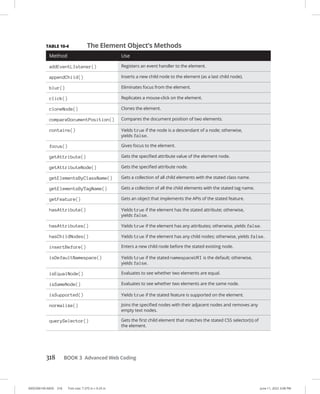
Getting Elements by ID, Tag Name, or Class. . . . . . . . . . . . . . . . . . . . . 320
getElementById. . . . . . . . . . . . . . . . . . . . . . . . . . . . . . . . . . . . . . . . . . 321
getElementsByTagName . . . . . . . . . . . . . . . . . . . . . . . . . . . . . . . . . . 322
getElementsByClassName. . . . . . . . . . . . . . . . . . . . . . . . . . . . . . . . . 322
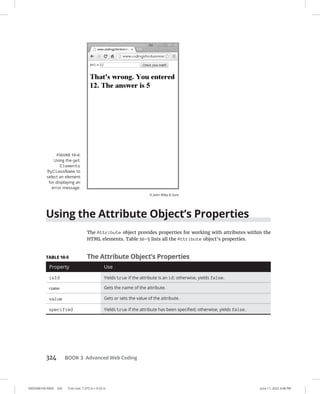
Using the Attribute Object’s Properties. . . . . . . . . . . . . . . . . . . . . . . . . 324
Creating and Appending Elements. . . . . . . . . . . . . . . . . . . . . . . . . . . . . 325
Removing Elements. . . . . . . . . . . . . . . . . . . . . . . . . . . . . . . . . . . . . . . . . . 325
0005390115.INDD xiv Trim size: 7.375 in × 9.25 in June 11, 2022 4:46 PM
xiv Coding All-in-One For Dummies
CHAPTER 11: Using Events in JavaScript. . . . . . . . . . . . . . . . . . . . . . . . . . . . .  327
Knowing Your Events . . . . . . . . . . . . . . . . . . . . . . . . . . . . . . . . . . . . . . . . 327
Handling Events. . . . . . . . . . . . . . . . . . . . . . . . . . . . . . . . . . . . . . . . . . . . . 329
Using inline event handlers. . . . . . . . . . . . . . . . . . . . . . . . . . . . . . . . 330
Event handling using element properties. . . . . . . . . . . . . . . . . . . . 331
Event handling using addEventListener. . . . . . . . . . . . . . . . . . . . . . 332
Stopping propagation. . . . . . . . . . . . . . . . . . . . . . . . . . . . . . . . . . . . . 336
CHAPTER 12: Integrating Input and Output. . . . . . . . . . . . . . . . . . . . . . . .  339
Understanding HTML Forms. . . . . . . . . . . . . . . . . . . . . . . . . . . . . . . . . . 339
The form element. . . . . . . . . . . . . . . . . . . . . . . . . . . . . . . . . . . . . . . . 340
The label element. . . . . . . . . . . . . . . . . . . . . . . . . . . . . . . . . . . . . . . . 341
The input element. . . . . . . . . . . . . . . . . . . . . . . . . . . . . . . . . . . . . . . . 342
The select element . . . . . . . . . . . . . . . . . . . . . . . . . . . . . . . . . . . . . . . 344
The textarea element. . . . . . . . . . . . . . . . . . . . . . . . . . . . . . . . . . . . . 344
The button element. . . . . . . . . . . . . . . . . . . . . . . . . . . . . . . . . . . . . . .344
Working with the Form Object. . . . . . . . . . . . . . . . . . . . . . . . . . . . . . . . .345
Using Form properties. . . . . . . . . . . . . . . . . . . . . . . . . . . . . . . . . . . . 345
Using the Form object’s methods. . . . . . . . . . . . . . . . . . . . . . . . . . . 347
Accessing form elements. . . . . . . . . . . . . . . . . . . . . . . . . . . . . . . . . . 348
Getting and setting form element values . . . . . . . . . . . . . . . . . . . . 349
Validating user input. . . . . . . . . . . . . . . . . . . . . . . . . . . . . . . . . . . . . . 351
CHAPTER 13: Understanding Callbacks and Closures. . . . . . . . . . . . .  355
What Are Callbacks?. . . . . . . . . . . . . . . . . . . . . . . . . . . . . . . . . . . . . . . . . 355
Passing functions as arguments. . . . . . . . . . . . . . . . . . . . . . . . . . . . 356
Writing functions with callbacks. . . . . . . . . . . . . . . . . . . . . . . . . . . . 356
Using named callback functions. . . . . . . . . . . . . . . . . . . . . . . . . . . . 357
Understanding Closures. . . . . . . . . . . . . . . . . . . . . . . . . . . . . . . . . . . . . . 360
Using Closures. . . . . . . . . . . . . . . . . . . . . . . . . . . . . . . . . . . . . . . . . . . . . . 363
CHAPTER 14: Embracing AJAX and JSON . . . . . . . . . . . . . . . . . . . . . . . . . . . .  367
Working behind the Scenes with AJAX. . . . . . . . . . . . . . . . . . . . . . . . . . 367
AJAX examples. . . . . . . . . . . . . . . . . . . . . . . . . . . . . . . . . . . . . . . . . . . 368
Viewing AJAX in action. . . . . . . . . . . . . . . . . . . . . . . . . . . . . . . . . . . . . 370
Using the XMLHttpRequest object . . . . . . . . . . . . . . . . . . . . . . . . . . 373
Working with the same-origin policy . . . . . . . . . . . . . . . . . . . . . . . . 375
Using CORS, the silver bullet for AJAX requests . . . . . . . . . . . . . . . 377
Putting Objects in Motion with JSON. . . . . . . . . . . . . . . . . . . . . . . . . . . 378
BOOK 4: CREATING MOBILE APPS. . . . . . . . . . . . . . . . . . . . . . . . . . .  383
CHAPTER 1: What Is Flutter?. . . . . . . . . . . . . . . . . . . . . . . . . . . . . . . . . . . . . . . . .  385
All About Hardware and Software . . . . . . . . . . . . . . . . . . . . . . . . . . . . . 385
Where Does Flutter Fit In?. . . . . . . . . . . . . . . . . . . . . . . . . . . . . . . . . . . . 389
Table of Contents xv
0005390115.INDD xv Trim size: 7.375 in × 9.25 in June 11, 2022 4:46 PM
Cross-platform development. . . . . . . . . . . . . . . . . . . . . . . . . . . . . . . 390
A quick-and-easy development cycle. . . . . . . . . . . . . . . . . . . . . . . . 394
A great way to think about app development. . . . . . . . . . . . . . . . . 396
Enough New Terminology! What’s Next?. . . . . . . . . . . . . . . . . . . . . . . . 400
CHAPTER 2: Setting Up Your Computer for Mobile App
Development. . . . . . . . . . . . . . . . . . . . . . . . . . . . . . . . . . . . . . . . . . . .  401
The Stuff You Need. . . . . . . . . . . . . . . . . . . . . . . . . . . . . . . . . . . . . . . . . . 401
What to Do. . . . . . . . . . . . . . . . . . . . . . . . . . . . . . . . . . . . . . . . . . . . . . . . . 403
Getting and installing the stuff . . . . . . . . . . . . . . . . . . . . . . . . . . . . . 403
For Mac users only . . . . . . . . . . . . . . . . . . . . . . . . . . . . . . . . . . . . . . . 406
Configuring Android Studio. . . . . . . . . . . . . . . . . . . . . . . . . . . . . . . . 407
Running your first app. . . . . . . . . . . . . . . . . . . . . . . . . . . . . . . . . . . . 408
Dealing with the Devil’s Details. . . . . . . . . . . . . . . . . . . . . . . . . . . . . . . . 413
On installing Android Studio. . . . . . . . . . . . . . . . . . . . . . . . . . . . . . . 414
On launching Android Studio for the first time. . . . . . . . . . . . . . . . 414
On adding virtual devices. . . . . . . . . . . . . . . . . . . . . . . . . . . . . . . . . . 415
On installing Flutter. . . . . . . . . . . . . . . . . . . . . . . . . . . . . . . . . . . . . . . 416
Divisiveness Among Devices. . . . . . . . . . . . . . . . . . . . . . . . . . . . . . . . . . 418
Running apps on an Android device. . . . . . . . . . . . . . . . . . . . . . . . . 418
Testing apps on a physical device. . . . . . . . . . . . . . . . . . . . . . . . . . . 419
Using Android Studio. . . . . . . . . . . . . . . . . . . . . . . . . . . . . . . . . . . . . . . . 424
Starting up . . . . . . . . . . . . . . . . . . . . . . . . . . . . . . . . . . . . . . . . . . . . . . 425
The main window . . . . . . . . . . . . . . . . . . . . . . . . . . . . . . . . . . . . . . . . 425
Running This Book’s Sample Programs. . . . . . . . . . . . . . . . . . . . . . . . . 429
Enjoying reruns. . . . . . . . . . . . . . . . . . . . . . . . . . . . . . . . . . . . . . . . . . 431
If you’re finicky . . . . . . . . . . . . . . . . . . . . . . . . . . . . . . . . . . . . . . . . . . 432
CHAPTER 3: “Hello” from Flutter. . . . . . . . . . . . . . . . . . . . . . . . . . . . . . . . . . . .  433
First Things First: Creating a Flutter Project. . . . . . . . . . . . . . . . . . . . . . 434
What’s it all about? . . . . . . . . . . . . . . . . . . . . . . . . . . . . . . . . . . . . . . . 436
A constructor’s parameters. . . . . . . . . . . . . . . . . . . . . . . . . . . . . . . . 440
A note about punctuation . . . . . . . . . . . . . . . . . . . . . . . . . . . . . . . . . 442
Don’t relent — simply indent. . . . . . . . . . . . . . . . . . . . . . . . . . . . . . . 442
Classes, Objects, and Widgets. . . . . . . . . . . . . . . . . . . . . . . . . . . . . . . . . 444
A brief treatise on “within-ness”. . . . . . . . . . . . . . . . . . . . . . . . . . . . 446
The documentation is your friend . . . . . . . . . . . . . . . . . . . . . . . . . . 447
Making Things Look Nicer . . . . . . . . . . . . . . . . . . . . . . . . . . . . . . . . . . . . 448
Creating a scaffold. . . . . . . . . . . . . . . . . . . . . . . . . . . . . . . . . . . . . . . . 451
Adding visual tweaks. . . . . . . . . . . . . . . . . . . . . . . . . . . . . . . . . . . . . . 453
Dart’s enum feature . . . . . . . . . . . . . . . . . . . . . . . . . . . . . . . . . . . . . . 454
Hello from sunny California!. . . . . . . . . . . . . . . . . . . . . . . . . . . . . . . 454
Adding another widget. . . . . . . . . . . . . . . . . . . . . . . . . . . . . . . . . . . . 456
Centering the text (Part 1). . . . . . . . . . . . . . . . . . . . . . . . . . . . . . . . . 459
0005390115.INDD xvi Trim size: 7.375 in × 9.25 in June 11, 2022 4:46 PM
xvi Coding All-in-One For Dummies
Centering the text (Part 2). . . . . . . . . . . . . . . . . . . . . . . . . . . . . . . . . 461
Displaying an image. . . . . . . . . . . . . . . . . . . . . . . . . . . . . . . . . . . . . . 464
Hey, Wait a Minute . . . . . . . . . . . . . . . . . . . . . . . . . . . . . . . . . . . . . . . . . . 468
CHAPTER 4: Hello Again. . . . . . . . . . . . . . . . . . . . . . . . . . . . . . . . . . . . . . . . . . . . . . .  469
Creating and Using a Function . . . . . . . . . . . . . . . . . . . . . . . . . . . . . . . . 470
The function declaration . . . . . . . . . . . . . . . . . . . . . . . . . . . . . . . . . . 471
A function call. . . . . . . . . . . . . . . . . . . . . . . . . . . . . . . . . . . . . . . . . . . . 472
Parameters and the return value. . . . . . . . . . . . . . . . . . . . . . . . . . . 472
Programming in Dart: The Small Stuff. . . . . . . . . . . . . . . . . . . . . . . . . . 475
Statements and declarations. . . . . . . . . . . . . . . . . . . . . . . . . . . . . . . 475
Dart’s typing feature. . . . . . . . . . . . . . . . . . . . . . . . . . . . . . . . . . . . . . 476
Literals, variables, and expressions. . . . . . . . . . . . . . . . . . . . . . . . . 477
Two for the price of one. . . . . . . . . . . . . . . . . . . . . . . . . . . . . . . . . . . 480
Dart’s var keyword. . . . . . . . . . . . . . . . . . . . . . . . . . . . . . . . . . . . . . . . 483
Built-in types . . . . . . . . . . . . . . . . . . . . . . . . . . . . . . . . . . . . . . . . . . . . 484
Types that aren’t built-in. . . . . . . . . . . . . . . . . . . . . . . . . . . . . . . . . . . 486
Using import declarations. . . . . . . . . . . . . . . . . . . . . . . . . . . . . . . . . 487
Creating Function Declaration Variations. . . . . . . . . . . . . . . . . . . . . . . 487
Type names in function declarations. . . . . . . . . . . . . . . . . . . . . . . . 490
Naming your parameters. . . . . . . . . . . . . . . . . . . . . . . . . . . . . . . . . . 491
What about the build function?. . . . . . . . . . . . . . . . . . . . . . . . . . . . . 492
More Fun to Come!. . . . . . . . . . . . . . . . . . . . . . . . . . . . . . . . . . . . . . . . . . 493
CHAPTER 5: Making Things Happen . . . . . . . . . . . . . . . . . . . . . . . . . . . . . . . .  495
Let’s All Press a Floating Action Button . . . . . . . . . . . . . . . . . . . . . . . . . 495
Stateless widgets and stateful widgets. . . . . . . . . . . . . . . . . . . . . . . 498
Widgets have methods. . . . . . . . . . . . . . . . . . . . . . . . . . . . . . . . . . . . 498
Pay no attention to the framework behind the curtain. . . . . . . . . 500
Enhancing Your App. . . . . . . . . . . . . . . . . . . . . . . . . . . . . . . . . . . . . . . . . 509
More parameters, please. . . . . . . . . . . . . . . . . . . . . . . . . . . . . . . . . . 512
The override annotation. . . . . . . . . . . . . . . . . . . . . . . . . . . . . . . . . . . 514
What does Widget mean? . . . . . . . . . . . . . . . . . . . . . . . . . . . . . . . 515
Anonymous functions. . . . . . . . . . . . . . . . . . . . . . . . . . . . . . . . . . . . . 516
What belongs where. . . . . . . . . . . . . . . . . . . . . . . . . . . . . . . . . . . . . . 519
Names that start with an underscore. . . . . . . . . . . . . . . . . . . . . . . . 524
Whew!. . . . . . . . . . . . . . . . . . . . . . . . . . . . . . . . . . . . . . . . . . . . . . . . . . . . . 525
CHAPTER 6: Laying Things Out. . . . . . . . . . . . . . . . . . . . . . . . . . . . . . . . . . . . . .  527
Understanding the Big Picture . . . . . . . . . . . . . . . . . . . . . . . . . . . . . . . . 528
Creating bite-size pieces of code. . . . . . . . . . . . . . . . . . . . . . . . . . . . 531
Creating a parameter list. . . . . . . . . . . . . . . . . . . . . . . . . . . . . . . . . . 533
Living color. . . . . . . . . . . . . . . . . . . . . . . . . . . . . . . . . . . . . . . . . . . . . . 534
Adding padding. . . . . . . . . . . . . . . . . . . . . . . . . . . . . . . . . . . . . . . . . . 535
Table of Contents xvii
0005390115.INDD xvii Trim size: 7.375 in × 9.25 in June 11, 2022 4:46 PM
Your humble servant, the Column widget. . . . . . . . . . . . . . . . . . . . 537
The SizedBox widget. . . . . . . . . . . . . . . . . . . . . . . . . . . . . . . . . . . . . . 539
Your friend, the Container widget. . . . . . . . . . . . . . . . . . . . . . . . . . . 539
Nesting Rows and Columns. . . . . . . . . . . . . . . . . . . . . . . . . . . . . . . . . . . 545
Introducing More Levels of Nesting. . . . . . . . . . . . . . . . . . . . . . . . . . . . 546
Using the Expanded Widget. . . . . . . . . . . . . . . . . . . . . . . . . . . . . . . . . . . 549
Expanded versus unexpanded. . . . . . . . . . . . . . . . . . . . . . . . . . . . . 552
Expanded widget saves the day . . . . . . . . . . . . . . . . . . . . . . . . . . . . 555
Flexing some muscles. . . . . . . . . . . . . . . . . . . . . . . . . . . . . . . . . . . . . 560
How Big Is My Device? . . . . . . . . . . . . . . . . . . . . . . . . . . . . . . . . . . . . . . . 562
CHAPTER 7: Interacting with the User. . . . . . . . . . . . . . . . . . . . . . . . . . . . .  567
A Simple Switch. . . . . . . . . . . . . . . . . . . . . . . . . . . . . . . . . . . . . . . . . . . . . 568
Dart’s const keyword. . . . . . . . . . . . . . . . . . . . . . . . . . . . . . . . . . . . . . 571
Compatible or NOT?. . . . . . . . . . . . . . . . . . . . . . . . . . . . . . . . . . . . . . 572
Wait For It! . . . . . . . . . . . . . . . . . . . . . . . . . . . . . . . . . . . . . . . . . . . . . . . . . 574
How Much Do You Love Flutter?. . . . . . . . . . . . . . . . . . . . . . . . . . . . . . . 576
Dealing with Text Fields. . . . . . . . . . . . . . . . . . . . . . . . . . . . . . . . . . . . . . 581
Callouts 1 and 2. . . . . . . . . . . . . . . . . . . . . . . . . . . . . . . . . . . . . . . . . . 582
Callout 3. . . . . . . . . . . . . . . . . . . . . . . . . . . . . . . . . . . . . . . . . . . . . . . . 585
Callout 4. . . . . . . . . . . . . . . . . . . . . . . . . . . . . . . . . . . . . . . . . . . . . . . . 586
Callout 5. . . . . . . . . . . . . . . . . . . . . . . . . . . . . . . . . . . . . . . . . . . . . . . . 590
Creating Radio Buttons. . . . . . . . . . . . . . . . . . . . . . . . . . . . . . . . . . . . . . . 590
Creating an enum. . . . . . . . . . . . . . . . . . . . . . . . . . . . . . . . . . . . . . . . 593
Building the radio group. . . . . . . . . . . . . . . . . . . . . . . . . . . . . . . . . . . 593
Displaying the user’s choice. . . . . . . . . . . . . . . . . . . . . . . . . . . . . . . . 595
Creating a Drop-Down Button. . . . . . . . . . . . . . . . . . . . . . . . . . . . . . . . . 596
Building the drop-down button. . . . . . . . . . . . . . . . . . . . . . . . . . . . . 600
The little Reset button. . . . . . . . . . . . . . . . . . . . . . . . . . . . . . . . . . . . . 601
Making a map. . . . . . . . . . . . . . . . . . . . . . . . . . . . . . . . . . . . . . . . . . . . 602
Onward and Upward . . . . . . . . . . . . . . . . . . . . . . . . . . . . . . . . . . . . . . . . 603
CHAPTER 8: Navigation, Lists, and Other Goodies. . . . . . . . . . . . . . .  605
Extending a Dart Class. . . . . . . . . . . . . . . . . . . . . . . . . . . . . . . . . . . . . . . 605
Navigating from One Page to Another. . . . . . . . . . . . . . . . . . . . . . . . . . 608
An icon on a button. . . . . . . . . . . . . . . . . . . . . . . . . . . . . . . . . . . . . . . 612
Pushing and popping. . . . . . . . . . . . . . . . . . . . . . . . . . . . . . . . . . . . . 612
Passing Data from the Source to a Destination. . . . . . . . . . . . . . . . . . 613
Passing Data Back to the Source. . . . . . . . . . . . . . . . . . . . . . . . . . . . . . . 618
Dart’s async and await keywords . . . . . . . . . . . . . . . . . . . . . . . . . . . 621
Taking control of the app bar’s Back button. . . . . . . . . . . . . . . . . . 623
Passing Data in Both Directions. . . . . . . . . . . . . . . . . . . . . . . . . . . . . . . 624
Creating Named Routes. . . . . . . . . . . . . . . . . . . . . . . . . . . . . . . . . . . . . . 629
Creating a List . . . . . . . . . . . . . . . . . . . . . . . . . . . . . . . . . . . . . . . . . . . . . . 633
0005390115.INDD xviii Trim size: 7.375 in × 9.25 in June 11, 2022 4:46 PM
xviii Coding All-in-One For Dummies
The ListView widget. . . . . . . . . . . . . . . . . . . . . . . . . . . . . . . . . . . . . . . 634
Creating list items one-by-one. . . . . . . . . . . . . . . . . . . . . . . . . . . . . . 639
Making loops with Dart. . . . . . . . . . . . . . . . . . . . . . . . . . . . . . . . . . . . 643
Fetching Data from the Internet. . . . . . . . . . . . . . . . . . . . . . . . . . . . . . . 646
Using a public API. . . . . . . . . . . . . . . . . . . . . . . . . . . . . . . . . . . . . . . . 647
Sending an URL to a server. . . . . . . . . . . . . . . . . . . . . . . . . . . . . . . . 650
Making sense of a JSON response . . . . . . . . . . . . . . . . . . . . . . . . . . 651
What’s Next?. . . . . . . . . . . . . . . . . . . . . . . . . . . . . . . . . . . . . . . . . . . . . . . . 652
CHAPTER 9: Moving Right Along . . . . . . . . . . . . . . . . . . . . . . . . . . . . . . . . . . .  653
Setting the Stage for Flutter Animation. . . . . . . . . . . . . . . . . . . . . . . . . 653
Moving Along a Straight Line. . . . . . . . . . . . . . . . . . . . . . . . . . . . . . . . . . 659
Bouncing Around. . . . . . . . . . . . . . . . . . . . . . . . . . . . . . . . . . . . . . . . . . . . 664
Animating Size and Color Changes. . . . . . . . . . . . . . . . . . . . . . . . . . . . . 666
Moving Along a Curve. . . . . . . . . . . . . . . . . . . . . . . . . . . . . . . . . . . . . . . . 668
Dragging Things Around. . . . . . . . . . . . . . . . . . . . . . . . . . . . . . . . . . . . . . 670
Tearing Things Up. . . . . . . . . . . . . . . . . . . . . . . . . . . . . . . . . . . . . . . . . . . 673
BOOK 5: GETTING STARTED WITH PYTHON. . . . . . . . . . . . . . . .  675
CHAPTER 1: Wrapping Your Head around Python. . . . . . . . . . . . . . .  677
What Does Python Do?. . . . . . . . . . . . . . . . . . . . . . . . . . . . . . . . . . . . . . . 678
Defining Python Structure. . . . . . . . . . . . . . . . . . . . . . . . . . . . . . . . . . . . 679
Understanding the Zen of Python. . . . . . . . . . . . . . . . . . . . . . . . . . . 679
Styling and spacing. . . . . . . . . . . . . . . . . . . . . . . . . . . . . . . . . . . . . . . 680
Coding Common Python Tasks and Commands . . . . . . . . . . . . . . . . . 681
Defining data types and variables. . . . . . . . . . . . . . . . . . . . . . . . . . . 681
Computing simple and advanced math. . . . . . . . . . . . . . . . . . . . . . 682
Using strings and special characters . . . . . . . . . . . . . . . . . . . . . . . . 684
Deciding with conditionals: if, elif, else. . . . . . . . . . . . . . . . . . . . . . . 685
Input and output. . . . . . . . . . . . . . . . . . . . . . . . . . . . . . . . . . . . . . . . . 686
Shaping Your Strings. . . . . . . . . . . . . . . . . . . . . . . . . . . . . . . . . . . . . . . . . 687
Dot notation with upper(), lower(), capitalize(), and strip(). . . . . . 687
String formatting with %. . . . . . . . . . . . . . . . . . . . . . . . . . . . . . . . . . . 688
CHAPTER 2: Installing a Python Distribution . . . . . . . . . . . . . . . . . . . . .  689
Using Anaconda. . . . . . . . . . . . . . . . . . . . . . . . . . . . . . . . . . . . . . . . . . . . . 690
Getting Anaconda. . . . . . . . . . . . . . . . . . . . . . . . . . . . . . . . . . . . . . . . 690
Defining why Anaconda is used in this book. . . . . . . . . . . . . . . . . . 691
Installing Anaconda on Linux. . . . . . . . . . . . . . . . . . . . . . . . . . . . . . . . . . 692
Installing Anaconda on macOS X. . . . . . . . . . . . . . . . . . . . . . . . . . . . . . .693
Installing Anaconda on Windows. . . . . . . . . . . . . . . . . . . . . . . . . . . . . . 694
Downloading the Data Sets and Example Code. . . . . . . . . . . . . . . . . . 696
Table of Contents xix
0005390115.INDD xix Trim size: 7.375 in × 9.25 in June 11, 2022 4:46 PM
Starting Anaconda Navigator. . . . . . . . . . . . . . . . . . . . . . . . . . . . . . . 697
Using Jupyter Notebook. . . . . . . . . . . . . . . . . . . . . . . . . . . . . . . . . . . 697
Defining the code repository. . . . . . . . . . . . . . . . . . . . . . . . . . . . . . . 699
Understanding the data sets used in this book . . . . . . . . . . . . . . . 704
CHAPTER 3: Working with Real Data. . . . . . . . . . . . . . . . . . . . . . . . . . . . . . .  707
Uploading, Streaming, and Sampling Data. . . . . . . . . . . . . . . . . . . . . . 708
Uploading small amounts of data into memory. . . . . . . . . . . . . . . 709
Streaming large amounts of data into memory. . . . . . . . . . . . . . . 710
Generating variations on image data. . . . . . . . . . . . . . . . . . . . . . . . 711
Sampling data in different ways. . . . . . . . . . . . . . . . . . . . . . . . . . . . 712
Accessing Data in Structured Flat-File Form. . . . . . . . . . . . . . . . . . . . . 714
Reading from a text file . . . . . . . . . . . . . . . . . . . . . . . . . . . . . . . . . . . 714
Reading CSV-delimited format. . . . . . . . . . . . . . . . . . . . . . . . . . . . . .715
Reading Excel and other Microsoft Office files. . . . . . . . . . . . . . . . 718
Sending Data in Unstructured File Form. . . . . . . . . . . . . . . . . . . . . . . . 719
Managing Data from Relational Databases. . . . . . . . . . . . . . . . . . . . . . 722
Interacting with Data from NoSQL Databases . . . . . . . . . . . . . . . . . . . 724
Accessing Data from the Web. . . . . . . . . . . . . . . . . . . . . . . . . . . . . . . . . 725
Accessing XML data. . . . . . . . . . . . . . . . . . . . . . . . . . . . . . . . . . . . . . . 725
Using read_xml . . . . . . . . . . . . . . . . . . . . . . . . . . . . . . . . . . . . . . . . . . 727
BOOK 6: DATA ANALYSIS WITH PYTHON. . . . . . . . . . . . . . . . . . .  729
CHAPTER 1: Conditioning Your Data . . . . . . . . . . . . . . . . . . . . . . . . . . . . . . .  731
Juggling between NumPy and pandas. . . . . . . . . . . . . . . . . . . . . . . . . . 732
Knowing when to use NumPy. . . . . . . . . . . . . . . . . . . . . . . . . . . . . . 732
Knowing when to use pandas. . . . . . . . . . . . . . . . . . . . . . . . . . . . . . 732
Validating Your Data. . . . . . . . . . . . . . . . . . . . . . . . . . . . . . . . . . . . . . . . . 733
Figuring out what’s in your data. . . . . . . . . . . . . . . . . . . . . . . . . . . . 734
Removing duplicates. . . . . . . . . . . . . . . . . . . . . . . . . . . . . . . . . . . . . . 737
Creating a data map and data plan . . . . . . . . . . . . . . . . . . . . . . . . . 738
Manipulating Categorical Variables . . . . . . . . . . . . . . . . . . . . . . . . . . . . 740
Creating categorical variables. . . . . . . . . . . . . . . . . . . . . . . . . . . . . . 741
Renaming levels. . . . . . . . . . . . . . . . . . . . . . . . . . . . . . . . . . . . . . . . . . 742
Combining levels. . . . . . . . . . . . . . . . . . . . . . . . . . . . . . . . . . . . . . . . . 743
Dealing with Dates in Your Data. . . . . . . . . . . . . . . . . . . . . . . . . . . . . . . 744
Formatting date and time values . . . . . . . . . . . . . . . . . . . . . . . . . . . 745
Using the right time transformation. . . . . . . . . . . . . . . . . . . . . . . . . 745
Dealing with Missing Data. . . . . . . . . . . . . . . . . . . . . . . . . . . . . . . . . . . . 747
Finding the missing data . . . . . . . . . . . . . . . . . . . . . . . . . . . . . . . . . . 747
Encoding missingness. . . . . . . . . . . . . . . . . . . . . . . . . . . . . . . . . . . . . 748
Imputing missing data . . . . . . . . . . . . . . . . . . . . . . . . . . . . . . . . . . . . 749
0005390115.INDD xx Trim size: 7.375 in × 9.25 in June 11, 2022 4:46 PM
xx Coding All-in-One For Dummies
Slicing and Dicing: Filtering and Selecting Data . . . . . . . . . . . . . . . . . . 750
Slicing rows. . . . . . . . . . . . . . . . . . . . . . . . . . . . . . . . . . . . . . . . . . . . . . 750
Slicing columns . . . . . . . . . . . . . . . . . . . . . . . . . . . . . . . . . . . . . . . . . . 751
Dicing. . . . . . . . . . . . . . . . . . . . . . . . . . . . . . . . . . . . . . . . . . . . . . . . . . . 752
Concatenating and Transforming. . . . . . . . . . . . . . . . . . . . . . . . . . . . . . 752
Adding new cases and variables. . . . . . . . . . . . . . . . . . . . . . . . . . . . 753
Removing data. . . . . . . . . . . . . . . . . . . . . . . . . . . . . . . . . . . . . . . . . . . 754
Sorting and shuffling. . . . . . . . . . . . . . . . . . . . . . . . . . . . . . . . . . . . . . 755
Aggregating Data at Any Level. . . . . . . . . . . . . . . . . . . . . . . . . . . . . . . . . 757
CHAPTER 2: Shaping Data. . . . . . . . . . . . . . . . . . . . . . . . . . . . . . . . . . . . . . . . . . . .  759
Working with HTML Pages. . . . . . . . . . . . . . . . . . . . . . . . . . . . . . . . . . . . 760
Parsing XML and HTML. . . . . . . . . . . . . . . . . . . . . . . . . . . . . . . . . . . . 760
Using XPath for data extraction . . . . . . . . . . . . . . . . . . . . . . . . . . . . 761
Working with Raw Text. . . . . . . . . . . . . . . . . . . . . . . . . . . . . . . . . . . . . . . 763
Dealing with Unicode. . . . . . . . . . . . . . . . . . . . . . . . . . . . . . . . . . . . . 763
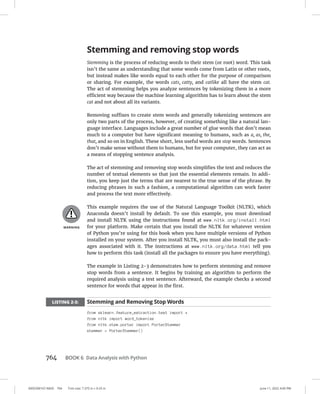
Stemming and removing stop words. . . . . . . . . . . . . . . . . . . . . . . . 764
Introducing regular expressions. . . . . . . . . . . . . . . . . . . . . . . . . . . . 766
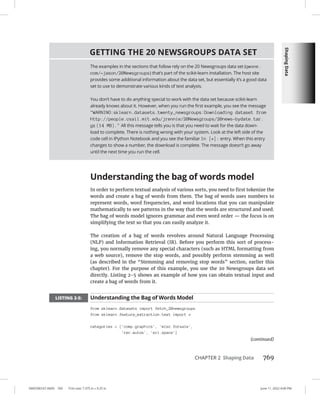
Using the Bag of Words Model and Beyond. . . . . . . . . . . . . . . . . . . . . 768
Understanding the bag of words model. . . . . . . . . . . . . . . . . . . . . 769
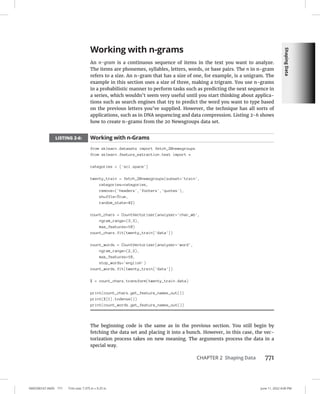
Working with n-grams. . . . . . . . . . . . . . . . . . . . . . . . . . . . . . . . . . . . . 771
Implementing TF-IDF transformations. . . . . . . . . . . . . . . . . . . . . . . 772
Working with Graph Data. . . . . . . . . . . . . . . . . . . . . . . . . . . . . . . . . . . . . 774
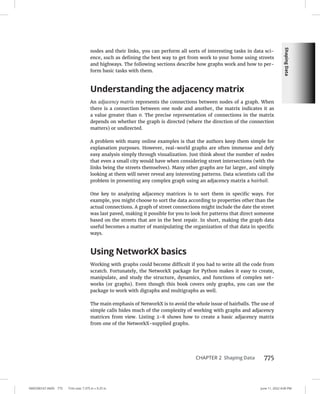
Understanding the adjacency matrix. . . . . . . . . . . . . . . . . . . . . . . . 775
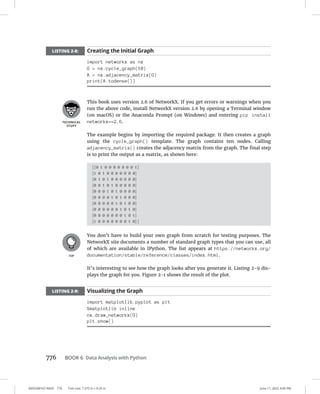
Using NetworkX basics. . . . . . . . . . . . . . . . . . . . . . . . . . . . . . . . . . . . 775
CHAPTER 3: Getting a Crash Course in MatPlotLib. . . . . . . . . . . . . . .  779
Starting with a Graph. . . . . . . . . . . . . . . . . . . . . . . . . . . . . . . . . . . . . . . . 780
Defining the plot. . . . . . . . . . . . . . . . . . . . . . . . . . . . . . . . . . . . . . . . . 780
Drawing multiple lines and plots. . . . . . . . . . . . . . . . . . . . . . . . . . . . 781
Saving your work. . . . . . . . . . . . . . . . . . . . . . . . . . . . . . . . . . . . . . . . . 782
Setting the Axis, Ticks, Grids . . . . . . . . . . . . . . . . . . . . . . . . . . . . . . . . . . 783
Getting the axes. . . . . . . . . . . . . . . . . . . . . . . . . . . . . . . . . . . . . . . . . . 783
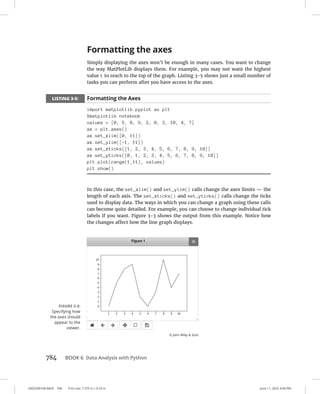
Formatting the axes . . . . . . . . . . . . . . . . . . . . . . . . . . . . . . . . . . . . . . 784
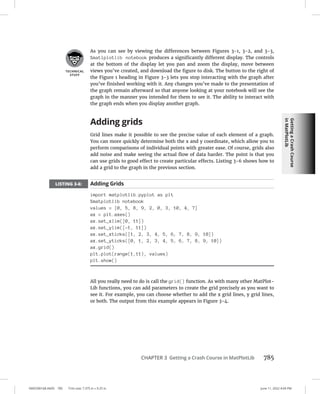
Adding grids. . . . . . . . . . . . . . . . . . . . . . . . . . . . . . . . . . . . . . . . . . . . . 785
Defining the Line Appearance. . . . . . . . . . . . . . . . . . . . . . . . . . . . . . . . . 786
Working with line styles. . . . . . . . . . . . . . . . . . . . . . . . . . . . . . . . . . . 786
Using colors. . . . . . . . . . . . . . . . . . . . . . . . . . . . . . . . . . . . . . . . . . . . . 787
Adding markers. . . . . . . . . . . . . . . . . . . . . . . . . . . . . . . . . . . . . . . . . . 789
Using Labels, Annotations, and Legends. . . . . . . . . . . . . . . . . . . . . . . . 790
Adding labels. . . . . . . . . . . . . . . . . . . . . . . . . . . . . . . . . . . . . . . . . . . . 791
Annotating the chart. . . . . . . . . . . . . . . . . . . . . . . . . . . . . . . . . . . . . . 792
Creating a legend. . . . . . . . . . . . . . . . . . . . . . . . . . . . . . . . . . . . . . . . . 793
Table of Contents xxi
0005390115.INDD xxi Trim size: 7.375 in × 9.25 in June 11, 2022 4:46 PM
CHAPTER 4: Visualizing the Data. . . . . . . . . . . . . . . . . . . . . . . . . . . . . . . . . . . .  795
Choosing the Right Graph. . . . . . . . . . . . . . . . . . . . . . . . . . . . . . . . . . . . 796
Showing parts of a whole with pie charts. . . . . . . . . . . . . . . . . . . . 796
Creating comparisons with bar charts. . . . . . . . . . . . . . . . . . . . . . . 797
Showing distributions using histograms. . . . . . . . . . . . . . . . . . . . . 799
Depicting groups using box plots. . . . . . . . . . . . . . . . . . . . . . . . . . . 800
Seeing data patterns using scatterplots. . . . . . . . . . . . . . . . . . . . . . 802
Creating Advanced Scatterplots . . . . . . . . . . . . . . . . . . . . . . . . . . . . . . . 803
Depicting groups. . . . . . . . . . . . . . . . . . . . . . . . . . . . . . . . . . . . . . . . . 803
Showing correlations . . . . . . . . . . . . . . . . . . . . . . . . . . . . . . . . . . . . . 804
Plotting Time Series. . . . . . . . . . . . . . . . . . . . . . . . . . . . . . . . . . . . . . . . . .806
Representing time on axes . . . . . . . . . . . . . . . . . . . . . . . . . . . . . . . . 806
Plotting trends over time. . . . . . . . . . . . . . . . . . . . . . . . . . . . . . . . . . 807
Visualizing Graphs. . . . . . . . . . . . . . . . . . . . . . . . . . . . . . . . . . . . . . . . . . . 809
Developing undirected graphs . . . . . . . . . . . . . . . . . . . . . . . . . . . . . 809
Developing directed graphs. . . . . . . . . . . . . . . . . . . . . . . . . . . . . . . . 811
BOOK 7: CAREER BUILDING WITH CODING. . . . . . . . . . . . . . . .  813
CHAPTER 1: Exploring Coding Career Paths. . . . . . . . . . . . . . . . . . . . . . .  815
Augmenting Your Existing Job. . . . . . . . . . . . . . . . . . . . . . . . . . . . . . . . . 816
Creative design . . . . . . . . . . . . . . . . . . . . . . . . . . . . . . . . . . . . . . . . . . 816
Content and editorial. . . . . . . . . . . . . . . . . . . . . . . . . . . . . . . . . . . . . 817
Human resources. . . . . . . . . . . . . . . . . . . . . . . . . . . . . . . . . . . . . . . . 818
Product management. . . . . . . . . . . . . . . . . . . . . . . . . . . . . . . . . . . . . 819
Sales and marketing. . . . . . . . . . . . . . . . . . . . . . . . . . . . . . . . . . . . . . 820
Legal . . . . . . . . . . . . . . . . . . . . . . . . . . . . . . . . . . . . . . . . . . . . . . . . . . . 821
Finding a New Coding Job . . . . . . . . . . . . . . . . . . . . . . . . . . . . . . . . . . . . 822
Frontend web development . . . . . . . . . . . . . . . . . . . . . . . . . . . . . . . 823
Backend web development. . . . . . . . . . . . . . . . . . . . . . . . . . . . . . . . 824
Mobile application development. . . . . . . . . . . . . . . . . . . . . . . . . . . .826
Data analysis . . . . . . . . . . . . . . . . . . . . . . . . . . . . . . . . . . . . . . . . . . . . 827
CHAPTER 2: Exploring Undergraduate and Graduate
Degrees. . . . . . . . . . . . . . . . . . . . . . . . . . . . . . . . . . . . . . . . . . . . . . . . . . .  829
Getting a College Degree. . . . . . . . . . . . . . . . . . . . . . . . . . . . . . . . . . . . . 830
College computer science curriculum . . . . . . . . . . . . . . . . . . . . . . . 831
Doing extracurricular activities. . . . . . . . . . . . . . . . . . . . . . . . . . . . . 833
Two-year versus four-year school. . . . . . . . . . . . . . . . . . . . . . . . . . . 834
Enrolling in an Advanced Degree Program. . . . . . . . . . . . . . . . . . . . . . 836
Graduate school computer science curriculum. . . . . . . . . . . . . . . 837
Performing research. . . . . . . . . . . . . . . . . . . . . . . . . . . . . . . . . . . . . . 838
Interning to Build Credibility. . . . . . . . . . . . . . . . . . . . . . . . . . . . . . . . . . 839
Types of internship programs. . . . . . . . . . . . . . . . . . . . . . . . . . . . . . 839
Securing an internship. . . . . . . . . . . . . . . . . . . . . . . . . . . . . . . . . . . . 840
0005390115.INDD xxii Trim size: 7.375 in × 9.25 in June 11, 2022 4:46 PM
xxii Coding All-in-One For Dummies
CHAPTER 3: Training on the Job. . . . . . . . . . . . . . . . . . . . . . . . . . . . . . . . . . . . .  843
Taking a Work Project to the Next Level . . . . . . . . . . . . . . . . . . . . . . . . 844
Learning on the Job and After Work. . . . . . . . . . . . . . . . . . . . . . . . . . . . 845
Training on the job . . . . . . . . . . . . . . . . . . . . . . . . . . . . . . . . . . . . . . . 846
Learning after work. . . . . . . . . . . . . . . . . . . . . . . . . . . . . . . . . . . . . . . 846
Freelancing to Build Confidence and Skills. . . . . . . . . . . . . . . . . . . . . . 848
Transitioning to a New Role. . . . . . . . . . . . . . . . . . . . . . . . . . . . . . . . . . . 849
Assessing your current role. . . . . . . . . . . . . . . . . . . . . . . . . . . . . . . . 850
Networking with developers. . . . . . . . . . . . . . . . . . . . . . . . . . . . . . . 850
Identifying roles that match your interest and skills. . . . . . . . . . . 851
CHAPTER 4: Coding Career Myths. . . . . . . . . . . . . . . . . . . . . . . . . . . . . . . . . . .  853
You Must Be Good at Math. . . . . . . . . . . . . . . . . . . . . . . . . . . . . . . . . . . 853
You Must Have Studied Engineering . . . . . . . . . . . . . . . . . . . . . . . . . . . 854
You Can Learn Coding in a Few Weeks . . . . . . . . . . . . . . . . . . . . . . . . . 855
You Need a Great Idea to Start Coding . . . . . . . . . . . . . . . . . . . . . . . . . 855
Ruby Is Better than Python . . . . . . . . . . . . . . . . . . . . . . . . . . . . . . . . . . . 856
Only College Graduates Receive Coding Offers. . . . . . . . . . . . . . . . . . 856
You Must Have Experience . . . . . . . . . . . . . . . . . . . . . . . . . . . . . . . . . . . 857
Tech Companies Don’t Hire Women or Minorities. . . . . . . . . . . . . . . . 858
The Highest Paying Coding Jobs Are in San Francisco. . . . . . . . . . . . . 859
Your Previous Experience Isn’t Relevant. . . . . . . . . . . . . . . . . . . . . . . . 860
INDEX. . . . . . . . . . . . . . . . . . . . . . . . . . . . . . . . . . . . . . . . . . . . . . . . . . . . . . . . . . . . . .  861
0005390114.INDD 1 Trim size: 7.375 in × 9.25 in June 11, 2022 2:13 PM
Introduction 1
Introduction
T
he ability to read, write, and understand code has never been more impor-
tant, useful, or lucrative than it is today. Computer code has forever changed
our lives. Many people can’t even make it through the day without inter-
acting with something built with code. Even so, for many people, the world of
coding seems complex and inaccessible. Maybe you participated in a tech-related
business meeting and did not fully understand the conversation. Perhaps you tried
to build a web page for your family and friends, but ran into problems displaying
pictures or aligning text. Maybe you’re even intimidated by the unrecognizable
words on the covers of books about coding, words such as HTML, CSS, JavaScript,
Python, or Ruby.
If you’ve previously been in these situations, then Coding All-in-One For Dummies,
2nd Edition is for you. This book explains basic concepts so you can participate
in technical conversations and ask the right questions, and it goes even further
than Coding For Dummies by covering additional topics in mobile app development,
data science, and coding careers. Don’t worry — this book assumes you’re start-
ing with little to no previous coding knowledge, and I haven’t tried to cram every
possible coding concept into these pages. Additionally, I encourage you here to
learn by doing and by actually creating your own programs. Instead of a website or
mobile app, imagine that you want to build a house. You could spend eight years
studying to be an architect, or you could start today by learning a little bit about
foundations and framing. This book kick-starts your coding journey today.
The importance of coding is ever-increasing. As author and technologist Douglas
Rushkoff famously said, “program or be programmed.” When humans invented
languages and then the alphabet, people learned to listen and speak, and then read
and write. In our increasingly digital world, it’s important to learn not just how to
use programs but also how to make them. For example, observe this transition in
music. For over a century, music labels decided what songs the public could listen
to and purchase. In 2005, three coders created YouTube, which allowed anyone to
release songs. Today more songs have been uploaded to YouTube than have been
released by all the record labels combined in the past century.
2 Coding All-in-One For Dummies
0005390114.INDD 2 Trim size: 7.375 in × 9.25 in June 11, 2022 2:13 PM
About This Book
This book is designed for readers with little to no coding experience and gives an
overview of programming to non-programmers. In plain English, you learn how
code is used to create websites and mobile apps, who makes those programs, and
the processes they use. The topics covered include
»
» Explaining what coding is and answering the common questions
related to code
»
» Building basic websites using the three most common languages: HTML, CSS,
and JavaScript
»
» Surveying other programming languages such as Python and Dart
»
» Creating mobile apps for iOS and Android devices using Flutter
»
» Working with data using Python
»
» Exploring coding careers paths and different ways to learn how to code
As you read this book, keep the following in mind:
»
» The book can be read from beginning to end, but feel free to skip around if
you like. If a topic interests you, start there. You can always return to the
previous chapters, if necessary.
»
» At some point, you will get stuck, and the code you write will not work as
intended. Do not fear! There are many resources to help you, including
support forums, others on the Internet, and me! Using Twitter, you can send
me a public message at @chrisminnick with the hashtag #codingFD.
Additionally, you can sign up for book updates and explanations for changes
to programming language commands by visiting https://tinyletter.com/
codingallinone.
»
» Code in the book appears in a monospaced font like this: h1Hi
there!/h1.
Foolish Assumptions
I do not make many assumptions about you, the reader, but I do make a few.
0005390114.INDD 3 Trim size: 7.375 in × 9.25 in June 11, 2022 2:13 PM
Introduction 3
I assume you don’t have previous programming experience. To follow along, then,
you only need to be able to read, type, and follow directions. I try to explain as
many concepts as possible using examples and analogies you already know.
I assume you have a computer running the latest version of Google Chrome. The
examples in the book have been tested and optimized for the Chrome browser,
which is available for free from Google. Even so, the examples also work in the
latest version of Firefox, Safari, or Microsoft Edge.
I assume you have access to an Internet connection. Some of the examples in the
book can be done without an Internet connection, but most require one.
For the books on Python and data analysis, I assume you are able to download and
install the Python programming language and its associated programming librar-
ies, both of which are available for free.
Icons Used in This Book
Here are the icons used in the book to flag text that should be given extra attention
or that can be skipped.
This icon flags useful information or explains a shortcut to help you understand
a concept.
This icon explains technical details about the concept being explained. The details
might be informative or interesting, but are not essential to your understanding
of the concept at this stage.
Try not to forget the material marked with this icon. It signals an important con-
cept or process that you should keep in mind.
Watch out! This icon flags common mistakes and problems that can be avoided if
you heed the warning.
4 Coding All-in-One For Dummies
0005390114.INDD 4 Trim size: 7.375 in × 9.25 in June 11, 2022 2:13 PM
Beyond the Book
A lot of extra content that you won’t find in this book is available at www.dummies.
com. Go online to find the following:
»
» The source code for the examples in this book: You can find it at www.
dummies.com/go/codingallinonefd2e.
The source code is organized by book and chapter. The best way to work with
a chapter is to download all the source code for it at one time.
»
» The book’s cheat sheet. Simply navigate to www.dummies.com and search for
“Coding All-in-One For Dummies Cheat Sheet.” From there, you’ll be able to
access several helpful articles about coding, including general web develop-
ment terms and advice for preparing for a job interview, among other useful
tidbits.
»
» Updates: Code and specifications are constantly changing, so the commands
and syntax that work today may not work tomorrow. You can find any
updates or corrections by visiting http://www.dummies.com/go/
codingallinonefd2e or https://tinyletter.com/codingallinone.
Where to Go from Here
All right, now that all the administrative stuff is out of the way, it’s time to get
started. You can totally do this. Congratulations on taking your first step into the
world of coding!
1
0005390104.INDD 5 Trim size: 7.375 in × 9.25 in June 11, 2022 4:35 PM
Getting Started
with Coding
Contents at a Glance
CHAPTER 1: What Is Coding?. . . . . . . . . . . . . . . . . . . . . . . . . . . . . . . . . . . . . . . . 7
CHAPTER 2: Programming for the Web. . . . . . . . . . . . . . . . . . . . . . . . . . 19
CHAPTER 3: Becoming a Programmer. . . . . . . . . . . . . . . . . . . . . . . . . . . . 33
0005390104.INDD 6 Trim size: 7.375 in × 9.25 in June 11, 2022 4:35 PM
CHAPTER 1 What Is Coding? 7
0005390130.INDD 7 Trim size: 7.375 in × 9.25 in June 11, 2022 2:32 PM
What Is Coding?
“A million dollars isn’t cool, you know what’s cool? A billion dollars.”
— SEAN PARKER, THE SOCIAL NETWORK
E
very week the newspapers report on another technology company that has
raised capital or sold for millions of dollars. Sometimes, in the case of com-
panies like Zoom, Coinbase, and Squarespace, the amount in the headline is
for billions of dollars. These articles may pique your curiosity, and you may want
to see how code is used to build the applications that experience these financial
outcomes. Alternatively, your interests may lie closer to work. Perhaps you work
in an industry in decline or in a function that technology is rapidly changing.
Whether you are thinking about switching to a new career or improving your cur-
rent career, understanding computer programming or “coding” can help with
your professional development. Finally, your interest may be more personal —
perhaps you have an idea, a burning desire to create something, a website or an
app, to solve a problem you have experienced, and you know reading and writing
code is the first step to building your solution. Whatever your motivation, this
book will shed light on coding and programmers, and help you think of both not
as mysterious and complex but approachable and something you can do yourself.
In this chapter, you will understand what code is, what industries are affected by
computer software, the different types of programming languages used to write
code, and take a tour of a web app built with code.
Chapter 1
IN THIS CHAPTER
» Seeing what code is and what it
can do
» Touring your first program using code
» Understanding programming
languages used to write code
0005390130.INDD 8 Trim size: 7.375 in × 9.25 in June 11, 2022 2:32 PM
8 BOOK 1 Getting Started with Coding
Defining What Code Is
Computer code is not a cryptic activity reserved for geniuses and oracles. In fact,
in a few minutes you will be writing some computer code yourself! Most computer
code performs a range of tasks in our lives from the mundane to the extraor-
dinary. Code runs our traffic lights and pedestrian signals, the elevators in our
buildings, the cell phone towers that transmit our phone signals, and the space
ships headed for outer space. We also interact with code on a more personal level,
on our phones and computers, and usually to check email or the weather.
Following instructions
Computer code is a set of statements, like sentences in English, and each state-
ment directs the computer to perform a single step or instruction. Each of these
steps is very precise, and followed to the letter. For example, if you are in a res-
taurant and ask a waiter to direct you to the restroom, they might say, “head to
the back, and try the middle door.” To a computer, these directions are so vague
as to be unusable. Instead, if the waiter gave instructions to you as if you were a
computer program they might say, “From this table, walk northeast for 40 paces.
Then turn right 90 degrees, walk 5 paces, turn left 90 degrees, and walk 5 paces.
Open the door directly in front of you, and enter the restroom.” Figure 1-1 shows
lines of code from the popular game, Pong. Do not worry about trying to under-
stand what every single line does, or feel intimated. You will soon be reading and
writing your own code.
One rough way to measure a program’s complexity is to count its statements or
lines of code. Basic applications like the Pong game have 5,000 lines of code, while
more complex applications like Facebook currently have over 10million lines of
FIGURE 1-1:
Computer code
from the game
Pong.
What
Is
Coding?
0005390130.INDD 9 Trim size: 7.375 in × 9.25 in June 11, 2022 2:32 PM
CHAPTER 1 What Is Coding? 9
code. Whether few or many lines of code, the computer follows each instruction
exactly and effortlessly, never tiring like the waiter might when asked for the
100th time for the location of the restroom.
Be careful of only using lines of code as a measure for a program’s complexity.
Just like when writing in English, 100 well written lines of code can perform the
same functionality as 1,000 poorly written lines of code.
Writing code with some Angry Birds
If you have never written code before, now is your chance to try! Go to https://
hourofcode.com/us/learn and under the “Beginners” heading, scroll down (or
use the search box) to find the “Write Your First Computer Program” link with the
Angry Birds icon, as shown in Figure 1-2. This tutorial is meant for those with no
previous computer programming experience, and it introduces the basic building
blocks used by all computer programs. The most important take-away from the
tutorial is to understand that computer programs use code to literally and exactly
tell the computer to execute a set of instructions.
The Hour of Code is an annual program dedicated to elevating the profile of com-
puter science during one week in December. In the past, President Obama, Bill
Gates, basketball player Stephen Curry, singer Shakira, and even your humble
author of this book have supported and encouraged people from the United States
and around the world to participate.
FIGURE 1-2:
Write your
first computer
program with a
game-like tutorial
using Angry Birds.
© John Wiley  Sons
0005390130.INDD 10 Trim size: 7.375 in × 9.25 in June 11, 2022 2:32 PM
10 BOOK 1 Getting Started with Coding
Understanding What Coding
Can Do for You
Coding can be used to perform tasks and solve problems that you experience every
day. The “everyday” situations in which programs or apps can provide assistance
continues to grow at an exponential pace, but this was not always the case. The
rise of web applications, Internet connectivity, and mobile phones have inserted
software programs into daily life and lowered the barrier for you to become a cre-
ator, solving personal and professional problems with code.
Eating the world with software
In 2011, Marc Andreessen, creator of one of the first web browsers, Netscape Nav-
igator, and now a venture capitalist, noted that “software is eating the world.” He
predicted that software companies would disrupt existing companies at a rapid
pace. Traditionally, code powered software used on desktops and laptops. The
software had to first be installed, and then you had to supply data to the program.
Three trends have dramatically increased the use of code in everyday life:
»
» Web-based software: This software operates in the browser without
requiring installation. For example, if you wanted to check your email, you
previously had to install an email client either by downloading the software or
from a CD-ROM. Sometimes, issues arose when the software was not
available for your operating system, or conflicted with your operating system
version. Hotmail, a web-based email client, rose to popularity, in part, because
it allowed users visiting www.hotmail.com to instantly check their email
without worrying about installation or software compatibility. Web applica-
tions increased consumer appetite to try more applications, and developers in
turn were incentivized to write more applications.
»
» Internet broadband connectivity: Broadband connectivity has increased,
providing a fast Internet connection to more people in the last few years than
in the previous decade. Today, more than two billion people can access
web-based software, up from approximately 50 million only a decade ago.
»
» Mobile phones: Today’s smartphones bring programs with you wherever you
go and help supply data to programs. Many software programs became more
useful when accessed on-the-go than when limited to a desktop computer.
For instance, use of maps applications greatly increased thanks to mobile
phones because users need directions the most when lost, not just when
planning a trip at home on the computer. In addition, mobile phones are
equipped with sensors that measure and supply data to programs like
orientation, acceleration, and current location through GPS. Now instead of
What
Is
Coding?
0005390130.INDD 11 Trim size: 7.375 in × 9.25 in June 11, 2022 2:32 PM
CHAPTER 1 What Is Coding? 11
having to input all the data to programs yourself, mobile devices can help. For
instance, a fitness application like Runkeeper does not require you to input
start and end times to keep track of your runs. You can press start at the
beginning of your run, and the phone will automatically track your distance,
speed, and time.
The combination of these trends have created software companies that have
upended incumbents in almost every industry, especially ones typically immune
to technology. Some notable examples include:
»
» Airbnb: Airbnb is a peer-to-peer lodging company that owns no rooms, yet
books more nights than the Hilton and Intercontinental, the largest hotel
chains in the world. (See Figure 1-3.)
»
» Uber: Uber is a car transportation company that owns no vehicles, books
more trips, and has more drivers in the largest 200 cities than any other car or
taxi service.
»
» Groupon: Groupon, the daily deals company, generated almost $1 billion
after just two years in business, growing faster than any other company in
history, let alone any other traditional direct marketing company.
FIGURE 1-3:
Airbnb booked
5 million nights
after 3.5 years,
and its next
5 million nights
6 months later.
© John Wiley  Sons
0005390130.INDD 12 Trim size: 7.375 in × 9.25 in June 11, 2022 2:32 PM
12 BOOK 1 Getting Started with Coding
Coding on the job
Coding can be useful in the workplace as well. Outside the technology sector, cod-
ing in the workplace is common for some professions like financial traders, econ-
omists, and scientists. However, for most professionals outside the technology
sector, coding is just beginning to penetrate the workplace, and gradually starting
to increase in relevance. Here are areas where coding is playing a larger role on
the job:
»
» Advertising: Spend is shifting from print and TV to digital campaigns, and
search engine advertising and optimization relies on keywords to bring
visitors to websites. Advertisers who understand code see successful key-
words used by competitors, and use that data to create more effective
campaigns.
»
» Marketing: When promoting products, personalizing communication is one
strategy that often increases results. Marketers who code can query customer
databases and create personalized communications that include customer
names and products tailored to specific interests.
»
» Sales: The sales process always starts with leads. Salespeople who code
retrieve their own leads from web pages and directories, and then sort and
qualify those leads.
Retrieving information by copying text on web pages and in directories is
referred to as scraping.
»
» Design: After creating a web page or a digital design, designers must per-
suade other designers and eventually developers to actually program their
drawings into the product. Designers who code can more easily bring their
designs to life, and can more effectively advocate for specific designs by
creating working prototypes that others can interact with.
»
» Public relations: Companies constantly measure how customers and the
public react to announcements and news. For instance, if a celebrity spokes-
person for a company does or says something offensive, should the company
dump the celebrity? Public relations people who code query social media
networks like Twitter or Facebook, and analyze hundreds of thousands of
individual messages to understand market sentiment.
»
» Operations: Additional profit can be generated, in part, by analyzing a
company’s costs. Operations people who code write programs to try millions
of combinations to optimize packaging methods, loading routines, and
delivery routes.
Book 7 has lots more information about careers in coding.
What
Is
Coding?
0005390130.INDD 13 Trim size: 7.375 in × 9.25 in June 11, 2022 2:32 PM
CHAPTER 1 What Is Coding? 13
Scratching your own itch (and becoming
rich and famous)
Using code built by others and coding in the workplace may cause you to think of
problems you personally face that you could solve with code of your own. You may
have an idea for a social network website, a better fitness app, or something new
altogether. The path from idea to functioning prototype used by others involves a
good amount of time and work, but might be more achievable than you think. For
example, take Coffitivity, a productivity website that streams ambient coffee shop
sounds to create white noise. The website was created by two people who had just
learned how to program a few months prior. Shortly after Coffitivity launched,
TIME magazine named the website one of 50 Best Websites of 2013, and the Wall
Street Journal also reviewed the website. While not every startup or app will ini-
tially receive this much media coverage, it can be helpful to know what is possible
when a solution really solves a problem.
Having a goal, like a website or app you want to build, is one of the best ways to
learn how to code. When facing a difficult bug or a hard concept, the idea of bring-
ing your website to life will provide the motivation you need to keep going. Just
as important, do not learn how to code to become rich and famous, as the prob-
ability of your website or app becoming successful is largely due to factors out of
your control.
The characteristics that make a website or app addictive are described using the
Hook Model at https://www.nirandfar.com/how-to-manufacture-desire/.
Products are usually made by companies, and the characteristics of an endur-
ing company are described at https://articles.sequoiacap.com/elements-
of-enduring-companies, based on a review of companies funded by Sequoia, one
of the most successful venture capital firms in the world and early investors in
Apple, Google, and PayPal.
Surveying the Types of Programming
Languages
Code comes in different flavors called programming languages. It’s estimated that
there are about 9,000 different programming languages, so clearly we can’t talk
about them all. Some of the most popular ones are JavaScript, Python, Java, Rust,
Ruby, Go, Kotlin, R, PHP, C, C++, Dart, and Swift.
0005390130.INDD 14 Trim size: 7.375 in × 9.25 in June 11, 2022 2:32 PM
14 BOOK 1 Getting Started with Coding
You can think of programming languages just like spoken languages, as they both
share many of the same characteristics, such as:
»
» Functionality across languages: Programming languages can all create the
same functionality similar to how spoken languages can all express the same
objects, phrases, and emotions.
»
» Syntax and structure: Commands in programming languages can overlap
just like words in spoken languages overlap. To output text to screen in
Python or Ruby you use the print command, just like imprimer and imprimir
are the verbs for “print” in French and Spanish.
»
» Natural lifespan: Programming languages are born when a programmer
thinks of a new or easier way to express a computational concept. If other
programmers agree, they adopt the language for their own programs and
the programming language spreads. However, just like Latin or Aramaic, if the
programming language is not adopted by other programmers or a better
language comes along, then the programming language slowly dies from lack
of use.
Despite these similarities, programming languages also differ from spoken lan-
guages in a few key ways:
»
» One creator: Unlike spoken languages, programming languages can be
created by one person in a short period of time, sometimes in just a few days.
Popular languages with a single creator include JavaScript (Brendan Eich),
Python (Guido van Rossum), and Ruby (Yukihiro Matsumoto).
»
» Written in English: Unlike spoken languages (except, of course, English),
almost all programming languages are written in English. Whether they’re
programming in HTML, JavaScript, Python, or Ruby, Brazilian, French, or
Chinese programmers all use the same English keywords and syntax in their
code. Some non-English programming languages exist, such as languages in
Hindi or Arabic, but none of these languages are widespread or mainstream.
Comparing low-level and high-level
programming languages
One way to classify programming languages is either as low-level languages or
high-level languages. Low-level languages interact directly with the computer
processor or CPU, are capable of performing very basic commands, and are gen-
erally hard to read. Machine code, one example of a low-level language, uses
code that consists of just two numbers—0 and 1. Figure 1-4 shows an example of
machine code. Assembly language, another low-level language, uses keywords to
perform basic commands like read data, move data, and store data.
What
Is
Coding?
0005390130.INDD 15 Trim size: 7.375 in × 9.25 in June 11, 2022 2:32 PM
CHAPTER 1 What Is Coding? 15
By contrast, high-level languages use natural language so it is easier for people
to read and write. Once code is written in a high-level language, like C++, Python,
or Ruby, an interpreter or compiler translates this high-level language into low-
level code a computer can understand.
Contrasting compiled code and
interpreted code
High-level programming languages must be converted to low-level program-
ming languages using an interpreter or compiler, depending on the language.
Interpreted languages are considered more portable than compiled languages,
while compiled languages execute faster than interpreted languages. However,
the speed advantage compiled languages have is starting to fade in importance as
improving processor speeds make performance differences between interpreted
and compiled languages negligible.
High-level programming languages like JavaScript, Python, and Ruby are inter-
preted. For these languages the interpreter executes the program directly, trans-
lating each statement one line at a time into machine code. High-level programming
languages like C++, COBOL, and Visual Basic are compiled. For these languages,
after the code is written a compiler translates all the code into machine code, and
an executable file is created. This executable file is then distributed via a website
or app store and run. Software you install on your computer, smartphone, or tab-
let, like Microsoft Office or Adobe Photoshop, are coded using compiled languages.
FIGURE 1-4:
Machine code
consists of 0s
and 1s.
0005390130.INDD 16 Trim size: 7.375 in × 9.25 in June 11, 2022 2:32 PM
16 BOOK 1 Getting Started with Coding
Programming for the web
Software accessible on websites is gradually starting to take over installed
software. Think of the last time you downloaded and installed software for your
computer—you may not even remember! Installed software like Windows Media
Player and Winamp that play music and movies have been replaced with websites
like YouTube and Netflix. Traditional installed word processor and spreadsheet
software like Microsoft Word and Excel are competing with web software like
Google Docs and Sheets. The Google Chromebook doesn’t contain installed soft-
ware (other than Google’s Chrome browser) and instead relies exclusively on web
software to provide functionality.
Much of this book will focus on developing and creating web software, not just
because web software is growing rapidly, but also because programs for the web
are easier to learn and launch than traditional installed software.
Taking a Tour of a Web App
Built with Code
With all this talk of programming, let us actually take a look at a web application
built with code. Yelp.com is a website that allows you to search and find crowd-
sourced reviews for local businesses like restaurants, nightlife, and shopping. As
shown in Figure 1-5, Yelp did not always look as polished as it does today, but its
purpose has stayed relatively constant over the years.
Defining the app’s purpose and scope
Once you understand an app’s purpose, you can identify a few actionable tasks a
user should be able to perform to achieve that purpose. Regardless of design, the
Yelp’s website has always allowed users to
FIGURE 1-5:
Yelp’s website in
2004 and in 2022
© John Wiley  Sons
What
Is
Coding?
0005390130.INDD 17 Trim size: 7.375 in × 9.25 in June 11, 2022 2:32 PM
CHAPTER 1 What Is Coding? 17
»
» Search local listings based on venue type and location.
»
» Browse listing results for address, hours, reviews, photos, and location on
a map.
Successful web applications generally allow for completing only a few key tasks
when using the app. Adding too many features to an app dilutes the strength of
the existing features, and so is avoided by most developers. For example, it took
Yelp, which has 30,000 restaurant reviews, exactly one decade after its founding
to allow users to make reservations at those restaurants directly on its website.
Whether you are using or building an app, have a clear sense of the app’s purpose.
Standing on the shoulders of giants
Developers make strategic choices and decide which parts of the app to code them-
selves, and which parts of the app to use code built by others. Developers often
turn to third-party providers for functionality that is either not core to the busi-
ness or not an area of strength. In this way, apps stand on the shoulders of others,
and benefit from others who have come before and solved challenging problems.
Yelp, for instance, displays local listing reviews and places every listing on a map.
While Yelp solicits the reviews and writes the code to display basic listing data, it
is Google, as shown in Figure 1-6, which develops the maps used on Yelp’s web-
site. By using Google’s map application instead of building its own, Yelp created
the first version of the app with fewer engineers than otherwise would have been
required.
FIGURE 1-6:
Google maps
used for the Yelp
web application.
© John Wiley  Sons
0005390130.INDD 18 Trim size: 7.375 in × 9.25 in June 11, 2022 2:32 PM
CHAPTER 2 Programming for the Web 19
0005390131.INDD 19 Trim size: 7.375 in × 9.25 in June 11, 2022 2:33 PM
Programming for
the Web
There was a time when people felt the Internet was another world, but now
people realize it’s a tool that we use in this world.
—TIM BERNERS-LEE
P
rogramming for the web allows you to reach massive audiences around the
world faster than ever before. Four years after its 2004 launch, Facebook
had 100 million users, and by 2012 it had over a billion. By contrast, it took
desktop software years to reach even 1 million people. These days, mobile phones
are increasing the reach of web applications. Although roughly 250 million desk-
top and laptop computers are sold every year, more than 1.5 billion mobile phones
are sold in that time.
In this chapter you learn how websites are displayed on your computer or mobile
device. I introduce the languages used to program websites and show you how
mobile-device applications are made.
Chapter 2
IN THIS CHAPTER
» Seeing the code powering websites
you use every day
» Understanding the languages used to
make websites
» Learning how applications are
created for mobile devices
0005390131.INDD 20 Trim size: 7.375 in × 9.25 in June 11, 2022 2:33 PM
20 BOOK 1 Getting Started with Coding
Displaying Web Pages on Your Desktop
and Mobile Device
On desktop computers and mobile devices, web pages are displayed by applications
called browsers. The most popular web browsers include Google Chrome, Mozilla
Firefox, Microsoft Edge, and Apple Safari. Until now, you have likely interacted
with websites you visit as an obedient user, and followed the rules the website has
created by pointing and clicking when allowed. The first step to becoming a pro-
ducer and programmer of websites is to peel back the web page and see and play
with the code underneath it all.
Hacking your favorite news website
What’s your favorite news website? By following a few steps, you can see and
even modify the code used to create that website. (No need to worry, you won’t be
breaking any rules by following these instructions.)
Although you can use almost any modern browser to inspect a website’s code,
these instructions assume you’re using the Google Chrome browser. Install the
latest version by going to www.google.com/chrome/.
To “hack” your favorite news website, follow these steps:
1. Open your favorite news website using the Chrome browser. (In this
example, I use www.huffpost.com.)
2. Place your mouse cursor over any static fixed headline and right-click
once, which opens a contextual menu. Then, left-click once on the Inspect
menu choice. (See Figure 2-1.)
If you’re using a Macintosh computer, you can right-click by holding down the
Control key and clicking once.
The Developer Tools panel opens at the bottom of your browser (or on the
right side). This panel shows you the code used to create this web page! You
can resize this window by dragging its top edge. The specific code used to
create the headline where you originally put your mouse cursor is highlighted.
(See Figure 2-2.)
Look at the left edge of the highlighted code. If you see a right arrow, left-click
once on the arrow to expand the code.
Programming
for
the
Web
0005390131.INDD 21 Trim size: 7.375 in × 9.25 in June 11, 2022 2:33 PM
CHAPTER 2 Programming for the Web 21
3. Scan the highlighted code carefully for the text of your headline. When
you find it, double-click on the headline text. This allows you to edit the
headline. (See Figure 2-3.)
Be careful not to click on anything that begins with http, which is the headline
link. Clicking on a headline link will open a new window or tab and load the link.
FIGURE 2-1:
Right-click on
a headline and
select Inspect
from the menu.
© John Wiley  Sons
FIGURE 2-2:
The highlighted
code is used to
create the web
page headline.
© John Wiley  Sons
0005390131.INDD 22 Trim size: 7.375 in × 9.25 in June 11, 2022 2:33 PM
22 BOOK 1 Getting Started with Coding
4. Insert your name in the headline and press Enter.
Your name now appears on the actual web page. (See Figure 2-4.) Enjoy your
newfound fame!
If you were unable to edit the headline after following these steps, visit
https://x-ray-goggles.mouse.org/ for instructions on installing the
Mozilla X-Ray Goggles tool. It’s a teaching aid that shows that any code on the
Internet can be modified. On that page, follow the instructions to install the
X-Ray Goggles bookmark, then visit any other website and click on the
bookmark. Try using X-Ray Goggles to hack your favorite news website.
If you successfully completed the steps above and changed the original headline,
it’s time for your 15 minutes of fame to come to an end. Reload the web page and
the original headline reappears. What just happened? Did your changes appear
to everyone visiting the web page? And why did your edited headline disappear?
To answer these questions, you first need to understand how the Internet delivers
web pages to your computer.
FIGURE 2-3:
Double-click the
headline text to
edit it with your
own headline.
FIGURE 2-4:
You ­successfully
changed the
headline of a
major news
website.
© John Wiley  Sons
Programming
for
the
Web
0005390131.INDD 23 Trim size: 7.375 in × 9.25 in June 11, 2022 2:33 PM
CHAPTER 2 Programming for the Web 23
Understanding how the World
Wide Web works
After you type a URL, such as huffpost.com, into your browser, the following steps
happen behind the scenes in the seconds before your page loads (see Figure 2-5):
1. Your computer sends your request for the web page to a router. The router
distributes Internet access throughout your home or workplace.
2. The router passes your request onto your Internet service provider (ISP). In the
United States, your ISP is a company like Comcast, Time Warner, ATT, or
Verizon.
3. Your ISP then converts the words and characters in your URL — “huffpost.
com” in my example — into a numerical address called the Internet protocol
address (or, more commonly, IP address). An IP address is a set of
four numbers separated by periods (such as, for example, 192.168.1.1). Just
like your physical address, this number is unique, and every computer has one.
Your ISP has a digital phonebook, similar to a physical phonebook, called a
domain name server that’s used to convert text URLs into IP addresses.
4. With the IP address located, your ISP knows which server on the Internet to
forward your request to, and your personal IP address is included in this
request.
5. The website server receives your request and sends a copy of the web page
code to your computer for your browser to display.
6. Your web browser renders the code onto the screen.
FIGURE 2-5:
Steps followed to
deliver a website
to your browser.
0005390131.INDD 24 Trim size: 7.375 in × 9.25 in June 11, 2022 2:33 PM
24 BOOK 1 Getting Started with Coding
When you edited the website code using the Developer Tools, you modified only
the copy of the website code that exists on your computer, so only you could see
the change. When you reloaded the page, you started Steps 1 through 6 again and
retrieved a fresh copy of the code from the server, overwriting any changes you
made on your computer.
You may have heard of a software tool called an ad blocker. Ad blockers work by
editing the local copy of website code, just as you did above, to remove website
advertisements. Ad blockers are controversial because websites use advertising
revenue to pay for operating costs. If ad blockers continue rising in popularity, ad
revenue could dry up, and websites would have to demand that readers pay to see
their content.
Watching out for your frontend
and backend
Now that you know how your browser accesses websites, let’s dive deeper into the
way the actual website is constructed. As shown in Figure 2-6, the code for web-
sites, and for programs in general, can be divided into four categories, according
to the code’s function:
»
» Appearance: Appearance is the visible part of the website, including content
layout and any applied styling, such font size, font typeface, and image size.
This category is called the frontend and is created using languages like HTML,
CSS, and JavaScript.
»
» Logic: Logic determines what content to show and when. For example, a
New Yorker accessing a news website should see New York weather, whereas
Chicagoans accessing the same site should see Chicago weather. This
category is part of the group called the backend and is created using lan-
guages like Ruby, Python, and PHP. These backend languages can modify the
HTML, CSS, and JavaScript that is displayed to the user.
»
» Storage: Storage saves any data generated by the site and its users. User-
generated content, preferences, and profile data must be stored for retrieval
later. This category is part of the backend and is stored in databases like
MongoDB and MySQL.
»
» Infrastructure: Infrastructure delivers the website from the server to you, the
client machine. When the infrastructure is properly configured, no one notices
it, but it can become noticeable when a website becomes unavailable due to
high traffic from events like presidential elections, the Super Bowl, and natural
disasters.
Programming
for
the
Web
0005390131.INDD 25 Trim size: 7.375 in × 9.25 in June 11, 2022 2:33 PM
CHAPTER 2 Programming for the Web 25
Usually, website developers specialize in one or at most two of these categories.
For example, an engineer might really understand the frontend and logic lan-
guages, or specialize in only databases. Website developers have strengths and
specializations, and outside of these areas their expertise is limited, much in the
same way that Jerry Seinfeld, a terrific comedy writer, would likely make a terrible
romance novelist.
The rare website developer proficient in all four of these categories is referred
to as a full stack developer. Usually, smaller companies hire full stack developers,
whereas larger companies require the expertise that comes with specialization.
Defining web and mobile applications
Web applications are websites you visit using a web browser on any device. Web-
sites optimized for use on a mobile device, like a phone or tablet, are called mobile
web applications. By contrast, native mobile applications cannot be viewed using a
web browser. Instead, native mobile applications are downloaded from an app
store like the Apple App Store or Google Play, and designed to run on a specific
device such as an iPhone or an Android tablet. Historically, desktop computers
outnumbered and outsold mobile devices, but two major trends in mobile usage
have occurred:
»
» Starting in 2014, people with mobile devices outnumbered people with
desktop computers. This gap is projected to continue increasing, as shown in
Figure 2-7.
»
» Mobile-device users spend 80 percent of their time using native mobile
applications and 20 percent of their time browsing mobile websites.
FIGURE 2-6:
Every website is
made up of four
different parts.
0005390131.INDD 26 Trim size: 7.375 in × 9.25 in June 11, 2022 2:33 PM
26 BOOK 1 Getting Started with Coding
The increase in mobile devices has happened so quickly over the last 15 years
that many companies are becoming “mobile first,” designing and developing the
mobile version of their applications before the desktop version. WhatsApp and
Instagram, two popular mobile applications, first built mobile applications, which
continue to have more functionality then their regular websites.
Coding Web Applications
Web applications are easier to build than mobile applications, require little to no
additional software to develop and test, and run on all devices, including desktop,
laptops, and mobile. Although mobile applications can perform many common
web-application tasks, such as email, some tasks are still easier to perform using
web applications. For example, booking travel is easier using web applications,
especially since the steps necessary—reviewing flights, hotels, and rental cars,
and then purchasing all three—are best achieved with multiple windows, access
to a calendar, and the entry of substantial personal and payment information.
The programming languages used to code basic web applications, further defined
in the following sections, include HTML (Hypertext Markup Language), CSS (Cas-
cading Style Sheets), and JavaScript. Additional features can be added to these
websites using languages like Python, Ruby, or PHP.
Starting with HTML, CSS, and JavaScript
Simple websites, such as the one shown in Figure 2-8, are coded using HTML,
CSS, and JavaScript. HTML is used to place text on the page, CSS is used to style
that text, and JavaScript is used to add interactive effects like the Twitter or Face-
book Share button that allows you to share content on social networks and updates
the number of other people who have also shared the same content. Websites
FIGURE 2-7:
Mobile devices
have increased at
a faster pace than
desktops.
Programming
for
the
Web
0005390131.INDD 27 Trim size: 7.375 in × 9.25 in June 11, 2022 2:33 PM
CHAPTER 2 Programming for the Web 27
conveying mainly static, unchanging information are often coded only in these
three languages. You will learn about each of these languages in later chapters.
Adding logic with Python, Ruby, or PHP
Websites with more advanced functionality, such as user accounts, file uploads,
and e-commerce, typically require a programming language to implement these
features. Although Python, Ruby, and PHP are not the only programming lan-
guages these sites can use, they are among the most popular. This popularity
means there are large online communities of developers who program in these
languages, freely post code that you can copy to build common features, and host
public online discussions that you can read for solutions to common issues.
Each of these languages also has popular and well documented frameworks.
A framework is a collection of generic components, such as user accounts and
authentication schemes that are reused frequently, allowing developers to build,
test, and launch websites more quickly. You can think of a framework as similar to
the collection of templates that comes with a word processor. You can design your
resume, greeting card, or calendar from scratch, but using the built-in template
for each of these document types helps you create your document faster and with
greater consistency. Popular frameworks for these languages include
»
» Django and Flask for Python
»
» Rails and Sinatra for Ruby
»
» Zend and Laravel for PHP
FIGURE 2-8:
The lindaliukas.
com website from
2014, built using
HTML, CSS, and
JavaScript.
© John Wiley  Sons
0005390131.INDD 28 Trim size: 7.375 in × 9.25 in June 11, 2022 2:33 PM
28 BOOK 1 Getting Started with Coding
Coding Mobile Applications
Mobile applications are hot topics today, in part because mobile apps such as
WhatsApp and Instagram were acquired for billions of dollars, and mobile app
companies like Rovio, makers of Angry Birds, and King Digital, makers of Candy
Crush, generate annual revenues of hundreds of millions to billions of dollars.
When coding mobile applications, developers can either build
»
» Mobile web applications, using HTML, CSS, and JavaScript.
»
» Native mobile applications using a specific language. For example, Apple
devices are programmed using Objective-C or Swift, and Android devices are
programmed using Java, Kotlin, or Dart.
The choice between these two options may seem simple, but there are a few fac-
tors at play. Consider the following:
»
» Companies developing mobile web applications must make sure the mobile
version works across different browsers, different screen sizes, and even
different manufacturers, such as Apple, Samsung, RIM, and Microsoft. This
results in thousands of possible phone combinations, which can greatly
increase the complexity of testing needed before launch. Native mobile apps
run only on one phone platform, so there is less variation to account for.
»
» Despite running on only one platform, native mobile apps are more expensive
and take longer to build than mobile web apps.
»
» Some developers have reported that mobile web applications have more
performance issues and load more slowly than native mobile applications.
»
» As mentioned, users are spending more time using native mobile applications
and less time using browser-based mobile web apps.
»
» Native mobile apps are distributed through an app store, which may require
approval from the app store owner, whereas mobile web apps are accessible
from any web browser. For example, Apple has a strict approval policy and
takes up to six days to approve an app for inclusion in the Apple App Store,
while Google has a more relaxed approval policy and takes two hours to
approve an app.
In one famous example of an app rejected from an app store, Apple blocked Google
from launching the Google Voice app in the Apple App Store because it overlapped
with Apple’s own phone functionality. Google responded by creating a mobile web
app accessible from any browser, and Apple could do nothing to block it.
Programming
for
the
Web
0005390131.INDD 29 Trim size: 7.375 in × 9.25 in June 11, 2022 2:33 PM
CHAPTER 2 Programming for the Web 29
If you’re making this choice, consider the complexity of your application. Sim-
ple applications, like schedules or menus, can likely be cheaply developed with a
mobile web app, whereas more complex applications, like messaging and social
networking, may benefit from having a native mobile app. Even well-established
technology companies struggle with this choice. Initially, Facebook and LinkedIn
created mobile web applications, but both have since shifted to primarily promot­
ing and supporting native mobile apps. The companies cited better speed, memory
management, and Developer Tools as some of the reasons for making the switch.
Building mobile web apps
Although any website can be viewed with a mobile browser, those websites not
optimized for mobile devices look a little weird, as if the regular website font size
and image dimensions were decreased to fit on a mobile screen. (See Figure 2-9.)
By contrast, websites optimized for mobile devices have fonts that are readable,
images that scale to the mobile device screen, and a vertical layout suitable for a
mobile phone.
Building mobile web apps is done using HTML, CSS, and JavaScript. CSS con-
trols the website appearance across devices based on the screen width. Screens
with a small width, such as those on phones, are assigned one vertically-based
layout, whereas screens with a larger width, like those on tablets, are assigned
another, horizontally-based layout. Because mobile web apps are accessed from
FIGURE 2-9:
Left: ­starbucks.
com not
­optimized for
mobile. Right:
starbucks.com
optimized for
mobile.
© John Wiley  Sons
0005390131.INDD 30 Trim size: 7.375 in × 9.25 in June 11, 2022 2:33 PM
30 BOOK 1 Getting Started with Coding
the browser and are not installed on the user’s device, these web apps can’t send
push notifications (alerts) to your phone, run in the background while the browser
is minimized, or communicate with other apps.
Although you can write the HTML, CSS, and JavaScript for your mobile web app from
scratch, mobile web frameworks allow you to develop from a base of pre-written
code, much like the frameworks for programming languages I mentioned earlier.
These mobile web frameworks include a collection of generic components that are
reused frequently, and allow developers to build, test, and launch websites more
quickly. Bootstrap is one such mobile web framework, which I introduce in Book 2.
Building native mobile apps
Native mobile apps can be faster, more reliable, and look more polished than
mobile web apps, as shown in Figure 2-10. Built using Java for use on Android
devices, and Objective-C or Swift for use on Apple devices (iOS), native mobile
apps must be uploaded to an app store, which may require approvals. The main
benefit of an app store is its centralized distribution, and the app may be featured
in parts of the app store that can drive downloads. Also, since native mobile appli-
cations are programs that are installed on the mobile device, they can be used in
more situations without an Internet connection. Finally, and most importantly,
users appear to prefer native mobile apps to mobile web apps by a wide margin,
one that continues to increase.
FIGURE 2-10:
Left: facebook.
com native
mobile app.
Right: facebook.
com mobile
web app.
© John Wiley  Sons
Programming
for
the
Web
0005390131.INDD 31 Trim size: 7.375 in × 9.25 in June 11, 2022 2:33 PM
CHAPTER 2 Programming for the Web 31
Native mobile apps can take advantage of features that run in the background
while the app is minimized, such as push notifications, and communicate with
other apps, and these features are not available when creating a mobile web
app. Additionally, native mobile apps perform better when handling graphics-
intensive applications, such as games. To be clear, native mobile apps offer better
performance and a greater number of features, but they require longer develop-
ment times and are more expensive to build than mobile web apps.
There is an alternative way to build a native mobile app—a hybrid approach that
involves building an app using one framework and then compiling that code for
multiple mobile operating systems. Two popular cross-platform frameworks are
Fluttter and React Native. Both allow you to write cross-platform code, either
using JavaScript (in the case of React Native) or Dart (in the case of Flutter). After
you’ve built one version of the app, you can use that version to create apps for
multiple platforms, including Android, iOS, and the web. The major advantage
to using this hybrid approach is building your app once, and then releasing it to
multiple platforms simultaneously.
Imagine you knew how to play the piano, but you wanted to also learn how to play
the violin. One way you could do this is to buy a violin and start learning how to
play. Another option is to buy a synthesizer keyboard, set the tone to violin, and
play the keyboard to sound like a violin. This is similar to the hybrid approach,
except, in this example, the piano is the language used by the cross-platform
framework, the violin is a native iOS app, and the synthesizer keyboard is React
Native or Flutter. Just like the synthesizer keyboard can be set to violin, cello, or
guitar, so too can React Native and Flutter create apps for Apple, Android, and
other platforms.
Deploying Web Applications in the Cloud
In the early days of the web and mobile apps, making your web applications and
mobile applications available to the world meant that you needed to buy, config-
ure, and maintain enough physical hardware (in the form of expensive web serv-
ers) to be able to handle your busiest days. This generally meant that anyone who
built a web app or mobile app had an enormous amount of computing power that
was going unused most of the time.
Servers are expensive to purchase, but they also require dedicated staff to install
upgrades and repair. If a web app or mobile app suddenly became so popular that
the servers hosting it slowed down during peak times, the only solution was to
purchase yet more hardware.
0005390131.INDD 32 Trim size: 7.375 in × 9.25 in June 11, 2022 2:33 PM
32 BOOK 1 Getting Started with Coding
In recent years, this dependency of backend services on physical hardware owned
by the creator of the software has been reduced or eliminated through the use of
cloud computing. Cloud computing is revolutionizing how software runs over the
web by making computing power available as a service. What that means is that
instead of the creator of an app needing to anticipate and monitor demand for
their app and increase (or decrease) the power of the computers running the app,
cloud computing makes computing power more like a utility.
For example, when you turn on multiple appliances in your home, your electric
bill goes up. But when you turn off appliances and lights, your bill goes down
rather than you always having to pay for the maximum amount of electricity you
might use.
Cloud computing, in its most basic form, is simply the use of computers you don’t
own to run computer programs.
WHAT ABOUT ALL THOSE OTHER
PROGRAMMING LANGUAGES?
(C, JAVA, AND SO ON)
You may wonder why so many languages exist, and what they all do. Programming
languages are created when a developer sees a need not addressed by the current lan-
guages. For example, Apple created the Swift programming language to make develop-
ing iPhone and iPad apps easier than Objective-C, the previous programming language
used. After they’re created, programming languages are very similar to spoken lan-
guages, like English or Latin. If developers code using the new language, then it thrives
and grows in popularity, like English has over the last six centuries; otherwise, the pro-
gramming language suffers the same fate as Latin, and becomes a dead language.
You may remember languages like C++, Java, and FORTRAN. These languages still exist
today, and they’re used in more places than you might think. C++ is preferred when
speed and performance is extremely important, and is used to program web browsers,
such as Chrome, Firefox, and Safari, along with games like Minecraft and Counter Strike.
Java is preferred by many large-scale businesses, and is also one language used to pro-
gram apps for the Android phone. Finally, FORTRAN is not as widespread or popular as
it once was, but it is still popular within the scientific community, and it powers some
functionality in the financial sector, especially at some of the largest banks in the world,
many of which continue to have old code.
As long as programmers think of faster and better ways to program, new programming
languages will continue to be created, while older languages fall out of favor.
CHAPTER 3 Becoming a Programmer 33
0005390132.INDD 33 Trim size: 7.375 in × 9.25 in June 11, 2022 2:27 PM
Becoming a Programmer
“The way to get started is to quit talking and begin doing.”
— WALT DISNEY
P
rogramming is a skill that can be learned by anyone. You might be a student
in college wondering how to start learning or a professional hoping to find a
new job or improve your performance at your current job. In just about every
case, the best way to grasp how to code is pretty straightforward:
» Have a goal of what you would like to build.
» Actually start coding.
In this chapter, you discover the processes every programmer follows when
programming, and the di�erent roles programmers play to create a program —
whether it’s a desktop application, a web application, or a mobile app. You also
find out about the tools to use when coding either offline or online.
Chapter 3
IN THIS CHAPTER
» Discovering the process programmers
follow when coding
» Understanding the different roles
people play to create a program
» Picking tools to start coding offline or
online
0005390132.INDD 34 Trim size: 7.375 in × 9.25 in June 11, 2022 2:27 PM
34 BOOK 1 Getting Started with Coding
Writing Code Using a Process
Writing code is much like painting, furniture making, or cooking—it isn’t always
obvious how the end product was created. However, all programs, even mysteri-
ous ones, are created using a process. Here are two of the most popular processes
used today:
»
» Waterfall: A set of sequential steps followed to create a program.
»
» Agile: A set of iterative steps followed to create a program. (See Figure 3-1.)
Let me describe a specific scenario to explain how these two processes work. Imag-
ine that you want to build a restaurant app that does the following two things:
»
» It displays restaurant information, such as the hours of operation
and the menu.
»
» It allows users to make or cancel reservations.
Using the waterfall method, you define everything the app needs to do: You design
both the information-display and the reservation parts of the app, code the entire
app, and then release the app to users. In contrast, using the agile method, you
define, design, and code only the information-display portion of the app, release it
to users, and collect feedback. Based on the feedback collected, you then redesign
and make changes to the information-display to address major concerns. When
you’re satisfied with the information-display piece, you then define, design, and
build the reservation part of the app. Again, you collect feedback and refine the
reservation feature to address major concerns.
FIGURE 3-1:
The waterfall and
agile processes
are two different
ways of creating
software.
Becoming
a
Programmer
0005390132.INDD 35 Trim size: 7.375 in × 9.25 in June 11, 2022 2:27 PM
CHAPTER 3 Becoming a Programmer 35
The agile methodology stresses shorter development times and has increased
in popularity as the pace of technological change has increased. The waterfall
approach, on the other hand, demands that the developer code and release the
entire app at once, but since completing a large project takes an enormous amount
of time, changes in technology may occur before the finished product arrives. If
you use the waterfall method to create the restaurant-app example, the technol-
ogy needed to take reservations may change by the time you get around to coding
that portion of the app. Still, the waterfall approach remains popular in certain
contexts, such as with financial and government software, where requirements
and approval are obtained at the beginning of a project, and whose documentation
of a project must be complete.
The healthcare.gov website, released in October 2013, was developed using a
waterfall style process. Testing of all the code occurred in September 2013, when
the entire system was assembled. Unfortunately, the tests occurred too late and
weren’t comprehensive, resulting in not enough time to fix errors before launch-
ing the site publicly.
Regardless of whether you pick the agile or waterfall methodology, coding an app
involves four steps:
1. Researching what you want to build
2. Designing your app
3. Coding your app
4. Debugging your code
On average, you’ll spend much more time researching, designing, and debugging
your app than doing the actual coding, which is the opposite of what you might
expect.
These steps are described in the sections that follow.
Researching what you want to build
You have an idea for a web or mobile application and usually it starts with, “Would-
n’t it be great if. . . .” Before writing any code, it helps to do some investigating.
Consider the possibilities in your project as you answer the following questions:
»
» What similar website/app already exists? What technology was used
to build it?
»
» Which features should I include — and more importantly exclude — in
my app?
0005390132.INDD 36 Trim size: 7.375 in × 9.25 in June 11, 2022 2:27 PM
36 BOOK 1 Getting Started with Coding
»
» Which providers can help create these features? For example, companies like
Google, Yahoo, Microsoft, or others may have software that you could
incorporate into your app.
To illustrate, consider the restaurant app I discussed earlier. When conducting
market research and answering the three preceding questions, using Google to
search is usually the best choice. Searching for restaurant reservation app shows
existing restaurant apps that include OpenTable, Yelp, and Reserve with Google.
OpenTable, for example, allows users to reserve a table from restaurants displayed
on a map using Google Maps.
In the restaurant app example, you want to research exactly what kinds of restau-
rant information you need to provide and how extensive the reservation system
portion of the app should be. In addition, for each of these questions, you must
decide whether to build the feature from scratch or to use an existing provider.
For example, when providing restaurant information, do you want to show only
name, cuisine, address, telephone number, and hours of operation, or do you also
want to show restaurant menus? When showing restaurant data, do you prefer
extensive coverage of a single geographical area, or do you want national coverage
even if that means you cover fewer restaurants in any specific area?
Designing your app
Your app’s visual design incorporates all of your research and describes exactly
how your users will interact with every page and feature. Because your users will
be accessing your site from desktop, laptop, and mobile devices, you want to make
sure you create a responsive (multi-device) design and carefully consider how
your site will look on all these devices. At this stage of the process, a general web
designer, illustrator, or user interface specialist will help create visual designs for
the app.
Many responsive app designs and templates can be found on the Internet and used
freely. For specific examples, see Book 2, Chapter 6, or search Google using the
query responsive website design examples.
There are two types of visual designs (see Figure 3-2):
»
» Wireframes: These are low-fidelity website drawings that show structurally
the ways your content and your site’s interface interact.
»
» Mockups: These are high-fidelity website previews that include colors,
images, and logos.
Becoming
a
Programmer
0005390132.INDD 37 Trim size: 7.375 in × 9.25 in June 11, 2022 2:27 PM
CHAPTER 3 Becoming a Programmer 37
Balsamiq is a popular tool used to create wireframes, and Photoshop is a popular
tool to create mockups. However, you can avoid paying for additional software by
using PowerPoint (PC), Keynote (Mac), or the free and open-source OpenOffice to
create your app designs.
Professional designers create mockups with Adobe Photoshop and use layers,
which isolate individual site elements. A properly created layered Photoshop file
helps developers more easily write the code for those website elements.
In addition to visual design, complex apps also have technical designs and deci-
sions to finalize. For example, if your app stores and retrieves user data, you need
a database to perform these tasks. Initial decisions here include the type of data-
base to add, the specific database provider to use, and the best way to integrate the
database into the application. Additionally, developers must design the database
by choosing the fields to store. The process is similar to the process of creat-
ing a spreadsheet to model a company’s income—you first decide the number
of columns to use, whether you’ll include fields as a percentage of revenue or a
numerical value, and so on. Similarly, other features like user logins or credit card
payments all require you to make choices for how to implement these features.
Coding your app
With research and design done, you’re now ready to code your application. In
everyday web development, you begin by choosing which pages and features to
start coding.
FIGURE 3-2:
Wireframes
(left) are simple
site ­renderings,
whereas
­
mockups (right)
show full site
previews.
© John Wiley  Sons
0005390132.INDD 38 Trim size: 7.375 in × 9.25 in June 11, 2022 2:27 PM
38 BOOK 1 Getting Started with Coding
Knowing how much to code and when to stop can be tough. Developers call the
first iteration of an app the minimum viable product — meaning you’ve coded just
enough to test your app with real users and receive feedback. If no one likes your
app or thinks it’s useful, it’s best to find out as soon as possible.
An app is the sum of its features, and for any individual feature, it’s a good idea to
write the minimum code necessary and then add to it. For example, your restau-
rant app may have a toolbar at the top of the page with drop-down menus. Instead
of trying to create the whole menu at once, it’s better to just create the main menu
and then later create the drop-down menu.
Projects can involve frontend developers, who write code to design the appear-
ance of the app, and backend developers, who code the logic and create databases.
A “full stack developer” is one who can do both frontend and backend develop-
ment. On large projects, it’s more common to see specialized frontend and backend
developers, along with project managers who ensure everyone is communicating
with each other and adhering to the schedule so that the project finishes on time.
Debugging your code
Debugging is going to be a natural part of creating an application. The computer
always follows your instructions exactly, yet no program ever works as you expect
it to. Debugging can be frustrating. Three of the more common mistakes to watch
out for are
»
» Syntax errors: These are errors caused by misspelling words/commands, by
omitting characters, or by including extra characters. Some languages, such as
HTML and CSS, are forgiving of these errors, and your code will still work even
with some syntax errors; whereas other languages, such as JavaScript, are
more particular, and your code won’t run when even one such error
is present.
»
» Logic errors: These are harder to fix. With logic errors, your syntax is correct,
but the program behaves differently than you expected, such as when the
prices of the items in the shopping cart of an e-commerce site don’t add up to
the correct total.
»
» Display errors: These are common mainly in web applications. With display
errors, your program might run and work properly, but it won’t appear
properly. Web apps today run on many devices, browsers, and screen sizes,
so extensive testing is the only way to catch these types of errors.
The word debugging was popularized in the 1940s by Grace Hopper, who fixed a
computer error by literally removing a moth from a computer.
Becoming
a
Programmer
0005390132.INDD 39 Trim size: 7.375 in × 9.25 in June 11, 2022 2:27 PM
CHAPTER 3 Becoming a Programmer 39
Picking Tools for the Job
Now you’re ready to actually start coding. You can develop websites either offline,
by working with an editor, or online, with a web service such as CodeSandbox.
io. CodeSandbox.io is an example of a code playground. Other code playgrounds
include JSFiddle, Codepen, JSBin, PlayCode, and Plunker. Each code playground
has its own strengths, and it’s a good idea to experiment with several of them.
As of this writing, each of these code sandboxes is free to use (at least for the basic
features). Because it’s the web, however, that’s subject to change at any time.
Fortunately, almost any code sandbox will work fine for getting started with cod-
ing. CodeSandbox is one of the newer options, and it features support for version
control as well as for collaboration and many modern web programming tools.
Especially if you haven’t done any coding before, I strongly recommend that you
code with access to an Internet connection using CodeSandbox.io or another code
playground. That way, you don’t have to download and install any software to
start coding, you don’t have to find a web host to serve your web pages, and you
don’t need to upload your web page to a web host.
Working offline
To code offline, you need the following:
»
» Editor: This refers to the text editor you use to write all the code this book
covers, including HTML, CSS, JavaScript, Ruby, Python, and PHP.
The editor you use will depend on the type of computer you have:
• PC: To get started, use the preinstalled Notepad or install Notepad++, a
free editor available for download at notepad-plus-plus.org. A popular
(and free) professional code editor is Microsoft’s Visual Studio Code (also
known as VSCode), which can be downloaded from https://code.
visualstudio.com.
• Mac: Use the preinstalled TextEdit or install TextMate 2.0, an open-source
editor available for download at macromates.com. Visual Studio Code also
works on macOS.
»
» Browser: Many browsers exist, including Chrome, Firefox, Safari, Microsoft
Edge, and Opera.
The latest version of any of the web browsers listed here will work fine for this
book. In most cases, the screenshots in this book were taken using Google
Chrome.
0005390132.INDD 40 Trim size: 7.375 in × 9.25 in June 11, 2022 2:27 PM
40 BOOK 1 Getting Started with Coding
»
» Web host: In order for your website code to be accessible to everyone on the
Internet, you need to host your website online. Freemium web hosts include
Weebly (www.weebly.com) and Wix (www.wix.com); these sites offer basic
hosting but charge for additional features such as additional storage or
removal of ads. Google provides free web hosting through Google Sites
(http://sites.google.com) and Google Drive (http://drive.google.com).
Working online with CodeSandbox.io
CodeSandbox.io is one of the easiest ways to start coding online and to share your
creations with the world. The site doesn’t require you to install a code editor or
sign up for a web host before you start coding, and it’s free to individual users like
you. Once you’ve visited CodeSandbox for the first time, it’s also possible to use
it offline.
Follow these steps to get started using CodeSandbox:
1. Open https://codesandbox.io in your web browser. If you’ve never
visited the site before, you’ll see a screen similar to Figure 3-3.
FIGURE 3-3:
CodeSandbox.io’s
homepage
© John Wiley  Sons
Becoming
a
Programmer
0005390132.INDD 41 Trim size: 7.375 in × 9.25 in June 11, 2022 2:27 PM
CHAPTER 3 Becoming a Programmer 41
2. Click the button labeled Start Coding for Free. The Welcome screen,
shown in Figure 3-4, will open.
3. Click Create Sandbox to get to the list of templates you can choose from
to make a project, as shown in Figure 3-5.
4. For your first project, find the template called static and click it to open a
basic project, as shown in Figure 3-6.
You’re now ready to start coding!
FIGURE 3-4:
CodeSandbox.io’s
welcome page
© John Wiley  Sons
FIGURE 3-5
The template
selection screen
in CodeSandbox
© John Wiley  Sons
0005390132.INDD 42 Trim size: 7.375 in × 9.25 in June 11, 2022 2:27 PM
42 BOOK 1 Getting Started with Coding
FIGURE 3-6
A new static
project in
CodeSandbox
© John Wiley  Sons
2
0005390105.INDD 43 Trim size: 7.375 in × 9.25 in June 11, 2022 4:37 PM
Basic Web
Coding
Contents at a Glance
CHAPTER 1: Exploring Basic HTML. . . . . . . . . . . . . . . . . . . . . . . . . . . . . . . . 45
CHAPTER 2: Getting More Out of HTML. . . . . . . . . . . . . . . . . . . . . . . . . . 63
CHAPTER 3: Getting Stylish with CSS. . . . . . . . . . . . . . . . . . . . . . . . . . . . . 79
CHAPTER 4: Next Steps with CSS. . . . . . . . . . . . . . . . . . . . . . . . . . . . . . . . . 101
CHAPTER 5: Responsive Layouts with Flexbox. . . . . . . . . . . . . . . . . 123
CHAPTER 6: Styling with Bootstrap. . . . . . . . . . . . . . . . . . . . . . . . . . . . . . 143
0005390105.INDD 44 Trim size: 7.375 in × 9.25 in June 11, 2022 4:37 PM
CHAPTER 1 Exploring Basic HTML 45
0005390134.INDD 45 Trim size: 7.375 in × 9.25 in June 11, 2022 2:36 PM
Exploring Basic HTML
“A chain is no stronger than its weakest link, and life is after all a chain.”
— WILLIAM JAMES
H
TML, or HyperText Markup Language, is used in every single web page you
browse on the Internet. Because the language is so foundational, a good
first step for you is to start learning HTML.
In this chapter, you discover the HTML basics, including basic HTML structure
and how to make text appear in the browser. Next, you find out how to format
text and display images in a web browser. Finally, you create your own, and pos-
sibly first, HTML website. You may find that HTML without any additional styling
appears to be very plain, and doesn’t look like the websites you normally visit
on the Internet. After you code a basic website using HTML, you will use addi-
tional languages in later chapters to add even more style and functionality to your
websites.
Chapter 1
IN THIS CHAPTER
» Learning the purpose of HTML
» Understanding basic HTML structure
» Adding headlines, paragraphs,
hyperlinks, and images
» Formatting web page text
» Creating a basic HTML website
0005390134.INDD 46 Trim size: 7.375 in × 9.25 in June 11, 2022 2:36 PM
46 BOOK 2 Basic Web Coding
What Does HTML Do?
HTML is the language used to give structure to a website. HTML was originally
designed for creating structured documents, such as a letter, a book, or a scien-
tific paper you might create using a word processor. Whether you use Microsoft
Word or WordPad, Apple Pages, or another application, your word processor has a
main window in which you type text content, and a menu or toolbar with multiple
options to structure and style that text (see Figure 1-1). Using your word proces-
sor, you can create headings and sub-headings, write paragraphs, insert pictures,
create footers, and so forth. Similarly, you can use HTML to structure text that
appears on websites.
Markup language documents, like HTML documents, are just plain text files.
Unlike documents created with a word processor, you can view an HTML file using
any web browser on any type of computer.
HTML files are plain text files that appear styled only when viewed with a browser.
By contrast, the rich text file format used by word processors adds unseen for-
matting commands to the file. As a result, HTML written in a rich text file won’t
render correctly in the browser.
FIGURE 1-1:
The layout of a
word processor.
© John Wiley  Sons
Exploring
Basic
HTML
0005390134.INDD 47 Trim size: 7.375 in × 9.25 in June 11, 2022 2:36 PM
CHAPTER 1 Exploring Basic HTML 47
Understanding HTML Structure
HTML follows a few rules to ensure that a website always displays in the same way
no matter which browser or computer is used. Once you understand these rules,
you’ll be better able to predict how the browser will display your HTML pages, and
to diagnose your mistakes when the browser displays your web page differently
than you expected.
You can use any browser to display your HTML files, though I strongly recom-
mend you download, install, and use Chrome or Firefox. Both of these browsers
are updated often, are generally fast, and support and consistently render the
widest variety of HTML tags.
Identifying elements
The basic building blocks of HTML are called elements. Elements give meaning and
structure to web pages. The browser recognizes an element if the following three
conditions exist:
»
» The element has a name that’s a letter, word, or phrase with special meaning.
For example, h1 is an element recognized by the browser to mark text as a
header. By default, a header will display in a browser with bold text and an
enlarged font size.
»
» The element’s name is enclosed with a left-angle bracket () and right-angle
bracket (). An element enclosed in this way is called a tag (such as h1).
»
» An opening tag (element) is followed by a closing tag (/element). Note
that the closing tag differs from the opening tag by the addition of a forward
slash after the first left bracket and before the element (such as /h1).
Some HTML elements are self-closing, and don’t need separate closing tags,
only a forward slash in the opening tag. For more about this topic, see the
section, “Getting Familiar with Common HTML Tasks and Elements,” later in
this chapter.
When all three conditions are met, web browsers will display the text between the
opening and closing tags using some predefined style, or the browser will take
some other action based on the content of the element. If one of these conditions
is not met, the browser will try to figure out what you meant to do, but the result
may not be what you expect.
0005390134.INDD 48 Trim size: 7.375 in × 9.25 in June 11, 2022 2:36 PM
48 BOOK 2 Basic Web Coding
For a better understanding of these three conditions, see the following example
code:
h1This is a big heading with all three conditions/h1
h1 This is text without the  and  sign surrounding the tag /h1
rockstarThis is text with a tag that has no meaning to the browser/rockstar
This is regular text
You can see how a browser displays this code in Figure 1-2.
The browser applies a header effect to “This is a big heading with all three condi-
tions” because h1 is a header element and all three conditions for a valid HTML
element exist:
»
» The browser recognizes the h1 element.
»
» The h1 element name is surrounded with a left- () and right-angle bracket ().
»
» The opening tag (h1) is followed by text and then a closing tag (/h1).
Notice how the h1 tags do not display in the heading. The browser will never dis-
play the actual text of a tag in a properly formatted HTML element.
The remaining lines of code display as plain text because they each are missing
one of the conditions. On the second line of code, the h1 tag is missing the left
and right brackets, which violates the second condition. The third line of code
violates the first condition because rockstar is not a recognized HTML element.
(Once you finish this chapter, however, you may feel like a rockstar!) Finally, the
fourth line of code displays as plain text because it has no opening tag preceding
the text, and no closing tag following the text, which violates the third condition.
Every left-angle bracket must be followed after the element name with a right-
angle bracket. In addition, every opening HTML tag must be followed with a clos-
ing HTML tag.
FIGURE 1-2:
The example
code displayed in
a browser.
© John Wiley  Sons
Exploring
Basic
HTML
0005390134.INDD 49 Trim size: 7.375 in × 9.25 in June 11, 2022 2:36 PM
CHAPTER 1 Exploring Basic HTML 49
Over 100 HTML elements exist, and you’ll learn about the most important ele-
ments in the following sections. For now, don’t worry about memorizing individ-
ual element names.
HTML is a forgiving language, and browsers may properly render it even if you’re
missing pieces of code, like a closing tag. However, if you leave in too many errors,
your page won’t display correctly.
Featuring your best attribute
Attributes provide additional ways to modify the behavior of an element or spec-
ify additional information. Usually, but not always, you set an attribute equal to
a value enclosed in quotes. Here’s an example using the title attribute and the
hidden attribute:
h1 title=United States of AmericaUSA/h1
h1 hiddenNew York City/h1
The title attribute provides advisory information about the element that appears
when the mouse cursor hovers over the affected text (in other words, a tooltip). In
this example, the word USA is styled as a header using the h1 tag with a title
attribute set equal to United States of America. In a browser, when you
place your mouse cursor over the word USA, the text United States of America
displays as a tooltip. (See Figure 1-3.)
The hidden attribute indicates that the element is not relevant, so the browser
won’t render any elements with this attribute. In this example, the words New
York City never appear in the browser window because the hidden attribute is in
FIGURE 1-3:
A heading with
title attribute has
a tooltip.
© John Wiley  Sons
0005390134.INDD 50 Trim size: 7.375 in × 9.25 in June 11, 2022 2:36 PM
50 BOOK 2 Basic Web Coding
the opening h1 tag. More practically, hidden attributes are often used to hide
form fields from users so they can’t edit them. For example, an RSVP website may
want to include but hide from users’ view a date and time field.
You don’t have to use one attribute at a time. You can include multiple attributes
in the opening HTML tag, like this:
h1 title=United States of America lang=enUSA/h1
This example uses the title attribute and the lang attribute. The lang attribute
is set to en to specify that the content of the element is in the English language.
When including multiple attributes, separate each attribute with one space.
Keep the following rules in mind when using attributes:
»
» If using an attribute, always include the attribute in the opening HTML tag.
»
» Multiple attributes can modify a single element.
»
» If the attribute has a value, then use the equals sign (=) and enclose the value
in quotes.
Standing head, title, and body
above the rest
HTML files are structured in a specific way so browsers can correctly interpret the
file’s information. Every HTML file has the same five elements: four whose open-
ing and closing tags appear once and only once, and one that appears once and
doesn’t need a closing tag. These are as follows:
»
» !DOCTYPE html must appear first in your HTML file, and it appears only once.
This tag lets browsers know which version of HTML you’re using. In this case,
it’s the latest version, HTML5. No closing tag is necessary for this element.
»
» html represents the root or beginning of an HTML document. The html tag
is followed by first an opening and closing head tag, and then an opening
and closing body tag.
»
» head contains other elements that specify general information about the
page, including the title.
»
» title defines the title in the browser’s title bar or page tab.
Search engines like Google use title to rank websites in search results.
Exploring
Basic
HTML
0005390134.INDD 51 Trim size: 7.375 in × 9.25 in June 11, 2022 2:36 PM
CHAPTER 1 Exploring Basic HTML 51
»
» body contains the main content of an HTML document. Text, images, and
other content listed between the opening and closing body tag are displayed
by the browser.
Here is an example of a properly structured HTML file with these five elements
(see Figure 1-4):
!DOCTYPE html
html
head
titleFavorite Movie Quotes/title
/head
body
h1I'm going to make him an offer he can't refuse/h1
h1Houston, we have a problem/h1
h1May the Force be with you/h1
h1You talking to me?/h1
/body
/html
Using spaces to indent and separate your tags is highly recommended. It helps you
and others read and understand your code. These spaces are only for you and any
other human that reads the code, however. Your browser won’t care. As far as your
browser is concerned, you could run all your HTML together on one line. (Don’t do
this, though. The next person who reads your code will be most unhappy.)
The example had many h1 elements but only one opening and closing html, head,
title, and body tag.
FIGURE 1-4:
A web page
­
created with basic
HTML elements.
© John Wiley  Sons
0005390134.INDD 52 Trim size: 7.375 in × 9.25 in June 11, 2022 2:36 PM
52 BOOK 2 Basic Web Coding
Getting Familiar with Common HTML
Tasks and Elements
Your browser can interpret over a hundred HTML elements, but most websites
use just a few elements to do most of the work within the browser. To understand
this, let’s try a little exercise: Think of your favorite news website. Have one in
mind? Now connect to the Internet, open your browser, and type the address of
that website. Bring this book with you, and take your time — I can wait!
In the event you can’t access the Internet right now, take a look at the article from
The New York Times, found in Figure 1-5.
Look closely at the news website on your screen (or look at the one in Figure 1-5).
Four HTML elements are used to create the majority of the page:
»
» Headlines: Headlines are displayed in bold and have a larger font size than
the surrounding text.
»
» Paragraphs: Each story is organized into paragraphs with whitespace dividing
each paragraph.
HISTORY OF HTML
A computer engineer, Tim Berners-Lee, wanted academics to easily access academic
papers and collaborate with each other. To accomplish this goal, in 1989 Mr. Berners-
Lee created the first version of HTML, which had the same hyperlink elements you find
in this chapter, and hosted the first website in 1991. Unlike with most other computer
software, Mr. Berners-Lee made HTML available royalty-free, allowing widespread
adoption and use around the world. Shortly after creating the first iteration of HTML,
Mr. Berners-Lee formed the W3C (World Wide Web Consortium), which is a group of
people from academic institutions and corporations who define and maintain the HTML
language. The W3C continues to develop the HTML language and has defined more
than 100 HTML elements, far more than the 18 that Mr. Berners-Lee originally created.
The latest version of HTML is HTML5, and it has considerable functionality. In addition to
supporting elements from previous HTML versions, HTML5 allows developers to write
code for browsers to play audio and video files, easily locate a user’s physical location,
and build charts and graphs.
Exploring
Basic
HTML
0005390134.INDD 53 Trim size: 7.375 in × 9.25 in June 11, 2022 2:36 PM
CHAPTER 1 Exploring Basic HTML 53
»
» Hyperlinks: The site’s homepage and article pages have links to other stories,
and links to share the story on social networks like Facebook and Twitter.
»
» Images: Writers place images throughout the story, but also look for site
images like icons and logos.
The following sections explain how to write code to create these common HTML
features.
Writing headlines
Use headlines to describe a section of your page. HTML has six levels of headings
(see Figure 1-6):
»
» h1, which is used for the most important headings
»
» h2, which is used for subheadings
»
» h3 to h6, which are used for less important headings
FIGURE 1-5:
The New York
Times article
with headline,
paragraphs,
hyperlinks, and
images.
© John Wiley  Sons
0005390134.INDD 54 Trim size: 7.375 in × 9.25 in June 11, 2022 2:36 PM
54 BOOK 2 Basic Web Coding
The browser renders h1 headings with a font size larger than h2’s, which in turn
is larger than h3’s. Headings start with an opening heading tag, the heading text,
and then the closing heading tag, as follows:
h1Heading text here/h1
Here are some additional code examples showing various headings:
h1Heading 1: I'm going to make him an offer he can't refuse/h1
h2Heading 2: Houston, we have a problem/h2
h3Heading 3: May the Force be with you/h3
h4Heading 4: You talking to me?/h4
h5Heading 5: I'll be back/h5
h6Heading 6: My precious/h6
Always close what you open. With headings, remember to include a closing head-
ing tag, such as /h1.
Organizing text in paragraphs
To display text in paragraphs, you can use the p element: Place an opening p
tag before the paragraph, and a closing tag after it. The p element takes text and
inserts a line break after the closing tag.
To insert a single line break after any element, use the br tag. The br tag is
self-closing so no closing tag is needed, and /br isn’t used.
FIGURE 1-6:
Headings created
using elements
h1 through h6.
© John Wiley  Sons
Exploring
Basic
HTML
0005390134.INDD 55 Trim size: 7.375 in × 9.25 in June 11, 2022 2:36 PM
CHAPTER 1 Exploring Basic HTML 55
Paragraphs start with an opening paragraph tag, the paragraph text, and then the
closing paragraph tag:
pParagraph text here/p
Here are some additional examples of coding a paragraph (see Figure 1-7):
pArmstrong: Okay. I'm going to step off the LM now./p
pArmstrong: That's one small step for man; one giant leap for mankind./p
pArmstrong: Yes, the surface is fine and powdery. I can kick it up loosely
with my toe. It does adhere in fine layers, like powdered
charcoal, to the sole and sides of my boots./p
Linking to your (heart’s) content
Hyperlinks are one of HTML’s most valuable features. Web pages that include
hyperlinked references to other sources allow the reader to access those sources
with just a click, a big advantage over printed pages.
Hyperlinks have two parts:
»
» Link destination: The web page the browser visits once the link is clicked.
To define the link destination in HTML, start with an opening anchor tag (a)
that has an href attribute. Then add the value of the href attribute, which is
the website the browser will go to once the link is clicked.
»
» Link description: The words used to describe the link.
FIGURE 1-7:
Text displayed in
paragraphs using
the p element.
© John Wiley  Sons
0005390134.INDD 56 Trim size: 7.375 in × 9.25 in June 11, 2022 2:36 PM
56 BOOK 2 Basic Web Coding
To create a hyperlink, add text to describe the link after the opening anchor tag,
and then add the closing anchor tag.
The resulting HTML should look something like this:
a href=website urlLink description/a
Here are three more examples of coding a hyperlink (see Figure 1-8):
a href=http://www.amazon.comPurchase anything/a
a href=http://www.airbnb.comRent a place to stay from a local host/a
a href=http://www.techcrunch.comTech industry blog/a
When rendering hyperlinks, the browser, by default, will underline the link and
color the link blue. To change these default properties, see Book 2, Chapter 3.
The a tag does not include a line break after the link.
Google’s search engine ranks web pages partly based on the words used to describe
a web page between the opening and closing a tags. This improved on search
results from previous methods, which relied primarily on analyzing page content.
Adding images
Images spruce up otherwise plain HTML text pages. To include an image on your
web page — your own or someone else’s — you must obtain the image’s web
address. Websites like Google Images (images.google.com) and Flickr (www.
flickr.com) allow you to search for online images based on keywords. When you
find an image you like, right-click on the image and select Copy Image URL.
FIGURE 1-8:
Three hyperlinks
created using the
a element.
© John Wiley  Sons
Exploring
Basic
HTML
0005390134.INDD 57 Trim size: 7.375 in × 9.25 in June 11, 2022 2:36 PM
CHAPTER 1 Exploring Basic HTML 57
Make sure you have permission to use an online image. Flickr has tools that allow
you to search for images with few to no license restrictions. Additionally, websites
pay to host images and incur charges when a website directly links to an image.
For this reason, some websites do not allow hotlinking, or linking directly from
third-party websites to an image.
If you want to use an image that has not already been uploaded to the Internet,
you can use a site like www.imgur.com to upload the image. After uploading, you
will be able to copy the image URL and use it in your HTML.
To include an image, start with an opening image tag img, define the source of
the image using the src attribute, and include a forward slash at the end of the
opening tag to close the tag (see Figure 1-9):
img src=http://upload.wikimedia.org/wikipedia/commons/5/55/Grace_Hopper.jpg/
img src=http://upload.wikimedia.org/wikipedia/commons/b/bd/Bill_Gates.jpg/
The image tag is self-closing, which means a separate /img closing image tag
is not used. The image tag is one of the exceptions to the always-close-what-
you-open rule!
FIGURE 1-9:
Images of
Grace Hopper,
a U.S. Navy
rear admiral,
and Bill Gates,
the cofounder
of Microsoft,
rendered using
img.
Bill Gates photo credit https://commons.wikimedia.org/wiki/
File:Dts_news_bill_gates_wikipedia.JPG
0005390134.INDD 58 Trim size: 7.375 in × 9.25 in June 11, 2022 2:36 PM
58 BOOK 2 Basic Web Coding
Styling Me Pretty
Now that you know how to display basic text and images in a browser, you should
understand how to further customize and style them. HTML has basic capabilities
to style content, and later chapters show you how to use CSS to style and position
your content down to the last pixel. Here, however, I explain how to do some basic
text formatting in HTML, and then you’ll build your first web page.
Highlighting with bold, italics, underline,
and strikethrough
HTML allows for basic text styling using the following elements:
»
» strong marks important text, which the browser displays as bold
»
» em marks emphasized text, which the browser displays as italicized
»
» u marks text as underlined
»
» del marks deleted text, which the browser displays as strikethrough
The underline element is not typically used for text because it can lead to confu-
sion. Hyperlinks, after all, are underlined by default.
To use these elements, start with the element’s opening tag, followed by the
affected text, and then a closing tag, as follows:
element nameAffected text/element name
Here are some examples (see Figure 1-10):
Grace Hopper, strong a US Navy rear admiral /strong, popularized the term
debugging.
Bill Gates co-founded a company called emMicrosoft/em.
Stuart Russell and Peter Norvig wrote a book called uArtificial Intelligence:
A Modern Approach/u.
Mark Zuckerberg created a website called delNosebook/del Facebook.
Steve Jobs co-founded a company called delemPeach/em/del emApple/em
You can apply multiple effects to text by using multiple HTML tags. Always close
the most recently opened tag first and then the next most recently used tag. For
an example, look at the last line of code in Figure 1-10 and the tags applied to the
word Peach.
Exploring
Basic
HTML
0005390134.INDD 59 Trim size: 7.375 in × 9.25 in June 11, 2022 2:36 PM
CHAPTER 1 Exploring Basic HTML 59
Raising and lowering text with
superscript and subscript
Reference works like Wikipedia and technical papers often use superscript for foot-
notes and subscript for chemical names. To apply these styles, use the elements
»
» sup for text marked as superscript
»
» sub for text marked as subscript
To use these elements, start with the element’s opening tag, followed by the
affected text, and then a closing tag as follows:
element nameAffected text/element name
Here are two examples (see Figure 1-11):
pThe University of Pennsylvania announced to the public the first
electronic general-purpose computer, named ENIAC, on February 14,
1946.sup1/sup/p
pThe Centers for Disease Control and Prevention recommends drinking
several glasses of Hsub2/sub0 per day./p
When using the superscript element to mark footnotes, use an a anchor tag to
link directly to the footnote so the reader can view the footnote easily.
FIGURE 1-10:
Sentences
formatted using
bold, italics,
underline, and
strikethrough.
© John Wiley  Sons
FIGURE 1-11:
Text formatted to
show superscript
and subscript
effects.
© John Wiley  Sons
0005390134.INDD 60 Trim size: 7.375 in × 9.25 in June 11, 2022 2:36 PM
60 BOOK 2 Basic Web Coding
Building Your First Website Using HTML
Now that you understand the basics, you can put that knowledge to use. You can
practice directly on your computer by following these steps:
1. Open any text editor, such as Notepad (on a PC) or TextEdit (on a Mac).
On a PC running Microsoft Windows, you can access Notepad by clicking the
Start button and selecting Run; in the search box, type Notepad.
On a Macintosh, select the Spotlight Search (hourglass icon on the top-right
corner of the toolbar), and type TextEdit.
2. Enter into the text editor any of the code samples you have seen in this
chapter or create your own combination of the code.
3. Once you have finished, save the file and make sure to include .html at
the end of the filename.
4. Double-click the file to open it in your default browser.
Visual Studio Code is a specialized text editor created specifically for writing code.
You can download it (for macOS, Windows, or Linux) at code.visualstudio.com.
If you want to practice your HTML online, you can use the CodeSandbox.io web-
site. It’s a code playground that you can use to code websites and web apps with-
out installing or downloading any software. (See Figure 1-12.) Practice all the tags
(and a few more) that you find in this chapter by following these steps:
1. Open your browser and go to codesandbox.io.
2. If you have a codesandbox account, sign in.
Signing up is discussed in Book 1, Chapter 3.
Creating an account allows you to save your progress as you work, but it’s
optional.
3. Create a new sandbox using the static template.
4. Edit the index.html file using the elements you've learned about in this
chapter.
5. Save your code by pressing CMD+S (on Windows) or CTL+S (on macOS)
whenever you want to see a preview.
Exploring
Basic
HTML
0005390134.INDD 61 Trim size: 7.375 in × 9.25 in June 11, 2022 2:36 PM
CHAPTER 1 Exploring Basic HTML 61
FIGURE 1-12:
The Code
Sandbox.io
interface
© John Wiley  Sons
0005390134.INDD 62 Trim size: 7.375 in × 9.25 in June 11, 2022 2:36 PM
CHAPTER 2 Getting More Out of HTML 63
0005390135.INDD 63 Trim size: 7.375 in × 9.25 in June 11, 2022 2:41 PM
Getting More Out
of HTML
“I’m controlling, and I want everything orderly, and I need lists.”
— SANDRA BULLOCK
E
ven your best content needs structure to increase readability for your users.
This book is no exception. Consider the “In This Chapter” bulleted list of
items at the top of this chapter, or the table of contents at the beginning of
the book. Lists and tables make things easier for you to understand at a glance.
By mirroring the structure you find in a book or magazine, web elements let you
precisely define how content, such as text and images, appear on the web.
In this chapter, you find out how to use HTML elements such as lists, tables, and
forms, and how to know when these elements are appropriate for your content.
Chapter 2
IN THIS CHAPTER
» Organizing content in a web page
» Writing HTML lists
» Creating HTML tables
» Filling out HTML forms
0005390135.INDD 64 Trim size: 7.375 in × 9.25 in June 11, 2022 2:41 PM
64 BOOK 2 Basic Web Coding
Organizing Content on the Page
Readability is the most important principle for organizing and displaying content
on your web page. Your web page should allow visitors to easily read, understand,
and act on your content. The desired action you have in mind for your visitors
may be to click on and read additional content, share the content with others, or
perhaps make a purchase. Poorly organized content will lead users to leave your
website before engaging with your content long enough to complete the desired
action.
Figures 2-1 and 2-2 show two examples of website readability. Figure 2-1 shows
a search at Craigslist.org for an apartment in Portland, Oregon. The search results
are structured like a list, and you can limit the content displayed using the filters
and search forms. Each listing has multiple attributes, such as a description, the
number of bedrooms, the neighborhood, and, most importantly, the price. Com-
paring similar attributes from different listings takes some effort — notice the
jagged line your eye must follow.
FIGURE 2-1:
A Craigslist.
org listing of
apartments in
Portland.
© John Wiley  Sons
Getting
More
Out
of
HTML
0005390135.INDD 65 Trim size: 7.375 in × 9.25 in June 11, 2022 2:41 PM
CHAPTER 2 Getting More Out of HTML 65
Figure 2-2 shows the results of a search at Kayak.com for flights from Portland to
London. As with the Craigslist search results, you can limit the content displayed
using the filters and search forms. Additionally, each flight listing has multiple
attributes, including price, carrier, departure time, landing time, and duration,
which are similar to the attributes of the apartment listings. Comparing similar
attributes from different flights is much easier with the Kayak layout, however.
Notice how the content, in contrast to Craigslist’s, has a layout that allows your
eye to follow a straight line down the page, so you can easily rank and compare
different options.
Don’t underestimate the power of simplicity when displaying content. Although
Craigslist’s content layout may look almost too simple, the site is one of the top
50 most visited websites in the world. Reddit.com is another example of a top
50 website with a simple layout.
Before displaying your content, ask yourself a few questions first:
»
» Does your content have one attribute with related data, or does it follow
sequential steps? If so, consider using lists.
»
» Does your content have multiple attributes suitable for comparison? If
so, consider using tables.
»
» Do you need to collect input from the visitor? If so, consider using forms.
FIGURE 2-2:
A Kayak.com
listing of flights
from Portland to
London.
© John Wiley  Sons
0005390135.INDD 66 Trim size: 7.375 in × 9.25 in June 11, 2022 2:41 PM
66 BOOK 2 Basic Web Coding
Don’t let these choices overwhelm you. Pick one, see how your visitors react, and
if necessary change how you display the content. The process of evaluating one
version against another version of the same web page is called A/B testing.
Listing Data
Websites have used lists for decades to convey related or hierarchical information.
In Figure 2-3, you can see an older version of Yahoo.com that uses bulleted lists
to display various categories and today’s Food.com recipe page, which uses lists
to display various ingredients.
Lists begin with a symbol, an indentation, and then the list item. The symbol used
can be a number, letter, bullet, or no symbol at all.
Creating ordered and unordered lists
Here are the two most popular types of lists:
»
» Ordered: Ordered lists are numerical or alphabetical lists in which the
sequence of list items is important.
»
» Unordered: These lists are usually bulleted lists in which the sequence of list
items has no importance.
You create lists by specifying the type of list as ordered or unordered and then
adding each list item using the li tag, as shown in the following steps:
FIGURE 2-3:
Yahoo!’s 1997
homepage using
an unordered list
(left) and Food.
com’s 2022 recipe
using an ordered
list (right).
© John Wiley  Sons
Getting
More
Out
of
HTML
0005390135.INDD 67 Trim size: 7.375 in × 9.25 in June 11, 2022 2:41 PM
CHAPTER 2 Getting More Out of HTML 67
1. Specify the type of list.
Add opening and closing list tags that specify either an ordered (ol) or
unordered (ul) list, as follows:
• ol to specify the beginning and end of an ordered list
• ul to specify the beginning and end of an unordered list
2. Add an opening and closing tag (that is, li and /li) for each item in
the list.
For example, here’s an ordered list:
ol
li List item #1 /li
li List item #2 /li
li List item #3 /li
/ol
Nesting lists
Additionally, you can nest lists within lists. A list of any type can be nested inside
another list; to nest a list, replace the list item tag li with a list type tag, either
ol or ul.
The example code in Figure 2-4 shows various list types including a nested list.
(See Figures 2-4 and 2-5.)
FIGURE 2-4:
Coding an
ordered list and a
nested list.
0005390135.INDD 68 Trim size: 7.375 in × 9.25 in June 11, 2022 2:41 PM
68 BOOK 2 Basic Web Coding
The h1 tag shown in this code sample is not necessary to create a list. I use it
here only to name each list.
Every opening list or list item tag must be followed with a closing list or list
item tag.
Putting Data in Tables
Tables help further organize text and tabular data on the page. (See Figure 2-6.)
The table format is especially appropriate when displaying pricing information,
comparing features across products, or in any situation where the columns or
rows share a common attribute. Tables act as containers and can hold and display
any type of content, including text, such as heading and lists and images. For
example, the table in Figure 2-6 includes additional content and styling like icons
at the top of each column, gray background shading, and rounded buttons. This
content and styling can make tables you see online differ from tables you ordi-
narily see in books.
Avoid using tables to create page layouts. In the past, developers created multi-
column layouts using tables, but today developers use CSS (see Book 2, Chapters 3
and 4) for layout-related tasks.
FIGURE 2-5:
The page
produced by
the code in
Figure 2-4.
© John Wiley  Sons
Getting
More
Out
of
HTML
0005390135.INDD 69 Trim size: 7.375 in × 9.25 in June 11, 2022 2:41 PM
CHAPTER 2 Getting More Out of HTML 69
Basic table structuring
Tables comprise several parts, like the one shown in Figure 2-7.
You create a table by following these steps:
1. Define a table with the table element.
To do this, add the opening and closing table tags.
FIGURE 2-6:
Box.com
uses tables to
display pricing
information.
© John Wiley  Sons
FIGURE 2-7:
The different
parts of a table.
© John Wiley  Sons
0005390135.INDD 70 Trim size: 7.375 in × 9.25 in June 11, 2022 2:41 PM
70 BOOK 2 Basic Web Coding
2. Divide the table into rows with the tr element.
Between the opening and closing table tags, create opening tr tags and
closing /tr tags for each row of your table.
3. Divide rows into cells using the td element.
Between the opening and closing tr tags, create opening and closing td tags
for each cell in the row.
4. Highlight cells that are headers using the th element.
Finally, specify any cells that are headers by replacing the td element with a th
element.
Your table will have only one opening and closing table tag; however, you can
have one or more table rows (tr) and cells (td).
The following example code shows the syntax for creating the table shown in
Figure 2-7.
table
tr
thTable header 1/th
thTable header 2/th
/tr
tr
tdRow #1, Cell #1/td
tdRow #1, Cell #2/td
/tr
tr
tdRow #2, Cell #1/td
tdRow #2, Cell #2/td
/tr
/table
After you’ve decided how many rows and columns your table will have, make sure
to use an opening and closing tr tag for each row and an opening and closing
td tag for each cell in the row.
Stretching table columns and rows
Take a look at the table describing Facebook’s income statement in Figure 2-8.
Each year appears in individual columns of equal-sized width. Now look at Total
Revenue, which appears in a cell that stretches or spans across several columns.
Getting
More
Out
of
HTML
0005390135.INDD 71 Trim size: 7.375 in × 9.25 in June 11, 2022 2:41 PM
CHAPTER 2 Getting More Out of HTML 71
Stretching a cell across columns or rows is called spanning.
The colspan attribute spans a column over subsequent vertical columns. The
value of the colspan attribute is set equal to the number of columns you want to
span. You always span a column from left to right. Similarly, the rowspan attribute
spans a row over subsequent horizontal rows. Set rowspan equal to the number of
rows you want to span.
The following code generates a part of the table shown in Figure 2-8. You can
see the colspan attribute spans the Total Revenue cell across two columns. As
described in Book 2, Chapter 1, the strong tag is used to mark important text
and is shown as bold by the browser.
tr
td colspan=2
strongTotal Revenue/strong
/td
td
strong112,330,000/strong
/td
td
strong85,965,000/strong
/td
td
strong70,697,000/strong
/td
FIGURE 2-8:
An income
­
statement in a
table with
columns of
different sizes.
© John Wiley  Sons
0005390135.INDD 72 Trim size: 7.375 in × 9.25 in June 11, 2022 2:41 PM
72 BOOK 2 Basic Web Coding
td
strong55,838,000/strong
/td
/tr
If you set a column or row to span by more columns or rows than are actually
present in the table, the browser will insert additional columns or rows, changing
your table layout.
CSS helps size individual columns and rows, as well as entire tables. See Book 2,
Chapters 3 and 4.
Aligning tables and cells
The latest version of HTML does not support the tags and attributes in this sec-
tion. Although your browser may correctly render this code, there is no guaran-
tee your browser will correctly render it in the future. I include these attributes
because, as of this writing, HTML code on the Internet still uses these deprecated
(older) attributes in tables. This code is similar to expletives — recognize them
but try not to use them. Refer to Book 2, Chapter 3 to see modern techniques using
Cascading Style Sheets (CSS) for achieving the identical effects.
The table element has three deprecated attributes you need to know — align,
width, and border. These attributes are described in Table 2-1.
The following example code shows the syntax for creating the table in Figure 2-9
with align, width, and border attributes.
TABLE 2-1 Table Attributes Replaced by CSS
Attribute Name Possible Values Description
align left
center
right
Position of table relative to the containing
document according to the value of the
attribute. For example, align=right
positions the table on the right side of
the web page.
width pixels (#)
%
Width of table measured either in pixels
on-screen or as a percentage of the browser
window or container tag.
border pixels (#) Width of table border in pixels.
Getting
More
Out
of
HTML
0005390135.INDD 73 Trim size: 7.375 in × 9.25 in June 11, 2022 2:41 PM
CHAPTER 2 Getting More Out of HTML 73
table align=right width=50% border=1
tr
tdThe Social Network/td
tdGeneration Like/td
/tr
tr
tdTron/td
tdWar Games/td
/tr
/table
Always insert attributes inside the opening html tag and enclose words in
quotes.
The tr element has two deprecated attributes you need to know — align and
valign. These are described in Table 2-2.
FIGURE 2-9:
A table with
deprecated
align, width,
and border
attributes.
© John Wiley  Sons
TABLE 2-2 Table Row Attributes Replaced by CSS
Attribute Name Possible Values Description
align left
right
center
justify
Horizontal alignment of a row’s cell contents
according to the value of the attribute. For
example, align=right positions a row’s
cell contents on the right side of each cell.
valign top
middle
bottom
Vertical alignment of a row’s cell contents
according to the value of the attribute. For
example, align=bottom positions a row’s
cell contents on the bottom of each cell.
0005390135.INDD 74 Trim size: 7.375 in × 9.25 in June 11, 2022 2:41 PM
74 BOOK 2 Basic Web Coding
The td element has four deprecated attributes you need to know — align, valign,
width, and height. These are described in Table 2-3.
The following example code shows the syntax for creating the table in Figure 2-10
with the align, valign, width, and height attributes.
table align=right width=50% border=1
tr align=right valign=bottom
td height=100The Social Network/td
tdGeneration Like/td
/tr
tr
td height=200 align=center valign=middleTron/td
td align=center valign=top width=20%War Games/td
/tr
/table
Remember, these attributes are no longer supported and should not be used in
your code.
TABLE 2-3 Table Cell Attributes Replaced by CSS
Attribute Name Possible Values Description
align left
right
center
justify
Horizontal alignment of a cell’s contents according to the value of
the attribute. For example, align=center positions the cell’s
contents in the center of the cell.
valign top
middle
bottom
Vertical alignment of a cell’s contents according to the value of the
attribute. For example, align=middle positions a cell’s contents
in the middle of the cell.
width pixels (#)
%
Width of a cell measured either in pixels on-screen or as a
percentage of the table width.
height pixels (#)
%
Height of a cell measured either in pixels on-screen or as a
percentage of the table width.
Getting
More
Out
of
HTML
0005390135.INDD 75 Trim size: 7.375 in × 9.25 in June 11, 2022 2:41 PM
CHAPTER 2 Getting More Out of HTML 75
Filling Out Forms
Forms allow you to capture input from your website visitors. Until now we have
displayed content as-is, but capturing input from visitors allows you to do the
following:
»
» Modify existing content on the page. For example, price and date filters on
airline websites allow for finding a desired flight more quickly.
»
» Store the input for later use. For example, a website may use a registration
form to collect your email, username, and password information to allow you
to access it at a later date.
Understanding how forms work
Forms pass information entered by a user to a server by using the following
process:
1. The browser displays a form on the client machine.
2. The user completes the form and presses the Submit button.
3. The browser submits the data collected from the form to a server.
4. The server processes and stores the data and sends a response to the client
machine.
5. The browser displays the response, usually indicating whether the submission
was successful.
FIGURE 2-10:
A table with
deprecated
align, valign,
width, and
height
attributes.
© John Wiley  Sons
0005390135.INDD 76 Trim size: 7.375 in × 9.25 in June 11, 2022 2:41 PM
76 BOOK 2 Basic Web Coding
See Book 1, Chapter 2 for an additional discussion about the relationship between
the client and server.
A full description of how the server receives and stores data (Steps 3 to 5) is
beyond the scope of this book. For now, all you need to know is that server-side
programming languages such as Python, PHP, and Ruby are used to write scripts
that receive and store form submissions.
Forms are very flexible and can record a variety of user inputs. Input fields used in
forms can include free text fields, radio buttons, checkboxes, drop-down menus,
range sliders, dates, phone numbers, and more. (See Table 2-4.) Additionally,
input fields can be set to initial default values without any user input.
View the entire list of form input types and example code at www.w3schools.com/
tags/att_input_type.asp.
Creating basic forms
You create a basic form by following these steps
1. Define a form with the form element.
Start by adding an opening form tag and closing /form tag.
TABLE 2-4 Selected Form Attributes
Attribute Name Possible Values Description
type checkbox
email
submit
text
password
radio
(a complete list of values has
been omitted here for brevity)
Defines the type of input field to
display in the form. For example,
text is used for free text fields,
and submit is used to create a
Submit button.
value text The initial value of the
input control.
Getting
More
Out
of
HTML
0005390135.INDD 77 Trim size: 7.375 in × 9.25 in June 11, 2022 2:41 PM
CHAPTER 2 Getting More Out of HTML 77
2. Using the action attribute, specify in the form element where to send
form data.
Add an action attribute to your opening form tag and set it equal to the
URL of a script that will process and store the user input.
3. Using the method attribute, specify in the form element how to send form
data.
Add a method attribute to your opening form tag and set it equal to POST.
The method attribute is set equal to GET or POST. The technicalities of each are
beyond the scope of this book, but, in general, POST is used for storing
sensitive information (such as credit card numbers), whereas GET is used to
allow users to bookmark or share with others the results of a submitted form
(for example, airline flight listings).
4. Provide a way for users to input and submit responses with the input
element.
Between the opening form and closing /form tags, create one
input tag.
Your form will have only one opening and closing form tag; however, you
will have at least two input tags to collect and submit user data.
5. Specify input types using the type attribute in the input element.
For this example, set the type attribute equal to text.
The input tag doesn’t have a closing tag, which is an exception to the “close
every tag you open” rule. These tags are called self-closing tags, and you can
see more examples in Book 2, Chapter 1.
6. Finally, create another input tag and set the type attribute equal to
submit.
The following example code shows the syntax for creating the form shown in
Figure 2-11.
form action=mailto:chris@minnick.com method=POST
input type=text value=Type a short message here
input type=submit
/form
The action attribute in this form is set equal to mailto, which signals to the
browser to send an email using your default mail client (such as Outlook or
Gmail). If your browser isn’t configured to handle email links, this form won’t
work. Ordinarily, forms are submitted to a server to process and store the form’s
contents, but in this example form, the contents are submitted to the user’s email
application.
0005390135.INDD 78 Trim size: 7.375 in × 9.25 in June 11, 2022 2:41 PM
78 BOOK 2 Basic Web Coding
Practicing More with HTML
Practice your HTML online using the CodeSandbox.io website (or one of the other
code playgrounds listed in Book 1). Practice all the tags that you find in this chap-
ter by following these steps:
1. Open your browser and go to codesandbox.io.
2. If you have a codesandbox account, sign in.
Signing up is discussed in Book 1, Chapter 3.
Creating an account allows you to save your progress as you work, but it’s
optional.
3. Create a new sandbox using the static template, or open the sandbox
that you created in Book 2, Chapter 1.
4. Edit the index.html file using the elements you learned about in this
chapter. For example, create a list of your favorite songs or try creating a
table containing seven columns (one for each day of the week). Inside
each column, create a list of things you need to do on that day of the
week.
5. Save your code by pressing CMD+S (on Windows) or CTL+S (on macOS)
whenever you want to see a preview.
FIGURE 2-11:
A form with one
user input and a
Submit button.
© John Wiley  Sons
CHAPTER 3 Getting Stylish with CSS 79
0005390136.INDD 79 Trim size: 7.375 in × 9.25 in June 11, 2022 2:43 PM
Getting Stylish with CSS
“Create your own style . . . let it be unique for yourself and yet identifiable
for others.”
— ANNA WINTOUR
T
he website code examples in the preceding chapters resemble websites you
may have seen from a previous era. Websites you browse today are differ-
ent, and they have a more polished look and feel. Numerous factors enabled
this change. Twenty years ago you might have browsed the Internet with a dial-up
modem, but today you likely use a very fast Internet connection and a more pow-
erful computer. Programmers have used this extra bandwidth and speed to write
code to further customize and style websites.
In this chapter you discover modern techniques to style websites using Cascading
Style Sheets (CSS). First, you’ll learn basic CSS structure and then the CSS rules to
style your content. Finally, you’ll see how to apply these rules to your websites.
What Does CSS Do?
CSS styles HTML elements with greater control than HTML does. Take a look
at Figure 3-1. On the left, Facebook appears as it currently exists; on the right,
however, the same Facebook page is shown without all the CSS styling. Without
Chapter 3
IN THIS CHAPTER
» Understanding CSS and its structure
» Formatting text size, color, and style
» Styling images
» Using CSS in three different contexts
0005390136.INDD 80 Trim size: 7.375 in × 9.25 in June 11, 2022 2:43 PM
80 BOOK 2 Basic Web Coding
the CSS, all the images and text appear left-justified, borders and shading disap-
pear, and text has minimal formatting.
CSS can style almost any HTML tag that creates a visible element on the page,
including all the HTML tags used to create headings, paragraphs, links, images,
lists, and tables that you learned about in previous chapters. Specifically, CSS
allows you to style
»
» Text size, color, style, typeface, and alignment
»
» Link color and style
»
» Image size and alignment
»
» List bullet styles and indentation
»
» Table size, shading, borders, and alignment
CSS styles and positions the HTML elements that appear on a web page. However,
some HTML elements (for example, head) aren’t visible on the page and aren’t
styled using CSS.
You may wonder why creating a separate language like CSS to handle styling was
considered a better approach than expanding the capabilities of HTML. There are
three reasons:
»
» History: CSS was created four years after HTML as an experiment to see
whether developers and consumers wanted extra styling effects. At the time,
it was unclear whether CSS would be useful and only some major browsers
supported it. As a result, CSS was created separately from HTML to allow
developers to build sites using just HTML.
FIGURE 3-1:
Left Facebook
with CSS.
Right: Facebook
without CSS.
© John Wiley  Sons
Getting
Stylish
with
CSS
0005390136.INDD 81 Trim size: 7.375 in × 9.25 in June 11, 2022 2:43 PM
CHAPTER 3 Getting Stylish with CSS 81
»
» Code management: Initially, some CSS functionality overlapped with existing
HTML functionality. However, specifying styling effects in HTML results in
cluttered and messy code. For example, specifying a particular font typeface
in HTML requires that you include the font typeface attribute in every
paragraph (p) tag. Styling a single paragraph this way is easy, but applying
the font to a series of paragraphs (or an entire page or website) quickly
becomes tedious. By contrast, CSS requires the typeface to be specified only
once, and it automatically applies to all paragraphs. This feature makes it
easier for developers to write and maintain code. In addition, separating the
styling of the content from the actual content itself has allowed search
engines and other automated website agents to more easily process the
content on web pages.
»
» Accessibility: Web browsers aren’t the only place where web pages are used.
In addition to traditional web browsers, web pages may also be used by screen
readers for the blind, text-to-speech applications, smart speakers, and much
more. Different kinds of devices require different types of styling. By separating
style (CSS) from structure (HTML) web pages become much more flexible and
the content of the web page can be used more easily by more people.
CSS Structure
CSS follows a set of rules to ensure that websites will be displayed in the same way
no matter the browser or computer used. Sometimes, because of varying support
of the CSS standard, browsers can and do display web pages differently. Never-
theless, generally speaking, CSS ensures that users have a consistent experience
across all browsers.
Every web browser will interpret CSS rules to style your HTML, though you should
be sure to download, install, and use the latest version of Chrome, Safari, Firefox,
Edge, or Opera for the best experience.
Choosing the element to style
CSS continues to evolve and support increased functionality, but the basic syntax
for defining CSS rules remains the same. CSS modifies HTML elements with rules
that apply to each element. These rules are written as follows:
selector {
property: value;
}
0005390136.INDD 82 Trim size: 7.375 in × 9.25 in June 11, 2022 2:43 PM
82 BOOK 2 Basic Web Coding
A CSS rule is comprised of three parts:
»
» Selector: The HTML element you want to style.
»
» Property: The feature of the HTML element you want to style. For example,
font typeface, image height, or color.
»
» Value: The options for the property that the CSS rule sets. For example,
if color were the property, the value would be red.
The selector identifies which HTML element you want to style. In HTML, an ele-
ment is surrounded by angle brackets, but in CSS, the selector stands alone. The
selector is followed by a space, an opening left curly bracket ({), property with a
value, and then a closing right curly bracket (}). The line break after the opening
curly bracket, and before the closing curly bracket is not required by CSS — in
fact, you could put all your code on one line with no line breaks or spaces. Using
line breaks is the convention followed by developers to make CSS easier to modify
and read.
You can find curly brackets on most keyboards to the right of the P key.
The following code shows you an example of CSS modifying a specific HTML
element. The CSS code appears first, followed by the HTML code that it
modifies:
The CSS:
h1 {
font-family: cursive;
}
And now the HTML:
h1
Largest IPOs in US History
/h1
ul
li2014: Alibaba - $20B/li
li2008: Visa - $18B/li
/ul
Getting
Stylish
with
CSS
0005390136.INDD 83 Trim size: 7.375 in × 9.25 in June 11, 2022 2:43 PM
CHAPTER 3 Getting Stylish with CSS 83
The CSS selector targets and styles the HTML element with the same name (in
this case, h1 tags). For example, in Figure 3-2, the heading “Largest IPOs in US
History,” created using the opening and closing h1 tag is styled using the h1
selector, and the font-family property with cursive value.
CSS uses a colon instead of the equals sign (=) to set values of CSS properties.
The font in Figure 3-2 likely doesn’t appear to be cursive, as defined in the pre-
ceding code, because cursive is the name of a generic font family, not a specific
font. Generic font families are described later in this chapter.
My property has value
CSS syntax requires that a CSS property and its value appear within opening and
closing curly brackets. After each property is a colon, and after each value is a
semicolon. This combination of property and value together is called a declaration,
and a group of properties and values is called a declaration block.
Let’s look at a specific example with multiple properties and values:
h1 {
font-size: 15px;
color: blue;
}
In this example, CSS styles the h1 element, changing the font-size property to
15px, and the color property to blue.
FIGURE 3-2:
CSS targeting
the heading h1
element.
© John Wiley  Sons
0005390136.INDD 84 Trim size: 7.375 in × 9.25 in June 11, 2022 2:43 PM
84 BOOK 2 Basic Web Coding
You can improve the readability of your code by putting each declaration (each
property/value combination) on its own line. Additionally, adding spaces or tabs
to indent the declarations also improves the readability. Adding these line breaks
and indentions doesn’t affect browser performance in any way, but it will make it
easier for you and others to read your code.
Hacking the CSS on your favorite website
In Book 1, Chapter 2, you modified a news website’s HTML code. In this chapter,
you modify its CSS. Let’s take a look at some CSS rules in the wild. In this example,
you change the CSS on huffpost.com (or your news website of choice) using the
Chrome browser. Just follow these steps:
1. Using a Chrome browser, navigate to your favorite news website, ideally
one with many headlines. (See Figure 3-3.)
2. Place your mouse pointer over a headline and right-click. From the menu
that appears, select Inspect. (See Figure 3-4.)
A window opens at the bottom of your browser.
3. Click the Styles tab on the right side of this window to see the CSS rules
being applied to HTML elements.
4. Change the color of the headline using CSS.
To do this, first find the color property in the element.style section; note
the square color box within that property that displays a sample of the current
color. Click this box and change the value by selecting a new color from the
pop-up menu, and then press Enter.
Your headline now appears in the color you picked. (See Figure 3-5.)
If the element.style section is blank and no color property appears, you
can still add it manually. To do so, click once in the element.style section,
and when the blinking cursor appears, type color: purple. The headline
changes to purple.
As with HTML, you can modify any website’s CSS using Chrome’s Inspect feature.
Most modern browsers, including Firefox, Edge, Safari, and Opera, have a similar
feature.
Getting
Stylish
with
CSS
0005390136.INDD 85 Trim size: 7.375 in × 9.25 in June 11, 2022 2:43 PM
CHAPTER 3 Getting Stylish with CSS 85
FIGURE 3-3:
The ­
Huffington
Post ­
website
before
modification.
© John Wiley  Sons
FIGURE 3-4:
Inspecting
the website’s
headline.
© John Wiley  Sons
0005390136.INDD 86 Trim size: 7.375 in × 9.25 in June 11, 2022 2:43 PM
86 BOOK 2 Basic Web Coding
Common CSS Tasks and Selectors
Although CSS includes over 150 properties and many values for each property, on
modern websites, a handful of CSS properties and values do the majority of the
work. In the previous section, when you “hacked” the CSS on a live website, you
changed the heading color — a common task in CSS. Other common tasks per-
formed with CSS include
»
» Changing font size, style, font family, and decoration
»
» Customizing links including color, background color, and link state
»
» Adding background images and formatting foreground images
Font gymnastics: Size, color, style,
family, and decoration
CSS lets you control text in many HTML elements. The most common text-related
CSS properties and values are shown in Table 3-1. I describe these properties and
values more fully in the sections that follow.
FIGURE 3-5:
Changing the CSS
changes the color
of the headline.
© John Wiley  Sons
Getting
Stylish
with
CSS
0005390136.INDD 87 Trim size: 7.375 in × 9.25 in June 11, 2022 2:43 PM
CHAPTER 3 Getting Stylish with CSS 87
Setting the font-size
As in a word processor, you can set the size of the font you’re using with CSS’s
font-size property. You have a few options for setting the font size, and the most
common one is to use pixels, as in the following:
p {
font-size: 16px;
}
In this example, I used the p selector to size the paragraph text to 16 pixels. One
disadvantage of using pixels to size your font occurs when users who prefer a
large font size for readability have changed their browser settings to a default font
size value that’s larger than the one you specify on your site. In these situations,
the font size specified in the browser takes precedence, and the fonts on your site
will not scale to adjust to these preferences.
TABLE 3-1 Common CSS Properties and Values for Styling Text
Property Name Possible Values Description
font-size pixels (#px)
%
em (#em)
Specifies the size of text measured either in pixels as a percentage
of the containing element’s font size or with an em value, which
is calculated by desired pixel value divided by containing element
font size in pixels. Example: font-size: 16px;
color name
hex code
rgb value
Changes the color of the text specified using names (color:
blue;), hexadecimal code (color: #0000FF;), or RGB (red,
green, and blue) value (color: rgb(0,0,255);).
font-style normal
italic
Sets font to appear in italics (or not).
font-weight normal
bold
Sets font to appear as bold (or not).
font-family font name Sets the font typeface. Example: font-family: serif;
text-decoration none
underline
line-through
Sets font to have an underline or strikethrough (or not).
0005390136.INDD 88 Trim size: 7.375 in × 9.25 in June 11, 2022 2:43 PM
88 BOOK 2 Basic Web Coding
Percentage-sizing and em values, the other options to size your fonts, are consid-
ered more accessibility-friendly. The default browser font size of normal text is
16 pixels. With percentage-sizing and em values, fonts can be sized relative to the
user-specified default. For example, the CSS for percentage-sizing looks like this:
p {
font-size: 150%;
}
In this example, I used the p selector to size the paragraph text to 150 percent of
the default size. If the browser’s default font size was set at 16 pixels, this para-
graph’s font would appear sized at 24 pixels (150 percent of 16).
A font-size equal to 1px is equivalent to one pixel on your monitor, so the actual
size of the text displayed varies according to the size of the monitor. Accordingly,
for a fixed font size in pixels, the text appears smaller as you increase the screen
resolution.
Setting the color
The color property sets the color in one of three ways:
»
» Name: One hundred forty-seven colors can be referenced by name. You can
reference common colors, such as black, blue, and red, along with uncommon
colors, such as burlywood, lemon chiffon, thistle, and rebeccapurple.
Rebecca Meyer, the daughter of prominent CSS standards author Eric Meyer,
passed away in 2014 from brain cancer at the age of six. In response, the CSS
standardization committee approved adding a shade of purple called
rebeccapurple to the CSS specification in Rebecca’s honor. All major Internet
browsers have implemented support for the color.
»
» Hex code: Colors can be defined by component parts of red, green, and blue,
and when hexadecimal code is used, over 16 million colors can be referenced.
In the code example, I set the h1 color equal to #FF0000. After the hashtag,
the first two digits (FF) refer to the red in the color, the next two digits (00)
refer to the green in the color, and the final two digits (00) refer to the blue in
the color.
»
» RGB value: Just like hex codes, RGB values specify the red, green, and blue
component parts for over 16 million colors. RGB values are the decimal
equivalent to hexadecimal values.
Don’t worry about trying to remember hex codes or RGB values. You can
easily identify colors using an online color picker such as the one at www.
w3schools.com/colors/colors_picker.asp.
Getting
Stylish
with
CSS
0005390136.INDD 89 Trim size: 7.375 in × 9.25 in June 11, 2022 2:43 PM
CHAPTER 3 Getting Stylish with CSS 89
The following example shows all three types of color changes:
p {
color: red
}
h1 {
color: #FF0000
}
li {
color: rgb(255,0,0)
}
li is the element name for a list item in ordered and unordered lists.
All three colors in the preceding code example reference the same shade of red.
For the full list of colors that can be referenced by name go to www.w3.org/TR/
css3-color/#svg-color.
Setting the font-style and font-weight
The font-style property can set text to italics, and the font-weight property can
set text to bold. For each of these properties, the default is normal, which doesn’t
need to be specified. In the following example, the paragraph is styled so that the
font appears italicized and bold. Here’s an example of each:
p {
font-style: italics;
font-weight: bold;
}
Setting the font-family
The font-family property sets the typeface used for text. The property is set
equal to one font, or to a list of fonts separated by commas. Your website visitors
will have a variety of different fonts installed on their computers, but the font-
family property displays your specified font only if that font is already installed
on their system.
The font-family property can be set equal to two types of values:
»
» Font name: Specific font names such as Times New Roman, Arial,
and Courier.
0005390136.INDD 90 Trim size: 7.375 in × 9.25 in June 11, 2022 2:43 PM
90 BOOK 2 Basic Web Coding
»
» Generic font family: Modern browsers usually define one installed font for
each generic font family. These five generic font families include
• Serif (Times New Roman, Palantino)
• Sans-serif (Helvetica, Verdana)
• Monospace (Courier, Andale Mono)
• Cursive (Comic Sans, Florence)
• Fantasy (Impact, Oldtown)
When using font-family, it’s best to define two or three specific fonts followed
by a generic font family as a fallback in case the fonts you specify aren’t installed,
as in the following example:
p {
font-family: Times New Roman, Times, serif;
}
In this example, the paragraph’s font family is defined as Times New Roman.
If Times New Roman isn’t installed on the user’s computer, the browser then
uses Times. If Times isn’t installed, the browser will use any available font in the
generic serif font family.
When using a font name with multiple words (such as Times New Roman), enclose
the font name in quotes.
Setting the text-decoration
The text-decoration property sets any font underlining or strikethrough. By
default, the property is equal to none, which doesn’t have to be specified. In the
following example, any text with an h1 heading is underlined, whereas any text
inside a paragraph tag is made strikethrough:
h1 {
text-decoration: underline;
}
p {
text-decoration: line-through;
}
Customizing links
In general, browsers display links as blue underlined text. Originally, this default
behavior minimized the confusion between content on the page and an interactive
Getting
Stylish
with
CSS
0005390136.INDD 91 Trim size: 7.375 in × 9.25 in June 11, 2022 2:43 PM
CHAPTER 3 Getting Stylish with CSS 91
link. Today, almost every website styles links in its own way. Some websites don’t
underline links; others retain the underlining but style links in colors other than
blue; and so on.
The HTML anchor element (a) is used to create links. The text between the open-
ing and closing anchor tag is the link description, and the URL set in the href
attribute is the address the browser visits when the link is clicked.
The anchor tag has four states:
»
» link: A link that a user hasn’t clicked or visited
»
» visited: A link that a user has clicked or visited
»
» hover: A link that the user hovers the mouse cursor over without clicking
»
» active: A link the user has begun to click but hasn’t yet released the mouse
button
CSS can style each of these four states, most often by using the properties and
values shown in Table 3-2.
The following example styles links in a way that’s similar to the way they’re
styled in articles at Wikipedia, where links appear blue by default, underlined on
mouse hover, and orange when active. As shown in Figure 3-6, the first link to
Chief Technology Officer of the United States appears underlined as it would if my
mouse was hovering over it. Also, the link to Google appears orange as it would if
it were active and my mouse were clicking it.
a:link{
color: rgb(6,69,173);
text-decoration: none;
}
TABLE 3-2 Common CSS Properties and Values for Styling Links
Property Name Possible Values Description
color name
hex code
rgb value
Link color specified using names (color: blue;),
hexadecimal code (color: #0000FF;), or RGB value (color:
rgb(0,0,255);).
text-decoration none
underline
Sets link to have an underline (or not).
0005390136.INDD 92 Trim size: 7.375 in × 9.25 in June 11, 2022 2:43 PM
92 BOOK 2 Basic Web Coding
a:visited {
color: rgb(11,0,128)
}
a:hover {
text-decoration: underline
}
a:active {
color: rgb(250,167,0)
}
Remember to include the colon between the a selector and the link state.
Although explaining why is beyond the scope of this book, CSS specifications
insist that you define the various link states in the order shown here — link, vis-
ited, hover, and then active. However, it is acceptable to not define a link state, as
long as this order is preserved.
The various link states are known as pseudo-class selectors. Pseudo-class selectors
add a keyword to CSS selectors and allow you to style a special state of the selected
element.
FIGURE 3-6:
Wikipedia.org
page showing
link, visited,
hover, and active
states.
© John Wiley  Sons
Getting
Stylish
with
CSS
0005390136.INDD 93 Trim size: 7.375 in × 9.25 in June 11, 2022 2:43 PM
CHAPTER 3 Getting Stylish with CSS 93
Adding background images and
styling foreground images
You can use CSS to add background images behind HTML elements. Most com-
monly, the background-image property is used to add background images to indi-
vidual HTML elements such as div, table, and p, or (when applied to the body
element) to entire web pages.
Background images with smaller file sizes load more quickly than larger images.
This is especially important if your visitors commonly browse your website using
a mobile phone, which typically has a slower data connection.
The properties and values in Table 3-3 show the options for adding background
images.
Setting the background-image
As shown in the following example, the background-image property can set the
background image for the entire web page or a specific element.
body {
background-image:
url(http://upload.wikimedia.org/wikipedia/commons/e/e5/
Chrysler_Building_Midtown_Manhattan_New_York_City_1932.jpg
);
}
You can find background images at sites such as images.google.com, www.
flickr.com, or publicdomainarchive.com.
Check image copyright information to see if you have permission to use the image,
and comply with image’s licensing terms, which can include attributing or identi-
fying the author. Additionally, directly linking to images on other servers is called
hotlinking. It is preferable to download the image and host and link to the image
on your own server.
If you prefer a single-color background instead of an image, use the background-
color property. This property is defined in much the same way as the back
ground-image property. Just set it equal to a color name, RGB value, or hex code,
as I describe earlier in this chapter in the section “Setting the color.”
0005390136.INDD 94 Trim size: 7.375 in × 9.25 in June 11, 2022 2:43 PM
94 BOOK 2 Basic Web Coding
Setting the background-size
By specifying exact dimensions using pixels or percentages, the background-size
property can scale background images to be smaller or larger, as needed. In addi-
tion, this property has three dimensions commonly used on web pages, as follows
(see Figure 3-7):
»
» auto: This value maintains the original dimensions of an image.
»
» cover: This value scales an image so all dimensions are greater than or equal
to the size of the container or HTML element.
TABLE 3-3 CSS Properties and Values for Background Images
Property Name Possible Values Description
background-image url(URL) Adds a background image from the image link
specified at URL.
background-size auto
contain
cover
width
height (#px, %)
Sets background size according to the value:
auto (default value) displays the image as
originally sized.
contain scales the image’s width and height so that
it fits inside element.
cover scales the image so element background
isn’t visible.
Background size can also be set by specifying width
and height in pixels or as a percentage.
background-position keywords
position (#px, %)
Positions the background in element using keywords
or exact position. Keywords comprise horizontal
keywords (left, right, center) and vertical
keywords (top, center, and bottom). The
placement of the background can also be exactly
defined using pixels or a percentage to describe the
horizontal and vertical position relative to the element.
background-repeat repeat
repeat-x
repeat-y
no-repeat
Sets the background image to tile, or repeat,
as follows:
horizontally (repeat-x)
vertically (repeat-y)
horizontally and vertically (repeat)
don’t repeat at all (no-repeat).
background-attachment scroll
fixed
Sets the background to scroll with other content
(scroll), or to remain fixed (fixed).
Getting
Stylish
with
CSS
0005390136.INDD 95 Trim size: 7.375 in × 9.25 in June 11, 2022 2:43 PM
CHAPTER 3 Getting Stylish with CSS 95
»
» contain: This value scales an image so all dimensions are less than or equal
to the size of the container or HTML element.
Setting the background-position
The background-position property sets the initial position of the background
image. The default initial position is in the top-left corner of the web page or
specific element. You change the default position by specifying a pair of keywords
or position values, as follows:
»
» Keywords: The first keyword (left, center, or right) represents the
horizontal position, and the second keyword (top, center, or bottom)
represents the vertical position.
»
» Position: The first position value represents the horizontal position, and the
second value represents the vertical. Each value is defined using pixels or
percentages, representing the distance from the top-left of the browser or the
specified element. For example, background-position: center center is
equal to background-position: 50% 50%. (See Figure 3-8.)
Setting the background-repeat
The background-repeat property sets the direction the background will tile as
follows:
»
» repeat: This value (the default) repeats the background image both horizon-
tally and vertically.
»
» repeat-x: This value repeats the background image only horizontally.
»
» repeat-y: This repeats the background image only vertically.
»
» no-repeat: This value prevents the background from repeating at all.
FIGURE 3-7:
Setting the
background size
to three different
values.
0005390136.INDD 96 Trim size: 7.375 in × 9.25 in June 11, 2022 2:43 PM
96 BOOK 2 Basic Web Coding
Setting the background-attachment
The background-attachment property sets the background image to move (or
not) when the user scrolls through content on the page. The property can be set to
»
» scroll: The background image moves when the user scrolls.
»
» fixed: The background image doesn’t move when the user scrolls.
The following code segment uses several of the properties discussed earlier to add
a background image that stretches across the entire web page, is aligned in the
center, does not repeat, and does not move when the user scrolls. (See Figure 3-9.)
body {
background-image:
http://upload.wikimedia.org/wikipedia/commons/thumb/a/a0/
USMC-090807-M-8097K-022.jpg/640px-USMC-090807-M-8097K-022.jpg);
background-size: cover;
background-position: center center;
background-repeat: no-repeat;
background-attachment: fixed;
}
FIGURE 3-8:
The initial
background
image positions
specified using
keywords or
position.
Getting
Stylish
with
CSS
0005390136.INDD 97 Trim size: 7.375 in × 9.25 in June 11, 2022 2:43 PM
CHAPTER 3 Getting Stylish with CSS 97
Getting Stylish
The CSS rules discussed in this chapter give you a taste of a few common styling
properties and values. Although you aren’t likely to remember every property and
value, with practice, the property and value names will come to you naturally.
After you understand the basic syntax, the next step is to actually incorporate CSS
into your web page and try your hand at styling HTML elements.
Adding CSS to your HTML
There are three ways to apply CSS to a website to style HTML elements:
»
» Inline CSS: CSS can be specified within an HTML file on the same line as the
HTML element it styles. This method requires placing the style attribute
inside the opening HTML tag. Generally, inline CSS is the least preferred way
of styling a website because the styling rules are frequently repeated. Here’s
an example of inline CSS:
!DOCTYPE html
html
head
titleRecord IPOs/title
/head
body
FIGURE 3-9:
An image set as
the background
for entire page.
© John Wiley  Sons
0005390136.INDD 98 Trim size: 7.375 in × 9.25 in June 11, 2022 2:43 PM
98 BOOK 2 Basic Web Coding
h1 style=color: red;Alibaba IPO expected to be biggest IPO of all
time/h1
/body
/html
»
» Embedded CSS: With this approach, CSS appears within the HTML file, but
separated from the HTML tags it modifies. The CSS code appears within the
HTML file between an opening and closing style tag, which itself is located
between an opening and closing head tag. Embedded CSS is usually used
when styling a single HTML page differently than the rest of your website.
In this example, the embedded CSS styles the header red, just like the
preceding inline CSS does.
!DOCTYPE html
html
head
titleRecord IPOs/title
style type=text/css
h1 {
color: red;
}
/style
/head
body
h1Alibaba IPO expected to be biggest IPO of all time/h1
/body
/html
»
» Separate style sheets: CSS can be specified in a separate style sheet — that is,
in a separate file. Using a separate style sheet is the preferred approach to
storing your CSS because it makes maintaining the HTML file easier and
allows you to quickly make changes. In the HTML file, the link tag is used
to refer to the separate style sheet and has three attributes:
• href: Specifies the CSS filename.
• rel: Should be set equal to stylesheet.
• type: Should be set equal to text/css.
With three different ways of styling HTML elements with CSS, all three ways could
be used with contradictory styles. For example, say your inline CSS styles h1 ele-
ments as red, whereas embedded CSS styles them as blue, and a separate style
sheet styles them as green. To resolve these conflicts, inline CSS has the high-
est priority and overrides all other CSS rules. If no inline CSS is specified, then
embedded CSS has the next highest priority, and finally in the absence of inline
Getting
Stylish
with
CSS
0005390136.INDD 99 Trim size: 7.375 in × 9.25 in June 11, 2022 2:43 PM
CHAPTER 3 Getting Stylish with CSS 99
or embedded CSS, the styles in a separate style sheet are used. In the example,
with the presence of all three styles, the h1 element text would appear red because
inline CSS has the highest priority and overrides the embedded CSS blue styling
and the separate CSS green styling.
The following example uses a separate CSS style sheet to style the header red, as
in the previous two examples:
CSS: style.css
h1 {
color: red;
}
HTML: index.html
DOCTYPE html
html
head
titleRecord IPOs/title
link href=style.css type=text/css rel=stylesheet
/head
body
h1Alibaba IPO expected to be biggest IPO of all time/h1
/body
/html
Practicing with CSS
Practice your CSS online using the CodeSandbox.io website (or one of the other
code playgrounds listed in Book 1). Practice using all the CSS properties that you
find in this chapter by following these steps:
1. Open your browser and go to codesandbox.io.
2. If you have a codesandbox account, sign in.
Signing up is discussed in Book 1, Chapter 3.
Creating an account allows you to save your progress as you work, but it’s
optional.
3. Create a new sandbox using the static template or open the sandbox that
you created in a previous chapter.
0005390136.INDD 100 Trim size: 7.375 in × 9.25 in June 11, 2022 2:43 PM
100 BOOK 2 Basic Web Coding
4. Add an opening style tag and a closing /style tag inside the head
element of your HTML file.
5. Define styles for some of the elements in your HTML document. For
example, to make all the text in your web page red, you can use the
following CSS rule:
body {
color: red;
}
6. Make as many CSS rules as you like, using what you've learned in this
chapter, and save your file to see them in the preview window.
7. Create a new file in your project and give it a name ending with .css
(such as styles.css).
8. Replace your embedded CSS in index.html with a link to your new .css
file. For example, if your CSS file is named styles.css (and if it's in the
same folder as your HTML file), your link tag would look like this:
link href=styles.css type=text/css rel=stylesheet
CHAPTER 4 Next Steps with CSS 101
0005390137.INDD 101 Trim size: 7.375 in × 9.25 in June 13, 2022 7:28 AM
Next Steps with CSS
“Design is not just what it looks like and feels like. Design is how it works.”
—STEVE JOBS
I
n this chapter, you continue building on the CSS you worked with in Book 2,
Chapter 3. So far, the CSS rules you’ve seen in the previous chapter applied to
the entire web page, but now they get more specific. You find out how to style
several more HTML elements, including lists, tables, and forms, and how to select
and style specific parts of a web page, such as the first paragraph in a story or the
last row of a table. Finally, you read about how professional web developers use
CSS and the box model to control, down to the pixel, the positioning of elements
on the page.
Before diving in, remember the big picture: HTML puts content on the web page,
and CSS further styles and positions that content. Instead of trying to memorize
every rule, use this chapter to understand CSS basics. CSS selectors have proper-
ties and values that modify HTML elements.
There is no better way to learn than by doing, so feel free to try out new style
properties you learn about in CodeSandbox (or another code playground) as you go
through this chapter. If you’ve built a web page already, you can use this chapter
as a reference when you have questions about specific elements you’re trying to
style.
Chapter 4
IN THIS CHAPTER
» Formatting lists and tables
» Styling web pages using parent and
child selectors
» Naming pieces of code using id and
class
» Using the box model to position
HTML elements on the page
0005390137.INDD 102 Trim size: 7.375 in × 9.25 in June 13, 2022 7:28 AM
102 BOOK 2 Basic Web Coding
Styling (More) Elements on Your Page
In this section, you discover common ways to style lists and tables. In the previous
chapter, the CSS properties and rules you saw, like color and font-family, can
apply to any HTML element containing text. By contrast, some of the CSS shown
here is used only to style lists, tables, and forms.
Styling lists
In Book 2, Chapter 2 you created ordered lists, which start with markers like let-
ters or numbers, and unordered lists, which start with markers like bullet points.
By default, list items in an ordered list use numbers (for example, 1, 2, 3), whereas
list items in unordered lists use a solid black circle (●).
These defaults may not be appropriate for all circumstances. In fact, the two most
common tasks when styling a list include the following:
»
» Changing the marker used to create a list: For unordered lists, like this one,
you can use a solid disc, empty circle, or square bullet point. For ordered lists,
you can use numbers, Roman numerals (upper- or lowercase), or case letters
(upper or lower).
»
» Specifying an image to use as the bullet point: You can create your own
marker for ordered and unordered lists instead of using the default option.
For example, if you create an unordered bulleted list for a burger restaurant,
instead of using a solid circle as a bullet point, you could use a color ham-
burger icon image.
You can accomplish either of these tasks by using the properties in Table 4-1 with
an ol or ul selector to modify the list type.
CSS selectors using properties and rules modify HTML elements by the same
name. For example, Figure 4-1 has HTML ul tags that are referred to in CSS
with the ul selector and styled using the properties and rules in Table 4-1.
CSS properties and values apply to a CSS selector and modify an HTML element. In
the following example, embedded CSS (between the opening and closing style
tags) and inline CSS (defined with the style attribute in the HTML) are used to
»
» Change the marker in an unordered list to a square using list-style-type.
»
» Change the marker in an ordered list to uppercase Roman numerals again
using list-style-type.
»
» Set a custom marker to an icon using list-style-image.
Next
Steps
with
CSS
0005390137.INDD 103 Trim size: 7.375 in × 9.25 in June 13, 2022 7:28 AM
CHAPTER 4 Next Steps with CSS 103
The code for embedded and inline CSS is shown next and in Figure 4-1. Figure 4-2
shows this code rendered in the browser.
html
head
TABLE 4-1 Common CSS Properties and Values for Styling Lists
Property Name Possible Values Description
list-style-type
(unordered list)
disc
circle
square
none
Sets the markers used to create list items in an unordered list to
disc (●), circle (ο), square (■), or none.
list-style-type
(ordered list)
decimal
upper-roman
lower-roman
upper-alpha
lower-alpha
Sets the markers used to create list items in an ordered list to
decimal (1, 2, 3), uppercase Roman numerals (I, II, III), lowercase
Roman numerals (i, ii, iii), uppercase letters (A, B, C), or
lowercase letters (a, b, c).
list-style-image url(URL) When URL is replaced with the image link, the property sets an
image as the marker used to create a list item.
FIGURE 4-1:
Embedded and
inline CSS.
0005390137.INDD 104 Trim size: 7.375 in × 9.25 in June 13, 2022 7:28 AM
104 BOOK 2 Basic Web Coding
titleFigure 4-1: Lists/title
style
ul {
list-style-type: square;
}
ol {
list-style-type: upper-roman;
}
li {
font-size: 27px;
}
/style
/head
body
h1Ridesharing startups/h1
ul
liHailo: book a taxi on your phone/li
liLyft: request a peer-to-peer ride/li
li style=list-style-image: url('car.png');Uber: hire a driver/li
/ul
h1Food startups/h1
ol
liGrubhub: order takeout food online/li
li style=list-style-image: url(apos;burger.pngapos;);Blue Apron:
subscribe to weekly meal delivery/li
liInstacart: request groceries delivered the same day/li
/ol
/body
/html
FIGURE 4-2:
Ordered and
unordered
lists modified
to change the
marker type.
Next
Steps
with
CSS
0005390137.INDD 105 Trim size: 7.375 in × 9.25 in June 13, 2022 7:28 AM
CHAPTER 4 Next Steps with CSS 105
If the custom image for your marker is larger than the text, your text may not
align vertically with the marker. To fix this problem, you can either increase the
font size of each list item using font-size (as shown in the example) and increase
the margin between each list item using margin, or you can set list-style-type
to none and set a background image on the ul element using background-image.
There are three ways to apply CSS — with inline CSS using the style attribute,
with embedded CSS using an opening and closing style tag, and in a separate
CSS style sheet.
Designing tables
In Book 2, Chapter 2, you found out how to create basic tables. By default, the
width of these tables expands to fit content inside the table, content in individual
cells is left-aligned, and no borders are displayed.
These defaults may not be appropriate for all circumstances. Deprecated (unsup-
ported) HTML attributes can modify these defaults, but if at any time browsers
stop recognizing these attributes, tables created with these attributes will display
incorrectly. As a safer alternative, CSS can style tables with greater control. Three
common tasks CSS can perform for tables include the following:
»
» Setting the width of a table, table row, or individual table cell with the
width property
»
» Aligning text within the table with the text-align property
»
» Displaying borders within the table with the border property (See Table 4-2.)
TABLE 4-2 Common CSS Properties and Values for Styling Tables
Property Name Possible Values Description
width pixels (#px)
%
Width of the table measured either in pixels on-screen or as a
percentage of the browser window or container tag.
text-align left
right
center
justify
Position of text relative to the table according to the value of the
attribute. For example, text-align=center positions the text
in the center of the table cell.
border width
style
color
Defines three properties in one — border-width, border-style,
and border-color. The values must be specified in this order: Width
(pixel), style (none, dotted, dashed, solid), and color (name, hexadecimal
code, RBG value). For example, border: 1px solid red.
0005390137.INDD 106 Trim size: 7.375 in × 9.25 in June 13, 2022 7:28 AM
106 BOOK 2 Basic Web Coding
In the following example, the table is wider than the text in any cell, the text in
each cell is centered, and the table border is applied to header cells:
html
head
titleFigure 4-3: Tables/title
style
table {
width: 700px;
}
table, td {
text-align: center;
border: 1px solid black;
border-collapse: collapse;
}
/style
/head
body
table
captionDesktop browser market share (December 2021)/caption
tr
thSource/th
thChrome/th
thSafari/th
thIE and Edge/th
thFirefox/th
thOpera/th
/tr
tr
tdStatCounter/td
td66.6%/td
td9.56%/td
td9.22%/td
td8.49%/td
td2.95%/td
/tr
tr
tdW3Counter/td
td66%/td
td16.8%/td
td5.2%/td
td3.2%/td
td1.5%/td
/tr
/table
/body
/html
Next
Steps
with
CSS
0005390137.INDD 107 Trim size: 7.375 in × 9.25 in June 13, 2022 7:28 AM
CHAPTER 4 Next Steps with CSS 107
The HTML tag caption and the CSS property border-collapse further style
the preceding table. The caption tag adds a title to the table. Although you
can create a similar effect using the h1 tag, caption associates the title with
the table. The CSS border-collapse property can have a value of separate or
collapse. The separate value renders each border separately (refer to Book 2,
Chapter 2, Figure 2-9), whereas collapse draws a single border when possible
(see Figure 4-3).
Selecting Elements to Style
Currently, the CSS you have seen styles every HTML element that matches the CSS
selector. For example, in Figure 4-3 the table and td selectors have a text-align
property that centers text in every table cell. Depending on the content, you may
want to center only the text in the header row, but left-align text in subsequent
rows. Here are two ways to do so:
»
» Styling specific HTML elements based on position to other elements
»
» Naming HTML elements and styling elements only by name
Styling specific elements
When styling specific elements, it is helpful to visualize the HTML code as a fam-
ily tree with parents, children, and siblings. In the following code example (also
shown in Figure 4-4), the tree starts with the html element, which has two chil-
dren head and body. The head has a child element called title. The body has
h1, ul, and p elements as children. Finally, the ul element has li elements as
children, and the p element has a elements as children. Figure 4-4 shows how
the following code appears in the browser, and Figure 4-5 shows a depiction of
the following code using the tree metaphor. Note that Figure 4-6 shows each
FIGURE 4-3:
Table with width,
text alignment,
and border
­
modified
using CSS.
© John Wiley  Sons
0005390137.INDD 108 Trim size: 7.375 in × 9.25 in June 13, 2022 7:28 AM
108 BOOK 2 Basic Web Coding
relationship once. For example, in the following code, an a element is inside each
of three li elements, and Figure 4-6 shows this ul li a relationship once.
html
head
titleFigure 4-4: DOM/title
/head
body
h1Parody Tech Twitter Accounts/h1
ul
li
a href=http://twitter.com/BoredElonMuskBored Elon Musk/a
/li
li
a href=http://twitter.com/VinodColeslawVinod Coleslaw/a
/li
li
a href= https://twitter.com/sarcasticroverSarcastic Rover/a
/li
/ul
h1Parody Non-Tech Twitter Accounts/h1
pa href=https://twitter.com/JurassicPark2goJurassic Park Updates /a/p
pa href=http://twitter.com/Lord_Voldemort7Lord_Voldemort7/a/p
/body
/html
Bored Elon Musk is a parody of Elon Musk, the founder of PayPal, Tesla, and
SpaceX. Vinod Coleslaw is a parody of Vinod Khosla, the Sun Microsystems
cofounder and venture capitalist. Sarcastic Rover imagines the unfiltered thoughts
of the Mars Curiosity Rover.
The HTML tree is called the DOM or document object model.
Child selector
The Parody Non-Tech Twitter account anchor tags are immediate children of the
paragraph tags. If you want to style just the Parody Non-Tech Twitter accounts,
you can use the child selector, which selects the immediate children of a speci-
fied element. A child selector is created by first listing the parent selector, then a
greater-than sign (), and finally the child selector.
Next
Steps
with
CSS
0005390137.INDD 109 Trim size: 7.375 in × 9.25 in June 13, 2022 7:28 AM
CHAPTER 4 Next Steps with CSS 109
FIGURE 4-4:
Styling a family
tree of elements.
FIGURE 4-5:
Parody Tech
and Non-Tech
Twitter accounts
(browser view).
© John Wiley  Sons
0005390137.INDD 110 Trim size: 7.375 in × 9.25 in June 13, 2022 7:28 AM
110 BOOK 2 Basic Web Coding
In the following example, the anchor tags that are immediate children of the par-
agraph tags are selected, and those hyperlinks are styled with a red font color and
without any underline. The Parody Tech Twitter accounts are not styled because
they are direct children of the list item tag. (See Figure 4-7.)
p  a {
color: red;
text-decoration: none;
}
If you use just the a selector here, all the links on the page would be styled instead
of just a selection.
FIGURE 4-6:
Parody Tech and
Non-Tech Twitter
account (HTML
tree or Document
Object
Model view).
FIGURE 4-7:
Child selector
used to style the
Parody Non-Tech
Twitter accounts.
© John Wiley  Sons
Next
Steps
with
CSS
0005390137.INDD 111 Trim size: 7.375 in × 9.25 in June 13, 2022 7:28 AM
CHAPTER 4 Next Steps with CSS 111
Descendant selector
The Parody Tech Twitter account anchor tags are descendants, or located within,
the unordered list. If you want to style just the Parody Tech Twitter accounts,
you can use the descendant selector, which selects not just immediate children
of a specified element but all elements nested within the specified element.
A descendant selector is created by first listing the parent selector, a space, and
finally the descendant selector you want to target.
In the following example, as shown in Figure 4-8, the anchor tags that are
descendants of the unordered list are selected, and those hyperlinks are styled
with a blue font color and are crossed out. The Parody Non-Tech Twitter accounts
aren’t styled because they aren’t descendants of an unordered list.
ul a {
color: blue;
text-decoration: line-through;
}
Interested in styling just the first anchor tag within a list, like the Jurassic
Park Updates Twitter account, or the second list item, like the Vinod Coleslaw
Twitter account? Go to w3schools.com and read more about the first-child
(www.w3schools.com/cssref/sel_firstchild.asp) and nth-child selectors
(www.w3schools.com/cssref/sel_nth-child.asp).
FIGURE 4-8:
Child selector
used to style
the Parody Tech
­Twitter accounts.
© John Wiley  Sons
0005390137.INDD 112 Trim size: 7.375 in × 9.25 in June 13, 2022 7:28 AM
112 BOOK 2 Basic Web Coding
Naming HTML elements
The other way of styling specific elements in CSS is to name your HTML elements.
You name your code by using either the id or class attribute and then style your
code by referring to the id or class selector.
Naming your code using the id attribute
Use the id attribute to style one specific element on your web page. The id attrib-
ute can name any HTML element, and it is always placed in the opening HTML tag.
Additionally, each element can have only one id attribute value, and the attribute
value must appear only once within the HTML file. After you define the attribute
in the HTML file, you refer to the HTML element in your CSS by writing a hashtag
(#) followed by the attribute value.
Using the id attribute, the following code styles the Jurassic Park Updates Twitter
link the color red with a yellow background:
HTML:
pa href=https://twitter.com/JurassicPark2go id=jurassicJurassic Park
Updates /a/p
CSS:
#jurassic {
color: red;
background-color: yellow;
}
Naming your code using the class attribute
Use the class attribute to style multiple elements on your web page. The class
attribute can name any HTML element and is always placed in the opening HTML
tag. The attribute value need not be unique within the HTML file. After you define
the attribute in the HTML file, you refer to the HTML element by writing a period
(.) followed by the attribute value.
With the class attribute, the following code styles all the Parody Tech Twitter
account links the color red with no underline:
HTML:
ul
li
Next
Steps
with
CSS
0005390137.INDD 113 Trim size: 7.375 in × 9.25 in June 13, 2022 7:28 AM
CHAPTER 4 Next Steps with CSS 113
a href=http://twitter.com/BoredElonMusk class=techBored Elon Musk/a
/li
li
a href=http://twitter.com/VinodColeslaw class=techVinod Coleslaw/a
/li
li
a href= https://twitter.com/sarcasticrover class=techSarcastic Rover/a
/li
/ul
CSS:
.tech {
color: red;
text-decoration: none;
}
Proactively use a search engine, such as Google, to search for additional CSS
effects. For example, if you want to increase the spacing between each list item,
open your browser and search for list item line spacing css. Links appearing in the
top ten results should include:
»
» www.w3schools.com: A beginner tutorial site
»
» www.stackoverflow.com: A discussion board for experienced developers
»
» developer.mozilla.org: A reference guide initially created by the founda-
tion that maintains the Firefox browser and now maintained by a community
of developers
Each of these sites is a good place to start; be sure to look for answers that include
example code.
Aligning and Laying Out Your Elements
CSS not only allows control over the formatting of HTML elements, it also allows
control over the placement of these elements on the page, known as page layout.
Historically, developers used HTML tables to create page layouts. HTML table page
layouts were tedious to create and required that developers write a great deal of
code to ensure consistency across browsers. CSS eliminated the need to use tables
to create layouts, helped reduce code bloat, and increased control of page layouts.
0005390137.INDD 114 Trim size: 7.375 in × 9.25 in June 13, 2022 7:28 AM
114 BOOK 2 Basic Web Coding
Organizing data on the page
Before diving into code, let’s look at Figure 4-9 and review some of the basic ways
we can structure the page and the content on it. Layouts have evolved over time,
with some layouts working well on desktop computers but not displaying opti-
mally on tablet or mobile devices.
Always ask yourself how your intended layout will appear on desktop, tablet, and
mobile devices.
Hundreds of different layouts exist, and a few selected page layouts appear here
along with example websites.
Left and right navigation toolbars aren’t usually seen on mobile devices. Top nav-
igation toolbars are used on both desktop and mobile devices, and bottom naviga-
tion toolbars are most common on mobile devices.
FIGURE 4-9:
Vertical and
­horizontal
­navigation
layouts.
© John Wiley  Sons
Next
Steps
with
CSS
0005390137.INDD 115 Trim size: 7.375 in × 9.25 in June 13, 2022 7:28 AM
CHAPTER 4 Next Steps with CSS 115
The following examples show real websites with these layouts:
»
» Vertical navigation, as shown in Figure 4-10, aids reader understanding when
a hierarchy or relationship exists between navigational topics.
In the w3schools.com example, HTML, JavaScript, Server Side, and XML relate
to one another, and underneath each topic heading are related subtopics.
»
» Horizontal or menu navigation, as shown in Figure 4-11, helps reader
navigation with weak or disparate relationships between navigational topics.
In the eBay example, the Motors, Fashion, and Electronics menu items have
different products and appeal to different audiences.
Don’t spend too much time worrying about what layout to pick. You can always
pick one, observe whether your visitors can navigate your website quickly and
easily and change the layout if necessary.
FIGURE 4-10:
Use of left and
right ­navigation
toolbar on
w3schools.
com (left) and
­hunterwalk.com
(right).
© John Wiley  Sons
FIGURE 4-11:
Use of top
and bottom
­navigation
­
toolbar on ebay.
com (left) and
moma.org (right).
© John Wiley  Sons
0005390137.INDD 116 Trim size: 7.375 in × 9.25 in June 13, 2022 7:28 AM
116 BOOK 2 Basic Web Coding
Shaping the div
The preceding page layouts are collections of elements grouped together. These
elements are grouped together using rectangular containers created with an open-
ing and closing div tag, and all of the layouts can be created with these div
tags. By itself, the div tag doesn’t render anything on the screen, but instead
serves as a container for content of any type, such as HTML headings, lists, tables,
or images. To see the div tag in action, take a look at the Codecademy.com
homepage in Figure 4-12.
Notice how the page can be divided into three parts — the navigation header, the
middle video testimonial, and then additional text user testimonials. div tags
are used to outline these major content areas, and additional nested div tags
within each part are used to group content such as images and text.
In the following example, as shown in Figure 4-13, HTML code is used to create
two containers using div tags, the id attribute names each div, and CSS sizes
and colors the div.
FIGURE 4-12:
Codecademy.com
homepage with
visible borders
for the
div tags.
© John Wiley  Sons
Next
Steps
with
CSS
0005390137.INDD 117 Trim size: 7.375 in × 9.25 in June 13, 2022 7:28 AM
CHAPTER 4 Next Steps with CSS 117
HTML:
div id=first//div
div id=second//div
CSS:
div {
height: 100px;
width: 100px;
border: 2px solid purple;
}
#first {
background-color: red;
}
#second {
background-color: blue;
}
Understanding the box model
Just as we created boxes with the preceding tags, CSS creates a box around each
and every single element on the page, even text. Figure 4-14 shows the box model
FIGURE 4-13:
Two boxes
­created with
HTML div tag
and styled
using CSS.
© John Wiley  Sons
0005390137.INDD 118 Trim size: 7.375 in × 9.25 in June 13, 2022 7:28 AM
118 BOOK 2 Basic Web Coding
for an image that says, “This is an element.” These boxes may not always be vis-
ible, but comprise four parts:
»
» content: HTML tag that is rendered in the browser
»
» padding: Optional spacing between content and the border
»
» border: Marks the edge of the padding and varies in width and visibility
»
» margin: Transparent optional spacing surrounding the border
Using the Chrome browser, navigate to your favorite news website, then right-
click an image and choose Inspect from the context menu. On the right side of the
screen, you see three tabs; click the Computed tab. The box model is displayed for
the image you right-clicked, showing the content dimensions, and then dimen-
sions for the padding, border, and margin.
The padding, border, and margin are CSS properties, and the value is usually
expressed in pixels. In the following code, shown in Figure 4-15, padding and
margins are added to separate each div.
div {
height: 100px;
width: 100px;
border: 1px solid black;
padding: 10px;
margin: 10px;
}
FIGURE 4-14:
Box model for
img element.
Next
Steps
with
CSS
0005390137.INDD 119 Trim size: 7.375 in × 9.25 in June 13, 2022 7:28 AM
CHAPTER 4 Next Steps with CSS 119
Positioning the boxes
Now that you understand how to group elements using HTML and how CSS
views elements, the final piece is to position these elements on the page. Vari-
ous techniques can be used for page layouts, and a comprehensive overview of
each technique is beyond the scope of this book. However, one technique to cre-
ate the layouts shown in Figure 4-16 is to use the float and clear properties (as
described in Table 4-3).
FIGURE 4-15:
Padding and
margin added to
separate
each div.
© John Wiley  Sons
FIGURE 4-16:
Left navigation
web page layout
created using
div tags.
© John Wiley  Sons
0005390137.INDD 120 Trim size: 7.375 in × 9.25 in June 13, 2022 7:28 AM
120 BOOK 2 Basic Web Coding
If the width of an element is specified, the float property allows elements that
would normally appear on separate lines to appear next to each other, such as
navigation toolbars and a main content window. The clear property is used to
prevent any other elements from floating on one or both sides of current element,
and the property is commonly set to both to place web page footers below other
elements.
The following example code uses div tags, float, and clear to create a simple
left navigation layout. (See Figure 4-16.) Typically, after grouping your content
using div tags, you name each div tag using class or id attributes, and then
style the div in CSS. A lot of code follows, so let’s break it down into segments:
»
» The CSS is embedded between the opening and closing style tags, and the
HTML is between the opening and closing body tags.
»
» Between the opening and closing body tags, using div tags, the page is
divided into four parts with header, navigation bar, content, and footer.
»
» The navigation menu is created with an unordered list, which is left-aligned,
with no marker.
»
» CSS styles size and color and align each div tag.
»
» CSS properties, float and clear, are used to place the left navigation layout
to the left, and the footer below the other elements.
!DOCTYPE html
html
head
titleFigure 4-14: Layout/title
style
TABLE 4-3 Select CSS Properties and Values for Page Layouts
Property Name Possible Values Description
float left
right
none
Sends an element to the left or right of the container it is in. The
none value specifies that the element should not float.
clear left
right
both
none
Specifies on which side of an element not to have other
floating elements.
Next
Steps
with
CSS
0005390137.INDD 121 Trim size: 7.375 in × 9.25 in June 13, 2022 7:28 AM
CHAPTER 4 Next Steps with CSS 121
#header{
background-color: #FF8C8C;
border: 1px solid black;
padding: 5px;
margin: 5px;
text-align: center;
}
#navbar {
background-color: #00E0FF;
height: 200px;
width: 100px;
float: left;
border: 1px solid black;
padding: 5px;
margin: 5px;
text-align: left;
}
#content {
background-color: #EEEEEE;
height: 200px;
width: 412px;
float: left;
border: 1px solid black;
padding: 5px;
margin: 5px;
text-align: center;
}
#footer{
background-color: #FFBD47;
clear: both;
text-align: center;
border: 1px solid black;
padding: 5px;
margin: 5px;
}
ul {
list-style-type: none;
line-height: 25px;
padding: 0px;
}
/style
/head
body
div id=headerh1Nik's Tapas Restaurant/h1/div
0005390137.INDD 122 Trim size: 7.375 in × 9.25 in June 13, 2022 7:28 AM
122 BOOK 2 Basic Web Coding
div id=navbar
ul
liAbout us/li
liReservations/li
liMenus/li
liGallery/li
liEvents/li
liCatering/li
liPress/li
/ul
/div
div id=contentimg src=food.jpg alt=Nik's Tapas/div
div id=footerCopyright amp;copy; Nik's Tapas/div
/body
/html
Writing More Advanced CSS
Practice your CSS online using the CodeSandbox.io website (or one of the other
code playgrounds listed in Book 1). Practice using all the CSS properties that you
find in this chapter by following these steps:
1. Open your browser and go to codesandbox.io.
2. If you have a codesandbox account, sign in.
Signing up is discussed in Book 1, Chapter 3.
Creating an account allows you to save your progress as you work, but it’s
optional.
3. Create a new sandbox using the static template or open the sandbox that
you created in the previous chapter.
4. Use an HTML document from this chapter or make your own. Examples
of HTML documents you might try writing include your favorite recipe,
your resume (or even a fictitious one), or a web page that explains the
steps for fixing a leaky sink or planting a garden.
5. Make a style.css file and link it to your HTML file.
6. Try using some of the new style properties you learned in this chapter, as
well as ID and class selectors, to style elements in your HTML document.
CHAPTER 5 Responsive Layouts with Flexbox 123
0005390138.INDD 123 Trim size: 7.375 in × 9.25 in June 11, 2022 12:45 PM
Responsive Layouts with
Flexbox
“The measure of intelligence is the ability to change.”
—ALBERT EINSTEIN
I
n this chapter, you continue building on the knowledge of CSS you gained in
Book 2, Chapters 3 and 4. You previously learned how to apply styles to ele-
ments and how to do basic web page layout using CSS. Now it’s time to learn
one of the newest and most useful features of the latest version of CSS to easily
make web pages that look good in any browser: including on desktop, tablet, or
mobile devices.
Flexbox can be confusing at first, until you do some hands-on work with it. Use a
code playground such as CodeSandbox as you go through this chapter to experi-
ment with the examples provided. If you’ve built a web page already, you can
use this chapter as a reference when you have questions about specific Flexbox
properties.
Chapter 5
IN THIS CHAPTER
» Understanding responsive design
» Using Flexbox, the flexible box
module
» Styling Flexbox containers
» Styling Flexbox items
0005390138.INDD 124 Trim size: 7.375 in × 9.25 in June 11, 2022 12:45 PM
124 BOOK 2 Basic Web Coding
Introducing Responsive Design
Responsive design is the practice of making web pages and web apps that adjust to
fit the width of the browser window in which they appear. In this section, you’ll
learn the terminology behind responsive design as well as the reasons for design-
ing responsive web pages.
The web is mobile
In the years since the first edition of this book came out, the web passed a major
milestone. In 2016, the number of web pages viewed on mobile devices surpassed
the number of web pages viewed on desktop (including laptop) devices globally.
Since then, this trend has continued. Today, around two-thirds of all web page
views come from mobile devices. This fact is significant, because many web pages
still don’t work well on mobile devices.
Why are so many sites mobile-unfriendly?
Since most web development is done using desktop computers (it’s so much easier
to code with a large monitor, or even better, with multiple monitors!), there is an
inherent bias in web development toward desktop browsers. Many web developers
still treat testing their websites on mobile as an afterthought.
A website built without taking mobile browsers into consideration from the very
beginning is likely to not work as well on mobile devices as it does on desktop,
or to not be usable at all on mobile. When so many more web pages are being
browsed on mobile devices, leaving them behind can result in significantly less
traffic to your website and in unhappy customers.
Introducing mobile-first design
In recent years, the trend in web development has begun to reflect reality, and
we’ve entered the age of “mobile-first” design. In mobile-first design, instead of
making a web page that’s optimized for desktop devices and then scaling it down
for mobile devices, we design web pages first for mobile and then scale them up
for desktop devices.
Responsive
Layouts
with
Flexbox
0005390138.INDD 125 Trim size: 7.375 in × 9.25 in June 11, 2022 12:45 PM
CHAPTER 5 Responsive Layouts with Flexbox 125
Making responsive web pages with
the viewport meta tag
The simplest way to design a responsive web page is to write a simple web page
that uses the browser’s default styling, with no additional positioning CSS or ele-
ment widths specified, and then add a viewport meta tag to the head element.
A viewport meta tag is an instruction for the web browser that tells it how to scale
the virtual window in which web pages display, which is called the viewport.
For example, the following HTML document will look just fine (if a bit boring) on
desktop devices.
!DOCTYPE html
html
head
titleWhat's the cat up to?/title
/head
body
h1Here are some of the things my cat is doing this morning:/h1
ul
liPlaying with catnip mouse/li
liHiding from the dog/li
liJumping on the table/li
liGetting into the salad/li
liRolling on the floor/li
liSleeping on the dresser/li
/ul
/body
/html
Figure 5-1 shows how this web page looks in Chrome on a desktop computer.
When you open this same web page on a mobile device, however, it appears very
small, as shown in Figure 5-2.
The reason the web page looks so small on a mobile device is that mobile devices
display more pixels per inch than desktop devices. To get more details about the
reasons behind this and how using a viewport meta tag adjusts for this, view
the excellent video about the browser viewports at https://www.youtube.com/
watch?v=XrMTuTzX4co.
0005390138.INDD 126 Trim size: 7.375 in × 9.25 in June 11, 2022 12:45 PM
126 BOOK 2 Basic Web Coding
FIGURE 5-1:
A simple web
page in a desktop
browser.
© John Wiley  Sons
FIGURE 5-2:
A non-optimized
web page in a
mobile browser.
© John Wiley  Sons
Responsive
Layouts
with
Flexbox
0005390138.INDD 127 Trim size: 7.375 in × 9.25 in June 11, 2022 12:45 PM
CHAPTER 5 Responsive Layouts with Flexbox 127
The viewport meta tag you can use to make a simple web page display correctly
on mobile devices is as follows:
meta name=viewport content=width=device-width,
initial-scale=1.0
If this tag looks familiar, that’s because it’s always added to the default index.
html file that gets created in codesandbox.io when you make a new project. The
viewport meta tag is almost always the same as the one shown above, and it’s so
useful that you should add it to every web page you make in the future.
What this viewport meta tag does is to adjust the size of the content to fit the size
of the viewport.
A full explanation of how the viewport tag works is much easier to understand
from a video. Check out the link from a few paragraphs ago to learn more.
With the viewport meta tag added, here’s how the preceding simple web page’s
code now looks:
!DOCTYPE html
html
head
titleWhat's the cat up to?/title
meta name=viewport content=width=device-width, initial-scale=1.0
/head
body
h1Here are some of the things my cat is doing this morning:/h1
ul
liPlaying with catnip mouse/li
liHiding from the dog/li
liJumping on the table/li
liGetting into the salad/li
liRolling on the floor/li
liSleeping on the dresser/li
/ul
/body
/html
This page will look the same in a desktop browser as it did in Figure 5-1. Figure 5-3
shows how it looks in a mobile browser now.
If you want to try this out for yourself, go to codesandbox.io and enter this code
into an HTML page. Then open the preview URL in your mobile phone’s web
browser.
0005390138.INDD 128 Trim size: 7.375 in × 9.25 in June 11, 2022 12:45 PM
128 BOOK 2 Basic Web Coding
Using Flexbox
By default, web browsers display the elements in an HTML document from left to
right and from top to bottom. This is what’s called the normal flow. By using the
CSS float and position properties, you can modify this normal flow of HTML
or even remove elements from the normal flow of a document and position them
wherever you want in the viewport. However, these positioning tools can be com-
plex, and achieving the results you want and getting them to work correctly on
different devices can be tricky — especially when you’re trying to align elements
or create responsive layouts.
Another problem with normal flow is that not all languages are written from left
to right. So-called normal flow is backward to the Arabic-speaking world, for
example.
Flexbox was created to fix the many issues with web page layout using older CSS
properties like float and position. The first things you need to know about Flex-
box are:
FIGURE 5-3:
A simple mobile
web page.
© John Wiley  Sons
Responsive
Layouts
with
Flexbox
0005390138.INDD 129 Trim size: 7.375 in × 9.25 in June 11, 2022 12:45 PM
CHAPTER 5 Responsive Layouts with Flexbox 129
»
» All Flexbox layout happens in Flexbox containers (also known as boxes).
»
» Flexbox is one-dimensional. When you work with Flexbox, you only deal with
the x axis (rows) or the y axis (columns) at any one time.
»
» Flexbox doesn’t assume that the text direction (also known as the writing
mode) is left-to-right.
»
» Flexbox containers and the items inside them are flexible (it’s right there in the
name!).
In the following sections, you’ll learn more about each of these points and you’ll
see plenty of example code you can try out on your own to help you get comfort-
able with using Flexbox.
Creating boxes
To get started with Flexbox, you first need to define what part or parts of your web
page will use it. The way to do this is to set the display property of an element to
flex. By default, a container will flow elements inside it horizontally (in a row).
For example, in the following code, the div element with the id of gallery is a
Flexbox that will flow horizontally.
!DOCTYPE html
html
head
titleCreating a container/title
style
#gallery {
display: flex;
}
/style
/head
body
div id=gallery/div
/body
/html
The preceding code won’t display anything in the browser just yet, because there’s
no content in the Flexbox container. To see what Flexbox can do, you can put
something in the Flexbox. An element that’s inside a Flexbox container is called
an item.
Just as a cardboard box doesn’t make a lot of sense for holding just one thing
(unless you’re a certain online retailer, in which case the bigger the box and the
0005390138.INDD 130 Trim size: 7.375 in × 9.25 in June 11, 2022 12:45 PM
130 BOOK 2 Basic Web Coding
smaller the item inside it the better!), a Flexbox with only one item isn’t impres-
sive. To see what simply creating a container and putting things in it can do, we’ll
need several items in the box. The following example code creates three div ele-
ments in the flex container and styles them with a solid black border and margins
of 10 pixels.
!DOCTYPE html
html
head
titleA flexible row of boxes/title
style
#gallery {
display: flex;
}
.box {
border: 4px solid black;
margin: 10px;
width: 100px;
height: 100px;
font-size: 36px;
}
/style
/head
body
div id=gallery
div class=box1/div
div class=box2/div
div class=box3/div
/div
/body
/html
When displayed in a web browser, the preceding code will show three boxes
arranged in a neat row, as shown in Figure 5-4.
Thinking in one dimension
When we say that Flexbox layout is one-dimensional, what we mean is that Flex-
box only deals with either layout in rows or layout in columns. This is different
from a grid layout, in which you can position objects in rows or columns at the
same time.
The property to change the dimension that a container flows its items in is
flex-direction. The flex-direction property has four possible values: row (the
default), row-reverse, column, and column-reverse.
Responsive
Layouts
with
Flexbox
0005390138.INDD 131 Trim size: 7.375 in × 9.25 in June 11, 2022 12:45 PM
CHAPTER 5 Responsive Layouts with Flexbox 131
The following code changes the layout direction of the items to column, which
makes them display as vertically stacked boxes.
!DOCTYPE html
html
head
titleDemonstrating flex-direction/title
style
#gallery {
display: flex;
flex-direction: column;
}
.box {
border: 4px solid black;
margin: 10px;
width: 100px;
height: 100px;
font-size: 36px;
}
/style
/head
body
div id=gallery
div class=box1/div
div class=box2/div
div class=box3/div
/div
/body
/html
FIGURE 5-4:
Little boxes all
the same.
© John Wiley  Sons
0005390138.INDD 132 Trim size: 7.375 in × 9.25 in June 11, 2022 12:45 PM
132 BOOK 2 Basic Web Coding
To reverse the order of the items in the box, use one of the -reverse values, as
shown in the following code and in Figure 5-5:
!DOCTYPE html
html
head
titleDemonstrating flex-direction/title
style
#gallery {
display: flex;
flex-direction: row-reverse;
}
.box {
border: 4px solid black;
margin: 10px;
width: 100px;
height: 100px;
font-size: 36px;
}
/style
/head
body
div id=gallery
div class=box1/div
div class=box2/div
div class=box3/div
/div
/body
/html
FIGURE 5-5:
Reversing a flex
container
© John Wiley  Sons
Responsive
Layouts
with
Flexbox
0005390138.INDD 133 Trim size: 7.375 in × 9.25 in June 11, 2022 12:45 PM
CHAPTER 5 Responsive Layouts with Flexbox 133
Using multi-line containers
By default, the items in a flex container will all be on one line. If you want to cre-
ate a multi-line container in which items will wrap to new lines in the container
when a line of items in a container fills up, you can use the flex-wrap property.
In the following code, the flex-wrap property is set to wrap, which will cause an
additional line to be created when the previous line fills up with items.
!DOCTYPE html
html
head
titleDemonstrating flex-wrap/title
style
#gallery {
display: flex;
flex-wrap: wrap;
}
.box {
border: 4px solid black;
margin: 10px;
font-size: 36px;
width: 100px;
height: 100px;
font-size: 36px;
}
/style
/head
body
div id=gallery
div class=box1/div
div class=box2/div
div class=box3/div
div class=box4/div
div class=box5/div
div class=box6/div
/div
/body
/html
Figure 5-6 shows what the preceding code looks like rendered in a browser whose
viewport is less than the total width of the six items in the container.
Wrapping items in a container is one of the best ways to create a responsive lay-
out with Flexbox. With wrapping, when a multiple-column layout doesn’t fit the
width of the viewport, the items that don’t fit will just drop down to a new line,
rather than going off the page or shrinking down to fit.
0005390138.INDD 134 Trim size: 7.375 in × 9.25 in June 11, 2022 12:45 PM
134 BOOK 2 Basic Web Coding
Make no assumptions
If you’re working in a language with a left-to-right writing mode, your Flexbox
containers will flow their items from left to right by default. If you’re working in
a language with a right-to-left writing mode, your Flexbox containers will flow
their items from right to left by default.
The terminology used by Flexbox is careful not to play favorites. When we talk
about the position where a row or column of items begin, we use the term “start.”
Likewise, when we talk about the position where a row or column of items stops,
we use the term “end.” The start and end positions could be at the top, bottom,
left, or right of the screen. All that’s important is that the items in a flex container
flow from the start to the end by default. If you use a -reverse value for the flex-
direction property, the items will flow from the end to the start.
By default, items are aligned to the start position on their axis. You can see that in
Figure 5-4, where the row of boxes starts at the left and moves to the right.
Aligning on the cross-axis
One of the greatest features of Flexbox is that you can modify the alignment of
items on their axis or on their cross-axis. The cross-axis refers to the other axis.
To set the cross-axis alignment of items, use the align-items property. The
align-items property can have one of four possible values:
»
» stretch
»
» flex-start
»
» flex-end
»
» center
FIGURE 5-6:
Wrapping items.
© John Wiley  Sons
Responsive
Layouts
with
Flexbox
0005390138.INDD 135 Trim size: 7.375 in × 9.25 in June 11, 2022 12:45 PM
CHAPTER 5 Responsive Layouts with Flexbox 135
The default value is stretch, which makes all the items the same size (along the
cross-axis) as the largest one. For example, Figure 5-7 shows three boxes of dif-
ferent sizes. Using the stretch value of align-items, all the boxes will be the
same height as the tallest one.
If you set align-items to flex-start, the items will be different heights and
their start points will be aligned. If you set align-items to flex-end, their end
points will align. Setting align-items to center will center the items vertically if
the flex-direction is set to row or row-reverse, as shown in Figure 5-8.
FIGURE 5-7:
Stretching items.
© John Wiley  Sons
FIGURE 5-8:
Centering on the
cross-axis.
© John Wiley  Sons
0005390138.INDD 136 Trim size: 7.375 in × 9.25 in June 11, 2022 12:45 PM
136 BOOK 2 Basic Web Coding
Aligning on the main axis
To align items on their main axis, use the justify-content property. The possi-
ble values of justify-content are:
»
» flex-start: Items will be justified with the start of the container.
»
» flex-end: Items will be justified with the end of the container.
»
» center: Items will be centered within the container.
»
» space-around: Items are evenly distributed on the line with equal space
around each item.
»
» space-between: Items are distributed so that the space between them is
equal.
»
» space-evenly: Items are distributed so that the space between the items and
the space to the edges is even.
Figure 5-9 illustrates each of the possible values of the justify-content property.
FIGURE 5-9:
The different
ways to justify
content within a
container.
© John Wiley  Sons
Responsive
Layouts
with
Flexbox
0005390138.INDD 137 Trim size: 7.375 in × 9.25 in June 11, 2022 12:45 PM
CHAPTER 5 Responsive Layouts with Flexbox 137
Modifying flexible boxes
All the Flexbox properties you’ve seen so far are applied to the container. Each
item within the container can also have Flexbox properties applied to it. For
example, you may want to modify the sizes or the relative sizes of items within a
Flexbox. The three properties that can be applied flex items to affect their size are:
»
» flex-basis
»
» flex-grow
»
» flex-shrink
These three properties tell items how to adjust when there’s extra space (also
known as available space) within the container. For example, if you have three
items that are each 100 pixels wide, and the container around them is 500 pixels
wide, there will be 200 pixels of available space (assuming that the items don’t
have margins between them, of course).
flex-basis
The flex-basis property specifies the initial size of an item before the available
space in the container is taken into consideration. By default, flex-basis is set to
auto, which tells the item to look at its width or height property. You can also set
the flex-basis property to any other size by specifying a length (for example,
100px or 80%).
flex-grow
The flex-grow property is a number that indicates what share of the available
space an item will get when it’s distributed. For example, if each item in the con-
tainer has flex-grow set to 1 (which is the default value), the available space will
be distributed evenly between them. But, if there are three items and two of them
have flex-grow set to 1 and the other has flex-grow set to 2, the one with flex-
grow set to 2 will get twice as much of the available space as the others, as shown
in the following code and in Figure 5-10.
div style=display: flex;
div class=box style=flex-grow: 1;/div
div class=box style=flex-grow: 2;/div
div class=box style=flex-grow: 1;/div
/div
0005390138.INDD 138 Trim size: 7.375 in × 9.25 in June 11, 2022 12:45 PM
138 BOOK 2 Basic Web Coding
flex-shrink
The flex-shrink property behaves the same way as flex-grow, but it determines
how much an item will shrink if there isn’t enough space available for the items.
In the following code and example, the middle item will shrink twice as much as
the other two, as shown in Figure 5-11.
div style=display: flex;
div class=box style=flex-shrink: 1;/div
div class=box style=flex-shrink: 2;/div
div class=box style=flex-shrink: 1;/div
/div
The flex property
Although you can specify the flex-basis, flex-grow, and flex-shrink proper-
ties individually for each item, it’s more common for developers to use a short-
hand property that sets all three at the same time. The shorthand property for
setting these three is the flex property.
FIGURE 5-10:
Distributing
­
available space
with flex-grow.
© John Wiley  Sons
FIGURE 5-11:
Using
flex-shrink.
© John Wiley  Sons
Responsive
Layouts
with
Flexbox
0005390138.INDD 139 Trim size: 7.375 in × 9.25 in June 11, 2022 12:45 PM
CHAPTER 5 Responsive Layouts with Flexbox 139
The flex property takes up to three values. The first one is the only value required,
and it’s the number for the flex-grow property. The second one is the number for
the flex-shrink property. The third value is the value for flex-basis. There’s no
difference between using the shorthand property or using the individual proper-
ties, except in the amount of typing you need to do.
Here’s how you can set flex-grow to 2, flex-shrink to 1, and flex-basis to
100px, all in one line of CSS:
flex: 2 1 100px;
If you only want to set the flex-grow property, you can just use one number:
flex: 1;
If you only want to set flex-grow and flex-basis, you can use two values:
flex: 1 100px;
Notice that there’s no way to use two values to set only flex-shrink and flex-
basis. If that’s what you want to do, you need to use three values and set flex-
grow as well.
Changing the order of items
The order in which items appear in a container will be in the same order in which
they appear in the code, by default. If you want to modify the order of the items,
you can do so using the order property.
The order property takes a number value, which is the order in which the item
should appear. Items that have the same number for the order property will be
laid out in the order that they appear in the source code. By default, all items have
an order value of 0.
The following code and Figure 5-12 demonstrate the use of order to make an ele-
ment that comes last in the source code appear first in the browser window.
!DOCTYPE html
html
head
titleThe order property/title
style
#gallery {
display: flex;
0005390138.INDD 140 Trim size: 7.375 in × 9.25 in June 11, 2022 12:45 PM
140 BOOK 2 Basic Web Coding
}
.box {
border: 4px solid black;
margin: 10px;
font-size: 36px;
width: 100px;
height: 100px;
}
/style
/head
body
div id=gallery
div class=box style=order: 2;
1
/div
div class=box style=order: 3;
2
/div
div class=box style=order: 1;
3
/div
/div
/body
/html
Experimenting with Flexbox
Practice using Flexbox online using the CodeSandbox.io website (or one of the
other code playgrounds listed in Book 1) by following these steps:
FIGURE 5-12:
Changing the
order of items in
a container.
© John Wiley  Sons
Responsive
Layouts
with
Flexbox
0005390138.INDD 141 Trim size: 7.375 in × 9.25 in June 11, 2022 12:45 PM
CHAPTER 5 Responsive Layouts with Flexbox 141
1. Open your browser and go to codesandbox.io.
2. If you have a codesandbox account, sign in.
Signing up is discussed in Book 1, Chapter 3.
Creating an account allows you to save your progress as you work, but it’s
optional.
3. Create a new sandbox using the static template or open the sandbox that
you created in the previous chapter.
4. Use an HTML document from this chapter or make your own.
5. Make a style.css file and link it to your HTML file.
6. Make a Flexbox container and then try using some of the properties you
learned in this chapter. Test your web page on both a desktop browser
and a mobile browser and get it to look good on both.
0005390138.INDD 142 Trim size: 7.375 in × 9.25 in June 11, 2022 12:45 PM
CHAPTER 6 Styling with Bootstrap 143
0005390139.INDD 143 Trim size: 7.375 in × 9.25 in June 13, 2022 7:39 AM
Styling with Bootstrap
“None of us got where we are solely by pulling ourselves up by our bootstraps.
We got here because somebody — a parent, a teacher, an Ivy League crony, or
a few nuns — bent down and helped us pick up our boots.”
— THURGOOD MARSHALL
B
ootstrap is a free toolkit that allows users to create web pages quickly and
with great consistency. In 2011 two Twitter developers, Mark Otto and Jacob
Thornton, created the toolkit for internal use at Twitter and soon afterward
released it to the general public. Before Bootstrap, developers would create com-
mon web page features over and over again and each time slightly differently,
leading to increased time spent on maintenance. Bootstrap has become one of the
most popular tools used in creating websites and is used by NASA and Newsweek
for their websites. With a basic understanding of HTML and CSS, you can use and
customize Bootstrap layouts and elements for your own projects.
In this chapter, you discover what Bootstrap does and how to use it. You also
discover the various layouts and elements that you can quickly and easily create
when using Bootstrap.
Chapter 6
IN THIS CHAPTER
» Understanding what Bootstrap does
» Using the Bootstrap Icons library
» Viewing layouts created with
Bootstrap
» Creating web page elements using
Bootstrap
0005390139.INDD 144 Trim size: 7.375 in × 9.25 in June 13, 2022 7:39 AM
144 BOOK 2 Basic Web Coding
Figuring Out What Bootstrap Does
Imagine you’re the online layout developer for The Washington Post, responsible
for coding the front page of the print newspaper (see Figure 6-1) into a digital
website version. The newspaper consistently uses the same font size and typeface
for the main headline, captions, and bylines. Similarly, there are a set number
of layouts to choose from, usually with the main headline at the top of the page
accompanied by a photo.
Every day you could write your CSS code from scratch, defining font typeface,
sizes, paragraph layouts, and the like. However, given that the newspaper follows
a largely defined format, it would be easier to define this styling ahead of time in
your CSS file with class names and when necessary refer to the styling you want
by name. At its core, this is how Bootstrap functions.
Bootstrap is a collection of standardized prewritten HTML, CSS, and JavaScript
code that you can reference using class names (for a refresher, see Book 2,
Chapter 4) and then further customize. Bootstrap allows you to create and gives
you the following:
FIGURE 6-1:
The front page of
The Washington
Post (January 25,
2022).
© John Wiley  Sons
Styling
with
Bootstrap
0005390139.INDD 145 Trim size: 7.375 in × 9.25 in June 13, 2022 7:39 AM
CHAPTER 6 Styling with Bootstrap 145
»
» Layouts: Define your web page content and elements in a grid pattern.
»
» Components: Use existing buttons, menus, and icons that have been tested
on hundreds of millions of users.
»
» Responsiveness: A fancy word for whether your site will work on mobile
phones and tablets in addition to desktop computers. Ordinarily, you would
write additional code so your website appears properly on these different
screen sizes, but Bootstrap code is already optimized to do this for you, as
shown in Figure 6-2. Behind the scenes, Bootstrap uses Flexbox, which you
learned about in Book 2, Chapter 5, to make responsive layouts.
»
» Cross-browser compatibility: Chrome, Firefox, Safari, Edge, and other
browsers all vary in the way they render certain HTML elements and CSS
properties. Bootstrap code is optimized so your web page appears consis-
tently no matter the browser used.
Installing Bootstrap
Install and add Bootstrap to your HTML file by following these steps:
1. Open your web browser and go to https://getbootstrap.com.
2. Click the Download button. You’ll see the Download Bootstrap page.
3. Scroll down the page (or use the navigation link on the right side of the
page) to find the section called CDN via jsDelivr, as shown in Figure 6-3.
FIGURE 6-2:
The Super Mario
Odyssey page
optimized for
mobile, tablet,
and desktop
using Bootstrap.
© John Wiley  Sons
0005390139.INDD 146 Trim size: 7.375 in × 9.25 in June 13, 2022 7:39 AM
146 BOOK 2 Basic Web Coding
4. Click the first Copy button in the CDN via jsDelivr section to copy the code
for including Bootstrap in your web page.
5. Paste the code you just copied between your opening and closing
head tag.
The link and script tags download Bootstrap from a content delivery
network (CDN), which is a network that’s optimized for serving code and media
files to users quickly no matter where they’re located.
If you want to try Bootstrap using CodeSandbox.io, you can create a new project
with the static template (or use one that you’ve already created) and paste the
CDN links into the head element, as shown in Figure 6-4. When you save the
file, your page will have Bootstrap styles applied to it. Try changing the default
text on the page and see how simply adding Bootstrap to a page makes it look
better.
FIGURE 6-3:
The Bootstrap
CDN links.
© John Wiley  Sons
Styling
with
Bootstrap
0005390139.INDD 147 Trim size: 7.375 in × 9.25 in June 13, 2022 7:39 AM
CHAPTER 6 Styling with Bootstrap 147
Understanding the Layout Options
Bootstrap allows you to lay out content quickly and easily using a grid system.
You have three options when using this grid system:
»
» Code yourself. After you learn how the grid is organized, you can write code
to create any layout you wish.
»
» Code with a Bootstrap editor. Instead of writing code in a text editor, drag
and drop components and elements to generate Bootstrap code. You can
then download and use this code.
»
» Code with a prebuilt theme. Download free Bootstrap themes or buy a theme
where the website has already been created, and you fill in your own content.
Lining up on the grid system
Bootstrap divides the screen into a grid system of 12 equally sized columns. These
columns follow a few rules:
»
» Columns must sum to a width of 12 columns. You can use one column that
is 12 columns wide, 12 columns that are each one column wide, or anything
in between.
FIGURE 6-4:
Using
Bootstrap in
CodeSandbox.io
© John Wiley  Sons
0005390139.INDD 148 Trim size: 7.375 in × 9.25 in June 13, 2022 7:39 AM
148 BOOK 2 Basic Web Coding
»
» Columns can contain content or spaces. For example, you could have a
4-column-wide column, a space of 4 columns, and another 4-column-wide
column.
Unless you specify otherwise, these columns will automatically stack into a
single column on smaller browser sizes or screens like mobile devices, and
expand horizontally on larger browser sizes or screens like laptop and
desktop screens. (See Figure 6-5.)
Now that you have a sense for how these layouts appear on the screen, take a look
at example code used to generate these layouts. To create any layout, follow these
steps:
1. Create a div tag with the attribute class=container.
2. Inside the first div tag, create another nested div tag with the
attribute class=row.
3. For each row you want to create, create another div tag with the
attribute class=col-md-X. Set X equal to the number of columns you
want the row to span.
For example, to have a row span four columns, write div class= col-md-4.
The md targets the column width for desktops, and I show you how to target other
devices later in this section.
You must include div class=container at the beginning of your page and
have a closing /div tag, or your page will not render properly.
The following code, as shown in Figure 6-6, creates a simple three-column cen-
tered layout:
div class=container
!-- Example row of columns --
FIGURE 6-5:
Sample Bootstrap
layouts.
Styling
with
Bootstrap
0005390139.INDD 149 Trim size: 7.375 in × 9.25 in June 13, 2022 7:39 AM
CHAPTER 6 Styling with Bootstrap 149
div class=row
div class=col-md-4
h2Heading/h2
pLorem ipsum dolor sit amet, consectetur adipisicing elit, sed do
eiusmod tempor incididunt ut labore et dolore magna aliqua. Ut enim
ad minim veniam, quis nostrud exercitation ullamco laboris nisi ut
aliquip ex ea commodo consequat.
/p
/div
div class=col-md-4
h2Heading/h2
pLorem ipsum dolor sit amet, consectetur adipisicing elit, sed do eiusmod
Tempor incididunt ut labore et dolore magna aliqua. Ut enim ad minim veniam,
quis nostrud exercitation ullamco laboris nisi ut aliquip ex ea commodo
consequat.
/p
/div
div class=col-md-4
h2Heading/h2
pLorem ipsum dolor sit amet, consectetur adipisicing elit, sed do eiusmod
tempor incididunt ut labore et dolore magna aliqua. Ut enim ad minim veniam,
quis nostrud exercitation ullamco laboris nisi ut aliquip ex ea commodo
consequat.
/p
/div
/div
/div
To see another example, go to the Zoom.us site and resize the browser win-
dow. You will notice that as you make the browser window smaller, the columns
automatically stack on top of one another in order to be readable. Also, the col-
umns are automatically centered. Without Bootstrap, you would need more code
to achieve these same effects.
FIGURE 6-6:
Bootstrap three-
column layout
with desktop (left)
and mobile (right)
versions.
© John Wiley  Sons
0005390139.INDD 150 Trim size: 7.375 in × 9.25 in June 13, 2022 7:39 AM
150 BOOK 2 Basic Web Coding
The Lorem Ipsum text you see in the preceding code is commonly used to create
filler text. Although the words don’t mean anything, the quotation originates
from a first-century BC Latin text by Cicero. You can generate filler text when
creating your own websites by using the dummy text you find at www.lipsum.org.
Dragging and dropping to a website
After looking at the preceding code, you may want an even easier way to gen-
erate the code without having to type it yourself. Bootstrap editors allow you to
drag and drop components to create a layout, after which the editor will generate
Bootstrap code for your use.
Bootstrap editors that you can use include the following:
»
» Layoutit.com: Free online Bootstrap editor (as shown in Figure 6-7) that
allows you to drag and drop components and then download the source code
»
» Pingendo.com: Free downloadable drag-and-drop Bootstrap editor
»
» Codeply.com: Free online code editor with built-in support for Bootstrap
These sites are free and may stop working without notice. You can find additional
options by using any search engine to search for Bootstrap editors.
FIGURE 6-7:
Layoutit.com
interface with
drag-and-drop
Bootstrap
components.
© John Wiley  Sons
Styling
with
Bootstrap
0005390139.INDD 151 Trim size: 7.375 in × 9.25 in June 13, 2022 7:39 AM
CHAPTER 6 Styling with Bootstrap 151
Using predefined templates
Sites exist with ready-to-use Bootstrap themes; all you need to do is add your
own content. Of course, you can also modify the theme if you wish. Here are some
of these Bootstrap theme websites:
»
» www.bootstrapzero.com: Collection of free, open-source
Bootstrap templates
»
» www.bootswatch.com and www.bootsnipp.com: Include prebuilt Bootstrap
components that you can assemble for your own site
»
» www.wrapbootstrap.com: Bootstrap templates available for purchase
Bootstrap themes may be available for free, but follow the licensing terms. The
author may require attribution, email registration, or a tweet.
Adapting layout for mobile,
tablet, and desktop
The Bootstrap grid is mobile first. What this means is that the default behavior
for items within a Bootstrap container is for each one to take up the full 12 col-
umns. If you want to have multiple columns on larger devices, you can use the
col-xx-xx classes. In responsive design, we call the screen sizes at which the
layout shifts breakpoints. There are six breakpoints you can target — extra small,
small, medium, large, extra large, and extra extra large. As shown in Table 6-1,
Bootstrap uses a different class prefix to target each breakpoint except the extra
small one, which is the default.
TABLE 6-1 Bootstrap Code for Various Screen Sizes
Extra Small
(576px)
Small
(≥576px)
Medium
(≥768px)
Large
(≥992 px)
Extra Large
(≥1200px)
Extra Extra
Large (≥1400px)
Class
prefix
col-xs- col-sm- col-md- col-lg- col-xl- col-xxl-
Example
device
Phones Tablets Laptops Desktops Large screens Extra large
screens, TVs
0005390139.INDD 152 Trim size: 7.375 in × 9.25 in June 13, 2022 7:39 AM
152 BOOK 2 Basic Web Coding
Because Bootstrap is mobile first, you only need to use the col-xs- breakpoint if
you want to divide a mobile screen into multiple columns. If you want to display
your layout in a single column on small screens (which is generally a good idea),
you don’t need to specify the col-xs-12 breakpoint, as it’s implied.
Based on Table 6-1, if you want your website to have two equally sized columns
on tablets, desktops, large desktops, and TVs, you use the col-sm- class name as
follows:
div class=container
div class=row
div class=col-sm-6Column 1/div
div class=col-sm-6Column 2/div
/div
/div
After viewing your code on all three devices, you decide that on desktops and
larger devices you prefer unequal instead of equal columns so that the left column
is half the size of the right column. You target desktop devices using the col-md-
class name and add it to the class name immediately after col-sm-:
div class=container
div class=row
div class=col-sm-6 col-md-4Column 1/div
div class=col-sm-6 col-md-8Column 2/div
/div
/div
HTML elements can have multiple classes. This allows you to add multiple effects,
such as changing the way a column is displayed, to the element. To define mul-
tiple classes, use the class attribute and set it equal to each class; separate each
class with a space. For an example, refer to the preceding code: The third and
fourth div elements have two classes, col-sm-6 and col-md-4.
Finally, you decide that on large desktop screens and TVs, you want the left
column to be two columns wide. You target large desktop screens using the
col-lg- class name, as shown in Figure 6-8, and add to your existing class
attribute values:
div class=container
div class=row
div class=col-sm-6 col-md-4 col-lg-2Column 1/div
div class=col-sm-6 col-md-8 col-lg-10Column 2/div
/div
/div
Styling
with
Bootstrap
0005390139.INDD 153 Trim size: 7.375 in × 9.25 in June 13, 2022 7:39 AM
CHAPTER 6 Styling with Bootstrap 153
Coding Basic Web Page Elements
In addition to responsive layouts, Bootstrap can also create web page components
found on almost every website. The idea here is the same as when working with
layouts — instead of re-creating the wheel every time by designing your own
button or toolbar, it would be better to use prebuilt code, which has already been
tested across multiple browsers and devices.
The following examples show how to quickly create common web components.
Designing buttons
Buttons are a basic element on many web pages, but usually can be difficult to set
up and style. As shown in Table 6-2, buttons can have various types and sizes.
FIGURE 6-8:
A two-column
site displayed on
­
tablet, ­
desktop,
and large
desktop.
© John Wiley  Sons
0005390139.INDD 154 Trim size: 7.375 in × 9.25 in June 13, 2022 7:39 AM
154 BOOK 2 Basic Web Coding
To create a button, write the following HTML:
1. Begin with the button HTML element.
2. In the opening button tag, include type=button.
3. Include the class attribute with the btn class attribute value and add
class prefixes based on the effect you want.
4. To add styles, continue adding the class prefix name into the HTML class
attribute.
As shown in Figure 6-9, the following code combines the button type and button
size:
p
button type=button class=btn btn-primary btn-lgLarge primary button
/button
button type=button class=btn btn-danger btn-lgLarge danger button
/button
/p
p
button type=button class=btn btn-successDefault success button/button
button type=button class=btn btn-infoDefault info button/button
/p
p
button type=button class=btn btn-warning btn-smSmall warning button
TABLE 6-2 Bootstrap Code for Creating Buttons
Attribute Class Prefix Description
Button type btn-primary
btn-secondary
btn-success
btn-danger btn-warning
btn-info
btn-light
btn-dark
Blue button with hover effect
Gray button with hover effect
Green button with hover effect
Red button with hover effect
Yellow button with hover effect
Light blue button with hover effect
Light gray button with hover effect
Black button with hover effect
Button size btn-lg btn-sm Large button size
Default button size
Small button size
Styling
with
Bootstrap
0005390139.INDD 155 Trim size: 7.375 in × 9.25 in June 13, 2022 7:39 AM
CHAPTER 6 Styling with Bootstrap 155
/button
button type=button class=btn btn-dark btn-smSmall dark button
/button
/p
For additional button type, button size, and other button options, see https://
getbootstrap.com/docs/5.1/components/buttons/.
Navigating with toolbars
Web pages with multiple pages or views usually have one or more toolbars to help
users with navigation. Some toolbar options are shown in Table 6-3.
FIGURE 6-9:
Bootstrap button
types and sizes.
© John Wiley  Sons
TABLE 6-3 Bootstrap Code for Creating Navigation Toolbars
Attribute Class Prefix Description
Toolbar type nav-tabs
nav-pills
Tabbed navigation toolbar
Pill, or solid button navigation toolbar
Toolbar button type dropdown
caret dropdown-menu
Button or tab as drop-down menu
Down-arrow drop-down menu icon
Drop-down menu items
0005390139.INDD 156 Trim size: 7.375 in × 9.25 in June 13, 2022 7:39 AM
156 BOOK 2 Basic Web Coding
To create a pill or solid button navigation toolbar, write the following HTML:
1. Begin an unordered list using the ul element.
2. In the opening ul tag, include class=nav nav-pills.
3. Create buttons using the li tag. Include class=nav-item in each
li tag and class=active in one opening li tag to designate which
tab on the main toolbar should appear visually highlighted.
4. Include class=nav-link in each a tag.
5. To create a drop-down menu, nest an unordered list. See the code next to
“More” with class prefixes dropdown, caret, and dropdown-menu.
You can link to other web pages in your drop-down menu by using the a tag.
The following code, as shown in Figure 6-10, creates a toolbar using Bootstrap:
ul class=nav nav-pills
li class=nav-item
a class=nav-link active href=timeline.htmlTimeline/a
/li
li class=nav-item
a class=nav-link href=about.htmlAbout/a
/li
li class=nav-item
a class=nav-link href=photos.htmlPhotos/a
/li
li class=nav-item
a class=nav-link href=friends.htmlFriends/a
/li
li class=nav-item dropdown
a class=nav-link dropdown-toggle data-bs-toggle=dropdown href=#
More
span class=caret/span
/a
ul class=dropdown-menu
li class=nav-item
a class=nav-link href=places.htmlPlaces/a
/li
li class=nav-item
a class=nav-link href=sports.htmlSports/a
/li
li class=nav-item
a class=nav-link href=music.htmlMusic/a
/li
/ul
/li
/ul
Styling
with
Bootstrap
0005390139.INDD 157 Trim size: 7.375 in × 9.25 in June 13, 2022 7:39 AM
CHAPTER 6 Styling with Bootstrap 157
The dropdown-toggle class and the data-bs-toggle=dropdown attribute and
value work together to add drop-down menus to elements such as links. For addi-
tional toolbar options, see https://getbootstrap.com/docs/5.1/components/
navs-tabs/.
Adding icons
Icons are frequently used with buttons to help convey some type of action. For
example, your email program likely uses a button with a trash can icon to delete
emails. Icons quickly communicate a suggested action to users without much
explanation.
Bootstrap Icons is a free and open-source library of over 1,500 icons. To use
Bootstrap Icons, you first need to link to the icon library. One way to do this is by
putting the following link to the Bootstrap Icons CDN URL in the head of your
HTML page.
link rel=stylesheet href=https://cdn.jsdelivr.net/npm/bootstrap-icons@1.7.2/
font/bootstrap-icons.css
Once you’ve included the Bootstrap Icons in your page, you can browse the icons
at https://icons.getbootstrap.com/ to find the icon you want. To use the icon,
give an element the bi class along with the bi-[icon-name] class. As shown in
Figure 6-11, the following example code creates three buttons with a star, paper-
clip, and trash can icon.
Although you can include the entire library in your web page, if you’re only going
to use one of two, you can improve the loading time of your website by only
importing the icons you use. You can get the code for importing individual icons
at icons.getbootstrap.com/#install.
button type=button class=btn btn-lightStar
i class=bi bi-star/i
FIGURE 6-10:
Bootstrap toolbar
with drop-down
menus.
© John Wiley  Sons
0005390139.INDD 158 Trim size: 7.375 in × 9.25 in June 13, 2022 7:39 AM
158 BOOK 2 Basic Web Coding
/button
button type=button class=btn btn-lightAttach
i class=bi bi-paperclip/i
/button
button type=button class=btn btn-lightTrash
i class=bi bi-trash/i
/button
Practicing with Bootstrap
You can practice using Bootstrap online with the CodeSandbox.io website (or one
of the other code playgrounds listed in Book 1) by following these steps:
1. Open your browser and go to codesandbox.io.
2. If you have a codesandbox account, sign in.
Signing up is discussed in Book 1, Chapter 3.
Creating an account allows you to save your progress as you work, but it’s
optional.
3. Create a new sandbox using the static template or open the sandbox that
you created in the previous chapter.
4. Use an HTML document from this chapter or make your own.
5. Follow the instructions in this chapter to include Bootstrap in your page.
6. Make a Bootstrap container and then try using some of the Bootstrap
classes you learned in this chapter. Test your web page on a desktop
browser and a mobile browser and get it to look good on both.
FIGURE 6-11:
Bootstrap
buttons with
icons.
© John Wiley  Sons
3
0005390106.INDD 159 Trim size: 7.375 in × 9.25 in June 11, 2022 4:39 PM
Advanced Web
Coding
Contents at a Glance
CHAPTER 1: What Is JavaScript?. . . . . . . . . . . . . . . . . . . . . . . . . . . . . . . . . . . 161
CHAPTER 2: Writing Your First JavaScript Program. . . . . . . . . . . 173
CHAPTER 3: Working with Variables. . . . . . . . . . . . . . . . . . . . . . . . . . . . . 193
CHAPTER 4: Understanding Arrays. . . . . . . . . . . . . . . . . . . . . . . . . . . . . . . 211
CHAPTER 5: Working with Operators, Expressions,
and Statements. . . . . . . . . . . . . . . . . . . . . . . . . . . . . . . . . . . . . . 225
CHAPTER 6: Getting into the Flow with Loops
and Branches . . . . . . . . . . . . . . . . . . . . . . . . . . . . . . . . . . . . . . . . . 241
CHAPTER 7: Getting Functional. . . . . . . . . . . . . . . . . . . . . . . . . . . . . . . . . . . 255
CHAPTER 8: Making and Using Objects. . . . . . . . . . . . . . . . . . . . . . . . . . 275
CHAPTER 9: Controlling the Browser with the
Window Object. . . . . . . . . . . . . . . . . . . . . . . . . . . . . . . . . . . . . . . 291
CHAPTER 10: Manipulating Documents with the DOM. . . . . . . . 307
CHAPTER 11: Using Events in JavaScript. . . . . . . . . . . . . . . . . . . . . . . . . . 327
CHAPTER 12: Integrating Input and Output. . . . . . . . . . . . . . . . . . . . . 339
CHAPTER 13: Understanding Callbacks and Closures. . . . . . . . . . 355
CHAPTER 14: Embracing AJAX and JSON. . . . . . . . . . . . . . . . . . . . . . . . . . 367
0005390106.INDD 160 Trim size: 7.375 in × 9.25 in June 11, 2022 4:39 PM
CHAPTER 1 What Is JavaScript? 161
0005390140.INDD 161 Trim size: 7.375 in × 9.25 in June 11, 2022 2:48 PM
What Is JavaScript?
“People understand me so poorly that they don’t even understand my
complaint about them not understanding me.”
— SØREN KIERKEGAARD
JavaScript hasn’t always been as highly regarded as it is today. Some people
have called it the best and worst programming language in the world. Over
the last few years, there have been a great number of improvements made
to the way programmers write JavaScript and to JavaScript interpreters. These
improvements have made JavaScript a much better language today than it’s been
in the past.
In this chapter, you discover what JavaScript is and a little bit of the history of the
language. You also find out what JavaScript does and why you need to know it.
What Is JavaScript?
Back in the very early days of the web, browsers were simple readers for web
pages (see Figure 1-1). They had virtually no capabilities themselves, except for
the ability to display text in various sized fonts. As soon as Microsoft released its
Chapter 1
IN THIS CHAPTER
» Getting to know JavaScript
» Figuring out what JavaScript does
» Understanding why you need
JavaScript
0005390140.INDD 162 Trim size: 7.375 in × 9.25 in June 11, 2022 2:48 PM
162 BOOK 3 Advanced Web Coding
Internet Explorer browser, the browser wars were on, and the features started
flying! One browser introduced the ability to display images, then another intro-
duced the capability to have different fonts, and then blinking text, moving text,
and all sorts of other wacky capabilities were introduced!
It wasn’t long before someone got the idea that browsers could actually do useful
things themselves, rather than just acting as fancy document display programs.
The Eich-man cometh
JavaScript got its start back in 1995 at Netscape. The creator of JavaScript, Brandon
Eich, wrote JavaScript in record time (some say in as few as ten days!) by borrow-
ing many of the best features from various other programming languages. The
rush to market also created some interesting quirks (or, less politely described,
mistakes) in the design of the language. The result is a sort of Esperanto-like
language that looks deceptively familiar to people who are experienced with other
programming languages.
FIGURE 1-1:
The first web
browsers weren’t
much to look at.
© John Wiley  Sons
What
Is
JavaScript?
0005390140.INDD 163 Trim size: 7.375 in × 9.25 in June 11, 2022 2:48 PM
CHAPTER 1 What Is JavaScript? 163
Mocha-licious
The original name of JavaScript was Mocha. It was renamed LiveScript with the
first beta deployment of Netscape Navigator and was then changed to JavaScript
when it was built into the Netscape 2 browser in 1995. Microsoft very quickly
reverse-engineered JavaScript and introduced an exact clone of it in Internet
Explorer, calling it Jscript to get around trademark issues.
Netscape submitted JavaScript to the standards organization known as Ecma
International, and it was adopted and standardized as ECMAScript in 1997.
Brandon Eich, the creator of JavaScript, famously commented about the name
of the standardized language, stating that ECMAScript was an “unwanted trade
name that sounds like a skin disease.”
Not only is ECMAScript an unappealing name for a programming language, the
name given to the language by Netscape and which most people refer to it as, is
rather unfortunate as well. If you already know how to program in Java or if you
learn how to at some point, it’s a very good idea to keep in mind that the two lan-
guages may have some similarities, but they are, in fact, quite different animals.
We need more effects!
When JavaScript debuted, it quickly became very popular as a way to make web
pages more dynamic. So-called Dynamic HTML (DHTML) was an early result of
JavaScript being built into web browsers, and it enabled all sorts of fun effects, like
the falling snowflake effect (see Figure 1-2), popup windows, and curling web page
corners, but also more useful things like drop-down menus and form validation.
FIGURE 1-2:
JavaScript made it
possible to have
snowflakes ­
falling
on your
web page.
0005390140.INDD 164 Trim size: 7.375 in × 9.25 in June 11, 2022 2:48 PM
164 BOOK 3 Advanced Web Coding
JavaScript Grows Up
In the years since those early days, JavaScript has become the world’s most widely
used programming language and virtually every personal computer in the world
has at least one browser on it that can run JavaScript code.
JavaScript is flexible enough that it can be used and learned by nonprogrammers,
but powerful enough that it can (and is) used by professional programmers to
enable functionality on nearly every website on the Internet today, ranging from
single-page sites to gigantic sites like Google, Amazon, Facebook, and many,
many others!
COMMON MISCONCEPTIONS
ABOUT JAVASCRIPT
Over the years, JavaScript has had some pretty nasty things said about it. While some-
times rumors are interesting, they aren’t always true. The following list explains some
common misconceptions about JavaScript:
• Myth: JavaScript is not a real programming language. Reality: JavaScript is often
used for trivial tasks in web browsers, but that doesn’t make it any less of a pro-
gramming language. In fact, JavaScript has many advanced features that have
raised the bar for programming languages and are now being imitated in
languages such as PHP, C++, and even Java.
• Myth: JavaScript is related to Java. Reality: Nope. The name JavaScript was
invented purely as a marketing strategy because Java was incredibly popular at the
time JavaScript came out.
• Myth: JavaScript is new. Reality: JavaScript has been around for over a quarter of a
century! Many awesome JavaScript programmers today weren’t even born when
JavaScript was created.
• Myth: JavaScript is buggy and runs differently in different browsers. Reality: While
this used to be true in some cases, browser makers decided to support the stan-
dardized version of JavaScript long ago. Every browser will run JavaScript the same
today.
What
Is
JavaScript?
0005390140.INDD 165 Trim size: 7.375 in × 9.25 in June 11, 2022 2:48 PM
CHAPTER 1 What Is JavaScript? 165
Dynamic scripting language
JavaScript is often described as a dynamic scripting language. To understand what
this means, you’ll first need to learn a couple of terms and get some context.
Computer programs are sets of instructions that cause computers to do things.
Every computer programming language has a set of instructions and a certain
way that humans must write those instructions. The computer can’t under-
stand these instructions directly. For a computer to understand a programming
language, it needs to go through a conversion process that translates human-
readable (and writable) instructions into machine language. Depending on when
this translation takes place, programming languages can be roughly divided into
two types: compiled and interpreted (see Figure 1-3).
Compiled programming languages
Compiled programming languages are languages in which a programmer must write
the code and then run it through a special program called a compiler that inter-
prets the given code and then converts it into machine language. The computer
can then execute the compiled program.
FIGURE 1-3:
Programming
­
languages
are ­
classified
­
according
to when the
­
compilation takes
place.
0005390140.INDD 166 Trim size: 7.375 in × 9.25 in June 11, 2022 2:48 PM
166 BOOK 3 Advanced Web Coding
Examples of compiled languages include C, C++, Fortran, Java, Objective-C, and
COBOL.
Interpreted programming languages
Interpreted languages are technically still compiled by the computer into machine
language, but the compiling takes place by the user’s web browser right as the
program is being run. Programmers who write interpreted languages don’t need
to go through the step of compiling their code prior to handing it off to the com-
puter to run.
The benefit of programming in an interpreted language is that it’s easy to make
changes to the program at any time. The downside, however, is that compiling
code as it’s being run creates another step in the process and can slow down the
performance of programs.
Partially because of this performance factor, interpreted languages have gotten a
reputation for being less than serious programming languages. However, because
of better just-in-time compilers and faster computer processors, this perception
is rapidly changing. JavaScript is having a big impact in this regard.
Examples of interpreted programming languages include PHP, Perl, Haskell, Ruby
and of course, JavaScript.
What does JavaScript do?
If you use the web, you’re making use of JavaScript all the time. The list of things
that can be enabled with JavaScript is extensive and ranges from simple notices
you get when you forget to fill out a required field on a form to complex applica-
tions, such as Google Docs or Facebook. Here’s a short list of the most common
uses for JavaScript on the web:
»
» Nifty effects
»
» Input validation
»
» Rollover effects
»
» Drop-down/fly-out menus
»
» Drag and drop features
»
» Infinitely scrolling web pages
»
» Autocomplete
»
» Progress bars
What
Is
JavaScript?
0005390140.INDD 167 Trim size: 7.375 in × 9.25 in June 11, 2022 2:48 PM
CHAPTER 1 What Is JavaScript? 167
»
» Tabs within web pages
»
» Sortable lists
»
» Magic Zoom (see Figure 1-4)
Why JavaScript?
JavaScript has become the standard for creating dynamic user interfaces for the
web. Pretty much any time you visit a web page with animation, live data, a but-
ton that changes when you hover over it, or a drop-down menu, JavaScript is at
work. Because of its power and ability to run in any web browser, JavaScript cod-
ing is the most popular and necessary skill for a modern web developer to have.
FIGURE 1-4:
So-called Magic
Zoom effects are
enabled using
JavaScript.
© John Wiley  Sons
0005390140.INDD 168 Trim size: 7.375 in × 9.25 in June 11, 2022 2:48 PM
168 BOOK 3 Advanced Web Coding
JavaScript is easy to learn!
Keep in mind that programming languages were created to give people a simple
way to talk to computers and tell them what to do. Compared with machine
language, the language that the computer’s CPU speaks, every programming
language is easy and understandable. To give you a sample of what sort of
instructions your computer is actually obeying, here is a machine language pro-
gram to write out Hello World.
b8 21 0a 00 00
a3 0c 10 00 06
b8 6f 72 6c 64
a3 08 10 00 06
b8 6f 2c 20 57
a3 04 10 00 06
b8 48 65 6c
a3 00 10 00 06
b9 00 10 00 06
ba 10 00 00 00
bb 01 00 00 00
b8 04 00 00 00
cd 80
b8 01 00 00 00
cd 80
Now look at one way you can accomplish this simple task with JavaScript:
alert(Hello World);
Much easier, yes?
Once you learn the basic rules of the road (called the syntax), such as when to use
parentheses and when to use curly brackets ({}), JavaScript resembles plain old
English.
The first step in learning any language, including programming languages, is to
get over your fear of getting started. JavaScript makes this easy. There are thou-
sands of sample bits of JavaScript code on the web that anyone can just pick up
and start messing around with. You already have all the tools you need (see Book
3, Chapter 2), and it’s easy to start small with JavaScript and gradually build up to
making great and wonderful things.
What
Is
JavaScript?
0005390140.INDD 169 Trim size: 7.375 in × 9.25 in June 11, 2022 2:48 PM
CHAPTER 1 What Is JavaScript? 169
JavaScript is everywhere!
Although JavaScript was originally designed to be used in web browsers, it has
found a home in many other places. Today, JavaScript runs on smartphones and
tablets, on web servers, in desktop applications, and in all sorts of portable devices.
The most common place to find JavaScript, and what it was originally designed
to do, is running in web browsers. When JavaScript runs in this way, it’s called
client-side JavaScript.
Client-side JavaScript adds interactivity to web pages. It accomplishes this in
several ways:
»
» By controlling the browser itself or making use of functionality of the browser
»
» By manipulating the structure and content of web pages
»
» By manipulating the styles (such as fonts and layout) of web pages
»
» By accessing data from other sources
To understand how JavaScript can manipulate the structure and style of web
pages, you need to know a little bit about HTML5 and CSS3.
HTML5
Hypertext Markup Language (HTML) is the language used to structure web pages.
It works by marking up content (text and images) to give web browsers informa-
tion about the content, such as what is a heading, what is a paragraph, where an
image goes, and so on. Listing 1-1 shows a simple HTML document. Figure 1-5
shows how a web browser displays this document.
LISTING 1-1: A Simple HTML Document
!DOCTYPE html
html
head
titleHello, HTML!/title
/head
body
h1This is HTML/h1
p id=introduction
(continued)
0005390140.INDD 170 Trim size: 7.375 in × 9.25 in June 11, 2022 2:48 PM
170 BOOK 3 Advanced Web Coding
This simple document was written with Hypertext Markup
Language.
/p
/body
/html
Here’s a quick review of everything you need to know about HTML right now to
move forward with learning JavaScript:
»
» In HTML, the characters surrounded by angle brackets are called tags.
»
» The ending tag (which comes after the content being marked up) has a slash
after the first angle bracket. For example /p is an ending tag.
»
» A group of two tags (beginning and ending), plus the content in between
them, is called an element.
»
» Elements are generally organized in a hierarchal way (with elements nested
within elements).
»
» Elements may contain name/value pairs, called attributes. If an element has
attributes, they go in the beginning tag. Name/value pairs assign values, in
quotes, to names (which aren’t in quotes) by putting an equals sign between
them. For example, in the following tag, width and height are both attributes
of the div element:
div width=100 height=100/div
FIGURE 1-5:
Web ­
browsers
use HTML to
­
render web
pages.
© John Wiley  Sons
LISTING 1-1: (continued)
What
Is
JavaScript?
0005390140.INDD 171 Trim size: 7.375 in × 9.25 in June 11, 2022 2:48 PM
CHAPTER 1 What Is JavaScript? 171
»
» Some elements don’t have content and therefore don’t need an ending tag.
For example, the img tag, which simply inserts an image into a web page,
looks like this:
img src=myimage.jpg width=320 height=200 alt=Here
is a picture of my dog.
All the data necessary to show the image is included in the beginning tag using
attributes, so the img tag doesn’t require an ending tag.
When you write a web page with HTML, you can include JavaScript code directly
in that document, or you can reference JavaScript code files (which end in .js)
from the HTML document. Either way, your viewer’s web browser will download
the JavaScript code and run it when a user accesses a web page containing that
JavaScript.
Client-side JavaScript runs inside of your users’ web browsers.
CSS3
Cascading Style Sheets (CSS) is the language used to add formatting and different
layouts to web pages. The word style, when used in CSS, refers to many aspects of
how the HTML document is presented to the user, including
»
» Typefaces (or font faces)
»
» Type size
»
» Colors
»
» Arrangement of elements in the browser window
»
» Sizes of elements
»
» Borders
»
» Backgrounds
»
» Creation of rounded corners on element borders
Like JavaScript, CSS can be either placed directly into an HTML document, or it
can be linked to from the HTML document. Once it’s downloaded, it immediately
does its thing and formats the document according to your specifications.
0005390140.INDD 172 Trim size: 7.375 in × 9.25 in June 11, 2022 2:48 PM
172 BOOK 3 Advanced Web Coding
Style sheets in CSS are made up of CSS rules, which contain properties and values
that should be applied to an element or a group of elements. Here’s an example
of a CSS rule:
p{font-size: 14px; font-color: black; font-family: Arial,
sans-serif}
This rule, reading from left to right, specifies that all p elements (which indicate
paragraphs in HTML) should be displayed in text that is 14px large, black, and
using the Arial font. If Arial isn’t available on the user’s computer, it should be
displayed in some sans-serif typeface.
The part of the CSS rule that’s outside of the curly brackets is called the selector. It
selects the elements that the properties within the curly brackets apply to.
Throughout Book 3, you find out how to use JavaScript with HTML and CSS. We
provide just enough information here to be able to show you how HTML and CSS
work. If you need to learn more, you can review Book 2.
JavaScript is powerful!
JavaScript running in a web browser used to be slow, and JavaScript got a bad
reputation early on among programmers. According to Google, JavaScript code
runs up to 80 percent as fast as compiled code. And, it keeps getting faster all
the time. What this means is that today’s JavaScript is much more powerful than
the JavaScript of just a few years ago. And, it’s many times more powerful than the
JavaScript that was introduced in 1995.
JavaScript is in demand!
JavaScript is not only the most widely known programming language, it’s also the
most in-demand skill in the information technology (IT) job market. It’s pro-
jected that the job market for JavaScript programmers will increase by 13 percent
between 2020 and 2030. Exciting things are happening with JavaScript, and there
has never been a better time than right now to learn it.
CHAPTER 2 Writing Your First JavaScript Program 173
0005390141.INDD 173 Trim size: 7.375 in × 9.25 in June 11, 2022 2:50 PM
Writing Your First
JavaScript Program
“The secret of getting ahead is getting started.”
— MARK TWAIN
S
imple JavaScript programming isn’t difficult to understand. In this
chapter, you go through the process of setting up your computer for writ-
ing JavaScript. You also write your first JavaScript program and get to know
the basic syntax behind everything you’ll do with JavaScript in your future as a
programmer.
Setting Up Your Development
Environment
It’s important to have all your tools set up and in place before beginning to write
your first JavaScript program. The first step, if you haven’t already done it, is to go
through the process of downloading and installing JavaScript development tools.
Chapter 2
IN THIS CHAPTER
» Arranging your development
environment
» Getting to know JavaScript code
» Understanding a simple JavaScript
program
» Understanding the value of
commenting your code
0005390141.INDD 174 Trim size: 7.375 in × 9.25 in June 11, 2022 2:50 PM
174 BOOK 3 Advanced Web Coding
If you have preferred tools other than the ones recommended in this chapter,
please feel free to use those. However, you should still read this section of the book
to learn about some of the most popular JavaScript tools and to make your own
decisions about whether to use them.
If you don’t want to install any additional tools, you can continue to work in
CodeSandbox.io. The template you’ll want to use for JavaScript programs is called
Vanilla.
After you install each of the tools, you’ll learn some tips and tricks for how to get
the most out of each of them.
Downloading and installing Chrome
All browsers will run JavaScript very fast and correctly. However, some of the
instructions in this book will be specific to Google Chrome, so you should at least
go through the process of installing it on your computer in this chapter. This
book uses Google Chrome because it offers excellent tools for making JavaScript
programmers’ jobs easier and because it’s currently the most widely used web
browser on the Internet.
If you don’t have Chrome installed, follow these steps to install it:
1. Go to www.google.com/chrome.
Figure 2-1 shows you what the download page for Google Chrome looks like.
2. Click Download Chrome and the appropriate version for your computer
will be downloaded.
3. Open the downloaded file and follow the instructions to install Chrome.
Downloading and installing a code editor
A source code editor, commonly referred to as code editor, is a text editor with
added functionality that helps you write and edit programming code. The one
you’ll learn about in this book is Visual Studio Code.
Writing
Your
First
JavaScript
Program
0005390141.INDD 175 Trim size: 7.375 in × 9.25 in June 11, 2022 2:50 PM
CHAPTER 2 Writing Your First JavaScript Program 175
There are many code editors to choose from, so if you already have a favorite that
you like to use and that you’re comfortable with, please use it! A programmer’s
code editor is a very personal choice, and many people will find that they just feel
more comfortable with a specific one. If you find that Visual Studio Code (also
known as VS Code) just doesn’t fit your style, Table 2-1 lists some other options.
VS Code is popular among JavaScript programmers, and it provides a simple user
interface along with many plugins for handling more advanced programming
tasks as you gain more programming experience.
FIGURE 2-1:
Installing Chrome
is easy on Mac or
Windows.
© John Wiley  Sons
NOW YOU HAVE A SUPERCHARGED
JAVASCRIPT ENGINE!
Google Chrome uses Google’s V8 JavaScript engine to parse, compile, and run JavaScript
code. Depending on whose benchmarking test you believe, Chrome is either the fastest
way to run JavaScript in a browser, or it’s one of the fastest. The major browser makers
are constantly competing to outdo each other. It doesn’t matter too much who is the
fastest at any one time; the competition has increased the speed of every browser’s
JavaScript engine by leaps and bounds in recent years.
0005390141.INDD 176 Trim size: 7.375 in × 9.25 in June 11, 2022 2:50 PM
176 BOOK 3 Advanced Web Coding
To install VS Code, follow these steps:
1. Go to http://code.visualstudio.com and choose the appropriate
version for your operating system.
2. Open the downloaded file and follow the instructions for installing
VS Code.
Getting started with VS code
When you first open VS Code, you’ll have an option to choose a color theme, as
shown in Figure 2-2. If you want to skip this for now, you can click the Get Started
link in the upper left to go to the main Get Started screen (see Figure 2-3).
If you’ve used VS Code before, you’ll have the option to open a recent project from
the Get Started page. Otherwise, you can choose one of the options under the
Start heading on the Get Started screen: New File, Open (which opens an existing
folder), or Clone Git Repository.
TABLE 2-1 Examples of Other Code Editors
Name Location Compatible with . . .
Brackets brackets.io Mac, Windows, Linux
Atom www.atom.io Mac, Windows, Linux
Sublime Text sublimetext.com Mac, Windows, Linux
Nova nova.app Mac only
Notepad++ http://notepad-plus-plus.org Windows only
TextMate http://macromates.com Mac only
BBEdit www.barebones.com/products/bbedit Mac only
EMacs www.gnu.org/software/emacs Mac, Windows, Linux
TextPad www.textpad.com Windows only
vim www.vim.org Mac, Windows, Linux
Netbeans https://netbeans.org Mac, Windows, Linux
Writing
Your
First
JavaScript
Program
0005390141.INDD 177 Trim size: 7.375 in × 9.25 in June 11, 2022 2:50 PM
CHAPTER 2 Writing Your First JavaScript Program 177
FIGURE 2-2:
The Color Theme
preferences
window.
© John Wiley  Sons
FIGURE 2-3:
The Get Started
page.
© John Wiley  Sons
0005390141.INDD 178 Trim size: 7.375 in × 9.25 in June 11, 2022 2:50 PM
178 BOOK 3 Advanced Web Coding
To get started with your first VS Code project, follow these steps:
1. Click New File from the Get Started Screen.
A blank and untitled page will appear.
2. Click the Explorer icon (it looks like a magnifying glass) in the left toolbar.
The Explorer pane will open on the left and it will tell you that you
haven’t opened a folder yet, as shown in Figure 2-4.
3. Click Open Folder and find a folder (or create a new one) on your com-
puter that you want to keep your JavaScript files in.
4. Save your untitled file in your new folder and name it myFirstProgram.
html.
FIGURE 2-4:
The Explorer
pane.
© John Wiley  Sons
Writing
Your
First
JavaScript
Program
0005390141.INDD 179 Trim size: 7.375 in × 9.25 in June 11, 2022 2:50 PM
CHAPTER 2 Writing Your First JavaScript Program 179
Choosing a syntax color scheme
VS Code syntax colors are based on the type of code that you’re writing and
the file extension. Input the following HTML and JavaScript code shown in
Listing 2-1 into the file you’ve just created to see the default color scheme.
As you’re about to find out, JavaScript is finicky. Make sure that you capitalize
and spell everything exactly as it is in the listing, or your script may not work
correctly or at all.
LISTING 2-1: A Sample HTML File Containing JavaScript
!DOCTYPE html
html
head
titleHello, HTML!/title
script
function countToTen(){
let count = 0;
while (count  10) {
count++;
document.getElementById(theCount).innerHTML += count +
br;
}
}
/script
/head
body onload=countToTen();
h1Let's Count to 10 with JavaScript!/h1
p id=theCount/p
/body
/html
Figure 2-5 shows what the file looks like in VS Code.
If you don’t like the color scheme that’s currently selected, you can change it by
choosing Preferences ➪   Color Theme and then selecting another color scheme.
Try out a few of the other color schemes and find one you like.
0005390141.INDD 180 Trim size: 7.375 in × 9.25 in June 11, 2022 2:50 PM
180 BOOK 3 Advanced Web Coding
If you’d like to try out the program you’ve just typed, follow these steps:
1. Save the file by choosing File ➪   Save.
2. Open your Chrome browser and press Ctrl+O.
An Open File window appears.
3. Navigate to the file on your computer and select it.
4. Click the Open button.
The file will open in your browser.
Your browser should look just like Figure 2-6. If it doesn’t, very carefully check
your code — you probably have a small typo somewhere. Don’t forget to save your
file after making any changes!
You can also save your file by pressing Command+S (on the Mac) or Control+S (On
Windows). Once you become proficient with them, keyboard shortcuts will save
you a lot of time.
FIGURE 2-5:
VS Code applies
colors to all of the
different parts of
your code.
© John Wiley  Sons
Writing
Your
First
JavaScript
Program
0005390141.INDD 181 Trim size: 7.375 in × 9.25 in June 11, 2022 2:50 PM
CHAPTER 2 Writing Your First JavaScript Program 181
Reading JavaScript Code
Before you get started with writing JavaScript programs, you need to be aware of
a few rules of JavaScript:
»
» JavaScript is case-sensitive. Mistakes in capitalization are probably the most
common errors that those who are new to JavaScript make. They’re also one
of the more difficult bugs to track down. Remember, to JavaScript, the words
pants and Pants are completely different.
»
» JavaScript doesn’t care much about whitespace. Whitespace includes
spaces, tabs, and line breaks — any character that doesn’t have a visual
representation. When you’re writing JavaScript code, it doesn’t matter if you
use one space, two spaces, a tab, or even a line break (in most cases) within
the code. JavaScript will ignore whitespace. The one exception is when you’re
writing out text that you want JavaScript to print to the screen. In this case, the
whitespace you use will show up in the end result. The best practice, with
regards to whitespace in your code, is to use enough space that your code is
easy to read and to also be consistent with how you use this space.
»
» Watch out for reserved words. JavaScript has a list of words that have
special meaning to the language. We list these words in Book 3, Chapter 3. For
now, just be aware that some words, such as function, while, break, and
with, have special meanings.
»
» JavaScript likes semicolons. JavaScript code is made up of statements. You
can think of statements as sentences. They are fundamental building blocks
for JavaScript programs in the same way that sentences are the building
blocks of paragraphs. In JavaScript, statements end with a semicolon.
FIGURE 2-6:
Running a simple
counting program
in Chrome.
© John Wiley  Sons
0005390141.INDD 182 Trim size: 7.375 in × 9.25 in June 11, 2022 2:50 PM
182 BOOK 3 Advanced Web Coding
If you don’t use a semicolon at the end of a statement, JavaScript will put it
there for you. This can lead to unexpected results, however, so it’s considered
a best practice to always end statements with a semicolon.
Running JavaScript in the Browser Window
Although it’s seen in many different environments, the most common place to
see JavaScript in the wild is running in web browsers. Controlling inputs and
outputs, manipulating web pages, handling common browser events such as
clicks and scrolls, and controlling the different features of web browsers is what
­
JavaScript was born to do!
To run JavaScript in a web browser, you have three options, all of which will be
shown in the following pages:
»
» Put it directly in an HTML event attribute
»
» Put it between an opening and closing script tag
»
» Put it in a separate document and include it in your HTML document
Many times, you’ll use a combination of all three techniques within any one web
page. However, knowing when to use each is important and is a skill that you’ll
learn with more practice.
Using JavaScript in an HTML event attribute
HTML has several special attributes that are designed for triggering JavaScript
when something happens in the web browser or when the user does something.
Here’s an example of an HTML button with an event attribute that responds to
mouse click events:
button id=bigButton onclick=alert('Hello World!');Click
Here/button
In this case, when a user clicks on the button created by this HTML element, a
popup will appear with the words “Hello World!”.
HTML has over 70 different event attributes. Table 2-2 shows the most commonly
used ones.
Writing
Your
First
JavaScript
Program
0005390141.INDD 183 Trim size: 7.375 in × 9.25 in June 11, 2022 2:50 PM
CHAPTER 2 Writing Your First JavaScript Program 183
Although they’re easy to use, using event attributes is considered a less-than-
ideal practice by many JavaScript programmers. You learn them in this book
because they are so widely used and easy to learn. However, for now, just be aware
that there is a better way to write JavaScript code that responds to events than to
use event attributes. You’ll learn about this better method in Book 3, Chapter 11.
Using JavaScript in a script element
The HTML script element allows you to embed JavaScript into an HTML docu-
ment. Often script elements are placed within the head element, and, in fact, this
placement was often stated as a requirement. Today, however, script elements
are used within the head element as well as in the body of web pages.
The format of the script element is very simple:
script
(insert your JavaScript here)
/script
TABLE 2-2 Commonly Used HTML Event Attributes
Attribute Description
onload Runs the script after the page finishes loading
onfocus Runs the script when the element gets focus (such as when a text box is active)
onblur Runs the script when the element loses focus (such as when the user clicks a new text box
in a form)
onchange Runs the script when the value of an element is changed
onselect Runs the script when text has been submitted
onsubmit Runs the script when a form has been submitted
onkeydown Runs the script when a user is pressing a key
onkeypress Runs the script when a user presses a key
onkeyup Runs the script when a user releases a key
onclick Runs the script when a user mouse clicks an element
ondrag Runs the script when an element is dragged
ondrop Runs the script when a dragged element is being dropped
onmouseover Runs the script when a user moves a mouse pointer over an element
0005390141.INDD 184 Trim size: 7.375 in × 9.25 in June 11, 2022 2:50 PM
184 BOOK 3 Advanced Web Coding
You saw an example of this type of script embedding in Listing 2-1. Listing 2-2
shows another example of an HTML document with a script tag containing
JavaScript. In this case, however, the script element is at the bottom of the body
element.
LISTING 2-2: Embedding JavaScript within a Script Element
!DOCTYPE html
html
head
titleHello, HTML!/title
/head
body
h1Let's Count to 10 with JavaScript!/h1
p id=theCount/p
script
let count = 0;
while (count  10) {
count++;
document.getElementById(theCount).innerHTML += count +
br;
}
/script
/body
/html
If you create a new file in VS Code, input Listing 2-2 into it, and then open it in a
web browser, you’ll notice that it does exactly the same thing as Listing 2-1.
Script placement and JavaScript execution
Web browsers normally load and execute scripts as they are loaded. A web page
always gets read by the browser from the top down, just as you would read a
page of text. Sometimes you’ll want to wait until the browser is done loading the
contents of the web page before the script runs. In Listing 2-1, we accomplished
this by using the onload event attribute in the body element. Another common
way to delay execution is to simply place the code to be executed at the end of the
code, as in Listing 2-2.
Limitations of JavaScript in script elements
While much more commonly used and more widely accepted than inline script-
ing (putting JavaScript into event attributes), embedding JavaScript into a script
element has some serious limitations.
Writing
Your
First
JavaScript
Program
0005390141.INDD 185 Trim size: 7.375 in × 9.25 in June 11, 2022 2:50 PM
CHAPTER 2 Writing Your First JavaScript Program 185
The biggest limitation is that scripts embedded in this way can be used only
within the web page where they live. In other words, if you put your JavaScript
into a script element, you need to copy and paste that script element exactly
into every page where it exists. With some websites containing many hundreds of
web pages, you can see how this can become a maintenance nightmare.
When to use JavaScript in script elements
This method of embedding JavaScript does have its uses. For bits of JavaScript that
simply call other bits of JavaScript and that rarely (or preferably, never) change, it
is acceptable and can even speed up the loading and display of your web pages by
causing the web server to have to make fewer requests to the server.
Single page apps, which (as the name implies) contain only a single HTML page,
are also great candidates for the use of this type of embedding because there will
only ever be one place to update the script.
As a rule, however, you should seek to minimize the amount of JavaScript that you
embed directly into an HTML document. The results will be easier maintenance
and better organization of your code.
Including external JavaScript files
The third and most popular way to include JavaScript in HTML documents is by
using the src attribute of the script element.
A script element with a src attribute works exactly like a script element with
JavaScript between the tags, except that if you use the src attribute, the JavaScript
is loaded into the HTML document from a separate file. Here’s an example of a
script element with a src attribute:
script src=myScript.js/script
In this case, you would have a separate file, named myScript.js, that would
reside in the same folder as your HTML document. The benefits of using external
JavaScript files are that using them:
»
» Keeps your HTML files neater and less cluttered
»
» Makes your life easier because you need to modify JavaScript in only one
place when something changes or when you make a bug fix
0005390141.INDD 186 Trim size: 7.375 in × 9.25 in June 11, 2022 2:50 PM
186 BOOK 3 Advanced Web Coding
Creating a .js file
Creating an external JavaScript file is like creating an HTML file or another type of
file. To replace the embedded JavaScript in Listing 2-1 with an external ­
JavaScript
file, follow these steps:
1. In VS Code, choose File ➪   New File.
2. Copy everything between script and /script from the file you
created for Listing 2-1 and paste it into your new .js file.
Notice that external JavaScript files don’t contain script elements,
just the JavaScript.
3. Save your new file as countToTen.js in the same folder as your .html
files.
4. In your .html file, modify your script element to add a src attribute,
like this:
script src=countToTen.js/script
Your copy of MyFirstProgram.html should now look like this:
!DOCTYPE html
html
head
titleHello, HTML!/title
script src=countToTen.js/script
/head
body onload=countToTen();
h1Let's Count to 10 with JavaScript!/h1
p id=theCount/p
/body
/html
Your new file, countToTen.js, should look like this:
function countToTen(){
let count = 0;
while (count  10) {
count++;
document.getElementById(theCount).innerHTML += count +
br;
}
}
Writing
Your
First
JavaScript
Program
0005390141.INDD 187 Trim size: 7.375 in × 9.25 in June 11, 2022 2:50 PM
CHAPTER 2 Writing Your First JavaScript Program 187
After you’ve saved both files, you should see them inside your project in the VS
Code explorer pane, as shown in Figure 2-7.
Keeping your .js files organized
External JavaScript files can sometimes get to be very large. In many cases, it’s a
good idea to break them up into smaller files, organized by the type of functions
they contain. For example, one JavaScript file may contain scripts related to the
user login capabilities of your program, while another may contain scripts related
to the blogging capabilities.
For small programs, however, it’s usually sufficient to have just one file, and
many people will name their single JavaScript file something generic, such as
app.js, main.js, or scripts.js.
JavaScript files don’t need to be in the same folder as the HTML file that includes
them. In fact, we recommend that you create a new folder specifically for storing
your external JavaScript files. Most people call this something like js.
FIGURE 2-7:
Viewing ­
multiple
files in your
­
project folder in
VS Code.
© John Wiley  Sons
0005390141.INDD 188 Trim size: 7.375 in × 9.25 in June 11, 2022 2:50 PM
188 BOOK 3 Advanced Web Coding
Follow these steps to create a js folder inside of your VS Code project and move
your js file into it:
1. Click the New Folder icon at the top of the VS Code Explorer pane.
2. A blank text area will appear in the explorer.
3. Enter js into the folder name text field and press Enter.
4. A new folder called js appears in the sidebar.
5. Click and drag countToTen.js in the Explorer to put it in the js folder.
6. Open MyFirstProgram.js and change your script element to reflect the
new location of your js file, like this:
script src=js/countToTen.js/script
When you open MyFirstProgram.html in your browser (or simply click refresh),
it should look exactly like it did before you moved the JavaScript file into its own
folder.
Using the JavaScript Developer Console
Sometimes, it’s helpful to be able to run JavaScript commands without creating an
HTML page and including separate scripts or creating script blocks. For these
times, you can use the Chrome browser’s JavaScript Console (see Figure 2-8).
To access the JavaScript Console, find the Chrome menu in the upper-right corner
of your browser. It looks like three dots stacked on top of each other.
A menu icon made of three stacked dots like the Chrome menu is sometimes
called a “Kebab” menu, because it looks a little like three things on a skewer.
Click the Chrome menu and then find More Tools in the drop-down menu. Under
More Tools, choose Developer Tools from the drop-down menu. When the Devel-
oper Tools opens (at the bottom of the screen or on the right), click the Console
tab at the top of it.
And, yes, there is a faster way to open the JavaScript Console. Simply press
Alt+Command+J (on Mac) or Control+Shift+J (on Windows).
Writing
Your
First
JavaScript
Program
0005390141.INDD 189 Trim size: 7.375 in × 9.25 in June 11, 2022 2:50 PM
CHAPTER 2 Writing Your First JavaScript Program 189
The JavaScript Console is perhaps the best friend of the JavaScript developer.
Besides allowing you to test and run JavaScript code quickly and easily, it also is
where errors in your code are reported, and it has features that will help you track
down and solve problems with your code.
Once you’ve opened the JavaScript Console, you can start inputting commands
into it, which will run as soon as you press Enter. To try it out, open the JavaScript
Console and then type the following commands, pressing Enter after each one:
1080/33
40 + 2
40 * 34
100%3
34++
34--
Commenting Your Code
As you learn more JavaScript commands and start to write larger programs, it’s
often helpful to be able to leave yourself little reminders of what you were think-
ing or what certain things do. Programmers call these tiny notes to themselves
(or to anyone else who may work with your code) comments. The process of writ-
ing these notes is called commenting.
FIGURE 2-8:
JavaScript
Console in the
Chrome browser.
© John Wiley  Sons
0005390141.INDD 190 Trim size: 7.375 in × 9.25 in June 11, 2022 2:50 PM
190 BOOK 3 Advanced Web Coding
The JavaScript engine completely ignores comments. They are there just for peo-
ple. This is your time to explain things, clarify things, describe your thinking, or
even leave reminders to yourself about things you want to do in the future.
It is always a good idea to comment your code. Even if you think that your code
is self-explanatory at the time that you write it, chances are good that you won’t
think that eight months down the road when you need to modify it.
JavaScript gives you two ways to denote something as a comment:
»
» The single-line comment
»
» The multi-line comment
Single-line comments
Single-line comments start with //. Everything after these two slashes and up
until the end of the line will be ignored by the JavaScript parser.
Single-line comments don’t need to start at the beginning of a line. It’s quite
common to see a single-line comment used on the same line as a piece of code
that is not commented. For example:
pizzas = pizza + 1; // add one more pizza
Multi-line comments
Multi-line comments start with /* and tell the JavaScript parser to ignore every-
thing up to */. Multi-line comments are useful for more extensive documentation
of code. For example:
/* The countToTen function does the following things:
* Initializes a variable called count
* Starts a loop by checking the value of count to make sure
it's less than 10
* Adds 1 to the value of count
* Appends the current value of count, followed by a line
break, to the paragraph with id='theCount'
* Starts the loop over
*/
Writing
Your
First
JavaScript
Program
0005390141.INDD 191 Trim size: 7.375 in × 9.25 in June 11, 2022 2:50 PM
CHAPTER 2 Writing Your First JavaScript Program 191
Using comments to prevent code execution
Besides being useful for documenting code, comments are often useful for isolat-
ing pieces of code to find problems. For example, if you wanted to see what the
countToTen function would do if you removed the line from the loop that incre-
ments the value of count, you could comment out that line using a single-line
comment, like this:
function countToTen(){
let count = 0;
while (count  10) {
// count++;
document.getElementById(theCount).innerHTML += count +
br;
}
}
When you run this program, the line count++; will no longer run, and the pro-
gram will print out 0s forever (or until you close the browser window).
What you just created is called an infinite loop. If you do run a modified version of
this program, it won’t do any harm to your computer, but it will likely take your
CPU for a wild ride of spinning in circles as fast as it can until you shut down the
browser tab.
0005390141.INDD 192 Trim size: 7.375 in × 9.25 in June 11, 2022 2:50 PM
CHAPTER 3 Working with Variables 193
0005390142.INDD 193 Trim size: 7.375 in × 9.25 in June 11, 2022 2:52 PM
Working with Variables
“Beauty is variable, ugliness is constant.”
— DOUGLAS HORTON (1891 – 1968)
I
n this chapter, you discover how to create variables, fill them with values, use
functions to find out what type of data is in your variables, convert between
different data types, and manipulate the data in your variables.
Understanding Variables
Variables are representative names in a program. Just as x may stand for some
as-yet-unknown value in algebra, or x may mark the spot where the treasure is
buried on a pirate’s map, variables are used in programming to represent some-
thing else.
You can think about variables as containers that contain data. You can give these
containers names, and later you can recall and change the data in a variable by
using its name.
Chapter 3
IN THIS CHAPTER
» Creating and using variables
» Understanding variable scope
» Knowing JavaScript’s data types
» Naming variables
» Using built-in functions to work with
variables
0005390142.INDD 194 Trim size: 7.375 in × 9.25 in June 11, 2022 2:52 PM
194 BOOK 3 Advanced Web Coding
Without variables, every computer program would have only one purpose. For
example, the following one-line program doesn’t use variables:
alert(3 + 7);
Its purpose is to add together the numbers 3 and 7 and to print out the result in a
browser popup window.
The program isn’t of much use, however (unless you happen to need to recall the
sum of 3 and 7 on a regular basis). With variables, you can make a general purpose
program that can add together any two numbers and print out the result, like the
following example:
let firstNumber = 3;
let secondNumber = 7;
let total = Number(firstNumber) +
Number(secondNumber);
alert (total);
Taken a step further, you can expand this program to ask the user for two num-
bers and then add them together, like the following example:
let firstNumber = prompt(Enter the first number);
let secondNumber = prompt(Enter the second number);
let total = Number(firstNumber) + Number(secondNumber);
alert (total);
Try out this program for yourself! (Book 3, Chapter 2 shows how to use your code
editor.) Follow these steps:
1. Open your code editor and create a basic HTML template.
2. Between body and /body, insert an opening script tag and a
closing /script tag.
3. Between the opening and closing script tags, enter the preceding
example code.
Your document should now look like this:
html
head/head
body
script
Working
with
Variables
0005390142.INDD 195 Trim size: 7.375 in × 9.25 in June 11, 2022 2:52 PM
CHAPTER 3 Working with Variables 195
let firstNumber = prompt('Enter the first number');
let secondNumber = prompt('Enter the second number');
let total = Number(firstNumber) + Number(secondNumber);
alert(total);
/script
/body
/html
1. Save your new HTML document as addtwo.html.
2. Open your HTML document in your web browser.
You should be prompted for a first number, as shown in Figure 3-1.
3. Enter the first number.
After you enter that number, you’ll be prompted for a second number.
4. Enter the second number.
After you give the program the second number, the result of adding the two
numbers together will be displayed on the screen.
Initializing Variables
Initializing a variable is the technical term that’s used to describe the process of
first creating a variable in a program and giving it an initial value.
FIGURE 3-1:
A general-
purpose program
for adding two
user-submitted
numbers.
© John Wiley  Sons
0005390142.INDD 196 Trim size: 7.375 in × 9.25 in June 11, 2022 2:52 PM
196 BOOK 3 Advanced Web Coding
Variables in JavaScript can be initialized in one of three ways:
»
» Using a var keyword:
var myName;
A variable created using a var keyword will have an initial value of undefined
unless you give it a value when you create it, such as
var myName = Chris;
It’s also possible to use the var keyword without using the var keyword
(sounds strange, right?), like this:
myName = Chris;
When you create a variable without a var keyword, it becomes a global
variable. (To understand what a global variable means, see the next section.)
Creating global variables is a bad practice that should be avoided.
»
» Using a let keyword:
let myName = Chris;
As with the var keyword, if you create a variable without specifically assigning
it a value, it will have a default value of undefined. You’ll learn the difference
between let and var in a moment.
»
» Using the const keyword:
const myName = Chris;
The const keyword creates a constant. Once created, a constant can’t be
assigned a new value. Constants are great for making sure your program
won’t accidentally change something that shouldn’t be changed — the value
of pi or the recipe for mom’s vegetable soup, for example.
Notice the quotes around the value on the right in the preceding examples. These
quotes indicate that the value should be treated as text, rather than as a number, a
JavaScript keyword, or another variable. See the section on data types later in this
chapter for more information about how and when to use quotes.
Working
with
Variables
0005390142.INDD 197 Trim size: 7.375 in × 9.25 in June 11, 2022 2:52 PM
CHAPTER 3 Working with Variables 197
Understanding Global and Local Scope
How and where you declare a variable determines how and where your program
can make use of that variable. This concept is called variable scope. JavaScript has
three types of scope:
»
» Global scoped variables can be used anywhere inside of a program.
»
» Function scoped variables are variables that you create using the var keyword
inside of a protected program within a program, called a function.
»
» Block scoped variables are variables created using the let or const keyword.
Block scoped variables can be used within the “block” where they’re initialized.
A block in JavaScript is a unit of code created using a left curly bracket ({) and
a right curly bracket (}).
WHEN IS EQUAL NOT EQUAL?
In English, it’s common and correct to read statements containing = as var myName
equals Chris. However, this interpretation is not correct in programming.
Take, for example,
var myName = 'Chris';
The character that looks like an equals sign between the variable name (myName) and
the value (Chris) in the preceding example may look exactly like an equals sign, and
it’s even produced using the key that is commonly called equals sign on the keyboard.
However, in JavaScript, the equals sign is actually called the assignment operator.
The difference between an assignment operator and an “equals to” is vital to
understand:
• The assignment operator sets the thing to the left of it equal to the thing to the
right of it, like this:
var myName = 'Chris';
• “Equals” compares the value on the left to the value on the right and determines
whether or not they are the same. Equals in JavaScript is written as ===.
0005390142.INDD 198 Trim size: 7.375 in × 9.25 in June 11, 2022 2:52 PM
198 BOOK 3 Advanced Web Coding
THE TRAGIC TALE OF THE MISSING VAR
There is really never a reason to create a variable without using the var, let, or const
keyword, and doing so will cause you problems. If you leave out the var, let, or const
keyword, it just looks like you forgot it, so don’t do it!
The following example shows the kind of problem and confusion that can happen from
creating a global variable. It also demonstrates the use of a more advanced program-
ming tool, called a function, which we cover in much more detail in Book 3, Chapter 7. In
short, functions let you put smaller programs within your programs.
In this first example, the programmer wants to have a variable called movie that is
global, and a separate variable with the same name that is only valid within the func-
tion called showBadMovie. This is a perfectly normal thing to do, and under normal
circumstances, the movie variable inside the function wouldn’t affect the global vari-
able. However, if you forget to use the var or let keyword when declaring the movie
variable inside the function, bad things happen.
var movie = The Godfather;
function showGoodMovie () {
alert (movie +  is a good movie!);
}
function showBadMovie () {
movie = Speed 2: Cruise Control;
alert (movie +  is a bad movie!);
}
Notice that the var keyword is missing from before the movie variable in showBad-
Movie(). JavaScript assumes that you want to override the global movie variable,
rather than create a local function variable. The results are positively disastrous!
showGoodMovie(); // pops up The Godfather is a good movie!
showBadMovie(); // pops up Speed 2: Cruise Control is a bad
movie!
/* Oh no! The global variable is now Speed 2: Cruise Control,
not the good movie name anymore! */
showGoodMovie(); // pops up Speed 2: Cruise Control is a good
movie!
Working
with
Variables
0005390142.INDD 199 Trim size: 7.375 in × 9.25 in June 11, 2022 2:52 PM
CHAPTER 3 Working with Variables 199
Using block scoped variables is preferable to using function scoped variables
because limiting the scope of variables reduces the chance that you’ll accidentally
overwrite the value of a variable with another variable of the same name.
The use of function scoped variables and globals can create problems in your pro-
gram that can be difficult to track down and fix. Most JavaScript programmers
agree that you should avoid creating globals whenever possible, and that it’s a far
better practice to use block scoped variables (created using let or const) than to
use var.
Naming Variables
Variable names can start with the following characters:
»
» Upper- or lowercase letter
»
» An underscore (_)
»
» A dollar sign ($)
Although you can use an underscore or dollar sign to start a variable, it’s best to
begin with a letter. Unexpected characters can often cause your code to look con-
fusing and difficult to read, especially if you are new to JavaScript coding.
© John Wiley  Sons
0005390142.INDD 200 Trim size: 7.375 in × 9.25 in June 11, 2022 2:52 PM
200 BOOK 3 Advanced Web Coding
GUIDELINES FOR CREATING GOOD
VARIABLE NAMES
Although JavaScript gives you a lot of freedom in how you name your variables, it’s best
to decide on some basic rules for yourself before you start programming. For exam-
ple, do you start your variable names with a lowercase or uppercase letter? Do you use
underscores between multiple words within a variable name, or do you use camelCase?
As your code becomes more complex, the importance of correct naming becomes
apparent.
Fortunately, you’re not on your own when you’re deciding on your style. There are some
best practices that many professional JavaScript programmers agree upon and use
when naming variables:
• Do not use names that are too short! Simple one letter names or nonsensical
names are not a good option when naming variables.
• Use multiword names to be as precise as possible.
• In multiword names, always put adjectives to the left, as in let greenPython;.
Pick a style for multiple word names and be consistent. There are two ways to join
words to create a name: camelCase and under_score. JavaScript is a flexible language,
and you can use either method, although camelCase is generally the more commonly
employed.
Some words cannot be used as variable names. The following is a list of reserved words
that cannot be used as JavaScript variables, functions, methods, loop labels, or object
names.
abstract else instanceof switch
boolean enum int synchronized
break export interface this
byte extends long throw
case false native throws
catch final new transient
char finally null true
class float package try
Working
with
Variables
0005390142.INDD 201 Trim size: 7.375 in × 9.25 in June 11, 2022 2:52 PM
CHAPTER 3 Working with Variables 201
After the first character, you can use any letter or number in your variable name,
and it can be any length. JavaScript variables cannot contain spaces, mathematical
operators, or punctuation (other than the underscore).
Always remember that JavaScript is case-sensitive. A variable named myname is
not the same variable as Myname or myName.
Variable names are identifiers; the best thing you can do is name a variable some-
thing precise and relevant. This naming convention may sometimes result in very
long names, but as a rule, a longer name that accurately represents the variable is
more useful than a shorter name that is vague.
Of course, there are limits to how long variable names can be without making
your life more difficult. If you need to use 20 characters to accurately describe
your variable, go for it. But, if you’re creating variable names like nameOfPerson-
WhoJustFilledOutTheFormOnMyWebsite, you may want to see whether you can
simplify your life (as well as that of anyone else who may need to work with your
code) by shortening to something more like personName.
Creating Constants Using the
const Keyword
Occasionally, your program may have a need for variables that can’t be changed. In
these cases, you can declare your variable using the const keyword. For example:
const heightOfTheEmpireStateBuilding = 1454;
const speedOfLight = 299792458;
const for private typeof
continue function protected var
debugger goto public void
default if return volatile
delete implements short while
do import static with
double in super
0005390142.INDD 202 Trim size: 7.375 in × 9.25 in June 11, 2022 2:52 PM
202 BOOK 3 Advanced Web Coding
const numberOfProblems = 99;
const meanNumberofBooksReadIn2022 = 12;
Constants abide by the same rules as other variables, but once you create a con-
stant, its value cannot be changed during its lifetime (which lasts as long as the
script is running).
Working with Data Types
A variable’s data type is the kind of data the variable can hold and what operations
can be done with the value of the variable. The number 10, used in a sentence, is
different than the number 10 used in an equation, for example. Data types are the
way JavaScript distinguishes between values that are meant to be words and val-
ues that are meant to be treated as mathematical expressions.
If you think about all the types of data that you work with on a daily basis — pie
charts, recipes, short stories, newspaper articles, and so on — you’ll see just how
much potential there is for things to get very complicated when it comes to data.
The generous creators of JavaScript decided to make things very simple for you. It
has seven basic data types.
Furthermore, JavaScript is what’s called a loosely typed language. What loosely
typed means is that you don’t even need to tell JavaScript, or even know, whether
a variable you’re creating will hold a word, a paragraph, a number, or a different
type of data.
Loosely typed doesn’t mean that JavaScript doesn’t distinguish between words
and numbers. JavaScript is friendly about it and handles the work of figuring out
what type of data you store in your variables largely behind the scenes.
JavaScript recognizes seven basic, or primitive, types of data.
Number data type
Numbers in JavaScript are stored as 64-bit, floating point values. What this
means, in English, is that numbers can range from 5e-324 (that’s -5 followed
by 324 zeros) to 1.7976931348623157e+308 (move the decimal 308 spots to the
right to see this giant number). Any number may have decimal points or not.
Unlike most programming languages, JavaScript doesn’t have separate data types
for integers (positive or negative numbers without a fractional part) and floating
points (decimals).
Working
with
Variables
0005390142.INDD 203 Trim size: 7.375 in × 9.25 in June 11, 2022 2:52 PM
CHAPTER 3 Working with Variables 203
Just how big is the biggest number JavaScript can use? Here it is, written out with-
out scientific notation:
17976931348623157000000000000000000000000000000000000000000000000
000000000000000000000000000000000000000000000000000000000000000
000000000000000000000000000000000000000000000000000000000000000
000000000000000000000000000000000000000000000000000000000000000
0000000000000000000000000000000000000000000000000000000
In practice, however, the biggest number that’s “safe” to use in JavaScript is
9007199254740991. If you compare two numbers that are larger than this number
using JavaScript, you’ll get incorrect results. If you need to use a larger number,
consider using the bigInt data type instead of number. You learn about bigInt
in the next section.
When you declare a number variable, you compile it from all of the following elements:
»
» The var, let, or const keyword
»
» The name you want to give your variable
»
» The assignment operator
»
» A number (or an equation that resolves to a number)
»
» A semicolon
Here are some examples of valid number variables declarations:
let numberOfDucks = 4;
var populationOfSpain = 47200000;
const howManyTacos = 8;
Number functions
JavaScript includes a built-in Number function for converting values to numbers. To
use the Number function, simply put the value (or a variable holding the value) that
you want to convert to a number between the parentheses after the Number function.
The Number function produces four kinds of output:
»
» Numbers that are formatted as text strings are converted to numbers that
can be used for calculations, like this:
Number(42) // returns the number 42
0005390142.INDD 204 Trim size: 7.375 in × 9.25 in June 11, 2022 2:52 PM
204 BOOK 3 Advanced Web Coding
»
» Text strings that can’t be converted to numbers return the value NaN, like this:
Number(eggs) // returns NaN
»
» The Boolean value true returns the number 1, like this:
Number(true) // returns 1
»
» The Boolean value false returns the number 0, like this:
Number(false) // returns 0
parseInt function
To JavaScript, all numbers are actually floating point numbers. However, you can
use the parseInt function to tell JavaScript to consider only the nonfractional part
of the number (the integer), discarding everything after the decimal point.
parseInt(100.33); // returns 100
parseFloat function
You can use parseFloat to specifically tell JavaScript to treat a number as a float.
Or, you can even use it to convert a string to a number. For example:
parseFloat(10); // returns 10
parseFloat(100.00); //returns 100.00
parseFloat(10); //returns 10
Examples
Now you can play around with some numbers and number functions. Try entering
the following expressions into the JavaScript Console in your Chrome browser to
see what results they produce.
You can open the JavaScript Console in Chrome by pressing Command+Option+J
(Mac) or Ctrl+Shift+J (Windows).
1 + 1
3 * 3
parseFloat(839);
parseInt(33.333333);
12 + 12
12 + 12
12 * 2
Working
with
Variables
0005390142.INDD 205 Trim size: 7.375 in × 9.25 in June 11, 2022 2:52 PM
CHAPTER 3 Working with Variables 205
Number variables must be declared without quotation marks. 10 is not the same
as 10. The former is a string (which is covered in the next section), and if you acci-
dentally declare a number variable inside of quotes, you’ll get unexpected results.
If you’re following along, you may have noticed some odd behaviors with the pre-
vious examples. For example, when you add 12 (a string) to 12 (a number), the
result is 1212 (a string). But, when you multiply 12 (a string) by 2 (a number)
the result is 24 (a number). This is a case where JavaScript is really using its head!
In the first example, when you add, JavaScript guesses that, because one of the
values in the addition equation is a string, you meant for both of them to be. So,
it converts the number to a string and treats the plus symbol as a concatenation
operator.
In the second example, when you multiply, one of the values in the operation is a
number, and there’s no way to multiply strings together. JavaScript converts the
string to a number and then proceeds with the multiplication. But, what happens
when you try to multiple two strings together?
sassafras * orange
The result is NaN (not a number). There’s just no way to convert sassafras or
orange into a number, so JavaScript throws up its hands.
bigInt data type
The bigInt data type doesn’t have an upper limit. If you need to use numbers
larger than the maximum safe integer (9007199254740991), bigInt is the way
to go.
To create a bigInt, just add an n to the end of a number. For example, here’s a
number that’s larger than the maximum safe number, safely stored in a bigInt:
let reallyBigNumber = 9007199254740992n;
String data type
Strings can be made up of any characters:
»
» Letter
»
» Number
0005390142.INDD 206 Trim size: 7.375 in × 9.25 in June 11, 2022 2:52 PM
206 BOOK 3 Advanced Web Coding
»
» Punctuation (such as commas and periods)
»
» Special characters that can be written using a backslash followed by character
Some characters, such as quotes, have special meaning in JavaScript or require a
special combination of characters, such as a tab or new line, to represent inside of
a string. We call these special characters. Table 3-1 lists the special characters that
you can use inside JavaScript strings.
You create a string variable by enclosing it in single or double quotes, like this:
let myString = Hi, I'm a string.;
It doesn’t matter whether you use single or double quotes, as long as the begin-
ning and ending quotes surrounding the string match up.
If you surround your string with single quotes, you can use double quotes within
that string without a problem. The same goes for if you surround your strings
with double quotes; you can use single quotes within the string without a problem.
If you create a string and surround it with one type of quote, you can’t use that
type of quote inside the string, or the JavaScript parser will think you mean to end
the string and will generate an error.
TABLE 3-1 JavaScript Special Characters
Code Outputs
' Single quote
 Double quote
 Backslash
n New line
r Carriage return
t Tab
b backspace
f Form feed
Working
with
Variables
0005390142.INDD 207 Trim size: 7.375 in × 9.25 in June 11, 2022 2:52 PM
CHAPTER 3 Working with Variables 207
Escaping quotes
The solution to the problem of not being able to include quotes inside of a string
surrounded with that type of quotes is to preface the quotes with a . Adding a
backslash before a quote is called escaping the quotes.
String functions
JavaScript includes many helpful functions for working with and converting
strings.
Here’s a list of the most frequently used built-in string functions:
»
» charAt produces the character at a specified position. Note that the counting
of characters starts with 0:
let watzThisString = 'JavaScript is Fun!';
console.log (watzThisString.charAt(3));
// returns a
»
» concat combines one or more strings and returns the incorporated string:
let watzThisString = 'JavaScript is Fun!';
console.log (watzThisString.concat(' We love
JavaScript!'));
// returns JavaScript is Fun! We love JavaScript!
»
» indexOf searches and returns the position of the first occurrence of the
searched character or substring within the string:
let watzThisString = 'JavaScript is Fun!';
console.log (watzThisString.indexOf('Fun');
// returns 14
»
» split splits strings into an array of substrings:
let watzThisString = 'JavaScript is Fun!';
console.log (watzThisString.split('F'));
// returns [JavaScript is , un!]
»
» substr extracts a portion of a string beginning at start through a speci-
fied length:
let watzThisString = 'JavaScript is Fun!';
console.log (watzThisString.substr(2,5));
// returns vaScr
0005390142.INDD 208 Trim size: 7.375 in × 9.25 in June 11, 2022 2:52 PM
208 BOOK 3 Advanced Web Coding
»
» substring extracts the characters within a string between two specified
positions:
let watzThisString = 'JavaScript is Fun!';
console.log (watzThisString.substring(2,5));
// returns Vas
»
» toLowerCase produces the string with all of its characters converted to
lowercase:
let watzThisString = 'JavaScript is Fun!';
console.log (watzThisString.toLowerCase());
// returns javascript is fun!
»
» toUpperCase produces the string with all of its characters converted to
uppercase:
let watzThisString = 'JavaScript is Fun!';
console.log (watzThisString.toUpperCase());
// returns JAVASCRIPT IS FUN!
Boolean data type
Boolean variables store one of two possible values: either true or false.
The term Boolean is named after George Boole (1815–1864), who created an alge-
braic system of logic. Because it’s named after a person, you generally write it
with an initial capital letter.
Boolean variables are often used for storing the results of comparisons. You can
find out the Boolean value of a comparison or convert any value in JavaScript into
a Boolean value by using the Boolean function. For example:
let isItGreater = Boolean (3  20);
alert (isItGreater); // returns false
let areTheySame = Boolean (tiger === Tiger);
alert (areTheySame); // returns false
The result of converting a value in JavaScript into a Boolean value using the
Boolean function depends on the value:
»
» In JavaScript, the following values always evaluate to a Boolean false value:
• NaN
• undefined
Working
with
Variables
0005390142.INDD 209 Trim size: 7.375 in × 9.25 in June 11, 2022 2:52 PM
CHAPTER 3 Working with Variables 209
• 0 (numeric value zero)
• -0
•  (empty string)
• false
»
» Anything that is not one of the preceding values evaluates to a Boolean true.
For example:
• 74
• Eva
• 10
• NaN
The number character 0 is not the same as the numeric value 0 (zero). While 0
will always result in a Boolean value of false, the string 0 will always result in
a Boolean true.
Boolean values are primarily used with conditional expressions. The following
program creates a Boolean variable and then tests its value using an if/then
statement (which you can find out about in Book 3, Chapter 5).
let b = true;
if (b == true) {
alert (It is true!);
} else {
alert (It is false.);
}
Boolean values are written without quotes around them, like this:
let myVar = true
On the other hand, let myVar = true creates a string variable.
NaN data type
NaN stands for Not a Number. It’s the result that you get when you try to do
math with a string, or when a calculation fails or can’t be done. For example, it’s
impossible to calculate the square root of a negative number. Trying to do so will
result in NaN.
0005390142.INDD 210 Trim size: 7.375 in × 9.25 in June 11, 2022 2:52 PM
210 BOOK 3 Advanced Web Coding
A more common occurrence that will produce NaN is an attempt to perform math-
ematical operations using strings that can’t be converted to numbers.
Undefined data type
Even if you create a variable in JavaScript and don’t specifically give it a value, it
still has a default value. This value is undefined.
Symbol data type
The Symbol data type is used to create unique identifiers in JavaScript. Unlike the
other data types, even if two symbols appear to be identical and have the same
name, JavaScript guarantees that they’ll be unique. To test this, enter the follow-
ing code into your Chrome Developer Console:
let id1 = Symbol(id);
let id2 = Symbol(id);
alert(id1 === id2);
The result will be an alert window with the Boolean false value displayed in it.
CHAPTER 4 Understanding Arrays 211
0005390143.INDD 211 Trim size: 7.375 in × 9.25 in June 11, 2022 2:55 PM
Understanding Arrays
“I am large. I contain multitudes.”
— WALT WHITMAN
A
rrays are a fundamental part of any programming language. In this
chapter, you discover what they are, how to use them, and what makes
JavaScript arrays distinct from arrays in other programming languages.
You work with arrays to create lists, order lists, and add and remove items from
lists.
Making a List
The earlier chapters in this book involve working with variables that are stand-
alone pieces of data, such as: const myName = Chris, let firstNumber = 3,
and var how ManyTacos = 8. There are often times in programming (and in life)
where you want to store related data under a single name. For example, consider
the following types of lists:
» A list of your favorite artists
» A program that selects and displays a different quote from a list of quotes
each time it’s run
Chapter 4
IN THIS CHAPTER
» Identifying and defining arrays
» Building arrays
» Moving beyond 2D with
multidimensional arrays
» Working within array elements
» Using array functions and properties
0005390143.INDD 212 Trim size: 7.375 in × 9.25 in June 11, 2022 2:55 PM
212 BOOK 3 Advanced Web Coding
»
» A holiday card mailing list
»
» A list of your top music albums of the year
»
» A list of all your family and friends’ birthdays
»
» A shopping list
»
» A to-do list
»
» A list of New Year’s resolutions
Using single-value variables (see Book 3, Chapter 3), you would need to create and
keep track of multiple variables in order to accomplish any of these tasks. Here is
an example of a list created using single-value variables:
let artist1 = Alphonse Mucha;
let artist2 = Chiara Bautista;
let artist3 = Claude Monet;
let artist4 = Sandro Botticelli;
let artist5 = Andy Warhol;
let artist6 = Jill McVarish;
let artist7 = Vincent Van Gough;
let artist8 = Paul Klee;
let artist9 = William Blake;
let artist10 = Egon Schiele;
let artist11 = Salvador Dali;
let artist12 = Paul Cezanne;
let artist13 = Diego Rivera;
let artist14 = Pablo Picasso;
This approach could work in the short term, but you’d quickly run into difficulties.
For example, what if you wanted to sort the list alphabetically and move artists
into the correct variable names based on their position in the alphabetical sort?
You’d need to first move Mucha out of the artist1 variable (maybe into a tem-
porary holding variable) and then move Bautista into the artist1 variable. The
artist2 spot would then be free for Blake, but don’t forget that Mucha is still in
that temporary slot! Blake’s removal from artist9 frees that up for you to move
someone else into the temporary variable, and so on. Creating a list in this way
quickly becomes complicated and confusing.
Fortunately, JavaScript supports the creation of variables containing multiple val-
ues, called arrays.
Understanding
Arrays
0005390143.INDD 213 Trim size: 7.375 in × 9.25 in June 11, 2022 2:55 PM
CHAPTER 4 Understanding Arrays 213
Arrays are a way to store groups of related data inside of a single variable. With
arrays, you can create lists containing any mix of string values, numbers, Boolean
values, objects, functions, any other type of data, and even other arrays!
Array Fundamentals
An array consists of array elements. Array elements are made up of the array
name and then an index number that is contained in square brackets. The individ-
ual value within an array is called an array element. Arrays use numbers (called the
index numbers) to access those elements. The following example illustrates how
arrays use index numbers to access elements:
myArray[0] = yellow balloon;
myArray[1] = red balloon;
myArray[2] = blue balloon;
myArray[3] = pink balloon;
In this example, the element with the index number of 0 has a value of yellow
balloon. The element with an index number 3 has a value of pink balloon.
Just as with any variable, you can give an array any name that complies with
the rules of naming JavaScript variables. By assigning index numbers in arrays,
­
JavaScript gives you the ability to make a single variable name hold a nearly
unlimited list of values.
Just so you don’t get too carried away, there actually is a limit to the number of
elements that you can have in an array, although you’re very unlikely to ever
reach it. The limit is 4,294,967,295 elements.
In addition to naming requirements (which are the same for any type of variable,
as described in Book 3, Chapter 3), arrays have a couple of other rules and special
properties that you need to be familiar with:
»
» Arrays are zero-indexed
»
» Arrays can store any type of data
Arrays are zero-indexed
JavaScript doesn’t have fingers or toes. As such, it doesn’t need to abide by our
crazy human rules about starting counting at 1. The first element in a JavaScript
array always has an index number of 0 (see Figure 4-1).
0005390143.INDD 214 Trim size: 7.375 in × 9.25 in June 11, 2022 2:55 PM
214 BOOK 3 Advanced Web Coding
What this means for you is that myArray[3] is actually the fourth element in the
array.
Zero-based numbering is a frequent cause of bugs and confusion for those new to
programming, but once you get used to it, it will become quite natural. You may
even discover that there are benefits to it, such as the ability to turn your guitar
amp up to the 11th level.
Arrays can store any type of data
Each element in an array can store any of the data types (see Book 3, Chapter 3),
as well as other arrays. Array elements can also contain functions and JavaScript
objects (see Book 3, Chapters 7 and 8).
While you can store any type of data in an array, you can also store elements that
contain different types of data, together, within one array, as shown in Listing 4-1.
LISTING 4-1: Storing Different Types of Data in an Array
item[0] = apple;
item[1] = 4+8;
item[2] = 3;
item[3] = item[2] * item[1];
FIGURE 4-1:
JavaScript is
similar to a
volume knob. It
starts counting at
zero!
Understanding
Arrays
0005390143.INDD 215 Trim size: 7.375 in × 9.25 in June 11, 2022 2:55 PM
CHAPTER 4 Understanding Arrays 215
Creating Arrays
JavaScript provides two ways for you to create new arrays:
»
» new keyword
»
» Array literal notation
Using the new keyword method
The new keyword method uses new Array to create an array and add values to it.
let catNames = new Array(Larry, Fuzzball, Mr. Furly);
You may see this method used in your career as a programmer, and it’s a perfectly
acceptable way to create an array.
Many JavaScript experts recommend against using this method, however. The
biggest problem with using the new keyword is what happens when you forget
to include it. Forgetting to use the new keyword can dramatically change the way
your program operates.
Array literal
A much simpler and safer way to create arrays is to use what is called the array
literal method of notation. This is what it looks like:
let dogNames =[Shaggy, Tennessee, Dr. Spock];
That’s all there is to it. The use of square brackets and no special keywords means
that you’re less likely to accidentally leave something out. The array literal method
also uses less characters than the new keyword method — and when you’re trying
to keep your JavaScript as tidy as possible, every little bit helps!
Populating Arrays
You can add values to an array when it is first created, or you can simply create
an array and then add elements to it at a later time. Adding elements to an array
works exactly the same as creating or modifying a variable, except that you spec-
ify the index number of the element that you want to create or modify. Listing 4-2
shows an example of creating an empty array and adding elements to it.
0005390143.INDD 216 Trim size: 7.375 in × 9.25 in June 11, 2022 2:55 PM
216 BOOK 3 Advanced Web Coding
LISTING 4-2: Populating an Empty Array
let peopleList =[];
peopleList[0] = Chris Minnick;
peopleList[1] = Eva Holland;
peopleList[2] = Abraham Lincoln;
You don’t always need to add elements sequentially. It is perfectly legal in
JavaScript to create a new element out of sequence. For example, in the array in
Listing 4-2, you could add the following:
peopleList[99] = Tina Turner;
Creating an array out of sequence like this effectively creates blank elements for
all of the indexes in between peopleList[2] and peopleList[99].
So, if you check the length property of the peopleList array after adding an ele-
ment with an index of 99, something interesting happens:
peopleList.length // returns 100
Even though you’ve only created four elements, JavaScript will say that the length
of an array is 100 because the length is based on the highest numbered index,
rather than on how many elements you’ve actually created.
Understanding Multidimensional Arrays
Not only can you store arrays inside of arrays, you can even put arrays inside of
arrays inside of arrays. This can go on and on.
An array that contains an array is called a multidimensional array. To write a mul-
tidimensional array, you simply add more sets of square brackets to a variable
name. For example:
let listOfLists[0][0];
Multidimensional arrays can be difficult to visualize when you first start work-
ing with them. Figure 4-2 shows a pictorial representation of a multidimensional
array.
Understanding
Arrays
0005390143.INDD 217 Trim size: 7.375 in × 9.25 in June 11, 2022 2:55 PM
CHAPTER 4 Understanding Arrays 217
You can also visualize multidimensional arrays as hierarchal lists or outlines. For
example:
Top Albums by Genre
1. Country
1.1 Johnny Cash:Live at Folsom Prison
1.2 Patsy Cline:Sentimentally Yours
1.3 Hank Williams:I’m Blue Inside
2. Rock
2.1 T-Rex:Slider
2.2 Nirvana:Nevermind
2.3 Lou Reed:Transformer
3. Punk
3.1 Flipper:Generic
3.2 The Dead Milkmen:Big Lizard in my Backyard
3.3 Patti Smith:Easter
Here is a code that would create an array based on Figure 4-2:
let bestAlbumsByGenre = []
bestAlbumsByGenre[0] = Country;
bestAlbumsByGenre[0][0] = Johnny Cash:Live at Folsom Prison
bestAlbumsByGenre[0][1] = Patsy Cline:Sentimentally Yours;
bestAlbumsByGenre[0][2] = Hank Williams:I'm Blue Inside;
bestAlbumsByGenre[1] = Rock;
bestAlbumsByGenre[1][0] = T-Rex:Slider;
bestAlbumsByGenre[1][1] = Nirvana:Nevermind;
bestAlbumsByGenre[1][2] = Lou Reed:Tranformer;
bestAlbumsByGenre[2] = Punk;
bestAlbumsByGenre[2][0] = Flipper:Generic;
bestAlbumsByGenre[2][1] = The Dead Milkmen:Big Lizard in my
Backyard;
bestAlbumsByGenre[2][2] = Patti Smith:Easter;
0005390143.INDD 218 Trim size: 7.375 in × 9.25 in June 11, 2022 2:55 PM
218 BOOK 3 Advanced Web Coding
Accessing Array Elements
You can access the elements of arrays in the same way that you set them, using
square brackets and the index number. For example, to access the third element
in any array called myArray, you would use the following:
myArray[2];
To access elements in a multidimensional array, just add more square brackets to
get to the element you want:
bestAlbumsByGenre[0][1]; // returns Patsy_Cline:Sentimentally
Yours;
To test out setting and accessing the elements of an array, follow these steps:
1. Open your Chrome browser and then open the JavaScript Console.
You can open your JavaScript Console using the Chrome menu or by pressing
Command+Option+J on Mac or Ctrl+Shift+J in Windows.
FIGURE 4-2:
A pictorial
­
representation
of a
­
multidimensional
array.
Understanding
Arrays
0005390143.INDD 219 Trim size: 7.375 in × 9.25 in June 11, 2022 2:55 PM
CHAPTER 4 Understanding Arrays 219
2. In the console, type the following statement, followed by the Return or
Enter key, to create an array called lengthsOfString:
let lengthsOfString = [2,4,1.5,80];
3. Type the array name followed by the index number in square brackets to
retrieve the value of each array element.
For example:
lengthsOfString[0];
lengthsOfString[3];
lengthsOfString[2];
4. Enter an index number that doesn’t exist in the array.
For example:
lengthsOfString[4];
Notice that the value of this array element is undefined.
5. Type the following command to create a new variable to hold the total
length of string that you have:
let totalLength = lengthsOfString[0] + lengthsOfString[1] +
lengthsOfString[2] + lengthsOfString[3];
6. Finally, get the value of totalLength with this command:
totalLength;
Looping through arrays
As you can imagine, working with multiple values of arrays by typing the array
name and the index number can get tiring for your fingers after a while. Fortu-
nately, there are easier ways to work with all of the elements in an array. The most
common method is to use a programming construct called a loop. (We cover loops
in much more detail in Book 3, Chapter 6.)
It’s also possible to work with multiple elements in an array by using JavaScript’s
built-in array functions.
0005390143.INDD 220 Trim size: 7.375 in × 9.25 in June 11, 2022 2:55 PM
220 BOOK 3 Advanced Web Coding
Array properties
You can access certain data about an array by accessing array properties. The way
to access array properties in JavaScript is by using dot notation. To use dot nota-
tion, you type the name of the array, followed by a period, followed by the prop-
erty you want to access. (You can find out much more about properties in Book 3,
Chapter 8.) Table 4-1 lists all of the properties of JavaScript arrays.
The most commonly used array property is length. You have already seen the
length property in action. Its purpose is to provide the number of elements in an
array, whether defined or undefined. For example:
let myArray = [];
myArray[2000] = surprise!;
myArray.length; // returns 2001
You can also use the length property to truncate an array:
myArray.length; // returns 2001
myArray.length = 10;
myArray.length; // returns 10
Array methods
JavaScript array methods (also known as array functions) provide handy ways to
manipulate and work with arrays. Table 4-2 shows a list of the most commonly
used array methods, along with descriptions of what they do or the values they
produce.
TABLE 4-1 JavaScript’s Array Properties
Property Return Value
prototype Allows the addition of properties and methods to an Array object
constructor A reference to the function that created the Array object’s prototype
length Either returns or sets the number of elements in an array
Understanding
Arrays
0005390143.INDD 221 Trim size: 7.375 in × 9.25 in June 11, 2022 2:55 PM
CHAPTER 4 Understanding Arrays 221
TABLE 4-2 JavaScript Array Methods
Method Return Value
concat A new array made up of the current array, joined with other array(s) and/or value(s)
every true if every element in the given array satisfies the provided testing function
filter A new array with all of the elements of a current array that test true by the
given function
forEach Completes the function once for each element in the array
indexOf The first occurrence of the specified value within the array. Returns -1 if the value
is not found
join Joins all the elements of an array into a string
lastIndexOf The last occurrence of the specified value within the array. Returns -1 if value
is not found
map A new array with the result of a provided function on every element in the array
pop Removes the last element in an array
push Adds new items to the end of an array
reduce Reduces two values of an array to a single value by applying a function to them (from
left to right)
reduceRight Reduces two values of an array to a single value by applying a function to them
simultaneously (from right to left)
reverse Reverses the order of elements in an array
shift Removes the first element from an array and returns that element, resulting in a
change in length of an array
slice Selects a portion of an array and returns it as a new array
some Returns true if one or more elements satisfy the provided testing function
sort Returns an array after the elements in an array are sorted (default sort order is
alphabetical and ascending)
splice Returns a new array comprised of elements that were added or removed from a
given array
toString Converts an array to a string
unshift Returns a new array with a new length by the addition of one or more elements
0005390143.INDD 222 Trim size: 7.375 in × 9.25 in June 11, 2022 2:55 PM
222 BOOK 3 Advanced Web Coding
Using array methods
The syntax for using array methods differs depending on the particular method
you are trying to use. You do, however, access the functionality of every array
method the same way that you access array properties: by using dot notation.
For a complete reference to JavaScript array methods, with examples, visit
https://developer.mozilla.org/en-US/docs/Web/JavaScript/Reference/
Global_Objects/Array.
Listing 4-3 shows some examples of how to use JavaScript array methods.
LISTING 4-3: Commonly Used JavaScript Array Methods in Action
html
head
titlecommon array methods/title
/head
body
script
let animals = ['tiger', 'bear'];
let fruit = ['cantaloupe', 'orange'];
let dishes = ['plate', 'bowl', 'cup'];
let fruitsAndAnimals = fruit.concat(animals);
document.write(fruitsAndAnimals + 'br');
let whereIsTheTiger = animals.indexOf('tiger');
document.write(
'The tiger has an index number of: ' + whereIsTheTiger +
'br'
);
/script
/body
/html
Figure 4-3 shows the result of Listing 4-3 when run in a browser.
Understanding
Arrays
0005390143.INDD 223 Trim size: 7.375 in × 9.25 in June 11, 2022 2:55 PM
CHAPTER 4 Understanding Arrays 223
FIGURE 4-3:
Commonly used
JavaScript array
methods in
action.
© John Wiley  Sons
0005390143.INDD 224 Trim size: 7.375 in × 9.25 in June 11, 2022 2:55 PM
CHAPTER 5 Working with Operators, Expressions, and Statements 225
0005390144.INDD 225 Trim size: 7.375 in × 9.25 in June 7, 2022 4:13 PM
Working with Operators,
Expressions, and
Statements
“Hello Operator. Can you give me number 9?”
— THE WHITE STRIPES
J
avaScript operators, expressions, and statements are the basic building blocks
of programs. They help you manipulate and change values, perform math,
compare two or more values, and much, much more.
In this chapter, you discover how operators, expressions, and statements do their
work and how you can best use them to your advantage.
Chapter 5
IN THIS CHAPTER
» Reading and coding JavaScript
expressions
» Changing values with assignment
operators
» Thinking logically with comparison
operators
» Doing the math with arithmetic
operators
» Getting wise to bitwise operators
» Putting it together with string
operators
0005390144.INDD 226 Trim size: 7.375 in × 9.25 in June 7, 2022 4:13 PM
226 BOOK 3 Advanced Web Coding
Express Yourself
An expression is a piece of code that resolves to a value. Expressions can either
assign a value to a variable, or they can simply have a value. For example, both of
the following are examples of valid expressions:
1 + 1
a = 1;
Expressions can be short and simple, as illustrated in these examples, or they can
be quite complicated.
The pieces of data (1 or a in these examples) in an expression are called operands.
Hello, Operator
The engines that make expressions do their work are called operators. They oper-
ate on data to produce different results. The = and + in the preceding expressions
are examples of operators.
Operator precedence
A single expression often will contain several operators. Consider the following
example:
a = 1 + 2 * 3 / 4;
Depending on the order in which you perform the different calculations, the final
value of a could be any one of the following:
a = 1.75
a = 2.5
a = 2.25
In fact, the actual result of this expression will be 2.5. But how do you know this?
Depending on the person doing the math, the division could be done first (3 / 4),
the addition could be done first (1 + 2), or the multiplication could be done first
(2 * 3).
Working
with
Operators,
Expressions,
and
Statements
0005390144.INDD 227 Trim size: 7.375 in × 9.25 in June 7, 2022 4:13 PM
CHAPTER 5 Working with Operators, Expressions, and Statements 227
Clearly, there must be a better way to figure out the answer, and there is! This
is where operator precedence comes in. Operator precedence is the order in which
operators in an expression are evaluated.
Operators are divided into groups of different levels of precedence, numbered
from 0 to 19, as shown in Table 5-1.
The operator with the lowest number is said to have the highest precedence. This
may seem confusing at first, but if you think of it in terms of the first person in
a line (whoever is in spot 0, in this case) being the first person to get a delicious
sandwich or cup of coffee, you’ll have no problem keeping it straight.
When an expression contains two or more operators that have the same prece-
dence, they are evaluated according to their associativity. Associativity determines
whether the operators are evaluated from left to right or right to left.
Using parentheses
The operator with the highest precedence in an expression is parentheses. In most
cases, you can ignore the rules of operator precedence simply by grouping opera-
tions into subexpressions using parentheses. For example, the previous multi-
operator expression can be fully clarified in the following ways:
a = (1 + 2) * (3 / 4); // result: 2.25
a = (1 + (2 * 3)) / 4; // result: 1.75
a = ((1 + 2) *3) / 4; // result: 2.25
a = 1 + ((2 * 3) / 4); // result: 2.5
Parentheses in expressions force the JavaScript interpreter to evaluate the con-
tents of the parentheses first, from the innermost parentheses to the outermost,
before performing the operations outside of the parentheses.
Upon consulting Table 5-1, you’ll see that the actual order of the precedence for
the preceding expression is
a = 1 + ((2 * 3) / 4);
This statement makes the actual operator precedence explicit. Multiplication is
done first, followed by division, followed by the addition.
0005390144.INDD 228 Trim size: 7.375 in × 9.25 in June 7, 2022 4:13 PM
228 BOOK 3 Advanced Web Coding
TABLE 5-1 Operator Precedence
Operator Use
Operator
Associativity Precedence Sample Use
( .. ) Grouping n/a 0 — highest
precedence
(1 + 3)
..... Operator
property access
Left to right 1 myCar.color
[ .. ] Array access Left to right 1 thingsToDo[4]
new ...() Creates an object
(with arguments list)
n/a 1 new Car (red)
function ...() Function call Left to right 2 function sum (1,2)
new ... Creates an object
(without a list)
Right to left 2 new Car
...++ Postfix increment n/a 3 number++
...-- Postfix decrement n/a 3 number--
! ... Logical not Right to left 4 !myVal
~ ... Bitwise not Right to left 4 ~myVal
- ... Negation Right to left 4 -aNumber
++ ... Prefix increment Right to left 4 ++aNumber
-- ... Prefix decrement Right to left 4 --aNumber
typeof ... typeof Right to left 4 typeof myVar
void ... void Right to left 4 void(0)
delete ... delete Right to left 4 delete
object.property
... * ... Multiplication Left to right 5 result = 3 * 7
... / ... Division Left to right 5 result = 3 / 7
... % ... Remainder Left to right 5 result = 7 % 3
... + ... Addition Left to right 6 result = 3 + 7
... - ... Subtraction Left to right 6 result = 3 - 7
...  ... Bitwise left shift Left to right 7 result = 3  7
...  ... Bitwise right shift Left to right 7 result = 3  7
Working
with
Operators,
Expressions,
and
Statements
0005390144.INDD 229 Trim size: 7.375 in × 9.25 in June 7, 2022 4:13 PM
CHAPTER 5 Working with Operators, Expressions, and Statements 229
Operator Use
Operator
Associativity Precedence Sample Use
...  ... Bitwise unsigned
right shift
Left to right 7 result = 3  7
...  ... Less than Left to right 8 a  b
... = ... Less than or equal to Left to right 8 a = b
...  ... Greater than Left to right 8 a  b
... = ... Greater than
or equal to
Left to right 8 a = b
... in ... in Left to right 8 value in values
...
instanceof ...
instanceof Left to right 8 myCar instanceof
car
... == ... Equality Left to right 9 3 == 3
... != ... Inequality Left to right 9 3 != 3
... === ... Strict equality Left to right 9 3 === 3
... !== ... Strict inequality Left to right 9 3 !== 3
...  ... Bitwise and Left to right 10 result = a  b
... ^ ... Bitwise xor Left to right 11 result = a ^ b
... | ... Bitwise or Left to right 12 result = a | b
...  ... Logical and Left to right 13 a  b
... || ... Logical or Left to right 14 a || b
...
? ... : ...
Conditional Right to left 15 a ? 3 : 7
... = ... Assignment Right to left 16 a = 3
... += ... Assignment Right to left 16 a += 3
... -= ... Assignment Right to left 16 a -= 3
... *= ... Assignment Right to left 16 a *= 3
... /= ... Assignment Right to left 16 a /= 3
... %= ... Assignment Right to left 16 a %= 3
... = ... Assignment Right to left 16 a = 3
(continued)
0005390144.INDD 230 Trim size: 7.375 in × 9.25 in June 7, 2022 4:13 PM
230 BOOK 3 Advanced Web Coding
Types of Operators
JavaScript has several types of operators. This section discusses the most used
types of operators.
Assignment operators
The assignment operator assigns the value of the operand on the right to the oper-
and on the left:
a = 5;
After this expression runs, the variable a will have a value of 5. You can also chain
assignment operators together to assign the same value to multiple variables, as
in the following example:
a = b = c = 5;
Because the operator’s associativity is right to left (see Table 5-1), 5 will first be
assigned to c, then the value of c will be assigned to b, and then the value of b will
be assigned to a. The result of this expression is that a, b, and c all have a value of 5.
What do you think the end value of a will be after these expressions are evaluated?
let b = 1;
let a = b += c = 5;
TABLE 5-1 (continued)
Operator Use
Operator
Associativity Precedence Sample Use
... = ... Assignment Right to left 16 a = 3
... ^= ... Assignment Right to left 16 a ^= 3
... |= ... Assignment Right to left 16 a |= 3
yield ... Yield Right to left 17 yield [expression]
... , ... Comma / sequence Left to right 18 a + b, c + d
Working
with
Operators,
Expressions,
and
Statements
0005390144.INDD 231 Trim size: 7.375 in × 9.25 in June 7, 2022 4:13 PM
CHAPTER 5 Working with Operators, Expressions, and Statements 231
To find out, open the JavaScript Console in Chrome and type each line, followed by
Return or Enter. The result of this statement is that a will be equal to 6.
You can find a complete list of the different assignment operators in in the “Com-
bining operators” section, later in this chapter.
Comparison operators
Comparison operators test for equality or difference between operands and return
a true or false value.
Table 5-2 shows a complete list of the JavaScript comparison operators.
Arithmetic operators
Arithmetic operators perform mathematical operations on operands and return the
result. Table 5-3 shows a complete list of arithmetic operators.
TABLE 5-2 JavaScript Comparison Operators
Operator Description Example
== Equality 3 == 3 // true
!= Inequality 3 != 3 // false
=== Strict equality 3 === 3 // false
!== Strict inequality 3 !== 3 // true
 Greater than 7  1 // true
= Greater than or equal to 7 = 7 // true
 Less than 7  10 // true
= Less than or equal to 2 = 2 // true
0005390144.INDD 232 Trim size: 7.375 in × 9.25 in June 7, 2022 4:13 PM
232 BOOK 3 Advanced Web Coding
Listing 5-1 shows arithmetic operators at work.
LISTING 5-1: Using Arithmetic Operators
html
head
titlearithmetic operators/title
/head
body
h1Wild Birthday Game/h1
p
ul
liEnter the number 7/li
liMultiply by the month of your birth/li
liSubtract 1/li
liMultiply by 13/li
liAdd the day of your birth/li
liAdd 3/li
liMultiply by 11/li
liSubtract the month of your birth/li
liSubtract the day of your birth/li
liDivide by 10/li
liAdd 11/li
liDivide by 100/li
/ul
/p
TABLE 5-3 Arithmetic Operators
Operator Description Example
+ Addition a = 1 + 1
- Subtraction a = 10 - 1
* Multiplication a = 2 * 2
/ Division a = 8 / 2
% Modulus a = 5 % 2
++ Increment a = ++b
a = b++
a++
-- Decrement a = --b
a = b--
a--
Working
with
Operators,
Expressions,
and
Statements
0005390144.INDD 233 Trim size: 7.375 in × 9.25 in June 7, 2022 4:13 PM
CHAPTER 5 Working with Operators, Expressions, and Statements 233
script
let numberSeven = Number(prompt('Enter the number 7'));
let birthMonth = Number(prompt('Enter your birth month'));
let calculation = numberSeven * birthMonth;
calculation = calculation - 1;
calculation = calculation * 13;
let birthDay = Number(prompt('Enter the day of your birth'));
calculation = calculation + birthDay;
calculation = calculation + 3;
calculation = calculation * 11
calculation = calculation - birthMonth;
calculation = calculation - birthDay;
calculation = calculation / 10;
calculation = calculation + 11;
calculation = calculation / 100;
document.write(Your birthday is  + calculation);
/script
/body
/html
The result of running Listing 5-1 in a browser is shown in Figure 5-1.
FIGURE 5-1:
The wild
arithmetic game.
© John Wiley  Sons
0005390144.INDD 234 Trim size: 7.375 in × 9.25 in June 7, 2022 4:13 PM
234 BOOK 3 Advanced Web Coding
String operator
The string operator performs operations using two strings. When used with strings,
the + operator becomes the concatenation operator. Its purpose is to join strings.
Note that when you’re joining strings with the concatenation operator, no spaces
are added. Thus, it’s very common to see statements like the following, where
strings containing nothing but a blank space are concatenated between other
strings or spaces are added to the end or beginning of strings (before the quota-
tion mark) to form a coherent sentence:
let greeting = Hello,  + firstName + . I'm +   + mood + 
to see you.;
Bitwise operators
Bitwise operators treat operands as signed 32-bit binary representations of numbers
in twos complement format. Here’s what that means, starting with the term binary.
Binary numbers are strings of 1s or 0s, with the position of the digit determining
the value of a 1 in that position. For example, here’s how to write the number 1 as
a 32-bit binary number:
00000000000000000000000000000001
The rightmost position has a value of 1. Each position to the left of this position
has a value of twice the value of the number to its right. So, the following binary
number is equal to 5:
00000000000000000000000000000101
Signed integers means that both negative and positive whole numbers can be rep-
resented in this form.
To change a number from positive to negative, just flip all the bits and add 1. For
example, the number -5 is represented by the following binary number:
11111111111111111111111111111011
Bitwise operators convert numbers to these 32-bit binary numbers and then con-
vert them back to what we would consider normal numbers after the operation
has been done.
Bitwise operators are difficult to understand at first. They’re not very commonly
used in JavaScript, but they’re included here for the sake of completeness. Table 5-4
lists the JavaScript bitwise operators.
Working
with
Operators,
Expressions,
and
Statements
0005390144.INDD 235 Trim size: 7.375 in × 9.25 in June 7, 2022 4:13 PM
CHAPTER 5 Working with Operators, Expressions, and Statements 235
Figure 5-2 shows a demonstration of each of the bitwise operators in the Chrome
JavaScript Console.
TABLE 5-4 JavaScript Bitwise Operators
Operator Usage Description
Bitwise AND a  b Returns a 1 in each bit position for which the corresponding bits of both
operands are 1s.
Bitwise OR a | b Returns a 1 in each bit position for which the corresponding bits of
either or both operands are 1s.
Bitwise XOR a ^ b Returns a 1 in each bit position for which the corresponding bits of
either but not both operands are 1s.
Bitwise NOT ~a Inverts the bits of its operand.
Left shift a  b Shifts a in binary representation b (32) bits to the left, shifting in zeros
from the right.
Sign-propagating
right shift
a  b Shifts a in binary representation b (32) bits to the right, discarding bits
shifted off.
Zero-fill right shift a  b Shifts a in binary representation b (32) bits to the right, discarding bits
shifted off and shifting in zeros from the left.
FIGURE 5-2:
The JavaScript
bitwise operators.
© John Wiley  Sons
0005390144.INDD 236 Trim size: 7.375 in × 9.25 in June 7, 2022 4:13 PM
236 BOOK 3 Advanced Web Coding
Logical operators
The terms truthy and falsy in JavaScript refer to the value that’s returned when you
evaluate something as a Boolean. The following values evaluate to Boolean false
values and are thus considered falsy values:
»
» false
»
» 0
»
» -0
»
» '' (empty string)
»
» null
»
» undefined
»
» NaN
Everything else evaluates to a Boolean true value, and is thus considered truthy.
You can find out whether a value or expression is truthy or falsy by surrounding it
with the Boolean() function, as in these examples:
Boolean(0) // returns false
Boolean(0) // returns true
Boolean(1+1) //returns true
Logical operators evaluate a logical expression for truthiness or falsiness. There are
three logical operators, shown in Table 5-5.
TABLE 5-5 Logical Operators
Operator Meaning Description
 And Returns the first falsy operand. Otherwise, it returns the
second operand.
|| Or Returns the first operand if it is true. Otherwise, it returns
the second operand.
! Not Takes only one operand. Returns false if its operand can
be converted to true. Otherwise, it returns false.
Working
with
Operators,
Expressions,
and
Statements
0005390144.INDD 237 Trim size: 7.375 in × 9.25 in June 7, 2022 4:13 PM
CHAPTER 5 Working with Operators, Expressions, and Statements 237
You can also use the OR operator to set a default value for variables. For example,
in the following expression, the value of myVar will be set to the value of x unless
x evaluates to a false value (for example, if x is undefined). Otherwise, it will be
set to the default value of 0.
let myVar = x||0;
Special operators
JavaScript’s special operators are a hodge-podge of miscellaneous other symbols
and words that perform other important functions.
Conditional operator
The conditional operator (also known as the ternary operator) uses three operands.
It evaluates a logical expression and then returns a value based on whether that
expression is true or false. The conditional operator is the only operator that
requires three operands. For example:
let isItBiggerThanTen = (value  10) ? greater than 10 : not
greater than 10;
Comma operator
The comma operator evaluates two operands and returns the value of the sec-
ond one. It’s most often used to perform multiple assignments or other opera-
tions within loops. It can also serve as a shorthand for initializing variables. For
example:
let a = 10 , b = 0;
Because the comma has the lowest precedence of the operators, its operands are
always evaluated separately.
delete operator
The delete operator removes a property from an object or an element from an
array.
When you use the delete operator to remove an element from an array, the length
of the array stays the same. The removed element will have a value of undefined.
let animals = [dog,cat,bird,octopus];
console.log (animals[3]); // returns octopus
0005390144.INDD 238 Trim size: 7.375 in × 9.25 in June 7, 2022 4:13 PM
238 BOOK 3 Advanced Web Coding
delete animals[3];
console.log (animals[3]); // returns undefined
in operator
The in operator returns true if the specified value exists in an array or object.
let animals = [dog,cat,bird,octopus];
if (3 in animals) {
console.log (it's in there);
}
In this example, if the animals array has an element with the index of 3, the string
it's in there will print out to the JavaScript Console.
instanceof operator
The instanceof operator returns true if the object you specify is the type of
object that has been specified.
let myString = new String();
if (myString instanceof String) {
console.log(yup, it's a string!);
}
new operator
The new operator creates an instance of an object. As you can see in Book 3, Chap-
ter 8, JavaScript has several built-in object types, and you can also define your
own. In the following example, Date is a built-in JavaScript object, while Pet and
Flower are examples of objects that a programmer could create to serve custom
purposes within a program.
let today = new Date();
let bird = new Pet();
let daisy = new Flower();
Working
with
Operators,
Expressions,
and
Statements
0005390144.INDD 239 Trim size: 7.375 in × 9.25 in June 7, 2022 4:13 PM
CHAPTER 5 Working with Operators, Expressions, and Statements 239
this operator
The this operator refers to the current object. It’s frequently used for retrieving
properties within an object.
Book 3, Chapter 8 covers the this operator in more detail.
typeof operator
The typeof operator returns a string containing the type of the operand:
let businessName = Harry's Watch Repair;
console.log(typeof businessName); // returns string
void operator
The void operator evaluates an expression and then returns undefined. The place
where you most often see void used is in HTML documents when a link is needed,
but the creator of the link wants to override the default behavior of the link using
JavaScript:
a href=javascript:void(0);
This is a link, but it won't do anything
/a
Combining operators
You can combine assignment operators with the other operators as a shorthand
method of assigning the result of an expression to a variable. For example, the
following two examples have the same result:
a = a + 10;
a += 10;
Table 5-6 lists all the possible combinations of the assignment operators with
other operators.
0005390144.INDD 240 Trim size: 7.375 in × 9.25 in June 7, 2022 4:13 PM
240 BOOK 3 Advanced Web Coding
TABLE 5-6 Combining the Assignment Operators and
Other Operators
Name Shorthand Standard Operator
Assignment x = y x = y
Addition assignment x += y x = x + y
Subtraction assignment x -= y x = x - y
Multiplication assignment x *= y x = x * y
Division assignment x /= y x = x / y
Remainder assignment x %= y x = x % y
Left shift assignment x = y x = x  y
Right shift assignment x = y x = x  y
Unassigned right shift assignment x = y x = x  y
Bitwise AND assignment x = y x = x  y
Bitwise XOR assignment x ^= y x = x ^ y
Bitwise OR assignment x |= y x = x | y
CHAPTER 6 Getting into the Flow with Loops and Branches 241
0005390145.INDD 241 Trim size: 7.375 in × 9.25 in June 11, 2022 3:00 PM
Getting into the Flow
with Loops and Branches
“It’s not hard to make decisions when you know what your values are.”
— ROY DISNEY
I
n earlier chapters of this book, you learned about linear JavaScript code.
However, more often than not, there comes a time (many times, actually) in
a program where you need a choice to be made or where you need to alter the
straight-ahead logic of a program to repeat statements multiple times with dif-
ferent values. In this chapter, you learn about looping and branching statements.
Branching Out
Looping and branching statements are called control statements because they con-
trol the order in which JavaScript statements are run. You can use branching state-
ments to create different paths for the execution of JavaScript code, depending
on conditional logic. Loops are the simplest way to group JavaScript statements
together in a program.
Chapter 6
IN THIS CHAPTER
» Finding out about if/else branching
» Understanding the different types of
loops
» Using loops to repeat statements
» Looping through the values of an
array
0005390145.INDD 242 Trim size: 7.375 in × 9.25 in June 11, 2022 3:00 PM
242 BOOK 3 Advanced Web Coding
The logic of a JavaScript program often comes to a point where a choice must be
made that will make all the difference. Figure 6-1 demonstrates, using JavaScript,
a real-world decision that can be solved using branching.
if . . . else statements
The if and else statements work together to evaluate a logical expression and
run different statements based on the result. if statements can be, and often are,
used by themselves. else statements must always be used in conjunction with an
if statement.
The basic syntax for an if statement is
if (condition) {
...
}
The condition here is any expression that evaluates to a Boolean (true or false)
value. If the result of the expression is true, the statements between the brackets
will be executed. If it’s false, they will just be skipped over.
The else statement comes in when you want to do something if the condition
evaluates to false. For example:
FIGURE 6-1:
Branching
chooses the path.
Wonderlane / Flickr / CC BY 2.0
Getting
into
the
Flow
with
Loops
and
Branches
0005390145.INDD 243 Trim size: 7.375 in × 9.25 in June 11, 2022 3:00 PM
CHAPTER 6 Getting into the Flow with Loops and Branches 243
let age = 19;
if (age  21){
document.write (You are under the legal drinking age in the
U.S.);
} else {
document.write (What'll it be?);
}
Many other programming languages have a combination keyword called the
elseif, which can be used multiple times in an if...else statement until a true
value occurs. JavaScript doesn’t have an elseif keyword.
However, you can get the same functionality as an elseif keyword by using if
and else together with a space between them. For example:
if (time  12){
document.write (Good Morning!);
} else if (time  17){
document.write (Good Afternoon!);
} else if (time  20){
document.write (Good Evening!);
} else {
document.write (Good Night!);
}
Notice the use of line breaks and spaces in the preceding examples. Many people
have different styles for how to write if...else statements. You may also see
them written with fewer line breaks or without space between the keywords and
brackets. These will work, too. However, whenever possible, it is preferable to
choose ease of reading over brevity.
Switch statements
The switch statement chooses between multiple statements to execute based on
possible values of a single expression. Each of these values in a switch statement
is called a case. In English, you may say, for example:
“In the case that we are expecting six guests, order three pizzas. In the case that we
are expecting 12 guests, order six pizzas. In the case that we’re expecting more
than 20 guests, freak out.”
0005390145.INDD 244 Trim size: 7.375 in × 9.25 in June 11, 2022 3:00 PM
244 BOOK 3 Advanced Web Coding
The syntax for the switch statement is
switch (expression) {
case value1:
// Statements
break;
case value2:
// Statements
break;
case value3:
// Statements
break;
default:
// Statements
break;
}
Notice the break statement after the statements associated with each case. The
break statement tells the switch statement to stop and exit the switch statement.
UNDERSTANDING IF . . . ELSE SHORTHAND
You should be aware of a couple of shortcuts for using if...else statements. The
first is to use a ternary operator in place of the if...else. This is somewhat more dif-
ficult to read than a standard if...else:
let whatToSay = (time  12 ? Good Morning : Hello);
In this case, the value of whatToSay is set to Good Morning if time is less than 12
and it’s set to Hello if time is not less than 12.
Another shorthand method for writing if...else statements uses the logical AND
() operator. Remember that the logical AND will only evaluate the second operand if
the first evaluates to true. Programmers call this short-circuiting because it’s not neces-
sary for the second operand to be evaluated in a logical AND operation if the first oper-
and results in a false value.
time  12  console.log (Good Morning!);
In the preceding example, the  statement first looks at whether time is less than 12.
If it is, the string Good Morning will be written to the console. If it isn’t, nothing will be
done because of the short-circuiting side effect of the  operator.
Getting
into
the
Flow
with
Loops
and
Branches
0005390145.INDD 245 Trim size: 7.375 in × 9.25 in June 11, 2022 3:00 PM
CHAPTER 6 Getting into the Flow with Loops and Branches 245
Without the break, the switch statement would continue and run the statements
in the next clause, regardless of whether the expression meets the conditions of
that case.
Forgetting a break statement within a switch can cause big problems, so be sure
to always use it. Because a switch statement will run any statements within any
case clause after a clause that evaluates to true, unpredictable results can occur
when you forget a break statement. Problems caused by missing break state-
ments are not easy to identify because they generally won’t produce errors, but
will frequently produce incorrect results.
If no match is found in any of the case clauses, the switch statement will look for
a default clause and execute the statement it contains.
The exception to the rule that you should always use a break statement between
case clauses is the default clause. As long as the default clause is the last state-
ment in your switch (which it should be), you can safely omit the break after it
because the program will break out of the switch after the last statement anyway.
Listing 6-1 shows an example of how you might use a switch statement.
LISTING 6-1: Using a switch Statement to Personalize a Greeting
let languagePreference = Spanish;
switch (languagePreference){
case English:
console.log(Hello!);
break;
case Spanish:
console.log(Hola!);
break;
case German:
console.log(Guten Tag!);
break;
case French:
console.log(Bon Jour!);
break;
default:
console.log(I'm Sorry, I don't speak + languagePreferance +
!);
}
0005390145.INDD 246 Trim size: 7.375 in × 9.25 in June 11, 2022 3:00 PM
246 BOOK 3 Advanced Web Coding
Here We Go: Loop De Loop
Loops execute the same statement multiple times. JavaScript has several different
types of loops:
»
» for
»
» for...in
»
» do...while
»
» while
for loops
The for statement creates a loop using three expressions:
»
» Initialization: The initial value of a variable, typically a counter.
»
» Condition: A Boolean expression to be evaluated with each iteration of the
loop.
»
» Final expression: An expression to be evaluated after each loop iteration.
Although it’s not required to use all three expressions in a for loop, all three of
them are nearly always included. The for loop is usually used to run code a pre-
determined number of times.
The following is an example of a simple for loop:
for (let x = 1; x  10; x++){
console.log(x);
}
Broken down, this is how the preceding for loop example works:
1. A new variable, in this case x, is initiated with the value of 1.
2. A test is performed to determine whether x is less than 10.
If it is, the statements inside the loop are executed (in this case, a console.log
statement).
If not, the value of x is incremented using the increment operator (++).
Getting
into
the
Flow
with
Loops
and
Branches
0005390145.INDD 247 Trim size: 7.375 in × 9.25 in June 11, 2022 3:00 PM
CHAPTER 6 Getting into the Flow with Loops and Branches 247
3. The test is done again to determine whether x is less than 10.
If so, the statements inside the loop are executed.
4. The test repeats, until the condition expression no longer evaluates to
true.
Figure 6-2 shows the result of running this for statement in the Chrome devel-
oper tools.
Looping through an array
You can use for loops to list the contents of an array by testing the value of the
counter against the value of the length property of the array. Be sure to remember
that JavaScript arrays are zero-indexed, so the value of any array.length will be
one more than the highest index numbered element in the array. That is why we
subtract 1 in Listing 6-2.
LISTING 6-2: Listing the Contents of an Array with for Loop
html
head
titleDifferent Area Codes/title
/head
body
script
let areaCodes = [770, 404, 718, 202, 901, 305,
312, 313, 215, 803];
FIGURE 6-2:
A loop that
counts from 1
to 9.
© John Wiley  Sons
(continued)
0005390145.INDD 248 Trim size: 7.375 in × 9.25 in June 11, 2022 3:00 PM
248 BOOK 3 Advanced Web Coding
for (x=0; x  areaCodes.length - 1; x++){
document.write(Different Area Code: + areaCodes[x] +
br);
}
/script
/body
/html
Figure 6-3 shows the output of running the program detailed in Listing 6-2.
for . . . in loops
The for...in statements loop through the properties in an object. You can also
use a for...in statement to loop through the values of an array.
The for...in loop has an interesting quirk. It doesn’t care about the order of
properties or elements that it’s looping through. For this reason, and because
using for...in loop is slower, you’re better off using a standard for loop to loop
through array elements.
Objects are data containers that have properties (what they are) and methods
(what they do). Web browsers have a set of built-in objects that programmers can
use to control the function of the browser. The most basic of these is the Document
object. The write method of the Document object, for example, tells your browser
to insert a specified value into the HTML document.
FIGURE 6-3:
Output of listing
the contents of
an array with a
for loop.
© John Wiley  Sons
LISTING 6-2: (continued)
Getting
into
the
Flow
with
Loops
and
Branches
0005390145.INDD 249 Trim size: 7.375 in × 9.25 in June 11, 2022 3:00 PM
CHAPTER 6 Getting into the Flow with Loops and Branches 249
The Document object also has properties that it uses to track and give program-
mers information about the current document. The Document.images collection,
for example, contains all of the img tags in the current HTML document.
In Listing 6-3, the for. . . in loop is used to list all the properties of the Document
object.
LISTING 6-3: Looping through the Document object with for . . . in
html
head
titledocument properties/title
style
.columns {
column-count: 6;
}
/style
/head
body
div class=columns
script
for (var prop in document) {
document.write(prop + 'br');
}
/script
/div
/body
/html
The results of running Listing 6-3 are shown in Figure 6-4.
You can also use a for...in loop to output the values that are in the properties
of the object, rather than just the property name. Listing 6-4 is a program that
outputs the current values of each of the Document object’s properties.
0005390145.INDD 250 Trim size: 7.375 in × 9.25 in June 11, 2022 3:00 PM
250 BOOK 3 Advanced Web Coding
LISTING 6-4: Outputting the Property Names and Values of the Document
Object with for . . . in
html
head
titledocument properties with values/title
style
.columns {
column-count: 6;
}
/style
/head
body
div class=columns
script
for (var prop in document) {
document.write(prop + ': ' + document[prop] + 'br');
}
FIGURE 6-4:
A list of all the
properties of
a Document
object using the
for...in loop.
© John Wiley  Sons
Getting
into
the
Flow
with
Loops
and
Branches
0005390145.INDD 251 Trim size: 7.375 in × 9.25 in June 11, 2022 3:00 PM
CHAPTER 6 Getting into the Flow with Loops and Branches 251
/script
/div
/body
/html
Figure 6-5 shows the output of Listing 6-4.
while loops
The while statement creates a loop that runs as long as a condition evaluates to
true. Listing 6-5 shows a web page containing an example of the while loop.
LISTING 6-5: Using a while Loop
html
head
titleGuess the Word/title
/head
body
script
FIGURE 6-5:
Results of
outputting
the property
names and
values of the
Document object
with for... in.
© John Wiley  Sons
(continued)
0005390145.INDD 252 Trim size: 7.375 in × 9.25 in June 11, 2022 3:00 PM
252 BOOK 3 Advanced Web Coding
let guessedWord = prompt('What word am I thinking of?');
while (guessedWord != 'sandwich') {
// as long as the guessed word is not sandwich
guessedWord = prompt(No. That's not it. Try again.);
}
alert(Congratulations! That's exactly right!); // do this
after exiting the loop
/script
/body
/html
do . . . while loops
The do. . . while loop works in much the same way as the while loop, except that
it puts the statements before the expression to test against. The effect is that the
statements within a do... while loop will always execute as least once.
Listing 6-6 demonstrates the use of a do...while loop.
LISTING 6-6: Using a do . . . while Loop
html
head
titleLet's Count/title
/head
body
script
let i = 0;
do {
i++;
document.write(i + 'br');
} while (i  10);
/script
/body
/html
LISTING 6-5: (continued)
Getting
into
the
Flow
with
Loops
and
Branches
0005390145.INDD 253 Trim size: 7.375 in × 9.25 in June 11, 2022 3:00 PM
CHAPTER 6 Getting into the Flow with Loops and Branches 253
break and continue statements
You can use break and continue to interrupt the execution of a loop. The break
statement was shown previously in this chapter in the context of a switch state-
ment, where it serves to break out of the switch after a successful match.
In a loop, break does much the same thing. It causes the program to immediately
exit the loop, no matter whether the conditions for the completion of the loop
have been met.
For example, in Listing 6-7, the word-guessing game will progress just as it does
in Listing 6-5, but the loop will immediately terminate if no value is entered.
LISTING 6-7: Using a break in a while Loop
html
head
titleGuess the Word/title
/head
body
script
let guessedWord = prompt('What word am I thinking of?');
while (guessedWord != 'sandwich') {
if (guessedWord == '') {
break;
} // exit the loop right away if user doesn't enter a
value
guessedWord = prompt(No. That's not it. Try again.);
}
alert(Congratulations! That's exactly right!);
/script
/body
/html
The continue statement causes the current iteration of the loop to stop and tells
the program to start up again with the next iteration of the loop, skipping the
statements that come after the continue statement.
Listing 6-8 shows a program that counts from 1 to 20, but only prints out even
numbers. Notice that the program determines whether a number is even by using
the modulus operator to test whether the current value of the counter is divisible
by two.
0005390145.INDD 254 Trim size: 7.375 in × 9.25 in June 11, 2022 3:00 PM
254 BOOK 3 Advanced Web Coding
LISTING 6-8: Counting and Using continue to Display Even Numbers
html
head
titleCount and show me even numbers/title
/head
body
script
for (let i = 0; i = 20; i++){
if (i%2 != 0){
continue;
}
document.write (i +  is an even number.br);
}
/script
/body
/html
When used in this way, continue can replace the functionality of an else state-
ment. Figure 6-6 shows the result of running Listing 6-8 in a browser.
The break and continue statements can be useful, but they can also be danger-
ous. Their small size and great power make them easy to overlook when reading
through code. For this reason, some programmers consider using them inside of
a loop to be a bad practice. For more information on why and the complexities
of the issue, read this discussion: http://programmers.stackexchange.com/
questions/58237/are-break-and-continue-bad-programming-practices.
FIGURE 6-6:
Counting and
using continue
to display even
numbers.
© John Wiley  Sons
CHAPTER 7 Getting Functional 255
0005390146.INDD 255 Trim size: 7.375 in × 9.25 in June 11, 2022 3:03 PM
Getting Functional
“I write as a function. Without it I would fall ill and die. It’s much a part of one
as the liver or intestine, and just about as glamorous.”
— CHARLES BUKOWSKI
F
unctions help you reduce code repetition by turning frequently used bits of
code into reusable parts. In this chapter, you write some functions and use
them to make otherwise tedious tasks easy and fun!
Understanding the Function of Functions
Functions are mini programs within your programs. Functions serve to handle
tasks within the main program that may be required multiple times by different
parts of the program.
If you’ve read any of the preceding chapters, you’ve seen a few functions in action.
The following example is a simple function that, when run, simply adds a z to the
end of a string.
function addZ(aString) {
aString += z;
return aString;
}
Chapter 7
IN THIS CHAPTER
» Writing functions
» Documenting functions
» Passing parameters
» Returning values
» Organizing programs with functions
0005390146.INDD 256 Trim size: 7.375 in × 9.25 in June 11, 2022 3:03 PM
256 BOOK 3 Advanced Web Coding
To try this function, follow these steps:
1. Open the JavaScript Console in Chrome.
2. Type in the function.
You can type it all on one line, or you can press Shift+Enter or Shift+Return
after each line to create a line break without executing the code.
3. Press Return or Enter after the final curly brace.
The console should write out undefined.
4. Type the following command, followed by Return or Enter, to run the function:
addZ(I have JavaScript skill);
The result of running this function is shown in Figure 7-1.
Functions are a fundamental part of JavaScript programming, and they have a
lot of rules and special powers that you need to be aware of as a JavaScript coder.
Don’t worry if you aren’t able to memorize each detail about functions. It will take
some practice to understand some of the more abstract concepts, and you may
even need to read this chapter again. Eventually, everything will become clear to
you, so just stick with it!
FIGURE 7-1:
Running your
first function in
the JavaScript
Console.
© John Wiley  Sons
Getting
Functional
0005390146.INDD 257 Trim size: 7.375 in × 9.25 in June 11, 2022 3:03 PM
CHAPTER 7 Getting Functional 257
Using Function Terminology
Programmers have a number of words that are important to understand when
they talk about functions. We use these words extensively in this chapter and
throughout this book. The following list is a quick summary of some of the lingo
you’ll run into when you’re working with functions.
Defining a function
When a function appears in JavaScript code, it doesn’t run. It’s simply created and
made available for use later. The creation of the function so that it can be used
later on is called defining a function.
You only need to define a function once in a program or on a web page. If you
accidentally define the same function more than once, however, JavaScript won’t
complain. It will simply use the most recently defined version of the function.
For example:
function myFunction(){
};
Function head
The function head is the part of the function definition that includes the function
keyword, the function name, and the parentheses.
For example:
function myFunction()
Function body
The function body is made up of the statements between the curly braces of the
function.
For example:
{
// function body
}
0005390146.INDD 258 Trim size: 7.375 in × 9.25 in June 11, 2022 3:03 PM
258 BOOK 3 Advanced Web Coding
Calling a function
When you use a function, it’s called calling the function. Calling a function causes
the statements in the function body to be executed.
For example:
myFunction();
Defining parameters and passing
arguments
Parameters are names that you give to pieces of data that are provided to a func-
tion when it’s called. Arguments are the values you provide to functions. When a
function is called with arguments (according to the specified parameters of the
function), programmers refer to that as passing the arguments into the function.
The syntax for defining a parameter is as follows:
function myFunction(parameter) {
The syntax for calling a function with an argument is as follows:
myFunction(myArgument);
Returning a value
In addition to being able to accept input from the outside world, functions can
also send back values after they’re finished running. When a function sends back
something, it’s called returning a value.
To return a value, use the return keyword inside the function. For example:
return myValue;
The Benefits of Using Functions
Listing 7-1 shows a program that adds numbers together. It works great and does
exactly what it’s supposed to do, using a for ... in loop (see Book 3, Chapter 6).
Getting
Functional
0005390146.INDD 259 Trim size: 7.375 in × 9.25 in June 11, 2022 3:03 PM
CHAPTER 7 Getting Functional 259
LISTING 7-1: A Program for Adding Numbers Using the for . . . in Loop
html
head
titleGet the total/title
/head
body
script
let myNumbers = [2,4,2,7];
let total = 0;
for (oneNumber in myNumbers){
total = total + myNumbers[oneNumber];
}
document.write(total);
/script
/body
/html
If you had multiple sets of numbers to add together, however, you’d need to write
a new loop statement specifically for each new array of numbers.
Listing 7-2 turns the program from Listing 7-1 into a function and then uses that
function to find the sums of the elements in several different arrays.
LISTING 7-2: A Function for Adding Numbers from an Array
html
head
titleGet the sum/title
/head
body
script
/**
*Adds elements in an array
*@param {Array.number} numbersToAdd
*@return {Number} sum
*/
function addNumbers(numbersToAdd) {
let sum = 0;
for (oneNumber in numbersToAdd) {
sum = sum + numbersToAdd[oneNumber];
}
(continued)
0005390146.INDD 260 Trim size: 7.375 in × 9.25 in June 11, 2022 3:03 PM
260 BOOK 3 Advanced Web Coding
return sum;
}
let myNumbers = [2,4,2,7];
let myNumbers2 = [3333,222,111];
let myNumbers3 = [777,555,777,555];
let sum1 = addNumbers(myNumbers);
let sum2 = addNumbers(myNumbers2);
let sum3 = addNumbers(myNumbers3);
document.write(sum1 + br);
document.write(sum2 + br);
document.write(sum3 + br);
/script
/body
/html
LISTING 7-2: (continued)
DOCUMENTING JAVASCRIPT WITH JSDOC
It’s a good practice to always document your JavaScript code using a standard system.
The most widely used JavaScript documentation system, and thus the de-facto stan-
dard, is JSDoc.
The JSDoc language is a simple markup language that can be inserted inside of
JavaScript files. JSDoc is based on the JavaDoc system that’s used for documenting code
written in the Java programming language.
After you’ve annotated your JavaScript files with JSDoc, you can use a documentation
generator, such as jsdoc-toolkit, to create HTML files documenting the code.
JSDoc markup goes inside of special block comment tags. The only difference between
JSDoc markup and regular JavaScript block comments is that JSDoc markup starts with
/** and ends with */, whereas normal block comments in JavaScript only require one
asterisk after the beginning slash. The extra asterisk in JSDoc markup tags allows you
to create normal comment blocks without having them be a part of the generated
documentation.
Getting
Functional
0005390146.INDD 261 Trim size: 7.375 in × 9.25 in June 11, 2022 3:03 PM
CHAPTER 7 Getting Functional 261
The figure shows some code from the open-source AngularJS JavaScript framework that
has been annotated using JSDoc.
© John Wiley  Sons
Different parts and aspects of a program can be documented with JSDoc using JSDoc
tags. Here are the most popular tags:
JSDoc Tag Explanation
@author Programmer’s name
@constructor Indicates that a function is a constructor
@deprecated Indicates the method is deprecated
@exception Describes an exception thrown by a method; synonymous
with @throws
@exports Specifies a member that is exported by the module
@param Describes a method parameter
@private Indicates a member is private
@return Describes a return value. Synonymous with @returns
@returns Describes a return value. Synonymous with @return
@see Records an association to another object
(continued)
0005390146.INDD 262 Trim size: 7.375 in × 9.25 in June 11, 2022 3:03 PM
262 BOOK 3 Advanced Web Coding
The block comment that precedes the function in Listing 7-2 follows the for-
mat specified by the JavaScript documenting system, JSDoc. By commenting your
functions using this format, you not only make your programs much easier to
read, you also can use these comments to automatically generate documentation
for your programs. You can read more about JSDoc in the sidebar “Documenting
JavaScript with JSDoc” or at http://usejsdoc.org.
Functions are a great time, work, and space saver. Writing a useful function may
initially take longer than writing JavaScript code outside of functions, but in the
long term, your programs will be better organized, and you’ll save yourself a lot
of headaches if you get into the habit of writing functions.
Writing Functions
A function declaration consists of the following items, in this order:
»
» Function keyword
»
» Name of the function
»
» Parentheses, which may contain one or more parameters
»
» Pair of curly brackets containing statements
Sometimes, a function’s whole purpose will be to write a message to the screen
in a web page. An example of a time when it’s useful to have a function like this
is for displaying the current date. The following example function writes out the
current date to the browser window:
function getTheDate(){
let rightNow = new Date();
document.write(rightNow.toDateString());
}
JSDoc Tag Explanation
@this Specifies the types of the object to which the keyword this
refers within a function
@throws Describes an exception thrown by a method
@version Indicates the version number of a library
(continued)
Getting
Functional
0005390146.INDD 263 Trim size: 7.375 in × 9.25 in June 11, 2022 3:03 PM
CHAPTER 7 Getting Functional 263
Follow these steps to try this function:
1. Open the JavaScript Console in Chrome.
2. Type the function into the console.
Use Shift+Return (or Shift+Enter) after typing each line to create a line break in
the console without executing the code.
3. After you enter the final }, press Return (or Enter) to run the code.
Notice that nothing happens, except that the word undefined appears in the
console, letting you know that the function has been accepted, but that it didn’t
return a value.
4. Call the function by typing the name of the function (getTheDate)
followed by parentheses, followed by a semicolon:
getTheDate();
The function prints out the current date and time to the browser window, and
then the console displays undefined because the function doesn’t have a
return value; its purpose is simply to print out the date to the browser window.
The default return value of functions is undefined, so technically, undefined is
a return value.
Returning Values
In the example in the preceding section, we create a function that just prints a
string to the browser window. After the single document.write statement exe-
cutes, there are no more statements to run and so the program exits the function
and continues with the next statement after the function call.
Most functions return a value (other than undefined) after their work is done. You
can then use this value in the rest of the program. Listing 7-3 shows a function
that returns a value. The return value of the function is then assigned to a variable
and printed to the console.
0005390146.INDD 264 Trim size: 7.375 in × 9.25 in June 11, 2022 3:03 PM
264 BOOK 3 Advanced Web Coding
LISTING 7-3: Returning a Value from a Function
function getHello(){
return Hello!;
}
let helloText = getHello();
console.log (helloText);
The return statement is generally the last statement in a function. When it exe-
cutes, the function exits. You can use the return statement to send any type of lit-
eral value (such as Hello! or 3) outside of the function or to return the value of
a variable, an expression, an array or object, or even another function! Listing 7-4
shows a function that returns the result of an expression.
LISTING 7-4: Returning the Result of an Expression
function getCircumference(){
let radius = 12;
return 2 * Math.PI * radius;
}
console.log (getCircumference());
Passing and Using Arguments
For functions to be able to do the same thing with different input, they need a
way for programmers to give them input. In Listing 7-2, earlier in this chapter,
the parentheses after the name of a function in its declaration are used to specify
parameters for the function.
The difference between parameters and arguments can be confusing at first.
Here’s how it works:
»
» Parameters are the names you specify in the function definition.
»
» Arguments are the values you pass to the function. They take on the names of
the parameters when they are passed.
Getting
Functional
0005390146.INDD 265 Trim size: 7.375 in × 9.25 in June 11, 2022 3:03 PM
CHAPTER 7 Getting Functional 265
In the following function, you define two parameters for the myTacos function:
function myTacos(meat,produce){
...
}
When you call this function, you include data (arguments) in the places where the
function definition has parameters. Note that the arguments passed to the func-
tion must be listed in the same order as the parameters in the function definition:
myTacos(beef,onions);
The values passed to the function will become the values of the local variables
inside of the function and will be given the names of the function’s parameters.
Listing 7-5 expands the myTacos function to print out the values of the two argu-
ments to the console. Passing an argument is like initializing a variable inside of
the function, except that the values come from outside of the function.
LISTING 7-5: Referring to Arguments Inside a Function Using the Parameter Names
function myTacos(meat,produce){
console.log(meat); // writes beef
console.log(produce); // writes onions
}
myTacos(beef,onions);
You can specify up to 255 parameters in a function definition. However, it’s highly
unusual to need to write a function that takes anywhere near that many param-
eters! Just for the sake of keeping your code clean and understandable, if you find
you need a lot of parameters, you should think about whether there’s a better way
to do it.
Passing arguments by value
If you use a variable with one of the primitive data types to pass your argument,
the argument passes by value. What this means is the new variable created inside
the function is totally separate from the variable used to pass the argument, and
no matter what happens after the value gets into the function, the variable outside
of the function won’t change.
0005390146.INDD 266 Trim size: 7.375 in × 9.25 in June 11, 2022 3:03 PM
266 BOOK 3 Advanced Web Coding
Primitive data types in JavaScript are string, number, bigInt, Boolean, Symbol,
undefined, and null.
In Listing 7-6, you see that several variables are created, given values, and then
passed into a function. In this case, the parameters of the function have the same
names as the variables used to pass the arguments. Even though the values of
the variables inside the function get changed, the values of the original variables
remain the same.
LISTING 7-6: Demonstration of Arguments Passed by Value
html
head
titleArguments Passed By Value/title
/head
body
script
/**
* Increments two numbers
* @param {number} number1
* @param {number} number2
*/
function addToMyNumbers(number1,number2){
number1++;
number2++;
console.log(number 1:  + number1);
console.log(number 2:  + number2);
}
let number1 = 3;
let number2 = 12;
addToMyNumbers(number1,number2); // pass the arguments
console.log(original number1:  + number1);
console.log(original number2:  + number2);
/script
/body
/html
Figure 7-2 shows the output of this program in the JavaScript Console.
Getting
Functional
0005390146.INDD 267 Trim size: 7.375 in × 9.25 in June 11, 2022 3:03 PM
CHAPTER 7 Getting Functional 267
Passing arguments by reference
Whereas JavaScript primitive variables (strings, numbers, Boolean, undefined,
and null) are passed to functions by value, JavaScript objects are passed by refer-
ence. What this means is that if you pass an object as an argument to a function,
any changes to that object within the function will also change the value outside
of the function. The implications and uses of passing by reference are beyond the
scope of this chapter but are covered in Book 3, Chapter 8.
Calling a function without all the
arguments
You don’t need to always call a function with the same number of parameters as
are listed in the function definition. If a function definition contains three param-
eters, but you call it with only two, the third parameter will create a variable with
a value of undefined in the function.
Setting default parameter values
If you want arguments to default to something other than undefined, you can set
default values. One way to do this is to test the arguments inside of the function
value and set default values if the data type of the argument is undefined.
For example, in Listing 7-7, the function takes one parameter. Inside the func-
tion, a test is done to check whether the argument is undefined. If so, it will be
set to a default value.
FIGURE 7-2:
Variables outside
of a function
aren’t affected
by what ­
happens
inside the
function.
© John Wiley  Sons
0005390146.INDD 268 Trim size: 7.375 in × 9.25 in June 11, 2022 3:03 PM
268 BOOK 3 Advanced Web Coding
LISTING 7-7: Setting Default Argument Values
function welcome(yourName){
if (typeof yourName === 'undefined'){
yourName = friend;
}
The method for setting default values shown in Listing 7-7 works fine, but there’s
a better way that’s much more compact. Since the 2015 version of JavaScript (also
known as ES6), you can set default values for parameters inside the function head,
as shown in Listing 7-8.
LISTING 7-8: Setting Default Arguments in the Function Head
function welcome(yourName = friend) {
document.write(Hello, + yourName);
}
Calling a function with more arguments
than parameters
If you call a function with more arguments than the number of parameters, local
variables won’t be created for the additional arguments because the function has
no way of knowing what to call them.
There is a neat trick that you can use to retrieve the values of arguments that are
passed to a function but don’t have a matching parameter: the arguments object.
Getting into arguments with the
arguments object
When you don’t know how many arguments will be passed into a function, you can
use the arguments object, which is built-in to functions by JavaScript, to retrieve
all the arguments and make use of them.
The arguments object contains an array of all the arguments passed to a function.
By looping through the array (using the for loop or the for ... in loop — see
Book 3, Chapter 6), you can make use of every argument, even if the number of
arguments may change each time the function is called.
Getting
Functional
0005390146.INDD 269 Trim size: 7.375 in × 9.25 in June 11, 2022 3:03 PM
CHAPTER 7 Getting Functional 269
Listing 7-9 demonstrates the use of the arguments object to present a welcome
message to someone with two middle names as well as someone with one middle
name.
LISTING 7-9: Using the Arguments Object to Define a Function that Can Add an
Arbitrary Number of Numbers
html
head
titleWelcome Message/title
/head
body
script
/**
*Flexible Welcome Message
*/
function flexibleWelcome() {
let welcome = 'Welcome,';
for (i = 0; i  arguments.length; i++) {
welcome = welcome + arguments[i] + '';
}
return welcome;
}
document.write(
flexibleWelcome('John', 'Jacob', 'Jingleheimer', 'Schmidt') + 'br'
);
document.write(
flexibleWelcome('Christopher', 'James', 'Minnick') + 'br'
);
/script
/body
/html
Understanding Function Scope
Variables created inside a function by passing arguments are only available within
that function. Programmers call this feature of JavaScript function scope. Variables
created inside of a function are destroyed when the function exits.
However, if you create a variable inside a function without using a var, let, or
const keyword, that variable becomes a global variable and can be changed and
accessed anywhere in your program.
0005390146.INDD 270 Trim size: 7.375 in × 9.25 in June 11, 2022 3:03 PM
270 BOOK 3 Advanced Web Coding
Accidentally creating a global variable is the source of many JavaScript bugs and
errors, and it’s recommended that you always properly scope variables and never
create a global variable unless it’s absolutely necessary. Most JavaScript program-
mers agree that implicit globals (globals created by not using var, let, or const
when initializing a variable) are a bad practice. As such, most code-checking and
testing tools specifically disallow their use.
Creating Anonymous Functions
The function name part of the function head isn’t required, and you can create
functions without names. This may seem like an odd thing to do because a func-
tion with no name is like a dog with no name; you have no way to call it! However,
anonymous functions can be assigned to variables when they are created, which
gives you the same capabilities as using a name within the function head:
let doTheThing = function(thingToDo) {
document.write(I will do this thing:  + thingToDo);
}
Knowing the differences between anony-
mous and named functions
There are a couple important, and sometimes useful, differences between creating
a named function and assigning an anonymous function to a variable. The first
is that an anonymous function assigned to a variable only exists and can only
be called after the program executes the assignment. Named functions can be
accessed anywhere in a program.
The second difference between named functions and anonymous functions
assigned to variables is that you can change the value of a variable and assign a
different function to it at any point. That makes anonymous functions assigned to
variables more flexible than named functions.
Arrow functions
Another way to write anonymous functions is as arrow functions. Arrow functions
get their name from the combination of symbols used to write them. Instead of
the function keyword, arrow functions use the characters = between the param-
eter list and the function body.
Getting
Functional
0005390146.INDD 271 Trim size: 7.375 in × 9.25 in June 11, 2022 3:03 PM
CHAPTER 7 Getting Functional 271
The combination of the = and the  operator is called a “fat arrow.”
Arrow functions are always anonymous functions. They can be passed as argu-
ments to other functions, or they can be assigned to variables. For example, here’s
an arrow function that squares a number:
let square = (num) = {
return num * num;
}
One of the things that makes arrow functions useful is that they are more com-
pact than using the function keyword. In fact, arrow functions have some special
rules and shortcuts that can make them even more compact than the preceding
example. These rules are:
»
» If the function only has one parameter, you don’t need to use the parentheses
around the parameter list.
»
» If the function doesn’t do anything but return data, you don’t need to include
the return keyword.
»
» If you don’t include the return keyword, you also don’t include the curly
brackets around the function body.
Using an arrow function, the preceding square function can be written as the
following:
let square = num = num * num;
Doing it Again with Recursion
You can call functions from outside of the function or from within other functions.
You can even call a function from within itself. When a function calls itself, it’s
using a programming technique called recursion.
You can use recursion in many of the same cases where you would use a loop,
except that it repeats the statements within a function.
Listing 7-10 shows a simple recursive function. This recursive function has one
big problem, however. Can you spot it?
0005390146.INDD 272 Trim size: 7.375 in × 9.25 in June 11, 2022 3:03 PM
272 BOOK 3 Advanced Web Coding
LISTING 7-10: A Fatally Flawed Recursive Function
function squareItUp(startingNumber) {
var square = startingNumber * startingNumber;
console.log(square);
squareItUp(square);
}
Do you see the issue with this function? It never ends. It will just keep on multi-
plying numbers together until you stop it.
Running this function will probably crash your browser, if not your computer. No
permanent damage will be done, of course, but it’s enough for you to just read the
code and notice the problem here.
Listing 7-11 improves upon the squareItUp() function by providing what’s called
a base case. A base case is the condition under which a recursive function’s job is
done and it should halt. Every recursive function must have a base case.
LISTING 7-11: A Recursive Function to Square Numbers Until the Number Is Greater
than 1,000,000
function squareItUp(startingNumber) {
square = startingNumber * startingNumber;
if (square  1000000) {
console.log(square);
} else {
squareItUp(square);
}
}
There. That’s better! But, this function still has a big problem. What if someone
passes a negative number, zero or 1 into it? The result of any of these cases would
still be an infinite loop. To protect against such a situation, we need a termination
condition. In Listing 7-12, a check to make sure that the argument isn’t less than
or equal to 1 and that it isn’t something other than a number has been added. In
both cases, the function will stop immediately.
Getting
Functional
0005390146.INDD 273 Trim size: 7.375 in × 9.25 in June 11, 2022 3:03 PM
CHAPTER 7 Getting Functional 273
LISTING 7-12: A Recursive Function with Termination and Base Conditions
function squareItUp(startingNumber) {
// Termination conditions, invalid input
if (typeof startingNumber != 'number' || startingNumber - Number = 1) {
return -1; // exit the function
}
square = startingNumber * startingNumber;
// Base condition
if (square  1000000) {
console.log(square); // Print the final value
} else {
// If the base condition isn't met, do it again.
squareItUp(square);
}
}
Functions within Functions
Functions can be declared within functions. Listing 7-13 demonstrates how this
technique works and how it affects the scope of variables created within the
functions.
LISTING 7-13: Declaring Functions within Functions
function turnIntoAMartian(myName) {
function recallName(myName) {
let martianName = myName + ' Martian';
}
recallName(myName);
console.log(martianName);
}
turnIntoAMartian(Glenn); // martianName is not defined
The preceding example demonstrates how nesting a function within a func-
tion creates another layer of scope. Variables created in the inner function aren’t
directly accessible to the containing function. In order to get their values, a return
statement is needed, as shown in Listing 7-14.
0005390146.INDD 274 Trim size: 7.375 in × 9.25 in June 11, 2022 3:03 PM
274 BOOK 3 Advanced Web Coding
LISTING 7-14: Returning Values from an Inner Function
function turnIntoAMartian(myName) {
function recallName(myName) {
let martianName = myName + ' Martian';
return martianName;
}
let martianName = recallName(myName);
console.log(martianName);
}
turnIntoAMartian(Glenn); // Glenn Martian
CHAPTER 8 Making and Using Objects 275
0005390147.INDD 275 Trim size: 7.375 in × 9.25 in June 11, 2022 3:05 PM
Making and Using
Objects
“We cannot do anything with an object that has no name.”
— MAURICE BLANCHOT, “LITERATURE AND THE RIGHT TO DEATH”
I
n this chapter, we show you why you should use objects, how to use them, and
what special powers they have to make your programs and your programming
better.
Object of My Desire
In addition to the seven primitive data types (see Book 3, Chapter 3,) JavaScript
also has a data type called object. JavaScript objects encapsulate data and function-
ality in reusable components.
To understand what objects are and how they work, it’s helpful to compare
JavaScript objects with physical, real-life things. Take a guitar, for example.
Chapter 8
IN THIS CHAPTER
» Understanding and creating objects
» Using properties and methods
» Using dot notation
» Deleting properties
» Working with methods
» Understanding inheritance
0005390147.INDD 276 Trim size: 7.375 in × 9.25 in June 11, 2022 3:05 PM
276 BOOK 3 Advanced Web Coding
A guitar has things that make up what it is and has things that it does. Here are a
few facts about the guitar we’re using for this example:
»
» It has six strings.
»
» It’s black and white.
»
» It’s electric.
»
» Its body is solid.
Some of the things this guitar can do (or that can be done to the guitar) are
»
» Strum strings
»
» Increase the volume
»
» Decrease the volume
»
» Tighten the strings
»
» Adjust the tone
»
» Loosen the strings
If this guitar were a JavaScript object instead of a real-life object, the things that
it does would be called its methods, and the things that make up the guitar, such
as its strings and body type, would be its properties.
Methods and properties in objects are both written the same way: as name-value
pairs, with a colon separating the name and the value. When a property has a
function as its value, it’s known as a method.
In reality, everything within an object is a property. We just call a property with a
function value by a different name: a method.
Listing 8-1 shows what our guitar’s properties might look like as a JavaScript
object.
LISTING 8-1: A JavaScript Guitar Object
let guitar = {
bodyColor: black,
scratchPlateColor: white,
numberOfStrings: 6,
brand: Yamaha,
Making
and
Using
Objects
0005390147.INDD 277 Trim size: 7.375 in × 9.25 in June 11, 2022 3:05 PM
CHAPTER 8 Making and Using Objects 277
bodyType: solid,
strum: function() {...},
tune: function() {...}
};
Creating Objects
JavaScript has four ways to create objects:
»
» By writing an object literal
»
» By using the object constructor method
»
» By using the Object.create method
»
» By using the class keyword
Which one you choose depends on the circumstances. In the next sections, you
discover the pros and cons of each and when one is preferred over the other.
Defining objects with object literals
The object literal method of creating objects starts with a standard variable defini-
tion, using the var, let, or const keyword, followed by the assignment operator:
const person =
In the right side of the statement, however, you’ll use curly braces with comma-
separated name/value pairs:
const person = {eyes: 2, feet: 2, hands: 2, eyeColor: blue};
If you don’t know the properties that your object will have when you create it or
if your program requires that additional properties be added a later time, you can
create the object with few, or even no properties, and then add properties to it
later:
const person = {};
person.eyes = 2;
person.hair = brown;
0005390147.INDD 278 Trim size: 7.375 in × 9.25 in June 11, 2022 3:05 PM
278 BOOK 3 Advanced Web Coding
The methods in the examples earlier in this book have mostly been used to out-
put text. document.write and console.log both use this method of separat-
ing properties with a period, so it may look familiar to you. The dot between the
object name and the property indicates that the property belongs to that object.
Dot notation is covered in more detail in the “Retrieving and Setting Object Prop-
erties” section, later of this chapter.
Another thing to notice about objects is that, like arrays, objects can contain mul-
tiple different data types as the values of properties.
The not-so-well-kept secret to really understanding JavaScript is in knowing that
arrays and functions are types of objects and that the number, string, and Bool-
ean primitive data types can also be used as objects. What this means is that they
have all the properties of objects and can be assigned properties in the same way
as objects.
Objects and arrays are often initialized using the const keyword, as in the preced-
ing example. Using const to initialize arrays and objects still gives you the ability
to change the elements or properties of the array or object, but it restricts the
variable from being assigned a different or new object.
Defining objects with a constructor
function
The second way to define an object is by using a constructor function. This method
uses the new keyword to create an object from a function. An example of using an
object constructor is shown in Listing 8-2.
LISTING 8-2: Using a Constructor Function
function Person(name,age){
this.name = name;
this.age = age;
}
const mom = new Person(Patricia,78);
A constructor function can be used to create multiple objects from the same tem-
plate. Each object created using the Person function will have a property called
name and a property called age.
Making
and
Using
Objects
0005390147.INDD 279 Trim size: 7.375 in × 9.25 in June 11, 2022 3:05 PM
CHAPTER 8 Making and Using Objects 279
Making objects with class
A class is a template for objects. If you think this sounds similar to the definition
of a constructor function, you’re right. Many other programming languages use
classes to define object templates, but JavaScript never had the concept of a class
when it was growing up.
That changed in 2015, when the class keyword and the syntax for writing classes
officially became part of JavaScript. JavaScript classes are very similar to con-
structor functions in their purpose, but the language you use to write a class is
somewhat different.
To write a JavaScript class, start with the class keyword, the name you want to
give your class (it’s traditional to give classes names that start with a capital let-
ter), and then a left curly brace, like this:
class Person {
Once you’ve written the class header, you can write a constructor. This is a func-
tion, just like a normal constructor function, but you can write it using method
notation, which omits the function keyword and the colon that would normally
be required to write a function inside an object.
class Person {
constructor(name,age) {
this.name = name;
this.age = age;
}
}
Once you’ve defined your class, you create an object from a class the same way you
create an object from a constructor function:
const neighbor = new Person('Murray',6);
One of the interesting things about using classes is that you can create new classes
that are based on other classes. For example, if you wanted to create a new class
called Teacher that had all the same properties as Person, plus some more, you
could use the extends keyword to do it, like this:
const Teacher extends Person {
constructor(name,age,subject) {
super(name,age);
this.subject = subject;
}
}
0005390147.INDD 280 Trim size: 7.375 in × 9.25 in June 11, 2022 3:05 PM
280 BOOK 3 Advanced Web Coding
To create a new object based on the Teacher class, just use the new keyword and
pass the three arguments. Inside the constructor function, the class uses the
super function to call the Person class and run its constructor function with the
arguments provided to Teacher (the values of name and age, in this example).
const myTeacher = new Teacher('Jill',39,'art');
Using Object.create
The Object.create method of making objects takes an existing object as its
parameter and returns a new object with the object it was created from as its pro-
totype. For example, you might start with an object like the following to use as a
prototype for other objects:
const cat = {
sound: 'meow',
sleep: function () {
console.log('The cat is asleep');
},
};
With Object.create, you can make a copy of this object that still has the sound
and sleep properties and add properties to it, as shown in Listing 8-3.
LISTING 8-3: Using object.create
const cat = {
sound: 'meow',
sleep: function () {
console.log('The cat is asleep');
},
};
const sparky = object.create(cat);
sparky.name = 'Sparky';
sparky.age = 10;
Retrieving and Setting Object Properties
After you create an object and define its properties, you’ll want to be able to
retrieve and change those properties. The two ways to access object properties are
by using dot notation or square brackets notation.
Making
and
Using
Objects
0005390147.INDD 281 Trim size: 7.375 in × 9.25 in June 11, 2022 3:05 PM
CHAPTER 8 Making and Using Objects 281
Using dot notation
In dot notation, the name of an object is followed by a period (or dot), followed by
the name of the property that you want to get or set.
To create a new property called firstName in the person object or to modify the
value of an existing firstName property, you would use a statement like the
following:
person.firstName = Glenn;
If the firstName property doesn’t already exist, this statement will create it. If it
does exist, it will update it with a new value.
To retrieve the value of a property using dot notation, you would use the exact
same syntax, but you would move the object and property names (called the prop-
erty accessor) into a different position in the statement. For example, if you want
to concatenate the values of person.firstName and person.lastName and assign
them to a new variable called fullName, you do the following:
let fullname = person.firstName + person.lastName;
Or, to write out the value of a person.firstName to your browser console, just use
the property accessor as you would any variable; such as
console.log(person.firstName);
Dot notation is generally faster to type and easier to read. It’s an easier way to set
and retrieve object property values.
Using square bracket notation
Square bracket notation uses, you guessed it, square brackets after the object name
in order to get and set property values. To set a property value with square bracket
notation, put the name of the property in quotes inside square brackets, like this:
person[firstName] = Iggy;
Square bracket notation has a couple of capabilities that dot notation doesn’t. The
main one is that you can use variables inside of square bracket notation for cases
where you don’t know the name of the property that you want to retrieve when
you’re writing your program.
0005390147.INDD 282 Trim size: 7.375 in × 9.25 in June 11, 2022 3:05 PM
282 BOOK 3 Advanced Web Coding
The following example does the exact same thing as the preceding example, but
with a variable inside of the square brackets rather than a literal string. Using this
technique, you can make a single statement that can function in many different
circumstances, such as in a loop or a function:
let personProperty = firstName;
person[personProperty] = Iggy;
Listing 8-4 shows a simple program that creates an object called chair, then
loops through each of the object’s properties and asks the user to input values
for each. Once the user has entered a value for each of the properties, the write-
ChairReceipt function is called, which prints out each property along with the
value the user entered.
LISTING 8-4: Chair Configuration Script
html
head
titleThe WatzThis? Chair Configurator/title
/head
body
script
let myChair = {
cushionMaterial: '',
numberOfLegs: '',
legHeight: '',
};
function configureChair() {
let userValue;
for (const property in myChair) {
if (myChair.hasOwnProperty(property)) {
userValue = prompt('Enter a value for ' + property);
myChair[property] = userValue;
}
}
}
Making
and
Using
Objects
0005390147.INDD 283 Trim size: 7.375 in × 9.25 in June 11, 2022 3:05 PM
CHAPTER 8 Making and Using Objects 283
function writeChairReceipt() {
document.write(
'h2Your chair will have the following
configuration:/h2'
);
for (const property in myChair) {
if (myChair.hasOwnProperty(property)) {
document.write(property + ': ' + myChair[property] +
'br');
}
}
}
configureChair();
writeChairReceipt();
/script
/body
/html
Deleting Properties
You can delete properties from objects by using the delete operator. Listing 8-5
demonstrates how this operator works.
LISTING 8-5: Using the delete Operator
const myObject = {
var1 : the value,
var2 : another value,
var3 : yet another
};
// delete var2 from myObject
delete myObject.var2;
// try to write the value of var2
document.write(myObject.var2); // result is an error
0005390147.INDD 284 Trim size: 7.375 in × 9.25 in June 11, 2022 3:05 PM
284 BOOK 3 Advanced Web Coding
Working with Methods
Methods are properties with functions for their values. You define a method the
same way that you define any function. The only difference is that a method is
assigned to a property of an object. Listing 8-6 demonstrates the creation of an
object with several properties, one of which is a method.
LISTING 8-6: Creating a Method
const sandwich = {
meat: '',
cheese: '',
bread: '',
condiment: '',
makeSandwich: function (meat, cheese, bread, condiment) {
sandwich.meat = meat;
sandwich.cheese = cheese;
sandwich.bread = bread;
sandwich.condiment = condiment;
let mySandwich =
sandwich.bread +
', ' +
sandwich.meat +
', ' +
sandwich.cheese +
', ' +
sandwich.condiment;
return mySandwich;
},
};
JavaScript has a newer way of creating strings that incorporate variables than the
method shown in the preceding example. The newer method is called template lit-
erals notation. Template literals use the backtick character (which is in the upper-
left corner of a desktop or laptop keyboard) around a string. Strings inside of
backtick characters can include JavaScript expressions inside of curly braces pre-
ceded by a $. For example, the mySandwich variable in the makeSandwich method
in Listing 8-6 can be rewritten like this:
let mySandwich = '${sandwich.bread}, ${sandwich.meat},
${sandwich.cheese}, ${sandwich.condiment}';
Making
and
Using
Objects
0005390147.INDD 285 Trim size: 7.375 in × 9.25 in June 11, 2022 3:05 PM
CHAPTER 8 Making and Using Objects 285
To call the makeSandwich method of the sandwich object, you can then use dot
notation just as you would access a property, but with parentheses and param-
eters supplied after the method name, as shown in Listing 8-7.
LISTING 8-7: Calling a Method
html
head
titleMake me a sandwich/title
/head
body
script
const sandwich = {
meat: '',
cheese: '',
bread: '',
condiment: '',
makeSandwich: function (meat, cheese, bread, condiment) {
sandwich.meat = meat;
sandwich.cheese = cheese;
sandwich.bread = bread;
sandwich.condiment = condiment;
let mySandwich = `${sandwich.bread}, ${sandwich.meat},
${sandwich.cheese}, ${sandwich.condiment}`;
return mySandwich;
},
};
let sandwichOrder = sandwich.makeSandwich(
'ham',
'cheddar',
'wheat',
'spicy mustard'
);
document.write(sandwichOrder);
/script
/body
/html
0005390147.INDD 286 Trim size: 7.375 in × 9.25 in June 11, 2022 3:05 PM
286 BOOK 3 Advanced Web Coding
Using this
The this keyword is a shorthand for referencing the containing object of a
method. For example, in Listing 8-8, every instance of the object name, sand-
wich, has been replaced with this. When the makeSandwich function is called as
a method of the sandwich object, JavaScript understands that this refers to the
sandwich object.
LISTING 8-8: Using this Inside a Method
html
head
titleMake a sandwich/title
/head
body
script
const sandwich = {
meat:,
cheese:,
bread:,
condiment:,
makeSandwich: function(meat,cheese,bread,condiment){
this.meat = meat;
this.cheese = cheese;
this.bread = bread;
this.condiment = condiment;
let mySandwich = `${sandwich.bread}, ${sandwich.meat},
${sandwich.cheese}, ${sandwich.condiment}`;
return mySandwich;
}
}
let sandwichOrder = sandwich.makeSandwich(ham,cheddar,wh
eat,spicy mustard);
document.write (sandwichOrder);
/script
/body
/html
The result of using the this keyword instead of the specific object name is exactly
the same in this case.
Making
and
Using
Objects
0005390147.INDD 287 Trim size: 7.375 in × 9.25 in June 11, 2022 3:05 PM
CHAPTER 8 Making and Using Objects 287
Where this becomes very useful is when you have a function that may apply to
multiple different objects. In that case, the this keyword will reference the object
that it’s called within, rather than being tied to a specific object.
In the next sections, you find out about constructor functions and inheritance,
both of which are enabled by the humble this statement.
An Object-Oriented Way to Become
Wealthy: Inheritance
When you create objects, you’re not just limited to creating specific objects, such
as your guitar, your car, your cat, or your sandwich. The real beauty of objects is
that you can use them to create types of objects, from which other objects can be
created.
Every JavaScript object is based on another JavaScript object, and that object may
be based on another object. The objects that an object is based on is called its pro-
totype. The prototype may also have a prototype. This goes on until you get to
the base object in JavaScript that, eventually, all objects are based on. This is the
Object object.
To better understand the idea of prototypes and inheritance, let’s start at the top
of the prototype chain and make some new objects. It’s possible to use the Object
constructor function to create a new object based on the base object:
const person = new Object();
Here, a new person object of the type Object is created. This new person object
contains all the default properties and methods of the Object type, but with a new
name. You can then add your own properties and methods to the person object to
make it specifically describe what you mean by person.
const person = new Object();
person.eyes = 2;
person.ears = 2;
person.arms = 2;
person.hands = 2;
person.feet = 2;
person.legs = 2;
person.species = Homo sapien;
0005390147.INDD 288 Trim size: 7.375 in × 9.25 in June 11, 2022 3:05 PM
288 BOOK 3 Advanced Web Coding
Creating an object using inheritance
So, now you’ve set some specific properties of the person object. Imagine that you
want to create a new object that’s a specific person, like Willie Nelson. You could
simply create a new object called willieNelson and give it all the same properties
as the person object, plus the properties that make Willie Nelson unique.
const willieNelson = new Object();
willieNelson.eyes = 2;
willieNelson.ears = 2;
willieNelson.arms = 2;
willieNelson.hands = 2;
willieNelson.feet = 2;
willieNelson.legs = 2;
willieNelson.species = Homo sapien;
willieNelson.occupation = musician;
willieNelson.hometown = Austin;
willieNelson.hair = Long;
willieNelson.genre = country;
This method of defining the willieNelson object is wasteful, however. It requires
you to do a lot of work, and there’s no indication here that Willie Nelson is a per-
son. He just happens to have all the same properties as a person.
The solution is to create a new type of object, called Person and then make the
willieNelson object be of the type Person.
Notice that when we talk about a type of object, we always capitalize the name of
the object type. This isn’t a requirement, but it is a nearly universal convention.
For example, we say
const person = new Object();
or
const willieNelson = new Person();
This new willieNelson object will inherit all the properties of the person
object. And, there’s one more fascinating thing about the relationship between
an object and its prototype: if you don’t specifically set a value for a property of
an object, when you try to access that property, JavaScript will look for a value for
that property in the object’s prototype, and the prototype’s prototype, all the way
up the chain.
Making
and
Using
Objects
0005390147.INDD 289 Trim size: 7.375 in × 9.25 in June 11, 2022 3:05 PM
CHAPTER 8 Making and Using Objects 289
In the willieNelson example, where willieNelson was created using the Person
constructor, if you access willieNelson.eyes, it will return 2, because the person
object has a property called eyes with a value of 2.
To test this, run the code in Listing 8-9 in a web browser.
LISTING 8-9: Testing Inheritance
html
head
titleInheritance demo/title
/head
body
script
function Person(){
this.eyes = 2;
this.ears = 2;
this.arms = 2;
this.hands = 2;
this.feet = 2;
this.legs = 2;
this.species = Homo sapien;
}
const willieNelson = new Person();
alert(Willie Nelson has  + willieNelson.feet +  feet!);
/script
/body
/html
The result of running Listing 8-9 in a browser is shown in Figure 8-1.
Modifying an object type
Suppose that you have your Person object type, which serves as the prototype for
several objects. At some point you realize that the person, as well as all the objects
that inherit from it, ought to have a few more properties.
0005390147.INDD 290 Trim size: 7.375 in × 9.25 in June 11, 2022 3:05 PM
290 BOOK 3 Advanced Web Coding
To modify a prototype object, use the prototype property that every object inher-
its from Object. Listing 8-10 shows how this works.
LISTING 8-10: Modifying a Prototype Object
function Person(){
this.eyes = 2;
this.ears = 2;
this.arms = 2;
this.hands = 2;
this.feet = 2;
this.legs = 2;
this.species = Homo sapien;
}
const willieNelson = new Person();
const johnnyCash = new Person();
const patsyCline = new Person();
// Person needs more properties!
Person.prototype.knees = 2;
Person.prototype.toes = 10;
Person.prototype.elbows = 2;
// Check the values of existing objects for the new properties
document.write (patsyCline.toes); // outputs 10
FIGURE 8-1:
Willie Nelson is a
Person.
© John Wiley  Sons
CHAPTER 9 Controlling the Browser with the Window Object 291
0005390148.INDD 291 Trim size: 7.375 in × 9.25 in June 11, 2022 3:06 PM
Controlling the Browser
with the Window Object
“In making theories, always keep a window open so that you can throw one
out if necessary.”
— BELA LUGOSI
T
he Browser Object Model (BOM) allows JavaScript to interact with the func-
tionality of the web browser. Using the BOM, you can create and resize win-
dows, display alert messages, and change the current page being displayed
in the browser.
In this chapter, you discover what can be done with the browser window and how
to use it to write better JavaScript programs.
Understanding the Browser Environment
Web browsers are complicated pieces of software. When they work well, they
operate seamlessly and integrate all their functions into a smooth and seem-
ingly simple web browsing experience. We all know that web browsers have an
Chapter 9
IN THIS CHAPTER
» Understanding the BOM (Browser
Object Model)
» Opening and closing windows
» Getting windows properties
» Resizing windows
0005390148.INDD 292 Trim size: 7.375 in × 9.25 in June 11, 2022 3:06 PM
292 BOOK 3 Advanced Web Coding
occasional hiccup and sometimes even crash. To understand why this happens,
and to be able to make better use of browsers, it’s important to know the many
different parts of the web browser and how these parts interact with each other.
The user interface
The part of the web browser that you interact with when you type in an URL, click
the home button, create or use a bookmark, or change your browser settings is
called the user interface, or browser chrome (not to be confused with Google’s
Chrome browser).
The Chrome browser consists of the web browser’s menus, window frames, tool-
bars, and buttons that are outside of the main content window where web pages
load, as shown in Figure 9-1.
FIGURE 9-1:
The Chrome
browser.
© John Wiley  Sons
Controlling
the
Browser
with
the
Window
Object
0005390148.INDD 293 Trim size: 7.375 in × 9.25 in June 11, 2022 3:06 PM
CHAPTER 9 Controlling the Browser with the Window Object 293
Loader
The loader is the part of a web browser that communicates with web servers and
downloads web pages, scripts, CSS, graphics, and all the other components of a
web page. Most often, loading is the part of displaying a web page that creates the
longest wait time for the user.
The HTML page is the first part of a web page that must be downloaded, as it
contains links and embedded scripts and styles that need to be processed to dis-
play the page.
Figure 9-2 shows the Chrome Developer Tools’ Network tab. It displays a graphi-
cal view of everything that happens during the loading of a web page, along with
a timeline showing how long the loading of each part takes.
Once the HTML document is downloaded, browsers will open several connections
to the server to download the other parts of the web page as quickly as possible.
Generally, the parts of a web page that are linked from an HTML document (also
known as the resources) are loaded in the order in which they appear in the HTML
document. For example, a script that is linked in the head element of the page will
be loaded before one that’s linked at the bottom of the page.
FIGURE 9-2:
Web browser
loading.
© John Wiley  Sons
0005390148.INDD 294 Trim size: 7.375 in × 9.25 in June 11, 2022 3:06 PM
294 BOOK 3 Advanced Web Coding
The load order of resources is critical to the efficiency and speed at which the
page can be displayed to the user. For a web page to be displayed correctly,
the CSS styles that apply to that page need to be loaded and parsed. Because of
this, CSS should always be loaded in the head element at the top of the web page.
JavaScript sometimes affects the display of a web page as well, but more often,
it affects only the functionality. When a script will affect the display of a web
page, it should be loaded in the head of the document (after the CSS). Scripts
that aren’t critical to how the web page appears should be linked from the very
end of the body element (right before the /body), to not create a blocking sce-
nario in which the browser waits for scripts to load before displaying anything
to the user.
HTML parsing
After a web page is downloaded, the HTML parsing component of the browser
goes to work parsing the HTML to create a model (called the Document Object
Model or DOM) of the web page. The DOM, which is covered in detail in Book 3,
Chapter 10, is like a map of your web page. JavaScript programmers use this map
to manipulate and access all the different parts of a web page.
Upon completion of the HTML parsing, the browser begins downloading the other
components of the web page.
CSS parsing
Once the CSS for a web page is completely downloaded, the web browser will parse
the styles and figure out which ones apply to the HTML document. CSS parsing is
a complex process involving multiple passes over a document to apply each style
correctly and to consider how the styles impact each other.
JavaScript parsing
The next step in displaying a web page is the JavaScript parsing. The JavaScript
parser compiles and runs every script in your web page in the order in which it
appears in the document. If your JavaScript code adds or removes elements, text,
or styles within the HTML DOM, the browser will update the HTML and CSS ren-
derings accordingly.
Controlling
the
Browser
with
the
Window
Object
0005390148.INDD 295 Trim size: 7.375 in × 9.25 in June 11, 2022 3:06 PM
CHAPTER 9 Controlling the Browser with the Window Object 295
Layout and rendering
Finally, once all the web page’s resources have been loaded and parsed, the
browser determines how to display the page and then displays it. Unless you’ve
specified that a script included earlier in the document should wait until the end
to be executed, the layout and rendering of your scripts will occur in the order
they’re included in the document.
In general, it’s better to display a web page to the user as quickly as possible, even
if the page may not be fully functional when it first appears. Modern websites
frequently employ this strategy specifically (called deferred loading) to improve the
perceived performance of their pages. If you’ve ever opened a web page and had to
wait for a moment before you can use a form or interactive element, you’ve seen
deferred loading in action.
Investigating the BOM
JavaScript programmers can find out information about a user’s web browser and
control aspects of the user’s experience through an API called the Browser Object
Model (the BOM).
There is no official standard for the Browser Object Model. Different browsers
implement it in different ways. However, there are some generally accepted stan-
dards for how JavaScript interacts with web browsers.
The Navigator object
The Navigator object provides JavaScript with access to information about the
user’s web browser. The Navigator object takes its name from the first web
browser to implement it, Netscape Navigator. The Navigator object isn’t built
into JavaScript. Rather, it’s a feature of web browsers that is accessible using
JavaScript. Nearly every web browser (and every modern web browser) has adopted
the same terminology to refer to this highest-level browser object.
The Navigator object accesses helpful information such as
»
» The name of the web browser
»
» The version of the web browser
0005390148.INDD 296 Trim size: 7.375 in × 9.25 in June 11, 2022 3:06 PM
296 BOOK 3 Advanced Web Coding
»
» The physical location of the computer the browser is running on (if the user
allows the browser to access geolocation data)
»
» The language of the browser
»
» The type of computer the browser is running on
Table 9-1 shows all the properties of the Navigator object.
To get the properties of the Navigator object, you use the same syntax used to
get the properties of any object — namely, dot notation or brackets notation.
Listing 9-1, when opened in a web browser, will display all the current properties
and values of the Navigator object.
LISTING 9-1: Properties of the Navigator Object and Their Values
html
head
style
.columns {
column-count: 6;
}
TABLE 9-1 The Properties of the Navigator Object
Property Use
appCodeName Gets the code name of the browser.
appName Gets the name of the browser.
appVersion Gets the browser version information.
cookieEnabled Tells whether cookies are enabled in the browser.
geolocation Locates the user’s physical location.
language Gets the language of the browser.
onLine Identifies whether the browser is online.
platform Gets the platform the browser was compiled for.
product Gets the browser engine name of the browser.
userAgent Gets the user-agent the browser sends to web servers.
Controlling
the
Browser
with
the
Window
Object
0005390148.INDD 297 Trim size: 7.375 in × 9.25 in June 11, 2022 3:06 PM
CHAPTER 9 Controlling the Browser with the Window Object 297
/style
/head
body
div class=columns
script
for (var prop in navigator) {
document.write(prop + ': ' + navigator[prop] + 'br');
}
/script
/div
/body
/html
Figure 9-3 shows the output of Listing 9-1 when opened in a web browser.
If you run Listing 9-1 yourself, you’ll notice something interesting about the
output: The values for the appName and userAgent properties are seemingly just
plain wrong. For example, the browser used to generate Figure 9-3 was Google
Chrome, but appName lists it as Netscape.
This misleading value is a relic from the days when programmers used the prop-
erties of the Navigator object to detect whether a user was using a particular
browser and supported certain features.
FIGURE 9-3:
Listing all the
properties of
the Navigator
object with
their values.
© John Wiley  Sons
0005390148.INDD 298 Trim size: 7.375 in × 9.25 in June 11, 2022 3:06 PM
298 BOOK 3 Advanced Web Coding
When new browsers, such as Chrome and Firefox, came along, those browsers
adopted the Netscape browser appName value in order to make sure they were
compatible with websites that detected features in this way.
Today, browser detection isn’t recommended, and you can use better ways to
detect browser support for functionality than by looking at the appName property.
The most common way to detect features today is by examining the DOM for
objects associated with the feature you want to use. For example, if you want to
find out if a browser supports the HTML5 audio element, you can use the follow-
ing test:
let test_audio = document.createElement('audio');
if (test_audio.play) {
console.log('Browser supports HTML5 audio');
} else {
console.log(Browser doesn't support HTML5 audio);
}
The Window object
The main area of a web browser is called the window. This is the area into which
HTML documents (and associated resources) load. Each tab in a web browser is
represented in JavaScript by an instance of the Window object. The Window object’s
properties are listed in Table 9-2.
Some of the most common uses for the window properties include
»
» Opening a new location in the browser window
»
» Finding the size of a browser window
»
» Returning to a previously open page (as in the Back button functionality)
Opening a web page with the
window.location property
Getting the value of the window.location property will return the URL of the
current page. Setting the value of the window.location property with a new URL
causes the browser to load that web page in the window.
Listing 9-2 is a web page with a script that requests a web page address from the
user and then loads that page in the current browser window.
Controlling
the
Browser
with
the
Window
Object
0005390148.INDD 299 Trim size: 7.375 in × 9.25 in June 11, 2022 3:06 PM
CHAPTER 9 Controlling the Browser with the Window Object 299
TABLE 9-2 The Window Object’s Properties
Property Use
closed A Boolean value indicating whether a window has been closed or not.
defaultStatus Gets or sets the default text in the status bar of a window.
document Refers to the document object for the window.
frameElement Gets the element, such as iframe or object, that the window
is embedded in.
frames Lists all the subframes in the current window.
history Gets the user’s browser history for the current window.
innerHeight Gets the inner height of the window.
innerWidth Gets the inner width of the window.
length Gets the number of frames in the window.
location Gets the Location object for the window.
name Gets or sets the name of the window.
navigator Gets the Navigator object for the window.
opener Gets the Window object that created the current window.
outerHeight Gets the outer height of the window, including scrollbars and toolbars.
pageXOffset Gets the number of pixels that have been scrolled horizontally in
the window.
pageYOffset Gets the number of pixels that have been scrolled vertically in
the window.
parent Refers to the parent of the current window.
screen Refers to the Screen object of the window.
screenLeft Gets the horizontal pixel distance from the left side of the main
screen to the left side of the current window.
screenTop Gets the vertical pixel distance from the top of the window relative
to the top of the screen.
screenX Gets the horizontal coordinate relative to the screen.
screenY Gets the vertical coordinate relative to the screen.
self Refers to the current window.
top Refers to the topmost browser window.
0005390148.INDD 300 Trim size: 7.375 in × 9.25 in June 11, 2022 3:06 PM
300 BOOK 3 Advanced Web Coding
LISTING 9-2: A Script for Loading a Web Page in the Browser Window Using the
window.location Property
html
head
script
function loadNewPage(url) {
window.location = url;
}
/script
/head
body
script
let newURL = prompt('
Please enter a web page address!
');
loadNewPage(newURL);
/script
/body
/html
Figure 9-4 shows the output of Listing 9-2.
FIGURE 9-4:
The window.
location
property
in action.
© John Wiley  Sons
Controlling
the
Browser
with
the
Window
Object
0005390148.INDD 301 Trim size: 7.375 in × 9.25 in June 11, 2022 3:06 PM
CHAPTER 9 Controlling the Browser with the Window Object 301
Determining the size of a browser window
When you’re designing a website or a web application to work and function on
different types of devices (a technique known as responsive design), knowing the
size of the web browser, particularly the width, is critical.
The window.innerWidth and window.innerHeight properties give you this infor-
mation, in pixels, for the current web browser window.
Using CSS to determine the size of a browser window is also possible and quite
common. However, there are some differences in how CSS and JavaScript treat
scrollbars that may influence which technique you decide to use.
Try a simple responsive design example using JavaScript. Run the program in
Listing 9-3 in your web browser. If your web browser window width is below
500 pixels, one message will be displayed. If your window’s width is greater than
500 pixels, a different message will be displayed.
LISTING 9-3: Changing a Web Page Based on the Width of the Window
html
head
titleAdapting to the window.innerWidth/title
/head
body
script
let currentWidth = window.innerWidth;
if (currentWidth  500) {
document.write('h1Your window is big./h1');
} else {
document.write('h1Your window is small./h1');
}
/script
/body
/html
To test the responsive design example in Listing 9-3, follow these steps:
1. In your web browser, open an HTML document containing the code in
Listing 9-3.
If your window is more than 500px wide when you open your page, you’ll see a
message that your window is big.
0005390148.INDD 302 Trim size: 7.375 in × 9.25 in June 11, 2022 3:06 PM
302 BOOK 3 Advanced Web Coding
2. Drag the lower-right corner of your browser to make the window as
narrow as you can, as shown in Figure 9-5.
3. Click your browser’s refresh button, or press Command+R (on Mac) or
Ctrl+R (on Windows), to reload the page.
Notice that the message on the page now says your browser’s window is small.
Creating a Back button using location and history
The history property of the window object is a read-only reference to the his-
tory object, which stores information about the pages the user has accessed in
the current browser window. By far the most common use of the history object
is to enable buttons that return the user to a previously viewed page, as shown in
Listing 9-4.
FIGURE 9-5:
Displaying a
different message
for narrow
browser width.
© John Wiley  Sons
Controlling
the
Browser
with
the
Window
Object
0005390148.INDD 303 Trim size: 7.375 in × 9.25 in June 11, 2022 3:06 PM
CHAPTER 9 Controlling the Browser with the Window Object 303
LISTING 9-4: Implementing a Back Button in a Web Application
html
head
titleCreating a Back button/title
script
function takeMeBack() {
window.location(history.go(-1));
}
function getHistoryLength() {
var l = window.history.length;
return l;
}
/script
/head
body
script
var historyLength = getHistoryLength();
document.write(
pWelcome! The number of pages you've visited in this
window is:  +
historyLength +
./p );
/script
br/
a href=javascript:void(0); onclick=takeMeBack();Go
Back/a
/body
/html
To use the Back button in Listing 9-4, follow these steps:
1. Open a new browser window and visit any page you like, such as
www.watzthis.com.
2. While in that same browser window, open an HTML document containing
the code in Listing 9-4.
0005390148.INDD 304 Trim size: 7.375 in × 9.25 in June 11, 2022 3:06 PM
304 BOOK 3 Advanced Web Coding
3. Click the Go Back link.
Your browser will take you back to the last page you visited before the one
containing the Back button.
Care to guess what happens if you open Listing 9-4 in a new browser tab before
accessing any other web pages in that tab? If you guessed that nothing happens,
you’re correct! If only one page (the current one) has been displayed in a window,
there’s nothing to go back to.
Using the Window object’s methods
In addition to its properties, the Window object also has some useful methods that
JavaScript programmers should know and use. Table 9-3 shows the complete list
of these methods.
TABLE 9-3 The Window Object’s Methods
Method Use
alert() Displays an alert box with a message and an OK button.
atob() Decodes a base-64 encoded string.
blur() Causes the current window to lose focus.
clearInterval() Cancels the timer set using setInterval().
clearTimeout() Cancels the timer set using setTimeout().
close() Closes the current window or notification.
confirm() Displays a dialog box with an optional message and two
buttons; OK and Cancel.
createPopup() Creates a popup window.
focus() Sets the current window into focus.
moveBy() Moves the current window by a specified amount.
moveTo() Relocates a window to a specified position.
open() Opens a new window.
print() Prints the contents of the current window.
prompt() Displays a dialog box prompting the user for input.
resizeBy() Resizes the window by a specified number of pixels.
Controlling
the
Browser
with
the
Window
Object
0005390148.INDD 305 Trim size: 7.375 in × 9.25 in June 11, 2022 3:06 PM
CHAPTER 9 Controlling the Browser with the Window Object 305
A method is just another name for a function that’s contained within an object.
Method Use
resizeTo() Resizes a window to a specified height and width.
scrollBy() Scrolls the document by a specified amount.
scrollTo() Scrolls the document to a specific set of coordinates.
setInterval() Calls a function or executes an expression repeatedly at
specified intervals (in milliseconds).
setTimeout() Calls a function or executes an expression after a specified
interval (in milliseconds).
stop() Stops the current window from loading.
0005390148.INDD 306 Trim size: 7.375 in × 9.25 in June 11, 2022 3:06 PM
CHAPTER 10 Manipulating Documents with the DOM 307
0005390149.INDD 307 Trim size: 7.375 in × 9.25 in June 11, 2022 3:08 PM
Manipulating
Documents with
the DOM
“No object is mysterious. The mystery is your eye.”
— ELISABETH BOWEN
U
nderstanding the DOM is key to being able to manipulate the text or HTML
in a web page. Using the DOM, you can create animations, update data
without refreshing web pages, move objects around in a browser, and
much more!
Understanding the DOM
The Document Object Model (DOM) is the interface for JavaScript to talk to and
work with HTML documents inside of browser windows. The DOM can be visual-
ized as an inverted tree, with each part of the HTML document branching off its
containing part.
Chapter 10
IN THIS CHAPTER
» Getting to know the DOM (Document
Object Model)
» Working with nodes
» Moving around the tree
» Selecting elements
0005390149.INDD 308 Trim size: 7.375 in × 9.25 in June 11, 2022 3:08 PM
308 BOOK 3 Advanced Web Coding
Listing 10-1 is the markup for a web page. The DOM representation is shown in
Figure 10-1.
LISTING 10-1: An HTML Document
html
head
titleBob's Appliances/title
/head
body
header
img src=logo.gif width=100
height=100 alt=Site Logo
/header
div
h1Welcome to Bob's/h1
pThe home of quality appliances/p
/div
footer
copyright copy; Bob
/footer
/body
/html
A DOM tree is made up of individual components, called nodes. The main node,
from which every other node springs, is called the document node. The node under
the document node is the root element node. For HTML documents, the root node
is the one created by the html element. After the root node, every element, attrib-
ute, and piece of content in the document is represented by a node in the tree that
comes from another node in the tree.
The DOM has several different types of nodes:
»
» Document node: The entire HTML document is represented in this node
»
» Element nodes: The HTML elements
»
» Attribute nodes: The attributes associated with elements
»
» Text nodes: The text content of elements
»
» Comment nodes: The HTML comments in a document
Manipulating
Documents
with
the
DOM
0005390149.INDD 309 Trim size: 7.375 in × 9.25 in June 11, 2022 3:08 PM
CHAPTER 10 Manipulating Documents with the DOM 309
Understanding Node Relationships
HTML DOM trees resemble family trees in the hierarchical relationship between
nodes. In fact, the technical terms used to describe relationships between nodes
in a tree take their names from familial relationships.
»
» Every node, except the root node, has one parent.
»
» Each node may have any number of children.
»
» Nodes with the same parent are siblings.
Because HTML documents often have multiple elements that are of the same type,
the DOM allows you to access distinct elements in a node list using an index num-
ber. For example, you can refer to the first p element in a document as p[0], and
the second p element node as p[1].
Although a node list may look like an array, it’s not. You can loop through the
contents of a node list, but you can’t use array methods on node lists.
FIGURE 10-1:
A representation
of the Document
Object Model for
Listing 10-1.
0005390149.INDD 310 Trim size: 7.375 in × 9.25 in June 11, 2022 3:08 PM
310 BOOK 3 Advanced Web Coding
In Listing 10-2, the three p elements are all children of the div element.
Because they have the same parent, they are siblings.
LISTING 10-2: Demonstration of Parent, Child, and Sibling Relationships
in an HTML Document
html
head
titleThe HTML Family/title
/head
body
section !-- proud parent of 3 p elements, child of body --
pFirst/p
!-- 1st child of section element, sibling of 2 p elements --
pSecond/p
!-- 2nd p child of section element, sibling of 2 p elements --
pThird/p
!-- 3rd p child of section element, sibling of 2 p elements --
/section
/body
/html
In Listing 10-2, the HTML comments are also children of the section element.
The last comment before the closing section tag is called the last child of the
section.
By understanding the relationships between document nodes, you can use the
DOM tree to find any element within a document.
Listing 10-3 is an HTML document containing a script that outputs all the child
nodes of the section element.
LISTING 10-3: Displaying the Child Nodes of the section Element
html
head
titleThe HTML Family/title
/head
body
section !-- proud parent of 3 p elements,
child of body --
Manipulating
Documents
with
the
DOM
0005390149.INDD 311 Trim size: 7.375 in × 9.25 in June 11, 2022 3:08 PM
CHAPTER 10 Manipulating Documents with the DOM 311
pFirst/p !-- 1st child of section element,
sibling of 2 p elements --
pSecond/p
!-- 2nd p child of section element,
sibling of 2 p elements --
pThird/p
!-- 3rd p child of section element,
sibling of 2 p elements --
/section
h1Nodes in the section element/h1
script
let myNodelist = document.body.childNodes[1].childNodes;
for (let i = 0; i  myNodelist.length; i++) {
document.write(myNodelist[i] + 'br');
}
/script
/body
/html
Figure 10-2 shows what the output of Listing 10-3 looks like in a browser. Notice
that the first child node of the section element is a text node. If you look closely
at the HTML markup in Listing 10-3, you’ll see that there is a single space between
the opening section tag and the comment. Even something as simple as a single
space (or a tab or a line break) creates a node in the DOM tree. This fact needs to
be taken into consideration when you’re navigating the DOM using relationships
between nodes.
The HTML DOM also provides a couple of keywords for navigating nodes using
their positions relative to their siblings or parents. The relative properties are:
»
» firstChild: References the first child of a node
»
» lastChild: References the last child of the node
»
» nextSibling: References the next node with the same parent node
»
» previousSibling: References the previous node with the same parent node
Listing 10-4 shows how you can use these relative properties to traverse the DOM.
0005390149.INDD 312 Trim size: 7.375 in × 9.25 in June 11, 2022 3:08 PM
312 BOOK 3 Advanced Web Coding
LISTING 10-4: Using firstChild and lastChild to Highlight Navigation Links
html
head
titleIguanas Are No Fun/title
script
function boldFirstAndLastNav() {
document.body.childNodes[1].firstChild.style
.fontWeight = 'bold';
document.body.childNodes[1].lastChild.style
.fontWeight = 'bold';
}
/script
/head
body
nav
a href=home.htmlHome/a |
a href=why.htmlWhy Are Iguanas No Fun?/a |
a href=what.htmlWhat Can Be Done?/a |
a href=contact.htmlContact Us/a
FIGURE 10-2:
Viewing the
output of
Listing 10-3.
© John Wiley  Sons
Manipulating
Documents
with
the
DOM
0005390149.INDD 313 Trim size: 7.375 in × 9.25 in June 11, 2022 3:08 PM
CHAPTER 10 Manipulating Documents with the DOM 313
/nav
pIguanas are no fun to be around. Use the links
above to learn more./p
script
boldFirstAndLastNav();
/script
/body
/html
Notice in Listing 10-4 that all the spacing must be removed between the elements
within the nav element for the firstChild and lastChild properties to access
the correct elements that we want to select and style.
Figure 10-3 shows what the document in Listing 10-4 looks like when previewed
in a browser. Notice that just the first and last links in the navigation are bold.
This is the first example in which we use the DOM to make a change to existing
elements within the document. However, this method of selecting elements is
almost never used. It’s too prone to mistakes and too difficult to interpret and use.
In the next section, you see that the DOM provides you with much easier ways of
traversing and manipulating nodes than counting children.
FIGURE 10-3:
Previewing
Listing 10-4 in a
browser.
© John Wiley  Sons
0005390149.INDD 314 Trim size: 7.375 in × 9.25 in June 11, 2022 3:08 PM
314 BOOK 3 Advanced Web Coding
Using the Document Object’s
Properties and Methods
The Document object provides properties and methods for working with HTML
documents. The complete list of Document object properties is shown in Table 10-1.
The Document object’s methods are shown in Table 10-2.
TABLE 10-1 The Document Object’s Properties
Property Use
anchors Gets a list of all anchors (a elements with name attributes) in the document.
baseURI Gets the base URI of the document.
body Gets the body or frameset node of the document body.
cookie Gets or sets the name/value pairs of cookies in the document.
doctype Gets the Document Type Declaration associated with the document.
documentElement Gets the element that is the root of the document (for example, the html
element of an HTML document).
documentMode Gets the mode used by the browser to render the document.
documentURI Gets or sets the location of the document.
domain Gets the domain name of the server that loaded the document.
embeds Gets a list of all embed elements in the document.
forms Gets a collection of all form elements in the document.
head Gets the head element in the document.
images Gets a list of all img elements in the document.
implementation Gets the DOMImplementation object that handles the document.
lastModified Gets the date and time the current document was last modified.
links Gets a collection of all area and a elements in the document that contain the
href attribute.
readyState Gets the loading status of the document. Returns loading while the document is
loading, interactive when it has finished parsing, and complete when it has
completed loading.
referrer Gets the URL of the page that the current document was linked from.
Manipulating
Documents
with
the
DOM
0005390149.INDD 315 Trim size: 7.375 in × 9.25 in June 11, 2022 3:08 PM
CHAPTER 10 Manipulating Documents with the DOM 315
Property Use
scripts Gets a list of scripts elements in the document.
title Gets or sets the title of the document.
URL Gets the full URL of the document.
TABLE 10-2 The Document Object’s Methods
Method Use
addEventListener() Assigns an event handler to the document.
adoptNode() Adopts a node from an external document.
close() Finishes the output writing stream of the document that was
previously opened with document.open().
createAttribute() Creates an attribute node.
createComment() Creates a comment node.
createDocumentFragment() Creates an empty document fragment.
createElement() Creates an element node.
createTextNode() Creates a text node.
getElementById() Gets the element that has the specified ID attribute.
getElementsByClassName() Gets all elements with the specified class name.
getElementsByName() Gets all elements with the specified name.
getElementsByTagName() Gets all elements with the specified tag name.
importNode() Copies and imports a node from an external document.
normalize() Clears the empty text nodes and joins adjacent nodes.
open() Opens a document for writing.
querySelector() Gets the first element that matches the specified group of selector(s)
in the document.
querySelectorAll() Gets a list of all the elements that match the specified selector(s) in
the document.
removeEventListener() Clears an event handler that had been added using the
.addEventListener() method from the document.
renameNode() Renames an existing node.
write() Writes JavaScript code or HTML expressions to a document.
writeIn() Writes JavaScript code or HTML expressions to a document and adds
a new line character after each statement.
0005390149.INDD 316 Trim size: 7.375 in × 9.25 in June 11, 2022 3:08 PM
316 BOOK 3 Advanced Web Coding
Using the Element Object’s Properties
and Methods
The Element object provides properties and methods for working with HTML ele-
ments within a document. Table 10-3 shows all the properties of the Element
object. Table 10-4 lists all the methods of the Element object.
TABLE 10-3 The Element Object’s properties
Method Use
accessKey Gets or sets the accesskey attribute of the element.
attributes Gets a collection of all the element’s attributes registered to the specified
node (returns a NameNodeMap).
childElementCount Gets the number of child elements in the specified node.
childNodes Gets a list of the element’s child nodes.
children Gets a list of the element’s child elements.
classList Gets the class name(s) of the element.
className Gets or sets the value of the class attribute of the element.
clientHeight Gets the inner height of an element, including padding.
clientLeft Gets the left border width of the element.
clientTop Gets the top border width of the element.
clientWidth Gets the width of the element, including padding.
contentEditable Gets or sets whether the element is editable.
dir Gets or sets the value of the dir attribute of the element.
firstChild Gets the first child node of the element.
firstElementChild Gets the first child element of the element.
id Gets or sets the value of the id attribute of the element.
innerHTML Gets or sets the content of the element.
isContentEditable Returns true if the content of an element is editable; returns false if it is
not editable.
lang Gets or sets the base language of the elements attribute.
lastChild Gets the last child node of the element.
Manipulating
Documents
with
the
DOM
0005390149.INDD 317 Trim size: 7.375 in × 9.25 in June 11, 2022 3:08 PM
CHAPTER 10 Manipulating Documents with the DOM 317
Method Use
lastElementChild Gets the last child element of the element.
namespaceURI Gets the namespace URI for the first node in the element.
nextSibling Gets the next node at the same node level.
nextElement Sibling Gets the next element at the same node level.
nodeName Gets the current node’s name.
nodeType Gets the current node’s type.
nodeValue Gets or sets the value of the node.
offsetHeight Gets the height of the element, including vertical padding, borders, and
scrollbar.
offsetWidth Gets the width of the element, including horizontal padding, borders, and
scrollbar.
offsetLeft Gets the horizontal offset position of the element.
offsetParent Gets the offset container of the element.
offsetTop Gets the vertical offset position of the element.
ownerDocument Gets the root element (document node) for an element.
parentNode Gets the parent node of the element.
parentElement Gets the parent element node of the element.
previousSibling Gets the previous node at the same node tree level.
previousElement Sibling Gets the previous element node at the same node tree level.
scrollHeight Gets the entire height of the element, including padding.
scrollLeft Gets or sets the number of pixels the element’s content is scrolled horizontally.
scrollTop Gets or sets the number of pixels the element’s content is scrolled vertically.
scrollWidth Gets the entire width of the element, including padding.
style Gets or sets the value of the style attribute of the element.
tabIndex Gets or sets the value of the tabindex attribute of the element.
tagName Gets the tag name of the element.
textContent Gets or sets the textual content of the node and its descendants.
title Gets or sets the value of the title attribute of the element.
length Gets the number of nodes in the NodeList.
0005390149.INDD 318 Trim size: 7.375 in × 9.25 in June 11, 2022 3:08 PM
318 BOOK 3 Advanced Web Coding
TABLE 10-4 The Element Object’s Methods
Method Use
addEventLIstener() Registers an event handler to the element.
appendChild() Inserts a new child node to the element (as a last child node).
blur() Eliminates focus from the element.
click() Replicates a mouse-click on the element.
cloneNode() Clones the element.
compareDocumentPosition() Compares the document position of two elements.
contains() Yields true if the node is a descendant of a node; otherwise,
yields false.
focus() Gives focus to the element.
getAttribute() Gets the specified attribute value of the element node.
getAttributeNode() Gets the specified attribute node.
getElementsByClassName() Gets a collection of all child elements with the stated class name.
getElementsByTagName() Gets a collection of all the child elements with the stated tag name.
getFeature() Gets an object that implements the APIs of the stated feature.
hasAttribute() Yields true if the element has the stated attribute; otherwise,
yields false.
hasAttributes() Yields true if the element has any attributes; otherwise, yields false.
hasChildNodes() Yields true if the element has any child nodes; otherwise, yields false.
insertBefore() Enters a new child node before the stated existing node.
isDefaultNamespace() Yields true if the stated namespaceURI is the default; otherwise,
yields false.
isEqualNode() Evaluates to see whether two elements are equal.
isSameNode() Evaluates to see whether two elements are the same node.
isSupported() Yields true if the stated feature is supported on the element.
normalize() Joins the specified nodes with their adjacent nodes and removes any
empty text nodes.
querySelector() Gets the first child element that matches the stated CSS selector(s) of
the element.
Manipulating
Documents
with
the
DOM
0005390149.INDD 319 Trim size: 7.375 in × 9.25 in June 11, 2022 3:08 PM
CHAPTER 10 Manipulating Documents with the DOM 319
Working with the Contents of Elements
You can display node types and node values by using the HTML DOM. You also
can set property values of elements within the DOM using the Element object.
When you use JavaScript to set the properties of DOM elements, the new values
are reflected in real time within the HTML document.
Changing the properties of elements in a web document in order to reflect them
instantly in the browser, without needing to refresh or reload the web page, is a
cornerstone of what used to be called Web 2.0.
innerHTML
The most important property of an element that you can modify through the DOM
is the innerHTML property.
The innerHTML property of an element contains everything between the beginning
and ending tag of the element. For example, in the following code, the innerHTML
property of the div element contains a p element and its text node child:
bodydivpThis is some text./p
/div/body
Method Use
querySelectorAll() Gets all the child elements that match the stated CSS selector(s) of
the element.
removeAttribute() Takes the stated attribute out of the element.
removeAttributeNode() Takes the stated attribute node out of the element and retrieves the
removed node.
removeChild() Removes the stated child node.
replaceChild() Replaces the specified child node with another.
removeEventListener() Removes the specified event handler.
setAttribute() Changes or sets the stated attribute to the specified value.
setAttributeNode() Changes or sets the stated attribute node.
toString() Changes an element to a string.
item() Gets the node at the stated index in the NodeList.
0005390149.INDD 320 Trim size: 7.375 in × 9.25 in June 11, 2022 3:08 PM
320 BOOK 3 Advanced Web Coding
It’s very common in web programming to create empty div elements in your
HTML document and then use the innerHTML property to dynamically insert
HTML into the elements.
To retrieve and display the value of the innerHTML property, you can use the fol-
lowing code:
let getTheInner = document.body.firstChild.innerHTML;
document.write (getTheInner);
In the preceding code, the value that will be output by the document.write()
method is
pThis is some text./p
Setting the innerHTML property is done in the same way that you set the property
of any object:
document.body.firstChild.innerHTML = Hi there!;
The result of running the preceding JavaScript will be that the p element
and the sentence of text in the original markup will be replaced with the words
Hi There! The original HTML document remains unchanged, but the DOM
representation and the rendering of the web page will be updated to reflect the
new value. Because the DOM representation of the HTML document is what the
browser displays, the display of your web page will also be updated.
Setting attributes
To set the value of an HTML attribute, you can use the setAttribute() method:
document.body.firstChild.innerHTML.setAttribute(class,
myclass);
The result of running this statement is that the first child element of the body
element will be given a new attribute named class with a value of myclass.
Getting Elements by ID, Tag Name, or Class
The getElementBy methods provide easy access to any element or groups of ele-
ments in a document without relying on parent/child relationships of nodes. The
three most used ways to access elements are
Manipulating
Documents
with
the
DOM
0005390149.INDD 321 Trim size: 7.375 in × 9.25 in June 11, 2022 3:08 PM
CHAPTER 10 Manipulating Documents with the DOM 321
»
» getElementById
»
» getElementsByTagName
»
» getElementsByClassName
getElementById
By far the most widely used method for selecting elements, getElementById is
essential to modern web development. With this handy little tool, you can find
and work with any element simply by referencing a unique id attribute. No matter
what else happens in the HTML document, getElementById will always be there
for you and will reliably select the exact element that you want.
Listing 10-5 demonstrates the awesome power of getElementById to enable you
to keep all your JavaScript together in your document or to modularize your code.
By using getElementById, you can work with any element, anywhere in your doc-
ument just as long as you know its id.
LISTING 10-5: Using getElementById to Select Elements
html
head
titleUsing getElementById/title
script
function calculateMPG(miles, gallons) {
document.getElementById('displayMiles').innerHTML = parseInt(miles);
document.getElementById('displayGallons').innerHTML = parseInt(gallons);
document.getElementById('displayMPG').innerHTML = miles / gallons;
}
/script
/head
body
pYou drove span id=displayMiles___/span miles./p
pYou used span id=displayGallons___/span gallons of gas./p
p
Your MPG is span id=displayMPG___/span.
script
let milesDriven = prompt('Enter miles driven');
let gallonsGas = prompt('Enter the gallons of gas used');
calculateMPG(milesDriven, gallonsGas);
/script
/p
/body
/html
0005390149.INDD 322 Trim size: 7.375 in × 9.25 in June 11, 2022 3:08 PM
322 BOOK 3 Advanced Web Coding
getElementsByTagName
The getElementsByTagName method returns a node list of all the elements with
the specified tag name. For example, in Listing 10-6, getElementsByTagName is
used to select all h1 elements and change their innerHTML properties to sequential
numbers.
LISTING 10-6: Using getElementsByTagName to Select and Change Elements
html
head
titleUsing getElementsByTagName/title
script
function numberElements(tagName) {
let getTags = document.getElementsByTagName(tagName);
for (let i = 0; i  getTags.length; i++) {
getTags[i].innerHTML = i + 1;
}
}
/script
/head
body
h1this text will go away/h1
h1this will get overwritten/h1
h1JavaScript will erase this/h1
script
numberElements('h1');
/script
/body
/html
getElementsByClassName
The getElementsByClassName method works in much the same way as the
getElementsByTagName, but it uses the values of the class attribute to select ele-
ments. The function in Listing 10-7 selects elements with a class of error and
will change the value of their innerHTML property.
Manipulating
Documents
with
the
DOM
0005390149.INDD 323 Trim size: 7.375 in × 9.25 in June 11, 2022 3:08 PM
CHAPTER 10 Manipulating Documents with the DOM 323
LISTING 10-7: Using getElementsByClassName to Select and Change Elements
html
head
titleUsing getElementsByClassName/title
script
function checkMath(result) {
let userMath = document.getElementById('answer1').value;
let errors = document.getElementsByClassName('error');
if (parseInt(userMath) != parseInt(result)) {
errors[0].innerHTML =
'That's wrong. You entered ' +
userMath +
'. The answer is ' +
result;
} else {
errors[0].innerHTML = 'Correct!';
}
}
/script
/head
body
label for=number14+1 = /label
input type=text id=answer1 value=/
button id=submit onclick=checkMath(4+1);Check your math!/button
h1 class=error/h1
/body
/html
The result of running Listing 10-7 in a web browser and entering a wrong answer
is shown in Figure 10-4.
Notice that Listing 10-7 uses an onclick attribute inside the button element. This
is an example of a DOM event handler attribute. You can find out more about event
handlers in Book 3, Chapter 11.
0005390149.INDD 324 Trim size: 7.375 in × 9.25 in June 11, 2022 3:08 PM
324 BOOK 3 Advanced Web Coding
Using the Attribute Object’s Properties
The Attribute object provides properties for working with attributes within the
HTML elements. Table 10-5 lists all the Attribute object’s properties.
FIGURE 10-4:
Using the get
Elements
ByClassName to
select an element
for displaying an
error message.
© John Wiley  Sons
TABLE 10-5 The Attribute Object’s Properties
Property Use
isId Yields true if the attribute is an id; otherwise, yields false.
name Gets the name of the attribute.
value Gets or sets the value of the attribute.
specified Yields true if the attribute has been specified; otherwise, yields false.
Manipulating
Documents
with
the
DOM
0005390149.INDD 325 Trim size: 7.375 in × 9.25 in June 11, 2022 3:08 PM
CHAPTER 10 Manipulating Documents with the DOM 325
Creating and Appending Elements
To create a new element in an HTML document, use the document.create
Element() method. When you use createElement(), a new beginning and end
tag of the type you specify will be created.
Listing 10-8 shows an example of how you can use this method to dynamically
create a list in an HTML document from an array.
LISTING 10-8: Using document.createElement() to Generate a Table from an Array
html
head
titleGenerating a list/title
/head
body
h1Here are some types of balls/h1
ul id=ballList/ul
script
let typeOfBall = ['basket', 'base', 'soccer', 'foot', 'hand'];
for (let i = 0; i  typeOfBall.length; i++) {
let listElement = document.createElement('li');
listElement.innerHTML = typeOfBall[i];
document.getElementById('ballList').appendChild(listElement);
}
/script
/body
/html
Removing Elements
For all the great things that it lets you do with HTML documents, the HTML DOM
is not highly regarded by professional JavaScript programmers. It has a number of
oddities and tends to make some things more difficult than they should be.
One of the big faults with the DOM is that it doesn’t provide a way to directly
remove an element from a document. Instead, you have to tell the DOM to find the
parent of the element you want to remove and then tell the parent to remove its
child. It sounds a little confusing, but Listing 10-9 should clear it all up.
0005390149.INDD 326 Trim size: 7.375 in × 9.25 in June 11, 2022 3:08 PM
326 BOOK 3 Advanced Web Coding
LISTING 10-9: Removing an Element from a Document
html
head
titleRemove an element/title
script
function removeFirstParagraph() {
let firstPara = document.getElementById('firstparagraph');
firstPara.parentNode.removeChild(firstPara);
}
/script
/head
body
div id=gibberish
p id=firstparagraph
Lorem ipsum dolor sit amet, consectetur adipiscing elit. Vestibulum
molestie pulvinar ante, a volutpat est sodales et. Ut gravida justo ac
leo euismod, et tempus magna posuere. Cum sociis natoque penatibus et
magnis dis parturient montes, nascetur ridiculus mus. Integer non mi
iaculis, facilisis risus et, vestibulum lorem. Sed quam ex, placerat nec
tristique id, mattis fringilla ligula. Maecenas a pretium justo.
Suspendisse sit amet nibh consectetur, tristique tellus quis, congue
arcu. Etiam pellentesque dictum elit eget semper. Phasellus orci neque,
semper ac tortor ac, laoreet ultricies enim.
/p
/div
button onclick=removeFirstParagraph();That's Gibberish!/button
/body
/html
When you run Listing 10-9 in a browser and press the button, the onclick event
calls the removeFirstParagraph() function.
The first thing removeFirstParagraph() does is select the element that you
­
actually want to remove, the element with the id = firstparagraph. Then, the
script selects the parent node of the first paragraph. It then uses the removeChild()
method to remove the first paragraph.
CHAPTER 11 Using Events in JavaScript 327
0005390150.INDD 327 Trim size: 7.375 in × 9.25 in June 11, 2022 3:10 PM
Using Events in
JavaScript
“And now, the sequence of events in no particular order:”
— DAN RATHER
W
eb pages are much more than just static displays of text and graph-
ics. JavaScript gives web pages interactivity and the ability to perform
useful work. An important part of JavaScript’s ability to perform useful
functions in the browser is its ability to respond to events.
Knowing Your Events
Events are the things that happen within the browser (such as a page loading) and
things the user does (such as clicking, pressing keys on the keyboard, moving the
mouse, and so on). Events happen all the time in the browser.
The HTML DOM gives JavaScript the ability to identify and respond to events in a
web browser. Events can be divided into groups according to what HTML elements
or browser objects they apply to. Table 11-1 lists events that are supported by every
HTML element.
Chapter 11
IN THIS CHAPTER
» Finding out what’s happenin’
» Using event handlers to respond to
events
» Knowing the types of event handlers
0005390150.INDD 328 Trim size: 7.375 in × 9.25 in June 11, 2022 3:10 PM
328 BOOK 3 Advanced Web Coding
Other types of events are supported by every element other than the body and
frameset elements. These are listed in Table 11-2.
Table 11-3 shows the events that are supported by the window object.
In addition to these events, many other specifications define events that can hap-
pen. For example, the File API has a series of events related to file loading, and the
HTML5 Media specification contains events related to audio and video playback.
As you can see, a lot of things are going on (or can go on) in your browser!
TABLE 11-1 Events Supported by All HTML Elements
Event Occurs When . . .
abort The loading of a file is aborted.
change An elements value has changed since losing and regaining focus.
click A mouse has been clicked on an element.
dbclick A mouse has been clicked twice on an element.
input The value of an input or textarea element is changed.
keydown A key is pressed down.
keyup A key is released after being pressed.
mousedown A mouse button has been pressed down on an element.
mouseenter A mouse pointer is moved onto the element that has the
listener attached.
mouseleave A mouse pointer is moved off of the element that has the
listener attached.
mousemove A mouse pointer is moved over an element.
mouseout A mouse pointer is moved off the element or one of its children that has
the listener attached.
mouseover A mouse pointer is moved onto the element or one of its children that
the listener is attached to.
mouseup A mouse button is released over an element.
mousewheel A wheel button of a mouse is rotated.
reset A form is reset.
select Text has been selected.
submit A form is submitted.
Using
Events
in
JavaScript
0005390150.INDD 329 Trim size: 7.375 in × 9.25 in June 11, 2022 3:10 PM
CHAPTER 11 Using Events in JavaScript 329
For a complete list of events, you can visit https://developer.mozilla. org/
en-US/docs/Web/Events.
Handling Events
When JavaScript does something in response to these events, it’s called event
handling.
Over the years, browser makers have implemented several ways for JavaScript
programs to handle events. As a result, the landscape of JavaScript events has
been one of incompatibilities between browsers.
TABLE 11-2 Events Supported by Every Element Except
body and frameset
Event Occurs When . . .
blur An element has gone out of focus.
error A file failed to load.
focus An element has come into focus.
load A file and its attached files have finished loading.
resize The document has been resized.
scroll The document or an element has been scrolled.
TABLE 11-3 Events Supported by the Window Object
Event Occurs When . . .
afterprint The document print preview has been closed or the document has started printing.
beforeprint The document print preview is open or the document is about to be printed.
beforeunload The window, the document, and its included files are about to be unloaded.
hashchange The part of the URL after the number sign (#) changes.
pagehide The browser leaves a page in the browser history.
pageshow The browser goes to a page in the session history.
popstate The active session history item changes.
unload The document or included file is being unloaded.
0005390150.INDD 330 Trim size: 7.375 in × 9.25 in June 11, 2022 3:10 PM
330 BOOK 3 Advanced Web Coding
Today, JavaScript is getting to the point where the old, inefficient techniques for
handling events can soon be discarded. However, because these older techniques
are still widely used, it’s important that they are covered here.
Using inline event handlers
The first system for handling events was introduced along with the first versions
of JavaScript. It relies on special event handler attributes in HTML, including the
onclick event handler.
The inline event handler attributes are formed by adding the prefix on to an event.
To use them, add the event attribute to an HTML element. When the specified
event occurs, the JavaScript within the value of the attribute will be performed.
For example, Listing 11-1 pops up an alert when the link is clicked.
LISTING 11-1: Attaching an onclick Event Handler to a Link Using the Inline Method
a href=home.html onclick=alert('Go Home!');Click Here To Go
Home/a
If you put this markup into an HTML document and click the link, you see an alert
window with the words Go Home! When you dismiss the alert window, the link
proceeds with the default event handler associated with the a element — namely,
following the link in the href attribute.
In many cases, you may not want the default action associated with an element to
happen. For example, what if you just wanted the alert window in Listing 11-1 to
pop up without doing anything else?
JavaScript programmers have come up with several different methods to prevent
default actions. One technique is to make the default action be something that is
inconsequential. For example, by changing the value of the href attribute to a #,
the link will point to itself:
a href=# onclick=alert('Go Home!');Click Here/a
A better method, however, is to tell the event handler to return a Boolean false
value, which tells the default action not to run:
a href=homepage.html onclick=alert('Go Home!');return
false'Click Here/a
Using
Events
in
JavaScript
0005390150.INDD 331 Trim size: 7.375 in × 9.25 in June 11, 2022 3:10 PM
CHAPTER 11 Using Events in JavaScript 331
Another method of preventing the default action is to use the void operator, which
you learned about in Book 3, Chapter 5.
Event handling using element properties
One of the biggest problems with the older, inline technique of assigning events
to elements is that it violates one of the most important rules of programming:
keeping presentation (how something looks) separate from functionality (what it
does). Mixing up your event handlers and HTML tags makes your web pages more
difficult to maintain, debug, and understand.
With version 3 of their browser, Netscape introduced a new event model that
allowed programmers to attach events to elements as properties. Listing 11-2
shows an example of how this model works.
LISTING 11-2: Attaching Events to Elements Using Event Properties
html
head
titleCounting App/title
script
// wait until the window is loaded before registering the onclick event
window.onload = initializer;
// create a global counting variable
var theCount = 0;
/**
Registers onclick event
*/
function initializer() {
document.getElementById('incrementButton').onclick = increaseCount;
}
/**
Increments theCount and displays result.
*/
function increaseCount() {
theCount++;
document.getElementById('currentCount').innerHTML = theCount;
}
/script
/head
body
h1Click the button to count./h1
pCurrent Number: span id=currentCount0/span/p
button id=incrementButtonIncrease Count/button
/body
/html
0005390150.INDD 332 Trim size: 7.375 in × 9.25 in June 11, 2022 3:10 PM
332 BOOK 3 Advanced Web Coding
One thing to notice about Listing 11-2 is that function names that are assigned
to the event handler don’t have parentheses after them. What’s going on here is
that the whole function is assigned to the event handler and is telling it “run this
when this event happens,” rather than actually using a function call. If you add
the parentheses after the function name, the function will be executed, and its
result will be assigned to the onclick event, which is not what you want.
Event handling using addEventListener
Although the previous two methods of event handling are very commonly used
and are supported by every browser, a more modern and flexible way to handle
events (and the recommended way) is to use the addEventListener() method.
The addEventListener method listens for events on any DOM node and triggers
actions based on those events. When the function specified as an action for the
event runs, it automatically receives a single argument, the Event object. By con-
vention, we name this argument e.
addEventListener() has several benefits over using the DOM event attributes:
»
» You can apply more than one event listener to an element.
»
» It works on any node in the DOM tree, not just on elements.
»
» It gives you more control over when it’s activated.
Listing 11-3 demonstrates the use of the addEventListener method. This exam-
ple has the same counting function as Listing 11-2, but it adds a second event
handler to the button that increases the size of the number each time it’s clicked.
LISTING 11-3: Assigning an Event with addEventListener()
html
head
titleCounting App/title
script
// wait until the window is loaded before registering the onclick event
window.addEventListener('load', registerEvents, false);
// create a global counting variable
var theCount = 0;
/**
Registers onclick events
*/
function registerEvents(e) {
document
Using
Events
in
JavaScript
0005390150.INDD 333 Trim size: 7.375 in × 9.25 in June 11, 2022 3:10 PM
CHAPTER 11 Using Events in JavaScript 333
.getElementById('incrementButton')
.addEventListener('click', increaseCount, false);
document
.getElementById('incrementButton')
.addEventListener('click', changeSize, false);
}
/**
Increments theCount and displays result.
*/
function increaseCount(e) {
theCount++;
document.getElementById('currentCount').innerHTML = theCount;
}
/**
Change the font size of the count text
*/
function changeSize(e) {
document.getElementById('currentCount').style.fontSize = theCount;
}
/script
/head
body
h1Click the button to count./h1
pCurrent Number: span id=currentCount0/span/p
button id=incrementButtonIncrease Count/button
/body
/html
Figure 11-1 shows what the page created by Listing 11-3 looks like after an exciting
afternoon of clicking the button.
The addEventListener method is implemented by using three arguments.
The first argument is the event type. Unlike the other two event-handling meth-
ods, addEventListener just wants the name of the event, without the on prefix.
The second argument is the function to call when the event happens. As with the
event properties method of event handling, it’s important to not use the paren-
theses here in order for the function to be assigned to the event handler, rather
than the result of running the function.
0005390150.INDD 334 Trim size: 7.375 in × 9.25 in June 11, 2022 3:10 PM
334 BOOK 3 Advanced Web Coding
The third argument is a Boolean value (true or false) that indicates the order in
which event handlers execute when an element with an event has a parent ele-
ment that also is associated with an event.
When elements are nested, it’s important to know which one will happen first.
Figure 11-2 illustrates a common problem: The outer square is clickable, but so is
the inner circle. When you click on the inner circle, should the event attached to
the square happen first, or should the event attached to the circle happen first?
Most people would say that it makes sense that the circle event should happen
first. However, when Microsoft implemented its version of events in Internet
Explorer, it decided that the outer event (the square) should happen first.
FIGURE 11-1:
Attaching two
events to the
same element
increases the
possibilities!
© John Wiley  Sons
FIGURE 11-2:
Events within
events.
Using
Events
in
JavaScript
0005390150.INDD 335 Trim size: 7.375 in × 9.25 in June 11, 2022 3:10 PM
CHAPTER 11 Using Events in JavaScript 335
Microsoft eventually lost, and today the default way for events to be handled in
a situation like the one in Figure 11-2 is called bubbling up. Events on the inside-
most element happen first and then bubble up to the outermost elements.
The other way to handle this scenario is called the capture method. In capture
mode, the outermost events happen first, and the innermost events happen last.
To use the capture method, set the last argument of the addEventListener method
to true. In most cases, however, omitting the last argument of addEventListener
or specifically setting it to false is what you’ll want to do.
Listing 11-4 shows an example demonstrating why knowing the order in which
event handlers execute is important. The h1 elements have click events, but so do
words within that header.
LISTING 11-4: Demonstrating Event Capture and Event Bubbling
html
head
titleEvent capturing vs. Event bubbling/title
style
#theText {
font-size: 18px;
}
h1 {
border: 1px solid #000;
background-color: #dadada;
}
#capEvent,
#bubEvent {
background-color: #666;
}
/style
script
// wait until the window is loaded before registering the events
window.addEventListener('load', registerEvents, false);
/**
Registers onclick events
*/
function registerEvents(e) {
document
.getElementById('capTitle')
.addEventListener('click', makeTiny, true);
document
.getElementById('capEvent')
.addEventListener('click', makeHuge, true);
document
(continued)
0005390150.INDD 336 Trim size: 7.375 in × 9.25 in June 11, 2022 3:10 PM
336 BOOK 3 Advanced Web Coding
.getElementById('bubTitle')
.addEventListener('click', makeTiny, false);
document
.getElementById('bubEvent')
.addEventListener('click', makeHuge, false);
}
function makeHuge(e) {
console.log('making the text huge');
document.getElementById('theText').style.fontSize = '80px';
}
function makeTiny(e) {
console.log('making the text tiny');
document.getElementById('theText').style.fontSize = '10px';
}
/script
/head
body
h1 id=capTitleEvent span id=capEventcapturing /span/h1
h1 id=bubTitleEvent span id=bubEventbubbling /span/h1
p id=theTextHello, Events!/p
/body
/html
Figure 11-3 shows what Listing 11-4 looks like in a web browser.
In Figure 11-3, when the word capturing is clicked, the event registered to the
larger container fires first, followed by the event registered to the event contain-
ing the word capturing.
When you click the word bubbling, the event registered to that span fires first, fol-
lowed by the event on its parent element.
Stopping propagation
In addition to bubbling and capturing, you can handle nested events in a third
way: just do the single event and then stop. You can turn off bubbling and captur-
ing for an event (or even for all events) by using the stopPropagation method.
If you don’t need event propagation in your script, it’s a good idea to turn it off
because all that bubbling and capturing does use system resources and can make
your website slower.
LISTING 11-4: (continued)
Using
Events
in
JavaScript
0005390150.INDD 337 Trim size: 7.375 in × 9.25 in June 11, 2022 3:10 PM
CHAPTER 11 Using Events in JavaScript 337
Listing 11-5 demonstrates how to turn off event propagation.
LISTING 11-5: Turning Off Event Propagation
function load(e) {
if (!e) var e = window.event; // set cancelBubble for IE 8 and earlier
e.cancelBubble = true;
if (e.stopPropagation) e.stopPropagation();
document.getElementById('capTitle').addEventListener('click', makeTiny, true);
document.getElementById('capEvent').addEventListener('click', makeHuge, true);
document
.getElementById('bubTitle')
.addEventListener('click', makeTiny, false);
document
.getElementById('bubEvent')
.addEventListener('click', makeHuge, false);
}
FIGURE 11-3:
Handling nested
events.
© John Wiley  Sons
0005390150.INDD 338 Trim size: 7.375 in × 9.25 in June 11, 2022 3:10 PM
CHAPTER 12 Integrating Input and Output 339
0005390151.INDD 339 Trim size: 7.375 in × 9.25 in June 11, 2022 3:11 PM
Integrating Input
and Output
“Malfunction. Need Input.”
— NUMBER 5, SHORT CIRCUIT (1986)
H
andling user input and sending back results are basic and necessary
functions for any computer program. In this chapter, you find out how
JavaScript and HTML can work together to receive and output data.
Understanding HTML Forms
The primary way to get input from users of web applications is through HTML
forms. HTML forms give web developers the ability to create text fields, drop-
down selectors, radio buttons, checkboxes, and buttons. With CSS, you can adjust
the look of a form to fit your particular website. JavaScript gives you the ability to
enhance the functionality of your form.
Chapter 12
IN THIS CHAPTER
» Working with forms
» Using input
» Sending output
0005390151.INDD 340 Trim size: 7.375 in × 9.25 in June 11, 2022 3:11 PM
340 BOOK 3 Advanced Web Coding
The form element
All HTML forms are contained within a form element. The form element is the
container that holds the input fields, buttons, checkboxes, and labels that make
up a user input area. The form element acts much like any container element, such
as a div, article, or section. But it also contains some attributes that tell the
browser what to do with the user input from the form fields it contains.
Listing 12-1 shows an HTML form containing two input fields and a submit button.
LISTING 12-1: Example of an HTML Page Containing a Form
html
head
titleHTML form/title
/head
body
form action=subscribe.php name=newsletterSubscribe
method=post
label for=firstNameFirst Name: /label
input type=text name=firstName id=firstNamebr
label for=emailEmail: input type=text name=email
id=email/labelbr
input type=submit value=Subscribe to our newsletter!
/form
/body
/html
When you view this form in a web browser, it looks like Figure 12-1.
In the preceding example, the form element has three attributes:
»
» action: Tells the browser what to do with the user input. Often, the action is a
server-side script.
»
» name: Specifies the name that the programmer assigned to this form. The
name attribute of the form is useful for accessing the form using the DOM.
»
» method: Takes a value of either get or post, indicating whether the browser
should send the data from the form in the URL or in the HTTP header.
Integrating
Input
and
Output
0005390151.INDD 341 Trim size: 7.375 in × 9.25 in June 11, 2022 3:11 PM
CHAPTER 12 Integrating Input and Output 341
In addition to these three attributes, the form element can also contain several
other attributes:
»
» accept-charset: Indicates the character sets that the server accepts. Unless
you’re working with multilingual content, you can safely leave this
attribute out.
»
» autocomplete: Indicates whether the input elements of the form should use
autocomplete in the browser.
»
» enctype: Indicates the type of content that the form should submit to the
server. For forms that are submitting only text data to the server, this should
be set to text/html. If your form is submitting a file to the server (such as
an uploaded graphic), the enctype should be multipart/form-data. The
default value is application/x-www-form-urlencoded.
»
» novalidate: A Boolean value indicating whether the input from the form
should be validated by the browser on submit. If this attribute isn’t specified,
forms are validated by default.
»
» target: Indicates where the response from the server should be displayed
after the form is submitted. The default (_self) is to open the response in
the same browser window where the form was. Another option is to open the
response in a new window (_blank).
The label element
You can use the label element to associate an input field’s description (label)
with the input field. The for attribute of the label element takes the value of the
FIGURE 12-1:
An HTML form.
© John Wiley  Sons
0005390151.INDD 342 Trim size: 7.375 in × 9.25 in June 11, 2022 3:11 PM
342 BOOK 3 Advanced Web Coding
id attribute of the element that the label should be associated with, as shown in
this example:
label for=firstNameFirst Name: /label
input type=text name=firstName id=firstName
Another method for associating a label with a form field is to nest the form field
within the label element, as shown in this example:
labelFirst Name:
input type=text name=firstName
/label
This method has the advantage of not requiring the input field to have an ID
(which is often just a duplicate of its name attribute).
The input element
The HTML input element is the most fundamental form-related HTML element.
Depending on the value of its type attribute, it causes the browser to display (or
not display) several types of input fields.
Most commonly, the input element’s type is set to text, which creates a text
input in the browser. The optional value attribute assigns a default value to the
element, and the name attribute is the name that is paired with the value to form
the name/value pair that can be accessed through the DOM and that is submitted
along with the rest of the form values when the form is submitted.
A basic text input field looks like this:
input type=text name=streetAddress
With HTML5, the input element gained a bunch of new possible type attribute
values. These new values allow the web developer to more precisely specify the
type of value that should be provided in the input. They also allow the web browser
to provide controls that are better suited to the type of input that’s required to do
input validation and results in better web applications.
It may seem odd that this chapter focuses so much on the form capabilities of
HTML, rather than jumping right into JavaScript. However, forms are an area where
HTML can really reduce the workload of programmers, so it’s vital that JavaScript
programmers learn what can be accomplished with forms through HTML.
The input element’s possible values for the type attribute are shown in Table 12-1.
Integrating
Input
and
Output
0005390151.INDD 343 Trim size: 7.375 in × 9.25 in June 11, 2022 3:11 PM
CHAPTER 12 Integrating Input and Output 343
TABLE 12-1 Possible Values for the input Element’s type Attribute
Value Description
button A clickable button
checkbox A checkbox
color A color picker
date A date control (year, month, and day)
datetime A date and time control (year, month, day, hour, minute, second,
and fraction of a second based on the UTC time zone)
datetime-local A date and time control (year, month, day, hour, minute, second,
and fraction of a second; no time zone)
email A field for an email address
file A file-select field and a Browse button
hidden A hidden input field
image A submit button using an image, rather that the default button
month A month and year control
number A number input field
password A password filed
radio A radio button
range An input using a range of numbers, such as a slider control
reset A reset button
search A text field for entering a search string
submit A submit button
tel A field for entering a telephone number
text Default; a single-line text field
time A control for entering a time (no time zone)
url A field for entering a URL
week A week and year control (no time zone)
0005390151.INDD 344 Trim size: 7.375 in × 9.25 in June 11, 2022 3:11 PM
344 BOOK 3 Advanced Web Coding
The select element
The HTML select element defines either a drop-down or a multiselect input.
The select element contains option elements that are the choices that the user
will have in the select control, as shown in Listing 12-2.
LISTING 12-2: A Drop-Down Form Control, Created Using the select Element
select name=favoriteColor
option value=redred/option
option value=blueblue/option
option value=greengreenoption
/select
The form created by the markup in Listing 12-2 is shown in Figure 12-2.
The textarea element
The textarea element defines a multiline text input field:
textarea name=description rows=4 cols=30/textarea
The button element
The button element defines another way to create a clickable button:
button name=myButtonClick The Button/button
FIGURE 12-2:
An HTML drop-
down control.
© John Wiley  Sons
Integrating
Input
and
Output
0005390151.INDD 345 Trim size: 7.375 in × 9.25 in June 11, 2022 3:11 PM
CHAPTER 12 Integrating Input and Output 345
The button element can be used in place of input elements with the type attrib-
ute set to 'submit'. Or, you can use button elements anywhere you need a but-
ton, but where you don’t want the submit action to happen.
If you don’t want the button to submit the form when clicked, you need to add a
type attribute to it with the value of 'button'.
Working with the Form Object
The HTML DOM represents forms using the Form object. Through the Form object,
you can get and set values of form fields, control the action that’s taken when a
user submits a form, and change the behavior of the form.
Using Form properties
The properties of the Form object match up with the attributes of the HTML
form element (see the section earlier in this chapter called “The form element”).
They’re used for getting or setting the values of the HTML form element attributes
with JavaScript. Table 12-2 lists all the properties of the Form object.
DOM objects are representations of HTML pages. Their purpose is to give you
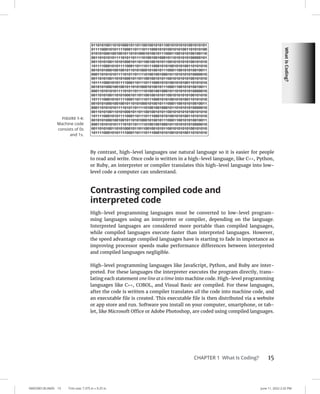
access (also known as programming interface) to the different parts of the docu-
ment through JavaScript. Anything within an HTML document can be accessed
and changed with JavaScript by using the DOM.
You can find techniques for setting or getting the value of a form’s properties in
Book 3, Chapter 10. After referencing the form using one of these methods, you
then access the property using dot notation or the square bracket method.
USING THE AUTOCOMPLETE ATTRIBUTE
The autocomplete attribute in an HTML form element sets the default autocomplete
value for the input elements inside the form. If you want the browser to provide
autocomplete functionality for every input in the form, set autocomplete to 'on'.
If you want to be able to select which elements the browser can autocomplete or if
your document provides its own autocomplete functionality (through JavaScript), set
the form’s autocomplete attribute to 'off', and then you can set the autocomplete
attribute for each individual input element within the form.
0005390151.INDD 346 Trim size: 7.375 in × 9.25 in June 11, 2022 3:11 PM
346 BOOK 3 Advanced Web Coding
To get the value of the name property of the first form in a document, you could
use the following statement:
document.getElementByTagName(form)[0].name
A more common way to access a form is by assigning it an id attribute and using
getElementById to select it.
The DOM provides another, more convenient method for accessing forms: the
forms collection. The forms collection lets you access the forms in a document in
two different ways:
»
» By index number: When a form element is created in the document, it is
assigned an index number, starting with zero. To access the first form in the
document, use document.forms[0].
»
» By name: You can also access forms using the name attribute of the form
element. For example, to get the value of the action property of a form with a
name of subscribeForm, you would use document.forms.subscribeForm.
action. Or you can use the square brackets method of accessing properties
and write document.forms[subscribeForm].action.
TABLE 12-2 Form Object Properties
Property Use
acceptCharset Gets or sets a list of character sets that are supported by the server.
action Gets or sets the value of the action attribute of the form element.
autocomplete Gets or sets whether input elements can have their values automatically completed by
the browser.
encoding Tells the browser how to encode the form data (either as text or as a file). This property
is synonymous with enctype.
enctype Tells the browser how to encode the form data (either as text or as a file).
length Gets the number of controls in the form.
method Gets or sets the HTTP method the browser uses to submit the form.
name Gets or sets the name of the form.
noValidate Indicates that the form does not need to be validated upon submittal.
target Indicates the place to display the results of a submitted form.
Integrating
Input
and
Output
0005390151.INDD 347 Trim size: 7.375 in × 9.25 in June 11, 2022 3:11 PM
CHAPTER 12 Integrating Input and Output 347
Using the Form object’s methods
The Form object has two methods: reset and submit.
The reset method
The reset method clears any changes to the form’s fields that were made after
the page loaded and resets the default values. It does the same thing as the HTML
reset button, which is created by using a type=reset attribute with an input
element, as shown in the following code:
input type=reset value=Clear the form
The submit method
The submit method causes the form to submit its values according to the proper-
ties of the form (action, method, target, and so on). It does the same thing as
the HTML submit button, which is created by using a type=submit attribute
with an input element, as shown in the following code:
input type=submit value=Submit the form
Listing 12-3 demonstrates the use of the submit and reset methods, along with
several of the Form object’s properties.
LISTING 12-3: Using the Form Object’s Properties and Methods
html
head
titleSubscribe to our newsletter!/title
script
function setFormDefaults() {
document.forms.subscribeForm.method = 'post';
document.forms.subscribeForm.target = '_blank';
document.forms.subscribeForm.action =
'http://watzthis.us9.list-manage.com/' +
'subscribe/post?u=1e6d8741f7db587af747ec056amp;id=663906e3ba';
//register the button events
document
.getElementById('btnSubscribe')
.addEventListener('click', submitForm);
document
.getElementById('btnReset')
.addEventListener('click', resetForm);
}
(continued)
0005390151.INDD 348 Trim size: 7.375 in × 9.25 in June 11, 2022 3:11 PM
348 BOOK 3 Advanced Web Coding
function submitForm() {
document.forms.subscribeForm.submit();
}
function resetForm() {
document.forms.subscribeForm.reset();
}
/script
/head
body onload=setFormDefaults();
form name=subscribeForm
h2Subscribe to our mailing list/h2
label for=mce-EMAILEmail Address /label
input type=email value= name=EMAIL id=mce-EMAIL/
button type=button id=btnSubscribeSubscribe!/button
button type=button id=btnResetReset/button
/form
/body
/html
Accessing form elements
JavaScript offers several ways to access form input fields and their values. These
ways are not all created equal, however, and differences of opinion exist among
JavaScript programmers as to which technique is the best. The following list pres-
ents the different techniques and their benefits and drawbacks:
»
» Use the index number of the form and of its input fields. For example, to
access the first input field in the first form, you could use the following code:
document.forms[0].elements[0]
Avoid the preceding technique because it relies on the structure of the
document and the order of the elements within the form not to change. As
soon as someone decides that the email field should come before the first
name field in the form, your whole script will break.
»
» Use the name of the form and the name of the input field. For example:
document.myForm.firstName
This technique has the benefit of being easy to read and easy to use. It’s
supported by every browser (and has been since very early in the develop-
ment of the DOM).
LISTING 12-3: (continued)
Integrating
Input
and
Output
0005390151.INDD 349 Trim size: 7.375 in × 9.25 in June 11, 2022 3:11 PM
CHAPTER 12 Integrating Input and Output 349
»
» Use getElementById to select the form and the name of the input field
to select the input. For example:
document.getElementById(myForm).firstName
This technique requires you to assign an id attribute to the form of the
element. For example, the preceding code would match an input field named
firstName inside of the following form element.
form id=myForm action=myaction.php
...
/form
»
» Use a unique id attribute value on the field to access the field directly.
For example:
document.getElementById(firstName)
Something to remember when using the preceding technique is that if you
have multiple forms on your page, you need to make sure that each form field
has a unique id attribute (id attribute values must be unique anyway, so it’s
not really an issue).
Getting and setting form element values
The DOM gives you access to form elements’ names and values using the name
and value properties.
Listing 12-4 demonstrates the getting and setting of form input fields using a
simple calculator application.
LISTING 12-4: A Calculator App Demonstrating the Getting and
Setting of Form Input Fields
html
head
titleMath Fun/title
script
function registerEvents() {
document.mathWiz.operate.addEventListener('click',
doTheMath, false);
}
(continued)
0005390151.INDD 350 Trim size: 7.375 in × 9.25 in June 11, 2022 3:11 PM
350 BOOK 3 Advanced Web Coding
function doTheMath() {
let first = parseInt(document.mathWiz.numberOne.value);
let second = parseInt(document.mathWiz.numberTwo.value);
let operator = document.mathWiz.operator.value;
let answer;
switch (operator) {
case 'add':
answer = first + second;
break;
case 'subtract':
answer = first - second;
break;
case 'multiply':
answer = first * second;
break;
case 'divide':
answer = first / second;
break;
}
document.mathWiz.theResult.value = answer;
}
/script
/head
body onload=registerEvents();
form name=mathWiz
labelFirst Number: input type=number
name=numberOne//label
br/
labelSecond Number: input type=number
name=numberTwo//label
br/
label
Operator:
select name=operator
option value=add+/option
option value=subtract-/option
option value=multiply*/option
option value=divide//option
/select
/label
br/
LISTING 12-4: (continued)
Integrating
Input
and
Output
0005390151.INDD 351 Trim size: 7.375 in × 9.25 in June 11, 2022 3:11 PM
CHAPTER 12 Integrating Input and Output 351
input type=button name=operate value=Do the
Math!/br/
labelResult: input type=number name=theResult/ /
label
/form
/body
/html
Validating user input
One of the most common uses for JavaScript is to check, or validate, form input
before submitting user input to the server. JavaScript form validation provides an
extra safeguard against bad or potentially unsafe data making its way into a web
application. It also provides users with instant feedback about whether they’ve
made a mistake.
Some of the most common JavaScript input validation tasks have been replaced by
HTML attributes in HTML5. However, due to browser incompatibilities, it’s still a
good practice to validate user-submitted data using JavaScript.
In the calculator program in Listing 12-4, the input type was set to number for the
operand units. This should cause the browser to prevent the user from submitting
non-numeric values into these fields. Because the number input type is relatively
new, you can’t always count on the browsers to support it, so using JavaScript
user input validation is important.
Listing 12-5 demonstrates an input validation script. The important thing to
notice here is that the action of the form has been set to the input validation
function. The submit method of the form runs only after the tests in the input
validation function have finished.
The line in the preceding code that does the real magic is this strange-looking one
inside of the validate function:
if (/^d+$/.test(first)  /^d+$/.test(second)) {
The characters between / and / make up what’s called a regular expression. A regu-
lar expression is a search pattern made up of symbols that represent groups of
other symbols. In this case, we’re using a regular expression to check whether the
values the user entered are both numeric.
0005390151.INDD 352 Trim size: 7.375 in × 9.25 in June 11, 2022 3:11 PM
352 BOOK 3 Advanced Web Coding
Input validation is such a common use for JavaScript that many different tech-
niques have been created for doing it. Before you reinvent the wheel for your
­
particular JavaScript application, do a search for open source JavaScript input
­validation and see whether any existing libraries of code can save you some time
and give you more functionality.
LISTING 12-5: Performing Input Validation with JavaScript
html
head
titleMath Fun/title
script
function registerEvents() {
document.mathWiz.operate.addEventListener('click', validate, false);
}
function validate() {
let first = document.mathWiz.numberOne.value;
let second = document.mathWiz.numberTwo.value;
let operator = document.mathWiz.operator.value;
let answer;
if (/^d+$/.test(first)  /^d+$/.test(second)) {
doTheMath();
} else {
alert('Error: Both numbers must be numeric');
}
}
function doTheMath() {
let first = parseInt(document.mathWiz.numberOne.value);
let second = parseInt(document.mathWiz.numberTwo.value);
let operator = document.mathWiz.operator.value;
switch (operator) {
case 'add':
answer = first + second;
break;
case 'subtract':
answer = first - second;
break;
case 'multiply':
answer = first * second;
break;
case 'divide':
answer = first / second;
break;
}
document.mathWiz.theResult.value = answer;
}
Integrating
Input
and
Output
0005390151.INDD 353 Trim size: 7.375 in × 9.25 in June 11, 2022 3:11 PM
CHAPTER 12 Integrating Input and Output 353
/script
/head
body onload=registerEvents();
div id=formErrors/div
form name=mathWiz
labelFirst Number: input type=text name=numberOne//labelbr/
labelSecond Number: input type=text name=numberTwo//labelbr/
label
Operator:
select name=operator
option value=add+/option
option value=subtract-/option
option value=multiply*/option
option value=divide//option
/select
/label
br/
input type=button name=operate value=Do the Math!/br/
labelResult: input type=number name=theResult/ /label
/form
/body
/html
0005390151.INDD 354 Trim size: 7.375 in × 9.25 in June 11, 2022 3:11 PM
CHAPTER 13 Understanding Callbacks and Closures 355
0005390152.INDD 355 Trim size: 7.375 in × 9.25 in June 7, 2022 6:01 PM
Understanding Callbacks
and Closures
“O, call back yesterday, bid time return.”
— EARL OF SALISBURY, RICHARD II
C
allbacks and closures are two of the most useful and widely used techniques
in JavaScript. In this chapter, you find out how and why to pass functions as
arguments to other functions.
What Are Callbacks?
JavaScript functions are objects. This statement is the key to understanding many
of the more advanced JavaScript topics, including callback functions.
Functions, like any other object, can be assigned to variables, be passed as argu-
ments to other functions, and created within and returned from functions.
Chapter 13
IN THIS CHAPTER
» Understanding callback functions
» Using callbacks
» Creating closures
0005390152.INDD 356 Trim size: 7.375 in × 9.25 in June 7, 2022 6:01 PM
356 BOOK 3 Advanced Web Coding
Passing functions as arguments
A callback function is a function that is passed as an argument to another function.
Callback functions are a technique that’s possible in JavaScript because of the fact
that functions are objects.
Function objects contain a string with the code of the function. When you call a
function by naming the function, followed by (), you’re telling the function to
execute its code. When you name a function or pass a function without the (), the
function does not execute.
Here is an example of a callback function using the addEventListener method:
document.addEventListener('click',doSomething,false);
This method takes an event (click) and a Function object (doSomething) as
arguments. The callback function doesn’t execute right away. Instead, the
addEventListener method executes the function when the event occurs.
Writing functions with callbacks
Here’s a simple example function, doMath, that accepts a callback function as an
argument:
function doMath(number1,number2,callback) {
let result = callback(number1,number2);
document.write ('The result is: ' + result);
}
This is a generic function for returning the result of any math operation involv-
ing two operands. The callback function that you pass to it specifies what actual
operations will be done.
To call the doMath function, pass two number arguments and then a function as
the third argument:
doMath(5,2,function(number1,number2){
let calculation = number1 * number2 / 6;
return calculation;
});
Listing 13-1 is a complete web page that contains the doMath function and then
invokes it several times with different callback functions.
Understanding
Callbacks
and
Closures
0005390152.INDD 357 Trim size: 7.375 in × 9.25 in June 7, 2022 6:01 PM
CHAPTER 13 Understanding Callbacks and Closures 357
LISTING 13-1: Calling a Function with Different Callback Functions
html
head
titleIntroducing the doMath function/title
script
function doMath(number1, number2, callback) {
let result = callback(number1, number2);
document.getElementById('theResult').innerHTML +=
'The result is: ' + result + 'br';
}
document.addEventListener(
'DOMContentLoaded',
function () {
doMath(5, 2, function (number1, number2) {
let calculation = number1 * number2;
return calculation;
});
doMath(10, 3, function (number1, number2) {
let calculation = number1 / number2;
return calculation;
});
doMath(81, 9, function (number1, number2) {
let calculation = number1 % number2;
return calculation;
});
},
false
);
/script
/head
body
h1Do the Math/h1
div id=theResult/div
/body
/html
The result of running Listing 13-1 in a browser is shown in Figure 13-1.
Using named callback functions
In the examples in the preceding section, the callback functions were all written
as anonymous functions. It’s also possible to define named functions and then
pass the name of the function as a callback function.
0005390152.INDD 358 Trim size: 7.375 in × 9.25 in June 7, 2022 6:01 PM
358 BOOK 3 Advanced Web Coding
Anonymous functions are functions that you create without giving them names.
Using named functions as callbacks can reduce the visual code clutter that can
come with using anonymous functions. Listing 13-2 shows an example of how to
use a named function as a callback. This example also features the following two
improvements over Listing 13-1:
»
» A test has been added to the doMath function to make sure that the callback
argument is actually a function.
»
» It prints the code of the callback function before displaying the result of
running it.
LISTING 13-2: Using Named Functions as Callbacks
html
head
titledoMath with Named Functions/title
script
function doMath(number1, number2, callback) {
if (typeof callback === 'function') {
let result = callback(number1, number2);
document.getElementById('theResult').innerHTML +=
callback.toString() +
'brbrThe result is: ' +
result +
'brbr';
}
}
FIGURE 13-1:
Doing
calculations
using callbacks.
© John Wiley  Sons
Understanding
Callbacks
and
Closures
0005390152.INDD 359 Trim size: 7.375 in × 9.25 in June 7, 2022 6:01 PM
CHAPTER 13 Understanding Callbacks and Closures 359
function multiplyThem(number1, number2) {
let calculation = number1 * number2;
return calculation;
}
function divideThem(number1, number2) {
let calculation = number1 / number2;
return calculation;
}
function modThem(number1, number2) {
let calculation = number1 % number2;
return calculation;
}
document.addEventListener(
'DOMContentLoaded',
function () {
doMath(5, 2, multiplyThem);
doMath(10, 3, divideThem);
doMath(81, 9, modThem);
},
false
);
/script
/head
body
h1Do the Math/h1
div id=theResult/div
/body
/html
The result of running Listing 13-2 in a browser is shown in Figure 13-2.
Using named functions for callbacks has two advantages over using anonymous
functions for callbacks:
»
» It makes your code easier to read.
»
» Named functions are multipurpose and can be used on their own or as
callbacks.
0005390152.INDD 360 Trim size: 7.375 in × 9.25 in June 7, 2022 6:01 PM
360 BOOK 3 Advanced Web Coding
Understanding Closures
A closure is the local variable for a function, kept alive after the function has
returned.
Take a look at the example in Listing 13-3. In this example, an inner function is
defined within an outer function. When the outer function returns a reference to
the inner function, the returned reference can still access the local data from the
outer function.
In Listing 13-3, the greetVisitor function returns a function that is created
within it called sayWelcome. Notice that the return statement doesn’t use () after
sayWelcome. That’s because you don’t want to return the value of running the
function, but rather the code of the actual function.
LISTING 13-3: Creating a Function Using a Function
function greetVisitor(phrase) {
let welcome = phrase + '. Great to see you!'; // Local variable
let sayWelcome = function () {
alert(welcome);
};
FIGURE 13-2:
Doing math with
named callbacks.
© John Wiley  Sons
Understanding
Callbacks
and
Closures
0005390152.INDD 361 Trim size: 7.375 in × 9.25 in June 7, 2022 6:01 PM
CHAPTER 13 Understanding Callbacks and Closures 361
return sayWelcome;
}
let personalGreeting = greetVisitor('Hola Amiga');
personalGreeting(); // alerts Hola Amiga. Great to see you!
The useful thing about Listing 13-3 is that it uses the greetVisitor function to
create a new custom function called personalGreeting, which can still access the
variables from the original function.
Normally, when a function has finished executing, the local variables within it
are inaccessible. By returning a function reference (sayWelcome), however, the
greetVisitor function’s internal data becomes accessible to the outside world.
The keys to understanding closures are to understand variable scope in JavaScript
and to understand the difference between executing a function and a function
reference. By assigning the return value of the greetVisitor function to the
new personalGreeting function, the program stores the code of the sayWelcome
function. You can test this by using the toString method:
personalGreeting.toString()
If you add to Listing 13-3 an alert statement to output the toString() value of
personalGreeting, you get the result shown in Figure 13-3.
In Figure 13-3, the variable welcome is a copy of the variable welcome from the
original greetVisitor function at the time that the closure was created.
In Listing 13-4, a new closure is created using a different argument to the
greetVisitor function. Even though calling greetVisitor() changes the value of
the welcome variable, the result of calling the first function (personalGreeting)
remains the same.
FIGURE 13-3:
A closure includes
the code of the
returned inner
function.
© John Wiley  Sons
0005390152.INDD 362 Trim size: 7.375 in × 9.25 in June 7, 2022 6:01 PM
362 BOOK 3 Advanced Web Coding
LISTING 13-4: Closures Contain Secret References to Outer Function Variables
html
head
titleUsing Closures/title
script
function greetVisitor(phrase) {
let welcome = phrase + . Great to see you!brbr; // Local variable
let sayWelcome = function() {
document.getElementById(greeting).innerHTML += welcome;
}
return sayWelcome;
}
// wait until the document is loaded
document.addEventListener('DOMContentLoaded', function() {
// make a function
let personalGreeting = greetVisitor(Hola Amiga);
// make another function
let anotherGreeting = greetVisitor(Howdy, Friend);
// look at the code of the first function
document.getElementById(greeting).innerHTML +=
personalGreeting.toString() br + personalGreeting.toString() + br;
// run the first function
personalGreeting(); // alerts Hola Amiga. Great to see you!
// look at the code of the 2nd function
document.getElementById(greeting).innerHTML +=
anotherGreeting.toString() br + anotherGreeting.toString() + br;
// run the 2nd function
anotherGreeting(); // alerts Howdy, Friend. Great to see you!
// check the first function
personalGreeting(); // alerts Hola Amiga. Great to see you!
// finish the addEventListener method
}, false);
/script
/head
body
p id=greeting/p
/body
/html
The result of running Listing 13-4 in a web browser is shown in Figure 13-4.
Understanding
Callbacks
and
Closures
0005390152.INDD 363 Trim size: 7.375 in × 9.25 in June 7, 2022 6:01 PM
CHAPTER 13 Understanding Callbacks and Closures 363
Closures are not hard to understand after you know the underlying concepts and
have a need for them. Don’t worry if you don’t feel totally comfortable with them
just yet. It’s fully possible to code in JavaScript without using closures, but once
you do understand them, they can be quite useful and will make you a better
programmer.
Using Closures
A closure is like keeping a copy of the local variables of a function as they were
when the closure was created.
In web programming, closures are frequently used to eliminate the duplication of
effort within a program or to hold values that need to be reused throughout a pro-
gram so that the program doesn’t need to recalculate the value each time it’s used.
Another use for closures is to create customized versions of functions for specific
uses.
In Listing 13-5, closures are used to create functions with error messages specific
to different problems that may occur in the program. All the error messages get
created using the same function.
When a function’s purpose is to create other functions, it’s known as a function
factory.
FIGURE 13-4:
Creating
customized
greetings with
closures.
© John Wiley  Sons
0005390152.INDD 364 Trim size: 7.375 in × 9.25 in June 7, 2022 6:01 PM
364 BOOK 3 Advanced Web Coding
LISTING 13-5: Using a Function to Create Functions
html
head
titlefunction factory/title
script
function createMessageAlert(theMessage){
return function() {
alert (theMessage);
}
}
let badEmailError = createMessageAlert(Unknown email address!);
let wrongPasswordError = createMessageAlert(That's not your password!);
window.addEventListener('load', loader, false);
function loader(){
document.login.yourEmail.addEventListener('change',badEmailError);
document.login.yourPassword.addEventListener('change',wrongPasswordError);
}
/script
/head
body
form name=login id=loginform
p
labelEnter Your Email Address:
input type=text name=yourEmail
/label
/p
p
labelEnter Your Password:
input type=text name=yourPassword
/label
/p
buttonSubmit/button
/body
/html
The key to understanding Listing 13-5 is the function factory.
function createMessageAlert(theMessage){
return function() {
alert (theMessage);
}
}
Understanding
Callbacks
and
Closures
0005390152.INDD 365 Trim size: 7.375 in × 9.25 in June 7, 2022 6:01 PM
CHAPTER 13 Understanding Callbacks and Closures 365
To use this function factory, assign its return value to a variable, as in the follow-
ing statement:
let badEmailError = createMessageAlert(Unknown email address!);
The preceding statement creates a closure that can be used elsewhere in the pro-
gram just by running badEmailError as a function, as in the following event
handler:
document.login.yourEmail.addEventListener('change',badEmailError);
0005390152.INDD 366 Trim size: 7.375 in × 9.25 in June 7, 2022 6:01 PM
CHAPTER 14 Embracing AJAX and JSON 367
0005390153.INDD 367 Trim size: 7.375 in × 9.25 in June 11, 2022 3:15 PM
Embracing AJAX
and JSON
“The Web does not just connect machines, it connects people.”
— TIM BERNERS-LEE
A
JAX is a technique for making web pages more dynamic by sending and
receiving data in the background while the user interacts with the pages.
JSON has become the standard data format used by AJAX applications. In
this chapter, you find out how to use AJAX techniques to make your site sparkle!
Working behind the Scenes with AJAX
Asynchronous JavaScript + XML (AJAX) is a term that’s used to describe a method
of using JavaScript, the DOM, HTML, and the XMLHttpRequest object together
to refresh parts of a web page with live data without needing to refresh the
entire page.
AJAX was first implemented on a large scale by Google’s Gmail in 2004 and then
was given its name by Jesse James Garret in 2005.
Chapter 14
IN THIS CHAPTER
» Reading and writing JSON
» Understanding AJAX
» Using AJAX
0005390153.INDD 368 Trim size: 7.375 in × 9.25 in June 11, 2022 3:15 PM
368 BOOK 3 Advanced Web Coding
The HTML DOM changes the page dynamically. The important innovation that
AJAX made was to use the XMLHttpRequest object to retrieve data from the server
asynchronously (in the background) without blocking the execution of the rest of
the JavaScript on the web page.
Although AJAX originally relied on data formatted as XML (hence the X in the
name), it’s much more common today for AJAX applications to use a data format
called JavaScript Object Notation (JSON). Most people still call applications that
get JSON data asynchronously from a server AJAX, but a more technically accurate
(but less memorable) acronym would be AJAJ.
AJAX examples
When web developers first started to use AJAX, it became one of the hallmarks of
what was labeled Web 2.0. The most common way for web pages to show dynamic
data prior to AJAX was by downloading a new web page from the server. For exam-
ple, consider craigslist.org, shown in Figure 14-1.
To navigate through the categories of listings or search results on Craigslist, you
click links that cause the entire page to refresh and reveal the content of the page
you requested.
FIGURE 14-1:
Craigslist.org was
quite happy with
Web 1.0, thank
you very much.
© John Wiley  Sons
Embracing
AJAX
and
JSON
0005390153.INDD 369 Trim size: 7.375 in × 9.25 in June 11, 2022 3:15 PM
CHAPTER 14 Embracing AJAX and JSON 369
While still very common, refreshing the entire page to display new data in just part
of the page is unnecessarily slow and can provide a less smooth user experience.
Compare the old Craigslist-style navigation with the application-like user inter-
face of Google Slides, shown in Figure 14-2, which uses AJAX to load new content
into part of the screen while the navigation bars remain static.
In addition to making web page navigation smoother, AJAX is also great for creat-
ing live data elements in a web page. Prior to AJAX, if you wanted to display live
data, a chart, or an up-to-date view of an email inbox, you either needed to use
a plug-in (such as Adobe Flash) or periodically cause the web page to automati-
cally refresh.
With AJAX, it’s possible to periodically refresh data through an asynchronous
process that runs in the background and then update only the elements of the
page that need to be modified.
Weather Underground’s WunderMap, shown in Figure 14-3, shows a weather
map with constantly changing and updating data overlays. The data for the map
is retrieved from remote servers using AJAX.
FIGURE 14-2:
Google Slides
uses AJAX to
provide a more
modern user
experience.
© John Wiley  Sons
0005390153.INDD 370 Trim size: 7.375 in × 9.25 in June 11, 2022 3:15 PM
370 BOOK 3 Advanced Web Coding
Viewing AJAX in action
In Figure 14-3, shown in the preceding section, the Chrome Developer Tools win-
dow is open to the Network tab. The Network tab shows all network activity
involving the current web page. When a page is loading, this includes the requests
and downloads of the page’s HTML, CSS, JavaScript, and images. After the page
is loaded, the Network tab also displays the asynchronous HTTP requests and
responses that make AJAX possible.
Follow these steps to view AJAX requests and responses in Chrome:
1. Open your Chrome web browser and navigate to www.wunderground.com/
wundermap.
2. Open your Chrome Developer Tools by using the Chrome menu or by
pressing Cmd+Option+I (on Mac) or Ctrl+Shift+I (on Windows).
3. Open the Network tab.
Your Developer Tools window should now resemble Figure 14-4. You may
want to drag the top border of the Developer Tools to make it larger at this
point. Don’t worry if this makes the content area of the browser too small to
use. What’s going on in the Developer Tools is the important thing right now.
Notice that new items are periodically appearing in the Network tab. These are
the AJAX requests and responses. Some of them are images returned from the
server, and some are data for use by the client-side JavaScript.
FIGURE 14-3:
WunderMap uses
AJAX to display
live weather data.
© John Wiley  Sons
Embracing
AJAX
and
JSON
0005390153.INDD 371 Trim size: 7.375 in × 9.25 in June 11, 2022 3:15 PM
CHAPTER 14 Embracing AJAX and JSON 371
4. Click one of the rows in the Name column of the Networks tab.
Additional data will be displayed about that particular item, as shown in
Figure 14-5.
5. Click through the tabs (Headers, Preview, Response and so on) in the
detailed data pane and examine the data.
The first tab, Headers, displays the HTTP request that was sent to the remote
server. Take a look in particular at the Request URL. This is a standard website
address that passes data to a remote server.
6. Select and copy the value of the Request URL from one of the items you
inspected.
7. Open a new tab in your browser and paste the entire Request URL into
the address bar.
A page containing data or an image opens, as in Figure 14-6.
8. Compare the results of opening the Request URL in a new tab with the
results shown in the Response tab in the Developer Tools.
They should be similar, although they may not look identical because they
weren’t run at the same time.
FIGURE 14-4:
The Network tab
of the Developer
Tools.
© John Wiley  Sons
0005390153.INDD 372 Trim size: 7.375 in × 9.25 in June 11, 2022 3:15 PM
372 BOOK 3 Advanced Web Coding
FIGURE 14-5:
Viewing
additional
information
about a ­
particular
record in the
Network tab.
© John Wiley  Sons
FIGURE 14-6:
The result of
copying an HTTP
Request URL
from the
Network tab.
© John Wiley  Sons
Embracing
AJAX
and
JSON
0005390153.INDD 373 Trim size: 7.375 in × 9.25 in June 11, 2022 3:15 PM
CHAPTER 14 Embracing AJAX and JSON 373
As you can see, there’s really no magic to AJAX. The JavaScript on the web page
is simply requesting and receiving data from a server. Everything that happens
behind the scenes is open to inspection through the Chrome Developer Tools (or
the similar tools that are available with most other web browsers today).
Using the XMLHttpRequest object
The XMLHttpRequest object provides a way for web browsers to request data from
a URL without having to refresh the page.
The XMLHttpRequest object was created and implemented first by Microsoft in
its Internet Explorer browser and has since become a web standard that has been
adopted by every modern web browser.
You can use the methods and properties of the XMLHttpRequest object to
retrieve data from a remote server or your local server. Despite its name, the
XMLHttpRequest object can get other types of data besides XML, and it can even
use different protocols to get data besides HTTP.
Listing 14-1 shows how you can use XMLHttpRequest to load the contents of an
external text document containing HTML into the current HTML document.
LISTING 14-1: Using XMLHttpRequest to Load External Data
html
head
titleLoading External Data/title
script
window.addEventListener('load', init, false);
function init(e) {
document
.getElementById('myButton')
.addEventListener('click', documentLoader, false);
}
function reqListener() {
console.log(this.responseText);
document.getElementById('content').innerHTML = this.responseText;
}
function documentLoader() {
let oReq = new XMLHttpRequest();
oReq.onload = reqListener;
oReq.open('get', 'loadme.txt', true);
oReq.send();
}
(continued)
0005390153.INDD 374 Trim size: 7.375 in × 9.25 in June 11, 2022 3:15 PM
374 BOOK 3 Advanced Web Coding
/script
/head
body
form id=myForm
button id=myButton type=buttonClick to Load/button
/form
div id=content/div
/body
/html
The heart of this document is the documentLoader function:
function documentLoader(){
var oReq = new XMLHttpRequest();
oReq.onload = reqListener;
oReq.open(get, loadme.txt, true);
oReq.send();
}
The first line of code inside the function creates the new XMLHttpRequest object
and gives it the name of oReq:
var oReq = new XMLHttpRequest();
The methods and properties of the XMLHttpRequest object are accessible through
the oReq object.
This second line assigns a function, reqListener, to the onload event of the oReq
object. The purpose of this is to cause the reqListener function to be called when
oReq loads a document:
oReq.onload = reqListener;
The third line uses the open method to create a request:
oReq.open(get, loadme.txt, true);
In this case, the function uses the HTTP GET method to load the file called loadme.
txt. The third parameter is the async argument. It specifies whether the request
should be asynchronous. If it’s set to false, the send method won’t return until
the request is complete. If it’s set to true, notifications about the completion of
the request will be provided through event listeners. Because the event listener is
set to listen for the load event, an asynchronous request is what’s desired.
LISTING 14-1: (continued)
Embracing
AJAX
and
JSON
0005390153.INDD 375 Trim size: 7.375 in × 9.25 in June 11, 2022 3:15 PM
CHAPTER 14 Embracing AJAX and JSON 375
It’s unlikely that you’ll run into a situation where you’ll want to set the async
argument to false. In fact, some browsers have begun to just ignore this argu-
ment if it’s set to false and to treat it as if it’s true either way because of the bad
effect on the user experience that synchronous requests have.
The last line in the documentLoader function sends the requests that you created
with the open method:
oReq.send();
The open method will get the latest version of the requested file. So-called live-
data applications often use loops to repeatedly request updated data from a server
using AJAX.
Working with the same-origin policy
If you save the HTML document in Listing 14-1 to your computer and open it in
a web browser, more than likely, you won’t get the results that you’d expect. If
you load the document from your computer and then open the Chrome Developer
Tools JavaScript Console, you will see a couple of error messages similar to the
errors shown in Figure 14-7.
The problem here is what’s called the same-origin policy. In order to prevent web
pages from causing users to unknowingly download code that may be malicious
using XMLHttpRequest, browsers will return an error by default whenever a script
tries to load an URL that doesn’t have the same origin. If you load a web page
FIGURE 14-7:
Errors when
trying to use
XMLHttp
Request on a
local file.
© John Wiley  Sons
0005390153.INDD 376 Trim size: 7.375 in × 9.25 in June 11, 2022 3:15 PM
376 BOOK 3 Advanced Web Coding
from www.example.com and a script on that page tries to retrieve data from www.
watzthis.com, the browser will prevent the request with a similar error to the
one you see in Figure 14-7.
The same-origin policy also applies to files on your local computer. If it didn’t,
XMLHttpRequest could be used to compromise the security of your computer.
There’s no reason to worry about the examples in this book negatively affecting
your computer. However, in order for the examples in this chapter to work cor-
rectly on your computer, you need a way around the same-origin policy.
The first way around the same-origin policy is to put the HTML file containing
the documentLoader function and the text file on the same web server.
The other way around the same-origin policy is to start your browser with the
same-origin policy restrictions temporarily disabled.
These instructions are to allow you to test your own files on your local computer
only. Do not surf the web with the same-origin policy disabled. You may expose
your computer to malicious code.
To disable the same-origin policy on macOS:
1. If your Chrome browser is open, close it.
2. Open the Terminal app and launch Chrome using the following
command:
/Applications/Google Chrome.app/Contents/MacOS/Google Chrome
--disable-web-security
To disable the same-origin policy on Windows:
1. If your Chrome browser is open, close it.
2. Open the Command prompt and navigate to the folder where you
installed Chrome.
3. Type the following command to launch the browser:
Chrome.exe --disable-web-security
Once the browser starts up, you’ll be able to run files containing AJAX requests
locally until you close the browser. Once the browser is closed and reopened, the
security restrictions will be re-enabled automatically.
Embracing
AJAX
and
JSON
0005390153.INDD 377 Trim size: 7.375 in × 9.25 in June 11, 2022 3:15 PM
CHAPTER 14 Embracing AJAX and JSON 377
Figure 14-8 shows the result of running Listing 14-1 in a browser without the
same-origin policy errors.
Using CORS, the silver bullet
for AJAX requests
It’s quite common for a web application to make requests to a different server in
order to retrieve data. For example, many websites and mobile apps use Google’s
Maps through the Google Maps Platform API.
In order for the transactions between servers to be secure, mechanisms have been
created for browsers and servers to work out their differences and establish trust.
Currently, the best method for allowing and restricting access to resources
between servers is the standard called Cross-Origin Resource Sharing (CORS).
To see CORS in action, visit the Weather Underground’s WunderMap (www.
wunderground.com/wundermap) using the Chrome web browser. When the page
has loaded, right-click and select Inspect to open the Chrome Developer Tools,
then select the Network tab. Click one of the requests where the Name starts with
stationdata? and the Type is xhr.
FIGURE 14-8:
Listing 14-1 run
in a browser with
the same-origin
policy disabled.
© John Wiley  Sons
0005390153.INDD 378 Trim size: 7.375 in × 9.25 in June 11, 2022 3:15 PM
378 BOOK 3 Advanced Web Coding
Click the Headers tab, and you’ll see the following text in the HTTP header:
Access-Control-Allow-Origin: *
This is the CORS response header that this particular server is configured to send.
The asterisk value after the colon indicates that this server will accept requests
from any origin. If the owners of wunderground.com wanted to restrict access to
the data at this script to only specific servers or authenticated users, they could
do so using CORS.
Putting Objects in Motion with JSON
In Listing 14-1, you use AJAX to open and display a text document containing a
snippet of HTML. Another common use for AJAX is to request and receive data for
processing by the browser.
For example, gasbuddy.com uses a map from Google along with data about gas
prices to present a simple and up-to-date view of gas prices in different loca-
tions, as shown in Figure 14-9.
FIGURE 14-9:
gasbuddy.com
uses AJAX to
display gas prices
on a map.
© John Wiley  Sons
Embracing
AJAX
and
JSON
0005390153.INDD 379 Trim size: 7.375 in × 9.25 in June 11, 2022 3:15 PM
CHAPTER 14 Embracing AJAX and JSON 379
If you examine gasbuddy.com in the Network tab, you’ll find that some requests
have responses that look something like the code shown in Listing 14-2.
LISTING 14-2: Part of a Response to an AJAX Request on gasbuddy.com
([{id:tuwtvtuvvvv,base:[351289344,822599680],zrange:[11,11],
layer:m@288429816,features:[{
id:17243857463485476481,a:[0,0],bb:[-8,-8,7,7,-47,7,48,22,-41,19,41,34],c:{1:
{title:Folsom Lake State Recreation Area},4:{type:1}}}]},{id:tuwtvtuvvvw,
zrange:[11,11],layer:m@288429816},{id:tuwtvtuvvwv,base:[351506432,824291328],
zrange:[11,11],layer:m@288429816,features:[{id:8748558518353272790,a:[0,0],
bb:[-8,-8,7,7,-41,7,41,22],c:{1:{title:Deer Creek Hills},4:{type:1}}}]},
{id:tuwtvtuvvww,zrange:[11,11],layer:m@288429816}])
If you take a small piece of data out of this block of code and reformat it, you get
something like Listing 14-3, which should look more familiar to you.
LISTING 14-3: gasbuddy.com Response Data, Reformatted
{id:tuwtvtuvvvv,
base:[351289344,822599680],
zrange:[11,11],
layer:m@288429816,
features:[{
id:17243857463485476481,
a:[0,0],
bb:[-8,-8,7,7,-47,7,48,22,-41,19,41,34],
c:{
1:{title:Folsom Lake State Recreation Area},
4:{type:1}
}}
]}
}
By looking at the format of the data, you can see that it looks suspiciously like
the name:value format of a JavaScript object literal, also known as a comma-
separated list of name-value pairs enclosed in curly braces.
The main reason JSON is so easy to use is because it’s already in a format that
JavaScript can work with, so no conversion is necessary. For example, Listing 14-4
shows a JSON file containing information about this book.
0005390153.INDD 380 Trim size: 7.375 in × 9.25 in June 11, 2022 3:15 PM
380 BOOK 3 Advanced Web Coding
LISTING 14-4: JSON Data Describing Coding All-in-One For Dummies
{ book_title: Coding All-in-One For Dummies,
book_author: Chris Minnick,
summary: Everything beginners need to know to start coding.,
isbn:978-1119889564
}
Listing 14-5 shows how this data can be loaded into a web page using JavaScript
and then used to display its data in HTML.
LISTING 14-5: Displaying JSON Data with JavaScript
html
head
titleDisplaying JSON Data/title
script
window.addEventListener('load', init, false);
function init(e) {
document
.getElementById('myButton')
.addEventListener('click', documentLoader, false);
}
function reqListener() {
// convert the string from the file to an object with JSON.parse
var obj = JSON.parse(this.responseText);
// display the object's data like any object
document.getElementById('book_title').innerHTML = obj.book_title;
document.getElementById('book_author').innerHTML = obj.book_author;
document.getElementById('summary').innerHTML = obj.summary;
}
function documentLoader() {
var oReq = new XMLHttpRequest();
oReq.onload = reqListener;
oReq.open('get', 'listing14-5.json', true);
oReq.send();
}
/script
/head
body
form id=myForm
button id=myButton type=buttonClick to Load/button
/form
h1Book Title/h1
div id=book_title/div
Embracing
AJAX
and
JSON
0005390153.INDD 381 Trim size: 7.375 in × 9.25 in June 11, 2022 3:15 PM
CHAPTER 14 Embracing AJAX and JSON 381
h2Authors/h2
div id=book_author/div
h2Summary/h2
div id=summary/div
/body
/html
The key to displaying any JSON data that’s brought into a JavaScript document
from an external source is to convert it from a string to an object using the JSON.
parse method. After you do that, you can access the values within the JSON file
using dot notation or bracket notation, as you would access the properties of any
JavaScript object.
Figure 14-10 shows the results of running Listing 14-5 in a web browser and
pressing the button to load the JSON data.
FIGURE 14-10:
Displaying JSON
data within an
HTML page.
© John Wiley  Sons
0005390153.INDD 382 Trim size: 7.375 in × 9.25 in June 11, 2022 3:15 PM
4
0005390107.INDD 383 Trim size: 7.375 in × 9.25 in June 11, 2022 4:26 PM
Creating
Mobile Apps
Contents at a Glance
CHAPTER 1: What Is Flutter?. . . . . . . . . . . . . . . . . . . . . . . . . . . . . . . . . . . . . . 385
CHAPTER 2: Setting Up Your Computer for
Mobile App Development. . . . . . . . . . . . . . . . . . . . . . . . . . 401
CHAPTER 3: “Hello” from Flutter. . . . . . . . . . . . . . . . . . . . . . . . . . . . . . . . . 433
CHAPTER 4: Hello Again. . . . . . . . . . . . . . . . . . . . . . . . . . . . . . . . . . . . . . . . . . . 469
CHAPTER 5: Making Things Happen. . . . . . . . . . . . . . . . . . . . . . . . . . . . . 495
CHAPTER 6: Laying Things Out. . . . . . . . . . . . . . . . . . . . . . . . . . . . . . . . . . . 527
CHAPTER 7: Interacting with the User. . . . . . . . . . . . . . . . . . . . . . . . . . 567
CHAPTER 8: Navigation, Lists, and Other Goodies. . . . . . . . . . . . . 605
CHAPTER 9: Moving Right Along . . .. . . . . . . . . . . . . . . . . . . . . . . . . . . . . . 653
0005390107.INDD 384 Trim size: 7.375 in × 9.25 in June 11, 2022 4:26 PM
CHAPTER 1 What Is Flutter? 385
0005390154.INDD 385 Trim size: 7.375 in × 9.25 in June 11, 2022 3:17 PM
What Is Flutter?
B
efore you learn how to program mobile apps with Flutter, it’s important
to understand the big picture and how mobile apps fit into it. No doubt
about it: Mobile phones are complicated beasts. So how do they work? What
makes them tick? What’s going on inside each of those remarkable gadgets?
All About Hardware and Software
A mobile phone is really a small computer. And, like any computer, a mobile phone
operates on several layers. Figure 1-1 shows you a few of those layers.
Hardware is the stuff you can touch. It’s the bottom layer of the diagram in
Figure 1-1. Hardware consists of items like circuitry, memory, and the battery.
Electrical signals that travel along the hardware’s circuits make the hardware do
what you want it to do. These signals encode instructions. Taken as a whole, these
instructions are called software.
When people create software, they don’t describe each electrical signal that
travels through the hardware’s circuitry. Instead, people write source code —
instructions that look something like English-language instructions. One source
code instruction can be shorthand for hundreds or thousands of electrical signals.
Chapter 1
IN THIS CHAPTER
» How mobile apps fit in with hardware
and software
» What makes Flutter great
» Alternatives to Flutter
» Mobile app and Flutter terminology
0005390154.INDD 386 Trim size: 7.375 in × 9.25 in June 11, 2022 3:17 PM
386 BOOK 4 Creating Mobile Apps
A collection of source code instructions that perform a particular task (word pro-
cessing, web browsing, managing a smart thermostat, or whatever) is called a
program. A person who writes these instructions is a programmer or — a fancier-
sounding term — a developer. The person who runs a program on their own device
is a user.
Just as people communicate using many spoken languages, programmers write
source code using many programming languages. If you create iPhone apps, you
probably write code in either the Swift language or the Objective-C language. If
you create Android apps, you’re likely to write code in either Kotlin or Java.
When you create a Flutter app, you write code in the Dart programming language.
Here’s a complete Dart language program:
main() = print('Hello');
This program displays the word Hello on the screen. It’s not very useful, but please
be patient. This is only Chapter 1!
Figure 1-1 distinguishes between two kinds of software:
FIGURE 1-1:
A conceptual view
of your mobile
phone.
What
Is
Flutter?
0005390154.INDD 387 Trim size: 7.375 in × 9.25 in June 11, 2022 3:17 PM
CHAPTER 1 What Is Flutter? 387
»
» Operating system (OS) software runs whenever the device is turned on.
OS software manages the device and provides ways for the user to interact
with the device. Devices made by Apple, such as iPhones and iPads, run the
iOS operating system. Android phones and tablets run the Android operating
system (of course).
»
» Application programs do the work that users want done.
Apps to make phone calls, apps to read email, calendar apps, web browsers,
and games are examples of application programs. As a Flutter developer, your
job is to create application programs.
By one estimate, the popular operating system named Linux consists of nearly
28 million instructions. No one can deal with that much code, so operating sys-
tems are divided into layers of their own. Figure 1-1 shows only four of a typical
operating system’s many layers:
»
» A kernel performs the operating system’s most fundamental tasks.
The kernel schedules apps to be run, manages a device’s memory and files,
provides access to input and output, and does many other essential tasks.
»
» A runtime is a bunch of code that does extra work in the background
while your application program runs.
Runtimes come in many shapes and sizes. A runtime for the C programming
language consists of a relatively small amount of code. In contrast, a Java
language runtime (a Java Virtual Machine, or JVM) is a big piece of software with
lots of moving parts.
When you run an iOS app, the app uses the Objective-C runtime. When you run
an Android app, that app uses the Android runtime, also known as ART.
»
» An application programming interface (API) is a bunch of code that app
developers use over and over again.
For example, Android’s API has something named toUpperCase. If you apply
toUpperCase to Flutter For Dummies, you get FLUTTER FOR
DUMMIES. You don’t have to write your own code to change each of the
letters. Android’s API provides this functionality for you. All you have to do is
tell Android’s API to apply its toUpperCase feature, and then you’re all set.
Here’s some useful terminology: Rather than tell an API to “apply its toUpper
Case feature,” you call toUpperCase. This use of the word call dates back to
the FORTRAN programming language of the 1950s.
Operating systems haven’t cornered the market on APIs. All kinds of software
come with APIs. Flutter and Dart have their own APIs.
0005390154.INDD 388 Trim size: 7.375 in × 9.25 in June 11, 2022 3:17 PM
388 BOOK 4 Creating Mobile Apps
Dart’s API has general-purpose things, like toUpperCase, isAtSameMomentAs,
and a bunch of others. Flutter’s API has features that apply to visually oriented
apps. For example, when you want to display a box where the user can type
text, you don’t have to describe every aspect of the box’s appearance and
behavior. Instead, you can call the API’s TextField constructor and have
Flutter do the hard work for you.
An API is sometimes referred to as a library. You borrow books from a public
library, and you borrow existing code from the Dart and Flutter APIs.
In the Dart programming terminology, the word library has a slightly different
meaning. You don’t have to worry about that yet.
In this book, you’ll learn about pieces of the Dart and Flutter APIs and then
you’ll use those pieces to create Flutter programs.
A typical API has thousands of pieces. No one memorizes all of them. When
you want to add an image to your app, you open Flutter’s documentation and
search for the word Image. The documentation’s Image page tells you how to
display an image, how to size an image, how to tile an image, and how to do
all kinds of other good stuff.
»
» The OS user interface is the area that includes the home screen, the
launch icons, a file explorer, and any other stuff users see when they’re
not working with a particular application program.
On your laptop computer, you probably have a desktop instead of a home
screen. One way or another, the OS presents options to help users launch
application programs and perform other maintenance tasks. These options
are part of the OS user interface.
Each layer in Figure 1-1 contains a collection of related components. This helps
programmers focus on the components that concern them the most — for
example:
»
» The API has code to help developers write application programs.
A developer who’s creating an online purchasing app looks for components in
the API.
»
» The runtime layer has code to run programs efficiently.
To make everyone’s code run faster, engineers at Apple make improvements
to the iOS Runtime layer.
In addition to separating parts of the code from one another, the layers form
organized paths of communication among parts of the system. In general, a
layer’s code communicates only with the layers immediately above and below it.
What
Is
Flutter?
0005390154.INDD 389 Trim size: 7.375 in × 9.25 in June 11, 2022 3:17 PM
CHAPTER 1 What Is Flutter? 389
For example, a user taps a button belonging to a weather app. The app responds
by calling on functionality provided by the API. Communication works its way
down the diagram in Figure 1-1 until it reaches the hardware, which responds by
changing the pixels on the device’s screen. A user never communicates directly
with the API, and application programs have no direct access to the operating
system’s kernel.
When you create a Flutter app, you use the Dart programming language. Dart and
Flutter have separate APIs:
»
» Dart’s API deals with the tasks that every programming language should be
able to do, no matter what programmers want to do with that language.
For example, Dart’s API helps programmers round a number, trim a string of
characters, describe a time interval, reverse a list, and so on.
»
» Flutter’s API deals with the presentation of components and images on a
device’s screen.
One part of Flutter’s API deals with buttons, text fields, checkboxes, and the
like. Another part handles a user’s gestures. Yet another covers animation.
Every Dart program, even the simplest one, calls on code in the Dart API, and
every Flutter app calls on both the Dart and Flutter APIs. These APIs are both
useful and formidable. They’re useful because of all the things you can do with
the API code. They’re formidable because both APIs are extensive. No one memo-
rizes all the features made available by the Dart and Flutter APIs. Programmers
remember the features that they use often and look up the features that they need
in a pinch. They look up these features on a website called the Flutter API reference
documentation.
The API documentation (see https://api.flutter.dev) describes the features in
both the Dart and Flutter APIs. As a Flutter developer, you consult this API doc-
umentation on a daily basis. You can bookmark the website and revisit the site
whenever you need to look up something.
Where Does Flutter Fit In?
The heart of Flutter is an API for creating apps. Most Flutter apps run on mobile
devices, but Flutter apps can run on laptop and desktop computers, too. Flutter
certainly wasn’t the first API for mobile devices, so why should anyone consider
using Flutter to create apps?
0005390154.INDD 390 Trim size: 7.375 in × 9.25 in June 11, 2022 3:17 PM
390 BOOK 4 Creating Mobile Apps
Cross-platform development
People throw around the word platform as if the word means everything and noth-
ing. A simple definition of a platform is a particular operating system along with
the hardware the OS runs on.
What makes the Android platform different from its iOS counterpart? To create
radio buttons in Android’s API, you write code of the following kind:
RadioGroup
RadioButton
android:id=@+id/radioButton1
android:text=Red
android:onClick=onRadioButtonClicked/
RadioButton
android:id=@+id/radioButton2
android:text=Yellow
android:onClick=onRadioButtonClicked/
RadioButton
android:id=@+id/radioButton3
android:text=Green
android:onClick=onRadioButtonClicked/
/RadioGroup
Try converting that code to work on an iPhone. The iOS API doesn’t have radio
buttons, so, to adapt an Android app with radio buttons for iOS, you write code to
make things that look like radio buttons. You also code rules for the radio buttons
to follow — rules like “only one button at a time can be selected.” If you don’t
want to create radio buttons from scratch, you can replace Android’s radio buttons
with an iOS picker component, a thing that looks like an old automobile odometer.
One way or another, replacing an app’s components takes time and costs money.
Some companies give up and create apps for only one platform — iPhone or
Android. Other companies hire two teams of programmers — one for iPhone
development and another for Android development. Still other companies have
one team of programmers that work on both versions of the code. For the compa-
nies’ managers, the problem is exasperating. Why spend nearly twice the money
and create two apps that do almost the same things?
What
Is
Flutter?
0005390154.INDD 391 Trim size: 7.375 in × 9.25 in June 11, 2022 3:17 PM
CHAPTER 1 What Is Flutter? 391
The developer community has names for this ugly situation:
»
» Software written for one platform isn’t compatible with other platforms.
»
» The mobile phone arena suffers from fragmentation: The market is divided
between two different operating systems, and the Android half is divided
among many vendors’ phones.
A program that makes direct use of either the Android or iOS API is called native
code, and native code written for Android can’t run on an iOS device. In the same
way, native code written for iOS is meaningless to an Android device. What’s a
developer to do?
A framework is a second-level API. What the heck does that mean? A framework is
an API that serves as an intermediary between the developer and some other API. If
direct use of the Android or iOS API is problematic, you switch to a framework’s
API. The framework’s API deals head-on with Android’s and iOS’s problems.
Frameworks like Flutter offer an alternative to native app development. When
you write a Flutter program, you don’t write code specifically for Android or
iOS. Instead, you write code that can be translated into either system’s API calls.
Here’s how you create radio buttons in the Flutter framework:
Radio(
value: TrafficLight.Red,
groupValue: _trafficLightValue,
onChanged: _updateTrafficLight,
),
Radio(
value: TrafficLight.Yellow,
groupValue: _trafficLightValue,
onChanged: _updateTrafficLight,
),
Radio(
value: TrafficLight.Green,
groupValue: _trafficLightValue,
onChanged: _updateTrafficLight,
)
Your computer translates code of this kind into either Android API calls or iOS API
calls — or both. That’s cool!
0005390154.INDD 392 Trim size: 7.375 in × 9.25 in June 11, 2022 3:17 PM
392 BOOK 4 Creating Mobile Apps
A BRIEF HISTORY
130,000 years ago: Humans first walk the earth.
10,000 years ago: Humans begin farming.
1752: Ben Franklin discovers electricity.
1760: The Industrial Revolution begins.
March 10, 1876: Alexander Graham Bell makes the first telephone call.
April 3, 1973: Martin Cooper makes the first mobile phone call.
August 16, 1994: BellSouth Cellular releases IBM Simon — the first smartphone.
June 29, 2007: Apple releases the first iPhone.
November 5, 2007: Google releases the first public beta of Android.
Both the iOS and Android are native development technologies. With native develop-
ment, the programmer makes calls directly to the system’s API.
December 2007: Articles and blog posts about fragmentation in mobile phone tech-
nologies start appearing in large numbers.
March 13, 2009: Nitobi Software introduces a framework that uses HTML, CSS, and
JavaScript to create mobile phone apps.
October 4, 2011: Adobe acquires Nitobi, rebrands its framework with the name
PhoneGap, and spins off an open-source version that eventually becomes Apache
Cordova.
Cordova and its cousins are hybrid app development frameworks. With hybrid app
development, an app runs in a window that’s essentially a web browser. Because web
browser technology is standard across all platforms, a hybrid app can run on both
Android and iOS devices, or even on a desktop computer.
What’s “hybrid” about hybrid apps? The code to display text and images in a web
browser doesn’t vary much from one environment to another, so a browser page on an
iPhone looks more or less like the same page on an Android phone. But communicating
with hardware devices, such as the GPS receiver and vibration motor, is another story
entirely.
What
Is
Flutter?
0005390154.INDD 393 Trim size: 7.375 in × 9.25 in June 11, 2022 3:17 PM
CHAPTER 1 What Is Flutter? 393
Web pages aren’t designed to talk directly to a device’s hardware. In fact, you don’t
want to visit awfulwebsite.com and have the site’s code quietly take pictures with
your laptop’s built-in camera. To make a hybrid app interact with hardware, you have
to backpedal and make calls to the iPhone’s API, the Android API, or whatever other API
you can use. That’s why frameworks like Apache Cordova have plug-ins — additional
programs whose code is specific to either iOS or Android. The bottom line is, a typical
hybrid app does some of its work in a web browser and the rest of its work with native
API calls.
What’s the downside with hybrid apps? Frameworks like Apache Cordova are like for-
eign language interpreters: While the app runs, the device must constantly translate
web browser instructions into native code instructions. When you talk through an inter-
preter, the conversation can become sluggish. Hybrid apps aren’t always as responsive
as native apps. In addition, hybrid apps can’t do all the things that native apps can do.
It’s the same when you talk through a foreign language interpreter. You can say most of
the things you want to say, but some ideas simply can’t be translated.
Returning to the history lesson . . .
Summer 2013: A hackathon for Facebook employees gives birth to React Native — a
cross-platform framework based on the React.js JavaScript framework.
February 24, 2016: Microsoft acquires Xamarin — a cross-platform mobile develop-
ment framework based indirectly on Microsoft’s own .NET framework.
With a cross-platform framework, a programmer writes one program that targets nei-
ther iOS nor Android. When the programmer says, “Test this code,” the framework
translates the whole program into native code for either Android or iOS, whichever
platform the programmer chooses. When the program is ready for public distribution,
the framework translates it into two different native apps — one for iOS and the other
for Android.
But why stop there? If you can translate code into both iOS and Android apps, you can
translate the code into web pages and desktop apps. A developer can create one piece
of code and have it run on all kinds of phones, tablets, PCs, Macs, watches, toasters, or
whatever.
This brings us to the subject of this book:
December 4, 2018: Google announces Flutter 1.0 for cross-platform development.
(continued)
0005390154.INDD 394 Trim size: 7.375 in × 9.25 in June 11, 2022 3:17 PM
394 BOOK 4 Creating Mobile Apps
A quick-and-easy development cycle
Here’s what happens when you create an app for mobile devices:
1. You write some code, or you modify some existing code.
You don’t write Android or iOS code on a phone of any kind. Phones aren’t
powerful enough for all the editing and other stuff you need to do. Instead, you
create an app’s code on a laptop or desktop computer. This laptop or desktop
computer is called your development computer.
2. You issue a command for your development computer to build the code.
Building the code takes place in several stages, one of which is called compiling.
Compiling means automatically translating your program from the source code
you wrote to detailed object code instructions. Think of object code as a bunch
of zeros and ones. It’s very detailed and extremely unintuitive. Humans hardly
Flutter differs from Xamarin and React Native in some significant ways. First and
foremost, Xamarin isn’t entirely free. Using Xamarin for professional projects costs
between $300 and $1900 a year, depending on the size and scope of the projects under
development.
In addition, Flutter’s way of displaying components is different from the React Native
and Xamarin way. When you run a React Native app on an iPhone, the app calls on the
iOS API to create iOS buttons, text fields, and other visual components. The same is
true for Android development. React Native gets the Android API to display Android-
specific components. Components created by the iOS and Android APIs don’t look alike.
The two APIs use different shapes, different color palettes, and different navigation
schemes. The differences can lead to unexpected results and can occasionally sabotage
the whole cross-platform development effort.
Flutter doesn’t call on the iOS or Android APIs to display an app’s components. Instead,
Flutter specifies all the tiny pixels required to draw a button or a text field and calls on
the iOS or Android API to paint those pixels. If you want an app to look the same on
both iOS and Android devices, Flutter is your natural choice.
What if you want your app to have that special, iPhone look when it runs on iOS
devices? Can you do that with Flutter? Of course, you can. The Flutter framework has
two special libraries — one for Android and another for iOS. Flutter’s Material Design
library draws things that look like Android components, and Flutter’s Cupertino library
makes objects look like iOS components. This book emphasizes the Material library, but
almost everything in it has a Cupertino counterpart.
(continued)
What
Is
Flutter?
0005390154.INDD 395 Trim size: 7.375 in × 9.25 in June 11, 2022 3:17 PM
CHAPTER 1 What Is Flutter? 395
ever read or write object code but, at the heart of things, processors respond
only to object code instructions. For a detailed look at compiling code, see this
section’s “What is a compiler?” sidebar.
In addition to the translation step, the build process connects the program you
wrote with additional code that your program needs in order to run. For
example, if your program accesses the Internet, the build process integrates
your code with existing network code.
3. The development computer deploys your code to a target device.
This so-called “device” may be a real phone connected to your computer or a
program that simulates a phone on your computer’s screen. One way or
another, your program starts running.
4. You press buttons, type text, and otherwise test your app to find out
whether it’s doing the things you want it to do.
Of course, it’s not doing all those things. So you return to Step 1 and keep
trying.
Steps 2 and 3 can be painfully slow. For some simple iPhone and Android apps,
it’s common to watch for several minutes as the computer prepares code for
the program’s next run. This sluggishness reduces a developer’s productivity
considerably.
But along with Flutter comes some good news. Flutter uses the Dart programming
language, and Dart comes with these two (count ’em — two) compilers:
»
» Ahead-of-time (AOT) compiler
With an AOT compiler, your development computer translates an entire program
and makes the translated code available for devices to run. No further transla-
tion takes place when the devices run your program. Each target device devotes
its processing power to the efficient running of your code.
An app running on AOT-compiled code runs smoothly and efficiently.
»
» Just-in-time (JIT) compiler
With a JIT compiler, your development computer translates enough code to
start the app running. It feeds this code to a test device and continues
translating while the test device runs the app. If the developer presses a
button on the test device’s screen, the JIT compiler hurries to translate that
button’s code.
An app running on a JIT compiler may appear to be sluggish because the
compiler translates code while the app runs. But using a JIT compiler is a great
way to test an app.
0005390154.INDD 396 Trim size: 7.375 in × 9.25 in June 11, 2022 3:17 PM
396 BOOK 4 Creating Mobile Apps
Here’s what happens when you develop a Flutter app:
1. You write some code.
2. You issue a command for your development computer to build the code.
The first time around, building code can take some time.
3. The development computer deploys your code to a target device.
Again, you face a noticeable time lag.
4. In testing your code, you find out that it’s not doing all the things you
want it to do.
5. You modify your existing code, and then . . .
6. You issue a command for your development computer to rebuild the
code.
Here’s where Flutter’s magic happens. Dart’s JIT compiler recompiles only the
part of the app that you’ve modified and sends the change straight to the
target device. The modified code starts running in a fraction of a second. You
save hours of time every day because you’re not waiting for code changes to
take effect.
Flutter gives you two ways to apply changes to a running app:
»
» With hot restart, the app begins its run anew, removing any data that you’ve
entered during the most recent test, displaying the app as if you’re running it
for the first time.
»
» With hot reload, the app takes up from where it left off, with the data you last
entered intact, if possible. The only changes are the ones dictated by your
modifications to the code.
Flutter’s hot restart and hot reload are both blazingly fast. They turn the app
development cycle into a pleasure rather than a chore. Book 4, Chapter 2 tells you
more about building, testing, and rerunning apps.
A great way to think about app
development
You may have heard the all-encompassing mantra of Flutter app development:
In Flutter, almost everything is a widget.
What
Is
Flutter?
0005390154.INDD 397 Trim size: 7.375 in × 9.25 in June 11, 2022 3:17 PM
CHAPTER 1 What Is Flutter? 397
WHAT IS A COMPILER?
You’re a human being. (Sure, every rule has exceptions. But if you’re reading this book,
you’re probably human.) Anyway, humans can write and comprehend the following
Flutter source code:
import 'package:flutter/widgets.dart';
main() = runApp(SizedBox());
When you paraphrase the source code in English, here’s what you get:
Get some code (code from the Flutter API) named widgets.dart.
Run an application whose only component is a box widget.
If you don’t see the similarities between the Flutter code and its English equivalent, don’t
worry. Like most human beings, you can learn to read and write the Flutter code. In
case you’re wondering, this source code contains the world’s simplest and most useless
Flutter app. When the app runs, you see a completely black screen. It’s not what you’d
call a “killer app.”
Source code is nice, but source code isn’t for everyone and everything. The processors
in computers and mobile devices aren’t human beings. Processors don’t follow source
code instructions. Instead, they follow cryptic instructions of the following kind:
1100100 1100101 1111000 00001010 00110000 00110011 00110101 00000000
10000100
These zeros and ones are, in fact, the first few words in an Android phone’s version of
the Black Screen app’s code. Here’s the Black Screen app after a processor interprets
the zeros and ones:
.class public com/allmycode/dexperiment/MainActivity
.super io/flutter/embedding/android/FlutterActivity
.source MainActivity.java
.method public init()V
.limit registers 1
; this: v0 (Lcom/allmycode/dexperiment/MainActivity;)
.line 8
invoke-direct {v0},io/flutter/embedding/android/
FlutterActivity/init
; init()V
return-void
.end method
(continued)
0005390154.INDD 398 Trim size: 7.375 in × 9.25 in June 11, 2022 3:17 PM
398 BOOK 4 Creating Mobile Apps
And what is a widget? In a mobile app, every button is one of the app’s widgets.
Every text field is a widget. The app itself is a widget. The positioning of buttons
and text fields is a widget. The animating of objects from one part of the screen to
another is a widget. When you create a Flutter app, you put widgets inside of other
widgets, which in turn are inside even more widgets. Listing 1-1 has some fake
code that illustrates the point:
LISTING 1-1: Like a Wheel within a Wheel
// This isn't real Flutter code!
Application(
Background(
CenterWhateverIsInsideThis(
Button(
onPressed: print(I've been clicked.),
Padding(
Text(
What a mess! Humans don’t want to read or write instructions of this kind. These
instructions aren’t Dart source code instructions. They’re Dalvik bytecode instructions.
When you write a Flutter program, you write Dart source code instructions. If you test
your program on an Android device, your development computer translates the source
code into bytecode. If you test your program on an iPhone, the computer translates
your source code into something that’s even more obscure than bytecode.
The tool that performs the translation is a compiler. The compiler takes code that you
can write and understand and translates it into code that a processor has a fighting
chance of carrying out.
You might put your source code in a file named main.dart. To run your app on
Android devices, the compiler creates other files named MainActivity.dex and app.
apk. Normally, you don’t bother looking at these compiled files. You can’t even examine
.dex files or .apk files with an ordinary editor. If you try to open MainActivity.dex
with Notepad, TextEdit, or even Microsoft Word, you’ll see nothing but dots, squiggles,
and other gobbledygook.
No one (except for a few crazy programmers in some isolated labs in faraway places)
writes Dalvik bytecode or any other kind of code that processors actually understand.
When you ask your development computer to run your code, the computer uses its
own software (a compiler) to create processor-friendly instructions. The only reason to
look at the bytecode in this sidebar is to understand what a hard worker your develop-
ment computer is.
(continued)
What
Is
Flutter?
0005390154.INDD 399 Trim size: 7.375 in × 9.25 in June 11, 2022 3:17 PM
CHAPTER 1 What Is Flutter? 399
Click Me
),
),
),
),
),
)
Listing 1-1 has a Text widget inside of a Padding widget, which is inside of a
Button widget inside a CenterWhateverIsInsideThis widget. That Center
WhateverIsInsideThis widget is inside a Background widget, which is inside an
Application widget. Listing 1-1 is modeled after real Flutter code. The real Flut-
ter code creates the app shown in Figure 1-2. When the user presses the Button in
Figure 1-2, the words I’ve been clicked appear.
Compare Figures 1-2 and 1-3. Figure 1-2 shows the app as the user sees it.
Figure 1-3 shows the same app as the Flutter developer codes it.
If you’re not already a Flutter developer, the word widget might suggest a vis-
ible component, such as a button, a slider, an icon, or some other such thing.
But in Flutter, things that aren’t really visible are also widgets. For example, in
Listing 1-1, CenterWhateverIsInsideThis is a widget. Having layout features like
CenterWhateverIsInsideThis be widgets is a powerful idea. It means that Flutter
developers can focus their attention on one overarching task — stuffing widgets
inside other widgets. Flutter has a certain simplicity and elegance that other app
development frameworks don’t have.
Flutter has no built-in widget named CenterWhateverIsInsideThis. But don’t
be disappointed. Flutter’s Center widget does what the fictitious CenterWhatever
IsInsideThis widget is supposed to do.
FIGURE 1-2:
An app with
a button.
0005390154.INDD 400 Trim size: 7.375 in × 9.25 in June 11, 2022 3:17 PM
400 BOOK 4 Creating Mobile Apps
Enough New Terminology! What’s Next?
You may have read this chapter from start to finish but not one word in the chapter
prompted you to touch your computer keyboard. What a shame! The next chapter
will rectify that awful omission.
FIGURE 1-3:
Widgets within
widgets.
CHAPTER 2 Setting Up Your Computer for Mobile App Development 401
0005390155.INDD 401 Trim size: 7.375 in × 9.25 in June 11, 2022 3:19 PM
Setting Up Your
Computer for Mobile
App Development
T
ools don’t directly do the things you want done. You can’t eat a tool, read
a good tool, hear a tool’s happy song, or dance the jig with a tool. But you
can use tools to make food, books, musical instruments, and dance floors.
This chapter is all about tools — the tools you use to make great mobile apps.
The Stuff You Need
This book tells you how to create apps using Flutter. Before you can create apps,
you need some software tools. Here’s a list of the tools you need:
» The Flutter Software Development Kit (SDK)
The Flutter SDK includes lots and lots of prewritten, reusable Flutter code and
a bunch of software tools for running and testing Flutter apps. The SDK has
Chapter 2
IN THIS CHAPTER
» Installing Dart and Flutter
» Installing a development
environment
» Mimicking mobile devices on your
laptop computer
0005390155.INDD 402 Trim size: 7.375 in × 9.25 in June 11, 2022 3:19 PM
402 BOOK 4 Creating Mobile Apps
the official Flutter code libraries, Dart code libraries, documentation, and even
some sample apps.
»
» An integrated development environment
You can create Flutter apps by using geeky, keyboard-only tools, but eventu-
ally you’ll tire of typing and retyping commands. An integrated development
environment (IDE), on the other hand, is a little like a word processor. A word
processor helps you compose documents (memos, poems, and other works
of fine literature); in contrast, an IDE helps you compose instructions for
processors.
One way to compose Flutter apps is by using the Android Studio IDE. Don’t be
fooled by the word Android in the IDE’s name. Using Android Studio, you can
create iPhone apps, web apps, and other kinds of apps.
»
» Some sample Flutter apps, to help you get started
All examples in this book are available for download here:
www.dummies.com/go/codingallinonefd2e
»
» A device for testing your Flutter code
You write some code, and then you run it to see whether it works correctly.
Usually, it doesn’t work correctly until you make some changes. Most often, it
doesn’t work correctly until you make lots of changes.
This book emphasizes the creation of apps for iPhones and Android phones.
You can run your code on your own phone, but you can also run it on your
computer. To run a mobile app on your computer, you need software that
displays a phone on your screen and runs your app within that display.
In the iPhone world, this type of software is called a simulator, and Android
calls its software an emulator. Simulators and emulators are examples of
virtual devices. In contrast, an actual iPhone or Android phone is called a
physical device (also called a real device).
An emulator isn’t quite the same thing as a simulator. An emulator is software
that behaves, to a large extent, like the hardware of a real, physical phone.
A simulator is software that runs a phone’s apps without really behaving too
much like the phone’s hardware. Fortunately, when you run this book’s apps,
you can ignore this subtle difference.
All these tools run on the development computer — the laptop or desktop computer
you use to develop Flutter apps. Later, when you publish your app, users run the
app on their target devices — physical devices such as iPhones, Android phones,
and (someday soon) smart toasters.
Setting
Up
Your
Computer
for
Mobile
App
Development
0005390155.INDD 403 Trim size: 7.375 in × 9.25 in June 11, 2022 3:19 PM
CHAPTER 2 Setting Up Your Computer for Mobile App Development 403
Here’s good news: You can download for free all the software you need to run this
book’s examples. The software is separated into four downloads:
»
» When you visit https://flutter.dev/docs/get-started/install, you
can click a button to install the Flutter SDK.
»
» A button at the page http://developer.android.com/studio gives you
the Android Studio IDE download. Along with this download comes the
Android emulator.
»
» This book’s website has a link to all of the book’s code.
»
» The iPhone simulator, as well as all the code you need for generating iPhone
apps, comes with the installation of Xcode on your Mac. Xcode is available
from the Macintosh App Store. (Unfortunately, you can’t develop for iPhone
on a Windows PC.)
In the world of mobile app development, things change very quickly. The cre-
ators of Flutter are always creating new features and new tools. The old tools stop
working, and the old instructions no longer apply. If you see something on your
screen that doesn’t look like one of the screenshots in this book, don’t despair. It
might be something very new, or you might have reached a corner of the software
that isn’t described in this book. Visit the book’s website to find out about late-
breaking changes, to report a bug, or to ask a question.
What to Do
It’s an old, familiar refrain. First you get some software. Then you run the software.
Getting and installing the stuff
1. Visit the book’s website (www.dummies.com/go/codingallinonefd2e) and
download the BOOK_4_CREATING_MOBILE_APPS.zip file, which contains all
the program examples in this book.
The downloaded file is a .zip archive file. (Refer to the later sidebars “Those
pesky filename extensions” and “Compressed archive files.”)
Most web browsers save files to the Downloads directory on the computer’s
hard drive. But your browser may be configured a bit differently. One way or
another, make note of the folder containing the downloaded file BOOK_4_
CREATING_MOBILE_APPS.zip.
2. Extract the contents of the downloaded file to a place on your computer’s
hard drive.
0005390155.INDD 404 Trim size: 7.375 in × 9.25 in June 11, 2022 3:19 PM
404 BOOK 4 Creating Mobile Apps
3. Visit https://flutter.dev/docs/get-started/install and download
the Flutter SDK.
Choose a version of the software that matches your operating system
(Windows, Macintosh, or whatever).
4. Extract the contents of the downloaded file to a place on your computer’s
hard drive.
The aforementioned contents is actually a directory full of stuff. The directory’s
name is flutter. Put your new flutter directory in a place that isn’t pro-
tected with special privileges. For example, if you try extracting the flutter
directory inside the c:program files directory, Windows displays its User
Account Control dialog box and asks for confirmation. Don’t put the flutter
directory inside a place like that.
You say “folder.” I say “directory.” To not-quite-quote Gershwin, let’s call
the whole thing off because, in this book, these two words are used
interchangeably.
A good place to put the flutter directory is inside your home directory. For
example, your computer probably has a directory named Users, and inside
that Users directory is a directory with your name on it. That directory is your
home directory. This home directory contains the Documents directory, the
Downloads directory, and lots of other stuff. After you extract the downloaded
file’s content, your home directory has a brand-new flutter directory.
You don’t have to extract the flutter directory right inside your home
directory, but it’s the simplest, most reliable thing to do.
5. Make a note of the place on your hard drive where the new flutter
directory lives.
For example, if you copied the .zip file’s contents to your /Users/
janeqreader directory, make a note of the /Users/janeqreader/flutter
directory. That’s your Flutter SDK path.
To make sure that you’ve extracted the downloaded file’s contents correctly,
look inside the flutter directory for a subdirectory named bin. The flutter
directory has other subdirectories, named dev, examples, and packages. Your
mileage may vary, depending on when you download the Flutter SDK.
6. Visit http://developer.android.com/studio and download the Android
Studio IDE.
The download is an .exe file, a .dmg file, or maybe something else.
7. Install the software that you downloaded in Step 6.
During the installation, a dialog box may offer the option of installing an
Android virtual device (AVD). If so, accept the option.
Setting
Up
Your
Computer
for
Mobile
App
Development
0005390155.INDD 405 Trim size: 7.375 in × 9.25 in June 11, 2022 3:19 PM
CHAPTER 2 Setting Up Your Computer for Mobile App Development 405
For other details about installing Android Studio, see this chapter’s later section
“On installing Android Studio.”
Android Studio isn’t the only IDE that has features for creating Flutter apps.
Some developers prefer Virtual Studio Code (known affectionately as VS Code),
which is available for Windows, Macintosh, and Linux. And if you enjoy
roughing it, you can do without an IDE and use the command line along with
your favorite text editor — Emacs, vi, or Notepad. In this book, I focus on
Android Studio, but you can find plenty of alternatives.
To learn more about Visual Studio Code, visit https://code.visualstudio.com.
While you’re visiting any software download site, check the requirements for
downloading, installing, and running that software. Make sure you have enough
memory and an operating system that’s sufficiently up to date.
THOSE PESKY FILENAME EXTENSIONS
The filenames displayed in File Explorer or in a Finder window can be misleading. You
may browse a directory and see the name android-studio-ide or flutter_win-
dows. The file’s real name might be android-studio-ide.exe, flutter_windows.
zip, or plain old flutter_windows. Filename endings such as .zip, .exe, .dmg, .app,
and .dart are filename extensions.
The ugly truth is that, by default, Windows and the Mac hide many filename extensions.
This awful feature tends to confuse people. If you don’t want to be confused, change
your computer’s system-wide settings. Here’s how to do it:
• In Windows 7: Choose Start ➪ Control Panel ➪Appearance and
Personalization ➪Folder Options. Then skip to the third bullet.
• In Windows 8: On the Charms bar, choose Settings ➪Control Panel. In the Control
Panel, choose Appearance and Personalization ➪Folder Options. Then proceed to
the following bullet.
• In Windows 7 or 8: Follow the instructions in one of the preceding bullets. Then, in
the Folder Options dialog box, click the View tab. Look for the Hide File Extensions
for Known File Types option. Make sure that this checkbox is not selected.
• In Windows 10: On the File Explorer’s main menu, select View. On the ribbon that
appears, put a check mark next to File Name Extensions.
• In macOS: On the Finder application’s menu, select Preferences. In the resulting
dialog box, select the Advanced tab and look for the Show All File Extensions option.
Make sure that this checkbox is selected.
0005390155.INDD 406 Trim size: 7.375 in × 9.25 in June 11, 2022 3:19 PM
406 BOOK 4 Creating Mobile Apps
For Mac users only
If you have a Mac and you want to create iPhone apps, follow these steps:
1. Select App Store from the Apple menu.
2. In the store’s search field, type Xcode and then press Enter.
The App Store’s search finds dozens of apps, but only one has the simple name
Xcode.
3. Click the Xcode app’s Get button.
As a result, the App Store installs Xcode on your computer.
COMPRESSED ARCHIVE FILES
When you visit this book’s website and download the examples, you download a file
named BOOK_4_CREATING_MOBILE_APPS.zip. A ZIP file is a single file that encodes
a bunch of smaller files. The BOOK_4_CREATING_MOBILE_APPS.zip file encodes
files with names such as app0301.dart, app0302.dart, and app0401.dart.
The app0301.dart file contains the code in Listing 3-1 — the first listing in
Book 4, Chapter 3. Likewise, app0302.dart and app0401.dart have the code in
Listings 3-2 and 4-1.
The BOOK_4_CREATING_MOBILE_APPS.zip file also encodes a folder named assets.
This folder contains copies of the images that appear in the book’s apps.
A .zip file is an example of a compressed archive file. Other examples of compressed
archives include .tar.gz files, .rar files, and .sparsebundle files. When you uncom-
press a file, you extract the original files and folders stored inside the larger archive file.
(For a .zip file, another word for uncompressing is unzipping.)
When you download BOOK_4_CREATING_MOBILE_APPS.zip, the web browser may
uncompress the file automatically for you. If not, you can get your computer to uncom-
press the file. Here’s how:
• On a Windows computer, double-click the .zip file’s icon. When you do this,
Windows File Explorer shows you the files and folders inside the compressed .zip
archive. Drag all these files and folders to another place on your computer’s hard
drive (a place that’s not inside the archive file).
• On a Mac, double-click the .zip file’s icon. When you do this, the Mac extracts
the contents of the archive file and shows you the extracted contents in a Finder
window.
Setting
Up
Your
Computer
for
Mobile
App
Development
0005390155.INDD 407 Trim size: 7.375 in × 9.25 in June 11, 2022 3:19 PM
CHAPTER 2 Setting Up Your Computer for Mobile App Development 407
4. Launch the Xcode application.
The first time you run Xcode, your Mac installs some additional components. If you
want your apps to run on Apple devices, you need those additional components.
Configuring Android Studio
Android Studio doesn’t come automatically with Flutter support, meaning you
have to add Flutter support the first time you run the IDE. Here’s what you do.
1. Launch the Android Studio application.
The first time you run a fresh, new copy of Android Studio, you see the
Welcome screen.
2. Select Plugins on the Welcome screen.
You’ll find the Plugins link on the left side of the Welcome screen. (See
Figure 2-1.)
3. Search for a plugin named Flutter. Install that plugin.
If Android Studio offers the option of installing Dart as well, accept the option.
After installing the plugin, Android Studio may want to be restarted. Of course,
you should restart it. When you do, you see the Welcome screen again. Now the
Welcome screen includes the New Flutter Project option. (See Figure 2-2.)
FIGURE 2-1:
Android Studio’s
default Welcome
screen.
© John Wiley  Sons
0005390155.INDD 408 Trim size: 7.375 in × 9.25 in June 11, 2022 3:19 PM
408 BOOK 4 Creating Mobile Apps
Running your first app
You’ve installed Android Studio, added Android Studio’s Flutter plugin, and then
restarted Android Studio. Now you’re staring at Android Studio’s Welcome screen.
What do you do next?
1. Connect to the Internet.
During the run of your very first app, Android Studio downloads some
additional software.
2. Select the New Flutter Project option. (Refer to Figure 2-2.)
On your phone, an app is an app, and that’s all there is to it. But on your
development computer, all your work is divided into projects. For professional
purposes, you’re not absolutely correct if you think of one app as equaling one
project. But, for the examples in this book, the “one project equals one app”
model works just fine.
If you don’t see the New Flutter Project option, you may not have installed the
Flutter plugin correctly. Double-check the instructions in the “Configuring
Android Studio” section, earlier in this chapter.
Having selected New Flutter Project, you’ll see three dialog boxes, one after
another. The first asks for the path to the Flutter SDK, the second asks for the
new app’s name and other details, and the third creates something called a
package.
FIGURE 2-2:
You’ve installed
the Flutter plugin.
© John Wiley  Sons
Setting
Up
Your
Computer
for
Mobile
App
Development
0005390155.INDD 409 Trim size: 7.375 in × 9.25 in June 11, 2022 3:19 PM
CHAPTER 2 Setting Up Your Computer for Mobile App Development 409
3. In the first step, enter the Flutter SDK path that you noted earlier. (See
Figure 2-3.) Click Next and the second dialog box will appear.
The second dialog box has several fields for you to fill out: Project Name,
Project Location, Description, Project Type, Organization, and information
about the languages and platforms the app should use and support. (See
Figure 2-4.)
4. Select a name that has only lowercase letters and, if you want, under-
score (_) characters.
Flutter project names cannot contain uppercase letters, blank spaces, or
punctuation characters other than the underscore.
If you create many apps, keeping track of them all can drive you crazy. So, it
helps if you decide on a formula for naming your apps and then stick to that
formula as closely as you can. Later on, when you start marketing your apps,
you can abandon the formula, and use clever names that attract peoples’
attention.
5. Don’t change the Project Location option unless you have a specific
reason for doing so.
You don’t have to specify a new directory for each of your projects. Android
Studio does that for you automatically with this project location as the starting
point.
6. For the description, type something that’s silly and off the wall.
Do it now, while you still can. When you create apps professionally, you have to
be more serious.
7. If your company has a domain name, or if you have your own domain
name, type it in the Organization field. If not, type anything at all or leave
the default text alone.
A package is a collection of closely related pieces of code, and each Flutter app
belongs to its own package. In the Flutter world, it’s customary to start a
package’s name with the reverse of a domain name. For example, if your
company’s domain name is wiley.com, the app is usually in a package named
com.wiley.somethingorother. The somethingorother part will be unique
to each of your apps.
When you create your first project, the Organization field’s default text is
probably example.com. Several years ago, the Internet Corporation for
Assigned Names and Numbers (ICANN) set this name aside for anyone to use.
8. Under the Organization field are some buttons for selecting the Android
and iOS languages and the platforms you want to enable support for.
Leave these settings as they are for now.
0005390155.INDD 410 Trim size: 7.375 in × 9.25 in June 11, 2022 3:19 PM
410 BOOK 4 Creating Mobile Apps
9.Click Finish.
As if by magic, Android Studio’s main window appears. (See Figure 2-5.) The
main window has all the tools you need for developing top-notch Flutter
applications. It even has a sample starter application, which you run in the next
few steps.
Android Studio’s main window may look overwhelming at first. The main
window’s parts are described in this chapter’s “Using Android Studio” section,
later in this chapter.
In Figure 2-6, notice two important items near the top of Android Studio’s main
window:
• The Target Selector displays the text no devices.
• The Run icon is a little right-pointing green arrow.
10.What you do next depends on your development computer and your develop-
ment goals.
If you have a Mac and you want to run an iPhone simulator, select Open
iOS Simulator in the Target Selector drop-down list.
If you don’t have a Mac, or if you want to run an Android emulator, select
Tools ➪AVD Manager on Android Studio’s main menu bar. In the resulting
dialog box, look for a Green Arrow icon on the right side of the dialog box.
Click that Green Arrow icon. (See Figure 2-7.)
If the AVD manager is empty — that is to say, if it’s not like the manager shown
in Figure 2-7, which shows a virtual device labeled Pixel API 28 — you have to
create an Android Virtual Device. See the section “Running apps on an Android
device,” later in this chapter, for details.
Android Virtual Devices don’t always start quickly. For a computer with 16
gigabytes of RAM, the start-up time may be two to three minutes. On a
computer with only 4 gigabytes of RAM, the AVD might never start up. Apple’s
iPhone simulator tends to be a bit snappier, but you never know. Two later
sections of this chapter are devoted to Android emulator and iPhone simulator
tricks — “On adding virtual devices” and “Divisiveness Among Devices.”
When your virtual device’s home screen appears on the screen, you’re ready to
run the sample Flutter app.
11.Click the Run icon on Android Studio’s toolbar. (Refer to Figure 2-6.)
As a result, Android Studio’s Run tool window appears in the lower portion of
the main window. A few messages appear while you wait impatiently for the
app to start running. When the app starts running, the virtual device (the
simulator or emulator) sports a handsome display. (See Figure 2-8.)
Setting
Up
Your
Computer
for
Mobile
App
Development
0005390155.INDD 411 Trim size: 7.375 in × 9.25 in June 11, 2022 3:19 PM
CHAPTER 2 Setting Up Your Computer for Mobile App Development 411
FIGURE 2-3:
Enter the Flutter
SDK path.
© John Wiley  Sons
FIGURE 2-4:
Details about
your new app.
© John Wiley  Sons
0005390155.INDD 412 Trim size: 7.375 in × 9.25 in June 11, 2022 3:19 PM
412 BOOK 4 Creating Mobile Apps
FIGURE 2-5:
Android Studio’s
main window.
© John Wiley  Sons
FIGURE 2-6:
Android Studio’s
toolbar.
© John Wiley  Sons
FIGURE 2-7:
Start running
an Android
­
Virtual Device.
© John Wiley  Sons
Setting
Up
Your
Computer
for
Mobile
App
Development
0005390155.INDD 413 Trim size: 7.375 in × 9.25 in June 11, 2022 3:19 PM
CHAPTER 2 Setting Up Your Computer for Mobile App Development 413
Congratulations! Your first app is running. You can try out the app by clicking the
mouse on the app’s floating action button (the circular item in the lower-right
corner of the virtual device’s screen). The message in the middle tells you how
many times you’ve clicked the button. It’s not the world’s most useful app, but
it’s a good start.
For details about any of these steps, see the next several sections.
Dealing with the Devil’s Details
In earlier sections, you learned the basic steps for setting up your computer
and running your first Flutter app. Basic steps are nice, but they don’t work for
everyone. That’s why, in this section, you’ll delve a bit deeper.
In the world of mobile app development, things change very quickly. The cre-
ators of Flutter are always creating new features and new tools. The old tools stop
working, and the old instructions no longer apply. If you see something on your
screen that doesn’t look like one of my screenshots, don’t despair. It might be
something very new, or you might have reached a corner of the software that’s
FIGURE 2-8:
Isn’t it wonderful?
© John Wiley  Sons
0005390155.INDD 414 Trim size: 7.375 in × 9.25 in June 11, 2022 3:19 PM
414 BOOK 4 Creating Mobile Apps
not described in this book. If you get stuck, check this book’s website for the latest
updates and to get additional help.
On installing Android Studio
What you do to install Android Studio depends on your operating system:
»
» In Windows: The downloaded file is probably an .exe file. Double-click the
.exe file’s icon.
When you double-click the .exe file’s icon, a wizard guides you through the
installation.
»
» On a Mac: The downloaded file is probably a .dmg file. Double-click the .dmg
file’s icon.
When you double-click the .dmg file’s icon, you see the Android Studio icon
(also known as the Android Studio.app icon). Drag the Android Studio icon to
your Applications folder.
For more information on topics like .exe and .dmg, refer to the earlier sidebar
“Those pesky filename extensions.” And, if you need help with .zip files, see the
earlier sidebar “Compressed archive files.”
On launching Android Studio
for the first time
Is it time to launch Android Studio? This section has a few small details.
»
» In Windows: Click the Start button and look for the Android Studio entry.
»
» On a Mac: Press Command-space to make the Spotlight appear. In the
Spotlight’s search field, start typing Android Studio. When your Mac makes the
full name Android Studio appear in the Spotlight’s search field, press Enter.
When you launch Android Studio for the first time, you might see a dialog box
offering to import settings from a previous Android Studio installation. Chances
are, you don’t have a previous Android Studio installation, so you should firmly
but politely decline this offer.
When the dust settles, Android Studio displays the Welcome screen. The Welcome
screen has options such as Start a New Android Studio Project, Open an Existing
Android Studio Project, Configure, and Get Help. (Refer to Figures 2-1 and 2-2.)
Setting
Up
Your
Computer
for
Mobile
App
Development
0005390155.INDD 415 Trim size: 7.375 in × 9.25 in June 11, 2022 3:19 PM
CHAPTER 2 Setting Up Your Computer for Mobile App Development 415
You see this Welcome screen again and again. Stated informally, the Welcome
screen says, “At the moment, you’re not working on any particular project (any
particular Flutter app). So, what do you want to do next?”
On adding virtual devices
When it comes to installing virtual devices, the stories for iPhone and Android are
a bit different.
»
» With an Apple, Windows, or Linux computer, you can download Android
Studio and get the Android emulator that comes with it. You might have to do
a bit of work to install an Android Virtual Device (AVD), but that’s not
a big deal.
»
» If you have an Apple computer, you get an iPhone simulator by downloading
Apple’s Xcode software.
If you don’t have an Apple computer, you can find third-party simulators by
searching the Web, but keep in mind that creating iPhone apps on anything
other than a Mac is difficult. Depending on the way you do it, the process
might even be illegal.
Android makes a distinction between an emulator and an Android Virtual Device
(AVD). Here’s the scoop:
»
» When you install Android Studio, you get the Android phone emulator
automatically. This emulator can bridge the gap between your development
computer’s hardware and a mock-up of a phone’s hardware. But which
phone’s hardware is it mocking? Is it a Samsung Galaxy or a Sony Xperia?
How big is the phone’s screen? What kind of camera does the phone have?
»
» An Android Virtual Device is a description of a phone’s hardware. The emulator
doesn’t work unless you create an AVD for the emulator to emulate. When
you install Android Studio, you may or may not see an option to install an
AVD. If you do, accept the option. If you don’t, that’s okay. You’ll be able to
create a bunch of AVDs when you get Android Studio running.
When you install Android Studio, the installer may offer you the option to create
an AVD for you to use. If you weren’t offered this option, or if you skipped the
option, you can create an AVD using the AVD Manager tool. In fact, you can create
several additional AVDs and use several different AVDs to run and test your Flutter
apps on Android’s emulator.
To open the AVD Manager, go to Android Studio’s main menu bar and choose
Tools➪AVD Manager.
0005390155.INDD 416 Trim size: 7.375 in × 9.25 in June 11, 2022 3:19 PM
416 BOOK 4 Creating Mobile Apps
On installing Flutter
If you’re having trouble running apps, and you think your Flutter installation is
sick, you can take Flutter to the doctor. Here’s how:
1. In Android Studio, start a new Flutter project or open an existing project.
For help with that, refer to this chapter’s “Running your first app” section.
2. In Android Studio’s main menu bar, select Tools ➪Flutter ➪Flutter Doctor.
As a result, the computer reports to you on the health of your Flutter
installation.
MIMICKING AN ANDROID PHYSICAL DEVICE
Android’s emulated device is really three pieces of software rolled into one:
• A system image is a copy of one version of the Android operating system.
For example, a particular system image might be for Android Pie (API Level 28) run-
ning on an Intel x86_64 processor.
• An emulator bridges the gap between the system image and the processor on
your development computer.
You might have a system image for an Atom_64 processor, but your development
computer runs a Core i5 processor. The emulator translates instructions for the
Atom_64 processor into instructions that the Core i5 processor can execute.
• An Android Virtual Device (AVD) is a piece of software that describes a
device’s hardware.
An AVD contains a bunch of settings, telling the emulator all the details about the
device to be emulated. What’s the screen resolution of the device? Does the device
have a physical keyboard? Does it have a camera? How much memory does it have?
Does it have an SD card? All these choices belong to a particular AVD.
Android Studio’s menus and dialog boxes make it easy to confuse these three items.
When you create a new AVD, you create a new system image to go with that AVD. But
Android Studio’s dialog boxes blur the distinction between the AVD and the system
image. You also see the word emulator, when the correct term is AVD. If the subtle dif-
ferences between system images, emulators, and AVDs don’t bother you, don’t worry
about them.
A seasoned Android developer typically has several system images and several AVDs on
the development computer, but only one Android emulator program.
Setting
Up
Your
Computer
for
Mobile
App
Development
0005390155.INDD 417 Trim size: 7.375 in × 9.25 in June 11, 2022 3:19 PM
CHAPTER 2 Setting Up Your Computer for Mobile App Development 417
YOUR FRIEND, THE COMMAND LINE
Most of the instructions in this book require pointing and clicking. But some tasks still
require long, cryptic typewritten commands, and some people prefer typing commands
over clicking buttons. To help you survive the unimaginable misery of typing error-
prone, enigmatic commands, here are a few tips:
• You can’t type commands just anywhere. To communicate directly with your
computer, you must first open your computer’s Terminal (as it’s known in the
Mac world) or Command Prompt (as it’s known to Windows users).
If Android Studio is running, you can open Mac’s Terminal or the Windows
Command Prompt by clicking the little Terminal tool button near the bottom of
Android Studio’s window.
• On a Mac, you can always open Mac’s Terminal by pressing Command+space,
typing Terminal, and then pressing Enter.
On Windows, you can always open the Command Prompt by pressing Start, typing
cmd, and then pressing Enter.
• At any moment, a Terminal or Command Prompt window has a working directory.
For example, if the working directory is /Users/isaacnewton/Documents, and
you type myfile.txt, the computer looks in the /Users/isaacnewton/
Documents directory for a file named myfile.txt. If the /Users/isaacnewton/
Documents directory has a file named myfile.txt, the computer displays the con-
tents of myfile.txt in page-size chunks.
(On Windows): To find out which directory is the working directory, look at the
prompt or type cd. To change the working directory, type cd followed by the new
directory’s name.
c:UsersisaacnewtonDocumentscd
c:UsersisaacnewtonDocuments
c:UsersisaacnewtonDocumentscd c:Usersisaacnewton
c:Usersisaacnewtoncd
c:Usersisaacnewton
• (On a Mac): To find out which directory is the working directory, type pwd. To
change the working directory, type cd followed by the new directory’s name.
Isaacs-Air:Documents isaacnewton$ pwd
/Users/isaacnewton/Documents
Isaacs-Air:Documents isaacnewton$ cd /Users/isaacnewton
Isaacs-Air:~ isaacnewton$ pwd
/Users/isaacnewton
0005390155.INDD 418 Trim size: 7.375 in × 9.25 in June 11, 2022 3:19 PM
418 BOOK 4 Creating Mobile Apps
The report from Flutter Doctor isn’t always helpful. Some of the report’s findings
may be false alarms. Others may be difficult to interpret. If you see something
that looks like a useful diagnosis, give it a try. Many of the doctor’s hints involve
opening up a Terminal or Command Prompt window. You’ll find advice about that
in the “Your friend, the command line” sidebar.
Divisiveness Among Devices
If your development computer has enough horsepower, you can run a few Android
Virtual Devices simultaneously. On a Mac, you can run an iPhone simulator while
your Android Virtual Devices are running. But using your virtual and physical
devices can be tricky. This section gives you some tips.
Running apps on an Android device
The emulator that comes with Android Studio swallows up lots of resources on
your development computer. If you don’t have the latest, most powerful hard-
ware, you may have trouble running apps in the emulator. Maybe you don’t see
Android’s home screen or you don’t see your app running five minutes or so after
the emulator starts running. If so, here are several things you can try:
»
» Lather, rinse, repeat.
Close the emulator and launch your application again. Sometimes, the second
or third time’s a charm. On rare occasions, the first three attempts fail, but the
fourth attempt succeeds.
»
» If you have access to a computer with more RAM, try running your
app on it.
Horsepower matters.
»
» If you don’t have access to a computer with more RAM, close all non-
essential programs on your development computer and try running your
app again.
»
» Try a different AVD.
The “On adding virtual devices” section, earlier in this chapter, tells you how to
add a new AVD to your system. An AVD with an x86 system image is better
than an AVD with an armeabi image. (Fortunately, when a dialog box lets you
choose between x86 and armeabi, you don’t have to know what x86 or
armeabi means.)
Setting
Up
Your
Computer
for
Mobile
App
Development
0005390155.INDD 419 Trim size: 7.375 in × 9.25 in June 11, 2022 3:19 PM
CHAPTER 2 Setting Up Your Computer for Mobile App Development 419
»
» Wrestle with virtualization technology.
You might not want to start down this rabbit hole.
When it runs on an Intel x86 processor, Android’s emulator tries to use
something called Intel Virtualization Technology (VT) with the Intel Hardware
Accelerated Execution Manager (HAXM). If your computer isn’t completely
comfortable with a VT-and-HAXM configuration, you’re likely to have trouble
using Android’s emulator.
Don’t despair! Try installing an armeabi system image.
The previous bulleted list describes a few remedies for problems with Android
Studio’s emulator. Unfortunately, none of the bullets in this list is a silver bullet. If
you’ve tried these tricks and you’re still having trouble, you might try abandoning
the emulator that comes with Android Studio and running apps on a “real” device.
Testing apps on a physical device
You can bypass virtual devices and test your apps on a physical phone, a tablet
device, or maybe even a smart coffee pot. To do so, you have to prepare the physi-
cal device, prepare your development computer, and then hook together the two.
It’s quite a chore, but after you do it the first time, it becomes much easier. This
section describes an outline of the steps you must follow. For more details, visit
these pages:
»
» https://flutter.dev/docs/get-started/install/macos - deploy-
to-ios-devices
»
» https://flutter.dev/docs/get-started/install/windows - set-up-
your-android-device
Preparing to test on an Android physical device
To test your app on an Android device, follow these steps:
1. On your Android device, enable Developer Options.
On many Android devices, you do this by choosing Settings ➪About. In the
About list, tap the Build Number item seven times. (Yes, seven times.) Then
press the Back button to return to the Settings list. In the Settings list, tap
System ➪Developer Options.
0005390155.INDD 420 Trim size: 7.375 in × 9.25 in June 11, 2022 3:19 PM
420 BOOK 4 Creating Mobile Apps
2. In the Developer Options list, turn on USB debugging.
You may see a message similar to the following:
USB debugging is intended for development purposes.
Use it to copy data between your computer and your device,
install apps on your device without notification, and read log data.
The stewards of Android are warning you that the USB Debugging option can
expose your device to malware.
Many developers keep USB Debugging on all the time with no problems. But if
you’re nervous about security, turn off USB Debugging when you’re not using
the device to develop apps.
3. (For Windows users only) Visit https://developer.android.com/studio/
run/oem-usb.html to download your Android device’s Windows USB
driver. Install the driver on your Windows development computer.
While you follow the next step, keep an eye on your Android device’s
screen.
4. With a USB cable, connect the device to the development computer.
Not all USB cables are created equal. Some cables, called data cables, have
wires and metal in places where other cables, called charging cables, have
nothing except plastic. Try to use whatever USB cable came with your device.
If you can’t find the cable that came with your device or you don’t know which
cable came with your device, try more than one cable. When you find a cable
that works, label that cable.
When you plug in the cable, you see a popup dialog box on the Android
device’s screen. The popup asks whether you want to allow USB
debugging.
5. Yes, allow USB debugging.
If you’re not looking for it, you can miss the popup to allow USB debugging. Be
sure to look for this popup when you plug in your device. If you definitely don’t
see the popup, you might be okay anyway. But if the message appears and you
don’t respond to it, you definitely won’t be okay.
Setting
Up
Your
Computer
for
Mobile
App
Development
0005390155.INDD 421 Trim size: 7.375 in × 9.25 in June 11, 2022 3:19 PM
CHAPTER 2 Setting Up Your Computer for Mobile App Development 421
CHECKING THE CONNECTION AND
BREAKING THE CONNECTION
To find out whether your Android phone is properly connected to your development
computer, follow these steps:
1. Open the Terminal on a Mac or the Command Prompt on Windows.
For details, refer to the earlier sidebar “Your friend, the command line.”
2. Use the cd command to navigate to Android’s platform-tools directory.
On Windows, the command to do this looks like this:
cd %HOMEDRIVE%%HOMEPATH%AppDataLocalAndroidSdkplatform-tools
On macOS, you can use the following command:
cd ~/Library/Android/sdk/platform-tools/
3. Type adb devices. (On a Mac, type ./adb devices.)
If your computer’s response includes a very long hexadecimal number (such as
2885046445FF097), that number represents your connected device. For example,
with one particular phone connected, you might get a response such as this:
emulator-5554 device
emulator-5556 device
2885046445FF097 device
If you see the word unauthorized next to the long hexadecimal number, you proba-
bly didn’t answer OK to the question “Allow USB debugging?” in Step 5 of the earlier
section “Preparing to test on an Android physical device.”
If your computer’s response doesn’t include a long hexadecimal number, you might
have missed one of the other steps in that earlier section.
Eventually, you’ll want to disconnect your device from the development computer. Look
for some reference to the device in File Explorer or the Finder.
• If you don’t see a reference, you can probably yank the device’s USB cable from
your computer.
• If you see a reference, try to eject the device.
(continued)
0005390155.INDD 422 Trim size: 7.375 in × 9.25 in June 11, 2022 3:19 PM
422 BOOK 4 Creating Mobile Apps
Preparing to test on an iPhone
To test your app on an iPhone (or even an iPad), you must be using an Apple com-
puter. If you have a Mac, follow these steps:
1. Visit https://brew.sh and follow the instructions to install Homebrew
on your computer.
Homebrew is a third-party software package manager for macOS and Linux. You
can use it to install all kinds of software, not just iPhone development tools.
2. Open your Mac’s Terminal application.
3. In the Terminal application window, type the following commands, one
after another:
brew update
brew install --HEAD libusbmuxd
brew link libusbmuxd
brew install --HEAD libimobiledevice
brew install ideviceinstaller ios-deploy cocoapods
pod setup
Wasn’t that fun? It takes a long time to get responses, and you probably see
scary warning messages along the way.
4. Visit developer.apple.com and sign up for membership in Apple’s
developer program.
After these three steps, your development computer is ready to go. Follow these
steps whenever you want to test a new Flutter app on a physical iPhone:
If you try to eject the device, and you see the dreaded Not Safe to Remove Device mes-
sage, start by following Steps 1 and 2 in this sidebar. Then do one of the following:
• On a Mac, type the following and press Enter:
./adb kill-server
• On Windows, type the following and press Enter
adb kill-server
After that, you see the friendly Safe to Remove Hardware message.
(continued)
Setting
Up
Your
Computer
for
Mobile
App
Development
0005390155.INDD 423 Trim size: 7.375 in × 9.25 in June 11, 2022 3:19 PM
CHAPTER 2 Setting Up Your Computer for Mobile App Development 423
1.Connect the physical phone to your development computer using a USB
data cable.
Not all cables are alike. Apple puts a proprietary chip in each of its iPhone
cables. If you buy your cable from a third-party vendor, you might not be able
to use it to transfer an app to your phone.
2.In Android Studio, open your new Flutter project.
3.Look for the Project tool window — the panel displaying a tree of files
and folders.
You find the Project tool window along the left side of Android Studio’s main
window. If you have trouble finding it, skip ahead to the section entitled “The
Project tool window” in this chapter.
4.Expand one of the tree’s topmost branches to find a subbranch
named iOS.
5.Right-click the iOS subbranch. In the resulting context menu, select
Flutter ➪Open iOS Module in Xcode.
As a result, Xcode starts up. There’s a tree of files and folders on the left side of
the Xcode window.
Throughout this chapter, I write right-click as though everyone has a mouse
with two or more buttons. If you’re a Mac user and your mouse has only one
button, you can use Control+click wherever you see the term right-click.
6.In the tree of files and folders, select Runner. (See Figure 2-9.)
7.Select the Signing  Capabilities tab near the top of the Xcode window.
(Again, refer to Figure 2-9.)
The Signing  Capabilities tab has a Team drop-down list.
8.In the Team drop-down list, select Add an Account.
As a result, an Accounts dialog box appears. With your Apple ID, you automati-
cally belong to a team of developers — your personal team with you as its only
member.
9.Do whatever you have to do in the Accounts dialog box and then dismiss
the dialog box.
As a result, you return to the Signing  Capabilities tab.
10.In the Team drop-down list, select your very own team.
11.Close Xcode.
You’re good to go.
0005390155.INDD 424 Trim size: 7.375 in × 9.25 in June 11, 2022 3:19 PM
424 BOOK 4 Creating Mobile Apps
Testing on any physical device
(Android or iPhone)
When you’re ready to test your app on a physical device, and you’ve connected the
device to your development computer, look at the Target Selector drop-down list
on Android Studio’s toolbar. When your development computer is communicating
properly with the physical device, the device’s name appears as one of this drop-
down list’s items. (See Figure 2-10.) Select this item and then click the Run icon.
Using Android Studio
Android Studio is a customized version of IntelliJ IDEA — a general-purpose IDE
with tools for Java development, C/C++ development, PHP development, model-
ing, project management, testing, debugging, and much more.
In this section, you get an overview of Android Studio’s main window and of the
most useful features that help you build Flutter apps.
FIGURE 2-9:
Who’s Berry
Burd?
© John Wiley  Sons
FIGURE 2-10:
iPhone is
connected!
© John Wiley  Sons
Setting
Up
Your
Computer
for
Mobile
App
Development
0005390155.INDD 425 Trim size: 7.375 in × 9.25 in June 11, 2022 3:19 PM
CHAPTER 2 Setting Up Your Computer for Mobile App Development 425
Starting up
Each Flutter app belongs to a project. You can have dozens of projects on your
computer’s hard drive. When you run Android Studio, each of your projects is
either open or closed. An open project appears in a window (its own window) on
your computer screen. A closed project doesn’t appear in a window.
Several of your projects can be open at the same time. You can switch between
projects by moving from window to window.
If Android Studio is running and no projects are open, Android Studio displays its
Welcome screen. (Refer to Figure 2-2.) The Welcome screen may display some
recently closed projects. If so, you can open a project by clicking its name on the
Welcome screen. For an existing app that’s not on the Recent Projects list, you can
click the Welcome screen’s Open an Existing Android Studio Project option.
If you have any open projects, Android Studio doesn’t display the Welcome screen.
In that case, you can open another project by choosing File➪Open or File➪Open
Recent in an open project’s window. To close a project, you can choose File➪Close
Project, or you can do whatever you normally do to close one of the windows on
your computer. (On a PC, click the X in the window’s upper-right corner. On a
Mac, click the little red button in the window’s upper left corner.)
Android Studio remembers which projects were open from one run to the next. If
any projects are open when you quit Android Studio, those projects open again the
next time you launch Android Studio. You can override this behavior (so that only
the Welcome screen appears each time you launch Android Studio). In Android
Studio on a Windows computer, start by choosing File➪Settings➪Appearance
and Behavior➪System Settings. In Android Studio on a Mac, choose Android Stu-
dio➪Preferences➪Appearance and Behavior➪System Settings. In either case,
uncheck the Reopen Last Project on Startup checkbox.
The main window
Android Studio’s main window is divided into several areas. Some of these areas
can appear and disappear on your command. What comes next is a description of
the areas in Figure 2-11, moving from the top of the main window to the bottom.
The areas that you see on your computer screen may be different from the areas
in Figure 2-11. Usually, that’s okay. You can make areas come and go by choosing
certain menu options, including the View option on Android Studio’s main menu
bar. You can also click the little tool buttons on the edges of the main window.
0005390155.INDD 426 Trim size: 7.375 in × 9.25 in June 11, 2022 3:19 PM
426 BOOK 4 Creating Mobile Apps
The top of the main window
The topmost area contains the toolbar and the navigation bar.
»
» The toolbar contains action buttons, such as Open and Save All. It also
contains the Target Selector and the Run icon.
The Target Selector is the drop-down list whose default option is no
devices. In Figure 2-11, the Target Selector displays the name iPad (mobile).
The Run icon is the thing that looks like a green Play button.
You can read more about these items earlier, in this chapter’s “Running your
first app” section.
»
» The navigation bar displays the path to one of the files in your Flutter
project.
A Flutter project contains many files, and, at any particular moment, you work
on one of these files. The navigation bar points to that file.
The Project tool window
Below the main menu and the toolbars, you see two different areas. The area on
the left contains the Project tool window, which you use to navigate from one file to
another within your Android app.
FIGURE 2-11:
The main window
has several areas.
© John Wiley  Sons
Setting
Up
Your
Computer
for
Mobile
App
Development
0005390155.INDD 427 Trim size: 7.375 in × 9.25 in June 11, 2022 3:19 PM
CHAPTER 2 Setting Up Your Computer for Mobile App Development 427
At any given moment, the Project tool window displays one of several possible
views. For example, back in Figure 2-11, the Project tool window displays its Proj-
ect view. In Figure 2-12, the Packages view is displayed.
Packages view displays many of the same files as Project view, but in Packages
view, the files are grouped differently. In this book, you’ll primarily be using the
Project view.
If Android Studio doesn’t display the Project tool window, look for the Project tool
button — the little button displaying the word Project on the left edge of the main
window. Click that Project tool button. (But wait! What if you can’t find the little
Project button? In that case, go to Android Studio’s main menu and select Win-
dow➪Restore Default Layout.)
The Editor area
The area to the right of the Project tool window is the Editor area. When you edit a
Dart program file, the editor displays the file’s text. (Refer to Figure 2-11.) You can
type, cut, copy, and paste text as you would in other text editors.
The Editor area can have several tabs. Each tab contains a file that’s open for edit-
ing. To open a file for editing, double-click the file’s branch in the Project tool
window. To close the file, click the little x next to the file’s name on the Editor tab.
The lower area
Below the Project tool window and the Editor area is another area that contains
several tool windows. When you’re not using any of these tool windows, you
might not see this lower area.
FIGURE 2-12:
Selecting
­
Packages view.
© John Wiley  Sons
0005390155.INDD 428 Trim size: 7.375 in × 9.25 in June 11, 2022 3:19 PM
428 BOOK 4 Creating Mobile Apps
In the lower area, the tool window that you’ll use most often is the Run tool win-
dow. (Refer to the lower portion of Figure 2-11.) The Run tool window appears
automatically when you click the Run icon. This tool window displays information
about the run of a Flutter app. If your app isn’t running correctly, the Run tool
window may contain useful diagnostic information.
You can force other tool windows to appear in the lower area by clicking tool
buttons near the bottom of the Android Studio window. For example, when you
click the Terminal tool button, Android Studio displays the Windows Command
Prompt, the Mac Terminal app, or another text-based command screen that you
specify. For details, refer to the earlier sidebar “Your friend, the command line.”
A particular tool button might not appear when there’s nothing you can do with it.
For example, the Run tool button might not appear until you press the Run icon.
Don’t worry about that. The tool button shows up whenever you need it.
Finishing your tour of the areas in Figure 2-11.
The status bar
The status bar is at the bottom of Android Studio’s window.
The status bar tells you what’s happening now. For example, if the cursor is on
the 37th character of the 11th line in the editor, you see 11:37 somewhere on the
status line. When you tell Android Studio to run your app, the status bar contains
the Run tool window’s most recent message.
The kitchen sink
In addition to the areas that I mention in this section, other areas might pop up
as the need arises. You can dismiss an area by clicking the area’s Hide icon. (See
Figure 2-13.)
FIGURE 2-13:
Hiding the Project
tool window area.
© John Wiley  Sons
Setting
Up
Your
Computer
for
Mobile
App
Development
0005390155.INDD 429 Trim size: 7.375 in × 9.25 in June 11, 2022 3:19 PM
CHAPTER 2 Setting Up Your Computer for Mobile App Development 429
Running This Book’s Sample Programs
This book has dozens of sample Flutter apps, and they’re all available for down-
load from the book’s website. You can run any of these programs as part of an
Android Studio Flutter app. This section has all the details.
1. Launch Android Studio.
For the run of your first app, you need an Internet connection.
What you do next depends on what you see when you launch Android Studio.
2. If you see Android Studio’s Welcome screen (refer to Figure 2-2), select
Start a New Flutter Project. If you see another Android Studio window
with a File option on the main menu bar, choose File ➪New ➪New Flutter
Project on the main menu bar.
Either way, the first dialog box for creating a new Flutter project appears.
3. Create a new Flutter project by following Steps 3 through 9 in this
chapter’s earlier section “Running your first app.”
4. In Android Studio’s Project tool window, look for a folder named lib.
If you need help finding that tool window, refer to the “The Project tool
window” section earlier in this chapter.
The Project tool window contains a tree of folders and files. Expand one of the
tree’s topmost branches to find the lib folder. This lib folder contains your
project’s Dart code.
5. Right-click the tree’s main.dart branch and then select Delete.
A window will pop up asking you if you want to do a “Safe delete.” Uncheck the
box next to Safe delete (which will also cause the other checkbox to become
unchecked.)
6. Make sure that you’ve uncompressed the BOOK_4_CREATING_MOBILE_
APPS.zip file.
For details, refer to the earlier sidebar “Compressed archive files.”
If you’re unsure where to find the BOOK_4_CREATING_MOBILE_APPS.zip file,
look first in a folder named Downloads. Most web browsers put stuff inside
Downloads by default.
Safari on a Mac generally uncompresses .zip archives automatically, and
Windows browsers (Internet Explorer, Firefox, Chrome, and others) do not
uncompress .zip archives automatically. For the complete scoop on archive
files, see the earlier sidebar “Compressed archive files.”
0005390155.INDD 430 Trim size: 7.375 in × 9.25 in June 11, 2022 3:19 PM
430 BOOK 4 Creating Mobile Apps
7.In File Explorer or the Finder, navigate to the uncompressed BOOK_4_
CREATING_MOBILE_APPS folder. Inside that folder, look for the example
that you want to run.
If you look inside the uncompressed download, you notice files named
app0301.dart, app0302.dart, and so on. With a few exceptions, the numbers
in these file names are chapter numbers followed by listing numbers. For
example, in the name app0602.dart, the 06 stands for Chapter 6, and the 02
stands for the second code listing in that chapter.
For this experiment, I suggest that you look for the app0201.dart file. (No
code is listed anywhere in this chapter. So, in this unusual case, 0201 doesn’t
refer to a project whose code is in something called Listing 2-1.)
8.Right-click the chosen app####.dart file. Then, from the resulting context
menu, select Copy.
9.Right-click the new project’s empty lib folder. From the resulting context
menu, select Paste.
If Android Studio displays a dialog box offering to paste to a particular
directory, check to make sure that the directory’s full name ends in lib. Then,
press OK.
10.Look near the top of the Android Studio window for a drop-down list with
the name main.dart in it (see Figure 2-14).
11.In the drop-down list, select Edit Configuration. The Edit Run/Debug
Configurations dialog box will appear, as shown in Figure 2-15.
12.Change the entry point from main.dart to the name of the file you
copied into the lib directory.
Now you’re ready to run one of this book’s examples. Go for it!
FIGURE 2-14:
Opening the
Edit Run/Debug
Configurations
dialog.
© John Wiley  Sons
Setting
Up
Your
Computer
for
Mobile
App
Development
0005390155.INDD 431 Trim size: 7.375 in × 9.25 in June 11, 2022 3:19 PM
CHAPTER 2 Setting Up Your Computer for Mobile App Development 431
On occasion, you may have more than one file in your project’s lib folder and
more than one app in your project. If you do, pressing the Run icon might not run
the app that appears in Android Studio’s editor area. To run the app that’s show-
ing in the editor area, look for that app’s tab along the top of the editor area. When
you right-click that tab, you see an option such as Run ’app0201.dart’. Select that
option and watch the program run.
Enjoying reruns
The second time you run a particular example from this book, you don’t have to
follow all the steps in the previous section. It’s easy to run an example over and
over again. You can make changes to the code and then click the Run icon again.
That’s all you have to do.
If you’ve closed a project and you want to run it again, simply reopen the proj-
ect in Android Studio and click the Run icon. For details, refer to this chapter’s
“Starting up” section.
FIGURE 2-15:
Changing the
Dart entry
point in the
Edit Run/Debug
­
Configurations
dialog.
© John Wiley  Sons
0005390155.INDD 432 Trim size: 7.375 in × 9.25 in June 11, 2022 3:19 PM
432 BOOK 4 Creating Mobile Apps
If you’re finicky . . .
After following the steps in the previous section, you may see some error markers
(squiggly, red underlines) in the Project tool window. Android Studio’s sample
Flutter project describes something named MyApp, but the code that you copied
into the lib folder makes no mention of MyApp. You can run this project over and
over again without fixing the squiggly, red underlines. But if you want to fix them,
simply follow these steps:
1. In the Project tool window, expand the branch labeled test.
Inside that branch, you find a file named widget_test.dart.
2. Delete the widget_test.dart file.
The squiggly, red underlines are gone. Problem solved!
The apps in this book are practice apps. No one runs these apps to get real work
done. When you develop a real app, you must never ignore code in the test folder.
Testing is an essential part of the software development process. Thorough test-
ing is what makes programs work reliably.
Another way to get rid of the squiggly, red underlines is to jump into a time
machine and redo instructions in the “Running This Book’s Sample Programs”
section. If you disregard Step 5 and don’t delete main.dart, you won’t get those
red underlines. But you may have to deal with two other issues. The Run icon’s
behavior may become a bit confusing.
CHAPTER 3 “Hello” from Flutter 433
0005390156.INDD 433 Trim size: 7.375 in × 9.25 in June 11, 2022 3:23 PM
“Hello” from Flutter
♪ “Hello, I Must Be Going” ♪
BERT KALMAR AND HARRY RUBY, SUNG BY GROUCHO MARX, IN
ANIMAL CRACKERS, 1930
A
ccording to legend, the first computer program to print nothing but “Hello
world!” was written by Brian Kernighan, as part of the BCPL programming
language documentation. The first public appearance of such a program
was in Kernighan and Ritchie’s 1972 book, The C Programming Language. Nowadays,
the term Hello world program, or simply Hello program, applies to any dirt-simple
code for someone’s first exposure to a new language or new framework.
This chapter features a simple “Hello world” Flutter program and several
embellishments. You can run the code, dissect it, change it, and have fun with it.
Chapter 3
IN THIS CHAPTER
» Running your first Flutter app
» Adding text and images
» Improving your app’s layout
0005390156.INDD 434 Trim size: 7.375 in × 9.25 in June 11, 2022 3:23 PM
434 BOOK 4 Creating Mobile Apps
First Things First: Creating
a Flutter Project
Listing 3-1 contains your first Flutter app.
LISTING 3-1: Ahoy, Maties!
import 'package:flutter/material.dart';
main() = runApp(App0301());
class App0301 extends StatelessWidget {
Widget build(BuildContext context) {
return MaterialApp(
home: Material(
child: Text(Hello world!),
),
);
}
}
Follow these steps to run this code in a Flutter project:
1. Create a new Flutter project.
Refer to Book 4, Chapter 2. As usual, Android Studio creates a file full of Dart
code for you. The file’s name is main.dart.
2. Make sure that the main.dart code appears in Android Studio’s editor.
Android Studio opens the directory named android in the Project tool window
by default. To get to the main project directory (where the lib directory
containing main.dart is), click the drop-down at the top of the Project tool
window (which will say Android) and select Project. Expand the tree in the
Project tool window on the left side of Android Studio’s main window. Look for
lib branch and, within the lib branch, the main.dart branch. Double-click
that main.dart branch.
3. In Android Studio’s editor, delete all the main.dart code.
How liberating!
“Hello”
from
Flutter
0005390156.INDD 435 Trim size: 7.375 in × 9.25 in June 11, 2022 3:23 PM
CHAPTER 3 “Hello” from Flutter 435
4. In Android Studio’s editor, type the code that you see in Listing 3-1.
tHE dART PROGRAMMING LANGUAGE IS cASe-sEnsITiVE. If you change a
lowercase letter in a word to an UpperCase letter, you can change the word’s
meaning. cHANGING the case can make the entire word go from being
meaningful to being meaningless. In the first line of Listing 3-1, you can’t
replace import with Import. iF YOU DO, THE WHOLE PROGRAM STOPS
WORKING. Try it and see for yourself!
Figure 3-1 shows you the finished product.
5. Run your new app.
For detailed instructions about initiating a run, refer to Book 4, Chapter 2.
Figure 3-2 shows you what you see when you run the Flutter app in Listing 3-1. The
app looks pretty bad, but at least you can see the little Hello world! in the upper-left
corner of the screen. You’ll tend to the app’s cosmetic aspects later in this chapter.
You may see red markers in Android Studio’s editor. If you do, hover over a marker
and read the explanation that appears. Some explanations are easy to understand;
others aren’t. The more practice you have in interpreting these messages, the
more skilled you become at fixing the problems.
Another thing you can try is to select the Dart Analysis tab at the bottom of
Android Studio’s main window. This tab lists many of the spots in your project that
FIGURE 3-1:
A Flutter app is
ready to run.
© John Wiley  Sons
FIGURE 3-2:
Running the code
in Listing 3-1.
© John Wiley  Sons
0005390156.INDD 436 Trim size: 7.375 in × 9.25 in June 11, 2022 3:23 PM
436 BOOK 4 Creating Mobile Apps
contain questionable code. For any item in the list, a red icon indicates an error —
something that must be fixed. (If you don’t fix it, your app can’t run.) Any other
color icon indicates a warning — something that won’t prevent your code from
running but might be worth considering.
Often times, Android Studio will underline code with a green squiggly line. This
indicates a warning or a hint for how your code could be better. If you hover
over the underlined code, you’ll get a description of the improvement you could
make. At this point, these hints may not make much sense. However, at the
bottom of the popup window will be a suggested action (such as Add 'key' to
constructors), as shown in Figure 3-3.
If you click the hint text in the popup window, Android Studio will magically make
the fix for you and the green squiggly line will be gone! Most of the fixes that are
suggested this way won’t affect how your app runs, but they’re good practices,
which you’ll learn about as you become more familiar with Dart.
If you look at the code listings you downloaded from this book’s website, you’ll
see that many of the suggested fixes have been implemented there, even if the
book lists the shorter syntax that accomplishes the same thing. This was done in
the interest of keeping the code listings shorter in the book and saving a few trees.
In the next several sections, you’ll take apart the code in Listing 3-1 and explore
it from many points of view. In the process, you’ll learn what the code does, why
it does what it does, and what it might do differently.
What’s it all about?
When you look at Listing 3-1, you may see words, punctuation, and indentation,
but that’s not what experienced Flutter developers see. They see the broad outline.
They see big ideas in complete sentences. Figure 3-4 shows you what Listing 3-1
looks like to an experienced developer.
FIGURE 3-3:
Can you take
a hint?
© John Wiley  Sons
“Hello”
from
Flutter
0005390156.INDD 437 Trim size: 7.375 in × 9.25 in June 11, 2022 3:23 PM
CHAPTER 3 “Hello” from Flutter 437
A Flutter program is like a set of Russian matryoshka dolls. It’s a thing within
a thing within another thing, and so on, until you reach an endpoint. (See
Figure 3-5.)
FIGURE 3-4:
The big picture.
FIGURE 3-5:
The layered look.
0005390156.INDD 438 Trim size: 7.375 in × 9.25 in June 11, 2022 3:23 PM
438 BOOK 4 Creating Mobile Apps
Listing 3-1 has some Text inside a piece of Material which is, in turn, inside a
MaterialApp. The words Text, Material, and MaterialApp begin commands to
construct things. In Dart language terminology, the words Text, Material, and
MaterialApp are the names of constructor calls. Here’s the inside story:
»
» The code
Text(Hello world!)
»
» is a constructor call. When Flutter executes this code, it constructs a Text
object. That Text object contains the words Hello world!
»
» The code
Material(
child: Text(Hello world!),
)
is another constructor call. When Flutter executes this code, it constructs a
Material object. That Material object contains the aforementioned Text
object. (See Figure 3-6.)
A Material object has some of the characteristics that physical material, such
as a piece of fabric, might have. It has a certain shape. It may be elevated from
the surface below it. You can move it or pinch it. Granted, the background in
Figure 3-2 doesn’t look much like a piece of fabric. But imitating the texture of
cloth isn’t Material Design’s goal. The point of Material Design is to create a
language for describing the status of the components on a user’s screen, and
to describe how these components relate to one another. For the scoop on
Material Design, visit https://material.io/.
FIGURE 3-6:
Each constructor
call creates an
object.
“Hello”
from
Flutter
0005390156.INDD 439 Trim size: 7.375 in × 9.25 in June 11, 2022 3:23 PM
CHAPTER 3 “Hello” from Flutter 439
»
» The code
MaterialApp(
home: Material(
child: Text(Hello world!),
),
)
»
» is yet another constructor call. When Flutter executes this code, it constructs
a MaterialApp whose starting screen is the Material object. (Refer to
Figure 3-4.)
Here’s a way to sum it all up:
In Listing 3-1, the MaterialApp object has a Material object, and the Material
object has a Text object.
In that sentence, the seemingly innocent use of the words “has a” is important.
For more details, see the later section “A brief treatise on ‘within-ness’.”
To understand the code in Listing 3-1, you have to know where pairs of parenthe-
ses begin and end. But finding the matches between open and close parentheses
isn’t always easy. To help with this problem, Android Studio has a few tricks up
its virtual sleeve. If you place the cursor near a parenthesis character, Android
Studio highlights the matching parenthesis. In addition, you can visit Android
Studio’s Settings or Preferences dialog box. (On Windows, select File➪  Settings. On
a Mac, select Android Studio➪  Preferences.) In that dialog box, select Editor➪  Gen-
eral➪  Appearance and put a check mark in the Show Closing Labels in Dart Source
Code checkbox. After you dismiss the dialog box, Android Studio displays com-
ments marking the ends of many constructor calls. (Notice the labels // Material
and // MaterialApp in Figure 3-7.)
FIGURE 3-7:
Helpful closing
labels.
© John Wiley  Sons
0005390156.INDD 440 Trim size: 7.375 in × 9.25 in June 11, 2022 3:23 PM
440 BOOK 4 Creating Mobile Apps
A constructor’s parameters
Every constructor call has a list of parameters (usually called a parameter list). In
Listing 3-1, each constructor’s parameter list has only one parameter in it. (See
Figure 3-8.)
Constructor calls can have many parameters, or have no parameters. Take, for
example, the Text call in Listing 3-1. In that code, the parameter Hello world!
supplies information to Dart — information that’s specific to the Text widget
that Dart is constructing. Try changing Text(Hello world!) to Text(Hello
world!, textScaleFactor: 4.0). When you save the new code, Android Stu-
dio does a hot restart that changes the look of the app in your emulator. (See
Figure 3-9.)
Book 4, Chapter 1 describes the difference between Flutter’s hot restart and hot
reload features. Both features apply updates to an app while the app is running.
To do a hot restart, simply save your code. To do a hot reload, press the Run icon
near the top of Android Studio’s main window.
FIGURE 3-8:
Constructor calls
have parameters.
FIGURE 3-9:
An ugly app to
illustrate the
textScale
Factor
­
parameter’s
effect.
© John Wiley  Sons
“Hello”
from
Flutter
0005390156.INDD 441 Trim size: 7.375 in × 9.25 in June 11, 2022 3:23 PM
CHAPTER 3 “Hello” from Flutter 441
The constructor call
Text(Hello world!, textScaleFactor: 4.0)
contains two kinds of parameters:
»
» Hello world! is a positional parameter.
A positional parameter is a parameter whose meaning depends on its position
in the parameter list. When you create a new Text object, the characters to be
displayed must always come first in the list. You can see this for yourself by
changing the constructor call to the following, invalid code:
Text(textScaleFactor: 4.0, Hello world!) // Bad code!!
»
» In this code, the positional Hello world! parameter doesn’t come first in
the list. So, if you type this line in Android Studio’s editor, the editor marks this
line with an ugly red error indicator. Quick! Change it back so that the Hello
world! parameter comes first! You don’t want Android Studio to form a bad
impression of you!
»
» textScaleFactor: 4.0 is a named parameter.
A named parameter is a parameter whose meaning depends on the word
before the colon. A Text constructor call can have many different named
parameters, such as textScaleFactor, style, and maxLines. You can write
the named parameters in any order as long as they come after any of the
positional parameters.
When you supply a textScaleFactor parameter, the parameter tells Flutter
how large the text should be. (Refer to Figure 3-9.) When you don’t supply a
textScaleFactor parameter, Flutter uses the default 1.0 factor.
The size of the text depends on a few things, such as the textScaleFactor
and a style parameter’s font size. For example, the following code makes
Hello world! twice as large as it is in Figure 3-9.
Text(Hello world!, textScaleFactor: 4.0,
style: TextStyle(fontSize: 28.0))
»
» The app shown in Figure 3-9 already has textScaleFactor 4.0. But it has the
default font size, which is 14.0. Because 28.0 is two times 14.0, the fontSize:
28.0 parameter doubles the size of the text.
0005390156.INDD 442 Trim size: 7.375 in × 9.25 in June 11, 2022 3:23 PM
442 BOOK 4 Creating Mobile Apps
A note about punctuation
In Dart, you use commas to separate a constructor’s parameters from one another.
And, for all but the simplest parameter lists, you end the list with a trailing comma.
return MaterialApp(
home: Material(
child: Text(Hello world!), // Trailing comma after the child parameter
), // Trailing comma after the home parameter
);
Without trailing commas, your code runs as expected. But the next section tells
you how you can get Android Studio to make your code look good. And, without
trailing commas, Android Studio doesn’t do its best. A pair of slashes (//) has a
special meaning in Dart. (To find out what it is, see Book 4, Chapter 4.)
Don’t relent — simply indent
Take another look at Listing 3-1 and notice how some of the lines are indented.
As a general rule, if one thing is subordinate to some other thing, its line of
code is indented more than that other thing. For example, in Listing 3-1, the
MaterialApp object contains the Material object, so the home: Material line is
indented more than the return MaterialApp line.
Here are two facts to keep in mind:
»
» In a Dart program, indentation isn’t necessary.
»
» In a Dart program, indentation is necessary.
Wait! What are those two facts again?
If you change the indentation in a Dart program, the program still runs. Here’s a
valid reworking of the code in Listing 3-1.
// Don't do this. It's poorly indented code.
import 'package:flutter/material.dart';
main() = runApp(App0301());
class App0301 extends StatelessWidget {
Widget build(BuildContext context) {
return MaterialApp(
“Hello”
from
Flutter
0005390156.INDD 443 Trim size: 7.375 in × 9.25 in June 11, 2022 3:23 PM
CHAPTER 3 “Hello” from Flutter 443
home: Material(
child: Text(Hello world!),
),
);
}
}
When you ask Android Studio to run this poorly indented code, it works. Android
Studio dutifully runs the code on your virtual or physical device. But having this
code run isn’t good enough. This poorly indented code is hideous. It’s almost impossible
to read. The indentation, or lack thereof, gives you no indication of the program’s
structure. You have to wade through the words to discover that the Material
widget is inside the MaterialApp widget. Instead of showing you the app’s struc-
ture at a glance, this code makes your eyes wander aimlessly in a sea of seemingly
unrelated commands.
The good news is, you don’t have to learn how to indent your code. Android Studio
can do the indentation for you. Here’s how:
1. Open Android Studio’s Settings or Preferences dialog box.
On Windows, select File➪  Settings.
On a Mac, select Android Studio➪  Preferences.
2. In that dialog box, select Languages  Frameworks➪  Flutter and then put
a check mark in the Format Code on Save checkbox.
The check mark tells Android Studio to fix your code’s indentation whenever
you save your work.
While you’re at it, you might as well put a check mark in the next checkbox —
the Organize Imports on Save checkbox.
3. Select OK to dismiss the dialog box.
Hazzah! When you run the code — or simply save the code — Android Studio
fixes the code’s indentation.
If you want more control over Android Studio’s behavior, don’t fiddle with the
Settings or Preferences dialog box. Instead, whenever you want indentation to be
fixed, put the cursor in the Editor panel, and then choose Code➪  Reformat Code
from Android Studio’s main menu.
One way or another, please indent your code properly.
0005390156.INDD 444 Trim size: 7.375 in × 9.25 in June 11, 2022 3:23 PM
444 BOOK 4 Creating Mobile Apps
Classes, Objects, and Widgets
Dart is an object-oriented language, so Dart has things called objects and classes.
Listing 3-1 contains the names of many classes, such as App0301, Stateless
Widget, Widget, BuildContext, MaterialApp, Material, and Text. It’s fair to say
that almost every word in Listing 3-1 that starts with an uppercase letter is the
name of a class.
You don’t have to know a lot about object-oriented programming to understand
the role of these words in Listing 3-1, but it helps to keep a few facts in mind:
»
» An object is a thing of some kind. Each object belongs to a particular
class of things.
The word Text is the name of a class of things — things that contain charac-
ters to be displayed on the screen. On its own, a class doesn’t do much. The
fact that Flutter has a Text class doesn’t mean anything for an app that
displays images and no characters.
In contrast, the constructor call Text(Hello world!) constructs an actual
object. That object appears on the user’s screen. For example, a Text object
containing the words Hello world! appears in Figure 3-2. You can refer to
that object as an instance of the Text class.
In any particular app, you can construct no Text instances, one Text instance,
or many Text instances. The same is true of classes such as Widget and
Material and almost every other class.
»
» Being an instance of one class might make you automatically be an
instance of a bigger class.
Every instance of the Cat class is, by definition, an instance of the Animal
class. (If that weren’t true, millions of YouTube videos wouldn’t exist.) And
what about the Animal class? Every instance of the Animal class is an instance
of the LivingThing class. (See Figure 3-10.)
In the same way, every instance of Flutter’s Text class is, by definition, an
instance of Flutter’s StatelessWidget class. And, in turn, every instance of
the StatelessWidget class is an instance of Flutter’s Widget class. So every
Text instance is also a Widget instance. (Refer to Figure 3-10.)
»
» In Flutter, almost every object is, in one way or another, an instance of
the Widget class.
Informally, a widget is a component on a user’s screen. Flutter takes this idea
to another level, with each part of the user interface (the Text instance, the
Material instance, and even the MaterialApp instance) being a widget in its
own right.
“Hello”
from
Flutter
0005390156.INDD 445 Trim size: 7.375 in × 9.25 in June 11, 2022 3:23 PM
CHAPTER 3 “Hello” from Flutter 445
In Listing 3-1, App0301 is the name of a class. In the line
main() = runApp(App0301());
the term App0301() is yet another constructor call. This call constructs an
instance of the App0301 class.
The line
class App0301 extends StatelessWidget
»
» and all the code below it is the declaration of the App0301 class. The declaration
tells Dart what kind of class it is and what kinds of things you can do with the
class. In particular, the word extends in that first line makes any instance of the
App0301 class be an instance of the StatelessWidget class. That’s all you have
to do to make App0301 instances be instances of the StatelessWidget class.
Now you have several terms with subtly different meanings — class, object,
instance, and widget. In Listing 3-1, the code Text(Hello world!) constructs
something, but exactly what kind of thing does that code construct?
»
» From the Dart language’s point of view, Text(Hello world!) con-
structs an object.
In Dart terminology, you call it an instance of the Text class.
»
» From the Flutter point of view, Text(Hello world!) creates a widget.
It’s an instance of the Text class and therefore an instance of the
StatelessWidget class and an instance of the Widget class. For more of
about objects, classes, and widgets, see Book 4, Chapter 7.
FIGURE 3-10:
Cats are
instances of the
Animal class.
0005390156.INDD 446 Trim size: 7.375 in × 9.25 in June 11, 2022 3:23 PM
446 BOOK 4 Creating Mobile Apps
A brief treatise on “within-ness”
In a Dart program, you can find widgets within other widgets. (Refer to
Figure 3-5.) In the same Dart program, you find classes within other classes.
(Refer to Figure 3-10.) These two kinds of “within-ness” aren’t the same. In fact,
these two kinds of “within-ness” have little to do with one another.
In Figure 3-4, a Text widget is the child of a Material widget. This doesn’t mean
that a Text instance is also an instance of the Material class. To understand the
difference, think about two kinds of relationships: “is a” relationships and “has
a” relationships.
»
» The relationships described in the “What’s it all about?” section are “has
a” relationships.
In Listing 3-1, the MaterialApp object has a Material object inside of it, and
the Material object has a Text object inside of it.
There’s nothing special about “has a” relationships. There can be “has a” relation-
ships in a barnyard. A Cat has a Mouse, and the Mouse has a PieceOfCheese.
»
» The relationships described in the earlier “Classes, Objects, and Widgets”
section are “is a” relationships.
In every Flutter program, each Text object is a StatelessWidget object and,
in turn, each StatelessWidget object is a Widget object.
In a barnyard, each Cat is an Animal and, in turn, each Animal is a
LivingThing.
It wouldn’t make sense to say that a Cat is a Mouse, or that a Material object
is a Text object. In the same way, it’s not correct to say that every Cat has an
Animal, or that every Text object has a StatelessWidget object. The two kinds of
relationships — “has a” and “is a” — are quite different.
If you’re hungering for terminology that’s more formal than “has a” and “is a,”
I have some for you:
»
» A chain of things connected by the “has a” relationship is called a
composition hierarchy.
Frivolous as it may be, the diagram in Figure 3-5 illustrates a composition
hierarchy.
»
» The chain of things connected by the “is a” relationship is called the
inheritance hierarchy.
The diagrams in Figure 3-10 are part of Flutter’s class hierarchy.
“Hello”
from
Flutter
0005390156.INDD 447 Trim size: 7.375 in × 9.25 in June 11, 2022 3:23 PM
CHAPTER 3 “Hello” from Flutter 447
Don’t you feel better now that you have these fancy terms to fling around?
In Flutter, almost everything is called a “widget.” Many classes are widgets.
When a class is a widget, the class’s instances (any objects constructed from that
class) are also called widgets.
The documentation is your friend
You may be asking yourself how you’re going to memorize all these names: Text,
StatelessWidget, MaterialApp, and probably thousands more. Sorry to say,
you’re asking the wrong question. You don’t memorize anything. When you use
a name often enough, you remember it naturally. When you don’t remember
a name, you look it up in the online Flutter docs. (Sometimes, you’re not sure
where to look for the name you want. In that case, you have to poke around a bit.)
For example, point your web browser to https://api.flutter.dev/flutter/
widgets/Text-class.html. When you do, you see a page with information about
the Text class, some sample code, and some other stuff. (See Figure 3-11.)
In the page’s upper-right corner, you find a list of Text constructors. In Figure 3-11,
there are two possibilities: Text and rich. If you select the Text link, you see a
page describing the Text constructor call. (See Figure 3-12.)
This page lists the parameters in the constructor call and provides other helpful
information.
FIGURE 3-11:
Useful info about
the Text class.
0005390156.INDD 448 Trim size: 7.375 in × 9.25 in June 11, 2022 3:23 PM
448 BOOK 4 Creating Mobile Apps
On the page in Figure 3-12, notice how all but one of the constructor’s parameters
are enclosed in a pair of curly braces. The parameter that’s not in curly braces
(namely, String data) is the constructor’s one and only positional parameter.
Each of the parameters inside the curly braces (including double textScale
Factor) is a named parameter.
You can always count on Flutter’s documentation to tell you what kinds of objects
you can and cannot put inside of other objects. For example, the following code
is doomed to failure:
return MaterialApp(
child: Text(Hello world!), // Don't do this!
);
It’s doomed because, according to the Flutter docs, the MaterialApp constructor
has no parameter named child.
Making Things Look Nicer
The app shown in Figure 3-2 looks pretty bad. The words Hello world! are tucked
up against the screen’s upper-left corner. Fortunately, Flutter offers an easy way
to fix this: You surround the Text widget with a Center widget. As its name sug-
gests, the Center widget centers whatever is inside of it.
FIGURE 3-12:
The Text
­
constructor call.
“Hello”
from
Flutter
0005390156.INDD 449 Trim size: 7.375 in × 9.25 in June 11, 2022 3:23 PM
CHAPTER 3 “Hello” from Flutter 449
The word Center is the name of a class, so any object constructed from that
class is called an instance of that class. In a term such as “Center widget,” the
word widget suggests that something like Center (something to help manage the
screen’s layout) is a component of some kind. A piece of Text on the screen is
a component, a piece of Material on the screen is a component, and a Center
object is also a component. Even though a Center widget doesn’t light up some-
where on the screen, a Center widget is still a component. Part of Flutter’s great
strength is that Flutter treats all things the same way. When so many things are
widgets, so many things can serve as parameters in the constructors of other
things. The people who make up names for programming features call this the
composability feature, and composability is a very nice feature to have.
You have a few ways to surround a Text widget’s code with a Center widget’s
code. One way is to poke the cursor somewhere inside Android Studio’s editor,
start typing, and hope that you navigate the thicket of parentheses correctly. A
better way is to do the following:
1. Place the cursor on the word Text in the editor.
2. Press Alt+Enter (on Windows) or Opt+Return (on macOS).
As a result, a drop-down list appears.
3. In the drop-down list, select Center Widget.
Listing 3-2 shows you what you get.
LISTING 3-2: Centering the Text
import 'package:flutter/material.dart';
main() = runApp(App0302());
class App0302 extends StatelessWidget {
Widget build(BuildContext context) {
return MaterialApp(
home: Material(
child: Center(
child: Text(Hello world!),
),
),
);
}
}
0005390156.INDD 450 Trim size: 7.375 in × 9.25 in June 11, 2022 3:23 PM
450 BOOK 4 Creating Mobile Apps
In Listing 3-2, the Material widget has a Center widget child, which, in turn,
has a Text widget child. You can think of the Text widget as the grandchild of the
Material widget.
Flutter supports hot restarting. After adding the Center code to the program in
Android Studio’s editor, save the changes by pressing Ctrl+S (on Windows) or
Cmd+S (on a Mac). If the program from Listing 3-1 was already running, Flutter
applies your changes and updates the emulator screen almost immediately.
In some situations, hot restart doesn’t work. Instead of updating your app, Android
Studio displays an error message. If that happens, try a hot reload. (Press the Run
icon near the top of Android Studio’s main window.) And what if hot reload fails?
In that case, press the Stop icon — the red square icon that’s in the same row as
the Run icon. When you press the Stop icon, the run of your app ends completely.
Pressing the Run icon to start afresh may fix the problem.
Figure 3-13 shows what you get when you run the code in Listing 3-2.
FIGURE 3-13:
Yes, you’ve
­
centered the text.
© John Wiley  Sons
“Hello”
from
Flutter
0005390156.INDD 451 Trim size: 7.375 in × 9.25 in June 11, 2022 3:23 PM
CHAPTER 3 “Hello” from Flutter 451
Creating a scaffold
The Text widget in Figure 3-13 looks so lonely. Let’s add some fanfare to the basic
app. Listing 3-3 has the code; Figures 3-14 and 3-15 show you the new screen.
LISTING 3-3: Using a Scaffold
import 'package:flutter/material.dart';
main() = runApp(App0303());
class App0303 extends StatelessWidget {
Widget build(BuildContext context) {
return MaterialApp(
home: Scaffold(
appBar: AppBar(
title: Text(My First Scaffold),
),
body: Center(
child: Text(Hello world!),
),
drawer: Drawer(
child: Center(
child: Text(I'm a drawer.),
),
),
),
);
}
}
The home for a MaterialApp doesn’t have to be a Material widget. In Listing 3-3,
the home is a Scaffold. When companies build skyscrapers, they create
scaffolds — temporary wooden structures to support workers in high places. In
programming, a scaffold is a structure that provides basic, often-used functionality.
The Scaffold constructor in Listing 3-3 has three parameters — an appBar, a
body, and a drawer. In Figures 3-14 and 3-15, the appBar is the dark region at the
top of the screen. The body is the large white region containing the Center with
its Text widget. In Figure 3-15, the drawer is the big white area that appears when
the user swipes from the left edge of the screen. The drawer also appears when
the user presses the “hamburger” icon — three horizontal lines near the screen’s
top-left corner.
0005390156.INDD 452 Trim size: 7.375 in × 9.25 in June 11, 2022 3:23 PM
452 BOOK 4 Creating Mobile Apps
The body is nothing special. It’s very much like the entire screen in the earlier
examples. But the appBar and drawer are new. The appBar and drawer are two of
the things you can have when you create a Scaffold. Other things made availa-
ble by Scaffold widgets include navigation bars, floating buttons, bottom sheets,
footer buttons, and more.
In this chapter, Listings 3-1 and 3-2 have Material widgets, and Listing 3-3
has a Scaffold. These widgets form the backgrounds for their respective apps.
If you remove the Material widget from Listing 3-1 or 3-2, your app’s screen
becomes an ugly mess. You get large red letters with yellow underlines against a
FIGURE 3-15:
Pulling out a
drawer.
© John Wiley  Sons
FIGURE 3-14:
Behold! A
scaffold!
© John Wiley  Sons
“Hello”
from
Flutter
0005390156.INDD 453 Trim size: 7.375 in × 9.25 in June 11, 2022 3:23 PM
CHAPTER 3 “Hello” from Flutter 453
black background. The same thing happens when you remove the Scaffold from
Listing 3-3. There are other widgets that can provide backgrounds for your apps,
but Material and Scaffold are the most commonly used.
Adding visual tweaks
Try this experiment: Change the appBar parameter from Listing 3-3 to the code
snippet in Listing 3-4.
LISTING 3-4: A Slight Change for the Code from Listing 3-3
appBar: AppBar(
title: Text(My First Scaffold),
elevation: 100,
systemOverlayStyle: SystemUiOverlayStyle.dark,
)
Figure 3-16 shows the effect of adding the elevation and systemOverlayStyle
parameters to the AppBar constructor call. The effect of the elevation parame-
ter is subtle, but it’s details like this that can make a big difference in the overall
appearance of an app.
In Google’s Material Design language, you imagine that the background rests on
some flat surface, and that other components are elevated off the background
by some number of pixels. For an AppBar, the default elevation is 4, but you can
change a bar’s elevation with . . . wait for it . . . the elevation parameter.
FIGURE 3-16:
A slight change
from the screen
in Figure 3-14.
© John Wiley  Sons
0005390156.INDD 454 Trim size: 7.375 in × 9.25 in June 11, 2022 3:23 PM
454 BOOK 4 Creating Mobile Apps
A component’s elevation affects several aspects of the component’s appearance.
But in this section, the most obvious change is probably the shadow beneath
the AppBar. You might not be able to see the difference between the shadows in
Figures 3-14 and 3-16, but when you run the code on a virtual or physical device,
an AppBar with elevation: 100 casts quite a large shadow.
You may be wondering what the 100 in elevation: 100 means. Is it millimeters,
pixels, points, or light-years? In truth, it means “100 density-independent pix-
els” — or “100 dps,” for short. No matter what screen the user has, one dp is 1/160
of an inch. So elevation: 100 means 100/160 of an inch (better known as five-
eighths of an inch). For all the details about Material Design’s elevation property,
visit https://material.io/design/environment/elevation.html.
An AppBar widget’s systemOverlayStyle parameter is yet another matter. The
effect of adding systemOverlayStyle: SystemUiOverlayStyle.dark is to tell
Flutter that, because the AppBar is light, the text and icons at the top of the
AppBar should be dark. (Compare Figures 3-14 and 3-16.) The dark text and icons
are easy to see against what is considered to be a light AppBar.
Dart’s enum feature
An interesting feature of the Dart programming language is hiding inside Listing 3-4.
The name SystemUiOverlayStyle refers to something called an enum (pronounced
“ee-noom”). The word enum is short for enumeration. An enum is a bunch of val-
ues, like SystemUiOverlayStyle.light and SystemUiOverlayStyle.dark.
In Listing 3-4, notice how you refer to an enum’s value. You don’t use a con-
structor call. Instead, you use the name of the enum (such as SystemUiOver
layStyle), followed by a period, followed by the unique part of the value’s name
(such as light or dark).
Flutter has many other built-in enums. For example, the Orientation enum
has values Orientation.portrait and Orientation.landscape. The Animation
Status enum has values AnimationStatus.forward, AnimationStatus.reverse,
AnimationStatus.completed, and AnimationStatus.dismissed. To find out
how to create a new enum, see Book 4, Chapter 7.
Hello from sunny California!
Google announced Material Design at its developer conference in 2014. The first
version of this design language dealt mostly with Android devices, but Ver-
sion 2 embraced custom branding for iPhones and other iOS devices. Flutter’s
Material widget runs on iPhones with automatic platform-specific adapta-
tions. You can run any of this book’s MaterialApp examples on iPhones as well
“Hello”
from
Flutter
0005390156.INDD 455 Trim size: 7.375 in × 9.25 in June 11, 2022 3:23 PM
CHAPTER 3 “Hello” from Flutter 455
as Android phones, but if you want an iPhone-first design strategy, you can use
Flutter’s Cupertino widget collection. Listing 3-5 has an example.
LISTING 3-5: How to Look Like an iPhone App
import 'package:flutter/cupertino.dart';
void main() = runApp(App0305());
class App0305 extends StatelessWidget {
Widget build(BuildContext context) {
return CupertinoApp(
home: CupertinoPageScaffold(
navigationBar: CupertinoNavigationBar(),
child: Center(
child: Text(Hello world!),
),
),
);
}
}
Listing 3-5 is very much like its Material Design cousin, Listing 3-3. But instead
of having MaterialApp, Scaffold and AppBar widgets, Listing 3-5 has the
CupertinoApp, CupertinoPageScaffold, and CupertinoNavigationBar widgets.
Instead of importing 'package:flutter/material.dart', Listing 3-5 imports
'package:flutter/cupertino.dart'. (This import declaration makes Flutter’s
Cupertino widget library available for use by the rest of the listing’s code.)
Flutter’s Material Design and Cupertino widgets aren’t completely parallel with
one another. For example, the Scaffold constructor call in Listing 3-3 has a body
parameter. In place of that parameter, the CupertinoPageScaffold constructor
call in Listing 3-5 has a child parameter. When in doubt, check the official Flutter
documentation pages to find out which parameter names belong to which wid-
gets’ constructor calls.
You can mix and match Material Design and Cupertino widgets in the same app.
You can even tailor your app’s design style for different kinds of phones. You can
even put code of the following kind in your app:
if (Platform.isAndroid) {
// Do Android-specific stuff
}
if (Platform.isIOS) {
// Do iOS-specific stuff
}
0005390156.INDD 456 Trim size: 7.375 in × 9.25 in June 11, 2022 3:23 PM
456 BOOK 4 Creating Mobile Apps
For more information, visit https://pub.dev/packages/device_info_plus.
Adding another widget
Relationships between widgets can be described in terms that are similar to a
family tree. In the previous examples, the Text widget is a child of the Center
widget and the Center widget is a child of the body. In both cases, the widgets are
only children.
How do you put two children on a scaffold’s body? You might be tempted to try this:
// DON'T DO THIS:
body: Center(
child: Text(Hello world!),
child: AnotherWidget(...)
)
But a constructor call can’t have two parameters with the same name. So, what
can you do?
Flutter has a Column widget. The Column widget’s constructor has a children
parameter. The Column widget’s children line up, one under another, on the
screen. That sounds promising! Listing 3-6 has some code, and Figure 3-17 has
the resulting display.
LISTING 3-6: More Widgets, Please!
import 'package:flutter/material.dart';
main() = runApp(App0306());
class App0306 extends StatelessWidget {
Widget build(BuildContext context) {
return MaterialApp(
home: Scaffold(
appBar: AppBar(
title: Text(Adding Widgets),
),
body: Column(
children: [
Text(
Hello world!,
textScaleFactor: 2.0,
),
Text(It's lonely for me inside this phone.)
],
“Hello”
from
Flutter
0005390156.INDD 457 Trim size: 7.375 in × 9.25 in June 11, 2022 3:23 PM
CHAPTER 3 “Hello” from Flutter 457
),
),
);
}
}
A Column constructor call has a children parameter, and the children
parameter’s value is a list. In the Dart programming language, a list is a bunch of
objects. Each object’s position in the list is called an index. The index values start
from 0 and work their way upward.
One way to create a list is to enclose objects in square brackets. For example,
Listing 3-6 contains a list with two objects. (See Figure 3-18.)
A list’s indices don’t begin with 1. They begin with 0.
FIGURE 3-17:
Who’s in there?
© John Wiley  Sons
FIGURE 3-18:
Square brackets
create lists of
things.
0005390156.INDD 458 Trim size: 7.375 in × 9.25 in June 11, 2022 3:23 PM
458 BOOK 4 Creating Mobile Apps
STRING THINGS
In the Dart programming language (and in JavaScript and other programming lan-
guages), the stuff that you surround with quotation marks (as in Hello world!) is
called a string. It’s a bunch of characters, one after another. Here are some handy facts
about strings:
• To create a string, you can use double quotation marks or single quotation
marks.
In other words, 'Hello world!' is the same as Hello world!.
• It’s easy to put a single quotation mark inside a double quoted string.
Refer to this string in Listing 3-6:
It's lonely for me inside this phone.
• It’s easy to put a double quotation mark inside a single quoted string.
For example, the following is a valid string:
'Yikes! she said.'
• Using backslash characters (), you can put either kind of quotation mark
inside either kind of string.
Here are two examples:
'It's lonely for me inside this phone.'
Yikes! she said.
• A string can straddle several lines if you use triple quotation marks.
Both of these examples are valid Dart code:
'''And the winner is ...
Charles Van Doren!'''
And the winner is ...
Charles Van Doren!
• To paste strings one after another, use a plus sign (+) or some blank spaces.
Both of these examples are valid Dart code:
Hello +  world!
Hello  world!
For some other things you can do with strings, see Book 4, Chapter 4.
“Hello”
from
Flutter
0005390156.INDD 459 Trim size: 7.375 in × 9.25 in June 11, 2022 3:23 PM
CHAPTER 3 “Hello” from Flutter 459
Centering the text (Part 1)
Figure 3-17 looks strange because the words are tucked up against the upper-left
corner. In this section, you’ll walk through some steps to diagnose this problem
and fix it.
1. While the app in Listing 3-6 runs, look on the right edge of Android
Studio’s window for a toolbar button with the words Flutter Inspector on
it. Click that toolbar button.
As a result, the Flutter Inspector appears. (See Figure 3-19.)
2. In the upper-left corner of the Flutter Inspector, look for the Toggle Select
Widget Mode icon. (Refer to Figure 3-19.) Click that icon.
3. In the tree of widgets, select Column. (See Figure 3-20.)
FIGURE 3-19:
The Flutter
Inspector.
© John Wiley  Sons
FIGURE 3-20:
Selecting a
branch of the
Flutter Inspector’s
tree.
© John Wiley  Sons
0005390156.INDD 460 Trim size: 7.375 in × 9.25 in June 11, 2022 3:23 PM
460 BOOK 4 Creating Mobile Apps
As a result, the device that’s running your app adds highlighting and a little
label to the Column widget on the screen. (See Figure 3-21.)
4. Just for fun, select a few other branches in the Flutter Inspector’s tree of
widgets.
You can determine the boundaries of almost any of your widgets by using this
technique.
The graphic in Figure 3-21 tells you that the Column widget isn’t centered inside
of its parent Scaffold widget, and it’s not wide enough to fill the entire Scaffold
widget. To fix this, put the Column widget inside of a Center widget. Put the cursor
on the word Column in Android Studio’s editor, and then follow the instructions
at the start of the earlier “Making Things Look Nicer” section. Listing 3-7 shows
you what you get.
LISTING 3-7: Centering the Column Widget
import 'package:flutter/material.dart';
main() = runApp(App0307());
class App0307 extends StatelessWidget {
Widget build(BuildContext context) {
return MaterialApp(
home: Scaffold(
appBar: AppBar(
title: Text(Adding Widgets),
),
body: Center(
child: Column(
FIGURE 3-21:
Widget Select
mode is really
useful!
© John Wiley  Sons
“Hello”
from
Flutter
0005390156.INDD 461 Trim size: 7.375 in × 9.25 in June 11, 2022 3:23 PM
CHAPTER 3 “Hello” from Flutter 461
children: [
Text(
Hello world!,
textScaleFactor: 2.0,
),
Text(It's lonely for me inside this phone.)
],
),
),
),
);
}
}
When you save your changes, Android Studio does a hot restart and you see the
new-and-improved display in Figure 3-22.
Centering the text (Part 2)
The Text widgets in Figure 3-22 are centered horizontally, but they’re not cen-
tered vertically. To center them vertically, you can fiddle with Flutter’s Center
widget, but there’s a much easier way.
1. In Android Studio’s Flutter Inspector, hover your mouse pointer over the
Column widget.
The Flutter Inspector displays all the properties of whatever widget you’re
hovering over in a popup.
Wait! What’s a “property”? Every object has properties, and each property of
each object has a value. For example, every instance of Flutter’s Text class has
FIGURE 3-22:
The Column
widget is
centered.
© John Wiley  Sons
0005390156.INDD 462 Trim size: 7.375 in × 9.25 in June 11, 2022 3:23 PM
462 BOOK 4 Creating Mobile Apps
a textScaleFactor property. In Listing 3-7, a constructor call sets a Text
instance’s textScaleFactor property to the value 2.0.
Constructor calls aren’t the only way of setting the properties of objects. In
Figure 3-23, the Flutter Inspector shows the values of the Column widget’s
direction property, its mainAxisAlignment property, and many other
properties.
A column’s main axis is an invisible line going from the column’s top to its
bottom. You can replace start with any of the values end, center,
spaceBetween, spaceAround, or spaceEvenly.
2. In Android Studio’s editor, add a mainAxisAlignment parameter to the
Column widget’s constructor. (See Listing 3-8.)
FIGURE 3-23:
Properties of
the Column (the
Column widget
that’s constructed
in Listing 3-7).
© John Wiley  Sons
LISTING 3-8: Time for an Alignment
import 'package:flutter/material.dart';
main() = runApp(App0308());
class App0308 extends StatelessWidget {
Widget build(BuildContext context) {
return MaterialApp(
home: Scaffold(
appBar: AppBar(
“Hello”
from
Flutter
0005390156.INDD 463 Trim size: 7.375 in × 9.25 in June 11, 2022 3:23 PM
CHAPTER 3 “Hello” from Flutter 463
In Listing 3-8, mainAxisAlignment is the name of a parameter,
MainAxisAlignment is the name of an enum, and MainAxisAlignment.
center is one of the enum’s values.
For another look at Dart’s enum feature, refer to the “Dart’s enum feature”
section earlier in this chapter. And if you hunger for even more, see Book 4,
Chapter 7.
3. Save your editor changes to do a hot restart.
On the device that’s running your app, the Text widgets are now centered
horizontally and vertically. (See Figure 3-24.)
This section’s example illustrates aspects of Flutter’s Column widget, which dis-
plays things from top to bottom. It should come as no surprise that Flutter has a
Row widget, which displays things from side to side. Most facts about the Column
widget are also true of the Row widget. (Well, they’re true when you’re lying down
instead of sitting upright.)
In addition, Flutter has a ListView widget. The ListView widget displays things
either way — from top to bottom or from side to side. In addition, the ListView
widget has its own scrolling feature. You can put 100 items on a ListView even
though only 20 items fit on the screen. When the user scrolls the screen, items
move off the screen while other items move on. To read about Flutter’s ListView
widget, see Book 4, Chapter 8.
title: Text(Adding Widgets),
),
body: Center(
child: Column(
mainAxisAlignment: MainAxisAlignment.center,
children: [
Text(
Hello world!,
textScaleFactor: 2.0,
),
Text(It's lonely for me inside this phone.)
],
),
),
),
);
}
}
0005390156.INDD 464 Trim size: 7.375 in × 9.25 in June 11, 2022 3:23 PM
464 BOOK 4 Creating Mobile Apps
Displaying an image
Words are nice, but pictures are prettier. In this section, you put an image on your
Flutter app screen.
1. In Android Studio, start a new Flutter project.
This project is named app0308 in the following screenshots, but you don’t have
to use that name.
2. In Android Studio’s Project Tool window, right-click the project’s name.
As a result, a contextual menu appears. (See Figure 3-25.)
FIGURE 3-24:
How lovely!
© John Wiley  Sons
FIGURE 3-25:
Right-clicking the
app0308 branch.
© John Wiley  Sons
“Hello”
from
Flutter
0005390156.INDD 465 Trim size: 7.375 in × 9.25 in June 11, 2022 3:23 PM
CHAPTER 3 “Hello” from Flutter 465
3. On the contextual menu, choose New➪  Directory. (Refer to Figure 3-25.)
As a result, the New Directory dialog box appears. How convenient!
4. In the dialog box, type the name assets and then press Enter.
To be honest, you can name this new directory almost anything you want. But
if you don’t name it assets, you’ll confuse other Flutter developers.
5. Check the Project Tool window to make sure that the project tree has a
new assets branch. (See Figure 3-26.)
Seasoned Flutter developers create an images subdirectory of the new assets
directory. I won’t bother with that right now.
6. Find an image file.
Search your development computer’s hard drive for an image file. Look for
filenames ending in .png, .jpg, .jpeg, or .gif.
If your File Explorer or Finder doesn’t show filename extensions (such as .png,
.jpg, .jpeg, or .gif for image files), refer to the sidebar in Book 4, Chapter 2
that talks about those pesky filename extensions.
7. In your development computer’s File Explorer or Finder, copy the image file.
That is, right-click the image file’s name. On the contextual menu that appears,
select Copy.
8. Using Android Studio’s Project Tool window, paste the image file into the
assets directory.
That is, right-click the assets branch. On the resulting contextual menu,
choose Paste. In the resulting dialog box, type a name for your image file, and
then press Enter.
9. Open your project’s pubspec.yaml file.
More specifically, double-click the pubspec.yaml branch in the Project Tool
window’s tree.
Here’s a fun fact: The extension .yaml stands for Yet Another Markup Language.
FIGURE 3-26:
The assets
directory is a
subdirectory
of the app0308
directory.
© John Wiley  Sons
0005390156.INDD 466 Trim size: 7.375 in × 9.25 in June 11, 2022 3:23 PM
466 BOOK 4 Creating Mobile Apps
10.In the pubspec.yaml file, look for advice about adding assets to your
project.
The advice might look something like this:
# To add assets to your application,
# add an assets section, like this:
# assets:
# - images/a_dot_burr.jpeg
# - images/a_dot_ham.jpeg
(In case you’re wondering, the filenames a_dot_burr.jpeg and a_dot_ham.
jpeg refer to Aaron Burr and Alexander Hamilton. These file names occur
many times in Flutter’s official documentation. Flutter is the technology behind
the mobile app for the Broadway musical Hamilton.)
In a .yaml file, a hashtag (#) tells the computer to ignore everything on the rest
of the line. So, in this part of the .yaml file, none of the lines has any effect.
11.Delete the hashtags on two of the lines. On the second line, change the
name of the image file to the name you chose in Step 8.
When I do this, my pubspec.yaml file contains the following text:
# To add assets to your application,
# add an assets section, like this:
assets:
- MyImage.png
# - images/a_dot_ham.jpeg
It’s common to forget to make the necessary changes in the pubspec.yaml
file. Try not to forget this step. When you do forget (and almost everyone
does), go back and edit the project’s pubspec.yaml file.
12.Replace all the code in the main.dart file with the code in Listing 3-9.
Use your own class name and filename instead of my App0309 and MyImage.
png names.
LISTING 3-9: Displaying an Image
import 'package:flutter/material.dart';
main() = runApp(App0309());
class App0309 extends StatelessWidget {
Widget build(BuildContext context) {
“Hello”
from
Flutter
0005390156.INDD 467 Trim size: 7.375 in × 9.25 in June 11, 2022 3:23 PM
CHAPTER 3 “Hello” from Flutter 467
13.Let ’er rip.
That is, run the code on a virtual or physical device. The display on the device’s
screen looks something like the result in Figure 3-27.
FIGURE 3-27:
It’s a robot!
© John Wiley  Sons
return MaterialApp(
home: Scaffold(
appBar: AppBar(
title: Text(My First Image),
),
body: Center(
child: Image.asset('MyImage.png'),
),
),
);
}
}
0005390156.INDD 468 Trim size: 7.375 in × 9.25 in June 11, 2022 3:23 PM
468 BOOK 4 Creating Mobile Apps
Flutter has an Image class, and the Image class has several different constructors.
The Image.asset constructor in Listing 3-9 grabs a file from a place inside your
Flutter project’s directory. To grab an image off the Internet, you call a different
constructor — the Image.network constructor. To get an image from somewhere
on your hard drive (somewhere outside of your Flutter project’s directory), you
can call the Image.file constructor. Each of these constructors is called a named
constructor. In each case, the stuff after the dot (.asset, .network, and .file) is
that particular constructor’s name.
Hey, Wait a Minute . . .
This chapter covers some fundamental ideas in Dart and Flutter app develop-
ment. You start with a Hello World program and make several changes to it.
While you do all that, you build up a vocabulary of useful concepts — concepts
like classes, constructors, enums, and widgets.
But, what do the first four lines of the Hello World program do? Why do you
return something when you construct a MaterialApp?
The answers to these questions, and others like them, are in the next chapter.
What are you waiting for? Read on!
CHAPTER 4 Hello Again 469
0005390157.INDD 469 Trim size: 7.375 in × 9.25 in June 11, 2022 3:27 PM
Hello Again
♪ “Hello, hello again, sh-boom and hopin’ we’ll meet again.” ♪
—JAMES KEYES, CLAUDE FEASTER, CARL FEASTER, FLOYD F. MCRAE,
AND JAMES EDWARDS, SUNG BY THE CHORDS, THE CREW-CUTS,
STAN FREBERG, AND OTHERS, 1954
Chapter 3 is all about a simple Hello World program. Listing 4-1 shows one
version of the code.
LISTING 4-1: Yet Another Look at the First Hello Program
import 'package:flutter/material.dart';
main() = runApp(App0401());
class App0401 extends StatelessWidget {
Widget build(BuildContext context) {
return MaterialApp(
home: Material(
child: Center(child: Text(Hello world!)),
),
);
}
}
Chapter 4
IN THIS CHAPTER
» Looking at functions in a Flutter app
» Learning to type
» Dealing with variables and other little
things
0005390157.INDD 470 Trim size: 7.375 in × 9.25 in June 11, 2022 3:27 PM
470 BOOK 4 Creating Mobile Apps
In Chapter 3, you focused on the middle of the program — the MaterialApp and
all the stuff inside it — while ignoring anything having to do with things called
“functions.” This chapter continues the tour of a Hello World program and sets its
sites on those “function” things.
Creating and Using a Function
Here’s an experiment: Run the app whose code is shown in Listing 4-2.
LISTING 4-2: Words, Words, Words
import 'package:flutter/material.dart';
main() = runApp(App0402());
class App0402 extends StatelessWidget {
Widget build(BuildContext context) {
return MaterialApp(
home: Material(
child: Center(child: Text(highlight(Look at me))),
),
);
}
}
highlight(words) {
return ***  + words +  ***;
}
Figure 4-1 shows you the output of the app in Listing 4-2.
Listing 4-2 contains a function declaration and a function call. (See Figure 4-2.)
FIGURE 4-1:
Another exciting
Flutter app.
Hello
Again
0005390157.INDD 471 Trim size: 7.375 in × 9.25 in June 11, 2022 3:27 PM
CHAPTER 4 Hello Again 471
The function declaration
Think about a recipe — a set of instructions for preparing a particular meal.
A function declaration is like a recipe: It’s a set of instructions for performing
a particular task. In Listing 4-2, this set of instructions says, “Form the string
containing asterisks followed by some words followed by more asterisks and
return that string somewhere.”
Most recipes have names, like Macaroni and Cheese or Triple Chocolate Cake. The
function at the bottom of Listing 4-2 also has a name: Its name is highlight.
(See Figure 4-3.) There’s nothing special about the name highlight. It could
have just as easily been called makeItFancy or tacos (although, calling it tacos
might not be the best choice in terms of making your code understandable to other
programmers).
FIGURE 4-2:
The highlight
function in
Listing 4-2.
FIGURE 4-3:
A header
and a body.
0005390157.INDD 472 Trim size: 7.375 in × 9.25 in June 11, 2022 3:27 PM
472 BOOK 4 Creating Mobile Apps
In Figure 4-3, the function name highlight is in the part of the declaration called
the header. The function’s instructions (return ***  + words +  ***) are
in the part of the declaration called the body.
A recipe for macaroni and cheese sits in a book or on a web page. The recipe
doesn’t do anything. If no one uses the recipe, the recipe lies dormant. The same is
true of a function declaration. The declaration in Listing 4-2 doesn’t do anything
on its own. The declaration just sits there.
A function call
Eventually, somebody might say, “Please make macaroni and cheese for dinner,”
and then someone follows the Macaroni and Cheese recipe’s instructions. One
way or another, the process begins when someone says (or maybe only thinks)
the name of the recipe.
A function call is code that says, “Please execute a particular function declara-
tion’s instructions.” Imagine a phone or another device that’s running the code
in Listing 4-2. When the phone encounters the function call highlight(Look
at me), the phone is diverted from its primary task — the task of constructing
an app with its Material, Center, and Text widgets. The phone takes a detour to
execute the instructions in the highlight function’s body. After figuring out that
it should create *** Look at me ***, the phone returns to its primary task,
adding the Text widget with *** Look at me *** to the Center widget, adding
the Center widget to the Material widget, and so on.
A function call consists of a function’s name (such as the name highlight in
Listing 4-2), followed by some last-minute information (such as Look at me
in Listing 4-2).
Wait! In the previous sentence, what does some last-minute information mean?
Read on.
Parameters and the return value
Suppose that your recipe for macaroni and cheese serves one person and calls
for two ounces of uncooked elbow macaroni. You’ve invited 100 people to your
intimate evening gathering. In that case, you need 200 ounces of uncooked elbow
macaroni. In a way, the recipe says the following: “To find the number of ounces
of uncooked elbow macaroni that you need, multiply the number of servings
by 2.” That number of servings is last-minute information. The person who wrote
the recipe doesn’t know how many people you’ll be serving. You provide a number
of servings when you start preparing the mac-and-cheese. All the recipe says is to
multiply that number by 2.
Hello
Again
0005390157.INDD 473 Trim size: 7.375 in × 9.25 in June 11, 2022 3:27 PM
CHAPTER 4 Hello Again 473
In a similar way, the highlight function declaration in Listing 4-2 says, “To find
the value that this function returns, combine asterisks followed by the words that
you want to be highlighted followed by more asterisks.”
A function declaration is like a black box. You give it some values. The function
does something with those values to calculate a new value. Then the function
returns that new value. (See Figures 4-4 and 4-5.)
FIGURE 4-4:
Good stuff in,
good stuff out.
FIGURE 4-5:
In with the old,
out with the new.
0005390157.INDD 474 Trim size: 7.375 in × 9.25 in June 11, 2022 3:27 PM
474 BOOK 4 Creating Mobile Apps
Figures 4-4 and 4-5 show what it means to give values to a function, and for a
function to return a value.
»
» You give values to a function with the function’s parameter list.
Like any constructor call, every function call has a parameter list. Each
parameter feeds a piece of information for the function to use. In Figure 4-5,
the function call highlight(Look at me) passes the value Look at me
to the highlight function’s declaration. Inside the function declaration, the
name words stands for Look at me, so the expression ***  + words +
 *** stands for *** Look at me ***.
»
» You return a value from a function with a return statement.
In Listing 4-2, the line
return ***  + words +  ***;
»
» is a return statement. Again, imagine a phone that’s running the code in
Listing 4-2. With the execution of this return statement, this is what happens:
• The phone stops executing any code inside the body of the highlight
function.
• The phone replaces the entire function call with the returned value so that
Center(child: Text(highlight(Look at me)))
• effectively becomes
Center(child: Text(*** Look at me ***))
• It continues to execute whatever code it was executing before it became
diverted by the function call. It takes up where it left off, constructing the
Center, Material, and MaterialApp widgets.
A cookbook may have only one recipe for chicken fricassee, but you can follow
the recipe as many times as you want. In the same way, a particular function has
only one declaration, but an app may contain many calls to that function. To see
this in action, look at Listing 4-2 and change the code’s child parameter, like so:
child: Column(mainAxisAlignment: MainAxisAlignment.center, children: [
Text(highlight(Look at me)),
Text(highlight(Your attention, please))
])
The new child contains two calls to the highlight function, each with its own
parameter value. The resulting app is what you see in Figure 4-6.
Hello
Again
0005390157.INDD 475 Trim size: 7.375 in × 9.25 in June 11, 2022 3:27 PM
CHAPTER 4 Hello Again 475
A return statement is only one of several kinds of statements in the Dart pro-
gramming language. For more about this topic, see the section “Statements and
declarations,” later in this chapter.
Programming in Dart: The Small Stuff
“Dart is boring.” That’s what Faisal Abid said during a presentation at DevFest
NYC 2017. He wasn’t talking trash about Dart. He was merely explaining that Dart
is much like many other programming languages. If you’ve written some pro-
grams in Java, C++, or JavaScript, you find Dart’s features to be quite familiar.
You encounter a few surprises, but not too many. When you’re learning to create
Flutter apps, you don’t want a new, complicated programming language to get in
your way. So, a boring language like Dart is just what you need.
This section presents some facts about the Dart programming language. Some of
it may look quite similar to other languages you’ve learned. Other parts are unique
to Dart.
Statements and declarations
A statement is a piece of code that commands Dart to do something. If you think
this definition is vague, that’s okay for now. Anyway, in Listing 4-2, the line
return ***  + words +  ***;
is a statement because it commands Dart to return a value from the execution of
the highlight function.
Unlike a statement, a declaration’s primary purpose is to define something. For
example, the highlight function declaration in Listing 4-2 defines what should
happen if and when the highlight function is called.
Statements and declarations aren’t completely separate from one another. In
Listing 4-2, the highlight function declaration contains one statement — a
FIGURE 4-6:
Two Text
widgets.
0005390157.INDD 476 Trim size: 7.375 in × 9.25 in June 11, 2022 3:27 PM
476 BOOK 4 Creating Mobile Apps
return statement. A function declaration may contain several statements. For
example, the following declaration contains three statements:
highlight2(words) {
print(Wha' da' ya' know!);
print(You've just called the highlight2 function!);
return ***  + words +  ***;
}
The first two statements (calls to Dart’s print function) send text to Android
Studio’s Run tool window. The third statement (the return statement) makes
highlight(Look at me) have the value *** Look at me ***.
Use Dart’s print function only for testing your code. Remove all calls to print
before publishing an app. If you don’t, you might face some trouble. At best, the
calls serve no purpose and can slow down the run of your app. At worst, you may
print sensitive data and show it to malicious hackers.
Dart’s typing feature
What does “five” mean? You can have five children, but you can also be five feet
tall. With five children, you know exactly how many kids you have. (Unlike the
average American family, you can’t have 2.5 kids.) But if you’re five feet tall, you
might really be five feet and half an inch tall. Or you might be four feet eleven-
and-three-quarter inches tall, and no one would argue about it.
What else can “five” mean? Nuclear power plants can undergo fire-induced
vulnerability evaluation, also known as five. In this case, “five” has nothing to do
with a number. It’s just f-i-v-e.
A value’s meaning depends on the value’s type. Consider three of the Dart
language’s built-in types: int, double, and String.
»
» An int is a whole number, with no digits to the right of the dec-
imal point.
If you write
int howManyChildren = 5;
»
» in a Dart program, the 5 means “exactly five.”
»
» A double is a fractional number, with digits to the right of the decimal
point.
Hello
Again
0005390157.INDD 477 Trim size: 7.375 in × 9.25 in June 11, 2022 3:27 PM
CHAPTER 4 Hello Again 477
If you write
double height = 5;
»
» in a Dart program, the 5 means “as close to five as you care to measure.”
»
» A String is a bunch of characters.
If you use single quotes (or double quotes) and write
String keystroke = '5';
»
» in a Dart program, the '5' means “the character that looks like an uppercase
letter S but whose upper half has pointy turns.”
A value’s type determines what you can do with that value. Consider the values
86 and 86.
»
» The first one, 86, is a number. You can add another number to it.
86 + 1 is 87
»
» The second one, 86, is a string. You can’t add a number to it, but you
can add another string to it.
86 + 1 is 861
In some languages (such as JavaScript, for example), you can combine any value
with any other value and usually produce some kind of a result. You can’t do that
in Dart. The Dart programming language is type safe.
Literals, variables, and expressions
The Dart language has literals and variables. The value of a literal is the same in
every Dart program. For example, 1.5 is a literal because 1.5 means “one-and-a-
half” in every Dart program. Likewise, Hello world! in Listing 4-1 is a literal
because Hello world! stands for the same string of 12 characters in every Dart
program. (Yes, the blank space counts as one of the characters.)
Fun fact: In early versions of FORTRAN (circa 1956), you could change the mean-
ing of the literal 5 so that it stood for something else, like the number 6. Talk
about confusing!
0005390157.INDD 478 Trim size: 7.375 in × 9.25 in June 11, 2022 3:27 PM
478 BOOK 4 Creating Mobile Apps
The value of a variable is not the same in every Dart program. In fact, the value of
a variable may not be the same from one part of a Dart program to another. Take,
for example, the following line of code:
int howManyChildren = 5;
This line is called a variable declaration. The line defines a variable named
howManyChildren whose type is int. The line initializes that variable with the value
5. When Dart encounters this line, howManyChildren stands for the number 5.
Later, in the same program, Dart may execute the following line:
howManyChildren = 6;
This line is called an assignment statement. The line makes howManyChildren refer
to 6 instead of 5. Congratulations on the birth of a new child! Is it a girl or a boy?
An expression is a part of a Dart program that stands for a value. Imagine that your
code contains the following variable declarations:
int numberOfApples = 7;
int numberOfOranges = 10;
If you start with these two declarations, each entry in the left column of Table 4-1
is an expression.
In the last row of Table 4-1, do you really need the toString() part? Yes, you do.
If you write '9' + numberOfApples, you get an error message because '9' is a
String and numberOfApples is an int. You can’t add an int value to a String
value.
The Dart language has statements and expressions. A statement is a command to
do something; an expression is code that has a value. For example, the statement
print(Hello); does something. (It displays Hello in Android Studio’s Run tool
window.) The expression 3 + 7 * 21 has a value. (Its value is 150.)
You can apply Dart’s toString to any expression. For some examples, see Book
4, Chapter 7.
Hello
Again
0005390157.INDD 479 Trim size: 7.375 in × 9.25 in June 11, 2022 3:27 PM
CHAPTER 4 Hello Again 479
TABLE 4-1 Fruitful Expressions
Expression Value Type Notes
7 7 int
7.1 7.1 double
7.0 7.0 double Even with .0, you get a double.
7.1 + 8 15.1 double A double plus an int is a double.
0.1 + 0.1 + 0.1 0.30000000000000004 double Arithmetic on double values isn’t
always accurate.
numberOfApples 7 int
numberOfOranges 10 int
numberOfApples +
numberOfOranges
17 int Who says you can’t add apples
and oranges?
8 + numberOfApples 15 int
numberOfOranges * 10 100 An asterisk (*) stands for
multiplication.
20 / 7 2.857142857142857 double A slash (/) performs division and
produces a double.
20.0 ~/ 7.0 2 int The ~/ combination performs
division and produces an int.
It always rounds down.
(20 / 7).round() 3 int This is how you round up or down
to the nearest int value.
20 % 7 6 int When you divide 20 by 7, you get 2
with a remainder of 6.
highlight(Look at me) *** Look
at me ***
String Assuming that you’ve declared
highlight as in Listing 4-2, the
function returns a Striing.
'9' + numberOfApples.
toString()
'97' String numberOfApples.toString()
is a String. Its value is '7'.
0005390157.INDD 480 Trim size: 7.375 in × 9.25 in June 11, 2022 3:27 PM
480 BOOK 4 Creating Mobile Apps
Dart provides a quick way to determine the type of a particular expression. To see
this, change the highlight function declaration in Listing 4-2 as follows:
highlight(words) {
print(20 / 7);
print((20 / 7).runtimeType);
return ***  + words +  ***;
}
When you run the app, the following lines appear in Android Studio’s Run tool
window:
flutter: 2.857142857142857
flutter: double
The value of 20 /7 is 2.857142857142857, and the value of (20 / 7).runtimeType
is double.
Two for the price of one
In Dart, some statements do double duty as both statements and expressions. As an
experiment, change the highlight function in Listing 4-2 so that it looks like this:
highlight(words) {
int numberOfKazoos;
print(numberOfKazoos);
print(numberOfKazoos = 94);
return ***  + words +  ***;
}
Android Studio reports an error that the numberOfKazoos must be defined before
it’s used. Dart variables are non-nullable by default. What this means is that,
unless you specifically say that a variable can be null (which is the value of a Dart
variable before it’s initialized), Dart will enforce what’s called “null safety” and
refuse to run programs with variables that aren’t initialized to a non-null value.
Null safety is one of the things that makes Dart fast. It also decreases the chances
of programs having errors. If you want to let a variable be null, you can use the
“nullable” type operator, which is a question mark. For example, the preceding
example can be written like this and it will run just fine:
highlight(words) {
int? numberOfKazoos;
print(numberOfKazoos);
print(numberOfKazoos = 94);
Hello
Again
0005390157.INDD 481 Trim size: 7.375 in × 9.25 in June 11, 2022 3:27 PM
CHAPTER 4 Hello Again 481
return ***  + words +  ***;
}
Here’s what you see in Android Studio’s Run tool window when you run this code:
flutter: null
flutter: 94
The line int? numberOfKazoos; is a variable declaration without an initializa-
tion. That’s fair game in the Dart programming language, as long as you use the
nullable type operator.
When Dart executes print(numberOfKazoos); you see flutter: null in the Run
tool window. Roughly speaking, null means “nothing.” At this point in the pro-
gram, the variable numberOfKazoos has been declared but hasn’t yet been given a
value, so numberOfKazoos is still null.
Finally, when Dart executes print(numberOfKazoos = 94); you see flutter: 94
in the Run tool window. Aha! The code numberOfKazoos = 94 is both a statement
and an expression! Here’s why:
»
» As a statement, numberOfKazoos = 94 makes the value of number
OfKazoos be 94.
»
» As an expression, the value of numberOfKazoos = 94 is 94.
Of these two facts, the second is more difficult for people to digest. (I’ve known
some experienced programmers who think about this the wrong way.) To execute
print(numberOfKazoos = 94); Dart covertly substitutes 94 for the expression
numberOfKazoos = 94, as shown in Figure 4-7.
In other words, the value numberOfKazoos = 94 is 94. So, in addition to doing
something, the code numberOfKazoos = 94 also has a value. That’s why
numberOfKazoos = 94 is both a statement and an expression.
FIGURE 4-7:
Dart’s innermost
thoughts.
0005390157.INDD 482 Trim size: 7.375 in × 9.25 in June 11, 2022 3:27 PM
482 BOOK 4 Creating Mobile Apps
Simple assignment statements aren’t the only things that double as expressions.
Try this code out for size:
int numberOfKazoos = 100;
print(numberOfKazoos);
print(numberOfKazoos++);
print(numberOfKazoos);
The code’s output is
flutter: 100
flutter: 100
flutter: 101
If the middle line of output surprises you, you’re not alone. As a statement, num-
berOfKazoos++ adds 1 to the value of numberOfKazoos, changing the value from
100 to 101. But, as an expression, the value of numberOfKazoos++ is 100, not 101.
(Refer to Figure 4-7.)
Here’s a comforting thought. By the time Dart executes the last print
(numberOfKazoos) statement, the value of numberOfKazoos has already changed
to 101. Whew!
As a statement, ++numberOfKazoos (with the plus signs in front) does the same
thing that numberOfKazoos++ does: It adds 1 to the value of numberOfKazoos. But,
as an expression, the value of ++numberOfKazoos isn’t the same as the value of
numberOfKazoos++. Try it. You’ll see.
Dart has some other statements whose values are expressions. For example, the
following code prints flutter: 15 twice:
int howManyGiraffes = 10;
print(howManyGiraffes += 5);
print(howManyGiraffes);
And the following code prints flutter: 5000 twice:
int rabbitCount = 500;
print(rabbitCount *= 10);
print(rabbitCount);
For more info about topics like += and *=, visit this page:
https://dart.dev/guides/language/language-tour#operators
Hello
Again
0005390157.INDD 483 Trim size: 7.375 in × 9.25 in June 11, 2022 3:27 PM
CHAPTER 4 Hello Again 483
Dart’s var keyword
On occasion, you might want to create a variable whose type can change. To do so,
declare the variable using Dart’s var keyword and leave out an initialization in the
declaration. For example, the following code won’t work:
int x = 7;
print(x);
x = Someone's trying to turn me into a String; // You can't do this
print(x);
But the following code works just fine:
var x;
x = 7;
print(x);
x = I've been turned into a String; // Dart is happy to oblige
print(x);
Another reason for using var is to avoid long, complicated type names. For an
example, see this chapter’s “Built-in types” section.
WE PAUSE FOR A FEW COMMENTS
You may have noticed some stuff beginning with two slashes (//) in some of the
chapter’s code examples. Two slashes signal the beginning of a comment.
A comment is part of a program’s text. But unlike declarations, constructor calls, and
other such elements, a comment’s purpose is to help people understand your code.
A comment is part of a good program’s documentation.
The Dart programming language has three kinds of comments:
• End-of-line comments
An end-of-line comment starts with two slashes and goes to the end of a line of type.
So, in the following code snippet, the text // Dart is happy to oblige is an
end-of-line comment:
x = I've been turned into a String; // Dart is happy to oblige
All the text in an end-of-line comment is for human eyes only. No information from
the two slashes to the end of the line is translated by Dart’s compiler.
(continued)
0005390157.INDD 484 Trim size: 7.375 in × 9.25 in June 11, 2022 3:27 PM
484 BOOK 4 Creating Mobile Apps
Built-in types
In a Dart program, every value has a type. Dart has ten built-in types. (See
Table 4-2.)
• Block comments
A block comment begins with /* and ends with */.
A block comment can span across several lines. For example, the following code is a
block comment:
/* Temporarily commenting out this code.
That is, omitting these statements to see what happens:
x = Someone's trying to turn me into a String;
print(x); */
Once again, no information between /* and */ gets translated by the compiler.
• Doc comments
An end-of-line doc comment begins with three slashes (///). A block doc comment
begins with /** and ends with */.
A doc comment is meant to be read by people who never even look at the Dart
code. But that doesn’t make sense. How can you see a doc comment if you never
look at the code?
Well, a certain program called dartdoc (what else?) can find any doc comments in
a program and turn these comments into a nice-looking web page. (For an example
of such a page, visit https://api.flutter.dev/flutter/widgets/Widget-
class.html.)
One more thought about comments in general: Book 4, Chapter 3 describes a way to
display closing labels in Android Studio’s editor.
home: Material(
child: Text(Hello world!),
), // Material
Does that final // Material look like a comment to you? Well, it’s not really a com-
ment. (Sorry about that.) Closing labels belong to a broader category of items called
code decoration. When Android Studio creates code decoration, it doesn’t add the deco-
ration to the program’s text. It only displays that decoration in the editor. If you examine
a program’s text using Notepad or TextEdit, you don’t see the code decoration.
(continued)
Hello
Again
0005390157.INDD 485 Trim size: 7.375 in × 9.25 in June 11, 2022 3:27 PM
CHAPTER 4 Hello Again 485
TABLE 4-2 Dart’s Built-In Types
Type Name What Literals Look Like Useful Info About the Type
Number types
int 42 Numbers with no digits to the right of the decimal
point — typically, from –9007199254740992 to
9007199254740991.
double 42.0 42.1 Numbers with digits to the right of the decimal point
(possibly, all zero digits).
num 42 42.0 42.1 A number of some kind. Every int value, and every
double value, is an example of a num value.
Collection Types
List [2, 4, –9, 25, 18]
[Hello, Goodbye, 86]
[]
int[]
A bunch of values. The initial value is the 0th, the next
value is the 1st, the next value is the 2nd, and so on.
(With [], the bunch has no values in it.)
Set {2, 4, –9, 25, 18}
{Hello, Goodbye, 86}
{}
int{}
A bunch of values with no duplicates in no particular
order. (With {}, the bunch has no values in it.)
Map { 'one' : 1, 'two' : 2 ,
'three' : 3, 'many': 99}
String, int{}
A bunch of pairs, each pair consisting of a key (such
as 'one', 'two', 'three', or 'many') and a value
(such as 1, 2, 3, or 99). (With {}, the bunch has no
pairs in it.)
Other Types
String 'Dart is boring'

The previous
string is empty.
A sequence of characters.
bool true, false A logical value. A variable of this type has one of only
two possible values: true and false.
Runes Runes('I ' 'u2665' ' you') A string of Unicode characters. For example, '
u2665' is a heart character (♥).
Symbol (Not applicable) Turns an identifier in a Dart program into a value in a
Dart program. (Don’t worry about it!)
0005390157.INDD 486 Trim size: 7.375 in × 9.25 in June 11, 2022 3:27 PM
486 BOOK 4 Creating Mobile Apps
You can combine types to create new types. One way to do this is to put types
inside of collection types. For example, in the following declaration, the variable
amounts is a List containing only int values.
Listint amounts = [7, 3, 8, 2];
Of course, you can go crazy layering types within types within other types:
MapString, MapString, Listint values = {
Size: {
Small: [1, 2, 3],
},
};
In cases like that, your best bet is to use the var keyword. Dart can usually figure
things out by looking at the rest of the code.
var values = {
Size: {
Small: [1, 2, 3],
},
};
Types that aren’t built-in
In addition to the types in Table 4-2, every class is a type. For example, in
Listing 4-1, App0401 is the name of a type. It’s a type that’s defined in Listing 4-1.
You can add a line to Listing 4-1 that makes a variable refer to an instance of the
App0401 class. Here’s one such line:
App0401 myApp = App0401();
Like many other variable declarations, this line has a type name (App0401), fol-
lowed by a new variable name (myApp), followed by an initialization. The initial-
ization makes myApp refer to a newly constructed App0401 instance.
The Dart language comes with a library full of standard, reusable code. The formal
name for such as library is an application programming interface (API). Dart’s API
has declarations of many classes. For example, instances of Dart’s DateTime class
are moments in time, and instances of the Duration class are time intervals.
Similarly, the Flutter toolkit comes with a feature-rich API. In Listing 4-1, Widget,
StatelessWidget, BuildContext, MaterialApp, Material, Center, and Text are
the names of classes in the Flutter API.
Hello
Again
0005390157.INDD 487 Trim size: 7.375 in × 9.25 in June 11, 2022 3:27 PM
CHAPTER 4 Hello Again 487
Using import declarations
Woe is me! I can’t read the new book by my favorite author unless I go to my
local library and check out a copy. The same is true of Dart’s and Flutter’s library
classes (well, almost). You can’t use Flutter’s MaterialApp or Material classes
unless you start your program with
import 'package:flutter/material.dart';
If you delete this line, you can’t even use any of Flutter’s Widget classes
(StatelessWidget, Widget, Center, and Text, to name a few). That’s because,
when you import 'package:flutter/material.dart', you automatically import
'package:flutter/widgets.dart' also.
A relatively small number of Dart’s API classes, like the aforementioned DateTime
class, belong to a package named dart.core. You can start your program with
the line
import 'dart:core';
but it won’t do you any good. Classes from the dart.core package are always
imported, whether you ask for it or not.
No one memorizes the names of all the classes in the Dart or Flutter librar-
ies. When you need to know about a class, look it up by visiting https://api.
flutter.dev.
Creating Function Declaration Variations
This section shows some alternative ways of creating function declarations.
Listing 4-3 has the first example.
LISTING 4-3: Messing with Function Declarations
import 'package:flutter/material.dart';
main() {
runApp(App0403());
}
class App0403 extends StatelessWidget {
Widget build(BuildContext context) {
(continued)
0005390157.INDD 488 Trim size: 7.375 in × 9.25 in June 11, 2022 3:27 PM
488 BOOK 4 Creating Mobile Apps
BLING YOUR STRING
Listing 4-2 contains the following code:
***  + words +  ***
The juxtaposition of plus signs and quotation marks can make code difficult to read. To
make your life easier, Dart has string interpolation. With string interpolation, a dollar sign
($) means, “Temporarily ignore the surrounding quotation marks and find the value of
the following variable.” That’s why, in Listing 4-3, the expression *** $words ***
stands for *** Look at me *** — the same string you get in Listing 4-2.
Not impressed with string interpolation? Look over the following function and see what
you think of it:
// The function call
getInstructions1(8, +, ;, ')
// The function's declaration
getInstructions1(howMany, char1, char2, char3) {
return Password:  +
howMany.toString() +
 characters; Don't use  +
char1 +
  +
char2 +
 or  +
char3;
}
Quite a mess, isn’t it? The value that the getInstructions1 function returns is
Password: 8 characters; Don't use + ; or '
return MaterialApp(
home: Material(
child: Center(child: Text(highlight(Look at me))),
),
);
}
}
highlight(words) = *** $words ***;
To read all about the dollar sign ($) on the last line of Listing 4-3, see the nearby
“Bling your string” sidebar.
(continued)
Hello
Again
0005390157.INDD 489 Trim size: 7.375 in × 9.25 in June 11, 2022 3:27 PM
CHAPTER 4 Hello Again 489
A run of the code in Listing 4-3 is the same as that of Listing 4-2. (Refer to
Figure 4-1.) In a sense, Listing 4-3 contains the same program as Listing 4-2. The
notation for things is slightly different, but the things themselves are the same.
In Listing 4-3, the highlight function declaration
highlight(words) = *** $words ***;
is shorthand for the more long-winded highlight declaration in Listing 4-2.
When the body of a function declaration contains only one statement, you can use
this quick-and-easy fat arrow (=) notation.
In a fat arrow function declaration, you never use the return keyword.
It’s easy to forget to include some blank spaces, quotation marks, or other items in this
sort of code. Here’s how you get the same return value using string interpolation:
// The function call
Text(getInstructions2(8, +, ;, ')
// The function's declaration
getInstructions2(howMany, char1, char2, char3) {
return Password: $howMany characters; Don't use $char1 $char2 or
$char3;
}
This new function, getInstructions2, is easier to create and understand than
getInstructions1.
When you use string interpolation, you can go a step further. Here’s what you can do
when you add curly braces to the mix:
// The function call
getInstructions3(8, +, ;, ')
// The function's declaration
getInstructions3(howMany, char1, char2, char3) {
return Password: ${howMany + 1} characters; Don't use $char1 $char2
or $char3;
}
This new getInstructions3 function returns
Password: 9 characters; Don't use + ; or '
String interpolation can handle all kinds of expressions — arithmetic expressions, logical
expressions, and others.
0005390157.INDD 490 Trim size: 7.375 in × 9.25 in June 11, 2022 3:27 PM
490 BOOK 4 Creating Mobile Apps
Every Dart program has a function named main. When you start running a pro-
gram, Dart looks for the program’s main function declaration and starts executing
whatever statements are in the declaration’s body. In a Flutter app, a state-
ment like
runApp(App0403());
tells Dart to construct an instance of App0403 and then run that instance. The
runApp function is part of Flutter’s API.
Type names in function declarations
Listing 4-4 adds some type names to the code from Listing 4-2.
LISTING 4-4: Better Safe than Sorry
import 'package:flutter/material.dart';
void main() = runApp(App0404());
class App0404 extends StatelessWidget {
Widget build(BuildContext context) {
return MaterialApp(
home: Material(
child: Center(child: Text(highlight(Look at me))),
),
);
}
}
String highlight(String words) {
return *** $words ***;
}
In Listing 4-4, String and void add some welcome redundancy to the code.
The occurrence of String in (String words) tells Dart that, in any call to the
highlight function, the words parameter must have type String. Armed with
this extra String information, Dart will cough up and spit out a bad function call
such as
highlight(19)
This is bad because 19 is a number, not a String. You may argue and say, “I’ll
never make the mistake of putting a number in a call to the highlight function.”
Hello
Again
0005390157.INDD 491 Trim size: 7.375 in × 9.25 in June 11, 2022 3:27 PM
CHAPTER 4 Hello Again 491
Yes you will, and so will every other programmer on earth. When you’re writing
code, mistakes are inevitable. The trick is to catch them sooner rather than later.
Near the end of Listing 4-4, String highlight tells Dart that the value returned
by the highlight function must be a String. If you accidentally write the follow-
ing code, Dart will complain like nobody’s business:
String highlight(String words) {
return 99; //Bad code!
}
Sorry, chief. The value 99 isn’t a String.
Continuing our journey through Listing 4-4, void main doesn’t quite mean, “The
main function must return a value of type void.” Why not? It’s okay to put a type
name in front of a fat arrow declaration. So, what’s different about void main?
Simply stated, void isn’t a type. In a way, void means “no type.” The word void
reminds Dart that this main function isn’t supposed to return anything useful. Try
declaring void main and putting a return statement in the declaration’s body:
void main() {
runApp(App0404());
return 0; // Bad
}
If you do this, Android Studio’s editor adds red marks to your code. Dart is saying,
“Sorry, Bud. You can’t do that.”
Naming your parameters
Book 4, Chapter 3 distinguishes between constructors’ positional parameters
and named parameters. All that fuss about the kinds of parameters applies to
functions as well. For example, the highlight function in Listing 4-4 has one
parameter — a positional parameter.
highlight(Look at me) // A function call
String highlight(String words) { // The function declaration
return *** $words ***;
}
0005390157.INDD 492 Trim size: 7.375 in × 9.25 in June 11, 2022 3:27 PM
492 BOOK 4 Creating Mobile Apps
If you want, you can turn words into a named parameter. Simply surround the
parameter with curly braces:
highlight(words: Look at me) // A function call
String highlight({String words}) { // The function declaration
return ***  + words +  ***;
}
You can even have a function with both positional and named parameters. In the
parameter list, all the positional parameters must come before any of the named
parameters. For example, the following code displays +++Look at me!+++.
highlight( // A function call
Look at me,
punctuation: !,
symbols: +++,
)
String highlight( // The function declaration
String words, {
String punctuation,
String symbols,
}) {
return symbols + words + punctuation + symbols;
}
What about the build function?
Listing 4-4 contains some familiar-looking code:
class App0404 extends StatelessWidget {
Widget build(BuildContext context) {
return MaterialApp(
Here are some facts:
»
» In this code, build is the name of a function, and
Widget build(BuildContext context)
is the function declaration’s header.
The build function does exactly what its name suggests. It builds something.
To be precise, it builds the widget whose content is the entire Flutter app.
Hello
Again
0005390157.INDD 493 Trim size: 7.375 in × 9.25 in June 11, 2022 3:27 PM
CHAPTER 4 Hello Again 493
»
» The build function returns a value of type Widget.
Quoting from Book 4, Chapter 3, “Being an instance of one class might make
you automatically be an instance of a bigger class.” In fact, every instance of
the MaterialApp class is automatically an instance of the StatefulWidget
class, which, in turn, is automatically an instance of the Widget class. So there
you have it — every MaterialApp is a Widget. That’s why it’s okay for the
build function’s return statement to return a MaterialApp object.
»
» The function’s one-and-only parameter has the type BuildContext.
When Dart builds a widget, Dart creates a BuildContext object and passes
that to the widget’s build function. A BuildContext object contains informa-
tion about the widget and the widget’s relationship to other widgets in the
program. For more info, see Book 4, Chapter 6.
In Listing 4-4, the build function’s declaration is inside the class App0404 defi-
nition, but the highlight function declaration isn’t inside any class definition. In
a sense, this build function “belongs to” instances of the App0404 class.
A function that belongs to a class, or to the class’s instances, has a special name.
It’s called a method. More on this in Book 4, Chapter 5.
More Fun to Come!
What happens if a user taps the screen and wants a response from the app in
Listing 4-4? Absolutely nothing.
Let’s fix that. Turn the page to see what’s in Chapter 5.
♪ “Goodbye from us to you.” ♪
—BUFFALO BOB ON “THE HOWDY DOODY SHOW,” 1947–1960
0005390157.INDD 494 Trim size: 7.375 in × 9.25 in June 11, 2022 3:27 PM
CHAPTER 5 Making Things Happen 495
0005390158.INDD 495 Trim size: 7.375 in × 9.25 in June 11, 2022 3:34 PM
Making Things Happen
U
ntil now, you’ve only used Flutter to build static apps. A static app always
does the same thing. Through building these static apps, you’ve learned
about Flutter’s programming strategies, constructors, functions, and other
good stuff. But here in Chapter 5, you’re going to learn to make more interest-
ing apps. An app that always displays the same text is boring, and users will rate
the app with zero stars. An interesting app interacts with the user. The app’s
screen changes when the user enters text, taps a button, moves a slider, or does
something else to get a useful response from the app. Making things happen is
essential for any kind of mobile app development. So, in this chapter, you begin
learning how to make things happen.
Let’s All Press a Floating Action Button
When you create a new Flutter project, Android Studio makes a main.dart file for
you. The main.dart file contains a cute little starter app. Listing 5-1 has a scaled-
down version of that starter app.
Chapter 5
IN THIS CHAPTER
» What happens when you press
buttons on a device’s screen
» The truth about widget states
» How to remain anonymous
» How to move variables from one
place to another
0005390158.INDD 496 Trim size: 7.375 in × 9.25 in June 11, 2022 3:34 PM
496 BOOK 4 Creating Mobile Apps
LISTING 5-1: Press a Button; Change the Screen
import 'package:flutter/material.dart';
void main() = runApp(App0501());
class App0501 extends StatelessWidget {
Widget build(BuildContext context) {
return MaterialApp(
home: MyHomePage(),
);
}
}
class MyHomePage extends StatefulWidget {
_MyHomePageState createState() = _MyHomePageState();
}
class _MyHomePageState extends State {
String _pressedOrNot = You haven't pressed the button.;
void _changeText() {
setState(_getNewText);
}
void _getNewText() {
_pressedOrNot = You've pressed the button.;
}
Widget build(BuildContext context) {
return Scaffold(
body: Center(
child: Text(
_pressedOrNot,
),
),
floatingActionButton: FloatingActionButton(
onPressed: _changeText,
));
}
}
The code in Listing 5-1 captures the essence of the starter app in the February
2022 version of Android Studio. By the time you read this book, the creators of
Flutter may have completely changed the starter app. If the stuff in Listing 5-1
bears little resemblance to the starter app you get when you create a new project,
Making
Things
Happen
0005390158.INDD 497 Trim size: 7.375 in × 9.25 in June 11, 2022 3:34 PM
CHAPTER 5 Making Things Happen 497
don’t worry. Just do what you’ve been doing. That is, delete all of Android Studio’s
main.dart code and replace it with the code in Listing 5-1.
When you launch the app in Listing 5-1, you see the text “You haven’t pressed the
button” and, in the screen’s lower-right corner, a blue circle. (See Figure 5-1.)
That blue circle is called a floating action button. It’s one of the widgets that you can
add to a Scaffold. When you click this app’s floating action button, the words on
the screen change to “You’ve pressed the button.” (See Figure 5-2.)
At last! A Flutter app is making something happen!
To understand what’s going on, you have to know about two kinds of widgets. To
learn their names, read the next section’s title.
FIGURE 5-1:
Before pressing
the button.
FIGURE 5-2:
After pressing
the button.
0005390158.INDD 498 Trim size: 7.375 in × 9.25 in June 11, 2022 3:34 PM
498 BOOK 4 Creating Mobile Apps
Stateless widgets and stateful widgets
Some systems have properties that can change over time. Take, for example, your
common, everyday traffic light. If it’s functioning properly, it’s red, yellow, or
green. Imagine that you’re hurrying to get to work and you stop for a red light.
Under your breath, you may grumble, “I’m annoyed that this traffic light’s state is
red. I wish that the state of that system would change to green.” A system’s state
is a property of the system that may change over time.
The app in Listing 5-1 has a homepage (named MyHomePage), and that homepage
is in one of two states. One state is shown in Figure 5-1. It’s the state in which the
Text widget displays “You haven’t pressed the button.” The other state is shown
in Figure 5-2. It’s the state in which the Text widget displays “You’ve pressed the
button.”
In Listing 5-1, the first line of the MyHomePage class declaration is
class MyHomePage extends StatefulWidget
You want the look of the MyHomePage widget to be able to change itself nimbly, so
you declare MyHomePage objects to be stateful widgets. Each MyHomePage instance
has a state — something about it that may change over time.
In contrast, the App0501 class in Listing 5-1 is a stateless widget. The app itself
(App0501) relies on its homepage to keep track of whatever text is being displayed.
So, the app has no need to remember whether it’s in one state or another. Nothing
about an App0501 instance changes during the run of this code.
Think again about a traffic light. The part with the bulbs rests on a pole that’s
fastened permanently to the ground. The entire assembly — pole, bulbs and all —
doesn’t change. But the currents running through the bulbs change every 30 sec-
onds or so. There you have it. The entire assembly is unchanging and stateless,
but a part of that assembly — the part that’s responsible for showing colors — is
changing and stateful. (See Figure 5-3.)
Widgets have methods
In Listing 5-1, the declaration of the App0501 class contains a function named
build. A function that’s defined inside of a class declaration is called a method.
The App0501 class has a build method. That’s good because there’s some fine
print in the code for StatelessWidget. According to that fine print, every class
that extends StatelessWidget must contain the declaration of a build method.
Making
Things
Happen
0005390158.INDD 499 Trim size: 7.375 in × 9.25 in June 11, 2022 3:34 PM
CHAPTER 5 Making Things Happen 499
A stateless widget’s build method tells Flutter how to build the widget. Among
other things, the method describes the widget’s look and behavior. Whenever you
launch the program in Listing 5-1, Flutter calls the App0501 class’s build method.
That build method constructs a MaterialApp instance, which, in turn, constructs
a MyHomePage instance. And so on. From that point onward, the MaterialApp
instance doesn’t change. Yes, things inside the MaterialApp instance change, but
the instance itself doesn’t change.
How often does your town build a new traffic light assembly? Perhaps you might
see one going up every two years or so. The metal part of a traffic light isn’t
designed to change regularly. The town planners call the traffic light assembly’s
build method only when they construct a new light. The same is true of stateless
widgets in Flutter. A stateless widget isn’t designed to be changed. When a state-
less widget requires changing, Flutter replaces the widget.
What about stateful widgets? Do they have build methods? Well, they do and they
don’t. Every stateful widget has to have a createState method. The createState
method makes an instance of Flutter’s State class, and every State class has its
own build method. In other words, a stateful widget doesn’t build itself. Instead,
a stateful widget creates a state, and the state builds itself. (See Figure 5-4.)
A typical traffic light’s state changes every 30 seconds or every few minutes, and
thus, the state of the light gets rebuilt. In the same way, the build method that
belongs (indirectly) to a stateful widget gets called over and over again during
the run of a program. That’s what stateful widgets are for. They’re nimble things
whose appearance can easily change. In contrast, a stateless widget is like the pole
of a traffic light. It’s a rigid structure meant for one-time use.
FIGURE 5-3:
A riddle: How is a
Flutter program
like a traffic light?
0005390158.INDD 500 Trim size: 7.375 in × 9.25 in June 11, 2022 3:34 PM
500 BOOK 4 Creating Mobile Apps
Pay no attention to the framework
behind the curtain
A program that displays buttons and other nice-looking things has a graphical
user interface. Such an interface is commonly called a GUI (pronounced “goo-ey,”
as in “This peanut butter is really gooey”). In many GUI programs, things hap-
pen behind the scenes. While your app’s code runs, lots of other code runs in the
background. When you run a Flutter app, code that was written by the creators of
Flutter runs constantly to support your own app’s code. This background support
code belongs to the Flutter framework.
Listing 5-1 has declarations for functions named main, build, createState, _
getNewText, and _changeText, but the code in Listing 5-1 doesn’t call any of
these functions. Instead, Flutter’s framework code calls these functions when a
device runs the app.
FIGURE 5-4:
Stateful widgets
weren’t built
in a day.
Making
Things
Happen
0005390158.INDD 501 Trim size: 7.375 in × 9.25 in June 11, 2022 3:34 PM
CHAPTER 5 Making Things Happen 501
”I’M TALKING TO YOU, STATELESS WIDGET —
YOU MUST HAVE A BUILD METHOD!”
Every class that extends StatelessWidget must have a build method. Flutter’s API
enforces that rule.
But don’t take my word for it. Temporarily comment out the build method declaration
in Listing 5-1. That is, change the declaration of App0501 so that it looks like this:
class App0501 extends StatelessWidget {
// Widget build(BuildContext context) {
// return MaterialApp(
// home: MyHomePage(),
// );
// }
}
When you do, you’ll see some red marks in Android Studio’s editor. The red marks indi-
cate that the program contains an error; namely, that App0501 doesn’t have its own
build method.
To quickly comment out several lines of code, drag the mouse so that the highlight
touches each of those lines. Then, if you’re using Windows, press Ctrl-/. If you’re using a
Mac, press Cmd-/.
How does Dart enforce its build method requirement? As a novice developer, you don’t
have to know the answer. You can skip the rest of this sidebar and go merrily on your way.
But if you’re curious, and you don’t mind taking a little detour in your learning, try this:
In Android Studio’s editor, right-click on the word StatelessWidget. On the result-
ing context menu, select Go To➪  Declaration. Et voila! A new tab containing the
StatelessWidget class declaration opens up in the editor. If you ignore most of the
code in the StatelessWidget class declaration, you see something like this:
abstract class StatelessWidget extends Widget {
// A bunch of code that you don't have to worry about, followed by ...
Widget build(BuildContext context);
}
The first word, abstract, warns Dart that this class declaration contains methods (that
is, functions) with no bodies. And, indeed, the line
Widget build(BuildContext context);
(continued)
0005390158.INDD 502 Trim size: 7.375 in × 9.25 in June 11, 2022 3:34 PM
502 BOOK 4 Creating Mobile Apps
Here’s a blow-by-blow description:
»
» The Dart language calls the main function when the code in Listing 5-1
starts running.
The main function constructs an instance of App0501 and calls runApp to get
things going. Then . . .
»
» The Flutter framework calls the App0501 instance’s build function.
The build function constructs an instance of MyHomePage. Then . . .
»
» The Flutter framework calls the MyHomePage instance’s createState
function.
is a method header with no body. In place of a body, there’s only a semicolon.
You might not be surprised to learn that StatelessWidget is an example of an
abstract class and that the class’s build method is an abstract method. With that in
mind, I offer you these two facts:
• You can’t make a constructor call for an abstract class.
You can construct a Text widget by writing Text(Hello) because the Text
class isn’t abstract. But you can’t construct a StatelessWidget by writing
StatelessWidget(). That makes sense because, in the declaration of
StatelessWidget, the build method isn’t fully defined.
• If you extend an abstract class, you have to provide a full declaration for each
of the class’s abstract methods.
The StatelessWidget class declaration contains the following line:
Widget build(BuildContext context);
Because of this, the App0501 class in Listing 5-1 must contain a full build method
declaration. What’s more, the declaration must specify a parameter of type Build
Context. Sure enough, the build method belonging to App0501 does the job:
Widget build(BuildContext context) {
return MaterialApp(
home: MyHomePage(),
);
}
With a fully defined build method, the App0501 class isn’t abstract. That’s good
because, near the top of Listing 5-1, there’s a line containing an App0501()
constructor call.
(continued)
Making
Things
Happen
0005390158.INDD 503 Trim size: 7.375 in × 9.25 in June 11, 2022 3:34 PM
CHAPTER 5 Making Things Happen 503
The createState function constructs an instance of _myHomePageState.
Then . . .
»
» The Flutter framework calls the _myHomePageState instance’s build
function.
The build function constructs a Scaffold containing a Center with a Text
widget and a FloatingActionButton widget.
To understand the Text widget’s constructor, look at a few lines of code:
String _pressedOrNot = You haven't pressed the button.;
// Later in the listing ...
child: Text(
_pressedOrNot,
),
Initially, the value of the _pressedOrNot variable is You haven't pressed the
button. So, when the app starts running, the Text widget obediently displays
“You haven’t pressed the button.”
But the floating action button’s code is a different story.
void _changeText() {
setState(_getNewText);
}
void _getNewText() {
_pressedOrNot = You've pressed the button.;
}
// Later in the listing ...
floatingActionButton: FloatingActionButton(
onPressed: _changeText,
)
The constructor for the FloatingActionButton has an onPressed parameter, and
the value of that parameter is _changeText. What’s that all about?
The onPressed parameter tells Flutter “If and when the user presses the button,
have the device call the _changeText function.” In fact, a lot of stuff happens
when the user presses the floating action button. In the next few sections, you see
some of the details.
0005390158.INDD 504 Trim size: 7.375 in × 9.25 in June 11, 2022 3:34 PM
504 BOOK 4 Creating Mobile Apps
The big event
In GUI programming, an event is something that happens — something that may
require a response of some kind. The press of a button is an example of an event.
Other examples of events include an incoming phone call, the movement of a device
to a new GPS location, or the fact that one app needs information from another app.
An event handler is a function that’s called when an event occurs. In Listing 5-1,
the _changeText function is a handler for the button’s onPressed event. In and of
itself, the code onPressed: _changeText doesn’t call the _changeText function.
Instead, that code registers the function _changeText as the official handler for float-
ing action button presses.
A call to the _changeText function would look like this: _changeText(). The call
would end with open and closed parentheses. The code onPressed: _changeText,
with no parentheses, doesn’t call the _changeText function. That code tells the
device to remember that the name of the button’s onPressed event handler is
_changeText. The device uses this information when, and only when, the user
presses the button.
Call me back
The functions _changeText and _getNewText in Listing 5-1 are callback functions.
The line
onPressed: _changeText
tells the framework, “When the button is pressed, call my _changeText function.”
And the line
setState(_getNewText)
tells the framework “Set the state by calling my _getNewText function.”
A callback function is simply a function that’s passed to another function as an
argument and is invoked by the function it’s passed to.
Callbacks are useful
You may have written programs that have no callbacks. When your program starts
running, the system executes the first line of code and keeps executing instruc-
tions until it reaches the last line of code. Everything runs as planned from start to
finish. (Well, in the best of circumstances, everything runs as planned.)
A callback adds an element of uncertainty to a program. When will an event take
place? When will a function be called? Where’s the code that calls the function?
Making
Things
Happen
0005390158.INDD 505 Trim size: 7.375 in × 9.25 in June 11, 2022 3:34 PM
CHAPTER 5 Making Things Happen 505
Programs with callbacks are more difficult to understand than programs with no
callbacks.
Why do you need callbacks? Can you get away without having them? To help
answer this question, think about your common, everyday alarm clock. Before
going to sleep, you tell the alarm clock to send sound to your ears (a callback)
when the 9 A.M. event happens:
on9am: _rattleMyEarDrums,
If you didn’t rely on a callback, you’d have to keep track of the time all night on
your own. Like Bart and Lisa Simpson in the back seat of a car, you’d repeat-
edly be asking, “Is it 9 A.M. yet? Is it 9 A.M. yet? Is it 9 A.M. yet?” You certainly
wouldn’t get a good night’s sleep. By the same token, if a Flutter program had
to check every hundred milliseconds for a recent press of the button, there
wouldn’t be much time for the program to get anything else done. That’s why you
need callbacks in Flutter programs.
Programming with callbacks is called event driven programming. If a program
doesn’t use callbacks and, instead, repeatedly checks for button presses and other
such things, that program is polling. In some situations, polling is unavoidable.
But when event driven programming is possible, it’s far superior to polling.
The outline of the code
One good way to look at code is to squint so that most of it is blurry and unreada-
ble. The part that you can still read is the important part. Figure 5-5 contains my
mostly blurry version of some code in Listing 5-1.
FIGURE 5-5:
What to look for
in Listing 5-1.
0005390158.INDD 506 Trim size: 7.375 in × 9.25 in June 11, 2022 3:34 PM
506 BOOK 4 Creating Mobile Apps
According to Figure 5-5, this is the state management strategy in Listing 5-1:
1. Register _changeText as a callback function and wait for the user to press the
floating action button.
When, at last, the user presses the floating action button, . . .
2. Have _changeText call setState and pass _getNewText as the one-and-only
parameter in the setState function call.
The setState function calls _getNewText. When it does, . . .
3. The _getNewText function does whatever it has to do with some text.
The setState function also gets the Flutter framework to call build. When
it does, . . .
4. The stuff on the user’s screen is rebuilt.
The rebuilt screen displays the new text.
There’s nothing special about the state management strategy in Listing 5-1. You
can copy-and-paste this strategy into many other programs. Figure 5-6 shows
you the general idea.
According to Figure 5-6, these steps form a state management strategy:
1. Register a function as a callback function for an event and wait for that event to
take place.
FIGURE 5-6:
What to look for
in many Flutter
programs.
Making
Things
Happen
0005390158.INDD 507 Trim size: 7.375 in × 9.25 in June 11, 2022 3:34 PM
CHAPTER 5 Making Things Happen 507
In Figure 5-6, the name of the callback function is _handlerFunction. Like all
such functions, the _handlerFunction takes no parameters and returns void.
When, at last, the event takes place, . . .
2. Have the callback function call setState and pass another function as the
one-and-only parameter in the setState function call.
In Figure 5-6, the name of this other function is _getNewInfo. Like all such
functions, the _getNewInfo function takes no parameters and returns void.
The setState function calls _getNewInfo (or whatever name you’ve used,
other than _getNewInfo). When it does, . . .
3. The _getNewInfo function changes something about the state of a widget.
The setState function also gets the Flutter framework to call build. When it
does, . . .
4. The stuff on the user’s screen is rebuilt.
The rebuilt screen displays the widget in its new state.
And so it goes.
C’mon, what really happens?
When you run a program that has a graphical user interface, lots of stuff happens
behind the scenes. If you want, you can look at the framework’s code, but that
code can be quite complex. Besides, with any decent framework, you shouldn’t
have to read the framework’s own code. You should be able to call the frame-
work’s functions and constructors by knowing only the stuff in the framework’s
documentation.
You can be sure that when Listing 5-1 runs, the setState call results in a call to
_getNewText. You know this because, if you comment out the setState call, the
text doesn’t change. But, it’s often helpful to get some sense of the framework’s
inner mechanisms, even if it’s only a rough outline.
To that end, take a look at Figure 5-7. The figure summarizes the description of
event handling in the previous few sections. It illustrates some of the action in
Listing 5-1, including a capsule summary of the code in the setState function.
Make no mistake: Figure 5-7 is an oversimplified view of what happens when
Flutter handles an event, but you might find the figure useful.
0005390158.INDD 508 Trim size: 7.375 in × 9.25 in June 11, 2022 3:34 PM
508 BOOK 4 Creating Mobile Apps
FIGURE 5-7:
Flutter responds
to the press of a
button.
WHAT TO DO WHEN YOU CALL SETSTATE
Try this experiment: Modify the _changeText function in Listing 5-1 this way:
void _changeText() {
_getNewText();
setState(_doNothing);
}
void _doNothing() {}
Move the reference to _getNewText outside of the setState function. After this move,
the change of text happens before the call to setState, so setState doesn’t have to
call _getNewText. Of course, you still have to feed setState a function to call, so you
feed it the _doNothing function. That _doNothing function keeps setState busy
while it prepares to call the build method.
Does the modified code work? In this chapter’s example, it does. But, in general, a change
of this kind is a bad idea. Putting _getNewText inside the setState call ensures that the
assignment to _pressedOrNot and the call to build happen together. In a more compli-
cated program, the call to build might be delayed, and the results can be strange.
Making
Things
Happen
0005390158.INDD 509 Trim size: 7.375 in × 9.25 in June 11, 2022 3:34 PM
CHAPTER 5 Making Things Happen 509
Enhancing Your App
The code in Listing 5-1 is a simplified version of Android Studio’s starter app.
That’s nice, but maybe you want to know more about the starter app. To that end,
Listing 5-2 includes a few more features — features that enhance the look and
behavior of the simple Flutter demo program.
LISTING 5-2: Inching Toward Android Studio’s Starter App
import 'package:flutter/material.dart';
void main() = runApp(App0502());
class App0502 extends StatelessWidget {
@override
Widget build(BuildContext context) {
return MaterialApp(
title: 'Flutter Demo',
theme: ThemeData(
primarySwatch: Colors.blue,
),
home: MyHomePage(),
);
Here’s another thing to consider: In Listing 5-1, the _getNewText function contains one
simple assignment statement. But imagine an app that does a long, time-consuming
calculation before displaying that calculation’s result. The update of the screen comes in
these three parts:
1. Do the calculation.
2. Change the text to be displayed so that it contains the calculation’s result.
3. Have the framework call build to refresh the display.
In that case, Flutter experts recommend the following division of labor:
• Do the long, time-consuming calculation before the call to setState.
• Do the change of text in a parameter when you call setState.
In other words, keep the code that does heavy lifting outside the setState call, but put
the code that changes the state’s values inside the setState call. That’s good advice.
(continued)
0005390158.INDD 510 Trim size: 7.375 in × 9.25 in June 11, 2022 3:34 PM
510 BOOK 4 Creating Mobile Apps
}
}
class MyHomePage extends StatefulWidget {
@override
_MyHomePageState createState() = _MyHomePageState();
}
class _MyHomePageState extends State {
int _counter = 0;
void _incrementCounter() {
setState(() {
_counter++;
});
}
@override
Widget build(BuildContext context) {
return Scaffold(
appBar: AppBar(
title: Text(Listing 5-2),
),
body: Center(
child: Column(
mainAxisAlignment: MainAxisAlignment.center,
children: Widget[
Text(
'You have pushed the button this many times:',
),
Text(
'$_counter',
style: Theme.of(context).textTheme.titleLarge,
),
],
),
),
floatingActionButton: FloatingActionButton(
onPressed: _incrementCounter,
tooltip: 'Increment',
child: Icon(Icons.add),
),
);
}
}
(continued)
Making
Things
Happen
0005390158.INDD 511 Trim size: 7.375 in × 9.25 in June 11, 2022 3:34 PM
CHAPTER 5 Making Things Happen 511
Figures 5-8 and 5-9 show a run of the code in Listing 5-2. Figure 5-8 is what you
see when the app starts running, and Figure 5-9 is what you see after one click
of the floating action button. On subsequent clicks, you see the numbers 2, 3, 4,
and so on.
Whenever the user clicks the floating action button, the number on the screen
increases by 1. To make this happen, Listing 5-2 has three references to the vari-
able named _counter. Figure 5-10 illustrates the role of the _counter variable in
the running of the app.
The app’s Text widget displays the value of the _counter variable. So, when the
app starts running, the Text widget displays 0. When the user first presses the
floating action button and the Flutter framework calls setState, the _counter
variable becomes 1. So, the number 1 appears in the center of the app’s screen.
When the user presses the action button again, _counter becomes 2, and so on.
FIGURE 5-8:
Before the first
button press.
FIGURE 5-9:
After the first
­button press.
0005390158.INDD 512 Trim size: 7.375 in × 9.25 in June 11, 2022 3:34 PM
512 BOOK 4 Creating Mobile Apps
More parameters, please
Listing 5-2 introduces some tried-and-true constructor parameters. For example,
the MaterialApp constructor has title and theme parameters.
»
» The title (in this example, Flutter Demo) appears only on Android
phones, and only when the user conjures up the Recent Apps list.
»
» The value of theme is a ThemeData instance (thus, the use of the
ThemeData constructor in Listing 5-2).
In the world of app design, themes are vitally important. A theme is a bunch of
choices that apply to all parts of an app. For example, “Use the Roboto font for
all elements that aren’t related to accessibility” is a choice, and that choice can
be part of a theme.
The choice made in Listing 5-2 is “Use the blue color swatch throughout the
app.” A swatch is a bunch of similar colors — variations on a single color that
can be used throughout the app. The Colors.blue swatch contains ten
FIGURE 5-10:
Updating the
Text widget.
Making
Things
Happen
0005390158.INDD 513 Trim size: 7.375 in × 9.25 in June 11, 2022 3:34 PM
CHAPTER 5 Making Things Happen 513
shades of blue, ranging from very light to very dark. (For a look at some pretty
swatches, see https://api.flutter.dev/flutter/material/Colors-
class.html.)
As an experiment, run the code in Listing 5-2 and then change Colors.blue
to Colors.deepOrange or Colors.blueGrey. When you save the change, all
elements in the app suddenly look different. That’s cool! You don’t have to
specify each widget’s color. The theme maintains a consistent look among all
widgets on the screen. For a big app with more than one page, the theme
maintains a consistent look from one page to another. This helps the user
understand the flow of elements in the app.
In Listing 5-2, a Text widget’s style parameter uses a roundabout way to get
a TextStyle instance. The code Theme.of(context).textTheme.titleLarge
represents a TextStyle with large text size. Figure 5-11 shows you the options
that are available when you use Theme.of(context).textTheme.
As it is with the MaterialApp theme, the notion of a text theme is mighty handy.
When you rely on Flutter’s Theme.of(context).textTheme values, you provide a
uniform look for all the text elements in your app. You can also take comfort in the
fact that you’re using standard values — nice-looking values chosen by profes-
sional app designers.
FIGURE 5-11:
Flutter’s
TextTheme styles.
0005390158.INDD 514 Trim size: 7.375 in × 9.25 in June 11, 2022 3:34 PM
514 BOOK 4 Creating Mobile Apps
Finally, the floating action button in Listing 5-2 has tooltip and child
parameters.
»
» The tooltip string shows up when a user long-presses the button.
When you touch the screen and keep your finger in the same place for a
second or two, you’re long-pressing that part of the screen. The app in
Listing 5-2 displays the word Increment whenever the user long-presses the
floating action button.
»
» For the button’s child, you construct an Icon instance.
The Icon instance displays a tiny image from Flutter’s Icons class; namely,
the Icons.add image. Sure enough, that image is a plus sign. (Refer to
Figures 5-8 and 5-9.)
For a list of images in Flutter’s Icons class, visit
https://api.flutter.dev/flutter/material/Icons-class.html
You can read more about parameters in Listing 5-2 and discover other useful
parameters by visiting Flutter’s documentation pages. For a brief introduction to
those pages, refer to Book 4, Chapter 3.
The override annotation
The line @override, which appears several times in Listing 5-2, is called an anno-
tation. In Dart, an annotation begins with the at sign (@).
A statement, such as _pressedOrNot = You've pressed the button., tells
Dart what to do during the run of a program. But an annotation is different. An
annotation tells Dart something about part of a Dart program. An @override anno-
tation reminds Dart that the class you’re extending has a matching declaration.
For example, consider the following code in Listing 5-2:
class App0502 extends StatelessWidget {
@override
Widget build(BuildContext context) {
The line @override says “The StatelessWidget class, which this App0502 class
extends, has its own build(BuildContext context) method declaration.” And
indeed, according to this chapter’s earlier sidebar (“I’m talking to you, stateless
widget — you must have a build method!”) the StatelessWidget class in the
Making
Things
Happen
0005390158.INDD 515 Trim size: 7.375 in × 9.25 in June 11, 2022 3:34 PM
CHAPTER 5 Making Things Happen 515
Flutter API code has a build(BuildContext context) method with no body. It
all works out nicely.
Listing 5-2 has @override annotations, but Listing 5-1 doesn’t. Look at that! You
can get away without having @override annotations! So, why bother having them?
The answer is “safety.” The more information you give Dart about your code,
the less likely it is that Dart will let you do something wrong. If you make a mis-
take and declare your build method incorrectly, Dart might warn you. “Hey!
You said that you intend to override the build method that’s declared in the
StatelessWidget class, but your new build method doesn’t do that correctly.
Fix it, my friend!”
You can make Dart warn you about methods that don’t match with their
@override annotations. For details, visit https://dart.dev/guides/language/
analysis-options.
What does Widget mean?
In Listing 5-2, the column’s list of children starts with some extra stuff:
children: Widget[
Text(
'You have pushed the button this many times:',
),
Text(
'$_counter',
style: Theme.of(context).textTheme.display1,
),
]
The Widget word, with its surrounding angle brackets, is called a generic, and
a list that starts with a generic is called a parameterized list. In Listing 5-2, the
Widget generic tells Dart that each of the list’s values is, in one way or another,
a Widget. According to Book 4, Chapter 3, every instance of the Text class is an
instance of the Widget class, so the Widget generic isn’t lying.
In many situations, the use of generics is a safety issue. Consider the following
two lines of code:
var words1 = [Hello, Goodbye, 1108]; // No error message
var words2 = String[Hello, Goodbye, 1108]; // Error message!
0005390158.INDD 516 Trim size: 7.375 in × 9.25 in June 11, 2022 3:34 PM
516 BOOK 4 Creating Mobile Apps
You may plan to fill your list with String values, but when you declare words1
and words2, you accidentally include the int value 1108. The words1 list isn’t
parameterized, so Dart doesn’t catch the error. But the words2 list is parameter-
ized with the String generic, so Dart catches the mistake and refuses to run the
code. An error message says The element type 'int' can't be assigned to
the list type 'String'. To this, you should respond, “Good catch, Dart. Thank
you very much.”
Anonymous functions
In the Dart programming language, some functions don’t have names. Take a look
at the following code:
void _incrementCounter() {
setState(_addOne);
}
void _addOne() {
_counter++;
}
Imagine that your app contains no other references to _addOne. In that case,
you’ve made up the name _addOne and used the name only once in your app. Why
bother giving something a name if you’ll be using the name only once? “Let’s give
this ear of corn the name ‘sinkadillie’. And now, let’s eat sinkadillie.”
To create a function with no name, you remove the name. If the function’s header
has a return type, you remove that too. So, for example,
void _addOne() {
_counter++;
}
becomes
() {
_counter++;
}
When you make this be the parameter for the setState function call, it looks like
this:
void _incrementCounter() {
setState(() {
Making
Things
Happen
0005390158.INDD 517 Trim size: 7.375 in × 9.25 in June 11, 2022 3:34 PM
CHAPTER 5 Making Things Happen 517
_counter++;
});
}
That’s what you have in Listing 5-2.
A function with no name is called an anonymous function. When an anonymous
function contains more than one statement, those statements must be enclosed
in curly braces. But if the function contains only one statement, you can use fat
arrow notation. For example, in Listing 5-2, the following code would work just
fine:
void _incrementCounter() {
setState(() = _counter++);
}
CONFRONTING THE GREAT VOID
Take a nostalgic look at some code from the beginning of this chapter. It’s in Listing 5-1.
void _changeText() {
setState(_getNewText);
}
And later, in Listing 5-1:
floatingActionButton: FloatingActionButton(
onPressed: _changeText,
))
The button press triggers a call to _changeText, and the _changeText function calls
setState(_getNewText). Why not eliminate the middleman and have onPressed
point directly to setState(_getNewText)? The resulting code would look something
like this:
floatingActionButton: FloatingActionButton(
onPressed: setState(_getNewText), // This doesn't work.
))
When you write this code, an error message says, The expression here has a type
of 'void' and therefore can't be used. Flutter wants the onPressed param-
eter to be a function, but the expression setState(_getNewText) isn’t a function. It’s a
call to setState, and a call to setState returns void. (See this sidebar’s first figure.)
(continued)
0005390158.INDD 518 Trim size: 7.375 in × 9.25 in June 11, 2022 3:34 PM
518 BOOK 4 Creating Mobile Apps
© John Wiley  Sons
A VoidCallback function is a function that takes no arguments and has the return
type void. A common reason for creating a VoidCallback function is . . . well . . . to
call a function back. Flutter wants the onPressed parameter to be a VoidCallback
function, and the _changeText function fulfills the criteria for being a VoidCallback
function. So, in Listing 5-1, the code onPressed: _changeText is fine and dandy.
But setState(_getNewText) isn’t a VoidCallback. No, setState(_getNewText) is a
plain old void. So the code onPressed: setState(_getNewText) falls flat on its face.
How can you fix the problem? You can revert to the original Listing 5-1 code, or you can
save the day by using yet another anonymous function. All you do is add () = before
the reference to setState, like so:
floatingActionButton: FloatingActionButton(
onPressed: () = setState(_getNewText),
)
This sidebar’s second figure describes the miraculous change that takes place when you
add a few characters to your code. What was formerly a call to setState becomes a
VoidCallback, and everyone is happy. Most importantly, Dart is happy. Your program
runs correctly.
© John Wiley  Sons
Making
Things
Happen
0005390158.INDD 519 Trim size: 7.375 in × 9.25 in June 11, 2022 3:34 PM
CHAPTER 5 Making Things Happen 519
What belongs where
In Listing 5-2, the _counter variable’s declaration is inside the _MyHomePage
State class but outside of that class’s _incrementCounter and build methods.
A variable of this kind is called an instance variable or a field. (It depends on whom
you ask.)
Why did I declare the _counter variable in that particular place? Why not put
the declaration somewhere else in the code? A whole chapter could be written to
answer the question in detail, but you don’t want to read all that. Instead, here’s
an experiment for you to try:
1. Starting with the code in Listing 5-2, add a reference to _counter inside
the MyHomePage class. (See Figure 5-12.)
Android Studio marks this new reference with a jagged red underline. The
underline shames you into admitting that this additional reference was a bad
idea. You’ve declared the _counter variable in the _MyHomePageState class,
but you’re trying to reference the variable in a different class; namely, the
MyHomePage class.
FIGURE 5-12:
References to the
boldface
_counter
­
variable are valid
only inside the
gray box.
0005390158.INDD 520 Trim size: 7.375 in × 9.25 in June 11, 2022 3:34 PM
520 BOOK 4 Creating Mobile Apps
Whenever you declare a variable inside of a class, that variable is local to the
class. You can’t refer to that variable outside the class. In particular, you can’t
refer to that variable inside a different class.
Don’t you hate it when authors contradict themselves? There is a way to refer to
a variable outside of its class’s code. It’s covered in detail in Book 4, Chapter 7.
2. Remove the reference to _counter that you added in Step 1. Then move
the declaration of _counter to the end of the _MyHomePageState class.
(See Figure 5-13.)
Near the start of the _MyHomePageState class, you do _counter++. But you
don’t declare the _counter variable until the end of the _MyHomePageState
class. Nevertheless, the program runs correctly. The moral of this story is, you
don’t have to declare a variable before you refer to that variable. Nice!
3. Move the declaration of _counter so that it’s inside the body of the
_incrementCounter function. (See Figure 5-14.)
When you do, you see an error marker on the occurrence of _counter in
the build function. You’ve declared the _counter variable inside the
_incrementCounter function, but you’re trying to reference that variable
in a different function; namely, the build function.
FIGURE 5-13:
References to the
boldface _counter
variable are valid
inside the
gray box.
Making
Things
Happen
0005390158.INDD 521 Trim size: 7.375 in × 9.25 in June 11, 2022 3:34 PM
CHAPTER 5 Making Things Happen 521
Whenever you declare a variable inside a function, that variable is local to the
function. You can’t refer to that variable outside the function. In particular, you
can’t refer to that variable inside a different function.
4. Keep the declaration of _counter inside the _incrementCounter function
and add another _counter declaration inside the build function.
Initialize the build function’s _counter variable to 99. (See Figure 5-15.)
When you do this, the error message from Step 3 goes away. So the code is
correct. Right?
No! The code isn’t correct. When you run the code, the number in the center of
the device is 99, and its value never changes. Pressing the floating action
button has no effect. What’s going on?
With this revised code, you have two different _counter variables — one that’s
local to the _incrementCounter function and another that’s local to the build
function. The statement _counter++ adds 1 to one of these _counter
variables, but it doesn’t add 1 to the other _counter variable. It’s like having
two people named Barry Burd — one living in New Jersey and the other in
California. If you add a dollar to one of their bank accounts, the other person
doesn’t automatically get an additional dollar.
5. Include only one _counter declaration. Put it just before the start of the
_MyHomePageState class. (See Figure 5-16.)
FIGURE 5-14:
References to
the boldface
_counter
­
variable are valid
only inside the
gray box.
0005390158.INDD 522 Trim size: 7.375 in × 9.25 in June 11, 2022 3:34 PM
522 BOOK 4 Creating Mobile Apps
FIGURE 5-15:
You can refer to
one _counter
variable only in
the upper gray
region; you can
refer to the
other _counter
­
variable only in
the lower gray
region.
FIGURE 5-16:
Use a top-level
name anywhere
in your .dart file.
Making
Things
Happen
0005390158.INDD 523 Trim size: 7.375 in × 9.25 in June 11, 2022 3:34 PM
CHAPTER 5 Making Things Happen 523
After making this change, the editor doesn’t display any error markers. Maybe
you click the Run icon, anticipating bad news. Either the app doesn’t run, or it
runs and behaves badly. But, lo and behold, the app runs correctly!
A declaration that’s not inside a class or a function is called a top-level declara-
tion, and a top-level name can be referenced anywhere in your program. (Well,
almost anywhere. There are some limits. In particular, see the later section
“Names that start with an underscore.”)
6. Include two _counter variable declarations — one at the top level, and
another inside the _MyHomePageState class. Initialize the top-level
_counter to 2873 and the latter _counter to 0. (See Figure 5-17.)
Before testing this version of the code, end the run of any other version. Start
this version of the code afresh.
When this modified app starts running, the number in the center of the screen
is 0, not 2873. The top-level declaration of _counter has no effect because it’s
shadowed by the declaration in the _MyHomePageState class.
FIGURE 5-17:
The Shadow
knows!
0005390158.INDD 524 Trim size: 7.375 in × 9.25 in June 11, 2022 3:34 PM
524 BOOK 4 Creating Mobile Apps
The _counter declaration in the _MyHomePageState class applies to the code
inside the _MyHomePageState class. The top-level _counter declaration
applies everywhere else in this file’s code.
This section is all about classes, methods, and variables. The section describes an
instance variable as a variable whose declaration is inside of a class, but not inside
any of the class’s methods. That’s almost a correct description of an instance vari-
able. To be precise, an instance variable’s declaration is one that doesn’t contain
the word static — a word that you encounter in Book 4, Chapters 7 and 8. Until
you read Chapters 7 and 8, don’t worry about it.
Names that start with an underscore
Someday soon, when you’re a big-shot Flutter developer, you’ll create a large,
complicated app that involves several different .dart files. A file’s import state-
ments will make code from one file available for use in another file. But how does
this work? Are there any restrictions? Figure 5-18 says it all.
TOP-LEVEL NAMES AREN’T ALWAYS BEST
In Step 5 of this section’s instructions, you declare _counter at the top level and the
program runs without a hitch. If it’s okay to declare _counter at the top level, why don’t
you do that in Listing 5-2? Well, you should expect more from a program than that it
simply runs correctly. In addition to running correctly, a good program is sturdy. The
program doesn’t break when someone changes a bit of code.
In Listing 5-2, the only use of the _counter variable is inside the _MyHomePageState
class. A programmer who’s working on the _MyHomePageState class’s code should be
able to mess with the _counter variable. But other programmers, those who work on
other parts of the app, have no need to reference the _counter variable. By keeping
access to _counter inside the _MyHomePageState class, you’re protecting the vari-
able from accidental misuse by programmers who don’t need to reference it. (Object-
oriented programmers call this encapsulation.)
The program in Listing 5-2 isn’t a large, industrial-strength app. So, in that program, any-
one who writes code outside the _MyHomePageState class is likely to know all about
the code inside the _MyHomePageState class. But for real-life applications in which
teams of programmers work on different parts of the code, protecting one part of the
code from the other parts is important. No, it’s not important. It’s absolutely essential.
In any program that you write, limit access to variable names and other names as much
as you can. Don’t declare them at the top level if you don’t have to. It’s safer that way.
Making
Things
Happen
0005390158.INDD 525 Trim size: 7.375 in × 9.25 in June 11, 2022 3:34 PM
CHAPTER 5 Making Things Happen 525
A variable or function whose name begins with an underscore (_) is local to
the file in which it’s declared and can’t be referenced in other .dart files. All
other names can be imported and shared among all the files in an application. In
Figure 5-18, the _number variable can be used only in one_file.dart. But, because
of an import statement, the amount variable is available in both one_file.dart
and another_file.dart.
If you’re used to writing code in languages like Java, forget about access modifiers
such as public and private. The Dart language doesn’t have those things.
Whew!
This is a heavy-duty chapter. If you’ve spent the evening reading every word of it,
you’re probably a bit tired. But that’s okay. Take a breather. Make yourself a cup
of tea. Sit in your easy chair and relax with a performance of The Well-Tempered
Clavier (Praeludium 1, BWV 846).
Chapter 6 continues the theme of widgets responding to user actions. In that
chapter, you slide sliders, switch switches, drop drop-down lists, and do other
fun things. Go for it (but don’t forget to unwind a bit first)!
FIGURE 5-18:
“I got plenty
­numbers left.
(Google it.)
© John Wiley  Sons
0005390158.INDD 526 Trim size: 7.375 in × 9.25 in June 11, 2022 3:34 PM
CHAPTER 6 Laying Things Out 527
0005390159.INDD 527 Trim size: 7.375 in × 9.25 in June 11, 2022 3:42 PM
Laying Things Out
In a Flutter layout, widgets are nested inside of other widgets. The outer widget
sends a constraint to the inner widget:
You can be as wide as you want, as long as your width is between 0 and 400 density-
independent pixels.
Later on, the inner widget sends its exact height to the outer widget:
I’m 200 density-independent pixels wide.
The outer widget uses that information to position the inner widget:
Because you’re 200 density-independent pixels wide, I’ll position your left edge
100 pixels from my left edge.
Of course, this is a simplified version of the true scenario. But it’s a useful start-
ing point for understanding the way Flutter layouts work. Most importantly, this
outer/inner communication works its way all along an app’s widget chain.
Chapter 6
IN THIS CHAPTER
» Putting widgets where you
want them
» Dealing with common layout
problems
» Working with various screen sizes
0005390159.INDD 528 Trim size: 7.375 in × 9.25 in June 11, 2022 3:42 PM
528   BOOK 4 Creating Mobile Apps
Imagine having four widgets. Starting from the outermost widget (such as the
Material widget), call these widgets “great-grandmother”, “grandmother”,
“mother”, and “Elsie.” Here’s how Flutter decides how to draw these widgets:
1. Great-grandmother tells grandmother how big she (grandmother) can be.
2. Grandmother tells mother how big she (mother) can be.
3. Mother tells Elsie how big she (Elsie) can be.
4. Elsie decides how big she is and tells mother.
5. Mother determines Elsie’s position, decides how big she (mother) is, and then
tells grandmother.
6. Grandmother determines mother’s position, decides how big she (grand-
mother) is, and then tells great-grandmother.
7. Great-grandmother determines mother’s position and then decides how big
she (great-grandmother is).
Yes, the details are fuzzy. But it helps to keep this pattern in mind as you read
about Flutter layouts.
Understanding the Big Picture
Listings 6-1 and 6-2 introduce a handful of Flutter layout concepts, and
Figure 6-1 shows what you see when you run these listings together.
LISTING 6-1: Reuse This Code
// app06main.dart
import 'package:flutter/material.dart';
import 'app0602.dart'; // Change this line to app0605, app0606, and so on.
void main() = runApp(App06Main());
class App06Main extends StatelessWidget {
@override
Widget build(BuildContext context) {
return MaterialApp(
home: _MyHomePage(),
);
}
}
Laying
Things
Out
0005390159.INDD 529 Trim size: 7.375 in × 9.25 in June 11, 2022 3:42 PM
CHAPTER 6 Laying Things Out 529
class _MyHomePage extends StatelessWidget {
@override
Widget build(BuildContext context) {
return Material(
color: Colors.grey[400],
child: Padding(
padding: const EdgeInsets.symmetric(
horizontal: 20.0,
),
child: buildColumn(context),
),
);
}
}
Widget buildTitleText() {
return Text(
My Pet Shop,
textScaleFactor: 3.0,
textAlign: TextAlign.center,
);
}
Widget buildRoundedBox(
String label, {
double height = 88.0,
}) {
return Container(
height: height,
width: 88.0,
alignment: Alignment(0.0, 0.0),
decoration: BoxDecoration(
color: Colors.white,
border: Border.all(color: Colors.black),
borderRadius: BorderRadius.all(
Radius.circular(10.0),
),
),
child: Text(
label,
textAlign: TextAlign.center,
),
);
}
0005390159.INDD 530 Trim size: 7.375 in × 9.25 in June 11, 2022 3:42 PM
530   BOOK 4 Creating Mobile Apps
LISTING 6-2: A Very Simple Layout
// app0602.dart
import 'package:flutter/material.dart';
import 'app06main.dart';
Widget buildColumn(BuildContext context) {
return Column(
mainAxisAlignment: MainAxisAlignment.center,
crossAxisAlignment: CrossAxisAlignment.stretch,
children: Widget[
buildTitleText(),
SizedBox(height: 20.0),
buildRoundedBox(
Sale Today,
height: 150.0,
),
],
);
}
The code in Listing 6-1 refers to code in Listing 6-2, and vice versa. As long
as these two files are in the same Android Studio project, running the app in
Listing 6-1 automatically uses code from Listing 6-2. This works because of the
import declarations near the top of each of the listings. For info about import
declarations, refer to Book 4, Chapter 4.
Listings 6-1 and 6-2 illustrate some coding concepts along with a bunch of useful
Flutter features that will be covered in the next several sections.
FIGURE 6-1:
A sale at
My Pet Shop.
Laying
Things
Out
0005390159.INDD 531 Trim size: 7.375 in × 9.25 in June 11, 2022 3:42 PM
CHAPTER 6 Laying Things Out 531
Creating bite-size pieces of code
In Listings 6-1 and 6-2, method calls create some of the widgets.
child: buildColumn(context),
// ... And elsewhere, ...
Column(
// ... Blah, blah, ...
children: Widget[
buildTitleText(),
SizedBox(height: 20.0),
buildRoundedBox(
// ... Etc.
Each method call takes the place of a longer piece of code — one that describes
a particular widget in detail. These methods makes the code easier to read and
digest. With a glance at Listing 6-2, you can tell that the Column consists of title
text, a sized box, and a rounded box. You don’t know any of the details until
you look at the buildTitleText and buildRoundedBox method declarations in
Listing 6-1, but that’s okay. With the code divided into methods this way, you
don’t lose sight of the app’s overall outline.
In the design of good software, planning is essential. But sometimes your plans
change. Imagine this scenario: You start writing some code that you believe will
be fairly simple. After several minutes (or, sometimes, several hours), you real-
ize that the code has become large and unwieldy. So you decide to divide the code
into methods. To do this, you can take advantage of one of Android Studio’s handy
refactoring features. Here’s how it works:
1. Start with a constructor call that you want to replace with your own
method call.
For example, you want to replace the Text constructor call in the following
code snippet:
children: Widget[
Text(
My Pet Shop,
textScaleFactor: 3.0,
textAlign: TextAlign.center,
),
SizedBox(height: 20.0),
0005390159.INDD 532 Trim size: 7.375 in × 9.25 in June 11, 2022 3:42 PM
532   BOOK 4 Creating Mobile Apps
2. Place the mouse cursor on the constructor call’s name.
For the snippet in Step 1, click on the word Text.
3. On Android Studio’s main menu, select Refactor➪  Extract➪  Method.
As a result, Android Studio displays the Extract Method dialog box.
4. In the Extract Method dialog box, type a name for your new method.
For a constructor named Text, Android Studio suggests the method name
buildText. But, to create Listings 6-1 and 6-2, I made up the name
buildTitleText.
5. In the Extract Method dialog box, choose Refactor.
As if by magic, Android Studio adds a new method declaration to your code
and replaces the original widget constructor with a call to the method.
The new method’s return type is whatever kind of widget your code is trying to
construct. For example, starting with the code in Step 1, the method’s first two
lines might look like this:
Text buildTitleText() {
return Text(
6. Do yourself a favor and change the type in the method’s header to
Widget.
Widget buildTitleText() {
return Text(
Every instance of the Text class is an instance of the Widget class, so this
change doesn’t do any harm. In addition, the change adds a tiny bit of flexibility
that may eventually save you some mental energy. Maybe later, you’ll decide to
surround the method’s Text widget with a Center widget.
Text buildTitleText() {
return Center(
child: Text(
After you make this change, your code is messed up because the header’s
return type is inaccurate. Yes, every instance of the Text class is an instance of
the Widget class. But, no, an instance of the Center class isn’t an instance of
the Text class. Your method returns an instance of Center, but the method’s
header expects the method to return an instance of Text. Don’t you wish you
had changed the first word in the header to Widget? Do it sooner rather than
later. That way, you won’t be distracted when you’re concentrating on making
changes in the method’s body.
Laying
Things
Out
0005390159.INDD 533 Trim size: 7.375 in × 9.25 in June 11, 2022 3:42 PM
CHAPTER 6 Laying Things Out 533
Creating a parameter list
In Listing 6-1, the header of the buildRoundedBox declaration looks like this:
Widget buildRoundedBox(
String label, {
double height = 88.0,
})
The method has two parameters: label and height.
»
» The label parameter is a positional parameter.
It’s a positional parameter because it’s not surrounded by curly braces. In a
header, all the positional parameters must come before any of the named
parameters.
»
» The height parameter is a named parameter.
It’s a named parameter because it’s surrounded by curly braces. In a call
to this method, you can omit the height parameter. When you do, the
parameter’s default value is 88.0.
With these facts in mind, the following calls to buildRoundedBox are both valid:
buildRoundedBox( // Flutter style guidelines recommend having a
Flutter, // trailing comma at the end of every list.
height: 1000.0, // It's the comma after the height parameter.
)
buildRoundedBox(Flutter) // In the method header, the height parameter
// has the default value 88.0.
Here are some calls that aren’t valid:
buildRoundedBox( // In a function call, all positional parameters
height: 1000.0, // must come before any named parameters.
Flutter,
)
buildRoundedBox(
label: Flutter, // The label parameter is a positional parameter,
height: 1000.0, // not a named parameter.
)
0005390159.INDD 534 Trim size: 7.375 in × 9.25 in June 11, 2022 3:42 PM
534   BOOK 4 Creating Mobile Apps
buildRoundedBox( // The height parameter is a named parameter,
Flutter, // not a positional parameter.
1000.0,
)
buildRoundedBox() // You can't omit the label parameter, because
// the label parameter has no default value.
For info about positional parameters and named parameters, refer to Book 4,
Chapter 3. For the basics on declaring functions, refer to Book 4, Chapter 4.
In Listing 6-2, the declaration of buildColumn has a BuildContext parame-
ter. You may ask, “What good is this BuildContext parameter? The body of the
buildColumn method makes no reference to this parameter’s value.” For an
answer, see the last section of this chapter.
Living color
Book 4, Chapter 5 introduces Flutter’s Colors class with basic things like Colors.
grey and Colors.black. In fact, the Colors class provides 12 different shades
of gray, 7 shades of black, 28 shades of blue, and a similar variety for other col-
ors. For example, the shades of grey are named Colors.grey[50] (the lightest),
Colors.grey[100], Colors.grey[200], Colors.grey[300], and so on, up to
Colors.grey[900] (the darkest). You can’t put arbitrary numbers inside the
brackets, so things like Colors.grey[101] and Colors.grey[350] simply don’t
exist. But one shade — Colors.grey[500] — is special. You can abbreviate
Colors.grey[500] by writing Colors.grey without having a number in brackets.
If you want extra-fine control over the look of your app, you can use Flutter’s
Color.fromRGBO constructor. (That’s Color singular, as opposed to Colors plu-
ral.) The letters RGBO stand for Red, Green, Blue, and Opacity. In the constructor,
the values of Red, Green, and Blue range from 0 to 255, and the value of Opacity
ranges from 0.0 to 1.0. For example, Color.fromRGBO(255, 0, 0, 1.0) stands
for completely opaque Red. Table 6-1 has some other examples.
To find out about other options for describing colors, visit Flutter’s Color class
documentation page:
https://api.flutter.dev/flutter/dart-ui/Color-class.html
Laying
Things
Out
0005390159.INDD 535 Trim size: 7.375 in × 9.25 in June 11, 2022 3:42 PM
CHAPTER 6 Laying Things Out 535
Adding padding
Flutter’s Padding widget puts some empty space between its outermost edge and
its child. In Listing 6-1, the code
Padding(
padding: const EdgeInsets.symmetric(
horizontal: 20.0,
),
child: buildColumn(context),
surrounds the buildColumn call with 20.0 units of empty space on the left and the
right. (Refer to Figure 6-1.) With no padding, the column would touch the left and
right edges of the user’s screen, and so would the white Sale Today box inside the
column. That wouldn’t look nice.
In Flutter, a line such as horizontal: 20.0 stands for 20.0 density-independent
pixels. A density-independent pixel (dp) has no fixed size. Instead, the size of a
density-independent pixel depends on the user’s hardware. In particular, every
inch of the user’s screen is roughly 96 dp long. That makes every centimeter
approximately 38 pixels long. According to Flutter’s official documentation, the
rule about having 96 dp per inch “may be inaccurate, sometimes by a signifi-
cant margin.” Run this section’s app on your own phone and you’ll see what
they mean.
TABLE 6-1 Sample Parameters for the Color.fromRGBO Constructor
Parameter List What the Parameter List Means
(0, 255, 0, 1.0) Green
(0, 0, 255, 1.0) Blue
(255, 0, 255, 1.0) Purple (equal amounts of Red and Blue)
(0, 0, 0, 1.0) Black
(255, 255, 255, 1.0) White
(190, 190, 190, 1.0) Gray (approximately 75% whiteness)
(255, 0, 0, 0.5) 50% transparent Red
(255, 0, 0, 0.0) Nothing (complete transparency, no matter what the Red, Green, and Blue
values are)
0005390159.INDD 536 Trim size: 7.375 in × 9.25 in June 11, 2022 3:42 PM
536   BOOK 4 Creating Mobile Apps
In Flutter, you describe padding of any kind by constructing an EdgeInsets
object. The EdgeInsets.symmetric constructor in Listing 6-1 has one
parameter — a horizontal parameter. In addition to the horizontal parameter,
an EdgeInsets.symmetric constructor can have a vertical parameter, like so:
Padding(
padding: const EdgeInsets.symmetric(
horizontal: 20.0,
vertical: 10.0,
)
A vertical parameter adds empty space to the top and bottom of the child widget.
Table 6-2 lists some alternatives to the EdgeInsets.symmetric constructor.
TABLE 6-2 EdgeInsets Constructor Calls
Constructor Call How Much Blank Space Surrounds the
Child Widget
EdgeInsets.all(20.0) 20.0 dp on all four sides
EdgeInsets.only(
left: 15.0,
top: 10.0,
)
15.0 dp on the left
10.0 dp on top
EdgeInsets.only(
top: 10.0,
right: 15.0,
bottom: 15.0,
)
10.0 dp on top
15.0 dp on the right
15.0 dp on the bottom
EdgeInsets.fromLTRB(
5.0,
10.0,
3.0,
2.0,
)
5.0 dp on the left
10.0 dp on top
3.0 dp on the right
2.0 dp on the bottom
Laying
Things
Out
0005390159.INDD 537 Trim size: 7.375 in × 9.25 in June 11, 2022 3:42 PM
CHAPTER 6 Laying Things Out 537
The Padding widget adds blank space inside of itself. To add space outside of a
widget, see the section “Your friend, the Container widget,” later in this chapter.
Your humble servant, the Column widget
Think about it: Without Flutter’s Column widget, you wouldn’t be able to position
one widget above another. Everything on a user’s screen would be squished into
one place. The screen would be unreadable, and no one would use Flutter. You
wouldn’t be reading this book. What an awful world it would be!
The Column widget in Listing 6-2 has two properties related to alignment:
Column(
mainAxisAlignment: MainAxisAlignment.center,
crossAxisAlignment: CrossAxisAlignment.stretch,
// ... And so on.
The mainAxisAlignment property comes up in Book 4, Chapter 3. It describes
the way children are positioned from the top to the bottom of the column. With
MainAxisAlignment.center, children gather about halfway down from the top of
the screen. (Refer to Figure 6-1.) In contrast, the crossAxisAlignment describes
how children are situated from side to side within the column. (See Figure 6-2.)
FIGURE 6-2:
Every Flutter
book contains a
drawing like this.
0005390159.INDD 538 Trim size: 7.375 in × 9.25 in June 11, 2022 3:42 PM
538   BOOK 4 Creating Mobile Apps
A column’s crossAxisAlignment can make a big difference in the way the
column’s children appear on the screen. For example, if you comment out the cross
AxisAlignment line in Listing 6-2, you see the screen shown in Figure 6-3.
In Listing 6-2, the CrossAxisAlignment.stretch value tells the column that
its children should fill the entire cross axis. This means that, regardless of the
children’s explicit width values, children shrink or widen so that they run across
the entire column. If you don’t believe me, try the following experiment:
1. Run the code in Listing 6-1.
Use the iPhone simulator, the Android emulator, or a real physical phone. Start
with the device in portrait mode, as in Figure 6-1.
2. Turn the device sideways so that it is in landscape mode.
If you’re running a virtual device, press Command-right arrow (on a Mac) or
Ctrl+right arrow (on Windows). If you’re running a physical device, turn the
darn thing sideways.
3. Observe the change in the size of the Sale Today box.
No matter how wide the screen is, the Sale Today box stretches almost all the
way across. The width: 88.0 setting in Listing 6-1 has no effect.
You can read more about axis alignments in the sections that follow.
When you turn a device sideways, the device might not switch between portrait
and landscape modes. This is true for both physical devices (real phones and
tablets) and virtual devices (emulators and simulators). If your device’s orienta-
tion refuses to change, try this:
FIGURE 6-3:
When you don’t
stretch the Sale
Today box.
Laying
Things
Out
0005390159.INDD 539 Trim size: 7.375 in × 9.25 in June 11, 2022 3:42 PM
CHAPTER 6 Laying Things Out 539
»
» On an Android device, in Settings➪  Display, turn on Auto Rotate Screen.
»
» On an iPhone or iPad, swipe up from the bottom of the screen and press the
button that displays a lock and a circular arrow.
The SizedBox widget
If you plan to live on a desert island and can bring only seven widgets with you,
those seven widgets should be Column, Row, SizedBox, Container, Expanded,
Spacer, and Padding.
A SizedBox is a rectangle that developers use for taking up space. A SizedBox
has a width, a height, and possibly a child. Very often, only the width or the
height matters.
Listing 6-2 has a SizedBox of height 20.0 sitting between the title text and the
rounded box. Without the SizedBox, there would be no space between the title
text and the rounded box.
A Spacer is like a SizedBox, except that a Spacer uses flex instead of explicit
height and width parameters. For a look at Flutter’s flex property, see the sec-
tion “Flexing some muscles,” later in this chapter.
Your friend, the Container widget
In Listing 6-2, the box displaying the words Sale Today uses a Container widget. A
Container is a widget that contains something. (That’s not surprising.) While the
widget is containing something, it has properties like height, width, alignment,
decoration, padding, and margin.
The height and width parameters
You might be curious about a particular line in Listing 6-1:
return Container(
height: height,
What could height: height possibly mean? The height is what it is? The height
is the height is the height?
To find out what’s going on, place the cursor on the second occurrence of the word
height — the one after the colon. When you do, Android Studio highlights that
occurrence along with one other. (See Figure 6-4.)
0005390159.INDD 540 Trim size: 7.375 in × 9.25 in June 11, 2022 3:42 PM
540   BOOK 4 Creating Mobile Apps
Noticeably absent is any highlight on the height that’s immediately before the
colon. Listing 6-1 has two variables named height. One is a parameter of build
RoundedBox; the other is a parameter of the Container constructor. The line
height: height,
makes the Container parameter have the same value as the buildRounded
Box parameter. (The buildRoundedBox parameter gets its value from the call in
Listing 6-2.)
In a Container constructor call, the height and width parameters are
suggestions — not absolute sizes. For details, refer to the section “Your humble
servant, the Column widget,” earlier in this chapter. And, while you’re at it,
check out the section “Using the Expanded Widget,” later in this chapter.
The alignment parameter
To align a child within a Container widget, you don’t use mainAxisAlignment
or crossAxisAlignment. Instead, you use the plain old alignment parameter. In
Listing 6-1, the line
alignment: Alignment(0.0, 0.0)
tells Flutter to put the child of the container in the center of the container.
Figure 6-5 illustrates the secrets behind the Alignment class.
The decoration parameter
As the name suggests, decoration is something that livens up an otherwise dull-
looking widget. In Listing 6-1, the BoxDecoration constructor has three param-
eters of its own:
»
» color: The widget’s fill color.
This property fills the Sale Today box in Figure 6-1 with white.
FIGURE 6-4:
Selecting a
name in Android
­
Studio’s editor.
Laying
Things
Out
0005390159.INDD 541 Trim size: 7.375 in × 9.25 in June 11, 2022 3:42 PM
CHAPTER 6 Laying Things Out 541
Both the Container and BoxDecoration constructors have color param-
eters. When you put a BoxDecoration inside of a Container, have a color
parameter for the BoxDecoration, not the Container. If you have both, your
program may crash.
»
» border: The outline surrounding the widget.
Listing 6-1 uses the Border.all constructor, which describes a border on all
four sides of the Sale Today box.
To create a border whose sides aren’t all the same, use Flutter’s Border
constructor (without the .all part). Here’s an example:
Border(
top: BorderSide(width: 5.0, color: Colors.black),
bottom: BorderSide(width: 5.0, color: Colors.black),
left: BorderSide(width: 3.0, color: Colors.blue),
right: BorderSide(width: 3.0, color: Colors.blue),
)
»
» borderRadius: The amount of curvature of the widget’s border.
Figure 6-6 shows what happens when you use different values for the
borderRadius parameter.
FIGURE 6-5:
Using a
­
container’s
­
alignment
parameter.
0005390159.INDD 542 Trim size: 7.375 in × 9.25 in June 11, 2022 3:42 PM
542   BOOK 4 Creating Mobile Apps
The padding and margin parameters
The Container constructor call in Listing 6-1 has no padding or margin param-
eters, but padding and margin can be useful in other settings. To find out how
padding and margin work, look first at Listing 6-3.
LISTING 6-3: Without Padding or Margin
// app0603.dart
import 'package:flutter/material.dart';
void main() = runApp(App0602());
class App0602 extends StatelessWidget {
@override
Widget build(BuildContext context) {
return MaterialApp(
home: Material(
color: Colors.grey[50],
child: Container(
color: Colors.grey[500],
child: Container(
color: Colors.grey[700],
),
),
),
);
}
}
FIGURE 6-6:
Experiments with
a border radius.
Laying
Things
Out
0005390159.INDD 543 Trim size: 7.375 in × 9.25 in June 11, 2022 3:42 PM
CHAPTER 6 Laying Things Out 543
Listing 6-3 has a container within another container that’s within a Material
widget. The inner container is grey[700], which is fairly dark gray. The outer
container is a lighter gray, and the Material widget background is grey[50],
which is almost white.
When you run the app in Listing 6-3, the inner container completely covers the
outer container, which, in turn, completely covers the Material widget. Each of
these widgets expands to fill its parent, so each of the three widgets takes up the
entire screen. The only widget you can see is the innermost, dark gray container.
What a waste!
To remedy this situation, Listing 6-4 uses both padding and margin. Figure 6-7
shows you the result.
LISTING 6-4: With Padding and Margin
// app0604.dart
import 'package:flutter/material.dart';
void main() = runApp(App0604());
class App0604 extends StatelessWidget {
@override
Widget build(BuildContext context) {
return MaterialApp(
home: SafeArea(
child: Material(
color: Colors.grey[50],
child: Container(
color: Colors.grey[500],
padding: EdgeInsets.all(80.0),
margin: EdgeInsets.all(40.0),
child: Container(
color: Colors.grey[700],
),
),
),
),
);
}
}
0005390159.INDD 544 Trim size: 7.375 in × 9.25 in June 11, 2022 3:42 PM
544   BOOK 4 Creating Mobile Apps
Listing 6-4 is all about the middle container — the one whose color is a medium
shade of gray. I’ve marked up Figure 6-7 to make the result crystal-clear. The
general rules are as follows:
»
» Padding is the space between a widget’s outermost edges and the
widget’s child.
In Figure 6-7, the medium gray stuff is padding.
»
» A margin is the space between a widget’s outermost edges and the
widget’s parent.
In Figure 6-7, the white (or nearly white) stuff is the margin.
You can add padding to almost any widget without putting that widget inside a
Container. To do so, simply put the widget inside of a Padding widget. For an
example, look for the Padding widget in Listing 6-1.
When you think about a mobile device, you probably imagine a rectangular
screen. Does this mean that an entire rectangle is available for use by your app? It
doesn’t. The top of the rectangle may have a notch. The corners of the rectangle
may be rounded instead of square. The operating system (iOS or Android) may
consume parts of the screen with an Action Bar or other junk.
To avoid items in this obstacle course, Flutter has a SafeArea widget. The
SafeArea is the part of the screen that’s available for the free, unencumbered use
by your app. In Listing 6-4, a SafeArea helps me show the padding and margin in
all their glory. Without that SafeArea, the top part of the margin might be covered
by stuff that’s not part of my app.
FIGURE 6-7:
Padding versus
margin.
Laying
Things
Out
0005390159.INDD 545 Trim size: 7.375 in × 9.25 in June 11, 2022 3:42 PM
CHAPTER 6 Laying Things Out 545
Nesting Rows and Columns
You hardly ever see an app with only one column of widgets. Most of the time, you
see widgets alongside other widgets, widgets arranged in grids, widgets at angles
to other widgets, and so on. The most straightforward way to arrange Flutter wid-
gets is to put columns inside of rows and rows inside of columns. Listing 6-5 has
an example, and Figure 6-8 shows you the results.
LISTING 6-5: A Row within a Column
// app0605.dart
import 'package:flutter/material.dart';
import 'app06main.dart';
Widget buildColumn(BuildContext context) {
return Column(
mainAxisAlignment: MainAxisAlignment.center,
crossAxisAlignment: CrossAxisAlignment.stretch,
children: Widget[
buildTitleText(),
SizedBox(height: 20.0),
_buildRowOfThree(),
],
);
}
Widget _buildRowOfThree() {
return Row(
mainAxisAlignment: MainAxisAlignment.spaceBetween,
children: Widget[
buildRoundedBox(Cat),
buildRoundedBox(Dog),
buildRoundedBox(Ape),
],
);
}
In Listing 6-1, the Column widget’s crossAxisAlignment property forces the Sale
Today box to be as wide as it could possibly be. That happens because the Sale
Today box is one of the Column widget’s children. But in Listing 6-5, the Cat, Dog,
and Ape boxes aren’t children of the Column widget. Instead, they’re grandchildren
of the Column widget. So, for Listing 6-5, the major factor positioning the Cat,
Dog, and Ape boxes is the Row widget’s mainAxisAlignment property.
0005390159.INDD 546 Trim size: 7.375 in × 9.25 in June 11, 2022 3:42 PM
546   BOOK 4 Creating Mobile Apps
To see this in action, change these lines in Listing 6-5:
return Row(
mainAxisAlignment: MainAxisAlignment.spaceBetween,
To the following lines:
return Row(
mainAxisAlignment: MainAxisAlignment.center,
When you do, you see the arrangement shown in Figure 6-9.
To find out about values you can give to a mainAxisAlignment property, refer to
Book 4, Chapter 3.
Introducing More Levels of Nesting
Yes, you can create a row within a column within a row within a column within
a row. You can go on like that for a very long time. This section has two modest
examples. The first example (Listing 6-6) has a row of captioned boxes.
FIGURE 6-9:
Animals in
cramped
quarters.
FIGURE 6-8:
Animals for sale.
Laying
Things
Out
0005390159.INDD 547 Trim size: 7.375 in × 9.25 in June 11, 2022 3:42 PM
CHAPTER 6 Laying Things Out 547
LISTING 6-6: Adding Captions to the Boxes
// app0606.dart
import 'package:flutter/material.dart';
import 'app06main.dart';
Widget buildColumn(BuildContext context) {
return Column(
mainAxisAlignment: MainAxisAlignment.center,
crossAxisAlignment: CrossAxisAlignment.stretch,
children: Widget[
buildTitleText(),
SizedBox(height: 20.0),
_buildCaptionedRow(),
],
);
}
Widget _buildCaptionedRow() {
return Row(
mainAxisAlignment: MainAxisAlignment.spaceBetween,
children: Widget[
_buildCaptionedItem(
Cat,
caption: Meow,
),
_buildCaptionedItem(
Dog,
caption: Woof,
),
_buildCaptionedItem(
Ape,
caption: Chatter,
),
],
);
}
Column _buildCaptionedItem(String label, {required String caption}) {
return Column(
children: Widget[
buildRoundedBox(label),
SizedBox(
height: 5.0,
),
(continued)
0005390159.INDD 548 Trim size: 7.375 in × 9.25 in June 11, 2022 3:42 PM
548   BOOK 4 Creating Mobile Apps
Text(
caption,
textScaleFactor: 1.25,
),
],
);
}
Figure 6-10 shows a run of the code from Listing 6-6.
The next example, Listing 6-7, does something a bit different. In Listing 6-7, two
boxes share the space where one box might be.
LISTING 6-7: More Widget Nesting
// app0607.dart
import 'package:flutter/material.dart';
import 'app06main.dart';
Widget buildColumn(BuildContext context) {
return Column(
mainAxisAlignment: MainAxisAlignment.center,
crossAxisAlignment: CrossAxisAlignment.stretch,
children: Widget[
buildTitleText(),
SizedBox(height: 20.0),
_buildColumnWithinRow(),
],
);
}
FIGURE 6-10:
Noisy animals
for sale.
LISTING 6-6: (continued)
Laying
Things
Out
0005390159.INDD 549 Trim size: 7.375 in × 9.25 in June 11, 2022 3:42 PM
CHAPTER 6 Laying Things Out 549
Widget _buildColumnWithinRow() {
return Row(
mainAxisAlignment: MainAxisAlignment.spaceBetween,
children: Widget[
buildRoundedBox(Cat),
SizedBox(width: 20.0),
buildRoundedBox(Dog),
SizedBox(width: 20.0),
Column(
children: Widget[
buildRoundedBox(
Big ox,
height: 36.0,
),
SizedBox(height: 16.0),
buildRoundedBox(
Small ox,
height: 36.0,
),
],
),
],
);
}
Figure 6-11 shows a run of the code from Listing 6-7.
Using the Expanded Widget
Start with the code in Listing 6-5 and add two more boxes to the row:
Widget _buildRowOfFive() {
return Row(
mainAxisAlignment: MainAxisAlignment.spaceBetween,
children: Widget[
FIGURE 6-11:
A multilevel
arrangement.
0005390159.INDD 550 Trim size: 7.375 in × 9.25 in June 11, 2022 3:42 PM
550   BOOK 4 Creating Mobile Apps
buildRoundedBox(Cat),
buildRoundedBox(Dog),
buildRoundedBox(Ape),
buildRoundedBox(Ox),
buildRoundedBox(Gnu),
],
);
}
When you run this modified code on a not-too-large phone in portrait mode, you
see the ugly display in Figure 6-12. (If your phone is too large to see the ugliness,
add more buildRoundedBox calls.)
The segment on the right side of Figure 6-12 (the stuff that looks like barricade
tape) indicates overflow. The row is trying to be wider than the phone’s screen.
Look near the top of Android Studio’s Run tool window and you see the following
message:
A RenderFlex overflowed by 67 pixels on the right.
When you line up too many boxes side-by-side, the screen becomes overcrowded.
That’s not surprising. But some layout situations aren’t so obvious. You can
stumble into an overflow problem when you least expect it.
What can you do when your app overflows? Here’s an off-the-wall suggestion:
Tell each of the boxes to expand. (You read that correctly: Tell them to expand!)
Listing 6-8 has the code, and Figure 6-13 shows you the results.
LISTING 6-8: Expanding Your Widgets
// app0608.dart
import 'package:flutter/material.dart';
FIGURE 6-12:
You can’t cross
the barricade.
Laying
Things
Out
0005390159.INDD 551 Trim size: 7.375 in × 9.25 in June 11, 2022 3:42 PM
CHAPTER 6 Laying Things Out 551
import 'app06main.dart';
Widget buildColumn(BuildContext context) {
return Column(
mainAxisAlignment: MainAxisAlignment.center,
crossAxisAlignment: CrossAxisAlignment.stretch,
children: Widget[
buildTitleText(),
SizedBox(height: 20.0),
_buildRowOfFive(),
],
);
}
Widget _buildRowOfFive() {
return Row(
mainAxisAlignment: MainAxisAlignment.spaceBetween,
children: Widget[
_buildExpandedBox(Cat),
_buildExpandedBox(Dog),
_buildExpandedBox(Ape),
_buildExpandedBox(Ox),
_buildExpandedBox(Gnu),
],
);
}
Widget _buildExpandedBox(
String label, {
double height = 88.0,
}) {
return Expanded(
child: buildRoundedBox(
label,
height: height,
),
);
}
FIGURE 6-13:
A nice row of five.
0005390159.INDD 552 Trim size: 7.375 in × 9.25 in June 11, 2022 3:42 PM
552   BOOK 4 Creating Mobile Apps
To quote from the official Flutter documentation (https://api.flutter.dev/
flutter/widgets/Expanded-class.html):
“A widget that expands a child of a Row, Column, or Flex so that the child fills the
available space.
Using an Expanded widget makes a child of a Row, Column, or Flex expand to fill
the available space along the main axis (horizontally for a Row or vertically for a
Column). If multiple children are expanded, the available space is divided among
them according to the flex factor.”
In spite of its name, the Expanded widget doesn’t necessarily make its child big-
ger. Instead, the Expanded widget makes its child fill the available space along
with any other widgets that are competing for that space. If that available space
differs from the code’s explicit height or width value, so be it. Listing 6-8 inher-
its the line
width: 88.0,
to describe the width of each rounded box. But, in Figure 6-13, none of the boxes
is 88.0 dp wide. On an iPhone 11 Pro Max, each box is only 74.8 dp wide.
Expanded versus unexpanded
The code in the previous section surrounds each of a row’s boxes with the
Expanded widget. In this section, Listing 6-9 shows you what happens when you
use Expanded more sparingly.
LISTING 6-9: Expanding One of Three Widgets
// app0609.dart
import 'package:flutter/material.dart';
import 'app06main.dart';
Widget buildColumn(BuildContext context) {
return Column(
mainAxisAlignment: MainAxisAlignment.center,
crossAxisAlignment: CrossAxisAlignment.stretch,
children: Widget[
buildTitleText(),
SizedBox(height: 20.0),
_buildRowOfThree(),
],
);
}
Laying
Things
Out
0005390159.INDD 553 Trim size: 7.375 in × 9.25 in June 11, 2022 3:42 PM
CHAPTER 6 Laying Things Out 553
Widget _buildRowOfThree() {
return Row(
mainAxisAlignment: MainAxisAlignment.spaceBetween,
children: Widget[
buildRoundedBox(
Giraffe,
height: 150.0,
),
SizedBox(width: 10.0),
buildRoundedBox(
Wombat,
height: 36.0,
),
SizedBox(width: 10.0),
_buildExpandedBox(
Store Manager,
height: 36.0,
),
],
);
}
Widget _buildExpandedBox(
String label, {
double height = 88.0,
}) {
return Expanded(
child: buildRoundedBox(
label,
height: height,
),
);
}
The code in Listing 6-9 surrounds only one box — the Store Manager box — with
an Expanded widget. Here’s what happens:
»
» The code gets width: 88.0 from the buildRoundedBox method in Listing 6-1,
so the Giraffe and Wombat boxes are 88.0 dp wide each.
»
» Two SizedBox widgets are 10.0 dp wide each.
So far, the total is 196.0 dp.
»
» Because the Store Manager box sits inside an Expanded widget, the remaining
screen width goes to the Store Manager box. (See Figure 6-14.)
0005390159.INDD 554 Trim size: 7.375 in × 9.25 in June 11, 2022 3:42 PM
554   BOOK 4 Creating Mobile Apps
Use of the Expanded widget affects a widget’s size along its parent’s main axis,
but not along its parent’s cross axis. So, in Figure 6-14, the Store Manager box
grows from side to side (along the row’s main axis) but doesn’t grow from top to
bottom (along the row’s cross axis). In fact, only the numbers 150.0, 36.0, and
36.0 in the _buildRowOfThree method (see Listing 6-9) have any influence on
the heights of the boxes.
With a bit of tweaking, the code in Listing 6-9 can provide more evidence that
an Expanded widget isn’t necessarily a large widget. Try these two experiments:
1. Rerun the code from Listings 6-1 and 6-9. But, in the buildRoundedBox
method declaration, change width: 88.0 to width: 130.0.
On an iPhone simulator, the widths of the Giraffe and Wombat boxes are 130.0
dp each. But the width of the Expanded Store Manager box is only 94.0 dp. The
Giraffe and Wombat boxes are quite large. So, when the Store Manager box
fills the remaining available space, that space is only 94.0 dp wide. (See
Figure 6-15.)
FIGURE 6-14:
The store
­
manager takes
up space.
FIGURE 6-15:
Expanding to
fit into a
small space.
Laying
Things
Out
0005390159.INDD 555 Trim size: 7.375 in × 9.25 in June 11, 2022 3:42 PM
CHAPTER 6 Laying Things Out 555
2. In the buildRoundedBox method declaration, change width from its value
in Step 1 (width: 130.0) to width: 180.0.
With the Giraffe and Wombat boxes and the SizedBox widgets taking up
380.0 dp, there’s no room left on the iPhone simulator for the Store Manager
box and you’ll see the black-and-yellow stripe, indicating RenderBox overflow.
(See Figure 6-16.) The Expanded widget isn’t a miracle worker. It doesn’t help
solve every problem.
Expanded widget saves the day
Listings 6-10 and 6-11 illustrate a nasty situation that may arise when you mix
rows and columns at various levels.
LISTING 6-10: A Listing That’s Doomed to Failure
// app0610.dart -- BAD CODE
import 'package:flutter/material.dart';
import 'app06main.dart';
import 'constraints_logger.dart';
Widget buildColumn(BuildContext context) {
return Row(
children: [
_buildRowOfThree(),
],
);
}
Widget _buildRowOfThree() {
return ConstraintsLogger(
comment: 'In _buildRowOfThree',
FIGURE 6-16:
More barricade
tape.
(continued)
0005390159.INDD 556 Trim size: 7.375 in × 9.25 in June 11, 2022 3:42 PM
556   BOOK 4 Creating Mobile Apps
child: Row(
children: Widget[
_buildExpandedBox(Cat),
_buildExpandedBox(Dog),
_buildExpandedBox(Ape),
],
),
);
}
Widget _buildExpandedBox(
String label, {
double height = 88.0,
}) {
return Expanded(
child: buildRoundedBox(
label,
height: height,
),
);
}
LISTING 6-11: An Aid for Debugging
// constraints_logger.dart
import 'package:flutter/material.dart';
class ConstraintsLogger extends StatelessWidget {
final String comment;
final Widget child;
ConstraintsLogger({
this.comment = ,
required this.child,
}) : assert(comment != null);
Widget build(BuildContext context) {
return LayoutBuilder(
builder: (BuildContext context, BoxConstraints constraints) {
print('$comment: $constraints to ${child.runtimeType}');
return child;
},
);
}
}
LISTING 6-10: (continued)
Laying
Things
Out
0005390159.INDD 557 Trim size: 7.375 in × 9.25 in June 11, 2022 3:42 PM
CHAPTER 6 Laying Things Out 557
When you run the code in Listings 6-10 and 6-11, three things happen:
»
» Nothing appears on your device’s screen except maybe a dull, gray
background.
»
» In Android Studio’s Run tool window, you see the following error
message:
RenderFlex children have non-zero flex but incoming width
constraints are unbounded.
Flutter developers start groaning when they see this message.
Later on, in the Run tool window . . .
If a parent is to shrink-wrap its child, the child
cannot simultaneously expand to fit its parent.
»
» Also, in the Run tool window, you see a message like this one:
I/flutter ( 5317): In _buildRowOfThree:
BoxConstraints(0.0=w=Infinity, 0.0=h=683.4) to Row
»
» This I/flutter message tells you that the layout’s inner row is being handed a
width constraint that has something to do with Infinity. This informative
0.0=w=Infinity message comes to you courtesy of the code in Listing 6-11.
What do all these messages mean? In a Flutter app, your widgets form a tree.
Figure 6-17 shows a tree of widgets as it’s depicted in Android Studio’s Flutter
Inspector.
To display your widgets, Flutter travels in two directions:
»
» Along the tree from top to bottom
During this travel, each widget tells its children what sizes they can be. In
Flutter terminology, each parent widget passes constraints to its children.
For example, a Run tool window message says that, in Listing 6-11, the outer
row passes the width constraint of 0.0=w=Infinity to the inner row.
Because of the word Infinity, this constraint is called an unbounded
constraint.
If you’re looking for an example of a bounded constraint, look at the same
Run tool window message. The outer row passes the height constraint of
0.0=h=683.4 to the inner row. That constraint is bounded by the value
683.4 dp.
0005390159.INDD 558 Trim size: 7.375 in × 9.25 in June 11, 2022 3:42 PM
558   BOOK 4 Creating Mobile Apps
Eventually, Flutter reaches the bottom of your app’s widget tree. At that
point . . .
»
» Along the tree again — this time, from bottom to top
During this travel, each child widget tells its parent exactly what size it wants
to be. The parent collects this information from each of its children and uses
the information to assign positions to the children.
Sometimes this works well, but in Listing 6-11, it fails miserably.
In Listing 6-11, because each animal box is inside an Expanded widget, the inner
row doesn’t know how large it should be. The inner row needs to be given a width
in order to divide up the space among the animal boxes. But the outer row has
given an unbounded constraint to the inner row. Instead of telling the inner row
its width, the outer row is asking the inner row for its width. Nobody wants to
take responsibility, so Flutter doesn’t know what to do. (See Figure 6-18.)
How can you fix this unpleasant problem? Oddly enough, another Expanded widget
comes to the rescue.
Widget _buildRowOfThree() {
return Expanded(
child: ConstraintsLogger(
FIGURE 6-17:
The tree created
by Listings 6-10
and 6-11.
© John Wiley  Sons
Laying
Things
Out
0005390159.INDD 559 Trim size: 7.375 in × 9.25 in June 11, 2022 3:42 PM
CHAPTER 6 Laying Things Out 559
comment: 'In _buildRowOfThree',
child: Row(
children: Widget[
_buildExpandedBox(Cat),
_buildExpandedBox(Dog),
_buildExpandedBox(Ape),
],
),
),
);
}
This new Expanded widget passes bounded constraints down the widget tree, as
you can see from this new message in the Run tool window:
I/flutter ( 5317): In _buildRowOfThree:
BoxConstraints(w=371.4, 0.0=h=683.4) to Row
The new Expanded widget tells the inner row that its width must be exactly
371.4 dp, so the confusion that’s illustrated in Figure 6-18 goes away. Flutter
knows how to display the app’s widgets, and you see three nicely arranged ­
animal
boxes on your device’s screen. Problem solved!
The constraint w=371.4 is called a tight constraint because it gives the row an exact
size with no leeway whatsoever. In contrast, the constraint 0.0=h=683.4 is
called a loose constraint. The loose constraint says, “Be as short as 0.0 dp high and
as tall as 683.4 dp high. See if I care.”
FIGURE 6-18:
Someone needs
to make a
decision!
0005390159.INDD 560 Trim size: 7.375 in × 9.25 in June 11, 2022 3:42 PM
560   BOOK 4 Creating Mobile Apps
This business with constraints and sizes may seem overly complicated. But the
process of scanning down the tree and then up the tree is an important part of
the Flutter framework. The two-scan approach makes for efficient rebuilding of
stateful widgets. And the rebuilding of stateful widgets is fundamental to the way
Flutter apps are designed.
Some layout schemes work well with small numbers of components but start
slowing down when the number of components becomes large. Flutter’s layout
scheme works well with only a few widgets and scales nicely for complicated
layouts with large numbers of widgets.
The ConstraintsLogger widget is for debugging purposes only. Before publish-
ing an app, remove all uses of the ConstraintsLogger from your code.
Flexing some muscles
Using Flutter’s Expanded widget, you can specify the relative sizes of the children
inside a column or a row. Listing 6-12 has an example.
LISTING 6-12: How to Specify Relative Sizes
// app0612.dart
import 'package:flutter/material.dart';
import 'app06main.dart';
Widget buildColumn(BuildContext context) {
return Column(
mainAxisAlignment: MainAxisAlignment.center,
crossAxisAlignment: CrossAxisAlignment.stretch,
children: Widget[
buildTitleText(),
SizedBox(height: 20.0),
_buildRowOfThree(),
],
);
}
Widget _buildRowOfThree() {
return Row(
mainAxisAlignment: MainAxisAlignment.spaceBetween,
children: Widget[
_buildExpandedBox(
Moose,
Laying
Things
Out
0005390159.INDD 561 Trim size: 7.375 in × 9.25 in June 11, 2022 3:42 PM
CHAPTER 6 Laying Things Out 561
),
_buildExpandedBox(
Squirrel,
flex: 1,
),
_buildExpandedBox(
Dinosaur,
flex: 3,
),
],
);
}
Widget _buildExpandedBox(
String label, {
double height = 88.0,
int flex = 1,
}) {
return Expanded(
flex: flex,
child: buildRoundedBox(
label,
height: height,
),
);
}
What will happen to our heroes, the Moose and the Squirrel, in Listing 6-12? To
find out, see Figure 6-19.
Notice the frequent use of the word flex in Listing 6-12. An Expanded widget can
have a flex value, also known as a flex factor. A flex factor decides how much space
the widget consumes relative to the other widgets in the row or column.
FIGURE 6-19:
The squirrel
is small; the
­
dinosaur is big.
0005390159.INDD 562 Trim size: 7.375 in × 9.25 in June 11, 2022 3:42 PM
562   BOOK 4 Creating Mobile Apps
Listing 6-12 has three boxes:
»
» Moose, with no flex value (so it gets the value of 1 set when flex is initiated)
»
» Squirrel, with flex value 1
»
» Dinosaur, with flex value 3
Here’s the lowdown on the resulting size of each box:
Because the Moose box has a null flex value, the Moose box has whatever width
comes explicitly from the _buildExpandedBox method.
Both the Squirrel and Dinosaur boxes have non-null, non-zero flex values. So
those two boxes share the space that remains after the Moose box is in place.
With flex values of Squirrel: 1, Dinosaur: 3, the Dinosaur box is three times the
width of the Squirrel box. On a Pixel 2 emulator, the Squirrel box is 70.9 dp wide,
and the Dinosaur box is 212.5 dp wide. That’s the way flex values work.
In addition to the Expanded widget’s flex property, Flutter has classes named
Flex and Flexible. It’s easy to confuse the three of them. Every Flex instance
is either a Row instance or a Column instance. And every Expanded instance is an
instance of the Flexible class. A Flexible instance can have a flex value, but a
Flexible instance doesn’t force its child to fill the available space. How about that!
How Big Is My Device?
The title of this section is a question, and the answer is “You don’t know.” A Flut-
ter app can run on a small iPhone 6, or in a web page on a 50-inch screen. You
want your app to look good no matter what size your device happens to be. How
can you do that? Listing 6-13 has an answer.
LISTING 6-13: Checking Device Orientation
// app0613.dart
import 'package:flutter/material.dart';
import 'app06main.dart';
Widget buildColumn(context) {
if (MediaQuery.of(context).orientation == Orientation.landscape) {
return _buildOneLargeRow();
} else {
Laying
Things
Out
0005390159.INDD 563 Trim size: 7.375 in × 9.25 in June 11, 2022 3:42 PM
CHAPTER 6 Laying Things Out 563
return _buildTwoSmallRows();
}
}
Widget _buildOneLargeRow() {
return Column(
mainAxisAlignment: MainAxisAlignment.center,
children: Widget[
Row(
mainAxisAlignment: MainAxisAlignment.spaceEvenly,
children: Widget[
buildRoundedBox(Aardvark),
buildRoundedBox(Baboon),
buildRoundedBox(Unicorn),
buildRoundedBox(Eel),
buildRoundedBox(Emu),
buildRoundedBox(Platypus),
],
),
],
);
}
Widget _buildTwoSmallRows() {
return Column(
mainAxisAlignment: MainAxisAlignment.center,
children: [
Row(
mainAxisAlignment: MainAxisAlignment.spaceEvenly,
children: [
buildRoundedBox(Aardvark),
buildRoundedBox(Baboon),
buildRoundedBox(Unicorn),
],
),
SizedBox(
height: 30.0,
),
Row(
mainAxisAlignment: MainAxisAlignment.spaceEvenly,
children: [
buildRoundedBox(Eel),
buildRoundedBox(Emu),
buildRoundedBox(Platypus),
],
),
],
);
}
0005390159.INDD 564 Trim size: 7.375 in × 9.25 in June 11, 2022 3:42 PM
564   BOOK 4 Creating Mobile Apps
Figures 6-20 and 6-21 show what happens when you run the code in Listing 6-13.
When the device is in portrait mode, you see two rows, with three boxes on each
row. But when the device is in landscape mode, you see only one row, with six boxes.
FIGURE 6-20:
Listing 6-13 in
portrait mode.
FIGURE 6-21:
Listing 6-13 in
landscape mode.
Laying
Things
Out
0005390159.INDD 565 Trim size: 7.375 in × 9.25 in June 11, 2022 3:42 PM
CHAPTER 6 Laying Things Out 565
The difference comes about because of the if statement in Listing 6-13.
if (MediaQuery.of(context).orientation == Orientation.landscape) {
return _buildOneLargeRow();
} else {
return _buildTwoSmallRows();
}
Yes, the Dart programming language has an if statement. It works the same way
that if statements work in other programming languages.
if (a certain condition is true) {
Do this stuff;
} otherwise {
Do this other stuff;
}
In the name MediaQuery, the word Media refers to the screen that runs your app.
When you call MediaQuery.of(context), you get back a treasure trove of infor-
mation about that screen, such as
»
» orientation: Whether the device is in portrait mode or landscape mode
»
» size.height and size.width: The number of dp units from top to bottom
and across the device’s screen
»
» size.longestSide and size.shortestSide: The larger and smaller screen
size values, regardless of which is the height and which is the width
»
» size.aspectRatio: The screen’s width divided by its height
»
» devicePixelRatio: The number of physical pixels for each dp unit
»
» padding, viewInsets, and viewPadding: The parts of the display that aren’t
available to the Flutter app developer, such as the parts covered up by the
phone’s notch or (at times) the soft keyboard
»
» alwaysUse24HourFormat: The device’s time display setting
»
» platformBrightness: The device’s current brightness setting
»
» . . . and many more
For example, a Pixel C tablet with 2560-by-1800 dp is big enough to display a row
of six animal boxes in either portrait or landscape mode. To prepare for your app
to run on such a device, you may not want to rely on the device’s orientation
0005390159.INDD 566 Trim size: 7.375 in × 9.25 in June 11, 2022 3:42 PM
566   BOOK 4 Creating Mobile Apps
property. In that case, you can replace the condition in Listing 6-13 with some-
thing like the following:
if (MediaQuery.of(context).size.width = 500.0) {
return _buildOneLargeRow();
} else {
return _buildTwoSmallRows();
}
Notice the word context in the code MediaQuery.of(context). In order to query
media, Flutter has to know the context in which the app is running. That’s
why, starting with this chapter’s very first listing, the _MyHomePage class’s
build method has a BuildContext context parameter. Listing 6-1 has this
method call:
buildColumn(context)
And other listings have method declarations with this header:
Widget buildColumn(BuildContext context)
Listings 6-2 to 6-12 make no use of that context parameter. But what if, in
Listing 6-1, you omit the method’s context parameter, like so:
buildColumn()
Then everything is hunky-dory until Listing 6-13, which would have no access to
the context and would be unable to call MediaQuery.of(context). Including the
context parameter in Listings 6-1 to 6-12 was unnecessary, except that it would
eventually be used when you got up to Listing 6-13.
CHAPTER 7 Interacting with the User 567
0005390160.INDD 567 Trim size: 7.375 in × 9.25 in June 11, 2022 3:45 PM
Interacting with the User
Love is in the air! The sun is shining. The birds are singing. Hearts are all
a-Flutter. (Pun intended.)
Doris D. Developer wants to find a mate, and she has two important criteria. First,
she wants someone who’s 18 or older. Second, she’s looking for someone who
loves developing Flutter apps. What better way for Doris to achieve her goal than
for her to write her own dating app?
This chapter covers Doris’s outstanding work. To create the app, Doris uses sev-
eral kinds of widgets: a text field, a slider, a drop-down button, and some others.
A widget of this kind — one that the user sees and interacts with — is called a
control element, or simply a control.
Doris’s app also has some layout widgets, such as Center, Row, and Column, but
these layout widgets aren’t called controls. The user doesn’t really see them and
certainly doesn’t interact with them. This chapter’s emphasis is on the controls,
not on the layout widgets or the app’s other assorted parts.
Doris’s final dating app isn’t full-featured by commercial standards, but the code
for the app is a few hundred lines long. That’s why Doris develops the app in small
pieces — first one control, and then another, and another, and so on. Each piece
is a small, free-standing practice app.
Chapter 7
IN THIS CHAPTER
» Collecting responses from the user
» Responding to input
» Dealing with null values
» Advice on love and marriage
0005390160.INDD 568 Trim size: 7.375 in × 9.25 in June 11, 2022 3:45 PM
568 BOOK 4 Creating Mobile Apps
The first practice app deals with a simple question: Is the prospective mate at least
18 years old?
A Simple Switch
A Switch is a control that’s in one of two possible states: on or off, yes or no, true
or false, happy or sad, over 18 or not. Listing 7-1 has the code for the practice
Switch app.
LISTING 7-1: How Old Are You?
import 'package:flutter/material.dart';
void main() = runApp(app0701());
class App0701 extends StatelessWidget {
@override
Widget build(BuildContext context) {
return MaterialApp(
home: MyHomePage(),
);
}
}
class MyHomePage extends StatefulWidget {
@override
_MyHomePageState createState() = _MyHomePageState();
}
const _youAre = 'You are';
const _compatible = 'compatible withnDoris D. Developer.';
class _MyHomePageState extends StateMyHomePage {
bool _ageSwitchValue = false;
String _messageToUser = $_youAre NOT $_compatible;
/// State
@override
Widget build(BuildContext context) {
return Scaffold(
appBar: AppBar(
title: Text(Are you compatible with Doris?),
),
body: Padding(
Interacting
with
the
User
0005390160.INDD 569 Trim size: 7.375 in × 9.25 in June 11, 2022 3:45 PM
CHAPTER 7 Interacting with the User 569
padding: const EdgeInsets.all(8.0),
child: Column(
children: Widget[
_buildAgeSwitch(),
_buildResultArea(),
],
),
),
);
}
/// Build
Widget _buildAgeSwitch() {
return Row(
children: Widget[
Text(Are you 18 or older?),
Switch(
value: _ageSwitchValue,
onChanged: _updateAgeSwitch,
),
],
);
}
Widget _buildResultArea() {
return Text(_messageToUser, textAlign: TextAlign.center);
}
/// Actions
void _updateAgeSwitch(bool newValue) {
setState(() {
_ageSwitchValue = newValue;
_messageToUser =
_youAre + (_ageSwitchValue ?   :  NOT ) + _compatible;
});
}
}
Figures 7-1 and 7-2 show the app in its two possible states.
This chapter’s listings are practice apps. They’re bite-size samples of Doris’s
completed dating app. But even “bite-size” programs can be long and compli-
cated. To keep this chapter’s listings short, code is reused from one listing to
another. You can download the entire dating app from this book’s website.
0005390160.INDD 570 Trim size: 7.375 in × 9.25 in June 11, 2022 3:45 PM
570 BOOK 4 Creating Mobile Apps
The code in Listing 7-1 isn’t much different from the code in Book 4, Chapter 5. In
Chapter 5, the floating action button has an onPressed parameter. In Listing 7-1,
the Switch widget has something similar. Listing 7-1 has an onChanged ­
parameter.
The onChanged parameter’s value is a function; namely, the _updateAgeSwitch
function. When the user flips the switch, that flip triggers the switch’s onChanged
event, causing the Flutter framework to call the _updateAgeSwitch function.
Unlike the event handling functions in Book 4, Chapter 5, the _updateAgeSwitch
function in Listing 7-1 isn’t a VoidCallback. A VoidCallback function takes no
parameters, but the _updateAgeSwitch function has a parameter. The param-
eter’s name is newValue:
void _updateAgeSwitch(bool newValue)
When the Flutter framework calls _updateAgeSwitch, the framework passes the
Switch widget’s new position (off or on) to the newValue parameter. Because
the type of newValue is bool, newValue is either false or true. It’s false when
the switch is off and true when the switch is on.
If _updateAgeSwitch isn’t a VoidCallback, what is it? The _updateAgeSwitch
function is of type ValueChangedbool. A ValueChanged function takes one
parameter and returns void. The function’s parameter can be of any type, but
a ValueChangedbool function’s parameter must be of type bool. In the same
FIGURE 7-1:
The user turns on
the switch.
© John Wiley  Sons
FIGURE 7-2:
The user turns off
the switch.
© John Wiley  Sons
Interacting
with
the
User
0005390160.INDD 571 Trim size: 7.375 in × 9.25 in June 11, 2022 3:45 PM
CHAPTER 7 Interacting with the User 571
way, a ValueChangeddouble function’s parameter must be of type double. And
so on.
Make no mistake about it: Even though the term ValueChangedbool doesn’t
have the word Callback in it, the _updateAgeSwitch function is a callback. When
the user flips the Switch widget, the Flutter framework calls your code back. Yes,
the _updateAgeSwitch function is a callback. It’s just not a VoidCallback.
With many controls, nothing much happens if you don’t change the control’s
value and call setState. To illustrate, try commenting out the setState call in
the body of the _updateAgeSwitch function in Listing 7-1:
void _updateAgeSwitch(bool newValue) {
// setState(() {
_ageSwitchValue = newValue;
_messageToUser = _youAre + (_ageSwitchValue ?   :  NOT ) + _compatible;
// });
}
Then uncomment the setState call and comment out the assignment statements:
void _updateAgeSwitch(bool newValue) {
setState(() {
// _ageSwitchValue = newValue;
// _messageToUser =
// _youAre + (_ageSwitchValue ?   :  NOT ) + _compatible;
});
}
In both cases, when you restart the program and tap on the switch, the
_messageToUser refuses to change and the switch won’t even budge. That settles
it! The look of the switch is completely dependent on the _ageSwitchValue vari-
able and the call to setState. If you don’t assign anything to _ageSwitchValue or
you don’t call setState, the switch is completely unresponsive.
Dart’s const keyword
In app development, the issue of change is very important. The term variable
comes from the word vary, which means “change.” But some things ­
shouldn’t
change. Listing 7-1 refers to the strings 'You are' and 'compatible with
nDoris D. Developer' more than once, so Doris created the names _youAre
and _compatible for these strings. That way, she didn’t have to type things like
'compatible withnDoris D. Developer' more than once.
0005390160.INDD 572 Trim size: 7.375 in × 9.25 in June 11, 2022 3:45 PM
572 BOOK 4 Creating Mobile Apps
Doris wanted to make sure that the value of _youAre wouldn’t change throughout
the run of the program. That’s why, in Listing 7-1, she declared _youAre with the
word const. Dart’s const keyword is short for constant. As a constant, the value
of _youAre cannot change. The same holds true for the declaration of _compatible
in Listing 7-1. The use of Dart’s const keyword is a safety measure, and it’s a darn
good one!
In case you’re wondering, n in 'compatible withnDoris D. Developer' tells
Dart to go to a new line of text. That way, Doris D. Developer appears on a line
of its own. (See Figures 7-1 and 7-2.) The character combination n is called an
escape sequence.
Referring to the code in Listing 7-1, an experienced developer might say, “the
_youAre constant” or “the _youAre variable.” The former is more accurate, but
the latter is acceptable.
Dart has two keywords to indicate that certain things shouldn’t change: const
and final. The const keyword says, “Don’t change this value at any time dur-
ing a run of the app.” The final keyword says, “Don’t change this value unless
you encounter this declaration again.” The difference between const and final
has many subtle consequences, but the important thing to know is that programs
with const may run a bit faster than programs with final. You can put any old
const declaration at the top level of your code or inside a function declaration.
But, for a const at the start of a class, the story is different. The following code
is illegal:
// Don't do this:
class _MyHomePageState extends StateMyHomePage {
const _youAre = 'You are';
But this code is just fine:
// Do this instead:
class _MyHomePageState extends StateMyHomePage {
static const _youAre = 'You are';
For the real scoop on Dart’s static keyword, see the “Callout 4” section, later in
this chapter.
Compatible or NOT?
For some users, the dating app should say, “You are compatible with Doris
D. Developer.” For other users, the app should add NOT to its message. That’s why
Listing 7-1 contains the following code:
Interacting
with
the
User
0005390160.INDD 573 Trim size: 7.375 in × 9.25 in June 11, 2022 3:45 PM
CHAPTER 7 Interacting with the User 573
_messageToUser =
_youAre + (_ageSwitchValue ?   :  NOT ) + _compatible;
The expression _ageSwitchValue ?   :  NOT  is a conditional expression,
and the combination of ? and : in that expression is Dart’s conditional operator.
Figure 7-3 shows you how Dart evaluates a conditional expression.
A conditional expression looks like this:
condition ? expression1 : expression2
When the condition is true, the value of the whole expression is whatever you
find in the expression1 part. But, when the condition is false, the value of the
whole expression is whatever you find in the expression2 part.
In addition to its conditional expressions, Dart has if statements. A conditional
expression is like an if statement but, unlike an if statement, a conditional
expression has a value. That value can be assigned to a variable.
To illustrate the point, here’s an if statement whose effect is the same as the
conditional expression in Listing 7-1:
if (_ageSwitchValue) {
_messageToUser = _youAre +   + _compatible;
} else {
_messageToUser = _youAre +  NOT  + _compatible;
}
FIGURE 7-3:
Evaluating a
conditional
expression.
0005390160.INDD 574 Trim size: 7.375 in × 9.25 in June 11, 2022 3:45 PM
574 BOOK 4 Creating Mobile Apps
Translated into plain English, this if statement says:
If the bool variable _ageSwitchValue has the value true,
_messageToUser = _youAre +   + _compatible;
otherwise
_messageToUser = _youAre +  NOT  + _compatible;
In some situations, choosing between an if statement and a conditional expres-
sion is a matter of taste. But in Listing 7-1, the conditional expression is a clear
winner. After all, an if statement doesn’t have a value. You can’t assign an if
statement to anything or add an if statement to anything. So, code of the fol-
lowing kind is illegal:
// THIS CODE IS INVALID.
_messageToUser =
_youAre +
if (_ageSwitchValue) {
 ;
} else {
 NOT ;
} +
_compatible;
Another name for Dart’s conditional operator is the ternary operator. The word
ternary means “three,” and the operator has three parts: one before the question
mark, a second between the question mark and the colon, and a third after the
colon.
Wait For It!
Today’s users are impatient. They want instant feedback. However, sometimes it
can be useful to require an app’s users to stop and think for a moment. In Doris’s
app, she wants to have at least two questions that a person needs to answer which
will be used to determine the final result. She also wants to give the person using
the app a chance to change their mind about their answers before they learn the
final result. She decides she needs a Submit button that must be pressed after the
users are happy with their responses to the questions.
To make a button, you can use the ElevatedButton widget. A button isn’t much.
You press it, and something happens. You press it again, and something may or
may not happen.
Interacting
with
the
User
0005390160.INDD 575 Trim size: 7.375 in × 9.25 in June 11, 2022 3:45 PM
CHAPTER 7 Interacting with the User 575
This section’s example shuns the quick response of the app in Listing 7-1. When
the user flicks a switch, the switch simply moves. The app doesn’t say, “You’re
compatible” or “You’re not compatible” until the user presses the button. The
code is in Listing 7-2.
LISTING 7-2: Responding to a Button Press
// Copy the code up to and including the _buildAgeSwitch
// method from Listing 7-1 here.
Widget _buildResultArea() {
return Row(
children: Widget[
ElevatedButton(
child: Text(Submit),
onPressed: _updateResults,
),
SizedBox(
width: 15.0,
),
Text(_messageToUser, textAlign: TextAlign.center),
],
);
}
/// Actions
void _updateAgeSwitch(bool newValue) {
setState(() {
_ageSwitchValue = newValue;
});
}
void _updateResults() {
setState(() {
_messageToUser = _youAre +
(_ageSwitchValue ?   :  NOT ) +
_compatible;
});
}
}
Figure 7-4 shows a snapshot from a run of the code in Listing 7-2.
0005390160.INDD 576 Trim size: 7.375 in × 9.25 in June 11, 2022 3:45 PM
576 BOOK 4 Creating Mobile Apps
When it’s combined with some code from Listing 7-1, the app in Listing 7-2 has
both onPressed and onChanged event handlers. In particular:
»
» The function _updateAgeSwitch handles onChanged events for
the switch.
When the user taps the switch, the appearance of the switch changes from off
to on or from on to off.
»
» The function _updateResults handles onPressed events for the button.
When the user presses the button, the app’s message catches up with the
switch’s status. If the switch is on, the message becomes, “You are compati-
ble.” If the switch is off, the message becomes “You are NOT compatible.”
Between the moment when the user flicks the switch and the time when the user
presses the button, the message on the screen might be inconsistent with the
switch’s state. In an online form with several questions, that’s not a problem.
The user doesn’t expect to see a result until after the concluding button press.
But in this chapter’s practice apps, each with only one question for the user, the
lack of coordination between the user’s answer and the message that’s displayed
is problematic. These practice apps don’t win any user experience awards.
Fortunately, Doris doesn’t publish her practice apps. Instead, she publishes an
app that combines all the controls from her practice apps and more.
So, what’s next? How about a slider?
How Much Do You Love Flutter?
Doris the Developer wants to meet someone who loves to create Flutter apps.
Her homemade dating app includes a slider with values from 1 to 10. Scores of 8
and above are acceptable. Anyone with a response of 7 or below can take a hike.
Listing 7-3 contains Doris’s practice slider app.
FIGURE 7-4:
Good news!
© John Wiley  Sons
Interacting
with
the
User
0005390160.INDD 577 Trim size: 7.375 in × 9.25 in June 11, 2022 3:45 PM
CHAPTER 7 Interacting with the User 577
LISTING 7-3: For the Love of Flutter
import 'package:flutter/material.dart';
void main() = runApp(app0703());
class App0703 extends StatelessWidget {
@override
Widget build(BuildContext context) {
return MaterialApp(
home: MyHomePage(),
);
}
}
class MyHomePage extends StatefulWidget {
@override
_MyHomePageState createState() = _MyHomePageState();
}
const _youAre = 'You are';
const _compatible = 'compatible withnDoris D. Developer.';
class _MyHomePageState extends StateMyHomePage {
double _loveFlutterSliderValue = 1.0;
String _messageToUser = ;
/// State
@override
Widget build(BuildContext context) {
return Scaffold(
appBar: AppBar(
title: Text(Are you compatible with Doris?),
),
body: Padding(
padding: const EdgeInsets.all(8.0),
child: Column(
children: Widget[
_buildLoveFlutterSlider(),
_buildResultArea(),
],
),
),
);
}
(continued)
0005390160.INDD 578 Trim size: 7.375 in × 9.25 in June 11, 2022 3:45 PM
578 BOOK 4 Creating Mobile Apps
/// Build
Widget _buildLoveFlutterSlider() {
return Column(
children: Widget[
SizedBox(
height: 10.0,
),
Text(On a scale of 1 to 10, 
how much do you love developing Flutter apps?),
Slider(
min: 1.0,
max: 10.0,
divisions: 9,
value: _loveFlutterSliderValue,
onChanged: _updateLoveFlutterSlider,
label: '${_loveFlutterSliderValue.toInt()}',
),
],
);
}
Widget _buildResultArea() {
return Row(
children: Widget[
ElevatedButton(
child: Text(Submit),
onPressed: _updateResults,
),
SizedBox(
width: 15.0,
),
Text(_messageToUser, textAlign: TextAlign.center),
],
);
}
/// Actions
void _updateLoveFlutterSlider(double newValue) {
setState(() {
_loveFlutterSliderValue = newValue;
});
}
void _updateResults() {
setState(() {
LISTING 7-3: (continued)
Interacting
with
the
User
0005390160.INDD 579 Trim size: 7.375 in × 9.25 in June 11, 2022 3:45 PM
CHAPTER 7 Interacting with the User 579
_messageToUser = _youAre +
(_loveFlutterSliderValue = 8 ?   :  NOT ) +
_compatible;
});
}
}
Figure 7-5 shows a run of the slider app with the slider set all the way to 10.
The Slider constructor call in Listing 7-3 has these six parameters:
»
» min: The slider’s smallest value.
The little gizmo that moves from left to right along a slider is called a thumb.
The position of the thumb determines the slider’s value. So min is the
value of the slider when the slider’s thumb is at the leftmost point.
The min ­
parameter has type double.
»
» max: The slider’s largest value. This is the value of the slider (again, a double)
when the thumb is at the rightmost point.
A slider’s values may increase going from left to right or from right to left.
Before displaying a slider, Flutter checks a textDirection property. If the
value is TextDirection.ltr, the slider’s minimum value is on the left. But
if the textDirection property’s value is TextDirection.rtl, the slider’s
minimum value is on the right. Apps written for speakers of Arabic, Farsi,
Hebrew, Pashto, and Urdu use TextDirection.rtl. Other apps use
TextDirection.ltr.
»
» divisions: The number of spaces between points where the thumb can be
placed. (See Figure 7-6.)
FIGURE 7-5:
Love at first byte.
© John Wiley  Sons
0005390160.INDD 580 Trim size: 7.375 in × 9.25 in June 11, 2022 3:45 PM
580 BOOK 4 Creating Mobile Apps
The slider in Listing 7-3 can be placed at values 1.0, 2.0, 3.0, and so on,
up to 10.0.
If you omit the divisions parameter, or if you set that parameter to null,
the thumb can be placed anywhere along the slider. For example, with the
following constructor, the slider’s value can be 0.0, 0.20571428571428554,
0.917142857142857, 1.0, or almost any other number between 0 and 1.
Slider(
min: 0.0,
max: 1.0,
value: _loveFlutterSliderValue,
onChanged: _updateLoveFlutterSlider,
)
»
» value: A number in the range from min to max. This parameter determines
the thumb’s position.
»
» onChanged: The event handling function for changes to the slider. When the
user moves the slider’s thumb, the Flutter framework calls this function.
»
» label: The widget that’s displayed on the slider’s value indicator.
As the user moves the thumb, an additional shape appears. That shape is the
slider’s value indicator. In Figure 7-5, the bubble with the number 10 on it is the
slider’s value indicator.
Despite its name, the value indicator doesn’t necessarily display a Text widget
showing the slider’s value. In fact, the value indicator can display anything you
want it to display. (Well, almost anything.)
Luckily for us, the widget on the slider in Listing 7-3 displays _loveFlutter
SliderValue — the slider’s very own value. But remember: If you don’t want
numbers like 0.20571428571428554 to appear in the value indicator, you
have to convert the slider’s double values into int values. That’s why, in
Listing 7-3, the widget on the slider’s value indicator displays _loveFlutter
SliderValue.toInt(), not plain old _loveFlutterSliderValue.
If you don’t specify a label parameter, or if you specify a label but make it
null, the value indicator never appears.
FIGURE 7-6:
Why the number
of divisions is 9 in
Listing 7-3.
Interacting
with
the
User
0005390160.INDD 581 Trim size: 7.375 in × 9.25 in June 11, 2022 3:45 PM
CHAPTER 7 Interacting with the User 581
Dealing with Text Fields
In this section, you’ll meet Doris’s friend Irving. Unlike Doris, Irving wants a
companion with lots of money. To this end, Irving asks Doris to create a varia-
tion on her dating app. Irving’s custom-made app has two text fields — one for a
user’s name and another for the user’s income. If the user’s income is $100,000 or
more, the app reports “compatible.” Otherwise, the app reports “incompatible.”
Figure 7-7 has an illustrated version of the app’s _MyHomePageState class. To see
the rest of Irving’s app, look for the App0704 project in the download from this
book’s website.
To keep the size of Figure 7-7 manageable, I omitted the declaration of _build-
Decoration. In case you’re wondering, here’s that method’s code:
InputDecoration _buildDecoration(String label) {
return InputDecoration(
labelText: label,
border: OutlineInputBorder(
borderRadius: BorderRadius.all(Radius.circular(10.0)),
),
);
}
Figure 7-8 shows Pat’s attempt to be deemed compatible with Irving. With an
income of $61,937, Pat doesn’t have a chance.
Text fields have the same kinds of event handlers that switches and sliders have.
In particular, a TextField constructor can have an onChanged event handler — a
function that looks like this:
void _updateStuff(String newValue) {
// When the user types a character, do something with
// the characters inside the text field (the newValue).
}
But what about the press of a button? Is there a nice way to find out what’s in
a text field when the field’s characters aren’t changing? Yes, there is. It’s the
TextEditingController — a stand-out feature in Figure 7-7.
In fact, Figure 7-7 has two TextEditingController objects — one for the Your
Name field and another for the Your Income field. The next several paragraphs
add details to the numbered callouts in Figure 7-7.
0005390160.INDD 582 Trim size: 7.375 in × 9.25 in June 11, 2022 3:45 PM
582 BOOK 4 Creating Mobile Apps
Callouts 1 and 2
In a Flutter program, constructor calls rule the roost. You get a Text widget with
a constructor call like Text(Hello). You get a Column and two Text widgets
with code like Column(children: [Text('a'), Text('b')]).
FIGURE 7-7:
How much do
you earn?
Interacting
with
the
User
0005390160.INDD 583 Trim size: 7.375 in × 9.25 in June 11, 2022 3:45 PM
CHAPTER 7 Interacting with the User 583
When you issue a constructor call, the call itself stands for an object. For example,
the call Text(Hello) stands for a particular Text widget — an instance of the
Text class. You can assign the call to a variable and use that variable elsewhere in
your code:
@override
Widget build(BuildContext context) {
Text myTextInstance = Text(I'm reusable);
return Scaffold(
appBar: AppBar(
title: myTextInstance,
),
body: Column(
children: Widget[
myTextInstance,
],
),
);
}
In many cases, you can separate the variable declaration from the call:
Text myTextInstance;
// More code here, and elsewhere ...
myTextInstance = Text(I'm reusable);
In Figure 7-7, the declaration of the two controller variables (_nameField
Controller and _incomeFieldController) is separate from the corresponding
TextEditingController constructor calls. This was done to introduce Flutter’s
initState and dispose methods.
FIGURE 7-8:
Bad news for Pat.
© John Wiley  Sons
0005390160.INDD 584 Trim size: 7.375 in × 9.25 in June 11, 2022 3:45 PM
584 BOOK 4 Creating Mobile Apps
A State object is like anything else in the world — it comes into being and, even-
tually, it goes away. Flutter calls initState when a State instance comes into
being and calls dispose when the State instance goes away.
It may not be obvious, but the code in Figure 7-7 refers to two different
initState methods. The declaration that begins with void initState() describes
a method that belongs to the _MyHomePageState class. But the _MyHomePageState
class extends Flutter’s own State class, and that State class has its own
initState declaration. (See Figure 7-9.)
When you have two methods named initState, how do you distinguish one from
another? Well, what if you meet a woman named Mary, whose child is also named
Mary? Chances are, the child doesn’t call her mother “Mary.” Instead, the child
calls her mother “Mom” or something like that. For her mother’s birthday, she
NULL POUR LES NULS
You can declare a variable name without assigning anything to that variable. If you do,
the variable’s starting value is null, which means “absolutely nothing.” In many cases,
that’s exactly what you want to do. However, in many cases, Flutter will refuse to run
your program if a variable has the potential to be null.
That’s because an unwanted null value can be dangerous. For example, the following
code crashes like a reckless car on the New Jersey Turnpike:
main() {
int quantity;
print(quantity.isEven); // null.isEven -- You can't do this
}
On the other hand, if you assign something to the quantity variable, the code runs
without a hitch:
main() {
int quantity = 22;
print(quantity.isEven); // Outputs the word true (without quotes)
}
A frequent mistake in programming is to create a variable declaration that doesn’t
assign a value to its variable and then to forget to assign a value to that variable else-
where in the code. Oops! Your code crashes. Try not to make that mistake. If you need
to declare variables for later use, one way is to use the late keyword. The late key-
word lets you declare a variable and then give it a value (aka “initialize” it) later.
Interacting
with
the
User
0005390160.INDD 585 Trim size: 7.375 in × 9.25 in June 11, 2022 3:45 PM
CHAPTER 7 Interacting with the User 585
buys a souvenir mug displaying the words Super Mom, and her mother smiles
politely on receiving another mug as a gift.
The same kind of thing happens when two classes — a parent and its child — have
methods named initState. The child class (_MyHomePageState) has to call the
initState method belonging to its parent class (Flutter’s State class). To do so,
the child class calls super.initState(). Unlike the Mary situation, the use of the
keyword super isn’t meant to be flattering. It’s simply a reference to the init-
State method that’s defined in the parent class.
To stretch the mother/daughter metaphor a bit further, imagine that Super Mom
Mary is a real estate agent. In that case, the child can’t buy a house without first
consulting her mother. The child’s decideWhichHouse method must include a call
to the mother’s decideWhichHouse method, like so:
// The child's method declaration:
@override
void decideWhichHouse() {
super.decideWhichHouse();
// Etc.
}
That may be the situation when your code overrides Flutter’s initState method.
In some versions of Flutter, if you don’t call super.initState(), your code
won’t run.
Callout 3
Each TextField constructor can have its own controller parameter. A text
field’s controller mediates the flow of information between the text field and
other parts of the app. (For details, jump to the later section “Callout 4.”)
FIGURE 7-9:
Overriding an
extended class’s
initState
method.
0005390160.INDD 586 Trim size: 7.375 in × 9.25 in June 11, 2022 3:45 PM
586 BOOK 4 Creating Mobile Apps
Elsewhere in the TextField constructor call, the TextInputType.number param-
eter in the income text field’s constructor tells a device to display a soft key-
board with only digits on the keys. Alternatives include TextInputType.phone,
TextInputType.emailAdress, TextInputType.datetime, and others. For an
authoritative list of TextInputType choices, visit https://api.flutter.dev/
flutter/services/TextInputType-class.html.
This tip applies while you develop and test your app. The Android emulator and
iPhone simulator have options to suppress the appearance of the soft keyboard,
allowing input with only your development computer’s keyboard. If that option
is turned on, you don’t see the effect of the TextInputType.number parameter.
If you type a letter on your computer keyboard, that letter appears in your app’s
text field.
If you plan to run your app on a real, physical phone, you should test the app
with the virtual device’s soft keyboard enabled. When you do, you might see some
troublesome effects that you weren’t expecting. For example, when you move
from a text field to another kind of control, the soft keyboard doesn’t go away. To
make the soft keyboard go away automatically, enclose the scaffold in a gesture
detector. Here’s how you do it:
Widget build(BuildContext context) {
return GestureDetector(
onTap: () {
final currentFocus = FocusScope.of(context);
if (!currentFocus.hasPrimaryFocus) {
currentFocus.unfocus();
}
},
child: Scaffold(
// ... Etc.
For more chitchat about the GestureDetector, see Book 4, Chapter 9.
Callout 4
In Figure 7-7, the expression _nameFieldController.text stands for the charac-
ters that appear in the Name text field, and _incomeFieldController.text stands
for the characters in the Income text field. If the code included the statement
_nameFieldController.text = May I. Havanother;
execution of that statement would change whatever was already in the Name text
field to May I. Havanother.
Interacting
with
the
User
0005390160.INDD 587 Trim size: 7.375 in × 9.25 in June 11, 2022 3:45 PM
CHAPTER 7 Interacting with the User 587
In Figure 7-7, the expression _nameFieldController.text adds the user’s name
to the outgoing message. The expression _incomeFieldController.text stands
for whatever characters the user has entered in the app’s Income field, but those
characters come with a slight catch. The stuff in a text field is always a String
value, never a numeric value. In Figure 7-8, Pat enters 61937 in the Income text
field, so the value of _incomeFieldController.text is 61937 (the String), not
61937 (the number).
Luckily, Dart’s int class has a parse method. If the value of _incomeField
Controller.text is 61937 (the String), the value of int.parse(_incomeField
Controller.text) is 61937 (the int number value). In Figure 7-7, the code
int.parse(_incomeFieldController.text) = 1000000
compares a number like 61937 to Irving’s high-demand number of 1000000. The
result of the comparison is true or false, so the value of _richUser becomes
true or false.
WHAT DOES A DARN DOT DO?
In object-oriented programming, an object can have certain things called properties.
Using dot notation, you can refer to each of those properties.
Here are a few examples:
• Every String instance has length and isEmpty properties.
The value of Dart.length is 4, and the value of .isEmpty is true.
• Every int value has isEven, isNegative, and bitLength properties.
The value of 44.isEven is true, and the value of 99.isNegative is false. The
value of 99.bitLength is 7 because the binary representation of 99 is 1100011,
which has 7 bits.
• Every TextEditingController instance has a text property.
In Figure 7-7, the value of _nameFieldController.text is whatever string of
characters appears in the Name text field.
You can apply dot notation to expressions of all kinds. For example, the value of (29 +
10).isEven is false. With phrase = I like Dart, the value of phrase.
length is 11.
(continued)
0005390160.INDD 588 Trim size: 7.375 in × 9.25 in June 11, 2022 3:45 PM
588 BOOK 4 Creating Mobile Apps
Properties are examples of things called members. A class’s members also include the
class’s variables and methods. Consider the following:
• Every String instance has methods named toUpperCase, endsWith, split,
trim, and many others.
The value of Attention!.toUpperCase() is ATTENTION!.
The value of  Holy moly! .trim() is Holy moly!.
• Every int value has methods named abs, toRadixString, and several others.
The value of (-182).abs() is 182 because 182 is the absolute value of –182. The
value of 99.toRadixString(2) is 1100011 because the binary (base 2) represen-
tation of 99 is 1100011.
There’s nothing mysterious about the members of a class. Here’s a class named
Account and a main function that calls the Account class’s constructor:
class Account {
// Two member variables:
String customerName;
int balance;
// A member method:
void deposit({int amount}) {
balance += amount;
}
}
void main() {
// A call to the Account class's constructor:
Account myAccount = Account();
// References to the Account class's members:
myAccount.customerName = Barry Burd;
myAccount.balance = 100;
myAccount.deposit(amount: 20);
print(myAccount.customerName);
print(myAccount.balance);
}
/*
* Output:
* Barry Burd
* 120
*/
(continued)
Interacting
with
the
User
0005390160.INDD 589 Trim size: 7.375 in × 9.25 in June 11, 2022 3:45 PM
CHAPTER 7 Interacting with the User 589
The classes in this book’s Flutter listings have members too. For example, the class in
Figure 7-7 has several members, including _nameFieldController, _income
FieldController, _messageToUser, initState, and build.
Some classes have things called static members. A static member belongs to an entire
class, not to any of the class’s instances. For example, the int class has a static method
named parse. Because the parse method is static, you put the name of the class (the
word int) before the dot. You don’t put any particular int value before the dot. Here
are some examples:
• The value of int.parse(1951) is the number 1951.
• Expressions such as 1951.parse(1951), 1951.parse() and 1951.parse are
invalid.
None of these works because, in each case, the value before the dot isn’t the class
name int. Instead, the value before the dot is an object — an instance of the int
class.
• Putting any expression with an int value before .parse is invalid.
For example, the following code breaks your program:
int numberOfClowns;
int otherNumber = numberOfClowns.parse(2020);
Creating a static member is no big deal. Simply add the word static to your member
declaration, like so:
class Automobile {
static int numberOfWheels = 4;
}
void main() {
Automobile jalopy = Automobile();
// print(jalopy.numberOfWheels); This is incorrect.
print(Automobile.numberOfWheels);
}
/*
* Output:
* 4
*/
0005390160.INDD 590 Trim size: 7.375 in × 9.25 in June 11, 2022 3:45 PM
590 BOOK 4 Creating Mobile Apps
Figure 7-7 calls Dart’s int.parse method — a handy method indeed! But Dart
has an even better method. It’s called int.tryParse. It’s a lot like int.parse, but
it’s safer to use. When you call int.tryParse('This is not a number'), the app
doesn’t blow up in your face.
Callout 5
Much of the fuss in earlier paragraphs about the initState method applies
equally to Flutter’s dispose method. Before a State class gets the heave-ho, the
Flutter framework calls the code’s dispose method. In Figure 7-7, the dispose
method does these three things:
»
» It calls the dispose method belonging to the _nameFieldController.
The dispose method for _nameFieldController trashes that controller,
freeing up any resources that the controller happens to be hogging.
»
» It calls the dispose method belonging to the _incomeFieldController.
Goodbye, _incomeFieldController. Glad to see that your resources are
being freed up.
»
» It calls the State class’s dispose method.
The State class’s dispose method, built solidly into the Flutter framework,
cleans up any other stuff having to do with _MyHomePageState. As it is with
initState, your own code’s dispose method must call super.dispose().
Creating Radio Buttons
Every dating app has a question about the user’s gender. For this question, Doris
decides on a group of radio buttons. Listing 7-4 includes much of Doris’s radio
button code.
For the rest of Doris’s practice app with radio buttons, see App0705 in the files
that you download from this book’s website.
LISTING 7-4: How Do You Identify?
// This is not a complete program.
enum Gender { Female, Male, Other, NoSelection }
Interacting
with
the
User
0005390160.INDD 591 Trim size: 7.375 in × 9.25 in June 11, 2022 3:45 PM
CHAPTER 7 Interacting with the User 591
String shorten(Gender gender) = gender.toString().replaceAll(Gender., );
class _MyHomePageState extends StateMyHomePage {
String _messageToUser = ;
Gender _genderRadioValue = Gender.NoSelection;
// And later ...
Widget _buildGenderRadio() {
return Row(
children: Widget[
Text(shorten(Gender.Female)),
Radio(
value: Gender.Female,
groupValue: _genderRadioValue,
onChanged: _updateGenderRadio,
),
SizedBox(width: 25.0),
Text(shorten(Gender.Male)),
Radio(
value: Gender.Male,
groupValue: _genderRadioValue,
onChanged: _updateGenderRadio,
),
SizedBox(width: 25.0),
Text(shorten(Gender.Other)),
Radio(
value: Gender.Other,
groupValue: _genderRadioValue,
onChanged: _updateGenderRadio,
),
],
);
}
Widget _buildResultArea() {
return Row(
children: Widget[
ElevatedButton(
child: Text(Submit),
onPressed: _genderRadioValue != null ? _updateResults : null,
),
SizedBox(
width: 15.0,
),
Text(
_messageToUser,
textAlign: TextAlign.center,
(continued)
0005390160.INDD 592 Trim size: 7.375 in × 9.25 in June 11, 2022 3:45 PM
592 BOOK 4 Creating Mobile Apps
),
],
);
}
/// Actions
void _updateGenderRadio(Gender? newValue) {
setState(() {
_genderRadioValue = newValue!;
});
}
void _updateResults() {
setState(() {
_messageToUser =
You selected ${shorten(_genderRadioValue)}.;
});
}
}
Figures 7-10 and 7-11 show snapshots from a run of the code in Listing 7-4.
FIGURE 7-10:
Before selecting a
radio button.
© John Wiley  Sons
LISTING 7-4: (continued)
FIGURE 7-11:
After selecting a
radio button and
pressing Submit.
© John Wiley  Sons
Interacting
with
the
User
0005390160.INDD 593 Trim size: 7.375 in × 9.25 in June 11, 2022 3:45 PM
CHAPTER 7 Interacting with the User 593
Creating an enum
Book 4, Chapter 3 introduces Flutter’s built-in systemOverlayStyle enum with
its values SystemUiOverlayStyle.light and SystemUiOverlayStyle.dark.
That’s nice, but why let the creators of Flutter have all the fun? You can define
your own enum by doing what you see in Listing 7-4.
enum Gender { Female, Male, Other, NoSelection }
With this declaration, your code has four new values; namely, Gender.Female,
Gender.Male, Gender.Other, and Gender.NoSelection. You can use these values
in the rest of the app’s code.
Building the radio group
The code in Listing 7-4 has three radio buttons. Each radio button has its own
value but, taken together, all three buttons have only one groupValue. In fact,
the common groupValue is what ties the three buttons together. When a user
selects the button with value Gender.Female, the groupValue of all three becomes
Gender.Female. It’s as if part of the code suddenly looked like this:
// Don't try this at home. This is fake code.
Radio(
value: Gender.Female,
groupValue: Gender.Female,
),
Radio(
value: Gender.Male,
groupValue: Gender.Male,
),
Radio(
value: Gender.Other,
groupValue: Gender.Other,
),
Radio(
value: Gender.NoSelection,
groupValue: Gender.NoSelection,
),
Each radio button has its own onChanged parameter. In Listing 7-4, the function
that handles onChanged events (the _updateGenderRadio function) does exactly
what you would expect — it changes the radio buttons’ groupValue to whatever
value the user has selected.
0005390160.INDD 594 Trim size: 7.375 in × 9.25 in June 11, 2022 3:45 PM
594 BOOK 4 Creating Mobile Apps
WHY BOTHER?
A reader from Minnesota asks, “What good is the enum declaration in Listing 7-4? Why
can’t I assign the String values Female, Male, and Other directly to the three
radio buttons?”
Good question, reader! Thanks for asking. The answer is, “You can assign String values
to the radio buttons.” You don’t really need an enum to create a group of radio buttons.
The following code with no enum is valid:
String _genderRadioValue;
// And later ...
Radio(
value: Female,
groupValue: _genderRadioValue,
onChanged: _updateGenderRadio,
),
Radio(
value: Male,
groupValue: _genderRadioValue,
onChanged: _updateGenderRadio,
),
Radio(
value: Other,
groupValue: _genderRadioValue,
onChanged: _updateGenderRadio,
),
Radio(
value: NoSelection,
groupValue: _genderRadioValue,
onChanged: _updateGenderRadio,
),
// And later ...
void _updateGenderRadio(String newValue) {
setState(() {
_genderRadioValue = newValue;
});
}
void _updateResults() {
Interacting
with
the
User
0005390160.INDD 595 Trim size: 7.375 in × 9.25 in June 11, 2022 3:45 PM
CHAPTER 7 Interacting with the User 595
Displaying the user’s choice
The shorten method in Listing 7-4 is a workaround for a slightly annoying Dart
language feature. In Dart, every enum value has a toString method which, in
theory, gives you a useful way to display the value. The problem is that, when
you apply the toString method, the result is always a verbose name. For exam-
ple, Gender.Female.toString() is Gender.Female and that’s not quite what
you want to display. In Figure 7-10, the user sees the sentence You selected Female
instead of the overly technical sentence You selected Gender.Female sentence.
Applying the replaceAll(Gender., ) method call turns Gender. into the
empty string, so Gender.Female becomes plain old Female. Problem solved!
Look at the declaration of _genderRadioValue in Listing 7-4:
Gender _genderRadioValue = 'noSelection;
setState(() {
_messageToUser = You selected $_genderRadioValue.;
});
}
So, in Listing 7-4, why should you bother creating the Gender enum? And the answer is,
genders aren’t strings. Being male doesn’t mean that a person carries around the four let-
ters m, then a, then l, and then e. Instead, maleness is one of several possibilities, another
possibility being femaleness. The best way to represent genders in the code is to enumer-
ate the alternatives, not to use a few strings and hope that no one misspells them.
Consider this code that uses the String type:
String _genderRadioValue = Femail;
The code is incorrect but, as far as the Dart language is concerned, the code is peachy
keen.
Now, consider this code that uses an enum type:
enum Gender { Female, Male, Other, NoSelection }
Gender _genderRadioValue = Gender.Femail;
The code is incorrect, and Dart refuses to accept it. With the declaration of the Gender
enum, the programmer guarantees that the only possible values of _gender
RadioValue are Gender.Female, Gender.Male, Gender.Other, and Gender.
NoSelection. That’s good programming practice. Safety first!
0005390160.INDD 596 Trim size: 7.375 in × 9.25 in June 11, 2022 3:45 PM
596 BOOK 4 Creating Mobile Apps
This declaration assigns _genderRadioValue a value of 'noSelection'. Since
none of the radio group’s buttons has a value of Gender.noSelection, none of
the radio group’s buttons is checked. That’s exactly what you want when the app
starts running.
Creating a Drop-Down Button
As soon as word gets around about Doris’s dating app, everyone wants a piece of
the action. Doris’s friend Hilda wants a drop-down button to gauge the potential
mate’s level of commitment. Hilda wants a committed relationship and possibly
marriage. Listing 7-5 shows the code that Doris writes for Hilda. Figures 7-12
and 7-13 show the code in action.
LISTING 7-5: What Are You Looking For?
import 'package:flutter/material.dart';
void main() = runApp(App0706());
class App0706 extends StatelessWidget {
@override
Widget build(BuildContext context) {
return MaterialApp(
home: MyHomePage(),
);
}
}
class MyHomePage extends StatefulWidget {
@override
_MyHomePageState createState() = _MyHomePageState();
}
enum Relationship {
None,
Friend,
OneDate,
Ongoing,
Committed,
Marriage,
}
Interacting
with
the
User
0005390160.INDD 597 Trim size: 7.375 in × 9.25 in June 11, 2022 3:45 PM
CHAPTER 7 Interacting with the User 597
MapRelationship, String show = {
Relationship.None: None,
Relationship.Friend: Friend,
Relationship.OneDate: One date,
Relationship.Ongoing: Ongoing relationship,
Relationship.Committed: Committed relationship,
Relationship.Marriage: Marriage
};
ListDropdownMenuItemRelationship _relationshipsList = [
DropdownMenuItem(
value: Relationship.None,
child: Text(show[Relationship.None]!),
),
DropdownMenuItem(
value: Relationship.Friend,
child: Text(show[Relationship.Friend]!),
),
DropdownMenuItem(
value: Relationship.OneDate,
child: Text(show[Relationship.OneDate]!),
),
DropdownMenuItem(
value: Relationship.Ongoing,
child: Text(show[Relationship.Ongoing]!),
),
DropdownMenuItem(
value: Relationship.Committed,
child: Text(show[Relationship.Committed]!),
),
DropdownMenuItem(
value: Relationship.Marriage,
child: Text(show[Relationship.Marriage]!),
),
];
class _MyHomePageState extends StateMyHomePage {
Relationship _relationshipDropdownValue = Relationship.None;
/// State
@override
Widget build(BuildContext context) {
return Scaffold(
appBar: AppBar(
title: Text(Are you compatible with Hilda?),
),
(continued)
0005390160.INDD 598 Trim size: 7.375 in × 9.25 in June 11, 2022 3:45 PM
598 BOOK 4 Creating Mobile Apps
body: Padding(
padding: const EdgeInsets.all(16.0),
child: Column(
children: Widget[
SizedBox(
height: 30.0,
),
_buildRelationshipDropdown(),
_buildResultsImage(),
],
),
),
);
}
/// Build
Widget _buildRelationshipDropdown() {
return Column(
crossAxisAlignment: CrossAxisAlignment.start,
children: Widget[
Text(What kind of relationship are you looking for?),
_buildDropdownButtonRow(),
],
);
}
Widget _buildDropdownButtonRow() {
return Row(
mainAxisAlignment: MainAxisAlignment.start,
children: Widget[
DropdownButtonRelationship(
items: _relationshipsList,
onChanged: _updateRelationshipDropdown,
value: _relationshipDropdownValue,
),
if (_relationshipDropdownValue != Relationship.None)
TextButton(
child: Text(
Reset,
style: TextStyle(color: Colors.blue),
),
onPressed: _reset,
),
],
LISTING 7-5: (continued)
Interacting
with
the
User
0005390160.INDD 599 Trim size: 7.375 in × 9.25 in June 11, 2022 3:45 PM
CHAPTER 7 Interacting with the User 599
);
}
Widget _buildResultsImage() {
if (_relationshipDropdownValue != Relationship.None) {
return Icon(
(_relationshipDropdownValue.index = 3)
? Icons.favorite
: Icons.sentiment_dissatisfied,
size: 96,
color: Colors.pink,
);
} else {
return SizedBox();
}
}
/// Actions
void _reset() {
setState(() {
_relationshipDropdownValue = Relationship.None;
});
}
void _updateRelationshipDropdown(Relationship? newValue) {
setState(() {
_relationshipDropdownValue = newValue!;
});
}
}
FIGURE 7-12:
A user with
cold feet.
© John Wiley  Sons
0005390160.INDD 600 Trim size: 7.375 in × 9.25 in June 11, 2022 3:45 PM
600 BOOK 4 Creating Mobile Apps
Building the drop-down button
A DropdownButton constructor has several parameters, one of which is a list
of items. Each item is an instance of the DropdownMenuItem class. Each such
instance has a value and a child.
»
» An item’s value is something that identifies that particular item.
In Listing 7-5, the items’ values are Relationship.Friend, Relationship.
OneDate, and so on. They’re all members of the Relationship enum. You
don’t want things like Relationship.OneDate appearing on the surface of a
menu item, so . . .
»
» An item’s child is the thing that’s displayed on that item.
In Listing 7-5, the items’ children are all Text widgets, but you can display all
kinds of things on the drop-down items. For example, an item’s child can be a
Row containing a Text widget and an Icon widget.
In addition to its list of items, the DropdownButton constructor has onChanged
and value parameters.
»
» The onChanged parameter does what such parameters do in so many
other constructors.
The parameter refers to a function that handles the user’s taps, presses,
tweaks, and pokes.
»
» At any moment, the value parameter refers to whichever drop-down
button item is selected.
FIGURE 7-13:
A serious user.
© John Wiley  Sons
Interacting
with
the
User
0005390160.INDD 601 Trim size: 7.375 in × 9.25 in June 11, 2022 3:45 PM
CHAPTER 7 Interacting with the User 601
The little Reset button
The Reset button in Listing 7-5 is interesting for more than one reason. First,
it’s not an ElevatedButton. Instead, it’s a TextButton. A TextButton is like an
ElevatedButton except . . . well, a TextButton is flat.
Another reason to wallow in the Reset button’s code is because of a peculiar Dart
language feature — one that’s available only from Dart 2.3 onward. Here’s an
abridged version of the _buildDropdownButtonRow method’s code in Listing 7-5:
Widget _buildDropdownButtonRow() {
return Row(
children: Widget[
DropdownButtonRelationship(
),
if (_relationshipDropdownValue != Relationship.None)
TextButton(
),
],
);
}
In this code, the Row widget’s children parameter is a list, and the list consists
of two items: a DropdownButton and something that looks like an if statement.
But appearances can be deceiving. The thing in Listing 7-5 isn’t an if statement.
The thing in Listing 7-5 is a collection if. In Book 4, Chapter 4, I unceremoniously
sneak in the word collection to describe Dart’s List, Set, and Map types. A collec-
tion if helps you define an instance of one of those types.
In Listing 7-5, the meaning of the collection if is exactly what you’d guess.
If _relationshipDropdownValue isn’t Relationship.None, the list includes a
TextButton. Otherwise, the list doesn’t include a TextButton. That makes sense
because, when _relationshipDropdownValue is Relationship.None, there’s no
sense in offering the user an option to make it be Relationship.None.
In addition to its collection if, the Dart programming language has a collection
for. You can read about the collection for in Book 4, Chapter 8.
0005390160.INDD 602 Trim size: 7.375 in × 9.25 in June 11, 2022 3:45 PM
602 BOOK 4 Creating Mobile Apps
Making a map
Book 4, Chapter 4 introduces Dart’s types, one of which is the Map type. A Map is
a lot like a dictionary. To find the definition of a word, you look up the word in
a dictionary. To find a user-friendly representation of the enum value Relation
ship.OneDate, you look up Relationship.OneDate in the show map.
To be a bit more precise, a Map is a bunch of pairs, each pair consisting of a
key and a value. In Listing 7-5, the variable show refers to a map whose keys
are Relationship.Friend, Relationship.OneDate, and so on. The map’s values
are None, Friend, One date, Ongoing relationship, and so on. See
Table 7-1.
In a Dart program, you use brackets to look up a value in a map. For example, in
Listing 7-5, looking up show[Relationship.OneDate] gives you the string One
date.
In addition to their keys and values, each map entry has an index. An entry’s
index is its position number in the declaration of the map, starting with posi-
tion number 0. Doris’s buddy Hilda wants a committed relationship and possibly
marriage. So the code in Listing 7-5 checks this condition. When this condition
is true, the app displays a heart to indicate a good match. Otherwise, the app dis-
plays a sad face. (Sorry, Hilda.)
TABLE 7-1 The show Map
Key Value Index
Relationship.None None 0
Relationship.Friend Friend 1
Relationship.OneDate One date 2
Relationship.Ongoing Ongoing relationship 3
Relationship.Committed Committed relationship 4
Relationship.Marriage Marriage 5
Interacting
with
the
User
0005390160.INDD 603 Trim size: 7.375 in × 9.25 in June 11, 2022 3:45 PM
CHAPTER 7 Interacting with the User 603
Onward and Upward
Doris’s work on the dating app has paid off in spades. Doris is now in a commit-
ted relationship with an equally geeky Flutter developer — one who’s well over
18 and who earns just enough money to live comfortably. Doris and her mate will
live happily ever after, or at least until Google changes the Dart language speci-
fication and breaks some of Doris’s code.
The next chapter is about navigation. How can your app go from one page to
another? When the user finishes using the new page, how can your app go back?
With more than one page in your app, how can the pages share information? For
the answers to these questions, simply turn the next page!
0005390160.INDD 604 Trim size: 7.375 in × 9.25 in June 11, 2022 3:45 PM
CHAPTER 8 Navigation, Lists, and Other Goodies 605
0005390161.INDD 605 Trim size: 7.375 in × 9.25 in June 11, 2022 3:48 PM
Navigation, Lists, and
Other Goodies
U
ntil now, every sample Flutter app you’ve built has been a single self-
contained page. They have some interactivity in the form of buttons and
drop-down menus, but they’re each like tiny, deserted islands. Once
you’ve walked from one edge of the island to the other, there’s not much else to
do and no way to get news from the outside world. Unlike Tom Hanks’s character
in Castaway, you can’t even befriend a volleyball.
For the same reasons that being stuck on a deserted island isn’t much fun, apps
that are islands aren’t in high demand. In this lesson, you’ll learn to add more
complexity and variety to your apps by having multiple screens and by pulling
data in from the vast world outside.
Extending a Dart Class
As the example code gets more complex, the code listings in this book can become
unbearably long. A simple example to illustrate one new concept may consume
several pages. You’d need magic powers to find each listing’s new and interesting
code. To combat this di�culty, examples can be split between two files — one
Chapter 8
IN THIS CHAPTER
» Moving from one page to another
» Displaying a list of similar items
» Creating routes and lists
» Grabbing info from the Web
0005390161.INDD 606 Trim size: 7.375 in × 9.25 in June 11, 2022 3:48 PM
606 BOOK 4 Creating Mobile Apps
file containing boilerplate code and another file containing the section’s new
features.
This works fine until you try to split a particular class’s code between two files.
Imagine that you have two files. One file’s name is ReuseMe.dart:
// This is ReuseMe.dart
import 'MoreCode.dart';
class ReuseMe {
int x = 229;
}
main() = ReuseMe().displayNicely();
The other file’s name is MoreCode.dart.
// This is a bad version of MoreCode.dart
import 'ReuseMe.dart';
void displayNicely() {
print('The value of x is $x.');
}
What could possibly go wrong?
Here’s what goes wrong: The declaration of displayNicely isn’t inside the
ReuseMe class. In this pair of files, displayNicely is a lonely function that sits
outside of any particular class. This causes two problems:
»
» The line ReuseMe().displayNicely() makes no sense.
»
» The displayNicely function can’t casually refer to the ReuseMe class’s x
variable.
This code is bogus. Throw it out!
But wait! A sneaky trick can rescue this example. Since Dart’s 2.7 version, you can
add methods to a class without putting them inside the class’s code using Dart’s
extension keyword. Here’s how you do it:
// This is a good version of MoreCode.dart
import 'ReuseMe.dart';
extension MyExtension on ReuseMe {
void displayNicely() {
print('The value of x is $x.');
}
}
Navigation,
Lists,
and
Other
Goodies
0005390161.INDD 607 Trim size: 7.375 in × 9.25 in June 11, 2022 3:48 PM
CHAPTER 8 Navigation, Lists, and Other Goodies 607
After making this change, the displayNicely function becomes a method belong-
ing to the ReuseMe class. Dart behaves as if you had written the following code:
class ReuseMe {
int x = 229;
void displayNicely() {
print('The value of x is $x.');
}
}
Inside the displayNicely method’s body, the name x refers to the ReuseMe class’s
x variable. Every instance of the ReuseMe class has a displayNicely method, so
the call ReuseMe().displayNicely() makes perfect sense.
Everything works. And, best of all, the MoreCode.dart file can be swapped for
another version of the file at any time.
// Another good version of MoreCode.dart
import 'ReuseMe.dart';
extension MyExtension on ReuseMe {
void displayNicely() {
print(' * $x * ');
print(' ** $x ** ');
print(' *** $x ***');
print('**** $x ****');
}
}
The displayNicely function can be changed without touching the file that con-
tains the original ReuseMe class declaration. That’s handy!
Extensions aren’t available in all versions of Dart. If Android Studio complains to
you about your use of extensions, look for the environment section of your proj-
ect’s pubspec.yaml file. That environment section may look something like this:
environment:
sdk: =2.1.0 3.0.0
Change the lower Dart version number like so:
environment:
sdk: =2.6.0 3.0.0
0005390161.INDD 608 Trim size: 7.375 in × 9.25 in June 11, 2022 3:48 PM
608 BOOK 4 Creating Mobile Apps
The name of an extension distinguishes that extension from any other exten-
sions on the same class. For example, imagine that I’ve defined MyExtension and
you’ve defined YourExtension, both on the ReuseMe class:
extension YourExtension on ReuseMe {
void displayNicely() {
print('!!! $x !!!');
}
}
With two extensions declaring displayNicely methods, the expression
ReuseMe().displayNicely() is ambiguous. To clear up the confusion, name one
of the extensions explicitly:
YourExtension(ReuseMe()).displayNicely()
Navigating from One Page to Another
You’ve probably used an app with a master-detail interface. A master-detail inter-
face has two pages. The first page displays a list of items. When the user selects an
item in the list, a second page displays details about that item. This chapter’s first
example (in Listings 8-1 and 8-2) has a stripped-down master-detail interface.
And why do I say “stripped-down”? The master page’s list consists of only one
item — the name of a particular movie.
LISTING 8-1: Reuse This Code
// app08main.dart
import 'package:flutter/material.dart';
import 'app0802.dart'; // Change this line to app0803, app0804, and so on.
void main() = runApp(App08Main());
class App08Main extends StatelessWidget {
@override
Widget build(BuildContext context) {
return MaterialApp(
home: MovieTitlePage(),
);
}
}
class MovieTitlePage extends StatefulWidget {
Navigation,
Lists,
and
Other
Goodies
0005390161.INDD 609 Trim size: 7.375 in × 9.25 in June 11, 2022 3:48 PM
CHAPTER 8 Navigation, Lists, and Other Goodies 609
@override
MovieTitlePageState createState() = MovieTitlePageState();
}
class MovieTitlePageState extends StateMovieTitlePage {
@override
Widget build(BuildContext context) {
return Scaffold(
appBar: AppBar(
title: Text(
'Movie Title',
),
),
body: Padding(
padding: const EdgeInsets.all(16.0),
child: Center(
child: buildTitlePageCore(),
),
),
);
}
}
class DetailPage extends StatelessWidget {
final overview = '(From themoviedb.com) One day at work, unsuccessful '
'puppeteer Craig finds a portal into the head of actor John '
'Malkovich. The portal soon becomes a passion for anybody who '
'enters its mad and controlling world of overtaking another human '
'body.';
@override
Widget build(BuildContext context) {
return Scaffold(
appBar: AppBar(
title: Text(
'Details',
),
),
body: Padding(
padding: const EdgeInsets.all(16.0),
child: Center(
child: buildDetailPageCore(context),
),
),
);
}
}
0005390161.INDD 610 Trim size: 7.375 in × 9.25 in June 11, 2022 3:48 PM
610 BOOK 4 Creating Mobile Apps
LISTING 8-2: Basic Navigation
// app0802.dart
import 'package:flutter/material.dart';
import 'app08main.dart';
extension MoreMovieTitlePage on MovieTitlePageState {
goToDetailPage() {
Navigator.push(
context,
MaterialPageRoute(
builder: (context) = DetailPage(),
),
);
}
Widget buildTitlePageCore() {
return Column(
crossAxisAlignment: CrossAxisAlignment.center,
children: Widget[
Text(
'Being John Malkovich',
textScaleFactor: 1.5,
),
SizedBox(height: 16.0),
ElevatedButton.icon(
icon: Icon(Icons.arrow_forward),
label: Text('Details'),
onPressed: goToDetailPage,
),
],
);
}
}
extension MoreDetailPage on DetailPage {
Widget buildDetailPageCore(context) {
return Column(
crossAxisAlignment: CrossAxisAlignment.center,
children: Widget[
Text(
overview,
),
],
);
}
}
Navigation,
Lists,
and
Other
Goodies
0005390161.INDD 611 Trim size: 7.375 in × 9.25 in June 11, 2022 3:48 PM
CHAPTER 8 Navigation, Lists, and Other Goodies 611
To run this chapter’s first app, your project must contain both Listing 8-1 and
Listing 8-2. Each of these listings depends on code from the other listing. In fact,
many of this chapter’s listings depend on the code from Listing 8-1.
Listings 8-1 and 8-2 must be in separate .dart files because both listings contain
import declarations.
Listing 8-2 doesn’t have a main method. So, to run the app in Listings 8-1 and
8-2, you look for the App08Main.dart tab above Android Studio’s editor. You
right-click that tab and then select Run ‘App08Main.dart’ from the menu that
appears.
Figures 8-1 and 8-2 show the pages generated by the code in Listings 8-1 and 8-2.
Figure 8-1 shows the app’s starting page — a page with an ElevatedButton on
it. When the user presses this button, Flutter calls the goToDetailPage method
in Listing 8-2. The goToDetailPage method calls the Navigator class’s push
method. The parameters of the push method point directly to the DetailPage
class. So the app jumps to its second page — the DetailClass page in Figure 8-2.
FIGURE 8-1:
A very simple
master page.
© John Wiley  Sons
FIGURE 8-2:
A very simple
detail page.
© John Wiley  Sons
0005390161.INDD 612 Trim size: 7.375 in × 9.25 in June 11, 2022 3:48 PM
612 BOOK 4 Creating Mobile Apps
The upper-left corner of Figure 8-2 has a little backward-pointing arrow. Flutter
creates that arrow automatically whenever it navigates to a page that has an app
bar. When the user presses that arrow, the app returns to the first page — the
MovieTitlePage.
An icon on a button
For a tiny bit of cuteness, I add an icon (a little forward-pointing arrow) to the
ElevatedButton in Figure 8-1. To make this happen, you use the word icon a
bunch of times in Listing 8-2. Rather than call the ordinary ElevatedButton
constructor, you call Flutter’s ElevatedButton.icon constructor. Then, for the
constructor’s icon parameter, you write Icon(Icons.arrow_forward), which
means, “Construct an actual Icon widget whose appearance is that of Flutter’s
built-in Icons.arrow_forward value.”
Flutter has a whole bunch of built-in icons. Most of them are familiar user inter-
face icons, like volume_up, warning, and signal_cellular_4_bar. But others are
ones you don’t expect to find. For example, Flutter has a pets icon (a picture of a
paw), a casino icon (the face of a die), and an airline_seat_legroom_reduced
icon (a person scrunched into a small space).
Pushing and popping
Here’s some useful terminology:
»
» A page that calls Navigator.push is a source page.
In Listings 8-1 and 8-2, the MovieTitlePage is a source page.
»
» A page that the user sees as a result of a Navigator.push call is a destination
page.
In Listings 8-1 and 8-2, the DetailPage is a destination page.
Some transitions go from a source page to a destination page; others go from a
destination page back to a source page. In this section’s example,
»
» The user presses the ElevatedButton in Figure 8-1 to go from the source to
the destination.
»
» The user presses the app bar’s Back button in Figure 8-2 to go from the
destination to the source.
For the most part, a mobile app’s transitions form a structure known as a stack.
To create a stack, you pile each new page on top of all the existing pages. Then,
Navigation,
Lists,
and
Other
Goodies
0005390161.INDD 613 Trim size: 7.375 in × 9.25 in June 11, 2022 3:48 PM
CHAPTER 8 Navigation, Lists, and Other Goodies 613
when you’re ready to remove a page, you remove the page that’s at the top of the
stack. It’s like a seniority system for pages. The youngest page is the first to be
removed. With this Last-In-First-Out (LIFO) rule, users form a clear mental image
of their place among the app’s pages.
Here’s a bit more terminology:
»
» When you add something to the top of a stack, you’re pushing it onto
the stack.
»
» When you remove something from the top of a stack, you’re popping it off the
stack.
In Listing 8-2, the name Navigator.push suggests the pushing of a page onto
a stack of pages. The most recent page obscures the older pages that lie below
it. During a run of this chapter’s first app, the DetailPage sits comfortably on
top of the MovieTitlePage, completely obscuring the MovieTitlePage from the
user’s view.
In some situations, the notion of piling one page on top of another isn’t appro-
priate. Maybe you don’t want to push a destination page on top of a source page.
Instead, you want to replace a source page with a destination page. To do this in
Listing 8-2, you make one tiny change: You change the words Navigator.push
to the words Navigator.pushReplacement. When you do, the MovieTitlePage
looks as it does in Figure 8-1, but the DetailPage differs a bit from the image in
Figure 8-2. In the new DetailPage, the app bar has no Back button.
In Flutter, screens and pages are called routes. That’s why Listing 8-2 contains a
MaterialPageRoute constructor call.
To make your app look like an iPhone app, use Flutter’s Cupertino widgets instead
of the Material Design widgets and construct a CupertinoPageRoute rather than
a MaterialPageRoute. A CupertinoPageRoute makes page transitions look
“Apple-like.” For more on Flutter’s Cupertino widgets, refer to Book 4, Chapter 3.
Passing Data from the Source
to a Destination
Sometimes, you want to pass information from one page to another. The next
example (see Listing 8-3) shows you how a source sends information to a
destination.
0005390161.INDD 614 Trim size: 7.375 in × 9.25 in June 11, 2022 3:48 PM
614 BOOK 4 Creating Mobile Apps
Before you try to run this section’s app, change one of the import lines in List-
ing 8-1. Change 'App0802.dart' to 'App0803.dart'. Make similar changes to
run Listings 8-3, 8-4, 8-5, 8-7, 8-8, and 8-10.
LISTING 8-3: From Movie Title Page to Detail Page
// App0803.dart
import 'package:flutter/material.dart';
import 'App08Main.dart';
extension MoreMovieTitlePage on MovieTitlePageState {
static bool _isFavorite = true; // You can change this to false.
goToDetailPage() {
Navigator.push(
context,
MaterialPageRoute(
builder: (context) = DetailPage(),
settings: RouteSettings(
arguments: _isFavorite,
),
),
);
}
Widget buildTitlePageCore() {
return Column(
crossAxisAlignment: CrossAxisAlignment.center,
children: Widget[
Text(
'Being John Malkovich',
textScaleFactor: 1.5,
),
SizedBox(height: 16.0),
ElevatedButton.icon(
icon: Icon(Icons.arrow_forward),
label: Text('Details'),
onPressed: goToDetailPage,
),
],
);
}
}
extension MoreDetailPage on DetailPage {
Widget buildDetailPageCore(context) {
return Column(
crossAxisAlignment: CrossAxisAlignment.center,
children: Widget[
Text(
Navigation,
Lists,
and
Other
Goodies
0005390161.INDD 615 Trim size: 7.375 in × 9.25 in June 11, 2022 3:48 PM
CHAPTER 8 Navigation, Lists, and Other Goodies 615
overview,
),
Visibility(
visible: ModalRoute.of(context)?.settings.arguments as bool,
child: Icon(Icons.favorite),
),
],
);
}
}
Figure 8-3 shows you the DetailPage generated by the code in Listings 8-1 and
8-3. A little heart indicates that Being John Malkovich is a favorite movie.
Figure 8-4 illustrates the trip made by the _isFavorite variable’s value in a run
of this section’s example.
FIGURE 8-3:
The Favorite icon
on the detail
page.
© John Wiley  Sons
FIGURE 8-4:
Passing the value
of _isFavorite
from place to
place.
0005390161.INDD 616 Trim size: 7.375 in × 9.25 in June 11, 2022 3:48 PM
616 BOOK 4 Creating Mobile Apps
When Flutter displays the detail page, the value of
ModalRoute.of(context)?.settings.arguments
is true. It’s as if the code near the bottom of Listing 8-3 looked like this:
// Remember, I said as if the code looked like this...
Visibility(
visible: true,
child: Icon(Icons.favorite),
),
A Visibility widget either shows or hides its child depending on the value of its
visible parameter. So, in this example, Flutter’s built-in favorite icon appears
on the user’s screen.
In Listing 8-3, you can change the declaration of _isFavorite like this:
static bool _isFavorite = false;
RUBE GOLDBERG WOULD BE PLEASED
You may be thinking at this point that you’ve never seen a more complicated way of
making a tiny icon appear than the way it’s done in Listing 8-3. But remember, passing
information from one page to another is important, whether you’re passing a simple
_isFavorite value or a large chunk of medical data. Dividing an app into pages keeps
the pages uncluttered. It also lends continuity to the flow of an app.
Book 4, Chapter 5 tells you that Dart has top-level variables — variables that aren’t
declared inside of a class. If you put all of your app’s code in one file, all the code in your
app can refer directly to those top-level variables. So why do you need this section’s
arguments feature? Why not let your master and detail pages share the values of top-
level variables?
The answer is, top-level variables can be dangerous. While Mary withdraws funds on
one page, another page processes an automatic payment and nearly empties Mary’s
account. As a result, Mary overdraws her account and owes a hefty fee to the bank.
That’s not good.
Use top-level variables sparingly. Don’t use top-level variables to pass information
between pages. Instead, use Flutter’s arguments feature.
Navigation,
Lists,
and
Other
Goodies
0005390161.INDD 617 Trim size: 7.375 in × 9.25 in June 11, 2022 3:48 PM
CHAPTER 8 Navigation, Lists, and Other Goodies 617
When you do, the movie title page passes false to the detail page. So, the
Visibility widget’s visible property becomes false, and the little favorite
icon doesn’t appear.
In Listing 8-3, the variable _isFavorite is static. One consequence of this is
that hot restarting the app doesn’t work. If you change _isFavorite from true
to false and then save your code, the little heart icon doesn’t go away. To make
that change in the value of _isFavorite take effect, stop the run of the app and
then start it again.
A STATIC VARIABLE
In Listing 8-3, the declaration of _isFavorite starts with the word static. Any vari-
able that you declare in an extension, rather than inside any of the extension’s methods,
must be static. If you follow that rule blindly, you can understand Listing 8-3 without
knowing what static means.
But, if you want to know what static means, consider this tiny bit of code from Book 4,
Chapter 7:
... = _MyHomePageState();
// ... and later ...
class _MyHomePageState extends StateMyHomePage {
bool _ageSwitchValue = false;
In the first line, a constructor call creates an instance of the _MyHomePageState
class. A bit later on, the code gives _MyHomePageState an instance variable named
_ageSwitchValue. The code doesn’t have any other _MyHomePageState constructor
calls, so you have only one _MyHomePageState instance, and only one _age
SwitchValue variable.
In some programs, you may have occasion to call the _MyHomePageState construc-
tor twice. If you do, you’ll have two instances of _MyHomePageState, each with its own
_ageSwitchValue variable. If you make an assignment such as _ageSwitchValue =
true in one of the instances, it has no effect on the _ageSwitchValue variable in the
other instance. That’s the way instance variables work, but that’s not the way static
variables work.
In Listing 8-3, the _isFavorite variable is static. If you happen to declare two
instances of MovieTitlePageState, both instances share one _isFavorite variable.
If you make an assignment such as _isFavorite = true in one of the instances, it
sets the _isFavorite value for both instances.
0005390161.INDD 618 Trim size: 7.375 in × 9.25 in June 11, 2022 3:48 PM
618 BOOK 4 Creating Mobile Apps
In a RouteSettings constructor call, the parameter name arguments is a bit mis-
leading. That parameter can have only one value at a time — a value such as
_isFavorite. So why is the parameter name plural (arguments) instead of singu-
lar (argument)? It’s plural because the single thing that you pass to another page
can have several parts. For example, you can pass many values by making the one
and only arguments value be a list:
settings: RouteSettings(
arguments: [_isFavorite, _isInTheaters, _isAComedy,],
),
Passing Data Back to the Source
In the previous section, the code uses Navigator.push to send a value from a
source to a destination. That’s cool, but how can the destination send values back
to the source? Listing 8-4 has an answer.
LISTING 8-4: From Detail Page to Movie Title Page
import 'package:flutter/material.dart';
import 'App08Main.dart';
extension MoreMovieTitlePage on MovieTitlePageState {
static bool? _isFavorite;
goToDetailPage() async {
_isFavorite = await Navigator.push(
context,
MaterialPageRoute(
builder: (context) = DetailPage(),
),
);
setState(() {});
}
Widget buildTitlePageCore() {
return Column(
crossAxisAlignment: CrossAxisAlignment.center,
children: Widget[
Row(
mainAxisAlignment: MainAxisAlignment.center,
children: Widget[
Text(
'Being John Malkovich',
textScaleFactor: 1.5,
Navigation,
Lists,
and
Other
Goodies
0005390161.INDD 619 Trim size: 7.375 in × 9.25 in June 11, 2022 3:48 PM
CHAPTER 8 Navigation, Lists, and Other Goodies 619
),
Visibility(
visible: _isFavorite ?? false,
child: Icon(Icons.favorite),
),
],
),
SizedBox(height: 16.0),
ElevatedButton.icon(
icon: Icon(Icons.arrow_forward),
label: Text('Details'),
onPressed: goToDetailPage,
),
],
);
}
}
extension MoreDetailPage on DetailPage {
Widget buildDetailPageCore(context) {
return Column(
crossAxisAlignment: CrossAxisAlignment.center,
children: Widget[
Text(
overview,
),
SizedBox(height: 16.0),
ElevatedButton(
child: Text(
'Make It a Favorite!',
),
onPressed: () {
Navigator.pop(context, true);
},
),
],
);
}
}
Figure 8-5 illustrates the action that takes place during a run of this section’s
example.
The code in Listing 8-4 creates the DetailPage that you see in Figure 8-6.
0005390161.INDD 620 Trim size: 7.375 in × 9.25 in June 11, 2022 3:48 PM
620 BOOK 4 Creating Mobile Apps
The DetailPage has two buttons — one on the app bar (a Back button) and one
beneath the movie’s overview (the Make It a Favorite! button). If the user presses
the app bar’s Back button, nothing exciting happens. The app returns to a
MovieTitlePage like the one in Figure 8-1. But, if the user presses the Make It a
Favorite! button, Flutter executes the following statement:
Navigator.pop(context, true);
Flutter pops the DetailPage off of its stack and sends the value true back to the
MovieTitlePage. In the MovieTitlePage, an assignment with a mysterious look-
ing await word sets _isFavorite to true:
_isFavorite = await Navigator.push(
// ... Etc.
Finally, with _isFavorite set to true, the MovieTitlePage displays a little heart
icon, as you see in Figure 8-7.
FIGURE 8-5:
The flow of traffic
in Listing 8-4.
FIGURE 8-6:
A button on the
detail page offers
an option.
© John Wiley  Sons
Navigation,
Lists,
and
Other
Goodies
0005390161.INDD 621 Trim size: 7.375 in × 9.25 in June 11, 2022 3:48 PM
CHAPTER 8 Navigation, Lists, and Other Goodies 621
Dart’s async and await keywords
A user launches the app in Listing 8-4, navigates from the MovieTitlePage to the
DetailPage, and then pauses to have a cup of coffee. This user insists on hav-
ing only the best coffee. With a smartphone displaying the DetailPage, this user
takes an airplane to Vietnam, buys a fresh cup of Kopi Luwak, and then flies home.
Finally, three days after having launched this section’s app, the user presses the
Make It a Favorite! button, which returns true to the app’s MovieTitlePage.
You never know how long a user will linger on the app’s DetailPage. That’s
why Flutter’s Navigator.push method doesn’t really get true back from the
DetailPage. Instead, a call to Navigator.push returns an object of type Future.
A Future object is a callback of sorts. It’s a box that may or may not contain a
value like true. While our coffee-loving user is visiting Vietnam, the Future box
has nothing inside of it. But later, when the user returns home and clicks the
Make It a Favorite! button, the Future box contains the value true. This is how
Flutter manages a “don’t know when” navigation problem.
What would happen with the following code?
// Bad code because await is missing:
static bool _isFavorite;
// And elsewhere, ...
_isFavorite = Navigator.push(
// ... Etc.
In this erroneous code, the call to Navigator.push tries to hand a Future object
to the _isFavorite variable. But the _isFavorite variable will have none of it
because the _isFavorite variable’s type is bool, not Future. What’s a developer
to do?
FIGURE 8-7:
A Favorite icon
on the movie title
page.
© John Wiley  Sons
0005390161.INDD 622 Trim size: 7.375 in × 9.25 in June 11, 2022 3:48 PM
622 BOOK 4 Creating Mobile Apps
Listing 8-4 solves this problem using Dart’s await keyword. An await keyword
does two things:
»
» The await keyword tells Dart not to continue executing the current line until
the Future box has something useful inside it. In Listing 8-4, Dart doesn’t
assign anything to _isFavorite until the DetailPage has been popped.
»
» When the DetailPage has been popped, the await keyword retrieves the
useful value from the Future box.
In Listing 8-4, the call to Navigator.push is a Future value, but the expression
await Navigator.push( // ... etc is a bool value. (See Figure 8-8.) The code
assigns this bool value to _isFavorite, which, appropriately enough, is a bool
variable.
A function that contains the await keyword may take a long time to finish execut-
ing. If you’re not careful, the entire app may come to a screeching halt while
await does its awaiting. So, in addition to the await keyword, Dart has an async
keyword and a rule to go along with this keyword:
If a function declaration contains the await keyword, that declaration must also
include the async keyword.
(Refer to Listing 8-4.) The async keyword tells Dart that it’s okay to execute
some other code while this function sits there, doing nothing, executing its await
FIGURE 8-8:
The correct
­combination of
types.
Navigation,
Lists,
and
Other
Goodies
0005390161.INDD 623 Trim size: 7.375 in × 9.25 in June 11, 2022 3:48 PM
CHAPTER 8 Navigation, Lists, and Other Goodies 623
keyword. That way, the app may continue whatever else it’s doing while our
friend, the Kopi Luwak coffee lover, visits Vietnam.
Taking control of the app bar’s Back button
The app bar button in Figure 8-6 is a backward-pointing arrow. When the user
clicks this button, your app returns to its source page. These two facts are true by
default. But what if you don’t like the defaults? Can you change them? Of course
you can.
For example, you can change the button’s appearance from a backward arrow to a
red backspace button. To do so, add a leading parameter to an AppBar construc-
tor call in Listing 8-1.
appBar: AppBar(
title: Text(
'Details',
),
leading: IconButton(
icon: new Icon(Icons.keyboard_backspace, color: Colors.red),
onPressed: () = Navigator.pop(context),
),
)
If you don’t want a Back button to appear on the app bar, add an automatically
ImplyLeading parameter to the AppBar constructor call.
appBar: AppBar(
automaticallyImplyLeading: false,
Changing the app bar button’s behavior is trickier. In Listing 8-1, you surround
the Scaffold constructor call with a WillPopScope call:
@override
Widget build(BuildContext context) {
return WillPopScope(
onWillPop: () = _onPop(context),
child: Scaffold(
In the WillPopScope constructor call, the onWillPop parameter is a function
and, in keeping with the word Will in onWillPop, that function returns a Future.
Here’s a small example:
Futurebool _onPop(BuildContext context) async {
return await showDialog(
0005390161.INDD 624 Trim size: 7.375 in × 9.25 in June 11, 2022 3:48 PM
624 BOOK 4 Creating Mobile Apps
context: context,
child: AlertDialog(
title: Text(The back button doesn't work),
content: Text('Sorry about that, Chief.'),
actions: Widget[
new FlatButton(
onPressed: () = Navigator.pop(context, false),
child: Text('OK'),
),
],
),
) ??
false;
}
When the user clicks the Back button on the DetailPage app bar, Flutter displays
a dialog box containing a FlatButton labeled OK. (See Figure 8-9.) When the user
clicks the FlatButton, Flutter dismisses the dialog box.
Passing Data in Both Directions
This section’s example is a bit more realistic than examples in the previous sec-
tions. In this section, the source and destination pages pass information back and
forth. The code is in Listing 8-5.
LISTING 8-5: From Title Page to Detail Page and Back Again
// app0805.dart
import 'package:flutter/material.dart';
import 'app08main.dart';
extension MoreMovieTitlePage on MovieTitlePageState {
static bool _isFavorite = false;
goToDetailPage() async {
_isFavorite = await Navigator.push(
FIGURE 8-9:
You Can’t Go
Home Again
(Thomas Wolfe).
© John Wiley  Sons
Navigation,
Lists,
and
Other
Goodies
0005390161.INDD 625 Trim size: 7.375 in × 9.25 in June 11, 2022 3:48 PM
CHAPTER 8 Navigation, Lists, and Other Goodies 625
context,
MaterialPageRoute(
builder: (context) = DetailPage(),
settings: RouteSettings(
arguments: _isFavorite,
),
),
);
setState(() {});
}
Widget buildTitlePageCore() {
return Column(
crossAxisAlignment: CrossAxisAlignment.center,
children: Widget[
Row(
mainAxisAlignment: MainAxisAlignment.center,
children: Widget[
Text(
'Being John Malkovich',
textScaleFactor: 1.5,
),
Visibility(
visible: _isFavorite,
child: Icon(Icons.favorite),
),
],
),
SizedBox(height: 16.0),
ElevatedButton.icon(
icon: Icon(Icons.arrow_forward),
label: Text('Details'),
onPressed: goToDetailPage,
),
],
);
}
}
extension MoreDetailPage on DetailPage {
Widget buildDetailPageCore(context) {
final bool _isFavoriteArgument =
ModalRoute.of(context)?.settings.arguments as bool;
return Column(
crossAxisAlignment: CrossAxisAlignment.center,
children: Widget[
Text(
overview,
(continued)
0005390161.INDD 626 Trim size: 7.375 in × 9.25 in June 11, 2022 3:48 PM
626 BOOK 4 Creating Mobile Apps
),
SizedBox(height: 16.0),
ElevatedButton(
child: Text(
_isFavoriteArgument == true
? 'Unfavorite this'
: 'Make It a Favorite!',
),
onPressed: () {
Navigator.pop(context, !_isFavoriteArgument);
},
),
],
);
}
}
In this section’s app, the MainTitlePage and DetailPage share the responsibil-
ity for the movie’s “favorite” status. When the Favorite icon appears, it appears
on the MainTitlePage, but the DetailPage has the button that switches between
“favorite” and “not favorite.”
Figure 8-10 describes the action of this section’s app. In the next several para-
graphs, I guide you through the numbered steps in that figure.
LISTING 8-5: (continued)
FIGURE 8-10:
Moving from
page to page.
Navigation,
Lists,
and
Other
Goodies
0005390161.INDD 627 Trim size: 7.375 in × 9.25 in June 11, 2022 3:48 PM
CHAPTER 8 Navigation, Lists, and Other Goodies 627
1. When you launch this section’s app, the value of _isFavorite becomes false.
You see a page with a movie title and a Details button, but no Heart icon. To
see that page as it appears on your phone, refer to Figure 8-1.
When you press the Details button, the goToDetailPage method sends the
value of _isFavorite to the DetailPage:
MaterialPageRoute(
builder: (context) = DetailPage(),
settings: RouteSettings(
arguments: _isFavorite,
),
),
2. The DetailPage receives the value coming from the MovieTitlePage. The
DetailPage stores that value in its own _isFavoriteArgument variable:
final bool _isFavoriteArgument =
ModalRoute.of(context).settings.arguments as bool;
Using this variable’s value, the DetailPage decides what to display on the face
of a button:
ElevatedButton(
child: Text(
_isFavoriteArgument ? 'Unfavorite this' : 'Make It a Favorite!',
),
At this point in the app’s run, _isFavoriteArgument is false. So the raised
button displays the sentence Make It a Favorite! Figure 8-11 shows you the
DetailPage that appears on your phone.
FIGURE 8-11:
You can make
this movie a
favorite.
© John Wiley  Sons
0005390161.INDD 628 Trim size: 7.375 in × 9.25 in June 11, 2022 3:48 PM
628 BOOK 4 Creating Mobile Apps
If you press the Make It a Favorite! button, Dart’s exclamation point operator
(!) prepares the opposite of _isFavoriteArgument to be sent back to the
MovieTitlePage:
onPressed: () {
Navigator.pop(context, !_isFavoriteArgument);
},
Because _isFavoriteArgument is false, the DetailPage sends its opposite
(true) back to the MovieTitlePage.
3. Upon receipt of the value true, the MovieTitlePage displays the Heart icon.
Figure 8-12 shows you the MovieTitlePage that appears on your phone.
When you press the Details button, the MovieTitlePage sends true to the
DetailPage.
4. This time, the line
_isFavoriteArgument ? 'Unfavorite this' : 'Make It a Favorite!'
tells the DetailPage to display the Unfavorite This button. Figure 8-13 shows
you the DetailPage that appears on your phone.
If you press the Unfavorite This button, Dart’s exclamation point operator
prepares the opposite of _isFavoriteArgument to be sent back to the
MovieTitlePage. Because _isFavoriteArgument is true, the DetailPage
sends its opposite (false) back to the MovieTitlePage.
5. Upon receipt of the value false, the MovieTitlePage doesn’t display the
Heart icon.
The drawing in Figure 8-10 is what is known as a finite state machine diagram.
Diagrams of this kind help a lot when you want to organize your thoughts about
an app’s page transitions.
FIGURE 8-12:
This movie is a
favorite.
© John Wiley  Sons
Navigation,
Lists,
and
Other
Goodies
0005390161.INDD 629 Trim size: 7.375 in × 9.25 in June 11, 2022 3:48 PM
CHAPTER 8 Navigation, Lists, and Other Goodies 629
Creating Named Routes
Navigation can be complicated. Here’s an example:
“Go where the user wants to go unless the user isn’t logged in, in which case, go to
the login page (but remember where the user wanted to go). If the user logs in
correctly, go where the user wanted to go. Otherwise, go to the ‘invalid login’ page,
where the user has the option to go to the ‘forgot password’ page. From the ‘forget
password’ page . . .” And so on.
In Flutter, screens and pages are called routes, and Flutter lets you assign a name
to each of your routes. This Named Routes feature makes your code a bit more
concise. More importantly, the feature keeps you from going crazy, keeping track
of the user’s paths and detours. The code in Listing 8-6 doesn’t display any
movie data — only app bars and buttons. Even so, the listing shows you how
named routes work.
LISTING 8-6: Let’s All Play “Name That Route”
// app0806.dart
import 'package:flutter/material.dart';
void main() = runApp(App0806());
class App0806 extends StatelessWidget {
@override
Widget build(BuildContext context) {
return MaterialApp(
routes: {
'/': (context) = MovieTitlePage(),
'/details': (context) = DetailPage(),
'/details/cast': (context) = CastPage(),
'/details/reviews': (context) = ReviewsPage(),
},
);
FIGURE 8-13:
You can
­unfavorite this
movie.
© John Wiley  Sons
(continued)
0005390161.INDD 630 Trim size: 7.375 in × 9.25 in June 11, 2022 3:48 PM
630 BOOK 4 Creating Mobile Apps
}
}
class MovieTitlePage extends StatelessWidget {
@override
Widget build(BuildContext context) {
return _buildEasyScaffold(
appBarTitle: 'Movie Title Page',
body: _buildEasyButton(
context,
label: 'Go to Detail Page',
whichRoute: '/details',
),
);
}
}
class DetailPage extends StatelessWidget {
@override
Widget build(BuildContext context) {
return _buildEasyScaffold(
appBarTitle: 'Detail Page',
body: Column(
children: Widget[
_buildEasyButton(
context,
label: 'Go to Cast Page',
whichRoute: '/details/cast',
),
_buildEasyButton(
context,
label: 'Go to Reviews Page',
whichRoute: '/details/reviews',
),
],
),
);
}
}
class CastPage extends StatelessWidget {
@override
Widget build(BuildContext context) {
return _buildEasyScaffold(
appBarTitle: 'Cast Page',
body: Container(),
);
}
}
LISTING 8-6: (continued)
Navigation,
Lists,
and
Other
Goodies
0005390161.INDD 631 Trim size: 7.375 in × 9.25 in June 11, 2022 3:48 PM
CHAPTER 8 Navigation, Lists, and Other Goodies 631
class ReviewsPage extends StatelessWidget {
@override
Widget build(BuildContext context) {
return _buildEasyScaffold(
appBarTitle: 'Reviews Page',
body: Container(),
);
}
}
Widget _buildEasyScaffold({required String appBarTitle, required Widget body}) {
return Scaffold(
appBar: AppBar(
title: Text(appBarTitle),
),
body: body,
);
}
Widget _buildEasyButton(
BuildContext context, {
required String label,
required String whichRoute,
}) {
return ElevatedButton(
child: Text(label),
onPressed: () {
Navigator.pushNamed(
context,
whichRoute,
);
},
);
}
The code in Listing 8-6 doesn’t depend on any other listing’s code. Simply place
this section’s code in a .dart file, and then run it. Figure 8-14 shows the tops
of the pages for the app in Listing 8-6.
Other listings in this chapter scatter their routing information willy-nilly
throughout the code. But Listing 8-6 summarizes its routing information in the
MaterialApp constructor’s routes parameter. Notice the hierarchical naming of
the routes in Figure 8-14. The more subordinate the route, the more slash char-
acters (/) in the route’s name.
0005390161.INDD 632 Trim size: 7.375 in × 9.25 in June 11, 2022 3:48 PM
632 BOOK 4 Creating Mobile Apps
As an added bonus, the Navigator class’s pushNamed method is a bit simpler than
the class’s plain old push method. With simpler code comes less anguish for you,
the developer, and a better chance that the code is correct.
In Listing 8-6, the MaterialApp constructor call has no home parameter. That’s
okay because the constructor’s routes parameter takes up the slack. By default,
a route named '/' is the starting point for your app.
If you decide not to have a route named '/', or if you want to override the default,
you can add the initialRoute parameter. For example, you can add one line to
the code in Listing 8-6, like so:
Widget build(BuildContext context) {
return MaterialApp(
routes: {
'/': (context) = MovieTitlePage(),
'/details': (context) = DetailPage(),
'/details/cast': (context) = CastPage(),
'/details/reviews': (context) = ReviewsPage(),
},
initialRoute: '/details/cast',
);
}
When the app with this modified code starts running, the user sees the app’s
CastPage, and what happens next may or may not surprise you. When the user
presses the app bar’s Back button, Flutter navigates to the DetailPage. This hap-
pens because Flutter looks at the slashes in the route names. When you back away
from a route named /details/cast, /details/reviews, or /details/whatever,
Flutter takes you to the route named /details.
FIGURE 8-14:
One app; four
pages.
Navigation,
Lists,
and
Other
Goodies
0005390161.INDD 633 Trim size: 7.375 in × 9.25 in June 11, 2022 3:48 PM
CHAPTER 8 Navigation, Lists, and Other Goodies 633
Creating a List
The beginning of this chapter describes the master-detail interface. It says, “The
first page [in a master-detail interface] displays a list of items.” You can’t cram
information about every item on the list into one page. So, for details about a par-
ticular item, the user clicks that item and navigates to a separate page.
This section shows you how to navigate between a list of items and a detail page.
The new example is much more useful than the chapter’s Being John Malkov-
ich examples. The app in Listing 8-7 lists 25 films in Sylvester Stallone’s Rocky
franchise.
LISTING 8-7: A Rather Long List
// App0807.dart
import 'package:flutter/material.dart';
import 'App08Main.dart';
extension MoreMovieTitlePage on MovieTitlePageState {
goToDetailPage(int index) {
Navigator.push(
context,
MaterialPageRoute(
builder: (context) = DetailPage(),
settings: RouteSettings(
arguments: index,
),
),
);
}
Widget buildTitlePageCore() {
return ListView.builder(
itemCount: 25,
itemBuilder: (context, index) = ListTile(
title: Text('Rocky ${index + 1}'),
onTap: () = goToDetailPage(index + 1),
),
);
}
}
extension MoreDetailPage on DetailPage {
Widget buildDetailPageCore(context) {
final sequelNumber = ModalRoute.of(context)?.settings.arguments as int;
final overview =
'For the $sequelNumber${getSuffix(sequelNumber)} time, palooka '
'Rocky Balboa fights to be the world heavyweight boxing champion.';
(continued)
0005390161.INDD 634 Trim size: 7.375 in × 9.25 in June 11, 2022 3:48 PM
634 BOOK 4 Creating Mobile Apps
return Column(
crossAxisAlignment: CrossAxisAlignment.center,
children: Widget[
Text(overview),
],
);
}
String getSuffix(int sequelNumber) {
String suffix;
switch (sequelNumber) {
case 1:
case 21:
suffix = 'st';
break;
case 2:
case 22:
suffix = 'nd';
break;
case 3:
case 23:
suffix = 'rd';
break;
default:
suffix = 'th';
}
return suffix;
}
}
To run the app in Listing 8-7, your project must have at least two .dart files — one
containing the code in Listing 8-7 and another containing the code in Listing 8-1.
When you run the code in Listing 8-7, you get two pages — a front page with a
list of movie titles and, as usual, a detail page. Figure 8-15 shows you the page
with the list of movie titles, and Figure 8-16 shows you a detail page.
The ListView widget
The essence of Listing 8-7 is a call to Flutter’s ListView.builder constructor.
The constructor takes two parameters: an itemCount and an itemBuilder.
LISTING 8-7: (continued)
Navigation,
Lists,
and
Other
Goodies
0005390161.INDD 635 Trim size: 7.375 in × 9.25 in June 11, 2022 3:48 PM
CHAPTER 8 Navigation, Lists, and Other Goodies 635
The itemCount parameter
To no one’s surprise, the itemCount tells Flutter how many items to display in
the list. With the code in Listing 8-7, the list’s last item is Rocky 25. But if you
omit the itemCount parameter, the list never ends. The user can scroll for hours
to see list items named Rocky 1000 and Rocky 10000.
The secret behind ListView with its itemCount is the ability to scroll. In theory,
the list has more items than the user sees on the device’s screen. In reality, Flut-
ter juggles list items and keeps only enough to fill the user’s screen. When an
item disappears off the edge of the screen, Flutter recycles that item by giving it
a new Rocky number and displaying it at the other end of the screen. By recycling
list items, Flutter saves memory space and processing time. So the scrolling of
the list goes smoothly.
The itemBuilder parameter
An itemBuilder parameter’s value is a function. In Listing 8-7, to create
25 items, Flutter starts by creating 25 indices with values 0, 1, 2, and so on, up
to and including 24. Flutter plugs these values into the itemBuilder function,
like so:
// This isn't real code. It's the way itemBuilder behaves.
(context, 0) = ListTile(
FIGURE 8-15:
The start of a
long list.
© John Wiley  Sons
FIGURE 8-16:
The user taps the
23rd item in
the list.
© John Wiley  Sons
0005390161.INDD 636 Trim size: 7.375 in × 9.25 in June 11, 2022 3:48 PM
636 BOOK 4 Creating Mobile Apps
title: Text('Rocky ${0 + 1}'),
onTap: () = goToDetailPage(0 + 1),
)
(context, 1) = ListTile(
title: Text('Rocky ${1 + 1}'),
onTap: () = goToDetailPage(1 + 1),
)
(context, 2) = ListTile(
title: Text('Rocky ${2 + 1}'),
onTap: () = goToDetailPage(2 + 1),
)
// ... and so on.
The result is a list containing 25 items. The Rocky number on each item’s Text
widget is one more than the index value. That way, the list doesn’t start with a
movie named Rocky 0. (Rocky: The Prequel?)
In Dart, anything that counts automatically starts with 0, not 1. This includes
things like the index of an itemBuilder, the position of a character in a String,
and the default for the minimum value of a Slider.
In addition to its Text widget, each item has an onTap function. Each onTap func-
tion sends its own value (a number from 1 to 25) to the goToDetailPage func-
tion. If you keep following the trail, you find that the goToDetailPage function
sends the number value onward as an argument to the app’s DetailPage. And,
in turn, the DetailPage uses that value to decide what information to display. In
a real-life app, the DetailPage might use the value to look up the overview of a
movie — maybe one of several thousand movies. But in Listing 8-7, the Detail-
Page simply composes a fake overview. To see a way of getting real movie info,
visit the later section “Fetching Data from the Internet.”
By the way, you may notice that Listings 8-1 and 8-7 both have overview
variables, and both of these variables live in the same DetailPage class. (The
overview in Listing 8-1 is in the original DetailPage declaration. The overview
in Listing 8-7 is in an extension of the DetailPage class.) This double-use of a
variable name is okay. The overview in Listing 8-1 is an instance variable, and the
overview in Listing 8-7 is local to the buildDetailPageCore method. So, when
you run the code in Listing 8-7, the name overview stands for a sentence about
Rocky Balboa. It’s all good.
Are you unsure about the difference between instance variables and local vari-
ables? If so, refer to Book 4, Chapter 5.
Navigation,
Lists,
and
Other
Goodies
0005390161.INDD 637 Trim size: 7.375 in × 9.25 in June 11, 2022 3:48 PM
CHAPTER 8 Navigation, Lists, and Other Goodies 637
PUTTING A LISTVIEW INSIDE A COLUMN
Some layouts — ones that you might think are okay — send Flutter into an unending,
tail-chasing game. Book 4, Chapter 6 has a section about it. The game is especially frus-
trating when you try to put a list view inside a column. Here’s some bad code:
// Don't do this:
Widget buildTitlePageCore() {
return Column(
children: Widget[
Text('Rocky Movies'),
ListView.builder(
itemCount: 25,
itemBuilder: (context, index) = ListTile(
title: Text('Rocky ${index + 1}'),
onTap: () = goToDetailPage(index + 1),
),
),
],
);
}
When you run this code, no list view appears. Among dozens of lines of diagnostics,
Android Studio’s Run tool window reports that Vertical viewport was given
unbounded height. As it is in Book 4, Chapter 6, one widget (the Column widget) is
sending an unbounded height constraint to its children, and one of the children (the
ListView widget) can’t handle all that freedom. The result is an impasse in which the
ListView can’t be displayed. To fix the problem, do the same thing that helps in
Book 4, Chapter 6 — add an Expanded widget:
// Do this instead
return Column(
children: Widget[
Text('Rocky Movies'),
Expanded(
child: ListView.builder(
// ... etc.
The Expanded widget says, “Hey, Column. Figure out how tall the Text widget is and tell
the ListView how much vertical space is left over.” When the Column hands this infor-
mation to the ListView, the ListView says, “Thanks. I’ll use all of the left over space.”
The app displays itself correctly, and everyone’s happy.
0005390161.INDD 638 Trim size: 7.375 in × 9.25 in June 11, 2022 3:48 PM
638 BOOK 4 Creating Mobile Apps
Dart’s switch statement
In an early draft of Listing 8-7, the overview of Rocky 3 reads:
For the 3th time, palooka Rocky Balboa fights to be the world heavyweight boxing
champion.
That’s completely unacceptable, so we need to enlist the help of our friend — the
switch statement. A switch statement is like an if statement except that switch
statements lend themselves to multiway branching.
The switch statement in Listing 8-7 says:
Look at the value of sequelNumber.
If that value is 1 or 21,
assign 'st' to suffix,
and then break out of the entire switch statement.
If you've reached this point and that value is 2 or 22,
assign 'nd' to suffix,
and then break out of the entire switch statement.
If you've reached this point and that value is 3 or 23,
assign 'rd' to suffix,
and then break out of the entire switch statement.
If you've reached this point,
assign 'th' to suffix.
Each break statement sends you out of the switch statement and onward to
whatever code comes after the switch statement. What happens if you try to omit
the break statements?
// Dart doesn't tolerate this ...
switch (sequelNumber) {
case 1:
case 21:
suffix = 'st';
case 2:
// ... and so on.
In Dart, this is a no-no. If you type this code in Android Studio’s Dart edi-
tor, Android Studio complains immediately. Android Studio refuses to run your
program.
If you’re not fond of break statements, you can rewrite the getSuffix function
using return statements:
Navigation,
Lists,
and
Other
Goodies
0005390161.INDD 639 Trim size: 7.375 in × 9.25 in June 11, 2022 3:48 PM
CHAPTER 8 Navigation, Lists, and Other Goodies 639
String getSuffix(int sequelNumber) {
switch (sequelNumber) {
case 1:
case 21:
return 'st';
case 2:
case 22:
return 'nd';
case 3:
case 23:
return 'rd';
}
return 'th';
}
This new version of getSuffix is much more concise than the one in Listing 8-7.
In this version of getSuffix, each return statement jumps you entirely out of the
getSuffix function. You don’t even need a default clause, because you reach the
return 'th' statement when none of the case clauses applies.
Even this new-and-improved getSuffix function falters if Sylvester Stallone
makes Rocky 31. The movie’s overview will be, “For the 31th time, palooka Rocky
Balboa . . .” That doesn’t sound good.
There are dozens of ways to create more versatile versions of getSuffix, and it’s
fun to try to create one of your own. One of them looks like this:
String getSuffix(int sequelNumber) {
int onesDigit = sequelNumber % 10;
int tensDigit = sequelNumber ~/ 10 % 10;
Mapint, String suffixes = {1: 'st', 2: 'nd', 3: 'rd'};
String suffix = suffixes[onesDigit] ?? 'th';
if (tensDigit == 1) suffix = 'th';
return suffix;
}
Creating list items one-by-one
From one row to another, the items in Figure 8-15 have no surprises. Each item
displays the name Rocky and a number. Each item exhibits the same behavior
when you tap on it. Because of this uniformity, you can create one itemBuilder
that describes all 25 of the list’s items.
0005390161.INDD 640 Trim size: 7.375 in × 9.25 in June 11, 2022 3:48 PM
640 BOOK 4 Creating Mobile Apps
SOME NEWS ABOUT SCROLLING
You don’t need a ListView to create a scrolling screen. You can enclose all kinds of
stuff inside a SingleChildScrollView. Here’s some code:
return MaterialApp(
home: Material(
child: Column(
children: Widget[
SizedBox(height: 200, child: Text(You've)),
SizedBox(height: 200, child: Text(read)),
SizedBox(height: 200, child: Text(many)),
SizedBox(height: 200, child: Text(chapters)),
SizedBox(height: 200, child: Text(of)),
Icon(Icons.book),
SizedBox(height: 100, child: Text(Flutter For Dummies)),
Icon(Icons.thumb_up),
],
),
),
);
It’s likely that your phone doesn’t have enough room for all this stuff. So if you don’t
add some sort of scrolling, you’ll see the dreaded black-and-yellow stripes along
the bottom of the screen. To avoid seeing these stripes, enclose the widgets in a
SingleChildScrollView:
return MaterialApp(
home: Material(
child: SingleChildScrollView(
child: Column(
children: Widget[
SizedBox(height: 200, child: Text(You've)),
// ... etc.
],
),
),
),
);
When you rerun the code, you’ll see the topmost few widgets with the option to scroll
and see others.
Navigation,
Lists,
and
Other
Goodies
0005390161.INDD 641 Trim size: 7.375 in × 9.25 in June 11, 2022 3:48 PM
CHAPTER 8 Navigation, Lists, and Other Goodies 641
What do you do if there’s little or no uniformity? What if there’s some uniformity
among the items but so few items that creating an itemBuilder isn’t worth the
effort?
In such cases, you describe the items one-by-one using Flutter’s ListView con-
structor. Listing 8-8 has the code; Figures 8-17 and 8-18 show you some of the
results.
LISTING 8-8: A Small List
// app0808.dart
import 'package:flutter/material.dart';
import 'app08main.dart';
const MapString, String synopses = { 'Casablanca':
'In Casablanca, Morocco in December 1941, a cynical American expatriate '
'meets a former lover, with unforeseen complications.',
'Citizen Kane':
'... Charles Foster Kane is taken from his mother as a boy ... '
'As a result, every well-meaning, tyrannical or '
'self-destructive move he makes for the rest of his life appears '
'in some way to be a reaction to that deeply wounding event.',
'Lawrence of Arabia':
The story of British officer T.E. Lawrence's mission to aid the Arab 
tribes in their revolt against the Ottoman Empire during the 
First World War.,
};
extension MoreMovieTitlePage on MovieTitlePageState {
goToDetailPage(String movieName) {
Navigator.push(
context,
MaterialPageRoute(
builder: (context) = DetailPage(),
settings: RouteSettings(
arguments: movieName,
),
),
);
}
Widget buildTitlePageCore() {
return ListView(
children: [
ListTile(
title: Text('Casablanca'),
onTap: () = goToDetailPage('Casablanca'),
),
ListTile(
(continued)
0005390161.INDD 642 Trim size: 7.375 in × 9.25 in June 11, 2022 3:48 PM
642 BOOK 4 Creating Mobile Apps
title: Text('Citizen Kane'),
onTap: () = goToDetailPage('Citizen Kane'),
),
ListTile(
title: Text('Lawrence of Arabia'),
onTap: () = goToDetailPage('Lawrence of Arabia'),
),
],
);
}
}
extension MoreDetailPage on DetailPage {
Widget buildDetailPageCore(context) {
final movieName = ModalRoute.of(context)?.settings.arguments;
final overview = '(From themoviedb.com) ${synopses[movieName]}';
return Column(
crossAxisAlignment: CrossAxisAlignment.center,
children: Widget[
Text(overview),
],
);
}
}
If you visit https://api.flutter.dev/flutter/widgets/ListView-class.html,
you see the documentation for Flutter’s ListView class. In the page’s upper-right
corner, you see the class’s constructors, which include ListView and ListView.
builder. Listing 8-7 calls the named ListView.builder constructor. But in the
same place in Listing 8-8, you find the unnamed ListView constructor call. To
read about Dart’s named and unnamed constructors, refer to Book 4, Chapter 3.
FIGURE 8-17:
Three movies.
© John Wiley  Sons
LISTING 8-8: (continued)
Navigation,
Lists,
and
Other
Goodies
0005390161.INDD 643 Trim size: 7.375 in × 9.25 in June 11, 2022 3:48 PM
CHAPTER 8 Navigation, Lists, and Other Goodies 643
Flutter’s unnamed ListView constructor has a children parameter, and that
children parameter’s value is . . . wait for it . . . a Dart language List. A Dart
language List is a bunch of objects inside a pair of square brackets, like this:
// A Dart language List:
[
ListTile(...),
ListTile(...),
ListTile(...),
]
To read about Dart’s List type, refer to Book 4, Chapter 4.
In Listing 8-8, the Dart List is actually a bunch of ListTile widgets. (They’re
like bathroom tiles with no grout between them.) But Flutter’s ListView is
versatile. The children don’t have to be ListTile widgets. The children of a
ListView may be a mixture of Text widgets, SizedBox widgets, Image.asset
widgets, and any other kinds of widgets. It can be a big grab bag.
(If you’re keeping score, Listing 8-8 contains a ListView which contains a Dart
language List of ListTile widgets.)
Making loops with Dart
Most programming languages have statements that perform repetitive tasks. For
example, languages such as Java, C/C++, and Dart have a thing called a for state-
ment, also known as a for loop. Figure 8-19 shows you a tiny example.
The example in Figure 8-19 is a Dart program, but it’s not a Flutter program. To
run this program, there’s no need to bother creating a Flutter project. Instead,
you can visit https://dartpad.dev, type the code in the page’s big editor win-
dow, and then press Run.
FIGURE 8-18:
“Play it
again, Sam”
(misquoted).
© John Wiley  Sons
0005390161.INDD 644 Trim size: 7.375 in × 9.25 in June 11, 2022 3:48 PM
644 BOOK 4 Creating Mobile Apps
In Figure 8-19, the program’s output is a column containing the numbers 1
through 5. That’s because a for statement tells the device to repeat things over
and over again. Figure 8-20 shows you an English language paraphrase of the for
statement in Figure 8-19.
The fact that Dart has a for statement isn’t newsworthy. Dart’s for statement is
almost exactly the same as the C language for statement, which was created in
the early 1970s by Dennis Ritchie at Bell Labs. And the C language for statement
is a direct descendant of FORTRAN’s DO statement from the early 1960s. What’s
new and exciting in Dart is the idea that you can put a for construct inside a Dart
language list. Listing 8-9 has an enlightening code snippet.
LISTING 8-9: Interesting Code!
Widget buildTitlePageCore() {
return ListView(
children: Widget[
for (int index = 0; index  25; index++)
FIGURE 8-19:
Dart’s for
­statement in
action.
© John Wiley  Sons
FIGURE 8-20:
Anatomy of a
for statement.
Navigation,
Lists,
and
Other
Goodies
0005390161.INDD 645 Trim size: 7.375 in × 9.25 in June 11, 2022 3:48 PM
CHAPTER 8 Navigation, Lists, and Other Goodies 645
ListTile(
title: Text('Rocky ${index + 1}'),
onTap: () = goToDetailPage(index + 1),
),
],
);
}
If you replace the buildTitlePageCore method in Listing 8-7 with the code in
Listing 8-9, your app behaves exactly the same way. When Flutter encounters the
code in Listing 8-9, it starts creating 25 ListTile widgets.
Listings 8-7 and 8-9 give you two ways to create a 25-item ListView. Which
way is better? You can decide by asking, “Which way makes the code easier to
read and understand?” Most people would agree that the new code (the code in
Listing 8-9) is much clearer.
The stuff in Listing 8-9 looks like a for statement, but it’s not really a for state-
ment. It’s a collection for. The name collection for comes from the fact that a
List is one of Dart’s collection types. (See Table 4-2, over in Book 4, Chapter 4,
for more on collection types.) You can put a collection for inside any kind of
collection — a List, a Set, or a Map. The following code does all three of these
things:
main() {
Listint myList = [for (int i = 1; i = 5; i++) i];
Setint mySet = {for (int i = 1; i = 5; i++) i};
Mapint, int myMap = {for (int i = 1; i = 5; i++) i: i + 100};
print(myList);
print(mySet);
print(myMap);
}
For some rollicking good fun, run this code at https://dartpad.dev. Compare
Dart’s collection for with its collection if. The collection if appears in Book 4,
Chapter 7.
Dart’s collection for is interesting because it’s a new kind of programming lan-
guage construct. The two pillars of programming languages are statements and
expressions, but the collection for is neither a statement nor an expression. If you
want to do some reading about all this geeky stuff, visit https://medium.com/
dartlang/making-dart-a-better-language-for-ui-f1ccaf9f546c.
0005390161.INDD 646 Trim size: 7.375 in × 9.25 in June 11, 2022 3:48 PM
646 BOOK 4 Creating Mobile Apps
Fetching Data from the Internet
Do this chapter’s examples remind you of movies that you’ve enjoyed? Would
you like an app that displays facts about these movies? If so, look no further than
Listing 8-10.
LISTING 8-10: Accessing Online Data
// app0810.dart
import 'dart:convert';
import 'package:flutter/material.dart';
import 'package:http/http.dart';
import 'app08main.dart';
extension MoreMovieTitlePage on MovieTitlePageState {
goToDetailPage(String movieTitle) {
Navigator.push(
context,
MaterialPageRoute(
builder: (context) = DetailPage(),
settings: RouteSettings(
arguments: movieTitle,
),
),
);
}
Widget buildTitlePageCore() {
TextEditingController _controller = TextEditingController();
return Column(
crossAxisAlignment: CrossAxisAlignment.center,
children: Widget[
TextField(
decoration: InputDecoration(labelText: 'Movie title:'),
controller: _controller,
),
SizedBox(height: 16.0),
ElevatedButton.icon(
icon: Icon(Icons.arrow_forward),
label: Text('Details'),
onPressed: () = goToDetailPage(_controller.text),
),
],
);
}
}
extension MoreDetailPage on DetailPage {
FutureString _getMovieData(String movieTitle) {
Navigation,
Lists,
and
Other
Goodies
0005390161.INDD 647 Trim size: 7.375 in × 9.25 in June 11, 2022 3:48 PM
CHAPTER 8 Navigation, Lists, and Other Goodies 647
return updateOverview(
movieTitle: movieTitle,
api_key: Parents: Don't let your sons and 
daughters put api keys in their code.,
);
}
Widget buildDetailPageCore(context) {
final _movieTitle = ModalRoute.of(context)?.settings.arguments as String;
return Column(
crossAxisAlignment: CrossAxisAlignment.center,
children: Widget[
FutureBuilderString(
future: _getMovieData(_movieTitle),
builder: (context, snapshot) {
if (snapshot.hasData) {
return Text(snapshot.data as String);
}
return CircularProgressIndicator();
},
),
],
);
}
FutureString updateOverview({required String api_key, required String
movieTitle}) async {
final response = await get(Uri.parse(
'https://api.themoviedb.org/3/search/movie?api_key=' +
'$api_keyquery=$movieTitle'));
return json.decode(response.body)['results'][0]['overview'];
}
}
Figures 8-21 and 8-22 show a run of the code in Listing 8-10.
There’s a lot to unpack in Listing 8-10, so I divide it into parts.
Using a public API
Before creating Listing 8-10, I searched the web for a site that provides free
access to movie information. Among the sites I found, the one I liked best was
The Movie Database (www.themoviedb.org). Like many such sites, The Movie
Database provides access through its own application programming interface (API).
When you use the prescribed API code to send a query to themoviedb.org, the site
spits back information about one or more movies.
0005390161.INDD 648 Trim size: 7.375 in × 9.25 in June 11, 2022 3:48 PM
648 BOOK 4 Creating Mobile Apps
For example, to get information about the movie THX 1138, you can try typing the
following URL in a browser’s address bar:
https://api.themoviedb.org/3/search/movie?api_key=XYZquery=THX 1138
When you do, the following message appears in your browser window:
Invalid API key: You must be granted a valid key.
Oops! Instead of typing XYZ, you should have typed a valid API key — a string of
characters you get when you sign up on The Movie Database website. Everyone
who signs up can get an API key by logging in and going to https://themoviedb.
org/settings/api and then clicking the Request an API Key link.
The site will give you a choice between a Developer API key and a Professional API
key. Select Developer, and then fill out the form on the next page, being sure to
select Personal for the Type of Use. You can enter your own information into this
form, or you can use the answers shown in Figure 8-23.
Once you get your own API key, replace XYZ with the API key and type the new
URL into a web browser’s address bar:
// Not a real API key ...
https://api.themoviedb.org/3/search/movie?api_key=4c23b2f8fquery=THX 1138
FIGURE 8-21:
The user types a
movie’s name.
© John Wiley  Sons
FIGURE 8-22:
The app displays
info from The
Movie Database.
© John Wiley  Sons
Navigation,
Lists,
and
Other
Goodies
0005390161.INDD 649 Trim size: 7.375 in × 9.25 in June 11, 2022 3:48 PM
CHAPTER 8 Navigation, Lists, and Other Goodies 649
When you do, you don’t see an error message, and you don’t get a fancy-looking
web page, either. Instead, you get code that looks something like the stuff in
Listing 8-11.
LISTING 8-11: JSON Code
{
page: 1,
total_results: 4,
total_pages: 1,
results”: [
{
popularity: 8.126,
.
.
.
title: THX 1138,
vote_average: 6.6,
overview: People in the future live in a totalitarian ... ,
release_date: 1971-03-11
},
{
FIGURE 8-23:
Requesting an
API key from the
moviedb.org.
© John Wiley  Sons
(continued)
0005390161.INDD 650 Trim size: 7.375 in × 9.25 in June 11, 2022 3:48 PM
650 BOOK 4 Creating Mobile Apps
popularity: 3.11,
id: 140979,
... and more ...
The text in Listing 8-11 isn’t Dart code. It’s JSON code. The acronym JSON stands
for JavaScript Object Notation. The best way to understand JSON code is to realize
that it describes a tree. Compare the code in Listing 8-11 with the upside-down
tree in Figure 8-24.
Sending an URL to a server and getting JSON code in return is an example of
Representational State Transfer, also known as REST.
As an app developer, your job is to make your app do two things:
»
» Send an URL to The Movie Database.
»
» Make sense of the JSON code that comes back from The Movie Database.
Sending an URL to a server
One way to enable web server communication is to import Dart’s http package.
An import line near the top of Listing 8-10 does the trick. The only “gotcha” is
that if you fail to add a line to your project’s pubspec.yaml file, Flutter can’t do
the importing:
FIGURE 8-24:
A JSON document
describes a tree.
LISTING 8-11: (continued)
Navigation,
Lists,
and
Other
Goodies
0005390161.INDD 651 Trim size: 7.375 in × 9.25 in June 11, 2022 3:48 PM
CHAPTER 8 Navigation, Lists, and Other Goodies 651
dependencies:
flutter:
sdk: flutter
http: ^0.13.4
Of course, the strange looking version number ^0.13.4 is sure to be obsolete by
the time you read this book. To find out what number you should be using, visit
https://pub.dev/packages/http
In a .yaml file, indentation matters. So, in your project’s pubspec.yaml file,
be sure to indent the http line the way you see it here. To find out about your
project’s pubspec.yaml file, refer to Book 4, Chapter 3.
In your app’s Dart code, you use the package’s get function to send an URL out
onto the web:
final response = await get(
'https://api.themoviedb.org/3/search/movie?api_key=' +
'$api_keyquery=$movieTitle');
A simple function name like get doesn’t scream out at you, “I’m part of the
http package.” To make your code more readable, do two things: Add some extra
words to the http package’s import declaration
import 'package:http/http.dart' as http;
and add a prefix to your get function call:
final response = await http.get( // ... etc.
The need for await, async, and Future in Listing 8-10 comes from one unde-
niable fact: If you send a request to a web server, you don’t know when you’ll
get a response. You don’t want your Flutter app to freeze up while it waits for
a response from who-knows-where. You want to entertain the user while a
response makes its way along the Internet. That’s why, in Listing 8-10, you dis-
play a CircularProgressIndicator widget until the response has arrived.
Making sense of a JSON response
In Listing 8-10, the updateOverview method awaits a response from The Movie
Database. When a response arrives, the method assigns that response to its own
variable named response. (How clever!) The response variable contains all kinds
of information about HTTP headers and status codes, but it also contains a body,
and that body looks like the JSON code in Listing 8-11.
0005390161.INDD 652 Trim size: 7.375 in × 9.25 in June 11, 2022 3:48 PM
652 BOOK 4 Creating Mobile Apps
But wait! How do you sift information out of all that JSON code? I’ll tell you
how. You call the json.decode function — one of the many functions in Dart’s
convert package. (Refer to code near the top and bottom of Listing 8-10.) The
json.decode function turns the code in Listing 8-11 into a big Dart Map structure.
Like all of Dart’s maps, this map has keys and values, and some of the values can
be lists. You use square brackets to get the values from maps and lists. (Refer to
Book 4, Chapter 7.) So, to pull a movie’s overview out of the code in Listing 8-11,
write the following line:
return json.decode(response.body)['results'][0]['overview'];
Each pair of square brackets brings you closer to the bottom of the tree in
Figure 8-24.
What’s Next?
Navigator.push(
context,
MaterialPageRoute(
builder: (context) = Chapter_9(),
),
);
0005390162.INDD 653 Trim size: 7.375 in × 9.25 in June 11, 2022 3:49 PM
CHAPTER 9 Moving Right Along . . . 653
Moving Right Along . . .
T
his chapter is about animation — making things change right before the
user’s eyes. When I think about animation, I immediately think of move-
ment, but Flutter provides a much broader definition of animation. With
Flutter, you can change almost any property of a widget on almost any time scale.
Setting the Stage for Flutter Animation
This chapter’s first listing has a bunch of reusable code. Subsequent listings con-
tain code that works cooperatively with the code in the first listing. Thanks to
Dart’s extensions feature, each new listing can create methods belonging to the
first listing’s classes. You can read all about Dart extensions in Book 4, Chapter 8.
The code in Listing 9-1 can’t do anything on its own. Instead, this code relies on
declarations in the chapter’s other listings.
Chapter 9
IN THIS CHAPTER
» Creating animation
» Mixing other people’s code with your
own code
» Animating size and color changes
» Dragging widgets without dropping
them or breaking them
0005390162.INDD 654 Trim size: 7.375 in × 9.25 in June 11, 2022 3:49 PM
654 BOOK 4 Creating Mobile Apps
LISTING 9-1: Reuse This Code
// app09main.dart
import 'package:flutter/material.dart';
import 'app0902.dart'; // Change to app0903, app0904, and so on.
void main() = runApp(App09Main());
class App09Main extends StatelessWidget {
@override
Widget build(BuildContext context) {
return MaterialApp(
home: MyHomePage(),
);
}
}
class MyHomePage extends StatefulWidget {
@override
MyHomePageState createState() = MyHomePageState();
}
class MyHomePageState extends StateMyHomePage
with SingleTickerProviderStateMixin {
late Animationdouble animation;
late AnimationController controller;
@override
void initState() {
super.initState();
controller =
AnimationController(duration: const Duration(seconds: 3), vsync: this);
animation = getAnimation(controller) as Animationdouble;
}
@override
Widget build(BuildContext context) {
return Material(
child: SafeArea(
child: Padding(
padding: const EdgeInsets.all(8.0),
child: Column(
children: Widget[
Expanded(
child: Stack(
children: Widget[
buildPositionedWidget(),
Moving
Right
Along
.
.
.
0005390162.INDD 655 Trim size: 7.375 in × 9.25 in June 11, 2022 3:49 PM
CHAPTER 9 Moving Right Along . . . 655
],
),
),
buildRowOfButtons(),
],
),
),
),
);
}
Widget buildRowOfButtons() {
return Row(
mainAxisAlignment: MainAxisAlignment.center,
children: Widget[
ElevatedButton(
onPressed: () = controller.forward(),
child: Text('Forward'),
),
SizedBox(
width: 8.0,
),
ElevatedButton(
onPressed: () = controller.animateBack(0.0),
child: Text('Backward'),
),
SizedBox(
width: 8.0,
),
ElevatedButton(
onPressed: () = controller.reset(),
child: Text('Reset'),
),
],
);
}
@override
void dispose() {
controller.dispose();
super.dispose();
}
}
Figure 9-1 illustrates the concepts that come together to make Flutter animation.
0005390162.INDD 656 Trim size: 7.375 in × 9.25 in June 11, 2022 3:49 PM
656 BOOK 4 Creating Mobile Apps
You want something to change as the user looks on. To do this, you need four
things: an Animation, an AnimationController, a ticker, and a feature of the app
that changes. Here’s how it all works:
»
» An Animation is a plan for changing a value.
In Listing 9-1, the words Animationdouble indicate that the changing
value is a number with digits beyond the decimal point — a number
like 0.0, 0.5, or 0.75. The plan in Figure 9-1 is to change a value in the
range from 1.0 to 200.0.
The Animation itself isn’t about movement of any kind. The value that goes
from 1.0 to 200.0 may be a position, but it may also be a size, an amount of
transparency, a degree of rotation, or whatever. For the animation variable in
Listing 9-1, values like 1.0 and 200.0 are only numbers. Nothing else.
By the way, if you’re looking in Listing 9-1 for a reference to an animation’s
double value, stop looking. The code in Listing 9-1 makes no reference
to such a value. If you peek ahead to the next section’s listing, you see
animation.value. That’s your tangible evidence that an Animation
instance holds a value of some kind.
FIGURE 9-1:
How Flutter
­
animation works.
Moving
Right
Along
.
.
.
0005390162.INDD 657 Trim size: 7.375 in × 9.25 in June 11, 2022 3:49 PM
CHAPTER 9 Moving Right Along . . . 657
Flutter’s Animation class is nice, but an Animation can’t do much without an
AnimationController. Here’s why:
»
» An AnimationController makes the animation start, stop, go forward,
go backward, repeat, and so on.
Calls such as controller.forward(), controller.animateBack(0.0), and
controller.reset() push the animation in one direction or another.
In Listing 9-1, the AnimationController constructor call says that the
animation lasts for three seconds. If seconds aren’t good enough, you can use
other parameters, such as microseconds, milliseconds, minutes, hours,
and days. Each of the following constructors describes 51 hours:
Duration(hours: 51)
Duration(days: 1, hours: 27)
Duration(days: 2, hours: 3)
Duration(minutes: 3060)
»
» In addition to its duration, the AnimationController in Listing 9-1 has a
vsync property. If you’re wondering what that is, keep reading.
»
» A ticker notifies the AnimationController when each time interval
passes.
The words with SingleTickerProviderStateMixin in Listing 9-1 make
MyHomePageState into a ticker. The ticker wakes up repeatedly and says, “It’s
time to change a value.”
But which value gets changed? What part of the code hears the ticker’s
announcement? Making MyHomePageState be a ticker doesn’t connect
MyHomePageState with a particular AnimationController.
To make that connection, the AnimationController in Listing 9-1 has a vsync:
this parameter. That parameter tells Flutter that “this instance of MyHome
PageState is the ticker for the newly constructed AnimationController.”
In Listing 9-1, the name SingleTickerProviderStateMixin suggests that
the Dart programming language has something called a mixin. A mixin is
something like an extension, except that it’s not the same as an extension. For
a comparison, see the later sidebar “Another way to reuse code.”
0005390162.INDD 658 Trim size: 7.375 in × 9.25 in June 11, 2022 3:49 PM
658 BOOK 4 Creating Mobile Apps
Here’s the final ingredient in a Flutter animation:
»
» Some feature changes as a result of the change in the Animation value.
In Figure 9-1, a balloon’s size changes with an Animation instance’s double
value. But the code in Listing 9-1 makes no reference to a balloon’s size, or to
any other use of the animation variable’s value. On this count, Listing 9-1 is
somewhat lacking.
The code to make things change is in the buildPositionedWidget function,
and that function’s body is in Listings 9-2 through 9-6. Each of those listings
does something different with the Animation object’s double values.
Listing 9-1 has one more interesting feature: It has a place where widgets can
move freely. Imagine making an icon the child of a Center widget. The Center
widget determines the icon’s position, and that’s the end of the story. A Center
widget’s constructor has no parameters that let you wiggle its child in one direc-
tion or another. Don’t bother trying to make a Center widget’s child move. You
have no vocabulary for moving it.
What you need is a widget that lets you mark its children’s exact coordinates
within the available space. For that, Flutter has a Stack.
A Stack is like a Row or a Column, but a Stack doesn’t place its children in a
straight line. Instead, a Stack has two kinds of children — Positioned widgets
and all other kinds of widgets. Each Positioned widget can have top, bottom,
left, and right properties, which determine the exact location of the Positioned
widget’s child. The other widgets (the ones that aren’t Positioned) get stuffed
into some default location.
Have a look at the following code:
Stack(
children: Widget[
Positioned(
top: 100.0,
left: 100.0,
child: Container(
width: 50.0,
height: 50.0,
color: Colors.black,
),
),
Positioned(
top: 120.0,
left: 120.0,
Moving
Right
Along
.
.
.
0005390162.INDD 659 Trim size: 7.375 in × 9.25 in June 11, 2022 3:49 PM
CHAPTER 9 Moving Right Along . . . 659
child: Container(
width: 25.0,
height: 25.0,
color: Colors.white,
),
),
],
)
This code creates the drawing shown in Figure 9-2.
The drawing consists of two Container rectangles — one black and the other
white. The white rectangle’s width and height are half those of the black rectangle.
But notice this: The two rectangles overlap because the rectangles’ top and left
edges are almost the same.
A Stack constructor has a children parameter, and that parameter’s value is a
list. The order of the widgets in the list matters. If two widgets overlap one another,
the widget that comes later in the list appears to be on top. In the code accompa-
nying Figure 9-2, you don’t want to change the order of the two Positioned
widgets in the list. If you do, the white rectangle becomes completely hidden
behind the bigger black rectangle.
You can download and run the little Stack app shown in Figure 9-2. It’s the project
named app0900 in the files that you download from this book’s website.
Moving Along a Straight Line
Listing 9-2 contains an extension for the code in Listing 9-1.
FIGURE 9-2:
Two containers
on a stack.
0005390162.INDD 660 Trim size: 7.375 in × 9.25 in June 11, 2022 3:49 PM
660 BOOK 4 Creating Mobile Apps
LISTING 9-2: Going Downward
// app0902.dart
import 'package:flutter/material.dart';
import 'app09main.dart';
extension MyHomePageStateExtension on MyHomePageState {
Animation getAnimation(AnimationController controller) {
Tween tween = Tweendouble(begin: 100.0, end: 500.0);
Animation animation = tween.animate(controller);
animation.addListener(() {
setState(() {});
});
return animation;
}
Widget buildPositionedWidget() {
return Positioned(
left: 150.0,
top: animation.value,
child: Icon(
Icons.music_note,
size: 70.0,
),
);
}
}
Taken together, Listings 9-1 and 9-2 form a complete Flutter app. Figure 9-3
shows you what the app looks like when it starts running. The dotted line is my
way of illustrating the movement of the app’s Musical Note icon. (The dotted line
doesn’t actually appear as part of the app.)
Listing 9-2 has the buildPositionedWidget method declaration that’s missing
from Listing 9-1. In the method’s body, a Positioned widget tells Flutter where
its child (the Musical Note icon) should appear. When the app starts running, the
numbers
left: 150,
top: animation.value,
Moving
Right
Along
.
.
.
0005390162.INDD 661 Trim size: 7.375 in × 9.25 in June 11, 2022 3:49 PM
CHAPTER 9 Moving Right Along . . . 661
place the icon 150.0 dps from the left edge of the Stack, and 100.0 dps from the
top of the Stack. The number 100.0 comes from the animation’s begin value,
which is declared near the start of Listing 9-2. As animation.value increases,
the Musical Note icon moves downward. Recall from Book 4, Chapter 3 that dps
means density-independent pixels.
Listing 9-2 also has a getAnimation method — a method that’s called
in Listing 9-1 but not declared in Listing 9-1. The getAnimation method
in Listing 9-2 creates a Tween — a thing that comes from the world of ani-
mated cartoons. Imagine a cartoon character moving an arm from left to right.
A cartoonist draws the arm’s starting position and end position, and a computer
creates the arm’s “between” images. In the same way, an instance of Flutter’s
Tween class has begin and end values. When the animation moves forward, Flut-
ter changes these values gradually from the begin value to the end value.
FIGURE 9-3:
Drop me a note.
© John Wiley  Sons
0005390162.INDD 662 Trim size: 7.375 in × 9.25 in June 11, 2022 3:49 PM
662 BOOK 4 Creating Mobile Apps
The rest of the getAnimation method’s code connects the Tween with all the
other puzzle pieces:
»
» The call to tween.animate(controller) creates an actual Animation
instance.
The way I describe a Tween, you may think that a Tween is the same as an
Animation. But it’s not. Fortunately, if you’ve created a Tween, you can make
an Animation from it. In Listing 9-2, the tween.animate(controller) call
creates an Animation object. That’s a step in the right direction.
»
» The call to addListener tells the MyHomePageState to rebuild itself
whenever the animation’s value changes.
In app development, a listener is a generic name for something that listens for
events. The code in Listing 9-2 says,
Create a function that redraws the screen by calling setState. Make that function
listen for changes in the animation’s value. That way, Flutter redraws the screen
whenever the animation’s value changes.
»
» Each call to setState makes Flutter update the left and top values of the
Positioned widget in Listing 9-2. Because left is always 150.0, the icon
doesn’t move sideways. But the animation object’s value property changes
from moment to moment, so the icon moves up and down along the screen.
The AnimationController in Listing 9-1 determines the icon’s movement:
»
» When the user presses the app’s Forward button, Listing 9-1 calls the
controller.forward method.
The icon moves downward if it’s not already at the bottom of its trajectory.
»
» When the user presses the app’s Backward button, Listing 9-1 calls
controller.animateBack(0.0).
The icon moves upward if it’s not already at the top.
In the world of animations, numbers from 0.0 to 1.0 are very useful. In an
animateBack call, the number 0.0 means “roll the animation backward until
it reaches its begin value.” To make the animation reach its midpoint, you’d
call controller.animateBack(0.5).
»
» When the user presses the app’s Reset button, Listing 9-1 calls controller.
reset().
The icon jumps to its starting position. (If it’s already at the starting position, it
stays there.)
Moving
Right
Along
.
.
.
0005390162.INDD 663 Trim size: 7.375 in × 9.25 in June 11, 2022 3:49 PM
CHAPTER 9 Moving Right Along . . . 663
You may never see the code in Listing 9-2 in any other book. This book’s version
of the getAnimation method avoids a trick that Flutter developers commonly use.
They summarize the entire method body in one statement:
return Tweendouble(begin: 100.0, end: 500.0).animate(controller)
..addListener(() {
setState(() {});
});
In this code, the pair of dots in front of addListener is Dart’s cascade operator.
The operator calls addListener on the Animation instance that’s about to be
returned. The use of this operator makes the code much more concise.
ANOTHER WAY TO REUSE CODE
Listing 9-2 has an extension, and Listing 9-1 has a mixin. Both extensions and mixins are
ways to make use of code from outside sources. How do mixins differ from extensions?
When you create an extension, you name the class that you intend to extend.
extension MyHomePageStateExtension on MyHomePageState
This code from Listing 9-2 adds functionality to only one class — the MyHomePageState
class in Listing 9-1. You can’t use this extension in any other context.
On the other hand, you can add a mixin to almost any class. Here’s the
SingleTickerProviderStateMixin declaration from Flutter’s API:
mixin SingleTickerProviderStateMixinT extends StatefulWidget on StateT
implements TickerProvider
The declaration says nothing about the MyHomePageState class or about any
other such class, so any class can use this mixin. (Well, any class that’s already a
StatefulWidget can use this mixin.)
The good thing about mixins is that they spread the wealth. The stewards of Flutter
write 75 lines of SingleTickerProviderStateMixin code and, as a result, anyone’s
StatefulWidget can become a ticker. How convenient!
0005390162.INDD 664 Trim size: 7.375 in × 9.25 in June 11, 2022 3:49 PM
664 BOOK 4 Creating Mobile Apps
Bouncing Around
The problem with a book chapter about animation is that the figures can’t do
justice to the apps they’re supposed to illustrate. Figure 9-3 has a dotted line
instead of real motion. Figure 9-4 is even worse because the dotted line isn’t
really accurate.
In this section’s app, the Cake icon doesn’t move sideways. The dotted line in
Figure 9-4 moves to the right only to show some up-and-down motion near the
end of the animation. Even so, Flutter’s API calls this motion a curve. The code for
Figure 9-4 is shown in Listing 9-3.
LISTING 9-3: Changing the Animation’s Velocity
// app0903.dart
import 'package:flutter/material.dart';
FIGURE 9-4:
A cake made of
rubber?
© John Wiley  Sons
Moving
Right
Along
.
.
.
0005390162.INDD 665 Trim size: 7.375 in × 9.25 in June 11, 2022 3:49 PM
CHAPTER 9 Moving Right Along . . . 665
import 'app09main.dart';
extension MyHomePageStateExtension on MyHomePageState {
Animation getAnimation(AnimationController controller) {
return Tweendouble(begin: 100.0, end: 500.0).animate(
CurvedAnimation(
parent: controller,
curve: Curves.bounceOut,
),
)..addListener(() {
setState(() {});
});
}
Widget buildPositionedWidget() {
return Positioned(
left: 150.0,
top: animation.value,
child: Icon(
Icons.cake,
size: 70.0,
),
);
}
}
Once again, to change the properties of an object, you enclose that object inside of
another object. It’s a pattern that occurs over and over again in Flutter app devel-
opment. Rather than call animate(controller) the way you do in Listing 9-2,
you call
animate(
CurvedAnimation(
parent: controller,
curve: Curves.bounceOut,
)
You wrap the controller inside a CurvedAnimation object. In Listing 9-2, the
object’s curve property is Curves.bounceOut, which means “bounce as the ani-
mation ends.” Table 9-1 lists some alternative curve values.
The Flutter API has many more curve values. Each value comes from a precise
equation and describes its own, special pattern for timing the animation. You can
see the whole list of ready-made curve values by visiting https://api.flutter.
dev/flutter/animation/Curves-class.html.
0005390162.INDD 666 Trim size: 7.375 in × 9.25 in June 11, 2022 3:49 PM
666 BOOK 4 Creating Mobile Apps
Animating Size and Color Changes
With Flutter’s Animation class, you’re not restricted to moving things. You can
control the change of any value you think needs changing. This section’s example
changes an icon’s size and color. The code is in Listing 9-4.
LISTING 9-4: Changing a Few Values
// app0904.dart
import 'package:flutter/material.dart';
import 'app09main.dart';
extension MyHomePageStateExtension on MyHomePageState {
Animation getAnimation(AnimationController controller) {
return Tweendouble(begin: 50.0, end: 250.0).animate(controller)
..addListener(() {
setState(() {});
});
}
Widget buildPositionedWidget() {
int intValue = animation.value.toInt();
return Center(
child: Icon(
Icons.child_care,
TABLE 9-1 Some Constants of the Curves Class
Value What It Does
Curves.bounceIn Bounces as the animation begins
Curves.decelerate Slows down as the animation progresses
Curves.slowMiddle Moves normally, and then slowly, and then normally
Curves.
fastOutSlowIn
Starts out fast and then eases into the end of the animation
Curve.ease Speeds up quickly but ends slowly
Curve.elasticOut Rushes in quickly enough to overshoot the end value and then settles in on
the end value
Curve.linear Doesn’t change anything (used whenever you must use CurvedAnimation for
some reason, but you don’t want to apply a curve)
Moving
Right
Along
.
.
.
0005390162.INDD 667 Trim size: 7.375 in × 9.25 in June 11, 2022 3:49 PM
CHAPTER 9 Moving Right Along . . . 667
size: animation.value,
color: Color.fromRGBO(
intValue,
0,
255 - intValue,
1.0,
),
),
);
}
}
When the app in Listing 9-4 starts running, a small, blue-colored baby face
appears on the screen. (See Figure 9-5. If you’re reading the printed version of
this book, ignore the fact that you don’t see the color.) When the user presses
Forward, the baby face grows and turns color from red to blue. (See Figure 9-6.)
FIGURE 9-5:
Little baby.
FIGURE 9-6:
Big baby.
0005390162.INDD 668 Trim size: 7.375 in × 9.25 in June 11, 2022 3:49 PM
668 BOOK 4 Creating Mobile Apps
The icon in Listing 9-4 has two properties whose values can change.
»
» The size property changes along with animation.value.
The icon grows from 50.0 dps to 250.0 dps.
»
» As the animation progresses, the color property’s redness shrinks and
its blueness grows.
Book 4, Chapter 6 introduces Flutter’s Color.fromRGBO constructor. The
constructor’s parameters are int values representing amounts of red, green,
and blue and a double value that represents opacity. In Listing 9-4, the
amount of red increases from 50 to 250, and the amount of blue decreases
from 205 to 5.
This section is almost at an end. The lesson of this section is, an Animation
instance’s value can mean anything you want it to mean. In Listings 9-2 and
9-3, the animation’s value controls an icon’s position. But in Listing 9-4, the
animation’s value controls an icon’s size and color.
What value would you like to animate? Rotation? Sound volume? Speed? Curva-
ture? Shadow? Background color? Border shape? Mood? Be creative.
Moving Along a Curve
Life doesn’t always move along a straight line. Sometimes, fate takes bends and
turns. To make this happen in Flutter, you don’t have to change anything about an
animation. Instead, you change the way you use the animation’s value.
The Tween constructor call in this section’s example is almost identical to the
calls in this chapter’s other listings. What’s different about this section’s exam-
ple is the Positioned widget’s parameters. It’s all in Listing 9-5.
LISTING 9-5: Fancy Parabolic Motion
// app0905.dart
import 'dart:math';
import 'package:flutter/material.dart';
import 'app09ain.dart';
Moving
Right
Along
.
.
.
0005390162.INDD 669 Trim size: 7.375 in × 9.25 in June 11, 2022 3:49 PM
CHAPTER 9 Moving Right Along . . . 669
extension MyHomePageStateExtension on MyHomePageState {
Animation getAnimation(AnimationController controller) {
return Tweendouble(begin: 0.0, end: 400.0).animate(controller)
..addListener(() {
setState(() {});
});
}
Widget buildPositionedWidget() {
double newValue = animation.value;
return Positioned(
left: 15 * sqrt(newValue),
top: newValue,
child: Icon(
Icons.hot_tub,
size: 70,
),
);
}
}
In Figure 9-7, the dotted line shows the path taken by the Hot Tub icon when the
animation moves forward.
Have a look at the code in Listing 9-5. As the animation’s value increases, both
the icon’s left and top parameter values change. The top parameter is the same
as the animation’s value, but the left parameter is 15 times the square root of
the animation’s value.
FIGURE 9-7:
Since when do
hot tubs move
along a curve?
© John Wiley  Sons
0005390162.INDD 670 Trim size: 7.375 in × 9.25 in June 11, 2022 3:49 PM
670 BOOK 4 Creating Mobile Apps
You can use Dart’s sqrt function only if you import dart.math. When you forget
to import dart.math, Android Studio says, Method 'sqrt' isn't defined.
To illustrate the effect of using this formula, take a look at the values of left
and top during a complete movement from the top left of the animation to the
bottom right:
left: top:
0.0 0.0
7.4 40.7
22.1 70.5
29.4 81.4
41.2 96.2
65.0 120.9
71.8 127.1
86.5 139.5
101.5 151.1
119.7 164.1
147.4 182.1
165.4 192.9
174.3 198.0
197.9 211.0
206.8 215.7
222.7 223.9
238.3 231.6
266.8 245.0
290.0 255.5
312.6 265.2
335.1 274.6
352.3 281.5
367.2 287.4
384.6 294.2
399.0 299.6
400.0 300.0
The Positioned widget’s left and top values both change. But, because of the
square root formula, the left and top values change at different rates. That’s why
the icon’s movement forms a curve.
Dragging Things Around
In this section’s app, the user drags a widget all around the screen. Since there’s
no way to show this in a figure, you have to use your imagination. Picture an
icon that looks like the infinity symbol (∞). As the user moves a finger, the icon
changes position.
Moving
Right
Along
.
.
.
0005390162.INDD 671 Trim size: 7.375 in × 9.25 in June 11, 2022 3:49 PM
CHAPTER 9 Moving Right Along . . . 671
But wait! Rather than imagine a user dragging an icon, you can run the code in
Listing 9-6 and see it in action.
LISTING 9-6: Exercise for a User’s Index Finger
// app0906.dart
import 'package:flutter/material.dart';
import 'app09main.dart';
double distanceFromLeft = 100;
double distanceFromTop = 100;
extension MyHomePageStateExtension on MyHomePageState {
Animation getAnimation(AnimationController controller) {
Animation animation = controller;
return animation;
}
Widget buildPositionedWidget() {
return Positioned(
top: distanceFromTop,
left: distanceFromLeft,
child: GestureDetector(
onPanUpdate: (details) {
setState(() {
distanceFromLeft += details.delta.dx;
distanceFromTop += details.delta.dy;
});
},
child: Icon(
Icons.all_inclusive,
size: 70,
),
),
);
}
}
Like other listings in this chapter, Listing 9-6 relies on the code in Listing 9-1.
Because of that, the app that’s generated by Listing 9-6 has Forward, Backward,
and Reset buttons. Even so, pressing these buttons has no effect.
In the same way, Listing 9-6 has a getAnimation method. That’s necessary
because the code in Listing 9-1 calls a getAnimation method. But to make a widget
move along with the user’s finger, you don’t need an Animation instance. In a
0005390162.INDD 672 Trim size: 7.375 in × 9.25 in June 11, 2022 3:49 PM
672 BOOK 4 Creating Mobile Apps
sense, the user is the app’s AnimationController, and the Animation instance is
somewhere inside the user’s mind. So, in Listing 9-6, the getAnimation method
returns the same thing that’s passed to it. In other words, it doesn’t do anything.
So what part of the code makes the all_inclusive icon move? The icon lives
inside of a GestureDetector — a widget that senses touches on the screen.
A GestureDetector has tons of properties such as onTap, onDoubleTap, onTapUp,
onTapDown, onLongPress, onLongPressStart, and onLongPressEnd. Other meth-
ods belonging to the GestureDetector class have names with less-than-obvious
meanings. The following list has a few (somewhat oversimplified) examples:
»
» onSecondaryTapDown: While holding one finger on the screen, the user
places a second finger on the screen.
»
» onScaleUpdate: With two fingers, the user pinches in or out.
»
» onHorizontalDragUpdate: The user moves something sideways — a
common gesture for dismissing an item.
»
» onPanUpdate: The user moves a finger in one direction or another.
The onPanUpdate parameter’s value is a method, and that method’s parameter is
a DragUpdateDetails object. In Listing 9-6, the DragUpdateDetails object goes
by the name details:
onPanUpdate: (details) {
setState(() {
distanceFromLeft += details.delta.dx;
distanceFromTop += details.delta.dy;
});
When the user moves a finger along the screen, Flutter fills details with infor-
mation about the movement and calls the onPanUpdate parameter’s method.
The details variable contains some useful pieces of information:
»
» details.globalPosition: The distance from the upper-left corner of the
app screen to the current position of the user’s finger
»
» details.localPosition: The distance from the place where the user’s
finger first landed on the screen to the current position of the user’s finger
»
» details.delta: The distance from a finger’s previous position to its current
position
Each piece of information has two parts: dx (the horizontal distance) and dy
(the vertical distance). The Positioned widget in Listing 9-6 places the app’s
Moving
Right
Along
.
.
.
0005390162.INDD 673 Trim size: 7.375 in × 9.25 in June 11, 2022 3:49 PM
CHAPTER 9 Moving Right Along . . . 673
all_inclusive icon at the points distanceFromLeft and distanceFromTop. When
Flutter detects finger movement, the code changes the values of distanceFromLeft
and distanceFromTop by adding the details.delta parameter’s dx and dy values.
That’s what makes the icon move around. It’s pretty clever!
The GestureDectector in Listing 9-6 has a child. But, for any old Gesture
Dectector constructor call, the child parameter is optional. A Gesture
Detector with no child grows to be as large as its parent widget. In contrast, a
GestureDetector with a child shrinks to fit tightly around the child. With the app
in Listing 9-6, the GestureDetector is about the same size as its child — the
all_inclusive icon. To make the icon move, the user’s finger must start right on
the icon. Otherwise, nothing happens.
Tearing Things Up
You’re near the end of this book, so maybe it’s time to relax and have some rau-
cous, carefree fun. Can destroying something be fun? Here are some ways to break
Listing 9-6:
»
» Remove the setState call.
// Bad code:
onPanUpdate: (details) {
distanceFromLeft += details.delta.dx;
distanceFromTop += details.delta.dy;
}
Removing a setState call is almost never a good idea. If you remove the call
in Listing 9-6, the values of distanceFromLeft and distanceFromTop
change, but Flutter doesn’t redraw the screen. As a result, the icon doesn’t
budge.
»
» Move the distanceFromLeft and distanceFromTop declarations so that
they’re immediately before the buildPositionedWidget method.
// More bad code:
Animation getAnimation(AnimationController controller) {
return null;
}
double distanceFromLeft = 100;
double distanceFromTop = 100;
0005390162.INDD 674 Trim size: 7.375 in × 9.25 in June 11, 2022 3:49 PM
674 BOOK 4 Creating Mobile Apps
Widget buildPositionedWidget() {
// ... etc.
If you do this, you can’t even run the app. Dart’s rules include one about
declaring top-level variables inside of extensions. You’re simply not allowed to
do it. Book 4, Chapter 5 has some information about top-level variables.
»
» Move the distanceFromLeft and distanceFromTop declarations so that
they’re inside the buildPositionedWidget method.
// Even more bad code:
Widget buildPositionedWidget() {
double distanceFromLeft = 100;
double distanceFromTop = 100;
return Positioned(
// ... etc.
The program runs, but the icon never moves. This happens because the code
sets distanceFromLeft and distanceFromTop to 100 whenever Flutter
redraws the screen. (Actually, the icon moves a tiny bit but not enough for you
to notice. You get a tiny bit of movement from the details.delta values, but
not the kind of movement you want.)
»
» Rather than add to the distanceFromLeft and distanceFromTop values,
set them equal to the position of the user’s finger:
// You guessed it! Bad code!
onPanUpdate: (details) {
setState(() {
distanceFromLeft = details.globalPosition.dx;
distanceFromTop = details.globalPosition.dy;
});
}
The app runs, but the icon jumps when the user’s finger starts moving.
Throughout the dragging gesture, the icon stays half an inch away from the
user’s finger. This happens because Flutter doesn’t use the middle of the icon
as the Positioned widget’s top and left points.
Similar things happen if you try to use details.localPosition.
Flutter’s animation features don’t end with simple movements and basic size
changes. If you’re interested in making objects move, be sure to check Flutter’s
physics.dart package. With that package, you can simulate springs, gravity,
friction, and much more. You can get information about the package by visiting
https://api.flutter.dev/flutter/physics/physics-library.html.
5
0005390108.INDD 675 Trim size: 7.375 in × 9.25 in June 11, 2022 4:29 PM
Getting Started
with Python
Contents at a Glance
CHAPTER 1: Wrapping Your Head around Python.  .  .  .  .  .  .  .  .  .  .  .  . 677
CHAPTER 2: Installing a Python Distribution.  .  .  .  .  .  .  .  .  .  .  .  .  .  .  .  .  .  . 689
CHAPTER 3: Working with Real Data.  .  .  .  .  .  .  .  .  .  .  .  .  .  .  .  .  .  .  .  .  .  .  .  .  .  .  . 707
0005390108.INDD 676 Trim size: 7.375 in × 9.25 in June 11, 2022 4:29 PM
CHAPTER 1 Wrapping Your Head around Python 677
0005390163.INDD 677 Trim size: 7.375 in × 9.25 in June 11, 2022 3:55 PM
Wrapping Your Head
around Python
I chose Python as a working title for the project, being in a slightly irreverent
mood (and a big fan of Monty Python’s Flying Circus).
— GUIDO VAN ROSSUM, CREATOR OF PYTHON
P
ython is a server-side language created by Guido van Rossum, a developer
who was bored during the winter of 1989 and looking for a project to do.
At the time, Van Rossum had already helped create one language, called
ABC, and the experience had given him many ideas that he thought would appeal
to programmers. Although ABC never achieved popularity with programmers,
Python was a runaway success. Python is one of the world’s most popular pro-
gramming languages, used by beginners and professionals building heavy-duty
applications.
In this chapter, you learn Python basics, including the design philosophy behind
Python, how to write Python code to perform basic tasks, and steps to create your
first Python program.
Chapter 1
IN THIS CHAPTER
» Understanding Python principles and
style
» Practicing Python code like assigning
variables and using if statements
» Working with text in Python
0005390163.INDD 678 Trim size: 7.375 in × 9.25 in June 11, 2022 3:55 PM
678 BOOK 5 Getting Started with Python
What Does Python Do?
Python is a general purpose programming language typically used for web devel-
opment. Python allows for storing data after the user has navigated away from
the page or closed the browser, unlike HTML, CSS, and JavaScript. Using Python
commands you can create, update, store, and retrieve this data in a database. For
example, imagine I wanted to create a local search and ratings site like Yelp.com.
The reviews users write are stored in a central database. Any review author can
exit the browser, turn off the computer, and come back to the website later to
find their reviews. Additionally, when others search for venues, this same central
database is queried, and the same review is displayed. Storing data in a database is
a common task for Python developers, and existing Python libraries include pre-
built code to easily create and query databases.
SQLite is one free lightweight database commonly used by Python programmers
to store data.
Many highly trafficked websites, such as YouTube, are created using Python.
Other websites currently using Python include:
»
» Quora for its community question and answer site.
»
» Spotify for internal data analysis.
»
» Dropbox for its desktop client software.
»
» Reddit for generating crowd-sourced news.
»
» Industrial Light  Magic and Disney Animation for creating film special effects.
From websites to software to special effects, Python is an extremely versatile
language, powerful enough to support a range of applications. In addition, to
help spread Python code, Python programmers create libraries, which are stand-
alone pre-written code that does certain tasks, and make them publicly available for
others to use and improve. For example, a library called Scrapy performs web
scaping, while another library called SciPy performs math functions used by
scientists and mathematicians. The Python community maintains thousands of
libraries like these, and most are free and open-source software.
You can generally confirm the frontend programming language used by any major
website with BuiltWith available at www.builtwith.com. After entering the web-
site address in the search bar, look under the Frameworks section for Python. Note
that websites may use Python for backend services not visible to BuiltWith.
Wrapping
Your
Head
around
Python
0005390163.INDD 679 Trim size: 7.375 in × 9.25 in June 11, 2022 3:55 PM
CHAPTER 1 Wrapping Your Head around Python 679
Defining Python Structure
Python has its own set of design principles that guide how the rest of the language
is structured. To implement these principles, every language has its own conven-
tions, like curly braces in JavaScript or opening and closing tags in HTML. Python
is no different, and we will cover both design principles and conventions so you
can understand what Python code looks like, understand Python’s style, and learn
the special keywords and syntax that allow the computer to recognize what you
are trying to do. Python, like Dart and JavaScript, can be very particular about
syntax, and misspelling a keyword or forgetting a necessary character will result
in the program not running.
Understanding the Zen of Python
There are 19 design principles that describe how the Python language is
organized. Some of the most important principles include
»
» Readability counts: This is possibly Python’s most important design principle.
Python code looks almost like English and even enforces certain formatting,
such as indenting, to make the code easier to read. Highly readable code
means that six months from now when you revisit your code to fix a bug or
add a feature, you will be able to jump in without trying too hard to remember
what you did. Readable code also means others can use your code or help
debug your code with ease.
Reddit.com is a top-10-most-visited website in the United States, and a
top-50-most-visited website in the world. Its co-founder, Steve Huffman,
initially coded the website in Lisp and switched to Python because Python is
“extremely readable, and extremely writeable.”
»
» There should be one — and preferably only one — obvious way to do it: In
Python, two different programmers may approach the same problem and
write two different programs, but the ideal is that the code will be similar and
easy to read, adopt, and understand. Although Python does allow multiple
ways to do a task — as, for example, when combining two strings — if an
obvious and common option exists, it should be used.
»
» If the implementation is hard to explain, it’s a bad idea: Historically,
programmers were known to write esoteric code to increase performance.
However, Python was designed not to be the fastest language, and this
principle reminds programmers that easy-to-understand implementations are
preferable over faster but harder-to-explain ones.
0005390163.INDD 680 Trim size: 7.375 in × 9.25 in June 11, 2022 3:55 PM
680 BOOK 5 Getting Started with Python
You can access the full list by design principles, which is in the form of a poem,
by typing import this; into any Python interpreter, or by visiting https://
www.python.org/dev/peps/pep-0020. These principles, written by Tim Peters, a
Python community member, were meant to describe the intentions of Python’s
creator, Van Rossum, who is also referred to as the Benevolent Dictator for
Life (BDFL).
Styling and spacing
Python generally uses less punctuation than other programming languages you
may have previously tried. Some sample code is included here:
first_name=input(What's your first name?)
first_name=first_name.upper()
if first_name==NIK:
print (You may enter!)
else:
print (Nothing to see here.)
The examples in this book are written for Python 3. There are two popular ver-
sion of Python currently in use — Python 2.7 and Python 3. Python 3 is the latest
version of the language but it is not backward-compatible, so code written using
Python 2.7 syntax does not work when using a Python 3 interpreter. Although
there are still many programs that were written in Python 2.7, Python 2 offi-
cially reached its “end of life” on January 1, 2020. For more about the differences
between versions see https://wiki.python.org/moin/Python2orPython3.
If you ran this code it would do the following:
»
» Print a line asking for your first name.
»
» Take user input (input(What's your first name?)) and save it to the
first_name variable.
»
» Transform any inputted text into uppercase.
»
» Test the user input. If it equals “NIK,” then it will print “You may enter!”
Otherwise it will print “Nothing to see here.”
Each of these statement types is covered in more detail later in this chapter. For
now, as you look at the code, notice some of its styling characteristics:
»
» Less punctuation: Unlike JavaScript, Python has no curly braces, and unlike
HTML, no angle brackets.
Wrapping
Your
Head
around
Python
0005390163.INDD 681 Trim size: 7.375 in × 9.25 in June 11, 2022 3:55 PM
CHAPTER 1 Wrapping Your Head around Python 681
»
» Whitespace matters: Statements indented to the same level are grouped
together. In the example, notice how the if and else align, and the print
statements underneath each are indented the same amount. You can decide
the amount of indentation, and whether to use tabs or spaces as long as you
are consistent. Generally, four spaces from the left margin is considered the
style norm.
See Python style suggestions on indentation, whitespaces, and commenting
by visiting https://www.python.org/dev/peps/pep-0008.
»
» New lines indicate the end of statements: Although you can use semico-
lons to put more than one statement on a line, the preferred and more
common method is to put each statement on its own line.
»
» Colons separate code blocks: New Python programmers sometimes ask
why using colons to indicate code blocks, like the one at the end of the if
statement, is necessary when new lines would suffice. Early user testing with
and without the colons showed that beginner programmers better under-
stood the code with the colon.
Coding Common Python
Tasks and Commands
Python, as with other programming languages like Dart and JavaScript, can do
everything from simple text manipulation to designing complex graphics in
games. The following basic tasks are explained within a Python context, but
they’re foundational in understanding any programming language. Even experi-
enced developers learning a new language, like Apple’s Swift programming lan-
guage, start by learning these foundational tasks.
Millions of people have learned Python before you, so it’s easy to find answers
to questions that might arise while learning simply by conducting an Internet
search. The odds are in your favor that someone has asked your question before.
Defining data types and variables
Variables, like the ones in algebra, are keywords used to store data values for
later use. Though the data stored in a variable may change, the variable name will
always be the same. Think of a variable as a gym locker — what you store in the
locker changes, but the locker number always stays the same.
0005390163.INDD 682 Trim size: 7.375 in × 9.25 in June 11, 2022 3:55 PM
682 BOOK 5 Getting Started with Python
Variables in Python are named using alphanumeric characters and the underscore (_)
character, and they must start with a letter or an underscore. Table 1-1 lists some
of the data types that Python can store.
To initially set or change a variable’s value, write the variable name, a single
equals sign, and the variable value, as shown in the following example:
myName = Nik
pizzaCost = 10
totalCost = pizzaCost * 2
Avoid starting your variable names with the number one (1), a lowercase “L” (l),
or uppercase i (I). Depending on the font used these characters can all look the
same, causing confusion for you or others later!
Variable names in Python are case sensitive, so when referring to a variable in
your program remember that MyName is a different variable from myname. In gen-
eral, give your variable a name that describes the data being stored.
Computing simple and advanced math
After you create variables, you may want to do some math on the numerical
values stored in those variables. Simple math like addition, subtraction, multi-
plication, and division is done using operators you already know. Exponentiation
(such as, for example, 2 to the power of 3) uses two asterisks, which is the same
as JavaScript’s exponentiation operator. Examples are shown here:
num1 = 1+1 #equals 2
num2 = 5-1 #equals 4
num3 = 3*4 #equals 12
num4 = 9/3 #equals 3
num5 = 2**3 #equals 8
TABLE 1-1 Data Stored by a Variable
Data Type Description Example
Numbers Positive or negative numbers with or without decimals 101.96
Strings Printable characters Holly Novak
Boolean Value can be true or false true
Wrapping
Your
Head
around
Python
0005390163.INDD 683 Trim size: 7.375 in × 9.25 in June 11, 2022 3:55 PM
CHAPTER 1 Wrapping Your Head around Python 683
The # symbol indicates a comment in Python.
Don’t just read these commands, try them! Go to https://replit.com/new/
python3 for a lightweight in-browser Python interpreter that you can use right
in your browser without downloading or installing any software.
Advanced math like absolute value, rounding to the nearest decimal, rounding
up, or rounding down can be performed using math functions. Python has some
functions which are built-in pre-written code that can be referenced to make per-
forming certain tasks easier. The general syntax to use Python math functions is
to list the function name, followed by the variable name or value as an argument,
as follows:
method(value)
method(variable)
The math functions for absolute value and rounding follow this syntax, but some
math functions, like rounding up or rounding down are stored in a separate math
module. To use these math functions you must:
»
» Write the statement import math just once in your code before using the
math functions in the math module.
»
» Reference the math module, as follows: math.method(value) or math.
method(variable).
See these math functions with examples in Table 1-2.
Modules are separate files that contain Python code, and the module must be ref-
erenced or imported before any code from the module can be used.
TABLE 1-2 Common Python Math Functions
Function Name Description Example Result
abs(n) Return the absolute value of a number (n) abs(-99) 99
round (n, d) Round a number (n) to a number of decimal points (d) round (3.1415, 2) 3.14
math.floor(n) Round down to the nearest integer math.floor(4.7) 4.0
math.ceil(n) Round up to the nearest integer math.ceil(7.3) 8.0
0005390163.INDD 684 Trim size: 7.375 in × 9.25 in June 11, 2022 3:55 PM
684 BOOK 5 Getting Started with Python
See all the functions in the math module by visiting https://docs.python.
org/3/library/math.html.
Using strings and special characters
Along with numbers, variables in Python can also store strings. To assign a value
to a string, you can use single or double quotation marks, as follows:
firstname = Travis
lastname = 'Kalanick'
Variables can also store numbers as strings instead of numbers. However, even
though the string looks like a number, Python will not be able to add, subtract, or
divide strings and numbers. For example, consider amountdue = 18 + 24 —
running this code as is would result in an error. Python does multiply strings but
in an interesting way — print ('Ha' * 3) results in 'HaHaHa'.
Including a single or double quote in your string can be problematic because the
quotes inside your string will terminate the string definition prematurely. For
example, if I want to store a string with the value ‘I’m on my way home’ Python
will assume the ' after the first letter I is the end of the variable assignment,
and the remaining characters will cause an error. The solution is to use special
characters called escape sequences to indicate when you want to use characters
like quotation marks, which normally signal the beginning or end of a string,
or other non-printable characters like tabs. Table 1-3 shows some examples of
escape sequences.
Escape sequences are interpreted only for strings with double quotation marks.
For a full list of escape sequences see the table under Section 2.4, “Literals,” at
https://docs.python.org/3/reference/lexical_analysis.html.
TABLE 1-3 Common Python Escape Sequences
Special Character Description Example Result
' or  Quotation marks print (You had me at
Hello)
You had me
at Hello
t Tab print (ItemtUnits tPrice) Item Units Price
n New line print (Anheuser?nBusch? 
nBueller? Bueller?)
Anheuser?
Busch?
Bueller? Bueller?
Wrapping
Your
Head
around
Python
0005390163.INDD 685 Trim size: 7.375 in × 9.25 in June 11, 2022 3:55 PM
CHAPTER 1 Wrapping Your Head around Python 685
Deciding with conditionals: if, elif, else
With data stored in a variable, one common task is to compare the variable’s value
to a fixed value or another variable’s value, and then make a decision based on the
comparison. If you previously read the chapters on JavaScript or Dart, the discus-
sion and concepts here are very similar. The general syntax for an if-elif-else
statement is as
w_wile445.pdf
w_wile445.pdf
w_wile445.pdf
w_wile445.pdf
w_wile445.pdf
w_wile445.pdf
w_wile445.pdf
w_wile445.pdf
w_wile445.pdf
w_wile445.pdf
w_wile445.pdf
w_wile445.pdf
w_wile445.pdf
w_wile445.pdf
w_wile445.pdf
w_wile445.pdf
w_wile445.pdf
w_wile445.pdf
w_wile445.pdf
w_wile445.pdf
w_wile445.pdf
w_wile445.pdf
w_wile445.pdf
w_wile445.pdf
w_wile445.pdf
w_wile445.pdf
w_wile445.pdf
w_wile445.pdf
w_wile445.pdf
w_wile445.pdf
w_wile445.pdf
w_wile445.pdf
w_wile445.pdf
w_wile445.pdf
w_wile445.pdf
w_wile445.pdf
w_wile445.pdf
w_wile445.pdf
w_wile445.pdf
w_wile445.pdf
w_wile445.pdf
w_wile445.pdf
w_wile445.pdf
w_wile445.pdf
w_wile445.pdf
w_wile445.pdf
w_wile445.pdf
w_wile445.pdf
w_wile445.pdf
w_wile445.pdf
w_wile445.pdf
w_wile445.pdf
w_wile445.pdf
w_wile445.pdf
w_wile445.pdf
w_wile445.pdf
w_wile445.pdf
w_wile445.pdf
w_wile445.pdf
w_wile445.pdf
w_wile445.pdf
w_wile445.pdf
w_wile445.pdf
w_wile445.pdf
w_wile445.pdf
w_wile445.pdf
w_wile445.pdf
w_wile445.pdf
w_wile445.pdf
w_wile445.pdf
w_wile445.pdf
w_wile445.pdf
w_wile445.pdf
w_wile445.pdf
w_wile445.pdf
w_wile445.pdf
w_wile445.pdf
w_wile445.pdf
w_wile445.pdf
w_wile445.pdf
w_wile445.pdf
w_wile445.pdf
w_wile445.pdf
w_wile445.pdf
w_wile445.pdf
w_wile445.pdf
w_wile445.pdf
w_wile445.pdf
w_wile445.pdf
w_wile445.pdf
w_wile445.pdf
w_wile445.pdf
w_wile445.pdf
w_wile445.pdf
w_wile445.pdf
w_wile445.pdf
w_wile445.pdf
w_wile445.pdf
w_wile445.pdf
w_wile445.pdf
w_wile445.pdf
w_wile445.pdf
w_wile445.pdf
w_wile445.pdf
w_wile445.pdf
w_wile445.pdf
w_wile445.pdf
w_wile445.pdf
w_wile445.pdf
w_wile445.pdf
w_wile445.pdf
w_wile445.pdf
w_wile445.pdf
w_wile445.pdf
w_wile445.pdf
w_wile445.pdf
w_wile445.pdf
w_wile445.pdf
w_wile445.pdf
w_wile445.pdf
w_wile445.pdf
w_wile445.pdf
w_wile445.pdf
w_wile445.pdf
w_wile445.pdf
w_wile445.pdf
w_wile445.pdf
w_wile445.pdf
w_wile445.pdf
w_wile445.pdf
w_wile445.pdf
w_wile445.pdf
w_wile445.pdf
w_wile445.pdf
w_wile445.pdf
w_wile445.pdf
w_wile445.pdf
w_wile445.pdf
w_wile445.pdf
w_wile445.pdf
w_wile445.pdf
w_wile445.pdf
w_wile445.pdf
w_wile445.pdf
w_wile445.pdf
w_wile445.pdf
w_wile445.pdf
w_wile445.pdf
w_wile445.pdf
w_wile445.pdf
w_wile445.pdf
w_wile445.pdf
w_wile445.pdf
w_wile445.pdf
w_wile445.pdf
w_wile445.pdf
w_wile445.pdf
w_wile445.pdf
w_wile445.pdf
w_wile445.pdf
w_wile445.pdf
w_wile445.pdf
w_wile445.pdf
w_wile445.pdf
w_wile445.pdf
w_wile445.pdf
w_wile445.pdf
w_wile445.pdf
w_wile445.pdf
w_wile445.pdf
w_wile445.pdf
w_wile445.pdf
w_wile445.pdf
w_wile445.pdf
w_wile445.pdf
w_wile445.pdf
w_wile445.pdf
w_wile445.pdf
w_wile445.pdf
w_wile445.pdf
w_wile445.pdf
w_wile445.pdf
w_wile445.pdf
w_wile445.pdf
w_wile445.pdf
w_wile445.pdf
w_wile445.pdf
w_wile445.pdf
w_wile445.pdf
w_wile445.pdf
w_wile445.pdf
w_wile445.pdf
w_wile445.pdf
w_wile445.pdf
w_wile445.pdf
w_wile445.pdf
w_wile445.pdf
w_wile445.pdf
w_wile445.pdf
w_wile445.pdf
w_wile445.pdf
w_wile445.pdf
w_wile445.pdf
w_wile445.pdf
w_wile445.pdf

w_wile445.pdf

  • 1.
    A L L- I N - O N E 2nd Edition Chris Minnick, et al. Coding A L L - I N - O N E $41.99 USA/$49.99 CAN/£28.99 UK Minnick, et al. Cover Image: © shutterstock/antoniodiaz This All-in-One includes work by expert coders and coding educators, including Chris Minnick and Eva Holland coauthors of Coding with JavaScript For Dummies; Nikhil Abraham, author of Coding For Dummies and Getting a Coding Job For Dummies; John Paul Mueller and Luca Massaron, coauthors of Python for Data Science For Dummies and Machine Learning For Dummies; and Barry Burd, author of Flutter For Dummies. Define your function as a coder A little coding knowledge can go a long way. It can help launch you on the path to becoming a software developer or upgrade your reputation among your co-workers as a tech guru. This book helps you dig into languages like HTML, CSS, JavaScript, and Python as you learn to design websites, create web and mobile apps, and analyze and visualize data. You even get some insight on how to translate your newfound skills into a career. From aspiring code wranglers to professionals who want to start coding on the job, this book has your back. Computers Programming/General Coding 2nd Edition 7 Mini-Books Inside… • Getting Started with Coding • Basic Web Coding • Advanced Web Coding • Creating Mobile Apps • Getting Started with Python • Data Analysis with Python • Career Building with Coding
  • 2.
    0005390112.INDD i Trimsize: 7.375 in × 9.25 in June 11, 2022 4:44 PM Coding A L L - I N - O N E
  • 3.
    0005390112.INDD ii Trimsize: 7.375 in × 9.25 in June 11, 2022 4:44 PM
  • 4.
    0005390112.INDD iii Trimsize: 7.375 in × 9.25 in June 11, 2022 4:44 PM 0005390112.INDD iii Trim size: 7.375 in × 9.25 in June 11, 2022 4:44 PM Coding A L L - I N - O N E 2nd Edition by Chris Minnick, Nikhil Abraham, Barry Burd, Eva Holland, Luca Massaron, and John Paul Mueller
  • 5.
    0005390112.INDD iv Trimsize: 7.375 in × 9.25 in June 11, 2022 4:44 PM Coding All-in-One For Dummies® , 2nd Edition Published by: John Wiley Sons, Inc., 111 River Street, Hoboken, NJ 07030-5774, www.wiley.com Copyright © 2022 by John Wiley Sons, Inc., Hoboken, New Jersey Media and software compilation copyright © 2022 by John Wiley Sons, Inc. All rights reserved. Published simultaneously in Canada No part of this publication may be reproduced, stored in a retrieval system or transmitted in any form or by any means, electronic, mechanical, photocopying, recording, scanning or otherwise, except as permitted under Sections 107 or 108 of the 1976 United States Copyright Act, without the prior written permission of the Publisher. Requests to the Publisher for permission should be addressed to the Permissions Department, John Wiley Sons, Inc., 111 River Street, Hoboken, NJ 07030, (201) 748-6011, fax (201) 748-6008, or online at http://www.wiley.com/go/ permissions. Trademarks: Wiley, For Dummies, the Dummies Man logo, Dummies.com, Making Everything Easier, and related trade dress are trademarks or registered trademarks of John Wiley Sons, Inc. and may not be used without written permission. All trademarks are the property of their respective owners. John Wiley Sons, Inc. is not associated with any product or vendor mentioned in this book. LIMIT OF LIABILITY/DISCLAIMER OF WARRANTY: WHILE THE PUBLISHER AND AUTHORS HAVE USED THEIR BEST EFFORTS IN PREPARING THIS WORK, THEY MAKE NO REPRESENTATIONS OR WARRANTIES WITH RESPECT TO THE ACCURACY OR COMPLETENESS OF THE CONTENTS OF THIS WORK AND SPECIFICALLY DISCLAIM ALL WARRANTIES, INCLUDING WITHOUT LIMITATION ANY IMPLIED WARRANTIES OF MERCHANTABILITY OR FITNESS FOR A PARTICULAR PURPOSE. NO WARRANTY MAY BE CREATED OR EXTENDED BY SALES REPRESENTATIVES, WRITTEN SALES MATERIALS OR PROMOTIONAL STATEMENTS FOR THIS WORK. THE FACT THAT AN ORGANIZATION, WEBSITE, OR PRODUCT IS REFERRED TO IN THIS WORK AS A CITATION AND/ OR POTENTIAL SOURCE OF FURTHER INFORMATION DOES NOT MEAN THAT THE PUBLISHER AND AUTHORS ENDORSE THE INFORMATION OR SERVICES THE ORGANIZATION, WEBSITE, OR PRODUCT MAY PROVIDE OR RECOMMENDATIONS IT MAY MAKE. THIS WORK IS SOLD WITH THE UNDERSTANDING THAT THE PUBLISHER IS NOT ENGAGED IN RENDERING PROFESSIONAL SERVICES. THE ADVICE AND STRATEGIES CONTAINED HEREIN MAY NOT BE SUITABLE FOR YOUR SITUATION. YOU SHOULD CONSULT WITH A SPECIALIST WHERE APPROPRIATE. FURTHER, READERS SHOULD BE AWARE THAT WEBSITES LISTED IN THIS WORK MAY HAVE CHANGED OR DISAPPEARED BETWEEN WHEN THIS WORK WAS WRITTEN AND WHEN IT IS READ. NEITHER THE PUBLISHER NOR AUTHORS SHALL BE LIABLE FOR ANY LOSS OF PROFIT OR ANY OTHER COMMERCIAL DAMAGES, INCLUDING BUT NOT LIMITED TO SPECIAL, INCIDENTAL, CONSEQUENTIAL, OR OTHER DAMAGES. For general information on our other products and services, please contact our Customer Care Department within the U.S. at 877-762-2974, outside the U.S. at 317-572-3993, or fax 317-572-4002. For technical support, please visit https://hub.wiley.com/community/support/dummies. Wiley publishes in a variety of print and electronic formats and by print-on-demand. Some material included with standard print versions of this book may not be included in e-books or in print-on-demand. If this book refers to media such as a CD or DVD that is not included in the version you purchased, you may download this material at http://booksupport.wiley.com. For more information about Wiley products, visit www.wiley.com. Library of Congress Control Number: 2022939031 ISBN 978-1-119-88956-4 (pbk); 978-1-119-88957-1 (epub); 978-1-119-89535-0 (epdf)
  • 6.
    0005390115.INDD v Trimsize: 7.375 in × 9.25 in June 11, 2022 4:46 PM Contents at a Glance Introduction. . . . . . . . . . . . . . . . . . . . . . . . . . . . . . . . . . . . . . . . . . . . . . . . . . . . . . . . . 1 Book 1: Getting Started with Coding. . . . . . . . . . . . . . . . . . . . . . . . . . . . 5 CHAPTER 1: What Is Coding? . . . . . . . . . . . . . . . . . . . . . . . . . . . . . . . . . . . . . . . . . . . . . . . . . 7 CHAPTER 2: Programming for the Web. . . . . . . . . . . . . . . . . . . . . . . . . . . . . . . . . . . . . . . 19 CHAPTER 3: Becoming a Programmer. . . . . . . . . . . . . . . . . . . . . . . . . . . . . . . . . . . . . . . . 33 Book 2: Basic Web Coding. . . . . . . . . . . . . . . . . . . . . . . . . . . . . . . . . . . . . . . . 43 CHAPTER 1: Exploring Basic HTML . . . . . . . . . . . . . . . . . . . . . . . . . . . . . . . . . . . . . . . . . . . 45 CHAPTER 2: Getting More Out of HTML. . . . . . . . . . . . . . . . . . . . . . . . . . . . . . . . . . . . . . . 63 CHAPTER 3: Getting Stylish with CSS. . . . . . . . . . . . . . . . . . . . . . . . . . . . . . . . . . . . . . . . . . 79 CHAPTER 4: Next Steps with CSS. . . . . . . . . . . . . . . . . . . . . . . . . . . . . . . . . . . . . . . . . . . 101 CHAPTER 5: Responsive Layouts with Flexbox. . . . . . . . . . . . . . . . . . . . . . . . . . . . . . . 123 CHAPTER 6: Styling with Bootstrap. . . . . . . . . . . . . . . . . . . . . . . . . . . . . . . . . . . . . . . . . 143 Book 3: Advanced Web Coding. . . . . . . . . . . . . . . . . . . . . . . . . . . . . . . . 159 CHAPTER 1: What Is JavaScript?. . . . . . . . . . . . . . . . . . . . . . . . . . . . . . . . . . . . . . . . . . . . 161 CHAPTER 2: Writing Your First JavaScript Program. . . . . . . . . . . . . . . . . . . . . . . . . . . . 173 CHAPTER 3: Working with Variables. . . . . . . . . . . . . . . . . . . . . . . . . . . . . . . . . . . . . . . . 193 CHAPTER 4: Understanding Arrays. . . . . . . . . . . . . . . . . . . . . . . . . . . . . . . . . . . . . . . . . 211 CHAPTER 5: Working with Operators, Expressions, and Statements. . . . . . . . . . . . 225 CHAPTER 6: Getting into the Flow with Loops and Branches. . . . . . . . . . . . . . . . . . . 241 CHAPTER 7: Getting Functional . . . . . . . . . . . . . . . . . . . . . . . . . . . . . . . . . . . . . . . . . . . . 255 CHAPTER 8: Making and Using Objects . . . . . . . . . . . . . . . . . . . . . . . . . . . . . . . . . . . . . 275 CHAPTER 9: Controlling the Browser with the Window Object . . . . . . . . . . . . . . . . . 291 CHAPTER 10: Manipulating Documents with the DOM. . . . . . . . . . . . . . . . . . . . . . . . . 307 CHAPTER 11: Using Events in JavaScript. . . . . . . . . . . . . . . . . . . . . . . . . . . . . . . . . . . . . . 327 CHAPTER 12: Integrating Input and Output. . . . . . . . . . . . . . . . . . . . . . . . . . . . . . . . . . . 339 CHAPTER 13: Understanding Callbacks and Closures. . . . . . . . . . . . . . . . . . . . . . . . . . 355 CHAPTER 14: Embracing AJAX and JSON. . . . . . . . . . . . . . . . . . . . . . . . . . . . . . . . . . . . . . 367 Book 4: Creating Mobile Apps. . . . . . . . . . . . . . . . . . . . . . . . . . . . . . . . . 383 CHAPTER 1: What Is Flutter?. . . . . . . . . . . . . . . . . . . . . . . . . . . . . . . . . . . . . . . . . . . . . . . 385 CHAPTER 2: Setting Up Your Computer for Mobile App Development. . . . . . . . . . . 401 CHAPTER 3: “Hello” from Flutter . . . . . . . . . . . . . . . . . . . . . . . . . . . . . . . . . . . . . . . . . . . 433 CHAPTER 4: Hello Again. . . . . . . . . . . . . . . . . . . . . . . . . . . . . . . . . . . . . . . . . . . . . . . . . . . 469 CHAPTER 5: Making Things Happen . . . . . . . . . . . . . . . . . . . . . . . . . . . . . . . . . . . . . . . . 495
  • 7.
    0005390115.INDD vi Trimsize: 7.375 in × 9.25 in June 11, 2022 4:46 PM CHAPTER 6: Laying Things Out. . . . . . . . . . . . . . . . . . . . . . . . . . . . . . . . . . . . . . . . . . . . . 527 CHAPTER 7: Interacting with the User. . . . . . . . . . . . . . . . . . . . . . . . . . . . . . . . . . . . . . . 567 CHAPTER 8: Navigation, Lists, and Other Goodies. . . . . . . . . . . . . . . . . . . . . . . . . . . . 605 CHAPTER 9: Moving Right Along . . . . . . . . . . . . . . . . . . . . . . . . . . . . . . . . . . . . . . . . . . . 653 Book 5: Getting Started with Python. . . . . . . . . . . . . . . . . . . . . . . . . 675 CHAPTER 1: Wrapping Your Head around Python. . . . . . . . . . . . . . . . . . . . . . . . . . . . 677 CHAPTER 2: Installing a Python Distribution. . . . . . . . . . . . . . . . . . . . . . . . . . . . . . . . . 689 CHAPTER 3: Working with Real Data. . . . . . . . . . . . . . . . . . . . . . . . . . . . . . . . . . . . . . . . 707 Book 6: Data Analysis with Python. . . . . . . . . . . . . . . . . . . . . . . . . . . 729 CHAPTER 1: Conditioning Your Data. . . . . . . . . . . . . . . . . . . . . . . . . . . . . . . . . . . . . . . . 731 CHAPTER 2: Shaping Data. . . . . . . . . . . . . . . . . . . . . . . . . . . . . . . . . . . . . . . . . . . . . . . . . 759 CHAPTER 3: Getting a Crash Course in MatPlotLib. . . . . . . . . . . . . . . . . . . . . . . . . . . . 779 CHAPTER 4: Visualizing the Data. . . . . . . . . . . . . . . . . . . . . . . . . . . . . . . . . . . . . . . . . . . 795 Book 7: Career Building with Coding. . . . . . . . . . . . . . . . . . . . . . . . . 813 CHAPTER 1: Exploring Coding Career Paths . . . . . . . . . . . . . . . . . . . . . . . . . . . . . . . . . 815 CHAPTER 2: Exploring Undergraduate and Graduate Degrees. . . . . . . . . . . . . . . . . 829 CHAPTER 3: Training on the Job. . . . . . . . . . . . . . . . . . . . . . . . . . . . . . . . . . . . . . . . . . . . 843 CHAPTER 4: Coding Career Myths. . . . . . . . . . . . . . . . . . . . . . . . . . . . . . . . . . . . . . . . . . 853 Index. . . . . . . . . . . . . . . . . . . . . . . . . . . . . . . . . . . . . . . . . . . . . . . . . . . . . . . . . . . . . . . 861
  • 8.
    Table of Contentsvii 0005390115.INDD vii Trim size: 7.375 in × 9.25 in June 11, 2022 4:46 PM Table of Contents INTRODUCTION. . . . . . . . . . . . . . . . . . . . . . . . . . . . . . . . . . . . . . . . . . . . . . . . . . . . 1 About This Book. . . . . . . . . . . . . . . . . . . . . . . . . . . . . . . . . . . . . . . . . . . . . . . 2 Foolish Assumptions. . . . . . . . . . . . . . . . . . . . . . . . . . . . . . . . . . . . . . . . . . . 2 Icons Used in This Book. . . . . . . . . . . . . . . . . . . . . . . . . . . . . . . . . . . . . . . . 3 Beyond the Book. . . . . . . . . . . . . . . . . . . . . . . . . . . . . . . . . . . . . . . . . . . . . . 4 Where to Go from Here. . . . . . . . . . . . . . . . . . . . . . . . . . . . . . . . . . . . . . . . 4 BOOK 1: GETTING STARTED WITH CODING. . . . . . . . . . . . . . . . . . . 5 CHAPTER 1: What Is Coding?. . . . . . . . . . . . . . . . . . . . . . . . . . . . . . . . . . . . . . . . . . . . 7 Defining What Code Is . . . . . . . . . . . . . . . . . . . . . . . . . . . . . . . . . . . . . . . . . 8 Following instructions. . . . . . . . . . . . . . . . . . . . . . . . . . . . . . . . . . . . . . . 8 Writing code with some Angry Birds. . . . . . . . . . . . . . . . . . . . . . . . . . .9 Understanding What Coding Can Do for You. . . . . . . . . . . . . . . . . . . . . 10 Eating the world with software. . . . . . . . . . . . . . . . . . . . . . . . . . . . . . 10 Coding on the job . . . . . . . . . . . . . . . . . . . . . . . . . . . . . . . . . . . . . . . . . 12 Scratching your own itch (and becoming rich and famous). . . . . . 13 Surveying the Types of Programming Languages . . . . . . . . . . . . . . . . . 13 Comparing low-level and high-level programming languages. . . . 14 Contrasting compiled code and interpreted code. . . . . . . . . . . . . . 15 Programming for the web. . . . . . . . . . . . . . . . . . . . . . . . . . . . . . . . . . 16 Taking a Tour of a Web App Built with Code. . . . . . . . . . . . . . . . . . . . . . 16 Defining the app’s purpose and scope. . . . . . . . . . . . . . . . . . . . . . . . 16 Standing on the shoulders of giants. . . . . . . . . . . . . . . . . . . . . . . . . . 17 CHAPTER 2: Programming for the Web. . . . . . . . . . . . . . . . . . . . . . . . . . . . . . 19 Displaying Web Pages on Your Desktop and Mobile Device. . . . . . . . . 20 Hacking your favorite news website. . . . . . . . . . . . . . . . . . . . . . . . . . 20 Understanding how the World Wide Web works. . . . . . . . . . . . . . . 23 Watching out for your frontend and backend. . . . . . . . . . . . . . . . . .24 Defining web and mobile applications. . . . . . . . . . . . . . . . . . . . . . . . 25 Coding Web Applications. . . . . . . . . . . . . . . . . . . . . . . . . . . . . . . . . . . . . . 26 Starting with HTML, CSS, and JavaScript . . . . . . . . . . . . . . . . . . . . . . 26 Adding logic with Python, Ruby, or PHP. . . . . . . . . . . . . . . . . . . . . . . 27 Coding Mobile Applications. . . . . . . . . . . . . . . . . . . . . . . . . . . . . . . . . . . . 28 Building mobile web apps. . . . . . . . . . . . . . . . . . . . . . . . . . . . . . . . . . 29 Building native mobile apps. . . . . . . . . . . . . . . . . . . . . . . . . . . . . . . . . 30 Deploying Web Applications in the Cloud. . . . . . . . . . . . . . . . . . . . . . . . 31
  • 9.
    0005390115.INDD viii Trimsize: 7.375 in × 9.25 in June 11, 2022 4:46 PM viii Coding All-in-One For Dummies CHAPTER 3: Becoming a Programmer. . . . . . . . . . . . . . . . . . . . . . . . . . . . . . . . 33 Writing Code Using a Process. . . . . . . . . . . . . . . . . . . . . . . . . . . . . . . . . . 34 Researching what you want to build . . . . . . . . . . . . . . . . . . . . . . . . . 35 Designing your app. . . . . . . . . . . . . . . . . . . . . . . . . . . . . . . . . . . . . . . . 36 Coding your app . . . . . . . . . . . . . . . . . . . . . . . . . . . . . . . . . . . . . . . . . . 37 Debugging your code. . . . . . . . . . . . . . . . . . . . . . . . . . . . . . . . . . . . . . 38 Picking Tools for the Job. . . . . . . . . . . . . . . . . . . . . . . . . . . . . . . . . . . . . . . 39 Working offline. . . . . . . . . . . . . . . . . . . . . . . . . . . . . . . . . . . . . . . . . . . . 39 Working online with CodeSandbox.io . . . . . . . . . . . . . . . . . . . . . . . . 40 BOOK 2: BASIC WEB CODING. . . . . . . . . . . . . . . . . . . . . . . . . . . . . . . . . . . 43 CHAPTER 1: Exploring Basic HTML. . . . . . . . . . . . . . . . . . . . . . . . . . . . . . . . . . . . 45 What Does HTML Do?. . . . . . . . . . . . . . . . . . . . . . . . . . . . . . . . . . . . . . . . . 46 Understanding HTML Structure . . . . . . . . . . . . . . . . . . . . . . . . . . . . . . . . 47 Identifying elements. . . . . . . . . . . . . . . . . . . . . . . . . . . . . . . . . . . . . . . 47 Featuring your best attribute. . . . . . . . . . . . . . . . . . . . . . . . . . . . . . . . 49 Standing head, title, and body above the rest . . . . . . . . . . . . . . . . . 50 Getting Familiar with Common HTML Tasks and Elements . . . . . . . . . 52 Writing headlines. . . . . . . . . . . . . . . . . . . . . . . . . . . . . . . . . . . . . . . . . . 53 Organizing text in paragraphs. . . . . . . . . . . . . . . . . . . . . . . . . . . . . . . 54 Linking to your (heart’s) content. . . . . . . . . . . . . . . . . . . . . . . . . . . . . 55 Adding images. . . . . . . . . . . . . . . . . . . . . . . . . . . . . . . . . . . . . . . . . . . . 56 Styling Me Pretty. . . . . . . . . . . . . . . . . . . . . . . . . . . . . . . . . . . . . . . . . . . . . 58 Highlighting with bold, italics, underline, and strikethrough . . . . . 58 Raising and lowering text with superscript and subscript. . . . . . . . 59 Building Your First Website Using HTML. . . . . . . . . . . . . . . . . . . . . . . . . 60 CHAPTER 2: Getting More Out of HTML. . . . . . . . . . . . . . . . . . . . . . . . . . . . . . 63 Organizing Content on the Page. . . . . . . . . . . . . . . . . . . . . . . . . . . . . . . . 64 Listing Data. . . . . . . . . . . . . . . . . . . . . . . . . . . . . . . . . . . . . . . . . . . . . . . . . . 66 Creating ordered and unordered lists. . . . . . . . . . . . . . . . . . . . . . . . 66 Nesting lists . . . . . . . . . . . . . . . . . . . . . . . . . . . . . . . . . . . . . . . . . . . . . . 67 Putting Data in Tables. . . . . . . . . . . . . . . . . . . . . . . . . . . . . . . . . . . . . . . . . 68 Basic table structuring . . . . . . . . . . . . . . . . . . . . . . . . . . . . . . . . . . . . . 69 Stretching table columns and rows . . . . . . . . . . . . . . . . . . . . . . . . . . 70 Aligning tables and cells. . . . . . . . . . . . . . . . . . . . . . . . . . . . . . . . . . . . 72 Filling Out Forms. . . . . . . . . . . . . . . . . . . . . . . . . . . . . . . . . . . . . . . . . . . . . 75 Understanding how forms work. . . . . . . . . . . . . . . . . . . . . . . . . . . . . 75 Creating basic forms. . . . . . . . . . . . . . . . . . . . . . . . . . . . . . . . . . . . . . . 76 Practicing More with HTML. . . . . . . . . . . . . . . . . . . . . . . . . . . . . . . . . . . . 78
  • 10.
    Table of Contentsix 0005390115.INDD ix Trim size: 7.375 in × 9.25 in June 11, 2022 4:46 PM CHAPTER 3: Getting Stylish with CSS. . . . . . . . . . . . . . . . . . . . . . . . . . . . . . . . . 79 What Does CSS Do?. . . . . . . . . . . . . . . . . . . . . . . . . . . . . . . . . . . . . . . . . . . 79 CSS Structure. . . . . . . . . . . . . . . . . . . . . . . . . . . . . . . . . . . . . . . . . . . . . . . . 81 Choosing the element to style. . . . . . . . . . . . . . . . . . . . . . . . . . . . . . . 81 My property has value . . . . . . . . . . . . . . . . . . . . . . . . . . . . . . . . . . . . . 83 Hacking the CSS on your favorite website. . . . . . . . . . . . . . . . . . . . . 84 Common CSS Tasks and Selectors. . . . . . . . . . . . . . . . . . . . . . . . . . . . . . 86 Font gymnastics: Size, color, style, family, and decoration. . . . . . . 86 Customizing links. . . . . . . . . . . . . . . . . . . . . . . . . . . . . . . . . . . . . . . . . . 90 Adding background images and styling foreground images . . . . . 93 Getting Stylish . . . . . . . . . . . . . . . . . . . . . . . . . . . . . . . . . . . . . . . . . . . . . . . 97 Adding CSS to your HTML. . . . . . . . . . . . . . . . . . . . . . . . . . . . . . . . . . . 97 Practicing with CSS . . . . . . . . . . . . . . . . . . . . . . . . . . . . . . . . . . . . . . . . 99 CHAPTER 4: Next Steps with CSS. . . . . . . . . . . . . . . . . . . . . . . . . . . . . . . . . . . . 101 Styling (More) Elements on Your Page. . . . . . . . . . . . . . . . . . . . . . . . . . 102 Styling lists. . . . . . . . . . . . . . . . . . . . . . . . . . . . . . . . . . . . . . . . . . . . . . 102 Designing tables . . . . . . . . . . . . . . . . . . . . . . . . . . . . . . . . . . . . . . . . . 105 Selecting Elements to Style . . . . . . . . . . . . . . . . . . . . . . . . . . . . . . . . . . . 107 Styling specific elements . . . . . . . . . . . . . . . . . . . . . . . . . . . . . . . . . . 107 Naming HTML elements. . . . . . . . . . . . . . . . . . . . . . . . . . . . . . . . . . . 112 Aligning and Laying Out Your Elements. . . . . . . . . . . . . . . . . . . . . . . . . 113 Organizing data on the page. . . . . . . . . . . . . . . . . . . . . . . . . . . . . . . 114 Shaping the div . . . . . . . . . . . . . . . . . . . . . . . . . . . . . . . . . . . . . . . . . . 116 Understanding the box model. . . . . . . . . . . . . . . . . . . . . . . . . . . . . .117 Positioning the boxes. . . . . . . . . . . . . . . . . . . . . . . . . . . . . . . . . . . . . 119 Writing More Advanced CSS . . . . . . . . . . . . . . . . . . . . . . . . . . . . . . . . . . 122 CHAPTER 5: Responsive Layouts with Flexbox. . . . . . . . . . . . . . . . . . . 123 Introducing Responsive Design. . . . . . . . . . . . . . . . . . . . . . . . . . . . . . . . 124 The web is mobile. . . . . . . . . . . . . . . . . . . . . . . . . . . . . . . . . . . . . . . . 124 Why are so many sites mobile-unfriendly?. . . . . . . . . . . . . . . . . . . 124 Introducing mobile-first design. . . . . . . . . . . . . . . . . . . . . . . . . . . . . 124 Making responsive web pages with the viewport meta tag. . . . . 125 Using Flexbox. . . . . . . . . . . . . . . . . . . . . . . . . . . . . . . . . . . . . . . . . . . . . . . 128 Creating boxes. . . . . . . . . . . . . . . . . . . . . . . . . . . . . . . . . . . . . . . . . . . 129 Thinking in one dimension. . . . . . . . . . . . . . . . . . . . . . . . . . . . . . . . . 130 Using multi-line containers . . . . . . . . . . . . . . . . . . . . . . . . . . . . . . . . 133 Make no assumptions. . . . . . . . . . . . . . . . . . . . . . . . . . . . . . . . . . . . . 134 Aligning on the cross-axis. . . . . . . . . . . . . . . . . . . . . . . . . . . . . . . . . . 134 Aligning on the main axis. . . . . . . . . . . . . . . . . . . . . . . . . . . . . . . . . . 136 Modifying flexible boxes. . . . . . . . . . . . . . . . . . . . . . . . . . . . . . . . . . . 137 Changing the order of items. . . . . . . . . . . . . . . . . . . . . . . . . . . . . . . 139 Experimenting with Flexbox . . . . . . . . . . . . . . . . . . . . . . . . . . . . . . . . . . 140
  • 11.
    0005390115.INDD x Trimsize: 7.375 in × 9.25 in June 11, 2022 4:46 PM x Coding All-in-One For Dummies CHAPTER 6: Styling with Bootstrap. . . . . . . . . . . . . . . . . . . . . . . . . . . . . . . . . 143 Figuring Out What Bootstrap Does. . . . . . . . . . . . . . . . . . . . . . . . . . . . . 144 Installing Bootstrap. . . . . . . . . . . . . . . . . . . . . . . . . . . . . . . . . . . . . . . . . . 145 Understanding the Layout Options . . . . . . . . . . . . . . . . . . . . . . . . . . . . 147 Lining up on the grid system. . . . . . . . . . . . . . . . . . . . . . . . . . . . . . . 147 Dragging and dropping to a website . . . . . . . . . . . . . . . . . . . . . . . . 150 Using predefined templates . . . . . . . . . . . . . . . . . . . . . . . . . . . . . . . 151 Adapting layout for mobile, tablet, and desktop . . . . . . . . . . . . . . 151 Coding Basic Web Page Elements. . . . . . . . . . . . . . . . . . . . . . . . . . . . . . 153 Designing buttons. . . . . . . . . . . . . . . . . . . . . . . . . . . . . . . . . . . . . . . . 153 Navigating with toolbars. . . . . . . . . . . . . . . . . . . . . . . . . . . . . . . . . . . 155 Adding icons. . . . . . . . . . . . . . . . . . . . . . . . . . . . . . . . . . . . . . . . . . . . . 157 Practicing with Bootstrap. . . . . . . . . . . . . . . . . . . . . . . . . . . . . . . . . . . . . 158 BOOK 3: ADVANCED WEB CODING. . . . . . . . . . . . . . . . . . . . . . . . . . 159 CHAPTER 1: What Is JavaScript?. . . . . . . . . . . . . . . . . . . . . . . . . . . . . . . . . . . . . 161 What Is JavaScript? . . . . . . . . . . . . . . . . . . . . . . . . . . . . . . . . . . . . . . . . . . 161 The Eich-man cometh. . . . . . . . . . . . . . . . . . . . . . . . . . . . . . . . . . . . . 162 Mocha-licious. . . . . . . . . . . . . . . . . . . . . . . . . . . . . . . . . . . . . . . . . . . . 163 We need more effects!. . . . . . . . . . . . . . . . . . . . . . . . . . . . . . . . . . . . 163 JavaScript Grows Up. . . . . . . . . . . . . . . . . . . . . . . . . . . . . . . . . . . . . . . . . 164 Dynamic scripting language. . . . . . . . . . . . . . . . . . . . . . . . . . . . . . . . 165 What does JavaScript do?. . . . . . . . . . . . . . . . . . . . . . . . . . . . . . . . . . 166 Why JavaScript?. . . . . . . . . . . . . . . . . . . . . . . . . . . . . . . . . . . . . . . . . . . . . 167 JavaScript is easy to learn!. . . . . . . . . . . . . . . . . . . . . . . . . . . . . . . . . 168 JavaScript is everywhere!. . . . . . . . . . . . . . . . . . . . . . . . . . . . . . . . . . 169 JavaScript is powerful!. . . . . . . . . . . . . . . . . . . . . . . . . . . . . . . . . . . . . 172 JavaScript is in demand!. . . . . . . . . . . . . . . . . . . . . . . . . . . . . . . . . . . 172 CHAPTER 2: Writing Your First JavaScript Program. . . . . . . . . . . . . . 173 Setting Up Your Development Environment. . . . . . . . . . . . . . . . . . . . . 173 Downloading and installing Chrome . . . . . . . . . . . . . . . . . . . . . . . . 174 Downloading and installing a code editor. . . . . . . . . . . . . . . . . . . . 174 Reading JavaScript Code. . . . . . . . . . . . . . . . . . . . . . . . . . . . . . . . . . . . . . 181 Running JavaScript in the Browser Window . . . . . . . . . . . . . . . . . . . . . 182 Using JavaScript in an HTML event attribute. . . . . . . . . . . . . . . . . . 182 Using JavaScript in a script element. . . . . . . . . . . . . . . . . . . . . . . . . 183 Including external JavaScript files. . . . . . . . . . . . . . . . . . . . . . . . . . . 185 Using the JavaScript Developer Console. . . . . . . . . . . . . . . . . . . . . . . . 188 Commenting Your Code. . . . . . . . . . . . . . . . . . . . . . . . . . . . . . . . . . . . . . 189 Single-line comments. . . . . . . . . . . . . . . . . . . . . . . . . . . . . . . . . . . . . 190 Multi-line comments. . . . . . . . . . . . . . . . . . . . . . . . . . . . . . . . . . . . . . 190 Using comments to prevent code execution. . . . . . . . . . . . . . . . . . 191
  • 12.
    Table of Contentsxi 0005390115.INDD xi Trim size: 7.375 in × 9.25 in June 11, 2022 4:46 PM CHAPTER 3: Working with Variables. . . . . . . . . . . . . . . . . . . . . . . . . . . . . . . . 193 Understanding Variables. . . . . . . . . . . . . . . . . . . . . . . . . . . . . . . . . . . . . 193 Initializing Variables . . . . . . . . . . . . . . . . . . . . . . . . . . . . . . . . . . . . . . . . . 195 Understanding Global and Local Scope. . . . . . . . . . . . . . . . . . . . . . . . . 197 Naming Variables . . . . . . . . . . . . . . . . . . . . . . . . . . . . . . . . . . . . . . . . . . . 199 Creating Constants Using the const Keyword. . . . . . . . . . . . . . . . . . . . 201 Working with Data Types. . . . . . . . . . . . . . . . . . . . . . . . . . . . . . . . . . . . . 202 Number data type. . . . . . . . . . . . . . . . . . . . . . . . . . . . . . . . . . . . . . . . 202 bigInt data type. . . . . . . . . . . . . . . . . . . . . . . . . . . . . . . . . . . . . . . . . . 205 String data type. . . . . . . . . . . . . . . . . . . . . . . . . . . . . . . . . . . . . . . . . . 205 Boolean data type. . . . . . . . . . . . . . . . . . . . . . . . . . . . . . . . . . . . . . . . 208 NaN data type . . . . . . . . . . . . . . . . . . . . . . . . . . . . . . . . . . . . . . . . . . . 209 Undefined data type. . . . . . . . . . . . . . . . . . . . . . . . . . . . . . . . . . . . . . 210 Symbol data type. . . . . . . . . . . . . . . . . . . . . . . . . . . . . . . . . . . . . . . . . 210 CHAPTER 4: Understanding Arrays. . . . . . . . . . . . . . . . . . . . . . . . . . . . . . . . . 211 Making a List . . . . . . . . . . . . . . . . . . . . . . . . . . . . . . . . . . . . . . . . . . . . . . . 211 Array Fundamentals. . . . . . . . . . . . . . . . . . . . . . . . . . . . . . . . . . . . . . . . . 213 Arrays are zero-indexed. . . . . . . . . . . . . . . . . . . . . . . . . . . . . . . . . . . 213 Arrays can store any type of data. . . . . . . . . . . . . . . . . . . . . . . . . . . 214 Creating Arrays . . . . . . . . . . . . . . . . . . . . . . . . . . . . . . . . . . . . . . . . . . . . . 215 Using the new keyword method. . . . . . . . . . . . . . . . . . . . . . . . . . . . 215 Array literal. . . . . . . . . . . . . . . . . . . . . . . . . . . . . . . . . . . . . . . . . . . . . . 215 Populating Arrays . . . . . . . . . . . . . . . . . . . . . . . . . . . . . . . . . . . . . . . . . . . 215 Understanding Multidimensional Arrays. . . . . . . . . . . . . . . . . . . . . . . . 216 Accessing Array Elements . . . . . . . . . . . . . . . . . . . . . . . . . . . . . . . . . . . . 218 Looping through arrays. . . . . . . . . . . . . . . . . . . . . . . . . . . . . . . . . . . 219 Array properties. . . . . . . . . . . . . . . . . . . . . . . . . . . . . . . . . . . . . . . . . . 220 Array methods. . . . . . . . . . . . . . . . . . . . . . . . . . . . . . . . . . . . . . . . . . . 220 Using array methods. . . . . . . . . . . . . . . . . . . . . . . . . . . . . . . . . . . . . . 222 CHAPTER 5: Working with Operators, Expressions, and Statements. . . . . . . . . . . . . . . . . . . . . . . . . . . . . . . . . . . . . . . . . 225 Express Yourself . . . . . . . . . . . . . . . . . . . . . . . . . . . . . . . . . . . . . . . . . . . . 226 Hello, Operator . . . . . . . . . . . . . . . . . . . . . . . . . . . . . . . . . . . . . . . . . . . . . 226 Operator precedence. . . . . . . . . . . . . . . . . . . . . . . . . . . . . . . . . . . . . 226 Using parentheses. . . . . . . . . . . . . . . . . . . . . . . . . . . . . . . . . . . . . . . . 227 Types of Operators. . . . . . . . . . . . . . . . . . . . . . . . . . . . . . . . . . . . . . . . . . 230 Assignment operators . . . . . . . . . . . . . . . . . . . . . . . . . . . . . . . . . . . . 230 Comparison operators. . . . . . . . . . . . . . . . . . . . . . . . . . . . . . . . . . . . 231 Arithmetic operators. . . . . . . . . . . . . . . . . . . . . . . . . . . . . . . . . . . . . . 231 String operator. . . . . . . . . . . . . . . . . . . . . . . . . . . . . . . . . . . . . . . . . . . 234 Bitwise operators. . . . . . . . . . . . . . . . . . . . . . . . . . . . . . . . . . . . . . . . . 234 Logical operators. . . . . . . . . . . . . . . . . . . . . . . . . . . . . . . . . . . . . . . . . 236
  • 13.
    0005390115.INDD xii Trimsize: 7.375 in × 9.25 in June 11, 2022 4:46 PM xii Coding All-in-One For Dummies Special operators. . . . . . . . . . . . . . . . . . . . . . . . . . . . . . . . . . . . . . . . . 237 Combining operators. . . . . . . . . . . . . . . . . . . . . . . . . . . . . . . . . . . . . 239 CHAPTER 6: Getting into the Flow with Loops and Branches. . . 241 Branching Out. . . . . . . . . . . . . . . . . . . . . . . . . . . . . . . . . . . . . . . . . . . . . . 241 if . . . else statements . . . . . . . . . . . . . . . . . . . . . . . . . . . . . . . . . . . . . 242 Switch statements. . . . . . . . . . . . . . . . . . . . . . . . . . . . . . . . . . . . . . . . 243 Here We Go: Loop De Loop. . . . . . . . . . . . . . . . . . . . . . . . . . . . . . . . . . . 246 for loops. . . . . . . . . . . . . . . . . . . . . . . . . . . . . . . . . . . . . . . . . . . . . . . . 246 for . . . in loops. . . . . . . . . . . . . . . . . . . . . . . . . . . . . . . . . . . . . . . . . . . 248 while loops. . . . . . . . . . . . . . . . . . . . . . . . . . . . . . . . . . . . . . . . . . . . . . 251 do . . . while loops. . . . . . . . . . . . . . . . . . . . . . . . . . . . . . . . . . . . . . . . 252 break and continue statements . . . . . . . . . . . . . . . . . . . . . . . . . . . . 253 CHAPTER 7: Getting Functional. . . . . . . . . . . . . . . . . . . . . . . . . . . . . . . . . . . . . . 255 Understanding the Function of Functions. . . . . . . . . . . . . . . . . . . . . . . 255 Using Function Terminology. . . . . . . . . . . . . . . . . . . . . . . . . . . . . . . . . . 257 Defining a function. . . . . . . . . . . . . . . . . . . . . . . . . . . . . . . . . . . . . . . 257 Function head . . . . . . . . . . . . . . . . . . . . . . . . . . . . . . . . . . . . . . . . . . . 257 Function body . . . . . . . . . . . . . . . . . . . . . . . . . . . . . . . . . . . . . . . . . . . 257 Calling a function. . . . . . . . . . . . . . . . . . . . . . . . . . . . . . . . . . . . . . . . . 258 Defining parameters and passing arguments. . . . . . . . . . . . . . . . . 258 Returning a value. . . . . . . . . . . . . . . . . . . . . . . . . . . . . . . . . . . . . . . . . 258 The Benefits of Using Functions. . . . . . . . . . . . . . . . . . . . . . . . . . . . . . . 258 Writing Functions. . . . . . . . . . . . . . . . . . . . . . . . . . . . . . . . . . . . . . . . . . . . 262 Returning Values. . . . . . . . . . . . . . . . . . . . . . . . . . . . . . . . . . . . . . . . . . . . 263 Passing and Using Arguments. . . . . . . . . . . . . . . . . . . . . . . . . . . . . . . . . 264 Passing arguments by value . . . . . . . . . . . . . . . . . . . . . . . . . . . . . . . 265 Passing arguments by reference. . . . . . . . . . . . . . . . . . . . . . . . . . . . 267 Calling a function without all the arguments . . . . . . . . . . . . . . . . . 267 Setting default parameter values. . . . . . . . . . . . . . . . . . . . . . . . . . . 267 Calling a function with more arguments than parameters. . . . . . 268 Getting into arguments with the arguments object. . . . . . . . . . . . 268 Understanding Function Scope. . . . . . . . . . . . . . . . . . . . . . . . . . . . . . . . 269 Creating Anonymous Functions . . . . . . . . . . . . . . . . . . . . . . . . . . . . . . . 270 Knowing the differences between anonymous and named functions. . . . . . . . . . . . . . . . . . . . . . . . . . . . . . . . . . . . . . . . . 270 Arrow functions. . . . . . . . . . . . . . . . . . . . . . . . . . . . . . . . . . . . . . . . . . 270 Doing it Again with Recursion. . . . . . . . . . . . . . . . . . . . . . . . . . . . . . . . . 271 Functions within Functions . . . . . . . . . . . . . . . . . . . . . . . . . . . . . . . . . . . 273 CHAPTER 8: Making and Using Objects. . . . . . . . . . . . . . . . . . . . . . . . . . . . 275 Object of My Desire. . . . . . . . . . . . . . . . . . . . . . . . . . . . . . . . . . . . . . . . . . 275 Creating Objects . . . . . . . . . . . . . . . . . . . . . . . . . . . . . . . . . . . . . . . . . . . . 277
  • 14.
    Table of Contentsxiii 0005390115.INDD xiii Trim size: 7.375 in × 9.25 in June 11, 2022 4:46 PM Defining objects with object literals. . . . . . . . . . . . . . . . . . . . . . . . . 277 Defining objects with a constructor function . . . . . . . . . . . . . . . . . 278 Making objects with class. . . . . . . . . . . . . . . . . . . . . . . . . . . . . . . . . . 279 Using Object.create. . . . . . . . . . . . . . . . . . . . . . . . . . . . . . . . . . . . . . . 280 Retrieving and Setting Object Properties. . . . . . . . . . . . . . . . . . . . . . . . 280 Using dot notation. . . . . . . . . . . . . . . . . . . . . . . . . . . . . . . . . . . . . . . . 281 Using square bracket notation. . . . . . . . . . . . . . . . . . . . . . . . . . . . . 281 Deleting Properties. . . . . . . . . . . . . . . . . . . . . . . . . . . . . . . . . . . . . . . . . . 283 Working with Methods. . . . . . . . . . . . . . . . . . . . . . . . . . . . . . . . . . . . . . . 284 Using this . . . . . . . . . . . . . . . . . . . . . . . . . . . . . . . . . . . . . . . . . . . . . . . 286 An Object-Oriented Way to Become Wealthy: Inheritance. . . . . . . . . 287 Creating an object using inheritance. . . . . . . . . . . . . . . . . . . . . . . . 288 Modifying an object type. . . . . . . . . . . . . . . . . . . . . . . . . . . . . . . . . . 289 CHAPTER 9: Controlling the Browser with the Window Object. . . . . . . . . . . . . . . . . . . . . . . . . . . . . . . . . . . . . . . . . . 291 Understanding the Browser Environment. . . . . . . . . . . . . . . . . . . . . . . 291 The user interface. . . . . . . . . . . . . . . . . . . . . . . . . . . . . . . . . . . . . . . . 292 Loader. . . . . . . . . . . . . . . . . . . . . . . . . . . . . . . . . . . . . . . . . . . . . . . . . . 293 HTML parsing. . . . . . . . . . . . . . . . . . . . . . . . . . . . . . . . . . . . . . . . . . . . 294 CSS parsing. . . . . . . . . . . . . . . . . . . . . . . . . . . . . . . . . . . . . . . . . . . . . . 294 JavaScript parsing . . . . . . . . . . . . . . . . . . . . . . . . . . . . . . . . . . . . . . . . 294 Layout and rendering. . . . . . . . . . . . . . . . . . . . . . . . . . . . . . . . . . . . . 295 Investigating the BOM . . . . . . . . . . . . . . . . . . . . . . . . . . . . . . . . . . . . . . . 295 The Navigator object. . . . . . . . . . . . . . . . . . . . . . . . . . . . . . . . . . . . . . 295 The Window object. . . . . . . . . . . . . . . . . . . . . . . . . . . . . . . . . . . . . . . 298 Using the Window object’s methods . . . . . . . . . . . . . . . . . . . . . . . . 304 CHAPTER 10: Manipulating Documents with the DOM. . . . . . . . . . . 307 Understanding the DOM . . . . . . . . . . . . . . . . . . . . . . . . . . . . . . . . . . . . . 307 Understanding Node Relationships. . . . . . . . . . . . . . . . . . . . . . . . . . . . 309 Using the Document Object’s Properties and Methods . . . . . . . . . . . 314 Using the Element Object’s Properties and Methods . . . . . . . . . . . . . 316 Working with the Contents of Elements . . . . . . . . . . . . . . . . . . . . . . . . 319 innerHTML. . . . . . . . . . . . . . . . . . . . . . . . . . . . . . . . . . . . . . . . . . . . . . 319 Setting attributes. . . . . . . . . . . . . . . . . . . . . . . . . . . . . . . . . . . . . . . . . 320 Getting Elements by ID, Tag Name, or Class. . . . . . . . . . . . . . . . . . . . . 320 getElementById. . . . . . . . . . . . . . . . . . . . . . . . . . . . . . . . . . . . . . . . . . 321 getElementsByTagName . . . . . . . . . . . . . . . . . . . . . . . . . . . . . . . . . . 322 getElementsByClassName. . . . . . . . . . . . . . . . . . . . . . . . . . . . . . . . . 322 Using the Attribute Object’s Properties. . . . . . . . . . . . . . . . . . . . . . . . . 324 Creating and Appending Elements. . . . . . . . . . . . . . . . . . . . . . . . . . . . . 325 Removing Elements. . . . . . . . . . . . . . . . . . . . . . . . . . . . . . . . . . . . . . . . . . 325
  • 15.
    0005390115.INDD xiv Trimsize: 7.375 in × 9.25 in June 11, 2022 4:46 PM xiv Coding All-in-One For Dummies CHAPTER 11: Using Events in JavaScript. . . . . . . . . . . . . . . . . . . . . . . . . . . . . 327 Knowing Your Events . . . . . . . . . . . . . . . . . . . . . . . . . . . . . . . . . . . . . . . . 327 Handling Events. . . . . . . . . . . . . . . . . . . . . . . . . . . . . . . . . . . . . . . . . . . . . 329 Using inline event handlers. . . . . . . . . . . . . . . . . . . . . . . . . . . . . . . . 330 Event handling using element properties. . . . . . . . . . . . . . . . . . . . 331 Event handling using addEventListener. . . . . . . . . . . . . . . . . . . . . . 332 Stopping propagation. . . . . . . . . . . . . . . . . . . . . . . . . . . . . . . . . . . . . 336 CHAPTER 12: Integrating Input and Output. . . . . . . . . . . . . . . . . . . . . . . . 339 Understanding HTML Forms. . . . . . . . . . . . . . . . . . . . . . . . . . . . . . . . . . 339 The form element. . . . . . . . . . . . . . . . . . . . . . . . . . . . . . . . . . . . . . . . 340 The label element. . . . . . . . . . . . . . . . . . . . . . . . . . . . . . . . . . . . . . . . 341 The input element. . . . . . . . . . . . . . . . . . . . . . . . . . . . . . . . . . . . . . . . 342 The select element . . . . . . . . . . . . . . . . . . . . . . . . . . . . . . . . . . . . . . . 344 The textarea element. . . . . . . . . . . . . . . . . . . . . . . . . . . . . . . . . . . . . 344 The button element. . . . . . . . . . . . . . . . . . . . . . . . . . . . . . . . . . . . . . .344 Working with the Form Object. . . . . . . . . . . . . . . . . . . . . . . . . . . . . . . . .345 Using Form properties. . . . . . . . . . . . . . . . . . . . . . . . . . . . . . . . . . . . 345 Using the Form object’s methods. . . . . . . . . . . . . . . . . . . . . . . . . . . 347 Accessing form elements. . . . . . . . . . . . . . . . . . . . . . . . . . . . . . . . . . 348 Getting and setting form element values . . . . . . . . . . . . . . . . . . . . 349 Validating user input. . . . . . . . . . . . . . . . . . . . . . . . . . . . . . . . . . . . . . 351 CHAPTER 13: Understanding Callbacks and Closures. . . . . . . . . . . . . 355 What Are Callbacks?. . . . . . . . . . . . . . . . . . . . . . . . . . . . . . . . . . . . . . . . . 355 Passing functions as arguments. . . . . . . . . . . . . . . . . . . . . . . . . . . . 356 Writing functions with callbacks. . . . . . . . . . . . . . . . . . . . . . . . . . . . 356 Using named callback functions. . . . . . . . . . . . . . . . . . . . . . . . . . . . 357 Understanding Closures. . . . . . . . . . . . . . . . . . . . . . . . . . . . . . . . . . . . . . 360 Using Closures. . . . . . . . . . . . . . . . . . . . . . . . . . . . . . . . . . . . . . . . . . . . . . 363 CHAPTER 14: Embracing AJAX and JSON . . . . . . . . . . . . . . . . . . . . . . . . . . . . 367 Working behind the Scenes with AJAX. . . . . . . . . . . . . . . . . . . . . . . . . . 367 AJAX examples. . . . . . . . . . . . . . . . . . . . . . . . . . . . . . . . . . . . . . . . . . . 368 Viewing AJAX in action. . . . . . . . . . . . . . . . . . . . . . . . . . . . . . . . . . . . . 370 Using the XMLHttpRequest object . . . . . . . . . . . . . . . . . . . . . . . . . . 373 Working with the same-origin policy . . . . . . . . . . . . . . . . . . . . . . . . 375 Using CORS, the silver bullet for AJAX requests . . . . . . . . . . . . . . . 377 Putting Objects in Motion with JSON. . . . . . . . . . . . . . . . . . . . . . . . . . . 378 BOOK 4: CREATING MOBILE APPS. . . . . . . . . . . . . . . . . . . . . . . . . . . 383 CHAPTER 1: What Is Flutter?. . . . . . . . . . . . . . . . . . . . . . . . . . . . . . . . . . . . . . . . . 385 All About Hardware and Software . . . . . . . . . . . . . . . . . . . . . . . . . . . . . 385 Where Does Flutter Fit In?. . . . . . . . . . . . . . . . . . . . . . . . . . . . . . . . . . . . 389
  • 16.
    Table of Contentsxv 0005390115.INDD xv Trim size: 7.375 in × 9.25 in June 11, 2022 4:46 PM Cross-platform development. . . . . . . . . . . . . . . . . . . . . . . . . . . . . . . 390 A quick-and-easy development cycle. . . . . . . . . . . . . . . . . . . . . . . . 394 A great way to think about app development. . . . . . . . . . . . . . . . . 396 Enough New Terminology! What’s Next?. . . . . . . . . . . . . . . . . . . . . . . . 400 CHAPTER 2: Setting Up Your Computer for Mobile App Development. . . . . . . . . . . . . . . . . . . . . . . . . . . . . . . . . . . . . . . . . . . . 401 The Stuff You Need. . . . . . . . . . . . . . . . . . . . . . . . . . . . . . . . . . . . . . . . . . 401 What to Do. . . . . . . . . . . . . . . . . . . . . . . . . . . . . . . . . . . . . . . . . . . . . . . . . 403 Getting and installing the stuff . . . . . . . . . . . . . . . . . . . . . . . . . . . . . 403 For Mac users only . . . . . . . . . . . . . . . . . . . . . . . . . . . . . . . . . . . . . . . 406 Configuring Android Studio. . . . . . . . . . . . . . . . . . . . . . . . . . . . . . . . 407 Running your first app. . . . . . . . . . . . . . . . . . . . . . . . . . . . . . . . . . . . 408 Dealing with the Devil’s Details. . . . . . . . . . . . . . . . . . . . . . . . . . . . . . . . 413 On installing Android Studio. . . . . . . . . . . . . . . . . . . . . . . . . . . . . . . 414 On launching Android Studio for the first time. . . . . . . . . . . . . . . . 414 On adding virtual devices. . . . . . . . . . . . . . . . . . . . . . . . . . . . . . . . . . 415 On installing Flutter. . . . . . . . . . . . . . . . . . . . . . . . . . . . . . . . . . . . . . . 416 Divisiveness Among Devices. . . . . . . . . . . . . . . . . . . . . . . . . . . . . . . . . . 418 Running apps on an Android device. . . . . . . . . . . . . . . . . . . . . . . . . 418 Testing apps on a physical device. . . . . . . . . . . . . . . . . . . . . . . . . . . 419 Using Android Studio. . . . . . . . . . . . . . . . . . . . . . . . . . . . . . . . . . . . . . . . 424 Starting up . . . . . . . . . . . . . . . . . . . . . . . . . . . . . . . . . . . . . . . . . . . . . . 425 The main window . . . . . . . . . . . . . . . . . . . . . . . . . . . . . . . . . . . . . . . . 425 Running This Book’s Sample Programs. . . . . . . . . . . . . . . . . . . . . . . . . 429 Enjoying reruns. . . . . . . . . . . . . . . . . . . . . . . . . . . . . . . . . . . . . . . . . . 431 If you’re finicky . . . . . . . . . . . . . . . . . . . . . . . . . . . . . . . . . . . . . . . . . . 432 CHAPTER 3: “Hello” from Flutter. . . . . . . . . . . . . . . . . . . . . . . . . . . . . . . . . . . . 433 First Things First: Creating a Flutter Project. . . . . . . . . . . . . . . . . . . . . . 434 What’s it all about? . . . . . . . . . . . . . . . . . . . . . . . . . . . . . . . . . . . . . . . 436 A constructor’s parameters. . . . . . . . . . . . . . . . . . . . . . . . . . . . . . . . 440 A note about punctuation . . . . . . . . . . . . . . . . . . . . . . . . . . . . . . . . . 442 Don’t relent — simply indent. . . . . . . . . . . . . . . . . . . . . . . . . . . . . . . 442 Classes, Objects, and Widgets. . . . . . . . . . . . . . . . . . . . . . . . . . . . . . . . . 444 A brief treatise on “within-ness”. . . . . . . . . . . . . . . . . . . . . . . . . . . . 446 The documentation is your friend . . . . . . . . . . . . . . . . . . . . . . . . . . 447 Making Things Look Nicer . . . . . . . . . . . . . . . . . . . . . . . . . . . . . . . . . . . . 448 Creating a scaffold. . . . . . . . . . . . . . . . . . . . . . . . . . . . . . . . . . . . . . . . 451 Adding visual tweaks. . . . . . . . . . . . . . . . . . . . . . . . . . . . . . . . . . . . . . 453 Dart’s enum feature . . . . . . . . . . . . . . . . . . . . . . . . . . . . . . . . . . . . . . 454 Hello from sunny California!. . . . . . . . . . . . . . . . . . . . . . . . . . . . . . . 454 Adding another widget. . . . . . . . . . . . . . . . . . . . . . . . . . . . . . . . . . . . 456 Centering the text (Part 1). . . . . . . . . . . . . . . . . . . . . . . . . . . . . . . . . 459
  • 17.
    0005390115.INDD xvi Trimsize: 7.375 in × 9.25 in June 11, 2022 4:46 PM xvi Coding All-in-One For Dummies Centering the text (Part 2). . . . . . . . . . . . . . . . . . . . . . . . . . . . . . . . . 461 Displaying an image. . . . . . . . . . . . . . . . . . . . . . . . . . . . . . . . . . . . . . 464 Hey, Wait a Minute . . . . . . . . . . . . . . . . . . . . . . . . . . . . . . . . . . . . . . . . . . 468 CHAPTER 4: Hello Again. . . . . . . . . . . . . . . . . . . . . . . . . . . . . . . . . . . . . . . . . . . . . . . 469 Creating and Using a Function . . . . . . . . . . . . . . . . . . . . . . . . . . . . . . . . 470 The function declaration . . . . . . . . . . . . . . . . . . . . . . . . . . . . . . . . . . 471 A function call. . . . . . . . . . . . . . . . . . . . . . . . . . . . . . . . . . . . . . . . . . . . 472 Parameters and the return value. . . . . . . . . . . . . . . . . . . . . . . . . . . 472 Programming in Dart: The Small Stuff. . . . . . . . . . . . . . . . . . . . . . . . . . 475 Statements and declarations. . . . . . . . . . . . . . . . . . . . . . . . . . . . . . . 475 Dart’s typing feature. . . . . . . . . . . . . . . . . . . . . . . . . . . . . . . . . . . . . . 476 Literals, variables, and expressions. . . . . . . . . . . . . . . . . . . . . . . . . 477 Two for the price of one. . . . . . . . . . . . . . . . . . . . . . . . . . . . . . . . . . . 480 Dart’s var keyword. . . . . . . . . . . . . . . . . . . . . . . . . . . . . . . . . . . . . . . . 483 Built-in types . . . . . . . . . . . . . . . . . . . . . . . . . . . . . . . . . . . . . . . . . . . . 484 Types that aren’t built-in. . . . . . . . . . . . . . . . . . . . . . . . . . . . . . . . . . . 486 Using import declarations. . . . . . . . . . . . . . . . . . . . . . . . . . . . . . . . . 487 Creating Function Declaration Variations. . . . . . . . . . . . . . . . . . . . . . . 487 Type names in function declarations. . . . . . . . . . . . . . . . . . . . . . . . 490 Naming your parameters. . . . . . . . . . . . . . . . . . . . . . . . . . . . . . . . . . 491 What about the build function?. . . . . . . . . . . . . . . . . . . . . . . . . . . . . 492 More Fun to Come!. . . . . . . . . . . . . . . . . . . . . . . . . . . . . . . . . . . . . . . . . . 493 CHAPTER 5: Making Things Happen . . . . . . . . . . . . . . . . . . . . . . . . . . . . . . . . 495 Let’s All Press a Floating Action Button . . . . . . . . . . . . . . . . . . . . . . . . . 495 Stateless widgets and stateful widgets. . . . . . . . . . . . . . . . . . . . . . . 498 Widgets have methods. . . . . . . . . . . . . . . . . . . . . . . . . . . . . . . . . . . . 498 Pay no attention to the framework behind the curtain. . . . . . . . . 500 Enhancing Your App. . . . . . . . . . . . . . . . . . . . . . . . . . . . . . . . . . . . . . . . . 509 More parameters, please. . . . . . . . . . . . . . . . . . . . . . . . . . . . . . . . . . 512 The override annotation. . . . . . . . . . . . . . . . . . . . . . . . . . . . . . . . . . . 514 What does Widget mean? . . . . . . . . . . . . . . . . . . . . . . . . . . . . . . . 515 Anonymous functions. . . . . . . . . . . . . . . . . . . . . . . . . . . . . . . . . . . . . 516 What belongs where. . . . . . . . . . . . . . . . . . . . . . . . . . . . . . . . . . . . . . 519 Names that start with an underscore. . . . . . . . . . . . . . . . . . . . . . . . 524 Whew!. . . . . . . . . . . . . . . . . . . . . . . . . . . . . . . . . . . . . . . . . . . . . . . . . . . . . 525 CHAPTER 6: Laying Things Out. . . . . . . . . . . . . . . . . . . . . . . . . . . . . . . . . . . . . . 527 Understanding the Big Picture . . . . . . . . . . . . . . . . . . . . . . . . . . . . . . . . 528 Creating bite-size pieces of code. . . . . . . . . . . . . . . . . . . . . . . . . . . . 531 Creating a parameter list. . . . . . . . . . . . . . . . . . . . . . . . . . . . . . . . . . 533 Living color. . . . . . . . . . . . . . . . . . . . . . . . . . . . . . . . . . . . . . . . . . . . . . 534 Adding padding. . . . . . . . . . . . . . . . . . . . . . . . . . . . . . . . . . . . . . . . . . 535
  • 18.
    Table of Contentsxvii 0005390115.INDD xvii Trim size: 7.375 in × 9.25 in June 11, 2022 4:46 PM Your humble servant, the Column widget. . . . . . . . . . . . . . . . . . . . 537 The SizedBox widget. . . . . . . . . . . . . . . . . . . . . . . . . . . . . . . . . . . . . . 539 Your friend, the Container widget. . . . . . . . . . . . . . . . . . . . . . . . . . . 539 Nesting Rows and Columns. . . . . . . . . . . . . . . . . . . . . . . . . . . . . . . . . . . 545 Introducing More Levels of Nesting. . . . . . . . . . . . . . . . . . . . . . . . . . . . 546 Using the Expanded Widget. . . . . . . . . . . . . . . . . . . . . . . . . . . . . . . . . . . 549 Expanded versus unexpanded. . . . . . . . . . . . . . . . . . . . . . . . . . . . . 552 Expanded widget saves the day . . . . . . . . . . . . . . . . . . . . . . . . . . . . 555 Flexing some muscles. . . . . . . . . . . . . . . . . . . . . . . . . . . . . . . . . . . . . 560 How Big Is My Device? . . . . . . . . . . . . . . . . . . . . . . . . . . . . . . . . . . . . . . . 562 CHAPTER 7: Interacting with the User. . . . . . . . . . . . . . . . . . . . . . . . . . . . . 567 A Simple Switch. . . . . . . . . . . . . . . . . . . . . . . . . . . . . . . . . . . . . . . . . . . . . 568 Dart’s const keyword. . . . . . . . . . . . . . . . . . . . . . . . . . . . . . . . . . . . . . 571 Compatible or NOT?. . . . . . . . . . . . . . . . . . . . . . . . . . . . . . . . . . . . . . 572 Wait For It! . . . . . . . . . . . . . . . . . . . . . . . . . . . . . . . . . . . . . . . . . . . . . . . . . 574 How Much Do You Love Flutter?. . . . . . . . . . . . . . . . . . . . . . . . . . . . . . . 576 Dealing with Text Fields. . . . . . . . . . . . . . . . . . . . . . . . . . . . . . . . . . . . . . 581 Callouts 1 and 2. . . . . . . . . . . . . . . . . . . . . . . . . . . . . . . . . . . . . . . . . . 582 Callout 3. . . . . . . . . . . . . . . . . . . . . . . . . . . . . . . . . . . . . . . . . . . . . . . . 585 Callout 4. . . . . . . . . . . . . . . . . . . . . . . . . . . . . . . . . . . . . . . . . . . . . . . . 586 Callout 5. . . . . . . . . . . . . . . . . . . . . . . . . . . . . . . . . . . . . . . . . . . . . . . . 590 Creating Radio Buttons. . . . . . . . . . . . . . . . . . . . . . . . . . . . . . . . . . . . . . . 590 Creating an enum. . . . . . . . . . . . . . . . . . . . . . . . . . . . . . . . . . . . . . . . 593 Building the radio group. . . . . . . . . . . . . . . . . . . . . . . . . . . . . . . . . . . 593 Displaying the user’s choice. . . . . . . . . . . . . . . . . . . . . . . . . . . . . . . . 595 Creating a Drop-Down Button. . . . . . . . . . . . . . . . . . . . . . . . . . . . . . . . . 596 Building the drop-down button. . . . . . . . . . . . . . . . . . . . . . . . . . . . . 600 The little Reset button. . . . . . . . . . . . . . . . . . . . . . . . . . . . . . . . . . . . . 601 Making a map. . . . . . . . . . . . . . . . . . . . . . . . . . . . . . . . . . . . . . . . . . . . 602 Onward and Upward . . . . . . . . . . . . . . . . . . . . . . . . . . . . . . . . . . . . . . . . 603 CHAPTER 8: Navigation, Lists, and Other Goodies. . . . . . . . . . . . . . . 605 Extending a Dart Class. . . . . . . . . . . . . . . . . . . . . . . . . . . . . . . . . . . . . . . 605 Navigating from One Page to Another. . . . . . . . . . . . . . . . . . . . . . . . . . 608 An icon on a button. . . . . . . . . . . . . . . . . . . . . . . . . . . . . . . . . . . . . . . 612 Pushing and popping. . . . . . . . . . . . . . . . . . . . . . . . . . . . . . . . . . . . . 612 Passing Data from the Source to a Destination. . . . . . . . . . . . . . . . . . 613 Passing Data Back to the Source. . . . . . . . . . . . . . . . . . . . . . . . . . . . . . . 618 Dart’s async and await keywords . . . . . . . . . . . . . . . . . . . . . . . . . . . 621 Taking control of the app bar’s Back button. . . . . . . . . . . . . . . . . . 623 Passing Data in Both Directions. . . . . . . . . . . . . . . . . . . . . . . . . . . . . . . 624 Creating Named Routes. . . . . . . . . . . . . . . . . . . . . . . . . . . . . . . . . . . . . . 629 Creating a List . . . . . . . . . . . . . . . . . . . . . . . . . . . . . . . . . . . . . . . . . . . . . . 633
  • 19.
    0005390115.INDD xviii Trimsize: 7.375 in × 9.25 in June 11, 2022 4:46 PM xviii Coding All-in-One For Dummies The ListView widget. . . . . . . . . . . . . . . . . . . . . . . . . . . . . . . . . . . . . . . 634 Creating list items one-by-one. . . . . . . . . . . . . . . . . . . . . . . . . . . . . . 639 Making loops with Dart. . . . . . . . . . . . . . . . . . . . . . . . . . . . . . . . . . . . 643 Fetching Data from the Internet. . . . . . . . . . . . . . . . . . . . . . . . . . . . . . . 646 Using a public API. . . . . . . . . . . . . . . . . . . . . . . . . . . . . . . . . . . . . . . . 647 Sending an URL to a server. . . . . . . . . . . . . . . . . . . . . . . . . . . . . . . . 650 Making sense of a JSON response . . . . . . . . . . . . . . . . . . . . . . . . . . 651 What’s Next?. . . . . . . . . . . . . . . . . . . . . . . . . . . . . . . . . . . . . . . . . . . . . . . . 652 CHAPTER 9: Moving Right Along . . . . . . . . . . . . . . . . . . . . . . . . . . . . . . . . . . . 653 Setting the Stage for Flutter Animation. . . . . . . . . . . . . . . . . . . . . . . . . 653 Moving Along a Straight Line. . . . . . . . . . . . . . . . . . . . . . . . . . . . . . . . . . 659 Bouncing Around. . . . . . . . . . . . . . . . . . . . . . . . . . . . . . . . . . . . . . . . . . . . 664 Animating Size and Color Changes. . . . . . . . . . . . . . . . . . . . . . . . . . . . . 666 Moving Along a Curve. . . . . . . . . . . . . . . . . . . . . . . . . . . . . . . . . . . . . . . . 668 Dragging Things Around. . . . . . . . . . . . . . . . . . . . . . . . . . . . . . . . . . . . . . 670 Tearing Things Up. . . . . . . . . . . . . . . . . . . . . . . . . . . . . . . . . . . . . . . . . . . 673 BOOK 5: GETTING STARTED WITH PYTHON. . . . . . . . . . . . . . . . 675 CHAPTER 1: Wrapping Your Head around Python. . . . . . . . . . . . . . . 677 What Does Python Do?. . . . . . . . . . . . . . . . . . . . . . . . . . . . . . . . . . . . . . . 678 Defining Python Structure. . . . . . . . . . . . . . . . . . . . . . . . . . . . . . . . . . . . 679 Understanding the Zen of Python. . . . . . . . . . . . . . . . . . . . . . . . . . . 679 Styling and spacing. . . . . . . . . . . . . . . . . . . . . . . . . . . . . . . . . . . . . . . 680 Coding Common Python Tasks and Commands . . . . . . . . . . . . . . . . . 681 Defining data types and variables. . . . . . . . . . . . . . . . . . . . . . . . . . . 681 Computing simple and advanced math. . . . . . . . . . . . . . . . . . . . . . 682 Using strings and special characters . . . . . . . . . . . . . . . . . . . . . . . . 684 Deciding with conditionals: if, elif, else. . . . . . . . . . . . . . . . . . . . . . . 685 Input and output. . . . . . . . . . . . . . . . . . . . . . . . . . . . . . . . . . . . . . . . . 686 Shaping Your Strings. . . . . . . . . . . . . . . . . . . . . . . . . . . . . . . . . . . . . . . . . 687 Dot notation with upper(), lower(), capitalize(), and strip(). . . . . . 687 String formatting with %. . . . . . . . . . . . . . . . . . . . . . . . . . . . . . . . . . . 688 CHAPTER 2: Installing a Python Distribution . . . . . . . . . . . . . . . . . . . . . 689 Using Anaconda. . . . . . . . . . . . . . . . . . . . . . . . . . . . . . . . . . . . . . . . . . . . . 690 Getting Anaconda. . . . . . . . . . . . . . . . . . . . . . . . . . . . . . . . . . . . . . . . 690 Defining why Anaconda is used in this book. . . . . . . . . . . . . . . . . . 691 Installing Anaconda on Linux. . . . . . . . . . . . . . . . . . . . . . . . . . . . . . . . . . 692 Installing Anaconda on macOS X. . . . . . . . . . . . . . . . . . . . . . . . . . . . . . .693 Installing Anaconda on Windows. . . . . . . . . . . . . . . . . . . . . . . . . . . . . . 694 Downloading the Data Sets and Example Code. . . . . . . . . . . . . . . . . . 696
  • 20.
    Table of Contentsxix 0005390115.INDD xix Trim size: 7.375 in × 9.25 in June 11, 2022 4:46 PM Starting Anaconda Navigator. . . . . . . . . . . . . . . . . . . . . . . . . . . . . . . 697 Using Jupyter Notebook. . . . . . . . . . . . . . . . . . . . . . . . . . . . . . . . . . . 697 Defining the code repository. . . . . . . . . . . . . . . . . . . . . . . . . . . . . . . 699 Understanding the data sets used in this book . . . . . . . . . . . . . . . 704 CHAPTER 3: Working with Real Data. . . . . . . . . . . . . . . . . . . . . . . . . . . . . . . 707 Uploading, Streaming, and Sampling Data. . . . . . . . . . . . . . . . . . . . . . 708 Uploading small amounts of data into memory. . . . . . . . . . . . . . . 709 Streaming large amounts of data into memory. . . . . . . . . . . . . . . 710 Generating variations on image data. . . . . . . . . . . . . . . . . . . . . . . . 711 Sampling data in different ways. . . . . . . . . . . . . . . . . . . . . . . . . . . . 712 Accessing Data in Structured Flat-File Form. . . . . . . . . . . . . . . . . . . . . 714 Reading from a text file . . . . . . . . . . . . . . . . . . . . . . . . . . . . . . . . . . . 714 Reading CSV-delimited format. . . . . . . . . . . . . . . . . . . . . . . . . . . . . .715 Reading Excel and other Microsoft Office files. . . . . . . . . . . . . . . . 718 Sending Data in Unstructured File Form. . . . . . . . . . . . . . . . . . . . . . . . 719 Managing Data from Relational Databases. . . . . . . . . . . . . . . . . . . . . . 722 Interacting with Data from NoSQL Databases . . . . . . . . . . . . . . . . . . . 724 Accessing Data from the Web. . . . . . . . . . . . . . . . . . . . . . . . . . . . . . . . . 725 Accessing XML data. . . . . . . . . . . . . . . . . . . . . . . . . . . . . . . . . . . . . . . 725 Using read_xml . . . . . . . . . . . . . . . . . . . . . . . . . . . . . . . . . . . . . . . . . . 727 BOOK 6: DATA ANALYSIS WITH PYTHON. . . . . . . . . . . . . . . . . . . 729 CHAPTER 1: Conditioning Your Data . . . . . . . . . . . . . . . . . . . . . . . . . . . . . . . 731 Juggling between NumPy and pandas. . . . . . . . . . . . . . . . . . . . . . . . . . 732 Knowing when to use NumPy. . . . . . . . . . . . . . . . . . . . . . . . . . . . . . 732 Knowing when to use pandas. . . . . . . . . . . . . . . . . . . . . . . . . . . . . . 732 Validating Your Data. . . . . . . . . . . . . . . . . . . . . . . . . . . . . . . . . . . . . . . . . 733 Figuring out what’s in your data. . . . . . . . . . . . . . . . . . . . . . . . . . . . 734 Removing duplicates. . . . . . . . . . . . . . . . . . . . . . . . . . . . . . . . . . . . . . 737 Creating a data map and data plan . . . . . . . . . . . . . . . . . . . . . . . . . 738 Manipulating Categorical Variables . . . . . . . . . . . . . . . . . . . . . . . . . . . . 740 Creating categorical variables. . . . . . . . . . . . . . . . . . . . . . . . . . . . . . 741 Renaming levels. . . . . . . . . . . . . . . . . . . . . . . . . . . . . . . . . . . . . . . . . . 742 Combining levels. . . . . . . . . . . . . . . . . . . . . . . . . . . . . . . . . . . . . . . . . 743 Dealing with Dates in Your Data. . . . . . . . . . . . . . . . . . . . . . . . . . . . . . . 744 Formatting date and time values . . . . . . . . . . . . . . . . . . . . . . . . . . . 745 Using the right time transformation. . . . . . . . . . . . . . . . . . . . . . . . . 745 Dealing with Missing Data. . . . . . . . . . . . . . . . . . . . . . . . . . . . . . . . . . . . 747 Finding the missing data . . . . . . . . . . . . . . . . . . . . . . . . . . . . . . . . . . 747 Encoding missingness. . . . . . . . . . . . . . . . . . . . . . . . . . . . . . . . . . . . . 748 Imputing missing data . . . . . . . . . . . . . . . . . . . . . . . . . . . . . . . . . . . . 749
  • 21.
    0005390115.INDD xx Trimsize: 7.375 in × 9.25 in June 11, 2022 4:46 PM xx Coding All-in-One For Dummies Slicing and Dicing: Filtering and Selecting Data . . . . . . . . . . . . . . . . . . 750 Slicing rows. . . . . . . . . . . . . . . . . . . . . . . . . . . . . . . . . . . . . . . . . . . . . . 750 Slicing columns . . . . . . . . . . . . . . . . . . . . . . . . . . . . . . . . . . . . . . . . . . 751 Dicing. . . . . . . . . . . . . . . . . . . . . . . . . . . . . . . . . . . . . . . . . . . . . . . . . . . 752 Concatenating and Transforming. . . . . . . . . . . . . . . . . . . . . . . . . . . . . . 752 Adding new cases and variables. . . . . . . . . . . . . . . . . . . . . . . . . . . . 753 Removing data. . . . . . . . . . . . . . . . . . . . . . . . . . . . . . . . . . . . . . . . . . . 754 Sorting and shuffling. . . . . . . . . . . . . . . . . . . . . . . . . . . . . . . . . . . . . . 755 Aggregating Data at Any Level. . . . . . . . . . . . . . . . . . . . . . . . . . . . . . . . . 757 CHAPTER 2: Shaping Data. . . . . . . . . . . . . . . . . . . . . . . . . . . . . . . . . . . . . . . . . . . . 759 Working with HTML Pages. . . . . . . . . . . . . . . . . . . . . . . . . . . . . . . . . . . . 760 Parsing XML and HTML. . . . . . . . . . . . . . . . . . . . . . . . . . . . . . . . . . . . 760 Using XPath for data extraction . . . . . . . . . . . . . . . . . . . . . . . . . . . . 761 Working with Raw Text. . . . . . . . . . . . . . . . . . . . . . . . . . . . . . . . . . . . . . . 763 Dealing with Unicode. . . . . . . . . . . . . . . . . . . . . . . . . . . . . . . . . . . . . 763 Stemming and removing stop words. . . . . . . . . . . . . . . . . . . . . . . . 764 Introducing regular expressions. . . . . . . . . . . . . . . . . . . . . . . . . . . . 766 Using the Bag of Words Model and Beyond. . . . . . . . . . . . . . . . . . . . . 768 Understanding the bag of words model. . . . . . . . . . . . . . . . . . . . . 769 Working with n-grams. . . . . . . . . . . . . . . . . . . . . . . . . . . . . . . . . . . . . 771 Implementing TF-IDF transformations. . . . . . . . . . . . . . . . . . . . . . . 772 Working with Graph Data. . . . . . . . . . . . . . . . . . . . . . . . . . . . . . . . . . . . . 774 Understanding the adjacency matrix. . . . . . . . . . . . . . . . . . . . . . . . 775 Using NetworkX basics. . . . . . . . . . . . . . . . . . . . . . . . . . . . . . . . . . . . 775 CHAPTER 3: Getting a Crash Course in MatPlotLib. . . . . . . . . . . . . . . 779 Starting with a Graph. . . . . . . . . . . . . . . . . . . . . . . . . . . . . . . . . . . . . . . . 780 Defining the plot. . . . . . . . . . . . . . . . . . . . . . . . . . . . . . . . . . . . . . . . . 780 Drawing multiple lines and plots. . . . . . . . . . . . . . . . . . . . . . . . . . . . 781 Saving your work. . . . . . . . . . . . . . . . . . . . . . . . . . . . . . . . . . . . . . . . . 782 Setting the Axis, Ticks, Grids . . . . . . . . . . . . . . . . . . . . . . . . . . . . . . . . . . 783 Getting the axes. . . . . . . . . . . . . . . . . . . . . . . . . . . . . . . . . . . . . . . . . . 783 Formatting the axes . . . . . . . . . . . . . . . . . . . . . . . . . . . . . . . . . . . . . . 784 Adding grids. . . . . . . . . . . . . . . . . . . . . . . . . . . . . . . . . . . . . . . . . . . . . 785 Defining the Line Appearance. . . . . . . . . . . . . . . . . . . . . . . . . . . . . . . . . 786 Working with line styles. . . . . . . . . . . . . . . . . . . . . . . . . . . . . . . . . . . 786 Using colors. . . . . . . . . . . . . . . . . . . . . . . . . . . . . . . . . . . . . . . . . . . . . 787 Adding markers. . . . . . . . . . . . . . . . . . . . . . . . . . . . . . . . . . . . . . . . . . 789 Using Labels, Annotations, and Legends. . . . . . . . . . . . . . . . . . . . . . . . 790 Adding labels. . . . . . . . . . . . . . . . . . . . . . . . . . . . . . . . . . . . . . . . . . . . 791 Annotating the chart. . . . . . . . . . . . . . . . . . . . . . . . . . . . . . . . . . . . . . 792 Creating a legend. . . . . . . . . . . . . . . . . . . . . . . . . . . . . . . . . . . . . . . . . 793
  • 22.
    Table of Contentsxxi 0005390115.INDD xxi Trim size: 7.375 in × 9.25 in June 11, 2022 4:46 PM CHAPTER 4: Visualizing the Data. . . . . . . . . . . . . . . . . . . . . . . . . . . . . . . . . . . . 795 Choosing the Right Graph. . . . . . . . . . . . . . . . . . . . . . . . . . . . . . . . . . . . 796 Showing parts of a whole with pie charts. . . . . . . . . . . . . . . . . . . . 796 Creating comparisons with bar charts. . . . . . . . . . . . . . . . . . . . . . . 797 Showing distributions using histograms. . . . . . . . . . . . . . . . . . . . . 799 Depicting groups using box plots. . . . . . . . . . . . . . . . . . . . . . . . . . . 800 Seeing data patterns using scatterplots. . . . . . . . . . . . . . . . . . . . . . 802 Creating Advanced Scatterplots . . . . . . . . . . . . . . . . . . . . . . . . . . . . . . . 803 Depicting groups. . . . . . . . . . . . . . . . . . . . . . . . . . . . . . . . . . . . . . . . . 803 Showing correlations . . . . . . . . . . . . . . . . . . . . . . . . . . . . . . . . . . . . . 804 Plotting Time Series. . . . . . . . . . . . . . . . . . . . . . . . . . . . . . . . . . . . . . . . . .806 Representing time on axes . . . . . . . . . . . . . . . . . . . . . . . . . . . . . . . . 806 Plotting trends over time. . . . . . . . . . . . . . . . . . . . . . . . . . . . . . . . . . 807 Visualizing Graphs. . . . . . . . . . . . . . . . . . . . . . . . . . . . . . . . . . . . . . . . . . . 809 Developing undirected graphs . . . . . . . . . . . . . . . . . . . . . . . . . . . . . 809 Developing directed graphs. . . . . . . . . . . . . . . . . . . . . . . . . . . . . . . . 811 BOOK 7: CAREER BUILDING WITH CODING. . . . . . . . . . . . . . . . 813 CHAPTER 1: Exploring Coding Career Paths. . . . . . . . . . . . . . . . . . . . . . . 815 Augmenting Your Existing Job. . . . . . . . . . . . . . . . . . . . . . . . . . . . . . . . . 816 Creative design . . . . . . . . . . . . . . . . . . . . . . . . . . . . . . . . . . . . . . . . . . 816 Content and editorial. . . . . . . . . . . . . . . . . . . . . . . . . . . . . . . . . . . . . 817 Human resources. . . . . . . . . . . . . . . . . . . . . . . . . . . . . . . . . . . . . . . . 818 Product management. . . . . . . . . . . . . . . . . . . . . . . . . . . . . . . . . . . . . 819 Sales and marketing. . . . . . . . . . . . . . . . . . . . . . . . . . . . . . . . . . . . . . 820 Legal . . . . . . . . . . . . . . . . . . . . . . . . . . . . . . . . . . . . . . . . . . . . . . . . . . . 821 Finding a New Coding Job . . . . . . . . . . . . . . . . . . . . . . . . . . . . . . . . . . . . 822 Frontend web development . . . . . . . . . . . . . . . . . . . . . . . . . . . . . . . 823 Backend web development. . . . . . . . . . . . . . . . . . . . . . . . . . . . . . . . 824 Mobile application development. . . . . . . . . . . . . . . . . . . . . . . . . . . .826 Data analysis . . . . . . . . . . . . . . . . . . . . . . . . . . . . . . . . . . . . . . . . . . . . 827 CHAPTER 2: Exploring Undergraduate and Graduate Degrees. . . . . . . . . . . . . . . . . . . . . . . . . . . . . . . . . . . . . . . . . . . . . . . . . . . 829 Getting a College Degree. . . . . . . . . . . . . . . . . . . . . . . . . . . . . . . . . . . . . 830 College computer science curriculum . . . . . . . . . . . . . . . . . . . . . . . 831 Doing extracurricular activities. . . . . . . . . . . . . . . . . . . . . . . . . . . . . 833 Two-year versus four-year school. . . . . . . . . . . . . . . . . . . . . . . . . . . 834 Enrolling in an Advanced Degree Program. . . . . . . . . . . . . . . . . . . . . . 836 Graduate school computer science curriculum. . . . . . . . . . . . . . . 837 Performing research. . . . . . . . . . . . . . . . . . . . . . . . . . . . . . . . . . . . . . 838 Interning to Build Credibility. . . . . . . . . . . . . . . . . . . . . . . . . . . . . . . . . . 839 Types of internship programs. . . . . . . . . . . . . . . . . . . . . . . . . . . . . . 839 Securing an internship. . . . . . . . . . . . . . . . . . . . . . . . . . . . . . . . . . . . 840
  • 23.
    0005390115.INDD xxii Trimsize: 7.375 in × 9.25 in June 11, 2022 4:46 PM xxii Coding All-in-One For Dummies CHAPTER 3: Training on the Job. . . . . . . . . . . . . . . . . . . . . . . . . . . . . . . . . . . . . 843 Taking a Work Project to the Next Level . . . . . . . . . . . . . . . . . . . . . . . . 844 Learning on the Job and After Work. . . . . . . . . . . . . . . . . . . . . . . . . . . . 845 Training on the job . . . . . . . . . . . . . . . . . . . . . . . . . . . . . . . . . . . . . . . 846 Learning after work. . . . . . . . . . . . . . . . . . . . . . . . . . . . . . . . . . . . . . . 846 Freelancing to Build Confidence and Skills. . . . . . . . . . . . . . . . . . . . . . 848 Transitioning to a New Role. . . . . . . . . . . . . . . . . . . . . . . . . . . . . . . . . . . 849 Assessing your current role. . . . . . . . . . . . . . . . . . . . . . . . . . . . . . . . 850 Networking with developers. . . . . . . . . . . . . . . . . . . . . . . . . . . . . . . 850 Identifying roles that match your interest and skills. . . . . . . . . . . 851 CHAPTER 4: Coding Career Myths. . . . . . . . . . . . . . . . . . . . . . . . . . . . . . . . . . . 853 You Must Be Good at Math. . . . . . . . . . . . . . . . . . . . . . . . . . . . . . . . . . . 853 You Must Have Studied Engineering . . . . . . . . . . . . . . . . . . . . . . . . . . . 854 You Can Learn Coding in a Few Weeks . . . . . . . . . . . . . . . . . . . . . . . . . 855 You Need a Great Idea to Start Coding . . . . . . . . . . . . . . . . . . . . . . . . . 855 Ruby Is Better than Python . . . . . . . . . . . . . . . . . . . . . . . . . . . . . . . . . . . 856 Only College Graduates Receive Coding Offers. . . . . . . . . . . . . . . . . . 856 You Must Have Experience . . . . . . . . . . . . . . . . . . . . . . . . . . . . . . . . . . . 857 Tech Companies Don’t Hire Women or Minorities. . . . . . . . . . . . . . . . 858 The Highest Paying Coding Jobs Are in San Francisco. . . . . . . . . . . . . 859 Your Previous Experience Isn’t Relevant. . . . . . . . . . . . . . . . . . . . . . . . 860 INDEX. . . . . . . . . . . . . . . . . . . . . . . . . . . . . . . . . . . . . . . . . . . . . . . . . . . . . . . . . . . . . . 861
  • 24.
    0005390114.INDD 1 Trimsize: 7.375 in × 9.25 in June 11, 2022 2:13 PM Introduction 1 Introduction T he ability to read, write, and understand code has never been more impor- tant, useful, or lucrative than it is today. Computer code has forever changed our lives. Many people can’t even make it through the day without inter- acting with something built with code. Even so, for many people, the world of coding seems complex and inaccessible. Maybe you participated in a tech-related business meeting and did not fully understand the conversation. Perhaps you tried to build a web page for your family and friends, but ran into problems displaying pictures or aligning text. Maybe you’re even intimidated by the unrecognizable words on the covers of books about coding, words such as HTML, CSS, JavaScript, Python, or Ruby. If you’ve previously been in these situations, then Coding All-in-One For Dummies, 2nd Edition is for you. This book explains basic concepts so you can participate in technical conversations and ask the right questions, and it goes even further than Coding For Dummies by covering additional topics in mobile app development, data science, and coding careers. Don’t worry — this book assumes you’re start- ing with little to no previous coding knowledge, and I haven’t tried to cram every possible coding concept into these pages. Additionally, I encourage you here to learn by doing and by actually creating your own programs. Instead of a website or mobile app, imagine that you want to build a house. You could spend eight years studying to be an architect, or you could start today by learning a little bit about foundations and framing. This book kick-starts your coding journey today. The importance of coding is ever-increasing. As author and technologist Douglas Rushkoff famously said, “program or be programmed.” When humans invented languages and then the alphabet, people learned to listen and speak, and then read and write. In our increasingly digital world, it’s important to learn not just how to use programs but also how to make them. For example, observe this transition in music. For over a century, music labels decided what songs the public could listen to and purchase. In 2005, three coders created YouTube, which allowed anyone to release songs. Today more songs have been uploaded to YouTube than have been released by all the record labels combined in the past century.
  • 25.
    2 Coding All-in-OneFor Dummies 0005390114.INDD 2 Trim size: 7.375 in × 9.25 in June 11, 2022 2:13 PM About This Book This book is designed for readers with little to no coding experience and gives an overview of programming to non-programmers. In plain English, you learn how code is used to create websites and mobile apps, who makes those programs, and the processes they use. The topics covered include » » Explaining what coding is and answering the common questions related to code » » Building basic websites using the three most common languages: HTML, CSS, and JavaScript » » Surveying other programming languages such as Python and Dart » » Creating mobile apps for iOS and Android devices using Flutter » » Working with data using Python » » Exploring coding careers paths and different ways to learn how to code As you read this book, keep the following in mind: » » The book can be read from beginning to end, but feel free to skip around if you like. If a topic interests you, start there. You can always return to the previous chapters, if necessary. » » At some point, you will get stuck, and the code you write will not work as intended. Do not fear! There are many resources to help you, including support forums, others on the Internet, and me! Using Twitter, you can send me a public message at @chrisminnick with the hashtag #codingFD. Additionally, you can sign up for book updates and explanations for changes to programming language commands by visiting https://tinyletter.com/ codingallinone. » » Code in the book appears in a monospaced font like this: h1Hi there!/h1. Foolish Assumptions I do not make many assumptions about you, the reader, but I do make a few.
  • 26.
    0005390114.INDD 3 Trimsize: 7.375 in × 9.25 in June 11, 2022 2:13 PM Introduction 3 I assume you don’t have previous programming experience. To follow along, then, you only need to be able to read, type, and follow directions. I try to explain as many concepts as possible using examples and analogies you already know. I assume you have a computer running the latest version of Google Chrome. The examples in the book have been tested and optimized for the Chrome browser, which is available for free from Google. Even so, the examples also work in the latest version of Firefox, Safari, or Microsoft Edge. I assume you have access to an Internet connection. Some of the examples in the book can be done without an Internet connection, but most require one. For the books on Python and data analysis, I assume you are able to download and install the Python programming language and its associated programming librar- ies, both of which are available for free. Icons Used in This Book Here are the icons used in the book to flag text that should be given extra attention or that can be skipped. This icon flags useful information or explains a shortcut to help you understand a concept. This icon explains technical details about the concept being explained. The details might be informative or interesting, but are not essential to your understanding of the concept at this stage. Try not to forget the material marked with this icon. It signals an important con- cept or process that you should keep in mind. Watch out! This icon flags common mistakes and problems that can be avoided if you heed the warning.
  • 27.
    4 Coding All-in-OneFor Dummies 0005390114.INDD 4 Trim size: 7.375 in × 9.25 in June 11, 2022 2:13 PM Beyond the Book A lot of extra content that you won’t find in this book is available at www.dummies. com. Go online to find the following: » » The source code for the examples in this book: You can find it at www. dummies.com/go/codingallinonefd2e. The source code is organized by book and chapter. The best way to work with a chapter is to download all the source code for it at one time. » » The book’s cheat sheet. Simply navigate to www.dummies.com and search for “Coding All-in-One For Dummies Cheat Sheet.” From there, you’ll be able to access several helpful articles about coding, including general web develop- ment terms and advice for preparing for a job interview, among other useful tidbits. » » Updates: Code and specifications are constantly changing, so the commands and syntax that work today may not work tomorrow. You can find any updates or corrections by visiting http://www.dummies.com/go/ codingallinonefd2e or https://tinyletter.com/codingallinone. Where to Go from Here All right, now that all the administrative stuff is out of the way, it’s time to get started. You can totally do this. Congratulations on taking your first step into the world of coding!
  • 28.
    1 0005390104.INDD 5 Trimsize: 7.375 in × 9.25 in June 11, 2022 4:35 PM Getting Started with Coding
  • 29.
    Contents at aGlance CHAPTER 1: What Is Coding?. . . . . . . . . . . . . . . . . . . . . . . . . . . . . . . . . . . . . . . . 7 CHAPTER 2: Programming for the Web. . . . . . . . . . . . . . . . . . . . . . . . . . 19 CHAPTER 3: Becoming a Programmer. . . . . . . . . . . . . . . . . . . . . . . . . . . . 33 0005390104.INDD 6 Trim size: 7.375 in × 9.25 in June 11, 2022 4:35 PM
  • 30.
    CHAPTER 1 WhatIs Coding? 7 0005390130.INDD 7 Trim size: 7.375 in × 9.25 in June 11, 2022 2:32 PM What Is Coding? “A million dollars isn’t cool, you know what’s cool? A billion dollars.” — SEAN PARKER, THE SOCIAL NETWORK E very week the newspapers report on another technology company that has raised capital or sold for millions of dollars. Sometimes, in the case of com- panies like Zoom, Coinbase, and Squarespace, the amount in the headline is for billions of dollars. These articles may pique your curiosity, and you may want to see how code is used to build the applications that experience these financial outcomes. Alternatively, your interests may lie closer to work. Perhaps you work in an industry in decline or in a function that technology is rapidly changing. Whether you are thinking about switching to a new career or improving your cur- rent career, understanding computer programming or “coding” can help with your professional development. Finally, your interest may be more personal — perhaps you have an idea, a burning desire to create something, a website or an app, to solve a problem you have experienced, and you know reading and writing code is the first step to building your solution. Whatever your motivation, this book will shed light on coding and programmers, and help you think of both not as mysterious and complex but approachable and something you can do yourself. In this chapter, you will understand what code is, what industries are affected by computer software, the different types of programming languages used to write code, and take a tour of a web app built with code. Chapter 1 IN THIS CHAPTER » Seeing what code is and what it can do » Touring your first program using code » Understanding programming languages used to write code
  • 31.
    0005390130.INDD 8 Trimsize: 7.375 in × 9.25 in June 11, 2022 2:32 PM 8 BOOK 1 Getting Started with Coding Defining What Code Is Computer code is not a cryptic activity reserved for geniuses and oracles. In fact, in a few minutes you will be writing some computer code yourself! Most computer code performs a range of tasks in our lives from the mundane to the extraor- dinary. Code runs our traffic lights and pedestrian signals, the elevators in our buildings, the cell phone towers that transmit our phone signals, and the space ships headed for outer space. We also interact with code on a more personal level, on our phones and computers, and usually to check email or the weather. Following instructions Computer code is a set of statements, like sentences in English, and each state- ment directs the computer to perform a single step or instruction. Each of these steps is very precise, and followed to the letter. For example, if you are in a res- taurant and ask a waiter to direct you to the restroom, they might say, “head to the back, and try the middle door.” To a computer, these directions are so vague as to be unusable. Instead, if the waiter gave instructions to you as if you were a computer program they might say, “From this table, walk northeast for 40 paces. Then turn right 90 degrees, walk 5 paces, turn left 90 degrees, and walk 5 paces. Open the door directly in front of you, and enter the restroom.” Figure 1-1 shows lines of code from the popular game, Pong. Do not worry about trying to under- stand what every single line does, or feel intimated. You will soon be reading and writing your own code. One rough way to measure a program’s complexity is to count its statements or lines of code. Basic applications like the Pong game have 5,000 lines of code, while more complex applications like Facebook currently have over 10million lines of FIGURE 1-1: Computer code from the game Pong.
  • 32.
    What Is Coding? 0005390130.INDD 9 Trimsize: 7.375 in × 9.25 in June 11, 2022 2:32 PM CHAPTER 1 What Is Coding? 9 code. Whether few or many lines of code, the computer follows each instruction exactly and effortlessly, never tiring like the waiter might when asked for the 100th time for the location of the restroom. Be careful of only using lines of code as a measure for a program’s complexity. Just like when writing in English, 100 well written lines of code can perform the same functionality as 1,000 poorly written lines of code. Writing code with some Angry Birds If you have never written code before, now is your chance to try! Go to https:// hourofcode.com/us/learn and under the “Beginners” heading, scroll down (or use the search box) to find the “Write Your First Computer Program” link with the Angry Birds icon, as shown in Figure 1-2. This tutorial is meant for those with no previous computer programming experience, and it introduces the basic building blocks used by all computer programs. The most important take-away from the tutorial is to understand that computer programs use code to literally and exactly tell the computer to execute a set of instructions. The Hour of Code is an annual program dedicated to elevating the profile of com- puter science during one week in December. In the past, President Obama, Bill Gates, basketball player Stephen Curry, singer Shakira, and even your humble author of this book have supported and encouraged people from the United States and around the world to participate. FIGURE 1-2: Write your first computer program with a game-like tutorial using Angry Birds. © John Wiley Sons
  • 33.
    0005390130.INDD 10 Trimsize: 7.375 in × 9.25 in June 11, 2022 2:32 PM 10 BOOK 1 Getting Started with Coding Understanding What Coding Can Do for You Coding can be used to perform tasks and solve problems that you experience every day. The “everyday” situations in which programs or apps can provide assistance continues to grow at an exponential pace, but this was not always the case. The rise of web applications, Internet connectivity, and mobile phones have inserted software programs into daily life and lowered the barrier for you to become a cre- ator, solving personal and professional problems with code. Eating the world with software In 2011, Marc Andreessen, creator of one of the first web browsers, Netscape Nav- igator, and now a venture capitalist, noted that “software is eating the world.” He predicted that software companies would disrupt existing companies at a rapid pace. Traditionally, code powered software used on desktops and laptops. The software had to first be installed, and then you had to supply data to the program. Three trends have dramatically increased the use of code in everyday life: » » Web-based software: This software operates in the browser without requiring installation. For example, if you wanted to check your email, you previously had to install an email client either by downloading the software or from a CD-ROM. Sometimes, issues arose when the software was not available for your operating system, or conflicted with your operating system version. Hotmail, a web-based email client, rose to popularity, in part, because it allowed users visiting www.hotmail.com to instantly check their email without worrying about installation or software compatibility. Web applica- tions increased consumer appetite to try more applications, and developers in turn were incentivized to write more applications. » » Internet broadband connectivity: Broadband connectivity has increased, providing a fast Internet connection to more people in the last few years than in the previous decade. Today, more than two billion people can access web-based software, up from approximately 50 million only a decade ago. » » Mobile phones: Today’s smartphones bring programs with you wherever you go and help supply data to programs. Many software programs became more useful when accessed on-the-go than when limited to a desktop computer. For instance, use of maps applications greatly increased thanks to mobile phones because users need directions the most when lost, not just when planning a trip at home on the computer. In addition, mobile phones are equipped with sensors that measure and supply data to programs like orientation, acceleration, and current location through GPS. Now instead of
  • 34.
    What Is Coding? 0005390130.INDD 11 Trimsize: 7.375 in × 9.25 in June 11, 2022 2:32 PM CHAPTER 1 What Is Coding? 11 having to input all the data to programs yourself, mobile devices can help. For instance, a fitness application like Runkeeper does not require you to input start and end times to keep track of your runs. You can press start at the beginning of your run, and the phone will automatically track your distance, speed, and time. The combination of these trends have created software companies that have upended incumbents in almost every industry, especially ones typically immune to technology. Some notable examples include: » » Airbnb: Airbnb is a peer-to-peer lodging company that owns no rooms, yet books more nights than the Hilton and Intercontinental, the largest hotel chains in the world. (See Figure 1-3.) » » Uber: Uber is a car transportation company that owns no vehicles, books more trips, and has more drivers in the largest 200 cities than any other car or taxi service. » » Groupon: Groupon, the daily deals company, generated almost $1 billion after just two years in business, growing faster than any other company in history, let alone any other traditional direct marketing company. FIGURE 1-3: Airbnb booked 5 million nights after 3.5 years, and its next 5 million nights 6 months later. © John Wiley Sons
  • 35.
    0005390130.INDD 12 Trimsize: 7.375 in × 9.25 in June 11, 2022 2:32 PM 12 BOOK 1 Getting Started with Coding Coding on the job Coding can be useful in the workplace as well. Outside the technology sector, cod- ing in the workplace is common for some professions like financial traders, econ- omists, and scientists. However, for most professionals outside the technology sector, coding is just beginning to penetrate the workplace, and gradually starting to increase in relevance. Here are areas where coding is playing a larger role on the job: » » Advertising: Spend is shifting from print and TV to digital campaigns, and search engine advertising and optimization relies on keywords to bring visitors to websites. Advertisers who understand code see successful key- words used by competitors, and use that data to create more effective campaigns. » » Marketing: When promoting products, personalizing communication is one strategy that often increases results. Marketers who code can query customer databases and create personalized communications that include customer names and products tailored to specific interests. » » Sales: The sales process always starts with leads. Salespeople who code retrieve their own leads from web pages and directories, and then sort and qualify those leads. Retrieving information by copying text on web pages and in directories is referred to as scraping. » » Design: After creating a web page or a digital design, designers must per- suade other designers and eventually developers to actually program their drawings into the product. Designers who code can more easily bring their designs to life, and can more effectively advocate for specific designs by creating working prototypes that others can interact with. » » Public relations: Companies constantly measure how customers and the public react to announcements and news. For instance, if a celebrity spokes- person for a company does or says something offensive, should the company dump the celebrity? Public relations people who code query social media networks like Twitter or Facebook, and analyze hundreds of thousands of individual messages to understand market sentiment. » » Operations: Additional profit can be generated, in part, by analyzing a company’s costs. Operations people who code write programs to try millions of combinations to optimize packaging methods, loading routines, and delivery routes. Book 7 has lots more information about careers in coding.
  • 36.
    What Is Coding? 0005390130.INDD 13 Trimsize: 7.375 in × 9.25 in June 11, 2022 2:32 PM CHAPTER 1 What Is Coding? 13 Scratching your own itch (and becoming rich and famous) Using code built by others and coding in the workplace may cause you to think of problems you personally face that you could solve with code of your own. You may have an idea for a social network website, a better fitness app, or something new altogether. The path from idea to functioning prototype used by others involves a good amount of time and work, but might be more achievable than you think. For example, take Coffitivity, a productivity website that streams ambient coffee shop sounds to create white noise. The website was created by two people who had just learned how to program a few months prior. Shortly after Coffitivity launched, TIME magazine named the website one of 50 Best Websites of 2013, and the Wall Street Journal also reviewed the website. While not every startup or app will ini- tially receive this much media coverage, it can be helpful to know what is possible when a solution really solves a problem. Having a goal, like a website or app you want to build, is one of the best ways to learn how to code. When facing a difficult bug or a hard concept, the idea of bring- ing your website to life will provide the motivation you need to keep going. Just as important, do not learn how to code to become rich and famous, as the prob- ability of your website or app becoming successful is largely due to factors out of your control. The characteristics that make a website or app addictive are described using the Hook Model at https://www.nirandfar.com/how-to-manufacture-desire/. Products are usually made by companies, and the characteristics of an endur- ing company are described at https://articles.sequoiacap.com/elements- of-enduring-companies, based on a review of companies funded by Sequoia, one of the most successful venture capital firms in the world and early investors in Apple, Google, and PayPal. Surveying the Types of Programming Languages Code comes in different flavors called programming languages. It’s estimated that there are about 9,000 different programming languages, so clearly we can’t talk about them all. Some of the most popular ones are JavaScript, Python, Java, Rust, Ruby, Go, Kotlin, R, PHP, C, C++, Dart, and Swift.
  • 37.
    0005390130.INDD 14 Trimsize: 7.375 in × 9.25 in June 11, 2022 2:32 PM 14 BOOK 1 Getting Started with Coding You can think of programming languages just like spoken languages, as they both share many of the same characteristics, such as: » » Functionality across languages: Programming languages can all create the same functionality similar to how spoken languages can all express the same objects, phrases, and emotions. » » Syntax and structure: Commands in programming languages can overlap just like words in spoken languages overlap. To output text to screen in Python or Ruby you use the print command, just like imprimer and imprimir are the verbs for “print” in French and Spanish. » » Natural lifespan: Programming languages are born when a programmer thinks of a new or easier way to express a computational concept. If other programmers agree, they adopt the language for their own programs and the programming language spreads. However, just like Latin or Aramaic, if the programming language is not adopted by other programmers or a better language comes along, then the programming language slowly dies from lack of use. Despite these similarities, programming languages also differ from spoken lan- guages in a few key ways: » » One creator: Unlike spoken languages, programming languages can be created by one person in a short period of time, sometimes in just a few days. Popular languages with a single creator include JavaScript (Brendan Eich), Python (Guido van Rossum), and Ruby (Yukihiro Matsumoto). » » Written in English: Unlike spoken languages (except, of course, English), almost all programming languages are written in English. Whether they’re programming in HTML, JavaScript, Python, or Ruby, Brazilian, French, or Chinese programmers all use the same English keywords and syntax in their code. Some non-English programming languages exist, such as languages in Hindi or Arabic, but none of these languages are widespread or mainstream. Comparing low-level and high-level programming languages One way to classify programming languages is either as low-level languages or high-level languages. Low-level languages interact directly with the computer processor or CPU, are capable of performing very basic commands, and are gen- erally hard to read. Machine code, one example of a low-level language, uses code that consists of just two numbers—0 and 1. Figure 1-4 shows an example of machine code. Assembly language, another low-level language, uses keywords to perform basic commands like read data, move data, and store data.
  • 38.
    What Is Coding? 0005390130.INDD 15 Trimsize: 7.375 in × 9.25 in June 11, 2022 2:32 PM CHAPTER 1 What Is Coding? 15 By contrast, high-level languages use natural language so it is easier for people to read and write. Once code is written in a high-level language, like C++, Python, or Ruby, an interpreter or compiler translates this high-level language into low- level code a computer can understand. Contrasting compiled code and interpreted code High-level programming languages must be converted to low-level program- ming languages using an interpreter or compiler, depending on the language. Interpreted languages are considered more portable than compiled languages, while compiled languages execute faster than interpreted languages. However, the speed advantage compiled languages have is starting to fade in importance as improving processor speeds make performance differences between interpreted and compiled languages negligible. High-level programming languages like JavaScript, Python, and Ruby are inter- preted. For these languages the interpreter executes the program directly, trans- lating each statement one line at a time into machine code. High-level programming languages like C++, COBOL, and Visual Basic are compiled. For these languages, after the code is written a compiler translates all the code into machine code, and an executable file is created. This executable file is then distributed via a website or app store and run. Software you install on your computer, smartphone, or tab- let, like Microsoft Office or Adobe Photoshop, are coded using compiled languages. FIGURE 1-4: Machine code consists of 0s and 1s.
  • 39.
    0005390130.INDD 16 Trimsize: 7.375 in × 9.25 in June 11, 2022 2:32 PM 16 BOOK 1 Getting Started with Coding Programming for the web Software accessible on websites is gradually starting to take over installed software. Think of the last time you downloaded and installed software for your computer—you may not even remember! Installed software like Windows Media Player and Winamp that play music and movies have been replaced with websites like YouTube and Netflix. Traditional installed word processor and spreadsheet software like Microsoft Word and Excel are competing with web software like Google Docs and Sheets. The Google Chromebook doesn’t contain installed soft- ware (other than Google’s Chrome browser) and instead relies exclusively on web software to provide functionality. Much of this book will focus on developing and creating web software, not just because web software is growing rapidly, but also because programs for the web are easier to learn and launch than traditional installed software. Taking a Tour of a Web App Built with Code With all this talk of programming, let us actually take a look at a web application built with code. Yelp.com is a website that allows you to search and find crowd- sourced reviews for local businesses like restaurants, nightlife, and shopping. As shown in Figure 1-5, Yelp did not always look as polished as it does today, but its purpose has stayed relatively constant over the years. Defining the app’s purpose and scope Once you understand an app’s purpose, you can identify a few actionable tasks a user should be able to perform to achieve that purpose. Regardless of design, the Yelp’s website has always allowed users to FIGURE 1-5: Yelp’s website in 2004 and in 2022 © John Wiley Sons
  • 40.
    What Is Coding? 0005390130.INDD 17 Trimsize: 7.375 in × 9.25 in June 11, 2022 2:32 PM CHAPTER 1 What Is Coding? 17 » » Search local listings based on venue type and location. » » Browse listing results for address, hours, reviews, photos, and location on a map. Successful web applications generally allow for completing only a few key tasks when using the app. Adding too many features to an app dilutes the strength of the existing features, and so is avoided by most developers. For example, it took Yelp, which has 30,000 restaurant reviews, exactly one decade after its founding to allow users to make reservations at those restaurants directly on its website. Whether you are using or building an app, have a clear sense of the app’s purpose. Standing on the shoulders of giants Developers make strategic choices and decide which parts of the app to code them- selves, and which parts of the app to use code built by others. Developers often turn to third-party providers for functionality that is either not core to the busi- ness or not an area of strength. In this way, apps stand on the shoulders of others, and benefit from others who have come before and solved challenging problems. Yelp, for instance, displays local listing reviews and places every listing on a map. While Yelp solicits the reviews and writes the code to display basic listing data, it is Google, as shown in Figure 1-6, which develops the maps used on Yelp’s web- site. By using Google’s map application instead of building its own, Yelp created the first version of the app with fewer engineers than otherwise would have been required. FIGURE 1-6: Google maps used for the Yelp web application. © John Wiley Sons
  • 41.
    0005390130.INDD 18 Trimsize: 7.375 in × 9.25 in June 11, 2022 2:32 PM
  • 42.
    CHAPTER 2 Programmingfor the Web 19 0005390131.INDD 19 Trim size: 7.375 in × 9.25 in June 11, 2022 2:33 PM Programming for the Web There was a time when people felt the Internet was another world, but now people realize it’s a tool that we use in this world. —TIM BERNERS-LEE P rogramming for the web allows you to reach massive audiences around the world faster than ever before. Four years after its 2004 launch, Facebook had 100 million users, and by 2012 it had over a billion. By contrast, it took desktop software years to reach even 1 million people. These days, mobile phones are increasing the reach of web applications. Although roughly 250 million desk- top and laptop computers are sold every year, more than 1.5 billion mobile phones are sold in that time. In this chapter you learn how websites are displayed on your computer or mobile device. I introduce the languages used to program websites and show you how mobile-device applications are made. Chapter 2 IN THIS CHAPTER » Seeing the code powering websites you use every day » Understanding the languages used to make websites » Learning how applications are created for mobile devices
  • 43.
    0005390131.INDD 20 Trimsize: 7.375 in × 9.25 in June 11, 2022 2:33 PM 20 BOOK 1 Getting Started with Coding Displaying Web Pages on Your Desktop and Mobile Device On desktop computers and mobile devices, web pages are displayed by applications called browsers. The most popular web browsers include Google Chrome, Mozilla Firefox, Microsoft Edge, and Apple Safari. Until now, you have likely interacted with websites you visit as an obedient user, and followed the rules the website has created by pointing and clicking when allowed. The first step to becoming a pro- ducer and programmer of websites is to peel back the web page and see and play with the code underneath it all. Hacking your favorite news website What’s your favorite news website? By following a few steps, you can see and even modify the code used to create that website. (No need to worry, you won’t be breaking any rules by following these instructions.) Although you can use almost any modern browser to inspect a website’s code, these instructions assume you’re using the Google Chrome browser. Install the latest version by going to www.google.com/chrome/. To “hack” your favorite news website, follow these steps: 1. Open your favorite news website using the Chrome browser. (In this example, I use www.huffpost.com.) 2. Place your mouse cursor over any static fixed headline and right-click once, which opens a contextual menu. Then, left-click once on the Inspect menu choice. (See Figure 2-1.) If you’re using a Macintosh computer, you can right-click by holding down the Control key and clicking once. The Developer Tools panel opens at the bottom of your browser (or on the right side). This panel shows you the code used to create this web page! You can resize this window by dragging its top edge. The specific code used to create the headline where you originally put your mouse cursor is highlighted. (See Figure 2-2.) Look at the left edge of the highlighted code. If you see a right arrow, left-click once on the arrow to expand the code.
  • 44.
    Programming for the Web 0005390131.INDD 21 Trimsize: 7.375 in × 9.25 in June 11, 2022 2:33 PM CHAPTER 2 Programming for the Web 21 3. Scan the highlighted code carefully for the text of your headline. When you find it, double-click on the headline text. This allows you to edit the headline. (See Figure 2-3.) Be careful not to click on anything that begins with http, which is the headline link. Clicking on a headline link will open a new window or tab and load the link. FIGURE 2-1: Right-click on a headline and select Inspect from the menu. © John Wiley Sons FIGURE 2-2: The highlighted code is used to create the web page headline. © John Wiley Sons
  • 45.
    0005390131.INDD 22 Trimsize: 7.375 in × 9.25 in June 11, 2022 2:33 PM 22 BOOK 1 Getting Started with Coding 4. Insert your name in the headline and press Enter. Your name now appears on the actual web page. (See Figure 2-4.) Enjoy your newfound fame! If you were unable to edit the headline after following these steps, visit https://x-ray-goggles.mouse.org/ for instructions on installing the Mozilla X-Ray Goggles tool. It’s a teaching aid that shows that any code on the Internet can be modified. On that page, follow the instructions to install the X-Ray Goggles bookmark, then visit any other website and click on the bookmark. Try using X-Ray Goggles to hack your favorite news website. If you successfully completed the steps above and changed the original headline, it’s time for your 15 minutes of fame to come to an end. Reload the web page and the original headline reappears. What just happened? Did your changes appear to everyone visiting the web page? And why did your edited headline disappear? To answer these questions, you first need to understand how the Internet delivers web pages to your computer. FIGURE 2-3: Double-click the headline text to edit it with your own headline. FIGURE 2-4: You ­successfully changed the headline of a major news website. © John Wiley Sons
  • 46.
    Programming for the Web 0005390131.INDD 23 Trimsize: 7.375 in × 9.25 in June 11, 2022 2:33 PM CHAPTER 2 Programming for the Web 23 Understanding how the World Wide Web works After you type a URL, such as huffpost.com, into your browser, the following steps happen behind the scenes in the seconds before your page loads (see Figure 2-5): 1. Your computer sends your request for the web page to a router. The router distributes Internet access throughout your home or workplace. 2. The router passes your request onto your Internet service provider (ISP). In the United States, your ISP is a company like Comcast, Time Warner, ATT, or Verizon. 3. Your ISP then converts the words and characters in your URL — “huffpost. com” in my example — into a numerical address called the Internet protocol address (or, more commonly, IP address). An IP address is a set of four numbers separated by periods (such as, for example, 192.168.1.1). Just like your physical address, this number is unique, and every computer has one. Your ISP has a digital phonebook, similar to a physical phonebook, called a domain name server that’s used to convert text URLs into IP addresses. 4. With the IP address located, your ISP knows which server on the Internet to forward your request to, and your personal IP address is included in this request. 5. The website server receives your request and sends a copy of the web page code to your computer for your browser to display. 6. Your web browser renders the code onto the screen. FIGURE 2-5: Steps followed to deliver a website to your browser.
  • 47.
    0005390131.INDD 24 Trimsize: 7.375 in × 9.25 in June 11, 2022 2:33 PM 24 BOOK 1 Getting Started with Coding When you edited the website code using the Developer Tools, you modified only the copy of the website code that exists on your computer, so only you could see the change. When you reloaded the page, you started Steps 1 through 6 again and retrieved a fresh copy of the code from the server, overwriting any changes you made on your computer. You may have heard of a software tool called an ad blocker. Ad blockers work by editing the local copy of website code, just as you did above, to remove website advertisements. Ad blockers are controversial because websites use advertising revenue to pay for operating costs. If ad blockers continue rising in popularity, ad revenue could dry up, and websites would have to demand that readers pay to see their content. Watching out for your frontend and backend Now that you know how your browser accesses websites, let’s dive deeper into the way the actual website is constructed. As shown in Figure 2-6, the code for web- sites, and for programs in general, can be divided into four categories, according to the code’s function: » » Appearance: Appearance is the visible part of the website, including content layout and any applied styling, such font size, font typeface, and image size. This category is called the frontend and is created using languages like HTML, CSS, and JavaScript. » » Logic: Logic determines what content to show and when. For example, a New Yorker accessing a news website should see New York weather, whereas Chicagoans accessing the same site should see Chicago weather. This category is part of the group called the backend and is created using lan- guages like Ruby, Python, and PHP. These backend languages can modify the HTML, CSS, and JavaScript that is displayed to the user. » » Storage: Storage saves any data generated by the site and its users. User- generated content, preferences, and profile data must be stored for retrieval later. This category is part of the backend and is stored in databases like MongoDB and MySQL. » » Infrastructure: Infrastructure delivers the website from the server to you, the client machine. When the infrastructure is properly configured, no one notices it, but it can become noticeable when a website becomes unavailable due to high traffic from events like presidential elections, the Super Bowl, and natural disasters.
  • 48.
    Programming for the Web 0005390131.INDD 25 Trimsize: 7.375 in × 9.25 in June 11, 2022 2:33 PM CHAPTER 2 Programming for the Web 25 Usually, website developers specialize in one or at most two of these categories. For example, an engineer might really understand the frontend and logic lan- guages, or specialize in only databases. Website developers have strengths and specializations, and outside of these areas their expertise is limited, much in the same way that Jerry Seinfeld, a terrific comedy writer, would likely make a terrible romance novelist. The rare website developer proficient in all four of these categories is referred to as a full stack developer. Usually, smaller companies hire full stack developers, whereas larger companies require the expertise that comes with specialization. Defining web and mobile applications Web applications are websites you visit using a web browser on any device. Web- sites optimized for use on a mobile device, like a phone or tablet, are called mobile web applications. By contrast, native mobile applications cannot be viewed using a web browser. Instead, native mobile applications are downloaded from an app store like the Apple App Store or Google Play, and designed to run on a specific device such as an iPhone or an Android tablet. Historically, desktop computers outnumbered and outsold mobile devices, but two major trends in mobile usage have occurred: » » Starting in 2014, people with mobile devices outnumbered people with desktop computers. This gap is projected to continue increasing, as shown in Figure 2-7. » » Mobile-device users spend 80 percent of their time using native mobile applications and 20 percent of their time browsing mobile websites. FIGURE 2-6: Every website is made up of four different parts.
  • 49.
    0005390131.INDD 26 Trimsize: 7.375 in × 9.25 in June 11, 2022 2:33 PM 26 BOOK 1 Getting Started with Coding The increase in mobile devices has happened so quickly over the last 15 years that many companies are becoming “mobile first,” designing and developing the mobile version of their applications before the desktop version. WhatsApp and Instagram, two popular mobile applications, first built mobile applications, which continue to have more functionality then their regular websites. Coding Web Applications Web applications are easier to build than mobile applications, require little to no additional software to develop and test, and run on all devices, including desktop, laptops, and mobile. Although mobile applications can perform many common web-application tasks, such as email, some tasks are still easier to perform using web applications. For example, booking travel is easier using web applications, especially since the steps necessary—reviewing flights, hotels, and rental cars, and then purchasing all three—are best achieved with multiple windows, access to a calendar, and the entry of substantial personal and payment information. The programming languages used to code basic web applications, further defined in the following sections, include HTML (Hypertext Markup Language), CSS (Cas- cading Style Sheets), and JavaScript. Additional features can be added to these websites using languages like Python, Ruby, or PHP. Starting with HTML, CSS, and JavaScript Simple websites, such as the one shown in Figure 2-8, are coded using HTML, CSS, and JavaScript. HTML is used to place text on the page, CSS is used to style that text, and JavaScript is used to add interactive effects like the Twitter or Face- book Share button that allows you to share content on social networks and updates the number of other people who have also shared the same content. Websites FIGURE 2-7: Mobile devices have increased at a faster pace than desktops.
  • 50.
    Programming for the Web 0005390131.INDD 27 Trimsize: 7.375 in × 9.25 in June 11, 2022 2:33 PM CHAPTER 2 Programming for the Web 27 conveying mainly static, unchanging information are often coded only in these three languages. You will learn about each of these languages in later chapters. Adding logic with Python, Ruby, or PHP Websites with more advanced functionality, such as user accounts, file uploads, and e-commerce, typically require a programming language to implement these features. Although Python, Ruby, and PHP are not the only programming lan- guages these sites can use, they are among the most popular. This popularity means there are large online communities of developers who program in these languages, freely post code that you can copy to build common features, and host public online discussions that you can read for solutions to common issues. Each of these languages also has popular and well documented frameworks. A framework is a collection of generic components, such as user accounts and authentication schemes that are reused frequently, allowing developers to build, test, and launch websites more quickly. You can think of a framework as similar to the collection of templates that comes with a word processor. You can design your resume, greeting card, or calendar from scratch, but using the built-in template for each of these document types helps you create your document faster and with greater consistency. Popular frameworks for these languages include » » Django and Flask for Python » » Rails and Sinatra for Ruby » » Zend and Laravel for PHP FIGURE 2-8: The lindaliukas. com website from 2014, built using HTML, CSS, and JavaScript. © John Wiley Sons
  • 51.
    0005390131.INDD 28 Trimsize: 7.375 in × 9.25 in June 11, 2022 2:33 PM 28 BOOK 1 Getting Started with Coding Coding Mobile Applications Mobile applications are hot topics today, in part because mobile apps such as WhatsApp and Instagram were acquired for billions of dollars, and mobile app companies like Rovio, makers of Angry Birds, and King Digital, makers of Candy Crush, generate annual revenues of hundreds of millions to billions of dollars. When coding mobile applications, developers can either build » » Mobile web applications, using HTML, CSS, and JavaScript. » » Native mobile applications using a specific language. For example, Apple devices are programmed using Objective-C or Swift, and Android devices are programmed using Java, Kotlin, or Dart. The choice between these two options may seem simple, but there are a few fac- tors at play. Consider the following: » » Companies developing mobile web applications must make sure the mobile version works across different browsers, different screen sizes, and even different manufacturers, such as Apple, Samsung, RIM, and Microsoft. This results in thousands of possible phone combinations, which can greatly increase the complexity of testing needed before launch. Native mobile apps run only on one phone platform, so there is less variation to account for. » » Despite running on only one platform, native mobile apps are more expensive and take longer to build than mobile web apps. » » Some developers have reported that mobile web applications have more performance issues and load more slowly than native mobile applications. » » As mentioned, users are spending more time using native mobile applications and less time using browser-based mobile web apps. » » Native mobile apps are distributed through an app store, which may require approval from the app store owner, whereas mobile web apps are accessible from any web browser. For example, Apple has a strict approval policy and takes up to six days to approve an app for inclusion in the Apple App Store, while Google has a more relaxed approval policy and takes two hours to approve an app. In one famous example of an app rejected from an app store, Apple blocked Google from launching the Google Voice app in the Apple App Store because it overlapped with Apple’s own phone functionality. Google responded by creating a mobile web app accessible from any browser, and Apple could do nothing to block it.
  • 52.
    Programming for the Web 0005390131.INDD 29 Trimsize: 7.375 in × 9.25 in June 11, 2022 2:33 PM CHAPTER 2 Programming for the Web 29 If you’re making this choice, consider the complexity of your application. Sim- ple applications, like schedules or menus, can likely be cheaply developed with a mobile web app, whereas more complex applications, like messaging and social networking, may benefit from having a native mobile app. Even well-established technology companies struggle with this choice. Initially, Facebook and LinkedIn created mobile web applications, but both have since shifted to primarily promot­ ing and supporting native mobile apps. The companies cited better speed, memory management, and Developer Tools as some of the reasons for making the switch. Building mobile web apps Although any website can be viewed with a mobile browser, those websites not optimized for mobile devices look a little weird, as if the regular website font size and image dimensions were decreased to fit on a mobile screen. (See Figure 2-9.) By contrast, websites optimized for mobile devices have fonts that are readable, images that scale to the mobile device screen, and a vertical layout suitable for a mobile phone. Building mobile web apps is done using HTML, CSS, and JavaScript. CSS con- trols the website appearance across devices based on the screen width. Screens with a small width, such as those on phones, are assigned one vertically-based layout, whereas screens with a larger width, like those on tablets, are assigned another, horizontally-based layout. Because mobile web apps are accessed from FIGURE 2-9: Left: ­starbucks. com not ­optimized for mobile. Right: starbucks.com optimized for mobile. © John Wiley Sons
  • 53.
    0005390131.INDD 30 Trimsize: 7.375 in × 9.25 in June 11, 2022 2:33 PM 30 BOOK 1 Getting Started with Coding the browser and are not installed on the user’s device, these web apps can’t send push notifications (alerts) to your phone, run in the background while the browser is minimized, or communicate with other apps. Although you can write the HTML, CSS, and JavaScript for your mobile web app from scratch, mobile web frameworks allow you to develop from a base of pre-written code, much like the frameworks for programming languages I mentioned earlier. These mobile web frameworks include a collection of generic components that are reused frequently, and allow developers to build, test, and launch websites more quickly. Bootstrap is one such mobile web framework, which I introduce in Book 2. Building native mobile apps Native mobile apps can be faster, more reliable, and look more polished than mobile web apps, as shown in Figure 2-10. Built using Java for use on Android devices, and Objective-C or Swift for use on Apple devices (iOS), native mobile apps must be uploaded to an app store, which may require approvals. The main benefit of an app store is its centralized distribution, and the app may be featured in parts of the app store that can drive downloads. Also, since native mobile appli- cations are programs that are installed on the mobile device, they can be used in more situations without an Internet connection. Finally, and most importantly, users appear to prefer native mobile apps to mobile web apps by a wide margin, one that continues to increase. FIGURE 2-10: Left: facebook. com native mobile app. Right: facebook. com mobile web app. © John Wiley Sons
  • 54.
    Programming for the Web 0005390131.INDD 31 Trimsize: 7.375 in × 9.25 in June 11, 2022 2:33 PM CHAPTER 2 Programming for the Web 31 Native mobile apps can take advantage of features that run in the background while the app is minimized, such as push notifications, and communicate with other apps, and these features are not available when creating a mobile web app. Additionally, native mobile apps perform better when handling graphics- intensive applications, such as games. To be clear, native mobile apps offer better performance and a greater number of features, but they require longer develop- ment times and are more expensive to build than mobile web apps. There is an alternative way to build a native mobile app—a hybrid approach that involves building an app using one framework and then compiling that code for multiple mobile operating systems. Two popular cross-platform frameworks are Fluttter and React Native. Both allow you to write cross-platform code, either using JavaScript (in the case of React Native) or Dart (in the case of Flutter). After you’ve built one version of the app, you can use that version to create apps for multiple platforms, including Android, iOS, and the web. The major advantage to using this hybrid approach is building your app once, and then releasing it to multiple platforms simultaneously. Imagine you knew how to play the piano, but you wanted to also learn how to play the violin. One way you could do this is to buy a violin and start learning how to play. Another option is to buy a synthesizer keyboard, set the tone to violin, and play the keyboard to sound like a violin. This is similar to the hybrid approach, except, in this example, the piano is the language used by the cross-platform framework, the violin is a native iOS app, and the synthesizer keyboard is React Native or Flutter. Just like the synthesizer keyboard can be set to violin, cello, or guitar, so too can React Native and Flutter create apps for Apple, Android, and other platforms. Deploying Web Applications in the Cloud In the early days of the web and mobile apps, making your web applications and mobile applications available to the world meant that you needed to buy, config- ure, and maintain enough physical hardware (in the form of expensive web serv- ers) to be able to handle your busiest days. This generally meant that anyone who built a web app or mobile app had an enormous amount of computing power that was going unused most of the time. Servers are expensive to purchase, but they also require dedicated staff to install upgrades and repair. If a web app or mobile app suddenly became so popular that the servers hosting it slowed down during peak times, the only solution was to purchase yet more hardware.
  • 55.
    0005390131.INDD 32 Trimsize: 7.375 in × 9.25 in June 11, 2022 2:33 PM 32 BOOK 1 Getting Started with Coding In recent years, this dependency of backend services on physical hardware owned by the creator of the software has been reduced or eliminated through the use of cloud computing. Cloud computing is revolutionizing how software runs over the web by making computing power available as a service. What that means is that instead of the creator of an app needing to anticipate and monitor demand for their app and increase (or decrease) the power of the computers running the app, cloud computing makes computing power more like a utility. For example, when you turn on multiple appliances in your home, your electric bill goes up. But when you turn off appliances and lights, your bill goes down rather than you always having to pay for the maximum amount of electricity you might use. Cloud computing, in its most basic form, is simply the use of computers you don’t own to run computer programs. WHAT ABOUT ALL THOSE OTHER PROGRAMMING LANGUAGES? (C, JAVA, AND SO ON) You may wonder why so many languages exist, and what they all do. Programming languages are created when a developer sees a need not addressed by the current lan- guages. For example, Apple created the Swift programming language to make develop- ing iPhone and iPad apps easier than Objective-C, the previous programming language used. After they’re created, programming languages are very similar to spoken lan- guages, like English or Latin. If developers code using the new language, then it thrives and grows in popularity, like English has over the last six centuries; otherwise, the pro- gramming language suffers the same fate as Latin, and becomes a dead language. You may remember languages like C++, Java, and FORTRAN. These languages still exist today, and they’re used in more places than you might think. C++ is preferred when speed and performance is extremely important, and is used to program web browsers, such as Chrome, Firefox, and Safari, along with games like Minecraft and Counter Strike. Java is preferred by many large-scale businesses, and is also one language used to pro- gram apps for the Android phone. Finally, FORTRAN is not as widespread or popular as it once was, but it is still popular within the scientific community, and it powers some functionality in the financial sector, especially at some of the largest banks in the world, many of which continue to have old code. As long as programmers think of faster and better ways to program, new programming languages will continue to be created, while older languages fall out of favor.
  • 56.
    CHAPTER 3 Becominga Programmer 33 0005390132.INDD 33 Trim size: 7.375 in × 9.25 in June 11, 2022 2:27 PM Becoming a Programmer “The way to get started is to quit talking and begin doing.” — WALT DISNEY P rogramming is a skill that can be learned by anyone. You might be a student in college wondering how to start learning or a professional hoping to find a new job or improve your performance at your current job. In just about every case, the best way to grasp how to code is pretty straightforward: » Have a goal of what you would like to build. » Actually start coding. In this chapter, you discover the processes every programmer follows when programming, and the di�erent roles programmers play to create a program — whether it’s a desktop application, a web application, or a mobile app. You also find out about the tools to use when coding either offline or online. Chapter 3 IN THIS CHAPTER » Discovering the process programmers follow when coding » Understanding the different roles people play to create a program » Picking tools to start coding offline or online
  • 57.
    0005390132.INDD 34 Trimsize: 7.375 in × 9.25 in June 11, 2022 2:27 PM 34 BOOK 1 Getting Started with Coding Writing Code Using a Process Writing code is much like painting, furniture making, or cooking—it isn’t always obvious how the end product was created. However, all programs, even mysteri- ous ones, are created using a process. Here are two of the most popular processes used today: » » Waterfall: A set of sequential steps followed to create a program. » » Agile: A set of iterative steps followed to create a program. (See Figure 3-1.) Let me describe a specific scenario to explain how these two processes work. Imag- ine that you want to build a restaurant app that does the following two things: » » It displays restaurant information, such as the hours of operation and the menu. » » It allows users to make or cancel reservations. Using the waterfall method, you define everything the app needs to do: You design both the information-display and the reservation parts of the app, code the entire app, and then release the app to users. In contrast, using the agile method, you define, design, and code only the information-display portion of the app, release it to users, and collect feedback. Based on the feedback collected, you then redesign and make changes to the information-display to address major concerns. When you’re satisfied with the information-display piece, you then define, design, and build the reservation part of the app. Again, you collect feedback and refine the reservation feature to address major concerns. FIGURE 3-1: The waterfall and agile processes are two different ways of creating software.
  • 58.
    Becoming a Programmer 0005390132.INDD 35 Trimsize: 7.375 in × 9.25 in June 11, 2022 2:27 PM CHAPTER 3 Becoming a Programmer 35 The agile methodology stresses shorter development times and has increased in popularity as the pace of technological change has increased. The waterfall approach, on the other hand, demands that the developer code and release the entire app at once, but since completing a large project takes an enormous amount of time, changes in technology may occur before the finished product arrives. If you use the waterfall method to create the restaurant-app example, the technol- ogy needed to take reservations may change by the time you get around to coding that portion of the app. Still, the waterfall approach remains popular in certain contexts, such as with financial and government software, where requirements and approval are obtained at the beginning of a project, and whose documentation of a project must be complete. The healthcare.gov website, released in October 2013, was developed using a waterfall style process. Testing of all the code occurred in September 2013, when the entire system was assembled. Unfortunately, the tests occurred too late and weren’t comprehensive, resulting in not enough time to fix errors before launch- ing the site publicly. Regardless of whether you pick the agile or waterfall methodology, coding an app involves four steps: 1. Researching what you want to build 2. Designing your app 3. Coding your app 4. Debugging your code On average, you’ll spend much more time researching, designing, and debugging your app than doing the actual coding, which is the opposite of what you might expect. These steps are described in the sections that follow. Researching what you want to build You have an idea for a web or mobile application and usually it starts with, “Would- n’t it be great if. . . .” Before writing any code, it helps to do some investigating. Consider the possibilities in your project as you answer the following questions: » » What similar website/app already exists? What technology was used to build it? » » Which features should I include — and more importantly exclude — in my app?
  • 59.
    0005390132.INDD 36 Trimsize: 7.375 in × 9.25 in June 11, 2022 2:27 PM 36 BOOK 1 Getting Started with Coding » » Which providers can help create these features? For example, companies like Google, Yahoo, Microsoft, or others may have software that you could incorporate into your app. To illustrate, consider the restaurant app I discussed earlier. When conducting market research and answering the three preceding questions, using Google to search is usually the best choice. Searching for restaurant reservation app shows existing restaurant apps that include OpenTable, Yelp, and Reserve with Google. OpenTable, for example, allows users to reserve a table from restaurants displayed on a map using Google Maps. In the restaurant app example, you want to research exactly what kinds of restau- rant information you need to provide and how extensive the reservation system portion of the app should be. In addition, for each of these questions, you must decide whether to build the feature from scratch or to use an existing provider. For example, when providing restaurant information, do you want to show only name, cuisine, address, telephone number, and hours of operation, or do you also want to show restaurant menus? When showing restaurant data, do you prefer extensive coverage of a single geographical area, or do you want national coverage even if that means you cover fewer restaurants in any specific area? Designing your app Your app’s visual design incorporates all of your research and describes exactly how your users will interact with every page and feature. Because your users will be accessing your site from desktop, laptop, and mobile devices, you want to make sure you create a responsive (multi-device) design and carefully consider how your site will look on all these devices. At this stage of the process, a general web designer, illustrator, or user interface specialist will help create visual designs for the app. Many responsive app designs and templates can be found on the Internet and used freely. For specific examples, see Book 2, Chapter 6, or search Google using the query responsive website design examples. There are two types of visual designs (see Figure 3-2): » » Wireframes: These are low-fidelity website drawings that show structurally the ways your content and your site’s interface interact. » » Mockups: These are high-fidelity website previews that include colors, images, and logos.
  • 60.
    Becoming a Programmer 0005390132.INDD 37 Trimsize: 7.375 in × 9.25 in June 11, 2022 2:27 PM CHAPTER 3 Becoming a Programmer 37 Balsamiq is a popular tool used to create wireframes, and Photoshop is a popular tool to create mockups. However, you can avoid paying for additional software by using PowerPoint (PC), Keynote (Mac), or the free and open-source OpenOffice to create your app designs. Professional designers create mockups with Adobe Photoshop and use layers, which isolate individual site elements. A properly created layered Photoshop file helps developers more easily write the code for those website elements. In addition to visual design, complex apps also have technical designs and deci- sions to finalize. For example, if your app stores and retrieves user data, you need a database to perform these tasks. Initial decisions here include the type of data- base to add, the specific database provider to use, and the best way to integrate the database into the application. Additionally, developers must design the database by choosing the fields to store. The process is similar to the process of creat- ing a spreadsheet to model a company’s income—you first decide the number of columns to use, whether you’ll include fields as a percentage of revenue or a numerical value, and so on. Similarly, other features like user logins or credit card payments all require you to make choices for how to implement these features. Coding your app With research and design done, you’re now ready to code your application. In everyday web development, you begin by choosing which pages and features to start coding. FIGURE 3-2: Wireframes (left) are simple site ­renderings, whereas ­ mockups (right) show full site previews. © John Wiley Sons
  • 61.
    0005390132.INDD 38 Trimsize: 7.375 in × 9.25 in June 11, 2022 2:27 PM 38 BOOK 1 Getting Started with Coding Knowing how much to code and when to stop can be tough. Developers call the first iteration of an app the minimum viable product — meaning you’ve coded just enough to test your app with real users and receive feedback. If no one likes your app or thinks it’s useful, it’s best to find out as soon as possible. An app is the sum of its features, and for any individual feature, it’s a good idea to write the minimum code necessary and then add to it. For example, your restau- rant app may have a toolbar at the top of the page with drop-down menus. Instead of trying to create the whole menu at once, it’s better to just create the main menu and then later create the drop-down menu. Projects can involve frontend developers, who write code to design the appear- ance of the app, and backend developers, who code the logic and create databases. A “full stack developer” is one who can do both frontend and backend develop- ment. On large projects, it’s more common to see specialized frontend and backend developers, along with project managers who ensure everyone is communicating with each other and adhering to the schedule so that the project finishes on time. Debugging your code Debugging is going to be a natural part of creating an application. The computer always follows your instructions exactly, yet no program ever works as you expect it to. Debugging can be frustrating. Three of the more common mistakes to watch out for are » » Syntax errors: These are errors caused by misspelling words/commands, by omitting characters, or by including extra characters. Some languages, such as HTML and CSS, are forgiving of these errors, and your code will still work even with some syntax errors; whereas other languages, such as JavaScript, are more particular, and your code won’t run when even one such error is present. » » Logic errors: These are harder to fix. With logic errors, your syntax is correct, but the program behaves differently than you expected, such as when the prices of the items in the shopping cart of an e-commerce site don’t add up to the correct total. » » Display errors: These are common mainly in web applications. With display errors, your program might run and work properly, but it won’t appear properly. Web apps today run on many devices, browsers, and screen sizes, so extensive testing is the only way to catch these types of errors. The word debugging was popularized in the 1940s by Grace Hopper, who fixed a computer error by literally removing a moth from a computer.
  • 62.
    Becoming a Programmer 0005390132.INDD 39 Trimsize: 7.375 in × 9.25 in June 11, 2022 2:27 PM CHAPTER 3 Becoming a Programmer 39 Picking Tools for the Job Now you’re ready to actually start coding. You can develop websites either offline, by working with an editor, or online, with a web service such as CodeSandbox. io. CodeSandbox.io is an example of a code playground. Other code playgrounds include JSFiddle, Codepen, JSBin, PlayCode, and Plunker. Each code playground has its own strengths, and it’s a good idea to experiment with several of them. As of this writing, each of these code sandboxes is free to use (at least for the basic features). Because it’s the web, however, that’s subject to change at any time. Fortunately, almost any code sandbox will work fine for getting started with cod- ing. CodeSandbox is one of the newer options, and it features support for version control as well as for collaboration and many modern web programming tools. Especially if you haven’t done any coding before, I strongly recommend that you code with access to an Internet connection using CodeSandbox.io or another code playground. That way, you don’t have to download and install any software to start coding, you don’t have to find a web host to serve your web pages, and you don’t need to upload your web page to a web host. Working offline To code offline, you need the following: » » Editor: This refers to the text editor you use to write all the code this book covers, including HTML, CSS, JavaScript, Ruby, Python, and PHP. The editor you use will depend on the type of computer you have: • PC: To get started, use the preinstalled Notepad or install Notepad++, a free editor available for download at notepad-plus-plus.org. A popular (and free) professional code editor is Microsoft’s Visual Studio Code (also known as VSCode), which can be downloaded from https://code. visualstudio.com. • Mac: Use the preinstalled TextEdit or install TextMate 2.0, an open-source editor available for download at macromates.com. Visual Studio Code also works on macOS. » » Browser: Many browsers exist, including Chrome, Firefox, Safari, Microsoft Edge, and Opera. The latest version of any of the web browsers listed here will work fine for this book. In most cases, the screenshots in this book were taken using Google Chrome.
  • 63.
    0005390132.INDD 40 Trimsize: 7.375 in × 9.25 in June 11, 2022 2:27 PM 40 BOOK 1 Getting Started with Coding » » Web host: In order for your website code to be accessible to everyone on the Internet, you need to host your website online. Freemium web hosts include Weebly (www.weebly.com) and Wix (www.wix.com); these sites offer basic hosting but charge for additional features such as additional storage or removal of ads. Google provides free web hosting through Google Sites (http://sites.google.com) and Google Drive (http://drive.google.com). Working online with CodeSandbox.io CodeSandbox.io is one of the easiest ways to start coding online and to share your creations with the world. The site doesn’t require you to install a code editor or sign up for a web host before you start coding, and it’s free to individual users like you. Once you’ve visited CodeSandbox for the first time, it’s also possible to use it offline. Follow these steps to get started using CodeSandbox: 1. Open https://codesandbox.io in your web browser. If you’ve never visited the site before, you’ll see a screen similar to Figure 3-3. FIGURE 3-3: CodeSandbox.io’s homepage © John Wiley Sons
  • 64.
    Becoming a Programmer 0005390132.INDD 41 Trimsize: 7.375 in × 9.25 in June 11, 2022 2:27 PM CHAPTER 3 Becoming a Programmer 41 2. Click the button labeled Start Coding for Free. The Welcome screen, shown in Figure 3-4, will open. 3. Click Create Sandbox to get to the list of templates you can choose from to make a project, as shown in Figure 3-5. 4. For your first project, find the template called static and click it to open a basic project, as shown in Figure 3-6. You’re now ready to start coding! FIGURE 3-4: CodeSandbox.io’s welcome page © John Wiley Sons FIGURE 3-5 The template selection screen in CodeSandbox © John Wiley Sons
  • 65.
    0005390132.INDD 42 Trimsize: 7.375 in × 9.25 in June 11, 2022 2:27 PM 42 BOOK 1 Getting Started with Coding FIGURE 3-6 A new static project in CodeSandbox © John Wiley Sons
  • 66.
    2 0005390105.INDD 43 Trimsize: 7.375 in × 9.25 in June 11, 2022 4:37 PM Basic Web Coding
  • 67.
    Contents at aGlance CHAPTER 1: Exploring Basic HTML. . . . . . . . . . . . . . . . . . . . . . . . . . . . . . . . 45 CHAPTER 2: Getting More Out of HTML. . . . . . . . . . . . . . . . . . . . . . . . . . 63 CHAPTER 3: Getting Stylish with CSS. . . . . . . . . . . . . . . . . . . . . . . . . . . . . 79 CHAPTER 4: Next Steps with CSS. . . . . . . . . . . . . . . . . . . . . . . . . . . . . . . . . 101 CHAPTER 5: Responsive Layouts with Flexbox. . . . . . . . . . . . . . . . . 123 CHAPTER 6: Styling with Bootstrap. . . . . . . . . . . . . . . . . . . . . . . . . . . . . . 143 0005390105.INDD 44 Trim size: 7.375 in × 9.25 in June 11, 2022 4:37 PM
  • 68.
    CHAPTER 1 ExploringBasic HTML 45 0005390134.INDD 45 Trim size: 7.375 in × 9.25 in June 11, 2022 2:36 PM Exploring Basic HTML “A chain is no stronger than its weakest link, and life is after all a chain.” — WILLIAM JAMES H TML, or HyperText Markup Language, is used in every single web page you browse on the Internet. Because the language is so foundational, a good first step for you is to start learning HTML. In this chapter, you discover the HTML basics, including basic HTML structure and how to make text appear in the browser. Next, you find out how to format text and display images in a web browser. Finally, you create your own, and pos- sibly first, HTML website. You may find that HTML without any additional styling appears to be very plain, and doesn’t look like the websites you normally visit on the Internet. After you code a basic website using HTML, you will use addi- tional languages in later chapters to add even more style and functionality to your websites. Chapter 1 IN THIS CHAPTER » Learning the purpose of HTML » Understanding basic HTML structure » Adding headlines, paragraphs, hyperlinks, and images » Formatting web page text » Creating a basic HTML website
  • 69.
    0005390134.INDD 46 Trimsize: 7.375 in × 9.25 in June 11, 2022 2:36 PM 46 BOOK 2 Basic Web Coding What Does HTML Do? HTML is the language used to give structure to a website. HTML was originally designed for creating structured documents, such as a letter, a book, or a scien- tific paper you might create using a word processor. Whether you use Microsoft Word or WordPad, Apple Pages, or another application, your word processor has a main window in which you type text content, and a menu or toolbar with multiple options to structure and style that text (see Figure 1-1). Using your word proces- sor, you can create headings and sub-headings, write paragraphs, insert pictures, create footers, and so forth. Similarly, you can use HTML to structure text that appears on websites. Markup language documents, like HTML documents, are just plain text files. Unlike documents created with a word processor, you can view an HTML file using any web browser on any type of computer. HTML files are plain text files that appear styled only when viewed with a browser. By contrast, the rich text file format used by word processors adds unseen for- matting commands to the file. As a result, HTML written in a rich text file won’t render correctly in the browser. FIGURE 1-1: The layout of a word processor. © John Wiley Sons
  • 70.
    Exploring Basic HTML 0005390134.INDD 47 Trimsize: 7.375 in × 9.25 in June 11, 2022 2:36 PM CHAPTER 1 Exploring Basic HTML 47 Understanding HTML Structure HTML follows a few rules to ensure that a website always displays in the same way no matter which browser or computer is used. Once you understand these rules, you’ll be better able to predict how the browser will display your HTML pages, and to diagnose your mistakes when the browser displays your web page differently than you expected. You can use any browser to display your HTML files, though I strongly recom- mend you download, install, and use Chrome or Firefox. Both of these browsers are updated often, are generally fast, and support and consistently render the widest variety of HTML tags. Identifying elements The basic building blocks of HTML are called elements. Elements give meaning and structure to web pages. The browser recognizes an element if the following three conditions exist: » » The element has a name that’s a letter, word, or phrase with special meaning. For example, h1 is an element recognized by the browser to mark text as a header. By default, a header will display in a browser with bold text and an enlarged font size. » » The element’s name is enclosed with a left-angle bracket () and right-angle bracket (). An element enclosed in this way is called a tag (such as h1). » » An opening tag (element) is followed by a closing tag (/element). Note that the closing tag differs from the opening tag by the addition of a forward slash after the first left bracket and before the element (such as /h1). Some HTML elements are self-closing, and don’t need separate closing tags, only a forward slash in the opening tag. For more about this topic, see the section, “Getting Familiar with Common HTML Tasks and Elements,” later in this chapter. When all three conditions are met, web browsers will display the text between the opening and closing tags using some predefined style, or the browser will take some other action based on the content of the element. If one of these conditions is not met, the browser will try to figure out what you meant to do, but the result may not be what you expect.
  • 71.
    0005390134.INDD 48 Trimsize: 7.375 in × 9.25 in June 11, 2022 2:36 PM 48 BOOK 2 Basic Web Coding For a better understanding of these three conditions, see the following example code: h1This is a big heading with all three conditions/h1 h1 This is text without the and sign surrounding the tag /h1 rockstarThis is text with a tag that has no meaning to the browser/rockstar This is regular text You can see how a browser displays this code in Figure 1-2. The browser applies a header effect to “This is a big heading with all three condi- tions” because h1 is a header element and all three conditions for a valid HTML element exist: » » The browser recognizes the h1 element. » » The h1 element name is surrounded with a left- () and right-angle bracket (). » » The opening tag (h1) is followed by text and then a closing tag (/h1). Notice how the h1 tags do not display in the heading. The browser will never dis- play the actual text of a tag in a properly formatted HTML element. The remaining lines of code display as plain text because they each are missing one of the conditions. On the second line of code, the h1 tag is missing the left and right brackets, which violates the second condition. The third line of code violates the first condition because rockstar is not a recognized HTML element. (Once you finish this chapter, however, you may feel like a rockstar!) Finally, the fourth line of code displays as plain text because it has no opening tag preceding the text, and no closing tag following the text, which violates the third condition. Every left-angle bracket must be followed after the element name with a right- angle bracket. In addition, every opening HTML tag must be followed with a clos- ing HTML tag. FIGURE 1-2: The example code displayed in a browser. © John Wiley Sons
  • 72.
    Exploring Basic HTML 0005390134.INDD 49 Trimsize: 7.375 in × 9.25 in June 11, 2022 2:36 PM CHAPTER 1 Exploring Basic HTML 49 Over 100 HTML elements exist, and you’ll learn about the most important ele- ments in the following sections. For now, don’t worry about memorizing individ- ual element names. HTML is a forgiving language, and browsers may properly render it even if you’re missing pieces of code, like a closing tag. However, if you leave in too many errors, your page won’t display correctly. Featuring your best attribute Attributes provide additional ways to modify the behavior of an element or spec- ify additional information. Usually, but not always, you set an attribute equal to a value enclosed in quotes. Here’s an example using the title attribute and the hidden attribute: h1 title=United States of AmericaUSA/h1 h1 hiddenNew York City/h1 The title attribute provides advisory information about the element that appears when the mouse cursor hovers over the affected text (in other words, a tooltip). In this example, the word USA is styled as a header using the h1 tag with a title attribute set equal to United States of America. In a browser, when you place your mouse cursor over the word USA, the text United States of America displays as a tooltip. (See Figure 1-3.) The hidden attribute indicates that the element is not relevant, so the browser won’t render any elements with this attribute. In this example, the words New York City never appear in the browser window because the hidden attribute is in FIGURE 1-3: A heading with title attribute has a tooltip. © John Wiley Sons
  • 73.
    0005390134.INDD 50 Trimsize: 7.375 in × 9.25 in June 11, 2022 2:36 PM 50 BOOK 2 Basic Web Coding the opening h1 tag. More practically, hidden attributes are often used to hide form fields from users so they can’t edit them. For example, an RSVP website may want to include but hide from users’ view a date and time field. You don’t have to use one attribute at a time. You can include multiple attributes in the opening HTML tag, like this: h1 title=United States of America lang=enUSA/h1 This example uses the title attribute and the lang attribute. The lang attribute is set to en to specify that the content of the element is in the English language. When including multiple attributes, separate each attribute with one space. Keep the following rules in mind when using attributes: » » If using an attribute, always include the attribute in the opening HTML tag. » » Multiple attributes can modify a single element. » » If the attribute has a value, then use the equals sign (=) and enclose the value in quotes. Standing head, title, and body above the rest HTML files are structured in a specific way so browsers can correctly interpret the file’s information. Every HTML file has the same five elements: four whose open- ing and closing tags appear once and only once, and one that appears once and doesn’t need a closing tag. These are as follows: » » !DOCTYPE html must appear first in your HTML file, and it appears only once. This tag lets browsers know which version of HTML you’re using. In this case, it’s the latest version, HTML5. No closing tag is necessary for this element. » » html represents the root or beginning of an HTML document. The html tag is followed by first an opening and closing head tag, and then an opening and closing body tag. » » head contains other elements that specify general information about the page, including the title. » » title defines the title in the browser’s title bar or page tab. Search engines like Google use title to rank websites in search results.
  • 74.
    Exploring Basic HTML 0005390134.INDD 51 Trimsize: 7.375 in × 9.25 in June 11, 2022 2:36 PM CHAPTER 1 Exploring Basic HTML 51 » » body contains the main content of an HTML document. Text, images, and other content listed between the opening and closing body tag are displayed by the browser. Here is an example of a properly structured HTML file with these five elements (see Figure 1-4): !DOCTYPE html html head titleFavorite Movie Quotes/title /head body h1I'm going to make him an offer he can't refuse/h1 h1Houston, we have a problem/h1 h1May the Force be with you/h1 h1You talking to me?/h1 /body /html Using spaces to indent and separate your tags is highly recommended. It helps you and others read and understand your code. These spaces are only for you and any other human that reads the code, however. Your browser won’t care. As far as your browser is concerned, you could run all your HTML together on one line. (Don’t do this, though. The next person who reads your code will be most unhappy.) The example had many h1 elements but only one opening and closing html, head, title, and body tag. FIGURE 1-4: A web page ­ created with basic HTML elements. © John Wiley Sons
  • 75.
    0005390134.INDD 52 Trimsize: 7.375 in × 9.25 in June 11, 2022 2:36 PM 52 BOOK 2 Basic Web Coding Getting Familiar with Common HTML Tasks and Elements Your browser can interpret over a hundred HTML elements, but most websites use just a few elements to do most of the work within the browser. To understand this, let’s try a little exercise: Think of your favorite news website. Have one in mind? Now connect to the Internet, open your browser, and type the address of that website. Bring this book with you, and take your time — I can wait! In the event you can’t access the Internet right now, take a look at the article from The New York Times, found in Figure 1-5. Look closely at the news website on your screen (or look at the one in Figure 1-5). Four HTML elements are used to create the majority of the page: » » Headlines: Headlines are displayed in bold and have a larger font size than the surrounding text. » » Paragraphs: Each story is organized into paragraphs with whitespace dividing each paragraph. HISTORY OF HTML A computer engineer, Tim Berners-Lee, wanted academics to easily access academic papers and collaborate with each other. To accomplish this goal, in 1989 Mr. Berners- Lee created the first version of HTML, which had the same hyperlink elements you find in this chapter, and hosted the first website in 1991. Unlike with most other computer software, Mr. Berners-Lee made HTML available royalty-free, allowing widespread adoption and use around the world. Shortly after creating the first iteration of HTML, Mr. Berners-Lee formed the W3C (World Wide Web Consortium), which is a group of people from academic institutions and corporations who define and maintain the HTML language. The W3C continues to develop the HTML language and has defined more than 100 HTML elements, far more than the 18 that Mr. Berners-Lee originally created. The latest version of HTML is HTML5, and it has considerable functionality. In addition to supporting elements from previous HTML versions, HTML5 allows developers to write code for browsers to play audio and video files, easily locate a user’s physical location, and build charts and graphs.
  • 76.
    Exploring Basic HTML 0005390134.INDD 53 Trimsize: 7.375 in × 9.25 in June 11, 2022 2:36 PM CHAPTER 1 Exploring Basic HTML 53 » » Hyperlinks: The site’s homepage and article pages have links to other stories, and links to share the story on social networks like Facebook and Twitter. » » Images: Writers place images throughout the story, but also look for site images like icons and logos. The following sections explain how to write code to create these common HTML features. Writing headlines Use headlines to describe a section of your page. HTML has six levels of headings (see Figure 1-6): » » h1, which is used for the most important headings » » h2, which is used for subheadings » » h3 to h6, which are used for less important headings FIGURE 1-5: The New York Times article with headline, paragraphs, hyperlinks, and images. © John Wiley Sons
  • 77.
    0005390134.INDD 54 Trimsize: 7.375 in × 9.25 in June 11, 2022 2:36 PM 54 BOOK 2 Basic Web Coding The browser renders h1 headings with a font size larger than h2’s, which in turn is larger than h3’s. Headings start with an opening heading tag, the heading text, and then the closing heading tag, as follows: h1Heading text here/h1 Here are some additional code examples showing various headings: h1Heading 1: I'm going to make him an offer he can't refuse/h1 h2Heading 2: Houston, we have a problem/h2 h3Heading 3: May the Force be with you/h3 h4Heading 4: You talking to me?/h4 h5Heading 5: I'll be back/h5 h6Heading 6: My precious/h6 Always close what you open. With headings, remember to include a closing head- ing tag, such as /h1. Organizing text in paragraphs To display text in paragraphs, you can use the p element: Place an opening p tag before the paragraph, and a closing tag after it. The p element takes text and inserts a line break after the closing tag. To insert a single line break after any element, use the br tag. The br tag is self-closing so no closing tag is needed, and /br isn’t used. FIGURE 1-6: Headings created using elements h1 through h6. © John Wiley Sons
  • 78.
    Exploring Basic HTML 0005390134.INDD 55 Trimsize: 7.375 in × 9.25 in June 11, 2022 2:36 PM CHAPTER 1 Exploring Basic HTML 55 Paragraphs start with an opening paragraph tag, the paragraph text, and then the closing paragraph tag: pParagraph text here/p Here are some additional examples of coding a paragraph (see Figure 1-7): pArmstrong: Okay. I'm going to step off the LM now./p pArmstrong: That's one small step for man; one giant leap for mankind./p pArmstrong: Yes, the surface is fine and powdery. I can kick it up loosely with my toe. It does adhere in fine layers, like powdered charcoal, to the sole and sides of my boots./p Linking to your (heart’s) content Hyperlinks are one of HTML’s most valuable features. Web pages that include hyperlinked references to other sources allow the reader to access those sources with just a click, a big advantage over printed pages. Hyperlinks have two parts: » » Link destination: The web page the browser visits once the link is clicked. To define the link destination in HTML, start with an opening anchor tag (a) that has an href attribute. Then add the value of the href attribute, which is the website the browser will go to once the link is clicked. » » Link description: The words used to describe the link. FIGURE 1-7: Text displayed in paragraphs using the p element. © John Wiley Sons
  • 79.
    0005390134.INDD 56 Trimsize: 7.375 in × 9.25 in June 11, 2022 2:36 PM 56 BOOK 2 Basic Web Coding To create a hyperlink, add text to describe the link after the opening anchor tag, and then add the closing anchor tag. The resulting HTML should look something like this: a href=website urlLink description/a Here are three more examples of coding a hyperlink (see Figure 1-8): a href=http://www.amazon.comPurchase anything/a a href=http://www.airbnb.comRent a place to stay from a local host/a a href=http://www.techcrunch.comTech industry blog/a When rendering hyperlinks, the browser, by default, will underline the link and color the link blue. To change these default properties, see Book 2, Chapter 3. The a tag does not include a line break after the link. Google’s search engine ranks web pages partly based on the words used to describe a web page between the opening and closing a tags. This improved on search results from previous methods, which relied primarily on analyzing page content. Adding images Images spruce up otherwise plain HTML text pages. To include an image on your web page — your own or someone else’s — you must obtain the image’s web address. Websites like Google Images (images.google.com) and Flickr (www. flickr.com) allow you to search for online images based on keywords. When you find an image you like, right-click on the image and select Copy Image URL. FIGURE 1-8: Three hyperlinks created using the a element. © John Wiley Sons
  • 80.
    Exploring Basic HTML 0005390134.INDD 57 Trimsize: 7.375 in × 9.25 in June 11, 2022 2:36 PM CHAPTER 1 Exploring Basic HTML 57 Make sure you have permission to use an online image. Flickr has tools that allow you to search for images with few to no license restrictions. Additionally, websites pay to host images and incur charges when a website directly links to an image. For this reason, some websites do not allow hotlinking, or linking directly from third-party websites to an image. If you want to use an image that has not already been uploaded to the Internet, you can use a site like www.imgur.com to upload the image. After uploading, you will be able to copy the image URL and use it in your HTML. To include an image, start with an opening image tag img, define the source of the image using the src attribute, and include a forward slash at the end of the opening tag to close the tag (see Figure 1-9): img src=http://upload.wikimedia.org/wikipedia/commons/5/55/Grace_Hopper.jpg/ img src=http://upload.wikimedia.org/wikipedia/commons/b/bd/Bill_Gates.jpg/ The image tag is self-closing, which means a separate /img closing image tag is not used. The image tag is one of the exceptions to the always-close-what- you-open rule! FIGURE 1-9: Images of Grace Hopper, a U.S. Navy rear admiral, and Bill Gates, the cofounder of Microsoft, rendered using img. Bill Gates photo credit https://commons.wikimedia.org/wiki/ File:Dts_news_bill_gates_wikipedia.JPG
  • 81.
    0005390134.INDD 58 Trimsize: 7.375 in × 9.25 in June 11, 2022 2:36 PM 58 BOOK 2 Basic Web Coding Styling Me Pretty Now that you know how to display basic text and images in a browser, you should understand how to further customize and style them. HTML has basic capabilities to style content, and later chapters show you how to use CSS to style and position your content down to the last pixel. Here, however, I explain how to do some basic text formatting in HTML, and then you’ll build your first web page. Highlighting with bold, italics, underline, and strikethrough HTML allows for basic text styling using the following elements: » » strong marks important text, which the browser displays as bold » » em marks emphasized text, which the browser displays as italicized » » u marks text as underlined » » del marks deleted text, which the browser displays as strikethrough The underline element is not typically used for text because it can lead to confu- sion. Hyperlinks, after all, are underlined by default. To use these elements, start with the element’s opening tag, followed by the affected text, and then a closing tag, as follows: element nameAffected text/element name Here are some examples (see Figure 1-10): Grace Hopper, strong a US Navy rear admiral /strong, popularized the term debugging. Bill Gates co-founded a company called emMicrosoft/em. Stuart Russell and Peter Norvig wrote a book called uArtificial Intelligence: A Modern Approach/u. Mark Zuckerberg created a website called delNosebook/del Facebook. Steve Jobs co-founded a company called delemPeach/em/del emApple/em You can apply multiple effects to text by using multiple HTML tags. Always close the most recently opened tag first and then the next most recently used tag. For an example, look at the last line of code in Figure 1-10 and the tags applied to the word Peach.
  • 82.
    Exploring Basic HTML 0005390134.INDD 59 Trimsize: 7.375 in × 9.25 in June 11, 2022 2:36 PM CHAPTER 1 Exploring Basic HTML 59 Raising and lowering text with superscript and subscript Reference works like Wikipedia and technical papers often use superscript for foot- notes and subscript for chemical names. To apply these styles, use the elements » » sup for text marked as superscript » » sub for text marked as subscript To use these elements, start with the element’s opening tag, followed by the affected text, and then a closing tag as follows: element nameAffected text/element name Here are two examples (see Figure 1-11): pThe University of Pennsylvania announced to the public the first electronic general-purpose computer, named ENIAC, on February 14, 1946.sup1/sup/p pThe Centers for Disease Control and Prevention recommends drinking several glasses of Hsub2/sub0 per day./p When using the superscript element to mark footnotes, use an a anchor tag to link directly to the footnote so the reader can view the footnote easily. FIGURE 1-10: Sentences formatted using bold, italics, underline, and strikethrough. © John Wiley Sons FIGURE 1-11: Text formatted to show superscript and subscript effects. © John Wiley Sons
  • 83.
    0005390134.INDD 60 Trimsize: 7.375 in × 9.25 in June 11, 2022 2:36 PM 60 BOOK 2 Basic Web Coding Building Your First Website Using HTML Now that you understand the basics, you can put that knowledge to use. You can practice directly on your computer by following these steps: 1. Open any text editor, such as Notepad (on a PC) or TextEdit (on a Mac). On a PC running Microsoft Windows, you can access Notepad by clicking the Start button and selecting Run; in the search box, type Notepad. On a Macintosh, select the Spotlight Search (hourglass icon on the top-right corner of the toolbar), and type TextEdit. 2. Enter into the text editor any of the code samples you have seen in this chapter or create your own combination of the code. 3. Once you have finished, save the file and make sure to include .html at the end of the filename. 4. Double-click the file to open it in your default browser. Visual Studio Code is a specialized text editor created specifically for writing code. You can download it (for macOS, Windows, or Linux) at code.visualstudio.com. If you want to practice your HTML online, you can use the CodeSandbox.io web- site. It’s a code playground that you can use to code websites and web apps with- out installing or downloading any software. (See Figure 1-12.) Practice all the tags (and a few more) that you find in this chapter by following these steps: 1. Open your browser and go to codesandbox.io. 2. If you have a codesandbox account, sign in. Signing up is discussed in Book 1, Chapter 3. Creating an account allows you to save your progress as you work, but it’s optional. 3. Create a new sandbox using the static template. 4. Edit the index.html file using the elements you've learned about in this chapter. 5. Save your code by pressing CMD+S (on Windows) or CTL+S (on macOS) whenever you want to see a preview.
  • 84.
    Exploring Basic HTML 0005390134.INDD 61 Trimsize: 7.375 in × 9.25 in June 11, 2022 2:36 PM CHAPTER 1 Exploring Basic HTML 61 FIGURE 1-12: The Code Sandbox.io interface © John Wiley Sons
  • 85.
    0005390134.INDD 62 Trimsize: 7.375 in × 9.25 in June 11, 2022 2:36 PM
  • 86.
    CHAPTER 2 GettingMore Out of HTML 63 0005390135.INDD 63 Trim size: 7.375 in × 9.25 in June 11, 2022 2:41 PM Getting More Out of HTML “I’m controlling, and I want everything orderly, and I need lists.” — SANDRA BULLOCK E ven your best content needs structure to increase readability for your users. This book is no exception. Consider the “In This Chapter” bulleted list of items at the top of this chapter, or the table of contents at the beginning of the book. Lists and tables make things easier for you to understand at a glance. By mirroring the structure you find in a book or magazine, web elements let you precisely define how content, such as text and images, appear on the web. In this chapter, you find out how to use HTML elements such as lists, tables, and forms, and how to know when these elements are appropriate for your content. Chapter 2 IN THIS CHAPTER » Organizing content in a web page » Writing HTML lists » Creating HTML tables » Filling out HTML forms
  • 87.
    0005390135.INDD 64 Trimsize: 7.375 in × 9.25 in June 11, 2022 2:41 PM 64 BOOK 2 Basic Web Coding Organizing Content on the Page Readability is the most important principle for organizing and displaying content on your web page. Your web page should allow visitors to easily read, understand, and act on your content. The desired action you have in mind for your visitors may be to click on and read additional content, share the content with others, or perhaps make a purchase. Poorly organized content will lead users to leave your website before engaging with your content long enough to complete the desired action. Figures 2-1 and 2-2 show two examples of website readability. Figure 2-1 shows a search at Craigslist.org for an apartment in Portland, Oregon. The search results are structured like a list, and you can limit the content displayed using the filters and search forms. Each listing has multiple attributes, such as a description, the number of bedrooms, the neighborhood, and, most importantly, the price. Com- paring similar attributes from different listings takes some effort — notice the jagged line your eye must follow. FIGURE 2-1: A Craigslist. org listing of apartments in Portland. © John Wiley Sons
  • 88.
    Getting More Out of HTML 0005390135.INDD 65 Trimsize: 7.375 in × 9.25 in June 11, 2022 2:41 PM CHAPTER 2 Getting More Out of HTML 65 Figure 2-2 shows the results of a search at Kayak.com for flights from Portland to London. As with the Craigslist search results, you can limit the content displayed using the filters and search forms. Additionally, each flight listing has multiple attributes, including price, carrier, departure time, landing time, and duration, which are similar to the attributes of the apartment listings. Comparing similar attributes from different flights is much easier with the Kayak layout, however. Notice how the content, in contrast to Craigslist’s, has a layout that allows your eye to follow a straight line down the page, so you can easily rank and compare different options. Don’t underestimate the power of simplicity when displaying content. Although Craigslist’s content layout may look almost too simple, the site is one of the top 50 most visited websites in the world. Reddit.com is another example of a top 50 website with a simple layout. Before displaying your content, ask yourself a few questions first: » » Does your content have one attribute with related data, or does it follow sequential steps? If so, consider using lists. » » Does your content have multiple attributes suitable for comparison? If so, consider using tables. » » Do you need to collect input from the visitor? If so, consider using forms. FIGURE 2-2: A Kayak.com listing of flights from Portland to London. © John Wiley Sons
  • 89.
    0005390135.INDD 66 Trimsize: 7.375 in × 9.25 in June 11, 2022 2:41 PM 66 BOOK 2 Basic Web Coding Don’t let these choices overwhelm you. Pick one, see how your visitors react, and if necessary change how you display the content. The process of evaluating one version against another version of the same web page is called A/B testing. Listing Data Websites have used lists for decades to convey related or hierarchical information. In Figure 2-3, you can see an older version of Yahoo.com that uses bulleted lists to display various categories and today’s Food.com recipe page, which uses lists to display various ingredients. Lists begin with a symbol, an indentation, and then the list item. The symbol used can be a number, letter, bullet, or no symbol at all. Creating ordered and unordered lists Here are the two most popular types of lists: » » Ordered: Ordered lists are numerical or alphabetical lists in which the sequence of list items is important. » » Unordered: These lists are usually bulleted lists in which the sequence of list items has no importance. You create lists by specifying the type of list as ordered or unordered and then adding each list item using the li tag, as shown in the following steps: FIGURE 2-3: Yahoo!’s 1997 homepage using an unordered list (left) and Food. com’s 2022 recipe using an ordered list (right). © John Wiley Sons
  • 90.
    Getting More Out of HTML 0005390135.INDD 67 Trimsize: 7.375 in × 9.25 in June 11, 2022 2:41 PM CHAPTER 2 Getting More Out of HTML 67 1. Specify the type of list. Add opening and closing list tags that specify either an ordered (ol) or unordered (ul) list, as follows: • ol to specify the beginning and end of an ordered list • ul to specify the beginning and end of an unordered list 2. Add an opening and closing tag (that is, li and /li) for each item in the list. For example, here’s an ordered list: ol li List item #1 /li li List item #2 /li li List item #3 /li /ol Nesting lists Additionally, you can nest lists within lists. A list of any type can be nested inside another list; to nest a list, replace the list item tag li with a list type tag, either ol or ul. The example code in Figure 2-4 shows various list types including a nested list. (See Figures 2-4 and 2-5.) FIGURE 2-4: Coding an ordered list and a nested list.
  • 91.
    0005390135.INDD 68 Trimsize: 7.375 in × 9.25 in June 11, 2022 2:41 PM 68 BOOK 2 Basic Web Coding The h1 tag shown in this code sample is not necessary to create a list. I use it here only to name each list. Every opening list or list item tag must be followed with a closing list or list item tag. Putting Data in Tables Tables help further organize text and tabular data on the page. (See Figure 2-6.) The table format is especially appropriate when displaying pricing information, comparing features across products, or in any situation where the columns or rows share a common attribute. Tables act as containers and can hold and display any type of content, including text, such as heading and lists and images. For example, the table in Figure 2-6 includes additional content and styling like icons at the top of each column, gray background shading, and rounded buttons. This content and styling can make tables you see online differ from tables you ordi- narily see in books. Avoid using tables to create page layouts. In the past, developers created multi- column layouts using tables, but today developers use CSS (see Book 2, Chapters 3 and 4) for layout-related tasks. FIGURE 2-5: The page produced by the code in Figure 2-4. © John Wiley Sons
  • 92.
    Getting More Out of HTML 0005390135.INDD 69 Trimsize: 7.375 in × 9.25 in June 11, 2022 2:41 PM CHAPTER 2 Getting More Out of HTML 69 Basic table structuring Tables comprise several parts, like the one shown in Figure 2-7. You create a table by following these steps: 1. Define a table with the table element. To do this, add the opening and closing table tags. FIGURE 2-6: Box.com uses tables to display pricing information. © John Wiley Sons FIGURE 2-7: The different parts of a table. © John Wiley Sons
  • 93.
    0005390135.INDD 70 Trimsize: 7.375 in × 9.25 in June 11, 2022 2:41 PM 70 BOOK 2 Basic Web Coding 2. Divide the table into rows with the tr element. Between the opening and closing table tags, create opening tr tags and closing /tr tags for each row of your table. 3. Divide rows into cells using the td element. Between the opening and closing tr tags, create opening and closing td tags for each cell in the row. 4. Highlight cells that are headers using the th element. Finally, specify any cells that are headers by replacing the td element with a th element. Your table will have only one opening and closing table tag; however, you can have one or more table rows (tr) and cells (td). The following example code shows the syntax for creating the table shown in Figure 2-7. table tr thTable header 1/th thTable header 2/th /tr tr tdRow #1, Cell #1/td tdRow #1, Cell #2/td /tr tr tdRow #2, Cell #1/td tdRow #2, Cell #2/td /tr /table After you’ve decided how many rows and columns your table will have, make sure to use an opening and closing tr tag for each row and an opening and closing td tag for each cell in the row. Stretching table columns and rows Take a look at the table describing Facebook’s income statement in Figure 2-8. Each year appears in individual columns of equal-sized width. Now look at Total Revenue, which appears in a cell that stretches or spans across several columns.
  • 94.
    Getting More Out of HTML 0005390135.INDD 71 Trimsize: 7.375 in × 9.25 in June 11, 2022 2:41 PM CHAPTER 2 Getting More Out of HTML 71 Stretching a cell across columns or rows is called spanning. The colspan attribute spans a column over subsequent vertical columns. The value of the colspan attribute is set equal to the number of columns you want to span. You always span a column from left to right. Similarly, the rowspan attribute spans a row over subsequent horizontal rows. Set rowspan equal to the number of rows you want to span. The following code generates a part of the table shown in Figure 2-8. You can see the colspan attribute spans the Total Revenue cell across two columns. As described in Book 2, Chapter 1, the strong tag is used to mark important text and is shown as bold by the browser. tr td colspan=2 strongTotal Revenue/strong /td td strong112,330,000/strong /td td strong85,965,000/strong /td td strong70,697,000/strong /td FIGURE 2-8: An income ­ statement in a table with columns of different sizes. © John Wiley Sons
  • 95.
    0005390135.INDD 72 Trimsize: 7.375 in × 9.25 in June 11, 2022 2:41 PM 72 BOOK 2 Basic Web Coding td strong55,838,000/strong /td /tr If you set a column or row to span by more columns or rows than are actually present in the table, the browser will insert additional columns or rows, changing your table layout. CSS helps size individual columns and rows, as well as entire tables. See Book 2, Chapters 3 and 4. Aligning tables and cells The latest version of HTML does not support the tags and attributes in this sec- tion. Although your browser may correctly render this code, there is no guaran- tee your browser will correctly render it in the future. I include these attributes because, as of this writing, HTML code on the Internet still uses these deprecated (older) attributes in tables. This code is similar to expletives — recognize them but try not to use them. Refer to Book 2, Chapter 3 to see modern techniques using Cascading Style Sheets (CSS) for achieving the identical effects. The table element has three deprecated attributes you need to know — align, width, and border. These attributes are described in Table 2-1. The following example code shows the syntax for creating the table in Figure 2-9 with align, width, and border attributes. TABLE 2-1 Table Attributes Replaced by CSS Attribute Name Possible Values Description align left center right Position of table relative to the containing document according to the value of the attribute. For example, align=right positions the table on the right side of the web page. width pixels (#) % Width of table measured either in pixels on-screen or as a percentage of the browser window or container tag. border pixels (#) Width of table border in pixels.
  • 96.
    Getting More Out of HTML 0005390135.INDD 73 Trimsize: 7.375 in × 9.25 in June 11, 2022 2:41 PM CHAPTER 2 Getting More Out of HTML 73 table align=right width=50% border=1 tr tdThe Social Network/td tdGeneration Like/td /tr tr tdTron/td tdWar Games/td /tr /table Always insert attributes inside the opening html tag and enclose words in quotes. The tr element has two deprecated attributes you need to know — align and valign. These are described in Table 2-2. FIGURE 2-9: A table with deprecated align, width, and border attributes. © John Wiley Sons TABLE 2-2 Table Row Attributes Replaced by CSS Attribute Name Possible Values Description align left right center justify Horizontal alignment of a row’s cell contents according to the value of the attribute. For example, align=right positions a row’s cell contents on the right side of each cell. valign top middle bottom Vertical alignment of a row’s cell contents according to the value of the attribute. For example, align=bottom positions a row’s cell contents on the bottom of each cell.
  • 97.
    0005390135.INDD 74 Trimsize: 7.375 in × 9.25 in June 11, 2022 2:41 PM 74 BOOK 2 Basic Web Coding The td element has four deprecated attributes you need to know — align, valign, width, and height. These are described in Table 2-3. The following example code shows the syntax for creating the table in Figure 2-10 with the align, valign, width, and height attributes. table align=right width=50% border=1 tr align=right valign=bottom td height=100The Social Network/td tdGeneration Like/td /tr tr td height=200 align=center valign=middleTron/td td align=center valign=top width=20%War Games/td /tr /table Remember, these attributes are no longer supported and should not be used in your code. TABLE 2-3 Table Cell Attributes Replaced by CSS Attribute Name Possible Values Description align left right center justify Horizontal alignment of a cell’s contents according to the value of the attribute. For example, align=center positions the cell’s contents in the center of the cell. valign top middle bottom Vertical alignment of a cell’s contents according to the value of the attribute. For example, align=middle positions a cell’s contents in the middle of the cell. width pixels (#) % Width of a cell measured either in pixels on-screen or as a percentage of the table width. height pixels (#) % Height of a cell measured either in pixels on-screen or as a percentage of the table width.
  • 98.
    Getting More Out of HTML 0005390135.INDD 75 Trimsize: 7.375 in × 9.25 in June 11, 2022 2:41 PM CHAPTER 2 Getting More Out of HTML 75 Filling Out Forms Forms allow you to capture input from your website visitors. Until now we have displayed content as-is, but capturing input from visitors allows you to do the following: » » Modify existing content on the page. For example, price and date filters on airline websites allow for finding a desired flight more quickly. » » Store the input for later use. For example, a website may use a registration form to collect your email, username, and password information to allow you to access it at a later date. Understanding how forms work Forms pass information entered by a user to a server by using the following process: 1. The browser displays a form on the client machine. 2. The user completes the form and presses the Submit button. 3. The browser submits the data collected from the form to a server. 4. The server processes and stores the data and sends a response to the client machine. 5. The browser displays the response, usually indicating whether the submission was successful. FIGURE 2-10: A table with deprecated align, valign, width, and height attributes. © John Wiley Sons
  • 99.
    0005390135.INDD 76 Trimsize: 7.375 in × 9.25 in June 11, 2022 2:41 PM 76 BOOK 2 Basic Web Coding See Book 1, Chapter 2 for an additional discussion about the relationship between the client and server. A full description of how the server receives and stores data (Steps 3 to 5) is beyond the scope of this book. For now, all you need to know is that server-side programming languages such as Python, PHP, and Ruby are used to write scripts that receive and store form submissions. Forms are very flexible and can record a variety of user inputs. Input fields used in forms can include free text fields, radio buttons, checkboxes, drop-down menus, range sliders, dates, phone numbers, and more. (See Table 2-4.) Additionally, input fields can be set to initial default values without any user input. View the entire list of form input types and example code at www.w3schools.com/ tags/att_input_type.asp. Creating basic forms You create a basic form by following these steps 1. Define a form with the form element. Start by adding an opening form tag and closing /form tag. TABLE 2-4 Selected Form Attributes Attribute Name Possible Values Description type checkbox email submit text password radio (a complete list of values has been omitted here for brevity) Defines the type of input field to display in the form. For example, text is used for free text fields, and submit is used to create a Submit button. value text The initial value of the input control.
  • 100.
    Getting More Out of HTML 0005390135.INDD 77 Trimsize: 7.375 in × 9.25 in June 11, 2022 2:41 PM CHAPTER 2 Getting More Out of HTML 77 2. Using the action attribute, specify in the form element where to send form data. Add an action attribute to your opening form tag and set it equal to the URL of a script that will process and store the user input. 3. Using the method attribute, specify in the form element how to send form data. Add a method attribute to your opening form tag and set it equal to POST. The method attribute is set equal to GET or POST. The technicalities of each are beyond the scope of this book, but, in general, POST is used for storing sensitive information (such as credit card numbers), whereas GET is used to allow users to bookmark or share with others the results of a submitted form (for example, airline flight listings). 4. Provide a way for users to input and submit responses with the input element. Between the opening form and closing /form tags, create one input tag. Your form will have only one opening and closing form tag; however, you will have at least two input tags to collect and submit user data. 5. Specify input types using the type attribute in the input element. For this example, set the type attribute equal to text. The input tag doesn’t have a closing tag, which is an exception to the “close every tag you open” rule. These tags are called self-closing tags, and you can see more examples in Book 2, Chapter 1. 6. Finally, create another input tag and set the type attribute equal to submit. The following example code shows the syntax for creating the form shown in Figure 2-11. form action=mailto:chris@minnick.com method=POST input type=text value=Type a short message here input type=submit /form The action attribute in this form is set equal to mailto, which signals to the browser to send an email using your default mail client (such as Outlook or Gmail). If your browser isn’t configured to handle email links, this form won’t work. Ordinarily, forms are submitted to a server to process and store the form’s contents, but in this example form, the contents are submitted to the user’s email application.
  • 101.
    0005390135.INDD 78 Trimsize: 7.375 in × 9.25 in June 11, 2022 2:41 PM 78 BOOK 2 Basic Web Coding Practicing More with HTML Practice your HTML online using the CodeSandbox.io website (or one of the other code playgrounds listed in Book 1). Practice all the tags that you find in this chap- ter by following these steps: 1. Open your browser and go to codesandbox.io. 2. If you have a codesandbox account, sign in. Signing up is discussed in Book 1, Chapter 3. Creating an account allows you to save your progress as you work, but it’s optional. 3. Create a new sandbox using the static template, or open the sandbox that you created in Book 2, Chapter 1. 4. Edit the index.html file using the elements you learned about in this chapter. For example, create a list of your favorite songs or try creating a table containing seven columns (one for each day of the week). Inside each column, create a list of things you need to do on that day of the week. 5. Save your code by pressing CMD+S (on Windows) or CTL+S (on macOS) whenever you want to see a preview. FIGURE 2-11: A form with one user input and a Submit button. © John Wiley Sons
  • 102.
    CHAPTER 3 GettingStylish with CSS 79 0005390136.INDD 79 Trim size: 7.375 in × 9.25 in June 11, 2022 2:43 PM Getting Stylish with CSS “Create your own style . . . let it be unique for yourself and yet identifiable for others.” — ANNA WINTOUR T he website code examples in the preceding chapters resemble websites you may have seen from a previous era. Websites you browse today are differ- ent, and they have a more polished look and feel. Numerous factors enabled this change. Twenty years ago you might have browsed the Internet with a dial-up modem, but today you likely use a very fast Internet connection and a more pow- erful computer. Programmers have used this extra bandwidth and speed to write code to further customize and style websites. In this chapter you discover modern techniques to style websites using Cascading Style Sheets (CSS). First, you’ll learn basic CSS structure and then the CSS rules to style your content. Finally, you’ll see how to apply these rules to your websites. What Does CSS Do? CSS styles HTML elements with greater control than HTML does. Take a look at Figure 3-1. On the left, Facebook appears as it currently exists; on the right, however, the same Facebook page is shown without all the CSS styling. Without Chapter 3 IN THIS CHAPTER » Understanding CSS and its structure » Formatting text size, color, and style » Styling images » Using CSS in three different contexts
  • 103.
    0005390136.INDD 80 Trimsize: 7.375 in × 9.25 in June 11, 2022 2:43 PM 80 BOOK 2 Basic Web Coding the CSS, all the images and text appear left-justified, borders and shading disap- pear, and text has minimal formatting. CSS can style almost any HTML tag that creates a visible element on the page, including all the HTML tags used to create headings, paragraphs, links, images, lists, and tables that you learned about in previous chapters. Specifically, CSS allows you to style » » Text size, color, style, typeface, and alignment » » Link color and style » » Image size and alignment » » List bullet styles and indentation » » Table size, shading, borders, and alignment CSS styles and positions the HTML elements that appear on a web page. However, some HTML elements (for example, head) aren’t visible on the page and aren’t styled using CSS. You may wonder why creating a separate language like CSS to handle styling was considered a better approach than expanding the capabilities of HTML. There are three reasons: » » History: CSS was created four years after HTML as an experiment to see whether developers and consumers wanted extra styling effects. At the time, it was unclear whether CSS would be useful and only some major browsers supported it. As a result, CSS was created separately from HTML to allow developers to build sites using just HTML. FIGURE 3-1: Left Facebook with CSS. Right: Facebook without CSS. © John Wiley Sons
  • 104.
    Getting Stylish with CSS 0005390136.INDD 81 Trimsize: 7.375 in × 9.25 in June 11, 2022 2:43 PM CHAPTER 3 Getting Stylish with CSS 81 » » Code management: Initially, some CSS functionality overlapped with existing HTML functionality. However, specifying styling effects in HTML results in cluttered and messy code. For example, specifying a particular font typeface in HTML requires that you include the font typeface attribute in every paragraph (p) tag. Styling a single paragraph this way is easy, but applying the font to a series of paragraphs (or an entire page or website) quickly becomes tedious. By contrast, CSS requires the typeface to be specified only once, and it automatically applies to all paragraphs. This feature makes it easier for developers to write and maintain code. In addition, separating the styling of the content from the actual content itself has allowed search engines and other automated website agents to more easily process the content on web pages. » » Accessibility: Web browsers aren’t the only place where web pages are used. In addition to traditional web browsers, web pages may also be used by screen readers for the blind, text-to-speech applications, smart speakers, and much more. Different kinds of devices require different types of styling. By separating style (CSS) from structure (HTML) web pages become much more flexible and the content of the web page can be used more easily by more people. CSS Structure CSS follows a set of rules to ensure that websites will be displayed in the same way no matter the browser or computer used. Sometimes, because of varying support of the CSS standard, browsers can and do display web pages differently. Never- theless, generally speaking, CSS ensures that users have a consistent experience across all browsers. Every web browser will interpret CSS rules to style your HTML, though you should be sure to download, install, and use the latest version of Chrome, Safari, Firefox, Edge, or Opera for the best experience. Choosing the element to style CSS continues to evolve and support increased functionality, but the basic syntax for defining CSS rules remains the same. CSS modifies HTML elements with rules that apply to each element. These rules are written as follows: selector { property: value; }
  • 105.
    0005390136.INDD 82 Trimsize: 7.375 in × 9.25 in June 11, 2022 2:43 PM 82 BOOK 2 Basic Web Coding A CSS rule is comprised of three parts: » » Selector: The HTML element you want to style. » » Property: The feature of the HTML element you want to style. For example, font typeface, image height, or color. » » Value: The options for the property that the CSS rule sets. For example, if color were the property, the value would be red. The selector identifies which HTML element you want to style. In HTML, an ele- ment is surrounded by angle brackets, but in CSS, the selector stands alone. The selector is followed by a space, an opening left curly bracket ({), property with a value, and then a closing right curly bracket (}). The line break after the opening curly bracket, and before the closing curly bracket is not required by CSS — in fact, you could put all your code on one line with no line breaks or spaces. Using line breaks is the convention followed by developers to make CSS easier to modify and read. You can find curly brackets on most keyboards to the right of the P key. The following code shows you an example of CSS modifying a specific HTML element. The CSS code appears first, followed by the HTML code that it modifies: The CSS: h1 { font-family: cursive; } And now the HTML: h1 Largest IPOs in US History /h1 ul li2014: Alibaba - $20B/li li2008: Visa - $18B/li /ul
  • 106.
    Getting Stylish with CSS 0005390136.INDD 83 Trimsize: 7.375 in × 9.25 in June 11, 2022 2:43 PM CHAPTER 3 Getting Stylish with CSS 83 The CSS selector targets and styles the HTML element with the same name (in this case, h1 tags). For example, in Figure 3-2, the heading “Largest IPOs in US History,” created using the opening and closing h1 tag is styled using the h1 selector, and the font-family property with cursive value. CSS uses a colon instead of the equals sign (=) to set values of CSS properties. The font in Figure 3-2 likely doesn’t appear to be cursive, as defined in the pre- ceding code, because cursive is the name of a generic font family, not a specific font. Generic font families are described later in this chapter. My property has value CSS syntax requires that a CSS property and its value appear within opening and closing curly brackets. After each property is a colon, and after each value is a semicolon. This combination of property and value together is called a declaration, and a group of properties and values is called a declaration block. Let’s look at a specific example with multiple properties and values: h1 { font-size: 15px; color: blue; } In this example, CSS styles the h1 element, changing the font-size property to 15px, and the color property to blue. FIGURE 3-2: CSS targeting the heading h1 element. © John Wiley Sons
  • 107.
    0005390136.INDD 84 Trimsize: 7.375 in × 9.25 in June 11, 2022 2:43 PM 84 BOOK 2 Basic Web Coding You can improve the readability of your code by putting each declaration (each property/value combination) on its own line. Additionally, adding spaces or tabs to indent the declarations also improves the readability. Adding these line breaks and indentions doesn’t affect browser performance in any way, but it will make it easier for you and others to read your code. Hacking the CSS on your favorite website In Book 1, Chapter 2, you modified a news website’s HTML code. In this chapter, you modify its CSS. Let’s take a look at some CSS rules in the wild. In this example, you change the CSS on huffpost.com (or your news website of choice) using the Chrome browser. Just follow these steps: 1. Using a Chrome browser, navigate to your favorite news website, ideally one with many headlines. (See Figure 3-3.) 2. Place your mouse pointer over a headline and right-click. From the menu that appears, select Inspect. (See Figure 3-4.) A window opens at the bottom of your browser. 3. Click the Styles tab on the right side of this window to see the CSS rules being applied to HTML elements. 4. Change the color of the headline using CSS. To do this, first find the color property in the element.style section; note the square color box within that property that displays a sample of the current color. Click this box and change the value by selecting a new color from the pop-up menu, and then press Enter. Your headline now appears in the color you picked. (See Figure 3-5.) If the element.style section is blank and no color property appears, you can still add it manually. To do so, click once in the element.style section, and when the blinking cursor appears, type color: purple. The headline changes to purple. As with HTML, you can modify any website’s CSS using Chrome’s Inspect feature. Most modern browsers, including Firefox, Edge, Safari, and Opera, have a similar feature.
  • 108.
    Getting Stylish with CSS 0005390136.INDD 85 Trimsize: 7.375 in × 9.25 in June 11, 2022 2:43 PM CHAPTER 3 Getting Stylish with CSS 85 FIGURE 3-3: The ­ Huffington Post ­ website before modification. © John Wiley Sons FIGURE 3-4: Inspecting the website’s headline. © John Wiley Sons
  • 109.
    0005390136.INDD 86 Trimsize: 7.375 in × 9.25 in June 11, 2022 2:43 PM 86 BOOK 2 Basic Web Coding Common CSS Tasks and Selectors Although CSS includes over 150 properties and many values for each property, on modern websites, a handful of CSS properties and values do the majority of the work. In the previous section, when you “hacked” the CSS on a live website, you changed the heading color — a common task in CSS. Other common tasks per- formed with CSS include » » Changing font size, style, font family, and decoration » » Customizing links including color, background color, and link state » » Adding background images and formatting foreground images Font gymnastics: Size, color, style, family, and decoration CSS lets you control text in many HTML elements. The most common text-related CSS properties and values are shown in Table 3-1. I describe these properties and values more fully in the sections that follow. FIGURE 3-5: Changing the CSS changes the color of the headline. © John Wiley Sons
  • 110.
    Getting Stylish with CSS 0005390136.INDD 87 Trimsize: 7.375 in × 9.25 in June 11, 2022 2:43 PM CHAPTER 3 Getting Stylish with CSS 87 Setting the font-size As in a word processor, you can set the size of the font you’re using with CSS’s font-size property. You have a few options for setting the font size, and the most common one is to use pixels, as in the following: p { font-size: 16px; } In this example, I used the p selector to size the paragraph text to 16 pixels. One disadvantage of using pixels to size your font occurs when users who prefer a large font size for readability have changed their browser settings to a default font size value that’s larger than the one you specify on your site. In these situations, the font size specified in the browser takes precedence, and the fonts on your site will not scale to adjust to these preferences. TABLE 3-1 Common CSS Properties and Values for Styling Text Property Name Possible Values Description font-size pixels (#px) % em (#em) Specifies the size of text measured either in pixels as a percentage of the containing element’s font size or with an em value, which is calculated by desired pixel value divided by containing element font size in pixels. Example: font-size: 16px; color name hex code rgb value Changes the color of the text specified using names (color: blue;), hexadecimal code (color: #0000FF;), or RGB (red, green, and blue) value (color: rgb(0,0,255);). font-style normal italic Sets font to appear in italics (or not). font-weight normal bold Sets font to appear as bold (or not). font-family font name Sets the font typeface. Example: font-family: serif; text-decoration none underline line-through Sets font to have an underline or strikethrough (or not).
  • 111.
    0005390136.INDD 88 Trimsize: 7.375 in × 9.25 in June 11, 2022 2:43 PM 88 BOOK 2 Basic Web Coding Percentage-sizing and em values, the other options to size your fonts, are consid- ered more accessibility-friendly. The default browser font size of normal text is 16 pixels. With percentage-sizing and em values, fonts can be sized relative to the user-specified default. For example, the CSS for percentage-sizing looks like this: p { font-size: 150%; } In this example, I used the p selector to size the paragraph text to 150 percent of the default size. If the browser’s default font size was set at 16 pixels, this para- graph’s font would appear sized at 24 pixels (150 percent of 16). A font-size equal to 1px is equivalent to one pixel on your monitor, so the actual size of the text displayed varies according to the size of the monitor. Accordingly, for a fixed font size in pixels, the text appears smaller as you increase the screen resolution. Setting the color The color property sets the color in one of three ways: » » Name: One hundred forty-seven colors can be referenced by name. You can reference common colors, such as black, blue, and red, along with uncommon colors, such as burlywood, lemon chiffon, thistle, and rebeccapurple. Rebecca Meyer, the daughter of prominent CSS standards author Eric Meyer, passed away in 2014 from brain cancer at the age of six. In response, the CSS standardization committee approved adding a shade of purple called rebeccapurple to the CSS specification in Rebecca’s honor. All major Internet browsers have implemented support for the color. » » Hex code: Colors can be defined by component parts of red, green, and blue, and when hexadecimal code is used, over 16 million colors can be referenced. In the code example, I set the h1 color equal to #FF0000. After the hashtag, the first two digits (FF) refer to the red in the color, the next two digits (00) refer to the green in the color, and the final two digits (00) refer to the blue in the color. » » RGB value: Just like hex codes, RGB values specify the red, green, and blue component parts for over 16 million colors. RGB values are the decimal equivalent to hexadecimal values. Don’t worry about trying to remember hex codes or RGB values. You can easily identify colors using an online color picker such as the one at www. w3schools.com/colors/colors_picker.asp.
  • 112.
    Getting Stylish with CSS 0005390136.INDD 89 Trimsize: 7.375 in × 9.25 in June 11, 2022 2:43 PM CHAPTER 3 Getting Stylish with CSS 89 The following example shows all three types of color changes: p { color: red } h1 { color: #FF0000 } li { color: rgb(255,0,0) } li is the element name for a list item in ordered and unordered lists. All three colors in the preceding code example reference the same shade of red. For the full list of colors that can be referenced by name go to www.w3.org/TR/ css3-color/#svg-color. Setting the font-style and font-weight The font-style property can set text to italics, and the font-weight property can set text to bold. For each of these properties, the default is normal, which doesn’t need to be specified. In the following example, the paragraph is styled so that the font appears italicized and bold. Here’s an example of each: p { font-style: italics; font-weight: bold; } Setting the font-family The font-family property sets the typeface used for text. The property is set equal to one font, or to a list of fonts separated by commas. Your website visitors will have a variety of different fonts installed on their computers, but the font- family property displays your specified font only if that font is already installed on their system. The font-family property can be set equal to two types of values: » » Font name: Specific font names such as Times New Roman, Arial, and Courier.
  • 113.
    0005390136.INDD 90 Trimsize: 7.375 in × 9.25 in June 11, 2022 2:43 PM 90 BOOK 2 Basic Web Coding » » Generic font family: Modern browsers usually define one installed font for each generic font family. These five generic font families include • Serif (Times New Roman, Palantino) • Sans-serif (Helvetica, Verdana) • Monospace (Courier, Andale Mono) • Cursive (Comic Sans, Florence) • Fantasy (Impact, Oldtown) When using font-family, it’s best to define two or three specific fonts followed by a generic font family as a fallback in case the fonts you specify aren’t installed, as in the following example: p { font-family: Times New Roman, Times, serif; } In this example, the paragraph’s font family is defined as Times New Roman. If Times New Roman isn’t installed on the user’s computer, the browser then uses Times. If Times isn’t installed, the browser will use any available font in the generic serif font family. When using a font name with multiple words (such as Times New Roman), enclose the font name in quotes. Setting the text-decoration The text-decoration property sets any font underlining or strikethrough. By default, the property is equal to none, which doesn’t have to be specified. In the following example, any text with an h1 heading is underlined, whereas any text inside a paragraph tag is made strikethrough: h1 { text-decoration: underline; } p { text-decoration: line-through; } Customizing links In general, browsers display links as blue underlined text. Originally, this default behavior minimized the confusion between content on the page and an interactive
  • 114.
    Getting Stylish with CSS 0005390136.INDD 91 Trimsize: 7.375 in × 9.25 in June 11, 2022 2:43 PM CHAPTER 3 Getting Stylish with CSS 91 link. Today, almost every website styles links in its own way. Some websites don’t underline links; others retain the underlining but style links in colors other than blue; and so on. The HTML anchor element (a) is used to create links. The text between the open- ing and closing anchor tag is the link description, and the URL set in the href attribute is the address the browser visits when the link is clicked. The anchor tag has four states: » » link: A link that a user hasn’t clicked or visited » » visited: A link that a user has clicked or visited » » hover: A link that the user hovers the mouse cursor over without clicking » » active: A link the user has begun to click but hasn’t yet released the mouse button CSS can style each of these four states, most often by using the properties and values shown in Table 3-2. The following example styles links in a way that’s similar to the way they’re styled in articles at Wikipedia, where links appear blue by default, underlined on mouse hover, and orange when active. As shown in Figure 3-6, the first link to Chief Technology Officer of the United States appears underlined as it would if my mouse was hovering over it. Also, the link to Google appears orange as it would if it were active and my mouse were clicking it. a:link{ color: rgb(6,69,173); text-decoration: none; } TABLE 3-2 Common CSS Properties and Values for Styling Links Property Name Possible Values Description color name hex code rgb value Link color specified using names (color: blue;), hexadecimal code (color: #0000FF;), or RGB value (color: rgb(0,0,255);). text-decoration none underline Sets link to have an underline (or not).
  • 115.
    0005390136.INDD 92 Trimsize: 7.375 in × 9.25 in June 11, 2022 2:43 PM 92 BOOK 2 Basic Web Coding a:visited { color: rgb(11,0,128) } a:hover { text-decoration: underline } a:active { color: rgb(250,167,0) } Remember to include the colon between the a selector and the link state. Although explaining why is beyond the scope of this book, CSS specifications insist that you define the various link states in the order shown here — link, vis- ited, hover, and then active. However, it is acceptable to not define a link state, as long as this order is preserved. The various link states are known as pseudo-class selectors. Pseudo-class selectors add a keyword to CSS selectors and allow you to style a special state of the selected element. FIGURE 3-6: Wikipedia.org page showing link, visited, hover, and active states. © John Wiley Sons
  • 116.
    Getting Stylish with CSS 0005390136.INDD 93 Trimsize: 7.375 in × 9.25 in June 11, 2022 2:43 PM CHAPTER 3 Getting Stylish with CSS 93 Adding background images and styling foreground images You can use CSS to add background images behind HTML elements. Most com- monly, the background-image property is used to add background images to indi- vidual HTML elements such as div, table, and p, or (when applied to the body element) to entire web pages. Background images with smaller file sizes load more quickly than larger images. This is especially important if your visitors commonly browse your website using a mobile phone, which typically has a slower data connection. The properties and values in Table 3-3 show the options for adding background images. Setting the background-image As shown in the following example, the background-image property can set the background image for the entire web page or a specific element. body { background-image: url(http://upload.wikimedia.org/wikipedia/commons/e/e5/ Chrysler_Building_Midtown_Manhattan_New_York_City_1932.jpg ); } You can find background images at sites such as images.google.com, www. flickr.com, or publicdomainarchive.com. Check image copyright information to see if you have permission to use the image, and comply with image’s licensing terms, which can include attributing or identi- fying the author. Additionally, directly linking to images on other servers is called hotlinking. It is preferable to download the image and host and link to the image on your own server. If you prefer a single-color background instead of an image, use the background- color property. This property is defined in much the same way as the back ground-image property. Just set it equal to a color name, RGB value, or hex code, as I describe earlier in this chapter in the section “Setting the color.”
  • 117.
    0005390136.INDD 94 Trimsize: 7.375 in × 9.25 in June 11, 2022 2:43 PM 94 BOOK 2 Basic Web Coding Setting the background-size By specifying exact dimensions using pixels or percentages, the background-size property can scale background images to be smaller or larger, as needed. In addi- tion, this property has three dimensions commonly used on web pages, as follows (see Figure 3-7): » » auto: This value maintains the original dimensions of an image. » » cover: This value scales an image so all dimensions are greater than or equal to the size of the container or HTML element. TABLE 3-3 CSS Properties and Values for Background Images Property Name Possible Values Description background-image url(URL) Adds a background image from the image link specified at URL. background-size auto contain cover width height (#px, %) Sets background size according to the value: auto (default value) displays the image as originally sized. contain scales the image’s width and height so that it fits inside element. cover scales the image so element background isn’t visible. Background size can also be set by specifying width and height in pixels or as a percentage. background-position keywords position (#px, %) Positions the background in element using keywords or exact position. Keywords comprise horizontal keywords (left, right, center) and vertical keywords (top, center, and bottom). The placement of the background can also be exactly defined using pixels or a percentage to describe the horizontal and vertical position relative to the element. background-repeat repeat repeat-x repeat-y no-repeat Sets the background image to tile, or repeat, as follows: horizontally (repeat-x) vertically (repeat-y) horizontally and vertically (repeat) don’t repeat at all (no-repeat). background-attachment scroll fixed Sets the background to scroll with other content (scroll), or to remain fixed (fixed).
  • 118.
    Getting Stylish with CSS 0005390136.INDD 95 Trimsize: 7.375 in × 9.25 in June 11, 2022 2:43 PM CHAPTER 3 Getting Stylish with CSS 95 » » contain: This value scales an image so all dimensions are less than or equal to the size of the container or HTML element. Setting the background-position The background-position property sets the initial position of the background image. The default initial position is in the top-left corner of the web page or specific element. You change the default position by specifying a pair of keywords or position values, as follows: » » Keywords: The first keyword (left, center, or right) represents the horizontal position, and the second keyword (top, center, or bottom) represents the vertical position. » » Position: The first position value represents the horizontal position, and the second value represents the vertical. Each value is defined using pixels or percentages, representing the distance from the top-left of the browser or the specified element. For example, background-position: center center is equal to background-position: 50% 50%. (See Figure 3-8.) Setting the background-repeat The background-repeat property sets the direction the background will tile as follows: » » repeat: This value (the default) repeats the background image both horizon- tally and vertically. » » repeat-x: This value repeats the background image only horizontally. » » repeat-y: This repeats the background image only vertically. » » no-repeat: This value prevents the background from repeating at all. FIGURE 3-7: Setting the background size to three different values.
  • 119.
    0005390136.INDD 96 Trimsize: 7.375 in × 9.25 in June 11, 2022 2:43 PM 96 BOOK 2 Basic Web Coding Setting the background-attachment The background-attachment property sets the background image to move (or not) when the user scrolls through content on the page. The property can be set to » » scroll: The background image moves when the user scrolls. » » fixed: The background image doesn’t move when the user scrolls. The following code segment uses several of the properties discussed earlier to add a background image that stretches across the entire web page, is aligned in the center, does not repeat, and does not move when the user scrolls. (See Figure 3-9.) body { background-image: http://upload.wikimedia.org/wikipedia/commons/thumb/a/a0/ USMC-090807-M-8097K-022.jpg/640px-USMC-090807-M-8097K-022.jpg); background-size: cover; background-position: center center; background-repeat: no-repeat; background-attachment: fixed; } FIGURE 3-8: The initial background image positions specified using keywords or position.
  • 120.
    Getting Stylish with CSS 0005390136.INDD 97 Trimsize: 7.375 in × 9.25 in June 11, 2022 2:43 PM CHAPTER 3 Getting Stylish with CSS 97 Getting Stylish The CSS rules discussed in this chapter give you a taste of a few common styling properties and values. Although you aren’t likely to remember every property and value, with practice, the property and value names will come to you naturally. After you understand the basic syntax, the next step is to actually incorporate CSS into your web page and try your hand at styling HTML elements. Adding CSS to your HTML There are three ways to apply CSS to a website to style HTML elements: » » Inline CSS: CSS can be specified within an HTML file on the same line as the HTML element it styles. This method requires placing the style attribute inside the opening HTML tag. Generally, inline CSS is the least preferred way of styling a website because the styling rules are frequently repeated. Here’s an example of inline CSS: !DOCTYPE html html head titleRecord IPOs/title /head body FIGURE 3-9: An image set as the background for entire page. © John Wiley Sons
  • 121.
    0005390136.INDD 98 Trimsize: 7.375 in × 9.25 in June 11, 2022 2:43 PM 98 BOOK 2 Basic Web Coding h1 style=color: red;Alibaba IPO expected to be biggest IPO of all time/h1 /body /html » » Embedded CSS: With this approach, CSS appears within the HTML file, but separated from the HTML tags it modifies. The CSS code appears within the HTML file between an opening and closing style tag, which itself is located between an opening and closing head tag. Embedded CSS is usually used when styling a single HTML page differently than the rest of your website. In this example, the embedded CSS styles the header red, just like the preceding inline CSS does. !DOCTYPE html html head titleRecord IPOs/title style type=text/css h1 { color: red; } /style /head body h1Alibaba IPO expected to be biggest IPO of all time/h1 /body /html » » Separate style sheets: CSS can be specified in a separate style sheet — that is, in a separate file. Using a separate style sheet is the preferred approach to storing your CSS because it makes maintaining the HTML file easier and allows you to quickly make changes. In the HTML file, the link tag is used to refer to the separate style sheet and has three attributes: • href: Specifies the CSS filename. • rel: Should be set equal to stylesheet. • type: Should be set equal to text/css. With three different ways of styling HTML elements with CSS, all three ways could be used with contradictory styles. For example, say your inline CSS styles h1 ele- ments as red, whereas embedded CSS styles them as blue, and a separate style sheet styles them as green. To resolve these conflicts, inline CSS has the high- est priority and overrides all other CSS rules. If no inline CSS is specified, then embedded CSS has the next highest priority, and finally in the absence of inline
  • 122.
    Getting Stylish with CSS 0005390136.INDD 99 Trimsize: 7.375 in × 9.25 in June 11, 2022 2:43 PM CHAPTER 3 Getting Stylish with CSS 99 or embedded CSS, the styles in a separate style sheet are used. In the example, with the presence of all three styles, the h1 element text would appear red because inline CSS has the highest priority and overrides the embedded CSS blue styling and the separate CSS green styling. The following example uses a separate CSS style sheet to style the header red, as in the previous two examples: CSS: style.css h1 { color: red; } HTML: index.html DOCTYPE html html head titleRecord IPOs/title link href=style.css type=text/css rel=stylesheet /head body h1Alibaba IPO expected to be biggest IPO of all time/h1 /body /html Practicing with CSS Practice your CSS online using the CodeSandbox.io website (or one of the other code playgrounds listed in Book 1). Practice using all the CSS properties that you find in this chapter by following these steps: 1. Open your browser and go to codesandbox.io. 2. If you have a codesandbox account, sign in. Signing up is discussed in Book 1, Chapter 3. Creating an account allows you to save your progress as you work, but it’s optional. 3. Create a new sandbox using the static template or open the sandbox that you created in a previous chapter.
  • 123.
    0005390136.INDD 100 Trimsize: 7.375 in × 9.25 in June 11, 2022 2:43 PM 100 BOOK 2 Basic Web Coding 4. Add an opening style tag and a closing /style tag inside the head element of your HTML file. 5. Define styles for some of the elements in your HTML document. For example, to make all the text in your web page red, you can use the following CSS rule: body { color: red; } 6. Make as many CSS rules as you like, using what you've learned in this chapter, and save your file to see them in the preview window. 7. Create a new file in your project and give it a name ending with .css (such as styles.css). 8. Replace your embedded CSS in index.html with a link to your new .css file. For example, if your CSS file is named styles.css (and if it's in the same folder as your HTML file), your link tag would look like this: link href=styles.css type=text/css rel=stylesheet
  • 124.
    CHAPTER 4 NextSteps with CSS 101 0005390137.INDD 101 Trim size: 7.375 in × 9.25 in June 13, 2022 7:28 AM Next Steps with CSS “Design is not just what it looks like and feels like. Design is how it works.” —STEVE JOBS I n this chapter, you continue building on the CSS you worked with in Book 2, Chapter 3. So far, the CSS rules you’ve seen in the previous chapter applied to the entire web page, but now they get more specific. You find out how to style several more HTML elements, including lists, tables, and forms, and how to select and style specific parts of a web page, such as the first paragraph in a story or the last row of a table. Finally, you read about how professional web developers use CSS and the box model to control, down to the pixel, the positioning of elements on the page. Before diving in, remember the big picture: HTML puts content on the web page, and CSS further styles and positions that content. Instead of trying to memorize every rule, use this chapter to understand CSS basics. CSS selectors have proper- ties and values that modify HTML elements. There is no better way to learn than by doing, so feel free to try out new style properties you learn about in CodeSandbox (or another code playground) as you go through this chapter. If you’ve built a web page already, you can use this chapter as a reference when you have questions about specific elements you’re trying to style. Chapter 4 IN THIS CHAPTER » Formatting lists and tables » Styling web pages using parent and child selectors » Naming pieces of code using id and class » Using the box model to position HTML elements on the page
  • 125.
    0005390137.INDD 102 Trimsize: 7.375 in × 9.25 in June 13, 2022 7:28 AM 102 BOOK 2 Basic Web Coding Styling (More) Elements on Your Page In this section, you discover common ways to style lists and tables. In the previous chapter, the CSS properties and rules you saw, like color and font-family, can apply to any HTML element containing text. By contrast, some of the CSS shown here is used only to style lists, tables, and forms. Styling lists In Book 2, Chapter 2 you created ordered lists, which start with markers like let- ters or numbers, and unordered lists, which start with markers like bullet points. By default, list items in an ordered list use numbers (for example, 1, 2, 3), whereas list items in unordered lists use a solid black circle (●). These defaults may not be appropriate for all circumstances. In fact, the two most common tasks when styling a list include the following: » » Changing the marker used to create a list: For unordered lists, like this one, you can use a solid disc, empty circle, or square bullet point. For ordered lists, you can use numbers, Roman numerals (upper- or lowercase), or case letters (upper or lower). » » Specifying an image to use as the bullet point: You can create your own marker for ordered and unordered lists instead of using the default option. For example, if you create an unordered bulleted list for a burger restaurant, instead of using a solid circle as a bullet point, you could use a color ham- burger icon image. You can accomplish either of these tasks by using the properties in Table 4-1 with an ol or ul selector to modify the list type. CSS selectors using properties and rules modify HTML elements by the same name. For example, Figure 4-1 has HTML ul tags that are referred to in CSS with the ul selector and styled using the properties and rules in Table 4-1. CSS properties and values apply to a CSS selector and modify an HTML element. In the following example, embedded CSS (between the opening and closing style tags) and inline CSS (defined with the style attribute in the HTML) are used to » » Change the marker in an unordered list to a square using list-style-type. » » Change the marker in an ordered list to uppercase Roman numerals again using list-style-type. » » Set a custom marker to an icon using list-style-image.
  • 126.
    Next Steps with CSS 0005390137.INDD 103 Trimsize: 7.375 in × 9.25 in June 13, 2022 7:28 AM CHAPTER 4 Next Steps with CSS 103 The code for embedded and inline CSS is shown next and in Figure 4-1. Figure 4-2 shows this code rendered in the browser. html head TABLE 4-1 Common CSS Properties and Values for Styling Lists Property Name Possible Values Description list-style-type (unordered list) disc circle square none Sets the markers used to create list items in an unordered list to disc (●), circle (ο), square (■), or none. list-style-type (ordered list) decimal upper-roman lower-roman upper-alpha lower-alpha Sets the markers used to create list items in an ordered list to decimal (1, 2, 3), uppercase Roman numerals (I, II, III), lowercase Roman numerals (i, ii, iii), uppercase letters (A, B, C), or lowercase letters (a, b, c). list-style-image url(URL) When URL is replaced with the image link, the property sets an image as the marker used to create a list item. FIGURE 4-1: Embedded and inline CSS.
  • 127.
    0005390137.INDD 104 Trimsize: 7.375 in × 9.25 in June 13, 2022 7:28 AM 104 BOOK 2 Basic Web Coding titleFigure 4-1: Lists/title style ul { list-style-type: square; } ol { list-style-type: upper-roman; } li { font-size: 27px; } /style /head body h1Ridesharing startups/h1 ul liHailo: book a taxi on your phone/li liLyft: request a peer-to-peer ride/li li style=list-style-image: url('car.png');Uber: hire a driver/li /ul h1Food startups/h1 ol liGrubhub: order takeout food online/li li style=list-style-image: url(apos;burger.pngapos;);Blue Apron: subscribe to weekly meal delivery/li liInstacart: request groceries delivered the same day/li /ol /body /html FIGURE 4-2: Ordered and unordered lists modified to change the marker type.
  • 128.
    Next Steps with CSS 0005390137.INDD 105 Trimsize: 7.375 in × 9.25 in June 13, 2022 7:28 AM CHAPTER 4 Next Steps with CSS 105 If the custom image for your marker is larger than the text, your text may not align vertically with the marker. To fix this problem, you can either increase the font size of each list item using font-size (as shown in the example) and increase the margin between each list item using margin, or you can set list-style-type to none and set a background image on the ul element using background-image. There are three ways to apply CSS — with inline CSS using the style attribute, with embedded CSS using an opening and closing style tag, and in a separate CSS style sheet. Designing tables In Book 2, Chapter 2, you found out how to create basic tables. By default, the width of these tables expands to fit content inside the table, content in individual cells is left-aligned, and no borders are displayed. These defaults may not be appropriate for all circumstances. Deprecated (unsup- ported) HTML attributes can modify these defaults, but if at any time browsers stop recognizing these attributes, tables created with these attributes will display incorrectly. As a safer alternative, CSS can style tables with greater control. Three common tasks CSS can perform for tables include the following: » » Setting the width of a table, table row, or individual table cell with the width property » » Aligning text within the table with the text-align property » » Displaying borders within the table with the border property (See Table 4-2.) TABLE 4-2 Common CSS Properties and Values for Styling Tables Property Name Possible Values Description width pixels (#px) % Width of the table measured either in pixels on-screen or as a percentage of the browser window or container tag. text-align left right center justify Position of text relative to the table according to the value of the attribute. For example, text-align=center positions the text in the center of the table cell. border width style color Defines three properties in one — border-width, border-style, and border-color. The values must be specified in this order: Width (pixel), style (none, dotted, dashed, solid), and color (name, hexadecimal code, RBG value). For example, border: 1px solid red.
  • 129.
    0005390137.INDD 106 Trimsize: 7.375 in × 9.25 in June 13, 2022 7:28 AM 106 BOOK 2 Basic Web Coding In the following example, the table is wider than the text in any cell, the text in each cell is centered, and the table border is applied to header cells: html head titleFigure 4-3: Tables/title style table { width: 700px; } table, td { text-align: center; border: 1px solid black; border-collapse: collapse; } /style /head body table captionDesktop browser market share (December 2021)/caption tr thSource/th thChrome/th thSafari/th thIE and Edge/th thFirefox/th thOpera/th /tr tr tdStatCounter/td td66.6%/td td9.56%/td td9.22%/td td8.49%/td td2.95%/td /tr tr tdW3Counter/td td66%/td td16.8%/td td5.2%/td td3.2%/td td1.5%/td /tr /table /body /html
  • 130.
    Next Steps with CSS 0005390137.INDD 107 Trimsize: 7.375 in × 9.25 in June 13, 2022 7:28 AM CHAPTER 4 Next Steps with CSS 107 The HTML tag caption and the CSS property border-collapse further style the preceding table. The caption tag adds a title to the table. Although you can create a similar effect using the h1 tag, caption associates the title with the table. The CSS border-collapse property can have a value of separate or collapse. The separate value renders each border separately (refer to Book 2, Chapter 2, Figure 2-9), whereas collapse draws a single border when possible (see Figure 4-3). Selecting Elements to Style Currently, the CSS you have seen styles every HTML element that matches the CSS selector. For example, in Figure 4-3 the table and td selectors have a text-align property that centers text in every table cell. Depending on the content, you may want to center only the text in the header row, but left-align text in subsequent rows. Here are two ways to do so: » » Styling specific HTML elements based on position to other elements » » Naming HTML elements and styling elements only by name Styling specific elements When styling specific elements, it is helpful to visualize the HTML code as a fam- ily tree with parents, children, and siblings. In the following code example (also shown in Figure 4-4), the tree starts with the html element, which has two chil- dren head and body. The head has a child element called title. The body has h1, ul, and p elements as children. Finally, the ul element has li elements as children, and the p element has a elements as children. Figure 4-4 shows how the following code appears in the browser, and Figure 4-5 shows a depiction of the following code using the tree metaphor. Note that Figure 4-6 shows each FIGURE 4-3: Table with width, text alignment, and border ­ modified using CSS. © John Wiley Sons
  • 131.
    0005390137.INDD 108 Trimsize: 7.375 in × 9.25 in June 13, 2022 7:28 AM 108 BOOK 2 Basic Web Coding relationship once. For example, in the following code, an a element is inside each of three li elements, and Figure 4-6 shows this ul li a relationship once. html head titleFigure 4-4: DOM/title /head body h1Parody Tech Twitter Accounts/h1 ul li a href=http://twitter.com/BoredElonMuskBored Elon Musk/a /li li a href=http://twitter.com/VinodColeslawVinod Coleslaw/a /li li a href= https://twitter.com/sarcasticroverSarcastic Rover/a /li /ul h1Parody Non-Tech Twitter Accounts/h1 pa href=https://twitter.com/JurassicPark2goJurassic Park Updates /a/p pa href=http://twitter.com/Lord_Voldemort7Lord_Voldemort7/a/p /body /html Bored Elon Musk is a parody of Elon Musk, the founder of PayPal, Tesla, and SpaceX. Vinod Coleslaw is a parody of Vinod Khosla, the Sun Microsystems cofounder and venture capitalist. Sarcastic Rover imagines the unfiltered thoughts of the Mars Curiosity Rover. The HTML tree is called the DOM or document object model. Child selector The Parody Non-Tech Twitter account anchor tags are immediate children of the paragraph tags. If you want to style just the Parody Non-Tech Twitter accounts, you can use the child selector, which selects the immediate children of a speci- fied element. A child selector is created by first listing the parent selector, then a greater-than sign (), and finally the child selector.
  • 132.
    Next Steps with CSS 0005390137.INDD 109 Trimsize: 7.375 in × 9.25 in June 13, 2022 7:28 AM CHAPTER 4 Next Steps with CSS 109 FIGURE 4-4: Styling a family tree of elements. FIGURE 4-5: Parody Tech and Non-Tech Twitter accounts (browser view). © John Wiley Sons
  • 133.
    0005390137.INDD 110 Trimsize: 7.375 in × 9.25 in June 13, 2022 7:28 AM 110 BOOK 2 Basic Web Coding In the following example, the anchor tags that are immediate children of the par- agraph tags are selected, and those hyperlinks are styled with a red font color and without any underline. The Parody Tech Twitter accounts are not styled because they are direct children of the list item tag. (See Figure 4-7.) p a { color: red; text-decoration: none; } If you use just the a selector here, all the links on the page would be styled instead of just a selection. FIGURE 4-6: Parody Tech and Non-Tech Twitter account (HTML tree or Document Object Model view). FIGURE 4-7: Child selector used to style the Parody Non-Tech Twitter accounts. © John Wiley Sons
  • 134.
    Next Steps with CSS 0005390137.INDD 111 Trimsize: 7.375 in × 9.25 in June 13, 2022 7:28 AM CHAPTER 4 Next Steps with CSS 111 Descendant selector The Parody Tech Twitter account anchor tags are descendants, or located within, the unordered list. If you want to style just the Parody Tech Twitter accounts, you can use the descendant selector, which selects not just immediate children of a specified element but all elements nested within the specified element. A descendant selector is created by first listing the parent selector, a space, and finally the descendant selector you want to target. In the following example, as shown in Figure 4-8, the anchor tags that are descendants of the unordered list are selected, and those hyperlinks are styled with a blue font color and are crossed out. The Parody Non-Tech Twitter accounts aren’t styled because they aren’t descendants of an unordered list. ul a { color: blue; text-decoration: line-through; } Interested in styling just the first anchor tag within a list, like the Jurassic Park Updates Twitter account, or the second list item, like the Vinod Coleslaw Twitter account? Go to w3schools.com and read more about the first-child (www.w3schools.com/cssref/sel_firstchild.asp) and nth-child selectors (www.w3schools.com/cssref/sel_nth-child.asp). FIGURE 4-8: Child selector used to style the Parody Tech ­Twitter accounts. © John Wiley Sons
  • 135.
    0005390137.INDD 112 Trimsize: 7.375 in × 9.25 in June 13, 2022 7:28 AM 112 BOOK 2 Basic Web Coding Naming HTML elements The other way of styling specific elements in CSS is to name your HTML elements. You name your code by using either the id or class attribute and then style your code by referring to the id or class selector. Naming your code using the id attribute Use the id attribute to style one specific element on your web page. The id attrib- ute can name any HTML element, and it is always placed in the opening HTML tag. Additionally, each element can have only one id attribute value, and the attribute value must appear only once within the HTML file. After you define the attribute in the HTML file, you refer to the HTML element in your CSS by writing a hashtag (#) followed by the attribute value. Using the id attribute, the following code styles the Jurassic Park Updates Twitter link the color red with a yellow background: HTML: pa href=https://twitter.com/JurassicPark2go id=jurassicJurassic Park Updates /a/p CSS: #jurassic { color: red; background-color: yellow; } Naming your code using the class attribute Use the class attribute to style multiple elements on your web page. The class attribute can name any HTML element and is always placed in the opening HTML tag. The attribute value need not be unique within the HTML file. After you define the attribute in the HTML file, you refer to the HTML element by writing a period (.) followed by the attribute value. With the class attribute, the following code styles all the Parody Tech Twitter account links the color red with no underline: HTML: ul li
  • 136.
    Next Steps with CSS 0005390137.INDD 113 Trimsize: 7.375 in × 9.25 in June 13, 2022 7:28 AM CHAPTER 4 Next Steps with CSS 113 a href=http://twitter.com/BoredElonMusk class=techBored Elon Musk/a /li li a href=http://twitter.com/VinodColeslaw class=techVinod Coleslaw/a /li li a href= https://twitter.com/sarcasticrover class=techSarcastic Rover/a /li /ul CSS: .tech { color: red; text-decoration: none; } Proactively use a search engine, such as Google, to search for additional CSS effects. For example, if you want to increase the spacing between each list item, open your browser and search for list item line spacing css. Links appearing in the top ten results should include: » » www.w3schools.com: A beginner tutorial site » » www.stackoverflow.com: A discussion board for experienced developers » » developer.mozilla.org: A reference guide initially created by the founda- tion that maintains the Firefox browser and now maintained by a community of developers Each of these sites is a good place to start; be sure to look for answers that include example code. Aligning and Laying Out Your Elements CSS not only allows control over the formatting of HTML elements, it also allows control over the placement of these elements on the page, known as page layout. Historically, developers used HTML tables to create page layouts. HTML table page layouts were tedious to create and required that developers write a great deal of code to ensure consistency across browsers. CSS eliminated the need to use tables to create layouts, helped reduce code bloat, and increased control of page layouts.
  • 137.
    0005390137.INDD 114 Trimsize: 7.375 in × 9.25 in June 13, 2022 7:28 AM 114 BOOK 2 Basic Web Coding Organizing data on the page Before diving into code, let’s look at Figure 4-9 and review some of the basic ways we can structure the page and the content on it. Layouts have evolved over time, with some layouts working well on desktop computers but not displaying opti- mally on tablet or mobile devices. Always ask yourself how your intended layout will appear on desktop, tablet, and mobile devices. Hundreds of different layouts exist, and a few selected page layouts appear here along with example websites. Left and right navigation toolbars aren’t usually seen on mobile devices. Top nav- igation toolbars are used on both desktop and mobile devices, and bottom naviga- tion toolbars are most common on mobile devices. FIGURE 4-9: Vertical and ­horizontal ­navigation layouts. © John Wiley Sons
  • 138.
    Next Steps with CSS 0005390137.INDD 115 Trimsize: 7.375 in × 9.25 in June 13, 2022 7:28 AM CHAPTER 4 Next Steps with CSS 115 The following examples show real websites with these layouts: » » Vertical navigation, as shown in Figure 4-10, aids reader understanding when a hierarchy or relationship exists between navigational topics. In the w3schools.com example, HTML, JavaScript, Server Side, and XML relate to one another, and underneath each topic heading are related subtopics. » » Horizontal or menu navigation, as shown in Figure 4-11, helps reader navigation with weak or disparate relationships between navigational topics. In the eBay example, the Motors, Fashion, and Electronics menu items have different products and appeal to different audiences. Don’t spend too much time worrying about what layout to pick. You can always pick one, observe whether your visitors can navigate your website quickly and easily and change the layout if necessary. FIGURE 4-10: Use of left and right ­navigation toolbar on w3schools. com (left) and ­hunterwalk.com (right). © John Wiley Sons FIGURE 4-11: Use of top and bottom ­navigation ­ toolbar on ebay. com (left) and moma.org (right). © John Wiley Sons
  • 139.
    0005390137.INDD 116 Trimsize: 7.375 in × 9.25 in June 13, 2022 7:28 AM 116 BOOK 2 Basic Web Coding Shaping the div The preceding page layouts are collections of elements grouped together. These elements are grouped together using rectangular containers created with an open- ing and closing div tag, and all of the layouts can be created with these div tags. By itself, the div tag doesn’t render anything on the screen, but instead serves as a container for content of any type, such as HTML headings, lists, tables, or images. To see the div tag in action, take a look at the Codecademy.com homepage in Figure 4-12. Notice how the page can be divided into three parts — the navigation header, the middle video testimonial, and then additional text user testimonials. div tags are used to outline these major content areas, and additional nested div tags within each part are used to group content such as images and text. In the following example, as shown in Figure 4-13, HTML code is used to create two containers using div tags, the id attribute names each div, and CSS sizes and colors the div. FIGURE 4-12: Codecademy.com homepage with visible borders for the div tags. © John Wiley Sons
  • 140.
    Next Steps with CSS 0005390137.INDD 117 Trimsize: 7.375 in × 9.25 in June 13, 2022 7:28 AM CHAPTER 4 Next Steps with CSS 117 HTML: div id=first//div div id=second//div CSS: div { height: 100px; width: 100px; border: 2px solid purple; } #first { background-color: red; } #second { background-color: blue; } Understanding the box model Just as we created boxes with the preceding tags, CSS creates a box around each and every single element on the page, even text. Figure 4-14 shows the box model FIGURE 4-13: Two boxes ­created with HTML div tag and styled using CSS. © John Wiley Sons
  • 141.
    0005390137.INDD 118 Trimsize: 7.375 in × 9.25 in June 13, 2022 7:28 AM 118 BOOK 2 Basic Web Coding for an image that says, “This is an element.” These boxes may not always be vis- ible, but comprise four parts: » » content: HTML tag that is rendered in the browser » » padding: Optional spacing between content and the border » » border: Marks the edge of the padding and varies in width and visibility » » margin: Transparent optional spacing surrounding the border Using the Chrome browser, navigate to your favorite news website, then right- click an image and choose Inspect from the context menu. On the right side of the screen, you see three tabs; click the Computed tab. The box model is displayed for the image you right-clicked, showing the content dimensions, and then dimen- sions for the padding, border, and margin. The padding, border, and margin are CSS properties, and the value is usually expressed in pixels. In the following code, shown in Figure 4-15, padding and margins are added to separate each div. div { height: 100px; width: 100px; border: 1px solid black; padding: 10px; margin: 10px; } FIGURE 4-14: Box model for img element.
  • 142.
    Next Steps with CSS 0005390137.INDD 119 Trimsize: 7.375 in × 9.25 in June 13, 2022 7:28 AM CHAPTER 4 Next Steps with CSS 119 Positioning the boxes Now that you understand how to group elements using HTML and how CSS views elements, the final piece is to position these elements on the page. Vari- ous techniques can be used for page layouts, and a comprehensive overview of each technique is beyond the scope of this book. However, one technique to cre- ate the layouts shown in Figure 4-16 is to use the float and clear properties (as described in Table 4-3). FIGURE 4-15: Padding and margin added to separate each div. © John Wiley Sons FIGURE 4-16: Left navigation web page layout created using div tags. © John Wiley Sons
  • 143.
    0005390137.INDD 120 Trimsize: 7.375 in × 9.25 in June 13, 2022 7:28 AM 120 BOOK 2 Basic Web Coding If the width of an element is specified, the float property allows elements that would normally appear on separate lines to appear next to each other, such as navigation toolbars and a main content window. The clear property is used to prevent any other elements from floating on one or both sides of current element, and the property is commonly set to both to place web page footers below other elements. The following example code uses div tags, float, and clear to create a simple left navigation layout. (See Figure 4-16.) Typically, after grouping your content using div tags, you name each div tag using class or id attributes, and then style the div in CSS. A lot of code follows, so let’s break it down into segments: » » The CSS is embedded between the opening and closing style tags, and the HTML is between the opening and closing body tags. » » Between the opening and closing body tags, using div tags, the page is divided into four parts with header, navigation bar, content, and footer. » » The navigation menu is created with an unordered list, which is left-aligned, with no marker. » » CSS styles size and color and align each div tag. » » CSS properties, float and clear, are used to place the left navigation layout to the left, and the footer below the other elements. !DOCTYPE html html head titleFigure 4-14: Layout/title style TABLE 4-3 Select CSS Properties and Values for Page Layouts Property Name Possible Values Description float left right none Sends an element to the left or right of the container it is in. The none value specifies that the element should not float. clear left right both none Specifies on which side of an element not to have other floating elements.
  • 144.
    Next Steps with CSS 0005390137.INDD 121 Trimsize: 7.375 in × 9.25 in June 13, 2022 7:28 AM CHAPTER 4 Next Steps with CSS 121 #header{ background-color: #FF8C8C; border: 1px solid black; padding: 5px; margin: 5px; text-align: center; } #navbar { background-color: #00E0FF; height: 200px; width: 100px; float: left; border: 1px solid black; padding: 5px; margin: 5px; text-align: left; } #content { background-color: #EEEEEE; height: 200px; width: 412px; float: left; border: 1px solid black; padding: 5px; margin: 5px; text-align: center; } #footer{ background-color: #FFBD47; clear: both; text-align: center; border: 1px solid black; padding: 5px; margin: 5px; } ul { list-style-type: none; line-height: 25px; padding: 0px; } /style /head body div id=headerh1Nik's Tapas Restaurant/h1/div
  • 145.
    0005390137.INDD 122 Trimsize: 7.375 in × 9.25 in June 13, 2022 7:28 AM 122 BOOK 2 Basic Web Coding div id=navbar ul liAbout us/li liReservations/li liMenus/li liGallery/li liEvents/li liCatering/li liPress/li /ul /div div id=contentimg src=food.jpg alt=Nik's Tapas/div div id=footerCopyright amp;copy; Nik's Tapas/div /body /html Writing More Advanced CSS Practice your CSS online using the CodeSandbox.io website (or one of the other code playgrounds listed in Book 1). Practice using all the CSS properties that you find in this chapter by following these steps: 1. Open your browser and go to codesandbox.io. 2. If you have a codesandbox account, sign in. Signing up is discussed in Book 1, Chapter 3. Creating an account allows you to save your progress as you work, but it’s optional. 3. Create a new sandbox using the static template or open the sandbox that you created in the previous chapter. 4. Use an HTML document from this chapter or make your own. Examples of HTML documents you might try writing include your favorite recipe, your resume (or even a fictitious one), or a web page that explains the steps for fixing a leaky sink or planting a garden. 5. Make a style.css file and link it to your HTML file. 6. Try using some of the new style properties you learned in this chapter, as well as ID and class selectors, to style elements in your HTML document.
  • 146.
    CHAPTER 5 ResponsiveLayouts with Flexbox 123 0005390138.INDD 123 Trim size: 7.375 in × 9.25 in June 11, 2022 12:45 PM Responsive Layouts with Flexbox “The measure of intelligence is the ability to change.” —ALBERT EINSTEIN I n this chapter, you continue building on the knowledge of CSS you gained in Book 2, Chapters 3 and 4. You previously learned how to apply styles to ele- ments and how to do basic web page layout using CSS. Now it’s time to learn one of the newest and most useful features of the latest version of CSS to easily make web pages that look good in any browser: including on desktop, tablet, or mobile devices. Flexbox can be confusing at first, until you do some hands-on work with it. Use a code playground such as CodeSandbox as you go through this chapter to experi- ment with the examples provided. If you’ve built a web page already, you can use this chapter as a reference when you have questions about specific Flexbox properties. Chapter 5 IN THIS CHAPTER » Understanding responsive design » Using Flexbox, the flexible box module » Styling Flexbox containers » Styling Flexbox items
  • 147.
    0005390138.INDD 124 Trimsize: 7.375 in × 9.25 in June 11, 2022 12:45 PM 124 BOOK 2 Basic Web Coding Introducing Responsive Design Responsive design is the practice of making web pages and web apps that adjust to fit the width of the browser window in which they appear. In this section, you’ll learn the terminology behind responsive design as well as the reasons for design- ing responsive web pages. The web is mobile In the years since the first edition of this book came out, the web passed a major milestone. In 2016, the number of web pages viewed on mobile devices surpassed the number of web pages viewed on desktop (including laptop) devices globally. Since then, this trend has continued. Today, around two-thirds of all web page views come from mobile devices. This fact is significant, because many web pages still don’t work well on mobile devices. Why are so many sites mobile-unfriendly? Since most web development is done using desktop computers (it’s so much easier to code with a large monitor, or even better, with multiple monitors!), there is an inherent bias in web development toward desktop browsers. Many web developers still treat testing their websites on mobile as an afterthought. A website built without taking mobile browsers into consideration from the very beginning is likely to not work as well on mobile devices as it does on desktop, or to not be usable at all on mobile. When so many more web pages are being browsed on mobile devices, leaving them behind can result in significantly less traffic to your website and in unhappy customers. Introducing mobile-first design In recent years, the trend in web development has begun to reflect reality, and we’ve entered the age of “mobile-first” design. In mobile-first design, instead of making a web page that’s optimized for desktop devices and then scaling it down for mobile devices, we design web pages first for mobile and then scale them up for desktop devices.
  • 148.
    Responsive Layouts with Flexbox 0005390138.INDD 125 Trimsize: 7.375 in × 9.25 in June 11, 2022 12:45 PM CHAPTER 5 Responsive Layouts with Flexbox 125 Making responsive web pages with the viewport meta tag The simplest way to design a responsive web page is to write a simple web page that uses the browser’s default styling, with no additional positioning CSS or ele- ment widths specified, and then add a viewport meta tag to the head element. A viewport meta tag is an instruction for the web browser that tells it how to scale the virtual window in which web pages display, which is called the viewport. For example, the following HTML document will look just fine (if a bit boring) on desktop devices. !DOCTYPE html html head titleWhat's the cat up to?/title /head body h1Here are some of the things my cat is doing this morning:/h1 ul liPlaying with catnip mouse/li liHiding from the dog/li liJumping on the table/li liGetting into the salad/li liRolling on the floor/li liSleeping on the dresser/li /ul /body /html Figure 5-1 shows how this web page looks in Chrome on a desktop computer. When you open this same web page on a mobile device, however, it appears very small, as shown in Figure 5-2. The reason the web page looks so small on a mobile device is that mobile devices display more pixels per inch than desktop devices. To get more details about the reasons behind this and how using a viewport meta tag adjusts for this, view the excellent video about the browser viewports at https://www.youtube.com/ watch?v=XrMTuTzX4co.
  • 149.
    0005390138.INDD 126 Trimsize: 7.375 in × 9.25 in June 11, 2022 12:45 PM 126 BOOK 2 Basic Web Coding FIGURE 5-1: A simple web page in a desktop browser. © John Wiley Sons FIGURE 5-2: A non-optimized web page in a mobile browser. © John Wiley Sons
  • 150.
    Responsive Layouts with Flexbox 0005390138.INDD 127 Trimsize: 7.375 in × 9.25 in June 11, 2022 12:45 PM CHAPTER 5 Responsive Layouts with Flexbox 127 The viewport meta tag you can use to make a simple web page display correctly on mobile devices is as follows: meta name=viewport content=width=device-width, initial-scale=1.0 If this tag looks familiar, that’s because it’s always added to the default index. html file that gets created in codesandbox.io when you make a new project. The viewport meta tag is almost always the same as the one shown above, and it’s so useful that you should add it to every web page you make in the future. What this viewport meta tag does is to adjust the size of the content to fit the size of the viewport. A full explanation of how the viewport tag works is much easier to understand from a video. Check out the link from a few paragraphs ago to learn more. With the viewport meta tag added, here’s how the preceding simple web page’s code now looks: !DOCTYPE html html head titleWhat's the cat up to?/title meta name=viewport content=width=device-width, initial-scale=1.0 /head body h1Here are some of the things my cat is doing this morning:/h1 ul liPlaying with catnip mouse/li liHiding from the dog/li liJumping on the table/li liGetting into the salad/li liRolling on the floor/li liSleeping on the dresser/li /ul /body /html This page will look the same in a desktop browser as it did in Figure 5-1. Figure 5-3 shows how it looks in a mobile browser now. If you want to try this out for yourself, go to codesandbox.io and enter this code into an HTML page. Then open the preview URL in your mobile phone’s web browser.
  • 151.
    0005390138.INDD 128 Trimsize: 7.375 in × 9.25 in June 11, 2022 12:45 PM 128 BOOK 2 Basic Web Coding Using Flexbox By default, web browsers display the elements in an HTML document from left to right and from top to bottom. This is what’s called the normal flow. By using the CSS float and position properties, you can modify this normal flow of HTML or even remove elements from the normal flow of a document and position them wherever you want in the viewport. However, these positioning tools can be com- plex, and achieving the results you want and getting them to work correctly on different devices can be tricky — especially when you’re trying to align elements or create responsive layouts. Another problem with normal flow is that not all languages are written from left to right. So-called normal flow is backward to the Arabic-speaking world, for example. Flexbox was created to fix the many issues with web page layout using older CSS properties like float and position. The first things you need to know about Flex- box are: FIGURE 5-3: A simple mobile web page. © John Wiley Sons
  • 152.
    Responsive Layouts with Flexbox 0005390138.INDD 129 Trimsize: 7.375 in × 9.25 in June 11, 2022 12:45 PM CHAPTER 5 Responsive Layouts with Flexbox 129 » » All Flexbox layout happens in Flexbox containers (also known as boxes). » » Flexbox is one-dimensional. When you work with Flexbox, you only deal with the x axis (rows) or the y axis (columns) at any one time. » » Flexbox doesn’t assume that the text direction (also known as the writing mode) is left-to-right. » » Flexbox containers and the items inside them are flexible (it’s right there in the name!). In the following sections, you’ll learn more about each of these points and you’ll see plenty of example code you can try out on your own to help you get comfort- able with using Flexbox. Creating boxes To get started with Flexbox, you first need to define what part or parts of your web page will use it. The way to do this is to set the display property of an element to flex. By default, a container will flow elements inside it horizontally (in a row). For example, in the following code, the div element with the id of gallery is a Flexbox that will flow horizontally. !DOCTYPE html html head titleCreating a container/title style #gallery { display: flex; } /style /head body div id=gallery/div /body /html The preceding code won’t display anything in the browser just yet, because there’s no content in the Flexbox container. To see what Flexbox can do, you can put something in the Flexbox. An element that’s inside a Flexbox container is called an item. Just as a cardboard box doesn’t make a lot of sense for holding just one thing (unless you’re a certain online retailer, in which case the bigger the box and the
  • 153.
    0005390138.INDD 130 Trimsize: 7.375 in × 9.25 in June 11, 2022 12:45 PM 130 BOOK 2 Basic Web Coding smaller the item inside it the better!), a Flexbox with only one item isn’t impres- sive. To see what simply creating a container and putting things in it can do, we’ll need several items in the box. The following example code creates three div ele- ments in the flex container and styles them with a solid black border and margins of 10 pixels. !DOCTYPE html html head titleA flexible row of boxes/title style #gallery { display: flex; } .box { border: 4px solid black; margin: 10px; width: 100px; height: 100px; font-size: 36px; } /style /head body div id=gallery div class=box1/div div class=box2/div div class=box3/div /div /body /html When displayed in a web browser, the preceding code will show three boxes arranged in a neat row, as shown in Figure 5-4. Thinking in one dimension When we say that Flexbox layout is one-dimensional, what we mean is that Flex- box only deals with either layout in rows or layout in columns. This is different from a grid layout, in which you can position objects in rows or columns at the same time. The property to change the dimension that a container flows its items in is flex-direction. The flex-direction property has four possible values: row (the default), row-reverse, column, and column-reverse.
  • 154.
    Responsive Layouts with Flexbox 0005390138.INDD 131 Trimsize: 7.375 in × 9.25 in June 11, 2022 12:45 PM CHAPTER 5 Responsive Layouts with Flexbox 131 The following code changes the layout direction of the items to column, which makes them display as vertically stacked boxes. !DOCTYPE html html head titleDemonstrating flex-direction/title style #gallery { display: flex; flex-direction: column; } .box { border: 4px solid black; margin: 10px; width: 100px; height: 100px; font-size: 36px; } /style /head body div id=gallery div class=box1/div div class=box2/div div class=box3/div /div /body /html FIGURE 5-4: Little boxes all the same. © John Wiley Sons
  • 155.
    0005390138.INDD 132 Trimsize: 7.375 in × 9.25 in June 11, 2022 12:45 PM 132 BOOK 2 Basic Web Coding To reverse the order of the items in the box, use one of the -reverse values, as shown in the following code and in Figure 5-5: !DOCTYPE html html head titleDemonstrating flex-direction/title style #gallery { display: flex; flex-direction: row-reverse; } .box { border: 4px solid black; margin: 10px; width: 100px; height: 100px; font-size: 36px; } /style /head body div id=gallery div class=box1/div div class=box2/div div class=box3/div /div /body /html FIGURE 5-5: Reversing a flex container © John Wiley Sons
  • 156.
    Responsive Layouts with Flexbox 0005390138.INDD 133 Trimsize: 7.375 in × 9.25 in June 11, 2022 12:45 PM CHAPTER 5 Responsive Layouts with Flexbox 133 Using multi-line containers By default, the items in a flex container will all be on one line. If you want to cre- ate a multi-line container in which items will wrap to new lines in the container when a line of items in a container fills up, you can use the flex-wrap property. In the following code, the flex-wrap property is set to wrap, which will cause an additional line to be created when the previous line fills up with items. !DOCTYPE html html head titleDemonstrating flex-wrap/title style #gallery { display: flex; flex-wrap: wrap; } .box { border: 4px solid black; margin: 10px; font-size: 36px; width: 100px; height: 100px; font-size: 36px; } /style /head body div id=gallery div class=box1/div div class=box2/div div class=box3/div div class=box4/div div class=box5/div div class=box6/div /div /body /html Figure 5-6 shows what the preceding code looks like rendered in a browser whose viewport is less than the total width of the six items in the container. Wrapping items in a container is one of the best ways to create a responsive lay- out with Flexbox. With wrapping, when a multiple-column layout doesn’t fit the width of the viewport, the items that don’t fit will just drop down to a new line, rather than going off the page or shrinking down to fit.
  • 157.
    0005390138.INDD 134 Trimsize: 7.375 in × 9.25 in June 11, 2022 12:45 PM 134 BOOK 2 Basic Web Coding Make no assumptions If you’re working in a language with a left-to-right writing mode, your Flexbox containers will flow their items from left to right by default. If you’re working in a language with a right-to-left writing mode, your Flexbox containers will flow their items from right to left by default. The terminology used by Flexbox is careful not to play favorites. When we talk about the position where a row or column of items begin, we use the term “start.” Likewise, when we talk about the position where a row or column of items stops, we use the term “end.” The start and end positions could be at the top, bottom, left, or right of the screen. All that’s important is that the items in a flex container flow from the start to the end by default. If you use a -reverse value for the flex- direction property, the items will flow from the end to the start. By default, items are aligned to the start position on their axis. You can see that in Figure 5-4, where the row of boxes starts at the left and moves to the right. Aligning on the cross-axis One of the greatest features of Flexbox is that you can modify the alignment of items on their axis or on their cross-axis. The cross-axis refers to the other axis. To set the cross-axis alignment of items, use the align-items property. The align-items property can have one of four possible values: » » stretch » » flex-start » » flex-end » » center FIGURE 5-6: Wrapping items. © John Wiley Sons
  • 158.
    Responsive Layouts with Flexbox 0005390138.INDD 135 Trimsize: 7.375 in × 9.25 in June 11, 2022 12:45 PM CHAPTER 5 Responsive Layouts with Flexbox 135 The default value is stretch, which makes all the items the same size (along the cross-axis) as the largest one. For example, Figure 5-7 shows three boxes of dif- ferent sizes. Using the stretch value of align-items, all the boxes will be the same height as the tallest one. If you set align-items to flex-start, the items will be different heights and their start points will be aligned. If you set align-items to flex-end, their end points will align. Setting align-items to center will center the items vertically if the flex-direction is set to row or row-reverse, as shown in Figure 5-8. FIGURE 5-7: Stretching items. © John Wiley Sons FIGURE 5-8: Centering on the cross-axis. © John Wiley Sons
  • 159.
    0005390138.INDD 136 Trimsize: 7.375 in × 9.25 in June 11, 2022 12:45 PM 136 BOOK 2 Basic Web Coding Aligning on the main axis To align items on their main axis, use the justify-content property. The possi- ble values of justify-content are: » » flex-start: Items will be justified with the start of the container. » » flex-end: Items will be justified with the end of the container. » » center: Items will be centered within the container. » » space-around: Items are evenly distributed on the line with equal space around each item. » » space-between: Items are distributed so that the space between them is equal. » » space-evenly: Items are distributed so that the space between the items and the space to the edges is even. Figure 5-9 illustrates each of the possible values of the justify-content property. FIGURE 5-9: The different ways to justify content within a container. © John Wiley Sons
  • 160.
    Responsive Layouts with Flexbox 0005390138.INDD 137 Trimsize: 7.375 in × 9.25 in June 11, 2022 12:45 PM CHAPTER 5 Responsive Layouts with Flexbox 137 Modifying flexible boxes All the Flexbox properties you’ve seen so far are applied to the container. Each item within the container can also have Flexbox properties applied to it. For example, you may want to modify the sizes or the relative sizes of items within a Flexbox. The three properties that can be applied flex items to affect their size are: » » flex-basis » » flex-grow » » flex-shrink These three properties tell items how to adjust when there’s extra space (also known as available space) within the container. For example, if you have three items that are each 100 pixels wide, and the container around them is 500 pixels wide, there will be 200 pixels of available space (assuming that the items don’t have margins between them, of course). flex-basis The flex-basis property specifies the initial size of an item before the available space in the container is taken into consideration. By default, flex-basis is set to auto, which tells the item to look at its width or height property. You can also set the flex-basis property to any other size by specifying a length (for example, 100px or 80%). flex-grow The flex-grow property is a number that indicates what share of the available space an item will get when it’s distributed. For example, if each item in the con- tainer has flex-grow set to 1 (which is the default value), the available space will be distributed evenly between them. But, if there are three items and two of them have flex-grow set to 1 and the other has flex-grow set to 2, the one with flex- grow set to 2 will get twice as much of the available space as the others, as shown in the following code and in Figure 5-10. div style=display: flex; div class=box style=flex-grow: 1;/div div class=box style=flex-grow: 2;/div div class=box style=flex-grow: 1;/div /div
  • 161.
    0005390138.INDD 138 Trimsize: 7.375 in × 9.25 in June 11, 2022 12:45 PM 138 BOOK 2 Basic Web Coding flex-shrink The flex-shrink property behaves the same way as flex-grow, but it determines how much an item will shrink if there isn’t enough space available for the items. In the following code and example, the middle item will shrink twice as much as the other two, as shown in Figure 5-11. div style=display: flex; div class=box style=flex-shrink: 1;/div div class=box style=flex-shrink: 2;/div div class=box style=flex-shrink: 1;/div /div The flex property Although you can specify the flex-basis, flex-grow, and flex-shrink proper- ties individually for each item, it’s more common for developers to use a short- hand property that sets all three at the same time. The shorthand property for setting these three is the flex property. FIGURE 5-10: Distributing ­ available space with flex-grow. © John Wiley Sons FIGURE 5-11: Using flex-shrink. © John Wiley Sons
  • 162.
    Responsive Layouts with Flexbox 0005390138.INDD 139 Trimsize: 7.375 in × 9.25 in June 11, 2022 12:45 PM CHAPTER 5 Responsive Layouts with Flexbox 139 The flex property takes up to three values. The first one is the only value required, and it’s the number for the flex-grow property. The second one is the number for the flex-shrink property. The third value is the value for flex-basis. There’s no difference between using the shorthand property or using the individual proper- ties, except in the amount of typing you need to do. Here’s how you can set flex-grow to 2, flex-shrink to 1, and flex-basis to 100px, all in one line of CSS: flex: 2 1 100px; If you only want to set the flex-grow property, you can just use one number: flex: 1; If you only want to set flex-grow and flex-basis, you can use two values: flex: 1 100px; Notice that there’s no way to use two values to set only flex-shrink and flex- basis. If that’s what you want to do, you need to use three values and set flex- grow as well. Changing the order of items The order in which items appear in a container will be in the same order in which they appear in the code, by default. If you want to modify the order of the items, you can do so using the order property. The order property takes a number value, which is the order in which the item should appear. Items that have the same number for the order property will be laid out in the order that they appear in the source code. By default, all items have an order value of 0. The following code and Figure 5-12 demonstrate the use of order to make an ele- ment that comes last in the source code appear first in the browser window. !DOCTYPE html html head titleThe order property/title style #gallery { display: flex;
  • 163.
    0005390138.INDD 140 Trimsize: 7.375 in × 9.25 in June 11, 2022 12:45 PM 140 BOOK 2 Basic Web Coding } .box { border: 4px solid black; margin: 10px; font-size: 36px; width: 100px; height: 100px; } /style /head body div id=gallery div class=box style=order: 2; 1 /div div class=box style=order: 3; 2 /div div class=box style=order: 1; 3 /div /div /body /html Experimenting with Flexbox Practice using Flexbox online using the CodeSandbox.io website (or one of the other code playgrounds listed in Book 1) by following these steps: FIGURE 5-12: Changing the order of items in a container. © John Wiley Sons
  • 164.
    Responsive Layouts with Flexbox 0005390138.INDD 141 Trimsize: 7.375 in × 9.25 in June 11, 2022 12:45 PM CHAPTER 5 Responsive Layouts with Flexbox 141 1. Open your browser and go to codesandbox.io. 2. If you have a codesandbox account, sign in. Signing up is discussed in Book 1, Chapter 3. Creating an account allows you to save your progress as you work, but it’s optional. 3. Create a new sandbox using the static template or open the sandbox that you created in the previous chapter. 4. Use an HTML document from this chapter or make your own. 5. Make a style.css file and link it to your HTML file. 6. Make a Flexbox container and then try using some of the properties you learned in this chapter. Test your web page on both a desktop browser and a mobile browser and get it to look good on both.
  • 165.
    0005390138.INDD 142 Trimsize: 7.375 in × 9.25 in June 11, 2022 12:45 PM
  • 166.
    CHAPTER 6 Stylingwith Bootstrap 143 0005390139.INDD 143 Trim size: 7.375 in × 9.25 in June 13, 2022 7:39 AM Styling with Bootstrap “None of us got where we are solely by pulling ourselves up by our bootstraps. We got here because somebody — a parent, a teacher, an Ivy League crony, or a few nuns — bent down and helped us pick up our boots.” — THURGOOD MARSHALL B ootstrap is a free toolkit that allows users to create web pages quickly and with great consistency. In 2011 two Twitter developers, Mark Otto and Jacob Thornton, created the toolkit for internal use at Twitter and soon afterward released it to the general public. Before Bootstrap, developers would create com- mon web page features over and over again and each time slightly differently, leading to increased time spent on maintenance. Bootstrap has become one of the most popular tools used in creating websites and is used by NASA and Newsweek for their websites. With a basic understanding of HTML and CSS, you can use and customize Bootstrap layouts and elements for your own projects. In this chapter, you discover what Bootstrap does and how to use it. You also discover the various layouts and elements that you can quickly and easily create when using Bootstrap. Chapter 6 IN THIS CHAPTER » Understanding what Bootstrap does » Using the Bootstrap Icons library » Viewing layouts created with Bootstrap » Creating web page elements using Bootstrap
  • 167.
    0005390139.INDD 144 Trimsize: 7.375 in × 9.25 in June 13, 2022 7:39 AM 144 BOOK 2 Basic Web Coding Figuring Out What Bootstrap Does Imagine you’re the online layout developer for The Washington Post, responsible for coding the front page of the print newspaper (see Figure 6-1) into a digital website version. The newspaper consistently uses the same font size and typeface for the main headline, captions, and bylines. Similarly, there are a set number of layouts to choose from, usually with the main headline at the top of the page accompanied by a photo. Every day you could write your CSS code from scratch, defining font typeface, sizes, paragraph layouts, and the like. However, given that the newspaper follows a largely defined format, it would be easier to define this styling ahead of time in your CSS file with class names and when necessary refer to the styling you want by name. At its core, this is how Bootstrap functions. Bootstrap is a collection of standardized prewritten HTML, CSS, and JavaScript code that you can reference using class names (for a refresher, see Book 2, Chapter 4) and then further customize. Bootstrap allows you to create and gives you the following: FIGURE 6-1: The front page of The Washington Post (January 25, 2022). © John Wiley Sons
  • 168.
    Styling with Bootstrap 0005390139.INDD 145 Trimsize: 7.375 in × 9.25 in June 13, 2022 7:39 AM CHAPTER 6 Styling with Bootstrap 145 » » Layouts: Define your web page content and elements in a grid pattern. » » Components: Use existing buttons, menus, and icons that have been tested on hundreds of millions of users. » » Responsiveness: A fancy word for whether your site will work on mobile phones and tablets in addition to desktop computers. Ordinarily, you would write additional code so your website appears properly on these different screen sizes, but Bootstrap code is already optimized to do this for you, as shown in Figure 6-2. Behind the scenes, Bootstrap uses Flexbox, which you learned about in Book 2, Chapter 5, to make responsive layouts. » » Cross-browser compatibility: Chrome, Firefox, Safari, Edge, and other browsers all vary in the way they render certain HTML elements and CSS properties. Bootstrap code is optimized so your web page appears consis- tently no matter the browser used. Installing Bootstrap Install and add Bootstrap to your HTML file by following these steps: 1. Open your web browser and go to https://getbootstrap.com. 2. Click the Download button. You’ll see the Download Bootstrap page. 3. Scroll down the page (or use the navigation link on the right side of the page) to find the section called CDN via jsDelivr, as shown in Figure 6-3. FIGURE 6-2: The Super Mario Odyssey page optimized for mobile, tablet, and desktop using Bootstrap. © John Wiley Sons
  • 169.
    0005390139.INDD 146 Trimsize: 7.375 in × 9.25 in June 13, 2022 7:39 AM 146 BOOK 2 Basic Web Coding 4. Click the first Copy button in the CDN via jsDelivr section to copy the code for including Bootstrap in your web page. 5. Paste the code you just copied between your opening and closing head tag. The link and script tags download Bootstrap from a content delivery network (CDN), which is a network that’s optimized for serving code and media files to users quickly no matter where they’re located. If you want to try Bootstrap using CodeSandbox.io, you can create a new project with the static template (or use one that you’ve already created) and paste the CDN links into the head element, as shown in Figure 6-4. When you save the file, your page will have Bootstrap styles applied to it. Try changing the default text on the page and see how simply adding Bootstrap to a page makes it look better. FIGURE 6-3: The Bootstrap CDN links. © John Wiley Sons
  • 170.
    Styling with Bootstrap 0005390139.INDD 147 Trimsize: 7.375 in × 9.25 in June 13, 2022 7:39 AM CHAPTER 6 Styling with Bootstrap 147 Understanding the Layout Options Bootstrap allows you to lay out content quickly and easily using a grid system. You have three options when using this grid system: » » Code yourself. After you learn how the grid is organized, you can write code to create any layout you wish. » » Code with a Bootstrap editor. Instead of writing code in a text editor, drag and drop components and elements to generate Bootstrap code. You can then download and use this code. » » Code with a prebuilt theme. Download free Bootstrap themes or buy a theme where the website has already been created, and you fill in your own content. Lining up on the grid system Bootstrap divides the screen into a grid system of 12 equally sized columns. These columns follow a few rules: » » Columns must sum to a width of 12 columns. You can use one column that is 12 columns wide, 12 columns that are each one column wide, or anything in between. FIGURE 6-4: Using Bootstrap in CodeSandbox.io © John Wiley Sons
  • 171.
    0005390139.INDD 148 Trimsize: 7.375 in × 9.25 in June 13, 2022 7:39 AM 148 BOOK 2 Basic Web Coding » » Columns can contain content or spaces. For example, you could have a 4-column-wide column, a space of 4 columns, and another 4-column-wide column. Unless you specify otherwise, these columns will automatically stack into a single column on smaller browser sizes or screens like mobile devices, and expand horizontally on larger browser sizes or screens like laptop and desktop screens. (See Figure 6-5.) Now that you have a sense for how these layouts appear on the screen, take a look at example code used to generate these layouts. To create any layout, follow these steps: 1. Create a div tag with the attribute class=container. 2. Inside the first div tag, create another nested div tag with the attribute class=row. 3. For each row you want to create, create another div tag with the attribute class=col-md-X. Set X equal to the number of columns you want the row to span. For example, to have a row span four columns, write div class= col-md-4. The md targets the column width for desktops, and I show you how to target other devices later in this section. You must include div class=container at the beginning of your page and have a closing /div tag, or your page will not render properly. The following code, as shown in Figure 6-6, creates a simple three-column cen- tered layout: div class=container !-- Example row of columns -- FIGURE 6-5: Sample Bootstrap layouts.
  • 172.
    Styling with Bootstrap 0005390139.INDD 149 Trimsize: 7.375 in × 9.25 in June 13, 2022 7:39 AM CHAPTER 6 Styling with Bootstrap 149 div class=row div class=col-md-4 h2Heading/h2 pLorem ipsum dolor sit amet, consectetur adipisicing elit, sed do eiusmod tempor incididunt ut labore et dolore magna aliqua. Ut enim ad minim veniam, quis nostrud exercitation ullamco laboris nisi ut aliquip ex ea commodo consequat. /p /div div class=col-md-4 h2Heading/h2 pLorem ipsum dolor sit amet, consectetur adipisicing elit, sed do eiusmod Tempor incididunt ut labore et dolore magna aliqua. Ut enim ad minim veniam, quis nostrud exercitation ullamco laboris nisi ut aliquip ex ea commodo consequat. /p /div div class=col-md-4 h2Heading/h2 pLorem ipsum dolor sit amet, consectetur adipisicing elit, sed do eiusmod tempor incididunt ut labore et dolore magna aliqua. Ut enim ad minim veniam, quis nostrud exercitation ullamco laboris nisi ut aliquip ex ea commodo consequat. /p /div /div /div To see another example, go to the Zoom.us site and resize the browser win- dow. You will notice that as you make the browser window smaller, the columns automatically stack on top of one another in order to be readable. Also, the col- umns are automatically centered. Without Bootstrap, you would need more code to achieve these same effects. FIGURE 6-6: Bootstrap three- column layout with desktop (left) and mobile (right) versions. © John Wiley Sons
  • 173.
    0005390139.INDD 150 Trimsize: 7.375 in × 9.25 in June 13, 2022 7:39 AM 150 BOOK 2 Basic Web Coding The Lorem Ipsum text you see in the preceding code is commonly used to create filler text. Although the words don’t mean anything, the quotation originates from a first-century BC Latin text by Cicero. You can generate filler text when creating your own websites by using the dummy text you find at www.lipsum.org. Dragging and dropping to a website After looking at the preceding code, you may want an even easier way to gen- erate the code without having to type it yourself. Bootstrap editors allow you to drag and drop components to create a layout, after which the editor will generate Bootstrap code for your use. Bootstrap editors that you can use include the following: » » Layoutit.com: Free online Bootstrap editor (as shown in Figure 6-7) that allows you to drag and drop components and then download the source code » » Pingendo.com: Free downloadable drag-and-drop Bootstrap editor » » Codeply.com: Free online code editor with built-in support for Bootstrap These sites are free and may stop working without notice. You can find additional options by using any search engine to search for Bootstrap editors. FIGURE 6-7: Layoutit.com interface with drag-and-drop Bootstrap components. © John Wiley Sons
  • 174.
    Styling with Bootstrap 0005390139.INDD 151 Trimsize: 7.375 in × 9.25 in June 13, 2022 7:39 AM CHAPTER 6 Styling with Bootstrap 151 Using predefined templates Sites exist with ready-to-use Bootstrap themes; all you need to do is add your own content. Of course, you can also modify the theme if you wish. Here are some of these Bootstrap theme websites: » » www.bootstrapzero.com: Collection of free, open-source Bootstrap templates » » www.bootswatch.com and www.bootsnipp.com: Include prebuilt Bootstrap components that you can assemble for your own site » » www.wrapbootstrap.com: Bootstrap templates available for purchase Bootstrap themes may be available for free, but follow the licensing terms. The author may require attribution, email registration, or a tweet. Adapting layout for mobile, tablet, and desktop The Bootstrap grid is mobile first. What this means is that the default behavior for items within a Bootstrap container is for each one to take up the full 12 col- umns. If you want to have multiple columns on larger devices, you can use the col-xx-xx classes. In responsive design, we call the screen sizes at which the layout shifts breakpoints. There are six breakpoints you can target — extra small, small, medium, large, extra large, and extra extra large. As shown in Table 6-1, Bootstrap uses a different class prefix to target each breakpoint except the extra small one, which is the default. TABLE 6-1 Bootstrap Code for Various Screen Sizes Extra Small (576px) Small (≥576px) Medium (≥768px) Large (≥992 px) Extra Large (≥1200px) Extra Extra Large (≥1400px) Class prefix col-xs- col-sm- col-md- col-lg- col-xl- col-xxl- Example device Phones Tablets Laptops Desktops Large screens Extra large screens, TVs
  • 175.
    0005390139.INDD 152 Trimsize: 7.375 in × 9.25 in June 13, 2022 7:39 AM 152 BOOK 2 Basic Web Coding Because Bootstrap is mobile first, you only need to use the col-xs- breakpoint if you want to divide a mobile screen into multiple columns. If you want to display your layout in a single column on small screens (which is generally a good idea), you don’t need to specify the col-xs-12 breakpoint, as it’s implied. Based on Table 6-1, if you want your website to have two equally sized columns on tablets, desktops, large desktops, and TVs, you use the col-sm- class name as follows: div class=container div class=row div class=col-sm-6Column 1/div div class=col-sm-6Column 2/div /div /div After viewing your code on all three devices, you decide that on desktops and larger devices you prefer unequal instead of equal columns so that the left column is half the size of the right column. You target desktop devices using the col-md- class name and add it to the class name immediately after col-sm-: div class=container div class=row div class=col-sm-6 col-md-4Column 1/div div class=col-sm-6 col-md-8Column 2/div /div /div HTML elements can have multiple classes. This allows you to add multiple effects, such as changing the way a column is displayed, to the element. To define mul- tiple classes, use the class attribute and set it equal to each class; separate each class with a space. For an example, refer to the preceding code: The third and fourth div elements have two classes, col-sm-6 and col-md-4. Finally, you decide that on large desktop screens and TVs, you want the left column to be two columns wide. You target large desktop screens using the col-lg- class name, as shown in Figure 6-8, and add to your existing class attribute values: div class=container div class=row div class=col-sm-6 col-md-4 col-lg-2Column 1/div div class=col-sm-6 col-md-8 col-lg-10Column 2/div /div /div
  • 176.
    Styling with Bootstrap 0005390139.INDD 153 Trimsize: 7.375 in × 9.25 in June 13, 2022 7:39 AM CHAPTER 6 Styling with Bootstrap 153 Coding Basic Web Page Elements In addition to responsive layouts, Bootstrap can also create web page components found on almost every website. The idea here is the same as when working with layouts — instead of re-creating the wheel every time by designing your own button or toolbar, it would be better to use prebuilt code, which has already been tested across multiple browsers and devices. The following examples show how to quickly create common web components. Designing buttons Buttons are a basic element on many web pages, but usually can be difficult to set up and style. As shown in Table 6-2, buttons can have various types and sizes. FIGURE 6-8: A two-column site displayed on ­ tablet, ­ desktop, and large desktop. © John Wiley Sons
  • 177.
    0005390139.INDD 154 Trimsize: 7.375 in × 9.25 in June 13, 2022 7:39 AM 154 BOOK 2 Basic Web Coding To create a button, write the following HTML: 1. Begin with the button HTML element. 2. In the opening button tag, include type=button. 3. Include the class attribute with the btn class attribute value and add class prefixes based on the effect you want. 4. To add styles, continue adding the class prefix name into the HTML class attribute. As shown in Figure 6-9, the following code combines the button type and button size: p button type=button class=btn btn-primary btn-lgLarge primary button /button button type=button class=btn btn-danger btn-lgLarge danger button /button /p p button type=button class=btn btn-successDefault success button/button button type=button class=btn btn-infoDefault info button/button /p p button type=button class=btn btn-warning btn-smSmall warning button TABLE 6-2 Bootstrap Code for Creating Buttons Attribute Class Prefix Description Button type btn-primary btn-secondary btn-success btn-danger btn-warning btn-info btn-light btn-dark Blue button with hover effect Gray button with hover effect Green button with hover effect Red button with hover effect Yellow button with hover effect Light blue button with hover effect Light gray button with hover effect Black button with hover effect Button size btn-lg btn-sm Large button size Default button size Small button size
  • 178.
    Styling with Bootstrap 0005390139.INDD 155 Trimsize: 7.375 in × 9.25 in June 13, 2022 7:39 AM CHAPTER 6 Styling with Bootstrap 155 /button button type=button class=btn btn-dark btn-smSmall dark button /button /p For additional button type, button size, and other button options, see https:// getbootstrap.com/docs/5.1/components/buttons/. Navigating with toolbars Web pages with multiple pages or views usually have one or more toolbars to help users with navigation. Some toolbar options are shown in Table 6-3. FIGURE 6-9: Bootstrap button types and sizes. © John Wiley Sons TABLE 6-3 Bootstrap Code for Creating Navigation Toolbars Attribute Class Prefix Description Toolbar type nav-tabs nav-pills Tabbed navigation toolbar Pill, or solid button navigation toolbar Toolbar button type dropdown caret dropdown-menu Button or tab as drop-down menu Down-arrow drop-down menu icon Drop-down menu items
  • 179.
    0005390139.INDD 156 Trimsize: 7.375 in × 9.25 in June 13, 2022 7:39 AM 156 BOOK 2 Basic Web Coding To create a pill or solid button navigation toolbar, write the following HTML: 1. Begin an unordered list using the ul element. 2. In the opening ul tag, include class=nav nav-pills. 3. Create buttons using the li tag. Include class=nav-item in each li tag and class=active in one opening li tag to designate which tab on the main toolbar should appear visually highlighted. 4. Include class=nav-link in each a tag. 5. To create a drop-down menu, nest an unordered list. See the code next to “More” with class prefixes dropdown, caret, and dropdown-menu. You can link to other web pages in your drop-down menu by using the a tag. The following code, as shown in Figure 6-10, creates a toolbar using Bootstrap: ul class=nav nav-pills li class=nav-item a class=nav-link active href=timeline.htmlTimeline/a /li li class=nav-item a class=nav-link href=about.htmlAbout/a /li li class=nav-item a class=nav-link href=photos.htmlPhotos/a /li li class=nav-item a class=nav-link href=friends.htmlFriends/a /li li class=nav-item dropdown a class=nav-link dropdown-toggle data-bs-toggle=dropdown href=# More span class=caret/span /a ul class=dropdown-menu li class=nav-item a class=nav-link href=places.htmlPlaces/a /li li class=nav-item a class=nav-link href=sports.htmlSports/a /li li class=nav-item a class=nav-link href=music.htmlMusic/a /li /ul /li /ul
  • 180.
    Styling with Bootstrap 0005390139.INDD 157 Trimsize: 7.375 in × 9.25 in June 13, 2022 7:39 AM CHAPTER 6 Styling with Bootstrap 157 The dropdown-toggle class and the data-bs-toggle=dropdown attribute and value work together to add drop-down menus to elements such as links. For addi- tional toolbar options, see https://getbootstrap.com/docs/5.1/components/ navs-tabs/. Adding icons Icons are frequently used with buttons to help convey some type of action. For example, your email program likely uses a button with a trash can icon to delete emails. Icons quickly communicate a suggested action to users without much explanation. Bootstrap Icons is a free and open-source library of over 1,500 icons. To use Bootstrap Icons, you first need to link to the icon library. One way to do this is by putting the following link to the Bootstrap Icons CDN URL in the head of your HTML page. link rel=stylesheet href=https://cdn.jsdelivr.net/npm/bootstrap-icons@1.7.2/ font/bootstrap-icons.css Once you’ve included the Bootstrap Icons in your page, you can browse the icons at https://icons.getbootstrap.com/ to find the icon you want. To use the icon, give an element the bi class along with the bi-[icon-name] class. As shown in Figure 6-11, the following example code creates three buttons with a star, paper- clip, and trash can icon. Although you can include the entire library in your web page, if you’re only going to use one of two, you can improve the loading time of your website by only importing the icons you use. You can get the code for importing individual icons at icons.getbootstrap.com/#install. button type=button class=btn btn-lightStar i class=bi bi-star/i FIGURE 6-10: Bootstrap toolbar with drop-down menus. © John Wiley Sons
  • 181.
    0005390139.INDD 158 Trimsize: 7.375 in × 9.25 in June 13, 2022 7:39 AM 158 BOOK 2 Basic Web Coding /button button type=button class=btn btn-lightAttach i class=bi bi-paperclip/i /button button type=button class=btn btn-lightTrash i class=bi bi-trash/i /button Practicing with Bootstrap You can practice using Bootstrap online with the CodeSandbox.io website (or one of the other code playgrounds listed in Book 1) by following these steps: 1. Open your browser and go to codesandbox.io. 2. If you have a codesandbox account, sign in. Signing up is discussed in Book 1, Chapter 3. Creating an account allows you to save your progress as you work, but it’s optional. 3. Create a new sandbox using the static template or open the sandbox that you created in the previous chapter. 4. Use an HTML document from this chapter or make your own. 5. Follow the instructions in this chapter to include Bootstrap in your page. 6. Make a Bootstrap container and then try using some of the Bootstrap classes you learned in this chapter. Test your web page on a desktop browser and a mobile browser and get it to look good on both. FIGURE 6-11: Bootstrap buttons with icons. © John Wiley Sons
  • 182.
    3 0005390106.INDD 159 Trimsize: 7.375 in × 9.25 in June 11, 2022 4:39 PM Advanced Web Coding
  • 183.
    Contents at aGlance CHAPTER 1: What Is JavaScript?. . . . . . . . . . . . . . . . . . . . . . . . . . . . . . . . . . . 161 CHAPTER 2: Writing Your First JavaScript Program. . . . . . . . . . . 173 CHAPTER 3: Working with Variables. . . . . . . . . . . . . . . . . . . . . . . . . . . . . 193 CHAPTER 4: Understanding Arrays. . . . . . . . . . . . . . . . . . . . . . . . . . . . . . . 211 CHAPTER 5: Working with Operators, Expressions, and Statements. . . . . . . . . . . . . . . . . . . . . . . . . . . . . . . . . . . . . . 225 CHAPTER 6: Getting into the Flow with Loops and Branches . . . . . . . . . . . . . . . . . . . . . . . . . . . . . . . . . . . . . . . . . 241 CHAPTER 7: Getting Functional. . . . . . . . . . . . . . . . . . . . . . . . . . . . . . . . . . . 255 CHAPTER 8: Making and Using Objects. . . . . . . . . . . . . . . . . . . . . . . . . . 275 CHAPTER 9: Controlling the Browser with the Window Object. . . . . . . . . . . . . . . . . . . . . . . . . . . . . . . . . . . . . . . 291 CHAPTER 10: Manipulating Documents with the DOM. . . . . . . . 307 CHAPTER 11: Using Events in JavaScript. . . . . . . . . . . . . . . . . . . . . . . . . . 327 CHAPTER 12: Integrating Input and Output. . . . . . . . . . . . . . . . . . . . . 339 CHAPTER 13: Understanding Callbacks and Closures. . . . . . . . . . 355 CHAPTER 14: Embracing AJAX and JSON. . . . . . . . . . . . . . . . . . . . . . . . . . 367 0005390106.INDD 160 Trim size: 7.375 in × 9.25 in June 11, 2022 4:39 PM
  • 184.
    CHAPTER 1 WhatIs JavaScript? 161 0005390140.INDD 161 Trim size: 7.375 in × 9.25 in June 11, 2022 2:48 PM What Is JavaScript? “People understand me so poorly that they don’t even understand my complaint about them not understanding me.” — SØREN KIERKEGAARD JavaScript hasn’t always been as highly regarded as it is today. Some people have called it the best and worst programming language in the world. Over the last few years, there have been a great number of improvements made to the way programmers write JavaScript and to JavaScript interpreters. These improvements have made JavaScript a much better language today than it’s been in the past. In this chapter, you discover what JavaScript is and a little bit of the history of the language. You also find out what JavaScript does and why you need to know it. What Is JavaScript? Back in the very early days of the web, browsers were simple readers for web pages (see Figure 1-1). They had virtually no capabilities themselves, except for the ability to display text in various sized fonts. As soon as Microsoft released its Chapter 1 IN THIS CHAPTER » Getting to know JavaScript » Figuring out what JavaScript does » Understanding why you need JavaScript
  • 185.
    0005390140.INDD 162 Trimsize: 7.375 in × 9.25 in June 11, 2022 2:48 PM 162 BOOK 3 Advanced Web Coding Internet Explorer browser, the browser wars were on, and the features started flying! One browser introduced the ability to display images, then another intro- duced the capability to have different fonts, and then blinking text, moving text, and all sorts of other wacky capabilities were introduced! It wasn’t long before someone got the idea that browsers could actually do useful things themselves, rather than just acting as fancy document display programs. The Eich-man cometh JavaScript got its start back in 1995 at Netscape. The creator of JavaScript, Brandon Eich, wrote JavaScript in record time (some say in as few as ten days!) by borrow- ing many of the best features from various other programming languages. The rush to market also created some interesting quirks (or, less politely described, mistakes) in the design of the language. The result is a sort of Esperanto-like language that looks deceptively familiar to people who are experienced with other programming languages. FIGURE 1-1: The first web browsers weren’t much to look at. © John Wiley Sons
  • 186.
    What Is JavaScript? 0005390140.INDD 163 Trimsize: 7.375 in × 9.25 in June 11, 2022 2:48 PM CHAPTER 1 What Is JavaScript? 163 Mocha-licious The original name of JavaScript was Mocha. It was renamed LiveScript with the first beta deployment of Netscape Navigator and was then changed to JavaScript when it was built into the Netscape 2 browser in 1995. Microsoft very quickly reverse-engineered JavaScript and introduced an exact clone of it in Internet Explorer, calling it Jscript to get around trademark issues. Netscape submitted JavaScript to the standards organization known as Ecma International, and it was adopted and standardized as ECMAScript in 1997. Brandon Eich, the creator of JavaScript, famously commented about the name of the standardized language, stating that ECMAScript was an “unwanted trade name that sounds like a skin disease.” Not only is ECMAScript an unappealing name for a programming language, the name given to the language by Netscape and which most people refer to it as, is rather unfortunate as well. If you already know how to program in Java or if you learn how to at some point, it’s a very good idea to keep in mind that the two lan- guages may have some similarities, but they are, in fact, quite different animals. We need more effects! When JavaScript debuted, it quickly became very popular as a way to make web pages more dynamic. So-called Dynamic HTML (DHTML) was an early result of JavaScript being built into web browsers, and it enabled all sorts of fun effects, like the falling snowflake effect (see Figure 1-2), popup windows, and curling web page corners, but also more useful things like drop-down menus and form validation. FIGURE 1-2: JavaScript made it possible to have snowflakes ­ falling on your web page.
  • 187.
    0005390140.INDD 164 Trimsize: 7.375 in × 9.25 in June 11, 2022 2:48 PM 164 BOOK 3 Advanced Web Coding JavaScript Grows Up In the years since those early days, JavaScript has become the world’s most widely used programming language and virtually every personal computer in the world has at least one browser on it that can run JavaScript code. JavaScript is flexible enough that it can be used and learned by nonprogrammers, but powerful enough that it can (and is) used by professional programmers to enable functionality on nearly every website on the Internet today, ranging from single-page sites to gigantic sites like Google, Amazon, Facebook, and many, many others! COMMON MISCONCEPTIONS ABOUT JAVASCRIPT Over the years, JavaScript has had some pretty nasty things said about it. While some- times rumors are interesting, they aren’t always true. The following list explains some common misconceptions about JavaScript: • Myth: JavaScript is not a real programming language. Reality: JavaScript is often used for trivial tasks in web browsers, but that doesn’t make it any less of a pro- gramming language. In fact, JavaScript has many advanced features that have raised the bar for programming languages and are now being imitated in languages such as PHP, C++, and even Java. • Myth: JavaScript is related to Java. Reality: Nope. The name JavaScript was invented purely as a marketing strategy because Java was incredibly popular at the time JavaScript came out. • Myth: JavaScript is new. Reality: JavaScript has been around for over a quarter of a century! Many awesome JavaScript programmers today weren’t even born when JavaScript was created. • Myth: JavaScript is buggy and runs differently in different browsers. Reality: While this used to be true in some cases, browser makers decided to support the stan- dardized version of JavaScript long ago. Every browser will run JavaScript the same today.
  • 188.
    What Is JavaScript? 0005390140.INDD 165 Trimsize: 7.375 in × 9.25 in June 11, 2022 2:48 PM CHAPTER 1 What Is JavaScript? 165 Dynamic scripting language JavaScript is often described as a dynamic scripting language. To understand what this means, you’ll first need to learn a couple of terms and get some context. Computer programs are sets of instructions that cause computers to do things. Every computer programming language has a set of instructions and a certain way that humans must write those instructions. The computer can’t under- stand these instructions directly. For a computer to understand a programming language, it needs to go through a conversion process that translates human- readable (and writable) instructions into machine language. Depending on when this translation takes place, programming languages can be roughly divided into two types: compiled and interpreted (see Figure 1-3). Compiled programming languages Compiled programming languages are languages in which a programmer must write the code and then run it through a special program called a compiler that inter- prets the given code and then converts it into machine language. The computer can then execute the compiled program. FIGURE 1-3: Programming ­ languages are ­ classified ­ according to when the ­ compilation takes place.
  • 189.
    0005390140.INDD 166 Trimsize: 7.375 in × 9.25 in June 11, 2022 2:48 PM 166 BOOK 3 Advanced Web Coding Examples of compiled languages include C, C++, Fortran, Java, Objective-C, and COBOL. Interpreted programming languages Interpreted languages are technically still compiled by the computer into machine language, but the compiling takes place by the user’s web browser right as the program is being run. Programmers who write interpreted languages don’t need to go through the step of compiling their code prior to handing it off to the com- puter to run. The benefit of programming in an interpreted language is that it’s easy to make changes to the program at any time. The downside, however, is that compiling code as it’s being run creates another step in the process and can slow down the performance of programs. Partially because of this performance factor, interpreted languages have gotten a reputation for being less than serious programming languages. However, because of better just-in-time compilers and faster computer processors, this perception is rapidly changing. JavaScript is having a big impact in this regard. Examples of interpreted programming languages include PHP, Perl, Haskell, Ruby and of course, JavaScript. What does JavaScript do? If you use the web, you’re making use of JavaScript all the time. The list of things that can be enabled with JavaScript is extensive and ranges from simple notices you get when you forget to fill out a required field on a form to complex applica- tions, such as Google Docs or Facebook. Here’s a short list of the most common uses for JavaScript on the web: » » Nifty effects » » Input validation » » Rollover effects » » Drop-down/fly-out menus » » Drag and drop features » » Infinitely scrolling web pages » » Autocomplete » » Progress bars
  • 190.
    What Is JavaScript? 0005390140.INDD 167 Trimsize: 7.375 in × 9.25 in June 11, 2022 2:48 PM CHAPTER 1 What Is JavaScript? 167 » » Tabs within web pages » » Sortable lists » » Magic Zoom (see Figure 1-4) Why JavaScript? JavaScript has become the standard for creating dynamic user interfaces for the web. Pretty much any time you visit a web page with animation, live data, a but- ton that changes when you hover over it, or a drop-down menu, JavaScript is at work. Because of its power and ability to run in any web browser, JavaScript cod- ing is the most popular and necessary skill for a modern web developer to have. FIGURE 1-4: So-called Magic Zoom effects are enabled using JavaScript. © John Wiley Sons
  • 191.
    0005390140.INDD 168 Trimsize: 7.375 in × 9.25 in June 11, 2022 2:48 PM 168 BOOK 3 Advanced Web Coding JavaScript is easy to learn! Keep in mind that programming languages were created to give people a simple way to talk to computers and tell them what to do. Compared with machine language, the language that the computer’s CPU speaks, every programming language is easy and understandable. To give you a sample of what sort of instructions your computer is actually obeying, here is a machine language pro- gram to write out Hello World. b8 21 0a 00 00 a3 0c 10 00 06 b8 6f 72 6c 64 a3 08 10 00 06 b8 6f 2c 20 57 a3 04 10 00 06 b8 48 65 6c a3 00 10 00 06 b9 00 10 00 06 ba 10 00 00 00 bb 01 00 00 00 b8 04 00 00 00 cd 80 b8 01 00 00 00 cd 80 Now look at one way you can accomplish this simple task with JavaScript: alert(Hello World); Much easier, yes? Once you learn the basic rules of the road (called the syntax), such as when to use parentheses and when to use curly brackets ({}), JavaScript resembles plain old English. The first step in learning any language, including programming languages, is to get over your fear of getting started. JavaScript makes this easy. There are thou- sands of sample bits of JavaScript code on the web that anyone can just pick up and start messing around with. You already have all the tools you need (see Book 3, Chapter 2), and it’s easy to start small with JavaScript and gradually build up to making great and wonderful things.
  • 192.
    What Is JavaScript? 0005390140.INDD 169 Trimsize: 7.375 in × 9.25 in June 11, 2022 2:48 PM CHAPTER 1 What Is JavaScript? 169 JavaScript is everywhere! Although JavaScript was originally designed to be used in web browsers, it has found a home in many other places. Today, JavaScript runs on smartphones and tablets, on web servers, in desktop applications, and in all sorts of portable devices. The most common place to find JavaScript, and what it was originally designed to do, is running in web browsers. When JavaScript runs in this way, it’s called client-side JavaScript. Client-side JavaScript adds interactivity to web pages. It accomplishes this in several ways: » » By controlling the browser itself or making use of functionality of the browser » » By manipulating the structure and content of web pages » » By manipulating the styles (such as fonts and layout) of web pages » » By accessing data from other sources To understand how JavaScript can manipulate the structure and style of web pages, you need to know a little bit about HTML5 and CSS3. HTML5 Hypertext Markup Language (HTML) is the language used to structure web pages. It works by marking up content (text and images) to give web browsers informa- tion about the content, such as what is a heading, what is a paragraph, where an image goes, and so on. Listing 1-1 shows a simple HTML document. Figure 1-5 shows how a web browser displays this document. LISTING 1-1: A Simple HTML Document !DOCTYPE html html head titleHello, HTML!/title /head body h1This is HTML/h1 p id=introduction (continued)
  • 193.
    0005390140.INDD 170 Trimsize: 7.375 in × 9.25 in June 11, 2022 2:48 PM 170 BOOK 3 Advanced Web Coding This simple document was written with Hypertext Markup Language. /p /body /html Here’s a quick review of everything you need to know about HTML right now to move forward with learning JavaScript: » » In HTML, the characters surrounded by angle brackets are called tags. » » The ending tag (which comes after the content being marked up) has a slash after the first angle bracket. For example /p is an ending tag. » » A group of two tags (beginning and ending), plus the content in between them, is called an element. » » Elements are generally organized in a hierarchal way (with elements nested within elements). » » Elements may contain name/value pairs, called attributes. If an element has attributes, they go in the beginning tag. Name/value pairs assign values, in quotes, to names (which aren’t in quotes) by putting an equals sign between them. For example, in the following tag, width and height are both attributes of the div element: div width=100 height=100/div FIGURE 1-5: Web ­ browsers use HTML to ­ render web pages. © John Wiley Sons LISTING 1-1: (continued)
  • 194.
    What Is JavaScript? 0005390140.INDD 171 Trimsize: 7.375 in × 9.25 in June 11, 2022 2:48 PM CHAPTER 1 What Is JavaScript? 171 » » Some elements don’t have content and therefore don’t need an ending tag. For example, the img tag, which simply inserts an image into a web page, looks like this: img src=myimage.jpg width=320 height=200 alt=Here is a picture of my dog. All the data necessary to show the image is included in the beginning tag using attributes, so the img tag doesn’t require an ending tag. When you write a web page with HTML, you can include JavaScript code directly in that document, or you can reference JavaScript code files (which end in .js) from the HTML document. Either way, your viewer’s web browser will download the JavaScript code and run it when a user accesses a web page containing that JavaScript. Client-side JavaScript runs inside of your users’ web browsers. CSS3 Cascading Style Sheets (CSS) is the language used to add formatting and different layouts to web pages. The word style, when used in CSS, refers to many aspects of how the HTML document is presented to the user, including » » Typefaces (or font faces) » » Type size » » Colors » » Arrangement of elements in the browser window » » Sizes of elements » » Borders » » Backgrounds » » Creation of rounded corners on element borders Like JavaScript, CSS can be either placed directly into an HTML document, or it can be linked to from the HTML document. Once it’s downloaded, it immediately does its thing and formats the document according to your specifications.
  • 195.
    0005390140.INDD 172 Trimsize: 7.375 in × 9.25 in June 11, 2022 2:48 PM 172 BOOK 3 Advanced Web Coding Style sheets in CSS are made up of CSS rules, which contain properties and values that should be applied to an element or a group of elements. Here’s an example of a CSS rule: p{font-size: 14px; font-color: black; font-family: Arial, sans-serif} This rule, reading from left to right, specifies that all p elements (which indicate paragraphs in HTML) should be displayed in text that is 14px large, black, and using the Arial font. If Arial isn’t available on the user’s computer, it should be displayed in some sans-serif typeface. The part of the CSS rule that’s outside of the curly brackets is called the selector. It selects the elements that the properties within the curly brackets apply to. Throughout Book 3, you find out how to use JavaScript with HTML and CSS. We provide just enough information here to be able to show you how HTML and CSS work. If you need to learn more, you can review Book 2. JavaScript is powerful! JavaScript running in a web browser used to be slow, and JavaScript got a bad reputation early on among programmers. According to Google, JavaScript code runs up to 80 percent as fast as compiled code. And, it keeps getting faster all the time. What this means is that today’s JavaScript is much more powerful than the JavaScript of just a few years ago. And, it’s many times more powerful than the JavaScript that was introduced in 1995. JavaScript is in demand! JavaScript is not only the most widely known programming language, it’s also the most in-demand skill in the information technology (IT) job market. It’s pro- jected that the job market for JavaScript programmers will increase by 13 percent between 2020 and 2030. Exciting things are happening with JavaScript, and there has never been a better time than right now to learn it.
  • 196.
    CHAPTER 2 WritingYour First JavaScript Program 173 0005390141.INDD 173 Trim size: 7.375 in × 9.25 in June 11, 2022 2:50 PM Writing Your First JavaScript Program “The secret of getting ahead is getting started.” — MARK TWAIN S imple JavaScript programming isn’t difficult to understand. In this chapter, you go through the process of setting up your computer for writ- ing JavaScript. You also write your first JavaScript program and get to know the basic syntax behind everything you’ll do with JavaScript in your future as a programmer. Setting Up Your Development Environment It’s important to have all your tools set up and in place before beginning to write your first JavaScript program. The first step, if you haven’t already done it, is to go through the process of downloading and installing JavaScript development tools. Chapter 2 IN THIS CHAPTER » Arranging your development environment » Getting to know JavaScript code » Understanding a simple JavaScript program » Understanding the value of commenting your code
  • 197.
    0005390141.INDD 174 Trimsize: 7.375 in × 9.25 in June 11, 2022 2:50 PM 174 BOOK 3 Advanced Web Coding If you have preferred tools other than the ones recommended in this chapter, please feel free to use those. However, you should still read this section of the book to learn about some of the most popular JavaScript tools and to make your own decisions about whether to use them. If you don’t want to install any additional tools, you can continue to work in CodeSandbox.io. The template you’ll want to use for JavaScript programs is called Vanilla. After you install each of the tools, you’ll learn some tips and tricks for how to get the most out of each of them. Downloading and installing Chrome All browsers will run JavaScript very fast and correctly. However, some of the instructions in this book will be specific to Google Chrome, so you should at least go through the process of installing it on your computer in this chapter. This book uses Google Chrome because it offers excellent tools for making JavaScript programmers’ jobs easier and because it’s currently the most widely used web browser on the Internet. If you don’t have Chrome installed, follow these steps to install it: 1. Go to www.google.com/chrome. Figure 2-1 shows you what the download page for Google Chrome looks like. 2. Click Download Chrome and the appropriate version for your computer will be downloaded. 3. Open the downloaded file and follow the instructions to install Chrome. Downloading and installing a code editor A source code editor, commonly referred to as code editor, is a text editor with added functionality that helps you write and edit programming code. The one you’ll learn about in this book is Visual Studio Code.
  • 198.
    Writing Your First JavaScript Program 0005390141.INDD 175 Trimsize: 7.375 in × 9.25 in June 11, 2022 2:50 PM CHAPTER 2 Writing Your First JavaScript Program 175 There are many code editors to choose from, so if you already have a favorite that you like to use and that you’re comfortable with, please use it! A programmer’s code editor is a very personal choice, and many people will find that they just feel more comfortable with a specific one. If you find that Visual Studio Code (also known as VS Code) just doesn’t fit your style, Table 2-1 lists some other options. VS Code is popular among JavaScript programmers, and it provides a simple user interface along with many plugins for handling more advanced programming tasks as you gain more programming experience. FIGURE 2-1: Installing Chrome is easy on Mac or Windows. © John Wiley Sons NOW YOU HAVE A SUPERCHARGED JAVASCRIPT ENGINE! Google Chrome uses Google’s V8 JavaScript engine to parse, compile, and run JavaScript code. Depending on whose benchmarking test you believe, Chrome is either the fastest way to run JavaScript in a browser, or it’s one of the fastest. The major browser makers are constantly competing to outdo each other. It doesn’t matter too much who is the fastest at any one time; the competition has increased the speed of every browser’s JavaScript engine by leaps and bounds in recent years.
  • 199.
    0005390141.INDD 176 Trimsize: 7.375 in × 9.25 in June 11, 2022 2:50 PM 176 BOOK 3 Advanced Web Coding To install VS Code, follow these steps: 1. Go to http://code.visualstudio.com and choose the appropriate version for your operating system. 2. Open the downloaded file and follow the instructions for installing VS Code. Getting started with VS code When you first open VS Code, you’ll have an option to choose a color theme, as shown in Figure 2-2. If you want to skip this for now, you can click the Get Started link in the upper left to go to the main Get Started screen (see Figure 2-3). If you’ve used VS Code before, you’ll have the option to open a recent project from the Get Started page. Otherwise, you can choose one of the options under the Start heading on the Get Started screen: New File, Open (which opens an existing folder), or Clone Git Repository. TABLE 2-1 Examples of Other Code Editors Name Location Compatible with . . . Brackets brackets.io Mac, Windows, Linux Atom www.atom.io Mac, Windows, Linux Sublime Text sublimetext.com Mac, Windows, Linux Nova nova.app Mac only Notepad++ http://notepad-plus-plus.org Windows only TextMate http://macromates.com Mac only BBEdit www.barebones.com/products/bbedit Mac only EMacs www.gnu.org/software/emacs Mac, Windows, Linux TextPad www.textpad.com Windows only vim www.vim.org Mac, Windows, Linux Netbeans https://netbeans.org Mac, Windows, Linux
  • 200.
    Writing Your First JavaScript Program 0005390141.INDD 177 Trimsize: 7.375 in × 9.25 in June 11, 2022 2:50 PM CHAPTER 2 Writing Your First JavaScript Program 177 FIGURE 2-2: The Color Theme preferences window. © John Wiley Sons FIGURE 2-3: The Get Started page. © John Wiley Sons
  • 201.
    0005390141.INDD 178 Trimsize: 7.375 in × 9.25 in June 11, 2022 2:50 PM 178 BOOK 3 Advanced Web Coding To get started with your first VS Code project, follow these steps: 1. Click New File from the Get Started Screen. A blank and untitled page will appear. 2. Click the Explorer icon (it looks like a magnifying glass) in the left toolbar. The Explorer pane will open on the left and it will tell you that you haven’t opened a folder yet, as shown in Figure 2-4. 3. Click Open Folder and find a folder (or create a new one) on your com- puter that you want to keep your JavaScript files in. 4. Save your untitled file in your new folder and name it myFirstProgram. html. FIGURE 2-4: The Explorer pane. © John Wiley Sons
  • 202.
    Writing Your First JavaScript Program 0005390141.INDD 179 Trimsize: 7.375 in × 9.25 in June 11, 2022 2:50 PM CHAPTER 2 Writing Your First JavaScript Program 179 Choosing a syntax color scheme VS Code syntax colors are based on the type of code that you’re writing and the file extension. Input the following HTML and JavaScript code shown in Listing 2-1 into the file you’ve just created to see the default color scheme. As you’re about to find out, JavaScript is finicky. Make sure that you capitalize and spell everything exactly as it is in the listing, or your script may not work correctly or at all. LISTING 2-1: A Sample HTML File Containing JavaScript !DOCTYPE html html head titleHello, HTML!/title script function countToTen(){ let count = 0; while (count 10) { count++; document.getElementById(theCount).innerHTML += count + br; } } /script /head body onload=countToTen(); h1Let's Count to 10 with JavaScript!/h1 p id=theCount/p /body /html Figure 2-5 shows what the file looks like in VS Code. If you don’t like the color scheme that’s currently selected, you can change it by choosing Preferences ➪   Color Theme and then selecting another color scheme. Try out a few of the other color schemes and find one you like.
  • 203.
    0005390141.INDD 180 Trimsize: 7.375 in × 9.25 in June 11, 2022 2:50 PM 180 BOOK 3 Advanced Web Coding If you’d like to try out the program you’ve just typed, follow these steps: 1. Save the file by choosing File ➪   Save. 2. Open your Chrome browser and press Ctrl+O. An Open File window appears. 3. Navigate to the file on your computer and select it. 4. Click the Open button. The file will open in your browser. Your browser should look just like Figure 2-6. If it doesn’t, very carefully check your code — you probably have a small typo somewhere. Don’t forget to save your file after making any changes! You can also save your file by pressing Command+S (on the Mac) or Control+S (On Windows). Once you become proficient with them, keyboard shortcuts will save you a lot of time. FIGURE 2-5: VS Code applies colors to all of the different parts of your code. © John Wiley Sons
  • 204.
    Writing Your First JavaScript Program 0005390141.INDD 181 Trimsize: 7.375 in × 9.25 in June 11, 2022 2:50 PM CHAPTER 2 Writing Your First JavaScript Program 181 Reading JavaScript Code Before you get started with writing JavaScript programs, you need to be aware of a few rules of JavaScript: » » JavaScript is case-sensitive. Mistakes in capitalization are probably the most common errors that those who are new to JavaScript make. They’re also one of the more difficult bugs to track down. Remember, to JavaScript, the words pants and Pants are completely different. » » JavaScript doesn’t care much about whitespace. Whitespace includes spaces, tabs, and line breaks — any character that doesn’t have a visual representation. When you’re writing JavaScript code, it doesn’t matter if you use one space, two spaces, a tab, or even a line break (in most cases) within the code. JavaScript will ignore whitespace. The one exception is when you’re writing out text that you want JavaScript to print to the screen. In this case, the whitespace you use will show up in the end result. The best practice, with regards to whitespace in your code, is to use enough space that your code is easy to read and to also be consistent with how you use this space. » » Watch out for reserved words. JavaScript has a list of words that have special meaning to the language. We list these words in Book 3, Chapter 3. For now, just be aware that some words, such as function, while, break, and with, have special meanings. » » JavaScript likes semicolons. JavaScript code is made up of statements. You can think of statements as sentences. They are fundamental building blocks for JavaScript programs in the same way that sentences are the building blocks of paragraphs. In JavaScript, statements end with a semicolon. FIGURE 2-6: Running a simple counting program in Chrome. © John Wiley Sons
  • 205.
    0005390141.INDD 182 Trimsize: 7.375 in × 9.25 in June 11, 2022 2:50 PM 182 BOOK 3 Advanced Web Coding If you don’t use a semicolon at the end of a statement, JavaScript will put it there for you. This can lead to unexpected results, however, so it’s considered a best practice to always end statements with a semicolon. Running JavaScript in the Browser Window Although it’s seen in many different environments, the most common place to see JavaScript in the wild is running in web browsers. Controlling inputs and outputs, manipulating web pages, handling common browser events such as clicks and scrolls, and controlling the different features of web browsers is what ­ JavaScript was born to do! To run JavaScript in a web browser, you have three options, all of which will be shown in the following pages: » » Put it directly in an HTML event attribute » » Put it between an opening and closing script tag » » Put it in a separate document and include it in your HTML document Many times, you’ll use a combination of all three techniques within any one web page. However, knowing when to use each is important and is a skill that you’ll learn with more practice. Using JavaScript in an HTML event attribute HTML has several special attributes that are designed for triggering JavaScript when something happens in the web browser or when the user does something. Here’s an example of an HTML button with an event attribute that responds to mouse click events: button id=bigButton onclick=alert('Hello World!');Click Here/button In this case, when a user clicks on the button created by this HTML element, a popup will appear with the words “Hello World!”. HTML has over 70 different event attributes. Table 2-2 shows the most commonly used ones.
  • 206.
    Writing Your First JavaScript Program 0005390141.INDD 183 Trimsize: 7.375 in × 9.25 in June 11, 2022 2:50 PM CHAPTER 2 Writing Your First JavaScript Program 183 Although they’re easy to use, using event attributes is considered a less-than- ideal practice by many JavaScript programmers. You learn them in this book because they are so widely used and easy to learn. However, for now, just be aware that there is a better way to write JavaScript code that responds to events than to use event attributes. You’ll learn about this better method in Book 3, Chapter 11. Using JavaScript in a script element The HTML script element allows you to embed JavaScript into an HTML docu- ment. Often script elements are placed within the head element, and, in fact, this placement was often stated as a requirement. Today, however, script elements are used within the head element as well as in the body of web pages. The format of the script element is very simple: script (insert your JavaScript here) /script TABLE 2-2 Commonly Used HTML Event Attributes Attribute Description onload Runs the script after the page finishes loading onfocus Runs the script when the element gets focus (such as when a text box is active) onblur Runs the script when the element loses focus (such as when the user clicks a new text box in a form) onchange Runs the script when the value of an element is changed onselect Runs the script when text has been submitted onsubmit Runs the script when a form has been submitted onkeydown Runs the script when a user is pressing a key onkeypress Runs the script when a user presses a key onkeyup Runs the script when a user releases a key onclick Runs the script when a user mouse clicks an element ondrag Runs the script when an element is dragged ondrop Runs the script when a dragged element is being dropped onmouseover Runs the script when a user moves a mouse pointer over an element
  • 207.
    0005390141.INDD 184 Trimsize: 7.375 in × 9.25 in June 11, 2022 2:50 PM 184 BOOK 3 Advanced Web Coding You saw an example of this type of script embedding in Listing 2-1. Listing 2-2 shows another example of an HTML document with a script tag containing JavaScript. In this case, however, the script element is at the bottom of the body element. LISTING 2-2: Embedding JavaScript within a Script Element !DOCTYPE html html head titleHello, HTML!/title /head body h1Let's Count to 10 with JavaScript!/h1 p id=theCount/p script let count = 0; while (count 10) { count++; document.getElementById(theCount).innerHTML += count + br; } /script /body /html If you create a new file in VS Code, input Listing 2-2 into it, and then open it in a web browser, you’ll notice that it does exactly the same thing as Listing 2-1. Script placement and JavaScript execution Web browsers normally load and execute scripts as they are loaded. A web page always gets read by the browser from the top down, just as you would read a page of text. Sometimes you’ll want to wait until the browser is done loading the contents of the web page before the script runs. In Listing 2-1, we accomplished this by using the onload event attribute in the body element. Another common way to delay execution is to simply place the code to be executed at the end of the code, as in Listing 2-2. Limitations of JavaScript in script elements While much more commonly used and more widely accepted than inline script- ing (putting JavaScript into event attributes), embedding JavaScript into a script element has some serious limitations.
  • 208.
    Writing Your First JavaScript Program 0005390141.INDD 185 Trimsize: 7.375 in × 9.25 in June 11, 2022 2:50 PM CHAPTER 2 Writing Your First JavaScript Program 185 The biggest limitation is that scripts embedded in this way can be used only within the web page where they live. In other words, if you put your JavaScript into a script element, you need to copy and paste that script element exactly into every page where it exists. With some websites containing many hundreds of web pages, you can see how this can become a maintenance nightmare. When to use JavaScript in script elements This method of embedding JavaScript does have its uses. For bits of JavaScript that simply call other bits of JavaScript and that rarely (or preferably, never) change, it is acceptable and can even speed up the loading and display of your web pages by causing the web server to have to make fewer requests to the server. Single page apps, which (as the name implies) contain only a single HTML page, are also great candidates for the use of this type of embedding because there will only ever be one place to update the script. As a rule, however, you should seek to minimize the amount of JavaScript that you embed directly into an HTML document. The results will be easier maintenance and better organization of your code. Including external JavaScript files The third and most popular way to include JavaScript in HTML documents is by using the src attribute of the script element. A script element with a src attribute works exactly like a script element with JavaScript between the tags, except that if you use the src attribute, the JavaScript is loaded into the HTML document from a separate file. Here’s an example of a script element with a src attribute: script src=myScript.js/script In this case, you would have a separate file, named myScript.js, that would reside in the same folder as your HTML document. The benefits of using external JavaScript files are that using them: » » Keeps your HTML files neater and less cluttered » » Makes your life easier because you need to modify JavaScript in only one place when something changes or when you make a bug fix
  • 209.
    0005390141.INDD 186 Trimsize: 7.375 in × 9.25 in June 11, 2022 2:50 PM 186 BOOK 3 Advanced Web Coding Creating a .js file Creating an external JavaScript file is like creating an HTML file or another type of file. To replace the embedded JavaScript in Listing 2-1 with an external ­ JavaScript file, follow these steps: 1. In VS Code, choose File ➪   New File. 2. Copy everything between script and /script from the file you created for Listing 2-1 and paste it into your new .js file. Notice that external JavaScript files don’t contain script elements, just the JavaScript. 3. Save your new file as countToTen.js in the same folder as your .html files. 4. In your .html file, modify your script element to add a src attribute, like this: script src=countToTen.js/script Your copy of MyFirstProgram.html should now look like this: !DOCTYPE html html head titleHello, HTML!/title script src=countToTen.js/script /head body onload=countToTen(); h1Let's Count to 10 with JavaScript!/h1 p id=theCount/p /body /html Your new file, countToTen.js, should look like this: function countToTen(){ let count = 0; while (count 10) { count++; document.getElementById(theCount).innerHTML += count + br; } }
  • 210.
    Writing Your First JavaScript Program 0005390141.INDD 187 Trimsize: 7.375 in × 9.25 in June 11, 2022 2:50 PM CHAPTER 2 Writing Your First JavaScript Program 187 After you’ve saved both files, you should see them inside your project in the VS Code explorer pane, as shown in Figure 2-7. Keeping your .js files organized External JavaScript files can sometimes get to be very large. In many cases, it’s a good idea to break them up into smaller files, organized by the type of functions they contain. For example, one JavaScript file may contain scripts related to the user login capabilities of your program, while another may contain scripts related to the blogging capabilities. For small programs, however, it’s usually sufficient to have just one file, and many people will name their single JavaScript file something generic, such as app.js, main.js, or scripts.js. JavaScript files don’t need to be in the same folder as the HTML file that includes them. In fact, we recommend that you create a new folder specifically for storing your external JavaScript files. Most people call this something like js. FIGURE 2-7: Viewing ­ multiple files in your ­ project folder in VS Code. © John Wiley Sons
  • 211.
    0005390141.INDD 188 Trimsize: 7.375 in × 9.25 in June 11, 2022 2:50 PM 188 BOOK 3 Advanced Web Coding Follow these steps to create a js folder inside of your VS Code project and move your js file into it: 1. Click the New Folder icon at the top of the VS Code Explorer pane. 2. A blank text area will appear in the explorer. 3. Enter js into the folder name text field and press Enter. 4. A new folder called js appears in the sidebar. 5. Click and drag countToTen.js in the Explorer to put it in the js folder. 6. Open MyFirstProgram.js and change your script element to reflect the new location of your js file, like this: script src=js/countToTen.js/script When you open MyFirstProgram.html in your browser (or simply click refresh), it should look exactly like it did before you moved the JavaScript file into its own folder. Using the JavaScript Developer Console Sometimes, it’s helpful to be able to run JavaScript commands without creating an HTML page and including separate scripts or creating script blocks. For these times, you can use the Chrome browser’s JavaScript Console (see Figure 2-8). To access the JavaScript Console, find the Chrome menu in the upper-right corner of your browser. It looks like three dots stacked on top of each other. A menu icon made of three stacked dots like the Chrome menu is sometimes called a “Kebab” menu, because it looks a little like three things on a skewer. Click the Chrome menu and then find More Tools in the drop-down menu. Under More Tools, choose Developer Tools from the drop-down menu. When the Devel- oper Tools opens (at the bottom of the screen or on the right), click the Console tab at the top of it. And, yes, there is a faster way to open the JavaScript Console. Simply press Alt+Command+J (on Mac) or Control+Shift+J (on Windows).
  • 212.
    Writing Your First JavaScript Program 0005390141.INDD 189 Trimsize: 7.375 in × 9.25 in June 11, 2022 2:50 PM CHAPTER 2 Writing Your First JavaScript Program 189 The JavaScript Console is perhaps the best friend of the JavaScript developer. Besides allowing you to test and run JavaScript code quickly and easily, it also is where errors in your code are reported, and it has features that will help you track down and solve problems with your code. Once you’ve opened the JavaScript Console, you can start inputting commands into it, which will run as soon as you press Enter. To try it out, open the JavaScript Console and then type the following commands, pressing Enter after each one: 1080/33 40 + 2 40 * 34 100%3 34++ 34-- Commenting Your Code As you learn more JavaScript commands and start to write larger programs, it’s often helpful to be able to leave yourself little reminders of what you were think- ing or what certain things do. Programmers call these tiny notes to themselves (or to anyone else who may work with your code) comments. The process of writ- ing these notes is called commenting. FIGURE 2-8: JavaScript Console in the Chrome browser. © John Wiley Sons
  • 213.
    0005390141.INDD 190 Trimsize: 7.375 in × 9.25 in June 11, 2022 2:50 PM 190 BOOK 3 Advanced Web Coding The JavaScript engine completely ignores comments. They are there just for peo- ple. This is your time to explain things, clarify things, describe your thinking, or even leave reminders to yourself about things you want to do in the future. It is always a good idea to comment your code. Even if you think that your code is self-explanatory at the time that you write it, chances are good that you won’t think that eight months down the road when you need to modify it. JavaScript gives you two ways to denote something as a comment: » » The single-line comment » » The multi-line comment Single-line comments Single-line comments start with //. Everything after these two slashes and up until the end of the line will be ignored by the JavaScript parser. Single-line comments don’t need to start at the beginning of a line. It’s quite common to see a single-line comment used on the same line as a piece of code that is not commented. For example: pizzas = pizza + 1; // add one more pizza Multi-line comments Multi-line comments start with /* and tell the JavaScript parser to ignore every- thing up to */. Multi-line comments are useful for more extensive documentation of code. For example: /* The countToTen function does the following things: * Initializes a variable called count * Starts a loop by checking the value of count to make sure it's less than 10 * Adds 1 to the value of count * Appends the current value of count, followed by a line break, to the paragraph with id='theCount' * Starts the loop over */
  • 214.
    Writing Your First JavaScript Program 0005390141.INDD 191 Trimsize: 7.375 in × 9.25 in June 11, 2022 2:50 PM CHAPTER 2 Writing Your First JavaScript Program 191 Using comments to prevent code execution Besides being useful for documenting code, comments are often useful for isolat- ing pieces of code to find problems. For example, if you wanted to see what the countToTen function would do if you removed the line from the loop that incre- ments the value of count, you could comment out that line using a single-line comment, like this: function countToTen(){ let count = 0; while (count 10) { // count++; document.getElementById(theCount).innerHTML += count + br; } } When you run this program, the line count++; will no longer run, and the pro- gram will print out 0s forever (or until you close the browser window). What you just created is called an infinite loop. If you do run a modified version of this program, it won’t do any harm to your computer, but it will likely take your CPU for a wild ride of spinning in circles as fast as it can until you shut down the browser tab.
  • 215.
    0005390141.INDD 192 Trimsize: 7.375 in × 9.25 in June 11, 2022 2:50 PM
  • 216.
    CHAPTER 3 Workingwith Variables 193 0005390142.INDD 193 Trim size: 7.375 in × 9.25 in June 11, 2022 2:52 PM Working with Variables “Beauty is variable, ugliness is constant.” — DOUGLAS HORTON (1891 – 1968) I n this chapter, you discover how to create variables, fill them with values, use functions to find out what type of data is in your variables, convert between different data types, and manipulate the data in your variables. Understanding Variables Variables are representative names in a program. Just as x may stand for some as-yet-unknown value in algebra, or x may mark the spot where the treasure is buried on a pirate’s map, variables are used in programming to represent some- thing else. You can think about variables as containers that contain data. You can give these containers names, and later you can recall and change the data in a variable by using its name. Chapter 3 IN THIS CHAPTER » Creating and using variables » Understanding variable scope » Knowing JavaScript’s data types » Naming variables » Using built-in functions to work with variables
  • 217.
    0005390142.INDD 194 Trimsize: 7.375 in × 9.25 in June 11, 2022 2:52 PM 194 BOOK 3 Advanced Web Coding Without variables, every computer program would have only one purpose. For example, the following one-line program doesn’t use variables: alert(3 + 7); Its purpose is to add together the numbers 3 and 7 and to print out the result in a browser popup window. The program isn’t of much use, however (unless you happen to need to recall the sum of 3 and 7 on a regular basis). With variables, you can make a general purpose program that can add together any two numbers and print out the result, like the following example: let firstNumber = 3; let secondNumber = 7; let total = Number(firstNumber) + Number(secondNumber); alert (total); Taken a step further, you can expand this program to ask the user for two num- bers and then add them together, like the following example: let firstNumber = prompt(Enter the first number); let secondNumber = prompt(Enter the second number); let total = Number(firstNumber) + Number(secondNumber); alert (total); Try out this program for yourself! (Book 3, Chapter 2 shows how to use your code editor.) Follow these steps: 1. Open your code editor and create a basic HTML template. 2. Between body and /body, insert an opening script tag and a closing /script tag. 3. Between the opening and closing script tags, enter the preceding example code. Your document should now look like this: html head/head body script
  • 218.
    Working with Variables 0005390142.INDD 195 Trimsize: 7.375 in × 9.25 in June 11, 2022 2:52 PM CHAPTER 3 Working with Variables 195 let firstNumber = prompt('Enter the first number'); let secondNumber = prompt('Enter the second number'); let total = Number(firstNumber) + Number(secondNumber); alert(total); /script /body /html 1. Save your new HTML document as addtwo.html. 2. Open your HTML document in your web browser. You should be prompted for a first number, as shown in Figure 3-1. 3. Enter the first number. After you enter that number, you’ll be prompted for a second number. 4. Enter the second number. After you give the program the second number, the result of adding the two numbers together will be displayed on the screen. Initializing Variables Initializing a variable is the technical term that’s used to describe the process of first creating a variable in a program and giving it an initial value. FIGURE 3-1: A general- purpose program for adding two user-submitted numbers. © John Wiley Sons
  • 219.
    0005390142.INDD 196 Trimsize: 7.375 in × 9.25 in June 11, 2022 2:52 PM 196 BOOK 3 Advanced Web Coding Variables in JavaScript can be initialized in one of three ways: » » Using a var keyword: var myName; A variable created using a var keyword will have an initial value of undefined unless you give it a value when you create it, such as var myName = Chris; It’s also possible to use the var keyword without using the var keyword (sounds strange, right?), like this: myName = Chris; When you create a variable without a var keyword, it becomes a global variable. (To understand what a global variable means, see the next section.) Creating global variables is a bad practice that should be avoided. » » Using a let keyword: let myName = Chris; As with the var keyword, if you create a variable without specifically assigning it a value, it will have a default value of undefined. You’ll learn the difference between let and var in a moment. » » Using the const keyword: const myName = Chris; The const keyword creates a constant. Once created, a constant can’t be assigned a new value. Constants are great for making sure your program won’t accidentally change something that shouldn’t be changed — the value of pi or the recipe for mom’s vegetable soup, for example. Notice the quotes around the value on the right in the preceding examples. These quotes indicate that the value should be treated as text, rather than as a number, a JavaScript keyword, or another variable. See the section on data types later in this chapter for more information about how and when to use quotes.
  • 220.
    Working with Variables 0005390142.INDD 197 Trimsize: 7.375 in × 9.25 in June 11, 2022 2:52 PM CHAPTER 3 Working with Variables 197 Understanding Global and Local Scope How and where you declare a variable determines how and where your program can make use of that variable. This concept is called variable scope. JavaScript has three types of scope: » » Global scoped variables can be used anywhere inside of a program. » » Function scoped variables are variables that you create using the var keyword inside of a protected program within a program, called a function. » » Block scoped variables are variables created using the let or const keyword. Block scoped variables can be used within the “block” where they’re initialized. A block in JavaScript is a unit of code created using a left curly bracket ({) and a right curly bracket (}). WHEN IS EQUAL NOT EQUAL? In English, it’s common and correct to read statements containing = as var myName equals Chris. However, this interpretation is not correct in programming. Take, for example, var myName = 'Chris'; The character that looks like an equals sign between the variable name (myName) and the value (Chris) in the preceding example may look exactly like an equals sign, and it’s even produced using the key that is commonly called equals sign on the keyboard. However, in JavaScript, the equals sign is actually called the assignment operator. The difference between an assignment operator and an “equals to” is vital to understand: • The assignment operator sets the thing to the left of it equal to the thing to the right of it, like this: var myName = 'Chris'; • “Equals” compares the value on the left to the value on the right and determines whether or not they are the same. Equals in JavaScript is written as ===.
  • 221.
    0005390142.INDD 198 Trimsize: 7.375 in × 9.25 in June 11, 2022 2:52 PM 198 BOOK 3 Advanced Web Coding THE TRAGIC TALE OF THE MISSING VAR There is really never a reason to create a variable without using the var, let, or const keyword, and doing so will cause you problems. If you leave out the var, let, or const keyword, it just looks like you forgot it, so don’t do it! The following example shows the kind of problem and confusion that can happen from creating a global variable. It also demonstrates the use of a more advanced program- ming tool, called a function, which we cover in much more detail in Book 3, Chapter 7. In short, functions let you put smaller programs within your programs. In this first example, the programmer wants to have a variable called movie that is global, and a separate variable with the same name that is only valid within the func- tion called showBadMovie. This is a perfectly normal thing to do, and under normal circumstances, the movie variable inside the function wouldn’t affect the global vari- able. However, if you forget to use the var or let keyword when declaring the movie variable inside the function, bad things happen. var movie = The Godfather; function showGoodMovie () { alert (movie + is a good movie!); } function showBadMovie () { movie = Speed 2: Cruise Control; alert (movie + is a bad movie!); } Notice that the var keyword is missing from before the movie variable in showBad- Movie(). JavaScript assumes that you want to override the global movie variable, rather than create a local function variable. The results are positively disastrous! showGoodMovie(); // pops up The Godfather is a good movie! showBadMovie(); // pops up Speed 2: Cruise Control is a bad movie! /* Oh no! The global variable is now Speed 2: Cruise Control, not the good movie name anymore! */ showGoodMovie(); // pops up Speed 2: Cruise Control is a good movie!
  • 222.
    Working with Variables 0005390142.INDD 199 Trimsize: 7.375 in × 9.25 in June 11, 2022 2:52 PM CHAPTER 3 Working with Variables 199 Using block scoped variables is preferable to using function scoped variables because limiting the scope of variables reduces the chance that you’ll accidentally overwrite the value of a variable with another variable of the same name. The use of function scoped variables and globals can create problems in your pro- gram that can be difficult to track down and fix. Most JavaScript programmers agree that you should avoid creating globals whenever possible, and that it’s a far better practice to use block scoped variables (created using let or const) than to use var. Naming Variables Variable names can start with the following characters: » » Upper- or lowercase letter » » An underscore (_) » » A dollar sign ($) Although you can use an underscore or dollar sign to start a variable, it’s best to begin with a letter. Unexpected characters can often cause your code to look con- fusing and difficult to read, especially if you are new to JavaScript coding. © John Wiley Sons
  • 223.
    0005390142.INDD 200 Trimsize: 7.375 in × 9.25 in June 11, 2022 2:52 PM 200 BOOK 3 Advanced Web Coding GUIDELINES FOR CREATING GOOD VARIABLE NAMES Although JavaScript gives you a lot of freedom in how you name your variables, it’s best to decide on some basic rules for yourself before you start programming. For exam- ple, do you start your variable names with a lowercase or uppercase letter? Do you use underscores between multiple words within a variable name, or do you use camelCase? As your code becomes more complex, the importance of correct naming becomes apparent. Fortunately, you’re not on your own when you’re deciding on your style. There are some best practices that many professional JavaScript programmers agree upon and use when naming variables: • Do not use names that are too short! Simple one letter names or nonsensical names are not a good option when naming variables. • Use multiword names to be as precise as possible. • In multiword names, always put adjectives to the left, as in let greenPython;. Pick a style for multiple word names and be consistent. There are two ways to join words to create a name: camelCase and under_score. JavaScript is a flexible language, and you can use either method, although camelCase is generally the more commonly employed. Some words cannot be used as variable names. The following is a list of reserved words that cannot be used as JavaScript variables, functions, methods, loop labels, or object names. abstract else instanceof switch boolean enum int synchronized break export interface this byte extends long throw case false native throws catch final new transient char finally null true class float package try
  • 224.
    Working with Variables 0005390142.INDD 201 Trimsize: 7.375 in × 9.25 in June 11, 2022 2:52 PM CHAPTER 3 Working with Variables 201 After the first character, you can use any letter or number in your variable name, and it can be any length. JavaScript variables cannot contain spaces, mathematical operators, or punctuation (other than the underscore). Always remember that JavaScript is case-sensitive. A variable named myname is not the same variable as Myname or myName. Variable names are identifiers; the best thing you can do is name a variable some- thing precise and relevant. This naming convention may sometimes result in very long names, but as a rule, a longer name that accurately represents the variable is more useful than a shorter name that is vague. Of course, there are limits to how long variable names can be without making your life more difficult. If you need to use 20 characters to accurately describe your variable, go for it. But, if you’re creating variable names like nameOfPerson- WhoJustFilledOutTheFormOnMyWebsite, you may want to see whether you can simplify your life (as well as that of anyone else who may need to work with your code) by shortening to something more like personName. Creating Constants Using the const Keyword Occasionally, your program may have a need for variables that can’t be changed. In these cases, you can declare your variable using the const keyword. For example: const heightOfTheEmpireStateBuilding = 1454; const speedOfLight = 299792458; const for private typeof continue function protected var debugger goto public void default if return volatile delete implements short while do import static with double in super
  • 225.
    0005390142.INDD 202 Trimsize: 7.375 in × 9.25 in June 11, 2022 2:52 PM 202 BOOK 3 Advanced Web Coding const numberOfProblems = 99; const meanNumberofBooksReadIn2022 = 12; Constants abide by the same rules as other variables, but once you create a con- stant, its value cannot be changed during its lifetime (which lasts as long as the script is running). Working with Data Types A variable’s data type is the kind of data the variable can hold and what operations can be done with the value of the variable. The number 10, used in a sentence, is different than the number 10 used in an equation, for example. Data types are the way JavaScript distinguishes between values that are meant to be words and val- ues that are meant to be treated as mathematical expressions. If you think about all the types of data that you work with on a daily basis — pie charts, recipes, short stories, newspaper articles, and so on — you’ll see just how much potential there is for things to get very complicated when it comes to data. The generous creators of JavaScript decided to make things very simple for you. It has seven basic data types. Furthermore, JavaScript is what’s called a loosely typed language. What loosely typed means is that you don’t even need to tell JavaScript, or even know, whether a variable you’re creating will hold a word, a paragraph, a number, or a different type of data. Loosely typed doesn’t mean that JavaScript doesn’t distinguish between words and numbers. JavaScript is friendly about it and handles the work of figuring out what type of data you store in your variables largely behind the scenes. JavaScript recognizes seven basic, or primitive, types of data. Number data type Numbers in JavaScript are stored as 64-bit, floating point values. What this means, in English, is that numbers can range from 5e-324 (that’s -5 followed by 324 zeros) to 1.7976931348623157e+308 (move the decimal 308 spots to the right to see this giant number). Any number may have decimal points or not. Unlike most programming languages, JavaScript doesn’t have separate data types for integers (positive or negative numbers without a fractional part) and floating points (decimals).
  • 226.
    Working with Variables 0005390142.INDD 203 Trimsize: 7.375 in × 9.25 in June 11, 2022 2:52 PM CHAPTER 3 Working with Variables 203 Just how big is the biggest number JavaScript can use? Here it is, written out with- out scientific notation: 17976931348623157000000000000000000000000000000000000000000000000 000000000000000000000000000000000000000000000000000000000000000 000000000000000000000000000000000000000000000000000000000000000 000000000000000000000000000000000000000000000000000000000000000 0000000000000000000000000000000000000000000000000000000 In practice, however, the biggest number that’s “safe” to use in JavaScript is 9007199254740991. If you compare two numbers that are larger than this number using JavaScript, you’ll get incorrect results. If you need to use a larger number, consider using the bigInt data type instead of number. You learn about bigInt in the next section. When you declare a number variable, you compile it from all of the following elements: » » The var, let, or const keyword » » The name you want to give your variable » » The assignment operator » » A number (or an equation that resolves to a number) » » A semicolon Here are some examples of valid number variables declarations: let numberOfDucks = 4; var populationOfSpain = 47200000; const howManyTacos = 8; Number functions JavaScript includes a built-in Number function for converting values to numbers. To use the Number function, simply put the value (or a variable holding the value) that you want to convert to a number between the parentheses after the Number function. The Number function produces four kinds of output: » » Numbers that are formatted as text strings are converted to numbers that can be used for calculations, like this: Number(42) // returns the number 42
  • 227.
    0005390142.INDD 204 Trimsize: 7.375 in × 9.25 in June 11, 2022 2:52 PM 204 BOOK 3 Advanced Web Coding » » Text strings that can’t be converted to numbers return the value NaN, like this: Number(eggs) // returns NaN » » The Boolean value true returns the number 1, like this: Number(true) // returns 1 » » The Boolean value false returns the number 0, like this: Number(false) // returns 0 parseInt function To JavaScript, all numbers are actually floating point numbers. However, you can use the parseInt function to tell JavaScript to consider only the nonfractional part of the number (the integer), discarding everything after the decimal point. parseInt(100.33); // returns 100 parseFloat function You can use parseFloat to specifically tell JavaScript to treat a number as a float. Or, you can even use it to convert a string to a number. For example: parseFloat(10); // returns 10 parseFloat(100.00); //returns 100.00 parseFloat(10); //returns 10 Examples Now you can play around with some numbers and number functions. Try entering the following expressions into the JavaScript Console in your Chrome browser to see what results they produce. You can open the JavaScript Console in Chrome by pressing Command+Option+J (Mac) or Ctrl+Shift+J (Windows). 1 + 1 3 * 3 parseFloat(839); parseInt(33.333333); 12 + 12 12 + 12 12 * 2
  • 228.
    Working with Variables 0005390142.INDD 205 Trimsize: 7.375 in × 9.25 in June 11, 2022 2:52 PM CHAPTER 3 Working with Variables 205 Number variables must be declared without quotation marks. 10 is not the same as 10. The former is a string (which is covered in the next section), and if you acci- dentally declare a number variable inside of quotes, you’ll get unexpected results. If you’re following along, you may have noticed some odd behaviors with the pre- vious examples. For example, when you add 12 (a string) to 12 (a number), the result is 1212 (a string). But, when you multiply 12 (a string) by 2 (a number) the result is 24 (a number). This is a case where JavaScript is really using its head! In the first example, when you add, JavaScript guesses that, because one of the values in the addition equation is a string, you meant for both of them to be. So, it converts the number to a string and treats the plus symbol as a concatenation operator. In the second example, when you multiply, one of the values in the operation is a number, and there’s no way to multiply strings together. JavaScript converts the string to a number and then proceeds with the multiplication. But, what happens when you try to multiple two strings together? sassafras * orange The result is NaN (not a number). There’s just no way to convert sassafras or orange into a number, so JavaScript throws up its hands. bigInt data type The bigInt data type doesn’t have an upper limit. If you need to use numbers larger than the maximum safe integer (9007199254740991), bigInt is the way to go. To create a bigInt, just add an n to the end of a number. For example, here’s a number that’s larger than the maximum safe number, safely stored in a bigInt: let reallyBigNumber = 9007199254740992n; String data type Strings can be made up of any characters: » » Letter » » Number
  • 229.
    0005390142.INDD 206 Trimsize: 7.375 in × 9.25 in June 11, 2022 2:52 PM 206 BOOK 3 Advanced Web Coding » » Punctuation (such as commas and periods) » » Special characters that can be written using a backslash followed by character Some characters, such as quotes, have special meaning in JavaScript or require a special combination of characters, such as a tab or new line, to represent inside of a string. We call these special characters. Table 3-1 lists the special characters that you can use inside JavaScript strings. You create a string variable by enclosing it in single or double quotes, like this: let myString = Hi, I'm a string.; It doesn’t matter whether you use single or double quotes, as long as the begin- ning and ending quotes surrounding the string match up. If you surround your string with single quotes, you can use double quotes within that string without a problem. The same goes for if you surround your strings with double quotes; you can use single quotes within the string without a problem. If you create a string and surround it with one type of quote, you can’t use that type of quote inside the string, or the JavaScript parser will think you mean to end the string and will generate an error. TABLE 3-1 JavaScript Special Characters Code Outputs ' Single quote Double quote Backslash n New line r Carriage return t Tab b backspace f Form feed
  • 230.
    Working with Variables 0005390142.INDD 207 Trimsize: 7.375 in × 9.25 in June 11, 2022 2:52 PM CHAPTER 3 Working with Variables 207 Escaping quotes The solution to the problem of not being able to include quotes inside of a string surrounded with that type of quotes is to preface the quotes with a . Adding a backslash before a quote is called escaping the quotes. String functions JavaScript includes many helpful functions for working with and converting strings. Here’s a list of the most frequently used built-in string functions: » » charAt produces the character at a specified position. Note that the counting of characters starts with 0: let watzThisString = 'JavaScript is Fun!'; console.log (watzThisString.charAt(3)); // returns a » » concat combines one or more strings and returns the incorporated string: let watzThisString = 'JavaScript is Fun!'; console.log (watzThisString.concat(' We love JavaScript!')); // returns JavaScript is Fun! We love JavaScript! » » indexOf searches and returns the position of the first occurrence of the searched character or substring within the string: let watzThisString = 'JavaScript is Fun!'; console.log (watzThisString.indexOf('Fun'); // returns 14 » » split splits strings into an array of substrings: let watzThisString = 'JavaScript is Fun!'; console.log (watzThisString.split('F')); // returns [JavaScript is , un!] » » substr extracts a portion of a string beginning at start through a speci- fied length: let watzThisString = 'JavaScript is Fun!'; console.log (watzThisString.substr(2,5)); // returns vaScr
  • 231.
    0005390142.INDD 208 Trimsize: 7.375 in × 9.25 in June 11, 2022 2:52 PM 208 BOOK 3 Advanced Web Coding » » substring extracts the characters within a string between two specified positions: let watzThisString = 'JavaScript is Fun!'; console.log (watzThisString.substring(2,5)); // returns Vas » » toLowerCase produces the string with all of its characters converted to lowercase: let watzThisString = 'JavaScript is Fun!'; console.log (watzThisString.toLowerCase()); // returns javascript is fun! » » toUpperCase produces the string with all of its characters converted to uppercase: let watzThisString = 'JavaScript is Fun!'; console.log (watzThisString.toUpperCase()); // returns JAVASCRIPT IS FUN! Boolean data type Boolean variables store one of two possible values: either true or false. The term Boolean is named after George Boole (1815–1864), who created an alge- braic system of logic. Because it’s named after a person, you generally write it with an initial capital letter. Boolean variables are often used for storing the results of comparisons. You can find out the Boolean value of a comparison or convert any value in JavaScript into a Boolean value by using the Boolean function. For example: let isItGreater = Boolean (3 20); alert (isItGreater); // returns false let areTheySame = Boolean (tiger === Tiger); alert (areTheySame); // returns false The result of converting a value in JavaScript into a Boolean value using the Boolean function depends on the value: » » In JavaScript, the following values always evaluate to a Boolean false value: • NaN • undefined
  • 232.
    Working with Variables 0005390142.INDD 209 Trimsize: 7.375 in × 9.25 in June 11, 2022 2:52 PM CHAPTER 3 Working with Variables 209 • 0 (numeric value zero) • -0 • (empty string) • false » » Anything that is not one of the preceding values evaluates to a Boolean true. For example: • 74 • Eva • 10 • NaN The number character 0 is not the same as the numeric value 0 (zero). While 0 will always result in a Boolean value of false, the string 0 will always result in a Boolean true. Boolean values are primarily used with conditional expressions. The following program creates a Boolean variable and then tests its value using an if/then statement (which you can find out about in Book 3, Chapter 5). let b = true; if (b == true) { alert (It is true!); } else { alert (It is false.); } Boolean values are written without quotes around them, like this: let myVar = true On the other hand, let myVar = true creates a string variable. NaN data type NaN stands for Not a Number. It’s the result that you get when you try to do math with a string, or when a calculation fails or can’t be done. For example, it’s impossible to calculate the square root of a negative number. Trying to do so will result in NaN.
  • 233.
    0005390142.INDD 210 Trimsize: 7.375 in × 9.25 in June 11, 2022 2:52 PM 210 BOOK 3 Advanced Web Coding A more common occurrence that will produce NaN is an attempt to perform math- ematical operations using strings that can’t be converted to numbers. Undefined data type Even if you create a variable in JavaScript and don’t specifically give it a value, it still has a default value. This value is undefined. Symbol data type The Symbol data type is used to create unique identifiers in JavaScript. Unlike the other data types, even if two symbols appear to be identical and have the same name, JavaScript guarantees that they’ll be unique. To test this, enter the follow- ing code into your Chrome Developer Console: let id1 = Symbol(id); let id2 = Symbol(id); alert(id1 === id2); The result will be an alert window with the Boolean false value displayed in it.
  • 234.
    CHAPTER 4 UnderstandingArrays 211 0005390143.INDD 211 Trim size: 7.375 in × 9.25 in June 11, 2022 2:55 PM Understanding Arrays “I am large. I contain multitudes.” — WALT WHITMAN A rrays are a fundamental part of any programming language. In this chapter, you discover what they are, how to use them, and what makes JavaScript arrays distinct from arrays in other programming languages. You work with arrays to create lists, order lists, and add and remove items from lists. Making a List The earlier chapters in this book involve working with variables that are stand- alone pieces of data, such as: const myName = Chris, let firstNumber = 3, and var how ManyTacos = 8. There are often times in programming (and in life) where you want to store related data under a single name. For example, consider the following types of lists: » A list of your favorite artists » A program that selects and displays a different quote from a list of quotes each time it’s run Chapter 4 IN THIS CHAPTER » Identifying and defining arrays » Building arrays » Moving beyond 2D with multidimensional arrays » Working within array elements » Using array functions and properties
  • 235.
    0005390143.INDD 212 Trimsize: 7.375 in × 9.25 in June 11, 2022 2:55 PM 212 BOOK 3 Advanced Web Coding » » A holiday card mailing list » » A list of your top music albums of the year » » A list of all your family and friends’ birthdays » » A shopping list » » A to-do list » » A list of New Year’s resolutions Using single-value variables (see Book 3, Chapter 3), you would need to create and keep track of multiple variables in order to accomplish any of these tasks. Here is an example of a list created using single-value variables: let artist1 = Alphonse Mucha; let artist2 = Chiara Bautista; let artist3 = Claude Monet; let artist4 = Sandro Botticelli; let artist5 = Andy Warhol; let artist6 = Jill McVarish; let artist7 = Vincent Van Gough; let artist8 = Paul Klee; let artist9 = William Blake; let artist10 = Egon Schiele; let artist11 = Salvador Dali; let artist12 = Paul Cezanne; let artist13 = Diego Rivera; let artist14 = Pablo Picasso; This approach could work in the short term, but you’d quickly run into difficulties. For example, what if you wanted to sort the list alphabetically and move artists into the correct variable names based on their position in the alphabetical sort? You’d need to first move Mucha out of the artist1 variable (maybe into a tem- porary holding variable) and then move Bautista into the artist1 variable. The artist2 spot would then be free for Blake, but don’t forget that Mucha is still in that temporary slot! Blake’s removal from artist9 frees that up for you to move someone else into the temporary variable, and so on. Creating a list in this way quickly becomes complicated and confusing. Fortunately, JavaScript supports the creation of variables containing multiple val- ues, called arrays.
  • 236.
    Understanding Arrays 0005390143.INDD 213 Trimsize: 7.375 in × 9.25 in June 11, 2022 2:55 PM CHAPTER 4 Understanding Arrays 213 Arrays are a way to store groups of related data inside of a single variable. With arrays, you can create lists containing any mix of string values, numbers, Boolean values, objects, functions, any other type of data, and even other arrays! Array Fundamentals An array consists of array elements. Array elements are made up of the array name and then an index number that is contained in square brackets. The individ- ual value within an array is called an array element. Arrays use numbers (called the index numbers) to access those elements. The following example illustrates how arrays use index numbers to access elements: myArray[0] = yellow balloon; myArray[1] = red balloon; myArray[2] = blue balloon; myArray[3] = pink balloon; In this example, the element with the index number of 0 has a value of yellow balloon. The element with an index number 3 has a value of pink balloon. Just as with any variable, you can give an array any name that complies with the rules of naming JavaScript variables. By assigning index numbers in arrays, ­ JavaScript gives you the ability to make a single variable name hold a nearly unlimited list of values. Just so you don’t get too carried away, there actually is a limit to the number of elements that you can have in an array, although you’re very unlikely to ever reach it. The limit is 4,294,967,295 elements. In addition to naming requirements (which are the same for any type of variable, as described in Book 3, Chapter 3), arrays have a couple of other rules and special properties that you need to be familiar with: » » Arrays are zero-indexed » » Arrays can store any type of data Arrays are zero-indexed JavaScript doesn’t have fingers or toes. As such, it doesn’t need to abide by our crazy human rules about starting counting at 1. The first element in a JavaScript array always has an index number of 0 (see Figure 4-1).
  • 237.
    0005390143.INDD 214 Trimsize: 7.375 in × 9.25 in June 11, 2022 2:55 PM 214 BOOK 3 Advanced Web Coding What this means for you is that myArray[3] is actually the fourth element in the array. Zero-based numbering is a frequent cause of bugs and confusion for those new to programming, but once you get used to it, it will become quite natural. You may even discover that there are benefits to it, such as the ability to turn your guitar amp up to the 11th level. Arrays can store any type of data Each element in an array can store any of the data types (see Book 3, Chapter 3), as well as other arrays. Array elements can also contain functions and JavaScript objects (see Book 3, Chapters 7 and 8). While you can store any type of data in an array, you can also store elements that contain different types of data, together, within one array, as shown in Listing 4-1. LISTING 4-1: Storing Different Types of Data in an Array item[0] = apple; item[1] = 4+8; item[2] = 3; item[3] = item[2] * item[1]; FIGURE 4-1: JavaScript is similar to a volume knob. It starts counting at zero!
  • 238.
    Understanding Arrays 0005390143.INDD 215 Trimsize: 7.375 in × 9.25 in June 11, 2022 2:55 PM CHAPTER 4 Understanding Arrays 215 Creating Arrays JavaScript provides two ways for you to create new arrays: » » new keyword » » Array literal notation Using the new keyword method The new keyword method uses new Array to create an array and add values to it. let catNames = new Array(Larry, Fuzzball, Mr. Furly); You may see this method used in your career as a programmer, and it’s a perfectly acceptable way to create an array. Many JavaScript experts recommend against using this method, however. The biggest problem with using the new keyword is what happens when you forget to include it. Forgetting to use the new keyword can dramatically change the way your program operates. Array literal A much simpler and safer way to create arrays is to use what is called the array literal method of notation. This is what it looks like: let dogNames =[Shaggy, Tennessee, Dr. Spock]; That’s all there is to it. The use of square brackets and no special keywords means that you’re less likely to accidentally leave something out. The array literal method also uses less characters than the new keyword method — and when you’re trying to keep your JavaScript as tidy as possible, every little bit helps! Populating Arrays You can add values to an array when it is first created, or you can simply create an array and then add elements to it at a later time. Adding elements to an array works exactly the same as creating or modifying a variable, except that you spec- ify the index number of the element that you want to create or modify. Listing 4-2 shows an example of creating an empty array and adding elements to it.
  • 239.
    0005390143.INDD 216 Trimsize: 7.375 in × 9.25 in June 11, 2022 2:55 PM 216 BOOK 3 Advanced Web Coding LISTING 4-2: Populating an Empty Array let peopleList =[]; peopleList[0] = Chris Minnick; peopleList[1] = Eva Holland; peopleList[2] = Abraham Lincoln; You don’t always need to add elements sequentially. It is perfectly legal in JavaScript to create a new element out of sequence. For example, in the array in Listing 4-2, you could add the following: peopleList[99] = Tina Turner; Creating an array out of sequence like this effectively creates blank elements for all of the indexes in between peopleList[2] and peopleList[99]. So, if you check the length property of the peopleList array after adding an ele- ment with an index of 99, something interesting happens: peopleList.length // returns 100 Even though you’ve only created four elements, JavaScript will say that the length of an array is 100 because the length is based on the highest numbered index, rather than on how many elements you’ve actually created. Understanding Multidimensional Arrays Not only can you store arrays inside of arrays, you can even put arrays inside of arrays inside of arrays. This can go on and on. An array that contains an array is called a multidimensional array. To write a mul- tidimensional array, you simply add more sets of square brackets to a variable name. For example: let listOfLists[0][0]; Multidimensional arrays can be difficult to visualize when you first start work- ing with them. Figure 4-2 shows a pictorial representation of a multidimensional array.
  • 240.
    Understanding Arrays 0005390143.INDD 217 Trimsize: 7.375 in × 9.25 in June 11, 2022 2:55 PM CHAPTER 4 Understanding Arrays 217 You can also visualize multidimensional arrays as hierarchal lists or outlines. For example: Top Albums by Genre 1. Country 1.1 Johnny Cash:Live at Folsom Prison 1.2 Patsy Cline:Sentimentally Yours 1.3 Hank Williams:I’m Blue Inside 2. Rock 2.1 T-Rex:Slider 2.2 Nirvana:Nevermind 2.3 Lou Reed:Transformer 3. Punk 3.1 Flipper:Generic 3.2 The Dead Milkmen:Big Lizard in my Backyard 3.3 Patti Smith:Easter Here is a code that would create an array based on Figure 4-2: let bestAlbumsByGenre = [] bestAlbumsByGenre[0] = Country; bestAlbumsByGenre[0][0] = Johnny Cash:Live at Folsom Prison bestAlbumsByGenre[0][1] = Patsy Cline:Sentimentally Yours; bestAlbumsByGenre[0][2] = Hank Williams:I'm Blue Inside; bestAlbumsByGenre[1] = Rock; bestAlbumsByGenre[1][0] = T-Rex:Slider; bestAlbumsByGenre[1][1] = Nirvana:Nevermind; bestAlbumsByGenre[1][2] = Lou Reed:Tranformer; bestAlbumsByGenre[2] = Punk; bestAlbumsByGenre[2][0] = Flipper:Generic; bestAlbumsByGenre[2][1] = The Dead Milkmen:Big Lizard in my Backyard; bestAlbumsByGenre[2][2] = Patti Smith:Easter;
  • 241.
    0005390143.INDD 218 Trimsize: 7.375 in × 9.25 in June 11, 2022 2:55 PM 218 BOOK 3 Advanced Web Coding Accessing Array Elements You can access the elements of arrays in the same way that you set them, using square brackets and the index number. For example, to access the third element in any array called myArray, you would use the following: myArray[2]; To access elements in a multidimensional array, just add more square brackets to get to the element you want: bestAlbumsByGenre[0][1]; // returns Patsy_Cline:Sentimentally Yours; To test out setting and accessing the elements of an array, follow these steps: 1. Open your Chrome browser and then open the JavaScript Console. You can open your JavaScript Console using the Chrome menu or by pressing Command+Option+J on Mac or Ctrl+Shift+J in Windows. FIGURE 4-2: A pictorial ­ representation of a ­ multidimensional array.
  • 242.
    Understanding Arrays 0005390143.INDD 219 Trimsize: 7.375 in × 9.25 in June 11, 2022 2:55 PM CHAPTER 4 Understanding Arrays 219 2. In the console, type the following statement, followed by the Return or Enter key, to create an array called lengthsOfString: let lengthsOfString = [2,4,1.5,80]; 3. Type the array name followed by the index number in square brackets to retrieve the value of each array element. For example: lengthsOfString[0]; lengthsOfString[3]; lengthsOfString[2]; 4. Enter an index number that doesn’t exist in the array. For example: lengthsOfString[4]; Notice that the value of this array element is undefined. 5. Type the following command to create a new variable to hold the total length of string that you have: let totalLength = lengthsOfString[0] + lengthsOfString[1] + lengthsOfString[2] + lengthsOfString[3]; 6. Finally, get the value of totalLength with this command: totalLength; Looping through arrays As you can imagine, working with multiple values of arrays by typing the array name and the index number can get tiring for your fingers after a while. Fortu- nately, there are easier ways to work with all of the elements in an array. The most common method is to use a programming construct called a loop. (We cover loops in much more detail in Book 3, Chapter 6.) It’s also possible to work with multiple elements in an array by using JavaScript’s built-in array functions.
  • 243.
    0005390143.INDD 220 Trimsize: 7.375 in × 9.25 in June 11, 2022 2:55 PM 220 BOOK 3 Advanced Web Coding Array properties You can access certain data about an array by accessing array properties. The way to access array properties in JavaScript is by using dot notation. To use dot nota- tion, you type the name of the array, followed by a period, followed by the prop- erty you want to access. (You can find out much more about properties in Book 3, Chapter 8.) Table 4-1 lists all of the properties of JavaScript arrays. The most commonly used array property is length. You have already seen the length property in action. Its purpose is to provide the number of elements in an array, whether defined or undefined. For example: let myArray = []; myArray[2000] = surprise!; myArray.length; // returns 2001 You can also use the length property to truncate an array: myArray.length; // returns 2001 myArray.length = 10; myArray.length; // returns 10 Array methods JavaScript array methods (also known as array functions) provide handy ways to manipulate and work with arrays. Table 4-2 shows a list of the most commonly used array methods, along with descriptions of what they do or the values they produce. TABLE 4-1 JavaScript’s Array Properties Property Return Value prototype Allows the addition of properties and methods to an Array object constructor A reference to the function that created the Array object’s prototype length Either returns or sets the number of elements in an array
  • 244.
    Understanding Arrays 0005390143.INDD 221 Trimsize: 7.375 in × 9.25 in June 11, 2022 2:55 PM CHAPTER 4 Understanding Arrays 221 TABLE 4-2 JavaScript Array Methods Method Return Value concat A new array made up of the current array, joined with other array(s) and/or value(s) every true if every element in the given array satisfies the provided testing function filter A new array with all of the elements of a current array that test true by the given function forEach Completes the function once for each element in the array indexOf The first occurrence of the specified value within the array. Returns -1 if the value is not found join Joins all the elements of an array into a string lastIndexOf The last occurrence of the specified value within the array. Returns -1 if value is not found map A new array with the result of a provided function on every element in the array pop Removes the last element in an array push Adds new items to the end of an array reduce Reduces two values of an array to a single value by applying a function to them (from left to right) reduceRight Reduces two values of an array to a single value by applying a function to them simultaneously (from right to left) reverse Reverses the order of elements in an array shift Removes the first element from an array and returns that element, resulting in a change in length of an array slice Selects a portion of an array and returns it as a new array some Returns true if one or more elements satisfy the provided testing function sort Returns an array after the elements in an array are sorted (default sort order is alphabetical and ascending) splice Returns a new array comprised of elements that were added or removed from a given array toString Converts an array to a string unshift Returns a new array with a new length by the addition of one or more elements
  • 245.
    0005390143.INDD 222 Trimsize: 7.375 in × 9.25 in June 11, 2022 2:55 PM 222 BOOK 3 Advanced Web Coding Using array methods The syntax for using array methods differs depending on the particular method you are trying to use. You do, however, access the functionality of every array method the same way that you access array properties: by using dot notation. For a complete reference to JavaScript array methods, with examples, visit https://developer.mozilla.org/en-US/docs/Web/JavaScript/Reference/ Global_Objects/Array. Listing 4-3 shows some examples of how to use JavaScript array methods. LISTING 4-3: Commonly Used JavaScript Array Methods in Action html head titlecommon array methods/title /head body script let animals = ['tiger', 'bear']; let fruit = ['cantaloupe', 'orange']; let dishes = ['plate', 'bowl', 'cup']; let fruitsAndAnimals = fruit.concat(animals); document.write(fruitsAndAnimals + 'br'); let whereIsTheTiger = animals.indexOf('tiger'); document.write( 'The tiger has an index number of: ' + whereIsTheTiger + 'br' ); /script /body /html Figure 4-3 shows the result of Listing 4-3 when run in a browser.
  • 246.
    Understanding Arrays 0005390143.INDD 223 Trimsize: 7.375 in × 9.25 in June 11, 2022 2:55 PM CHAPTER 4 Understanding Arrays 223 FIGURE 4-3: Commonly used JavaScript array methods in action. © John Wiley Sons
  • 247.
    0005390143.INDD 224 Trimsize: 7.375 in × 9.25 in June 11, 2022 2:55 PM
  • 248.
    CHAPTER 5 Workingwith Operators, Expressions, and Statements 225 0005390144.INDD 225 Trim size: 7.375 in × 9.25 in June 7, 2022 4:13 PM Working with Operators, Expressions, and Statements “Hello Operator. Can you give me number 9?” — THE WHITE STRIPES J avaScript operators, expressions, and statements are the basic building blocks of programs. They help you manipulate and change values, perform math, compare two or more values, and much, much more. In this chapter, you discover how operators, expressions, and statements do their work and how you can best use them to your advantage. Chapter 5 IN THIS CHAPTER » Reading and coding JavaScript expressions » Changing values with assignment operators » Thinking logically with comparison operators » Doing the math with arithmetic operators » Getting wise to bitwise operators » Putting it together with string operators
  • 249.
    0005390144.INDD 226 Trimsize: 7.375 in × 9.25 in June 7, 2022 4:13 PM 226 BOOK 3 Advanced Web Coding Express Yourself An expression is a piece of code that resolves to a value. Expressions can either assign a value to a variable, or they can simply have a value. For example, both of the following are examples of valid expressions: 1 + 1 a = 1; Expressions can be short and simple, as illustrated in these examples, or they can be quite complicated. The pieces of data (1 or a in these examples) in an expression are called operands. Hello, Operator The engines that make expressions do their work are called operators. They oper- ate on data to produce different results. The = and + in the preceding expressions are examples of operators. Operator precedence A single expression often will contain several operators. Consider the following example: a = 1 + 2 * 3 / 4; Depending on the order in which you perform the different calculations, the final value of a could be any one of the following: a = 1.75 a = 2.5 a = 2.25 In fact, the actual result of this expression will be 2.5. But how do you know this? Depending on the person doing the math, the division could be done first (3 / 4), the addition could be done first (1 + 2), or the multiplication could be done first (2 * 3).
  • 250.
    Working with Operators, Expressions, and Statements 0005390144.INDD 227 Trimsize: 7.375 in × 9.25 in June 7, 2022 4:13 PM CHAPTER 5 Working with Operators, Expressions, and Statements 227 Clearly, there must be a better way to figure out the answer, and there is! This is where operator precedence comes in. Operator precedence is the order in which operators in an expression are evaluated. Operators are divided into groups of different levels of precedence, numbered from 0 to 19, as shown in Table 5-1. The operator with the lowest number is said to have the highest precedence. This may seem confusing at first, but if you think of it in terms of the first person in a line (whoever is in spot 0, in this case) being the first person to get a delicious sandwich or cup of coffee, you’ll have no problem keeping it straight. When an expression contains two or more operators that have the same prece- dence, they are evaluated according to their associativity. Associativity determines whether the operators are evaluated from left to right or right to left. Using parentheses The operator with the highest precedence in an expression is parentheses. In most cases, you can ignore the rules of operator precedence simply by grouping opera- tions into subexpressions using parentheses. For example, the previous multi- operator expression can be fully clarified in the following ways: a = (1 + 2) * (3 / 4); // result: 2.25 a = (1 + (2 * 3)) / 4; // result: 1.75 a = ((1 + 2) *3) / 4; // result: 2.25 a = 1 + ((2 * 3) / 4); // result: 2.5 Parentheses in expressions force the JavaScript interpreter to evaluate the con- tents of the parentheses first, from the innermost parentheses to the outermost, before performing the operations outside of the parentheses. Upon consulting Table 5-1, you’ll see that the actual order of the precedence for the preceding expression is a = 1 + ((2 * 3) / 4); This statement makes the actual operator precedence explicit. Multiplication is done first, followed by division, followed by the addition.
  • 251.
    0005390144.INDD 228 Trimsize: 7.375 in × 9.25 in June 7, 2022 4:13 PM 228 BOOK 3 Advanced Web Coding TABLE 5-1 Operator Precedence Operator Use Operator Associativity Precedence Sample Use ( .. ) Grouping n/a 0 — highest precedence (1 + 3) ..... Operator property access Left to right 1 myCar.color [ .. ] Array access Left to right 1 thingsToDo[4] new ...() Creates an object (with arguments list) n/a 1 new Car (red) function ...() Function call Left to right 2 function sum (1,2) new ... Creates an object (without a list) Right to left 2 new Car ...++ Postfix increment n/a 3 number++ ...-- Postfix decrement n/a 3 number-- ! ... Logical not Right to left 4 !myVal ~ ... Bitwise not Right to left 4 ~myVal - ... Negation Right to left 4 -aNumber ++ ... Prefix increment Right to left 4 ++aNumber -- ... Prefix decrement Right to left 4 --aNumber typeof ... typeof Right to left 4 typeof myVar void ... void Right to left 4 void(0) delete ... delete Right to left 4 delete object.property ... * ... Multiplication Left to right 5 result = 3 * 7 ... / ... Division Left to right 5 result = 3 / 7 ... % ... Remainder Left to right 5 result = 7 % 3 ... + ... Addition Left to right 6 result = 3 + 7 ... - ... Subtraction Left to right 6 result = 3 - 7 ... ... Bitwise left shift Left to right 7 result = 3 7 ... ... Bitwise right shift Left to right 7 result = 3 7
  • 252.
    Working with Operators, Expressions, and Statements 0005390144.INDD 229 Trimsize: 7.375 in × 9.25 in June 7, 2022 4:13 PM CHAPTER 5 Working with Operators, Expressions, and Statements 229 Operator Use Operator Associativity Precedence Sample Use ... ... Bitwise unsigned right shift Left to right 7 result = 3 7 ... ... Less than Left to right 8 a b ... = ... Less than or equal to Left to right 8 a = b ... ... Greater than Left to right 8 a b ... = ... Greater than or equal to Left to right 8 a = b ... in ... in Left to right 8 value in values ... instanceof ... instanceof Left to right 8 myCar instanceof car ... == ... Equality Left to right 9 3 == 3 ... != ... Inequality Left to right 9 3 != 3 ... === ... Strict equality Left to right 9 3 === 3 ... !== ... Strict inequality Left to right 9 3 !== 3 ... ... Bitwise and Left to right 10 result = a b ... ^ ... Bitwise xor Left to right 11 result = a ^ b ... | ... Bitwise or Left to right 12 result = a | b ... ... Logical and Left to right 13 a b ... || ... Logical or Left to right 14 a || b ... ? ... : ... Conditional Right to left 15 a ? 3 : 7 ... = ... Assignment Right to left 16 a = 3 ... += ... Assignment Right to left 16 a += 3 ... -= ... Assignment Right to left 16 a -= 3 ... *= ... Assignment Right to left 16 a *= 3 ... /= ... Assignment Right to left 16 a /= 3 ... %= ... Assignment Right to left 16 a %= 3 ... = ... Assignment Right to left 16 a = 3 (continued)
  • 253.
    0005390144.INDD 230 Trimsize: 7.375 in × 9.25 in June 7, 2022 4:13 PM 230 BOOK 3 Advanced Web Coding Types of Operators JavaScript has several types of operators. This section discusses the most used types of operators. Assignment operators The assignment operator assigns the value of the operand on the right to the oper- and on the left: a = 5; After this expression runs, the variable a will have a value of 5. You can also chain assignment operators together to assign the same value to multiple variables, as in the following example: a = b = c = 5; Because the operator’s associativity is right to left (see Table 5-1), 5 will first be assigned to c, then the value of c will be assigned to b, and then the value of b will be assigned to a. The result of this expression is that a, b, and c all have a value of 5. What do you think the end value of a will be after these expressions are evaluated? let b = 1; let a = b += c = 5; TABLE 5-1 (continued) Operator Use Operator Associativity Precedence Sample Use ... = ... Assignment Right to left 16 a = 3 ... = ... Assignment Right to left 16 a = 3 ... = ... Assignment Right to left 16 a = 3 ... ^= ... Assignment Right to left 16 a ^= 3 ... |= ... Assignment Right to left 16 a |= 3 yield ... Yield Right to left 17 yield [expression] ... , ... Comma / sequence Left to right 18 a + b, c + d
  • 254.
    Working with Operators, Expressions, and Statements 0005390144.INDD 231 Trimsize: 7.375 in × 9.25 in June 7, 2022 4:13 PM CHAPTER 5 Working with Operators, Expressions, and Statements 231 To find out, open the JavaScript Console in Chrome and type each line, followed by Return or Enter. The result of this statement is that a will be equal to 6. You can find a complete list of the different assignment operators in in the “Com- bining operators” section, later in this chapter. Comparison operators Comparison operators test for equality or difference between operands and return a true or false value. Table 5-2 shows a complete list of the JavaScript comparison operators. Arithmetic operators Arithmetic operators perform mathematical operations on operands and return the result. Table 5-3 shows a complete list of arithmetic operators. TABLE 5-2 JavaScript Comparison Operators Operator Description Example == Equality 3 == 3 // true != Inequality 3 != 3 // false === Strict equality 3 === 3 // false !== Strict inequality 3 !== 3 // true Greater than 7 1 // true = Greater than or equal to 7 = 7 // true Less than 7 10 // true = Less than or equal to 2 = 2 // true
  • 255.
    0005390144.INDD 232 Trimsize: 7.375 in × 9.25 in June 7, 2022 4:13 PM 232 BOOK 3 Advanced Web Coding Listing 5-1 shows arithmetic operators at work. LISTING 5-1: Using Arithmetic Operators html head titlearithmetic operators/title /head body h1Wild Birthday Game/h1 p ul liEnter the number 7/li liMultiply by the month of your birth/li liSubtract 1/li liMultiply by 13/li liAdd the day of your birth/li liAdd 3/li liMultiply by 11/li liSubtract the month of your birth/li liSubtract the day of your birth/li liDivide by 10/li liAdd 11/li liDivide by 100/li /ul /p TABLE 5-3 Arithmetic Operators Operator Description Example + Addition a = 1 + 1 - Subtraction a = 10 - 1 * Multiplication a = 2 * 2 / Division a = 8 / 2 % Modulus a = 5 % 2 ++ Increment a = ++b a = b++ a++ -- Decrement a = --b a = b-- a--
  • 256.
    Working with Operators, Expressions, and Statements 0005390144.INDD 233 Trimsize: 7.375 in × 9.25 in June 7, 2022 4:13 PM CHAPTER 5 Working with Operators, Expressions, and Statements 233 script let numberSeven = Number(prompt('Enter the number 7')); let birthMonth = Number(prompt('Enter your birth month')); let calculation = numberSeven * birthMonth; calculation = calculation - 1; calculation = calculation * 13; let birthDay = Number(prompt('Enter the day of your birth')); calculation = calculation + birthDay; calculation = calculation + 3; calculation = calculation * 11 calculation = calculation - birthMonth; calculation = calculation - birthDay; calculation = calculation / 10; calculation = calculation + 11; calculation = calculation / 100; document.write(Your birthday is + calculation); /script /body /html The result of running Listing 5-1 in a browser is shown in Figure 5-1. FIGURE 5-1: The wild arithmetic game. © John Wiley Sons
  • 257.
    0005390144.INDD 234 Trimsize: 7.375 in × 9.25 in June 7, 2022 4:13 PM 234 BOOK 3 Advanced Web Coding String operator The string operator performs operations using two strings. When used with strings, the + operator becomes the concatenation operator. Its purpose is to join strings. Note that when you’re joining strings with the concatenation operator, no spaces are added. Thus, it’s very common to see statements like the following, where strings containing nothing but a blank space are concatenated between other strings or spaces are added to the end or beginning of strings (before the quota- tion mark) to form a coherent sentence: let greeting = Hello, + firstName + . I'm + + mood + to see you.; Bitwise operators Bitwise operators treat operands as signed 32-bit binary representations of numbers in twos complement format. Here’s what that means, starting with the term binary. Binary numbers are strings of 1s or 0s, with the position of the digit determining the value of a 1 in that position. For example, here’s how to write the number 1 as a 32-bit binary number: 00000000000000000000000000000001 The rightmost position has a value of 1. Each position to the left of this position has a value of twice the value of the number to its right. So, the following binary number is equal to 5: 00000000000000000000000000000101 Signed integers means that both negative and positive whole numbers can be rep- resented in this form. To change a number from positive to negative, just flip all the bits and add 1. For example, the number -5 is represented by the following binary number: 11111111111111111111111111111011 Bitwise operators convert numbers to these 32-bit binary numbers and then con- vert them back to what we would consider normal numbers after the operation has been done. Bitwise operators are difficult to understand at first. They’re not very commonly used in JavaScript, but they’re included here for the sake of completeness. Table 5-4 lists the JavaScript bitwise operators.
  • 258.
    Working with Operators, Expressions, and Statements 0005390144.INDD 235 Trimsize: 7.375 in × 9.25 in June 7, 2022 4:13 PM CHAPTER 5 Working with Operators, Expressions, and Statements 235 Figure 5-2 shows a demonstration of each of the bitwise operators in the Chrome JavaScript Console. TABLE 5-4 JavaScript Bitwise Operators Operator Usage Description Bitwise AND a b Returns a 1 in each bit position for which the corresponding bits of both operands are 1s. Bitwise OR a | b Returns a 1 in each bit position for which the corresponding bits of either or both operands are 1s. Bitwise XOR a ^ b Returns a 1 in each bit position for which the corresponding bits of either but not both operands are 1s. Bitwise NOT ~a Inverts the bits of its operand. Left shift a b Shifts a in binary representation b (32) bits to the left, shifting in zeros from the right. Sign-propagating right shift a b Shifts a in binary representation b (32) bits to the right, discarding bits shifted off. Zero-fill right shift a b Shifts a in binary representation b (32) bits to the right, discarding bits shifted off and shifting in zeros from the left. FIGURE 5-2: The JavaScript bitwise operators. © John Wiley Sons
  • 259.
    0005390144.INDD 236 Trimsize: 7.375 in × 9.25 in June 7, 2022 4:13 PM 236 BOOK 3 Advanced Web Coding Logical operators The terms truthy and falsy in JavaScript refer to the value that’s returned when you evaluate something as a Boolean. The following values evaluate to Boolean false values and are thus considered falsy values: » » false » » 0 » » -0 » » '' (empty string) » » null » » undefined » » NaN Everything else evaluates to a Boolean true value, and is thus considered truthy. You can find out whether a value or expression is truthy or falsy by surrounding it with the Boolean() function, as in these examples: Boolean(0) // returns false Boolean(0) // returns true Boolean(1+1) //returns true Logical operators evaluate a logical expression for truthiness or falsiness. There are three logical operators, shown in Table 5-5. TABLE 5-5 Logical Operators Operator Meaning Description And Returns the first falsy operand. Otherwise, it returns the second operand. || Or Returns the first operand if it is true. Otherwise, it returns the second operand. ! Not Takes only one operand. Returns false if its operand can be converted to true. Otherwise, it returns false.
  • 260.
    Working with Operators, Expressions, and Statements 0005390144.INDD 237 Trimsize: 7.375 in × 9.25 in June 7, 2022 4:13 PM CHAPTER 5 Working with Operators, Expressions, and Statements 237 You can also use the OR operator to set a default value for variables. For example, in the following expression, the value of myVar will be set to the value of x unless x evaluates to a false value (for example, if x is undefined). Otherwise, it will be set to the default value of 0. let myVar = x||0; Special operators JavaScript’s special operators are a hodge-podge of miscellaneous other symbols and words that perform other important functions. Conditional operator The conditional operator (also known as the ternary operator) uses three operands. It evaluates a logical expression and then returns a value based on whether that expression is true or false. The conditional operator is the only operator that requires three operands. For example: let isItBiggerThanTen = (value 10) ? greater than 10 : not greater than 10; Comma operator The comma operator evaluates two operands and returns the value of the sec- ond one. It’s most often used to perform multiple assignments or other opera- tions within loops. It can also serve as a shorthand for initializing variables. For example: let a = 10 , b = 0; Because the comma has the lowest precedence of the operators, its operands are always evaluated separately. delete operator The delete operator removes a property from an object or an element from an array. When you use the delete operator to remove an element from an array, the length of the array stays the same. The removed element will have a value of undefined. let animals = [dog,cat,bird,octopus]; console.log (animals[3]); // returns octopus
  • 261.
    0005390144.INDD 238 Trimsize: 7.375 in × 9.25 in June 7, 2022 4:13 PM 238 BOOK 3 Advanced Web Coding delete animals[3]; console.log (animals[3]); // returns undefined in operator The in operator returns true if the specified value exists in an array or object. let animals = [dog,cat,bird,octopus]; if (3 in animals) { console.log (it's in there); } In this example, if the animals array has an element with the index of 3, the string it's in there will print out to the JavaScript Console. instanceof operator The instanceof operator returns true if the object you specify is the type of object that has been specified. let myString = new String(); if (myString instanceof String) { console.log(yup, it's a string!); } new operator The new operator creates an instance of an object. As you can see in Book 3, Chap- ter 8, JavaScript has several built-in object types, and you can also define your own. In the following example, Date is a built-in JavaScript object, while Pet and Flower are examples of objects that a programmer could create to serve custom purposes within a program. let today = new Date(); let bird = new Pet(); let daisy = new Flower();
  • 262.
    Working with Operators, Expressions, and Statements 0005390144.INDD 239 Trimsize: 7.375 in × 9.25 in June 7, 2022 4:13 PM CHAPTER 5 Working with Operators, Expressions, and Statements 239 this operator The this operator refers to the current object. It’s frequently used for retrieving properties within an object. Book 3, Chapter 8 covers the this operator in more detail. typeof operator The typeof operator returns a string containing the type of the operand: let businessName = Harry's Watch Repair; console.log(typeof businessName); // returns string void operator The void operator evaluates an expression and then returns undefined. The place where you most often see void used is in HTML documents when a link is needed, but the creator of the link wants to override the default behavior of the link using JavaScript: a href=javascript:void(0); This is a link, but it won't do anything /a Combining operators You can combine assignment operators with the other operators as a shorthand method of assigning the result of an expression to a variable. For example, the following two examples have the same result: a = a + 10; a += 10; Table 5-6 lists all the possible combinations of the assignment operators with other operators.
  • 263.
    0005390144.INDD 240 Trimsize: 7.375 in × 9.25 in June 7, 2022 4:13 PM 240 BOOK 3 Advanced Web Coding TABLE 5-6 Combining the Assignment Operators and Other Operators Name Shorthand Standard Operator Assignment x = y x = y Addition assignment x += y x = x + y Subtraction assignment x -= y x = x - y Multiplication assignment x *= y x = x * y Division assignment x /= y x = x / y Remainder assignment x %= y x = x % y Left shift assignment x = y x = x y Right shift assignment x = y x = x y Unassigned right shift assignment x = y x = x y Bitwise AND assignment x = y x = x y Bitwise XOR assignment x ^= y x = x ^ y Bitwise OR assignment x |= y x = x | y
  • 264.
    CHAPTER 6 Gettinginto the Flow with Loops and Branches 241 0005390145.INDD 241 Trim size: 7.375 in × 9.25 in June 11, 2022 3:00 PM Getting into the Flow with Loops and Branches “It’s not hard to make decisions when you know what your values are.” — ROY DISNEY I n earlier chapters of this book, you learned about linear JavaScript code. However, more often than not, there comes a time (many times, actually) in a program where you need a choice to be made or where you need to alter the straight-ahead logic of a program to repeat statements multiple times with dif- ferent values. In this chapter, you learn about looping and branching statements. Branching Out Looping and branching statements are called control statements because they con- trol the order in which JavaScript statements are run. You can use branching state- ments to create different paths for the execution of JavaScript code, depending on conditional logic. Loops are the simplest way to group JavaScript statements together in a program. Chapter 6 IN THIS CHAPTER » Finding out about if/else branching » Understanding the different types of loops » Using loops to repeat statements » Looping through the values of an array
  • 265.
    0005390145.INDD 242 Trimsize: 7.375 in × 9.25 in June 11, 2022 3:00 PM 242 BOOK 3 Advanced Web Coding The logic of a JavaScript program often comes to a point where a choice must be made that will make all the difference. Figure 6-1 demonstrates, using JavaScript, a real-world decision that can be solved using branching. if . . . else statements The if and else statements work together to evaluate a logical expression and run different statements based on the result. if statements can be, and often are, used by themselves. else statements must always be used in conjunction with an if statement. The basic syntax for an if statement is if (condition) { ... } The condition here is any expression that evaluates to a Boolean (true or false) value. If the result of the expression is true, the statements between the brackets will be executed. If it’s false, they will just be skipped over. The else statement comes in when you want to do something if the condition evaluates to false. For example: FIGURE 6-1: Branching chooses the path. Wonderlane / Flickr / CC BY 2.0
  • 266.
    Getting into the Flow with Loops and Branches 0005390145.INDD 243 Trimsize: 7.375 in × 9.25 in June 11, 2022 3:00 PM CHAPTER 6 Getting into the Flow with Loops and Branches 243 let age = 19; if (age 21){ document.write (You are under the legal drinking age in the U.S.); } else { document.write (What'll it be?); } Many other programming languages have a combination keyword called the elseif, which can be used multiple times in an if...else statement until a true value occurs. JavaScript doesn’t have an elseif keyword. However, you can get the same functionality as an elseif keyword by using if and else together with a space between them. For example: if (time 12){ document.write (Good Morning!); } else if (time 17){ document.write (Good Afternoon!); } else if (time 20){ document.write (Good Evening!); } else { document.write (Good Night!); } Notice the use of line breaks and spaces in the preceding examples. Many people have different styles for how to write if...else statements. You may also see them written with fewer line breaks or without space between the keywords and brackets. These will work, too. However, whenever possible, it is preferable to choose ease of reading over brevity. Switch statements The switch statement chooses between multiple statements to execute based on possible values of a single expression. Each of these values in a switch statement is called a case. In English, you may say, for example: “In the case that we are expecting six guests, order three pizzas. In the case that we are expecting 12 guests, order six pizzas. In the case that we’re expecting more than 20 guests, freak out.”
  • 267.
    0005390145.INDD 244 Trimsize: 7.375 in × 9.25 in June 11, 2022 3:00 PM 244 BOOK 3 Advanced Web Coding The syntax for the switch statement is switch (expression) { case value1: // Statements break; case value2: // Statements break; case value3: // Statements break; default: // Statements break; } Notice the break statement after the statements associated with each case. The break statement tells the switch statement to stop and exit the switch statement. UNDERSTANDING IF . . . ELSE SHORTHAND You should be aware of a couple of shortcuts for using if...else statements. The first is to use a ternary operator in place of the if...else. This is somewhat more dif- ficult to read than a standard if...else: let whatToSay = (time 12 ? Good Morning : Hello); In this case, the value of whatToSay is set to Good Morning if time is less than 12 and it’s set to Hello if time is not less than 12. Another shorthand method for writing if...else statements uses the logical AND () operator. Remember that the logical AND will only evaluate the second operand if the first evaluates to true. Programmers call this short-circuiting because it’s not neces- sary for the second operand to be evaluated in a logical AND operation if the first oper- and results in a false value. time 12 console.log (Good Morning!); In the preceding example, the statement first looks at whether time is less than 12. If it is, the string Good Morning will be written to the console. If it isn’t, nothing will be done because of the short-circuiting side effect of the operator.
  • 268.
    Getting into the Flow with Loops and Branches 0005390145.INDD 245 Trimsize: 7.375 in × 9.25 in June 11, 2022 3:00 PM CHAPTER 6 Getting into the Flow with Loops and Branches 245 Without the break, the switch statement would continue and run the statements in the next clause, regardless of whether the expression meets the conditions of that case. Forgetting a break statement within a switch can cause big problems, so be sure to always use it. Because a switch statement will run any statements within any case clause after a clause that evaluates to true, unpredictable results can occur when you forget a break statement. Problems caused by missing break state- ments are not easy to identify because they generally won’t produce errors, but will frequently produce incorrect results. If no match is found in any of the case clauses, the switch statement will look for a default clause and execute the statement it contains. The exception to the rule that you should always use a break statement between case clauses is the default clause. As long as the default clause is the last state- ment in your switch (which it should be), you can safely omit the break after it because the program will break out of the switch after the last statement anyway. Listing 6-1 shows an example of how you might use a switch statement. LISTING 6-1: Using a switch Statement to Personalize a Greeting let languagePreference = Spanish; switch (languagePreference){ case English: console.log(Hello!); break; case Spanish: console.log(Hola!); break; case German: console.log(Guten Tag!); break; case French: console.log(Bon Jour!); break; default: console.log(I'm Sorry, I don't speak + languagePreferance + !); }
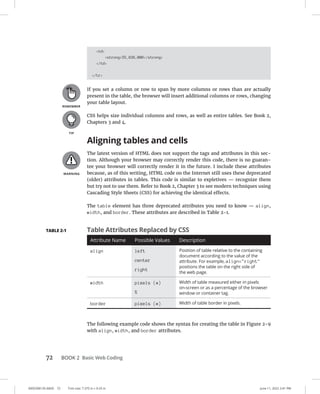
  • 269.
    0005390145.INDD 246 Trimsize: 7.375 in × 9.25 in June 11, 2022 3:00 PM 246 BOOK 3 Advanced Web Coding Here We Go: Loop De Loop Loops execute the same statement multiple times. JavaScript has several different types of loops: » » for » » for...in » » do...while » » while for loops The for statement creates a loop using three expressions: » » Initialization: The initial value of a variable, typically a counter. » » Condition: A Boolean expression to be evaluated with each iteration of the loop. » » Final expression: An expression to be evaluated after each loop iteration. Although it’s not required to use all three expressions in a for loop, all three of them are nearly always included. The for loop is usually used to run code a pre- determined number of times. The following is an example of a simple for loop: for (let x = 1; x 10; x++){ console.log(x); } Broken down, this is how the preceding for loop example works: 1. A new variable, in this case x, is initiated with the value of 1. 2. A test is performed to determine whether x is less than 10. If it is, the statements inside the loop are executed (in this case, a console.log statement). If not, the value of x is incremented using the increment operator (++).
  • 270.
    Getting into the Flow with Loops and Branches 0005390145.INDD 247 Trimsize: 7.375 in × 9.25 in June 11, 2022 3:00 PM CHAPTER 6 Getting into the Flow with Loops and Branches 247 3. The test is done again to determine whether x is less than 10. If so, the statements inside the loop are executed. 4. The test repeats, until the condition expression no longer evaluates to true. Figure 6-2 shows the result of running this for statement in the Chrome devel- oper tools. Looping through an array You can use for loops to list the contents of an array by testing the value of the counter against the value of the length property of the array. Be sure to remember that JavaScript arrays are zero-indexed, so the value of any array.length will be one more than the highest index numbered element in the array. That is why we subtract 1 in Listing 6-2. LISTING 6-2: Listing the Contents of an Array with for Loop html head titleDifferent Area Codes/title /head body script let areaCodes = [770, 404, 718, 202, 901, 305, 312, 313, 215, 803]; FIGURE 6-2: A loop that counts from 1 to 9. © John Wiley Sons (continued)
  • 271.
    0005390145.INDD 248 Trimsize: 7.375 in × 9.25 in June 11, 2022 3:00 PM 248 BOOK 3 Advanced Web Coding for (x=0; x areaCodes.length - 1; x++){ document.write(Different Area Code: + areaCodes[x] + br); } /script /body /html Figure 6-3 shows the output of running the program detailed in Listing 6-2. for . . . in loops The for...in statements loop through the properties in an object. You can also use a for...in statement to loop through the values of an array. The for...in loop has an interesting quirk. It doesn’t care about the order of properties or elements that it’s looping through. For this reason, and because using for...in loop is slower, you’re better off using a standard for loop to loop through array elements. Objects are data containers that have properties (what they are) and methods (what they do). Web browsers have a set of built-in objects that programmers can use to control the function of the browser. The most basic of these is the Document object. The write method of the Document object, for example, tells your browser to insert a specified value into the HTML document. FIGURE 6-3: Output of listing the contents of an array with a for loop. © John Wiley Sons LISTING 6-2: (continued)
  • 272.
    Getting into the Flow with Loops and Branches 0005390145.INDD 249 Trimsize: 7.375 in × 9.25 in June 11, 2022 3:00 PM CHAPTER 6 Getting into the Flow with Loops and Branches 249 The Document object also has properties that it uses to track and give program- mers information about the current document. The Document.images collection, for example, contains all of the img tags in the current HTML document. In Listing 6-3, the for. . . in loop is used to list all the properties of the Document object. LISTING 6-3: Looping through the Document object with for . . . in html head titledocument properties/title style .columns { column-count: 6; } /style /head body div class=columns script for (var prop in document) { document.write(prop + 'br'); } /script /div /body /html The results of running Listing 6-3 are shown in Figure 6-4. You can also use a for...in loop to output the values that are in the properties of the object, rather than just the property name. Listing 6-4 is a program that outputs the current values of each of the Document object’s properties.
  • 273.
    0005390145.INDD 250 Trimsize: 7.375 in × 9.25 in June 11, 2022 3:00 PM 250 BOOK 3 Advanced Web Coding LISTING 6-4: Outputting the Property Names and Values of the Document Object with for . . . in html head titledocument properties with values/title style .columns { column-count: 6; } /style /head body div class=columns script for (var prop in document) { document.write(prop + ': ' + document[prop] + 'br'); } FIGURE 6-4: A list of all the properties of a Document object using the for...in loop. © John Wiley Sons
  • 274.
    Getting into the Flow with Loops and Branches 0005390145.INDD 251 Trimsize: 7.375 in × 9.25 in June 11, 2022 3:00 PM CHAPTER 6 Getting into the Flow with Loops and Branches 251 /script /div /body /html Figure 6-5 shows the output of Listing 6-4. while loops The while statement creates a loop that runs as long as a condition evaluates to true. Listing 6-5 shows a web page containing an example of the while loop. LISTING 6-5: Using a while Loop html head titleGuess the Word/title /head body script FIGURE 6-5: Results of outputting the property names and values of the Document object with for... in. © John Wiley Sons (continued)
  • 275.
    0005390145.INDD 252 Trimsize: 7.375 in × 9.25 in June 11, 2022 3:00 PM 252 BOOK 3 Advanced Web Coding let guessedWord = prompt('What word am I thinking of?'); while (guessedWord != 'sandwich') { // as long as the guessed word is not sandwich guessedWord = prompt(No. That's not it. Try again.); } alert(Congratulations! That's exactly right!); // do this after exiting the loop /script /body /html do . . . while loops The do. . . while loop works in much the same way as the while loop, except that it puts the statements before the expression to test against. The effect is that the statements within a do... while loop will always execute as least once. Listing 6-6 demonstrates the use of a do...while loop. LISTING 6-6: Using a do . . . while Loop html head titleLet's Count/title /head body script let i = 0; do { i++; document.write(i + 'br'); } while (i 10); /script /body /html LISTING 6-5: (continued)
  • 276.
    Getting into the Flow with Loops and Branches 0005390145.INDD 253 Trimsize: 7.375 in × 9.25 in June 11, 2022 3:00 PM CHAPTER 6 Getting into the Flow with Loops and Branches 253 break and continue statements You can use break and continue to interrupt the execution of a loop. The break statement was shown previously in this chapter in the context of a switch state- ment, where it serves to break out of the switch after a successful match. In a loop, break does much the same thing. It causes the program to immediately exit the loop, no matter whether the conditions for the completion of the loop have been met. For example, in Listing 6-7, the word-guessing game will progress just as it does in Listing 6-5, but the loop will immediately terminate if no value is entered. LISTING 6-7: Using a break in a while Loop html head titleGuess the Word/title /head body script let guessedWord = prompt('What word am I thinking of?'); while (guessedWord != 'sandwich') { if (guessedWord == '') { break; } // exit the loop right away if user doesn't enter a value guessedWord = prompt(No. That's not it. Try again.); } alert(Congratulations! That's exactly right!); /script /body /html The continue statement causes the current iteration of the loop to stop and tells the program to start up again with the next iteration of the loop, skipping the statements that come after the continue statement. Listing 6-8 shows a program that counts from 1 to 20, but only prints out even numbers. Notice that the program determines whether a number is even by using the modulus operator to test whether the current value of the counter is divisible by two.
  • 277.
    0005390145.INDD 254 Trimsize: 7.375 in × 9.25 in June 11, 2022 3:00 PM 254 BOOK 3 Advanced Web Coding LISTING 6-8: Counting and Using continue to Display Even Numbers html head titleCount and show me even numbers/title /head body script for (let i = 0; i = 20; i++){ if (i%2 != 0){ continue; } document.write (i + is an even number.br); } /script /body /html When used in this way, continue can replace the functionality of an else state- ment. Figure 6-6 shows the result of running Listing 6-8 in a browser. The break and continue statements can be useful, but they can also be danger- ous. Their small size and great power make them easy to overlook when reading through code. For this reason, some programmers consider using them inside of a loop to be a bad practice. For more information on why and the complexities of the issue, read this discussion: http://programmers.stackexchange.com/ questions/58237/are-break-and-continue-bad-programming-practices. FIGURE 6-6: Counting and using continue to display even numbers. © John Wiley Sons
  • 278.
    CHAPTER 7 GettingFunctional 255 0005390146.INDD 255 Trim size: 7.375 in × 9.25 in June 11, 2022 3:03 PM Getting Functional “I write as a function. Without it I would fall ill and die. It’s much a part of one as the liver or intestine, and just about as glamorous.” — CHARLES BUKOWSKI F unctions help you reduce code repetition by turning frequently used bits of code into reusable parts. In this chapter, you write some functions and use them to make otherwise tedious tasks easy and fun! Understanding the Function of Functions Functions are mini programs within your programs. Functions serve to handle tasks within the main program that may be required multiple times by different parts of the program. If you’ve read any of the preceding chapters, you’ve seen a few functions in action. The following example is a simple function that, when run, simply adds a z to the end of a string. function addZ(aString) { aString += z; return aString; } Chapter 7 IN THIS CHAPTER » Writing functions » Documenting functions » Passing parameters » Returning values » Organizing programs with functions
  • 279.
    0005390146.INDD 256 Trimsize: 7.375 in × 9.25 in June 11, 2022 3:03 PM 256 BOOK 3 Advanced Web Coding To try this function, follow these steps: 1. Open the JavaScript Console in Chrome. 2. Type in the function. You can type it all on one line, or you can press Shift+Enter or Shift+Return after each line to create a line break without executing the code. 3. Press Return or Enter after the final curly brace. The console should write out undefined. 4. Type the following command, followed by Return or Enter, to run the function: addZ(I have JavaScript skill); The result of running this function is shown in Figure 7-1. Functions are a fundamental part of JavaScript programming, and they have a lot of rules and special powers that you need to be aware of as a JavaScript coder. Don’t worry if you aren’t able to memorize each detail about functions. It will take some practice to understand some of the more abstract concepts, and you may even need to read this chapter again. Eventually, everything will become clear to you, so just stick with it! FIGURE 7-1: Running your first function in the JavaScript Console. © John Wiley Sons
  • 280.
    Getting Functional 0005390146.INDD 257 Trimsize: 7.375 in × 9.25 in June 11, 2022 3:03 PM CHAPTER 7 Getting Functional 257 Using Function Terminology Programmers have a number of words that are important to understand when they talk about functions. We use these words extensively in this chapter and throughout this book. The following list is a quick summary of some of the lingo you’ll run into when you’re working with functions. Defining a function When a function appears in JavaScript code, it doesn’t run. It’s simply created and made available for use later. The creation of the function so that it can be used later on is called defining a function. You only need to define a function once in a program or on a web page. If you accidentally define the same function more than once, however, JavaScript won’t complain. It will simply use the most recently defined version of the function. For example: function myFunction(){ }; Function head The function head is the part of the function definition that includes the function keyword, the function name, and the parentheses. For example: function myFunction() Function body The function body is made up of the statements between the curly braces of the function. For example: { // function body }
  • 281.
    0005390146.INDD 258 Trimsize: 7.375 in × 9.25 in June 11, 2022 3:03 PM 258 BOOK 3 Advanced Web Coding Calling a function When you use a function, it’s called calling the function. Calling a function causes the statements in the function body to be executed. For example: myFunction(); Defining parameters and passing arguments Parameters are names that you give to pieces of data that are provided to a func- tion when it’s called. Arguments are the values you provide to functions. When a function is called with arguments (according to the specified parameters of the function), programmers refer to that as passing the arguments into the function. The syntax for defining a parameter is as follows: function myFunction(parameter) { The syntax for calling a function with an argument is as follows: myFunction(myArgument); Returning a value In addition to being able to accept input from the outside world, functions can also send back values after they’re finished running. When a function sends back something, it’s called returning a value. To return a value, use the return keyword inside the function. For example: return myValue; The Benefits of Using Functions Listing 7-1 shows a program that adds numbers together. It works great and does exactly what it’s supposed to do, using a for ... in loop (see Book 3, Chapter 6).
  • 282.
    Getting Functional 0005390146.INDD 259 Trimsize: 7.375 in × 9.25 in June 11, 2022 3:03 PM CHAPTER 7 Getting Functional 259 LISTING 7-1: A Program for Adding Numbers Using the for . . . in Loop html head titleGet the total/title /head body script let myNumbers = [2,4,2,7]; let total = 0; for (oneNumber in myNumbers){ total = total + myNumbers[oneNumber]; } document.write(total); /script /body /html If you had multiple sets of numbers to add together, however, you’d need to write a new loop statement specifically for each new array of numbers. Listing 7-2 turns the program from Listing 7-1 into a function and then uses that function to find the sums of the elements in several different arrays. LISTING 7-2: A Function for Adding Numbers from an Array html head titleGet the sum/title /head body script /** *Adds elements in an array *@param {Array.number} numbersToAdd *@return {Number} sum */ function addNumbers(numbersToAdd) { let sum = 0; for (oneNumber in numbersToAdd) { sum = sum + numbersToAdd[oneNumber]; } (continued)
  • 283.
    0005390146.INDD 260 Trimsize: 7.375 in × 9.25 in June 11, 2022 3:03 PM 260 BOOK 3 Advanced Web Coding return sum; } let myNumbers = [2,4,2,7]; let myNumbers2 = [3333,222,111]; let myNumbers3 = [777,555,777,555]; let sum1 = addNumbers(myNumbers); let sum2 = addNumbers(myNumbers2); let sum3 = addNumbers(myNumbers3); document.write(sum1 + br); document.write(sum2 + br); document.write(sum3 + br); /script /body /html LISTING 7-2: (continued) DOCUMENTING JAVASCRIPT WITH JSDOC It’s a good practice to always document your JavaScript code using a standard system. The most widely used JavaScript documentation system, and thus the de-facto stan- dard, is JSDoc. The JSDoc language is a simple markup language that can be inserted inside of JavaScript files. JSDoc is based on the JavaDoc system that’s used for documenting code written in the Java programming language. After you’ve annotated your JavaScript files with JSDoc, you can use a documentation generator, such as jsdoc-toolkit, to create HTML files documenting the code. JSDoc markup goes inside of special block comment tags. The only difference between JSDoc markup and regular JavaScript block comments is that JSDoc markup starts with /** and ends with */, whereas normal block comments in JavaScript only require one asterisk after the beginning slash. The extra asterisk in JSDoc markup tags allows you to create normal comment blocks without having them be a part of the generated documentation.
  • 284.
    Getting Functional 0005390146.INDD 261 Trimsize: 7.375 in × 9.25 in June 11, 2022 3:03 PM CHAPTER 7 Getting Functional 261 The figure shows some code from the open-source AngularJS JavaScript framework that has been annotated using JSDoc. © John Wiley Sons Different parts and aspects of a program can be documented with JSDoc using JSDoc tags. Here are the most popular tags: JSDoc Tag Explanation @author Programmer’s name @constructor Indicates that a function is a constructor @deprecated Indicates the method is deprecated @exception Describes an exception thrown by a method; synonymous with @throws @exports Specifies a member that is exported by the module @param Describes a method parameter @private Indicates a member is private @return Describes a return value. Synonymous with @returns @returns Describes a return value. Synonymous with @return @see Records an association to another object (continued)
  • 285.
    0005390146.INDD 262 Trimsize: 7.375 in × 9.25 in June 11, 2022 3:03 PM 262 BOOK 3 Advanced Web Coding The block comment that precedes the function in Listing 7-2 follows the for- mat specified by the JavaScript documenting system, JSDoc. By commenting your functions using this format, you not only make your programs much easier to read, you also can use these comments to automatically generate documentation for your programs. You can read more about JSDoc in the sidebar “Documenting JavaScript with JSDoc” or at http://usejsdoc.org. Functions are a great time, work, and space saver. Writing a useful function may initially take longer than writing JavaScript code outside of functions, but in the long term, your programs will be better organized, and you’ll save yourself a lot of headaches if you get into the habit of writing functions. Writing Functions A function declaration consists of the following items, in this order: » » Function keyword » » Name of the function » » Parentheses, which may contain one or more parameters » » Pair of curly brackets containing statements Sometimes, a function’s whole purpose will be to write a message to the screen in a web page. An example of a time when it’s useful to have a function like this is for displaying the current date. The following example function writes out the current date to the browser window: function getTheDate(){ let rightNow = new Date(); document.write(rightNow.toDateString()); } JSDoc Tag Explanation @this Specifies the types of the object to which the keyword this refers within a function @throws Describes an exception thrown by a method @version Indicates the version number of a library (continued)
  • 286.
    Getting Functional 0005390146.INDD 263 Trimsize: 7.375 in × 9.25 in June 11, 2022 3:03 PM CHAPTER 7 Getting Functional 263 Follow these steps to try this function: 1. Open the JavaScript Console in Chrome. 2. Type the function into the console. Use Shift+Return (or Shift+Enter) after typing each line to create a line break in the console without executing the code. 3. After you enter the final }, press Return (or Enter) to run the code. Notice that nothing happens, except that the word undefined appears in the console, letting you know that the function has been accepted, but that it didn’t return a value. 4. Call the function by typing the name of the function (getTheDate) followed by parentheses, followed by a semicolon: getTheDate(); The function prints out the current date and time to the browser window, and then the console displays undefined because the function doesn’t have a return value; its purpose is simply to print out the date to the browser window. The default return value of functions is undefined, so technically, undefined is a return value. Returning Values In the example in the preceding section, we create a function that just prints a string to the browser window. After the single document.write statement exe- cutes, there are no more statements to run and so the program exits the function and continues with the next statement after the function call. Most functions return a value (other than undefined) after their work is done. You can then use this value in the rest of the program. Listing 7-3 shows a function that returns a value. The return value of the function is then assigned to a variable and printed to the console.
  • 287.
    0005390146.INDD 264 Trimsize: 7.375 in × 9.25 in June 11, 2022 3:03 PM 264 BOOK 3 Advanced Web Coding LISTING 7-3: Returning a Value from a Function function getHello(){ return Hello!; } let helloText = getHello(); console.log (helloText); The return statement is generally the last statement in a function. When it exe- cutes, the function exits. You can use the return statement to send any type of lit- eral value (such as Hello! or 3) outside of the function or to return the value of a variable, an expression, an array or object, or even another function! Listing 7-4 shows a function that returns the result of an expression. LISTING 7-4: Returning the Result of an Expression function getCircumference(){ let radius = 12; return 2 * Math.PI * radius; } console.log (getCircumference()); Passing and Using Arguments For functions to be able to do the same thing with different input, they need a way for programmers to give them input. In Listing 7-2, earlier in this chapter, the parentheses after the name of a function in its declaration are used to specify parameters for the function. The difference between parameters and arguments can be confusing at first. Here’s how it works: » » Parameters are the names you specify in the function definition. » » Arguments are the values you pass to the function. They take on the names of the parameters when they are passed.
  • 288.
    Getting Functional 0005390146.INDD 265 Trimsize: 7.375 in × 9.25 in June 11, 2022 3:03 PM CHAPTER 7 Getting Functional 265 In the following function, you define two parameters for the myTacos function: function myTacos(meat,produce){ ... } When you call this function, you include data (arguments) in the places where the function definition has parameters. Note that the arguments passed to the func- tion must be listed in the same order as the parameters in the function definition: myTacos(beef,onions); The values passed to the function will become the values of the local variables inside of the function and will be given the names of the function’s parameters. Listing 7-5 expands the myTacos function to print out the values of the two argu- ments to the console. Passing an argument is like initializing a variable inside of the function, except that the values come from outside of the function. LISTING 7-5: Referring to Arguments Inside a Function Using the Parameter Names function myTacos(meat,produce){ console.log(meat); // writes beef console.log(produce); // writes onions } myTacos(beef,onions); You can specify up to 255 parameters in a function definition. However, it’s highly unusual to need to write a function that takes anywhere near that many param- eters! Just for the sake of keeping your code clean and understandable, if you find you need a lot of parameters, you should think about whether there’s a better way to do it. Passing arguments by value If you use a variable with one of the primitive data types to pass your argument, the argument passes by value. What this means is the new variable created inside the function is totally separate from the variable used to pass the argument, and no matter what happens after the value gets into the function, the variable outside of the function won’t change.
  • 289.
    0005390146.INDD 266 Trimsize: 7.375 in × 9.25 in June 11, 2022 3:03 PM 266 BOOK 3 Advanced Web Coding Primitive data types in JavaScript are string, number, bigInt, Boolean, Symbol, undefined, and null. In Listing 7-6, you see that several variables are created, given values, and then passed into a function. In this case, the parameters of the function have the same names as the variables used to pass the arguments. Even though the values of the variables inside the function get changed, the values of the original variables remain the same. LISTING 7-6: Demonstration of Arguments Passed by Value html head titleArguments Passed By Value/title /head body script /** * Increments two numbers * @param {number} number1 * @param {number} number2 */ function addToMyNumbers(number1,number2){ number1++; number2++; console.log(number 1: + number1); console.log(number 2: + number2); } let number1 = 3; let number2 = 12; addToMyNumbers(number1,number2); // pass the arguments console.log(original number1: + number1); console.log(original number2: + number2); /script /body /html Figure 7-2 shows the output of this program in the JavaScript Console.
  • 290.
    Getting Functional 0005390146.INDD 267 Trimsize: 7.375 in × 9.25 in June 11, 2022 3:03 PM CHAPTER 7 Getting Functional 267 Passing arguments by reference Whereas JavaScript primitive variables (strings, numbers, Boolean, undefined, and null) are passed to functions by value, JavaScript objects are passed by refer- ence. What this means is that if you pass an object as an argument to a function, any changes to that object within the function will also change the value outside of the function. The implications and uses of passing by reference are beyond the scope of this chapter but are covered in Book 3, Chapter 8. Calling a function without all the arguments You don’t need to always call a function with the same number of parameters as are listed in the function definition. If a function definition contains three param- eters, but you call it with only two, the third parameter will create a variable with a value of undefined in the function. Setting default parameter values If you want arguments to default to something other than undefined, you can set default values. One way to do this is to test the arguments inside of the function value and set default values if the data type of the argument is undefined. For example, in Listing 7-7, the function takes one parameter. Inside the func- tion, a test is done to check whether the argument is undefined. If so, it will be set to a default value. FIGURE 7-2: Variables outside of a function aren’t affected by what ­ happens inside the function. © John Wiley Sons
  • 291.
    0005390146.INDD 268 Trimsize: 7.375 in × 9.25 in June 11, 2022 3:03 PM 268 BOOK 3 Advanced Web Coding LISTING 7-7: Setting Default Argument Values function welcome(yourName){ if (typeof yourName === 'undefined'){ yourName = friend; } The method for setting default values shown in Listing 7-7 works fine, but there’s a better way that’s much more compact. Since the 2015 version of JavaScript (also known as ES6), you can set default values for parameters inside the function head, as shown in Listing 7-8. LISTING 7-8: Setting Default Arguments in the Function Head function welcome(yourName = friend) { document.write(Hello, + yourName); } Calling a function with more arguments than parameters If you call a function with more arguments than the number of parameters, local variables won’t be created for the additional arguments because the function has no way of knowing what to call them. There is a neat trick that you can use to retrieve the values of arguments that are passed to a function but don’t have a matching parameter: the arguments object. Getting into arguments with the arguments object When you don’t know how many arguments will be passed into a function, you can use the arguments object, which is built-in to functions by JavaScript, to retrieve all the arguments and make use of them. The arguments object contains an array of all the arguments passed to a function. By looping through the array (using the for loop or the for ... in loop — see Book 3, Chapter 6), you can make use of every argument, even if the number of arguments may change each time the function is called.
  • 292.
    Getting Functional 0005390146.INDD 269 Trimsize: 7.375 in × 9.25 in June 11, 2022 3:03 PM CHAPTER 7 Getting Functional 269 Listing 7-9 demonstrates the use of the arguments object to present a welcome message to someone with two middle names as well as someone with one middle name. LISTING 7-9: Using the Arguments Object to Define a Function that Can Add an Arbitrary Number of Numbers html head titleWelcome Message/title /head body script /** *Flexible Welcome Message */ function flexibleWelcome() { let welcome = 'Welcome,'; for (i = 0; i arguments.length; i++) { welcome = welcome + arguments[i] + ''; } return welcome; } document.write( flexibleWelcome('John', 'Jacob', 'Jingleheimer', 'Schmidt') + 'br' ); document.write( flexibleWelcome('Christopher', 'James', 'Minnick') + 'br' ); /script /body /html Understanding Function Scope Variables created inside a function by passing arguments are only available within that function. Programmers call this feature of JavaScript function scope. Variables created inside of a function are destroyed when the function exits. However, if you create a variable inside a function without using a var, let, or const keyword, that variable becomes a global variable and can be changed and accessed anywhere in your program.
  • 293.
    0005390146.INDD 270 Trimsize: 7.375 in × 9.25 in June 11, 2022 3:03 PM 270 BOOK 3 Advanced Web Coding Accidentally creating a global variable is the source of many JavaScript bugs and errors, and it’s recommended that you always properly scope variables and never create a global variable unless it’s absolutely necessary. Most JavaScript program- mers agree that implicit globals (globals created by not using var, let, or const when initializing a variable) are a bad practice. As such, most code-checking and testing tools specifically disallow their use. Creating Anonymous Functions The function name part of the function head isn’t required, and you can create functions without names. This may seem like an odd thing to do because a func- tion with no name is like a dog with no name; you have no way to call it! However, anonymous functions can be assigned to variables when they are created, which gives you the same capabilities as using a name within the function head: let doTheThing = function(thingToDo) { document.write(I will do this thing: + thingToDo); } Knowing the differences between anony- mous and named functions There are a couple important, and sometimes useful, differences between creating a named function and assigning an anonymous function to a variable. The first is that an anonymous function assigned to a variable only exists and can only be called after the program executes the assignment. Named functions can be accessed anywhere in a program. The second difference between named functions and anonymous functions assigned to variables is that you can change the value of a variable and assign a different function to it at any point. That makes anonymous functions assigned to variables more flexible than named functions. Arrow functions Another way to write anonymous functions is as arrow functions. Arrow functions get their name from the combination of symbols used to write them. Instead of the function keyword, arrow functions use the characters = between the param- eter list and the function body.
  • 294.
    Getting Functional 0005390146.INDD 271 Trimsize: 7.375 in × 9.25 in June 11, 2022 3:03 PM CHAPTER 7 Getting Functional 271 The combination of the = and the operator is called a “fat arrow.” Arrow functions are always anonymous functions. They can be passed as argu- ments to other functions, or they can be assigned to variables. For example, here’s an arrow function that squares a number: let square = (num) = { return num * num; } One of the things that makes arrow functions useful is that they are more com- pact than using the function keyword. In fact, arrow functions have some special rules and shortcuts that can make them even more compact than the preceding example. These rules are: » » If the function only has one parameter, you don’t need to use the parentheses around the parameter list. » » If the function doesn’t do anything but return data, you don’t need to include the return keyword. » » If you don’t include the return keyword, you also don’t include the curly brackets around the function body. Using an arrow function, the preceding square function can be written as the following: let square = num = num * num; Doing it Again with Recursion You can call functions from outside of the function or from within other functions. You can even call a function from within itself. When a function calls itself, it’s using a programming technique called recursion. You can use recursion in many of the same cases where you would use a loop, except that it repeats the statements within a function. Listing 7-10 shows a simple recursive function. This recursive function has one big problem, however. Can you spot it?
  • 295.
    0005390146.INDD 272 Trimsize: 7.375 in × 9.25 in June 11, 2022 3:03 PM 272 BOOK 3 Advanced Web Coding LISTING 7-10: A Fatally Flawed Recursive Function function squareItUp(startingNumber) { var square = startingNumber * startingNumber; console.log(square); squareItUp(square); } Do you see the issue with this function? It never ends. It will just keep on multi- plying numbers together until you stop it. Running this function will probably crash your browser, if not your computer. No permanent damage will be done, of course, but it’s enough for you to just read the code and notice the problem here. Listing 7-11 improves upon the squareItUp() function by providing what’s called a base case. A base case is the condition under which a recursive function’s job is done and it should halt. Every recursive function must have a base case. LISTING 7-11: A Recursive Function to Square Numbers Until the Number Is Greater than 1,000,000 function squareItUp(startingNumber) { square = startingNumber * startingNumber; if (square 1000000) { console.log(square); } else { squareItUp(square); } } There. That’s better! But, this function still has a big problem. What if someone passes a negative number, zero or 1 into it? The result of any of these cases would still be an infinite loop. To protect against such a situation, we need a termination condition. In Listing 7-12, a check to make sure that the argument isn’t less than or equal to 1 and that it isn’t something other than a number has been added. In both cases, the function will stop immediately.
  • 296.
    Getting Functional 0005390146.INDD 273 Trimsize: 7.375 in × 9.25 in June 11, 2022 3:03 PM CHAPTER 7 Getting Functional 273 LISTING 7-12: A Recursive Function with Termination and Base Conditions function squareItUp(startingNumber) { // Termination conditions, invalid input if (typeof startingNumber != 'number' || startingNumber - Number = 1) { return -1; // exit the function } square = startingNumber * startingNumber; // Base condition if (square 1000000) { console.log(square); // Print the final value } else { // If the base condition isn't met, do it again. squareItUp(square); } } Functions within Functions Functions can be declared within functions. Listing 7-13 demonstrates how this technique works and how it affects the scope of variables created within the functions. LISTING 7-13: Declaring Functions within Functions function turnIntoAMartian(myName) { function recallName(myName) { let martianName = myName + ' Martian'; } recallName(myName); console.log(martianName); } turnIntoAMartian(Glenn); // martianName is not defined The preceding example demonstrates how nesting a function within a func- tion creates another layer of scope. Variables created in the inner function aren’t directly accessible to the containing function. In order to get their values, a return statement is needed, as shown in Listing 7-14.
  • 297.
    0005390146.INDD 274 Trimsize: 7.375 in × 9.25 in June 11, 2022 3:03 PM 274 BOOK 3 Advanced Web Coding LISTING 7-14: Returning Values from an Inner Function function turnIntoAMartian(myName) { function recallName(myName) { let martianName = myName + ' Martian'; return martianName; } let martianName = recallName(myName); console.log(martianName); } turnIntoAMartian(Glenn); // Glenn Martian
  • 298.
    CHAPTER 8 Makingand Using Objects 275 0005390147.INDD 275 Trim size: 7.375 in × 9.25 in June 11, 2022 3:05 PM Making and Using Objects “We cannot do anything with an object that has no name.” — MAURICE BLANCHOT, “LITERATURE AND THE RIGHT TO DEATH” I n this chapter, we show you why you should use objects, how to use them, and what special powers they have to make your programs and your programming better. Object of My Desire In addition to the seven primitive data types (see Book 3, Chapter 3,) JavaScript also has a data type called object. JavaScript objects encapsulate data and function- ality in reusable components. To understand what objects are and how they work, it’s helpful to compare JavaScript objects with physical, real-life things. Take a guitar, for example. Chapter 8 IN THIS CHAPTER » Understanding and creating objects » Using properties and methods » Using dot notation » Deleting properties » Working with methods » Understanding inheritance
  • 299.
    0005390147.INDD 276 Trimsize: 7.375 in × 9.25 in June 11, 2022 3:05 PM 276 BOOK 3 Advanced Web Coding A guitar has things that make up what it is and has things that it does. Here are a few facts about the guitar we’re using for this example: » » It has six strings. » » It’s black and white. » » It’s electric. » » Its body is solid. Some of the things this guitar can do (or that can be done to the guitar) are » » Strum strings » » Increase the volume » » Decrease the volume » » Tighten the strings » » Adjust the tone » » Loosen the strings If this guitar were a JavaScript object instead of a real-life object, the things that it does would be called its methods, and the things that make up the guitar, such as its strings and body type, would be its properties. Methods and properties in objects are both written the same way: as name-value pairs, with a colon separating the name and the value. When a property has a function as its value, it’s known as a method. In reality, everything within an object is a property. We just call a property with a function value by a different name: a method. Listing 8-1 shows what our guitar’s properties might look like as a JavaScript object. LISTING 8-1: A JavaScript Guitar Object let guitar = { bodyColor: black, scratchPlateColor: white, numberOfStrings: 6, brand: Yamaha,
  • 300.
    Making and Using Objects 0005390147.INDD 277 Trimsize: 7.375 in × 9.25 in June 11, 2022 3:05 PM CHAPTER 8 Making and Using Objects 277 bodyType: solid, strum: function() {...}, tune: function() {...} }; Creating Objects JavaScript has four ways to create objects: » » By writing an object literal » » By using the object constructor method » » By using the Object.create method » » By using the class keyword Which one you choose depends on the circumstances. In the next sections, you discover the pros and cons of each and when one is preferred over the other. Defining objects with object literals The object literal method of creating objects starts with a standard variable defini- tion, using the var, let, or const keyword, followed by the assignment operator: const person = In the right side of the statement, however, you’ll use curly braces with comma- separated name/value pairs: const person = {eyes: 2, feet: 2, hands: 2, eyeColor: blue}; If you don’t know the properties that your object will have when you create it or if your program requires that additional properties be added a later time, you can create the object with few, or even no properties, and then add properties to it later: const person = {}; person.eyes = 2; person.hair = brown;
  • 301.
    0005390147.INDD 278 Trimsize: 7.375 in × 9.25 in June 11, 2022 3:05 PM 278 BOOK 3 Advanced Web Coding The methods in the examples earlier in this book have mostly been used to out- put text. document.write and console.log both use this method of separat- ing properties with a period, so it may look familiar to you. The dot between the object name and the property indicates that the property belongs to that object. Dot notation is covered in more detail in the “Retrieving and Setting Object Prop- erties” section, later of this chapter. Another thing to notice about objects is that, like arrays, objects can contain mul- tiple different data types as the values of properties. The not-so-well-kept secret to really understanding JavaScript is in knowing that arrays and functions are types of objects and that the number, string, and Bool- ean primitive data types can also be used as objects. What this means is that they have all the properties of objects and can be assigned properties in the same way as objects. Objects and arrays are often initialized using the const keyword, as in the preced- ing example. Using const to initialize arrays and objects still gives you the ability to change the elements or properties of the array or object, but it restricts the variable from being assigned a different or new object. Defining objects with a constructor function The second way to define an object is by using a constructor function. This method uses the new keyword to create an object from a function. An example of using an object constructor is shown in Listing 8-2. LISTING 8-2: Using a Constructor Function function Person(name,age){ this.name = name; this.age = age; } const mom = new Person(Patricia,78); A constructor function can be used to create multiple objects from the same tem- plate. Each object created using the Person function will have a property called name and a property called age.
  • 302.
    Making and Using Objects 0005390147.INDD 279 Trimsize: 7.375 in × 9.25 in June 11, 2022 3:05 PM CHAPTER 8 Making and Using Objects 279 Making objects with class A class is a template for objects. If you think this sounds similar to the definition of a constructor function, you’re right. Many other programming languages use classes to define object templates, but JavaScript never had the concept of a class when it was growing up. That changed in 2015, when the class keyword and the syntax for writing classes officially became part of JavaScript. JavaScript classes are very similar to con- structor functions in their purpose, but the language you use to write a class is somewhat different. To write a JavaScript class, start with the class keyword, the name you want to give your class (it’s traditional to give classes names that start with a capital let- ter), and then a left curly brace, like this: class Person { Once you’ve written the class header, you can write a constructor. This is a func- tion, just like a normal constructor function, but you can write it using method notation, which omits the function keyword and the colon that would normally be required to write a function inside an object. class Person { constructor(name,age) { this.name = name; this.age = age; } } Once you’ve defined your class, you create an object from a class the same way you create an object from a constructor function: const neighbor = new Person('Murray',6); One of the interesting things about using classes is that you can create new classes that are based on other classes. For example, if you wanted to create a new class called Teacher that had all the same properties as Person, plus some more, you could use the extends keyword to do it, like this: const Teacher extends Person { constructor(name,age,subject) { super(name,age); this.subject = subject; } }
  • 303.
    0005390147.INDD 280 Trimsize: 7.375 in × 9.25 in June 11, 2022 3:05 PM 280 BOOK 3 Advanced Web Coding To create a new object based on the Teacher class, just use the new keyword and pass the three arguments. Inside the constructor function, the class uses the super function to call the Person class and run its constructor function with the arguments provided to Teacher (the values of name and age, in this example). const myTeacher = new Teacher('Jill',39,'art'); Using Object.create The Object.create method of making objects takes an existing object as its parameter and returns a new object with the object it was created from as its pro- totype. For example, you might start with an object like the following to use as a prototype for other objects: const cat = { sound: 'meow', sleep: function () { console.log('The cat is asleep'); }, }; With Object.create, you can make a copy of this object that still has the sound and sleep properties and add properties to it, as shown in Listing 8-3. LISTING 8-3: Using object.create const cat = { sound: 'meow', sleep: function () { console.log('The cat is asleep'); }, }; const sparky = object.create(cat); sparky.name = 'Sparky'; sparky.age = 10; Retrieving and Setting Object Properties After you create an object and define its properties, you’ll want to be able to retrieve and change those properties. The two ways to access object properties are by using dot notation or square brackets notation.
  • 304.
    Making and Using Objects 0005390147.INDD 281 Trimsize: 7.375 in × 9.25 in June 11, 2022 3:05 PM CHAPTER 8 Making and Using Objects 281 Using dot notation In dot notation, the name of an object is followed by a period (or dot), followed by the name of the property that you want to get or set. To create a new property called firstName in the person object or to modify the value of an existing firstName property, you would use a statement like the following: person.firstName = Glenn; If the firstName property doesn’t already exist, this statement will create it. If it does exist, it will update it with a new value. To retrieve the value of a property using dot notation, you would use the exact same syntax, but you would move the object and property names (called the prop- erty accessor) into a different position in the statement. For example, if you want to concatenate the values of person.firstName and person.lastName and assign them to a new variable called fullName, you do the following: let fullname = person.firstName + person.lastName; Or, to write out the value of a person.firstName to your browser console, just use the property accessor as you would any variable; such as console.log(person.firstName); Dot notation is generally faster to type and easier to read. It’s an easier way to set and retrieve object property values. Using square bracket notation Square bracket notation uses, you guessed it, square brackets after the object name in order to get and set property values. To set a property value with square bracket notation, put the name of the property in quotes inside square brackets, like this: person[firstName] = Iggy; Square bracket notation has a couple of capabilities that dot notation doesn’t. The main one is that you can use variables inside of square bracket notation for cases where you don’t know the name of the property that you want to retrieve when you’re writing your program.
  • 305.
    0005390147.INDD 282 Trimsize: 7.375 in × 9.25 in June 11, 2022 3:05 PM 282 BOOK 3 Advanced Web Coding The following example does the exact same thing as the preceding example, but with a variable inside of the square brackets rather than a literal string. Using this technique, you can make a single statement that can function in many different circumstances, such as in a loop or a function: let personProperty = firstName; person[personProperty] = Iggy; Listing 8-4 shows a simple program that creates an object called chair, then loops through each of the object’s properties and asks the user to input values for each. Once the user has entered a value for each of the properties, the write- ChairReceipt function is called, which prints out each property along with the value the user entered. LISTING 8-4: Chair Configuration Script html head titleThe WatzThis? Chair Configurator/title /head body script let myChair = { cushionMaterial: '', numberOfLegs: '', legHeight: '', }; function configureChair() { let userValue; for (const property in myChair) { if (myChair.hasOwnProperty(property)) { userValue = prompt('Enter a value for ' + property); myChair[property] = userValue; } } }
  • 306.
    Making and Using Objects 0005390147.INDD 283 Trimsize: 7.375 in × 9.25 in June 11, 2022 3:05 PM CHAPTER 8 Making and Using Objects 283 function writeChairReceipt() { document.write( 'h2Your chair will have the following configuration:/h2' ); for (const property in myChair) { if (myChair.hasOwnProperty(property)) { document.write(property + ': ' + myChair[property] + 'br'); } } } configureChair(); writeChairReceipt(); /script /body /html Deleting Properties You can delete properties from objects by using the delete operator. Listing 8-5 demonstrates how this operator works. LISTING 8-5: Using the delete Operator const myObject = { var1 : the value, var2 : another value, var3 : yet another }; // delete var2 from myObject delete myObject.var2; // try to write the value of var2 document.write(myObject.var2); // result is an error
  • 307.
    0005390147.INDD 284 Trimsize: 7.375 in × 9.25 in June 11, 2022 3:05 PM 284 BOOK 3 Advanced Web Coding Working with Methods Methods are properties with functions for their values. You define a method the same way that you define any function. The only difference is that a method is assigned to a property of an object. Listing 8-6 demonstrates the creation of an object with several properties, one of which is a method. LISTING 8-6: Creating a Method const sandwich = { meat: '', cheese: '', bread: '', condiment: '', makeSandwich: function (meat, cheese, bread, condiment) { sandwich.meat = meat; sandwich.cheese = cheese; sandwich.bread = bread; sandwich.condiment = condiment; let mySandwich = sandwich.bread + ', ' + sandwich.meat + ', ' + sandwich.cheese + ', ' + sandwich.condiment; return mySandwich; }, }; JavaScript has a newer way of creating strings that incorporate variables than the method shown in the preceding example. The newer method is called template lit- erals notation. Template literals use the backtick character (which is in the upper- left corner of a desktop or laptop keyboard) around a string. Strings inside of backtick characters can include JavaScript expressions inside of curly braces pre- ceded by a $. For example, the mySandwich variable in the makeSandwich method in Listing 8-6 can be rewritten like this: let mySandwich = '${sandwich.bread}, ${sandwich.meat}, ${sandwich.cheese}, ${sandwich.condiment}';
  • 308.
    Making and Using Objects 0005390147.INDD 285 Trimsize: 7.375 in × 9.25 in June 11, 2022 3:05 PM CHAPTER 8 Making and Using Objects 285 To call the makeSandwich method of the sandwich object, you can then use dot notation just as you would access a property, but with parentheses and param- eters supplied after the method name, as shown in Listing 8-7. LISTING 8-7: Calling a Method html head titleMake me a sandwich/title /head body script const sandwich = { meat: '', cheese: '', bread: '', condiment: '', makeSandwich: function (meat, cheese, bread, condiment) { sandwich.meat = meat; sandwich.cheese = cheese; sandwich.bread = bread; sandwich.condiment = condiment; let mySandwich = `${sandwich.bread}, ${sandwich.meat}, ${sandwich.cheese}, ${sandwich.condiment}`; return mySandwich; }, }; let sandwichOrder = sandwich.makeSandwich( 'ham', 'cheddar', 'wheat', 'spicy mustard' ); document.write(sandwichOrder); /script /body /html
  • 309.
    0005390147.INDD 286 Trimsize: 7.375 in × 9.25 in June 11, 2022 3:05 PM 286 BOOK 3 Advanced Web Coding Using this The this keyword is a shorthand for referencing the containing object of a method. For example, in Listing 8-8, every instance of the object name, sand- wich, has been replaced with this. When the makeSandwich function is called as a method of the sandwich object, JavaScript understands that this refers to the sandwich object. LISTING 8-8: Using this Inside a Method html head titleMake a sandwich/title /head body script const sandwich = { meat:, cheese:, bread:, condiment:, makeSandwich: function(meat,cheese,bread,condiment){ this.meat = meat; this.cheese = cheese; this.bread = bread; this.condiment = condiment; let mySandwich = `${sandwich.bread}, ${sandwich.meat}, ${sandwich.cheese}, ${sandwich.condiment}`; return mySandwich; } } let sandwichOrder = sandwich.makeSandwich(ham,cheddar,wh eat,spicy mustard); document.write (sandwichOrder); /script /body /html The result of using the this keyword instead of the specific object name is exactly the same in this case.
  • 310.
    Making and Using Objects 0005390147.INDD 287 Trimsize: 7.375 in × 9.25 in June 11, 2022 3:05 PM CHAPTER 8 Making and Using Objects 287 Where this becomes very useful is when you have a function that may apply to multiple different objects. In that case, the this keyword will reference the object that it’s called within, rather than being tied to a specific object. In the next sections, you find out about constructor functions and inheritance, both of which are enabled by the humble this statement. An Object-Oriented Way to Become Wealthy: Inheritance When you create objects, you’re not just limited to creating specific objects, such as your guitar, your car, your cat, or your sandwich. The real beauty of objects is that you can use them to create types of objects, from which other objects can be created. Every JavaScript object is based on another JavaScript object, and that object may be based on another object. The objects that an object is based on is called its pro- totype. The prototype may also have a prototype. This goes on until you get to the base object in JavaScript that, eventually, all objects are based on. This is the Object object. To better understand the idea of prototypes and inheritance, let’s start at the top of the prototype chain and make some new objects. It’s possible to use the Object constructor function to create a new object based on the base object: const person = new Object(); Here, a new person object of the type Object is created. This new person object contains all the default properties and methods of the Object type, but with a new name. You can then add your own properties and methods to the person object to make it specifically describe what you mean by person. const person = new Object(); person.eyes = 2; person.ears = 2; person.arms = 2; person.hands = 2; person.feet = 2; person.legs = 2; person.species = Homo sapien;
  • 311.
    0005390147.INDD 288 Trimsize: 7.375 in × 9.25 in June 11, 2022 3:05 PM 288 BOOK 3 Advanced Web Coding Creating an object using inheritance So, now you’ve set some specific properties of the person object. Imagine that you want to create a new object that’s a specific person, like Willie Nelson. You could simply create a new object called willieNelson and give it all the same properties as the person object, plus the properties that make Willie Nelson unique. const willieNelson = new Object(); willieNelson.eyes = 2; willieNelson.ears = 2; willieNelson.arms = 2; willieNelson.hands = 2; willieNelson.feet = 2; willieNelson.legs = 2; willieNelson.species = Homo sapien; willieNelson.occupation = musician; willieNelson.hometown = Austin; willieNelson.hair = Long; willieNelson.genre = country; This method of defining the willieNelson object is wasteful, however. It requires you to do a lot of work, and there’s no indication here that Willie Nelson is a per- son. He just happens to have all the same properties as a person. The solution is to create a new type of object, called Person and then make the willieNelson object be of the type Person. Notice that when we talk about a type of object, we always capitalize the name of the object type. This isn’t a requirement, but it is a nearly universal convention. For example, we say const person = new Object(); or const willieNelson = new Person(); This new willieNelson object will inherit all the properties of the person object. And, there’s one more fascinating thing about the relationship between an object and its prototype: if you don’t specifically set a value for a property of an object, when you try to access that property, JavaScript will look for a value for that property in the object’s prototype, and the prototype’s prototype, all the way up the chain.
  • 312.
    Making and Using Objects 0005390147.INDD 289 Trimsize: 7.375 in × 9.25 in June 11, 2022 3:05 PM CHAPTER 8 Making and Using Objects 289 In the willieNelson example, where willieNelson was created using the Person constructor, if you access willieNelson.eyes, it will return 2, because the person object has a property called eyes with a value of 2. To test this, run the code in Listing 8-9 in a web browser. LISTING 8-9: Testing Inheritance html head titleInheritance demo/title /head body script function Person(){ this.eyes = 2; this.ears = 2; this.arms = 2; this.hands = 2; this.feet = 2; this.legs = 2; this.species = Homo sapien; } const willieNelson = new Person(); alert(Willie Nelson has + willieNelson.feet + feet!); /script /body /html The result of running Listing 8-9 in a browser is shown in Figure 8-1. Modifying an object type Suppose that you have your Person object type, which serves as the prototype for several objects. At some point you realize that the person, as well as all the objects that inherit from it, ought to have a few more properties.
  • 313.
    0005390147.INDD 290 Trimsize: 7.375 in × 9.25 in June 11, 2022 3:05 PM 290 BOOK 3 Advanced Web Coding To modify a prototype object, use the prototype property that every object inher- its from Object. Listing 8-10 shows how this works. LISTING 8-10: Modifying a Prototype Object function Person(){ this.eyes = 2; this.ears = 2; this.arms = 2; this.hands = 2; this.feet = 2; this.legs = 2; this.species = Homo sapien; } const willieNelson = new Person(); const johnnyCash = new Person(); const patsyCline = new Person(); // Person needs more properties! Person.prototype.knees = 2; Person.prototype.toes = 10; Person.prototype.elbows = 2; // Check the values of existing objects for the new properties document.write (patsyCline.toes); // outputs 10 FIGURE 8-1: Willie Nelson is a Person. © John Wiley Sons
  • 314.
    CHAPTER 9 Controllingthe Browser with the Window Object 291 0005390148.INDD 291 Trim size: 7.375 in × 9.25 in June 11, 2022 3:06 PM Controlling the Browser with the Window Object “In making theories, always keep a window open so that you can throw one out if necessary.” — BELA LUGOSI T he Browser Object Model (BOM) allows JavaScript to interact with the func- tionality of the web browser. Using the BOM, you can create and resize win- dows, display alert messages, and change the current page being displayed in the browser. In this chapter, you discover what can be done with the browser window and how to use it to write better JavaScript programs. Understanding the Browser Environment Web browsers are complicated pieces of software. When they work well, they operate seamlessly and integrate all their functions into a smooth and seem- ingly simple web browsing experience. We all know that web browsers have an Chapter 9 IN THIS CHAPTER » Understanding the BOM (Browser Object Model) » Opening and closing windows » Getting windows properties » Resizing windows
  • 315.
    0005390148.INDD 292 Trimsize: 7.375 in × 9.25 in June 11, 2022 3:06 PM 292 BOOK 3 Advanced Web Coding occasional hiccup and sometimes even crash. To understand why this happens, and to be able to make better use of browsers, it’s important to know the many different parts of the web browser and how these parts interact with each other. The user interface The part of the web browser that you interact with when you type in an URL, click the home button, create or use a bookmark, or change your browser settings is called the user interface, or browser chrome (not to be confused with Google’s Chrome browser). The Chrome browser consists of the web browser’s menus, window frames, tool- bars, and buttons that are outside of the main content window where web pages load, as shown in Figure 9-1. FIGURE 9-1: The Chrome browser. © John Wiley Sons
  • 316.
    Controlling the Browser with the Window Object 0005390148.INDD 293 Trimsize: 7.375 in × 9.25 in June 11, 2022 3:06 PM CHAPTER 9 Controlling the Browser with the Window Object 293 Loader The loader is the part of a web browser that communicates with web servers and downloads web pages, scripts, CSS, graphics, and all the other components of a web page. Most often, loading is the part of displaying a web page that creates the longest wait time for the user. The HTML page is the first part of a web page that must be downloaded, as it contains links and embedded scripts and styles that need to be processed to dis- play the page. Figure 9-2 shows the Chrome Developer Tools’ Network tab. It displays a graphi- cal view of everything that happens during the loading of a web page, along with a timeline showing how long the loading of each part takes. Once the HTML document is downloaded, browsers will open several connections to the server to download the other parts of the web page as quickly as possible. Generally, the parts of a web page that are linked from an HTML document (also known as the resources) are loaded in the order in which they appear in the HTML document. For example, a script that is linked in the head element of the page will be loaded before one that’s linked at the bottom of the page. FIGURE 9-2: Web browser loading. © John Wiley Sons
  • 317.
    0005390148.INDD 294 Trimsize: 7.375 in × 9.25 in June 11, 2022 3:06 PM 294 BOOK 3 Advanced Web Coding The load order of resources is critical to the efficiency and speed at which the page can be displayed to the user. For a web page to be displayed correctly, the CSS styles that apply to that page need to be loaded and parsed. Because of this, CSS should always be loaded in the head element at the top of the web page. JavaScript sometimes affects the display of a web page as well, but more often, it affects only the functionality. When a script will affect the display of a web page, it should be loaded in the head of the document (after the CSS). Scripts that aren’t critical to how the web page appears should be linked from the very end of the body element (right before the /body), to not create a blocking sce- nario in which the browser waits for scripts to load before displaying anything to the user. HTML parsing After a web page is downloaded, the HTML parsing component of the browser goes to work parsing the HTML to create a model (called the Document Object Model or DOM) of the web page. The DOM, which is covered in detail in Book 3, Chapter 10, is like a map of your web page. JavaScript programmers use this map to manipulate and access all the different parts of a web page. Upon completion of the HTML parsing, the browser begins downloading the other components of the web page. CSS parsing Once the CSS for a web page is completely downloaded, the web browser will parse the styles and figure out which ones apply to the HTML document. CSS parsing is a complex process involving multiple passes over a document to apply each style correctly and to consider how the styles impact each other. JavaScript parsing The next step in displaying a web page is the JavaScript parsing. The JavaScript parser compiles and runs every script in your web page in the order in which it appears in the document. If your JavaScript code adds or removes elements, text, or styles within the HTML DOM, the browser will update the HTML and CSS ren- derings accordingly.
  • 318.
    Controlling the Browser with the Window Object 0005390148.INDD 295 Trimsize: 7.375 in × 9.25 in June 11, 2022 3:06 PM CHAPTER 9 Controlling the Browser with the Window Object 295 Layout and rendering Finally, once all the web page’s resources have been loaded and parsed, the browser determines how to display the page and then displays it. Unless you’ve specified that a script included earlier in the document should wait until the end to be executed, the layout and rendering of your scripts will occur in the order they’re included in the document. In general, it’s better to display a web page to the user as quickly as possible, even if the page may not be fully functional when it first appears. Modern websites frequently employ this strategy specifically (called deferred loading) to improve the perceived performance of their pages. If you’ve ever opened a web page and had to wait for a moment before you can use a form or interactive element, you’ve seen deferred loading in action. Investigating the BOM JavaScript programmers can find out information about a user’s web browser and control aspects of the user’s experience through an API called the Browser Object Model (the BOM). There is no official standard for the Browser Object Model. Different browsers implement it in different ways. However, there are some generally accepted stan- dards for how JavaScript interacts with web browsers. The Navigator object The Navigator object provides JavaScript with access to information about the user’s web browser. The Navigator object takes its name from the first web browser to implement it, Netscape Navigator. The Navigator object isn’t built into JavaScript. Rather, it’s a feature of web browsers that is accessible using JavaScript. Nearly every web browser (and every modern web browser) has adopted the same terminology to refer to this highest-level browser object. The Navigator object accesses helpful information such as » » The name of the web browser » » The version of the web browser
  • 319.
    0005390148.INDD 296 Trimsize: 7.375 in × 9.25 in June 11, 2022 3:06 PM 296 BOOK 3 Advanced Web Coding » » The physical location of the computer the browser is running on (if the user allows the browser to access geolocation data) » » The language of the browser » » The type of computer the browser is running on Table 9-1 shows all the properties of the Navigator object. To get the properties of the Navigator object, you use the same syntax used to get the properties of any object — namely, dot notation or brackets notation. Listing 9-1, when opened in a web browser, will display all the current properties and values of the Navigator object. LISTING 9-1: Properties of the Navigator Object and Their Values html head style .columns { column-count: 6; } TABLE 9-1 The Properties of the Navigator Object Property Use appCodeName Gets the code name of the browser. appName Gets the name of the browser. appVersion Gets the browser version information. cookieEnabled Tells whether cookies are enabled in the browser. geolocation Locates the user’s physical location. language Gets the language of the browser. onLine Identifies whether the browser is online. platform Gets the platform the browser was compiled for. product Gets the browser engine name of the browser. userAgent Gets the user-agent the browser sends to web servers.
  • 320.
    Controlling the Browser with the Window Object 0005390148.INDD 297 Trimsize: 7.375 in × 9.25 in June 11, 2022 3:06 PM CHAPTER 9 Controlling the Browser with the Window Object 297 /style /head body div class=columns script for (var prop in navigator) { document.write(prop + ': ' + navigator[prop] + 'br'); } /script /div /body /html Figure 9-3 shows the output of Listing 9-1 when opened in a web browser. If you run Listing 9-1 yourself, you’ll notice something interesting about the output: The values for the appName and userAgent properties are seemingly just plain wrong. For example, the browser used to generate Figure 9-3 was Google Chrome, but appName lists it as Netscape. This misleading value is a relic from the days when programmers used the prop- erties of the Navigator object to detect whether a user was using a particular browser and supported certain features. FIGURE 9-3: Listing all the properties of the Navigator object with their values. © John Wiley Sons
  • 321.
    0005390148.INDD 298 Trimsize: 7.375 in × 9.25 in June 11, 2022 3:06 PM 298 BOOK 3 Advanced Web Coding When new browsers, such as Chrome and Firefox, came along, those browsers adopted the Netscape browser appName value in order to make sure they were compatible with websites that detected features in this way. Today, browser detection isn’t recommended, and you can use better ways to detect browser support for functionality than by looking at the appName property. The most common way to detect features today is by examining the DOM for objects associated with the feature you want to use. For example, if you want to find out if a browser supports the HTML5 audio element, you can use the follow- ing test: let test_audio = document.createElement('audio'); if (test_audio.play) { console.log('Browser supports HTML5 audio'); } else { console.log(Browser doesn't support HTML5 audio); } The Window object The main area of a web browser is called the window. This is the area into which HTML documents (and associated resources) load. Each tab in a web browser is represented in JavaScript by an instance of the Window object. The Window object’s properties are listed in Table 9-2. Some of the most common uses for the window properties include » » Opening a new location in the browser window » » Finding the size of a browser window » » Returning to a previously open page (as in the Back button functionality) Opening a web page with the window.location property Getting the value of the window.location property will return the URL of the current page. Setting the value of the window.location property with a new URL causes the browser to load that web page in the window. Listing 9-2 is a web page with a script that requests a web page address from the user and then loads that page in the current browser window.
  • 322.
    Controlling the Browser with the Window Object 0005390148.INDD 299 Trimsize: 7.375 in × 9.25 in June 11, 2022 3:06 PM CHAPTER 9 Controlling the Browser with the Window Object 299 TABLE 9-2 The Window Object’s Properties Property Use closed A Boolean value indicating whether a window has been closed or not. defaultStatus Gets or sets the default text in the status bar of a window. document Refers to the document object for the window. frameElement Gets the element, such as iframe or object, that the window is embedded in. frames Lists all the subframes in the current window. history Gets the user’s browser history for the current window. innerHeight Gets the inner height of the window. innerWidth Gets the inner width of the window. length Gets the number of frames in the window. location Gets the Location object for the window. name Gets or sets the name of the window. navigator Gets the Navigator object for the window. opener Gets the Window object that created the current window. outerHeight Gets the outer height of the window, including scrollbars and toolbars. pageXOffset Gets the number of pixels that have been scrolled horizontally in the window. pageYOffset Gets the number of pixels that have been scrolled vertically in the window. parent Refers to the parent of the current window. screen Refers to the Screen object of the window. screenLeft Gets the horizontal pixel distance from the left side of the main screen to the left side of the current window. screenTop Gets the vertical pixel distance from the top of the window relative to the top of the screen. screenX Gets the horizontal coordinate relative to the screen. screenY Gets the vertical coordinate relative to the screen. self Refers to the current window. top Refers to the topmost browser window.
  • 323.
    0005390148.INDD 300 Trimsize: 7.375 in × 9.25 in June 11, 2022 3:06 PM 300 BOOK 3 Advanced Web Coding LISTING 9-2: A Script for Loading a Web Page in the Browser Window Using the window.location Property html head script function loadNewPage(url) { window.location = url; } /script /head body script let newURL = prompt(' Please enter a web page address! '); loadNewPage(newURL); /script /body /html Figure 9-4 shows the output of Listing 9-2. FIGURE 9-4: The window. location property in action. © John Wiley Sons
  • 324.
    Controlling the Browser with the Window Object 0005390148.INDD 301 Trimsize: 7.375 in × 9.25 in June 11, 2022 3:06 PM CHAPTER 9 Controlling the Browser with the Window Object 301 Determining the size of a browser window When you’re designing a website or a web application to work and function on different types of devices (a technique known as responsive design), knowing the size of the web browser, particularly the width, is critical. The window.innerWidth and window.innerHeight properties give you this infor- mation, in pixels, for the current web browser window. Using CSS to determine the size of a browser window is also possible and quite common. However, there are some differences in how CSS and JavaScript treat scrollbars that may influence which technique you decide to use. Try a simple responsive design example using JavaScript. Run the program in Listing 9-3 in your web browser. If your web browser window width is below 500 pixels, one message will be displayed. If your window’s width is greater than 500 pixels, a different message will be displayed. LISTING 9-3: Changing a Web Page Based on the Width of the Window html head titleAdapting to the window.innerWidth/title /head body script let currentWidth = window.innerWidth; if (currentWidth 500) { document.write('h1Your window is big./h1'); } else { document.write('h1Your window is small./h1'); } /script /body /html To test the responsive design example in Listing 9-3, follow these steps: 1. In your web browser, open an HTML document containing the code in Listing 9-3. If your window is more than 500px wide when you open your page, you’ll see a message that your window is big.
  • 325.
    0005390148.INDD 302 Trimsize: 7.375 in × 9.25 in June 11, 2022 3:06 PM 302 BOOK 3 Advanced Web Coding 2. Drag the lower-right corner of your browser to make the window as narrow as you can, as shown in Figure 9-5. 3. Click your browser’s refresh button, or press Command+R (on Mac) or Ctrl+R (on Windows), to reload the page. Notice that the message on the page now says your browser’s window is small. Creating a Back button using location and history The history property of the window object is a read-only reference to the his- tory object, which stores information about the pages the user has accessed in the current browser window. By far the most common use of the history object is to enable buttons that return the user to a previously viewed page, as shown in Listing 9-4. FIGURE 9-5: Displaying a different message for narrow browser width. © John Wiley Sons
  • 326.
    Controlling the Browser with the Window Object 0005390148.INDD 303 Trimsize: 7.375 in × 9.25 in June 11, 2022 3:06 PM CHAPTER 9 Controlling the Browser with the Window Object 303 LISTING 9-4: Implementing a Back Button in a Web Application html head titleCreating a Back button/title script function takeMeBack() { window.location(history.go(-1)); } function getHistoryLength() { var l = window.history.length; return l; } /script /head body script var historyLength = getHistoryLength(); document.write( pWelcome! The number of pages you've visited in this window is: + historyLength + ./p ); /script br/ a href=javascript:void(0); onclick=takeMeBack();Go Back/a /body /html To use the Back button in Listing 9-4, follow these steps: 1. Open a new browser window and visit any page you like, such as www.watzthis.com. 2. While in that same browser window, open an HTML document containing the code in Listing 9-4.
  • 327.
    0005390148.INDD 304 Trimsize: 7.375 in × 9.25 in June 11, 2022 3:06 PM 304 BOOK 3 Advanced Web Coding 3. Click the Go Back link. Your browser will take you back to the last page you visited before the one containing the Back button. Care to guess what happens if you open Listing 9-4 in a new browser tab before accessing any other web pages in that tab? If you guessed that nothing happens, you’re correct! If only one page (the current one) has been displayed in a window, there’s nothing to go back to. Using the Window object’s methods In addition to its properties, the Window object also has some useful methods that JavaScript programmers should know and use. Table 9-3 shows the complete list of these methods. TABLE 9-3 The Window Object’s Methods Method Use alert() Displays an alert box with a message and an OK button. atob() Decodes a base-64 encoded string. blur() Causes the current window to lose focus. clearInterval() Cancels the timer set using setInterval(). clearTimeout() Cancels the timer set using setTimeout(). close() Closes the current window or notification. confirm() Displays a dialog box with an optional message and two buttons; OK and Cancel. createPopup() Creates a popup window. focus() Sets the current window into focus. moveBy() Moves the current window by a specified amount. moveTo() Relocates a window to a specified position. open() Opens a new window. print() Prints the contents of the current window. prompt() Displays a dialog box prompting the user for input. resizeBy() Resizes the window by a specified number of pixels.
  • 328.
    Controlling the Browser with the Window Object 0005390148.INDD 305 Trimsize: 7.375 in × 9.25 in June 11, 2022 3:06 PM CHAPTER 9 Controlling the Browser with the Window Object 305 A method is just another name for a function that’s contained within an object. Method Use resizeTo() Resizes a window to a specified height and width. scrollBy() Scrolls the document by a specified amount. scrollTo() Scrolls the document to a specific set of coordinates. setInterval() Calls a function or executes an expression repeatedly at specified intervals (in milliseconds). setTimeout() Calls a function or executes an expression after a specified interval (in milliseconds). stop() Stops the current window from loading.
  • 329.
    0005390148.INDD 306 Trimsize: 7.375 in × 9.25 in June 11, 2022 3:06 PM
  • 330.
    CHAPTER 10 ManipulatingDocuments with the DOM 307 0005390149.INDD 307 Trim size: 7.375 in × 9.25 in June 11, 2022 3:08 PM Manipulating Documents with the DOM “No object is mysterious. The mystery is your eye.” — ELISABETH BOWEN U nderstanding the DOM is key to being able to manipulate the text or HTML in a web page. Using the DOM, you can create animations, update data without refreshing web pages, move objects around in a browser, and much more! Understanding the DOM The Document Object Model (DOM) is the interface for JavaScript to talk to and work with HTML documents inside of browser windows. The DOM can be visual- ized as an inverted tree, with each part of the HTML document branching off its containing part. Chapter 10 IN THIS CHAPTER » Getting to know the DOM (Document Object Model) » Working with nodes » Moving around the tree » Selecting elements
  • 331.
    0005390149.INDD 308 Trimsize: 7.375 in × 9.25 in June 11, 2022 3:08 PM 308 BOOK 3 Advanced Web Coding Listing 10-1 is the markup for a web page. The DOM representation is shown in Figure 10-1. LISTING 10-1: An HTML Document html head titleBob's Appliances/title /head body header img src=logo.gif width=100 height=100 alt=Site Logo /header div h1Welcome to Bob's/h1 pThe home of quality appliances/p /div footer copyright copy; Bob /footer /body /html A DOM tree is made up of individual components, called nodes. The main node, from which every other node springs, is called the document node. The node under the document node is the root element node. For HTML documents, the root node is the one created by the html element. After the root node, every element, attrib- ute, and piece of content in the document is represented by a node in the tree that comes from another node in the tree. The DOM has several different types of nodes: » » Document node: The entire HTML document is represented in this node » » Element nodes: The HTML elements » » Attribute nodes: The attributes associated with elements » » Text nodes: The text content of elements » » Comment nodes: The HTML comments in a document
  • 332.
    Manipulating Documents with the DOM 0005390149.INDD 309 Trimsize: 7.375 in × 9.25 in June 11, 2022 3:08 PM CHAPTER 10 Manipulating Documents with the DOM 309 Understanding Node Relationships HTML DOM trees resemble family trees in the hierarchical relationship between nodes. In fact, the technical terms used to describe relationships between nodes in a tree take their names from familial relationships. » » Every node, except the root node, has one parent. » » Each node may have any number of children. » » Nodes with the same parent are siblings. Because HTML documents often have multiple elements that are of the same type, the DOM allows you to access distinct elements in a node list using an index num- ber. For example, you can refer to the first p element in a document as p[0], and the second p element node as p[1]. Although a node list may look like an array, it’s not. You can loop through the contents of a node list, but you can’t use array methods on node lists. FIGURE 10-1: A representation of the Document Object Model for Listing 10-1.
  • 333.
    0005390149.INDD 310 Trimsize: 7.375 in × 9.25 in June 11, 2022 3:08 PM 310 BOOK 3 Advanced Web Coding In Listing 10-2, the three p elements are all children of the div element. Because they have the same parent, they are siblings. LISTING 10-2: Demonstration of Parent, Child, and Sibling Relationships in an HTML Document html head titleThe HTML Family/title /head body section !-- proud parent of 3 p elements, child of body -- pFirst/p !-- 1st child of section element, sibling of 2 p elements -- pSecond/p !-- 2nd p child of section element, sibling of 2 p elements -- pThird/p !-- 3rd p child of section element, sibling of 2 p elements -- /section /body /html In Listing 10-2, the HTML comments are also children of the section element. The last comment before the closing section tag is called the last child of the section. By understanding the relationships between document nodes, you can use the DOM tree to find any element within a document. Listing 10-3 is an HTML document containing a script that outputs all the child nodes of the section element. LISTING 10-3: Displaying the Child Nodes of the section Element html head titleThe HTML Family/title /head body section !-- proud parent of 3 p elements, child of body --
  • 334.
    Manipulating Documents with the DOM 0005390149.INDD 311 Trimsize: 7.375 in × 9.25 in June 11, 2022 3:08 PM CHAPTER 10 Manipulating Documents with the DOM 311 pFirst/p !-- 1st child of section element, sibling of 2 p elements -- pSecond/p !-- 2nd p child of section element, sibling of 2 p elements -- pThird/p !-- 3rd p child of section element, sibling of 2 p elements -- /section h1Nodes in the section element/h1 script let myNodelist = document.body.childNodes[1].childNodes; for (let i = 0; i myNodelist.length; i++) { document.write(myNodelist[i] + 'br'); } /script /body /html Figure 10-2 shows what the output of Listing 10-3 looks like in a browser. Notice that the first child node of the section element is a text node. If you look closely at the HTML markup in Listing 10-3, you’ll see that there is a single space between the opening section tag and the comment. Even something as simple as a single space (or a tab or a line break) creates a node in the DOM tree. This fact needs to be taken into consideration when you’re navigating the DOM using relationships between nodes. The HTML DOM also provides a couple of keywords for navigating nodes using their positions relative to their siblings or parents. The relative properties are: » » firstChild: References the first child of a node » » lastChild: References the last child of the node » » nextSibling: References the next node with the same parent node » » previousSibling: References the previous node with the same parent node Listing 10-4 shows how you can use these relative properties to traverse the DOM.
  • 335.
    0005390149.INDD 312 Trimsize: 7.375 in × 9.25 in June 11, 2022 3:08 PM 312 BOOK 3 Advanced Web Coding LISTING 10-4: Using firstChild and lastChild to Highlight Navigation Links html head titleIguanas Are No Fun/title script function boldFirstAndLastNav() { document.body.childNodes[1].firstChild.style .fontWeight = 'bold'; document.body.childNodes[1].lastChild.style .fontWeight = 'bold'; } /script /head body nav a href=home.htmlHome/a | a href=why.htmlWhy Are Iguanas No Fun?/a | a href=what.htmlWhat Can Be Done?/a | a href=contact.htmlContact Us/a FIGURE 10-2: Viewing the output of Listing 10-3. © John Wiley Sons
  • 336.
    Manipulating Documents with the DOM 0005390149.INDD 313 Trimsize: 7.375 in × 9.25 in June 11, 2022 3:08 PM CHAPTER 10 Manipulating Documents with the DOM 313 /nav pIguanas are no fun to be around. Use the links above to learn more./p script boldFirstAndLastNav(); /script /body /html Notice in Listing 10-4 that all the spacing must be removed between the elements within the nav element for the firstChild and lastChild properties to access the correct elements that we want to select and style. Figure 10-3 shows what the document in Listing 10-4 looks like when previewed in a browser. Notice that just the first and last links in the navigation are bold. This is the first example in which we use the DOM to make a change to existing elements within the document. However, this method of selecting elements is almost never used. It’s too prone to mistakes and too difficult to interpret and use. In the next section, you see that the DOM provides you with much easier ways of traversing and manipulating nodes than counting children. FIGURE 10-3: Previewing Listing 10-4 in a browser. © John Wiley Sons
  • 337.
    0005390149.INDD 314 Trimsize: 7.375 in × 9.25 in June 11, 2022 3:08 PM 314 BOOK 3 Advanced Web Coding Using the Document Object’s Properties and Methods The Document object provides properties and methods for working with HTML documents. The complete list of Document object properties is shown in Table 10-1. The Document object’s methods are shown in Table 10-2. TABLE 10-1 The Document Object’s Properties Property Use anchors Gets a list of all anchors (a elements with name attributes) in the document. baseURI Gets the base URI of the document. body Gets the body or frameset node of the document body. cookie Gets or sets the name/value pairs of cookies in the document. doctype Gets the Document Type Declaration associated with the document. documentElement Gets the element that is the root of the document (for example, the html element of an HTML document). documentMode Gets the mode used by the browser to render the document. documentURI Gets or sets the location of the document. domain Gets the domain name of the server that loaded the document. embeds Gets a list of all embed elements in the document. forms Gets a collection of all form elements in the document. head Gets the head element in the document. images Gets a list of all img elements in the document. implementation Gets the DOMImplementation object that handles the document. lastModified Gets the date and time the current document was last modified. links Gets a collection of all area and a elements in the document that contain the href attribute. readyState Gets the loading status of the document. Returns loading while the document is loading, interactive when it has finished parsing, and complete when it has completed loading. referrer Gets the URL of the page that the current document was linked from.
  • 338.
    Manipulating Documents with the DOM 0005390149.INDD 315 Trimsize: 7.375 in × 9.25 in June 11, 2022 3:08 PM CHAPTER 10 Manipulating Documents with the DOM 315 Property Use scripts Gets a list of scripts elements in the document. title Gets or sets the title of the document. URL Gets the full URL of the document. TABLE 10-2 The Document Object’s Methods Method Use addEventListener() Assigns an event handler to the document. adoptNode() Adopts a node from an external document. close() Finishes the output writing stream of the document that was previously opened with document.open(). createAttribute() Creates an attribute node. createComment() Creates a comment node. createDocumentFragment() Creates an empty document fragment. createElement() Creates an element node. createTextNode() Creates a text node. getElementById() Gets the element that has the specified ID attribute. getElementsByClassName() Gets all elements with the specified class name. getElementsByName() Gets all elements with the specified name. getElementsByTagName() Gets all elements with the specified tag name. importNode() Copies and imports a node from an external document. normalize() Clears the empty text nodes and joins adjacent nodes. open() Opens a document for writing. querySelector() Gets the first element that matches the specified group of selector(s) in the document. querySelectorAll() Gets a list of all the elements that match the specified selector(s) in the document. removeEventListener() Clears an event handler that had been added using the .addEventListener() method from the document. renameNode() Renames an existing node. write() Writes JavaScript code or HTML expressions to a document. writeIn() Writes JavaScript code or HTML expressions to a document and adds a new line character after each statement.
  • 339.
    0005390149.INDD 316 Trimsize: 7.375 in × 9.25 in June 11, 2022 3:08 PM 316 BOOK 3 Advanced Web Coding Using the Element Object’s Properties and Methods The Element object provides properties and methods for working with HTML ele- ments within a document. Table 10-3 shows all the properties of the Element object. Table 10-4 lists all the methods of the Element object. TABLE 10-3 The Element Object’s properties Method Use accessKey Gets or sets the accesskey attribute of the element. attributes Gets a collection of all the element’s attributes registered to the specified node (returns a NameNodeMap). childElementCount Gets the number of child elements in the specified node. childNodes Gets a list of the element’s child nodes. children Gets a list of the element’s child elements. classList Gets the class name(s) of the element. className Gets or sets the value of the class attribute of the element. clientHeight Gets the inner height of an element, including padding. clientLeft Gets the left border width of the element. clientTop Gets the top border width of the element. clientWidth Gets the width of the element, including padding. contentEditable Gets or sets whether the element is editable. dir Gets or sets the value of the dir attribute of the element. firstChild Gets the first child node of the element. firstElementChild Gets the first child element of the element. id Gets or sets the value of the id attribute of the element. innerHTML Gets or sets the content of the element. isContentEditable Returns true if the content of an element is editable; returns false if it is not editable. lang Gets or sets the base language of the elements attribute. lastChild Gets the last child node of the element.
  • 340.
    Manipulating Documents with the DOM 0005390149.INDD 317 Trimsize: 7.375 in × 9.25 in June 11, 2022 3:08 PM CHAPTER 10 Manipulating Documents with the DOM 317 Method Use lastElementChild Gets the last child element of the element. namespaceURI Gets the namespace URI for the first node in the element. nextSibling Gets the next node at the same node level. nextElement Sibling Gets the next element at the same node level. nodeName Gets the current node’s name. nodeType Gets the current node’s type. nodeValue Gets or sets the value of the node. offsetHeight Gets the height of the element, including vertical padding, borders, and scrollbar. offsetWidth Gets the width of the element, including horizontal padding, borders, and scrollbar. offsetLeft Gets the horizontal offset position of the element. offsetParent Gets the offset container of the element. offsetTop Gets the vertical offset position of the element. ownerDocument Gets the root element (document node) for an element. parentNode Gets the parent node of the element. parentElement Gets the parent element node of the element. previousSibling Gets the previous node at the same node tree level. previousElement Sibling Gets the previous element node at the same node tree level. scrollHeight Gets the entire height of the element, including padding. scrollLeft Gets or sets the number of pixels the element’s content is scrolled horizontally. scrollTop Gets or sets the number of pixels the element’s content is scrolled vertically. scrollWidth Gets the entire width of the element, including padding. style Gets or sets the value of the style attribute of the element. tabIndex Gets or sets the value of the tabindex attribute of the element. tagName Gets the tag name of the element. textContent Gets or sets the textual content of the node and its descendants. title Gets or sets the value of the title attribute of the element. length Gets the number of nodes in the NodeList.
  • 341.
    0005390149.INDD 318 Trimsize: 7.375 in × 9.25 in June 11, 2022 3:08 PM 318 BOOK 3 Advanced Web Coding TABLE 10-4 The Element Object’s Methods Method Use addEventLIstener() Registers an event handler to the element. appendChild() Inserts a new child node to the element (as a last child node). blur() Eliminates focus from the element. click() Replicates a mouse-click on the element. cloneNode() Clones the element. compareDocumentPosition() Compares the document position of two elements. contains() Yields true if the node is a descendant of a node; otherwise, yields false. focus() Gives focus to the element. getAttribute() Gets the specified attribute value of the element node. getAttributeNode() Gets the specified attribute node. getElementsByClassName() Gets a collection of all child elements with the stated class name. getElementsByTagName() Gets a collection of all the child elements with the stated tag name. getFeature() Gets an object that implements the APIs of the stated feature. hasAttribute() Yields true if the element has the stated attribute; otherwise, yields false. hasAttributes() Yields true if the element has any attributes; otherwise, yields false. hasChildNodes() Yields true if the element has any child nodes; otherwise, yields false. insertBefore() Enters a new child node before the stated existing node. isDefaultNamespace() Yields true if the stated namespaceURI is the default; otherwise, yields false. isEqualNode() Evaluates to see whether two elements are equal. isSameNode() Evaluates to see whether two elements are the same node. isSupported() Yields true if the stated feature is supported on the element. normalize() Joins the specified nodes with their adjacent nodes and removes any empty text nodes. querySelector() Gets the first child element that matches the stated CSS selector(s) of the element.
  • 342.
    Manipulating Documents with the DOM 0005390149.INDD 319 Trimsize: 7.375 in × 9.25 in June 11, 2022 3:08 PM CHAPTER 10 Manipulating Documents with the DOM 319 Working with the Contents of Elements You can display node types and node values by using the HTML DOM. You also can set property values of elements within the DOM using the Element object. When you use JavaScript to set the properties of DOM elements, the new values are reflected in real time within the HTML document. Changing the properties of elements in a web document in order to reflect them instantly in the browser, without needing to refresh or reload the web page, is a cornerstone of what used to be called Web 2.0. innerHTML The most important property of an element that you can modify through the DOM is the innerHTML property. The innerHTML property of an element contains everything between the beginning and ending tag of the element. For example, in the following code, the innerHTML property of the div element contains a p element and its text node child: bodydivpThis is some text./p /div/body Method Use querySelectorAll() Gets all the child elements that match the stated CSS selector(s) of the element. removeAttribute() Takes the stated attribute out of the element. removeAttributeNode() Takes the stated attribute node out of the element and retrieves the removed node. removeChild() Removes the stated child node. replaceChild() Replaces the specified child node with another. removeEventListener() Removes the specified event handler. setAttribute() Changes or sets the stated attribute to the specified value. setAttributeNode() Changes or sets the stated attribute node. toString() Changes an element to a string. item() Gets the node at the stated index in the NodeList.
  • 343.
    0005390149.INDD 320 Trimsize: 7.375 in × 9.25 in June 11, 2022 3:08 PM 320 BOOK 3 Advanced Web Coding It’s very common in web programming to create empty div elements in your HTML document and then use the innerHTML property to dynamically insert HTML into the elements. To retrieve and display the value of the innerHTML property, you can use the fol- lowing code: let getTheInner = document.body.firstChild.innerHTML; document.write (getTheInner); In the preceding code, the value that will be output by the document.write() method is pThis is some text./p Setting the innerHTML property is done in the same way that you set the property of any object: document.body.firstChild.innerHTML = Hi there!; The result of running the preceding JavaScript will be that the p element and the sentence of text in the original markup will be replaced with the words Hi There! The original HTML document remains unchanged, but the DOM representation and the rendering of the web page will be updated to reflect the new value. Because the DOM representation of the HTML document is what the browser displays, the display of your web page will also be updated. Setting attributes To set the value of an HTML attribute, you can use the setAttribute() method: document.body.firstChild.innerHTML.setAttribute(class, myclass); The result of running this statement is that the first child element of the body element will be given a new attribute named class with a value of myclass. Getting Elements by ID, Tag Name, or Class The getElementBy methods provide easy access to any element or groups of ele- ments in a document without relying on parent/child relationships of nodes. The three most used ways to access elements are
  • 344.
    Manipulating Documents with the DOM 0005390149.INDD 321 Trimsize: 7.375 in × 9.25 in June 11, 2022 3:08 PM CHAPTER 10 Manipulating Documents with the DOM 321 » » getElementById » » getElementsByTagName » » getElementsByClassName getElementById By far the most widely used method for selecting elements, getElementById is essential to modern web development. With this handy little tool, you can find and work with any element simply by referencing a unique id attribute. No matter what else happens in the HTML document, getElementById will always be there for you and will reliably select the exact element that you want. Listing 10-5 demonstrates the awesome power of getElementById to enable you to keep all your JavaScript together in your document or to modularize your code. By using getElementById, you can work with any element, anywhere in your doc- ument just as long as you know its id. LISTING 10-5: Using getElementById to Select Elements html head titleUsing getElementById/title script function calculateMPG(miles, gallons) { document.getElementById('displayMiles').innerHTML = parseInt(miles); document.getElementById('displayGallons').innerHTML = parseInt(gallons); document.getElementById('displayMPG').innerHTML = miles / gallons; } /script /head body pYou drove span id=displayMiles___/span miles./p pYou used span id=displayGallons___/span gallons of gas./p p Your MPG is span id=displayMPG___/span. script let milesDriven = prompt('Enter miles driven'); let gallonsGas = prompt('Enter the gallons of gas used'); calculateMPG(milesDriven, gallonsGas); /script /p /body /html
  • 345.
    0005390149.INDD 322 Trimsize: 7.375 in × 9.25 in June 11, 2022 3:08 PM 322 BOOK 3 Advanced Web Coding getElementsByTagName The getElementsByTagName method returns a node list of all the elements with the specified tag name. For example, in Listing 10-6, getElementsByTagName is used to select all h1 elements and change their innerHTML properties to sequential numbers. LISTING 10-6: Using getElementsByTagName to Select and Change Elements html head titleUsing getElementsByTagName/title script function numberElements(tagName) { let getTags = document.getElementsByTagName(tagName); for (let i = 0; i getTags.length; i++) { getTags[i].innerHTML = i + 1; } } /script /head body h1this text will go away/h1 h1this will get overwritten/h1 h1JavaScript will erase this/h1 script numberElements('h1'); /script /body /html getElementsByClassName The getElementsByClassName method works in much the same way as the getElementsByTagName, but it uses the values of the class attribute to select ele- ments. The function in Listing 10-7 selects elements with a class of error and will change the value of their innerHTML property.
  • 346.
    Manipulating Documents with the DOM 0005390149.INDD 323 Trimsize: 7.375 in × 9.25 in June 11, 2022 3:08 PM CHAPTER 10 Manipulating Documents with the DOM 323 LISTING 10-7: Using getElementsByClassName to Select and Change Elements html head titleUsing getElementsByClassName/title script function checkMath(result) { let userMath = document.getElementById('answer1').value; let errors = document.getElementsByClassName('error'); if (parseInt(userMath) != parseInt(result)) { errors[0].innerHTML = 'That's wrong. You entered ' + userMath + '. The answer is ' + result; } else { errors[0].innerHTML = 'Correct!'; } } /script /head body label for=number14+1 = /label input type=text id=answer1 value=/ button id=submit onclick=checkMath(4+1);Check your math!/button h1 class=error/h1 /body /html The result of running Listing 10-7 in a web browser and entering a wrong answer is shown in Figure 10-4. Notice that Listing 10-7 uses an onclick attribute inside the button element. This is an example of a DOM event handler attribute. You can find out more about event handlers in Book 3, Chapter 11.
  • 347.
    0005390149.INDD 324 Trimsize: 7.375 in × 9.25 in June 11, 2022 3:08 PM 324 BOOK 3 Advanced Web Coding Using the Attribute Object’s Properties The Attribute object provides properties for working with attributes within the HTML elements. Table 10-5 lists all the Attribute object’s properties. FIGURE 10-4: Using the get Elements ByClassName to select an element for displaying an error message. © John Wiley Sons TABLE 10-5 The Attribute Object’s Properties Property Use isId Yields true if the attribute is an id; otherwise, yields false. name Gets the name of the attribute. value Gets or sets the value of the attribute. specified Yields true if the attribute has been specified; otherwise, yields false.
  • 348.
    Manipulating Documents with the DOM 0005390149.INDD 325 Trimsize: 7.375 in × 9.25 in June 11, 2022 3:08 PM CHAPTER 10 Manipulating Documents with the DOM 325 Creating and Appending Elements To create a new element in an HTML document, use the document.create Element() method. When you use createElement(), a new beginning and end tag of the type you specify will be created. Listing 10-8 shows an example of how you can use this method to dynamically create a list in an HTML document from an array. LISTING 10-8: Using document.createElement() to Generate a Table from an Array html head titleGenerating a list/title /head body h1Here are some types of balls/h1 ul id=ballList/ul script let typeOfBall = ['basket', 'base', 'soccer', 'foot', 'hand']; for (let i = 0; i typeOfBall.length; i++) { let listElement = document.createElement('li'); listElement.innerHTML = typeOfBall[i]; document.getElementById('ballList').appendChild(listElement); } /script /body /html Removing Elements For all the great things that it lets you do with HTML documents, the HTML DOM is not highly regarded by professional JavaScript programmers. It has a number of oddities and tends to make some things more difficult than they should be. One of the big faults with the DOM is that it doesn’t provide a way to directly remove an element from a document. Instead, you have to tell the DOM to find the parent of the element you want to remove and then tell the parent to remove its child. It sounds a little confusing, but Listing 10-9 should clear it all up.
  • 349.
    0005390149.INDD 326 Trimsize: 7.375 in × 9.25 in June 11, 2022 3:08 PM 326 BOOK 3 Advanced Web Coding LISTING 10-9: Removing an Element from a Document html head titleRemove an element/title script function removeFirstParagraph() { let firstPara = document.getElementById('firstparagraph'); firstPara.parentNode.removeChild(firstPara); } /script /head body div id=gibberish p id=firstparagraph Lorem ipsum dolor sit amet, consectetur adipiscing elit. Vestibulum molestie pulvinar ante, a volutpat est sodales et. Ut gravida justo ac leo euismod, et tempus magna posuere. Cum sociis natoque penatibus et magnis dis parturient montes, nascetur ridiculus mus. Integer non mi iaculis, facilisis risus et, vestibulum lorem. Sed quam ex, placerat nec tristique id, mattis fringilla ligula. Maecenas a pretium justo. Suspendisse sit amet nibh consectetur, tristique tellus quis, congue arcu. Etiam pellentesque dictum elit eget semper. Phasellus orci neque, semper ac tortor ac, laoreet ultricies enim. /p /div button onclick=removeFirstParagraph();That's Gibberish!/button /body /html When you run Listing 10-9 in a browser and press the button, the onclick event calls the removeFirstParagraph() function. The first thing removeFirstParagraph() does is select the element that you ­ actually want to remove, the element with the id = firstparagraph. Then, the script selects the parent node of the first paragraph. It then uses the removeChild() method to remove the first paragraph.
  • 350.
    CHAPTER 11 UsingEvents in JavaScript 327 0005390150.INDD 327 Trim size: 7.375 in × 9.25 in June 11, 2022 3:10 PM Using Events in JavaScript “And now, the sequence of events in no particular order:” — DAN RATHER W eb pages are much more than just static displays of text and graph- ics. JavaScript gives web pages interactivity and the ability to perform useful work. An important part of JavaScript’s ability to perform useful functions in the browser is its ability to respond to events. Knowing Your Events Events are the things that happen within the browser (such as a page loading) and things the user does (such as clicking, pressing keys on the keyboard, moving the mouse, and so on). Events happen all the time in the browser. The HTML DOM gives JavaScript the ability to identify and respond to events in a web browser. Events can be divided into groups according to what HTML elements or browser objects they apply to. Table 11-1 lists events that are supported by every HTML element. Chapter 11 IN THIS CHAPTER » Finding out what’s happenin’ » Using event handlers to respond to events » Knowing the types of event handlers
  • 351.
    0005390150.INDD 328 Trimsize: 7.375 in × 9.25 in June 11, 2022 3:10 PM 328 BOOK 3 Advanced Web Coding Other types of events are supported by every element other than the body and frameset elements. These are listed in Table 11-2. Table 11-3 shows the events that are supported by the window object. In addition to these events, many other specifications define events that can hap- pen. For example, the File API has a series of events related to file loading, and the HTML5 Media specification contains events related to audio and video playback. As you can see, a lot of things are going on (or can go on) in your browser! TABLE 11-1 Events Supported by All HTML Elements Event Occurs When . . . abort The loading of a file is aborted. change An elements value has changed since losing and regaining focus. click A mouse has been clicked on an element. dbclick A mouse has been clicked twice on an element. input The value of an input or textarea element is changed. keydown A key is pressed down. keyup A key is released after being pressed. mousedown A mouse button has been pressed down on an element. mouseenter A mouse pointer is moved onto the element that has the listener attached. mouseleave A mouse pointer is moved off of the element that has the listener attached. mousemove A mouse pointer is moved over an element. mouseout A mouse pointer is moved off the element or one of its children that has the listener attached. mouseover A mouse pointer is moved onto the element or one of its children that the listener is attached to. mouseup A mouse button is released over an element. mousewheel A wheel button of a mouse is rotated. reset A form is reset. select Text has been selected. submit A form is submitted.
  • 352.
    Using Events in JavaScript 0005390150.INDD 329 Trimsize: 7.375 in × 9.25 in June 11, 2022 3:10 PM CHAPTER 11 Using Events in JavaScript 329 For a complete list of events, you can visit https://developer.mozilla. org/ en-US/docs/Web/Events. Handling Events When JavaScript does something in response to these events, it’s called event handling. Over the years, browser makers have implemented several ways for JavaScript programs to handle events. As a result, the landscape of JavaScript events has been one of incompatibilities between browsers. TABLE 11-2 Events Supported by Every Element Except body and frameset Event Occurs When . . . blur An element has gone out of focus. error A file failed to load. focus An element has come into focus. load A file and its attached files have finished loading. resize The document has been resized. scroll The document or an element has been scrolled. TABLE 11-3 Events Supported by the Window Object Event Occurs When . . . afterprint The document print preview has been closed or the document has started printing. beforeprint The document print preview is open or the document is about to be printed. beforeunload The window, the document, and its included files are about to be unloaded. hashchange The part of the URL after the number sign (#) changes. pagehide The browser leaves a page in the browser history. pageshow The browser goes to a page in the session history. popstate The active session history item changes. unload The document or included file is being unloaded.
  • 353.
    0005390150.INDD 330 Trimsize: 7.375 in × 9.25 in June 11, 2022 3:10 PM 330 BOOK 3 Advanced Web Coding Today, JavaScript is getting to the point where the old, inefficient techniques for handling events can soon be discarded. However, because these older techniques are still widely used, it’s important that they are covered here. Using inline event handlers The first system for handling events was introduced along with the first versions of JavaScript. It relies on special event handler attributes in HTML, including the onclick event handler. The inline event handler attributes are formed by adding the prefix on to an event. To use them, add the event attribute to an HTML element. When the specified event occurs, the JavaScript within the value of the attribute will be performed. For example, Listing 11-1 pops up an alert when the link is clicked. LISTING 11-1: Attaching an onclick Event Handler to a Link Using the Inline Method a href=home.html onclick=alert('Go Home!');Click Here To Go Home/a If you put this markup into an HTML document and click the link, you see an alert window with the words Go Home! When you dismiss the alert window, the link proceeds with the default event handler associated with the a element — namely, following the link in the href attribute. In many cases, you may not want the default action associated with an element to happen. For example, what if you just wanted the alert window in Listing 11-1 to pop up without doing anything else? JavaScript programmers have come up with several different methods to prevent default actions. One technique is to make the default action be something that is inconsequential. For example, by changing the value of the href attribute to a #, the link will point to itself: a href=# onclick=alert('Go Home!');Click Here/a A better method, however, is to tell the event handler to return a Boolean false value, which tells the default action not to run: a href=homepage.html onclick=alert('Go Home!');return false'Click Here/a
  • 354.
    Using Events in JavaScript 0005390150.INDD 331 Trimsize: 7.375 in × 9.25 in June 11, 2022 3:10 PM CHAPTER 11 Using Events in JavaScript 331 Another method of preventing the default action is to use the void operator, which you learned about in Book 3, Chapter 5. Event handling using element properties One of the biggest problems with the older, inline technique of assigning events to elements is that it violates one of the most important rules of programming: keeping presentation (how something looks) separate from functionality (what it does). Mixing up your event handlers and HTML tags makes your web pages more difficult to maintain, debug, and understand. With version 3 of their browser, Netscape introduced a new event model that allowed programmers to attach events to elements as properties. Listing 11-2 shows an example of how this model works. LISTING 11-2: Attaching Events to Elements Using Event Properties html head titleCounting App/title script // wait until the window is loaded before registering the onclick event window.onload = initializer; // create a global counting variable var theCount = 0; /** Registers onclick event */ function initializer() { document.getElementById('incrementButton').onclick = increaseCount; } /** Increments theCount and displays result. */ function increaseCount() { theCount++; document.getElementById('currentCount').innerHTML = theCount; } /script /head body h1Click the button to count./h1 pCurrent Number: span id=currentCount0/span/p button id=incrementButtonIncrease Count/button /body /html
  • 355.
    0005390150.INDD 332 Trimsize: 7.375 in × 9.25 in June 11, 2022 3:10 PM 332 BOOK 3 Advanced Web Coding One thing to notice about Listing 11-2 is that function names that are assigned to the event handler don’t have parentheses after them. What’s going on here is that the whole function is assigned to the event handler and is telling it “run this when this event happens,” rather than actually using a function call. If you add the parentheses after the function name, the function will be executed, and its result will be assigned to the onclick event, which is not what you want. Event handling using addEventListener Although the previous two methods of event handling are very commonly used and are supported by every browser, a more modern and flexible way to handle events (and the recommended way) is to use the addEventListener() method. The addEventListener method listens for events on any DOM node and triggers actions based on those events. When the function specified as an action for the event runs, it automatically receives a single argument, the Event object. By con- vention, we name this argument e. addEventListener() has several benefits over using the DOM event attributes: » » You can apply more than one event listener to an element. » » It works on any node in the DOM tree, not just on elements. » » It gives you more control over when it’s activated. Listing 11-3 demonstrates the use of the addEventListener method. This exam- ple has the same counting function as Listing 11-2, but it adds a second event handler to the button that increases the size of the number each time it’s clicked. LISTING 11-3: Assigning an Event with addEventListener() html head titleCounting App/title script // wait until the window is loaded before registering the onclick event window.addEventListener('load', registerEvents, false); // create a global counting variable var theCount = 0; /** Registers onclick events */ function registerEvents(e) { document
  • 356.
    Using Events in JavaScript 0005390150.INDD 333 Trimsize: 7.375 in × 9.25 in June 11, 2022 3:10 PM CHAPTER 11 Using Events in JavaScript 333 .getElementById('incrementButton') .addEventListener('click', increaseCount, false); document .getElementById('incrementButton') .addEventListener('click', changeSize, false); } /** Increments theCount and displays result. */ function increaseCount(e) { theCount++; document.getElementById('currentCount').innerHTML = theCount; } /** Change the font size of the count text */ function changeSize(e) { document.getElementById('currentCount').style.fontSize = theCount; } /script /head body h1Click the button to count./h1 pCurrent Number: span id=currentCount0/span/p button id=incrementButtonIncrease Count/button /body /html Figure 11-1 shows what the page created by Listing 11-3 looks like after an exciting afternoon of clicking the button. The addEventListener method is implemented by using three arguments. The first argument is the event type. Unlike the other two event-handling meth- ods, addEventListener just wants the name of the event, without the on prefix. The second argument is the function to call when the event happens. As with the event properties method of event handling, it’s important to not use the paren- theses here in order for the function to be assigned to the event handler, rather than the result of running the function.
  • 357.
    0005390150.INDD 334 Trimsize: 7.375 in × 9.25 in June 11, 2022 3:10 PM 334 BOOK 3 Advanced Web Coding The third argument is a Boolean value (true or false) that indicates the order in which event handlers execute when an element with an event has a parent ele- ment that also is associated with an event. When elements are nested, it’s important to know which one will happen first. Figure 11-2 illustrates a common problem: The outer square is clickable, but so is the inner circle. When you click on the inner circle, should the event attached to the square happen first, or should the event attached to the circle happen first? Most people would say that it makes sense that the circle event should happen first. However, when Microsoft implemented its version of events in Internet Explorer, it decided that the outer event (the square) should happen first. FIGURE 11-1: Attaching two events to the same element increases the possibilities! © John Wiley Sons FIGURE 11-2: Events within events.
  • 358.
    Using Events in JavaScript 0005390150.INDD 335 Trimsize: 7.375 in × 9.25 in June 11, 2022 3:10 PM CHAPTER 11 Using Events in JavaScript 335 Microsoft eventually lost, and today the default way for events to be handled in a situation like the one in Figure 11-2 is called bubbling up. Events on the inside- most element happen first and then bubble up to the outermost elements. The other way to handle this scenario is called the capture method. In capture mode, the outermost events happen first, and the innermost events happen last. To use the capture method, set the last argument of the addEventListener method to true. In most cases, however, omitting the last argument of addEventListener or specifically setting it to false is what you’ll want to do. Listing 11-4 shows an example demonstrating why knowing the order in which event handlers execute is important. The h1 elements have click events, but so do words within that header. LISTING 11-4: Demonstrating Event Capture and Event Bubbling html head titleEvent capturing vs. Event bubbling/title style #theText { font-size: 18px; } h1 { border: 1px solid #000; background-color: #dadada; } #capEvent, #bubEvent { background-color: #666; } /style script // wait until the window is loaded before registering the events window.addEventListener('load', registerEvents, false); /** Registers onclick events */ function registerEvents(e) { document .getElementById('capTitle') .addEventListener('click', makeTiny, true); document .getElementById('capEvent') .addEventListener('click', makeHuge, true); document (continued)
  • 359.
    0005390150.INDD 336 Trimsize: 7.375 in × 9.25 in June 11, 2022 3:10 PM 336 BOOK 3 Advanced Web Coding .getElementById('bubTitle') .addEventListener('click', makeTiny, false); document .getElementById('bubEvent') .addEventListener('click', makeHuge, false); } function makeHuge(e) { console.log('making the text huge'); document.getElementById('theText').style.fontSize = '80px'; } function makeTiny(e) { console.log('making the text tiny'); document.getElementById('theText').style.fontSize = '10px'; } /script /head body h1 id=capTitleEvent span id=capEventcapturing /span/h1 h1 id=bubTitleEvent span id=bubEventbubbling /span/h1 p id=theTextHello, Events!/p /body /html Figure 11-3 shows what Listing 11-4 looks like in a web browser. In Figure 11-3, when the word capturing is clicked, the event registered to the larger container fires first, followed by the event registered to the event contain- ing the word capturing. When you click the word bubbling, the event registered to that span fires first, fol- lowed by the event on its parent element. Stopping propagation In addition to bubbling and capturing, you can handle nested events in a third way: just do the single event and then stop. You can turn off bubbling and captur- ing for an event (or even for all events) by using the stopPropagation method. If you don’t need event propagation in your script, it’s a good idea to turn it off because all that bubbling and capturing does use system resources and can make your website slower. LISTING 11-4: (continued)
  • 360.
    Using Events in JavaScript 0005390150.INDD 337 Trimsize: 7.375 in × 9.25 in June 11, 2022 3:10 PM CHAPTER 11 Using Events in JavaScript 337 Listing 11-5 demonstrates how to turn off event propagation. LISTING 11-5: Turning Off Event Propagation function load(e) { if (!e) var e = window.event; // set cancelBubble for IE 8 and earlier e.cancelBubble = true; if (e.stopPropagation) e.stopPropagation(); document.getElementById('capTitle').addEventListener('click', makeTiny, true); document.getElementById('capEvent').addEventListener('click', makeHuge, true); document .getElementById('bubTitle') .addEventListener('click', makeTiny, false); document .getElementById('bubEvent') .addEventListener('click', makeHuge, false); } FIGURE 11-3: Handling nested events. © John Wiley Sons
  • 361.
    0005390150.INDD 338 Trimsize: 7.375 in × 9.25 in June 11, 2022 3:10 PM
  • 362.
    CHAPTER 12 IntegratingInput and Output 339 0005390151.INDD 339 Trim size: 7.375 in × 9.25 in June 11, 2022 3:11 PM Integrating Input and Output “Malfunction. Need Input.” — NUMBER 5, SHORT CIRCUIT (1986) H andling user input and sending back results are basic and necessary functions for any computer program. In this chapter, you find out how JavaScript and HTML can work together to receive and output data. Understanding HTML Forms The primary way to get input from users of web applications is through HTML forms. HTML forms give web developers the ability to create text fields, drop- down selectors, radio buttons, checkboxes, and buttons. With CSS, you can adjust the look of a form to fit your particular website. JavaScript gives you the ability to enhance the functionality of your form. Chapter 12 IN THIS CHAPTER » Working with forms » Using input » Sending output
  • 363.
    0005390151.INDD 340 Trimsize: 7.375 in × 9.25 in June 11, 2022 3:11 PM 340 BOOK 3 Advanced Web Coding The form element All HTML forms are contained within a form element. The form element is the container that holds the input fields, buttons, checkboxes, and labels that make up a user input area. The form element acts much like any container element, such as a div, article, or section. But it also contains some attributes that tell the browser what to do with the user input from the form fields it contains. Listing 12-1 shows an HTML form containing two input fields and a submit button. LISTING 12-1: Example of an HTML Page Containing a Form html head titleHTML form/title /head body form action=subscribe.php name=newsletterSubscribe method=post label for=firstNameFirst Name: /label input type=text name=firstName id=firstNamebr label for=emailEmail: input type=text name=email id=email/labelbr input type=submit value=Subscribe to our newsletter! /form /body /html When you view this form in a web browser, it looks like Figure 12-1. In the preceding example, the form element has three attributes: » » action: Tells the browser what to do with the user input. Often, the action is a server-side script. » » name: Specifies the name that the programmer assigned to this form. The name attribute of the form is useful for accessing the form using the DOM. » » method: Takes a value of either get or post, indicating whether the browser should send the data from the form in the URL or in the HTTP header.
  • 364.
    Integrating Input and Output 0005390151.INDD 341 Trimsize: 7.375 in × 9.25 in June 11, 2022 3:11 PM CHAPTER 12 Integrating Input and Output 341 In addition to these three attributes, the form element can also contain several other attributes: » » accept-charset: Indicates the character sets that the server accepts. Unless you’re working with multilingual content, you can safely leave this attribute out. » » autocomplete: Indicates whether the input elements of the form should use autocomplete in the browser. » » enctype: Indicates the type of content that the form should submit to the server. For forms that are submitting only text data to the server, this should be set to text/html. If your form is submitting a file to the server (such as an uploaded graphic), the enctype should be multipart/form-data. The default value is application/x-www-form-urlencoded. » » novalidate: A Boolean value indicating whether the input from the form should be validated by the browser on submit. If this attribute isn’t specified, forms are validated by default. » » target: Indicates where the response from the server should be displayed after the form is submitted. The default (_self) is to open the response in the same browser window where the form was. Another option is to open the response in a new window (_blank). The label element You can use the label element to associate an input field’s description (label) with the input field. The for attribute of the label element takes the value of the FIGURE 12-1: An HTML form. © John Wiley Sons
  • 365.
    0005390151.INDD 342 Trimsize: 7.375 in × 9.25 in June 11, 2022 3:11 PM 342 BOOK 3 Advanced Web Coding id attribute of the element that the label should be associated with, as shown in this example: label for=firstNameFirst Name: /label input type=text name=firstName id=firstName Another method for associating a label with a form field is to nest the form field within the label element, as shown in this example: labelFirst Name: input type=text name=firstName /label This method has the advantage of not requiring the input field to have an ID (which is often just a duplicate of its name attribute). The input element The HTML input element is the most fundamental form-related HTML element. Depending on the value of its type attribute, it causes the browser to display (or not display) several types of input fields. Most commonly, the input element’s type is set to text, which creates a text input in the browser. The optional value attribute assigns a default value to the element, and the name attribute is the name that is paired with the value to form the name/value pair that can be accessed through the DOM and that is submitted along with the rest of the form values when the form is submitted. A basic text input field looks like this: input type=text name=streetAddress With HTML5, the input element gained a bunch of new possible type attribute values. These new values allow the web developer to more precisely specify the type of value that should be provided in the input. They also allow the web browser to provide controls that are better suited to the type of input that’s required to do input validation and results in better web applications. It may seem odd that this chapter focuses so much on the form capabilities of HTML, rather than jumping right into JavaScript. However, forms are an area where HTML can really reduce the workload of programmers, so it’s vital that JavaScript programmers learn what can be accomplished with forms through HTML. The input element’s possible values for the type attribute are shown in Table 12-1.
  • 366.
    Integrating Input and Output 0005390151.INDD 343 Trimsize: 7.375 in × 9.25 in June 11, 2022 3:11 PM CHAPTER 12 Integrating Input and Output 343 TABLE 12-1 Possible Values for the input Element’s type Attribute Value Description button A clickable button checkbox A checkbox color A color picker date A date control (year, month, and day) datetime A date and time control (year, month, day, hour, minute, second, and fraction of a second based on the UTC time zone) datetime-local A date and time control (year, month, day, hour, minute, second, and fraction of a second; no time zone) email A field for an email address file A file-select field and a Browse button hidden A hidden input field image A submit button using an image, rather that the default button month A month and year control number A number input field password A password filed radio A radio button range An input using a range of numbers, such as a slider control reset A reset button search A text field for entering a search string submit A submit button tel A field for entering a telephone number text Default; a single-line text field time A control for entering a time (no time zone) url A field for entering a URL week A week and year control (no time zone)
  • 367.
    0005390151.INDD 344 Trimsize: 7.375 in × 9.25 in June 11, 2022 3:11 PM 344 BOOK 3 Advanced Web Coding The select element The HTML select element defines either a drop-down or a multiselect input. The select element contains option elements that are the choices that the user will have in the select control, as shown in Listing 12-2. LISTING 12-2: A Drop-Down Form Control, Created Using the select Element select name=favoriteColor option value=redred/option option value=blueblue/option option value=greengreenoption /select The form created by the markup in Listing 12-2 is shown in Figure 12-2. The textarea element The textarea element defines a multiline text input field: textarea name=description rows=4 cols=30/textarea The button element The button element defines another way to create a clickable button: button name=myButtonClick The Button/button FIGURE 12-2: An HTML drop- down control. © John Wiley Sons
  • 368.
    Integrating Input and Output 0005390151.INDD 345 Trimsize: 7.375 in × 9.25 in June 11, 2022 3:11 PM CHAPTER 12 Integrating Input and Output 345 The button element can be used in place of input elements with the type attrib- ute set to 'submit'. Or, you can use button elements anywhere you need a but- ton, but where you don’t want the submit action to happen. If you don’t want the button to submit the form when clicked, you need to add a type attribute to it with the value of 'button'. Working with the Form Object The HTML DOM represents forms using the Form object. Through the Form object, you can get and set values of form fields, control the action that’s taken when a user submits a form, and change the behavior of the form. Using Form properties The properties of the Form object match up with the attributes of the HTML form element (see the section earlier in this chapter called “The form element”). They’re used for getting or setting the values of the HTML form element attributes with JavaScript. Table 12-2 lists all the properties of the Form object. DOM objects are representations of HTML pages. Their purpose is to give you access (also known as programming interface) to the different parts of the docu- ment through JavaScript. Anything within an HTML document can be accessed and changed with JavaScript by using the DOM. You can find techniques for setting or getting the value of a form’s properties in Book 3, Chapter 10. After referencing the form using one of these methods, you then access the property using dot notation or the square bracket method. USING THE AUTOCOMPLETE ATTRIBUTE The autocomplete attribute in an HTML form element sets the default autocomplete value for the input elements inside the form. If you want the browser to provide autocomplete functionality for every input in the form, set autocomplete to 'on'. If you want to be able to select which elements the browser can autocomplete or if your document provides its own autocomplete functionality (through JavaScript), set the form’s autocomplete attribute to 'off', and then you can set the autocomplete attribute for each individual input element within the form.
  • 369.
    0005390151.INDD 346 Trimsize: 7.375 in × 9.25 in June 11, 2022 3:11 PM 346 BOOK 3 Advanced Web Coding To get the value of the name property of the first form in a document, you could use the following statement: document.getElementByTagName(form)[0].name A more common way to access a form is by assigning it an id attribute and using getElementById to select it. The DOM provides another, more convenient method for accessing forms: the forms collection. The forms collection lets you access the forms in a document in two different ways: » » By index number: When a form element is created in the document, it is assigned an index number, starting with zero. To access the first form in the document, use document.forms[0]. » » By name: You can also access forms using the name attribute of the form element. For example, to get the value of the action property of a form with a name of subscribeForm, you would use document.forms.subscribeForm. action. Or you can use the square brackets method of accessing properties and write document.forms[subscribeForm].action. TABLE 12-2 Form Object Properties Property Use acceptCharset Gets or sets a list of character sets that are supported by the server. action Gets or sets the value of the action attribute of the form element. autocomplete Gets or sets whether input elements can have their values automatically completed by the browser. encoding Tells the browser how to encode the form data (either as text or as a file). This property is synonymous with enctype. enctype Tells the browser how to encode the form data (either as text or as a file). length Gets the number of controls in the form. method Gets or sets the HTTP method the browser uses to submit the form. name Gets or sets the name of the form. noValidate Indicates that the form does not need to be validated upon submittal. target Indicates the place to display the results of a submitted form.
  • 370.
    Integrating Input and Output 0005390151.INDD 347 Trimsize: 7.375 in × 9.25 in June 11, 2022 3:11 PM CHAPTER 12 Integrating Input and Output 347 Using the Form object’s methods The Form object has two methods: reset and submit. The reset method The reset method clears any changes to the form’s fields that were made after the page loaded and resets the default values. It does the same thing as the HTML reset button, which is created by using a type=reset attribute with an input element, as shown in the following code: input type=reset value=Clear the form The submit method The submit method causes the form to submit its values according to the proper- ties of the form (action, method, target, and so on). It does the same thing as the HTML submit button, which is created by using a type=submit attribute with an input element, as shown in the following code: input type=submit value=Submit the form Listing 12-3 demonstrates the use of the submit and reset methods, along with several of the Form object’s properties. LISTING 12-3: Using the Form Object’s Properties and Methods html head titleSubscribe to our newsletter!/title script function setFormDefaults() { document.forms.subscribeForm.method = 'post'; document.forms.subscribeForm.target = '_blank'; document.forms.subscribeForm.action = 'http://watzthis.us9.list-manage.com/' + 'subscribe/post?u=1e6d8741f7db587af747ec056amp;id=663906e3ba'; //register the button events document .getElementById('btnSubscribe') .addEventListener('click', submitForm); document .getElementById('btnReset') .addEventListener('click', resetForm); } (continued)
  • 371.
    0005390151.INDD 348 Trimsize: 7.375 in × 9.25 in June 11, 2022 3:11 PM 348 BOOK 3 Advanced Web Coding function submitForm() { document.forms.subscribeForm.submit(); } function resetForm() { document.forms.subscribeForm.reset(); } /script /head body onload=setFormDefaults(); form name=subscribeForm h2Subscribe to our mailing list/h2 label for=mce-EMAILEmail Address /label input type=email value= name=EMAIL id=mce-EMAIL/ button type=button id=btnSubscribeSubscribe!/button button type=button id=btnResetReset/button /form /body /html Accessing form elements JavaScript offers several ways to access form input fields and their values. These ways are not all created equal, however, and differences of opinion exist among JavaScript programmers as to which technique is the best. The following list pres- ents the different techniques and their benefits and drawbacks: » » Use the index number of the form and of its input fields. For example, to access the first input field in the first form, you could use the following code: document.forms[0].elements[0] Avoid the preceding technique because it relies on the structure of the document and the order of the elements within the form not to change. As soon as someone decides that the email field should come before the first name field in the form, your whole script will break. » » Use the name of the form and the name of the input field. For example: document.myForm.firstName This technique has the benefit of being easy to read and easy to use. It’s supported by every browser (and has been since very early in the develop- ment of the DOM). LISTING 12-3: (continued)
  • 372.
    Integrating Input and Output 0005390151.INDD 349 Trimsize: 7.375 in × 9.25 in June 11, 2022 3:11 PM CHAPTER 12 Integrating Input and Output 349 » » Use getElementById to select the form and the name of the input field to select the input. For example: document.getElementById(myForm).firstName This technique requires you to assign an id attribute to the form of the element. For example, the preceding code would match an input field named firstName inside of the following form element. form id=myForm action=myaction.php ... /form » » Use a unique id attribute value on the field to access the field directly. For example: document.getElementById(firstName) Something to remember when using the preceding technique is that if you have multiple forms on your page, you need to make sure that each form field has a unique id attribute (id attribute values must be unique anyway, so it’s not really an issue). Getting and setting form element values The DOM gives you access to form elements’ names and values using the name and value properties. Listing 12-4 demonstrates the getting and setting of form input fields using a simple calculator application. LISTING 12-4: A Calculator App Demonstrating the Getting and Setting of Form Input Fields html head titleMath Fun/title script function registerEvents() { document.mathWiz.operate.addEventListener('click', doTheMath, false); } (continued)
  • 373.
    0005390151.INDD 350 Trimsize: 7.375 in × 9.25 in June 11, 2022 3:11 PM 350 BOOK 3 Advanced Web Coding function doTheMath() { let first = parseInt(document.mathWiz.numberOne.value); let second = parseInt(document.mathWiz.numberTwo.value); let operator = document.mathWiz.operator.value; let answer; switch (operator) { case 'add': answer = first + second; break; case 'subtract': answer = first - second; break; case 'multiply': answer = first * second; break; case 'divide': answer = first / second; break; } document.mathWiz.theResult.value = answer; } /script /head body onload=registerEvents(); form name=mathWiz labelFirst Number: input type=number name=numberOne//label br/ labelSecond Number: input type=number name=numberTwo//label br/ label Operator: select name=operator option value=add+/option option value=subtract-/option option value=multiply*/option option value=divide//option /select /label br/ LISTING 12-4: (continued)
  • 374.
    Integrating Input and Output 0005390151.INDD 351 Trimsize: 7.375 in × 9.25 in June 11, 2022 3:11 PM CHAPTER 12 Integrating Input and Output 351 input type=button name=operate value=Do the Math!/br/ labelResult: input type=number name=theResult/ / label /form /body /html Validating user input One of the most common uses for JavaScript is to check, or validate, form input before submitting user input to the server. JavaScript form validation provides an extra safeguard against bad or potentially unsafe data making its way into a web application. It also provides users with instant feedback about whether they’ve made a mistake. Some of the most common JavaScript input validation tasks have been replaced by HTML attributes in HTML5. However, due to browser incompatibilities, it’s still a good practice to validate user-submitted data using JavaScript. In the calculator program in Listing 12-4, the input type was set to number for the operand units. This should cause the browser to prevent the user from submitting non-numeric values into these fields. Because the number input type is relatively new, you can’t always count on the browsers to support it, so using JavaScript user input validation is important. Listing 12-5 demonstrates an input validation script. The important thing to notice here is that the action of the form has been set to the input validation function. The submit method of the form runs only after the tests in the input validation function have finished. The line in the preceding code that does the real magic is this strange-looking one inside of the validate function: if (/^d+$/.test(first) /^d+$/.test(second)) { The characters between / and / make up what’s called a regular expression. A regu- lar expression is a search pattern made up of symbols that represent groups of other symbols. In this case, we’re using a regular expression to check whether the values the user entered are both numeric.
  • 375.
    0005390151.INDD 352 Trimsize: 7.375 in × 9.25 in June 11, 2022 3:11 PM 352 BOOK 3 Advanced Web Coding Input validation is such a common use for JavaScript that many different tech- niques have been created for doing it. Before you reinvent the wheel for your ­ particular JavaScript application, do a search for open source JavaScript input ­validation and see whether any existing libraries of code can save you some time and give you more functionality. LISTING 12-5: Performing Input Validation with JavaScript html head titleMath Fun/title script function registerEvents() { document.mathWiz.operate.addEventListener('click', validate, false); } function validate() { let first = document.mathWiz.numberOne.value; let second = document.mathWiz.numberTwo.value; let operator = document.mathWiz.operator.value; let answer; if (/^d+$/.test(first) /^d+$/.test(second)) { doTheMath(); } else { alert('Error: Both numbers must be numeric'); } } function doTheMath() { let first = parseInt(document.mathWiz.numberOne.value); let second = parseInt(document.mathWiz.numberTwo.value); let operator = document.mathWiz.operator.value; switch (operator) { case 'add': answer = first + second; break; case 'subtract': answer = first - second; break; case 'multiply': answer = first * second; break; case 'divide': answer = first / second; break; } document.mathWiz.theResult.value = answer; }
  • 376.
    Integrating Input and Output 0005390151.INDD 353 Trimsize: 7.375 in × 9.25 in June 11, 2022 3:11 PM CHAPTER 12 Integrating Input and Output 353 /script /head body onload=registerEvents(); div id=formErrors/div form name=mathWiz labelFirst Number: input type=text name=numberOne//labelbr/ labelSecond Number: input type=text name=numberTwo//labelbr/ label Operator: select name=operator option value=add+/option option value=subtract-/option option value=multiply*/option option value=divide//option /select /label br/ input type=button name=operate value=Do the Math!/br/ labelResult: input type=number name=theResult/ /label /form /body /html
  • 377.
    0005390151.INDD 354 Trimsize: 7.375 in × 9.25 in June 11, 2022 3:11 PM
  • 378.
    CHAPTER 13 UnderstandingCallbacks and Closures 355 0005390152.INDD 355 Trim size: 7.375 in × 9.25 in June 7, 2022 6:01 PM Understanding Callbacks and Closures “O, call back yesterday, bid time return.” — EARL OF SALISBURY, RICHARD II C allbacks and closures are two of the most useful and widely used techniques in JavaScript. In this chapter, you find out how and why to pass functions as arguments to other functions. What Are Callbacks? JavaScript functions are objects. This statement is the key to understanding many of the more advanced JavaScript topics, including callback functions. Functions, like any other object, can be assigned to variables, be passed as argu- ments to other functions, and created within and returned from functions. Chapter 13 IN THIS CHAPTER » Understanding callback functions » Using callbacks » Creating closures
  • 379.
    0005390152.INDD 356 Trimsize: 7.375 in × 9.25 in June 7, 2022 6:01 PM 356 BOOK 3 Advanced Web Coding Passing functions as arguments A callback function is a function that is passed as an argument to another function. Callback functions are a technique that’s possible in JavaScript because of the fact that functions are objects. Function objects contain a string with the code of the function. When you call a function by naming the function, followed by (), you’re telling the function to execute its code. When you name a function or pass a function without the (), the function does not execute. Here is an example of a callback function using the addEventListener method: document.addEventListener('click',doSomething,false); This method takes an event (click) and a Function object (doSomething) as arguments. The callback function doesn’t execute right away. Instead, the addEventListener method executes the function when the event occurs. Writing functions with callbacks Here’s a simple example function, doMath, that accepts a callback function as an argument: function doMath(number1,number2,callback) { let result = callback(number1,number2); document.write ('The result is: ' + result); } This is a generic function for returning the result of any math operation involv- ing two operands. The callback function that you pass to it specifies what actual operations will be done. To call the doMath function, pass two number arguments and then a function as the third argument: doMath(5,2,function(number1,number2){ let calculation = number1 * number2 / 6; return calculation; }); Listing 13-1 is a complete web page that contains the doMath function and then invokes it several times with different callback functions.
  • 380.
    Understanding Callbacks and Closures 0005390152.INDD 357 Trimsize: 7.375 in × 9.25 in June 7, 2022 6:01 PM CHAPTER 13 Understanding Callbacks and Closures 357 LISTING 13-1: Calling a Function with Different Callback Functions html head titleIntroducing the doMath function/title script function doMath(number1, number2, callback) { let result = callback(number1, number2); document.getElementById('theResult').innerHTML += 'The result is: ' + result + 'br'; } document.addEventListener( 'DOMContentLoaded', function () { doMath(5, 2, function (number1, number2) { let calculation = number1 * number2; return calculation; }); doMath(10, 3, function (number1, number2) { let calculation = number1 / number2; return calculation; }); doMath(81, 9, function (number1, number2) { let calculation = number1 % number2; return calculation; }); }, false ); /script /head body h1Do the Math/h1 div id=theResult/div /body /html The result of running Listing 13-1 in a browser is shown in Figure 13-1. Using named callback functions In the examples in the preceding section, the callback functions were all written as anonymous functions. It’s also possible to define named functions and then pass the name of the function as a callback function.
  • 381.
    0005390152.INDD 358 Trimsize: 7.375 in × 9.25 in June 7, 2022 6:01 PM 358 BOOK 3 Advanced Web Coding Anonymous functions are functions that you create without giving them names. Using named functions as callbacks can reduce the visual code clutter that can come with using anonymous functions. Listing 13-2 shows an example of how to use a named function as a callback. This example also features the following two improvements over Listing 13-1: » » A test has been added to the doMath function to make sure that the callback argument is actually a function. » » It prints the code of the callback function before displaying the result of running it. LISTING 13-2: Using Named Functions as Callbacks html head titledoMath with Named Functions/title script function doMath(number1, number2, callback) { if (typeof callback === 'function') { let result = callback(number1, number2); document.getElementById('theResult').innerHTML += callback.toString() + 'brbrThe result is: ' + result + 'brbr'; } } FIGURE 13-1: Doing calculations using callbacks. © John Wiley Sons
  • 382.
    Understanding Callbacks and Closures 0005390152.INDD 359 Trimsize: 7.375 in × 9.25 in June 7, 2022 6:01 PM CHAPTER 13 Understanding Callbacks and Closures 359 function multiplyThem(number1, number2) { let calculation = number1 * number2; return calculation; } function divideThem(number1, number2) { let calculation = number1 / number2; return calculation; } function modThem(number1, number2) { let calculation = number1 % number2; return calculation; } document.addEventListener( 'DOMContentLoaded', function () { doMath(5, 2, multiplyThem); doMath(10, 3, divideThem); doMath(81, 9, modThem); }, false ); /script /head body h1Do the Math/h1 div id=theResult/div /body /html The result of running Listing 13-2 in a browser is shown in Figure 13-2. Using named functions for callbacks has two advantages over using anonymous functions for callbacks: » » It makes your code easier to read. » » Named functions are multipurpose and can be used on their own or as callbacks.
  • 383.
    0005390152.INDD 360 Trimsize: 7.375 in × 9.25 in June 7, 2022 6:01 PM 360 BOOK 3 Advanced Web Coding Understanding Closures A closure is the local variable for a function, kept alive after the function has returned. Take a look at the example in Listing 13-3. In this example, an inner function is defined within an outer function. When the outer function returns a reference to the inner function, the returned reference can still access the local data from the outer function. In Listing 13-3, the greetVisitor function returns a function that is created within it called sayWelcome. Notice that the return statement doesn’t use () after sayWelcome. That’s because you don’t want to return the value of running the function, but rather the code of the actual function. LISTING 13-3: Creating a Function Using a Function function greetVisitor(phrase) { let welcome = phrase + '. Great to see you!'; // Local variable let sayWelcome = function () { alert(welcome); }; FIGURE 13-2: Doing math with named callbacks. © John Wiley Sons
  • 384.
    Understanding Callbacks and Closures 0005390152.INDD 361 Trimsize: 7.375 in × 9.25 in June 7, 2022 6:01 PM CHAPTER 13 Understanding Callbacks and Closures 361 return sayWelcome; } let personalGreeting = greetVisitor('Hola Amiga'); personalGreeting(); // alerts Hola Amiga. Great to see you! The useful thing about Listing 13-3 is that it uses the greetVisitor function to create a new custom function called personalGreeting, which can still access the variables from the original function. Normally, when a function has finished executing, the local variables within it are inaccessible. By returning a function reference (sayWelcome), however, the greetVisitor function’s internal data becomes accessible to the outside world. The keys to understanding closures are to understand variable scope in JavaScript and to understand the difference between executing a function and a function reference. By assigning the return value of the greetVisitor function to the new personalGreeting function, the program stores the code of the sayWelcome function. You can test this by using the toString method: personalGreeting.toString() If you add to Listing 13-3 an alert statement to output the toString() value of personalGreeting, you get the result shown in Figure 13-3. In Figure 13-3, the variable welcome is a copy of the variable welcome from the original greetVisitor function at the time that the closure was created. In Listing 13-4, a new closure is created using a different argument to the greetVisitor function. Even though calling greetVisitor() changes the value of the welcome variable, the result of calling the first function (personalGreeting) remains the same. FIGURE 13-3: A closure includes the code of the returned inner function. © John Wiley Sons
  • 385.
    0005390152.INDD 362 Trimsize: 7.375 in × 9.25 in June 7, 2022 6:01 PM 362 BOOK 3 Advanced Web Coding LISTING 13-4: Closures Contain Secret References to Outer Function Variables html head titleUsing Closures/title script function greetVisitor(phrase) { let welcome = phrase + . Great to see you!brbr; // Local variable let sayWelcome = function() { document.getElementById(greeting).innerHTML += welcome; } return sayWelcome; } // wait until the document is loaded document.addEventListener('DOMContentLoaded', function() { // make a function let personalGreeting = greetVisitor(Hola Amiga); // make another function let anotherGreeting = greetVisitor(Howdy, Friend); // look at the code of the first function document.getElementById(greeting).innerHTML += personalGreeting.toString() br + personalGreeting.toString() + br; // run the first function personalGreeting(); // alerts Hola Amiga. Great to see you! // look at the code of the 2nd function document.getElementById(greeting).innerHTML += anotherGreeting.toString() br + anotherGreeting.toString() + br; // run the 2nd function anotherGreeting(); // alerts Howdy, Friend. Great to see you! // check the first function personalGreeting(); // alerts Hola Amiga. Great to see you! // finish the addEventListener method }, false); /script /head body p id=greeting/p /body /html The result of running Listing 13-4 in a web browser is shown in Figure 13-4.
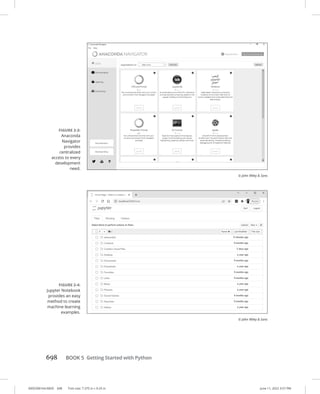
  • 386.
    Understanding Callbacks and Closures 0005390152.INDD 363 Trimsize: 7.375 in × 9.25 in June 7, 2022 6:01 PM CHAPTER 13 Understanding Callbacks and Closures 363 Closures are not hard to understand after you know the underlying concepts and have a need for them. Don’t worry if you don’t feel totally comfortable with them just yet. It’s fully possible to code in JavaScript without using closures, but once you do understand them, they can be quite useful and will make you a better programmer. Using Closures A closure is like keeping a copy of the local variables of a function as they were when the closure was created. In web programming, closures are frequently used to eliminate the duplication of effort within a program or to hold values that need to be reused throughout a pro- gram so that the program doesn’t need to recalculate the value each time it’s used. Another use for closures is to create customized versions of functions for specific uses. In Listing 13-5, closures are used to create functions with error messages specific to different problems that may occur in the program. All the error messages get created using the same function. When a function’s purpose is to create other functions, it’s known as a function factory. FIGURE 13-4: Creating customized greetings with closures. © John Wiley Sons
  • 387.
    0005390152.INDD 364 Trimsize: 7.375 in × 9.25 in June 7, 2022 6:01 PM 364 BOOK 3 Advanced Web Coding LISTING 13-5: Using a Function to Create Functions html head titlefunction factory/title script function createMessageAlert(theMessage){ return function() { alert (theMessage); } } let badEmailError = createMessageAlert(Unknown email address!); let wrongPasswordError = createMessageAlert(That's not your password!); window.addEventListener('load', loader, false); function loader(){ document.login.yourEmail.addEventListener('change',badEmailError); document.login.yourPassword.addEventListener('change',wrongPasswordError); } /script /head body form name=login id=loginform p labelEnter Your Email Address: input type=text name=yourEmail /label /p p labelEnter Your Password: input type=text name=yourPassword /label /p buttonSubmit/button /body /html The key to understanding Listing 13-5 is the function factory. function createMessageAlert(theMessage){ return function() { alert (theMessage); } }
  • 388.
    Understanding Callbacks and Closures 0005390152.INDD 365 Trimsize: 7.375 in × 9.25 in June 7, 2022 6:01 PM CHAPTER 13 Understanding Callbacks and Closures 365 To use this function factory, assign its return value to a variable, as in the follow- ing statement: let badEmailError = createMessageAlert(Unknown email address!); The preceding statement creates a closure that can be used elsewhere in the pro- gram just by running badEmailError as a function, as in the following event handler: document.login.yourEmail.addEventListener('change',badEmailError);
  • 389.
    0005390152.INDD 366 Trimsize: 7.375 in × 9.25 in June 7, 2022 6:01 PM
  • 390.
    CHAPTER 14 EmbracingAJAX and JSON 367 0005390153.INDD 367 Trim size: 7.375 in × 9.25 in June 11, 2022 3:15 PM Embracing AJAX and JSON “The Web does not just connect machines, it connects people.” — TIM BERNERS-LEE A JAX is a technique for making web pages more dynamic by sending and receiving data in the background while the user interacts with the pages. JSON has become the standard data format used by AJAX applications. In this chapter, you find out how to use AJAX techniques to make your site sparkle! Working behind the Scenes with AJAX Asynchronous JavaScript + XML (AJAX) is a term that’s used to describe a method of using JavaScript, the DOM, HTML, and the XMLHttpRequest object together to refresh parts of a web page with live data without needing to refresh the entire page. AJAX was first implemented on a large scale by Google’s Gmail in 2004 and then was given its name by Jesse James Garret in 2005. Chapter 14 IN THIS CHAPTER » Reading and writing JSON » Understanding AJAX » Using AJAX
  • 391.
    0005390153.INDD 368 Trimsize: 7.375 in × 9.25 in June 11, 2022 3:15 PM 368 BOOK 3 Advanced Web Coding The HTML DOM changes the page dynamically. The important innovation that AJAX made was to use the XMLHttpRequest object to retrieve data from the server asynchronously (in the background) without blocking the execution of the rest of the JavaScript on the web page. Although AJAX originally relied on data formatted as XML (hence the X in the name), it’s much more common today for AJAX applications to use a data format called JavaScript Object Notation (JSON). Most people still call applications that get JSON data asynchronously from a server AJAX, but a more technically accurate (but less memorable) acronym would be AJAJ. AJAX examples When web developers first started to use AJAX, it became one of the hallmarks of what was labeled Web 2.0. The most common way for web pages to show dynamic data prior to AJAX was by downloading a new web page from the server. For exam- ple, consider craigslist.org, shown in Figure 14-1. To navigate through the categories of listings or search results on Craigslist, you click links that cause the entire page to refresh and reveal the content of the page you requested. FIGURE 14-1: Craigslist.org was quite happy with Web 1.0, thank you very much. © John Wiley Sons
  • 392.
    Embracing AJAX and JSON 0005390153.INDD 369 Trimsize: 7.375 in × 9.25 in June 11, 2022 3:15 PM CHAPTER 14 Embracing AJAX and JSON 369 While still very common, refreshing the entire page to display new data in just part of the page is unnecessarily slow and can provide a less smooth user experience. Compare the old Craigslist-style navigation with the application-like user inter- face of Google Slides, shown in Figure 14-2, which uses AJAX to load new content into part of the screen while the navigation bars remain static. In addition to making web page navigation smoother, AJAX is also great for creat- ing live data elements in a web page. Prior to AJAX, if you wanted to display live data, a chart, or an up-to-date view of an email inbox, you either needed to use a plug-in (such as Adobe Flash) or periodically cause the web page to automati- cally refresh. With AJAX, it’s possible to periodically refresh data through an asynchronous process that runs in the background and then update only the elements of the page that need to be modified. Weather Underground’s WunderMap, shown in Figure 14-3, shows a weather map with constantly changing and updating data overlays. The data for the map is retrieved from remote servers using AJAX. FIGURE 14-2: Google Slides uses AJAX to provide a more modern user experience. © John Wiley Sons
  • 393.
    0005390153.INDD 370 Trimsize: 7.375 in × 9.25 in June 11, 2022 3:15 PM 370 BOOK 3 Advanced Web Coding Viewing AJAX in action In Figure 14-3, shown in the preceding section, the Chrome Developer Tools win- dow is open to the Network tab. The Network tab shows all network activity involving the current web page. When a page is loading, this includes the requests and downloads of the page’s HTML, CSS, JavaScript, and images. After the page is loaded, the Network tab also displays the asynchronous HTTP requests and responses that make AJAX possible. Follow these steps to view AJAX requests and responses in Chrome: 1. Open your Chrome web browser and navigate to www.wunderground.com/ wundermap. 2. Open your Chrome Developer Tools by using the Chrome menu or by pressing Cmd+Option+I (on Mac) or Ctrl+Shift+I (on Windows). 3. Open the Network tab. Your Developer Tools window should now resemble Figure 14-4. You may want to drag the top border of the Developer Tools to make it larger at this point. Don’t worry if this makes the content area of the browser too small to use. What’s going on in the Developer Tools is the important thing right now. Notice that new items are periodically appearing in the Network tab. These are the AJAX requests and responses. Some of them are images returned from the server, and some are data for use by the client-side JavaScript. FIGURE 14-3: WunderMap uses AJAX to display live weather data. © John Wiley Sons
  • 394.
    Embracing AJAX and JSON 0005390153.INDD 371 Trimsize: 7.375 in × 9.25 in June 11, 2022 3:15 PM CHAPTER 14 Embracing AJAX and JSON 371 4. Click one of the rows in the Name column of the Networks tab. Additional data will be displayed about that particular item, as shown in Figure 14-5. 5. Click through the tabs (Headers, Preview, Response and so on) in the detailed data pane and examine the data. The first tab, Headers, displays the HTTP request that was sent to the remote server. Take a look in particular at the Request URL. This is a standard website address that passes data to a remote server. 6. Select and copy the value of the Request URL from one of the items you inspected. 7. Open a new tab in your browser and paste the entire Request URL into the address bar. A page containing data or an image opens, as in Figure 14-6. 8. Compare the results of opening the Request URL in a new tab with the results shown in the Response tab in the Developer Tools. They should be similar, although they may not look identical because they weren’t run at the same time. FIGURE 14-4: The Network tab of the Developer Tools. © John Wiley Sons
  • 395.
    0005390153.INDD 372 Trimsize: 7.375 in × 9.25 in June 11, 2022 3:15 PM 372 BOOK 3 Advanced Web Coding FIGURE 14-5: Viewing additional information about a ­ particular record in the Network tab. © John Wiley Sons FIGURE 14-6: The result of copying an HTTP Request URL from the Network tab. © John Wiley Sons
  • 396.
    Embracing AJAX and JSON 0005390153.INDD 373 Trimsize: 7.375 in × 9.25 in June 11, 2022 3:15 PM CHAPTER 14 Embracing AJAX and JSON 373 As you can see, there’s really no magic to AJAX. The JavaScript on the web page is simply requesting and receiving data from a server. Everything that happens behind the scenes is open to inspection through the Chrome Developer Tools (or the similar tools that are available with most other web browsers today). Using the XMLHttpRequest object The XMLHttpRequest object provides a way for web browsers to request data from a URL without having to refresh the page. The XMLHttpRequest object was created and implemented first by Microsoft in its Internet Explorer browser and has since become a web standard that has been adopted by every modern web browser. You can use the methods and properties of the XMLHttpRequest object to retrieve data from a remote server or your local server. Despite its name, the XMLHttpRequest object can get other types of data besides XML, and it can even use different protocols to get data besides HTTP. Listing 14-1 shows how you can use XMLHttpRequest to load the contents of an external text document containing HTML into the current HTML document. LISTING 14-1: Using XMLHttpRequest to Load External Data html head titleLoading External Data/title script window.addEventListener('load', init, false); function init(e) { document .getElementById('myButton') .addEventListener('click', documentLoader, false); } function reqListener() { console.log(this.responseText); document.getElementById('content').innerHTML = this.responseText; } function documentLoader() { let oReq = new XMLHttpRequest(); oReq.onload = reqListener; oReq.open('get', 'loadme.txt', true); oReq.send(); } (continued)
  • 397.
    0005390153.INDD 374 Trimsize: 7.375 in × 9.25 in June 11, 2022 3:15 PM 374 BOOK 3 Advanced Web Coding /script /head body form id=myForm button id=myButton type=buttonClick to Load/button /form div id=content/div /body /html The heart of this document is the documentLoader function: function documentLoader(){ var oReq = new XMLHttpRequest(); oReq.onload = reqListener; oReq.open(get, loadme.txt, true); oReq.send(); } The first line of code inside the function creates the new XMLHttpRequest object and gives it the name of oReq: var oReq = new XMLHttpRequest(); The methods and properties of the XMLHttpRequest object are accessible through the oReq object. This second line assigns a function, reqListener, to the onload event of the oReq object. The purpose of this is to cause the reqListener function to be called when oReq loads a document: oReq.onload = reqListener; The third line uses the open method to create a request: oReq.open(get, loadme.txt, true); In this case, the function uses the HTTP GET method to load the file called loadme. txt. The third parameter is the async argument. It specifies whether the request should be asynchronous. If it’s set to false, the send method won’t return until the request is complete. If it’s set to true, notifications about the completion of the request will be provided through event listeners. Because the event listener is set to listen for the load event, an asynchronous request is what’s desired. LISTING 14-1: (continued)
  • 398.
    Embracing AJAX and JSON 0005390153.INDD 375 Trimsize: 7.375 in × 9.25 in June 11, 2022 3:15 PM CHAPTER 14 Embracing AJAX and JSON 375 It’s unlikely that you’ll run into a situation where you’ll want to set the async argument to false. In fact, some browsers have begun to just ignore this argu- ment if it’s set to false and to treat it as if it’s true either way because of the bad effect on the user experience that synchronous requests have. The last line in the documentLoader function sends the requests that you created with the open method: oReq.send(); The open method will get the latest version of the requested file. So-called live- data applications often use loops to repeatedly request updated data from a server using AJAX. Working with the same-origin policy If you save the HTML document in Listing 14-1 to your computer and open it in a web browser, more than likely, you won’t get the results that you’d expect. If you load the document from your computer and then open the Chrome Developer Tools JavaScript Console, you will see a couple of error messages similar to the errors shown in Figure 14-7. The problem here is what’s called the same-origin policy. In order to prevent web pages from causing users to unknowingly download code that may be malicious using XMLHttpRequest, browsers will return an error by default whenever a script tries to load an URL that doesn’t have the same origin. If you load a web page FIGURE 14-7: Errors when trying to use XMLHttp Request on a local file. © John Wiley Sons
  • 399.
    0005390153.INDD 376 Trimsize: 7.375 in × 9.25 in June 11, 2022 3:15 PM 376 BOOK 3 Advanced Web Coding from www.example.com and a script on that page tries to retrieve data from www. watzthis.com, the browser will prevent the request with a similar error to the one you see in Figure 14-7. The same-origin policy also applies to files on your local computer. If it didn’t, XMLHttpRequest could be used to compromise the security of your computer. There’s no reason to worry about the examples in this book negatively affecting your computer. However, in order for the examples in this chapter to work cor- rectly on your computer, you need a way around the same-origin policy. The first way around the same-origin policy is to put the HTML file containing the documentLoader function and the text file on the same web server. The other way around the same-origin policy is to start your browser with the same-origin policy restrictions temporarily disabled. These instructions are to allow you to test your own files on your local computer only. Do not surf the web with the same-origin policy disabled. You may expose your computer to malicious code. To disable the same-origin policy on macOS: 1. If your Chrome browser is open, close it. 2. Open the Terminal app and launch Chrome using the following command: /Applications/Google Chrome.app/Contents/MacOS/Google Chrome --disable-web-security To disable the same-origin policy on Windows: 1. If your Chrome browser is open, close it. 2. Open the Command prompt and navigate to the folder where you installed Chrome. 3. Type the following command to launch the browser: Chrome.exe --disable-web-security Once the browser starts up, you’ll be able to run files containing AJAX requests locally until you close the browser. Once the browser is closed and reopened, the security restrictions will be re-enabled automatically.
  • 400.
    Embracing AJAX and JSON 0005390153.INDD 377 Trimsize: 7.375 in × 9.25 in June 11, 2022 3:15 PM CHAPTER 14 Embracing AJAX and JSON 377 Figure 14-8 shows the result of running Listing 14-1 in a browser without the same-origin policy errors. Using CORS, the silver bullet for AJAX requests It’s quite common for a web application to make requests to a different server in order to retrieve data. For example, many websites and mobile apps use Google’s Maps through the Google Maps Platform API. In order for the transactions between servers to be secure, mechanisms have been created for browsers and servers to work out their differences and establish trust. Currently, the best method for allowing and restricting access to resources between servers is the standard called Cross-Origin Resource Sharing (CORS). To see CORS in action, visit the Weather Underground’s WunderMap (www. wunderground.com/wundermap) using the Chrome web browser. When the page has loaded, right-click and select Inspect to open the Chrome Developer Tools, then select the Network tab. Click one of the requests where the Name starts with stationdata? and the Type is xhr. FIGURE 14-8: Listing 14-1 run in a browser with the same-origin policy disabled. © John Wiley Sons
  • 401.
    0005390153.INDD 378 Trimsize: 7.375 in × 9.25 in June 11, 2022 3:15 PM 378 BOOK 3 Advanced Web Coding Click the Headers tab, and you’ll see the following text in the HTTP header: Access-Control-Allow-Origin: * This is the CORS response header that this particular server is configured to send. The asterisk value after the colon indicates that this server will accept requests from any origin. If the owners of wunderground.com wanted to restrict access to the data at this script to only specific servers or authenticated users, they could do so using CORS. Putting Objects in Motion with JSON In Listing 14-1, you use AJAX to open and display a text document containing a snippet of HTML. Another common use for AJAX is to request and receive data for processing by the browser. For example, gasbuddy.com uses a map from Google along with data about gas prices to present a simple and up-to-date view of gas prices in different loca- tions, as shown in Figure 14-9. FIGURE 14-9: gasbuddy.com uses AJAX to display gas prices on a map. © John Wiley Sons
  • 402.
    Embracing AJAX and JSON 0005390153.INDD 379 Trimsize: 7.375 in × 9.25 in June 11, 2022 3:15 PM CHAPTER 14 Embracing AJAX and JSON 379 If you examine gasbuddy.com in the Network tab, you’ll find that some requests have responses that look something like the code shown in Listing 14-2. LISTING 14-2: Part of a Response to an AJAX Request on gasbuddy.com ([{id:tuwtvtuvvvv,base:[351289344,822599680],zrange:[11,11], layer:m@288429816,features:[{ id:17243857463485476481,a:[0,0],bb:[-8,-8,7,7,-47,7,48,22,-41,19,41,34],c:{1: {title:Folsom Lake State Recreation Area},4:{type:1}}}]},{id:tuwtvtuvvvw, zrange:[11,11],layer:m@288429816},{id:tuwtvtuvvwv,base:[351506432,824291328], zrange:[11,11],layer:m@288429816,features:[{id:8748558518353272790,a:[0,0], bb:[-8,-8,7,7,-41,7,41,22],c:{1:{title:Deer Creek Hills},4:{type:1}}}]}, {id:tuwtvtuvvww,zrange:[11,11],layer:m@288429816}]) If you take a small piece of data out of this block of code and reformat it, you get something like Listing 14-3, which should look more familiar to you. LISTING 14-3: gasbuddy.com Response Data, Reformatted {id:tuwtvtuvvvv, base:[351289344,822599680], zrange:[11,11], layer:m@288429816, features:[{ id:17243857463485476481, a:[0,0], bb:[-8,-8,7,7,-47,7,48,22,-41,19,41,34], c:{ 1:{title:Folsom Lake State Recreation Area}, 4:{type:1} }} ]} } By looking at the format of the data, you can see that it looks suspiciously like the name:value format of a JavaScript object literal, also known as a comma- separated list of name-value pairs enclosed in curly braces. The main reason JSON is so easy to use is because it’s already in a format that JavaScript can work with, so no conversion is necessary. For example, Listing 14-4 shows a JSON file containing information about this book.
  • 403.
    0005390153.INDD 380 Trimsize: 7.375 in × 9.25 in June 11, 2022 3:15 PM 380 BOOK 3 Advanced Web Coding LISTING 14-4: JSON Data Describing Coding All-in-One For Dummies { book_title: Coding All-in-One For Dummies, book_author: Chris Minnick, summary: Everything beginners need to know to start coding., isbn:978-1119889564 } Listing 14-5 shows how this data can be loaded into a web page using JavaScript and then used to display its data in HTML. LISTING 14-5: Displaying JSON Data with JavaScript html head titleDisplaying JSON Data/title script window.addEventListener('load', init, false); function init(e) { document .getElementById('myButton') .addEventListener('click', documentLoader, false); } function reqListener() { // convert the string from the file to an object with JSON.parse var obj = JSON.parse(this.responseText); // display the object's data like any object document.getElementById('book_title').innerHTML = obj.book_title; document.getElementById('book_author').innerHTML = obj.book_author; document.getElementById('summary').innerHTML = obj.summary; } function documentLoader() { var oReq = new XMLHttpRequest(); oReq.onload = reqListener; oReq.open('get', 'listing14-5.json', true); oReq.send(); } /script /head body form id=myForm button id=myButton type=buttonClick to Load/button /form h1Book Title/h1 div id=book_title/div
  • 404.
    Embracing AJAX and JSON 0005390153.INDD 381 Trimsize: 7.375 in × 9.25 in June 11, 2022 3:15 PM CHAPTER 14 Embracing AJAX and JSON 381 h2Authors/h2 div id=book_author/div h2Summary/h2 div id=summary/div /body /html The key to displaying any JSON data that’s brought into a JavaScript document from an external source is to convert it from a string to an object using the JSON. parse method. After you do that, you can access the values within the JSON file using dot notation or bracket notation, as you would access the properties of any JavaScript object. Figure 14-10 shows the results of running Listing 14-5 in a web browser and pressing the button to load the JSON data. FIGURE 14-10: Displaying JSON data within an HTML page. © John Wiley Sons
  • 405.
    0005390153.INDD 382 Trimsize: 7.375 in × 9.25 in June 11, 2022 3:15 PM
  • 406.
    4 0005390107.INDD 383 Trimsize: 7.375 in × 9.25 in June 11, 2022 4:26 PM Creating Mobile Apps
  • 407.
    Contents at aGlance CHAPTER 1: What Is Flutter?. . . . . . . . . . . . . . . . . . . . . . . . . . . . . . . . . . . . . . 385 CHAPTER 2: Setting Up Your Computer for Mobile App Development. . . . . . . . . . . . . . . . . . . . . . . . . . 401 CHAPTER 3: “Hello” from Flutter. . . . . . . . . . . . . . . . . . . . . . . . . . . . . . . . . 433 CHAPTER 4: Hello Again. . . . . . . . . . . . . . . . . . . . . . . . . . . . . . . . . . . . . . . . . . . 469 CHAPTER 5: Making Things Happen. . . . . . . . . . . . . . . . . . . . . . . . . . . . . 495 CHAPTER 6: Laying Things Out. . . . . . . . . . . . . . . . . . . . . . . . . . . . . . . . . . . 527 CHAPTER 7: Interacting with the User. . . . . . . . . . . . . . . . . . . . . . . . . . 567 CHAPTER 8: Navigation, Lists, and Other Goodies. . . . . . . . . . . . . 605 CHAPTER 9: Moving Right Along . . .. . . . . . . . . . . . . . . . . . . . . . . . . . . . . . 653 0005390107.INDD 384 Trim size: 7.375 in × 9.25 in June 11, 2022 4:26 PM
  • 408.
    CHAPTER 1 WhatIs Flutter? 385 0005390154.INDD 385 Trim size: 7.375 in × 9.25 in June 11, 2022 3:17 PM What Is Flutter? B efore you learn how to program mobile apps with Flutter, it’s important to understand the big picture and how mobile apps fit into it. No doubt about it: Mobile phones are complicated beasts. So how do they work? What makes them tick? What’s going on inside each of those remarkable gadgets? All About Hardware and Software A mobile phone is really a small computer. And, like any computer, a mobile phone operates on several layers. Figure 1-1 shows you a few of those layers. Hardware is the stuff you can touch. It’s the bottom layer of the diagram in Figure 1-1. Hardware consists of items like circuitry, memory, and the battery. Electrical signals that travel along the hardware’s circuits make the hardware do what you want it to do. These signals encode instructions. Taken as a whole, these instructions are called software. When people create software, they don’t describe each electrical signal that travels through the hardware’s circuitry. Instead, people write source code — instructions that look something like English-language instructions. One source code instruction can be shorthand for hundreds or thousands of electrical signals. Chapter 1 IN THIS CHAPTER » How mobile apps fit in with hardware and software » What makes Flutter great » Alternatives to Flutter » Mobile app and Flutter terminology
  • 409.
    0005390154.INDD 386 Trimsize: 7.375 in × 9.25 in June 11, 2022 3:17 PM 386 BOOK 4 Creating Mobile Apps A collection of source code instructions that perform a particular task (word pro- cessing, web browsing, managing a smart thermostat, or whatever) is called a program. A person who writes these instructions is a programmer or — a fancier- sounding term — a developer. The person who runs a program on their own device is a user. Just as people communicate using many spoken languages, programmers write source code using many programming languages. If you create iPhone apps, you probably write code in either the Swift language or the Objective-C language. If you create Android apps, you’re likely to write code in either Kotlin or Java. When you create a Flutter app, you write code in the Dart programming language. Here’s a complete Dart language program: main() = print('Hello'); This program displays the word Hello on the screen. It’s not very useful, but please be patient. This is only Chapter 1! Figure 1-1 distinguishes between two kinds of software: FIGURE 1-1: A conceptual view of your mobile phone.
  • 410.
    What Is Flutter? 0005390154.INDD 387 Trimsize: 7.375 in × 9.25 in June 11, 2022 3:17 PM CHAPTER 1 What Is Flutter? 387 » » Operating system (OS) software runs whenever the device is turned on. OS software manages the device and provides ways for the user to interact with the device. Devices made by Apple, such as iPhones and iPads, run the iOS operating system. Android phones and tablets run the Android operating system (of course). » » Application programs do the work that users want done. Apps to make phone calls, apps to read email, calendar apps, web browsers, and games are examples of application programs. As a Flutter developer, your job is to create application programs. By one estimate, the popular operating system named Linux consists of nearly 28 million instructions. No one can deal with that much code, so operating sys- tems are divided into layers of their own. Figure 1-1 shows only four of a typical operating system’s many layers: » » A kernel performs the operating system’s most fundamental tasks. The kernel schedules apps to be run, manages a device’s memory and files, provides access to input and output, and does many other essential tasks. » » A runtime is a bunch of code that does extra work in the background while your application program runs. Runtimes come in many shapes and sizes. A runtime for the C programming language consists of a relatively small amount of code. In contrast, a Java language runtime (a Java Virtual Machine, or JVM) is a big piece of software with lots of moving parts. When you run an iOS app, the app uses the Objective-C runtime. When you run an Android app, that app uses the Android runtime, also known as ART. » » An application programming interface (API) is a bunch of code that app developers use over and over again. For example, Android’s API has something named toUpperCase. If you apply toUpperCase to Flutter For Dummies, you get FLUTTER FOR DUMMIES. You don’t have to write your own code to change each of the letters. Android’s API provides this functionality for you. All you have to do is tell Android’s API to apply its toUpperCase feature, and then you’re all set. Here’s some useful terminology: Rather than tell an API to “apply its toUpper Case feature,” you call toUpperCase. This use of the word call dates back to the FORTRAN programming language of the 1950s. Operating systems haven’t cornered the market on APIs. All kinds of software come with APIs. Flutter and Dart have their own APIs.
  • 411.
    0005390154.INDD 388 Trimsize: 7.375 in × 9.25 in June 11, 2022 3:17 PM 388 BOOK 4 Creating Mobile Apps Dart’s API has general-purpose things, like toUpperCase, isAtSameMomentAs, and a bunch of others. Flutter’s API has features that apply to visually oriented apps. For example, when you want to display a box where the user can type text, you don’t have to describe every aspect of the box’s appearance and behavior. Instead, you can call the API’s TextField constructor and have Flutter do the hard work for you. An API is sometimes referred to as a library. You borrow books from a public library, and you borrow existing code from the Dart and Flutter APIs. In the Dart programming terminology, the word library has a slightly different meaning. You don’t have to worry about that yet. In this book, you’ll learn about pieces of the Dart and Flutter APIs and then you’ll use those pieces to create Flutter programs. A typical API has thousands of pieces. No one memorizes all of them. When you want to add an image to your app, you open Flutter’s documentation and search for the word Image. The documentation’s Image page tells you how to display an image, how to size an image, how to tile an image, and how to do all kinds of other good stuff. » » The OS user interface is the area that includes the home screen, the launch icons, a file explorer, and any other stuff users see when they’re not working with a particular application program. On your laptop computer, you probably have a desktop instead of a home screen. One way or another, the OS presents options to help users launch application programs and perform other maintenance tasks. These options are part of the OS user interface. Each layer in Figure 1-1 contains a collection of related components. This helps programmers focus on the components that concern them the most — for example: » » The API has code to help developers write application programs. A developer who’s creating an online purchasing app looks for components in the API. » » The runtime layer has code to run programs efficiently. To make everyone’s code run faster, engineers at Apple make improvements to the iOS Runtime layer. In addition to separating parts of the code from one another, the layers form organized paths of communication among parts of the system. In general, a layer’s code communicates only with the layers immediately above and below it.
  • 412.
    What Is Flutter? 0005390154.INDD 389 Trimsize: 7.375 in × 9.25 in June 11, 2022 3:17 PM CHAPTER 1 What Is Flutter? 389 For example, a user taps a button belonging to a weather app. The app responds by calling on functionality provided by the API. Communication works its way down the diagram in Figure 1-1 until it reaches the hardware, which responds by changing the pixels on the device’s screen. A user never communicates directly with the API, and application programs have no direct access to the operating system’s kernel. When you create a Flutter app, you use the Dart programming language. Dart and Flutter have separate APIs: » » Dart’s API deals with the tasks that every programming language should be able to do, no matter what programmers want to do with that language. For example, Dart’s API helps programmers round a number, trim a string of characters, describe a time interval, reverse a list, and so on. » » Flutter’s API deals with the presentation of components and images on a device’s screen. One part of Flutter’s API deals with buttons, text fields, checkboxes, and the like. Another part handles a user’s gestures. Yet another covers animation. Every Dart program, even the simplest one, calls on code in the Dart API, and every Flutter app calls on both the Dart and Flutter APIs. These APIs are both useful and formidable. They’re useful because of all the things you can do with the API code. They’re formidable because both APIs are extensive. No one memo- rizes all the features made available by the Dart and Flutter APIs. Programmers remember the features that they use often and look up the features that they need in a pinch. They look up these features on a website called the Flutter API reference documentation. The API documentation (see https://api.flutter.dev) describes the features in both the Dart and Flutter APIs. As a Flutter developer, you consult this API doc- umentation on a daily basis. You can bookmark the website and revisit the site whenever you need to look up something. Where Does Flutter Fit In? The heart of Flutter is an API for creating apps. Most Flutter apps run on mobile devices, but Flutter apps can run on laptop and desktop computers, too. Flutter certainly wasn’t the first API for mobile devices, so why should anyone consider using Flutter to create apps?
  • 413.
    0005390154.INDD 390 Trimsize: 7.375 in × 9.25 in June 11, 2022 3:17 PM 390 BOOK 4 Creating Mobile Apps Cross-platform development People throw around the word platform as if the word means everything and noth- ing. A simple definition of a platform is a particular operating system along with the hardware the OS runs on. What makes the Android platform different from its iOS counterpart? To create radio buttons in Android’s API, you write code of the following kind: RadioGroup RadioButton android:id=@+id/radioButton1 android:text=Red android:onClick=onRadioButtonClicked/ RadioButton android:id=@+id/radioButton2 android:text=Yellow android:onClick=onRadioButtonClicked/ RadioButton android:id=@+id/radioButton3 android:text=Green android:onClick=onRadioButtonClicked/ /RadioGroup Try converting that code to work on an iPhone. The iOS API doesn’t have radio buttons, so, to adapt an Android app with radio buttons for iOS, you write code to make things that look like radio buttons. You also code rules for the radio buttons to follow — rules like “only one button at a time can be selected.” If you don’t want to create radio buttons from scratch, you can replace Android’s radio buttons with an iOS picker component, a thing that looks like an old automobile odometer. One way or another, replacing an app’s components takes time and costs money. Some companies give up and create apps for only one platform — iPhone or Android. Other companies hire two teams of programmers — one for iPhone development and another for Android development. Still other companies have one team of programmers that work on both versions of the code. For the compa- nies’ managers, the problem is exasperating. Why spend nearly twice the money and create two apps that do almost the same things?
  • 414.
    What Is Flutter? 0005390154.INDD 391 Trimsize: 7.375 in × 9.25 in June 11, 2022 3:17 PM CHAPTER 1 What Is Flutter? 391 The developer community has names for this ugly situation: » » Software written for one platform isn’t compatible with other platforms. » » The mobile phone arena suffers from fragmentation: The market is divided between two different operating systems, and the Android half is divided among many vendors’ phones. A program that makes direct use of either the Android or iOS API is called native code, and native code written for Android can’t run on an iOS device. In the same way, native code written for iOS is meaningless to an Android device. What’s a developer to do? A framework is a second-level API. What the heck does that mean? A framework is an API that serves as an intermediary between the developer and some other API. If direct use of the Android or iOS API is problematic, you switch to a framework’s API. The framework’s API deals head-on with Android’s and iOS’s problems. Frameworks like Flutter offer an alternative to native app development. When you write a Flutter program, you don’t write code specifically for Android or iOS. Instead, you write code that can be translated into either system’s API calls. Here’s how you create radio buttons in the Flutter framework: Radio( value: TrafficLight.Red, groupValue: _trafficLightValue, onChanged: _updateTrafficLight, ), Radio( value: TrafficLight.Yellow, groupValue: _trafficLightValue, onChanged: _updateTrafficLight, ), Radio( value: TrafficLight.Green, groupValue: _trafficLightValue, onChanged: _updateTrafficLight, ) Your computer translates code of this kind into either Android API calls or iOS API calls — or both. That’s cool!
  • 415.
    0005390154.INDD 392 Trimsize: 7.375 in × 9.25 in June 11, 2022 3:17 PM 392 BOOK 4 Creating Mobile Apps A BRIEF HISTORY 130,000 years ago: Humans first walk the earth. 10,000 years ago: Humans begin farming. 1752: Ben Franklin discovers electricity. 1760: The Industrial Revolution begins. March 10, 1876: Alexander Graham Bell makes the first telephone call. April 3, 1973: Martin Cooper makes the first mobile phone call. August 16, 1994: BellSouth Cellular releases IBM Simon — the first smartphone. June 29, 2007: Apple releases the first iPhone. November 5, 2007: Google releases the first public beta of Android. Both the iOS and Android are native development technologies. With native develop- ment, the programmer makes calls directly to the system’s API. December 2007: Articles and blog posts about fragmentation in mobile phone tech- nologies start appearing in large numbers. March 13, 2009: Nitobi Software introduces a framework that uses HTML, CSS, and JavaScript to create mobile phone apps. October 4, 2011: Adobe acquires Nitobi, rebrands its framework with the name PhoneGap, and spins off an open-source version that eventually becomes Apache Cordova. Cordova and its cousins are hybrid app development frameworks. With hybrid app development, an app runs in a window that’s essentially a web browser. Because web browser technology is standard across all platforms, a hybrid app can run on both Android and iOS devices, or even on a desktop computer. What’s “hybrid” about hybrid apps? The code to display text and images in a web browser doesn’t vary much from one environment to another, so a browser page on an iPhone looks more or less like the same page on an Android phone. But communicating with hardware devices, such as the GPS receiver and vibration motor, is another story entirely.
  • 416.
    What Is Flutter? 0005390154.INDD 393 Trimsize: 7.375 in × 9.25 in June 11, 2022 3:17 PM CHAPTER 1 What Is Flutter? 393 Web pages aren’t designed to talk directly to a device’s hardware. In fact, you don’t want to visit awfulwebsite.com and have the site’s code quietly take pictures with your laptop’s built-in camera. To make a hybrid app interact with hardware, you have to backpedal and make calls to the iPhone’s API, the Android API, or whatever other API you can use. That’s why frameworks like Apache Cordova have plug-ins — additional programs whose code is specific to either iOS or Android. The bottom line is, a typical hybrid app does some of its work in a web browser and the rest of its work with native API calls. What’s the downside with hybrid apps? Frameworks like Apache Cordova are like for- eign language interpreters: While the app runs, the device must constantly translate web browser instructions into native code instructions. When you talk through an inter- preter, the conversation can become sluggish. Hybrid apps aren’t always as responsive as native apps. In addition, hybrid apps can’t do all the things that native apps can do. It’s the same when you talk through a foreign language interpreter. You can say most of the things you want to say, but some ideas simply can’t be translated. Returning to the history lesson . . . Summer 2013: A hackathon for Facebook employees gives birth to React Native — a cross-platform framework based on the React.js JavaScript framework. February 24, 2016: Microsoft acquires Xamarin — a cross-platform mobile develop- ment framework based indirectly on Microsoft’s own .NET framework. With a cross-platform framework, a programmer writes one program that targets nei- ther iOS nor Android. When the programmer says, “Test this code,” the framework translates the whole program into native code for either Android or iOS, whichever platform the programmer chooses. When the program is ready for public distribution, the framework translates it into two different native apps — one for iOS and the other for Android. But why stop there? If you can translate code into both iOS and Android apps, you can translate the code into web pages and desktop apps. A developer can create one piece of code and have it run on all kinds of phones, tablets, PCs, Macs, watches, toasters, or whatever. This brings us to the subject of this book: December 4, 2018: Google announces Flutter 1.0 for cross-platform development. (continued)
  • 417.
    0005390154.INDD 394 Trimsize: 7.375 in × 9.25 in June 11, 2022 3:17 PM 394 BOOK 4 Creating Mobile Apps A quick-and-easy development cycle Here’s what happens when you create an app for mobile devices: 1. You write some code, or you modify some existing code. You don’t write Android or iOS code on a phone of any kind. Phones aren’t powerful enough for all the editing and other stuff you need to do. Instead, you create an app’s code on a laptop or desktop computer. This laptop or desktop computer is called your development computer. 2. You issue a command for your development computer to build the code. Building the code takes place in several stages, one of which is called compiling. Compiling means automatically translating your program from the source code you wrote to detailed object code instructions. Think of object code as a bunch of zeros and ones. It’s very detailed and extremely unintuitive. Humans hardly Flutter differs from Xamarin and React Native in some significant ways. First and foremost, Xamarin isn’t entirely free. Using Xamarin for professional projects costs between $300 and $1900 a year, depending on the size and scope of the projects under development. In addition, Flutter’s way of displaying components is different from the React Native and Xamarin way. When you run a React Native app on an iPhone, the app calls on the iOS API to create iOS buttons, text fields, and other visual components. The same is true for Android development. React Native gets the Android API to display Android- specific components. Components created by the iOS and Android APIs don’t look alike. The two APIs use different shapes, different color palettes, and different navigation schemes. The differences can lead to unexpected results and can occasionally sabotage the whole cross-platform development effort. Flutter doesn’t call on the iOS or Android APIs to display an app’s components. Instead, Flutter specifies all the tiny pixels required to draw a button or a text field and calls on the iOS or Android API to paint those pixels. If you want an app to look the same on both iOS and Android devices, Flutter is your natural choice. What if you want your app to have that special, iPhone look when it runs on iOS devices? Can you do that with Flutter? Of course, you can. The Flutter framework has two special libraries — one for Android and another for iOS. Flutter’s Material Design library draws things that look like Android components, and Flutter’s Cupertino library makes objects look like iOS components. This book emphasizes the Material library, but almost everything in it has a Cupertino counterpart. (continued)
  • 418.
    What Is Flutter? 0005390154.INDD 395 Trimsize: 7.375 in × 9.25 in June 11, 2022 3:17 PM CHAPTER 1 What Is Flutter? 395 ever read or write object code but, at the heart of things, processors respond only to object code instructions. For a detailed look at compiling code, see this section’s “What is a compiler?” sidebar. In addition to the translation step, the build process connects the program you wrote with additional code that your program needs in order to run. For example, if your program accesses the Internet, the build process integrates your code with existing network code. 3. The development computer deploys your code to a target device. This so-called “device” may be a real phone connected to your computer or a program that simulates a phone on your computer’s screen. One way or another, your program starts running. 4. You press buttons, type text, and otherwise test your app to find out whether it’s doing the things you want it to do. Of course, it’s not doing all those things. So you return to Step 1 and keep trying. Steps 2 and 3 can be painfully slow. For some simple iPhone and Android apps, it’s common to watch for several minutes as the computer prepares code for the program’s next run. This sluggishness reduces a developer’s productivity considerably. But along with Flutter comes some good news. Flutter uses the Dart programming language, and Dart comes with these two (count ’em — two) compilers: » » Ahead-of-time (AOT) compiler With an AOT compiler, your development computer translates an entire program and makes the translated code available for devices to run. No further transla- tion takes place when the devices run your program. Each target device devotes its processing power to the efficient running of your code. An app running on AOT-compiled code runs smoothly and efficiently. » » Just-in-time (JIT) compiler With a JIT compiler, your development computer translates enough code to start the app running. It feeds this code to a test device and continues translating while the test device runs the app. If the developer presses a button on the test device’s screen, the JIT compiler hurries to translate that button’s code. An app running on a JIT compiler may appear to be sluggish because the compiler translates code while the app runs. But using a JIT compiler is a great way to test an app.
  • 419.
    0005390154.INDD 396 Trimsize: 7.375 in × 9.25 in June 11, 2022 3:17 PM 396 BOOK 4 Creating Mobile Apps Here’s what happens when you develop a Flutter app: 1. You write some code. 2. You issue a command for your development computer to build the code. The first time around, building code can take some time. 3. The development computer deploys your code to a target device. Again, you face a noticeable time lag. 4. In testing your code, you find out that it’s not doing all the things you want it to do. 5. You modify your existing code, and then . . . 6. You issue a command for your development computer to rebuild the code. Here’s where Flutter’s magic happens. Dart’s JIT compiler recompiles only the part of the app that you’ve modified and sends the change straight to the target device. The modified code starts running in a fraction of a second. You save hours of time every day because you’re not waiting for code changes to take effect. Flutter gives you two ways to apply changes to a running app: » » With hot restart, the app begins its run anew, removing any data that you’ve entered during the most recent test, displaying the app as if you’re running it for the first time. » » With hot reload, the app takes up from where it left off, with the data you last entered intact, if possible. The only changes are the ones dictated by your modifications to the code. Flutter’s hot restart and hot reload are both blazingly fast. They turn the app development cycle into a pleasure rather than a chore. Book 4, Chapter 2 tells you more about building, testing, and rerunning apps. A great way to think about app development You may have heard the all-encompassing mantra of Flutter app development: In Flutter, almost everything is a widget.
  • 420.
    What Is Flutter? 0005390154.INDD 397 Trimsize: 7.375 in × 9.25 in June 11, 2022 3:17 PM CHAPTER 1 What Is Flutter? 397 WHAT IS A COMPILER? You’re a human being. (Sure, every rule has exceptions. But if you’re reading this book, you’re probably human.) Anyway, humans can write and comprehend the following Flutter source code: import 'package:flutter/widgets.dart'; main() = runApp(SizedBox()); When you paraphrase the source code in English, here’s what you get: Get some code (code from the Flutter API) named widgets.dart. Run an application whose only component is a box widget. If you don’t see the similarities between the Flutter code and its English equivalent, don’t worry. Like most human beings, you can learn to read and write the Flutter code. In case you’re wondering, this source code contains the world’s simplest and most useless Flutter app. When the app runs, you see a completely black screen. It’s not what you’d call a “killer app.” Source code is nice, but source code isn’t for everyone and everything. The processors in computers and mobile devices aren’t human beings. Processors don’t follow source code instructions. Instead, they follow cryptic instructions of the following kind: 1100100 1100101 1111000 00001010 00110000 00110011 00110101 00000000 10000100 These zeros and ones are, in fact, the first few words in an Android phone’s version of the Black Screen app’s code. Here’s the Black Screen app after a processor interprets the zeros and ones: .class public com/allmycode/dexperiment/MainActivity .super io/flutter/embedding/android/FlutterActivity .source MainActivity.java .method public init()V .limit registers 1 ; this: v0 (Lcom/allmycode/dexperiment/MainActivity;) .line 8 invoke-direct {v0},io/flutter/embedding/android/ FlutterActivity/init ; init()V return-void .end method (continued)
  • 421.
    0005390154.INDD 398 Trimsize: 7.375 in × 9.25 in June 11, 2022 3:17 PM 398 BOOK 4 Creating Mobile Apps And what is a widget? In a mobile app, every button is one of the app’s widgets. Every text field is a widget. The app itself is a widget. The positioning of buttons and text fields is a widget. The animating of objects from one part of the screen to another is a widget. When you create a Flutter app, you put widgets inside of other widgets, which in turn are inside even more widgets. Listing 1-1 has some fake code that illustrates the point: LISTING 1-1: Like a Wheel within a Wheel // This isn't real Flutter code! Application( Background( CenterWhateverIsInsideThis( Button( onPressed: print(I've been clicked.), Padding( Text( What a mess! Humans don’t want to read or write instructions of this kind. These instructions aren’t Dart source code instructions. They’re Dalvik bytecode instructions. When you write a Flutter program, you write Dart source code instructions. If you test your program on an Android device, your development computer translates the source code into bytecode. If you test your program on an iPhone, the computer translates your source code into something that’s even more obscure than bytecode. The tool that performs the translation is a compiler. The compiler takes code that you can write and understand and translates it into code that a processor has a fighting chance of carrying out. You might put your source code in a file named main.dart. To run your app on Android devices, the compiler creates other files named MainActivity.dex and app. apk. Normally, you don’t bother looking at these compiled files. You can’t even examine .dex files or .apk files with an ordinary editor. If you try to open MainActivity.dex with Notepad, TextEdit, or even Microsoft Word, you’ll see nothing but dots, squiggles, and other gobbledygook. No one (except for a few crazy programmers in some isolated labs in faraway places) writes Dalvik bytecode or any other kind of code that processors actually understand. When you ask your development computer to run your code, the computer uses its own software (a compiler) to create processor-friendly instructions. The only reason to look at the bytecode in this sidebar is to understand what a hard worker your develop- ment computer is. (continued)
  • 422.
    What Is Flutter? 0005390154.INDD 399 Trimsize: 7.375 in × 9.25 in June 11, 2022 3:17 PM CHAPTER 1 What Is Flutter? 399 Click Me ), ), ), ), ), ) Listing 1-1 has a Text widget inside of a Padding widget, which is inside of a Button widget inside a CenterWhateverIsInsideThis widget. That Center WhateverIsInsideThis widget is inside a Background widget, which is inside an Application widget. Listing 1-1 is modeled after real Flutter code. The real Flut- ter code creates the app shown in Figure 1-2. When the user presses the Button in Figure 1-2, the words I’ve been clicked appear. Compare Figures 1-2 and 1-3. Figure 1-2 shows the app as the user sees it. Figure 1-3 shows the same app as the Flutter developer codes it. If you’re not already a Flutter developer, the word widget might suggest a vis- ible component, such as a button, a slider, an icon, or some other such thing. But in Flutter, things that aren’t really visible are also widgets. For example, in Listing 1-1, CenterWhateverIsInsideThis is a widget. Having layout features like CenterWhateverIsInsideThis be widgets is a powerful idea. It means that Flutter developers can focus their attention on one overarching task — stuffing widgets inside other widgets. Flutter has a certain simplicity and elegance that other app development frameworks don’t have. Flutter has no built-in widget named CenterWhateverIsInsideThis. But don’t be disappointed. Flutter’s Center widget does what the fictitious CenterWhatever IsInsideThis widget is supposed to do. FIGURE 1-2: An app with a button.
  • 423.
    0005390154.INDD 400 Trimsize: 7.375 in × 9.25 in June 11, 2022 3:17 PM 400 BOOK 4 Creating Mobile Apps Enough New Terminology! What’s Next? You may have read this chapter from start to finish but not one word in the chapter prompted you to touch your computer keyboard. What a shame! The next chapter will rectify that awful omission. FIGURE 1-3: Widgets within widgets.
  • 424.
    CHAPTER 2 SettingUp Your Computer for Mobile App Development 401 0005390155.INDD 401 Trim size: 7.375 in × 9.25 in June 11, 2022 3:19 PM Setting Up Your Computer for Mobile App Development T ools don’t directly do the things you want done. You can’t eat a tool, read a good tool, hear a tool’s happy song, or dance the jig with a tool. But you can use tools to make food, books, musical instruments, and dance floors. This chapter is all about tools — the tools you use to make great mobile apps. The Stuff You Need This book tells you how to create apps using Flutter. Before you can create apps, you need some software tools. Here’s a list of the tools you need: » The Flutter Software Development Kit (SDK) The Flutter SDK includes lots and lots of prewritten, reusable Flutter code and a bunch of software tools for running and testing Flutter apps. The SDK has Chapter 2 IN THIS CHAPTER » Installing Dart and Flutter » Installing a development environment » Mimicking mobile devices on your laptop computer
  • 425.
    0005390155.INDD 402 Trimsize: 7.375 in × 9.25 in June 11, 2022 3:19 PM 402 BOOK 4 Creating Mobile Apps the official Flutter code libraries, Dart code libraries, documentation, and even some sample apps. » » An integrated development environment You can create Flutter apps by using geeky, keyboard-only tools, but eventu- ally you’ll tire of typing and retyping commands. An integrated development environment (IDE), on the other hand, is a little like a word processor. A word processor helps you compose documents (memos, poems, and other works of fine literature); in contrast, an IDE helps you compose instructions for processors. One way to compose Flutter apps is by using the Android Studio IDE. Don’t be fooled by the word Android in the IDE’s name. Using Android Studio, you can create iPhone apps, web apps, and other kinds of apps. » » Some sample Flutter apps, to help you get started All examples in this book are available for download here: www.dummies.com/go/codingallinonefd2e » » A device for testing your Flutter code You write some code, and then you run it to see whether it works correctly. Usually, it doesn’t work correctly until you make some changes. Most often, it doesn’t work correctly until you make lots of changes. This book emphasizes the creation of apps for iPhones and Android phones. You can run your code on your own phone, but you can also run it on your computer. To run a mobile app on your computer, you need software that displays a phone on your screen and runs your app within that display. In the iPhone world, this type of software is called a simulator, and Android calls its software an emulator. Simulators and emulators are examples of virtual devices. In contrast, an actual iPhone or Android phone is called a physical device (also called a real device). An emulator isn’t quite the same thing as a simulator. An emulator is software that behaves, to a large extent, like the hardware of a real, physical phone. A simulator is software that runs a phone’s apps without really behaving too much like the phone’s hardware. Fortunately, when you run this book’s apps, you can ignore this subtle difference. All these tools run on the development computer — the laptop or desktop computer you use to develop Flutter apps. Later, when you publish your app, users run the app on their target devices — physical devices such as iPhones, Android phones, and (someday soon) smart toasters.
  • 426.
    Setting Up Your Computer for Mobile App Development 0005390155.INDD 403 Trimsize: 7.375 in × 9.25 in June 11, 2022 3:19 PM CHAPTER 2 Setting Up Your Computer for Mobile App Development 403 Here’s good news: You can download for free all the software you need to run this book’s examples. The software is separated into four downloads: » » When you visit https://flutter.dev/docs/get-started/install, you can click a button to install the Flutter SDK. » » A button at the page http://developer.android.com/studio gives you the Android Studio IDE download. Along with this download comes the Android emulator. » » This book’s website has a link to all of the book’s code. » » The iPhone simulator, as well as all the code you need for generating iPhone apps, comes with the installation of Xcode on your Mac. Xcode is available from the Macintosh App Store. (Unfortunately, you can’t develop for iPhone on a Windows PC.) In the world of mobile app development, things change very quickly. The cre- ators of Flutter are always creating new features and new tools. The old tools stop working, and the old instructions no longer apply. If you see something on your screen that doesn’t look like one of the screenshots in this book, don’t despair. It might be something very new, or you might have reached a corner of the software that isn’t described in this book. Visit the book’s website to find out about late- breaking changes, to report a bug, or to ask a question. What to Do It’s an old, familiar refrain. First you get some software. Then you run the software. Getting and installing the stuff 1. Visit the book’s website (www.dummies.com/go/codingallinonefd2e) and download the BOOK_4_CREATING_MOBILE_APPS.zip file, which contains all the program examples in this book. The downloaded file is a .zip archive file. (Refer to the later sidebars “Those pesky filename extensions” and “Compressed archive files.”) Most web browsers save files to the Downloads directory on the computer’s hard drive. But your browser may be configured a bit differently. One way or another, make note of the folder containing the downloaded file BOOK_4_ CREATING_MOBILE_APPS.zip. 2. Extract the contents of the downloaded file to a place on your computer’s hard drive.
  • 427.
    0005390155.INDD 404 Trimsize: 7.375 in × 9.25 in June 11, 2022 3:19 PM 404 BOOK 4 Creating Mobile Apps 3. Visit https://flutter.dev/docs/get-started/install and download the Flutter SDK. Choose a version of the software that matches your operating system (Windows, Macintosh, or whatever). 4. Extract the contents of the downloaded file to a place on your computer’s hard drive. The aforementioned contents is actually a directory full of stuff. The directory’s name is flutter. Put your new flutter directory in a place that isn’t pro- tected with special privileges. For example, if you try extracting the flutter directory inside the c:program files directory, Windows displays its User Account Control dialog box and asks for confirmation. Don’t put the flutter directory inside a place like that. You say “folder.” I say “directory.” To not-quite-quote Gershwin, let’s call the whole thing off because, in this book, these two words are used interchangeably. A good place to put the flutter directory is inside your home directory. For example, your computer probably has a directory named Users, and inside that Users directory is a directory with your name on it. That directory is your home directory. This home directory contains the Documents directory, the Downloads directory, and lots of other stuff. After you extract the downloaded file’s content, your home directory has a brand-new flutter directory. You don’t have to extract the flutter directory right inside your home directory, but it’s the simplest, most reliable thing to do. 5. Make a note of the place on your hard drive where the new flutter directory lives. For example, if you copied the .zip file’s contents to your /Users/ janeqreader directory, make a note of the /Users/janeqreader/flutter directory. That’s your Flutter SDK path. To make sure that you’ve extracted the downloaded file’s contents correctly, look inside the flutter directory for a subdirectory named bin. The flutter directory has other subdirectories, named dev, examples, and packages. Your mileage may vary, depending on when you download the Flutter SDK. 6. Visit http://developer.android.com/studio and download the Android Studio IDE. The download is an .exe file, a .dmg file, or maybe something else. 7. Install the software that you downloaded in Step 6. During the installation, a dialog box may offer the option of installing an Android virtual device (AVD). If so, accept the option.
  • 428.
    Setting Up Your Computer for Mobile App Development 0005390155.INDD 405 Trimsize: 7.375 in × 9.25 in June 11, 2022 3:19 PM CHAPTER 2 Setting Up Your Computer for Mobile App Development 405 For other details about installing Android Studio, see this chapter’s later section “On installing Android Studio.” Android Studio isn’t the only IDE that has features for creating Flutter apps. Some developers prefer Virtual Studio Code (known affectionately as VS Code), which is available for Windows, Macintosh, and Linux. And if you enjoy roughing it, you can do without an IDE and use the command line along with your favorite text editor — Emacs, vi, or Notepad. In this book, I focus on Android Studio, but you can find plenty of alternatives. To learn more about Visual Studio Code, visit https://code.visualstudio.com. While you’re visiting any software download site, check the requirements for downloading, installing, and running that software. Make sure you have enough memory and an operating system that’s sufficiently up to date. THOSE PESKY FILENAME EXTENSIONS The filenames displayed in File Explorer or in a Finder window can be misleading. You may browse a directory and see the name android-studio-ide or flutter_win- dows. The file’s real name might be android-studio-ide.exe, flutter_windows. zip, or plain old flutter_windows. Filename endings such as .zip, .exe, .dmg, .app, and .dart are filename extensions. The ugly truth is that, by default, Windows and the Mac hide many filename extensions. This awful feature tends to confuse people. If you don’t want to be confused, change your computer’s system-wide settings. Here’s how to do it: • In Windows 7: Choose Start ➪ Control Panel ➪Appearance and Personalization ➪Folder Options. Then skip to the third bullet. • In Windows 8: On the Charms bar, choose Settings ➪Control Panel. In the Control Panel, choose Appearance and Personalization ➪Folder Options. Then proceed to the following bullet. • In Windows 7 or 8: Follow the instructions in one of the preceding bullets. Then, in the Folder Options dialog box, click the View tab. Look for the Hide File Extensions for Known File Types option. Make sure that this checkbox is not selected. • In Windows 10: On the File Explorer’s main menu, select View. On the ribbon that appears, put a check mark next to File Name Extensions. • In macOS: On the Finder application’s menu, select Preferences. In the resulting dialog box, select the Advanced tab and look for the Show All File Extensions option. Make sure that this checkbox is selected.
  • 429.
    0005390155.INDD 406 Trimsize: 7.375 in × 9.25 in June 11, 2022 3:19 PM 406 BOOK 4 Creating Mobile Apps For Mac users only If you have a Mac and you want to create iPhone apps, follow these steps: 1. Select App Store from the Apple menu. 2. In the store’s search field, type Xcode and then press Enter. The App Store’s search finds dozens of apps, but only one has the simple name Xcode. 3. Click the Xcode app’s Get button. As a result, the App Store installs Xcode on your computer. COMPRESSED ARCHIVE FILES When you visit this book’s website and download the examples, you download a file named BOOK_4_CREATING_MOBILE_APPS.zip. A ZIP file is a single file that encodes a bunch of smaller files. The BOOK_4_CREATING_MOBILE_APPS.zip file encodes files with names such as app0301.dart, app0302.dart, and app0401.dart. The app0301.dart file contains the code in Listing 3-1 — the first listing in Book 4, Chapter 3. Likewise, app0302.dart and app0401.dart have the code in Listings 3-2 and 4-1. The BOOK_4_CREATING_MOBILE_APPS.zip file also encodes a folder named assets. This folder contains copies of the images that appear in the book’s apps. A .zip file is an example of a compressed archive file. Other examples of compressed archives include .tar.gz files, .rar files, and .sparsebundle files. When you uncom- press a file, you extract the original files and folders stored inside the larger archive file. (For a .zip file, another word for uncompressing is unzipping.) When you download BOOK_4_CREATING_MOBILE_APPS.zip, the web browser may uncompress the file automatically for you. If not, you can get your computer to uncom- press the file. Here’s how: • On a Windows computer, double-click the .zip file’s icon. When you do this, Windows File Explorer shows you the files and folders inside the compressed .zip archive. Drag all these files and folders to another place on your computer’s hard drive (a place that’s not inside the archive file). • On a Mac, double-click the .zip file’s icon. When you do this, the Mac extracts the contents of the archive file and shows you the extracted contents in a Finder window.
  • 430.
    Setting Up Your Computer for Mobile App Development 0005390155.INDD 407 Trimsize: 7.375 in × 9.25 in June 11, 2022 3:19 PM CHAPTER 2 Setting Up Your Computer for Mobile App Development 407 4. Launch the Xcode application. The first time you run Xcode, your Mac installs some additional components. If you want your apps to run on Apple devices, you need those additional components. Configuring Android Studio Android Studio doesn’t come automatically with Flutter support, meaning you have to add Flutter support the first time you run the IDE. Here’s what you do. 1. Launch the Android Studio application. The first time you run a fresh, new copy of Android Studio, you see the Welcome screen. 2. Select Plugins on the Welcome screen. You’ll find the Plugins link on the left side of the Welcome screen. (See Figure 2-1.) 3. Search for a plugin named Flutter. Install that plugin. If Android Studio offers the option of installing Dart as well, accept the option. After installing the plugin, Android Studio may want to be restarted. Of course, you should restart it. When you do, you see the Welcome screen again. Now the Welcome screen includes the New Flutter Project option. (See Figure 2-2.) FIGURE 2-1: Android Studio’s default Welcome screen. © John Wiley Sons
  • 431.
    0005390155.INDD 408 Trimsize: 7.375 in × 9.25 in June 11, 2022 3:19 PM 408 BOOK 4 Creating Mobile Apps Running your first app You’ve installed Android Studio, added Android Studio’s Flutter plugin, and then restarted Android Studio. Now you’re staring at Android Studio’s Welcome screen. What do you do next? 1. Connect to the Internet. During the run of your very first app, Android Studio downloads some additional software. 2. Select the New Flutter Project option. (Refer to Figure 2-2.) On your phone, an app is an app, and that’s all there is to it. But on your development computer, all your work is divided into projects. For professional purposes, you’re not absolutely correct if you think of one app as equaling one project. But, for the examples in this book, the “one project equals one app” model works just fine. If you don’t see the New Flutter Project option, you may not have installed the Flutter plugin correctly. Double-check the instructions in the “Configuring Android Studio” section, earlier in this chapter. Having selected New Flutter Project, you’ll see three dialog boxes, one after another. The first asks for the path to the Flutter SDK, the second asks for the new app’s name and other details, and the third creates something called a package. FIGURE 2-2: You’ve installed the Flutter plugin. © John Wiley Sons
  • 432.
    Setting Up Your Computer for Mobile App Development 0005390155.INDD 409 Trimsize: 7.375 in × 9.25 in June 11, 2022 3:19 PM CHAPTER 2 Setting Up Your Computer for Mobile App Development 409 3. In the first step, enter the Flutter SDK path that you noted earlier. (See Figure 2-3.) Click Next and the second dialog box will appear. The second dialog box has several fields for you to fill out: Project Name, Project Location, Description, Project Type, Organization, and information about the languages and platforms the app should use and support. (See Figure 2-4.) 4. Select a name that has only lowercase letters and, if you want, under- score (_) characters. Flutter project names cannot contain uppercase letters, blank spaces, or punctuation characters other than the underscore. If you create many apps, keeping track of them all can drive you crazy. So, it helps if you decide on a formula for naming your apps and then stick to that formula as closely as you can. Later on, when you start marketing your apps, you can abandon the formula, and use clever names that attract peoples’ attention. 5. Don’t change the Project Location option unless you have a specific reason for doing so. You don’t have to specify a new directory for each of your projects. Android Studio does that for you automatically with this project location as the starting point. 6. For the description, type something that’s silly and off the wall. Do it now, while you still can. When you create apps professionally, you have to be more serious. 7. If your company has a domain name, or if you have your own domain name, type it in the Organization field. If not, type anything at all or leave the default text alone. A package is a collection of closely related pieces of code, and each Flutter app belongs to its own package. In the Flutter world, it’s customary to start a package’s name with the reverse of a domain name. For example, if your company’s domain name is wiley.com, the app is usually in a package named com.wiley.somethingorother. The somethingorother part will be unique to each of your apps. When you create your first project, the Organization field’s default text is probably example.com. Several years ago, the Internet Corporation for Assigned Names and Numbers (ICANN) set this name aside for anyone to use. 8. Under the Organization field are some buttons for selecting the Android and iOS languages and the platforms you want to enable support for. Leave these settings as they are for now.
  • 433.
    0005390155.INDD 410 Trimsize: 7.375 in × 9.25 in June 11, 2022 3:19 PM 410 BOOK 4 Creating Mobile Apps 9.Click Finish. As if by magic, Android Studio’s main window appears. (See Figure 2-5.) The main window has all the tools you need for developing top-notch Flutter applications. It even has a sample starter application, which you run in the next few steps. Android Studio’s main window may look overwhelming at first. The main window’s parts are described in this chapter’s “Using Android Studio” section, later in this chapter. In Figure 2-6, notice two important items near the top of Android Studio’s main window: • The Target Selector displays the text no devices. • The Run icon is a little right-pointing green arrow. 10.What you do next depends on your development computer and your develop- ment goals. If you have a Mac and you want to run an iPhone simulator, select Open iOS Simulator in the Target Selector drop-down list. If you don’t have a Mac, or if you want to run an Android emulator, select Tools ➪AVD Manager on Android Studio’s main menu bar. In the resulting dialog box, look for a Green Arrow icon on the right side of the dialog box. Click that Green Arrow icon. (See Figure 2-7.) If the AVD manager is empty — that is to say, if it’s not like the manager shown in Figure 2-7, which shows a virtual device labeled Pixel API 28 — you have to create an Android Virtual Device. See the section “Running apps on an Android device,” later in this chapter, for details. Android Virtual Devices don’t always start quickly. For a computer with 16 gigabytes of RAM, the start-up time may be two to three minutes. On a computer with only 4 gigabytes of RAM, the AVD might never start up. Apple’s iPhone simulator tends to be a bit snappier, but you never know. Two later sections of this chapter are devoted to Android emulator and iPhone simulator tricks — “On adding virtual devices” and “Divisiveness Among Devices.” When your virtual device’s home screen appears on the screen, you’re ready to run the sample Flutter app. 11.Click the Run icon on Android Studio’s toolbar. (Refer to Figure 2-6.) As a result, Android Studio’s Run tool window appears in the lower portion of the main window. A few messages appear while you wait impatiently for the app to start running. When the app starts running, the virtual device (the simulator or emulator) sports a handsome display. (See Figure 2-8.)
  • 434.
    Setting Up Your Computer for Mobile App Development 0005390155.INDD 411 Trimsize: 7.375 in × 9.25 in June 11, 2022 3:19 PM CHAPTER 2 Setting Up Your Computer for Mobile App Development 411 FIGURE 2-3: Enter the Flutter SDK path. © John Wiley Sons FIGURE 2-4: Details about your new app. © John Wiley Sons
  • 435.
    0005390155.INDD 412 Trimsize: 7.375 in × 9.25 in June 11, 2022 3:19 PM 412 BOOK 4 Creating Mobile Apps FIGURE 2-5: Android Studio’s main window. © John Wiley Sons FIGURE 2-6: Android Studio’s toolbar. © John Wiley Sons FIGURE 2-7: Start running an Android ­ Virtual Device. © John Wiley Sons
  • 436.
    Setting Up Your Computer for Mobile App Development 0005390155.INDD 413 Trimsize: 7.375 in × 9.25 in June 11, 2022 3:19 PM CHAPTER 2 Setting Up Your Computer for Mobile App Development 413 Congratulations! Your first app is running. You can try out the app by clicking the mouse on the app’s floating action button (the circular item in the lower-right corner of the virtual device’s screen). The message in the middle tells you how many times you’ve clicked the button. It’s not the world’s most useful app, but it’s a good start. For details about any of these steps, see the next several sections. Dealing with the Devil’s Details In earlier sections, you learned the basic steps for setting up your computer and running your first Flutter app. Basic steps are nice, but they don’t work for everyone. That’s why, in this section, you’ll delve a bit deeper. In the world of mobile app development, things change very quickly. The cre- ators of Flutter are always creating new features and new tools. The old tools stop working, and the old instructions no longer apply. If you see something on your screen that doesn’t look like one of my screenshots, don’t despair. It might be something very new, or you might have reached a corner of the software that’s FIGURE 2-8: Isn’t it wonderful? © John Wiley Sons
  • 437.
    0005390155.INDD 414 Trimsize: 7.375 in × 9.25 in June 11, 2022 3:19 PM 414 BOOK 4 Creating Mobile Apps not described in this book. If you get stuck, check this book’s website for the latest updates and to get additional help. On installing Android Studio What you do to install Android Studio depends on your operating system: » » In Windows: The downloaded file is probably an .exe file. Double-click the .exe file’s icon. When you double-click the .exe file’s icon, a wizard guides you through the installation. » » On a Mac: The downloaded file is probably a .dmg file. Double-click the .dmg file’s icon. When you double-click the .dmg file’s icon, you see the Android Studio icon (also known as the Android Studio.app icon). Drag the Android Studio icon to your Applications folder. For more information on topics like .exe and .dmg, refer to the earlier sidebar “Those pesky filename extensions.” And, if you need help with .zip files, see the earlier sidebar “Compressed archive files.” On launching Android Studio for the first time Is it time to launch Android Studio? This section has a few small details. » » In Windows: Click the Start button and look for the Android Studio entry. » » On a Mac: Press Command-space to make the Spotlight appear. In the Spotlight’s search field, start typing Android Studio. When your Mac makes the full name Android Studio appear in the Spotlight’s search field, press Enter. When you launch Android Studio for the first time, you might see a dialog box offering to import settings from a previous Android Studio installation. Chances are, you don’t have a previous Android Studio installation, so you should firmly but politely decline this offer. When the dust settles, Android Studio displays the Welcome screen. The Welcome screen has options such as Start a New Android Studio Project, Open an Existing Android Studio Project, Configure, and Get Help. (Refer to Figures 2-1 and 2-2.)
  • 438.
    Setting Up Your Computer for Mobile App Development 0005390155.INDD 415 Trimsize: 7.375 in × 9.25 in June 11, 2022 3:19 PM CHAPTER 2 Setting Up Your Computer for Mobile App Development 415 You see this Welcome screen again and again. Stated informally, the Welcome screen says, “At the moment, you’re not working on any particular project (any particular Flutter app). So, what do you want to do next?” On adding virtual devices When it comes to installing virtual devices, the stories for iPhone and Android are a bit different. » » With an Apple, Windows, or Linux computer, you can download Android Studio and get the Android emulator that comes with it. You might have to do a bit of work to install an Android Virtual Device (AVD), but that’s not a big deal. » » If you have an Apple computer, you get an iPhone simulator by downloading Apple’s Xcode software. If you don’t have an Apple computer, you can find third-party simulators by searching the Web, but keep in mind that creating iPhone apps on anything other than a Mac is difficult. Depending on the way you do it, the process might even be illegal. Android makes a distinction between an emulator and an Android Virtual Device (AVD). Here’s the scoop: » » When you install Android Studio, you get the Android phone emulator automatically. This emulator can bridge the gap between your development computer’s hardware and a mock-up of a phone’s hardware. But which phone’s hardware is it mocking? Is it a Samsung Galaxy or a Sony Xperia? How big is the phone’s screen? What kind of camera does the phone have? » » An Android Virtual Device is a description of a phone’s hardware. The emulator doesn’t work unless you create an AVD for the emulator to emulate. When you install Android Studio, you may or may not see an option to install an AVD. If you do, accept the option. If you don’t, that’s okay. You’ll be able to create a bunch of AVDs when you get Android Studio running. When you install Android Studio, the installer may offer you the option to create an AVD for you to use. If you weren’t offered this option, or if you skipped the option, you can create an AVD using the AVD Manager tool. In fact, you can create several additional AVDs and use several different AVDs to run and test your Flutter apps on Android’s emulator. To open the AVD Manager, go to Android Studio’s main menu bar and choose Tools➪AVD Manager.
  • 439.
    0005390155.INDD 416 Trimsize: 7.375 in × 9.25 in June 11, 2022 3:19 PM 416 BOOK 4 Creating Mobile Apps On installing Flutter If you’re having trouble running apps, and you think your Flutter installation is sick, you can take Flutter to the doctor. Here’s how: 1. In Android Studio, start a new Flutter project or open an existing project. For help with that, refer to this chapter’s “Running your first app” section. 2. In Android Studio’s main menu bar, select Tools ➪Flutter ➪Flutter Doctor. As a result, the computer reports to you on the health of your Flutter installation. MIMICKING AN ANDROID PHYSICAL DEVICE Android’s emulated device is really three pieces of software rolled into one: • A system image is a copy of one version of the Android operating system. For example, a particular system image might be for Android Pie (API Level 28) run- ning on an Intel x86_64 processor. • An emulator bridges the gap between the system image and the processor on your development computer. You might have a system image for an Atom_64 processor, but your development computer runs a Core i5 processor. The emulator translates instructions for the Atom_64 processor into instructions that the Core i5 processor can execute. • An Android Virtual Device (AVD) is a piece of software that describes a device’s hardware. An AVD contains a bunch of settings, telling the emulator all the details about the device to be emulated. What’s the screen resolution of the device? Does the device have a physical keyboard? Does it have a camera? How much memory does it have? Does it have an SD card? All these choices belong to a particular AVD. Android Studio’s menus and dialog boxes make it easy to confuse these three items. When you create a new AVD, you create a new system image to go with that AVD. But Android Studio’s dialog boxes blur the distinction between the AVD and the system image. You also see the word emulator, when the correct term is AVD. If the subtle dif- ferences between system images, emulators, and AVDs don’t bother you, don’t worry about them. A seasoned Android developer typically has several system images and several AVDs on the development computer, but only one Android emulator program.
  • 440.
    Setting Up Your Computer for Mobile App Development 0005390155.INDD 417 Trimsize: 7.375 in × 9.25 in June 11, 2022 3:19 PM CHAPTER 2 Setting Up Your Computer for Mobile App Development 417 YOUR FRIEND, THE COMMAND LINE Most of the instructions in this book require pointing and clicking. But some tasks still require long, cryptic typewritten commands, and some people prefer typing commands over clicking buttons. To help you survive the unimaginable misery of typing error- prone, enigmatic commands, here are a few tips: • You can’t type commands just anywhere. To communicate directly with your computer, you must first open your computer’s Terminal (as it’s known in the Mac world) or Command Prompt (as it’s known to Windows users). If Android Studio is running, you can open Mac’s Terminal or the Windows Command Prompt by clicking the little Terminal tool button near the bottom of Android Studio’s window. • On a Mac, you can always open Mac’s Terminal by pressing Command+space, typing Terminal, and then pressing Enter. On Windows, you can always open the Command Prompt by pressing Start, typing cmd, and then pressing Enter. • At any moment, a Terminal or Command Prompt window has a working directory. For example, if the working directory is /Users/isaacnewton/Documents, and you type myfile.txt, the computer looks in the /Users/isaacnewton/ Documents directory for a file named myfile.txt. If the /Users/isaacnewton/ Documents directory has a file named myfile.txt, the computer displays the con- tents of myfile.txt in page-size chunks. (On Windows): To find out which directory is the working directory, look at the prompt or type cd. To change the working directory, type cd followed by the new directory’s name. c:UsersisaacnewtonDocumentscd c:UsersisaacnewtonDocuments c:UsersisaacnewtonDocumentscd c:Usersisaacnewton c:Usersisaacnewtoncd c:Usersisaacnewton • (On a Mac): To find out which directory is the working directory, type pwd. To change the working directory, type cd followed by the new directory’s name. Isaacs-Air:Documents isaacnewton$ pwd /Users/isaacnewton/Documents Isaacs-Air:Documents isaacnewton$ cd /Users/isaacnewton Isaacs-Air:~ isaacnewton$ pwd /Users/isaacnewton
  • 441.
    0005390155.INDD 418 Trimsize: 7.375 in × 9.25 in June 11, 2022 3:19 PM 418 BOOK 4 Creating Mobile Apps The report from Flutter Doctor isn’t always helpful. Some of the report’s findings may be false alarms. Others may be difficult to interpret. If you see something that looks like a useful diagnosis, give it a try. Many of the doctor’s hints involve opening up a Terminal or Command Prompt window. You’ll find advice about that in the “Your friend, the command line” sidebar. Divisiveness Among Devices If your development computer has enough horsepower, you can run a few Android Virtual Devices simultaneously. On a Mac, you can run an iPhone simulator while your Android Virtual Devices are running. But using your virtual and physical devices can be tricky. This section gives you some tips. Running apps on an Android device The emulator that comes with Android Studio swallows up lots of resources on your development computer. If you don’t have the latest, most powerful hard- ware, you may have trouble running apps in the emulator. Maybe you don’t see Android’s home screen or you don’t see your app running five minutes or so after the emulator starts running. If so, here are several things you can try: » » Lather, rinse, repeat. Close the emulator and launch your application again. Sometimes, the second or third time’s a charm. On rare occasions, the first three attempts fail, but the fourth attempt succeeds. » » If you have access to a computer with more RAM, try running your app on it. Horsepower matters. » » If you don’t have access to a computer with more RAM, close all non- essential programs on your development computer and try running your app again. » » Try a different AVD. The “On adding virtual devices” section, earlier in this chapter, tells you how to add a new AVD to your system. An AVD with an x86 system image is better than an AVD with an armeabi image. (Fortunately, when a dialog box lets you choose between x86 and armeabi, you don’t have to know what x86 or armeabi means.)
  • 442.
    Setting Up Your Computer for Mobile App Development 0005390155.INDD 419 Trimsize: 7.375 in × 9.25 in June 11, 2022 3:19 PM CHAPTER 2 Setting Up Your Computer for Mobile App Development 419 » » Wrestle with virtualization technology. You might not want to start down this rabbit hole. When it runs on an Intel x86 processor, Android’s emulator tries to use something called Intel Virtualization Technology (VT) with the Intel Hardware Accelerated Execution Manager (HAXM). If your computer isn’t completely comfortable with a VT-and-HAXM configuration, you’re likely to have trouble using Android’s emulator. Don’t despair! Try installing an armeabi system image. The previous bulleted list describes a few remedies for problems with Android Studio’s emulator. Unfortunately, none of the bullets in this list is a silver bullet. If you’ve tried these tricks and you’re still having trouble, you might try abandoning the emulator that comes with Android Studio and running apps on a “real” device. Testing apps on a physical device You can bypass virtual devices and test your apps on a physical phone, a tablet device, or maybe even a smart coffee pot. To do so, you have to prepare the physi- cal device, prepare your development computer, and then hook together the two. It’s quite a chore, but after you do it the first time, it becomes much easier. This section describes an outline of the steps you must follow. For more details, visit these pages: » » https://flutter.dev/docs/get-started/install/macos - deploy- to-ios-devices » » https://flutter.dev/docs/get-started/install/windows - set-up- your-android-device Preparing to test on an Android physical device To test your app on an Android device, follow these steps: 1. On your Android device, enable Developer Options. On many Android devices, you do this by choosing Settings ➪About. In the About list, tap the Build Number item seven times. (Yes, seven times.) Then press the Back button to return to the Settings list. In the Settings list, tap System ➪Developer Options.
  • 443.
    0005390155.INDD 420 Trimsize: 7.375 in × 9.25 in June 11, 2022 3:19 PM 420 BOOK 4 Creating Mobile Apps 2. In the Developer Options list, turn on USB debugging. You may see a message similar to the following: USB debugging is intended for development purposes. Use it to copy data between your computer and your device, install apps on your device without notification, and read log data. The stewards of Android are warning you that the USB Debugging option can expose your device to malware. Many developers keep USB Debugging on all the time with no problems. But if you’re nervous about security, turn off USB Debugging when you’re not using the device to develop apps. 3. (For Windows users only) Visit https://developer.android.com/studio/ run/oem-usb.html to download your Android device’s Windows USB driver. Install the driver on your Windows development computer. While you follow the next step, keep an eye on your Android device’s screen. 4. With a USB cable, connect the device to the development computer. Not all USB cables are created equal. Some cables, called data cables, have wires and metal in places where other cables, called charging cables, have nothing except plastic. Try to use whatever USB cable came with your device. If you can’t find the cable that came with your device or you don’t know which cable came with your device, try more than one cable. When you find a cable that works, label that cable. When you plug in the cable, you see a popup dialog box on the Android device’s screen. The popup asks whether you want to allow USB debugging. 5. Yes, allow USB debugging. If you’re not looking for it, you can miss the popup to allow USB debugging. Be sure to look for this popup when you plug in your device. If you definitely don’t see the popup, you might be okay anyway. But if the message appears and you don’t respond to it, you definitely won’t be okay.
  • 444.
    Setting Up Your Computer for Mobile App Development 0005390155.INDD 421 Trimsize: 7.375 in × 9.25 in June 11, 2022 3:19 PM CHAPTER 2 Setting Up Your Computer for Mobile App Development 421 CHECKING THE CONNECTION AND BREAKING THE CONNECTION To find out whether your Android phone is properly connected to your development computer, follow these steps: 1. Open the Terminal on a Mac or the Command Prompt on Windows. For details, refer to the earlier sidebar “Your friend, the command line.” 2. Use the cd command to navigate to Android’s platform-tools directory. On Windows, the command to do this looks like this: cd %HOMEDRIVE%%HOMEPATH%AppDataLocalAndroidSdkplatform-tools On macOS, you can use the following command: cd ~/Library/Android/sdk/platform-tools/ 3. Type adb devices. (On a Mac, type ./adb devices.) If your computer’s response includes a very long hexadecimal number (such as 2885046445FF097), that number represents your connected device. For example, with one particular phone connected, you might get a response such as this: emulator-5554 device emulator-5556 device 2885046445FF097 device If you see the word unauthorized next to the long hexadecimal number, you proba- bly didn’t answer OK to the question “Allow USB debugging?” in Step 5 of the earlier section “Preparing to test on an Android physical device.” If your computer’s response doesn’t include a long hexadecimal number, you might have missed one of the other steps in that earlier section. Eventually, you’ll want to disconnect your device from the development computer. Look for some reference to the device in File Explorer or the Finder. • If you don’t see a reference, you can probably yank the device’s USB cable from your computer. • If you see a reference, try to eject the device. (continued)
  • 445.
    0005390155.INDD 422 Trimsize: 7.375 in × 9.25 in June 11, 2022 3:19 PM 422 BOOK 4 Creating Mobile Apps Preparing to test on an iPhone To test your app on an iPhone (or even an iPad), you must be using an Apple com- puter. If you have a Mac, follow these steps: 1. Visit https://brew.sh and follow the instructions to install Homebrew on your computer. Homebrew is a third-party software package manager for macOS and Linux. You can use it to install all kinds of software, not just iPhone development tools. 2. Open your Mac’s Terminal application. 3. In the Terminal application window, type the following commands, one after another: brew update brew install --HEAD libusbmuxd brew link libusbmuxd brew install --HEAD libimobiledevice brew install ideviceinstaller ios-deploy cocoapods pod setup Wasn’t that fun? It takes a long time to get responses, and you probably see scary warning messages along the way. 4. Visit developer.apple.com and sign up for membership in Apple’s developer program. After these three steps, your development computer is ready to go. Follow these steps whenever you want to test a new Flutter app on a physical iPhone: If you try to eject the device, and you see the dreaded Not Safe to Remove Device mes- sage, start by following Steps 1 and 2 in this sidebar. Then do one of the following: • On a Mac, type the following and press Enter: ./adb kill-server • On Windows, type the following and press Enter adb kill-server After that, you see the friendly Safe to Remove Hardware message. (continued)
  • 446.
    Setting Up Your Computer for Mobile App Development 0005390155.INDD 423 Trimsize: 7.375 in × 9.25 in June 11, 2022 3:19 PM CHAPTER 2 Setting Up Your Computer for Mobile App Development 423 1.Connect the physical phone to your development computer using a USB data cable. Not all cables are alike. Apple puts a proprietary chip in each of its iPhone cables. If you buy your cable from a third-party vendor, you might not be able to use it to transfer an app to your phone. 2.In Android Studio, open your new Flutter project. 3.Look for the Project tool window — the panel displaying a tree of files and folders. You find the Project tool window along the left side of Android Studio’s main window. If you have trouble finding it, skip ahead to the section entitled “The Project tool window” in this chapter. 4.Expand one of the tree’s topmost branches to find a subbranch named iOS. 5.Right-click the iOS subbranch. In the resulting context menu, select Flutter ➪Open iOS Module in Xcode. As a result, Xcode starts up. There’s a tree of files and folders on the left side of the Xcode window. Throughout this chapter, I write right-click as though everyone has a mouse with two or more buttons. If you’re a Mac user and your mouse has only one button, you can use Control+click wherever you see the term right-click. 6.In the tree of files and folders, select Runner. (See Figure 2-9.) 7.Select the Signing Capabilities tab near the top of the Xcode window. (Again, refer to Figure 2-9.) The Signing Capabilities tab has a Team drop-down list. 8.In the Team drop-down list, select Add an Account. As a result, an Accounts dialog box appears. With your Apple ID, you automati- cally belong to a team of developers — your personal team with you as its only member. 9.Do whatever you have to do in the Accounts dialog box and then dismiss the dialog box. As a result, you return to the Signing Capabilities tab. 10.In the Team drop-down list, select your very own team. 11.Close Xcode. You’re good to go.
  • 447.
    0005390155.INDD 424 Trimsize: 7.375 in × 9.25 in June 11, 2022 3:19 PM 424 BOOK 4 Creating Mobile Apps Testing on any physical device (Android or iPhone) When you’re ready to test your app on a physical device, and you’ve connected the device to your development computer, look at the Target Selector drop-down list on Android Studio’s toolbar. When your development computer is communicating properly with the physical device, the device’s name appears as one of this drop- down list’s items. (See Figure 2-10.) Select this item and then click the Run icon. Using Android Studio Android Studio is a customized version of IntelliJ IDEA — a general-purpose IDE with tools for Java development, C/C++ development, PHP development, model- ing, project management, testing, debugging, and much more. In this section, you get an overview of Android Studio’s main window and of the most useful features that help you build Flutter apps. FIGURE 2-9: Who’s Berry Burd? © John Wiley Sons FIGURE 2-10: iPhone is connected! © John Wiley Sons
  • 448.
    Setting Up Your Computer for Mobile App Development 0005390155.INDD 425 Trimsize: 7.375 in × 9.25 in June 11, 2022 3:19 PM CHAPTER 2 Setting Up Your Computer for Mobile App Development 425 Starting up Each Flutter app belongs to a project. You can have dozens of projects on your computer’s hard drive. When you run Android Studio, each of your projects is either open or closed. An open project appears in a window (its own window) on your computer screen. A closed project doesn’t appear in a window. Several of your projects can be open at the same time. You can switch between projects by moving from window to window. If Android Studio is running and no projects are open, Android Studio displays its Welcome screen. (Refer to Figure 2-2.) The Welcome screen may display some recently closed projects. If so, you can open a project by clicking its name on the Welcome screen. For an existing app that’s not on the Recent Projects list, you can click the Welcome screen’s Open an Existing Android Studio Project option. If you have any open projects, Android Studio doesn’t display the Welcome screen. In that case, you can open another project by choosing File➪Open or File➪Open Recent in an open project’s window. To close a project, you can choose File➪Close Project, or you can do whatever you normally do to close one of the windows on your computer. (On a PC, click the X in the window’s upper-right corner. On a Mac, click the little red button in the window’s upper left corner.) Android Studio remembers which projects were open from one run to the next. If any projects are open when you quit Android Studio, those projects open again the next time you launch Android Studio. You can override this behavior (so that only the Welcome screen appears each time you launch Android Studio). In Android Studio on a Windows computer, start by choosing File➪Settings➪Appearance and Behavior➪System Settings. In Android Studio on a Mac, choose Android Stu- dio➪Preferences➪Appearance and Behavior➪System Settings. In either case, uncheck the Reopen Last Project on Startup checkbox. The main window Android Studio’s main window is divided into several areas. Some of these areas can appear and disappear on your command. What comes next is a description of the areas in Figure 2-11, moving from the top of the main window to the bottom. The areas that you see on your computer screen may be different from the areas in Figure 2-11. Usually, that’s okay. You can make areas come and go by choosing certain menu options, including the View option on Android Studio’s main menu bar. You can also click the little tool buttons on the edges of the main window.
  • 449.
    0005390155.INDD 426 Trimsize: 7.375 in × 9.25 in June 11, 2022 3:19 PM 426 BOOK 4 Creating Mobile Apps The top of the main window The topmost area contains the toolbar and the navigation bar. » » The toolbar contains action buttons, such as Open and Save All. It also contains the Target Selector and the Run icon. The Target Selector is the drop-down list whose default option is no devices. In Figure 2-11, the Target Selector displays the name iPad (mobile). The Run icon is the thing that looks like a green Play button. You can read more about these items earlier, in this chapter’s “Running your first app” section. » » The navigation bar displays the path to one of the files in your Flutter project. A Flutter project contains many files, and, at any particular moment, you work on one of these files. The navigation bar points to that file. The Project tool window Below the main menu and the toolbars, you see two different areas. The area on the left contains the Project tool window, which you use to navigate from one file to another within your Android app. FIGURE 2-11: The main window has several areas. © John Wiley Sons
  • 450.
    Setting Up Your Computer for Mobile App Development 0005390155.INDD 427 Trimsize: 7.375 in × 9.25 in June 11, 2022 3:19 PM CHAPTER 2 Setting Up Your Computer for Mobile App Development 427 At any given moment, the Project tool window displays one of several possible views. For example, back in Figure 2-11, the Project tool window displays its Proj- ect view. In Figure 2-12, the Packages view is displayed. Packages view displays many of the same files as Project view, but in Packages view, the files are grouped differently. In this book, you’ll primarily be using the Project view. If Android Studio doesn’t display the Project tool window, look for the Project tool button — the little button displaying the word Project on the left edge of the main window. Click that Project tool button. (But wait! What if you can’t find the little Project button? In that case, go to Android Studio’s main menu and select Win- dow➪Restore Default Layout.) The Editor area The area to the right of the Project tool window is the Editor area. When you edit a Dart program file, the editor displays the file’s text. (Refer to Figure 2-11.) You can type, cut, copy, and paste text as you would in other text editors. The Editor area can have several tabs. Each tab contains a file that’s open for edit- ing. To open a file for editing, double-click the file’s branch in the Project tool window. To close the file, click the little x next to the file’s name on the Editor tab. The lower area Below the Project tool window and the Editor area is another area that contains several tool windows. When you’re not using any of these tool windows, you might not see this lower area. FIGURE 2-12: Selecting ­ Packages view. © John Wiley Sons
  • 451.
    0005390155.INDD 428 Trimsize: 7.375 in × 9.25 in June 11, 2022 3:19 PM 428 BOOK 4 Creating Mobile Apps In the lower area, the tool window that you’ll use most often is the Run tool win- dow. (Refer to the lower portion of Figure 2-11.) The Run tool window appears automatically when you click the Run icon. This tool window displays information about the run of a Flutter app. If your app isn’t running correctly, the Run tool window may contain useful diagnostic information. You can force other tool windows to appear in the lower area by clicking tool buttons near the bottom of the Android Studio window. For example, when you click the Terminal tool button, Android Studio displays the Windows Command Prompt, the Mac Terminal app, or another text-based command screen that you specify. For details, refer to the earlier sidebar “Your friend, the command line.” A particular tool button might not appear when there’s nothing you can do with it. For example, the Run tool button might not appear until you press the Run icon. Don’t worry about that. The tool button shows up whenever you need it. Finishing your tour of the areas in Figure 2-11. The status bar The status bar is at the bottom of Android Studio’s window. The status bar tells you what’s happening now. For example, if the cursor is on the 37th character of the 11th line in the editor, you see 11:37 somewhere on the status line. When you tell Android Studio to run your app, the status bar contains the Run tool window’s most recent message. The kitchen sink In addition to the areas that I mention in this section, other areas might pop up as the need arises. You can dismiss an area by clicking the area’s Hide icon. (See Figure 2-13.) FIGURE 2-13: Hiding the Project tool window area. © John Wiley Sons
  • 452.
    Setting Up Your Computer for Mobile App Development 0005390155.INDD 429 Trimsize: 7.375 in × 9.25 in June 11, 2022 3:19 PM CHAPTER 2 Setting Up Your Computer for Mobile App Development 429 Running This Book’s Sample Programs This book has dozens of sample Flutter apps, and they’re all available for down- load from the book’s website. You can run any of these programs as part of an Android Studio Flutter app. This section has all the details. 1. Launch Android Studio. For the run of your first app, you need an Internet connection. What you do next depends on what you see when you launch Android Studio. 2. If you see Android Studio’s Welcome screen (refer to Figure 2-2), select Start a New Flutter Project. If you see another Android Studio window with a File option on the main menu bar, choose File ➪New ➪New Flutter Project on the main menu bar. Either way, the first dialog box for creating a new Flutter project appears. 3. Create a new Flutter project by following Steps 3 through 9 in this chapter’s earlier section “Running your first app.” 4. In Android Studio’s Project tool window, look for a folder named lib. If you need help finding that tool window, refer to the “The Project tool window” section earlier in this chapter. The Project tool window contains a tree of folders and files. Expand one of the tree’s topmost branches to find the lib folder. This lib folder contains your project’s Dart code. 5. Right-click the tree’s main.dart branch and then select Delete. A window will pop up asking you if you want to do a “Safe delete.” Uncheck the box next to Safe delete (which will also cause the other checkbox to become unchecked.) 6. Make sure that you’ve uncompressed the BOOK_4_CREATING_MOBILE_ APPS.zip file. For details, refer to the earlier sidebar “Compressed archive files.” If you’re unsure where to find the BOOK_4_CREATING_MOBILE_APPS.zip file, look first in a folder named Downloads. Most web browsers put stuff inside Downloads by default. Safari on a Mac generally uncompresses .zip archives automatically, and Windows browsers (Internet Explorer, Firefox, Chrome, and others) do not uncompress .zip archives automatically. For the complete scoop on archive files, see the earlier sidebar “Compressed archive files.”
  • 453.
    0005390155.INDD 430 Trimsize: 7.375 in × 9.25 in June 11, 2022 3:19 PM 430 BOOK 4 Creating Mobile Apps 7.In File Explorer or the Finder, navigate to the uncompressed BOOK_4_ CREATING_MOBILE_APPS folder. Inside that folder, look for the example that you want to run. If you look inside the uncompressed download, you notice files named app0301.dart, app0302.dart, and so on. With a few exceptions, the numbers in these file names are chapter numbers followed by listing numbers. For example, in the name app0602.dart, the 06 stands for Chapter 6, and the 02 stands for the second code listing in that chapter. For this experiment, I suggest that you look for the app0201.dart file. (No code is listed anywhere in this chapter. So, in this unusual case, 0201 doesn’t refer to a project whose code is in something called Listing 2-1.) 8.Right-click the chosen app####.dart file. Then, from the resulting context menu, select Copy. 9.Right-click the new project’s empty lib folder. From the resulting context menu, select Paste. If Android Studio displays a dialog box offering to paste to a particular directory, check to make sure that the directory’s full name ends in lib. Then, press OK. 10.Look near the top of the Android Studio window for a drop-down list with the name main.dart in it (see Figure 2-14). 11.In the drop-down list, select Edit Configuration. The Edit Run/Debug Configurations dialog box will appear, as shown in Figure 2-15. 12.Change the entry point from main.dart to the name of the file you copied into the lib directory. Now you’re ready to run one of this book’s examples. Go for it! FIGURE 2-14: Opening the Edit Run/Debug Configurations dialog. © John Wiley Sons
  • 454.
    Setting Up Your Computer for Mobile App Development 0005390155.INDD 431 Trimsize: 7.375 in × 9.25 in June 11, 2022 3:19 PM CHAPTER 2 Setting Up Your Computer for Mobile App Development 431 On occasion, you may have more than one file in your project’s lib folder and more than one app in your project. If you do, pressing the Run icon might not run the app that appears in Android Studio’s editor area. To run the app that’s show- ing in the editor area, look for that app’s tab along the top of the editor area. When you right-click that tab, you see an option such as Run ’app0201.dart’. Select that option and watch the program run. Enjoying reruns The second time you run a particular example from this book, you don’t have to follow all the steps in the previous section. It’s easy to run an example over and over again. You can make changes to the code and then click the Run icon again. That’s all you have to do. If you’ve closed a project and you want to run it again, simply reopen the proj- ect in Android Studio and click the Run icon. For details, refer to this chapter’s “Starting up” section. FIGURE 2-15: Changing the Dart entry point in the Edit Run/Debug ­ Configurations dialog. © John Wiley Sons
  • 455.
    0005390155.INDD 432 Trimsize: 7.375 in × 9.25 in June 11, 2022 3:19 PM 432 BOOK 4 Creating Mobile Apps If you’re finicky . . . After following the steps in the previous section, you may see some error markers (squiggly, red underlines) in the Project tool window. Android Studio’s sample Flutter project describes something named MyApp, but the code that you copied into the lib folder makes no mention of MyApp. You can run this project over and over again without fixing the squiggly, red underlines. But if you want to fix them, simply follow these steps: 1. In the Project tool window, expand the branch labeled test. Inside that branch, you find a file named widget_test.dart. 2. Delete the widget_test.dart file. The squiggly, red underlines are gone. Problem solved! The apps in this book are practice apps. No one runs these apps to get real work done. When you develop a real app, you must never ignore code in the test folder. Testing is an essential part of the software development process. Thorough test- ing is what makes programs work reliably. Another way to get rid of the squiggly, red underlines is to jump into a time machine and redo instructions in the “Running This Book’s Sample Programs” section. If you disregard Step 5 and don’t delete main.dart, you won’t get those red underlines. But you may have to deal with two other issues. The Run icon’s behavior may become a bit confusing.
  • 456.
    CHAPTER 3 “Hello”from Flutter 433 0005390156.INDD 433 Trim size: 7.375 in × 9.25 in June 11, 2022 3:23 PM “Hello” from Flutter ♪ “Hello, I Must Be Going” ♪ BERT KALMAR AND HARRY RUBY, SUNG BY GROUCHO MARX, IN ANIMAL CRACKERS, 1930 A ccording to legend, the first computer program to print nothing but “Hello world!” was written by Brian Kernighan, as part of the BCPL programming language documentation. The first public appearance of such a program was in Kernighan and Ritchie’s 1972 book, The C Programming Language. Nowadays, the term Hello world program, or simply Hello program, applies to any dirt-simple code for someone’s first exposure to a new language or new framework. This chapter features a simple “Hello world” Flutter program and several embellishments. You can run the code, dissect it, change it, and have fun with it. Chapter 3 IN THIS CHAPTER » Running your first Flutter app » Adding text and images » Improving your app’s layout
  • 457.
    0005390156.INDD 434 Trimsize: 7.375 in × 9.25 in June 11, 2022 3:23 PM 434 BOOK 4 Creating Mobile Apps First Things First: Creating a Flutter Project Listing 3-1 contains your first Flutter app. LISTING 3-1: Ahoy, Maties! import 'package:flutter/material.dart'; main() = runApp(App0301()); class App0301 extends StatelessWidget { Widget build(BuildContext context) { return MaterialApp( home: Material( child: Text(Hello world!), ), ); } } Follow these steps to run this code in a Flutter project: 1. Create a new Flutter project. Refer to Book 4, Chapter 2. As usual, Android Studio creates a file full of Dart code for you. The file’s name is main.dart. 2. Make sure that the main.dart code appears in Android Studio’s editor. Android Studio opens the directory named android in the Project tool window by default. To get to the main project directory (where the lib directory containing main.dart is), click the drop-down at the top of the Project tool window (which will say Android) and select Project. Expand the tree in the Project tool window on the left side of Android Studio’s main window. Look for lib branch and, within the lib branch, the main.dart branch. Double-click that main.dart branch. 3. In Android Studio’s editor, delete all the main.dart code. How liberating!
  • 458.
    “Hello” from Flutter 0005390156.INDD 435 Trimsize: 7.375 in × 9.25 in June 11, 2022 3:23 PM CHAPTER 3 “Hello” from Flutter 435 4. In Android Studio’s editor, type the code that you see in Listing 3-1. tHE dART PROGRAMMING LANGUAGE IS cASe-sEnsITiVE. If you change a lowercase letter in a word to an UpperCase letter, you can change the word’s meaning. cHANGING the case can make the entire word go from being meaningful to being meaningless. In the first line of Listing 3-1, you can’t replace import with Import. iF YOU DO, THE WHOLE PROGRAM STOPS WORKING. Try it and see for yourself! Figure 3-1 shows you the finished product. 5. Run your new app. For detailed instructions about initiating a run, refer to Book 4, Chapter 2. Figure 3-2 shows you what you see when you run the Flutter app in Listing 3-1. The app looks pretty bad, but at least you can see the little Hello world! in the upper-left corner of the screen. You’ll tend to the app’s cosmetic aspects later in this chapter. You may see red markers in Android Studio’s editor. If you do, hover over a marker and read the explanation that appears. Some explanations are easy to understand; others aren’t. The more practice you have in interpreting these messages, the more skilled you become at fixing the problems. Another thing you can try is to select the Dart Analysis tab at the bottom of Android Studio’s main window. This tab lists many of the spots in your project that FIGURE 3-1: A Flutter app is ready to run. © John Wiley Sons FIGURE 3-2: Running the code in Listing 3-1. © John Wiley Sons
  • 459.
    0005390156.INDD 436 Trimsize: 7.375 in × 9.25 in June 11, 2022 3:23 PM 436 BOOK 4 Creating Mobile Apps contain questionable code. For any item in the list, a red icon indicates an error — something that must be fixed. (If you don’t fix it, your app can’t run.) Any other color icon indicates a warning — something that won’t prevent your code from running but might be worth considering. Often times, Android Studio will underline code with a green squiggly line. This indicates a warning or a hint for how your code could be better. If you hover over the underlined code, you’ll get a description of the improvement you could make. At this point, these hints may not make much sense. However, at the bottom of the popup window will be a suggested action (such as Add 'key' to constructors), as shown in Figure 3-3. If you click the hint text in the popup window, Android Studio will magically make the fix for you and the green squiggly line will be gone! Most of the fixes that are suggested this way won’t affect how your app runs, but they’re good practices, which you’ll learn about as you become more familiar with Dart. If you look at the code listings you downloaded from this book’s website, you’ll see that many of the suggested fixes have been implemented there, even if the book lists the shorter syntax that accomplishes the same thing. This was done in the interest of keeping the code listings shorter in the book and saving a few trees. In the next several sections, you’ll take apart the code in Listing 3-1 and explore it from many points of view. In the process, you’ll learn what the code does, why it does what it does, and what it might do differently. What’s it all about? When you look at Listing 3-1, you may see words, punctuation, and indentation, but that’s not what experienced Flutter developers see. They see the broad outline. They see big ideas in complete sentences. Figure 3-4 shows you what Listing 3-1 looks like to an experienced developer. FIGURE 3-3: Can you take a hint? © John Wiley Sons
  • 460.
    “Hello” from Flutter 0005390156.INDD 437 Trimsize: 7.375 in × 9.25 in June 11, 2022 3:23 PM CHAPTER 3 “Hello” from Flutter 437 A Flutter program is like a set of Russian matryoshka dolls. It’s a thing within a thing within another thing, and so on, until you reach an endpoint. (See Figure 3-5.) FIGURE 3-4: The big picture. FIGURE 3-5: The layered look.
  • 461.
    0005390156.INDD 438 Trimsize: 7.375 in × 9.25 in June 11, 2022 3:23 PM 438 BOOK 4 Creating Mobile Apps Listing 3-1 has some Text inside a piece of Material which is, in turn, inside a MaterialApp. The words Text, Material, and MaterialApp begin commands to construct things. In Dart language terminology, the words Text, Material, and MaterialApp are the names of constructor calls. Here’s the inside story: » » The code Text(Hello world!) » » is a constructor call. When Flutter executes this code, it constructs a Text object. That Text object contains the words Hello world! » » The code Material( child: Text(Hello world!), ) is another constructor call. When Flutter executes this code, it constructs a Material object. That Material object contains the aforementioned Text object. (See Figure 3-6.) A Material object has some of the characteristics that physical material, such as a piece of fabric, might have. It has a certain shape. It may be elevated from the surface below it. You can move it or pinch it. Granted, the background in Figure 3-2 doesn’t look much like a piece of fabric. But imitating the texture of cloth isn’t Material Design’s goal. The point of Material Design is to create a language for describing the status of the components on a user’s screen, and to describe how these components relate to one another. For the scoop on Material Design, visit https://material.io/. FIGURE 3-6: Each constructor call creates an object.
  • 462.
    “Hello” from Flutter 0005390156.INDD 439 Trimsize: 7.375 in × 9.25 in June 11, 2022 3:23 PM CHAPTER 3 “Hello” from Flutter 439 » » The code MaterialApp( home: Material( child: Text(Hello world!), ), ) » » is yet another constructor call. When Flutter executes this code, it constructs a MaterialApp whose starting screen is the Material object. (Refer to Figure 3-4.) Here’s a way to sum it all up: In Listing 3-1, the MaterialApp object has a Material object, and the Material object has a Text object. In that sentence, the seemingly innocent use of the words “has a” is important. For more details, see the later section “A brief treatise on ‘within-ness’.” To understand the code in Listing 3-1, you have to know where pairs of parenthe- ses begin and end. But finding the matches between open and close parentheses isn’t always easy. To help with this problem, Android Studio has a few tricks up its virtual sleeve. If you place the cursor near a parenthesis character, Android Studio highlights the matching parenthesis. In addition, you can visit Android Studio’s Settings or Preferences dialog box. (On Windows, select File➪  Settings. On a Mac, select Android Studio➪  Preferences.) In that dialog box, select Editor➪  Gen- eral➪  Appearance and put a check mark in the Show Closing Labels in Dart Source Code checkbox. After you dismiss the dialog box, Android Studio displays com- ments marking the ends of many constructor calls. (Notice the labels // Material and // MaterialApp in Figure 3-7.) FIGURE 3-7: Helpful closing labels. © John Wiley Sons
  • 463.
    0005390156.INDD 440 Trimsize: 7.375 in × 9.25 in June 11, 2022 3:23 PM 440 BOOK 4 Creating Mobile Apps A constructor’s parameters Every constructor call has a list of parameters (usually called a parameter list). In Listing 3-1, each constructor’s parameter list has only one parameter in it. (See Figure 3-8.) Constructor calls can have many parameters, or have no parameters. Take, for example, the Text call in Listing 3-1. In that code, the parameter Hello world! supplies information to Dart — information that’s specific to the Text widget that Dart is constructing. Try changing Text(Hello world!) to Text(Hello world!, textScaleFactor: 4.0). When you save the new code, Android Stu- dio does a hot restart that changes the look of the app in your emulator. (See Figure 3-9.) Book 4, Chapter 1 describes the difference between Flutter’s hot restart and hot reload features. Both features apply updates to an app while the app is running. To do a hot restart, simply save your code. To do a hot reload, press the Run icon near the top of Android Studio’s main window. FIGURE 3-8: Constructor calls have parameters. FIGURE 3-9: An ugly app to illustrate the textScale Factor ­ parameter’s effect. © John Wiley Sons
  • 464.
    “Hello” from Flutter 0005390156.INDD 441 Trimsize: 7.375 in × 9.25 in June 11, 2022 3:23 PM CHAPTER 3 “Hello” from Flutter 441 The constructor call Text(Hello world!, textScaleFactor: 4.0) contains two kinds of parameters: » » Hello world! is a positional parameter. A positional parameter is a parameter whose meaning depends on its position in the parameter list. When you create a new Text object, the characters to be displayed must always come first in the list. You can see this for yourself by changing the constructor call to the following, invalid code: Text(textScaleFactor: 4.0, Hello world!) // Bad code!! » » In this code, the positional Hello world! parameter doesn’t come first in the list. So, if you type this line in Android Studio’s editor, the editor marks this line with an ugly red error indicator. Quick! Change it back so that the Hello world! parameter comes first! You don’t want Android Studio to form a bad impression of you! » » textScaleFactor: 4.0 is a named parameter. A named parameter is a parameter whose meaning depends on the word before the colon. A Text constructor call can have many different named parameters, such as textScaleFactor, style, and maxLines. You can write the named parameters in any order as long as they come after any of the positional parameters. When you supply a textScaleFactor parameter, the parameter tells Flutter how large the text should be. (Refer to Figure 3-9.) When you don’t supply a textScaleFactor parameter, Flutter uses the default 1.0 factor. The size of the text depends on a few things, such as the textScaleFactor and a style parameter’s font size. For example, the following code makes Hello world! twice as large as it is in Figure 3-9. Text(Hello world!, textScaleFactor: 4.0, style: TextStyle(fontSize: 28.0)) » » The app shown in Figure 3-9 already has textScaleFactor 4.0. But it has the default font size, which is 14.0. Because 28.0 is two times 14.0, the fontSize: 28.0 parameter doubles the size of the text.
  • 465.
    0005390156.INDD 442 Trimsize: 7.375 in × 9.25 in June 11, 2022 3:23 PM 442 BOOK 4 Creating Mobile Apps A note about punctuation In Dart, you use commas to separate a constructor’s parameters from one another. And, for all but the simplest parameter lists, you end the list with a trailing comma. return MaterialApp( home: Material( child: Text(Hello world!), // Trailing comma after the child parameter ), // Trailing comma after the home parameter ); Without trailing commas, your code runs as expected. But the next section tells you how you can get Android Studio to make your code look good. And, without trailing commas, Android Studio doesn’t do its best. A pair of slashes (//) has a special meaning in Dart. (To find out what it is, see Book 4, Chapter 4.) Don’t relent — simply indent Take another look at Listing 3-1 and notice how some of the lines are indented. As a general rule, if one thing is subordinate to some other thing, its line of code is indented more than that other thing. For example, in Listing 3-1, the MaterialApp object contains the Material object, so the home: Material line is indented more than the return MaterialApp line. Here are two facts to keep in mind: » » In a Dart program, indentation isn’t necessary. » » In a Dart program, indentation is necessary. Wait! What are those two facts again? If you change the indentation in a Dart program, the program still runs. Here’s a valid reworking of the code in Listing 3-1. // Don't do this. It's poorly indented code. import 'package:flutter/material.dart'; main() = runApp(App0301()); class App0301 extends StatelessWidget { Widget build(BuildContext context) { return MaterialApp(
  • 466.
    “Hello” from Flutter 0005390156.INDD 443 Trimsize: 7.375 in × 9.25 in June 11, 2022 3:23 PM CHAPTER 3 “Hello” from Flutter 443 home: Material( child: Text(Hello world!), ), ); } } When you ask Android Studio to run this poorly indented code, it works. Android Studio dutifully runs the code on your virtual or physical device. But having this code run isn’t good enough. This poorly indented code is hideous. It’s almost impossible to read. The indentation, or lack thereof, gives you no indication of the program’s structure. You have to wade through the words to discover that the Material widget is inside the MaterialApp widget. Instead of showing you the app’s struc- ture at a glance, this code makes your eyes wander aimlessly in a sea of seemingly unrelated commands. The good news is, you don’t have to learn how to indent your code. Android Studio can do the indentation for you. Here’s how: 1. Open Android Studio’s Settings or Preferences dialog box. On Windows, select File➪  Settings. On a Mac, select Android Studio➪  Preferences. 2. In that dialog box, select Languages Frameworks➪  Flutter and then put a check mark in the Format Code on Save checkbox. The check mark tells Android Studio to fix your code’s indentation whenever you save your work. While you’re at it, you might as well put a check mark in the next checkbox — the Organize Imports on Save checkbox. 3. Select OK to dismiss the dialog box. Hazzah! When you run the code — or simply save the code — Android Studio fixes the code’s indentation. If you want more control over Android Studio’s behavior, don’t fiddle with the Settings or Preferences dialog box. Instead, whenever you want indentation to be fixed, put the cursor in the Editor panel, and then choose Code➪  Reformat Code from Android Studio’s main menu. One way or another, please indent your code properly.
  • 467.
    0005390156.INDD 444 Trimsize: 7.375 in × 9.25 in June 11, 2022 3:23 PM 444 BOOK 4 Creating Mobile Apps Classes, Objects, and Widgets Dart is an object-oriented language, so Dart has things called objects and classes. Listing 3-1 contains the names of many classes, such as App0301, Stateless Widget, Widget, BuildContext, MaterialApp, Material, and Text. It’s fair to say that almost every word in Listing 3-1 that starts with an uppercase letter is the name of a class. You don’t have to know a lot about object-oriented programming to understand the role of these words in Listing 3-1, but it helps to keep a few facts in mind: » » An object is a thing of some kind. Each object belongs to a particular class of things. The word Text is the name of a class of things — things that contain charac- ters to be displayed on the screen. On its own, a class doesn’t do much. The fact that Flutter has a Text class doesn’t mean anything for an app that displays images and no characters. In contrast, the constructor call Text(Hello world!) constructs an actual object. That object appears on the user’s screen. For example, a Text object containing the words Hello world! appears in Figure 3-2. You can refer to that object as an instance of the Text class. In any particular app, you can construct no Text instances, one Text instance, or many Text instances. The same is true of classes such as Widget and Material and almost every other class. » » Being an instance of one class might make you automatically be an instance of a bigger class. Every instance of the Cat class is, by definition, an instance of the Animal class. (If that weren’t true, millions of YouTube videos wouldn’t exist.) And what about the Animal class? Every instance of the Animal class is an instance of the LivingThing class. (See Figure 3-10.) In the same way, every instance of Flutter’s Text class is, by definition, an instance of Flutter’s StatelessWidget class. And, in turn, every instance of the StatelessWidget class is an instance of Flutter’s Widget class. So every Text instance is also a Widget instance. (Refer to Figure 3-10.) » » In Flutter, almost every object is, in one way or another, an instance of the Widget class. Informally, a widget is a component on a user’s screen. Flutter takes this idea to another level, with each part of the user interface (the Text instance, the Material instance, and even the MaterialApp instance) being a widget in its own right.
  • 468.
    “Hello” from Flutter 0005390156.INDD 445 Trimsize: 7.375 in × 9.25 in June 11, 2022 3:23 PM CHAPTER 3 “Hello” from Flutter 445 In Listing 3-1, App0301 is the name of a class. In the line main() = runApp(App0301()); the term App0301() is yet another constructor call. This call constructs an instance of the App0301 class. The line class App0301 extends StatelessWidget » » and all the code below it is the declaration of the App0301 class. The declaration tells Dart what kind of class it is and what kinds of things you can do with the class. In particular, the word extends in that first line makes any instance of the App0301 class be an instance of the StatelessWidget class. That’s all you have to do to make App0301 instances be instances of the StatelessWidget class. Now you have several terms with subtly different meanings — class, object, instance, and widget. In Listing 3-1, the code Text(Hello world!) constructs something, but exactly what kind of thing does that code construct? » » From the Dart language’s point of view, Text(Hello world!) con- structs an object. In Dart terminology, you call it an instance of the Text class. » » From the Flutter point of view, Text(Hello world!) creates a widget. It’s an instance of the Text class and therefore an instance of the StatelessWidget class and an instance of the Widget class. For more of about objects, classes, and widgets, see Book 4, Chapter 7. FIGURE 3-10: Cats are instances of the Animal class.
  • 469.
    0005390156.INDD 446 Trimsize: 7.375 in × 9.25 in June 11, 2022 3:23 PM 446 BOOK 4 Creating Mobile Apps A brief treatise on “within-ness” In a Dart program, you can find widgets within other widgets. (Refer to Figure 3-5.) In the same Dart program, you find classes within other classes. (Refer to Figure 3-10.) These two kinds of “within-ness” aren’t the same. In fact, these two kinds of “within-ness” have little to do with one another. In Figure 3-4, a Text widget is the child of a Material widget. This doesn’t mean that a Text instance is also an instance of the Material class. To understand the difference, think about two kinds of relationships: “is a” relationships and “has a” relationships. » » The relationships described in the “What’s it all about?” section are “has a” relationships. In Listing 3-1, the MaterialApp object has a Material object inside of it, and the Material object has a Text object inside of it. There’s nothing special about “has a” relationships. There can be “has a” relation- ships in a barnyard. A Cat has a Mouse, and the Mouse has a PieceOfCheese. » » The relationships described in the earlier “Classes, Objects, and Widgets” section are “is a” relationships. In every Flutter program, each Text object is a StatelessWidget object and, in turn, each StatelessWidget object is a Widget object. In a barnyard, each Cat is an Animal and, in turn, each Animal is a LivingThing. It wouldn’t make sense to say that a Cat is a Mouse, or that a Material object is a Text object. In the same way, it’s not correct to say that every Cat has an Animal, or that every Text object has a StatelessWidget object. The two kinds of relationships — “has a” and “is a” — are quite different. If you’re hungering for terminology that’s more formal than “has a” and “is a,” I have some for you: » » A chain of things connected by the “has a” relationship is called a composition hierarchy. Frivolous as it may be, the diagram in Figure 3-5 illustrates a composition hierarchy. » » The chain of things connected by the “is a” relationship is called the inheritance hierarchy. The diagrams in Figure 3-10 are part of Flutter’s class hierarchy.
  • 470.
    “Hello” from Flutter 0005390156.INDD 447 Trimsize: 7.375 in × 9.25 in June 11, 2022 3:23 PM CHAPTER 3 “Hello” from Flutter 447 Don’t you feel better now that you have these fancy terms to fling around? In Flutter, almost everything is called a “widget.” Many classes are widgets. When a class is a widget, the class’s instances (any objects constructed from that class) are also called widgets. The documentation is your friend You may be asking yourself how you’re going to memorize all these names: Text, StatelessWidget, MaterialApp, and probably thousands more. Sorry to say, you’re asking the wrong question. You don’t memorize anything. When you use a name often enough, you remember it naturally. When you don’t remember a name, you look it up in the online Flutter docs. (Sometimes, you’re not sure where to look for the name you want. In that case, you have to poke around a bit.) For example, point your web browser to https://api.flutter.dev/flutter/ widgets/Text-class.html. When you do, you see a page with information about the Text class, some sample code, and some other stuff. (See Figure 3-11.) In the page’s upper-right corner, you find a list of Text constructors. In Figure 3-11, there are two possibilities: Text and rich. If you select the Text link, you see a page describing the Text constructor call. (See Figure 3-12.) This page lists the parameters in the constructor call and provides other helpful information. FIGURE 3-11: Useful info about the Text class.
  • 471.
    0005390156.INDD 448 Trimsize: 7.375 in × 9.25 in June 11, 2022 3:23 PM 448 BOOK 4 Creating Mobile Apps On the page in Figure 3-12, notice how all but one of the constructor’s parameters are enclosed in a pair of curly braces. The parameter that’s not in curly braces (namely, String data) is the constructor’s one and only positional parameter. Each of the parameters inside the curly braces (including double textScale Factor) is a named parameter. You can always count on Flutter’s documentation to tell you what kinds of objects you can and cannot put inside of other objects. For example, the following code is doomed to failure: return MaterialApp( child: Text(Hello world!), // Don't do this! ); It’s doomed because, according to the Flutter docs, the MaterialApp constructor has no parameter named child. Making Things Look Nicer The app shown in Figure 3-2 looks pretty bad. The words Hello world! are tucked up against the screen’s upper-left corner. Fortunately, Flutter offers an easy way to fix this: You surround the Text widget with a Center widget. As its name sug- gests, the Center widget centers whatever is inside of it. FIGURE 3-12: The Text ­ constructor call.
  • 472.
    “Hello” from Flutter 0005390156.INDD 449 Trimsize: 7.375 in × 9.25 in June 11, 2022 3:23 PM CHAPTER 3 “Hello” from Flutter 449 The word Center is the name of a class, so any object constructed from that class is called an instance of that class. In a term such as “Center widget,” the word widget suggests that something like Center (something to help manage the screen’s layout) is a component of some kind. A piece of Text on the screen is a component, a piece of Material on the screen is a component, and a Center object is also a component. Even though a Center widget doesn’t light up some- where on the screen, a Center widget is still a component. Part of Flutter’s great strength is that Flutter treats all things the same way. When so many things are widgets, so many things can serve as parameters in the constructors of other things. The people who make up names for programming features call this the composability feature, and composability is a very nice feature to have. You have a few ways to surround a Text widget’s code with a Center widget’s code. One way is to poke the cursor somewhere inside Android Studio’s editor, start typing, and hope that you navigate the thicket of parentheses correctly. A better way is to do the following: 1. Place the cursor on the word Text in the editor. 2. Press Alt+Enter (on Windows) or Opt+Return (on macOS). As a result, a drop-down list appears. 3. In the drop-down list, select Center Widget. Listing 3-2 shows you what you get. LISTING 3-2: Centering the Text import 'package:flutter/material.dart'; main() = runApp(App0302()); class App0302 extends StatelessWidget { Widget build(BuildContext context) { return MaterialApp( home: Material( child: Center( child: Text(Hello world!), ), ), ); } }
  • 473.
    0005390156.INDD 450 Trimsize: 7.375 in × 9.25 in June 11, 2022 3:23 PM 450 BOOK 4 Creating Mobile Apps In Listing 3-2, the Material widget has a Center widget child, which, in turn, has a Text widget child. You can think of the Text widget as the grandchild of the Material widget. Flutter supports hot restarting. After adding the Center code to the program in Android Studio’s editor, save the changes by pressing Ctrl+S (on Windows) or Cmd+S (on a Mac). If the program from Listing 3-1 was already running, Flutter applies your changes and updates the emulator screen almost immediately. In some situations, hot restart doesn’t work. Instead of updating your app, Android Studio displays an error message. If that happens, try a hot reload. (Press the Run icon near the top of Android Studio’s main window.) And what if hot reload fails? In that case, press the Stop icon — the red square icon that’s in the same row as the Run icon. When you press the Stop icon, the run of your app ends completely. Pressing the Run icon to start afresh may fix the problem. Figure 3-13 shows what you get when you run the code in Listing 3-2. FIGURE 3-13: Yes, you’ve ­ centered the text. © John Wiley Sons
  • 474.
    “Hello” from Flutter 0005390156.INDD 451 Trimsize: 7.375 in × 9.25 in June 11, 2022 3:23 PM CHAPTER 3 “Hello” from Flutter 451 Creating a scaffold The Text widget in Figure 3-13 looks so lonely. Let’s add some fanfare to the basic app. Listing 3-3 has the code; Figures 3-14 and 3-15 show you the new screen. LISTING 3-3: Using a Scaffold import 'package:flutter/material.dart'; main() = runApp(App0303()); class App0303 extends StatelessWidget { Widget build(BuildContext context) { return MaterialApp( home: Scaffold( appBar: AppBar( title: Text(My First Scaffold), ), body: Center( child: Text(Hello world!), ), drawer: Drawer( child: Center( child: Text(I'm a drawer.), ), ), ), ); } } The home for a MaterialApp doesn’t have to be a Material widget. In Listing 3-3, the home is a Scaffold. When companies build skyscrapers, they create scaffolds — temporary wooden structures to support workers in high places. In programming, a scaffold is a structure that provides basic, often-used functionality. The Scaffold constructor in Listing 3-3 has three parameters — an appBar, a body, and a drawer. In Figures 3-14 and 3-15, the appBar is the dark region at the top of the screen. The body is the large white region containing the Center with its Text widget. In Figure 3-15, the drawer is the big white area that appears when the user swipes from the left edge of the screen. The drawer also appears when the user presses the “hamburger” icon — three horizontal lines near the screen’s top-left corner.
  • 475.
    0005390156.INDD 452 Trimsize: 7.375 in × 9.25 in June 11, 2022 3:23 PM 452 BOOK 4 Creating Mobile Apps The body is nothing special. It’s very much like the entire screen in the earlier examples. But the appBar and drawer are new. The appBar and drawer are two of the things you can have when you create a Scaffold. Other things made availa- ble by Scaffold widgets include navigation bars, floating buttons, bottom sheets, footer buttons, and more. In this chapter, Listings 3-1 and 3-2 have Material widgets, and Listing 3-3 has a Scaffold. These widgets form the backgrounds for their respective apps. If you remove the Material widget from Listing 3-1 or 3-2, your app’s screen becomes an ugly mess. You get large red letters with yellow underlines against a FIGURE 3-15: Pulling out a drawer. © John Wiley Sons FIGURE 3-14: Behold! A scaffold! © John Wiley Sons
  • 476.
    “Hello” from Flutter 0005390156.INDD 453 Trimsize: 7.375 in × 9.25 in June 11, 2022 3:23 PM CHAPTER 3 “Hello” from Flutter 453 black background. The same thing happens when you remove the Scaffold from Listing 3-3. There are other widgets that can provide backgrounds for your apps, but Material and Scaffold are the most commonly used. Adding visual tweaks Try this experiment: Change the appBar parameter from Listing 3-3 to the code snippet in Listing 3-4. LISTING 3-4: A Slight Change for the Code from Listing 3-3 appBar: AppBar( title: Text(My First Scaffold), elevation: 100, systemOverlayStyle: SystemUiOverlayStyle.dark, ) Figure 3-16 shows the effect of adding the elevation and systemOverlayStyle parameters to the AppBar constructor call. The effect of the elevation parame- ter is subtle, but it’s details like this that can make a big difference in the overall appearance of an app. In Google’s Material Design language, you imagine that the background rests on some flat surface, and that other components are elevated off the background by some number of pixels. For an AppBar, the default elevation is 4, but you can change a bar’s elevation with . . . wait for it . . . the elevation parameter. FIGURE 3-16: A slight change from the screen in Figure 3-14. © John Wiley Sons
  • 477.
    0005390156.INDD 454 Trimsize: 7.375 in × 9.25 in June 11, 2022 3:23 PM 454 BOOK 4 Creating Mobile Apps A component’s elevation affects several aspects of the component’s appearance. But in this section, the most obvious change is probably the shadow beneath the AppBar. You might not be able to see the difference between the shadows in Figures 3-14 and 3-16, but when you run the code on a virtual or physical device, an AppBar with elevation: 100 casts quite a large shadow. You may be wondering what the 100 in elevation: 100 means. Is it millimeters, pixels, points, or light-years? In truth, it means “100 density-independent pix- els” — or “100 dps,” for short. No matter what screen the user has, one dp is 1/160 of an inch. So elevation: 100 means 100/160 of an inch (better known as five- eighths of an inch). For all the details about Material Design’s elevation property, visit https://material.io/design/environment/elevation.html. An AppBar widget’s systemOverlayStyle parameter is yet another matter. The effect of adding systemOverlayStyle: SystemUiOverlayStyle.dark is to tell Flutter that, because the AppBar is light, the text and icons at the top of the AppBar should be dark. (Compare Figures 3-14 and 3-16.) The dark text and icons are easy to see against what is considered to be a light AppBar. Dart’s enum feature An interesting feature of the Dart programming language is hiding inside Listing 3-4. The name SystemUiOverlayStyle refers to something called an enum (pronounced “ee-noom”). The word enum is short for enumeration. An enum is a bunch of val- ues, like SystemUiOverlayStyle.light and SystemUiOverlayStyle.dark. In Listing 3-4, notice how you refer to an enum’s value. You don’t use a con- structor call. Instead, you use the name of the enum (such as SystemUiOver layStyle), followed by a period, followed by the unique part of the value’s name (such as light or dark). Flutter has many other built-in enums. For example, the Orientation enum has values Orientation.portrait and Orientation.landscape. The Animation Status enum has values AnimationStatus.forward, AnimationStatus.reverse, AnimationStatus.completed, and AnimationStatus.dismissed. To find out how to create a new enum, see Book 4, Chapter 7. Hello from sunny California! Google announced Material Design at its developer conference in 2014. The first version of this design language dealt mostly with Android devices, but Ver- sion 2 embraced custom branding for iPhones and other iOS devices. Flutter’s Material widget runs on iPhones with automatic platform-specific adapta- tions. You can run any of this book’s MaterialApp examples on iPhones as well
  • 478.
    “Hello” from Flutter 0005390156.INDD 455 Trimsize: 7.375 in × 9.25 in June 11, 2022 3:23 PM CHAPTER 3 “Hello” from Flutter 455 as Android phones, but if you want an iPhone-first design strategy, you can use Flutter’s Cupertino widget collection. Listing 3-5 has an example. LISTING 3-5: How to Look Like an iPhone App import 'package:flutter/cupertino.dart'; void main() = runApp(App0305()); class App0305 extends StatelessWidget { Widget build(BuildContext context) { return CupertinoApp( home: CupertinoPageScaffold( navigationBar: CupertinoNavigationBar(), child: Center( child: Text(Hello world!), ), ), ); } } Listing 3-5 is very much like its Material Design cousin, Listing 3-3. But instead of having MaterialApp, Scaffold and AppBar widgets, Listing 3-5 has the CupertinoApp, CupertinoPageScaffold, and CupertinoNavigationBar widgets. Instead of importing 'package:flutter/material.dart', Listing 3-5 imports 'package:flutter/cupertino.dart'. (This import declaration makes Flutter’s Cupertino widget library available for use by the rest of the listing’s code.) Flutter’s Material Design and Cupertino widgets aren’t completely parallel with one another. For example, the Scaffold constructor call in Listing 3-3 has a body parameter. In place of that parameter, the CupertinoPageScaffold constructor call in Listing 3-5 has a child parameter. When in doubt, check the official Flutter documentation pages to find out which parameter names belong to which wid- gets’ constructor calls. You can mix and match Material Design and Cupertino widgets in the same app. You can even tailor your app’s design style for different kinds of phones. You can even put code of the following kind in your app: if (Platform.isAndroid) { // Do Android-specific stuff } if (Platform.isIOS) { // Do iOS-specific stuff }
  • 479.
    0005390156.INDD 456 Trimsize: 7.375 in × 9.25 in June 11, 2022 3:23 PM 456 BOOK 4 Creating Mobile Apps For more information, visit https://pub.dev/packages/device_info_plus. Adding another widget Relationships between widgets can be described in terms that are similar to a family tree. In the previous examples, the Text widget is a child of the Center widget and the Center widget is a child of the body. In both cases, the widgets are only children. How do you put two children on a scaffold’s body? You might be tempted to try this: // DON'T DO THIS: body: Center( child: Text(Hello world!), child: AnotherWidget(...) ) But a constructor call can’t have two parameters with the same name. So, what can you do? Flutter has a Column widget. The Column widget’s constructor has a children parameter. The Column widget’s children line up, one under another, on the screen. That sounds promising! Listing 3-6 has some code, and Figure 3-17 has the resulting display. LISTING 3-6: More Widgets, Please! import 'package:flutter/material.dart'; main() = runApp(App0306()); class App0306 extends StatelessWidget { Widget build(BuildContext context) { return MaterialApp( home: Scaffold( appBar: AppBar( title: Text(Adding Widgets), ), body: Column( children: [ Text( Hello world!, textScaleFactor: 2.0, ), Text(It's lonely for me inside this phone.) ],
  • 480.
    “Hello” from Flutter 0005390156.INDD 457 Trimsize: 7.375 in × 9.25 in June 11, 2022 3:23 PM CHAPTER 3 “Hello” from Flutter 457 ), ), ); } } A Column constructor call has a children parameter, and the children parameter’s value is a list. In the Dart programming language, a list is a bunch of objects. Each object’s position in the list is called an index. The index values start from 0 and work their way upward. One way to create a list is to enclose objects in square brackets. For example, Listing 3-6 contains a list with two objects. (See Figure 3-18.) A list’s indices don’t begin with 1. They begin with 0. FIGURE 3-17: Who’s in there? © John Wiley Sons FIGURE 3-18: Square brackets create lists of things.
  • 481.
    0005390156.INDD 458 Trimsize: 7.375 in × 9.25 in June 11, 2022 3:23 PM 458 BOOK 4 Creating Mobile Apps STRING THINGS In the Dart programming language (and in JavaScript and other programming lan- guages), the stuff that you surround with quotation marks (as in Hello world!) is called a string. It’s a bunch of characters, one after another. Here are some handy facts about strings: • To create a string, you can use double quotation marks or single quotation marks. In other words, 'Hello world!' is the same as Hello world!. • It’s easy to put a single quotation mark inside a double quoted string. Refer to this string in Listing 3-6: It's lonely for me inside this phone. • It’s easy to put a double quotation mark inside a single quoted string. For example, the following is a valid string: 'Yikes! she said.' • Using backslash characters (), you can put either kind of quotation mark inside either kind of string. Here are two examples: 'It's lonely for me inside this phone.' Yikes! she said. • A string can straddle several lines if you use triple quotation marks. Both of these examples are valid Dart code: '''And the winner is ... Charles Van Doren!''' And the winner is ... Charles Van Doren! • To paste strings one after another, use a plus sign (+) or some blank spaces. Both of these examples are valid Dart code: Hello + world! Hello world! For some other things you can do with strings, see Book 4, Chapter 4.
  • 482.
    “Hello” from Flutter 0005390156.INDD 459 Trimsize: 7.375 in × 9.25 in June 11, 2022 3:23 PM CHAPTER 3 “Hello” from Flutter 459 Centering the text (Part 1) Figure 3-17 looks strange because the words are tucked up against the upper-left corner. In this section, you’ll walk through some steps to diagnose this problem and fix it. 1. While the app in Listing 3-6 runs, look on the right edge of Android Studio’s window for a toolbar button with the words Flutter Inspector on it. Click that toolbar button. As a result, the Flutter Inspector appears. (See Figure 3-19.) 2. In the upper-left corner of the Flutter Inspector, look for the Toggle Select Widget Mode icon. (Refer to Figure 3-19.) Click that icon. 3. In the tree of widgets, select Column. (See Figure 3-20.) FIGURE 3-19: The Flutter Inspector. © John Wiley Sons FIGURE 3-20: Selecting a branch of the Flutter Inspector’s tree. © John Wiley Sons
  • 483.
    0005390156.INDD 460 Trimsize: 7.375 in × 9.25 in June 11, 2022 3:23 PM 460 BOOK 4 Creating Mobile Apps As a result, the device that’s running your app adds highlighting and a little label to the Column widget on the screen. (See Figure 3-21.) 4. Just for fun, select a few other branches in the Flutter Inspector’s tree of widgets. You can determine the boundaries of almost any of your widgets by using this technique. The graphic in Figure 3-21 tells you that the Column widget isn’t centered inside of its parent Scaffold widget, and it’s not wide enough to fill the entire Scaffold widget. To fix this, put the Column widget inside of a Center widget. Put the cursor on the word Column in Android Studio’s editor, and then follow the instructions at the start of the earlier “Making Things Look Nicer” section. Listing 3-7 shows you what you get. LISTING 3-7: Centering the Column Widget import 'package:flutter/material.dart'; main() = runApp(App0307()); class App0307 extends StatelessWidget { Widget build(BuildContext context) { return MaterialApp( home: Scaffold( appBar: AppBar( title: Text(Adding Widgets), ), body: Center( child: Column( FIGURE 3-21: Widget Select mode is really useful! © John Wiley Sons
  • 484.
    “Hello” from Flutter 0005390156.INDD 461 Trimsize: 7.375 in × 9.25 in June 11, 2022 3:23 PM CHAPTER 3 “Hello” from Flutter 461 children: [ Text( Hello world!, textScaleFactor: 2.0, ), Text(It's lonely for me inside this phone.) ], ), ), ), ); } } When you save your changes, Android Studio does a hot restart and you see the new-and-improved display in Figure 3-22. Centering the text (Part 2) The Text widgets in Figure 3-22 are centered horizontally, but they’re not cen- tered vertically. To center them vertically, you can fiddle with Flutter’s Center widget, but there’s a much easier way. 1. In Android Studio’s Flutter Inspector, hover your mouse pointer over the Column widget. The Flutter Inspector displays all the properties of whatever widget you’re hovering over in a popup. Wait! What’s a “property”? Every object has properties, and each property of each object has a value. For example, every instance of Flutter’s Text class has FIGURE 3-22: The Column widget is centered. © John Wiley Sons
  • 485.
    0005390156.INDD 462 Trimsize: 7.375 in × 9.25 in June 11, 2022 3:23 PM 462 BOOK 4 Creating Mobile Apps a textScaleFactor property. In Listing 3-7, a constructor call sets a Text instance’s textScaleFactor property to the value 2.0. Constructor calls aren’t the only way of setting the properties of objects. In Figure 3-23, the Flutter Inspector shows the values of the Column widget’s direction property, its mainAxisAlignment property, and many other properties. A column’s main axis is an invisible line going from the column’s top to its bottom. You can replace start with any of the values end, center, spaceBetween, spaceAround, or spaceEvenly. 2. In Android Studio’s editor, add a mainAxisAlignment parameter to the Column widget’s constructor. (See Listing 3-8.) FIGURE 3-23: Properties of the Column (the Column widget that’s constructed in Listing 3-7). © John Wiley Sons LISTING 3-8: Time for an Alignment import 'package:flutter/material.dart'; main() = runApp(App0308()); class App0308 extends StatelessWidget { Widget build(BuildContext context) { return MaterialApp( home: Scaffold( appBar: AppBar(
  • 486.
    “Hello” from Flutter 0005390156.INDD 463 Trimsize: 7.375 in × 9.25 in June 11, 2022 3:23 PM CHAPTER 3 “Hello” from Flutter 463 In Listing 3-8, mainAxisAlignment is the name of a parameter, MainAxisAlignment is the name of an enum, and MainAxisAlignment. center is one of the enum’s values. For another look at Dart’s enum feature, refer to the “Dart’s enum feature” section earlier in this chapter. And if you hunger for even more, see Book 4, Chapter 7. 3. Save your editor changes to do a hot restart. On the device that’s running your app, the Text widgets are now centered horizontally and vertically. (See Figure 3-24.) This section’s example illustrates aspects of Flutter’s Column widget, which dis- plays things from top to bottom. It should come as no surprise that Flutter has a Row widget, which displays things from side to side. Most facts about the Column widget are also true of the Row widget. (Well, they’re true when you’re lying down instead of sitting upright.) In addition, Flutter has a ListView widget. The ListView widget displays things either way — from top to bottom or from side to side. In addition, the ListView widget has its own scrolling feature. You can put 100 items on a ListView even though only 20 items fit on the screen. When the user scrolls the screen, items move off the screen while other items move on. To read about Flutter’s ListView widget, see Book 4, Chapter 8. title: Text(Adding Widgets), ), body: Center( child: Column( mainAxisAlignment: MainAxisAlignment.center, children: [ Text( Hello world!, textScaleFactor: 2.0, ), Text(It's lonely for me inside this phone.) ], ), ), ), ); } }
  • 487.
    0005390156.INDD 464 Trimsize: 7.375 in × 9.25 in June 11, 2022 3:23 PM 464 BOOK 4 Creating Mobile Apps Displaying an image Words are nice, but pictures are prettier. In this section, you put an image on your Flutter app screen. 1. In Android Studio, start a new Flutter project. This project is named app0308 in the following screenshots, but you don’t have to use that name. 2. In Android Studio’s Project Tool window, right-click the project’s name. As a result, a contextual menu appears. (See Figure 3-25.) FIGURE 3-24: How lovely! © John Wiley Sons FIGURE 3-25: Right-clicking the app0308 branch. © John Wiley Sons
  • 488.
    “Hello” from Flutter 0005390156.INDD 465 Trimsize: 7.375 in × 9.25 in June 11, 2022 3:23 PM CHAPTER 3 “Hello” from Flutter 465 3. On the contextual menu, choose New➪  Directory. (Refer to Figure 3-25.) As a result, the New Directory dialog box appears. How convenient! 4. In the dialog box, type the name assets and then press Enter. To be honest, you can name this new directory almost anything you want. But if you don’t name it assets, you’ll confuse other Flutter developers. 5. Check the Project Tool window to make sure that the project tree has a new assets branch. (See Figure 3-26.) Seasoned Flutter developers create an images subdirectory of the new assets directory. I won’t bother with that right now. 6. Find an image file. Search your development computer’s hard drive for an image file. Look for filenames ending in .png, .jpg, .jpeg, or .gif. If your File Explorer or Finder doesn’t show filename extensions (such as .png, .jpg, .jpeg, or .gif for image files), refer to the sidebar in Book 4, Chapter 2 that talks about those pesky filename extensions. 7. In your development computer’s File Explorer or Finder, copy the image file. That is, right-click the image file’s name. On the contextual menu that appears, select Copy. 8. Using Android Studio’s Project Tool window, paste the image file into the assets directory. That is, right-click the assets branch. On the resulting contextual menu, choose Paste. In the resulting dialog box, type a name for your image file, and then press Enter. 9. Open your project’s pubspec.yaml file. More specifically, double-click the pubspec.yaml branch in the Project Tool window’s tree. Here’s a fun fact: The extension .yaml stands for Yet Another Markup Language. FIGURE 3-26: The assets directory is a subdirectory of the app0308 directory. © John Wiley Sons
  • 489.
    0005390156.INDD 466 Trimsize: 7.375 in × 9.25 in June 11, 2022 3:23 PM 466 BOOK 4 Creating Mobile Apps 10.In the pubspec.yaml file, look for advice about adding assets to your project. The advice might look something like this: # To add assets to your application, # add an assets section, like this: # assets: # - images/a_dot_burr.jpeg # - images/a_dot_ham.jpeg (In case you’re wondering, the filenames a_dot_burr.jpeg and a_dot_ham. jpeg refer to Aaron Burr and Alexander Hamilton. These file names occur many times in Flutter’s official documentation. Flutter is the technology behind the mobile app for the Broadway musical Hamilton.) In a .yaml file, a hashtag (#) tells the computer to ignore everything on the rest of the line. So, in this part of the .yaml file, none of the lines has any effect. 11.Delete the hashtags on two of the lines. On the second line, change the name of the image file to the name you chose in Step 8. When I do this, my pubspec.yaml file contains the following text: # To add assets to your application, # add an assets section, like this: assets: - MyImage.png # - images/a_dot_ham.jpeg It’s common to forget to make the necessary changes in the pubspec.yaml file. Try not to forget this step. When you do forget (and almost everyone does), go back and edit the project’s pubspec.yaml file. 12.Replace all the code in the main.dart file with the code in Listing 3-9. Use your own class name and filename instead of my App0309 and MyImage. png names. LISTING 3-9: Displaying an Image import 'package:flutter/material.dart'; main() = runApp(App0309()); class App0309 extends StatelessWidget { Widget build(BuildContext context) {
  • 490.
    “Hello” from Flutter 0005390156.INDD 467 Trimsize: 7.375 in × 9.25 in June 11, 2022 3:23 PM CHAPTER 3 “Hello” from Flutter 467 13.Let ’er rip. That is, run the code on a virtual or physical device. The display on the device’s screen looks something like the result in Figure 3-27. FIGURE 3-27: It’s a robot! © John Wiley Sons return MaterialApp( home: Scaffold( appBar: AppBar( title: Text(My First Image), ), body: Center( child: Image.asset('MyImage.png'), ), ), ); } }
  • 491.
    0005390156.INDD 468 Trimsize: 7.375 in × 9.25 in June 11, 2022 3:23 PM 468 BOOK 4 Creating Mobile Apps Flutter has an Image class, and the Image class has several different constructors. The Image.asset constructor in Listing 3-9 grabs a file from a place inside your Flutter project’s directory. To grab an image off the Internet, you call a different constructor — the Image.network constructor. To get an image from somewhere on your hard drive (somewhere outside of your Flutter project’s directory), you can call the Image.file constructor. Each of these constructors is called a named constructor. In each case, the stuff after the dot (.asset, .network, and .file) is that particular constructor’s name. Hey, Wait a Minute . . . This chapter covers some fundamental ideas in Dart and Flutter app develop- ment. You start with a Hello World program and make several changes to it. While you do all that, you build up a vocabulary of useful concepts — concepts like classes, constructors, enums, and widgets. But, what do the first four lines of the Hello World program do? Why do you return something when you construct a MaterialApp? The answers to these questions, and others like them, are in the next chapter. What are you waiting for? Read on!
  • 492.
    CHAPTER 4 HelloAgain 469 0005390157.INDD 469 Trim size: 7.375 in × 9.25 in June 11, 2022 3:27 PM Hello Again ♪ “Hello, hello again, sh-boom and hopin’ we’ll meet again.” ♪ —JAMES KEYES, CLAUDE FEASTER, CARL FEASTER, FLOYD F. MCRAE, AND JAMES EDWARDS, SUNG BY THE CHORDS, THE CREW-CUTS, STAN FREBERG, AND OTHERS, 1954 Chapter 3 is all about a simple Hello World program. Listing 4-1 shows one version of the code. LISTING 4-1: Yet Another Look at the First Hello Program import 'package:flutter/material.dart'; main() = runApp(App0401()); class App0401 extends StatelessWidget { Widget build(BuildContext context) { return MaterialApp( home: Material( child: Center(child: Text(Hello world!)), ), ); } } Chapter 4 IN THIS CHAPTER » Looking at functions in a Flutter app » Learning to type » Dealing with variables and other little things
  • 493.
    0005390157.INDD 470 Trimsize: 7.375 in × 9.25 in June 11, 2022 3:27 PM 470 BOOK 4 Creating Mobile Apps In Chapter 3, you focused on the middle of the program — the MaterialApp and all the stuff inside it — while ignoring anything having to do with things called “functions.” This chapter continues the tour of a Hello World program and sets its sites on those “function” things. Creating and Using a Function Here’s an experiment: Run the app whose code is shown in Listing 4-2. LISTING 4-2: Words, Words, Words import 'package:flutter/material.dart'; main() = runApp(App0402()); class App0402 extends StatelessWidget { Widget build(BuildContext context) { return MaterialApp( home: Material( child: Center(child: Text(highlight(Look at me))), ), ); } } highlight(words) { return *** + words + ***; } Figure 4-1 shows you the output of the app in Listing 4-2. Listing 4-2 contains a function declaration and a function call. (See Figure 4-2.) FIGURE 4-1: Another exciting Flutter app.
  • 494.
    Hello Again 0005390157.INDD 471 Trimsize: 7.375 in × 9.25 in June 11, 2022 3:27 PM CHAPTER 4 Hello Again 471 The function declaration Think about a recipe — a set of instructions for preparing a particular meal. A function declaration is like a recipe: It’s a set of instructions for performing a particular task. In Listing 4-2, this set of instructions says, “Form the string containing asterisks followed by some words followed by more asterisks and return that string somewhere.” Most recipes have names, like Macaroni and Cheese or Triple Chocolate Cake. The function at the bottom of Listing 4-2 also has a name: Its name is highlight. (See Figure 4-3.) There’s nothing special about the name highlight. It could have just as easily been called makeItFancy or tacos (although, calling it tacos might not be the best choice in terms of making your code understandable to other programmers). FIGURE 4-2: The highlight function in Listing 4-2. FIGURE 4-3: A header and a body.
  • 495.
    0005390157.INDD 472 Trimsize: 7.375 in × 9.25 in June 11, 2022 3:27 PM 472 BOOK 4 Creating Mobile Apps In Figure 4-3, the function name highlight is in the part of the declaration called the header. The function’s instructions (return *** + words + ***) are in the part of the declaration called the body. A recipe for macaroni and cheese sits in a book or on a web page. The recipe doesn’t do anything. If no one uses the recipe, the recipe lies dormant. The same is true of a function declaration. The declaration in Listing 4-2 doesn’t do anything on its own. The declaration just sits there. A function call Eventually, somebody might say, “Please make macaroni and cheese for dinner,” and then someone follows the Macaroni and Cheese recipe’s instructions. One way or another, the process begins when someone says (or maybe only thinks) the name of the recipe. A function call is code that says, “Please execute a particular function declara- tion’s instructions.” Imagine a phone or another device that’s running the code in Listing 4-2. When the phone encounters the function call highlight(Look at me), the phone is diverted from its primary task — the task of constructing an app with its Material, Center, and Text widgets. The phone takes a detour to execute the instructions in the highlight function’s body. After figuring out that it should create *** Look at me ***, the phone returns to its primary task, adding the Text widget with *** Look at me *** to the Center widget, adding the Center widget to the Material widget, and so on. A function call consists of a function’s name (such as the name highlight in Listing 4-2), followed by some last-minute information (such as Look at me in Listing 4-2). Wait! In the previous sentence, what does some last-minute information mean? Read on. Parameters and the return value Suppose that your recipe for macaroni and cheese serves one person and calls for two ounces of uncooked elbow macaroni. You’ve invited 100 people to your intimate evening gathering. In that case, you need 200 ounces of uncooked elbow macaroni. In a way, the recipe says the following: “To find the number of ounces of uncooked elbow macaroni that you need, multiply the number of servings by 2.” That number of servings is last-minute information. The person who wrote the recipe doesn’t know how many people you’ll be serving. You provide a number of servings when you start preparing the mac-and-cheese. All the recipe says is to multiply that number by 2.
  • 496.
    Hello Again 0005390157.INDD 473 Trimsize: 7.375 in × 9.25 in June 11, 2022 3:27 PM CHAPTER 4 Hello Again 473 In a similar way, the highlight function declaration in Listing 4-2 says, “To find the value that this function returns, combine asterisks followed by the words that you want to be highlighted followed by more asterisks.” A function declaration is like a black box. You give it some values. The function does something with those values to calculate a new value. Then the function returns that new value. (See Figures 4-4 and 4-5.) FIGURE 4-4: Good stuff in, good stuff out. FIGURE 4-5: In with the old, out with the new.
  • 497.
    0005390157.INDD 474 Trimsize: 7.375 in × 9.25 in June 11, 2022 3:27 PM 474 BOOK 4 Creating Mobile Apps Figures 4-4 and 4-5 show what it means to give values to a function, and for a function to return a value. » » You give values to a function with the function’s parameter list. Like any constructor call, every function call has a parameter list. Each parameter feeds a piece of information for the function to use. In Figure 4-5, the function call highlight(Look at me) passes the value Look at me to the highlight function’s declaration. Inside the function declaration, the name words stands for Look at me, so the expression *** + words + *** stands for *** Look at me ***. » » You return a value from a function with a return statement. In Listing 4-2, the line return *** + words + ***; » » is a return statement. Again, imagine a phone that’s running the code in Listing 4-2. With the execution of this return statement, this is what happens: • The phone stops executing any code inside the body of the highlight function. • The phone replaces the entire function call with the returned value so that Center(child: Text(highlight(Look at me))) • effectively becomes Center(child: Text(*** Look at me ***)) • It continues to execute whatever code it was executing before it became diverted by the function call. It takes up where it left off, constructing the Center, Material, and MaterialApp widgets. A cookbook may have only one recipe for chicken fricassee, but you can follow the recipe as many times as you want. In the same way, a particular function has only one declaration, but an app may contain many calls to that function. To see this in action, look at Listing 4-2 and change the code’s child parameter, like so: child: Column(mainAxisAlignment: MainAxisAlignment.center, children: [ Text(highlight(Look at me)), Text(highlight(Your attention, please)) ]) The new child contains two calls to the highlight function, each with its own parameter value. The resulting app is what you see in Figure 4-6.
  • 498.
    Hello Again 0005390157.INDD 475 Trimsize: 7.375 in × 9.25 in June 11, 2022 3:27 PM CHAPTER 4 Hello Again 475 A return statement is only one of several kinds of statements in the Dart pro- gramming language. For more about this topic, see the section “Statements and declarations,” later in this chapter. Programming in Dart: The Small Stuff “Dart is boring.” That’s what Faisal Abid said during a presentation at DevFest NYC 2017. He wasn’t talking trash about Dart. He was merely explaining that Dart is much like many other programming languages. If you’ve written some pro- grams in Java, C++, or JavaScript, you find Dart’s features to be quite familiar. You encounter a few surprises, but not too many. When you’re learning to create Flutter apps, you don’t want a new, complicated programming language to get in your way. So, a boring language like Dart is just what you need. This section presents some facts about the Dart programming language. Some of it may look quite similar to other languages you’ve learned. Other parts are unique to Dart. Statements and declarations A statement is a piece of code that commands Dart to do something. If you think this definition is vague, that’s okay for now. Anyway, in Listing 4-2, the line return *** + words + ***; is a statement because it commands Dart to return a value from the execution of the highlight function. Unlike a statement, a declaration’s primary purpose is to define something. For example, the highlight function declaration in Listing 4-2 defines what should happen if and when the highlight function is called. Statements and declarations aren’t completely separate from one another. In Listing 4-2, the highlight function declaration contains one statement — a FIGURE 4-6: Two Text widgets.
  • 499.
    0005390157.INDD 476 Trimsize: 7.375 in × 9.25 in June 11, 2022 3:27 PM 476 BOOK 4 Creating Mobile Apps return statement. A function declaration may contain several statements. For example, the following declaration contains three statements: highlight2(words) { print(Wha' da' ya' know!); print(You've just called the highlight2 function!); return *** + words + ***; } The first two statements (calls to Dart’s print function) send text to Android Studio’s Run tool window. The third statement (the return statement) makes highlight(Look at me) have the value *** Look at me ***. Use Dart’s print function only for testing your code. Remove all calls to print before publishing an app. If you don’t, you might face some trouble. At best, the calls serve no purpose and can slow down the run of your app. At worst, you may print sensitive data and show it to malicious hackers. Dart’s typing feature What does “five” mean? You can have five children, but you can also be five feet tall. With five children, you know exactly how many kids you have. (Unlike the average American family, you can’t have 2.5 kids.) But if you’re five feet tall, you might really be five feet and half an inch tall. Or you might be four feet eleven- and-three-quarter inches tall, and no one would argue about it. What else can “five” mean? Nuclear power plants can undergo fire-induced vulnerability evaluation, also known as five. In this case, “five” has nothing to do with a number. It’s just f-i-v-e. A value’s meaning depends on the value’s type. Consider three of the Dart language’s built-in types: int, double, and String. » » An int is a whole number, with no digits to the right of the dec- imal point. If you write int howManyChildren = 5; » » in a Dart program, the 5 means “exactly five.” » » A double is a fractional number, with digits to the right of the decimal point.
  • 500.
    Hello Again 0005390157.INDD 477 Trimsize: 7.375 in × 9.25 in June 11, 2022 3:27 PM CHAPTER 4 Hello Again 477 If you write double height = 5; » » in a Dart program, the 5 means “as close to five as you care to measure.” » » A String is a bunch of characters. If you use single quotes (or double quotes) and write String keystroke = '5'; » » in a Dart program, the '5' means “the character that looks like an uppercase letter S but whose upper half has pointy turns.” A value’s type determines what you can do with that value. Consider the values 86 and 86. » » The first one, 86, is a number. You can add another number to it. 86 + 1 is 87 » » The second one, 86, is a string. You can’t add a number to it, but you can add another string to it. 86 + 1 is 861 In some languages (such as JavaScript, for example), you can combine any value with any other value and usually produce some kind of a result. You can’t do that in Dart. The Dart programming language is type safe. Literals, variables, and expressions The Dart language has literals and variables. The value of a literal is the same in every Dart program. For example, 1.5 is a literal because 1.5 means “one-and-a- half” in every Dart program. Likewise, Hello world! in Listing 4-1 is a literal because Hello world! stands for the same string of 12 characters in every Dart program. (Yes, the blank space counts as one of the characters.) Fun fact: In early versions of FORTRAN (circa 1956), you could change the mean- ing of the literal 5 so that it stood for something else, like the number 6. Talk about confusing!
  • 501.
    0005390157.INDD 478 Trimsize: 7.375 in × 9.25 in June 11, 2022 3:27 PM 478 BOOK 4 Creating Mobile Apps The value of a variable is not the same in every Dart program. In fact, the value of a variable may not be the same from one part of a Dart program to another. Take, for example, the following line of code: int howManyChildren = 5; This line is called a variable declaration. The line defines a variable named howManyChildren whose type is int. The line initializes that variable with the value 5. When Dart encounters this line, howManyChildren stands for the number 5. Later, in the same program, Dart may execute the following line: howManyChildren = 6; This line is called an assignment statement. The line makes howManyChildren refer to 6 instead of 5. Congratulations on the birth of a new child! Is it a girl or a boy? An expression is a part of a Dart program that stands for a value. Imagine that your code contains the following variable declarations: int numberOfApples = 7; int numberOfOranges = 10; If you start with these two declarations, each entry in the left column of Table 4-1 is an expression. In the last row of Table 4-1, do you really need the toString() part? Yes, you do. If you write '9' + numberOfApples, you get an error message because '9' is a String and numberOfApples is an int. You can’t add an int value to a String value. The Dart language has statements and expressions. A statement is a command to do something; an expression is code that has a value. For example, the statement print(Hello); does something. (It displays Hello in Android Studio’s Run tool window.) The expression 3 + 7 * 21 has a value. (Its value is 150.) You can apply Dart’s toString to any expression. For some examples, see Book 4, Chapter 7.
  • 502.
    Hello Again 0005390157.INDD 479 Trimsize: 7.375 in × 9.25 in June 11, 2022 3:27 PM CHAPTER 4 Hello Again 479 TABLE 4-1 Fruitful Expressions Expression Value Type Notes 7 7 int 7.1 7.1 double 7.0 7.0 double Even with .0, you get a double. 7.1 + 8 15.1 double A double plus an int is a double. 0.1 + 0.1 + 0.1 0.30000000000000004 double Arithmetic on double values isn’t always accurate. numberOfApples 7 int numberOfOranges 10 int numberOfApples + numberOfOranges 17 int Who says you can’t add apples and oranges? 8 + numberOfApples 15 int numberOfOranges * 10 100 An asterisk (*) stands for multiplication. 20 / 7 2.857142857142857 double A slash (/) performs division and produces a double. 20.0 ~/ 7.0 2 int The ~/ combination performs division and produces an int. It always rounds down. (20 / 7).round() 3 int This is how you round up or down to the nearest int value. 20 % 7 6 int When you divide 20 by 7, you get 2 with a remainder of 6. highlight(Look at me) *** Look at me *** String Assuming that you’ve declared highlight as in Listing 4-2, the function returns a Striing. '9' + numberOfApples. toString() '97' String numberOfApples.toString() is a String. Its value is '7'.
  • 503.
    0005390157.INDD 480 Trimsize: 7.375 in × 9.25 in June 11, 2022 3:27 PM 480 BOOK 4 Creating Mobile Apps Dart provides a quick way to determine the type of a particular expression. To see this, change the highlight function declaration in Listing 4-2 as follows: highlight(words) { print(20 / 7); print((20 / 7).runtimeType); return *** + words + ***; } When you run the app, the following lines appear in Android Studio’s Run tool window: flutter: 2.857142857142857 flutter: double The value of 20 /7 is 2.857142857142857, and the value of (20 / 7).runtimeType is double. Two for the price of one In Dart, some statements do double duty as both statements and expressions. As an experiment, change the highlight function in Listing 4-2 so that it looks like this: highlight(words) { int numberOfKazoos; print(numberOfKazoos); print(numberOfKazoos = 94); return *** + words + ***; } Android Studio reports an error that the numberOfKazoos must be defined before it’s used. Dart variables are non-nullable by default. What this means is that, unless you specifically say that a variable can be null (which is the value of a Dart variable before it’s initialized), Dart will enforce what’s called “null safety” and refuse to run programs with variables that aren’t initialized to a non-null value. Null safety is one of the things that makes Dart fast. It also decreases the chances of programs having errors. If you want to let a variable be null, you can use the “nullable” type operator, which is a question mark. For example, the preceding example can be written like this and it will run just fine: highlight(words) { int? numberOfKazoos; print(numberOfKazoos); print(numberOfKazoos = 94);
  • 504.
    Hello Again 0005390157.INDD 481 Trimsize: 7.375 in × 9.25 in June 11, 2022 3:27 PM CHAPTER 4 Hello Again 481 return *** + words + ***; } Here’s what you see in Android Studio’s Run tool window when you run this code: flutter: null flutter: 94 The line int? numberOfKazoos; is a variable declaration without an initializa- tion. That’s fair game in the Dart programming language, as long as you use the nullable type operator. When Dart executes print(numberOfKazoos); you see flutter: null in the Run tool window. Roughly speaking, null means “nothing.” At this point in the pro- gram, the variable numberOfKazoos has been declared but hasn’t yet been given a value, so numberOfKazoos is still null. Finally, when Dart executes print(numberOfKazoos = 94); you see flutter: 94 in the Run tool window. Aha! The code numberOfKazoos = 94 is both a statement and an expression! Here’s why: » » As a statement, numberOfKazoos = 94 makes the value of number OfKazoos be 94. » » As an expression, the value of numberOfKazoos = 94 is 94. Of these two facts, the second is more difficult for people to digest. (I’ve known some experienced programmers who think about this the wrong way.) To execute print(numberOfKazoos = 94); Dart covertly substitutes 94 for the expression numberOfKazoos = 94, as shown in Figure 4-7. In other words, the value numberOfKazoos = 94 is 94. So, in addition to doing something, the code numberOfKazoos = 94 also has a value. That’s why numberOfKazoos = 94 is both a statement and an expression. FIGURE 4-7: Dart’s innermost thoughts.
  • 505.
    0005390157.INDD 482 Trimsize: 7.375 in × 9.25 in June 11, 2022 3:27 PM 482 BOOK 4 Creating Mobile Apps Simple assignment statements aren’t the only things that double as expressions. Try this code out for size: int numberOfKazoos = 100; print(numberOfKazoos); print(numberOfKazoos++); print(numberOfKazoos); The code’s output is flutter: 100 flutter: 100 flutter: 101 If the middle line of output surprises you, you’re not alone. As a statement, num- berOfKazoos++ adds 1 to the value of numberOfKazoos, changing the value from 100 to 101. But, as an expression, the value of numberOfKazoos++ is 100, not 101. (Refer to Figure 4-7.) Here’s a comforting thought. By the time Dart executes the last print (numberOfKazoos) statement, the value of numberOfKazoos has already changed to 101. Whew! As a statement, ++numberOfKazoos (with the plus signs in front) does the same thing that numberOfKazoos++ does: It adds 1 to the value of numberOfKazoos. But, as an expression, the value of ++numberOfKazoos isn’t the same as the value of numberOfKazoos++. Try it. You’ll see. Dart has some other statements whose values are expressions. For example, the following code prints flutter: 15 twice: int howManyGiraffes = 10; print(howManyGiraffes += 5); print(howManyGiraffes); And the following code prints flutter: 5000 twice: int rabbitCount = 500; print(rabbitCount *= 10); print(rabbitCount); For more info about topics like += and *=, visit this page: https://dart.dev/guides/language/language-tour#operators
  • 506.
    Hello Again 0005390157.INDD 483 Trimsize: 7.375 in × 9.25 in June 11, 2022 3:27 PM CHAPTER 4 Hello Again 483 Dart’s var keyword On occasion, you might want to create a variable whose type can change. To do so, declare the variable using Dart’s var keyword and leave out an initialization in the declaration. For example, the following code won’t work: int x = 7; print(x); x = Someone's trying to turn me into a String; // You can't do this print(x); But the following code works just fine: var x; x = 7; print(x); x = I've been turned into a String; // Dart is happy to oblige print(x); Another reason for using var is to avoid long, complicated type names. For an example, see this chapter’s “Built-in types” section. WE PAUSE FOR A FEW COMMENTS You may have noticed some stuff beginning with two slashes (//) in some of the chapter’s code examples. Two slashes signal the beginning of a comment. A comment is part of a program’s text. But unlike declarations, constructor calls, and other such elements, a comment’s purpose is to help people understand your code. A comment is part of a good program’s documentation. The Dart programming language has three kinds of comments: • End-of-line comments An end-of-line comment starts with two slashes and goes to the end of a line of type. So, in the following code snippet, the text // Dart is happy to oblige is an end-of-line comment: x = I've been turned into a String; // Dart is happy to oblige All the text in an end-of-line comment is for human eyes only. No information from the two slashes to the end of the line is translated by Dart’s compiler. (continued)
  • 507.
    0005390157.INDD 484 Trimsize: 7.375 in × 9.25 in June 11, 2022 3:27 PM 484 BOOK 4 Creating Mobile Apps Built-in types In a Dart program, every value has a type. Dart has ten built-in types. (See Table 4-2.) • Block comments A block comment begins with /* and ends with */. A block comment can span across several lines. For example, the following code is a block comment: /* Temporarily commenting out this code. That is, omitting these statements to see what happens: x = Someone's trying to turn me into a String; print(x); */ Once again, no information between /* and */ gets translated by the compiler. • Doc comments An end-of-line doc comment begins with three slashes (///). A block doc comment begins with /** and ends with */. A doc comment is meant to be read by people who never even look at the Dart code. But that doesn’t make sense. How can you see a doc comment if you never look at the code? Well, a certain program called dartdoc (what else?) can find any doc comments in a program and turn these comments into a nice-looking web page. (For an example of such a page, visit https://api.flutter.dev/flutter/widgets/Widget- class.html.) One more thought about comments in general: Book 4, Chapter 3 describes a way to display closing labels in Android Studio’s editor. home: Material( child: Text(Hello world!), ), // Material Does that final // Material look like a comment to you? Well, it’s not really a com- ment. (Sorry about that.) Closing labels belong to a broader category of items called code decoration. When Android Studio creates code decoration, it doesn’t add the deco- ration to the program’s text. It only displays that decoration in the editor. If you examine a program’s text using Notepad or TextEdit, you don’t see the code decoration. (continued)
  • 508.
    Hello Again 0005390157.INDD 485 Trimsize: 7.375 in × 9.25 in June 11, 2022 3:27 PM CHAPTER 4 Hello Again 485 TABLE 4-2 Dart’s Built-In Types Type Name What Literals Look Like Useful Info About the Type Number types int 42 Numbers with no digits to the right of the decimal point — typically, from –9007199254740992 to 9007199254740991. double 42.0 42.1 Numbers with digits to the right of the decimal point (possibly, all zero digits). num 42 42.0 42.1 A number of some kind. Every int value, and every double value, is an example of a num value. Collection Types List [2, 4, –9, 25, 18] [Hello, Goodbye, 86] [] int[] A bunch of values. The initial value is the 0th, the next value is the 1st, the next value is the 2nd, and so on. (With [], the bunch has no values in it.) Set {2, 4, –9, 25, 18} {Hello, Goodbye, 86} {} int{} A bunch of values with no duplicates in no particular order. (With {}, the bunch has no values in it.) Map { 'one' : 1, 'two' : 2 , 'three' : 3, 'many': 99} String, int{} A bunch of pairs, each pair consisting of a key (such as 'one', 'two', 'three', or 'many') and a value (such as 1, 2, 3, or 99). (With {}, the bunch has no pairs in it.) Other Types String 'Dart is boring' The previous string is empty. A sequence of characters. bool true, false A logical value. A variable of this type has one of only two possible values: true and false. Runes Runes('I ' 'u2665' ' you') A string of Unicode characters. For example, ' u2665' is a heart character (♥). Symbol (Not applicable) Turns an identifier in a Dart program into a value in a Dart program. (Don’t worry about it!)
  • 509.
    0005390157.INDD 486 Trimsize: 7.375 in × 9.25 in June 11, 2022 3:27 PM 486 BOOK 4 Creating Mobile Apps You can combine types to create new types. One way to do this is to put types inside of collection types. For example, in the following declaration, the variable amounts is a List containing only int values. Listint amounts = [7, 3, 8, 2]; Of course, you can go crazy layering types within types within other types: MapString, MapString, Listint values = { Size: { Small: [1, 2, 3], }, }; In cases like that, your best bet is to use the var keyword. Dart can usually figure things out by looking at the rest of the code. var values = { Size: { Small: [1, 2, 3], }, }; Types that aren’t built-in In addition to the types in Table 4-2, every class is a type. For example, in Listing 4-1, App0401 is the name of a type. It’s a type that’s defined in Listing 4-1. You can add a line to Listing 4-1 that makes a variable refer to an instance of the App0401 class. Here’s one such line: App0401 myApp = App0401(); Like many other variable declarations, this line has a type name (App0401), fol- lowed by a new variable name (myApp), followed by an initialization. The initial- ization makes myApp refer to a newly constructed App0401 instance. The Dart language comes with a library full of standard, reusable code. The formal name for such as library is an application programming interface (API). Dart’s API has declarations of many classes. For example, instances of Dart’s DateTime class are moments in time, and instances of the Duration class are time intervals. Similarly, the Flutter toolkit comes with a feature-rich API. In Listing 4-1, Widget, StatelessWidget, BuildContext, MaterialApp, Material, Center, and Text are the names of classes in the Flutter API.
  • 510.
    Hello Again 0005390157.INDD 487 Trimsize: 7.375 in × 9.25 in June 11, 2022 3:27 PM CHAPTER 4 Hello Again 487 Using import declarations Woe is me! I can’t read the new book by my favorite author unless I go to my local library and check out a copy. The same is true of Dart’s and Flutter’s library classes (well, almost). You can’t use Flutter’s MaterialApp or Material classes unless you start your program with import 'package:flutter/material.dart'; If you delete this line, you can’t even use any of Flutter’s Widget classes (StatelessWidget, Widget, Center, and Text, to name a few). That’s because, when you import 'package:flutter/material.dart', you automatically import 'package:flutter/widgets.dart' also. A relatively small number of Dart’s API classes, like the aforementioned DateTime class, belong to a package named dart.core. You can start your program with the line import 'dart:core'; but it won’t do you any good. Classes from the dart.core package are always imported, whether you ask for it or not. No one memorizes the names of all the classes in the Dart or Flutter librar- ies. When you need to know about a class, look it up by visiting https://api. flutter.dev. Creating Function Declaration Variations This section shows some alternative ways of creating function declarations. Listing 4-3 has the first example. LISTING 4-3: Messing with Function Declarations import 'package:flutter/material.dart'; main() { runApp(App0403()); } class App0403 extends StatelessWidget { Widget build(BuildContext context) { (continued)
  • 511.
    0005390157.INDD 488 Trimsize: 7.375 in × 9.25 in June 11, 2022 3:27 PM 488 BOOK 4 Creating Mobile Apps BLING YOUR STRING Listing 4-2 contains the following code: *** + words + *** The juxtaposition of plus signs and quotation marks can make code difficult to read. To make your life easier, Dart has string interpolation. With string interpolation, a dollar sign ($) means, “Temporarily ignore the surrounding quotation marks and find the value of the following variable.” That’s why, in Listing 4-3, the expression *** $words *** stands for *** Look at me *** — the same string you get in Listing 4-2. Not impressed with string interpolation? Look over the following function and see what you think of it: // The function call getInstructions1(8, +, ;, ') // The function's declaration getInstructions1(howMany, char1, char2, char3) { return Password: + howMany.toString() + characters; Don't use + char1 + + char2 + or + char3; } Quite a mess, isn’t it? The value that the getInstructions1 function returns is Password: 8 characters; Don't use + ; or ' return MaterialApp( home: Material( child: Center(child: Text(highlight(Look at me))), ), ); } } highlight(words) = *** $words ***; To read all about the dollar sign ($) on the last line of Listing 4-3, see the nearby “Bling your string” sidebar. (continued)
  • 512.
    Hello Again 0005390157.INDD 489 Trimsize: 7.375 in × 9.25 in June 11, 2022 3:27 PM CHAPTER 4 Hello Again 489 A run of the code in Listing 4-3 is the same as that of Listing 4-2. (Refer to Figure 4-1.) In a sense, Listing 4-3 contains the same program as Listing 4-2. The notation for things is slightly different, but the things themselves are the same. In Listing 4-3, the highlight function declaration highlight(words) = *** $words ***; is shorthand for the more long-winded highlight declaration in Listing 4-2. When the body of a function declaration contains only one statement, you can use this quick-and-easy fat arrow (=) notation. In a fat arrow function declaration, you never use the return keyword. It’s easy to forget to include some blank spaces, quotation marks, or other items in this sort of code. Here’s how you get the same return value using string interpolation: // The function call Text(getInstructions2(8, +, ;, ') // The function's declaration getInstructions2(howMany, char1, char2, char3) { return Password: $howMany characters; Don't use $char1 $char2 or $char3; } This new function, getInstructions2, is easier to create and understand than getInstructions1. When you use string interpolation, you can go a step further. Here’s what you can do when you add curly braces to the mix: // The function call getInstructions3(8, +, ;, ') // The function's declaration getInstructions3(howMany, char1, char2, char3) { return Password: ${howMany + 1} characters; Don't use $char1 $char2 or $char3; } This new getInstructions3 function returns Password: 9 characters; Don't use + ; or ' String interpolation can handle all kinds of expressions — arithmetic expressions, logical expressions, and others.
  • 513.
    0005390157.INDD 490 Trimsize: 7.375 in × 9.25 in June 11, 2022 3:27 PM 490 BOOK 4 Creating Mobile Apps Every Dart program has a function named main. When you start running a pro- gram, Dart looks for the program’s main function declaration and starts executing whatever statements are in the declaration’s body. In a Flutter app, a state- ment like runApp(App0403()); tells Dart to construct an instance of App0403 and then run that instance. The runApp function is part of Flutter’s API. Type names in function declarations Listing 4-4 adds some type names to the code from Listing 4-2. LISTING 4-4: Better Safe than Sorry import 'package:flutter/material.dart'; void main() = runApp(App0404()); class App0404 extends StatelessWidget { Widget build(BuildContext context) { return MaterialApp( home: Material( child: Center(child: Text(highlight(Look at me))), ), ); } } String highlight(String words) { return *** $words ***; } In Listing 4-4, String and void add some welcome redundancy to the code. The occurrence of String in (String words) tells Dart that, in any call to the highlight function, the words parameter must have type String. Armed with this extra String information, Dart will cough up and spit out a bad function call such as highlight(19) This is bad because 19 is a number, not a String. You may argue and say, “I’ll never make the mistake of putting a number in a call to the highlight function.”
  • 514.
    Hello Again 0005390157.INDD 491 Trimsize: 7.375 in × 9.25 in June 11, 2022 3:27 PM CHAPTER 4 Hello Again 491 Yes you will, and so will every other programmer on earth. When you’re writing code, mistakes are inevitable. The trick is to catch them sooner rather than later. Near the end of Listing 4-4, String highlight tells Dart that the value returned by the highlight function must be a String. If you accidentally write the follow- ing code, Dart will complain like nobody’s business: String highlight(String words) { return 99; //Bad code! } Sorry, chief. The value 99 isn’t a String. Continuing our journey through Listing 4-4, void main doesn’t quite mean, “The main function must return a value of type void.” Why not? It’s okay to put a type name in front of a fat arrow declaration. So, what’s different about void main? Simply stated, void isn’t a type. In a way, void means “no type.” The word void reminds Dart that this main function isn’t supposed to return anything useful. Try declaring void main and putting a return statement in the declaration’s body: void main() { runApp(App0404()); return 0; // Bad } If you do this, Android Studio’s editor adds red marks to your code. Dart is saying, “Sorry, Bud. You can’t do that.” Naming your parameters Book 4, Chapter 3 distinguishes between constructors’ positional parameters and named parameters. All that fuss about the kinds of parameters applies to functions as well. For example, the highlight function in Listing 4-4 has one parameter — a positional parameter. highlight(Look at me) // A function call String highlight(String words) { // The function declaration return *** $words ***; }
  • 515.
    0005390157.INDD 492 Trimsize: 7.375 in × 9.25 in June 11, 2022 3:27 PM 492 BOOK 4 Creating Mobile Apps If you want, you can turn words into a named parameter. Simply surround the parameter with curly braces: highlight(words: Look at me) // A function call String highlight({String words}) { // The function declaration return *** + words + ***; } You can even have a function with both positional and named parameters. In the parameter list, all the positional parameters must come before any of the named parameters. For example, the following code displays +++Look at me!+++. highlight( // A function call Look at me, punctuation: !, symbols: +++, ) String highlight( // The function declaration String words, { String punctuation, String symbols, }) { return symbols + words + punctuation + symbols; } What about the build function? Listing 4-4 contains some familiar-looking code: class App0404 extends StatelessWidget { Widget build(BuildContext context) { return MaterialApp( Here are some facts: » » In this code, build is the name of a function, and Widget build(BuildContext context) is the function declaration’s header. The build function does exactly what its name suggests. It builds something. To be precise, it builds the widget whose content is the entire Flutter app.
  • 516.
    Hello Again 0005390157.INDD 493 Trimsize: 7.375 in × 9.25 in June 11, 2022 3:27 PM CHAPTER 4 Hello Again 493 » » The build function returns a value of type Widget. Quoting from Book 4, Chapter 3, “Being an instance of one class might make you automatically be an instance of a bigger class.” In fact, every instance of the MaterialApp class is automatically an instance of the StatefulWidget class, which, in turn, is automatically an instance of the Widget class. So there you have it — every MaterialApp is a Widget. That’s why it’s okay for the build function’s return statement to return a MaterialApp object. » » The function’s one-and-only parameter has the type BuildContext. When Dart builds a widget, Dart creates a BuildContext object and passes that to the widget’s build function. A BuildContext object contains informa- tion about the widget and the widget’s relationship to other widgets in the program. For more info, see Book 4, Chapter 6. In Listing 4-4, the build function’s declaration is inside the class App0404 defi- nition, but the highlight function declaration isn’t inside any class definition. In a sense, this build function “belongs to” instances of the App0404 class. A function that belongs to a class, or to the class’s instances, has a special name. It’s called a method. More on this in Book 4, Chapter 5. More Fun to Come! What happens if a user taps the screen and wants a response from the app in Listing 4-4? Absolutely nothing. Let’s fix that. Turn the page to see what’s in Chapter 5. ♪ “Goodbye from us to you.” ♪ —BUFFALO BOB ON “THE HOWDY DOODY SHOW,” 1947–1960
  • 517.
    0005390157.INDD 494 Trimsize: 7.375 in × 9.25 in June 11, 2022 3:27 PM
  • 518.
    CHAPTER 5 MakingThings Happen 495 0005390158.INDD 495 Trim size: 7.375 in × 9.25 in June 11, 2022 3:34 PM Making Things Happen U ntil now, you’ve only used Flutter to build static apps. A static app always does the same thing. Through building these static apps, you’ve learned about Flutter’s programming strategies, constructors, functions, and other good stuff. But here in Chapter 5, you’re going to learn to make more interest- ing apps. An app that always displays the same text is boring, and users will rate the app with zero stars. An interesting app interacts with the user. The app’s screen changes when the user enters text, taps a button, moves a slider, or does something else to get a useful response from the app. Making things happen is essential for any kind of mobile app development. So, in this chapter, you begin learning how to make things happen. Let’s All Press a Floating Action Button When you create a new Flutter project, Android Studio makes a main.dart file for you. The main.dart file contains a cute little starter app. Listing 5-1 has a scaled- down version of that starter app. Chapter 5 IN THIS CHAPTER » What happens when you press buttons on a device’s screen » The truth about widget states » How to remain anonymous » How to move variables from one place to another
  • 519.
    0005390158.INDD 496 Trimsize: 7.375 in × 9.25 in June 11, 2022 3:34 PM 496 BOOK 4 Creating Mobile Apps LISTING 5-1: Press a Button; Change the Screen import 'package:flutter/material.dart'; void main() = runApp(App0501()); class App0501 extends StatelessWidget { Widget build(BuildContext context) { return MaterialApp( home: MyHomePage(), ); } } class MyHomePage extends StatefulWidget { _MyHomePageState createState() = _MyHomePageState(); } class _MyHomePageState extends State { String _pressedOrNot = You haven't pressed the button.; void _changeText() { setState(_getNewText); } void _getNewText() { _pressedOrNot = You've pressed the button.; } Widget build(BuildContext context) { return Scaffold( body: Center( child: Text( _pressedOrNot, ), ), floatingActionButton: FloatingActionButton( onPressed: _changeText, )); } } The code in Listing 5-1 captures the essence of the starter app in the February 2022 version of Android Studio. By the time you read this book, the creators of Flutter may have completely changed the starter app. If the stuff in Listing 5-1 bears little resemblance to the starter app you get when you create a new project,
  • 520.
    Making Things Happen 0005390158.INDD 497 Trimsize: 7.375 in × 9.25 in June 11, 2022 3:34 PM CHAPTER 5 Making Things Happen 497 don’t worry. Just do what you’ve been doing. That is, delete all of Android Studio’s main.dart code and replace it with the code in Listing 5-1. When you launch the app in Listing 5-1, you see the text “You haven’t pressed the button” and, in the screen’s lower-right corner, a blue circle. (See Figure 5-1.) That blue circle is called a floating action button. It’s one of the widgets that you can add to a Scaffold. When you click this app’s floating action button, the words on the screen change to “You’ve pressed the button.” (See Figure 5-2.) At last! A Flutter app is making something happen! To understand what’s going on, you have to know about two kinds of widgets. To learn their names, read the next section’s title. FIGURE 5-1: Before pressing the button. FIGURE 5-2: After pressing the button.
  • 521.
    0005390158.INDD 498 Trimsize: 7.375 in × 9.25 in June 11, 2022 3:34 PM 498 BOOK 4 Creating Mobile Apps Stateless widgets and stateful widgets Some systems have properties that can change over time. Take, for example, your common, everyday traffic light. If it’s functioning properly, it’s red, yellow, or green. Imagine that you’re hurrying to get to work and you stop for a red light. Under your breath, you may grumble, “I’m annoyed that this traffic light’s state is red. I wish that the state of that system would change to green.” A system’s state is a property of the system that may change over time. The app in Listing 5-1 has a homepage (named MyHomePage), and that homepage is in one of two states. One state is shown in Figure 5-1. It’s the state in which the Text widget displays “You haven’t pressed the button.” The other state is shown in Figure 5-2. It’s the state in which the Text widget displays “You’ve pressed the button.” In Listing 5-1, the first line of the MyHomePage class declaration is class MyHomePage extends StatefulWidget You want the look of the MyHomePage widget to be able to change itself nimbly, so you declare MyHomePage objects to be stateful widgets. Each MyHomePage instance has a state — something about it that may change over time. In contrast, the App0501 class in Listing 5-1 is a stateless widget. The app itself (App0501) relies on its homepage to keep track of whatever text is being displayed. So, the app has no need to remember whether it’s in one state or another. Nothing about an App0501 instance changes during the run of this code. Think again about a traffic light. The part with the bulbs rests on a pole that’s fastened permanently to the ground. The entire assembly — pole, bulbs and all — doesn’t change. But the currents running through the bulbs change every 30 sec- onds or so. There you have it. The entire assembly is unchanging and stateless, but a part of that assembly — the part that’s responsible for showing colors — is changing and stateful. (See Figure 5-3.) Widgets have methods In Listing 5-1, the declaration of the App0501 class contains a function named build. A function that’s defined inside of a class declaration is called a method. The App0501 class has a build method. That’s good because there’s some fine print in the code for StatelessWidget. According to that fine print, every class that extends StatelessWidget must contain the declaration of a build method.
  • 522.
    Making Things Happen 0005390158.INDD 499 Trimsize: 7.375 in × 9.25 in June 11, 2022 3:34 PM CHAPTER 5 Making Things Happen 499 A stateless widget’s build method tells Flutter how to build the widget. Among other things, the method describes the widget’s look and behavior. Whenever you launch the program in Listing 5-1, Flutter calls the App0501 class’s build method. That build method constructs a MaterialApp instance, which, in turn, constructs a MyHomePage instance. And so on. From that point onward, the MaterialApp instance doesn’t change. Yes, things inside the MaterialApp instance change, but the instance itself doesn’t change. How often does your town build a new traffic light assembly? Perhaps you might see one going up every two years or so. The metal part of a traffic light isn’t designed to change regularly. The town planners call the traffic light assembly’s build method only when they construct a new light. The same is true of stateless widgets in Flutter. A stateless widget isn’t designed to be changed. When a state- less widget requires changing, Flutter replaces the widget. What about stateful widgets? Do they have build methods? Well, they do and they don’t. Every stateful widget has to have a createState method. The createState method makes an instance of Flutter’s State class, and every State class has its own build method. In other words, a stateful widget doesn’t build itself. Instead, a stateful widget creates a state, and the state builds itself. (See Figure 5-4.) A typical traffic light’s state changes every 30 seconds or every few minutes, and thus, the state of the light gets rebuilt. In the same way, the build method that belongs (indirectly) to a stateful widget gets called over and over again during the run of a program. That’s what stateful widgets are for. They’re nimble things whose appearance can easily change. In contrast, a stateless widget is like the pole of a traffic light. It’s a rigid structure meant for one-time use. FIGURE 5-3: A riddle: How is a Flutter program like a traffic light?
  • 523.
    0005390158.INDD 500 Trimsize: 7.375 in × 9.25 in June 11, 2022 3:34 PM 500 BOOK 4 Creating Mobile Apps Pay no attention to the framework behind the curtain A program that displays buttons and other nice-looking things has a graphical user interface. Such an interface is commonly called a GUI (pronounced “goo-ey,” as in “This peanut butter is really gooey”). In many GUI programs, things hap- pen behind the scenes. While your app’s code runs, lots of other code runs in the background. When you run a Flutter app, code that was written by the creators of Flutter runs constantly to support your own app’s code. This background support code belongs to the Flutter framework. Listing 5-1 has declarations for functions named main, build, createState, _ getNewText, and _changeText, but the code in Listing 5-1 doesn’t call any of these functions. Instead, Flutter’s framework code calls these functions when a device runs the app. FIGURE 5-4: Stateful widgets weren’t built in a day.
  • 524.
    Making Things Happen 0005390158.INDD 501 Trimsize: 7.375 in × 9.25 in June 11, 2022 3:34 PM CHAPTER 5 Making Things Happen 501 ”I’M TALKING TO YOU, STATELESS WIDGET — YOU MUST HAVE A BUILD METHOD!” Every class that extends StatelessWidget must have a build method. Flutter’s API enforces that rule. But don’t take my word for it. Temporarily comment out the build method declaration in Listing 5-1. That is, change the declaration of App0501 so that it looks like this: class App0501 extends StatelessWidget { // Widget build(BuildContext context) { // return MaterialApp( // home: MyHomePage(), // ); // } } When you do, you’ll see some red marks in Android Studio’s editor. The red marks indi- cate that the program contains an error; namely, that App0501 doesn’t have its own build method. To quickly comment out several lines of code, drag the mouse so that the highlight touches each of those lines. Then, if you’re using Windows, press Ctrl-/. If you’re using a Mac, press Cmd-/. How does Dart enforce its build method requirement? As a novice developer, you don’t have to know the answer. You can skip the rest of this sidebar and go merrily on your way. But if you’re curious, and you don’t mind taking a little detour in your learning, try this: In Android Studio’s editor, right-click on the word StatelessWidget. On the result- ing context menu, select Go To➪  Declaration. Et voila! A new tab containing the StatelessWidget class declaration opens up in the editor. If you ignore most of the code in the StatelessWidget class declaration, you see something like this: abstract class StatelessWidget extends Widget { // A bunch of code that you don't have to worry about, followed by ... Widget build(BuildContext context); } The first word, abstract, warns Dart that this class declaration contains methods (that is, functions) with no bodies. And, indeed, the line Widget build(BuildContext context); (continued)
  • 525.
    0005390158.INDD 502 Trimsize: 7.375 in × 9.25 in June 11, 2022 3:34 PM 502 BOOK 4 Creating Mobile Apps Here’s a blow-by-blow description: » » The Dart language calls the main function when the code in Listing 5-1 starts running. The main function constructs an instance of App0501 and calls runApp to get things going. Then . . . » » The Flutter framework calls the App0501 instance’s build function. The build function constructs an instance of MyHomePage. Then . . . » » The Flutter framework calls the MyHomePage instance’s createState function. is a method header with no body. In place of a body, there’s only a semicolon. You might not be surprised to learn that StatelessWidget is an example of an abstract class and that the class’s build method is an abstract method. With that in mind, I offer you these two facts: • You can’t make a constructor call for an abstract class. You can construct a Text widget by writing Text(Hello) because the Text class isn’t abstract. But you can’t construct a StatelessWidget by writing StatelessWidget(). That makes sense because, in the declaration of StatelessWidget, the build method isn’t fully defined. • If you extend an abstract class, you have to provide a full declaration for each of the class’s abstract methods. The StatelessWidget class declaration contains the following line: Widget build(BuildContext context); Because of this, the App0501 class in Listing 5-1 must contain a full build method declaration. What’s more, the declaration must specify a parameter of type Build Context. Sure enough, the build method belonging to App0501 does the job: Widget build(BuildContext context) { return MaterialApp( home: MyHomePage(), ); } With a fully defined build method, the App0501 class isn’t abstract. That’s good because, near the top of Listing 5-1, there’s a line containing an App0501() constructor call. (continued)
  • 526.
    Making Things Happen 0005390158.INDD 503 Trimsize: 7.375 in × 9.25 in June 11, 2022 3:34 PM CHAPTER 5 Making Things Happen 503 The createState function constructs an instance of _myHomePageState. Then . . . » » The Flutter framework calls the _myHomePageState instance’s build function. The build function constructs a Scaffold containing a Center with a Text widget and a FloatingActionButton widget. To understand the Text widget’s constructor, look at a few lines of code: String _pressedOrNot = You haven't pressed the button.; // Later in the listing ... child: Text( _pressedOrNot, ), Initially, the value of the _pressedOrNot variable is You haven't pressed the button. So, when the app starts running, the Text widget obediently displays “You haven’t pressed the button.” But the floating action button’s code is a different story. void _changeText() { setState(_getNewText); } void _getNewText() { _pressedOrNot = You've pressed the button.; } // Later in the listing ... floatingActionButton: FloatingActionButton( onPressed: _changeText, ) The constructor for the FloatingActionButton has an onPressed parameter, and the value of that parameter is _changeText. What’s that all about? The onPressed parameter tells Flutter “If and when the user presses the button, have the device call the _changeText function.” In fact, a lot of stuff happens when the user presses the floating action button. In the next few sections, you see some of the details.
  • 527.
    0005390158.INDD 504 Trimsize: 7.375 in × 9.25 in June 11, 2022 3:34 PM 504 BOOK 4 Creating Mobile Apps The big event In GUI programming, an event is something that happens — something that may require a response of some kind. The press of a button is an example of an event. Other examples of events include an incoming phone call, the movement of a device to a new GPS location, or the fact that one app needs information from another app. An event handler is a function that’s called when an event occurs. In Listing 5-1, the _changeText function is a handler for the button’s onPressed event. In and of itself, the code onPressed: _changeText doesn’t call the _changeText function. Instead, that code registers the function _changeText as the official handler for float- ing action button presses. A call to the _changeText function would look like this: _changeText(). The call would end with open and closed parentheses. The code onPressed: _changeText, with no parentheses, doesn’t call the _changeText function. That code tells the device to remember that the name of the button’s onPressed event handler is _changeText. The device uses this information when, and only when, the user presses the button. Call me back The functions _changeText and _getNewText in Listing 5-1 are callback functions. The line onPressed: _changeText tells the framework, “When the button is pressed, call my _changeText function.” And the line setState(_getNewText) tells the framework “Set the state by calling my _getNewText function.” A callback function is simply a function that’s passed to another function as an argument and is invoked by the function it’s passed to. Callbacks are useful You may have written programs that have no callbacks. When your program starts running, the system executes the first line of code and keeps executing instruc- tions until it reaches the last line of code. Everything runs as planned from start to finish. (Well, in the best of circumstances, everything runs as planned.) A callback adds an element of uncertainty to a program. When will an event take place? When will a function be called? Where’s the code that calls the function?
  • 528.
    Making Things Happen 0005390158.INDD 505 Trimsize: 7.375 in × 9.25 in June 11, 2022 3:34 PM CHAPTER 5 Making Things Happen 505 Programs with callbacks are more difficult to understand than programs with no callbacks. Why do you need callbacks? Can you get away without having them? To help answer this question, think about your common, everyday alarm clock. Before going to sleep, you tell the alarm clock to send sound to your ears (a callback) when the 9 A.M. event happens: on9am: _rattleMyEarDrums, If you didn’t rely on a callback, you’d have to keep track of the time all night on your own. Like Bart and Lisa Simpson in the back seat of a car, you’d repeat- edly be asking, “Is it 9 A.M. yet? Is it 9 A.M. yet? Is it 9 A.M. yet?” You certainly wouldn’t get a good night’s sleep. By the same token, if a Flutter program had to check every hundred milliseconds for a recent press of the button, there wouldn’t be much time for the program to get anything else done. That’s why you need callbacks in Flutter programs. Programming with callbacks is called event driven programming. If a program doesn’t use callbacks and, instead, repeatedly checks for button presses and other such things, that program is polling. In some situations, polling is unavoidable. But when event driven programming is possible, it’s far superior to polling. The outline of the code One good way to look at code is to squint so that most of it is blurry and unreada- ble. The part that you can still read is the important part. Figure 5-5 contains my mostly blurry version of some code in Listing 5-1. FIGURE 5-5: What to look for in Listing 5-1.
  • 529.
    0005390158.INDD 506 Trimsize: 7.375 in × 9.25 in June 11, 2022 3:34 PM 506 BOOK 4 Creating Mobile Apps According to Figure 5-5, this is the state management strategy in Listing 5-1: 1. Register _changeText as a callback function and wait for the user to press the floating action button. When, at last, the user presses the floating action button, . . . 2. Have _changeText call setState and pass _getNewText as the one-and-only parameter in the setState function call. The setState function calls _getNewText. When it does, . . . 3. The _getNewText function does whatever it has to do with some text. The setState function also gets the Flutter framework to call build. When it does, . . . 4. The stuff on the user’s screen is rebuilt. The rebuilt screen displays the new text. There’s nothing special about the state management strategy in Listing 5-1. You can copy-and-paste this strategy into many other programs. Figure 5-6 shows you the general idea. According to Figure 5-6, these steps form a state management strategy: 1. Register a function as a callback function for an event and wait for that event to take place. FIGURE 5-6: What to look for in many Flutter programs.
  • 530.
    Making Things Happen 0005390158.INDD 507 Trimsize: 7.375 in × 9.25 in June 11, 2022 3:34 PM CHAPTER 5 Making Things Happen 507 In Figure 5-6, the name of the callback function is _handlerFunction. Like all such functions, the _handlerFunction takes no parameters and returns void. When, at last, the event takes place, . . . 2. Have the callback function call setState and pass another function as the one-and-only parameter in the setState function call. In Figure 5-6, the name of this other function is _getNewInfo. Like all such functions, the _getNewInfo function takes no parameters and returns void. The setState function calls _getNewInfo (or whatever name you’ve used, other than _getNewInfo). When it does, . . . 3. The _getNewInfo function changes something about the state of a widget. The setState function also gets the Flutter framework to call build. When it does, . . . 4. The stuff on the user’s screen is rebuilt. The rebuilt screen displays the widget in its new state. And so it goes. C’mon, what really happens? When you run a program that has a graphical user interface, lots of stuff happens behind the scenes. If you want, you can look at the framework’s code, but that code can be quite complex. Besides, with any decent framework, you shouldn’t have to read the framework’s own code. You should be able to call the frame- work’s functions and constructors by knowing only the stuff in the framework’s documentation. You can be sure that when Listing 5-1 runs, the setState call results in a call to _getNewText. You know this because, if you comment out the setState call, the text doesn’t change. But, it’s often helpful to get some sense of the framework’s inner mechanisms, even if it’s only a rough outline. To that end, take a look at Figure 5-7. The figure summarizes the description of event handling in the previous few sections. It illustrates some of the action in Listing 5-1, including a capsule summary of the code in the setState function. Make no mistake: Figure 5-7 is an oversimplified view of what happens when Flutter handles an event, but you might find the figure useful.
  • 531.
    0005390158.INDD 508 Trimsize: 7.375 in × 9.25 in June 11, 2022 3:34 PM 508 BOOK 4 Creating Mobile Apps FIGURE 5-7: Flutter responds to the press of a button. WHAT TO DO WHEN YOU CALL SETSTATE Try this experiment: Modify the _changeText function in Listing 5-1 this way: void _changeText() { _getNewText(); setState(_doNothing); } void _doNothing() {} Move the reference to _getNewText outside of the setState function. After this move, the change of text happens before the call to setState, so setState doesn’t have to call _getNewText. Of course, you still have to feed setState a function to call, so you feed it the _doNothing function. That _doNothing function keeps setState busy while it prepares to call the build method. Does the modified code work? In this chapter’s example, it does. But, in general, a change of this kind is a bad idea. Putting _getNewText inside the setState call ensures that the assignment to _pressedOrNot and the call to build happen together. In a more compli- cated program, the call to build might be delayed, and the results can be strange.
  • 532.
    Making Things Happen 0005390158.INDD 509 Trimsize: 7.375 in × 9.25 in June 11, 2022 3:34 PM CHAPTER 5 Making Things Happen 509 Enhancing Your App The code in Listing 5-1 is a simplified version of Android Studio’s starter app. That’s nice, but maybe you want to know more about the starter app. To that end, Listing 5-2 includes a few more features — features that enhance the look and behavior of the simple Flutter demo program. LISTING 5-2: Inching Toward Android Studio’s Starter App import 'package:flutter/material.dart'; void main() = runApp(App0502()); class App0502 extends StatelessWidget { @override Widget build(BuildContext context) { return MaterialApp( title: 'Flutter Demo', theme: ThemeData( primarySwatch: Colors.blue, ), home: MyHomePage(), ); Here’s another thing to consider: In Listing 5-1, the _getNewText function contains one simple assignment statement. But imagine an app that does a long, time-consuming calculation before displaying that calculation’s result. The update of the screen comes in these three parts: 1. Do the calculation. 2. Change the text to be displayed so that it contains the calculation’s result. 3. Have the framework call build to refresh the display. In that case, Flutter experts recommend the following division of labor: • Do the long, time-consuming calculation before the call to setState. • Do the change of text in a parameter when you call setState. In other words, keep the code that does heavy lifting outside the setState call, but put the code that changes the state’s values inside the setState call. That’s good advice. (continued)
  • 533.
    0005390158.INDD 510 Trimsize: 7.375 in × 9.25 in June 11, 2022 3:34 PM 510 BOOK 4 Creating Mobile Apps } } class MyHomePage extends StatefulWidget { @override _MyHomePageState createState() = _MyHomePageState(); } class _MyHomePageState extends State { int _counter = 0; void _incrementCounter() { setState(() { _counter++; }); } @override Widget build(BuildContext context) { return Scaffold( appBar: AppBar( title: Text(Listing 5-2), ), body: Center( child: Column( mainAxisAlignment: MainAxisAlignment.center, children: Widget[ Text( 'You have pushed the button this many times:', ), Text( '$_counter', style: Theme.of(context).textTheme.titleLarge, ), ], ), ), floatingActionButton: FloatingActionButton( onPressed: _incrementCounter, tooltip: 'Increment', child: Icon(Icons.add), ), ); } } (continued)
  • 534.
    Making Things Happen 0005390158.INDD 511 Trimsize: 7.375 in × 9.25 in June 11, 2022 3:34 PM CHAPTER 5 Making Things Happen 511 Figures 5-8 and 5-9 show a run of the code in Listing 5-2. Figure 5-8 is what you see when the app starts running, and Figure 5-9 is what you see after one click of the floating action button. On subsequent clicks, you see the numbers 2, 3, 4, and so on. Whenever the user clicks the floating action button, the number on the screen increases by 1. To make this happen, Listing 5-2 has three references to the vari- able named _counter. Figure 5-10 illustrates the role of the _counter variable in the running of the app. The app’s Text widget displays the value of the _counter variable. So, when the app starts running, the Text widget displays 0. When the user first presses the floating action button and the Flutter framework calls setState, the _counter variable becomes 1. So, the number 1 appears in the center of the app’s screen. When the user presses the action button again, _counter becomes 2, and so on. FIGURE 5-8: Before the first button press. FIGURE 5-9: After the first ­button press.
  • 535.
    0005390158.INDD 512 Trimsize: 7.375 in × 9.25 in June 11, 2022 3:34 PM 512 BOOK 4 Creating Mobile Apps More parameters, please Listing 5-2 introduces some tried-and-true constructor parameters. For example, the MaterialApp constructor has title and theme parameters. » » The title (in this example, Flutter Demo) appears only on Android phones, and only when the user conjures up the Recent Apps list. » » The value of theme is a ThemeData instance (thus, the use of the ThemeData constructor in Listing 5-2). In the world of app design, themes are vitally important. A theme is a bunch of choices that apply to all parts of an app. For example, “Use the Roboto font for all elements that aren’t related to accessibility” is a choice, and that choice can be part of a theme. The choice made in Listing 5-2 is “Use the blue color swatch throughout the app.” A swatch is a bunch of similar colors — variations on a single color that can be used throughout the app. The Colors.blue swatch contains ten FIGURE 5-10: Updating the Text widget.
  • 536.
    Making Things Happen 0005390158.INDD 513 Trimsize: 7.375 in × 9.25 in June 11, 2022 3:34 PM CHAPTER 5 Making Things Happen 513 shades of blue, ranging from very light to very dark. (For a look at some pretty swatches, see https://api.flutter.dev/flutter/material/Colors- class.html.) As an experiment, run the code in Listing 5-2 and then change Colors.blue to Colors.deepOrange or Colors.blueGrey. When you save the change, all elements in the app suddenly look different. That’s cool! You don’t have to specify each widget’s color. The theme maintains a consistent look among all widgets on the screen. For a big app with more than one page, the theme maintains a consistent look from one page to another. This helps the user understand the flow of elements in the app. In Listing 5-2, a Text widget’s style parameter uses a roundabout way to get a TextStyle instance. The code Theme.of(context).textTheme.titleLarge represents a TextStyle with large text size. Figure 5-11 shows you the options that are available when you use Theme.of(context).textTheme. As it is with the MaterialApp theme, the notion of a text theme is mighty handy. When you rely on Flutter’s Theme.of(context).textTheme values, you provide a uniform look for all the text elements in your app. You can also take comfort in the fact that you’re using standard values — nice-looking values chosen by profes- sional app designers. FIGURE 5-11: Flutter’s TextTheme styles.
  • 537.
    0005390158.INDD 514 Trimsize: 7.375 in × 9.25 in June 11, 2022 3:34 PM 514 BOOK 4 Creating Mobile Apps Finally, the floating action button in Listing 5-2 has tooltip and child parameters. » » The tooltip string shows up when a user long-presses the button. When you touch the screen and keep your finger in the same place for a second or two, you’re long-pressing that part of the screen. The app in Listing 5-2 displays the word Increment whenever the user long-presses the floating action button. » » For the button’s child, you construct an Icon instance. The Icon instance displays a tiny image from Flutter’s Icons class; namely, the Icons.add image. Sure enough, that image is a plus sign. (Refer to Figures 5-8 and 5-9.) For a list of images in Flutter’s Icons class, visit https://api.flutter.dev/flutter/material/Icons-class.html You can read more about parameters in Listing 5-2 and discover other useful parameters by visiting Flutter’s documentation pages. For a brief introduction to those pages, refer to Book 4, Chapter 3. The override annotation The line @override, which appears several times in Listing 5-2, is called an anno- tation. In Dart, an annotation begins with the at sign (@). A statement, such as _pressedOrNot = You've pressed the button., tells Dart what to do during the run of a program. But an annotation is different. An annotation tells Dart something about part of a Dart program. An @override anno- tation reminds Dart that the class you’re extending has a matching declaration. For example, consider the following code in Listing 5-2: class App0502 extends StatelessWidget { @override Widget build(BuildContext context) { The line @override says “The StatelessWidget class, which this App0502 class extends, has its own build(BuildContext context) method declaration.” And indeed, according to this chapter’s earlier sidebar (“I’m talking to you, stateless widget — you must have a build method!”) the StatelessWidget class in the
  • 538.
    Making Things Happen 0005390158.INDD 515 Trimsize: 7.375 in × 9.25 in June 11, 2022 3:34 PM CHAPTER 5 Making Things Happen 515 Flutter API code has a build(BuildContext context) method with no body. It all works out nicely. Listing 5-2 has @override annotations, but Listing 5-1 doesn’t. Look at that! You can get away without having @override annotations! So, why bother having them? The answer is “safety.” The more information you give Dart about your code, the less likely it is that Dart will let you do something wrong. If you make a mis- take and declare your build method incorrectly, Dart might warn you. “Hey! You said that you intend to override the build method that’s declared in the StatelessWidget class, but your new build method doesn’t do that correctly. Fix it, my friend!” You can make Dart warn you about methods that don’t match with their @override annotations. For details, visit https://dart.dev/guides/language/ analysis-options. What does Widget mean? In Listing 5-2, the column’s list of children starts with some extra stuff: children: Widget[ Text( 'You have pushed the button this many times:', ), Text( '$_counter', style: Theme.of(context).textTheme.display1, ), ] The Widget word, with its surrounding angle brackets, is called a generic, and a list that starts with a generic is called a parameterized list. In Listing 5-2, the Widget generic tells Dart that each of the list’s values is, in one way or another, a Widget. According to Book 4, Chapter 3, every instance of the Text class is an instance of the Widget class, so the Widget generic isn’t lying. In many situations, the use of generics is a safety issue. Consider the following two lines of code: var words1 = [Hello, Goodbye, 1108]; // No error message var words2 = String[Hello, Goodbye, 1108]; // Error message!
  • 539.
    0005390158.INDD 516 Trimsize: 7.375 in × 9.25 in June 11, 2022 3:34 PM 516 BOOK 4 Creating Mobile Apps You may plan to fill your list with String values, but when you declare words1 and words2, you accidentally include the int value 1108. The words1 list isn’t parameterized, so Dart doesn’t catch the error. But the words2 list is parameter- ized with the String generic, so Dart catches the mistake and refuses to run the code. An error message says The element type 'int' can't be assigned to the list type 'String'. To this, you should respond, “Good catch, Dart. Thank you very much.” Anonymous functions In the Dart programming language, some functions don’t have names. Take a look at the following code: void _incrementCounter() { setState(_addOne); } void _addOne() { _counter++; } Imagine that your app contains no other references to _addOne. In that case, you’ve made up the name _addOne and used the name only once in your app. Why bother giving something a name if you’ll be using the name only once? “Let’s give this ear of corn the name ‘sinkadillie’. And now, let’s eat sinkadillie.” To create a function with no name, you remove the name. If the function’s header has a return type, you remove that too. So, for example, void _addOne() { _counter++; } becomes () { _counter++; } When you make this be the parameter for the setState function call, it looks like this: void _incrementCounter() { setState(() {
  • 540.
    Making Things Happen 0005390158.INDD 517 Trimsize: 7.375 in × 9.25 in June 11, 2022 3:34 PM CHAPTER 5 Making Things Happen 517 _counter++; }); } That’s what you have in Listing 5-2. A function with no name is called an anonymous function. When an anonymous function contains more than one statement, those statements must be enclosed in curly braces. But if the function contains only one statement, you can use fat arrow notation. For example, in Listing 5-2, the following code would work just fine: void _incrementCounter() { setState(() = _counter++); } CONFRONTING THE GREAT VOID Take a nostalgic look at some code from the beginning of this chapter. It’s in Listing 5-1. void _changeText() { setState(_getNewText); } And later, in Listing 5-1: floatingActionButton: FloatingActionButton( onPressed: _changeText, )) The button press triggers a call to _changeText, and the _changeText function calls setState(_getNewText). Why not eliminate the middleman and have onPressed point directly to setState(_getNewText)? The resulting code would look something like this: floatingActionButton: FloatingActionButton( onPressed: setState(_getNewText), // This doesn't work. )) When you write this code, an error message says, The expression here has a type of 'void' and therefore can't be used. Flutter wants the onPressed param- eter to be a function, but the expression setState(_getNewText) isn’t a function. It’s a call to setState, and a call to setState returns void. (See this sidebar’s first figure.) (continued)
  • 541.
    0005390158.INDD 518 Trimsize: 7.375 in × 9.25 in June 11, 2022 3:34 PM 518 BOOK 4 Creating Mobile Apps © John Wiley Sons A VoidCallback function is a function that takes no arguments and has the return type void. A common reason for creating a VoidCallback function is . . . well . . . to call a function back. Flutter wants the onPressed parameter to be a VoidCallback function, and the _changeText function fulfills the criteria for being a VoidCallback function. So, in Listing 5-1, the code onPressed: _changeText is fine and dandy. But setState(_getNewText) isn’t a VoidCallback. No, setState(_getNewText) is a plain old void. So the code onPressed: setState(_getNewText) falls flat on its face. How can you fix the problem? You can revert to the original Listing 5-1 code, or you can save the day by using yet another anonymous function. All you do is add () = before the reference to setState, like so: floatingActionButton: FloatingActionButton( onPressed: () = setState(_getNewText), ) This sidebar’s second figure describes the miraculous change that takes place when you add a few characters to your code. What was formerly a call to setState becomes a VoidCallback, and everyone is happy. Most importantly, Dart is happy. Your program runs correctly. © John Wiley Sons
  • 542.
    Making Things Happen 0005390158.INDD 519 Trimsize: 7.375 in × 9.25 in June 11, 2022 3:34 PM CHAPTER 5 Making Things Happen 519 What belongs where In Listing 5-2, the _counter variable’s declaration is inside the _MyHomePage State class but outside of that class’s _incrementCounter and build methods. A variable of this kind is called an instance variable or a field. (It depends on whom you ask.) Why did I declare the _counter variable in that particular place? Why not put the declaration somewhere else in the code? A whole chapter could be written to answer the question in detail, but you don’t want to read all that. Instead, here’s an experiment for you to try: 1. Starting with the code in Listing 5-2, add a reference to _counter inside the MyHomePage class. (See Figure 5-12.) Android Studio marks this new reference with a jagged red underline. The underline shames you into admitting that this additional reference was a bad idea. You’ve declared the _counter variable in the _MyHomePageState class, but you’re trying to reference the variable in a different class; namely, the MyHomePage class. FIGURE 5-12: References to the boldface _counter ­ variable are valid only inside the gray box.
  • 543.
    0005390158.INDD 520 Trimsize: 7.375 in × 9.25 in June 11, 2022 3:34 PM 520 BOOK 4 Creating Mobile Apps Whenever you declare a variable inside of a class, that variable is local to the class. You can’t refer to that variable outside the class. In particular, you can’t refer to that variable inside a different class. Don’t you hate it when authors contradict themselves? There is a way to refer to a variable outside of its class’s code. It’s covered in detail in Book 4, Chapter 7. 2. Remove the reference to _counter that you added in Step 1. Then move the declaration of _counter to the end of the _MyHomePageState class. (See Figure 5-13.) Near the start of the _MyHomePageState class, you do _counter++. But you don’t declare the _counter variable until the end of the _MyHomePageState class. Nevertheless, the program runs correctly. The moral of this story is, you don’t have to declare a variable before you refer to that variable. Nice! 3. Move the declaration of _counter so that it’s inside the body of the _incrementCounter function. (See Figure 5-14.) When you do, you see an error marker on the occurrence of _counter in the build function. You’ve declared the _counter variable inside the _incrementCounter function, but you’re trying to reference that variable in a different function; namely, the build function. FIGURE 5-13: References to the boldface _counter variable are valid inside the gray box.
  • 544.
    Making Things Happen 0005390158.INDD 521 Trimsize: 7.375 in × 9.25 in June 11, 2022 3:34 PM CHAPTER 5 Making Things Happen 521 Whenever you declare a variable inside a function, that variable is local to the function. You can’t refer to that variable outside the function. In particular, you can’t refer to that variable inside a different function. 4. Keep the declaration of _counter inside the _incrementCounter function and add another _counter declaration inside the build function. Initialize the build function’s _counter variable to 99. (See Figure 5-15.) When you do this, the error message from Step 3 goes away. So the code is correct. Right? No! The code isn’t correct. When you run the code, the number in the center of the device is 99, and its value never changes. Pressing the floating action button has no effect. What’s going on? With this revised code, you have two different _counter variables — one that’s local to the _incrementCounter function and another that’s local to the build function. The statement _counter++ adds 1 to one of these _counter variables, but it doesn’t add 1 to the other _counter variable. It’s like having two people named Barry Burd — one living in New Jersey and the other in California. If you add a dollar to one of their bank accounts, the other person doesn’t automatically get an additional dollar. 5. Include only one _counter declaration. Put it just before the start of the _MyHomePageState class. (See Figure 5-16.) FIGURE 5-14: References to the boldface _counter ­ variable are valid only inside the gray box.
  • 545.
    0005390158.INDD 522 Trimsize: 7.375 in × 9.25 in June 11, 2022 3:34 PM 522 BOOK 4 Creating Mobile Apps FIGURE 5-15: You can refer to one _counter variable only in the upper gray region; you can refer to the other _counter ­ variable only in the lower gray region. FIGURE 5-16: Use a top-level name anywhere in your .dart file.
  • 546.
    Making Things Happen 0005390158.INDD 523 Trimsize: 7.375 in × 9.25 in June 11, 2022 3:34 PM CHAPTER 5 Making Things Happen 523 After making this change, the editor doesn’t display any error markers. Maybe you click the Run icon, anticipating bad news. Either the app doesn’t run, or it runs and behaves badly. But, lo and behold, the app runs correctly! A declaration that’s not inside a class or a function is called a top-level declara- tion, and a top-level name can be referenced anywhere in your program. (Well, almost anywhere. There are some limits. In particular, see the later section “Names that start with an underscore.”) 6. Include two _counter variable declarations — one at the top level, and another inside the _MyHomePageState class. Initialize the top-level _counter to 2873 and the latter _counter to 0. (See Figure 5-17.) Before testing this version of the code, end the run of any other version. Start this version of the code afresh. When this modified app starts running, the number in the center of the screen is 0, not 2873. The top-level declaration of _counter has no effect because it’s shadowed by the declaration in the _MyHomePageState class. FIGURE 5-17: The Shadow knows!
  • 547.
    0005390158.INDD 524 Trimsize: 7.375 in × 9.25 in June 11, 2022 3:34 PM 524 BOOK 4 Creating Mobile Apps The _counter declaration in the _MyHomePageState class applies to the code inside the _MyHomePageState class. The top-level _counter declaration applies everywhere else in this file’s code. This section is all about classes, methods, and variables. The section describes an instance variable as a variable whose declaration is inside of a class, but not inside any of the class’s methods. That’s almost a correct description of an instance vari- able. To be precise, an instance variable’s declaration is one that doesn’t contain the word static — a word that you encounter in Book 4, Chapters 7 and 8. Until you read Chapters 7 and 8, don’t worry about it. Names that start with an underscore Someday soon, when you’re a big-shot Flutter developer, you’ll create a large, complicated app that involves several different .dart files. A file’s import state- ments will make code from one file available for use in another file. But how does this work? Are there any restrictions? Figure 5-18 says it all. TOP-LEVEL NAMES AREN’T ALWAYS BEST In Step 5 of this section’s instructions, you declare _counter at the top level and the program runs without a hitch. If it’s okay to declare _counter at the top level, why don’t you do that in Listing 5-2? Well, you should expect more from a program than that it simply runs correctly. In addition to running correctly, a good program is sturdy. The program doesn’t break when someone changes a bit of code. In Listing 5-2, the only use of the _counter variable is inside the _MyHomePageState class. A programmer who’s working on the _MyHomePageState class’s code should be able to mess with the _counter variable. But other programmers, those who work on other parts of the app, have no need to reference the _counter variable. By keeping access to _counter inside the _MyHomePageState class, you’re protecting the vari- able from accidental misuse by programmers who don’t need to reference it. (Object- oriented programmers call this encapsulation.) The program in Listing 5-2 isn’t a large, industrial-strength app. So, in that program, any- one who writes code outside the _MyHomePageState class is likely to know all about the code inside the _MyHomePageState class. But for real-life applications in which teams of programmers work on different parts of the code, protecting one part of the code from the other parts is important. No, it’s not important. It’s absolutely essential. In any program that you write, limit access to variable names and other names as much as you can. Don’t declare them at the top level if you don’t have to. It’s safer that way.
  • 548.
    Making Things Happen 0005390158.INDD 525 Trimsize: 7.375 in × 9.25 in June 11, 2022 3:34 PM CHAPTER 5 Making Things Happen 525 A variable or function whose name begins with an underscore (_) is local to the file in which it’s declared and can’t be referenced in other .dart files. All other names can be imported and shared among all the files in an application. In Figure 5-18, the _number variable can be used only in one_file.dart. But, because of an import statement, the amount variable is available in both one_file.dart and another_file.dart. If you’re used to writing code in languages like Java, forget about access modifiers such as public and private. The Dart language doesn’t have those things. Whew! This is a heavy-duty chapter. If you’ve spent the evening reading every word of it, you’re probably a bit tired. But that’s okay. Take a breather. Make yourself a cup of tea. Sit in your easy chair and relax with a performance of The Well-Tempered Clavier (Praeludium 1, BWV 846). Chapter 6 continues the theme of widgets responding to user actions. In that chapter, you slide sliders, switch switches, drop drop-down lists, and do other fun things. Go for it (but don’t forget to unwind a bit first)! FIGURE 5-18: “I got plenty ­numbers left. (Google it.) © John Wiley Sons
  • 549.
    0005390158.INDD 526 Trimsize: 7.375 in × 9.25 in June 11, 2022 3:34 PM
  • 550.
    CHAPTER 6 LayingThings Out 527 0005390159.INDD 527 Trim size: 7.375 in × 9.25 in June 11, 2022 3:42 PM Laying Things Out In a Flutter layout, widgets are nested inside of other widgets. The outer widget sends a constraint to the inner widget: You can be as wide as you want, as long as your width is between 0 and 400 density- independent pixels. Later on, the inner widget sends its exact height to the outer widget: I’m 200 density-independent pixels wide. The outer widget uses that information to position the inner widget: Because you’re 200 density-independent pixels wide, I’ll position your left edge 100 pixels from my left edge. Of course, this is a simplified version of the true scenario. But it’s a useful start- ing point for understanding the way Flutter layouts work. Most importantly, this outer/inner communication works its way all along an app’s widget chain. Chapter 6 IN THIS CHAPTER » Putting widgets where you want them » Dealing with common layout problems » Working with various screen sizes
  • 551.
    0005390159.INDD 528 Trimsize: 7.375 in × 9.25 in June 11, 2022 3:42 PM 528 BOOK 4 Creating Mobile Apps Imagine having four widgets. Starting from the outermost widget (such as the Material widget), call these widgets “great-grandmother”, “grandmother”, “mother”, and “Elsie.” Here’s how Flutter decides how to draw these widgets: 1. Great-grandmother tells grandmother how big she (grandmother) can be. 2. Grandmother tells mother how big she (mother) can be. 3. Mother tells Elsie how big she (Elsie) can be. 4. Elsie decides how big she is and tells mother. 5. Mother determines Elsie’s position, decides how big she (mother) is, and then tells grandmother. 6. Grandmother determines mother’s position, decides how big she (grand- mother) is, and then tells great-grandmother. 7. Great-grandmother determines mother’s position and then decides how big she (great-grandmother is). Yes, the details are fuzzy. But it helps to keep this pattern in mind as you read about Flutter layouts. Understanding the Big Picture Listings 6-1 and 6-2 introduce a handful of Flutter layout concepts, and Figure 6-1 shows what you see when you run these listings together. LISTING 6-1: Reuse This Code // app06main.dart import 'package:flutter/material.dart'; import 'app0602.dart'; // Change this line to app0605, app0606, and so on. void main() = runApp(App06Main()); class App06Main extends StatelessWidget { @override Widget build(BuildContext context) { return MaterialApp( home: _MyHomePage(), ); } }
  • 552.
    Laying Things Out 0005390159.INDD 529 Trimsize: 7.375 in × 9.25 in June 11, 2022 3:42 PM CHAPTER 6 Laying Things Out 529 class _MyHomePage extends StatelessWidget { @override Widget build(BuildContext context) { return Material( color: Colors.grey[400], child: Padding( padding: const EdgeInsets.symmetric( horizontal: 20.0, ), child: buildColumn(context), ), ); } } Widget buildTitleText() { return Text( My Pet Shop, textScaleFactor: 3.0, textAlign: TextAlign.center, ); } Widget buildRoundedBox( String label, { double height = 88.0, }) { return Container( height: height, width: 88.0, alignment: Alignment(0.0, 0.0), decoration: BoxDecoration( color: Colors.white, border: Border.all(color: Colors.black), borderRadius: BorderRadius.all( Radius.circular(10.0), ), ), child: Text( label, textAlign: TextAlign.center, ), ); }
  • 553.
    0005390159.INDD 530 Trimsize: 7.375 in × 9.25 in June 11, 2022 3:42 PM 530 BOOK 4 Creating Mobile Apps LISTING 6-2: A Very Simple Layout // app0602.dart import 'package:flutter/material.dart'; import 'app06main.dart'; Widget buildColumn(BuildContext context) { return Column( mainAxisAlignment: MainAxisAlignment.center, crossAxisAlignment: CrossAxisAlignment.stretch, children: Widget[ buildTitleText(), SizedBox(height: 20.0), buildRoundedBox( Sale Today, height: 150.0, ), ], ); } The code in Listing 6-1 refers to code in Listing 6-2, and vice versa. As long as these two files are in the same Android Studio project, running the app in Listing 6-1 automatically uses code from Listing 6-2. This works because of the import declarations near the top of each of the listings. For info about import declarations, refer to Book 4, Chapter 4. Listings 6-1 and 6-2 illustrate some coding concepts along with a bunch of useful Flutter features that will be covered in the next several sections. FIGURE 6-1: A sale at My Pet Shop.
  • 554.
    Laying Things Out 0005390159.INDD 531 Trimsize: 7.375 in × 9.25 in June 11, 2022 3:42 PM CHAPTER 6 Laying Things Out 531 Creating bite-size pieces of code In Listings 6-1 and 6-2, method calls create some of the widgets. child: buildColumn(context), // ... And elsewhere, ... Column( // ... Blah, blah, ... children: Widget[ buildTitleText(), SizedBox(height: 20.0), buildRoundedBox( // ... Etc. Each method call takes the place of a longer piece of code — one that describes a particular widget in detail. These methods makes the code easier to read and digest. With a glance at Listing 6-2, you can tell that the Column consists of title text, a sized box, and a rounded box. You don’t know any of the details until you look at the buildTitleText and buildRoundedBox method declarations in Listing 6-1, but that’s okay. With the code divided into methods this way, you don’t lose sight of the app’s overall outline. In the design of good software, planning is essential. But sometimes your plans change. Imagine this scenario: You start writing some code that you believe will be fairly simple. After several minutes (or, sometimes, several hours), you real- ize that the code has become large and unwieldy. So you decide to divide the code into methods. To do this, you can take advantage of one of Android Studio’s handy refactoring features. Here’s how it works: 1. Start with a constructor call that you want to replace with your own method call. For example, you want to replace the Text constructor call in the following code snippet: children: Widget[ Text( My Pet Shop, textScaleFactor: 3.0, textAlign: TextAlign.center, ), SizedBox(height: 20.0),
  • 555.
    0005390159.INDD 532 Trimsize: 7.375 in × 9.25 in June 11, 2022 3:42 PM 532 BOOK 4 Creating Mobile Apps 2. Place the mouse cursor on the constructor call’s name. For the snippet in Step 1, click on the word Text. 3. On Android Studio’s main menu, select Refactor➪  Extract➪  Method. As a result, Android Studio displays the Extract Method dialog box. 4. In the Extract Method dialog box, type a name for your new method. For a constructor named Text, Android Studio suggests the method name buildText. But, to create Listings 6-1 and 6-2, I made up the name buildTitleText. 5. In the Extract Method dialog box, choose Refactor. As if by magic, Android Studio adds a new method declaration to your code and replaces the original widget constructor with a call to the method. The new method’s return type is whatever kind of widget your code is trying to construct. For example, starting with the code in Step 1, the method’s first two lines might look like this: Text buildTitleText() { return Text( 6. Do yourself a favor and change the type in the method’s header to Widget. Widget buildTitleText() { return Text( Every instance of the Text class is an instance of the Widget class, so this change doesn’t do any harm. In addition, the change adds a tiny bit of flexibility that may eventually save you some mental energy. Maybe later, you’ll decide to surround the method’s Text widget with a Center widget. Text buildTitleText() { return Center( child: Text( After you make this change, your code is messed up because the header’s return type is inaccurate. Yes, every instance of the Text class is an instance of the Widget class. But, no, an instance of the Center class isn’t an instance of the Text class. Your method returns an instance of Center, but the method’s header expects the method to return an instance of Text. Don’t you wish you had changed the first word in the header to Widget? Do it sooner rather than later. That way, you won’t be distracted when you’re concentrating on making changes in the method’s body.
  • 556.
    Laying Things Out 0005390159.INDD 533 Trimsize: 7.375 in × 9.25 in June 11, 2022 3:42 PM CHAPTER 6 Laying Things Out 533 Creating a parameter list In Listing 6-1, the header of the buildRoundedBox declaration looks like this: Widget buildRoundedBox( String label, { double height = 88.0, }) The method has two parameters: label and height. » » The label parameter is a positional parameter. It’s a positional parameter because it’s not surrounded by curly braces. In a header, all the positional parameters must come before any of the named parameters. » » The height parameter is a named parameter. It’s a named parameter because it’s surrounded by curly braces. In a call to this method, you can omit the height parameter. When you do, the parameter’s default value is 88.0. With these facts in mind, the following calls to buildRoundedBox are both valid: buildRoundedBox( // Flutter style guidelines recommend having a Flutter, // trailing comma at the end of every list. height: 1000.0, // It's the comma after the height parameter. ) buildRoundedBox(Flutter) // In the method header, the height parameter // has the default value 88.0. Here are some calls that aren’t valid: buildRoundedBox( // In a function call, all positional parameters height: 1000.0, // must come before any named parameters. Flutter, ) buildRoundedBox( label: Flutter, // The label parameter is a positional parameter, height: 1000.0, // not a named parameter. )
  • 557.
    0005390159.INDD 534 Trimsize: 7.375 in × 9.25 in June 11, 2022 3:42 PM 534 BOOK 4 Creating Mobile Apps buildRoundedBox( // The height parameter is a named parameter, Flutter, // not a positional parameter. 1000.0, ) buildRoundedBox() // You can't omit the label parameter, because // the label parameter has no default value. For info about positional parameters and named parameters, refer to Book 4, Chapter 3. For the basics on declaring functions, refer to Book 4, Chapter 4. In Listing 6-2, the declaration of buildColumn has a BuildContext parame- ter. You may ask, “What good is this BuildContext parameter? The body of the buildColumn method makes no reference to this parameter’s value.” For an answer, see the last section of this chapter. Living color Book 4, Chapter 5 introduces Flutter’s Colors class with basic things like Colors. grey and Colors.black. In fact, the Colors class provides 12 different shades of gray, 7 shades of black, 28 shades of blue, and a similar variety for other col- ors. For example, the shades of grey are named Colors.grey[50] (the lightest), Colors.grey[100], Colors.grey[200], Colors.grey[300], and so on, up to Colors.grey[900] (the darkest). You can’t put arbitrary numbers inside the brackets, so things like Colors.grey[101] and Colors.grey[350] simply don’t exist. But one shade — Colors.grey[500] — is special. You can abbreviate Colors.grey[500] by writing Colors.grey without having a number in brackets. If you want extra-fine control over the look of your app, you can use Flutter’s Color.fromRGBO constructor. (That’s Color singular, as opposed to Colors plu- ral.) The letters RGBO stand for Red, Green, Blue, and Opacity. In the constructor, the values of Red, Green, and Blue range from 0 to 255, and the value of Opacity ranges from 0.0 to 1.0. For example, Color.fromRGBO(255, 0, 0, 1.0) stands for completely opaque Red. Table 6-1 has some other examples. To find out about other options for describing colors, visit Flutter’s Color class documentation page: https://api.flutter.dev/flutter/dart-ui/Color-class.html
  • 558.
    Laying Things Out 0005390159.INDD 535 Trimsize: 7.375 in × 9.25 in June 11, 2022 3:42 PM CHAPTER 6 Laying Things Out 535 Adding padding Flutter’s Padding widget puts some empty space between its outermost edge and its child. In Listing 6-1, the code Padding( padding: const EdgeInsets.symmetric( horizontal: 20.0, ), child: buildColumn(context), surrounds the buildColumn call with 20.0 units of empty space on the left and the right. (Refer to Figure 6-1.) With no padding, the column would touch the left and right edges of the user’s screen, and so would the white Sale Today box inside the column. That wouldn’t look nice. In Flutter, a line such as horizontal: 20.0 stands for 20.0 density-independent pixels. A density-independent pixel (dp) has no fixed size. Instead, the size of a density-independent pixel depends on the user’s hardware. In particular, every inch of the user’s screen is roughly 96 dp long. That makes every centimeter approximately 38 pixels long. According to Flutter’s official documentation, the rule about having 96 dp per inch “may be inaccurate, sometimes by a signifi- cant margin.” Run this section’s app on your own phone and you’ll see what they mean. TABLE 6-1 Sample Parameters for the Color.fromRGBO Constructor Parameter List What the Parameter List Means (0, 255, 0, 1.0) Green (0, 0, 255, 1.0) Blue (255, 0, 255, 1.0) Purple (equal amounts of Red and Blue) (0, 0, 0, 1.0) Black (255, 255, 255, 1.0) White (190, 190, 190, 1.0) Gray (approximately 75% whiteness) (255, 0, 0, 0.5) 50% transparent Red (255, 0, 0, 0.0) Nothing (complete transparency, no matter what the Red, Green, and Blue values are)
  • 559.
    0005390159.INDD 536 Trimsize: 7.375 in × 9.25 in June 11, 2022 3:42 PM 536 BOOK 4 Creating Mobile Apps In Flutter, you describe padding of any kind by constructing an EdgeInsets object. The EdgeInsets.symmetric constructor in Listing 6-1 has one parameter — a horizontal parameter. In addition to the horizontal parameter, an EdgeInsets.symmetric constructor can have a vertical parameter, like so: Padding( padding: const EdgeInsets.symmetric( horizontal: 20.0, vertical: 10.0, ) A vertical parameter adds empty space to the top and bottom of the child widget. Table 6-2 lists some alternatives to the EdgeInsets.symmetric constructor. TABLE 6-2 EdgeInsets Constructor Calls Constructor Call How Much Blank Space Surrounds the Child Widget EdgeInsets.all(20.0) 20.0 dp on all four sides EdgeInsets.only( left: 15.0, top: 10.0, ) 15.0 dp on the left 10.0 dp on top EdgeInsets.only( top: 10.0, right: 15.0, bottom: 15.0, ) 10.0 dp on top 15.0 dp on the right 15.0 dp on the bottom EdgeInsets.fromLTRB( 5.0, 10.0, 3.0, 2.0, ) 5.0 dp on the left 10.0 dp on top 3.0 dp on the right 2.0 dp on the bottom
  • 560.
    Laying Things Out 0005390159.INDD 537 Trimsize: 7.375 in × 9.25 in June 11, 2022 3:42 PM CHAPTER 6 Laying Things Out 537 The Padding widget adds blank space inside of itself. To add space outside of a widget, see the section “Your friend, the Container widget,” later in this chapter. Your humble servant, the Column widget Think about it: Without Flutter’s Column widget, you wouldn’t be able to position one widget above another. Everything on a user’s screen would be squished into one place. The screen would be unreadable, and no one would use Flutter. You wouldn’t be reading this book. What an awful world it would be! The Column widget in Listing 6-2 has two properties related to alignment: Column( mainAxisAlignment: MainAxisAlignment.center, crossAxisAlignment: CrossAxisAlignment.stretch, // ... And so on. The mainAxisAlignment property comes up in Book 4, Chapter 3. It describes the way children are positioned from the top to the bottom of the column. With MainAxisAlignment.center, children gather about halfway down from the top of the screen. (Refer to Figure 6-1.) In contrast, the crossAxisAlignment describes how children are situated from side to side within the column. (See Figure 6-2.) FIGURE 6-2: Every Flutter book contains a drawing like this.
  • 561.
    0005390159.INDD 538 Trimsize: 7.375 in × 9.25 in June 11, 2022 3:42 PM 538 BOOK 4 Creating Mobile Apps A column’s crossAxisAlignment can make a big difference in the way the column’s children appear on the screen. For example, if you comment out the cross AxisAlignment line in Listing 6-2, you see the screen shown in Figure 6-3. In Listing 6-2, the CrossAxisAlignment.stretch value tells the column that its children should fill the entire cross axis. This means that, regardless of the children’s explicit width values, children shrink or widen so that they run across the entire column. If you don’t believe me, try the following experiment: 1. Run the code in Listing 6-1. Use the iPhone simulator, the Android emulator, or a real physical phone. Start with the device in portrait mode, as in Figure 6-1. 2. Turn the device sideways so that it is in landscape mode. If you’re running a virtual device, press Command-right arrow (on a Mac) or Ctrl+right arrow (on Windows). If you’re running a physical device, turn the darn thing sideways. 3. Observe the change in the size of the Sale Today box. No matter how wide the screen is, the Sale Today box stretches almost all the way across. The width: 88.0 setting in Listing 6-1 has no effect. You can read more about axis alignments in the sections that follow. When you turn a device sideways, the device might not switch between portrait and landscape modes. This is true for both physical devices (real phones and tablets) and virtual devices (emulators and simulators). If your device’s orienta- tion refuses to change, try this: FIGURE 6-3: When you don’t stretch the Sale Today box.
  • 562.
    Laying Things Out 0005390159.INDD 539 Trimsize: 7.375 in × 9.25 in June 11, 2022 3:42 PM CHAPTER 6 Laying Things Out 539 » » On an Android device, in Settings➪  Display, turn on Auto Rotate Screen. » » On an iPhone or iPad, swipe up from the bottom of the screen and press the button that displays a lock and a circular arrow. The SizedBox widget If you plan to live on a desert island and can bring only seven widgets with you, those seven widgets should be Column, Row, SizedBox, Container, Expanded, Spacer, and Padding. A SizedBox is a rectangle that developers use for taking up space. A SizedBox has a width, a height, and possibly a child. Very often, only the width or the height matters. Listing 6-2 has a SizedBox of height 20.0 sitting between the title text and the rounded box. Without the SizedBox, there would be no space between the title text and the rounded box. A Spacer is like a SizedBox, except that a Spacer uses flex instead of explicit height and width parameters. For a look at Flutter’s flex property, see the sec- tion “Flexing some muscles,” later in this chapter. Your friend, the Container widget In Listing 6-2, the box displaying the words Sale Today uses a Container widget. A Container is a widget that contains something. (That’s not surprising.) While the widget is containing something, it has properties like height, width, alignment, decoration, padding, and margin. The height and width parameters You might be curious about a particular line in Listing 6-1: return Container( height: height, What could height: height possibly mean? The height is what it is? The height is the height is the height? To find out what’s going on, place the cursor on the second occurrence of the word height — the one after the colon. When you do, Android Studio highlights that occurrence along with one other. (See Figure 6-4.)
  • 563.
    0005390159.INDD 540 Trimsize: 7.375 in × 9.25 in June 11, 2022 3:42 PM 540 BOOK 4 Creating Mobile Apps Noticeably absent is any highlight on the height that’s immediately before the colon. Listing 6-1 has two variables named height. One is a parameter of build RoundedBox; the other is a parameter of the Container constructor. The line height: height, makes the Container parameter have the same value as the buildRounded Box parameter. (The buildRoundedBox parameter gets its value from the call in Listing 6-2.) In a Container constructor call, the height and width parameters are suggestions — not absolute sizes. For details, refer to the section “Your humble servant, the Column widget,” earlier in this chapter. And, while you’re at it, check out the section “Using the Expanded Widget,” later in this chapter. The alignment parameter To align a child within a Container widget, you don’t use mainAxisAlignment or crossAxisAlignment. Instead, you use the plain old alignment parameter. In Listing 6-1, the line alignment: Alignment(0.0, 0.0) tells Flutter to put the child of the container in the center of the container. Figure 6-5 illustrates the secrets behind the Alignment class. The decoration parameter As the name suggests, decoration is something that livens up an otherwise dull- looking widget. In Listing 6-1, the BoxDecoration constructor has three param- eters of its own: » » color: The widget’s fill color. This property fills the Sale Today box in Figure 6-1 with white. FIGURE 6-4: Selecting a name in Android ­ Studio’s editor.
  • 564.
    Laying Things Out 0005390159.INDD 541 Trimsize: 7.375 in × 9.25 in June 11, 2022 3:42 PM CHAPTER 6 Laying Things Out 541 Both the Container and BoxDecoration constructors have color param- eters. When you put a BoxDecoration inside of a Container, have a color parameter for the BoxDecoration, not the Container. If you have both, your program may crash. » » border: The outline surrounding the widget. Listing 6-1 uses the Border.all constructor, which describes a border on all four sides of the Sale Today box. To create a border whose sides aren’t all the same, use Flutter’s Border constructor (without the .all part). Here’s an example: Border( top: BorderSide(width: 5.0, color: Colors.black), bottom: BorderSide(width: 5.0, color: Colors.black), left: BorderSide(width: 3.0, color: Colors.blue), right: BorderSide(width: 3.0, color: Colors.blue), ) » » borderRadius: The amount of curvature of the widget’s border. Figure 6-6 shows what happens when you use different values for the borderRadius parameter. FIGURE 6-5: Using a ­ container’s ­ alignment parameter.
  • 565.
    0005390159.INDD 542 Trimsize: 7.375 in × 9.25 in June 11, 2022 3:42 PM 542 BOOK 4 Creating Mobile Apps The padding and margin parameters The Container constructor call in Listing 6-1 has no padding or margin param- eters, but padding and margin can be useful in other settings. To find out how padding and margin work, look first at Listing 6-3. LISTING 6-3: Without Padding or Margin // app0603.dart import 'package:flutter/material.dart'; void main() = runApp(App0602()); class App0602 extends StatelessWidget { @override Widget build(BuildContext context) { return MaterialApp( home: Material( color: Colors.grey[50], child: Container( color: Colors.grey[500], child: Container( color: Colors.grey[700], ), ), ), ); } } FIGURE 6-6: Experiments with a border radius.
  • 566.
    Laying Things Out 0005390159.INDD 543 Trimsize: 7.375 in × 9.25 in June 11, 2022 3:42 PM CHAPTER 6 Laying Things Out 543 Listing 6-3 has a container within another container that’s within a Material widget. The inner container is grey[700], which is fairly dark gray. The outer container is a lighter gray, and the Material widget background is grey[50], which is almost white. When you run the app in Listing 6-3, the inner container completely covers the outer container, which, in turn, completely covers the Material widget. Each of these widgets expands to fill its parent, so each of the three widgets takes up the entire screen. The only widget you can see is the innermost, dark gray container. What a waste! To remedy this situation, Listing 6-4 uses both padding and margin. Figure 6-7 shows you the result. LISTING 6-4: With Padding and Margin // app0604.dart import 'package:flutter/material.dart'; void main() = runApp(App0604()); class App0604 extends StatelessWidget { @override Widget build(BuildContext context) { return MaterialApp( home: SafeArea( child: Material( color: Colors.grey[50], child: Container( color: Colors.grey[500], padding: EdgeInsets.all(80.0), margin: EdgeInsets.all(40.0), child: Container( color: Colors.grey[700], ), ), ), ), ); } }
  • 567.
    0005390159.INDD 544 Trimsize: 7.375 in × 9.25 in June 11, 2022 3:42 PM 544 BOOK 4 Creating Mobile Apps Listing 6-4 is all about the middle container — the one whose color is a medium shade of gray. I’ve marked up Figure 6-7 to make the result crystal-clear. The general rules are as follows: » » Padding is the space between a widget’s outermost edges and the widget’s child. In Figure 6-7, the medium gray stuff is padding. » » A margin is the space between a widget’s outermost edges and the widget’s parent. In Figure 6-7, the white (or nearly white) stuff is the margin. You can add padding to almost any widget without putting that widget inside a Container. To do so, simply put the widget inside of a Padding widget. For an example, look for the Padding widget in Listing 6-1. When you think about a mobile device, you probably imagine a rectangular screen. Does this mean that an entire rectangle is available for use by your app? It doesn’t. The top of the rectangle may have a notch. The corners of the rectangle may be rounded instead of square. The operating system (iOS or Android) may consume parts of the screen with an Action Bar or other junk. To avoid items in this obstacle course, Flutter has a SafeArea widget. The SafeArea is the part of the screen that’s available for the free, unencumbered use by your app. In Listing 6-4, a SafeArea helps me show the padding and margin in all their glory. Without that SafeArea, the top part of the margin might be covered by stuff that’s not part of my app. FIGURE 6-7: Padding versus margin.
  • 568.
    Laying Things Out 0005390159.INDD 545 Trimsize: 7.375 in × 9.25 in June 11, 2022 3:42 PM CHAPTER 6 Laying Things Out 545 Nesting Rows and Columns You hardly ever see an app with only one column of widgets. Most of the time, you see widgets alongside other widgets, widgets arranged in grids, widgets at angles to other widgets, and so on. The most straightforward way to arrange Flutter wid- gets is to put columns inside of rows and rows inside of columns. Listing 6-5 has an example, and Figure 6-8 shows you the results. LISTING 6-5: A Row within a Column // app0605.dart import 'package:flutter/material.dart'; import 'app06main.dart'; Widget buildColumn(BuildContext context) { return Column( mainAxisAlignment: MainAxisAlignment.center, crossAxisAlignment: CrossAxisAlignment.stretch, children: Widget[ buildTitleText(), SizedBox(height: 20.0), _buildRowOfThree(), ], ); } Widget _buildRowOfThree() { return Row( mainAxisAlignment: MainAxisAlignment.spaceBetween, children: Widget[ buildRoundedBox(Cat), buildRoundedBox(Dog), buildRoundedBox(Ape), ], ); } In Listing 6-1, the Column widget’s crossAxisAlignment property forces the Sale Today box to be as wide as it could possibly be. That happens because the Sale Today box is one of the Column widget’s children. But in Listing 6-5, the Cat, Dog, and Ape boxes aren’t children of the Column widget. Instead, they’re grandchildren of the Column widget. So, for Listing 6-5, the major factor positioning the Cat, Dog, and Ape boxes is the Row widget’s mainAxisAlignment property.
  • 569.
    0005390159.INDD 546 Trimsize: 7.375 in × 9.25 in June 11, 2022 3:42 PM 546 BOOK 4 Creating Mobile Apps To see this in action, change these lines in Listing 6-5: return Row( mainAxisAlignment: MainAxisAlignment.spaceBetween, To the following lines: return Row( mainAxisAlignment: MainAxisAlignment.center, When you do, you see the arrangement shown in Figure 6-9. To find out about values you can give to a mainAxisAlignment property, refer to Book 4, Chapter 3. Introducing More Levels of Nesting Yes, you can create a row within a column within a row within a column within a row. You can go on like that for a very long time. This section has two modest examples. The first example (Listing 6-6) has a row of captioned boxes. FIGURE 6-9: Animals in cramped quarters. FIGURE 6-8: Animals for sale.
  • 570.
    Laying Things Out 0005390159.INDD 547 Trimsize: 7.375 in × 9.25 in June 11, 2022 3:42 PM CHAPTER 6 Laying Things Out 547 LISTING 6-6: Adding Captions to the Boxes // app0606.dart import 'package:flutter/material.dart'; import 'app06main.dart'; Widget buildColumn(BuildContext context) { return Column( mainAxisAlignment: MainAxisAlignment.center, crossAxisAlignment: CrossAxisAlignment.stretch, children: Widget[ buildTitleText(), SizedBox(height: 20.0), _buildCaptionedRow(), ], ); } Widget _buildCaptionedRow() { return Row( mainAxisAlignment: MainAxisAlignment.spaceBetween, children: Widget[ _buildCaptionedItem( Cat, caption: Meow, ), _buildCaptionedItem( Dog, caption: Woof, ), _buildCaptionedItem( Ape, caption: Chatter, ), ], ); } Column _buildCaptionedItem(String label, {required String caption}) { return Column( children: Widget[ buildRoundedBox(label), SizedBox( height: 5.0, ), (continued)
  • 571.
    0005390159.INDD 548 Trimsize: 7.375 in × 9.25 in June 11, 2022 3:42 PM 548 BOOK 4 Creating Mobile Apps Text( caption, textScaleFactor: 1.25, ), ], ); } Figure 6-10 shows a run of the code from Listing 6-6. The next example, Listing 6-7, does something a bit different. In Listing 6-7, two boxes share the space where one box might be. LISTING 6-7: More Widget Nesting // app0607.dart import 'package:flutter/material.dart'; import 'app06main.dart'; Widget buildColumn(BuildContext context) { return Column( mainAxisAlignment: MainAxisAlignment.center, crossAxisAlignment: CrossAxisAlignment.stretch, children: Widget[ buildTitleText(), SizedBox(height: 20.0), _buildColumnWithinRow(), ], ); } FIGURE 6-10: Noisy animals for sale. LISTING 6-6: (continued)
  • 572.
    Laying Things Out 0005390159.INDD 549 Trimsize: 7.375 in × 9.25 in June 11, 2022 3:42 PM CHAPTER 6 Laying Things Out 549 Widget _buildColumnWithinRow() { return Row( mainAxisAlignment: MainAxisAlignment.spaceBetween, children: Widget[ buildRoundedBox(Cat), SizedBox(width: 20.0), buildRoundedBox(Dog), SizedBox(width: 20.0), Column( children: Widget[ buildRoundedBox( Big ox, height: 36.0, ), SizedBox(height: 16.0), buildRoundedBox( Small ox, height: 36.0, ), ], ), ], ); } Figure 6-11 shows a run of the code from Listing 6-7. Using the Expanded Widget Start with the code in Listing 6-5 and add two more boxes to the row: Widget _buildRowOfFive() { return Row( mainAxisAlignment: MainAxisAlignment.spaceBetween, children: Widget[ FIGURE 6-11: A multilevel arrangement.
  • 573.
    0005390159.INDD 550 Trimsize: 7.375 in × 9.25 in June 11, 2022 3:42 PM 550 BOOK 4 Creating Mobile Apps buildRoundedBox(Cat), buildRoundedBox(Dog), buildRoundedBox(Ape), buildRoundedBox(Ox), buildRoundedBox(Gnu), ], ); } When you run this modified code on a not-too-large phone in portrait mode, you see the ugly display in Figure 6-12. (If your phone is too large to see the ugliness, add more buildRoundedBox calls.) The segment on the right side of Figure 6-12 (the stuff that looks like barricade tape) indicates overflow. The row is trying to be wider than the phone’s screen. Look near the top of Android Studio’s Run tool window and you see the following message: A RenderFlex overflowed by 67 pixels on the right. When you line up too many boxes side-by-side, the screen becomes overcrowded. That’s not surprising. But some layout situations aren’t so obvious. You can stumble into an overflow problem when you least expect it. What can you do when your app overflows? Here’s an off-the-wall suggestion: Tell each of the boxes to expand. (You read that correctly: Tell them to expand!) Listing 6-8 has the code, and Figure 6-13 shows you the results. LISTING 6-8: Expanding Your Widgets // app0608.dart import 'package:flutter/material.dart'; FIGURE 6-12: You can’t cross the barricade.
  • 574.
    Laying Things Out 0005390159.INDD 551 Trimsize: 7.375 in × 9.25 in June 11, 2022 3:42 PM CHAPTER 6 Laying Things Out 551 import 'app06main.dart'; Widget buildColumn(BuildContext context) { return Column( mainAxisAlignment: MainAxisAlignment.center, crossAxisAlignment: CrossAxisAlignment.stretch, children: Widget[ buildTitleText(), SizedBox(height: 20.0), _buildRowOfFive(), ], ); } Widget _buildRowOfFive() { return Row( mainAxisAlignment: MainAxisAlignment.spaceBetween, children: Widget[ _buildExpandedBox(Cat), _buildExpandedBox(Dog), _buildExpandedBox(Ape), _buildExpandedBox(Ox), _buildExpandedBox(Gnu), ], ); } Widget _buildExpandedBox( String label, { double height = 88.0, }) { return Expanded( child: buildRoundedBox( label, height: height, ), ); } FIGURE 6-13: A nice row of five.
  • 575.
    0005390159.INDD 552 Trimsize: 7.375 in × 9.25 in June 11, 2022 3:42 PM 552 BOOK 4 Creating Mobile Apps To quote from the official Flutter documentation (https://api.flutter.dev/ flutter/widgets/Expanded-class.html): “A widget that expands a child of a Row, Column, or Flex so that the child fills the available space. Using an Expanded widget makes a child of a Row, Column, or Flex expand to fill the available space along the main axis (horizontally for a Row or vertically for a Column). If multiple children are expanded, the available space is divided among them according to the flex factor.” In spite of its name, the Expanded widget doesn’t necessarily make its child big- ger. Instead, the Expanded widget makes its child fill the available space along with any other widgets that are competing for that space. If that available space differs from the code’s explicit height or width value, so be it. Listing 6-8 inher- its the line width: 88.0, to describe the width of each rounded box. But, in Figure 6-13, none of the boxes is 88.0 dp wide. On an iPhone 11 Pro Max, each box is only 74.8 dp wide. Expanded versus unexpanded The code in the previous section surrounds each of a row’s boxes with the Expanded widget. In this section, Listing 6-9 shows you what happens when you use Expanded more sparingly. LISTING 6-9: Expanding One of Three Widgets // app0609.dart import 'package:flutter/material.dart'; import 'app06main.dart'; Widget buildColumn(BuildContext context) { return Column( mainAxisAlignment: MainAxisAlignment.center, crossAxisAlignment: CrossAxisAlignment.stretch, children: Widget[ buildTitleText(), SizedBox(height: 20.0), _buildRowOfThree(), ], ); }
  • 576.
    Laying Things Out 0005390159.INDD 553 Trimsize: 7.375 in × 9.25 in June 11, 2022 3:42 PM CHAPTER 6 Laying Things Out 553 Widget _buildRowOfThree() { return Row( mainAxisAlignment: MainAxisAlignment.spaceBetween, children: Widget[ buildRoundedBox( Giraffe, height: 150.0, ), SizedBox(width: 10.0), buildRoundedBox( Wombat, height: 36.0, ), SizedBox(width: 10.0), _buildExpandedBox( Store Manager, height: 36.0, ), ], ); } Widget _buildExpandedBox( String label, { double height = 88.0, }) { return Expanded( child: buildRoundedBox( label, height: height, ), ); } The code in Listing 6-9 surrounds only one box — the Store Manager box — with an Expanded widget. Here’s what happens: » » The code gets width: 88.0 from the buildRoundedBox method in Listing 6-1, so the Giraffe and Wombat boxes are 88.0 dp wide each. » » Two SizedBox widgets are 10.0 dp wide each. So far, the total is 196.0 dp. » » Because the Store Manager box sits inside an Expanded widget, the remaining screen width goes to the Store Manager box. (See Figure 6-14.)
  • 577.
    0005390159.INDD 554 Trimsize: 7.375 in × 9.25 in June 11, 2022 3:42 PM 554 BOOK 4 Creating Mobile Apps Use of the Expanded widget affects a widget’s size along its parent’s main axis, but not along its parent’s cross axis. So, in Figure 6-14, the Store Manager box grows from side to side (along the row’s main axis) but doesn’t grow from top to bottom (along the row’s cross axis). In fact, only the numbers 150.0, 36.0, and 36.0 in the _buildRowOfThree method (see Listing 6-9) have any influence on the heights of the boxes. With a bit of tweaking, the code in Listing 6-9 can provide more evidence that an Expanded widget isn’t necessarily a large widget. Try these two experiments: 1. Rerun the code from Listings 6-1 and 6-9. But, in the buildRoundedBox method declaration, change width: 88.0 to width: 130.0. On an iPhone simulator, the widths of the Giraffe and Wombat boxes are 130.0 dp each. But the width of the Expanded Store Manager box is only 94.0 dp. The Giraffe and Wombat boxes are quite large. So, when the Store Manager box fills the remaining available space, that space is only 94.0 dp wide. (See Figure 6-15.) FIGURE 6-14: The store ­ manager takes up space. FIGURE 6-15: Expanding to fit into a small space.
  • 578.
    Laying Things Out 0005390159.INDD 555 Trimsize: 7.375 in × 9.25 in June 11, 2022 3:42 PM CHAPTER 6 Laying Things Out 555 2. In the buildRoundedBox method declaration, change width from its value in Step 1 (width: 130.0) to width: 180.0. With the Giraffe and Wombat boxes and the SizedBox widgets taking up 380.0 dp, there’s no room left on the iPhone simulator for the Store Manager box and you’ll see the black-and-yellow stripe, indicating RenderBox overflow. (See Figure 6-16.) The Expanded widget isn’t a miracle worker. It doesn’t help solve every problem. Expanded widget saves the day Listings 6-10 and 6-11 illustrate a nasty situation that may arise when you mix rows and columns at various levels. LISTING 6-10: A Listing That’s Doomed to Failure // app0610.dart -- BAD CODE import 'package:flutter/material.dart'; import 'app06main.dart'; import 'constraints_logger.dart'; Widget buildColumn(BuildContext context) { return Row( children: [ _buildRowOfThree(), ], ); } Widget _buildRowOfThree() { return ConstraintsLogger( comment: 'In _buildRowOfThree', FIGURE 6-16: More barricade tape. (continued)
  • 579.
    0005390159.INDD 556 Trimsize: 7.375 in × 9.25 in June 11, 2022 3:42 PM 556 BOOK 4 Creating Mobile Apps child: Row( children: Widget[ _buildExpandedBox(Cat), _buildExpandedBox(Dog), _buildExpandedBox(Ape), ], ), ); } Widget _buildExpandedBox( String label, { double height = 88.0, }) { return Expanded( child: buildRoundedBox( label, height: height, ), ); } LISTING 6-11: An Aid for Debugging // constraints_logger.dart import 'package:flutter/material.dart'; class ConstraintsLogger extends StatelessWidget { final String comment; final Widget child; ConstraintsLogger({ this.comment = , required this.child, }) : assert(comment != null); Widget build(BuildContext context) { return LayoutBuilder( builder: (BuildContext context, BoxConstraints constraints) { print('$comment: $constraints to ${child.runtimeType}'); return child; }, ); } } LISTING 6-10: (continued)
  • 580.
    Laying Things Out 0005390159.INDD 557 Trimsize: 7.375 in × 9.25 in June 11, 2022 3:42 PM CHAPTER 6 Laying Things Out 557 When you run the code in Listings 6-10 and 6-11, three things happen: » » Nothing appears on your device’s screen except maybe a dull, gray background. » » In Android Studio’s Run tool window, you see the following error message: RenderFlex children have non-zero flex but incoming width constraints are unbounded. Flutter developers start groaning when they see this message. Later on, in the Run tool window . . . If a parent is to shrink-wrap its child, the child cannot simultaneously expand to fit its parent. » » Also, in the Run tool window, you see a message like this one: I/flutter ( 5317): In _buildRowOfThree: BoxConstraints(0.0=w=Infinity, 0.0=h=683.4) to Row » » This I/flutter message tells you that the layout’s inner row is being handed a width constraint that has something to do with Infinity. This informative 0.0=w=Infinity message comes to you courtesy of the code in Listing 6-11. What do all these messages mean? In a Flutter app, your widgets form a tree. Figure 6-17 shows a tree of widgets as it’s depicted in Android Studio’s Flutter Inspector. To display your widgets, Flutter travels in two directions: » » Along the tree from top to bottom During this travel, each widget tells its children what sizes they can be. In Flutter terminology, each parent widget passes constraints to its children. For example, a Run tool window message says that, in Listing 6-11, the outer row passes the width constraint of 0.0=w=Infinity to the inner row. Because of the word Infinity, this constraint is called an unbounded constraint. If you’re looking for an example of a bounded constraint, look at the same Run tool window message. The outer row passes the height constraint of 0.0=h=683.4 to the inner row. That constraint is bounded by the value 683.4 dp.
  • 581.
    0005390159.INDD 558 Trimsize: 7.375 in × 9.25 in June 11, 2022 3:42 PM 558 BOOK 4 Creating Mobile Apps Eventually, Flutter reaches the bottom of your app’s widget tree. At that point . . . » » Along the tree again — this time, from bottom to top During this travel, each child widget tells its parent exactly what size it wants to be. The parent collects this information from each of its children and uses the information to assign positions to the children. Sometimes this works well, but in Listing 6-11, it fails miserably. In Listing 6-11, because each animal box is inside an Expanded widget, the inner row doesn’t know how large it should be. The inner row needs to be given a width in order to divide up the space among the animal boxes. But the outer row has given an unbounded constraint to the inner row. Instead of telling the inner row its width, the outer row is asking the inner row for its width. Nobody wants to take responsibility, so Flutter doesn’t know what to do. (See Figure 6-18.) How can you fix this unpleasant problem? Oddly enough, another Expanded widget comes to the rescue. Widget _buildRowOfThree() { return Expanded( child: ConstraintsLogger( FIGURE 6-17: The tree created by Listings 6-10 and 6-11. © John Wiley Sons
  • 582.
    Laying Things Out 0005390159.INDD 559 Trimsize: 7.375 in × 9.25 in June 11, 2022 3:42 PM CHAPTER 6 Laying Things Out 559 comment: 'In _buildRowOfThree', child: Row( children: Widget[ _buildExpandedBox(Cat), _buildExpandedBox(Dog), _buildExpandedBox(Ape), ], ), ), ); } This new Expanded widget passes bounded constraints down the widget tree, as you can see from this new message in the Run tool window: I/flutter ( 5317): In _buildRowOfThree: BoxConstraints(w=371.4, 0.0=h=683.4) to Row The new Expanded widget tells the inner row that its width must be exactly 371.4 dp, so the confusion that’s illustrated in Figure 6-18 goes away. Flutter knows how to display the app’s widgets, and you see three nicely arranged ­ animal boxes on your device’s screen. Problem solved! The constraint w=371.4 is called a tight constraint because it gives the row an exact size with no leeway whatsoever. In contrast, the constraint 0.0=h=683.4 is called a loose constraint. The loose constraint says, “Be as short as 0.0 dp high and as tall as 683.4 dp high. See if I care.” FIGURE 6-18: Someone needs to make a decision!
  • 583.
    0005390159.INDD 560 Trimsize: 7.375 in × 9.25 in June 11, 2022 3:42 PM 560 BOOK 4 Creating Mobile Apps This business with constraints and sizes may seem overly complicated. But the process of scanning down the tree and then up the tree is an important part of the Flutter framework. The two-scan approach makes for efficient rebuilding of stateful widgets. And the rebuilding of stateful widgets is fundamental to the way Flutter apps are designed. Some layout schemes work well with small numbers of components but start slowing down when the number of components becomes large. Flutter’s layout scheme works well with only a few widgets and scales nicely for complicated layouts with large numbers of widgets. The ConstraintsLogger widget is for debugging purposes only. Before publish- ing an app, remove all uses of the ConstraintsLogger from your code. Flexing some muscles Using Flutter’s Expanded widget, you can specify the relative sizes of the children inside a column or a row. Listing 6-12 has an example. LISTING 6-12: How to Specify Relative Sizes // app0612.dart import 'package:flutter/material.dart'; import 'app06main.dart'; Widget buildColumn(BuildContext context) { return Column( mainAxisAlignment: MainAxisAlignment.center, crossAxisAlignment: CrossAxisAlignment.stretch, children: Widget[ buildTitleText(), SizedBox(height: 20.0), _buildRowOfThree(), ], ); } Widget _buildRowOfThree() { return Row( mainAxisAlignment: MainAxisAlignment.spaceBetween, children: Widget[ _buildExpandedBox( Moose,
  • 584.
    Laying Things Out 0005390159.INDD 561 Trimsize: 7.375 in × 9.25 in June 11, 2022 3:42 PM CHAPTER 6 Laying Things Out 561 ), _buildExpandedBox( Squirrel, flex: 1, ), _buildExpandedBox( Dinosaur, flex: 3, ), ], ); } Widget _buildExpandedBox( String label, { double height = 88.0, int flex = 1, }) { return Expanded( flex: flex, child: buildRoundedBox( label, height: height, ), ); } What will happen to our heroes, the Moose and the Squirrel, in Listing 6-12? To find out, see Figure 6-19. Notice the frequent use of the word flex in Listing 6-12. An Expanded widget can have a flex value, also known as a flex factor. A flex factor decides how much space the widget consumes relative to the other widgets in the row or column. FIGURE 6-19: The squirrel is small; the ­ dinosaur is big.
  • 585.
    0005390159.INDD 562 Trimsize: 7.375 in × 9.25 in June 11, 2022 3:42 PM 562 BOOK 4 Creating Mobile Apps Listing 6-12 has three boxes: » » Moose, with no flex value (so it gets the value of 1 set when flex is initiated) » » Squirrel, with flex value 1 » » Dinosaur, with flex value 3 Here’s the lowdown on the resulting size of each box: Because the Moose box has a null flex value, the Moose box has whatever width comes explicitly from the _buildExpandedBox method. Both the Squirrel and Dinosaur boxes have non-null, non-zero flex values. So those two boxes share the space that remains after the Moose box is in place. With flex values of Squirrel: 1, Dinosaur: 3, the Dinosaur box is three times the width of the Squirrel box. On a Pixel 2 emulator, the Squirrel box is 70.9 dp wide, and the Dinosaur box is 212.5 dp wide. That’s the way flex values work. In addition to the Expanded widget’s flex property, Flutter has classes named Flex and Flexible. It’s easy to confuse the three of them. Every Flex instance is either a Row instance or a Column instance. And every Expanded instance is an instance of the Flexible class. A Flexible instance can have a flex value, but a Flexible instance doesn’t force its child to fill the available space. How about that! How Big Is My Device? The title of this section is a question, and the answer is “You don’t know.” A Flut- ter app can run on a small iPhone 6, or in a web page on a 50-inch screen. You want your app to look good no matter what size your device happens to be. How can you do that? Listing 6-13 has an answer. LISTING 6-13: Checking Device Orientation // app0613.dart import 'package:flutter/material.dart'; import 'app06main.dart'; Widget buildColumn(context) { if (MediaQuery.of(context).orientation == Orientation.landscape) { return _buildOneLargeRow(); } else {
  • 586.
    Laying Things Out 0005390159.INDD 563 Trimsize: 7.375 in × 9.25 in June 11, 2022 3:42 PM CHAPTER 6 Laying Things Out 563 return _buildTwoSmallRows(); } } Widget _buildOneLargeRow() { return Column( mainAxisAlignment: MainAxisAlignment.center, children: Widget[ Row( mainAxisAlignment: MainAxisAlignment.spaceEvenly, children: Widget[ buildRoundedBox(Aardvark), buildRoundedBox(Baboon), buildRoundedBox(Unicorn), buildRoundedBox(Eel), buildRoundedBox(Emu), buildRoundedBox(Platypus), ], ), ], ); } Widget _buildTwoSmallRows() { return Column( mainAxisAlignment: MainAxisAlignment.center, children: [ Row( mainAxisAlignment: MainAxisAlignment.spaceEvenly, children: [ buildRoundedBox(Aardvark), buildRoundedBox(Baboon), buildRoundedBox(Unicorn), ], ), SizedBox( height: 30.0, ), Row( mainAxisAlignment: MainAxisAlignment.spaceEvenly, children: [ buildRoundedBox(Eel), buildRoundedBox(Emu), buildRoundedBox(Platypus), ], ), ], ); }
  • 587.
    0005390159.INDD 564 Trimsize: 7.375 in × 9.25 in June 11, 2022 3:42 PM 564 BOOK 4 Creating Mobile Apps Figures 6-20 and 6-21 show what happens when you run the code in Listing 6-13. When the device is in portrait mode, you see two rows, with three boxes on each row. But when the device is in landscape mode, you see only one row, with six boxes. FIGURE 6-20: Listing 6-13 in portrait mode. FIGURE 6-21: Listing 6-13 in landscape mode.
  • 588.
    Laying Things Out 0005390159.INDD 565 Trimsize: 7.375 in × 9.25 in June 11, 2022 3:42 PM CHAPTER 6 Laying Things Out 565 The difference comes about because of the if statement in Listing 6-13. if (MediaQuery.of(context).orientation == Orientation.landscape) { return _buildOneLargeRow(); } else { return _buildTwoSmallRows(); } Yes, the Dart programming language has an if statement. It works the same way that if statements work in other programming languages. if (a certain condition is true) { Do this stuff; } otherwise { Do this other stuff; } In the name MediaQuery, the word Media refers to the screen that runs your app. When you call MediaQuery.of(context), you get back a treasure trove of infor- mation about that screen, such as » » orientation: Whether the device is in portrait mode or landscape mode » » size.height and size.width: The number of dp units from top to bottom and across the device’s screen » » size.longestSide and size.shortestSide: The larger and smaller screen size values, regardless of which is the height and which is the width » » size.aspectRatio: The screen’s width divided by its height » » devicePixelRatio: The number of physical pixels for each dp unit » » padding, viewInsets, and viewPadding: The parts of the display that aren’t available to the Flutter app developer, such as the parts covered up by the phone’s notch or (at times) the soft keyboard » » alwaysUse24HourFormat: The device’s time display setting » » platformBrightness: The device’s current brightness setting » » . . . and many more For example, a Pixel C tablet with 2560-by-1800 dp is big enough to display a row of six animal boxes in either portrait or landscape mode. To prepare for your app to run on such a device, you may not want to rely on the device’s orientation
  • 589.
    0005390159.INDD 566 Trimsize: 7.375 in × 9.25 in June 11, 2022 3:42 PM 566 BOOK 4 Creating Mobile Apps property. In that case, you can replace the condition in Listing 6-13 with some- thing like the following: if (MediaQuery.of(context).size.width = 500.0) { return _buildOneLargeRow(); } else { return _buildTwoSmallRows(); } Notice the word context in the code MediaQuery.of(context). In order to query media, Flutter has to know the context in which the app is running. That’s why, starting with this chapter’s very first listing, the _MyHomePage class’s build method has a BuildContext context parameter. Listing 6-1 has this method call: buildColumn(context) And other listings have method declarations with this header: Widget buildColumn(BuildContext context) Listings 6-2 to 6-12 make no use of that context parameter. But what if, in Listing 6-1, you omit the method’s context parameter, like so: buildColumn() Then everything is hunky-dory until Listing 6-13, which would have no access to the context and would be unable to call MediaQuery.of(context). Including the context parameter in Listings 6-1 to 6-12 was unnecessary, except that it would eventually be used when you got up to Listing 6-13.
  • 590.
    CHAPTER 7 Interactingwith the User 567 0005390160.INDD 567 Trim size: 7.375 in × 9.25 in June 11, 2022 3:45 PM Interacting with the User Love is in the air! The sun is shining. The birds are singing. Hearts are all a-Flutter. (Pun intended.) Doris D. Developer wants to find a mate, and she has two important criteria. First, she wants someone who’s 18 or older. Second, she’s looking for someone who loves developing Flutter apps. What better way for Doris to achieve her goal than for her to write her own dating app? This chapter covers Doris’s outstanding work. To create the app, Doris uses sev- eral kinds of widgets: a text field, a slider, a drop-down button, and some others. A widget of this kind — one that the user sees and interacts with — is called a control element, or simply a control. Doris’s app also has some layout widgets, such as Center, Row, and Column, but these layout widgets aren’t called controls. The user doesn’t really see them and certainly doesn’t interact with them. This chapter’s emphasis is on the controls, not on the layout widgets or the app’s other assorted parts. Doris’s final dating app isn’t full-featured by commercial standards, but the code for the app is a few hundred lines long. That’s why Doris develops the app in small pieces — first one control, and then another, and another, and so on. Each piece is a small, free-standing practice app. Chapter 7 IN THIS CHAPTER » Collecting responses from the user » Responding to input » Dealing with null values » Advice on love and marriage
  • 591.
    0005390160.INDD 568 Trimsize: 7.375 in × 9.25 in June 11, 2022 3:45 PM 568 BOOK 4 Creating Mobile Apps The first practice app deals with a simple question: Is the prospective mate at least 18 years old? A Simple Switch A Switch is a control that’s in one of two possible states: on or off, yes or no, true or false, happy or sad, over 18 or not. Listing 7-1 has the code for the practice Switch app. LISTING 7-1: How Old Are You? import 'package:flutter/material.dart'; void main() = runApp(app0701()); class App0701 extends StatelessWidget { @override Widget build(BuildContext context) { return MaterialApp( home: MyHomePage(), ); } } class MyHomePage extends StatefulWidget { @override _MyHomePageState createState() = _MyHomePageState(); } const _youAre = 'You are'; const _compatible = 'compatible withnDoris D. Developer.'; class _MyHomePageState extends StateMyHomePage { bool _ageSwitchValue = false; String _messageToUser = $_youAre NOT $_compatible; /// State @override Widget build(BuildContext context) { return Scaffold( appBar: AppBar( title: Text(Are you compatible with Doris?), ), body: Padding(
  • 592.
    Interacting with the User 0005390160.INDD 569 Trimsize: 7.375 in × 9.25 in June 11, 2022 3:45 PM CHAPTER 7 Interacting with the User 569 padding: const EdgeInsets.all(8.0), child: Column( children: Widget[ _buildAgeSwitch(), _buildResultArea(), ], ), ), ); } /// Build Widget _buildAgeSwitch() { return Row( children: Widget[ Text(Are you 18 or older?), Switch( value: _ageSwitchValue, onChanged: _updateAgeSwitch, ), ], ); } Widget _buildResultArea() { return Text(_messageToUser, textAlign: TextAlign.center); } /// Actions void _updateAgeSwitch(bool newValue) { setState(() { _ageSwitchValue = newValue; _messageToUser = _youAre + (_ageSwitchValue ? : NOT ) + _compatible; }); } } Figures 7-1 and 7-2 show the app in its two possible states. This chapter’s listings are practice apps. They’re bite-size samples of Doris’s completed dating app. But even “bite-size” programs can be long and compli- cated. To keep this chapter’s listings short, code is reused from one listing to another. You can download the entire dating app from this book’s website.
  • 593.
    0005390160.INDD 570 Trimsize: 7.375 in × 9.25 in June 11, 2022 3:45 PM 570 BOOK 4 Creating Mobile Apps The code in Listing 7-1 isn’t much different from the code in Book 4, Chapter 5. In Chapter 5, the floating action button has an onPressed parameter. In Listing 7-1, the Switch widget has something similar. Listing 7-1 has an onChanged ­ parameter. The onChanged parameter’s value is a function; namely, the _updateAgeSwitch function. When the user flips the switch, that flip triggers the switch’s onChanged event, causing the Flutter framework to call the _updateAgeSwitch function. Unlike the event handling functions in Book 4, Chapter 5, the _updateAgeSwitch function in Listing 7-1 isn’t a VoidCallback. A VoidCallback function takes no parameters, but the _updateAgeSwitch function has a parameter. The param- eter’s name is newValue: void _updateAgeSwitch(bool newValue) When the Flutter framework calls _updateAgeSwitch, the framework passes the Switch widget’s new position (off or on) to the newValue parameter. Because the type of newValue is bool, newValue is either false or true. It’s false when the switch is off and true when the switch is on. If _updateAgeSwitch isn’t a VoidCallback, what is it? The _updateAgeSwitch function is of type ValueChangedbool. A ValueChanged function takes one parameter and returns void. The function’s parameter can be of any type, but a ValueChangedbool function’s parameter must be of type bool. In the same FIGURE 7-1: The user turns on the switch. © John Wiley Sons FIGURE 7-2: The user turns off the switch. © John Wiley Sons
  • 594.
    Interacting with the User 0005390160.INDD 571 Trimsize: 7.375 in × 9.25 in June 11, 2022 3:45 PM CHAPTER 7 Interacting with the User 571 way, a ValueChangeddouble function’s parameter must be of type double. And so on. Make no mistake about it: Even though the term ValueChangedbool doesn’t have the word Callback in it, the _updateAgeSwitch function is a callback. When the user flips the Switch widget, the Flutter framework calls your code back. Yes, the _updateAgeSwitch function is a callback. It’s just not a VoidCallback. With many controls, nothing much happens if you don’t change the control’s value and call setState. To illustrate, try commenting out the setState call in the body of the _updateAgeSwitch function in Listing 7-1: void _updateAgeSwitch(bool newValue) { // setState(() { _ageSwitchValue = newValue; _messageToUser = _youAre + (_ageSwitchValue ? : NOT ) + _compatible; // }); } Then uncomment the setState call and comment out the assignment statements: void _updateAgeSwitch(bool newValue) { setState(() { // _ageSwitchValue = newValue; // _messageToUser = // _youAre + (_ageSwitchValue ? : NOT ) + _compatible; }); } In both cases, when you restart the program and tap on the switch, the _messageToUser refuses to change and the switch won’t even budge. That settles it! The look of the switch is completely dependent on the _ageSwitchValue vari- able and the call to setState. If you don’t assign anything to _ageSwitchValue or you don’t call setState, the switch is completely unresponsive. Dart’s const keyword In app development, the issue of change is very important. The term variable comes from the word vary, which means “change.” But some things ­ shouldn’t change. Listing 7-1 refers to the strings 'You are' and 'compatible with nDoris D. Developer' more than once, so Doris created the names _youAre and _compatible for these strings. That way, she didn’t have to type things like 'compatible withnDoris D. Developer' more than once.
  • 595.
    0005390160.INDD 572 Trimsize: 7.375 in × 9.25 in June 11, 2022 3:45 PM 572 BOOK 4 Creating Mobile Apps Doris wanted to make sure that the value of _youAre wouldn’t change throughout the run of the program. That’s why, in Listing 7-1, she declared _youAre with the word const. Dart’s const keyword is short for constant. As a constant, the value of _youAre cannot change. The same holds true for the declaration of _compatible in Listing 7-1. The use of Dart’s const keyword is a safety measure, and it’s a darn good one! In case you’re wondering, n in 'compatible withnDoris D. Developer' tells Dart to go to a new line of text. That way, Doris D. Developer appears on a line of its own. (See Figures 7-1 and 7-2.) The character combination n is called an escape sequence. Referring to the code in Listing 7-1, an experienced developer might say, “the _youAre constant” or “the _youAre variable.” The former is more accurate, but the latter is acceptable. Dart has two keywords to indicate that certain things shouldn’t change: const and final. The const keyword says, “Don’t change this value at any time dur- ing a run of the app.” The final keyword says, “Don’t change this value unless you encounter this declaration again.” The difference between const and final has many subtle consequences, but the important thing to know is that programs with const may run a bit faster than programs with final. You can put any old const declaration at the top level of your code or inside a function declaration. But, for a const at the start of a class, the story is different. The following code is illegal: // Don't do this: class _MyHomePageState extends StateMyHomePage { const _youAre = 'You are'; But this code is just fine: // Do this instead: class _MyHomePageState extends StateMyHomePage { static const _youAre = 'You are'; For the real scoop on Dart’s static keyword, see the “Callout 4” section, later in this chapter. Compatible or NOT? For some users, the dating app should say, “You are compatible with Doris D. Developer.” For other users, the app should add NOT to its message. That’s why Listing 7-1 contains the following code:
  • 596.
    Interacting with the User 0005390160.INDD 573 Trimsize: 7.375 in × 9.25 in June 11, 2022 3:45 PM CHAPTER 7 Interacting with the User 573 _messageToUser = _youAre + (_ageSwitchValue ? : NOT ) + _compatible; The expression _ageSwitchValue ? : NOT is a conditional expression, and the combination of ? and : in that expression is Dart’s conditional operator. Figure 7-3 shows you how Dart evaluates a conditional expression. A conditional expression looks like this: condition ? expression1 : expression2 When the condition is true, the value of the whole expression is whatever you find in the expression1 part. But, when the condition is false, the value of the whole expression is whatever you find in the expression2 part. In addition to its conditional expressions, Dart has if statements. A conditional expression is like an if statement but, unlike an if statement, a conditional expression has a value. That value can be assigned to a variable. To illustrate the point, here’s an if statement whose effect is the same as the conditional expression in Listing 7-1: if (_ageSwitchValue) { _messageToUser = _youAre + + _compatible; } else { _messageToUser = _youAre + NOT + _compatible; } FIGURE 7-3: Evaluating a conditional expression.
  • 597.
    0005390160.INDD 574 Trimsize: 7.375 in × 9.25 in June 11, 2022 3:45 PM 574 BOOK 4 Creating Mobile Apps Translated into plain English, this if statement says: If the bool variable _ageSwitchValue has the value true, _messageToUser = _youAre + + _compatible; otherwise _messageToUser = _youAre + NOT + _compatible; In some situations, choosing between an if statement and a conditional expres- sion is a matter of taste. But in Listing 7-1, the conditional expression is a clear winner. After all, an if statement doesn’t have a value. You can’t assign an if statement to anything or add an if statement to anything. So, code of the fol- lowing kind is illegal: // THIS CODE IS INVALID. _messageToUser = _youAre + if (_ageSwitchValue) { ; } else { NOT ; } + _compatible; Another name for Dart’s conditional operator is the ternary operator. The word ternary means “three,” and the operator has three parts: one before the question mark, a second between the question mark and the colon, and a third after the colon. Wait For It! Today’s users are impatient. They want instant feedback. However, sometimes it can be useful to require an app’s users to stop and think for a moment. In Doris’s app, she wants to have at least two questions that a person needs to answer which will be used to determine the final result. She also wants to give the person using the app a chance to change their mind about their answers before they learn the final result. She decides she needs a Submit button that must be pressed after the users are happy with their responses to the questions. To make a button, you can use the ElevatedButton widget. A button isn’t much. You press it, and something happens. You press it again, and something may or may not happen.
  • 598.
    Interacting with the User 0005390160.INDD 575 Trimsize: 7.375 in × 9.25 in June 11, 2022 3:45 PM CHAPTER 7 Interacting with the User 575 This section’s example shuns the quick response of the app in Listing 7-1. When the user flicks a switch, the switch simply moves. The app doesn’t say, “You’re compatible” or “You’re not compatible” until the user presses the button. The code is in Listing 7-2. LISTING 7-2: Responding to a Button Press // Copy the code up to and including the _buildAgeSwitch // method from Listing 7-1 here. Widget _buildResultArea() { return Row( children: Widget[ ElevatedButton( child: Text(Submit), onPressed: _updateResults, ), SizedBox( width: 15.0, ), Text(_messageToUser, textAlign: TextAlign.center), ], ); } /// Actions void _updateAgeSwitch(bool newValue) { setState(() { _ageSwitchValue = newValue; }); } void _updateResults() { setState(() { _messageToUser = _youAre + (_ageSwitchValue ? : NOT ) + _compatible; }); } } Figure 7-4 shows a snapshot from a run of the code in Listing 7-2.
  • 599.
    0005390160.INDD 576 Trimsize: 7.375 in × 9.25 in June 11, 2022 3:45 PM 576 BOOK 4 Creating Mobile Apps When it’s combined with some code from Listing 7-1, the app in Listing 7-2 has both onPressed and onChanged event handlers. In particular: » » The function _updateAgeSwitch handles onChanged events for the switch. When the user taps the switch, the appearance of the switch changes from off to on or from on to off. » » The function _updateResults handles onPressed events for the button. When the user presses the button, the app’s message catches up with the switch’s status. If the switch is on, the message becomes, “You are compati- ble.” If the switch is off, the message becomes “You are NOT compatible.” Between the moment when the user flicks the switch and the time when the user presses the button, the message on the screen might be inconsistent with the switch’s state. In an online form with several questions, that’s not a problem. The user doesn’t expect to see a result until after the concluding button press. But in this chapter’s practice apps, each with only one question for the user, the lack of coordination between the user’s answer and the message that’s displayed is problematic. These practice apps don’t win any user experience awards. Fortunately, Doris doesn’t publish her practice apps. Instead, she publishes an app that combines all the controls from her practice apps and more. So, what’s next? How about a slider? How Much Do You Love Flutter? Doris the Developer wants to meet someone who loves to create Flutter apps. Her homemade dating app includes a slider with values from 1 to 10. Scores of 8 and above are acceptable. Anyone with a response of 7 or below can take a hike. Listing 7-3 contains Doris’s practice slider app. FIGURE 7-4: Good news! © John Wiley Sons
  • 600.
    Interacting with the User 0005390160.INDD 577 Trimsize: 7.375 in × 9.25 in June 11, 2022 3:45 PM CHAPTER 7 Interacting with the User 577 LISTING 7-3: For the Love of Flutter import 'package:flutter/material.dart'; void main() = runApp(app0703()); class App0703 extends StatelessWidget { @override Widget build(BuildContext context) { return MaterialApp( home: MyHomePage(), ); } } class MyHomePage extends StatefulWidget { @override _MyHomePageState createState() = _MyHomePageState(); } const _youAre = 'You are'; const _compatible = 'compatible withnDoris D. Developer.'; class _MyHomePageState extends StateMyHomePage { double _loveFlutterSliderValue = 1.0; String _messageToUser = ; /// State @override Widget build(BuildContext context) { return Scaffold( appBar: AppBar( title: Text(Are you compatible with Doris?), ), body: Padding( padding: const EdgeInsets.all(8.0), child: Column( children: Widget[ _buildLoveFlutterSlider(), _buildResultArea(), ], ), ), ); } (continued)
  • 601.
    0005390160.INDD 578 Trimsize: 7.375 in × 9.25 in June 11, 2022 3:45 PM 578 BOOK 4 Creating Mobile Apps /// Build Widget _buildLoveFlutterSlider() { return Column( children: Widget[ SizedBox( height: 10.0, ), Text(On a scale of 1 to 10, how much do you love developing Flutter apps?), Slider( min: 1.0, max: 10.0, divisions: 9, value: _loveFlutterSliderValue, onChanged: _updateLoveFlutterSlider, label: '${_loveFlutterSliderValue.toInt()}', ), ], ); } Widget _buildResultArea() { return Row( children: Widget[ ElevatedButton( child: Text(Submit), onPressed: _updateResults, ), SizedBox( width: 15.0, ), Text(_messageToUser, textAlign: TextAlign.center), ], ); } /// Actions void _updateLoveFlutterSlider(double newValue) { setState(() { _loveFlutterSliderValue = newValue; }); } void _updateResults() { setState(() { LISTING 7-3: (continued)
  • 602.
    Interacting with the User 0005390160.INDD 579 Trimsize: 7.375 in × 9.25 in June 11, 2022 3:45 PM CHAPTER 7 Interacting with the User 579 _messageToUser = _youAre + (_loveFlutterSliderValue = 8 ? : NOT ) + _compatible; }); } } Figure 7-5 shows a run of the slider app with the slider set all the way to 10. The Slider constructor call in Listing 7-3 has these six parameters: » » min: The slider’s smallest value. The little gizmo that moves from left to right along a slider is called a thumb. The position of the thumb determines the slider’s value. So min is the value of the slider when the slider’s thumb is at the leftmost point. The min ­ parameter has type double. » » max: The slider’s largest value. This is the value of the slider (again, a double) when the thumb is at the rightmost point. A slider’s values may increase going from left to right or from right to left. Before displaying a slider, Flutter checks a textDirection property. If the value is TextDirection.ltr, the slider’s minimum value is on the left. But if the textDirection property’s value is TextDirection.rtl, the slider’s minimum value is on the right. Apps written for speakers of Arabic, Farsi, Hebrew, Pashto, and Urdu use TextDirection.rtl. Other apps use TextDirection.ltr. » » divisions: The number of spaces between points where the thumb can be placed. (See Figure 7-6.) FIGURE 7-5: Love at first byte. © John Wiley Sons
  • 603.
    0005390160.INDD 580 Trimsize: 7.375 in × 9.25 in June 11, 2022 3:45 PM 580 BOOK 4 Creating Mobile Apps The slider in Listing 7-3 can be placed at values 1.0, 2.0, 3.0, and so on, up to 10.0. If you omit the divisions parameter, or if you set that parameter to null, the thumb can be placed anywhere along the slider. For example, with the following constructor, the slider’s value can be 0.0, 0.20571428571428554, 0.917142857142857, 1.0, or almost any other number between 0 and 1. Slider( min: 0.0, max: 1.0, value: _loveFlutterSliderValue, onChanged: _updateLoveFlutterSlider, ) » » value: A number in the range from min to max. This parameter determines the thumb’s position. » » onChanged: The event handling function for changes to the slider. When the user moves the slider’s thumb, the Flutter framework calls this function. » » label: The widget that’s displayed on the slider’s value indicator. As the user moves the thumb, an additional shape appears. That shape is the slider’s value indicator. In Figure 7-5, the bubble with the number 10 on it is the slider’s value indicator. Despite its name, the value indicator doesn’t necessarily display a Text widget showing the slider’s value. In fact, the value indicator can display anything you want it to display. (Well, almost anything.) Luckily for us, the widget on the slider in Listing 7-3 displays _loveFlutter SliderValue — the slider’s very own value. But remember: If you don’t want numbers like 0.20571428571428554 to appear in the value indicator, you have to convert the slider’s double values into int values. That’s why, in Listing 7-3, the widget on the slider’s value indicator displays _loveFlutter SliderValue.toInt(), not plain old _loveFlutterSliderValue. If you don’t specify a label parameter, or if you specify a label but make it null, the value indicator never appears. FIGURE 7-6: Why the number of divisions is 9 in Listing 7-3.
  • 604.
    Interacting with the User 0005390160.INDD 581 Trimsize: 7.375 in × 9.25 in June 11, 2022 3:45 PM CHAPTER 7 Interacting with the User 581 Dealing with Text Fields In this section, you’ll meet Doris’s friend Irving. Unlike Doris, Irving wants a companion with lots of money. To this end, Irving asks Doris to create a varia- tion on her dating app. Irving’s custom-made app has two text fields — one for a user’s name and another for the user’s income. If the user’s income is $100,000 or more, the app reports “compatible.” Otherwise, the app reports “incompatible.” Figure 7-7 has an illustrated version of the app’s _MyHomePageState class. To see the rest of Irving’s app, look for the App0704 project in the download from this book’s website. To keep the size of Figure 7-7 manageable, I omitted the declaration of _build- Decoration. In case you’re wondering, here’s that method’s code: InputDecoration _buildDecoration(String label) { return InputDecoration( labelText: label, border: OutlineInputBorder( borderRadius: BorderRadius.all(Radius.circular(10.0)), ), ); } Figure 7-8 shows Pat’s attempt to be deemed compatible with Irving. With an income of $61,937, Pat doesn’t have a chance. Text fields have the same kinds of event handlers that switches and sliders have. In particular, a TextField constructor can have an onChanged event handler — a function that looks like this: void _updateStuff(String newValue) { // When the user types a character, do something with // the characters inside the text field (the newValue). } But what about the press of a button? Is there a nice way to find out what’s in a text field when the field’s characters aren’t changing? Yes, there is. It’s the TextEditingController — a stand-out feature in Figure 7-7. In fact, Figure 7-7 has two TextEditingController objects — one for the Your Name field and another for the Your Income field. The next several paragraphs add details to the numbered callouts in Figure 7-7.
  • 605.
    0005390160.INDD 582 Trimsize: 7.375 in × 9.25 in June 11, 2022 3:45 PM 582 BOOK 4 Creating Mobile Apps Callouts 1 and 2 In a Flutter program, constructor calls rule the roost. You get a Text widget with a constructor call like Text(Hello). You get a Column and two Text widgets with code like Column(children: [Text('a'), Text('b')]). FIGURE 7-7: How much do you earn?
  • 606.
    Interacting with the User 0005390160.INDD 583 Trimsize: 7.375 in × 9.25 in June 11, 2022 3:45 PM CHAPTER 7 Interacting with the User 583 When you issue a constructor call, the call itself stands for an object. For example, the call Text(Hello) stands for a particular Text widget — an instance of the Text class. You can assign the call to a variable and use that variable elsewhere in your code: @override Widget build(BuildContext context) { Text myTextInstance = Text(I'm reusable); return Scaffold( appBar: AppBar( title: myTextInstance, ), body: Column( children: Widget[ myTextInstance, ], ), ); } In many cases, you can separate the variable declaration from the call: Text myTextInstance; // More code here, and elsewhere ... myTextInstance = Text(I'm reusable); In Figure 7-7, the declaration of the two controller variables (_nameField Controller and _incomeFieldController) is separate from the corresponding TextEditingController constructor calls. This was done to introduce Flutter’s initState and dispose methods. FIGURE 7-8: Bad news for Pat. © John Wiley Sons
  • 607.
    0005390160.INDD 584 Trimsize: 7.375 in × 9.25 in June 11, 2022 3:45 PM 584 BOOK 4 Creating Mobile Apps A State object is like anything else in the world — it comes into being and, even- tually, it goes away. Flutter calls initState when a State instance comes into being and calls dispose when the State instance goes away. It may not be obvious, but the code in Figure 7-7 refers to two different initState methods. The declaration that begins with void initState() describes a method that belongs to the _MyHomePageState class. But the _MyHomePageState class extends Flutter’s own State class, and that State class has its own initState declaration. (See Figure 7-9.) When you have two methods named initState, how do you distinguish one from another? Well, what if you meet a woman named Mary, whose child is also named Mary? Chances are, the child doesn’t call her mother “Mary.” Instead, the child calls her mother “Mom” or something like that. For her mother’s birthday, she NULL POUR LES NULS You can declare a variable name without assigning anything to that variable. If you do, the variable’s starting value is null, which means “absolutely nothing.” In many cases, that’s exactly what you want to do. However, in many cases, Flutter will refuse to run your program if a variable has the potential to be null. That’s because an unwanted null value can be dangerous. For example, the following code crashes like a reckless car on the New Jersey Turnpike: main() { int quantity; print(quantity.isEven); // null.isEven -- You can't do this } On the other hand, if you assign something to the quantity variable, the code runs without a hitch: main() { int quantity = 22; print(quantity.isEven); // Outputs the word true (without quotes) } A frequent mistake in programming is to create a variable declaration that doesn’t assign a value to its variable and then to forget to assign a value to that variable else- where in the code. Oops! Your code crashes. Try not to make that mistake. If you need to declare variables for later use, one way is to use the late keyword. The late key- word lets you declare a variable and then give it a value (aka “initialize” it) later.
  • 608.
    Interacting with the User 0005390160.INDD 585 Trimsize: 7.375 in × 9.25 in June 11, 2022 3:45 PM CHAPTER 7 Interacting with the User 585 buys a souvenir mug displaying the words Super Mom, and her mother smiles politely on receiving another mug as a gift. The same kind of thing happens when two classes — a parent and its child — have methods named initState. The child class (_MyHomePageState) has to call the initState method belonging to its parent class (Flutter’s State class). To do so, the child class calls super.initState(). Unlike the Mary situation, the use of the keyword super isn’t meant to be flattering. It’s simply a reference to the init- State method that’s defined in the parent class. To stretch the mother/daughter metaphor a bit further, imagine that Super Mom Mary is a real estate agent. In that case, the child can’t buy a house without first consulting her mother. The child’s decideWhichHouse method must include a call to the mother’s decideWhichHouse method, like so: // The child's method declaration: @override void decideWhichHouse() { super.decideWhichHouse(); // Etc. } That may be the situation when your code overrides Flutter’s initState method. In some versions of Flutter, if you don’t call super.initState(), your code won’t run. Callout 3 Each TextField constructor can have its own controller parameter. A text field’s controller mediates the flow of information between the text field and other parts of the app. (For details, jump to the later section “Callout 4.”) FIGURE 7-9: Overriding an extended class’s initState method.
  • 609.
    0005390160.INDD 586 Trimsize: 7.375 in × 9.25 in June 11, 2022 3:45 PM 586 BOOK 4 Creating Mobile Apps Elsewhere in the TextField constructor call, the TextInputType.number param- eter in the income text field’s constructor tells a device to display a soft key- board with only digits on the keys. Alternatives include TextInputType.phone, TextInputType.emailAdress, TextInputType.datetime, and others. For an authoritative list of TextInputType choices, visit https://api.flutter.dev/ flutter/services/TextInputType-class.html. This tip applies while you develop and test your app. The Android emulator and iPhone simulator have options to suppress the appearance of the soft keyboard, allowing input with only your development computer’s keyboard. If that option is turned on, you don’t see the effect of the TextInputType.number parameter. If you type a letter on your computer keyboard, that letter appears in your app’s text field. If you plan to run your app on a real, physical phone, you should test the app with the virtual device’s soft keyboard enabled. When you do, you might see some troublesome effects that you weren’t expecting. For example, when you move from a text field to another kind of control, the soft keyboard doesn’t go away. To make the soft keyboard go away automatically, enclose the scaffold in a gesture detector. Here’s how you do it: Widget build(BuildContext context) { return GestureDetector( onTap: () { final currentFocus = FocusScope.of(context); if (!currentFocus.hasPrimaryFocus) { currentFocus.unfocus(); } }, child: Scaffold( // ... Etc. For more chitchat about the GestureDetector, see Book 4, Chapter 9. Callout 4 In Figure 7-7, the expression _nameFieldController.text stands for the charac- ters that appear in the Name text field, and _incomeFieldController.text stands for the characters in the Income text field. If the code included the statement _nameFieldController.text = May I. Havanother; execution of that statement would change whatever was already in the Name text field to May I. Havanother.
  • 610.
    Interacting with the User 0005390160.INDD 587 Trimsize: 7.375 in × 9.25 in June 11, 2022 3:45 PM CHAPTER 7 Interacting with the User 587 In Figure 7-7, the expression _nameFieldController.text adds the user’s name to the outgoing message. The expression _incomeFieldController.text stands for whatever characters the user has entered in the app’s Income field, but those characters come with a slight catch. The stuff in a text field is always a String value, never a numeric value. In Figure 7-8, Pat enters 61937 in the Income text field, so the value of _incomeFieldController.text is 61937 (the String), not 61937 (the number). Luckily, Dart’s int class has a parse method. If the value of _incomeField Controller.text is 61937 (the String), the value of int.parse(_incomeField Controller.text) is 61937 (the int number value). In Figure 7-7, the code int.parse(_incomeFieldController.text) = 1000000 compares a number like 61937 to Irving’s high-demand number of 1000000. The result of the comparison is true or false, so the value of _richUser becomes true or false. WHAT DOES A DARN DOT DO? In object-oriented programming, an object can have certain things called properties. Using dot notation, you can refer to each of those properties. Here are a few examples: • Every String instance has length and isEmpty properties. The value of Dart.length is 4, and the value of .isEmpty is true. • Every int value has isEven, isNegative, and bitLength properties. The value of 44.isEven is true, and the value of 99.isNegative is false. The value of 99.bitLength is 7 because the binary representation of 99 is 1100011, which has 7 bits. • Every TextEditingController instance has a text property. In Figure 7-7, the value of _nameFieldController.text is whatever string of characters appears in the Name text field. You can apply dot notation to expressions of all kinds. For example, the value of (29 + 10).isEven is false. With phrase = I like Dart, the value of phrase. length is 11. (continued)
  • 611.
    0005390160.INDD 588 Trimsize: 7.375 in × 9.25 in June 11, 2022 3:45 PM 588 BOOK 4 Creating Mobile Apps Properties are examples of things called members. A class’s members also include the class’s variables and methods. Consider the following: • Every String instance has methods named toUpperCase, endsWith, split, trim, and many others. The value of Attention!.toUpperCase() is ATTENTION!. The value of Holy moly! .trim() is Holy moly!. • Every int value has methods named abs, toRadixString, and several others. The value of (-182).abs() is 182 because 182 is the absolute value of –182. The value of 99.toRadixString(2) is 1100011 because the binary (base 2) represen- tation of 99 is 1100011. There’s nothing mysterious about the members of a class. Here’s a class named Account and a main function that calls the Account class’s constructor: class Account { // Two member variables: String customerName; int balance; // A member method: void deposit({int amount}) { balance += amount; } } void main() { // A call to the Account class's constructor: Account myAccount = Account(); // References to the Account class's members: myAccount.customerName = Barry Burd; myAccount.balance = 100; myAccount.deposit(amount: 20); print(myAccount.customerName); print(myAccount.balance); } /* * Output: * Barry Burd * 120 */ (continued)
  • 612.
    Interacting with the User 0005390160.INDD 589 Trimsize: 7.375 in × 9.25 in June 11, 2022 3:45 PM CHAPTER 7 Interacting with the User 589 The classes in this book’s Flutter listings have members too. For example, the class in Figure 7-7 has several members, including _nameFieldController, _income FieldController, _messageToUser, initState, and build. Some classes have things called static members. A static member belongs to an entire class, not to any of the class’s instances. For example, the int class has a static method named parse. Because the parse method is static, you put the name of the class (the word int) before the dot. You don’t put any particular int value before the dot. Here are some examples: • The value of int.parse(1951) is the number 1951. • Expressions such as 1951.parse(1951), 1951.parse() and 1951.parse are invalid. None of these works because, in each case, the value before the dot isn’t the class name int. Instead, the value before the dot is an object — an instance of the int class. • Putting any expression with an int value before .parse is invalid. For example, the following code breaks your program: int numberOfClowns; int otherNumber = numberOfClowns.parse(2020); Creating a static member is no big deal. Simply add the word static to your member declaration, like so: class Automobile { static int numberOfWheels = 4; } void main() { Automobile jalopy = Automobile(); // print(jalopy.numberOfWheels); This is incorrect. print(Automobile.numberOfWheels); } /* * Output: * 4 */
  • 613.
    0005390160.INDD 590 Trimsize: 7.375 in × 9.25 in June 11, 2022 3:45 PM 590 BOOK 4 Creating Mobile Apps Figure 7-7 calls Dart’s int.parse method — a handy method indeed! But Dart has an even better method. It’s called int.tryParse. It’s a lot like int.parse, but it’s safer to use. When you call int.tryParse('This is not a number'), the app doesn’t blow up in your face. Callout 5 Much of the fuss in earlier paragraphs about the initState method applies equally to Flutter’s dispose method. Before a State class gets the heave-ho, the Flutter framework calls the code’s dispose method. In Figure 7-7, the dispose method does these three things: » » It calls the dispose method belonging to the _nameFieldController. The dispose method for _nameFieldController trashes that controller, freeing up any resources that the controller happens to be hogging. » » It calls the dispose method belonging to the _incomeFieldController. Goodbye, _incomeFieldController. Glad to see that your resources are being freed up. » » It calls the State class’s dispose method. The State class’s dispose method, built solidly into the Flutter framework, cleans up any other stuff having to do with _MyHomePageState. As it is with initState, your own code’s dispose method must call super.dispose(). Creating Radio Buttons Every dating app has a question about the user’s gender. For this question, Doris decides on a group of radio buttons. Listing 7-4 includes much of Doris’s radio button code. For the rest of Doris’s practice app with radio buttons, see App0705 in the files that you download from this book’s website. LISTING 7-4: How Do You Identify? // This is not a complete program. enum Gender { Female, Male, Other, NoSelection }
  • 614.
    Interacting with the User 0005390160.INDD 591 Trimsize: 7.375 in × 9.25 in June 11, 2022 3:45 PM CHAPTER 7 Interacting with the User 591 String shorten(Gender gender) = gender.toString().replaceAll(Gender., ); class _MyHomePageState extends StateMyHomePage { String _messageToUser = ; Gender _genderRadioValue = Gender.NoSelection; // And later ... Widget _buildGenderRadio() { return Row( children: Widget[ Text(shorten(Gender.Female)), Radio( value: Gender.Female, groupValue: _genderRadioValue, onChanged: _updateGenderRadio, ), SizedBox(width: 25.0), Text(shorten(Gender.Male)), Radio( value: Gender.Male, groupValue: _genderRadioValue, onChanged: _updateGenderRadio, ), SizedBox(width: 25.0), Text(shorten(Gender.Other)), Radio( value: Gender.Other, groupValue: _genderRadioValue, onChanged: _updateGenderRadio, ), ], ); } Widget _buildResultArea() { return Row( children: Widget[ ElevatedButton( child: Text(Submit), onPressed: _genderRadioValue != null ? _updateResults : null, ), SizedBox( width: 15.0, ), Text( _messageToUser, textAlign: TextAlign.center, (continued)
  • 615.
    0005390160.INDD 592 Trimsize: 7.375 in × 9.25 in June 11, 2022 3:45 PM 592 BOOK 4 Creating Mobile Apps ), ], ); } /// Actions void _updateGenderRadio(Gender? newValue) { setState(() { _genderRadioValue = newValue!; }); } void _updateResults() { setState(() { _messageToUser = You selected ${shorten(_genderRadioValue)}.; }); } } Figures 7-10 and 7-11 show snapshots from a run of the code in Listing 7-4. FIGURE 7-10: Before selecting a radio button. © John Wiley Sons LISTING 7-4: (continued) FIGURE 7-11: After selecting a radio button and pressing Submit. © John Wiley Sons
  • 616.
    Interacting with the User 0005390160.INDD 593 Trimsize: 7.375 in × 9.25 in June 11, 2022 3:45 PM CHAPTER 7 Interacting with the User 593 Creating an enum Book 4, Chapter 3 introduces Flutter’s built-in systemOverlayStyle enum with its values SystemUiOverlayStyle.light and SystemUiOverlayStyle.dark. That’s nice, but why let the creators of Flutter have all the fun? You can define your own enum by doing what you see in Listing 7-4. enum Gender { Female, Male, Other, NoSelection } With this declaration, your code has four new values; namely, Gender.Female, Gender.Male, Gender.Other, and Gender.NoSelection. You can use these values in the rest of the app’s code. Building the radio group The code in Listing 7-4 has three radio buttons. Each radio button has its own value but, taken together, all three buttons have only one groupValue. In fact, the common groupValue is what ties the three buttons together. When a user selects the button with value Gender.Female, the groupValue of all three becomes Gender.Female. It’s as if part of the code suddenly looked like this: // Don't try this at home. This is fake code. Radio( value: Gender.Female, groupValue: Gender.Female, ), Radio( value: Gender.Male, groupValue: Gender.Male, ), Radio( value: Gender.Other, groupValue: Gender.Other, ), Radio( value: Gender.NoSelection, groupValue: Gender.NoSelection, ), Each radio button has its own onChanged parameter. In Listing 7-4, the function that handles onChanged events (the _updateGenderRadio function) does exactly what you would expect — it changes the radio buttons’ groupValue to whatever value the user has selected.
  • 617.
    0005390160.INDD 594 Trimsize: 7.375 in × 9.25 in June 11, 2022 3:45 PM 594 BOOK 4 Creating Mobile Apps WHY BOTHER? A reader from Minnesota asks, “What good is the enum declaration in Listing 7-4? Why can’t I assign the String values Female, Male, and Other directly to the three radio buttons?” Good question, reader! Thanks for asking. The answer is, “You can assign String values to the radio buttons.” You don’t really need an enum to create a group of radio buttons. The following code with no enum is valid: String _genderRadioValue; // And later ... Radio( value: Female, groupValue: _genderRadioValue, onChanged: _updateGenderRadio, ), Radio( value: Male, groupValue: _genderRadioValue, onChanged: _updateGenderRadio, ), Radio( value: Other, groupValue: _genderRadioValue, onChanged: _updateGenderRadio, ), Radio( value: NoSelection, groupValue: _genderRadioValue, onChanged: _updateGenderRadio, ), // And later ... void _updateGenderRadio(String newValue) { setState(() { _genderRadioValue = newValue; }); } void _updateResults() {
  • 618.
    Interacting with the User 0005390160.INDD 595 Trimsize: 7.375 in × 9.25 in June 11, 2022 3:45 PM CHAPTER 7 Interacting with the User 595 Displaying the user’s choice The shorten method in Listing 7-4 is a workaround for a slightly annoying Dart language feature. In Dart, every enum value has a toString method which, in theory, gives you a useful way to display the value. The problem is that, when you apply the toString method, the result is always a verbose name. For exam- ple, Gender.Female.toString() is Gender.Female and that’s not quite what you want to display. In Figure 7-10, the user sees the sentence You selected Female instead of the overly technical sentence You selected Gender.Female sentence. Applying the replaceAll(Gender., ) method call turns Gender. into the empty string, so Gender.Female becomes plain old Female. Problem solved! Look at the declaration of _genderRadioValue in Listing 7-4: Gender _genderRadioValue = 'noSelection; setState(() { _messageToUser = You selected $_genderRadioValue.; }); } So, in Listing 7-4, why should you bother creating the Gender enum? And the answer is, genders aren’t strings. Being male doesn’t mean that a person carries around the four let- ters m, then a, then l, and then e. Instead, maleness is one of several possibilities, another possibility being femaleness. The best way to represent genders in the code is to enumer- ate the alternatives, not to use a few strings and hope that no one misspells them. Consider this code that uses the String type: String _genderRadioValue = Femail; The code is incorrect but, as far as the Dart language is concerned, the code is peachy keen. Now, consider this code that uses an enum type: enum Gender { Female, Male, Other, NoSelection } Gender _genderRadioValue = Gender.Femail; The code is incorrect, and Dart refuses to accept it. With the declaration of the Gender enum, the programmer guarantees that the only possible values of _gender RadioValue are Gender.Female, Gender.Male, Gender.Other, and Gender. NoSelection. That’s good programming practice. Safety first!
  • 619.
    0005390160.INDD 596 Trimsize: 7.375 in × 9.25 in June 11, 2022 3:45 PM 596 BOOK 4 Creating Mobile Apps This declaration assigns _genderRadioValue a value of 'noSelection'. Since none of the radio group’s buttons has a value of Gender.noSelection, none of the radio group’s buttons is checked. That’s exactly what you want when the app starts running. Creating a Drop-Down Button As soon as word gets around about Doris’s dating app, everyone wants a piece of the action. Doris’s friend Hilda wants a drop-down button to gauge the potential mate’s level of commitment. Hilda wants a committed relationship and possibly marriage. Listing 7-5 shows the code that Doris writes for Hilda. Figures 7-12 and 7-13 show the code in action. LISTING 7-5: What Are You Looking For? import 'package:flutter/material.dart'; void main() = runApp(App0706()); class App0706 extends StatelessWidget { @override Widget build(BuildContext context) { return MaterialApp( home: MyHomePage(), ); } } class MyHomePage extends StatefulWidget { @override _MyHomePageState createState() = _MyHomePageState(); } enum Relationship { None, Friend, OneDate, Ongoing, Committed, Marriage, }
  • 620.
    Interacting with the User 0005390160.INDD 597 Trimsize: 7.375 in × 9.25 in June 11, 2022 3:45 PM CHAPTER 7 Interacting with the User 597 MapRelationship, String show = { Relationship.None: None, Relationship.Friend: Friend, Relationship.OneDate: One date, Relationship.Ongoing: Ongoing relationship, Relationship.Committed: Committed relationship, Relationship.Marriage: Marriage }; ListDropdownMenuItemRelationship _relationshipsList = [ DropdownMenuItem( value: Relationship.None, child: Text(show[Relationship.None]!), ), DropdownMenuItem( value: Relationship.Friend, child: Text(show[Relationship.Friend]!), ), DropdownMenuItem( value: Relationship.OneDate, child: Text(show[Relationship.OneDate]!), ), DropdownMenuItem( value: Relationship.Ongoing, child: Text(show[Relationship.Ongoing]!), ), DropdownMenuItem( value: Relationship.Committed, child: Text(show[Relationship.Committed]!), ), DropdownMenuItem( value: Relationship.Marriage, child: Text(show[Relationship.Marriage]!), ), ]; class _MyHomePageState extends StateMyHomePage { Relationship _relationshipDropdownValue = Relationship.None; /// State @override Widget build(BuildContext context) { return Scaffold( appBar: AppBar( title: Text(Are you compatible with Hilda?), ), (continued)
  • 621.
    0005390160.INDD 598 Trimsize: 7.375 in × 9.25 in June 11, 2022 3:45 PM 598 BOOK 4 Creating Mobile Apps body: Padding( padding: const EdgeInsets.all(16.0), child: Column( children: Widget[ SizedBox( height: 30.0, ), _buildRelationshipDropdown(), _buildResultsImage(), ], ), ), ); } /// Build Widget _buildRelationshipDropdown() { return Column( crossAxisAlignment: CrossAxisAlignment.start, children: Widget[ Text(What kind of relationship are you looking for?), _buildDropdownButtonRow(), ], ); } Widget _buildDropdownButtonRow() { return Row( mainAxisAlignment: MainAxisAlignment.start, children: Widget[ DropdownButtonRelationship( items: _relationshipsList, onChanged: _updateRelationshipDropdown, value: _relationshipDropdownValue, ), if (_relationshipDropdownValue != Relationship.None) TextButton( child: Text( Reset, style: TextStyle(color: Colors.blue), ), onPressed: _reset, ), ], LISTING 7-5: (continued)
  • 622.
    Interacting with the User 0005390160.INDD 599 Trimsize: 7.375 in × 9.25 in June 11, 2022 3:45 PM CHAPTER 7 Interacting with the User 599 ); } Widget _buildResultsImage() { if (_relationshipDropdownValue != Relationship.None) { return Icon( (_relationshipDropdownValue.index = 3) ? Icons.favorite : Icons.sentiment_dissatisfied, size: 96, color: Colors.pink, ); } else { return SizedBox(); } } /// Actions void _reset() { setState(() { _relationshipDropdownValue = Relationship.None; }); } void _updateRelationshipDropdown(Relationship? newValue) { setState(() { _relationshipDropdownValue = newValue!; }); } } FIGURE 7-12: A user with cold feet. © John Wiley Sons
  • 623.
    0005390160.INDD 600 Trimsize: 7.375 in × 9.25 in June 11, 2022 3:45 PM 600 BOOK 4 Creating Mobile Apps Building the drop-down button A DropdownButton constructor has several parameters, one of which is a list of items. Each item is an instance of the DropdownMenuItem class. Each such instance has a value and a child. » » An item’s value is something that identifies that particular item. In Listing 7-5, the items’ values are Relationship.Friend, Relationship. OneDate, and so on. They’re all members of the Relationship enum. You don’t want things like Relationship.OneDate appearing on the surface of a menu item, so . . . » » An item’s child is the thing that’s displayed on that item. In Listing 7-5, the items’ children are all Text widgets, but you can display all kinds of things on the drop-down items. For example, an item’s child can be a Row containing a Text widget and an Icon widget. In addition to its list of items, the DropdownButton constructor has onChanged and value parameters. » » The onChanged parameter does what such parameters do in so many other constructors. The parameter refers to a function that handles the user’s taps, presses, tweaks, and pokes. » » At any moment, the value parameter refers to whichever drop-down button item is selected. FIGURE 7-13: A serious user. © John Wiley Sons
  • 624.
    Interacting with the User 0005390160.INDD 601 Trimsize: 7.375 in × 9.25 in June 11, 2022 3:45 PM CHAPTER 7 Interacting with the User 601 The little Reset button The Reset button in Listing 7-5 is interesting for more than one reason. First, it’s not an ElevatedButton. Instead, it’s a TextButton. A TextButton is like an ElevatedButton except . . . well, a TextButton is flat. Another reason to wallow in the Reset button’s code is because of a peculiar Dart language feature — one that’s available only from Dart 2.3 onward. Here’s an abridged version of the _buildDropdownButtonRow method’s code in Listing 7-5: Widget _buildDropdownButtonRow() { return Row( children: Widget[ DropdownButtonRelationship( ), if (_relationshipDropdownValue != Relationship.None) TextButton( ), ], ); } In this code, the Row widget’s children parameter is a list, and the list consists of two items: a DropdownButton and something that looks like an if statement. But appearances can be deceiving. The thing in Listing 7-5 isn’t an if statement. The thing in Listing 7-5 is a collection if. In Book 4, Chapter 4, I unceremoniously sneak in the word collection to describe Dart’s List, Set, and Map types. A collec- tion if helps you define an instance of one of those types. In Listing 7-5, the meaning of the collection if is exactly what you’d guess. If _relationshipDropdownValue isn’t Relationship.None, the list includes a TextButton. Otherwise, the list doesn’t include a TextButton. That makes sense because, when _relationshipDropdownValue is Relationship.None, there’s no sense in offering the user an option to make it be Relationship.None. In addition to its collection if, the Dart programming language has a collection for. You can read about the collection for in Book 4, Chapter 8.
  • 625.
    0005390160.INDD 602 Trimsize: 7.375 in × 9.25 in June 11, 2022 3:45 PM 602 BOOK 4 Creating Mobile Apps Making a map Book 4, Chapter 4 introduces Dart’s types, one of which is the Map type. A Map is a lot like a dictionary. To find the definition of a word, you look up the word in a dictionary. To find a user-friendly representation of the enum value Relation ship.OneDate, you look up Relationship.OneDate in the show map. To be a bit more precise, a Map is a bunch of pairs, each pair consisting of a key and a value. In Listing 7-5, the variable show refers to a map whose keys are Relationship.Friend, Relationship.OneDate, and so on. The map’s values are None, Friend, One date, Ongoing relationship, and so on. See Table 7-1. In a Dart program, you use brackets to look up a value in a map. For example, in Listing 7-5, looking up show[Relationship.OneDate] gives you the string One date. In addition to their keys and values, each map entry has an index. An entry’s index is its position number in the declaration of the map, starting with posi- tion number 0. Doris’s buddy Hilda wants a committed relationship and possibly marriage. So the code in Listing 7-5 checks this condition. When this condition is true, the app displays a heart to indicate a good match. Otherwise, the app dis- plays a sad face. (Sorry, Hilda.) TABLE 7-1 The show Map Key Value Index Relationship.None None 0 Relationship.Friend Friend 1 Relationship.OneDate One date 2 Relationship.Ongoing Ongoing relationship 3 Relationship.Committed Committed relationship 4 Relationship.Marriage Marriage 5
  • 626.
    Interacting with the User 0005390160.INDD 603 Trimsize: 7.375 in × 9.25 in June 11, 2022 3:45 PM CHAPTER 7 Interacting with the User 603 Onward and Upward Doris’s work on the dating app has paid off in spades. Doris is now in a commit- ted relationship with an equally geeky Flutter developer — one who’s well over 18 and who earns just enough money to live comfortably. Doris and her mate will live happily ever after, or at least until Google changes the Dart language speci- fication and breaks some of Doris’s code. The next chapter is about navigation. How can your app go from one page to another? When the user finishes using the new page, how can your app go back? With more than one page in your app, how can the pages share information? For the answers to these questions, simply turn the next page!
  • 627.
    0005390160.INDD 604 Trimsize: 7.375 in × 9.25 in June 11, 2022 3:45 PM
  • 628.
    CHAPTER 8 Navigation,Lists, and Other Goodies 605 0005390161.INDD 605 Trim size: 7.375 in × 9.25 in June 11, 2022 3:48 PM Navigation, Lists, and Other Goodies U ntil now, every sample Flutter app you’ve built has been a single self- contained page. They have some interactivity in the form of buttons and drop-down menus, but they’re each like tiny, deserted islands. Once you’ve walked from one edge of the island to the other, there’s not much else to do and no way to get news from the outside world. Unlike Tom Hanks’s character in Castaway, you can’t even befriend a volleyball. For the same reasons that being stuck on a deserted island isn’t much fun, apps that are islands aren’t in high demand. In this lesson, you’ll learn to add more complexity and variety to your apps by having multiple screens and by pulling data in from the vast world outside. Extending a Dart Class As the example code gets more complex, the code listings in this book can become unbearably long. A simple example to illustrate one new concept may consume several pages. You’d need magic powers to find each listing’s new and interesting code. To combat this di�culty, examples can be split between two files — one Chapter 8 IN THIS CHAPTER » Moving from one page to another » Displaying a list of similar items » Creating routes and lists » Grabbing info from the Web
  • 629.
    0005390161.INDD 606 Trimsize: 7.375 in × 9.25 in June 11, 2022 3:48 PM 606 BOOK 4 Creating Mobile Apps file containing boilerplate code and another file containing the section’s new features. This works fine until you try to split a particular class’s code between two files. Imagine that you have two files. One file’s name is ReuseMe.dart: // This is ReuseMe.dart import 'MoreCode.dart'; class ReuseMe { int x = 229; } main() = ReuseMe().displayNicely(); The other file’s name is MoreCode.dart. // This is a bad version of MoreCode.dart import 'ReuseMe.dart'; void displayNicely() { print('The value of x is $x.'); } What could possibly go wrong? Here’s what goes wrong: The declaration of displayNicely isn’t inside the ReuseMe class. In this pair of files, displayNicely is a lonely function that sits outside of any particular class. This causes two problems: » » The line ReuseMe().displayNicely() makes no sense. » » The displayNicely function can’t casually refer to the ReuseMe class’s x variable. This code is bogus. Throw it out! But wait! A sneaky trick can rescue this example. Since Dart’s 2.7 version, you can add methods to a class without putting them inside the class’s code using Dart’s extension keyword. Here’s how you do it: // This is a good version of MoreCode.dart import 'ReuseMe.dart'; extension MyExtension on ReuseMe { void displayNicely() { print('The value of x is $x.'); } }
  • 630.
    Navigation, Lists, and Other Goodies 0005390161.INDD 607 Trimsize: 7.375 in × 9.25 in June 11, 2022 3:48 PM CHAPTER 8 Navigation, Lists, and Other Goodies 607 After making this change, the displayNicely function becomes a method belong- ing to the ReuseMe class. Dart behaves as if you had written the following code: class ReuseMe { int x = 229; void displayNicely() { print('The value of x is $x.'); } } Inside the displayNicely method’s body, the name x refers to the ReuseMe class’s x variable. Every instance of the ReuseMe class has a displayNicely method, so the call ReuseMe().displayNicely() makes perfect sense. Everything works. And, best of all, the MoreCode.dart file can be swapped for another version of the file at any time. // Another good version of MoreCode.dart import 'ReuseMe.dart'; extension MyExtension on ReuseMe { void displayNicely() { print(' * $x * '); print(' ** $x ** '); print(' *** $x ***'); print('**** $x ****'); } } The displayNicely function can be changed without touching the file that con- tains the original ReuseMe class declaration. That’s handy! Extensions aren’t available in all versions of Dart. If Android Studio complains to you about your use of extensions, look for the environment section of your proj- ect’s pubspec.yaml file. That environment section may look something like this: environment: sdk: =2.1.0 3.0.0 Change the lower Dart version number like so: environment: sdk: =2.6.0 3.0.0
  • 631.
    0005390161.INDD 608 Trimsize: 7.375 in × 9.25 in June 11, 2022 3:48 PM 608 BOOK 4 Creating Mobile Apps The name of an extension distinguishes that extension from any other exten- sions on the same class. For example, imagine that I’ve defined MyExtension and you’ve defined YourExtension, both on the ReuseMe class: extension YourExtension on ReuseMe { void displayNicely() { print('!!! $x !!!'); } } With two extensions declaring displayNicely methods, the expression ReuseMe().displayNicely() is ambiguous. To clear up the confusion, name one of the extensions explicitly: YourExtension(ReuseMe()).displayNicely() Navigating from One Page to Another You’ve probably used an app with a master-detail interface. A master-detail inter- face has two pages. The first page displays a list of items. When the user selects an item in the list, a second page displays details about that item. This chapter’s first example (in Listings 8-1 and 8-2) has a stripped-down master-detail interface. And why do I say “stripped-down”? The master page’s list consists of only one item — the name of a particular movie. LISTING 8-1: Reuse This Code // app08main.dart import 'package:flutter/material.dart'; import 'app0802.dart'; // Change this line to app0803, app0804, and so on. void main() = runApp(App08Main()); class App08Main extends StatelessWidget { @override Widget build(BuildContext context) { return MaterialApp( home: MovieTitlePage(), ); } } class MovieTitlePage extends StatefulWidget {
  • 632.
    Navigation, Lists, and Other Goodies 0005390161.INDD 609 Trimsize: 7.375 in × 9.25 in June 11, 2022 3:48 PM CHAPTER 8 Navigation, Lists, and Other Goodies 609 @override MovieTitlePageState createState() = MovieTitlePageState(); } class MovieTitlePageState extends StateMovieTitlePage { @override Widget build(BuildContext context) { return Scaffold( appBar: AppBar( title: Text( 'Movie Title', ), ), body: Padding( padding: const EdgeInsets.all(16.0), child: Center( child: buildTitlePageCore(), ), ), ); } } class DetailPage extends StatelessWidget { final overview = '(From themoviedb.com) One day at work, unsuccessful ' 'puppeteer Craig finds a portal into the head of actor John ' 'Malkovich. The portal soon becomes a passion for anybody who ' 'enters its mad and controlling world of overtaking another human ' 'body.'; @override Widget build(BuildContext context) { return Scaffold( appBar: AppBar( title: Text( 'Details', ), ), body: Padding( padding: const EdgeInsets.all(16.0), child: Center( child: buildDetailPageCore(context), ), ), ); } }
  • 633.
    0005390161.INDD 610 Trimsize: 7.375 in × 9.25 in June 11, 2022 3:48 PM 610 BOOK 4 Creating Mobile Apps LISTING 8-2: Basic Navigation // app0802.dart import 'package:flutter/material.dart'; import 'app08main.dart'; extension MoreMovieTitlePage on MovieTitlePageState { goToDetailPage() { Navigator.push( context, MaterialPageRoute( builder: (context) = DetailPage(), ), ); } Widget buildTitlePageCore() { return Column( crossAxisAlignment: CrossAxisAlignment.center, children: Widget[ Text( 'Being John Malkovich', textScaleFactor: 1.5, ), SizedBox(height: 16.0), ElevatedButton.icon( icon: Icon(Icons.arrow_forward), label: Text('Details'), onPressed: goToDetailPage, ), ], ); } } extension MoreDetailPage on DetailPage { Widget buildDetailPageCore(context) { return Column( crossAxisAlignment: CrossAxisAlignment.center, children: Widget[ Text( overview, ), ], ); } }
  • 634.
    Navigation, Lists, and Other Goodies 0005390161.INDD 611 Trimsize: 7.375 in × 9.25 in June 11, 2022 3:48 PM CHAPTER 8 Navigation, Lists, and Other Goodies 611 To run this chapter’s first app, your project must contain both Listing 8-1 and Listing 8-2. Each of these listings depends on code from the other listing. In fact, many of this chapter’s listings depend on the code from Listing 8-1. Listings 8-1 and 8-2 must be in separate .dart files because both listings contain import declarations. Listing 8-2 doesn’t have a main method. So, to run the app in Listings 8-1 and 8-2, you look for the App08Main.dart tab above Android Studio’s editor. You right-click that tab and then select Run ‘App08Main.dart’ from the menu that appears. Figures 8-1 and 8-2 show the pages generated by the code in Listings 8-1 and 8-2. Figure 8-1 shows the app’s starting page — a page with an ElevatedButton on it. When the user presses this button, Flutter calls the goToDetailPage method in Listing 8-2. The goToDetailPage method calls the Navigator class’s push method. The parameters of the push method point directly to the DetailPage class. So the app jumps to its second page — the DetailClass page in Figure 8-2. FIGURE 8-1: A very simple master page. © John Wiley Sons FIGURE 8-2: A very simple detail page. © John Wiley Sons
  • 635.
    0005390161.INDD 612 Trimsize: 7.375 in × 9.25 in June 11, 2022 3:48 PM 612 BOOK 4 Creating Mobile Apps The upper-left corner of Figure 8-2 has a little backward-pointing arrow. Flutter creates that arrow automatically whenever it navigates to a page that has an app bar. When the user presses that arrow, the app returns to the first page — the MovieTitlePage. An icon on a button For a tiny bit of cuteness, I add an icon (a little forward-pointing arrow) to the ElevatedButton in Figure 8-1. To make this happen, you use the word icon a bunch of times in Listing 8-2. Rather than call the ordinary ElevatedButton constructor, you call Flutter’s ElevatedButton.icon constructor. Then, for the constructor’s icon parameter, you write Icon(Icons.arrow_forward), which means, “Construct an actual Icon widget whose appearance is that of Flutter’s built-in Icons.arrow_forward value.” Flutter has a whole bunch of built-in icons. Most of them are familiar user inter- face icons, like volume_up, warning, and signal_cellular_4_bar. But others are ones you don’t expect to find. For example, Flutter has a pets icon (a picture of a paw), a casino icon (the face of a die), and an airline_seat_legroom_reduced icon (a person scrunched into a small space). Pushing and popping Here’s some useful terminology: » » A page that calls Navigator.push is a source page. In Listings 8-1 and 8-2, the MovieTitlePage is a source page. » » A page that the user sees as a result of a Navigator.push call is a destination page. In Listings 8-1 and 8-2, the DetailPage is a destination page. Some transitions go from a source page to a destination page; others go from a destination page back to a source page. In this section’s example, » » The user presses the ElevatedButton in Figure 8-1 to go from the source to the destination. » » The user presses the app bar’s Back button in Figure 8-2 to go from the destination to the source. For the most part, a mobile app’s transitions form a structure known as a stack. To create a stack, you pile each new page on top of all the existing pages. Then,
  • 636.
    Navigation, Lists, and Other Goodies 0005390161.INDD 613 Trimsize: 7.375 in × 9.25 in June 11, 2022 3:48 PM CHAPTER 8 Navigation, Lists, and Other Goodies 613 when you’re ready to remove a page, you remove the page that’s at the top of the stack. It’s like a seniority system for pages. The youngest page is the first to be removed. With this Last-In-First-Out (LIFO) rule, users form a clear mental image of their place among the app’s pages. Here’s a bit more terminology: » » When you add something to the top of a stack, you’re pushing it onto the stack. » » When you remove something from the top of a stack, you’re popping it off the stack. In Listing 8-2, the name Navigator.push suggests the pushing of a page onto a stack of pages. The most recent page obscures the older pages that lie below it. During a run of this chapter’s first app, the DetailPage sits comfortably on top of the MovieTitlePage, completely obscuring the MovieTitlePage from the user’s view. In some situations, the notion of piling one page on top of another isn’t appro- priate. Maybe you don’t want to push a destination page on top of a source page. Instead, you want to replace a source page with a destination page. To do this in Listing 8-2, you make one tiny change: You change the words Navigator.push to the words Navigator.pushReplacement. When you do, the MovieTitlePage looks as it does in Figure 8-1, but the DetailPage differs a bit from the image in Figure 8-2. In the new DetailPage, the app bar has no Back button. In Flutter, screens and pages are called routes. That’s why Listing 8-2 contains a MaterialPageRoute constructor call. To make your app look like an iPhone app, use Flutter’s Cupertino widgets instead of the Material Design widgets and construct a CupertinoPageRoute rather than a MaterialPageRoute. A CupertinoPageRoute makes page transitions look “Apple-like.” For more on Flutter’s Cupertino widgets, refer to Book 4, Chapter 3. Passing Data from the Source to a Destination Sometimes, you want to pass information from one page to another. The next example (see Listing 8-3) shows you how a source sends information to a destination.
  • 637.
    0005390161.INDD 614 Trimsize: 7.375 in × 9.25 in June 11, 2022 3:48 PM 614 BOOK 4 Creating Mobile Apps Before you try to run this section’s app, change one of the import lines in List- ing 8-1. Change 'App0802.dart' to 'App0803.dart'. Make similar changes to run Listings 8-3, 8-4, 8-5, 8-7, 8-8, and 8-10. LISTING 8-3: From Movie Title Page to Detail Page // App0803.dart import 'package:flutter/material.dart'; import 'App08Main.dart'; extension MoreMovieTitlePage on MovieTitlePageState { static bool _isFavorite = true; // You can change this to false. goToDetailPage() { Navigator.push( context, MaterialPageRoute( builder: (context) = DetailPage(), settings: RouteSettings( arguments: _isFavorite, ), ), ); } Widget buildTitlePageCore() { return Column( crossAxisAlignment: CrossAxisAlignment.center, children: Widget[ Text( 'Being John Malkovich', textScaleFactor: 1.5, ), SizedBox(height: 16.0), ElevatedButton.icon( icon: Icon(Icons.arrow_forward), label: Text('Details'), onPressed: goToDetailPage, ), ], ); } } extension MoreDetailPage on DetailPage { Widget buildDetailPageCore(context) { return Column( crossAxisAlignment: CrossAxisAlignment.center, children: Widget[ Text(
  • 638.
    Navigation, Lists, and Other Goodies 0005390161.INDD 615 Trimsize: 7.375 in × 9.25 in June 11, 2022 3:48 PM CHAPTER 8 Navigation, Lists, and Other Goodies 615 overview, ), Visibility( visible: ModalRoute.of(context)?.settings.arguments as bool, child: Icon(Icons.favorite), ), ], ); } } Figure 8-3 shows you the DetailPage generated by the code in Listings 8-1 and 8-3. A little heart indicates that Being John Malkovich is a favorite movie. Figure 8-4 illustrates the trip made by the _isFavorite variable’s value in a run of this section’s example. FIGURE 8-3: The Favorite icon on the detail page. © John Wiley Sons FIGURE 8-4: Passing the value of _isFavorite from place to place.
  • 639.
    0005390161.INDD 616 Trimsize: 7.375 in × 9.25 in June 11, 2022 3:48 PM 616 BOOK 4 Creating Mobile Apps When Flutter displays the detail page, the value of ModalRoute.of(context)?.settings.arguments is true. It’s as if the code near the bottom of Listing 8-3 looked like this: // Remember, I said as if the code looked like this... Visibility( visible: true, child: Icon(Icons.favorite), ), A Visibility widget either shows or hides its child depending on the value of its visible parameter. So, in this example, Flutter’s built-in favorite icon appears on the user’s screen. In Listing 8-3, you can change the declaration of _isFavorite like this: static bool _isFavorite = false; RUBE GOLDBERG WOULD BE PLEASED You may be thinking at this point that you’ve never seen a more complicated way of making a tiny icon appear than the way it’s done in Listing 8-3. But remember, passing information from one page to another is important, whether you’re passing a simple _isFavorite value or a large chunk of medical data. Dividing an app into pages keeps the pages uncluttered. It also lends continuity to the flow of an app. Book 4, Chapter 5 tells you that Dart has top-level variables — variables that aren’t declared inside of a class. If you put all of your app’s code in one file, all the code in your app can refer directly to those top-level variables. So why do you need this section’s arguments feature? Why not let your master and detail pages share the values of top- level variables? The answer is, top-level variables can be dangerous. While Mary withdraws funds on one page, another page processes an automatic payment and nearly empties Mary’s account. As a result, Mary overdraws her account and owes a hefty fee to the bank. That’s not good. Use top-level variables sparingly. Don’t use top-level variables to pass information between pages. Instead, use Flutter’s arguments feature.
  • 640.
    Navigation, Lists, and Other Goodies 0005390161.INDD 617 Trimsize: 7.375 in × 9.25 in June 11, 2022 3:48 PM CHAPTER 8 Navigation, Lists, and Other Goodies 617 When you do, the movie title page passes false to the detail page. So, the Visibility widget’s visible property becomes false, and the little favorite icon doesn’t appear. In Listing 8-3, the variable _isFavorite is static. One consequence of this is that hot restarting the app doesn’t work. If you change _isFavorite from true to false and then save your code, the little heart icon doesn’t go away. To make that change in the value of _isFavorite take effect, stop the run of the app and then start it again. A STATIC VARIABLE In Listing 8-3, the declaration of _isFavorite starts with the word static. Any vari- able that you declare in an extension, rather than inside any of the extension’s methods, must be static. If you follow that rule blindly, you can understand Listing 8-3 without knowing what static means. But, if you want to know what static means, consider this tiny bit of code from Book 4, Chapter 7: ... = _MyHomePageState(); // ... and later ... class _MyHomePageState extends StateMyHomePage { bool _ageSwitchValue = false; In the first line, a constructor call creates an instance of the _MyHomePageState class. A bit later on, the code gives _MyHomePageState an instance variable named _ageSwitchValue. The code doesn’t have any other _MyHomePageState constructor calls, so you have only one _MyHomePageState instance, and only one _age SwitchValue variable. In some programs, you may have occasion to call the _MyHomePageState construc- tor twice. If you do, you’ll have two instances of _MyHomePageState, each with its own _ageSwitchValue variable. If you make an assignment such as _ageSwitchValue = true in one of the instances, it has no effect on the _ageSwitchValue variable in the other instance. That’s the way instance variables work, but that’s not the way static variables work. In Listing 8-3, the _isFavorite variable is static. If you happen to declare two instances of MovieTitlePageState, both instances share one _isFavorite variable. If you make an assignment such as _isFavorite = true in one of the instances, it sets the _isFavorite value for both instances.
  • 641.
    0005390161.INDD 618 Trimsize: 7.375 in × 9.25 in June 11, 2022 3:48 PM 618 BOOK 4 Creating Mobile Apps In a RouteSettings constructor call, the parameter name arguments is a bit mis- leading. That parameter can have only one value at a time — a value such as _isFavorite. So why is the parameter name plural (arguments) instead of singu- lar (argument)? It’s plural because the single thing that you pass to another page can have several parts. For example, you can pass many values by making the one and only arguments value be a list: settings: RouteSettings( arguments: [_isFavorite, _isInTheaters, _isAComedy,], ), Passing Data Back to the Source In the previous section, the code uses Navigator.push to send a value from a source to a destination. That’s cool, but how can the destination send values back to the source? Listing 8-4 has an answer. LISTING 8-4: From Detail Page to Movie Title Page import 'package:flutter/material.dart'; import 'App08Main.dart'; extension MoreMovieTitlePage on MovieTitlePageState { static bool? _isFavorite; goToDetailPage() async { _isFavorite = await Navigator.push( context, MaterialPageRoute( builder: (context) = DetailPage(), ), ); setState(() {}); } Widget buildTitlePageCore() { return Column( crossAxisAlignment: CrossAxisAlignment.center, children: Widget[ Row( mainAxisAlignment: MainAxisAlignment.center, children: Widget[ Text( 'Being John Malkovich', textScaleFactor: 1.5,
  • 642.
    Navigation, Lists, and Other Goodies 0005390161.INDD 619 Trimsize: 7.375 in × 9.25 in June 11, 2022 3:48 PM CHAPTER 8 Navigation, Lists, and Other Goodies 619 ), Visibility( visible: _isFavorite ?? false, child: Icon(Icons.favorite), ), ], ), SizedBox(height: 16.0), ElevatedButton.icon( icon: Icon(Icons.arrow_forward), label: Text('Details'), onPressed: goToDetailPage, ), ], ); } } extension MoreDetailPage on DetailPage { Widget buildDetailPageCore(context) { return Column( crossAxisAlignment: CrossAxisAlignment.center, children: Widget[ Text( overview, ), SizedBox(height: 16.0), ElevatedButton( child: Text( 'Make It a Favorite!', ), onPressed: () { Navigator.pop(context, true); }, ), ], ); } } Figure 8-5 illustrates the action that takes place during a run of this section’s example. The code in Listing 8-4 creates the DetailPage that you see in Figure 8-6.
  • 643.
    0005390161.INDD 620 Trimsize: 7.375 in × 9.25 in June 11, 2022 3:48 PM 620 BOOK 4 Creating Mobile Apps The DetailPage has two buttons — one on the app bar (a Back button) and one beneath the movie’s overview (the Make It a Favorite! button). If the user presses the app bar’s Back button, nothing exciting happens. The app returns to a MovieTitlePage like the one in Figure 8-1. But, if the user presses the Make It a Favorite! button, Flutter executes the following statement: Navigator.pop(context, true); Flutter pops the DetailPage off of its stack and sends the value true back to the MovieTitlePage. In the MovieTitlePage, an assignment with a mysterious look- ing await word sets _isFavorite to true: _isFavorite = await Navigator.push( // ... Etc. Finally, with _isFavorite set to true, the MovieTitlePage displays a little heart icon, as you see in Figure 8-7. FIGURE 8-5: The flow of traffic in Listing 8-4. FIGURE 8-6: A button on the detail page offers an option. © John Wiley Sons
  • 644.
    Navigation, Lists, and Other Goodies 0005390161.INDD 621 Trimsize: 7.375 in × 9.25 in June 11, 2022 3:48 PM CHAPTER 8 Navigation, Lists, and Other Goodies 621 Dart’s async and await keywords A user launches the app in Listing 8-4, navigates from the MovieTitlePage to the DetailPage, and then pauses to have a cup of coffee. This user insists on hav- ing only the best coffee. With a smartphone displaying the DetailPage, this user takes an airplane to Vietnam, buys a fresh cup of Kopi Luwak, and then flies home. Finally, three days after having launched this section’s app, the user presses the Make It a Favorite! button, which returns true to the app’s MovieTitlePage. You never know how long a user will linger on the app’s DetailPage. That’s why Flutter’s Navigator.push method doesn’t really get true back from the DetailPage. Instead, a call to Navigator.push returns an object of type Future. A Future object is a callback of sorts. It’s a box that may or may not contain a value like true. While our coffee-loving user is visiting Vietnam, the Future box has nothing inside of it. But later, when the user returns home and clicks the Make It a Favorite! button, the Future box contains the value true. This is how Flutter manages a “don’t know when” navigation problem. What would happen with the following code? // Bad code because await is missing: static bool _isFavorite; // And elsewhere, ... _isFavorite = Navigator.push( // ... Etc. In this erroneous code, the call to Navigator.push tries to hand a Future object to the _isFavorite variable. But the _isFavorite variable will have none of it because the _isFavorite variable’s type is bool, not Future. What’s a developer to do? FIGURE 8-7: A Favorite icon on the movie title page. © John Wiley Sons
  • 645.
    0005390161.INDD 622 Trimsize: 7.375 in × 9.25 in June 11, 2022 3:48 PM 622 BOOK 4 Creating Mobile Apps Listing 8-4 solves this problem using Dart’s await keyword. An await keyword does two things: » » The await keyword tells Dart not to continue executing the current line until the Future box has something useful inside it. In Listing 8-4, Dart doesn’t assign anything to _isFavorite until the DetailPage has been popped. » » When the DetailPage has been popped, the await keyword retrieves the useful value from the Future box. In Listing 8-4, the call to Navigator.push is a Future value, but the expression await Navigator.push( // ... etc is a bool value. (See Figure 8-8.) The code assigns this bool value to _isFavorite, which, appropriately enough, is a bool variable. A function that contains the await keyword may take a long time to finish execut- ing. If you’re not careful, the entire app may come to a screeching halt while await does its awaiting. So, in addition to the await keyword, Dart has an async keyword and a rule to go along with this keyword: If a function declaration contains the await keyword, that declaration must also include the async keyword. (Refer to Listing 8-4.) The async keyword tells Dart that it’s okay to execute some other code while this function sits there, doing nothing, executing its await FIGURE 8-8: The correct ­combination of types.
  • 646.
    Navigation, Lists, and Other Goodies 0005390161.INDD 623 Trimsize: 7.375 in × 9.25 in June 11, 2022 3:48 PM CHAPTER 8 Navigation, Lists, and Other Goodies 623 keyword. That way, the app may continue whatever else it’s doing while our friend, the Kopi Luwak coffee lover, visits Vietnam. Taking control of the app bar’s Back button The app bar button in Figure 8-6 is a backward-pointing arrow. When the user clicks this button, your app returns to its source page. These two facts are true by default. But what if you don’t like the defaults? Can you change them? Of course you can. For example, you can change the button’s appearance from a backward arrow to a red backspace button. To do so, add a leading parameter to an AppBar construc- tor call in Listing 8-1. appBar: AppBar( title: Text( 'Details', ), leading: IconButton( icon: new Icon(Icons.keyboard_backspace, color: Colors.red), onPressed: () = Navigator.pop(context), ), ) If you don’t want a Back button to appear on the app bar, add an automatically ImplyLeading parameter to the AppBar constructor call. appBar: AppBar( automaticallyImplyLeading: false, Changing the app bar button’s behavior is trickier. In Listing 8-1, you surround the Scaffold constructor call with a WillPopScope call: @override Widget build(BuildContext context) { return WillPopScope( onWillPop: () = _onPop(context), child: Scaffold( In the WillPopScope constructor call, the onWillPop parameter is a function and, in keeping with the word Will in onWillPop, that function returns a Future. Here’s a small example: Futurebool _onPop(BuildContext context) async { return await showDialog(
  • 647.
    0005390161.INDD 624 Trimsize: 7.375 in × 9.25 in June 11, 2022 3:48 PM 624 BOOK 4 Creating Mobile Apps context: context, child: AlertDialog( title: Text(The back button doesn't work), content: Text('Sorry about that, Chief.'), actions: Widget[ new FlatButton( onPressed: () = Navigator.pop(context, false), child: Text('OK'), ), ], ), ) ?? false; } When the user clicks the Back button on the DetailPage app bar, Flutter displays a dialog box containing a FlatButton labeled OK. (See Figure 8-9.) When the user clicks the FlatButton, Flutter dismisses the dialog box. Passing Data in Both Directions This section’s example is a bit more realistic than examples in the previous sec- tions. In this section, the source and destination pages pass information back and forth. The code is in Listing 8-5. LISTING 8-5: From Title Page to Detail Page and Back Again // app0805.dart import 'package:flutter/material.dart'; import 'app08main.dart'; extension MoreMovieTitlePage on MovieTitlePageState { static bool _isFavorite = false; goToDetailPage() async { _isFavorite = await Navigator.push( FIGURE 8-9: You Can’t Go Home Again (Thomas Wolfe). © John Wiley Sons
  • 648.
    Navigation, Lists, and Other Goodies 0005390161.INDD 625 Trimsize: 7.375 in × 9.25 in June 11, 2022 3:48 PM CHAPTER 8 Navigation, Lists, and Other Goodies 625 context, MaterialPageRoute( builder: (context) = DetailPage(), settings: RouteSettings( arguments: _isFavorite, ), ), ); setState(() {}); } Widget buildTitlePageCore() { return Column( crossAxisAlignment: CrossAxisAlignment.center, children: Widget[ Row( mainAxisAlignment: MainAxisAlignment.center, children: Widget[ Text( 'Being John Malkovich', textScaleFactor: 1.5, ), Visibility( visible: _isFavorite, child: Icon(Icons.favorite), ), ], ), SizedBox(height: 16.0), ElevatedButton.icon( icon: Icon(Icons.arrow_forward), label: Text('Details'), onPressed: goToDetailPage, ), ], ); } } extension MoreDetailPage on DetailPage { Widget buildDetailPageCore(context) { final bool _isFavoriteArgument = ModalRoute.of(context)?.settings.arguments as bool; return Column( crossAxisAlignment: CrossAxisAlignment.center, children: Widget[ Text( overview, (continued)
  • 649.
    0005390161.INDD 626 Trimsize: 7.375 in × 9.25 in June 11, 2022 3:48 PM 626 BOOK 4 Creating Mobile Apps ), SizedBox(height: 16.0), ElevatedButton( child: Text( _isFavoriteArgument == true ? 'Unfavorite this' : 'Make It a Favorite!', ), onPressed: () { Navigator.pop(context, !_isFavoriteArgument); }, ), ], ); } } In this section’s app, the MainTitlePage and DetailPage share the responsibil- ity for the movie’s “favorite” status. When the Favorite icon appears, it appears on the MainTitlePage, but the DetailPage has the button that switches between “favorite” and “not favorite.” Figure 8-10 describes the action of this section’s app. In the next several para- graphs, I guide you through the numbered steps in that figure. LISTING 8-5: (continued) FIGURE 8-10: Moving from page to page.
  • 650.
    Navigation, Lists, and Other Goodies 0005390161.INDD 627 Trimsize: 7.375 in × 9.25 in June 11, 2022 3:48 PM CHAPTER 8 Navigation, Lists, and Other Goodies 627 1. When you launch this section’s app, the value of _isFavorite becomes false. You see a page with a movie title and a Details button, but no Heart icon. To see that page as it appears on your phone, refer to Figure 8-1. When you press the Details button, the goToDetailPage method sends the value of _isFavorite to the DetailPage: MaterialPageRoute( builder: (context) = DetailPage(), settings: RouteSettings( arguments: _isFavorite, ), ), 2. The DetailPage receives the value coming from the MovieTitlePage. The DetailPage stores that value in its own _isFavoriteArgument variable: final bool _isFavoriteArgument = ModalRoute.of(context).settings.arguments as bool; Using this variable’s value, the DetailPage decides what to display on the face of a button: ElevatedButton( child: Text( _isFavoriteArgument ? 'Unfavorite this' : 'Make It a Favorite!', ), At this point in the app’s run, _isFavoriteArgument is false. So the raised button displays the sentence Make It a Favorite! Figure 8-11 shows you the DetailPage that appears on your phone. FIGURE 8-11: You can make this movie a favorite. © John Wiley Sons
  • 651.
    0005390161.INDD 628 Trimsize: 7.375 in × 9.25 in June 11, 2022 3:48 PM 628 BOOK 4 Creating Mobile Apps If you press the Make It a Favorite! button, Dart’s exclamation point operator (!) prepares the opposite of _isFavoriteArgument to be sent back to the MovieTitlePage: onPressed: () { Navigator.pop(context, !_isFavoriteArgument); }, Because _isFavoriteArgument is false, the DetailPage sends its opposite (true) back to the MovieTitlePage. 3. Upon receipt of the value true, the MovieTitlePage displays the Heart icon. Figure 8-12 shows you the MovieTitlePage that appears on your phone. When you press the Details button, the MovieTitlePage sends true to the DetailPage. 4. This time, the line _isFavoriteArgument ? 'Unfavorite this' : 'Make It a Favorite!' tells the DetailPage to display the Unfavorite This button. Figure 8-13 shows you the DetailPage that appears on your phone. If you press the Unfavorite This button, Dart’s exclamation point operator prepares the opposite of _isFavoriteArgument to be sent back to the MovieTitlePage. Because _isFavoriteArgument is true, the DetailPage sends its opposite (false) back to the MovieTitlePage. 5. Upon receipt of the value false, the MovieTitlePage doesn’t display the Heart icon. The drawing in Figure 8-10 is what is known as a finite state machine diagram. Diagrams of this kind help a lot when you want to organize your thoughts about an app’s page transitions. FIGURE 8-12: This movie is a favorite. © John Wiley Sons
  • 652.
    Navigation, Lists, and Other Goodies 0005390161.INDD 629 Trimsize: 7.375 in × 9.25 in June 11, 2022 3:48 PM CHAPTER 8 Navigation, Lists, and Other Goodies 629 Creating Named Routes Navigation can be complicated. Here’s an example: “Go where the user wants to go unless the user isn’t logged in, in which case, go to the login page (but remember where the user wanted to go). If the user logs in correctly, go where the user wanted to go. Otherwise, go to the ‘invalid login’ page, where the user has the option to go to the ‘forgot password’ page. From the ‘forget password’ page . . .” And so on. In Flutter, screens and pages are called routes, and Flutter lets you assign a name to each of your routes. This Named Routes feature makes your code a bit more concise. More importantly, the feature keeps you from going crazy, keeping track of the user’s paths and detours. The code in Listing 8-6 doesn’t display any movie data — only app bars and buttons. Even so, the listing shows you how named routes work. LISTING 8-6: Let’s All Play “Name That Route” // app0806.dart import 'package:flutter/material.dart'; void main() = runApp(App0806()); class App0806 extends StatelessWidget { @override Widget build(BuildContext context) { return MaterialApp( routes: { '/': (context) = MovieTitlePage(), '/details': (context) = DetailPage(), '/details/cast': (context) = CastPage(), '/details/reviews': (context) = ReviewsPage(), }, ); FIGURE 8-13: You can ­unfavorite this movie. © John Wiley Sons (continued)
  • 653.
    0005390161.INDD 630 Trimsize: 7.375 in × 9.25 in June 11, 2022 3:48 PM 630 BOOK 4 Creating Mobile Apps } } class MovieTitlePage extends StatelessWidget { @override Widget build(BuildContext context) { return _buildEasyScaffold( appBarTitle: 'Movie Title Page', body: _buildEasyButton( context, label: 'Go to Detail Page', whichRoute: '/details', ), ); } } class DetailPage extends StatelessWidget { @override Widget build(BuildContext context) { return _buildEasyScaffold( appBarTitle: 'Detail Page', body: Column( children: Widget[ _buildEasyButton( context, label: 'Go to Cast Page', whichRoute: '/details/cast', ), _buildEasyButton( context, label: 'Go to Reviews Page', whichRoute: '/details/reviews', ), ], ), ); } } class CastPage extends StatelessWidget { @override Widget build(BuildContext context) { return _buildEasyScaffold( appBarTitle: 'Cast Page', body: Container(), ); } } LISTING 8-6: (continued)
  • 654.
    Navigation, Lists, and Other Goodies 0005390161.INDD 631 Trimsize: 7.375 in × 9.25 in June 11, 2022 3:48 PM CHAPTER 8 Navigation, Lists, and Other Goodies 631 class ReviewsPage extends StatelessWidget { @override Widget build(BuildContext context) { return _buildEasyScaffold( appBarTitle: 'Reviews Page', body: Container(), ); } } Widget _buildEasyScaffold({required String appBarTitle, required Widget body}) { return Scaffold( appBar: AppBar( title: Text(appBarTitle), ), body: body, ); } Widget _buildEasyButton( BuildContext context, { required String label, required String whichRoute, }) { return ElevatedButton( child: Text(label), onPressed: () { Navigator.pushNamed( context, whichRoute, ); }, ); } The code in Listing 8-6 doesn’t depend on any other listing’s code. Simply place this section’s code in a .dart file, and then run it. Figure 8-14 shows the tops of the pages for the app in Listing 8-6. Other listings in this chapter scatter their routing information willy-nilly throughout the code. But Listing 8-6 summarizes its routing information in the MaterialApp constructor’s routes parameter. Notice the hierarchical naming of the routes in Figure 8-14. The more subordinate the route, the more slash char- acters (/) in the route’s name.
  • 655.
    0005390161.INDD 632 Trimsize: 7.375 in × 9.25 in June 11, 2022 3:48 PM 632 BOOK 4 Creating Mobile Apps As an added bonus, the Navigator class’s pushNamed method is a bit simpler than the class’s plain old push method. With simpler code comes less anguish for you, the developer, and a better chance that the code is correct. In Listing 8-6, the MaterialApp constructor call has no home parameter. That’s okay because the constructor’s routes parameter takes up the slack. By default, a route named '/' is the starting point for your app. If you decide not to have a route named '/', or if you want to override the default, you can add the initialRoute parameter. For example, you can add one line to the code in Listing 8-6, like so: Widget build(BuildContext context) { return MaterialApp( routes: { '/': (context) = MovieTitlePage(), '/details': (context) = DetailPage(), '/details/cast': (context) = CastPage(), '/details/reviews': (context) = ReviewsPage(), }, initialRoute: '/details/cast', ); } When the app with this modified code starts running, the user sees the app’s CastPage, and what happens next may or may not surprise you. When the user presses the app bar’s Back button, Flutter navigates to the DetailPage. This hap- pens because Flutter looks at the slashes in the route names. When you back away from a route named /details/cast, /details/reviews, or /details/whatever, Flutter takes you to the route named /details. FIGURE 8-14: One app; four pages.
  • 656.
    Navigation, Lists, and Other Goodies 0005390161.INDD 633 Trimsize: 7.375 in × 9.25 in June 11, 2022 3:48 PM CHAPTER 8 Navigation, Lists, and Other Goodies 633 Creating a List The beginning of this chapter describes the master-detail interface. It says, “The first page [in a master-detail interface] displays a list of items.” You can’t cram information about every item on the list into one page. So, for details about a par- ticular item, the user clicks that item and navigates to a separate page. This section shows you how to navigate between a list of items and a detail page. The new example is much more useful than the chapter’s Being John Malkov- ich examples. The app in Listing 8-7 lists 25 films in Sylvester Stallone’s Rocky franchise. LISTING 8-7: A Rather Long List // App0807.dart import 'package:flutter/material.dart'; import 'App08Main.dart'; extension MoreMovieTitlePage on MovieTitlePageState { goToDetailPage(int index) { Navigator.push( context, MaterialPageRoute( builder: (context) = DetailPage(), settings: RouteSettings( arguments: index, ), ), ); } Widget buildTitlePageCore() { return ListView.builder( itemCount: 25, itemBuilder: (context, index) = ListTile( title: Text('Rocky ${index + 1}'), onTap: () = goToDetailPage(index + 1), ), ); } } extension MoreDetailPage on DetailPage { Widget buildDetailPageCore(context) { final sequelNumber = ModalRoute.of(context)?.settings.arguments as int; final overview = 'For the $sequelNumber${getSuffix(sequelNumber)} time, palooka ' 'Rocky Balboa fights to be the world heavyweight boxing champion.'; (continued)
  • 657.
    0005390161.INDD 634 Trimsize: 7.375 in × 9.25 in June 11, 2022 3:48 PM 634 BOOK 4 Creating Mobile Apps return Column( crossAxisAlignment: CrossAxisAlignment.center, children: Widget[ Text(overview), ], ); } String getSuffix(int sequelNumber) { String suffix; switch (sequelNumber) { case 1: case 21: suffix = 'st'; break; case 2: case 22: suffix = 'nd'; break; case 3: case 23: suffix = 'rd'; break; default: suffix = 'th'; } return suffix; } } To run the app in Listing 8-7, your project must have at least two .dart files — one containing the code in Listing 8-7 and another containing the code in Listing 8-1. When you run the code in Listing 8-7, you get two pages — a front page with a list of movie titles and, as usual, a detail page. Figure 8-15 shows you the page with the list of movie titles, and Figure 8-16 shows you a detail page. The ListView widget The essence of Listing 8-7 is a call to Flutter’s ListView.builder constructor. The constructor takes two parameters: an itemCount and an itemBuilder. LISTING 8-7: (continued)
  • 658.
    Navigation, Lists, and Other Goodies 0005390161.INDD 635 Trimsize: 7.375 in × 9.25 in June 11, 2022 3:48 PM CHAPTER 8 Navigation, Lists, and Other Goodies 635 The itemCount parameter To no one’s surprise, the itemCount tells Flutter how many items to display in the list. With the code in Listing 8-7, the list’s last item is Rocky 25. But if you omit the itemCount parameter, the list never ends. The user can scroll for hours to see list items named Rocky 1000 and Rocky 10000. The secret behind ListView with its itemCount is the ability to scroll. In theory, the list has more items than the user sees on the device’s screen. In reality, Flut- ter juggles list items and keeps only enough to fill the user’s screen. When an item disappears off the edge of the screen, Flutter recycles that item by giving it a new Rocky number and displaying it at the other end of the screen. By recycling list items, Flutter saves memory space and processing time. So the scrolling of the list goes smoothly. The itemBuilder parameter An itemBuilder parameter’s value is a function. In Listing 8-7, to create 25 items, Flutter starts by creating 25 indices with values 0, 1, 2, and so on, up to and including 24. Flutter plugs these values into the itemBuilder function, like so: // This isn't real code. It's the way itemBuilder behaves. (context, 0) = ListTile( FIGURE 8-15: The start of a long list. © John Wiley Sons FIGURE 8-16: The user taps the 23rd item in the list. © John Wiley Sons
  • 659.
    0005390161.INDD 636 Trimsize: 7.375 in × 9.25 in June 11, 2022 3:48 PM 636 BOOK 4 Creating Mobile Apps title: Text('Rocky ${0 + 1}'), onTap: () = goToDetailPage(0 + 1), ) (context, 1) = ListTile( title: Text('Rocky ${1 + 1}'), onTap: () = goToDetailPage(1 + 1), ) (context, 2) = ListTile( title: Text('Rocky ${2 + 1}'), onTap: () = goToDetailPage(2 + 1), ) // ... and so on. The result is a list containing 25 items. The Rocky number on each item’s Text widget is one more than the index value. That way, the list doesn’t start with a movie named Rocky 0. (Rocky: The Prequel?) In Dart, anything that counts automatically starts with 0, not 1. This includes things like the index of an itemBuilder, the position of a character in a String, and the default for the minimum value of a Slider. In addition to its Text widget, each item has an onTap function. Each onTap func- tion sends its own value (a number from 1 to 25) to the goToDetailPage func- tion. If you keep following the trail, you find that the goToDetailPage function sends the number value onward as an argument to the app’s DetailPage. And, in turn, the DetailPage uses that value to decide what information to display. In a real-life app, the DetailPage might use the value to look up the overview of a movie — maybe one of several thousand movies. But in Listing 8-7, the Detail- Page simply composes a fake overview. To see a way of getting real movie info, visit the later section “Fetching Data from the Internet.” By the way, you may notice that Listings 8-1 and 8-7 both have overview variables, and both of these variables live in the same DetailPage class. (The overview in Listing 8-1 is in the original DetailPage declaration. The overview in Listing 8-7 is in an extension of the DetailPage class.) This double-use of a variable name is okay. The overview in Listing 8-1 is an instance variable, and the overview in Listing 8-7 is local to the buildDetailPageCore method. So, when you run the code in Listing 8-7, the name overview stands for a sentence about Rocky Balboa. It’s all good. Are you unsure about the difference between instance variables and local vari- ables? If so, refer to Book 4, Chapter 5.
  • 660.
    Navigation, Lists, and Other Goodies 0005390161.INDD 637 Trimsize: 7.375 in × 9.25 in June 11, 2022 3:48 PM CHAPTER 8 Navigation, Lists, and Other Goodies 637 PUTTING A LISTVIEW INSIDE A COLUMN Some layouts — ones that you might think are okay — send Flutter into an unending, tail-chasing game. Book 4, Chapter 6 has a section about it. The game is especially frus- trating when you try to put a list view inside a column. Here’s some bad code: // Don't do this: Widget buildTitlePageCore() { return Column( children: Widget[ Text('Rocky Movies'), ListView.builder( itemCount: 25, itemBuilder: (context, index) = ListTile( title: Text('Rocky ${index + 1}'), onTap: () = goToDetailPage(index + 1), ), ), ], ); } When you run this code, no list view appears. Among dozens of lines of diagnostics, Android Studio’s Run tool window reports that Vertical viewport was given unbounded height. As it is in Book 4, Chapter 6, one widget (the Column widget) is sending an unbounded height constraint to its children, and one of the children (the ListView widget) can’t handle all that freedom. The result is an impasse in which the ListView can’t be displayed. To fix the problem, do the same thing that helps in Book 4, Chapter 6 — add an Expanded widget: // Do this instead return Column( children: Widget[ Text('Rocky Movies'), Expanded( child: ListView.builder( // ... etc. The Expanded widget says, “Hey, Column. Figure out how tall the Text widget is and tell the ListView how much vertical space is left over.” When the Column hands this infor- mation to the ListView, the ListView says, “Thanks. I’ll use all of the left over space.” The app displays itself correctly, and everyone’s happy.
  • 661.
    0005390161.INDD 638 Trimsize: 7.375 in × 9.25 in June 11, 2022 3:48 PM 638 BOOK 4 Creating Mobile Apps Dart’s switch statement In an early draft of Listing 8-7, the overview of Rocky 3 reads: For the 3th time, palooka Rocky Balboa fights to be the world heavyweight boxing champion. That’s completely unacceptable, so we need to enlist the help of our friend — the switch statement. A switch statement is like an if statement except that switch statements lend themselves to multiway branching. The switch statement in Listing 8-7 says: Look at the value of sequelNumber. If that value is 1 or 21, assign 'st' to suffix, and then break out of the entire switch statement. If you've reached this point and that value is 2 or 22, assign 'nd' to suffix, and then break out of the entire switch statement. If you've reached this point and that value is 3 or 23, assign 'rd' to suffix, and then break out of the entire switch statement. If you've reached this point, assign 'th' to suffix. Each break statement sends you out of the switch statement and onward to whatever code comes after the switch statement. What happens if you try to omit the break statements? // Dart doesn't tolerate this ... switch (sequelNumber) { case 1: case 21: suffix = 'st'; case 2: // ... and so on. In Dart, this is a no-no. If you type this code in Android Studio’s Dart edi- tor, Android Studio complains immediately. Android Studio refuses to run your program. If you’re not fond of break statements, you can rewrite the getSuffix function using return statements:
  • 662.
    Navigation, Lists, and Other Goodies 0005390161.INDD 639 Trimsize: 7.375 in × 9.25 in June 11, 2022 3:48 PM CHAPTER 8 Navigation, Lists, and Other Goodies 639 String getSuffix(int sequelNumber) { switch (sequelNumber) { case 1: case 21: return 'st'; case 2: case 22: return 'nd'; case 3: case 23: return 'rd'; } return 'th'; } This new version of getSuffix is much more concise than the one in Listing 8-7. In this version of getSuffix, each return statement jumps you entirely out of the getSuffix function. You don’t even need a default clause, because you reach the return 'th' statement when none of the case clauses applies. Even this new-and-improved getSuffix function falters if Sylvester Stallone makes Rocky 31. The movie’s overview will be, “For the 31th time, palooka Rocky Balboa . . .” That doesn’t sound good. There are dozens of ways to create more versatile versions of getSuffix, and it’s fun to try to create one of your own. One of them looks like this: String getSuffix(int sequelNumber) { int onesDigit = sequelNumber % 10; int tensDigit = sequelNumber ~/ 10 % 10; Mapint, String suffixes = {1: 'st', 2: 'nd', 3: 'rd'}; String suffix = suffixes[onesDigit] ?? 'th'; if (tensDigit == 1) suffix = 'th'; return suffix; } Creating list items one-by-one From one row to another, the items in Figure 8-15 have no surprises. Each item displays the name Rocky and a number. Each item exhibits the same behavior when you tap on it. Because of this uniformity, you can create one itemBuilder that describes all 25 of the list’s items.
  • 663.
    0005390161.INDD 640 Trimsize: 7.375 in × 9.25 in June 11, 2022 3:48 PM 640 BOOK 4 Creating Mobile Apps SOME NEWS ABOUT SCROLLING You don’t need a ListView to create a scrolling screen. You can enclose all kinds of stuff inside a SingleChildScrollView. Here’s some code: return MaterialApp( home: Material( child: Column( children: Widget[ SizedBox(height: 200, child: Text(You've)), SizedBox(height: 200, child: Text(read)), SizedBox(height: 200, child: Text(many)), SizedBox(height: 200, child: Text(chapters)), SizedBox(height: 200, child: Text(of)), Icon(Icons.book), SizedBox(height: 100, child: Text(Flutter For Dummies)), Icon(Icons.thumb_up), ], ), ), ); It’s likely that your phone doesn’t have enough room for all this stuff. So if you don’t add some sort of scrolling, you’ll see the dreaded black-and-yellow stripes along the bottom of the screen. To avoid seeing these stripes, enclose the widgets in a SingleChildScrollView: return MaterialApp( home: Material( child: SingleChildScrollView( child: Column( children: Widget[ SizedBox(height: 200, child: Text(You've)), // ... etc. ], ), ), ), ); When you rerun the code, you’ll see the topmost few widgets with the option to scroll and see others.
  • 664.
    Navigation, Lists, and Other Goodies 0005390161.INDD 641 Trimsize: 7.375 in × 9.25 in June 11, 2022 3:48 PM CHAPTER 8 Navigation, Lists, and Other Goodies 641 What do you do if there’s little or no uniformity? What if there’s some uniformity among the items but so few items that creating an itemBuilder isn’t worth the effort? In such cases, you describe the items one-by-one using Flutter’s ListView con- structor. Listing 8-8 has the code; Figures 8-17 and 8-18 show you some of the results. LISTING 8-8: A Small List // app0808.dart import 'package:flutter/material.dart'; import 'app08main.dart'; const MapString, String synopses = { 'Casablanca': 'In Casablanca, Morocco in December 1941, a cynical American expatriate ' 'meets a former lover, with unforeseen complications.', 'Citizen Kane': '... Charles Foster Kane is taken from his mother as a boy ... ' 'As a result, every well-meaning, tyrannical or ' 'self-destructive move he makes for the rest of his life appears ' 'in some way to be a reaction to that deeply wounding event.', 'Lawrence of Arabia': The story of British officer T.E. Lawrence's mission to aid the Arab tribes in their revolt against the Ottoman Empire during the First World War., }; extension MoreMovieTitlePage on MovieTitlePageState { goToDetailPage(String movieName) { Navigator.push( context, MaterialPageRoute( builder: (context) = DetailPage(), settings: RouteSettings( arguments: movieName, ), ), ); } Widget buildTitlePageCore() { return ListView( children: [ ListTile( title: Text('Casablanca'), onTap: () = goToDetailPage('Casablanca'), ), ListTile( (continued)
  • 665.
    0005390161.INDD 642 Trimsize: 7.375 in × 9.25 in June 11, 2022 3:48 PM 642 BOOK 4 Creating Mobile Apps title: Text('Citizen Kane'), onTap: () = goToDetailPage('Citizen Kane'), ), ListTile( title: Text('Lawrence of Arabia'), onTap: () = goToDetailPage('Lawrence of Arabia'), ), ], ); } } extension MoreDetailPage on DetailPage { Widget buildDetailPageCore(context) { final movieName = ModalRoute.of(context)?.settings.arguments; final overview = '(From themoviedb.com) ${synopses[movieName]}'; return Column( crossAxisAlignment: CrossAxisAlignment.center, children: Widget[ Text(overview), ], ); } } If you visit https://api.flutter.dev/flutter/widgets/ListView-class.html, you see the documentation for Flutter’s ListView class. In the page’s upper-right corner, you see the class’s constructors, which include ListView and ListView. builder. Listing 8-7 calls the named ListView.builder constructor. But in the same place in Listing 8-8, you find the unnamed ListView constructor call. To read about Dart’s named and unnamed constructors, refer to Book 4, Chapter 3. FIGURE 8-17: Three movies. © John Wiley Sons LISTING 8-8: (continued)
  • 666.
    Navigation, Lists, and Other Goodies 0005390161.INDD 643 Trimsize: 7.375 in × 9.25 in June 11, 2022 3:48 PM CHAPTER 8 Navigation, Lists, and Other Goodies 643 Flutter’s unnamed ListView constructor has a children parameter, and that children parameter’s value is . . . wait for it . . . a Dart language List. A Dart language List is a bunch of objects inside a pair of square brackets, like this: // A Dart language List: [ ListTile(...), ListTile(...), ListTile(...), ] To read about Dart’s List type, refer to Book 4, Chapter 4. In Listing 8-8, the Dart List is actually a bunch of ListTile widgets. (They’re like bathroom tiles with no grout between them.) But Flutter’s ListView is versatile. The children don’t have to be ListTile widgets. The children of a ListView may be a mixture of Text widgets, SizedBox widgets, Image.asset widgets, and any other kinds of widgets. It can be a big grab bag. (If you’re keeping score, Listing 8-8 contains a ListView which contains a Dart language List of ListTile widgets.) Making loops with Dart Most programming languages have statements that perform repetitive tasks. For example, languages such as Java, C/C++, and Dart have a thing called a for state- ment, also known as a for loop. Figure 8-19 shows you a tiny example. The example in Figure 8-19 is a Dart program, but it’s not a Flutter program. To run this program, there’s no need to bother creating a Flutter project. Instead, you can visit https://dartpad.dev, type the code in the page’s big editor win- dow, and then press Run. FIGURE 8-18: “Play it again, Sam” (misquoted). © John Wiley Sons
  • 667.
    0005390161.INDD 644 Trimsize: 7.375 in × 9.25 in June 11, 2022 3:48 PM 644 BOOK 4 Creating Mobile Apps In Figure 8-19, the program’s output is a column containing the numbers 1 through 5. That’s because a for statement tells the device to repeat things over and over again. Figure 8-20 shows you an English language paraphrase of the for statement in Figure 8-19. The fact that Dart has a for statement isn’t newsworthy. Dart’s for statement is almost exactly the same as the C language for statement, which was created in the early 1970s by Dennis Ritchie at Bell Labs. And the C language for statement is a direct descendant of FORTRAN’s DO statement from the early 1960s. What’s new and exciting in Dart is the idea that you can put a for construct inside a Dart language list. Listing 8-9 has an enlightening code snippet. LISTING 8-9: Interesting Code! Widget buildTitlePageCore() { return ListView( children: Widget[ for (int index = 0; index 25; index++) FIGURE 8-19: Dart’s for ­statement in action. © John Wiley Sons FIGURE 8-20: Anatomy of a for statement.
  • 668.
    Navigation, Lists, and Other Goodies 0005390161.INDD 645 Trimsize: 7.375 in × 9.25 in June 11, 2022 3:48 PM CHAPTER 8 Navigation, Lists, and Other Goodies 645 ListTile( title: Text('Rocky ${index + 1}'), onTap: () = goToDetailPage(index + 1), ), ], ); } If you replace the buildTitlePageCore method in Listing 8-7 with the code in Listing 8-9, your app behaves exactly the same way. When Flutter encounters the code in Listing 8-9, it starts creating 25 ListTile widgets. Listings 8-7 and 8-9 give you two ways to create a 25-item ListView. Which way is better? You can decide by asking, “Which way makes the code easier to read and understand?” Most people would agree that the new code (the code in Listing 8-9) is much clearer. The stuff in Listing 8-9 looks like a for statement, but it’s not really a for state- ment. It’s a collection for. The name collection for comes from the fact that a List is one of Dart’s collection types. (See Table 4-2, over in Book 4, Chapter 4, for more on collection types.) You can put a collection for inside any kind of collection — a List, a Set, or a Map. The following code does all three of these things: main() { Listint myList = [for (int i = 1; i = 5; i++) i]; Setint mySet = {for (int i = 1; i = 5; i++) i}; Mapint, int myMap = {for (int i = 1; i = 5; i++) i: i + 100}; print(myList); print(mySet); print(myMap); } For some rollicking good fun, run this code at https://dartpad.dev. Compare Dart’s collection for with its collection if. The collection if appears in Book 4, Chapter 7. Dart’s collection for is interesting because it’s a new kind of programming lan- guage construct. The two pillars of programming languages are statements and expressions, but the collection for is neither a statement nor an expression. If you want to do some reading about all this geeky stuff, visit https://medium.com/ dartlang/making-dart-a-better-language-for-ui-f1ccaf9f546c.
  • 669.
    0005390161.INDD 646 Trimsize: 7.375 in × 9.25 in June 11, 2022 3:48 PM 646 BOOK 4 Creating Mobile Apps Fetching Data from the Internet Do this chapter’s examples remind you of movies that you’ve enjoyed? Would you like an app that displays facts about these movies? If so, look no further than Listing 8-10. LISTING 8-10: Accessing Online Data // app0810.dart import 'dart:convert'; import 'package:flutter/material.dart'; import 'package:http/http.dart'; import 'app08main.dart'; extension MoreMovieTitlePage on MovieTitlePageState { goToDetailPage(String movieTitle) { Navigator.push( context, MaterialPageRoute( builder: (context) = DetailPage(), settings: RouteSettings( arguments: movieTitle, ), ), ); } Widget buildTitlePageCore() { TextEditingController _controller = TextEditingController(); return Column( crossAxisAlignment: CrossAxisAlignment.center, children: Widget[ TextField( decoration: InputDecoration(labelText: 'Movie title:'), controller: _controller, ), SizedBox(height: 16.0), ElevatedButton.icon( icon: Icon(Icons.arrow_forward), label: Text('Details'), onPressed: () = goToDetailPage(_controller.text), ), ], ); } } extension MoreDetailPage on DetailPage { FutureString _getMovieData(String movieTitle) {
  • 670.
    Navigation, Lists, and Other Goodies 0005390161.INDD 647 Trimsize: 7.375 in × 9.25 in June 11, 2022 3:48 PM CHAPTER 8 Navigation, Lists, and Other Goodies 647 return updateOverview( movieTitle: movieTitle, api_key: Parents: Don't let your sons and daughters put api keys in their code., ); } Widget buildDetailPageCore(context) { final _movieTitle = ModalRoute.of(context)?.settings.arguments as String; return Column( crossAxisAlignment: CrossAxisAlignment.center, children: Widget[ FutureBuilderString( future: _getMovieData(_movieTitle), builder: (context, snapshot) { if (snapshot.hasData) { return Text(snapshot.data as String); } return CircularProgressIndicator(); }, ), ], ); } FutureString updateOverview({required String api_key, required String movieTitle}) async { final response = await get(Uri.parse( 'https://api.themoviedb.org/3/search/movie?api_key=' + '$api_keyquery=$movieTitle')); return json.decode(response.body)['results'][0]['overview']; } } Figures 8-21 and 8-22 show a run of the code in Listing 8-10. There’s a lot to unpack in Listing 8-10, so I divide it into parts. Using a public API Before creating Listing 8-10, I searched the web for a site that provides free access to movie information. Among the sites I found, the one I liked best was The Movie Database (www.themoviedb.org). Like many such sites, The Movie Database provides access through its own application programming interface (API). When you use the prescribed API code to send a query to themoviedb.org, the site spits back information about one or more movies.
  • 671.
    0005390161.INDD 648 Trimsize: 7.375 in × 9.25 in June 11, 2022 3:48 PM 648 BOOK 4 Creating Mobile Apps For example, to get information about the movie THX 1138, you can try typing the following URL in a browser’s address bar: https://api.themoviedb.org/3/search/movie?api_key=XYZquery=THX 1138 When you do, the following message appears in your browser window: Invalid API key: You must be granted a valid key. Oops! Instead of typing XYZ, you should have typed a valid API key — a string of characters you get when you sign up on The Movie Database website. Everyone who signs up can get an API key by logging in and going to https://themoviedb. org/settings/api and then clicking the Request an API Key link. The site will give you a choice between a Developer API key and a Professional API key. Select Developer, and then fill out the form on the next page, being sure to select Personal for the Type of Use. You can enter your own information into this form, or you can use the answers shown in Figure 8-23. Once you get your own API key, replace XYZ with the API key and type the new URL into a web browser’s address bar: // Not a real API key ... https://api.themoviedb.org/3/search/movie?api_key=4c23b2f8fquery=THX 1138 FIGURE 8-21: The user types a movie’s name. © John Wiley Sons FIGURE 8-22: The app displays info from The Movie Database. © John Wiley Sons
  • 672.
    Navigation, Lists, and Other Goodies 0005390161.INDD 649 Trimsize: 7.375 in × 9.25 in June 11, 2022 3:48 PM CHAPTER 8 Navigation, Lists, and Other Goodies 649 When you do, you don’t see an error message, and you don’t get a fancy-looking web page, either. Instead, you get code that looks something like the stuff in Listing 8-11. LISTING 8-11: JSON Code { page: 1, total_results: 4, total_pages: 1, results”: [ { popularity: 8.126, . . . title: THX 1138, vote_average: 6.6, overview: People in the future live in a totalitarian ... , release_date: 1971-03-11 }, { FIGURE 8-23: Requesting an API key from the moviedb.org. © John Wiley Sons (continued)
  • 673.
    0005390161.INDD 650 Trimsize: 7.375 in × 9.25 in June 11, 2022 3:48 PM 650 BOOK 4 Creating Mobile Apps popularity: 3.11, id: 140979, ... and more ... The text in Listing 8-11 isn’t Dart code. It’s JSON code. The acronym JSON stands for JavaScript Object Notation. The best way to understand JSON code is to realize that it describes a tree. Compare the code in Listing 8-11 with the upside-down tree in Figure 8-24. Sending an URL to a server and getting JSON code in return is an example of Representational State Transfer, also known as REST. As an app developer, your job is to make your app do two things: » » Send an URL to The Movie Database. » » Make sense of the JSON code that comes back from The Movie Database. Sending an URL to a server One way to enable web server communication is to import Dart’s http package. An import line near the top of Listing 8-10 does the trick. The only “gotcha” is that if you fail to add a line to your project’s pubspec.yaml file, Flutter can’t do the importing: FIGURE 8-24: A JSON document describes a tree. LISTING 8-11: (continued)
  • 674.
    Navigation, Lists, and Other Goodies 0005390161.INDD 651 Trimsize: 7.375 in × 9.25 in June 11, 2022 3:48 PM CHAPTER 8 Navigation, Lists, and Other Goodies 651 dependencies: flutter: sdk: flutter http: ^0.13.4 Of course, the strange looking version number ^0.13.4 is sure to be obsolete by the time you read this book. To find out what number you should be using, visit https://pub.dev/packages/http In a .yaml file, indentation matters. So, in your project’s pubspec.yaml file, be sure to indent the http line the way you see it here. To find out about your project’s pubspec.yaml file, refer to Book 4, Chapter 3. In your app’s Dart code, you use the package’s get function to send an URL out onto the web: final response = await get( 'https://api.themoviedb.org/3/search/movie?api_key=' + '$api_keyquery=$movieTitle'); A simple function name like get doesn’t scream out at you, “I’m part of the http package.” To make your code more readable, do two things: Add some extra words to the http package’s import declaration import 'package:http/http.dart' as http; and add a prefix to your get function call: final response = await http.get( // ... etc. The need for await, async, and Future in Listing 8-10 comes from one unde- niable fact: If you send a request to a web server, you don’t know when you’ll get a response. You don’t want your Flutter app to freeze up while it waits for a response from who-knows-where. You want to entertain the user while a response makes its way along the Internet. That’s why, in Listing 8-10, you dis- play a CircularProgressIndicator widget until the response has arrived. Making sense of a JSON response In Listing 8-10, the updateOverview method awaits a response from The Movie Database. When a response arrives, the method assigns that response to its own variable named response. (How clever!) The response variable contains all kinds of information about HTTP headers and status codes, but it also contains a body, and that body looks like the JSON code in Listing 8-11.
  • 675.
    0005390161.INDD 652 Trimsize: 7.375 in × 9.25 in June 11, 2022 3:48 PM 652 BOOK 4 Creating Mobile Apps But wait! How do you sift information out of all that JSON code? I’ll tell you how. You call the json.decode function — one of the many functions in Dart’s convert package. (Refer to code near the top and bottom of Listing 8-10.) The json.decode function turns the code in Listing 8-11 into a big Dart Map structure. Like all of Dart’s maps, this map has keys and values, and some of the values can be lists. You use square brackets to get the values from maps and lists. (Refer to Book 4, Chapter 7.) So, to pull a movie’s overview out of the code in Listing 8-11, write the following line: return json.decode(response.body)['results'][0]['overview']; Each pair of square brackets brings you closer to the bottom of the tree in Figure 8-24. What’s Next? Navigator.push( context, MaterialPageRoute( builder: (context) = Chapter_9(), ), );
  • 676.
    0005390162.INDD 653 Trimsize: 7.375 in × 9.25 in June 11, 2022 3:49 PM CHAPTER 9 Moving Right Along . . . 653 Moving Right Along . . . T his chapter is about animation — making things change right before the user’s eyes. When I think about animation, I immediately think of move- ment, but Flutter provides a much broader definition of animation. With Flutter, you can change almost any property of a widget on almost any time scale. Setting the Stage for Flutter Animation This chapter’s first listing has a bunch of reusable code. Subsequent listings con- tain code that works cooperatively with the code in the first listing. Thanks to Dart’s extensions feature, each new listing can create methods belonging to the first listing’s classes. You can read all about Dart extensions in Book 4, Chapter 8. The code in Listing 9-1 can’t do anything on its own. Instead, this code relies on declarations in the chapter’s other listings. Chapter 9 IN THIS CHAPTER » Creating animation » Mixing other people’s code with your own code » Animating size and color changes » Dragging widgets without dropping them or breaking them
  • 677.
    0005390162.INDD 654 Trimsize: 7.375 in × 9.25 in June 11, 2022 3:49 PM 654 BOOK 4 Creating Mobile Apps LISTING 9-1: Reuse This Code // app09main.dart import 'package:flutter/material.dart'; import 'app0902.dart'; // Change to app0903, app0904, and so on. void main() = runApp(App09Main()); class App09Main extends StatelessWidget { @override Widget build(BuildContext context) { return MaterialApp( home: MyHomePage(), ); } } class MyHomePage extends StatefulWidget { @override MyHomePageState createState() = MyHomePageState(); } class MyHomePageState extends StateMyHomePage with SingleTickerProviderStateMixin { late Animationdouble animation; late AnimationController controller; @override void initState() { super.initState(); controller = AnimationController(duration: const Duration(seconds: 3), vsync: this); animation = getAnimation(controller) as Animationdouble; } @override Widget build(BuildContext context) { return Material( child: SafeArea( child: Padding( padding: const EdgeInsets.all(8.0), child: Column( children: Widget[ Expanded( child: Stack( children: Widget[ buildPositionedWidget(),
  • 678.
    Moving Right Along . . . 0005390162.INDD 655 Trimsize: 7.375 in × 9.25 in June 11, 2022 3:49 PM CHAPTER 9 Moving Right Along . . . 655 ], ), ), buildRowOfButtons(), ], ), ), ), ); } Widget buildRowOfButtons() { return Row( mainAxisAlignment: MainAxisAlignment.center, children: Widget[ ElevatedButton( onPressed: () = controller.forward(), child: Text('Forward'), ), SizedBox( width: 8.0, ), ElevatedButton( onPressed: () = controller.animateBack(0.0), child: Text('Backward'), ), SizedBox( width: 8.0, ), ElevatedButton( onPressed: () = controller.reset(), child: Text('Reset'), ), ], ); } @override void dispose() { controller.dispose(); super.dispose(); } } Figure 9-1 illustrates the concepts that come together to make Flutter animation.
  • 679.
    0005390162.INDD 656 Trimsize: 7.375 in × 9.25 in June 11, 2022 3:49 PM 656 BOOK 4 Creating Mobile Apps You want something to change as the user looks on. To do this, you need four things: an Animation, an AnimationController, a ticker, and a feature of the app that changes. Here’s how it all works: » » An Animation is a plan for changing a value. In Listing 9-1, the words Animationdouble indicate that the changing value is a number with digits beyond the decimal point — a number like 0.0, 0.5, or 0.75. The plan in Figure 9-1 is to change a value in the range from 1.0 to 200.0. The Animation itself isn’t about movement of any kind. The value that goes from 1.0 to 200.0 may be a position, but it may also be a size, an amount of transparency, a degree of rotation, or whatever. For the animation variable in Listing 9-1, values like 1.0 and 200.0 are only numbers. Nothing else. By the way, if you’re looking in Listing 9-1 for a reference to an animation’s double value, stop looking. The code in Listing 9-1 makes no reference to such a value. If you peek ahead to the next section’s listing, you see animation.value. That’s your tangible evidence that an Animation instance holds a value of some kind. FIGURE 9-1: How Flutter ­ animation works.
  • 680.
    Moving Right Along . . . 0005390162.INDD 657 Trimsize: 7.375 in × 9.25 in June 11, 2022 3:49 PM CHAPTER 9 Moving Right Along . . . 657 Flutter’s Animation class is nice, but an Animation can’t do much without an AnimationController. Here’s why: » » An AnimationController makes the animation start, stop, go forward, go backward, repeat, and so on. Calls such as controller.forward(), controller.animateBack(0.0), and controller.reset() push the animation in one direction or another. In Listing 9-1, the AnimationController constructor call says that the animation lasts for three seconds. If seconds aren’t good enough, you can use other parameters, such as microseconds, milliseconds, minutes, hours, and days. Each of the following constructors describes 51 hours: Duration(hours: 51) Duration(days: 1, hours: 27) Duration(days: 2, hours: 3) Duration(minutes: 3060) » » In addition to its duration, the AnimationController in Listing 9-1 has a vsync property. If you’re wondering what that is, keep reading. » » A ticker notifies the AnimationController when each time interval passes. The words with SingleTickerProviderStateMixin in Listing 9-1 make MyHomePageState into a ticker. The ticker wakes up repeatedly and says, “It’s time to change a value.” But which value gets changed? What part of the code hears the ticker’s announcement? Making MyHomePageState be a ticker doesn’t connect MyHomePageState with a particular AnimationController. To make that connection, the AnimationController in Listing 9-1 has a vsync: this parameter. That parameter tells Flutter that “this instance of MyHome PageState is the ticker for the newly constructed AnimationController.” In Listing 9-1, the name SingleTickerProviderStateMixin suggests that the Dart programming language has something called a mixin. A mixin is something like an extension, except that it’s not the same as an extension. For a comparison, see the later sidebar “Another way to reuse code.”
  • 681.
    0005390162.INDD 658 Trimsize: 7.375 in × 9.25 in June 11, 2022 3:49 PM 658 BOOK 4 Creating Mobile Apps Here’s the final ingredient in a Flutter animation: » » Some feature changes as a result of the change in the Animation value. In Figure 9-1, a balloon’s size changes with an Animation instance’s double value. But the code in Listing 9-1 makes no reference to a balloon’s size, or to any other use of the animation variable’s value. On this count, Listing 9-1 is somewhat lacking. The code to make things change is in the buildPositionedWidget function, and that function’s body is in Listings 9-2 through 9-6. Each of those listings does something different with the Animation object’s double values. Listing 9-1 has one more interesting feature: It has a place where widgets can move freely. Imagine making an icon the child of a Center widget. The Center widget determines the icon’s position, and that’s the end of the story. A Center widget’s constructor has no parameters that let you wiggle its child in one direc- tion or another. Don’t bother trying to make a Center widget’s child move. You have no vocabulary for moving it. What you need is a widget that lets you mark its children’s exact coordinates within the available space. For that, Flutter has a Stack. A Stack is like a Row or a Column, but a Stack doesn’t place its children in a straight line. Instead, a Stack has two kinds of children — Positioned widgets and all other kinds of widgets. Each Positioned widget can have top, bottom, left, and right properties, which determine the exact location of the Positioned widget’s child. The other widgets (the ones that aren’t Positioned) get stuffed into some default location. Have a look at the following code: Stack( children: Widget[ Positioned( top: 100.0, left: 100.0, child: Container( width: 50.0, height: 50.0, color: Colors.black, ), ), Positioned( top: 120.0, left: 120.0,
  • 682.
    Moving Right Along . . . 0005390162.INDD 659 Trimsize: 7.375 in × 9.25 in June 11, 2022 3:49 PM CHAPTER 9 Moving Right Along . . . 659 child: Container( width: 25.0, height: 25.0, color: Colors.white, ), ), ], ) This code creates the drawing shown in Figure 9-2. The drawing consists of two Container rectangles — one black and the other white. The white rectangle’s width and height are half those of the black rectangle. But notice this: The two rectangles overlap because the rectangles’ top and left edges are almost the same. A Stack constructor has a children parameter, and that parameter’s value is a list. The order of the widgets in the list matters. If two widgets overlap one another, the widget that comes later in the list appears to be on top. In the code accompa- nying Figure 9-2, you don’t want to change the order of the two Positioned widgets in the list. If you do, the white rectangle becomes completely hidden behind the bigger black rectangle. You can download and run the little Stack app shown in Figure 9-2. It’s the project named app0900 in the files that you download from this book’s website. Moving Along a Straight Line Listing 9-2 contains an extension for the code in Listing 9-1. FIGURE 9-2: Two containers on a stack.
  • 683.
    0005390162.INDD 660 Trimsize: 7.375 in × 9.25 in June 11, 2022 3:49 PM 660 BOOK 4 Creating Mobile Apps LISTING 9-2: Going Downward // app0902.dart import 'package:flutter/material.dart'; import 'app09main.dart'; extension MyHomePageStateExtension on MyHomePageState { Animation getAnimation(AnimationController controller) { Tween tween = Tweendouble(begin: 100.0, end: 500.0); Animation animation = tween.animate(controller); animation.addListener(() { setState(() {}); }); return animation; } Widget buildPositionedWidget() { return Positioned( left: 150.0, top: animation.value, child: Icon( Icons.music_note, size: 70.0, ), ); } } Taken together, Listings 9-1 and 9-2 form a complete Flutter app. Figure 9-3 shows you what the app looks like when it starts running. The dotted line is my way of illustrating the movement of the app’s Musical Note icon. (The dotted line doesn’t actually appear as part of the app.) Listing 9-2 has the buildPositionedWidget method declaration that’s missing from Listing 9-1. In the method’s body, a Positioned widget tells Flutter where its child (the Musical Note icon) should appear. When the app starts running, the numbers left: 150, top: animation.value,
  • 684.
    Moving Right Along . . . 0005390162.INDD 661 Trimsize: 7.375 in × 9.25 in June 11, 2022 3:49 PM CHAPTER 9 Moving Right Along . . . 661 place the icon 150.0 dps from the left edge of the Stack, and 100.0 dps from the top of the Stack. The number 100.0 comes from the animation’s begin value, which is declared near the start of Listing 9-2. As animation.value increases, the Musical Note icon moves downward. Recall from Book 4, Chapter 3 that dps means density-independent pixels. Listing 9-2 also has a getAnimation method — a method that’s called in Listing 9-1 but not declared in Listing 9-1. The getAnimation method in Listing 9-2 creates a Tween — a thing that comes from the world of ani- mated cartoons. Imagine a cartoon character moving an arm from left to right. A cartoonist draws the arm’s starting position and end position, and a computer creates the arm’s “between” images. In the same way, an instance of Flutter’s Tween class has begin and end values. When the animation moves forward, Flut- ter changes these values gradually from the begin value to the end value. FIGURE 9-3: Drop me a note. © John Wiley Sons
  • 685.
    0005390162.INDD 662 Trimsize: 7.375 in × 9.25 in June 11, 2022 3:49 PM 662 BOOK 4 Creating Mobile Apps The rest of the getAnimation method’s code connects the Tween with all the other puzzle pieces: » » The call to tween.animate(controller) creates an actual Animation instance. The way I describe a Tween, you may think that a Tween is the same as an Animation. But it’s not. Fortunately, if you’ve created a Tween, you can make an Animation from it. In Listing 9-2, the tween.animate(controller) call creates an Animation object. That’s a step in the right direction. » » The call to addListener tells the MyHomePageState to rebuild itself whenever the animation’s value changes. In app development, a listener is a generic name for something that listens for events. The code in Listing 9-2 says, Create a function that redraws the screen by calling setState. Make that function listen for changes in the animation’s value. That way, Flutter redraws the screen whenever the animation’s value changes. » » Each call to setState makes Flutter update the left and top values of the Positioned widget in Listing 9-2. Because left is always 150.0, the icon doesn’t move sideways. But the animation object’s value property changes from moment to moment, so the icon moves up and down along the screen. The AnimationController in Listing 9-1 determines the icon’s movement: » » When the user presses the app’s Forward button, Listing 9-1 calls the controller.forward method. The icon moves downward if it’s not already at the bottom of its trajectory. » » When the user presses the app’s Backward button, Listing 9-1 calls controller.animateBack(0.0). The icon moves upward if it’s not already at the top. In the world of animations, numbers from 0.0 to 1.0 are very useful. In an animateBack call, the number 0.0 means “roll the animation backward until it reaches its begin value.” To make the animation reach its midpoint, you’d call controller.animateBack(0.5). » » When the user presses the app’s Reset button, Listing 9-1 calls controller. reset(). The icon jumps to its starting position. (If it’s already at the starting position, it stays there.)
  • 686.
    Moving Right Along . . . 0005390162.INDD 663 Trimsize: 7.375 in × 9.25 in June 11, 2022 3:49 PM CHAPTER 9 Moving Right Along . . . 663 You may never see the code in Listing 9-2 in any other book. This book’s version of the getAnimation method avoids a trick that Flutter developers commonly use. They summarize the entire method body in one statement: return Tweendouble(begin: 100.0, end: 500.0).animate(controller) ..addListener(() { setState(() {}); }); In this code, the pair of dots in front of addListener is Dart’s cascade operator. The operator calls addListener on the Animation instance that’s about to be returned. The use of this operator makes the code much more concise. ANOTHER WAY TO REUSE CODE Listing 9-2 has an extension, and Listing 9-1 has a mixin. Both extensions and mixins are ways to make use of code from outside sources. How do mixins differ from extensions? When you create an extension, you name the class that you intend to extend. extension MyHomePageStateExtension on MyHomePageState This code from Listing 9-2 adds functionality to only one class — the MyHomePageState class in Listing 9-1. You can’t use this extension in any other context. On the other hand, you can add a mixin to almost any class. Here’s the SingleTickerProviderStateMixin declaration from Flutter’s API: mixin SingleTickerProviderStateMixinT extends StatefulWidget on StateT implements TickerProvider The declaration says nothing about the MyHomePageState class or about any other such class, so any class can use this mixin. (Well, any class that’s already a StatefulWidget can use this mixin.) The good thing about mixins is that they spread the wealth. The stewards of Flutter write 75 lines of SingleTickerProviderStateMixin code and, as a result, anyone’s StatefulWidget can become a ticker. How convenient!
  • 687.
    0005390162.INDD 664 Trimsize: 7.375 in × 9.25 in June 11, 2022 3:49 PM 664 BOOK 4 Creating Mobile Apps Bouncing Around The problem with a book chapter about animation is that the figures can’t do justice to the apps they’re supposed to illustrate. Figure 9-3 has a dotted line instead of real motion. Figure 9-4 is even worse because the dotted line isn’t really accurate. In this section’s app, the Cake icon doesn’t move sideways. The dotted line in Figure 9-4 moves to the right only to show some up-and-down motion near the end of the animation. Even so, Flutter’s API calls this motion a curve. The code for Figure 9-4 is shown in Listing 9-3. LISTING 9-3: Changing the Animation’s Velocity // app0903.dart import 'package:flutter/material.dart'; FIGURE 9-4: A cake made of rubber? © John Wiley Sons
  • 688.
    Moving Right Along . . . 0005390162.INDD 665 Trimsize: 7.375 in × 9.25 in June 11, 2022 3:49 PM CHAPTER 9 Moving Right Along . . . 665 import 'app09main.dart'; extension MyHomePageStateExtension on MyHomePageState { Animation getAnimation(AnimationController controller) { return Tweendouble(begin: 100.0, end: 500.0).animate( CurvedAnimation( parent: controller, curve: Curves.bounceOut, ), )..addListener(() { setState(() {}); }); } Widget buildPositionedWidget() { return Positioned( left: 150.0, top: animation.value, child: Icon( Icons.cake, size: 70.0, ), ); } } Once again, to change the properties of an object, you enclose that object inside of another object. It’s a pattern that occurs over and over again in Flutter app devel- opment. Rather than call animate(controller) the way you do in Listing 9-2, you call animate( CurvedAnimation( parent: controller, curve: Curves.bounceOut, ) You wrap the controller inside a CurvedAnimation object. In Listing 9-2, the object’s curve property is Curves.bounceOut, which means “bounce as the ani- mation ends.” Table 9-1 lists some alternative curve values. The Flutter API has many more curve values. Each value comes from a precise equation and describes its own, special pattern for timing the animation. You can see the whole list of ready-made curve values by visiting https://api.flutter. dev/flutter/animation/Curves-class.html.
  • 689.
    0005390162.INDD 666 Trimsize: 7.375 in × 9.25 in June 11, 2022 3:49 PM 666 BOOK 4 Creating Mobile Apps Animating Size and Color Changes With Flutter’s Animation class, you’re not restricted to moving things. You can control the change of any value you think needs changing. This section’s example changes an icon’s size and color. The code is in Listing 9-4. LISTING 9-4: Changing a Few Values // app0904.dart import 'package:flutter/material.dart'; import 'app09main.dart'; extension MyHomePageStateExtension on MyHomePageState { Animation getAnimation(AnimationController controller) { return Tweendouble(begin: 50.0, end: 250.0).animate(controller) ..addListener(() { setState(() {}); }); } Widget buildPositionedWidget() { int intValue = animation.value.toInt(); return Center( child: Icon( Icons.child_care, TABLE 9-1 Some Constants of the Curves Class Value What It Does Curves.bounceIn Bounces as the animation begins Curves.decelerate Slows down as the animation progresses Curves.slowMiddle Moves normally, and then slowly, and then normally Curves. fastOutSlowIn Starts out fast and then eases into the end of the animation Curve.ease Speeds up quickly but ends slowly Curve.elasticOut Rushes in quickly enough to overshoot the end value and then settles in on the end value Curve.linear Doesn’t change anything (used whenever you must use CurvedAnimation for some reason, but you don’t want to apply a curve)
  • 690.
    Moving Right Along . . . 0005390162.INDD 667 Trimsize: 7.375 in × 9.25 in June 11, 2022 3:49 PM CHAPTER 9 Moving Right Along . . . 667 size: animation.value, color: Color.fromRGBO( intValue, 0, 255 - intValue, 1.0, ), ), ); } } When the app in Listing 9-4 starts running, a small, blue-colored baby face appears on the screen. (See Figure 9-5. If you’re reading the printed version of this book, ignore the fact that you don’t see the color.) When the user presses Forward, the baby face grows and turns color from red to blue. (See Figure 9-6.) FIGURE 9-5: Little baby. FIGURE 9-6: Big baby.
  • 691.
    0005390162.INDD 668 Trimsize: 7.375 in × 9.25 in June 11, 2022 3:49 PM 668 BOOK 4 Creating Mobile Apps The icon in Listing 9-4 has two properties whose values can change. » » The size property changes along with animation.value. The icon grows from 50.0 dps to 250.0 dps. » » As the animation progresses, the color property’s redness shrinks and its blueness grows. Book 4, Chapter 6 introduces Flutter’s Color.fromRGBO constructor. The constructor’s parameters are int values representing amounts of red, green, and blue and a double value that represents opacity. In Listing 9-4, the amount of red increases from 50 to 250, and the amount of blue decreases from 205 to 5. This section is almost at an end. The lesson of this section is, an Animation instance’s value can mean anything you want it to mean. In Listings 9-2 and 9-3, the animation’s value controls an icon’s position. But in Listing 9-4, the animation’s value controls an icon’s size and color. What value would you like to animate? Rotation? Sound volume? Speed? Curva- ture? Shadow? Background color? Border shape? Mood? Be creative. Moving Along a Curve Life doesn’t always move along a straight line. Sometimes, fate takes bends and turns. To make this happen in Flutter, you don’t have to change anything about an animation. Instead, you change the way you use the animation’s value. The Tween constructor call in this section’s example is almost identical to the calls in this chapter’s other listings. What’s different about this section’s exam- ple is the Positioned widget’s parameters. It’s all in Listing 9-5. LISTING 9-5: Fancy Parabolic Motion // app0905.dart import 'dart:math'; import 'package:flutter/material.dart'; import 'app09ain.dart';
  • 692.
    Moving Right Along . . . 0005390162.INDD 669 Trimsize: 7.375 in × 9.25 in June 11, 2022 3:49 PM CHAPTER 9 Moving Right Along . . . 669 extension MyHomePageStateExtension on MyHomePageState { Animation getAnimation(AnimationController controller) { return Tweendouble(begin: 0.0, end: 400.0).animate(controller) ..addListener(() { setState(() {}); }); } Widget buildPositionedWidget() { double newValue = animation.value; return Positioned( left: 15 * sqrt(newValue), top: newValue, child: Icon( Icons.hot_tub, size: 70, ), ); } } In Figure 9-7, the dotted line shows the path taken by the Hot Tub icon when the animation moves forward. Have a look at the code in Listing 9-5. As the animation’s value increases, both the icon’s left and top parameter values change. The top parameter is the same as the animation’s value, but the left parameter is 15 times the square root of the animation’s value. FIGURE 9-7: Since when do hot tubs move along a curve? © John Wiley Sons
  • 693.
    0005390162.INDD 670 Trimsize: 7.375 in × 9.25 in June 11, 2022 3:49 PM 670 BOOK 4 Creating Mobile Apps You can use Dart’s sqrt function only if you import dart.math. When you forget to import dart.math, Android Studio says, Method 'sqrt' isn't defined. To illustrate the effect of using this formula, take a look at the values of left and top during a complete movement from the top left of the animation to the bottom right: left: top: 0.0 0.0 7.4 40.7 22.1 70.5 29.4 81.4 41.2 96.2 65.0 120.9 71.8 127.1 86.5 139.5 101.5 151.1 119.7 164.1 147.4 182.1 165.4 192.9 174.3 198.0 197.9 211.0 206.8 215.7 222.7 223.9 238.3 231.6 266.8 245.0 290.0 255.5 312.6 265.2 335.1 274.6 352.3 281.5 367.2 287.4 384.6 294.2 399.0 299.6 400.0 300.0 The Positioned widget’s left and top values both change. But, because of the square root formula, the left and top values change at different rates. That’s why the icon’s movement forms a curve. Dragging Things Around In this section’s app, the user drags a widget all around the screen. Since there’s no way to show this in a figure, you have to use your imagination. Picture an icon that looks like the infinity symbol (∞). As the user moves a finger, the icon changes position.
  • 694.
    Moving Right Along . . . 0005390162.INDD 671 Trimsize: 7.375 in × 9.25 in June 11, 2022 3:49 PM CHAPTER 9 Moving Right Along . . . 671 But wait! Rather than imagine a user dragging an icon, you can run the code in Listing 9-6 and see it in action. LISTING 9-6: Exercise for a User’s Index Finger // app0906.dart import 'package:flutter/material.dart'; import 'app09main.dart'; double distanceFromLeft = 100; double distanceFromTop = 100; extension MyHomePageStateExtension on MyHomePageState { Animation getAnimation(AnimationController controller) { Animation animation = controller; return animation; } Widget buildPositionedWidget() { return Positioned( top: distanceFromTop, left: distanceFromLeft, child: GestureDetector( onPanUpdate: (details) { setState(() { distanceFromLeft += details.delta.dx; distanceFromTop += details.delta.dy; }); }, child: Icon( Icons.all_inclusive, size: 70, ), ), ); } } Like other listings in this chapter, Listing 9-6 relies on the code in Listing 9-1. Because of that, the app that’s generated by Listing 9-6 has Forward, Backward, and Reset buttons. Even so, pressing these buttons has no effect. In the same way, Listing 9-6 has a getAnimation method. That’s necessary because the code in Listing 9-1 calls a getAnimation method. But to make a widget move along with the user’s finger, you don’t need an Animation instance. In a
  • 695.
    0005390162.INDD 672 Trimsize: 7.375 in × 9.25 in June 11, 2022 3:49 PM 672 BOOK 4 Creating Mobile Apps sense, the user is the app’s AnimationController, and the Animation instance is somewhere inside the user’s mind. So, in Listing 9-6, the getAnimation method returns the same thing that’s passed to it. In other words, it doesn’t do anything. So what part of the code makes the all_inclusive icon move? The icon lives inside of a GestureDetector — a widget that senses touches on the screen. A GestureDetector has tons of properties such as onTap, onDoubleTap, onTapUp, onTapDown, onLongPress, onLongPressStart, and onLongPressEnd. Other meth- ods belonging to the GestureDetector class have names with less-than-obvious meanings. The following list has a few (somewhat oversimplified) examples: » » onSecondaryTapDown: While holding one finger on the screen, the user places a second finger on the screen. » » onScaleUpdate: With two fingers, the user pinches in or out. » » onHorizontalDragUpdate: The user moves something sideways — a common gesture for dismissing an item. » » onPanUpdate: The user moves a finger in one direction or another. The onPanUpdate parameter’s value is a method, and that method’s parameter is a DragUpdateDetails object. In Listing 9-6, the DragUpdateDetails object goes by the name details: onPanUpdate: (details) { setState(() { distanceFromLeft += details.delta.dx; distanceFromTop += details.delta.dy; }); When the user moves a finger along the screen, Flutter fills details with infor- mation about the movement and calls the onPanUpdate parameter’s method. The details variable contains some useful pieces of information: » » details.globalPosition: The distance from the upper-left corner of the app screen to the current position of the user’s finger » » details.localPosition: The distance from the place where the user’s finger first landed on the screen to the current position of the user’s finger » » details.delta: The distance from a finger’s previous position to its current position Each piece of information has two parts: dx (the horizontal distance) and dy (the vertical distance). The Positioned widget in Listing 9-6 places the app’s
  • 696.
    Moving Right Along . . . 0005390162.INDD 673 Trimsize: 7.375 in × 9.25 in June 11, 2022 3:49 PM CHAPTER 9 Moving Right Along . . . 673 all_inclusive icon at the points distanceFromLeft and distanceFromTop. When Flutter detects finger movement, the code changes the values of distanceFromLeft and distanceFromTop by adding the details.delta parameter’s dx and dy values. That’s what makes the icon move around. It’s pretty clever! The GestureDectector in Listing 9-6 has a child. But, for any old Gesture Dectector constructor call, the child parameter is optional. A Gesture Detector with no child grows to be as large as its parent widget. In contrast, a GestureDetector with a child shrinks to fit tightly around the child. With the app in Listing 9-6, the GestureDetector is about the same size as its child — the all_inclusive icon. To make the icon move, the user’s finger must start right on the icon. Otherwise, nothing happens. Tearing Things Up You’re near the end of this book, so maybe it’s time to relax and have some rau- cous, carefree fun. Can destroying something be fun? Here are some ways to break Listing 9-6: » » Remove the setState call. // Bad code: onPanUpdate: (details) { distanceFromLeft += details.delta.dx; distanceFromTop += details.delta.dy; } Removing a setState call is almost never a good idea. If you remove the call in Listing 9-6, the values of distanceFromLeft and distanceFromTop change, but Flutter doesn’t redraw the screen. As a result, the icon doesn’t budge. » » Move the distanceFromLeft and distanceFromTop declarations so that they’re immediately before the buildPositionedWidget method. // More bad code: Animation getAnimation(AnimationController controller) { return null; } double distanceFromLeft = 100; double distanceFromTop = 100;
  • 697.
    0005390162.INDD 674 Trimsize: 7.375 in × 9.25 in June 11, 2022 3:49 PM 674 BOOK 4 Creating Mobile Apps Widget buildPositionedWidget() { // ... etc. If you do this, you can’t even run the app. Dart’s rules include one about declaring top-level variables inside of extensions. You’re simply not allowed to do it. Book 4, Chapter 5 has some information about top-level variables. » » Move the distanceFromLeft and distanceFromTop declarations so that they’re inside the buildPositionedWidget method. // Even more bad code: Widget buildPositionedWidget() { double distanceFromLeft = 100; double distanceFromTop = 100; return Positioned( // ... etc. The program runs, but the icon never moves. This happens because the code sets distanceFromLeft and distanceFromTop to 100 whenever Flutter redraws the screen. (Actually, the icon moves a tiny bit but not enough for you to notice. You get a tiny bit of movement from the details.delta values, but not the kind of movement you want.) » » Rather than add to the distanceFromLeft and distanceFromTop values, set them equal to the position of the user’s finger: // You guessed it! Bad code! onPanUpdate: (details) { setState(() { distanceFromLeft = details.globalPosition.dx; distanceFromTop = details.globalPosition.dy; }); } The app runs, but the icon jumps when the user’s finger starts moving. Throughout the dragging gesture, the icon stays half an inch away from the user’s finger. This happens because Flutter doesn’t use the middle of the icon as the Positioned widget’s top and left points. Similar things happen if you try to use details.localPosition. Flutter’s animation features don’t end with simple movements and basic size changes. If you’re interested in making objects move, be sure to check Flutter’s physics.dart package. With that package, you can simulate springs, gravity, friction, and much more. You can get information about the package by visiting https://api.flutter.dev/flutter/physics/physics-library.html.
  • 698.
    5 0005390108.INDD 675 Trimsize: 7.375 in × 9.25 in June 11, 2022 4:29 PM Getting Started with Python
  • 699.
    Contents at aGlance CHAPTER 1: Wrapping Your Head around Python. . . . . . . . . . . . . 677 CHAPTER 2: Installing a Python Distribution. . . . . . . . . . . . . . . . . . . 689 CHAPTER 3: Working with Real Data. . . . . . . . . . . . . . . . . . . . . . . . . . . . 707 0005390108.INDD 676 Trim size: 7.375 in × 9.25 in June 11, 2022 4:29 PM
  • 700.
    CHAPTER 1 WrappingYour Head around Python 677 0005390163.INDD 677 Trim size: 7.375 in × 9.25 in June 11, 2022 3:55 PM Wrapping Your Head around Python I chose Python as a working title for the project, being in a slightly irreverent mood (and a big fan of Monty Python’s Flying Circus). — GUIDO VAN ROSSUM, CREATOR OF PYTHON P ython is a server-side language created by Guido van Rossum, a developer who was bored during the winter of 1989 and looking for a project to do. At the time, Van Rossum had already helped create one language, called ABC, and the experience had given him many ideas that he thought would appeal to programmers. Although ABC never achieved popularity with programmers, Python was a runaway success. Python is one of the world’s most popular pro- gramming languages, used by beginners and professionals building heavy-duty applications. In this chapter, you learn Python basics, including the design philosophy behind Python, how to write Python code to perform basic tasks, and steps to create your first Python program. Chapter 1 IN THIS CHAPTER » Understanding Python principles and style » Practicing Python code like assigning variables and using if statements » Working with text in Python
  • 701.
    0005390163.INDD 678 Trimsize: 7.375 in × 9.25 in June 11, 2022 3:55 PM 678 BOOK 5 Getting Started with Python What Does Python Do? Python is a general purpose programming language typically used for web devel- opment. Python allows for storing data after the user has navigated away from the page or closed the browser, unlike HTML, CSS, and JavaScript. Using Python commands you can create, update, store, and retrieve this data in a database. For example, imagine I wanted to create a local search and ratings site like Yelp.com. The reviews users write are stored in a central database. Any review author can exit the browser, turn off the computer, and come back to the website later to find their reviews. Additionally, when others search for venues, this same central database is queried, and the same review is displayed. Storing data in a database is a common task for Python developers, and existing Python libraries include pre- built code to easily create and query databases. SQLite is one free lightweight database commonly used by Python programmers to store data. Many highly trafficked websites, such as YouTube, are created using Python. Other websites currently using Python include: » » Quora for its community question and answer site. » » Spotify for internal data analysis. » » Dropbox for its desktop client software. » » Reddit for generating crowd-sourced news. » » Industrial Light Magic and Disney Animation for creating film special effects. From websites to software to special effects, Python is an extremely versatile language, powerful enough to support a range of applications. In addition, to help spread Python code, Python programmers create libraries, which are stand- alone pre-written code that does certain tasks, and make them publicly available for others to use and improve. For example, a library called Scrapy performs web scaping, while another library called SciPy performs math functions used by scientists and mathematicians. The Python community maintains thousands of libraries like these, and most are free and open-source software. You can generally confirm the frontend programming language used by any major website with BuiltWith available at www.builtwith.com. After entering the web- site address in the search bar, look under the Frameworks section for Python. Note that websites may use Python for backend services not visible to BuiltWith.
  • 702.
    Wrapping Your Head around Python 0005390163.INDD 679 Trimsize: 7.375 in × 9.25 in June 11, 2022 3:55 PM CHAPTER 1 Wrapping Your Head around Python 679 Defining Python Structure Python has its own set of design principles that guide how the rest of the language is structured. To implement these principles, every language has its own conven- tions, like curly braces in JavaScript or opening and closing tags in HTML. Python is no different, and we will cover both design principles and conventions so you can understand what Python code looks like, understand Python’s style, and learn the special keywords and syntax that allow the computer to recognize what you are trying to do. Python, like Dart and JavaScript, can be very particular about syntax, and misspelling a keyword or forgetting a necessary character will result in the program not running. Understanding the Zen of Python There are 19 design principles that describe how the Python language is organized. Some of the most important principles include » » Readability counts: This is possibly Python’s most important design principle. Python code looks almost like English and even enforces certain formatting, such as indenting, to make the code easier to read. Highly readable code means that six months from now when you revisit your code to fix a bug or add a feature, you will be able to jump in without trying too hard to remember what you did. Readable code also means others can use your code or help debug your code with ease. Reddit.com is a top-10-most-visited website in the United States, and a top-50-most-visited website in the world. Its co-founder, Steve Huffman, initially coded the website in Lisp and switched to Python because Python is “extremely readable, and extremely writeable.” » » There should be one — and preferably only one — obvious way to do it: In Python, two different programmers may approach the same problem and write two different programs, but the ideal is that the code will be similar and easy to read, adopt, and understand. Although Python does allow multiple ways to do a task — as, for example, when combining two strings — if an obvious and common option exists, it should be used. » » If the implementation is hard to explain, it’s a bad idea: Historically, programmers were known to write esoteric code to increase performance. However, Python was designed not to be the fastest language, and this principle reminds programmers that easy-to-understand implementations are preferable over faster but harder-to-explain ones.
  • 703.
    0005390163.INDD 680 Trimsize: 7.375 in × 9.25 in June 11, 2022 3:55 PM 680 BOOK 5 Getting Started with Python You can access the full list by design principles, which is in the form of a poem, by typing import this; into any Python interpreter, or by visiting https:// www.python.org/dev/peps/pep-0020. These principles, written by Tim Peters, a Python community member, were meant to describe the intentions of Python’s creator, Van Rossum, who is also referred to as the Benevolent Dictator for Life (BDFL). Styling and spacing Python generally uses less punctuation than other programming languages you may have previously tried. Some sample code is included here: first_name=input(What's your first name?) first_name=first_name.upper() if first_name==NIK: print (You may enter!) else: print (Nothing to see here.) The examples in this book are written for Python 3. There are two popular ver- sion of Python currently in use — Python 2.7 and Python 3. Python 3 is the latest version of the language but it is not backward-compatible, so code written using Python 2.7 syntax does not work when using a Python 3 interpreter. Although there are still many programs that were written in Python 2.7, Python 2 offi- cially reached its “end of life” on January 1, 2020. For more about the differences between versions see https://wiki.python.org/moin/Python2orPython3. If you ran this code it would do the following: » » Print a line asking for your first name. » » Take user input (input(What's your first name?)) and save it to the first_name variable. » » Transform any inputted text into uppercase. » » Test the user input. If it equals “NIK,” then it will print “You may enter!” Otherwise it will print “Nothing to see here.” Each of these statement types is covered in more detail later in this chapter. For now, as you look at the code, notice some of its styling characteristics: » » Less punctuation: Unlike JavaScript, Python has no curly braces, and unlike HTML, no angle brackets.
  • 704.
    Wrapping Your Head around Python 0005390163.INDD 681 Trimsize: 7.375 in × 9.25 in June 11, 2022 3:55 PM CHAPTER 1 Wrapping Your Head around Python 681 » » Whitespace matters: Statements indented to the same level are grouped together. In the example, notice how the if and else align, and the print statements underneath each are indented the same amount. You can decide the amount of indentation, and whether to use tabs or spaces as long as you are consistent. Generally, four spaces from the left margin is considered the style norm. See Python style suggestions on indentation, whitespaces, and commenting by visiting https://www.python.org/dev/peps/pep-0008. » » New lines indicate the end of statements: Although you can use semico- lons to put more than one statement on a line, the preferred and more common method is to put each statement on its own line. » » Colons separate code blocks: New Python programmers sometimes ask why using colons to indicate code blocks, like the one at the end of the if statement, is necessary when new lines would suffice. Early user testing with and without the colons showed that beginner programmers better under- stood the code with the colon. Coding Common Python Tasks and Commands Python, as with other programming languages like Dart and JavaScript, can do everything from simple text manipulation to designing complex graphics in games. The following basic tasks are explained within a Python context, but they’re foundational in understanding any programming language. Even experi- enced developers learning a new language, like Apple’s Swift programming lan- guage, start by learning these foundational tasks. Millions of people have learned Python before you, so it’s easy to find answers to questions that might arise while learning simply by conducting an Internet search. The odds are in your favor that someone has asked your question before. Defining data types and variables Variables, like the ones in algebra, are keywords used to store data values for later use. Though the data stored in a variable may change, the variable name will always be the same. Think of a variable as a gym locker — what you store in the locker changes, but the locker number always stays the same.
  • 705.
    0005390163.INDD 682 Trimsize: 7.375 in × 9.25 in June 11, 2022 3:55 PM 682 BOOK 5 Getting Started with Python Variables in Python are named using alphanumeric characters and the underscore (_) character, and they must start with a letter or an underscore. Table 1-1 lists some of the data types that Python can store. To initially set or change a variable’s value, write the variable name, a single equals sign, and the variable value, as shown in the following example: myName = Nik pizzaCost = 10 totalCost = pizzaCost * 2 Avoid starting your variable names with the number one (1), a lowercase “L” (l), or uppercase i (I). Depending on the font used these characters can all look the same, causing confusion for you or others later! Variable names in Python are case sensitive, so when referring to a variable in your program remember that MyName is a different variable from myname. In gen- eral, give your variable a name that describes the data being stored. Computing simple and advanced math After you create variables, you may want to do some math on the numerical values stored in those variables. Simple math like addition, subtraction, multi- plication, and division is done using operators you already know. Exponentiation (such as, for example, 2 to the power of 3) uses two asterisks, which is the same as JavaScript’s exponentiation operator. Examples are shown here: num1 = 1+1 #equals 2 num2 = 5-1 #equals 4 num3 = 3*4 #equals 12 num4 = 9/3 #equals 3 num5 = 2**3 #equals 8 TABLE 1-1 Data Stored by a Variable Data Type Description Example Numbers Positive or negative numbers with or without decimals 101.96 Strings Printable characters Holly Novak Boolean Value can be true or false true
  • 706.
    Wrapping Your Head around Python 0005390163.INDD 683 Trimsize: 7.375 in × 9.25 in June 11, 2022 3:55 PM CHAPTER 1 Wrapping Your Head around Python 683 The # symbol indicates a comment in Python. Don’t just read these commands, try them! Go to https://replit.com/new/ python3 for a lightweight in-browser Python interpreter that you can use right in your browser without downloading or installing any software. Advanced math like absolute value, rounding to the nearest decimal, rounding up, or rounding down can be performed using math functions. Python has some functions which are built-in pre-written code that can be referenced to make per- forming certain tasks easier. The general syntax to use Python math functions is to list the function name, followed by the variable name or value as an argument, as follows: method(value) method(variable) The math functions for absolute value and rounding follow this syntax, but some math functions, like rounding up or rounding down are stored in a separate math module. To use these math functions you must: » » Write the statement import math just once in your code before using the math functions in the math module. » » Reference the math module, as follows: math.method(value) or math. method(variable). See these math functions with examples in Table 1-2. Modules are separate files that contain Python code, and the module must be ref- erenced or imported before any code from the module can be used. TABLE 1-2 Common Python Math Functions Function Name Description Example Result abs(n) Return the absolute value of a number (n) abs(-99) 99 round (n, d) Round a number (n) to a number of decimal points (d) round (3.1415, 2) 3.14 math.floor(n) Round down to the nearest integer math.floor(4.7) 4.0 math.ceil(n) Round up to the nearest integer math.ceil(7.3) 8.0
  • 707.
    0005390163.INDD 684 Trimsize: 7.375 in × 9.25 in June 11, 2022 3:55 PM 684 BOOK 5 Getting Started with Python See all the functions in the math module by visiting https://docs.python. org/3/library/math.html. Using strings and special characters Along with numbers, variables in Python can also store strings. To assign a value to a string, you can use single or double quotation marks, as follows: firstname = Travis lastname = 'Kalanick' Variables can also store numbers as strings instead of numbers. However, even though the string looks like a number, Python will not be able to add, subtract, or divide strings and numbers. For example, consider amountdue = 18 + 24 — running this code as is would result in an error. Python does multiply strings but in an interesting way — print ('Ha' * 3) results in 'HaHaHa'. Including a single or double quote in your string can be problematic because the quotes inside your string will terminate the string definition prematurely. For example, if I want to store a string with the value ‘I’m on my way home’ Python will assume the ' after the first letter I is the end of the variable assignment, and the remaining characters will cause an error. The solution is to use special characters called escape sequences to indicate when you want to use characters like quotation marks, which normally signal the beginning or end of a string, or other non-printable characters like tabs. Table 1-3 shows some examples of escape sequences. Escape sequences are interpreted only for strings with double quotation marks. For a full list of escape sequences see the table under Section 2.4, “Literals,” at https://docs.python.org/3/reference/lexical_analysis.html. TABLE 1-3 Common Python Escape Sequences Special Character Description Example Result ' or Quotation marks print (You had me at Hello) You had me at Hello t Tab print (ItemtUnits tPrice) Item Units Price n New line print (Anheuser?nBusch? nBueller? Bueller?) Anheuser? Busch? Bueller? Bueller?
  • 708.
    Wrapping Your Head around Python 0005390163.INDD 685 Trimsize: 7.375 in × 9.25 in June 11, 2022 3:55 PM CHAPTER 1 Wrapping Your Head around Python 685 Deciding with conditionals: if, elif, else With data stored in a variable, one common task is to compare the variable’s value to a fixed value or another variable’s value, and then make a decision based on the comparison. If you previously read the chapters on JavaScript or Dart, the discus- sion and concepts here are very similar. The general syntax for an if-elif-else statement is as