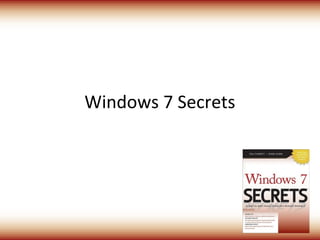
Windows 7 Secrets

   Software Savings World
www.softwaresavingsworld.com
Topics
•   Where we’re at from an industry perspective
•   Windows 7 – the impact on end users
•   Windows 7 – the impact on businesses
•   “Windows 7 Secrets” – About the book, and
    why I must hate myself
Optional topics
• Office 2010 and the Office Web Applications
• Microsoft’s cloud computing strategy
Where we’re at
2006-2009
• Windows Vista didn’t exactly get a positive
  reception.
• That said, it delivered on Microsoft’s promise
  to update the foundation of Windows to
  something more modern.
• That foundation is used in Windows 7.
Windows 7
• Windows 7 is all about delivering on the
  failures of Vista, real or imagined.
• Real: Better performance, simpler and more
  efficient UI, more cohesiveness, etc.
• Perception: Microsoft is finally fighting back
  with “I’m a PC” and other ads.
Windows 7 for end users

      (the fun stuff)
“Windows Vista done right”
• We’ve all heard this.
• Ironic? People universally embrace Windows
  7. Which is really just Windows Vista R2.
• Low-level improvements: Smaller memory
  footprint, better performance, 100s of tiny
  usability tweaks.
• The whole is greater than the parts.
Picking the right version
• Virtually any home user: Windows 7 Home
  Premium.
• Managed small businesses: Windows 7
  Professional.
  – Adds domain support, network-based backup,
    EFS, Remote Desktop host.
• Enterprises: Windows 7 Enterprise.
  – The full meal deal: BitLocker, BitLocker-To-Go
Setup
• Setup has been simplified.
• Clean install in 15-20 minutes.
• Upgrade: Averages a couple of hours.
  (Or, as IDG News reported, “Microsoft:
  Windows 7 upgrades to take 20 hours” Sigh.)
• Windows XP users: No upgrade for you.
• Don’t forget the Upgrade Advisor.
User experience
• Biggest end user changes are in the UI...
  – Personalization with Aero Themes and slideshows.
  – Major changes to the Taskbar – Pinning, Jump
    Lists, Live Previews, and more.
  – Notification area clean-up.
  – Libraries and Windows Explorer.
  – Windows Aero desktop effects: Aero Peek, Aero
    Snaps, Aero Shake.
User experience
• Bundled apps
  – Calculator
  – Paint
  – WordPad
  – Sticky Notes, etc.
• Missing apps
  – Windows Live Essentials fills the gaps
• You can also remove more apps than in Vista.
User experience
• Windows Touch
  – Multi-touch now a full-fledged interface
    paradigm, alongside mouse, keyboard,
    stylus/tablet.
  – Really does change the way you interact with the
    PC.
• Windows Search 4.0
  – Near-instantaneous search results.
  – Harder to find thanks to Google.
Security
• Vista already got this mostly right.
• UAC has been overhauled, user gets fine-
  grained control.
• Windows 7 still doesn’t ship with an AV
  solution.
• The good news: Microsoft’s Security Essentials
  is free and appears to be decent.
Networking and sharing
• Again, Vista already got this mostly right.
• Simpler Network and Sharing Center.
• HomeGroup sharing makes sharing
  documents and digital media much easier.
• You can actually access a media library over
  the Internet. (Watch as I fail to get this to
  work!)
• Traditional sharing interfaces are still there.
Digital media
• Major updates to...
  – Windows Media Player
  – Windows Media Center
• No meaningful update to Windows DVD Maker.
• Windows Live Photo Gallery and Windows Live
  Movie Maker are part of Windows Live
  Essentials.
• Library views of digital media are also nice.
• Zune is the future. (Yes, really.)
Mobility
• Lots of work under the covers to improve
  efficiencies and battery life on the go.
• Power management simplification and
  improvement.
• Windows Mobility Center largely unchanged
  from Vista.
• Connect to a Projector.
• Netbooks and Tablet PCs.
Internet
• Internet Explorer 8
  – Big usability gains
  – Questions about performance
• Email, contacts, and calendaring moved out of
  the base OS: Now supplied by Windows Live
  Mail in Windows Live Essentials.
• Windows Live Services complete the picture
  for consumers.
Reliability
• Windows Backup gets evolutionary update.
  – Now offers image-based system backup on all
    SKUs.
  – Network-based backups only on premium SKUs.
Compatibility
• Evolution of compatibility mode work from
  XP, Vista. Works surprisingly well.
• Windows Virtual PC and XP Mode for small
  businesses – that last mile solution for
  compatibility.
Windows 7 for businesses
Windows 7 at work
• It’s all about easing the pain.
• Simpler, more efficient environment for end
  users and IT administrators.
• Some of these features require Windows
  Server 2008 R2 as well. (“Better together”)
Remote access/Branch office
• VPN Reconnect.
• DirectAccess – replace VPNs with HTTPS.
• Branch Cache.
Security and reliability
•   AppLocker.
•   BitLocker.
•   BitLocker To Go.
•   Problem Steps Recorder.
Taking it to the next level
• PowerShell 2 built-into Windows 7/R2.
• Microsoft Desktop Optimization Pack
  – A benefit of Software Assurance.
  – App-V 4.5 R2 – Windows 7 integration.
  – Several other high-value tools.
• Microsoft Deployment Toolkit 2010
  – Get up and running with Windows 7/R2
    deployments.
  – Available now.
Making the case for Windows 7
• Spending money vs. investing.
• Windows 7 (and R2) come with real-world
  TCO benefits and savings.*
  – Overall savings of deploying Windows 7 over XP
    averages about $115 per desktop per year.
  – You can use the same hardware (unlike w/Vista).
• Additional benefits to going with R2 around
  virtualization density, power savings, DA, etc.

                   * According to a Microsoft-sponsored Forrester study
Windows 7 Secrets
Windows 7 Secrets
• An absolute time-suck with no obvious benefit to
  the author(s).
• 1081 pages.
• Several months of work.
• Based on Windows Vista Secrets SP1 Edition
  where possible.
• Most beneficial to consumers coming from XP.
• Less beneficial for Vista users, businesses,
  developers.
Thank you!
• www.softwaresavingsworld.com
Office 2010
Office 2010 components
• Traditional Office suite and individual
  applications as before.
• Office Servers (i.e. SharePoint.)
• Office Mobile for Windows Mobile and Nokia
  Symbian.
• Office Web Applications.
Office 2010
• Standardization on the ribbon user interface.
  – Biggest deal here: Outlook.
  – Not the slam-dunk that Office 2007 was.
• Major themes
  – Anytime/anywhere access to Office and your
    documents
  – Full document fidelity preserved as you move from
    interface to interface.
  – High definition content with advanced visualizations.
Office 2010
• So what does this mean, really?
  – Microsoft Outlook: Major UX changes.
  – Excel, Word, PowerPoint, OneNote, etc.: Minor,
    evolutionary changes.
  – New capabilities around BackStage View, co-
    authoring, and video.
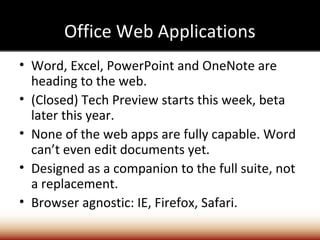
Office Web Applications
• Word, Excel, PowerPoint and OneNote are
  heading to the web.
• (Closed) Tech Preview starts this week, beta
  later this year.
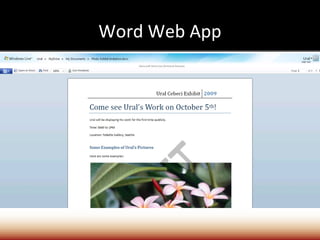
• None of the web apps are fully capable. Word
  can’t even edit documents yet.
• Designed as a companion to the full suite, not
  a replacement.
• Browser agnostic: IE, Firefox, Safari.
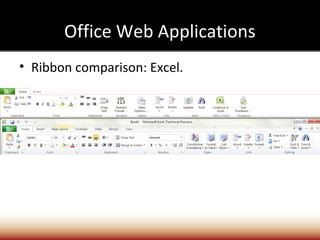
Office Web Applications
• Ribbon comparison: Excel.
Word Web App
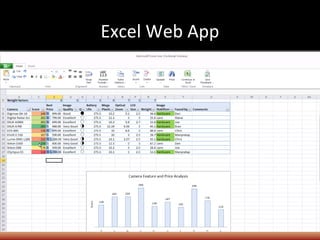
Excel Web App
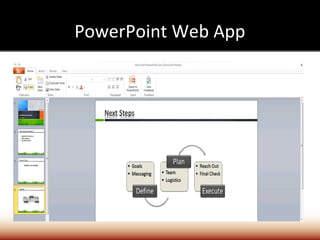
PowerPoint Web App

Software savings world pure keys

  • 1.
    Windows 7 Secrets Software Savings World www.softwaresavingsworld.com
  • 2.
    Topics • Where we’re at from an industry perspective • Windows 7 – the impact on end users • Windows 7 – the impact on businesses • “Windows 7 Secrets” – About the book, and why I must hate myself
  • 3.
    Optional topics • Office2010 and the Office Web Applications • Microsoft’s cloud computing strategy
  • 4.
  • 5.
    2006-2009 • Windows Vistadidn’t exactly get a positive reception. • That said, it delivered on Microsoft’s promise to update the foundation of Windows to something more modern. • That foundation is used in Windows 7.
  • 6.
    Windows 7 • Windows7 is all about delivering on the failures of Vista, real or imagined. • Real: Better performance, simpler and more efficient UI, more cohesiveness, etc. • Perception: Microsoft is finally fighting back with “I’m a PC” and other ads.
  • 7.
    Windows 7 forend users (the fun stuff)
  • 8.
    “Windows Vista doneright” • We’ve all heard this. • Ironic? People universally embrace Windows 7. Which is really just Windows Vista R2. • Low-level improvements: Smaller memory footprint, better performance, 100s of tiny usability tweaks. • The whole is greater than the parts.
  • 9.
    Picking the rightversion • Virtually any home user: Windows 7 Home Premium. • Managed small businesses: Windows 7 Professional. – Adds domain support, network-based backup, EFS, Remote Desktop host. • Enterprises: Windows 7 Enterprise. – The full meal deal: BitLocker, BitLocker-To-Go
  • 10.
    Setup • Setup hasbeen simplified. • Clean install in 15-20 minutes. • Upgrade: Averages a couple of hours. (Or, as IDG News reported, “Microsoft: Windows 7 upgrades to take 20 hours” Sigh.) • Windows XP users: No upgrade for you. • Don’t forget the Upgrade Advisor.
  • 11.
    User experience • Biggestend user changes are in the UI... – Personalization with Aero Themes and slideshows. – Major changes to the Taskbar – Pinning, Jump Lists, Live Previews, and more. – Notification area clean-up. – Libraries and Windows Explorer. – Windows Aero desktop effects: Aero Peek, Aero Snaps, Aero Shake.
  • 12.
    User experience • Bundledapps – Calculator – Paint – WordPad – Sticky Notes, etc. • Missing apps – Windows Live Essentials fills the gaps • You can also remove more apps than in Vista.
  • 13.
    User experience • WindowsTouch – Multi-touch now a full-fledged interface paradigm, alongside mouse, keyboard, stylus/tablet. – Really does change the way you interact with the PC. • Windows Search 4.0 – Near-instantaneous search results. – Harder to find thanks to Google.
  • 14.
    Security • Vista alreadygot this mostly right. • UAC has been overhauled, user gets fine- grained control. • Windows 7 still doesn’t ship with an AV solution. • The good news: Microsoft’s Security Essentials is free and appears to be decent.
  • 15.
    Networking and sharing •Again, Vista already got this mostly right. • Simpler Network and Sharing Center. • HomeGroup sharing makes sharing documents and digital media much easier. • You can actually access a media library over the Internet. (Watch as I fail to get this to work!) • Traditional sharing interfaces are still there.
  • 16.
    Digital media • Majorupdates to... – Windows Media Player – Windows Media Center • No meaningful update to Windows DVD Maker. • Windows Live Photo Gallery and Windows Live Movie Maker are part of Windows Live Essentials. • Library views of digital media are also nice. • Zune is the future. (Yes, really.)
  • 17.
    Mobility • Lots ofwork under the covers to improve efficiencies and battery life on the go. • Power management simplification and improvement. • Windows Mobility Center largely unchanged from Vista. • Connect to a Projector. • Netbooks and Tablet PCs.
  • 18.
    Internet • Internet Explorer8 – Big usability gains – Questions about performance • Email, contacts, and calendaring moved out of the base OS: Now supplied by Windows Live Mail in Windows Live Essentials. • Windows Live Services complete the picture for consumers.
  • 19.
    Reliability • Windows Backupgets evolutionary update. – Now offers image-based system backup on all SKUs. – Network-based backups only on premium SKUs.
  • 20.
    Compatibility • Evolution ofcompatibility mode work from XP, Vista. Works surprisingly well. • Windows Virtual PC and XP Mode for small businesses – that last mile solution for compatibility.
  • 21.
    Windows 7 forbusinesses
  • 22.
    Windows 7 atwork • It’s all about easing the pain. • Simpler, more efficient environment for end users and IT administrators. • Some of these features require Windows Server 2008 R2 as well. (“Better together”)
  • 23.
    Remote access/Branch office •VPN Reconnect. • DirectAccess – replace VPNs with HTTPS. • Branch Cache.
  • 24.
    Security and reliability • AppLocker. • BitLocker. • BitLocker To Go. • Problem Steps Recorder.
  • 25.
    Taking it tothe next level • PowerShell 2 built-into Windows 7/R2. • Microsoft Desktop Optimization Pack – A benefit of Software Assurance. – App-V 4.5 R2 – Windows 7 integration. – Several other high-value tools. • Microsoft Deployment Toolkit 2010 – Get up and running with Windows 7/R2 deployments. – Available now.
  • 26.
    Making the casefor Windows 7 • Spending money vs. investing. • Windows 7 (and R2) come with real-world TCO benefits and savings.* – Overall savings of deploying Windows 7 over XP averages about $115 per desktop per year. – You can use the same hardware (unlike w/Vista). • Additional benefits to going with R2 around virtualization density, power savings, DA, etc. * According to a Microsoft-sponsored Forrester study
  • 27.
  • 28.
    Windows 7 Secrets •An absolute time-suck with no obvious benefit to the author(s). • 1081 pages. • Several months of work. • Based on Windows Vista Secrets SP1 Edition where possible. • Most beneficial to consumers coming from XP. • Less beneficial for Vista users, businesses, developers.
  • 29.
  • 30.
  • 31.
    Office 2010 components •Traditional Office suite and individual applications as before. • Office Servers (i.e. SharePoint.) • Office Mobile for Windows Mobile and Nokia Symbian. • Office Web Applications.
  • 32.
    Office 2010 • Standardizationon the ribbon user interface. – Biggest deal here: Outlook. – Not the slam-dunk that Office 2007 was. • Major themes – Anytime/anywhere access to Office and your documents – Full document fidelity preserved as you move from interface to interface. – High definition content with advanced visualizations.
  • 33.
    Office 2010 • Sowhat does this mean, really? – Microsoft Outlook: Major UX changes. – Excel, Word, PowerPoint, OneNote, etc.: Minor, evolutionary changes. – New capabilities around BackStage View, co- authoring, and video.
  • 34.
    Office Web Applications •Word, Excel, PowerPoint and OneNote are heading to the web. • (Closed) Tech Preview starts this week, beta later this year. • None of the web apps are fully capable. Word can’t even edit documents yet. • Designed as a companion to the full suite, not a replacement. • Browser agnostic: IE, Firefox, Safari.
  • 35.
    Office Web Applications •Ribbon comparison: Excel.
  • 36.
  • 37.
  • 38.