Wallet Procedures
Wallet Setup
1.Create Jeunesse Wallet
2.Upload ID
3.Activate Paycard
Login to the Wallet in the Jeunesse Back Office
Click “Upload
Government Photo ID”
Photo ID should be a government issued identity card,
a passport, or a government issued driver's license
with a photo. The file size should be 2.5MB or less.
It may take up to 48 hours for the verification.
After ID has been approved
click”Register My Paycard”.
It may take up to 48 hours days for the paycard
to be activated.
You will receive the activation letter
from Nxpay paycard company.
Set Commission payment
options.
Step 1: Login to Jeunesse website www.jeunesseglobal.com
Click “Back Office" to login
Step 2: Enter username and password
Step 3: Click “Wallet”
Step 4: Enter username and password to log into your Wallet. If this is the first time you
have visited your Wallet account you must create a username and password.
Click “Here” to set up your Wallet
account
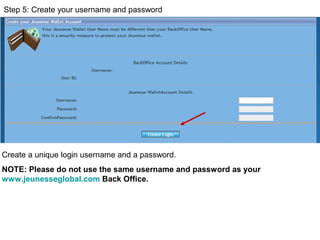
Step 5: Create your username and password
Create a unique login username and a password.
NOTE: Please do not use the same username and password as your
www.jeunesseglobal.com Back Office.
Step 6: Select “Upload Government Photo ID”.
Step 7: Use the browse button to help you locate where your scanned image of the
photo ID is located on your computer, and then upload this image
Step 8: Select the type of your ID and enter the ID number in field below.
Step 9: Click “Submit”
Step 10:Wait for your Photo ID to be validated. It may take up to 48 hours to be
approved. If for any reason your upload is not accepted, an email will be sent to you
detailing the reason why.
        
Step 11: Paycard registration
Login to your Wallet account and select “Register My Paycard”
Step 12: Enter the 16-digit number of your new Pay Card. Re-enter the
number to confirm.
帳戶明細
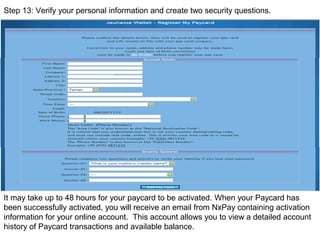
Step 13: Verify your personal information and create two security questions.
It may take up to 48 hours for your paycard to be activated. When your Paycard has
been successfully activated, you will receive an email from NxPay containing activation
information for your online account. This account allows you to view a detailed account
history of Paycard transactions and available balance.
Wallet Features
1. Funds Request
2. Commission Payment Options
3. EFT option
This is the maximum amount
you can transfer.
Funds Request
If you have already accumulated commissions in your Wallet account prior to the set-up
of your Wallet Commission Payment Options, you must complete a Funds Request to
move these funds to your Pay Card.
Step 1: Login to the Back Office and choose “Wallet”, then click “View Account History”
and check your account balance
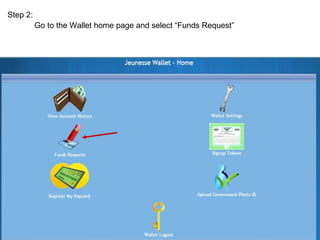
Step 2:
Go to the Wallet home page and select “Funds Request”
Step 3: Enter the amount you want to transfer from your wallet and select the “Method”
you want to use.
535
If Paycard or EFT account has not been activated it will not be listed as an available
method.
NOTE: If you complete a Funds Request before 10:00pm EST on a Wednesday,
the money will be loaded on the following Tuesday. If you complete the request
after 10:00pm EST on a Wednesday, the money will be loaded on the second
Tuesday.
EFT
If your “Funds Request” was successfully done, you will see the display below.
You can also see it in your “Account History” as below.
Commission Payment Options
Commission Payment Options, which are located under the Wallet Settings icon, allow you to
choose to have all or a partial amount of commissions loaded automatically each week.
Remaining commissions will remain in your wallet. Funds in your wallet can be used to pay for
your Autoship or any product orders.
Choose which method you would like to use to receive your commissions.
Select “All” or enter a specific amount you would like transferred each week.
Click “Add”
Please note you must complete the setup before 10:00pm Wednesday EST if youPlease note you must complete the setup before 10:00pm Wednesday EST if you
want to receive your commission next Tuesday.want to receive your commission next Tuesday.
EFT Option
Step 1: On the Wallet home page select “Wallet Settings” then “EFT Settings.”
Step 2: Fill in Bank Account Details and click Submit.
Jeunesse Commission
Only for European country
NxPay Activation
www.nxpay.comwww.nxpay.com
When your Paycard has been successfully activated, you will receive an email from
NxPay containing activation information for your online account. This account allows you
to view a detailed account history of Paycard transactions and available balance.
Format of activation letter
Click here to activate your NxPay account
Step 1: Login to the home page of NxPay website www.nxpay.com 
Step 2: Fill in all the information to activate your account.
Information confirmation
Step 3: Fill in your personal information.
Step 4: Activation complete. You can now view your paycard transactions.
Click “NxPay Accounts” to check paycard information
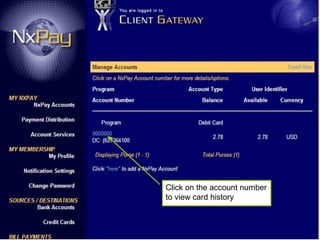
Click on the account number
to view card history
Click here to check bank
account transactions
Click here to check paycard
transactions
Click here to view paycard transactions
NxPay Paycard Fees
Load to Paycard: $2.00
ATM balance inquiry: $2.50
Incorrect PIN: $1.25
Withdraw failure: $2.50
Withdraw fee: $3.50
Monthly service charge: $4.95

Wallet procedures english

  • 1.
  • 2.
    Wallet Setup 1.Create JeunesseWallet 2.Upload ID 3.Activate Paycard
  • 3.
    Login to theWallet in the Jeunesse Back Office Click “Upload Government Photo ID” Photo ID should be a government issued identity card, a passport, or a government issued driver's license with a photo. The file size should be 2.5MB or less. It may take up to 48 hours for the verification. After ID has been approved click”Register My Paycard”. It may take up to 48 hours days for the paycard to be activated. You will receive the activation letter from Nxpay paycard company. Set Commission payment options.
  • 4.
    Step 1: Loginto Jeunesse website www.jeunesseglobal.com Click “Back Office" to login Step 2: Enter username and password
  • 5.
    Step 3: Click“Wallet” Step 4: Enter username and password to log into your Wallet. If this is the first time you have visited your Wallet account you must create a username and password. Click “Here” to set up your Wallet account
  • 6.
    Step 5: Createyour username and password Create a unique login username and a password. NOTE: Please do not use the same username and password as your www.jeunesseglobal.com Back Office.
  • 7.
    Step 6: Select“Upload Government Photo ID”. Step 7: Use the browse button to help you locate where your scanned image of the photo ID is located on your computer, and then upload this image
  • 8.
    Step 8: Selectthe type of your ID and enter the ID number in field below. Step 9: Click “Submit” Step 10:Wait for your Photo ID to be validated. It may take up to 48 hours to be approved. If for any reason your upload is not accepted, an email will be sent to you detailing the reason why.         
  • 9.
    Step 11: Paycardregistration Login to your Wallet account and select “Register My Paycard” Step 12: Enter the 16-digit number of your new Pay Card. Re-enter the number to confirm.
  • 10.
    帳戶明細 Step 13: Verifyyour personal information and create two security questions. It may take up to 48 hours for your paycard to be activated. When your Paycard has been successfully activated, you will receive an email from NxPay containing activation information for your online account. This account allows you to view a detailed account history of Paycard transactions and available balance.
  • 11.
    Wallet Features 1. FundsRequest 2. Commission Payment Options 3. EFT option
  • 12.
    This is themaximum amount you can transfer. Funds Request If you have already accumulated commissions in your Wallet account prior to the set-up of your Wallet Commission Payment Options, you must complete a Funds Request to move these funds to your Pay Card. Step 1: Login to the Back Office and choose “Wallet”, then click “View Account History” and check your account balance
  • 13.
    Step 2: Go tothe Wallet home page and select “Funds Request”
  • 14.
    Step 3: Enterthe amount you want to transfer from your wallet and select the “Method” you want to use. 535 If Paycard or EFT account has not been activated it will not be listed as an available method. NOTE: If you complete a Funds Request before 10:00pm EST on a Wednesday, the money will be loaded on the following Tuesday. If you complete the request after 10:00pm EST on a Wednesday, the money will be loaded on the second Tuesday. EFT
  • 15.
    If your “FundsRequest” was successfully done, you will see the display below. You can also see it in your “Account History” as below.
  • 16.
    Commission Payment Options CommissionPayment Options, which are located under the Wallet Settings icon, allow you to choose to have all or a partial amount of commissions loaded automatically each week. Remaining commissions will remain in your wallet. Funds in your wallet can be used to pay for your Autoship or any product orders.
  • 17.
    Choose which methodyou would like to use to receive your commissions. Select “All” or enter a specific amount you would like transferred each week. Click “Add” Please note you must complete the setup before 10:00pm Wednesday EST if youPlease note you must complete the setup before 10:00pm Wednesday EST if you want to receive your commission next Tuesday.want to receive your commission next Tuesday.
  • 18.
    EFT Option Step 1:On the Wallet home page select “Wallet Settings” then “EFT Settings.”
  • 19.
    Step 2: Fillin Bank Account Details and click Submit. Jeunesse Commission Only for European country
  • 20.
  • 21.
    When your Paycardhas been successfully activated, you will receive an email from NxPay containing activation information for your online account. This account allows you to view a detailed account history of Paycard transactions and available balance. Format of activation letter
  • 22.
    Click here toactivate your NxPay account Step 1: Login to the home page of NxPay website www.nxpay.com 
  • 23.
    Step 2: Fillin all the information to activate your account.
  • 24.
    Information confirmation Step 3:Fill in your personal information.
  • 26.
    Step 4: Activationcomplete. You can now view your paycard transactions. Click “NxPay Accounts” to check paycard information
  • 27.
    Click on theaccount number to view card history
  • 28.
    Click here tocheck bank account transactions Click here to check paycard transactions
  • 29.
    Click here toview paycard transactions
  • 30.
    NxPay Paycard Fees Loadto Paycard: $2.00 ATM balance inquiry: $2.50 Incorrect PIN: $1.25 Withdraw failure: $2.50 Withdraw fee: $3.50 Monthly service charge: $4.95