W600 Series
Water Treatment Controller
Instruction Manual
Five Boynton Road Hopping Brook Park Holliston, MA 01746 USA
TEL: 508-429-1110 WEB: www.walchem.com
Notice
© 2023 WALCHEM, Iwaki America Incorporated (hereinafter “Walchem”)
5 Boynton Road, Holliston, MA 01746 USA
(508) 429-1110
All Rights Reserved
Printed in USA
Proprietary Material
The information and descriptions contained herein are the property of WALCHEM. Such information and descriptions
may not be copied or reproduced by any means, or disseminated or distributed without the express prior written per-
mission of WALCHEM, 5 Boynton Road, Holliston, MA 01746.
This document is for information purposes only and is subject to change without notice.
Statement of Limited Warranty
WALCHEM warrants equipment of its manufacture, and bearing its identification to be free from defects in workmanship
and material for a period of 24 months for electronics and 12 months for mechanical parts and electrodes from date of
delivery from the factory or authorized distributor under normal use and service and otherwise when such equipment is
used in accordance with instructions furnished by WALCHEM and for the purposes disclosed in writing at the time of
purchase, if any. WALCHEM’s liability under this warranty shall be limited to replacement or repair, F.O.B. Holliston,
MA U.S.A. of any defective equipment or part which, having been returned to WALCHEM, transportation charges
prepaid, has been inspected and determined by WALCHEM to be defective. Replaceable elastomeric parts and glass
components are expendable and are not covered by any warranty.
THIS WARRANTYIS IN LIEU OFANYOTHER WARRANTY, EITHER EXPRESS OR IMPLIED,AS TO DESCRIPTION,
QUALITY, MERCHANTABILITY, FITNESS FORANYPARTICULAR PURPOSE OR USE, ORANY OTHER MATTER.
180600 Rev. Q April 2023
Contents
1.0 INTRODUCTION����������������������������������������������������������������������������������� 1
2.0 SPECIFICATIONS��������������������������������������������������������������������������������� 3
2.1 Measurement Performance�������������������������������������������������������������������������������������3
2.2 Electrical: Input/Output��������������������������������������������������������������������������������������������4
2.3 Mechanical���������������������������������������������������������������������������������������������������������������6
2.4 Variables and their Limits�����������������������������������������������������������������������������������������7
3.0 UNPACKING  INSTALLATION��������������������������������������������������������� 10
3.1 Unpacking the unit�������������������������������������������������������������������������������������������������10
3.2 Mounting the electronic enclosure�������������������������������������������������������������������������10
3.3 Sensor Installation�������������������������������������������������������������������������������������������������10
3.4 Icon Definitions������������������������������������������������������������������������������������������������������14
3.5 Electrical installation����������������������������������������������������������������������������������������������14
4.0 FUNCTION OVERVIEW���������������������������������������������������������������������� 33
4.1 Front Panel������������������������������������������������������������������������������������������������������������33
4.2 Touchscreen����������������������������������������������������������������������������������������������������������33
4.3 Icons ���������������������������������������������������������������������������������������������������������������������33
4.4 Startup�������������������������������������������������������������������������������������������������������������������35
4.5 Shut Down�������������������������������������������������������������������������������������������������������������44
5.0 OPERATION using the touchscreen������������������������������������������������ 44
5.1 Alarms Menu ��������������������������������������������������������������������������������������������������������44
5.2 Inputs Menu ����������������������������������������������������������������������������������������������������������44
5.2.1 Contacting Conductivity��������������������������������������������������������������������������������47
5.2.2 Electrodeless Conductivity���������������������������������������������������������������������������������48
5.2.3 Temperature�������������������������������������������������������������������������������������������������������49
5.2.4 pH�����������������������������������������������������������������������������������������������������������������������49
5.2.5 ORP��������������������������������������������������������������������������������������������������������������������50
5.2.6 Disinfection���������������������������������������������������������������������������������������������������������50
5.2.7 Generic Sensor ��������������������������������������������������������������������������������������������������51
5.2.8 Transmitter Input and AI Monitor Input���������������������������������������������������������������52
5.2.9 Fluorometer Input�����������������������������������������������������������������������������������������������52
5.2.10 DI State���������������������������������������������������������������������������������������������������������������53
5.2.11 Flow Meter, Contactor Type��������������������������������������������������������������������������������53
5.2.12 Flow Meter, Paddlewheel Type���������������������������������������������������������������������������54
5.2.13 Feed Monitor������������������������������������������������������������������������������������������������������54
5.2.14 DI Counter Input�������������������������������������������������������������������������������������������������56
5.2.15 Virtual Input – Calculation�����������������������������������������������������������������������������������57
5.2.16 Virtual Input – Raw Value�����������������������������������������������������������������������������������58
5.3 Outputs Menu ������������������������������������������������������������������������������������������������������������58
5.3.1 Relay, Any Control Mode������������������������������������������������������������������������������������58
5.3.2 Relay, On/Off Control Mode�������������������������������������������������������������������������������59
5.3.3 Relay, Flow Timer Control Mode������������������������������������������������������������������������60
5.3.4 Relay, Bleed and Feed Control Mode�����������������������������������������������������������������60
5.3.5 Relay, Bleed then Feed Control Mode����������������������������������������������������������������60
5.3.6 Relay, Percent Timer Control Mode��������������������������������������������������������������������60
5.3.7 Relay, Biocide Timer Control Mode������������������������������������������������������������������������61
5.3.8 Relay, Alarm Output Mode��������������������������������������������������������������������������������������62
5.3.9 Relay, Time Proportional Control Mode������������������������������������������������������������������62
5.3.10 Relay, Intermittent Sampling Control Mode������������������������������������������������������������63
5.3.11 Relay, Manual Mode�����������������������������������������������������������������������������������������������64
5.3.12 Relay, Pulse Proportional Control Mode�����������������������������������������������������������������64
5.3.13 Relay, PID Control Mode����������������������������������������������������������������������������������������64
5.3.14 Relay, Dual Set Point Mode������������������������������������������������������������������������������������67
5.3.15 Relay, Timer Control Mode�������������������������������������������������������������������������������������68
5.3.16 Relay, Probe Wash Control Mode��������������������������������������������������������������������������69
5.3.17 Relay, Spike Control Mode�������������������������������������������������������������������������������������70
5.3.18 Relay Output, Flow Meter Ratio Control Mode�������������������������������������������������71
5.3.19 Relay Output, Flow Proportional Mode�������������������������������������������������������������72
5.3.20 Relay, Counter Timer Control Mode�����������������������������������������������������������������������72
5.3.21 Relay, Dual Switch Control Mode���������������������������������������������������������������������������73
5.3.22 Relay or Analog Output, Lag Control Mode������������������������������������������������������73
5.3.23 Analog Output, Retransmit Mode���������������������������������������������������������������������������79
5.3.24 Analog Output, Proportional Control Mode������������������������������������������������������������80
5.3.25 Analog or Relay Output, PID Control Mode�����������������������������������������������������������80
5.3.26 Analog Output, Manual Mode���������������������������������������������������������������������������������83
5.3.27 Analog or Relay Output, Flow Proportional Mode������������������������������������������������� 83
5.4 Configuration Menu������������������������������������������������������������������������������������������������������ 84
5.4.1 Global Settings�������������������������������������������������������������������������������������������������������84
5.4.2 Security Settings�����������������������������������������������������������������������������������������������������84
5.4.3 Ethernet Settings����������������������������������������������������������������������������������������������������84
5.4.4 Ethernet Details������������������������������������������������������������������������������������������������������85
5.4.5 Remote Communcations (Modbus and BACnet)���������������������������������������������������85
5.4.6 Email Report Settings���������������������������������������������������������������������������������������������86
5.4.7 Display Settings������������������������������������������������������������������������������������������������������87
5.4.8 File Utilities�������������������������������������������������������������������������������������������������������������88
5.4.9 Controller Details����������������������������������������������������������������������������������������������������88
5.5 HOA Menu ���������������������������������������������������������������������������������������������������������������89
5.6 Graph Menu �������������������������������������������������������������������������������������������������������������89
6.0 OPERATION using Ethernet�����������������������������������������������������������������90
6.1 Connecting to a LAN��������������������������������������������������������������������������������������������������90
6.1.1 Using DHCP�����������������������������������������������������������������������������������������������������������90
6.1.2 Using a fixed IP Address����������������������������������������������������������������������������������������90
6.2 Connecting Directly to a Computer����������������������������������������������������������������������������90
6.3 Navigating the web pages�����������������������������������������������������������������������������������������91
6.4 Graphs Webpage �����������������������������������������������������������������������������������������������������91
6.5 Software Upgrade������������������������������������������������������������������������������������������������������92
6.6 Notepad Menu�����������������������������������������������������������������������������������������������������������92
7.0 MAINTENANCE��������������������������������������������������������������������������������������93
7.1 Electrode Cleaning����������������������������������������������������������������������������������������������������93
7.2 Replacing the Fuse Protecting Powered Relays�������������������������������������������������������93
8.0 TROUBLESHOOTING����������������������������������������������������������������������������94
8.1 Calibration Failure�����������������������������������������������������������������������������������������������������������94
8.1.1 Contacting Conductivity Sensors���������������������������������������������������������������������������94
e
8.1.2 Electrodeless Conductivity Sensors������������������������������������������������������������������������94
8.1.3 pH Sensors��������������������������������������������������������������������������������������������������������������94
8.1.4 ORP Sensors����������������������������������������������������������������������������������������������������������95
8.1.5 Disinfection Sensors������������������������������������������������������������������������������������������������95
8.1.6 Analog Inputs ���������������������������������������������������������������������������������������������������������95
8.1.7 Temperature Sensors����������������������������������������������������������������������������������������������95
8.2 Alarm Messages���������������������������������������������������������������������������������������������������������96
8.3 Procedure for Evaluation of Conductivity Electrode�������������������������������������������������100
8.4 Procedure for evaluation of the pH/ORP electrode �������������������������������������������������100
8.5 Diagnostic Lights ����������������������������������������������������������������������������������������������������100
9.0 Spare Parts Identification��������������������������������������������������������������������102
10.0 Service Policy��������������������������������������������������������������������������������������129
1
1.0 INTRODUCTION
The Walchem W600 Series controllers offer a high level of flexibility in controlling water treatment applications.
One or two sensor inputs are available that are compatible with a variety of sensors:
Contacting conductivity
Electrodeless conductivity
pH
ORP
Any Walchem disinfection sensor
Generic sensor (Ion Selective Electrodes or any type of sensor with a linear voltage output between -2 VDC
and 2 VDC)
An analog (4-20 mA) sensor input card with two input circuits is also available for use with 2,3 or 4-wire transmitters.
Or a sensor card that combines one sensor (contacting conductivity, pH, ORP, disinfection or generic) plus one analog
(4-20 mA) input is available.
Six relay outputs may be set to a variety of control modes:
On/Off set point control
Time Proportional control
Pulse Proportional control (when purchased with Pulse solid state opto outputs)
PID control (when purchased with Pulse solid state opto outputs)
Lead/Lag control of up to 6 relays
Dual set point
Timer
Bleed or Feed based on a Water Contactor or Paddlewheel flow meter input
Feed and Bleed
Feed and Bleed with Lockout
Feed as a percent of Bleed
Feed as a percent of elapsed time
Daily, Weekly, 2-week or 4-week Biocide timers with pre-bleed and post-add lockout of bleed
Intermittent sampling for boilers with proportional blowdown, controlling on a trapped sample
Always on unless interlocked
Probe Wash timer
Spike to alternate set point on timed basis
Flow Meter Ratio
Counter Timer
Dual Switch
Diagnostic Alarm triggered by:
		 High or Low sensor reading
		No Flow
		 Relay output timeout
		Sensor error
		
An option card with two isolated analog outputs may be installed to retransmit sensor input signals to a chart recorder,
datalogger, PLC or other device. They may also be connected to valves, actuators or metering pumps for linear propor-
tional control or PID control.
2
An Ethernet option provides remote access to the controller’s programming via a PC connected directly, via a local
area network, or via Walchem’s Fluent account management server. It also allows emailing of datalog files (in CSV
format, compatible with spreadsheets like Excel) and alarms, to up to eight email addresses.
Our USB features provide the ability to upgrade the software in the controller to the latest version. The Config file feature
allows you to save all the set points from a controller onto a USB flash disk, and then import them into another controller,
making the programming of multiple controllers fast and easy. The data logging feature allows you to save the sensor
readings and relay activation events to a USB flash disk.
3
2.0 SPECIFICATIONS
2.1 Measurement Performance
0.01 Cell Contacting Conductivity
Range		 0-300 µS/cm
Resolution 0.01 µS/cm, 0.0001 mS/cm, 0.001 mS/m, 0.0001 S/m, 0.01 ppm
Accuracy ± 1% of reading or 0.01 µS/cm, whichever is greater
0.1 Cell Contacting Conductivity
Range		 0-3,000 µS/cm
Resolution 0.1 µS/cm, 0.0001 mS/cm, 0.01 mS/m, 0.0001 S/m, 0.1 ppm
Accuracy ± 1% of Reading or 0.1 µS/cm, whichever is greater
1.0 Cell Contacting Conductivity
Range		 0-30,000 µS/cm
Resolution 1 µS/cm, 0.001 mS/cm, 0.1 mS/m, 0.0001 S/m, 1 ppm
Accuracy ± 1% of Reading or 1 µS/cm, whichever is greater
10.0 Cell Contacting Conductivity
Range		 0-300,000 µS/cm
Resolution 10 µS/cm, 0.01 mS/cm, 1 mS/m, 0.001 S/m, 10 ppm
Accuracy ± 1% of Reading or 10 µS/cm, whichever is greater
pH ORP/ISE
Range		 -2 to 16 pH units
Resolution 0.01 pH units
Accuracy ± 0.01% of reading
Range		 -1500 to 1500 mV
Resolution 0.1 mV
Accuracy ± 1 mV
Disinfection Sensors
Range (mV) -2000 to 1500 mV Range (ppm) 0-2 ppm to 0-20,000 ppm
Resolution (mV) 0.1 mV Resolution (ppm) Varies with range and slope
Accuracy (mV) ± 1 mV Accuracy (ppm) Varies with range and slope
100Ω RTD Temperature
Range 23 to 500°F (-5 to 260°C)
Resolution 0.1°F (0.1°C)
Accuracy ± 1% of Reading or ± 1°C, whichever is greater
1000Ω RTD Temperature
Range 23 to 500°F (-5 to 260°C)
Resolution 0.1°F (0.1°C)
Accuracy ± 1% of Reading or ± 0.3°C , whichever is greater
10k or 100k Thermistor Temperature
Range 23 to 194°F (-5 to 90°C)
4
Resolution 0.1°F (0.1°C)
Accuracy ± 1% of Reading or ± 0.3°C, whichever is greater
Analog (4-20 mA)
Range		 0 to 22 mA
Resolution 0.01 mA
Accuracy ± 0.5% of reading
Electrodeless Conductivity
Range Resolution Accuracy
500-12,000 µS/cm 1 µS/cm, 0.01 mS/cm, 0.1 mS/m, 0.001 S/m, 1 ppm 1% of reading
3,000-40,000 µS/cm 1 µS/cm, 0.01 mS/cm, 0.1 mS/m, 0.001 S/m, 1 ppm 1% of reading
10,000-150,000 µS/cm 10 µS/cm, 0.1 mS/cm, 1 mS/m, 0.01 S/m, 10 ppm 1% of reading
50,000-500,000 µS/cm 10 µS/cm, 0.1 mS/cm, 1 mS/m, 0.01 S/m, 10 ppm 1% of reading
200,000-2,000,000 µS/cm 100 µS/cm, 0.1 mS/cm, 1 mS/m, 0.1 S/m, 100 ppm 1% of reading
Temperature °C Range Multiplier Temperature °C Range Multiplier
0 181.3 80 43.5
10 139.9 90 39.2
15 124.2 100 35.7
20 111.1 110 32.8
25 100.0 120 30.4
30 90.6 130 28.5
35 82.5 140 26.9
40 75.5 150 25.5
50 64.3 160 24.4
60 55.6 170 23.6
70 48.9 180 22.9
Note: Conductivity ranges on page 2 apply at 25°C. At higher temperatures, the range is reduced per the range multiplier
chart.
2.2 Electrical: Input/Output
Input Power 100 to 240 VAC, 50 or 60 Hz, 7 A maximum
Fuse: 6.3 A
Inputs
Sensor Input Signals (0, 1 or 2 depending on model code):
Contacting Conductivity 0.01, 0.1, 1.0, or 10.0 cell constant OR
Electrodeless Conductivity (not available on the combination sensor/analog input card) OR
Disinfection OR
Amplified pH, ORP or ISE Requires a preamplified signal. Walchem WEL or WDS series recommended.
±5VDC power available for external preamps.
Each sensor input card contains a temperature input
Temperature 100 or 1000 ohm RTD, 10K or 100K Thermistor
5
Analog (4-20 mA) Sensor Input (0, 1,
2 or 4 depending on model code):
2-wire loop powered or self-powered transmitters supported
3 or 4 –wire transmitters supported
Each dual sensor input board has two channels
Channel 1, 130 ohm input resistance
Channel 2, 280 ohm input resistance
The combination input board has one channel, 280 ohm input resistance
Available Power:
One independent isolated 24 VDC ± 15% supply per channel
1.5 W maximum for each channel
2W (83 mA at 24 VDC) total power consumption for all channels (four
total channels possible if two dual boards are installed; 2W is equivalent to
2 Little Dipper sensors)
Digital Input Signals (6):
State-Type Digital Inputs Electrical: Optically isolated and providing an electrically isolated 9V
power with a nominal 2.3mA current when the digital input switch is
closed
Typical response time:  2 seconds
Devices supported: Any isolated dry contact (i.e. relay, reed switch)
Types: Interlock
Low Speed Counter-Type Digital
Inputs
Electrical: Optically isolated and providing an electrically isolated 9VDC
power with a nominal 2.3mA current when the digital input switch is
closed 0-20 Hz, 25 msec minimum width
Devices supported: Any device with isolated open drain, open collector,
transistor or reed switch
Types: Contacting Flowmeter, Flow Verify
High Speed Counter-Type Digital
Inputs
Electrical: Optically isolated and providing an electrically isolated 9VDC
power with a nominal 2.3mA current when the digital input switch is
closed, 0-500 Hz, 1.00 msec minimum width, Minimum pulse rate to see
paddlewheel rate = 0.17 Hz
Devices supported: Any device with isolated open drain, open collector,
transistor or reed switch
Types: Paddlewheel Flowmeter, DI Counter
Note: Total available power on the Digital Input 9 VDC is 111 mA
Outputs
Powered mechanical relays (0 or 6
depending on model code):
Pre-powered on circuit board switching line voltage
6 A (resistive), 1/8 HP (93 W)
All six relays are fused together as one group, total current for this group
must not exceed 6A
Dry contact mechanical relays (0, 2
or4 depending on model code):
6 A (resistive), 1/8 HP (93 W)
Dry contact relays are not fuse protected
Pulse Outputs (0, 2 or4 depending on
model code):
Opto-isolated, Solid State Relay
200mA, 40 VDC Max.
VLOWMAX = 0.05V @ 18 mA
Accuracy (0-10 Hz): ± 0.5% of Pulse Rate, (10-20 Hz): ± 1.0%, (20-40
Hz): ± 2.0%
4 - 20 mA (0 or 2) Internally powered
Fully isolated
600 Ohm max resistive load
Resolution 0.0015% of span
6
Ethernet 10/100 802.3-2005
Auto MDIX support
Auto Negotiation
Agency Approvals:
Safety UL 61010-1:2012 3rd Ed + Rev:2016
CSA C22.2 No. 61010-1:2012 3rd Ed. + U1; U2
IEC 61010-1:2010 3rd Ed.
EN 61010-1:2010 3rd Ed.
BS EN 61010-1:2010 + A1:2019
EMC IEC 61326-1:2012
EN 61326-1:2013
BS EN 61326-1:2013
Note: For EN61000-4-6, EN61000-4-3 the controller met performance criteria B.
*Class A equipment: Equipment suitable for use in establishments other than domestic, and those directly connected to a low
voltage (100-240 VAC) power supply network which supplies buildings used for domestic purposes.
2.3 Mechanical
Enclosure Material Polycarbonate
Enclosure Rating NEMA 4X (IP65)
Dimensions 9.5” x 8” x 4” (241 mm x 203 mm x 102 mm)
Display 320 x 240 pixel monochrome backlit display with touchscreen
Operating Ambient Temp -4 to 131 °F (-20 to 55 °C)
Storage Temperature -4 – 176°F (-20 – 80°C)
Humidity 10 to 90% non-condensing
		
Mechanical (Sensors) (*see graph)
Sensor Pressure Temperature Materials Process Connections
Electrodeless conductivity 0-150 psi (0-10 bar)*
CPVC: 32-158°F (0 to 70°C)*
PEEK: 32-190°F (0 to 88°C)
CPVC, FKM in-line o-ring
PEEK, 316 SS in-line
adapter
1” NPTM submersion
2” NPTM in-line adapter
pH 0-100 psi (0-7 bar)* 50-158°F (10-70°C)* CPVC, Glass, FKM
o-rings, HDPE, Titanium
rod, glass-filled PP tee
1” NPTM submersion
3/4” NPTF in-line tee
ORP 0-100 psi (0-7bar)* 32-158°F (0-70°C)*
Contacting conductivity
(Condensate)
0-200 psi (0-14 bar) 32-248°F (0-120°C) 316SS, PEEK 3/4” NPTM
Contacting conductivity
Graphite (Cooling Tower)
0-150 psi (0-10 bar)* 32-158°F (0-70°C)*
Grpahite, Glass-filled PP,
FKM o-ring
3/4” NPTM
Contacting conductivity SS
(Cooling Tower)
0-150 psi (0-10 bar)* 32-158°F (0-70°C)*
316SS, Glass-filled PP,
FKM o-ring
3/4” NPTM
Contacting conductivity
(Boiler)
0-250 psi (0-17 bar) 32-401°F (0-205°C) 316SS, PEEK 3/4” NPTM
Contacting conductivity
(High Pressure Tower)
0-300 psi (0-21 bar)* 32-158°F (0-70°C)* 316SS, PEEK 3/4” NPTM
pH (High Pressure) 0-300 psi (0-21 bar)* 32-275°F (0-135°C)*
Glass, Polymer, PTFE,
316SS, FKM
1/2” NPTM gland
ORP (High Pressure) 0-300 psi (0-21 bar)* 32-275°F (0-135°C)*
Platinum, Polymer, PTFE,
316SS, FKM
1/2” NPTM gland
Free Chlorine/Bromine 0-14.7 psi (0-1 bar) 32-113°F (0-45°C)
PVC, Polycarbonate,
silicone rubber, SS, PEEK,
FKM, Isoplast
1/4” NPTF Inlet
3/4” NPTF Outlet
Extended pH Range Free
Chlorine/Bromine
0-14.7 psi (0-1 bar) 32-113°F (0-45°C)
Total Chlorine 0-14.7 psi (0-1 bar) 32-113°F (0-45°C)
Chlorine Dioxide 0-14.7 psi (0-1 bar) 32-131°F (0-55°C)
Ozone 0-14.7 psi (0-1 bar) 32-131°F (0-55°C)
Peracetic Acid 0-14.7 psi (0-1 bar) 32-131°F (0-55°C)
Hydrogen Peroxide 0-14.7 psi (0-1 bar) 32-113°F (0-45°C)
7
Flow switch manifold 0-150 psi (0-10 bar) up to 100°F (38°C)*
0-50 psi (0-3 bar) at 140°F (60°C)
32-140°F (0-60°C) GFRPP, PVC, FKM,
Isoplast
3/4” NPTF
Flow switch manifold
(High Pressure)
0-300 psi (0-21 bar)* 32-158°F (0-70°C)*
Carbon steel, Brass,
316SS, FKM
3/4” NPTF
pH/ORP
LD2
Cond
HP Cond/Steel
0
50
100
150
200
250
300
350
30
40
50
60
70
80
90
100
110
120
130
140
150
160
170
180
°F
Pressure vs. Temperature
PSI
-1.1
4.4
10.0
15.5
21.1
26.6
32.2
37.7
43.3
48.8
54.4
60.0
65.5
71.1
76.6
82.2
°C
Bar
HP pH/ORP/Steel
24.1
20.7
17.2
13.8
10.3
6.9
3.4
2.4 Variables and their Limits
Sensor Input Settings Low Limit High Limit
Alarm limits Low end of sensor range High end of sensor range
Input alarm dead band Low end of sensor range High end of sensor range
Cell constant (conductivity only) 0.01 10
Smoothing Factor 0% 90%
Temp Comp Factor (conductivity linear ATC only) 0% 20.000%
Installation Factor (Electrodeless conductivity only) 0.5 1.5
Cable length 0.1 3,000
PPM conversion factor (only if units = PPM) 0.001 10.000
Default temperature -20 500
Deadband Low end of sensor range High end of sensor range
Calibration Required Alarm 0 days 365 days
Sensor Slope (Generic sensor only) -1,000,000 1,000,000
Sensor Offset (Generic sensor only) -1,000,000 1,000,000
Low Range (Generic sensor only) -1,000,000 1,000,000
High Range (Generic sensor only) -1,000,000 1,000,000
4 mA value (Transmitter, AI Monitor analog input only) 0 100
20 mA value (Transmitter, AI Monitor analog input only) 0 100
Max Sensor Range (Fluorometer analog input only) 0 ppb 100,000 ppb
Dye/Product Ratio (Fluorometer analog input only) 0 ppb/ppm 100 ppb/ppm
Flow meter input settings Low Limit High Limit
Totalizer alarm 0 100,000,000
Volume/contact for units of Gallons or Liters 1 100,000
Volume/contact for units of m3
0.001 1,000
8
K Factor for units of Gallons or Liters 0.01 100,000
K Factor for units of m3
1 1,000,000
Paddlewheel rate alarm limits 0 High end of sensor range
Paddlewheel rate alarm deadband 0 High end of sensor range
Smoothing Factor 0% 90%
Set Flow Total 0 1,000,000,000
Feed Monitor Input Settings Low Limit High Limit
Totalizer Alarm 0 vol. units 1,000,000 vol. units
Set Flow Total 0 vol. units 1,000,000,000 vol. units
Flow Alarm Delay 00:10 Minutes 59:59 Minutes
Flow Alarm Clear 1 Contact 100,000 Contacts
Dead Band 0% 90%
Reprime Time 00:00 Minutes 59:59 Minutes
Volume/Contact 0.001 ml 1,000.000 ml
Smoothing Factor 0% 90%
Counter Input Settings Low Limit High Limit
DI Counter Rate Alarms 0 30,000
DI Counter Rate Deadband 0 30,000
Totalizer Alarm 0 2,000,000,000
Set Total 0 2,000,000,000
Units per Pulse 0.001 1,000
Smoothing Factor 0% 90%
Relay output settings Low Limit High Limit
Output Limit Time 1 second 86,400 seconds (0 = unlimited)
Hand Time Limit 1 second 86,400 seconds (0 = unlimited)
Min Relay Cycle 0 seconds 300 seconds
Set Point Low end of sensor range High end of sensor range
Spike Set Point (Spike mode) Low end of sensor range High end of sensor range
Onset Time (Spike mode) 0 seconds 23:59:59 HH:MM:SS
Duty Cycle Period (On/Off, Spike, Dual Setpoint modes) 0:00 minutes 59:59 minutes
Duty Cycle (On/Off, Spike, Dual Setpoint modes) 0% 100%
On Delay Time (Manual, On/Off, Dual Setpoint modes, Dual
Switch, Alarm modes)
0 seconds 23:59:59 HH:MM:SS
Off Delay Time (Manual, On/Off, Dual Setpoint modes, Dual
Switch, Alarm modes)
0 seconds 23:59:59 HH:MM:SS
Dead Band Low end of sensor range High end of sensor range
Feed duration (Flow Timer, Counter Timer mode) 0 seconds 86,400 seconds
Accumulator Setpoint (Counter Timer mode) 1 1,000,000
Feed duration (Flow Timer mode) 0 seconds 86,400 seconds
Accumulator Volume (Flow Timer, Target PPM, PPM
Volume, Volumetric Blend, Flow Meter Ratio modes)
1 1,000,000
Feed Percentage (Bleed then Feed mode) 0% 1000%
FeedLockoutTimeLimit(BleedFeed,BleedthenFeedmodes) 0 seconds 86,400 seconds
Prebleed To Conductivity (Biocide mode) 1 (0 = no prebleed) High end of sensor range
Prebleed Time (Biocide mode) 0 seconds 86,400 seconds
Bleed Lockout (Biocide mode) 0 seconds 86,400 seconds
Event duration (Biocide, Timer modes) 0 30,000
9
Proportional band (Time/Pulse Proportional mode,
Intermittent Sampling)
Low end of sensor range High end of sensor range
Sample period (Time Proportional mode) 0 seconds 3600 seconds
Sample Time (Intermittent Sampling mode) 0 seconds 3600 seconds
Hold Time (Probe Wash, Intermittent Sampling modes) 0 seconds 3600 seconds
Maximum Blowdown (Intermittent Sampling mode) 0 seconds 3600 seconds
Wait Time (Intermittent Sampling mode) 0 seconds 86,400 seconds
Max Rate (Pulse Proportional, Pulse PID modes, Flow Prop modes) 10 pulses/minute 2400 pulses/minute
Minimum Output (Pulse Proportional, Pulse PID modes) 0% 100%
Maximum Output (Pulse Proportional, Pulse PID modes) 0% 100%
Gain (Pulse PID Standard mode) 0.001 1000.000
Integral Time (Pulse PID Standard mode) 0.001 seconds 1000.000 seconds
Derivative Time (Pulse PID Standard mode)us 0 seconds 1000.000 seconds
Proportional Gain (Pulse PID Parallel mode) 0.001 1000.000
Integral Gain (Pulse PID Parallel mode) 0.001 /second 1000.000 /second
Derivative Gain (Pulse PID Parallel mode) 0 seconds 1000.000 seconds
Input Minimum (Pulse PID modes) Low end of sensor range High end of sensor range
Input Maximum (Pulse PID modes) Low end of sensor range High end of sensor range
Wear Cycle Time (Lag mode) 10 seconds 23:59:59 HH:MM:SS
Delay Time (Lag mode) 0 seconds 23:59:59 HH:MM:SS
Bleed Volume (Flow Meter Ratio mode) 1 1,000,000
Pump Capacity (Flow Prop mode) 0 gal/hour or l/hour 10,000 gal/hour or l/hour
Pump Setting (Flow Prop mode) 0% 100%
Specific Gravity (Flow Prop mode) 0 g/ml 9.999 g/ml
Target (Flow Prop mode) 0 ppm 1,000,000 ppm
Analog (4-20 mA) Output Settings Low Limit High Limit
4 mA Value (Retransmit mode) Low end of sensor range High end of sensor range
20 mA Value (Retransmit mode) Low end of sensor range High end of sensor range
Hand Output 0% 100%
Set Point (Proportional, PID modes) Low end of sensor range High end of sensor range
Proportional Band (Proportional mode) Low end of sensor range High end of sensor range
Minimum Output (Proportional, PID modes) 0% 100%
Maximum Output (Proportional, PID modes) 0% 100%
Off Mode Output (Proportional, PID modes, Flow Prop modes) 0 mA 21 mA
Error Output (not in Manual mode) 0 mA 21 mA
Hand Time Limit (not in Retransmit mode) 1 second 86,400 seconds (0 = unlimited)
Output Time Limit (Proportional, PID modes) 1 second 86,400 seconds (0 = unlimited)
Gain (PID, Standard mode) 0.001 1000.000
Integral Time (PID Standard mode) 0.001 seconds 1000.000 seconds
Derivative Time (PID Standard mode) 0 seconds 1000.000 seconds
Proportional Gain (PID Parallel mode) 0.001 1000.000
Integral Gain (PID Parallel mode) 0.001 /second 1000.000 /second
Derivative Gain (PID Parallel mode) 0 seconds 1000.000 seconds
Input Maximum (PID modes) Low end of sensor range High end of sensor range
Pump Capacity (Flow Prop mode) 0 gal/hour or l/hour 10,000 gal/hour or l/hour
Pump Setting (Flow Prop mode) 0% 100%
Specific Gravity (Flow Prop mode) 0 g/ml 9.999 g/ml
10
Target (Flow Prop mode) 0 ppm 1,000,000 ppm
Configuration settings Low Limit High Limit
Local Password 0000 9999
Fluent update period 1 minute 1440 minutes
Fluent reply timeout 10 seconds 60 seconds
Alarm Delay 0:00 minutes 59:59 minutes
SMTP Port 0 65535
TCP Timeout 1 second 240 seconds
Auto Dim Time 0 seconds 23:59:59 HH:MM:SS
Graph settings Low Limit High Limit
Low axis limit Low end of sensor range High end of sensor range
High axis limit Low end of sensor range High end of sensor range
3.0 UNPACKING  INSTALLATION
3.1 Unpacking the unit
Inspect the contents of the carton. Please notify the carrier immediately if there are any signs of damage to the controller or
its parts. Contact your distributor if any of the parts are missing. The carton should contain a W600 series controller and an
instruction manual. Any options or accessories will be incorporated as ordered.
3.2 Mounting the electronic enclosure
The controller is supplied with mounting holes on the enclosure. It should be wall mounted with the display at eye level,
on a vibration-free surface, utilizing all four mounting holes for maximum stability. Do not install the enclosure in a lo-
cation where it will be exposed to direct sunlight. Use M6 (1/4” diameter) fasteners that are appropriate for the substrate
material of the wall. The enclosure is NEMA 4X (IP65) rated. The maximum operating ambient temperature is 131°F
(55°C); this should be considered if installation is in a high temperature location. The enclosure requires the follow-
ing clearances:
Top:		 2” (50 mm)
Left:		 8” (203 mm) (not applicable for prewired models)
Right:		 4” (102 mm)
Bottom:		 7” (178 mm)
3.3 Sensor Installation
Refer to the specific instructions supplied with the sensor being used, for detailed installation instructions.
General Guidelines
Locate the sensors where an active sample of water is available and where the sensors can easily be removed for
cleaning. Position the sensor such that air bubbles will not be trapped within the sensing area. Position the sensor
where sediment or oil will not accumulate within the sensing area.
In-Line Sensor Mounting
In-line mounted sensors must be situated so that the tee is always full and the sensors are never subjected to a drop
in water level resulting in dryness. Refer to Figure 2 for typical installation.
Tap off the discharge side of the recirculation pump to provide a minimum flow of 1 gallon per minute through the
flow switch manifold. The sample must flow into the bottom of the manifold in order to close the flow switch, and
return to a point of lower pressure in order to ensure flow. Install an isolation valve on both sides of the manifold to
stop flow for sensor maintenance.
IMPORTANT: To avoid cracking the female pipe threads on the supplied plumbing parts, use no more than 3
wraps of Teflon tape and thread in the pipe FINGER tight plus 1/2 turn! Do not use pipe dope to seal the threads of
the flow switch because the clear plastic will crack!
11
Submersion Sensor Mounting
If the sensors are to be submersed in the process, mount them firmly to the tank, and protect the cable with
plastic pipe, sealed at the top with a cable gland, to prevent premature failure. Place the sensors in an area of good
solution movement.
Sensors should be located such that they respond rapidly to a well-mixed sample of the process water and the
treatment chemicals. If they are too close to the chemical injection point, they will see spikes in concentration
and cycle on and off too frequently. If they are too far away from the chemical injection point, they will respond
too slowly to the concentration changes, and you will overshoot the set point.
The contacting conductivity sensor should be placed as close to the controller as possible, to a maximum
distance of 250 ft. (76 m). Less than 25 ft. (8 m) is recommended. The cable must be shielded from background
electrical noise. Always route low voltage (sensor) signals with at least a 6” (15 cm) separation fromAC voltage wiring.
The electrodeless conductivity sensor should be placed as close to the controller as possible, to a maximum
distance of 120 ft. (37 m). Less than 20 ft. (6 m) is recommended. The cable must be shielded from background
electrical noise. Always route low voltage (sensor) signals with at least a 6” (15 cm) separation from AC voltage
wiring. These sensors are affected by the geometry and conductivity of their surroundings, so either maintain 6
inches (15 cm) of sample around the sensor or ensure that any nearby conductive or non-conductive items are
consistently positioned. Do not install the sensor in the path of any electrical current that may be flowing in the
solution, as this will shift the conductivity reading.
The amplified pH/ORP/ISE electrode should be placed as close to the controller as possible, to a maximum dis-
tance of 1000 feet (305 m) from the controller. A junction box and shielded cable are available to extend the stan-
dard 20 foot (6 m) length. pH and ORP electrodes must be installed such that the measuring surfaces will always
remain wet. A U-trap provided in the manifold design should achieve this, even if the sample flow stops. These
electrodes also must be installed with the measuring surfaces pointing down; that is 5 degrees above the horizontal,
at a minimum. The flow velocity past the sensor must be less than 10 ft./sec. (3 m/sec.)
The disinfection sensor should be placed as close to the controller as possible, to a maximum distance of 100
feet (30 m) from the controller. A junction box and shielded cable are available to extend the standard 20 foot (6
m) length. The sensor should be mounted such that the measuring surfaces will always stay wet. If the membrane
dries out, it will respond slowly to changing disinfectant values for 24 hours, and if dried out repeatedly, will fail
prematurely. The flow cell should be placed on the discharge side of a circulation pump or downhill from a grav-
ity feed. Flow into the cell must come from the bottom side that has the ¾” x ¼” NPT reducing bushing installed.
The reducing bushing provides the flow velocity required for accurate readings and must not be removed! A “U”
trap should be installed so that if the flow stops, the sensor is still immersed in the water. The outlet of the flow
cell must be plumbed to open atmosphere unless the system pressure is at or below 1 atmosphere. If the flow
through the line cannot be stopped to allow for cleaning and calibration of the sensor, then it should be placed in
a by-pass line with isolation valves to allow for sensor removal. Install the sensor vertically, with the measuring
surface pointing down, at least 5 degrees above horizontal. Flow rate regulation must be done upstream from the
sensor, because any flow restriction downstream can increase the pressure above atmospheric and damage the
membrane cap!
Important Boiler Sensor Installation Notes: (refer to typical installation drawing)
1. Make sure the minimum water level in the boiler is at least 4-6 inches above the skimmer blowdown line. If
the skimmer line is closer to the surface, it is likely that steam will be drawn into the line instead of boiler
water. The skimmer line must also be installed above the highest tube.
2. Maintain a 3/4 inch minimum pipe ID with no flow restrictions from the tap for the boiler skimmer blow-
down line to the electrode. If the ID is reduced below 3/4 inch, then flashing will occur beyond that point
and the conductivity reading will be low and erratic. Minimize the usage of tees, valves, elbows or unions
between the boiler and the electrode.
3. A manual shut off valve should be installed so that the electrode can be removed and cleaned. This valve
must be a full port valve in order to avoid a flow restriction.
4. Keep the distance between the tap for the boiler skimmer line to the electrode as short as possible, to a maxi-
mum of 10 feet.
12
5. Mount the electrode in the side branch of a cross in a horizontal run of pipe. This will minimize entrapment
of steam around the electrode and will allow any solids to pass through.
6. There MUST be a flow restriction after the electrode and/or control valve in order to provide back pressure.
This flow restriction will be either a flow control valve or an orifice union. The amount of the flow restric-
tion will affect the blowdown rate as well, and should be sized accordingly.
7. Install the motorized ball valve or solenoid valve per the manufacturer’s instructions.
For best results, align the hole in the conductivity electrode such that the direction of water flow is through the
hole.
Guide to Sizing Blowdown Valves and Orifice Plates
1. Determine the Rate of Steam Production in Pounds per Hour:
Either read off the boiler name plate (water-tube boilers) or Calculate from horsepower rating (fire-tube
boilers): HP x 34.5 = lbs/hr. Example: 100 HP = 3450 lbs/hr.
2. Determine the Concentration Ratio (BASED ON FEEDWATER)
A water treatment chemical specialist should determine the desired number of cycles of concentration. This
is the ratio of TDS in the boiler water to TDS in the feedwater. Note that feedwater means the water that is
fed to the boiler from the deaerator and includes makeup water plus condensate return. Example: 10 cycles
of concentration has been recommended
3. Determine the Required Blowdown Rate in Pounds Per Hour
Blowdown Rate = Steam Production / (Concentration Ratio –1) Example: 3450/(10-1) = 383.33 lbs./hr
4. Determine if Continuous or Intermittent Sampling is Required
Use intermittent sampling when the boiler operation or loading is intermittent, or on boilers where the
required blowdown rate is less than 25% of the smallest available flow control valve or less than the flow
through the smallest orifice. See the graphs on the next page.
Use continuous sampling when the boiler is operating 24 hours per day and the required blowdown rate is
more than 25% of the smallest applicable flow control valve or orifice. See the graphs on the next page.
Use of a flow control valve will give you the best control of the process, since the flow rate can be easily
adjusted. The dial on the valve also gives you a visual indication if the flow rate has been changed. If the
valve clogs, it can be opened to clear the obstruction, and closed to the previous position.
If an orifice plate is used, you must install a valve downstream from the orifice in order to fine tune the flow
rate and provide additional back pressure in many applications.
Example: An 80 psi boiler has a Required Blowdown Rate of 383.33 lbs./hr. The maximum flow rate of the
smallest flow control valve is 3250 lbs./hr. 3250 x 0.25 = 812.5 which is too high for continuous sampling.
Using an orifice, the flow rate through the smallest diameter plate is 1275 lbs./hr. This is too high for continu-
ous sampling.
13
5. Determine the Orifice or Flow Control Valve Size for this Blowdown Rate
Use the following graphs to select a flow control device:
lbs/hr
0
2000
4000
6000
8000
10000
12000
14000
16000
18000
10 20 30 40 50 60 70 80 90 100 200 300
Pressure PSI
Flow Rate in Lbs/hr for Various Orifices
1/8 inch dia
3/16 inch dia
1/4 inch dia
5/16 inch dia
0
5000
10000
15000
20000
25000
20 30 40 50 60 70 80 90 100 150 200 300
Pressure PSI
Flow Control Valve
Maximum Flow Rates in Lbs/hr
1/2 150 PSI
1/2 300 PSI
3/4 150 PSI
3/4 300 PSI
lbs/hr
14
3.4 Icon Definitions
Symbol Publication Description
IEC 417, No.5019 Protective Conductor Terminal
| IEC 417, No. 5007 On (Supply)
O IEC 417, No. 5008 Off (Supply)
ISO 3864, No. B.3.6 Caution, risk of electric shock
ISO 3864, No. B.3.1 Caution
3.5 Electrical installation
The various standard wiring options are shown in figure 1, below. Your controller will arrive from the factory pre-
wired or ready for hardwiring. Depending on your configuration of controller options, you may be required to hard-
wire some or all of the input/output devices. Refer to figures 6 through 17 for circuit board layout and wiring.
Note: when wiring the optional flow meter contactor input, the 4-20 mA outputs or a remote flow switch, it is advis-
able to use stranded, twisted, shielded pair wire between 22-26 AWG. Shield should be terminated at the controller at
the most convenient shield terminal.
CAUTION
1. There are live circuits inside the controller even when the power switch on the front panel is in the OFF posi-
tion! The front panel must never be opened before power to the controller is REMOVED!
If your controller is prewired, it is supplied with an 8 foot, 18 AWG power cord with USA style plug. A tool
(#1 Phillips driver) is required to open the front panel.
2. When mounting the controller, make sure there is clear access to the disconnecting device!
3. The electrical installation of the controller must be done by trained personnel only and conform to all applica-
ble National, State and Local codes!
4. Proper grounding of this product is required. Any attempt to bypass the grounding will compromise the safety
of persons and property.
5. Operating this product in a manner not specified by Walchem may impair the protection provided by the equip-
ment.
15
Sensor 1
Sensor 2
Ethernet
Digital Inputs
4-20 mA Outputs Power In
Power Switch
Relays Relays
Figure 1 Conduit Wiring
16
HEAT
EXCHANGER
COOLING TOWER
METERING
PUMPS
FLOW
FLOW
SWITCH
SAMPLE
VALVE
1/4 POLYPRO
PANEL 19.5 x 11.75
¾“ NPTF
¾“ NPTF
FLOW
CONDUCTIVITY
ELECTRODE
WEL pH/ORP
ELECTRODE
19.5
11.75
Figure 2 Typical Installation – Cooling Tower
17
ACID BASE
SUBMERSION
ELECTRODE
pH
PROBE
AC POWER
FLOW OUT
FLOW IN
1
2
3
4
5
6
Figure 3 Typical Installation – Cooling Tower Submersion
18
RECOMMENDED INSTALLATION
INTERMITTENT SAMPLING
Install accessories
either vertically or
horizontally, per
manufacturer's
instructions.
To Drain
Skimmer Blowdown Line
3/4 Min. up to Electrode
Full Port Block
Valve
Manual Blowdown
(Normally Closed)
Motorized
Ball
or Solenoid
Valve
Flow
Control
Valve or
Orifice Union
CONDUCTIVITY
ELECTRODE
¾ TEE
2 ft.
minimum
1 to 3 ft.
maximum
10 ft. max.
with minimal valves, elbows  unions
To Drain
Skimmer Blowdown Line
3/4 Min. up to Electrode
Full Port Block
Valve
Manual Blowdown
(Normally Closed)
Motorized
Ball
or
Solenoid
Valve
Flow
Control
Valve
or Orifice
Union
CONDUCTIVITY
ELECTRODE
¾ TEE
Flow
Control
Valve or
Orifice Union
RECOMMENDED INSTALLATION
CONTINUOUS SAMPLING
TO
DRAIN
To Drain
To Drain
Figure 4 Typical Installation – Boiler
19
ISOLATION
VALVE
(NORMALLY
OPEN)
RECIRCULATION
PUMP
ROTAMETER
30-100 LPH
PROCESS WATER
SAMPLE RETURN
1 ATMOSPHERE MAXIMUM
FLOW
SWITCH
SENSOR
FLOW CELL
FLOW
CONTROL
VALVE
SAMPLE
VALVE
1
2
3
4
5
6
Figure 5 Typical Installation – Disinfection Sensor
20
MAIN
CONTROLLER
BOARD
RIBBON
CABLE
POWER
SUPPLY
EARTH
GROUND
TERMINAL
BLOCK
FUSE
RELAY
OUTPUT
TERMINAL
BLOCK
NEUTRAL
TERMINAL
BLOCK
AC
POWER
TERMINAL
BLOCK
SENSOR,
DIGITAL
INPUT
AND
ANALOG
OUTPUT
TERMINAL
BLOCKS
POWER
RELAY
BOARD
I/O
SLOT
2
OPTION
BOARD
I/O
SLOT
1
BOARD
USB
PORT
DUAL
ANALOG
OUTPUT
OPTION
ETHERNET
OPTION
Figure 6 Parts Identification
21
Conductivity
Electrode
TB1 (for Sensor 1) or
TB2 (for optional Sensor 2)
1
2
3
4
5
6
7
8
9
10
11
12
18
TB3
1
2
3
4
5
6
7
8
9
10
11
12
13
14
15
16
17
18
1
2
3
4
5
6
7
8
9
10
11
12
13
14
15
16
17
18
1
2
3
4
5
6
7
8
9
10
11
12
13
14
15
16
17
18
TB4 TB6
TB5
TB7
N
N
N
N
N
N
N
L
N
N
N
N
N
N
R1
R2
R3
R4
R5
R6
POWER
SWITCH FUSE
SHIELD
TEMP– WHT
TEMP+ GRN
SENSOR INPUT CARD LABEL
RCV BLACK
XMT RED
ECOND CCOND pH/ORP
DIS
1
XMT+ XMT
2
XMT–
3
RCV–
4
RCV+
5
TEMP+ TEMP+ TEMP+
6
TEMP– TEMP– TEMP–
7
8
RCV IN+
9
IN–
10
+5V
11
–5V
12
X-SHLD SHIELD SHIELD
R-SHLD
Sensor 1
Sensor 2
TB1 TB2
CCOND pH/ORP
DIS
1
XMT
2
3
4
5
TEMP+ TEMP+
6
TEMP– TEMP–
7
8
RCV IN+
9
IN–
10
+5V
–5V
SHIELD
Loop
2 Wire
Pwrd
2 Wire 3 Wire 4 Wire
+24V
11
12
XMTR–
XMTR– XMTR–
XMTR+XMTR+ XMTR+
+24V +24V
24V(-)
COM(–)
SHIELD or use DI SHIELD (TB3 7-12)
1
2
3
4
5
6
7
8
9
10
11
12
Conductivity
Electrode
SHIELD
TEMP– WHT
TEMP+ GRN
RCV BLACK
XMT RED
GRN WHT RED BLK
General Purpose
(wiring is typical of all
three sensor options)
High Pressure
TB1 (for Sensor 1) or
TB2 (for optional Sensor 2)
COMBINATION SENSOR/ANALOG CARD LABEL
Figure 7 Contacting Conductivity Sensor Input Wiring
22
1
2
3
4
5
6
7
8
9
10
11
12
13
14
15
16
17
18
TB3 TB2
1
2
3
4
5
6
7
8
9
10
11
12
13
14
15
16
17
18
1
2
3
4
5
6
7
8
9
10
11
12
13
14
15
16
17
18
1
2
3
4
5
6
7
8
9
10
11
12
13
14
15
16
17
18
TB1
TB4 TB6
TB5
TB7
N
N
N
N
N
N
N
L
N
N
N
N
N
N
R1
R2
R3
R4
R5
R6
POWER
SWITCH FUSE
ECOND CCOND pH/ORP
DIS
1
XMT+ XMT
2
XMT–
3
RCV–
4
RCV+
5
TEMP+ TEMP+ TEMP+
6
TEMP– TEMP– TEMP–
7
8
RCV IN+
9
IN–
10
+5V
11
–5V
12
X-SHLD SHIELD SHIELD
R-SHLD
ELECTRODELESS
CONDUCTIVITY
SENSOR
TEMP + GRN
TEMP – BLK
RCV – BLK
XMT + WHT
XMT – BLK
RCV + RED
R-SHLD (SHIELD)
X-SHLD (SHIELD)
SENSOR LABEL
TB1 (for Sensor 1) or
TB2 (for optional Sensor 2)
Sensor 1
Sensor 2
Figure 8 Electrodeless Conductivity Sensor Input Wiring
23
BLK
RED
1
8
9
10
11
12
CCOND pH/ORP
DIS
1 TEMP– TEMP–
8
9
10
Loop
2 Wire
Pwrd
2 Wire 3 Wire 4 Wire
+24V
11
12
XMTR–
XMTR– XMTR–
XMTR+ XMTR+ XMTR+
+24V +24V
24V(-)
COM(–)
SHIELD or use DI SHIELD (TB3 7-12)
TB3
1
2
3
4
5
6
7
8
9
10
11
12
13
14
15
16
17
18
1
2
3
4
5
6
7
8
9
10
11
12
13
14
15
16
17
18
1
2
3
4
5
6
7
8
9
10
11
12
13
14
15
16
17
18
TB4 TB6
TB5
TB7
N
N
N
N
N
N
N
L
N
N
N
N
N
N
R1
R2
R3
R4
R5
R6
POWER
SWITCH FUSE
SENSOR LABEL
Sensor 1
Sensor 2
TB1 TB2
LITTLE DIPPER 4 WIRE
4-20mA SOURCE
•SIMULATOR
•POWERED 4-20mA
OUTPUT
(e.g. W100)
POWERED 2 WIRE
2 WIRE
LOOP POWERED
TRANSMITTER
+
–
UNPOWERED
TB1 (for Sensor 1) or
TB2 (for optional Sensor 2)
BRN
ORN
1
8
9
10
11
12
CCOND pH/ORP
DIS
1 TEMP– TEMP–
8
9
10
Loop
2 Wire
Pwrd
2 Wire 3 Wire 4 Wire
+24V
11
12
XMTR–
XMTR– XMTR–
XMTR+ XMTR+ XMTR+
+24V +24V
24V(-)
COM(–)
SHIELD or use DI SHIELD (TB3 7-12)
–
+
SHIELD
1
8
9
10
11
12
CCOND pH/ORP
DIS
1 TEMP– TEMP–
8
9
10
Loop
2 Wire
Pwrd
2 Wire 3 Wire 4 Wire
+24V
11
12
XMTR–
XMTR– XMTR–
XMTR+ XMTR+ XMTR+
+24V +24V
24V(-)
COM(–)
SHIELD or use DI SHIELD (TB3 7-12) SHIELD
3 WIRE
TRANSMITTER
24V POWER
UNPOWERED
1
8
9
10
11
12
CCOND pH/ORP
DIS
1 TEMP– TEMP–
8
9
10
Loop
2 Wire
Pwrd
2 Wire 3 Wire 4 Wire
+24V
11
12
XMTR–
XMTR– XMTR–
XMTR+ XMTR+ XMTR+
+24V +24V
24V(-)
COM(–)
SHIELD or use DI SHIELD (TB3 7-12) SHIELD
+SIGNAL
– GROUND
NOTE: To program the combination card analog input, you must go to Inputs menu, then enter the analog input
(S13 or S23), scroll down to Transmitter, and select the type of transmitter from the list.
Figure 11a Combination Card 4-20mA Dual Sensor Input Wiring
24
pH/ORP/ISE electrode
TEMP– WHT/GRN
TEMP+ GRN/WHT
IN– WHT/ORN
IN+ ORN/WHT
+5V BLU/WHT
-5V WHT/BLU
SENSOR INPUT CARD LABEL
SHIELD
Optional Temperature
Compensation
ECOND CCOND pH/ORP
DIS
1
XMT+ XMT
2
XMT–
3
RCV–
4
RCV+
5
TEMP+ TEMP+ TEMP+
6
TEMP– TEMP– TEMP–
7
8
RCV IN+
9
IN–
10
+5V
11
–5V
12
X-SHLD SHIELD SHIELD
R-SHLD
TB1 (for Sensor 1) or
TB2 (for optional Sensor 2)
TB3
1
2
3
4
5
6
7
8
9
10
11
12
13
14
15
16
17
18
1
2
3
4
5
6
7
8
9
10
11
12
13
14
15
16
17
18
1
2
3
4
5
6
7
8
9
10
11
12
13
14
15
16
17
18
TB4 TB6
TB5
TB7
N
N
N
N
N
N
N
L
N
N
N
N
N
N
R1
R2
R3
R4
R5
R6
POWER
SWITCH FUSE
Sensor 1
Sensor 2
TB1 TB2
1
2
3
4
5
6
7
8
9
10
11
12
18
CCOND pH/ORP
DIS
1
XMT
2
3
4
5
TEMP+ TEMP+
6
TEMP– TEMP–
7
8
RCV IN+
9
IN–
10
+5V
–5V
SHIELD
Loop
2 Wire
Pwrd
2 Wire 3 Wire 4 Wire
+24V
11
12
XMTR–
XMTR– XMTR–
XMTR+XMTR+ XMTR+
+24V +24V
24V(-)
COM(–)
SHIELD or use DI SHIELD (TB3 7-12)
1
2
3
4
5
6
7
8
9
10
11
12
TB1 (for Sensor 1) or
TB2 (for optional Sensor 2)
pH/ORP/ISE electrode
IN– WHT/ORN
IN+ ORN/WHT
+5V BLU/WHT
-5V WHT/BLU
TEMP– WHT/GRN
TEMP+ GRN/WHT
SHIELD
Optional Temperature
Compensation
COMBINATION SENSOR/ANALOG CARD LABEL
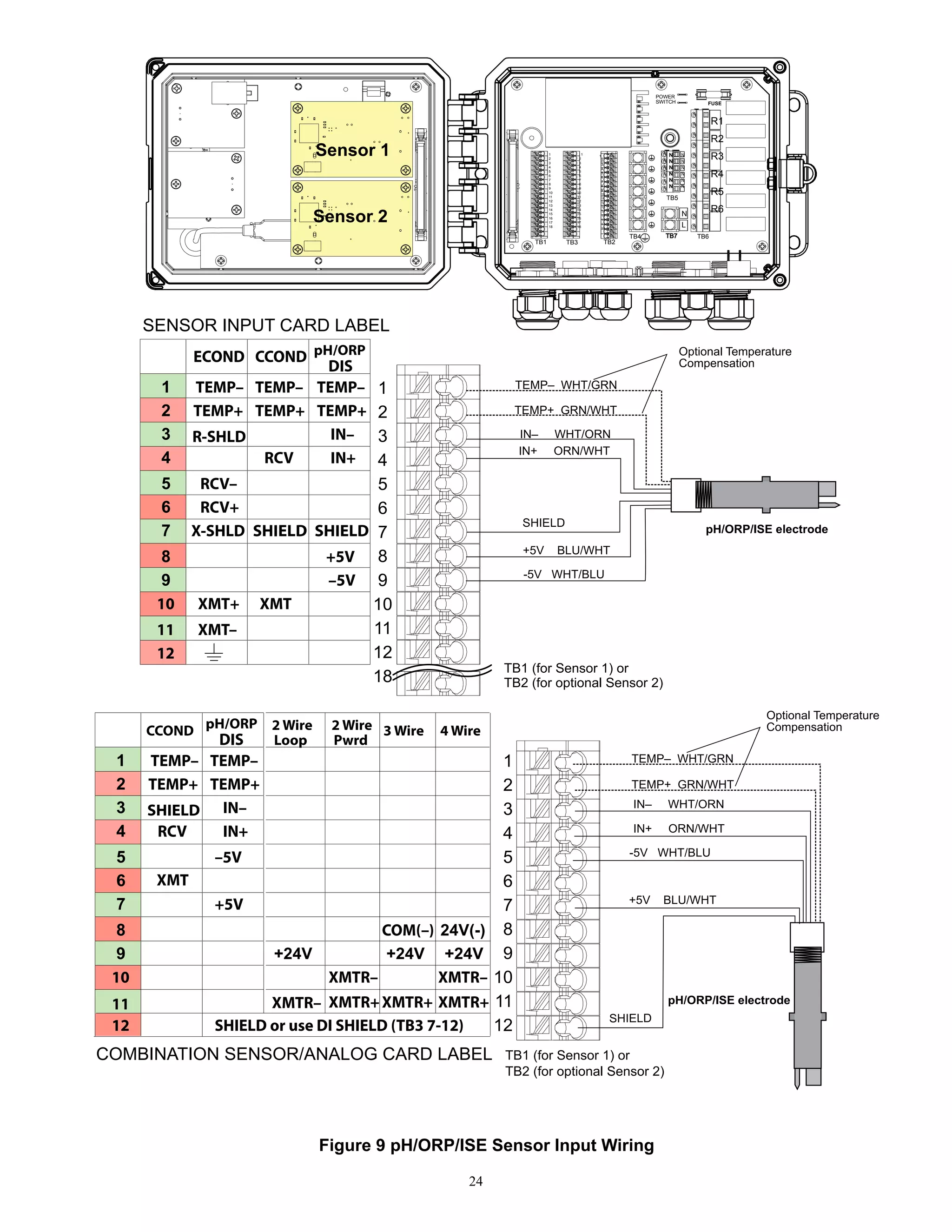
Figure 9 pH/ORP/ISE Sensor Input Wiring
25
IN– WHT
IN+ GRN
+5V RED
-5V BLK
SHIELD
ECOND CCOND pH/ORP
DIS
1
XMT+ XMT
2
XMT–
3
RCV–
4
RCV+
5
TEMP+ TEMP+ TEMP+
6
TEMP– TEMP– TEMP–
7
8
RCV IN+
9
IN–
10
+5V
11
–5V
12
X-SHLD SHIELD SHIELD
R-SHLD
TB1 (for Sensor 1) or
TB2 (for optional Sensor 2)
TB3
1
2
3
4
5
6
7
8
9
10
11
12
13
14
15
16
17
18
1
2
3
4
5
6
7
8
9
10
11
12
13
14
15
16
17
18
1
2
3
4
5
6
7
8
9
10
11
12
13
14
15
16
17
18
TB4 TB6
TB5
TB7
N
N
N
N
N
N
N
L
N
N
N
N
N
N
R1
R2
R3
R4
R5
R6
POWER
SWITCH FUSE
SENSOR INPUT CARD LABEL
Sensor 1
Sensor 2
TB1 TB2
1
2
3
4
5
6
7
8
9
10
11
12
18
CCOND pH/ORP
DIS
1
XMT
2
3
4
5
TEMP+ TEMP+
6
TEMP– TEMP–
7
8
RCV IN+
9
IN–
10
+5V
–5V
SHIELD
Loop
2 Wire
Pwrd
2 Wire 3 Wire 4 Wire
+24V
11
12
XMTR–
XMTR– XMTR–
XMTR+ XMTR+ XMTR+
+24V +24V
24V(-)
COM(–)
SHIELD or use DI SHIELD (TB3 7-12)
1
2
3
4
5
6
7
8
9
10
11
12
TB1 (for Sensor 1) or
TB2 (for optional Sensor 2)
Disinfection Sensor
IN– WHT
IN+ GRN
+5V RED
-5V BLK
Disinfection Sensor
SHIELD
COMBINATION SENSOR/ANALOG CARD LABEL
Figure 10 Disinfection Sensor Input Wiring
26
1
2
3
4
5
6
7
8
9
10
11
12
TB3 TB2
1
2
3
4
5
6
7
8
9
10
11
12
13
14
15
16
17
18
1
2
3
4
5
6
7
8
9
10
11
12
13
14
15
16
17
18
1
2
3
4
5
6
7
8
9
10
11
12
13
14
15
16
17
18
TB1
TB4 TB6
TB5
TB7
N
N
N
N
N
N
N
L
N
N
N
N
N
N
R1
R2
R3
R4
R5
R6
POWER
SWITCH FUSE
1
2
3
4
5
6
7
8
9
10
11
12
2 Wire
Loop
2 Wire
Powered 3 Wire 4 Wire
+24V
XMTR–
SHIELD
SHIELD SHIELD SHIELD
XMTR–
XMTR+
COM(-)
XMTR–
XMTR+
+24V +24V
24V(–)
Type of Transmitter
XMTR–
SHIELD
XMTR–
XMTR+
XMTR–
XMTR+
AI#
1
2
+24V
SHIELD
XMTR+
SHIELD
+24V
XMTR+
COM(-)
SHIELD
+24V
24V(–)
TB
Pin# Power RED
Ground BLK
– BRN
+ ORN
–
+
Shield
Little
Dipper
1
2
3
4
5
6
7
8
9
10
11
12
2 Wire
Loop
2 Wire
Powered 3 Wire 4 Wire
+24V
XMTR–
SHIELD
SHIELD SHIELD SHIELD
XMTR–
XMTR+
COM(-)
XMTR–
XMTR+
+24V +24V
24V(–)
Type of Transmitter
XMTR–
SHIELD
XMTR–
XMTR+
XMTR–
XMTR+
AI#
1
2
+24V
SHIELD
XMTR+
SHIELD
+24V
XMTR+
COM(-)
SHIELD
+24V
24V(–)
TB
Pin#
1
2
3
4
5
6
7
8
9
10
11
12
4-20mA SOURCE
•SIMULATOR
•POWERED 4-20mA
OUTPUT
(i.e. W100)
POWERED
2 WIRE
TRANSMITTER
3 WIRE
TRANSMITTER
Jumper
wire
+
–
Shield
Jumper
wire
24V Power
UNPOWERED
UNPOWERED
+ Signal
– Ground
Shield
TB1 (for Sensor 1) or
TB2 (for optional Sensor 2)
TB1 (for Sensor 1) or
TB2 (for optional Sensor 2)
Figure 11 Dual 4-20mA Sensor Input Wiring
27
TB3 TB2
1
2
3
4
5
6
7
8
9
10
11
12
13
14
15
16
17
18
1
2
3
4
5
6
7
8
9
10
11
12
13
14
15
16
17
18
1
2
3
4
5
6
7
8
9
10
11
12
13
14
15
16
17
18
TB1
TB4 TB6
TB5
TB7
N
N
N
N
N
N
N
L
N
N
N
N
N
N
R1
R2
R3
R4
R5
R6
POWER
SWITCH FUSE
TB1, 2 OR 3
1
2
3
4
5
6
7
8
9
10
11
12
13
14
15
16
17
18
SAFETY COVER LABEL
1
SEE
SENSOR 1
LABEL
1 DIG IN 3+ 1
SEE
SENSOR 2
LABEL
2 2 DIG IN 3– 2
3 3 +9 VDC 3
4 4 DIG IN 4+ 4
5 5 DIG IN 4– 5
6 6 +9 VDC 6
7 7
DI
SHIELD
7
8 8 8
9 9 9
10 10 10
11 11 11
12 12 12
13 DIG IN 1+ 13 DIG IN 5+ 13 DIG IN 2+
14 DIG IN 1– 14 DIG IN 5– 14 DIG IN 2–
15 +9 VDC 15 +9 VDC 15 +9 VDC
16 4-20 OUT1+ 16 DIG IN 6+ 16 4-20 OUT2+
17 4-20 OUT1– 17 DIG IN 6– 17 4-20 OUT2–
18 SHIELD 18 +9 VDC 18 SHIELD
TB1 TB3 TB2
FLOW SWITCH
Contact Closure:
Polarity not critical
Reed Switch
FLOW METER
Polarity not Critical
Hall Effect
FLOW METER
SIGNAL
IN –
POWER +9V
(TB 3 SHOWN)
Figure 12 Digital Input Wiring
28
TB3 TB2
1
2
3
4
5
6
7
8
9
10
11
12
13
14
15
16
17
18
1
2
3
4
5
6
7
8
9
10
11
12
13
14
15
16
17
18
1
2
3
4
5
6
7
8
9
10
11
12
13
14
15
16
17
18
TB1
TB4 TB6
TB5
TB7
N
N
N
N
N
N
N
L
N
N
N
N
N
N
R1
R2
R3
R4
R5
R6
POWER
SWITCH FUSE
TB6
R1
R2
R3
R4
R5
R6
SOLENOID/
MOTORIZED
BALL VALVE
IF MOTORIZED
BALL VALVE
PUMP
PUMP
N
N
N
N
N
N
TB5
TO
TB4
TO
TB4
ALARM
TO
TB4
WHT 120V
BLU 240V
WHT 120V
BLU 240V
WHT 120V
BLU 240V
WHT 120V
BLU 240V
BLK 120V
BRN 240V
BLK 120V
BRN 240V
BLK 120V
BRN 240V
BLK 120V
BRN 240V
GRN 120V
GRN/YEL 240V
GRN 120V
GRN/YEL 240V
GRN 120V
GRN/YEL 240V
NC
NO
NC
NO
NC
NO
NC
NO
NC
NO
NC
NO
WHT 120V
BLU 240V
BLK 120V
BRN 240V
TO
TB4
GRN 120V
GRN/YEL 240V
Power Supply
(115 VAC or 230 VAC)
TB7
N
L
TO
TB4
GRN
120V
GRN/YEL
240V
BLK 120V
BRN 240V
WHT 120V
BLU 240V
Figure 13 W600 AC Power  Relay Output Wiring
29
N
N
N
R1
R2
R3
R4
R5
R6
NC
NO
NC
NO
ALARM
PLC
TB4
TB6
TB5
Fused
External
Power
Source
Fused
External
Power
Source
If motorized
ball valve
TB6
TB5
R1
R2
R3
R4
R5
R6
N
N
N
N
N
N
N
N
N
NC
NO
NC
NO
TB3 TB2
1
2
3
4
5
6
7
8
9
10
11
12
13
14
15
16
17
18
1
2
3
4
5
6
7
8
9
10
11
12
13
14
15
16
17
18
1
2
3
4
5
6
7
8
9
10
11
12
13
14
15
16
17
18
TB1
TB4 TB7
N
L
POWER
SWITCH FUSE
BLK 120V
BRN 240V
WHT 120V
BLU 240V
GRN 120V
GRN/YEL 240V
BLK 120V
BRN 240V
GRN 120V
GRN/YEL 240V
WHT 120V
BLU 240V
GRN 120V
GRN/YEL 240V
WHT 120V
BLU 240V
BLK 120V
BRN 240V
GRN 120V
GRN/YEL 240V
WHT 120V
BLU 240V
BLK 120V
BRN 240V
BLK 120V
BRN 240V
Power Supply
(115 VAC or 230 VAC)
TB7
N
L
GRN
120V
GRN/YEL
240V
BLK 120V
BRN 240V
WHT 120V
BLU 240V
Figure 14 W610 AC Power  Relay Output Wiring
30
R1
R2
R3
R4
R5
R6
+
–
+
–
ALARM
PLC
TB4
TB6
Fused
External
Power
Source
Fused
External
Power
Source
BLK 120V
BRN 240V
GRN 120V
GRN/YEL 240V
WHT 120V
BLU 240V
GRN 120V
GRN/YEL 240V
WHT 120V
BLU 240V
BLK 120V
BRN 240V
Power Supply
(115 VAC or 230 VAC)
TB7
N
L
GRN
120V
GRN/YEL
240V
BLK 120V
BRN 240V
WHT 120V
BLU 240V
TB6
TB5
R1
R2
R3
R4
R5
R6
N
N
N
N
N
N
+
–
+
–
TB3 TB2
1
2
3
4
5
6
7
8
9
10
11
12
13
14
15
16
17
18
1
2
3
4
5
6
7
8
9
10
11
12
13
14
15
16
17
18
1
2
3
4
5
6
7
8
9
10
11
12
13
14
15
16
17
18
TB1
TB4 TB7
N
L
POWER
SWITCH FUSE
External
AC
Power
External
AC
Power
BLK 120V
BRN 240V
Figure 15 W620 AC Power  Relay Output Wiring
31
R1
R2
R3
R4
R5
R6
+
–
+
–
+
–
+
–
PLC
TB4
TB6
Fused
External
Power
Source
GRN 120V
GRN/YEL 240V
WHT 120V
BLU 240V
BLK 120V
BRN 240V
Power Supply
(115 VAC or 230 VAC)
TB7
N
L
GRN
120V
GRN/YEL
240V
BLK 120V
BRN 240V
WHT 120V
BLU 240V
External
AC
Power
External
AC
Power
External
AC
Power
External
AC
Power
TB6
TB5
R1
R2
R3
R4
R5
R6
N
N
N
N
N
N
+
–
+
–
+
–
+
–
TB3 TB2
1
2
3
4
5
6
7
8
9
10
11
12
13
14
15
16
17
18
1
2
3
4
5
6
7
8
9
10
11
12
13
14
15
16
17
18
1
2
3
4
5
6
7
8
9
10
11
12
13
14
15
16
17
18
TB1
TB4 TB7
N
L
POWER
SWITCH FUSE
ALARM
Figure 16 W640 AC Power  Relay Output Wiring
32
TB3 TB2
1
2
3
4
5
6
7
8
9
10
11
12
13
14
15
16
17
18
1
2
3
4
5
6
7
8
9
10
11
12
13
14
15
16
17
18
1
2
3
4
5
6
7
8
9
10
11
12
13
14
15
16
17
18
TB1
TB4 TB6
TB5
TB7
N
N
N
N
N
N
N
L
N
N
N
N
N
N
R1
R2
R3
R4
R5
R6
POWER
SWITCH FUSE
Chart
Recorder
1
2
3
4
5
6
7
8
9
10
11
12
13
14
15
16
17
18
TB1 SAFETY LABEL
1
SEE
SENSOR 1
LABEL
1 DIG IN 3+ 1
SEE
SENSOR 2
LABEL
2 2 DIG IN 3– 2
3 3 +9 VDC 3
4 4 DIG IN 4+ 4
5 5 DIG IN 4– 5
6 6 +9 VDC 6
7 7
DI
SHIELD
7
8 8 8
9 9 9
10 10 10
11 11 11
12 12 12
13 DIG IN 1+ 13 DIG IN 5+ 13 DIG IN 2+
14 DIG IN 1– 14 DIG IN 5– 14 DIG IN 2–
15 +9 VDC 15 +9 VDC 15 +9 VDC
16 4-20 OUT1+ 16 DIG IN 6+ 16 4-20 OUT2+
17 4-20 OUT1– 17 DIG IN 6– 17 4-20 OUT2–
18 SHIELD 18 +9 VDC 18 SHIELD
TB1 TB3 TB2
1
2
3
4
5
6
7
8
9
10
11
12
13
14
15
16
17
18
TB2
Chart
Recorder
+
–
SHIELD
+
–
SHIELD
Figure 17 Analog Output Wiring
33
4.0 FUNCTION OVERVIEW
4.1 Front Panel
Figure 18 Front Panel
4.2 Touchscreen
A Home screen is displayed while the controller is on. This display shows a user-defined list of input readings or status
of outputs. Touching any of the items on the Home Screen will bring up the item’s Details Screen, where you can
access calibration and setting menus. If more than four items have been selected to be displayed on the Home screen,
the display will toggle between the first group of up to four and the next group. A “pause button” icon, when touched,
stops the automatic toggling. Touching the down arrow icon allows for manual toggling. Touching the “play button”
icon enables automatic toggling again. Touching the Menu icon brings up the Main Menu screen.
4.3 Icons
The following icons appear on the Home screen.
The Main Menu icon brings you to the list of menu options listed below.
The following icons appear on the Main Menu screen. Touch the icon to get to the menu selections.
Alarm Menu
Inputs Menu
Outputs Menu
34
Configuration Menu
HOA Menu
Graph Menu
Home Page
Other icons may appear in the menu screens.
Calibration icon appears in sensor input menus and brings up the calibration menu
X Cancel icon aborts a calibration or setting change
The Page Down icon scrolls down to a new page in a list of options.
The Page Up icon scrolls up to a new page in a list of options.
The Back/Return icon returns the display to the previous screen
The Make Character Higher icon is used when making an alphanumeric entry
The Make Character Lower icon is used when making an alphanumeric entry
The Move Cursor icon is used to scroll left to right within an alphanumeric entry
The Confirm icon accepts a choice, finishes entering data, or advances to the next calibra-
tion step
Settings Menu
X The Character Delete icon deletes part of an alphanumeric entry
The Shift icon switches between upper and lower case alpha entry screens
The Next Screen icon moves to the next step in a calibration sequence. In a Graph it shifts the
graph forward in time.
The Previous Screen icon moves back a step in a calibration sequence. In a Graph it shifts the
graph backwards in time.
Overview of the use of icons
Changing Numeric Values
To change a number, use the Character Delete icon to the digit to be changed. If the new number will be neg-
35
ative, start with touching the minus sign, then use the numeric touchpad and decimal point to type the number
(some entries must be integers and the decimal will be ignored and the setting rounded to the nearest integer).
Once the value of the number is correct touch the Confirm icon to store the new value into memory, or touch the
Cancel icon to leave the number at its previous value and go back.
Changing Names
To change the name used to identify an input or output, use the Move Cursor icon to the character to be changed
and change it using either the Make Character Higher or Lower icons. Upper case and lower case letter, numbers,
a blank space, period, plus and minus symbols are available. Move the cursor to the right and modify each charac-
ter. Once the word is correct, use the Enter icon to store the new value into memory, or use the Cancel icon to leave
the word at its previous value and go back.
Choosing from a List
Selecting the type of sensor, the units of measure of an input, or the control mode used for an output, the selec-
tion is picked from a list of available options. Touch the Page Up or Down icons if necessary to find the desired
option, and then touch the option to highlight it. Touch the Confirm icon to store the new option into memory, or
touch the Cancel icon to leave the selection at its previous value and go back.
Hand-Off-Auto Relay Mode
Touch the desired relay mode. In Hand mode the relay is forced on for a specified amount of time and when that
time is up the relay returns to its previous mode, in Off mode the relay is always off until taken out of Off mode,
and in Auto mode the relay is responding to control set points. Touch the Return icon to go back to the relay
settings.
Interlock and Activate with Channels Menus
To select which digital inputs or relays will interlock this relay (Interlock Channels), or which digital inputs or
relays will force this relay on (Activate with Channels), touch the input or relay number(s). The background of
the selected item will turn dark. When finished selecting as many as needed, touch the Confirm icon to accept the
changes or the Cancel icon to leave the selections at the previous settings and go back.
4.4 Startup
Initial Startup
After having mounted the enclosure and wired the unit, the controller is ready to be started. Plug in the controller
and turn on the power switch to supply power to the unit. The display will briefly show the model number and then
revert to the normal summary (Home) display. Refer to section 5 below for more details on each of the settings.
To return to the summary display, touch the Main Menu icon and then touch the Home icon.
Settings Menu (see section 5.4)
Choose language
Touch the Configuration Settings icon. Touch Global Settings. Touch the Scroll Down icon until the English
word “Language” is displayed and then touch it. Touch the Scroll Down icon until your language is displayed
and touch it. Touch the Confirm icon to change all menus to your language.
Set date (if necessary)
Touch the Scroll Up or Down icon until Date is displayed, and then touch it. Touch the Move Cursor icon to
highlight the Day, and then use the numeric touchpad to change the date. Touch the Confirm icon to accept the
change.
Set time (if necessary)
Touch the Scroll Up or Down icon until Time is displayed and then touch it. Touch the Move Cursor icon to
highlight the digit to change, then use the numeric touchpad to change the time. Touch the Confirm icon to accept
the change.
Set global units of measure
Touch the Scroll Up or Down icon until Global Units is displayed and then touch it. Touch the desired units.
Touch the Confirm icon to accept the change.
Set temperature units of measure
36
Touch the Scroll Up or Down icon until Temp Units is displayed and then touch it. Touch the desired units. Touch
the Confirm icon to accept the change.
Touch the Main Menu icon. Touch the Inputs icon.
Inputs (see section 5.2)
Program the settings for each input
The S11 sensor input will be displayed. Touch it to get to the Details screen. Touch the Settings icon. If the name
of the sensor does not describe the type of sensor connected, touch the Scroll Down icon until Type is displayed.
Touch the Type field. Touch the Scroll Down icon until the correct type of sensor is displayed, then touch it to
highlight it. Touch the Confirm icon to accept the change. This will bring you back to the Settings screen. Finish
the rest of the S1 settings. For disinfections sensors, choose the exact sensor in the Sensor menu. For contacting
conductivity sensors, enter the cell constant. Select the units of measure. Enter the alarm set points and alarm
deadband. Set the default temperature that will be used for automatic temperature compensation if the temperature
signal becomes invalid.
When finished with S11, touch the Return icon until the list of inputs is displayed. Touch the Scroll Down icon and
repeat the process for each input.
The S12 temperature input Element should be set correctly once the S11 sensor type has been set. If not, select
the correct temperature element and set the alarm set points and alarm deadband. Generic, ORP and disinfection
sensors do not have temperature signals and are preset to Unassigned.
To calibrate the temperature, return to the S12 Details screen, touch the Calibrate icon, and touch the Enter icon
to perform a calibration. If either input card is a Dual Analog Input card (4-20mA signal), then select the type of
sensor that will be connected. Select Fluorometer if a Little Dipper 2 will be connected. Select AI Monitor if the
device can be calibrated on its own and the W600 calibration will only be in units of mA. Select Transmitter if the
device connected cannot be calibrated on its own and the W600 will need to be used to calibrate in engineering
units of measure.
If a flow switch or liquid level switch is connected, D1 through D6 (whichever one has the device connected to it)
should be set to DI State type (if no switch is connected, select No Sensor). Set the state that will possibly interlock
control outputs (refer to the Outputs settings to program which outputs, if any, will be interlocked by the switch).
Set the state, if any, that will result in an alarm.
If a contacting head or paddlewheel flow meter is connected, D1 through D6 (whichever one has the device con-
nected to it) should be set to that type (if no flow meter is connected, select No Sensor). Set the units of measure,
volume/contact or K factor, etc.
Calibrate the sensor
To calibrate the sensor, return to the list of inputs, touch the sensor to calibrate, touch the Calibrate icon, and select
one of the calibration routines. For disinfection and Generic sensors, start with the Zero Calibration. For elec-
trodeless conductivity, start with the Air Calibration. Refer to section 5.2.
Touch the Main Menu icon. Touch the Outputs icon.
37
Main Menu 09:19:01 14-Mar-2017
SENSOR (S1)
Sensor
DI Relay
Low Axis Limit
High Axis Limit
  HOA
R1 R2 R3
R4 R5 R6
Hand Off Auto
10
Minutes
µS/cm
3036
3035
3034
3033
3032
3031
10.35 10.40 10.45
14-Nov
Config

Outputs
On/Off (R1) Off
Flow Timer (R2) Off
Flow Timer (R3) Off
Manual (R4) Off

Alarms
List of all Active Alarms
Additional Graph Settings:
Time Range
Time Range
SENSOR (S1)
10 Minutes
30 Minutes
1 Hour
2½ Hours

X P
To HOME SCREEN
MAIN MENU/HOME SCREEN OVERVIEW
MAIN MENU
Additional Confg Settings:
Remote Communications (Modbus and BACnet)
Email Report Settings
Display Settings
File Utilities
Controller Details
List of possible Outputs:
On/Off control mode
Flow Timer control mode
Percent Timer control mode
Alarm Output mode
Time Proportional control mode
Manual control mode
Pulse Proportional control mode
Flow Proportional control mode
PID control mode
Dual Setpoint mode
Timer control mode
Probe Wash control mode
Spike control mode
Lag Output control mode
Flow Meter Ratio
Dual Switch mode
Counter Timer
Analog Output, Retransmit mode
Analog Output, Proportional control mode
Analog Output, PID control mode
Analog Output, Manual mode
Analog Output, Flow Proportional mode
Analog Output, Lag Output
Inputs
Outputs
Alarm
Config
HOA
Graph
Graph Settings
Global Settings
Security Settings
Ethernet Settings
Ethernet Details
CCond (S11) On/Off (R2)
More possible settings:
8 Hours 1 Week
12 Hours 2 Weeks
1 Day 4 Weeks
½ Week
Inputs
Sensor (S11) 3038 µS/cm
Temp (S12) 77.1°F
Generic AI (S21) 30.5%
Generic AI (S22) 37.9%

List of possible Inputs:
Contacting Conductivity
Electrodeless Conductivity
Temperature
pH
ORP
Disinfection
Generic
Transmitter/AI Monitor
Fluorometer
DI State
Flow Meter, Contactor type
Flow Meter, Paddlewheel type
Feed Monitor
DI Counter
Virtual Input – Calculation
Virtual Input – Raw Value
SENSOR (S1)
HOME SCREEN (example)
Flowswitch (D1) No Flow
CCond (S11) 3041 µS/cm
Temp (S12) 77.0°F
Flowswitch (D1) No Flow
38
Main Menu 09:19:01 14-Mar-2017
Inputs
Outputs
Alarms
Config
HOA
Graph
Contacting Cond S11 (22)


Alarms
Deadband
Reset Calibration Values
Cal Required Alarm
pH S11 (S21)
SENSOR (S1)


Alarms
Deadband
Reset Calibration Values
Cal Required Alarm
Electrodeless Cond S11 (S21)


Alarms
Deadband
Reset Calibration Values
Cal Required Alarm


Alarms
Deadband
Reset Calibration Values
Cal Required Alarm
InputsSensor (S11)
Details Screen
Content varies with
sensor type


Alarms
Deadband
Reset Calibration Values
Cal Required Alarm
Disinfection S11 (S21)
SENSOR (S1)


Alarms
Deadband
Reset Calibration Values
Cal Required Alarm
Temperature S12 (S22)
SENSOR (S1)


Alarms
Deadband
Reset Calibration Values
Cal Required Alarm
Fluorometer S11 (12,13, 21,22, 23)
ORP S11 (S21)
SENSOR (S1)


Alarms
Deadband
Reset Calibration Values
Cal Required Alarm
Generic S11 (S21)
SENSOR (S1)


Alarms
Deadband
Reset Calibration Values
Cal Required Alarm
Transmitter S11 (S12,13,21,22,23)
AI Monitor S11 (S12,13,21,22,23)
Inputs
Sensor (S11) 3038 µS/cm
Temp (S12) 77.1°F
Generic AI (S21) 30.5%
Generic AI (S22) 37.9%

 Calibration
SENSOR (S1)
One Point Process Calibration
One Point Buffer Calibration
Two Point Buffer Calibration
Three Point Buffer Calibration
One Point Analog Calibration
Two Point Analog Calibration
Open Air Calibration (Cond)
Zero Calibration (Disinfection)
Additional Settings for Contacting Conductivity:
Alarm  Data Log
Suppression
Smoothing Factor
Default Temp
Temp Compensation
Temp Comp Factor
Cell Constant
Cable Length
Gauge
Units
Name
Type
Additional Settings for Transmitter and AI Monitor:
Alarm  Data Log
Suppression
Smoothing Factor
4 mA Value
20 mA Value
Units
Name
Type
Additional Settings for Temperature Sensor:
Alarm  Data Log Suppression
Smoothing Factor
Name
Element
Additional Settings for pH Sensor:
Alarm  Data Log Suppression
Smoothing Factor
Buffers (pH only)
Default Temp
Cable Length
Gauge
Electrode
Name
Type
Additional Settings for Electrodeless Conductivity:
Alarm  Data Log
Suppression
Smoothing Factor
Default Temp
Installation Factor
Range
Temp Compensation
Temp Comp Factor
Cell Constant
Cable Length
Gauge
Units
Name
Type
Additional Settings for Disinfection Sensor:
Alarm  Data Log Suppression
Smoothing Factor
Cable Length
Gauge
Name
Sensor
Type
Additional Settings for Fluorometer:
Alarm  Data Log
Suppression
Smoothing Factor
Max Sensor Range
Dye / Product Ratio
Name
Type
INPUTS
Additional Settings for ORP Sensor:
Alarm  Data Log Suppression
Smoothing Factor
Cable Length
Gauge
Name
Type
Additional Settings for Generic Sensor:
Alarm  Data Log Suppression
Smoothing Factor
Sensor Slope
Sensor Offset
Low / High Range
Cable Length
Gauge
Units
Electrode (Linear
or Ion Selective)
Name
Type
Only if HVAC mode is enabled
39
Flowmeter (D1-D6)


Alarms
Deadband
Alarm  Datalog Suppression
Totalizer Alarm
DI State (D1-D6)
SENSOR (S1)


Open Message
Closed Message
Interlock
Alarm
Calculation (V1-V2)


Feed Monitor (D1-D6)
SENSOR (S1)


Alarms
Deadband
Input
Input 2
Totalizer Alarm
Reset Flow Total
Set Flow Total
Scheduled Reset
Flowmeter (D1-D6)
SENSOR (S1)


Totalizer Alarm
Reset Flow Total
Set Flow Total
Scheduled Reset
Contactor Type
Paddlewheel Type
Reset Flow Total
Set Flow Total
Scheduled Reset
K Factor
Flow Units
Rate Units
Smoothing Factor
Name
Type
Additional Settings for Paddlewheel, Flowmeter:
Additional Settings for DI State:
Alarm  Datalog Suppression
Total Time
Reset Time Total
Name
Type
Additional Settings for Contactor, Flowmeter:
Alarm  Datalog Suppression
Volume/Contact
Flow Units
Name
Type
Total Alarm Mode
Flow Alarm Mode
Flow Alarm Delay
Flow Alarm Clear
Deadband
Reprime Time
Volume/Contact
Flow Units
Rate Units
Smoothing Factor
Output
Name
Type
Additional Settings for Feed Monitor:
Calculation Mode
Alarm  Datalog Suppression
Low Range
High Range
Smoothing Factor
Name
Type
Additional Settings for Virtual Input
INPUTS
DIGITAL
INPUTS
VIRTUAL
INPUTS
Raw Value (V1-V2)


Alarms
Deadband
Alarm  Datalog Suppression
Input
Smoothing factor
Name
Type
Additional Settings for Raw Value:
SENSOR (S1)


Only if HVAC mode is disabled
DI Counter (D1-D6)
Alarms
Deadband
Alarm  Datalog Suppression
Totalizer Alarm
Additional Settings for DI Counter
Reset Total
Set Total
Scheduled Reset
Units
Rate Units
Units per Pulse
Smoothing Factor
Name
Type
40
Main Menu 09:19:01 14-Mar-2017
Inputs
Outputs
Alarms
Config
HOA
Graph
Outputs
On/Off (R1) Off
Inhibitor (R2) Off
Flow Timer (R3) Off
Manual (R4) Off

On/Off (R1-R6)


HOA Setting
Set Point
Deadband
Duty Cycle Period
Dual Setpoint (R1-R6)


HOA Setting
Set Point
Set Point 2
Deadband
Bleed then Feed (R1-R6)
SENSOR (S1)


HOA Setting
Feed Percentage
Feed Time Limit
Reset Timer
Flow Timer (R1-R6)


HOA Setting
Feed Duration
Accumulated Volume
Output Time Limit
Percent Timer (R1-R6)
SENSOR (S1)


HOA Setting
Sample Period
Feed Percentage
Output Time Limit
Manual (R1-R6)


HOA Setting
On Delay Time
Off Delay Time
Output Time Limit
Alarm (R1-R6)
SENSOR (S1)


HOA Setting
Alarm Mode
On Delay Time
Off Delay Time
Pulse Prop (R1-R6)
SENSOR (S1)


HOA Setting
Set Point
Proportional Band
Minimum/Maximum Output
Timer Control (R1-R6)
SENSOR (S1)


Only if HVAC mode is disabled
OutputsOn/Off (R1)
Details Screen
Content varies with
output type

Int. Sampling (R1-R6)


HOA Setting
Set Point
Proportional Band
Deadband
HOA Setting
Event 1 (through 10)
Repetition
Hourly
Week
Day
Events Per Day
Start Time
Duration
Biocide Timer (R1-R6)
SENSOR (S1)


HOA Setting
Event 1 (through 10)
Repetition
Week
Day
Start Time
Duration
Time Prop (R1-R6)


HOA Setting
Set Point
Proportional Band
Sample Period
Only if HVAC mode is enabled
Bleed  Feed (R1-R6)
SENSOR (S1)


HOA Setting
Feed Time Limit
Output Time Limit
Reset Output Timeout
Only if HVAC mode is enabled
PID Control (R1-R6)
SENSOR (S1)


HOA Setting
Set Point
Gain
Proportional Gain
Only if HVAC mode is enabled
Only if HVAC mode is disabled
Only if Relay Type is Pulse
Additional Settings for On/OFF Mode:
Duty Cycle
On Delay Time
Off Delay Time
Output Time Limit
Reset Output Timeout
Interlock Channels
Activate with Channels
Minimum Relay Cycle
Hand Time Limit
Reset Time Total
Input
Direction
Name
Mode
Duty Cycle Period
Duty Cycle
On Delay Time
Off Delay Time
Output Time Limit
Reset Output Timeout
Interlock Channels
Activate with Channels
Minimum Relay Cycle
Hand Time Limit
Reset Time Total
Input
Direction
Name
Mode
Additional Settings for Dual Setpoint Mode:
Additional Settings for Time Prop Mode:
Output Time Limit
Reset Output Timeout
Interlock Channels
Activate with Channels
Minimum Relay Cycle
Hand Time Limit
Reset Time Total
Input
Direction
Name
Mode
Additional Settings for Intermittent Sampling Mode:
Sample Time
Hold Time
Maximum Blowdown
Wait Time
Output Time Limit
Reset Output Timeout
Interlock Channels
Activate with Channels
Min Relay Cycle
Hand Time Limit
Reset Time Total
Cond Input
Trap Sample
Name
Mode
Additional Settings for Bleed  Feed Mode:
Interlock Channels
Activate with
Channels
Minimum Relay Cycle
Hand Time Limit
Reset Time Total
Bleed
Name
Mode
Additional Settings for Bleed then Feed Mode:
Output Time Limit
Reset Output Timeout
Interlock Channels
Activate with
Channels
Minimum Relay Cycle
Hand Time Limit
Reset Time Total
Bleed
Name
Mode
Additional Settings for Flow Timer Mode:
Reset Output Timeout
Interlock Channels
Activate with Channels
Minimum Relay Cycle
Hand Time Limit
Reset Time Total
Flow Input
Flow Input 2
Name
Mode
Additional Settings for Percent Timer Mode:
Reset Output
Timeout
Interlock Channels
Activate with
Channels
Minimum Relay
Cycle
Hand Time Limit
Reset Time Total
Name
Mode
Additional Settings for Biocide Timer Mode:
Bleed
Prebleed Time
Prebleed To
Cond Input
Bleed Lockout
Add Last Missed
Interlock Channels
Activate with Channels
Minimum Relay Cycle
Hand Time Limit
Reset Time Total
Name
Mode
Additional Settings for Alarm Mode:
Select Alarms
Output
Interlock Channels
Activate with
Channels
Minimum Relay Cycle
Hand Time Limit
Reset Time Total
Name
Mode
Additional Settings for Manual Mode:
Reset Output Timeout
Interlock Channels
Minimum Relay Cycle
Hand Time Limit
Reset Time Total
Name
Mode
Additional Settings for Pulse Prop Mode:
Maximum Rate
Interlock Channels
Activate with Channels
Minimum Relay Cycle
Hand Time Limit
Reset Time Total
Input
Direction
Name
Mode
Additional Settings for PID Control Mode:
Integral Time
Integral Gain
Derivative Time
Derivative Gain
Reset PID Integral
Minimum Output
Maximum Output
Maximum Rate
Input
Direction
Input Minimum
Input Maximum
Gain Form
Output Time Limit
Reset Output Timeout
Interlock Channels
Activate with Channels
Minimum Relay Cycle
Hand Time Limit
Reset Time Total
Name
Mode
Add Last Missed
Output Time Limit
Reset Output Timeout
Interlock Channels
Activate with Channels
Minimum Relay Cycle
Hand Time Limit
Reset Time Total
Name
Mode
Additional Settings for Timer Control Mode:
OUTPUTS (RELAYS R1-R6) Page 1
Flow Meter Ratio (R1-R6)


HOA Setting
Accumulator Volume
Bleed Volume
Reset Timer
Additional Settings for Flow Meter Ratio:
Output Time Limit
Reset Output Timeout
Interlock Channels
Activate with Channels
Minimum Relay Cycle
Hand Time Limit
Reset Time Total
Makeup Meter
Makeup Meter 2
Bleed Meter
Bleed Meter 2
Name
Mode
41
OUTPUTS (RELAYS R1-R6) Page2
Probe Wash (R1-R6)


Spike Control (R1-R6)


HOA Setting
Set point
Spike Set point
Deadband
HOA Setting
Event 1 (through 10)
Repetition
Hourly
Week
Day
Events Per Day
Start Time
Duration
Lag Control (R1-R6)


HOA Setting
Lead
Wear Leveling*
Wear Cycle Time*
Input
Input 2
Sensor Mode
Hold Time
Interlock Channels
Activate with Channels
Minimum Relay Cycle
Hand Time Limit
Reset Time Total
Name
Mode
Additional Settings for Probe Wash Mode:
Duty Cycle Period
Duty Cycle
Event 1 (through 8)
Repetition
Week
Day
Start Time
Duration
Input
Direction
Interlock Channels
Activate with Channels
Minimum Relay Cycle
Hand Time Limit
Reset Time Total
Name
Mode
Additional Settings for Spike Control Mode:
Activation Mode*
Set Point
Set Point 2
Deadband
Delay Time*
Output Time Limit
Reset Output Timeout
Interlock Channels
Activate with Channels
Min Relay Cycle
Hand Time Limit
Reset Time Total
Name
Mode
Additional Settings for Lag Control Mode:
* See section 5.3.22
Flow Prop (R1-R6)


HOA Setting
Target
Pump Capacity
Pump Setting
Additional Settings for Flow Prop Control Mode:
Specific Gravity
Max Rate
Output Time Limit
Reset Output Timeout
Interlock Channels
Activate with Channels
Hand Output
Hand Time Limit
Reset Time Total
Flow Input
Name
Mode
Only if Relay Type is Pulse
Dual Switch (R1-R6)


HOA Setting
On Switch
Activate On
On Delay Time
Additional Settings for Dual Switch Mode:
Off Switch
Activate Off
Off Delay Time
Hand Time Limit
Output Time Limit
Reset Output Timeout
Interlock Channels
Activate with Channels
Min Relay Cycle
Reset Time Total
Name
Mode
Counter Timer (R1-R6)


HOA Setting
Feed Duration
Accumulator Setpoint
Reset Time
Additional Settings for Counter Timer Mode:
Output Time Limit
Reset Output Timeout
Interlock Channels
Activate with Channels
Minimum Relay Cycle
Hand Time Limit
Reset Time Total
Input
Name
Mode
Only if HVAC mode is disabled
42
Main Menu 09:19:01 14-Mar-2017
Inputs
Outputs
Alarms
Config
HOA
Graph
Outputs
On/Off (R1) Off
Inhibitor (R2) Off
Flow Timer (R3) Off
Manual (R4) Off

Retransmit (A1-A2)


HOA Setting
4 mA Value
20 mA Value
Hand Output
PID Control (A1)


HOA Setting
Set Point
Gain
Proportional Gain
OutputsOn/Off (R1)
Details Screen
Content varies with
output type

Manual Control (A1-A2)


HOA Setting
Interlock Channels
Activate with Channels
Minimum Relay Cycle
Proportional Control (A1-A2)


HOA Setting
Set Point
Proportional Band
Min Output
Only if HVAC mode is disabled
Additional settings for Retransmit Mode:
Error Output
Reset Time Total
Input
Name
Mode
Additional Settings for Proportional Control Mode:
Max Output
Output Time Limit
Reset Output Timeout
Interlock Channels
Activate with Channels
Hand Output
Hand Time Limit
Reset Time Total
Off Mode Output
Error Output
Input
Direction
Name
Mode
Additional Settings for PID Control Mode:
Integral Time
Integral Gain
Derivative Time
Derivative Gain
Reset PID Integral
Min Output
Max Output
Max Rate
Output Time Limit
Reset Output Timeout
Interlock Channels
Activate with Channels
Hand Output
Hand Time Limit
Off Mode Output
Error Output
Reset Time Total
Input
Direction
Input Minimum
Input Maximum
Gain Form
Name
Mode
OUTPUTS (ANALOG A1-A2)
Additional Settings for Manual Control Mode:
Hand Time Limit
Reset Time Total
Name
Mode
Flow Prop (A1-A2)


HOA Setting
Target
Pump Capacity
Pump Setting
Additional Settings for Flow Prop Control Mode:
Specific Gravity
Output Time Limit
Reset Output Timeout
Interlock Channels
Activate with Channels
Hand Output
Hand Time Limit
Off Mode Output
Error Output
Reset Time Total
Flow Input
Name
Mode
Lag Output (A1-A2)


HOA Setting
Lead
Reset Time Total
Output Time Limit
Additional settings for
Lag Output Mode:
Reset Output Timeout
Wear Leveling
Wear Cycle Time
Name
Mode
43
Main Menu 09:19:01 14-Mar-2017
Inputs
Outputs
Alarms
Config
HOA
Graph
Config
SENSOR (S1)
Global Settings
Security Settings
Ethernet Settings
Ethernet Details

Flowswitch (D1) No Flow
CCond (S11) 3041 µS/cm
Temp (S12) 77.0°F
Flowswitch (D1) No Flow
HOME SCREEN (example)
Report #1-4 Settings:
Report Type
Email Recipients
Repetition (Datalog/Summary/Graph Reports)
Reports Per Day (Datalog/Summary/Graph Reports)
Day (Datalog/Summary/Graph Reports)
Day of Month (Datalog/Summary/Graph Reports)
Report Time (Datalog/Summary/Graph Reports)
Log Frequency (Datalog Report)
Alarm Mode (Alarms Report)
Select Alarms (Alarms Report)
Alarm Delay (Alarms Report)
Attach Summary (Alarms Report)
Global Settings


Date
Time
Name
Location
Ethernet Details
SENSOR (S1)


Alarms
DHCP Status
Controller IP Address
Network Netmask
Security Settings


Controller Log Out
Security
Local Password
File Utilities
SENSOR (S1)


File Transfer Status
Data Log Range
Log Frequency
Export Data Log File
Display Settings


Home 1
Home 2
Home 3
Home 4
Email Report Settings
SENSOR (S1)


Report #1 through #4
Email Adresses
Email Server
SMTP Server
Controller Details
SENSOR (S1)


Controller
Product Name
Serial Number
Controller Board
Remote Communications
SENSOR (S1)


Comm Status
Data Format
Data Port
Verbose Logging
Additional Config Settings:
Remote Communications (Modbus and BACnet)
Email Report Settings
Display Settings
File Utilities
Controller Details
CONFIG MENU
Additional Global Settings:
Global Units
Temperature Units
Alarm Delay
HVAC Modes
Language
Additional Ethernet Details:
Network Gateway
DNS Server
Web Server
MAC Address
Last Fluent Data
Last Fluent Config
Additional Email Report Settings:
SMTP Port
From Address
ASMTP Username
ASMTP Password
Test Report Recipients
Send Email Test Report
Additional File Utilities:
Export Event Log
Export System Log
Export User Config File
Import User Config File
Restore Default Config
Software Upgrade
Additional Controller Details:
Software Version
Power Board
Sensor Board #1
Software Version
Sensor Board #2
Software Version
Network Board
Software Version
AO Board
Last Data Log
Battery Power
Internal Temp 1
Internal Temp 2
Internal Temp 3
Internal Temp 4
+5 Volt Supply
+3.3 Volt Supply
LCD Bias Voltage
LCD Supply
Home 5
Home 6
Home 7
Home 8
Adjust Display
Key Beep
Auto Dim Time
Additional Display Settings:
Ethernet Settings
SENSOR (S1)


DHCP Setting
Controller IP Address
Network Netmask
Network Gateway
Additional Ethernet Settings:
DNS Server
Web Server
Web Page Color Scheme
Fluent Alarm Delay
TCP Timeout
Fluent Status
LiveConnect Status
Update Period
Reply Timeout
44
Outputs (see section 5.3)
Program the settings for each output
The R1 relay output will be displayed. Touch the relay field to get to the Details screen. Touch the Settings icon.
If the name of the relay does not describe the control mode desired, touch the Scroll Down icon until Mode field
is displayed. Touch the Mode field. Touch the Scroll Down icon until the correct control mode is displayed, then
touch the Confirm icon to accept the change. This will bring you back to the Settings screen. Finish the rest of
the R1 settings.
If you want the output to be interlocked by a flow switch or by another output being active, enter the Interlock
Channels menu and select the input or output channel that will interlock this output.
The default is for the output to be in Off mode, where the output does not react to the settings. Once all settings
for that output are complete, enter the HOA Setting menu and change it to Auto.
Repeat for each output.
Normal Startup
Startup is a simple process once your set points are in memory. Simply check your supply of chemicals, turn on
the controller, calibrate it if necessary and it will start controlling.
4.5 Shut Down
To shut the controller down, simply turn off the power. Programming remains in memory. It is important that the pH/
ORP electrode remains wet. If the shutdown is expected for any longer than a day, and it is possible for the electrode
to dry out, remove the electrode from the tee and store it in pH 4 buffer or cooling tower water. Take care to avoid
freezing temperatures when storing the pH/ORP electrodes to avoid breakage of the glass.
5.0 OPERATION using the touchscreen
These units control continuously while power is applied. Programming is accomplished either via the touchscreen or
the optional Ethernet connection. See section 6.0 for Ethernet instructions.
To view the readings of each sensor, or whatever user-defined list of parameters that has been set, touch the Home
icon if not already there. The menus for each of these parameters may be accessed directly by touching the parameter.
Keep in mind that even while browsing through menus, the unit is still controlling.
Touch the Main Menu icon from the home page to access all settings. The menu structure is grouped by alarms,
inputs and outputs. Under the Configuration menu will be general settings such as the clock, the language, etc. that do
not have an input or output associated with it. Each input has its own menu for calibration and unit selection as needed.
Each output has its own setup menu including set points, timer values and operating modes as needed.
5.1 Alarms Menu
Touch the Alarms icon to view a list of active alarms. If there are more than six active alarms, the Page Down icon
will be shown; touch this icon to bring up the next page of alarms.
Touch the Main Menu icon to go back to the previous screen.
5.2 Inputs Menu
Touch the Inputs icon to view a list of all sensor and digital inputs. The Page Down icon pages down the list of inputs,
the Page Up icon pages up the list of inputs, the Main Menu icon brings back the previous screen.
Touch the input to access that input’s details, calibration (if applicable) and settings.
45
Sensor Input Details
The details for any type of sensor input include the current value read, alarms, the raw (uncalibrated) signal, the sensor
type, and the calibration gain and offset. If the sensor has automatic temperature compensation, then the sensor’s
temperature value and alarms, the temperature resistance value read, and the type of temperature element required
are also displayed under a separate sensor input menu.
Calibration
Touch the Calibration icon to calibrate the sensor. Select the calibration to perform: One Point Process, One Point
Buffer or Two Point Buffer Calibration. Not all calibration options are available for all types of sensor.
One Point Process Calibration
New Value
Enter the actual value of the process as determined by another meter or laboratory analysis and touch Confirm.
Cal Successful or Failed
If successful, touch Confirm to put the new calibration in memory.
If failed, you may retry the calibration or cancel. Refer to Section 8 to troubleshoot a calibration failure.
One Point Buffer Calibration, Disinfection/Generic Sensor Zero Cal, Conductivity Air Cal
Cal Disables Control
Touch Confirm to continue or Cancel to abort
Buffer Temperature (only appears if no temperature sensor is detected for sensor types that use automatic tem-
perature compensation)
Enter the temperature of the buffer and touch Confirm.
Buffer Value (only appears for One Point Calibration except when automatic buffer recognition is used)
Enter the value of the buffer being used
Rinse Sensor
Remove the sensor from the process, rinse it off, and place it in the buffer solution (or oxidizer-free water for
Zero Cal, or air for the conductivity open air cal). Touch Confirm when ready.
Stabilization
When the temperature (if applicable) and signal from the sensor is stable, the controller will automatically move
to the next step. If they don’t stabilize you may manually go to the next step by pressing Confirm.
Cal Successful or Failed
If successful, touch Confirm to put the new calibration in memory.
If failed, you may retry the calibration or cancel. Refer to Section 8 to troubleshoot a calibration failure.
Resume Control
Replace the sensor in the process and touch Confirm when ready to resume control.
Two Point Buffer Calibration
Cal Disables Control
Touch Confirm to continue or Cancel to abort
Buffer Temperature (only appears if no temperature sensor is detected for sensor types that use automatic
temperature compensation)
Enter the temperature of the buffer and touch Confirm.
First Buffer Value (does not appear if automatic buffer recognition is used)
Enter the value of the buffer being used
Rinse Sensor
Remove the sensor from the process, rinse it off, and place it in the buffer solution. Touch Confirm when ready.
Stabilization
When the temperature (if applicable) and signal from the sensor is stable, the controller will automatically move
46
to the next step. If they don’t stabilize you may manually go to the next step by touching Confirm.
Second Buffer Temperature (only appears if no temperature sensor is detected for sensor types that use auto-
matic temperature compensation)
Enter the temperature of the buffer and press Confirm.
Second Buffer Value (does not appear if automatic buffer recognition is used )
Enter the value of the buffer being used
Rinse Electrode
Remove the sensor from the process, rinse it off, and place it in the buffer solution. Touch Confirm when ready.
Stabilization
When the temperature (if applicable) and signal from the sensor is stable, the controller will automatically move
to the next step. If they don’t stabilize you may manually go to the next step by touching Confirm.
Cal Successful or Failed
If successful, touch Confirm to put the new calibration in memory. The calibration adjusts the offset and the gain
(slope) and displays the new values. If failed, you may retry the calibration or cancel. Refer to Section 8 to
troubleshoot a calibration failure.
Resume Control
Replace the sensor in the process and touch Confirm when ready to resume control.
Three Point Buffer Calibration (pH sensors only)
Cal Disables Control
Touch Confirm to continue or Cancel to abort
Buffer Temperature (only appears if no temperature sensor is detected)
Enter the temperature of the buffer and touch Confirm.
First Buffer Value (does not appear if automatic buffer recognition is used)
Enter the value of the buffer being used
Rinse Sensor
Remove the sensor from the process, rinse it off, and place it in the buffer solution. Touch Confirm when ready.
Stabilization
When the temperature (if applicable) and signal from the sensor is stable, the controller will automatically move to
the next step. If they don’t stabilize you may manually go to the next step by touching Confirm.
Second Buffer Temperature (only appears if no temperature sensor is detected)
Enter the temperature of the buffer and touch Confirm.
Second Buffer Value (does not appear if automatic buffer recognition is used)
Enter the value of the buffer being used
Rinse Electrode
Remove the sensor from the process, rinse it off, and place it in the buffer solution. Touch Confirm when ready.
Stabilization
When the temperature (if applicable) and signal from the sensor is stable, the controller will automatically move to
the next step. If they don’t stabilize you may manually go to the next step by touching Confirm.
Third Buffer Temperature (only appears if no temperature sensor is detected)
Enter the temperature of the buffer and touch Confirm.
Third Buffer Value (does not appear if automatic buffer recognition is used)
Enter the value of the buffer being used
47
Rinse Electrode
Remove the sensor from the process, rinse it off, and place it in the buffer solution. Touch Confirm when ready.
Stabilization
When the temperature (if applicable) and signal from the sensor is stable, the controller will automatically move to
the next step.
Cal Successful or Failed
If successful, touch Confirm to put the new calibration in memory. The calibration adjusts the offset, gain (slope)
and calibration midpoint and displays the new values. If failed, you may retry the calibration or cancel. Refer to
Section 7 to troubleshoot a calibration failure.
Resume Control
Replace the sensor in the process and touch Confirm when ready to resume control.
One Point Analog Calibration
OK to disable control? Touch Confirm to continue or Cancel to abort.
Input Value
Enter the mA value that the transmitter will be sending. Touch Confirm to continue or Cancel to abort.
Please set input signal to specified value
Make sure that the transmitter is sending the desired mA signal. Touch Confirm to continue or Cancel to abort.
Automatic circuit calibration in progress
Cal Successful or Failed
If successful, touch Confirm to save calibration results. The calculated offset will be displayed.
If failed, you may retry the calibration or cancel. You may also restore calibration to the factory defaults. The
calibration will fail if the measured mA is more than 2 mA away from the Input Value entered.
Please restore input signal to process value
Put the transmitter back into normal measurement mode if necessary and touch Confirm when ready to resume control.
Two Point Analog Calibration
OK to disable control? Touch Confirm to continue or Cancel to abort.
Input Value
Enter the mA value that the transmitter will be sending. Touch Confirm to continue or Cancel to abort.
Please set input signal to specified value
Make sure that the transmitter is sending the desired mA signal. Touch Confirm to continue or Cancel to abort.
Automatic circuit calibration in progress
Second Input Value
Enter the mA value that the transmitter will be sending. Touch Confirm to continue or Cancel to abort.
Please set input signal to specified value
Make sure that the transmitter is sending the desired mA signal. Touch Confirm to continue or Cancel to abort.
Automatic circuit calibration in progress
Cal Successful or Failed
If successful, touch Confirm to save calibration results. The calculated offset and gain will be displayed.
If failed, you may retry the calibration or cancel. You may also restore calibration to the factory defaults. The
calibration will fail if the offset is more than 2 mA or the gain is not between 0.5 and 2.0.
Please restore input signal to process value
Put the transmitter back into normal measurement mode if necessary and touch Confirm when ready to resume control.
5.2.1 Contacting Conductivity
48
Settings
Touch the Settings icon to view or change the settings related to the sensor.
Alarms Low-Low, Low, High and High-High Alarms limits may be set.
Deadband This is the Alarm Deadband. For example, if the High Alarm is 3000, and the dead-
band is 10, the alarm will activate at 3001 and deactivate at 2990.
Reset Calibration Values Enter this menu to reset the sensor calibration back to factory defaults.
Cal Required Alarm To get an alarm message as a reminder to calibrate the sensor on a regular schedule,
enter the number of days between calibrations. Set it to 0 if no reminders are necessary.
Alarm  Datalog
Suppression
If any of the relays or digital inputs are selected, any alarms related to this input
will be suppressed if the selected relay or digital input is active. At the same time,
all datalogs and graphs containing the input will show no data for the duration of
the activation.
Smoothing Factor Increase the smoothing factor percentage to dampen the response to changes. For
example, with a 10% smoothing factor, the next reading shown will consist of an
average of 10% of the previous value and 90% of the current value.
Default Temp If the temperature signal is lost at any time, then the controller will use the Default
Temp setting for temperature compensation.
Cable Length The controller automatically compensates for errors in the reading caused by varying
the length of the cable.
Gauge The cable length compensation depends upon the gauge of wire used to extend the cable
Cell Constant Do not change unless instructed by the factory.
Temp Compensation Select between the standard NaCl temperature compensation method or a linear %/
degree C method.
Temp Comp Factor This menu only appears if Linear Temp Comp is selected. Change the %/degree C to
match the chemistry being measured. Standard water is 2%.
Units Select the units of measure for the conductivity.
Name The name used to identify the sensor may be changed.
Type Select the type of sensor to be connected.
5.2.2 Electrodeless Conductivity
Settings
Touch the Settings icon to view or change the settings related to the sensor.
Alarms Low-Low, Low, High and High-High Alarms limits may be set.
Deadband This is the Alarm Deadband. For example, if the High Alarm is 3000, and the dead-
band is 10, the alarm will activate at 3000 and deactivate at 2990.
Reset Calibration Values Enter this menu to reset the sensor calibration back to factory defaults.
Cal Required Alarm To get an alarm message as a reminder to calibrate the sensor on a regular schedule,
enter the number of days between calibrations. Set it to 0 if no reminders are necessary.
Alarm  Datalog
Suppression
If any of the relays or digital inputs are selected, any alarms related to this input
will be suppressed if the selected relay or digital input is active. At the same time,
all datalogs and graphs containing the input will show no data for the duration of
the activation.
Smoothing Factor Increase the smoothing factor percentage to dampen the response to changes. For
example, with a 10% smoothing factor, the next reading shown will consist of an
average of 10% of the previous value and 90% of the current value.
Default Temp If the temperature signal is lost at any time, then the controller will use the Default
Temp setting for temperature compensation.
49
Installation Factor Do not change unless instructed by the factory.
Cable Length The controller automatically compensates for errors in the reading caused by varying
the length of the cable.
Gauge The cable length compensation depends upon the gauge of wire used to extend the cable
Cell Constant Do not change unless instructed by the factory.
Range Select the range of conductivity that best matches the conditions the sensor will see.
Temp Compensation Select between the standard NaCl temperature compensation method or a linear %/
degree C method.
Temp Comp Factor This menu only appears if Linear Temp Comp is selected. Change the %/degree C to
match the chemistry being measured. Standard water is 2%.
Units Select the units of measure for the conductivity.
Name The name used to identify the sensor may be changed.
Type Select the type of sensor to be connected.
5.2.3 Temperature
Settings
Touch the Settings icon to view or change the settings related to the sensor.
Alarms Low-Low, Low, High and High-High Alarms limits may be set.
Deadband This is the Alarm Deadband. For example, if the High Alarm is 100, and the dead-
band is 1, the alarm will activate at 100 and deactivate at 99.
Reset Calibration Values Enter this menu to reset the sensor calibration back to factory defaults.
Cal Required Alarm To get an alarm message as a reminder to calibrate the sensor on a regular schedule,
enter the number of days between calibrations. Set it to 0 if no reminders are necessary.
Alarm  Datalog
Suppression
If any of the relays or digital inputs are selected, any alarms related to this input
will be suppressed if the selected relay or digital input is active. At the same time,
all datalogs and graphs containing the input will show no data for the duration of
the activation.
Smoothing Factor Increase the smoothing factor percentage to dampen the response to changes. For
example, with a 10% smoothing factor, the next reading shown will consist of an
average of 10% of the previous value and 90% of the current value.
Name The name used to identify the sensor may be changed.
Element Select the specific type of temperature sensor to be connected.
5.2.4 pH
Settings
Touch the Settings icon to view or change the settings related to the sensor.
Alarms Low-Low, Low, High and High-High Alarms limits may be set.
Deadband This is the Alarm Deadband. For example, if the High Alarm is 9.50, and the dead-
band is 0.05, the alarm will activate at 9.51 and deactivate at 9.45.
Alarm  Datalog
Suppression
If any of the relays or digital inputs are selected, any alarms related to this input
will be suppressed if the selected relay or digital input is active. At the same time,
all datalogs and graphs containing the input will show no data for the duration of
the activation.
Smoothing Factor Increase the smoothing factor percentage to dampen the response to changes. For
example, with a 10% smoothing factor, the next reading shown will consist of an
average of 10% of the previous value and 90% of the current value.
Reset Calibration Values Enter this menu to reset the sensor calibration back to factory defaults.
50
Cal Required Alarm To get an alarm message as a reminder to calibrate the sensor on a regular schedule,
enter the number of days between calibrations. Set it to 0 if no reminders are necessary.
Buffers Select if calibration buffers will be manually entered, or if they will be automati-
cally detected, and if so, which set of buffers will be used. The choices are Manual
Entry, JIS/NIST Standard, DIN Technical, or Traceable 4/7/10.
Default Temp If the temperature signal is lost at any time, then the controller will use the Default
Temp setting for temperature compensation.
Cable Length The controller automatically compensates for errors in the reading caused by vary-
ing the length of the cable.
Gauge The cable length compensation depends upon the gauge of wire used to extend the cable
Electrode Select Glass for a standard pH electrode, or Antimony. Antimony pH electrodes
have a default slope of 49 mV/pH and an offset of -320 mV at pH 7.
Name The name used to identify the sensor may be changed.
Type Select the type of sensor to be connected.
5.2.5 ORP
Settings
Touch the Settings icon to view or change the settings related to the sensor.
Alarms Low-Low, Low, High and High-High Alarms limits may be set.
Deadband This is the Alarm Deadband. For example, if the High Alarm is 800, and the dead-
band is 10, the alarm will activate at 801 and deactivate at 790.
Reset Calibration Values Enter this menu to reset the sensor calibration back to factory defaults.
Cal Required Alarm To get an alarm message as a reminder to calibrate the sensor on a regular schedule,
enter the number of days between calibrations. Set it to 0 if no reminders are necessary.
Alarm  Datalog
Suppression
If any of the relays or digital inputs are selected, any alarms related to this input
will be suppressed if the selected relay or digital input is active. At the same time,
all datalogs and graphs containing the input will show no data for the duration of
the activation.
Smoothing Factor Increase the smoothing factor percentage to dampen the response to changes. For
example, with a 10% smoothing factor, the next reading shown will consist of an
average of 10% of the previous value and 90% of the current value.
Cable Length The controller automatically compensates for errors in the reading caused by vary-
ing the length of the cable.
Gauge The cable length compensation depends upon the gauge of wire used to extend the cable
Name The name used to identify the sensor may be changed.
Type Select the type of sensor to be connected.
5.2.6 Disinfection
Settings
Touch the Settings icon to view or change the settings related to the sensor.
Alarms Low-Low, Low, High and High-High Alarms limits may be set.
Deadband This is the Alarm Deadband. For example, if the High Alarm is 7.00, and the dead-
band is 0.1, the alarm will activate at 7.01 and deactivate at 6.90.
Reset Calibration Values Enter this menu to reset the sensor calibration back to factory defaults.
Cal Required Alarm To get an alarm message as a reminder to calibrate the sensor on a regular schedule,
enter the number of days between calibrations. Set it to 0 if no reminders are necessary.
51
Alarm  Datalog
Suppression
If any of the relays or digital inputs are selected, any alarms related to this input
will be suppressed if the selected relay or digital input is active. At the same time,
all datalogs and graphs containing the input will show no data for the duration of
the activation.
Smoothing Factor Increase the smoothing factor percentage to dampen the response to changes. For
example, with a 10% smoothing factor, the next reading shown will consist of an
average of 10% of the previous value and 90% of the current value.
Cable Length The controller automatically compensates for errors in the reading caused by vary-
ing the length of the cable.
Gauge The cable length compensation depends upon the gauge of wire used to extend the cable
Name The name used to identify the sensor may be changed.
Sensor Select the specific type and range of disinfection sensor to be connected.
Type Select the type of sensor to be connected.
5.2.7 Generic Sensor
Settings
Touch the Settings icon to view or change the settings related to the sensor.
Alarms Low-Low, Low, High and High-High Alarms limits may be set.
Deadband This is the Alarm Deadband. For example, if the High Alarm is 7.00, and the dead-
band is 0.1, the alarm will activate at 7.01 and deactivate at 6.90.
Reset Calibration Values Enter this menu to reset the sensor calibration back to factory defaults.
Cal Required Alarm To get an alarm message as a reminder to calibrate the sensor on a regular schedule,
enter the number of days between calibrations. Set it to 0 if no reminders are necessary.
Alarm  Datalog
Suppression
If any of the relays or digital inputs are selected, any alarms related to this input
will be suppressed if the selected relay or digital input is active. At the same time,
all datalogs and graphs containing the input will show no data for the duration of
the activation.
Sensor Slope Enter the slope of sensor in mV/Units (if Electrode selection is Linear) or
mV/Decade (if Electrode selection is Ion Selective).
Sensor Offset Only appears if the Electrode selection is Linear. Enter the offset of the sensor in
mV if 0 mV is not equal to 0 units. For Ion Selective Electrodes, the Sensor
Offset is not calculated until the first calibration is performed, and the sensor
will read Zero until a calibration has been successfully completed!
Low Range Enter the low end of the range of the sensor
High Range Enter the high end of the range of the sensor
Smoothing Factor Increase the smoothing factor percentage to dampen the response to changes. For
example, with a 10% smoothing factor, the next reading shown will consist of an
average of 10% of the previous value and 90% of the current value.
Cable Length The controller automatically compensates for errors in the reading caused by vary-
ing the length of the cable.
Gauge The cable length compensation depends upon the gauge of wire used to extend the cable
Units Type in the units of measure for the input, for example, ppm.
Electrode Select the type of electrode to be connected. Select Linear if the sensor slope is a
linear voltage per Units. Select Ion Selective if the electrode voltage output is loga-
rithmic, defined as “mV/decade”.
Name The name used to identify the sensor may be changed.
Type Select the type of sensor to be connected.
52
5.2.8 Transmitter Input and AI Monitor Input
Select AI monitor if the device connected can be calibrated on its own and the W600 calibration will only be in
units of mA. Select Transmitter if the device connected cannot be calibrated on its own and the W600 will be used to
calibrate in engineering units of measure.
Settings
Touch the Settings icon to view or change the settings related to the sensor.
Alarms Low-Low, Low, High and High-High Alarms limits may be set.
Deadband This is the Alarm Deadband. For example, if the High Alarm is 7.00, and the dead-
band is 0.1, the alarm will activate at 7.01 and deactivate at 6.90.
Reset Calibration Values Enter this menu to reset the sensor calibration back to factory defaults.
Cal Required Alarm To get an alarm message as a reminder to calibrate the sensor on a regular schedule,
enter the number of days between calibrations. Set it to 0 if no reminders are necessary.
Alarm  Datalog
Suppression
If any of the relays or digital inputs are selected, any alarms related to this input
will be suppressed if the selected relay or digital input is active. At the same time,
all datalogs and graphs containing the input will show no data for the duration of
the activation.
Smoothing Factor Increase the smoothing factor percentage to dampen the response to changes. For
example, with a 10% smoothing factor, the next reading shown will consist of an
average of 10% of the previous value and 90% of the current value.
4 mA Value Enter the value that corresponds to a 4 mA output signal from the transmitter.
20 mA Value Enter the value that corresponds to a 20 mA output signal from the transmitter.
Units Select the units of measure for the transmitter.
Name The name used to identify the transmitter may be changed.
Type Select the type of sensor to be connected. The choice of AI Monitor and Transmitter
is only available if a 4-20mA type sensor card is installed.
5.2.9 Fluorometer Input
Settings
Touch the Settings icon to view or change the settings related to the sensor.
Alarms Low-Low, Low, High and High-High Alarms limits may be set.
Deadband This is the Alarm Deadband. For example, if the High Alarm is 7.00, and the dead-
band is 0.1, the alarm will activate at 7.01 and deactivate at 6.90.
Reset Calibration Values Enter this menu to reset the sensor calibration back to factory defaults.
Cal Required Alarm To get an alarm message as a reminder to calibrate the sensor on a regular schedule, enter
the number of days between calibrations. Set it to 0 if no reminders are necessary.
Alarm  Datalog
Suppression
If any of the relays or digital inputs are selected, any alarms related to this input
will be suppressed if the selected relay or digital input is active. At the same time,
all datalogs and graphs containing the input will show no data for the duration of
the activation.
Smoothing Factor Increase the smoothing factor percentage to dampen the response to changes. For
example, with a 10% smoothing factor, the next reading shown will consist of an
average of 10% of the previous value and 90% of the current value.
Max Sensor Range Enter the value of the ppb of dye at which the sensor transmits 20 mA.
Dye/Product Ratio Enter the value for the ratio of ppb of dye to ppm of inhibitor that is in the inhibitor
product being fed.
53
Name The name used to identify the transmitter may be changed.
Type Select the type of sensor to be connected. The choice of Analog Input is only avail-
able if that type of sensor card is installed.
5.2.10 DI State
Input Details
The details for this type of input include the current state with a custom message for open versus closed, alarms,
the status of the interlock, and the current type of input setting.
Settings
Touch the Settings icon to view or change the settings related to the sensor.
Open Message The words used to describe the switch state may be customized.
Closed Message The words used to describe the switch state may be customized.
Interlock Choose whether the input should be in the interlocked state when the switch is either
open or closed.
Alarm Choose if an alarm should be generated when the switch is open, or closed, or if no
alarm should ever be generated.
Alarm  Datalog
Suppression
If any of the relays or digital inputs are selected, any alarms related to this input will be
suppressed if the selected relay or digital input is active. At the same time, all datalogs
and graphs containing the input will show no data for the duration of the activation.
Total Time Choose to totalize the amount of time that the switch has been open or closed. This will
be displayed on the input details screen.
Reset Total Time Enter this menu to reset the accumulated time to zero. Touch Confirm to accept, Cancel
to leave the total at the previous value and go back.
Name The name used to identify the switch may be changed.
Type Select the type of sensor to be connected to the digital input channel.
5.2.11 Flow Meter, Contactor Type
Input Details
The details for this type of input include the total volume accumulated through the flow meter, alarms, and the current
type of input setting.
Settings
Touch the Settings icon to view or change the settings related to the sensor.
Totalizer Alarm A high limit on the total volume of water accumulated may be set.
Alarm  Datalog
Suppression
If any of the relays or digital inputs are selected, any alarms related to this input will be
suppressed if the selected relay or digital input is active. At the same time, all datalogs
and graphs containing the input will show no data for the duration of the activation.
Reset Flow Total Enter this menu to reset the accumulated flow total to 0. Touch Confirm to accept,
Cancel to leave the total at the previous value and go back.
Set Flow Total This menu is used to set the total volume stored in the controller to match the register
on the flow meter. Enter the desired value.
Scheduled Reset Choose to automatically reset the flow total, and if so, Daily, Monthly or Annually.
Volume/Contact Enter the volume of water that needs to go through the flow meter in order to generate a
contact closure.
Flow Units Select the units of measure for the water volume.
Name The name used to identify the sensor may be changed.
54
Type Select the type of sensor to be connected to the digital input channel.
5.2.12 Flow Meter, Paddlewheel Type
Input Details
The details for this type of input include the current flow rate, total volume accumulated through the flow meter,
alarms, and the current type of input setting.
Settings
Touch the Settings icon to view or change the settings related to the sensor.
Alarms Low and High Alarm limits may be set.
Alarm  Datalog
Suppression
If any of the relays or digital inputs are selected, any alarms related to this input will be
suppressed if the selected relay or digital input is active. At the same time, all datalogs
and graphs containing the input will show no data for the duration of the activation.
Deadband This is the Alarm Deadband. For example, if the High Alarm is 100, and the deadband
is 1, the alarm will activate at 100 and deactivate at 99.
Totalizer Alarm A high limit on the total volume of water accumulated may be set.
Reset Flow Total Enter this menu to reset the accumulated flow total to 0. Touch Confirm to accept,
Cancel to leave the total at the previous value and go back.
Set Flow Total This menu is used to set the total volume stored in the controller to match the register
on the flow meter. Enter the desired value.
Scheduled Reset Choose to automatically reset the flow total, and if so, Daily, Monthly or Annually.
K Factor Enter the pulses generated by the paddlewheel per unit volume of water.
Flow Units Select the units of measure for the water volume.
Rate Units Select the units of measure for the flow rate time base.
Smoothing Factor Increase the smoothing factor percentage to dampen the response to changes. For ex-
ample, with a 10% smoothing factor, the next reading shown will consist of an average
of 10% of the previous value and 90% of the current value.
Name The name used to identify the sensor may be changed.
Type Select the type of sensor to be connected to the digital input channel.
5.2.13 Feed Monitor
The Feed Monitor Digital Input type performs the following functions:
• Monitors a pulse signal from a pump (Iwaki PosiFlow, Tacmina Flow Checker, LMI Digital Pulse, etc)
• Totalizes the chemical feed and calculates the current flow rate
• Activates a Total Alarm if the feed exceeds a specified limit
• Activates a Flow verify alarm if the control output is ON and the feed monitor does not record any pulses
within a specified period of time.
Each Feed Monitor input can be linked to any type of output channel (powered relay, dry contact relay, solid state
relay, or analog 4-20 mA) to validate chemical feed from any type of pump.
Total Alarm
The W600 monitors the total feed and activates a Total Alarm if the value exceeds the Totalizer Alarm set point.
When used in conjunction with Scheduled Reset selections (Daily, Monthly, or Annually), this alarm can be used
to alert users to situations where excess chemical product is used and/or to discontinue chemical feed if the amount
exceeds the set point during the specified time period.
While a Total Alarm is active, the linked pump will be controlled based on the Total Alarm Mode setting:
Interlock The output will be OFF while the alarm is active.
Maintain The alarm condition has no effect on output control.
55
Flow Verify Alarm
The W600 monitors the status or current percent output of the channel linked to the feed monitor to determine if a
Flow Verify alarm should be activated.
The Flow Alarm Delay setting (MM:SS) contains the time to trigger the alarm if the output is activated and no
pulses are registered. To avoid nuisance alarms at very low flow rates, if the linked output is a solid state relay (set
with a pulse proportional or PID control mode) or an analog 4-20 mA output, the alarm will only be activated if no
input pulses are monitored while the output is set to greater than a specified Dead Band (%).
The Flow Alarm Clear setting is the number of pulses that must be registered to verify that pump operation is
restored and clear the Flow Verify alarm. During Flow Verify alarm conditions, the count of pulses registered will
be reset to zero if no single pulses occur during the Flow Alarm Delay time period. In this manner, random single
pulses spread over a long time period will not accumulate and result in a Flow Verify alarm being cleared before
product feed is actually restored.
If desired, a user can configure the feed monitor to attempt to reprime the pump when a Flow Verify alarm first is
activated.
The Reprime Time (MM:SS) specifies the amount of time that the output should be energized after the initiation of
a Flow Verify alarm. If the linked output is a solid state relay (set to a pulse proportional or PID control mode) or
an analog 4-20 mA output, the output will be set to the Max Output percent during the reprime event. If the Flow
Verify alarm is cleared during the reprime event (because the specified number of pulses was registered), the reprime
event will be immediately ended and normal control of the output channel will be restored.
While a Flow Verify alarm is active, the linked pump will be controlled based on the Flow Alarm Mode setting:
Disabled Flow Verify alarms are not monitored, no change in output control.
Interlock The output will be forced OFF while the alarm is active.(except during the reprime event)
Maintain The alarm condition has no effect on output control. (except during the reprime event)
If a Flow Verify alarm is active and Interlock is selected, the output to the pump will be turned off after the specified
Reprime Time and only operator actions can restore normal control operations. In most cases, action will be taken
to manually reprime the pump, refill the chemical tank, etc. and the output will be put into Hand mode to confirm
proper operation of the pump. When the Feed Monitor registers sufficient pulses, the Flow Verify alarm will clear
and the pump output can be put back into Auto Mode.
If both Total Alarm and Flow Verify alarms are active simultaneously, an Interlock selection for either mode setting
will take precedence for pump control. Automatic output control will continue despite the alarm conditions only if
Maintain is selected for both mode settings.
Interlocking or Activating any Control Output with a Feed Monitor Input
Digital Input channels are available for selection as Interlock Channels or Activate With Channels by any output. If
a Feed Monitor is selected in this manner, the Digital Input will trigger that action if any alarm (Flow Verify, Total
Alarm, or Range Alarm) is currently active.
Input Details
The details for this type of input include the current flow rate of chemical feed, the total volume fed since the last
reset, alarms, the status of the output linked to the input, the date and time of the last total reset, and the current
type of input setting.
Settings
Touch the Settings icon to view or change the settings related to the sensor.
Totalizer Alarm A high limit on the total accumulated volume of chemical fed may be set, to trigger a
Total Alarm.
Reset Flow Total Enter this menu to reset the accumulated flow total to 0. Touch Confirm to accept, Cancel
to leave the total at the previous value and go back.
56
Set Flow Total This menu is used to set the total accumulated volume stored in the controller to match
a specified volume.
Scheduled Reset Choose to automatically reset the flow total, and if so, Daily, Monthly or Annually
Total Alarm Mode Choose to Interlock or Maintain the control of the linked pump while the Total Alarm is
active.
Flow Alarm Mode Choose to Interlock or Maintain the control of the linked pump while a Flow Verify
alarm is active. Choose Disable to monitor flow rate and accumulate total without any
flow alarms.
Flow Alarm Delay Time (MM:SS) that will trigger a Flow Verify alarm if the output is activated and no
pulses are registered.
Flow Alarm Clear Enter the number of contacts that must be registered to clear a Flow Verify alarm.
Dead band Enter the percent output above which the pump is considered On for monitoring of
Flow Verify alarms. This setting is only available if the linked Output is a solid state
(pulsing) relay or analog (4-20 mA) output.
Reprime Time Time (MM:SS) that the output should be energized for the reprime event.
Volume/Contact Enter the volume, in ml, of chemical delivered for each pulse of the feed monitoring
device.
Flow Units Select the units of measure for the accumulated feed total.
Rate Units Select the units of measure for the feed flow rate time base.
Smoothing Factor Increase the smoothing factor percentage to dampen the response to changes in the
flowrate. For example, with a 10% smoothing factor, the next reading shown will con-
sist of an average of 10% of the previous value and 90% of the current value.
Output Select the relay or analog (4-20 mA) output channel controlling the pump which will
be monitored by this feed monitor input.
Name The name used to identify the sensor may be changed.
Type Select the type of sensor to be connected to the digital input channel
5.2.14 DI Counter Input
ONLY AVAILABLE IF HVAC MODES ARE DISABLED IN CONFIG MENU – GLOBAL SETTINGS
A digital input counter input is used to count contacts from a digital input, totalize the number of contacts, and
monitor or control on the rate of contacts.
Input Details
The details for this type of input include the current rate, total contacts counted (in user defined units), date and
time of last total reset, alarms, and the current type of input setting.
Settings
Touch the Settings icon to view or change the settings related to the virtual input.
Alarms Low and High Alarm limits may be set.
Deadband This is the Alarm Deadband. For example, if the High Alarm is 100, and the deadband
is 1, the alarm will activate at 100 and deactivate at 99
Totalizer Alarm A high limit on the total number of contact closures accumulated may be set.
Alarm  Datalog
Suppression
If any of the relays or digital inputs are selected, any alarms related to this input
will be suppressed if the selected relay or digital input is active. At the same time,
all datalogs and graphs containing the input will show no data for the duration of
the activation.
57
Reset Total Enter this menu to reset the accumulated total to 0. Touch Confirm to accept, or Cancel
to leave the total at the previous value and go back.
Set Total This menu is used to set the total number of contact closures stored in the controller a
certain value.
Scheduled Reset Choose to automatically reset the flow total, and if so, Daily, Monthly or Annually.
Units Type in the units of measure for the what the contacts represent (widgets, etc.)
Rate Units Select the units of measure for the rate time base (widgets per second, minute, hour,
day).
Units per Pulse Enter the number of units represented by one pulse.
Smoothing Factor Increase the smoothing factor percentage to dampen the response to changes. For
example, with a 10% smoothing factor, the next rate reading shown will consist of an
average of 10% of the previous value and 90% of the current value.
Name The name used to identify the sensor may be changed.
Type Select the type of sensor to be connected to the digital input channel.
5.2.15 Virtual Input – Calculation
A Virtual Input is not a physical sensor; it is a value that is calculated from two physical sensor inputs. The analog
values that can be used for each type of calculation are selected from a List of all defined sensor inputs, analog
inputs, flowmeter rates, the other virtual input, solid state relay %, and analog output %.
Calculation modes are:
• Difference (Input - Input 2)
• Ratio (Input / Input 2)
• This selection could be used to calculate Cycles of Concentration in HVAC applications, for example
• Total (Input + Input 2)
• % Difference [(Input - Input 2) / Input]
• This selection could be used to calculate % Rejection in RO applications, for example
Virtual Input Details
The details for any type of virtual input include the current value calculated, alarms, the status, and the input type.
Settings
Touch the Settings icon to view or change the settings related to the virtual input.
Alarms Low-Low, Low, High and High-High Alarms limits may be set.
Deadband This is the Alarm Deadband. For example, if the High Alarm is 7.00, and the deadband
is 0.1, the alarm will activate at 7.01 and deactivate at 6.90.
Input Select the physical input whose value will be used in the calculation shown above as
the Input in the formula.
Input 2 Select the physical input whose value will be used in the calculation shown above as
the Input 2 in the formula.
Calculation Mode Select a calculation mode from the list.
Alarm  Datalog
Suppression
If any of the relays or digital inputs are selected, any alarms related to this input
will be suppressed if the selected relay or digital input is active. At the same time,
all datalogs and graphs containing the input will show no data for the duration of
the activation.
Low Range Set the low end of the normal range for the calculated value. A value below this will
trigger a Range Alarm and deactivate any control output using the virtual input.
58
High Range Set the high end of the normal range for the calculated value. A value above this will
trigger a Range Alarm and deactivate any control output using the virtual input.
Smoothing Factor Increase the smoothing factor percentage to dampen the response to changes. For ex-
ample, with a 10% smoothing factor, the next reading shown will consist of an average
of 10% of the previous value and 90% of the current value.
Name The name used to identify the input may be changed.
Type Select the type of input; either Calculation or Not Used.
5.2.16 Virtual Input – Raw Value
A Raw Value type Virtual Input is not a normal sensor signal. The value of the virtual input comes from the
unmanipulated signal from a real sensor.
• non-temperature compensated µS/cm
• mV for pH, ORP, Disinfection
• mA for analog inputs
• ohms for temperature
Virtual Input Details
The details for a virtual input include the current raw value of the real input used, alarms, the status, and the
input type.
Settings
Touch the Settings icon to view or change the settings related to the virtual input.
Alarms Low-Low, Low, High and High-High Alarms limits may be set.
Deadband This is the Alarm Deadband. For example, if the High Alarm is 7.00, and the deadband
is 0.1, the alarm will activate at 7.01 and deactivate at 6.90.
Alarm  Datalog
Suppression
If any of the relays or digital inputs are selected, any alarms related to this input
will be suppressed if the selected relay or digital input is active. At the same time,
all datalogs and graphs containing the input will show no data for the duration of
the activation.
Input Select the physical input whose raw value will be used as this virtual input.
Smoothing Factor Increase the smoothing factor percentage to dampen the response to changes. For ex-
ample, with a 10% smoothing factor, the next reading shown will consist of an average
of 10% of the previous value and 90% of the current value.
Name The name used to identify the input may be changed.
Type Select the type of input; either Calculation, Raw Value, or Not Used
5.3 Outputs Menu
Touch the Outputs icon from the Main Menu to view a list of all relay and analog outputs. The Page Down icon pages down
the list of outputs, the Page Up icon pages up the list of outputs, the Main Menu icon brings back the previous screen.
Touch an output to access that output’s details and settings.
NOTE: When the output control mode or the input assigned to that output is changed, the output reverts to OFF mode.
Once you have changed all settings to match the new mode or sensor, you must put the output into AUTO mode to
start control.
5.3.1 Relay, Any Control Mode
Settings
59
Touch the Settings icon to view or change the settings related to the relay. Settings that are available for any control
mode include:
HOA Setting Select Hand, Off or Auto mode by touching the desired mode.
Output Time Limit Enter the maximum amount of time that the relay can be continuously activated.
Once the time limit is reached, the relay will deactivate until the Reset Output
Timeout menu is entered.
Reset Output Timeout Enter this menu to clear an Output Timeout alarm and allow the relay to control the
process again.
Interlock Channels Select the relays and digital inputs that will interlock this relay, when those other
relays are activated in Auto mode. Using Hand or Off to activate relays bypasses
the Interlock logic.
Activate With Channels Select the relays and digital inputs that will activate this relay, when those other
relays are activated in Auto mode. Using Hand or Off to activate relays bypasses
the Activate With logic.
Minimum Relay Cycle Enter the number of seconds that will be minimum amount of time that the relay
will be in the active or inactive state. Normally this will be set to 0, but if using a
motorized ball valve that takes time to open and close, set this high enough that the
valve has time to complete its movement.
Hand Time Limit Enter the amount of time that the relay will activate for when it is in Hand mode.
Reset Time Total Press the Confirm icon to reset the total accumulated on-time stored for the output back to 0.
Name The name used to identify the relay may be changed.
Mode Select the desired control mode for the output.
5.3.2 Relay, On/Off Control Mode
Output Details
The details for this type of output include the relay on/off state, HOA mode or Interlock status, accumulated on-
time, alarms related to this output, current cycle on time, relay type and the current control mode setting.
Settings
Touch the Settings icon to view or change the settings related to the relay.
Set point Enter the sensor process value at which the relay will activate.
Deadband Enter the sensor process value away from the set point at which the relay will deactivate.
Duty Cycle Period Using a duty cycle helps to prevent overshooting the set point in applications where the
response of the sensor to chemical additions is slow. Specify the amount of time for the
cycle, and the percentage of that cycle time that the relay will be active. The relay will
be off for the rest of the cycle, even if the set point has not been satisfied.
Enter the length of the duty cycle in minutes:seconds in this menu. Set the time to 00:00
if use of a duty cycle is not required.
Duty Cycle Enter the percentage of the cycle period that the relay will be active. Set the percentage
to 100 if use of a duty cycle is not required.
On Delay Time Enter the delay time for relay activation in hours:minutes:seconds. Set the time to
00:00:00 to immediately activate the relay.
Off Delay Time Enter the delay time for relay deactivation in hours:minutes:seconds. Set the time to
00:00:00 to immediately deactivate the relay.
Input Select the sensor to be used by this relay.
Direction Select the control direction.
60
5.3.3 Relay, Flow Timer Control Mode
Output Details
The details for this type of output include the relay on/off state, HOA mode or Interlock status, accumulated on-
time, remaining feed time, accumulated flow total, alarms related to this output, current cycle on time, relay type
and the current control mode setting.
Settings
Touch the Settings icon to view or change the settings related to the relay.
Feed Duration Enter the amount of time for the relay to activate for once the accumulated volume
through the water meter has been reached.
Accumulated Volume Enter the volume of water to pass through the water meter required to trigger the chemical feed.
Input Select the input to be used to control this output.
Input #2 Select the second flowmeter input to be used to control this out-put if applicable. The
sum of the two flow total volumes will be used to trigger the chemical feed.
5.3.4 Relay, Bleed and Feed Control Mode
ONLY AVAILABLE IF HVAC MODES ARE ENABLED IN CONFIG MENU – GLOBAL SETTINGS
Output Details
The details for this type of output include the relay on/off state, HOA mode or Interlock status, accumulated on-
time, alarms related to this output, current cycle on time, relay type and the current control mode setting.
Settings
Touch the Settings icon to view or change the settings related to the relay.
Feed Time Limit Enter the maximum amount of feed time per bleed event
Bleed Select the relay to be used for Bleed/Blowdown
5.3.5 Relay, Bleed then Feed Control Mode
ONLY AVAILABLE IF HVAC MODES ARE ENABLED IN CONFIG MENU – GLOBAL SETTINGS
Output Details
The details for this type of output include the relay on/off state, HOA mode or Interlock status, accumulated on-
time, remaining feed time, the accumulated bleed time, alarms related to this output, current cycle on time, relay
type and the current control mode setting.
Settings
Touch the Settings icon to view or change the settings related to the relay.
Feed Percentage Enter the % of bleed relay activation time to use for the feed relay activation time
Feed Time Limit Enter the maximum amount of feed time per bleed event
Reset Timer Use this menu to cancel the current feed cycle
Bleed Select the relay to be used for Bleed/Blowdown
5.3.6 Relay, Percent Timer Control Mode
Output Details
The details for this type of output include the relay on/off state, HOA mode or Interlock status, cycle time, accumulated
on-time, alarms related to this output, current cycle on time, relay type and the current control mode setting.
Settings
Touch the Settings icon to view or change the settings related to the relay.
61
Sample Period Enter the duration of the sample period.
Feed Percentage Enter the % of the sample period time to use for the feed relay activation time
5.3.7 Relay, Biocide Timer Control Mode
ONLY AVAILABLE IF HVAC MODES ARE ENABLED IN CONFIG MENU – GLOBAL SETTINGS
Basic Biocide Operation
When a biocide event triggers, the algorithm will first prebleed (if a prebleed is programmed) for the set amount of
prebleed time or down to the set prebleed conductivity. Then the biocide relay is turned on for the set duration. This is
followed by a post-bio add lockout that blocks the bleed relay from turning on for a set amount of bleed lockout time.
Special Condition Handling
Prebleed
If both a time limit and a conductivity limit are set, the time limit takes precedence. The bleed relay will turn off
once the time limit is reached or when the prebleed conductivity limit is reached (whichever occurs first). If the
prebleed has a conductivity limit set, then the time limit can’t be set to zero, as this would allow the prebleed to
last forever if the conductivity limit is never reached.
Overlapping biocide events
If a second biocide event occurs while the first one is still active (in prebleed, biocide add or lockout), the second
event will be ignored. An Event Skipped alarm will be set.
Interlock Conditions
Interlocks override the relay control, but do not change the operation of the timers or related bleed control.
A no-flow (or other interlock) condition does not delay a biocide add. The biocide add duration timer will contin-
ue even if the relay is locked out due to a no-flow or other interlock condition. This will prevent delayed biocide
adds which can potentially cause higher than expected biocide concentrations in the system when two biocides
adds occur close to the same time. Not allowing delayed biocide adds will also prevent incompatible biocides
getting added at close to the same time.
“Activate With” Conditions
“Activate with channels” settings override the relay control, but do not change the operation of the timers or
related bleed control. The biocide timer continues counting biocide add time when the biocide relay is forced on,
and ends at the expected time (biocide event start time plus duration). If the “activate with” condition continues
after the end of the biocide feed time, the relay remains activated.
Alarms
An Event Skipped alarm is set when a second biocide event occurs while one event is still running (either in
prebleed, biocide add or post-biocide add lockout).
An Event Skipped alarm is also set when the biocide add relay never turns on during a biocide add because of an
interlock condition.
The alarm is cleared when the relay is next activated for any reason (the next timer event or HAND mode or
“activate with” force on condition).
Output Details
The details for this type of output include the relay on/off state, HOA mode or Interlock status, accumulated
on-time, alarms related to this output, current cycle on time, relay type and the current control mode setting. The
current week number and day of the week is displayed (even if there is no multi-week repetition event pro-
grammed). Cycle Time shows the time counting down of the currently active part of the biocide cycle (pre-bleed,
biocide feed, or post biocide feed lockout of the bleed).
Settings
Touch the Settings icon to view or change the settings related to the relay.
Event 1 (through 10) Enter these menus to program timer events via the menus below:
62
Repetition Select the time cycle to repeat the event: Daily, 1 Week, 2 Week, 4 Week, or None.
An event means that the output is turned on at the same time of day, for the same
amount of time, and except for the Daily cycle, on the same day of the week.
Week Only appears if Repetition is longer than 1 Week. Select the week during which
the event will occur.
Day Only appears if Repetition is longer than Daily. Select the day of the week
during which the event will occur.
Start Time Enter the time of day to start the event.
Duration Enter the amount of time that the relay will be on.
Bleed Select the relay to be used for Bleed/Blowdown
Prebleed Time If lowering the conductivity prior to feeding biocide is desired using a fixed time
instead of a specific conductivity setting, enter the amount of time for the pre-
bleed. Also may be used to apply a time limit on a conductivity based prebleed.
Prebleed To If lowering the conductivity prior to feeding biocide is desired, enter the conduc-
tivity value. If no prebleed is required, or if a time-based prebleed is preferred,
set the conductivity value to 0.
Cond Input Select the sensor to be used to control the prebleed relay selected above.
Bleed Lockout Enter the amount of time to lockout bleed after the biocide feed is complete.
Add Last Missed Select Enabled if the controller should delay start the most recent Biocide cycle
until immediately after an Interlock clears, or Disabled if all Biocide feed should
be skipped if there is an Interlock condition at the time the add was due to start.
5.3.8 Relay, Alarm Output Mode
Output Details
The details for this type of output include the relay on/off state, HOA mode or Interlock status, accumulated on-
time, alarms related to this output, current cycle on time, relay type and the current control mode setting.
Settings
Touch the Settings icon to view or change the settings related to the relay.
Alarm Mode Select the alarm conditions that will put the relay into the alarm state:
All Alarms
Selected Alarms
On Delay Time Enter the delay time for relay activation in hours:minutes:seconds. Set the time
to 00:00:00 to immediately activate the relay.
Off Delay Time Enter the delay time for relay deactivation in hours:minutes:seconds. Set the
time to 00:00:00 to immediately deactivate the relay.
Select Alarms Scroll through the list of all inputs and outputs, as well as System Alarms and
Network (Ethernet) alarms. Touch the parameter to select alarms related to that
parameter, then scroll through the list of alarms. Touch each alarm to check the
box indicating the alarm is selected. Touch the Confirm icon when finished with
that parameter to save the changes.
Repeat for each input and output.
Output Select if the relay will be active when in the alarm state (Normally Open) or if
the relay will be active when not in the alarm state (Normally Closed).
5.3.9 Relay, Time Proportional Control Mode
Output Details
The details for this type of output include the relay on/off state, HOA mode or Interlock status, the current % on
63
time calculated for the cycle, the current point in the cycle time, accumulated on-time, alarms related to this output,
current cycle on time, relay type and the current control mode setting.
Settings
Touch the Settings icon to view or change the settings related to the relay.
Set point Enter the sensor process value at which the relay will be off for the entire Sample Period.
Proportional Band Enter the distance that the sensor process value is away from the set point at which the
relay will be on for the entire Sample Period.
Sample Period Enter the duration of the sample period.
Input Select the sensor to be used by this relay.
Direction Select the control direction.
5.3.10 Relay, Intermittent Sampling Control Mode
ONLY AVAILABLE IF HVAC MODES ARE ENABLED IN CONFIG MENU – GLOBAL SETTINGS
In an Intermittent Sampling with Proportional Blowdown control mode, the controller reads an analog input on
a timed schedule, and the relay responds to maintain the conductivity value at the set point by activating for a
programmable amount of time that varies with the deviation from the set point.
The relay goes through a sequence of activation/deactivation as described below. The intended purpose of this
algorithm is boiler blowdown. A sample cannot be supplied to the sensor continuously in many boilers because
a recirculating loop is not possible, and it would be a waste of hot water to constantly run a sample to a drain. A
valve is opened intermittently to supply a sample to the sensor.
Where a non-ideal installation of the sensor can cause the sample to flash to steam, and give a false low reading,
this can be corrected by taking the reading with the sample held in the pipe with the sampling valve closed, so the
sample is at boiler pressure and therefore back in the liquid state. Enable Trap Sample if this is the case. Because
the conductivity reading cannot be trusted while the valve is open, the blowdown is timed rather than in direct re-
sponse to a sensor reading. Rather than relying upon a fixed time, where the blowdown could be much longer than
necessary if the reading is just barely off the set point value, proportional blowdown adjusts the time appropriately.
If Trap Sample is Disabled, then the blowdown is not timed, and the Hold Time and Maximum Blowdown time are
not used. The blowdown valve will stay open until the conductivity is below set point. In this case the Output Time
Limit menu is available to stop the blowdown if the sensor is unresponsive.
Note that the software will not allow two relays using Intermittent Sampling to be assigned to the same sensor
input; the previous relay set up will change to Off mode.
Output Details
The details for this type of output include the relay on/off state, relay status (HOA mode, Interlock status,
Intermittent Sampling cycle step, etc.), time remaining for the active Intermittent Sampling cycle step, alarms
related to this output, current cycle on time, relay type, the live reading of the conductivity, and the current control
mode setting.
Settings
Touch the Settings icon to view or change the settings related to the relay.
Set point Enter the conductivity value below which the controller will not start a blowdown
cycle.
Proportional Band (only shown if trap sample is enabled) Enter the conductivity value above the set point
at which the maximum blowdown time will occur. For example, if the Set point is 2000
uS/cm, and the Proportional Band is 200 uS/cm, then if the conductivity is above 2200
uS/cm the blowdown valve will open for the Maximum Blowdown time described be-
low. If the conductivity of the trapped sample is 2100 uS/cm, the blowdown valve will
open for half the Maximum Blowdown time.
64
Deadband (only shown if trap sample is disabled) Enter the sensor process value away from the
set point at which the relay will deactivate.
Sample Time Enter the length of time the blowdown valve will be open in order to capture a fresh
sample of boiler water.
Hold Time (only shown if trap sample is enabled) Enter the length of time the blowdown valve
will be closed in order to ensure that the captured sample is at boiler pressure.
Maximum Blowdown (only shown if trap sample is enabled) Enter the maximum length of time that the
blowdown valve will be open, when the conductivity of the captured sample is above
the set point plus the proportional band.
Wait Time Enter the time to wait to sample the water again once the captured sample is below set point.
Trap Sample Enable or disable trapping of the sample.
Cond Input Select the sensor to be used by this relay.
5.3.11 Relay, Manual Mode
Output Details
The details for this type of output include the relay on/off state, HOA mode or Interlock status, accumulated on-
time, alarms related to this output, current cycle on time, relay type and the current control mode setting.
Settings
A Manual relay will activate if the HOA mode is Hand, or if it is Activated With another channel.
On Delay Time Enter the delay time for relay activation in hours:minutes:seconds. Set the time to
00:00:00 to immediately activate the relay.
Off Delay Time Enter the delay time for relay deactivation in hours:minutes:seconds. Set the time to
00:00:00 to immediately deactivate the relay.
5.3.12 Relay, Pulse Proportional Control Mode
ONLY AVAILABLE IF CONTROLLER INCLUDES PULSE OUTPUT HARDWARE
Output Details
The details for this type of output include the relay pulse rate, HOA mode or Interlock status, accumulated on-time,
alarms related to this output, current cycle on time, relay type and the current control mode setting.
Settings
Touch the Settings icon to view or change the settings related to the relay.
Set point EnterthesensorprocessvalueatwhichtheoutputwillpulseattheMinimumOutput% set below.
Proportional Band Enter the distance that the sensor process value is away from the set point beyond
which the output will be pulsing at the Maximum Output % set below.
Minimum Output Enter the lowest possible pulse rate as a percentage of the Maximum Stroke Rate set
below (normally 0%).
Maximum Output Enter the highest possible pulse rate as a percentage of the Maximum Stroke Rate set below.
Maximum Rate Enter the maximum pulse rate that the metering pump is designed to accept (10 - 2400
pulse/minute range).
Input Select the sensor to be used by this relay.
Direction Set the control direction.
5.3.13 Relay, PID Control Mode
ONLYAVAILABLE IF CONTROLLER INCLUDES PULSE OUTPUT HARDWARE  HVAC MODE IS DISABLED
The PID algorithm controls a solid state relay using standard Proportional-Integral-Derivative control logic. The
algorithm provides feedback control based on an error value continuously calculated as the difference between a
65
measured process variable and a desired set point. Tuning settings specify the response for proportional (the size of
the error), integral (the time that the error has been present), and derivative (the rate of change for the error) param-
eters. With proper tuning, the PID control algorithm can hold the process value close the set point while minimiz-
ing overshoot and undershoot.
Normalized Error
The error value versus set point that is calculated by the controller is normalized and represented as percent of full
scale. As a result, tuning parameters entered by the user are not dependent upon the scale of the process variable
and the PID response with similar settings will be more consistent even when using different types of sensor in-
puts.
The scale used to normalize the error is dependent upon the type of sensor selected. By default, the full nominal
range of the sensor is used. This range is editable by the user if tighter control is desired.
PID Equation Formats
The controller supports two different forms of the PID equation as specified by the Gain Form setting. The two
forms require different units for entry of the PID tuning parameters.
Standard
The standard form is more commonly used in industry because its time-based settings for the integral and deriva-
tive coefficients are more meaningful. This form is selected by default.
Parameter Description Units
Kp
Gain unitless
Ti
Integral Time seconds or seconds/repeat
Td
Derivative Time seconds
Output (%) = Kp
e(t) + f e(t)dt + Td
de(t)
dt
1
Ti
Parameter Description Units
e(t) Current Error % of full scale
dt Delta Time Between Readings seconds
de(t) Difference Between Current Error  Previous Error % of full scale
Parallel
The parallel form allows the user to enter all parameters as Gains. In all cases, larger gain values result in faster
output response.
Parameter Description Units
Kp
Proportional Gain unitless
Ki
Integral Gain 1/seconds
Kd
Derivative Gain seconds
Output (%) = Kp
e(t) + Ki
f e(t)dt + Kd
de(t)
dt
Integral Value Management
To determine the integral component of the PID calculation, the controller software must maintain a running total
of the accumulated area under the error curve (Current Integral). The sign of the value added to the accumulated
Current Integral during each cycle may be positive or negative based on the current Direction setting as well as the
relative values of the current process reading and the set point.
Override Control
66
The Current Integral accumulates when the output is set to Auto mode. If the controller is switched to Off mode,
the value no longer accumulates, but it is not cleared. Therefore, PID control will resume where it left off if the
controller is switched from Off back to Auto. Similarly, accumulation of the Control Integral will be suspended if
the output is interlocked and resume after the lock-out is removed.
Bumpless Transfer
When the output is switched from Hand to Auto mode, the controller calculates a value for the Current Integral
using the current error to generate the same output percent as the Hand Output setting. This calculation does not
use the Derivative tuning setting to minimize errors from momentary fluctuations in the input signal. This feature
ensures a smooth transition from manual to automatic control with minimal overshoot or undershoot as long as the
user sets the Hand Output percentage close to the value that the process is expected to require for optimal control
in Auto mode.
Wind-up Suppression
The Current Integral value that is accumulating while the output is set to Auto can become very large or very small
if the process value remains on the same side of the set point for a prolonged period of time. However, the control-
ler may not be able to continue to respond if its output is already set to the minimum or maximum limits (0-100%
by default). This condition is referred to as Control Wind-Up and can result severe overshoot or undershoot after a
prolonged upset has ended.
For example, if the process value remains far below the set point despite a control output being pinned at 100%,
the Current Integral will continue to accumulate errors (wind-up). When the process value finally rises to above the
set point, negative errors will begin to decrease the Current Integral value. However, the value may remain large
enough to keep the output at 100% long after the set point is satisfied. The controller will overshoot the set point
and the process value will continue to rise.
To optimize system recovery after wind-up situations, the controller suppresses updates to the Current Integral
that would drive the output beyond its minimum or maximum limit. Ideally, the PID parameters will be tuned
and the control elements (pump, valves, etc.) will be sized properly so that the output never reaches its minimum
or maximum limit during normal control operations. But with this wind-up suppression feature, overshoot will be
minimized should that situation occur.
Output Details
The details for this type of output include the pulse rate in %, HOA mode or Interlock status, input value, current
integral, current and accumulated on-times, alarms related to this output, relay type, and the current control mode
setting.
Set Point Numeric entry of a process value used as a target for PID control. The default value,
units and display format (number of decimal places) used during data entry are defined
based on the Input channel setting selected.
Gain When the Gain Form setting is Standard, this unitless value is multiplied by the total
of the proportional, integral, and derivative terms to determine the calculated output
percent.
Proportional Gain When the Gain Form setting is Parallel, this unitless value is multiplied by the normalized
error (current process value versus set point) to determine the proportional component of
the calculated output percent.
Integral Time When the Gain Form setting is Standard, this value is divided into the integral of the
normalized error (area under the error curve), then multiplied by the Gain to determine
the integral component of the calculated output percent.
Integral Gain When the Gain Form setting is Parallel, this value is multiplied by the integral of the
normalized error (area under the error curve) to determine the integral component of
the calculated output percent.
Derivative Time When the Gain Form setting is Standard, this value is multiplied by the change in error
between the current reading and the previous reading, then multiplied by the Gain to
determine the derivative component of the calculated output percent.
67
Derivative Gain When the Gain Form setting is Parallel, this value is multiplied by the change in error
between the current reading and the previous reading to determine the derivative com-
ponent of the calculated output percent.
Reset PID Integral The PID Integral Value is a running total of the accumulated area under the error curve
(Current Integral). When this menu option is selected, this total is set to zero and the
PID algorithm is reset to its initial state.
Minimum Output Enter the lowest possible pulse rate as a percentage of the Maximum Stroke Rate set
below (normally 0%).
Maximum Output Enter the highest possible pulse rate as a percentage of the Maximum Stroke Rate set below.
Maximum Rate Enter the maximum pulse rate that the metering pump is designed to accept (10 – 2400
pulse/minute range).
Input Select the sensor to be used by this relay
Direction Set the control direction. This setting is used to determine the sign of the calculated error
(current process value versus set point) and allows flexible control with only positive
values for all PID tuning parameters.
Input Minimum The low end of the sensor input range, used to normalize errors into percent of full scale
units. These values are set to the nominal range of the selected input sensor by default.
Input Maximum The high end of the sensor input range, used to normalize errors into percent of full scale
units. These values are set to the nominal range of the selected input sensor by default.
Gain Form Select the PID Equation Format used to enter tuning parameters.
5.3.14 Relay, Dual Set Point Mode
Output Details
The details for this type of output include the relay on/off state, HOA mode or Interlock status, accumulated on-
time, alarms related to this output, current cycle on time, relay type and the current control mode setting.
Settings
Touch the Settings icon to view or change the settings related to the relay.
Set point Enter the first sensor process value at which the relay will activate.
Set point 2 Enter the second sensor process value at which the relay will activate.
Deadband Enter the sensor process value away from the set point at which the relay will deactivate.
Duty Cycle Period Using a duty cycle helps to prevent overshooting the set point in applications where the
response of the sensor to chemical additions is slow. Specify the amount of time for the
cycle, and the percentage of that cycle time that the relay will be active. The relay will
be off for the rest of the cycle, even if the set point has not been satisfied.
Enter the length of the duty cycle in minutes:seconds in this menu. Set the time to
00:00 if use of a duty cycle is not required.
Duty Cycle Enter the percentage of the cycle period that the relay will be active. Set the percentage
to 100 if use of a duty cycle is not required.
On Delay Time Enter the delay time for relay activation in hours:minutes:seconds. Set the time to
00:00:00 to immediately activate the relay.
Off Delay Time Enter the delay time for relay deactivation in hours:minutes:seconds. Set the time to
00:00:00 to immediately deactivate the relay.
Input Select the sensor to be used by this relay.
Direction Select the control direction. In Range will activate the relay when the input reading is
between the two set points. Out of Range will activate the relay when the input reading
is outside the two set points.
68
5.3.15 Relay, Timer Control Mode
ONLY AVAILABLE IF HVAC MODES ARE DISABLED IN CONFIG MENU – GLOBAL SETTINGS
Basic Timer Operation
When a timer event triggers the algorithm will activate the relay for the programmed time.
Special Condition Handling
Overlapping timer events
If a second timer event occurs while the first one is still active, the second event will be ignored. An Event
Skipped alarm will be set.
Interlock Conditions
Interlocks override the relay control, but do not change the operation of the timer control.
A digital input or output interlock condition does not delay the relay activation. The relay activation duration
timer will continue even if the relay is deactivated due to an interlock condition. This will prevent delayed events
which can potentially cause problems in they do not occur at the correct time.
“Activate With” Conditions
“Activate with channels” settings override the relay control, but do not change the operation of the timer control.
The relay activation duration timer continues counting when the timer relay is forced on, and ends at the expect-
ed time (event start time plus duration). If the “activate with” condition continues after the end of the event time,
the relay remains activated.
Alarms
An Event Skipped alarm is set when a second timer event occurs while one event is still running.
An Event Skipped alarm is also set when the timer relay never turns on during an event because of an interlock
condition.
The alarm is cleared when the relay is next activated for any reason (the next timer event or HAND mode or
“activate with” force on condition).
Output Details
The details for this type of output include the relay on/off state, HOA mode or Interlock status, accumulated on-
time, alarms related to this output, current cycle on time, relay type and the current control mode setting. The cur-
rent week number and day of the week is displayed (even if there is no multi-week repetition event programmed).
Cycle Time shows the time counting down of the currently active part of the timer cycle.
Settings
Touch the Settings icon to view or change the settings related to the relay.
Event 1 (through 10) Enter these menus to program timer events via the menus below:
Repetition Select the time cycle to repeat the event: Hourly, Daily, 1 Week, 2 Week, 4
Week, or None.
An event means that the output is turned on at the same time of day, for the same
amount of time, and except for the Daily cycle, on the same day of the week.
Week Only appears if Repetition is longer than 1 Week. Select the week during
which the event will occur.
Day Only appears if Repetition is longer than Daily. Select the day of the week
during which the event will occur.
Events Per Day Only appears if Repetition is Hourly. Select the number of events per day. The
events occur on the Start Time and then evenly spaced throughout the day.
Start Time Enter the time of day to start the event.
Duration Enter the amount of time that the relay will be on.
69
Add Last Missed Select Enabled if the controller should delay start the most recent timer
cycle until immediately after an Interlock clears, or Disabled if all events
should be skipped if there is an Interlock condition at the time the add was
due to start.
5.3.16 Relay, Probe Wash Control Mode
Basic Timer Operation
When a Probe Wash event triggers, the algorithm will activate the relay for the programmed time. The relay will
activate a pump or valve to supply a cleaning solution to the sensor or sensors. The output of the selected sensors
will either be held or disabled during the cleaning cycle, and for a programmable hold time after the cleaning cycle.
Special Condition Handling
Overlapping timer events
If a second timer event occurs while the first one is still active, the second event will be ignored. An Event Skipped
alarm will be set.
Interlock Conditions
Interlocks override the relay control, but do not change the operation of the timer control.
A digital input or output interlock condition does not delay the relay activation. The relay activation duration timer
will continue even if the relay is deactivated due to an interlock condition. This will prevent delayed events which
can potentially cause problems in they do not occur at the correct time.
“Activate With” Conditions
“Activate with channels” settings override the relay control, but do not change the operation of the timer control.
The relay activation duration timer continues counting when the timer relay is forced on, and ends at the expected
time (event start time plus duration). If the “activate with” condition continues after the end of the event time, the
relay remains activated.
Alarms
An Event Skipped alarm is set when a second timer event occurs while one event is still running.
An Event Skipped alarm is also set when the timer relay never turns on during an event because of an interlock
condition.
The alarm is cleared when the relay is next activated for any reason (the next timer event or HAND mode or “acti-
vate with” force on condition).
Output Details
The details for this type of output include the relay on/off state, HOA mode or Interlock status, accumulated on-
time, alarms related to this output, current cycle on time, relay type and the current control mode setting. The cur-
rent week number and day of the week is displayed (even if there is no multi-week repetition event programmed).
Cycle Time shows the time counting down of the currently active part of the timer cycle.
Settings
Touch the Settings icon to view or change the settings related to the relay.
Event 1 (through 10) Enter these menus to program timer events via the menus below:
Repetition Select the time cycle to repeat the event: Hourly, Daily, 1 Week, 2 Week, 4
Week, or None.
An event means that the output is turned on at the same time of day, for the
same amount of time, and except for the Daily cycle, on the same day of the
week.
Week Only appears if Repetition is longer than 1 Week. Select the week during
which the event will occur.
70
Day Only appears if Repetition is longer than Daily. Select the day of the week
during which the event will occur.
Events Per Day Only appears if Repetition is Hourly. Select the number of events per day.
The events occur on the Start Time and then evenly spaced throughout the
day.
Start Time Enter the time of day to start the event.
Duration Enter the amount of time that the relay will be on.
Input Select the sensor that will be washed.
Input 2 Select the second sensor, if applicable, that will be washed.
Sensor Mode Select the effect that the probe wash event will have on any control outputs
that use the sensor(s) being washed. The options are to either Disable the
sensor readings (turn the control output off) or Hold the sensor reading at
the last valid sensor reading prior to the start of the probe wash event.
Hold Time Enter the amount of time needed to hold the sensor reading after the event
has finished, in order for the wash solution to be replaced by process solu-
tion.
5.3.17 Relay, Spike Control Mode
Basic Timer Operation
This algorithm is typically used to provide a baseline amount of chlorine for disinfection, and periodically shocking
the system with a larger dose. During normal operation, the relay will be reacting to sensor to maintain a set point
within a programmable Deadband, as described in On/Off Control Mode above. When a Spike event triggers, the
algorithm will change from the normal set point to the Spike Set Point, and once it reaches that set point, maintains it
for the programmed time. Once the time expires, control to the normal set point resumes.
Special Condition Handling
Overlapping timer events
If a second timer event occurs while the first one is still active, the second event will be ignored. An Event Skipped
alarm will be set.
Interlock Conditions
Interlocks override the relay control, but do not change the operation of the timer control.
A digital input or output interlock condition does not delay the relay activation. The relay activation duration timer
will continue even if the relay is deactivated due to an interlock condition. This will prevent delayed events which
can potentially cause problems in they do not occur at the correct time.
“Activate With” Conditions
“Activate with channels” settings override the relay control, but do not change the operation of the timer control.
The relay activation duration timer continues counting when the timer relay is forced on, and ends at the expected
time (event start time plus duration). If the “activate with” condition continues after the end of the event time, the
relay remains activated.
Alarms
An Event Skipped alarm is set when a second timer event occurs while one event is still running.
An Event Skipped alarm is also set when the timer relay never turns on during an event because of an interlock
condition.
The alarm is cleared when the relay is next activated for any reason (the next timer event or HAND mode or “acti-
vate with” force on condition).
Output Details
The details for this type of output include the relay on/off state, HOA mode or Interlock status, accumulated on-
time, current cycle on time, relay type and alarms. The current week number and day of the week is displayed
(even if there is no multi-week repetition event programmed). Cycle Time shows the time counting down of the
currently active part of the cycle.
71
Settings
Press the Settings key view or change the settings related to the relay.
Set point Enter the sensor process value at which the relay will activate.
Spike Set point Enter the sensor process value at which the relay will activate during the Spike
Event time.
Deadband Enter the sensor process value away from the set point at which the relay will
deactivate. The same Deadband is used for the normal Set Point and the Spike Set
Point.
Onset Time The onset time determines when the duration timer starts. If set to zero, the dura-
tion time starts immediately. If set higher than that, the controller will not start the
duration timer until the spike set point is achieved, or until the onset time is over,
whichever comes first.
Duty Cycle Period Using a duty cycle helps to prevent overshooting the set point in applications
where the response of the sensor to chemical additions is slow. Specify the amount
of time for the cycle, and the percentage of that cycle time that the relay will be
active. The relay will be off for the rest of the cycle, even if the set point has not
been satisfied.
Enter the length of the Duty Cycle Period in minutes:seconds in this menu. Set the
time to 00:00 if use of a duty cycle is not required.
Duty Cycle Enter the percentage of the cycle period that the relay will be active. Set the
percentage to 100 if use of a duty cycle is not required.
Event 1 (through 8) Enter these menus to program spike events via the menus below:
Repetition Select the time cycle to repeat the event: Daily, 1 Week, 2 Week, 4 Week, or None.
An event means that the output is turned on at the same time of day, for the same
amount of time, and except for the Daily cycle, on the same day of the week.
Week Only appears if Repetition is longer than 1 Week. Select the week during which
the event will occur.
Day Only appears if Repetition is longer than Daily. Select the day of the week during
which the event will occur.
Start Time Enter the time of day to start the event.
Duration Enter the amount of time that the relay will be on.
Input Select the sensor to be used by this relay.
Direction Select the control direction.
5.3.18 Relay Output, Flow Meter Ratio Control Mode
ONLY AVAILABLE IF HVAC MODES ARE ENABLED IN CONFIG MENU – GLOBAL SETTINGS
Flow Meter Ratio Control Mode is typically used in cooling water applications to control the conductivity of
the water using volumetric cycles of concentration. The controller measures the volume of makeup water going
through one or two water meters, and after a programmable amount, activates the relay to control a programmable
volume out through one or two bleed water meters.
Output Details
The details for this type of output include the relay on/off state, HOA mode or Interlock status, Accumulated make-
up water total, bleed cycle volume, remaining volume, relay on-time for this cycle, accumulated on-time, alarms
related to this output, relay type, and the current control mode setting.
Settings
Touch the Settings icon to view or change the settings related to the relay.
72
Accumulator Volume Enter the volume through the makeup water meters that will activate the relay.
Bleed Volume Enter the volume through the bleed water meters that will deactivate the relay.
Makeup Meter Select the makeup water meter from the pulldown list.
Makeup Meter 2 Select the makeup water meter from the pulldown list, if applicable, or leave at None.
Bleed Meter Select the bleed water meter from the pulldown list.
Bleed Meter 2 Select the bleed water meter from the pulldown list, if applicable, or leave at None.
5.3.19 Relay Output, Flow Proportional Mode
ONLY AVAILABLE IF CONTROLLER INCLUDES PULSE OUTPUT HARDWARE
Overview
In Flow Proportional control mode, the controller monitors the rate of flow through an analog or digital flow meter,
and continuously adjusts the proportional band to achieve a target PPM level.
The user enters the target PPM and the data necessary to calculate the proportional band (the water flow rate at
which the maximum pulse rate will occur) required to maintain the target PPM with that flow rate of water.
% output = Target PPM x Water Flow Rate (liter/min or gal/min)
Cycles x Pump Capacity (liter or gal/hr) x Pump Setting (%) x Specific Gravity x 166.67
% output = Target PPM x Water Flow Rate (m3⁄min)
Cycles x Pump Capacity (liter/hr) x Pump Setting (%) x Specific Gravity x 0.16667
Control Operation
If the output is continuously on for longer than the Output Time Limit, then output will deactivate.
Output Details
The details for this type of output include the output %, HOA mode or Interlock status, alarms related to this
output, flow input value, current cycle on time, total accumulated on-time, raw pulse rate output, and the current
control mode setting.
Settings
Touch the Settings icon to view or change the settings related to the relay.
Target Enter the desired PPM set point for the product.
Pump Capacity Enter the maximum flow rate for the metering pump
Pump Setting Enter the stroke length setting for the metering pump, in percent
Specific Gravity Enter the specific gravity of the product to be added.
Maximum Rate Enter the maximum pulse rate that the metering pump is designed to accept (10 - 2400
pulse/minute range).
Hand Output Enter the output % desired when the output is in Hand mode
Flow Input Select the flow meter to be used as an input for this control relay
5.3.20 Relay, Counter Timer Control Mode
ONLY AVAILABLE IF HVAC MODES ARE DISABLED IN CONFIG MENU ­­­
– GLOBAL SETTINGS
The Counter Timer algorithm activates the relay for a programmable amount of time, triggered by the accumula-
tion of a programmable number of contact closures from a Digital Counter type input.
73
Output Details
The details for this type of output include the relay on/off state, HOA mode or Interlock status, time on, remain-
ing on-time, accumulator total, total relay activation time, alarms related to this output, relay type and the current
control mode setting.
Settings
Touch the Settings icon to view or change the settings related to the relay.
Feed Duration Enter the amount of time for the relay to activate for once the accumulated setpoint
number of contact closures has been reached.
Accumulated Setpoint Enter the number of contact closures required to trigger the relay activation.
Input Select the input to be used to control this output.
5.3.21 Relay, Dual Switch Control Mode
Dual Switch mode is typically used to fill or empty a tank, using a level switch contact closure to activate the relay
when the liquid level is at one extreme and deactivate the relay at the other extreme. It is more versatile than that;
the on and off triggers may be any digital input or relay output state.
Note that the Dual Switch control relay will only respond to trigger relay state changes that occur when that relay
is in Auto mode, not if the trigger is activated manually using Hand or Off modes.
Output Details
The details for this type of output include the relay on/off state, HOA mode Interlock or delay status, current cycle
on time, the total accumulated on-time since the last reset, alarms related to this output, relay type, and the current
control mode setting.
Settings
Touch the Settings icon to view or change the settings related to the relay.
On Switch Select the digital input or output that will trigger the relay to activate.
Activate On Select the state of the digital input or output that will trigger the relay to activate.
On Delay Time Enter the delay time for relay activation in hours:minutes:seconds. Set the time to
00:00:00 to immediately activate the relay.
Off Switch Select the digital input or output that will trigger the relay to de-activate.
Activate Off Select the state of the digital input or output that will trigger the relay to deactivate.
Off Delay Time Enter the delay time for relay deactivation in hours:minutes:seconds. Set the time to
00:00:00 to immediately deactivate the relay.
5.3.22 Relay or Analog Output, Lag Control Mode
Overview
The Lead Lag control mode allows a group of outputs to be controlled by a single control algorithm using a variety
of configurations. The control mode support backup pumps operation, alternate pump with wear leveling, and the
activation of additional outputs after a time delay, or based on alternate set points, or based on digital state changes.
A Lead Lag group consists of a single Lead output and one or more Lag outputs. The Lead output can be set to any
control mode. The new Lag control mode can be selected for any number of additional outputs (limited only by the
number of outputs available within the controller). A setting for each Lag output allows selection of a Lead output
that is used to create an ordered group of Lead Lag relays.
Example: R1 is an On/Off relay, R2 is set for Lag mode with a Lead output of R1. R3 is set as an additional
74
Lag mode relay with a Lead output of R2, thus creating an ordered chain of three relays in the Lead Lag group
(R1←R2←R3). After the group is defined, the Lead output (R1) operates with the standard On/Off Control func-
tionality. The last Lag mode relay in the chain (R3) offers various settings that are used to define the desired control
operations for the entire Lead Lag group. Selectable Lead Lag control options include backup, wear leveling, and/
or activating additional outputs based on various criteria.
Backup Pump Control
By default, Lead Lag groups always provide backup operation if the Lead control mode determines that its output
should be energized but it is disabled due to a Flow Verify alarm and/or because the Lead output HOA setting is
Off or Hand (not in Auto mode).
Wear Leveling Modes
The order of Lead and Lag output activation can be changed based on configurable wear leveling modes. This
option is intended to allow users to manage the usage of primary and secondary pumps within a system. One wear
leveling mode selects a different output each time the group is activated. Additional modes vary the activation of
the pumps within the group based on the time-on for each output, with the intent to either balance the usage of
each pump or to energize the primary output most often and periodically exercise auxiliary pumps to insure proper
operation when they are needed.
Output Activation Modes
Depending on the control mode selected for the Lead output, Lag output(s) can be configured for activation of
additional outputs based on one or more of the following criteria:
On-time (for example, energize a second relay 10 minutes after the primary relay is turned on)
Control set points (for example, energize a second relay if the pH continues to rise)
Switch change (for example, energize a second pump to maintain a tank level when the low-low level switch opens
Control Operation
Backup Pump Control
The default control operation for the Lead Lag group is that if a condition exists that prevents one relay from being
activated, it is skipped and the next output in the group is turned on instead. This situation may occur if the output
is experiencing an active Flow Verify alarm or the output is not in Auto mode. Backup control using a Lag output
does not require any additional settings and could be used to create an output for a backup pump to be activated
only if the main pump loses prime and/or is taken out of service for maintenance.
Example: A Lead Lag group consisting of R1, R2  R3 is configured (R1←R2←R3). All three pumps have Posi-
Flow monitors wired to inputs D1, D2  D3, respectively. R1 uses On/Off mode to control caustic feed to maintain
a pH set point above 7.0. R1 and R3 pumps are in Auto mode, R2 pump has been taken out of service for mainte-
nance and is currently in HOA Off mode. The process pH falls below 7.0 and R1 is energized. Before the pH rises
to satisfy the dead band, the D1 PosiFlow input monitors an error condition and activates a Flow Verify alarm for
the R1 pump. The Lead Lag system de-energizes R1 and checks the status of R2. Because R2 is not is service, R3 is
energized to maintain caustic feed.
Each digital input channel set up as a Feed Monitor type has a Flow Alarm Mode setting used to specify how the
pump output is handled when Flow Verify alarms are identified. Based on this setting, the Lead Lag group responds
as follows:
Disabled The Flow Verify alarm is never activated and the Lead Lag group is not affected
by the status of the PosiFlow input.
Interlock When a Flow Verify alarm is activated, the related output is immediately turned
off; if available, other outputs in the Lead Lag group are activated instead.
Maintain When a Flow Verify alarm is activated, other outputs in the Lead Lag group are ac-
tivated instead if they are available; if no other outputs are available, or if addition-
al outputs are required due to Output Activation Mode settings, output(s) reporting
a Flow Verify alarm may still be activated as a last resort.
75
Wear Leveling Modes
After the Lead Lag group is defined, additional parameters can be configured within the settings list of the last out-
put in the group. These options optimize the behavior of the Lead Lag functionality. Several different wear leveling
options can be selected to control the order in which outputs are activated.
Disabled
The order in which the Lead and Lag outputs turn on does not change automatically. They are always energized in
the same order.
Duty Based
The order in which outputs are activated changes every time the Lead output is activated. How long each individu-
al pump has been running is not considered.
Example: When the Lead output, set for On/Off control, drops below the setpoint, R1 is activated. R1 turns off
after its deadband is satisfied. The next time the measurement goes below the setpoint, R2 is activated and R1
remains off. After all outputs in the group have been exercised for one feed cycle, the process begins again with the
first output (R1).
Time Balanced
Time balanced mode alternates outputs in a manner that equalizes the runtime of all connected pumps. This mode
takes into account how long each output in the Lead Lag group has been running (since a manual reset) and selects
the output that has the lowest on-time during each cycle. If the output remains energized longer than the specified
cycle time, the time-on for each output is recalculated and a different output may be activated to balance the usage
of each.
Example: In a two-pump Lead Lag group, time balanced wear leveling is selected with a cycle time of 2 hours.
When the Lead control mode (R1) determines the output should be activated, R2 turns on because it has the lowest
accumulated on-time. After 2 hours, if the output remains activated, the on-times are re evaluated and R2 turns off
and R1 turns on because it now has the least accumulated total on time. The cycle continues until the Lead control
mode determines the feed is complete.
Time Unbalanced
This wear leveling mode improves fault-tolerance of the group by varying the wear on each pump by activating
each pump for a different percentage of time. In this mode, a primary output is activated most of the time and sec-
ondary (auxiliary) output(s) are activated for a smaller percentage of the total output on-time. This strategy can be
useful to ensure that a backup pump is exercised sufficiently so that it will be functional when needed, but does not
wear at the same rate as the primary pump to minimize the chances of both pumps failing at the same time. When
one Lag pump is defined within the Lead Lag group, the Lead pump runs 60% of the time and the Lag pump runs
40%. If more than two (2) pumps are defined for the group, fixed ratios are used to insure all pumps are exercised
periodically and wear at different rates, as shown in the chart.
Percent On Number of Relays
Relay 2 3 4 5 6
1 60.0% 47.4% 41.5% 38.4% 36.5%
2 40.0% 31.6% 27.7% 25.6% 24.4%
3 21.1% 18.5% 17.1% 16.2%
4 12.3% 11.4% 10.8%
5 7.6% 7.2%
6 4.8%
Output Activation Modes
Depending on the current control mode selection for the Lead output, additional settings may be available within
the settings list of the last output in the group to provide additional option(s) to optimize the behavior of the Lead
Lag functionality. Several different activation modes can be selected to control the status of additional output(s)
based on either elapsed time, alternate setpoints, and/or alternate switch inputs.
76
Disabled
No action is taken to activate more than one output within the Lead Lag group of outputs. This mode is used when
a group of Lead Lag outputs exists only to provide backup in case of a Flow Verify failure on one of the pumps, or
if a pump is taken out of service, and/or if only wear leveling is desired.
Time Based
Lag outputs are activated following the Lead output after a user-settable delay. The same delay value is used for
all outputs. This menu selection is available only when the Lead output is using On/Off, Dual Setpoint, Spike or
Manual control modes.
Example: If the Lead output is set to Manual, this control option could be used to force on the output based on a
digital input signal (e.g., level switch). If the level switch remains open for more than the specified delay time, the
second output in the Lead Lag group is energized. If another delay time elapses, a third output (if available) is also
turned on.
In On/Off, Dual Setpoint, or Spike control modes, additional pump(s) are energized if the process value remains
outside the setpoint range for more than the specified delay time.
Example: In a two-output Lead Lag group (R1←R2), the Lead (R1) output, set for Dual Setpoint control, is pro-
grammed to energize its output when the D.O. reading is outside the 4.0-4.5 ppb control range with a deadband of
0.1 ppb. Time based output activation is selected with a delay time of 15 minutes. When the D.O. value falls below
4.0 ppb, R1 is activated. After 15 minutes, if the D.O. has not risen to 4.1 ppb or higher, R2 will also be activated.
When the process value reaches 4.1 ppb, both outputs are turned off.
Setpoint Based
Each Lag output has its own setpoint(s) and deadband when this option is selected. The setpoints for each output
in the Lead Lag group are evaluated individually and outputs are added as needed based on the current process
value. Setpoint based activation mode also incorporates time based activation and can also be configured to trigger
an additional pump (if available) after a specified delay time. This menu selection is available only when the Lead
output is using On/Off or Dual Setpoint control modes.
Example 1: The Lead output (R1) is set for On/Off control of pH with a setpoint of 8.50, a deadband of 0.20 and
a “force lower” control direction. The first Lag output (R2) has a setpoint of 9.00 and a deadband of 0.20. The
second Lag output (R3) has a setpoint of 9.50 and a deadband of 0.20. The delay time is disabled (set for 0:00 min-
utes). Wear leveling is disabled. When the pH goes above 8.50, R1 energizes. If the pH proceeds to exceed 9.00, R2
energizes. And if the pH rises above 9.50, R3 energizes. When the pH decreases to below 9.30, R3 goes off. When
the pH falls to below 8.80, R2 goes off. And finally, when the pH decreases to below 8.30, R1 is turned off.
Example 2: The same three-pump configuration (R1←R2←R3) as in Example 1 except the delay time is set for 30
minutes. When the pH goes above 8.50, R1 energizes. If 30 minutes passes before the pH exceeds 9.00 or drops
below 8.30, R1 remains on and R2 is energized. If the pH then rises above 9.00, the next output in the group, R3, is
energized. If the pH continues to rise and exceeds 9.50, no additional action is possible. When the pH decreases to
below 8.80, R3 goes off. When the pH falls to below 8.30, both R1 and R2 are turned off.
This control is very similar to the operation if three (3) separate On/Off control outputs are configured all with the
pH as Input and using the setpoints listed above. However, the Lead Lag option improves on this control by incor-
porating backup pump controls and optional time based activation. If the pH rises above 8.50 when pump R1 has
an active Flow Verify alarm or is in HOA Off mode, pump R2 immediately energizes. R3 energizes when the pH
goes above 9.00. Although no third pump is available to activate if the pH continues to rise above 9.50, this control
system is more fault tolerant than the currently available options.
Switch Based
When using switch based activation mode, each Lag output has an Activate With Channels setting that is used
to specify one or more digital input or relay output channels that activates an additional output. Switch based
activation mode incorporates time based activation and can also be configured to trigger an additional output (if
available) after a specified delay time. This menu selection is available only when the Lead output is using Manual
control mode.
Example 1: A lift station includes a tank with a high level switch (D1) and a high-high level switch (D2). Three
77
pumps are configured as a Lead Lag group (R1←R2←R3). The Lead output (R1) is set for Manual control mode
with an Activate With Channels selection of D1 (high level switch), R1 will be energized if D1 closes. The first Lag
output (R2) has an Activate With Channels selection of D2 (high-high level switch). The last Lag output (R3) has
no Activate With Channels selected. All pumps are in HOA Auto mode. The delay time is disabled (set for 0:00
minutes). Wear leveling is disabled. When the high level switch closes, the R1 pump is activated. If the high-high
level switch closes, the R2 pump is also activated. When D2 opens, R2 is turned off. When D1 opens, R1 is turned
off. In this configuration, the R3 pump serves only as a backup in case one of the pumps is down for maintenance
(in HOA Off mode).
Example 2: The same lift station, two-level switches, three-pump configuration (R1←R2←R3) as in Example 1
except the delay time is set for 1 hour. When the high level switch closes, the R1 pump is activated. If the high-high
level switch closes, the R2 pump is also activated. If the tank level remains above the high-high level switch for
another 1 hour, the R3 pump is activated. When D2 opens, R3 is turned off. When D1 opens, both R2 and R1 are
turned off. In this configuration, the R3 pump serves not only as a backup in case one of the pumps is down for
maintenance, but also provides additional capacity should it be needed.
Advanced Functionality
The examples listed above detail the control behavior if wear leveling or output activation modes are enabled. The
features are implemented independently. Wear Leveling modes are used to determine which output(s) are activated.
Output Activation modes determine how many output(s) are activated at one time. More advanced output control
strategies can be implemented when these features are used in combination.
Example: In a two-pump scenario, the Lead output (R1) is set for On/Off control of pH with a setpoint of 8.50,
deadband of 0.20 and a “force lower” control direction. The Lag output (R2) has a setpoint of 9.00 and a dead-
band of 0.20. Time unbalanced (80/20) wear leveling is selected with a cycle time of 15 minutes. When the pH goes
above 8.50, the on-times for each pump are evaluated. If R1 has been on less than 80% of the total time for the two
pumps, it is energized. Otherwise, R2 has been on for less than 20% of the total time, so it is energized. If the pH
remains above the deadband and does not exceed the second setpoint (8.30  pH  9.00), the pump selection is
re-evaluated every 15 minutes and, if warranted, the pump in operation is switched. If the pH proceeds to exceed
9.00, both pumps are energized and wear leveling is no longer a consideration. When the pH fails to below 8.80,
the pump on-times are again evaluated and the appropriate pump is turned off.
Note that while this control is quite powerful, it might cause confusion with users because the setpoints entered
for a specific pump within the Lead Lag group may not coincide with the setpoints used to activate that particular
pump during operation. The information shown on the Details pages for each pump should be sufficient to mini-
mize this ambiguity.
Control Mode Conflicts
Some control modes are incompatible with Lag output functionality because of an interactive relationship between
the output and one or more linked inputs:
• Intermittent Sampling – This control mode places a linked sensor into a Hold state during most of its operational
cycle
• Probe Wash – This control mode places one or two linked sensors into a Hold state when a wash cycle is in
progress and for a specified Hold period afterward
The link between the output and the sensor input(s) cannot be easily transferred to other outputs, so these types of
control modes cannot be designated as Lead output for a Lead Lag group. Outputs configured with these types of
control modes are not included on the selection list presented for Lead output. Also, the control mode of an output
that is the Lead output for a Lead Lag group cannot be changed to one of these types. If selected, the controller will
be unable to save the change and an error message will be added to system log.
Output Details
The details for this type of output include the relay on/off state, relay status (HOA mode, Interlock from sensor cal-
ibration, probe wash, or other condition), the current cycle and the total on-times, alarms related to this output, the
output defined as the Lead of the group, the output that is the Last Lag output of the group, the number of outputs
currently energized within the group, the elapsed time since the last change in the number of outputs energized, the
78
elapsed time since the last wear leveling evaluation, the type of output, and the current control mode setting.
Settings
Touch the Settings icon to view or change the settings related to the relay.
The Lag control mode output defined as the Last Lag within the Lead Lag group offers settings to define the pa-
rameters controlling operation of the entire group.
All Lag mode outputs that are not the Last Lag output in the Lead Lag group (those that are selected as a Lead
output from another Lag mode output) offer a more limited list of settings.
Lag Settings (Menus with * are shown only in the Last Lag output settings)
HOA Setting Select Hand, Off or Auto mode by touching the desired mode
Lead Select the output that will be the lead output for this relay
Wear Leveling* Select the wear leveling scheme to use. Refer to the detailed description above.
Wear Cycle Time* This setting only appears if Time Balanced or Time Unbalanced Wear Leveling has
been selected above. Enter the amount of elapsed time before time on totals for each
output are reevaluated for wear leveling.
Activation Mode* This entry is only appears if the control mode of the Lead output is On/Off, Dual
Setpoint, Spike or Manual. Select one of the options that will determine if and when an
additional output will be activated if the primary output is unable to reach the setpoint.
Set point This setting only appears if the control mode of the Lead output is On/Off or Dual Set-
point and the Activation Mode above is Setpoint Based.
Enter the process value for the input assigned to the Lead output that will trigger an
additional output to activate.
Set point 2 This setting only appears if the control mode of the Lead output is Dual Setpoint and
the Activation Mode above is Setpoint Based.
Enter the process value for the input assigned to the Lead output that will trigger an
additional output to activate.
Deadband This setting only appears if the control mode of the Lead output is On/Off or Dual Set-
pointand the Activation Mode above is Setpoint Based.
Enter the sensor process value away from the set point(s) at which the relay will deac-
tivate.
Delay Time* This setting only appears if the control mode of the Lead output is On/Off, Dual Set-
point, Spike or Manual.
Enter the amount of time, if any, to delay the activation of the output.
Activate With Channels This setting only appears if the control mode of the Lead output is Manual and the
activation mode is Switch Based.
Select one or more digital input and/or relay output channels that, if activated, will also
activate the Lag output
Reset Time Total Enter this menu to clear the accumulated time that the output has been activated . This
value is used for Time Balanced or Time Unbalanced wear leveling.
Output Time Limit Enter the maximum amount of time that the relay can be continuously activated. Once
the time limit is reached, the relay will deactivate until the Reset Output Timeout menu
is entered.
Reset Output Timeout Enter this menu to clear an Output Timeout alarm and allow the relay to control the
process again.
Name The name used to identify the relay may be changed.
Mode Select the desired control mode for the output.
Several standard settings that are available for most control modes are not available for Lag outputs. These features
affect the entire Lead Lag group and can be specified only within the Lead output’s settings. The settings for these
79
fields are propagated down through the entire Lead Lag group when changed for the Lead output. Although the
settings for these fields are identical for all outputs in the Lead Lag group, the handling by each Lag output may be
independent or group-managed.
Below are the settings that are in the Lead Relay settings that will affect the Lead Lag group:
Interlock Channels Select the relays and digital inputs that will interlock this relay and all others in the
group.
Min Relay Cycle Enter the number of seconds that will be minimum amount of time that each relay in
the group will be in the active or inactive state.
Normally this will be set to 0, but if using a motorized ball valve that takes time to
open and close, set this high enough that the valve has time to complete its movement.
Hand Time Limit Enter the amount of time that each relay in the group will activate for when it is in
Hand mode.
Hand Output This menu only appears for pulse relay or analog output Lead outputs.
Enter the output % desired for each output in the group when the output is in Hand
mode.
Off Mode Output This menu only appears for analog output Lead outputs.Enter the output mA value de-
sired for each output in the group when the output is in Off mode, or being Interlocked,
or during a calibration of the sensor being used as an input. The acceptable range is 0 to
21 mA.
Error Output This menu only appears for analog output Lead outputs.Enter the output mA desired for
each output in the group when the sensor is not giving the controller a valid signal. The
acceptable range is 0 to 21 mA.
				
The Activate With Channels setting, normally available for all outputs, is not propagated through the Lead Lag
group. This field can be entered independently for each Lag Output when the control mode of the Lead output is
Manual and the activation mode is Switch Based.
Most other settings for the various types of Lead control modes are managed independently from other outputs
within a Lead Lag group. In most cases, no Activation Mode settings are available, so the Lead output determines
the status for the entire group based on its settings and the current controller parameters. However, when an Activa-
tion Mode is enabled, the handling of some settings may require some additional explanation. For example,
• Duty Cycle - If a Lead output with a control mode of On/Off or Dual Setpoint has a Duty Cycle setting of less
that 100%, this cycle will be managed for the Lead output only. The Duty Cycle will drive other Lag out-
puts for Backup or Wear Leveling purposes. However, if additional Lag Output(s) are energized due to Set-
point-Based or Time-Based Activation Mode settings, the additional outputs will operate independently of the
Duty Cycle setting. The Lead output will continue to cycle On and Off, however, the additional outputs will
remain activated with 100% duty cycle until the setpoint deadband is satisfied.
• On Delay / Off Delay - If the Lead output with a control mode of On/Off, Dual Setpoint, or Manual has either
an On or Off Delay Time setting specified, the delay will be managed for the Lead output only. If one or more
Lag outputs provide Backup or Wear Leveling support, the Delay Times would also effect these outputs.
However, if additional Lag Output(s) are energized due to Activation Mode settings, the additional outputs will
operate independently of the On or Off Delay Time setting(s) and will energize and de-energize without delay
when needed.
5.3.23 Analog Output, Retransmit Mode
Output Details
The details for this type of output include the output %, HOA mode or Interlock status, accumulated on-time,
alarms related to this output, current cycle on time, relay type and the current control mode setting.
Settings
80
Touch the Settings icon to view or change the settings related to the relay.
4 mA Value Enter the process value to correspond to a 4 mA output signal.
20 mA Value Enter the process value to correspond to a 20 mA output signal.
Hand Output Enter the output % desired when the output is in Hand mode.
Error Output Enter the output % desired when the input signal is invalid (Error mode).
Input Select the sensor input to retransmit.
5.3.24 Analog Output, Proportional Control Mode
Output Details
The details for this type of output include the output %, HOA mode or Interlock status, accumulated on-time,
alarms related to this output, current cycle on time, relay type and the current control mode setting.
Settings
Touch the Settings icon to view or change the settings related to the relay.
Set point Enter the sensor process value at which the output % will be the programmed minimum %.
Proportional Band Enter the sensor process value away from the set point at which the output % will be
the programmed maximum %.
Minimum Output Enter the lowest output %. If the output should be off at the set point, this will be 0%.
Maximum Output Enter the highest output %.
Hand Output Enter the output % desired when the output is in Hand mode.
Off Mode Output Enter the output mAvalue desired when the output is in Off mode, or being Interlocked, or
during a calibration of the sensor being used as an input. The acceptable range is 0 to 21 mA.
Error Output Enter the output mA desired when the sensor is not giving the controller a valid signal.
The acceptable range is 0 to 21 mA.
Input Select the sensor input to use for proportional control.
Direction Select the control direction.
5.3.25 Analog or Relay Output, PID Control Mode
ONLYAVAILABLE IF CONTROLLER INCLUDES PULSE OUTPUT ORANALOG OUTPUT HARDWARE 
HVAC MODE IS DISABLED
The PID algorithm controls an analog output using standard Proportional-Integral-Derivative control logic. The
algorithm provides feedback control based on an error value continuously calculated as the difference between a
measured process variable and a desired set point. Tuning settings specify the response for proportional (the size of
the error), integral (the time that the error has been present), and derivative (the rate of change for the error) param-
eters. With proper tuning, the PID control algorithm can hold the process value close the set point while minimiz-
ing overshoot and undershoot.
Normalized Error
The error value versus set point that is calculated by the controller is normalized and represented as percent of full
scale. As a result, tuning parameters entered by the user are not dependent upon the scale of the process variable
and the PID response with similar settings will be more consistent even when using different types of sensor
inputs.
The scale used to normalize the error is dependent upon the type of sensor selected. By default, the full nominal
range of the sensor is used. This range is editable by the user if tighter control is desired.
PID Equation Formats
The controller supports two different forms of the PID equation as specified by the Gain Form setting. The two
forms require different units for entry of the PID tuning parameters.
81
Standard
The standard form is more commonly used in industry because its time-based settings for the integral and deriva-
tive coefficients are more meaningful. This form is selected by default.
Parameter Description Units
Kp
Gain unitless
Ti
Integral Time seconds or seconds/repeat
Td
Derivative Gain seconds
Output (%) = Kp
e(t) + f e(t)dt + Td
de(t)
dt
1
Ti
Parameter Description Units
e(t) Current Error % of full scale
dt Delta Time Between Readings seconds
de(t) Difference Between Current Error  Previous Error % of full scale
Parallel
The parallel form allows the user to enter all parameters as Gains. In all cases, larger gain values result in faster
output response. This form is used in the WebMaster controller and is used internally by the Control Module.
Parameter Description Units
Kp
Proportional Gain unitless
Ki
Integral Gain 1/ seconds
Kd
Derivative Gain seconds
Output (%) = Kp
e(t) + Ki
f e(t)dt + Kd
de(t)
dt
Integral Value Management
To determine the integral component of the PID calculation, the controller software must maintain a running total
of the accumulated area under the error curve (Current Integral). The sign of the value added to the accumulated
Current Integral during each cycle may be positive or negative based on the current Direction setting as well as the
relative values of the current process reading and the set point.
Override Control
The Current Integral accumulates when the output is set to Auto mode. If the controller is switched to Off mode,
the value no longer accumulates, but it is not cleared. Therefore, PID control will resume where it left off if the
controller is switched from Off back to Auto. Similarly, accumulation of the Control Integral will be suspended if
the output is interlocked and resume after the lock-out is removed.
Bumpless Transfer
When the output is switched from Hand to Auto mode, the controller calculates a value for the Current Integral
using the current error to generate the same output percent as the Hand Output setting. This calculation does not
use the Derivative tuning setting to minimize errors from momentary fluctuations in the input signal. This feature
ensures a smooth transition from manual to automatic control with minimal overshoot or undershoot as long as the
user sets the Hand Output percentage close to the value that the process is expected to require for optimal control
in Auto mode.
Wind-up Suppression
The Current Integral value that is accumulating while the output is set to Auto can become very large or very small
82
if the process value remains on the same side of the set point for a prolonged period of time. However, the control-
ler may not be able to continue to respond if its output is already set to the minimum or maximum limits (0-100%
by default). This condition is referred to as Control Wind-Up and can result severe overshoot or undershoot after a
prolonged upset has ended.
For example, if the process value remains far below the set point despite a control output being pinned at 100%,
the Current Integral will continue to accumulate errors (wind-up). When the process value finally rises to above the
set point, negative errors will begin to decrease the Current Integral value. However, the value may remain large
enough to keep the output at 100% long after the set point is satisfied. The controller will overshoot the set point
and the process value will continue to rise.
To optimize system recovery after wind-up situations, the controller suppresses updates to the Current Integral
that would drive the output beyond its minimum or maximum limit. Ideally, the PID parameters will be tuned
and the control elements (pump, valves, etc.) will be sized properly so that the output never reaches its minimum
or maximum limit during normal control operations. But with this wind-up suppression feature, overshoot will be
minimized should that situation occur.
Output Details
The details for this type of output include the analog output value in %, HOA mode or Interlock status, input value,
current integral, current and accumulated on-times, alarms related to this output, and the current control mode
setting.
Set Point Numeric entry of a process value used as a target for PID control. The default value,
units and display format (number of decimal places) used during data entry are defined
based on the Input channel setting selected.
Gain When the Gain Form setting is Standard, this unitless value is multiplied by the total of
the proportional, integral, and derivative terms to determine the calculated output percent.
Proportional Gain When the Gain Form setting is Parallel, this unitless value is multiplied by the normalized
error (current process value versus set point) to determine the proportional component of
the calculated output percent.
Integral Time When the Gain Form setting is Standard, this value is divided into the integral of the
normalized error (area under the error curve), then multiplied by the Gain to determine
the integral component of the calculated output percent.
Integral Gain When the Gain Form setting is Parallel, this value is multiplied by the integral of the
normalized error (area under the error curve) to determine the integral component of
the calculated output percent.
Derivative Time When the Gain Form setting is Standard, this value is multiplied by the change in error
between the current reading and the previous reading, then multiplied by the Gain to
determine the derivative component of the calculated output percent.
Derivative Gain When the Gain Form setting is Parallel, this value is multiplied by the change in error
between the current reading and the previous reading to determine the derivative com-
ponent of the calculated output percent.
Reset PID Integral The PID Integral Value is a running total of the accumulated area under the error curve
(Current Integral). When this menu option is selected, this total is set to zero and the
PID algorithm is reset to its initial state.
Minimum Output Enter the lowest possible output value (normally 0%).
Maximum Output Enter the highest possible output value as a percentage.
Off Mode Output Enter the output mA value desired when the output is in Off mode, or being Inter-
locked, or if the Output Time Limit has expired, or during a calibration of the sensor
being used as an input. Also if there is a Probe Wash programmed for the sensor, and
the Sensor Mode option is set to Disable the output during the Wash cycle (if the Sen-
sor Mode option is set to Hold the output holds its last setting and the Integral is not
updated during the Wash). The acceptable range is 0 to 21 mA.
Error Output Enter the output mA desired when the sensor is not giving the controller a valid signal.
The acceptable range is 0 to 21 mA.
83
Input Select the sensor to be used by this output.
Direction Set the control direction. This setting is used to determine the sign of the calculated
error (current process value versus set point) and allows flexible control with only posi-
tive values for all PID tuning parameters.
Input Minimum The low end of the sensor input range, used to normalize errors into percent of full scale
units. These values are set to the nominal range of the selected input sensor by default.
Input Maximum The high end of the sensor input range, used to normalize errors into percent of full scale
units. These values are set to the nominal range of the selected input sensor by default.
Gain Form Select the PID Equation Format used to enter tuning parameters.
5.3.26 Analog Output, Manual Mode
Output Details
The details for this type of output include the analog output %, HOA mode or Interlock status, accumulated on-
time, alarms related to this output, current cycle on time, and the current control mode setting.
Settings
A Manual analog output will activate if the HOA mode is Hand, or if it is Activated With another channel. There
are no additional programmable parameters
5.3.27 Analog or Relay Output, Flow Proportional Mode
ONLY AVAILABLE IF CONTROLLER INCLUDES PULSE OUTPUT OR ANALOG OUTPUT HARDWARE
Overview
In Flow Proportional control mode, the controller monitors the rate of flow through an analog or digital flow meter,
and continuously adjusts the analog output proportional band to achieve a target PPM level.
The user enters the target PPM and the data necessary to calculate the proportional band (the water flow rate at
which the maximum pulse rate will occur) required to maintain the target PPM with that flow rate of water.
% output = Target PPM x Water Flow Rate (liter/min or gal/min)
Cycles x Pump Capacity (liter or gal/hr) x Pump Setting (%) x Specific Gravity x 166.67
% output = Target PPM x Water Flow Rate (m3⁄min)
Cycles x Pump Capacity (liter/hr) x Pump Setting (%) x Specific Gravity x 0.16667
Control Operation
If the output is continuously on for longer than the Output Time Limit, then output will deactivate.
Output Details
The details for this type of output include the output %, HOA mode or Interlock status, alarms related to this out-
put, current cycle on time, total accumulated on-time, cycles of concentration, mA output, and the current control
mode setting.
Settings
Touch the Settings icon to view or change the settings related to the relay.
Target Enter the desired PPM set point for the product.
Pump Capacity Enter the maximum flow rate for the metering pump.
84
Pump Setting Enter the stroke length setting for the metering pump, in percent.
Specific Gravity Enter the specific gravity of the product to be added.
Hand Output Enter the output % desired when the output is in Hand mode.
Off Mode Output Enter the output mAvalue desired when the output is in Off mode, or being Interlocked, or
during a calibration of the sensor being used as an input. The acceptable range is 0 to 21 mA.
Error Output Enter the output mA desired when the sensor is not giving the controller a valid signal.
The acceptable range is 0 to 21 mA.
Flow Input Select the flow meter to be used as an input for this control relay.
5.4 Configuration Menu
The configuration Settings Menu is used for settings and activities that are not tied to Inputs or Outputs.
5.4.1 Global Settings
Date Enter the current year, month and day.
Time Enter the current hour (military time), minute, and second.
Name Enter the name to help identify the controller when it connects to Fluent.
Location Enter the location to help identify the controller when it connects to Fluent.
Global Units Select the units to be used for cable length and wire gauge settings, metric or Imperial.
Temperature Units Select between Fahrenheit and Celsius.
Alarm Delay Enter how much time to wait after powering up the controller before alarm conditions are
considered valid.
HVAC Modes Enable HVAC Modes for cooling tower and boiler applications where the relay control
modes for Biocide timer, Bleed and Feed, Bleed then Feed, and Intermittent Sampling
are required. Disable HVAC Modes if these control modes are not necessary and a more
generic timer control mode will replace the Biocide timer.
Language Select the language the software will use.
5.4.2 Security Settings
Controller Log Out When Security is Enabled, and after the password has been entered, the controller requires
immediate use of a password to calibrate or change settings. Once finished making changes,
log out to prevent unauthorized changes by someone else. If not manually logged out, the
controller will automatically log out after 10 minutes of inactivity.
Security Select Enable to require a password in order to calibrate or change settings, or Disable to
allow calibration and set point changes without a password. In order to enable security, the
default password must be entered first, then touch Enabled, then touch the Confirm icon.
Local Password Used to change the touchscreen password needed for full configuration capability if security
has been enabled. The default local password is 5555. This can and should be changed using
this menu if Security is enabled.
5.4.3 Ethernet Settings
DHCP Setting Select Enabled to get an IP address from the LAN or Disabled to use a fixed IP address.
Controller IPAddress Enter the default IP address to use if a network is not available or if DHCP is disabled.
85
Network Netmask Enter the default netmask to use if a network is not available or if DHCP is disabled.
Network Gateway Enter the default gateway address to use if a network is not available or if DHCP is disabled.
DNS Server Enter the default DNS server IP address to use if DHCP is disabled.
Web Page Color
Scheme
Select between the Light color background and the Dark color background
Fluent Alarm Delay Enter the number of minutes to delay in sending out a Fluent Comms Error message if
a data packet is not successfully sent. In order to delay at all, the time must exceed the
Update Period time.
TCP Timeout Do not change from the default of 1 second unless directed to be technical service. The
TCP Timeout should only be increased if the Fluent live connection is being Reset du
to slow cellular connection speed.
Fluent Status Select Enabled to activate a connection to Fluent, or Disabled to stop sending data and
alarms to Fluent.
LiveConnect Status Select HTTP or HTTPS to allow the ability to access the controller programming and
log files remotely using Walchem Fluent or Disabled to prevent remote connection to
the controller using Walchem Fluent. The controller can still send data and alarms, but
the LiveConnect icon will not appear on the Walchem Fluent webpages. For HTTPS
(recommended) web pages will be encrypted, and for HTTP (not recommended) web-
pages will not be encrypted.
HTTP/HTTPS will only appear as an option to select if the Network board is 191733-
02 (not -01) AND the software version is 4.17 or higher.
Update Period Enter the time between data updates being sent to Fluent.
Reply Timeout Enter the maximum time allowed for Fluent to respond.
5.4.4 Ethernet Details
The Ethernet Details are for information only and display the network settings currently in use, and the recent his-
tory of the Fluent connection.
Alarms Displays any active Network-related alarms
DHCP Status Displays if the connection to the LAN using DHCP was successful or not.
Controller IPAddress Displays the IP address that the controller is currently using.
Network Netmask Displays the netmask address that the controller is currently using.
Network Gateway Displays the gateway address that the controller is currently using.
DNS Server Displays the DNS server address that the controller is currently using.
MAC Address Displays the MAC address of the Ethernet card.
Last Fluent Config Displays the date and time of the last attempt to send configuration data to the Fluent server.
Last Fluent Data Displays the date and time of the last attempt to send a data to the Fluent server.
5.4.5 Remote Communcations (Modbus and BACnet)
This menu will appear only if one of the optional Remote Communications activation keys has been imported into
the controller, either by the factory at the time of ordering, or later using a field activation file.
To add the Remote Communications feature in the field, purchase the activation key file and save it to an USB drive,
as the only file stored on the root directory of the stick. Insert the stick into the USB port of the controller. Go to the
Configuration Menu, then File Utilities, then Import User Config File. Press the Confirm icon to start the activation
process.
The display will report whether the import was successful or not. The activation key file is only valid for the serial
number of the controller for which it was purchased.
86
For a complete description of the Modbus feature and register map, refer to the separate Modbus instruction manual.
For a complete description of the BACnet features that are supported, refer to the separate BACnet Conformance
Statement. BACnet will only appear as an option to select in the Comm Status menu if the Network board is 191733-
02 (not -01) AND the software version is 3.31 or higher.
Comm Status Select Modbus to enable the feature, or Disabled.
Data Format Select to receive Modbus data in Standard (Float) format or Float Inverse format.
Data Port The standard port for Modbus data is port 502. Enter the port used if it is non-standard.
Verbose Logging If logging is Enabled, all Modbus requests will be logged in the Event Log (any
errors, the function called, starting register, number of registers, value of the first
register). This is useful when first setting up the HMI, but it will quickly fill the Event
Log if it is not Disabled during normal operation. The Verbose Logging function will
be automatically disabled after power to the controller is cycled.
5.4.6 Email Report Settings
NOTE: To set up the content of the Graph report, connect using a browser via Ethernet and go to the Graph web-
page. See section 6.
Report #1 (through 4) Enter this menu to activate and set up a report to email, via the menus below:
Report Type Select the type of report to email: None, Alarm, Datalog, Graph, or Summary (the
Home webpage showing a Summary of current conditions).
Email Recipients Select up to 8 email addresses that reports may be sent to by touching the check box.
The addresses are entered in the Email Addresses menu described below.
Repetition Only appears if Report Type is Datalog, Graph or Summary.
Select how frequently to repeat sending the report: None, Hourly, Daily, Weekly or Monthly.
Reports Per Day Only appears if Report Type is Datalog, Graph or Summary.
Only appears if the repetition is set to Hourly. Select the number of reports per day:
2, 3, 4, 6, 8, 12 or 24. The report is sent on the Report Time and then evenly spaced
throughout the day.
Day Only appears if Report Type is Datalog, Graph or Summary.
Only appears if the repetition is set to Weekly. Choose the day of the week on which
the report will be sent.
Day of Month Only appears if Report Type is Datalog, Graph or Summary.
Only appears if the repetition is set to Monthly. Choose the day of the month on
which the report will be sent. If the current month has less days than the number en-
tered, the report will be sent on the last day of the month.
Report Time Only appears if Report Type is Datalog, Graph or Summary.
Only appears if the repetition is set to Daily, Weekly or Monthly. Enter the time of day
for the report to be sent.
Log Frequency Only appears if the Report Type is Datalog. Select the amount of time between data
points. The amount of time allowed varies with the repetition of the report.
Alarm Mode Only appears if Report Type is Alarm.
Choose to send emails on All Alarms or only Selected Alarms.
Attach Summary Only appears if Report Type is Alarm.
Select Enabled to receive alarm emails that include the Main Menu webpage as an
attachment or Disabled to receive a text-only alarm report email.
87
Select Alarms Only appears if Rerport Type is Alarm.
Only appears if the Alarm Mode is set to Selected Alarms. Select an Input or Output
channel, System Alarm or Network Alarm, then touch the check box for individual
alarms that will trigger an email to the list of recipients. Repeat for as many as desired.
Alarm Delay Only appears if Report Type is Alarm.
Enter how much time to wait after the alarm has been triggered before alarm condi-
tions are considered valid and the email is sent.
Email Addresses Enter up to 8 email addresses that reports may be sent to.
Email Server Select the type of email server to be used: Walchem Fluent®, SMTP, ASMTP, or TLS/
SSL.
Walchem Fluent and TLS/SSL will only be an available selection if the Network
board is 191733-02 or higher (not -01) AND software version is 3.31 or higher (TLS/
SSL) or 3.37 (Walchem Fluent). Refer to Config – Controller Details menu for the
Network board software version.
SMTP Server Will not appear if Email Server is Walchem Fluent. Enter the SMTP server address,
either numeric or its name.
SMTP Port Will not appear if Email Server is Walchem Fluent. Walchem Fluent email requires
that port 49887 is open. Enter the port to be used by email server. The default is port
25 for SMTP, port 587 for ASMTP, and port 465 for TLS/SSL
From Address Enter the controller’s email address. If the email server selected is Walchem Fluent,
only enter the portion of the address to be shown before the @ symbol. All emails will
be from @ walchem-fluent.net
ASMTP Username Enter the username required for authentication. Only appears if the email server type
is ASMTP or TLS/SSL
ASMTP Password Enter the password required for authentication. Only appears if the email server type
is ASMTP or TLS/SSL
Test Report Recipients Select the email addresses from the list that should receive the test report. If there are
none, enter them in the Email Addresses menu described above.
Send Email Test Report Enter this menu and confirm to send the test Summary report to the selected test
report recipients.
5.4.7 Display Settings
Home 1 Select the input or output to display on the 1st
line of the display Home screen.
Home 2 Select the input or output to display on the 2nd
line of the display Home screen.
Home 3 Select the input or output to display on the 3rd
line of the display Home screen.
Home 4 Select the input or output to display on the 4th line of the display Home screen.
Home 5 Select the input or output to display on the 4th
line of the display Home screen.
Home 6 Select the input or output to display on the 5th
line of the display Home screen.
Home 7 Select the input or output to display on the 6th
line of the display Home screen.
Home 8 Select the input or output to display on the 7th
line of the display Home screen.
Adjust Display Change the contrast and the brightness by touching the arrow keys. If the display becomes
unreadable, it is possible to reset the defaults by powering down and pressing the bottom
right corner of the touchscreen while powering back on.
Auto Dim Time If this is set to a non-zero time, the display backlight will dim if the touchscreen is not
touched for that amount of time. Touching the screen will turn the back to normal
brightness.
88
Key Beep Select enable to hear a beep when an icon is pressed, or disable for silence
5.4.8 File Utilities
The File Utilities menu is used to transfer log files, user settings files and software upgrade files, using the local
and a USB flash drive stick or using a network connection and browser.
If using a USB drive, it is necessary to choose a quality product, less than 16 GB capacity, with FAT file system.
Files may be renamed, but Configuration and Software Upgrade file extensions must NOT be changed. The USB
drive must contain only one copy of these type of files. If more than one is available, the first one alphabetically
will be imported by the controller.
File Transfer Status Displays the status of the last attempt to export a file
Data Log Range Select how far back in time for data to be downloaded: Since Previous down-
load, past 6 hours, all the way up to the past 3 months.
Log Frequency Select the amount of time between data points. The amount of time allowed
varies with the Data Log Range. If the Data Log Range is selected as Since Pre-
vious download, the choices for frequency of data points will be limited by how
far back in time the last download occurred.
Export Data Log File Save the Data Log file, as defined by the Data Log Range and Log Frequency
settings above, to a USB stick.
Export Event Log Save the Event Log file to a USB stick. This records set point changes, user
calibrations, alarms, relay state changes, file exports, etc.
Export System Log Save the System Log file to a USB stick. This records hardware changes, software
upgrades, automatic calibrations, power loss, system-level issues, etc.
Export User Config File The User Configuration file contains all settings for the controller. Enter this menu
to save the controller’s settings to a USB stick (or download the file to a computer
if using the web interface) for using later to restore settings to this controller, or
to program additional controllers with the same settings as this one. It may take
several minutes to create the file and transfer it.
Import User Config File The User Configuration file contains all settings for the controller. Insert a USB
stick (if using the local interface) containing the desired Configuration file.
Enter this menu to import the file from the stick onto the controller. If using the
web interface, click Upload and select the file to upload.
Restore Default Config Enter this menu to restore all of the settings to the factory default values. Any
changes to settings that were previously made will be lost!
Software Upgrade Insert a USB stick that has the upgrade file stored in the root directory into the USB
connector under the watertight cap on the outside of the front panel (see figure 18).
Touch the Confirm icon, and then touch the Confirm icon to start the upgrade.
NOTE: To maintain the IP65 rating, always remove the stick and replace the cap securely over the USB connector
when not in use.
5.4.9 Controller Details
Controller Displays the name for the group of default settings used as built
Product Name Displays the model of the controller as built
Serial Number Displays the serial number of the controller
Controller Board Displays the revision number of the front panel circuit board
Software Version Displays the software version on the controller board
Power Board Displays the revision number of the power/relay board
Sensor Board #1 Displays the revision number of the sensor board in the Sensor 1 slot
89
Software Version Displays the software version on the sensor board in the Sensor 1 slot
Sensor Board #2 Displays the revision number of the sensor board in the Sensor 2 slot
Software Version Displays the software version on the sensor board in the Sensor 2 slot
Network Board Displays the revision number of the network board
Software Version Displays the software version on the network board
Display Board Displays the revision number of the display board
AO Board Displays the revision number of the analog output board
Last Data Log Displays the date and time of the last data log download
Battery Power Displays the VDC output of the battery that is used to hold the date and time. The acceptable
range is 2.4-3.2 VDC.
Processor Temp Displays the temperature of the main processor. The acceptable range is -10 to 65 C.
I/O Card 1 Temp Displays the temperature of the sensor input processor installed in I/O slot 1. The acceptable
range is -10 to 65 C.
I/O Card 2 Temp Displays the temperature of the sensor input processor installed in I/O slot 2. The acceptable
range is -10 to 65 C.
Network Temp Displays the temperature of the network card processor. The acceptable range is -10 to 65 C.
+5 Volt Supply The normal range is 4.75 to 5.25 VDC. The 5 V supply is used for powering all the I/O.
+3.3 Volt Supply The normal range is 3.135 to 3.465 VDC. The 3V supply is used to run the system.
LCD Bias Voltage The normal range is -25 to -20 VDC. This is the touchscreen voltage after contrast adjustment.
LCD Supply The normal range is -25 to -20 VDC. This is the touchscreen voltage before contrast
adjustment.
5.5 HOA Menu
The HOA (Hand-Off-Automatic) Menu is used to quickly and easily test all relay outputs, and to stop or enable auto-
matic control.
Touch the relay number in order to change the HOA state of that relay. The relay number will be shaded dark, and
its current HOA state will be shaded dark. Then touch the desired state. The change happens immediately unless that
relay has a Minimum Relay Cycle programmed that is above 0 seconds.
5.6 Graph Menu
The Graph Menu is used to display a graph containing one sensor or analog input value plus one digital input or relay
state. Touch the Graph icon and the controller will display “Generating Graph Please Stand By” for a few seconds then
show the graph. The default is to show the value of sensor input S11 and the state of relay output R1 over the past 10
minutes.
Touching any point on either line on the graphs displays a vertical line plus the details for that data point: date and
time, value of the sensor, and an arrow showing if the state or the digital input/relay was high or low at that time.
Touching the or the icons will redraw the graph forward or backwards in time, in increments of one
time range. It can only go back in time to the point where the data log file used to generate the graph starts. Changing
the time frame while in the graph view, after moving back in time, shows data from that past time. Exiting the graph
menu and returning to the graph menu moves back to the current time.
Settings
Sensor Enter this menu to select the sensor, analog input, flowmeter type digital input (total flow
and/or flow rate if applicable), or analog output value to show on the graph
DI/Relay Enter this menu to select digital input, or analog output value to show on the graph
90
Low Axis Limit The graph auto-scales based on the sensor value if both Low and High Axis Limit are set to
0. To manually adjust the Y axis scale, enter the low limit here.
High Axis Limit The graph auto-scales based on the sensor value if both Low and High Axis Limit are set to
0. To manually adjust the Y axis scale, enter the high limit here.
Time Range Select the time range for the X axis of the graph.
The time range may also be accessed from the graph view by touching the time range icon in
the lower right corner.
The resolution of the screen only allows for 84 data points per graph, so not all data points in each time range can be
shown. For finer resolution, download the data log CSV file from the Config – File Utilities menu and graph the data
in Excel or equivalent spreadsheet application.
Time Range Time between data points Datalog file used
10 minutes 10 seconds Daily
30 minutes 30 seconds Daily
1 hour 1 minute Daily
2½ hours 2 minutes Weekly
8 hours 6 minutes Weekly
½ day 10 minutes Weekly
1 day 20 minutes Weekly
½ week 1 hour Monthly
1 week 2 hours Monthly
2 weeks 4 hours Monthly
4 week 8 hours Monthly
6.0 OPERATION using Ethernet
All of the same settings that are available using the touchscreen are also available using a browser that is connected to
the controller’s Ethernet IP address. The controller may be connected to a Local Area Network (LAN), directly to the
Ethernet port of a computer, or to the Fluent account management system server.
6.1 Connecting to a LAN
Connect the controller’s network card to the LAN using a CAT5 cable with RJ45 connector.
6.1.1 Using DHCP
Using the touchscreen, from the Main menu, touch Config, then touch Network Settings, then touch DHCP Set-
ting. Touch Enabled, then the Confirm icon.
After a power cycle of the controller, return to Config, then Network Details to view the Controller IP Address that
has been assigned to the controller by the network.
6.1.2 Using a fixed IP Address
Using the touchscreen, from the Main menu, touch Config, then touch Network Settings, then touch DHCP Setting.
Touch Disabled, then the Confirm icon. Cycle power to the controller. If DHCP is already Disabled then you can
skip this step.
Using the touchscreen, from the Main menu, touch Config, then touch Network Settings, then touch Controller IP
Address. Enter the IP address provided by the administrator of the LAN then touch the Confirm icon. Repeat for
the Network Netmask and Network Gateway settings. Cycle power to the controller.
6.2 Connecting Directly to a Computer
Connect the controller’s network card to the computer using a CAT5 cable with RJ45 connector.
91
Follow the instructions above to give the controller a fixed IP address that is compatible with the network settings of
the computer.
Open a browser and type the numeric Controller IP address in the web page address field. The login screen should
quickly appear. Once logged in, the Home page will appear.
The default username is admin and the default password is the 10-digit serial number for the controller. The serial
number can be found printed on the label on the side of the controller, or by using the local touchscreen and going to
the Config menu, then Controller Details.
Once logged in with the default password, a prompt will appear to change to new credentials. The option to close the
prompt window and continue using the existing credentials exists, however the Admin and View-Only level user-
names and passwords can and should be changed by browsing to the Config menu, Security Settings webpage. Log
into the page using the current Admin level username and password, then change to new ones.
6.3 Navigating the web pages
From any computer that is directly connected to the controller, or is on the same network as the controller, open a brows-
er and type the numeric Controller IP address in the web page address field. The login screen should quickly appear.
The default username is admin and the default password is the 10-digit serial number for the controller. The serial
number can be found printed on the label on the side of the controller, or by using the local touchscreen and going to the
Config menu, then Controller Details.
Once logged in with the default password, a prompt will appear to change to new credentials. The option to close the
prompt window and continue using the existing credentials exists, however the Admin and View-Only level usernames
and passwords can and should be changed by browsing to the Config menu, Security Settings webpage. Log into the
page using the current Admin level username and password, then change to new ones.
After logging in, the Home page will appear. This will display the date and time, any active alarms, and the current
readings or status of all of the Inputs and Outputs. On the left side of the page you will see links to the Main Menu selec-
tions: Alarms, Inputs, Outputs, Graphs, Config, Notepad and Software Upgrade if available. Click each menu to see the
submenus, and click on the submenu to access all of the details and settings associated with it. At the bottom, there is a
manual logout.
Below the Main Menu links there may be links to the instruction manual, Walchem website, and Walchem Fluent web-
site, that are useful if the controller is connected to the Internet.
6.4 Graphs Webpage
The graphs page can display up to 8 parameters at a time. All possible parameters available based upon the controller
programming are listed in one column. Click the right arrow to add the highlighted parameter to the Selected column,
or the left arrow to move a selected parameter back out. Use the up and down arrows to move the highlighted selected
parameter up and down the list to set the order of the graphs on the page.
Select the Time Range for the X-Axis of the graph from the pulldown list, from 1 Hour to 4 Weeks.
Click the Refresh Graph button to display the changes.
If you are setting up a Graph Report email, click Save For Report to set the current page settings as the ones to be used
for the report. You will want to make sure that the selected Time Range is at least as long as the Report Frequency set in
the Email Report menu.
92
You can then change the settings on the graphs webpage without changing the report settings, by clicking the refresh
button without clicking the Save For Report button. The graph page will be greyed out until the refresh button has been
clicked.
In order to see what the report settings are, click the Load Report Settings button.
The graph email will contain an html attachment showing the graphs. The Export Graph button can be used to save the
graphs as an image that can be copied to a document. The same button is also available directly from the Graphs web-
page.
The graphs will display the parameter’s data in 360 data points, equally spread over the time range, in a blue line. For
analog inputs and outputs, the minimum value, maximum value, and average value over that same time range are also
displayed and graphed in a yellow line. The Y-axis will auto-scale to fit the data.
To change the Y-axis scale to a custom range, click anywhere on the axis, enter the desired minimum and maximum
values, click Save, and then click the refresh graph button. To return to auto-ranging, click the Y-axis, click Set Defaults,
and refresh.
6.5 Software Upgrade
The software upgrade link will appear only to users with Admin login, and only if the controller has access to the
Internet with TCP port 9013 open inbound and outbound and the controller software is currently at version 3.31 or
higher, and the software is not at the latest version available. The hardware to support remote software upgrades is
only available in controllers with front panel controller boards built after June 12, 2018 (rev. D).
An Upgrade Description link to a webpage that supplies more details on the content of the upgrade is also available.
Click on Start Upgrade to begin the upgrade process.
The Upgrade Status will be displayed, with a button that may be used to Cancel the upgrade. Upon confirmation to
cancel the upgrade, a Resume button will appear.
The status messages include:
Preparing controller for upgrade
Then if successful: Complete
Or not successful: Failed
Downloading upgrade file (showing number of bytes downloaded of total number of bytes)
Then if successful: Complete
Or not successful: Failed
Validating upgrade file
Then if successful: Complete
Or not successful: Failed
Upgrade in progress (showing each individual step in the upgrade installation)
When the upgrade installation is complete, the login webpage will appear. Status or error messages will be recorded in
the System Log.
6.6 Notepad Menu
The Notepad Menu is used to store up to 10,240 bytes of notes (approximately one byte per character for English
language). This is typically used to communicate or store important process changes or events. A byte counter in the
lower right-hand corner displays how much space remains.
Click Save Notes and do not navigate away from the webpage until the popup screen indicates that changes have been
93
accepted. If the size is too large, you can click Clear Notes, which is noted in the Event Log, or delete some text and
then save.
7.0 MAINTENANCE
The controller itself requires very little maintenance. Wipe with a damp cloth. Do not spray down the controller unless
the enclosure door is closed and latched.
7.1 Electrode Cleaning
NOTE: The controller must be recalibrated after cleaning the electrode.
Frequency
The electrode should be cleaned periodically. The frequency required will vary by installation. In a new installation, it
is recommended that the electrode be cleaned after two weeks of service. To determine how often the electrode must
be cleaned, follow the procedure below.
1. Read and record the conductivity.
2. Remove, clean and replace the conductivity electrode.
3. Read conductivity and compare with the reading in step 1 above.
If the variance in readings is greater than 5%, increase the frequency of electrode cleaning. If there is less than 5%
change in the reading, the electrode was not dirty and can be cleaned less often.
Cleaning Procedure
The electrode can normally be cleaned using a cloth or paper towel and a mild detergent. If coated with scale, clean
with a dilute (5%) solution of hydrochloric acid solution. Occasionally an electrode may become coated with various
substances that require a more vigorous cleaning procedure. Usually the coating will be visible, but not always. To
clean a coated electrode, use fine grit abrasive, such as emery paper. Lay the paper on a flat surface and move the elec-
trode in a back and forth motion. The electrode should be cleaned parallel to the carbon electrodes, not perpendicular.
Clean in this
direction
Figure 19 Cleaning the Electrode
7.2 Replacing the Fuse Protecting Powered Relays
CAUTION: Disconnect power to the controller before opening front panel!
Locate the fuse on the circuit board at the back of the controller enclosure under the plastic safety cover. Gently
remove the old fuse from its retaining clip and discard. Press the new fuse into the clip, secure the front panel of the
controller and return power to the unit.
Warning: Use of non-approved fuses can affect product safety approvals. Specifications are shown below. To insure
product safety certifications are maintained, it is recommended that a Walchem fuse be used.
94
Fuse 5 x 20 mm, 6A, 250V Walchem P/N 102834
8.0 TROUBLESHOOTING
CAUTION: Disconnect power to the controller before opening front panel!
Troubleshooting and repair of a malfunctioning controller should only be attempted by qualified personnel using cau-
tion to ensure safety and limit unnecessary further damage. Contact the factory.
8.1 Calibration Failure
Calibrations will fail if the adjustments to the reading are outside of the normal range for a properly functioning system.
Refer to the instruction manual for the specific sensor being used for further information.
8.1.1 Contacting Conductivity Sensors
The calibration will fail if the adjustment to the gain is outside of 0.5 to 2.0.
Possible Cause Corrective Action
Dirty electrode Clean electrode
Improper wiring of sensor to controller Correct wiring
Wrong cell constant entered Program the controller cell constant setting at the value that
matches the electrode being used
Incorrect temperature reading or setting Ensure that the temperature is accurate
Incorrect cable length or wire gauge setting Set to the correct values
Faulty electrode Replace electrode
8.1.2 Electrodeless Conductivity Sensors
The calibration will fail if the adjustment to the gain is outside of 0.2 to 10, or the offset is outside of -10,000 to
10,000.
Possible Cause Corrective Action
Dirty sensor Clean sensor
Improper wiring of sensor to controller Correct wiring
Sensor placed too close to container walls Relocate sensor
Sensor placed in the direct path of electrical current flow Relocate sensor
Incorrect temperature reading or setting Ensure that the temperature is accurate
Incorrect cable length or wire gauge setting Set to the correct values
Faulty sensor Replace sensor
8.1.3 pH Sensors
The calibration will fail if the adjustment to the gain is outside of 0.2 to 1.2, or if the calculated offset is outside of
-140 to 140.
Possible Cause Corrective Action
Dirty electrode Clean electrode
Improper wiring of sensor to controller Correct wiring
Incorrect temperature reading or setting Ensure that the temperature is accurate
Incorrect cable length or wire gauge setting Set to the correct values
Faulty electrode Replace electrode
95
Faulty preamplifier Replace preamplifier
8.1.4 ORP Sensors
The calibration will fail if the adjustment to the gain is outside of 0.5 to 1.5, or if the calculated offset is outside of
-300 to 300.
Possible Cause Corrective Action
Dirty electrode Clean electrode
Improper wiring of sensor to controller Correct wiring
Faulty electrode Replace electrode
Faulty preamplifier Replace preamplifier
8.1.5 Disinfection Sensors
The calibration will fail if the adjustment to the gain is outside of 0.2 to 10.0, or if the calculated offset is outside of
-40 to 40.
Possible Cause Corrective Action
Insufficient conditioning Wait for the appropriate amount of time before attempting a
calibration.
Insufficient sample flow Increase flow rate to between 30 and 100 liter per hour.
Air bubbles on membrane Dislodge bubbles. Adjust flow rate higher if necessary.
Air bubbles in electrolyte Refill membrane cap with electrolyte.
Dirty membrane Clean membrane
Loose membrane cap Tighten membrane cap.
Faulty membrane Replace membrane cap.
High Pressure Reduce pressure to below 1 atmosphere and refill cap with
electrolyte
No electrolyte fill solution in membrane cap Fill membrane cap with electrolyte. Replace membrane cap if
it will not hold solution.
Improper wiring of sensor to controller Correct wiring
Faulty sensor Replace sensor
Faulty analysis equipment or reagents Consult test equipment instructions
Sample contaminated with interfering molecule (refer to
Sensitivity specification in sensor instructions)
Remove source of contamination
8.1.6 Analog Inputs
The calibration will fail if the adjustment to the gain is outside of 0.5 to 2.0, or if the calculated offset is outside of
-2 to 2 mA.
Possible Cause Corrective Action
Improper wiring of sensor to controller Correct wiring
Faulty sensor Replace sensor
8.1.7 Temperature Sensors
The calibration will fail if the calculated offset is outside of -10 to 10.
Possible Cause Corrective Action
Improper wiring of sensor to controller Correct wiring
Temperature input is set to the incorrect element Reprogram to match the connected temperature element
96
Faulty sensor Replace sensor
8.2 Alarm Messages
HIGH or HIGH-HIGH ALARM
Occurs if the sensor reading rises above the high alarm set points. If your unit is programmed for an alarm relay output, the alarm
relay will activate. The controller will continue to check the sensor reading, and any outputs using the sensor will remain active.
Possible Cause Corrective Action
The process went further out of control than normal. May have to increase chemical flow rate.
The chemical supply has run out. Replenish the chemical supply.
The pump or valve or supply line is faulty. Repair or replace the control device.
Wrong chemical is being controlled. Replace with correct chemical.
The sensor is not responding to changes. Repair or replace sensor. Evaluate mixing or recirculation.
The pump is siphoning, valve leaking. Repair or replace the control device or re-route tubing.
Control output has been left in “HAND” mode. Switch back to “AUTO”.
It may be a normal part of the process. None required.
LOW or LOW-LOW ALARM
Occurs if the sensor reading drops below the low alarm set points. If your unit is programmed for an alarm relay output, the alarm
relay will activate. The controller will continue to check the sensor reading, and any outputs using the sensor will remain active.
Possible Cause Corrective Action
The process went further out of control than normal. May have to increase chemical flow rate.
The chemical supply has run out. Replenish the chemical supply.
The pump or valve or supply line is faulty. Repair or replace the control device.
Wrong chemical is being controlled. Replace with correct chemical.
The sensor is not responding to changes. Repair or replace sensor. Evaluate mixing or recirculation.
The pump is siphoning, valve leaking. Repair or replace the control device or re-route tubing.
Control output has been left in “HAND” mode. Switch back to “AUTO”.
It may be a normal part of the process. None required.
DI STATE CUSTOM MESSAGE
A digital input that is a DI State type can be set such that either the open or closed state generates an alarm. The alarm message may
be customized. The most common use for this will be a Flow Switch.
Possible Cause Corrective Action
No flow Check piping for closed valves, blockage, etc. Check recirculation
pump.
Faulty flow switch/cable Check with ohmmeter.
Faulty controller Check by shorting digital input in controller.
TOTALALARM
Occurs if the flow meter or feed monitor totalizer alarm limit is exceeded.
Possible Cause Corrective Action
Normal operation Reset the total to clear alarm, or wait for the automatic total reset to occur.
AC coupled onto flow meter cable Route cable at least 6 inches (150 mm) away from any AC voltage
Noise coupled onto flow meter cable Shield cable
RANGE ALARM (for flow meter or feed monitor type digital inputs)
Occurs if the flow meter or feed monitor accumulated total is too large. The maximum total is 1 trillion times the increment of the
device. For example, if the increment is one gallon per pulse the maximum total is 1 trillion gallons.
Possible Cause Corrective Action
Normal operation Reset the total to clear alarm, or wait for the automatic total reset to occur.
FLOW VERIFY
Occurs if the feed monitor digital input does not register any contacts while the control output for that pump has been active for longer
than the Flow Alarm Delay time.
Possible Cause Corrective Action
Metering pump has lost prime Re-prime metering pump
Faulty metering pump Repair or replace metering pump
97
Incorrect feed monitoring device wiring Correct wiring. Make sure that digital input that the feed monitoring
device is connected to has been assigned to the correct relay
Faulty feed monitoring sensor Replace feed monitoring sensor
Blown fuse Verify the pump is getting power. Replace fuse
Faulty output relay Replace relay board
Faulty digital input Verify that feed monitoring device is making contact closures using
an ohmmeter. If OK, and connected properly, replace the controller
circuit board.
OUTPUT TIMEOUT
This error condition will stop control. It is caused by the output (either relay or analog) being activated for longer than the programmed
Time Limit.
Possible Cause Corrective Action
The process went further out of control than normal. Increase time limit or reset timer.
The chemical supply has run out. Replenish the chemical supply.
The pump or valve or supply line is faulty. Repair or replace the control device.
Wrong chemical is being controlled. Replace with correct chemical.
The sensor is not responding to changes. Replace sensor. Evaluate mixing or recirculation.
RANGE ALARM (for sensor inputs)
It indicates that the signal from the sensor is out of the normal range. This error condition will stop control of any output using the
sensor. This prevents controlling based upon a false sensor reading. If the temperature sensor goes into range alarm, then the controller
will go into manual temperature compensation using the Default Temperature setting.
Possible Cause Corrective Action
Sensor wires shorted Disconnect short
Faulty sensor Replace sensor
Faulty controller Replace or repair controller
EVENT SKIPPED ALARM
An event skipped alarm is set when a second biocide or timer event occurs while one event is still running (either in prebleed, biocide-add
or post-biocide add lockout in the case of the biocide timer mode). An event skipped alarm is also set when the timer relay never turns
on during an event because of an interlock condition. The alarm is cleared when the relay is next activated for any reason (the next
timer event or HAND mode or “activate with” force on condition).
Possible Cause Corrective Action
Incorrect programming Reprogram to eliminate overlapping events
Long duration interlock condition Normal operation
Long duration prebleed Decrease prebleed time
Increase bleed flow rate
Reprogram to eliminate overlapping events
SENSOR FAULT
This error indicates that the signal from the sensor is no longer valid at all. This error condition will stop control of any output using
the sensor.
Possible Cause Correction Action
Sensor wires shorted Disconnect short
Faulty sensor Replace sensor
Faulty controller Replace or repair controller
INPUT FAILURE
This alarm indicates that the sensor input circuit is no longer working, or that one of the inputs used to calculate a virtual input is in a
Sensor Fault condition. This error condition will stop control of any output using the input.
Possible Cause Correction Action
Faulty controller Replace or repair controller
If using virtual inputs, sensor fault of one of the inputs See Sensor Fault troubleshooting above
BATTERY POWER LOW
This alarm indicates that the battery which holds the date and time in memory is below 2.4 VDC.
Possible Cause Correction Action
Faulty battery Replace battery
98
SYSTEM TEMP LOW
This alarm indicates that the temperature inside the controller is below -10 °C.
Possible Cause Correction Action
Low ambient temperatures Provide heat for the controller
SYSTEM TEMP HIGH
This alarm indicates that the temperature of the controller or sensor processor IC is above 75 °C, or that the temperature of the Eth-
ernet card processor IC is above 85 °C.
Possible Cause Correction Action
High ambient temperatures Provide cooling for the controller
High power draw Do not use the controller’s 24VDC to power more than 1.5W total
DISPLAY ERROR
This alarm occurs if the user interface gets lost
Possible Cause Correction Action
Pressing icons very quickly Exit out of the screen and continue programming
NETWORK CARD FAILURE
This alarm occurs if the Ethernet circuit board fails
Possible Cause Correction Action
Ethernet card locked up Try a power cycle to reset it
Ethernet card not seated correctly Unplug the network card and plug it back in
Faulty Ethernet card Replace Ethernet card
WEB SERVER FAILURE
This alarm occurs if the web server on the Ethernet circuit board fails
Possible Cause Correction Action
Web server locked up Try a power cycle to reset it
Faulty Ethernet card Replace Ethernet card
Fluent DATA COMM ERROR
This alarm occurs if the controller attempts to send data to Fluent and Fluent fails to acknowledge receipt of the data
Possible Cause Correction Action
No connection to LAN Connect Ethernet cable to LAN
Wrong IP, subnet and/or gateway address Program valid settings for LAN in the controller or use DHCP if
supported by the LAN
LAN is blocking outside access Program LAN’s router to open access
Network card failure See above
SENSOR CAL REQUIRED
This alarm occurs if the sensor’s Cal Reminder Alarm has been set to more than 0 days and if the sensor has not been calibrated
within that number of days
Possible Cause Correction Action
Time to calibrate Calibrate the sensor
Reminder set in error Set the Cal Reminder Alarm to 0
CALCULATION ERROR
This alarm occurs if a virtual input calculation cannot be completed, for example if it has to divide by zero.
Possible Cause Correction Action
Zero value for the input used as the denominator Calibrate or evaluate that input
DI FLOW VERIFY
This alarm occurs if the control output is on but the associate flow verification device is not registering flow
Possible Cause Correction Action
Metering pump has lost prime Re-prime metering pump
Faulty metering pump Repair or replace pump
Faulty verification device wiring Correct wiring
Wrong digital input assigned to the output Correct programming error
99
Faulty verification device Repair or replace device
Faulty wiring of output to pump Correct wiring
Faulty output board Repair or replace board
Faulty digital input Replace board
CONTROLLER, POWER, DISPLAY, OR SENSOR BOARD ERROR
This alarm occurs if the board listed is not recognized
Possible Cause Correction Action
Poor ribbon cable connection Remove and reseat ribbon cable, cycle power
Poor option card connection Remove and reseat the board, cycle power
Faulty board Return the controller for repair
CONTROLLER, POWER, SENSOR, DISPLAY, NETWORK OR ANALOG OUTPUT BOARD VARIANT
This alarm occurs if the type of board that is detected is not a valid type
Possible Cause Correction Action
Poor ribbon cable connection Reseat ribbon cable
Faulty ribbon cable Replace ribbon cable
Faulty Board Replace the board listed in the error message
SENSOR SOFTWARE VERSION
This alarm occurs if a sensor input card with software v2.11 or lower is installed onto a controller board running software v2.13 or
higher
Possible Cause Correction Action
Software is not compatible between boards Perform a Software Upgrade
NETWORK SOFTWARE VERSION
This alarm occurs if an Ethernet card is installed onto a controller board running a higher software version than the Ethernet card
Possible Cause Correction Action
Software is not compatible between boards Perform a Software Upgrade
INVALID SENSOR TYPE
This alarm occurs if the programmed sensor type is not possible for the installed sensor board
Possible Cause Correction Action
The sensor board has been removed and replaced with a different type Reinstall the correct board or reprogram the input to a valid type for
the board installed
INVALID CONTROL MODE
This alarm occurs if the programmed control mode is not possible for the installed power relay board
Possible Cause Correction Action
The power relay board has been removed and replaced with an
incorrect model
Reinstall the correct board or reprogram the output to a valid type
for the board installed
Fluent LIVE CONNECT ERROR
This alarm occurs if the controller is unable to establish an encrypted connection to the Fluent server. If there is also a Fluent Data
Comm Error, fix that first.
Possible Cause Correction Action
No UDP support on Port 9012 or TCP support on Port 44965 Open ports/protocols on router
DISABLED (SENSOR, DIGITAL OR VIRTUAL INPUT; RELAY OR ANALOG OUTPUT)
This alarm occurs if software for that input or output did not start correctly
Possible Cause Correction Action
The software is not functioning If the error message clears on its own, no action is required.
If the error message persists, cycle power.
If the error message still persists, return the controller for repair.
RELAY OR ANALOG OUTPUT CONTROL FAILURE
This alarm occurs if software for that output did not run correctly
Possible Cause Correction Action
The software is not functioning If the error message clears on its own, no action is required.
If the error message persists, cycle power.
If the error message still persists, return the controller for repair.
100
FRAM FILE SYSTEM ERROR
This alarm occurs if the FRAM is not detected at power up
Possible Cause Correction Action
The FRAM was or is not functioning If the error message clears on its own, no action is required.
If the error message persists, cycle power.
If the error message still persists, replace the controller board.
8.3 Procedure for Evaluation of Conductivity Electrode
Try cleaning the electrode first (refer to Sect. 7.1). To check the electrode, check the electrode connections to the
terminal strip (refer to Figure 7). Make sure that the correct colors go to the correct terminals, and that the connections
are tight. Restore power and see if the conductivity is back to normal. If not, replace the electrode.
8.4 Procedure for evaluation of the pH/ORP electrode
The most common cause of a calibration failure is an electrode problem. First try cleaning the electrode, then retry
the calibration. If this fails again, replace the electrode and retry the calibration.
The next most common problem is wet or poor connections. Check the connection of the electrode to the cable for
moisture. Check the connections between the cable and the terminal strip. Make sure that they are tight, that the
terminal is not clamped to the plastic jacket, and that the wires are routed to the correct terminal. If there is a junction
box installed between the electrode and the controller, check the wiring there as well.
You should be able to measure the +5VDC ±5% and -5VDC ±5% vs IN- at the terminal strip. If not, the controller is
faulty. You should be able to measure the IN+ vs IN- (DC scale) and get the appropriate values for the buffer solu-
tions used. If not, the preamplifier or its wiring is faulty.
The last possibility is to try replacing the preamplifier.
8.5 Diagnostic Lights
Some of the circuit boards inside the controller have diagnostic lights.
POWER/RELAY BOARD AMBER NEON (ONLY FOR MODELS WITH POWERED RELAYS)
Indicates status of the fuse protecting the relays. Normal operation is ON. If not on:
Possible Cause Correction Action
Fuse has blown or is missing Replace fuse
Controller model has only dry contact or pulse proportional relays Normal
CONTROLLER BOARD D7 LED
Indicates status of the software application. Normal operation is that 5 seconds after power-up, it does one long blink on, two short
blinks, on long blink off. If it is not doing this:
Possible Cause Correction Action
Controller software is not running Try a power cycle to reset it
Faulty controller board Replace controller board
CONTROLLER BOARD D8 LED
Indicates the status of the 5 VDC power supply. Normal operation is ON. If not on:
Possible Cause Correction Action
Faulty ribbon cable Replace ribbon cable
Faulty power supply Replace power/relay board
CONTROLLER BOARD D9 LED
Indicates the status of the 3.3 VDC power supply. Normal operation is ON. If not on:
Possible Cause Correction Action
Faulty ribbon cable Replace ribbon cable
Faulty power supply Replace power/relay board
101
SENSOR BOARD LED
Indicates the status of the sensor board. Blinks slowly for several seconds during power-up. Normal operation is OFF. If not behaving
this way:
Possible Cause Correction Action
Sensor card locked up Try a power cycle to reset it
Sensor card not seated correctly Unplug the card and plug it back in
Faulty sensor card Replace sensor card
102
191739
Ribbon cable
103864 (6x)
191578 Power switch cable
191734 W600 Power relay board
or 191735 W610 Power relay board
or 191736 W620 Power relay board
or 191737 W640 Power relay board
191576
103803 Power switch
103859: US Power cord for W6X0P or
100234: DIN Power cord for W6X0D
103860 Pigtails
x6 for W600P
x2 for W610P
or
191106-20
Pulse cables
x2 for W620P
x4 for W640P
191742
Strain relief/
insert
191743
Strain relief/insert
103946
Strain relief
insert
103938
Strain relief/insert
102903 (3x) Locknut
191738 Safety cover
191677
Strain relief/
insert  locknut
102834 Fuse (W600  610 only)
191729-WA-CT-N Cooling Tower
191729-WA-BL-N Boiler
191729-WA-PH-N pH/ORP
191729-WA-DS-N Disinfection
191729-WA-CN-N Conductivity
Front panel assembly
Change -N to -M for Modbus/BACnet
191732
Analog
output
board
or 191731 Analog input board
or 191929 Combination sensor/analog input board
191730 Sensor board
191733 Ethernet board
191677: W600/W610 Strain relief/insert
191742: W620/W640 Strain relief/insert
Controller Parts
9.0 Spare Parts Identification
103
103963
Little
Dipper
2
102594
O-Ring
102594
O-Ring
102594
O-Ring
102881
Flow
Switch
Body
103425
Nipple
102884
Tee
102919
O-Ring
190996
Float
190998-03*
Switch
Assy
102586
Nut
102586
Nut
102586
Nut
103515
Valve
103425
Nipple
191646-03*
Sensor
(Graphite)
or
191647-03*
(Stainless
Steel)
102879-01
Elbow
190997-03*
Flow
Switch
Assembly
3
ft.
Cable
191020-03*
Switch/Float
Assembly
3
ft.
Cable
193094-03*
Manifold
FS,
CCON,
LD2
3
ft.
Cable
102692
Panel
103886
Screw
102961
Hanger
103885
Screw
WCT600 Sensor option BD and FD
BD: Graphite contacting conductivity + Flow Switch manifold on panel + Little Dipper
FD: 316SS contacting conductivity + Flow Switch manifold on panel + Little Dipper
104
WCT600 Sensor option BQ and FQ
BQ: Graphite contacting conductivity + Flow Switch manifold on panel + Pyxis
FQ: 316SS contacting conductivity + Flow Switch manifold on panel + Pyxis
103885
Screw
103886
Screw
102961
Hanger
102692
Panel
102586
Nut
102586
Nut
191646-03*
Sensor
(Graphite)
or
191647-03*
(Stainless
Steel)
103515
Valve
102879-01
Elbow
102594
O-Ring
102594
O-Ring
103425
Nipple
102919
O-Ring
190996
Float
190998-03*
Switch
Assy
103425
Nipple
102881
Flow
Switch
Body
ST-500
Pyxis
Sensor
193194-03*
Manifold
FS,
CCON,
Pyxis
3ft.
Cable
191020-03*
Switch/Float
Assembly
3
ft.
Cable
190997-03*
Flow
Switch
Assembly
3
ft.
Cable
105
103875
Panel
102961
Hanger
102586
Nut
190998-03*
Switch
assembly
3
ft.
cable
190996
Float
102919
O-Ring
191020-03*
Switch/Float
Assembly
3
ft.
cable
102594
O-Ring
102881
Flow
Switch
Body
190997-03*
Flow
Switch
Assembly
3
ft.
cable
102917
Nipple
102879-01
Elbow
102387
Sample
Valve
102594
O-Ring
191646-03*
Sensor
(Graphite)
or
191647-03*
Sensor
(Stainless
Steel)
3
ft.
cable
102586
Nut
191680-03*
Manifold
Assembly
3
ft.
cable
103885
Screw
103886
Screw
*
Use
‘-20’
for
20
ft.
cables
WCT600
Sensor
Option
BN
or
FN
WCT600 Sensor option BN or FN
BN: Graphite contacting conductivity + Flow Switch manifold on panel
FN: 316SS contacting conductivity + Flow Switch manifold on panel
106
WCT600 Sensor option BA, BB, BC, FA, FB, FC
BA: Graphite contacting conductivity + Flow Switch manifold on panel + WEL-PHF no ATC
BB: + WEL-MVR no ATC BC: +WEL-MVF no ATC
FA: 316SS contacting conductivity + Flow Switch manifold on panel + WEL-PHF no ATC
FB: + WEL-MVR no ATC FC: + WEL-MVF no ATC
102586
Nut
102586
Nut
103885
Screws
103874
Panel
102961
Hanger
102377
Hanger
103886
Screws
191652-03*
Preamp
Housing,
no
ATC
or
191653-03*
Preamp
Housing
Pt
1000
ATC
3
ft.
cable
WEL-PHF-NN
Flat
pH
cartirdge
or
WEL-MVF-NN
Flat
ORP
cartridge
or
WEL-MVR-NN
Rod
ORP
cartridge
102387
Sample
Valve
191020-03*
Switch/Float
assembly
3
ft.
cable
WCT600
Sensor
Option
BA,
BB,
BC,
FA,
FB,
FC
102917
Nipple
102881
Flow
Switch
Body
190998-03*
Switch
Assembly
3
ft.
cable
190996
Float
102919
O-ring
102594
O-ring
190997-03*
Flow
switch
assembly
3
ft.
cable
191646-03*
Sensor
(Graphite)
or191747-03*
Sensor
(Stainless
steel)
102884
Tee
102423
Elbow
103425
Nipple
(3x)
102586
Nut
102594
O
ring
102594
O
ring
102879-01
Elbow
191629-03*
Manifold,
CCOND/PH
with
Flow
switch
3
ft.
cable
*
Use
-20
for
20
ft.
cables
107
102586
Nut
190998-03*
Switch
Assembly
190996
Float
102919
O-
Ring
102594
O-Ring
102881
Flow
Switch
Body
103425
Nipple
103425
Nipple
103425
Nipple
103425
Nipple
103425
Nipple
102594
O-Ring
102594
O-Ring
103515
Valve
102586
Nut
102879-01
Elbow
102884
Tee
102423
Elbow
102423
Elbow
102594
O-Ring
102586
Nut
102884
Tee
103967
Little
Dipper
2
191646-03*
Sensor
(Graphite)
or
191647-03*
(Stainless
Steel)
193001-03*
Manifold
FS,CCond,
PH/ORP,
LD2
3
ft.
Cable
Sold
Separately:
191653-03*
Preamp
with
ATC
or
191652-03*
Preamp
ATC
Sold
Separately
WEL-PHF-NN
Flat
pH
Cartridge
or
WEL-MVF-NN
Flat
ORP
Cartridge
or
WEL-MVR-NN
Rod
ORP
Cartridge
190997-03*
Flow
Switch
Assembly
3
ft.
Cable
191020-03*
Switch/Float
Assembly
3
ft.
Cable
102586
Nut
102692
Panel
102961
Hanger
103885
Screw
103886
Screw
102377
Hanger
WCT600 Sensor option BH, BI, BJ, FH, FI, FJ
BH: Graphite contacting conductivity + Flow Switch manifold on panel + WEL-PHF no ATC + Little Dipper
BI: + WEL-MVR no ATC + Little Dipper BJ: + WEL-MVF no ATC + Little Dipper
FH: 316SS contacting conductivity + Flow Switch manifold on panel + WEL-PHF no ATC + Little Dipper
FI: + WEL-MVR no ATC + Little Dipper FJ: + WEL-MVF no ATC + Little Dipper
108
103963
Little
Dipper
2
102594
O-Ring
102594
O-Ring
102594
O-Ring
102881
Flow
Switch
Body
103425
Nipple
102884
Tee
102919
O-Ring
190996
Float
190998-03*
Switch
Assy
102586
Nut
102586
Nut
102586
Nut
103515
Valve
103425
Nipple
191646-03*
Sensor
(Graphite)
or
191747-03*
(Stainless
Steel)
102879-01
Elbow
190997-03*
Flow
Switch
Assembly
3
ft.
Cable
191020-03*
Switch/Float
Assembly
3
ft.
Cable
193094-03*
Manifold
FS,
CCON,
LD2
3
ft.
Cable
102692
Panel
103886
Screw
102961
Hanger
103885
Screw
191646-20
Sensor
(Graphite)
20
ft
cable
102586
Nut
102594
O
ring
102585
Adapter
Makeup
Water
Conductivity
WCT600 Sensor option BK
Graphite contacting conductivity + LD + Flow Switch manifold on panel with Makeup
graphite conductivity with threaded adapter
109
WCT600 Sensor option BR, BS, BT, FR, FS, FT
BR: Graphite contacting conductivity + Flow Switch manifold on panel + WEL-PHF no ATC + Pyxis
BS: + WEL-MVR no ATC + Pyxis
BT: + WEL-MVF no ATC + Pyxis
102423
Elbow
103425
Nipple
102423
Elbow
103425
Nipple
102884
Tee
103425
Nipple
103515
Valve
102594
O-Ring
191646-03*
Sensor
(Graphite)
or
191647-03*
(Stainless
Steel)
102586
Nut
102879-01
Elbow
103425
Nipple
Sold
Separately
WEL-PHF-NN
Flat
pH
Cartridge
or
WEL-MVF-NN
Flat
ORP
Cartridge
or
WEL-MVR-NN
Rod
ORP
Cartridge
Sold
Separately:
191653-03*
Preamp
with
ATC
or
191652-03*
Preamp
no
ATC
102586
Nut
103425
Nipple
102881
Flow
Switch
Body
102594
O-Ring
102919
O-
Ring
190996
Float
190998-03*
Switch
Assembly
102586
Nut
ST-500
Pyxis
Sensor

Tee
Assembly
193101-03*
Manifold
FS,CCond,
PH/ORP,
PYX
3ft.
Cable
190997-03*
Flow
Switch
Assembly
3
ft.
Cable
191020-03*
Switch/Float
Assembly
3
ft.
Cable
102961
Hanger
102377
Hanger
102692
Panel
103885
Screw
103886
Screw
110
WCT600 Sensor option BU
Graphite contacting conductivity + Pyxis + Flow Switch manifold on panel with
Makeup graphite conductivity with threaded adapter
103885
Screw
103886
Screw
102961
Hanger
102692
Panel
102586
Nut
102586
Nut
191646-03*
Sensor
(Graphite)
or
191747-03*
(Stainless
Steel)
103515
Valve
102879-01
Elbow
102594
O-Ring
102594
O-Ring
103425
Nipple
102919
O-Ring
190996
Float
190998-03*
Switch
Assy
103425
Nipple
102881
Flow
Switch
Body
ST-500
Pyxis
Sensor
193194-03*
Manifold
FS,
CCON,
Pyxis
3ft.
Cable
191020-03*
Switch/Float
Assembly
3
ft.
Cable
190997-03*
Flow
Switch
Assembly
3
ft.
Cable
191646-20
Sensor
(Graphite)
20
ft
cable
102586
Nut
102594
O
ring
102585
Adapter
Makeup
Water
Conductivity
111
103885
Screw
103886
Screw
102692
Panel
102377
Hanger
102961
Hanger
102586
Nut
190998-03*
Switch
Assy
190996
Float
102919
O-Ring
102594
O-Ring
102881
Flow
Switch
Body
103425
Nipple
102423
Elbow
103425
Nipple
102586
Nut
102586
Nut
102423
Elbow
102423
Elbow
103425
Nipple
103425
Nipple
103425
Nipple
191157
Tee
Assembly
102586
Nut
103515
Valve
102381
Reducer
102061
Tee
102884
Tee
102884
Tee
102594
O-Ring
102594
O-Ring
102594
O-Ring
103963
Little
Dipper
2
191638-03*
ECond
Sensor
3ft.
Cable
Sold
Separately:
191653-03*
Preamp
with
ATC
or
191652-03*
Preamp
No
ATC
Sold
Separatly:
WEL-PHF-NN
Flat
pH
Cartridge
or
WEL-MVF-NN
Flat
ORP
Cartridge
or
WEL-MVR-NN
Rod
ORP
Cartridge
191020-03*
Switch/Float
Assembly
3
ft.
Cable
190997-03*
Flow
Switch
Assembly
3
ft.
Cable
WCT600 Sensor option HH, HI, HJ
HH: Electrodeless conductivity + Flow Switch manifold on panel + WEL-PHF no ATC + LD
HI: + WEL-MVR no ATC + LD HJ: + WEL-MVF no ATC + LD
112
103885
Screws
103886
Screws
102377
Hanger
102961
Hanger
102692
Panel
102586
Nut
190998-03*
Switch
Assy
190996
Float
102919
O-Ring
102594
O-Ring
102881
Flow
Switch
Body
102594
O-Ring
102594
O-Ring
102586
Nut
102586
Nut
103515
Valve
103425
Nipple
103425
Nipple
103425
Nipple
102884
Tee
102423
Elbow
102381
Reducer
102061
Tee
103963
Little
Dipper
2
191157
Tee
Assembly
191638-03*
ECond
Sensor
3ft.
Cable
191020-03*
Switch/Float
Assembly
3
ft.
Cable
190997-03*
Flow
Switch
Assembly
3
ft.
Cable
193010-03
Manifold
FS,
ECon,
LD2
3
ft.
Cable
191646-20
Sensor
(Graphite)
20
ft
cable
102586
Nut
102594
O
ring
102585
Adapter
Makeup
Water
Conductivity
WCT600 Sensor option HK
HK Electrodeless conductivity + LD + Flow Switch manifold on panel with Makeup graphite
conductivity with threaded adapter
113
103885
Screws
101538
Screws
191949
Preamplifier
103061
Conductivity
Electrode
103193
Cross
104031
Reducer
103056
Valve
102437
Nipple
103886
Screws
103058
Tee
102962
Flow
switch/Tee
102437
Nipple
102029
pH
electrode
or
102963
ORP
electrode
102028
Gland
103874
Panel
102961
Hanger
191485
Manifold,
High
Pressure,
CCOND,
PH/ORP
w/Flow
Switch
WCT600
Sensor
Option
-DE-DF
WCT600 Sensor option DE, DF
DE: High pressure contacting conductivity + Flow Switch manifold on panel + pH 190783
DF: High pressure contacting conductivity + Flow Switch manifold on panel + ORP  190783
114
103885
Screws
103886
Screws
103874
Panel
102961
Hanger
102962
Flow
switch/
Tee
104031
Reducer
103058
Tee
103061
Conductivity
Electrode
191077-04
Manifold,
High
Pressure
CCOND,
w/Flow
switch
WCT600
Sensor
Option
DN
103056
Sample
valve
102437
Nipple
WCT600 Sensor option DN
DN: High pressure contacting conductivity + Flow Switch manifold on panel
115
*
Use
‘-20’
for
20
ft.
cables
WCT600
Sensor
Option
HA,
HB,
and
HC
102586
Nut
102881
Flow
Switch
Body
190998-03*
Switch
Assembly
3
ft.
cable
190996
Float
102919
O-ring
102594
O-ring
102586
Nut
102381
Adapter
102884
Tee
103425
Nipple
(6x)
102423
Elbow
102423
Elbow
102594
O-ring
191157
Tee
Assembly
191652-03*
Preamp
Housing,
no
ATC
or
191653-03*
Preamp
Housing
Pt
1000
ATC
3
ft.
cable
WEL-PHF-NN
Flat
pH
cartridge
or
WEL-MVF-NN
Flat
ORP
cartridge
or
WEL-MVR-NN,
Rod
ORP
cartridge
102387
Sample
Valve
102061
Tee
191020-03*
Switch/Float
Assembly
3
ft.
cable
190997-03*
Flow
switch
Assembly
3
ft.
cable
191638-03*
Electrodeless
Conductivity
Sensor
3
ft.
cable
103886
Screws
103885
Screws
102692
Panel
102961
Hanger
102377
Hanger
102586
Nut
191572-03*
Manifold,
ECOND/PH
with
flow
switch
3
ft.
cable
WCT600 Sensor option HA, HB and HC
HA: Electrodeless conductivity + Flow Switch manifold on panel + WEL-PHF no ATC
HB: + WEL-MVR no ATC HC: + WEL-MVF no ATC
116
102387
Sample
Valve
191638-03*
Electrodeless
Conductivity
sensor,
CPVC
3
ft.
cable
102586
Nut
102594
O-ring
191020-03*
Flow
switch
assembly
3
ft.
cable
190997-03*
Switch/Float
assembly
3
ft.
cable
102594
O-ring
102881
Flow
switch
body
102919
O-ring
190998-03*
Switch
assembly
3
ft.
cable
190996
Float
191157
Tee
assembly
102377
Hanger
102692
Panel
102961
Hanger
103886
Screws
103885
Screws
191683-03*
Manifold
assembly
3
ft.
cable
*Use
‘-20’
for
20
ft.
cables
WCT600
Sensor
option
HN
102423
Elbow
103425
Nipple
(3x)
102061
Tee
102381
Adapter
WCT600 Sensor option HN
HN: Electrodeless conductivity + Flow Switch manifold on panel
117
103885
Screws
103886
Screws
102377
Hanger
102961
Hanger
102692
Panel
102586
Nut
190998-03*
Switch
Assy
190996
Float
102919
O-Ring
102594
O-Ring
102881
Flow
Switch
Body
102594
O-Ring
102594
O-Ring
102586
Nut
102586
Nut
103515
Valve
103425
Nipple
103425
Nipple
103425
Nipple
102884
Tee
102423
Elbow
102381
Reducer
102061
Tee
103963
Little
Dipper
2
191157
Tee
Assembly
191638-03*
ECond
Sensor
3ft.
Cable
191020-03*
Switch/Float
Assembly
3
ft.
Cable
190997-03*
Flow
Switch
Assembly
3
ft.
Cable
193010-03
Manifold
FS,
ECon,
LD2
3
ft.
Cable
WCT600 Sensor option HD
HD: Electrodeless conductivity + Flow Switch manifold on panel + LD
118
WCT600 Sensor option HQ
HQ: Electrodeless conductivity + Flow Switch manifold on panel + Pyxis
103885
Screws
102692
Panel
102961
Hanger
102377
Hanger
103886
Screws
102586
Nut
190998-03*
Switch
Assy
190996
Float
102919
O-Ring
102594
O-Ring
102881
Flow
Switch
Body
103425
Nipple
102423
Elbow
103425
Nipple
103425
Nipple
102061
Tee
102381
Reducer
103515
Valve
191157
Tee
Assembly
102594
O-Ring
191638-03*
ECond
Sensor
3ft.
Cable
102586
Nut
190997-03*
Flow
Switch
Assembly
3
ft.
Cable
191020-03*
Switch/Float
Assembly
3
ft.
Cable
ST-500
Pyxis
Sensor
193110-03*
Manifold
FS,
ECON,
PYXIS
3FT
Cable
119
WCT600 Sensor option HU
HU Electrodeless conductivity + Pyxis + Flow Switch manifold on panel with
Makeup graphite conductivity with threaded adapter
103885
Screws
103886
Screws
102377
Hanger
102961
Hanger
102692
Panel
102586
Nut
190998-03*
Switch
Assy
190996
Float
102919
O-Ring
102594
O-Ring
102881
Flow
Switch
Body
102594
O-Ring
102594
O-Ring
102586
Nut
102586
Nut
103515
Valve
103425
Nipple
103425
Nipple
103425
Nipple
102884
Tee
102423
Elbow
102381
Reducer
102061
Tee
103963
Little
Dipper
2
191157
Tee
Assembly
191638-03*
ECond
Sensor
3ft.
Cable
191020-03*
Switch/Float
Assembly
3
ft.
Cable
190997-03*
Flow
Switch
Assembly
3
ft.
Cable
193010-03
Manifold
FS,
ECon,
LD2
3
ft.
Cable
191646-20
Sensor
(Graphite)
20
ft
cable
102586
Nut
102594
O
ring
102585
Adapter
Makeup
Water
Conductivity
120
WCT600 Sensor option HR, HS, HT
HR: Electrodeless conductivity + Flow Switch manifold on panel + WEL-PHF no ATC + Pyxis
HS: + WEL-MVR no ATC + Pyxis                             HT: + WEL-MVF no ATC + Pyxis
102586
Nut
190998-03*
Switch
Assy
190996
Float
102919
O-Ring
102594
O-Ring
102881
Flow
Switch
Body
103425
Nipple
102423
Elbow
103425
Nipple
102586
Nut
102586
Nut
102594
O-Ring
102594
O-Ring
102423
Elbow
102423
Elbow
103425
Nipple
103425
Nipple
103425
Nipple
103515
Valve
102381
Reducer
102061
Tee
103425
Nipple
102884
Tee
191638-03*
ECond
Sensor
3ft.
Cable
191157
Tee
Assembly
Sold
Separately:
191653-03*
Preamp
with
ATC
or
191652-03*
Preamp
No
ATC
ST-500
Pyxis
Sensor
190997-03*
Flow
Switch
Assembly
3
ft.
Cable
191020-03*
Switch/Float
Assembly
3
ft.
Cable
193103-03*
Manifold
FS,
ECON,
PH/ORP,
PYX
Sold
Separatly:
WEL-PHF-NN
Flat
pH
Cartridge
or
WEL-MVF-NN
Flat
ORP
Cartridge
or
WEL-MVR-NN
Rod
ORP
Cartridge
103885
Screw
103886
Screw
102961
Hanger
102377
Hanger
102692
Panel
121
102586
Nut
102586
Nut
See
Note
A
(Sold
Separately)
104158
Rotameter
104159
Elbow
103515
Valve
103515
Valve
103971
Tee
104164
Bushing
104164
Bushing
104163
Nipple
104163
Nipple
102381
Bushing
102061
Tee
103425
Nipple
102881
Flow
Switch
Body
102784
Elbow
100399
Nipple
102784
Elbow
102594
O-Ring
190998-03*
Switch
Assy
102880
Float
102919
O-Ring
100399
Nipple
102442
Bushing
102594
O-Ring
191279-R
Flow
Cell
191655-03*
Cable,
3
ft.
103422
O-Ring
103419
Washer
Set
191020-03*
Switch/
Float
Assy
190997-03*
Flow
Switch
Assy
3
ft.
Cable
191349-03*
Disinfection
Manifold
3
ft.
Cable
103885
Screw
103874
Panel
103521
Hanger
103886
Screw
102961
Hanger
102377
Hanger
NOTE
A
191300
Free
Chlorine,
0-20ppm
191280
ClO
2
,
0-20
ppm
191320
Ozone,
0-20
ppm
191338
Peracetic
acid,
0-2000
ppm
191445
Extended
pH
Range
Chlorine,
0-20
ppm
104165
Total
Chlorine,
0-20
ppm
191539
Hydrogen
Peroxide,
0-2000
ppm
Others
available,
contact
factory
WDS600 Sensor option PN
PN: Single DIS manifold on panel (Order disinfection sensor(s) separately)
122
102586 Nut
191655-03*
Cable, 3 ft.
103422
O-ring
102594
O-ring
See Note ‘A’
NOTE A (Sold separately)
191300 Free Chlorine, 0-20 ppm
191280 ClO2
, 0-20 ppm
191320 Ozone, 0-20 ppm
191338 Peracetic acid, 0-2000 ppm
191445 Extended pH Range Chlorine, 0-20 ppm
104165 Total Chlorine, 0-20 ppm
191539 Hydrogen Peroxide, 0-2000 ppm
Others available, contact factory
103419
Washer
Set
* Use ‘-20’ for 20 ft. cables
WDS600 Sensor option FN and FF
191279-R
Flow cell
-FF has two of these assemblies
-FN has one
WDS600 Sensor option FF or FN
FF: Two DIS flow cell/cable, no sensors (Order disinfection sensor(s) separately)
FN: Single DIS flow cell/cable, no sensor (Order disinfection sensor(s) separately)
123
102586
Nut
191655-03*
Cable,
3
ft.
See
Note
A
(Sold
Seperately)
103419
Washer
Set
103422
O-Ring
102594
O-Ring
102784
Elbow
100399
Nipple
191279-R
Flow
Cell
104164
Bushing
104163
Nipple
104158
Rotameter
104163
Nipple
103686
Valve
103971
Tee
103515
Valve
190998-03*
Switch
Assy
190996
Float
102594
O-Ring
102919
O-Ring
102442
Bushing
104164
Bushing
102881
Flow
Switch
Body
102917
Nipple
102061
Tee
102381
Bushing
103969
Nipple
102884
Tee
Sold
Separatly:
WEL-PHF-NN
Flat
pH
Cartridge
or
WEL-MVF-NN
Flat
ORP
Cartridge
or
WEL-MVR-NN
Rod
ORP
Cartridge
Sold
Separately:
191653-03*
Preamp
with
ATC
or
191652-03*
Preamp
No
ATC
102423
Elbow
103425
Nipple
102594
O-Ring
102586
Nut
103425
Nipple
102377
Hanger
102961
Hanger
103886
Screw
102938
Panel
103885
Screw
NOTE
A
191300
Free
Chlorine,
0-20ppm
191280
CLO
2
,
0-20
ppm
191320
Ozone,
0-20
ppm
191338
Peracetic
acid,
0-2000
ppm
191445
Extended
pH
Range
Chlorine,
0-20
ppm
104165
Total
Chlorine,
0-20
ppm
191539
Hydrogen
Peroxide,
0-2000
ppm
Others
available,
contact
factory
191727-03*
Manifold,
Disinfection,
pH/ORP/CCOND
191020-03*
Switch/Float
Assy
3ft.
Cable
190997-03*
Flow
Switch
Assy
3
ft
Cable
WDS600 Sensor option PX
PX: DIS manifold plus pH/ORP/cooling tower cond tee on panel
(Order disinfection sensor and WEL electrode and
preamplifier housing or cooling tower conductivity sensor separately)
124
WPH600 Sensor option PN
PN: Single low pressure manifold on panel (Order WEL electrode(s) and preamplifier housing(s) separately)
102586
Nut
102586
Nut
103885
Screws
103874
Panel
102961
Hanger
102377
Hanger
103886
Screws
191652-03*
Preamp
Housing,
no
ATC
or
191653-03*
Preamp
Housing
Pt
1000
ATC
3
ft.
cable
WEL-PHF-NN
Flat
pH
cartridge
or
WEL-MVF-NN
Flat
ORP
cartridge
or
WEL-MVR-NN,
Rod
ORP
cartridge
102594
O-ring
102884
Tee
102387
Sample
Valve
191020-03*
Switch/Float
Assembly
3
ft.
cable
*
Use
‘-20’
for
20
ft.
cables
WPH600
Sensor
Option
PN
Sold separately
102917
Nipple
102881
Flow
Switch
Body
190998-03*
Switch
Assembly
3
ft.
cable
190996
Float
102919
O-ring
102594
O-ring
190997-03*
Flow
switch
Assembly
3
ft.
cable
102381
Adapter
102061
Tee
102423
Elbow
103425
Nipple
(3x)
191681-03*
Manifold,
pH/ORP,
with
Flow
switch
3
ft.
cable
125
102586
Nut
(3x)
103885
Screws
103874
Panel
102377
Hanger
103886
Screws
191652-03*
Preamp
Housing,
no
ATC
(2x)
or
191653-03*
Preamp
Housing
Pt
1000
ATC
(2x)
3
ft.
cable
WEL-PHF-NN
Flat
pH
cartridge
(2x)
or
WEL-MVF-NN
Flat
ORP
cartridge
(2x)
or
WEL-MVR-NN,
Rod
ORP
cartridge
(2x)
102884
Tee
(2x)
102387
Sample
Valve
191020-03*
Switch/Float
Assembly
3
ft.
cable
*
Use
‘-20’
for
20
ft.
cables
WPH600
Sensor
Option
PX
Sold separately
102881
Flow
Switch
Body
190998-03*
Switch
Assembly
3
ft.
cable
190996
Float
102919
O-ring
102594
O-ring
(3x)
190997-03*
Flow
switch
Assembly
3
ft.
cable
102381
Adapter
102061
Tee
102423
Elbow
103425
Nipple
(4x)
102917
Nipple
102961
Hanger
191744-03*
Manifold,
Dual
pH
WPH600 Sensor option PX
PX: Dual low pressure manifold on panel (Order WEL electrode(s) and
preamplifier housing(s) separately)
126
WPH600 Sensor option QN
QN: High pressure pH/ORP manifold plus 191949 preamplifier on panel
(Order 102029 pH or 102963 ORP electrode separately)
*Use
-20
for
20
foot
cables
191634-3
Cable
191949
Preamplifier
101538
Screw
102029
pH
Sensor
or
102963
ORP
Sensor
191371-04*
Manifold
pH
/
ORP
191669
Gland
104031
Adapter
103058
Tee
102437
Nipple
102962
Flow
Switch
104031
Adapter
103056
Valve
103893
Screws
102961
Hanger
103886
Screws
127
WPH600 Sensor option QX
QX: Dual High pressure pH/ORP manifold plus two 191949 preamplifiers on panel
(Order 102029 pH and/or 102963 ORP electrodes separately)
103893
Screws
101538
Screw
191949
Preamplifier
191634-3
Cable
101538
Screw
191949
Preamplifier
191634-3
Cable
104031
Adapter
103058
Tee
103056
Valve
104031
Adapter
191669
Gland
102029
pH
Sensor
or
102963
ORP
Sensor
191745-04*
Manifold
Dual
pH
/
ORP
104031
Adapter
103058
Tee
102437
Nipple
103059
Elbow
102962
Flow
Switch
102437
Nipple
103886
Screws
102961
Hanger
*Use
-20
for
20
foot
cables
128
SENSOR OPTION C
SENSOR OPTION A, B, D
A = 190762
B = 190762-NT
D = 191089
A = 191694 Sensor, K=1.0 with ATC*  Instructions
or 190768 Sensor, K=1.0, with ATC (no instructions)
B = 103262 Sensor, K=1.0, no ATC
D = 103063 Sensor, K=10 with ATC
* ATC= Automatic Temperature Compensation
191669 Gland
103904-10 Sensor, K=0.1
with 10 ft. cable
191631-20 Cable, 20 ft
WBL600 Sensor options A,B,C,D
A: Boiler sensor with ATC, 250 psi, 1.0 cell constant, 20 ft. cable
B: Boiler sensor without ATC, 250 psi, 1.0 cell constant, 20 ft. cable
C: Condensate sensor with ATC, 200 psi, 0.1 cell constant, 10 ft. cable
D: Boiler sensor with ATC, 250 psi, 10 cell constant, 20 ft. cable
129
10.0		 Service Policy
Walchem controllers have a 2-year warranty on electronic components and a 1-year warranty on mechanical
parts and electrodes. See Statement of Limited Warranty in front of manual for details.
Walchem controllers are supported by a worldwide network of authorized master distributors. Contact your
authorized Walchem distributor for troubleshooting support, replacement parts, and service. If a controller is not
functioning properly, circuit boards may be available for exchange after the problem has been isolated. Authorized
distributors will provide a Return Material Authorization (RMA) number for any products being returned to the
factory for repair. Repairs are generally completed in less than one week. Repairs that are returned to the factory
by next-day-air freight will receive priority service. Out-of-warranty repairs are charged on a time and material
basis.
FIVE BOYNTON ROAD HOPPING BROOK PARK HOLLISTON, MA 01746 USA
TEL: 508-429-1110 Web: www.walchem.com

W600 Series Controller Manual

  • 1.
    W600 Series Water TreatmentController Instruction Manual Five Boynton Road Hopping Brook Park Holliston, MA 01746 USA TEL: 508-429-1110 WEB: www.walchem.com
  • 2.
    Notice © 2023 WALCHEM,Iwaki America Incorporated (hereinafter “Walchem”) 5 Boynton Road, Holliston, MA 01746 USA (508) 429-1110 All Rights Reserved Printed in USA Proprietary Material The information and descriptions contained herein are the property of WALCHEM. Such information and descriptions may not be copied or reproduced by any means, or disseminated or distributed without the express prior written per- mission of WALCHEM, 5 Boynton Road, Holliston, MA 01746. This document is for information purposes only and is subject to change without notice. Statement of Limited Warranty WALCHEM warrants equipment of its manufacture, and bearing its identification to be free from defects in workmanship and material for a period of 24 months for electronics and 12 months for mechanical parts and electrodes from date of delivery from the factory or authorized distributor under normal use and service and otherwise when such equipment is used in accordance with instructions furnished by WALCHEM and for the purposes disclosed in writing at the time of purchase, if any. WALCHEM’s liability under this warranty shall be limited to replacement or repair, F.O.B. Holliston, MA U.S.A. of any defective equipment or part which, having been returned to WALCHEM, transportation charges prepaid, has been inspected and determined by WALCHEM to be defective. Replaceable elastomeric parts and glass components are expendable and are not covered by any warranty. THIS WARRANTYIS IN LIEU OFANYOTHER WARRANTY, EITHER EXPRESS OR IMPLIED,AS TO DESCRIPTION, QUALITY, MERCHANTABILITY, FITNESS FORANYPARTICULAR PURPOSE OR USE, ORANY OTHER MATTER. 180600 Rev. Q April 2023
  • 3.
    Contents 1.0 INTRODUCTION����������������������������������������������������������������������������������� 1 2.0SPECIFICATIONS��������������������������������������������������������������������������������� 3 2.1 Measurement Performance�������������������������������������������������������������������������������������3 2.2 Electrical: Input/Output��������������������������������������������������������������������������������������������4 2.3 Mechanical���������������������������������������������������������������������������������������������������������������6 2.4 Variables and their Limits�����������������������������������������������������������������������������������������7 3.0 UNPACKING INSTALLATION��������������������������������������������������������� 10 3.1 Unpacking the unit�������������������������������������������������������������������������������������������������10 3.2 Mounting the electronic enclosure�������������������������������������������������������������������������10 3.3 Sensor Installation�������������������������������������������������������������������������������������������������10 3.4 Icon Definitions������������������������������������������������������������������������������������������������������14 3.5 Electrical installation����������������������������������������������������������������������������������������������14 4.0 FUNCTION OVERVIEW���������������������������������������������������������������������� 33 4.1 Front Panel������������������������������������������������������������������������������������������������������������33 4.2 Touchscreen����������������������������������������������������������������������������������������������������������33 4.3 Icons ���������������������������������������������������������������������������������������������������������������������33 4.4 Startup�������������������������������������������������������������������������������������������������������������������35 4.5 Shut Down�������������������������������������������������������������������������������������������������������������44 5.0 OPERATION using the touchscreen������������������������������������������������ 44 5.1 Alarms Menu ��������������������������������������������������������������������������������������������������������44 5.2 Inputs Menu ����������������������������������������������������������������������������������������������������������44 5.2.1 Contacting Conductivity��������������������������������������������������������������������������������47 5.2.2 Electrodeless Conductivity���������������������������������������������������������������������������������48 5.2.3 Temperature�������������������������������������������������������������������������������������������������������49 5.2.4 pH�����������������������������������������������������������������������������������������������������������������������49 5.2.5 ORP��������������������������������������������������������������������������������������������������������������������50 5.2.6 Disinfection���������������������������������������������������������������������������������������������������������50 5.2.7 Generic Sensor ��������������������������������������������������������������������������������������������������51 5.2.8 Transmitter Input and AI Monitor Input���������������������������������������������������������������52 5.2.9 Fluorometer Input�����������������������������������������������������������������������������������������������52 5.2.10 DI State���������������������������������������������������������������������������������������������������������������53 5.2.11 Flow Meter, Contactor Type��������������������������������������������������������������������������������53 5.2.12 Flow Meter, Paddlewheel Type���������������������������������������������������������������������������54 5.2.13 Feed Monitor������������������������������������������������������������������������������������������������������54 5.2.14 DI Counter Input�������������������������������������������������������������������������������������������������56 5.2.15 Virtual Input – Calculation�����������������������������������������������������������������������������������57 5.2.16 Virtual Input – Raw Value�����������������������������������������������������������������������������������58 5.3 Outputs Menu ������������������������������������������������������������������������������������������������������������58 5.3.1 Relay, Any Control Mode������������������������������������������������������������������������������������58 5.3.2 Relay, On/Off Control Mode�������������������������������������������������������������������������������59 5.3.3 Relay, Flow Timer Control Mode������������������������������������������������������������������������60 5.3.4 Relay, Bleed and Feed Control Mode�����������������������������������������������������������������60 5.3.5 Relay, Bleed then Feed Control Mode����������������������������������������������������������������60 5.3.6 Relay, Percent Timer Control Mode��������������������������������������������������������������������60
  • 4.
    5.3.7 Relay, BiocideTimer Control Mode������������������������������������������������������������������������61 5.3.8 Relay, Alarm Output Mode��������������������������������������������������������������������������������������62 5.3.9 Relay, Time Proportional Control Mode������������������������������������������������������������������62 5.3.10 Relay, Intermittent Sampling Control Mode������������������������������������������������������������63 5.3.11 Relay, Manual Mode�����������������������������������������������������������������������������������������������64 5.3.12 Relay, Pulse Proportional Control Mode�����������������������������������������������������������������64 5.3.13 Relay, PID Control Mode����������������������������������������������������������������������������������������64 5.3.14 Relay, Dual Set Point Mode������������������������������������������������������������������������������������67 5.3.15 Relay, Timer Control Mode�������������������������������������������������������������������������������������68 5.3.16 Relay, Probe Wash Control Mode��������������������������������������������������������������������������69 5.3.17 Relay, Spike Control Mode�������������������������������������������������������������������������������������70 5.3.18 Relay Output, Flow Meter Ratio Control Mode�������������������������������������������������71 5.3.19 Relay Output, Flow Proportional Mode�������������������������������������������������������������72 5.3.20 Relay, Counter Timer Control Mode�����������������������������������������������������������������������72 5.3.21 Relay, Dual Switch Control Mode���������������������������������������������������������������������������73 5.3.22 Relay or Analog Output, Lag Control Mode������������������������������������������������������73 5.3.23 Analog Output, Retransmit Mode���������������������������������������������������������������������������79 5.3.24 Analog Output, Proportional Control Mode������������������������������������������������������������80 5.3.25 Analog or Relay Output, PID Control Mode�����������������������������������������������������������80 5.3.26 Analog Output, Manual Mode���������������������������������������������������������������������������������83 5.3.27 Analog or Relay Output, Flow Proportional Mode������������������������������������������������� 83 5.4 Configuration Menu������������������������������������������������������������������������������������������������������ 84 5.4.1 Global Settings�������������������������������������������������������������������������������������������������������84 5.4.2 Security Settings�����������������������������������������������������������������������������������������������������84 5.4.3 Ethernet Settings����������������������������������������������������������������������������������������������������84 5.4.4 Ethernet Details������������������������������������������������������������������������������������������������������85 5.4.5 Remote Communcations (Modbus and BACnet)���������������������������������������������������85 5.4.6 Email Report Settings���������������������������������������������������������������������������������������������86 5.4.7 Display Settings������������������������������������������������������������������������������������������������������87 5.4.8 File Utilities�������������������������������������������������������������������������������������������������������������88 5.4.9 Controller Details����������������������������������������������������������������������������������������������������88 5.5 HOA Menu ���������������������������������������������������������������������������������������������������������������89 5.6 Graph Menu �������������������������������������������������������������������������������������������������������������89 6.0 OPERATION using Ethernet�����������������������������������������������������������������90 6.1 Connecting to a LAN��������������������������������������������������������������������������������������������������90 6.1.1 Using DHCP�����������������������������������������������������������������������������������������������������������90 6.1.2 Using a fixed IP Address����������������������������������������������������������������������������������������90 6.2 Connecting Directly to a Computer����������������������������������������������������������������������������90 6.3 Navigating the web pages�����������������������������������������������������������������������������������������91 6.4 Graphs Webpage �����������������������������������������������������������������������������������������������������91 6.5 Software Upgrade������������������������������������������������������������������������������������������������������92 6.6 Notepad Menu�����������������������������������������������������������������������������������������������������������92 7.0 MAINTENANCE��������������������������������������������������������������������������������������93 7.1 Electrode Cleaning����������������������������������������������������������������������������������������������������93 7.2 Replacing the Fuse Protecting Powered Relays�������������������������������������������������������93 8.0 TROUBLESHOOTING����������������������������������������������������������������������������94 8.1 Calibration Failure�����������������������������������������������������������������������������������������������������������94 8.1.1 Contacting Conductivity Sensors���������������������������������������������������������������������������94
  • 5.
    e 8.1.2 Electrodeless ConductivitySensors������������������������������������������������������������������������94 8.1.3 pH Sensors��������������������������������������������������������������������������������������������������������������94 8.1.4 ORP Sensors����������������������������������������������������������������������������������������������������������95 8.1.5 Disinfection Sensors������������������������������������������������������������������������������������������������95 8.1.6 Analog Inputs ���������������������������������������������������������������������������������������������������������95 8.1.7 Temperature Sensors����������������������������������������������������������������������������������������������95 8.2 Alarm Messages���������������������������������������������������������������������������������������������������������96 8.3 Procedure for Evaluation of Conductivity Electrode�������������������������������������������������100 8.4 Procedure for evaluation of the pH/ORP electrode �������������������������������������������������100 8.5 Diagnostic Lights ����������������������������������������������������������������������������������������������������100 9.0 Spare Parts Identification��������������������������������������������������������������������102 10.0 Service Policy��������������������������������������������������������������������������������������129
  • 6.
    1 1.0 INTRODUCTION The WalchemW600 Series controllers offer a high level of flexibility in controlling water treatment applications. One or two sensor inputs are available that are compatible with a variety of sensors: Contacting conductivity Electrodeless conductivity pH ORP Any Walchem disinfection sensor Generic sensor (Ion Selective Electrodes or any type of sensor with a linear voltage output between -2 VDC and 2 VDC) An analog (4-20 mA) sensor input card with two input circuits is also available for use with 2,3 or 4-wire transmitters. Or a sensor card that combines one sensor (contacting conductivity, pH, ORP, disinfection or generic) plus one analog (4-20 mA) input is available. Six relay outputs may be set to a variety of control modes: On/Off set point control Time Proportional control Pulse Proportional control (when purchased with Pulse solid state opto outputs) PID control (when purchased with Pulse solid state opto outputs) Lead/Lag control of up to 6 relays Dual set point Timer Bleed or Feed based on a Water Contactor or Paddlewheel flow meter input Feed and Bleed Feed and Bleed with Lockout Feed as a percent of Bleed Feed as a percent of elapsed time Daily, Weekly, 2-week or 4-week Biocide timers with pre-bleed and post-add lockout of bleed Intermittent sampling for boilers with proportional blowdown, controlling on a trapped sample Always on unless interlocked Probe Wash timer Spike to alternate set point on timed basis Flow Meter Ratio Counter Timer Dual Switch Diagnostic Alarm triggered by: High or Low sensor reading No Flow Relay output timeout Sensor error An option card with two isolated analog outputs may be installed to retransmit sensor input signals to a chart recorder, datalogger, PLC or other device. They may also be connected to valves, actuators or metering pumps for linear propor- tional control or PID control.
  • 7.
    2 An Ethernet optionprovides remote access to the controller’s programming via a PC connected directly, via a local area network, or via Walchem’s Fluent account management server. It also allows emailing of datalog files (in CSV format, compatible with spreadsheets like Excel) and alarms, to up to eight email addresses. Our USB features provide the ability to upgrade the software in the controller to the latest version. The Config file feature allows you to save all the set points from a controller onto a USB flash disk, and then import them into another controller, making the programming of multiple controllers fast and easy. The data logging feature allows you to save the sensor readings and relay activation events to a USB flash disk.
  • 8.
    3 2.0 SPECIFICATIONS 2.1 MeasurementPerformance 0.01 Cell Contacting Conductivity Range 0-300 µS/cm Resolution 0.01 µS/cm, 0.0001 mS/cm, 0.001 mS/m, 0.0001 S/m, 0.01 ppm Accuracy ± 1% of reading or 0.01 µS/cm, whichever is greater 0.1 Cell Contacting Conductivity Range 0-3,000 µS/cm Resolution 0.1 µS/cm, 0.0001 mS/cm, 0.01 mS/m, 0.0001 S/m, 0.1 ppm Accuracy ± 1% of Reading or 0.1 µS/cm, whichever is greater 1.0 Cell Contacting Conductivity Range 0-30,000 µS/cm Resolution 1 µS/cm, 0.001 mS/cm, 0.1 mS/m, 0.0001 S/m, 1 ppm Accuracy ± 1% of Reading or 1 µS/cm, whichever is greater 10.0 Cell Contacting Conductivity Range 0-300,000 µS/cm Resolution 10 µS/cm, 0.01 mS/cm, 1 mS/m, 0.001 S/m, 10 ppm Accuracy ± 1% of Reading or 10 µS/cm, whichever is greater pH ORP/ISE Range -2 to 16 pH units Resolution 0.01 pH units Accuracy ± 0.01% of reading Range -1500 to 1500 mV Resolution 0.1 mV Accuracy ± 1 mV Disinfection Sensors Range (mV) -2000 to 1500 mV Range (ppm) 0-2 ppm to 0-20,000 ppm Resolution (mV) 0.1 mV Resolution (ppm) Varies with range and slope Accuracy (mV) ± 1 mV Accuracy (ppm) Varies with range and slope 100Ω RTD Temperature Range 23 to 500°F (-5 to 260°C) Resolution 0.1°F (0.1°C) Accuracy ± 1% of Reading or ± 1°C, whichever is greater 1000Ω RTD Temperature Range 23 to 500°F (-5 to 260°C) Resolution 0.1°F (0.1°C) Accuracy ± 1% of Reading or ± 0.3°C , whichever is greater 10k or 100k Thermistor Temperature Range 23 to 194°F (-5 to 90°C)
  • 9.
    4 Resolution 0.1°F (0.1°C) Accuracy± 1% of Reading or ± 0.3°C, whichever is greater Analog (4-20 mA) Range 0 to 22 mA Resolution 0.01 mA Accuracy ± 0.5% of reading Electrodeless Conductivity Range Resolution Accuracy 500-12,000 µS/cm 1 µS/cm, 0.01 mS/cm, 0.1 mS/m, 0.001 S/m, 1 ppm 1% of reading 3,000-40,000 µS/cm 1 µS/cm, 0.01 mS/cm, 0.1 mS/m, 0.001 S/m, 1 ppm 1% of reading 10,000-150,000 µS/cm 10 µS/cm, 0.1 mS/cm, 1 mS/m, 0.01 S/m, 10 ppm 1% of reading 50,000-500,000 µS/cm 10 µS/cm, 0.1 mS/cm, 1 mS/m, 0.01 S/m, 10 ppm 1% of reading 200,000-2,000,000 µS/cm 100 µS/cm, 0.1 mS/cm, 1 mS/m, 0.1 S/m, 100 ppm 1% of reading Temperature °C Range Multiplier Temperature °C Range Multiplier 0 181.3 80 43.5 10 139.9 90 39.2 15 124.2 100 35.7 20 111.1 110 32.8 25 100.0 120 30.4 30 90.6 130 28.5 35 82.5 140 26.9 40 75.5 150 25.5 50 64.3 160 24.4 60 55.6 170 23.6 70 48.9 180 22.9 Note: Conductivity ranges on page 2 apply at 25°C. At higher temperatures, the range is reduced per the range multiplier chart. 2.2 Electrical: Input/Output Input Power 100 to 240 VAC, 50 or 60 Hz, 7 A maximum Fuse: 6.3 A Inputs Sensor Input Signals (0, 1 or 2 depending on model code): Contacting Conductivity 0.01, 0.1, 1.0, or 10.0 cell constant OR Electrodeless Conductivity (not available on the combination sensor/analog input card) OR Disinfection OR Amplified pH, ORP or ISE Requires a preamplified signal. Walchem WEL or WDS series recommended. ±5VDC power available for external preamps. Each sensor input card contains a temperature input Temperature 100 or 1000 ohm RTD, 10K or 100K Thermistor
  • 10.
    5 Analog (4-20 mA)Sensor Input (0, 1, 2 or 4 depending on model code): 2-wire loop powered or self-powered transmitters supported 3 or 4 –wire transmitters supported Each dual sensor input board has two channels Channel 1, 130 ohm input resistance Channel 2, 280 ohm input resistance The combination input board has one channel, 280 ohm input resistance Available Power: One independent isolated 24 VDC ± 15% supply per channel 1.5 W maximum for each channel 2W (83 mA at 24 VDC) total power consumption for all channels (four total channels possible if two dual boards are installed; 2W is equivalent to 2 Little Dipper sensors) Digital Input Signals (6): State-Type Digital Inputs Electrical: Optically isolated and providing an electrically isolated 9V power with a nominal 2.3mA current when the digital input switch is closed Typical response time: 2 seconds Devices supported: Any isolated dry contact (i.e. relay, reed switch) Types: Interlock Low Speed Counter-Type Digital Inputs Electrical: Optically isolated and providing an electrically isolated 9VDC power with a nominal 2.3mA current when the digital input switch is closed 0-20 Hz, 25 msec minimum width Devices supported: Any device with isolated open drain, open collector, transistor or reed switch Types: Contacting Flowmeter, Flow Verify High Speed Counter-Type Digital Inputs Electrical: Optically isolated and providing an electrically isolated 9VDC power with a nominal 2.3mA current when the digital input switch is closed, 0-500 Hz, 1.00 msec minimum width, Minimum pulse rate to see paddlewheel rate = 0.17 Hz Devices supported: Any device with isolated open drain, open collector, transistor or reed switch Types: Paddlewheel Flowmeter, DI Counter Note: Total available power on the Digital Input 9 VDC is 111 mA Outputs Powered mechanical relays (0 or 6 depending on model code): Pre-powered on circuit board switching line voltage 6 A (resistive), 1/8 HP (93 W) All six relays are fused together as one group, total current for this group must not exceed 6A Dry contact mechanical relays (0, 2 or4 depending on model code): 6 A (resistive), 1/8 HP (93 W) Dry contact relays are not fuse protected Pulse Outputs (0, 2 or4 depending on model code): Opto-isolated, Solid State Relay 200mA, 40 VDC Max. VLOWMAX = 0.05V @ 18 mA Accuracy (0-10 Hz): ± 0.5% of Pulse Rate, (10-20 Hz): ± 1.0%, (20-40 Hz): ± 2.0% 4 - 20 mA (0 or 2) Internally powered Fully isolated 600 Ohm max resistive load Resolution 0.0015% of span
  • 11.
    6 Ethernet 10/100 802.3-2005 AutoMDIX support Auto Negotiation Agency Approvals: Safety UL 61010-1:2012 3rd Ed + Rev:2016 CSA C22.2 No. 61010-1:2012 3rd Ed. + U1; U2 IEC 61010-1:2010 3rd Ed. EN 61010-1:2010 3rd Ed. BS EN 61010-1:2010 + A1:2019 EMC IEC 61326-1:2012 EN 61326-1:2013 BS EN 61326-1:2013 Note: For EN61000-4-6, EN61000-4-3 the controller met performance criteria B. *Class A equipment: Equipment suitable for use in establishments other than domestic, and those directly connected to a low voltage (100-240 VAC) power supply network which supplies buildings used for domestic purposes. 2.3 Mechanical Enclosure Material Polycarbonate Enclosure Rating NEMA 4X (IP65) Dimensions 9.5” x 8” x 4” (241 mm x 203 mm x 102 mm) Display 320 x 240 pixel monochrome backlit display with touchscreen Operating Ambient Temp -4 to 131 °F (-20 to 55 °C) Storage Temperature -4 – 176°F (-20 – 80°C) Humidity 10 to 90% non-condensing Mechanical (Sensors) (*see graph) Sensor Pressure Temperature Materials Process Connections Electrodeless conductivity 0-150 psi (0-10 bar)* CPVC: 32-158°F (0 to 70°C)* PEEK: 32-190°F (0 to 88°C) CPVC, FKM in-line o-ring PEEK, 316 SS in-line adapter 1” NPTM submersion 2” NPTM in-line adapter pH 0-100 psi (0-7 bar)* 50-158°F (10-70°C)* CPVC, Glass, FKM o-rings, HDPE, Titanium rod, glass-filled PP tee 1” NPTM submersion 3/4” NPTF in-line tee ORP 0-100 psi (0-7bar)* 32-158°F (0-70°C)* Contacting conductivity (Condensate) 0-200 psi (0-14 bar) 32-248°F (0-120°C) 316SS, PEEK 3/4” NPTM Contacting conductivity Graphite (Cooling Tower) 0-150 psi (0-10 bar)* 32-158°F (0-70°C)* Grpahite, Glass-filled PP, FKM o-ring 3/4” NPTM Contacting conductivity SS (Cooling Tower) 0-150 psi (0-10 bar)* 32-158°F (0-70°C)* 316SS, Glass-filled PP, FKM o-ring 3/4” NPTM Contacting conductivity (Boiler) 0-250 psi (0-17 bar) 32-401°F (0-205°C) 316SS, PEEK 3/4” NPTM Contacting conductivity (High Pressure Tower) 0-300 psi (0-21 bar)* 32-158°F (0-70°C)* 316SS, PEEK 3/4” NPTM pH (High Pressure) 0-300 psi (0-21 bar)* 32-275°F (0-135°C)* Glass, Polymer, PTFE, 316SS, FKM 1/2” NPTM gland ORP (High Pressure) 0-300 psi (0-21 bar)* 32-275°F (0-135°C)* Platinum, Polymer, PTFE, 316SS, FKM 1/2” NPTM gland Free Chlorine/Bromine 0-14.7 psi (0-1 bar) 32-113°F (0-45°C) PVC, Polycarbonate, silicone rubber, SS, PEEK, FKM, Isoplast 1/4” NPTF Inlet 3/4” NPTF Outlet Extended pH Range Free Chlorine/Bromine 0-14.7 psi (0-1 bar) 32-113°F (0-45°C) Total Chlorine 0-14.7 psi (0-1 bar) 32-113°F (0-45°C) Chlorine Dioxide 0-14.7 psi (0-1 bar) 32-131°F (0-55°C) Ozone 0-14.7 psi (0-1 bar) 32-131°F (0-55°C) Peracetic Acid 0-14.7 psi (0-1 bar) 32-131°F (0-55°C) Hydrogen Peroxide 0-14.7 psi (0-1 bar) 32-113°F (0-45°C)
  • 12.
    7 Flow switch manifold0-150 psi (0-10 bar) up to 100°F (38°C)* 0-50 psi (0-3 bar) at 140°F (60°C) 32-140°F (0-60°C) GFRPP, PVC, FKM, Isoplast 3/4” NPTF Flow switch manifold (High Pressure) 0-300 psi (0-21 bar)* 32-158°F (0-70°C)* Carbon steel, Brass, 316SS, FKM 3/4” NPTF pH/ORP LD2 Cond HP Cond/Steel 0 50 100 150 200 250 300 350 30 40 50 60 70 80 90 100 110 120 130 140 150 160 170 180 °F Pressure vs. Temperature PSI -1.1 4.4 10.0 15.5 21.1 26.6 32.2 37.7 43.3 48.8 54.4 60.0 65.5 71.1 76.6 82.2 °C Bar HP pH/ORP/Steel 24.1 20.7 17.2 13.8 10.3 6.9 3.4 2.4 Variables and their Limits Sensor Input Settings Low Limit High Limit Alarm limits Low end of sensor range High end of sensor range Input alarm dead band Low end of sensor range High end of sensor range Cell constant (conductivity only) 0.01 10 Smoothing Factor 0% 90% Temp Comp Factor (conductivity linear ATC only) 0% 20.000% Installation Factor (Electrodeless conductivity only) 0.5 1.5 Cable length 0.1 3,000 PPM conversion factor (only if units = PPM) 0.001 10.000 Default temperature -20 500 Deadband Low end of sensor range High end of sensor range Calibration Required Alarm 0 days 365 days Sensor Slope (Generic sensor only) -1,000,000 1,000,000 Sensor Offset (Generic sensor only) -1,000,000 1,000,000 Low Range (Generic sensor only) -1,000,000 1,000,000 High Range (Generic sensor only) -1,000,000 1,000,000 4 mA value (Transmitter, AI Monitor analog input only) 0 100 20 mA value (Transmitter, AI Monitor analog input only) 0 100 Max Sensor Range (Fluorometer analog input only) 0 ppb 100,000 ppb Dye/Product Ratio (Fluorometer analog input only) 0 ppb/ppm 100 ppb/ppm Flow meter input settings Low Limit High Limit Totalizer alarm 0 100,000,000 Volume/contact for units of Gallons or Liters 1 100,000 Volume/contact for units of m3 0.001 1,000
  • 13.
    8 K Factor forunits of Gallons or Liters 0.01 100,000 K Factor for units of m3 1 1,000,000 Paddlewheel rate alarm limits 0 High end of sensor range Paddlewheel rate alarm deadband 0 High end of sensor range Smoothing Factor 0% 90% Set Flow Total 0 1,000,000,000 Feed Monitor Input Settings Low Limit High Limit Totalizer Alarm 0 vol. units 1,000,000 vol. units Set Flow Total 0 vol. units 1,000,000,000 vol. units Flow Alarm Delay 00:10 Minutes 59:59 Minutes Flow Alarm Clear 1 Contact 100,000 Contacts Dead Band 0% 90% Reprime Time 00:00 Minutes 59:59 Minutes Volume/Contact 0.001 ml 1,000.000 ml Smoothing Factor 0% 90% Counter Input Settings Low Limit High Limit DI Counter Rate Alarms 0 30,000 DI Counter Rate Deadband 0 30,000 Totalizer Alarm 0 2,000,000,000 Set Total 0 2,000,000,000 Units per Pulse 0.001 1,000 Smoothing Factor 0% 90% Relay output settings Low Limit High Limit Output Limit Time 1 second 86,400 seconds (0 = unlimited) Hand Time Limit 1 second 86,400 seconds (0 = unlimited) Min Relay Cycle 0 seconds 300 seconds Set Point Low end of sensor range High end of sensor range Spike Set Point (Spike mode) Low end of sensor range High end of sensor range Onset Time (Spike mode) 0 seconds 23:59:59 HH:MM:SS Duty Cycle Period (On/Off, Spike, Dual Setpoint modes) 0:00 minutes 59:59 minutes Duty Cycle (On/Off, Spike, Dual Setpoint modes) 0% 100% On Delay Time (Manual, On/Off, Dual Setpoint modes, Dual Switch, Alarm modes) 0 seconds 23:59:59 HH:MM:SS Off Delay Time (Manual, On/Off, Dual Setpoint modes, Dual Switch, Alarm modes) 0 seconds 23:59:59 HH:MM:SS Dead Band Low end of sensor range High end of sensor range Feed duration (Flow Timer, Counter Timer mode) 0 seconds 86,400 seconds Accumulator Setpoint (Counter Timer mode) 1 1,000,000 Feed duration (Flow Timer mode) 0 seconds 86,400 seconds Accumulator Volume (Flow Timer, Target PPM, PPM Volume, Volumetric Blend, Flow Meter Ratio modes) 1 1,000,000 Feed Percentage (Bleed then Feed mode) 0% 1000% FeedLockoutTimeLimit(BleedFeed,BleedthenFeedmodes) 0 seconds 86,400 seconds Prebleed To Conductivity (Biocide mode) 1 (0 = no prebleed) High end of sensor range Prebleed Time (Biocide mode) 0 seconds 86,400 seconds Bleed Lockout (Biocide mode) 0 seconds 86,400 seconds Event duration (Biocide, Timer modes) 0 30,000
  • 14.
    9 Proportional band (Time/PulseProportional mode, Intermittent Sampling) Low end of sensor range High end of sensor range Sample period (Time Proportional mode) 0 seconds 3600 seconds Sample Time (Intermittent Sampling mode) 0 seconds 3600 seconds Hold Time (Probe Wash, Intermittent Sampling modes) 0 seconds 3600 seconds Maximum Blowdown (Intermittent Sampling mode) 0 seconds 3600 seconds Wait Time (Intermittent Sampling mode) 0 seconds 86,400 seconds Max Rate (Pulse Proportional, Pulse PID modes, Flow Prop modes) 10 pulses/minute 2400 pulses/minute Minimum Output (Pulse Proportional, Pulse PID modes) 0% 100% Maximum Output (Pulse Proportional, Pulse PID modes) 0% 100% Gain (Pulse PID Standard mode) 0.001 1000.000 Integral Time (Pulse PID Standard mode) 0.001 seconds 1000.000 seconds Derivative Time (Pulse PID Standard mode)us 0 seconds 1000.000 seconds Proportional Gain (Pulse PID Parallel mode) 0.001 1000.000 Integral Gain (Pulse PID Parallel mode) 0.001 /second 1000.000 /second Derivative Gain (Pulse PID Parallel mode) 0 seconds 1000.000 seconds Input Minimum (Pulse PID modes) Low end of sensor range High end of sensor range Input Maximum (Pulse PID modes) Low end of sensor range High end of sensor range Wear Cycle Time (Lag mode) 10 seconds 23:59:59 HH:MM:SS Delay Time (Lag mode) 0 seconds 23:59:59 HH:MM:SS Bleed Volume (Flow Meter Ratio mode) 1 1,000,000 Pump Capacity (Flow Prop mode) 0 gal/hour or l/hour 10,000 gal/hour or l/hour Pump Setting (Flow Prop mode) 0% 100% Specific Gravity (Flow Prop mode) 0 g/ml 9.999 g/ml Target (Flow Prop mode) 0 ppm 1,000,000 ppm Analog (4-20 mA) Output Settings Low Limit High Limit 4 mA Value (Retransmit mode) Low end of sensor range High end of sensor range 20 mA Value (Retransmit mode) Low end of sensor range High end of sensor range Hand Output 0% 100% Set Point (Proportional, PID modes) Low end of sensor range High end of sensor range Proportional Band (Proportional mode) Low end of sensor range High end of sensor range Minimum Output (Proportional, PID modes) 0% 100% Maximum Output (Proportional, PID modes) 0% 100% Off Mode Output (Proportional, PID modes, Flow Prop modes) 0 mA 21 mA Error Output (not in Manual mode) 0 mA 21 mA Hand Time Limit (not in Retransmit mode) 1 second 86,400 seconds (0 = unlimited) Output Time Limit (Proportional, PID modes) 1 second 86,400 seconds (0 = unlimited) Gain (PID, Standard mode) 0.001 1000.000 Integral Time (PID Standard mode) 0.001 seconds 1000.000 seconds Derivative Time (PID Standard mode) 0 seconds 1000.000 seconds Proportional Gain (PID Parallel mode) 0.001 1000.000 Integral Gain (PID Parallel mode) 0.001 /second 1000.000 /second Derivative Gain (PID Parallel mode) 0 seconds 1000.000 seconds Input Maximum (PID modes) Low end of sensor range High end of sensor range Pump Capacity (Flow Prop mode) 0 gal/hour or l/hour 10,000 gal/hour or l/hour Pump Setting (Flow Prop mode) 0% 100% Specific Gravity (Flow Prop mode) 0 g/ml 9.999 g/ml
  • 15.
    10 Target (Flow Propmode) 0 ppm 1,000,000 ppm Configuration settings Low Limit High Limit Local Password 0000 9999 Fluent update period 1 minute 1440 minutes Fluent reply timeout 10 seconds 60 seconds Alarm Delay 0:00 minutes 59:59 minutes SMTP Port 0 65535 TCP Timeout 1 second 240 seconds Auto Dim Time 0 seconds 23:59:59 HH:MM:SS Graph settings Low Limit High Limit Low axis limit Low end of sensor range High end of sensor range High axis limit Low end of sensor range High end of sensor range 3.0 UNPACKING INSTALLATION 3.1 Unpacking the unit Inspect the contents of the carton. Please notify the carrier immediately if there are any signs of damage to the controller or its parts. Contact your distributor if any of the parts are missing. The carton should contain a W600 series controller and an instruction manual. Any options or accessories will be incorporated as ordered. 3.2 Mounting the electronic enclosure The controller is supplied with mounting holes on the enclosure. It should be wall mounted with the display at eye level, on a vibration-free surface, utilizing all four mounting holes for maximum stability. Do not install the enclosure in a lo- cation where it will be exposed to direct sunlight. Use M6 (1/4” diameter) fasteners that are appropriate for the substrate material of the wall. The enclosure is NEMA 4X (IP65) rated. The maximum operating ambient temperature is 131°F (55°C); this should be considered if installation is in a high temperature location. The enclosure requires the follow- ing clearances: Top: 2” (50 mm) Left: 8” (203 mm) (not applicable for prewired models) Right: 4” (102 mm) Bottom: 7” (178 mm) 3.3 Sensor Installation Refer to the specific instructions supplied with the sensor being used, for detailed installation instructions. General Guidelines Locate the sensors where an active sample of water is available and where the sensors can easily be removed for cleaning. Position the sensor such that air bubbles will not be trapped within the sensing area. Position the sensor where sediment or oil will not accumulate within the sensing area. In-Line Sensor Mounting In-line mounted sensors must be situated so that the tee is always full and the sensors are never subjected to a drop in water level resulting in dryness. Refer to Figure 2 for typical installation. Tap off the discharge side of the recirculation pump to provide a minimum flow of 1 gallon per minute through the flow switch manifold. The sample must flow into the bottom of the manifold in order to close the flow switch, and return to a point of lower pressure in order to ensure flow. Install an isolation valve on both sides of the manifold to stop flow for sensor maintenance. IMPORTANT: To avoid cracking the female pipe threads on the supplied plumbing parts, use no more than 3 wraps of Teflon tape and thread in the pipe FINGER tight plus 1/2 turn! Do not use pipe dope to seal the threads of the flow switch because the clear plastic will crack!
  • 16.
    11 Submersion Sensor Mounting Ifthe sensors are to be submersed in the process, mount them firmly to the tank, and protect the cable with plastic pipe, sealed at the top with a cable gland, to prevent premature failure. Place the sensors in an area of good solution movement. Sensors should be located such that they respond rapidly to a well-mixed sample of the process water and the treatment chemicals. If they are too close to the chemical injection point, they will see spikes in concentration and cycle on and off too frequently. If they are too far away from the chemical injection point, they will respond too slowly to the concentration changes, and you will overshoot the set point. The contacting conductivity sensor should be placed as close to the controller as possible, to a maximum distance of 250 ft. (76 m). Less than 25 ft. (8 m) is recommended. The cable must be shielded from background electrical noise. Always route low voltage (sensor) signals with at least a 6” (15 cm) separation fromAC voltage wiring. The electrodeless conductivity sensor should be placed as close to the controller as possible, to a maximum distance of 120 ft. (37 m). Less than 20 ft. (6 m) is recommended. The cable must be shielded from background electrical noise. Always route low voltage (sensor) signals with at least a 6” (15 cm) separation from AC voltage wiring. These sensors are affected by the geometry and conductivity of their surroundings, so either maintain 6 inches (15 cm) of sample around the sensor or ensure that any nearby conductive or non-conductive items are consistently positioned. Do not install the sensor in the path of any electrical current that may be flowing in the solution, as this will shift the conductivity reading. The amplified pH/ORP/ISE electrode should be placed as close to the controller as possible, to a maximum dis- tance of 1000 feet (305 m) from the controller. A junction box and shielded cable are available to extend the stan- dard 20 foot (6 m) length. pH and ORP electrodes must be installed such that the measuring surfaces will always remain wet. A U-trap provided in the manifold design should achieve this, even if the sample flow stops. These electrodes also must be installed with the measuring surfaces pointing down; that is 5 degrees above the horizontal, at a minimum. The flow velocity past the sensor must be less than 10 ft./sec. (3 m/sec.) The disinfection sensor should be placed as close to the controller as possible, to a maximum distance of 100 feet (30 m) from the controller. A junction box and shielded cable are available to extend the standard 20 foot (6 m) length. The sensor should be mounted such that the measuring surfaces will always stay wet. If the membrane dries out, it will respond slowly to changing disinfectant values for 24 hours, and if dried out repeatedly, will fail prematurely. The flow cell should be placed on the discharge side of a circulation pump or downhill from a grav- ity feed. Flow into the cell must come from the bottom side that has the ¾” x ¼” NPT reducing bushing installed. The reducing bushing provides the flow velocity required for accurate readings and must not be removed! A “U” trap should be installed so that if the flow stops, the sensor is still immersed in the water. The outlet of the flow cell must be plumbed to open atmosphere unless the system pressure is at or below 1 atmosphere. If the flow through the line cannot be stopped to allow for cleaning and calibration of the sensor, then it should be placed in a by-pass line with isolation valves to allow for sensor removal. Install the sensor vertically, with the measuring surface pointing down, at least 5 degrees above horizontal. Flow rate regulation must be done upstream from the sensor, because any flow restriction downstream can increase the pressure above atmospheric and damage the membrane cap! Important Boiler Sensor Installation Notes: (refer to typical installation drawing) 1. Make sure the minimum water level in the boiler is at least 4-6 inches above the skimmer blowdown line. If the skimmer line is closer to the surface, it is likely that steam will be drawn into the line instead of boiler water. The skimmer line must also be installed above the highest tube. 2. Maintain a 3/4 inch minimum pipe ID with no flow restrictions from the tap for the boiler skimmer blow- down line to the electrode. If the ID is reduced below 3/4 inch, then flashing will occur beyond that point and the conductivity reading will be low and erratic. Minimize the usage of tees, valves, elbows or unions between the boiler and the electrode. 3. A manual shut off valve should be installed so that the electrode can be removed and cleaned. This valve must be a full port valve in order to avoid a flow restriction. 4. Keep the distance between the tap for the boiler skimmer line to the electrode as short as possible, to a maxi- mum of 10 feet.
  • 17.
    12 5. Mount theelectrode in the side branch of a cross in a horizontal run of pipe. This will minimize entrapment of steam around the electrode and will allow any solids to pass through. 6. There MUST be a flow restriction after the electrode and/or control valve in order to provide back pressure. This flow restriction will be either a flow control valve or an orifice union. The amount of the flow restric- tion will affect the blowdown rate as well, and should be sized accordingly. 7. Install the motorized ball valve or solenoid valve per the manufacturer’s instructions. For best results, align the hole in the conductivity electrode such that the direction of water flow is through the hole. Guide to Sizing Blowdown Valves and Orifice Plates 1. Determine the Rate of Steam Production in Pounds per Hour: Either read off the boiler name plate (water-tube boilers) or Calculate from horsepower rating (fire-tube boilers): HP x 34.5 = lbs/hr. Example: 100 HP = 3450 lbs/hr. 2. Determine the Concentration Ratio (BASED ON FEEDWATER) A water treatment chemical specialist should determine the desired number of cycles of concentration. This is the ratio of TDS in the boiler water to TDS in the feedwater. Note that feedwater means the water that is fed to the boiler from the deaerator and includes makeup water plus condensate return. Example: 10 cycles of concentration has been recommended 3. Determine the Required Blowdown Rate in Pounds Per Hour Blowdown Rate = Steam Production / (Concentration Ratio –1) Example: 3450/(10-1) = 383.33 lbs./hr 4. Determine if Continuous or Intermittent Sampling is Required Use intermittent sampling when the boiler operation or loading is intermittent, or on boilers where the required blowdown rate is less than 25% of the smallest available flow control valve or less than the flow through the smallest orifice. See the graphs on the next page. Use continuous sampling when the boiler is operating 24 hours per day and the required blowdown rate is more than 25% of the smallest applicable flow control valve or orifice. See the graphs on the next page. Use of a flow control valve will give you the best control of the process, since the flow rate can be easily adjusted. The dial on the valve also gives you a visual indication if the flow rate has been changed. If the valve clogs, it can be opened to clear the obstruction, and closed to the previous position. If an orifice plate is used, you must install a valve downstream from the orifice in order to fine tune the flow rate and provide additional back pressure in many applications. Example: An 80 psi boiler has a Required Blowdown Rate of 383.33 lbs./hr. The maximum flow rate of the smallest flow control valve is 3250 lbs./hr. 3250 x 0.25 = 812.5 which is too high for continuous sampling. Using an orifice, the flow rate through the smallest diameter plate is 1275 lbs./hr. This is too high for continu- ous sampling.
  • 18.
    13 5. Determine theOrifice or Flow Control Valve Size for this Blowdown Rate Use the following graphs to select a flow control device: lbs/hr 0 2000 4000 6000 8000 10000 12000 14000 16000 18000 10 20 30 40 50 60 70 80 90 100 200 300 Pressure PSI Flow Rate in Lbs/hr for Various Orifices 1/8 inch dia 3/16 inch dia 1/4 inch dia 5/16 inch dia 0 5000 10000 15000 20000 25000 20 30 40 50 60 70 80 90 100 150 200 300 Pressure PSI Flow Control Valve Maximum Flow Rates in Lbs/hr 1/2 150 PSI 1/2 300 PSI 3/4 150 PSI 3/4 300 PSI lbs/hr
  • 19.
    14 3.4 Icon Definitions SymbolPublication Description IEC 417, No.5019 Protective Conductor Terminal | IEC 417, No. 5007 On (Supply) O IEC 417, No. 5008 Off (Supply) ISO 3864, No. B.3.6 Caution, risk of electric shock ISO 3864, No. B.3.1 Caution 3.5 Electrical installation The various standard wiring options are shown in figure 1, below. Your controller will arrive from the factory pre- wired or ready for hardwiring. Depending on your configuration of controller options, you may be required to hard- wire some or all of the input/output devices. Refer to figures 6 through 17 for circuit board layout and wiring. Note: when wiring the optional flow meter contactor input, the 4-20 mA outputs or a remote flow switch, it is advis- able to use stranded, twisted, shielded pair wire between 22-26 AWG. Shield should be terminated at the controller at the most convenient shield terminal. CAUTION 1. There are live circuits inside the controller even when the power switch on the front panel is in the OFF posi- tion! The front panel must never be opened before power to the controller is REMOVED! If your controller is prewired, it is supplied with an 8 foot, 18 AWG power cord with USA style plug. A tool (#1 Phillips driver) is required to open the front panel. 2. When mounting the controller, make sure there is clear access to the disconnecting device! 3. The electrical installation of the controller must be done by trained personnel only and conform to all applica- ble National, State and Local codes! 4. Proper grounding of this product is required. Any attempt to bypass the grounding will compromise the safety of persons and property. 5. Operating this product in a manner not specified by Walchem may impair the protection provided by the equip- ment.
  • 20.
    15 Sensor 1 Sensor 2 Ethernet DigitalInputs 4-20 mA Outputs Power In Power Switch Relays Relays Figure 1 Conduit Wiring
  • 21.
    16 HEAT EXCHANGER COOLING TOWER METERING PUMPS FLOW FLOW SWITCH SAMPLE VALVE 1/4 POLYPRO PANEL19.5 x 11.75 ¾“ NPTF ¾“ NPTF FLOW CONDUCTIVITY ELECTRODE WEL pH/ORP ELECTRODE 19.5 11.75 Figure 2 Typical Installation – Cooling Tower
  • 22.
    17 ACID BASE SUBMERSION ELECTRODE pH PROBE AC POWER FLOWOUT FLOW IN 1 2 3 4 5 6 Figure 3 Typical Installation – Cooling Tower Submersion
  • 23.
    18 RECOMMENDED INSTALLATION INTERMITTENT SAMPLING Installaccessories either vertically or horizontally, per manufacturer's instructions. To Drain Skimmer Blowdown Line 3/4 Min. up to Electrode Full Port Block Valve Manual Blowdown (Normally Closed) Motorized Ball or Solenoid Valve Flow Control Valve or Orifice Union CONDUCTIVITY ELECTRODE ¾ TEE 2 ft. minimum 1 to 3 ft. maximum 10 ft. max. with minimal valves, elbows unions To Drain Skimmer Blowdown Line 3/4 Min. up to Electrode Full Port Block Valve Manual Blowdown (Normally Closed) Motorized Ball or Solenoid Valve Flow Control Valve or Orifice Union CONDUCTIVITY ELECTRODE ¾ TEE Flow Control Valve or Orifice Union RECOMMENDED INSTALLATION CONTINUOUS SAMPLING TO DRAIN To Drain To Drain Figure 4 Typical Installation – Boiler
  • 24.
    19 ISOLATION VALVE (NORMALLY OPEN) RECIRCULATION PUMP ROTAMETER 30-100 LPH PROCESS WATER SAMPLERETURN 1 ATMOSPHERE MAXIMUM FLOW SWITCH SENSOR FLOW CELL FLOW CONTROL VALVE SAMPLE VALVE 1 2 3 4 5 6 Figure 5 Typical Installation – Disinfection Sensor
  • 25.
  • 26.
    21 Conductivity Electrode TB1 (for Sensor1) or TB2 (for optional Sensor 2) 1 2 3 4 5 6 7 8 9 10 11 12 18 TB3 1 2 3 4 5 6 7 8 9 10 11 12 13 14 15 16 17 18 1 2 3 4 5 6 7 8 9 10 11 12 13 14 15 16 17 18 1 2 3 4 5 6 7 8 9 10 11 12 13 14 15 16 17 18 TB4 TB6 TB5 TB7 N N N N N N N L N N N N N N R1 R2 R3 R4 R5 R6 POWER SWITCH FUSE SHIELD TEMP– WHT TEMP+ GRN SENSOR INPUT CARD LABEL RCV BLACK XMT RED ECOND CCOND pH/ORP DIS 1 XMT+ XMT 2 XMT– 3 RCV– 4 RCV+ 5 TEMP+ TEMP+ TEMP+ 6 TEMP– TEMP– TEMP– 7 8 RCV IN+ 9 IN– 10 +5V 11 –5V 12 X-SHLD SHIELD SHIELD R-SHLD Sensor 1 Sensor 2 TB1 TB2 CCOND pH/ORP DIS 1 XMT 2 3 4 5 TEMP+ TEMP+ 6 TEMP– TEMP– 7 8 RCV IN+ 9 IN– 10 +5V –5V SHIELD Loop 2 Wire Pwrd 2 Wire 3 Wire 4 Wire +24V 11 12 XMTR– XMTR– XMTR– XMTR+XMTR+ XMTR+ +24V +24V 24V(-) COM(–) SHIELD or use DI SHIELD (TB3 7-12) 1 2 3 4 5 6 7 8 9 10 11 12 Conductivity Electrode SHIELD TEMP– WHT TEMP+ GRN RCV BLACK XMT RED GRN WHT RED BLK General Purpose (wiring is typical of all three sensor options) High Pressure TB1 (for Sensor 1) or TB2 (for optional Sensor 2) COMBINATION SENSOR/ANALOG CARD LABEL Figure 7 Contacting Conductivity Sensor Input Wiring
  • 27.
    22 1 2 3 4 5 6 7 8 9 10 11 12 13 14 15 16 17 18 TB3 TB2 1 2 3 4 5 6 7 8 9 10 11 12 13 14 15 16 17 18 1 2 3 4 5 6 7 8 9 10 11 12 13 14 15 16 17 18 1 2 3 4 5 6 7 8 9 10 11 12 13 14 15 16 17 18 TB1 TB4 TB6 TB5 TB7 N N N N N N N L N N N N N N R1 R2 R3 R4 R5 R6 POWER SWITCHFUSE ECOND CCOND pH/ORP DIS 1 XMT+ XMT 2 XMT– 3 RCV– 4 RCV+ 5 TEMP+ TEMP+ TEMP+ 6 TEMP– TEMP– TEMP– 7 8 RCV IN+ 9 IN– 10 +5V 11 –5V 12 X-SHLD SHIELD SHIELD R-SHLD ELECTRODELESS CONDUCTIVITY SENSOR TEMP + GRN TEMP – BLK RCV – BLK XMT + WHT XMT – BLK RCV + RED R-SHLD (SHIELD) X-SHLD (SHIELD) SENSOR LABEL TB1 (for Sensor 1) or TB2 (for optional Sensor 2) Sensor 1 Sensor 2 Figure 8 Electrodeless Conductivity Sensor Input Wiring
  • 28.
    23 BLK RED 1 8 9 10 11 12 CCOND pH/ORP DIS 1 TEMP–TEMP– 8 9 10 Loop 2 Wire Pwrd 2 Wire 3 Wire 4 Wire +24V 11 12 XMTR– XMTR– XMTR– XMTR+ XMTR+ XMTR+ +24V +24V 24V(-) COM(–) SHIELD or use DI SHIELD (TB3 7-12) TB3 1 2 3 4 5 6 7 8 9 10 11 12 13 14 15 16 17 18 1 2 3 4 5 6 7 8 9 10 11 12 13 14 15 16 17 18 1 2 3 4 5 6 7 8 9 10 11 12 13 14 15 16 17 18 TB4 TB6 TB5 TB7 N N N N N N N L N N N N N N R1 R2 R3 R4 R5 R6 POWER SWITCH FUSE SENSOR LABEL Sensor 1 Sensor 2 TB1 TB2 LITTLE DIPPER 4 WIRE 4-20mA SOURCE •SIMULATOR •POWERED 4-20mA OUTPUT (e.g. W100) POWERED 2 WIRE 2 WIRE LOOP POWERED TRANSMITTER + – UNPOWERED TB1 (for Sensor 1) or TB2 (for optional Sensor 2) BRN ORN 1 8 9 10 11 12 CCOND pH/ORP DIS 1 TEMP– TEMP– 8 9 10 Loop 2 Wire Pwrd 2 Wire 3 Wire 4 Wire +24V 11 12 XMTR– XMTR– XMTR– XMTR+ XMTR+ XMTR+ +24V +24V 24V(-) COM(–) SHIELD or use DI SHIELD (TB3 7-12) – + SHIELD 1 8 9 10 11 12 CCOND pH/ORP DIS 1 TEMP– TEMP– 8 9 10 Loop 2 Wire Pwrd 2 Wire 3 Wire 4 Wire +24V 11 12 XMTR– XMTR– XMTR– XMTR+ XMTR+ XMTR+ +24V +24V 24V(-) COM(–) SHIELD or use DI SHIELD (TB3 7-12) SHIELD 3 WIRE TRANSMITTER 24V POWER UNPOWERED 1 8 9 10 11 12 CCOND pH/ORP DIS 1 TEMP– TEMP– 8 9 10 Loop 2 Wire Pwrd 2 Wire 3 Wire 4 Wire +24V 11 12 XMTR– XMTR– XMTR– XMTR+ XMTR+ XMTR+ +24V +24V 24V(-) COM(–) SHIELD or use DI SHIELD (TB3 7-12) SHIELD +SIGNAL – GROUND NOTE: To program the combination card analog input, you must go to Inputs menu, then enter the analog input (S13 or S23), scroll down to Transmitter, and select the type of transmitter from the list. Figure 11a Combination Card 4-20mA Dual Sensor Input Wiring
  • 29.
    24 pH/ORP/ISE electrode TEMP– WHT/GRN TEMP+GRN/WHT IN– WHT/ORN IN+ ORN/WHT +5V BLU/WHT -5V WHT/BLU SENSOR INPUT CARD LABEL SHIELD Optional Temperature Compensation ECOND CCOND pH/ORP DIS 1 XMT+ XMT 2 XMT– 3 RCV– 4 RCV+ 5 TEMP+ TEMP+ TEMP+ 6 TEMP– TEMP– TEMP– 7 8 RCV IN+ 9 IN– 10 +5V 11 –5V 12 X-SHLD SHIELD SHIELD R-SHLD TB1 (for Sensor 1) or TB2 (for optional Sensor 2) TB3 1 2 3 4 5 6 7 8 9 10 11 12 13 14 15 16 17 18 1 2 3 4 5 6 7 8 9 10 11 12 13 14 15 16 17 18 1 2 3 4 5 6 7 8 9 10 11 12 13 14 15 16 17 18 TB4 TB6 TB5 TB7 N N N N N N N L N N N N N N R1 R2 R3 R4 R5 R6 POWER SWITCH FUSE Sensor 1 Sensor 2 TB1 TB2 1 2 3 4 5 6 7 8 9 10 11 12 18 CCOND pH/ORP DIS 1 XMT 2 3 4 5 TEMP+ TEMP+ 6 TEMP– TEMP– 7 8 RCV IN+ 9 IN– 10 +5V –5V SHIELD Loop 2 Wire Pwrd 2 Wire 3 Wire 4 Wire +24V 11 12 XMTR– XMTR– XMTR– XMTR+XMTR+ XMTR+ +24V +24V 24V(-) COM(–) SHIELD or use DI SHIELD (TB3 7-12) 1 2 3 4 5 6 7 8 9 10 11 12 TB1 (for Sensor 1) or TB2 (for optional Sensor 2) pH/ORP/ISE electrode IN– WHT/ORN IN+ ORN/WHT +5V BLU/WHT -5V WHT/BLU TEMP– WHT/GRN TEMP+ GRN/WHT SHIELD Optional Temperature Compensation COMBINATION SENSOR/ANALOG CARD LABEL Figure 9 pH/ORP/ISE Sensor Input Wiring
  • 30.
    25 IN– WHT IN+ GRN +5VRED -5V BLK SHIELD ECOND CCOND pH/ORP DIS 1 XMT+ XMT 2 XMT– 3 RCV– 4 RCV+ 5 TEMP+ TEMP+ TEMP+ 6 TEMP– TEMP– TEMP– 7 8 RCV IN+ 9 IN– 10 +5V 11 –5V 12 X-SHLD SHIELD SHIELD R-SHLD TB1 (for Sensor 1) or TB2 (for optional Sensor 2) TB3 1 2 3 4 5 6 7 8 9 10 11 12 13 14 15 16 17 18 1 2 3 4 5 6 7 8 9 10 11 12 13 14 15 16 17 18 1 2 3 4 5 6 7 8 9 10 11 12 13 14 15 16 17 18 TB4 TB6 TB5 TB7 N N N N N N N L N N N N N N R1 R2 R3 R4 R5 R6 POWER SWITCH FUSE SENSOR INPUT CARD LABEL Sensor 1 Sensor 2 TB1 TB2 1 2 3 4 5 6 7 8 9 10 11 12 18 CCOND pH/ORP DIS 1 XMT 2 3 4 5 TEMP+ TEMP+ 6 TEMP– TEMP– 7 8 RCV IN+ 9 IN– 10 +5V –5V SHIELD Loop 2 Wire Pwrd 2 Wire 3 Wire 4 Wire +24V 11 12 XMTR– XMTR– XMTR– XMTR+ XMTR+ XMTR+ +24V +24V 24V(-) COM(–) SHIELD or use DI SHIELD (TB3 7-12) 1 2 3 4 5 6 7 8 9 10 11 12 TB1 (for Sensor 1) or TB2 (for optional Sensor 2) Disinfection Sensor IN– WHT IN+ GRN +5V RED -5V BLK Disinfection Sensor SHIELD COMBINATION SENSOR/ANALOG CARD LABEL Figure 10 Disinfection Sensor Input Wiring
  • 31.
    26 1 2 3 4 5 6 7 8 9 10 11 12 TB3 TB2 1 2 3 4 5 6 7 8 9 10 11 12 13 14 15 16 17 18 1 2 3 4 5 6 7 8 9 10 11 12 13 14 15 16 17 18 1 2 3 4 5 6 7 8 9 10 11 12 13 14 15 16 17 18 TB1 TB4 TB6 TB5 TB7 N N N N N N N L N N N N N N R1 R2 R3 R4 R5 R6 POWER SWITCHFUSE 1 2 3 4 5 6 7 8 9 10 11 12 2 Wire Loop 2 Wire Powered 3 Wire 4 Wire +24V XMTR– SHIELD SHIELD SHIELD SHIELD XMTR– XMTR+ COM(-) XMTR– XMTR+ +24V +24V 24V(–) Type of Transmitter XMTR– SHIELD XMTR– XMTR+ XMTR– XMTR+ AI# 1 2 +24V SHIELD XMTR+ SHIELD +24V XMTR+ COM(-) SHIELD +24V 24V(–) TB Pin# Power RED Ground BLK – BRN + ORN – + Shield Little Dipper 1 2 3 4 5 6 7 8 9 10 11 12 2 Wire Loop 2 Wire Powered 3 Wire 4 Wire +24V XMTR– SHIELD SHIELD SHIELD SHIELD XMTR– XMTR+ COM(-) XMTR– XMTR+ +24V +24V 24V(–) Type of Transmitter XMTR– SHIELD XMTR– XMTR+ XMTR– XMTR+ AI# 1 2 +24V SHIELD XMTR+ SHIELD +24V XMTR+ COM(-) SHIELD +24V 24V(–) TB Pin# 1 2 3 4 5 6 7 8 9 10 11 12 4-20mA SOURCE •SIMULATOR •POWERED 4-20mA OUTPUT (i.e. W100) POWERED 2 WIRE TRANSMITTER 3 WIRE TRANSMITTER Jumper wire + – Shield Jumper wire 24V Power UNPOWERED UNPOWERED + Signal – Ground Shield TB1 (for Sensor 1) or TB2 (for optional Sensor 2) TB1 (for Sensor 1) or TB2 (for optional Sensor 2) Figure 11 Dual 4-20mA Sensor Input Wiring
  • 32.
    27 TB3 TB2 1 2 3 4 5 6 7 8 9 10 11 12 13 14 15 16 17 18 1 2 3 4 5 6 7 8 9 10 11 12 13 14 15 16 17 18 1 2 3 4 5 6 7 8 9 10 11 12 13 14 15 16 17 18 TB1 TB4 TB6 TB5 TB7 N N N N N N N L N N N N N N R1 R2 R3 R4 R5 R6 POWER SWITCHFUSE TB1, 2 OR 3 1 2 3 4 5 6 7 8 9 10 11 12 13 14 15 16 17 18 SAFETY COVER LABEL 1 SEE SENSOR 1 LABEL 1 DIG IN 3+ 1 SEE SENSOR 2 LABEL 2 2 DIG IN 3– 2 3 3 +9 VDC 3 4 4 DIG IN 4+ 4 5 5 DIG IN 4– 5 6 6 +9 VDC 6 7 7 DI SHIELD 7 8 8 8 9 9 9 10 10 10 11 11 11 12 12 12 13 DIG IN 1+ 13 DIG IN 5+ 13 DIG IN 2+ 14 DIG IN 1– 14 DIG IN 5– 14 DIG IN 2– 15 +9 VDC 15 +9 VDC 15 +9 VDC 16 4-20 OUT1+ 16 DIG IN 6+ 16 4-20 OUT2+ 17 4-20 OUT1– 17 DIG IN 6– 17 4-20 OUT2– 18 SHIELD 18 +9 VDC 18 SHIELD TB1 TB3 TB2 FLOW SWITCH Contact Closure: Polarity not critical Reed Switch FLOW METER Polarity not Critical Hall Effect FLOW METER SIGNAL IN – POWER +9V (TB 3 SHOWN) Figure 12 Digital Input Wiring
  • 33.
    28 TB3 TB2 1 2 3 4 5 6 7 8 9 10 11 12 13 14 15 16 17 18 1 2 3 4 5 6 7 8 9 10 11 12 13 14 15 16 17 18 1 2 3 4 5 6 7 8 9 10 11 12 13 14 15 16 17 18 TB1 TB4 TB6 TB5 TB7 N N N N N N N L N N N N N N R1 R2 R3 R4 R5 R6 POWER SWITCHFUSE TB6 R1 R2 R3 R4 R5 R6 SOLENOID/ MOTORIZED BALL VALVE IF MOTORIZED BALL VALVE PUMP PUMP N N N N N N TB5 TO TB4 TO TB4 ALARM TO TB4 WHT 120V BLU 240V WHT 120V BLU 240V WHT 120V BLU 240V WHT 120V BLU 240V BLK 120V BRN 240V BLK 120V BRN 240V BLK 120V BRN 240V BLK 120V BRN 240V GRN 120V GRN/YEL 240V GRN 120V GRN/YEL 240V GRN 120V GRN/YEL 240V NC NO NC NO NC NO NC NO NC NO NC NO WHT 120V BLU 240V BLK 120V BRN 240V TO TB4 GRN 120V GRN/YEL 240V Power Supply (115 VAC or 230 VAC) TB7 N L TO TB4 GRN 120V GRN/YEL 240V BLK 120V BRN 240V WHT 120V BLU 240V Figure 13 W600 AC Power Relay Output Wiring
  • 34.
    29 N N N R1 R2 R3 R4 R5 R6 NC NO NC NO ALARM PLC TB4 TB6 TB5 Fused External Power Source Fused External Power Source If motorized ball valve TB6 TB5 R1 R2 R3 R4 R5 R6 N N N N N N N N N NC NO NC NO TB3TB2 1 2 3 4 5 6 7 8 9 10 11 12 13 14 15 16 17 18 1 2 3 4 5 6 7 8 9 10 11 12 13 14 15 16 17 18 1 2 3 4 5 6 7 8 9 10 11 12 13 14 15 16 17 18 TB1 TB4 TB7 N L POWER SWITCH FUSE BLK 120V BRN 240V WHT 120V BLU 240V GRN 120V GRN/YEL 240V BLK 120V BRN 240V GRN 120V GRN/YEL 240V WHT 120V BLU 240V GRN 120V GRN/YEL 240V WHT 120V BLU 240V BLK 120V BRN 240V GRN 120V GRN/YEL 240V WHT 120V BLU 240V BLK 120V BRN 240V BLK 120V BRN 240V Power Supply (115 VAC or 230 VAC) TB7 N L GRN 120V GRN/YEL 240V BLK 120V BRN 240V WHT 120V BLU 240V Figure 14 W610 AC Power Relay Output Wiring
  • 35.
    30 R1 R2 R3 R4 R5 R6 + – + – ALARM PLC TB4 TB6 Fused External Power Source Fused External Power Source BLK 120V BRN 240V GRN120V GRN/YEL 240V WHT 120V BLU 240V GRN 120V GRN/YEL 240V WHT 120V BLU 240V BLK 120V BRN 240V Power Supply (115 VAC or 230 VAC) TB7 N L GRN 120V GRN/YEL 240V BLK 120V BRN 240V WHT 120V BLU 240V TB6 TB5 R1 R2 R3 R4 R5 R6 N N N N N N + – + – TB3 TB2 1 2 3 4 5 6 7 8 9 10 11 12 13 14 15 16 17 18 1 2 3 4 5 6 7 8 9 10 11 12 13 14 15 16 17 18 1 2 3 4 5 6 7 8 9 10 11 12 13 14 15 16 17 18 TB1 TB4 TB7 N L POWER SWITCH FUSE External AC Power External AC Power BLK 120V BRN 240V Figure 15 W620 AC Power Relay Output Wiring
  • 36.
    31 R1 R2 R3 R4 R5 R6 + – + – + – + – PLC TB4 TB6 Fused External Power Source GRN 120V GRN/YEL 240V WHT120V BLU 240V BLK 120V BRN 240V Power Supply (115 VAC or 230 VAC) TB7 N L GRN 120V GRN/YEL 240V BLK 120V BRN 240V WHT 120V BLU 240V External AC Power External AC Power External AC Power External AC Power TB6 TB5 R1 R2 R3 R4 R5 R6 N N N N N N + – + – + – + – TB3 TB2 1 2 3 4 5 6 7 8 9 10 11 12 13 14 15 16 17 18 1 2 3 4 5 6 7 8 9 10 11 12 13 14 15 16 17 18 1 2 3 4 5 6 7 8 9 10 11 12 13 14 15 16 17 18 TB1 TB4 TB7 N L POWER SWITCH FUSE ALARM Figure 16 W640 AC Power Relay Output Wiring
  • 37.
    32 TB3 TB2 1 2 3 4 5 6 7 8 9 10 11 12 13 14 15 16 17 18 1 2 3 4 5 6 7 8 9 10 11 12 13 14 15 16 17 18 1 2 3 4 5 6 7 8 9 10 11 12 13 14 15 16 17 18 TB1 TB4 TB6 TB5 TB7 N N N N N N N L N N N N N N R1 R2 R3 R4 R5 R6 POWER SWITCHFUSE Chart Recorder 1 2 3 4 5 6 7 8 9 10 11 12 13 14 15 16 17 18 TB1 SAFETY LABEL 1 SEE SENSOR 1 LABEL 1 DIG IN 3+ 1 SEE SENSOR 2 LABEL 2 2 DIG IN 3– 2 3 3 +9 VDC 3 4 4 DIG IN 4+ 4 5 5 DIG IN 4– 5 6 6 +9 VDC 6 7 7 DI SHIELD 7 8 8 8 9 9 9 10 10 10 11 11 11 12 12 12 13 DIG IN 1+ 13 DIG IN 5+ 13 DIG IN 2+ 14 DIG IN 1– 14 DIG IN 5– 14 DIG IN 2– 15 +9 VDC 15 +9 VDC 15 +9 VDC 16 4-20 OUT1+ 16 DIG IN 6+ 16 4-20 OUT2+ 17 4-20 OUT1– 17 DIG IN 6– 17 4-20 OUT2– 18 SHIELD 18 +9 VDC 18 SHIELD TB1 TB3 TB2 1 2 3 4 5 6 7 8 9 10 11 12 13 14 15 16 17 18 TB2 Chart Recorder + – SHIELD + – SHIELD Figure 17 Analog Output Wiring
  • 38.
    33 4.0 FUNCTION OVERVIEW 4.1Front Panel Figure 18 Front Panel 4.2 Touchscreen A Home screen is displayed while the controller is on. This display shows a user-defined list of input readings or status of outputs. Touching any of the items on the Home Screen will bring up the item’s Details Screen, where you can access calibration and setting menus. If more than four items have been selected to be displayed on the Home screen, the display will toggle between the first group of up to four and the next group. A “pause button” icon, when touched, stops the automatic toggling. Touching the down arrow icon allows for manual toggling. Touching the “play button” icon enables automatic toggling again. Touching the Menu icon brings up the Main Menu screen. 4.3 Icons The following icons appear on the Home screen. The Main Menu icon brings you to the list of menu options listed below. The following icons appear on the Main Menu screen. Touch the icon to get to the menu selections. Alarm Menu Inputs Menu Outputs Menu
  • 39.
    34 Configuration Menu HOA Menu GraphMenu Home Page Other icons may appear in the menu screens. Calibration icon appears in sensor input menus and brings up the calibration menu X Cancel icon aborts a calibration or setting change The Page Down icon scrolls down to a new page in a list of options. The Page Up icon scrolls up to a new page in a list of options. The Back/Return icon returns the display to the previous screen The Make Character Higher icon is used when making an alphanumeric entry The Make Character Lower icon is used when making an alphanumeric entry The Move Cursor icon is used to scroll left to right within an alphanumeric entry The Confirm icon accepts a choice, finishes entering data, or advances to the next calibra- tion step Settings Menu X The Character Delete icon deletes part of an alphanumeric entry The Shift icon switches between upper and lower case alpha entry screens The Next Screen icon moves to the next step in a calibration sequence. In a Graph it shifts the graph forward in time. The Previous Screen icon moves back a step in a calibration sequence. In a Graph it shifts the graph backwards in time. Overview of the use of icons Changing Numeric Values To change a number, use the Character Delete icon to the digit to be changed. If the new number will be neg-
  • 40.
    35 ative, start withtouching the minus sign, then use the numeric touchpad and decimal point to type the number (some entries must be integers and the decimal will be ignored and the setting rounded to the nearest integer). Once the value of the number is correct touch the Confirm icon to store the new value into memory, or touch the Cancel icon to leave the number at its previous value and go back. Changing Names To change the name used to identify an input or output, use the Move Cursor icon to the character to be changed and change it using either the Make Character Higher or Lower icons. Upper case and lower case letter, numbers, a blank space, period, plus and minus symbols are available. Move the cursor to the right and modify each charac- ter. Once the word is correct, use the Enter icon to store the new value into memory, or use the Cancel icon to leave the word at its previous value and go back. Choosing from a List Selecting the type of sensor, the units of measure of an input, or the control mode used for an output, the selec- tion is picked from a list of available options. Touch the Page Up or Down icons if necessary to find the desired option, and then touch the option to highlight it. Touch the Confirm icon to store the new option into memory, or touch the Cancel icon to leave the selection at its previous value and go back. Hand-Off-Auto Relay Mode Touch the desired relay mode. In Hand mode the relay is forced on for a specified amount of time and when that time is up the relay returns to its previous mode, in Off mode the relay is always off until taken out of Off mode, and in Auto mode the relay is responding to control set points. Touch the Return icon to go back to the relay settings. Interlock and Activate with Channels Menus To select which digital inputs or relays will interlock this relay (Interlock Channels), or which digital inputs or relays will force this relay on (Activate with Channels), touch the input or relay number(s). The background of the selected item will turn dark. When finished selecting as many as needed, touch the Confirm icon to accept the changes or the Cancel icon to leave the selections at the previous settings and go back. 4.4 Startup Initial Startup After having mounted the enclosure and wired the unit, the controller is ready to be started. Plug in the controller and turn on the power switch to supply power to the unit. The display will briefly show the model number and then revert to the normal summary (Home) display. Refer to section 5 below for more details on each of the settings. To return to the summary display, touch the Main Menu icon and then touch the Home icon. Settings Menu (see section 5.4) Choose language Touch the Configuration Settings icon. Touch Global Settings. Touch the Scroll Down icon until the English word “Language” is displayed and then touch it. Touch the Scroll Down icon until your language is displayed and touch it. Touch the Confirm icon to change all menus to your language. Set date (if necessary) Touch the Scroll Up or Down icon until Date is displayed, and then touch it. Touch the Move Cursor icon to highlight the Day, and then use the numeric touchpad to change the date. Touch the Confirm icon to accept the change. Set time (if necessary) Touch the Scroll Up or Down icon until Time is displayed and then touch it. Touch the Move Cursor icon to highlight the digit to change, then use the numeric touchpad to change the time. Touch the Confirm icon to accept the change. Set global units of measure Touch the Scroll Up or Down icon until Global Units is displayed and then touch it. Touch the desired units. Touch the Confirm icon to accept the change. Set temperature units of measure
  • 41.
    36 Touch the ScrollUp or Down icon until Temp Units is displayed and then touch it. Touch the desired units. Touch the Confirm icon to accept the change. Touch the Main Menu icon. Touch the Inputs icon. Inputs (see section 5.2) Program the settings for each input The S11 sensor input will be displayed. Touch it to get to the Details screen. Touch the Settings icon. If the name of the sensor does not describe the type of sensor connected, touch the Scroll Down icon until Type is displayed. Touch the Type field. Touch the Scroll Down icon until the correct type of sensor is displayed, then touch it to highlight it. Touch the Confirm icon to accept the change. This will bring you back to the Settings screen. Finish the rest of the S1 settings. For disinfections sensors, choose the exact sensor in the Sensor menu. For contacting conductivity sensors, enter the cell constant. Select the units of measure. Enter the alarm set points and alarm deadband. Set the default temperature that will be used for automatic temperature compensation if the temperature signal becomes invalid. When finished with S11, touch the Return icon until the list of inputs is displayed. Touch the Scroll Down icon and repeat the process for each input. The S12 temperature input Element should be set correctly once the S11 sensor type has been set. If not, select the correct temperature element and set the alarm set points and alarm deadband. Generic, ORP and disinfection sensors do not have temperature signals and are preset to Unassigned. To calibrate the temperature, return to the S12 Details screen, touch the Calibrate icon, and touch the Enter icon to perform a calibration. If either input card is a Dual Analog Input card (4-20mA signal), then select the type of sensor that will be connected. Select Fluorometer if a Little Dipper 2 will be connected. Select AI Monitor if the device can be calibrated on its own and the W600 calibration will only be in units of mA. Select Transmitter if the device connected cannot be calibrated on its own and the W600 will need to be used to calibrate in engineering units of measure. If a flow switch or liquid level switch is connected, D1 through D6 (whichever one has the device connected to it) should be set to DI State type (if no switch is connected, select No Sensor). Set the state that will possibly interlock control outputs (refer to the Outputs settings to program which outputs, if any, will be interlocked by the switch). Set the state, if any, that will result in an alarm. If a contacting head or paddlewheel flow meter is connected, D1 through D6 (whichever one has the device con- nected to it) should be set to that type (if no flow meter is connected, select No Sensor). Set the units of measure, volume/contact or K factor, etc. Calibrate the sensor To calibrate the sensor, return to the list of inputs, touch the sensor to calibrate, touch the Calibrate icon, and select one of the calibration routines. For disinfection and Generic sensors, start with the Zero Calibration. For elec- trodeless conductivity, start with the Air Calibration. Refer to section 5.2. Touch the Main Menu icon. Touch the Outputs icon.
  • 42.
    37 Main Menu 09:19:0114-Mar-2017 SENSOR (S1) Sensor DI Relay Low Axis Limit High Axis Limit HOA R1 R2 R3 R4 R5 R6 Hand Off Auto 10 Minutes µS/cm 3036 3035 3034 3033 3032 3031 10.35 10.40 10.45 14-Nov Config Outputs On/Off (R1) Off Flow Timer (R2) Off Flow Timer (R3) Off Manual (R4) Off Alarms List of all Active Alarms Additional Graph Settings: Time Range Time Range SENSOR (S1) 10 Minutes 30 Minutes 1 Hour 2½ Hours X P To HOME SCREEN MAIN MENU/HOME SCREEN OVERVIEW MAIN MENU Additional Confg Settings: Remote Communications (Modbus and BACnet) Email Report Settings Display Settings File Utilities Controller Details List of possible Outputs: On/Off control mode Flow Timer control mode Percent Timer control mode Alarm Output mode Time Proportional control mode Manual control mode Pulse Proportional control mode Flow Proportional control mode PID control mode Dual Setpoint mode Timer control mode Probe Wash control mode Spike control mode Lag Output control mode Flow Meter Ratio Dual Switch mode Counter Timer Analog Output, Retransmit mode Analog Output, Proportional control mode Analog Output, PID control mode Analog Output, Manual mode Analog Output, Flow Proportional mode Analog Output, Lag Output Inputs Outputs Alarm Config HOA Graph Graph Settings Global Settings Security Settings Ethernet Settings Ethernet Details CCond (S11) On/Off (R2) More possible settings: 8 Hours 1 Week 12 Hours 2 Weeks 1 Day 4 Weeks ½ Week Inputs Sensor (S11) 3038 µS/cm Temp (S12) 77.1°F Generic AI (S21) 30.5% Generic AI (S22) 37.9% List of possible Inputs: Contacting Conductivity Electrodeless Conductivity Temperature pH ORP Disinfection Generic Transmitter/AI Monitor Fluorometer DI State Flow Meter, Contactor type Flow Meter, Paddlewheel type Feed Monitor DI Counter Virtual Input – Calculation Virtual Input – Raw Value SENSOR (S1) HOME SCREEN (example) Flowswitch (D1) No Flow CCond (S11) 3041 µS/cm Temp (S12) 77.0°F Flowswitch (D1) No Flow
  • 43.
    38 Main Menu 09:19:0114-Mar-2017 Inputs Outputs Alarms Config HOA Graph Contacting Cond S11 (22) Alarms Deadband Reset Calibration Values Cal Required Alarm pH S11 (S21) SENSOR (S1) Alarms Deadband Reset Calibration Values Cal Required Alarm Electrodeless Cond S11 (S21) Alarms Deadband Reset Calibration Values Cal Required Alarm Alarms Deadband Reset Calibration Values Cal Required Alarm InputsSensor (S11) Details Screen Content varies with sensor type Alarms Deadband Reset Calibration Values Cal Required Alarm Disinfection S11 (S21) SENSOR (S1) Alarms Deadband Reset Calibration Values Cal Required Alarm Temperature S12 (S22) SENSOR (S1) Alarms Deadband Reset Calibration Values Cal Required Alarm Fluorometer S11 (12,13, 21,22, 23) ORP S11 (S21) SENSOR (S1) Alarms Deadband Reset Calibration Values Cal Required Alarm Generic S11 (S21) SENSOR (S1) Alarms Deadband Reset Calibration Values Cal Required Alarm Transmitter S11 (S12,13,21,22,23) AI Monitor S11 (S12,13,21,22,23) Inputs Sensor (S11) 3038 µS/cm Temp (S12) 77.1°F Generic AI (S21) 30.5% Generic AI (S22) 37.9% Calibration SENSOR (S1) One Point Process Calibration One Point Buffer Calibration Two Point Buffer Calibration Three Point Buffer Calibration One Point Analog Calibration Two Point Analog Calibration Open Air Calibration (Cond) Zero Calibration (Disinfection) Additional Settings for Contacting Conductivity: Alarm Data Log Suppression Smoothing Factor Default Temp Temp Compensation Temp Comp Factor Cell Constant Cable Length Gauge Units Name Type Additional Settings for Transmitter and AI Monitor: Alarm Data Log Suppression Smoothing Factor 4 mA Value 20 mA Value Units Name Type Additional Settings for Temperature Sensor: Alarm Data Log Suppression Smoothing Factor Name Element Additional Settings for pH Sensor: Alarm Data Log Suppression Smoothing Factor Buffers (pH only) Default Temp Cable Length Gauge Electrode Name Type Additional Settings for Electrodeless Conductivity: Alarm Data Log Suppression Smoothing Factor Default Temp Installation Factor Range Temp Compensation Temp Comp Factor Cell Constant Cable Length Gauge Units Name Type Additional Settings for Disinfection Sensor: Alarm Data Log Suppression Smoothing Factor Cable Length Gauge Name Sensor Type Additional Settings for Fluorometer: Alarm Data Log Suppression Smoothing Factor Max Sensor Range Dye / Product Ratio Name Type INPUTS Additional Settings for ORP Sensor: Alarm Data Log Suppression Smoothing Factor Cable Length Gauge Name Type Additional Settings for Generic Sensor: Alarm Data Log Suppression Smoothing Factor Sensor Slope Sensor Offset Low / High Range Cable Length Gauge Units Electrode (Linear or Ion Selective) Name Type Only if HVAC mode is enabled
  • 44.
    39 Flowmeter (D1-D6) Alarms Deadband Alarm Datalog Suppression Totalizer Alarm DI State (D1-D6) SENSOR (S1) Open Message Closed Message Interlock Alarm Calculation (V1-V2) Feed Monitor (D1-D6) SENSOR (S1) Alarms Deadband Input Input 2 Totalizer Alarm Reset Flow Total Set Flow Total Scheduled Reset Flowmeter (D1-D6) SENSOR (S1) Totalizer Alarm Reset Flow Total Set Flow Total Scheduled Reset Contactor Type Paddlewheel Type Reset Flow Total Set Flow Total Scheduled Reset K Factor Flow Units Rate Units Smoothing Factor Name Type Additional Settings for Paddlewheel, Flowmeter: Additional Settings for DI State: Alarm Datalog Suppression Total Time Reset Time Total Name Type Additional Settings for Contactor, Flowmeter: Alarm Datalog Suppression Volume/Contact Flow Units Name Type Total Alarm Mode Flow Alarm Mode Flow Alarm Delay Flow Alarm Clear Deadband Reprime Time Volume/Contact Flow Units Rate Units Smoothing Factor Output Name Type Additional Settings for Feed Monitor: Calculation Mode Alarm Datalog Suppression Low Range High Range Smoothing Factor Name Type Additional Settings for Virtual Input INPUTS DIGITAL INPUTS VIRTUAL INPUTS Raw Value (V1-V2) Alarms Deadband Alarm Datalog Suppression Input Smoothing factor Name Type Additional Settings for Raw Value: SENSOR (S1) Only if HVAC mode is disabled DI Counter (D1-D6) Alarms Deadband Alarm Datalog Suppression Totalizer Alarm Additional Settings for DI Counter Reset Total Set Total Scheduled Reset Units Rate Units Units per Pulse Smoothing Factor Name Type
  • 45.
    40 Main Menu 09:19:0114-Mar-2017 Inputs Outputs Alarms Config HOA Graph Outputs On/Off (R1) Off Inhibitor (R2) Off Flow Timer (R3) Off Manual (R4) Off On/Off (R1-R6) HOA Setting Set Point Deadband Duty Cycle Period Dual Setpoint (R1-R6) HOA Setting Set Point Set Point 2 Deadband Bleed then Feed (R1-R6) SENSOR (S1) HOA Setting Feed Percentage Feed Time Limit Reset Timer Flow Timer (R1-R6) HOA Setting Feed Duration Accumulated Volume Output Time Limit Percent Timer (R1-R6) SENSOR (S1) HOA Setting Sample Period Feed Percentage Output Time Limit Manual (R1-R6) HOA Setting On Delay Time Off Delay Time Output Time Limit Alarm (R1-R6) SENSOR (S1) HOA Setting Alarm Mode On Delay Time Off Delay Time Pulse Prop (R1-R6) SENSOR (S1) HOA Setting Set Point Proportional Band Minimum/Maximum Output Timer Control (R1-R6) SENSOR (S1) Only if HVAC mode is disabled OutputsOn/Off (R1) Details Screen Content varies with output type Int. Sampling (R1-R6) HOA Setting Set Point Proportional Band Deadband HOA Setting Event 1 (through 10) Repetition Hourly Week Day Events Per Day Start Time Duration Biocide Timer (R1-R6) SENSOR (S1) HOA Setting Event 1 (through 10) Repetition Week Day Start Time Duration Time Prop (R1-R6) HOA Setting Set Point Proportional Band Sample Period Only if HVAC mode is enabled Bleed Feed (R1-R6) SENSOR (S1) HOA Setting Feed Time Limit Output Time Limit Reset Output Timeout Only if HVAC mode is enabled PID Control (R1-R6) SENSOR (S1) HOA Setting Set Point Gain Proportional Gain Only if HVAC mode is enabled Only if HVAC mode is enabled Only if HVAC mode is disabled Only if Relay Type is Pulse Only if Relay Type is Pulse Additional Settings for On/OFF Mode: Duty Cycle On Delay Time Off Delay Time Output Time Limit Reset Output Timeout Interlock Channels Activate with Channels Minimum Relay Cycle Hand Time Limit Reset Time Total Input Direction Name Mode Duty Cycle Period Duty Cycle On Delay Time Off Delay Time Output Time Limit Reset Output Timeout Interlock Channels Activate with Channels Minimum Relay Cycle Hand Time Limit Reset Time Total Input Direction Name Mode Additional Settings for Dual Setpoint Mode: Additional Settings for Time Prop Mode: Output Time Limit Reset Output Timeout Interlock Channels Activate with Channels Minimum Relay Cycle Hand Time Limit Reset Time Total Input Direction Name Mode Additional Settings for Intermittent Sampling Mode: Sample Time Hold Time Maximum Blowdown Wait Time Output Time Limit Reset Output Timeout Interlock Channels Activate with Channels Min Relay Cycle Hand Time Limit Reset Time Total Cond Input Trap Sample Name Mode Additional Settings for Bleed Feed Mode: Interlock Channels Activate with Channels Minimum Relay Cycle Hand Time Limit Reset Time Total Bleed Name Mode Additional Settings for Bleed then Feed Mode: Output Time Limit Reset Output Timeout Interlock Channels Activate with Channels Minimum Relay Cycle Hand Time Limit Reset Time Total Bleed Name Mode Additional Settings for Flow Timer Mode: Reset Output Timeout Interlock Channels Activate with Channels Minimum Relay Cycle Hand Time Limit Reset Time Total Flow Input Flow Input 2 Name Mode Additional Settings for Percent Timer Mode: Reset Output Timeout Interlock Channels Activate with Channels Minimum Relay Cycle Hand Time Limit Reset Time Total Name Mode Additional Settings for Biocide Timer Mode: Bleed Prebleed Time Prebleed To Cond Input Bleed Lockout Add Last Missed Interlock Channels Activate with Channels Minimum Relay Cycle Hand Time Limit Reset Time Total Name Mode Additional Settings for Alarm Mode: Select Alarms Output Interlock Channels Activate with Channels Minimum Relay Cycle Hand Time Limit Reset Time Total Name Mode Additional Settings for Manual Mode: Reset Output Timeout Interlock Channels Minimum Relay Cycle Hand Time Limit Reset Time Total Name Mode Additional Settings for Pulse Prop Mode: Maximum Rate Interlock Channels Activate with Channels Minimum Relay Cycle Hand Time Limit Reset Time Total Input Direction Name Mode Additional Settings for PID Control Mode: Integral Time Integral Gain Derivative Time Derivative Gain Reset PID Integral Minimum Output Maximum Output Maximum Rate Input Direction Input Minimum Input Maximum Gain Form Output Time Limit Reset Output Timeout Interlock Channels Activate with Channels Minimum Relay Cycle Hand Time Limit Reset Time Total Name Mode Add Last Missed Output Time Limit Reset Output Timeout Interlock Channels Activate with Channels Minimum Relay Cycle Hand Time Limit Reset Time Total Name Mode Additional Settings for Timer Control Mode: OUTPUTS (RELAYS R1-R6) Page 1 Flow Meter Ratio (R1-R6) HOA Setting Accumulator Volume Bleed Volume Reset Timer Additional Settings for Flow Meter Ratio: Output Time Limit Reset Output Timeout Interlock Channels Activate with Channels Minimum Relay Cycle Hand Time Limit Reset Time Total Makeup Meter Makeup Meter 2 Bleed Meter Bleed Meter 2 Name Mode
  • 46.
    41 OUTPUTS (RELAYS R1-R6)Page2 Probe Wash (R1-R6) Spike Control (R1-R6) HOA Setting Set point Spike Set point Deadband HOA Setting Event 1 (through 10) Repetition Hourly Week Day Events Per Day Start Time Duration Lag Control (R1-R6) HOA Setting Lead Wear Leveling* Wear Cycle Time* Input Input 2 Sensor Mode Hold Time Interlock Channels Activate with Channels Minimum Relay Cycle Hand Time Limit Reset Time Total Name Mode Additional Settings for Probe Wash Mode: Duty Cycle Period Duty Cycle Event 1 (through 8) Repetition Week Day Start Time Duration Input Direction Interlock Channels Activate with Channels Minimum Relay Cycle Hand Time Limit Reset Time Total Name Mode Additional Settings for Spike Control Mode: Activation Mode* Set Point Set Point 2 Deadband Delay Time* Output Time Limit Reset Output Timeout Interlock Channels Activate with Channels Min Relay Cycle Hand Time Limit Reset Time Total Name Mode Additional Settings for Lag Control Mode: * See section 5.3.22 Flow Prop (R1-R6) HOA Setting Target Pump Capacity Pump Setting Additional Settings for Flow Prop Control Mode: Specific Gravity Max Rate Output Time Limit Reset Output Timeout Interlock Channels Activate with Channels Hand Output Hand Time Limit Reset Time Total Flow Input Name Mode Only if Relay Type is Pulse Dual Switch (R1-R6) HOA Setting On Switch Activate On On Delay Time Additional Settings for Dual Switch Mode: Off Switch Activate Off Off Delay Time Hand Time Limit Output Time Limit Reset Output Timeout Interlock Channels Activate with Channels Min Relay Cycle Reset Time Total Name Mode Counter Timer (R1-R6) HOA Setting Feed Duration Accumulator Setpoint Reset Time Additional Settings for Counter Timer Mode: Output Time Limit Reset Output Timeout Interlock Channels Activate with Channels Minimum Relay Cycle Hand Time Limit Reset Time Total Input Name Mode Only if HVAC mode is disabled
  • 47.
    42 Main Menu 09:19:0114-Mar-2017 Inputs Outputs Alarms Config HOA Graph Outputs On/Off (R1) Off Inhibitor (R2) Off Flow Timer (R3) Off Manual (R4) Off Retransmit (A1-A2) HOA Setting 4 mA Value 20 mA Value Hand Output PID Control (A1) HOA Setting Set Point Gain Proportional Gain OutputsOn/Off (R1) Details Screen Content varies with output type Manual Control (A1-A2) HOA Setting Interlock Channels Activate with Channels Minimum Relay Cycle Proportional Control (A1-A2) HOA Setting Set Point Proportional Band Min Output Only if HVAC mode is disabled Additional settings for Retransmit Mode: Error Output Reset Time Total Input Name Mode Additional Settings for Proportional Control Mode: Max Output Output Time Limit Reset Output Timeout Interlock Channels Activate with Channels Hand Output Hand Time Limit Reset Time Total Off Mode Output Error Output Input Direction Name Mode Additional Settings for PID Control Mode: Integral Time Integral Gain Derivative Time Derivative Gain Reset PID Integral Min Output Max Output Max Rate Output Time Limit Reset Output Timeout Interlock Channels Activate with Channels Hand Output Hand Time Limit Off Mode Output Error Output Reset Time Total Input Direction Input Minimum Input Maximum Gain Form Name Mode OUTPUTS (ANALOG A1-A2) Additional Settings for Manual Control Mode: Hand Time Limit Reset Time Total Name Mode Flow Prop (A1-A2) HOA Setting Target Pump Capacity Pump Setting Additional Settings for Flow Prop Control Mode: Specific Gravity Output Time Limit Reset Output Timeout Interlock Channels Activate with Channels Hand Output Hand Time Limit Off Mode Output Error Output Reset Time Total Flow Input Name Mode Lag Output (A1-A2) HOA Setting Lead Reset Time Total Output Time Limit Additional settings for Lag Output Mode: Reset Output Timeout Wear Leveling Wear Cycle Time Name Mode
  • 48.
    43 Main Menu 09:19:0114-Mar-2017 Inputs Outputs Alarms Config HOA Graph Config SENSOR (S1) Global Settings Security Settings Ethernet Settings Ethernet Details Flowswitch (D1) No Flow CCond (S11) 3041 µS/cm Temp (S12) 77.0°F Flowswitch (D1) No Flow HOME SCREEN (example) Report #1-4 Settings: Report Type Email Recipients Repetition (Datalog/Summary/Graph Reports) Reports Per Day (Datalog/Summary/Graph Reports) Day (Datalog/Summary/Graph Reports) Day of Month (Datalog/Summary/Graph Reports) Report Time (Datalog/Summary/Graph Reports) Log Frequency (Datalog Report) Alarm Mode (Alarms Report) Select Alarms (Alarms Report) Alarm Delay (Alarms Report) Attach Summary (Alarms Report) Global Settings Date Time Name Location Ethernet Details SENSOR (S1) Alarms DHCP Status Controller IP Address Network Netmask Security Settings Controller Log Out Security Local Password File Utilities SENSOR (S1) File Transfer Status Data Log Range Log Frequency Export Data Log File Display Settings Home 1 Home 2 Home 3 Home 4 Email Report Settings SENSOR (S1) Report #1 through #4 Email Adresses Email Server SMTP Server Controller Details SENSOR (S1) Controller Product Name Serial Number Controller Board Remote Communications SENSOR (S1) Comm Status Data Format Data Port Verbose Logging Additional Config Settings: Remote Communications (Modbus and BACnet) Email Report Settings Display Settings File Utilities Controller Details CONFIG MENU Additional Global Settings: Global Units Temperature Units Alarm Delay HVAC Modes Language Additional Ethernet Details: Network Gateway DNS Server Web Server MAC Address Last Fluent Data Last Fluent Config Additional Email Report Settings: SMTP Port From Address ASMTP Username ASMTP Password Test Report Recipients Send Email Test Report Additional File Utilities: Export Event Log Export System Log Export User Config File Import User Config File Restore Default Config Software Upgrade Additional Controller Details: Software Version Power Board Sensor Board #1 Software Version Sensor Board #2 Software Version Network Board Software Version AO Board Last Data Log Battery Power Internal Temp 1 Internal Temp 2 Internal Temp 3 Internal Temp 4 +5 Volt Supply +3.3 Volt Supply LCD Bias Voltage LCD Supply Home 5 Home 6 Home 7 Home 8 Adjust Display Key Beep Auto Dim Time Additional Display Settings: Ethernet Settings SENSOR (S1) DHCP Setting Controller IP Address Network Netmask Network Gateway Additional Ethernet Settings: DNS Server Web Server Web Page Color Scheme Fluent Alarm Delay TCP Timeout Fluent Status LiveConnect Status Update Period Reply Timeout
  • 49.
    44 Outputs (see section5.3) Program the settings for each output The R1 relay output will be displayed. Touch the relay field to get to the Details screen. Touch the Settings icon. If the name of the relay does not describe the control mode desired, touch the Scroll Down icon until Mode field is displayed. Touch the Mode field. Touch the Scroll Down icon until the correct control mode is displayed, then touch the Confirm icon to accept the change. This will bring you back to the Settings screen. Finish the rest of the R1 settings. If you want the output to be interlocked by a flow switch or by another output being active, enter the Interlock Channels menu and select the input or output channel that will interlock this output. The default is for the output to be in Off mode, where the output does not react to the settings. Once all settings for that output are complete, enter the HOA Setting menu and change it to Auto. Repeat for each output. Normal Startup Startup is a simple process once your set points are in memory. Simply check your supply of chemicals, turn on the controller, calibrate it if necessary and it will start controlling. 4.5 Shut Down To shut the controller down, simply turn off the power. Programming remains in memory. It is important that the pH/ ORP electrode remains wet. If the shutdown is expected for any longer than a day, and it is possible for the electrode to dry out, remove the electrode from the tee and store it in pH 4 buffer or cooling tower water. Take care to avoid freezing temperatures when storing the pH/ORP electrodes to avoid breakage of the glass. 5.0 OPERATION using the touchscreen These units control continuously while power is applied. Programming is accomplished either via the touchscreen or the optional Ethernet connection. See section 6.0 for Ethernet instructions. To view the readings of each sensor, or whatever user-defined list of parameters that has been set, touch the Home icon if not already there. The menus for each of these parameters may be accessed directly by touching the parameter. Keep in mind that even while browsing through menus, the unit is still controlling. Touch the Main Menu icon from the home page to access all settings. The menu structure is grouped by alarms, inputs and outputs. Under the Configuration menu will be general settings such as the clock, the language, etc. that do not have an input or output associated with it. Each input has its own menu for calibration and unit selection as needed. Each output has its own setup menu including set points, timer values and operating modes as needed. 5.1 Alarms Menu Touch the Alarms icon to view a list of active alarms. If there are more than six active alarms, the Page Down icon will be shown; touch this icon to bring up the next page of alarms. Touch the Main Menu icon to go back to the previous screen. 5.2 Inputs Menu Touch the Inputs icon to view a list of all sensor and digital inputs. The Page Down icon pages down the list of inputs, the Page Up icon pages up the list of inputs, the Main Menu icon brings back the previous screen. Touch the input to access that input’s details, calibration (if applicable) and settings.
  • 50.
    45 Sensor Input Details Thedetails for any type of sensor input include the current value read, alarms, the raw (uncalibrated) signal, the sensor type, and the calibration gain and offset. If the sensor has automatic temperature compensation, then the sensor’s temperature value and alarms, the temperature resistance value read, and the type of temperature element required are also displayed under a separate sensor input menu. Calibration Touch the Calibration icon to calibrate the sensor. Select the calibration to perform: One Point Process, One Point Buffer or Two Point Buffer Calibration. Not all calibration options are available for all types of sensor. One Point Process Calibration New Value Enter the actual value of the process as determined by another meter or laboratory analysis and touch Confirm. Cal Successful or Failed If successful, touch Confirm to put the new calibration in memory. If failed, you may retry the calibration or cancel. Refer to Section 8 to troubleshoot a calibration failure. One Point Buffer Calibration, Disinfection/Generic Sensor Zero Cal, Conductivity Air Cal Cal Disables Control Touch Confirm to continue or Cancel to abort Buffer Temperature (only appears if no temperature sensor is detected for sensor types that use automatic tem- perature compensation) Enter the temperature of the buffer and touch Confirm. Buffer Value (only appears for One Point Calibration except when automatic buffer recognition is used) Enter the value of the buffer being used Rinse Sensor Remove the sensor from the process, rinse it off, and place it in the buffer solution (or oxidizer-free water for Zero Cal, or air for the conductivity open air cal). Touch Confirm when ready. Stabilization When the temperature (if applicable) and signal from the sensor is stable, the controller will automatically move to the next step. If they don’t stabilize you may manually go to the next step by pressing Confirm. Cal Successful or Failed If successful, touch Confirm to put the new calibration in memory. If failed, you may retry the calibration or cancel. Refer to Section 8 to troubleshoot a calibration failure. Resume Control Replace the sensor in the process and touch Confirm when ready to resume control. Two Point Buffer Calibration Cal Disables Control Touch Confirm to continue or Cancel to abort Buffer Temperature (only appears if no temperature sensor is detected for sensor types that use automatic temperature compensation) Enter the temperature of the buffer and touch Confirm. First Buffer Value (does not appear if automatic buffer recognition is used) Enter the value of the buffer being used Rinse Sensor Remove the sensor from the process, rinse it off, and place it in the buffer solution. Touch Confirm when ready. Stabilization When the temperature (if applicable) and signal from the sensor is stable, the controller will automatically move
  • 51.
    46 to the nextstep. If they don’t stabilize you may manually go to the next step by touching Confirm. Second Buffer Temperature (only appears if no temperature sensor is detected for sensor types that use auto- matic temperature compensation) Enter the temperature of the buffer and press Confirm. Second Buffer Value (does not appear if automatic buffer recognition is used ) Enter the value of the buffer being used Rinse Electrode Remove the sensor from the process, rinse it off, and place it in the buffer solution. Touch Confirm when ready. Stabilization When the temperature (if applicable) and signal from the sensor is stable, the controller will automatically move to the next step. If they don’t stabilize you may manually go to the next step by touching Confirm. Cal Successful or Failed If successful, touch Confirm to put the new calibration in memory. The calibration adjusts the offset and the gain (slope) and displays the new values. If failed, you may retry the calibration or cancel. Refer to Section 8 to troubleshoot a calibration failure. Resume Control Replace the sensor in the process and touch Confirm when ready to resume control. Three Point Buffer Calibration (pH sensors only) Cal Disables Control Touch Confirm to continue or Cancel to abort Buffer Temperature (only appears if no temperature sensor is detected) Enter the temperature of the buffer and touch Confirm. First Buffer Value (does not appear if automatic buffer recognition is used) Enter the value of the buffer being used Rinse Sensor Remove the sensor from the process, rinse it off, and place it in the buffer solution. Touch Confirm when ready. Stabilization When the temperature (if applicable) and signal from the sensor is stable, the controller will automatically move to the next step. If they don’t stabilize you may manually go to the next step by touching Confirm. Second Buffer Temperature (only appears if no temperature sensor is detected) Enter the temperature of the buffer and touch Confirm. Second Buffer Value (does not appear if automatic buffer recognition is used) Enter the value of the buffer being used Rinse Electrode Remove the sensor from the process, rinse it off, and place it in the buffer solution. Touch Confirm when ready. Stabilization When the temperature (if applicable) and signal from the sensor is stable, the controller will automatically move to the next step. If they don’t stabilize you may manually go to the next step by touching Confirm. Third Buffer Temperature (only appears if no temperature sensor is detected) Enter the temperature of the buffer and touch Confirm. Third Buffer Value (does not appear if automatic buffer recognition is used) Enter the value of the buffer being used
  • 52.
    47 Rinse Electrode Remove thesensor from the process, rinse it off, and place it in the buffer solution. Touch Confirm when ready. Stabilization When the temperature (if applicable) and signal from the sensor is stable, the controller will automatically move to the next step. Cal Successful or Failed If successful, touch Confirm to put the new calibration in memory. The calibration adjusts the offset, gain (slope) and calibration midpoint and displays the new values. If failed, you may retry the calibration or cancel. Refer to Section 7 to troubleshoot a calibration failure. Resume Control Replace the sensor in the process and touch Confirm when ready to resume control. One Point Analog Calibration OK to disable control? Touch Confirm to continue or Cancel to abort. Input Value Enter the mA value that the transmitter will be sending. Touch Confirm to continue or Cancel to abort. Please set input signal to specified value Make sure that the transmitter is sending the desired mA signal. Touch Confirm to continue or Cancel to abort. Automatic circuit calibration in progress Cal Successful or Failed If successful, touch Confirm to save calibration results. The calculated offset will be displayed. If failed, you may retry the calibration or cancel. You may also restore calibration to the factory defaults. The calibration will fail if the measured mA is more than 2 mA away from the Input Value entered. Please restore input signal to process value Put the transmitter back into normal measurement mode if necessary and touch Confirm when ready to resume control. Two Point Analog Calibration OK to disable control? Touch Confirm to continue or Cancel to abort. Input Value Enter the mA value that the transmitter will be sending. Touch Confirm to continue or Cancel to abort. Please set input signal to specified value Make sure that the transmitter is sending the desired mA signal. Touch Confirm to continue or Cancel to abort. Automatic circuit calibration in progress Second Input Value Enter the mA value that the transmitter will be sending. Touch Confirm to continue or Cancel to abort. Please set input signal to specified value Make sure that the transmitter is sending the desired mA signal. Touch Confirm to continue or Cancel to abort. Automatic circuit calibration in progress Cal Successful or Failed If successful, touch Confirm to save calibration results. The calculated offset and gain will be displayed. If failed, you may retry the calibration or cancel. You may also restore calibration to the factory defaults. The calibration will fail if the offset is more than 2 mA or the gain is not between 0.5 and 2.0. Please restore input signal to process value Put the transmitter back into normal measurement mode if necessary and touch Confirm when ready to resume control. 5.2.1 Contacting Conductivity
  • 53.
    48 Settings Touch the Settingsicon to view or change the settings related to the sensor. Alarms Low-Low, Low, High and High-High Alarms limits may be set. Deadband This is the Alarm Deadband. For example, if the High Alarm is 3000, and the dead- band is 10, the alarm will activate at 3001 and deactivate at 2990. Reset Calibration Values Enter this menu to reset the sensor calibration back to factory defaults. Cal Required Alarm To get an alarm message as a reminder to calibrate the sensor on a regular schedule, enter the number of days between calibrations. Set it to 0 if no reminders are necessary. Alarm Datalog Suppression If any of the relays or digital inputs are selected, any alarms related to this input will be suppressed if the selected relay or digital input is active. At the same time, all datalogs and graphs containing the input will show no data for the duration of the activation. Smoothing Factor Increase the smoothing factor percentage to dampen the response to changes. For example, with a 10% smoothing factor, the next reading shown will consist of an average of 10% of the previous value and 90% of the current value. Default Temp If the temperature signal is lost at any time, then the controller will use the Default Temp setting for temperature compensation. Cable Length The controller automatically compensates for errors in the reading caused by varying the length of the cable. Gauge The cable length compensation depends upon the gauge of wire used to extend the cable Cell Constant Do not change unless instructed by the factory. Temp Compensation Select between the standard NaCl temperature compensation method or a linear %/ degree C method. Temp Comp Factor This menu only appears if Linear Temp Comp is selected. Change the %/degree C to match the chemistry being measured. Standard water is 2%. Units Select the units of measure for the conductivity. Name The name used to identify the sensor may be changed. Type Select the type of sensor to be connected. 5.2.2 Electrodeless Conductivity Settings Touch the Settings icon to view or change the settings related to the sensor. Alarms Low-Low, Low, High and High-High Alarms limits may be set. Deadband This is the Alarm Deadband. For example, if the High Alarm is 3000, and the dead- band is 10, the alarm will activate at 3000 and deactivate at 2990. Reset Calibration Values Enter this menu to reset the sensor calibration back to factory defaults. Cal Required Alarm To get an alarm message as a reminder to calibrate the sensor on a regular schedule, enter the number of days between calibrations. Set it to 0 if no reminders are necessary. Alarm Datalog Suppression If any of the relays or digital inputs are selected, any alarms related to this input will be suppressed if the selected relay or digital input is active. At the same time, all datalogs and graphs containing the input will show no data for the duration of the activation. Smoothing Factor Increase the smoothing factor percentage to dampen the response to changes. For example, with a 10% smoothing factor, the next reading shown will consist of an average of 10% of the previous value and 90% of the current value. Default Temp If the temperature signal is lost at any time, then the controller will use the Default Temp setting for temperature compensation.
  • 54.
    49 Installation Factor Donot change unless instructed by the factory. Cable Length The controller automatically compensates for errors in the reading caused by varying the length of the cable. Gauge The cable length compensation depends upon the gauge of wire used to extend the cable Cell Constant Do not change unless instructed by the factory. Range Select the range of conductivity that best matches the conditions the sensor will see. Temp Compensation Select between the standard NaCl temperature compensation method or a linear %/ degree C method. Temp Comp Factor This menu only appears if Linear Temp Comp is selected. Change the %/degree C to match the chemistry being measured. Standard water is 2%. Units Select the units of measure for the conductivity. Name The name used to identify the sensor may be changed. Type Select the type of sensor to be connected. 5.2.3 Temperature Settings Touch the Settings icon to view or change the settings related to the sensor. Alarms Low-Low, Low, High and High-High Alarms limits may be set. Deadband This is the Alarm Deadband. For example, if the High Alarm is 100, and the dead- band is 1, the alarm will activate at 100 and deactivate at 99. Reset Calibration Values Enter this menu to reset the sensor calibration back to factory defaults. Cal Required Alarm To get an alarm message as a reminder to calibrate the sensor on a regular schedule, enter the number of days between calibrations. Set it to 0 if no reminders are necessary. Alarm Datalog Suppression If any of the relays or digital inputs are selected, any alarms related to this input will be suppressed if the selected relay or digital input is active. At the same time, all datalogs and graphs containing the input will show no data for the duration of the activation. Smoothing Factor Increase the smoothing factor percentage to dampen the response to changes. For example, with a 10% smoothing factor, the next reading shown will consist of an average of 10% of the previous value and 90% of the current value. Name The name used to identify the sensor may be changed. Element Select the specific type of temperature sensor to be connected. 5.2.4 pH Settings Touch the Settings icon to view or change the settings related to the sensor. Alarms Low-Low, Low, High and High-High Alarms limits may be set. Deadband This is the Alarm Deadband. For example, if the High Alarm is 9.50, and the dead- band is 0.05, the alarm will activate at 9.51 and deactivate at 9.45. Alarm Datalog Suppression If any of the relays or digital inputs are selected, any alarms related to this input will be suppressed if the selected relay or digital input is active. At the same time, all datalogs and graphs containing the input will show no data for the duration of the activation. Smoothing Factor Increase the smoothing factor percentage to dampen the response to changes. For example, with a 10% smoothing factor, the next reading shown will consist of an average of 10% of the previous value and 90% of the current value. Reset Calibration Values Enter this menu to reset the sensor calibration back to factory defaults.
  • 55.
    50 Cal Required AlarmTo get an alarm message as a reminder to calibrate the sensor on a regular schedule, enter the number of days between calibrations. Set it to 0 if no reminders are necessary. Buffers Select if calibration buffers will be manually entered, or if they will be automati- cally detected, and if so, which set of buffers will be used. The choices are Manual Entry, JIS/NIST Standard, DIN Technical, or Traceable 4/7/10. Default Temp If the temperature signal is lost at any time, then the controller will use the Default Temp setting for temperature compensation. Cable Length The controller automatically compensates for errors in the reading caused by vary- ing the length of the cable. Gauge The cable length compensation depends upon the gauge of wire used to extend the cable Electrode Select Glass for a standard pH electrode, or Antimony. Antimony pH electrodes have a default slope of 49 mV/pH and an offset of -320 mV at pH 7. Name The name used to identify the sensor may be changed. Type Select the type of sensor to be connected. 5.2.5 ORP Settings Touch the Settings icon to view or change the settings related to the sensor. Alarms Low-Low, Low, High and High-High Alarms limits may be set. Deadband This is the Alarm Deadband. For example, if the High Alarm is 800, and the dead- band is 10, the alarm will activate at 801 and deactivate at 790. Reset Calibration Values Enter this menu to reset the sensor calibration back to factory defaults. Cal Required Alarm To get an alarm message as a reminder to calibrate the sensor on a regular schedule, enter the number of days between calibrations. Set it to 0 if no reminders are necessary. Alarm Datalog Suppression If any of the relays or digital inputs are selected, any alarms related to this input will be suppressed if the selected relay or digital input is active. At the same time, all datalogs and graphs containing the input will show no data for the duration of the activation. Smoothing Factor Increase the smoothing factor percentage to dampen the response to changes. For example, with a 10% smoothing factor, the next reading shown will consist of an average of 10% of the previous value and 90% of the current value. Cable Length The controller automatically compensates for errors in the reading caused by vary- ing the length of the cable. Gauge The cable length compensation depends upon the gauge of wire used to extend the cable Name The name used to identify the sensor may be changed. Type Select the type of sensor to be connected. 5.2.6 Disinfection Settings Touch the Settings icon to view or change the settings related to the sensor. Alarms Low-Low, Low, High and High-High Alarms limits may be set. Deadband This is the Alarm Deadband. For example, if the High Alarm is 7.00, and the dead- band is 0.1, the alarm will activate at 7.01 and deactivate at 6.90. Reset Calibration Values Enter this menu to reset the sensor calibration back to factory defaults. Cal Required Alarm To get an alarm message as a reminder to calibrate the sensor on a regular schedule, enter the number of days between calibrations. Set it to 0 if no reminders are necessary.
  • 56.
    51 Alarm Datalog Suppression Ifany of the relays or digital inputs are selected, any alarms related to this input will be suppressed if the selected relay or digital input is active. At the same time, all datalogs and graphs containing the input will show no data for the duration of the activation. Smoothing Factor Increase the smoothing factor percentage to dampen the response to changes. For example, with a 10% smoothing factor, the next reading shown will consist of an average of 10% of the previous value and 90% of the current value. Cable Length The controller automatically compensates for errors in the reading caused by vary- ing the length of the cable. Gauge The cable length compensation depends upon the gauge of wire used to extend the cable Name The name used to identify the sensor may be changed. Sensor Select the specific type and range of disinfection sensor to be connected. Type Select the type of sensor to be connected. 5.2.7 Generic Sensor Settings Touch the Settings icon to view or change the settings related to the sensor. Alarms Low-Low, Low, High and High-High Alarms limits may be set. Deadband This is the Alarm Deadband. For example, if the High Alarm is 7.00, and the dead- band is 0.1, the alarm will activate at 7.01 and deactivate at 6.90. Reset Calibration Values Enter this menu to reset the sensor calibration back to factory defaults. Cal Required Alarm To get an alarm message as a reminder to calibrate the sensor on a regular schedule, enter the number of days between calibrations. Set it to 0 if no reminders are necessary. Alarm Datalog Suppression If any of the relays or digital inputs are selected, any alarms related to this input will be suppressed if the selected relay or digital input is active. At the same time, all datalogs and graphs containing the input will show no data for the duration of the activation. Sensor Slope Enter the slope of sensor in mV/Units (if Electrode selection is Linear) or mV/Decade (if Electrode selection is Ion Selective). Sensor Offset Only appears if the Electrode selection is Linear. Enter the offset of the sensor in mV if 0 mV is not equal to 0 units. For Ion Selective Electrodes, the Sensor Offset is not calculated until the first calibration is performed, and the sensor will read Zero until a calibration has been successfully completed! Low Range Enter the low end of the range of the sensor High Range Enter the high end of the range of the sensor Smoothing Factor Increase the smoothing factor percentage to dampen the response to changes. For example, with a 10% smoothing factor, the next reading shown will consist of an average of 10% of the previous value and 90% of the current value. Cable Length The controller automatically compensates for errors in the reading caused by vary- ing the length of the cable. Gauge The cable length compensation depends upon the gauge of wire used to extend the cable Units Type in the units of measure for the input, for example, ppm. Electrode Select the type of electrode to be connected. Select Linear if the sensor slope is a linear voltage per Units. Select Ion Selective if the electrode voltage output is loga- rithmic, defined as “mV/decade”. Name The name used to identify the sensor may be changed. Type Select the type of sensor to be connected.
  • 57.
    52 5.2.8 Transmitter Inputand AI Monitor Input Select AI monitor if the device connected can be calibrated on its own and the W600 calibration will only be in units of mA. Select Transmitter if the device connected cannot be calibrated on its own and the W600 will be used to calibrate in engineering units of measure. Settings Touch the Settings icon to view or change the settings related to the sensor. Alarms Low-Low, Low, High and High-High Alarms limits may be set. Deadband This is the Alarm Deadband. For example, if the High Alarm is 7.00, and the dead- band is 0.1, the alarm will activate at 7.01 and deactivate at 6.90. Reset Calibration Values Enter this menu to reset the sensor calibration back to factory defaults. Cal Required Alarm To get an alarm message as a reminder to calibrate the sensor on a regular schedule, enter the number of days between calibrations. Set it to 0 if no reminders are necessary. Alarm Datalog Suppression If any of the relays or digital inputs are selected, any alarms related to this input will be suppressed if the selected relay or digital input is active. At the same time, all datalogs and graphs containing the input will show no data for the duration of the activation. Smoothing Factor Increase the smoothing factor percentage to dampen the response to changes. For example, with a 10% smoothing factor, the next reading shown will consist of an average of 10% of the previous value and 90% of the current value. 4 mA Value Enter the value that corresponds to a 4 mA output signal from the transmitter. 20 mA Value Enter the value that corresponds to a 20 mA output signal from the transmitter. Units Select the units of measure for the transmitter. Name The name used to identify the transmitter may be changed. Type Select the type of sensor to be connected. The choice of AI Monitor and Transmitter is only available if a 4-20mA type sensor card is installed. 5.2.9 Fluorometer Input Settings Touch the Settings icon to view or change the settings related to the sensor. Alarms Low-Low, Low, High and High-High Alarms limits may be set. Deadband This is the Alarm Deadband. For example, if the High Alarm is 7.00, and the dead- band is 0.1, the alarm will activate at 7.01 and deactivate at 6.90. Reset Calibration Values Enter this menu to reset the sensor calibration back to factory defaults. Cal Required Alarm To get an alarm message as a reminder to calibrate the sensor on a regular schedule, enter the number of days between calibrations. Set it to 0 if no reminders are necessary. Alarm Datalog Suppression If any of the relays or digital inputs are selected, any alarms related to this input will be suppressed if the selected relay or digital input is active. At the same time, all datalogs and graphs containing the input will show no data for the duration of the activation. Smoothing Factor Increase the smoothing factor percentage to dampen the response to changes. For example, with a 10% smoothing factor, the next reading shown will consist of an average of 10% of the previous value and 90% of the current value. Max Sensor Range Enter the value of the ppb of dye at which the sensor transmits 20 mA. Dye/Product Ratio Enter the value for the ratio of ppb of dye to ppm of inhibitor that is in the inhibitor product being fed.
  • 58.
    53 Name The nameused to identify the transmitter may be changed. Type Select the type of sensor to be connected. The choice of Analog Input is only avail- able if that type of sensor card is installed. 5.2.10 DI State Input Details The details for this type of input include the current state with a custom message for open versus closed, alarms, the status of the interlock, and the current type of input setting. Settings Touch the Settings icon to view or change the settings related to the sensor. Open Message The words used to describe the switch state may be customized. Closed Message The words used to describe the switch state may be customized. Interlock Choose whether the input should be in the interlocked state when the switch is either open or closed. Alarm Choose if an alarm should be generated when the switch is open, or closed, or if no alarm should ever be generated. Alarm Datalog Suppression If any of the relays or digital inputs are selected, any alarms related to this input will be suppressed if the selected relay or digital input is active. At the same time, all datalogs and graphs containing the input will show no data for the duration of the activation. Total Time Choose to totalize the amount of time that the switch has been open or closed. This will be displayed on the input details screen. Reset Total Time Enter this menu to reset the accumulated time to zero. Touch Confirm to accept, Cancel to leave the total at the previous value and go back. Name The name used to identify the switch may be changed. Type Select the type of sensor to be connected to the digital input channel. 5.2.11 Flow Meter, Contactor Type Input Details The details for this type of input include the total volume accumulated through the flow meter, alarms, and the current type of input setting. Settings Touch the Settings icon to view or change the settings related to the sensor. Totalizer Alarm A high limit on the total volume of water accumulated may be set. Alarm Datalog Suppression If any of the relays or digital inputs are selected, any alarms related to this input will be suppressed if the selected relay or digital input is active. At the same time, all datalogs and graphs containing the input will show no data for the duration of the activation. Reset Flow Total Enter this menu to reset the accumulated flow total to 0. Touch Confirm to accept, Cancel to leave the total at the previous value and go back. Set Flow Total This menu is used to set the total volume stored in the controller to match the register on the flow meter. Enter the desired value. Scheduled Reset Choose to automatically reset the flow total, and if so, Daily, Monthly or Annually. Volume/Contact Enter the volume of water that needs to go through the flow meter in order to generate a contact closure. Flow Units Select the units of measure for the water volume. Name The name used to identify the sensor may be changed.
  • 59.
    54 Type Select thetype of sensor to be connected to the digital input channel. 5.2.12 Flow Meter, Paddlewheel Type Input Details The details for this type of input include the current flow rate, total volume accumulated through the flow meter, alarms, and the current type of input setting. Settings Touch the Settings icon to view or change the settings related to the sensor. Alarms Low and High Alarm limits may be set. Alarm Datalog Suppression If any of the relays or digital inputs are selected, any alarms related to this input will be suppressed if the selected relay or digital input is active. At the same time, all datalogs and graphs containing the input will show no data for the duration of the activation. Deadband This is the Alarm Deadband. For example, if the High Alarm is 100, and the deadband is 1, the alarm will activate at 100 and deactivate at 99. Totalizer Alarm A high limit on the total volume of water accumulated may be set. Reset Flow Total Enter this menu to reset the accumulated flow total to 0. Touch Confirm to accept, Cancel to leave the total at the previous value and go back. Set Flow Total This menu is used to set the total volume stored in the controller to match the register on the flow meter. Enter the desired value. Scheduled Reset Choose to automatically reset the flow total, and if so, Daily, Monthly or Annually. K Factor Enter the pulses generated by the paddlewheel per unit volume of water. Flow Units Select the units of measure for the water volume. Rate Units Select the units of measure for the flow rate time base. Smoothing Factor Increase the smoothing factor percentage to dampen the response to changes. For ex- ample, with a 10% smoothing factor, the next reading shown will consist of an average of 10% of the previous value and 90% of the current value. Name The name used to identify the sensor may be changed. Type Select the type of sensor to be connected to the digital input channel. 5.2.13 Feed Monitor The Feed Monitor Digital Input type performs the following functions: • Monitors a pulse signal from a pump (Iwaki PosiFlow, Tacmina Flow Checker, LMI Digital Pulse, etc) • Totalizes the chemical feed and calculates the current flow rate • Activates a Total Alarm if the feed exceeds a specified limit • Activates a Flow verify alarm if the control output is ON and the feed monitor does not record any pulses within a specified period of time. Each Feed Monitor input can be linked to any type of output channel (powered relay, dry contact relay, solid state relay, or analog 4-20 mA) to validate chemical feed from any type of pump. Total Alarm The W600 monitors the total feed and activates a Total Alarm if the value exceeds the Totalizer Alarm set point. When used in conjunction with Scheduled Reset selections (Daily, Monthly, or Annually), this alarm can be used to alert users to situations where excess chemical product is used and/or to discontinue chemical feed if the amount exceeds the set point during the specified time period. While a Total Alarm is active, the linked pump will be controlled based on the Total Alarm Mode setting: Interlock The output will be OFF while the alarm is active. Maintain The alarm condition has no effect on output control.
  • 60.
    55 Flow Verify Alarm TheW600 monitors the status or current percent output of the channel linked to the feed monitor to determine if a Flow Verify alarm should be activated. The Flow Alarm Delay setting (MM:SS) contains the time to trigger the alarm if the output is activated and no pulses are registered. To avoid nuisance alarms at very low flow rates, if the linked output is a solid state relay (set with a pulse proportional or PID control mode) or an analog 4-20 mA output, the alarm will only be activated if no input pulses are monitored while the output is set to greater than a specified Dead Band (%). The Flow Alarm Clear setting is the number of pulses that must be registered to verify that pump operation is restored and clear the Flow Verify alarm. During Flow Verify alarm conditions, the count of pulses registered will be reset to zero if no single pulses occur during the Flow Alarm Delay time period. In this manner, random single pulses spread over a long time period will not accumulate and result in a Flow Verify alarm being cleared before product feed is actually restored. If desired, a user can configure the feed monitor to attempt to reprime the pump when a Flow Verify alarm first is activated. The Reprime Time (MM:SS) specifies the amount of time that the output should be energized after the initiation of a Flow Verify alarm. If the linked output is a solid state relay (set to a pulse proportional or PID control mode) or an analog 4-20 mA output, the output will be set to the Max Output percent during the reprime event. If the Flow Verify alarm is cleared during the reprime event (because the specified number of pulses was registered), the reprime event will be immediately ended and normal control of the output channel will be restored. While a Flow Verify alarm is active, the linked pump will be controlled based on the Flow Alarm Mode setting: Disabled Flow Verify alarms are not monitored, no change in output control. Interlock The output will be forced OFF while the alarm is active.(except during the reprime event) Maintain The alarm condition has no effect on output control. (except during the reprime event) If a Flow Verify alarm is active and Interlock is selected, the output to the pump will be turned off after the specified Reprime Time and only operator actions can restore normal control operations. In most cases, action will be taken to manually reprime the pump, refill the chemical tank, etc. and the output will be put into Hand mode to confirm proper operation of the pump. When the Feed Monitor registers sufficient pulses, the Flow Verify alarm will clear and the pump output can be put back into Auto Mode. If both Total Alarm and Flow Verify alarms are active simultaneously, an Interlock selection for either mode setting will take precedence for pump control. Automatic output control will continue despite the alarm conditions only if Maintain is selected for both mode settings. Interlocking or Activating any Control Output with a Feed Monitor Input Digital Input channels are available for selection as Interlock Channels or Activate With Channels by any output. If a Feed Monitor is selected in this manner, the Digital Input will trigger that action if any alarm (Flow Verify, Total Alarm, or Range Alarm) is currently active. Input Details The details for this type of input include the current flow rate of chemical feed, the total volume fed since the last reset, alarms, the status of the output linked to the input, the date and time of the last total reset, and the current type of input setting. Settings Touch the Settings icon to view or change the settings related to the sensor. Totalizer Alarm A high limit on the total accumulated volume of chemical fed may be set, to trigger a Total Alarm. Reset Flow Total Enter this menu to reset the accumulated flow total to 0. Touch Confirm to accept, Cancel to leave the total at the previous value and go back.
  • 61.
    56 Set Flow TotalThis menu is used to set the total accumulated volume stored in the controller to match a specified volume. Scheduled Reset Choose to automatically reset the flow total, and if so, Daily, Monthly or Annually Total Alarm Mode Choose to Interlock or Maintain the control of the linked pump while the Total Alarm is active. Flow Alarm Mode Choose to Interlock or Maintain the control of the linked pump while a Flow Verify alarm is active. Choose Disable to monitor flow rate and accumulate total without any flow alarms. Flow Alarm Delay Time (MM:SS) that will trigger a Flow Verify alarm if the output is activated and no pulses are registered. Flow Alarm Clear Enter the number of contacts that must be registered to clear a Flow Verify alarm. Dead band Enter the percent output above which the pump is considered On for monitoring of Flow Verify alarms. This setting is only available if the linked Output is a solid state (pulsing) relay or analog (4-20 mA) output. Reprime Time Time (MM:SS) that the output should be energized for the reprime event. Volume/Contact Enter the volume, in ml, of chemical delivered for each pulse of the feed monitoring device. Flow Units Select the units of measure for the accumulated feed total. Rate Units Select the units of measure for the feed flow rate time base. Smoothing Factor Increase the smoothing factor percentage to dampen the response to changes in the flowrate. For example, with a 10% smoothing factor, the next reading shown will con- sist of an average of 10% of the previous value and 90% of the current value. Output Select the relay or analog (4-20 mA) output channel controlling the pump which will be monitored by this feed monitor input. Name The name used to identify the sensor may be changed. Type Select the type of sensor to be connected to the digital input channel 5.2.14 DI Counter Input ONLY AVAILABLE IF HVAC MODES ARE DISABLED IN CONFIG MENU – GLOBAL SETTINGS A digital input counter input is used to count contacts from a digital input, totalize the number of contacts, and monitor or control on the rate of contacts. Input Details The details for this type of input include the current rate, total contacts counted (in user defined units), date and time of last total reset, alarms, and the current type of input setting. Settings Touch the Settings icon to view or change the settings related to the virtual input. Alarms Low and High Alarm limits may be set. Deadband This is the Alarm Deadband. For example, if the High Alarm is 100, and the deadband is 1, the alarm will activate at 100 and deactivate at 99 Totalizer Alarm A high limit on the total number of contact closures accumulated may be set. Alarm Datalog Suppression If any of the relays or digital inputs are selected, any alarms related to this input will be suppressed if the selected relay or digital input is active. At the same time, all datalogs and graphs containing the input will show no data for the duration of the activation.
  • 62.
    57 Reset Total Enterthis menu to reset the accumulated total to 0. Touch Confirm to accept, or Cancel to leave the total at the previous value and go back. Set Total This menu is used to set the total number of contact closures stored in the controller a certain value. Scheduled Reset Choose to automatically reset the flow total, and if so, Daily, Monthly or Annually. Units Type in the units of measure for the what the contacts represent (widgets, etc.) Rate Units Select the units of measure for the rate time base (widgets per second, minute, hour, day). Units per Pulse Enter the number of units represented by one pulse. Smoothing Factor Increase the smoothing factor percentage to dampen the response to changes. For example, with a 10% smoothing factor, the next rate reading shown will consist of an average of 10% of the previous value and 90% of the current value. Name The name used to identify the sensor may be changed. Type Select the type of sensor to be connected to the digital input channel. 5.2.15 Virtual Input – Calculation A Virtual Input is not a physical sensor; it is a value that is calculated from two physical sensor inputs. The analog values that can be used for each type of calculation are selected from a List of all defined sensor inputs, analog inputs, flowmeter rates, the other virtual input, solid state relay %, and analog output %. Calculation modes are: • Difference (Input - Input 2) • Ratio (Input / Input 2) • This selection could be used to calculate Cycles of Concentration in HVAC applications, for example • Total (Input + Input 2) • % Difference [(Input - Input 2) / Input] • This selection could be used to calculate % Rejection in RO applications, for example Virtual Input Details The details for any type of virtual input include the current value calculated, alarms, the status, and the input type. Settings Touch the Settings icon to view or change the settings related to the virtual input. Alarms Low-Low, Low, High and High-High Alarms limits may be set. Deadband This is the Alarm Deadband. For example, if the High Alarm is 7.00, and the deadband is 0.1, the alarm will activate at 7.01 and deactivate at 6.90. Input Select the physical input whose value will be used in the calculation shown above as the Input in the formula. Input 2 Select the physical input whose value will be used in the calculation shown above as the Input 2 in the formula. Calculation Mode Select a calculation mode from the list. Alarm Datalog Suppression If any of the relays or digital inputs are selected, any alarms related to this input will be suppressed if the selected relay or digital input is active. At the same time, all datalogs and graphs containing the input will show no data for the duration of the activation. Low Range Set the low end of the normal range for the calculated value. A value below this will trigger a Range Alarm and deactivate any control output using the virtual input.
  • 63.
    58 High Range Setthe high end of the normal range for the calculated value. A value above this will trigger a Range Alarm and deactivate any control output using the virtual input. Smoothing Factor Increase the smoothing factor percentage to dampen the response to changes. For ex- ample, with a 10% smoothing factor, the next reading shown will consist of an average of 10% of the previous value and 90% of the current value. Name The name used to identify the input may be changed. Type Select the type of input; either Calculation or Not Used. 5.2.16 Virtual Input – Raw Value A Raw Value type Virtual Input is not a normal sensor signal. The value of the virtual input comes from the unmanipulated signal from a real sensor. • non-temperature compensated µS/cm • mV for pH, ORP, Disinfection • mA for analog inputs • ohms for temperature Virtual Input Details The details for a virtual input include the current raw value of the real input used, alarms, the status, and the input type. Settings Touch the Settings icon to view or change the settings related to the virtual input. Alarms Low-Low, Low, High and High-High Alarms limits may be set. Deadband This is the Alarm Deadband. For example, if the High Alarm is 7.00, and the deadband is 0.1, the alarm will activate at 7.01 and deactivate at 6.90. Alarm Datalog Suppression If any of the relays or digital inputs are selected, any alarms related to this input will be suppressed if the selected relay or digital input is active. At the same time, all datalogs and graphs containing the input will show no data for the duration of the activation. Input Select the physical input whose raw value will be used as this virtual input. Smoothing Factor Increase the smoothing factor percentage to dampen the response to changes. For ex- ample, with a 10% smoothing factor, the next reading shown will consist of an average of 10% of the previous value and 90% of the current value. Name The name used to identify the input may be changed. Type Select the type of input; either Calculation, Raw Value, or Not Used 5.3 Outputs Menu Touch the Outputs icon from the Main Menu to view a list of all relay and analog outputs. The Page Down icon pages down the list of outputs, the Page Up icon pages up the list of outputs, the Main Menu icon brings back the previous screen. Touch an output to access that output’s details and settings. NOTE: When the output control mode or the input assigned to that output is changed, the output reverts to OFF mode. Once you have changed all settings to match the new mode or sensor, you must put the output into AUTO mode to start control. 5.3.1 Relay, Any Control Mode Settings
  • 64.
    59 Touch the Settingsicon to view or change the settings related to the relay. Settings that are available for any control mode include: HOA Setting Select Hand, Off or Auto mode by touching the desired mode. Output Time Limit Enter the maximum amount of time that the relay can be continuously activated. Once the time limit is reached, the relay will deactivate until the Reset Output Timeout menu is entered. Reset Output Timeout Enter this menu to clear an Output Timeout alarm and allow the relay to control the process again. Interlock Channels Select the relays and digital inputs that will interlock this relay, when those other relays are activated in Auto mode. Using Hand or Off to activate relays bypasses the Interlock logic. Activate With Channels Select the relays and digital inputs that will activate this relay, when those other relays are activated in Auto mode. Using Hand or Off to activate relays bypasses the Activate With logic. Minimum Relay Cycle Enter the number of seconds that will be minimum amount of time that the relay will be in the active or inactive state. Normally this will be set to 0, but if using a motorized ball valve that takes time to open and close, set this high enough that the valve has time to complete its movement. Hand Time Limit Enter the amount of time that the relay will activate for when it is in Hand mode. Reset Time Total Press the Confirm icon to reset the total accumulated on-time stored for the output back to 0. Name The name used to identify the relay may be changed. Mode Select the desired control mode for the output. 5.3.2 Relay, On/Off Control Mode Output Details The details for this type of output include the relay on/off state, HOA mode or Interlock status, accumulated on- time, alarms related to this output, current cycle on time, relay type and the current control mode setting. Settings Touch the Settings icon to view or change the settings related to the relay. Set point Enter the sensor process value at which the relay will activate. Deadband Enter the sensor process value away from the set point at which the relay will deactivate. Duty Cycle Period Using a duty cycle helps to prevent overshooting the set point in applications where the response of the sensor to chemical additions is slow. Specify the amount of time for the cycle, and the percentage of that cycle time that the relay will be active. The relay will be off for the rest of the cycle, even if the set point has not been satisfied. Enter the length of the duty cycle in minutes:seconds in this menu. Set the time to 00:00 if use of a duty cycle is not required. Duty Cycle Enter the percentage of the cycle period that the relay will be active. Set the percentage to 100 if use of a duty cycle is not required. On Delay Time Enter the delay time for relay activation in hours:minutes:seconds. Set the time to 00:00:00 to immediately activate the relay. Off Delay Time Enter the delay time for relay deactivation in hours:minutes:seconds. Set the time to 00:00:00 to immediately deactivate the relay. Input Select the sensor to be used by this relay. Direction Select the control direction.
  • 65.
    60 5.3.3 Relay, FlowTimer Control Mode Output Details The details for this type of output include the relay on/off state, HOA mode or Interlock status, accumulated on- time, remaining feed time, accumulated flow total, alarms related to this output, current cycle on time, relay type and the current control mode setting. Settings Touch the Settings icon to view or change the settings related to the relay. Feed Duration Enter the amount of time for the relay to activate for once the accumulated volume through the water meter has been reached. Accumulated Volume Enter the volume of water to pass through the water meter required to trigger the chemical feed. Input Select the input to be used to control this output. Input #2 Select the second flowmeter input to be used to control this out-put if applicable. The sum of the two flow total volumes will be used to trigger the chemical feed. 5.3.4 Relay, Bleed and Feed Control Mode ONLY AVAILABLE IF HVAC MODES ARE ENABLED IN CONFIG MENU – GLOBAL SETTINGS Output Details The details for this type of output include the relay on/off state, HOA mode or Interlock status, accumulated on- time, alarms related to this output, current cycle on time, relay type and the current control mode setting. Settings Touch the Settings icon to view or change the settings related to the relay. Feed Time Limit Enter the maximum amount of feed time per bleed event Bleed Select the relay to be used for Bleed/Blowdown 5.3.5 Relay, Bleed then Feed Control Mode ONLY AVAILABLE IF HVAC MODES ARE ENABLED IN CONFIG MENU – GLOBAL SETTINGS Output Details The details for this type of output include the relay on/off state, HOA mode or Interlock status, accumulated on- time, remaining feed time, the accumulated bleed time, alarms related to this output, current cycle on time, relay type and the current control mode setting. Settings Touch the Settings icon to view or change the settings related to the relay. Feed Percentage Enter the % of bleed relay activation time to use for the feed relay activation time Feed Time Limit Enter the maximum amount of feed time per bleed event Reset Timer Use this menu to cancel the current feed cycle Bleed Select the relay to be used for Bleed/Blowdown 5.3.6 Relay, Percent Timer Control Mode Output Details The details for this type of output include the relay on/off state, HOA mode or Interlock status, cycle time, accumulated on-time, alarms related to this output, current cycle on time, relay type and the current control mode setting. Settings Touch the Settings icon to view or change the settings related to the relay.
  • 66.
    61 Sample Period Enterthe duration of the sample period. Feed Percentage Enter the % of the sample period time to use for the feed relay activation time 5.3.7 Relay, Biocide Timer Control Mode ONLY AVAILABLE IF HVAC MODES ARE ENABLED IN CONFIG MENU – GLOBAL SETTINGS Basic Biocide Operation When a biocide event triggers, the algorithm will first prebleed (if a prebleed is programmed) for the set amount of prebleed time or down to the set prebleed conductivity. Then the biocide relay is turned on for the set duration. This is followed by a post-bio add lockout that blocks the bleed relay from turning on for a set amount of bleed lockout time. Special Condition Handling Prebleed If both a time limit and a conductivity limit are set, the time limit takes precedence. The bleed relay will turn off once the time limit is reached or when the prebleed conductivity limit is reached (whichever occurs first). If the prebleed has a conductivity limit set, then the time limit can’t be set to zero, as this would allow the prebleed to last forever if the conductivity limit is never reached. Overlapping biocide events If a second biocide event occurs while the first one is still active (in prebleed, biocide add or lockout), the second event will be ignored. An Event Skipped alarm will be set. Interlock Conditions Interlocks override the relay control, but do not change the operation of the timers or related bleed control. A no-flow (or other interlock) condition does not delay a biocide add. The biocide add duration timer will contin- ue even if the relay is locked out due to a no-flow or other interlock condition. This will prevent delayed biocide adds which can potentially cause higher than expected biocide concentrations in the system when two biocides adds occur close to the same time. Not allowing delayed biocide adds will also prevent incompatible biocides getting added at close to the same time. “Activate With” Conditions “Activate with channels” settings override the relay control, but do not change the operation of the timers or related bleed control. The biocide timer continues counting biocide add time when the biocide relay is forced on, and ends at the expected time (biocide event start time plus duration). If the “activate with” condition continues after the end of the biocide feed time, the relay remains activated. Alarms An Event Skipped alarm is set when a second biocide event occurs while one event is still running (either in prebleed, biocide add or post-biocide add lockout). An Event Skipped alarm is also set when the biocide add relay never turns on during a biocide add because of an interlock condition. The alarm is cleared when the relay is next activated for any reason (the next timer event or HAND mode or “activate with” force on condition). Output Details The details for this type of output include the relay on/off state, HOA mode or Interlock status, accumulated on-time, alarms related to this output, current cycle on time, relay type and the current control mode setting. The current week number and day of the week is displayed (even if there is no multi-week repetition event pro- grammed). Cycle Time shows the time counting down of the currently active part of the biocide cycle (pre-bleed, biocide feed, or post biocide feed lockout of the bleed). Settings Touch the Settings icon to view or change the settings related to the relay. Event 1 (through 10) Enter these menus to program timer events via the menus below:
  • 67.
    62 Repetition Select thetime cycle to repeat the event: Daily, 1 Week, 2 Week, 4 Week, or None. An event means that the output is turned on at the same time of day, for the same amount of time, and except for the Daily cycle, on the same day of the week. Week Only appears if Repetition is longer than 1 Week. Select the week during which the event will occur. Day Only appears if Repetition is longer than Daily. Select the day of the week during which the event will occur. Start Time Enter the time of day to start the event. Duration Enter the amount of time that the relay will be on. Bleed Select the relay to be used for Bleed/Blowdown Prebleed Time If lowering the conductivity prior to feeding biocide is desired using a fixed time instead of a specific conductivity setting, enter the amount of time for the pre- bleed. Also may be used to apply a time limit on a conductivity based prebleed. Prebleed To If lowering the conductivity prior to feeding biocide is desired, enter the conduc- tivity value. If no prebleed is required, or if a time-based prebleed is preferred, set the conductivity value to 0. Cond Input Select the sensor to be used to control the prebleed relay selected above. Bleed Lockout Enter the amount of time to lockout bleed after the biocide feed is complete. Add Last Missed Select Enabled if the controller should delay start the most recent Biocide cycle until immediately after an Interlock clears, or Disabled if all Biocide feed should be skipped if there is an Interlock condition at the time the add was due to start. 5.3.8 Relay, Alarm Output Mode Output Details The details for this type of output include the relay on/off state, HOA mode or Interlock status, accumulated on- time, alarms related to this output, current cycle on time, relay type and the current control mode setting. Settings Touch the Settings icon to view or change the settings related to the relay. Alarm Mode Select the alarm conditions that will put the relay into the alarm state: All Alarms Selected Alarms On Delay Time Enter the delay time for relay activation in hours:minutes:seconds. Set the time to 00:00:00 to immediately activate the relay. Off Delay Time Enter the delay time for relay deactivation in hours:minutes:seconds. Set the time to 00:00:00 to immediately deactivate the relay. Select Alarms Scroll through the list of all inputs and outputs, as well as System Alarms and Network (Ethernet) alarms. Touch the parameter to select alarms related to that parameter, then scroll through the list of alarms. Touch each alarm to check the box indicating the alarm is selected. Touch the Confirm icon when finished with that parameter to save the changes. Repeat for each input and output. Output Select if the relay will be active when in the alarm state (Normally Open) or if the relay will be active when not in the alarm state (Normally Closed). 5.3.9 Relay, Time Proportional Control Mode Output Details The details for this type of output include the relay on/off state, HOA mode or Interlock status, the current % on
  • 68.
    63 time calculated forthe cycle, the current point in the cycle time, accumulated on-time, alarms related to this output, current cycle on time, relay type and the current control mode setting. Settings Touch the Settings icon to view or change the settings related to the relay. Set point Enter the sensor process value at which the relay will be off for the entire Sample Period. Proportional Band Enter the distance that the sensor process value is away from the set point at which the relay will be on for the entire Sample Period. Sample Period Enter the duration of the sample period. Input Select the sensor to be used by this relay. Direction Select the control direction. 5.3.10 Relay, Intermittent Sampling Control Mode ONLY AVAILABLE IF HVAC MODES ARE ENABLED IN CONFIG MENU – GLOBAL SETTINGS In an Intermittent Sampling with Proportional Blowdown control mode, the controller reads an analog input on a timed schedule, and the relay responds to maintain the conductivity value at the set point by activating for a programmable amount of time that varies with the deviation from the set point. The relay goes through a sequence of activation/deactivation as described below. The intended purpose of this algorithm is boiler blowdown. A sample cannot be supplied to the sensor continuously in many boilers because a recirculating loop is not possible, and it would be a waste of hot water to constantly run a sample to a drain. A valve is opened intermittently to supply a sample to the sensor. Where a non-ideal installation of the sensor can cause the sample to flash to steam, and give a false low reading, this can be corrected by taking the reading with the sample held in the pipe with the sampling valve closed, so the sample is at boiler pressure and therefore back in the liquid state. Enable Trap Sample if this is the case. Because the conductivity reading cannot be trusted while the valve is open, the blowdown is timed rather than in direct re- sponse to a sensor reading. Rather than relying upon a fixed time, where the blowdown could be much longer than necessary if the reading is just barely off the set point value, proportional blowdown adjusts the time appropriately. If Trap Sample is Disabled, then the blowdown is not timed, and the Hold Time and Maximum Blowdown time are not used. The blowdown valve will stay open until the conductivity is below set point. In this case the Output Time Limit menu is available to stop the blowdown if the sensor is unresponsive. Note that the software will not allow two relays using Intermittent Sampling to be assigned to the same sensor input; the previous relay set up will change to Off mode. Output Details The details for this type of output include the relay on/off state, relay status (HOA mode, Interlock status, Intermittent Sampling cycle step, etc.), time remaining for the active Intermittent Sampling cycle step, alarms related to this output, current cycle on time, relay type, the live reading of the conductivity, and the current control mode setting. Settings Touch the Settings icon to view or change the settings related to the relay. Set point Enter the conductivity value below which the controller will not start a blowdown cycle. Proportional Band (only shown if trap sample is enabled) Enter the conductivity value above the set point at which the maximum blowdown time will occur. For example, if the Set point is 2000 uS/cm, and the Proportional Band is 200 uS/cm, then if the conductivity is above 2200 uS/cm the blowdown valve will open for the Maximum Blowdown time described be- low. If the conductivity of the trapped sample is 2100 uS/cm, the blowdown valve will open for half the Maximum Blowdown time.
  • 69.
    64 Deadband (only shownif trap sample is disabled) Enter the sensor process value away from the set point at which the relay will deactivate. Sample Time Enter the length of time the blowdown valve will be open in order to capture a fresh sample of boiler water. Hold Time (only shown if trap sample is enabled) Enter the length of time the blowdown valve will be closed in order to ensure that the captured sample is at boiler pressure. Maximum Blowdown (only shown if trap sample is enabled) Enter the maximum length of time that the blowdown valve will be open, when the conductivity of the captured sample is above the set point plus the proportional band. Wait Time Enter the time to wait to sample the water again once the captured sample is below set point. Trap Sample Enable or disable trapping of the sample. Cond Input Select the sensor to be used by this relay. 5.3.11 Relay, Manual Mode Output Details The details for this type of output include the relay on/off state, HOA mode or Interlock status, accumulated on- time, alarms related to this output, current cycle on time, relay type and the current control mode setting. Settings A Manual relay will activate if the HOA mode is Hand, or if it is Activated With another channel. On Delay Time Enter the delay time for relay activation in hours:minutes:seconds. Set the time to 00:00:00 to immediately activate the relay. Off Delay Time Enter the delay time for relay deactivation in hours:minutes:seconds. Set the time to 00:00:00 to immediately deactivate the relay. 5.3.12 Relay, Pulse Proportional Control Mode ONLY AVAILABLE IF CONTROLLER INCLUDES PULSE OUTPUT HARDWARE Output Details The details for this type of output include the relay pulse rate, HOA mode or Interlock status, accumulated on-time, alarms related to this output, current cycle on time, relay type and the current control mode setting. Settings Touch the Settings icon to view or change the settings related to the relay. Set point EnterthesensorprocessvalueatwhichtheoutputwillpulseattheMinimumOutput% set below. Proportional Band Enter the distance that the sensor process value is away from the set point beyond which the output will be pulsing at the Maximum Output % set below. Minimum Output Enter the lowest possible pulse rate as a percentage of the Maximum Stroke Rate set below (normally 0%). Maximum Output Enter the highest possible pulse rate as a percentage of the Maximum Stroke Rate set below. Maximum Rate Enter the maximum pulse rate that the metering pump is designed to accept (10 - 2400 pulse/minute range). Input Select the sensor to be used by this relay. Direction Set the control direction. 5.3.13 Relay, PID Control Mode ONLYAVAILABLE IF CONTROLLER INCLUDES PULSE OUTPUT HARDWARE HVAC MODE IS DISABLED The PID algorithm controls a solid state relay using standard Proportional-Integral-Derivative control logic. The algorithm provides feedback control based on an error value continuously calculated as the difference between a
  • 70.
    65 measured process variableand a desired set point. Tuning settings specify the response for proportional (the size of the error), integral (the time that the error has been present), and derivative (the rate of change for the error) param- eters. With proper tuning, the PID control algorithm can hold the process value close the set point while minimiz- ing overshoot and undershoot. Normalized Error The error value versus set point that is calculated by the controller is normalized and represented as percent of full scale. As a result, tuning parameters entered by the user are not dependent upon the scale of the process variable and the PID response with similar settings will be more consistent even when using different types of sensor in- puts. The scale used to normalize the error is dependent upon the type of sensor selected. By default, the full nominal range of the sensor is used. This range is editable by the user if tighter control is desired. PID Equation Formats The controller supports two different forms of the PID equation as specified by the Gain Form setting. The two forms require different units for entry of the PID tuning parameters. Standard The standard form is more commonly used in industry because its time-based settings for the integral and deriva- tive coefficients are more meaningful. This form is selected by default. Parameter Description Units Kp Gain unitless Ti Integral Time seconds or seconds/repeat Td Derivative Time seconds Output (%) = Kp e(t) + f e(t)dt + Td de(t) dt 1 Ti Parameter Description Units e(t) Current Error % of full scale dt Delta Time Between Readings seconds de(t) Difference Between Current Error Previous Error % of full scale Parallel The parallel form allows the user to enter all parameters as Gains. In all cases, larger gain values result in faster output response. Parameter Description Units Kp Proportional Gain unitless Ki Integral Gain 1/seconds Kd Derivative Gain seconds Output (%) = Kp e(t) + Ki f e(t)dt + Kd de(t) dt Integral Value Management To determine the integral component of the PID calculation, the controller software must maintain a running total of the accumulated area under the error curve (Current Integral). The sign of the value added to the accumulated Current Integral during each cycle may be positive or negative based on the current Direction setting as well as the relative values of the current process reading and the set point. Override Control
  • 71.
    66 The Current Integralaccumulates when the output is set to Auto mode. If the controller is switched to Off mode, the value no longer accumulates, but it is not cleared. Therefore, PID control will resume where it left off if the controller is switched from Off back to Auto. Similarly, accumulation of the Control Integral will be suspended if the output is interlocked and resume after the lock-out is removed. Bumpless Transfer When the output is switched from Hand to Auto mode, the controller calculates a value for the Current Integral using the current error to generate the same output percent as the Hand Output setting. This calculation does not use the Derivative tuning setting to minimize errors from momentary fluctuations in the input signal. This feature ensures a smooth transition from manual to automatic control with minimal overshoot or undershoot as long as the user sets the Hand Output percentage close to the value that the process is expected to require for optimal control in Auto mode. Wind-up Suppression The Current Integral value that is accumulating while the output is set to Auto can become very large or very small if the process value remains on the same side of the set point for a prolonged period of time. However, the control- ler may not be able to continue to respond if its output is already set to the minimum or maximum limits (0-100% by default). This condition is referred to as Control Wind-Up and can result severe overshoot or undershoot after a prolonged upset has ended. For example, if the process value remains far below the set point despite a control output being pinned at 100%, the Current Integral will continue to accumulate errors (wind-up). When the process value finally rises to above the set point, negative errors will begin to decrease the Current Integral value. However, the value may remain large enough to keep the output at 100% long after the set point is satisfied. The controller will overshoot the set point and the process value will continue to rise. To optimize system recovery after wind-up situations, the controller suppresses updates to the Current Integral that would drive the output beyond its minimum or maximum limit. Ideally, the PID parameters will be tuned and the control elements (pump, valves, etc.) will be sized properly so that the output never reaches its minimum or maximum limit during normal control operations. But with this wind-up suppression feature, overshoot will be minimized should that situation occur. Output Details The details for this type of output include the pulse rate in %, HOA mode or Interlock status, input value, current integral, current and accumulated on-times, alarms related to this output, relay type, and the current control mode setting. Set Point Numeric entry of a process value used as a target for PID control. The default value, units and display format (number of decimal places) used during data entry are defined based on the Input channel setting selected. Gain When the Gain Form setting is Standard, this unitless value is multiplied by the total of the proportional, integral, and derivative terms to determine the calculated output percent. Proportional Gain When the Gain Form setting is Parallel, this unitless value is multiplied by the normalized error (current process value versus set point) to determine the proportional component of the calculated output percent. Integral Time When the Gain Form setting is Standard, this value is divided into the integral of the normalized error (area under the error curve), then multiplied by the Gain to determine the integral component of the calculated output percent. Integral Gain When the Gain Form setting is Parallel, this value is multiplied by the integral of the normalized error (area under the error curve) to determine the integral component of the calculated output percent. Derivative Time When the Gain Form setting is Standard, this value is multiplied by the change in error between the current reading and the previous reading, then multiplied by the Gain to determine the derivative component of the calculated output percent.
  • 72.
    67 Derivative Gain Whenthe Gain Form setting is Parallel, this value is multiplied by the change in error between the current reading and the previous reading to determine the derivative com- ponent of the calculated output percent. Reset PID Integral The PID Integral Value is a running total of the accumulated area under the error curve (Current Integral). When this menu option is selected, this total is set to zero and the PID algorithm is reset to its initial state. Minimum Output Enter the lowest possible pulse rate as a percentage of the Maximum Stroke Rate set below (normally 0%). Maximum Output Enter the highest possible pulse rate as a percentage of the Maximum Stroke Rate set below. Maximum Rate Enter the maximum pulse rate that the metering pump is designed to accept (10 – 2400 pulse/minute range). Input Select the sensor to be used by this relay Direction Set the control direction. This setting is used to determine the sign of the calculated error (current process value versus set point) and allows flexible control with only positive values for all PID tuning parameters. Input Minimum The low end of the sensor input range, used to normalize errors into percent of full scale units. These values are set to the nominal range of the selected input sensor by default. Input Maximum The high end of the sensor input range, used to normalize errors into percent of full scale units. These values are set to the nominal range of the selected input sensor by default. Gain Form Select the PID Equation Format used to enter tuning parameters. 5.3.14 Relay, Dual Set Point Mode Output Details The details for this type of output include the relay on/off state, HOA mode or Interlock status, accumulated on- time, alarms related to this output, current cycle on time, relay type and the current control mode setting. Settings Touch the Settings icon to view or change the settings related to the relay. Set point Enter the first sensor process value at which the relay will activate. Set point 2 Enter the second sensor process value at which the relay will activate. Deadband Enter the sensor process value away from the set point at which the relay will deactivate. Duty Cycle Period Using a duty cycle helps to prevent overshooting the set point in applications where the response of the sensor to chemical additions is slow. Specify the amount of time for the cycle, and the percentage of that cycle time that the relay will be active. The relay will be off for the rest of the cycle, even if the set point has not been satisfied. Enter the length of the duty cycle in minutes:seconds in this menu. Set the time to 00:00 if use of a duty cycle is not required. Duty Cycle Enter the percentage of the cycle period that the relay will be active. Set the percentage to 100 if use of a duty cycle is not required. On Delay Time Enter the delay time for relay activation in hours:minutes:seconds. Set the time to 00:00:00 to immediately activate the relay. Off Delay Time Enter the delay time for relay deactivation in hours:minutes:seconds. Set the time to 00:00:00 to immediately deactivate the relay. Input Select the sensor to be used by this relay. Direction Select the control direction. In Range will activate the relay when the input reading is between the two set points. Out of Range will activate the relay when the input reading is outside the two set points.
  • 73.
    68 5.3.15 Relay, TimerControl Mode ONLY AVAILABLE IF HVAC MODES ARE DISABLED IN CONFIG MENU – GLOBAL SETTINGS Basic Timer Operation When a timer event triggers the algorithm will activate the relay for the programmed time. Special Condition Handling Overlapping timer events If a second timer event occurs while the first one is still active, the second event will be ignored. An Event Skipped alarm will be set. Interlock Conditions Interlocks override the relay control, but do not change the operation of the timer control. A digital input or output interlock condition does not delay the relay activation. The relay activation duration timer will continue even if the relay is deactivated due to an interlock condition. This will prevent delayed events which can potentially cause problems in they do not occur at the correct time. “Activate With” Conditions “Activate with channels” settings override the relay control, but do not change the operation of the timer control. The relay activation duration timer continues counting when the timer relay is forced on, and ends at the expect- ed time (event start time plus duration). If the “activate with” condition continues after the end of the event time, the relay remains activated. Alarms An Event Skipped alarm is set when a second timer event occurs while one event is still running. An Event Skipped alarm is also set when the timer relay never turns on during an event because of an interlock condition. The alarm is cleared when the relay is next activated for any reason (the next timer event or HAND mode or “activate with” force on condition). Output Details The details for this type of output include the relay on/off state, HOA mode or Interlock status, accumulated on- time, alarms related to this output, current cycle on time, relay type and the current control mode setting. The cur- rent week number and day of the week is displayed (even if there is no multi-week repetition event programmed). Cycle Time shows the time counting down of the currently active part of the timer cycle. Settings Touch the Settings icon to view or change the settings related to the relay. Event 1 (through 10) Enter these menus to program timer events via the menus below: Repetition Select the time cycle to repeat the event: Hourly, Daily, 1 Week, 2 Week, 4 Week, or None. An event means that the output is turned on at the same time of day, for the same amount of time, and except for the Daily cycle, on the same day of the week. Week Only appears if Repetition is longer than 1 Week. Select the week during which the event will occur. Day Only appears if Repetition is longer than Daily. Select the day of the week during which the event will occur. Events Per Day Only appears if Repetition is Hourly. Select the number of events per day. The events occur on the Start Time and then evenly spaced throughout the day. Start Time Enter the time of day to start the event. Duration Enter the amount of time that the relay will be on.
  • 74.
    69 Add Last MissedSelect Enabled if the controller should delay start the most recent timer cycle until immediately after an Interlock clears, or Disabled if all events should be skipped if there is an Interlock condition at the time the add was due to start. 5.3.16 Relay, Probe Wash Control Mode Basic Timer Operation When a Probe Wash event triggers, the algorithm will activate the relay for the programmed time. The relay will activate a pump or valve to supply a cleaning solution to the sensor or sensors. The output of the selected sensors will either be held or disabled during the cleaning cycle, and for a programmable hold time after the cleaning cycle. Special Condition Handling Overlapping timer events If a second timer event occurs while the first one is still active, the second event will be ignored. An Event Skipped alarm will be set. Interlock Conditions Interlocks override the relay control, but do not change the operation of the timer control. A digital input or output interlock condition does not delay the relay activation. The relay activation duration timer will continue even if the relay is deactivated due to an interlock condition. This will prevent delayed events which can potentially cause problems in they do not occur at the correct time. “Activate With” Conditions “Activate with channels” settings override the relay control, but do not change the operation of the timer control. The relay activation duration timer continues counting when the timer relay is forced on, and ends at the expected time (event start time plus duration). If the “activate with” condition continues after the end of the event time, the relay remains activated. Alarms An Event Skipped alarm is set when a second timer event occurs while one event is still running. An Event Skipped alarm is also set when the timer relay never turns on during an event because of an interlock condition. The alarm is cleared when the relay is next activated for any reason (the next timer event or HAND mode or “acti- vate with” force on condition). Output Details The details for this type of output include the relay on/off state, HOA mode or Interlock status, accumulated on- time, alarms related to this output, current cycle on time, relay type and the current control mode setting. The cur- rent week number and day of the week is displayed (even if there is no multi-week repetition event programmed). Cycle Time shows the time counting down of the currently active part of the timer cycle. Settings Touch the Settings icon to view or change the settings related to the relay. Event 1 (through 10) Enter these menus to program timer events via the menus below: Repetition Select the time cycle to repeat the event: Hourly, Daily, 1 Week, 2 Week, 4 Week, or None. An event means that the output is turned on at the same time of day, for the same amount of time, and except for the Daily cycle, on the same day of the week. Week Only appears if Repetition is longer than 1 Week. Select the week during which the event will occur.
  • 75.
    70 Day Only appearsif Repetition is longer than Daily. Select the day of the week during which the event will occur. Events Per Day Only appears if Repetition is Hourly. Select the number of events per day. The events occur on the Start Time and then evenly spaced throughout the day. Start Time Enter the time of day to start the event. Duration Enter the amount of time that the relay will be on. Input Select the sensor that will be washed. Input 2 Select the second sensor, if applicable, that will be washed. Sensor Mode Select the effect that the probe wash event will have on any control outputs that use the sensor(s) being washed. The options are to either Disable the sensor readings (turn the control output off) or Hold the sensor reading at the last valid sensor reading prior to the start of the probe wash event. Hold Time Enter the amount of time needed to hold the sensor reading after the event has finished, in order for the wash solution to be replaced by process solu- tion. 5.3.17 Relay, Spike Control Mode Basic Timer Operation This algorithm is typically used to provide a baseline amount of chlorine for disinfection, and periodically shocking the system with a larger dose. During normal operation, the relay will be reacting to sensor to maintain a set point within a programmable Deadband, as described in On/Off Control Mode above. When a Spike event triggers, the algorithm will change from the normal set point to the Spike Set Point, and once it reaches that set point, maintains it for the programmed time. Once the time expires, control to the normal set point resumes. Special Condition Handling Overlapping timer events If a second timer event occurs while the first one is still active, the second event will be ignored. An Event Skipped alarm will be set. Interlock Conditions Interlocks override the relay control, but do not change the operation of the timer control. A digital input or output interlock condition does not delay the relay activation. The relay activation duration timer will continue even if the relay is deactivated due to an interlock condition. This will prevent delayed events which can potentially cause problems in they do not occur at the correct time. “Activate With” Conditions “Activate with channels” settings override the relay control, but do not change the operation of the timer control. The relay activation duration timer continues counting when the timer relay is forced on, and ends at the expected time (event start time plus duration). If the “activate with” condition continues after the end of the event time, the relay remains activated. Alarms An Event Skipped alarm is set when a second timer event occurs while one event is still running. An Event Skipped alarm is also set when the timer relay never turns on during an event because of an interlock condition. The alarm is cleared when the relay is next activated for any reason (the next timer event or HAND mode or “acti- vate with” force on condition). Output Details The details for this type of output include the relay on/off state, HOA mode or Interlock status, accumulated on- time, current cycle on time, relay type and alarms. The current week number and day of the week is displayed (even if there is no multi-week repetition event programmed). Cycle Time shows the time counting down of the currently active part of the cycle.
  • 76.
    71 Settings Press the Settingskey view or change the settings related to the relay. Set point Enter the sensor process value at which the relay will activate. Spike Set point Enter the sensor process value at which the relay will activate during the Spike Event time. Deadband Enter the sensor process value away from the set point at which the relay will deactivate. The same Deadband is used for the normal Set Point and the Spike Set Point. Onset Time The onset time determines when the duration timer starts. If set to zero, the dura- tion time starts immediately. If set higher than that, the controller will not start the duration timer until the spike set point is achieved, or until the onset time is over, whichever comes first. Duty Cycle Period Using a duty cycle helps to prevent overshooting the set point in applications where the response of the sensor to chemical additions is slow. Specify the amount of time for the cycle, and the percentage of that cycle time that the relay will be active. The relay will be off for the rest of the cycle, even if the set point has not been satisfied. Enter the length of the Duty Cycle Period in minutes:seconds in this menu. Set the time to 00:00 if use of a duty cycle is not required. Duty Cycle Enter the percentage of the cycle period that the relay will be active. Set the percentage to 100 if use of a duty cycle is not required. Event 1 (through 8) Enter these menus to program spike events via the menus below: Repetition Select the time cycle to repeat the event: Daily, 1 Week, 2 Week, 4 Week, or None. An event means that the output is turned on at the same time of day, for the same amount of time, and except for the Daily cycle, on the same day of the week. Week Only appears if Repetition is longer than 1 Week. Select the week during which the event will occur. Day Only appears if Repetition is longer than Daily. Select the day of the week during which the event will occur. Start Time Enter the time of day to start the event. Duration Enter the amount of time that the relay will be on. Input Select the sensor to be used by this relay. Direction Select the control direction. 5.3.18 Relay Output, Flow Meter Ratio Control Mode ONLY AVAILABLE IF HVAC MODES ARE ENABLED IN CONFIG MENU – GLOBAL SETTINGS Flow Meter Ratio Control Mode is typically used in cooling water applications to control the conductivity of the water using volumetric cycles of concentration. The controller measures the volume of makeup water going through one or two water meters, and after a programmable amount, activates the relay to control a programmable volume out through one or two bleed water meters. Output Details The details for this type of output include the relay on/off state, HOA mode or Interlock status, Accumulated make- up water total, bleed cycle volume, remaining volume, relay on-time for this cycle, accumulated on-time, alarms related to this output, relay type, and the current control mode setting. Settings Touch the Settings icon to view or change the settings related to the relay.
  • 77.
    72 Accumulator Volume Enterthe volume through the makeup water meters that will activate the relay. Bleed Volume Enter the volume through the bleed water meters that will deactivate the relay. Makeup Meter Select the makeup water meter from the pulldown list. Makeup Meter 2 Select the makeup water meter from the pulldown list, if applicable, or leave at None. Bleed Meter Select the bleed water meter from the pulldown list. Bleed Meter 2 Select the bleed water meter from the pulldown list, if applicable, or leave at None. 5.3.19 Relay Output, Flow Proportional Mode ONLY AVAILABLE IF CONTROLLER INCLUDES PULSE OUTPUT HARDWARE Overview In Flow Proportional control mode, the controller monitors the rate of flow through an analog or digital flow meter, and continuously adjusts the proportional band to achieve a target PPM level. The user enters the target PPM and the data necessary to calculate the proportional band (the water flow rate at which the maximum pulse rate will occur) required to maintain the target PPM with that flow rate of water. % output = Target PPM x Water Flow Rate (liter/min or gal/min) Cycles x Pump Capacity (liter or gal/hr) x Pump Setting (%) x Specific Gravity x 166.67 % output = Target PPM x Water Flow Rate (m3⁄min) Cycles x Pump Capacity (liter/hr) x Pump Setting (%) x Specific Gravity x 0.16667 Control Operation If the output is continuously on for longer than the Output Time Limit, then output will deactivate. Output Details The details for this type of output include the output %, HOA mode or Interlock status, alarms related to this output, flow input value, current cycle on time, total accumulated on-time, raw pulse rate output, and the current control mode setting. Settings Touch the Settings icon to view or change the settings related to the relay. Target Enter the desired PPM set point for the product. Pump Capacity Enter the maximum flow rate for the metering pump Pump Setting Enter the stroke length setting for the metering pump, in percent Specific Gravity Enter the specific gravity of the product to be added. Maximum Rate Enter the maximum pulse rate that the metering pump is designed to accept (10 - 2400 pulse/minute range). Hand Output Enter the output % desired when the output is in Hand mode Flow Input Select the flow meter to be used as an input for this control relay 5.3.20 Relay, Counter Timer Control Mode ONLY AVAILABLE IF HVAC MODES ARE DISABLED IN CONFIG MENU ­­­ – GLOBAL SETTINGS The Counter Timer algorithm activates the relay for a programmable amount of time, triggered by the accumula- tion of a programmable number of contact closures from a Digital Counter type input.
  • 78.
    73 Output Details The detailsfor this type of output include the relay on/off state, HOA mode or Interlock status, time on, remain- ing on-time, accumulator total, total relay activation time, alarms related to this output, relay type and the current control mode setting. Settings Touch the Settings icon to view or change the settings related to the relay. Feed Duration Enter the amount of time for the relay to activate for once the accumulated setpoint number of contact closures has been reached. Accumulated Setpoint Enter the number of contact closures required to trigger the relay activation. Input Select the input to be used to control this output. 5.3.21 Relay, Dual Switch Control Mode Dual Switch mode is typically used to fill or empty a tank, using a level switch contact closure to activate the relay when the liquid level is at one extreme and deactivate the relay at the other extreme. It is more versatile than that; the on and off triggers may be any digital input or relay output state. Note that the Dual Switch control relay will only respond to trigger relay state changes that occur when that relay is in Auto mode, not if the trigger is activated manually using Hand or Off modes. Output Details The details for this type of output include the relay on/off state, HOA mode Interlock or delay status, current cycle on time, the total accumulated on-time since the last reset, alarms related to this output, relay type, and the current control mode setting. Settings Touch the Settings icon to view or change the settings related to the relay. On Switch Select the digital input or output that will trigger the relay to activate. Activate On Select the state of the digital input or output that will trigger the relay to activate. On Delay Time Enter the delay time for relay activation in hours:minutes:seconds. Set the time to 00:00:00 to immediately activate the relay. Off Switch Select the digital input or output that will trigger the relay to de-activate. Activate Off Select the state of the digital input or output that will trigger the relay to deactivate. Off Delay Time Enter the delay time for relay deactivation in hours:minutes:seconds. Set the time to 00:00:00 to immediately deactivate the relay. 5.3.22 Relay or Analog Output, Lag Control Mode Overview The Lead Lag control mode allows a group of outputs to be controlled by a single control algorithm using a variety of configurations. The control mode support backup pumps operation, alternate pump with wear leveling, and the activation of additional outputs after a time delay, or based on alternate set points, or based on digital state changes. A Lead Lag group consists of a single Lead output and one or more Lag outputs. The Lead output can be set to any control mode. The new Lag control mode can be selected for any number of additional outputs (limited only by the number of outputs available within the controller). A setting for each Lag output allows selection of a Lead output that is used to create an ordered group of Lead Lag relays. Example: R1 is an On/Off relay, R2 is set for Lag mode with a Lead output of R1. R3 is set as an additional
  • 79.
    74 Lag mode relaywith a Lead output of R2, thus creating an ordered chain of three relays in the Lead Lag group (R1←R2←R3). After the group is defined, the Lead output (R1) operates with the standard On/Off Control func- tionality. The last Lag mode relay in the chain (R3) offers various settings that are used to define the desired control operations for the entire Lead Lag group. Selectable Lead Lag control options include backup, wear leveling, and/ or activating additional outputs based on various criteria. Backup Pump Control By default, Lead Lag groups always provide backup operation if the Lead control mode determines that its output should be energized but it is disabled due to a Flow Verify alarm and/or because the Lead output HOA setting is Off or Hand (not in Auto mode). Wear Leveling Modes The order of Lead and Lag output activation can be changed based on configurable wear leveling modes. This option is intended to allow users to manage the usage of primary and secondary pumps within a system. One wear leveling mode selects a different output each time the group is activated. Additional modes vary the activation of the pumps within the group based on the time-on for each output, with the intent to either balance the usage of each pump or to energize the primary output most often and periodically exercise auxiliary pumps to insure proper operation when they are needed. Output Activation Modes Depending on the control mode selected for the Lead output, Lag output(s) can be configured for activation of additional outputs based on one or more of the following criteria: On-time (for example, energize a second relay 10 minutes after the primary relay is turned on) Control set points (for example, energize a second relay if the pH continues to rise) Switch change (for example, energize a second pump to maintain a tank level when the low-low level switch opens Control Operation Backup Pump Control The default control operation for the Lead Lag group is that if a condition exists that prevents one relay from being activated, it is skipped and the next output in the group is turned on instead. This situation may occur if the output is experiencing an active Flow Verify alarm or the output is not in Auto mode. Backup control using a Lag output does not require any additional settings and could be used to create an output for a backup pump to be activated only if the main pump loses prime and/or is taken out of service for maintenance. Example: A Lead Lag group consisting of R1, R2 R3 is configured (R1←R2←R3). All three pumps have Posi- Flow monitors wired to inputs D1, D2 D3, respectively. R1 uses On/Off mode to control caustic feed to maintain a pH set point above 7.0. R1 and R3 pumps are in Auto mode, R2 pump has been taken out of service for mainte- nance and is currently in HOA Off mode. The process pH falls below 7.0 and R1 is energized. Before the pH rises to satisfy the dead band, the D1 PosiFlow input monitors an error condition and activates a Flow Verify alarm for the R1 pump. The Lead Lag system de-energizes R1 and checks the status of R2. Because R2 is not is service, R3 is energized to maintain caustic feed. Each digital input channel set up as a Feed Monitor type has a Flow Alarm Mode setting used to specify how the pump output is handled when Flow Verify alarms are identified. Based on this setting, the Lead Lag group responds as follows: Disabled The Flow Verify alarm is never activated and the Lead Lag group is not affected by the status of the PosiFlow input. Interlock When a Flow Verify alarm is activated, the related output is immediately turned off; if available, other outputs in the Lead Lag group are activated instead. Maintain When a Flow Verify alarm is activated, other outputs in the Lead Lag group are ac- tivated instead if they are available; if no other outputs are available, or if addition- al outputs are required due to Output Activation Mode settings, output(s) reporting a Flow Verify alarm may still be activated as a last resort.
  • 80.
    75 Wear Leveling Modes Afterthe Lead Lag group is defined, additional parameters can be configured within the settings list of the last out- put in the group. These options optimize the behavior of the Lead Lag functionality. Several different wear leveling options can be selected to control the order in which outputs are activated. Disabled The order in which the Lead and Lag outputs turn on does not change automatically. They are always energized in the same order. Duty Based The order in which outputs are activated changes every time the Lead output is activated. How long each individu- al pump has been running is not considered. Example: When the Lead output, set for On/Off control, drops below the setpoint, R1 is activated. R1 turns off after its deadband is satisfied. The next time the measurement goes below the setpoint, R2 is activated and R1 remains off. After all outputs in the group have been exercised for one feed cycle, the process begins again with the first output (R1). Time Balanced Time balanced mode alternates outputs in a manner that equalizes the runtime of all connected pumps. This mode takes into account how long each output in the Lead Lag group has been running (since a manual reset) and selects the output that has the lowest on-time during each cycle. If the output remains energized longer than the specified cycle time, the time-on for each output is recalculated and a different output may be activated to balance the usage of each. Example: In a two-pump Lead Lag group, time balanced wear leveling is selected with a cycle time of 2 hours. When the Lead control mode (R1) determines the output should be activated, R2 turns on because it has the lowest accumulated on-time. After 2 hours, if the output remains activated, the on-times are re evaluated and R2 turns off and R1 turns on because it now has the least accumulated total on time. The cycle continues until the Lead control mode determines the feed is complete. Time Unbalanced This wear leveling mode improves fault-tolerance of the group by varying the wear on each pump by activating each pump for a different percentage of time. In this mode, a primary output is activated most of the time and sec- ondary (auxiliary) output(s) are activated for a smaller percentage of the total output on-time. This strategy can be useful to ensure that a backup pump is exercised sufficiently so that it will be functional when needed, but does not wear at the same rate as the primary pump to minimize the chances of both pumps failing at the same time. When one Lag pump is defined within the Lead Lag group, the Lead pump runs 60% of the time and the Lag pump runs 40%. If more than two (2) pumps are defined for the group, fixed ratios are used to insure all pumps are exercised periodically and wear at different rates, as shown in the chart. Percent On Number of Relays Relay 2 3 4 5 6 1 60.0% 47.4% 41.5% 38.4% 36.5% 2 40.0% 31.6% 27.7% 25.6% 24.4% 3 21.1% 18.5% 17.1% 16.2% 4 12.3% 11.4% 10.8% 5 7.6% 7.2% 6 4.8% Output Activation Modes Depending on the current control mode selection for the Lead output, additional settings may be available within the settings list of the last output in the group to provide additional option(s) to optimize the behavior of the Lead Lag functionality. Several different activation modes can be selected to control the status of additional output(s) based on either elapsed time, alternate setpoints, and/or alternate switch inputs.
  • 81.
    76 Disabled No action istaken to activate more than one output within the Lead Lag group of outputs. This mode is used when a group of Lead Lag outputs exists only to provide backup in case of a Flow Verify failure on one of the pumps, or if a pump is taken out of service, and/or if only wear leveling is desired. Time Based Lag outputs are activated following the Lead output after a user-settable delay. The same delay value is used for all outputs. This menu selection is available only when the Lead output is using On/Off, Dual Setpoint, Spike or Manual control modes. Example: If the Lead output is set to Manual, this control option could be used to force on the output based on a digital input signal (e.g., level switch). If the level switch remains open for more than the specified delay time, the second output in the Lead Lag group is energized. If another delay time elapses, a third output (if available) is also turned on. In On/Off, Dual Setpoint, or Spike control modes, additional pump(s) are energized if the process value remains outside the setpoint range for more than the specified delay time. Example: In a two-output Lead Lag group (R1←R2), the Lead (R1) output, set for Dual Setpoint control, is pro- grammed to energize its output when the D.O. reading is outside the 4.0-4.5 ppb control range with a deadband of 0.1 ppb. Time based output activation is selected with a delay time of 15 minutes. When the D.O. value falls below 4.0 ppb, R1 is activated. After 15 minutes, if the D.O. has not risen to 4.1 ppb or higher, R2 will also be activated. When the process value reaches 4.1 ppb, both outputs are turned off. Setpoint Based Each Lag output has its own setpoint(s) and deadband when this option is selected. The setpoints for each output in the Lead Lag group are evaluated individually and outputs are added as needed based on the current process value. Setpoint based activation mode also incorporates time based activation and can also be configured to trigger an additional pump (if available) after a specified delay time. This menu selection is available only when the Lead output is using On/Off or Dual Setpoint control modes. Example 1: The Lead output (R1) is set for On/Off control of pH with a setpoint of 8.50, a deadband of 0.20 and a “force lower” control direction. The first Lag output (R2) has a setpoint of 9.00 and a deadband of 0.20. The second Lag output (R3) has a setpoint of 9.50 and a deadband of 0.20. The delay time is disabled (set for 0:00 min- utes). Wear leveling is disabled. When the pH goes above 8.50, R1 energizes. If the pH proceeds to exceed 9.00, R2 energizes. And if the pH rises above 9.50, R3 energizes. When the pH decreases to below 9.30, R3 goes off. When the pH falls to below 8.80, R2 goes off. And finally, when the pH decreases to below 8.30, R1 is turned off. Example 2: The same three-pump configuration (R1←R2←R3) as in Example 1 except the delay time is set for 30 minutes. When the pH goes above 8.50, R1 energizes. If 30 minutes passes before the pH exceeds 9.00 or drops below 8.30, R1 remains on and R2 is energized. If the pH then rises above 9.00, the next output in the group, R3, is energized. If the pH continues to rise and exceeds 9.50, no additional action is possible. When the pH decreases to below 8.80, R3 goes off. When the pH falls to below 8.30, both R1 and R2 are turned off. This control is very similar to the operation if three (3) separate On/Off control outputs are configured all with the pH as Input and using the setpoints listed above. However, the Lead Lag option improves on this control by incor- porating backup pump controls and optional time based activation. If the pH rises above 8.50 when pump R1 has an active Flow Verify alarm or is in HOA Off mode, pump R2 immediately energizes. R3 energizes when the pH goes above 9.00. Although no third pump is available to activate if the pH continues to rise above 9.50, this control system is more fault tolerant than the currently available options. Switch Based When using switch based activation mode, each Lag output has an Activate With Channels setting that is used to specify one or more digital input or relay output channels that activates an additional output. Switch based activation mode incorporates time based activation and can also be configured to trigger an additional output (if available) after a specified delay time. This menu selection is available only when the Lead output is using Manual control mode. Example 1: A lift station includes a tank with a high level switch (D1) and a high-high level switch (D2). Three
  • 82.
    77 pumps are configuredas a Lead Lag group (R1←R2←R3). The Lead output (R1) is set for Manual control mode with an Activate With Channels selection of D1 (high level switch), R1 will be energized if D1 closes. The first Lag output (R2) has an Activate With Channels selection of D2 (high-high level switch). The last Lag output (R3) has no Activate With Channels selected. All pumps are in HOA Auto mode. The delay time is disabled (set for 0:00 minutes). Wear leveling is disabled. When the high level switch closes, the R1 pump is activated. If the high-high level switch closes, the R2 pump is also activated. When D2 opens, R2 is turned off. When D1 opens, R1 is turned off. In this configuration, the R3 pump serves only as a backup in case one of the pumps is down for maintenance (in HOA Off mode). Example 2: The same lift station, two-level switches, three-pump configuration (R1←R2←R3) as in Example 1 except the delay time is set for 1 hour. When the high level switch closes, the R1 pump is activated. If the high-high level switch closes, the R2 pump is also activated. If the tank level remains above the high-high level switch for another 1 hour, the R3 pump is activated. When D2 opens, R3 is turned off. When D1 opens, both R2 and R1 are turned off. In this configuration, the R3 pump serves not only as a backup in case one of the pumps is down for maintenance, but also provides additional capacity should it be needed. Advanced Functionality The examples listed above detail the control behavior if wear leveling or output activation modes are enabled. The features are implemented independently. Wear Leveling modes are used to determine which output(s) are activated. Output Activation modes determine how many output(s) are activated at one time. More advanced output control strategies can be implemented when these features are used in combination. Example: In a two-pump scenario, the Lead output (R1) is set for On/Off control of pH with a setpoint of 8.50, deadband of 0.20 and a “force lower” control direction. The Lag output (R2) has a setpoint of 9.00 and a dead- band of 0.20. Time unbalanced (80/20) wear leveling is selected with a cycle time of 15 minutes. When the pH goes above 8.50, the on-times for each pump are evaluated. If R1 has been on less than 80% of the total time for the two pumps, it is energized. Otherwise, R2 has been on for less than 20% of the total time, so it is energized. If the pH remains above the deadband and does not exceed the second setpoint (8.30 pH 9.00), the pump selection is re-evaluated every 15 minutes and, if warranted, the pump in operation is switched. If the pH proceeds to exceed 9.00, both pumps are energized and wear leveling is no longer a consideration. When the pH fails to below 8.80, the pump on-times are again evaluated and the appropriate pump is turned off. Note that while this control is quite powerful, it might cause confusion with users because the setpoints entered for a specific pump within the Lead Lag group may not coincide with the setpoints used to activate that particular pump during operation. The information shown on the Details pages for each pump should be sufficient to mini- mize this ambiguity. Control Mode Conflicts Some control modes are incompatible with Lag output functionality because of an interactive relationship between the output and one or more linked inputs: • Intermittent Sampling – This control mode places a linked sensor into a Hold state during most of its operational cycle • Probe Wash – This control mode places one or two linked sensors into a Hold state when a wash cycle is in progress and for a specified Hold period afterward The link between the output and the sensor input(s) cannot be easily transferred to other outputs, so these types of control modes cannot be designated as Lead output for a Lead Lag group. Outputs configured with these types of control modes are not included on the selection list presented for Lead output. Also, the control mode of an output that is the Lead output for a Lead Lag group cannot be changed to one of these types. If selected, the controller will be unable to save the change and an error message will be added to system log. Output Details The details for this type of output include the relay on/off state, relay status (HOA mode, Interlock from sensor cal- ibration, probe wash, or other condition), the current cycle and the total on-times, alarms related to this output, the output defined as the Lead of the group, the output that is the Last Lag output of the group, the number of outputs currently energized within the group, the elapsed time since the last change in the number of outputs energized, the
  • 83.
    78 elapsed time sincethe last wear leveling evaluation, the type of output, and the current control mode setting. Settings Touch the Settings icon to view or change the settings related to the relay. The Lag control mode output defined as the Last Lag within the Lead Lag group offers settings to define the pa- rameters controlling operation of the entire group. All Lag mode outputs that are not the Last Lag output in the Lead Lag group (those that are selected as a Lead output from another Lag mode output) offer a more limited list of settings. Lag Settings (Menus with * are shown only in the Last Lag output settings) HOA Setting Select Hand, Off or Auto mode by touching the desired mode Lead Select the output that will be the lead output for this relay Wear Leveling* Select the wear leveling scheme to use. Refer to the detailed description above. Wear Cycle Time* This setting only appears if Time Balanced or Time Unbalanced Wear Leveling has been selected above. Enter the amount of elapsed time before time on totals for each output are reevaluated for wear leveling. Activation Mode* This entry is only appears if the control mode of the Lead output is On/Off, Dual Setpoint, Spike or Manual. Select one of the options that will determine if and when an additional output will be activated if the primary output is unable to reach the setpoint. Set point This setting only appears if the control mode of the Lead output is On/Off or Dual Set- point and the Activation Mode above is Setpoint Based. Enter the process value for the input assigned to the Lead output that will trigger an additional output to activate. Set point 2 This setting only appears if the control mode of the Lead output is Dual Setpoint and the Activation Mode above is Setpoint Based. Enter the process value for the input assigned to the Lead output that will trigger an additional output to activate. Deadband This setting only appears if the control mode of the Lead output is On/Off or Dual Set- pointand the Activation Mode above is Setpoint Based. Enter the sensor process value away from the set point(s) at which the relay will deac- tivate. Delay Time* This setting only appears if the control mode of the Lead output is On/Off, Dual Set- point, Spike or Manual. Enter the amount of time, if any, to delay the activation of the output. Activate With Channels This setting only appears if the control mode of the Lead output is Manual and the activation mode is Switch Based. Select one or more digital input and/or relay output channels that, if activated, will also activate the Lag output Reset Time Total Enter this menu to clear the accumulated time that the output has been activated . This value is used for Time Balanced or Time Unbalanced wear leveling. Output Time Limit Enter the maximum amount of time that the relay can be continuously activated. Once the time limit is reached, the relay will deactivate until the Reset Output Timeout menu is entered. Reset Output Timeout Enter this menu to clear an Output Timeout alarm and allow the relay to control the process again. Name The name used to identify the relay may be changed. Mode Select the desired control mode for the output. Several standard settings that are available for most control modes are not available for Lag outputs. These features affect the entire Lead Lag group and can be specified only within the Lead output’s settings. The settings for these
  • 84.
    79 fields are propagateddown through the entire Lead Lag group when changed for the Lead output. Although the settings for these fields are identical for all outputs in the Lead Lag group, the handling by each Lag output may be independent or group-managed. Below are the settings that are in the Lead Relay settings that will affect the Lead Lag group: Interlock Channels Select the relays and digital inputs that will interlock this relay and all others in the group. Min Relay Cycle Enter the number of seconds that will be minimum amount of time that each relay in the group will be in the active or inactive state. Normally this will be set to 0, but if using a motorized ball valve that takes time to open and close, set this high enough that the valve has time to complete its movement. Hand Time Limit Enter the amount of time that each relay in the group will activate for when it is in Hand mode. Hand Output This menu only appears for pulse relay or analog output Lead outputs. Enter the output % desired for each output in the group when the output is in Hand mode. Off Mode Output This menu only appears for analog output Lead outputs.Enter the output mA value de- sired for each output in the group when the output is in Off mode, or being Interlocked, or during a calibration of the sensor being used as an input. The acceptable range is 0 to 21 mA. Error Output This menu only appears for analog output Lead outputs.Enter the output mA desired for each output in the group when the sensor is not giving the controller a valid signal. The acceptable range is 0 to 21 mA. The Activate With Channels setting, normally available for all outputs, is not propagated through the Lead Lag group. This field can be entered independently for each Lag Output when the control mode of the Lead output is Manual and the activation mode is Switch Based. Most other settings for the various types of Lead control modes are managed independently from other outputs within a Lead Lag group. In most cases, no Activation Mode settings are available, so the Lead output determines the status for the entire group based on its settings and the current controller parameters. However, when an Activa- tion Mode is enabled, the handling of some settings may require some additional explanation. For example, • Duty Cycle - If a Lead output with a control mode of On/Off or Dual Setpoint has a Duty Cycle setting of less that 100%, this cycle will be managed for the Lead output only. The Duty Cycle will drive other Lag out- puts for Backup or Wear Leveling purposes. However, if additional Lag Output(s) are energized due to Set- point-Based or Time-Based Activation Mode settings, the additional outputs will operate independently of the Duty Cycle setting. The Lead output will continue to cycle On and Off, however, the additional outputs will remain activated with 100% duty cycle until the setpoint deadband is satisfied. • On Delay / Off Delay - If the Lead output with a control mode of On/Off, Dual Setpoint, or Manual has either an On or Off Delay Time setting specified, the delay will be managed for the Lead output only. If one or more Lag outputs provide Backup or Wear Leveling support, the Delay Times would also effect these outputs. However, if additional Lag Output(s) are energized due to Activation Mode settings, the additional outputs will operate independently of the On or Off Delay Time setting(s) and will energize and de-energize without delay when needed. 5.3.23 Analog Output, Retransmit Mode Output Details The details for this type of output include the output %, HOA mode or Interlock status, accumulated on-time, alarms related to this output, current cycle on time, relay type and the current control mode setting. Settings
  • 85.
    80 Touch the Settingsicon to view or change the settings related to the relay. 4 mA Value Enter the process value to correspond to a 4 mA output signal. 20 mA Value Enter the process value to correspond to a 20 mA output signal. Hand Output Enter the output % desired when the output is in Hand mode. Error Output Enter the output % desired when the input signal is invalid (Error mode). Input Select the sensor input to retransmit. 5.3.24 Analog Output, Proportional Control Mode Output Details The details for this type of output include the output %, HOA mode or Interlock status, accumulated on-time, alarms related to this output, current cycle on time, relay type and the current control mode setting. Settings Touch the Settings icon to view or change the settings related to the relay. Set point Enter the sensor process value at which the output % will be the programmed minimum %. Proportional Band Enter the sensor process value away from the set point at which the output % will be the programmed maximum %. Minimum Output Enter the lowest output %. If the output should be off at the set point, this will be 0%. Maximum Output Enter the highest output %. Hand Output Enter the output % desired when the output is in Hand mode. Off Mode Output Enter the output mAvalue desired when the output is in Off mode, or being Interlocked, or during a calibration of the sensor being used as an input. The acceptable range is 0 to 21 mA. Error Output Enter the output mA desired when the sensor is not giving the controller a valid signal. The acceptable range is 0 to 21 mA. Input Select the sensor input to use for proportional control. Direction Select the control direction. 5.3.25 Analog or Relay Output, PID Control Mode ONLYAVAILABLE IF CONTROLLER INCLUDES PULSE OUTPUT ORANALOG OUTPUT HARDWARE HVAC MODE IS DISABLED The PID algorithm controls an analog output using standard Proportional-Integral-Derivative control logic. The algorithm provides feedback control based on an error value continuously calculated as the difference between a measured process variable and a desired set point. Tuning settings specify the response for proportional (the size of the error), integral (the time that the error has been present), and derivative (the rate of change for the error) param- eters. With proper tuning, the PID control algorithm can hold the process value close the set point while minimiz- ing overshoot and undershoot. Normalized Error The error value versus set point that is calculated by the controller is normalized and represented as percent of full scale. As a result, tuning parameters entered by the user are not dependent upon the scale of the process variable and the PID response with similar settings will be more consistent even when using different types of sensor inputs. The scale used to normalize the error is dependent upon the type of sensor selected. By default, the full nominal range of the sensor is used. This range is editable by the user if tighter control is desired. PID Equation Formats The controller supports two different forms of the PID equation as specified by the Gain Form setting. The two forms require different units for entry of the PID tuning parameters.
  • 86.
    81 Standard The standard formis more commonly used in industry because its time-based settings for the integral and deriva- tive coefficients are more meaningful. This form is selected by default. Parameter Description Units Kp Gain unitless Ti Integral Time seconds or seconds/repeat Td Derivative Gain seconds Output (%) = Kp e(t) + f e(t)dt + Td de(t) dt 1 Ti Parameter Description Units e(t) Current Error % of full scale dt Delta Time Between Readings seconds de(t) Difference Between Current Error Previous Error % of full scale Parallel The parallel form allows the user to enter all parameters as Gains. In all cases, larger gain values result in faster output response. This form is used in the WebMaster controller and is used internally by the Control Module. Parameter Description Units Kp Proportional Gain unitless Ki Integral Gain 1/ seconds Kd Derivative Gain seconds Output (%) = Kp e(t) + Ki f e(t)dt + Kd de(t) dt Integral Value Management To determine the integral component of the PID calculation, the controller software must maintain a running total of the accumulated area under the error curve (Current Integral). The sign of the value added to the accumulated Current Integral during each cycle may be positive or negative based on the current Direction setting as well as the relative values of the current process reading and the set point. Override Control The Current Integral accumulates when the output is set to Auto mode. If the controller is switched to Off mode, the value no longer accumulates, but it is not cleared. Therefore, PID control will resume where it left off if the controller is switched from Off back to Auto. Similarly, accumulation of the Control Integral will be suspended if the output is interlocked and resume after the lock-out is removed. Bumpless Transfer When the output is switched from Hand to Auto mode, the controller calculates a value for the Current Integral using the current error to generate the same output percent as the Hand Output setting. This calculation does not use the Derivative tuning setting to minimize errors from momentary fluctuations in the input signal. This feature ensures a smooth transition from manual to automatic control with minimal overshoot or undershoot as long as the user sets the Hand Output percentage close to the value that the process is expected to require for optimal control in Auto mode. Wind-up Suppression The Current Integral value that is accumulating while the output is set to Auto can become very large or very small
  • 87.
    82 if the processvalue remains on the same side of the set point for a prolonged period of time. However, the control- ler may not be able to continue to respond if its output is already set to the minimum or maximum limits (0-100% by default). This condition is referred to as Control Wind-Up and can result severe overshoot or undershoot after a prolonged upset has ended. For example, if the process value remains far below the set point despite a control output being pinned at 100%, the Current Integral will continue to accumulate errors (wind-up). When the process value finally rises to above the set point, negative errors will begin to decrease the Current Integral value. However, the value may remain large enough to keep the output at 100% long after the set point is satisfied. The controller will overshoot the set point and the process value will continue to rise. To optimize system recovery after wind-up situations, the controller suppresses updates to the Current Integral that would drive the output beyond its minimum or maximum limit. Ideally, the PID parameters will be tuned and the control elements (pump, valves, etc.) will be sized properly so that the output never reaches its minimum or maximum limit during normal control operations. But with this wind-up suppression feature, overshoot will be minimized should that situation occur. Output Details The details for this type of output include the analog output value in %, HOA mode or Interlock status, input value, current integral, current and accumulated on-times, alarms related to this output, and the current control mode setting. Set Point Numeric entry of a process value used as a target for PID control. The default value, units and display format (number of decimal places) used during data entry are defined based on the Input channel setting selected. Gain When the Gain Form setting is Standard, this unitless value is multiplied by the total of the proportional, integral, and derivative terms to determine the calculated output percent. Proportional Gain When the Gain Form setting is Parallel, this unitless value is multiplied by the normalized error (current process value versus set point) to determine the proportional component of the calculated output percent. Integral Time When the Gain Form setting is Standard, this value is divided into the integral of the normalized error (area under the error curve), then multiplied by the Gain to determine the integral component of the calculated output percent. Integral Gain When the Gain Form setting is Parallel, this value is multiplied by the integral of the normalized error (area under the error curve) to determine the integral component of the calculated output percent. Derivative Time When the Gain Form setting is Standard, this value is multiplied by the change in error between the current reading and the previous reading, then multiplied by the Gain to determine the derivative component of the calculated output percent. Derivative Gain When the Gain Form setting is Parallel, this value is multiplied by the change in error between the current reading and the previous reading to determine the derivative com- ponent of the calculated output percent. Reset PID Integral The PID Integral Value is a running total of the accumulated area under the error curve (Current Integral). When this menu option is selected, this total is set to zero and the PID algorithm is reset to its initial state. Minimum Output Enter the lowest possible output value (normally 0%). Maximum Output Enter the highest possible output value as a percentage. Off Mode Output Enter the output mA value desired when the output is in Off mode, or being Inter- locked, or if the Output Time Limit has expired, or during a calibration of the sensor being used as an input. Also if there is a Probe Wash programmed for the sensor, and the Sensor Mode option is set to Disable the output during the Wash cycle (if the Sen- sor Mode option is set to Hold the output holds its last setting and the Integral is not updated during the Wash). The acceptable range is 0 to 21 mA. Error Output Enter the output mA desired when the sensor is not giving the controller a valid signal. The acceptable range is 0 to 21 mA.
  • 88.
    83 Input Select thesensor to be used by this output. Direction Set the control direction. This setting is used to determine the sign of the calculated error (current process value versus set point) and allows flexible control with only posi- tive values for all PID tuning parameters. Input Minimum The low end of the sensor input range, used to normalize errors into percent of full scale units. These values are set to the nominal range of the selected input sensor by default. Input Maximum The high end of the sensor input range, used to normalize errors into percent of full scale units. These values are set to the nominal range of the selected input sensor by default. Gain Form Select the PID Equation Format used to enter tuning parameters. 5.3.26 Analog Output, Manual Mode Output Details The details for this type of output include the analog output %, HOA mode or Interlock status, accumulated on- time, alarms related to this output, current cycle on time, and the current control mode setting. Settings A Manual analog output will activate if the HOA mode is Hand, or if it is Activated With another channel. There are no additional programmable parameters 5.3.27 Analog or Relay Output, Flow Proportional Mode ONLY AVAILABLE IF CONTROLLER INCLUDES PULSE OUTPUT OR ANALOG OUTPUT HARDWARE Overview In Flow Proportional control mode, the controller monitors the rate of flow through an analog or digital flow meter, and continuously adjusts the analog output proportional band to achieve a target PPM level. The user enters the target PPM and the data necessary to calculate the proportional band (the water flow rate at which the maximum pulse rate will occur) required to maintain the target PPM with that flow rate of water. % output = Target PPM x Water Flow Rate (liter/min or gal/min) Cycles x Pump Capacity (liter or gal/hr) x Pump Setting (%) x Specific Gravity x 166.67 % output = Target PPM x Water Flow Rate (m3⁄min) Cycles x Pump Capacity (liter/hr) x Pump Setting (%) x Specific Gravity x 0.16667 Control Operation If the output is continuously on for longer than the Output Time Limit, then output will deactivate. Output Details The details for this type of output include the output %, HOA mode or Interlock status, alarms related to this out- put, current cycle on time, total accumulated on-time, cycles of concentration, mA output, and the current control mode setting. Settings Touch the Settings icon to view or change the settings related to the relay. Target Enter the desired PPM set point for the product. Pump Capacity Enter the maximum flow rate for the metering pump.
  • 89.
    84 Pump Setting Enterthe stroke length setting for the metering pump, in percent. Specific Gravity Enter the specific gravity of the product to be added. Hand Output Enter the output % desired when the output is in Hand mode. Off Mode Output Enter the output mAvalue desired when the output is in Off mode, or being Interlocked, or during a calibration of the sensor being used as an input. The acceptable range is 0 to 21 mA. Error Output Enter the output mA desired when the sensor is not giving the controller a valid signal. The acceptable range is 0 to 21 mA. Flow Input Select the flow meter to be used as an input for this control relay. 5.4 Configuration Menu The configuration Settings Menu is used for settings and activities that are not tied to Inputs or Outputs. 5.4.1 Global Settings Date Enter the current year, month and day. Time Enter the current hour (military time), minute, and second. Name Enter the name to help identify the controller when it connects to Fluent. Location Enter the location to help identify the controller when it connects to Fluent. Global Units Select the units to be used for cable length and wire gauge settings, metric or Imperial. Temperature Units Select between Fahrenheit and Celsius. Alarm Delay Enter how much time to wait after powering up the controller before alarm conditions are considered valid. HVAC Modes Enable HVAC Modes for cooling tower and boiler applications where the relay control modes for Biocide timer, Bleed and Feed, Bleed then Feed, and Intermittent Sampling are required. Disable HVAC Modes if these control modes are not necessary and a more generic timer control mode will replace the Biocide timer. Language Select the language the software will use. 5.4.2 Security Settings Controller Log Out When Security is Enabled, and after the password has been entered, the controller requires immediate use of a password to calibrate or change settings. Once finished making changes, log out to prevent unauthorized changes by someone else. If not manually logged out, the controller will automatically log out after 10 minutes of inactivity. Security Select Enable to require a password in order to calibrate or change settings, or Disable to allow calibration and set point changes without a password. In order to enable security, the default password must be entered first, then touch Enabled, then touch the Confirm icon. Local Password Used to change the touchscreen password needed for full configuration capability if security has been enabled. The default local password is 5555. This can and should be changed using this menu if Security is enabled. 5.4.3 Ethernet Settings DHCP Setting Select Enabled to get an IP address from the LAN or Disabled to use a fixed IP address. Controller IPAddress Enter the default IP address to use if a network is not available or if DHCP is disabled.
  • 90.
    85 Network Netmask Enterthe default netmask to use if a network is not available or if DHCP is disabled. Network Gateway Enter the default gateway address to use if a network is not available or if DHCP is disabled. DNS Server Enter the default DNS server IP address to use if DHCP is disabled. Web Page Color Scheme Select between the Light color background and the Dark color background Fluent Alarm Delay Enter the number of minutes to delay in sending out a Fluent Comms Error message if a data packet is not successfully sent. In order to delay at all, the time must exceed the Update Period time. TCP Timeout Do not change from the default of 1 second unless directed to be technical service. The TCP Timeout should only be increased if the Fluent live connection is being Reset du to slow cellular connection speed. Fluent Status Select Enabled to activate a connection to Fluent, or Disabled to stop sending data and alarms to Fluent. LiveConnect Status Select HTTP or HTTPS to allow the ability to access the controller programming and log files remotely using Walchem Fluent or Disabled to prevent remote connection to the controller using Walchem Fluent. The controller can still send data and alarms, but the LiveConnect icon will not appear on the Walchem Fluent webpages. For HTTPS (recommended) web pages will be encrypted, and for HTTP (not recommended) web- pages will not be encrypted. HTTP/HTTPS will only appear as an option to select if the Network board is 191733- 02 (not -01) AND the software version is 4.17 or higher. Update Period Enter the time between data updates being sent to Fluent. Reply Timeout Enter the maximum time allowed for Fluent to respond. 5.4.4 Ethernet Details The Ethernet Details are for information only and display the network settings currently in use, and the recent his- tory of the Fluent connection. Alarms Displays any active Network-related alarms DHCP Status Displays if the connection to the LAN using DHCP was successful or not. Controller IPAddress Displays the IP address that the controller is currently using. Network Netmask Displays the netmask address that the controller is currently using. Network Gateway Displays the gateway address that the controller is currently using. DNS Server Displays the DNS server address that the controller is currently using. MAC Address Displays the MAC address of the Ethernet card. Last Fluent Config Displays the date and time of the last attempt to send configuration data to the Fluent server. Last Fluent Data Displays the date and time of the last attempt to send a data to the Fluent server. 5.4.5 Remote Communcations (Modbus and BACnet) This menu will appear only if one of the optional Remote Communications activation keys has been imported into the controller, either by the factory at the time of ordering, or later using a field activation file. To add the Remote Communications feature in the field, purchase the activation key file and save it to an USB drive, as the only file stored on the root directory of the stick. Insert the stick into the USB port of the controller. Go to the Configuration Menu, then File Utilities, then Import User Config File. Press the Confirm icon to start the activation process. The display will report whether the import was successful or not. The activation key file is only valid for the serial number of the controller for which it was purchased.
  • 91.
    86 For a completedescription of the Modbus feature and register map, refer to the separate Modbus instruction manual. For a complete description of the BACnet features that are supported, refer to the separate BACnet Conformance Statement. BACnet will only appear as an option to select in the Comm Status menu if the Network board is 191733- 02 (not -01) AND the software version is 3.31 or higher. Comm Status Select Modbus to enable the feature, or Disabled. Data Format Select to receive Modbus data in Standard (Float) format or Float Inverse format. Data Port The standard port for Modbus data is port 502. Enter the port used if it is non-standard. Verbose Logging If logging is Enabled, all Modbus requests will be logged in the Event Log (any errors, the function called, starting register, number of registers, value of the first register). This is useful when first setting up the HMI, but it will quickly fill the Event Log if it is not Disabled during normal operation. The Verbose Logging function will be automatically disabled after power to the controller is cycled. 5.4.6 Email Report Settings NOTE: To set up the content of the Graph report, connect using a browser via Ethernet and go to the Graph web- page. See section 6. Report #1 (through 4) Enter this menu to activate and set up a report to email, via the menus below: Report Type Select the type of report to email: None, Alarm, Datalog, Graph, or Summary (the Home webpage showing a Summary of current conditions). Email Recipients Select up to 8 email addresses that reports may be sent to by touching the check box. The addresses are entered in the Email Addresses menu described below. Repetition Only appears if Report Type is Datalog, Graph or Summary. Select how frequently to repeat sending the report: None, Hourly, Daily, Weekly or Monthly. Reports Per Day Only appears if Report Type is Datalog, Graph or Summary. Only appears if the repetition is set to Hourly. Select the number of reports per day: 2, 3, 4, 6, 8, 12 or 24. The report is sent on the Report Time and then evenly spaced throughout the day. Day Only appears if Report Type is Datalog, Graph or Summary. Only appears if the repetition is set to Weekly. Choose the day of the week on which the report will be sent. Day of Month Only appears if Report Type is Datalog, Graph or Summary. Only appears if the repetition is set to Monthly. Choose the day of the month on which the report will be sent. If the current month has less days than the number en- tered, the report will be sent on the last day of the month. Report Time Only appears if Report Type is Datalog, Graph or Summary. Only appears if the repetition is set to Daily, Weekly or Monthly. Enter the time of day for the report to be sent. Log Frequency Only appears if the Report Type is Datalog. Select the amount of time between data points. The amount of time allowed varies with the repetition of the report. Alarm Mode Only appears if Report Type is Alarm. Choose to send emails on All Alarms or only Selected Alarms. Attach Summary Only appears if Report Type is Alarm. Select Enabled to receive alarm emails that include the Main Menu webpage as an attachment or Disabled to receive a text-only alarm report email.
  • 92.
    87 Select Alarms Onlyappears if Rerport Type is Alarm. Only appears if the Alarm Mode is set to Selected Alarms. Select an Input or Output channel, System Alarm or Network Alarm, then touch the check box for individual alarms that will trigger an email to the list of recipients. Repeat for as many as desired. Alarm Delay Only appears if Report Type is Alarm. Enter how much time to wait after the alarm has been triggered before alarm condi- tions are considered valid and the email is sent. Email Addresses Enter up to 8 email addresses that reports may be sent to. Email Server Select the type of email server to be used: Walchem Fluent®, SMTP, ASMTP, or TLS/ SSL. Walchem Fluent and TLS/SSL will only be an available selection if the Network board is 191733-02 or higher (not -01) AND software version is 3.31 or higher (TLS/ SSL) or 3.37 (Walchem Fluent). Refer to Config – Controller Details menu for the Network board software version. SMTP Server Will not appear if Email Server is Walchem Fluent. Enter the SMTP server address, either numeric or its name. SMTP Port Will not appear if Email Server is Walchem Fluent. Walchem Fluent email requires that port 49887 is open. Enter the port to be used by email server. The default is port 25 for SMTP, port 587 for ASMTP, and port 465 for TLS/SSL From Address Enter the controller’s email address. If the email server selected is Walchem Fluent, only enter the portion of the address to be shown before the @ symbol. All emails will be from @ walchem-fluent.net ASMTP Username Enter the username required for authentication. Only appears if the email server type is ASMTP or TLS/SSL ASMTP Password Enter the password required for authentication. Only appears if the email server type is ASMTP or TLS/SSL Test Report Recipients Select the email addresses from the list that should receive the test report. If there are none, enter them in the Email Addresses menu described above. Send Email Test Report Enter this menu and confirm to send the test Summary report to the selected test report recipients. 5.4.7 Display Settings Home 1 Select the input or output to display on the 1st line of the display Home screen. Home 2 Select the input or output to display on the 2nd line of the display Home screen. Home 3 Select the input or output to display on the 3rd line of the display Home screen. Home 4 Select the input or output to display on the 4th line of the display Home screen. Home 5 Select the input or output to display on the 4th line of the display Home screen. Home 6 Select the input or output to display on the 5th line of the display Home screen. Home 7 Select the input or output to display on the 6th line of the display Home screen. Home 8 Select the input or output to display on the 7th line of the display Home screen. Adjust Display Change the contrast and the brightness by touching the arrow keys. If the display becomes unreadable, it is possible to reset the defaults by powering down and pressing the bottom right corner of the touchscreen while powering back on. Auto Dim Time If this is set to a non-zero time, the display backlight will dim if the touchscreen is not touched for that amount of time. Touching the screen will turn the back to normal brightness.
  • 93.
    88 Key Beep Selectenable to hear a beep when an icon is pressed, or disable for silence 5.4.8 File Utilities The File Utilities menu is used to transfer log files, user settings files and software upgrade files, using the local and a USB flash drive stick or using a network connection and browser. If using a USB drive, it is necessary to choose a quality product, less than 16 GB capacity, with FAT file system. Files may be renamed, but Configuration and Software Upgrade file extensions must NOT be changed. The USB drive must contain only one copy of these type of files. If more than one is available, the first one alphabetically will be imported by the controller. File Transfer Status Displays the status of the last attempt to export a file Data Log Range Select how far back in time for data to be downloaded: Since Previous down- load, past 6 hours, all the way up to the past 3 months. Log Frequency Select the amount of time between data points. The amount of time allowed varies with the Data Log Range. If the Data Log Range is selected as Since Pre- vious download, the choices for frequency of data points will be limited by how far back in time the last download occurred. Export Data Log File Save the Data Log file, as defined by the Data Log Range and Log Frequency settings above, to a USB stick. Export Event Log Save the Event Log file to a USB stick. This records set point changes, user calibrations, alarms, relay state changes, file exports, etc. Export System Log Save the System Log file to a USB stick. This records hardware changes, software upgrades, automatic calibrations, power loss, system-level issues, etc. Export User Config File The User Configuration file contains all settings for the controller. Enter this menu to save the controller’s settings to a USB stick (or download the file to a computer if using the web interface) for using later to restore settings to this controller, or to program additional controllers with the same settings as this one. It may take several minutes to create the file and transfer it. Import User Config File The User Configuration file contains all settings for the controller. Insert a USB stick (if using the local interface) containing the desired Configuration file. Enter this menu to import the file from the stick onto the controller. If using the web interface, click Upload and select the file to upload. Restore Default Config Enter this menu to restore all of the settings to the factory default values. Any changes to settings that were previously made will be lost! Software Upgrade Insert a USB stick that has the upgrade file stored in the root directory into the USB connector under the watertight cap on the outside of the front panel (see figure 18). Touch the Confirm icon, and then touch the Confirm icon to start the upgrade. NOTE: To maintain the IP65 rating, always remove the stick and replace the cap securely over the USB connector when not in use. 5.4.9 Controller Details Controller Displays the name for the group of default settings used as built Product Name Displays the model of the controller as built Serial Number Displays the serial number of the controller Controller Board Displays the revision number of the front panel circuit board Software Version Displays the software version on the controller board Power Board Displays the revision number of the power/relay board Sensor Board #1 Displays the revision number of the sensor board in the Sensor 1 slot
  • 94.
    89 Software Version Displaysthe software version on the sensor board in the Sensor 1 slot Sensor Board #2 Displays the revision number of the sensor board in the Sensor 2 slot Software Version Displays the software version on the sensor board in the Sensor 2 slot Network Board Displays the revision number of the network board Software Version Displays the software version on the network board Display Board Displays the revision number of the display board AO Board Displays the revision number of the analog output board Last Data Log Displays the date and time of the last data log download Battery Power Displays the VDC output of the battery that is used to hold the date and time. The acceptable range is 2.4-3.2 VDC. Processor Temp Displays the temperature of the main processor. The acceptable range is -10 to 65 C. I/O Card 1 Temp Displays the temperature of the sensor input processor installed in I/O slot 1. The acceptable range is -10 to 65 C. I/O Card 2 Temp Displays the temperature of the sensor input processor installed in I/O slot 2. The acceptable range is -10 to 65 C. Network Temp Displays the temperature of the network card processor. The acceptable range is -10 to 65 C. +5 Volt Supply The normal range is 4.75 to 5.25 VDC. The 5 V supply is used for powering all the I/O. +3.3 Volt Supply The normal range is 3.135 to 3.465 VDC. The 3V supply is used to run the system. LCD Bias Voltage The normal range is -25 to -20 VDC. This is the touchscreen voltage after contrast adjustment. LCD Supply The normal range is -25 to -20 VDC. This is the touchscreen voltage before contrast adjustment. 5.5 HOA Menu The HOA (Hand-Off-Automatic) Menu is used to quickly and easily test all relay outputs, and to stop or enable auto- matic control. Touch the relay number in order to change the HOA state of that relay. The relay number will be shaded dark, and its current HOA state will be shaded dark. Then touch the desired state. The change happens immediately unless that relay has a Minimum Relay Cycle programmed that is above 0 seconds. 5.6 Graph Menu The Graph Menu is used to display a graph containing one sensor or analog input value plus one digital input or relay state. Touch the Graph icon and the controller will display “Generating Graph Please Stand By” for a few seconds then show the graph. The default is to show the value of sensor input S11 and the state of relay output R1 over the past 10 minutes. Touching any point on either line on the graphs displays a vertical line plus the details for that data point: date and time, value of the sensor, and an arrow showing if the state or the digital input/relay was high or low at that time. Touching the or the icons will redraw the graph forward or backwards in time, in increments of one time range. It can only go back in time to the point where the data log file used to generate the graph starts. Changing the time frame while in the graph view, after moving back in time, shows data from that past time. Exiting the graph menu and returning to the graph menu moves back to the current time. Settings Sensor Enter this menu to select the sensor, analog input, flowmeter type digital input (total flow and/or flow rate if applicable), or analog output value to show on the graph DI/Relay Enter this menu to select digital input, or analog output value to show on the graph
  • 95.
    90 Low Axis LimitThe graph auto-scales based on the sensor value if both Low and High Axis Limit are set to 0. To manually adjust the Y axis scale, enter the low limit here. High Axis Limit The graph auto-scales based on the sensor value if both Low and High Axis Limit are set to 0. To manually adjust the Y axis scale, enter the high limit here. Time Range Select the time range for the X axis of the graph. The time range may also be accessed from the graph view by touching the time range icon in the lower right corner. The resolution of the screen only allows for 84 data points per graph, so not all data points in each time range can be shown. For finer resolution, download the data log CSV file from the Config – File Utilities menu and graph the data in Excel or equivalent spreadsheet application. Time Range Time between data points Datalog file used 10 minutes 10 seconds Daily 30 minutes 30 seconds Daily 1 hour 1 minute Daily 2½ hours 2 minutes Weekly 8 hours 6 minutes Weekly ½ day 10 minutes Weekly 1 day 20 minutes Weekly ½ week 1 hour Monthly 1 week 2 hours Monthly 2 weeks 4 hours Monthly 4 week 8 hours Monthly 6.0 OPERATION using Ethernet All of the same settings that are available using the touchscreen are also available using a browser that is connected to the controller’s Ethernet IP address. The controller may be connected to a Local Area Network (LAN), directly to the Ethernet port of a computer, or to the Fluent account management system server. 6.1 Connecting to a LAN Connect the controller’s network card to the LAN using a CAT5 cable with RJ45 connector. 6.1.1 Using DHCP Using the touchscreen, from the Main menu, touch Config, then touch Network Settings, then touch DHCP Set- ting. Touch Enabled, then the Confirm icon. After a power cycle of the controller, return to Config, then Network Details to view the Controller IP Address that has been assigned to the controller by the network. 6.1.2 Using a fixed IP Address Using the touchscreen, from the Main menu, touch Config, then touch Network Settings, then touch DHCP Setting. Touch Disabled, then the Confirm icon. Cycle power to the controller. If DHCP is already Disabled then you can skip this step. Using the touchscreen, from the Main menu, touch Config, then touch Network Settings, then touch Controller IP Address. Enter the IP address provided by the administrator of the LAN then touch the Confirm icon. Repeat for the Network Netmask and Network Gateway settings. Cycle power to the controller. 6.2 Connecting Directly to a Computer Connect the controller’s network card to the computer using a CAT5 cable with RJ45 connector.
  • 96.
    91 Follow the instructionsabove to give the controller a fixed IP address that is compatible with the network settings of the computer. Open a browser and type the numeric Controller IP address in the web page address field. The login screen should quickly appear. Once logged in, the Home page will appear. The default username is admin and the default password is the 10-digit serial number for the controller. The serial number can be found printed on the label on the side of the controller, or by using the local touchscreen and going to the Config menu, then Controller Details. Once logged in with the default password, a prompt will appear to change to new credentials. The option to close the prompt window and continue using the existing credentials exists, however the Admin and View-Only level user- names and passwords can and should be changed by browsing to the Config menu, Security Settings webpage. Log into the page using the current Admin level username and password, then change to new ones. 6.3 Navigating the web pages From any computer that is directly connected to the controller, or is on the same network as the controller, open a brows- er and type the numeric Controller IP address in the web page address field. The login screen should quickly appear. The default username is admin and the default password is the 10-digit serial number for the controller. The serial number can be found printed on the label on the side of the controller, or by using the local touchscreen and going to the Config menu, then Controller Details. Once logged in with the default password, a prompt will appear to change to new credentials. The option to close the prompt window and continue using the existing credentials exists, however the Admin and View-Only level usernames and passwords can and should be changed by browsing to the Config menu, Security Settings webpage. Log into the page using the current Admin level username and password, then change to new ones. After logging in, the Home page will appear. This will display the date and time, any active alarms, and the current readings or status of all of the Inputs and Outputs. On the left side of the page you will see links to the Main Menu selec- tions: Alarms, Inputs, Outputs, Graphs, Config, Notepad and Software Upgrade if available. Click each menu to see the submenus, and click on the submenu to access all of the details and settings associated with it. At the bottom, there is a manual logout. Below the Main Menu links there may be links to the instruction manual, Walchem website, and Walchem Fluent web- site, that are useful if the controller is connected to the Internet. 6.4 Graphs Webpage The graphs page can display up to 8 parameters at a time. All possible parameters available based upon the controller programming are listed in one column. Click the right arrow to add the highlighted parameter to the Selected column, or the left arrow to move a selected parameter back out. Use the up and down arrows to move the highlighted selected parameter up and down the list to set the order of the graphs on the page. Select the Time Range for the X-Axis of the graph from the pulldown list, from 1 Hour to 4 Weeks. Click the Refresh Graph button to display the changes. If you are setting up a Graph Report email, click Save For Report to set the current page settings as the ones to be used for the report. You will want to make sure that the selected Time Range is at least as long as the Report Frequency set in the Email Report menu.
  • 97.
    92 You can thenchange the settings on the graphs webpage without changing the report settings, by clicking the refresh button without clicking the Save For Report button. The graph page will be greyed out until the refresh button has been clicked. In order to see what the report settings are, click the Load Report Settings button. The graph email will contain an html attachment showing the graphs. The Export Graph button can be used to save the graphs as an image that can be copied to a document. The same button is also available directly from the Graphs web- page. The graphs will display the parameter’s data in 360 data points, equally spread over the time range, in a blue line. For analog inputs and outputs, the minimum value, maximum value, and average value over that same time range are also displayed and graphed in a yellow line. The Y-axis will auto-scale to fit the data. To change the Y-axis scale to a custom range, click anywhere on the axis, enter the desired minimum and maximum values, click Save, and then click the refresh graph button. To return to auto-ranging, click the Y-axis, click Set Defaults, and refresh. 6.5 Software Upgrade The software upgrade link will appear only to users with Admin login, and only if the controller has access to the Internet with TCP port 9013 open inbound and outbound and the controller software is currently at version 3.31 or higher, and the software is not at the latest version available. The hardware to support remote software upgrades is only available in controllers with front panel controller boards built after June 12, 2018 (rev. D). An Upgrade Description link to a webpage that supplies more details on the content of the upgrade is also available. Click on Start Upgrade to begin the upgrade process. The Upgrade Status will be displayed, with a button that may be used to Cancel the upgrade. Upon confirmation to cancel the upgrade, a Resume button will appear. The status messages include: Preparing controller for upgrade Then if successful: Complete Or not successful: Failed Downloading upgrade file (showing number of bytes downloaded of total number of bytes) Then if successful: Complete Or not successful: Failed Validating upgrade file Then if successful: Complete Or not successful: Failed Upgrade in progress (showing each individual step in the upgrade installation) When the upgrade installation is complete, the login webpage will appear. Status or error messages will be recorded in the System Log. 6.6 Notepad Menu The Notepad Menu is used to store up to 10,240 bytes of notes (approximately one byte per character for English language). This is typically used to communicate or store important process changes or events. A byte counter in the lower right-hand corner displays how much space remains. Click Save Notes and do not navigate away from the webpage until the popup screen indicates that changes have been
  • 98.
    93 accepted. If thesize is too large, you can click Clear Notes, which is noted in the Event Log, or delete some text and then save. 7.0 MAINTENANCE The controller itself requires very little maintenance. Wipe with a damp cloth. Do not spray down the controller unless the enclosure door is closed and latched. 7.1 Electrode Cleaning NOTE: The controller must be recalibrated after cleaning the electrode. Frequency The electrode should be cleaned periodically. The frequency required will vary by installation. In a new installation, it is recommended that the electrode be cleaned after two weeks of service. To determine how often the electrode must be cleaned, follow the procedure below. 1. Read and record the conductivity. 2. Remove, clean and replace the conductivity electrode. 3. Read conductivity and compare with the reading in step 1 above. If the variance in readings is greater than 5%, increase the frequency of electrode cleaning. If there is less than 5% change in the reading, the electrode was not dirty and can be cleaned less often. Cleaning Procedure The electrode can normally be cleaned using a cloth or paper towel and a mild detergent. If coated with scale, clean with a dilute (5%) solution of hydrochloric acid solution. Occasionally an electrode may become coated with various substances that require a more vigorous cleaning procedure. Usually the coating will be visible, but not always. To clean a coated electrode, use fine grit abrasive, such as emery paper. Lay the paper on a flat surface and move the elec- trode in a back and forth motion. The electrode should be cleaned parallel to the carbon electrodes, not perpendicular. Clean in this direction Figure 19 Cleaning the Electrode 7.2 Replacing the Fuse Protecting Powered Relays CAUTION: Disconnect power to the controller before opening front panel! Locate the fuse on the circuit board at the back of the controller enclosure under the plastic safety cover. Gently remove the old fuse from its retaining clip and discard. Press the new fuse into the clip, secure the front panel of the controller and return power to the unit. Warning: Use of non-approved fuses can affect product safety approvals. Specifications are shown below. To insure product safety certifications are maintained, it is recommended that a Walchem fuse be used.
  • 99.
    94 Fuse 5 x20 mm, 6A, 250V Walchem P/N 102834 8.0 TROUBLESHOOTING CAUTION: Disconnect power to the controller before opening front panel! Troubleshooting and repair of a malfunctioning controller should only be attempted by qualified personnel using cau- tion to ensure safety and limit unnecessary further damage. Contact the factory. 8.1 Calibration Failure Calibrations will fail if the adjustments to the reading are outside of the normal range for a properly functioning system. Refer to the instruction manual for the specific sensor being used for further information. 8.1.1 Contacting Conductivity Sensors The calibration will fail if the adjustment to the gain is outside of 0.5 to 2.0. Possible Cause Corrective Action Dirty electrode Clean electrode Improper wiring of sensor to controller Correct wiring Wrong cell constant entered Program the controller cell constant setting at the value that matches the electrode being used Incorrect temperature reading or setting Ensure that the temperature is accurate Incorrect cable length or wire gauge setting Set to the correct values Faulty electrode Replace electrode 8.1.2 Electrodeless Conductivity Sensors The calibration will fail if the adjustment to the gain is outside of 0.2 to 10, or the offset is outside of -10,000 to 10,000. Possible Cause Corrective Action Dirty sensor Clean sensor Improper wiring of sensor to controller Correct wiring Sensor placed too close to container walls Relocate sensor Sensor placed in the direct path of electrical current flow Relocate sensor Incorrect temperature reading or setting Ensure that the temperature is accurate Incorrect cable length or wire gauge setting Set to the correct values Faulty sensor Replace sensor 8.1.3 pH Sensors The calibration will fail if the adjustment to the gain is outside of 0.2 to 1.2, or if the calculated offset is outside of -140 to 140. Possible Cause Corrective Action Dirty electrode Clean electrode Improper wiring of sensor to controller Correct wiring Incorrect temperature reading or setting Ensure that the temperature is accurate Incorrect cable length or wire gauge setting Set to the correct values Faulty electrode Replace electrode
  • 100.
    95 Faulty preamplifier Replacepreamplifier 8.1.4 ORP Sensors The calibration will fail if the adjustment to the gain is outside of 0.5 to 1.5, or if the calculated offset is outside of -300 to 300. Possible Cause Corrective Action Dirty electrode Clean electrode Improper wiring of sensor to controller Correct wiring Faulty electrode Replace electrode Faulty preamplifier Replace preamplifier 8.1.5 Disinfection Sensors The calibration will fail if the adjustment to the gain is outside of 0.2 to 10.0, or if the calculated offset is outside of -40 to 40. Possible Cause Corrective Action Insufficient conditioning Wait for the appropriate amount of time before attempting a calibration. Insufficient sample flow Increase flow rate to between 30 and 100 liter per hour. Air bubbles on membrane Dislodge bubbles. Adjust flow rate higher if necessary. Air bubbles in electrolyte Refill membrane cap with electrolyte. Dirty membrane Clean membrane Loose membrane cap Tighten membrane cap. Faulty membrane Replace membrane cap. High Pressure Reduce pressure to below 1 atmosphere and refill cap with electrolyte No electrolyte fill solution in membrane cap Fill membrane cap with electrolyte. Replace membrane cap if it will not hold solution. Improper wiring of sensor to controller Correct wiring Faulty sensor Replace sensor Faulty analysis equipment or reagents Consult test equipment instructions Sample contaminated with interfering molecule (refer to Sensitivity specification in sensor instructions) Remove source of contamination 8.1.6 Analog Inputs The calibration will fail if the adjustment to the gain is outside of 0.5 to 2.0, or if the calculated offset is outside of -2 to 2 mA. Possible Cause Corrective Action Improper wiring of sensor to controller Correct wiring Faulty sensor Replace sensor 8.1.7 Temperature Sensors The calibration will fail if the calculated offset is outside of -10 to 10. Possible Cause Corrective Action Improper wiring of sensor to controller Correct wiring Temperature input is set to the incorrect element Reprogram to match the connected temperature element
  • 101.
    96 Faulty sensor Replacesensor 8.2 Alarm Messages HIGH or HIGH-HIGH ALARM Occurs if the sensor reading rises above the high alarm set points. If your unit is programmed for an alarm relay output, the alarm relay will activate. The controller will continue to check the sensor reading, and any outputs using the sensor will remain active. Possible Cause Corrective Action The process went further out of control than normal. May have to increase chemical flow rate. The chemical supply has run out. Replenish the chemical supply. The pump or valve or supply line is faulty. Repair or replace the control device. Wrong chemical is being controlled. Replace with correct chemical. The sensor is not responding to changes. Repair or replace sensor. Evaluate mixing or recirculation. The pump is siphoning, valve leaking. Repair or replace the control device or re-route tubing. Control output has been left in “HAND” mode. Switch back to “AUTO”. It may be a normal part of the process. None required. LOW or LOW-LOW ALARM Occurs if the sensor reading drops below the low alarm set points. If your unit is programmed for an alarm relay output, the alarm relay will activate. The controller will continue to check the sensor reading, and any outputs using the sensor will remain active. Possible Cause Corrective Action The process went further out of control than normal. May have to increase chemical flow rate. The chemical supply has run out. Replenish the chemical supply. The pump or valve or supply line is faulty. Repair or replace the control device. Wrong chemical is being controlled. Replace with correct chemical. The sensor is not responding to changes. Repair or replace sensor. Evaluate mixing or recirculation. The pump is siphoning, valve leaking. Repair or replace the control device or re-route tubing. Control output has been left in “HAND” mode. Switch back to “AUTO”. It may be a normal part of the process. None required. DI STATE CUSTOM MESSAGE A digital input that is a DI State type can be set such that either the open or closed state generates an alarm. The alarm message may be customized. The most common use for this will be a Flow Switch. Possible Cause Corrective Action No flow Check piping for closed valves, blockage, etc. Check recirculation pump. Faulty flow switch/cable Check with ohmmeter. Faulty controller Check by shorting digital input in controller. TOTALALARM Occurs if the flow meter or feed monitor totalizer alarm limit is exceeded. Possible Cause Corrective Action Normal operation Reset the total to clear alarm, or wait for the automatic total reset to occur. AC coupled onto flow meter cable Route cable at least 6 inches (150 mm) away from any AC voltage Noise coupled onto flow meter cable Shield cable RANGE ALARM (for flow meter or feed monitor type digital inputs) Occurs if the flow meter or feed monitor accumulated total is too large. The maximum total is 1 trillion times the increment of the device. For example, if the increment is one gallon per pulse the maximum total is 1 trillion gallons. Possible Cause Corrective Action Normal operation Reset the total to clear alarm, or wait for the automatic total reset to occur. FLOW VERIFY Occurs if the feed monitor digital input does not register any contacts while the control output for that pump has been active for longer than the Flow Alarm Delay time. Possible Cause Corrective Action Metering pump has lost prime Re-prime metering pump Faulty metering pump Repair or replace metering pump
  • 102.
    97 Incorrect feed monitoringdevice wiring Correct wiring. Make sure that digital input that the feed monitoring device is connected to has been assigned to the correct relay Faulty feed monitoring sensor Replace feed monitoring sensor Blown fuse Verify the pump is getting power. Replace fuse Faulty output relay Replace relay board Faulty digital input Verify that feed monitoring device is making contact closures using an ohmmeter. If OK, and connected properly, replace the controller circuit board. OUTPUT TIMEOUT This error condition will stop control. It is caused by the output (either relay or analog) being activated for longer than the programmed Time Limit. Possible Cause Corrective Action The process went further out of control than normal. Increase time limit or reset timer. The chemical supply has run out. Replenish the chemical supply. The pump or valve or supply line is faulty. Repair or replace the control device. Wrong chemical is being controlled. Replace with correct chemical. The sensor is not responding to changes. Replace sensor. Evaluate mixing or recirculation. RANGE ALARM (for sensor inputs) It indicates that the signal from the sensor is out of the normal range. This error condition will stop control of any output using the sensor. This prevents controlling based upon a false sensor reading. If the temperature sensor goes into range alarm, then the controller will go into manual temperature compensation using the Default Temperature setting. Possible Cause Corrective Action Sensor wires shorted Disconnect short Faulty sensor Replace sensor Faulty controller Replace or repair controller EVENT SKIPPED ALARM An event skipped alarm is set when a second biocide or timer event occurs while one event is still running (either in prebleed, biocide-add or post-biocide add lockout in the case of the biocide timer mode). An event skipped alarm is also set when the timer relay never turns on during an event because of an interlock condition. The alarm is cleared when the relay is next activated for any reason (the next timer event or HAND mode or “activate with” force on condition). Possible Cause Corrective Action Incorrect programming Reprogram to eliminate overlapping events Long duration interlock condition Normal operation Long duration prebleed Decrease prebleed time Increase bleed flow rate Reprogram to eliminate overlapping events SENSOR FAULT This error indicates that the signal from the sensor is no longer valid at all. This error condition will stop control of any output using the sensor. Possible Cause Correction Action Sensor wires shorted Disconnect short Faulty sensor Replace sensor Faulty controller Replace or repair controller INPUT FAILURE This alarm indicates that the sensor input circuit is no longer working, or that one of the inputs used to calculate a virtual input is in a Sensor Fault condition. This error condition will stop control of any output using the input. Possible Cause Correction Action Faulty controller Replace or repair controller If using virtual inputs, sensor fault of one of the inputs See Sensor Fault troubleshooting above BATTERY POWER LOW This alarm indicates that the battery which holds the date and time in memory is below 2.4 VDC. Possible Cause Correction Action Faulty battery Replace battery
  • 103.
    98 SYSTEM TEMP LOW Thisalarm indicates that the temperature inside the controller is below -10 °C. Possible Cause Correction Action Low ambient temperatures Provide heat for the controller SYSTEM TEMP HIGH This alarm indicates that the temperature of the controller or sensor processor IC is above 75 °C, or that the temperature of the Eth- ernet card processor IC is above 85 °C. Possible Cause Correction Action High ambient temperatures Provide cooling for the controller High power draw Do not use the controller’s 24VDC to power more than 1.5W total DISPLAY ERROR This alarm occurs if the user interface gets lost Possible Cause Correction Action Pressing icons very quickly Exit out of the screen and continue programming NETWORK CARD FAILURE This alarm occurs if the Ethernet circuit board fails Possible Cause Correction Action Ethernet card locked up Try a power cycle to reset it Ethernet card not seated correctly Unplug the network card and plug it back in Faulty Ethernet card Replace Ethernet card WEB SERVER FAILURE This alarm occurs if the web server on the Ethernet circuit board fails Possible Cause Correction Action Web server locked up Try a power cycle to reset it Faulty Ethernet card Replace Ethernet card Fluent DATA COMM ERROR This alarm occurs if the controller attempts to send data to Fluent and Fluent fails to acknowledge receipt of the data Possible Cause Correction Action No connection to LAN Connect Ethernet cable to LAN Wrong IP, subnet and/or gateway address Program valid settings for LAN in the controller or use DHCP if supported by the LAN LAN is blocking outside access Program LAN’s router to open access Network card failure See above SENSOR CAL REQUIRED This alarm occurs if the sensor’s Cal Reminder Alarm has been set to more than 0 days and if the sensor has not been calibrated within that number of days Possible Cause Correction Action Time to calibrate Calibrate the sensor Reminder set in error Set the Cal Reminder Alarm to 0 CALCULATION ERROR This alarm occurs if a virtual input calculation cannot be completed, for example if it has to divide by zero. Possible Cause Correction Action Zero value for the input used as the denominator Calibrate or evaluate that input DI FLOW VERIFY This alarm occurs if the control output is on but the associate flow verification device is not registering flow Possible Cause Correction Action Metering pump has lost prime Re-prime metering pump Faulty metering pump Repair or replace pump Faulty verification device wiring Correct wiring Wrong digital input assigned to the output Correct programming error
  • 104.
    99 Faulty verification deviceRepair or replace device Faulty wiring of output to pump Correct wiring Faulty output board Repair or replace board Faulty digital input Replace board CONTROLLER, POWER, DISPLAY, OR SENSOR BOARD ERROR This alarm occurs if the board listed is not recognized Possible Cause Correction Action Poor ribbon cable connection Remove and reseat ribbon cable, cycle power Poor option card connection Remove and reseat the board, cycle power Faulty board Return the controller for repair CONTROLLER, POWER, SENSOR, DISPLAY, NETWORK OR ANALOG OUTPUT BOARD VARIANT This alarm occurs if the type of board that is detected is not a valid type Possible Cause Correction Action Poor ribbon cable connection Reseat ribbon cable Faulty ribbon cable Replace ribbon cable Faulty Board Replace the board listed in the error message SENSOR SOFTWARE VERSION This alarm occurs if a sensor input card with software v2.11 or lower is installed onto a controller board running software v2.13 or higher Possible Cause Correction Action Software is not compatible between boards Perform a Software Upgrade NETWORK SOFTWARE VERSION This alarm occurs if an Ethernet card is installed onto a controller board running a higher software version than the Ethernet card Possible Cause Correction Action Software is not compatible between boards Perform a Software Upgrade INVALID SENSOR TYPE This alarm occurs if the programmed sensor type is not possible for the installed sensor board Possible Cause Correction Action The sensor board has been removed and replaced with a different type Reinstall the correct board or reprogram the input to a valid type for the board installed INVALID CONTROL MODE This alarm occurs if the programmed control mode is not possible for the installed power relay board Possible Cause Correction Action The power relay board has been removed and replaced with an incorrect model Reinstall the correct board or reprogram the output to a valid type for the board installed Fluent LIVE CONNECT ERROR This alarm occurs if the controller is unable to establish an encrypted connection to the Fluent server. If there is also a Fluent Data Comm Error, fix that first. Possible Cause Correction Action No UDP support on Port 9012 or TCP support on Port 44965 Open ports/protocols on router DISABLED (SENSOR, DIGITAL OR VIRTUAL INPUT; RELAY OR ANALOG OUTPUT) This alarm occurs if software for that input or output did not start correctly Possible Cause Correction Action The software is not functioning If the error message clears on its own, no action is required. If the error message persists, cycle power. If the error message still persists, return the controller for repair. RELAY OR ANALOG OUTPUT CONTROL FAILURE This alarm occurs if software for that output did not run correctly Possible Cause Correction Action The software is not functioning If the error message clears on its own, no action is required. If the error message persists, cycle power. If the error message still persists, return the controller for repair.
  • 105.
    100 FRAM FILE SYSTEMERROR This alarm occurs if the FRAM is not detected at power up Possible Cause Correction Action The FRAM was or is not functioning If the error message clears on its own, no action is required. If the error message persists, cycle power. If the error message still persists, replace the controller board. 8.3 Procedure for Evaluation of Conductivity Electrode Try cleaning the electrode first (refer to Sect. 7.1). To check the electrode, check the electrode connections to the terminal strip (refer to Figure 7). Make sure that the correct colors go to the correct terminals, and that the connections are tight. Restore power and see if the conductivity is back to normal. If not, replace the electrode. 8.4 Procedure for evaluation of the pH/ORP electrode The most common cause of a calibration failure is an electrode problem. First try cleaning the electrode, then retry the calibration. If this fails again, replace the electrode and retry the calibration. The next most common problem is wet or poor connections. Check the connection of the electrode to the cable for moisture. Check the connections between the cable and the terminal strip. Make sure that they are tight, that the terminal is not clamped to the plastic jacket, and that the wires are routed to the correct terminal. If there is a junction box installed between the electrode and the controller, check the wiring there as well. You should be able to measure the +5VDC ±5% and -5VDC ±5% vs IN- at the terminal strip. If not, the controller is faulty. You should be able to measure the IN+ vs IN- (DC scale) and get the appropriate values for the buffer solu- tions used. If not, the preamplifier or its wiring is faulty. The last possibility is to try replacing the preamplifier. 8.5 Diagnostic Lights Some of the circuit boards inside the controller have diagnostic lights. POWER/RELAY BOARD AMBER NEON (ONLY FOR MODELS WITH POWERED RELAYS) Indicates status of the fuse protecting the relays. Normal operation is ON. If not on: Possible Cause Correction Action Fuse has blown or is missing Replace fuse Controller model has only dry contact or pulse proportional relays Normal CONTROLLER BOARD D7 LED Indicates status of the software application. Normal operation is that 5 seconds after power-up, it does one long blink on, two short blinks, on long blink off. If it is not doing this: Possible Cause Correction Action Controller software is not running Try a power cycle to reset it Faulty controller board Replace controller board CONTROLLER BOARD D8 LED Indicates the status of the 5 VDC power supply. Normal operation is ON. If not on: Possible Cause Correction Action Faulty ribbon cable Replace ribbon cable Faulty power supply Replace power/relay board CONTROLLER BOARD D9 LED Indicates the status of the 3.3 VDC power supply. Normal operation is ON. If not on: Possible Cause Correction Action Faulty ribbon cable Replace ribbon cable Faulty power supply Replace power/relay board
  • 106.
    101 SENSOR BOARD LED Indicatesthe status of the sensor board. Blinks slowly for several seconds during power-up. Normal operation is OFF. If not behaving this way: Possible Cause Correction Action Sensor card locked up Try a power cycle to reset it Sensor card not seated correctly Unplug the card and plug it back in Faulty sensor card Replace sensor card
  • 107.
    102 191739 Ribbon cable 103864 (6x) 191578Power switch cable 191734 W600 Power relay board or 191735 W610 Power relay board or 191736 W620 Power relay board or 191737 W640 Power relay board 191576 103803 Power switch 103859: US Power cord for W6X0P or 100234: DIN Power cord for W6X0D 103860 Pigtails x6 for W600P x2 for W610P or 191106-20 Pulse cables x2 for W620P x4 for W640P 191742 Strain relief/ insert 191743 Strain relief/insert 103946 Strain relief insert 103938 Strain relief/insert 102903 (3x) Locknut 191738 Safety cover 191677 Strain relief/ insert locknut 102834 Fuse (W600 610 only) 191729-WA-CT-N Cooling Tower 191729-WA-BL-N Boiler 191729-WA-PH-N pH/ORP 191729-WA-DS-N Disinfection 191729-WA-CN-N Conductivity Front panel assembly Change -N to -M for Modbus/BACnet 191732 Analog output board or 191731 Analog input board or 191929 Combination sensor/analog input board 191730 Sensor board 191733 Ethernet board 191677: W600/W610 Strain relief/insert 191742: W620/W640 Strain relief/insert Controller Parts 9.0 Spare Parts Identification
  • 108.
  • 109.
    104 WCT600 Sensor optionBQ and FQ BQ: Graphite contacting conductivity + Flow Switch manifold on panel + Pyxis FQ: 316SS contacting conductivity + Flow Switch manifold on panel + Pyxis 103885 Screw 103886 Screw 102961 Hanger 102692 Panel 102586 Nut 102586 Nut 191646-03* Sensor (Graphite) or 191647-03* (Stainless Steel) 103515 Valve 102879-01 Elbow 102594 O-Ring 102594 O-Ring 103425 Nipple 102919 O-Ring 190996 Float 190998-03* Switch Assy 103425 Nipple 102881 Flow Switch Body ST-500 Pyxis Sensor 193194-03* Manifold FS, CCON, Pyxis 3ft. Cable 191020-03* Switch/Float Assembly 3 ft. Cable 190997-03* Flow Switch Assembly 3 ft. Cable
  • 110.
  • 111.
    106 WCT600 Sensor optionBA, BB, BC, FA, FB, FC BA: Graphite contacting conductivity + Flow Switch manifold on panel + WEL-PHF no ATC BB: + WEL-MVR no ATC BC: +WEL-MVF no ATC FA: 316SS contacting conductivity + Flow Switch manifold on panel + WEL-PHF no ATC FB: + WEL-MVR no ATC FC: + WEL-MVF no ATC 102586 Nut 102586 Nut 103885 Screws 103874 Panel 102961 Hanger 102377 Hanger 103886 Screws 191652-03* Preamp Housing, no ATC or 191653-03* Preamp Housing Pt 1000 ATC 3 ft. cable WEL-PHF-NN Flat pH cartirdge or WEL-MVF-NN Flat ORP cartridge or WEL-MVR-NN Rod ORP cartridge 102387 Sample Valve 191020-03* Switch/Float assembly 3 ft. cable WCT600 Sensor Option BA, BB, BC, FA, FB, FC 102917 Nipple 102881 Flow Switch Body 190998-03* Switch Assembly 3 ft. cable 190996 Float 102919 O-ring 102594 O-ring 190997-03* Flow switch assembly 3 ft. cable 191646-03* Sensor (Graphite) or191747-03* Sensor (Stainless steel) 102884 Tee 102423 Elbow 103425 Nipple (3x) 102586 Nut 102594 O ring 102594 O ring 102879-01 Elbow 191629-03* Manifold, CCOND/PH with Flow switch 3 ft. cable * Use -20 for 20 ft. cables
  • 112.
    107 102586 Nut 190998-03* Switch Assembly 190996 Float 102919 O- Ring 102594 O-Ring 102881 Flow Switch Body 103425 Nipple 103425 Nipple 103425 Nipple 103425 Nipple 103425 Nipple 102594 O-Ring 102594 O-Ring 103515 Valve 102586 Nut 102879-01 Elbow 102884 Tee 102423 Elbow 102423 Elbow 102594 O-Ring 102586 Nut 102884 Tee 103967 Little Dipper 2 191646-03* Sensor (Graphite) or 191647-03* (Stainless Steel) 193001-03* Manifold FS,CCond, PH/ORP, LD2 3 ft. Cable Sold Separately: 191653-03* Preamp with ATC or 191652-03* Preamp ATC Sold Separately WEL-PHF-NN Flat pH Cartridge or WEL-MVF-NN Flat ORP Cartridge or WEL-MVR-NN Rod ORP Cartridge 190997-03* Flow Switch Assembly 3 ft. Cable 191020-03* Switch/Float Assembly 3 ft. Cable 102586 Nut 102692 Panel 102961 Hanger 103885 Screw 103886 Screw 102377 Hanger WCT600 Sensor optionBH, BI, BJ, FH, FI, FJ BH: Graphite contacting conductivity + Flow Switch manifold on panel + WEL-PHF no ATC + Little Dipper BI: + WEL-MVR no ATC + Little Dipper BJ: + WEL-MVF no ATC + Little Dipper FH: 316SS contacting conductivity + Flow Switch manifold on panel + WEL-PHF no ATC + Little Dipper FI: + WEL-MVR no ATC + Little Dipper FJ: + WEL-MVF no ATC + Little Dipper
  • 113.
  • 114.
    109 WCT600 Sensor optionBR, BS, BT, FR, FS, FT BR: Graphite contacting conductivity + Flow Switch manifold on panel + WEL-PHF no ATC + Pyxis BS: + WEL-MVR no ATC + Pyxis BT: + WEL-MVF no ATC + Pyxis 102423 Elbow 103425 Nipple 102423 Elbow 103425 Nipple 102884 Tee 103425 Nipple 103515 Valve 102594 O-Ring 191646-03* Sensor (Graphite) or 191647-03* (Stainless Steel) 102586 Nut 102879-01 Elbow 103425 Nipple Sold Separately WEL-PHF-NN Flat pH Cartridge or WEL-MVF-NN Flat ORP Cartridge or WEL-MVR-NN Rod ORP Cartridge Sold Separately: 191653-03* Preamp with ATC or 191652-03* Preamp no ATC 102586 Nut 103425 Nipple 102881 Flow Switch Body 102594 O-Ring 102919 O- Ring 190996 Float 190998-03* Switch Assembly 102586 Nut ST-500 Pyxis Sensor Tee Assembly 193101-03* Manifold FS,CCond, PH/ORP, PYX 3ft. Cable 190997-03* Flow Switch Assembly 3 ft. Cable 191020-03* Switch/Float Assembly 3 ft. Cable 102961 Hanger 102377 Hanger 102692 Panel 103885 Screw 103886 Screw
  • 115.
    110 WCT600 Sensor optionBU Graphite contacting conductivity + Pyxis + Flow Switch manifold on panel with Makeup graphite conductivity with threaded adapter 103885 Screw 103886 Screw 102961 Hanger 102692 Panel 102586 Nut 102586 Nut 191646-03* Sensor (Graphite) or 191747-03* (Stainless Steel) 103515 Valve 102879-01 Elbow 102594 O-Ring 102594 O-Ring 103425 Nipple 102919 O-Ring 190996 Float 190998-03* Switch Assy 103425 Nipple 102881 Flow Switch Body ST-500 Pyxis Sensor 193194-03* Manifold FS, CCON, Pyxis 3ft. Cable 191020-03* Switch/Float Assembly 3 ft. Cable 190997-03* Flow Switch Assembly 3 ft. Cable 191646-20 Sensor (Graphite) 20 ft cable 102586 Nut 102594 O ring 102585 Adapter Makeup Water Conductivity
  • 116.
    111 103885 Screw 103886 Screw 102692 Panel 102377 Hanger 102961 Hanger 102586 Nut 190998-03* Switch Assy 190996 Float 102919 O-Ring 102594 O-Ring 102881 Flow Switch Body 103425 Nipple 102423 Elbow 103425 Nipple 102586 Nut 102586 Nut 102423 Elbow 102423 Elbow 103425 Nipple 103425 Nipple 103425 Nipple 191157 Tee Assembly 102586 Nut 103515 Valve 102381 Reducer 102061 Tee 102884 Tee 102884 Tee 102594 O-Ring 102594 O-Ring 102594 O-Ring 103963 Little Dipper 2 191638-03* ECond Sensor 3ft. Cable Sold Separately: 191653-03* Preamp with ATC or 191652-03* Preamp No ATC Sold Separatly: WEL-PHF-NN Flat pH Cartridge or WEL-MVF-NN Flat ORP Cartridge or WEL-MVR-NN Rod ORP Cartridge 191020-03* Switch/Float Assembly 3 ft. Cable 190997-03* Flow Switch Assembly 3 ft. Cable WCT600 Sensor optionHH, HI, HJ HH: Electrodeless conductivity + Flow Switch manifold on panel + WEL-PHF no ATC + LD HI: + WEL-MVR no ATC + LD HJ: + WEL-MVF no ATC + LD
  • 117.
  • 118.
  • 119.
  • 120.
    115 * Use ‘-20’ for 20 ft. cables WCT600 Sensor Option HA, HB, and HC 102586 Nut 102881 Flow Switch Body 190998-03* Switch Assembly 3 ft. cable 190996 Float 102919 O-ring 102594 O-ring 102586 Nut 102381 Adapter 102884 Tee 103425 Nipple (6x) 102423 Elbow 102423 Elbow 102594 O-ring 191157 Tee Assembly 191652-03* Preamp Housing, no ATC or 191653-03* Preamp Housing Pt 1000 ATC 3 ft. cable WEL-PHF-NN Flat pH cartridge or WEL-MVF-NN Flat ORP cartridge or WEL-MVR-NN, Rod ORP cartridge 102387 Sample Valve 102061 Tee 191020-03* Switch/Float Assembly 3 ft. cable 190997-03* Flow switch Assembly 3 ft. cable 191638-03* Electrodeless Conductivity Sensor 3 ft. cable 103886 Screws 103885 Screws 102692 Panel 102961 Hanger 102377 Hanger 102586 Nut 191572-03* Manifold, ECOND/PH with flow switch 3 ft. cable WCT600 Sensor optionHA, HB and HC HA: Electrodeless conductivity + Flow Switch manifold on panel + WEL-PHF no ATC HB: + WEL-MVR no ATC HC: + WEL-MVF no ATC
  • 121.
  • 122.
  • 123.
    118 WCT600 Sensor optionHQ HQ: Electrodeless conductivity + Flow Switch manifold on panel + Pyxis 103885 Screws 102692 Panel 102961 Hanger 102377 Hanger 103886 Screws 102586 Nut 190998-03* Switch Assy 190996 Float 102919 O-Ring 102594 O-Ring 102881 Flow Switch Body 103425 Nipple 102423 Elbow 103425 Nipple 103425 Nipple 102061 Tee 102381 Reducer 103515 Valve 191157 Tee Assembly 102594 O-Ring 191638-03* ECond Sensor 3ft. Cable 102586 Nut 190997-03* Flow Switch Assembly 3 ft. Cable 191020-03* Switch/Float Assembly 3 ft. Cable ST-500 Pyxis Sensor 193110-03* Manifold FS, ECON, PYXIS 3FT Cable
  • 124.
    119 WCT600 Sensor optionHU HU Electrodeless conductivity + Pyxis + Flow Switch manifold on panel with Makeup graphite conductivity with threaded adapter 103885 Screws 103886 Screws 102377 Hanger 102961 Hanger 102692 Panel 102586 Nut 190998-03* Switch Assy 190996 Float 102919 O-Ring 102594 O-Ring 102881 Flow Switch Body 102594 O-Ring 102594 O-Ring 102586 Nut 102586 Nut 103515 Valve 103425 Nipple 103425 Nipple 103425 Nipple 102884 Tee 102423 Elbow 102381 Reducer 102061 Tee 103963 Little Dipper 2 191157 Tee Assembly 191638-03* ECond Sensor 3ft. Cable 191020-03* Switch/Float Assembly 3 ft. Cable 190997-03* Flow Switch Assembly 3 ft. Cable 193010-03 Manifold FS, ECon, LD2 3 ft. Cable 191646-20 Sensor (Graphite) 20 ft cable 102586 Nut 102594 O ring 102585 Adapter Makeup Water Conductivity
  • 125.
    120 WCT600 Sensor optionHR, HS, HT HR: Electrodeless conductivity + Flow Switch manifold on panel + WEL-PHF no ATC + Pyxis HS: + WEL-MVR no ATC + Pyxis HT: + WEL-MVF no ATC + Pyxis 102586 Nut 190998-03* Switch Assy 190996 Float 102919 O-Ring 102594 O-Ring 102881 Flow Switch Body 103425 Nipple 102423 Elbow 103425 Nipple 102586 Nut 102586 Nut 102594 O-Ring 102594 O-Ring 102423 Elbow 102423 Elbow 103425 Nipple 103425 Nipple 103425 Nipple 103515 Valve 102381 Reducer 102061 Tee 103425 Nipple 102884 Tee 191638-03* ECond Sensor 3ft. Cable 191157 Tee Assembly Sold Separately: 191653-03* Preamp with ATC or 191652-03* Preamp No ATC ST-500 Pyxis Sensor 190997-03* Flow Switch Assembly 3 ft. Cable 191020-03* Switch/Float Assembly 3 ft. Cable 193103-03* Manifold FS, ECON, PH/ORP, PYX Sold Separatly: WEL-PHF-NN Flat pH Cartridge or WEL-MVF-NN Flat ORP Cartridge or WEL-MVR-NN Rod ORP Cartridge 103885 Screw 103886 Screw 102961 Hanger 102377 Hanger 102692 Panel
  • 126.
    121 102586 Nut 102586 Nut See Note A (Sold Separately) 104158 Rotameter 104159 Elbow 103515 Valve 103515 Valve 103971 Tee 104164 Bushing 104164 Bushing 104163 Nipple 104163 Nipple 102381 Bushing 102061 Tee 103425 Nipple 102881 Flow Switch Body 102784 Elbow 100399 Nipple 102784 Elbow 102594 O-Ring 190998-03* Switch Assy 102880 Float 102919 O-Ring 100399 Nipple 102442 Bushing 102594 O-Ring 191279-R Flow Cell 191655-03* Cable, 3 ft. 103422 O-Ring 103419 Washer Set 191020-03* Switch/ Float Assy 190997-03* Flow Switch Assy 3 ft. Cable 191349-03* Disinfection Manifold 3 ft. Cable 103885 Screw 103874 Panel 103521 Hanger 103886 Screw 102961 Hanger 102377 Hanger NOTE A 191300 Free Chlorine, 0-20ppm 191280 ClO 2 , 0-20 ppm 191320 Ozone, 0-20 ppm 191338 Peracetic acid, 0-2000 ppm 191445 Extended pH Range Chlorine, 0-20 ppm 104165 Total Chlorine, 0-20 ppm 191539 Hydrogen Peroxide, 0-2000 ppm Others available, contact factory WDS600 Sensor optionPN PN: Single DIS manifold on panel (Order disinfection sensor(s) separately)
  • 127.
    122 102586 Nut 191655-03* Cable, 3ft. 103422 O-ring 102594 O-ring See Note ‘A’ NOTE A (Sold separately) 191300 Free Chlorine, 0-20 ppm 191280 ClO2 , 0-20 ppm 191320 Ozone, 0-20 ppm 191338 Peracetic acid, 0-2000 ppm 191445 Extended pH Range Chlorine, 0-20 ppm 104165 Total Chlorine, 0-20 ppm 191539 Hydrogen Peroxide, 0-2000 ppm Others available, contact factory 103419 Washer Set * Use ‘-20’ for 20 ft. cables WDS600 Sensor option FN and FF 191279-R Flow cell -FF has two of these assemblies -FN has one WDS600 Sensor option FF or FN FF: Two DIS flow cell/cable, no sensors (Order disinfection sensor(s) separately) FN: Single DIS flow cell/cable, no sensor (Order disinfection sensor(s) separately)
  • 128.
    123 102586 Nut 191655-03* Cable, 3 ft. See Note A (Sold Seperately) 103419 Washer Set 103422 O-Ring 102594 O-Ring 102784 Elbow 100399 Nipple 191279-R Flow Cell 104164 Bushing 104163 Nipple 104158 Rotameter 104163 Nipple 103686 Valve 103971 Tee 103515 Valve 190998-03* Switch Assy 190996 Float 102594 O-Ring 102919 O-Ring 102442 Bushing 104164 Bushing 102881 Flow Switch Body 102917 Nipple 102061 Tee 102381 Bushing 103969 Nipple 102884 Tee Sold Separatly: WEL-PHF-NN Flat pH Cartridge or WEL-MVF-NN Flat ORP Cartridge or WEL-MVR-NN Rod ORP Cartridge Sold Separately: 191653-03* Preamp with ATC or 191652-03* Preamp No ATC 102423 Elbow 103425 Nipple 102594 O-Ring 102586 Nut 103425 Nipple 102377 Hanger 102961 Hanger 103886 Screw 102938 Panel 103885 Screw NOTE A 191300 Free Chlorine, 0-20ppm 191280 CLO 2 , 0-20 ppm 191320 Ozone, 0-20 ppm 191338 Peracetic acid, 0-2000 ppm 191445 Extended pH Range Chlorine, 0-20 ppm 104165 Total Chlorine, 0-20 ppm 191539 Hydrogen Peroxide, 0-2000 ppm Others available, contact factory 191727-03* Manifold, Disinfection, pH/ORP/CCOND 191020-03* Switch/Float Assy 3ft. Cable 190997-03* Flow Switch Assy 3 ft Cable WDS600 Sensor optionPX PX: DIS manifold plus pH/ORP/cooling tower cond tee on panel (Order disinfection sensor and WEL electrode and preamplifier housing or cooling tower conductivity sensor separately)
  • 129.
    124 WPH600 Sensor optionPN PN: Single low pressure manifold on panel (Order WEL electrode(s) and preamplifier housing(s) separately) 102586 Nut 102586 Nut 103885 Screws 103874 Panel 102961 Hanger 102377 Hanger 103886 Screws 191652-03* Preamp Housing, no ATC or 191653-03* Preamp Housing Pt 1000 ATC 3 ft. cable WEL-PHF-NN Flat pH cartridge or WEL-MVF-NN Flat ORP cartridge or WEL-MVR-NN, Rod ORP cartridge 102594 O-ring 102884 Tee 102387 Sample Valve 191020-03* Switch/Float Assembly 3 ft. cable * Use ‘-20’ for 20 ft. cables WPH600 Sensor Option PN Sold separately 102917 Nipple 102881 Flow Switch Body 190998-03* Switch Assembly 3 ft. cable 190996 Float 102919 O-ring 102594 O-ring 190997-03* Flow switch Assembly 3 ft. cable 102381 Adapter 102061 Tee 102423 Elbow 103425 Nipple (3x) 191681-03* Manifold, pH/ORP, with Flow switch 3 ft. cable
  • 130.
    125 102586 Nut (3x) 103885 Screws 103874 Panel 102377 Hanger 103886 Screws 191652-03* Preamp Housing, no ATC (2x) or 191653-03* Preamp Housing Pt 1000 ATC (2x) 3 ft. cable WEL-PHF-NN Flat pH cartridge (2x) or WEL-MVF-NN Flat ORP cartridge (2x) or WEL-MVR-NN, Rod ORP cartridge (2x) 102884 Tee (2x) 102387 Sample Valve 191020-03* Switch/Float Assembly 3 ft. cable * Use ‘-20’ for 20 ft. cables WPH600 Sensor Option PX Sold separately 102881 Flow Switch Body 190998-03* Switch Assembly 3 ft. cable 190996 Float 102919 O-ring 102594 O-ring (3x) 190997-03* Flow switch Assembly 3 ft. cable 102381 Adapter 102061 Tee 102423 Elbow 103425 Nipple (4x) 102917 Nipple 102961 Hanger 191744-03* Manifold, Dual pH WPH600 Sensoroption PX PX: Dual low pressure manifold on panel (Order WEL electrode(s) and preamplifier housing(s) separately)
  • 131.
    126 WPH600 Sensor optionQN QN: High pressure pH/ORP manifold plus 191949 preamplifier on panel (Order 102029 pH or 102963 ORP electrode separately) *Use -20 for 20 foot cables 191634-3 Cable 191949 Preamplifier 101538 Screw 102029 pH Sensor or 102963 ORP Sensor 191371-04* Manifold pH / ORP 191669 Gland 104031 Adapter 103058 Tee 102437 Nipple 102962 Flow Switch 104031 Adapter 103056 Valve 103893 Screws 102961 Hanger 103886 Screws
  • 132.
    127 WPH600 Sensor optionQX QX: Dual High pressure pH/ORP manifold plus two 191949 preamplifiers on panel (Order 102029 pH and/or 102963 ORP electrodes separately) 103893 Screws 101538 Screw 191949 Preamplifier 191634-3 Cable 101538 Screw 191949 Preamplifier 191634-3 Cable 104031 Adapter 103058 Tee 103056 Valve 104031 Adapter 191669 Gland 102029 pH Sensor or 102963 ORP Sensor 191745-04* Manifold Dual pH / ORP 104031 Adapter 103058 Tee 102437 Nipple 103059 Elbow 102962 Flow Switch 102437 Nipple 103886 Screws 102961 Hanger *Use -20 for 20 foot cables
  • 133.
    128 SENSOR OPTION C SENSOROPTION A, B, D A = 190762 B = 190762-NT D = 191089 A = 191694 Sensor, K=1.0 with ATC* Instructions or 190768 Sensor, K=1.0, with ATC (no instructions) B = 103262 Sensor, K=1.0, no ATC D = 103063 Sensor, K=10 with ATC * ATC= Automatic Temperature Compensation 191669 Gland 103904-10 Sensor, K=0.1 with 10 ft. cable 191631-20 Cable, 20 ft WBL600 Sensor options A,B,C,D A: Boiler sensor with ATC, 250 psi, 1.0 cell constant, 20 ft. cable B: Boiler sensor without ATC, 250 psi, 1.0 cell constant, 20 ft. cable C: Condensate sensor with ATC, 200 psi, 0.1 cell constant, 10 ft. cable D: Boiler sensor with ATC, 250 psi, 10 cell constant, 20 ft. cable
  • 134.
    129 10.0 Service Policy Walchemcontrollers have a 2-year warranty on electronic components and a 1-year warranty on mechanical parts and electrodes. See Statement of Limited Warranty in front of manual for details. Walchem controllers are supported by a worldwide network of authorized master distributors. Contact your authorized Walchem distributor for troubleshooting support, replacement parts, and service. If a controller is not functioning properly, circuit boards may be available for exchange after the problem has been isolated. Authorized distributors will provide a Return Material Authorization (RMA) number for any products being returned to the factory for repair. Repairs are generally completed in less than one week. Repairs that are returned to the factory by next-day-air freight will receive priority service. Out-of-warranty repairs are charged on a time and material basis. FIVE BOYNTON ROAD HOPPING BROOK PARK HOLLISTON, MA 01746 USA TEL: 508-429-1110 Web: www.walchem.com