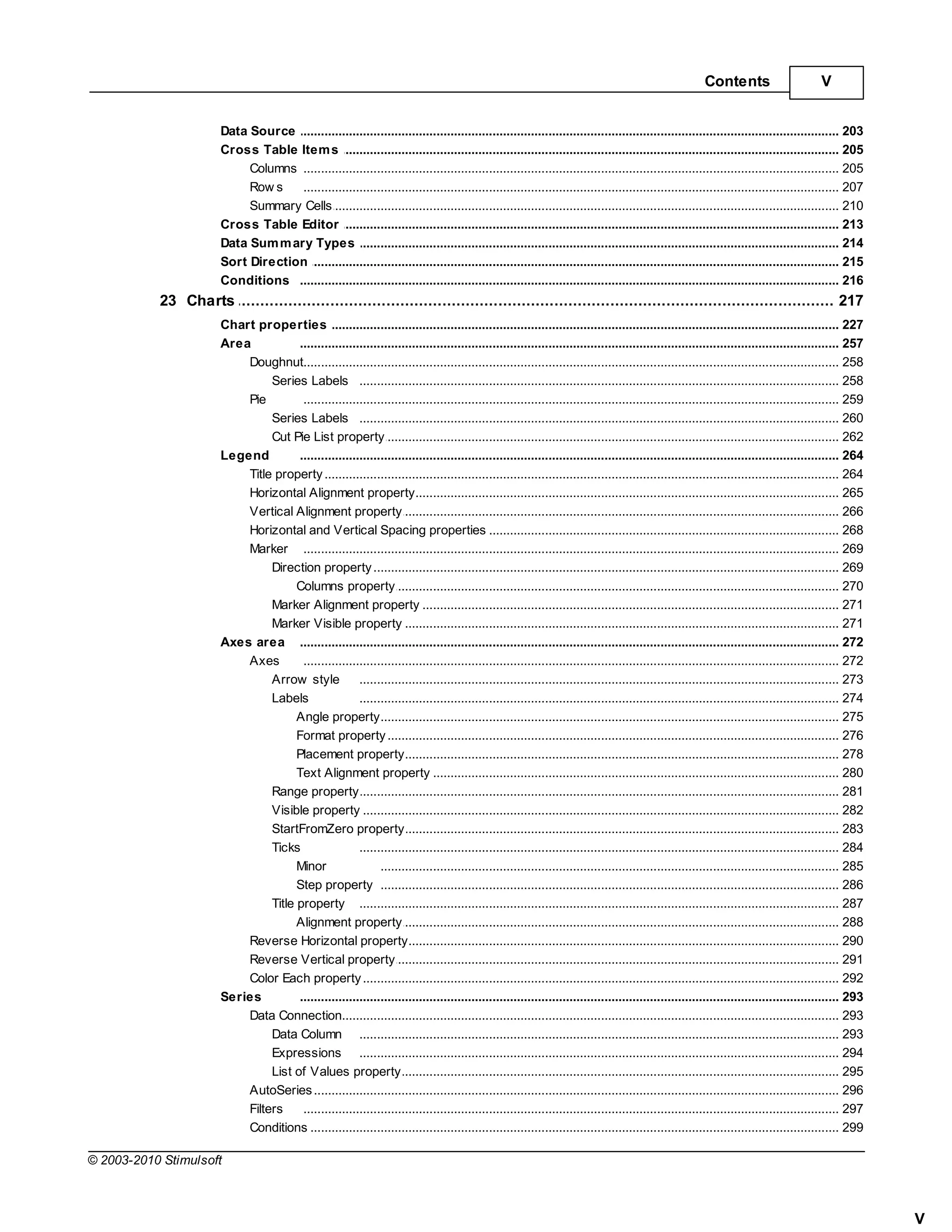
Contents                        I


Table of Contents
     Part I Report Internals                                                                                                                                                                 12
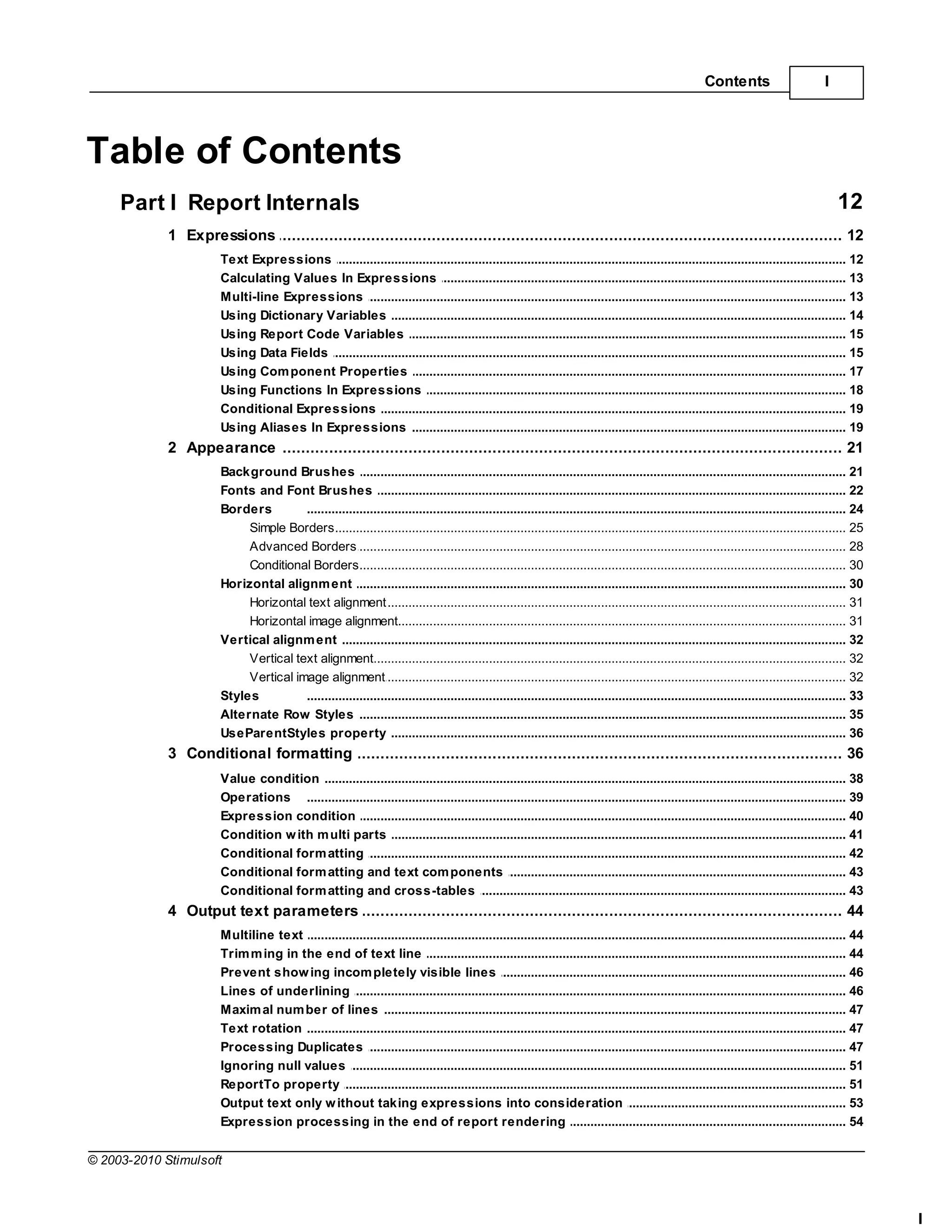
             1 Expressions
                    ................................................................................................................................... 12
                       Text Expressions
                                     .......................................................................................................................................................... 12
                       Calculating Values In Expressions
                                     .......................................................................................................................................................... 13
                       Multi-line Expressions
                                     .......................................................................................................................................................... 13
                       Using Dictionary Variables
                                     .......................................................................................................................................................... 14
                       Using Report .......................................................................................................................................................... 15
                                     Code Variables
                       Using Data Fields
                                     .......................................................................................................................................................... 15
                       Using Com ponent Properties
                                     .......................................................................................................................................................... 17
                       Using Functions In Expressions
                                     .......................................................................................................................................................... 18
                       Conditional Expressions
                                     .......................................................................................................................................................... 19
                       Using Aliases.......................................................................................................................................................... 19
                                      In Expressions
             2 Appearance
                    ................................................................................................................................... 21
                       Background Brushes
                                       .......................................................................................................................................................... 21
                       Fonts and Font Brushes
                                       .......................................................................................................................................................... 22
                       Borders         .......................................................................................................................................................... 24
                            Simple Borders
                                        ......................................................................................................................................................... 25
                            Advanced ......................................................................................................................................................... 28
                                        Borders
                            Conditional......................................................................................................................................................... 30
                                         Borders
                       Horizontal alignm ent
                                       .......................................................................................................................................................... 30
                            Horizontal text alignment
                                        ......................................................................................................................................................... 31
                            Horizontal image alignment
                                        ......................................................................................................................................................... 31
                       Vertical alignm ent
                                       .......................................................................................................................................................... 32
                            Vertical text alignment
                                        ......................................................................................................................................................... 32
                            Vertical image alignment
                                        ......................................................................................................................................................... 32
                       Styles          .......................................................................................................................................................... 33
                       Alternate Row Styles
                                       .......................................................................................................................................................... 35
                       UseParentStyles property
                                       .......................................................................................................................................................... 36
             3 Conditional formatting
                    ................................................................................................................................... 36
                       Value condition
                                     .......................................................................................................................................................... 38
                       Operations .......................................................................................................................................................... 39
                       Expression condition
                                     .......................................................................................................................................................... 40
                       Condition w ith m ulti parts
                                     .......................................................................................................................................................... 41
                       Conditional form atting
                                     .......................................................................................................................................................... 42
                       Conditional form atting and text com ponents
                                     .......................................................................................................................................................... 43
                       Conditional form atting and cross-tables
                                     .......................................................................................................................................................... 43
             4 Output text parameters
                    ................................................................................................................................... 44
                       Multiline text .......................................................................................................................................................... 44
                       Trim m ing in the end of text line
                                      .......................................................................................................................................................... 44
                       Prevent show.......................................................................................................................................................... 46
                                       ing incom pletely visible lines
                       Lines of underlining
                                      .......................................................................................................................................................... 46
                       Maxim al num ber of lines
                                      .......................................................................................................................................................... 47
                       Text rotation .......................................................................................................................................................... 47
                       Processing Duplicates
                                      .......................................................................................................................................................... 47
                       Ignoring null values
                                      .......................................................................................................................................................... 51
                       ReportTo property
                                      .......................................................................................................................................................... 51
                       Output text only w ithout taking expressions into consideration
                                      .......................................................................................................................................................... 53
                       Expression processing in the end of report rendering
                                      .......................................................................................................................................................... 54

© 2003-2010 Stimulsoft


                                                                                                                                                                                                       I
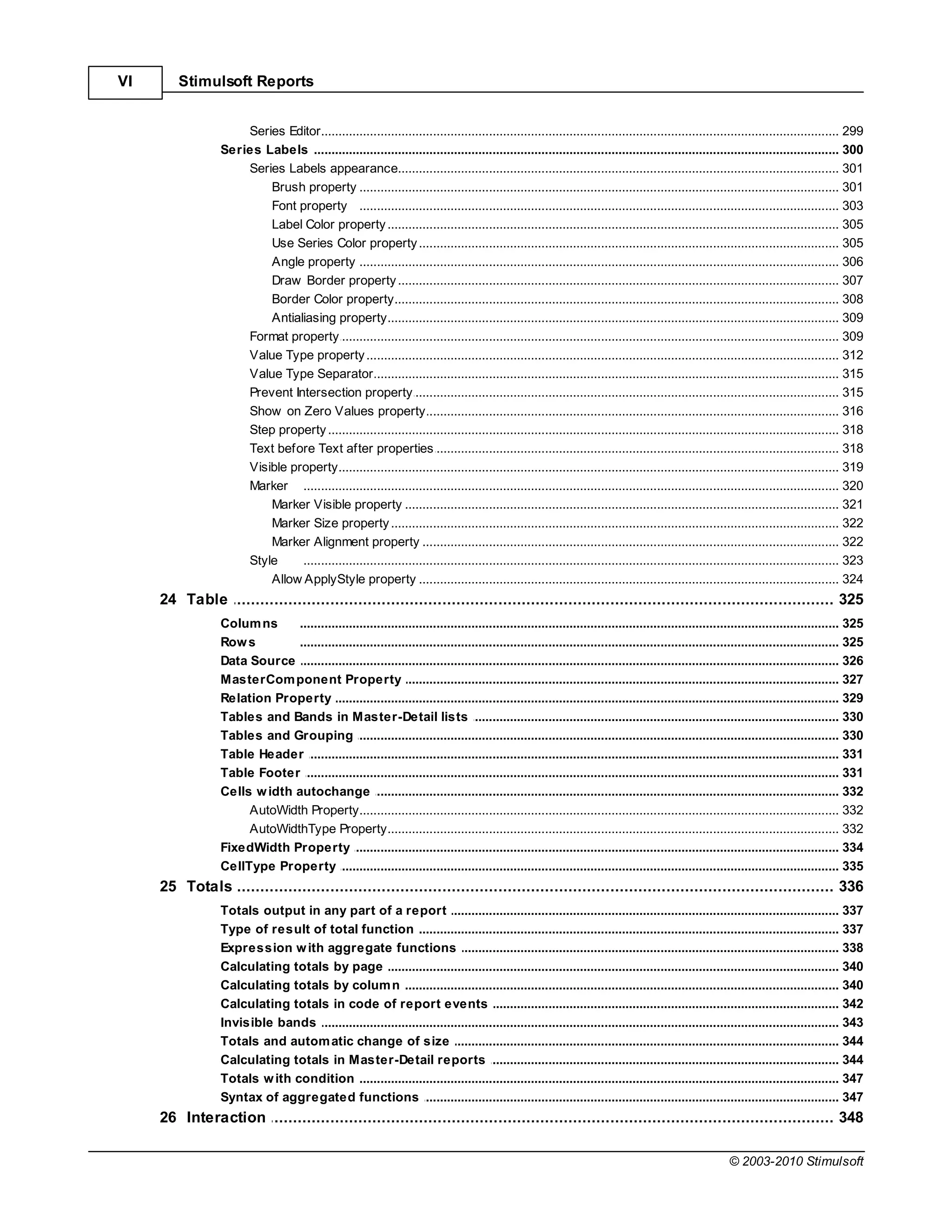
II      Stimulsoft Reports


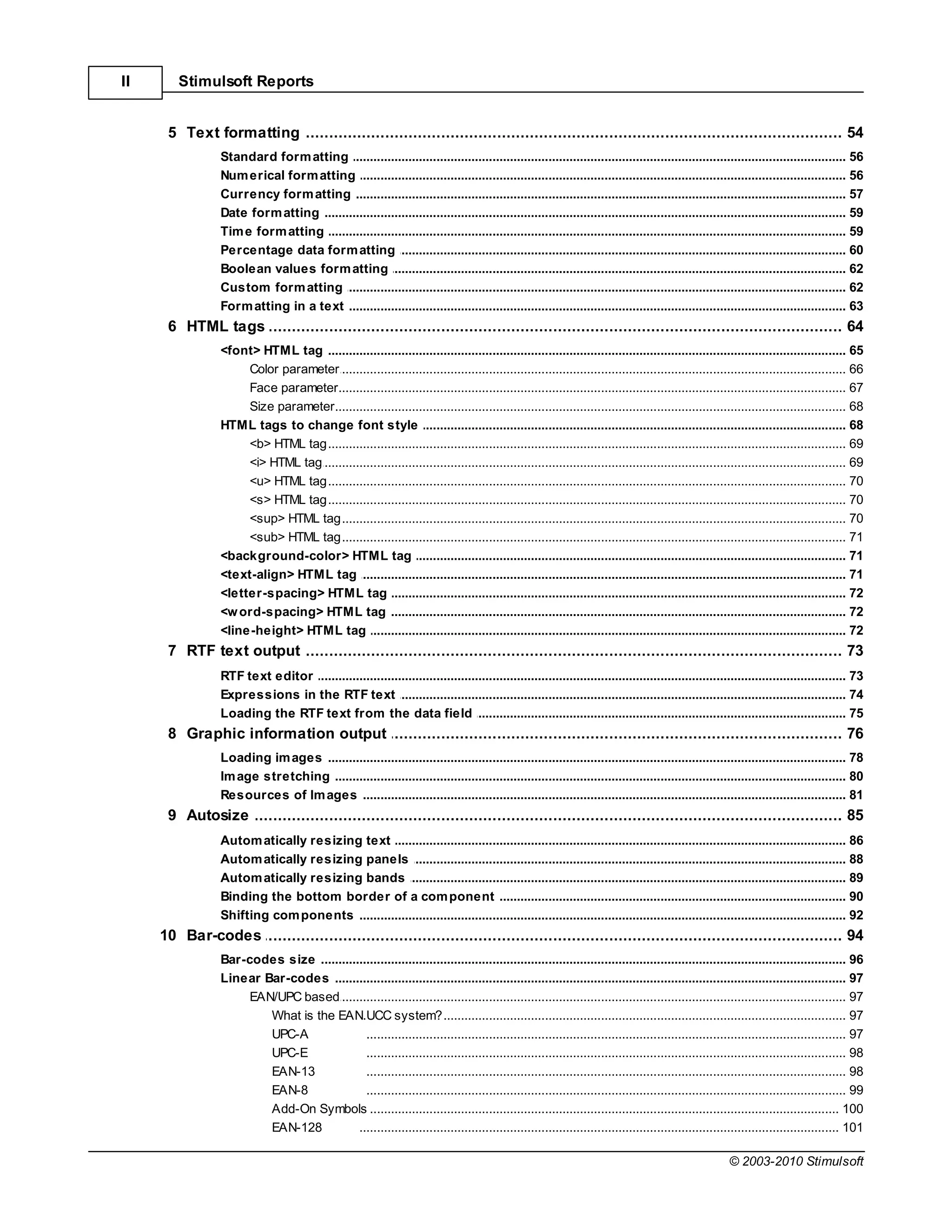
      5 Text formatting
              ................................................................................................................................... 54
                 Standard form atting
                                .......................................................................................................................................................... 56
                 Num erical form atting
                                .......................................................................................................................................................... 56
                 Currency form atting
                                .......................................................................................................................................................... 57
                 Date form atting
                                .......................................................................................................................................................... 59
                 Tim e form atting
                                .......................................................................................................................................................... 59
                 Percentage data form atting
                                .......................................................................................................................................................... 60
                 Boolean values form atting
                                .......................................................................................................................................................... 62
                 Custom form .......................................................................................................................................................... 62
                                atting
                 Form atting in .......................................................................................................................................................... 63
                                 a text
      6 HTML ................................................................................................................................... 64
              tags
                 <font> HTML tag.......................................................................................................................................................... 65
                      Color parameter
                                 ......................................................................................................................................................... 66
                      Face parameter
                                 ......................................................................................................................................................... 67
                      Size parameter
                                 ......................................................................................................................................................... 68
                 HTML tags to .......................................................................................................................................................... 68
                                change font style
                      <b> HTML tag
                                 ......................................................................................................................................................... 69
                      <i> HTML tag
                                 ......................................................................................................................................................... 69
                      <u> HTML tag
                                 ......................................................................................................................................................... 70
                      <s> HTML tag
                                 ......................................................................................................................................................... 70
                      <sup> HTML tag
                                 ......................................................................................................................................................... 70
                      <sub> HTML tag
                                 ......................................................................................................................................................... 71
                 <background-color> HTML tag
                                .......................................................................................................................................................... 71
                 <text-align> HTML tag
                                .......................................................................................................................................................... 71
                 <letter-spacing> HTML tag
                                .......................................................................................................................................................... 72
                 <w ord-spacing> HTML tag
                                .......................................................................................................................................................... 72
                 <line-height> .......................................................................................................................................................... 72
                                HTML tag
      7 RTF text output
              ................................................................................................................................... 73
                 RTF text editor
                               .......................................................................................................................................................... 73
                 Expressions in the RTF text
                               .......................................................................................................................................................... 74
                 Loading the RTF text from the data field
                               .......................................................................................................................................................... 75
      8 Graphic information output
             ................................................................................................................................... 76
                 Loading im ages
                               .......................................................................................................................................................... 78
                 Im age stretching
                               .......................................................................................................................................................... 80
                 Resources of .......................................................................................................................................................... 81
                                Im ages
      9 Autosize
              ................................................................................................................................... 85
                 Autom atically.......................................................................................................................................................... 86
                                resizing text
                 Autom atically.......................................................................................................................................................... 88
                                resizing panels
                 Autom atically.......................................................................................................................................................... 89
                                resizing bands
                 Binding the bottom border of a com ponent
                               .......................................................................................................................................................... 90
                 Shifting com ponents
                               .......................................................................................................................................................... 92
     10 Bar-codes
              ................................................................................................................................... 94
                 Bar-codes size.......................................................................................................................................................... 96
                 Linear Bar-codes
                               .......................................................................................................................................................... 97
                      EAN/UPC based
                                ......................................................................................................................................................... 97
                         What is the EAN.UCC system?
                                                ......................................................................................................................................... 97
                         UPC-A                  ......................................................................................................................................... 97
                         UPC-E                  ......................................................................................................................................... 98
                         EAN-13                 ......................................................................................................................................... 98
                         EAN-8                  ......................................................................................................................................... 99
                         Add-On Symbols       ......................................................................................................................................... 100
                         EAN-128              ......................................................................................................................................... 101

                                                                                                                                                         © 2003-2010 Stimulsoft
Contents                       III


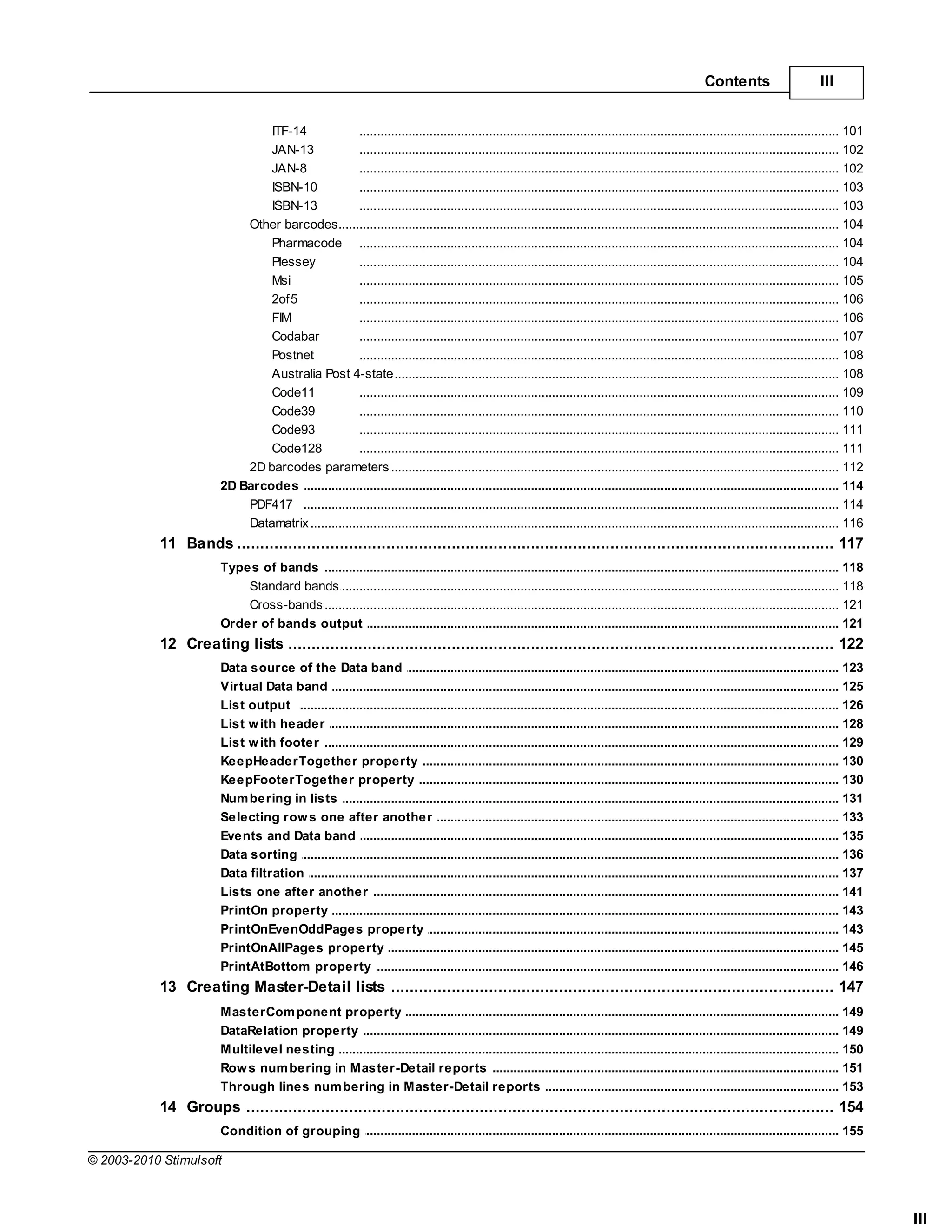
                               ITF-14               ......................................................................................................................................... 101
                               JAN-13               ......................................................................................................................................... 102
                               JAN-8                ......................................................................................................................................... 102
                               ISBN-10              ......................................................................................................................................... 103
                               ISBN-13              ......................................................................................................................................... 103
                           Other barcodes
                                    ......................................................................................................................................................... 104
                               Pharmacode ......................................................................................................................................... 104
                               Plessey              ......................................................................................................................................... 104
                               Msi                  ......................................................................................................................................... 105
                               2of5                 ......................................................................................................................................... 106
                               FIM                  ......................................................................................................................................... 106
                               Codabar              ......................................................................................................................................... 107
                               Postnet              ......................................................................................................................................... 108
                               Australia Post 4-state
                                                    ......................................................................................................................................... 108
                               Code11               ......................................................................................................................................... 109
                               Code39               ......................................................................................................................................... 110
                               Code93               ......................................................................................................................................... 111
                               Code128              ......................................................................................................................................... 111
                           2D barcodes parameters
                                    ......................................................................................................................................................... 112
                       2D Barcodes .......................................................................................................................................................... 114
                           PDF417 ......................................................................................................................................................... 114
                           Datamatrix
                                    ......................................................................................................................................................... 116
           11 Bands
                  ................................................................................................................................... 117
                       Types of bands
                                   .......................................................................................................................................................... 118
                           Standard ......................................................................................................................................................... 118
                                    bands
                           Cross-bands
                                    ......................................................................................................................................................... 121
                       Order of bands output
                                   .......................................................................................................................................................... 121
           12 Creating lists
                  ................................................................................................................................... 122
                       Data source .......................................................................................................................................................... 123
                                     of the Data band
                       Virtual Data band
                                     .......................................................................................................................................................... 125
                       List output .......................................................................................................................................................... 126
                       List w ith header
                                     .......................................................................................................................................................... 128
                       List w ith footer
                                     .......................................................................................................................................................... 129
                       KeepHeaderTogether property
                                     .......................................................................................................................................................... 130
                       KeepFooterTogether property
                                     .......................................................................................................................................................... 130
                       Num bering in lists
                                     .......................................................................................................................................................... 131
                       Selecting row s one after another
                                     .......................................................................................................................................................... 133
                       Events and Data band
                                     .......................................................................................................................................................... 135
                       Data sorting .......................................................................................................................................................... 136
                       Data filtration
                                     .......................................................................................................................................................... 137
                       Lists one after another
                                     .......................................................................................................................................................... 141
                       PrintOn property
                                     .......................................................................................................................................................... 143
                       PrintOnEvenOddPages property
                                     .......................................................................................................................................................... 143
                       PrintOnAllPages property
                                     .......................................................................................................................................................... 145
                       PrintAtBottom property
                                     .......................................................................................................................................................... 146
           13 Creating Master-Detail lists
                  ................................................................................................................................... 147
                       MasterCom ponent property
                                    .......................................................................................................................................................... 149
                       DataRelation .......................................................................................................................................................... 149
                                     property
                       Multilevel nesting
                                    .......................................................................................................................................................... 150
                       Row s num bering in Master-Detail reports
                                    .......................................................................................................................................................... 151
                       Through lines num bering in Master-Detail reports
                                    .......................................................................................................................................................... 153
           14 Groups
                  ................................................................................................................................... 154
                       Condition of .......................................................................................................................................................... 155
                                     grouping

© 2003-2010 Stimulsoft


                                                                                                                                                                                                      III
IV      Stimulsoft Reports


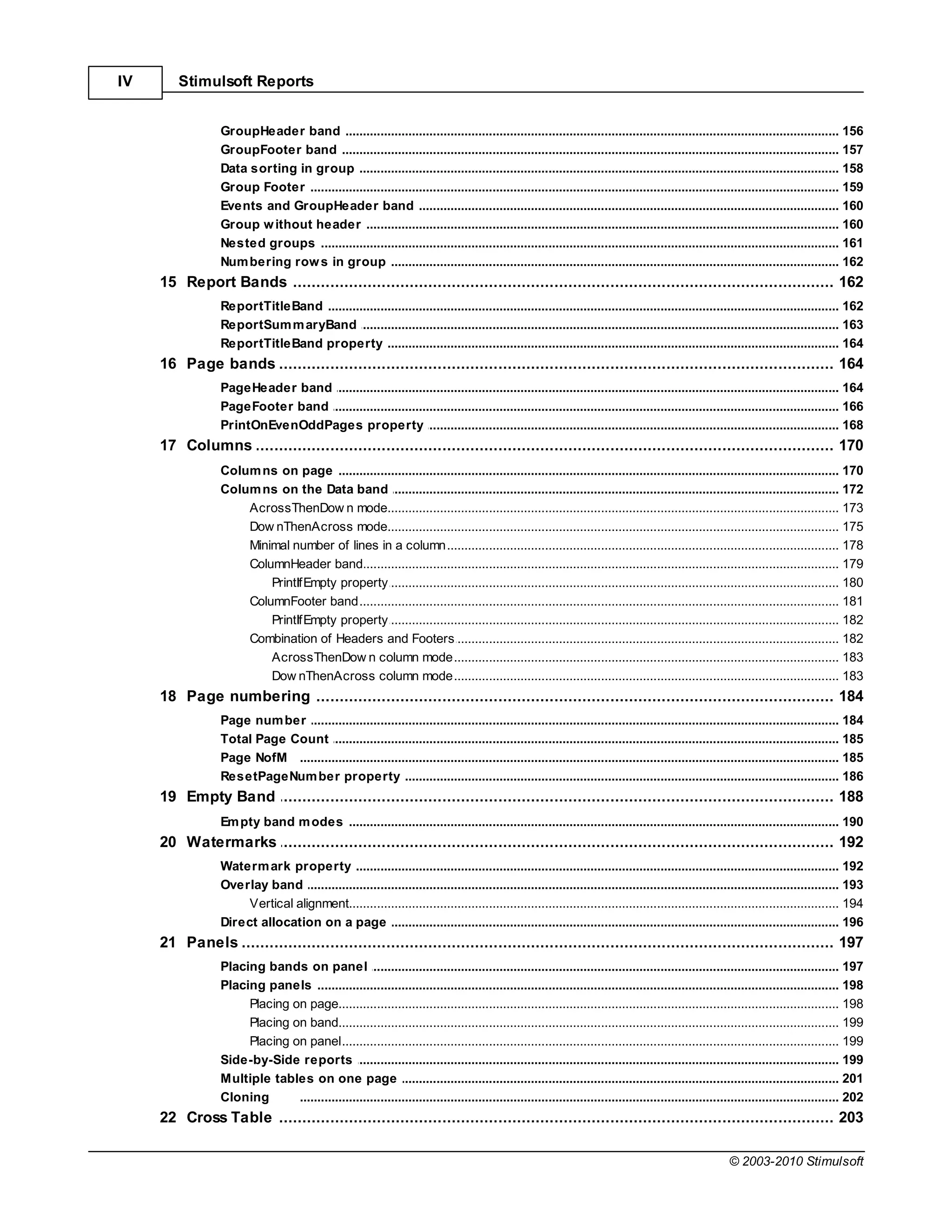
                 GroupHeader band
                              .......................................................................................................................................................... 156
                 GroupFooter.......................................................................................................................................................... 157
                                band
                 Data sorting .......................................................................................................................................................... 158
                              in group
                 Group Footer .......................................................................................................................................................... 159
                 Events and GroupHeader band
                              .......................................................................................................................................................... 160
                 Group w ithout header
                              .......................................................................................................................................................... 160
                 Nested groups.......................................................................................................................................................... 161
                 Num bering row s in group
                              .......................................................................................................................................................... 162
     15 Report Bands
            ................................................................................................................................... 162
                 ReportTitleBand
                             .......................................................................................................................................................... 162
                 ReportSum m aryBand
                             .......................................................................................................................................................... 163
                 ReportTitleBand property
                             .......................................................................................................................................................... 164
     16 Page................................................................................................................................... 164
              bands
                 PageHeader .......................................................................................................................................................... 164
                            band
                 PageFooter band
                            .......................................................................................................................................................... 166
                 PrintOnEvenOddPages property
                            .......................................................................................................................................................... 168
     17 Columns
            ................................................................................................................................... 170
                 Colum ns on .......................................................................................................................................................... 170
                                page
                 Colum ns on .......................................................................................................................................................... 172
                                the Data band
                     AcrossThenDow n mode
                                ......................................................................................................................................................... 173
                     Dow nThenAcross mode
                                ......................................................................................................................................................... 175
                     Minimal number of lines in a column
                                ......................................................................................................................................................... 178
                     ColumnHeader band
                                ......................................................................................................................................................... 179
                         PrintIfEmpty property  ......................................................................................................................................... 180
                     ColumnFooter band
                                ......................................................................................................................................................... 181
                         PrintIfEmpty property  ......................................................................................................................................... 182
                     Combination of Headers and Footers
                                ......................................................................................................................................................... 182
                         AcrossThenDow n column mode
                                                ......................................................................................................................................... 183
                         Dow nThenAcross column mode
                                                ......................................................................................................................................... 183
     18 Page................................................................................................................................... 184
              numbering
                 Page num ber.......................................................................................................................................................... 184
                 Total Page Count
                             .......................................................................................................................................................... 185
                 Page NofM .......................................................................................................................................................... 185
                 ResetPageNum ber property
                             .......................................................................................................................................................... 186
     19 Empty Band
            ................................................................................................................................... 188
                 Em pty band m odes
                             .......................................................................................................................................................... 190
     20 Watermarks
            ................................................................................................................................... 192
                 Waterm ark property
                                .......................................................................................................................................................... 192
                 Overlay band   .......................................................................................................................................................... 193
                      Vertical alignment
                                 ......................................................................................................................................................... 194
                 Direct allocation on a page
                                .......................................................................................................................................................... 196
     21 Panels
            ................................................................................................................................... 197
                 Placing bands on panel
                               .......................................................................................................................................................... 197
                 Placing panels.......................................................................................................................................................... 198
                      Placing on page
                                ......................................................................................................................................................... 198
                      Placing on band
                                ......................................................................................................................................................... 199
                      Placing on panel
                                ......................................................................................................................................................... 199
                 Side-by-Side.......................................................................................................................................................... 199
                                reports
                 Multiple tables on one page
                               .......................................................................................................................................................... 201
                 Cloning       .......................................................................................................................................................... 202
     22 Cross Table
            ................................................................................................................................... 203

                                                                                                                                                         © 2003-2010 Stimulsoft
Contents                       V


                       Data Source .......................................................................................................................................................... 203
                       Cross Table .......................................................................................................................................................... 205
                                     Item s
                            Columns ......................................................................................................................................................... 205
                            Row s    ......................................................................................................................................................... 207
                            Summary ......................................................................................................................................................... 210
                                      Cells
                       Cross Table .......................................................................................................................................................... 213
                                     Editor
                       Data Sum m ary Types
                                    .......................................................................................................................................................... 214
                       Sort Direction
                                    .......................................................................................................................................................... 215
                       Conditions .......................................................................................................................................................... 216
           23 Charts
                  ................................................................................................................................... 217
                       Chart properties.......................................................................................................................................................... 227
                       Area            .......................................................................................................................................................... 257
                           Doughnut......................................................................................................................................................... 258
                                Series Labels ......................................................................................................................................... 258
                           Pie          ......................................................................................................................................................... 259
                                Series Labels ......................................................................................................................................... 260
                                Cut Pie List property   ......................................................................................................................................... 262
                       Legend          .......................................................................................................................................................... 264
                           Title property
                                        ......................................................................................................................................................... 264
                           Horizontal Alignment property
                                        ......................................................................................................................................................... 265
                           Vertical Alignment property
                                        ......................................................................................................................................................... 266
                           Horizontal and Vertical Spacing properties
                                        ......................................................................................................................................................... 268
                           Marker ......................................................................................................................................................... 269
                                Direction property      ......................................................................................................................................... 269
                                      Columns property        ................................................................................................................................... 270
                                Marker lignment property......................................................................................................................................... 271
                                Marker Visible property ......................................................................................................................................... 271
                       Axes area .......................................................................................................................................................... 272
                           Axes         ......................................................................................................................................................... 272
                                Arrow style             ......................................................................................................................................... 273
                                Labels                  ......................................................................................................................................... 274
                                      Angle property ................................................................................................................................... 275
                                      Format property         ................................................................................................................................... 276
                                      Placement property      ................................................................................................................................... 278
                                      Text Alignment ................................................................................................................................... 280
                                                               property
                                Range property ......................................................................................................................................... 281
                                Visible property......................................................................................................................................... 282
                                StartFromZero property  ......................................................................................................................................... 283
                                Ticks                   ......................................................................................................................................... 284
                                      Minor                   ................................................................................................................................... 285
                                      Step property ................................................................................................................................... 286
                                Title property ......................................................................................................................................... 287
                                      Alignment property      ................................................................................................................................... 288
                           Reverse Horizontal property
                                        ......................................................................................................................................................... 290
                           Reverse Vertical property
                                        ......................................................................................................................................................... 291
                           Color Each property
                                        ......................................................................................................................................................... 292
                       Series          .......................................................................................................................................................... 293
                           Data Connection
                                        ......................................................................................................................................................... 293
                                Data Column ......................................................................................................................................... 293
                                Expressions ......................................................................................................................................... 294
                                List of Values property ......................................................................................................................................... 295
                           AutoSeries   ......................................................................................................................................................... 296
                           Filters      ......................................................................................................................................................... 297
                           Conditions   ......................................................................................................................................................... 299

© 2003-2010 Stimulsoft


                                                                                                                                                                                                        V
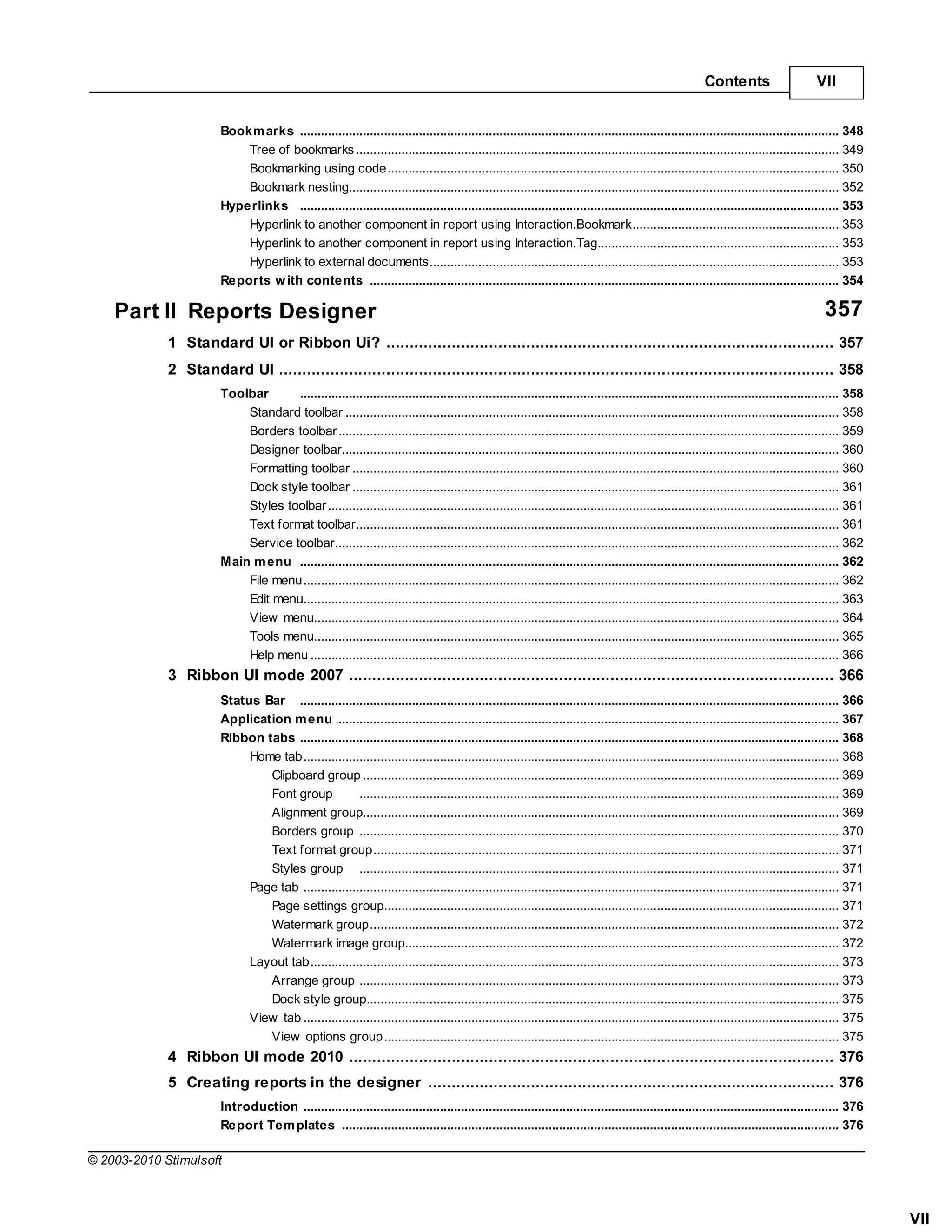
VI      Stimulsoft Reports


                     Series Editor
                                ......................................................................................................................................................... 299
                 Series Labels .......................................................................................................................................................... 300
                     Series Labels appearance
                                ......................................................................................................................................................... 301
                         Brush property ......................................................................................................................................... 301
                         Font property ......................................................................................................................................... 303
                         Label Color property   ......................................................................................................................................... 305
                         Use Series Color property
                                                ......................................................................................................................................... 305
                         Angle property ......................................................................................................................................... 306
                         Draw Border property   ......................................................................................................................................... 307
                         Border Color property  ......................................................................................................................................... 308
                         Antialiasing property  ......................................................................................................................................... 309
                     Format property
                                ......................................................................................................................................................... 309
                     Value Type property
                                ......................................................................................................................................................... 312
                     Value Type Separator
                                ......................................................................................................................................................... 315
                     Prevent Intersection property
                                ......................................................................................................................................................... 315
                     Show on ......................................................................................................................................................... 316
                                Zero Values property
                     Step property
                                ......................................................................................................................................................... 318
                     Text before Text after properties
                                ......................................................................................................................................................... 318
                     Visible property
                                ......................................................................................................................................................... 319
                     Marker ......................................................................................................................................................... 320
                         Marker Visible property......................................................................................................................................... 321
                         Marker Size property   ......................................................................................................................................... 322
                         Marker Alignment property
                                                ......................................................................................................................................... 322
                     Style      ......................................................................................................................................................... 323
                         Allow ApplyStyle property
                                                ......................................................................................................................................... 324
     24 Table
            ................................................................................................................................... 325
                 Colum ns      .......................................................................................................................................................... 325
                 Row s         .......................................................................................................................................................... 325
                 Data Source .......................................................................................................................................................... 326
                 MasterCom ponent Property
                               .......................................................................................................................................................... 327
                 Relation Property
                               .......................................................................................................................................................... 329
                 Tables and Bands in Master-Detail lists
                               .......................................................................................................................................................... 330
                 Tables and Grouping
                               .......................................................................................................................................................... 330
                 Table Header  .......................................................................................................................................................... 331
                 Table Footer.......................................................................................................................................................... 331
                 Cells w idth autochange
                               .......................................................................................................................................................... 332
                      AutoWidth Property
                                ......................................................................................................................................................... 332
                      AutoWidthType Property
                                ......................................................................................................................................................... 332
                 FixedWidth Property
                               .......................................................................................................................................................... 334
                 CellType Property
                               .......................................................................................................................................................... 335
     25 Totals
             ................................................................................................................................... 336
                 Totals output in any part of a report
                               .......................................................................................................................................................... 337
                 Type of result of total function
                               .......................................................................................................................................................... 337
                 Expression w ith aggregate functions
                               .......................................................................................................................................................... 338
                 Calculating totals by page
                               .......................................................................................................................................................... 340
                 Calculating totals by colum n
                               .......................................................................................................................................................... 340
                 Calculating totals in code of report events
                               .......................................................................................................................................................... 342
                 Invisible bands
                               .......................................................................................................................................................... 343
                 Totals and autom atic change of size
                               .......................................................................................................................................................... 344
                 Calculating totals in Master-Detail reports
                               .......................................................................................................................................................... 344
                 Totals w ith condition
                               .......................................................................................................................................................... 347
                 Syntax of aggregated functions
                               .......................................................................................................................................................... 347
     26 Interaction
             ................................................................................................................................... 348

                                                                                                                                                         © 2003-2010 Stimulsoft
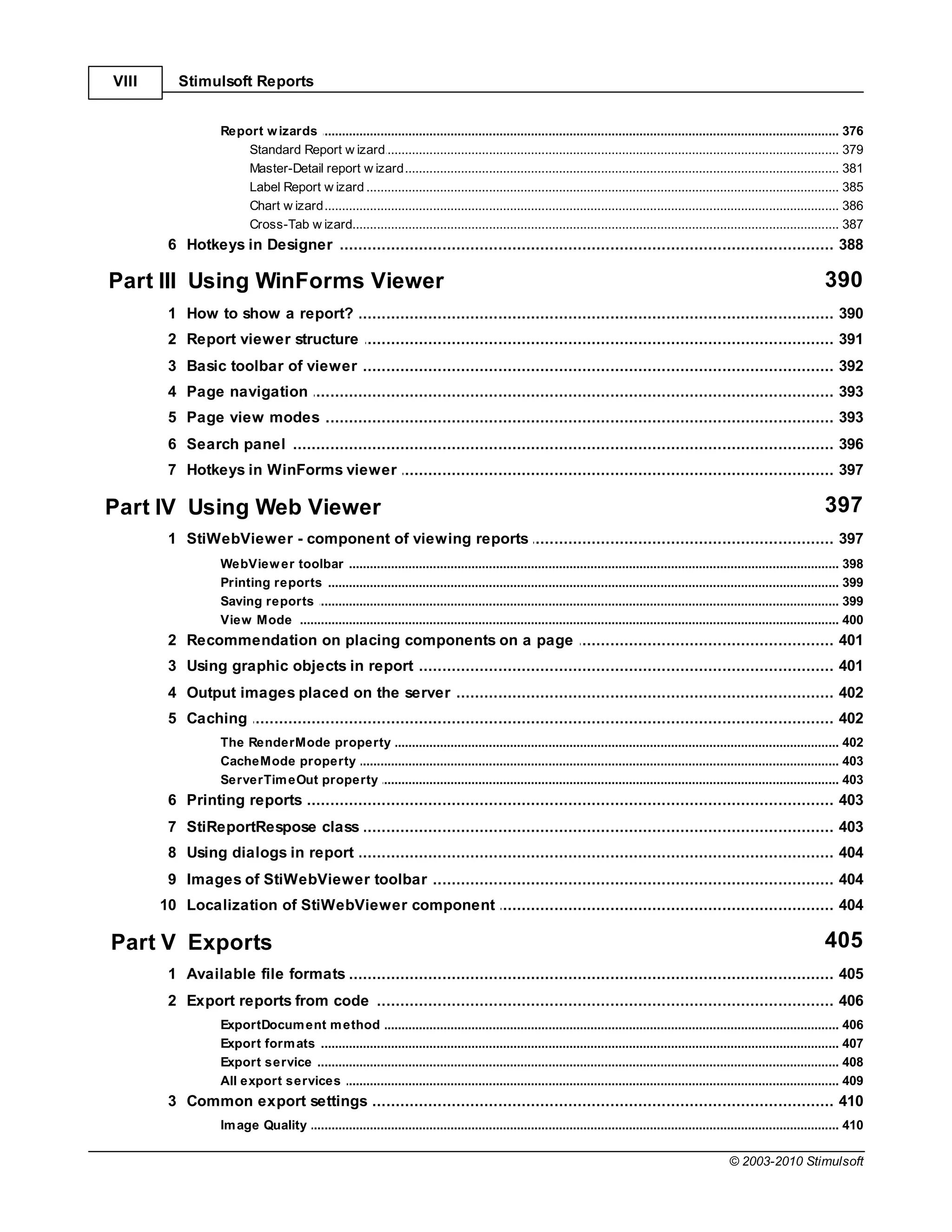
Contents                      VII


                       Bookm arks .......................................................................................................................................................... 348
                           Tree of bookmarks
                                     ......................................................................................................................................................... 349
                           Bookmarking using code
                                     ......................................................................................................................................................... 350
                           Bookmark......................................................................................................................................................... 352
                                      nesting
                       Hyperlinks .......................................................................................................................................................... 353
                           Hyperlink ......................................................................................................................................................... 353
                                     to another component in report using Interaction.Bookmark
                           Hyperlink ......................................................................................................................................................... 353
                                     to another component in report using Interaction.Tag
                           Hyperlink ......................................................................................................................................................... 353
                                     to external documents
                       Reports w ith contents
                                    .......................................................................................................................................................... 354

    Part II Reports Designer                                                                                                                                                            357
             1 Standard UI or Ribbon Ui?
                   ................................................................................................................................... 357
             2 Standard UI
                   ................................................................................................................................... 358
                       Toolbar      .......................................................................................................................................................... 358
                           Standard ......................................................................................................................................................... 358
                                     toolbar
                           Borders toolbar
                                     ......................................................................................................................................................... 359
                           Designer ......................................................................................................................................................... 360
                                     toolbar
                           Formatting toolbar
                                     ......................................................................................................................................................... 360
                           Dock style toolbar
                                     ......................................................................................................................................................... 361
                           Styles toolbar
                                     ......................................................................................................................................................... 361
                           Text format toolbar
                                     ......................................................................................................................................................... 361
                           Service toolbar
                                     ......................................................................................................................................................... 362
                       Main m enu .......................................................................................................................................................... 362
                           File menu ......................................................................................................................................................... 362
                           Edit menu......................................................................................................................................................... 363
                           View menu ......................................................................................................................................................... 364
                           Tools menu......................................................................................................................................................... 365
                           Help menu ......................................................................................................................................................... 366
             3 Ribbon UI mode 2007
                   ................................................................................................................................... 366
                       Status Bar .......................................................................................................................................................... 366
                       Application m enu
                                     .......................................................................................................................................................... 367
                       Ribbon tabs .......................................................................................................................................................... 368
                            Home tab ......................................................................................................................................................... 368
                               Clipboard group......................................................................................................................................... 369
                               Font group             ......................................................................................................................................... 369
                               Alignment group        ......................................................................................................................................... 369
                               Borders group ......................................................................................................................................... 370
                               Text format group      ......................................................................................................................................... 371
                               Styles group ......................................................................................................................................... 371
                            Page tab ......................................................................................................................................................... 371
                               Page settings group    ......................................................................................................................................... 371
                               Watermark group        ......................................................................................................................................... 372
                               Watermark image group  ......................................................................................................................................... 372
                            Layout tab......................................................................................................................................................... 373
                               Arrange group ......................................................................................................................................... 373
                               Dock style group       ......................................................................................................................................... 375
                            View tab ......................................................................................................................................................... 375
                               View options group     ......................................................................................................................................... 375
             4 Ribbon UI mode 2010
                   ................................................................................................................................... 376
             5 Creating reports in the designer
                   ................................................................................................................................... 376
                       Introduction .......................................................................................................................................................... 376
                       Report Tem plates
                                    .......................................................................................................................................................... 376

© 2003-2010 Stimulsoft


                                                                                                                                                                                                      VII
VIII      Stimulsoft Reports


                   Report w izards
                                .......................................................................................................................................................... 376
                       Standard ......................................................................................................................................................... 379
                                 Report w izard
                       Master-Detail report w izard
                                 ......................................................................................................................................................... 381
                       Label Report w izard
                                 ......................................................................................................................................................... 385
                       Chart w izard
                                 ......................................................................................................................................................... 386
                       Cross-Tab w izard
                                 ......................................................................................................................................................... 387
        6 Hotkeys in Designer
              ................................................................................................................................... 388

Part III Using WinForms Viewer                                                                                                                                                     390
        1 How ................................................................................................................................... 390
              to show a report?
        2 Report viewer structure
              ................................................................................................................................... 391
        3 Basic toolbar of viewer
               ................................................................................................................................... 392
        4 Page................................................................................................................................... 393
                navigation
        5 Page................................................................................................................................... 393
                view modes
        6 Search panel
              ................................................................................................................................... 396
        7 Hotkeys in WinForms viewer
              ................................................................................................................................... 397

Part IV Using Web Viewer                                                                                                                                                           397
        1 StiWebViewer - component of viewing reports
              ................................................................................................................................... 397
                   WebView er toolbar
                               .......................................................................................................................................................... 398
                   Printing reports
                               .......................................................................................................................................................... 399
                   Saving reports
                               .......................................................................................................................................................... 399
                   View Mode .......................................................................................................................................................... 400
        2 Recommendation on placing components on a page
              ................................................................................................................................... 401
        3 Using graphic objects in report
               ................................................................................................................................... 401
        4 Output images placed on the server
              ................................................................................................................................... 402
        5 Caching
              ................................................................................................................................... 402
                   The RenderMode property
                              .......................................................................................................................................................... 402
                   CacheMode .......................................................................................................................................................... 403
                              property
                   ServerTim eOut property
                              .......................................................................................................................................................... 403
        6 Printing reports
               ................................................................................................................................... 403
        7 StiReportRespose class
               ................................................................................................................................... 403
        8 Using dialogs in report
               ................................................................................................................................... 404
        9 Images of StiWebViewer toolbar
              ................................................................................................................................... 404
       10 Localization of StiWebViewer component
              ................................................................................................................................... 404

Part V Exports                                                                                                                                                                     405
        1 Available file formats
               ................................................................................................................................... 405
        2 Export reports from code
              ................................................................................................................................... 406
                   ExportDocum ent m ethod
                                .......................................................................................................................................................... 406
                   Export form ats
                                .......................................................................................................................................................... 407
                   Export service
                                .......................................................................................................................................................... 408
                   All export services
                                .......................................................................................................................................................... 409
        3 Common export settings
             ................................................................................................................................... 410
                   Im age Quality
                                .......................................................................................................................................................... 410

                                                                                                                                                          © 2003-2010 Stimulsoft
Contents                       IX


                       Im age Resolution
                                    .......................................................................................................................................................... 410
                       Im age Com parer
                                    .......................................................................................................................................................... 410
                       Convert Digits to Arabic
                                    .......................................................................................................................................................... 411
                       Arabic Digits.......................................................................................................................................................... 411
                                     Type
                       Divide Segm .......................................................................................................................................................... 411
                                    ent Pages
                       Rem ove Em pty Space at Bottom
                                    .......................................................................................................................................................... 411
                       Use One Page Header and Footer
                                    .......................................................................................................................................................... 411
             4 Formats with fixed page layout
                   ................................................................................................................................... 411
                       PDF            .......................................................................................................................................................... 412
                           Embedded fonts
                                       ......................................................................................................................................................... 412
                                Font styles            ......................................................................................................................................... 412
                           Digital signature
                                       ......................................................................................................................................................... 413
                                Keys                   ......................................................................................................................................... 413
                                Public key certificate ......................................................................................................................................... 413
                                Choosing certificate   ......................................................................................................................................... 413
                                Placing digital signature identifier
                                                       ......................................................................................................................................... 414
                                Digital signature......................................................................................................................................... 414
                                                        from code
                           Encryption  ......................................................................................................................................................... 414
                                Passw ords and......................................................................................................................................... 415
                                                         access permission
                                Key length             ......................................................................................................................................... 415
                                Using parameters of encryption from code
                                                       ......................................................................................................................................... 415
                           Editable fields
                                       ......................................................................................................................................................... 416
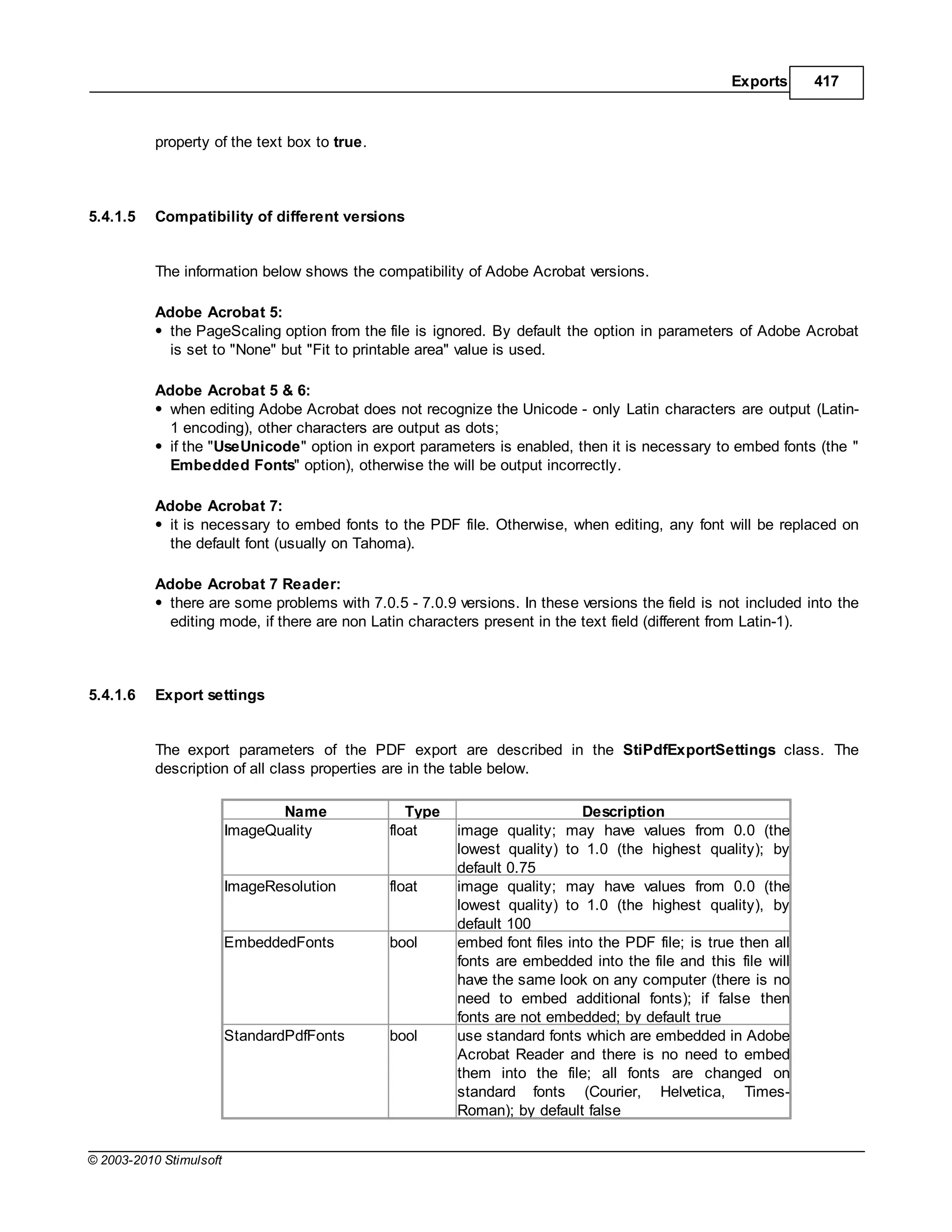
                           Compatibility of different versions
                                       ......................................................................................................................................................... 417
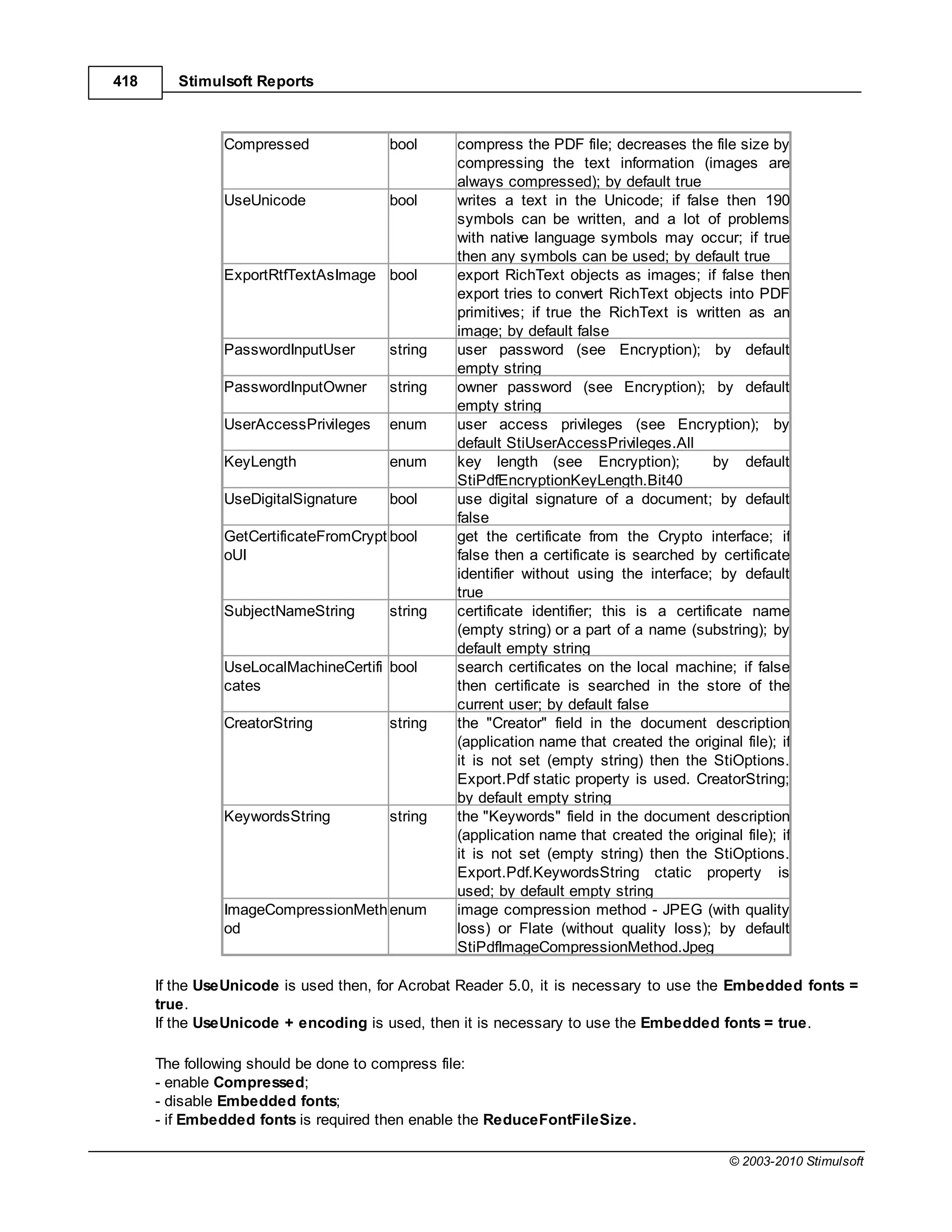
                           Export settings
                                       ......................................................................................................................................................... 417
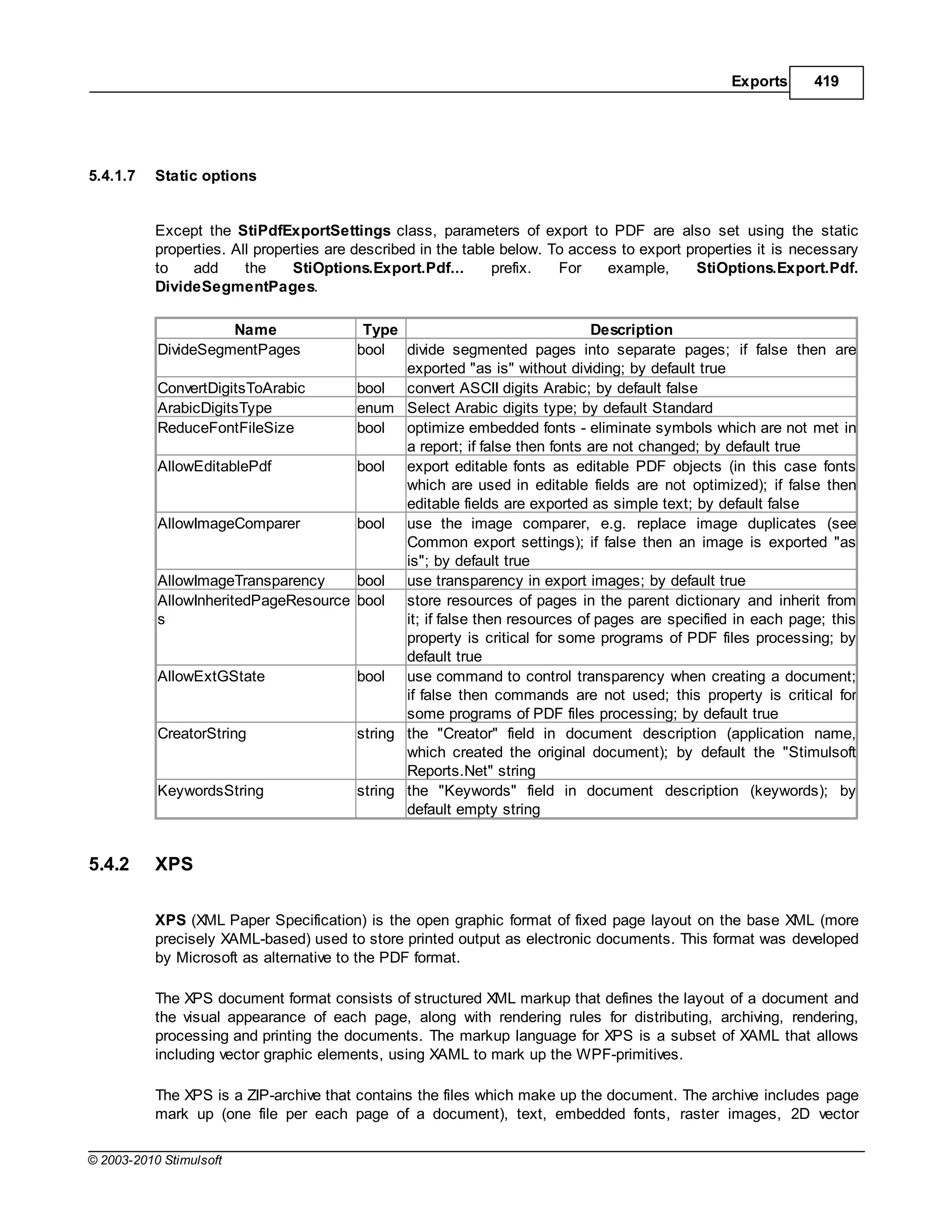
                           Static options
                                       ......................................................................................................................................................... 419
                       XPS            .......................................................................................................................................................... 419
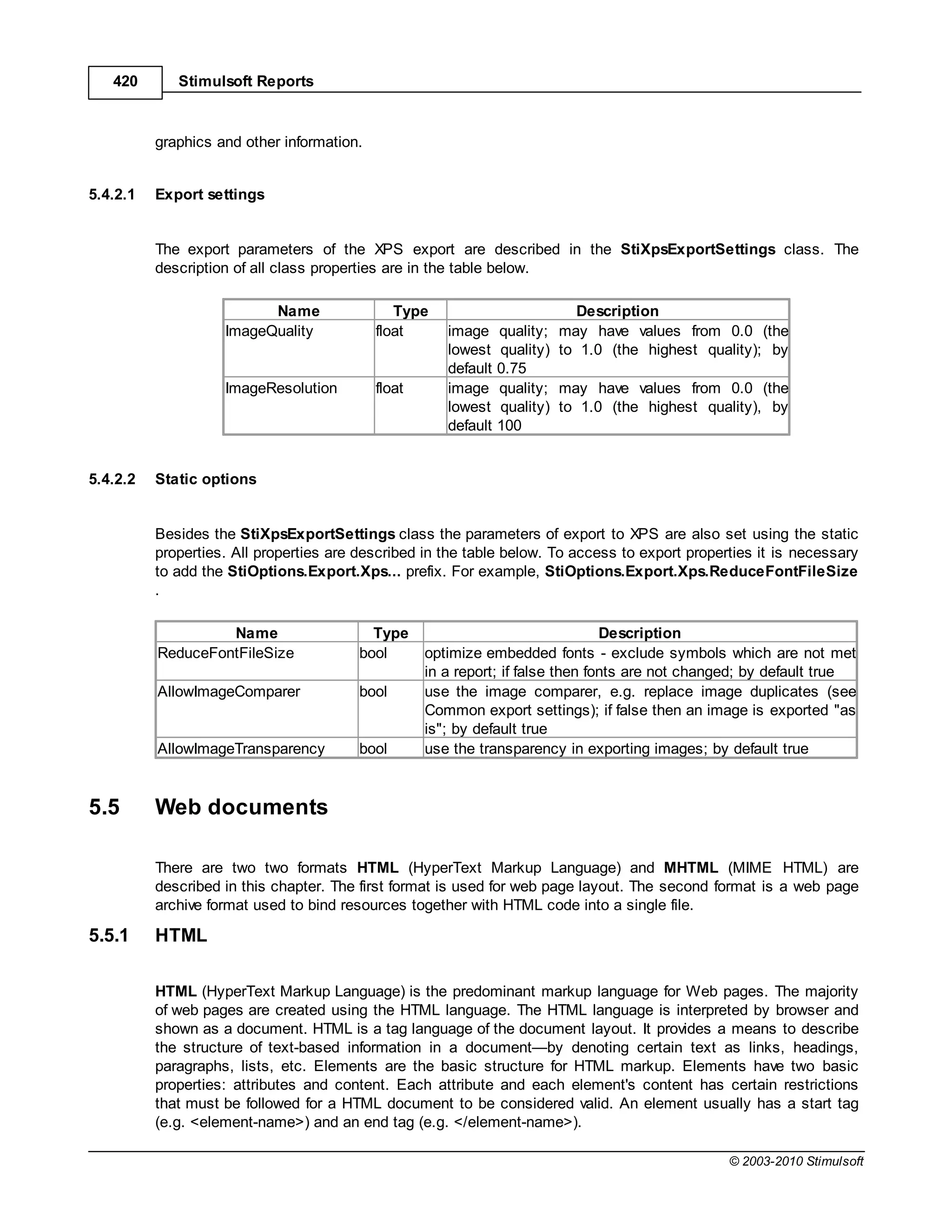
                           Export settings
                                       ......................................................................................................................................................... 420
                           Static options
                                       ......................................................................................................................................................... 420
             5 Web ................................................................................................................................... 420
                    documents
                       HTML         .......................................................................................................................................................... 420
                           Export modes
                                      ......................................................................................................................................................... 421
                           Export images in HTML format
                                      ......................................................................................................................................................... 421
                           Compatibility of different versions
                                      ......................................................................................................................................................... 421
                           Export settings
                                      ......................................................................................................................................................... 421
                           Static options
                                      ......................................................................................................................................................... 422
                       MHT          .......................................................................................................................................................... 422
                           Export settings
                                      ......................................................................................................................................................... 422
             6 Text ................................................................................................................................... 423
                    formats
                       TXT          .......................................................................................................................................................... 423
                           Border types
                                      ......................................................................................................................................................... 423
                           Column w......................................................................................................................................................... 423
                                       idth
                           New export modes
                                      ......................................................................................................................................................... 424
                           Export settings
                                      ......................................................................................................................................................... 424
                           Static options
                                      ......................................................................................................................................................... 424
                       RTF          .......................................................................................................................................................... 425
                           Export modes
                                      ......................................................................................................................................................... 425
                               Table modes ......................................................................................................................................... 425
                           Bugs       ......................................................................................................................................................... 426
                           Compatibility of different versions
                                      ......................................................................................................................................................... 427
                           Export settings
                                      ......................................................................................................................................................... 427
                           Static options
                                      ......................................................................................................................................................... 427
                       Word 2007 .......................................................................................................................................................... 428
                           Headers and footers
                                      ......................................................................................................................................................... 428

© 2003-2010 Stimulsoft


                                                                                                                                                                                                       IX
X      Stimulsoft Reports


                         Page numbering......................................................................................................................................... 428
                     Export settings
                                ......................................................................................................................................................... 429
                     Static options
                                ......................................................................................................................................................... 429
                 ODT          .......................................................................................................................................................... 430
                     Export settings
                                ......................................................................................................................................................... 430
                     Static options
                                ......................................................................................................................................................... 430
      7 Spreadsheets
            ................................................................................................................................... 431
                 Excel        .......................................................................................................................................................... 431
                     Excel sheets
                                ......................................................................................................................................................... 431
                     Compatibility of different versions
                                ......................................................................................................................................................... 431
                     Export settings
                                ......................................................................................................................................................... 432
                     Static options
                                ......................................................................................................................................................... 432
                 Excel XML .......................................................................................................................................................... 432
                 Excel 2007 .......................................................................................................................................................... 432
                     Sheets in ......................................................................................................................................................... 433
                                 Excel
                     Export settings
                                ......................................................................................................................................................... 433
                     Static options
                                ......................................................................................................................................................... 433
                 ODS          .......................................................................................................................................................... 434
                     Export settings
                                ......................................................................................................................................................... 434
                     Static options
                                ......................................................................................................................................................... 434
      8 Data ................................................................................................................................... 435
                 CSV           .......................................................................................................................................................... 435
                     Controlling exports
                                ......................................................................................................................................................... 435
                     Export settings
                                ......................................................................................................................................................... 436
                     Static options
                                ......................................................................................................................................................... 436
                 DBF           .......................................................................................................................................................... 436
                     Controlling exports
                                ......................................................................................................................................................... 436
                     Export settings
                                ......................................................................................................................................................... 438
                 XML           .......................................................................................................................................................... 438
                     Controlling exports
                                ......................................................................................................................................................... 438
                 DIF           .......................................................................................................................................................... 439
                     Export settings
                                ......................................................................................................................................................... 439
                 SYLK          .......................................................................................................................................................... 439
                     Export settings
                                ......................................................................................................................................................... 439
      9 Images
            ................................................................................................................................... 440
                 BMP         .......................................................................................................................................................... 440
                 GIF         .......................................................................................................................................................... 440
                 PNG         .......................................................................................................................................................... 440
                 TIFF        .......................................................................................................................................................... 441
                 JPEG        .......................................................................................................................................................... 441
                 PCX         .......................................................................................................................................................... 441
                 EMF         .......................................................................................................................................................... 441
                 Dither      .......................................................................................................................................................... 441
                 Export param eters
                             .......................................................................................................................................................... 442
     10 How ................................................................................................................................... 443
            to create a report for export?

Part VI Import reports                                                                                                                                                            444
      1 Import reports from Crystal Reports
            ................................................................................................................................... 445

Part VII Deployment                                                                                                                                                               446
      1 Assemblies
            ................................................................................................................................... 446


                                                                                                                                                         © 2003-2010 Stimulsoft
Contents               XI


             2 Redistributable files
                   ................................................................................................................................... 447
             3 Deployment in Windows
                   ................................................................................................................................... 447
             4 Deployment reports as files
                   ................................................................................................................................... 448
             5 Reports as source code
                   ................................................................................................................................... 448
             6 Reports as assemblies
                   ................................................................................................................................... 450
             7 Standalone reports
                   ................................................................................................................................... 452

                Index                                                                                                                                  0


© 2003-2010 Stimulsoft


                                                                                                                                                             XI
12      Stimulsoft Reports


1        Report Internals

         This section describes the internal components and features of a Stimulsoft report, including
         Expressions, Appearance, Text Formatting, Barcodes, Watermarks and more.


1.1      Expressions

         Expressions are a key part of Stimulsoft Reports - without them it would not be possible to produce any
         reports at all. An expression is a combination of one or more of the following:

                 Text
                 Mathematical and Logical operators
                 Constants
                 Functions
                 Field names
                 Controls
                 Properties

         Stimulsoft Reports processes the expressions defined in a report in order to calculate the value to be
         displayed or printed for each one. This value is saved and can be used in further calculations when
         generating the report output.

         The most common expressions used in the report generator are text expressions. These expressions
         are used to define any text displayed or printed in the report that is not the subject of any calculation
         such as a text heading. Text expressions are always converted into strings.


1.1.1    Text Expressions

         The simplest expressions are Text expressions. For example:

         MyText

         12345

         Test

         All three expressions above consist of one string and there are no calculations - the expression will be
         printed in the report exactly as it has been defined. Such expressions are typically used to indicate
         simple string constants, column names, reports, links etc.


                                                                                              © 2003-2010 Stimulsoft
Report Internals        13


1.1.2      Calculating Values In Expressions

           An expression can contain many different types of variable as well as functions and field values from
           databases. These various parts can be combined to calculate a value to be printed or displayed within a
           report.

           Using Code in an Expression

           When calculating a value within an expression you may also include code written in the programming
           language of a report. Curly braces (the “{“ and “}” symbols) are used to separate code item from other
           text. The opening brace symbol “{“ indicates the beginning of a calculation. The closing brace symbol “}”
           indicates the end of a calculation. The code between symbols is calculated and the value included in the
           result of calculation. In text expressions the result of the calculation is automatically converted into a
           string. For example, if you enter the following expression:

           Value = {1 + 2}

           then after calculation the result appearing in the report will be:

           Value = 3

           Multiple Code Insertions

           When using calculations an unlimited number of code insertions are allowed in any one expression. For
           example, if you enter the following expression:

           ValueA = {1 + 2}, ValueB = {2 + 3}

           then after calculation the result appearing in the report will be:

           ValueA = 3, ValueB = 5

           Nested Code Insertions

           When you perform calculations in an expression the nesting of code sections is not allowed. For
           example, the following expression is not correct and will cause the calculation to fail:

           Value = {1 + 2 + {2 + 3}}

             IMPORTANT: Code nesting is not allowed when making calculations in expressions.


1.1.3      Multi-line Expressions

           It is possible for a single expression to output multiple lines of text within a report. To create a multi-line
           expression simply insert a line feed before any new line. You can do this by simply pressing the Enter


© 2003-2010 Stimulsoft
14      Stimulsoft Reports


        key at the appropriate place in the code editor. There is no limit to the number of lines that can be
        included in an expression. For example, if you enter the following expression:

        Value:
        {1+2}

        then after calculation the result appearing in the report will be:

        Value:
        3

        In other words, the text output will contain two lines.

          Note:An expression may contain any number of lines.

        Using Code in Multi Line Expressions

        Multi line expressions do not have limitations on using code to calculate values other than those for
        single line expressions.


1.1.4   Using Dictionary Variables

        You can create variables in the designer data dictionary which can then be used in expressions. When
        you specify the name of a variable in the expression the value of the variable will be included in the
        report. The syntax is simply the name of the variable surrounded by curly braces. For example if you set
        the value of the variable to 5 and you enter the following expression:

        Value = {MyVariable}

        then after calculation the result appearing in the report will be:

        Value = 5

        Calculating with Variables

        Variables can also be used in calculations. For example if the value of MyVariable is 15 and you enter
        the following expression:

        Value = {MyVariable + 10}

        then after calculation the result appearing in the report will be:

        Value = 25

           Important: If the report language is C# then variable names are case sensitive. If the report language
        is VB.Net then variable names are not case sensitive.


                                                                                             © 2003-2010 Stimulsoft
Report Internals      15


1.1.5      Using Report Code Variables

           It is possible to add programming code and additional variables into the underlying code of a report within
           the report generator. If you choose to add variables in this way they can be used within expressions in
           the report.

           The example below adds two variables to the report in code:


           You can use these variables in exactly the same way that you would use variables from the report data
           dictionary. However, it is important to remember that only variables declared in the data dictionary can
           be used to calculate global values such as a running total.

              Important! Only variables declared in the data dictionary can be used to calculate global values.


1.1.6      Using Data Fields

           Values from data sources can be used in expressions. To reference a field from the data source you
           must provide a string representation of the field. The syntax of the reference is simple - you give the
           name of the data source and the field name separated by a decimal point or full stop character,
           surrounded by curly braces:


© 2003-2010 Stimulsoft
16      Stimulsoft Reports


     {DataSource.Column}

     For example, if you have an entry in the customers table with the company name field set to "The Big
     Company" and you enter the following expression:

     Company Name: {Customers.CompanyName}

     then after calculation the result appearing in the report will be:

     Company Name: The Big Company


        Note: In order to avoid having to create this sort of expression manually you can use drag and drop
     from the data dictionary directly to the page of a report or within the expression editor to insert the
     necessary information automatically and with the correct syntax.

     Parent Relationships

     If the data source has a parent relationship with other data sources you can directly reference fields
     from the parent data source. The syntax of the reference is similar to the examples already given - you
     give the name of the data source, then the relation name, and then the field name each separated by a
     decimal point or full stop character, and the whole thing surrounded by curly braces. For example:

     {Datasource.Relation.Field}

     Assuming that you have a set of information like this:

           Products is a name of a data source;
           ParentCategories is a name of relation, with what two data sources are related. In this case, two
           data sources are related:
           Products is a list of products, and Categories is a list of categories of these products.
           CategoryName is a column name in the Categories data source.


     if you enter the following expression:

     {Products.ParentCategories.CategoryName}

     then after calculation the result appearing in the report will be the name of a category for a product.

     There are no limits on the number of relationships you can use in Stimulsoft Reports. Therefore a column
     can be called through two or three or even more relationships. For example, Assuming that you have a
     set of information like this:

           OrderDetails is a name of a data source;
           ParentProducts is a name of relations between OrdersDetails and Products data sources;
           ParentCategories. is a name of relation between Products and Categories data sources;
           CategoryName is a field in the Categories data source.


                                                                                              © 2003-2010 Stimulsoft
Report Internals       17


           if you enter the following expression:

           {OrderDetails.ParentProducts.ParentCategories.CategoryName}

           then after calculation the result appearing in the report will still be the name of a category for a product
           butthe value of the CategoryName field has been obtained using relationships and bypassing the
           OrderDetails data source to get to the Categories data source. No direct call to the Categories data
           source has been used

             Important: If the report language is C# then names are case sensitive. If the report language is VB.
           Net then names are not case sensitive.

           It should be remembered that all the values in data sources are typed. This means that all data items
           are dynamically converted to the type that is specified in the options column which helps to accelerate
           the development of reports. However, if you need to get data from a column without conversion you will
           need to specify the data source directly. For example, in C#:

           {Products["ProductName"]}

           This expression will return data from the Products data source "as is" without conversion. The example
           below shows the same expression for VB.Net:

           {Products.Item("ProductName")}


1.1.7      Using Component Properties

           When creating an expressions you can use the properties of any component contained within a report.

           Syntax

           The syntax is the same whether the report language is C# or VB.NET. You simply enterthe name of the
           component and the property name separated by a decimal point or full stop character, surrounded by
           curly braces:

           {Component.Property}


             Important: If the report language is C# then names are case sensitive. If the report language is VB.
           NET then names are not case sensitive.

           For example, to display the name of a component called MyComponent you would enter the expression:

           {MyComponent.Name}

           If you wish to access a calculated value from within a component you should use the property that
           contains the result you require. For example, if the component has ahyperlink value which calculates a
           hyperlink from the other component properties you would access it by entering the expression:


© 2003-2010 Stimulsoft
18        Stimulsoft Reports


        {MyComponent.HyperlinkValue}

        You can use component properties in calculations should this be necessary. For example, the following
        would display the area taken up by the component:

        {MyComponent.Width*MyComponent.Height}


1.1.8   Using Functions In Expressions


        Built In Functions

        Stimulsoft Reports has a large number of built in functions available for you to use. You can access
        these functions directly from the data dictionary and within the Expression Editor. Examples of built in
        functions and their usage would be:

        {Trim(MyString)}

        or

        {Trim(MyDataSource, MyDataColumn)}

        In each case the use of the Trim function removes leading and trailing spaces from the result shown in
        the report.

        .Net Framework Methods

        In addition to the built in functions you can use any available .Net Framework methods. For string
        expressions you could use any of the following examples:

        {MyString.Trim()} // Removes leading and trailing spaces

        {"Test".ToUpper()}// Converts the value to upper case "TEST"

        {MyString.Length}// Returns the length of the string - if the value of MyString is "Test" then the method
        will return 4

        For numerical expressions you could use any of the following examples:

        {Math.Round(MyValue, 2)}// Rounds the value to two decimal places

        {Math.Sqrt(MyValue)}// Returns the square root of MyValue

        {MyValue.ToString() + " times"} // Converts the number to a string and adds the word "times" -
                                          // if MyValue is 5 this returns "5 times"


                                                                                             © 2003-2010 Stimulsoft
Report Internals     19


           There are no limits to the number of Framework methods you can access - if they are available within .
           Net for the type you are using in a report you can use them without restriction.


1.1.9      Conditional Expressions

           Conditional Expressions are not allowed in Stimulsoft Reports by default. However, there are two ways
           force conditional behaviour should you find it necessary to do so:

           The IIF Function

           Firstly you can use the built-in IIF function which you can insert from the data dictionary. The function
           uses the following syntax:

           {IIF(Condition, Value1, Value2}

           This evaluates Condition, and if the Condition returns true, then the expression will return Value1. If it
           returns false, then it will return Value2. For example, if you enter the following expression:

           Number of Stores: {Store.Count > 0 ? Store.Count : "None"}

           then if the value of Store.Count is 10 after calculation the result appearing in the report will be:

           Number of Stores: 10

           If the value of Store.Count is 0 after calculation the result appearing in the report will be:

           Number of Stores: None

           The C# Ternary Operator

           If you are using C# as your report languageit is also possible to use the ternary operator. The syntax for
           the ternary operator is as follows:

           {Condition ? Value1 : Value2}

           In exactly the same way as the IIF function, if Condition evaluates to true, then the expression will
           return Value1. Iffalse, then it will returnValue2.


1.1.10 Using Aliases In Expressions

           To make it easier to understand expressions in a report you can use aliases instead of explicitly
           specifying the variable or data source and column details. For example, if you have a variable in the data
           dictionary called "MyVariable" and you have set its alias to "my best variable" you can reference that
           variable directly by Name or by Alias.


© 2003-2010 Stimulsoft
20      Stimulsoft Reports


     To use the variable by name you would create an expression like this:

     {MyVariable}

     To use the variable by alias you would create an expression like this:

     {[my best variable]}

     Syntax - Variables

     If you use spaces, punctuation, or characters within an alias that are not permitted under C# or VB.Net
     then you MUST enclose the string representation of the alias in square brackets []. If no such characters
     are used then the square brackets are optional.

     For example, if the alias was"MyBestVariable"then the expressioncan be written without brackets:

     {MyBestVariable}

     Otherwise you MUST enclose the variable in square brackets. Examples of valid alias usage:

     {Variable1}

     {VariableAndValue}

     {[Variable and Value]}

     {[Variable and Value]}

     {[Variable&Values]}

     {[Variable-First]}

     Just for extra clarification, examples of some INVALID alias usage

     {Variable and Value}// spaces in the name cause this to fail

     {Variable&Values}// reserved character causes this to fail

     Syntax - Data

     The same rule is used and when creating the names of data sources and columns. But there is one
     exception. When referring to the data column, only a part with incorrect characters for identifier should
     be bracketed.For example:

     {DataSource.[Data Column]}

     {[Data-Source].DataColumn}

     {[Data=Source].[Data=Column]}


                                                                                          © 2003-2010 Stimulsoft
Report Internals      21


1.2        Appearance

           Stimulsoft Reports offers many ways to control the appearance of your reports. These include text
           brushes, brushes to fill background, font types, component borders, and horizontal and vertical
           alignment of the contents of components. Styles can be used to simplify setting the appearance of your
           reports and to standardize the look and feel of them.


1.2.1      Background Brushes

           Brushes are used to fill a background, and to draw a text within a report. Brushes have several styles
           and colors. To change the background color and appearance of a component use the Brush property
           within the Object Inspector.


           Six types of Brushes are available within Stimulsoft Reports:

                  Empty
                  Solid
                  Hatch
                  Gradient
                  Glare
                  Glass.

           Below are representations of the results all six Brush types:


© 2003-2010 Stimulsoft
22      Stimulsoft Reports


           Empty The background of a component is transparent.
           Solid The background of a component is filled with the color you specify.
          Hatch The background of a component is filled with a texture. The background and foreground
                 colors of the selected texture can be specified individually..
                 The background of a component is filled with gradient. A Start color, an End color, and a
        Gradient Gradient angle can be specified.
          Glare The background of a component is filled using the Glare effect.
           Glass The background of a component is filled using the Glass effect.


1.2.2   Fonts and Font Brushes

        A font is a complete set of characters - letters, numbers, and symbols - that share a common weight,
        width, and style. Stimulsoft Reports has two components which are used to setup and draw text, the
        Text and Rich Text components. The font for these components can be set using the Font property
        within the Object Inspector.

                                                 Selecting Fonts

        Text within a report can be output using different fonts. The font is set using the Font.Name property.
        Three examples fonts are shown below:


                                                                                            © 2003-2010 Stimulsoft
Report Internals       23


           Any font that is installed on your machine can be used in a report. However, when choosing a font try to
           select one that will also be present on a user machine or a report may not render as you would wish at
           runtime.

                                                         Font Size

           You may well wish to change the size of font on some components, for example a heading may require
           a much larger font size than a copyright notice.

           The font size can be changed using the Font.Size property. For example:


                                                       Font Styles

           Different styles can be applied to the font. A font may include one or more styles such as regular, bold,
           semibold, italic, underlined, and strikeout. You can control the styles using properties such as Font.
           Bold, Font.Italic, Font.Underline, and Font.Strikeout, and the styles may be combined to produce
           different effects like bold and underlined or bold and italic. Examples of font styles are shown below:


© 2003-2010 Stimulsoft
24      Stimulsoft Reports


                                                  Font Brushes

        Five types of brushes are used to draw a text: Solid, Hatch, Gradient, Glare, and Glass. The
        TextBrush property is used to control brushes. An example of using the five different brushes is shown
        below:


1.2.3   Borders

        Many components in Stimulsoft Reports can have borders. Where they have been set borders may have
        different thicknesses, colors, and styles, and there be a drop shadow applied. The Border property of a
        component is used to control the appearance of the border, and this property can be manipulated either
        from the Object Inspector or using controls within the Ribbon or the Toolbar depending on whether you
        are using the Standard of Ribbon interface.

        There are two types of borders in Stimulsoft Reports: Simple and Advanced. The Borders can be
        included in component styles so that they can be automatically applied to multiple components.


                                                                                           © 2003-2010 Stimulsoft
Report Internals     25


           Articles in this section describe both types of border and the differences between them.


1.2.3.1    Simple Borders


           Border Sides

           Each border consist of 4 segments: top side, left side, bottom side, right side. These segments may
           be shown together or in different combinations. For example:


           Using the Border.Side property it is possible to setup on which sides a border will be visible.

           Border Style

           Seven styles of border are available - Solid, Dash, Dash Dot, Dash Dot Dot, Dot, Double, and None.
           With simple borders a selected style is applied to all sides of the border at the same time. Examples of
           each type of border are shown below:


              Solid
              Dash
              Dash Dot
              Dash Dot Dot
              Dot
              Double

           The style of border can be selected using the Border.Style property. You can also set the border color

© 2003-2010 Stimulsoft
26      Stimulsoft Reports


     and thickness.

     Border Color

     The border color can be set using the Border.Color property. When using simple borders the selected
     color is applied to all visible border sides. The image below demonstrates components with different
     border colors.


     Border Thickness

     When using simple borders the border thickness is applied to all visible border sides. The border
     thickness can be set using the Border.Size property. The image below demonstrates components with
     different border thicknesses.


     It is important to know that the border thickness is ignored if the Double border style is enabled.

        Notice. The border size is ignored if the Double style is set in the Border.Style property.

     Shadow
     A component that has borders may have shadow. A shadow has three parameters:

       Border.DropShadow - a boolean property. If it is set to true, then a Shadow will be shown
       Border.ShadowBrush - the brush to use to draw a shadow;
       Border.ShadowSize - the size of a shadow.

     Shadow Styles

     Five types of brushes are used to draw a border: Solid, Hatch, Gradient, Glare, and Glass.


     These styles can be combined with the other shadow properties to apply a wide range of different
     appearances to report components. A few examples:


                                                                                            © 2003-2010 Stimulsoft
Report Internals       27


           Setting Simple Border Properties

           You can set simple Border properties directly from the Object Inspector, or using the Borders Toolbar.

           Object Inspector

           To set properties from the Object Inspector click the ellipsis button beside the Border property


           A new dialog will be displayed that allows you to set the options for the border of the component:


© 2003-2010 Stimulsoft
28       Stimulsoft Reports


          Simply select the settings you would like to apply and click the OK button to close the dialog and
          update the border.


1.2.3.2   Advanced Borders


          The main difference between simple and advanced border types is that the style, color and thickness of
          the border can be set separately for each side - Top Side, Left Side, Bottom Side, Right Side. This
          provides additional opportunities to produce cleverly formatted reports.

             Note: The advanced border type allows the style, color and thickness to be set separately for each
          side.

          Some examples of advanced borders with different features applied to different sides:


                                                                                                  © 2003-2010 Stimulsoft
Report Internals     29


                                      Setting Advanced Border Properties

           You can set Advanced Border properties only from the Object Inspector.

              Important: You cannot set advanced border properties from the toolbar.

                                                   Object Inspector

           To set Advanced border properties from the Object Inspector click the ellipsis button beside the Border
           property


           The simple Border dialog will be displayed. To access the advanced border features simply click the
           Advanced tab at the top to bring it to the front.


© 2003-2010 Stimulsoft
30       Stimulsoft Reports


          Simply select the settings you would like to apply and click the OK button to close the dialog and
          update the border.


1.2.3.3   Conditional Borders


          It is possible to conditionally select a border based on any condition arising within a report. For
          example, you may choose to display a red border if a total is negative, and a black border or no border
          at all if it is positive.

          You can set a condition for a border using the Object Inspector in the designer. For more information on
          this topic please see the Conditional Formatting section.


1.2.4     Horizontal alignment

          Some components (such as Text and Image components) allow the horizontal alignment of their content
          to be specified when creating reports.

          To set the horizontal alignment use the Horizontal Alignment property in the Object Inspector or the
          alignment controls within the Ribbon or the Toolbar depending on whether you are using the Standard of
          Ribbon interface.

                                                                                              © 2003-2010 Stimulsoft
Report Internals      31


1.2.4.1    Horizontal text alignment


           The most common alignment for text is Left aligned, where the left hand edge of each line of text starts
           at the same position in relation to the left hand edge of the component. However, modern design needs
           more flexibility so Stimulsoft Reports allows a choice of alignments: Left, Center, Right, and Justify.
            These are assigned using the HorizontalAlignment property of the component.


                     Left                 The text is aligned on the right edge with a ragged right edge.
                    Center     The text is aligned centrally within the component with ragged left and right edges.
                     Right                 The text is aligned on the right edge with a ragged left edge.
                    Justify      The text is aligned evenly across the width of the component, providing smooth
                                edges to the text on both sides. This is achieved by automatically adjusting the
                                                          amount of space between words.

           Alternative Text Alignment

           In addition the the alignment property it is possible to set text alignment using HTML tags.


1.2.4.2    Horizontal image alignment


           Stimulsoft Reports allows a choice of three alignments of an image within an image component :Left,
           Center, and Right.


© 2003-2010 Stimulsoft
32       Stimulsoft Reports


                       Left                            The image is aligned on the right edge.
                      Center       The image is aligned on the center on the left and right edges of the component.
                      Right                            The image is aligned on the right edge.

          Images will be aligned only when the Stretch property of the image component is set to false. If the
          Stretch property is true then alignment settings will be ignored.

            Important: Image alignment will be ignored if the Stretch property is set to true.


1.2.5     Vertical alignment

          Some components (such as Text components) allow the vertical alignment of their content to be
          specified when creating reports.

          To set the vertical alignment use the Vertical Alignment property in the Object Inspector or the alignment
          controls within the Ribbon or the Toolbar depending on whether you are using the Standard of Ribbon
          interface.


1.2.5.1   Vertical text alignment

          By default a text is aligned with the top edge of a component. But if the need arises, you can install the
          necessary alignment. In doing so, if there is alignment on the lower side and the text does not fit
          vertically within the boundaries of the component, it will be truncated on the upper side. If it is aligned to
          the center, in the case if the text does not fit, he will cut off both the top and bottom side.


               Top               Text is aligned with the top edge of the component.
               Center            Text is aligned centrally between the top and bottom edges of the component.
               Bottom            Text is aligned with by the bottom edge of the component.


1.2.5.2   Vertical image alignment


          To control the vertical alignment for the Image component the same property is used as for the Text
          component. Images are aligned only if the Stretch property is set to false. Otherwise, alignment will be


                                                                                                   © 2003-2010 Stimulsoft
Report Internals     33


           ignored.


                   Top              The image is aligned with the top edge of the component.
                   Center           The image is aligned centrally between the top and bottom edges of the
                                    component.
                   Bottom           The image is aligned with the bottom edge of the component.

           Images will be aligned only when the Stretch property of the image component is set to false. If the
           Stretch property is true then alignment settings will be ignored.

               Important: Image alignment will be ignored if the Stretch property is set to true.


1.2.6      Styles

           A style is a combination of various design attributes which can be applied to report components.

           Instead of manually formatting each component, you can create a new style in a report and set its
           parameters (such as font name, size, and font style) exactly as you want them. The stylecan then be
           assigned to any component within the report and it will automatically take on the features of that style.

           Another advantage of using styles is that should it become necessary or desirable to change the
           formatting of a report simply changing the settings of the relevant style will automatically propagate
           those changes across the entire report.In addition, a specific report style can be saved to a file and can
           then be used in other reports. This allows a common appearance to be applied to all reports where a
           corporate style or standard output format is required.

                                                            Name

           Each style has its own name. This name must be unique within a report.

                                                        Description

           Each style also has adescription which can be used toexplain the intended purpose of the style to
           others. For example if you create a style called 'Section Heading' you might assign a description 'Bold
           heading for use at the start of a section'

© 2003-2010 Stimulsoft
34      Stimulsoft Reports


                                                 Style Types

     There are three types of style:

     1. Component
     2. Cross-Tab
     3. Chart


     The Component style is designed to be used with all components except the Cross-Tab and Chart
     components which have their own dedicated style types because they have style features not included
     in other components.

     The component style contains all the basic elements of the appearance of a component including Font,
     Text Brush,Brush,Border,Horizontal Alignment, and Vertical Alignment. In addition to these
     parameters, the simple style has parameter flags that determine whether certain style parameters can
     be modified by the user at design time.


                                               Applying Styles

     Each component in the report has a Component Style property. In the object inspector you can specify
     any style that exists within the report by clicking the drop down button at the right of the property and
     selecting it from the list. You can also create or edit styles by clicking the [Edit Styles] option:


                                                                                          © 2003-2010 Stimulsoft
Report Internals       35


           After a style has been assigned to a component the report generator will ensure that the appearance of
           the component consistently matches that of the specified style. Changes to the style will automatically
           cascade to all components to which the style has been assigned.

           For example, if the developer changes the background color of the style all the components in the report
           that use that style will take on the new background color.

           It is important to remember that even though they may share a style each component has its own
           design parameters which may not include some of those set in the style. For example, the Panel
           component has no Font parameter. If you apply a style to a panel, this parameter will be ignored. In
           other words the component will use only the design parameters of the style that it actively supports.

             Note:The component will use only those parameters of the style that it supports.


1.2.7      Alternate Row Styles

           The Data component has more than one property to which it is possible to assign a style. In addition to
           the standard ComponentStyle property this component has two additional properties: OddStyle and
           EvenStyle. These properties are used to highlight alternate lines of a report.

           By default these properties are not set, but if you allocate suitable styles to each property the report
           generator will apply those styles to the even and odd numbered lines when rendering the report. In the
           example below a style with a different background color has been applied to alternate rows:


© 2003-2010 Stimulsoft
36      Stimulsoft Reports


1.2.8   UseParentStyles property

        Each component has an additional property management style: the UseParentStyles property.

        If this property is set to true, then the component will use the style of the component on which it is
        located. For example, if the component is on a page, it will automatically use the style set for that page.
        If the component is on a panel, then it will use the panel style. If the UseParentStyles property is set to
        true for the panel, then both components will use the page style.


1.3     Conditional formatting

        Conditional formatting allows you to change the design of components, depending on certain conditions.
        For each component in the record, you can set the conditions that define its formatting, such as font
        style, text color and background color. You can also hide or disable the component. For a component,
        you can set several conditions, ie appearance of the component may change in different ways depending
        on the conditions. Setting up conditional formatting is done using the properties of conditions
        (Conditions). Using this property is called the editor environment. The figure below presents the main
        elements of the editor of conditions:


                                                                                               © 2003-2010 Stimulsoft
Report Internals      37


              Add condition
           This button adds a new conditional formatting to component conditions.
              Remove condition
           This button removes a new conditional formatting from component conditions. It is necessary to select
           the conditional formatting.
              Add level
           This button adds one level of the condition parameter.
              Parameters of condition
           Parameters of condition are specified on this panel.
              Parameters of formatting
           Parameters of the component appearance are setup on this panel.

           There are two types of conditions - Value and Expression. How to set a condition is reviewed on next
           topics.


© 2003-2010 Stimulsoft
38      Stimulsoft Reports


1.3.1   Value condition

        If you use a condition of the Value type, then the condition is setup using a special master, and
        consists of three elements:

        1. The column in the data source
        The column in the data source from which the first value is taken for comparison with the second value of
        the condition.
        2. Type of condition operation
        Type of operation is specified for the report generator to know how to process the first and the second
        values for getting the result. For example, the operation of comparison gives a command to the reporting
        tool to compare the first and the second values.
        3. The value to calculate a condition
        This is the second value to calculate the condition (the first is taken from the data source). The value can
        be either a constant (for all types of data, except for the Expression type), or an expression (for the data
        of the Expression type).


        For several types of operations, three values are used in the condition. These are operations in which
        the value is checked whether it belongs of the specified range. This range is defined by two values. In
        addition to the elements described, the condition also includes a data type. The data type helps the
        reporting tool to identify the type of the second condition, and to identify a list of available types of
        conditions operations. The picture below shows the panel settings of a condition:


          Field Is

        This is used to select the type of conditions.

          Data Type


                                                                                                © 2003-2010 Stimulsoft
Report Internals         39


           This field specifies the type of data with what a condition will work. There are five types of data: String,
           Numeric, DateTime, Boolean, Expression. Data type affects on how the reporting tool processes a
           condition. For example, if the data type is a string, then the methods of work with strings are used. In
           addition, depending on the type of data the list of available operations of conditions is changed. For
           example, only for the String data type the Containing operation is available. The Expression data type
           provides the ability to specify an expression instead of the second value. In this case the reporting tool
           will not check the compatibility of the first and the second values of the condition. Therefore, the user
           should care about the correctness of the expression.
              Column
           The column of the data source is specified in this field. The value of the column will be used as the first
           value of a condition.
              Operation comparison
           The type of operation, using what, the calculation of the value of a condition is done.
              Value
           The second value of a condition. For some operations it is required to specify three values.


1.3.2      Operations
                                                       OPERATIONS
           A list of operations depends on data types. Below is a table of operations for each type of data to
           describe them. The operation is performed on the first and second terms of value.

           The list of operations.

                                                 Types of data
             Operation                                                                           Description

                             String   Numerical       Date     Boolean     Expression
           equal to                                                                      If the first value is equal to
                                                                                         the second, then the
                                                                                         condition is true.

           not equal to                                                                  If the first value is not equal
                                                                                         to the second, then the
                                                                                         condition is true.

           between                                                                       If the first value is in the
                                                                                         range, then the condition is
                                                                                         true.

           not between                                                                   If the first value is not in the
                                                                                         range, then the condition is
                                                                                         true.

           greater than                                                                  If the first value is greater
                                                                                         then the second value, then
                                                                                         the condition is true.

           greater than                                                                  If the first value is greater
           or equal to                                                                   then the second value of


© 2003-2010 Stimulsoft
40      Stimulsoft Reports


                                                                               equal to the second value,
                                                                               then the condition is true.

        less than                                                              If the first value is less then
                                                                               the second value, then the
                                                                               condition is true.

        less then or                                                           If the first value is less then
        equal to                                                               the second value or equal to
                                                                               the second value, then the
                                                                               condition is true.

        containing                                                             If the first value contains the
                                                                               second value, then the
                                                                               condition is true. This
                                                                               operation is used only for
                                                                               strings.

        not containing                                                         If the first value does not
                                                                               contain the second value,
                                                                               then the condition is true.
                                                                               This operation is used only
                                                                               for strings.

        beginning                                                              If the first value starts with
        with                                                                   the second value, then the
                                                                               condition is true. This
                                                                               operation is used only for
                                                                               strings.

        ending with                                                            If the first value ends with
                                                                               the second value, then the
                                                                               condition is true. This
                                                                               operation is used only for
                                                                               strings.


1.3.3   Expression condition

        When using the conditions of the Expression type, a condition is defined by a text expression that
        should return a boolean value. The panel of configuration is shown in the picture below:


                                                                                         © 2003-2010 Stimulsoft
Report Internals        41


              Field Is
           Field is used to select the type of conditions.
              Expression
           This field is used to define an expression that should return a boolean value. For example, in C #:


           Customers.CustomerName == "MyCustomer"


           If the expression returns not boolean type of a value then the report generator will not be able to render
           an expression of this type.

             Important! If the expression returns not boolean type of a value then the report generator will not be
           able to render an expression of this type.


1.3.4      Condition with multi parts

           In some cases, it is not enough of one comparison operation in order to define the condition. In this
           case, it is possible to specify a condition, which will consist of multi parts. The picture below shows the
           editor of conditions with multi parts:


             The first part of the condition
             The second part of the condition

           If to write this condition as a logical expression, it looks like this:


© 2003-2010 Stimulsoft
42      Stimulsoft Reports


        (Categories.CategoryID) = 1 or (Categories.CategoryID = 2)


        It is possible to select the type of logical addition of various parts of the conditions. Two way can be: the
        logical AND or the Boolean OR.


1.3.5   Conditional formatting

        If the condition is true, the design of the component will be changed according to the design settings.
        Setting is carried out using the special panel. The picture below shows all elements of the control panel.


             Pattern
        This field shows the sample design.
             Bold button
        Used to define the bold font style.
            Italic button
        Used to define the italic font style.
            Underlined button
        Used to define the underlined font style.
            Background
        Defines the background color.
            Text brush color
        Defines the text brush color
            Font
        Used select font.
            Styles button
        This button is used to select styles or styles created by users.
            Component is Enabled
        This control lets to control how the result of a condition would affect on the Enabled property of the
        component. You can enable or disable the accessibility of the component in a report. For example, you
        can remove the page from a rendered report by a certain condition.
        If the condition is set to true, then the component will change the appearance according to settings. If
        the component does not support the appearance of any type (for example, it has not the Font property),

                                                                                                © 2003-2010 Stimulsoft
Report Internals       43


           this appearance will be deleted. In addition, you can control the availability of the report by using the
           Component is Enabled control, which adds more abilities for the report modification when report
           rendering.


1.3.6      Conditional formatting and text components

           The conditions editor of text components has differences from other components. It has additional ability
           to assign text expression, if the condition is true. On the picture below the panel to edit conditions of the
           text component is shown.


             Assign expression
           This flag controls using a text expression in condition. If it is disabled then the expression is not used.
             Text expression
           The text expression that will be assigned to a text component if the condition is true.


1.3.7      Conditional formatting and cross-tables

           The editor of conditions of cross table cells as well as the editor of text components has several
           differences from the standard editor of a condition. Except for differences in parameters of formatting, it
           adds some differences in writing expressions in conditions. Some special variables such as: value, tag,
            tooltip, hyperlink are added. The value variable contains the value of the cross table cell and can be
           used as seen below:


           tag > 50


           in other words, if the value of the cell of a cross table is greater than 50, then the condition is true and
           formatting that was set in the condition will be applied to the cell. The tag, tooltip, and hyperlink
           variables contain calculated values of Tag, Tooltip, and Hyperlink properties. For example, specify the
           name of a product in the Tag property of the cross table cell:


           {Products.ProductName}


           Suppose we want to highlight with red color the cell of the cross table in what the Coffee product is
           described. In this case it is necessary to write the following condition:


© 2003-2010 Stimulsoft
44      Stimulsoft Reports


        tag == "Coffee"


1.4     Output text parameters

        Stimulsoft Reports has a number of ways for handling, processing and output text. The following
        components to display the text are:

        1. Text is the basic component to ouptut text in the report. The component supports a large number of
           different settings, processing and displaying text;
        2. RichText is a component used to output of RTF text;
        3. Text in Cells is a special component to output a text in a cell.

        The Text component abilities will reviewed in next articles.


1.4.1   Multiline text

        If the text cannot be put on one line it will be trimmed by default. If it is required to put a text on some
        lines, then you should set the word wrap. You should set the TextOptions.WordWrap property of the
        Text component to true. When the text is wrapped on a new line, vertical and horizontal alignments are
        used.


1.4.2   Trimming in the end of text line

        If there is not enough space to put whole text line in the text component, then, using the TextOptions.
        Trimming property, it is possible to customize text trimming. It has the following values:

        None - the text is trimmed strictly by the edge of a text component or, if it is a multiline text, by the last
        visible word;


                                                                                                 © 2003-2010 Stimulsoft
Report Internals      45


           Character - the line is trimmed after the last visible character;


           Word - the line is trimmed by the last visible word;


           Ellipsis Character    last characters of a word are changed on omission points;


           Ellipsis Word - omission points are added after the last visible word;


           Ellipsis Path - the middle of a line is changed to dots so as the beginning and the end of a text line can
           be visible.


© 2003-2010 Stimulsoft
46      Stimulsoft Reports


1.4.3   Prevent showing incompletely visible lines

        Often it is necessary to output text and do not show vertically trimmed lines on the bottom of a
        component. If to set the LineLimit property to true, then only full lines will be output. Absence of
        additional line may change the word wrap.


1.4.4   Lines of underlining

        If it is necessary to underline the Text component with horizontal lines, then it is possible to use the
        LinesOfUnderline property of the text component. Using this property it is possible to select style of
        underlining. If to select the None style, then there will not be any underlining.


                                                                                            © 2003-2010 Stimulsoft
Report Internals        47


1.4.5      Maximal number of lines

           How to make the Text component, when increasing the vertical size, increase it on the maximal number
           of horizontal lines? Use the MaxNumberOfLines property. By default, this property is equal in zero and
           the component will be increased vertically. The component increasing is limited in page size. If you set
           the value of this property in 5, then, when increasing the vertical size, it will be increased in 5 horizontal
           lines.


1.4.6      Text rotation

           Set the angle of the text rotation using the Angle property of the Text component. The angle of the text
           is given in degrees anticlockwise.


1.4.7      Processing Duplicates

           In many reports there is a necessity to join a few Text components in one which contain duplicated
           values. The ProcessingDuplicates property is used for this. It should be set to true.

           See the picture below how repeated text values are joined.

           In many reports, If these components contain duplicate values, then it is necessary to combine some
           Text components in one. To combine duplicate values it is necessary to use the ProcessingDuplicates
            property.


© 2003-2010 Stimulsoft
48      Stimulsoft Reports


     The picture below shows an example of duplicate text values.


                                                                    © 2003-2010 Stimulsoft
Report Internals   49


© 2003-2010 Stimulsoft
50      Stimulsoft Reports


     The ProcessingDuplicates property makes it possible to combine duplicate values as follows: Merge,
     Hide, RemoveText, GlobalMerge, GlobalHide, GlobalRemoveText. Next, look at examples of this
     property.

     Merge - In this mode, the text components with identical values are merged into a single text
     component.


     Hide - In this mode, the first text component remains on its place without changing the size. The rest of
     the text components are removed from the report.


     Hide - In this mode, the first text component remains in place without changing the size. The rest of the
     text components to remain in their seats, but they removed the text content.


                                                                                          © 2003-2010 Stimulsoft
Report Internals       51


           Combining the components with the same value is taken into account in the name of the components of
           a report template. If suddenly one of the other two will be exactly the same text component with the
           same text values, but they will have different names, then those components will not be merged. To
           avoid this limitation you need to use the GlobalMerge, GlobalHide, GlobalRemoveText. They
           worked the same way as described above regimes, but it does not take into account the names of the
           components.


1.4.8      Ignoring null values

           Often, when the numerical information is printed then it is required to ignore the zero values. In other
           words it is necessary do not show print them at all. The HideZeros property is used for this. It is
           necessary to set this property to true, and the Text component will not print zero values. The picture
           below shows an example without using this property (left picture) and using the property (right picture
           ).


1.4.9      ReportTo property

           The ReportTo property of the Text component is used for synchronous output of a message in two text
           components. The message is specified in the first text component. Then, in this text component, in the


© 2003-2010 Stimulsoft
52      Stimulsoft Reports


     ReportTo property, the second text component, on which message output will be continued, is
     specified. If the space in the first component is not enough for the message output, then this message
     will be continuing to output in the second component. You should consider, that in the first component,
     whole number of vertical visible lines will be output. In the second component the message will be
     continuing to output starting with the end of the message of the first component. You should know that
     for the correct work of this function you have to create the first component and then the second one. If
     there was another order of creation of components you may use commands of components order.


     The result can be seen on the picture below.


                                                                                           © 2003-2010 Stimulsoft
Report Internals      53


           The ReportTo property makes it possible to work only with components that are located on one level -
           such as a bands.


1.4.10 Output text only without taking expressions into consideration

           How to get an expression to be output "as is", without code processing? Set the TextOnly property to
           true, and all the expressions will be output as a text. No calculations will be made.


© 2003-2010 Stimulsoft
54      Stimulsoft Reports


           The TextOnly property is set to true. The text is output "as is", without processing of expressions.
           The TextOnly property is set to false. The text is output with processing of expressions.


1.4.11 Expression processing in the end of report rendering

        By default, the report generator immediately processes all expressions which are met in the text. But
        sometimes it is necessary to process expressions after the report rendering. For example, while report
        rendering, the calculation of a variable is in process. The result of calculation will be known right after the
        report rendering, and the result of calculation is to be output on every page of a report. To do this, set the
        value of the ProcessAtEnd property of the Text component to true.

           Important! When the content of the text component is processed in the end of the report rendering,
        the report generator cannot define the true size of the component when it is output. Therefore, auto
        change of the component size will work with failure.


1.5     Text formatting

        The Text format is a representation of information in the special form (grouping and data output, in order
        to the specified pattern). Stimulsoft Report contains all necessary instruments required for formatting of
        all information that will be output. The Text Format is the basic tool for formatting a text before output.
        This tool is a dialog box, which allows setting parameters of format. Text format dialog box is called from
        the context menu, that appears when right-clicked on the text components, which supports formatting.


                                                                                                  © 2003-2010 Stimulsoft
Report Internals   55


           Also, using TextFormat properties, the dialog box can be called.


           The Format window is divided into three parts:


              A section where the formatting type can be chosen.

© 2003-2010 Stimulsoft
56      Stimulsoft Reports


        There are some types of showing a text:
        Standard - output data without specific number format;
        Number       this format is used for general display of numbers;
        Currency       this format is used for general monetary values;
        Date    this format is used to display date values;
        Time     this format is used to display time values;
        Percent     this format is used to display a result in percent symbol;
        Boolean       this format is used to display boolean values;
        Custom      custom data formatting.
           Shows how the formatted text will look like;
           Shows the format settings.


1.5.1   Standard formatting

        The Standard format is used to show text and numerical values of any type. No formatting is done in
        this case.


1.5.2   Numerical formatting

        It is recommended to use the numerical format to show numerical values.


                                                                                           © 2003-2010 Stimulsoft
Report Internals      57


              Group separator
           When the Group Separator is used then number will be separated into number positions.
              Local setting
           When using the Local settings, numerical values are formatted according to the current OS installations.
              Decimal digits
           Number of decimal digits, which are used to format numerical values.
              Decimal separator
           Used as a decimal separator to separate numerical values in formatting.
              Group separator
           Used as a group separator when numerical values formatting.
              Group size
           The number of digits in each group in currency values formatting.
              Negative pattern
           This pattern is used to format negative values.


1.5.3      Currency formatting

           It is used for format currency values. Currency format can be used to output other numbers.


© 2003-2010 Stimulsoft
58      Stimulsoft Reports


       Group separator
     When the Group Separator is used then currency values will be separated into number positions.
       Local setting
     When using the Local settings, currency values are formatted according to the current OS installations.
       Decimal digits
     Number of decimal digits, which are used to format currency values.
        Decimal separator
     Used as a decimal separator to separate currency values in formatting.
        Group separator
     Used as a group separator when currency values formatting.
        Group size
     The number of digits in each group in currency values formatting.
         Positive pattern
     This pattern is used to format positive values.
         Negative pattern
     This pattern is used to format negative values.
         Currency symbol
     This symbol is used to define the currency name.


                                                                                          © 2003-2010 Stimulsoft
Report Internals      59


1.5.4      Date formatting

           The Date format is used to show a date. The Date format is selected from the set of formats: short date
           format, extended date format etc. In all formats, except ones which are marked with the (*) symbol, the
           order of elements is not changed.


              Date format
           The list format types.


1.5.5      Time formatting

           The Time format is used to show time. The Time format is selected from the set of formats: short date
           format and extended date format (with seconds).


© 2003-2010 Stimulsoft
60      Stimulsoft Reports


        Time format
          The list of format types


1.5.6   Percentage data formatting

        This format is used to show percent values. When formatting, the value is multiplied by 100 and is output
        with the percent sign.


                                                                                             © 2003-2010 Stimulsoft
Report Internals      61


             Group separator
           When the Group Separator is used then currency values will be separated into number positions.
             Use local setting
           When using the Local settings, numerical values are formatted according to the current OS installations.
             Decimal digits
           Number of decimal digits, which are used to format numerical values.
              Decimal separator
           Used as a decimal separator to separate numerical values in formatting.
              Group separator
           Used as a group separator when numerical values formatting.
              Group size
           The number of digits in each group in currency values formatting.
               Positive pattern
           This pattern is used to format positive values.
               Negative pattern
           This pattern is used to format negative values.
              Percentage symbol
           The symbol will used as a percent sign.


© 2003-2010 Stimulsoft
62      Stimulsoft Reports


1.5.7   Boolean values formatting

        This format is used to format values of the boolean type.


           The string value to identify boolean values as false.
           The string value to represent boolean value as false.
           The string value to represent boolean value as true.
           The string value to represent the boolean value as true.


1.5.8   Custom formatting

        This type is used to show values according to custom requirements. This type allows data formatting in
        the Format Mask.


                                                                                           © 2003-2010 Stimulsoft
Report Internals        63


              Mask
           A string or an expression that set formatting mask.
              Predefined values
           The list of predefined values to format a string.


1.5.9      Formatting in a text

           The Text Format tool allows values formatting using a lot of parameters and options. But this tool has
           one weak point. Formatting is applied on the whole text object. For example, if the text component is
           used to output data, then it is easy to format. But to do if it is required to format only one value from an
           expression? Or what to do if it is required to format two or more values of an expression? In this case it
           is recommended to use use the string.Format method. This method is used to make almost the same
           kind of formatting as if you use the Text Format tool. But the string.Format method is more flexible.
           For example, to format the value as a currency the specificator is used:


           Currency values: {string.Format(“{0:C}”, Value) }


           if Value is 123.12, then after formatting the line will be:


© 2003-2010 Stimulsoft
64      Stimulsoft Reports


       Currency values: $123.12


       The string.Format method may have more than one parameter of formatting, for example:

       Currency values: {string.Format(“value1 - {0:C}, value2 - {0: 1}”, Value1, Value2) }


       Please read MSDN to get more information about string.Format.


1.6    HTML tags

       Stimulsoft Reports has the ability to format text using standard HTML tags. Sometimes it is necessary
       to make part of a text expression look Bold, Italic, or Underlined. For example you may wish to achieve
       something like this:

       The fifth word is bold

       HTML tags can help achieve this. The output shown above could be generated using the following
       expression:

       The fifth word is bold

       It is possible to get a similar result without using HTML by using the Rich text component, but there are
       some difficulties and the Rich text component works very slowly, so using HTML tags is often the best
       way to achieve the desired result.

       HTML tags can be included only in the text part of expression, in other words their use is possible only
       in theText property of theText component.

         Important: HTML tags can be included only in the text part of an expression.

       For example, the following expressions are correct:

       This is a simple expression {1+2}

       This is a simple expression {1+2}

       This is a simple expression {1+2}

       These expressions however are incorrect:

       The is a simple expression {1+2}

       The is a simple expression {1+2}

       The is a simple expression {1+2}


                                                                                              © 2003-2010 Stimulsoft
Report Internals       65


           In the examples above the HTML tags are placed within the body of an expression that will be calculated
           by C# or VB.Net, shown by the curly braces, so they are impossible to process.

              Important: Do NOT place HTML tags inside the curly braces of any expression or the expression will
           fail.

           Available Tags

           There are no limitations - any valid HTML tags can be inserted, and tags can be nested to an unlimited
           depth. For example:

           This is a simple expression {1+2}

           If a tag is not closed, then the tag works to the end of the text line.

           If HTML tags are used in a text expression then any line breaks in that expression are ignored. If you
           need to enforce a line break in your text, use the
            tag.

             Note. Use the tag to break a line when using HTML tags.

           Activating HTML Tags

           It is important to know that by default HTML tags in expressions are simply ignored. To allow the use of
           HTML tags it is necessary to set the AllowHtmlTags property of the Text component to true.

             Important:Set the AllowHtmlTags property to true to allow the use of HTML tags in the text
           expression.


1.6.1      <font> HTML tag

           The tag is used to add style, size, and color to a text expression. If there is no closing tag then all
           changed font characteristics will be applied from the beginning of the tag and to the end of the text.

           Syntax:


           Parameters:

           color    Defines the color of the text.
           face     Defines the font of the text.
           size     Defines the size of the text.

           Not all of these parameters have to be used. The default value is set within the parameters of the text
           component, so ifthe font size of the text component is 8 points and the size parameter is not used in the


© 2003-2010 Stimulsoft
66       Stimulsoft Reports


          tag, then the text will be output at 8 points. The same rule works for the other parameters.

          Example:

          If you enter the following expression:

          Test Test Test

          then after calculation the result appearing in the report will be:


1.6.1.1   Color parameter


          The color parameter defines the color of the text in the font element. The color can be set in two ways:

          1. By Name

          You can define the colour by name - a collection of 147 color names is supported. If the report generator
          is not able to identify the color set, then it ignores thecolorparameter. For example:


          <font color="red" ...>

          <font color="black" ...>

          <font color="white" ...>


          2.By Hex Value

          You can also specify the color using a hex (hexadecimal) value like"#ff0000". It is very important to add
          the hash symbol '#' before the hexadecimal notation.

          The color is a combination of Red, Green and Blue values (#rrggbb). Each of the three colors may have
          hex values from 00 through to FF. The first tworrsymbols indicate the red part of the color,ggsymbols
          indicate the green part of the color, andbbsymbols indicate the blue part. A color can be set in a short
          form using one symbol for each color. For example:


          <font color="#FF0000" ...>

          <font color="#F00" ...>

          <font color="#FF0000" ...>


                                                                                                 © 2003-2010 Stimulsoft
Report Internals      67


           <font color="#998877" ...>

           <font color="#FF00FF" ...>


             Important: If the color value set is not recognized or is invalid, then the color specified in the Text
           component or in the tag is used.


           Alternative Tags

           The tag or the tag can also be used to define the text color.For example:


           <font-color="red">

           <color="red">


1.6.1.2    Face parameter


           The face parameter defines the name of the font of the text within the font element. To use this
           parameter you must specify the font name. If the font is not found, then the font of the text component or
           the previous font specified in thetag is used.

           The sample below shows how to use the face parameter:


           <font face="Arial" ...>


           Alternative Parameters

           Instead of the "face" parameter the parameters "name" and "family" can be used. All these attributes
           are identical. For example:


           <font face="Courier" ...>

           <font name="Courier" ...>

           <font family="Courier" ...>


           All the text expressions above specify the same font.


© 2003-2010 Stimulsoft
68       Stimulsoft Reports


          Alterative Tags

          The tag is the same as the tag with the face parameter. For example:


          <font-face="Arial">


1.6.1.3   Size parameter


          The size parameter defines the size of the text in the font element in points. For example:


          <font size="14" ...>


          If the expression is incorrectly formulated then the parameter is ignored.

          Alternative Tags

          The font size can also defined separately using the tag. For example:


          <font-size="14">


1.6.2     HTML tags to change font style

          The report generator supports six tags for changing a font style: <b>, <i>, <u>, <s>, <sup>, and <sub>
          . These HTML tags are called formatting tags. These formatting tags can make text bold, italic, sub/
          superscripted, and more.

          The example below shows how the <b> tag works in a text expression.            If you enter the following
          expression:

          This <b>text</b> is bold.

          then after calculation the result appearing in the report will be:

          This text is bold.

          Note that the word 'text' is enclosed within the opening and closing <b> and </b> tags.


                                                                                                © 2003-2010 Stimulsoft
Report Internals   69


           Formatting tags can be used in combination with other formatting tags to changing the text style. For
           example, if you enter the following expression:

           This <i><b>text</b></i> is bold italic.

           then after calculation the result appearing in the report will be:

           This text is bold italic.

           Style intersection is not allowed, i.e. formatting tags may not be nested partly inside and partly outside
           another formatting tag. For example:

           <b>This <i>text</b> is bold</i> italic. // This will fail

           The available formatting tags are discussed in detail in the following topics.


1.6.2.1    <b> HTML tag


           The <b> tag is used to define bold text. The tag can be used in combination with other tags to change
           the text style. For example, if you enter the following expression:

           Test <b>Test</b> Test

           then after calculation the result appearing in the report will be:

           Test Test Test

           If a tag is not closed then the formatting is applied to from the opening tag to the end of the text
           expression.


1.6.2.2    <i> HTML tag


           The <i> tag is used to define italic text. The tag can be used in combination with other tags to change
           the text style. For example, if you enter the following expression:

           Test <i>Test</i> Test

           then after calculation the result appearing in the report will be:

           Test Test Test

           If a tag is not closed then the formatting is applied to from the opening tag to the end of the text
           expression.


© 2003-2010 Stimulsoft
70       Stimulsoft Reports


1.6.2.3   <u> HTML tag


          The <u> tag is used to define underlined text. The tag can be used in combination with other tags to
          change the text style. For example, if you enter the following expression:

          Test <u>Test</u> Test

          then after calculation the result appearing in the report will be:

          Test Test Test

          If a tag is not closed then the formatting is applied to from the opening tag to the end of the text
          expression.


1.6.2.4   <s> HTML tag


          The <s> tag is used to define strikethrough text, that is text with a horizontal line through the centre. The
          tag can be used in combination with other tags to change the text style. For example, if you enter the
          following expression:

          Test <u>Test</u> Test

          then after calculation the result appearing in the report will be:

          Test Test Test

          If a tag is not closed then the formatting is applied to from the opening tag to the end of the text
          expression.


1.6.2.5   <sup> HTML tag


          The <sup> tag is used to define a superscripted text. Superscript text appears half a character above
          the baseline. The tag can be used in combination with other tags to change the text style. For example,
          if you enter the following expression:

          Test <sup>Test</sup> Test

          then after calculation the result appearing in the report will be:


          Test Test Test


                                                                                                  © 2003-2010 Stimulsoft
Report Internals       71


           If a tag is not closed then the formatting is applied to from the opening tag to the end of the text
           expression.


1.6.2.6    <sub> HTML tag


           The <sub> tag defines a subscripted text. A subscripted text appears half a character below the
           baseline. The example below shows how the <sub> tag works:


           Test <sub>Test</sub> Test


           The result of output:


           Test Test Test


1.6.3      <background-color> HTML tag

           The <background-color> tag is used to change the background color of a text element. By default the
           background color is set the same as the color specified in thetag, or in the text component properties if
           no font has been specified.

           However, if you place text between a pair of start and end background color tags, then the specified
           background color will be applied to that text. For example, if you enter the following expression:

           Test Test Test

           then after calculation the result appearing in the report will be:

           TestTestTest


1.6.4      <text-align> HTML tag

           The <text-align> tag specifies the horizontal alignment of an element with respect to the surrounding
           context in the text component. The tag supports four modes of alignment: left, right, center, and justify
           . For example, if you enter the following expression:

           Test<br>
           <text-align="right">Test</text-align><br>
           Test<br>


© 2003-2010 Stimulsoft
72      Stimulsoft Reports


        then after calculation the result appearing in the report will be:


1.6.5   <letter-spacing> HTML tag

        The <letter-spacing> tag is used to define the space between letters. The value of this tag can be set in
        any units, and the value can be negative, so it is very important to make sure that a text is readable after
        applying this tag. By default the value of this tag is 0.

        For example, if you enter the following expression:

        Test<br><letter-spacing="0.5">Test</letter-spacing>

        then after calculation the result appearing in the report will be:


1.6.6   <word-spacing> HTML tag

        Using the <word-spacing> tag it is possible to define the space between each words. If the <text-
        align> tag with the "justify" value is used, then the <word-spacing> tag is ignored. This happens
        because the interval between words is already specified and a line of a text is aligned by both left and
        right sides. The example below shows how the <word-spacing> tag works:


        Test <word-spacing="2"> Test </word-spacing>Test


        The result of output:


1.6.7   <line-height> HTML tag

        The <line-height> tag sets the height of the text line. The tag is set as the multiplier for the basic line
        height. By default the value if the <line-height> tag is 1. The example below shows how this tag works:


                                                                                                © 2003-2010 Stimulsoft
Report Internals       73


           Test<line-height="1.5"><br></line-height>Test<line-height="0.7"><br></line-height>Test


           The result of output:


1.7        RTF text output

           Stimulsoft Reports allows including the a text in the RTF format into reports. And there are no
           limitations in this. The RichText component is a component for working with the RTF text. This
           component can automatically change its size depending on the RTF text size in it, can process
           expressions, supports wide variety of styles, processing at the end of the report rendering etc.


1.7.1      RTF text editor

           A special editor of the RichText component is used to edit the RTF text. This editor is able to load and
           save the the Rtf text, change a font, font size, text color, insert expressions etc. It is possible to edit
           RTF text without assistance of other editors. The editor is called by double-clicking on the RichText
           component.


© 2003-2010 Stimulsoft
74      Stimulsoft Reports


           Loads a text from a file
           Saves a text into a file
           Insert expression
           Undo/Redo
           Font options
           Font name and size
           Font setting
           Text color
           Text alignment
           List


1.7.2   Expressions in the RTF text

        The RTF text is an expression in the RichText component. There are no any significant differences
        between work with expressions in the RichText component and other text components. The syntax and

                                                                                       © 2003-2010 Stimulsoft
Report Internals      75


           use of expressions is similar to the syntax and use of expressions in text components. But there is a
           particular feature. Formatting should not break in fragments the code insertion for values calculation. In
           other words if it is necessary to write the value in the RTF text and this value is calculated with use of a
           code insertion marked with a definite color, then it is necessary to set this color for all the code
           insertion. The code in expression opens with { and closes with }. Correspondingly, any formatting should
           belong to the code from the opening { to the closing } including these symbols. For example:


           - {Categories.CategoryName} this is a code insertion and formatting is fully applied to this part of the
           code. This expression will work correct.


           - formatting is applied to the part of the code insertion. This expression will not work.


           - formatting is fully applied to the code insertion, but { and } symbols are not included. This expression
           will not work.


           - formatting does not include the { symbol that opens the code insertion. This expression will not work.


1.7.3      Loading the RTF text from the data field

           The RichText component can load the RTF text from the data field. The DataColumn property is used.
           To load the RTF text it is necessary to select a field from the data dictionary tree. When report rendering
           the report generator will automatically load the RTF text.


© 2003-2010 Stimulsoft
76      Stimulsoft Reports


           The DataColumn property
       This property is used to indicate from what data field is the RTF text loaded.
          Null node
       Selecting this node means that the RTF text loading from the data field is not used.
          Selected field
       Data field from what the RTF text will be loaded .


1.8    Graphic information output

       Sometimes it is necessary to add images to reports. They can be photos of goods, images of
       colleagues etc. Sometimes it is necessary to place a company logo. The Image component is used to
       output images. This component supports the following types of images: BMP, JPEG, TIFF, GIF, PNG,
       ICO, EMF, and WMF.


                                                                                              © 2003-2010 Stimulsoft
Report Internals   77


© 2003-2010 Stimulsoft
78      Stimulsoft Reports


1.8.1   Loading images

        To print an image it is necessary to use the Image component. But an image should be loaded first.
        There are three ways:
                    1. Load an image from a file;
                    2. Load an image from the report code;
                    3. Load an image from the data field.
        The below topics describe all these ways.

                                            Loading an image from a file
        An image can be loaded from a file. Using the File property it is necessary specify the file path that
        contains an image. When report rendering, the report generator will check whether such a file does
        exist and contains an image. Then the image will be printed.


                                         Loading an image from a report code
        Sometimes it is not convenient to store images for report rendering in files. The report generator can
        save it in the report code. Using the Image property it is possible to load an image from the report code.
        After loading the image will be saved in the report code.

           Important! Do not use this way to output images with the size >100kb. This can be critical for speed
        of working with the report designer.


                                                                                               © 2003-2010 Stimulsoft
Report Internals        79


                                               Loading an image from a data field
           All it is required to load images from a data field is to specify the data field, from what the image will be
           loaded. The DataColumn property is used for this.


© 2003-2010 Stimulsoft
80      Stimulsoft Reports


1.8.2   Image stretching

        Often image size does not fit to the component size. In this case free space can be found in a
        component. Sometimes an image size is bigger that the component size. In such situations it is
        necessary to stretch images to fill the component with the image. For this, it is necessary to put the
        Stretch property of the Image component to true.


                                                                                              © 2003-2010 Stimulsoft
Report Internals       81


           After setting the Stretch property to true the image will fill all free space of the component. When
           stretching, the image its proportions can be broken. To stretch an image and keep its proportions it is
           necessary to set the AspectRatio property to true. And the Image component will always keep
           proportions of images.


             Important! The AspectRatio property is in process only when the image stretching is enabled.


1.8.3      Resources of Images

           The Image component is used to output images in a report. The way of loading an image can be
           selected using the the editor of properties of components. This editor is called by double clicking on the
           Text component or clicking the        button for calling a designer of Image property in the Property

© 2003-2010 Stimulsoft
82      Stimulsoft Reports


     Editor.
     There are the following ways to load images to the Image component:

     1. Load an image when creating this component in the designer. The Open button is used to load an
       image to the Text component in the designer. When saving the file, the image will be saved in the
       report code. The Remove button allows deleting selected components from the designer.


     2. From the field of the data base. Select the field of the data base and, in runtime, the image will be
     loaded to the Image object of a report.


                                                                                         © 2003-2010 Stimulsoft
Report Internals       83


           3. From variable. Create a variable in the data dictionary with the Image type. This variable can be used
           in runtime for working with images.


© 2003-2010 Stimulsoft
84      Stimulsoft Reports


       Notice. Instead of variable the expression can be used. This expression will return an image.


     4. By the internet link. This way works at runtime.


     5. From file. File selection allows loading images from image files. Images of the standard Bitmap type
     and *.emf and *.wmf metafiles are supported. Images are not serialized in the code.


                                                                                          © 2003-2010 Stimulsoft
Report Internals        85


           Also it is possible to load images from a code of application before report rendering:

           C#

           StiReport report = new StiReport();
           report.Load("D:myimage.mrt");
           StiImage image = new StiImage();
           image.Image = Image.FromFile("d:SomeImage.jpg");
           report.Compile();
           report["MyImage"] = image;
           report.Show();


1.9        Autosize

           Automatic resizing of components is controlled by two properties available in report components:
           CanGrow and CanShrink.

           Can Grow

           If the CanGrow property is set to true the component can automatically increase its size if the
           information contained within it does not fit in the space available. If it is set to false the information will be
           cropped to the component size, as in the examples below:


© 2003-2010 Stimulsoft
86      Stimulsoft Reports


        Can Shrink

        If the CanShrink property is set to true the component can automatically reduce its size so that it fits
        exactly to the size of the text or image being displayed. If it is set to false the component remains the
        same size leaving unused space around the information it contains, as in the examples below.


        Using this property will help you to prevent wasted space on report pages.

        The report generator allows you to set both CanGrow and CanShrink properties. If you set both
        properties to true the component will automatically increase or decrease in size whenever appropriate.
        The example below shows an image component that is not large enough to support the height of the
        image but is too wide for the image width. By setting the CanGrow and CanShrink properties to true the
        size of the component changes automatically and exactly matches the size of the image.


1.9.1   Automatically resizing text

        The automatic resizing of text behaves differently from other components. The CanGrow and
        CanShrink properties affect only the height of a text component and not the width. The example below
        shows an example of the CanGrow property causing the text height to change:


                                                                                             © 2003-2010 Stimulsoft
Report Internals       87


           The CanShrink property works in the opposite way, so if it is set to true and there is more space than is
           needed for the text the report generator will automatically decrease the height of the text component.


           As with other components it is possible to set both properties to true. In this case, the height will
           automatically increase or decrease depending on the size of a text.

           Word Wrap Property

           The WordWrap property controls whether or not the text in the control automatically wraps when it
           becomes too long to fit in a single line. If the WordWrap property is set to false then the text is
           cropped at the border of the component, but when set to true new lines are created until all the text is
           displayed on multiple lines.

           When automatically resizing a text component with the WordWrap property set to false the report
           generator will calculate the new size based on the height of a single line only. If you want the report
           generator to increase the height of the component based on all the text lines then the value of the
           WordWrap property should be set to true so that the text automatically wraps and the calculation can
           be based on the combined height of all the text lines.

           The AutoWidth property

           In addition to the CanGrow and CanShrink properties the AutoWidth property can affect the way a
           text component changes size. If the AutoWidth property is set to true then the text component will
           automatically change its width to match the width of the text. The CanGrow, CanShrink, and
           AutoWidth properties can be used simultaneously.


           If the WordWrap property is set to false, then the height of the text depends on settings of the
           CanGrow and CanShrink properties. If the WordWrap property is set to false, then the width will be
           automatically changed.


© 2003-2010 Stimulsoft
88      Stimulsoft Reports


          Important: If the WordWrap property is set to false then the height of the text depends on the
        CanGrow and CanShrink properties. If the WordWrap property is set to false then it will change the
        width of the text.


1.9.2   Automatically resizing panels

        Because Panels are only containers and output no visual information in the report it may seem that the
        CanGrow and CanShrink properties have no relevance, but this is not the case.

        Panel components may contain other components which have specified sizes and positions. If some of
        the component positions mean that their boundaries cross the border of the panel then setting the
        CanGrow property to true will cause the panel container to be automatically resized so that the child
        components are wholly enclosed within it. The picture below shows how the CanGrow property works:


        If the CanShrink property is set to true and the bounds of the combination of all the components
        contained within it are less than the bounds of the panels the panel size will automatically reduce to
        match the overall size of all components.


                                                                                           © 2003-2010 Stimulsoft
Report Internals       89


1.9.3      Automatically resizing bands

           Because bands are inherited from Panels, they change their size in the same way. The size of the
           Band can be automatically changed depending on the size of components positioned on the band.

           CanGrow Property

           It should be noted that most types of band can only automatically change their height - the exception is
           cross-bands which change their width.

           For example, if there is a component on the band which crosses the lower boundary and you set the
           CanGrow property of the band to true, the band height will be automatically increased until the entire
           component is contained within the band:


           CanShrink Property

           Similarly if there is free space between the boundary of a band and the lower border of the tallest
           component that it contains and you set the CanShrink property to true, the height of the band will
           automatically be reduced until it matches the lowest point of the lowest contained component:


© 2003-2010 Stimulsoft
90      Stimulsoft Reports


1.9.4   Binding the bottom border of a component

        Typically there will be more than one component on a band, as in the example shown below:


        When rendering a report the height of some of the components may be changed automatically to suit
        the size of their contents which can result in unwanted breaks in the layout as shown below:


                                                                                         © 2003-2010 Stimulsoft
Report Internals    91


           In order to prevent this occurring you can bind the bottom border of a component to the lower border of
           the container in which the component is placed. This binding is done using the GrowToHeight property.


           GrowToHeight Property

           If you set the GrowToHeight property to true all components that do not change their size will have
           their bottom borders bound to the bottom border of the container.

             Note: The GrowToHeight property binds the bottom border of the component to that of its container
           whether that container is a Band or a Panel component.

           This will give a consistent and much better looking result as shown below:


© 2003-2010 Stimulsoft
92      Stimulsoft Reports


        By default, the GrowToHeight property is set to false.

        Handling Multiple Components

        If there are multiple components on one band that can automatically change their size it is possible set
        the GrowToHeight property for all these components to true. This will cause the height of these
        components to be automatically adjusted based on the height of the tallest component.

          Note: The GrowToHeight property can be set for components which automatically change their size
        as well as those that do not. In this case, if the bottom border is not matched to the bottom border of its
        container the size of this component will be automatically adjusted to suit.


1.9.5   Shifting components

        Automatically changing the size of components can lead to a problem when rendering reports - what
        happens when a change in the size of one component has an adverse effect on another component in
        the report? For example, if the height of the first component is increased it could overlap a component
        placed below it.

        To prevent this problem the ShiftMode property is used.

        ShiftMode Property

        The ShiftMode property allows all components with top borders situated below the top border of an
        automatically modified component to be automatically shifted down the report so that they maintain the
        same relative position.


                                                                                               © 2003-2010 Stimulsoft
Report Internals       93


           The property has three flag values each of which can be set to True or False:

                  IncreasingSize
                  DecreasingSize
                  OnlyInWidthOfComponent.

           These work as follows:

           1. IncreasingSize

           If this flag is set to true then any increase in the height of the components located above the specified
           component causes the component to shift down vertically by the same amount. If the flag is set to false
           then any increase in the height of the higher components is simply ignored, as shown in the example
           below:


           By default this flag is set to true.

           2. DecreasingSize

           If this flag is set to true then any decrease the height of the components located above the specified
           component causes the component to shift up vertically by the same amount. If the flag is set to false
           then any decrease in the height of the higher components is simply ignored, as shown in the example
           below:


           By default, this flag is set to false.


© 2003-2010 Stimulsoft
94         Stimulsoft Reports


       3. OnlyInWidthOfComponent

       If the flag is set to true, it takes into account changes only to those components that have their left
       boundary less than the left border of the specified component, and the right border more than the left
       border of this component as in the examples below:


       Or:


       If this flag is disabled, the location of the left border of this component is ignored. For example:


       By default this flag is disabled.


1.10   Bar-codes

       A barcode - is a chain of lines and the spacings, which represent data for reading by barcode readers.
       Besides, a line of digits can be placed under a barcode. There are different types of data coding which
       are called barcode coding and symbolics. There are linear and 2D-barcodes.

       Most frequently, barcodes represents data in the widths and spacings of printed parallel lines. That is
       why they are called linear of 1D (one-dimensional) barcodes or symbolics. Linear barcodes are read in
       one direction (horizontally). The following linear barcodes are commonly used: EAN, UPC, Code39,
       Code128, Codabar, Interleaved 2 of 5. Linear symbolics allows coding small information content (up
       to 20-30 symbols - more often digits) and are considered to be simple scanners.


                                                                                                 © 2003-2010 Stimulsoft
Report Internals      95


           2D symbolics are used for coding large information content (up to several pages). It consist of square
           cells, dots, hexagons, and other geometrical figures and in this case are called two-dimensional or 2D
           matrix barcodes or symbolics. Two dimensional coding can be read by special 2D barcode scanners
           and allows output large information content. Decoding is processed in two dimensions (horizontal and
           vertical). 2D barcodes samples: PDF417, Datamatrix.

           The Code property is used to specify the code of the bar-code.


           This property is an expression. So the expression for code calculation can also be specified there. For
           example, the code below is set as a string:


           1234567890123


           A code from the data field:


           {Items.Code}


           When using the BarCode components is it important to remember that changing the sizes of
           components do not lead to changing size of bar-codes. All bar-codes are output by standard. In many
           bar-codes the size change is not allowed or have some limitations. Therefore, the size of a bar-code is
           set be special properties. All this properties can be found in the Properties panel of a bar-code. For
           example, on the picture below the Properties panel of the EAN-128a bar-code is shown. This bar-code
           allows setting: the Bar-code height and the Bar-code modules.


               The bar-code type
               The bar-code properties

© 2003-2010 Stimulsoft
96      Stimulsoft Reports


           Important! Changing the sizes of components do not lead to changing size of bar-codes. Additional
        properties are used for this.


1.10.1 Bar-codes size

        A mil is used to specify the barcode density.

                                                   1 mil = 1/1000 inch

                                                      Module
        Module parameter ("Module", sometimes referred to as the "X dimension") indicates the narrowest bar of
        a barcode. This parameter is connected with printing resolution of a barcode and barcode density. For
        example, the narrowest bar is 10 mils. This means that a barcode is printed with 10 mil resolution or
        density of this barcode is 10 mil.

                                                         Density
        There are graphics density of a barcode and information density of a bar-code.
        The number of characters that can be encoded per inch given a certain X value. The smaller the value of
        X, the more characters can be encoded in an inch and, thus, the density rises.
        Graphics density of the bar-code is connected with the bar-code size. The classification of graphic
        linear bar-codes is shown in the table below:

                            Graphics density                                    Printing resolution
                            Very high density                                         < 4 mils
                              High density                                        4 mils .. 6 mils
                             Medium density                                       7 mils .. 13 mils
                              Low density                                        14 mils .. 20 mils
                            Very low density                                         > 20 mils


         The information density of a bar-code depends on the way of character encoding. The less the
        number of bars and spaces is required to encode one symbol the higher is the information density of the
        bar-code.

                                                           Width
        The bar-code width depends of the graphic and information density. The density is limited with the
        resolution of printer and scanner abilities. But the bar-code width depends on the information density of
        the symbolic. Different symbolics may have different width of the bar-code even if their graphic density is
        the same.


                                                          Height
        The height of the bar-code is required only to easily read the bar-code. Usually the best bar-code length
        is the ratio of height to width is 1:5-6.


                                                                                               © 2003-2010 Stimulsoft
Report Internals       97


                                                              Spaces
           This is a very important attribute, especially for linear barcodes. Spacing is a light regions in the start
           and the stop of the bar-code. They are required for the scanner to identify the bar-code measures.


1.10.2 Linear Bar-codes


1.10.2.1 EAN/UPC based


1.10.2.1.1 What is the EAN.UCC system?


           The EAN.UCC system appeared in the USA and was created in 1973 by the Uniform Product Code
           Council company. Now this company is known as Uniform Code Council, Inc. (UCC). Initially, the UCC
           was developed 12-digit ID and appropriate the UPC bar-code (Uniform Product Code). The first UPC code
           was scanned in 1974. After successful implementation of the UPC system in 1977 the European Article
           Numbering Association was created. The EAN system was created as superset of the UCC system and
           uses the 13-digit identification numbers but the same structures of data as bar-codes. So the EAN.UCC
           system was extended. Today the complete global compatibility is reached by using the 14-digit GTIN
           format. This provides unique goods ID all over the world.

           In this section UPC-A, UPC-E, EAN-8, EAN-13, EAN-128, ITF-14 barcodes of "General EAN.UCC
           Specifications" and based on them JAN-8, JAN-13, ISBN-10, ISBN-13 barcodes are viewed.


1.10.2.1.2 UPC-A


           This is the first barcode, created by Uniform Code Council, Inc. in 1973. The UPC-A barcode is an
           unbroken code with fixed length of the high density. It is used for tracking trade items in stores, for
           marking goods.

                         Valid symbols:                                    0123456789
                         Length:                                           fixed, 12 characters
                         Check digit:                                      one, algorythm modulo-10


           UPC-A symbols consist of 11 data digits and one check digit. The first digit is a number system digit
           that normally represents the type of product being identified. The following 5 digits are a manufacturers
           code and the next 5 digits are used to identify a specific product.


           Barcode contains the following elements:
             1 digit - system number
             5 digits - code of a manufacturer
             5 digits - code of a product
             1 digit - check digit


© 2003-2010 Stimulsoft
98        Stimulsoft Reports


          Thus, a barcode does not contain any characteristics of a good, but only a unique number of a good in
          the International data base, in what all information of this good in stored.


                     A "UPC-A" barcode. "123456789012" is a number encoded in the barcode.


1.10.2.1.3 UPC-E


          A UPC-E is a smaller seven digit UPC symbology for number system 0. For UPC-E bar codes, normally
          6 digits are specified and let the bar-code calculate the seventh check digit.

                     Valid symbols:                                      0123456789
                     Length:                                             fixed, 8 characters
                     Check digit:                                        one, algorythm modulo-10

          Before the Middle guard bars, a binary 1 is indicated by a bar, while a 0 is indicated by a space. After
          the Middle guard bars, however, the patterns are optically inverted. In other words, a 1 is now indicated
          by a space, and a 0 is now indicated by a bar.It has the same structure as the UPC-A.


                         A "UPC-E" barcode. "1234567" is a number encoded in the barcode.


1.10.2.1.4 EAN-13


          A EAN-13 barcode was created on the base of the UPC-A barcode as an extension of the EAN.UCC
          system of using outside the USA. EAN-13 is the European version of UPC-A.

                     Valid symbols:                                      0123456789
                     Length:                                             fixed, 13 characters
                     Check digit:                                        one, algorithm modulo-10


                                                                                               © 2003-2010 Stimulsoft
Report Internals      99


           The structure of EAN-13 barcode is the same as UPC-A. Each bar-code character consist of 2 bars and
           2 spaces, which may have the width from 1 to 4 modules. First digit is always placed outside the
           symbol, additionally right quiet zone indicator (>) is used to indicate Quiet Zones that are necessary for
           barcode scanners to work properly.

           The bar-code contains the following elements:
             2 (3) digits - country code
             5 (4) digits - manufacturer code
             5 digits - code of a product
             1 digit - check digit
           So this bar-code does not contain any characteristics of a product, but only a unique product number in
           the world data base, in what all information about the product is stored.


                         A "EAN-13" barcode. "123456789012" is a number encoded in the barcode.


1.10.2.1.5 EAN-8


           The EAN-8 bar-code was developed for use on small packages. It is used instead of the EAN-13 bar-
           code where an EAN-13 barcode would be too large.

                     Valid symbols:                                     0123456789
                     Length:                                            fixed, 8 characters
                     Check digit:                                       one, algorithm modulo-10

           The structure of the EAN-8 bar-code is in the same as the structure of the EAN-13 bar-code. The check
           digit is calculated automatically irrespective of input data.

           The bar-code contains the following elements:
             3 digits - a prefix of the national organization
             4 digits - code of a good
             1 digit - check digit
           This bar-code does not contain the code of producer and a code of a good and has only 4 digits. So
           there can be 10000 specimen product per one organization. So the EAN-8 bar-code is provided only to
           those organization which does need this bar-code.


© 2003-2010 Stimulsoft
100        Stimulsoft Reports


                            A "EAN-8" barcode. "12345670" is a number encoded in the barcode.


1.10.2.1.6 Add-On Symbols


          Add-on Symbols (bar-codes) can be used in some applications together with the EAN-13, UPC-A, and
          UPC-E bar-codes. Add-on Symbols may contain 2 or 5 additional digits. Usually they are placed at the
          right side of the bar-code.

                  Valid symbols:                                  0123456789
                  Length:                                         fixed, 2 or 5 characters
                  Check digit:                                    no


                                   The "UPC-E" bar-code with the "02" Add-On Symbols


                                 The "EAN-13" bar-code with the "00321" Add-on Symbols


                                                                                             © 2003-2010 Stimulsoft
Report Internals      101


1.10.2.1.7 EAN-128


           The EAN-128 bar-code is a subset of the Code128 bar-code. This is is a variable length, high density,
           alphanumeric symbology. It allows to output 128 characters of ASCII and is effective for digits. There are
           actually three subcodes, which can be mixed within a single barcode: EAN-128a, EAN-128b, EAN-128c.

                                                                   Code128a: ASCII character 0 to 95
                Valid symbols:                                     Code128b: ASCII character 32 to 127
                                                                   Code128c: pairs of digits from 00 to 99
                Length:                                            can be changed
                Check digit:                                       one, algorithm modulo-103

           The structure of the EAN-128 bar-code is the same as for the Code128 bar-code. Elements of the bar-
           code consist of three bars and three spaces. Bars and spaces have module construction and their width
           consist of one or four modules. The width of an element consist of eleven modules.

           To difference between the EAN-128 bar-code and the Code128 bar-code is that after the start character
           the FNC1 is placed. This character is reserved for the EAN.UCC system.


                     A "EAN-128c" barcode. "0123456789012345" is a number encoded in the barcode.


1.10.2.1.8 ITF-14


           The ITF-14 bar-code is developed to encode a Global Trade Item Number. The ITF bar-code has the
           nominal size of (152*44mm) and low requirements to the printing surface. Therefore, it can be printed
           not only on a label but directly on a carton box.

                     Valid symbols:                                    0123456789
                     Length:                                           fixed, 14 characters
                     Check digit:                                      one, algorithm modulo-10

           Each character is encoded using two broad and three narrow bars/spaces. The ITF-14 will always
           encode 14 digits.

           The bar-code contains the following elements:
             1 digit - logic
             3 digits - Global Trade prefix
             6 digits - code of a producer
             3 digits - code of a good
             1 digit - check digit


© 2003-2010 Stimulsoft
102        Stimulsoft Reports


                    A "ITF-14" barcode. "15400141288763" is a number encoded in the barcode.


1.10.2.1.9 JAN-13


          A JAN-13 barcode is another name of a EAN-13 barcode. The barcode is used only in Japan. First two
          digits should be 45 or 49 (a code of Japan).


                    A "JAN-13" barcode. "4901234567894" is a number encoded in the barcode.


1.10.2.1.10 JAN-8


          A JAN-8 barcodeis another name of a EAN-8 barcode. A JAN-8 barcode is used in Japan. Therefore, the
          first two digits of the barcode should be 45 or 49 (a code of Japan).


                                                                                          © 2003-2010 Stimulsoft
Report Internals      103


                            A "JAN-8" barcode. "49123456" is a number encoded in the barcode.


1.10.2.1.11 ISBN-10


           ISBN is the abbreviation of International Standard Book Number. ISBN is a unique, numeric commercial
           book identifier. Based upon the 9-digit Standard Book Numbering (SBN) code started to be used since
           1966, and since 1970 the 10-digit ISBN format was developed and became the international standard.

                      Valid symbols:                                  0123456789
                      Length:                                         cannot be changed, 10 symbols
                      Check digit:                                    one

           The ISBN, assigned to books of 2006 contained 10 digits length and consist of four fields of variable
           length:
               1. For a 13 digit ISBN, a GS1 prefix: 978 or 979;
               2. The group identifier, (language-sharing country group);
               3. The publisher code;
               4. The item number;
               5. A checksum character or check digit.


                         A "ISBN-10" barcode. "80-902734-1-6" is a number encoded in the barcode.


1.10.2.1.12 ISBN-13


           Issued from January 2007, describes how the 13-digit ISBN check digit is calculated.

                      Valid symbols:                                   0123456789
                      Length:                                          fixed, 13 symbols
                      Check digit:                                     one, algorithm modulo-10

           The ISBN, assigned to books after 2006 contained 13 digits length and consist of four fields of variable
           length:
             1. prefix: 978 or 979;
             2. The group identifier, (language-sharing country group);
             3. The publisher code;
             4. The item number;

© 2003-2010 Stimulsoft
104        Stimulsoft Reports


             5. A checksum character or check digit.


                     A "ISBN-13" barcode. "978-0-306-40615-7" is a number encoded in the barcode.


1.10.2.2 Other barcodes


1.10.2.2.1 Pharmacode


           A Pharmacode barcode is used in the pharmaceutical industry as a packing control system. The
           Pharmacode barcode is placed on the package.

                Valid symbols:                                       a whole number from 3 to 131070
                Length:                                              can be changed, 1..6 characters of a digit
                Check digit:                                         no

           A Pharmacode barcode can represent only a single integer from 3 to 131070. All digits in the specified
           range make correct barcodes. But some of these barcodes can be unreadable because all barcodes are
           identical. So, the following digits should not be used: 3, 6, 7, 14, 15, 30, 31, 62, 63, 126, 127, 254, 255,
           510, 511, 1022, 1023, 2046, 2047, 4094, 4095, 8190, 8191, 16382, 16383, 32766, 32767, 65534, 65535,
           and 131070.


                        A "Pharmacode" barcode. "12345" is a number encoded in the barcode.


1.10.2.2.2 Plessey


           A Plessey barcode was created by Plessey company in England on March 1971. The Plessey barcode
           is widely used in libraries, supermarkets, production. A variant of a barcode and appropriate scanners
           were provided by the ADS company. This variant is known as Anker Code. Encoding technology of the
           Plessey barcode was used by MSE Data Corporation. This company used it to create an MSI barcode
           that sometimes is called modified Plessey.


                                                                                                   © 2003-2010 Stimulsoft
Report Internals      105


           On the current moment the bar-code is obsolete and new canners cannot read it.

                  Valid symbols:                                     0123456789ABCDEF
                  Length:                                            can be changed
                                                                     no, one or two;
                  Check digit:
                                                                     algorythm modulo-10 or modulo-11

           Plessey is a variable length, numeric-only symbology. It allows to output digits 0..9 and letters A, B, C,
           D, E, F but more frequently only digits are used. Check digits calculated by modulo-10 or modulo-11
           can be used. Each character of the bar-code consist of 4 elements. The element consist of a bar and a
           space and have 3 modules width. If the element is the binary 0 then the bar-code has the 1 module width
           and a space has 2 modules. If the element is the binary 1 the the bar the 2 module width and a space
           has 1 modules. So, each character has 12 modules length. Therefore, this bar-code has very low data
           density.


                         A "Plessey" barcode. "1234567890" is a number encoded in the barcode.


1.10.2.2.3 Msi


           The Msi bar-code developed by the MSI Data Corporation. It is based on the original Plessey
           symbology. Sometimes the Msi bar-code is called the Modified Plessey. The basic implementation of
           the Msi bar-code is used for warehouse shelves and inventory.

                 Valid symbols:                                    0123456789
                 Length:                                           can be changed
                                                                   none, one or two;
                 Check digit:
                                                                   algorithm modulo-10 or modulo-11

           Msi is a variable length, numeric-only symbology and allows to output digits 0..9. One or two check
           digits calculated by modulo-10 or modulo-11 can be used. Each character of the bar-code consist of 4
           elements. If the element is the binary 0 then the bar-code has the 1 module width and a space has 2
           modules. If the element is the binary 1 the the bar the 2 module width and a space has 1 modules. So,
           each character has 12 modules length. Therefore, this bar-code has very low data density.


                           A "Msi" barcode. "1234567890" is a number encoded in the barcode.


© 2003-2010 Stimulsoft
106           Stimulsoft Reports


1.10.2.2.4 2of5


           The 2of5 bar-code was developed 40 years ago. This is a low density variable length numeric. This bar-
           code is used in manufacture and is known as Code 25, Code 25 Standard or Code 25 Industrial. Now
           it is used very seldom.

                           Valid symbols:                                     0123456789
                           Length:                                            can be changed
                           Check digit:                                       no


                       A "2of5 Standard" barcode. "1234567890" is a number encoded in the barcode.

           The 2of5 Interleaved bar-code is a high density variable length numeric only symbology that encodes
           digit pairs in an interleaved manner. This bar-code is developed of the Code 25 Standard. It is usually
           used in the industrial.

                          Valid symbols:                                     0123456789
                          Length:                                            can be changed, even
                          Check digit:                                       no


                      A "2of5 Interleaved" barcode. "1234567890" is a number encoded in the barcode.


1.10.2.2.5 FIM


           Facing identification mark (FIM) is the type of postal bar code used in automated mail processing by the
           U.S. Postal Service. FIM is a set of vertical bars. FIM patterns are placed in the upper right corner along
           the top edge and two inches in from the right edge of letters and cards.


                                                                                                  © 2003-2010 Stimulsoft
Report Internals      107


                                             The FIM bar-code on a card

           The table below shows basic parameters of the FIM bar-code.

                           Valid symbols:                                      ABCD
                           Length:                                             fixed, 1 symbol
                           Check digit:                                        no

           The FIM bar-code consist of nine elements. Each element can be 1 (vertical bar) or 0 (space). Four bar-
           codes are used:
               FIM A: 110010011
               FIM B: 101101101
               FIM C: 110101011
               FIM D: 111010111
           So the data row should contain 1 of 4 available characters: A, B, C, D.


                                                     A "FIM C" barcode


1.10.2.2.6 Codabar


           The Codabar is a linear barcode symbology developed in 1972. It can be called as NW-7, USD-4, Code
           2 of 7 (2 values of a bar length, 7 elements). It is frequently used in medicine (for example, blood bank
           forms).

© 2003-2010 Stimulsoft
108         Stimulsoft Reports


                                                                       0123456789 - $ : / . +
                     Valid symbols:
                                                                       ABCD (only as start/stop symbols)
                     Length:                                           can be changed
                     Check digit:                                      no

           Two bars and three spaces are used for encoding. The bar-code has four different sets of start/stop
           characters: A, B, C, D. These characters are used only as start/stop characters and should not be
           appeared in the bar-code.


                          A "Codabar" barcode. "A12345678A" is a number encoded in the barcode.


1.10.2.2.7 Postnet


           POSTNET (POSTal Numeric Encoding Technique) bar-code was developed by the United States Postal
           Service for encoding ZIP-codes and correct sorting using BCSs. It can encode ZIP, ZIP+4, and ZIP+4+2
           postal codes.

               Valid symbols:                                      0123456789
               Length:                                             fixed, 5, 9 or 11 characters
               Check digit:                                        one, algorithm modulo-10

           The Postnet bar-code can encode 0-9 digits. The bar-code consist of short and long bars. Each symbol
           of data is encoded using five bars. This bar-code contains only one check symbol, that is calculated by
           the modulo-10 algorithm.


                          A "Postnet" barcode. "11387975204" is a number encoded in the barcode.


1.10.2.2.8 Australia Post 4-state


           This bar-code is used in Australia for the purposes of sorting and directing mail.

                       Valid symbols:                                     0123456789
                                                                          FCC - fixed, 2 characters,
                       Length:
                                                                          DPID - fixed, 8 characters,


                                                                                                  © 2003-2010 Stimulsoft
Report Internals     109


                                                                         CustomerInfo can be changed
                     Check digit:                                        four, ReedSolomon algorithm


           The bar-code consist of 4 elements (4 conditions), each has its own name, value. The element consist of
           two bars and two bars and two spaces. Each bar-code contains 4 check symbols, calculated by the
           ReedSolomon algorithm. The value of these symbols are usually printed after the text of the bar-code.

           The string may contain the following parts:
           - FCC ("Format Control Code"), 2 digits. May have the following values 11, 45, 87, 92, 59, 62, 44.
           - DPID ("Delivery Point Identifier" or "Sorting Code"), 8 digits.
           - CustomerInfo may contain 0-9, A-Z, a-z, # symbols and space. The maximal length depends on FCC:

           if FCC = 11, 45, 87, 92 then the CustomerInfo in ignored.
           if FCC = 59 then the CustomerInfo may contain 8 digits or 5 letters/digits.
           if FCC = 62, 44 then the CustomerInfo may contain 15 digits or 10 letters/digits.


                 A "Australia Post 4-state" barcode. "1138797520" is a number encoded in the barcode.


1.10.2.2.9 Code11


           The Code 11 bar-code developed by Intermec in 1977. It is used in telecommunications.

                          Valid symbols:                                      0123456789 -
                          Length:                                             can be changed
                                                                              none, one or two;
                          Check digit:
                                                                              modulo-10 algorithm

           This bar-code has high density and can encode any length string consisting of the digits 0-9 and the
           dash character. The Code 11 uses one or two check digits and two check symbols. Usually, if the
           length of the string is less than 10 symbols then only one check symbol is used. If the the length of the
           string is 10 symbols and more then 2 check symbols are used. The value of the check symbol is
           calculated by the modulo-11 algorithm.


                         A "Code 11" barcode. "12345-6789" is a number encoded in the barcode.


© 2003-2010 Stimulsoft
110        Stimulsoft Reports


1.10.2.2.10 Code39


          Code 39 is a variable length symbology that can encode 44 characters. Code 39 is the most popular
          symbology in the non-retail world and is used extensively in manufacturing, military, and medicine
          applications.

                                                                0123456789
            Valid symbols:                                      ABCDEFGHIJKLMNOPQRSTUVWXYZ
                                                                -.$/+% space
            Length:                                             can be changed
                                                                no according to specification;
            Check digit:
                                                                in practice - one, modulo-43 algorithm

          Each Code 39 bar code has a start/stop character represented by an asterisk (*).The bar-code code
          does not contain the check character but can be added programmatically. Each character start with
          dark bar, that consist of 5 dark and 4 blank bars. The ratio between narrow and wide bar may have from
          2.2:1 to 3:1.

          The Code 39 bar-code has low density of data. It requires more free space, then Code 128. But the
          Code 39 bar-code can be identified by any bar-code scanner.


                         A "Code 39" barcode. "ABC-123" is a number encoded in the barcode.

          Code 39 extended is the version of the Code 39 bar-code, that supports the ASCII set of characters.
          The 0-9, A-Z, "." and "-" characters are encoded the same as of the Code 39 bar-code.


                      A "Code 39 extended" barcode. "Abc+" is a number encoded in the barcode.

             Notice. Bar-code scanners cannot differentiate the Code 39 bar-code from the Code 39 extended
          bar-code. It is necessary to select the required bar-code only by setting the scanner or programatically.


                                                                                               © 2003-2010 Stimulsoft
Report Internals       111


1.10.2.2.11 Code93


           The Code 93 is a variable length symbology that can encode the complete 128 ASCII character set.
           This barcode was developed as enhanced version of the Code 39 bar-code. It has the higher density as
           the density of the Code 39 bar-code and also the Code 128 bar-code.

                                                                  0123456789
             Valid symbols:                                       ABCDEFGHIJKLMNOPQRSTUVWXYZ
                                                                  -.$/+% space
             Length:                                              can be changed
             Check digit:                                         two, algorithm modulo-47

           The Code 93 bar-code may encode Latin letters (from A to Z), digits (from 0 to 9) and a group of special
           characters. The bar-code always contains to check characters. Each characters consist of nine
           modules which are joined in 3 groups. Each group has one black bar and one white bar.


                            A "Code 93" barcode. "ABC-123" is a number encoded in the barcode.

           Code 93 extended is a version of the Code 93 bar-code that supports a set of ASCII characters. All
           additional symbols are encoded as sequence of two Code 93 characters. The first character is always
           one of four special characters. Therefore, scanners are always identify versions of the bar-code.


                         A "Code 93 extended" barcode. "Abc+" is a number encoded in the barcode.


1.10.2.2.12 Code128


           The Code128 barcode was developed in 1981. This is a variable length, high density, alphanumeric
           symbology. It allows to output 128 characters of ASCII and is effective for digits. There are actually three
           subcodes, which can be mixed within a single barcode: Code128a, Code128b, Code128c.

                                                                    Code128a: ASCII character 0 to 95
               Valid symbols:                                       Code128b: ASCII character 32 to 127
                                                                    Code128c: pairs of digits from 00 to 99
               Length:                                              variable


© 2003-2010 Stimulsoft
112      Stimulsoft Reports


            Check digit:                                         one, algorithm modulo-103

         The bar-code consist of three bars and three spaces. Bars and spaces have module construction and
         their width consist of one or four modules. The width of an element consist of eleven modules. The
         "Stop" sing consist of 13 modules and has four bars and three spaces. The check sum is calculated
         automatically.


                A "Code128c" barcode. "0123456789012345" is a number encoded in the barcode.


1.10.2.3 2D barcodes parameters

                                                    Comparative table
         The table below shows the list linear bar-codes which are supported by Stimulsoft Reports.


                                            Check       Checksum                   a-
                   Type          Length                                 0-9 A-Z          other symbols
                                           symbols      algorithm                  z
             UPC-A                 12          1         modulo-10       +
             UPC-E                  8          1         modulo-10       +
             EAN-13                13          1         modulo-10       +
             EAN-8                  8          1         modulo-10       +
             EAN-128a              var         1        modulo-103       +    +              ASCII 0 to 95
             EAN-128b              var         1        modulo-103       +    +    +     ASCII 32 to 127
             EAN-128c              var         1        modulo-103       +
             ITF-14                14          1         modulo-10       +
             JAN-13                13          1         modulo-10       +
             JAN-8                  8          1         modulo-10       +
             ISBN-10               10          1         modulo-10       +
             ISBN-13               13          1         modulo-10       +
             Pharmacode            1..6        -             -                               int 3..131070
             Plessey               var        0-2      modulo-10/11      +                   ABCDEF
             Msi                   var        0-2      modulo-10/11      +
             2of5 Standard         var         -             -           +
             2of5 Interleaved      var         -             -           +
             FIM                    1          -             -                                 ABCD


                                                                                               © 2003-2010 Stimulsoft
Report Internals       113


                Codabar              var         -              -          +                     -$:/.+
                Postnet            5, 9, 11      1         modulo-10       +
                Australia Post     10[+var]      4       ReedSolomon       +
                Code 11              var       0-2, A      modulo-11       +                         -
                Code 39              var        0-1        modulo-43       +     +           - . $ / + % space
                Code 39 ext          var        0-1        modulo-43       +     +    +          full ASCII
                Code 93              var         2         modulo-47       +     +             -.$/+% space
                Code 93 ext          var         2         modulo-47       +     +    +          full ASCII
                Code128a             var         1         modulo-103      +     +             ASCII 0 to 95
                Code128b             var         1         modulo-103      +     +    +       ASCII 32 to 127
                Code128c             var         1         modulo-103      +


           Explanation:
             "Length" - is the data length, it is the number of characters, which can the bar-code can encode; "var"
             means the variable length.
             "Check symbols" - possible number of check digits; " " means that number of check digits can be
             chosen automatically.
             "Checksum algorithm" - the algorithm for calculating check digits.
             "0-9", "A-Z", "a-z" - ranges of symbols; + means that the bar-code can encode characters of this
             range.
             "other symbols" - other symbols which the bar-code can encode.

                                                       Minimal sizes
           The following picture shows the comparison of bar-codes of variable length, which can encode the
           numbers 0 to 9. All bar-codes have the same input data - the row has "ABCDEFGHIJK", and the same
           module 20, other parameters set by default.


© 2003-2010 Stimulsoft
114      Stimulsoft Reports


                                          Coding English uppercase letters

         The next picture shows the comparison of the bar-codes of variable length, which can encode uppercase
         English letters. All bar-codes have the same input data - the row has "ABCDEFGHIJK", and the same
         module 20, other parameters set by default.


                                           Coding English lowercase letters
         The next picture shows the comparison of the bar-codes of variable length, which can encode lowercase
         English letters. All bar-codes have the same input data - the row has "abcdefghijk", and the same
         module 20, other parameters set by default.


1.10.3 2D Barcodes

         A matrix code, also known as a 2D barcode or simply a 2D code, is a two-dimensional way of
         representing information. It is similar to a linear (1-dimensional) barcode, but has more data
         representation capability.

         Today a lot different symbolics of 2D bar-codes are created. In Stimulsoft Reports two the most popular
         bar-codes are realized: PDF417 and Datamatrix.


1.10.3.1 PDF417


         The PDF417 bar-code was developed by Symbol Technologies in 1991. The name of the bar-code
         consist of 2 parts. The PDF comes from Portable Data File. The 417 comes from the structure of the


                                                                                            © 2003-2010 Stimulsoft
Report Internals       115


           bar-code: each bar-code character consist of 17 modules, each of them consist of 4 bars and 1 space.

           PDF417 is a high density 2 dimensional bar code symbology that consists of a stacked set of smaller
           bar codes. Any ASCII characters can be encoded in this bar-code. The length of data depends on the
           encoding mode and can reach 1100 bites, or 1800 text characters, or 2600 digits.

           The bar-code contains from 3 to 90 rows each of which is like a small linear bar code. Each row has:
           1. A quiet zone.
           2. A start pattern which identifies the type of symbol as PDF417.
           3. A "row left" codeword containing information about the row.
           4. A "row right" codeword with more information about the row.
           5. A stop pattern.
           6. A quiet zone.

           The bar-code may have any number of rows and columns (patterns in the data row). The total number of
           patterns should not be greater then 928. The number of rows and columns can be set using the "
           DataRows" and "DataColumns" properties. If the "AutoDataRows" and "AutoDataColumns"
           properties are set to false, then the bar-code size will be fixed. If one of these properties is set to true,
           then the bar-code size can increased and decreased in this direction depending on data. If both of these
           properties are set to true, then the size of the bar-code is set automatically, considering the "
           AspectRatio" parameters (the ratio of the bar-code width to the bar-code height) and "RatioY" (the
           height of the code word in modules, from 2 to 5).

           It is possible to select one of three modes of data encoding depending on the type of encoded
           information. Each mode allows encoding has its own set of characters and its own rate of compression.

               Encoding mode                  Valid symbols                              Compression
                    Byte                      ASCII 0 to 255                           1,2 bytes per word
                    Text                   ASCII 9,10,13 & 32-127                     2 characters per word
                  Numeric                       0123456789                             2,9 digits per word

           The bar-code contains levels of error corrections: even if the bar-code is damaged, it will be read. There
           are 9 levels of error corrections. The table below shows it.

                         Level of error correction                          Number of codewords
                                     0                                               2
                                     1                                               4
                                     2                                               8
                                     3                                               16
                                     4                                               32
                                     5                                               64
                                     6                                              128
                                     7                                              256
                                     8                                              512

            To set the level of correction the ErrorsCorrectionLevel property can be used. This property can be
           set to "Auto". In this case the level will be set automatically.


© 2003-2010 Stimulsoft
116      Stimulsoft Reports


                 A "PDF417" barcode. "1234567890ABCDEF" is a number encoded in the barcode.


1.10.3.2 Datamatrix


         The DataMatrix barcode was created by CiMatrix company. Every Data Matrix is composed of two solid
         adjacent borders in an "L" shape (called the "finder pattern") and two other borders consisting of
         alternating dark and light "cells" or modules (called the "timing pattern"). Symbol sizes vary from 8×8 to
         144×144. The DataMatrix is used to mark small products.

         Data Matrix symbols are rectangular in shape and usually square, they are made of cells: little elements
         that represent bits.

         The bar-code contains the code of error corrections: even if his bar-code is partially damaged then it can
         be read. There are two main versions of this bar-code. These versions are described as ECC-000.. ECC-
         140. The second version is described as ECC-200 version, and uses the Reed-Solomon method of error
         corrections. In Stimulsoft Reports the second version of this bar-code is realized.

         The bar-code consist of black and white square elements, which are joined into square or rectangular
         regions. Symbol sizes vary from 8×8 to 144×144. All available combinations of sizes is shown on the
         table below:

                Bar-code size              Length, bites             Bar-code size            Length, bites
                   10 × 10                       3                      32 × 32                    62
                   12 × 12                       5                      36 × 36                    86
                    8 × 18                       5                      40 × 40                   114
                   14 × 14                       8                      44 × 44                   144
                    8 × 32                      10                      48 × 48                   174
                   16 × 16                      12                      52 × 52                   204
                   12 × 26                      16                      64 × 64                   280
                   18 × 18                      18                      72 × 72                   368
                   20 × 20                      22                      80 × 80                   456
                   12 × 36                      22                      88 × 88                   576
                   22 × 22                      30                      96 × 96                   696
                   16 × 36                      32                     104 × 104                  816
                   24 × 24                      36                     120 × 120                 1050
                   26 × 26                      44                     132 × 132                 1304
                   16 × 48                      49                     144 × 144                 1558


                                                                                               © 2003-2010 Stimulsoft
Report Internals      117


           The bar-code size can be set using the MatrixSize property. If to specify the specific size of the bar-
           code, then the bar-code will be of the fixed size. If the set this property to Automatic (by default), then
           the minimal size that is necessary to encode data will be selected from the list. There are 6 types of the
           bar-code. If, it is required to get the square bar-code in the Automatic mode,                   then the
           UseRectangularSymbols property should be set to false (by default). If the property is set to true, then
           square and rectangular forms are used.

           There are several modes of data encoding. It depend on the type of the encoded information. Each mode
           allows encoding their own set of characters and their own rate of compression.

                 Encoding mode                        Valid symbols                          Bits per symbol
                                      ASCII character 0 to 127                                       8
           ASCII                      ASCII character 128 to 255                                    16
                                      ASCII numeric                                                  4
                                      Upper-case alphanumeric                                      5,33
           C40
                                      Lower-case letters and punctuation                           10,66
                                      Lower-case alphanumeric                                      5,33
           TEXT
                                      Upper-case letters and punctuation                           10,66
           X12                        ANSI X12                                                     5,33
           EDIFACT                    ASCII character 32 to 94                                       6
           BASE 256                   ASCII character 0 to 255                                       8

           The ASCII is the universal mode of data encoding (by default). It allows encoding any characters and pair
           of digits are compressed the best, but the ASCII (128-255) values are compressed the worst.


                   A "DataMatrix" bar-code. "1234567890ABCDEF" is a number encoded in the barcode


1.11       Bands

           Stimulsoft Reports is the report generator that builds reports using bands (sometimes bands are called
           sections). A band consists of two parts: band header and working area. On the band header the band
           name is shown. Also on the band header other information can be displayed. Every band is a container
           and may contain other components.


© 2003-2010 Stimulsoft
118      Stimulsoft Reports


            The band header
            The band working area

         Bands are not output in a report after it is rendered. Band properties control only a band position in the
         rendered report. Usually a report consists of many bands with text and images on them. When report is
         rendered, then bands with components are copied as many times as it is required. For example, the
         Header band is output once before data. The Data band is output for each data string.


1.11.1 Types of bands

         There are multiple data bands in Stimulsoft Reports. Each type of a band has its own capabilities. All
         bands consist of two categories: standard bands and cross bands. Standard bands are rendered top-
         down. They are usually placed directly on a page. Also they can be placed on a panel. Cross-bands are
         rendered from left to right. Usually they are placed on standard bands.


1.11.1.1 Standard bands


         Standard bands are basic elements for rendering reports. The table below shows all standard bands.

             Icon                  Name                                       Description
                     ReportTitle                    This band is printed in the beginning of a report

                     ReportSummary                  This band is printed in the end of a report

                     PageHeader                     This band is printed on the top of each page

                     PageFooter                     This band is printed on the bottom of each page

                     GroupHeader                    This band is printed in the beginning of a group


                                                                                                  © 2003-2010 Stimulsoft
Report Internals       119


                         GroupFooter              This band is printed in the end of a group

                         Header                   This band is printed before data

                         Footer                   This band is printed after data

                         ColumnHeader             This band is printed before the column output

                         ColumnFooter             This band is printed after the column output

                         Data                     This band is printed as many times as there are rows in the
                                                  data source
                         Hierarchical Data        This band is printed as many times as there are rows in the
                                                  data source. Data are output as a tree
                         Child                    This band is printed only once after the band, after what it is
                                                  placed
                         Empty Data               Fills the free space at the bottom of a page

                         Overlay                  This band is printed on the background of a page. It does not
                                                  effect on other bands.


           To make a report structure more understandable and to make a report template look better all bands
           have their own color.


© 2003-2010 Stimulsoft
120   Stimulsoft Reports


                           © 2003-2010 Stimulsoft
Report Internals    121


1.11.1.2 Cross-bands


           The second category of bands is cross-bands. Bands of this category cannot be put on a page. But they
           can be put on any simple band. This allows rendering complicated cross-reports. The list below shows
           types of cross-bands.

              Important! Cross-bands can be placed only on simple bands. It is impossible to put them on a page
           or container.


                         Icon              Name                                    Description
                                 CrossGroupHeader              This band is printed in the beginning of a group

                                 CrossGroupFooter              This band is printed in the end of a group

                                 CrossHeader                   This band is printed before data

                                 CrossFooter                   This band is printed after data

                                 CrossData                     This band is printed as many times as there are
                                                               rows in the data source


           Unlike simple bands, cross-bands header is placed at the bottom of a band.


1.11.2 Order of bands output

           When report rendering all bands are output in the definite order because every band has specific
           functionality. For example, for a table output you should use three bands: Header, Data, and Footer.
           The Header band is used to place data headers. Data are placed on the Data band. And totals of these
           data are placed on the Footer band.


© 2003-2010 Stimulsoft
122      Stimulsoft Reports


             Order                Name                                     Description
               1       PageHeaderBand           On each page. Output on the first page – optionally.
               2       ReportTitleband          Once in the beginning of a report. The ReportTitleBand can
                                                be output before the PageHeaderBand if the
                                                TitleBeforeHeader property of the page (on what both
                                                bands are placed) is set to true
               3       HeaderBand,              Once before data output (for the ColumnHeader - once for
                       ColumnHeader             every column). Output on each new page - optionally
               4       GroupHeaderBand          In the beginning of each group. Output on each new page -
                                                optionally.
               5       DataBand                 For every row of data.
               6       GroupFooterBand          In the end of each group.
               7       FooterBand, ColumnFooter After all data output (for the ColumnFooter - once for every
                                                column). Output on each new page - optionally.
               8       ReportSummaryBand        Once in the end of a report.
               9       PageFooterBand           On every page. Output on first page - optionally.


        The Child band is not specified in the table. This band is always printed after the band after what it is
        placed on a page.

          Note. Components which are not placed on bands are printed first. Then, bands are printed.

        In a report it is possible to use as many bands of one type as one want. For example, two Header
        bands. There is a question - if there is more than one band of one type then which one will be printed
        first? All bands of the same type are output in order of their position on a page. In other words the band
        which was put on a page first will be printed first. Then other bands will be printed. In the case of cross-
        bands, the same can be said, but the band on the left will be printed first. The order of bands position
        can be changed. For this, just drag one of bands with the mouse cursor. Also it is possible to use Move
        Forward and Move Backward commands. Using the                     buttons on the Layout toolbar it is
        possible to change the order of components position.


1.12    Creating lists

        Lists in a report can be output using three bands: Header      , Footer    , and Data    . Data are output
        using these bands. The basic band is the Data band. A data source is specified to each Data band. The
        data source is a table. Each data source has data fields. It is possible to output a table by placing text
        components with references to these fields. One data source can specify previously unknown number of
        rows with data. The Data band is output as many times as there are rows in the specified data source.
        For example, if there are 100 rows in the data source, then the Data bad will be output 100 times. If it is
        not enough space on one page, the second page will be generated and printing will be continued. Using
        the Header band, headers will be added to the table that is output using the Data band.
        Correspondingly, the Footer band is used to output different totals by the output table.


                                                                                                © 2003-2010 Stimulsoft
Report Internals      123


1.12.1 Data source of the Data band

           It is necessary to specify what data source will be used when you output lists in the Data band. It is
           important because report generator should know how many times the Data band must be printed.
           Therefore, the reference to the Data band is specified. This can be done with several ways. First, it is
           possible to use the Data band editor. To call the editor it is enough double-click on the Data band. Also
           it is possible to call the editor from the context menu. See below an example of this menu.


           Also the editor can be called using the DataSource property of the Data band.


           Data band editor allows quickly selecting data source. Data source is selected on the first bookmark of
           the Data band editor. All data sources are grouped in categories. Each category is one data connection
           with data in the Dictionary of Data. The picture below shows data in the Data band editor.


© 2003-2010 Stimulsoft
124      Stimulsoft Reports


         Select data source bookmark of the Data band.
         Select this node if there is no need to specify any data source.
         The "Demo" category of data.
         The "Demo" category data source .

      Second, it is possible to use quick button on the Data band and select data source from menu. Basic
      elements of menu are represented on the picture below.


                                                                                      © 2003-2010 Stimulsoft
Report Internals    125


              Quick button the select data source.
              This menu item is used to reset data source selection.
              The Customers data source is selected.


1.12.2 Virtual Data band

           Sometimes it is necessary to print a Data band several times without specifying a data source. The
           CountData property is used for this purpose.


           It is possible to specify number of elements in the Data band editor. On the picture below the Data
           editor is shown.


© 2003-2010 Stimulsoft
126      Stimulsoft Reports


           The field in what number of elements for the Data band can be specified.
           A data source is not specified.

        By default the CountData property is 0. But if to set it to 4, then the Data band will be printed 4 times.
        This can be used to print empty columns. It is important to remember that in this case data source is
        not specified.


1.12.3 List output

        Render a report that prints a list. Put one Data band on a page. Using the DataSource property assign
        a data source to the band. Put Text components on the band. Make a reference to data fields in each
        component. For example:


        {Customers.CompanyName}


        The report template will have the following view.


                                                                                              © 2003-2010 Stimulsoft
Report Internals      127


              Data band that outputs a table.
              The data source that is used to get data rows.
              Reference to the data source. It is necessary to specify data source to the Data band.
              Reference to the data source. Text components are placed on the Data band. References to data
           sources fields are created. When rendering, all references will be changed on data.

           After report rendering all references to data fields will be changed with data from specified fields. Data
           will be taken from the data source, that was specified for this band. Number of copies of the Data band
           in the rendered report will be equal to the number of rows in the data source. As a result, all fields were
           output as a list. The picture below shows a rendered report.


© 2003-2010 Stimulsoft
128      Stimulsoft Reports


        If all lists cannot be placed on one page, then the report generator will add additional pages.


1.12.4 List with header

        Usually, a name of a column is output over each column. To output data name or other information
        before data the special Header band is used. It is placed on a page before the Data band. There should
        not be any headers between the Data band and the Header band. On the picture below a sample of a
        report with one Header band and one Data band is shown.


        Create a new report. Put a data band on a page. Add the Header band to a report. Put text components
        on a band. Specify data name, which are output on the Data band, in these text components. Increase
        the font size, make it bold. Change the text components background on the Header band. Render a
        report. The picture below shows the result of report rendering.


        When report rendering for one Data band, it is possible to create more than one Header band. For


                                                                                                © 2003-2010 Stimulsoft
Report Internals       129


           example, one Header band can be output only in the beginning of data. And the second one can be
           output in the beginning of data and on other pages of a report. Header bands are output in the same
           order as they are placed on a page.

             Notice. For one Data band unlimited number of Header bands can be created.


1.12.5 List with footer

           Besides Data bands and Headers bands, Footer bands can be used. These bands are used to output
           total of data. The Footer band is placed after data are output. Different information is output in the band.
           For example, totals of a list, data, additional information. On the picture below a report template with the
           Footer band is shown.


           As a result of report rendering with the Footer band, the report generator will output total after all data
           will be output. For example:


           The Data band may have unlimited number of bands. Bands of totals will be output in the same order as
           they are placed on a page.

              Notice. For one Data band unlimited number of Footer bands can be created.


© 2003-2010 Stimulsoft
130      Stimulsoft Reports


1.12.6 KeepHeaderTogether property

        Sometimes, when printing lists, a header will be printed on one page, and the first row of data on
        another. To escape this visual gap of data the KeepHeaderTogether property of theHeader band can
        be used. If the property is true, then headers will be printed together with data. In other words as
        minimum one row with data will be output. If there is no enough free space for a header with data row,
        then they will be carried over on the next page. See a sample of a rendered report with the
        KeepHeaderTogether property set to false.


        As the same report with keeping header together with the first data row.


        By default, the KeepHeaderTogether property is set to true. So headers will be kept together with the
        first row of data.


1.12.7 KeepFooterTogether property

        The KeepFooterTogether property is used to print a list so that to output data row together with totals
        of data. If the property is true, then totals will be printed with the last row of data. If total cannot be
        placed after the last page printing, then it is output on the current page. If there is no enough free space
        to output totals, then it is carried over on the next page. On picture below a sample of a report with the
        KeepFooterTogether property set to false is shown.


                                                                                                © 2003-2010 Stimulsoft
Report Internals   131


           And the same report with keeping footer together with the last row of data.


           By default, theKeepFooterTogether property is set to true, so totals of data will be kept together with
           last row of data.


1.12.8 Numbering in lists

           Sometimes it is necessary to number lists. It is more convenient to work with an enumerated list. On the
           picture below an enumerated list is shown.


© 2003-2010 Stimulsoft
132      Stimulsoft Reports


      To add a number of a row into an expression it is possible to use the Line system variable. For
      example, the following expression can be used to get the result as is shown on the picture above:


      {Line}.{Products.ProductName}


      The Line system variable returns the number of the current row. Numeration starts with 1. In other words
      the system variable returns 1 for the first row, 2 for the second one and etc. This system variable has the
       Int64 type. The Line system variable may also be used in arithmetic expressions. If you need to start
      numeration from 0, it is necessary to use the followiong expression:


      {Line - 1}.{Products.ProductName}


      In addition to the Line, LineABC and LineRoman system variables can also be used for the list
      enumeration. The LineABC system variable returns the alphabetical index instead of a number of a row.
      The LineRoman system variable returns Roman numerals of a number of a row. For example, a report
      where the LineABC system variable is used is shown on the picture below:


      A report where the LineRoman system variable is used is shown on the picture below:


                                                                                             © 2003-2010 Stimulsoft
Report Internals       133


           LineABC and LineRoman system variables, unlike the Line system variable, return numbers as
           strings. For example, to enumerate a list with letters in the lower case, it is possible to use the following
           expression:


           {Line.ToLower()}.{Products.ProductName}


1.12.9 Selecting rows one after another

           To make a report look better and for much convenient work with rows it is recommended to alternate
           rows filled with different colors. This will make your report look professional. There are two ways in the
           report generator to make such filling: 1. using highlight conditions; 2. using special properties of the
           Data band styles.
           The first way - using the Data band highlight condition. Open a report that has a list. An example of
           such a report is shown on the picture below.


           All rows have the same background color. Add highlight condition to the Data band. The Conditions

© 2003-2010 Stimulsoft
134         Stimulsoft Reports


      property of the band is used for this. Add a new condition in the editor, change background color on
      another color to fill odd rows, change text color (it is red by default) and set the highlight condition. The
      Line system variable is used to specify whether this row is odd or even. For example:

      C#:

      (Line & 1) == 1


      VB.Net

      (Line And 1) = 1


      In other words for odd rows this condition is true. On the picture below the Conditions editor is shown.


      After adding a condition to the data band a report will look as it shown on the picture below.


                                                                                              © 2003-2010 Stimulsoft
Report Internals      135


           The second way - using properties of styles. The Data band has two special properties - OddStyle and
           EvenStyle. To add highlight condition to rows it is enough to specify a style in one of these properties.
           For example, the collection of styles has OddStyle. Select this style in the OddStyle property.


           The report looks the same as the one where the first way was used.


1.12.10 Events and Data band

           Except standard event for all components the Data band has three special events: BeginRenderEvent,
            EndRenderEvent and RenderingEvent. The Data band must be created for each data row of the
           specified data source. For example, if there are 10 rows in the data source, then the Data band will be
           created 10 times. The BeginRenderEvent event is called before the data is rendered. In other words
           when data rows are not output. The event can be used for initialization some data ans variables, calling
           some actions. The EndRenderEvent event is called after the Data band is rendered, when all data rows
           will be output. In this event data processing, totals calculation processing is done. RenderingEvent
           event is called when rendering one data row. The event is called before the Data band is printed. If these
           are 10 data rows, then the RenderingEvent event will be output 10 times.

           Calculate number of elements in the data source. Write the following code in the BeginRenderEvent:


           myvariable = 0;


           Also it is necessary to create the myvariable variable in the data dictionary. Write the following code in
           the RenderingEvent:


           myvariable = myvariable + 1;


           And the EndRenderEvent is not used in this case. As a result of calculation the myvariable will store
           the value that equal to number of elements in the data source. To output this value in the Text
           component the following expression will be used:


           {myvariable}


           Also it is necessary to set the ProcessAtEnd property of the Text component to true. It is necessary to


© 2003-2010 Stimulsoft
136      Stimulsoft Reports


        output calculated value in the myvariable.


1.12.11 Data sorting

        Frequently data, which are used for the report rendering, are sorted in order that does not to meet your
        requirements. In this case, it is possible to sort data using by abilities of Stimulsoft Reports. Sorting can
        be set for each Data band separately. To set sorting it is necessary to use the Sort property of the Data
        band. Using this property it is possible to call the editor of the Data band.


        Also it is possible to call the editor by double-click on the band. The Sort bookmark is responsible for
        sorting in the band editor. The picture below shows structure of the bookmark of sorting.


           The Sort bookmark
           The button to add a new level of sorting
           The button to remove the selected level of sorting
           Move the selected level of sorting upwards


                                                                                                 © 2003-2010 Stimulsoft
Report Internals       137


               Move the selected level of sorting downwards
               Level of sorting
               The column or expression which are used for sorting
               The button to add or edit expressions of the sorting level
               The button the select a column for sorting
               Direction of sorting


           Each sorting consist of several levels. For example, the first list can be sorted by one column, then by
           the second column, then by the third column. On the picture above bookmark sorting, sorting levels are
           marked with figure 6. Number of levels of sorting is unlimited. Each level of sorting has the sort order. It
           is possible to sort in ascending order and in descending order. By default, sorting is set in ascending
           order. In addition to the sort order in each level of sorting the column (figure 9 on the picture above) is set
           or expression (figure 8 on the picture above) is set, which is used to obtain the values by which sorting
           will be done.


1.12.12 Data filtration

           When rendering a report, sometimes it is necessary to print rows of the data source which correspond to
           the definite condition. To select the necessary rows the data filtration is used. Data filtration is set using
           the Filters property of the Data band. In addition to the Filters property the FilterOn property can also
           be used. This property controls filter activity.


           How does the filter work? In each filter the condition is set. If the condition is set to true, this means that
           the result of its calculation is true, then this data row will be output. If the result of calculation is set to
           false, then this row will be ignored. Each band may contain more than one filter. For example it is


© 2003-2010 Stimulsoft
138      Stimulsoft Reports


      necessary to check one of columns of the data source on the equality to the string constant and
      simultaneously the value of this column should start with the definite character. The filtration is setup in
      the window of the Data band setup (the Filters bookmark). On the picture below such a window is
      shown.


          The Filters bookmark
          Filter panels. Each Data band may contain one or more filters.
          The button to select a new filter.
          The button to delete the selected filter.
          The type of logical operation, according to what filters will be formed. This field is available if the Data
      band contains more than one filter. There are two options: a logical And and logical Or. If you select the
      logical And, then data row will be output, if all filters are set to true. If you select the logical Or, then the
      data row will be output, if at least one of the filters is set to true.
         The Filter On flag is used to enable/disable filters of the data band.

      Each filter is a condition for data row processing. There are two ways set a condition:
      1. Value. The condition is set using the wizard;
      2. Expression. The condition is set as an expression.


                                                                                                  © 2003-2010 Stimulsoft
Report Internals         139


           On the picture below, the figure 1 is the field in what the way of calculating condition is indicated.


                                           How to set a condition using the wizard

           On the picture below the panel of setting a condition using the wizard is shown.


                The way of selecting a condition.
                This field specifies the type of data with what the condition will work. There are five types of data:
           String, Numeric, DateTime, Boolean, Expression. Data type has affect on how the reporting tool
           processes a condition. For example, if the data type is a string, then the method of work with strings is
           used. In addition, depending on the data type the list of available operations of conditions is changed.
           For example, only for the String data type is Containing operation is available.
                The column of the data source is specified in the field. The value from this column will be used as the
           first value of a condition.
                The type of operation, using what the calculation of the value of a condition is done. All available
           types of operation are grouped in the table and shown on the picture below.


              The second value of a condition of a filter. It is required to specify two values for some operations. For
           example, for the between operation it is required to specify two values.


© 2003-2010 Stimulsoft
140      Stimulsoft Reports


      The table below shows operations and their description for each data type.

         Name of                       Types of data
                                                                                        Description
        operation      String   Numeric   Date     Logic         Expression
      equal to                                                                If the first value is equal to the
                                                                              second value, then the condition
                                                                              is true.
      not equal to                                                            If the first value is not not equal
                                                                              to the second value, then the
                                                                              condition is true.

      between                                                                 If the first value is in the range,
                                                                              then the condition is true.

      not between                                                             If the first value is not in the
                                                                              range, then the condition is true.

      greater than                                                            If the first value is greater than
                                                                              the second value, then the
                                                                              condition is true.

      greater than                                                            If the first value greater than or
      or equal to                                                             equal to the second value, then
                                                                              the condition is true.

      less than                                                               If the first value is less than the
                                                                              second value, then the condition
                                                                              is true.
      less then or                                                            If the first value is less then or
      equal to                                                                equal to the second value, then
                                                                              the condition is true.
      containing                                                              If the first value contains the
                                                                              second value, then the condition
                                                                              is true. This operation can be
                                                                              applied only to strings.

      not containing                                                          If the first value does not contain
                                                                              the second value, then the
                                                                              condition is true. This operation
                                                                              can be applied only to strings.

      beginning with                                                          If the first value begins with the
                                                                              second value, then the condition
                                                                              is true. This operation can be
                                                                              applied only to strings.

      ending with                                                             If the first value ends with the
                                                                              second value, then the condition
                                                                              is true. This operation can be
                                                                              applied only to strings.


                                                                                            © 2003-2010 Stimulsoft
Report Internals      141


                                      How to set a condition using as an expression

           When using the Expression type of a condition, the condition is set as a text expression, that should
           return the boolean value. The picture below shows parameters of settings:


              The way to select an expression.
              The expression is specified in this field. It should return the boolean value. For example, the
           expression in C#:


           Customers.ID == 53447


           If the expression will return the value of not a boolean type, then the reporting tool will not be able to
           render an expression of this type.


1.12.13 Lists one after another

           Often it is necessary to output some lists one after another in a report. Stimulsoft Reports has no
           restrictions on it. All you have to do to render such a report is to place two Data bands with headers and
           footers bands. For example.

           Put two Data bands on a page, specify them with different data sources. In addition create a header and
           a footer for the Data band. For this, place two Header bands and two Footer bands. How do you know
           which header and footer bands belong to the Data band? It's very simple. The Header band should be
           placed over the Data band. The Footer band should be placed under the Data band. Thus, the Header
           band or the Footer band are considered to belong to this Data band, if there are no other Data bands
           between them. For example, two bands of each type are placed on a page. The HeaderBand1 band is
           placed over the DataBand1 and there are no other Data bands between them. So it belongs to the
           DataBand1. But if to take the DataBand2, then between this band and the HeaderBand1 band the
           DataBand1 is placed. Therefore, the HeaderBand1 does not belong to the DataBand2. The
           FooterBand1 is placed under the DataBand1 band and there are no other Data bands between them.
           So it belongs to the DataBand1. But the FooterBand2 band is placed under the DataBand1, and the
           DataBand2. But there is the DataBand2 in placed between the DataBand1 and the FooterBand2.
           Therefore, the FooterBand2 belong the the DataBand2. Here is an example of a report template, which
           outputs several lists one after another.


© 2003-2010 Stimulsoft
142      Stimulsoft Reports


      The first Data band will output the first list. When the list will be output the second list will be output.
      The second band will output on the second list. The number of lists is unlimited. The picture below
      shows the sample of how to output a report with with two lists.


                                                                                              © 2003-2010 Stimulsoft
Report Internals     143


1.12.14 PrintOn property

           The HeaderBand and FooterBand has the PrintOn property, which allows you to output data header
           or footer on pages according to the value of a property.

           The PrintOn property has 7 values:
             All pages;
             ExceptFirstPage;
             ExceptLastPage;
             ExceptFirstAndLastPages;
             OnlyFirstPage;
             OnlyLastPage;
             OnlyFirstAndLastPages.

           The picture below shows a report sample with the PrintOn property of the HeaderBand set to
           OnlyFirstPage.


1.12.15 PrintOnEvenOddPages property

           The PrintOnEvenOddPages property is used to print headers and footers on even/odd pages, for
           HeaderBands and FooterBands.


© 2003-2010 Stimulsoft
144      Stimulsoft Reports


      The picture above shows a sample of a report with the PrintOnEvenOddPages property of the
      HeaderBand set to OddPage.


                                                                                      © 2003-2010 Stimulsoft
Report Internals      145


           The picture above shows a sample of a report with the PrintOnEvenOddPages property of the
           HeaderBand set to EvenPage.

           Three values are available for this property:
             Ignore. Headers and footers are printed on all pages;
             PrintOnEvenPages. Headers and footers are printed on even pages;
             PrintOnOddPage. Headers and footers are printed on odd pages.


1.12.16 PrintOnAllPages property

           HeaderBand and FooterBand have the PrintOnAllPages property, which can take two values: true or
           false.
           If the property is set to true, then the data header data and data footer will be displayed on each page.
           If the property is set to false, then the data header will be displayed on the first page of a report, the
           data footer will be displayed on the last page of a report.
           By default, the PrintOnAllPages property is set to true.


© 2003-2010 Stimulsoft
146      Stimulsoft Reports


1.12.17 PrintAtBottom property

        HeaderBand and FooterBand have the PrintAtBottom property.
        Sometimes data take third part of a page and the data footer will be output right after the data ends.


        The picture above shows data footer output after data.
        If you want to output the footer on the bottom of the page, then set the PrintAtBottom property for
        FooterBand to true.
        The data footer will be displayed at the bottom of the page.


                                                                                               © 2003-2010 Stimulsoft
Report Internals      147


           The default value of the property is set to false.


1.13       Creating Master-Detail lists

           The previous topic describes how to create a report using data as a table. And data are not connected to
           each other. Three bands were used: Data, Header, and Footer. But sometimes it is required to create
           reports and output data which are organized in some levels and connected to each other. For example,
           invoice and a list of goods, clients and goods delivery to them etc. In this case Master-Detail reports
           are used. These are reports in which the output value of the Master data source, corresponds to the
           number of values (from 0 and greater) from the Detail data source. On the picture below the example of
           the Master-Detail report is shown:


© 2003-2010 Stimulsoft
148      Stimulsoft Reports


      As one can see on the picture, each category of products corresponds to the list of products from this
      category. An example of the Master-Detail report template is shown on the picture below:


      Data are output in the Detail part of the Master-Detail report are nested data. These data are as if nested
      into one data row of the Master data source. And the number of nesting is called the level of nesting. For
      example, if in the report the Master-Detail report two lists are output and the second list is connected
      with the first list, then this report will have two levels of nesting (the first is the Master, and the second is
      the Detail). And if this detailed list will have an additional list which will detail this list, then this report will
      have three levels of nesting (the first is the Master, the second is the Detail, and the third is the
      SubDetail). The number of nesting is unlimited. Usually number of nesting is no more than 3-4 levels.


                                                                                                      © 2003-2010 Stimulsoft
Report Internals      149


1.13.1 MasterComponent property

           Put two Data bands on a page to start creating the Master-Detail report. Specifiy the Master data
           source to the first band (this is the Master band). Specify the Detail data source to the second band
           (this is the Detail). Then, it is necessary to bind these bands using the MasterComponent property of
           the second band. The Master band should be selected.


           The selection can be made in the Data band editor window.


           After filling the Master Component property two bands will be bound to each other. When printing one
           row of the Master band, all rows of the Detail band will be output. The Detail band will not be printed itself
           but only in relation to the Master band.


1.13.2 DataRelation property

           After filling the Master Component property it is necessary to fill theData Relation property of the
           Detail band. This relation is used to select detailed data only for the specific Master band row. If the
           relation is not specified, then all Detail band rows will be output for each rows of the Master band.


           Selection of relation occurs using the Data band editor, as well as in case with the Master Component

© 2003-2010 Stimulsoft
150      Stimulsoft Reports


        property.


        Selection is done between relations which were created between Master and Detail data sources, and in
        which the Detail data source is subordinate data source. There can be more than one relation (for
        example, as seen on the picture above). Therefore, it is important to select the correct relation.


1.13.3 Multilevel nesting

        The logic of building Master-Detail reports with more than 2 nesting levels is the same as the logic of
        building simple Master-Detail reports. For each Detail band the MasterComponent and DataRelation
        properties are set. For example, it is necessary to render a report in what there are four nesting levels.
        The first level is countries, the second - regions, the third - cities, the fourth - quarters. In this case
        one should place Data bands one on another on a page for each data source. Set the
        MasterComponent of the second band on the band countries. This property for the third band will
        indicate the regions band. For the last band quarters - will indicate on the cities band.


                                                                                               © 2003-2010 Stimulsoft
Report Internals      151


           Then it is necessary to select relations for three bands for the report generator is able to select correct
           data for each detailed band.


           Then this report will be ready for rendering. One Master band may have more than one Detail band. In
           other words two, three or four Detail bands may refer to it. And each of them may have their own Detail
           bands. There are no limitations on number of nesting levels in the Master-Detail reports.

             Notice. Number of nesting levels in the Master-Detail reports is unlimited.


1.13.4 Rows numbering in Master-Detail reports

           Rows numbering in the Master-Detail reports works the same as in ordinary lists. But there is on
           difference. If numbering is used in the Detail of the Data band, then for each sublist there will be their
           own numbering. For example, on the picture below the Master-Detail report is shown.


© 2003-2010 Stimulsoft
152      Stimulsoft Reports


      Numbering in the Master list is indicated with the red color. Numbering in the Detail list is indicated with
      green color. As you can see on the picture, the numbering in the Detail list starts every time after the
      row from the Master list is output.

      Besides using system variables numbering can be done using the Line property of the Data band. In
      this case the expression will be as follow:


      {DetailDataBand1.Line}.{Customers.CompanyName}


      Why is it necessary? Why not to use the Line system variable? The system variable has the visibility
      zone. For example, you use the Line system variable on the Master band. In this case numbering will
      be output for the Master band. If you use the Line system variable on the Detail band, then, in this case,
      numbering will be output for the Detail band. But what to do if it is necessary to output numbering of two
      different Data bands in one expression? In this case the Line property of the Data band is used. For
      example, see the following expression on the Detail band:


      {DataBand1.Line}.{Line}.{Products.ProductName}


                                                                                              © 2003-2010 Stimulsoft
Report Internals     153


           this will lead to the following result in a report:


1.13.5 Through lines numbering in Master-Detail reports

           Besides the Line system variable, there is also additional LineThrough system variable for numbering
           the Master-Detail lists. What is the difference? The LineThrough system variable is used to output
           numbers using the continuous numbering. On the picture below the same report with continuous
           numbering is shown.


© 2003-2010 Stimulsoft
154      Stimulsoft Reports


        In this case the numbering of the Detail list starts not after the row of the Master list is output but before
        the first row of the Detail list is output. The system variable starts numbering with 1.


1.14    Groups

        One of the main tasks, when report rendering, is grouping of output data. Grouping can be used both for
        logic separation data rows and for making a report look better. Two bands are used for creating reports
        with grouping: GroupHeader and GroupFooter. The GroupHeader band is output in the beginning of
        each group. The GroupFooter band is output in the end of each group. The picture below shows how a
        report with grouping may look like.


                                                                                                  © 2003-2010 Stimulsoft
Report Internals      155


1.14.1 Condition of grouping

           To create a report with grouping it is necessary to define a condition of grouping. According to this
           condition all data rows will be divided into groups. For example, if the list of companies is to be output,
           then this list can be divided into groups in alphabetical order. In other words companies which names
           start with A are in the first group. Companies which names start with B are in the second group etc. In
           this case the condition for these groups is the first letter of the company name. The condition is in the
           designer of the GroupHeader band. The condition can be any value. For example, the list of companies
           can be grouped according to their location. In this case the condition will be placed in the column from
           the data base.


© 2003-2010 Stimulsoft
156      Stimulsoft Reports


        The condition can be set using the Condition property of the GroupHeader band.


1.14.2 GroupHeader band

        The Group header is created using of the GroupHeader band. The GroupHeader band is the basic
        band for rendering reports with grouping. It is impossible to make grouping without this band. On the
        group header components for information output are placed. For example, it can be a group name, date,
        condition of grouping etc. The GroupHeader band is output once in the beginning of every group. For
        creating groups you should specify a condition. The condition of grouping is specified with use of the
        Condition property of this band or with of the designer of the GroupHeader band.

          Notice. The Header band is always output over the GroupHeader band. And it does not matter how
        bands are positioned on a page in the designer.


        When report rendering, the report generator binds the group header and the specified Data band. The
        GroupHeader band is positioned on a page over the Data band that outputs data rows. The


                                                                                            © 2003-2010 Stimulsoft
Report Internals     157


           GroupHeader band is always belongs to a certain Data band. Usually this band is the first Data band
           which is positioned under the GroupHeader band. For rendering reports with grouping it is necessary to
           have the Data band.

             Important! For rendering reports with grouping it is necessary to have the Data band.

           It is necessary to have the Data band because data rows are output with use of this band. And these
           data rows are the base of grouping. Also you may specify the sorting of rows in the Data band. The data
           sorting has effect on order of grouping rendering.


1.14.3 GroupFooter band

           The GroupFooter band is used to output the group footer. This band is placed after the Data band. And
           this is the Data band with what the GroupHeader band is bound. Every GroupFooter band belongs to
           the specified GroupHeader band. The GroupFooter band will not be output without the GroupHeader
           band.


             Notice. The GroupFooter band is always output before the Footer band.


           The GroupFooter band is used to output different information by the group. For example, if you want to
           output the number of rows in a group, it is enough to put a text component on the GroupFooter band.
           Use the following expression in the text component:


           {Count()}


© 2003-2010 Stimulsoft
158      Stimulsoft Reports


1.14.4 Data sorting in group

        Please note that the report generator automatically sorts the rows of data before grouping. By default
        sorting by ascending order from A to Z is used. Sorting direction can be changed using the
        SortDirection property. This can take three values: None, Ascending, Descending.
        1. None. The data will be displayed in order they are put in the data source.
        2. Ascending. Data are displayed in alphabetical order from A to Z. The picture below shows an
        example of a report where sorting by ascending order:


        3. Descending. Data are displayed in alphabetical order from Z to A. The picture below shows an
        example of a report where sorting by descending order:


                                                                                           © 2003-2010 Stimulsoft
Report Internals      159


1.14.5 Group Footer

           It is enough to place a text component with an aggregate function in a GroupFooter to output footer by
           group. Also, the footer of a group may be placed in a GroupHeaderBand. For example, in order to
           count the number of rows in each group in a Text component the following expression can be used:


           {Count()}


           A component is placed in the GroupFooter band.


           After rendering, it is possible to see that in the footer of each group calculation by number of rows is
           done.


© 2003-2010 Stimulsoft
160      Stimulsoft Reports


1.14.6 Events and GroupHeader band

        Like the Data band, the Group Header band has three specific events: BeginRenderEvent,
        EndRenderEvent and RenderingEvent. The BeginRenderEvent is called before the group rendering,
        in other words when a new group is output. This event can be used for initialization data or variables,
        calling certain actions. The EndRenderEvent is called after the group is output. Usually in this event
        data processing, calculation of totals is done.The last RenderingEvent is called when rendering one
        data row from a group.


1.14.7 Group without header

        Usually, in reports with grouping, either groups only or headers and footers concurrently are used. But
        what to do if it is necessary to output only group footers without group headers? For creating report with
        grouping it is necessary to use the GroupHeader band. But we do not want to output it after rendering.
        In this case you should set the height of the GroupHeader band to 0. The report will be rendered
        successfully and the GroupHeader band will not be output because its height is 0.


                                                                                              © 2003-2010 Stimulsoft
Report Internals     161


1.14.8 Nested groups

           When reports rendering, you may use more than one grouping. For this you should put the required
           number of GroupHeader bands before the DataBand. After the Data put either the same number of
           GroupFooter bands or less. To each GroupHeader band you should specify the criterion of grouping.
           When report rendering, the GroupHeader bands are processed in order of their position on a page: top-
           down. The topmost band is processed first, then the one that is placed under the topmost one etc.
           When the GroupFooter bands placing it is important remember that the last GroupFooter band
           corresponds to the first GroupHeader band.


           It is recommended to have equal numbers of GroupHeader and GroupFooter bands. If the number of
           GroupFooter bands is greater than GroupHeader bands, then the GroupFooter bands which are
           positioned lower than other ones will be used. Other bands will be ignored. If the number of
           GroupFooter bands is less than the number of GroupHeader bands, then the lowest GroupHeader
           bands which are placed closer to the Data band will be output without footers.

              Important! It is recommended to have equal number of GroupHeader and GroupFooter bands in a
           report.


© 2003-2010 Stimulsoft
162      Stimulsoft Reports


1.14.9 Numbering rows in group

        It is recommended to use the Line system variable for numbering rows in a group. The reference to this
        variable is specified in the text component expression. The text component is placed on the Data band.
        For example, put a text component on the Data band and write the following expression in it:


        {Line}


        After report rendering there will be the numbered list of rows in each group. Numbering starts with 1. In a
        new group numbering starts again.
        If it is necessary to make through-numbering it is necessary to the LineThrough system variable. For
        this it is necessary to write the expression in the text component:


        {LineThrough()}


        As a result through-numbering of all rows in a group will be output.


1.15    Report Bands

        There are two report bands in Stimulsoft Reports: the ReportTitleBand and the
        ReportsSummaryBand. The ReportTitleBand is output in the beginning of a report and the
        ReportSummaryBand is output in the end of a report.
        The number of ReportTitleBand bands and ReportSummaryBand bands on a page is unlimited.
        The ReportTitleBand band and the ReportSummaryBand band can be output more than one time and
        can be used on each page.


1.15.1 ReportTitleBand

        One of the ways to display the report header is the way of using the ReportTitleBand band. The report
        header will be output only once in the beginning of a report. The ReportTitleBand band is placed after
        the PageHeaderBand band, and before the HeaderBand band. The number of ReportTitleBand
        bands on a page is unlimited.


                                                                                               © 2003-2010 Stimulsoft
Report Internals    163


           On the picture above shows how bands can be placed on a page. Here one can see top-down the
           PageHeaderBand band, the ReportTitleBand band, and the HeaderBand band.


1.15.2 ReportSummaryBand

           A report summary can be output using the ReportSummaryBand band. The number of
           ReportSummaryBand bands placed in a report is unlimited. This band is output on each page as many
           times as there are pages.


           This band is used to output report summary.

           On the picture above shows how bands can be placed on a page. Here one can see the top-down order
           of bands:
              The ReportTitleBand band;
              The HeaderBand) band;
              The DataBand) band;
              The FooterBand) band;
              The ReportSummaryBand) band.


© 2003-2010 Stimulsoft
164      Stimulsoft Reports


1.15.3 ReportTitleBand property

        By default, the PageHeaderBand band is placed above the ReportTitleBand band:


        but it is also possible to output the ReportTitleBand band before the PageHeaderBand band:


        By default this property is set to false. Set the TitleBeforeHeader property to true and the
        ReportTitleBand band will be output before the PageHeaderBand band.


1.16    Page bands

        Page bands are output on the top or on the bottom of a page. Usually they are used to output page
        numbering, company address, contact information etc. Stimulsoft Reports report generator supports two
        types of page bands. These are the PageHeader band and the PageFooter band.


1.16.1 PageHeader band

        The PageHeader band is used to output different information on the top of a page. This band is used
        output page headers. The PageHeader band is output on the top of each page of a report. Page
        numbers, dates etc can be output on this band. Unlimited number PageHeader bands can be placed
        on a page. One, two, ten headers can be placed on a page.

          Notice. Unlimited number PageHeader bands can be placed on a page.

        Build a report with the PageHeader band. Put two bands on a page: the Data band to output data and
        the Header band to output data headers. Then put the PageHeader band. This will output the current
        page number and number of pages in a report. Put the text component on thePageHeader band and
        write the expression as seen below:

                                                                                          © 2003-2010 Stimulsoft
Report Internals   165


           {PageNofM}


           Run the report. On the top of each page the page number is printed.


© 2003-2010 Stimulsoft
166      Stimulsoft Reports


1.16.2 PageFooter band

        The PageFooter band is used to output different information on the bottom of a page. This band is used
        output page footers. The PageFooter band is output on the bottom of each page of a report. Page
        numbers, dates etc can be output on this band. Unlimited number PageFooter bands can be placed on
        a page. One, two, ten headers can be placed on a page.

          Notice. Unlimited number PageFooter bands can be placed on a page.

        Build a report with the PageFooter band. Put two bands on a page: the Data band to output data and
        the Header band to output data headers. Then put the PageFooter band. It should be remembered that


                                                                                           © 2003-2010 Stimulsoft
Report Internals    167


           the PageFooter band is docked to the bottom of a page. Other bands are docked to the top of page.

             Important! The PageFooter band is docked to the bottom of a page.

           The current page number and number of pages in a report will be output on the PageFooter band. Put
           the text component on thePageHeader band and write the expression as seen below:


           {PageNofM}


           Run the report. On the bottom of each page the page number is printed..


© 2003-2010 Stimulsoft
168      Stimulsoft Reports


1.16.3 PrintOnEvenOddPages property

        The PrintOnEvenOddPages property is used to print headers and footers on even/odd pages, for
        PageHeaderBands and PageFooterBands.


                                                                                   © 2003-2010 Stimulsoft
Report Internals     169


           The picture above shows a sample of a report with the PrintOnEvenOddPages property of the
           PageHeaderBand set to EvenPage.


           The picture above shows a sample of a report with the PrintOnEvenOddPages property of the Page
           HeaderBand set to OddPage.


© 2003-2010 Stimulsoft
170      Stimulsoft Reports


        Three values are available for this property:
          Ignore. Bands are printed on all pages;
          PrintOnEvenPages. Bands are printed on even pages;
          PrintOnOddPage. Bands are printed on odd pages.


1.17    Columns

        Stimulsoft Reports has ability to group data in columns. Data output in columns allows making better
        the report appearance. It also allows using page space more efficiently. Two types of columns are
        supported: columns and columns on a Data band. Columns on a Data band supports two modes:
        Across Then Down and Down Then Across. So Stimulsoft Reports has full set of instruments to
        render reports with columns.


1.17.1 Columns on page

        It is possible to output data on a page in columns. The Column property of a page is used to output data
        in columns. By default this property is 0. If to set this property to 2 or more then data will be output in
        columns. Also it is necessary to change 2 properties: ColumnWidth and ColumnGaps. The
        ColumnWidth property is used to set the column width.


        This width is true to all columns which will be output on a page. The ColumnGaps property is used to
        set the interval between two columns.

          Notice. Two properties of a page should be set to output data in columns. The Columns property
        defines the number of columns. The ColumnWidth property defines the column width.


           The first column width
           The second column width
           The interval between columns

                                                                                               © 2003-2010 Stimulsoft
Report Internals      171


           In the column output mode the page is separated vertically on some small pages. And a report is
           logically output in the first column, then in the second etc.

             Notice. The number of columns on a page is unlimited.

           For example, it is necessary to build a report with columns. Set the Column property to 2 (this means
           that two columns will be output on a page). Set the ColumnWidth of one column and in the
           ColumnGaps property set the interval between columns. Put two bands on a page: the Data band and
           the Header band. Title of report will be output on the Header band and data will be output on the Data
           band.

             Notice. Column borders are specified with the red line.


           Run the report. There are two columns on a page. All lines are numbered.


           Columns are output on the following way. Stimulsoft Reports prints bands until there is a free space on a

© 2003-2010 Stimulsoft
172      Stimulsoft Reports


        page. Then, instead of creating a new page, a new column is added and data is output in a new column
        until there is a free space.


1.17.2 Columns on the Data band

        Columns have one disadvantage. Sometimes data can be enough only for one column. As a result other
        columns will stay empty. So some part of a page will stay unused. It is possible to output columns
        using the Data band. The Columns property of the Data band is used to enable output data in columns.
        Set this property to 2 and more. In this case it is necessary to set the ColumnWidth and ColumnGaps
         properties. The ColumnWidth property is used to set the column width. This width is true to all
        columns on the Data band. The ColumnGaps property is used to set the interval between two columns.

           Notice. Two properties of the Data band should be set to output columns on a band. The Columns
        property is used to define number of columns. The ColumnWidth property is used to set the column
        width.


                                                                                         © 2003-2010 Stimulsoft
Report Internals      173


              The first column width
              The second column width
              Interval between columns

             Notice. Number of columns on the Data band is unlimited.

           There are two modes to output columns on the Data band. They are AcrossThenDown and
           DownThenAcross.


1.17.2.1 AcrossThenDown mode


           This mode is used to output strings logically on the Data band from left to right. And strings are output:
           one string in one column. When all strings will be output in columns on the Data band then a new Data
           band will be formed and again all strings in columns will be output. So, data will take as much space as
           it is necessary.


© 2003-2010 Stimulsoft
174      Stimulsoft Reports


        Notice. Number of columns on the Data band is unlimited.

      Build a report with columns. Render a report with three columns on the Data band. Put two bands on a
      page: The Data band and the ColumnHeader band. Then set the Column property to 3 (this means
      three columns). Set the column width using the ColumnWidth property. And set interval between
      columns using the ColumnGaps property. Put text components on the ColumnHeader band. Column
      names will be output in text components. Data will be output on the Data band. Set the
      ColumnDirection property of the Data band to AcrossThenDown mode.

          Notice. Column edges are indicated with red vertical lines. All components which are placed on the
      first column are shown in other columns.


                                                                                         © 2003-2010 Stimulsoft
Report Internals      175


           Run the report. It is very easy to see the direction of data output.


1.17.2.2 DownThenAcross mode


           AcrossThenDown mode has a weakness. It is not convenient to read information on a page, because
           data are output from left to right and then down. It is much better when columns are output using the
           DownThenAcross mode. In this mode the first column is output first then the second etc.


© 2003-2010 Stimulsoft
176      Stimulsoft Reports


      When using the DownThenAcross mode, the report generator tries to distribute evenly all data rows in
      columns. When all data rows are distributed between columns the first column is output. And the first
      column may not be output to the bottom of a page, because all data are distributed evenly. After the first
      column was output the second column is output etc. So data will take as much space on a page as it is
      required. And data will be represented in convenient readable form (unlike the AcrossThenDown mode.
          Notice. Number of columns on the Data band is unlimited.
      Build a report with columns in the Down Then Across mode. Put two bands on a page: The Data band
      and the ColumnHeader band. Then set the Column property to 3 (this means three columns). Set the
      column width using the ColumnWidth property. And set interval between columns using the
      ColumnGaps property. Put text components on the ColumnHeader band. Column names will be
      output in text components. Data will be output on the Data band. Set the ColumnDirection property of
      the Data band to DownThenAcross mode.
          Notice. Column edges are indicated with red vertical lines. All components which are placed on the
      first column are shown in other columns.


                                                                                            © 2003-2010 Stimulsoft
Report Internals      177


           Run the report. The report generator tried to distribute evenly all data rows between all three columns.
           There are 31 rows in the first column, 31 in the second one, and 29 in the third. All information is
           readable top-down and from left to right.


© 2003-2010 Stimulsoft
178      Stimulsoft Reports


1.17.2.3 Minimal number of lines in a column


         When using the Down Then Across column mode, the following situation may occur. For example,
         there are too few rows are output in a report, for example - five. In this case data will be distributed
         equally between all columns. In some cases it is necessary do not distribute data rows equally by all
         columns. And for better visualization, all data rows should be output in one column.


                                                                                             © 2003-2010 Stimulsoft
Report Internals      179


           For this case the MinRowsInColumn property of the Data band is used. Minimal number of rows in the
           first column is set in this property. By default this property in set to 0. This means that control on
           minimal number of data rows is not processed. If the value of this property is higher than 0 then, in the
           first column, no less than indicated number of rows will be output.


1.17.2.4 ColumnHeader band


           The Header band is used to output data headers. But there is also a special ColumnHeader band.
           What is the difference between two bands? The Header band is output once in front of the Data band.
           The ColumnHeader band is used to output only once. But components on this band can be put again
           under the every column. Besides the ColumnHeader band is used only for the columns positioned on
           the Data band.

             Notice. The ColumnHeader is used for columns placed on the Data band. The Header band for
           page columns has the same functionality.

           For example, create two bands: the Data band and the ColumnHeader band. Set three columns in the
            Columns property of the Data band. Also set the column width using the ColumnWidth property. Then
           put a text component on the Data band with the text DATA. Put a text component on the
           ColumnHeader band with the HEADER text. Do not forget that red lines are column edges.


© 2003-2010 Stimulsoft
180         Stimulsoft Reports


           Run a report. The "Header" is printed over every column. So it is enough to create a column header
           only once and it will be printed on each column.


1.17.2.4.1 PrintIfEmpty property


           And what if data rows are less than number of columns? In this case, the same number of column
           headers as the number of columns will be output on a page. If there are two columns then two headers
           will be output.


           And what to do if it is necessary to output the same number of column headers as the number of
           columns on a page without considering the number of strings. In this case it is possible to use the
           PrintIfEmpty property of the ColumnHeader band. If to set this property to true, then it is possible to

                                                                                              © 2003-2010 Stimulsoft
Report Internals    181


           always output the column headers.

             Important! It is important to remember that when the MinRowsInColumn property of the
           DownThenAcross mode is used, the report generator is not able to indicate the exact number of rows.
           Therefore, when using the MinRowsInColumn property, set the PrintIfEmpty property to true.


1.17.2.5 ColumnFooter band


           The ColumnFooter band is used to output footers of columns on the Data band. The ColumnFooter
           band is output once under each column. All components which are placed on this band will also be
           output under each column.

             Notice. The ColumnFooter band is used only for columns which are placed on the Data band. The
           Footer band for columns on a page has the same functionatity.

           For example, put two bands on a page: the Data band and the the ColumnFooter band. Set the
           Column property of the Data to 3. Set the width of a column using theColumnWidth property. Put a
           text component with the DATA text in it in the Data band. Put a text component with the FOOTER text
           in it in the ColumnFooter band. Red lines on a page indicate column edges.


           Run a report. The Footer text will be output under every column.


© 2003-2010 Stimulsoft
182         Stimulsoft Reports


1.17.2.5.1 PrintIfEmpty property


           If the number of data rows is less than the number of columns, then the band output will occur as well as
           column headers output. So there will be output as many footers as columns. If it is necessary to output
           the same number of column footers as the number of columns on a page without considering the number
           of rows, then you have to use the PrintIfEmpty property of the ColumnFooter band. If to set this
           property to true, then the column footer is always output.

              Important! It is important to remember that if to use the DownThenAcross mode then, when using
           the MinRowsInColumn property, the report generator is able to indicate the exact number of columns.
           Therefore, using the MinRowsInColumn property, set the PrintIfEmpty property to true.


1.17.2.6 Combination of Headers and Footers


           When headers and footers for columns are output on a page, then it is very important to consider what is
           the order of bands output on a page. Create a report using multiple Header bands, Footer bands,
           ColumnHeader bands, ColumnFooter bands and one Data band. Put all Headers and Footers at
           random order. There are several types of mode to output columns. They will be reviewed in the next
           topics.


                                                                                                © 2003-2010 Stimulsoft
Report Internals      183


1.17.2.6.1 AcrossThenDow n column mode


           In the AcrossThenDown mode all header bands are output in order of their position in the report
           template. In our case (see the picture below) the Header1 band will be output first. Then the
           ColumnHeader1 band will be output three times over the every column. And then the Header2 band
           and over the every column - the ColumnHeader2 band. Bands are output in order of their position on a
           page. It allows combining both types of header bands for getting the result you want. Footer bands are
           output on the different kind of way. The ColumnFooters are output first. Then the Footer bands are
           output in case if all data rows were output. But if the PrintOnAllPages properties of the Footer bands
            is set to true, then bands are output in order of their position on a page. It is important to remember
           that if the PrintOnAllPages property of the Footer band is not set to true, then this band will be output
           only after all rows are output. It is necessary to remember when report rendering.


1.17.2.6.2 Dow nThenAcross column mode


           This mode is similar to the Across Then Down. All bands are output in the same order as they are
           placed on a page. If the PrintOnAllPages property of the Footer band is set to true, then all Footer
           bands are output in the same order as they are placed on page. If the PrintOnAllPages property of the
           Footer band is set to false, then only ColumnFooter bands are output. The Footer bands are ignored
           in this case.


© 2003-2010 Stimulsoft
184      Stimulsoft Reports


1.18    Page numbering

        Sometimes it is necessary to number pages. Page numbering is applied using system variables.
        Page numbering is set by adding system variables into an expression. The code below shows how


        {PageNumber}


        {PageNofM}


        {TotalPageCount}


1.18.1 Page number

        Let see page numbering using the PageNumber system variable. When using this variable, the page
        number will be displayed on each page. Place where the page number is shown depends on which band
        is the text component, in expressions of what the system variable is used.


                                                                                        © 2003-2010 Stimulsoft
Report Internals    185


           On the picture above the PageNumber system variable was used on the PageHeaderBand band.
           System variable can be used in any text component. The text component can be placed on any page
           band.


1.18.2 Total Page Count

           The TotalPageCount system variable is used to output the total number of pages.


           On the picture above you can see how total number of pages is output. The TotalPageCount system
           variable is used with the PageNumber system variable. Usually it looks like this: {PageNumber} Of
           {TotalPageCount}. For example, 5 of 10.


1.18.3 Page NofM

           In order to show the page number of the total number of pages in the report generator the PageNofM
           system variable is used. This variable is a combination of system variables, such as the PageNumber
           and the TotalPageCount, i.e. it will print the page number on the total number of pages.


© 2003-2010 Stimulsoft
186      Stimulsoft Reports


        On the picture above the "Page 1 of 3" shows that the first page of three pages is available. The
        PageNofM depends on localization so it should be used very carefully.


1.18.4 ResetPageNumber property

        The numbering of the pages of the report begins with the number 1 and is defined consistently for each
        page built by the report.


        On the picture above the first page of a template is represented.


        On the picture above the second page of a template is represented.

        If, when report rendering, the ResetPageNumber is set to false, then numeration will look like on the


                                                                                           © 2003-2010 Stimulsoft
Report Internals    187


           picture below:


           If the set the ResetPageNumber page property to true, then numeration for each page of a template
           will start from 1:


© 2003-2010 Stimulsoft
188      Stimulsoft Reports


           Information: The ResetPageNumber property works with the following variables: PageNumber,
        PageNofM, TotalPageCount. With system variables: PageNumberThrough, PageNofMThrough,
        (TotalPageCountThrough) - this property does now work.

        By default the property is set to false.


1.19    Empty Band

        What is the Empty band? This band is used to fill free space on the bottom of a page. This band fills free
        space on each page of a report. An example of a page with empty band is shown on the picture below.


                                                                                              © 2003-2010 Stimulsoft
Report Internals     189


           The same page with the Empty band is shown on the picture below.


           As seen on these pictures this filled empty space on the bottom of a page. How to use the Empty
           band? This band should be placed after the Data band. If there are more than one Data band then it is
           recommended to use Empty band after the last Data band, but before footer bands. To output Footer
           bands on the bottom of a page it is necessary to set the PrintAtBottom property for each Footer band
           to true.


© 2003-2010 Stimulsoft
190      Stimulsoft Reports


1.19.1 Empty band modes

        The Empty band has only one special property - SizeMode. This property indicates the behavior of the
        Empty Band on the bottom of a page. There are 4 values of the property: IncreaseLastRow,
        DecreaseLastRow, AlignFooterToBottom, AlignFooterToTop. The IncreaseLastRow indicates that
        if, when filling the page by an Empty band, there is a free space to partially output an Empty Band, then
        it is possible to increase the last row. The picture below shows this.


        DecreaseLastRow. The last row of the Empty Band will be decreased by height. The picture below
        shows this.


                                                                                              © 2003-2010 Stimulsoft
Report Internals     191


           AlignFooterToBottom. If there is no free space for the Empty Band then this band is not output. The
           picture below shows this.


           AlignFooterToTop. (this is the default value of the SizeMode property). The Footer Bands will be
           output on the bottom (the PrintAtBottom = true) and moved to top to fill the free space of the Empty
           Band. The picture below shows this.


© 2003-2010 Stimulsoft
192      Stimulsoft Reports


1.20    Watermarks

        Sometimes it is required to output watermark on a page. Watermark is an inscription or an image that is
        placed under or over elements of a page. Stimulsoft Reports has three modes to output watermarks: the
        Watermark of a page, the Overlay band and direct placing on a page.


1.20.1 Watermark property

        The Watermark property allows user to output one image and one inscription on the background or
        foreground. The Watermark property has sub-properties to output watermarks.


        On the table below Text properties for watermark are described.

                                                                                            © 2003-2010 Stimulsoft
Report Internals        193


           Text                                      A text that is used to output a watermark
           Text Brush                                A brush to output a watermark
           Font                                      A font that is used to output a watermark
           Angle                                     An angle to rotate a watermark
           ShowBehind                                Show text of a watermark on the background or foreground

           An example how properties can be used is shown on the picture below.


           On the table below Text properties for watermark are described.

           Image                                    An image to output
           ImageAlignment                           This property is used to align an image on a page
           ImageMultipleFactor                      A multiplier that is used to change image size


           AspectRatio                              Saves proportions of an image
           ImageTiling                              If to set this property to true, then it will be tiled throughout a
                                                    page
           ImageTransparency                        This property is used to set image transparency
           ImageStretch                             Stretches an image on a page
           ShowImageBehind                          Shows an image of a watermark on the background or
                                                    foreground

           Also there is another Enabled property. This property enables or disables watermark output.


1.20.2 Overlay band

           The OverlayBand is used to output text, images, primitives and other data.


© 2003-2010 Stimulsoft
194      Stimulsoft Reports


         The OverlayBand is placed on the top of all other bands. The Watermark, for example, is placed in the
         foreground or in the background. The advantage of the OverlayBand over Watermark is that it is not a
         page element but a band which has properties of bands.
         Watermark is either printed on all pages or not printed. The OverlayBand band allows selecting 7
         ways of printing. In Watermark, for the same operation script should be printed.

         The PrintOn property has 7 values:
           All page;
           ExceptFirstPage;
           ExceptLastPage;
           ExceptFirstAndLastPage;
           OnlyFirstPage;
           OnlyLastPage;
           OnlyFirstAndLastPage.


1.20.2.1 Vertical alignment


         The VerticalAlignment property is used to define the place of the "watermark" inscription which is
         output using the OverlayBand band. This property may have three values:

         1. Top. The OverlayBand will be output on the top of a rendered report before the page header and the
            page header.


                                                                                           © 2003-2010 Stimulsoft
Report Internals     195


           2. Center. The OverlayBand will be output on the center of a rendered report and in front of data placed
           on the page.


           3. Bottom. The OverlayBand will be output on the bottom of a page of a report and after the page
           footer.


© 2003-2010 Stimulsoft
196      Stimulsoft Reports


1.20.3 Direct allocation on a page

        One of the options for placement of the "watermark" inscription is a direct placement on the page. This
        means that the direct placement of any component, which will be the "watermark" inscription on a page
        of a report template.


        The picture above shows the "watermark" by means of the direct placement a text component on a
        template of a page.
        Direct placement on a page allows showing an inscription on the background but at any of the working
        space.
        There is the Linked property. This Linked property may have two values: true and false.
        If the property is set to false, then the relation with "owner" is not fixed. In other words the "owner" is the


                                                                                                  © 2003-2010 Stimulsoft
Report Internals    197


           report template item on which theTextBox component is placed.
           If the property is set to true, then the relation with "owner" is fixed. In other words the TextBox
           component may change the position but it will be referred to the item on what it is fixed.


1.21       Panels

           Panel is a rectangular region that may contain other components including bands. If to move a panel
           then all components in it are moved too. The panel can be placed both on a band and on a page. This
           gives unique abilities in report creation.


1.21.1 Placing bands on panel

           A panel can be placed on a page, on a band, and on another panel. Almost all components of a report
           can be paced on a panel. But not all bands can be placed on a panel. A table below shows which bands
           can placed.

                               Band name                         It is possible to place a band on a panel
                                ReportTitle                                           No


© 2003-2010 Stimulsoft
198      Stimulsoft Reports


                            ReportSummary                                              No
                              PageHeader                                               No
                               PageFooter                                              No
                              GroupHeader                                              Yes
                              GroupFooter                                              Yes
                                  Data                                                 Yes
                            Hierarchical Data                                          Yes
                                  Child                                                Yes
                                 Header                                                Yes
                                 Footer                                                Yes

         As seen, report bands and page bands cannot be placed on a report. All other bands can be placed on a
         panel.


1.21.2 Placing panels

         There are three variants of placing panels: on a page, on a band and in another panel. The below topics
         describes all these variants.


1.21.2.1 Placing on page


         It is the first variant. Basically it is used as organization some independent streams of printing. Panels
         can be places on any part of a page. Each panel is a small page. So it is allowed placing some small
         pages with bands and components on one page. So it is possible to render a lot of complex reports.


           Notice. Number of panels on one page is unlimited.


                                                                                               © 2003-2010 Stimulsoft
Report Internals      199


1.21.2.2 Placing on band


           The second variant is when the panel in placed on a band. This variant is used both for grouping simple
           components on a panel and to output bands on a band. This allows rendering very complex reports. But
           it is important to know that the report template can be difficult in "reading".


1.21.2.3 Placing on panel


           The third variant when a panel is placed on another panel. This variant is combination of two previous
           ones. It is very important to know that panels insertion should be used very carefully. Number of
           insertions in unlimited but such report will not have good look.


1.21.3 Side-by-Side reports

           Side-by-side report is a report in what containers can help to speed up report creation. Two lists of rows
           are output simultaneously in this report. Both lists are independent from each other. Usually it is
           necessary to use the Sub report component to create such a report. But it is much easier to create a

© 2003-2010 Stimulsoft
200      Stimulsoft Reports


      report with panels.


      How to build a Side-by-Side report. Put two containers on a page. Set the DockStyle property of one
      component to Left. Set the DockStyle property of the second component to Right. Docking component
      is necessary to take all space on a page by the height. In cases it should not be done. Leave some
      space between lists to separate them. Put two bands on the first panel: the Header band and the Data
      band. The first list will output using these bands. Do the same in the second container. As a result two
      lists will be output on one page simultaneously.


                                                                                          © 2003-2010 Stimulsoft
Report Internals      201


1.21.4 Multiple tables on one page

           Sometimes it is required to output multiple tables on a page and, what is very important, to output them
           on different parts of a page. Such report can be rendered using the Sub Report. But it is much easier to
           do this using panels. All it is required to do is to place panels and put band on them. On the picture
           below a sample of such a report is shown.


© 2003-2010 Stimulsoft
202      Stimulsoft Reports


1.21.5 Cloning

        The unique Clone component is included into Stimulsoft Reports. This component is used to clone parts
        of a report into a required part of a report. Cloning can be used only in panels.

          Notice. The Clone component can work with the Panel component.

        How it works? Put a panel on a page. Put bands to output lists. Place a panel on the left part of a page.
        Place a Clone component on the right side of a page. Then, in the Clone component designer, indicate
        the panel that should be cloned. In our case it is the panel that was created on a page.


                                                                                             © 2003-2010 Stimulsoft
Report Internals      203


           Run a report. The panel will be rendered first. The list will be output on the left side of a page. Then the
           list will be continued to output on the place where the Clone component is placed. The Clone
           component clones all bands of the panel. Using the Clone component it is possible to render complex
           reports with columns. The first column is output using the panel and other columns - using the Clone
           component. It is important to consider the order of placing Clone components on a page.

             Notice. Panel components and their clones will oitput in order of placing components on a page.


1.22       Cross Table

           The Cross table is a special component that is used to process, group and summarize data from the
           data source. The result is represented as a table. The Cross table can be placed both directly on a
           page or on a Data band. If a table that is created as a result of a cross table rendering does not fit in
           the one page, then can be printed on some pages. The component has many properties and settings.


1.22.1 Data Source

           Data are the base for cross table rendering. So the cross table rendering should be started from


© 2003-2010 Stimulsoft
204      Stimulsoft Reports


      selecting the data source. The data source can be selected using the Data source.

      It is necessary to specify the data source that will be used. There are several ways how to do this.
      The first way. You may use either the DataSource property or the Table editor.


      A data source can be selected by clicking the first tab of the Data band editor. All data sources are
      grouped in categories. Each category corresponds to one connection with data in the report data
      dictionary.


        The tab to select the data source;
        Select this node if you do not need to specify the data source;
        The "Demo" data category;
        The "Demo" data source category.

      The second way. The data source can be selected using the cross table editor. It can be called by
      double click on the cross table.


                                                                                            © 2003-2010 Stimulsoft
Report Internals      205


1.22.2 Cross Table Items

           After selecting the data source you need to specify the following items: columns, rows, and cells for
           summation.


1.22.2.1 Columns


           On a picture below you may see how the columns are positioned on a table.


© 2003-2010 Stimulsoft
206      Stimulsoft Reports


      It is allowed to specify one or several columns at once. For example, in cross table only one column is
      specified:


      As a result we get grouping by values of this column:


      If to specify more than one column:


                                                                                          © 2003-2010 Stimulsoft
Report Internals      207


           Grouping is output by values of two columns. Values of the first column are output first. Then the value
           from the second column is output:


1.22.2.2 Rows


           On a picture below you may see how the rows are positioned on a table.


© 2003-2010 Stimulsoft
208      Stimulsoft Reports


      Grouping is done only by its values for one row:


      Get the result shown on a picture below. All values of the specified row are represented in one level.


                                                                                             © 2003-2010 Stimulsoft
Report Internals      209


           Specify two rows:


           A cross table is grouped in two levels vertically:


           In a cross table you may not specify columns or rows. For example, if columns are not specified, then

© 2003-2010 Stimulsoft
210      Stimulsoft Reports


        grouping will be done by rows. For some reports this property is very important for a cross table. The
        picture below shows one those reports:


1.22.2.3 Summary Cells


        Summary cells are the elements of a cross table, which set rules for cells formatting on intersection of
        columns and rows of a summary cell. On a picture below the structure of a simplest cross table is
        represented.


                                                                                              © 2003-2010 Stimulsoft
Report Internals     211


           In a summary cell all values from the data source which are suitable for a particular condition are
           grouped. The condition is the coincidence of the value of the column and the row from a data source with
           the value of the column and row of a cross-table. The value of a cross table column and a row is
           indicated by intersection where the summary cell is placed. For example, see a simple cross table on a
           picture below:


© 2003-2010 Stimulsoft
212      Stimulsoft Reports


      The red rectangle indicates the summary cell with the 140 values and also a column and a row of this
      cell. In this cell all values from the data source which CategoryName column is equal to Confection and
      Country row is equal to Germany were grouped. The rules of grouping are set using the Summary
      property of a summary cell.

      If more than one summary cell is set in a Cross table then it is possible to define the direction of placing
      of these cells. The reporting tool can place them horizontally from left to right or vertically from top to
      bottom. On a picture below a table with horizontally placed summary cells is shown.


                                                                                              © 2003-2010 Stimulsoft
Report Internals      213


           On a picture below a table with vertically placed summary cells is shown.


1.22.3 Cross Table Editor

           For editing a cross table the Cross Table editor is used. The editor is divided in four zones: data source
           selection, columns, rows and cells selection, cross table preview and a property grid.


© 2003-2010 Stimulsoft
214      Stimulsoft Reports


          The Data source that is used for the table creation;
          The Table Header;
          Select a style of the table appearance;
          Change the direction of summary in a table;
          The list of rows;
          This button is used to change columns and rows;
          A list of columns;
          A list of Summaries.


1.22.4 Data Summary Types

        When rendering a cross-table, the report generator should know how the values in the summary cells will
        be summarize. Summation function is set using the Summary property of a summary cell. For each
        summary cell its own function can be specified. A Cross-table works with the following functions:

                     Function                                            Description
         None                                 Do not summarize the cell values
         Sum                                  Returns the sum of values that are contained in the cell


                                                                                              © 2003-2010 Stimulsoft
Report Internals        215


            Average                               Returns the average of values that are contained in the cell
            Min                                   Returns the minimal of values that are contained in the cell
            Max                                   Returns the maximal of values that are contained in the cell
            Count                                 Returns the number of values that are contained in the cell
            CountDistinct                         Returns the number of distinct values that are contained in the
                                                  cell
            Image                                 A cross table will show the first value as an image


           In addition to the Summary property, there is another property that affects on the summary. This is the
           Summary Values property. This property identifies and process the 0 and null values when calculating
           totals.


1.22.5 Sort Direction

           The values of the source data that are used to group rows and columns are always re-sorted with the
           component of a cross-table. Resorting is necessary in order that, when showing a cross-table, rows and
           columns do not contain duplicates. But this behavior can be changed. The type sorting is specified using
           two properties: SortDirection and SortType. These properties are available for columns and rows of a
           cross-table.


           Using the SortDirection property it is possible to set the direction of sorting. Sorting can be in ascending
           order, descending, or no sorting. The SortType property sets the source of values for sorting: by value or
           by the displayed value. The picture below shows a table, sorted in two different directions.


© 2003-2010 Stimulsoft
216      Stimulsoft Reports


1.22.6 Conditions

        Often, when rendering a cross-table, it is necessary that, according to certain conditions, the
        appearance of a cell will be changed. To achieve this, you can use the Conditions property of columns,
        rows and, summary cells.


        In order to specify the condition, it is necessary to select a component for what this condition will be
        executed and call the Conditons editor from the properties panel or from the toolbars.

        For example, we need to mark summary cells which values are less than 20.
        Add a new conditional formatting for the cell. Make three changes in the condition (see picture below).


        Change the value of the Field Is field on the Expression (marked with blue). Specify the required
        expression (marked with red):

        value <20


                                                                                              © 2003-2010 Stimulsoft
Report Internals      217


           The value variable contains the total value of the summary cell. And change the text color of cells to red
           (marked with green). An example of report rendering is shown on the picture below.


1.23       Charts

                                                        Column Area

           Data that is arranged in columns or rows. Column charts are useful for showing data changes over a
           period of time or for illustrating comparisons among items:
           Clustered Column
           Clustered column charts compare values across categories.


© 2003-2010 Stimulsoft
218      Stimulsoft Reports


      Stacked Column
      Stacked column charts show the relationship of individual items to the whole, comparing the contribution
      of each value to a total across categories.


      Full-Stacked Column
      Full-Stacked column allows comparing the percentage of each value.


                                                     Bar Area

      Data that is arranged in columns or rows on a worksheet can be plotted in a bar chart. Bar charts
      illustrate comparisons among individual items. Bar Area should be used if:
          Ticks are long.
          If a values show duration.

      Clustered Bar
      Clustered bar charts compares values across categories. In a clustered bar chart, the categories are
      typically organized along the vertical axis, and the values along the horizontal axis.


                                                                                           © 2003-2010 Stimulsoft
Report Internals       219


           Stacked Bar
           Stacked bar charts show the relationship of individual items to the whole.


           Full-Stacked Bar
           This type of charts allows comparing percentage of each value with the total inside the category.


                                                            Pie Area

           Data that is arranged in one column or row only on a worksheet can be plotted in a pie chart. In a pie
           chart, the arc length of each sector, is proportional to the quantity it represents. Together, the sectors
           create a full disk.
           Pie charts should be used if:
             It is required to show one row of data;
             All values are positive and greater than 0;
             A values belongs to no more than 7 categories;
             Categories corresponds to some parts of the whole chart disk.


© 2003-2010 Stimulsoft
220      Stimulsoft Reports


      Pie
      Pie charts display the contribution of each value to a total. It is possible to manually pull out the slices of
      a pie chart to emphasize them.


      Doughnut
      A doughnut chart is functionally similar to a pie chart, with the exception of a blank center and the ability
      to support multiple statistics as one.


                                                       Line Area

      Data that is arranged in columns or rows on a worksheet can be plotted in a line chart. Line charts can
      display continuous data over time, set against a common scale, and are therefore ideal for showing
      trends in data at equal intervals.

      Line
      Line and line with markers are used to indicate individual data values, line charts are useful to show
      trends over time or ordered categories, especially when there are many data points and the order in
      which they are presented is important.


                                                                                                © 2003-2010 Stimulsoft
Report Internals      221


           Stepped Line


           Stacked Line
           Displayed with or without markers to indicate individual data values, stacked line charts are useful to
           show the trend of the contribution of each value over time or ordered categories. If there are many
           categories or the values are approximate, you should use a stacked line chart without markers.


           Full-Stacked Line


© 2003-2010 Stimulsoft
222      Stimulsoft Reports


                              Spline Area
      Spline


      Stacked Spline


      Full-Stacked Spline


                                            © 2003-2010 Stimulsoft
Report Internals      223


                                                             Area

           Data that is arranged in columns or rows on a worksheet can be plotted in an area chart. Area charts
           illustrate changes depending on time period and can be used to attract attention to summary value in
           compliance with trend. For example, data which shows profit depending on time can be created in Area
           charts to attract attention to total profit.

           Area
           Area charts display the trend of values over time or categories.


           Stepped Area


           Stacked Area
           Stacked area charts display the trend of the contribution of each value over time or categories.


© 2003-2010 Stimulsoft
224      Stimulsoft Reports


      Full-Stacked Area
      Full-Stacked Area charts display the trend of the percentage each value contributes over time or
      categories.


                                                Spline Area

      Spline Area


      Stacked Spline Area


                                                                                    © 2003-2010 Stimulsoft
Report Internals     225


           Full-Stacked Spline Area


                                                           Gantt Area

           A Gantt chart is a type of bar chart that illustrates a project schedule.

           Gantt
           Gantt charts illustrate the start and finish dates of the terminal elements and summary elements of a
           project.


                                                          Scatter Area

           Data that is arranged in columns and rows on a worksheet can be plotted in an xy (scatter) chart.
           Scatter charts show the relationships among the numeric values in several data series, or plots two


© 2003-2010 Stimulsoft
226      Stimulsoft Reports


      groups of numbers as one series of xy coordinates.
      A scatter chart has two value axes, showing one set of numerical data along the horizontal axis (x-axis)
      and another along the vertical axis (y-axis). It combines these values into single data points and displays
      them in uneven intervals, or clusters. Scatter charts are commonly used for displaying and comparing
      numeric values, such as scientific, statistical, and engineering data.
      Scatter charts should be used if:
        It is required to change the scale of the horizontal axis;
        Values for horizontal axis are not evenly spaced;
        There are many data points on the horizontal axis;
        It is required to show similarities between large sets of data instead of differences between data
        points;
        It is required to compare large numbers of data points without regard to time - the more data that you
        include in a scatter chart, the better the comparisons that you can make.

      Scatter
      This type of chart compares pairs of values. Use a scatter chart without lines when you have data in a
      specific order.


      Scatter Line
      This type of chart can be displayed with or without straight connecting lines between data points. These
      lines can be displayed with or without markers.


      Scatter Spline
      This type of chart can be displayed with or without a smooth curve connecting the data points. These
      lines can be displayed with or without markers. Use the scatter chart without markers if there are many
      data points.


                                                                                             © 2003-2010 Stimulsoft
Report Internals     227


1.23.1 Chart properties

                                                 Main Properties


                                                      1. Chart

                    Property name                                    Description
            Chart Type              Chart Type
            Area                    Properties of the current area
            Legend                  Properties of the chart legend
            Series                  A collection of chart series
            Series Labels           Properties of series labels
            Style                   Sets a Chart style


                                                 2. Chart Additional

                    Property name                                    Description
            Constant Lines          Sets a collection of constant lines of chart
            Process at End          Sets that a chart is processed at the end of the report execution
            Horizontal Spacing      Sets horizontal spacing between the chart area and axis area
            Vertical Spacing        Sets vertical spacing between the chart area and axis area
            Strips                  Sets a collection of chart strips
            Title                   Sets chart title properties


                                                      3. Data


© 2003-2010 Stimulsoft
228     Stimulsoft Reports


             Property name                                   Description
      Data Source            Get data source that is used for getting data
      Data Relation          Get the link that is used for master-detail reports rendering
      Master Component       Gets or sets the master component
      Count Data             Gets or sets the count of rows for virtual data
      Filter On              Gets or sets value indicates, that the filter is on
      Filters                Gets or sets a collection of filters of chart data
      Sort                   Gets or sets the array of strings that describes rules of sorting


                                              4. Position

             Property name                                   Description
      Left                   Gets or sets the distance, between the left edge of the component and
                             the left edge of its container's client area
      Top                    Gets or sets top position of the component
      Width                  Gets or sets width of the component
      Height                 Gets or sets height of the component
      Min Size               Gets or sets minimal size
      Max Size               Gets or sets maximal size


                                           5. Appearance

             Property name                                   Description
      Brush                  Gets or sets a brush to fill a component
      Border                 Gets or sets frame of the component
      Conditions             Gets or sets a component condition
      Use Parent Styles      Gets or sets a value which indicates that this component must use
                             styles from parent component


                                             6. Behavior

             Property name                                   Description
      Grow to Height         Gets or sets value which indicates that the height of this component
                             increases/decreases to the bottom of a container
      Dock Style             Gets or sets a type of the component docking
      Enabled                Gets or sets a value which indicates will this component be available


                                                                                     © 2003-2010 Stimulsoft
Report Internals     229


            Interaction
            Printable                Gets or sets value which indicates whether a component is printable
            Print on                 Gets or sets value which indicates on which pages component will be
                                     printed
            Shift Mode               Gets or sets value which indicates the shift mode of a component


                                                      7. Design

                    Property name                                    Description
            Name                     Gets or sets a component name
            Alias                    Gets or sets a text that will be shown instead of a component name. If
                                     the text is not indicated then the name is shown
            Restrictions             Gets or sets value which indicates the restrictions of a component
            Locked                   Gets or sets a value which indicates that moving is locked
            Linked                   Gets or sets value, indicates that the object snap to the container is
                                     turned on


                                             Axis Area Properties


                    Property name                                    Description
            Brush                    Gets or sets a brush to fill area
            Border Color             Gets or sets border color of area
            Color Each               Gets or sets value which indicates that each series is drawn by its own
                                     color
            Grid Lines Horizontal    Gets or sets horizontal grid lines on left axis
            Grid Lines Horizontal    Gets or sets horizontal grid lines on right axis
            Right
            Grid Lines Vertical      Gets or sets grid lines on vertical axis
            Interlacing Horizontal   Gets or sets interlacing settings on horizontal axis
            Interlacing Vertical     Gets or sets interlacing settings on vertical axis
            Reverse Horizontal       Gets or sets value which indicate that all values on horizontal axis is
                                     reverse
            Reverse Vertical         Gets or sets value which indicate that all values on vertical axis is
                                     reverse
            Show Shadow              Gets or sets value which indicates whether it is necessary to draw
                                     shadow


© 2003-2010 Stimulsoft
230     Stimulsoft Reports


      X Axis                 Gets or sets settings of XAxis
      X Top Axis             Gets or sets settings of XTopAxis
      Y Axis                 Gets or sets settings of YAxis
      Y Right Axis           Gets or sets settings of YRightAxis


                                      Pie Area Properties

             Property name                                    Description
      Brush                  Gets or sets a brush to fill area
      Border Color           Gets or sets border color of area
      Show Shadow            Gets or sets value which indicates whether it is necessary to draw
                             shadow


                                 Doughnut Area Properties

             Property name                                    Description
      Brush                  Gets or sets a brush to fill area
      Border Color           Gets or sets border color of area
      Color Each             Gets or sets value which indicates that each series is drawn by its own
                             color
      Show Shadow            Gets or sets value which indicates whether it is necessary to draw
                             shadow


                                      Legend Properties

             Property name                                    Description
      Brush                  Gets or sets a brush to fill a legend
      Direction              Gets or sets direction of a legend
      Horizontal Alignment   Gets or sets the text horizontal alignment of a legend
      Vertical Alignment     Gets or sets the vertical alignment of a legend
      Marker Alignment       Gets or sets the marker alignment
      Border Color           Gets or sets a border color of a legend
      Columns                Gets or sets a columns count of a legend
      Font                   Gets or sets a font of a legend


                                                                                      © 2003-2010 Stimulsoft
Report Internals    231


            Horizontal Spacing      Gets or sets horizontal spacing from a legend border
            Labels Color            Gets or sets a color of a legend text
            Marker Size             Gets or sets marker size
            Marker Visible          Gets or sets visibility of marker
            Show Shadow             Gets or sets value which indicates whether it is necessary to draw
                                    shadow
            Size                    Gets or sets legend size
            Title                   Gets or sets legend title
            Title Color             Gets or sets legend color
            Title Font              Gets or sets legend font
            Vertical Spacing        Gets or sets vertical spacing from a legend border
            Visible                 Gets or sets whether a legend should be visible


                                                Title Properties

                    Property name                                    Description
            Alignment               Gets or sets horizontal alignment of a title
            Antialiasing            Gets or sets antialiasing of a title text
            Brush                   Gets or sets a brush to fill a title
            Dock                    Gets or sets a side to which a title will be docked
            Font                    Gets or sets a font of a title
            Spacing                 Gets or sets spacing from a title
            Text                    Gets or sets a title text
            Visible                 Gets or sets whether a title should be visible


                                         Series Labels Properties

                    Property Name                                    Description
            Brush                   Gets or sets a brush to fill a series labels
            Font                    Gets or sets a font of an series labels
            Marker Alignment        Gets or sets marker alignment
            Angle                   Gets or sets angle of a text rotation
            Antialiasing            Gets or sets antialiasing of text titles
            Border Color            Gets or sets a border color of an series labels


© 2003-2010 Stimulsoft
232     Stimulsoft Reports


      Draw Border            Gets or sets a value that indicates whether the border for Series Labels
                             is drawn
      Format                 Gets or sets a text format
      Label Color            Gets or sets label color
      Legend Value Type      Gets or sets legend type value
      Marker Size            Gets or sets marker size
      Marker Visible         Gets or sets a value that indicates whether a marker is visible
      Prevent Intersection   Gets or sets a value that includes algorithm of preventing intersection
                             with the X axis
      Show on Zero Values    Gets or sets forcibly showing zero values
      Step                   Gets or sets a step of showing series labels
      Text After             Gets or sets a text that is shown after series
      Text Before            Gets or sets a text that is shown before series
      Use Series Color       Gets or sets a value that indicates whether colors are set for series are
                             used
      Value Type             Gets or sets a type of parameter that will be used in a series label
      Visible                Gets or sets a value that indicates visibility of series labels


                             Series Labels (None) Properties

             Property Name                                   Description
      Marker Alignment       Gets or sets marker alignment
      Angle                  Gets or sets angle of a text rotation
      Draw Border            Gets or sets a value that indicates whether border for series labels
                             should be drawn
      Format                 Gets or sets text formatting
      Legend Value Type      Gets or sets legend value type
      Marker Size            Gets or sets marker size
      Marker Visible         Gets or sets whether a marker should be visible
      Show on Zero Values    Gets or sets force showing zero values
      Step                   Gets or sets a step of showing series labels
      Text After             Gets or sets a text that is shown after series
      Text Before            Gets or sets a text that is shown before series
      Use Series Color       Gets or sets a value that indicates whether colors are set for series are
                             used
      Value Type             Gets or sets a type of parameter that will be used in a series label


                                                                                       © 2003-2010 Stimulsoft
Report Internals      233


                                   Series Labels (Outside) Properties

                   Property Name                                   Description
            Brush                  Gets or sets a brush to fill a series labels
            Font                   Gets or sets a font of an series labels
            Marker Alignment       Gets or sets marker alignment
            Angle                  Gets or sets angle of a text rotation
            Antialiasing           Gets or sets antialiasing of Series Labels
            Border Color           Gets or sets a border color of series labels
            Draw Border            Gets or sets a value that indicates whether border for series labels
                                   should be drawn
            Format                 Gets or sets text formatting
            Label Color            Gets or sets label color
            Legend Value Type      Gets or sets legend value type
            Line Length            Gets or sets length of a connecting line of a series label
            Marker Size            Gets or sets marker size
            Marker Visible         Gets or sets whether a marker should be visible
            Show on Zero Values    Gets or sets force showing zero values
            Step                   Gets or sets a step of showing series labels
            Text After             Gets or sets a text that is shown after series
            Text Before            Gets or sets a text that is shown before series
            Use Series Color       Gets or sets a value that indicates whether colors are set for series are
                                   used
            Value Type             Gets or sets a type of parameter that will be used in a series label
            Visible                Gets or sets a value that indicates visibility of series labels


                                               Axis Properties

                   Property Name                                   Description
            Arrow Style            Gets or sets arrow style
            Labels                 Gets or sets labels
            Line Color             Gets or sets line color
            Line Style             Gets or sets line style


© 2003-2010 Stimulsoft
234     Stimulsoft Reports


      Line Width               Gets or sets line width
      Range                    Gets or sets range
      Show Edge Values         Gets or sets show edge values
      Start From Zero          Gets or sets a value that indicates how a chart should be shown on the
                               chart area
      Step                     Gets or sets step
      Ticks                    Gets or sets ticks
      Title                    Gets or sets a title
      Visible                  Gets or sets a value that indicates visibility of axis


                                       Grid Lines Properties

              Property Name                                     Description
      Color                    Gets or sets color
      Minor Color              Gets or sets minor ticks color
      Minor Count              Gets or sets minor ticks count
      Minor Style              Gets or sets minor ticks style
      Minor Visible            Gets or sets minor ticks visibility
      Style                    Gets or sets style
      Visible                  Gets or sets visibility


                                       Interlacing Properties

              Property Name                                     Description
      Interlaced Brush         Gets or sets Interlaced Brush
      Visible                  Gets or sets visibility


                      Clustered Column, Clustered Bar, Stacked Column,
                      Full-Stacked Column, Stacked Bar Series Properties

                                                   1. Data

              Property Name                                      Description
      Conditions                 Gets or sets a collection of conditions


                                                                                        © 2003-2010 Stimulsoft
Report Internals       235


            Filters                  Gets or sets a collection of filters
            Format                   Gets or sets a data format in what series labels will be shown
            Sort by                  Gets or sets section of sorting data by values, arguments, of without
                                     sorting
            Sort Direction           Gets or sets sort direction
            Auto Series Key Data     Gets or sets a data column name with the key-value that is used to
            Column                   create series automatically
            Auto Series Color Data   Gets or sets a data column name that defines color of automatically
            Column                   created series. The color should be represented as a string
            Auto Series Title Data   Gets or sets a data column name that defines a title of automatically
            Column                   created series


                                                 2. Appearance

                    Property Name                                   Description
            Border Color             Gets or sets a border color
            Brush                    Gets or sets a series brush
            Show Shadow              Gets or sets a shadow


                                                   3. Behavior

                    Property Name                                   Description
            Show Zeros               Gets or sets a value that visualizes zero values of series
            Width                    Gets or sets a series column width
            Y Axis                   Gets or sets axis to what a series is assigned
            Series Labels            Gets or sets series labels for this series
            Show in Legend           Gets or sets value that allows showing series label in a legend
            Show Series Labels       Gets or sets which type of series labels will be used: from chart
                                     settings or from settings from the series
            Title                    Gets or sets a series title


                                                  4. Argument

                    Property Name                                   Description
            Argument Data Column     Gets or sets a data column name that indicates a value of an
                                     argument
            Argument                 Gets or sets an expression of an argument. For example: {Order.


© 2003-2010 Stimulsoft
236     Stimulsoft Reports


                                 Argument}
      List of Arguments          Gets or sets an expression that indicates a list of arguments. For
                                 example: 1;2;3


                                                 5. Value

              Property Name                                      Description
      Value Data Column          Gets or sets a data column name that indicates a value of data
      Value                      Gets or sets an expression of a value. For example: {Order.Value}
      List of Values             Gets or sets an expression that indicates a list of values. For
                                 example: 1;2;3


                               Line, Scatter Line Series Properties

                                                  1. Data

              Property Name                                      Description
      Filters                    Gets or sets a collection of filters
      Format                     Gets or sets a data format in what series labels will be shown
      Sort by                    Gets or sets a selection of data sorting by values, arguments, or
                                 without sorting
      Sort Direction             Gets or sets a direction of sorting
      Auto Series Key Data       Gets or sets data column name with the key-value that is used to
      Column                     create series automatically
      Auto Series Color Data     Gets or sets a data column name that defines color of automatically
      Column                     created series. The color should be represented as a string
      Auto Series Title Data     Gets or sets a data column name that defines a title of automatically
      Column                     created series


                                             2. Appearance

              Property Name                                      Description
      Labels Offset              Gets or sets vertical offset of labels in relation to its first position
      Lighting                   Gets or sets sets line lighting
      Line Color                 Gets or sets line color
      Line Style                 Gets or sets line style
      Line Width                 Gets or sets line width


                                                                                           © 2003-2010 Stimulsoft
Report Internals       237


            Marker Color            Gets or sets marker color
            Marker Size             Gets or sets marker size
            Marker Type             Gets or sets marker type
            Show Shadow             Gets or sets series shadow


                                                 3. Behavior

                    Property Name                                 Description
            Show Marker             Gets or sets marker showing
            Y Axis                  Gets or sets axis to what a series is assigned
            Series Labels           Gets or sets series labels for this series
            Show in Legend          Gets or sets value that allows showing series label in a legend
            Show Series Labels      Gets or sets which type of series labels will be used: from chart
                                    settings or from settings from the series
            Title                   Gets or sets series title


                                                 4. Argument

                    Property Name                                 Description
            Argument Data Column    Gets or sets a data column name that indicates a value of an
                                    argument
            Argument                Gets or sets an expression of an argument. For example: {Order.
                                    Argument}
            List of Arguments       Gets or sets an expression that indicates a list of arguments. For
                                    example: 1;2;3


                                                   5. Value

                    Property Name                                 Description
            Value Data Column       Gets or sets a data column name that indicates a value of data
            Value                   Gets or sets an expression of a value. For example: {Order.Value}
            List of Values          Gets or sets an expression that indicates a list of values. For
                                    example: 1;2;3


                                    Stepped Line Series Properties

                                                    1. Data


© 2003-2010 Stimulsoft
238     Stimulsoft Reports


              Property Name                                    Description
      Filters                  Gets or sets a collection of filters
      Format                   Gets or sets a data format in what series labels will be shown
      Sort by                  Gets or sets a selection of data sorting by values, arguments, or
                               without sorting
      Sort Direction           Gets or sets direction of sorting
      Auto Series Key Data     Gets or sets data column name with the key-value that is used to
      Column                   create series automatically
      Auto Series Color Data   Gets or sets a data column name that defines color of automatically
      Column                   created series. The color should be represented as a string
      Auto Series Title Data   Gets or sets a data column name that defines a title of automatically
      Column                   created series


                                           2. Appearance

              Property Name                                    Description
      Labels Offset            Gets or sets vertical offset of labels in relation to its first position
      Lighting                 Gets or sets sets line lighting
      Line Color               Gets or sets line color
      Line Style               Gets or sets line style
      Line Width               Gets or sets line width
      Marker Color             Gets or sets marker color
      Marker Size              Gets or sets marker size
      Marker Type              Gets or sets marker type
      Show Shadow              Gets or sets whether a shadow must be shown


                                             3. Behavior

              Property Name                                    Description
      Point at Center          Gets or sets showing a value by the center of a line
      Show Marker              Gets or sets marker showing
      Y Axis                   Gets or sets axis to what a series is assigned
      Series Labels            Gets or sets series labels for this series
      Show in Legend           Gets or sets value that allows showing series label in a legend
      Show Series Labels       Gets or sets which type of series labels will be used: from chart
                               settings or from settings from the series
      Title                    Gets or sets a series title


                                                                                         © 2003-2010 Stimulsoft
Report Internals       239


                                                      4. Argument

                    Property Name                                       Description
            Argument Data Column         Gets or sets a data column name that indicates a value of an
                                         argument
            Argument                     Gets or sets an expression of an argument. For example: {Order.
                                         Argument}
            List of Arguments            Gets or sets an expression that indicates a list of arguments. For
                                         example: 1;2;3


                                                         5. Value

                    Property Name                                       Description
            Value Data Column            Gets or sets a data column name that indicates a value of data
            Value                        Gets or sets an expression of a value. For example: {Order.Value}
            List of Values               Gets or sets an expression that indicates a list of values. For
                                         example: 1;2;3


                                     Spline, Scatter Spline Series Properties

                                                         1. Data

                    Property Name                                       Description
            Filters                      Gets or sets a collection of filters
            Format                       Gets or sets a data format in what series labels will be shown
            Sort by                      Gets or sets a selection of data sorting by values, arguments, or
                                         without sorting
            Sort Direction               Gets or sets direction of sorting
            Auto Series Key Data         Gets or sets data column name with the key-value that is used to
            Column                       create series automatically
            Auto Series Color Data       Gets or sets a data column name that defines color of automatically
            Column                       created series. The color should be represented as a string
            Auto Series Title Data       Gets or sets a data column name that defines a title of automatically
            Column                       created series


                                                     2. Appearance


© 2003-2010 Stimulsoft
240     Stimulsoft Reports


              Property Name                                    Description
      Labels Offset           Gets or sets vertical offset of labels in relation to its first position
      Lighting                Gets or sets sets line lighting
      Line Color              Gets or sets line color
      Line Style              Gets or sets line style
      Line Width              Gets or sets line width
      Marker Color            Gets or sets marker color
      Marker Size             Gets or sets marker size
      Marker Type             Gets or setsmarker type
      Show Shadow             Gets or sets whether a shadow must be shown


                                            3. Behavior

              Property Name                                    Description
      Show Marker             Gets or sets marker showing
      Tension                 Gets or sets tension of a line
      Y Axis                  Gets or sets axis to what a series is assigned
      Series Labels           Gets or sets series labels for this series
      Show in Legend          Gets or sets value that allows showing series label in a legend
      Show Series Labels      Gets or sets which type of series labels will be used: from chart
                              settings or from settings from the series
      Title                   Gets or sets a series title


                                            4. Argument

              Property Name                                    Description
      Argument Data Column    Gets or sets a data column name that indicates a value of an
                              argument
      Argument                Gets or sets an expression of an argument. For example: {Order.
                              Argument}
      List of Arguments       Gets or sets an expression that indicates a list of arguments. For
                              example: 1;2;3


                                              5. Value

              Property Name                                    Description


                                                                                        © 2003-2010 Stimulsoft
Report Internals           241


            Value Data Column        Gets or sets a data column name that indicates a value of data
            Value                    Gets or sets an expression of a value. For example: {Order.Value}
            List of Values           Gets or sets an expression that indicates a list of values. For
                                     example: 1;2;3


                                          Area Series Properties

                                                      1. Data

                    Property Name                                    Description
            Filters                  Gets or sets a collection of filters
            Format                   Gets or sets a data format in what series labels will be shown
            Sort by                  Gets or sets a selection of data sorting by values, arguments, or
                                     without sorting
            Sort Direction           Gets or sets direction of sorting
            Auto Series Key Data     Gets or sets data column name with the key-value that is used to
            Column                   create series automatically
            Auto Series Color Data   Gets or sets a data column name that defines color of automatically
            Column                   created series. The color should be represented as a string
            Auto Series Title Data   Gets or sets a data column name that defines a title of automatically
            Column                   created series


                                                 2. Appearance

                    Property Name                                    Description
            Brush                    Gets or sets a brush
            Labels Offset            Gets or sets vertical offset of labels in relation to its first position
            Lighting                 Gets or sets sets line lighting
            Line Color               Gets or sets line color
            Line Style               Gets or sets line style
            Line Width               Gets or sets line width
            Marker Color             Gets or sets marker color
            Marker Size              Gets or sets marker size
            Marker Type              Gets or sets marker type
            Show Shadow              Gets or sets whether a shadow must be shown


© 2003-2010 Stimulsoft
242     Stimulsoft Reports


                                             3. Behavior

              Property Name                                   Description
      Show Marker              Gets or sets marker showing
      Y Axis                   Gets or sets axis to what a series is assigned
      Series Labels            Gets or sets series labels for this series
      Show in Legend           Gets or sets value that allows showing series label in a legend
      Show Series Labels       Gets or sets which type of series labels will be used: from chart
                               settings or from settings from the series
      Title                    Gets or sets a series title


                                            4. Argument

              Property Name                                   Description
      Argument Data Column     Gets or sets a data column name that indicates a value of an
                               argument
      Argument                 Gets or sets an expression of an argument. For example: {Order.
                               Argument}
      List of Arguments        Gets or sets an expression that indicates a list of arguments. For
                               example: 1;2;3


                                               5. Value

              Property Name                                   Description
      Value Data Column        Gets or sets a data column name that indicates a value of data
      Value                    Gets or sets an expression of a value. For example: {Order.Value}
      List of Values           Gets or sets an expression that indicates a list of values. For
                               example: 1;2;3


                              Stepped Area Series Properties

                                               1. Data

              Property Name                                   Description
      Filters                  Gets or sets a collection of filters
      Format                   Gets or sets a data format in what series labels will be shown
      Sort by                  Gets or sets a selection of data sorting by values, arguments, or


                                                                                     © 2003-2010 Stimulsoft
Report Internals           243


                                     without sorting
            Sort Direction           Gets or sets direction of sorting
            Auto Series Key Data     Gets or sets data column name with the key-value that is used to
            Column                   create series automatically
            Auto Series Color Data   Gets or sets a data column name that defines color of automatically
            Column                   created series. The color should be represented as a string
            Auto Series Title Data   Gets or sets a data column name that defines a title of automatically
            Column                   created series


                                                 2. Appearance

                    Property Name                                    Description
            Brush                    Gets or sets a brush
            Labels Offset            Gets or sets vertical offset of labels in relation to its first position
            Lighting                 Gets or sets sets line lighting
            Line Color               Gets or sets line color
            Line Style               Gets or sets line style
            Line Width               Gets or sets line width
            Marker Color             Gets or sets marker color
            Marker Size              Gets or sets marker size
            Marker Type              Gets or sets marker type
            Show Shadow              Gets or sets whether a shadow must be shown


                                                   3. Behavior

                    Property Name                                    Description
            Point at Center          Gets or sets showing a value by the center of a line
            Show Marker              Gets or sets marker showing
            Y Axis                   Gets or sets axis to what a series is assigned
            Series Labels            Gets or sets series labels for this series
            Show in Legend           Gets or sets value that allows showing series label in a legend
            Show Series Labels       Gets or sets which type of series labels will be used: from chart
                                     settings or from settings from the series
            Title                    Gets or sets a series title


                                                   4. Argument


© 2003-2010 Stimulsoft
244     Stimulsoft Reports


              Property Name                                   Description
      Argument Data Column     Gets or sets a data column name that indicates a value of an
                               argument
      Argument                 Gets or sets an expression of an argument. For example: {Order.
                               Argument}
      List of Arguments        Gets or sets an expression that indicates a list of arguments. For
                               example: 1;2;3


                                               5. Value

              Property Name                                   Description
      Value Data Column        Gets or sets a data column name that indicates a value of data
      Value                    Gets or sets an expression of a value. For example: {Order.Value}
      List of Values           Gets or sets an expression that indicates a list of values. For
                               example: 1;2;3


                               Spline Area Series Properties

                                               1. Data

              Property Name                                   Description
      Filters                  Gets or sets a collection of filters
      Format                   Gets or sets a data format in what series labels will be shown
      Sort by                  Gets or sets a selection of data sorting by values, arguments, or
                               without sorting
      Sort Direction           Gets or sets direction of sorting
      Auto Series Key Data     Gets or sets data column name with the key-value that is used to
      Column                   create series automatically
      Auto Series Color Data   Gets or sets a data column name that defines color of automatically
      Column                   created series. The color should be represented as a string
      Auto Series Title Data   Gets or sets a data column name that defines a title of automatically
      Column                   created series


                                           2. Appearance

              Property Name                                   Description
      Brush                    Gets or sets a brush


                                                                                     © 2003-2010 Stimulsoft
Report Internals           245


            Labels Offset           Gets or sets vertical offset of labels in relation to its first position
            Lighting                Gets or sets sets line lighting
            Line Color              Gets or sets line color
            Line Style              Gets or sets line style
            Line Width              Gets or sets line width
            Marker Color            Gets or sets marker color
            Marker Size             Gets or sets marker size
            Marker Type             Gets or sets marker type
            Show Shadow             Gets or sets whether a shadow must be shown


                                                  3. Behavior

                    Property Name                                    Description
            Show Marker             Gets or sets marker showing
            Tension                 Gets or sets tension of a line
            Y Axis                  Gets or sets axis to what a series is assigned
            Series Labels           Gets or sets series labels for this series
            Show in Legend          Gets or sets value that allows showing series label in a legend
            Show Series Labels      Gets or sets which type of series labels will be used: from chart
                                    settings or from settings from the series
            Title                   Gets or sets a series title


                                                  4. Argument

                    Property Name                                    Description
            Argument Data Column    Gets or sets a data column name that indicates a value of an
                                    argument
            Argument                Gets or sets an expression of an argument. For example: {Order.
                                    Argument}
            List of Arguments       Gets or sets an expression that indicates a list of arguments. For
                                    example: 1;2;3


                                                    5. Value

                    Property Name                                    Description
            Value Data Column       Gets or sets a data column name that indicates a value of data


© 2003-2010 Stimulsoft
246     Stimulsoft Reports


      Value                     Gets or sets an expression of a value. For example: {Order.Value}
      List of Values            Gets or sets an expression that indicates a list of values. For
                                example: 1;2;3


                       Stacked Line, Full-Stacked Line Series Properties

                                                1. Data

              Property Name                                    Description
      Filters                   Gets or sets a collection of filters
      Format                    Gets or sets a data format in what series labels will be shown
      Sort by                   Gets or sets a selection of data sorting by values, arguments, or
                                without sorting
      Sort Direction            Gets or sets direction of sorting
      Auto Series Key Data      Gets or sets data column name with the key-value that is used to
      Column                    create series automatically
      Auto Series Color Data    Gets or sets a data column name that defines color of automatically
      Column                    created series. The color should be represented as a string
      Auto Series Title Data    Gets or sets a data column name that defines a title of automatically
      Column                    created series


                                            2. Appearance

              Property Name                                    Description
      Lighting                  Gets or sets sets line lighting
      Line Color                Gets or sets line color
      Line Style                Gets or sets line style
      Line Width                Gets or sets line width
      Marker Color              Gets or sets marker color
      Marker Size               Gets or sets marker size
      Marker Type               Gets or sets marker type
      Show Shadow               Gets or sets whether a shadow must be shown


                                              3. Behavior

              Property Name                                    Description


                                                                                      © 2003-2010 Stimulsoft
Report Internals       247


            Show Marker                 Gets or sets marker showing
            Y Axis                      Gets or sets axis to what a series is assigned
            Series Labels               Gets or sets series labels for this series
            Show in Legend              Gets or sets value that allows showing series label in a legend
            Show Series Labels          Gets or sets which type of series labels will be used: from chart
                                        settings or from settings from the series
            Title                       Gets or sets a series title


                                                     4. Argument

                    Property Name                                      Description
            Argument Data Column        Gets or sets a data column name that indicates a value of an
                                        argument
            Argument                    Gets or sets an expression of an argument. For example: {Order.
                                        Argument}
            List of Arguments           Gets or sets an expression that indicates a list of arguments. For
                                        example: 1;2;3

                                                        5. Value

                    Property Name                                      Description
            Value Data Column           Gets or sets a data column name that indicates a value of data
            Value                       Gets or sets an expression of a value. For example: {Order.Value}
            List of Values              Gets or sets an expression that indicates a list of values. For
                                        example: 1;2;3


                             Stacked Spline, Full-Stacked Spline Series Properties

                                                        1. Data

                    Property Name                                      Description
            Filters                     Gets or sets a collection of filters
            Format                      Gets or sets a data format in what series labels will be shown
            Sort by                     Gets or sets a selection of data sorting by values, arguments, or
                                        without sorting
            Sort Direction              Gets or sets direction of sorting
            Auto Series Key Data        Gets or sets data column name with the key-value that is used to
            Column                      create series automatically


© 2003-2010 Stimulsoft
248     Stimulsoft Reports


      Auto Series Color Data   Gets or sets a data column name that defines color of automatically
      Column                   created series. The color should be represented as a string
      Auto Series Title Data   Gets or sets a data column name that defines a title of automatically
      Column                   created series


                                          2. Appearance

              Property Name                                     Description
      Lighting                 Gets or sets sets line lighting
      Line Color               Gets or sets line color
      Line Style               Gets or sets line style
      Line Width               Gets or sets line width
      Marker Color             Gets or sets marker color
      Marker Size              Gets or sets marker size
      Marker Type              Gets or sets marker type
      Show Shadow              Gets or sets whether a shadow must be shown


                                            3. Behavior

              Property Name                                     Description
      Show Marker              Gets or sets marker showing
      Tension                  Gets or sets tension of a line
      Y Axis                   Gets or sets axis to what a series is assigned
      Series Labels            Gets or sets series labels for this series
      Show in Legend           Gets or sets value that allows showing series label in a legend
      Show Series Labels       Gets or sets which type of series labels will be used: from chart
                               settings or from settings from the series
      Title                    Gets or sets a series title


                                            4. Argument

              Property Name                                     Description
      Argument Data Column     Gets or sets a data column name that indicates a value of an
                               argument
      Argument                 Gets or sets an expression of an argument. For example: {Order.
                               Argument}


                                                                                    © 2003-2010 Stimulsoft
Report Internals       249


            List of Arguments          Gets or sets an expression that indicates a list of arguments. For
                                       example: 1;2;3


                                                       5. Value

                    Property Name                                     Description
            Value Data Column          Gets or sets a data column name that indicates a value of data
            Value                      Gets or sets an expression of a value. For example: {Order.Value}
            List of Values             Gets or sets an expression that indicates a list of values. For
                                       example: 1;2;3


                             Stacked Area, Full-Stacked Area Series Properties

                                                       1. Data

                    Property Name                                     Description
            Filters                    Gets or sets a collection of filters
            Format                     Gets or sets a data format in what series labels will be shown
            Sort by                    Gets or sets a selection of data sorting by values, arguments, or
                                       without sorting
            Sort Direction             Gets or sets direction of sorting
            Auto Series Key Data       Gets or sets data column name with the key-value that is used to
            Column                     create series automatically
            Auto Series Color Data     Gets or sets a data column name that defines color of automatically
            Column                     created series. The color should be represented as a string
            Auto Series Title Data     Gets or sets a data column name that defines a title of automatically
            Column                     created series


                                                   2. Appearance

                    Property Name                                     Description
            Brush                      Gets or sets a brush
            Lighting                   Gets or sets sets line lighting
            Line Color                 Gets or sets line color
            Line Style                 Gets or sets line style
            Line Width                 Gets or sets line width
            Marker Color               Gets or sets marker color


© 2003-2010 Stimulsoft
250     Stimulsoft Reports


      Marker Size             Gets or sets marker size
      Marker Type             Gets or sets marker type
      Show Shadow             Gets or sets whether a shadow must be shown


                                           3. Behavior

            Property Name                                   Description
            Show Marker       Gets or sets marker showing
                Y Axis        Gets or sets axis to what a series is assigned
            Series Labels     Gets or sets series labels for this series
           Show in Legend     Gets or sets value that allows showing series label in a legend
         Show Series Labels   Gets or sets which type of series labels will be used: from chart
                              settings or from settings from the series
                 Title        Gets or sets a series title


                                           4. Argument

            Property Name                                   Description

       Argument Data Column   Gets or sets a data column name that indicates a value of an
                              argument
              Argument        Gets or sets an expression of an argument. For example: {Order.
                              Argument}
          List of Arguments   Gets or sets an expression that indicates a list of arguments. For
                              example: 1;2;3


                                             5. Value

            Property Name                                   Description
         Value Data Column    Gets or sets a data column name that indicates a value of data
                Value         Gets or sets an expression of a value. For example: {Order.Value}
            List of Values    Gets or sets an expression that indicates a list of values. For
                              example: 1;2;3


              Stacked Spline Area, Full-Stacked Spline Area Series Properties

                                              1. Data


                                                                                    © 2003-2010 Stimulsoft
Report Internals     251


                   Property Name                                         Description
                           Filters      Gets or sets a collection of filters
                          Format        Gets or sets a data format in what series labels will be shown
                          Sort by       Gets or sets a selection of data sorting by values, arguments, or
                                        without sorting
                    Sort Direction      Gets or sets direction of sorting
                Auto Series Key Data    Gets or sets data column name with the key-value that is used to
                      Column            create series automatically
               Auto Series Color Data   Gets or sets a data column name that defines color of automatically
                      Column            created series. The color should be represented as a string
               Auto Series Title Data   Gets or sets a data column name that defines a title of automatically
                     Column             created series


                                                    2. Appearance

                   Property Name                                         Description
                           Brush        Gets or sets a brush
                          Lighting      Gets or sets sets line lighting
                         Line Color     Gets or sets line color
                         Line Style     Gets or sets line style
                         Line Width     Gets or sets line width
                     Marker Color       Gets or set smarker color
                     Marker Size        Gets or sets marker size
                     Marker Type        Gets or sets marker type
                    Show Shadow         Gets or sets whether a shadow must be shown


                                                      3. Behavior

                   Property Name                                         Description
                    Show Marker         Gets or sets marker showing
                          Tension       Gets or sets tension of a line
                           Y Axis       Gets or sets axis to what a series is assigned
                    Series Labels       Gets or sets series labels for this series
                  Show in Legend        Gets or sets value that allows showing series label in a legend
                Show Series Labels      Gets or sets which type of series labels will be used: from chart
                                        settings or from settings from the series
                           Title        Gets or sets a series title


© 2003-2010 Stimulsoft
252   Stimulsoft Reports


                                             4. Argument

          Property Name                                        Description
      Argument Data Column      Gets or sets a data column name that indicates a value of an
                                argument
            Argument            Gets or sets an expression of an argument. For example: {Order.
                                Argument}
        List of Arguments       Gets or sets an expression that indicates a list of arguments. For
                                example: 1;2;3


                                                5. Value

          Property Name                                        Description
       Value Data Column        Gets or sets a data column name that indicates a value of data
              Value             Gets or sets an expression of a value. For example: {Order.Value}
          List of Values        Gets or sets an expression that indicates a list of values. For
                                example: 1;2;3


                               Pie, Doughnut Series Properties

                                                1. Data

          Property Name                                        Description
            Conditions          Gets or sets a collection of conditions
              Filters           Gets or sets a collection of filters
             Format             Gets or sets a data format in what series labels will be shown
             Sort by            Gets or sets a selection of data sorting by values, arguments, or
                                without sorting
          Sort Direction        Gets or sets direction of sorting
      Auto Series Key Data      Gets or sets data column name with the key-value that is used to
            Column              create series automatically
      Auto Series Color Data    Gets or sets a data column name that defines color of automatically
             Column             created series. The color should be represented as a string
      Auto Series Title Data    Gets or sets a data column name that defines a title of automatically
            Column              created series


                                            2. Appearance

                                                                                      © 2003-2010 Stimulsoft
Report Internals       253


                   Property Name                                      Description
                     Border Color      Gets or sets series border color
                           Brush       Gets or sets a brush
                         Diameter      Gets or sets static diameter of a chart. If the value is zero, then the
                                       diameter will be calculated automatically
                          Lighting     Gets or sets sets line lighting
                    Show Shadow        Gets or sets whether a shadow must be shown


                                                    3. Behavior

                   Property Name                                      Description
                         Start Angle   Gets or sets the start angle of chart drawing
                           Y Axis      Gets or sets axis to what a series is assigned
                    Series Labels      Gets or sets series labels for this series
                  Show in Legend       Gets or sets value that allows showing series label in a legend
                Show Series Labels     Gets or sets which type of series labels will be used: from chart
                                       settings or from settings from the series
                            Title      Gets or sets a series title
                          Distance     Gets or sets a distance to pull out a chart slice
                     Cut Pie List      Gets or sets a list of pulled out slices


                                                    4. Argument

                   Property Name                                      Description
              Argument Data Column     Gets or sets a data column name that indicates a value of an
                                       argument
                         Argument      Gets or sets an expression of an argument. For example: {Order.
                                       Argument}
                  List of Arguments    Gets or sets an expression that indicates a list of arguments. For
                                       example: 1;2;3


                                                      5. Value

                   Property Name                                      Description
                 Value Data Column     Gets or sets a data column name that indicates a value of data
                           Value       Gets or sets an expression of a value. For example: {Order.Value}


© 2003-2010 Stimulsoft
254   Stimulsoft Reports


          List of Values       Gets or sets an expression that indicates a list of values. For
                               example: 1;2;3


                                   Gantt Series Properties

                                               1. Data

          Property Name                                       Description
            Conditions         Gets or sets a collection of conditions
              Filters          Gets or sets a collection of filters
             Format            Gets or sets a data format in what series labels will be shown
             Sort by           Gets or sets a selection of data sorting by values, arguments, or
                               without sorting
          Sort Direction       Gets or sets direction of sorting
      Auto Series Key Data     Gets or sets data column name with the key-value that is used to
            Column             create series automatically
      Auto Series Color Data   Gets or sets a data column name that defines color of automatically
             Column            created series. The color should be represented as a string
      Auto Series Title Data   Gets or sets a data column name that defines a title of automatically
            Column             created series


                                           2. Appearance

          Property Name                                       Description
           Border Color        Gets or sets a border color
              Brush            Gets or sets a brush
          Show Shadow          Gets or sets whether a shadow must be shown


                                             3. Behavior

          Property Name                                       Description
           Show Zeros          Gets or sets a value that visualizes zero values of series
              Width            Gets or sets a series column width
              Y Axis           Gets or sets axis to what a series is assigned
          Series Labels        Gets or sets series labels for this series
         Show in Legend        Gets or sets value that allows showing series label in a legend
       Show Series Labels      Gets or sets which type of series labels will be used: from chart


                                                                                     © 2003-2010 Stimulsoft
Report Internals      255


                                       settings or from settings from the series
                           Title       Gets or sets a series title


                                                    4. Argument

                   Property Name                                      Description
              Argument Data Column     Gets or sets a data column name that indicates a value of an
                                       argument
                         Argument      Gets or sets an expression of an argument. For example: {Order.
                                       Argument}
                  List of Arguments    Gets or sets an expression that indicates a list of arguments. For
                                       example: 1;2;3


                                                       5. Value

                   Property Name                                      Description
                 Value Data Column     Gets or sets a data column name that indicates a value of data
                          Value        Gets or sets an expression of a value. For example: {Order.Value}
                    List of Values     Gets or sets an expression that indicates a list of values. For
                                       example: 1;2;3


                                                    6. Value End

                   Property Name                                      Description
              Value Data Column End    Gets or sets a data column name that indicates a value of data
                         Value End     Gets or sets a expression of the end value. For example: {Order.
                                       Value}
                  List of Values End   Gets or sets an expression that indicates a list of values. For
                                       example: 1;2;3


                                          Scatter Series Properties

                                                       1. Data

                   Property Name                                      Description
                          Filters      Gets or sets a collection of filters
                          Format       Gets or sets a data format in what series labels will be shown


© 2003-2010 Stimulsoft
256   Stimulsoft Reports


             Sort by           Gets or sets a selection of data sorting by values, arguments, or
                               without sorting
          Sort Direction       Gets or sets direction of sorting
      Auto Series Key Data     Gets or sets data column name with the key-value that is used to
            Column             create series automatically
      Auto Series Color Data   Gets or sets a data column name that defines color of automatically
             Column            created series. The color should be represented as a string
      Auto Series Title Data   Gets or sets a data column name that defines a title of automatically
            Column             created series


                                           2. Appearance

          Property Name                                        Description
          Labels Offset        Gets or sets vertical offset of labels in relation to its first position
          Marker Color         Gets or sets marker color
           Marker Size         Gets or sets marker size
           Marker Type         Gets or sets marker type
          Show Shadow          Gets or sets whether a shadow must be shown


                                             3. Behavior

          Property Name                                        Description
          Show Marker          Gets or sets marker showing
              Y Axis           Gets or sets axis to what a series is assigned
          Series Labels        Gets or sets series labels for this series
         Show in Legend        Gets or sets value that allows showing series label in a legend
       Show Series Labels      Gets or sets which type of series labels will be used: from chart
                               settings or from settings from the series
               Title           Gets or sets a series title


                                             4. Argument

          Property Name                                        Description
      Argument Data Column     Gets or sets a data column name that indicates a value of an
                               argument
            Argument           Gets or sets an expression of an argument. For example: {Order.
                               Argument}


                                                                                         © 2003-2010 Stimulsoft
Report Internals      257


                  List of Arguments        Gets or sets an expression that indicates a list of arguments. For
                                           example: 1;2;3


                                                          5. Value

                   Property Name                                         Description
                 Value Data Column         Gets or sets a data column name that indicates a value of data
                         Value             Gets or sets an expression of a value. For example: {Order.Value}
                    List of Values         Gets or sets an expression that indicates a list of values. For
                                           example: 1;2;3


1.23.2 Area

           Circular area or area without axes is a space where charts can be placed without axes. A circular area
           includes the main elements of the chart: series, chart title and a legend. In the area without axes the
           following chart types may be placed: Pie and Doughnut. The difference between these types of charts
           is that, for Pie type of a chart, rows are arranged in series. And for the Doughnut chart - rings. The
           picture below shows an example of a Pie chart, with three series:


           As can be seen from the picture, the series are arranged consecutively in a clockwise direction. In the
           Doughnut chart, the number of rows will match the number of rings. The picture below shows an
           example of a chart that has three rows:


© 2003-2010 Stimulsoft
258        Stimulsoft Reports


1.23.2.1 Doughnut


           Doughnut chart is circular chart divided into sectors. It has a blank center and the ability to support
           multiple statistics as one. Doughnut illustrates proportion. On the picture below the doughnut chart
           sample is represented:


1.23.2.1.1 Series Labels


           Series Labels can only be placed in the center on the doughnut chart. The Series Labels may have
           two values: None and Center. If the Series Labels property is set to None, then labels are not shown.
           The picture below shows the doughnut with no labels:


                                                                                               © 2003-2010 Stimulsoft
Report Internals       259


           If the Series Labels property is set to Center, then labels are shown in the center of the chart ring. The
           picture below shows the doughnut with labels:


1.23.2.2 Pie


           A Pie chart (or a circle graph) is circular chart divided into sectors, illustrating proportion. Each Series is
           a part of chart. In a pie chart, each sector, is proportional to the quantity it represents. Together, the
           sectors create a full disk.


© 2003-2010 Stimulsoft
260        Stimulsoft Reports


1.23.2.2.1 Series Labels


           The location series labels, in the pie chart, depends on the value of the Series Labels property. This
           property may take the following values: None, Inside End, Center, Outside, Two Columns.

           1. None. Series Labels are not shown. The picture below shows an example of a Pie chart with the
           Series Labels set to None:


           2. Inside End. Series Labels are displayed inside the slice and far from the center. The picture below
           shows an example of a Pie chart with the Series Labels set to Inside End:


                                                                                              © 2003-2010 Stimulsoft
Report Internals      261


           3. Center. Series Labels are displayed in the center of the slice. The picture below shows an example of
           a Pie chart with the Series Labels set to Center:


           4. Outside. Series Labels are displayed outside the chart, but in a Pie area. The picture below shows an
           example of a Pie chart with the Series Labels set to Outside:


© 2003-2010 Stimulsoft
262         Stimulsoft Reports


            5. Two Columns. Series Labels are displayed outside the chart in two columns: on the left and right of
            the chart. The picture below shows an example of a Pie chart with the Series Labels set to Two
            Columns:


1.23.2.2.2 Cut Pie List property

             ругов я ди гр мм предст вляет возможность выдвинуть один из сегментов или несколько
            сегментов из круг . ля того, чтобы в круговой ди гр мме выделить (выдвинуть) сегмент
            ди гр ммы, необходимо в ед кторе рядов (Series Editor),у ряд сегмент которого н до
            выдвинуть, ук з ть зн чения в двух свойств х: ист нция (Distance) и писок выдвинутых
            сегментов (Cutted Pie List). н чение свойств  ист нция (Distance) является р сстоянием от
            центр ди гр ммы до ближ йшей точки выдвиг емого сегмент , и з д ется в числовом виде.
             н чение свойств    писок выдвинутых сегментов (Cutted Pie List) есть список порядковых
            номеров выдвиг емого или выдвиг емых сегментов в д нном ряду, р зделенных ';'. орядковый

                                                                                               © 2003-2010 Stimulsoft
Report Internals       263


           номер сегментов н чин ется с 1.      рисунке снизу приведен пример круговой ди гр ммы, у
           которой выдвинут второй сегмент первого ряд , дист нция соответствует 60-ти сотым дюйм :

           The Pie chart represents an opportunity to display the contribution of each value to a total while
           emphasizing individual values. To select a segment in a pie chart select and pull out, it is necessary, in
           the Series Editor, to specify values for the Distance and Cut Pie List properties of a series. The
           Distance property indicates is the distance from the center of the chart to the nearest point of the pull
           out segment. The Cut Pie List property has a list of series to be pulled out, separated with ';'. The
           picture below shows an example of a pie chart, with the second slice of the first series pulled out. The
           distance is 60-hundredths of inches:


           If the field of the Cut Pie List property is filled, and the field of the Distance property is not filled, then
           the segments will not be pulled out. If the field of the Distance property is filled, and the field Cut Pie
           List property is not filled, then all segments of this series will be pulled out to the distance, which
           corresponds to the value of the Distance property. The picture below an example of a chart with all
           segments of the series 1 being pulled out, because the field of the Cut Pie List property was not filled,
           and the Distance property set to 30-hundredths of an inch:


© 2003-2010 Stimulsoft
264      Stimulsoft Reports


1.23.3 Legend

         The chart may include a legend. A legend contains a list of the variables appearing in the chart and an
         example of their appearance. This information allows the data from each variable to be identified in the
         chart. The legend can be placed at any part of the chart.


1.23.3.1 Title property


         The Title property of the Legend allows setting the Legend title. The full path to this property is Legend.
         Title. If the the field of the Title property is not filled then the Legend title is not shown. The Title is
         shown over the Legend. The picture below shows a sample of the Chart with Legend where the "Title
         Legend" is the Legend title:


         The Title property has the following properties:
           Title Color - sets the Title color;


                                                                                                 © 2003-2010 Stimulsoft
Report Internals     265


             Title Font - sets the Title font size and font style.


1.23.3.2 Horizontal Alignment property


           The Horizontal Alignment property of the Legend allows aligning the Legend position horizontally. The
           full path to this property is Legend.HorizontalAlignment. The property has the following values: Left
           Out Side, Left, Center, Right, Right Out Side.

           Description of values:
           1. Left Out Side. The legend will be placed outside the Chart area on the left. The picture below shows
           where the Legend will be placed if the Horizontal Alignment property is set to Left Out Side:


           2. Left. The legend will be placed inside the Chart area on the left. The picture below shows where the
           Legend will be placed if the Horizontal Alignment property is set to Left:


           3. Center. The legend will be placed inside the Chart area in the center. The picture below shows where
           the Legend will be placed if the Horizontal Alignment property is set to Center:


© 2003-2010 Stimulsoft
266      Stimulsoft Reports


         4. Right. The legend will be placed inside the Chart area on the right. The picture below shows where
         the Legend will be placed if the Horizontal Alignment property is set to Right:


         5. Right Out Side. The legend will be placed out side the Chart area on the right. The picture below
         shows where the Legend will be placed if the Horizontal Alignment property is set to Right Out Side:


         By default the Horizontal Alignment property is set to Left.


1.23.3.3 Vertical Alignment property


         The Vertical Alignment property of the Legend allows aligning the Legend position vertically. The full
         path to this property is Legend.VerticalAlignment. The property has the following values: Top Out
         Side, Top, Center, Bottom, Bottom Out Side.


                                                                                            © 2003-2010 Stimulsoft
Report Internals      267


           Description of values:
           1. Top Out Side. The legend will be placed above and outside the Chart area. The picture below shows
           where the Legend will be placed if the Vertical Alignment property is set to Top Out Side:


           2. Top. The legend will be placed inside the Chart area on the top. The picture below shows where the
           Legend will be placed if the Vertical Alignment property is set to Top:


           3. Center. The legend will be placed inside the Chart area and vertically in the center. The picture below
           shows where the Legend will be placed if the Vertical Alignment property is set to Center:


           4. Bottom. The legend will be placed inside the Chart area on the bottom. The picture below shows


© 2003-2010 Stimulsoft
268      Stimulsoft Reports


         where the Legend will be placed if the Vertical Alignment property is set to Bottom:


         5. Bottom Out Side. The legend will be placed under and outside the Chart area. The picture below
         shows where the Legend will be placed if the Vertical Alignment property is set to Bottom Out Side:


         By default the Vertical Alignment property is set to Top.


1.23.3.4 Horizontal and Vertical Spacing properties


         The Horizontal Spacing and Vertical Spacing properties allow setting the spacing (horizontal and
         vertical, respectively) between the Legend edge and the information on series. The full paths to these
         properties is Legend.HorizontalSpacing and Legend.VerticalSpacing. The picture below shows in
         arrows the horizontal and vertical spacing between the Legend edge and the Series 1:


                                                                                            © 2003-2010 Stimulsoft
Report Internals     269


           These properties can take numeric values, and are required for filling. If values of the Horizontal
           Spacing and Vertical Spacing properties are negative, then the legend can be unreadable. The
           minimum value of these properties is 0.


1.23.3.5 Marker


           Marker is an icon that indicates the chert row. The number of markers correspond to the number of
           rows. On the picture below a sample of chart with three rows and markers for them is shown:


1.23.3.5.1 Direction property


           The Direction allows selecting the order of showing markers. The full path to this property is Legend.
           Direction. The property has the following values: Top to Bottom, Bottom to Top, Left to Right, Right
           to Left.

           Description of values:
           1. Top to Bottom. Markers are shown in the "from top to bottom" order. The picture below shows a
           sample of the Legend which the Direction property is set to Top to Bottom:


           2. Bottom to Top. Markers are shown in the "from bottom to top" order. The picture below shows a
           sample of the Legend which the Direction property is set to Bottom to Top:


© 2003-2010 Stimulsoft
270        Stimulsoft Reports


           3. Left to Right. Markers are shown in the "from left to right" order. The picture below shows a sample
           of the Legend which the Direction property is set to Left to Right:


           4. Right to Left. Markers are shown in the "from right to left" order. The picture below shows a sample
           of the Legend which the Direction property is set to Right to Left:


           By default the Direction property is set to Top to Bottom.


1.23.3.5.1.1 Columns property


           The Columns property allows changing the number of columns vertically or horizontally depending on
           the value of the Direction property. The full path to this property is Legend.Columns. The picture below
           shows a sample of the Legend which markers are split into two horizontal columns (the Direction
           property is set to Top to Bottom):


           If to set the Columns property to 2, and set the Direction property to Left to Right, then markers will
           be split into two vertical columns. The picture below shows a sample of the Legend which markers are
           split into two vertical columns (the Direction property is set to Left to Right):


           The Columns property may have any values more than 0. This property must be set. It cannot be left
           empty.


                                                                                               © 2003-2010 Stimulsoft
Report Internals      271


1.23.3.5.2 Marker   lignment property


           The Marker Alignment property allows aligning markers either left or right from the "Series" name. The
           full path to this property is Legend.Marker Alignment. If the Marker Alignment property is set to Left
           , then the marker will be placed on the left from the "series" name. The picture below shows a sample of
           the Legend which the Marker lignment property is set to Left:


           If the Marker Alignment property is set to Right, then the marker will be placed on the right from the "
           series" name. The picture below shows a sample of the Legend which the Marker Alignment property
           is set toRight:


           By default the Marker Alignment property is set to Left.


1.23.3.5.3 Marker Visible property


           The Marker Visible property allows showing/hiding the legend markers. The full path to this property is
           Legend.Marker Visible. If the Marker Visible property is set to true, then markers are shown. The
           picture below shows a sample of the Legend which the Marker Visible property is set to true:


           If the Marker Visible property is set to false, then the Legend markers are hidden. The picture below
           shows a sample of the Legend which the Marker Visible property is set to false:


           By default the Marker Visible is set to true.


© 2003-2010 Stimulsoft
272      Stimulsoft Reports


1.23.4 Axes area

         Axes area is a space which includes all chart items such as data rows, axes, chart title, and legend. On
         the picture below the AxesArea is shown:


1.23.4.1 Axes


         AxesArea has     and Y axes. The    axis, as a rule, is the axis of arguments, and the Y axis, is the axis
         of values.


         Besides, the AxesArea can contain top and central     axis, and right Y axis.


                                                                                               © 2003-2010 Stimulsoft
Report Internals       273


1.23.4.1.1 Arrow style


           Each axis has its own direction. The direction is identified with marker (usually it is an arrow). To change
           the arrow style, use the Arrow Style property of an axis. The path to this property is Area.Axes.
           ArrowStyle. On the picture below the sample of a rendered chart with the ArrowStyle property set to
           the None default value:


           As you can see, if the Arrow Style property is set to None, then X Y axes do not have style. The
           Arrow Style property can be set to Triangle. In this case the arrow style will look like on the picture
           below:


© 2003-2010 Stimulsoft
274        Stimulsoft Reports


           The Arrow Style property can be set for each axis. Each axis may have its own values of the Arrow
           Style property. On the picture below different values of the Arrow Style property of and Y axes:


           As seen from the picture above, the Arrow Style property, of the Y axis is set to Triangle. And the the
           Arrow Style property, of the X axis is set to Lines.


1.23.4.1.2 Labels


           Labels are titles of X axis (the axis of the arguments) and Y (the axis values). Labels can take any string
           value. Any string value is transformed according to the selected format. If the report generator failed to
           convert a value to the selected format, then a direct string value is output. The picture below shows an
           example of a chart with arguments of Labels. The Format property is set to N:


                                                                                                  © 2003-2010 Stimulsoft
Report Internals      275


           Also, Labels have a number of properties such as:
             Angle - sets an angle of inclination of labels;
             Antialiasing - sets smooth-edged type of labels;
             Color - sets the labels color;
             Font - sets the font type of labels;
             Format - changes the label format (numeric, percentage etc);
             Placement - changes the position of showing Labels;
             Text before/Text after - shows a text before/after Labels;
             Text Alignment - used for Y axis, aligns Labels;
             Width - changes the width of Label.


1.23.4.1.2.1 Angle property


           The Angle property is used to change the inclination of Labels. Specifies the angle, in degrees. The
           Angle property is set separately for each axis. The full path to this property is Area.Axis.Labels.Angle
           . By default, the value of the Angle property is set to 0. So Labels are placed as it is shown on the
           picture below:


© 2003-2010 Stimulsoft
276        Stimulsoft Reports


           The value of this property can be negative and positive. If the value of the property is negative then Label
           is inclined clockwise. If the value of the property is positive then Label in inclined anticlockwise. The
           picture below shows the chart sample, which Angle property by the axis is set to 50:


1.23.4.1.2.2 Format property


           The Format property is used to to format the contents of Labels. The full path to this property is Area.
           Axis.Labels.Format. This property has multiple values.


           1. Number. The N value of the Format property is used for the general display of numbers. When filling
           the Format, after the N value, it is possible to specify the number of decimal places that you want to
           use. If no numbers are specified after N then decimal places will be shown only if they are present as a
           result of calculation. The picture below shows a chart with the Format property of Series Labels set to N
           :


                                                                                                   © 2003-2010 Stimulsoft
Report Internals     277


           2. Currency. The value of the Format property is used to display Labels with a currency symbol.
           After the    value, it is possible to specify the number of decimal places that you want to use. The
           picture below shows a chart with the Format property of Series Labels set to :


           3. Percentage. The P value of the Format property is used to display Labels with percent symbol. After
           the P value, it is possible to specify the number of decimal places that you want to use. The picture
           below shows a chart with the Format property of Series Labels set to P:


© 2003-2010 Stimulsoft
278        Stimulsoft Reports


           4 Date formatting. The MM/dd/yyyy, MMMM dd, yyyy MMMM values of the Format property convert
           values of arguments to date. MM/dd/yyyy - the date is shown like "01.20.2010", MMMM dd - the date
           is shown like "September 29", yyyy MMMM - the date is shown like "2010 March". The picture below
           shows a chart and its Format property is set to MM/dd/yyyy:


           To reset the Format property of selected cells, and return to the default format, clear the Format by
           selecting empty field.


1.23.4.1.2.3 Placement property


           The Placement property is used to change position of labels. The full path to this property is Area.
           Axis.Labels.Placement. This property has three values: One Line, Two Lines, None.

           1. One Line. In this case, labels are placed in a line horizontally or vertically, depending on the X or Y
           axis, respectively. The picture below shows an example of a chart, with the Placement property set to


                                                                                                 © 2003-2010 Stimulsoft
Report Internals       279


           One Line for of X and Y axes:


           2. Two Lines. In this case, labels are placed in two lines horizontally or vertically, depending on the X or
           Y axis, respectively. The picture below shows an example of a chart, with the Placement property set
           to Two Lines for of X and Y axes:


           3. None. In the case labels are not shown. The picture below shows an example of a chart, with the
           Placement property set to None for of X and Y axes:


© 2003-2010 Stimulsoft
280        Stimulsoft Reports


           By default, the Placement property is set to One Line.


1.23.4.1.2.4 Text Alignment property


           The Text Alignment property is used to align labels on the chart or by Y axis. The full path to this
           property is Area.Axis.Labels.TextAlignment. If the Text Alignment property set to Left, then labels
           are aligned by the chart edge. The picture below shows an example of chart with the of Text Alignment
           property set to Left:


           If the Text Alignment property set to Right, then the labels are aligned by the Y axis. The picture
           below shows an example of chart with the of Text Alignment property set to Right:


                                                                                             © 2003-2010 Stimulsoft
Report Internals       281


           By default, the Text Alignment property is set to Right.


1.23.4.1.3 Range property


           The Range property is used to display the specified section of a chart. So a part of the chart within the
           specified values will be shown. The picture below shows a chart with the Range property set to the X-
           axis from 2 to 4:


           The Range consists of the values of three fields:
           1. Auto. If the Auto field is set to true, then a chart is shown entirely, i.e. the range of values will be
           calculated automatically. The picture below shows an example of it:


© 2003-2010 Stimulsoft
282         Stimulsoft Reports


           If the Auto field is set to false, then all values of the range which are specified in the Minimum and
           Maximum fields are considered. If the Auto field is set to false, and values the Minimum and
           Maximum fields are set to 0, then the chart will be shown entirely.
           2. Minimum - sets the beginning of the range.
           3. Maximum - sets the end of the range.
           If the Maximum value is less then the Minimum value, then the chart will be displayed entirely.


1.23.4.1.4 Visible property


           The Visible property is used to show X and Y axes. The picture below shows a chart with the Visibility
           property set to true (axes are visible):


           If the Visible property is to set the false, then X and Y axes will not be shown. The picture below shows
           this:


                                                                                                  © 2003-2010 Stimulsoft
Report Internals      283


           The Visible property has the X axis and the Y axis. It is possible to hide/show axes separately. Also,
           this property is used to display the top X axis and right Y axis. By default, for the axes, the property is
           set to false. The picture below shows an example of a chart, to display the top X axis and the right Y
           axis:


           The Visible property has the top X axis and the right Y axis. It is possible a combination, for example,
           the top X axis and the left Y axis or the X axis and right Y axis or any other combinations.
           By default the Visible property is set to true.


1.23.4.1.5 StartFromZero property


           By default, the Start from Zero property is set to true. I.e. arguments are shown from the start to the
           end, regardless of the location of the chart. The picture below shows an example of a chart with the
           Start from Zero property set to true for the X and Y axes:


© 2003-2010 Stimulsoft
284        Stimulsoft Reports


           If the Start from Zero property to set false, then the Range of the chart area will be shown. The picture
           below shows an example of a chart with the Start from Zero property set to false for the X axis:


1.23.4.1.6 Ticks


           Ticks are horizontal (for the Y axis) and vertical (for the X axis) lines, which visually show the unit interval
           and the proportion of segments. Under the Ticks labels are displayed. The picture below below shows a
           chart with ticks:


                                                                                                      © 2003-2010 Stimulsoft
Report Internals     285


           Ticks have the following properties:
             Length is the length of ticks, under which Labels are placed;
             Minor Count allows changing the number of intermediate lines (Minor ticks);
             Minor Length is the length of the intermediate lines (Minor ticks);
             Minor Visible is used to show/hide the intermediate lines (Minor ticks);
             Step controls the step of the unit interval, i.e. distance between ticks;
             Visible is used to show/hide Ticks, both basic and intermediate.


1.23.4.1.6.1 Minor


           Minor ticks show the proportion of a single axis segment. Minors ticks have the following properties:
           Minor Count, Minor Length, Minor Visible.

           1. Minor Count is used to change the number of Minor ticks. The value of this property can be any
           positive number or 0. The distance between two nearest Major ticks is divided into the number of Minor
           ticks into equal parts. The picture below shows an example of a chart, with the Minor Count property
           set to 4 for X and Y axes:


© 2003-2010 Stimulsoft
286        Stimulsoft Reports


           2. Minor Length is used to change the length of Minor ticks. The value of this property can be any
           positive number greater than 0, the field of this property can not be left blank. The length of Minor ticks
           can be longer than the length of Minor ticks.

           3. Minor Visible is used to show/hide Minor ticks on axes. If the Minor Visible property is set to false,
           then the Minor ticks are hidden. If the value of this property is set to true, then the Minor ticks are
           shown. The picture below shows an example of a chart, with the Minor Visible property set to true for X
           axis, and set to false for Y axis:


           By default, the Minor Visible property is set to false.


1.23.4.1.6.2 Step property


           The Step property is used to change the step between Ticks, i.e. the distance between neighbor Major
           ticks. By default, the value of the Step property is set to 0. The picture below shows an example of a
           chart with the Step is installed to the 0 default value.


                                                                                                  © 2003-2010 Stimulsoft
Report Internals       287


            As one can see, if the value is 0, then the distance between two between neighbor Major ticks by the Y
            axis is 0.5, and 1 by the X-axis. If to set the Step property to Z value, then the report generator will
            multiply Z value by the value of the unit interval. The result obtained is the distance between two neighbor
            Major ticks. The picture below shows an example of a chart, with the step on the Y axis set to 1,5, and
            the X axis value set to 1:


                                                                 s


1.23.4.1.7 Title property


            The Title property is a title of axis. This property is used to display an axis title. Moreover, the Title
            property for each axis is given separately. The picture below shows a chart where the X axis is called
            the "Arguments", and the axis Y is called "Values":


© 2003-2010 Stimulsoft
288        Stimulsoft Reports


           Also, the Title property has the following properties:
             Alignment is used to align the Title. It has the following values Center (align center), Far (align from
             the beginning of an axis), Near (align to the beginning of an axis);
             Antialiasing is used to produce smooth-edged Titles;
             Color is used to change a title text of an axis;
             Font is used to change the size, font style of a title text of an axis;
             Text is a field to type a title text of an axis. If the field is empty then the title of an axis is not
             displayed.


1.23.4.1.7.1 Alignment property


           The Alignment property is used to align a title of an axis. The full path to this property is Area.Axes.
           Title.Alignment. This property has the following values: Center, Far, Near.

           1. Center. Aligns the title of the axis by center by the axis. The picture below shows an example of a
           chart, with the Alignment property of a title of the X axis set to Center:


                                                                                                  © 2003-2010 Stimulsoft
Report Internals       289


           2. Far. Aligns the title of the axis on the opposite side from origin of coordinates. The picture below
           shows an example of a chart, with the Alignment property of a title of the X axis set to Far:


           3. Near. Aligns the title of the axis on the near the origin of coordinates. The picture below shows an
           example of a chart, with the Alignment property of a title of the X axis set to Near:


© 2003-2010 Stimulsoft
290      Stimulsoft Reports


         By default, the Alignment property of series is set to Center.


1.23.4.2 Reverse Horizontal property


         The Reverse Horizontal property is used to flip a chart horizontally. The picture below shows an
         example of a chart, with the Reverse Horizontal property set to false (As one can see, the values of
         the x-axis have left to right direction.):


         If the Reverse Horizontal property is set to true, then the chart will appear in the opposite direction
         horizontally. The picture below shows an example of a chart, with the Reverse Horizontal property is
         set to true (As one can see, the values of the x-axis have right to left direction.):


                                                                                               © 2003-2010 Stimulsoft
Report Internals      291


           By default, the Reverse Horizontal property is set to false.


1.23.4.3 Reverse Vertical property


           The Reverse Vertical property is used to flip a chart vertically. The picture below shows an example of
           a chart, with the Reverse Vertical property set to false (As one can see, the values of the x-axis have
           normal direction.):


           If the Reverse Vertical property is set to true, then the chart will appear in the opposite direction
           vertically. The picture below shows an example of a chart, with the Reverse Vertical property is set to
           true (As one can see, the values of the x-axis have downright direction.):


© 2003-2010 Stimulsoft
292      Stimulsoft Reports


         By default, the Reverse Vertical property is set to false.


1.23.4.4 Color Each property


         The Color Each property is used (depends on the selected style) to set color for each value of a series.
         By default, the Color Each property is set to false, i.e. columns of one row have the same color. The
         picture below shows an example of a chart with the Color Each property set to false for two series:


         If the Color Each property is set to true, then each value of X axis has its own color. The picture below
         shows an example of a chart with the Color Each property set to true for two series:


                                                                                              © 2003-2010 Stimulsoft
Report Internals     293


1.23.5 Series

           Series type depends on the chart type. They are divided into series, placed on doughnut charts, and
           placed in the axis area.


1.23.5.1 Data Connection


           One of the main settings of the series is specifying the way of obtaining data. There are three ways to
           obtain data for the series:
           1. To set the column data from the dictionary;
           2. To specify an expression;
           3. Manually specify values for the series as a list, through the ';' separator.


1.23.5.1.1 Data Column


           The Value Data Column and Argument Data Column properties are used to connect a series by
           specifying a data column from the dictionary. The reporting tool renders series of charts by values and
           arguments of the column selected in the fields of the Value Data Column and Argument Data
           Column properties. For example, if the selected column of data from the data source contains the 1000
           values, then all the 1000 values will be used in constructing the chart. The picture below shows an
           example of the chart, so the values from the selected data source column:


© 2003-2010 Stimulsoft
294       Stimulsoft Reports


1.23.5.1.2 Expressions


           To connect a series of data using the expression, you should use the Value and Argument properties.
           The values of these properties are expressions, the result of their calculation is used to obtain a single
           value of data and argument of data. If you use the Value and Argument properties, then, for this chart, it
           is necessary to select a data source (the Data Source property), because expressions specified in the
           fields of these properties are not lists of data and return only one value when calculating. Moreover, the
           Value property returns the value in Number format, but the Argument property allows any type of data.
           To make the report generator know which list should be used for the report, it is necessary to indicate
           the data source. Once the data source is specified, the report generator runs through all the records of
           the data source and calculates all the values and arguments according to expressions given in the fields
           of the Value and Argument properties. The result of the calculation is used to create a chart. Also, for
           the data in the data source, you can specify sorting and filtering. The picture below shows an example of
           a chart, rendered on the basis of results of values and arguments calculations of the selected column of
           the data source:


                                                                                                 © 2003-2010 Stimulsoft
Report Internals     295


1.23.5.1.3 List of Values property


           If it is necessary to build a chart by the given values and arguments, then one should use the List of
           Values and the List of Arguments properties. The List of Values indicates values for creating series
           (values must be entered through the ';' separator). The List of Arguments property indicates arguments
           for creating series (values must be entered through the ';' separator). The order number of the List of
           Values property values corresponds to order number of the List of Arguments property values. The
           picture below shows an example a chart, designed by the list of values and arguments:


© 2003-2010 Stimulsoft
296      Stimulsoft Reports


1.23.5.2 AutoSeries


         Stimulsoft Reports can automatically create a series. Use the Auto Series Key Data Column, Auto
         Series Color Data Column, and Auto Series Title Data Column properties. A column from which
         values are taken to build the series is selected in the Auto Series Key Data Column property. A series
         is created for each unique value. The picture below shows an example of a chart with the Auto Series
         Key Data Column property set to Employees.Title:


         There are 4 rows on the picture above. The 1st, 2nd, 4th series have one value, and the 3rd series has 6
         values. This means that the Employees data source in the Title column contains 9 lines, and 6 lines
         have identical values (records), and the remaining three are different. Values (records) of rows in the data
         source are shown in a rendered chart in the legend, as well as the name of the series, if the field of the
         Auto Series Title Data Column property is empty. The Auto Series Color Data Column property is
         used to specify the color range, i.e. each series will have its own color. This property is subsidiary, and
         is not required to fill in the automatic creation of the series. Also, the subsidiary property and the Auto
         Series Title Data Column property, using what it is possible to change the title of the series. The
         picture below shows an example of a chart, with the Auto Series Key Data Column property set to
         Employees.Title, and the Auto Series Title Data Column property set to Employees.EmployeeID:


                                                                                                 © 2003-2010 Stimulsoft
Report Internals       297


           As seen from the picture above, the series labels are changed. As the series labels, string values are
           taken from the columns of the data source that is listed in the Auto Series Title Data Column
           property, in this case, this is the EmployeeID column.


1.23.5.3 Filters


           Sometimes, in creating reports, it is necessary to print, not all values from the data source, but only
           those that meet specific criteria. In order to select the required settings, data filtering is used. Filtering is
           set using the Filters property in the Series Editor. A condition is specified is each filter. If the condition
           is true, i.e. the result of its calculation is true. This means that this value will be used when chart
           rendering. If the result of calculation of the filter condition is false, then this value will be ignored. Each
           filter represents a condition for processing the data values. The picture below shows an example the filter
           panel:


              The method of choosing the conditions by what filtering (Value or Argument) is done.
               This field specifies the type of data with what condition will be working. Five types of data are
           available: String, Numeric, DateTime, Boolean, Expression. The data type affects how the report
           generator processes the condition. For example, if the data type is a string, then the method of work
           with strings is used. In addition, depending on the type of data the list of available condition operations is
           changed. For example, only for the String data type the Containing operation is available. The
           Expression data type is used to set the expression instead of the second value.
              The type of operation with what it is possible to calculate a value of a condition. All available types of
           operations are available in the table below.


© 2003-2010 Stimulsoft
298      Stimulsoft Reports


         Values of the filter condition.

      A list of available operations depends on the type of data. Below is a table of operations for each type of
      data with their descriptions.


                                           Types of data
       Operation                                                                       Description

                       String     Numerical DateTime         Boolean
      equal to                                                            If the first value is equal to the
                                                                          second, then the condition is true.

      not equal to                                                        If the first value is not equal to the
                                                                          second, then the condition is true.

      between                                                             If the first value is in the range, then
                                                                          the condition is true.

      not between                                                         If the first value is not in the range,
                                                                          then the condition is true.

      greater than                                                        If the first value is greater then the
                                                                          second value, then the condition is
                                                                          true.

      greater than                                                        If the first value is greater then the
      or equal to                                                         second value of equal to the second
                                                                          value, then the condition is true.


      less than                                                           If the first value is less then the
                                                                          second value, then the condition is
                                                                          true.

      less then or                                                        If the first value is less then the
      equal to                                                            second value or equal to the second
                                                                          value, then the condition is true.

      containing                                                          If the first value contains the second
                                                                          value, then the condition is true. This
                                                                          operation is used only for strings.

      not                                                                 If the first value does not contain the
      containing                                                          second value, then the condition is
                                                                          true. This operation is used only for
                                                                          strings.

      beginning                                                           If the first value starts with the
      with                                                                second value, then the condition is
                                                                          true. This operation is used only for


                                                                                             © 2003-2010 Stimulsoft
Report Internals     299


                                                                                strings.

           ending with                                                          If the first value ends with the second
                                                                                value, then the condition is true. This
                                                                                operation is used only for strings.


1.23.5.4 Conditions


           If it is necessary to set the color of values in a chart, one can specify the condition. The Conditions
           property in the Series Editor is used to set up conditional formatting. The editor of conditions is called
           using this property. The picture below shows the main elements of the editor of conditions:


              Field Is
           This is used to select the type of conditions.
              Data Type
           This field specifies the type of data with what a condition will work. There are five types of data: String,
           Numeric, DateTime, Boolean, Expression. Data type affects on how the reporting tool processes a
           condition. For example, if the data type is a string, then the methods of work with strings are used. In
           addition, depending on the type of data the list of available operations of conditions is changed. For
           example, only for the String data type the Containing operation is available. The Expression data type
           provides the ability to specify an expression instead of the second value. In this case the reporting tool
           will not check the compatibility of the first and the second values of the condition. Therefore, the user
           should care about the correctness of the expression.
              Condition
           A type of operation using what the calculation of values will be done.
              Value
           The first value of a condition.
              Color
           Select a color to mark values which corresponds to condition.


1.23.5.5 Series Editor


           Setting the series includes a number of properties in the Series Editor, which is used to visually arrange
           the rows and change the advanced settings.

           1. The Border Color property is used to change the border color of each series of a chart, i.e. each
           border of series has its own color.


© 2003-2010 Stimulsoft
300      Stimulsoft Reports


        2. The Brush property is used to change the type of filling and series color.

        3. Depending on the value of the Show Shadow property, the shadow for series may be shown/hidden.
        If the Show Shadow property is set to true, then shadows are shown. If the Show Shadow property is
        set to false, then shadows are not shown.

        4. . The Show Zeros property can take two values, depending on what zero values in a chart will be
        shown/hidden. If the Show Zeros property is set to true, then zero values are displayed on a chart. If
        the Show Zeros property is set to false, then zero values will not be displayed on a chart.

        5. Using the Width property it is possible to change the width of the created values. A value of this
        property will change a value from 0 (a value greater than 0) to 1 (a value must be less than or equal to 1).
        The lowest value corresponds to the minimum width and maximum value corresponds to the maximum
        width.

        6. The Axis Y property affects the location of the Y axis. If the Axis Y property is set to Left Y Axis,
        then the Y axis will be located on the left. If the Axis Y property is set to Right Y Axis, then the Y axis
        will be located on the right.

        7. Using the Show in Legend property will change the display mode in a legend. If the Show in
        Legend property is set to true, then series are shown in a legend. If the Show in Legend property is
        set to false, then series are not shown in a legend.

        8. The Show Series Labels property can take three values, according to which titles series will be
        shown/hidden. If the Show Series Labels property is set to None, then series labels not displayed. If
        the Show Series Labels property is set to fromCharts, then series labels are displayed according to
        parameters set in the Series Labels property of a chart. If the Show Series Labels property is set to
        fromSeries, then in the Series Editor the Series Labels property will appear. This property can be
        configured by setting the parameters, and Series Labels in a chart will be displayed in accordance with
        these parameters.

        9. With help of the Title property it is possible to change the series labels. Any characters entered in
        the field of this property will be labels.


1.23.6 Series Labels

        Series Labels is an information block which displays the value of each series. The picture below shows
        an example of a chart, with Series Labels:


                                                                                                © 2003-2010 Stimulsoft
Report Internals      301


           The Series Labels property is used to indicate position of series labels. The list of available options for
           this property depends on the type of chart. Also, the Series Labels property have some options that are
           used to change settings of Series Labels.


1.23.6.1 Series Labels appearance


           The following group of properties allows visually change the appearance of Series Labels: change the
           background color, titles, borders, font type, antialiasing.


1.23.6.1.1 Brush property


           The Brush property is used to fill a background type and color in Series Labels. To change the
           background color and appearance of a Series Label use the Brush property within the Object Inspector.


           Six types of Brushes are available within Stimulsoft Reports:

                  Empty
                  Solid


© 2003-2010 Stimulsoft
302      Stimulsoft Reports


            Hatch
            Gradient
            Glare
            Glass

      Below are representations of the results all six Brush types:


         Empty The background of a Series Label is transparent.
         Solid The background of a Series Label is filled with the color you specify.
        Hatch The background of a Series Label is filled with a texture. The background and foreground
               colors of the selected texture can be specified individually..
               The background of a Series Label is filled with gradient. A Start color, an End color, and a
      Gradient Gradient angle can be specified.
        Glare The background of a Series Label is filled using the Glare effect.
         Glass The background of a Series Label is filled using the Glass effect.

      The Brush.Color property is used to change the Series Labels color.


      The picture below shows a sample of a chart with the Brush property set to Glare:


                                                                                          © 2003-2010 Stimulsoft
Report Internals     303


1.23.6.1.2 Font property


           The font for Series Labels can be set using the Font property within the Object Inspector.


                                                        Selecting font

           Series Labels within a report can be output using different fonts. Three examples fonts are shown below:


           Any font that is installed on your machine can be used in Series Labels. However, when choosing a font
           try to select one that will also be present on a user machine or a report may not render as you would
           wish at runtime.

                                                          Font Size


© 2003-2010 Stimulsoft
304      Stimulsoft Reports


      The font size can be changed using the Font.Size property. For example:


                                                     Font Styles

      Different styles can be applied to the font. A font may include one or more styles such as regular, bold,
      semibold, italic, underlined, and strikeout. Examples of font styles are shown below:


      The picture below shows a chart with text set to Arial, Bold style, font size - 12:


                                                                                            © 2003-2010 Stimulsoft
Report Internals      305


1.23.6.1.3 Label Color property


           The Label Color property within the Object Inspector is used to change the color of Series Labels.


           The picture below shows a chart with the Label Color property set to red:


1.23.6.1.4 Use Series Color property


           The Use Series Color property is used to make the border color and the series label color match to the
           color of the series. If the Use Series Color property is set to false, then the border color and the color
           of series labels will correspond to the selected values of the Border Color and Label Color properties.
           The picture below shows an example of a chart, with the Use Series Color property set to false:


© 2003-2010 Stimulsoft
306        Stimulsoft Reports


           If the Use Series Color property is set to true, then the border color and series labels color will match
           to the color of series. The picture below shows an example of a chart, with the Use Series Color
           property set to true:


1.23.6.1.5 Angle property


           The Angle property allows changing the inclination angle of Series Labels. By default, this property is
           set to 0 (Series Labels is not inclined). The picture below shows the situation when the Angle property
           is set to 0:


                                                                                                © 2003-2010 Stimulsoft
Report Internals      307


           The value of the property can be negative and positive. If a value of the property is negative then Series
           Label is inclined anticlockwise. If the value of the property is positive then Label in inclined clockwise.
           The picture below shows a chart sample, which the Angle property for Series Labels is set to 45:


1.23.6.1.6 Draw Border property


           The Draw Border property allows showing/hiding a border of Series Labels. It has two values: true and
           false. If the Draw Border is set to true, then the border is shown. The picture below shows a chart with
           borders around Series Labels (the borders are red):


© 2003-2010 Stimulsoft
308        Stimulsoft Reports


           If the Draw Border is set to false, then the border is hidden. The picture below shows a chart without
           borders around Series Labels::


1.23.6.1.7 Border Color property


           The Border Color property is used to change the border color of Series Labels.


           The picture below shows a chart which Series Labels borders are blue:


                                                                                              © 2003-2010 Stimulsoft
Report Internals   309


1.23.6.1.8 Antialiasing property


           Antialiasing property allows you producing smooth-edged Series Labels by partially filling the edge
           pixels. As a result, the edges of Series Labels blend into the background. The picture below shows a
           chart with the Antialiasing property set to true:


           The picture below shows a chart with the Antialiasing property set to false:


1.23.6.2 Format property


           The Format property is used to format the contents of Series Labels. This property has multiple values.


© 2003-2010 Stimulsoft
310      Stimulsoft Reports


      1. Number. The N value of the Format property is used for the general display of numbers. When filling
      the Format, after the N value, it is possible to specify the number of decimal places that you want to
      use. If no numbers are specified after N then decimal places will be shown only if they are present as a
      result of calculation. The picture below shows a chart with the Format property of Series Labels set to N
      :


      2. Currency. The     value of the Format property is used to display Series Labels with a currency
      symbol. After the value, it is possible to specify the number of decimal places that you want to use.
      The picture below shows a chart with the Format property of Series Labels set to :


                                                                                           © 2003-2010 Stimulsoft
Report Internals      311


           3. Percentage. The P value of the Format property is used to display Series Labels with percent
           symbol. After the P value, it is possible to specify the number of decimal places that you want to use.
           The picture below shows a chart with the Format property of Series Labels set to P:


           4 Date. The MM/dd/yyyy, MMMM dd, yyyy MMMM values of the Format property convert values of
           arguments to date. MM/dd/yyyy - the date is shown like "01.20.2010", MMMM dd - the date is shown
           like "September 29", yyyy MMMM - the date is shown like "2010 March". The picture below shows a
           chart and with the Format property set to MM/dd/yyyy


© 2003-2010 Stimulsoft
312      Stimulsoft Reports


         To reset the Format property of selected cells, and return to the default format, clear the Format by
         selecting empty field.


1.23.6.3 Value Type property


         The Value Type property is used to specify the type of a value that appears in the series labels. This
         property may take the following values: Value, Series Title, Argument, Value - Argument,
         Argument - Value, Series Title - Value, Series Title - Argument.

         1. Value. The Series Labels are series values. The picture below shows an example of a chart with the
         Value Type property set to Value:


         2. Series Title. The Series Labels are records in the Title field in the Series Editor. The picture below
         shows an example of a chart with the Value Type property set to Series Title:


                                                                                               © 2003-2010 Stimulsoft
Report Internals    313


           3. Argument. The Series Labels are the arguments. The picture below shows an example of a chart
           with the Value Type property set to Argument:


           4. Value - Argument. The Series Labels are Values and Arguments of series. The picture below
           shows an example of a chart with the Value Type property set to Value - Argument:


© 2003-2010 Stimulsoft
314      Stimulsoft Reports


      5. Argument - Value. The Series Labels are Arguments and Values of series. The picture below
      shows an example of a chart with the Value Type property set to Argument - Value:


      6. Series Title - Value. The Series Labels are Series Titles and Values. The picture below shows an
      example of a chart with the Value Type property set to Series Title - Value:


                                                                                      © 2003-2010 Stimulsoft
Report Internals       315


           7. Series Title - Argument. The Series Labels are Series Titles and Arguments. The picture below
           shows an example of a chart with the Value Type property set to Series Title - Argument:


1.23.6.4 Value Type Separator


           The Value Type Separator property is used to change the type of values separator in the series labels.
           By default, the Value Type Separator property is set to '-'. Any character or group of characters typed
           in the field of the Value Type Separator property, will be the delimiter (including the 'space'). If the field
           is unfilled, then the separator is a 'space'.


1.23.6.5 Prevent Intersection property


           The Prevent Intersection property is used to avoid overlapping between series labels and with the
           borders of rendered values and axes. By default, the Prevent Intersection property is set to false and


© 2003-2010 Stimulsoft
316      Stimulsoft Reports


         series labels may overlap, what makes them look bad or unreadable. The picture below shows an
         example of a chart, with the Prevent Intersection property set to false:


         If the Prevent Intersection property is set to true, then the series labels will not overlap. The picture
         below shows an example of a chart, with the Prevent Intersection property set to true:


1.23.6.6 Show on Zero Values property


         Sometimes, when designing charts, 0 values of series can be met. Series labels of zero values can be

                                                                                              © 2003-2010 Stimulsoft
Report Internals   317


           displayed. The Show on Zero Values property is used to show/hide these series labels. If the Show
           on Zero Values property is set to false, then series labels of zero values will be hidden. The picture
           below shows an example of a chart with a zero value and the the Show on Zero Values property is set
           to false:


           In this chart the 3rd argument is 0, and the series labels is not displayed. If the Show on Zero Values
           property is set to true, then series labels of zero values will be shown.The picture below shows an
           example of a chart with a zero value and the the Show on Zero Values property is set to true:


           As can be seen from this picture, the 3rd argument is 0, and its title was shown.


© 2003-2010 Stimulsoft
318      Stimulsoft Reports


1.23.6.7 Step property


         The Step property allows changing the step through what the Series Labels will be shown. By default,
         the Step property is set to 0, so Series Labels will be shown on each Series. The picture below shows a
         chart with the Step property of Series Labels set to 0:


         If the Step property is set to 2, then Series Labels will be shown as it is shown on picture below:


         The value 1 of the Step property indicates that Series Labels will be shown for each value of Series.


1.23.6.8 Text before Text after properties


         The Text before and Text after properties allows showing text before and after Series Labels. It is not


                                                                                                © 2003-2010 Stimulsoft
Report Internals      319


           necessary to use these properties. The pictures below show chart samples with a text before Series
           Labels (left) and a text after Series Labels (right):


1.23.6.9 Visible property


           The Visible property is used to show/hide Series Labels, depending on the selected value. If the Visible
           property is set to true, then Series Labels are shown. The picture below shows a chart with Series
           Labels:


© 2003-2010 Stimulsoft
320      Stimulsoft Reports


         If the Visible property is set to false, then Series Labels are not displayed. The picture below shows a
         chart with hidden Series Labels:


         By default, the Visible property is set to true.


1.23.6.10 Marker


         Marker is an icon that is shown near the Series Labels.


                                                                                             © 2003-2010 Stimulsoft
Report Internals      321


           It is possible to change height and width of a Marker. The Marker takes the color of Series. The picture
           below shows a chart with Markers:


1.23.6.10.1 Marker Visible property


           If to set the Marker Visible property to true then the Marker is shown. By default, the Marker Visible
           property is set to false and Markers are not visible. The picture below shows a chart with the Marker
           Visible property set to false:


           The picture below shows a chart with the Marker Visible property set to true:


© 2003-2010 Stimulsoft
322        Stimulsoft Reports


1.23.6.10.2 Marker Size property


           It is possible to change height and width of a Marker. The Marker Size property is used for this. It is
           possible to change Height and Width of a Marker.


           Marker Height and Width are set in pixels. If both values are more than 0, then the Marker is shown.


1.23.6.10.3 Marker Alignment property


           The Marker Alignment property allows aligning a marker on the left or right of Series Labels. If the
           Marker Alignment property is set to Right, then the marker is aligned to the left of Series Labels. The
           picture below shows the Markers aligned left:


                                                                                                © 2003-2010 Stimulsoft
Report Internals      323


           If the Marker Alignment property is set to Right, then the marker is aligned to the right of Series
           Labels. The picture below shows the Markers aligned right:


           By default, the Marker Alignment property is set to Left.


1.23.6.11 Style


           A style is a combination of various design attributes which can be applied to charts. The Style property
           is used to change the appearance of charts. The value of this property will be one of the chosen style
           diagrams.


© 2003-2010 Stimulsoft
324        Stimulsoft Reports


           Adding custom styles to the list of the chart styles can be done using the Style Designer. Also, it is
           possible to apply a style to each series. When working with chart styles, it is necessary to take into
           account the value of the AllowApplyStyle property. The picture below shows an example of two charts
           with different styles:


1.23.6.11.1 Allow ApplyStyle property


           The AllowApplyStyle property is used for whether to apply a selected style in the field of the Style
           property. If the AllowApplyStyle property is set to true, then the report generator, when rendering, will
           take into account the value of the Style property. If the AllowApplyStyle property is set to false, then
           the report generator, when rendering, will take into account the values of appearance of series.


                                                                                                © 2003-2010 Stimulsoft
Report Internals     325


1.24       Table

           The Table component is used to output data in a report. This component is similar to spreadsheets. The
           table consist of rows and columns in what data can be placed. See on a picture below a Table
           component with 5 columns and 5 rows.


1.24.1 Columns

           The ColumnCount property of the Table component is used to define the number of columns in a table.
           On the picture below the table with 3 columns is shown.


           On the picture below the table with 5 columns is shown.


1.24.2 Rows

           The RowCount property of the Table component is used to define the number of rows in a table. On the
           picture below the table with 3 rows is shown.


           On the picture below the table with 5 rows is shown.


© 2003-2010 Stimulsoft
326      Stimulsoft Reports


1.24.3 Data Source

        It is necessary to define the data source to output data in the Table component. The reporting tool
        should know how many times do cells must be printed in a table. Therefore, the Table component
        should have the reference to the data source. There are several ways how to do this. You may use the
        Table editor. Double click on the Table header to call the editor. Also the Table editor can be called
        using the DataSource property of a Table.


        The Table editor allows selecting data source.
        A data source can be selected by clicking the first tab of the editor. All data sources are grouped in
        categories. Each category corresponds to one connection with data in the report data dictionary. The
        picture below shows the Table editor.


                                                                                           © 2003-2010 Stimulsoft
Report Internals       327


             The tab to select the data source;
             Select this node if you do not need to specify the data source;
             The "Demo" data category;
             The "Demo" data source category.

           The data source can be also selected using the quick access buttons.


1.24.4 MasterComponent Property

           It is necessary to put two tables on a page for creating the Master-Detail using the Table component.
           Specify Master data source for the first table (this table is the Master table). Specify Detail data source
           to the second table (this table is the Detail table). Then you should bind these two tables using the
           MasterComponent property of a second table. There are several ways to set the Master table. The first
           way - you may set the Master table in the property grid.


           The second way is to set the Master table in the Table designer.


© 2003-2010 Stimulsoft
328      Stimulsoft Reports


      After filling the MasterComponent component two tables will be related to each other. When printing
      one data row from the Master data source (and, correspondingly, printing the Master table), the printing
      of appropriate rows from the Detail data source occurs (and, correspondingly, printing the Detail table).
      The Detail band will not be printed separately, only in relation to the Master band. On a picture below
      two related tables are represented.


      The picture below shows the result of two tables rendering.


                                                                                           © 2003-2010 Stimulsoft
Report Internals       329


1.24.5 Relation Property

           Besides filling the Master Component property it is necessary to fill the DataRelation property of the
           Detail table. The relation is used for selecting the detailed data only for the specific row of the Master
           table. If the relation will not be specified then all records of the Detail data source of the Detail table will
           be output for each row of the Master data source of the Master table.


           The relation can be selected using the Data table editor.


© 2003-2010 Stimulsoft
330      Stimulsoft Reports


        The selection is done between relations which are created between Master and Detail data sources and
        in what the Detail data source is the child data source.


1.24.6 Tables and Bands in Master-Detail lists

        It is allowed binding bands and tables when rendering the Master-Detail reports. For example, the
        master component can be a band and the Detail component can be a table. The template of such a
        report is shown on a picture below.


        The number of Data bands and Tables which interacts between each other is unlimited.


1.24.7 Tables and Grouping

        It is easy to add grouping to a report with a table. For this you should put the GroupHeader band before
        the Table component and the GroupFooter band after the Table. The condition of grouping is specified for
        the GroupHeader component. The text component that outputs the condition of grouping is placed in the
        GroupHeader band. It is enough to group a table by the specified condition. On a picture below the table
        of grouping is shown.


                                                                                             © 2003-2010 Stimulsoft
Report Internals   331


           See the picture below that demonstrates the report with grouping and a table.


1.24.8 Table Header

           Rows in a Table component can be specified as a header. In other words these rows will always be
           output in the beginning of a table. The HeaderRowsCount property is used to indicate how many rows
           will shown as headers. By default this property is set to 0. The number of header rows cannot be more
           than the number of rows in a table.


1.24.9 Table Footer

           A table may include footer rows. These rows are output on the bottom of a table. The
           FooterRowsCount property is used to indicate how many rows will be used as footers. By default this
           property is set to 0. The number of footer rows cannot be more than the number of rows in a table.


© 2003-2010 Stimulsoft
332      Stimulsoft Reports


1.24.10 Cells width autochange

         When report rendering using the Table component, width of some cells can be changed. As a result
         this may lead to the change of a table size. There are two properties of Table component which are used
         to adjust cells size: the AutoWidthType property and the AutoWidth property.
1.24.10.1 AutoWidth Property


         The AutoWidth property of a Table component indicates whether the reporting tool will fix the cells size
         after the report rendering.

         1. The AutoWidth property is set to None. Column size is not changed. In this case setting the
            AutoWidthType property of a table and the FixedWidth property of cells will not affect on a table.
         2. The AutoWidth property is set to Page. If a rendered table is placed on several pages then columns
            will have different width on different pages. It depends on data.
         3. The AutoWidth property is set to Report. If a rendered table is placed on several pages then
            columns will have the same width in a report.


1.24.10.2 AutoWidthType Property


         The AutoWidthType property of a table indicates how the reporting tool will fix cells width after report
         rendering.

         1. None
         Columns width is set depending on the cells contents of all table (the longest line by column is taken). If
         the FixedWidth property is set to true, then the column size is not changed.


                                                                                                © 2003-2010 Stimulsoft
Report Internals       333


           2. FullTable
           Column width is set depending on the table width. In other words the width of all column cells is checked
           first (the column width is set by the longest line). If there is free space then it is equally distributed
           between all columns. If there is no enough space to output the longest lines, then the width of columns
           is decreased in equal parts between all columns.


           3. LastColumns
           Column width is set depending on the table width. In other words the width of all column cells is checked
           first (the column width is set by the longest line). If there is free space then it is distributed to the last
           column which FixedWidth property is set to false. If there is no enough space to output the longest
           lines, then the width of the last columns is decreased and distributed between all columns which
           FixedWidth properties are set to false.


© 2003-2010 Stimulsoft
334      Stimulsoft Reports


1.24.11 FixedWidth Property

        The FixedWidth property is used together with the AutoWidth property of a Table component. If a
        table changes the column size (depending on the AutoWidth property) then the FixedWidth property
        that is set to true does not allow these changes. On a pictures below samples of using these property
        is shown. On the first picture the FixedWidth property is not used.


        On the second picture the FixedWidth property of the Phone column is set to true.


                                                                                            © 2003-2010 Stimulsoft
Report Internals    335


1.24.12 CellType Property

           There are different types of cells can be placed In the Table component. They are a text, an image, a
           check, and a rich text.

           1. Text is a cell will be output as a text. Cell settings are the same as the settings of a Text component;
           2. Image is a cell will be output as a text.Cell settings are the same as the settings of an Image
              component;
           3. Check is a cell will be output as a check for Boolean types of data. Cell settings are the same as the
              settings of a Check component;
           4. Rich text is a cell will be output as a rich text. Cell settings are the same as the settings of a Rich
              Text component.

           The CellType property is used to indicate a cell type.


           Also it is possible to indicate a cell style by clicking the quick access button of a cell.


           Or the context menu of a cell.


© 2003-2010 Stimulsoft
336      Stimulsoft Reports


1.25    Totals

        In many reports it is necessary to calculate totals: totals by a page, number of rows in a group, average
        value etc. For all these calculations it is possible to use aggregate functions. Using aggregate functions,
        it is possible to calculate a sum, number of rows, average values, maximal values, minimal values, to get
        first values from the list, to get last values from the list etc. The ranges of rows can be all rows of a list,
        rows on one page, rows from one group, rows from one container etc.

        Stimulsoft Reports supports the following aggregate functions:

          Avg - returns the average value of the specified expression;
          Count - returns the number of rows in the specified range;
          CountDistinct - returns the number of unique rows in the specified range;
          First - returns the first value in the specified range;
          Last - returns the last value in the specified range;
          Max - returns the maximal value of the specified expression;
          Median - returns the median of all values of the specified range;
          Min - returns the minimal value of the specified expression;
          Mode - returns the greatest value of the specified range;
          Sum - returns the sum of the specified expression.


                                                                                                  © 2003-2010 Stimulsoft
Report Internals      337


1.25.1 Totals output in any part of a report

           Usually, components in what text expressions the aggregate function call is specified, must be put on
           the total band or on the Data band. If it is required to output the total on the Header band then it is
           either impossible or possible using the script. But in StimulReport the component with the aggregate
           function can be placed in any kind of a band.

           Also you can put an aggregate function on a page and other pages. For example, you can calculate the
           sum of values in the list and show it in the header of the list. Also you may calculate the number of
           strings and show its value in the beginning of a page. At that there is a restriction. You should specify to
           which the Data band does this aggregate function belong. For this you should specify the Data band as
           a function argument. For example:

           - this expression will return the number of strings of the DataBand1 band.

             Notice. Components with aggregate functions can be put in any part of a report.

           Also it is possible to put an aggregate function on a page and other pages. For example, it is possible to
           calculate the sum of values by the list and show it in the header of the list. Also it is possible to
           calculate the number of rows and show its value in the beginning of a page. But there is a restriction. It
           is necessary to specify to which Data band does this aggregate function belong. For this, it is
           necessary to specify the Data band as a function argument. For example:


           {Sum(DataBand1, Products. UnitsInStock)}


           - this expression will return the sum of values of the Products.UnitsInStock column for every row of the
           DataBand1. Considering the Count aggregate function:


           {Count(DataBand1)}


           - this expression will return the number of rows of the DataBand1.


1.25.2 Type of result of total function

           By default, all total functions return the value of the Decimal type (except Count and CountDistinct). In
           addition Stimulsoft Reports allows making calculations using two types of data: Double and Int64. If
           you want the aggregate function to return the result of calculation using the Double type of data, write
           the Latin letter D in uppercase before the function name. For calculations using the Int64 type it is
           necessary to add Latin letter I in uppercase. For example, for calculation sum using the Int64 type it is
           necessary to write:


           SumI


© 2003-2010 Stimulsoft
338      Stimulsoft Reports


        For the Double type:


        SumD


        For the Decimal type:


        Sum


        It allows preventing losses in totals calculation.

                     Aggregate function spelling                            Type of return value
                                  Sum                                              Decimal
                                  SumD                                             Double
                                  SumI                                              Int64

        I, D letters can be added to any functions except for: Count and CountDistinct. These functions always
        return the Int64 type .
           Notice. The Count and CountDistinct functions are always calculated using the Int64 type.


1.25.3 Expression with aggregate functions

        To sum up all values of one column it is enough to write the following text expression of a component:


        {Sum(DataSource.Column)}


        Also it is acceptable to use complex expressions:


        {100 + Sum(DataSource.Column) * 2}


        For example, it is necessary to output number of rows and the sum of values. For this, it is necessary to
        add the Footer band to the report. Put two Text components on this band. Write in the first component
        the following expression:


        {Count()}


        in this component the number of rows will be output.


                                                                                             © 2003-2010 Stimulsoft
Report Internals     339


           Write in the second component the following expression:


           {Sum(Products.UnitsInStock)}


           in this component the sum of values of the UnitsInStock column will be output.


           As one can see from the sample, there is no need in additional arguments for calculation of number of
           rows of the Count function. One argument was specified to the Sum function. It is the expression that
           should be summed up. In other words the report generator specified to which Data band all these
           aggregate functions belong to and how many times these functions must be called.


           This occurred because text components, in which aggregate functions was used, were placed on the
           total Footer band. This band belongs to a Data band. This enables the report generator to bind the
           aggregate functions and the Data band automatically.
           There are several types of total bands in Stimulsoft Reports. They are as follow:

                         ReportSummaryBand - this band is used to output totals of the whole report;
                         PageFooterBand - this band is used to output totals by a page;
                         FooterBand - this band is used to output totals by a list;
                         GroupFooterBand - this band is used to output totals by a group.

           Placing components and aggregate functions together allows the report generator to indicate to which
           Data band do these aggregate functions belong. Also, in addition, it is possible put the component with
           aggregate function on the Data band. In this case there will be an output of the result of an aggregate
           function calculation of all strings.


© 2003-2010 Stimulsoft
340      Stimulsoft Reports


          Notice. In most cases StimulReport.Net automatically binds the aggregate function and the Data
        band together.


1.25.4 Calculating totals by page

        It is very simple to calculate totals of a container or a page. For this it is necessary to add before the
        name of an aggregate function the Latin letter с in lowercase. For example:


        {cCount(DataBand1)}


        - this expression will return the number of rows of one page.

          Notice. A page is a container too. Therefore, calculation of totals of a page goes the same way as
        calculation of totals of a container.

        When calculation of totals of a panel or of a page it is necessary specify the Data band by what the
        aggregate function will be calculated. It is necessary because more than one Data band can be placed
        on one page.

          Notice. For calculation of an aggregate function by a panel it is enough to add Latin letter с before the
        name of this aggregate function.

        Any number of aggregate functions can be used on one page or a panel. Stimulsoft Reports has no limit
        in it. It is possible to combine totals of a page with a condition. For example:


        {CountIf(DataBand1, Products.UnitsInStock = 0)}


        - the expression will return the number of elements equal zero on this page.

1.25.5 Calculating totals by column

        Using Stimulsoft Reports it is possible to calculate total by a column. Just write col (from column) in
        lowercase before the aggregate function name. For example:


        {colCount()}


        - the expression will return the number of rows in one column.


                                                                                                  © 2003-2010 Stimulsoft
Report Internals      341


           There is one restriction in calculation of totals by a column in Stimulsoft Reports. Totals can only be
           calculated by columns on a page. It is impossible to calculate totals by columns in the Data band.

             Important! Totals can only be calculated by columns on a page. It is impossible to calculate totals
           by columns in the Data band.

           When calculating totals by a column, the text component with aggregate function should be placed on
           ColumnHeader, ColumnFooter, Header of Footer bands.

             Important. For calculation aggregate functions by column it is enough to add col before the name of
           an aggregate function.

           It is possible to calculate unlimited number of totals by column. There are no limitations in this case.
           Also it is possible to combine totals by column with condition. For example:


           {colCountIf(DataBand1, Products.UnitsInStock = 0)}


           - this expression will return the number of rows, which condition is set to true, by a column.


© 2003-2010 Stimulsoft
342      Stimulsoft Reports


1.25.6 Calculating totals in code of report events

        Using Stimulsoft Reports you may make calculation of aggregate functions in the code of events of a
        report. This allows calculating aggregate functions with complex logic or condition. Another advantage of
        Stimulsoft Reports is that, when calculating, you call the value to be calculated from the report code and
        make changes. If you want to make such a calculation, the variable which stores the value of an
        aggregate function is required. For this, you should create a new variable in the data dictionary.

          Important! Using variables from the code to store the result of an aggregate function calculation is
        not allowed. It is necessary to use variables created in the dictionary.


        Here you specify the type of a variable, for example Decimal, and the initial value is zero. Then in the
        Render event of the Data band you should set the code for a variable increment. For example, if you
        want to calculate the sum of variables of the Products.ItemsInStock field then the code will be as
        follows:


        MyTotals += Products.ItemsInStock;


                                                                                              © 2003-2010 Stimulsoft
Report Internals       343


              The RenderingEvent event
              The Data band in what the RenderingEvent event calculation will be made
              The code for calculating the sum

           For calling the variable, that contains the value of a total, write in the following in the text expression:


           {MyTotal}


           If, after you have written the text expression, you run the report rendering. Then, when the report
           rendering will reach the component which contains the expression with the total variable, then there will
           be an output of this variable. Therefore, you should specify to the report generator that the component
           output must be done right after the whole report rendering - when the variable will be calculated
           completely. For this, you must set the ProcessAtEnd property of the text component to true.
               Notice. Expressions of text components which the ProcessAtEnd properties are set to true are
           always calculated at the end of the report rendering.
           As was written before the total will be calculated and shown in the proper part of a report.


1.25.7 Invisible bands

           Many reports use invisible bands by a certain condition. By default, the report generator will not consider
           disabled Data bands. But it is necessary, when calculating totals, also to consider invisible Data bands
           then it is necessary to set the CalcInvisible property of the Data band to true. In this case only
           invisible Data bands will be output and, when calculating aggregate functions, all rows will be calculated.


© 2003-2010 Stimulsoft
344      Stimulsoft Reports


1.25.8 Totals and automatic change of size

        There is one feature when using automatic change of a size of a component that is responsible for the
        calculation of totals output. As a rule in the moment when the component size indication is in process,
        the result of the aggregate function is unknown. Therefore, the component cannot correct its size
        considering the result of an aggregate function. This feature should be considered when reports
        rendering.


1.25.9 Calculating totals in Master-Detail reports

        When building the Master-Detail reports you may meet the problem with calculation of totals in
        hierarchical reports. What is it? Suppose, you have a list of products which is output by categories. The
        report is built using Master-Detail relations. In other words we have a certain number of master strings
        (categories) and a certain number of detail strings (products).


                                                                                             © 2003-2010 Stimulsoft
Report Internals    345


           So we need to count how many products are output in the report. If we add the FooterBand with the
           aggregate function to the Detail band, then we will get the total by each group.


© 2003-2010 Stimulsoft
346      Stimulsoft Reports


      If we add the FooterBand to the MasterBand then we will get the number of categories. In this case it
      is possible to use the calculation of totals. For this purpose you need to specify names of both
      DataBands in the aggregate function. In our case: Count(MasterBand: DetailBand).


                                                                                        © 2003-2010 Stimulsoft
Report Internals      347


           The result of the Count(MasterBand:DetailBand) function is the number of products by all categories.

1.25.10 Totals with condition

           Often it is necessary to calculate totals with condition. For example, it is necessary to sum up all values
           greater than zero. Stimulsoft Reports allows adding a condition to an aggregate function. When a
           condition is added to an aggregate function one should add If to this aggregate function name and
           additional argument with condition. For example:


           {SumIf(Products.UnitsInStock, Products.UnitsInStock > )}


           - this expression will return the sum of elements, and each element should be greater than zero. For the
           Count function:


           {CountIf(Products.UnitsInStock == 0)}


           - this expression will return the number of elements equal zero. If it is necessary to make calculation
           using the Double type or the Int64 type, then add the Latin letter D or I, and them the If. For example:


           {SumDIf(Products.UnitsInStock, Products.UnitsInStock > 0)}


1.25.11 Syntax of aggregated functions

           See the aggregate functions syntax by the example of the Sum function:


© 2003-2010 Stimulsoft
348      Stimulsoft Reports


        Sum(expression)
        Sum(band, expression)
        SumIf(band, expression, condition)

        expression an expression for calculation;
        band a name of a band for calculation;
        condition a condition of inclusion of an expression into the calculation.

        When an aggregate function by a page or container is calculated, you should write a letter “c” first and
        then the aggregate function name. See the sample:

        cSum(expression)
        cSum(band, expression)
        cSumIf(band, expression, condition)

        For calculation of totals of a container you should write col first and then the aggregate function name:

        colSum(expression)
        colSum(band, expression)
        colSumIf(band, expression, condition)

        The Count function has a distinguishing feature from other aggregate functions. It does not have an
        expression for calculation. Syntax of this function see below:

        Count()
        CountIf (condition)
        Count (band)
        CountIf(band, condition)
        cCount ()
        cCount (band)
        cCountIf(band, condition)
        colCount ()
        colCount (band)
        colCountIf(band, condition)

          Important! When using C# programming language, all aggregate functions should be written
        considering the case.


1.26    Interaction

        Stimulsoft Reports has a set of features to render interactive reports. They are bookmarks, hyperlinks,
        Drill-Down links, dynamic sorting, dynamic collapsing, editing reports in the window of preview. All these
        features are described in chapters below.

1.26.1 Bookmarks

        Bookmarks are used to show the structure of a report. Also bookmarks are used to mark the component


                                                                                               © 2003-2010 Stimulsoft
Report Internals       349


           to make a reference on it using hyperlinks. All components have the Interaction.Bookmark property.
           The expression, specified in this property, is set in the BookmarkValue property. Setting occurs when
           the report rendering. This property is invisible in the Properties panel but it can be called from the report
           code or refer to it from the expression. Before showing a report in the window of preview, Stimulsoft
           Reports views all components of a rendered report and logs a tree of bookmarks.


1.26.1.1 Tree of bookmarks


           The tree of allows viewing the hierarchical structure of a report. For example, two bookmarks were
           specified: one on the Master band and the second on the Detail band. In this case, each element of the
            Master band bookmark fits to a node of the bookmarks tree. All elements of bookmarks from the Detail
           bands will be added to the proper node of the Master band.


© 2003-2010 Stimulsoft
350      Stimulsoft Reports


1.26.1.2 Bookmarking using code


         Using the Interaction.Bookmark property very complicated structure of bookmarks in a report can be
         formed. But sometimes it is not enough of this property. For example, it is necessary to add nodes to
         the tree of bookmarks without using the Interaction.Bookmark property. Or the bookmark should be
         placed on another level of nesting. The Bookmark property of Stimulsoft Reports can be used. This is
         an invisible property and it is available only from the code. It is very simple to use this property. For
         example, to add the bookmark of the first level of nesting the following code can be used:


         Bookmark.Add("My Bookmark");


         This code will create this bookmark in the tree of bookmarks:


                                                                                              © 2003-2010 Stimulsoft
Report Internals   351


           To add a bookmark of the second level to the tree it is necessary write the following code:


           Bookmark["My Bookmark"].Add("Bookmark Level2");


           ...and for the third level:


           Bookmark["My Bookmark"]["Level2"].Add("Bookmark Level3");


           To create all three bookmarks the code sample shown above can be used. Stimulsoft Reports
           automatically checks presence of each bookmark in a tree and will add ones which should be added.
           Sometimes it is required to organize navigation using bookmarks. If it is necessary to find components
           the Interaction.Bookmark property of these components should be logged. The value of the
           Interaction.Bookmark property should be the same with the name of the created bookmark. For
           example, add the bookmark:


           Bookmark.Add(Customers.CompanyName);


           So the values of the Interaction.Bookmark property should be as follow:


           {Customers.CompanyName}


           As a result all components will be marked with bookmark with the company name. The same company
           name will be added to the report tree. And, when clicking on the bookmark node of the report tree, all
           components will be found.


© 2003-2010 Stimulsoft
352      Stimulsoft Reports


1.26.1.3 Bookmark nesting


         Nesting depends on which components generated bookmarks. For example, the page bookmark will
         always be one level higher then other bookmarks. The bookmark, created with the GroupHeaderBand
         component, is one level higher then the bookmark, created by the DataBand component, in this group.
         In the Master-Detail relation the Master bookmark will enable all Detail bookmarks. For example, we
         have a report with a group.


         Group
         --Data 1
         --Data 2
         --Data 3
         Group
         --Data 1
         --Data 2
         --Data 3


         In this report groups include data. And bookmarks from the group will include bookmarks from data. As a
         result we get the same structure in the tree of bookmark. For example:


         Group 1
         --Group 2
         ----Data 1
         ----Data 2
         ----Data 3

         Group 1
         --Group 2
         ----Data 1
         ----Data 2
         ----Data 3


         In the tree of bookmarks two nodes will be created. They are Group 1, Group 1. Each of these nodes
         will include the Group 2 node. The Group 2 nodes will include the data nodes. For example, the
         Master-Detail report:


         Master-Data
         --Data 1
         --Data 2
         --Data 3
         Master-Data
         --Data 1
         --Data 2
         --Data 3


                                                                                             © 2003-2010 Stimulsoft
Report Internals      353


           In this example the nodes of the Master band form the Master-Data nodes. Each of these nodes will
           include nodes formed with the Detail band.


1.26.2 Hyperlinks

           Hyperlinks are used in report navigation. Also it is possible to use the Interaction.Bookmark and
           Interaction.Tag properties for this. Hyperlink is set in the Interaction.Hyperlink property. When report
           rendering, the expression, specified in this property, is set in the HyperlinkValue property. Setting
           occurs when report rendering. There are three ways of specifying hyperlinks. It is possible to use one of
           them.


1.26.2.1 Hyperlink to another component in report using Interaction.Bookmark


           In this way you should put the # symbol before the hyperlink text. This makes the report generator to
           understand that this is a reference inside of a document. If, in the window of preview, a user clicks on
           this component then the report generator will start to search all bookmarks of this report. If the bookmark
           name concurs with the hyperlink name (the # symbol is skipped) then this component will be displayed
           in the window of preview. It is important to remember that a bookmark is shown in the tree of bookmarks.

              Notice. The Interaction.Bookmark property contains the text marker by what this component will be
           found, when hyperlink processing.


1.26.2.2 Hyperlink to another component in report using Interaction.Tag


           In this case it is necessary to add two # symbols before a hyperlink. In this case the search is executed
           using the Interaction.Tag property of components (two # symbols in the text of a hyperlink are
           skipped). Interaction.Tag properties are not shown in the structure of a report. If one want to make
           navigation without bookmarks showing in the structure of a report then one should use this way.

             Notice. When using the Interaction.Tag property, one should not use the hyperlink to another
           component in a report in ASP.NET. In ASP.NET, when creating a report, it is impossible to use
           hyperlink to another component in a report, created using the Interaction.Tag property.


1.26.2.3 Hyperlink to external documents


           In this way any symbols to a hyperlink should not be added. The string of a hyperlink is directly sent to
           the OS for processing. For example, for Notepad start just write the following code:

           notepad.exe


           For jumping to the address in the Internet:


© 2003-2010 Stimulsoft
354      Stimulsoft Reports


        http://www.site.com


        For email hyperlink:

        mailto: mail@domain.com

           Notice. When Web reports rendering, bookmarks can be put only on visible fields. For example, on a
        text, on an image. Otherwise this hyperlink will be ignored. This principle is to be considered when
        exporting reports to other formats

1.26.3 Reports with contents

        Often it is necessary to create a report with contents. In this case you should create the report structure
        first and then create the report on the whole. But there is a question. How to output page numbers,
        because at the moment, when contents rendering, numbers of pages, which elements of contents refer
        to, are unknown. Use the anchor in this case. The AddAnchor method is used for creating an anchor.
        When creating an anchor, the report generator saves the current page and compares it with the specified
        anchor. For example:


        AddAnchor(“MyAnchorName”)


        - in this line of the code a new anchor with MyAnchorName will be created. To get the anchor value it
        is necessary to use the GetAnchorPageNumber method. This method returns the number of a page
        according to the anchor name. If there is no the anchor with such a name the 0 is returned.

        For example:

        {GetAnchorPageNumber(“MyAnchorName”)}


        - this text expression will return the number of a page according to MyAnchorName”. So having an
        anchor name you will know the number of a page on what this anchor was created. Using these two
        methods a contents building is organized. The contents is built first. Instead of numbers of pages
        hyperlinks to anchors are pasted. For all components which call a function for getting a page number via
        anchor you should set the ProcessAtEnd property to true. It is necessary to do because these
        components are to be processed in the end of report rendering when all numbers of pages are known.
        After the contents has been created the whole report rendering is in process. Anchors are created while
        report building. After the report has been rendered, instead of hyperlinks, the real page numbers are put
        on anchors in the content. Let see the anchor usage in a template. Create the Master-Detail-Detail
        report that shows the list of products that is split with categories. For building of such a report you
        should have two pages. The first page for the contents and the second for the report. On the page of the
        contents we put two bands. Between them we set the Master-Detail link. Then, on the Detail band, we
        put the text component. This ProcessAtEnd text components property should be set to true.

           Notice. You should enable the ProcessAtEnd property of the text component, which expression
        returns the number of a page. This property is used for the values of these text components to be
        processed after report rendering (when numbers of pages are known).


                                                                                               © 2003-2010 Stimulsoft
Report Internals     355


           Specify the following text expression of the Text property:


           {GetAnchorPageNumber(component.TagValue)}


           - this text expression will return the number of a page using the anchor.


           As an anchor name the value of the Tag property is used. For filling the Tag property the following
           expression is used:


           {Products.ProductName}


           - in this expression the name of a product is used. Therefore, it is impossible to use the expression
           below:


           {GetAnchorPageNumber(Products.ProductName)}


           The component that contains an expression will be processed in the end of report building. So the value
           of the Products.ProductName field will be equal for all strings the last in a list. That is why it is
           necessary to remember the value of the Products.ProductName field for every string when the content
           is being built. For this use the Tag property. On the second page the report is built. In the Rendering
           property of the DataBand component (used for the content building) the AddAnchor method is called.
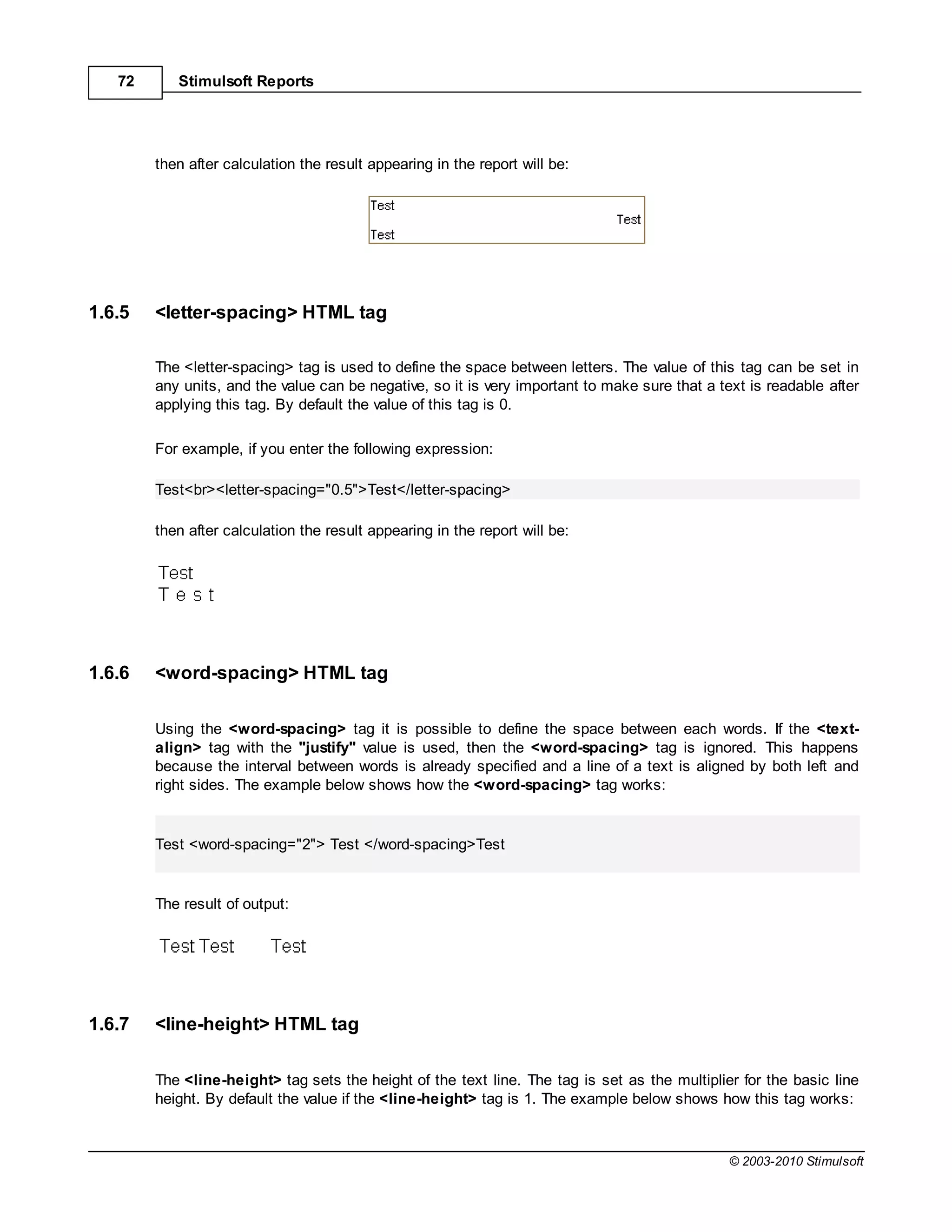
           This method will return the current page in the moment of its calling.


© 2003-2010 Stimulsoft
356      Stimulsoft Reports


      The anchor name is the value of the Products.ProductName field. As a result, the page number is
      rendered first. Then the second page is rendered and numbers of pages are saved. After the report
      rendering the report generator engine returns to the first page and numbers all pages.


                                                                                     © 2003-2010 Stimulsoft
Report Internals     357


2          Reports Designer

           In this topic the basic knowledge of the report designer are represented. Basic elements, hotkeys and
           settings from code are described.

2.1        Standard UI or Ribbon Ui?

           The WinForms reports designer supports two modes of UI: Standard and Ribbon. The Standard mode
           uses toolbars as in Microsoft Office 2003. The Ribbon mode uses "ribbon tabs". When the reports
           designer is run first, then the user can choose the interface type in the reports designer:


© 2003-2010 Stimulsoft
358       Stimulsoft Reports


          If it is necessary to change the UI mode then hold the "Ctrl" button when running the reports designer or
          in the Options window of the reports designer.


2.2       Standard UI

          Standard Interface - a type of interface used in Microsoft word 2003 and consists of a main menu and
          the set of toolbars.

2.2.1     Toolbar

          Toolbar - is an element of a graphical user interface, intended for placing on it a few controls. Usually
          consists of a horizontal or vertical rectangle, which are grouped frequently used items.
2.2.1.1   Standard toolbar


          The basic panel of the reports designer. The main element to control a report in the reports designer are
          placed on this panel. Besides, controls of basic parameters of the reports designer are placed on this

                                                                                               © 2003-2010 Stimulsoft
Reports Designer        359


           panel.


              Create a new report in the reports designer.
              Open recently saved report.
              Save a report.
              Run the preview of a report in the window.
              Add a new page to a report.
              Add a new dialog form to the report.
              Delete the current page or a dialog form in the report. If there is only one page of a report or a dialog
           form then this menu item is not active..
              Call the Page Setup window of page settings. If the dialog form is the current then this menu item is
           not active.
              Undo the recent action.
              Redo the recent action.
              Cut the selected components from the current page to the Clipboard.
              Copy the selected components on the current page to the Clipboard.
              Paste components from the Clipboard on the current page of a report.
              Delete selected components on the current page.
              Select all components on the current page.
              Control showing a grid on a page.
              Control automatic alignment of components by the grid.
              Show/hide headers of bands.
              Show/hide the order of placing components on a page.
              Control Quick Info.
              Show/hide rulers on a page.
              Control zoom of a page in the reports designer.
              Close the reports designer.


2.2.1.2    Borders toolbar


           The Borders panel is used to control borders of components.


              Set borders from all sides of a component.
              Remove borders from all sides of a component.
              Set the border from the top side of a component.
              Set the border from the left side of a component.
              Set the border from the right side of a component.
              Set the border from the bottom side of a component.
              Set the shadow of a component.

© 2003-2010 Stimulsoft
360       Stimulsoft Reports


             Background color of a component.
             Border color of a component.
             The type of the border line of a component.


2.2.1.3   Designer toolbar


          The Design toolbar is used to place components.


             Align selected components to the grid of a page.
             Align all selected components to their common left margin.
             Align horizontally all selected components to their common center.
             Align all selected components to their common right margin.
             Align all selected components to their common top margin.
             Align vertically all selected components to their common center.
             Align all selected components to their common bottom margin.
             Make the same size of components as the size of the first selected component.
             Make the same width of components as the size of the first selected component.
             Make the same height of components as the size of the first selected component.
             Make horizontal spacing of selected components equal by their width.
             Make vertical spacing of selected components equal by their height.
             Center all selected components horizontally.
             Center all selected components vertically.
             Bring selected components to Front.
             Send selected components to Back.
             Move selected components on one level forward.
             Move selected components on one level backward.
             Control the Lock property.
             Control the Link property.
2.2.1.4   Formatting toolbar


          The Formatting toolbar is used to output text with specified font type, color etc..


             Select the font type of the selected components on the current page.
             Select font size of the selected text components on the current page.
             Set the Bold font style.
             Set the Italic font style.
             Set the Underlined font style.
             Align left the content of a component.
             Align center horizontally the content of a component.
             Align right the content of a component.

                                                                                                © 2003-2010 Stimulsoft
Reports Designer   361


              Justify the content of a text component.
              Align top the content of a component.
              Align center vertically the content of a component.
              Align bottom the content of a component.
              The angle of the text rotation. This command can be applied only to the text component.
              Select font color for selected components on the current page.
              Open the Conditions Editor window for selected components.


2.2.1.5    Dock style toolbar


           The Dock style toolbar is used to dock selected components.


              Docks selected components to all edges.
              Docks selected components to the left edge.
              Docks selected components to the right edge.
              Removes docking of selected components.
              Docks selected components to the top edge.
              Docks selected components to the bottom edge.
2.2.1.6    Styles toolbar


           The Styles toolbar is used to control styles in a report.


              Opens the styles editor window.
              A list of styles available in a report.
2.2.1.7    Text format toolbar


           The Text format editor is used to quick text formatting.


              Runs the text format editor.
              Sets the text format to Standard.
              Sets the text format to Numerical.

© 2003-2010 Stimulsoft
362       Stimulsoft Reports


             Sets   the text   format   to Currency.
             Sets   the text   format   to Date.
             Sets   the text   format   to Time.
             Sets   the text   format   to Percent.
             Sets   the text   format   to Boolean.
             Sets   the text   format   to Custom.
2.2.1.8   Service toolbar


          The Service toolbar is used to call service functions.


             Runs the Data Store.
             Runs the Page manager.
             Runs the Service configurator.

2.2.2     Main menu

          The main menu of the Designer contains 5 submenus: File, Edit, View, Tools, Help. Each submenu
          contains common commands.


          The File submenu contains the global commands for working with a report. The Edit submenu contains
          commands to work with Clipboard and stack of operation. The View submenu contains parameters of
          showing report in the Reports Designer. The Tools submenu contains commands of calling the service
          functions. The Help submenu contains information of the Reports Designer and web links on report
          generator resources in Web.


2.2.2.1   File menu


          The File submenu contains the global commands for working with a report.


                                                                                         © 2003-2010 Stimulsoft
Reports Designer        363


              Create a new report in the report designer.
              Add a new page to the report.
              Add a new dialog page to the report.
              Open the recently saved report.
              Open the recently saved page of a report. The page will be added to the report after the last page of a
           report.
              Save a report. If the report was not saved earlier then the Save as... menu item will be called.
              Save a report to the specified folder.
              Save the current page to the specified folder.
              Delete the current page or a dialog form in the report. If there is only one page of a report or a dialog
           form then this menu item is not active.
              Run the preview of a report in the window.
              Call the Report Setup window of report options.
              Call the Page Setup window of page settings. If the dialog form is the current then this menu item is
           not active.
              Select UI localization language.
              Close the Reports Designer.


2.2.2.2    Edit menu


           The Edit submenu contains commands to work with Clipboard and stack of operation.


© 2003-2010 Stimulsoft
364       Stimulsoft Reports


            Undo the recent action.
            Redo the recent action.
            Cut the selected components from the current page to the Clipboard.
            Copy the selected components on the current page to the Clipboard.
            Paste components from the Clipboard on the current page of a report.
            Delete selected components on the current page.
            Select all components on the current page.
            Clear the content of all selected components.
2.2.2.3   View menu


          This menu contains controls of showing report pages in the reports designer, controls for panels, and
          controls for the toolbars of the reports designer.


                                                                                            © 2003-2010 Stimulsoft
Reports Designer   365


              Standard mode of showing a page.
              Page break preview (used only for segmented pages).
              Control showing grid on a page.
              Control automatic alignment of components by the grid.
              Show/hide headers of bands.
              Show/hide the order of placing components on a page.
              Show/hide rulers on a page.
              Control visibility of toolbars.
              Control visibility of the Properties panel.
              Control visibility of the Dictionary panel.
              Control visibility of the Messages panel.
              Control visibility of the Report Tree panel.
2.2.2.4    Tools menu


           The Service submenu contains elements to call service functions.


© 2003-2010 Stimulsoft
366       Stimulsoft Reports


             Runs the Data Store.
             Runs the Pages manager.
             Runs the Services configurator.
2.2.2.5   Help menu


          The Help submenu contains information of the Reports Designer and web links on report generator
          resources in Web.


             Runs in the Web browser the FAQ Page at Stimulsoft official site.
             Runs in the Web browser the technical support web page.
             Runs the product web page in the Web browser.
             Shows the About box of the report designer.


2.3       Ribbon UI mode 2007

          Ribbon interface 2007, based on the tabs (similar to Microsoft Office 2007). The tabs are grouped
          instruments, thereby reducing the number of toolbars. Consider this type of interface in more detail.

2.3.1     Status Bar

          Status bar in 2007 Ribbon interface is located at the bottom of the designer and a panel on which are
          controls. The figure below is represented a status bar Ribbon Interface:


          This panel contains 4 fields:

             Units. This field displays the units used in the report, and also allows you to change them.
             This field displays the currently selected components. In this case, select a page "Page 1".
             This field displays the coordinates of the cursor on the page template report. Moreover, the origin (X:
          0,0 and Y: 0,0) coincides with the upper left corner of border crossing at the report template.
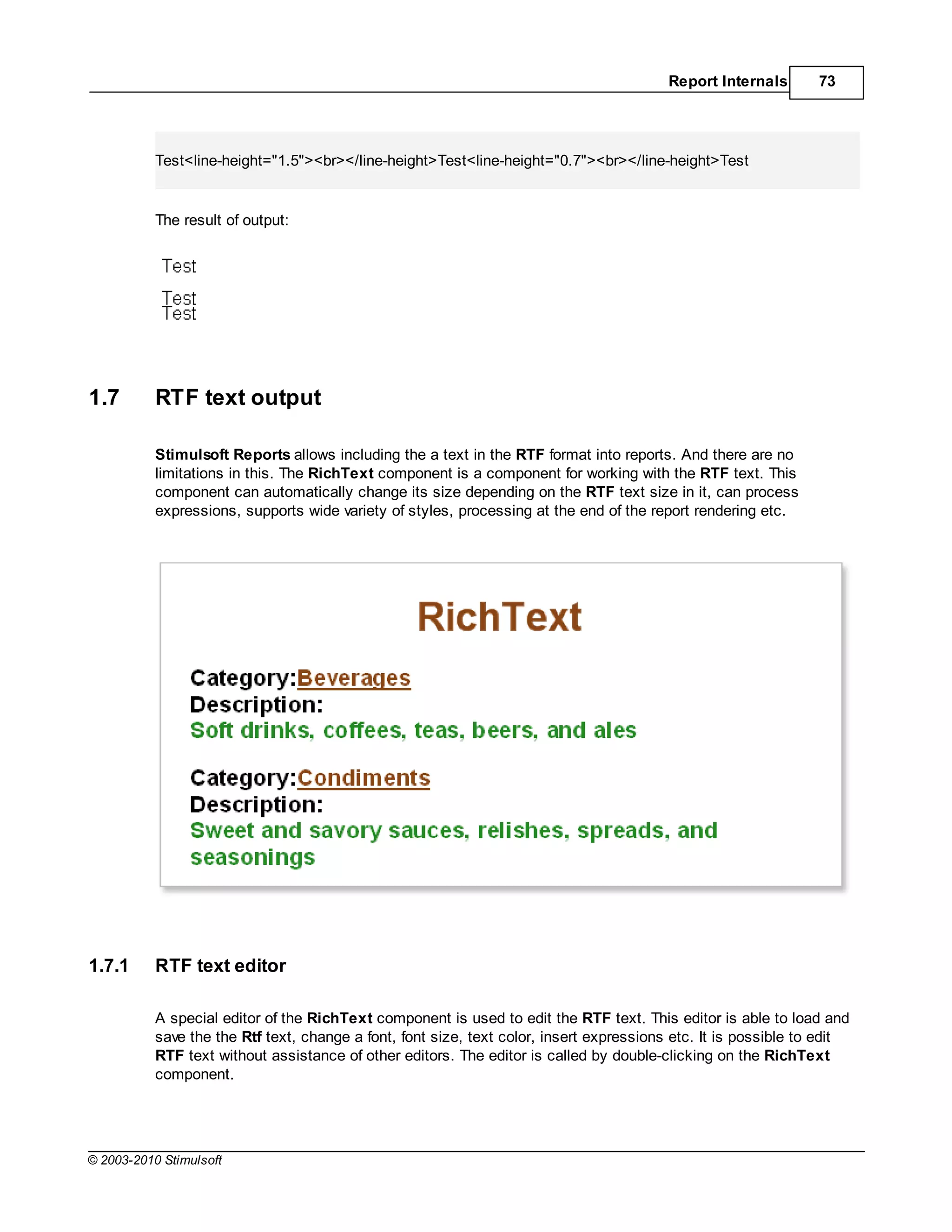
             The last group of elements to zoom page report template, and allows you to use the buttons to
          change the scale display pages report template. The button for the Page Width sets the zoom to page
          report template was placed in a window designer in width completely. Button in Page Height sets the
          zoom to page report template was placed in a window designer height completely. Button One Page
          sets the zoom to just one page report template is fully placed in the window designer. Button Zoom to

                                                                                                © 2003-2010 Stimulsoft
Reports Designer       367


           100% sets the scale of 100 per cent regardless of the size of the window designer.

2.3.2      Application menu

           The basis of the Ribbon UI mode is the Ribbon panel that is shown on the picture below:


           The main element of the Ribbon UI is the Application Button and menu that is called by clicking on this
           button. This is a main menu of the application. The is represented by basic commands used to work
           with reports in the reports designer. Elements of the application menu are shown on the picture below.


              Create a new report or a new control in a report. It is possible to create a new report, a new page, a
           new form. The submenu of the New menu is shown on the picture below:


© 2003-2010 Stimulsoft
368       Stimulsoft Reports


          The first item of this submenu creates an empty report in the reports designer. The second item creates
          a new report using the wizard. The third item creates a new page. And the fourth item creates a new
          dialog form.
              Open recently saved report.
             Open the recently saved page of a report. The page will be added to the report after the last page of a
          report.
             Save a report. If the report was not saved earlier then the Save as... menu item will be called.
             Save a report to the specified folder. This item contains submenu:


          The first item saves a report to the specified folder. The first item saves a page of a report to the
          specified folder.
             Delete the current page or a dialog form in the report. If there is only one page of a report or a dialog
          form then this menu item is not active.
             Run the preview of a report in the window.
             Call the Report Setup window of report options.
             Close a report that is opened in the reports designer.
             Call the report designer setup window.
             Close the report designer.
             This panel shows a list of recently opened reports. If to select one report in the list then it will be
          opened in the designer.


2.3.3     Ribbon tabs

          Tabs - a part of the interface on which the toolbar. At the designer shows four tabs: Home, Page,
          Layout, View. Consider these tabs and the main instruments are located on them more.
2.3.3.1   Home tab


          This is a basic tab of the reports designer. Main commands of setting report components are placed on
          this tab.


                                                                                                  © 2003-2010 Stimulsoft
Reports Designer       369


2.3.3.1.1 Clipboard group


           This group allows working with the Clipboard of the report designer.


              Paste components from the Clipboard on the current page of a report.
              Cut the selected components from the current page to the Clipboard.
              Copy the selected components on the current page to the Clipboard.
              Delete selected components on the current page.


2.3.3.1.2 Font group


           This group is used to output text with specified font type, color etc.


              Select the font type of the text components on the current page.
              Select font size of the text components on the current page.
              Set the Bold font style.
              Set the Italic font style.
              Set the Underlined font style.
              Set the font color of the text components on the current page.
              Increase the font size.
              Decrease the font style.
              Delete the content of all selected text components.
2.3.3.1.3 Alignment group


           The group is used to align the content of components horizontally and vertically. Also it is possible to

© 2003-2010 Stimulsoft
370       Stimulsoft Reports


           set the angle of the text rotation and control the WordWrap property.


           All commands are applied to selected components on the current page.

              Align top the content of a component.
              Align center vertically the content of a component.
              Align bottom the content of a component.
              The angle of the text rotation. This command can be applied only to the text component.
              Align left the content of a component.
              Align center horizontally the content of a component.
              Align right the content of a component.
              Justify the content of a text component.
              Used for the WordWrap property of the text component.
2.3.3.1.4 Borders group


           This group contains the commands to setup border components.


           All commands can be applied to selected components on the current page.

              Set or remove borders from all sides of a component.
              Set or remove borders from each side of a component.
              The type of the border line.
              Set the shadow of a component.
              Background color of a component.
              Border color of a component.
              Call the form of changing border parameters.


                                                                                               © 2003-2010 Stimulsoft
Reports Designer      371


2.3.3.1.5 Text format group


           The group to control text formatting.


              Select text format.
              Select symbols of currency.
              Set one of the predefined formats to output a text.
              Call a form of formats editing.
2.3.3.1.6 Styles group


           This group is used to control styles and conditions which are used to automatically design components
           in a report.


              Open a window of the Conditions Editor for selected components.
              Open a window of Styles Editor.
              A gallery of styles in a report.


2.3.3.2    Page tab


           This tab is used to control page parameters.


2.3.3.2.1 Page settings group


           This group contains elements to control basic parameters of a page. These are page margins,
           orientation, page size, columns.


© 2003-2010 Stimulsoft
372       Stimulsoft Reports


          Changes can be applied to the current page in the Reports Designer.

              Select sizes of page margins.
              Select Portrait or Landscape orientation of a page.
              Select page size.
              Select number of columns on a page.
              Call the Page Setup dialog window.
2.3.3.2.2 Watermark group


          This group is used to control watermark text output.


              Watermark text.
              Show watermark text behind the components of a page.
              Select a font type to output a text of the watermark.
              Set the Bold font style of the watermark text.
              Set the Italic font style of the watermark text.
              Set the Underlined font style of the watermark text.
              Watermark text color.
              Set angle rotation of the watermark text.
              Font size of the watermark text.
2.3.3.2.3 Watermark image group


          This group is used to control the watermark image.


                                                                                © 2003-2010 Stimulsoft
Reports Designer       373


              Load an image for the watermark.
              Set transparency of the watermark image.
              Align the watermark image.
              Show the watermark image behind page components on page.
2.3.3.3    Layout tab


           This tab is used to control placing different components on a page and also to specify styles of docking
           components.


2.3.3.3.1 Arrange group


           The group contains a lot of commands to change position of components on a page. The picture below
           shows this group.


              Align all selected components to the page grid.
              Align selected components. This element contains submenu and short description in this topic below.
              Bring selected components to Front.
              Send selected components to Back.
              Move selected components on one level forward.
              Move selected components on one level backward.


© 2003-2010 Stimulsoft
374      Stimulsoft Reports


         Choose the size of selected components. It contains submenu and is described in this topic below.
         Control the Lock property.
         Control the Link property.

      The description of the Align button, specified with number 2 on the picture above.


         Align all selected components to their common left margin.
         Align horizontally all selected components to their common center.
         Align all selected components to their common right margin.
         Align all selected components to their common top margin.
         Align vertically all selected components to their common center.
         Align all selected components to their common bottom margin.
         Make horizontal spacing of selected components equal by their width.
         Make vertical spacing of selected components equal by their height.
         Center all selected components horizontally.
         Center all selected components vertically.

      The description of the Size button, specified with number 7 on the topmost picture.


         Make the same size of components as the size of the first selected component.


                                                                                            © 2003-2010 Stimulsoft
Reports Designer   375


              Make the same width of components as the size of the first selected component.
              Make the same height of components as the size of the first selected component.


2.3.3.3.2 Dock style group


           This group contains elements to set the dock style of selected components.


              Dock selected components to all edges.
              Dock selected components to the left edge.
              Dock selected components to the right edge.
              Removes dock style of selected components.
              Dock selected components to the top edge.
              Dock selected components to the bottom edge.
2.3.3.4    View tab


           This tab is used to control different options of working with report designer.


2.3.3.4.1 View options group


           This group contains settings for different parameters of showing a report and working with the reports
           designer.


© 2003-2010 Stimulsoft
376      Stimulsoft Reports


           Control showing grid on a page.
           Control automatic alignment of components by the grid.
           Select grid type.
           Show/hide headers of bands.
           Show/hide the order of placing components on a page.
           Show/hide rulers on a page.
           Control Quick Info.
           Standard mode of showing a page.
           Page break preview (used only for segmented pages).
           Control visible designer panels.
           Show/hide Toolbox.

2.4      Ribbon UI mode 2010
         Enter topic text here.
2.5      Creating reports in the designer


2.5.1    Introduction


2.5.2    Report Templates


2.5.3    Report wizards

         Select the Using Report Wizard item in the New Report window to call the Report Wizard. Then it is
         necessary to select the type of a report wizard. The picture below shows the New Report window to
         start creating a report using reports wizard:


                                                                                        © 2003-2010 Stimulsoft
Reports Designer   377


              The Standard Report wizard is used to create reports as a list.
              The Master-Detail Report wizard is used to create a Master-Detail reports.
              The Label Report wizard is used to create Label reports.
              The Chart wizard is used to create reports with charts.
              The Cross-Tab wizard is used to create Cross-Tab reports.

           Any Report Wizard has the following panels: Description Panel, Steps Panel , Selection
           Parameters Panel , Control Panel. The picture below shows the Standard Report wizard:


© 2003-2010 Stimulsoft
378      Stimulsoft Reports


         The Description Panel. This panel shows description of each steps to be done.
         The Steps Panel. Shows steps of creating reports using a report wizard.
         The Selection Parameters Panel. This panel shows report parameters. On each step of report
      creation its own options are available.
         The Control Panel. Contains buttons to control the Report Wizard.


                                                                                 © 2003-2010 Stimulsoft
Reports Designer        379


2.5.3.1    Standard Report wizard


           When creating a report using the Standard Report wizard, this report will contain one DataBand or one
           data Table (depends on what is selected). The picture below shows a window of the Standard Report
           wizard:


              Data Source. On this step the data source is defined. This step is obligatory.
              Select Columns. On this step columns of a data source are selected. This step is obligatory.
              Columns Order. This step defines position of columns in the DataBand. Data columns selected in
           the 2-nd stage will be shown as a list on the Selection Parameters Panel. The top-down order of
           columns shown in the panel corresponds to their left-to-right position in a report. It is possible to change
           the position of data columns by dragging them or by clicking the buttons on the control panel of this
           step. The picture below shows the order of columns on the Selection Parameters Panel:


             Sort. On this step, it is possible to specify elements and sorting direction. The picture below shows a
           sample of the Selection Parameters Panel of sorting:


© 2003-2010 Stimulsoft
380      Stimulsoft Reports


        Filters. On this step, it is possible to set the conditions of filtration. The picture below shows a
      sample of selection filtration parameters:


         Groups. This step defines the condition of grouping. It is necessary to select a data column by what
      conditions of grouping will be created.
          Totals. On this step, it is possible to select a function for calculating totals by any data source
      column. For each data column its own function of aggregation can be set.
         Layout. On this step, the basic report options are set. Among them are: page Orientation, script
      Language, a Component that will be used for report rendering (DataBand or Table), report Units. The
      picture below shows a sample of the Selection Parameters Panel layout:


                                                                                          © 2003-2010 Stimulsoft
Reports Designer   381


              The Description Panel. Shows description for the current step.
              The New Data Source button is used to create a new data source.
              The Selection Parameters Panel shows options, actions, settings available on this step.

               -   buttons are used to control the Control Panel wizard:
              The Back button is used to go to the previous step.
              The Next button is used to go to the next step.
              The Finish button is used to finalize work with the report wizard.
              The Cancel button cancels the report creation with the report wizard.


2.5.3.2    Master-Detail report wizard


           The Master-Detail report can be created using the Master-Detail Report report wizard. The picture
           below shows a window of the Master-Detail Report wizard:


© 2003-2010 Stimulsoft
382      Stimulsoft Reports


          Data Source. On this step the data source is defined. This step is obligatory. For creating the
      Master-Detail Report, the report template should have no less than one Master band and one Detail
      band.
          Select Columns. On this step columns of a data source are selected. This step is obligatory.
          Columns Order. This step defines the order of columns. Data columns selected in the 2-nd stage
      will be shown as a list on the Selection Parameters Panel. The top-down order of columns shown in
      the panel corresponds to their left-to-right position in a report. It is possible to change the position of
      data columns by dragging them or by clicking the buttons on the control panel of this step. The picture
      below shows the order of columns on the Selection Parameters Panel:


        Sort. On this step, it is possible to specify elements and sorting direction. The picture below shows a
      sample of the Selection Parameters Panel of sorting:


                                                                                             © 2003-2010 Stimulsoft
Reports Designer        383


             Filters. On this step, it is possible to set the conditions of filtration. The picture below shows a
           sample of selection filtration parameters:


              Groups. This step defines the condition of grouping. It is necessary to select a data column by what
           conditions of grouping will be created.
              Relation. defines the relation between Master and Detail bands. The relation is used for selecting
           detail data only for the specified Master band row. If a relation will not be specified then all Details data
           rows will be output for each row of the Master band. Selection is done between relations which are
           created between Master and Detail data sources, and where a Detail data source is a detail data
           source. More than one relation can be. So it is necessary to select the correct relation.
               Totals. On this step, it is possible to select a function for calculating totals by any data source
           column. For each data column its own function of aggregation can be set.
              Layout. On this step, the basic report options are set. Among them are: page Orientation, script
           Language, a Component that will be used for report rendering (DataBand or Table), report Units. The
           picture below shows a sample of the Selection Parameters Panel layout:


© 2003-2010 Stimulsoft
384   Stimulsoft Reports


      The Description Panel. Shows description for the current step.
      The New Data Source button is used to create a new data source.
      The Selection Parameters Panel shows options, actions, settings available on this step.

      -   buttons are used to control the Control Panel wizard:
      The Back button is used to go to the previous step.
      The Next button is used to go to the next step.
      The Finish button is used to finalize work with the report wizard.
      The Cancel button cancels the report creation with the report wizard.


                                                                                     © 2003-2010 Stimulsoft
Reports Designer       385


2.5.3.3    Label Report wizard


           The Label Report wizard is used to create reports which have labels. The picture below shows a
           window of the Label Report wizard:


              The Description Panel. Shows description for the current step.
              The Steps Panel shows step of report creation.
              The Selection Parameters Panel shows options, actions, settings available on this step.
              The Control Panel. Contains buttons to control the Report Wizard.

           A Label Report is created in two steps. The Data Source is defined on the first step, Label Settings
           are defined on the second step. The picture below shows the Selection Parametrs Panel on the
           second step of the Label Settings:


© 2003-2010 Stimulsoft
386       Stimulsoft Reports


             The Type Panel is used to select the Label Type and units.
             The Size Label Panel is used to change the label size.
             The Size Pages Panel is used to select the page size or manually set width and height and margins
          of a page.
             The Configuration Label Panel is used to set a number of rows, columns and direction of labels.
             The Preview Panel is used to preview how labels are placed on a page.


2.5.3.4   Chart wizard


          The Chart wizard is used to create reports with charts. The picture below shows a window of the Chart
          wizard:


                                                                                            © 2003-2010 Stimulsoft
Reports Designer       387


              Chart Type. Select the chart type.
              Style. Select the chart style from multiple templates.
              Series. Add series using the series editor. Also, it is possible to specify the column of values and
           arguments for the data source.
              Labels. The following parameters are defined on this step: series position, Value Type of series,
           Text before/after the series, and an Angle of inclination.
              Axes. This step is available only if selected chart type is in Axes Area. The following options are set
           on this step: axis Title and its Alignment, Ticks length and their Visiblity, Grid Lines and its
           Interlaced, Labels and their Visible property. Also, a chart can be shown vertically or horizontally. The
           Reverse property for X or Y axis should be applied for this.
              Legend. On this step legend parameters and charts such as Title, legend Alignment horizontally
           and vertically, Direction of rows in legend, Visible and Size of a marker, Spacing, Visible of the
           legend.
              The Description Panel. Shows description for the current step.
              The Selection Parameters Panel shows options, actions, settings available on this step.

              -   buttons are used to control the Control Panel wizard:
              The Back button is used to go to the previous step.
              The Next button is used to go to the next step.
              The Finish button is used to finalize work with the report wizard.
              The Cancel button cancels the report creation with the report wizard.


2.5.3.5    Cross-Tab wizard


           The Cross-Tab wizard is used to create reports with cross-tab. The picture below shows the window of
           the Cross-Tab wizard:


© 2003-2010 Stimulsoft
388      Stimulsoft Reports


           Data Source Panel. In the Data Source field it is necessary to select the data source. Then data
        source columns will be shown on the panel of the data source.
           The Swap Rows/Columns button is used to change data between columns, which are placed on the
         Rows and Columns panels.
           The Rows panel shows data source columns, which are rows of a cross table.
           The Columns panels shows data source columns, which are columns of a cross table.
           The Summary shows data source columns, which are the key column and row in the cross table.
        Key column and row generate summary cell.
           The Properties panel shows a table of properties of selected column of the data source.
           The Preview Panel is used to preview the template of a cross table.
           The Property description panel shows a description of the selected property.
           The Select Style button is used to select style of the cross table appearance.
           The к button. Click on the button to finish work with the wizard and either a cross table will be
        added on a page or cross table options of an existed table will be applied.
           The Cancel button cancels the report creation with the report wizard.

2.6     Hotkeys in Designer

        The reports designer supports many hotkeys. Using hotkeys can speed up the effectiveness of work in
        creating reports. Some hotkeys are available both in the Ribbon mode and in the Standard mode. Some
        hotkeys are available only the Standard mode (in the Ribbon mode they are duplicated by context
        commands).


             Ctrl+B           Makes letters bold for the selected text component
             Ctrl+I           Makes letters Italic for the selected text component


                                                                                         © 2003-2010 Stimulsoft
Reports Designer   389


                 Ctrl+U         Makes letters Underlined for the selected text component
                 Ctrl+”+”       Increase the font size for the selected component
                 Ctrl+”-“       Decrease the font size for the selected component
                 Ctrl+L         Align selection or paragraph to the left
                 Ctrl+E         Align selection or paragraph to the centre
                 Ctrl+R         Align selection or paragraph to the right
                 Ctrl+J         Justify selection
                 Ctrl+Shift+D   Activate the “Dictionary” panel
                 Ctrl+Shift+M   Activate the “Messages” panel
                 Ctrl+Shift+L   Activate the “Report Tree” panel
                 F4             Activate the “Properties” panel
                 Shift+Enter
                 Ctrl+C         Copy the selected text or object
                 Ctrl+Insert
                 Delete         Delete the selected component
                 Ctrl+Delete
                 Ctrl+V         Paste the text or object from the Clipboard
                 Shift+Insert
                 Ctrl+X         Cut the selected text or object
                 Shift+Delete
                 Ctrl+A         Select All
                 Ctrl+Z         Undo
                 Ctrl+Y         Redo
                 Ctrl+F2        Show “Data Store”
                 Ctrl+F4        Show “Page Manager”
                 Ctrl+F5        Show “Services Configurator”
                 Ctrl+N         Create a new report
                 Ctrl+Shift+N   Add a page to the report
                 Ctrl+Shift+F   Add a form to the report
                 Ctrl+O         Load a report from the file
                 Ctrl+Shift+O   Load a page from the file
                 Ctrl+S         Save a report
                 Ctrl+F12       Save a report as...
                 F5             Report preview
                 Ctrl+Enter     Call the designer be default for the elected component
                 Enter          Call the text editor for the selected component
                 F1             Select the “Select” tool


© 2003-2010 Stimulsoft
390        Stimulsoft Reports


                 F2               Select the “Hand” tool
                 F3               Select the “Text Editor” tool
                 F6               Select the “Copy Style” tool
                 Cursor keys      Move selection
                 Shift+Cursor     Resize selected component (one step = grid size)
                 keys
                 Shift+Alt+Curs   Resize selected component (one step = half grid size)
                 or keys
                 Ctrl+Cursor      Move selected component (one step = grid size)
                 keys
                 Ctrl+Alt+Cursor Move selected component (one step = half grid size)
                 keys
                 Ctrl+Drag        Copy selected components
                 mouse
                 Alt+Drag         Ignore “Align to Grid” when moving and resizing
                 mouse


3         Using WinForms Viewer

          To view reports in the WinForms the StiViewerControl component is used. The component can show a
          report, zoom, save rendered report to different formats, print a report, send a report via e-mail.

3.1       How to show a report?

          It is necessary call only one method to show a report:

          C#

          StiReport report = new StiReport();
          report.Load("report.mrt");
          report.Show();


          VB

          Dim Report As StiReport = New StiReport()
          Report.Load("report.mrt")
          Report.Show()


          If the report was not rendered before showing, the Show method will render a report using the Render
          method.


                                                                                           © 2003-2010 Stimulsoft
Using WinForms Viewer    391


3.2        Report viewer structure

           On the picture below the basic elements of the report viewer are shown.


             The basic commands to control the report are represented on the toolbar.
             Tree of bookmarks of the output report. Using these bookmarks it is possible to jump by structure


© 2003-2010 Stimulsoft
392      Stimulsoft Reports


        elements of a report.
           The output report.
           The report thumbnails panel. Decreased copies of a report are shown on this panel. The panel is used
        to quickly navigate throughout of a report.
           The toolbar to scroll up or down in reports pages.
           The toolbar to select the mode of report showing.
           The toolbar to increase or decrease report zoom.


3.3     Basic toolbar of viewer

        Main controls are placed on this toolbar. The picture below shows the structure of the toolbar:


           Run report printing. After activation of this command the printing dialog with parameters of printing will
        be displayed.
           Open previously saved report. Any rendered report can be saved to .mdc or .mdz format for further
        preview.
           Save the rendered report to other file formats.
           Send the render report via EMail. The report will be converted to one of the file formats.
           Add a new empty page to the rendered report.
           Delete the current page of a report.
           Open the reports designer and show the current page for editing.
           Opens the window of changing basic parameters of the rendered report.
           Show/hide the tree of bookmarks. If there are no bookmarks in the rendered report then the viewer will
        automatically hide the tree of bookmarks. If there are bookmarks in a report, then the viewer will
        automatically show the tree of bookmarks.
           Show/hide the reports thumbnails.
           Enable the search panel.
           Run the full screen mode of report showing.
           Change zoom of the report to display only one full page. More than one page by the width can be
        output.
           Change zoom of the report to display two pages on the screen.
           Change zoom of the report according to horizontal and vertical sizes of pages.


           Change zoom of the report to fit the page width to the screen width.


                                                                                                © 2003-2010 Stimulsoft
Using WinForms Viewer       393


              Run matrix mode of the report showing.


3.4        Page navigation

           On the picture below the toolbar that is used for report navigation is shown.


             Set the first page of a report as the current page.
             Set the previous page of a report as the current one.
              Show the number of the current page and the number of pages in a report. If click on it then it is
           possible to indicate the number of a page that should be the current.


              Set the next page of a report as the current one.
              Set the last page of a report as the current page.

3.5        Page view modes

           The viewer for WinForms supports three modes of viewing pages:
           1.   Single Page
           2.   Continuous
           3.    Multiple Pages

           Three buttons are used to control the page view mode. They are placed at the bottom of the viewer in the
           right corner.


           Each mode has its own advantages.
           Single page. In this mode the current page of a report is shown in the window of the viewer. The picture
           below shows how this mode works.


© 2003-2010 Stimulsoft
394      Stimulsoft Reports


      Continuous. In this mode all pages are placed into one vertical line. The picture below shows how this
      mode works.


                                                                                         © 2003-2010 Stimulsoft
Using WinForms Viewer       395


           Multiple Pages. In this mode as many pages in the selected zoom as they can fill the window of the
           viewer are shown. The picture below shows how this mode works.


© 2003-2010 Stimulsoft
396      Stimulsoft Reports


3.6     Search panel

        The search panel is used to search some text in the report. On the main toolbar this option can be
        enabled by clicking the binocular icon. All controls for search are placed on a single panel.


          Close the search panel.
          The text that should be found.
          The button to run search.
          If the flag is set, then search will be repeated considering the case.
          If the flag is set, then search will be done considering the whole word.


                                                                                       © 2003-2010 Stimulsoft
Using WinForms Viewer         397


3.7        Hotkeys in WinForms viewer

           The list of hotkeys of the report viewer is shown below.


            Ctrl+P                    Print a report
            Ctrl+O                    Close a report
            Ctrl+Shift+N              Add a new page to the report
            Ctrl+Shift+D              Delete the current page of a report
            Ctrl+Shift+E              Edit the current page of a report in the reports designer
            Ctrl+Shift+S              Change report parameters
            Ctrl+B                    Enable/disable tree of bookmarks
            Ctrl+T                    Enable/disable thumbnails
            Ctrl+F                    Search
            Ctrl+E                    Edit components which support editing
            F2                        Run the full screen mode of view a report
            F3                        Set zoom of a report view - one page
            F4                        Set zoom of a report view - two pages
            F5                        Set zoom of a report view - by page width
            Ctrl+G                    Jump to page
            Shift+F2                  Enable the page view mode - one page
            Shift+F3                  Enable the page view mode - continues
            Shift+F4                  Enable the page view mode - some pages


4          Using Web Viewer

           Stimulsoft Reports contains full set of tools to create reports and show them is web. Basic tools:
           StiWebViewer and the StiReportResponse class. The StiWebViewer is used to show a report on a page
           of browser. The StiReportResponse contains a method to render a report to the specified format.

4.1        StiWebViewer - component of viewing reports

           The StiWebViewer visual component consist of two elements. The first element is the toolbar that is
           placed on the top part of the StiWebViewer. Using the toolbar it is possible control report viewing, print a
           report, save a report. The second element is a area where a report is shown. The area s placed on the
           bottom of the StiWebViewer.


© 2003-2010 Stimulsoft
398      Stimulsoft Reports


            The toolbar is used to control a report.
            The area of showing a report.

4.1.1    WebViewer toolbar

         On the picture below the controls on the panel are marked.


                                                                      © 2003-2010 Stimulsoft
Using Web Viewer         399


              Print a report.
              Save a report to the specified file format.
              Show the first page in a report.
              Show the pervious page in a report.
              Show the number of the current page.
              Show the next page of report.
              Show the last page of a report.
              Select the zoom of a report to be displayed.
              The mode of report showing.

           Next topics describe some command more detailed.

4.1.2      Printing reports

           StiWebViewer supports three modes of printing: print a report using the Adobe PDF export, print with
           preview and print without preview.


               Print a report using the Adobe PDF export.
           A report is exported to the Adobe PDF format. Then the file is sent as a report to the client browser. The
           client browser automatically opens the file and runs Adobe Acrobat to show the report (if it is installed).
               Print with preview.
           In this mode the report generator forms a report as an HTML page. This page is shown in the client
           browser. Using it the printing can be done.
               Print without preview.
           In this mode the report generator forms invisible frame on a page of StiWebViewer in what a report as an
           HTML page is placed. Then, using the CSS, the client browser runs printing of the HTML page.


4.1.3      Saving reports

           The Save window is used to save a report to different formats. All formats available are shown in this
           window.


© 2003-2010 Stimulsoft
400      Stimulsoft Reports


4.1.4    View Mode

         This control set the mode if showing a report.


            Show one page.
            Show whole report.


                                                          © 2003-2010 Stimulsoft
Using Web Viewer         401


4.2        Recommendation on placing components on a page

           How the StiWebViewer helps to view a report? To view a report the StiWebViewer exports it to the
           HTML format. This HTML text is output in the part of the StiWebViewer that is used to show reports.
           The HTML file is formed as one big table. The output is done in the HTML format do there are some
           limitations when report rendering. Stimulsoft Reports stores all objects separately but not as a table.
           When converting a report to the HTML format the objects edges may be intersected. Such intersections
           may lead to incorrect output of a report in the browser, though the report generator tries to output a
           report correctly with overlapping objects. Therefore, it is better do not overlap objects. Examples of
           components overlapping are shown on the picture below.


           When report rendering, it is better use the grid. It allows placing objects by the grid and getting correct
           viewing a report in the browser.

4.3        Using graphic objects in report

           Stimulsoft Reports offers full set of graphic objects. The following graphic objects are used in web:
               -     Images;
               -     Charts;
               -     Graphic primitives (the Shape component);
               -     Bar-codes;
               -     RTF text;
               -     The CheckBox component.
           The Vertical Line, Horizontal Line, Rectangle components are not graphic objects.
           Also it is important to consider that vector images (WMF, EMF, EMF+) are not supported by the HTML
           format. So they will be converted to images in pixel format.

              Notice! All text components which text is rotated (the value of the Angle property is not 0) are
           converted to images. Besides, if the ExportAsImage property is set to true then the text components
           will also be converted to the image.

           All components are joined with one rule - all of them will be converted as images. The HTML format does
           not allow passing an image in its body an the report generator uses the cache of a page or the cache of
           a session for saving images. When huge amount of calling to a report and multiple images in a report,
           there can be huge amount of objects in the page cache or in the session cache. And these objects will
           take additional server memory. Therefore, it is better do not use many graphic objects. Using the
           ServerTimeOut property can be used to set the time of objects caching in the page cache or in the
           session cache.


© 2003-2010 Stimulsoft
402      Stimulsoft Reports


            Notice! HTML supports some formats of showing images (JPEG, PNG, BMP, and GIF). It is possible
         to set the image type using the ImageFormat property of the StiWebViewer component. Every type of
         an image has their own advantages and disadvantages.

4.4      Output images placed on the server

         If an image that should be output is static and can be saved on the server then it is recommended to use
         the ImagerUrl property of the Image component for showing images. When using this property the
         report generator does not save the image in the cache of a page or the cache of a session but puts a
         link on this image. So the report generator saves nothing in the cache of a page or the cache of a
         session and the server memory is not used for this.

4.5      Caching

         The StiWebViewer component can output reports in two modes: 1. using the caching and 2. without
         caching. If the cashing is not used then it is necessary, when every page refreshing, to get data from a
         report and render a report again. When using caching, then the rendered report is saved in cache on the
         server. The next time when the page is refreshed, the previously rendered report is loaded from cache
         and its re-rendering is not required. It is important to remember that every report saved in cache takes
         the server memory and, if there are a lot of queries to reports, it can be a critical factor. Therefore, it is
         necessary to choose either low requirements to the memory but high requirements to speed or high
         requirements to the memory but low requirements to speed. Caching should not be used if the end user
         needs a report with actual data when every refreshing. Using the RenderMode, CacheMode, and
         ServerTimeOut properties the caching can be controlled.
         If the caching of a report is not used then the report that was rendered using the last data when page
         refreshing will be printed but not the report that is shown on the current moment. If it is necessary to get
         the exact copy of a report form the browser, then it is necessary to use caching.

4.5.1    The RenderMode property

         The RenderMode property indicates how and when a report should be rendered. All modes of the
         StiWebViewer component can be divided in two categories: using the caching of a rendered report, and
         without using caching of the rendered report.
         The modes without caching
         1. Standard
         In this mode, the report should be re-rendered every time when the page is refreshed. In addition, this
         mode does not use Ajax to display the controls of the StiWebViewer and any report refresh with help of
         controls of the StiWebViewer component leads to the page refresh on what the report is output.
         2. RenderOnlyCurrentPage
         Very interesting mode of the report output. In this mode, the report is rendered only to the page that is
         currently displayed in the StiWebViewer component. For example, if the report consists of 100 pages
         (this is a big report to be output in the web), and the current page is the page number 5, the report will
         be rendered only up to the page number 5. The sever memory is saved in this mode.
         3. Ajax
         This mode uses Ajax to output a report and to update the content of the StiWebViewer component. For
         example, if a user goes to the next page of a report then not the whole page of the browser on what the
         StiWebViewer component is placed will be refreshed but only the next page of a report will be sent to
         the browser using the post-back query. This increases the convenience of working with the
         StiWebViewer component.
         Modes with caching are UseCache and AjaxWithCache.
         1. UseCache

                                                                                                  © 2003-2010 Stimulsoft
Using Web Viewer         403


           With each refresh in the component StiWebViewer the reload of a page from the server occurs, but the
           report is not re-rendered as in the Standard mode and each time is loaded from the cache.
           2. AjaxWithCache
           This mode as well as the Ajax mode uses the Ajax technology to output a report and also is used for
           operations of refreshing the StiWebViewer component. However, unlike the Ajax mode, this
           AjaxWithCache mode does not re-render a report in each query of information on the server. The report
           that was earlier saved in cache is used.

4.5.2      CacheMode property

           The CacheMode property indicates what cache should be used to store reports, images, and service
           information. There are two ways:

           1. Page
           A cache of a page will be used.
           2. Session
           A cache of a session will be used.

4.5.3      ServerTimeOut property

           The ServerTimeOut property indicates the amount of time on what it is necessary to save a report,
           pictures of a report, or other data in the cache. Do not use too much time or too little time. If the time is
           too large, then the used cache will be overflowed and will be automatically cleared by the server. As a
           result, the report (or images of a report) will not be cached, and incorrect result of the report output in the
           StiWebViewer component will occur. If the time is too small, then by the time of request to the cache,
           there some necessary data may not be found. It is recommended to set the time equal to 10 minutes.
           But the exact time can be found experimentally, considering the parameters of the server, users activity,
           etc.

4.6        Printing reports

           It is difficult to print a report from the browser. Stimulsoft Reports has three methods of printing:
                 1. Converting a report to the PDF file and passing it to the end-user for printing.
                 2. Printing a report with preview in the pop-up window.
                 3. Printing without preview.
           The first method is the best way. It allows printing a report more precisely. But it is required to have
           installed Adobe Acrobat to print a report to the PDF format. Often this requirement is big disadvantage.
           When printing reports with preview the report generator creates a new pop-up window. A report in the
           HTML format is output in this window. The end-user may format this report and print it. In printing report
           without preview the report generator prints a report without preview. When choosing the method of
           printing characteristics of each method should be considered.

              Notice! The StiWebViewer component cannot control page parameters (page size, page page
           orientation, page margins) when printing using the 2 and 3 method. All parameters are controlled with
           the browser.


4.7        StiReportRespose class

           A report can be shown without using the StiWebViewer component. The special Stimulsoft.Report.Web.

© 2003-2010 Stimulsoft
404      Stimulsoft Reports


        StiReportResponse class is used in this case. This class is a set of methods for saving a rendered
        report in different formats to the stream of a page. It is possible to assign a lot of input parameters which
        allows controlling the saving format of a report. For example, the following code can be used to save a
        report to the PDF format to the stream of a page:


        StiReport report = new StiReport();
        report.Load("MyReport.mrt");
        report.Render(false);
        Stimulsoft.Report.Web.StiReportRespone.ResponseAsPdf(this, report);


        In this code the report will be loaded first. Then this report will be rendered. Then the result of the report
        rendering will be saved to the stream of a page. The following code saves a report to the Excel 2007
        format.


        StiReport report = new StiReport();
        report.Load("MyReport.mrt");
        report.Render(false);
        Stimulsoft.Report.Web.StiReportRespone.ResponseAsExcel2007(this, report);


4.8     Using dialogs in report

        The StiWebViewer component can show reports with dialogs, but some conditions should be fulfilled:
        1. The AjaxWithCache mode should be used or the UseCache in the RenderMode property;
        2. If data are not received from the server then it is necessary to connect with other data using the
           ReportConnect event of the StiWebViewer component and also to disconnect from data using the
           ReportDisconnect event;
        3. Besides it is impossible to run a report for rendering in the Load event of a page;
        4. It is possible to use only one dialog form in a report.


4.9     Images of StiWebViewer toolbar

        By default, images for the toolbar of the StiWebViewer component are saved in cache before report
        viewing. Then images are output using cache. This result in additional requests to the server for
        extracting images from cache and sending them to the client. This problem can be solved using the
        ButtonImagesPath property of the StiWebViewer component. The first thing that should be done is to
        place a folder with toolbar images on the server (they can be taken from the standard delivery of the
        product). Then it is necessary to specify the path to this folder using the ButtonImagesPath property.

4.10    Localization of StiWebViewer component

        To make the StiWebViewer component to "speak" another language it is necessary to copy a
        localization file of the standard delivery to the sever. For example, select the "de.xml" file. Then define

                                                                                                 © 2003-2010 Stimulsoft
Using Web Viewer             405


           the path to this file in the GlobalizationFile property of the component. For example, "Localizationde.
           xml".

5          Exports

           This section describes principles of saving rendered reports to different formats, basic characteristics of
           methods for export, export optimization guidelines data structure which are used in export methods.
           Stimulsoft Reports supports great many export formats to save rendered reports (there are 30 exports on
           the current moment). Many clients think that there are too many formats. But when you need to get file
           of definite format type, write only one string of code and the format is not PDF, HTML or RTF, only
           Stimulsoft Reports may help. We do not think that too many export formats in our report generator is
           disadvantage and continually work on adding new formats. As they say the more exports the better.


5.1        Available file formats

           A list of supported file formats is represented in the table below. All exports are joined into groups.

                                                              Name

           PDF (Portable Document Format)
           XPS (XML Paper Specification)

           HTML (HyperText Markup Language)
           MHTML (MIME HTML)

           Text file (TXT)
           Rich Text (RTF)
           Microsoft Word 2007
           Open Document Text (ODT)

           Microsoft Excel
           Microsoft Excel Xml
           Microsoft Excel 2007
           Open Document Spreadsheet (ODS)

           CSV (Comma Separated Values)
           DBF (DataBase File)
           XML (eXtensible Markup Language)
           DIF (Data Interchange Format)
           SYLK (Symbolic Link)

           BMP (bitmap)
           GIF (Graphics Interchange Format)
           PNG (portable network graphics)
           TIFF (Tagged Image File Format)


© 2003-2010 Stimulsoft
406      Stimulsoft Reports


         JPEG (Joint Photographic Experts Group)
         PCX
         WMF (Windows MetaFile)

5.2      Export reports from code

         Stimulsoft Reports offers many ways of exporting rendered reports to other formats. Each method of
         export to other format has several settings. For exporting rendered reports Stimulsoft Reports uses a
         system of services. This means that all objects which are used in export are represented in the
         collection of services and when it is necessary to export a report, the report generator searches the
         appropriate service in the collection of services. There are two ways of exporting rendered formats to
         other formats from code: using the ExportDocument method of the StiReport class, and using direct
         creating or getting from a collection of services the required export service.


5.2.1    ExportDocument method

         The ExportDocument method is a simplified wrapping for report exports. There is no need to get the
         required export service. All you need is to define the export type, pass parameters of export and define
         the folder where the file should be saved. For example:


         StiPdfExportSettings pdfSettings = new StiPdfExportSettings();
         report.ExportDocument(StiExportFormat.Pdf, "MyReport.Pdf", pdfSettings);


         The following code id used to export reports to PDF. The PDF file will be placed in the MyReport.Pdf.
         The export parameters can be passed using the StiPdfExportSettings object type. This class is
         described in the description of the PDF format. If there is no need to change export parameters then it is
         possible to use the short code line:


         report.ExportDocument(StiExportFormat.Pdf, "MyReport.Pdf");


         In this case the export parameters are not passed and the report generator will use parameters which
         are set by default for each export. Besides, the result of export can be placed in the stream. For
         example:


         MemoryStream stream = new MemoryStream();
         report.ExportDocument(StiExportFormat.Pdf, stream);


           Notice! The ExportDocument method does not call the Render method automatically. Before calling
         the ExportDocument method it is necessary to render a report or load a previously rendered report.

         As you can see, no services in examples were not created and samples contain simple code. All work
         by creating services and checking parameters can be done using the ExportDocument method.

                                                                                               © 2003-2010 Stimulsoft
Exports      407


           The code above requires connection the following namespaces from assemblies Stimulsoft.Reports.dll:


           Stimulsoft.Report


5.2.2      Export formats

           The StiExportFormat enumeration describes export formats. Brief information of exports is represented
           below.

           Formats which are used for representing documents and allows for easy viewing and printing:

             PDF - export to Adobe PDF.
             XPS - export to Microsoft XPS.

           Web formats:

             Html - export to Html by default. This element duplicates the HtmlTable mode.
             HtmlTable - export to Html using the Html Table element, to create a report structure.
             HtmlSpan - export to Html using the Html Span element, to create a report structure.
             HtmlDiv - export to Html using the Html Div element, to create a report structure.
             Mht - export to WebArchive. This format is supported only in Microsoft IE.

           Text formats:

             Text - export to Text.
             Rtf - export to Rich Text Format by default. This element duplicates the HtmlTable mode.
             RtfTable - export to Rich Text Format using the Rtf Table element, to create a report structure.
             RtfFrame - export to Rich Text Format using the Rtf Frame element, to create a report structure.
             RtfWinWord - export to Rich Text Format using the Microsoft Word graphic element, to create a
             report structure.
             RtfTabbedText - export to Rich Text Format using the symbols of tabulation, to create a report
             structure.
             Word2007 -export to Microsoft Word 2007. This format is supported starting with Microsoft Office
             2007.
             Odt - export to the OpenDocument Writer file.

           Spreadsheets:

             Excel - export to Microsoft Excel. The file is created using the BIFF (Binary Interchange File Format).
             ExcelXml - export to Microsoft Excel Xml. The file is created using the Xml. This format is supported
             starting with Microsoft Office 2003.
             Excel2007 - export to Microsoft Excel 2007. This format is supported starting with Microsoft Office
             2007.
             Ods - export to OpenDocument Calc file.

           Export as data:


© 2003-2010 Stimulsoft
408      Stimulsoft Reports


           Csv - export to CSV (Comma Separated Value).
           Dbf - export to dBase/FoxPro.
           Xml - export to Xml as data. This format is a saved DataSet.
           Dif - export to DIF (Data Interchange Format).
           Sylk - export to SYLK (Symbolic Link).

         Export as image:

           ImageGif - export to GIF.
           ImageBmp - export to BMP.
           ImagePcx - export to PCX.
           ImagePng - export to PNG.
           ImageTiff - export to TIFF.
           ImageJpeg - export to JPEG.
           ImageEmf - export to Windows Metafile.

5.2.3    Export service

         The way to create the export service is shown below. See the code:


         StiPdfExportService service = new StiPdfExportService();
         StiPdfExportSettings settings = new StiPdfExportSettings();
         MemoryStream stream = new MemoryStream();
         service.ExportPdf(report, stream, settings);


         If you exported from the WinForms Viewer, then you should notice, than for each export the special form
         for setting parameters of export is shown. This form can be called from the code. The code below how to
         do it for the export to the PDF:


         service.Export(report, "MyReport.pdf");


         This code will call the dialog form for setting parameters of export. If a user clicks "OK", then the file will
         be created. If to click the "Cancel" button, then the file creation will be interrupted.

         Notice! The name of the method for the report export with dialog forms differs from the name of the export
         method without parameters.

         The export service of a report contains yet another ability. The report can be sent via e-mail. For
         example:


         bool sendEMail = true;
         service.Export(report, "MyReport.pdf", sendEMail);


                                                                                                   © 2003-2010 Stimulsoft
Exports      409


           This code will call the dialog form for setting parameters of reports, and if a user clicks "OK", then the
           reporting tool will call the EMail client and will create a new e-mail letter, the exported report will be
           attached to the e-mail letter.

           The code above requires connection of the following names from the Stimulsoft.Report.dll assemblies:


           Stimulsoft.Report
           Stimulsoft.Report.Export


5.2.4      All export services

           The StiExportFormat enumeration describes export formats. Brief information of exports is represented
           below.

           Export services to Adobe PDF and Microsoft XPS:

             StiPdfExportService
             StiXpsExportService

           Export services to HTML and MHT:

             StiHtmlExportService
             StiMhtExportService

           Export services to Microsoft Excel and Open Document Calc:

             StiExcelXmlExportService
             StiExcelExportService
             StiExcel2007ExportService
             StiOdsExportService

           Export services to text formats:

             StiTxtExportService
             StiRtfExportService
             StiWord2007ExportService
             StiOdtExportService

           Export services to data:

             StiCsvExportService
             StiDbfExportService
             StiXmlExportService
             StiDifExportService

© 2003-2010 Stimulsoft
410      Stimulsoft Reports


           StiSylkExportService

         Export services to graphic formats:

           StiBmpExportService
           StiGifExportService
           StiJpegExportService
           StiPcxExportService
           StiPngExportService
           StiTiffExportService
           StiEmfExportService

5.3      Common export settings

         These chapters describe export settings which are not unique and are met in a few exports. Therefore, to
         prevent describing them again and again, they are joined in this section.


5.3.1    Image Quality

         Image quality is the compression degree of JPEG. If the compression is low then an image is of good
         quality and has big file size. If the compression is high then an image is of bad quality and has small file
         size. In Stimulsoft Reports an image quality can vary from 0.0 (the lowest quality) to 1.0 (highest
         quality). If an image quality is 1.0 it does not mean that the image is saved without compression. The
         JPEG algorithm always compresses an image. The 1.0 quality means that an image quality will be the
         same as the quality of an original document but the file size will be smaller than the original. The 0.0
         quality means that the image has slightest similarity to the original document. In practice, the 0.9 quality
         has not great distinction from the 1.0 quality but the image with lower than the 0.1 quality looks bad. By
         default, in Stimulsoft Reports the image quality is 0.75.

5.3.2    Image Resolution

         Raster images such as scanned photos consist of small cells called pixels. Image resolution depends
         on the pixel size and is measured in pixels per inch, ppi, and sometimes in dots per inch, dpi. The
         higher resolution the more pixels the image contains and, accordingly, the more size of the image. In
         Stimulsoft Reports it is possible to set any image resolution. But when increasing the resolution in 2
         times the image size will increase in 4 times. Also it is not good to set the image resolution more than
         maximal resolution of an output device. For example, devices may have the following resolution:
            matrix printer - 72dpi
            monitor screen - 96dpi
            laser printers - 300dpi or 600dpi
            high-end printers - 1200dpi and higher.
         By default the resolution is 100dpi.

5.3.3    Image Comparer

         Sometimes repetitive image can be met in a report, for example, company logos on the header of each
         page. If do not process such duplicates then a report after export will have big size. Some formats allows


                                                                                                 © 2003-2010 Stimulsoft
Exports      411


           exporting only one image and then refer to it from different parts of a document. In Stimulsoft Reports,
           there is a special class that calculates check sums and searches and processes duplicates. Image
           processing may slow down the process of exporting, so it is possible to disable this feature. Each
           export has its own property to enable or disable image comparison. By default this property is always
           enabled.

5.3.4      Convert Digits to Arabic

           Arabs do not use Arabic digits. They use Hindi digits and Arabic digits are auxiliary (the same as
           Roman digits for us). But, in any case, all digits are written from left to right. This property indicates
           whether it is necessary to convert Roman digits (ASCII 0030h-0039h) to arabic digits (Unicode 0660h-
           0669h or 06F0h-06F9h, depending on the ArabicDigitsType property). In each types of export the digits
           conversion can be set by their own property.

5.3.5      Arabic Digits Type

           Arabic digits have two variants of drawing: Standard and Eastern. The property allows selecting the the
           type of Arabic digits that will be used in export: Standard or Eastern; by default the Standard type is
           used. In each export the type of Arabic digits is enabled or disabled by its own property.

5.3.6      Divide Segment Pages

           Stimulsoft Reports allows creating segmented pages. These are pages which horizontal and/or vertical
           size are increased in some times. Some applications, such as MS Excel, allows working with pages of
           any size, because breaking into small segments can is processed with the spreadsheet itself. Other
           applications, such as MS Word, cannot break pages into small segments. For such applications
           segmented pages are broken into separate pages on the stage of selected export; if this property is set
           to false then pages are passed "as is" without breaking into segments. Each type of export has its own
           property for breaking segmented pages.

5.3.7      Remove Empty Space at Bottom

           Many exports uses the table mode of export. In this mode data is converted into one table. If, in the
           initial report, there is an empty space on the bottom of a page then the table is broken. The following
           property allows removing empty space at the bottom of a page and resulting table is not broken. If it is
           necessary to save the initial view of a document then it is necessary to set this property to false. In
           each type of exports their own property is used.

5.3.8      Use One Page Header and Footer

           When exporting to Excel then all report is converted in one table. Headers and footers of a page break
           this table. This property leaves only the first header and the last header of a page. All other headers and
           footers are removed. If it is necessary to save the initial view of a document then it is necessary to set
           this property to false. For each type of exports their own property is used.

5.4        Formats with fixed page layout

           Stimulsoft Reports supports two exports with fixed page layout. What is the fixed page layout? This
           means that all elements of a page can be placed at any part of a page. In this case, if to change a

© 2003-2010 Stimulsoft
412         Stimulsoft Reports


           position of one element then other components position will not be changed. These are formats to PDF
           (Portable Document Format) and XPS (XML Paper Specification).

5.4.1      PDF

           PDF (Portable Document Format) is a file format created by Adobe Systems for document exchange
           used to create electronic editions using the Adobe Acrobat package. The PDF format is a file text format
           that is used to publish documents on any platform and OS. The PDF document contains one or more
           pages. Each page may contain any components: text, graphic and illustrations, information, that
           provides navigation across the document.

           Export to PDF is based on the "Adobe Portable Document Format, Version 1.3, second edition", using
           some elements of latest format specifications.


5.4.1.1    Embedded fonts


           By default all embedded fonts are optimized. Characters which are not used in a report are excluded. It
           allows decreasing the size of a file. But, for correct work of the editable field, the font should be
           complete. Therefore, for fonts, which are used in editable fields, optimization is not done. This increases
           the output file size. If Asian languages are used, the file size can be 15-20mb.

           If by some reasons the font optimization is not working correct it can be forcibly disabled using the static
           property:


           StiOptions.Export.Pdf.ReduceFontFileSize = false;


5.4.1.1.1 Font styles


           There is one peculiarity of the export: all fonts for embedding to PDF files should be installed in the
           system. And for each font style a single font file should be installed.

           For example, for the Arial font 4 files should be installed:
             "arial.ttf" - the regular style,
             "ariali.ttf" - the italic style,
             "arialb.ttf" - the bold style,
             "arialbi.ttf" - the bold-italic style;
           This font is embedded correctly and all styles of this font can be output.

           The Lucida Console font is usually represented with one file that contains the regular style (other styles
           are generated by the system). Therefore, when embedding such a font to the PDF file, only regular
           style will be output, instead of all styles of this font.


                                                                                                   © 2003-2010 Stimulsoft
Exports      413


5.4.1.2     Digital signature


            Digital signature is a requisite of an electronic document used to protect this document from
            falsification. This document is a result of cryptographic conversion of information using the closed key of
            the electronic signature and allows identifying the owner of the certificate of the key of the signature.
            Digital signatures are often used to implement electronic signatures


5.4.1.2.1 Keys


            Key is secret information is the secret information that is used by the cryptographic algorithm when
            creating and checking the digital signature. Usually for digital signature the pair of keys is used:
              Public key this key is known only for the owner;
              Public key this key is available for all users of cryptographic system.

            In Digital Signature algorithms the signature is signed on the secret key of a user and is checked on the
            public key. So anyone may check what user put this signature.

            Keys are bound with specific certificates.
5.4.1.2.2 Public key certificate


            Public key certificate is an electronic document which utilizes a digital signature to bind together a
            public key with an identity       information such as the name of a person or an organization, their
            address, and so forth. The certificate can be used to verify that a public key belongs to an individual.


5.4.1.2.3 Choosing certificate


            There are two ways to create the digital signature:
              using the interface of the system library of cryptograph;
              directly by specifying the string - certificate identifier.

            In the first case it is necessary to set the Get Certificate From CryptoUI property to true. When
            exporting, the menu for selecting certificate from the current storage of certificates will be displayed. It is
            necessary to select one certificate from the list of available ones.

               Important! In web applications this way cannot be used, because the menu of selecting a certificate
            is displayed on a computer on what the export is in process, in other words on the server. So the user
            cannot see and cannot do anything with it. In other words the export endlessly waits when the certificate
            will be selected.

            In the second way, it is necessary to use the "SubjectNameString" property and write in it the string -
            certificate identifier. Identifier is the name of the certificate owner (full string) or a part of the name
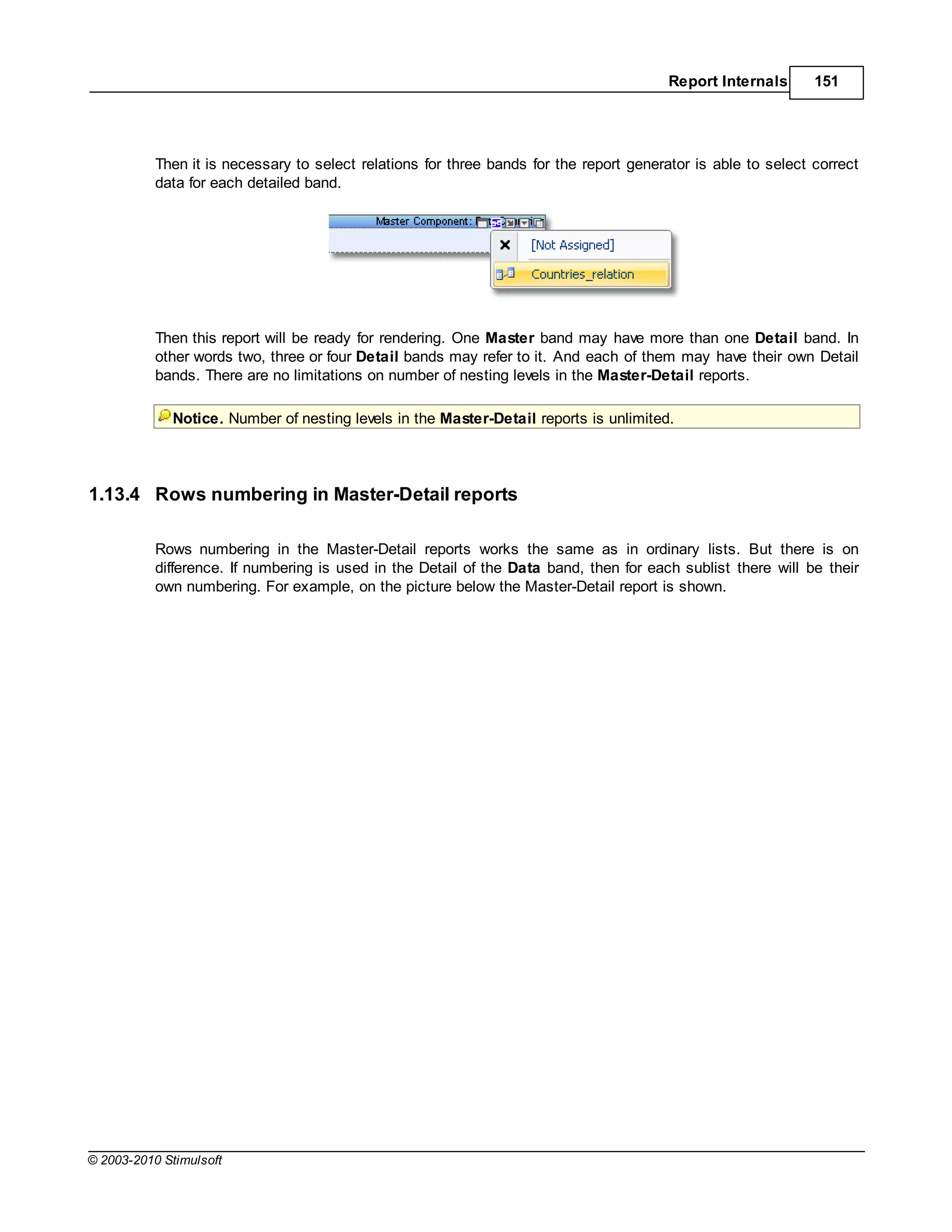
            (substring).


© 2003-2010 Stimulsoft
414          Stimulsoft Reports


5.4.1.2.4 Placing digital signature identifier


            By default the digital signature identifier is placed on the top of the first page of a document in the right
            corner, on margins. If it is required to set another position of the digital signature identifier, then it is
            necessary to place the text box with the description of the digital signature, and to set the Tag property
            to "PdfDigitalSignature".
5.4.1.2.5 Digital signature from code


            The StiPdfExportSettings class is used to control digital signature. It has the following properties:


            public   bool UseDigitalSignature
            public   bool UseLocalMachineCertificates
            public   bool GetCertificateFromCryptoUI
            public   string SubjectNameString


            By default:


            UseDigitalSignature                  =   false;
            UseLocalMachineCertificates          =   true;
            GetCertificateFromCryptoUI           =   true;
            SubjectNameString                    =   string.Empty;


            A sample how to use these properties is shown below:


            StiReport report = new StiReport();
            report.Load("c:test.mrt");
            report.Render(false);

            StiPdfExportSettings settings = new StiPdfExportSettings();
            settings.UseDigitalSignature      = true;
            settings.GetCertificateFromCryptoUI = false;
            settings.UseLocalMachineCertificates = true;
            settings.SubjectNameString         = "John Smith <johns@google.com>";

            report.ExportDocument(StiExportFormat.Pdf, "c:test.pdf", settings);


5.4.1.3     Encryption


            A PDF document can be encoded to protect the content from unauthorized access. A user may set the
            following parameters of encryption:
               User password;
               Owner password;


                                                                                                    © 2003-2010 Stimulsoft
Exports     415


              Access permission;
              Key length.


5.4.1.3.1 Passw ords and access permission


           According to the PDF specification, it is possible to set the access and two passwords: the public
           password and the owner's password.
           If there are no passwords and everything is allowed to do with the document, then the document is not
           encrypted. If even one password is set or access is not allowed, then the document is encrypted.

           The public password allows opening and viewing documents, and also some actions are allowed:
             edit document;
             copy text and graphics from the document;
             add and change commentaries;
             print document.

           The owner password provides access to the document, including password changing and access
           permission.

           If the owner's password is set, and the public password is not set, then, when opening a document, the
           password is not asked.
5.4.1.3.2 Key length


           The PDF Reference defines both 40-bit and 128-bit encryption. By default 40-bit key is used.
           128-bit key is more secure the 40-bit key. But is some countries the key length of encryption is limited.

           English: Quote from PDF Reference:
           "A PDF document can be encrypted to protect its contents from unauthorized access. The encryption of
           data in a PDF file is based on the use of an encryption key computed by the security handler. Different
           security handlers can compute the key in a variety of ways, more or less cryptographically secure. In
           particular, PDF’s standard encryption handler limits the key to 5 bytes (40 bits) in length, in accordance
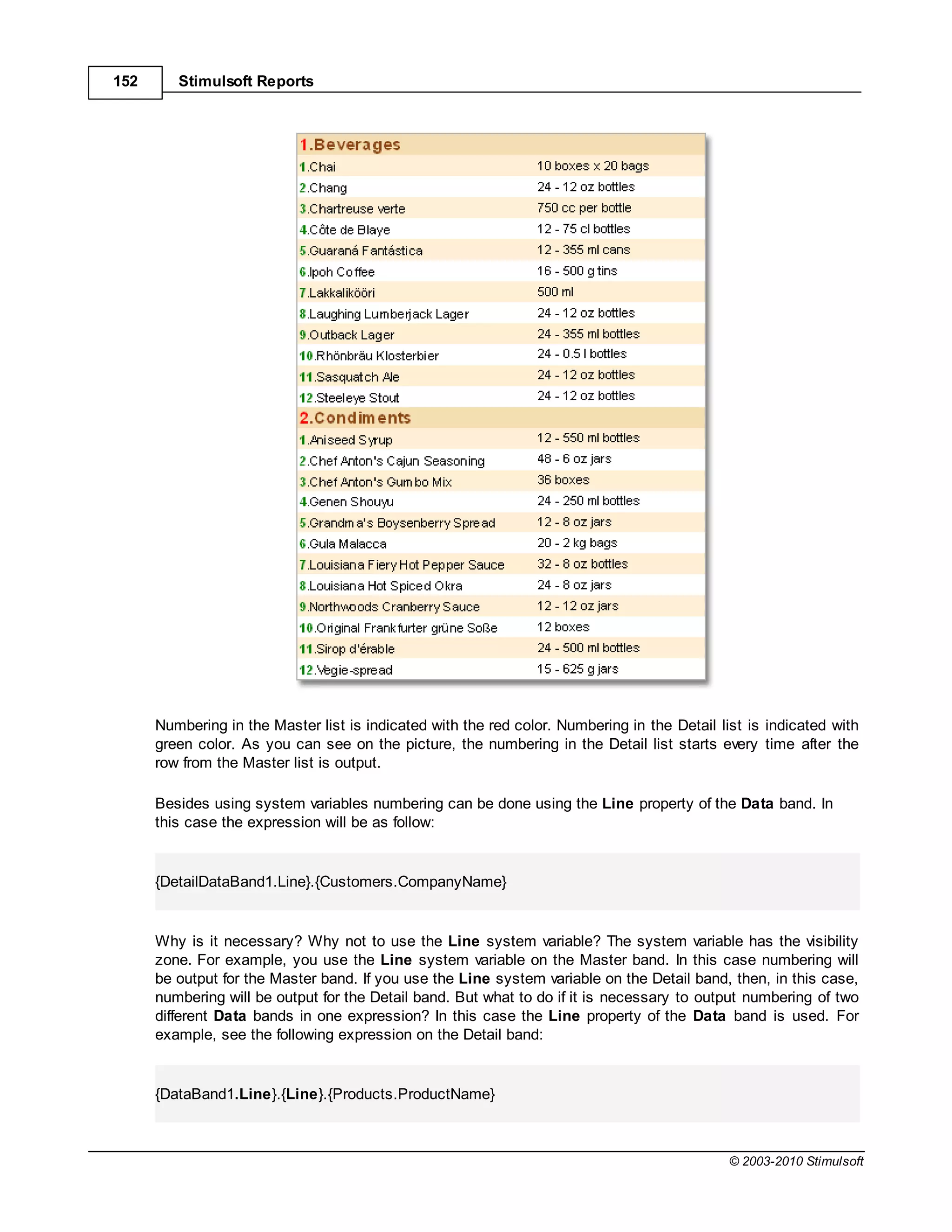
           with U.S. cryptographic export requirements in effect at the time of initial publication of the PDF 1.3
           specification."


5.4.1.3.3 Using parameters of encryption from code


           Using the StiPdfExportSettings class it is possible to set the encryption parameters from code. The
           following properties of this class are used:


           public   string PasswordInputUser
           public   string PasswordInputOwner
           public   StiUserAccessPrivileges UserAccessPrivileges
           public   StiPdfEncryptionKeyLength KeyLength


           The StiUserAccessPrivileges enumeration contains the following elements (flags):


© 2003-2010 Stimulsoft
416       Stimulsoft Reports


            None,
            PrintDocument,
            ModifyContents,
            CopyTextAndGraphics,
            AddOrModifyTextAnnotations,
            All

          The StiPdfEncryptionKeyLength enumeration contains the following elements:
            Bit40,
            Bit128

          By default the values set as follow:

          PasswordInputUser         = string.Empty;
          PasswordInputOwner        = string.Empty;
          UserAccessPrivileges      = StiUserAccessPrivileges.All;
          KeyLength                          = StiPdfEncryptionKeyLength.Bit40;


          An example of using:

          StiReport report = new StiReport();
          report.Load("c:test.mrt");
          report.Render(false);

          StiPdfExportSettings settings = new StiPdfExportSettings();
          settings.PasswordInputUser       = "user";
          settings.PasswordInputOwner      = "owner";
          settings.UserAccessPrivileges = StiUserAccessPrivileges.PrintDocument;
          settings.KeyLength               = StiPdfEncryptionKeyLength.Bit128;

          report.ExportDocument(StiExportFormat.Pdf, "c:test.pdf", settings);


5.4.1.4   Editable fields


          To enable the export of editable fields it is necessary to set the static property


          StiOptions.Export.Pdf.AllowEditablePdf = true;


          Editable fields in the PDF-file has two conditions:
            First – a condition before editing, it is shown when opening the file. This condition corresponds to the
            type of a text box in the preview.
            Second - the type in the mode of field editing, and after editing. In this condition it is impossible to set
            the vertical alignment of the text (always Top) and some parameters of a font. Therefore, after editing a
            field, even if the contents is not changed, the type of this field can be change.

          If it is necessary to have the MultiLine editable field, then it is necessary to set the WordWrap


                                                                                                   © 2003-2010 Stimulsoft
Exports      417


           property of the text box to true.


5.4.1.5    Compatibility of different versions


           The information below shows the compatibility of Adobe Acrobat versions.

           Adobe Acrobat 5:
             the PageScaling option from the file is ignored. By default the option in parameters of Adobe Acrobat
             is set to "None" but "Fit to printable area" value is used.

           Adobe Acrobat 5 & 6:
             when editing Adobe Acrobat does not recognize the Unicode - only Latin characters are output (Latin-
             1 encoding), other characters are output as dots;
             if the "UseUnicode" option in export parameters is enabled, then it is necessary to embed fonts (the "
             Embedded Fonts" option), otherwise the will be output incorrectly.

           Adobe Acrobat 7:
             it is necessary to embed fonts to the PDF file. Otherwise, when editing, any font will be replaced on
             the default font (usually on Tahoma).

           Adobe Acrobat 7 Reader:
             there are some problems with 7.0.5 - 7.0.9 versions. In these versions the field is not included into the
             editing mode, if there are non Latin characters present in the text field (different from Latin-1).


5.4.1.6    Export settings


           The export parameters of the PDF export are described in the StiPdfExportSettings class. The
           description of all class properties are in the table below.

                                Name              Type                       Description
                         ImageQuality          float     image quality; may have values from 0.0 (the
                                                         lowest quality) to 1.0 (the highest quality); by
                                                         default 0.75
                         ImageResolution       float     image quality; may have values from 0.0 (the
                                                         lowest quality) to 1.0 (the highest quality), by
                                                         default 100
                         EmbeddedFonts         bool      embed font files into the PDF file; is true then all
                                                         fonts are embedded into the file and this file will
                                                         have the same look on any computer (there is no
                                                         need to embed additional fonts); if false then
                                                         fonts are not embedded; by default true
                         StandardPdfFonts      bool      use standard fonts which are embedded in Adobe
                                                         Acrobat Reader and there is no need to embed
                                                         them into the file; all fonts are changed on
                                                         standard fonts (Courier, Helvetica, Times-
                                                         Roman); by default false


© 2003-2010 Stimulsoft
418      Stimulsoft Reports


               Compressed              bool     compress the PDF file; decreases the file size by
                                                compressing the text information (images are
                                                always compressed); by default true
               UseUnicode              bool     writes a text in the Unicode; if false then 190
                                                symbols can be written, and a lot of problems
                                                with native language symbols may occur; if true
                                                then any symbols can be used; by default true
               ExportRtfTextAsImage bool        export RichText objects as images; if false then
                                                export tries to convert RichText objects into PDF
                                                primitives; if true the RichText is written as an
                                                image; by default false
               PasswordInputUser       string   user password (see Encryption); by default
                                                empty string
               PasswordInputOwner      string   owner password (see Encryption); by default
                                                empty string
               UserAccessPrivileges    enum     user access privileges (see Encryption); by
                                                default StiUserAccessPrivileges.All
               KeyLength               enum     key length (see Encryption);             by default
                                                StiPdfEncryptionKeyLength.Bit40
               UseDigitalSignature     bool     use digital signature of a document; by default
                                                false
               GetCertificateFromCrypt bool     get the certificate from the Crypto interface; if
               oUI                              false then a certificate is searched by certificate
                                                identifier without using the interface; by default
                                                true
               SubjectNameString       string   certificate identifier; this is a certificate name
                                                (empty string) or a part of a name (substring); by
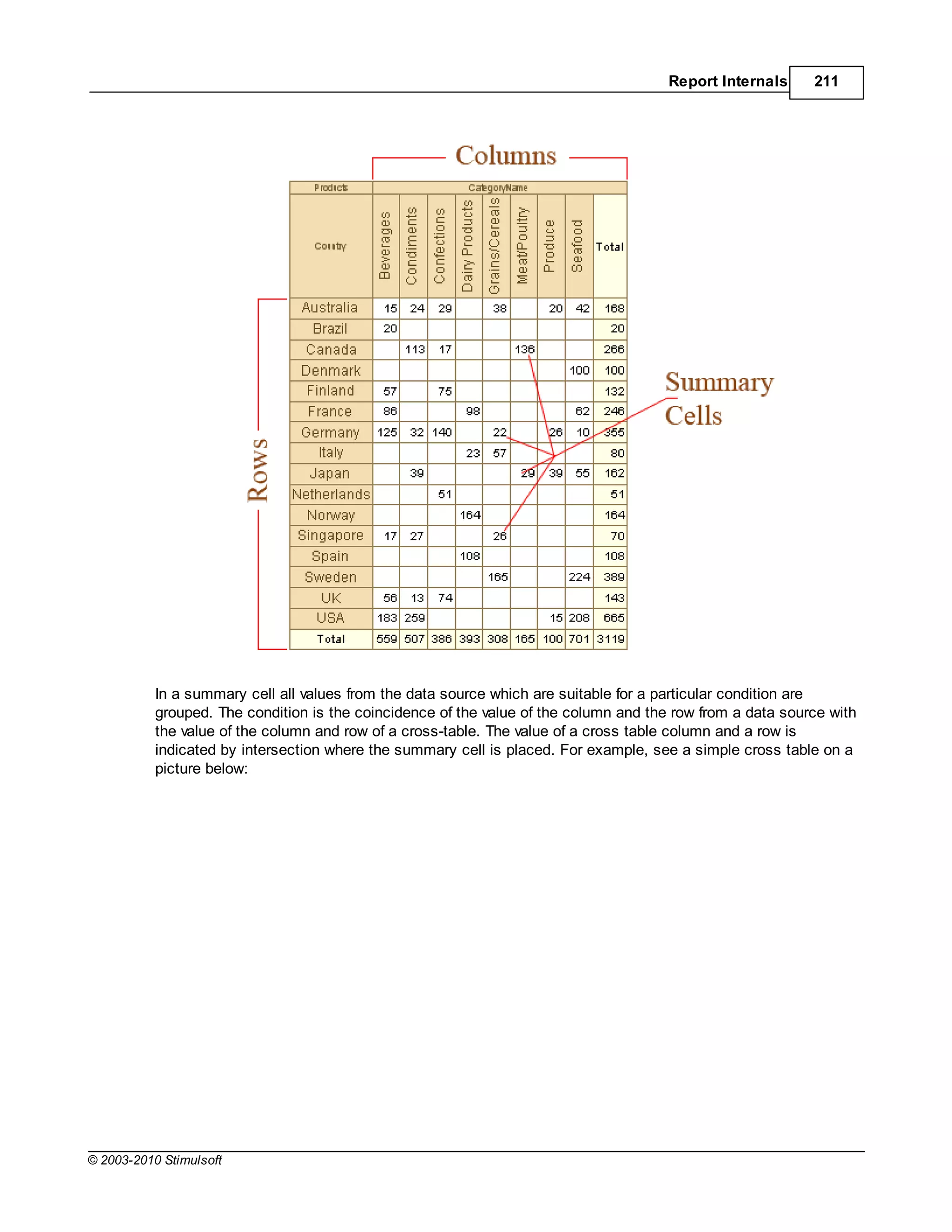
                                                default empty string
               UseLocalMachineCertifi bool      search certificates on the local machine; if false
               cates                            then certificate is searched in the store of the
                                                current user; by default false
               CreatorString           string   the "Creator" field in the document description
                                                (application name that created the original file); if
                                                it is not set (empty string) then the StiOptions.
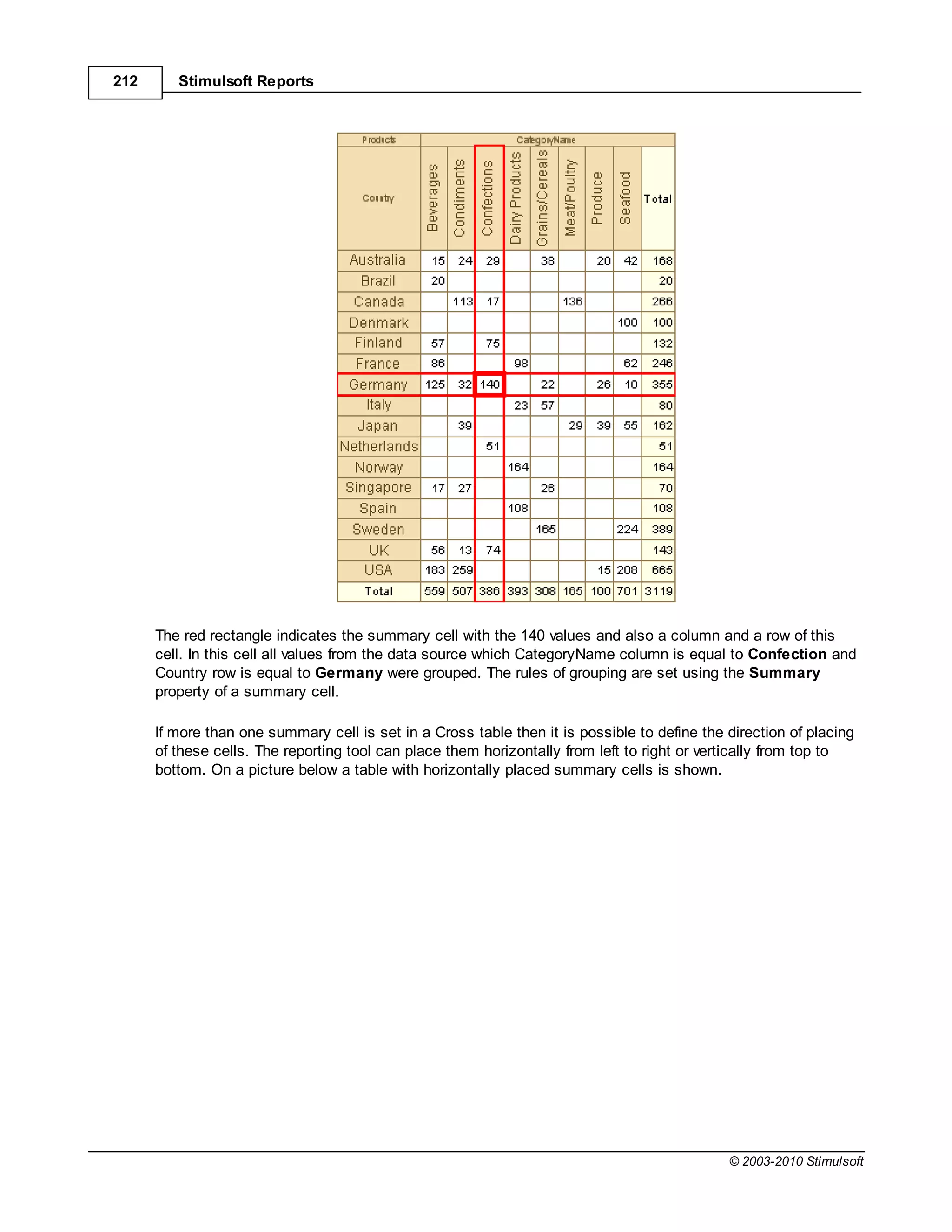
                                                Export.Pdf static property is used. CreatorString;
                                                by default empty string
               KeywordsString          string   the "Keywords" field in the document description
                                                (application name that created the original file); if
                                                it is not set (empty string) then the StiOptions.
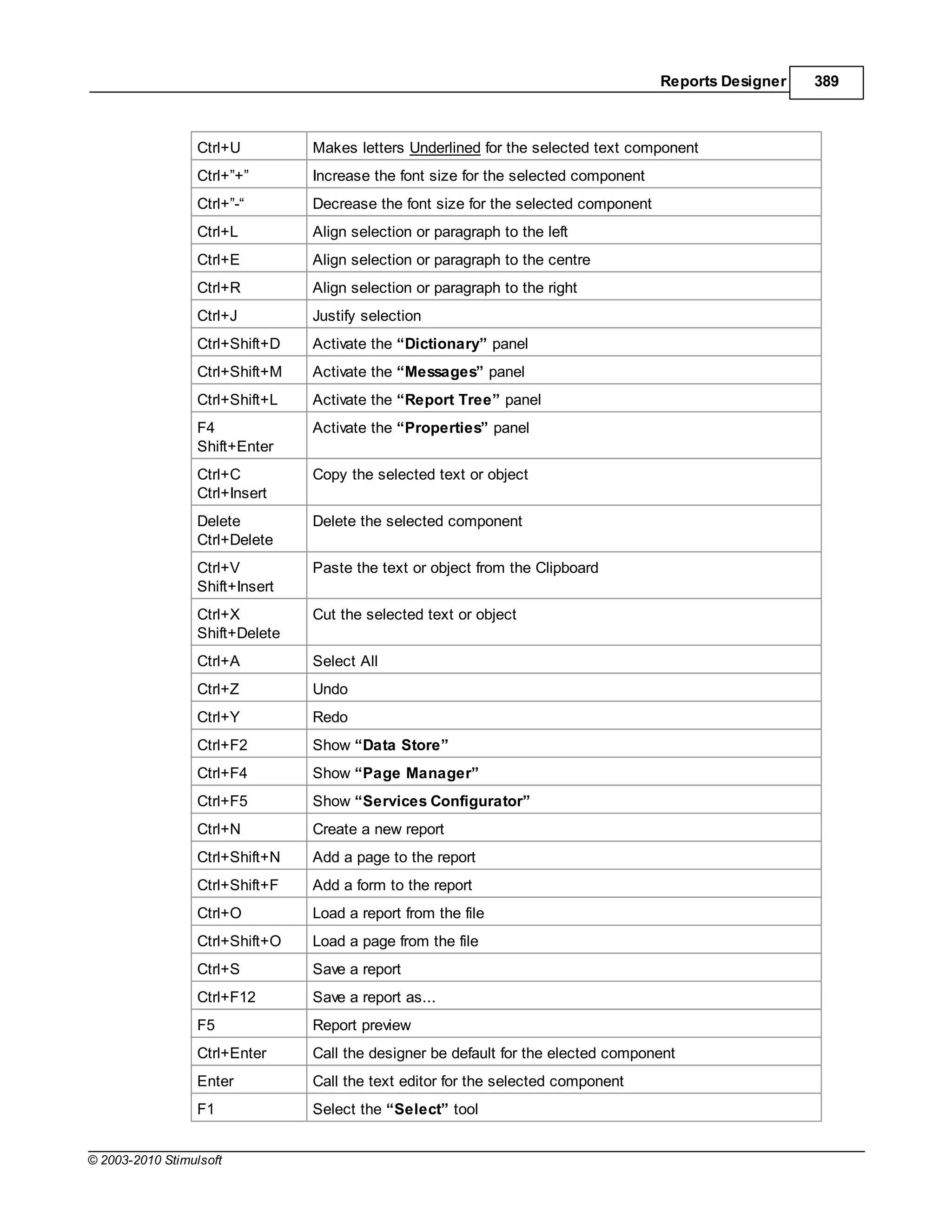
                                                Export.Pdf.KeywordsString ctatic property is
                                                used; by default empty string
               ImageCompressionMeth enum        image compression method - JPEG (with quality
               od                               loss) or Flate (without quality loss); by default
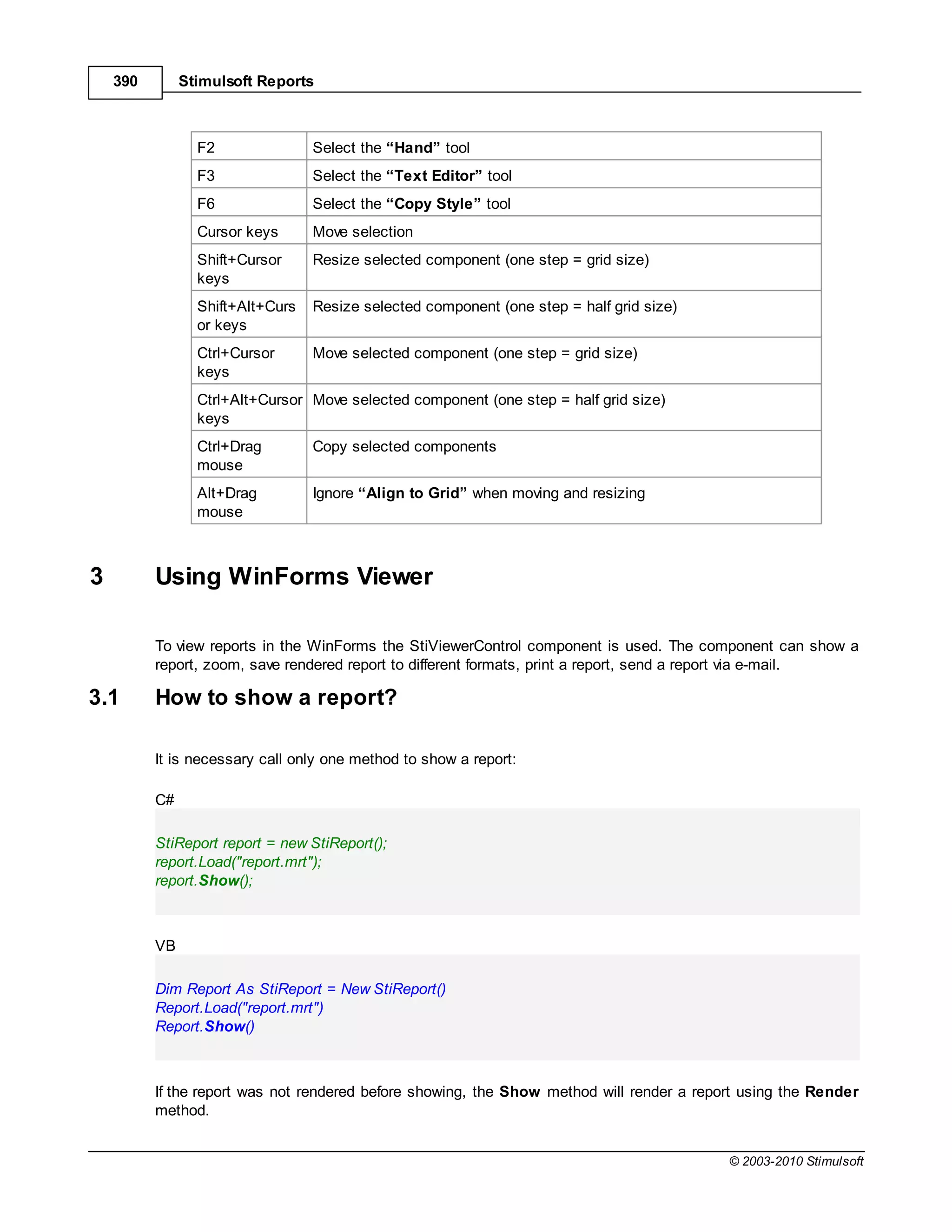
                                                StiPdfImageCompressionMethod.Jpeg

      If the UseUnicode is used then, for Acrobat Reader 5.0, it is necessary to use the Embedded fonts =
      true.
      If the UseUnicode + encoding is used, then it is necessary to use the Embedded fonts = true.

      The following should be done to compress file:
      - enable Compressed;
      - disable Embedded fonts;
      - if Embedded fonts is required then enable the ReduceFontFileSize.

                                                                                           © 2003-2010 Stimulsoft
Exports      419


5.4.1.7    Static options


           Except the StiPdfExportSettings class, parameters of export to PDF are also set using the static
           properties. All properties are described in the table below. To access to export properties it is necessary
           to   add      the     StiOptions.Export.Pdf...       prefix.  For    example,      StiOptions.Export.Pdf.
           DivideSegmentPages.

                     Name              Type                                Description
           DivideSegmentPages         bool divide segmented pages into separate pages; if false then are
                                             exported "as is" without dividing; by default true
           ConvertDigitsToArabic      bool convert ASCII digits Arabic; by default false
           ArabicDigitsType           enum Select Arabic digits type; by default Standard
           ReduceFontFileSize         bool optimize embedded fonts - eliminate symbols which are not met in
                                             a report; if false then fonts are not changed; by default true
           AllowEditablePdf           bool export editable fonts as editable PDF objects (in this case fonts
                                             which are used in editable fields are not optimized); if false then
                                             editable fields are exported as simple text; by default false
           AllowImageComparer         bool use the image comparer, e.g. replace image duplicates (see
                                             Common export settings); if false then an image is exported "as
                                             is"; by default true
           AllowImageTransparency     bool use transparency in export images; by default true
           AllowInheritedPageResource bool store resources of pages in the parent dictionary and inherit from
           s                                 it; if false then resources of pages are specified in each page; this
                                             property is critical for some programs of PDF files processing; by
                                             default true
           AllowExtGState             bool use command to control transparency when creating a document;
                                             if false then commands are not used; this property is critical for
                                             some programs of PDF files processing; by default true
           CreatorString              string the "Creator" field in document description (application name,
                                             which created the original document); by default the "Stimulsoft
                                             Reports.Net" string
           KeywordsString             string the "Keywords" field in document description (keywords); by
                                             default empty string


5.4.2      XPS

           XPS (XML Paper Specification) is the open graphic format of fixed page layout on the base XML (more
           precisely XAML-based) used to store printed output as electronic documents. This format was developed
           by Microsoft as alternative to the PDF format.

           The XPS document format consists of structured XML markup that defines the layout of a document and
           the visual appearance of each page, along with rendering rules for distributing, archiving, rendering,
           processing and printing the documents. The markup language for XPS is a subset of XAML that allows
           including vector graphic elements, using XAML to mark up the WPF-primitives.

           The XPS is a ZIP-archive that contains the files which make up the document. The archive includes page
           mark up (one file per each page of a document), text, embedded fonts, raster images, 2D vector

© 2003-2010 Stimulsoft
420       Stimulsoft Reports


          graphics and other information.


5.4.2.1   Export settings


          The export parameters of the XPS export are described in the StiXpsExportSettings class. The
          description of all class properties are in the table below.

                          Name                 Type                      Description
                    ImageQuality            float      image quality; may have values from 0.0 (the
                                                       lowest quality) to 1.0 (the highest quality); by
                                                       default 0.75
                    ImageResolution         float      image quality; may have values from 0.0 (the
                                                       lowest quality) to 1.0 (the highest quality), by
                                                       default 100


5.4.2.2   Static options


          Besides the StiXpsExportSettings class the parameters of export to XPS are also set using the static
          properties. All properties are described in the table below. To access to export properties it is necessary
          to add the StiOptions.Export.Xps... prefix. For example, StiOptions.Export.Xps.ReduceFontFileSize
          .

                   Name                    Type                                  Description
          ReduceFontFileSize             bool       optimize embedded fonts - exclude symbols which are not met
                                                    in a report; if false then fonts are not changed; by default true
          AllowImageComparer             bool       use the image comparer, e.g. replace image duplicates (see
                                                    Common export settings); if false then an image is exported "as
                                                    is"; by default true
          AllowImageTransparency         bool       use the transparency in exporting images; by default true


5.5       Web documents

          There are two two formats HTML (HyperText Markup Language) and MHTML (MIME HTML) are
          described in this chapter. The first format is used for web page layout. The second format is a web page
          archive format used to bind resources together with HTML code into a single file.

5.5.1     HTML

          HTML (HyperText Markup Language) is the predominant markup language for Web pages. The majority
          of web pages are created using the HTML language. The HTML language is interpreted by browser and
          shown as a document. HTML is a tag language of the document layout. It provides a means to describe
          the structure of text-based information in a document—by denoting certain text as links, headings,
          paragraphs, lists, etc. Elements are the basic structure for HTML markup. Elements have two basic
          properties: attributes and content. Each attribute and each element's content has certain restrictions
          that must be followed for a HTML document to be considered valid. An element usually has a start tag
          (e.g. <element-name>) and an end tag (e.g. </element-name>).

                                                                                                 © 2003-2010 Stimulsoft
Exports      421


5.5.1.1    Export modes


           There are three mode of export to HTML:
             Div - in this mode all objects of a report are converted to the div block element; the report is converted
             precisely, except for vertical text alignment;
             Span is the same as the Div mode but the span element is used;
             Table - in this mode all objects of a report are converted to the table block element; in this mode the
             vertical text alignment is correct but, if the WordWrap is disabled then the problem may occur with
             long lines of text.


5.5.1.2    Export images in HTML format


           Also it is possible to specify how to export images of a document. Images with transparency can be
           saved to the PNG format. It is important to remember that some browsers (foe example Internet Explorer
           6) do not support images with transparency.
5.5.1.3    Compatibility of different versions


           The following minimal web-browsers versions are required for correct HTML export:

           - Internet Explorer 6.0 and higher;
           - FireFox 1.5 and higher;
           - Opera 7.5 and higher.
5.5.1.4    Export settings


           The export parameters of the HTML export are described in the StiHtmlExportSettings class. The
           description of all class properties are in the table below.

                       Name                                  Type                            Description
             Zoom                            double                                zoom coefficient; by default 1.0
             ImageFormat                     ImageFormat                           sets an image export format; by
                                                                                   default ImageFormat.Png
             ExportMode                      StiHtmlExportMode                     sets the mode of the document
                                                                                   export using the div, span or
                                                                                   table elements; by default
                                                                                   StiHtmlExportMode.Table
             ExportQuality                   StiHtmlExportQuality                  export quality of components
                                                                                   size;         by          default
                                                                                   StiHtmlExportQuality.High
             Encoding                        Encoding                              file   encoding;    by    default
                                                                                   Encoding.UTF8
             AddPageBreaks                   bool                                  add page breaks; by default
                                                                                   false


© 2003-2010 Stimulsoft
422       Stimulsoft Reports


            BookmarksTreeWidth             int                                   bookmark column width, in
                                                                                 pixels; by default 150
            ExportBookmarksMode            StiHtmlExportBookmarksMode            a mode the export a document
                                                                                 with bookmarks; by default
                                                                                 StiHtmlExportBookmarksMode.
                                                                                 All
            UseStylesTable                 bool                                  use the Styles table; if false
                                                                                 then the style table is empty
                                                                                 and all properties of each
                                                                                 component       will   described
                                                                                 directly in the style of this
                                                                                 component; by default true


5.5.1.5   Static options


          Except the StiHtmlExportSettings class parameters of export to HTML are set using the static
          properties. All properties are described in the table below. To access to export properties it is necessary
          to   add     the    StiOptions.Export.Html...       prefix.   For   example,     StiOptions.Export.Html.
          ConvertDigitsToArabic.

                        Name                       Type                          Description
           ConvertDigitsToArabic                 bool     convert ASCII digits to Arabic digits; by default false
           ArabicDigitsType                      enum     select Arabic digits type; by default Standard
           AllowImageComparer                    bool     use the image comparer, e.g. replace image duplicates
                                                          (see Common export settings); if false then an image is
                                                          exported "as is"; by default true
           ForceWysiwygWordwrap                  bool     Forcibly break text in rows as well as in the WYSIWYG
                                                          mode; by default - false
           ReplaceSpecialCharacters              bool     change symbols '<', '>', '&', ' " ' on &lt; &gt; &amp;
                                                          &quot; by default true


5.5.2     MHT

          MHTML (MIME HTML) is a web page archive format used to bind resources which are typically
          represented by external links (such as images, Flash animations, Java applets, audio files) together with
          HTML code into a single file. This file is a web archive and has the «.mht» extension. The content of a
          file is written as an e-mail message using the MIME standard: in the beginning of a file the HTML file is
          written. Then all resources in the base64 encoding with headers are written. Internet Explorer, Opera,
          Microsoft Word can work with the MHTML format.


5.5.2.1   Export settings


          The export parameters of the MHT export are described in the StiMhtExportSettings class. The
          description of all class properties are in the table below.

                      Name                              Type                             Description


                                                                                                 © 2003-2010 Stimulsoft
Exports      423


           Zoom                          double                     zoom coefficient; by default 1.0
           ImageFormat                   ImageFormat                sets an image export format; by default
                                                                    ImageFormat.Png
           ExportMode                    StiHtmlExportMode          sets the mode of the document export
                                                                    using the div, span or table elements; by
                                                                    default StiHtmlExportMode.Table
           ExportQuality                 StiHtmlExportQuality       export quality of components size; by
                                                                    default StiHtmlExportQuality.High
           Encoding                      Encoding                   file encoding; by default Encoding.UTF8
           AddPageBreaks                 bool                       add page breaks; by default false
           BookmarksTreeWidth            int                        bookmark column width, in pixels; by
                                                                    default 150
           ExportBookmarksMode           StiHtmlExportBookmarksMode a mode the export a document with
                                                                    bookmarks;             by          default
                                                                    StiHtmlExportBookmarksMode.All


5.6        Text formats

           This chapter describes exports formats of text files. In other words the files which are used to create text
           documents.

5.6.1      TXT

           Text file (TXT) is a kind of computer file that is structured as a sequence of lines. A text file exists
           within a computer file system. The end of a text file is often denoted by placing one or more special
           characters, known as an end-of-file marker, after the last line in a text file.

           Text files are commonly used for storage of information.


5.6.1.1    Border types


           The border in the text mode can be drawn using simple symbols or using pseudographics. Using the
           BorderType property it is possible to choose the mode of border drawing. It may have the following
           modes:
             Simple - drawing a border using simple symbols such as "+", "-", and "|";
             UnicodeSingle - drawing a border using the symbols of pseudographics; symbols of solid border are
             used;
             UnicodeDouble - drawing a border using the symbols of pseudographics; symbols of double border
             are used.


5.6.1.2    Column width


           When exporting to the text format, all coordinates and sizes of objects are recalculated to get the text
           appearance the same as it is in a report. You can control the conversion, by changing the zoom
           coefficients of ZoomX and ZoomY. The width of the columns of the output text is proportional to the width
           of the initial report. If you want to change the column width, it is possible to use the following methods:


© 2003-2010 Stimulsoft
424       Stimulsoft Reports


            change the width of a column: it is necessary to specify the column width in characters in the Tag
            text box, the width will be set only for those lines which contain this text box;
            column width can be set globally via the ColumnWidths static property; in this case, the width of the
            columns is indicated starting from the left column, through the separator (a semicolon), for example,
            "10, 12, 45, 10, 10, 5, 20, 50 "; zero width of columns is ignored.


5.6.1.3   New export modes


          The old/new export mode is set using the UseOldExportMode property. The new mode is created on
          the base of the StiMatrix: if the wordwrap is enabled and a text cannot be placed in a cell then the cell
          height is increased automatically. By default the new mode is enabled.


5.6.1.4   Export settings


          The export parameters of the TXT export are described in the StiTxtExportSettings class. The
          description of all class properties are in the table below.

                     Name                  Type                           Description
              Encoding               Encoding      text file coding; by default Encoding.UTF8
              DrawBorder             bool          draw border lines; if false, then borders are not drawn;
                                                   by default true
              BorderType          StiTxtBorderType a type of a border line; by default StiTxtBorderType.
                                                   UnicodeSingle
              KillSpaceLines      bool             remove all empty rows of a text; by default true
              KillSpaceGraphLines bool             remove all rows of a text which contains only blank
                                                   spaces and symbols of the vertical border; by default
                                                   true
              PutFeedPageCode     bool             put feed page code after each page; by default true
              CutLongLines        bool             cut too long lines of a text which cannot be placed in
                                                   textboxes; by default true
              ZoomX               float            zoom coefficient by X axis; by default 1.0
              ZoomY               float            zoom coefficient by Y axis; by default 1.0


5.6.1.5   Static options


          Static properties of export to TXT are shown on the table below. To access to export properties it is
          necessary to add the StiOptions.Export.Txt... prefix. For example, StiOptions.Export.Txt.
          ColumnWidths.

                  Name                  Type                                Description
          ColumnWidths                string    forcibly set the text column width (the list through the semicolon);
                                                if a row is empty then the column width is not changed; by default


                                                                                                © 2003-2010 Stimulsoft
Exports       425


                                                 empty string
           UseFullTextBoxWidth          bool     use all text box width for a text; in this case if the text is laid on a
                                                 border, then the border is erased in this place; if false, then when
                                                 drawing a text, one blank space on the right is always left for
                                                 correct drawing borders; by default false
           UseOldMode                   bool     use the old mode of the text export; this property is left for
                                                 keeping compatibility with old versions; by default false
           UseFullVerticalBorder        bool     draw vertical border outside a cell. So a border will never be
                                                 closed with a text; by default true
           UseFullHorizontalBorder      bool     draw horizontal border outside a cell. So a border will never be
                                                 closed with a text; by default true
           CheckBoxTextForTrue          string   a text that shows the checkbox true status ; by default "+"
           CheckBoxTextForFalse         string   a text that shows the check false status; by default "-"


5.6.2      RTF

           Rich Text Format (RTF) is a free document file format developed by Microsoft for cross-platform
           document interchange. The first version of the RTF standard appeared in 1987. Since that time format
           specification was changed and added. RTF-documents are supported by many text editors.


5.6.2.1    Export modes


           The export to the RTF format has 2 basic modes:
             Frames - in this mode all objects of a report are converted to the frame rtf-objects; the report is
             converted precisely, but it is difficult to edit such a document.
             Table - in this mode all objects of a report are converted to the single table; when converting, objects
             can be changed, but this document can be easily edited, and, therefore, this mode is more frequently
             used and this mode is the default mode of this export.

           Also there are 2 modes of operation, which are obsolete and retained for compatibility:
             WinWord - similar to Frames, but all the objects passed as "frame" objects of MS-Word.
             TabbedText - the same as the export the the Text format, the position of a text is set using blank
             spaces and tabulations.


5.6.2.1.1 Table modes


           In this mode the whole report is converted into a single table. When exporting the report is converted into
           a single table. The document is easily editable but some objects can be changed.

           Depending on the value of the Use Page Headers and Footers property the report is exported as follow
           :
             value is set to false - the report is exported "as is" and will look the same as in preview;
             value is set to true - the report is additionally processed, all changes are described in the text below.

           The list of document changes:
             PageHeaders and PageFooters are exported as MS-Word objects. So they are cut from the table and

© 2003-2010 Stimulsoft
426       Stimulsoft Reports


            other bands are converted into a single page. It is very convenient because it is easy to correct the
            document, for example, to put or edit text in cells, change the cell size; all data are moved, and
            headers and footers of a page stay on their place. (Notice: the header and the footer are exported
            from the first page of a report, others are ignored; in addition the improvement was done: now the
            header is searched on the second page; if the property PrintOn of this header is set to
            ExceptFirstPage, then everything is exported correctly (using the RTF tags) - the header will not be
            output on the first page.
            If the Header of the PrintOnAllPages property is enabled, then it is exported as the table header, and
            is correctly output on each page.
            The height or rows in not exported (the "not set" mode; by default the "precise" mode is set).
            If the Tag field is not empty, then the content of the Tag field is exported. The Text field is not
            exported. The following expression can be used to change MS-Word commands:


                        #PageNumber#                  The number of the current page (PAGE)
                        #TotalPageCount#              Total number of pages         in the document
                                                      (NUMPAGES)
                        #PageRef Bookmark#            The number of pages on what the bookmark is
                                                      placed (PAGEREF)


          For example, the following expression can be written in the Tag field:


                  Page #PageNumber# of #TotalPageCount#


          When exporting, #PageNumber# and #TotalPageCount# will be substituted on the "Page number" field
          and "Total Page" field. And they will be automatically changed.

          The following string-commands can be written in the Tag field:


                                                The TextBox and RichTextBox content is output
                             rtfparagraph       as simple text, in the table break; other text
                                                boxes will be ignored on this line
                             rtfnewpage         The page break is put before the text box


          Also it is possible to export a separate sheets of a template to separate sections of the document with
          the headers/footers. To do this, use the ExcelSheet property. in this case all pages of a report with the
          same value of the ExcelSheet property are combined in groups, then each group is exported as a
          separate section of the document with its headers/footers. By default, this property is not filled, and the
          report is exported as a single partition.


5.6.2.2   Bugs


          MS-Word: if to set top and bottom margin of one of cells in the table row, the same margin will be set in
          all cells of the row. Therefore, if to set the top and bottom margins of the text box, then, after exporting,
          the same margin will be set for the row of the table and the text will be moved. In OpenOffice this works

                                                                                                  © 2003-2010 Stimulsoft
Exports     427


           without problems.


5.6.2.3    Compatibility of different versions


           The RTF format is based on the RTF specification version 1.4 from 9/1995. The RTF files can be opened
           in Microsoft Word starting with the 97 (Office 97) version. In Microsoft Word 95 the RTF will have the
           following limitation:

             does not support vertical alignment in cells;
             does not some parameters of a page;
             some colors and not shown correctly.


5.6.2.4    Export settings


           The export parameters of the PTF export are described in the StiRtfExportSettings class. The
           description of all class properties are in the table below.

                            Name                      Type                              Description
            ImageQuality                           float         image quality; may have values from 0.0 (the lowest
                                                                 quality) to 1.0 (the highest quality); by default 0.75
            ImageResolution                        float         image quality; may have values from 0.0 (the lowest
                                                                 quality) to 1.0 (the highest quality), by default 100
            UsePageHeadersAndFooters               bool          process headers and footers of a page (see Table
                                                                 mode); by default false
            ExportMode                             enum          select export mode (see Common knowledge); by
                                                                 default StiRtfExportMode.Table
            CodePage                               int           this property is obsolete and is not used any longer,
                                                                 remained for compatibility with earlier versions


5.6.2.5    Static options


           Except the StiRtfExportSettings class parameters of export to RTF can be set using the static
           properties. All properties are described in the table below. To access to export properties it is necessary
           to add the StiOptions.Export.Rtf... prefix. For example, StiOptions.Export.Rtf.UsePageRefField.

                     Name                     Type                                   Description
           UsePageRefField                  bool           when exporting a header with page numbers (for example, the
                                                           "Anchors" report) the MS-Word "PAGEREF" command
                                                           should be used for page numbers. Page numbers in the table
                                                           of contents will be dynamically changed; if false, then
                                                           numbers of pages will be static; by default true
           ConvertDigitsToArabic            bool           convert ASCII digits into Arabic digits; by default false
           ArabicDigitsType                 enum           select type of Arabic digits; by default Standard
           DivideSegmentPages               bool           divide segmented pages into separate pages; if false then are
                                                           exported "as is" without dividing; by default true
           LineHeightExactly                bool           export rows heights of a table "exactly"; if false then the


© 2003-2010 Stimulsoft
428       Stimulsoft Reports


                                                      height is exported as "at least"; by default true
           RemoveEmptySpaceAtBottom bool              remove empty space on the bottom of a page; by default true
           LineSpacing              double            coefficient of correction of a row height in multilined text
                                                      fields; by default 0.965
           RightMarginCorrection           int        correction of the right margin of a cell; by default 0
           SpaceBetweenCharacters          int        sets space between characters of a font in twips; negative
                                                      value corresponds to condensation; by default -2
           UseCanBreakProperty             bool       use the CanBreak property when exporting rows of a table; by
                                                      default true
           DivideBigCells                  bool       divide big cells into smaller ones for easier editing and
                                                      scrolling; by default true


5.6.3     Word 2007

          Microsoft Word is a text processing software produces by Microsoft. It is a component of the Microsoft
          Office system. The first version was released for IBM PCs running DOS in 1983. Later there was a
          release for Apple Macintosh (1984), SCO UNIX, and Microsoft Windows (1989). Microsoft Word is the
          most popular text processors. Starting with first versions MS Word could write files in binary code with
          the «.doc» extension. The Word specification was secret and only in 2008 was published. The latest
          version of Word 2007 "uses by default" the XML based format: Microsoft Office Open XML. For a new
          format the «.docx» file extension is used. This format is a zip-archive that contains a text as XML,
          graphics, and other data. When exporting, a report is converted into one table. Such a document is easy
          to edit.


5.6.3.1   Headers and footers


          Depending on the value of the Use Page Headers and Footers property a report is exported in the
          following way:
             the value is false - a report is exported "as is" and looks as in preview;
             the value is true - a report is additionally processed. All changes are described below.

          The list of changes of the document:
            PageHeaders and PageFooters are exported as MS-Word objects. So they are cut from a table and
            all other bands are exported as one table. It is very convenient, if it is necessary to elaborate the
            document (add rows or edit a text in cells, change cell size); in this case all data are moved but
            headers and footers stay on their place. (Notice: a header and a footer of the first page are taken,
            others are ignored).
            Row height is not exported (the "not set" mode; by default - the "precise" mode).
5.6.3.1.1 Page numbering


          If the Tag is not empty then the content of the Tag field is exported. The Text field is not exported. Also
          the string may contain the following expressions, which are changed on MS-Word commands:


                       #PageNumber#               The number of the current page (PAGE)
                       #TotalPageCount#           Total number of pages in a document (NUMPAGES)


                                                                                                 © 2003-2010 Stimulsoft
Exports      429


           For example, in the Tag field the following expression can be written:


                    Page #PageNumber# of #TotalPageCount#


           When exporting #PageNumber# and #TotalPageCount# will be replaced on "PageNumber" field and
           "TotalPageCount" field and will be automatically changed together with text.


5.6.3.2    Export settings


           The export parameters of the Word 2007 export are described in the StiWord2007ExportSettings class
           . The description of all class properties are in the table below.

                          Name                  Type                           Description
           ImageQuality                      float   image quality; may have values from 0.0 (the lowest quality)
                                                     to 1.0 (the highest quality); by default 0.75
           ImageResolution                   float   image quality; may have values from 0.0 (the lowest quality)
                                                     to 1.0 (the highest quality), by default 100
           UsePageHeadersAndFooters          bool    process headers and foorets of a page; by default false


5.6.3.3    Static options


           Static properties of export to Word 2007. To access to export properties it is necessary to add the
           StiOptions.Export.Word2007...        prefix.   For     example,       StiOptions.Export.Word2007.
           DivideSegmentPages.

                          Name                        Type                       Description
             DivideSegmentPages                     bool   divide segmented pages into separate pages; if
                                                           false then are exported "as is" without dividing; by
                                                           default true
             AllowImageComparer                     bool   use the image comparer, e.g. replace image
                                                           duplicates (see Common export settings); if false
                                                           then an image is exported "as is"; by default true
             LineHeightExactly                      bool   export the rows height of a table "exactly"; if false
                                                           then the height is exported as "at least"; by default
                                                           true
             RemoveEmptySpaceAtBottom               bool   remove empty space on the bottom of a page; by
                                                           default true
             RightMarginCorrection                  int    correction of the right margin of a cell; by default 0
             SpaceBetweenCharacters                 int    sets the space between characters of a font (in
                                                           twips); negative value corresponds to condensed; by
                                                           default -2


© 2003-2010 Stimulsoft
430       Stimulsoft Reports


5.6.4     ODT

          Open Document Text (ODT) is the open document for storing documents of the OpenOffice Writer,
          which is included into the OpenOffice.org package.

          OpenOffice.org is the open package of office applications created as alternative to Microsoft Office.
          OpenOffice.org was one of the first what supported the new open OpenDocument. Works on Microsoft
          Windows and UNIX systems: GNU/Linux, Mac OS X, FreeBSD, Solaris, Irix.

          OpenDocument Format (ODF) is the open file format for storing office documents, including text
          documents, spreadsheets, images, data bases, presentations. This format is based on the XML format.


          OpenOffice Writer is the text processor and visual HTML editor, included into the OpenOffice. It is open
          software (LGPL license). Writer is similar to Microsoft Word and has approximately the same
          functionality. Writer allows saving documents in different formats including Microsoft Word, RTF, XHTML,
          and OASIS Open Document Format. Starting with the OpenOffice version 2.0, the OpenDocument
          Format is the default format for saving documents. File have the «.odt» extension.

          When exporting the report is converted into a single table. The document is easily editable but some
          objects can be changed.


5.6.4.1   Export settings


          The export parameters of the ODT export are described in the StiOdtExportSettings class. The
          description of all class properties are in the table below.

                Name               Type                                 Description
          ImageQuality          float   image quality; may have values from 0.0 (the lowest quality) to1.0 (the
                                        highest quality); by default 0.75
          ImageResolution       float   image resolution, dot per inch; may have any value, by default 100


5.6.4.2   Static options


          Static properties of export to ODT. To access to export properties it is necessary to add the StiOptions.
          Export.Odt... prefix. For example, StiOptions.Export.Odt.DivideSegmentPages.

                       Name                     Type                         Description
          DivideSegmentPages                   bool  divide segmented pages into separate pages; if false then
                                                     are exported "as is" without dividing; by default true
          AllowImageComparer                   bool  use the image comparer, e.g. replace image duplicates
                                                     (see Common export settings); if false then an image is
                                                     exported "as is"; by default true
          RemoveEmptySpaceAtBottom             bool  remove empty space on the bottom of a page; by default
                                                     true


                                                                                               © 2003-2010 Stimulsoft
Exports      431


5.7        Spreadsheets

           This group of exports create spreadsheets. They are exports to both different formats of Microsoft Excel
           and to OpenOffice Calc.

5.7.1      Excel

           Microsoft Excel is a spreadsheet application written and distributed by Microsoft for Microsoft
           Windows. It allows using calculation, graphing tools, pivot tables and a macro programming language
           called VBA. So, it is the most popular table processor available for these platforms since version 5 in
           1993.

           Microsoft Excel up until Excel 2007 version used a proprietary binary file format called Binary
           Interchange File Format (BIFF) and .xls file extension. Specification was closed but since 2008 it was
           published. Besides, most of Microsoft Excel can read CSV, DBF, SYLK, DIF, and other formats.


5.7.1.1    Excel sheets


           By default a report is exported as one table to one sheet of Excel. Maximal number of rows on a sheet
           is unlimited. It depends on the Excel version and is set using the MaximumSheetHeight static
           property (by default 65534, for Excel XP and Excel 2003). If the number of rows is more than default then
           odd rows will be carried on the next sheet.

           Also it is possible to export each page of a report on a single sheet of Excel. To do this it is possible to
           set the ExportEachPageToSheet property to true.

           Besides the forced Excel sheets creation they can be created using the "ExcelSheet" property to what
           any value can be assigned. If some sheets has the same "ExcelSheet" value then they are joined and
           exported as one sheet. In this case the name of a sheet is a name of a value.


5.7.1.2    Compatibility of different versions


           The XLS format is based on the BIFF8 specification. Full support of this format is realized starting with
           the Excel 9.0 (Excel 2000).

           Excel 8.0 (Excel 97):
             does not support correct color;
             does not fully support the Right to Left mode.

           Excel 7.0 (Excel 95) and earlier versions:
             does not support vertical alignment in a cell;
             does not support integrated cells;
             does not support some other parameters.


© 2003-2010 Stimulsoft
432       Stimulsoft Reports


5.7.1.3   Export settings


          The export parameters of the XLS export are described in the StiExcelExportSettings class. The
          description of all class properties are in the table below.

                         Name                  Type                           Description
          ImageQuality                       float  image quality; may have values from 0.0 (the lowest quality)
                                                    to1.0 (the highest quality); by default 0.75
          ImageResolution                    float  image resolution, dot per inch; may have any value, by
                                                    default 100
          UseOnePageHeaderAndFooter          bool   remove from a report all page headers (except the first one)
                                                    and all page footers (except the last one); by default false
          ExportDataOnly                     bool   export data only, e.g. all components which are placed on
                                                    data bands; by default false
          ExportPageBreaks                   bool   export page breaks; by default false
          ExportObjectFormatting             bool   export object formatting; by default true
          ExportEachPageToSheet              bool   export each page of a report as a sheet; by default false

          The ExportObjectFormatting property works only if the ExportDataOnly is set to true.


5.7.1.4   Static options


          Static properties of export to Excel. To access to export properties it is necessary to add the
          StiOptions.Export.Excel... prefix. For example, StiOptions.Export.Excel.AllowExportDateTime.

                      Name                     Type                          Description
          AllowExportDateTime                bool   export date and time; if false then date and time are
                                                    exported as text strings; by default false
          ColumnsRightToLeft                 bool   set the order of columns from right to left; by default false
          MaximumSheetHeight                 int    maximal number of rows on a sheet; remaining rows are
                                                    transfered on the next sheet; by default 65534
          RemoveEmptySpaceAtBottom           bool   remove empty space on the bottom of a page; by default true
          ShowGridLines                      bool   show grid lines; by default true


5.7.2     Excel XML

          For storing documents as the basic Microsoft Excel format, right up to the Excel 2007 version, used its
          own binary format of files (BIFF) and the file extension was «.xls». In Excel 2003 additionally, a new
          format based on XML (XMLSS) was used. This opened format is convenient for developers and is data
          oriented. The basic disadvantage of the format is impossibility to embed raster images.


5.7.3     Excel 2007

          For storing documents as the basic Microsoft Excel format, right up to the Excel 2007 version, used its
          own binary format of files (BIFF) and the file extension was «.xls». In Excel 2007 the basic format is the

                                                                                                 © 2003-2010 Stimulsoft
Exports       433


           Microsoft Office Open XML format and stores document in files with the «.xlsx» extension. The Excel
           2007 is compartible with binary formats such as CSV, DBF, SYLK, DIF, and others.


5.7.3.1    Sheets in Excel


           By default a report is exported as one table to one Excel sheet. Maximal number of rows on a sheet in
           limited. It depend on the version of Excel and is set using the MaximumSheetHeight static property
           (by default 1048574 for Excel 2007). If rows are too many then redundant rows will be output on the next
           sheet. Also it is possible to export each page of a report to the single sheet Excel. To do this, it is
           necessary to set the ExportEachPageToSheet property to true.

           Each page of a report has the ExcelSheet property to what any expression may assign any expression.
           Numbers of pages with the same value in the "ExcelSheet" are combined and exported to a single sheet
           of Excel. The name of the sheet becomes the value of the expression.


5.7.3.2    Export settings


           The export parameters of the Excel 2007 export are described in the StiExcel2007ExportSettings
           class. The description of all class properties are in the table below.

                                   Name                   Type                  Description
                    ImageQuality                        float  image quality; may have values from 0.0 (the
                                                               lowest quality) to1.0 (the highest quality); by
                                                               default 0.75
                    ImageResolution                     float  image resolution, dot per inch; may have
                                                               any value, by default 100
                    UseOnePageHeaderAndFooter           bool   remove from a report all page headers
                                                               (except the first one) and all page footers
                                                               (except the last one); by default false
                    ExportDataOnly                      bool   export data only, e.g. all components which
                                                               are placed on data bands; by default false
                    ExportPageBreaks                    bool   export page breaks; by default false
                    ExportObjectFormatting              bool   export object formatting; by default true
                    ExportEachPageToSheet               bool   export each page of a report as a sheet; by
                                                               default false

           The ExportObjectFormatting property works only if the ExportDataOnly is true.


5.7.3.3    Static options


           Static properties of export to Excel 2007.

                        Name                       Type                            Description
           AllowImageComparer                    bool        use the image comparer, e.g. replace image duplicates
                                                             (see Common export settings); if false then an image is
                                                             exported "as is"; by default true


© 2003-2010 Stimulsoft
434       Stimulsoft Reports


          ColumnsRightToLeft                   bool         set the order of columns from right to left; by default
                                                            false
          MaximumSheetHeight                   int          maximal number of rows on a sheet; odd rows are
                                                            moved to the next sheet; by default 1048574
          RemoveEmptySpaceAtBottom             bool         remove empty space on the bottom of a page; by
                                                            default true


5.7.4     ODS

          Open Document Spreadsheet (ODS) is the opened format to store OpenOffice Calc spreadsheet
          documents, that is included into the OpenOffice.org package.

          OpenOffice.org is a free package of office applications developed as alternative to Microsoft Office. The
          OpenDocument is one of the first what started to support the opened format. it works on Microsoft
          Windows and UNIX-like systems: GNU/Linux, Mac OS X, FreeBSD, Solaris, Irix.

          OpenDocument Format (ODF)           an open document file format for storing and exchanging editable
          documents including text documents (such as notes, reports, and books), spreadsheets, drawings,
          databases, presentations. The format is based on the XML-format. The standard was jointly developed
          by public and various organizations and is available to all and can be used without restrictions.

          OpenOffice Calc is the table processor that is included into the OpenOffice and is a free software (LGPL
          license). Calc is similar to the Microsoft Excel spreadsheet and functionality of these processors is
          approximately equal. Calc allows you to saving documents to various formats, including Microsoft Excel,
          CSV, HTML, SXC, DBF, DIF, UOF, SLK, SDC. Starting with version OpenOffice 2.0, for document
          storage format by default OpenDocument Format, files are saved with the extension «. Ods». Starting
          with the OpenOffice version 2.0 for storing documents, by default, the OpenDocument Format is used.
          Files are stored with the «.ods» extension.


5.7.4.1   Export settings


          The export parameters of the ODS export are described in the StiOdsExportSettings class. The
          description of all class properties are in the table below.

                      Name                 Type                          Description
               ImageQuality             float   image quality; may have values from 0.0 (the lowest
                                                quality) to1.0 (the highest quality); by default 0.75
               ImageResolution          float   image resolution, dot per inch; may have any value, by
                                                default 100


5.7.4.2   Static options


          Static properties of export to ODS. To access to export properties it is necessary to add the
          StiOptions.Export.Ods... prefix. For example, StiOptions.Export.Ods.AllowImageComparer.

                            Name                     Type                        Description


                                                                                                © 2003-2010 Stimulsoft
Exports      435


            AllowImageComparer                     bool      use the image comparer, e.g. replace image
                                                             duplicates (see Common export settings); if false then
                                                             an image is exported "as is"; by default true
            DivideSegmentPages                     bool      divide segmented pages into separate pages; if false
                                                             then are exported "as is" without dividing; by default
                                                             true
            RemoveEmptySpaceAtBottom               bool      remove empty space on the bottom of a page; by
                                                             default true


5.8        Data

           This is a group of file formats which are formats to store table data.


5.8.1      CSV

           CSV (Comma Separated Values) is a text format that is used to represent table data. Each string of the
           file is one row of the table. The values of each column are separated by the delimiter that depends on
           regional settings. The values that contain reserved characters (such as a comma or a new string) are
           framed with the double quotes ( ") symbol; if double quotes are found in the value they are represented
           as two double quotes in the file.


             Notice! Only those data (components) can be exported to the CSV format which are placed on data
           bands. If the SkipColumnHeaders property is set to false then, additionally, column headers are
           exported as the first row.


5.8.1.1    Controlling exports


           The following elements can be specified in the Tag field to control export:
             ExportType : "FieldName"
             Column: "FieldName" "DataRow"
           Several elements should be separated with the semicolon.

           The "ExportType" element indicates for which export the field name is set. The values can be used:
           “dbf”, “csv”, “xml”, “default”. The "FieldName" element indicates the field name in the file. The own name
           can be specified to each type of export. If the name for each export is not specified then the name for
           the “default” type is taken. For example


            DBF : "Describe" ; CSV : "Description" ; default: "Default name"


           The "Column" element indicates that additional field is added to exported data. The "FieldName" element
           indicated the name of a new field. The "DataRow" element indicates the content of a new field and can
           be an expression. For example:


© 2003-2010 Stimulsoft
436       Stimulsoft Reports


           Column: "SortField" "{Products.Categories.CategoryName}"


5.8.1.2   Export settings


          The export parameters of the CSV export are described in the StiCsvExportSettings class. The
          description of all class properties are in the table below.

                  Name                 Type                                  Description
          Separator                string      sets the symbol-separator of a list that is used when exporting; by
                                               default CurrentCulture.TextInfo.ListSeparator
          Encoding                 Encoding    text file coding; by default Encoding.UTF8
          SkipColumnHeaders        bool        skip headers of columns; by default false


5.8.1.3   Static options


          Static properties of export to CSV. To access to export properties it is necessary to add the StiOptions.
          Export.Csv... prefix. For example, StiOptions.Export.Csv.ForcedSeparator.

                         Name                  Type                        Description
                  ForcedSeparator         string        sets the separator forcibly which are used in
                                                        export; if the empty string is set then the symbol
                                                        from export settings in used; by default - empty
                                                        string


5.8.2     DBF

          The DBF (DataBase File) is the format to store data and it is used as the standard way to store and
          pass information. The DBF file consist of a header section for describing the structure of the data in the
          file. There are several variations on the .dbf file structure.

             Notice! Only data can be exported to the DBF format, in other words only the components, which are
          placed on data bands.

5.8.2.1   Controlling exports


          The following elements can be specified in the Tag field to control export:
            DataType [ : FieldLength [ : DecimalPartLength ] ]
            ExportType : "FieldName"
            Column: "FieldName" "DataString"
          Several elements should be separated with the semicolon. The “DataType" element should be only one
          and should be placed first, other elements if necessary.


                                                                                                © 2003-2010 Stimulsoft
Exports         437


           Values of the "DataType" element are shown in the table below. If the data type is not set, then the
           string data type is taken by default. The "FieldLength" element sets fixed width of a data field. If the field
           width is not set, then the width is taken from the table. For the string type the default width is the
           longest string. The "DecimalPartLength" element sets the number of characters after comma. If it is not
           set, then the default number is taken.


                                                     DBF data type
                         Data type                                                          Description
                                                      (default size)
                 int                      Numeric (15 : 0)                      Numeric
                 long                     Numeric (25 : 0)                      Numeric
                 float                    Numeric (15 : 5)                      Decimal
                 double                   Numeric (20 : 10)                     Decimal
                 string                   Character (auto)                      Text
                 date                     Date (8)                              Date


           Sample of using elements are shown in the table below.


                          string : 25                set the column width (25 characters) and cuts all long strings
                             float                   converts decimal digit with the length 15 characters, 5 characters
                                                     after comma
                           float :10                 converts decimal digit with the length 10 characters, 5 characters
                                                     after comma
                          float :10 : 2              converts decimal digit with the length 10 characters, 2 characters
                                                     after comma
                           int :10 : 2               converts integer digit with the length 10 characters; the second
                                                     parameter is ignored


           Notice! If the integer part of a digit is long and cannot be placed into the specified field, then it is cut, so
           data are lost. For example, if the write «-12345,678» in the «float:8:3» field, then the «2345,678» will be
           output.

           The "ExportType" element indicates for which export the field name is set. The values can be used:
           “dbf”, “csv”, “xml”, “default”. The "FieldName" element indicates the field name in the file (for the DBF the
           is automatically cut up to 10 characters). The own name can be specified to each type of export. If the
           name for each export is not specified then the name for the “default” type is taken. For example:

            DBF : "Describe" ; XML : "Description" ; default: "Default name"

           The "Column" element indicates that the additional field is added to the exported data. The "FieldName"
           element indicates the name of a new field. The "DataRow" elenemt indicates the content of a new field
           and can be expression. For example

            Column: "SortField" "{Products.Categories.CategoryName}"


© 2003-2010 Stimulsoft
438       Stimulsoft Reports


5.8.2.2   Export settings


          The export parameters of the DBF export are described in the StiDbfExportSettings class. The
          description of all class properties are in the table below.

                         Name                    Type                       Description
                     CodePage           StiDbfCodePages          a code page of a file; by default
                                                                 StiDbfCodePages.Default


5.8.3     XML

          XML (eXtensible Markup Language) is a text format that is used to store structured data (in exchange
          for existed files of data bases), for exchange of information between programs and also to create on its
          base the special markup languages (for example, XHTML), sometimes called dictionaries. XML is the
          hierarchical structure that is used to store any data. Visually this structure can be represented as the
          tree. XML supports Unicode and other encoding.

            Notice! Only those data (components) are exported to the XML format which are placed on data
          bands.

5.8.3.1   Controlling exports


          The following elements can be specified in the Tag field to control export to XML:
            DataType
            ExportType : "FieldName"
            Column: "FieldName" "DataRow"
          Several elements should be separated with the semicolon. The “DataType" element should be only one
          and should be placed first, other elements if necessary.

          Values of the "DataType" element are shown in the table below. If the data type is not set, then the
          string data type is taken by default.


                                     Data type                          Description
                            int                           Numeric
                            long                          Numeric
                            float                         Decimal
                            double                        Decimal
                            string                        Text
                            date                          Date


          The "ExportType" element indicates for which export the field name is set. The values can be used:
          “dbf”, “csv”, “xml”, “default”. The "FieldName" element indicates the field name in the file. The own name
          can be specified to each type of export. If the name for each export is not specified then the name for
          the “default” type is taken. For example:

                                                                                                © 2003-2010 Stimulsoft
Exports      439


            DBF : "Describe" ; XML : "Description" ; default: "Default name"

           The "Column" element indicates that additional field is added to the exported data. The "FieldName"
           element indicates the name of a new field. The "DataRow" elenemt indicates the content of a new field
           and can be expression. For example:

            Column: "SortField" "{Products.Categories.CategoryName}"


5.8.4      DIF

           DIF (Data Interchange Format) is a text format that is used to exchange sheets between spreadsheets
           processors (Microsoft Excel, OpenOffice.org Calc, Gnumeric, StarCalc, Lotus 1-2-3, FileMaker, dBase,
           Framework, Multiplan, etc). The only limitation of this format is that the DIF format may contain only one
           sheet in one book.


5.8.4.1    Export settings


           The export parameters of the DIF export are described in the StiDifExportSettings class. The
           description of all class properties are in the table below.

                      Name                          Type                          Description
           ExportDataOnly                    bool          export data only. e.g. only components placed on data
                                                           bands; by default false
           Encoding                          Encoding      file encoding; by default Encoding.ASCII
           UseDefaultSystemEncoding          bool          use the default system encoding; if false then use
                                                           encoding that is set by the Encoding property; by
                                                           default true


5.8.5      SYLK

           SYLK (Symbolic Link) format- this text format is used to exchange data between applications,
           specifically spreadsheets. Files of SYLK have «.slk» extension. Microsoft does not publish a SYLK
           specification, therefore work with this format in different applications can be different.

             Notice. A SYLK file can be written in Unicode and read by some applications but anyway many
           applications which do support Unicode writes SYLK files into ANSI but not Unicode. Therefore, symbols
           which do not have representation in the system code page will be written as ('?') symbols.


5.8.5.1    Export settings


           The export parameters of the SYLK export are described in the StiSylkExportSettings class. The
           description of all class properties are in the table below.

© 2003-2010 Stimulsoft
440      Stimulsoft Reports


                      Name                         Type                         Description
           ExportDataOnly                   bool            export data only. e.g. only components placed on
                                                            data bands; by default false
           Encoding                         Encoding        file encoding; by default Encoding.ASCII
           UseDefaultSystemEncoding         bool            use the default system encoding; if false then use
                                                            encoding that is set by the Encoding property; by
                                                            default true


5.9      Images

         Export groups to graphic formats. All graphic formats can be divided in to types: bitmapped images and
         vector formats.


5.9.1    BMP

         BMP (Bitmap) is an image file format used to store bitmap digital images. Initially the format could store
         only DDB (Device Dependent Bitmap) but today the BMP format stores device-independent rasters (DIB
         - Device Independent Bitmap). Color depth in this format varies from 1 to 48 bits per pixel. The maximal
         image size is 65535×65535 pixels. An image can be compressed but often is stored in uncompressed
         and has big size of the file. Many programs work with the BMP format because its support is integrated
         into Windows and OS/2.


5.9.2    GIF

         GIF (Graphics Interchange Format) is a format to store graphic images. The GIF format can store
         compressed images, supports up to 8 bits per pixel, allowing a single image to reference a palette of up
         to 256 distinct colors. The GIF format was introduced by CompuServe in 1987 and has since come into
         widespread usage on the World Wide Web. In 1989 the format was modified (GIF89a), and transparency
         and animation was added. GIF uses LZW-compression. It allows reducing the file size without degrading
         the visual quality (logos, schemes). GIF is widely used in World Wide Web.


5.9.3    PNG

         PNG (Portable Network Graphics) - is a bitmapped image format that employs lossless data
         compression. PNG was created to improve and replace more simple GIF format, and to replace more
         complicated TIFF format. In compare with the GIF format, the PNG format supports RGB images without
         color losses, supports alpha channels, and uses DEFLATE (open algorithm of compression), that
         provides higher compression of multicolored files. The PNG format is usually used in World Wide Web
         and for graphic editing.


                                                                                               © 2003-2010 Stimulsoft
Exports      441


5.9.4      TIFF

           TIFF (Tagged Image File Format) is a file format for storing images. Originally, the TIFF format was
           created by the Aldus company in cooperation with Microsoft for using with PostScript. TIFF became
           popular for storing high-color-depth images, and is used for scanning, fax, to identify text, polygraphy
           and widely used in graphic applications. This format is flexible. It allows saving photos in different color
           spaces, and to use different algorithms of file compression, and to store a few images in one file.


5.9.5      JPEG

           JPEG (Joint Photographic Experts Group) is a format to store images. This format was created by C-
           Cube Microsystems as effective method to store high-color-depth images. For example, scanned photos
           with smooth variations of tone and color. Algorithm of compression with losing information is used in the
           JPEG format. This means that some visual quality is lost in the process and cannot be restored. It is
           necessary to get the highest coefficient of compression. Unpacked JPEG images are rarely have the
           same quality as original image but differences are insignificant. Compression ratio is usually set in
           conventional units, for example from 1 to 100. 100 is the best quality and 1 is the worst quality. The
           better quality the bigger file size.


5.9.6      PCX

           PCX is a format to store images. This format was used in the ZSoft PC Paintbrush graphic editor (one of
           the most popular programs) for MS-DOS, text processors and Microsoft Word and Ventura Publisher.
           This is not so popular format analogue of BMP but is supported with such graphics editors as Adobe
           Photoshop, Corel Draw and others. The algorithm of compression is very quick but is not effective for
           compression of photos and other detailed computer graphics. Today this format is not displaced with
           formats which supports better compression. These formats are GIF, JPEG, and PNG.


5.9.7      EMF

           WMF (Windows MetaFile) is a universal graphics file format on Microsoft Windows systems. This format
           was created by Microsoft and is an integral part of Windows because this file stores a list of function
           calls that have to be issued to the Windows graphics layer GDI in order to display an image on screen.

           WMF is a 16-bit format. This format was introduced in Windows 3.0. A 32-bit version is called Enhanced
           Metafile EMF (Enhanced Metafile). The EMF format supports many new commands, supports work with
           the GDI+ library, and also is used as a graphic language for drivers of printers.


5.9.8      Dither

           Dither is an intentionally applied form of noise, when processing digit signals. It is used in most often
           surfaces in the fields of digital audio and video. The following image shows (from left to right) original
           image and the result of export to monochrome image. There are three modes of DitheringType:
           Ordered, FloydSteinberg, None.


© 2003-2010 Stimulsoft
442      Stimulsoft Reports


            Notice. On the current moment the export of monochrome image is supported only to the PCX
         format. So the DitheringType property works only for this export.

         Different images may look differently in these modes. The FloydSteinberg is the best mode to output
         an image but the file size is too big.


5.9.9    Export parameters

         All exports of images have the same export settings. They are described in the table below. But each
         format has its own ExportSettings class. For BMP, GIF, PNG, TIFF, JPEG, PCX, and EMF the following
         classes are used in exports. The StiBmpExportSettings is used for export to BMP,
         StiGifExportSettings is used for export to GIF, StiPngExportSettings is used for export to PNG,
         StiTiffExportSettings is used for export to TIFF, StiJpegExportSettings is used for export to JPEG,
         StiPcxExportSettings is used for export to PCX, and StiEmfExportSettings is used for export to EMF.

             Name                    Type                                      Description
         ImageZoom       double                           image zoom coefficient; by default 1.0
         CutEdges        bool                             cut page edges; by default false
         ImageFormat     StiImageFormat                   Image format - colored, tint of grey or monochrome;
                                                          by default StiImageFormat.Color
         MultipleFiles   bool                             saves pages of a report into separate files; can be
                                                          used for TIFF only, because it can save some
                                                          pages into one file, other formats save pages into
                                                          separate files; by default false
         DitheringType   StiMonochromeDitheringType       a type of image dithering to get monochrome image;
                                                          by       default       StiMonochromeDitheringType.
                                                          FloydSteinberg


                                                                                           © 2003-2010 Stimulsoft
Exports      443


5.10       How to create a report for export?

           Many exports have the table mode. In this mode the whole report is converted into one table. Creating
           correct templates from the source code allows making the table look much better, decrease the size of
           the file, increase the speed of working with export. Therefore, when using the table mode of export it is
           important to follow some recommendations:
             use the "Align to Grid" button of the designer. This will decrease the number of rows and columns in
             the output file; also this allows avoiding very small gaps between components (some formats "do not
             like" table with very small columns);
             put components on the data band at the same level (see the picture below); this will decrease the
             number of rows and columns in the output file;

           For example: put three components in the designer. They should be placed without gaps. See the
           picture below:


           As a result we get a simple table: one row and three columns.


           Put three components as seen on the picture below.


           As a result we get the Excel table: five rows and three cells (see the picture below). It is not convenient
           to edit such a table, the file size, time of export, and required memory are increased in some times.


© 2003-2010 Stimulsoft
444      Stimulsoft Reports


            do not use the Autowidth property. This property increases the number of columns in the exported
            file which is proportionally to number of records.


          On the left picture the number of columns is 14, and this case is equal in number of data rows. If to
          disable the AutoWidth property then only one column will be output (see the right picture). Accordingly,
          the file size of a report, shown of the right picture, is some times smaller then the file of the report shown
          on the left picture and the export works faster.


            Notice. Number of columns is very important for the text editors. For example, MS Word allows no
          more than 64 columns; if the table has more than 64 columns then the document is output incorrectly.


6         Import reports


                                                                                                   © 2003-2010 Stimulsoft
Import reports       445


6.1        Import reports from Crystal Reports

           The Import.CrystalReports utility is used to convert templates from the Crystal Reports (*.rpt) format to
           the Stimulsoft Reports (*.mrt) format.

           System requirements
           The .rpt file format is closed. Therefore, work with these templates is done via Crystal Reports interfaces
           using the managed dll. So, for work with this utility, installed Crystal Reports is required.

           Work with utility
           The Import.CrystalReports interface consists of several elements:

           Crystal Reports Template
           The Crystal Reports Template field is used to specify the path to the selected report template in the
           Crystal Reports (*.rpt) format. A path and a name can be selected either using the Browse button on the
           right or by writing the path or a name manually.

           Stimulsoft Reports Template
           The Stimulsoft Reports Template field is used to specify the path where the final report template in the
           Stimulsoft Reports (*.mrt) format is saved. A path and a name can be selected either using the Browse
           button that is placed on the right or to write it manually.

           Use primitives instead of shapes for the Line and the Box
           If the flag is not enabled then the Line and the Box components will be converted to ordinary primitives
           (shapes, VerticalLine/HorizontalLine, and Rectangle/RoundedRectangle). If the flag is enabled then the
           Line and the Box components will be converted to special primitives (VerticalLinePrimitive/
           HorizontalLinePrimitive and RectanglePrimitive/RoundedRectanglePrimitive). When viewing/printing
           reports, there are no big differences between graphic and special primitives. Graphic primitives are
           exported as images when exporting. So it is easier to work with special primitives. But, due to Crystal
           Reports peculiarity, special primitives cannot work correctly on complex reports. This is why there is the
           ability to select the option.

           Use functions for Formula Fields
           In each Formula Field either expression or a data string can be placed. Each Formula Field is converted
           into the variable in the data dictionary. If the Use functions for Formula Fields flag is enabled, then the
           Function flag is set in the variable. In other words, when report rendering, Stimulsoft Reports will use the
           value of a variable as an expression and will try to calculate the value of this expression. If the Use
           functions for Formula Fields flag is not enabled, then the value of a variable will be used as the data
           string.

           Information
           In this field the result of file conversion will be shown.

           Problems with conversion
           One of the main problems in conversion is that not all object properties are available when working with
           managed dll. The second problem is the different reporting tools structures, such as data structures,
           work with bands etc. Therefore, it is not always possible to convert a report automatically, and it is
           required to correct a report manually.

           Most frequent problems:
           - DataBase:


© 2003-2010 Stimulsoft
446      Stimulsoft Reports


          Crystal Reports often uses their internal libraries when working with data bases. It is possible to get only
          some properties from .NET and it is impossible to get ConnectionString. So, not all data bases can be
          identified. By default, for not identified data bases, the StiOleDbDatabase type and ConnectionString
          template without specifying the provider is used.

          - DataBases:
          In CrystalReports, each report/subreport has its own data dictionary, and the data base will be described
          differently in subreports. In Stimulsoft Reports, the common data dictionary is used. So, all dictionaries
          are united after conversion. If the data base is repeated then it is not included into the common
          dictionary.

          - Image:
          Sizes and locations can be indicated for images but, if it is saved in the report template, then it is
          impossible to get the content of an image.

          - FormulaField:
          Expressions and formulas can be placed in these fields. On the current moment, parsing and syntax of
          these expressions are written “as is”. So in many cases further manual correction is required.
          {Crystal Reports allows using expressions and formulas in FormulaFields. On the current moment
          parsing and syntax conversion cannot be done, expressions are written 'as is'. Therefore, in many
          cases, it is required further manual correction of expressions.}


7         Deployment


7.1       Assemblies

          Stimulsoft Reports.Net is delivered with the following assemblies:

          Stimulsoft.Base.dll
          Baseline assembly of the report generator.

          Stimulsoft.Editor.dll
          Text editor that is used in the report designer.

          Stimulsoft.Controls.dll
          Controls which are used in the report generator.

          Stimulsoft.Controls.Win.dll
          Controls which are used in the report generator.

          Stimulsoft.Report.dll
          Baseline assembly that contains the base functionality of the report generator.

          Stimulsoft.Report.Win.dll
          Assembly that contains the WinForms Viewer.

          Stimulsoft.Report.Design.dll


                                                                                                   © 2003-2010 Stimulsoft
Deployment       447


           Assembly that contains the WinForms Designer.

           Stimulsoft.Database.dll
           This dll is used to create and edit connections strings. Also this dll contains QueryBuilder.

           Stimulsoft.Report.Web.dll
           This assembly helps to show reports in ASP.NET and contains the Web Viewer.

           Demo.exe
           Application that demonstrates the potential of Stimulsoft Reports.Net

           Configurator.exe
           Application that is used to edit the Stimulsoft Reports.Net configuration.

           Installer.exe
           The application that helps to install Stimulsoft Reports.Net into GAC. Also it helps to use the NGEN
           utility.

           Browser.exe
           Application that is used for reports browsing.

           Designer.exe
           The Stimulsoft Reports.Net report designer.


7.2        Redistributable files

           The following assemblies and files of Stimulsoft Reports.Net can be delivered with the final application:

           Stimulsoft.Base.dll
           Stimulsoft.Controls.dll
           Stimulsoft.Controls.Win.dll
           Stimulsoft.Database.dll
           Stimulsoft.Editor.dll
           Stimulsoft.Report.dll
           Stimulsoft.Report.Win.dll
           Stimulsoft.Report.Design.dll
           Stimulsoft.Report.Web.dll
           Localization files


7.3        Deployment in Windows

           For distribution Stimulsoft Reports assemblies together with the application it is enough to copy them to
           the folder where the application file is saved. Registration to GAC is not required. Registration of COM
           objects is not required. Registration in registry is not required. Using the NGEN utility is not required.


© 2003-2010 Stimulsoft
448        Stimulsoft Reports


7.4     Deployment reports as files

        The most frequently used way of reports deployment is deployment reports as files. Stimulsoft Reports
        supports two type of files: unpacked report (the .mrt file extension) and packed reports (the .mrz file
        extension). Packed reports have small file size but it takes much time for saving and loading them. For
        loading the previously saved report the following code is required:

        C#

        StiReport report = new StiReport();
        report.Load("report.mrt");


        VB

        Dim Report As StiReport = New StiReport()
        Report.Load("report.mrt")


        The following code is required to save a report:

        C#

        StiReport report = new StiReport();
        report.Save("report.mrt");


        VB

        Dim Report As StiReport = New StiReport()
        Report.Save("report.mrt")


7.5     Reports as source code

        For automatic generation a report code the standard .Net Framework languages are used. When using
        C#, it is possible to write the same code as in VisualStudio.Net. The same can be said about VB.Net,
        where a report code can be saved and in the VisualStudio.Net project. Use the File | Save Report
        As… menu for saving a report code


                                                                                           © 2003-2010 Stimulsoft
Deployment      449


             Notice. The report code is completely compatible with C# and VB languages. Therefore, the report
           code can be savedand used in the VisualStudio.Net project.


© 2003-2010 Stimulsoft
450      Stimulsoft Reports


7.6     Reports as assemblies

        Stimulsoft Reports reports generation has the unique ability to compile reports to the .Net assembly.
        Framework. Use the File | Save Report As… menu for saving a report to the assembly.


                                                                                             © 2003-2010 Stimulsoft
Deployment      451


           For loading a report from the assembly the following code is used:

           C#

           StiReport report = StiReport.GetReportFromAssembly("report.dll");


           VB

           Dim Report As StiReport = StiReport.GetReportFromAssembly("report.dll")


           Reports, which are loaded from assembly, do not require compilation. It is impossible to edit such
           reports in the reports designer.


© 2003-2010 Stimulsoft
452      Stimulsoft Reports


7.7     Standalone reports

        It is required to use the program code to compile standalone reports. It is impossible to create
        standalone reports using the designer. The following code will create the standalone report:


        StiReport report = new StiReport();
        report.Load("report.mrt");
        report.CompileStandaloneReport("report.exe", StiStandaloneReportType.Show);


        Dim Report As New StiReport()
        Report.Load("report.mrt")
        Report.CompileStandaloneReport("report.exe", StiStandaloneReportType.Show)


        It is important to remember that for working with standalone reports the Stimulsoft Reports libraries are
        required. Besides, the report should get all data itself.


                                                                                             © 2003-2010 Stimulsoft

User manual

  • 1.
    Contents I Table of Contents Part I Report Internals 12 1 Expressions ................................................................................................................................... 12 Text Expressions .......................................................................................................................................................... 12 Calculating Values In Expressions .......................................................................................................................................................... 13 Multi-line Expressions .......................................................................................................................................................... 13 Using Dictionary Variables .......................................................................................................................................................... 14 Using Report .......................................................................................................................................................... 15 Code Variables Using Data Fields .......................................................................................................................................................... 15 Using Com ponent Properties .......................................................................................................................................................... 17 Using Functions In Expressions .......................................................................................................................................................... 18 Conditional Expressions .......................................................................................................................................................... 19 Using Aliases.......................................................................................................................................................... 19 In Expressions 2 Appearance ................................................................................................................................... 21 Background Brushes .......................................................................................................................................................... 21 Fonts and Font Brushes .......................................................................................................................................................... 22 Borders .......................................................................................................................................................... 24 Simple Borders ......................................................................................................................................................... 25 Advanced ......................................................................................................................................................... 28 Borders Conditional......................................................................................................................................................... 30 Borders Horizontal alignm ent .......................................................................................................................................................... 30 Horizontal text alignment ......................................................................................................................................................... 31 Horizontal image alignment ......................................................................................................................................................... 31 Vertical alignm ent .......................................................................................................................................................... 32 Vertical text alignment ......................................................................................................................................................... 32 Vertical image alignment ......................................................................................................................................................... 32 Styles .......................................................................................................................................................... 33 Alternate Row Styles .......................................................................................................................................................... 35 UseParentStyles property .......................................................................................................................................................... 36 3 Conditional formatting ................................................................................................................................... 36 Value condition .......................................................................................................................................................... 38 Operations .......................................................................................................................................................... 39 Expression condition .......................................................................................................................................................... 40 Condition w ith m ulti parts .......................................................................................................................................................... 41 Conditional form atting .......................................................................................................................................................... 42 Conditional form atting and text com ponents .......................................................................................................................................................... 43 Conditional form atting and cross-tables .......................................................................................................................................................... 43 4 Output text parameters ................................................................................................................................... 44 Multiline text .......................................................................................................................................................... 44 Trim m ing in the end of text line .......................................................................................................................................................... 44 Prevent show.......................................................................................................................................................... 46 ing incom pletely visible lines Lines of underlining .......................................................................................................................................................... 46 Maxim al num ber of lines .......................................................................................................................................................... 47 Text rotation .......................................................................................................................................................... 47 Processing Duplicates .......................................................................................................................................................... 47 Ignoring null values .......................................................................................................................................................... 51 ReportTo property .......................................................................................................................................................... 51 Output text only w ithout taking expressions into consideration .......................................................................................................................................................... 53 Expression processing in the end of report rendering .......................................................................................................................................................... 54 © 2003-2010 Stimulsoft I
  • 2.
    II Stimulsoft Reports 5 Text formatting ................................................................................................................................... 54 Standard form atting .......................................................................................................................................................... 56 Num erical form atting .......................................................................................................................................................... 56 Currency form atting .......................................................................................................................................................... 57 Date form atting .......................................................................................................................................................... 59 Tim e form atting .......................................................................................................................................................... 59 Percentage data form atting .......................................................................................................................................................... 60 Boolean values form atting .......................................................................................................................................................... 62 Custom form .......................................................................................................................................................... 62 atting Form atting in .......................................................................................................................................................... 63 a text 6 HTML ................................................................................................................................... 64 tags <font> HTML tag.......................................................................................................................................................... 65 Color parameter ......................................................................................................................................................... 66 Face parameter ......................................................................................................................................................... 67 Size parameter ......................................................................................................................................................... 68 HTML tags to .......................................................................................................................................................... 68 change font style <b> HTML tag ......................................................................................................................................................... 69 <i> HTML tag ......................................................................................................................................................... 69 <u> HTML tag ......................................................................................................................................................... 70 <s> HTML tag ......................................................................................................................................................... 70 <sup> HTML tag ......................................................................................................................................................... 70 <sub> HTML tag ......................................................................................................................................................... 71 <background-color> HTML tag .......................................................................................................................................................... 71 <text-align> HTML tag .......................................................................................................................................................... 71 <letter-spacing> HTML tag .......................................................................................................................................................... 72 <w ord-spacing> HTML tag .......................................................................................................................................................... 72 <line-height> .......................................................................................................................................................... 72 HTML tag 7 RTF text output ................................................................................................................................... 73 RTF text editor .......................................................................................................................................................... 73 Expressions in the RTF text .......................................................................................................................................................... 74 Loading the RTF text from the data field .......................................................................................................................................................... 75 8 Graphic information output ................................................................................................................................... 76 Loading im ages .......................................................................................................................................................... 78 Im age stretching .......................................................................................................................................................... 80 Resources of .......................................................................................................................................................... 81 Im ages 9 Autosize ................................................................................................................................... 85 Autom atically.......................................................................................................................................................... 86 resizing text Autom atically.......................................................................................................................................................... 88 resizing panels Autom atically.......................................................................................................................................................... 89 resizing bands Binding the bottom border of a com ponent .......................................................................................................................................................... 90 Shifting com ponents .......................................................................................................................................................... 92 10 Bar-codes ................................................................................................................................... 94 Bar-codes size.......................................................................................................................................................... 96 Linear Bar-codes .......................................................................................................................................................... 97 EAN/UPC based ......................................................................................................................................................... 97 What is the EAN.UCC system? ......................................................................................................................................... 97 UPC-A ......................................................................................................................................... 97 UPC-E ......................................................................................................................................... 98 EAN-13 ......................................................................................................................................... 98 EAN-8 ......................................................................................................................................... 99 Add-On Symbols ......................................................................................................................................... 100 EAN-128 ......................................................................................................................................... 101 © 2003-2010 Stimulsoft
  • 3.
    Contents III ITF-14 ......................................................................................................................................... 101 JAN-13 ......................................................................................................................................... 102 JAN-8 ......................................................................................................................................... 102 ISBN-10 ......................................................................................................................................... 103 ISBN-13 ......................................................................................................................................... 103 Other barcodes ......................................................................................................................................................... 104 Pharmacode ......................................................................................................................................... 104 Plessey ......................................................................................................................................... 104 Msi ......................................................................................................................................... 105 2of5 ......................................................................................................................................... 106 FIM ......................................................................................................................................... 106 Codabar ......................................................................................................................................... 107 Postnet ......................................................................................................................................... 108 Australia Post 4-state ......................................................................................................................................... 108 Code11 ......................................................................................................................................... 109 Code39 ......................................................................................................................................... 110 Code93 ......................................................................................................................................... 111 Code128 ......................................................................................................................................... 111 2D barcodes parameters ......................................................................................................................................................... 112 2D Barcodes .......................................................................................................................................................... 114 PDF417 ......................................................................................................................................................... 114 Datamatrix ......................................................................................................................................................... 116 11 Bands ................................................................................................................................... 117 Types of bands .......................................................................................................................................................... 118 Standard ......................................................................................................................................................... 118 bands Cross-bands ......................................................................................................................................................... 121 Order of bands output .......................................................................................................................................................... 121 12 Creating lists ................................................................................................................................... 122 Data source .......................................................................................................................................................... 123 of the Data band Virtual Data band .......................................................................................................................................................... 125 List output .......................................................................................................................................................... 126 List w ith header .......................................................................................................................................................... 128 List w ith footer .......................................................................................................................................................... 129 KeepHeaderTogether property .......................................................................................................................................................... 130 KeepFooterTogether property .......................................................................................................................................................... 130 Num bering in lists .......................................................................................................................................................... 131 Selecting row s one after another .......................................................................................................................................................... 133 Events and Data band .......................................................................................................................................................... 135 Data sorting .......................................................................................................................................................... 136 Data filtration .......................................................................................................................................................... 137 Lists one after another .......................................................................................................................................................... 141 PrintOn property .......................................................................................................................................................... 143 PrintOnEvenOddPages property .......................................................................................................................................................... 143 PrintOnAllPages property .......................................................................................................................................................... 145 PrintAtBottom property .......................................................................................................................................................... 146 13 Creating Master-Detail lists ................................................................................................................................... 147 MasterCom ponent property .......................................................................................................................................................... 149 DataRelation .......................................................................................................................................................... 149 property Multilevel nesting .......................................................................................................................................................... 150 Row s num bering in Master-Detail reports .......................................................................................................................................................... 151 Through lines num bering in Master-Detail reports .......................................................................................................................................................... 153 14 Groups ................................................................................................................................... 154 Condition of .......................................................................................................................................................... 155 grouping © 2003-2010 Stimulsoft III
  • 4.
    IV Stimulsoft Reports GroupHeader band .......................................................................................................................................................... 156 GroupFooter.......................................................................................................................................................... 157 band Data sorting .......................................................................................................................................................... 158 in group Group Footer .......................................................................................................................................................... 159 Events and GroupHeader band .......................................................................................................................................................... 160 Group w ithout header .......................................................................................................................................................... 160 Nested groups.......................................................................................................................................................... 161 Num bering row s in group .......................................................................................................................................................... 162 15 Report Bands ................................................................................................................................... 162 ReportTitleBand .......................................................................................................................................................... 162 ReportSum m aryBand .......................................................................................................................................................... 163 ReportTitleBand property .......................................................................................................................................................... 164 16 Page................................................................................................................................... 164 bands PageHeader .......................................................................................................................................................... 164 band PageFooter band .......................................................................................................................................................... 166 PrintOnEvenOddPages property .......................................................................................................................................................... 168 17 Columns ................................................................................................................................... 170 Colum ns on .......................................................................................................................................................... 170 page Colum ns on .......................................................................................................................................................... 172 the Data band AcrossThenDow n mode ......................................................................................................................................................... 173 Dow nThenAcross mode ......................................................................................................................................................... 175 Minimal number of lines in a column ......................................................................................................................................................... 178 ColumnHeader band ......................................................................................................................................................... 179 PrintIfEmpty property ......................................................................................................................................... 180 ColumnFooter band ......................................................................................................................................................... 181 PrintIfEmpty property ......................................................................................................................................... 182 Combination of Headers and Footers ......................................................................................................................................................... 182 AcrossThenDow n column mode ......................................................................................................................................... 183 Dow nThenAcross column mode ......................................................................................................................................... 183 18 Page................................................................................................................................... 184 numbering Page num ber.......................................................................................................................................................... 184 Total Page Count .......................................................................................................................................................... 185 Page NofM .......................................................................................................................................................... 185 ResetPageNum ber property .......................................................................................................................................................... 186 19 Empty Band ................................................................................................................................... 188 Em pty band m odes .......................................................................................................................................................... 190 20 Watermarks ................................................................................................................................... 192 Waterm ark property .......................................................................................................................................................... 192 Overlay band .......................................................................................................................................................... 193 Vertical alignment ......................................................................................................................................................... 194 Direct allocation on a page .......................................................................................................................................................... 196 21 Panels ................................................................................................................................... 197 Placing bands on panel .......................................................................................................................................................... 197 Placing panels.......................................................................................................................................................... 198 Placing on page ......................................................................................................................................................... 198 Placing on band ......................................................................................................................................................... 199 Placing on panel ......................................................................................................................................................... 199 Side-by-Side.......................................................................................................................................................... 199 reports Multiple tables on one page .......................................................................................................................................................... 201 Cloning .......................................................................................................................................................... 202 22 Cross Table ................................................................................................................................... 203 © 2003-2010 Stimulsoft
  • 5.
    Contents V Data Source .......................................................................................................................................................... 203 Cross Table .......................................................................................................................................................... 205 Item s Columns ......................................................................................................................................................... 205 Row s ......................................................................................................................................................... 207 Summary ......................................................................................................................................................... 210 Cells Cross Table .......................................................................................................................................................... 213 Editor Data Sum m ary Types .......................................................................................................................................................... 214 Sort Direction .......................................................................................................................................................... 215 Conditions .......................................................................................................................................................... 216 23 Charts ................................................................................................................................... 217 Chart properties.......................................................................................................................................................... 227 Area .......................................................................................................................................................... 257 Doughnut......................................................................................................................................................... 258 Series Labels ......................................................................................................................................... 258 Pie ......................................................................................................................................................... 259 Series Labels ......................................................................................................................................... 260 Cut Pie List property ......................................................................................................................................... 262 Legend .......................................................................................................................................................... 264 Title property ......................................................................................................................................................... 264 Horizontal Alignment property ......................................................................................................................................................... 265 Vertical Alignment property ......................................................................................................................................................... 266 Horizontal and Vertical Spacing properties ......................................................................................................................................................... 268 Marker ......................................................................................................................................................... 269 Direction property ......................................................................................................................................... 269 Columns property ................................................................................................................................... 270 Marker lignment property......................................................................................................................................... 271 Marker Visible property ......................................................................................................................................... 271 Axes area .......................................................................................................................................................... 272 Axes ......................................................................................................................................................... 272 Arrow style ......................................................................................................................................... 273 Labels ......................................................................................................................................... 274 Angle property ................................................................................................................................... 275 Format property ................................................................................................................................... 276 Placement property ................................................................................................................................... 278 Text Alignment ................................................................................................................................... 280 property Range property ......................................................................................................................................... 281 Visible property......................................................................................................................................... 282 StartFromZero property ......................................................................................................................................... 283 Ticks ......................................................................................................................................... 284 Minor ................................................................................................................................... 285 Step property ................................................................................................................................... 286 Title property ......................................................................................................................................... 287 Alignment property ................................................................................................................................... 288 Reverse Horizontal property ......................................................................................................................................................... 290 Reverse Vertical property ......................................................................................................................................................... 291 Color Each property ......................................................................................................................................................... 292 Series .......................................................................................................................................................... 293 Data Connection ......................................................................................................................................................... 293 Data Column ......................................................................................................................................... 293 Expressions ......................................................................................................................................... 294 List of Values property ......................................................................................................................................... 295 AutoSeries ......................................................................................................................................................... 296 Filters ......................................................................................................................................................... 297 Conditions ......................................................................................................................................................... 299 © 2003-2010 Stimulsoft V
  • 6.
    VI Stimulsoft Reports Series Editor ......................................................................................................................................................... 299 Series Labels .......................................................................................................................................................... 300 Series Labels appearance ......................................................................................................................................................... 301 Brush property ......................................................................................................................................... 301 Font property ......................................................................................................................................... 303 Label Color property ......................................................................................................................................... 305 Use Series Color property ......................................................................................................................................... 305 Angle property ......................................................................................................................................... 306 Draw Border property ......................................................................................................................................... 307 Border Color property ......................................................................................................................................... 308 Antialiasing property ......................................................................................................................................... 309 Format property ......................................................................................................................................................... 309 Value Type property ......................................................................................................................................................... 312 Value Type Separator ......................................................................................................................................................... 315 Prevent Intersection property ......................................................................................................................................................... 315 Show on ......................................................................................................................................................... 316 Zero Values property Step property ......................................................................................................................................................... 318 Text before Text after properties ......................................................................................................................................................... 318 Visible property ......................................................................................................................................................... 319 Marker ......................................................................................................................................................... 320 Marker Visible property......................................................................................................................................... 321 Marker Size property ......................................................................................................................................... 322 Marker Alignment property ......................................................................................................................................... 322 Style ......................................................................................................................................................... 323 Allow ApplyStyle property ......................................................................................................................................... 324 24 Table ................................................................................................................................... 325 Colum ns .......................................................................................................................................................... 325 Row s .......................................................................................................................................................... 325 Data Source .......................................................................................................................................................... 326 MasterCom ponent Property .......................................................................................................................................................... 327 Relation Property .......................................................................................................................................................... 329 Tables and Bands in Master-Detail lists .......................................................................................................................................................... 330 Tables and Grouping .......................................................................................................................................................... 330 Table Header .......................................................................................................................................................... 331 Table Footer.......................................................................................................................................................... 331 Cells w idth autochange .......................................................................................................................................................... 332 AutoWidth Property ......................................................................................................................................................... 332 AutoWidthType Property ......................................................................................................................................................... 332 FixedWidth Property .......................................................................................................................................................... 334 CellType Property .......................................................................................................................................................... 335 25 Totals ................................................................................................................................... 336 Totals output in any part of a report .......................................................................................................................................................... 337 Type of result of total function .......................................................................................................................................................... 337 Expression w ith aggregate functions .......................................................................................................................................................... 338 Calculating totals by page .......................................................................................................................................................... 340 Calculating totals by colum n .......................................................................................................................................................... 340 Calculating totals in code of report events .......................................................................................................................................................... 342 Invisible bands .......................................................................................................................................................... 343 Totals and autom atic change of size .......................................................................................................................................................... 344 Calculating totals in Master-Detail reports .......................................................................................................................................................... 344 Totals w ith condition .......................................................................................................................................................... 347 Syntax of aggregated functions .......................................................................................................................................................... 347 26 Interaction ................................................................................................................................... 348 © 2003-2010 Stimulsoft
  • 7.
    Contents VII Bookm arks .......................................................................................................................................................... 348 Tree of bookmarks ......................................................................................................................................................... 349 Bookmarking using code ......................................................................................................................................................... 350 Bookmark......................................................................................................................................................... 352 nesting Hyperlinks .......................................................................................................................................................... 353 Hyperlink ......................................................................................................................................................... 353 to another component in report using Interaction.Bookmark Hyperlink ......................................................................................................................................................... 353 to another component in report using Interaction.Tag Hyperlink ......................................................................................................................................................... 353 to external documents Reports w ith contents .......................................................................................................................................................... 354 Part II Reports Designer 357 1 Standard UI or Ribbon Ui? ................................................................................................................................... 357 2 Standard UI ................................................................................................................................... 358 Toolbar .......................................................................................................................................................... 358 Standard ......................................................................................................................................................... 358 toolbar Borders toolbar ......................................................................................................................................................... 359 Designer ......................................................................................................................................................... 360 toolbar Formatting toolbar ......................................................................................................................................................... 360 Dock style toolbar ......................................................................................................................................................... 361 Styles toolbar ......................................................................................................................................................... 361 Text format toolbar ......................................................................................................................................................... 361 Service toolbar ......................................................................................................................................................... 362 Main m enu .......................................................................................................................................................... 362 File menu ......................................................................................................................................................... 362 Edit menu......................................................................................................................................................... 363 View menu ......................................................................................................................................................... 364 Tools menu......................................................................................................................................................... 365 Help menu ......................................................................................................................................................... 366 3 Ribbon UI mode 2007 ................................................................................................................................... 366 Status Bar .......................................................................................................................................................... 366 Application m enu .......................................................................................................................................................... 367 Ribbon tabs .......................................................................................................................................................... 368 Home tab ......................................................................................................................................................... 368 Clipboard group......................................................................................................................................... 369 Font group ......................................................................................................................................... 369 Alignment group ......................................................................................................................................... 369 Borders group ......................................................................................................................................... 370 Text format group ......................................................................................................................................... 371 Styles group ......................................................................................................................................... 371 Page tab ......................................................................................................................................................... 371 Page settings group ......................................................................................................................................... 371 Watermark group ......................................................................................................................................... 372 Watermark image group ......................................................................................................................................... 372 Layout tab......................................................................................................................................................... 373 Arrange group ......................................................................................................................................... 373 Dock style group ......................................................................................................................................... 375 View tab ......................................................................................................................................................... 375 View options group ......................................................................................................................................... 375 4 Ribbon UI mode 2010 ................................................................................................................................... 376 5 Creating reports in the designer ................................................................................................................................... 376 Introduction .......................................................................................................................................................... 376 Report Tem plates .......................................................................................................................................................... 376 © 2003-2010 Stimulsoft VII
  • 8.
    VIII Stimulsoft Reports Report w izards .......................................................................................................................................................... 376 Standard ......................................................................................................................................................... 379 Report w izard Master-Detail report w izard ......................................................................................................................................................... 381 Label Report w izard ......................................................................................................................................................... 385 Chart w izard ......................................................................................................................................................... 386 Cross-Tab w izard ......................................................................................................................................................... 387 6 Hotkeys in Designer ................................................................................................................................... 388 Part III Using WinForms Viewer 390 1 How ................................................................................................................................... 390 to show a report? 2 Report viewer structure ................................................................................................................................... 391 3 Basic toolbar of viewer ................................................................................................................................... 392 4 Page................................................................................................................................... 393 navigation 5 Page................................................................................................................................... 393 view modes 6 Search panel ................................................................................................................................... 396 7 Hotkeys in WinForms viewer ................................................................................................................................... 397 Part IV Using Web Viewer 397 1 StiWebViewer - component of viewing reports ................................................................................................................................... 397 WebView er toolbar .......................................................................................................................................................... 398 Printing reports .......................................................................................................................................................... 399 Saving reports .......................................................................................................................................................... 399 View Mode .......................................................................................................................................................... 400 2 Recommendation on placing components on a page ................................................................................................................................... 401 3 Using graphic objects in report ................................................................................................................................... 401 4 Output images placed on the server ................................................................................................................................... 402 5 Caching ................................................................................................................................... 402 The RenderMode property .......................................................................................................................................................... 402 CacheMode .......................................................................................................................................................... 403 property ServerTim eOut property .......................................................................................................................................................... 403 6 Printing reports ................................................................................................................................... 403 7 StiReportRespose class ................................................................................................................................... 403 8 Using dialogs in report ................................................................................................................................... 404 9 Images of StiWebViewer toolbar ................................................................................................................................... 404 10 Localization of StiWebViewer component ................................................................................................................................... 404 Part V Exports 405 1 Available file formats ................................................................................................................................... 405 2 Export reports from code ................................................................................................................................... 406 ExportDocum ent m ethod .......................................................................................................................................................... 406 Export form ats .......................................................................................................................................................... 407 Export service .......................................................................................................................................................... 408 All export services .......................................................................................................................................................... 409 3 Common export settings ................................................................................................................................... 410 Im age Quality .......................................................................................................................................................... 410 © 2003-2010 Stimulsoft
  • 9.
    Contents IX Im age Resolution .......................................................................................................................................................... 410 Im age Com parer .......................................................................................................................................................... 410 Convert Digits to Arabic .......................................................................................................................................................... 411 Arabic Digits.......................................................................................................................................................... 411 Type Divide Segm .......................................................................................................................................................... 411 ent Pages Rem ove Em pty Space at Bottom .......................................................................................................................................................... 411 Use One Page Header and Footer .......................................................................................................................................................... 411 4 Formats with fixed page layout ................................................................................................................................... 411 PDF .......................................................................................................................................................... 412 Embedded fonts ......................................................................................................................................................... 412 Font styles ......................................................................................................................................... 412 Digital signature ......................................................................................................................................................... 413 Keys ......................................................................................................................................... 413 Public key certificate ......................................................................................................................................... 413 Choosing certificate ......................................................................................................................................... 413 Placing digital signature identifier ......................................................................................................................................... 414 Digital signature......................................................................................................................................... 414 from code Encryption ......................................................................................................................................................... 414 Passw ords and......................................................................................................................................... 415 access permission Key length ......................................................................................................................................... 415 Using parameters of encryption from code ......................................................................................................................................... 415 Editable fields ......................................................................................................................................................... 416 Compatibility of different versions ......................................................................................................................................................... 417 Export settings ......................................................................................................................................................... 417 Static options ......................................................................................................................................................... 419 XPS .......................................................................................................................................................... 419 Export settings ......................................................................................................................................................... 420 Static options ......................................................................................................................................................... 420 5 Web ................................................................................................................................... 420 documents HTML .......................................................................................................................................................... 420 Export modes ......................................................................................................................................................... 421 Export images in HTML format ......................................................................................................................................................... 421 Compatibility of different versions ......................................................................................................................................................... 421 Export settings ......................................................................................................................................................... 421 Static options ......................................................................................................................................................... 422 MHT .......................................................................................................................................................... 422 Export settings ......................................................................................................................................................... 422 6 Text ................................................................................................................................... 423 formats TXT .......................................................................................................................................................... 423 Border types ......................................................................................................................................................... 423 Column w......................................................................................................................................................... 423 idth New export modes ......................................................................................................................................................... 424 Export settings ......................................................................................................................................................... 424 Static options ......................................................................................................................................................... 424 RTF .......................................................................................................................................................... 425 Export modes ......................................................................................................................................................... 425 Table modes ......................................................................................................................................... 425 Bugs ......................................................................................................................................................... 426 Compatibility of different versions ......................................................................................................................................................... 427 Export settings ......................................................................................................................................................... 427 Static options ......................................................................................................................................................... 427 Word 2007 .......................................................................................................................................................... 428 Headers and footers ......................................................................................................................................................... 428 © 2003-2010 Stimulsoft IX
  • 10.
    X Stimulsoft Reports Page numbering......................................................................................................................................... 428 Export settings ......................................................................................................................................................... 429 Static options ......................................................................................................................................................... 429 ODT .......................................................................................................................................................... 430 Export settings ......................................................................................................................................................... 430 Static options ......................................................................................................................................................... 430 7 Spreadsheets ................................................................................................................................... 431 Excel .......................................................................................................................................................... 431 Excel sheets ......................................................................................................................................................... 431 Compatibility of different versions ......................................................................................................................................................... 431 Export settings ......................................................................................................................................................... 432 Static options ......................................................................................................................................................... 432 Excel XML .......................................................................................................................................................... 432 Excel 2007 .......................................................................................................................................................... 432 Sheets in ......................................................................................................................................................... 433 Excel Export settings ......................................................................................................................................................... 433 Static options ......................................................................................................................................................... 433 ODS .......................................................................................................................................................... 434 Export settings ......................................................................................................................................................... 434 Static options ......................................................................................................................................................... 434 8 Data ................................................................................................................................... 435 CSV .......................................................................................................................................................... 435 Controlling exports ......................................................................................................................................................... 435 Export settings ......................................................................................................................................................... 436 Static options ......................................................................................................................................................... 436 DBF .......................................................................................................................................................... 436 Controlling exports ......................................................................................................................................................... 436 Export settings ......................................................................................................................................................... 438 XML .......................................................................................................................................................... 438 Controlling exports ......................................................................................................................................................... 438 DIF .......................................................................................................................................................... 439 Export settings ......................................................................................................................................................... 439 SYLK .......................................................................................................................................................... 439 Export settings ......................................................................................................................................................... 439 9 Images ................................................................................................................................... 440 BMP .......................................................................................................................................................... 440 GIF .......................................................................................................................................................... 440 PNG .......................................................................................................................................................... 440 TIFF .......................................................................................................................................................... 441 JPEG .......................................................................................................................................................... 441 PCX .......................................................................................................................................................... 441 EMF .......................................................................................................................................................... 441 Dither .......................................................................................................................................................... 441 Export param eters .......................................................................................................................................................... 442 10 How ................................................................................................................................... 443 to create a report for export? Part VI Import reports 444 1 Import reports from Crystal Reports ................................................................................................................................... 445 Part VII Deployment 446 1 Assemblies ................................................................................................................................... 446 © 2003-2010 Stimulsoft
  • 11.
    Contents XI 2 Redistributable files ................................................................................................................................... 447 3 Deployment in Windows ................................................................................................................................... 447 4 Deployment reports as files ................................................................................................................................... 448 5 Reports as source code ................................................................................................................................... 448 6 Reports as assemblies ................................................................................................................................... 450 7 Standalone reports ................................................................................................................................... 452 Index 0 © 2003-2010 Stimulsoft XI
  • 12.
    12 Stimulsoft Reports 1 Report Internals This section describes the internal components and features of a Stimulsoft report, including Expressions, Appearance, Text Formatting, Barcodes, Watermarks and more. 1.1 Expressions Expressions are a key part of Stimulsoft Reports - without them it would not be possible to produce any reports at all. An expression is a combination of one or more of the following: Text Mathematical and Logical operators Constants Functions Field names Controls Properties Stimulsoft Reports processes the expressions defined in a report in order to calculate the value to be displayed or printed for each one. This value is saved and can be used in further calculations when generating the report output. The most common expressions used in the report generator are text expressions. These expressions are used to define any text displayed or printed in the report that is not the subject of any calculation such as a text heading. Text expressions are always converted into strings. 1.1.1 Text Expressions The simplest expressions are Text expressions. For example: MyText 12345 Test All three expressions above consist of one string and there are no calculations - the expression will be printed in the report exactly as it has been defined. Such expressions are typically used to indicate simple string constants, column names, reports, links etc. © 2003-2010 Stimulsoft
  • 13.
    Report Internals 13 1.1.2 Calculating Values In Expressions An expression can contain many different types of variable as well as functions and field values from databases. These various parts can be combined to calculate a value to be printed or displayed within a report. Using Code in an Expression When calculating a value within an expression you may also include code written in the programming language of a report. Curly braces (the “{“ and “}” symbols) are used to separate code item from other text. The opening brace symbol “{“ indicates the beginning of a calculation. The closing brace symbol “}” indicates the end of a calculation. The code between symbols is calculated and the value included in the result of calculation. In text expressions the result of the calculation is automatically converted into a string. For example, if you enter the following expression: Value = {1 + 2} then after calculation the result appearing in the report will be: Value = 3 Multiple Code Insertions When using calculations an unlimited number of code insertions are allowed in any one expression. For example, if you enter the following expression: ValueA = {1 + 2}, ValueB = {2 + 3} then after calculation the result appearing in the report will be: ValueA = 3, ValueB = 5 Nested Code Insertions When you perform calculations in an expression the nesting of code sections is not allowed. For example, the following expression is not correct and will cause the calculation to fail: Value = {1 + 2 + {2 + 3}} IMPORTANT: Code nesting is not allowed when making calculations in expressions. 1.1.3 Multi-line Expressions It is possible for a single expression to output multiple lines of text within a report. To create a multi-line expression simply insert a line feed before any new line. You can do this by simply pressing the Enter © 2003-2010 Stimulsoft
  • 14.
    14 Stimulsoft Reports key at the appropriate place in the code editor. There is no limit to the number of lines that can be included in an expression. For example, if you enter the following expression: Value: {1+2} then after calculation the result appearing in the report will be: Value: 3 In other words, the text output will contain two lines. Note:An expression may contain any number of lines. Using Code in Multi Line Expressions Multi line expressions do not have limitations on using code to calculate values other than those for single line expressions. 1.1.4 Using Dictionary Variables You can create variables in the designer data dictionary which can then be used in expressions. When you specify the name of a variable in the expression the value of the variable will be included in the report. The syntax is simply the name of the variable surrounded by curly braces. For example if you set the value of the variable to 5 and you enter the following expression: Value = {MyVariable} then after calculation the result appearing in the report will be: Value = 5 Calculating with Variables Variables can also be used in calculations. For example if the value of MyVariable is 15 and you enter the following expression: Value = {MyVariable + 10} then after calculation the result appearing in the report will be: Value = 25 Important: If the report language is C# then variable names are case sensitive. If the report language is VB.Net then variable names are not case sensitive. © 2003-2010 Stimulsoft
  • 15.
    Report Internals 15 1.1.5 Using Report Code Variables It is possible to add programming code and additional variables into the underlying code of a report within the report generator. If you choose to add variables in this way they can be used within expressions in the report. The example below adds two variables to the report in code: You can use these variables in exactly the same way that you would use variables from the report data dictionary. However, it is important to remember that only variables declared in the data dictionary can be used to calculate global values such as a running total. Important! Only variables declared in the data dictionary can be used to calculate global values. 1.1.6 Using Data Fields Values from data sources can be used in expressions. To reference a field from the data source you must provide a string representation of the field. The syntax of the reference is simple - you give the name of the data source and the field name separated by a decimal point or full stop character, surrounded by curly braces: © 2003-2010 Stimulsoft
  • 16.
    16 Stimulsoft Reports {DataSource.Column} For example, if you have an entry in the customers table with the company name field set to "The Big Company" and you enter the following expression: Company Name: {Customers.CompanyName} then after calculation the result appearing in the report will be: Company Name: The Big Company Note: In order to avoid having to create this sort of expression manually you can use drag and drop from the data dictionary directly to the page of a report or within the expression editor to insert the necessary information automatically and with the correct syntax. Parent Relationships If the data source has a parent relationship with other data sources you can directly reference fields from the parent data source. The syntax of the reference is similar to the examples already given - you give the name of the data source, then the relation name, and then the field name each separated by a decimal point or full stop character, and the whole thing surrounded by curly braces. For example: {Datasource.Relation.Field} Assuming that you have a set of information like this: Products is a name of a data source; ParentCategories is a name of relation, with what two data sources are related. In this case, two data sources are related: Products is a list of products, and Categories is a list of categories of these products. CategoryName is a column name in the Categories data source. if you enter the following expression: {Products.ParentCategories.CategoryName} then after calculation the result appearing in the report will be the name of a category for a product. There are no limits on the number of relationships you can use in Stimulsoft Reports. Therefore a column can be called through two or three or even more relationships. For example, Assuming that you have a set of information like this: OrderDetails is a name of a data source; ParentProducts is a name of relations between OrdersDetails and Products data sources; ParentCategories. is a name of relation between Products and Categories data sources; CategoryName is a field in the Categories data source. © 2003-2010 Stimulsoft
  • 17.
    Report Internals 17 if you enter the following expression: {OrderDetails.ParentProducts.ParentCategories.CategoryName} then after calculation the result appearing in the report will still be the name of a category for a product butthe value of the CategoryName field has been obtained using relationships and bypassing the OrderDetails data source to get to the Categories data source. No direct call to the Categories data source has been used Important: If the report language is C# then names are case sensitive. If the report language is VB. Net then names are not case sensitive. It should be remembered that all the values in data sources are typed. This means that all data items are dynamically converted to the type that is specified in the options column which helps to accelerate the development of reports. However, if you need to get data from a column without conversion you will need to specify the data source directly. For example, in C#: {Products["ProductName"]} This expression will return data from the Products data source "as is" without conversion. The example below shows the same expression for VB.Net: {Products.Item("ProductName")} 1.1.7 Using Component Properties When creating an expressions you can use the properties of any component contained within a report. Syntax The syntax is the same whether the report language is C# or VB.NET. You simply enterthe name of the component and the property name separated by a decimal point or full stop character, surrounded by curly braces: {Component.Property} Important: If the report language is C# then names are case sensitive. If the report language is VB. NET then names are not case sensitive. For example, to display the name of a component called MyComponent you would enter the expression: {MyComponent.Name} If you wish to access a calculated value from within a component you should use the property that contains the result you require. For example, if the component has ahyperlink value which calculates a hyperlink from the other component properties you would access it by entering the expression: © 2003-2010 Stimulsoft
  • 18.
    18 Stimulsoft Reports {MyComponent.HyperlinkValue} You can use component properties in calculations should this be necessary. For example, the following would display the area taken up by the component: {MyComponent.Width*MyComponent.Height} 1.1.8 Using Functions In Expressions Built In Functions Stimulsoft Reports has a large number of built in functions available for you to use. You can access these functions directly from the data dictionary and within the Expression Editor. Examples of built in functions and their usage would be: {Trim(MyString)} or {Trim(MyDataSource, MyDataColumn)} In each case the use of the Trim function removes leading and trailing spaces from the result shown in the report. .Net Framework Methods In addition to the built in functions you can use any available .Net Framework methods. For string expressions you could use any of the following examples: {MyString.Trim()} // Removes leading and trailing spaces {"Test".ToUpper()}// Converts the value to upper case "TEST" {MyString.Length}// Returns the length of the string - if the value of MyString is "Test" then the method will return 4 For numerical expressions you could use any of the following examples: {Math.Round(MyValue, 2)}// Rounds the value to two decimal places {Math.Sqrt(MyValue)}// Returns the square root of MyValue {MyValue.ToString() + " times"} // Converts the number to a string and adds the word "times" - // if MyValue is 5 this returns "5 times" © 2003-2010 Stimulsoft
  • 19.
    Report Internals 19 There are no limits to the number of Framework methods you can access - if they are available within . Net for the type you are using in a report you can use them without restriction. 1.1.9 Conditional Expressions Conditional Expressions are not allowed in Stimulsoft Reports by default. However, there are two ways force conditional behaviour should you find it necessary to do so: The IIF Function Firstly you can use the built-in IIF function which you can insert from the data dictionary. The function uses the following syntax: {IIF(Condition, Value1, Value2} This evaluates Condition, and if the Condition returns true, then the expression will return Value1. If it returns false, then it will return Value2. For example, if you enter the following expression: Number of Stores: {Store.Count > 0 ? Store.Count : "None"} then if the value of Store.Count is 10 after calculation the result appearing in the report will be: Number of Stores: 10 If the value of Store.Count is 0 after calculation the result appearing in the report will be: Number of Stores: None The C# Ternary Operator If you are using C# as your report languageit is also possible to use the ternary operator. The syntax for the ternary operator is as follows: {Condition ? Value1 : Value2} In exactly the same way as the IIF function, if Condition evaluates to true, then the expression will return Value1. Iffalse, then it will returnValue2. 1.1.10 Using Aliases In Expressions To make it easier to understand expressions in a report you can use aliases instead of explicitly specifying the variable or data source and column details. For example, if you have a variable in the data dictionary called "MyVariable" and you have set its alias to "my best variable" you can reference that variable directly by Name or by Alias. © 2003-2010 Stimulsoft
  • 20.
    20 Stimulsoft Reports To use the variable by name you would create an expression like this: {MyVariable} To use the variable by alias you would create an expression like this: {[my best variable]} Syntax - Variables If you use spaces, punctuation, or characters within an alias that are not permitted under C# or VB.Net then you MUST enclose the string representation of the alias in square brackets []. If no such characters are used then the square brackets are optional. For example, if the alias was"MyBestVariable"then the expressioncan be written without brackets: {MyBestVariable} Otherwise you MUST enclose the variable in square brackets. Examples of valid alias usage: {Variable1} {VariableAndValue} {[Variable and Value]} {[Variable and Value]} {[Variable&Values]} {[Variable-First]} Just for extra clarification, examples of some INVALID alias usage {Variable and Value}// spaces in the name cause this to fail {Variable&Values}// reserved character causes this to fail Syntax - Data The same rule is used and when creating the names of data sources and columns. But there is one exception. When referring to the data column, only a part with incorrect characters for identifier should be bracketed.For example: {DataSource.[Data Column]} {[Data-Source].DataColumn} {[Data=Source].[Data=Column]} © 2003-2010 Stimulsoft
  • 21.
    Report Internals 21 1.2 Appearance Stimulsoft Reports offers many ways to control the appearance of your reports. These include text brushes, brushes to fill background, font types, component borders, and horizontal and vertical alignment of the contents of components. Styles can be used to simplify setting the appearance of your reports and to standardize the look and feel of them. 1.2.1 Background Brushes Brushes are used to fill a background, and to draw a text within a report. Brushes have several styles and colors. To change the background color and appearance of a component use the Brush property within the Object Inspector. Six types of Brushes are available within Stimulsoft Reports: Empty Solid Hatch Gradient Glare Glass. Below are representations of the results all six Brush types: © 2003-2010 Stimulsoft
  • 22.
    22 Stimulsoft Reports Empty The background of a component is transparent. Solid The background of a component is filled with the color you specify. Hatch The background of a component is filled with a texture. The background and foreground colors of the selected texture can be specified individually.. The background of a component is filled with gradient. A Start color, an End color, and a Gradient Gradient angle can be specified. Glare The background of a component is filled using the Glare effect. Glass The background of a component is filled using the Glass effect. 1.2.2 Fonts and Font Brushes A font is a complete set of characters - letters, numbers, and symbols - that share a common weight, width, and style. Stimulsoft Reports has two components which are used to setup and draw text, the Text and Rich Text components. The font for these components can be set using the Font property within the Object Inspector. Selecting Fonts Text within a report can be output using different fonts. The font is set using the Font.Name property. Three examples fonts are shown below: © 2003-2010 Stimulsoft
  • 23.
    Report Internals 23 Any font that is installed on your machine can be used in a report. However, when choosing a font try to select one that will also be present on a user machine or a report may not render as you would wish at runtime. Font Size You may well wish to change the size of font on some components, for example a heading may require a much larger font size than a copyright notice. The font size can be changed using the Font.Size property. For example: Font Styles Different styles can be applied to the font. A font may include one or more styles such as regular, bold, semibold, italic, underlined, and strikeout. You can control the styles using properties such as Font. Bold, Font.Italic, Font.Underline, and Font.Strikeout, and the styles may be combined to produce different effects like bold and underlined or bold and italic. Examples of font styles are shown below: © 2003-2010 Stimulsoft
  • 24.
    24 Stimulsoft Reports Font Brushes Five types of brushes are used to draw a text: Solid, Hatch, Gradient, Glare, and Glass. The TextBrush property is used to control brushes. An example of using the five different brushes is shown below: 1.2.3 Borders Many components in Stimulsoft Reports can have borders. Where they have been set borders may have different thicknesses, colors, and styles, and there be a drop shadow applied. The Border property of a component is used to control the appearance of the border, and this property can be manipulated either from the Object Inspector or using controls within the Ribbon or the Toolbar depending on whether you are using the Standard of Ribbon interface. There are two types of borders in Stimulsoft Reports: Simple and Advanced. The Borders can be included in component styles so that they can be automatically applied to multiple components. © 2003-2010 Stimulsoft
  • 25.
    Report Internals 25 Articles in this section describe both types of border and the differences between them. 1.2.3.1 Simple Borders Border Sides Each border consist of 4 segments: top side, left side, bottom side, right side. These segments may be shown together or in different combinations. For example: Using the Border.Side property it is possible to setup on which sides a border will be visible. Border Style Seven styles of border are available - Solid, Dash, Dash Dot, Dash Dot Dot, Dot, Double, and None. With simple borders a selected style is applied to all sides of the border at the same time. Examples of each type of border are shown below: Solid Dash Dash Dot Dash Dot Dot Dot Double The style of border can be selected using the Border.Style property. You can also set the border color © 2003-2010 Stimulsoft
  • 26.
    26 Stimulsoft Reports and thickness. Border Color The border color can be set using the Border.Color property. When using simple borders the selected color is applied to all visible border sides. The image below demonstrates components with different border colors. Border Thickness When using simple borders the border thickness is applied to all visible border sides. The border thickness can be set using the Border.Size property. The image below demonstrates components with different border thicknesses. It is important to know that the border thickness is ignored if the Double border style is enabled. Notice. The border size is ignored if the Double style is set in the Border.Style property. Shadow A component that has borders may have shadow. A shadow has three parameters: Border.DropShadow - a boolean property. If it is set to true, then a Shadow will be shown Border.ShadowBrush - the brush to use to draw a shadow; Border.ShadowSize - the size of a shadow. Shadow Styles Five types of brushes are used to draw a border: Solid, Hatch, Gradient, Glare, and Glass. These styles can be combined with the other shadow properties to apply a wide range of different appearances to report components. A few examples: © 2003-2010 Stimulsoft
  • 27.
    Report Internals 27 Setting Simple Border Properties You can set simple Border properties directly from the Object Inspector, or using the Borders Toolbar. Object Inspector To set properties from the Object Inspector click the ellipsis button beside the Border property A new dialog will be displayed that allows you to set the options for the border of the component: © 2003-2010 Stimulsoft
  • 28.
    28 Stimulsoft Reports Simply select the settings you would like to apply and click the OK button to close the dialog and update the border. 1.2.3.2 Advanced Borders The main difference between simple and advanced border types is that the style, color and thickness of the border can be set separately for each side - Top Side, Left Side, Bottom Side, Right Side. This provides additional opportunities to produce cleverly formatted reports. Note: The advanced border type allows the style, color and thickness to be set separately for each side. Some examples of advanced borders with different features applied to different sides: © 2003-2010 Stimulsoft
  • 29.
    Report Internals 29 Setting Advanced Border Properties You can set Advanced Border properties only from the Object Inspector. Important: You cannot set advanced border properties from the toolbar. Object Inspector To set Advanced border properties from the Object Inspector click the ellipsis button beside the Border property The simple Border dialog will be displayed. To access the advanced border features simply click the Advanced tab at the top to bring it to the front. © 2003-2010 Stimulsoft
  • 30.
    30 Stimulsoft Reports Simply select the settings you would like to apply and click the OK button to close the dialog and update the border. 1.2.3.3 Conditional Borders It is possible to conditionally select a border based on any condition arising within a report. For example, you may choose to display a red border if a total is negative, and a black border or no border at all if it is positive. You can set a condition for a border using the Object Inspector in the designer. For more information on this topic please see the Conditional Formatting section. 1.2.4 Horizontal alignment Some components (such as Text and Image components) allow the horizontal alignment of their content to be specified when creating reports. To set the horizontal alignment use the Horizontal Alignment property in the Object Inspector or the alignment controls within the Ribbon or the Toolbar depending on whether you are using the Standard of Ribbon interface. © 2003-2010 Stimulsoft
  • 31.
    Report Internals 31 1.2.4.1 Horizontal text alignment The most common alignment for text is Left aligned, where the left hand edge of each line of text starts at the same position in relation to the left hand edge of the component. However, modern design needs more flexibility so Stimulsoft Reports allows a choice of alignments: Left, Center, Right, and Justify. These are assigned using the HorizontalAlignment property of the component. Left The text is aligned on the right edge with a ragged right edge. Center The text is aligned centrally within the component with ragged left and right edges. Right The text is aligned on the right edge with a ragged left edge. Justify The text is aligned evenly across the width of the component, providing smooth edges to the text on both sides. This is achieved by automatically adjusting the amount of space between words. Alternative Text Alignment In addition the the alignment property it is possible to set text alignment using HTML tags. 1.2.4.2 Horizontal image alignment Stimulsoft Reports allows a choice of three alignments of an image within an image component :Left, Center, and Right. © 2003-2010 Stimulsoft
  • 32.
    32 Stimulsoft Reports Left The image is aligned on the right edge. Center The image is aligned on the center on the left and right edges of the component. Right The image is aligned on the right edge. Images will be aligned only when the Stretch property of the image component is set to false. If the Stretch property is true then alignment settings will be ignored. Important: Image alignment will be ignored if the Stretch property is set to true. 1.2.5 Vertical alignment Some components (such as Text components) allow the vertical alignment of their content to be specified when creating reports. To set the vertical alignment use the Vertical Alignment property in the Object Inspector or the alignment controls within the Ribbon or the Toolbar depending on whether you are using the Standard of Ribbon interface. 1.2.5.1 Vertical text alignment By default a text is aligned with the top edge of a component. But if the need arises, you can install the necessary alignment. In doing so, if there is alignment on the lower side and the text does not fit vertically within the boundaries of the component, it will be truncated on the upper side. If it is aligned to the center, in the case if the text does not fit, he will cut off both the top and bottom side. Top Text is aligned with the top edge of the component. Center Text is aligned centrally between the top and bottom edges of the component. Bottom Text is aligned with by the bottom edge of the component. 1.2.5.2 Vertical image alignment To control the vertical alignment for the Image component the same property is used as for the Text component. Images are aligned only if the Stretch property is set to false. Otherwise, alignment will be © 2003-2010 Stimulsoft
  • 33.
    Report Internals 33 ignored. Top The image is aligned with the top edge of the component. Center The image is aligned centrally between the top and bottom edges of the component. Bottom The image is aligned with the bottom edge of the component. Images will be aligned only when the Stretch property of the image component is set to false. If the Stretch property is true then alignment settings will be ignored. Important: Image alignment will be ignored if the Stretch property is set to true. 1.2.6 Styles A style is a combination of various design attributes which can be applied to report components. Instead of manually formatting each component, you can create a new style in a report and set its parameters (such as font name, size, and font style) exactly as you want them. The stylecan then be assigned to any component within the report and it will automatically take on the features of that style. Another advantage of using styles is that should it become necessary or desirable to change the formatting of a report simply changing the settings of the relevant style will automatically propagate those changes across the entire report.In addition, a specific report style can be saved to a file and can then be used in other reports. This allows a common appearance to be applied to all reports where a corporate style or standard output format is required. Name Each style has its own name. This name must be unique within a report. Description Each style also has adescription which can be used toexplain the intended purpose of the style to others. For example if you create a style called 'Section Heading' you might assign a description 'Bold heading for use at the start of a section' © 2003-2010 Stimulsoft
  • 34.
    34 Stimulsoft Reports Style Types There are three types of style: 1. Component 2. Cross-Tab 3. Chart The Component style is designed to be used with all components except the Cross-Tab and Chart components which have their own dedicated style types because they have style features not included in other components. The component style contains all the basic elements of the appearance of a component including Font, Text Brush,Brush,Border,Horizontal Alignment, and Vertical Alignment. In addition to these parameters, the simple style has parameter flags that determine whether certain style parameters can be modified by the user at design time. Applying Styles Each component in the report has a Component Style property. In the object inspector you can specify any style that exists within the report by clicking the drop down button at the right of the property and selecting it from the list. You can also create or edit styles by clicking the [Edit Styles] option: © 2003-2010 Stimulsoft
  • 35.
    Report Internals 35 After a style has been assigned to a component the report generator will ensure that the appearance of the component consistently matches that of the specified style. Changes to the style will automatically cascade to all components to which the style has been assigned. For example, if the developer changes the background color of the style all the components in the report that use that style will take on the new background color. It is important to remember that even though they may share a style each component has its own design parameters which may not include some of those set in the style. For example, the Panel component has no Font parameter. If you apply a style to a panel, this parameter will be ignored. In other words the component will use only the design parameters of the style that it actively supports. Note:The component will use only those parameters of the style that it supports. 1.2.7 Alternate Row Styles The Data component has more than one property to which it is possible to assign a style. In addition to the standard ComponentStyle property this component has two additional properties: OddStyle and EvenStyle. These properties are used to highlight alternate lines of a report. By default these properties are not set, but if you allocate suitable styles to each property the report generator will apply those styles to the even and odd numbered lines when rendering the report. In the example below a style with a different background color has been applied to alternate rows: © 2003-2010 Stimulsoft
  • 36.
    36 Stimulsoft Reports 1.2.8 UseParentStyles property Each component has an additional property management style: the UseParentStyles property. If this property is set to true, then the component will use the style of the component on which it is located. For example, if the component is on a page, it will automatically use the style set for that page. If the component is on a panel, then it will use the panel style. If the UseParentStyles property is set to true for the panel, then both components will use the page style. 1.3 Conditional formatting Conditional formatting allows you to change the design of components, depending on certain conditions. For each component in the record, you can set the conditions that define its formatting, such as font style, text color and background color. You can also hide or disable the component. For a component, you can set several conditions, ie appearance of the component may change in different ways depending on the conditions. Setting up conditional formatting is done using the properties of conditions (Conditions). Using this property is called the editor environment. The figure below presents the main elements of the editor of conditions: © 2003-2010 Stimulsoft
  • 37.
    Report Internals 37 Add condition This button adds a new conditional formatting to component conditions. Remove condition This button removes a new conditional formatting from component conditions. It is necessary to select the conditional formatting. Add level This button adds one level of the condition parameter. Parameters of condition Parameters of condition are specified on this panel. Parameters of formatting Parameters of the component appearance are setup on this panel. There are two types of conditions - Value and Expression. How to set a condition is reviewed on next topics. © 2003-2010 Stimulsoft
  • 38.
    38 Stimulsoft Reports 1.3.1 Value condition If you use a condition of the Value type, then the condition is setup using a special master, and consists of three elements: 1. The column in the data source The column in the data source from which the first value is taken for comparison with the second value of the condition. 2. Type of condition operation Type of operation is specified for the report generator to know how to process the first and the second values for getting the result. For example, the operation of comparison gives a command to the reporting tool to compare the first and the second values. 3. The value to calculate a condition This is the second value to calculate the condition (the first is taken from the data source). The value can be either a constant (for all types of data, except for the Expression type), or an expression (for the data of the Expression type). For several types of operations, three values are used in the condition. These are operations in which the value is checked whether it belongs of the specified range. This range is defined by two values. In addition to the elements described, the condition also includes a data type. The data type helps the reporting tool to identify the type of the second condition, and to identify a list of available types of conditions operations. The picture below shows the panel settings of a condition: Field Is This is used to select the type of conditions. Data Type © 2003-2010 Stimulsoft
  • 39.
    Report Internals 39 This field specifies the type of data with what a condition will work. There are five types of data: String, Numeric, DateTime, Boolean, Expression. Data type affects on how the reporting tool processes a condition. For example, if the data type is a string, then the methods of work with strings are used. In addition, depending on the type of data the list of available operations of conditions is changed. For example, only for the String data type the Containing operation is available. The Expression data type provides the ability to specify an expression instead of the second value. In this case the reporting tool will not check the compatibility of the first and the second values of the condition. Therefore, the user should care about the correctness of the expression. Column The column of the data source is specified in this field. The value of the column will be used as the first value of a condition. Operation comparison The type of operation, using what, the calculation of the value of a condition is done. Value The second value of a condition. For some operations it is required to specify three values. 1.3.2 Operations OPERATIONS A list of operations depends on data types. Below is a table of operations for each type of data to describe them. The operation is performed on the first and second terms of value. The list of operations. Types of data Operation Description String Numerical Date Boolean Expression equal to If the first value is equal to the second, then the condition is true. not equal to If the first value is not equal to the second, then the condition is true. between If the first value is in the range, then the condition is true. not between If the first value is not in the range, then the condition is true. greater than If the first value is greater then the second value, then the condition is true. greater than If the first value is greater or equal to then the second value of © 2003-2010 Stimulsoft
  • 40.
    40 Stimulsoft Reports equal to the second value, then the condition is true. less than If the first value is less then the second value, then the condition is true. less then or If the first value is less then equal to the second value or equal to the second value, then the condition is true. containing If the first value contains the second value, then the condition is true. This operation is used only for strings. not containing If the first value does not contain the second value, then the condition is true. This operation is used only for strings. beginning If the first value starts with with the second value, then the condition is true. This operation is used only for strings. ending with If the first value ends with the second value, then the condition is true. This operation is used only for strings. 1.3.3 Expression condition When using the conditions of the Expression type, a condition is defined by a text expression that should return a boolean value. The panel of configuration is shown in the picture below: © 2003-2010 Stimulsoft
  • 41.
    Report Internals 41 Field Is Field is used to select the type of conditions. Expression This field is used to define an expression that should return a boolean value. For example, in C #: Customers.CustomerName == "MyCustomer" If the expression returns not boolean type of a value then the report generator will not be able to render an expression of this type. Important! If the expression returns not boolean type of a value then the report generator will not be able to render an expression of this type. 1.3.4 Condition with multi parts In some cases, it is not enough of one comparison operation in order to define the condition. In this case, it is possible to specify a condition, which will consist of multi parts. The picture below shows the editor of conditions with multi parts: The first part of the condition The second part of the condition If to write this condition as a logical expression, it looks like this: © 2003-2010 Stimulsoft
  • 42.
    42 Stimulsoft Reports (Categories.CategoryID) = 1 or (Categories.CategoryID = 2) It is possible to select the type of logical addition of various parts of the conditions. Two way can be: the logical AND or the Boolean OR. 1.3.5 Conditional formatting If the condition is true, the design of the component will be changed according to the design settings. Setting is carried out using the special panel. The picture below shows all elements of the control panel. Pattern This field shows the sample design. Bold button Used to define the bold font style. Italic button Used to define the italic font style. Underlined button Used to define the underlined font style. Background Defines the background color. Text brush color Defines the text brush color Font Used select font. Styles button This button is used to select styles or styles created by users. Component is Enabled This control lets to control how the result of a condition would affect on the Enabled property of the component. You can enable or disable the accessibility of the component in a report. For example, you can remove the page from a rendered report by a certain condition. If the condition is set to true, then the component will change the appearance according to settings. If the component does not support the appearance of any type (for example, it has not the Font property), © 2003-2010 Stimulsoft
  • 43.
    Report Internals 43 this appearance will be deleted. In addition, you can control the availability of the report by using the Component is Enabled control, which adds more abilities for the report modification when report rendering. 1.3.6 Conditional formatting and text components The conditions editor of text components has differences from other components. It has additional ability to assign text expression, if the condition is true. On the picture below the panel to edit conditions of the text component is shown. Assign expression This flag controls using a text expression in condition. If it is disabled then the expression is not used. Text expression The text expression that will be assigned to a text component if the condition is true. 1.3.7 Conditional formatting and cross-tables The editor of conditions of cross table cells as well as the editor of text components has several differences from the standard editor of a condition. Except for differences in parameters of formatting, it adds some differences in writing expressions in conditions. Some special variables such as: value, tag, tooltip, hyperlink are added. The value variable contains the value of the cross table cell and can be used as seen below: tag > 50 in other words, if the value of the cell of a cross table is greater than 50, then the condition is true and formatting that was set in the condition will be applied to the cell. The tag, tooltip, and hyperlink variables contain calculated values of Tag, Tooltip, and Hyperlink properties. For example, specify the name of a product in the Tag property of the cross table cell: {Products.ProductName} Suppose we want to highlight with red color the cell of the cross table in what the Coffee product is described. In this case it is necessary to write the following condition: © 2003-2010 Stimulsoft
  • 44.
    44 Stimulsoft Reports tag == "Coffee" 1.4 Output text parameters Stimulsoft Reports has a number of ways for handling, processing and output text. The following components to display the text are: 1. Text is the basic component to ouptut text in the report. The component supports a large number of different settings, processing and displaying text; 2. RichText is a component used to output of RTF text; 3. Text in Cells is a special component to output a text in a cell. The Text component abilities will reviewed in next articles. 1.4.1 Multiline text If the text cannot be put on one line it will be trimmed by default. If it is required to put a text on some lines, then you should set the word wrap. You should set the TextOptions.WordWrap property of the Text component to true. When the text is wrapped on a new line, vertical and horizontal alignments are used. 1.4.2 Trimming in the end of text line If there is not enough space to put whole text line in the text component, then, using the TextOptions. Trimming property, it is possible to customize text trimming. It has the following values: None - the text is trimmed strictly by the edge of a text component or, if it is a multiline text, by the last visible word; © 2003-2010 Stimulsoft
  • 45.
    Report Internals 45 Character - the line is trimmed after the last visible character; Word - the line is trimmed by the last visible word; Ellipsis Character last characters of a word are changed on omission points; Ellipsis Word - omission points are added after the last visible word; Ellipsis Path - the middle of a line is changed to dots so as the beginning and the end of a text line can be visible. © 2003-2010 Stimulsoft
  • 46.
    46 Stimulsoft Reports 1.4.3 Prevent showing incompletely visible lines Often it is necessary to output text and do not show vertically trimmed lines on the bottom of a component. If to set the LineLimit property to true, then only full lines will be output. Absence of additional line may change the word wrap. 1.4.4 Lines of underlining If it is necessary to underline the Text component with horizontal lines, then it is possible to use the LinesOfUnderline property of the text component. Using this property it is possible to select style of underlining. If to select the None style, then there will not be any underlining. © 2003-2010 Stimulsoft
  • 47.
    Report Internals 47 1.4.5 Maximal number of lines How to make the Text component, when increasing the vertical size, increase it on the maximal number of horizontal lines? Use the MaxNumberOfLines property. By default, this property is equal in zero and the component will be increased vertically. The component increasing is limited in page size. If you set the value of this property in 5, then, when increasing the vertical size, it will be increased in 5 horizontal lines. 1.4.6 Text rotation Set the angle of the text rotation using the Angle property of the Text component. The angle of the text is given in degrees anticlockwise. 1.4.7 Processing Duplicates In many reports there is a necessity to join a few Text components in one which contain duplicated values. The ProcessingDuplicates property is used for this. It should be set to true. See the picture below how repeated text values are joined. In many reports, If these components contain duplicate values, then it is necessary to combine some Text components in one. To combine duplicate values it is necessary to use the ProcessingDuplicates property. © 2003-2010 Stimulsoft
  • 48.
    48 Stimulsoft Reports The picture below shows an example of duplicate text values. © 2003-2010 Stimulsoft
  • 49.
    Report Internals 49 © 2003-2010 Stimulsoft
  • 50.
    50 Stimulsoft Reports The ProcessingDuplicates property makes it possible to combine duplicate values as follows: Merge, Hide, RemoveText, GlobalMerge, GlobalHide, GlobalRemoveText. Next, look at examples of this property. Merge - In this mode, the text components with identical values are merged into a single text component. Hide - In this mode, the first text component remains on its place without changing the size. The rest of the text components are removed from the report. Hide - In this mode, the first text component remains in place without changing the size. The rest of the text components to remain in their seats, but they removed the text content. © 2003-2010 Stimulsoft
  • 51.
    Report Internals 51 Combining the components with the same value is taken into account in the name of the components of a report template. If suddenly one of the other two will be exactly the same text component with the same text values, but they will have different names, then those components will not be merged. To avoid this limitation you need to use the GlobalMerge, GlobalHide, GlobalRemoveText. They worked the same way as described above regimes, but it does not take into account the names of the components. 1.4.8 Ignoring null values Often, when the numerical information is printed then it is required to ignore the zero values. In other words it is necessary do not show print them at all. The HideZeros property is used for this. It is necessary to set this property to true, and the Text component will not print zero values. The picture below shows an example without using this property (left picture) and using the property (right picture ). 1.4.9 ReportTo property The ReportTo property of the Text component is used for synchronous output of a message in two text components. The message is specified in the first text component. Then, in this text component, in the © 2003-2010 Stimulsoft
  • 52.
    52 Stimulsoft Reports ReportTo property, the second text component, on which message output will be continued, is specified. If the space in the first component is not enough for the message output, then this message will be continuing to output in the second component. You should consider, that in the first component, whole number of vertical visible lines will be output. In the second component the message will be continuing to output starting with the end of the message of the first component. You should know that for the correct work of this function you have to create the first component and then the second one. If there was another order of creation of components you may use commands of components order. The result can be seen on the picture below. © 2003-2010 Stimulsoft
  • 53.
    Report Internals 53 The ReportTo property makes it possible to work only with components that are located on one level - such as a bands. 1.4.10 Output text only without taking expressions into consideration How to get an expression to be output "as is", without code processing? Set the TextOnly property to true, and all the expressions will be output as a text. No calculations will be made. © 2003-2010 Stimulsoft
  • 54.
    54 Stimulsoft Reports The TextOnly property is set to true. The text is output "as is", without processing of expressions. The TextOnly property is set to false. The text is output with processing of expressions. 1.4.11 Expression processing in the end of report rendering By default, the report generator immediately processes all expressions which are met in the text. But sometimes it is necessary to process expressions after the report rendering. For example, while report rendering, the calculation of a variable is in process. The result of calculation will be known right after the report rendering, and the result of calculation is to be output on every page of a report. To do this, set the value of the ProcessAtEnd property of the Text component to true. Important! When the content of the text component is processed in the end of the report rendering, the report generator cannot define the true size of the component when it is output. Therefore, auto change of the component size will work with failure. 1.5 Text formatting The Text format is a representation of information in the special form (grouping and data output, in order to the specified pattern). Stimulsoft Report contains all necessary instruments required for formatting of all information that will be output. The Text Format is the basic tool for formatting a text before output. This tool is a dialog box, which allows setting parameters of format. Text format dialog box is called from the context menu, that appears when right-clicked on the text components, which supports formatting. © 2003-2010 Stimulsoft
  • 55.
    Report Internals 55 Also, using TextFormat properties, the dialog box can be called. The Format window is divided into three parts: A section where the formatting type can be chosen. © 2003-2010 Stimulsoft
  • 56.
    56 Stimulsoft Reports There are some types of showing a text: Standard - output data without specific number format; Number this format is used for general display of numbers; Currency this format is used for general monetary values; Date this format is used to display date values; Time this format is used to display time values; Percent this format is used to display a result in percent symbol; Boolean this format is used to display boolean values; Custom custom data formatting. Shows how the formatted text will look like; Shows the format settings. 1.5.1 Standard formatting The Standard format is used to show text and numerical values of any type. No formatting is done in this case. 1.5.2 Numerical formatting It is recommended to use the numerical format to show numerical values. © 2003-2010 Stimulsoft
  • 57.
    Report Internals 57 Group separator When the Group Separator is used then number will be separated into number positions. Local setting When using the Local settings, numerical values are formatted according to the current OS installations. Decimal digits Number of decimal digits, which are used to format numerical values. Decimal separator Used as a decimal separator to separate numerical values in formatting. Group separator Used as a group separator when numerical values formatting. Group size The number of digits in each group in currency values formatting. Negative pattern This pattern is used to format negative values. 1.5.3 Currency formatting It is used for format currency values. Currency format can be used to output other numbers. © 2003-2010 Stimulsoft
  • 58.
    58 Stimulsoft Reports Group separator When the Group Separator is used then currency values will be separated into number positions. Local setting When using the Local settings, currency values are formatted according to the current OS installations. Decimal digits Number of decimal digits, which are used to format currency values. Decimal separator Used as a decimal separator to separate currency values in formatting. Group separator Used as a group separator when currency values formatting. Group size The number of digits in each group in currency values formatting. Positive pattern This pattern is used to format positive values. Negative pattern This pattern is used to format negative values. Currency symbol This symbol is used to define the currency name. © 2003-2010 Stimulsoft
  • 59.
    Report Internals 59 1.5.4 Date formatting The Date format is used to show a date. The Date format is selected from the set of formats: short date format, extended date format etc. In all formats, except ones which are marked with the (*) symbol, the order of elements is not changed. Date format The list format types. 1.5.5 Time formatting The Time format is used to show time. The Time format is selected from the set of formats: short date format and extended date format (with seconds). © 2003-2010 Stimulsoft
  • 60.
    60 Stimulsoft Reports Time format The list of format types 1.5.6 Percentage data formatting This format is used to show percent values. When formatting, the value is multiplied by 100 and is output with the percent sign. © 2003-2010 Stimulsoft
  • 61.
    Report Internals 61 Group separator When the Group Separator is used then currency values will be separated into number positions. Use local setting When using the Local settings, numerical values are formatted according to the current OS installations. Decimal digits Number of decimal digits, which are used to format numerical values. Decimal separator Used as a decimal separator to separate numerical values in formatting. Group separator Used as a group separator when numerical values formatting. Group size The number of digits in each group in currency values formatting. Positive pattern This pattern is used to format positive values. Negative pattern This pattern is used to format negative values. Percentage symbol The symbol will used as a percent sign. © 2003-2010 Stimulsoft
  • 62.
    62 Stimulsoft Reports 1.5.7 Boolean values formatting This format is used to format values of the boolean type. The string value to identify boolean values as false. The string value to represent boolean value as false. The string value to represent boolean value as true. The string value to represent the boolean value as true. 1.5.8 Custom formatting This type is used to show values according to custom requirements. This type allows data formatting in the Format Mask. © 2003-2010 Stimulsoft
  • 63.
    Report Internals 63 Mask A string or an expression that set formatting mask. Predefined values The list of predefined values to format a string. 1.5.9 Formatting in a text The Text Format tool allows values formatting using a lot of parameters and options. But this tool has one weak point. Formatting is applied on the whole text object. For example, if the text component is used to output data, then it is easy to format. But to do if it is required to format only one value from an expression? Or what to do if it is required to format two or more values of an expression? In this case it is recommended to use use the string.Format method. This method is used to make almost the same kind of formatting as if you use the Text Format tool. But the string.Format method is more flexible. For example, to format the value as a currency the specificator is used: Currency values: {string.Format(“{0:C}”, Value) } if Value is 123.12, then after formatting the line will be: © 2003-2010 Stimulsoft
  • 64.
    64 Stimulsoft Reports Currency values: $123.12 The string.Format method may have more than one parameter of formatting, for example: Currency values: {string.Format(“value1 - {0:C}, value2 - {0: 1}”, Value1, Value2) } Please read MSDN to get more information about string.Format. 1.6 HTML tags Stimulsoft Reports has the ability to format text using standard HTML tags. Sometimes it is necessary to make part of a text expression look Bold, Italic, or Underlined. For example you may wish to achieve something like this: The fifth word is bold HTML tags can help achieve this. The output shown above could be generated using the following expression: The fifth word is bold It is possible to get a similar result without using HTML by using the Rich text component, but there are some difficulties and the Rich text component works very slowly, so using HTML tags is often the best way to achieve the desired result. HTML tags can be included only in the text part of expression, in other words their use is possible only in theText property of theText component. Important: HTML tags can be included only in the text part of an expression. For example, the following expressions are correct: This is a simple expression {1+2} This is a simple expression {1+2} This is a simple expression {1+2} These expressions however are incorrect: The is a simple expression {1+2} The is a simple expression {1+2} The is a simple expression {1+2} © 2003-2010 Stimulsoft
  • 65.
    Report Internals 65 In the examples above the HTML tags are placed within the body of an expression that will be calculated by C# or VB.Net, shown by the curly braces, so they are impossible to process. Important: Do NOT place HTML tags inside the curly braces of any expression or the expression will fail. Available Tags There are no limitations - any valid HTML tags can be inserted, and tags can be nested to an unlimited depth. For example: This is a simple expression {1+2} If a tag is not closed, then the tag works to the end of the text line. If HTML tags are used in a text expression then any line breaks in that expression are ignored. If you need to enforce a line break in your text, use the tag. Note. Use the tag to break a line when using HTML tags. Activating HTML Tags It is important to know that by default HTML tags in expressions are simply ignored. To allow the use of HTML tags it is necessary to set the AllowHtmlTags property of the Text component to true. Important:Set the AllowHtmlTags property to true to allow the use of HTML tags in the text expression. 1.6.1 <font> HTML tag The tag is used to add style, size, and color to a text expression. If there is no closing tag then all changed font characteristics will be applied from the beginning of the tag and to the end of the text. Syntax: Parameters: color Defines the color of the text. face Defines the font of the text. size Defines the size of the text. Not all of these parameters have to be used. The default value is set within the parameters of the text component, so ifthe font size of the text component is 8 points and the size parameter is not used in the © 2003-2010 Stimulsoft
  • 66.
    66 Stimulsoft Reports tag, then the text will be output at 8 points. The same rule works for the other parameters. Example: If you enter the following expression: Test Test Test then after calculation the result appearing in the report will be: 1.6.1.1 Color parameter The color parameter defines the color of the text in the font element. The color can be set in two ways: 1. By Name You can define the colour by name - a collection of 147 color names is supported. If the report generator is not able to identify the color set, then it ignores thecolorparameter. For example: <font color="red" ...> <font color="black" ...> <font color="white" ...> 2.By Hex Value You can also specify the color using a hex (hexadecimal) value like"#ff0000". It is very important to add the hash symbol '#' before the hexadecimal notation. The color is a combination of Red, Green and Blue values (#rrggbb). Each of the three colors may have hex values from 00 through to FF. The first tworrsymbols indicate the red part of the color,ggsymbols indicate the green part of the color, andbbsymbols indicate the blue part. A color can be set in a short form using one symbol for each color. For example: <font color="#FF0000" ...> <font color="#F00" ...> <font color="#FF0000" ...> © 2003-2010 Stimulsoft
  • 67.
    Report Internals 67 <font color="#998877" ...> <font color="#FF00FF" ...> Important: If the color value set is not recognized or is invalid, then the color specified in the Text component or in the tag is used. Alternative Tags The tag or the tag can also be used to define the text color.For example: <font-color="red"> <color="red"> 1.6.1.2 Face parameter The face parameter defines the name of the font of the text within the font element. To use this parameter you must specify the font name. If the font is not found, then the font of the text component or the previous font specified in thetag is used. The sample below shows how to use the face parameter: <font face="Arial" ...> Alternative Parameters Instead of the "face" parameter the parameters "name" and "family" can be used. All these attributes are identical. For example: <font face="Courier" ...> <font name="Courier" ...> <font family="Courier" ...> All the text expressions above specify the same font. © 2003-2010 Stimulsoft
  • 68.
    68 Stimulsoft Reports Alterative Tags The tag is the same as the tag with the face parameter. For example: <font-face="Arial"> 1.6.1.3 Size parameter The size parameter defines the size of the text in the font element in points. For example: <font size="14" ...> If the expression is incorrectly formulated then the parameter is ignored. Alternative Tags The font size can also defined separately using the tag. For example: <font-size="14"> 1.6.2 HTML tags to change font style The report generator supports six tags for changing a font style: <b>, <i>, <u>, <s>, <sup>, and <sub> . These HTML tags are called formatting tags. These formatting tags can make text bold, italic, sub/ superscripted, and more. The example below shows how the <b> tag works in a text expression. If you enter the following expression: This <b>text</b> is bold. then after calculation the result appearing in the report will be: This text is bold. Note that the word 'text' is enclosed within the opening and closing <b> and </b> tags. © 2003-2010 Stimulsoft
  • 69.
    Report Internals 69 Formatting tags can be used in combination with other formatting tags to changing the text style. For example, if you enter the following expression: This <i><b>text</b></i> is bold italic. then after calculation the result appearing in the report will be: This text is bold italic. Style intersection is not allowed, i.e. formatting tags may not be nested partly inside and partly outside another formatting tag. For example: <b>This <i>text</b> is bold</i> italic. // This will fail The available formatting tags are discussed in detail in the following topics. 1.6.2.1 <b> HTML tag The <b> tag is used to define bold text. The tag can be used in combination with other tags to change the text style. For example, if you enter the following expression: Test <b>Test</b> Test then after calculation the result appearing in the report will be: Test Test Test If a tag is not closed then the formatting is applied to from the opening tag to the end of the text expression. 1.6.2.2 <i> HTML tag The <i> tag is used to define italic text. The tag can be used in combination with other tags to change the text style. For example, if you enter the following expression: Test <i>Test</i> Test then after calculation the result appearing in the report will be: Test Test Test If a tag is not closed then the formatting is applied to from the opening tag to the end of the text expression. © 2003-2010 Stimulsoft
  • 70.
    70 Stimulsoft Reports 1.6.2.3 <u> HTML tag The <u> tag is used to define underlined text. The tag can be used in combination with other tags to change the text style. For example, if you enter the following expression: Test <u>Test</u> Test then after calculation the result appearing in the report will be: Test Test Test If a tag is not closed then the formatting is applied to from the opening tag to the end of the text expression. 1.6.2.4 <s> HTML tag The <s> tag is used to define strikethrough text, that is text with a horizontal line through the centre. The tag can be used in combination with other tags to change the text style. For example, if you enter the following expression: Test <u>Test</u> Test then after calculation the result appearing in the report will be: Test Test Test If a tag is not closed then the formatting is applied to from the opening tag to the end of the text expression. 1.6.2.5 <sup> HTML tag The <sup> tag is used to define a superscripted text. Superscript text appears half a character above the baseline. The tag can be used in combination with other tags to change the text style. For example, if you enter the following expression: Test <sup>Test</sup> Test then after calculation the result appearing in the report will be: Test Test Test © 2003-2010 Stimulsoft
  • 71.
    Report Internals 71 If a tag is not closed then the formatting is applied to from the opening tag to the end of the text expression. 1.6.2.6 <sub> HTML tag The <sub> tag defines a subscripted text. A subscripted text appears half a character below the baseline. The example below shows how the <sub> tag works: Test <sub>Test</sub> Test The result of output: Test Test Test 1.6.3 <background-color> HTML tag The <background-color> tag is used to change the background color of a text element. By default the background color is set the same as the color specified in thetag, or in the text component properties if no font has been specified. However, if you place text between a pair of start and end background color tags, then the specified background color will be applied to that text. For example, if you enter the following expression: Test Test Test then after calculation the result appearing in the report will be: TestTestTest 1.6.4 <text-align> HTML tag The <text-align> tag specifies the horizontal alignment of an element with respect to the surrounding context in the text component. The tag supports four modes of alignment: left, right, center, and justify . For example, if you enter the following expression: Test<br> <text-align="right">Test</text-align><br> Test<br> © 2003-2010 Stimulsoft
  • 72.
    72 Stimulsoft Reports then after calculation the result appearing in the report will be: 1.6.5 <letter-spacing> HTML tag The <letter-spacing> tag is used to define the space between letters. The value of this tag can be set in any units, and the value can be negative, so it is very important to make sure that a text is readable after applying this tag. By default the value of this tag is 0. For example, if you enter the following expression: Test<br><letter-spacing="0.5">Test</letter-spacing> then after calculation the result appearing in the report will be: 1.6.6 <word-spacing> HTML tag Using the <word-spacing> tag it is possible to define the space between each words. If the <text- align> tag with the "justify" value is used, then the <word-spacing> tag is ignored. This happens because the interval between words is already specified and a line of a text is aligned by both left and right sides. The example below shows how the <word-spacing> tag works: Test <word-spacing="2"> Test </word-spacing>Test The result of output: 1.6.7 <line-height> HTML tag The <line-height> tag sets the height of the text line. The tag is set as the multiplier for the basic line height. By default the value if the <line-height> tag is 1. The example below shows how this tag works: © 2003-2010 Stimulsoft
  • 73.
    Report Internals 73 Test<line-height="1.5"><br></line-height>Test<line-height="0.7"><br></line-height>Test The result of output: 1.7 RTF text output Stimulsoft Reports allows including the a text in the RTF format into reports. And there are no limitations in this. The RichText component is a component for working with the RTF text. This component can automatically change its size depending on the RTF text size in it, can process expressions, supports wide variety of styles, processing at the end of the report rendering etc. 1.7.1 RTF text editor A special editor of the RichText component is used to edit the RTF text. This editor is able to load and save the the Rtf text, change a font, font size, text color, insert expressions etc. It is possible to edit RTF text without assistance of other editors. The editor is called by double-clicking on the RichText component. © 2003-2010 Stimulsoft
  • 74.
    74 Stimulsoft Reports Loads a text from a file Saves a text into a file Insert expression Undo/Redo Font options Font name and size Font setting Text color Text alignment List 1.7.2 Expressions in the RTF text The RTF text is an expression in the RichText component. There are no any significant differences between work with expressions in the RichText component and other text components. The syntax and © 2003-2010 Stimulsoft
  • 75.
    Report Internals 75 use of expressions is similar to the syntax and use of expressions in text components. But there is a particular feature. Formatting should not break in fragments the code insertion for values calculation. In other words if it is necessary to write the value in the RTF text and this value is calculated with use of a code insertion marked with a definite color, then it is necessary to set this color for all the code insertion. The code in expression opens with { and closes with }. Correspondingly, any formatting should belong to the code from the opening { to the closing } including these symbols. For example: - {Categories.CategoryName} this is a code insertion and formatting is fully applied to this part of the code. This expression will work correct. - formatting is applied to the part of the code insertion. This expression will not work. - formatting is fully applied to the code insertion, but { and } symbols are not included. This expression will not work. - formatting does not include the { symbol that opens the code insertion. This expression will not work. 1.7.3 Loading the RTF text from the data field The RichText component can load the RTF text from the data field. The DataColumn property is used. To load the RTF text it is necessary to select a field from the data dictionary tree. When report rendering the report generator will automatically load the RTF text. © 2003-2010 Stimulsoft
  • 76.
    76 Stimulsoft Reports The DataColumn property This property is used to indicate from what data field is the RTF text loaded. Null node Selecting this node means that the RTF text loading from the data field is not used. Selected field Data field from what the RTF text will be loaded . 1.8 Graphic information output Sometimes it is necessary to add images to reports. They can be photos of goods, images of colleagues etc. Sometimes it is necessary to place a company logo. The Image component is used to output images. This component supports the following types of images: BMP, JPEG, TIFF, GIF, PNG, ICO, EMF, and WMF. © 2003-2010 Stimulsoft
  • 77.
    Report Internals 77 © 2003-2010 Stimulsoft
  • 78.
    78 Stimulsoft Reports 1.8.1 Loading images To print an image it is necessary to use the Image component. But an image should be loaded first. There are three ways: 1. Load an image from a file; 2. Load an image from the report code; 3. Load an image from the data field. The below topics describe all these ways. Loading an image from a file An image can be loaded from a file. Using the File property it is necessary specify the file path that contains an image. When report rendering, the report generator will check whether such a file does exist and contains an image. Then the image will be printed. Loading an image from a report code Sometimes it is not convenient to store images for report rendering in files. The report generator can save it in the report code. Using the Image property it is possible to load an image from the report code. After loading the image will be saved in the report code. Important! Do not use this way to output images with the size >100kb. This can be critical for speed of working with the report designer. © 2003-2010 Stimulsoft
  • 79.
    Report Internals 79 Loading an image from a data field All it is required to load images from a data field is to specify the data field, from what the image will be loaded. The DataColumn property is used for this. © 2003-2010 Stimulsoft
  • 80.
    80 Stimulsoft Reports 1.8.2 Image stretching Often image size does not fit to the component size. In this case free space can be found in a component. Sometimes an image size is bigger that the component size. In such situations it is necessary to stretch images to fill the component with the image. For this, it is necessary to put the Stretch property of the Image component to true. © 2003-2010 Stimulsoft
  • 81.
    Report Internals 81 After setting the Stretch property to true the image will fill all free space of the component. When stretching, the image its proportions can be broken. To stretch an image and keep its proportions it is necessary to set the AspectRatio property to true. And the Image component will always keep proportions of images. Important! The AspectRatio property is in process only when the image stretching is enabled. 1.8.3 Resources of Images The Image component is used to output images in a report. The way of loading an image can be selected using the the editor of properties of components. This editor is called by double clicking on the Text component or clicking the button for calling a designer of Image property in the Property © 2003-2010 Stimulsoft
  • 82.
    82 Stimulsoft Reports Editor. There are the following ways to load images to the Image component: 1. Load an image when creating this component in the designer. The Open button is used to load an image to the Text component in the designer. When saving the file, the image will be saved in the report code. The Remove button allows deleting selected components from the designer. 2. From the field of the data base. Select the field of the data base and, in runtime, the image will be loaded to the Image object of a report. © 2003-2010 Stimulsoft
  • 83.
    Report Internals 83 3. From variable. Create a variable in the data dictionary with the Image type. This variable can be used in runtime for working with images. © 2003-2010 Stimulsoft
  • 84.
    84 Stimulsoft Reports Notice. Instead of variable the expression can be used. This expression will return an image. 4. By the internet link. This way works at runtime. 5. From file. File selection allows loading images from image files. Images of the standard Bitmap type and *.emf and *.wmf metafiles are supported. Images are not serialized in the code. © 2003-2010 Stimulsoft
  • 85.
    Report Internals 85 Also it is possible to load images from a code of application before report rendering: C# StiReport report = new StiReport(); report.Load("D:myimage.mrt"); StiImage image = new StiImage(); image.Image = Image.FromFile("d:SomeImage.jpg"); report.Compile(); report["MyImage"] = image; report.Show(); 1.9 Autosize Automatic resizing of components is controlled by two properties available in report components: CanGrow and CanShrink. Can Grow If the CanGrow property is set to true the component can automatically increase its size if the information contained within it does not fit in the space available. If it is set to false the information will be cropped to the component size, as in the examples below: © 2003-2010 Stimulsoft
  • 86.
    86 Stimulsoft Reports Can Shrink If the CanShrink property is set to true the component can automatically reduce its size so that it fits exactly to the size of the text or image being displayed. If it is set to false the component remains the same size leaving unused space around the information it contains, as in the examples below. Using this property will help you to prevent wasted space on report pages. The report generator allows you to set both CanGrow and CanShrink properties. If you set both properties to true the component will automatically increase or decrease in size whenever appropriate. The example below shows an image component that is not large enough to support the height of the image but is too wide for the image width. By setting the CanGrow and CanShrink properties to true the size of the component changes automatically and exactly matches the size of the image. 1.9.1 Automatically resizing text The automatic resizing of text behaves differently from other components. The CanGrow and CanShrink properties affect only the height of a text component and not the width. The example below shows an example of the CanGrow property causing the text height to change: © 2003-2010 Stimulsoft
  • 87.
    Report Internals 87 The CanShrink property works in the opposite way, so if it is set to true and there is more space than is needed for the text the report generator will automatically decrease the height of the text component. As with other components it is possible to set both properties to true. In this case, the height will automatically increase or decrease depending on the size of a text. Word Wrap Property The WordWrap property controls whether or not the text in the control automatically wraps when it becomes too long to fit in a single line. If the WordWrap property is set to false then the text is cropped at the border of the component, but when set to true new lines are created until all the text is displayed on multiple lines. When automatically resizing a text component with the WordWrap property set to false the report generator will calculate the new size based on the height of a single line only. If you want the report generator to increase the height of the component based on all the text lines then the value of the WordWrap property should be set to true so that the text automatically wraps and the calculation can be based on the combined height of all the text lines. The AutoWidth property In addition to the CanGrow and CanShrink properties the AutoWidth property can affect the way a text component changes size. If the AutoWidth property is set to true then the text component will automatically change its width to match the width of the text. The CanGrow, CanShrink, and AutoWidth properties can be used simultaneously. If the WordWrap property is set to false, then the height of the text depends on settings of the CanGrow and CanShrink properties. If the WordWrap property is set to false, then the width will be automatically changed. © 2003-2010 Stimulsoft
  • 88.
    88 Stimulsoft Reports Important: If the WordWrap property is set to false then the height of the text depends on the CanGrow and CanShrink properties. If the WordWrap property is set to false then it will change the width of the text. 1.9.2 Automatically resizing panels Because Panels are only containers and output no visual information in the report it may seem that the CanGrow and CanShrink properties have no relevance, but this is not the case. Panel components may contain other components which have specified sizes and positions. If some of the component positions mean that their boundaries cross the border of the panel then setting the CanGrow property to true will cause the panel container to be automatically resized so that the child components are wholly enclosed within it. The picture below shows how the CanGrow property works: If the CanShrink property is set to true and the bounds of the combination of all the components contained within it are less than the bounds of the panels the panel size will automatically reduce to match the overall size of all components. © 2003-2010 Stimulsoft
  • 89.
    Report Internals 89 1.9.3 Automatically resizing bands Because bands are inherited from Panels, they change their size in the same way. The size of the Band can be automatically changed depending on the size of components positioned on the band. CanGrow Property It should be noted that most types of band can only automatically change their height - the exception is cross-bands which change their width. For example, if there is a component on the band which crosses the lower boundary and you set the CanGrow property of the band to true, the band height will be automatically increased until the entire component is contained within the band: CanShrink Property Similarly if there is free space between the boundary of a band and the lower border of the tallest component that it contains and you set the CanShrink property to true, the height of the band will automatically be reduced until it matches the lowest point of the lowest contained component: © 2003-2010 Stimulsoft
  • 90.
    90 Stimulsoft Reports 1.9.4 Binding the bottom border of a component Typically there will be more than one component on a band, as in the example shown below: When rendering a report the height of some of the components may be changed automatically to suit the size of their contents which can result in unwanted breaks in the layout as shown below: © 2003-2010 Stimulsoft
  • 91.
    Report Internals 91 In order to prevent this occurring you can bind the bottom border of a component to the lower border of the container in which the component is placed. This binding is done using the GrowToHeight property. GrowToHeight Property If you set the GrowToHeight property to true all components that do not change their size will have their bottom borders bound to the bottom border of the container. Note: The GrowToHeight property binds the bottom border of the component to that of its container whether that container is a Band or a Panel component. This will give a consistent and much better looking result as shown below: © 2003-2010 Stimulsoft
  • 92.
    92 Stimulsoft Reports By default, the GrowToHeight property is set to false. Handling Multiple Components If there are multiple components on one band that can automatically change their size it is possible set the GrowToHeight property for all these components to true. This will cause the height of these components to be automatically adjusted based on the height of the tallest component. Note: The GrowToHeight property can be set for components which automatically change their size as well as those that do not. In this case, if the bottom border is not matched to the bottom border of its container the size of this component will be automatically adjusted to suit. 1.9.5 Shifting components Automatically changing the size of components can lead to a problem when rendering reports - what happens when a change in the size of one component has an adverse effect on another component in the report? For example, if the height of the first component is increased it could overlap a component placed below it. To prevent this problem the ShiftMode property is used. ShiftMode Property The ShiftMode property allows all components with top borders situated below the top border of an automatically modified component to be automatically shifted down the report so that they maintain the same relative position. © 2003-2010 Stimulsoft
  • 93.
    Report Internals 93 The property has three flag values each of which can be set to True or False: IncreasingSize DecreasingSize OnlyInWidthOfComponent. These work as follows: 1. IncreasingSize If this flag is set to true then any increase in the height of the components located above the specified component causes the component to shift down vertically by the same amount. If the flag is set to false then any increase in the height of the higher components is simply ignored, as shown in the example below: By default this flag is set to true. 2. DecreasingSize If this flag is set to true then any decrease the height of the components located above the specified component causes the component to shift up vertically by the same amount. If the flag is set to false then any decrease in the height of the higher components is simply ignored, as shown in the example below: By default, this flag is set to false. © 2003-2010 Stimulsoft
  • 94.
    94 Stimulsoft Reports 3. OnlyInWidthOfComponent If the flag is set to true, it takes into account changes only to those components that have their left boundary less than the left border of the specified component, and the right border more than the left border of this component as in the examples below: Or: If this flag is disabled, the location of the left border of this component is ignored. For example: By default this flag is disabled. 1.10 Bar-codes A barcode - is a chain of lines and the spacings, which represent data for reading by barcode readers. Besides, a line of digits can be placed under a barcode. There are different types of data coding which are called barcode coding and symbolics. There are linear and 2D-barcodes. Most frequently, barcodes represents data in the widths and spacings of printed parallel lines. That is why they are called linear of 1D (one-dimensional) barcodes or symbolics. Linear barcodes are read in one direction (horizontally). The following linear barcodes are commonly used: EAN, UPC, Code39, Code128, Codabar, Interleaved 2 of 5. Linear symbolics allows coding small information content (up to 20-30 symbols - more often digits) and are considered to be simple scanners. © 2003-2010 Stimulsoft
  • 95.
    Report Internals 95 2D symbolics are used for coding large information content (up to several pages). It consist of square cells, dots, hexagons, and other geometrical figures and in this case are called two-dimensional or 2D matrix barcodes or symbolics. Two dimensional coding can be read by special 2D barcode scanners and allows output large information content. Decoding is processed in two dimensions (horizontal and vertical). 2D barcodes samples: PDF417, Datamatrix. The Code property is used to specify the code of the bar-code. This property is an expression. So the expression for code calculation can also be specified there. For example, the code below is set as a string: 1234567890123 A code from the data field: {Items.Code} When using the BarCode components is it important to remember that changing the sizes of components do not lead to changing size of bar-codes. All bar-codes are output by standard. In many bar-codes the size change is not allowed or have some limitations. Therefore, the size of a bar-code is set be special properties. All this properties can be found in the Properties panel of a bar-code. For example, on the picture below the Properties panel of the EAN-128a bar-code is shown. This bar-code allows setting: the Bar-code height and the Bar-code modules. The bar-code type The bar-code properties © 2003-2010 Stimulsoft
  • 96.
    96 Stimulsoft Reports Important! Changing the sizes of components do not lead to changing size of bar-codes. Additional properties are used for this. 1.10.1 Bar-codes size A mil is used to specify the barcode density. 1 mil = 1/1000 inch Module Module parameter ("Module", sometimes referred to as the "X dimension") indicates the narrowest bar of a barcode. This parameter is connected with printing resolution of a barcode and barcode density. For example, the narrowest bar is 10 mils. This means that a barcode is printed with 10 mil resolution or density of this barcode is 10 mil. Density There are graphics density of a barcode and information density of a bar-code. The number of characters that can be encoded per inch given a certain X value. The smaller the value of X, the more characters can be encoded in an inch and, thus, the density rises. Graphics density of the bar-code is connected with the bar-code size. The classification of graphic linear bar-codes is shown in the table below: Graphics density Printing resolution Very high density < 4 mils High density 4 mils .. 6 mils Medium density 7 mils .. 13 mils Low density 14 mils .. 20 mils Very low density > 20 mils The information density of a bar-code depends on the way of character encoding. The less the number of bars and spaces is required to encode one symbol the higher is the information density of the bar-code. Width The bar-code width depends of the graphic and information density. The density is limited with the resolution of printer and scanner abilities. But the bar-code width depends on the information density of the symbolic. Different symbolics may have different width of the bar-code even if their graphic density is the same. Height The height of the bar-code is required only to easily read the bar-code. Usually the best bar-code length is the ratio of height to width is 1:5-6. © 2003-2010 Stimulsoft
  • 97.
    Report Internals 97 Spaces This is a very important attribute, especially for linear barcodes. Spacing is a light regions in the start and the stop of the bar-code. They are required for the scanner to identify the bar-code measures. 1.10.2 Linear Bar-codes 1.10.2.1 EAN/UPC based 1.10.2.1.1 What is the EAN.UCC system? The EAN.UCC system appeared in the USA and was created in 1973 by the Uniform Product Code Council company. Now this company is known as Uniform Code Council, Inc. (UCC). Initially, the UCC was developed 12-digit ID and appropriate the UPC bar-code (Uniform Product Code). The first UPC code was scanned in 1974. After successful implementation of the UPC system in 1977 the European Article Numbering Association was created. The EAN system was created as superset of the UCC system and uses the 13-digit identification numbers but the same structures of data as bar-codes. So the EAN.UCC system was extended. Today the complete global compatibility is reached by using the 14-digit GTIN format. This provides unique goods ID all over the world. In this section UPC-A, UPC-E, EAN-8, EAN-13, EAN-128, ITF-14 barcodes of "General EAN.UCC Specifications" and based on them JAN-8, JAN-13, ISBN-10, ISBN-13 barcodes are viewed. 1.10.2.1.2 UPC-A This is the first barcode, created by Uniform Code Council, Inc. in 1973. The UPC-A barcode is an unbroken code with fixed length of the high density. It is used for tracking trade items in stores, for marking goods. Valid symbols: 0123456789 Length: fixed, 12 characters Check digit: one, algorythm modulo-10 UPC-A symbols consist of 11 data digits and one check digit. The first digit is a number system digit that normally represents the type of product being identified. The following 5 digits are a manufacturers code and the next 5 digits are used to identify a specific product. Barcode contains the following elements: 1 digit - system number 5 digits - code of a manufacturer 5 digits - code of a product 1 digit - check digit © 2003-2010 Stimulsoft
  • 98.
    98 Stimulsoft Reports Thus, a barcode does not contain any characteristics of a good, but only a unique number of a good in the International data base, in what all information of this good in stored. A "UPC-A" barcode. "123456789012" is a number encoded in the barcode. 1.10.2.1.3 UPC-E A UPC-E is a smaller seven digit UPC symbology for number system 0. For UPC-E bar codes, normally 6 digits are specified and let the bar-code calculate the seventh check digit. Valid symbols: 0123456789 Length: fixed, 8 characters Check digit: one, algorythm modulo-10 Before the Middle guard bars, a binary 1 is indicated by a bar, while a 0 is indicated by a space. After the Middle guard bars, however, the patterns are optically inverted. In other words, a 1 is now indicated by a space, and a 0 is now indicated by a bar.It has the same structure as the UPC-A. A "UPC-E" barcode. "1234567" is a number encoded in the barcode. 1.10.2.1.4 EAN-13 A EAN-13 barcode was created on the base of the UPC-A barcode as an extension of the EAN.UCC system of using outside the USA. EAN-13 is the European version of UPC-A. Valid symbols: 0123456789 Length: fixed, 13 characters Check digit: one, algorithm modulo-10 © 2003-2010 Stimulsoft
  • 99.
    Report Internals 99 The structure of EAN-13 barcode is the same as UPC-A. Each bar-code character consist of 2 bars and 2 spaces, which may have the width from 1 to 4 modules. First digit is always placed outside the symbol, additionally right quiet zone indicator (>) is used to indicate Quiet Zones that are necessary for barcode scanners to work properly. The bar-code contains the following elements: 2 (3) digits - country code 5 (4) digits - manufacturer code 5 digits - code of a product 1 digit - check digit So this bar-code does not contain any characteristics of a product, but only a unique product number in the world data base, in what all information about the product is stored. A "EAN-13" barcode. "123456789012" is a number encoded in the barcode. 1.10.2.1.5 EAN-8 The EAN-8 bar-code was developed for use on small packages. It is used instead of the EAN-13 bar- code where an EAN-13 barcode would be too large. Valid symbols: 0123456789 Length: fixed, 8 characters Check digit: one, algorithm modulo-10 The structure of the EAN-8 bar-code is in the same as the structure of the EAN-13 bar-code. The check digit is calculated automatically irrespective of input data. The bar-code contains the following elements: 3 digits - a prefix of the national organization 4 digits - code of a good 1 digit - check digit This bar-code does not contain the code of producer and a code of a good and has only 4 digits. So there can be 10000 specimen product per one organization. So the EAN-8 bar-code is provided only to those organization which does need this bar-code. © 2003-2010 Stimulsoft
  • 100.
    100 Stimulsoft Reports A "EAN-8" barcode. "12345670" is a number encoded in the barcode. 1.10.2.1.6 Add-On Symbols Add-on Symbols (bar-codes) can be used in some applications together with the EAN-13, UPC-A, and UPC-E bar-codes. Add-on Symbols may contain 2 or 5 additional digits. Usually they are placed at the right side of the bar-code. Valid symbols: 0123456789 Length: fixed, 2 or 5 characters Check digit: no The "UPC-E" bar-code with the "02" Add-On Symbols The "EAN-13" bar-code with the "00321" Add-on Symbols © 2003-2010 Stimulsoft
  • 101.
    Report Internals 101 1.10.2.1.7 EAN-128 The EAN-128 bar-code is a subset of the Code128 bar-code. This is is a variable length, high density, alphanumeric symbology. It allows to output 128 characters of ASCII and is effective for digits. There are actually three subcodes, which can be mixed within a single barcode: EAN-128a, EAN-128b, EAN-128c. Code128a: ASCII character 0 to 95 Valid symbols: Code128b: ASCII character 32 to 127 Code128c: pairs of digits from 00 to 99 Length: can be changed Check digit: one, algorithm modulo-103 The structure of the EAN-128 bar-code is the same as for the Code128 bar-code. Elements of the bar- code consist of three bars and three spaces. Bars and spaces have module construction and their width consist of one or four modules. The width of an element consist of eleven modules. To difference between the EAN-128 bar-code and the Code128 bar-code is that after the start character the FNC1 is placed. This character is reserved for the EAN.UCC system. A "EAN-128c" barcode. "0123456789012345" is a number encoded in the barcode. 1.10.2.1.8 ITF-14 The ITF-14 bar-code is developed to encode a Global Trade Item Number. The ITF bar-code has the nominal size of (152*44mm) and low requirements to the printing surface. Therefore, it can be printed not only on a label but directly on a carton box. Valid symbols: 0123456789 Length: fixed, 14 characters Check digit: one, algorithm modulo-10 Each character is encoded using two broad and three narrow bars/spaces. The ITF-14 will always encode 14 digits. The bar-code contains the following elements: 1 digit - logic 3 digits - Global Trade prefix 6 digits - code of a producer 3 digits - code of a good 1 digit - check digit © 2003-2010 Stimulsoft
  • 102.
    102 Stimulsoft Reports A "ITF-14" barcode. "15400141288763" is a number encoded in the barcode. 1.10.2.1.9 JAN-13 A JAN-13 barcode is another name of a EAN-13 barcode. The barcode is used only in Japan. First two digits should be 45 or 49 (a code of Japan). A "JAN-13" barcode. "4901234567894" is a number encoded in the barcode. 1.10.2.1.10 JAN-8 A JAN-8 barcodeis another name of a EAN-8 barcode. A JAN-8 barcode is used in Japan. Therefore, the first two digits of the barcode should be 45 or 49 (a code of Japan). © 2003-2010 Stimulsoft
  • 103.
    Report Internals 103 A "JAN-8" barcode. "49123456" is a number encoded in the barcode. 1.10.2.1.11 ISBN-10 ISBN is the abbreviation of International Standard Book Number. ISBN is a unique, numeric commercial book identifier. Based upon the 9-digit Standard Book Numbering (SBN) code started to be used since 1966, and since 1970 the 10-digit ISBN format was developed and became the international standard. Valid symbols: 0123456789 Length: cannot be changed, 10 symbols Check digit: one The ISBN, assigned to books of 2006 contained 10 digits length and consist of four fields of variable length: 1. For a 13 digit ISBN, a GS1 prefix: 978 or 979; 2. The group identifier, (language-sharing country group); 3. The publisher code; 4. The item number; 5. A checksum character or check digit. A "ISBN-10" barcode. "80-902734-1-6" is a number encoded in the barcode. 1.10.2.1.12 ISBN-13 Issued from January 2007, describes how the 13-digit ISBN check digit is calculated. Valid symbols: 0123456789 Length: fixed, 13 symbols Check digit: one, algorithm modulo-10 The ISBN, assigned to books after 2006 contained 13 digits length and consist of four fields of variable length: 1. prefix: 978 or 979; 2. The group identifier, (language-sharing country group); 3. The publisher code; 4. The item number; © 2003-2010 Stimulsoft
  • 104.
    104 Stimulsoft Reports 5. A checksum character or check digit. A "ISBN-13" barcode. "978-0-306-40615-7" is a number encoded in the barcode. 1.10.2.2 Other barcodes 1.10.2.2.1 Pharmacode A Pharmacode barcode is used in the pharmaceutical industry as a packing control system. The Pharmacode barcode is placed on the package. Valid symbols: a whole number from 3 to 131070 Length: can be changed, 1..6 characters of a digit Check digit: no A Pharmacode barcode can represent only a single integer from 3 to 131070. All digits in the specified range make correct barcodes. But some of these barcodes can be unreadable because all barcodes are identical. So, the following digits should not be used: 3, 6, 7, 14, 15, 30, 31, 62, 63, 126, 127, 254, 255, 510, 511, 1022, 1023, 2046, 2047, 4094, 4095, 8190, 8191, 16382, 16383, 32766, 32767, 65534, 65535, and 131070. A "Pharmacode" barcode. "12345" is a number encoded in the barcode. 1.10.2.2.2 Plessey A Plessey barcode was created by Plessey company in England on March 1971. The Plessey barcode is widely used in libraries, supermarkets, production. A variant of a barcode and appropriate scanners were provided by the ADS company. This variant is known as Anker Code. Encoding technology of the Plessey barcode was used by MSE Data Corporation. This company used it to create an MSI barcode that sometimes is called modified Plessey. © 2003-2010 Stimulsoft
  • 105.
    Report Internals 105 On the current moment the bar-code is obsolete and new canners cannot read it. Valid symbols: 0123456789ABCDEF Length: can be changed no, one or two; Check digit: algorythm modulo-10 or modulo-11 Plessey is a variable length, numeric-only symbology. It allows to output digits 0..9 and letters A, B, C, D, E, F but more frequently only digits are used. Check digits calculated by modulo-10 or modulo-11 can be used. Each character of the bar-code consist of 4 elements. The element consist of a bar and a space and have 3 modules width. If the element is the binary 0 then the bar-code has the 1 module width and a space has 2 modules. If the element is the binary 1 the the bar the 2 module width and a space has 1 modules. So, each character has 12 modules length. Therefore, this bar-code has very low data density. A "Plessey" barcode. "1234567890" is a number encoded in the barcode. 1.10.2.2.3 Msi The Msi bar-code developed by the MSI Data Corporation. It is based on the original Plessey symbology. Sometimes the Msi bar-code is called the Modified Plessey. The basic implementation of the Msi bar-code is used for warehouse shelves and inventory. Valid symbols: 0123456789 Length: can be changed none, one or two; Check digit: algorithm modulo-10 or modulo-11 Msi is a variable length, numeric-only symbology and allows to output digits 0..9. One or two check digits calculated by modulo-10 or modulo-11 can be used. Each character of the bar-code consist of 4 elements. If the element is the binary 0 then the bar-code has the 1 module width and a space has 2 modules. If the element is the binary 1 the the bar the 2 module width and a space has 1 modules. So, each character has 12 modules length. Therefore, this bar-code has very low data density. A "Msi" barcode. "1234567890" is a number encoded in the barcode. © 2003-2010 Stimulsoft
  • 106.
    106 Stimulsoft Reports 1.10.2.2.4 2of5 The 2of5 bar-code was developed 40 years ago. This is a low density variable length numeric. This bar- code is used in manufacture and is known as Code 25, Code 25 Standard or Code 25 Industrial. Now it is used very seldom. Valid symbols: 0123456789 Length: can be changed Check digit: no A "2of5 Standard" barcode. "1234567890" is a number encoded in the barcode. The 2of5 Interleaved bar-code is a high density variable length numeric only symbology that encodes digit pairs in an interleaved manner. This bar-code is developed of the Code 25 Standard. It is usually used in the industrial. Valid symbols: 0123456789 Length: can be changed, even Check digit: no A "2of5 Interleaved" barcode. "1234567890" is a number encoded in the barcode. 1.10.2.2.5 FIM Facing identification mark (FIM) is the type of postal bar code used in automated mail processing by the U.S. Postal Service. FIM is a set of vertical bars. FIM patterns are placed in the upper right corner along the top edge and two inches in from the right edge of letters and cards. © 2003-2010 Stimulsoft
  • 107.
    Report Internals 107 The FIM bar-code on a card The table below shows basic parameters of the FIM bar-code. Valid symbols: ABCD Length: fixed, 1 symbol Check digit: no The FIM bar-code consist of nine elements. Each element can be 1 (vertical bar) or 0 (space). Four bar- codes are used: FIM A: 110010011 FIM B: 101101101 FIM C: 110101011 FIM D: 111010111 So the data row should contain 1 of 4 available characters: A, B, C, D. A "FIM C" barcode 1.10.2.2.6 Codabar The Codabar is a linear barcode symbology developed in 1972. It can be called as NW-7, USD-4, Code 2 of 7 (2 values of a bar length, 7 elements). It is frequently used in medicine (for example, blood bank forms). © 2003-2010 Stimulsoft
  • 108.
    108 Stimulsoft Reports 0123456789 - $ : / . + Valid symbols: ABCD (only as start/stop symbols) Length: can be changed Check digit: no Two bars and three spaces are used for encoding. The bar-code has four different sets of start/stop characters: A, B, C, D. These characters are used only as start/stop characters and should not be appeared in the bar-code. A "Codabar" barcode. "A12345678A" is a number encoded in the barcode. 1.10.2.2.7 Postnet POSTNET (POSTal Numeric Encoding Technique) bar-code was developed by the United States Postal Service for encoding ZIP-codes and correct sorting using BCSs. It can encode ZIP, ZIP+4, and ZIP+4+2 postal codes. Valid symbols: 0123456789 Length: fixed, 5, 9 or 11 characters Check digit: one, algorithm modulo-10 The Postnet bar-code can encode 0-9 digits. The bar-code consist of short and long bars. Each symbol of data is encoded using five bars. This bar-code contains only one check symbol, that is calculated by the modulo-10 algorithm. A "Postnet" barcode. "11387975204" is a number encoded in the barcode. 1.10.2.2.8 Australia Post 4-state This bar-code is used in Australia for the purposes of sorting and directing mail. Valid symbols: 0123456789 FCC - fixed, 2 characters, Length: DPID - fixed, 8 characters, © 2003-2010 Stimulsoft
  • 109.
    Report Internals 109 CustomerInfo can be changed Check digit: four, ReedSolomon algorithm The bar-code consist of 4 elements (4 conditions), each has its own name, value. The element consist of two bars and two bars and two spaces. Each bar-code contains 4 check symbols, calculated by the ReedSolomon algorithm. The value of these symbols are usually printed after the text of the bar-code. The string may contain the following parts: - FCC ("Format Control Code"), 2 digits. May have the following values 11, 45, 87, 92, 59, 62, 44. - DPID ("Delivery Point Identifier" or "Sorting Code"), 8 digits. - CustomerInfo may contain 0-9, A-Z, a-z, # symbols and space. The maximal length depends on FCC: if FCC = 11, 45, 87, 92 then the CustomerInfo in ignored. if FCC = 59 then the CustomerInfo may contain 8 digits or 5 letters/digits. if FCC = 62, 44 then the CustomerInfo may contain 15 digits or 10 letters/digits. A "Australia Post 4-state" barcode. "1138797520" is a number encoded in the barcode. 1.10.2.2.9 Code11 The Code 11 bar-code developed by Intermec in 1977. It is used in telecommunications. Valid symbols: 0123456789 - Length: can be changed none, one or two; Check digit: modulo-10 algorithm This bar-code has high density and can encode any length string consisting of the digits 0-9 and the dash character. The Code 11 uses one or two check digits and two check symbols. Usually, if the length of the string is less than 10 symbols then only one check symbol is used. If the the length of the string is 10 symbols and more then 2 check symbols are used. The value of the check symbol is calculated by the modulo-11 algorithm. A "Code 11" barcode. "12345-6789" is a number encoded in the barcode. © 2003-2010 Stimulsoft
  • 110.
    110 Stimulsoft Reports 1.10.2.2.10 Code39 Code 39 is a variable length symbology that can encode 44 characters. Code 39 is the most popular symbology in the non-retail world and is used extensively in manufacturing, military, and medicine applications. 0123456789 Valid symbols: ABCDEFGHIJKLMNOPQRSTUVWXYZ -.$/+% space Length: can be changed no according to specification; Check digit: in practice - one, modulo-43 algorithm Each Code 39 bar code has a start/stop character represented by an asterisk (*).The bar-code code does not contain the check character but can be added programmatically. Each character start with dark bar, that consist of 5 dark and 4 blank bars. The ratio between narrow and wide bar may have from 2.2:1 to 3:1. The Code 39 bar-code has low density of data. It requires more free space, then Code 128. But the Code 39 bar-code can be identified by any bar-code scanner. A "Code 39" barcode. "ABC-123" is a number encoded in the barcode. Code 39 extended is the version of the Code 39 bar-code, that supports the ASCII set of characters. The 0-9, A-Z, "." and "-" characters are encoded the same as of the Code 39 bar-code. A "Code 39 extended" barcode. "Abc+" is a number encoded in the barcode. Notice. Bar-code scanners cannot differentiate the Code 39 bar-code from the Code 39 extended bar-code. It is necessary to select the required bar-code only by setting the scanner or programatically. © 2003-2010 Stimulsoft
  • 111.
    Report Internals 111 1.10.2.2.11 Code93 The Code 93 is a variable length symbology that can encode the complete 128 ASCII character set. This barcode was developed as enhanced version of the Code 39 bar-code. It has the higher density as the density of the Code 39 bar-code and also the Code 128 bar-code. 0123456789 Valid symbols: ABCDEFGHIJKLMNOPQRSTUVWXYZ -.$/+% space Length: can be changed Check digit: two, algorithm modulo-47 The Code 93 bar-code may encode Latin letters (from A to Z), digits (from 0 to 9) and a group of special characters. The bar-code always contains to check characters. Each characters consist of nine modules which are joined in 3 groups. Each group has one black bar and one white bar. A "Code 93" barcode. "ABC-123" is a number encoded in the barcode. Code 93 extended is a version of the Code 93 bar-code that supports a set of ASCII characters. All additional symbols are encoded as sequence of two Code 93 characters. The first character is always one of four special characters. Therefore, scanners are always identify versions of the bar-code. A "Code 93 extended" barcode. "Abc+" is a number encoded in the barcode. 1.10.2.2.12 Code128 The Code128 barcode was developed in 1981. This is a variable length, high density, alphanumeric symbology. It allows to output 128 characters of ASCII and is effective for digits. There are actually three subcodes, which can be mixed within a single barcode: Code128a, Code128b, Code128c. Code128a: ASCII character 0 to 95 Valid symbols: Code128b: ASCII character 32 to 127 Code128c: pairs of digits from 00 to 99 Length: variable © 2003-2010 Stimulsoft
  • 112.
    112 Stimulsoft Reports Check digit: one, algorithm modulo-103 The bar-code consist of three bars and three spaces. Bars and spaces have module construction and their width consist of one or four modules. The width of an element consist of eleven modules. The "Stop" sing consist of 13 modules and has four bars and three spaces. The check sum is calculated automatically. A "Code128c" barcode. "0123456789012345" is a number encoded in the barcode. 1.10.2.3 2D barcodes parameters Comparative table The table below shows the list linear bar-codes which are supported by Stimulsoft Reports. Check Checksum a- Type Length 0-9 A-Z other symbols symbols algorithm z UPC-A 12 1 modulo-10 + UPC-E 8 1 modulo-10 + EAN-13 13 1 modulo-10 + EAN-8 8 1 modulo-10 + EAN-128a var 1 modulo-103 + + ASCII 0 to 95 EAN-128b var 1 modulo-103 + + + ASCII 32 to 127 EAN-128c var 1 modulo-103 + ITF-14 14 1 modulo-10 + JAN-13 13 1 modulo-10 + JAN-8 8 1 modulo-10 + ISBN-10 10 1 modulo-10 + ISBN-13 13 1 modulo-10 + Pharmacode 1..6 - - int 3..131070 Plessey var 0-2 modulo-10/11 + ABCDEF Msi var 0-2 modulo-10/11 + 2of5 Standard var - - + 2of5 Interleaved var - - + FIM 1 - - ABCD © 2003-2010 Stimulsoft
  • 113.
    Report Internals 113 Codabar var - - + -$:/.+ Postnet 5, 9, 11 1 modulo-10 + Australia Post 10[+var] 4 ReedSolomon + Code 11 var 0-2, A modulo-11 + - Code 39 var 0-1 modulo-43 + + - . $ / + % space Code 39 ext var 0-1 modulo-43 + + + full ASCII Code 93 var 2 modulo-47 + + -.$/+% space Code 93 ext var 2 modulo-47 + + + full ASCII Code128a var 1 modulo-103 + + ASCII 0 to 95 Code128b var 1 modulo-103 + + + ASCII 32 to 127 Code128c var 1 modulo-103 + Explanation: "Length" - is the data length, it is the number of characters, which can the bar-code can encode; "var" means the variable length. "Check symbols" - possible number of check digits; " " means that number of check digits can be chosen automatically. "Checksum algorithm" - the algorithm for calculating check digits. "0-9", "A-Z", "a-z" - ranges of symbols; + means that the bar-code can encode characters of this range. "other symbols" - other symbols which the bar-code can encode. Minimal sizes The following picture shows the comparison of bar-codes of variable length, which can encode the numbers 0 to 9. All bar-codes have the same input data - the row has "ABCDEFGHIJK", and the same module 20, other parameters set by default. © 2003-2010 Stimulsoft
  • 114.
    114 Stimulsoft Reports Coding English uppercase letters The next picture shows the comparison of the bar-codes of variable length, which can encode uppercase English letters. All bar-codes have the same input data - the row has "ABCDEFGHIJK", and the same module 20, other parameters set by default. Coding English lowercase letters The next picture shows the comparison of the bar-codes of variable length, which can encode lowercase English letters. All bar-codes have the same input data - the row has "abcdefghijk", and the same module 20, other parameters set by default. 1.10.3 2D Barcodes A matrix code, also known as a 2D barcode or simply a 2D code, is a two-dimensional way of representing information. It is similar to a linear (1-dimensional) barcode, but has more data representation capability. Today a lot different symbolics of 2D bar-codes are created. In Stimulsoft Reports two the most popular bar-codes are realized: PDF417 and Datamatrix. 1.10.3.1 PDF417 The PDF417 bar-code was developed by Symbol Technologies in 1991. The name of the bar-code consist of 2 parts. The PDF comes from Portable Data File. The 417 comes from the structure of the © 2003-2010 Stimulsoft
  • 115.
    Report Internals 115 bar-code: each bar-code character consist of 17 modules, each of them consist of 4 bars and 1 space. PDF417 is a high density 2 dimensional bar code symbology that consists of a stacked set of smaller bar codes. Any ASCII characters can be encoded in this bar-code. The length of data depends on the encoding mode and can reach 1100 bites, or 1800 text characters, or 2600 digits. The bar-code contains from 3 to 90 rows each of which is like a small linear bar code. Each row has: 1. A quiet zone. 2. A start pattern which identifies the type of symbol as PDF417. 3. A "row left" codeword containing information about the row. 4. A "row right" codeword with more information about the row. 5. A stop pattern. 6. A quiet zone. The bar-code may have any number of rows and columns (patterns in the data row). The total number of patterns should not be greater then 928. The number of rows and columns can be set using the " DataRows" and "DataColumns" properties. If the "AutoDataRows" and "AutoDataColumns" properties are set to false, then the bar-code size will be fixed. If one of these properties is set to true, then the bar-code size can increased and decreased in this direction depending on data. If both of these properties are set to true, then the size of the bar-code is set automatically, considering the " AspectRatio" parameters (the ratio of the bar-code width to the bar-code height) and "RatioY" (the height of the code word in modules, from 2 to 5). It is possible to select one of three modes of data encoding depending on the type of encoded information. Each mode allows encoding has its own set of characters and its own rate of compression. Encoding mode Valid symbols Compression Byte ASCII 0 to 255 1,2 bytes per word Text ASCII 9,10,13 & 32-127 2 characters per word Numeric 0123456789 2,9 digits per word The bar-code contains levels of error corrections: even if the bar-code is damaged, it will be read. There are 9 levels of error corrections. The table below shows it. Level of error correction Number of codewords 0 2 1 4 2 8 3 16 4 32 5 64 6 128 7 256 8 512 To set the level of correction the ErrorsCorrectionLevel property can be used. This property can be set to "Auto". In this case the level will be set automatically. © 2003-2010 Stimulsoft
  • 116.
    116 Stimulsoft Reports A "PDF417" barcode. "1234567890ABCDEF" is a number encoded in the barcode. 1.10.3.2 Datamatrix The DataMatrix barcode was created by CiMatrix company. Every Data Matrix is composed of two solid adjacent borders in an "L" shape (called the "finder pattern") and two other borders consisting of alternating dark and light "cells" or modules (called the "timing pattern"). Symbol sizes vary from 8×8 to 144×144. The DataMatrix is used to mark small products. Data Matrix symbols are rectangular in shape and usually square, they are made of cells: little elements that represent bits. The bar-code contains the code of error corrections: even if his bar-code is partially damaged then it can be read. There are two main versions of this bar-code. These versions are described as ECC-000.. ECC- 140. The second version is described as ECC-200 version, and uses the Reed-Solomon method of error corrections. In Stimulsoft Reports the second version of this bar-code is realized. The bar-code consist of black and white square elements, which are joined into square or rectangular regions. Symbol sizes vary from 8×8 to 144×144. All available combinations of sizes is shown on the table below: Bar-code size Length, bites Bar-code size Length, bites 10 × 10 3 32 × 32 62 12 × 12 5 36 × 36 86 8 × 18 5 40 × 40 114 14 × 14 8 44 × 44 144 8 × 32 10 48 × 48 174 16 × 16 12 52 × 52 204 12 × 26 16 64 × 64 280 18 × 18 18 72 × 72 368 20 × 20 22 80 × 80 456 12 × 36 22 88 × 88 576 22 × 22 30 96 × 96 696 16 × 36 32 104 × 104 816 24 × 24 36 120 × 120 1050 26 × 26 44 132 × 132 1304 16 × 48 49 144 × 144 1558 © 2003-2010 Stimulsoft
  • 117.
    Report Internals 117 The bar-code size can be set using the MatrixSize property. If to specify the specific size of the bar- code, then the bar-code will be of the fixed size. If the set this property to Automatic (by default), then the minimal size that is necessary to encode data will be selected from the list. There are 6 types of the bar-code. If, it is required to get the square bar-code in the Automatic mode, then the UseRectangularSymbols property should be set to false (by default). If the property is set to true, then square and rectangular forms are used. There are several modes of data encoding. It depend on the type of the encoded information. Each mode allows encoding their own set of characters and their own rate of compression. Encoding mode Valid symbols Bits per symbol ASCII character 0 to 127 8 ASCII ASCII character 128 to 255 16 ASCII numeric 4 Upper-case alphanumeric 5,33 C40 Lower-case letters and punctuation 10,66 Lower-case alphanumeric 5,33 TEXT Upper-case letters and punctuation 10,66 X12 ANSI X12 5,33 EDIFACT ASCII character 32 to 94 6 BASE 256 ASCII character 0 to 255 8 The ASCII is the universal mode of data encoding (by default). It allows encoding any characters and pair of digits are compressed the best, but the ASCII (128-255) values are compressed the worst. A "DataMatrix" bar-code. "1234567890ABCDEF" is a number encoded in the barcode 1.11 Bands Stimulsoft Reports is the report generator that builds reports using bands (sometimes bands are called sections). A band consists of two parts: band header and working area. On the band header the band name is shown. Also on the band header other information can be displayed. Every band is a container and may contain other components. © 2003-2010 Stimulsoft
  • 118.
    118 Stimulsoft Reports The band header The band working area Bands are not output in a report after it is rendered. Band properties control only a band position in the rendered report. Usually a report consists of many bands with text and images on them. When report is rendered, then bands with components are copied as many times as it is required. For example, the Header band is output once before data. The Data band is output for each data string. 1.11.1 Types of bands There are multiple data bands in Stimulsoft Reports. Each type of a band has its own capabilities. All bands consist of two categories: standard bands and cross bands. Standard bands are rendered top- down. They are usually placed directly on a page. Also they can be placed on a panel. Cross-bands are rendered from left to right. Usually they are placed on standard bands. 1.11.1.1 Standard bands Standard bands are basic elements for rendering reports. The table below shows all standard bands. Icon Name Description ReportTitle This band is printed in the beginning of a report ReportSummary This band is printed in the end of a report PageHeader This band is printed on the top of each page PageFooter This band is printed on the bottom of each page GroupHeader This band is printed in the beginning of a group © 2003-2010 Stimulsoft
  • 119.
    Report Internals 119 GroupFooter This band is printed in the end of a group Header This band is printed before data Footer This band is printed after data ColumnHeader This band is printed before the column output ColumnFooter This band is printed after the column output Data This band is printed as many times as there are rows in the data source Hierarchical Data This band is printed as many times as there are rows in the data source. Data are output as a tree Child This band is printed only once after the band, after what it is placed Empty Data Fills the free space at the bottom of a page Overlay This band is printed on the background of a page. It does not effect on other bands. To make a report structure more understandable and to make a report template look better all bands have their own color. © 2003-2010 Stimulsoft
  • 120.
    120 Stimulsoft Reports © 2003-2010 Stimulsoft
  • 121.
    Report Internals 121 1.11.1.2 Cross-bands The second category of bands is cross-bands. Bands of this category cannot be put on a page. But they can be put on any simple band. This allows rendering complicated cross-reports. The list below shows types of cross-bands. Important! Cross-bands can be placed only on simple bands. It is impossible to put them on a page or container. Icon Name Description CrossGroupHeader This band is printed in the beginning of a group CrossGroupFooter This band is printed in the end of a group CrossHeader This band is printed before data CrossFooter This band is printed after data CrossData This band is printed as many times as there are rows in the data source Unlike simple bands, cross-bands header is placed at the bottom of a band. 1.11.2 Order of bands output When report rendering all bands are output in the definite order because every band has specific functionality. For example, for a table output you should use three bands: Header, Data, and Footer. The Header band is used to place data headers. Data are placed on the Data band. And totals of these data are placed on the Footer band. © 2003-2010 Stimulsoft
  • 122.
    122 Stimulsoft Reports Order Name Description 1 PageHeaderBand On each page. Output on the first page – optionally. 2 ReportTitleband Once in the beginning of a report. The ReportTitleBand can be output before the PageHeaderBand if the TitleBeforeHeader property of the page (on what both bands are placed) is set to true 3 HeaderBand, Once before data output (for the ColumnHeader - once for ColumnHeader every column). Output on each new page - optionally 4 GroupHeaderBand In the beginning of each group. Output on each new page - optionally. 5 DataBand For every row of data. 6 GroupFooterBand In the end of each group. 7 FooterBand, ColumnFooter After all data output (for the ColumnFooter - once for every column). Output on each new page - optionally. 8 ReportSummaryBand Once in the end of a report. 9 PageFooterBand On every page. Output on first page - optionally. The Child band is not specified in the table. This band is always printed after the band after what it is placed on a page. Note. Components which are not placed on bands are printed first. Then, bands are printed. In a report it is possible to use as many bands of one type as one want. For example, two Header bands. There is a question - if there is more than one band of one type then which one will be printed first? All bands of the same type are output in order of their position on a page. In other words the band which was put on a page first will be printed first. Then other bands will be printed. In the case of cross- bands, the same can be said, but the band on the left will be printed first. The order of bands position can be changed. For this, just drag one of bands with the mouse cursor. Also it is possible to use Move Forward and Move Backward commands. Using the buttons on the Layout toolbar it is possible to change the order of components position. 1.12 Creating lists Lists in a report can be output using three bands: Header , Footer , and Data . Data are output using these bands. The basic band is the Data band. A data source is specified to each Data band. The data source is a table. Each data source has data fields. It is possible to output a table by placing text components with references to these fields. One data source can specify previously unknown number of rows with data. The Data band is output as many times as there are rows in the specified data source. For example, if there are 100 rows in the data source, then the Data bad will be output 100 times. If it is not enough space on one page, the second page will be generated and printing will be continued. Using the Header band, headers will be added to the table that is output using the Data band. Correspondingly, the Footer band is used to output different totals by the output table. © 2003-2010 Stimulsoft
  • 123.
    Report Internals 123 1.12.1 Data source of the Data band It is necessary to specify what data source will be used when you output lists in the Data band. It is important because report generator should know how many times the Data band must be printed. Therefore, the reference to the Data band is specified. This can be done with several ways. First, it is possible to use the Data band editor. To call the editor it is enough double-click on the Data band. Also it is possible to call the editor from the context menu. See below an example of this menu. Also the editor can be called using the DataSource property of the Data band. Data band editor allows quickly selecting data source. Data source is selected on the first bookmark of the Data band editor. All data sources are grouped in categories. Each category is one data connection with data in the Dictionary of Data. The picture below shows data in the Data band editor. © 2003-2010 Stimulsoft
  • 124.
    124 Stimulsoft Reports Select data source bookmark of the Data band. Select this node if there is no need to specify any data source. The "Demo" category of data. The "Demo" category data source . Second, it is possible to use quick button on the Data band and select data source from menu. Basic elements of menu are represented on the picture below. © 2003-2010 Stimulsoft
  • 125.
    Report Internals 125 Quick button the select data source. This menu item is used to reset data source selection. The Customers data source is selected. 1.12.2 Virtual Data band Sometimes it is necessary to print a Data band several times without specifying a data source. The CountData property is used for this purpose. It is possible to specify number of elements in the Data band editor. On the picture below the Data editor is shown. © 2003-2010 Stimulsoft
  • 126.
    126 Stimulsoft Reports The field in what number of elements for the Data band can be specified. A data source is not specified. By default the CountData property is 0. But if to set it to 4, then the Data band will be printed 4 times. This can be used to print empty columns. It is important to remember that in this case data source is not specified. 1.12.3 List output Render a report that prints a list. Put one Data band on a page. Using the DataSource property assign a data source to the band. Put Text components on the band. Make a reference to data fields in each component. For example: {Customers.CompanyName} The report template will have the following view. © 2003-2010 Stimulsoft
  • 127.
    Report Internals 127 Data band that outputs a table. The data source that is used to get data rows. Reference to the data source. It is necessary to specify data source to the Data band. Reference to the data source. Text components are placed on the Data band. References to data sources fields are created. When rendering, all references will be changed on data. After report rendering all references to data fields will be changed with data from specified fields. Data will be taken from the data source, that was specified for this band. Number of copies of the Data band in the rendered report will be equal to the number of rows in the data source. As a result, all fields were output as a list. The picture below shows a rendered report. © 2003-2010 Stimulsoft
  • 128.
    128 Stimulsoft Reports If all lists cannot be placed on one page, then the report generator will add additional pages. 1.12.4 List with header Usually, a name of a column is output over each column. To output data name or other information before data the special Header band is used. It is placed on a page before the Data band. There should not be any headers between the Data band and the Header band. On the picture below a sample of a report with one Header band and one Data band is shown. Create a new report. Put a data band on a page. Add the Header band to a report. Put text components on a band. Specify data name, which are output on the Data band, in these text components. Increase the font size, make it bold. Change the text components background on the Header band. Render a report. The picture below shows the result of report rendering. When report rendering for one Data band, it is possible to create more than one Header band. For © 2003-2010 Stimulsoft
  • 129.
    Report Internals 129 example, one Header band can be output only in the beginning of data. And the second one can be output in the beginning of data and on other pages of a report. Header bands are output in the same order as they are placed on a page. Notice. For one Data band unlimited number of Header bands can be created. 1.12.5 List with footer Besides Data bands and Headers bands, Footer bands can be used. These bands are used to output total of data. The Footer band is placed after data are output. Different information is output in the band. For example, totals of a list, data, additional information. On the picture below a report template with the Footer band is shown. As a result of report rendering with the Footer band, the report generator will output total after all data will be output. For example: The Data band may have unlimited number of bands. Bands of totals will be output in the same order as they are placed on a page. Notice. For one Data band unlimited number of Footer bands can be created. © 2003-2010 Stimulsoft
  • 130.
    130 Stimulsoft Reports 1.12.6 KeepHeaderTogether property Sometimes, when printing lists, a header will be printed on one page, and the first row of data on another. To escape this visual gap of data the KeepHeaderTogether property of theHeader band can be used. If the property is true, then headers will be printed together with data. In other words as minimum one row with data will be output. If there is no enough free space for a header with data row, then they will be carried over on the next page. See a sample of a rendered report with the KeepHeaderTogether property set to false. As the same report with keeping header together with the first data row. By default, the KeepHeaderTogether property is set to true. So headers will be kept together with the first row of data. 1.12.7 KeepFooterTogether property The KeepFooterTogether property is used to print a list so that to output data row together with totals of data. If the property is true, then totals will be printed with the last row of data. If total cannot be placed after the last page printing, then it is output on the current page. If there is no enough free space to output totals, then it is carried over on the next page. On picture below a sample of a report with the KeepFooterTogether property set to false is shown. © 2003-2010 Stimulsoft
  • 131.
    Report Internals 131 And the same report with keeping footer together with the last row of data. By default, theKeepFooterTogether property is set to true, so totals of data will be kept together with last row of data. 1.12.8 Numbering in lists Sometimes it is necessary to number lists. It is more convenient to work with an enumerated list. On the picture below an enumerated list is shown. © 2003-2010 Stimulsoft
  • 132.
    132 Stimulsoft Reports To add a number of a row into an expression it is possible to use the Line system variable. For example, the following expression can be used to get the result as is shown on the picture above: {Line}.{Products.ProductName} The Line system variable returns the number of the current row. Numeration starts with 1. In other words the system variable returns 1 for the first row, 2 for the second one and etc. This system variable has the Int64 type. The Line system variable may also be used in arithmetic expressions. If you need to start numeration from 0, it is necessary to use the followiong expression: {Line - 1}.{Products.ProductName} In addition to the Line, LineABC and LineRoman system variables can also be used for the list enumeration. The LineABC system variable returns the alphabetical index instead of a number of a row. The LineRoman system variable returns Roman numerals of a number of a row. For example, a report where the LineABC system variable is used is shown on the picture below: A report where the LineRoman system variable is used is shown on the picture below: © 2003-2010 Stimulsoft
  • 133.
    Report Internals 133 LineABC and LineRoman system variables, unlike the Line system variable, return numbers as strings. For example, to enumerate a list with letters in the lower case, it is possible to use the following expression: {Line.ToLower()}.{Products.ProductName} 1.12.9 Selecting rows one after another To make a report look better and for much convenient work with rows it is recommended to alternate rows filled with different colors. This will make your report look professional. There are two ways in the report generator to make such filling: 1. using highlight conditions; 2. using special properties of the Data band styles. The first way - using the Data band highlight condition. Open a report that has a list. An example of such a report is shown on the picture below. All rows have the same background color. Add highlight condition to the Data band. The Conditions © 2003-2010 Stimulsoft
  • 134.
    134 Stimulsoft Reports property of the band is used for this. Add a new condition in the editor, change background color on another color to fill odd rows, change text color (it is red by default) and set the highlight condition. The Line system variable is used to specify whether this row is odd or even. For example: C#: (Line & 1) == 1 VB.Net (Line And 1) = 1 In other words for odd rows this condition is true. On the picture below the Conditions editor is shown. After adding a condition to the data band a report will look as it shown on the picture below. © 2003-2010 Stimulsoft
  • 135.
    Report Internals 135 The second way - using properties of styles. The Data band has two special properties - OddStyle and EvenStyle. To add highlight condition to rows it is enough to specify a style in one of these properties. For example, the collection of styles has OddStyle. Select this style in the OddStyle property. The report looks the same as the one where the first way was used. 1.12.10 Events and Data band Except standard event for all components the Data band has three special events: BeginRenderEvent, EndRenderEvent and RenderingEvent. The Data band must be created for each data row of the specified data source. For example, if there are 10 rows in the data source, then the Data band will be created 10 times. The BeginRenderEvent event is called before the data is rendered. In other words when data rows are not output. The event can be used for initialization some data ans variables, calling some actions. The EndRenderEvent event is called after the Data band is rendered, when all data rows will be output. In this event data processing, totals calculation processing is done. RenderingEvent event is called when rendering one data row. The event is called before the Data band is printed. If these are 10 data rows, then the RenderingEvent event will be output 10 times. Calculate number of elements in the data source. Write the following code in the BeginRenderEvent: myvariable = 0; Also it is necessary to create the myvariable variable in the data dictionary. Write the following code in the RenderingEvent: myvariable = myvariable + 1; And the EndRenderEvent is not used in this case. As a result of calculation the myvariable will store the value that equal to number of elements in the data source. To output this value in the Text component the following expression will be used: {myvariable} Also it is necessary to set the ProcessAtEnd property of the Text component to true. It is necessary to © 2003-2010 Stimulsoft
  • 136.
    136 Stimulsoft Reports output calculated value in the myvariable. 1.12.11 Data sorting Frequently data, which are used for the report rendering, are sorted in order that does not to meet your requirements. In this case, it is possible to sort data using by abilities of Stimulsoft Reports. Sorting can be set for each Data band separately. To set sorting it is necessary to use the Sort property of the Data band. Using this property it is possible to call the editor of the Data band. Also it is possible to call the editor by double-click on the band. The Sort bookmark is responsible for sorting in the band editor. The picture below shows structure of the bookmark of sorting. The Sort bookmark The button to add a new level of sorting The button to remove the selected level of sorting Move the selected level of sorting upwards © 2003-2010 Stimulsoft
  • 137.
    Report Internals 137 Move the selected level of sorting downwards Level of sorting The column or expression which are used for sorting The button to add or edit expressions of the sorting level The button the select a column for sorting Direction of sorting Each sorting consist of several levels. For example, the first list can be sorted by one column, then by the second column, then by the third column. On the picture above bookmark sorting, sorting levels are marked with figure 6. Number of levels of sorting is unlimited. Each level of sorting has the sort order. It is possible to sort in ascending order and in descending order. By default, sorting is set in ascending order. In addition to the sort order in each level of sorting the column (figure 9 on the picture above) is set or expression (figure 8 on the picture above) is set, which is used to obtain the values by which sorting will be done. 1.12.12 Data filtration When rendering a report, sometimes it is necessary to print rows of the data source which correspond to the definite condition. To select the necessary rows the data filtration is used. Data filtration is set using the Filters property of the Data band. In addition to the Filters property the FilterOn property can also be used. This property controls filter activity. How does the filter work? In each filter the condition is set. If the condition is set to true, this means that the result of its calculation is true, then this data row will be output. If the result of calculation is set to false, then this row will be ignored. Each band may contain more than one filter. For example it is © 2003-2010 Stimulsoft
  • 138.
    138 Stimulsoft Reports necessary to check one of columns of the data source on the equality to the string constant and simultaneously the value of this column should start with the definite character. The filtration is setup in the window of the Data band setup (the Filters bookmark). On the picture below such a window is shown. The Filters bookmark Filter panels. Each Data band may contain one or more filters. The button to select a new filter. The button to delete the selected filter. The type of logical operation, according to what filters will be formed. This field is available if the Data band contains more than one filter. There are two options: a logical And and logical Or. If you select the logical And, then data row will be output, if all filters are set to true. If you select the logical Or, then the data row will be output, if at least one of the filters is set to true. The Filter On flag is used to enable/disable filters of the data band. Each filter is a condition for data row processing. There are two ways set a condition: 1. Value. The condition is set using the wizard; 2. Expression. The condition is set as an expression. © 2003-2010 Stimulsoft
  • 139.
    Report Internals 139 On the picture below, the figure 1 is the field in what the way of calculating condition is indicated. How to set a condition using the wizard On the picture below the panel of setting a condition using the wizard is shown. The way of selecting a condition. This field specifies the type of data with what the condition will work. There are five types of data: String, Numeric, DateTime, Boolean, Expression. Data type has affect on how the reporting tool processes a condition. For example, if the data type is a string, then the method of work with strings is used. In addition, depending on the data type the list of available operations of conditions is changed. For example, only for the String data type is Containing operation is available. The column of the data source is specified in the field. The value from this column will be used as the first value of a condition. The type of operation, using what the calculation of the value of a condition is done. All available types of operation are grouped in the table and shown on the picture below. The second value of a condition of a filter. It is required to specify two values for some operations. For example, for the between operation it is required to specify two values. © 2003-2010 Stimulsoft
  • 140.
    140 Stimulsoft Reports The table below shows operations and their description for each data type. Name of Types of data Description operation String Numeric Date Logic Expression equal to If the first value is equal to the second value, then the condition is true. not equal to If the first value is not not equal to the second value, then the condition is true. between If the first value is in the range, then the condition is true. not between If the first value is not in the range, then the condition is true. greater than If the first value is greater than the second value, then the condition is true. greater than If the first value greater than or or equal to equal to the second value, then the condition is true. less than If the first value is less than the second value, then the condition is true. less then or If the first value is less then or equal to equal to the second value, then the condition is true. containing If the first value contains the second value, then the condition is true. This operation can be applied only to strings. not containing If the first value does not contain the second value, then the condition is true. This operation can be applied only to strings. beginning with If the first value begins with the second value, then the condition is true. This operation can be applied only to strings. ending with If the first value ends with the second value, then the condition is true. This operation can be applied only to strings. © 2003-2010 Stimulsoft
  • 141.
    Report Internals 141 How to set a condition using as an expression When using the Expression type of a condition, the condition is set as a text expression, that should return the boolean value. The picture below shows parameters of settings: The way to select an expression. The expression is specified in this field. It should return the boolean value. For example, the expression in C#: Customers.ID == 53447 If the expression will return the value of not a boolean type, then the reporting tool will not be able to render an expression of this type. 1.12.13 Lists one after another Often it is necessary to output some lists one after another in a report. Stimulsoft Reports has no restrictions on it. All you have to do to render such a report is to place two Data bands with headers and footers bands. For example. Put two Data bands on a page, specify them with different data sources. In addition create a header and a footer for the Data band. For this, place two Header bands and two Footer bands. How do you know which header and footer bands belong to the Data band? It's very simple. The Header band should be placed over the Data band. The Footer band should be placed under the Data band. Thus, the Header band or the Footer band are considered to belong to this Data band, if there are no other Data bands between them. For example, two bands of each type are placed on a page. The HeaderBand1 band is placed over the DataBand1 and there are no other Data bands between them. So it belongs to the DataBand1. But if to take the DataBand2, then between this band and the HeaderBand1 band the DataBand1 is placed. Therefore, the HeaderBand1 does not belong to the DataBand2. The FooterBand1 is placed under the DataBand1 band and there are no other Data bands between them. So it belongs to the DataBand1. But the FooterBand2 band is placed under the DataBand1, and the DataBand2. But there is the DataBand2 in placed between the DataBand1 and the FooterBand2. Therefore, the FooterBand2 belong the the DataBand2. Here is an example of a report template, which outputs several lists one after another. © 2003-2010 Stimulsoft
  • 142.
    142 Stimulsoft Reports The first Data band will output the first list. When the list will be output the second list will be output. The second band will output on the second list. The number of lists is unlimited. The picture below shows the sample of how to output a report with with two lists. © 2003-2010 Stimulsoft
  • 143.
    Report Internals 143 1.12.14 PrintOn property The HeaderBand and FooterBand has the PrintOn property, which allows you to output data header or footer on pages according to the value of a property. The PrintOn property has 7 values: All pages; ExceptFirstPage; ExceptLastPage; ExceptFirstAndLastPages; OnlyFirstPage; OnlyLastPage; OnlyFirstAndLastPages. The picture below shows a report sample with the PrintOn property of the HeaderBand set to OnlyFirstPage. 1.12.15 PrintOnEvenOddPages property The PrintOnEvenOddPages property is used to print headers and footers on even/odd pages, for HeaderBands and FooterBands. © 2003-2010 Stimulsoft
  • 144.
    144 Stimulsoft Reports The picture above shows a sample of a report with the PrintOnEvenOddPages property of the HeaderBand set to OddPage. © 2003-2010 Stimulsoft
  • 145.
    Report Internals 145 The picture above shows a sample of a report with the PrintOnEvenOddPages property of the HeaderBand set to EvenPage. Three values are available for this property: Ignore. Headers and footers are printed on all pages; PrintOnEvenPages. Headers and footers are printed on even pages; PrintOnOddPage. Headers and footers are printed on odd pages. 1.12.16 PrintOnAllPages property HeaderBand and FooterBand have the PrintOnAllPages property, which can take two values: true or false. If the property is set to true, then the data header data and data footer will be displayed on each page. If the property is set to false, then the data header will be displayed on the first page of a report, the data footer will be displayed on the last page of a report. By default, the PrintOnAllPages property is set to true. © 2003-2010 Stimulsoft
  • 146.
    146 Stimulsoft Reports 1.12.17 PrintAtBottom property HeaderBand and FooterBand have the PrintAtBottom property. Sometimes data take third part of a page and the data footer will be output right after the data ends. The picture above shows data footer output after data. If you want to output the footer on the bottom of the page, then set the PrintAtBottom property for FooterBand to true. The data footer will be displayed at the bottom of the page. © 2003-2010 Stimulsoft
  • 147.
    Report Internals 147 The default value of the property is set to false. 1.13 Creating Master-Detail lists The previous topic describes how to create a report using data as a table. And data are not connected to each other. Three bands were used: Data, Header, and Footer. But sometimes it is required to create reports and output data which are organized in some levels and connected to each other. For example, invoice and a list of goods, clients and goods delivery to them etc. In this case Master-Detail reports are used. These are reports in which the output value of the Master data source, corresponds to the number of values (from 0 and greater) from the Detail data source. On the picture below the example of the Master-Detail report is shown: © 2003-2010 Stimulsoft
  • 148.
    148 Stimulsoft Reports As one can see on the picture, each category of products corresponds to the list of products from this category. An example of the Master-Detail report template is shown on the picture below: Data are output in the Detail part of the Master-Detail report are nested data. These data are as if nested into one data row of the Master data source. And the number of nesting is called the level of nesting. For example, if in the report the Master-Detail report two lists are output and the second list is connected with the first list, then this report will have two levels of nesting (the first is the Master, and the second is the Detail). And if this detailed list will have an additional list which will detail this list, then this report will have three levels of nesting (the first is the Master, the second is the Detail, and the third is the SubDetail). The number of nesting is unlimited. Usually number of nesting is no more than 3-4 levels. © 2003-2010 Stimulsoft
  • 149.
    Report Internals 149 1.13.1 MasterComponent property Put two Data bands on a page to start creating the Master-Detail report. Specifiy the Master data source to the first band (this is the Master band). Specify the Detail data source to the second band (this is the Detail). Then, it is necessary to bind these bands using the MasterComponent property of the second band. The Master band should be selected. The selection can be made in the Data band editor window. After filling the Master Component property two bands will be bound to each other. When printing one row of the Master band, all rows of the Detail band will be output. The Detail band will not be printed itself but only in relation to the Master band. 1.13.2 DataRelation property After filling the Master Component property it is necessary to fill theData Relation property of the Detail band. This relation is used to select detailed data only for the specific Master band row. If the relation is not specified, then all Detail band rows will be output for each rows of the Master band. Selection of relation occurs using the Data band editor, as well as in case with the Master Component © 2003-2010 Stimulsoft
  • 150.
    150 Stimulsoft Reports property. Selection is done between relations which were created between Master and Detail data sources, and in which the Detail data source is subordinate data source. There can be more than one relation (for example, as seen on the picture above). Therefore, it is important to select the correct relation. 1.13.3 Multilevel nesting The logic of building Master-Detail reports with more than 2 nesting levels is the same as the logic of building simple Master-Detail reports. For each Detail band the MasterComponent and DataRelation properties are set. For example, it is necessary to render a report in what there are four nesting levels. The first level is countries, the second - regions, the third - cities, the fourth - quarters. In this case one should place Data bands one on another on a page for each data source. Set the MasterComponent of the second band on the band countries. This property for the third band will indicate the regions band. For the last band quarters - will indicate on the cities band. © 2003-2010 Stimulsoft
  • 151.
    Report Internals 151 Then it is necessary to select relations for three bands for the report generator is able to select correct data for each detailed band. Then this report will be ready for rendering. One Master band may have more than one Detail band. In other words two, three or four Detail bands may refer to it. And each of them may have their own Detail bands. There are no limitations on number of nesting levels in the Master-Detail reports. Notice. Number of nesting levels in the Master-Detail reports is unlimited. 1.13.4 Rows numbering in Master-Detail reports Rows numbering in the Master-Detail reports works the same as in ordinary lists. But there is on difference. If numbering is used in the Detail of the Data band, then for each sublist there will be their own numbering. For example, on the picture below the Master-Detail report is shown. © 2003-2010 Stimulsoft
  • 152.
    152 Stimulsoft Reports Numbering in the Master list is indicated with the red color. Numbering in the Detail list is indicated with green color. As you can see on the picture, the numbering in the Detail list starts every time after the row from the Master list is output. Besides using system variables numbering can be done using the Line property of the Data band. In this case the expression will be as follow: {DetailDataBand1.Line}.{Customers.CompanyName} Why is it necessary? Why not to use the Line system variable? The system variable has the visibility zone. For example, you use the Line system variable on the Master band. In this case numbering will be output for the Master band. If you use the Line system variable on the Detail band, then, in this case, numbering will be output for the Detail band. But what to do if it is necessary to output numbering of two different Data bands in one expression? In this case the Line property of the Data band is used. For example, see the following expression on the Detail band: {DataBand1.Line}.{Line}.{Products.ProductName} © 2003-2010 Stimulsoft
  • 153.
    Report Internals 153 this will lead to the following result in a report: 1.13.5 Through lines numbering in Master-Detail reports Besides the Line system variable, there is also additional LineThrough system variable for numbering the Master-Detail lists. What is the difference? The LineThrough system variable is used to output numbers using the continuous numbering. On the picture below the same report with continuous numbering is shown. © 2003-2010 Stimulsoft
  • 154.
    154 Stimulsoft Reports In this case the numbering of the Detail list starts not after the row of the Master list is output but before the first row of the Detail list is output. The system variable starts numbering with 1. 1.14 Groups One of the main tasks, when report rendering, is grouping of output data. Grouping can be used both for logic separation data rows and for making a report look better. Two bands are used for creating reports with grouping: GroupHeader and GroupFooter. The GroupHeader band is output in the beginning of each group. The GroupFooter band is output in the end of each group. The picture below shows how a report with grouping may look like. © 2003-2010 Stimulsoft
  • 155.
    Report Internals 155 1.14.1 Condition of grouping To create a report with grouping it is necessary to define a condition of grouping. According to this condition all data rows will be divided into groups. For example, if the list of companies is to be output, then this list can be divided into groups in alphabetical order. In other words companies which names start with A are in the first group. Companies which names start with B are in the second group etc. In this case the condition for these groups is the first letter of the company name. The condition is in the designer of the GroupHeader band. The condition can be any value. For example, the list of companies can be grouped according to their location. In this case the condition will be placed in the column from the data base. © 2003-2010 Stimulsoft
  • 156.
    156 Stimulsoft Reports The condition can be set using the Condition property of the GroupHeader band. 1.14.2 GroupHeader band The Group header is created using of the GroupHeader band. The GroupHeader band is the basic band for rendering reports with grouping. It is impossible to make grouping without this band. On the group header components for information output are placed. For example, it can be a group name, date, condition of grouping etc. The GroupHeader band is output once in the beginning of every group. For creating groups you should specify a condition. The condition of grouping is specified with use of the Condition property of this band or with of the designer of the GroupHeader band. Notice. The Header band is always output over the GroupHeader band. And it does not matter how bands are positioned on a page in the designer. When report rendering, the report generator binds the group header and the specified Data band. The GroupHeader band is positioned on a page over the Data band that outputs data rows. The © 2003-2010 Stimulsoft
  • 157.
    Report Internals 157 GroupHeader band is always belongs to a certain Data band. Usually this band is the first Data band which is positioned under the GroupHeader band. For rendering reports with grouping it is necessary to have the Data band. Important! For rendering reports with grouping it is necessary to have the Data band. It is necessary to have the Data band because data rows are output with use of this band. And these data rows are the base of grouping. Also you may specify the sorting of rows in the Data band. The data sorting has effect on order of grouping rendering. 1.14.3 GroupFooter band The GroupFooter band is used to output the group footer. This band is placed after the Data band. And this is the Data band with what the GroupHeader band is bound. Every GroupFooter band belongs to the specified GroupHeader band. The GroupFooter band will not be output without the GroupHeader band. Notice. The GroupFooter band is always output before the Footer band. The GroupFooter band is used to output different information by the group. For example, if you want to output the number of rows in a group, it is enough to put a text component on the GroupFooter band. Use the following expression in the text component: {Count()} © 2003-2010 Stimulsoft
  • 158.
    158 Stimulsoft Reports 1.14.4 Data sorting in group Please note that the report generator automatically sorts the rows of data before grouping. By default sorting by ascending order from A to Z is used. Sorting direction can be changed using the SortDirection property. This can take three values: None, Ascending, Descending. 1. None. The data will be displayed in order they are put in the data source. 2. Ascending. Data are displayed in alphabetical order from A to Z. The picture below shows an example of a report where sorting by ascending order: 3. Descending. Data are displayed in alphabetical order from Z to A. The picture below shows an example of a report where sorting by descending order: © 2003-2010 Stimulsoft
  • 159.
    Report Internals 159 1.14.5 Group Footer It is enough to place a text component with an aggregate function in a GroupFooter to output footer by group. Also, the footer of a group may be placed in a GroupHeaderBand. For example, in order to count the number of rows in each group in a Text component the following expression can be used: {Count()} A component is placed in the GroupFooter band. After rendering, it is possible to see that in the footer of each group calculation by number of rows is done. © 2003-2010 Stimulsoft
  • 160.
    160 Stimulsoft Reports 1.14.6 Events and GroupHeader band Like the Data band, the Group Header band has three specific events: BeginRenderEvent, EndRenderEvent and RenderingEvent. The BeginRenderEvent is called before the group rendering, in other words when a new group is output. This event can be used for initialization data or variables, calling certain actions. The EndRenderEvent is called after the group is output. Usually in this event data processing, calculation of totals is done.The last RenderingEvent is called when rendering one data row from a group. 1.14.7 Group without header Usually, in reports with grouping, either groups only or headers and footers concurrently are used. But what to do if it is necessary to output only group footers without group headers? For creating report with grouping it is necessary to use the GroupHeader band. But we do not want to output it after rendering. In this case you should set the height of the GroupHeader band to 0. The report will be rendered successfully and the GroupHeader band will not be output because its height is 0. © 2003-2010 Stimulsoft
  • 161.
    Report Internals 161 1.14.8 Nested groups When reports rendering, you may use more than one grouping. For this you should put the required number of GroupHeader bands before the DataBand. After the Data put either the same number of GroupFooter bands or less. To each GroupHeader band you should specify the criterion of grouping. When report rendering, the GroupHeader bands are processed in order of their position on a page: top- down. The topmost band is processed first, then the one that is placed under the topmost one etc. When the GroupFooter bands placing it is important remember that the last GroupFooter band corresponds to the first GroupHeader band. It is recommended to have equal numbers of GroupHeader and GroupFooter bands. If the number of GroupFooter bands is greater than GroupHeader bands, then the GroupFooter bands which are positioned lower than other ones will be used. Other bands will be ignored. If the number of GroupFooter bands is less than the number of GroupHeader bands, then the lowest GroupHeader bands which are placed closer to the Data band will be output without footers. Important! It is recommended to have equal number of GroupHeader and GroupFooter bands in a report. © 2003-2010 Stimulsoft
  • 162.
    162 Stimulsoft Reports 1.14.9 Numbering rows in group It is recommended to use the Line system variable for numbering rows in a group. The reference to this variable is specified in the text component expression. The text component is placed on the Data band. For example, put a text component on the Data band and write the following expression in it: {Line} After report rendering there will be the numbered list of rows in each group. Numbering starts with 1. In a new group numbering starts again. If it is necessary to make through-numbering it is necessary to the LineThrough system variable. For this it is necessary to write the expression in the text component: {LineThrough()} As a result through-numbering of all rows in a group will be output. 1.15 Report Bands There are two report bands in Stimulsoft Reports: the ReportTitleBand and the ReportsSummaryBand. The ReportTitleBand is output in the beginning of a report and the ReportSummaryBand is output in the end of a report. The number of ReportTitleBand bands and ReportSummaryBand bands on a page is unlimited. The ReportTitleBand band and the ReportSummaryBand band can be output more than one time and can be used on each page. 1.15.1 ReportTitleBand One of the ways to display the report header is the way of using the ReportTitleBand band. The report header will be output only once in the beginning of a report. The ReportTitleBand band is placed after the PageHeaderBand band, and before the HeaderBand band. The number of ReportTitleBand bands on a page is unlimited. © 2003-2010 Stimulsoft
  • 163.
    Report Internals 163 On the picture above shows how bands can be placed on a page. Here one can see top-down the PageHeaderBand band, the ReportTitleBand band, and the HeaderBand band. 1.15.2 ReportSummaryBand A report summary can be output using the ReportSummaryBand band. The number of ReportSummaryBand bands placed in a report is unlimited. This band is output on each page as many times as there are pages. This band is used to output report summary. On the picture above shows how bands can be placed on a page. Here one can see the top-down order of bands: The ReportTitleBand band; The HeaderBand) band; The DataBand) band; The FooterBand) band; The ReportSummaryBand) band. © 2003-2010 Stimulsoft
  • 164.
    164 Stimulsoft Reports 1.15.3 ReportTitleBand property By default, the PageHeaderBand band is placed above the ReportTitleBand band: but it is also possible to output the ReportTitleBand band before the PageHeaderBand band: By default this property is set to false. Set the TitleBeforeHeader property to true and the ReportTitleBand band will be output before the PageHeaderBand band. 1.16 Page bands Page bands are output on the top or on the bottom of a page. Usually they are used to output page numbering, company address, contact information etc. Stimulsoft Reports report generator supports two types of page bands. These are the PageHeader band and the PageFooter band. 1.16.1 PageHeader band The PageHeader band is used to output different information on the top of a page. This band is used output page headers. The PageHeader band is output on the top of each page of a report. Page numbers, dates etc can be output on this band. Unlimited number PageHeader bands can be placed on a page. One, two, ten headers can be placed on a page. Notice. Unlimited number PageHeader bands can be placed on a page. Build a report with the PageHeader band. Put two bands on a page: the Data band to output data and the Header band to output data headers. Then put the PageHeader band. This will output the current page number and number of pages in a report. Put the text component on thePageHeader band and write the expression as seen below: © 2003-2010 Stimulsoft
  • 165.
    Report Internals 165 {PageNofM} Run the report. On the top of each page the page number is printed. © 2003-2010 Stimulsoft
  • 166.
    166 Stimulsoft Reports 1.16.2 PageFooter band The PageFooter band is used to output different information on the bottom of a page. This band is used output page footers. The PageFooter band is output on the bottom of each page of a report. Page numbers, dates etc can be output on this band. Unlimited number PageFooter bands can be placed on a page. One, two, ten headers can be placed on a page. Notice. Unlimited number PageFooter bands can be placed on a page. Build a report with the PageFooter band. Put two bands on a page: the Data band to output data and the Header band to output data headers. Then put the PageFooter band. It should be remembered that © 2003-2010 Stimulsoft
  • 167.
    Report Internals 167 the PageFooter band is docked to the bottom of a page. Other bands are docked to the top of page. Important! The PageFooter band is docked to the bottom of a page. The current page number and number of pages in a report will be output on the PageFooter band. Put the text component on thePageHeader band and write the expression as seen below: {PageNofM} Run the report. On the bottom of each page the page number is printed.. © 2003-2010 Stimulsoft
  • 168.
    168 Stimulsoft Reports 1.16.3 PrintOnEvenOddPages property The PrintOnEvenOddPages property is used to print headers and footers on even/odd pages, for PageHeaderBands and PageFooterBands. © 2003-2010 Stimulsoft
  • 169.
    Report Internals 169 The picture above shows a sample of a report with the PrintOnEvenOddPages property of the PageHeaderBand set to EvenPage. The picture above shows a sample of a report with the PrintOnEvenOddPages property of the Page HeaderBand set to OddPage. © 2003-2010 Stimulsoft
  • 170.
    170 Stimulsoft Reports Three values are available for this property: Ignore. Bands are printed on all pages; PrintOnEvenPages. Bands are printed on even pages; PrintOnOddPage. Bands are printed on odd pages. 1.17 Columns Stimulsoft Reports has ability to group data in columns. Data output in columns allows making better the report appearance. It also allows using page space more efficiently. Two types of columns are supported: columns and columns on a Data band. Columns on a Data band supports two modes: Across Then Down and Down Then Across. So Stimulsoft Reports has full set of instruments to render reports with columns. 1.17.1 Columns on page It is possible to output data on a page in columns. The Column property of a page is used to output data in columns. By default this property is 0. If to set this property to 2 or more then data will be output in columns. Also it is necessary to change 2 properties: ColumnWidth and ColumnGaps. The ColumnWidth property is used to set the column width. This width is true to all columns which will be output on a page. The ColumnGaps property is used to set the interval between two columns. Notice. Two properties of a page should be set to output data in columns. The Columns property defines the number of columns. The ColumnWidth property defines the column width. The first column width The second column width The interval between columns © 2003-2010 Stimulsoft
  • 171.
    Report Internals 171 In the column output mode the page is separated vertically on some small pages. And a report is logically output in the first column, then in the second etc. Notice. The number of columns on a page is unlimited. For example, it is necessary to build a report with columns. Set the Column property to 2 (this means that two columns will be output on a page). Set the ColumnWidth of one column and in the ColumnGaps property set the interval between columns. Put two bands on a page: the Data band and the Header band. Title of report will be output on the Header band and data will be output on the Data band. Notice. Column borders are specified with the red line. Run the report. There are two columns on a page. All lines are numbered. Columns are output on the following way. Stimulsoft Reports prints bands until there is a free space on a © 2003-2010 Stimulsoft
  • 172.
    172 Stimulsoft Reports page. Then, instead of creating a new page, a new column is added and data is output in a new column until there is a free space. 1.17.2 Columns on the Data band Columns have one disadvantage. Sometimes data can be enough only for one column. As a result other columns will stay empty. So some part of a page will stay unused. It is possible to output columns using the Data band. The Columns property of the Data band is used to enable output data in columns. Set this property to 2 and more. In this case it is necessary to set the ColumnWidth and ColumnGaps properties. The ColumnWidth property is used to set the column width. This width is true to all columns on the Data band. The ColumnGaps property is used to set the interval between two columns. Notice. Two properties of the Data band should be set to output columns on a band. The Columns property is used to define number of columns. The ColumnWidth property is used to set the column width. © 2003-2010 Stimulsoft
  • 173.
    Report Internals 173 The first column width The second column width Interval between columns Notice. Number of columns on the Data band is unlimited. There are two modes to output columns on the Data band. They are AcrossThenDown and DownThenAcross. 1.17.2.1 AcrossThenDown mode This mode is used to output strings logically on the Data band from left to right. And strings are output: one string in one column. When all strings will be output in columns on the Data band then a new Data band will be formed and again all strings in columns will be output. So, data will take as much space as it is necessary. © 2003-2010 Stimulsoft
  • 174.
    174 Stimulsoft Reports Notice. Number of columns on the Data band is unlimited. Build a report with columns. Render a report with three columns on the Data band. Put two bands on a page: The Data band and the ColumnHeader band. Then set the Column property to 3 (this means three columns). Set the column width using the ColumnWidth property. And set interval between columns using the ColumnGaps property. Put text components on the ColumnHeader band. Column names will be output in text components. Data will be output on the Data band. Set the ColumnDirection property of the Data band to AcrossThenDown mode. Notice. Column edges are indicated with red vertical lines. All components which are placed on the first column are shown in other columns. © 2003-2010 Stimulsoft
  • 175.
    Report Internals 175 Run the report. It is very easy to see the direction of data output. 1.17.2.2 DownThenAcross mode AcrossThenDown mode has a weakness. It is not convenient to read information on a page, because data are output from left to right and then down. It is much better when columns are output using the DownThenAcross mode. In this mode the first column is output first then the second etc. © 2003-2010 Stimulsoft
  • 176.
    176 Stimulsoft Reports When using the DownThenAcross mode, the report generator tries to distribute evenly all data rows in columns. When all data rows are distributed between columns the first column is output. And the first column may not be output to the bottom of a page, because all data are distributed evenly. After the first column was output the second column is output etc. So data will take as much space on a page as it is required. And data will be represented in convenient readable form (unlike the AcrossThenDown mode. Notice. Number of columns on the Data band is unlimited. Build a report with columns in the Down Then Across mode. Put two bands on a page: The Data band and the ColumnHeader band. Then set the Column property to 3 (this means three columns). Set the column width using the ColumnWidth property. And set interval between columns using the ColumnGaps property. Put text components on the ColumnHeader band. Column names will be output in text components. Data will be output on the Data band. Set the ColumnDirection property of the Data band to DownThenAcross mode. Notice. Column edges are indicated with red vertical lines. All components which are placed on the first column are shown in other columns. © 2003-2010 Stimulsoft
  • 177.
    Report Internals 177 Run the report. The report generator tried to distribute evenly all data rows between all three columns. There are 31 rows in the first column, 31 in the second one, and 29 in the third. All information is readable top-down and from left to right. © 2003-2010 Stimulsoft
  • 178.
    178 Stimulsoft Reports 1.17.2.3 Minimal number of lines in a column When using the Down Then Across column mode, the following situation may occur. For example, there are too few rows are output in a report, for example - five. In this case data will be distributed equally between all columns. In some cases it is necessary do not distribute data rows equally by all columns. And for better visualization, all data rows should be output in one column. © 2003-2010 Stimulsoft
  • 179.
    Report Internals 179 For this case the MinRowsInColumn property of the Data band is used. Minimal number of rows in the first column is set in this property. By default this property in set to 0. This means that control on minimal number of data rows is not processed. If the value of this property is higher than 0 then, in the first column, no less than indicated number of rows will be output. 1.17.2.4 ColumnHeader band The Header band is used to output data headers. But there is also a special ColumnHeader band. What is the difference between two bands? The Header band is output once in front of the Data band. The ColumnHeader band is used to output only once. But components on this band can be put again under the every column. Besides the ColumnHeader band is used only for the columns positioned on the Data band. Notice. The ColumnHeader is used for columns placed on the Data band. The Header band for page columns has the same functionality. For example, create two bands: the Data band and the ColumnHeader band. Set three columns in the Columns property of the Data band. Also set the column width using the ColumnWidth property. Then put a text component on the Data band with the text DATA. Put a text component on the ColumnHeader band with the HEADER text. Do not forget that red lines are column edges. © 2003-2010 Stimulsoft
  • 180.
    180 Stimulsoft Reports Run a report. The "Header" is printed over every column. So it is enough to create a column header only once and it will be printed on each column. 1.17.2.4.1 PrintIfEmpty property And what if data rows are less than number of columns? In this case, the same number of column headers as the number of columns will be output on a page. If there are two columns then two headers will be output. And what to do if it is necessary to output the same number of column headers as the number of columns on a page without considering the number of strings. In this case it is possible to use the PrintIfEmpty property of the ColumnHeader band. If to set this property to true, then it is possible to © 2003-2010 Stimulsoft
  • 181.
    Report Internals 181 always output the column headers. Important! It is important to remember that when the MinRowsInColumn property of the DownThenAcross mode is used, the report generator is not able to indicate the exact number of rows. Therefore, when using the MinRowsInColumn property, set the PrintIfEmpty property to true. 1.17.2.5 ColumnFooter band The ColumnFooter band is used to output footers of columns on the Data band. The ColumnFooter band is output once under each column. All components which are placed on this band will also be output under each column. Notice. The ColumnFooter band is used only for columns which are placed on the Data band. The Footer band for columns on a page has the same functionatity. For example, put two bands on a page: the Data band and the the ColumnFooter band. Set the Column property of the Data to 3. Set the width of a column using theColumnWidth property. Put a text component with the DATA text in it in the Data band. Put a text component with the FOOTER text in it in the ColumnFooter band. Red lines on a page indicate column edges. Run a report. The Footer text will be output under every column. © 2003-2010 Stimulsoft
  • 182.
    182 Stimulsoft Reports 1.17.2.5.1 PrintIfEmpty property If the number of data rows is less than the number of columns, then the band output will occur as well as column headers output. So there will be output as many footers as columns. If it is necessary to output the same number of column footers as the number of columns on a page without considering the number of rows, then you have to use the PrintIfEmpty property of the ColumnFooter band. If to set this property to true, then the column footer is always output. Important! It is important to remember that if to use the DownThenAcross mode then, when using the MinRowsInColumn property, the report generator is able to indicate the exact number of columns. Therefore, using the MinRowsInColumn property, set the PrintIfEmpty property to true. 1.17.2.6 Combination of Headers and Footers When headers and footers for columns are output on a page, then it is very important to consider what is the order of bands output on a page. Create a report using multiple Header bands, Footer bands, ColumnHeader bands, ColumnFooter bands and one Data band. Put all Headers and Footers at random order. There are several types of mode to output columns. They will be reviewed in the next topics. © 2003-2010 Stimulsoft
  • 183.
    Report Internals 183 1.17.2.6.1 AcrossThenDow n column mode In the AcrossThenDown mode all header bands are output in order of their position in the report template. In our case (see the picture below) the Header1 band will be output first. Then the ColumnHeader1 band will be output three times over the every column. And then the Header2 band and over the every column - the ColumnHeader2 band. Bands are output in order of their position on a page. It allows combining both types of header bands for getting the result you want. Footer bands are output on the different kind of way. The ColumnFooters are output first. Then the Footer bands are output in case if all data rows were output. But if the PrintOnAllPages properties of the Footer bands is set to true, then bands are output in order of their position on a page. It is important to remember that if the PrintOnAllPages property of the Footer band is not set to true, then this band will be output only after all rows are output. It is necessary to remember when report rendering. 1.17.2.6.2 Dow nThenAcross column mode This mode is similar to the Across Then Down. All bands are output in the same order as they are placed on a page. If the PrintOnAllPages property of the Footer band is set to true, then all Footer bands are output in the same order as they are placed on page. If the PrintOnAllPages property of the Footer band is set to false, then only ColumnFooter bands are output. The Footer bands are ignored in this case. © 2003-2010 Stimulsoft
  • 184.
    184 Stimulsoft Reports 1.18 Page numbering Sometimes it is necessary to number pages. Page numbering is applied using system variables. Page numbering is set by adding system variables into an expression. The code below shows how {PageNumber} {PageNofM} {TotalPageCount} 1.18.1 Page number Let see page numbering using the PageNumber system variable. When using this variable, the page number will be displayed on each page. Place where the page number is shown depends on which band is the text component, in expressions of what the system variable is used. © 2003-2010 Stimulsoft
  • 185.
    Report Internals 185 On the picture above the PageNumber system variable was used on the PageHeaderBand band. System variable can be used in any text component. The text component can be placed on any page band. 1.18.2 Total Page Count The TotalPageCount system variable is used to output the total number of pages. On the picture above you can see how total number of pages is output. The TotalPageCount system variable is used with the PageNumber system variable. Usually it looks like this: {PageNumber} Of {TotalPageCount}. For example, 5 of 10. 1.18.3 Page NofM In order to show the page number of the total number of pages in the report generator the PageNofM system variable is used. This variable is a combination of system variables, such as the PageNumber and the TotalPageCount, i.e. it will print the page number on the total number of pages. © 2003-2010 Stimulsoft
  • 186.
    186 Stimulsoft Reports On the picture above the "Page 1 of 3" shows that the first page of three pages is available. The PageNofM depends on localization so it should be used very carefully. 1.18.4 ResetPageNumber property The numbering of the pages of the report begins with the number 1 and is defined consistently for each page built by the report. On the picture above the first page of a template is represented. On the picture above the second page of a template is represented. If, when report rendering, the ResetPageNumber is set to false, then numeration will look like on the © 2003-2010 Stimulsoft
  • 187.
    Report Internals 187 picture below: If the set the ResetPageNumber page property to true, then numeration for each page of a template will start from 1: © 2003-2010 Stimulsoft
  • 188.
    188 Stimulsoft Reports Information: The ResetPageNumber property works with the following variables: PageNumber, PageNofM, TotalPageCount. With system variables: PageNumberThrough, PageNofMThrough, (TotalPageCountThrough) - this property does now work. By default the property is set to false. 1.19 Empty Band What is the Empty band? This band is used to fill free space on the bottom of a page. This band fills free space on each page of a report. An example of a page with empty band is shown on the picture below. © 2003-2010 Stimulsoft
  • 189.
    Report Internals 189 The same page with the Empty band is shown on the picture below. As seen on these pictures this filled empty space on the bottom of a page. How to use the Empty band? This band should be placed after the Data band. If there are more than one Data band then it is recommended to use Empty band after the last Data band, but before footer bands. To output Footer bands on the bottom of a page it is necessary to set the PrintAtBottom property for each Footer band to true. © 2003-2010 Stimulsoft
  • 190.
    190 Stimulsoft Reports 1.19.1 Empty band modes The Empty band has only one special property - SizeMode. This property indicates the behavior of the Empty Band on the bottom of a page. There are 4 values of the property: IncreaseLastRow, DecreaseLastRow, AlignFooterToBottom, AlignFooterToTop. The IncreaseLastRow indicates that if, when filling the page by an Empty band, there is a free space to partially output an Empty Band, then it is possible to increase the last row. The picture below shows this. DecreaseLastRow. The last row of the Empty Band will be decreased by height. The picture below shows this. © 2003-2010 Stimulsoft
  • 191.
    Report Internals 191 AlignFooterToBottom. If there is no free space for the Empty Band then this band is not output. The picture below shows this. AlignFooterToTop. (this is the default value of the SizeMode property). The Footer Bands will be output on the bottom (the PrintAtBottom = true) and moved to top to fill the free space of the Empty Band. The picture below shows this. © 2003-2010 Stimulsoft
  • 192.
    192 Stimulsoft Reports 1.20 Watermarks Sometimes it is required to output watermark on a page. Watermark is an inscription or an image that is placed under or over elements of a page. Stimulsoft Reports has three modes to output watermarks: the Watermark of a page, the Overlay band and direct placing on a page. 1.20.1 Watermark property The Watermark property allows user to output one image and one inscription on the background or foreground. The Watermark property has sub-properties to output watermarks. On the table below Text properties for watermark are described. © 2003-2010 Stimulsoft
  • 193.
    Report Internals 193 Text A text that is used to output a watermark Text Brush A brush to output a watermark Font A font that is used to output a watermark Angle An angle to rotate a watermark ShowBehind Show text of a watermark on the background or foreground An example how properties can be used is shown on the picture below. On the table below Text properties for watermark are described. Image An image to output ImageAlignment This property is used to align an image on a page ImageMultipleFactor A multiplier that is used to change image size AspectRatio Saves proportions of an image ImageTiling If to set this property to true, then it will be tiled throughout a page ImageTransparency This property is used to set image transparency ImageStretch Stretches an image on a page ShowImageBehind Shows an image of a watermark on the background or foreground Also there is another Enabled property. This property enables or disables watermark output. 1.20.2 Overlay band The OverlayBand is used to output text, images, primitives and other data. © 2003-2010 Stimulsoft
  • 194.
    194 Stimulsoft Reports The OverlayBand is placed on the top of all other bands. The Watermark, for example, is placed in the foreground or in the background. The advantage of the OverlayBand over Watermark is that it is not a page element but a band which has properties of bands. Watermark is either printed on all pages or not printed. The OverlayBand band allows selecting 7 ways of printing. In Watermark, for the same operation script should be printed. The PrintOn property has 7 values: All page; ExceptFirstPage; ExceptLastPage; ExceptFirstAndLastPage; OnlyFirstPage; OnlyLastPage; OnlyFirstAndLastPage. 1.20.2.1 Vertical alignment The VerticalAlignment property is used to define the place of the "watermark" inscription which is output using the OverlayBand band. This property may have three values: 1. Top. The OverlayBand will be output on the top of a rendered report before the page header and the page header. © 2003-2010 Stimulsoft
  • 195.
    Report Internals 195 2. Center. The OverlayBand will be output on the center of a rendered report and in front of data placed on the page. 3. Bottom. The OverlayBand will be output on the bottom of a page of a report and after the page footer. © 2003-2010 Stimulsoft
  • 196.
    196 Stimulsoft Reports 1.20.3 Direct allocation on a page One of the options for placement of the "watermark" inscription is a direct placement on the page. This means that the direct placement of any component, which will be the "watermark" inscription on a page of a report template. The picture above shows the "watermark" by means of the direct placement a text component on a template of a page. Direct placement on a page allows showing an inscription on the background but at any of the working space. There is the Linked property. This Linked property may have two values: true and false. If the property is set to false, then the relation with "owner" is not fixed. In other words the "owner" is the © 2003-2010 Stimulsoft
  • 197.
    Report Internals 197 report template item on which theTextBox component is placed. If the property is set to true, then the relation with "owner" is fixed. In other words the TextBox component may change the position but it will be referred to the item on what it is fixed. 1.21 Panels Panel is a rectangular region that may contain other components including bands. If to move a panel then all components in it are moved too. The panel can be placed both on a band and on a page. This gives unique abilities in report creation. 1.21.1 Placing bands on panel A panel can be placed on a page, on a band, and on another panel. Almost all components of a report can be paced on a panel. But not all bands can be placed on a panel. A table below shows which bands can placed. Band name It is possible to place a band on a panel ReportTitle No © 2003-2010 Stimulsoft
  • 198.
    198 Stimulsoft Reports ReportSummary No PageHeader No PageFooter No GroupHeader Yes GroupFooter Yes Data Yes Hierarchical Data Yes Child Yes Header Yes Footer Yes As seen, report bands and page bands cannot be placed on a report. All other bands can be placed on a panel. 1.21.2 Placing panels There are three variants of placing panels: on a page, on a band and in another panel. The below topics describes all these variants. 1.21.2.1 Placing on page It is the first variant. Basically it is used as organization some independent streams of printing. Panels can be places on any part of a page. Each panel is a small page. So it is allowed placing some small pages with bands and components on one page. So it is possible to render a lot of complex reports. Notice. Number of panels on one page is unlimited. © 2003-2010 Stimulsoft
  • 199.
    Report Internals 199 1.21.2.2 Placing on band The second variant is when the panel in placed on a band. This variant is used both for grouping simple components on a panel and to output bands on a band. This allows rendering very complex reports. But it is important to know that the report template can be difficult in "reading". 1.21.2.3 Placing on panel The third variant when a panel is placed on another panel. This variant is combination of two previous ones. It is very important to know that panels insertion should be used very carefully. Number of insertions in unlimited but such report will not have good look. 1.21.3 Side-by-Side reports Side-by-side report is a report in what containers can help to speed up report creation. Two lists of rows are output simultaneously in this report. Both lists are independent from each other. Usually it is necessary to use the Sub report component to create such a report. But it is much easier to create a © 2003-2010 Stimulsoft
  • 200.
    200 Stimulsoft Reports report with panels. How to build a Side-by-Side report. Put two containers on a page. Set the DockStyle property of one component to Left. Set the DockStyle property of the second component to Right. Docking component is necessary to take all space on a page by the height. In cases it should not be done. Leave some space between lists to separate them. Put two bands on the first panel: the Header band and the Data band. The first list will output using these bands. Do the same in the second container. As a result two lists will be output on one page simultaneously. © 2003-2010 Stimulsoft
  • 201.
    Report Internals 201 1.21.4 Multiple tables on one page Sometimes it is required to output multiple tables on a page and, what is very important, to output them on different parts of a page. Such report can be rendered using the Sub Report. But it is much easier to do this using panels. All it is required to do is to place panels and put band on them. On the picture below a sample of such a report is shown. © 2003-2010 Stimulsoft
  • 202.
    202 Stimulsoft Reports 1.21.5 Cloning The unique Clone component is included into Stimulsoft Reports. This component is used to clone parts of a report into a required part of a report. Cloning can be used only in panels. Notice. The Clone component can work with the Panel component. How it works? Put a panel on a page. Put bands to output lists. Place a panel on the left part of a page. Place a Clone component on the right side of a page. Then, in the Clone component designer, indicate the panel that should be cloned. In our case it is the panel that was created on a page. © 2003-2010 Stimulsoft
  • 203.
    Report Internals 203 Run a report. The panel will be rendered first. The list will be output on the left side of a page. Then the list will be continued to output on the place where the Clone component is placed. The Clone component clones all bands of the panel. Using the Clone component it is possible to render complex reports with columns. The first column is output using the panel and other columns - using the Clone component. It is important to consider the order of placing Clone components on a page. Notice. Panel components and their clones will oitput in order of placing components on a page. 1.22 Cross Table The Cross table is a special component that is used to process, group and summarize data from the data source. The result is represented as a table. The Cross table can be placed both directly on a page or on a Data band. If a table that is created as a result of a cross table rendering does not fit in the one page, then can be printed on some pages. The component has many properties and settings. 1.22.1 Data Source Data are the base for cross table rendering. So the cross table rendering should be started from © 2003-2010 Stimulsoft
  • 204.
    204 Stimulsoft Reports selecting the data source. The data source can be selected using the Data source. It is necessary to specify the data source that will be used. There are several ways how to do this. The first way. You may use either the DataSource property or the Table editor. A data source can be selected by clicking the first tab of the Data band editor. All data sources are grouped in categories. Each category corresponds to one connection with data in the report data dictionary. The tab to select the data source; Select this node if you do not need to specify the data source; The "Demo" data category; The "Demo" data source category. The second way. The data source can be selected using the cross table editor. It can be called by double click on the cross table. © 2003-2010 Stimulsoft
  • 205.
    Report Internals 205 1.22.2 Cross Table Items After selecting the data source you need to specify the following items: columns, rows, and cells for summation. 1.22.2.1 Columns On a picture below you may see how the columns are positioned on a table. © 2003-2010 Stimulsoft
  • 206.
    206 Stimulsoft Reports It is allowed to specify one or several columns at once. For example, in cross table only one column is specified: As a result we get grouping by values of this column: If to specify more than one column: © 2003-2010 Stimulsoft
  • 207.
    Report Internals 207 Grouping is output by values of two columns. Values of the first column are output first. Then the value from the second column is output: 1.22.2.2 Rows On a picture below you may see how the rows are positioned on a table. © 2003-2010 Stimulsoft
  • 208.
    208 Stimulsoft Reports Grouping is done only by its values for one row: Get the result shown on a picture below. All values of the specified row are represented in one level. © 2003-2010 Stimulsoft
  • 209.
    Report Internals 209 Specify two rows: A cross table is grouped in two levels vertically: In a cross table you may not specify columns or rows. For example, if columns are not specified, then © 2003-2010 Stimulsoft
  • 210.
    210 Stimulsoft Reports grouping will be done by rows. For some reports this property is very important for a cross table. The picture below shows one those reports: 1.22.2.3 Summary Cells Summary cells are the elements of a cross table, which set rules for cells formatting on intersection of columns and rows of a summary cell. On a picture below the structure of a simplest cross table is represented. © 2003-2010 Stimulsoft
  • 211.
    Report Internals 211 In a summary cell all values from the data source which are suitable for a particular condition are grouped. The condition is the coincidence of the value of the column and the row from a data source with the value of the column and row of a cross-table. The value of a cross table column and a row is indicated by intersection where the summary cell is placed. For example, see a simple cross table on a picture below: © 2003-2010 Stimulsoft
  • 212.
    212 Stimulsoft Reports The red rectangle indicates the summary cell with the 140 values and also a column and a row of this cell. In this cell all values from the data source which CategoryName column is equal to Confection and Country row is equal to Germany were grouped. The rules of grouping are set using the Summary property of a summary cell. If more than one summary cell is set in a Cross table then it is possible to define the direction of placing of these cells. The reporting tool can place them horizontally from left to right or vertically from top to bottom. On a picture below a table with horizontally placed summary cells is shown. © 2003-2010 Stimulsoft
  • 213.
    Report Internals 213 On a picture below a table with vertically placed summary cells is shown. 1.22.3 Cross Table Editor For editing a cross table the Cross Table editor is used. The editor is divided in four zones: data source selection, columns, rows and cells selection, cross table preview and a property grid. © 2003-2010 Stimulsoft
  • 214.
    214 Stimulsoft Reports The Data source that is used for the table creation; The Table Header; Select a style of the table appearance; Change the direction of summary in a table; The list of rows; This button is used to change columns and rows; A list of columns; A list of Summaries. 1.22.4 Data Summary Types When rendering a cross-table, the report generator should know how the values in the summary cells will be summarize. Summation function is set using the Summary property of a summary cell. For each summary cell its own function can be specified. A Cross-table works with the following functions: Function Description None Do not summarize the cell values Sum Returns the sum of values that are contained in the cell © 2003-2010 Stimulsoft
  • 215.
    Report Internals 215 Average Returns the average of values that are contained in the cell Min Returns the minimal of values that are contained in the cell Max Returns the maximal of values that are contained in the cell Count Returns the number of values that are contained in the cell CountDistinct Returns the number of distinct values that are contained in the cell Image A cross table will show the first value as an image In addition to the Summary property, there is another property that affects on the summary. This is the Summary Values property. This property identifies and process the 0 and null values when calculating totals. 1.22.5 Sort Direction The values of the source data that are used to group rows and columns are always re-sorted with the component of a cross-table. Resorting is necessary in order that, when showing a cross-table, rows and columns do not contain duplicates. But this behavior can be changed. The type sorting is specified using two properties: SortDirection and SortType. These properties are available for columns and rows of a cross-table. Using the SortDirection property it is possible to set the direction of sorting. Sorting can be in ascending order, descending, or no sorting. The SortType property sets the source of values for sorting: by value or by the displayed value. The picture below shows a table, sorted in two different directions. © 2003-2010 Stimulsoft
  • 216.
    216 Stimulsoft Reports 1.22.6 Conditions Often, when rendering a cross-table, it is necessary that, according to certain conditions, the appearance of a cell will be changed. To achieve this, you can use the Conditions property of columns, rows and, summary cells. In order to specify the condition, it is necessary to select a component for what this condition will be executed and call the Conditons editor from the properties panel or from the toolbars. For example, we need to mark summary cells which values are less than 20. Add a new conditional formatting for the cell. Make three changes in the condition (see picture below). Change the value of the Field Is field on the Expression (marked with blue). Specify the required expression (marked with red): value <20 © 2003-2010 Stimulsoft
  • 217.
    Report Internals 217 The value variable contains the total value of the summary cell. And change the text color of cells to red (marked with green). An example of report rendering is shown on the picture below. 1.23 Charts Column Area Data that is arranged in columns or rows. Column charts are useful for showing data changes over a period of time or for illustrating comparisons among items: Clustered Column Clustered column charts compare values across categories. © 2003-2010 Stimulsoft
  • 218.
    218 Stimulsoft Reports Stacked Column Stacked column charts show the relationship of individual items to the whole, comparing the contribution of each value to a total across categories. Full-Stacked Column Full-Stacked column allows comparing the percentage of each value. Bar Area Data that is arranged in columns or rows on a worksheet can be plotted in a bar chart. Bar charts illustrate comparisons among individual items. Bar Area should be used if: Ticks are long. If a values show duration. Clustered Bar Clustered bar charts compares values across categories. In a clustered bar chart, the categories are typically organized along the vertical axis, and the values along the horizontal axis. © 2003-2010 Stimulsoft
  • 219.
    Report Internals 219 Stacked Bar Stacked bar charts show the relationship of individual items to the whole. Full-Stacked Bar This type of charts allows comparing percentage of each value with the total inside the category. Pie Area Data that is arranged in one column or row only on a worksheet can be plotted in a pie chart. In a pie chart, the arc length of each sector, is proportional to the quantity it represents. Together, the sectors create a full disk. Pie charts should be used if: It is required to show one row of data; All values are positive and greater than 0; A values belongs to no more than 7 categories; Categories corresponds to some parts of the whole chart disk. © 2003-2010 Stimulsoft
  • 220.
    220 Stimulsoft Reports Pie Pie charts display the contribution of each value to a total. It is possible to manually pull out the slices of a pie chart to emphasize them. Doughnut A doughnut chart is functionally similar to a pie chart, with the exception of a blank center and the ability to support multiple statistics as one. Line Area Data that is arranged in columns or rows on a worksheet can be plotted in a line chart. Line charts can display continuous data over time, set against a common scale, and are therefore ideal for showing trends in data at equal intervals. Line Line and line with markers are used to indicate individual data values, line charts are useful to show trends over time or ordered categories, especially when there are many data points and the order in which they are presented is important. © 2003-2010 Stimulsoft
  • 221.
    Report Internals 221 Stepped Line Stacked Line Displayed with or without markers to indicate individual data values, stacked line charts are useful to show the trend of the contribution of each value over time or ordered categories. If there are many categories or the values are approximate, you should use a stacked line chart without markers. Full-Stacked Line © 2003-2010 Stimulsoft
  • 222.
    222 Stimulsoft Reports Spline Area Spline Stacked Spline Full-Stacked Spline © 2003-2010 Stimulsoft
  • 223.
    Report Internals 223 Area Data that is arranged in columns or rows on a worksheet can be plotted in an area chart. Area charts illustrate changes depending on time period and can be used to attract attention to summary value in compliance with trend. For example, data which shows profit depending on time can be created in Area charts to attract attention to total profit. Area Area charts display the trend of values over time or categories. Stepped Area Stacked Area Stacked area charts display the trend of the contribution of each value over time or categories. © 2003-2010 Stimulsoft
  • 224.
    224 Stimulsoft Reports Full-Stacked Area Full-Stacked Area charts display the trend of the percentage each value contributes over time or categories. Spline Area Spline Area Stacked Spline Area © 2003-2010 Stimulsoft
  • 225.
    Report Internals 225 Full-Stacked Spline Area Gantt Area A Gantt chart is a type of bar chart that illustrates a project schedule. Gantt Gantt charts illustrate the start and finish dates of the terminal elements and summary elements of a project. Scatter Area Data that is arranged in columns and rows on a worksheet can be plotted in an xy (scatter) chart. Scatter charts show the relationships among the numeric values in several data series, or plots two © 2003-2010 Stimulsoft
  • 226.
    226 Stimulsoft Reports groups of numbers as one series of xy coordinates. A scatter chart has two value axes, showing one set of numerical data along the horizontal axis (x-axis) and another along the vertical axis (y-axis). It combines these values into single data points and displays them in uneven intervals, or clusters. Scatter charts are commonly used for displaying and comparing numeric values, such as scientific, statistical, and engineering data. Scatter charts should be used if: It is required to change the scale of the horizontal axis; Values for horizontal axis are not evenly spaced; There are many data points on the horizontal axis; It is required to show similarities between large sets of data instead of differences between data points; It is required to compare large numbers of data points without regard to time - the more data that you include in a scatter chart, the better the comparisons that you can make. Scatter This type of chart compares pairs of values. Use a scatter chart without lines when you have data in a specific order. Scatter Line This type of chart can be displayed with or without straight connecting lines between data points. These lines can be displayed with or without markers. Scatter Spline This type of chart can be displayed with or without a smooth curve connecting the data points. These lines can be displayed with or without markers. Use the scatter chart without markers if there are many data points. © 2003-2010 Stimulsoft
  • 227.
    Report Internals 227 1.23.1 Chart properties Main Properties 1. Chart Property name Description Chart Type Chart Type Area Properties of the current area Legend Properties of the chart legend Series A collection of chart series Series Labels Properties of series labels Style Sets a Chart style 2. Chart Additional Property name Description Constant Lines Sets a collection of constant lines of chart Process at End Sets that a chart is processed at the end of the report execution Horizontal Spacing Sets horizontal spacing between the chart area and axis area Vertical Spacing Sets vertical spacing between the chart area and axis area Strips Sets a collection of chart strips Title Sets chart title properties 3. Data © 2003-2010 Stimulsoft
  • 228.
    228 Stimulsoft Reports Property name Description Data Source Get data source that is used for getting data Data Relation Get the link that is used for master-detail reports rendering Master Component Gets or sets the master component Count Data Gets or sets the count of rows for virtual data Filter On Gets or sets value indicates, that the filter is on Filters Gets or sets a collection of filters of chart data Sort Gets or sets the array of strings that describes rules of sorting 4. Position Property name Description Left Gets or sets the distance, between the left edge of the component and the left edge of its container's client area Top Gets or sets top position of the component Width Gets or sets width of the component Height Gets or sets height of the component Min Size Gets or sets minimal size Max Size Gets or sets maximal size 5. Appearance Property name Description Brush Gets or sets a brush to fill a component Border Gets or sets frame of the component Conditions Gets or sets a component condition Use Parent Styles Gets or sets a value which indicates that this component must use styles from parent component 6. Behavior Property name Description Grow to Height Gets or sets value which indicates that the height of this component increases/decreases to the bottom of a container Dock Style Gets or sets a type of the component docking Enabled Gets or sets a value which indicates will this component be available © 2003-2010 Stimulsoft
  • 229.
    Report Internals 229 Interaction Printable Gets or sets value which indicates whether a component is printable Print on Gets or sets value which indicates on which pages component will be printed Shift Mode Gets or sets value which indicates the shift mode of a component 7. Design Property name Description Name Gets or sets a component name Alias Gets or sets a text that will be shown instead of a component name. If the text is not indicated then the name is shown Restrictions Gets or sets value which indicates the restrictions of a component Locked Gets or sets a value which indicates that moving is locked Linked Gets or sets value, indicates that the object snap to the container is turned on Axis Area Properties Property name Description Brush Gets or sets a brush to fill area Border Color Gets or sets border color of area Color Each Gets or sets value which indicates that each series is drawn by its own color Grid Lines Horizontal Gets or sets horizontal grid lines on left axis Grid Lines Horizontal Gets or sets horizontal grid lines on right axis Right Grid Lines Vertical Gets or sets grid lines on vertical axis Interlacing Horizontal Gets or sets interlacing settings on horizontal axis Interlacing Vertical Gets or sets interlacing settings on vertical axis Reverse Horizontal Gets or sets value which indicate that all values on horizontal axis is reverse Reverse Vertical Gets or sets value which indicate that all values on vertical axis is reverse Show Shadow Gets or sets value which indicates whether it is necessary to draw shadow © 2003-2010 Stimulsoft
  • 230.
    230 Stimulsoft Reports X Axis Gets or sets settings of XAxis X Top Axis Gets or sets settings of XTopAxis Y Axis Gets or sets settings of YAxis Y Right Axis Gets or sets settings of YRightAxis Pie Area Properties Property name Description Brush Gets or sets a brush to fill area Border Color Gets or sets border color of area Show Shadow Gets or sets value which indicates whether it is necessary to draw shadow Doughnut Area Properties Property name Description Brush Gets or sets a brush to fill area Border Color Gets or sets border color of area Color Each Gets or sets value which indicates that each series is drawn by its own color Show Shadow Gets or sets value which indicates whether it is necessary to draw shadow Legend Properties Property name Description Brush Gets or sets a brush to fill a legend Direction Gets or sets direction of a legend Horizontal Alignment Gets or sets the text horizontal alignment of a legend Vertical Alignment Gets or sets the vertical alignment of a legend Marker Alignment Gets or sets the marker alignment Border Color Gets or sets a border color of a legend Columns Gets or sets a columns count of a legend Font Gets or sets a font of a legend © 2003-2010 Stimulsoft
  • 231.
    Report Internals 231 Horizontal Spacing Gets or sets horizontal spacing from a legend border Labels Color Gets or sets a color of a legend text Marker Size Gets or sets marker size Marker Visible Gets or sets visibility of marker Show Shadow Gets or sets value which indicates whether it is necessary to draw shadow Size Gets or sets legend size Title Gets or sets legend title Title Color Gets or sets legend color Title Font Gets or sets legend font Vertical Spacing Gets or sets vertical spacing from a legend border Visible Gets or sets whether a legend should be visible Title Properties Property name Description Alignment Gets or sets horizontal alignment of a title Antialiasing Gets or sets antialiasing of a title text Brush Gets or sets a brush to fill a title Dock Gets or sets a side to which a title will be docked Font Gets or sets a font of a title Spacing Gets or sets spacing from a title Text Gets or sets a title text Visible Gets or sets whether a title should be visible Series Labels Properties Property Name Description Brush Gets or sets a brush to fill a series labels Font Gets or sets a font of an series labels Marker Alignment Gets or sets marker alignment Angle Gets or sets angle of a text rotation Antialiasing Gets or sets antialiasing of text titles Border Color Gets or sets a border color of an series labels © 2003-2010 Stimulsoft
  • 232.
    232 Stimulsoft Reports Draw Border Gets or sets a value that indicates whether the border for Series Labels is drawn Format Gets or sets a text format Label Color Gets or sets label color Legend Value Type Gets or sets legend type value Marker Size Gets or sets marker size Marker Visible Gets or sets a value that indicates whether a marker is visible Prevent Intersection Gets or sets a value that includes algorithm of preventing intersection with the X axis Show on Zero Values Gets or sets forcibly showing zero values Step Gets or sets a step of showing series labels Text After Gets or sets a text that is shown after series Text Before Gets or sets a text that is shown before series Use Series Color Gets or sets a value that indicates whether colors are set for series are used Value Type Gets or sets a type of parameter that will be used in a series label Visible Gets or sets a value that indicates visibility of series labels Series Labels (None) Properties Property Name Description Marker Alignment Gets or sets marker alignment Angle Gets or sets angle of a text rotation Draw Border Gets or sets a value that indicates whether border for series labels should be drawn Format Gets or sets text formatting Legend Value Type Gets or sets legend value type Marker Size Gets or sets marker size Marker Visible Gets or sets whether a marker should be visible Show on Zero Values Gets or sets force showing zero values Step Gets or sets a step of showing series labels Text After Gets or sets a text that is shown after series Text Before Gets or sets a text that is shown before series Use Series Color Gets or sets a value that indicates whether colors are set for series are used Value Type Gets or sets a type of parameter that will be used in a series label © 2003-2010 Stimulsoft
  • 233.
    Report Internals 233 Series Labels (Outside) Properties Property Name Description Brush Gets or sets a brush to fill a series labels Font Gets or sets a font of an series labels Marker Alignment Gets or sets marker alignment Angle Gets or sets angle of a text rotation Antialiasing Gets or sets antialiasing of Series Labels Border Color Gets or sets a border color of series labels Draw Border Gets or sets a value that indicates whether border for series labels should be drawn Format Gets or sets text formatting Label Color Gets or sets label color Legend Value Type Gets or sets legend value type Line Length Gets or sets length of a connecting line of a series label Marker Size Gets or sets marker size Marker Visible Gets or sets whether a marker should be visible Show on Zero Values Gets or sets force showing zero values Step Gets or sets a step of showing series labels Text After Gets or sets a text that is shown after series Text Before Gets or sets a text that is shown before series Use Series Color Gets or sets a value that indicates whether colors are set for series are used Value Type Gets or sets a type of parameter that will be used in a series label Visible Gets or sets a value that indicates visibility of series labels Axis Properties Property Name Description Arrow Style Gets or sets arrow style Labels Gets or sets labels Line Color Gets or sets line color Line Style Gets or sets line style © 2003-2010 Stimulsoft
  • 234.
    234 Stimulsoft Reports Line Width Gets or sets line width Range Gets or sets range Show Edge Values Gets or sets show edge values Start From Zero Gets or sets a value that indicates how a chart should be shown on the chart area Step Gets or sets step Ticks Gets or sets ticks Title Gets or sets a title Visible Gets or sets a value that indicates visibility of axis Grid Lines Properties Property Name Description Color Gets or sets color Minor Color Gets or sets minor ticks color Minor Count Gets or sets minor ticks count Minor Style Gets or sets minor ticks style Minor Visible Gets or sets minor ticks visibility Style Gets or sets style Visible Gets or sets visibility Interlacing Properties Property Name Description Interlaced Brush Gets or sets Interlaced Brush Visible Gets or sets visibility Clustered Column, Clustered Bar, Stacked Column, Full-Stacked Column, Stacked Bar Series Properties 1. Data Property Name Description Conditions Gets or sets a collection of conditions © 2003-2010 Stimulsoft
  • 235.
    Report Internals 235 Filters Gets or sets a collection of filters Format Gets or sets a data format in what series labels will be shown Sort by Gets or sets section of sorting data by values, arguments, of without sorting Sort Direction Gets or sets sort direction Auto Series Key Data Gets or sets a data column name with the key-value that is used to Column create series automatically Auto Series Color Data Gets or sets a data column name that defines color of automatically Column created series. The color should be represented as a string Auto Series Title Data Gets or sets a data column name that defines a title of automatically Column created series 2. Appearance Property Name Description Border Color Gets or sets a border color Brush Gets or sets a series brush Show Shadow Gets or sets a shadow 3. Behavior Property Name Description Show Zeros Gets or sets a value that visualizes zero values of series Width Gets or sets a series column width Y Axis Gets or sets axis to what a series is assigned Series Labels Gets or sets series labels for this series Show in Legend Gets or sets value that allows showing series label in a legend Show Series Labels Gets or sets which type of series labels will be used: from chart settings or from settings from the series Title Gets or sets a series title 4. Argument Property Name Description Argument Data Column Gets or sets a data column name that indicates a value of an argument Argument Gets or sets an expression of an argument. For example: {Order. © 2003-2010 Stimulsoft
  • 236.
    236 Stimulsoft Reports Argument} List of Arguments Gets or sets an expression that indicates a list of arguments. For example: 1;2;3 5. Value Property Name Description Value Data Column Gets or sets a data column name that indicates a value of data Value Gets or sets an expression of a value. For example: {Order.Value} List of Values Gets or sets an expression that indicates a list of values. For example: 1;2;3 Line, Scatter Line Series Properties 1. Data Property Name Description Filters Gets or sets a collection of filters Format Gets or sets a data format in what series labels will be shown Sort by Gets or sets a selection of data sorting by values, arguments, or without sorting Sort Direction Gets or sets a direction of sorting Auto Series Key Data Gets or sets data column name with the key-value that is used to Column create series automatically Auto Series Color Data Gets or sets a data column name that defines color of automatically Column created series. The color should be represented as a string Auto Series Title Data Gets or sets a data column name that defines a title of automatically Column created series 2. Appearance Property Name Description Labels Offset Gets or sets vertical offset of labels in relation to its first position Lighting Gets or sets sets line lighting Line Color Gets or sets line color Line Style Gets or sets line style Line Width Gets or sets line width © 2003-2010 Stimulsoft
  • 237.
    Report Internals 237 Marker Color Gets or sets marker color Marker Size Gets or sets marker size Marker Type Gets or sets marker type Show Shadow Gets or sets series shadow 3. Behavior Property Name Description Show Marker Gets or sets marker showing Y Axis Gets or sets axis to what a series is assigned Series Labels Gets or sets series labels for this series Show in Legend Gets or sets value that allows showing series label in a legend Show Series Labels Gets or sets which type of series labels will be used: from chart settings or from settings from the series Title Gets or sets series title 4. Argument Property Name Description Argument Data Column Gets or sets a data column name that indicates a value of an argument Argument Gets or sets an expression of an argument. For example: {Order. Argument} List of Arguments Gets or sets an expression that indicates a list of arguments. For example: 1;2;3 5. Value Property Name Description Value Data Column Gets or sets a data column name that indicates a value of data Value Gets or sets an expression of a value. For example: {Order.Value} List of Values Gets or sets an expression that indicates a list of values. For example: 1;2;3 Stepped Line Series Properties 1. Data © 2003-2010 Stimulsoft
  • 238.
    238 Stimulsoft Reports Property Name Description Filters Gets or sets a collection of filters Format Gets or sets a data format in what series labels will be shown Sort by Gets or sets a selection of data sorting by values, arguments, or without sorting Sort Direction Gets or sets direction of sorting Auto Series Key Data Gets or sets data column name with the key-value that is used to Column create series automatically Auto Series Color Data Gets or sets a data column name that defines color of automatically Column created series. The color should be represented as a string Auto Series Title Data Gets or sets a data column name that defines a title of automatically Column created series 2. Appearance Property Name Description Labels Offset Gets or sets vertical offset of labels in relation to its first position Lighting Gets or sets sets line lighting Line Color Gets or sets line color Line Style Gets or sets line style Line Width Gets or sets line width Marker Color Gets or sets marker color Marker Size Gets or sets marker size Marker Type Gets or sets marker type Show Shadow Gets or sets whether a shadow must be shown 3. Behavior Property Name Description Point at Center Gets or sets showing a value by the center of a line Show Marker Gets or sets marker showing Y Axis Gets or sets axis to what a series is assigned Series Labels Gets or sets series labels for this series Show in Legend Gets or sets value that allows showing series label in a legend Show Series Labels Gets or sets which type of series labels will be used: from chart settings or from settings from the series Title Gets or sets a series title © 2003-2010 Stimulsoft
  • 239.
    Report Internals 239 4. Argument Property Name Description Argument Data Column Gets or sets a data column name that indicates a value of an argument Argument Gets or sets an expression of an argument. For example: {Order. Argument} List of Arguments Gets or sets an expression that indicates a list of arguments. For example: 1;2;3 5. Value Property Name Description Value Data Column Gets or sets a data column name that indicates a value of data Value Gets or sets an expression of a value. For example: {Order.Value} List of Values Gets or sets an expression that indicates a list of values. For example: 1;2;3 Spline, Scatter Spline Series Properties 1. Data Property Name Description Filters Gets or sets a collection of filters Format Gets or sets a data format in what series labels will be shown Sort by Gets or sets a selection of data sorting by values, arguments, or without sorting Sort Direction Gets or sets direction of sorting Auto Series Key Data Gets or sets data column name with the key-value that is used to Column create series automatically Auto Series Color Data Gets or sets a data column name that defines color of automatically Column created series. The color should be represented as a string Auto Series Title Data Gets or sets a data column name that defines a title of automatically Column created series 2. Appearance © 2003-2010 Stimulsoft
  • 240.
    240 Stimulsoft Reports Property Name Description Labels Offset Gets or sets vertical offset of labels in relation to its first position Lighting Gets or sets sets line lighting Line Color Gets or sets line color Line Style Gets or sets line style Line Width Gets or sets line width Marker Color Gets or sets marker color Marker Size Gets or sets marker size Marker Type Gets or setsmarker type Show Shadow Gets or sets whether a shadow must be shown 3. Behavior Property Name Description Show Marker Gets or sets marker showing Tension Gets or sets tension of a line Y Axis Gets or sets axis to what a series is assigned Series Labels Gets or sets series labels for this series Show in Legend Gets or sets value that allows showing series label in a legend Show Series Labels Gets or sets which type of series labels will be used: from chart settings or from settings from the series Title Gets or sets a series title 4. Argument Property Name Description Argument Data Column Gets or sets a data column name that indicates a value of an argument Argument Gets or sets an expression of an argument. For example: {Order. Argument} List of Arguments Gets or sets an expression that indicates a list of arguments. For example: 1;2;3 5. Value Property Name Description © 2003-2010 Stimulsoft
  • 241.
    Report Internals 241 Value Data Column Gets or sets a data column name that indicates a value of data Value Gets or sets an expression of a value. For example: {Order.Value} List of Values Gets or sets an expression that indicates a list of values. For example: 1;2;3 Area Series Properties 1. Data Property Name Description Filters Gets or sets a collection of filters Format Gets or sets a data format in what series labels will be shown Sort by Gets or sets a selection of data sorting by values, arguments, or without sorting Sort Direction Gets or sets direction of sorting Auto Series Key Data Gets or sets data column name with the key-value that is used to Column create series automatically Auto Series Color Data Gets or sets a data column name that defines color of automatically Column created series. The color should be represented as a string Auto Series Title Data Gets or sets a data column name that defines a title of automatically Column created series 2. Appearance Property Name Description Brush Gets or sets a brush Labels Offset Gets or sets vertical offset of labels in relation to its first position Lighting Gets or sets sets line lighting Line Color Gets or sets line color Line Style Gets or sets line style Line Width Gets or sets line width Marker Color Gets or sets marker color Marker Size Gets or sets marker size Marker Type Gets or sets marker type Show Shadow Gets or sets whether a shadow must be shown © 2003-2010 Stimulsoft
  • 242.
    242 Stimulsoft Reports 3. Behavior Property Name Description Show Marker Gets or sets marker showing Y Axis Gets or sets axis to what a series is assigned Series Labels Gets or sets series labels for this series Show in Legend Gets or sets value that allows showing series label in a legend Show Series Labels Gets or sets which type of series labels will be used: from chart settings or from settings from the series Title Gets or sets a series title 4. Argument Property Name Description Argument Data Column Gets or sets a data column name that indicates a value of an argument Argument Gets or sets an expression of an argument. For example: {Order. Argument} List of Arguments Gets or sets an expression that indicates a list of arguments. For example: 1;2;3 5. Value Property Name Description Value Data Column Gets or sets a data column name that indicates a value of data Value Gets or sets an expression of a value. For example: {Order.Value} List of Values Gets or sets an expression that indicates a list of values. For example: 1;2;3 Stepped Area Series Properties 1. Data Property Name Description Filters Gets or sets a collection of filters Format Gets or sets a data format in what series labels will be shown Sort by Gets or sets a selection of data sorting by values, arguments, or © 2003-2010 Stimulsoft
  • 243.
    Report Internals 243 without sorting Sort Direction Gets or sets direction of sorting Auto Series Key Data Gets or sets data column name with the key-value that is used to Column create series automatically Auto Series Color Data Gets or sets a data column name that defines color of automatically Column created series. The color should be represented as a string Auto Series Title Data Gets or sets a data column name that defines a title of automatically Column created series 2. Appearance Property Name Description Brush Gets or sets a brush Labels Offset Gets or sets vertical offset of labels in relation to its first position Lighting Gets or sets sets line lighting Line Color Gets or sets line color Line Style Gets or sets line style Line Width Gets or sets line width Marker Color Gets or sets marker color Marker Size Gets or sets marker size Marker Type Gets or sets marker type Show Shadow Gets or sets whether a shadow must be shown 3. Behavior Property Name Description Point at Center Gets or sets showing a value by the center of a line Show Marker Gets or sets marker showing Y Axis Gets or sets axis to what a series is assigned Series Labels Gets or sets series labels for this series Show in Legend Gets or sets value that allows showing series label in a legend Show Series Labels Gets or sets which type of series labels will be used: from chart settings or from settings from the series Title Gets or sets a series title 4. Argument © 2003-2010 Stimulsoft
  • 244.
    244 Stimulsoft Reports Property Name Description Argument Data Column Gets or sets a data column name that indicates a value of an argument Argument Gets or sets an expression of an argument. For example: {Order. Argument} List of Arguments Gets or sets an expression that indicates a list of arguments. For example: 1;2;3 5. Value Property Name Description Value Data Column Gets or sets a data column name that indicates a value of data Value Gets or sets an expression of a value. For example: {Order.Value} List of Values Gets or sets an expression that indicates a list of values. For example: 1;2;3 Spline Area Series Properties 1. Data Property Name Description Filters Gets or sets a collection of filters Format Gets or sets a data format in what series labels will be shown Sort by Gets or sets a selection of data sorting by values, arguments, or without sorting Sort Direction Gets or sets direction of sorting Auto Series Key Data Gets or sets data column name with the key-value that is used to Column create series automatically Auto Series Color Data Gets or sets a data column name that defines color of automatically Column created series. The color should be represented as a string Auto Series Title Data Gets or sets a data column name that defines a title of automatically Column created series 2. Appearance Property Name Description Brush Gets or sets a brush © 2003-2010 Stimulsoft
  • 245.
    Report Internals 245 Labels Offset Gets or sets vertical offset of labels in relation to its first position Lighting Gets or sets sets line lighting Line Color Gets or sets line color Line Style Gets or sets line style Line Width Gets or sets line width Marker Color Gets or sets marker color Marker Size Gets or sets marker size Marker Type Gets or sets marker type Show Shadow Gets or sets whether a shadow must be shown 3. Behavior Property Name Description Show Marker Gets or sets marker showing Tension Gets or sets tension of a line Y Axis Gets or sets axis to what a series is assigned Series Labels Gets or sets series labels for this series Show in Legend Gets or sets value that allows showing series label in a legend Show Series Labels Gets or sets which type of series labels will be used: from chart settings or from settings from the series Title Gets or sets a series title 4. Argument Property Name Description Argument Data Column Gets or sets a data column name that indicates a value of an argument Argument Gets or sets an expression of an argument. For example: {Order. Argument} List of Arguments Gets or sets an expression that indicates a list of arguments. For example: 1;2;3 5. Value Property Name Description Value Data Column Gets or sets a data column name that indicates a value of data © 2003-2010 Stimulsoft
  • 246.
    246 Stimulsoft Reports Value Gets or sets an expression of a value. For example: {Order.Value} List of Values Gets or sets an expression that indicates a list of values. For example: 1;2;3 Stacked Line, Full-Stacked Line Series Properties 1. Data Property Name Description Filters Gets or sets a collection of filters Format Gets or sets a data format in what series labels will be shown Sort by Gets or sets a selection of data sorting by values, arguments, or without sorting Sort Direction Gets or sets direction of sorting Auto Series Key Data Gets or sets data column name with the key-value that is used to Column create series automatically Auto Series Color Data Gets or sets a data column name that defines color of automatically Column created series. The color should be represented as a string Auto Series Title Data Gets or sets a data column name that defines a title of automatically Column created series 2. Appearance Property Name Description Lighting Gets or sets sets line lighting Line Color Gets or sets line color Line Style Gets or sets line style Line Width Gets or sets line width Marker Color Gets or sets marker color Marker Size Gets or sets marker size Marker Type Gets or sets marker type Show Shadow Gets or sets whether a shadow must be shown 3. Behavior Property Name Description © 2003-2010 Stimulsoft
  • 247.
    Report Internals 247 Show Marker Gets or sets marker showing Y Axis Gets or sets axis to what a series is assigned Series Labels Gets or sets series labels for this series Show in Legend Gets or sets value that allows showing series label in a legend Show Series Labels Gets or sets which type of series labels will be used: from chart settings or from settings from the series Title Gets or sets a series title 4. Argument Property Name Description Argument Data Column Gets or sets a data column name that indicates a value of an argument Argument Gets or sets an expression of an argument. For example: {Order. Argument} List of Arguments Gets or sets an expression that indicates a list of arguments. For example: 1;2;3 5. Value Property Name Description Value Data Column Gets or sets a data column name that indicates a value of data Value Gets or sets an expression of a value. For example: {Order.Value} List of Values Gets or sets an expression that indicates a list of values. For example: 1;2;3 Stacked Spline, Full-Stacked Spline Series Properties 1. Data Property Name Description Filters Gets or sets a collection of filters Format Gets or sets a data format in what series labels will be shown Sort by Gets or sets a selection of data sorting by values, arguments, or without sorting Sort Direction Gets or sets direction of sorting Auto Series Key Data Gets or sets data column name with the key-value that is used to Column create series automatically © 2003-2010 Stimulsoft
  • 248.
    248 Stimulsoft Reports Auto Series Color Data Gets or sets a data column name that defines color of automatically Column created series. The color should be represented as a string Auto Series Title Data Gets or sets a data column name that defines a title of automatically Column created series 2. Appearance Property Name Description Lighting Gets or sets sets line lighting Line Color Gets or sets line color Line Style Gets or sets line style Line Width Gets or sets line width Marker Color Gets or sets marker color Marker Size Gets or sets marker size Marker Type Gets or sets marker type Show Shadow Gets or sets whether a shadow must be shown 3. Behavior Property Name Description Show Marker Gets or sets marker showing Tension Gets or sets tension of a line Y Axis Gets or sets axis to what a series is assigned Series Labels Gets or sets series labels for this series Show in Legend Gets or sets value that allows showing series label in a legend Show Series Labels Gets or sets which type of series labels will be used: from chart settings or from settings from the series Title Gets or sets a series title 4. Argument Property Name Description Argument Data Column Gets or sets a data column name that indicates a value of an argument Argument Gets or sets an expression of an argument. For example: {Order. Argument} © 2003-2010 Stimulsoft
  • 249.
    Report Internals 249 List of Arguments Gets or sets an expression that indicates a list of arguments. For example: 1;2;3 5. Value Property Name Description Value Data Column Gets or sets a data column name that indicates a value of data Value Gets or sets an expression of a value. For example: {Order.Value} List of Values Gets or sets an expression that indicates a list of values. For example: 1;2;3 Stacked Area, Full-Stacked Area Series Properties 1. Data Property Name Description Filters Gets or sets a collection of filters Format Gets or sets a data format in what series labels will be shown Sort by Gets or sets a selection of data sorting by values, arguments, or without sorting Sort Direction Gets or sets direction of sorting Auto Series Key Data Gets or sets data column name with the key-value that is used to Column create series automatically Auto Series Color Data Gets or sets a data column name that defines color of automatically Column created series. The color should be represented as a string Auto Series Title Data Gets or sets a data column name that defines a title of automatically Column created series 2. Appearance Property Name Description Brush Gets or sets a brush Lighting Gets or sets sets line lighting Line Color Gets or sets line color Line Style Gets or sets line style Line Width Gets or sets line width Marker Color Gets or sets marker color © 2003-2010 Stimulsoft
  • 250.
    250 Stimulsoft Reports Marker Size Gets or sets marker size Marker Type Gets or sets marker type Show Shadow Gets or sets whether a shadow must be shown 3. Behavior Property Name Description Show Marker Gets or sets marker showing Y Axis Gets or sets axis to what a series is assigned Series Labels Gets or sets series labels for this series Show in Legend Gets or sets value that allows showing series label in a legend Show Series Labels Gets or sets which type of series labels will be used: from chart settings or from settings from the series Title Gets or sets a series title 4. Argument Property Name Description Argument Data Column Gets or sets a data column name that indicates a value of an argument Argument Gets or sets an expression of an argument. For example: {Order. Argument} List of Arguments Gets or sets an expression that indicates a list of arguments. For example: 1;2;3 5. Value Property Name Description Value Data Column Gets or sets a data column name that indicates a value of data Value Gets or sets an expression of a value. For example: {Order.Value} List of Values Gets or sets an expression that indicates a list of values. For example: 1;2;3 Stacked Spline Area, Full-Stacked Spline Area Series Properties 1. Data © 2003-2010 Stimulsoft
  • 251.
    Report Internals 251 Property Name Description Filters Gets or sets a collection of filters Format Gets or sets a data format in what series labels will be shown Sort by Gets or sets a selection of data sorting by values, arguments, or without sorting Sort Direction Gets or sets direction of sorting Auto Series Key Data Gets or sets data column name with the key-value that is used to Column create series automatically Auto Series Color Data Gets or sets a data column name that defines color of automatically Column created series. The color should be represented as a string Auto Series Title Data Gets or sets a data column name that defines a title of automatically Column created series 2. Appearance Property Name Description Brush Gets or sets a brush Lighting Gets or sets sets line lighting Line Color Gets or sets line color Line Style Gets or sets line style Line Width Gets or sets line width Marker Color Gets or set smarker color Marker Size Gets or sets marker size Marker Type Gets or sets marker type Show Shadow Gets or sets whether a shadow must be shown 3. Behavior Property Name Description Show Marker Gets or sets marker showing Tension Gets or sets tension of a line Y Axis Gets or sets axis to what a series is assigned Series Labels Gets or sets series labels for this series Show in Legend Gets or sets value that allows showing series label in a legend Show Series Labels Gets or sets which type of series labels will be used: from chart settings or from settings from the series Title Gets or sets a series title © 2003-2010 Stimulsoft
  • 252.
    252 Stimulsoft Reports 4. Argument Property Name Description Argument Data Column Gets or sets a data column name that indicates a value of an argument Argument Gets or sets an expression of an argument. For example: {Order. Argument} List of Arguments Gets or sets an expression that indicates a list of arguments. For example: 1;2;3 5. Value Property Name Description Value Data Column Gets or sets a data column name that indicates a value of data Value Gets or sets an expression of a value. For example: {Order.Value} List of Values Gets or sets an expression that indicates a list of values. For example: 1;2;3 Pie, Doughnut Series Properties 1. Data Property Name Description Conditions Gets or sets a collection of conditions Filters Gets or sets a collection of filters Format Gets or sets a data format in what series labels will be shown Sort by Gets or sets a selection of data sorting by values, arguments, or without sorting Sort Direction Gets or sets direction of sorting Auto Series Key Data Gets or sets data column name with the key-value that is used to Column create series automatically Auto Series Color Data Gets or sets a data column name that defines color of automatically Column created series. The color should be represented as a string Auto Series Title Data Gets or sets a data column name that defines a title of automatically Column created series 2. Appearance © 2003-2010 Stimulsoft
  • 253.
    Report Internals 253 Property Name Description Border Color Gets or sets series border color Brush Gets or sets a brush Diameter Gets or sets static diameter of a chart. If the value is zero, then the diameter will be calculated automatically Lighting Gets or sets sets line lighting Show Shadow Gets or sets whether a shadow must be shown 3. Behavior Property Name Description Start Angle Gets or sets the start angle of chart drawing Y Axis Gets or sets axis to what a series is assigned Series Labels Gets or sets series labels for this series Show in Legend Gets or sets value that allows showing series label in a legend Show Series Labels Gets or sets which type of series labels will be used: from chart settings or from settings from the series Title Gets or sets a series title Distance Gets or sets a distance to pull out a chart slice Cut Pie List Gets or sets a list of pulled out slices 4. Argument Property Name Description Argument Data Column Gets or sets a data column name that indicates a value of an argument Argument Gets or sets an expression of an argument. For example: {Order. Argument} List of Arguments Gets or sets an expression that indicates a list of arguments. For example: 1;2;3 5. Value Property Name Description Value Data Column Gets or sets a data column name that indicates a value of data Value Gets or sets an expression of a value. For example: {Order.Value} © 2003-2010 Stimulsoft
  • 254.
    254 Stimulsoft Reports List of Values Gets or sets an expression that indicates a list of values. For example: 1;2;3 Gantt Series Properties 1. Data Property Name Description Conditions Gets or sets a collection of conditions Filters Gets or sets a collection of filters Format Gets or sets a data format in what series labels will be shown Sort by Gets or sets a selection of data sorting by values, arguments, or without sorting Sort Direction Gets or sets direction of sorting Auto Series Key Data Gets or sets data column name with the key-value that is used to Column create series automatically Auto Series Color Data Gets or sets a data column name that defines color of automatically Column created series. The color should be represented as a string Auto Series Title Data Gets or sets a data column name that defines a title of automatically Column created series 2. Appearance Property Name Description Border Color Gets or sets a border color Brush Gets or sets a brush Show Shadow Gets or sets whether a shadow must be shown 3. Behavior Property Name Description Show Zeros Gets or sets a value that visualizes zero values of series Width Gets or sets a series column width Y Axis Gets or sets axis to what a series is assigned Series Labels Gets or sets series labels for this series Show in Legend Gets or sets value that allows showing series label in a legend Show Series Labels Gets or sets which type of series labels will be used: from chart © 2003-2010 Stimulsoft
  • 255.
    Report Internals 255 settings or from settings from the series Title Gets or sets a series title 4. Argument Property Name Description Argument Data Column Gets or sets a data column name that indicates a value of an argument Argument Gets or sets an expression of an argument. For example: {Order. Argument} List of Arguments Gets or sets an expression that indicates a list of arguments. For example: 1;2;3 5. Value Property Name Description Value Data Column Gets or sets a data column name that indicates a value of data Value Gets or sets an expression of a value. For example: {Order.Value} List of Values Gets or sets an expression that indicates a list of values. For example: 1;2;3 6. Value End Property Name Description Value Data Column End Gets or sets a data column name that indicates a value of data Value End Gets or sets a expression of the end value. For example: {Order. Value} List of Values End Gets or sets an expression that indicates a list of values. For example: 1;2;3 Scatter Series Properties 1. Data Property Name Description Filters Gets or sets a collection of filters Format Gets or sets a data format in what series labels will be shown © 2003-2010 Stimulsoft
  • 256.
    256 Stimulsoft Reports Sort by Gets or sets a selection of data sorting by values, arguments, or without sorting Sort Direction Gets or sets direction of sorting Auto Series Key Data Gets or sets data column name with the key-value that is used to Column create series automatically Auto Series Color Data Gets or sets a data column name that defines color of automatically Column created series. The color should be represented as a string Auto Series Title Data Gets or sets a data column name that defines a title of automatically Column created series 2. Appearance Property Name Description Labels Offset Gets or sets vertical offset of labels in relation to its first position Marker Color Gets or sets marker color Marker Size Gets or sets marker size Marker Type Gets or sets marker type Show Shadow Gets or sets whether a shadow must be shown 3. Behavior Property Name Description Show Marker Gets or sets marker showing Y Axis Gets or sets axis to what a series is assigned Series Labels Gets or sets series labels for this series Show in Legend Gets or sets value that allows showing series label in a legend Show Series Labels Gets or sets which type of series labels will be used: from chart settings or from settings from the series Title Gets or sets a series title 4. Argument Property Name Description Argument Data Column Gets or sets a data column name that indicates a value of an argument Argument Gets or sets an expression of an argument. For example: {Order. Argument} © 2003-2010 Stimulsoft
  • 257.
    Report Internals 257 List of Arguments Gets or sets an expression that indicates a list of arguments. For example: 1;2;3 5. Value Property Name Description Value Data Column Gets or sets a data column name that indicates a value of data Value Gets or sets an expression of a value. For example: {Order.Value} List of Values Gets or sets an expression that indicates a list of values. For example: 1;2;3 1.23.2 Area Circular area or area without axes is a space where charts can be placed without axes. A circular area includes the main elements of the chart: series, chart title and a legend. In the area without axes the following chart types may be placed: Pie and Doughnut. The difference between these types of charts is that, for Pie type of a chart, rows are arranged in series. And for the Doughnut chart - rings. The picture below shows an example of a Pie chart, with three series: As can be seen from the picture, the series are arranged consecutively in a clockwise direction. In the Doughnut chart, the number of rows will match the number of rings. The picture below shows an example of a chart that has three rows: © 2003-2010 Stimulsoft
  • 258.
    258 Stimulsoft Reports 1.23.2.1 Doughnut Doughnut chart is circular chart divided into sectors. It has a blank center and the ability to support multiple statistics as one. Doughnut illustrates proportion. On the picture below the doughnut chart sample is represented: 1.23.2.1.1 Series Labels Series Labels can only be placed in the center on the doughnut chart. The Series Labels may have two values: None and Center. If the Series Labels property is set to None, then labels are not shown. The picture below shows the doughnut with no labels: © 2003-2010 Stimulsoft
  • 259.
    Report Internals 259 If the Series Labels property is set to Center, then labels are shown in the center of the chart ring. The picture below shows the doughnut with labels: 1.23.2.2 Pie A Pie chart (or a circle graph) is circular chart divided into sectors, illustrating proportion. Each Series is a part of chart. In a pie chart, each sector, is proportional to the quantity it represents. Together, the sectors create a full disk. © 2003-2010 Stimulsoft
  • 260.
    260 Stimulsoft Reports 1.23.2.2.1 Series Labels The location series labels, in the pie chart, depends on the value of the Series Labels property. This property may take the following values: None, Inside End, Center, Outside, Two Columns. 1. None. Series Labels are not shown. The picture below shows an example of a Pie chart with the Series Labels set to None: 2. Inside End. Series Labels are displayed inside the slice and far from the center. The picture below shows an example of a Pie chart with the Series Labels set to Inside End: © 2003-2010 Stimulsoft
  • 261.
    Report Internals 261 3. Center. Series Labels are displayed in the center of the slice. The picture below shows an example of a Pie chart with the Series Labels set to Center: 4. Outside. Series Labels are displayed outside the chart, but in a Pie area. The picture below shows an example of a Pie chart with the Series Labels set to Outside: © 2003-2010 Stimulsoft
  • 262.
    262 Stimulsoft Reports 5. Two Columns. Series Labels are displayed outside the chart in two columns: on the left and right of the chart. The picture below shows an example of a Pie chart with the Series Labels set to Two Columns: 1.23.2.2.2 Cut Pie List property ругов я ди гр мм предст вляет возможность выдвинуть один из сегментов или несколько сегментов из круг . ля того, чтобы в круговой ди гр мме выделить (выдвинуть) сегмент ди гр ммы, необходимо в ед кторе рядов (Series Editor),у ряд сегмент которого н до выдвинуть, ук з ть зн чения в двух свойств х: ист нция (Distance) и писок выдвинутых сегментов (Cutted Pie List). н чение свойств ист нция (Distance) является р сстоянием от центр ди гр ммы до ближ йшей точки выдвиг емого сегмент , и з д ется в числовом виде. н чение свойств писок выдвинутых сегментов (Cutted Pie List) есть список порядковых номеров выдвиг емого или выдвиг емых сегментов в д нном ряду, р зделенных ';'. орядковый © 2003-2010 Stimulsoft
  • 263.
    Report Internals 263 номер сегментов н чин ется с 1. рисунке снизу приведен пример круговой ди гр ммы, у которой выдвинут второй сегмент первого ряд , дист нция соответствует 60-ти сотым дюйм : The Pie chart represents an opportunity to display the contribution of each value to a total while emphasizing individual values. To select a segment in a pie chart select and pull out, it is necessary, in the Series Editor, to specify values for the Distance and Cut Pie List properties of a series. The Distance property indicates is the distance from the center of the chart to the nearest point of the pull out segment. The Cut Pie List property has a list of series to be pulled out, separated with ';'. The picture below shows an example of a pie chart, with the second slice of the first series pulled out. The distance is 60-hundredths of inches: If the field of the Cut Pie List property is filled, and the field of the Distance property is not filled, then the segments will not be pulled out. If the field of the Distance property is filled, and the field Cut Pie List property is not filled, then all segments of this series will be pulled out to the distance, which corresponds to the value of the Distance property. The picture below an example of a chart with all segments of the series 1 being pulled out, because the field of the Cut Pie List property was not filled, and the Distance property set to 30-hundredths of an inch: © 2003-2010 Stimulsoft
  • 264.
    264 Stimulsoft Reports 1.23.3 Legend The chart may include a legend. A legend contains a list of the variables appearing in the chart and an example of their appearance. This information allows the data from each variable to be identified in the chart. The legend can be placed at any part of the chart. 1.23.3.1 Title property The Title property of the Legend allows setting the Legend title. The full path to this property is Legend. Title. If the the field of the Title property is not filled then the Legend title is not shown. The Title is shown over the Legend. The picture below shows a sample of the Chart with Legend where the "Title Legend" is the Legend title: The Title property has the following properties: Title Color - sets the Title color; © 2003-2010 Stimulsoft
  • 265.
    Report Internals 265 Title Font - sets the Title font size and font style. 1.23.3.2 Horizontal Alignment property The Horizontal Alignment property of the Legend allows aligning the Legend position horizontally. The full path to this property is Legend.HorizontalAlignment. The property has the following values: Left Out Side, Left, Center, Right, Right Out Side. Description of values: 1. Left Out Side. The legend will be placed outside the Chart area on the left. The picture below shows where the Legend will be placed if the Horizontal Alignment property is set to Left Out Side: 2. Left. The legend will be placed inside the Chart area on the left. The picture below shows where the Legend will be placed if the Horizontal Alignment property is set to Left: 3. Center. The legend will be placed inside the Chart area in the center. The picture below shows where the Legend will be placed if the Horizontal Alignment property is set to Center: © 2003-2010 Stimulsoft
  • 266.
    266 Stimulsoft Reports 4. Right. The legend will be placed inside the Chart area on the right. The picture below shows where the Legend will be placed if the Horizontal Alignment property is set to Right: 5. Right Out Side. The legend will be placed out side the Chart area on the right. The picture below shows where the Legend will be placed if the Horizontal Alignment property is set to Right Out Side: By default the Horizontal Alignment property is set to Left. 1.23.3.3 Vertical Alignment property The Vertical Alignment property of the Legend allows aligning the Legend position vertically. The full path to this property is Legend.VerticalAlignment. The property has the following values: Top Out Side, Top, Center, Bottom, Bottom Out Side. © 2003-2010 Stimulsoft
  • 267.
    Report Internals 267 Description of values: 1. Top Out Side. The legend will be placed above and outside the Chart area. The picture below shows where the Legend will be placed if the Vertical Alignment property is set to Top Out Side: 2. Top. The legend will be placed inside the Chart area on the top. The picture below shows where the Legend will be placed if the Vertical Alignment property is set to Top: 3. Center. The legend will be placed inside the Chart area and vertically in the center. The picture below shows where the Legend will be placed if the Vertical Alignment property is set to Center: 4. Bottom. The legend will be placed inside the Chart area on the bottom. The picture below shows © 2003-2010 Stimulsoft
  • 268.
    268 Stimulsoft Reports where the Legend will be placed if the Vertical Alignment property is set to Bottom: 5. Bottom Out Side. The legend will be placed under and outside the Chart area. The picture below shows where the Legend will be placed if the Vertical Alignment property is set to Bottom Out Side: By default the Vertical Alignment property is set to Top. 1.23.3.4 Horizontal and Vertical Spacing properties The Horizontal Spacing and Vertical Spacing properties allow setting the spacing (horizontal and vertical, respectively) between the Legend edge and the information on series. The full paths to these properties is Legend.HorizontalSpacing and Legend.VerticalSpacing. The picture below shows in arrows the horizontal and vertical spacing between the Legend edge and the Series 1: © 2003-2010 Stimulsoft
  • 269.
    Report Internals 269 These properties can take numeric values, and are required for filling. If values of the Horizontal Spacing and Vertical Spacing properties are negative, then the legend can be unreadable. The minimum value of these properties is 0. 1.23.3.5 Marker Marker is an icon that indicates the chert row. The number of markers correspond to the number of rows. On the picture below a sample of chart with three rows and markers for them is shown: 1.23.3.5.1 Direction property The Direction allows selecting the order of showing markers. The full path to this property is Legend. Direction. The property has the following values: Top to Bottom, Bottom to Top, Left to Right, Right to Left. Description of values: 1. Top to Bottom. Markers are shown in the "from top to bottom" order. The picture below shows a sample of the Legend which the Direction property is set to Top to Bottom: 2. Bottom to Top. Markers are shown in the "from bottom to top" order. The picture below shows a sample of the Legend which the Direction property is set to Bottom to Top: © 2003-2010 Stimulsoft
  • 270.
    270 Stimulsoft Reports 3. Left to Right. Markers are shown in the "from left to right" order. The picture below shows a sample of the Legend which the Direction property is set to Left to Right: 4. Right to Left. Markers are shown in the "from right to left" order. The picture below shows a sample of the Legend which the Direction property is set to Right to Left: By default the Direction property is set to Top to Bottom. 1.23.3.5.1.1 Columns property The Columns property allows changing the number of columns vertically or horizontally depending on the value of the Direction property. The full path to this property is Legend.Columns. The picture below shows a sample of the Legend which markers are split into two horizontal columns (the Direction property is set to Top to Bottom): If to set the Columns property to 2, and set the Direction property to Left to Right, then markers will be split into two vertical columns. The picture below shows a sample of the Legend which markers are split into two vertical columns (the Direction property is set to Left to Right): The Columns property may have any values more than 0. This property must be set. It cannot be left empty. © 2003-2010 Stimulsoft
  • 271.
    Report Internals 271 1.23.3.5.2 Marker lignment property The Marker Alignment property allows aligning markers either left or right from the "Series" name. The full path to this property is Legend.Marker Alignment. If the Marker Alignment property is set to Left , then the marker will be placed on the left from the "series" name. The picture below shows a sample of the Legend which the Marker lignment property is set to Left: If the Marker Alignment property is set to Right, then the marker will be placed on the right from the " series" name. The picture below shows a sample of the Legend which the Marker Alignment property is set toRight: By default the Marker Alignment property is set to Left. 1.23.3.5.3 Marker Visible property The Marker Visible property allows showing/hiding the legend markers. The full path to this property is Legend.Marker Visible. If the Marker Visible property is set to true, then markers are shown. The picture below shows a sample of the Legend which the Marker Visible property is set to true: If the Marker Visible property is set to false, then the Legend markers are hidden. The picture below shows a sample of the Legend which the Marker Visible property is set to false: By default the Marker Visible is set to true. © 2003-2010 Stimulsoft
  • 272.
    272 Stimulsoft Reports 1.23.4 Axes area Axes area is a space which includes all chart items such as data rows, axes, chart title, and legend. On the picture below the AxesArea is shown: 1.23.4.1 Axes AxesArea has and Y axes. The axis, as a rule, is the axis of arguments, and the Y axis, is the axis of values. Besides, the AxesArea can contain top and central axis, and right Y axis. © 2003-2010 Stimulsoft
  • 273.
    Report Internals 273 1.23.4.1.1 Arrow style Each axis has its own direction. The direction is identified with marker (usually it is an arrow). To change the arrow style, use the Arrow Style property of an axis. The path to this property is Area.Axes. ArrowStyle. On the picture below the sample of a rendered chart with the ArrowStyle property set to the None default value: As you can see, if the Arrow Style property is set to None, then X Y axes do not have style. The Arrow Style property can be set to Triangle. In this case the arrow style will look like on the picture below: © 2003-2010 Stimulsoft
  • 274.
    274 Stimulsoft Reports The Arrow Style property can be set for each axis. Each axis may have its own values of the Arrow Style property. On the picture below different values of the Arrow Style property of and Y axes: As seen from the picture above, the Arrow Style property, of the Y axis is set to Triangle. And the the Arrow Style property, of the X axis is set to Lines. 1.23.4.1.2 Labels Labels are titles of X axis (the axis of the arguments) and Y (the axis values). Labels can take any string value. Any string value is transformed according to the selected format. If the report generator failed to convert a value to the selected format, then a direct string value is output. The picture below shows an example of a chart with arguments of Labels. The Format property is set to N: © 2003-2010 Stimulsoft
  • 275.
    Report Internals 275 Also, Labels have a number of properties such as: Angle - sets an angle of inclination of labels; Antialiasing - sets smooth-edged type of labels; Color - sets the labels color; Font - sets the font type of labels; Format - changes the label format (numeric, percentage etc); Placement - changes the position of showing Labels; Text before/Text after - shows a text before/after Labels; Text Alignment - used for Y axis, aligns Labels; Width - changes the width of Label. 1.23.4.1.2.1 Angle property The Angle property is used to change the inclination of Labels. Specifies the angle, in degrees. The Angle property is set separately for each axis. The full path to this property is Area.Axis.Labels.Angle . By default, the value of the Angle property is set to 0. So Labels are placed as it is shown on the picture below: © 2003-2010 Stimulsoft
  • 276.
    276 Stimulsoft Reports The value of this property can be negative and positive. If the value of the property is negative then Label is inclined clockwise. If the value of the property is positive then Label in inclined anticlockwise. The picture below shows the chart sample, which Angle property by the axis is set to 50: 1.23.4.1.2.2 Format property The Format property is used to to format the contents of Labels. The full path to this property is Area. Axis.Labels.Format. This property has multiple values. 1. Number. The N value of the Format property is used for the general display of numbers. When filling the Format, after the N value, it is possible to specify the number of decimal places that you want to use. If no numbers are specified after N then decimal places will be shown only if they are present as a result of calculation. The picture below shows a chart with the Format property of Series Labels set to N : © 2003-2010 Stimulsoft
  • 277.
    Report Internals 277 2. Currency. The value of the Format property is used to display Labels with a currency symbol. After the value, it is possible to specify the number of decimal places that you want to use. The picture below shows a chart with the Format property of Series Labels set to : 3. Percentage. The P value of the Format property is used to display Labels with percent symbol. After the P value, it is possible to specify the number of decimal places that you want to use. The picture below shows a chart with the Format property of Series Labels set to P: © 2003-2010 Stimulsoft
  • 278.
    278 Stimulsoft Reports 4 Date formatting. The MM/dd/yyyy, MMMM dd, yyyy MMMM values of the Format property convert values of arguments to date. MM/dd/yyyy - the date is shown like "01.20.2010", MMMM dd - the date is shown like "September 29", yyyy MMMM - the date is shown like "2010 March". The picture below shows a chart and its Format property is set to MM/dd/yyyy: To reset the Format property of selected cells, and return to the default format, clear the Format by selecting empty field. 1.23.4.1.2.3 Placement property The Placement property is used to change position of labels. The full path to this property is Area. Axis.Labels.Placement. This property has three values: One Line, Two Lines, None. 1. One Line. In this case, labels are placed in a line horizontally or vertically, depending on the X or Y axis, respectively. The picture below shows an example of a chart, with the Placement property set to © 2003-2010 Stimulsoft
  • 279.
    Report Internals 279 One Line for of X and Y axes: 2. Two Lines. In this case, labels are placed in two lines horizontally or vertically, depending on the X or Y axis, respectively. The picture below shows an example of a chart, with the Placement property set to Two Lines for of X and Y axes: 3. None. In the case labels are not shown. The picture below shows an example of a chart, with the Placement property set to None for of X and Y axes: © 2003-2010 Stimulsoft
  • 280.
    280 Stimulsoft Reports By default, the Placement property is set to One Line. 1.23.4.1.2.4 Text Alignment property The Text Alignment property is used to align labels on the chart or by Y axis. The full path to this property is Area.Axis.Labels.TextAlignment. If the Text Alignment property set to Left, then labels are aligned by the chart edge. The picture below shows an example of chart with the of Text Alignment property set to Left: If the Text Alignment property set to Right, then the labels are aligned by the Y axis. The picture below shows an example of chart with the of Text Alignment property set to Right: © 2003-2010 Stimulsoft
  • 281.
    Report Internals 281 By default, the Text Alignment property is set to Right. 1.23.4.1.3 Range property The Range property is used to display the specified section of a chart. So a part of the chart within the specified values will be shown. The picture below shows a chart with the Range property set to the X- axis from 2 to 4: The Range consists of the values of three fields: 1. Auto. If the Auto field is set to true, then a chart is shown entirely, i.e. the range of values will be calculated automatically. The picture below shows an example of it: © 2003-2010 Stimulsoft
  • 282.
    282 Stimulsoft Reports If the Auto field is set to false, then all values of the range which are specified in the Minimum and Maximum fields are considered. If the Auto field is set to false, and values the Minimum and Maximum fields are set to 0, then the chart will be shown entirely. 2. Minimum - sets the beginning of the range. 3. Maximum - sets the end of the range. If the Maximum value is less then the Minimum value, then the chart will be displayed entirely. 1.23.4.1.4 Visible property The Visible property is used to show X and Y axes. The picture below shows a chart with the Visibility property set to true (axes are visible): If the Visible property is to set the false, then X and Y axes will not be shown. The picture below shows this: © 2003-2010 Stimulsoft
  • 283.
    Report Internals 283 The Visible property has the X axis and the Y axis. It is possible to hide/show axes separately. Also, this property is used to display the top X axis and right Y axis. By default, for the axes, the property is set to false. The picture below shows an example of a chart, to display the top X axis and the right Y axis: The Visible property has the top X axis and the right Y axis. It is possible a combination, for example, the top X axis and the left Y axis or the X axis and right Y axis or any other combinations. By default the Visible property is set to true. 1.23.4.1.5 StartFromZero property By default, the Start from Zero property is set to true. I.e. arguments are shown from the start to the end, regardless of the location of the chart. The picture below shows an example of a chart with the Start from Zero property set to true for the X and Y axes: © 2003-2010 Stimulsoft
  • 284.
    284 Stimulsoft Reports If the Start from Zero property to set false, then the Range of the chart area will be shown. The picture below shows an example of a chart with the Start from Zero property set to false for the X axis: 1.23.4.1.6 Ticks Ticks are horizontal (for the Y axis) and vertical (for the X axis) lines, which visually show the unit interval and the proportion of segments. Under the Ticks labels are displayed. The picture below below shows a chart with ticks: © 2003-2010 Stimulsoft
  • 285.
    Report Internals 285 Ticks have the following properties: Length is the length of ticks, under which Labels are placed; Minor Count allows changing the number of intermediate lines (Minor ticks); Minor Length is the length of the intermediate lines (Minor ticks); Minor Visible is used to show/hide the intermediate lines (Minor ticks); Step controls the step of the unit interval, i.e. distance between ticks; Visible is used to show/hide Ticks, both basic and intermediate. 1.23.4.1.6.1 Minor Minor ticks show the proportion of a single axis segment. Minors ticks have the following properties: Minor Count, Minor Length, Minor Visible. 1. Minor Count is used to change the number of Minor ticks. The value of this property can be any positive number or 0. The distance between two nearest Major ticks is divided into the number of Minor ticks into equal parts. The picture below shows an example of a chart, with the Minor Count property set to 4 for X and Y axes: © 2003-2010 Stimulsoft
  • 286.
    286 Stimulsoft Reports 2. Minor Length is used to change the length of Minor ticks. The value of this property can be any positive number greater than 0, the field of this property can not be left blank. The length of Minor ticks can be longer than the length of Minor ticks. 3. Minor Visible is used to show/hide Minor ticks on axes. If the Minor Visible property is set to false, then the Minor ticks are hidden. If the value of this property is set to true, then the Minor ticks are shown. The picture below shows an example of a chart, with the Minor Visible property set to true for X axis, and set to false for Y axis: By default, the Minor Visible property is set to false. 1.23.4.1.6.2 Step property The Step property is used to change the step between Ticks, i.e. the distance between neighbor Major ticks. By default, the value of the Step property is set to 0. The picture below shows an example of a chart with the Step is installed to the 0 default value. © 2003-2010 Stimulsoft
  • 287.
    Report Internals 287 As one can see, if the value is 0, then the distance between two between neighbor Major ticks by the Y axis is 0.5, and 1 by the X-axis. If to set the Step property to Z value, then the report generator will multiply Z value by the value of the unit interval. The result obtained is the distance between two neighbor Major ticks. The picture below shows an example of a chart, with the step on the Y axis set to 1,5, and the X axis value set to 1: s 1.23.4.1.7 Title property The Title property is a title of axis. This property is used to display an axis title. Moreover, the Title property for each axis is given separately. The picture below shows a chart where the X axis is called the "Arguments", and the axis Y is called "Values": © 2003-2010 Stimulsoft
  • 288.
    288 Stimulsoft Reports Also, the Title property has the following properties: Alignment is used to align the Title. It has the following values Center (align center), Far (align from the beginning of an axis), Near (align to the beginning of an axis); Antialiasing is used to produce smooth-edged Titles; Color is used to change a title text of an axis; Font is used to change the size, font style of a title text of an axis; Text is a field to type a title text of an axis. If the field is empty then the title of an axis is not displayed. 1.23.4.1.7.1 Alignment property The Alignment property is used to align a title of an axis. The full path to this property is Area.Axes. Title.Alignment. This property has the following values: Center, Far, Near. 1. Center. Aligns the title of the axis by center by the axis. The picture below shows an example of a chart, with the Alignment property of a title of the X axis set to Center: © 2003-2010 Stimulsoft
  • 289.
    Report Internals 289 2. Far. Aligns the title of the axis on the opposite side from origin of coordinates. The picture below shows an example of a chart, with the Alignment property of a title of the X axis set to Far: 3. Near. Aligns the title of the axis on the near the origin of coordinates. The picture below shows an example of a chart, with the Alignment property of a title of the X axis set to Near: © 2003-2010 Stimulsoft
  • 290.
    290 Stimulsoft Reports By default, the Alignment property of series is set to Center. 1.23.4.2 Reverse Horizontal property The Reverse Horizontal property is used to flip a chart horizontally. The picture below shows an example of a chart, with the Reverse Horizontal property set to false (As one can see, the values of the x-axis have left to right direction.): If the Reverse Horizontal property is set to true, then the chart will appear in the opposite direction horizontally. The picture below shows an example of a chart, with the Reverse Horizontal property is set to true (As one can see, the values of the x-axis have right to left direction.): © 2003-2010 Stimulsoft
  • 291.
    Report Internals 291 By default, the Reverse Horizontal property is set to false. 1.23.4.3 Reverse Vertical property The Reverse Vertical property is used to flip a chart vertically. The picture below shows an example of a chart, with the Reverse Vertical property set to false (As one can see, the values of the x-axis have normal direction.): If the Reverse Vertical property is set to true, then the chart will appear in the opposite direction vertically. The picture below shows an example of a chart, with the Reverse Vertical property is set to true (As one can see, the values of the x-axis have downright direction.): © 2003-2010 Stimulsoft
  • 292.
    292 Stimulsoft Reports By default, the Reverse Vertical property is set to false. 1.23.4.4 Color Each property The Color Each property is used (depends on the selected style) to set color for each value of a series. By default, the Color Each property is set to false, i.e. columns of one row have the same color. The picture below shows an example of a chart with the Color Each property set to false for two series: If the Color Each property is set to true, then each value of X axis has its own color. The picture below shows an example of a chart with the Color Each property set to true for two series: © 2003-2010 Stimulsoft
  • 293.
    Report Internals 293 1.23.5 Series Series type depends on the chart type. They are divided into series, placed on doughnut charts, and placed in the axis area. 1.23.5.1 Data Connection One of the main settings of the series is specifying the way of obtaining data. There are three ways to obtain data for the series: 1. To set the column data from the dictionary; 2. To specify an expression; 3. Manually specify values for the series as a list, through the ';' separator. 1.23.5.1.1 Data Column The Value Data Column and Argument Data Column properties are used to connect a series by specifying a data column from the dictionary. The reporting tool renders series of charts by values and arguments of the column selected in the fields of the Value Data Column and Argument Data Column properties. For example, if the selected column of data from the data source contains the 1000 values, then all the 1000 values will be used in constructing the chart. The picture below shows an example of the chart, so the values from the selected data source column: © 2003-2010 Stimulsoft
  • 294.
    294 Stimulsoft Reports 1.23.5.1.2 Expressions To connect a series of data using the expression, you should use the Value and Argument properties. The values of these properties are expressions, the result of their calculation is used to obtain a single value of data and argument of data. If you use the Value and Argument properties, then, for this chart, it is necessary to select a data source (the Data Source property), because expressions specified in the fields of these properties are not lists of data and return only one value when calculating. Moreover, the Value property returns the value in Number format, but the Argument property allows any type of data. To make the report generator know which list should be used for the report, it is necessary to indicate the data source. Once the data source is specified, the report generator runs through all the records of the data source and calculates all the values and arguments according to expressions given in the fields of the Value and Argument properties. The result of the calculation is used to create a chart. Also, for the data in the data source, you can specify sorting and filtering. The picture below shows an example of a chart, rendered on the basis of results of values and arguments calculations of the selected column of the data source: © 2003-2010 Stimulsoft
  • 295.
    Report Internals 295 1.23.5.1.3 List of Values property If it is necessary to build a chart by the given values and arguments, then one should use the List of Values and the List of Arguments properties. The List of Values indicates values for creating series (values must be entered through the ';' separator). The List of Arguments property indicates arguments for creating series (values must be entered through the ';' separator). The order number of the List of Values property values corresponds to order number of the List of Arguments property values. The picture below shows an example a chart, designed by the list of values and arguments: © 2003-2010 Stimulsoft
  • 296.
    296 Stimulsoft Reports 1.23.5.2 AutoSeries Stimulsoft Reports can automatically create a series. Use the Auto Series Key Data Column, Auto Series Color Data Column, and Auto Series Title Data Column properties. A column from which values are taken to build the series is selected in the Auto Series Key Data Column property. A series is created for each unique value. The picture below shows an example of a chart with the Auto Series Key Data Column property set to Employees.Title: There are 4 rows on the picture above. The 1st, 2nd, 4th series have one value, and the 3rd series has 6 values. This means that the Employees data source in the Title column contains 9 lines, and 6 lines have identical values (records), and the remaining three are different. Values (records) of rows in the data source are shown in a rendered chart in the legend, as well as the name of the series, if the field of the Auto Series Title Data Column property is empty. The Auto Series Color Data Column property is used to specify the color range, i.e. each series will have its own color. This property is subsidiary, and is not required to fill in the automatic creation of the series. Also, the subsidiary property and the Auto Series Title Data Column property, using what it is possible to change the title of the series. The picture below shows an example of a chart, with the Auto Series Key Data Column property set to Employees.Title, and the Auto Series Title Data Column property set to Employees.EmployeeID: © 2003-2010 Stimulsoft
  • 297.
    Report Internals 297 As seen from the picture above, the series labels are changed. As the series labels, string values are taken from the columns of the data source that is listed in the Auto Series Title Data Column property, in this case, this is the EmployeeID column. 1.23.5.3 Filters Sometimes, in creating reports, it is necessary to print, not all values from the data source, but only those that meet specific criteria. In order to select the required settings, data filtering is used. Filtering is set using the Filters property in the Series Editor. A condition is specified is each filter. If the condition is true, i.e. the result of its calculation is true. This means that this value will be used when chart rendering. If the result of calculation of the filter condition is false, then this value will be ignored. Each filter represents a condition for processing the data values. The picture below shows an example the filter panel: The method of choosing the conditions by what filtering (Value or Argument) is done. This field specifies the type of data with what condition will be working. Five types of data are available: String, Numeric, DateTime, Boolean, Expression. The data type affects how the report generator processes the condition. For example, if the data type is a string, then the method of work with strings is used. In addition, depending on the type of data the list of available condition operations is changed. For example, only for the String data type the Containing operation is available. The Expression data type is used to set the expression instead of the second value. The type of operation with what it is possible to calculate a value of a condition. All available types of operations are available in the table below. © 2003-2010 Stimulsoft
  • 298.
    298 Stimulsoft Reports Values of the filter condition. A list of available operations depends on the type of data. Below is a table of operations for each type of data with their descriptions. Types of data Operation Description String Numerical DateTime Boolean equal to If the first value is equal to the second, then the condition is true. not equal to If the first value is not equal to the second, then the condition is true. between If the first value is in the range, then the condition is true. not between If the first value is not in the range, then the condition is true. greater than If the first value is greater then the second value, then the condition is true. greater than If the first value is greater then the or equal to second value of equal to the second value, then the condition is true. less than If the first value is less then the second value, then the condition is true. less then or If the first value is less then the equal to second value or equal to the second value, then the condition is true. containing If the first value contains the second value, then the condition is true. This operation is used only for strings. not If the first value does not contain the containing second value, then the condition is true. This operation is used only for strings. beginning If the first value starts with the with second value, then the condition is true. This operation is used only for © 2003-2010 Stimulsoft
  • 299.
    Report Internals 299 strings. ending with If the first value ends with the second value, then the condition is true. This operation is used only for strings. 1.23.5.4 Conditions If it is necessary to set the color of values in a chart, one can specify the condition. The Conditions property in the Series Editor is used to set up conditional formatting. The editor of conditions is called using this property. The picture below shows the main elements of the editor of conditions: Field Is This is used to select the type of conditions. Data Type This field specifies the type of data with what a condition will work. There are five types of data: String, Numeric, DateTime, Boolean, Expression. Data type affects on how the reporting tool processes a condition. For example, if the data type is a string, then the methods of work with strings are used. In addition, depending on the type of data the list of available operations of conditions is changed. For example, only for the String data type the Containing operation is available. The Expression data type provides the ability to specify an expression instead of the second value. In this case the reporting tool will not check the compatibility of the first and the second values of the condition. Therefore, the user should care about the correctness of the expression. Condition A type of operation using what the calculation of values will be done. Value The first value of a condition. Color Select a color to mark values which corresponds to condition. 1.23.5.5 Series Editor Setting the series includes a number of properties in the Series Editor, which is used to visually arrange the rows and change the advanced settings. 1. The Border Color property is used to change the border color of each series of a chart, i.e. each border of series has its own color. © 2003-2010 Stimulsoft
  • 300.
    300 Stimulsoft Reports 2. The Brush property is used to change the type of filling and series color. 3. Depending on the value of the Show Shadow property, the shadow for series may be shown/hidden. If the Show Shadow property is set to true, then shadows are shown. If the Show Shadow property is set to false, then shadows are not shown. 4. . The Show Zeros property can take two values, depending on what zero values in a chart will be shown/hidden. If the Show Zeros property is set to true, then zero values are displayed on a chart. If the Show Zeros property is set to false, then zero values will not be displayed on a chart. 5. Using the Width property it is possible to change the width of the created values. A value of this property will change a value from 0 (a value greater than 0) to 1 (a value must be less than or equal to 1). The lowest value corresponds to the minimum width and maximum value corresponds to the maximum width. 6. The Axis Y property affects the location of the Y axis. If the Axis Y property is set to Left Y Axis, then the Y axis will be located on the left. If the Axis Y property is set to Right Y Axis, then the Y axis will be located on the right. 7. Using the Show in Legend property will change the display mode in a legend. If the Show in Legend property is set to true, then series are shown in a legend. If the Show in Legend property is set to false, then series are not shown in a legend. 8. The Show Series Labels property can take three values, according to which titles series will be shown/hidden. If the Show Series Labels property is set to None, then series labels not displayed. If the Show Series Labels property is set to fromCharts, then series labels are displayed according to parameters set in the Series Labels property of a chart. If the Show Series Labels property is set to fromSeries, then in the Series Editor the Series Labels property will appear. This property can be configured by setting the parameters, and Series Labels in a chart will be displayed in accordance with these parameters. 9. With help of the Title property it is possible to change the series labels. Any characters entered in the field of this property will be labels. 1.23.6 Series Labels Series Labels is an information block which displays the value of each series. The picture below shows an example of a chart, with Series Labels: © 2003-2010 Stimulsoft
  • 301.
    Report Internals 301 The Series Labels property is used to indicate position of series labels. The list of available options for this property depends on the type of chart. Also, the Series Labels property have some options that are used to change settings of Series Labels. 1.23.6.1 Series Labels appearance The following group of properties allows visually change the appearance of Series Labels: change the background color, titles, borders, font type, antialiasing. 1.23.6.1.1 Brush property The Brush property is used to fill a background type and color in Series Labels. To change the background color and appearance of a Series Label use the Brush property within the Object Inspector. Six types of Brushes are available within Stimulsoft Reports: Empty Solid © 2003-2010 Stimulsoft
  • 302.
    302 Stimulsoft Reports Hatch Gradient Glare Glass Below are representations of the results all six Brush types: Empty The background of a Series Label is transparent. Solid The background of a Series Label is filled with the color you specify. Hatch The background of a Series Label is filled with a texture. The background and foreground colors of the selected texture can be specified individually.. The background of a Series Label is filled with gradient. A Start color, an End color, and a Gradient Gradient angle can be specified. Glare The background of a Series Label is filled using the Glare effect. Glass The background of a Series Label is filled using the Glass effect. The Brush.Color property is used to change the Series Labels color. The picture below shows a sample of a chart with the Brush property set to Glare: © 2003-2010 Stimulsoft
  • 303.
    Report Internals 303 1.23.6.1.2 Font property The font for Series Labels can be set using the Font property within the Object Inspector. Selecting font Series Labels within a report can be output using different fonts. Three examples fonts are shown below: Any font that is installed on your machine can be used in Series Labels. However, when choosing a font try to select one that will also be present on a user machine or a report may not render as you would wish at runtime. Font Size © 2003-2010 Stimulsoft
  • 304.
    304 Stimulsoft Reports The font size can be changed using the Font.Size property. For example: Font Styles Different styles can be applied to the font. A font may include one or more styles such as regular, bold, semibold, italic, underlined, and strikeout. Examples of font styles are shown below: The picture below shows a chart with text set to Arial, Bold style, font size - 12: © 2003-2010 Stimulsoft
  • 305.
    Report Internals 305 1.23.6.1.3 Label Color property The Label Color property within the Object Inspector is used to change the color of Series Labels. The picture below shows a chart with the Label Color property set to red: 1.23.6.1.4 Use Series Color property The Use Series Color property is used to make the border color and the series label color match to the color of the series. If the Use Series Color property is set to false, then the border color and the color of series labels will correspond to the selected values of the Border Color and Label Color properties. The picture below shows an example of a chart, with the Use Series Color property set to false: © 2003-2010 Stimulsoft
  • 306.
    306 Stimulsoft Reports If the Use Series Color property is set to true, then the border color and series labels color will match to the color of series. The picture below shows an example of a chart, with the Use Series Color property set to true: 1.23.6.1.5 Angle property The Angle property allows changing the inclination angle of Series Labels. By default, this property is set to 0 (Series Labels is not inclined). The picture below shows the situation when the Angle property is set to 0: © 2003-2010 Stimulsoft
  • 307.
    Report Internals 307 The value of the property can be negative and positive. If a value of the property is negative then Series Label is inclined anticlockwise. If the value of the property is positive then Label in inclined clockwise. The picture below shows a chart sample, which the Angle property for Series Labels is set to 45: 1.23.6.1.6 Draw Border property The Draw Border property allows showing/hiding a border of Series Labels. It has two values: true and false. If the Draw Border is set to true, then the border is shown. The picture below shows a chart with borders around Series Labels (the borders are red): © 2003-2010 Stimulsoft
  • 308.
    308 Stimulsoft Reports If the Draw Border is set to false, then the border is hidden. The picture below shows a chart without borders around Series Labels:: 1.23.6.1.7 Border Color property The Border Color property is used to change the border color of Series Labels. The picture below shows a chart which Series Labels borders are blue: © 2003-2010 Stimulsoft
  • 309.
    Report Internals 309 1.23.6.1.8 Antialiasing property Antialiasing property allows you producing smooth-edged Series Labels by partially filling the edge pixels. As a result, the edges of Series Labels blend into the background. The picture below shows a chart with the Antialiasing property set to true: The picture below shows a chart with the Antialiasing property set to false: 1.23.6.2 Format property The Format property is used to format the contents of Series Labels. This property has multiple values. © 2003-2010 Stimulsoft
  • 310.
    310 Stimulsoft Reports 1. Number. The N value of the Format property is used for the general display of numbers. When filling the Format, after the N value, it is possible to specify the number of decimal places that you want to use. If no numbers are specified after N then decimal places will be shown only if they are present as a result of calculation. The picture below shows a chart with the Format property of Series Labels set to N : 2. Currency. The value of the Format property is used to display Series Labels with a currency symbol. After the value, it is possible to specify the number of decimal places that you want to use. The picture below shows a chart with the Format property of Series Labels set to : © 2003-2010 Stimulsoft
  • 311.
    Report Internals 311 3. Percentage. The P value of the Format property is used to display Series Labels with percent symbol. After the P value, it is possible to specify the number of decimal places that you want to use. The picture below shows a chart with the Format property of Series Labels set to P: 4 Date. The MM/dd/yyyy, MMMM dd, yyyy MMMM values of the Format property convert values of arguments to date. MM/dd/yyyy - the date is shown like "01.20.2010", MMMM dd - the date is shown like "September 29", yyyy MMMM - the date is shown like "2010 March". The picture below shows a chart and with the Format property set to MM/dd/yyyy © 2003-2010 Stimulsoft
  • 312.
    312 Stimulsoft Reports To reset the Format property of selected cells, and return to the default format, clear the Format by selecting empty field. 1.23.6.3 Value Type property The Value Type property is used to specify the type of a value that appears in the series labels. This property may take the following values: Value, Series Title, Argument, Value - Argument, Argument - Value, Series Title - Value, Series Title - Argument. 1. Value. The Series Labels are series values. The picture below shows an example of a chart with the Value Type property set to Value: 2. Series Title. The Series Labels are records in the Title field in the Series Editor. The picture below shows an example of a chart with the Value Type property set to Series Title: © 2003-2010 Stimulsoft
  • 313.
    Report Internals 313 3. Argument. The Series Labels are the arguments. The picture below shows an example of a chart with the Value Type property set to Argument: 4. Value - Argument. The Series Labels are Values and Arguments of series. The picture below shows an example of a chart with the Value Type property set to Value - Argument: © 2003-2010 Stimulsoft
  • 314.
    314 Stimulsoft Reports 5. Argument - Value. The Series Labels are Arguments and Values of series. The picture below shows an example of a chart with the Value Type property set to Argument - Value: 6. Series Title - Value. The Series Labels are Series Titles and Values. The picture below shows an example of a chart with the Value Type property set to Series Title - Value: © 2003-2010 Stimulsoft
  • 315.
    Report Internals 315 7. Series Title - Argument. The Series Labels are Series Titles and Arguments. The picture below shows an example of a chart with the Value Type property set to Series Title - Argument: 1.23.6.4 Value Type Separator The Value Type Separator property is used to change the type of values separator in the series labels. By default, the Value Type Separator property is set to '-'. Any character or group of characters typed in the field of the Value Type Separator property, will be the delimiter (including the 'space'). If the field is unfilled, then the separator is a 'space'. 1.23.6.5 Prevent Intersection property The Prevent Intersection property is used to avoid overlapping between series labels and with the borders of rendered values and axes. By default, the Prevent Intersection property is set to false and © 2003-2010 Stimulsoft
  • 316.
    316 Stimulsoft Reports series labels may overlap, what makes them look bad or unreadable. The picture below shows an example of a chart, with the Prevent Intersection property set to false: If the Prevent Intersection property is set to true, then the series labels will not overlap. The picture below shows an example of a chart, with the Prevent Intersection property set to true: 1.23.6.6 Show on Zero Values property Sometimes, when designing charts, 0 values of series can be met. Series labels of zero values can be © 2003-2010 Stimulsoft
  • 317.
    Report Internals 317 displayed. The Show on Zero Values property is used to show/hide these series labels. If the Show on Zero Values property is set to false, then series labels of zero values will be hidden. The picture below shows an example of a chart with a zero value and the the Show on Zero Values property is set to false: In this chart the 3rd argument is 0, and the series labels is not displayed. If the Show on Zero Values property is set to true, then series labels of zero values will be shown.The picture below shows an example of a chart with a zero value and the the Show on Zero Values property is set to true: As can be seen from this picture, the 3rd argument is 0, and its title was shown. © 2003-2010 Stimulsoft
  • 318.
    318 Stimulsoft Reports 1.23.6.7 Step property The Step property allows changing the step through what the Series Labels will be shown. By default, the Step property is set to 0, so Series Labels will be shown on each Series. The picture below shows a chart with the Step property of Series Labels set to 0: If the Step property is set to 2, then Series Labels will be shown as it is shown on picture below: The value 1 of the Step property indicates that Series Labels will be shown for each value of Series. 1.23.6.8 Text before Text after properties The Text before and Text after properties allows showing text before and after Series Labels. It is not © 2003-2010 Stimulsoft
  • 319.
    Report Internals 319 necessary to use these properties. The pictures below show chart samples with a text before Series Labels (left) and a text after Series Labels (right): 1.23.6.9 Visible property The Visible property is used to show/hide Series Labels, depending on the selected value. If the Visible property is set to true, then Series Labels are shown. The picture below shows a chart with Series Labels: © 2003-2010 Stimulsoft
  • 320.
    320 Stimulsoft Reports If the Visible property is set to false, then Series Labels are not displayed. The picture below shows a chart with hidden Series Labels: By default, the Visible property is set to true. 1.23.6.10 Marker Marker is an icon that is shown near the Series Labels. © 2003-2010 Stimulsoft
  • 321.
    Report Internals 321 It is possible to change height and width of a Marker. The Marker takes the color of Series. The picture below shows a chart with Markers: 1.23.6.10.1 Marker Visible property If to set the Marker Visible property to true then the Marker is shown. By default, the Marker Visible property is set to false and Markers are not visible. The picture below shows a chart with the Marker Visible property set to false: The picture below shows a chart with the Marker Visible property set to true: © 2003-2010 Stimulsoft
  • 322.
    322 Stimulsoft Reports 1.23.6.10.2 Marker Size property It is possible to change height and width of a Marker. The Marker Size property is used for this. It is possible to change Height and Width of a Marker. Marker Height and Width are set in pixels. If both values are more than 0, then the Marker is shown. 1.23.6.10.3 Marker Alignment property The Marker Alignment property allows aligning a marker on the left or right of Series Labels. If the Marker Alignment property is set to Right, then the marker is aligned to the left of Series Labels. The picture below shows the Markers aligned left: © 2003-2010 Stimulsoft
  • 323.
    Report Internals 323 If the Marker Alignment property is set to Right, then the marker is aligned to the right of Series Labels. The picture below shows the Markers aligned right: By default, the Marker Alignment property is set to Left. 1.23.6.11 Style A style is a combination of various design attributes which can be applied to charts. The Style property is used to change the appearance of charts. The value of this property will be one of the chosen style diagrams. © 2003-2010 Stimulsoft
  • 324.
    324 Stimulsoft Reports Adding custom styles to the list of the chart styles can be done using the Style Designer. Also, it is possible to apply a style to each series. When working with chart styles, it is necessary to take into account the value of the AllowApplyStyle property. The picture below shows an example of two charts with different styles: 1.23.6.11.1 Allow ApplyStyle property The AllowApplyStyle property is used for whether to apply a selected style in the field of the Style property. If the AllowApplyStyle property is set to true, then the report generator, when rendering, will take into account the value of the Style property. If the AllowApplyStyle property is set to false, then the report generator, when rendering, will take into account the values of appearance of series. © 2003-2010 Stimulsoft
  • 325.
    Report Internals 325 1.24 Table The Table component is used to output data in a report. This component is similar to spreadsheets. The table consist of rows and columns in what data can be placed. See on a picture below a Table component with 5 columns and 5 rows. 1.24.1 Columns The ColumnCount property of the Table component is used to define the number of columns in a table. On the picture below the table with 3 columns is shown. On the picture below the table with 5 columns is shown. 1.24.2 Rows The RowCount property of the Table component is used to define the number of rows in a table. On the picture below the table with 3 rows is shown. On the picture below the table with 5 rows is shown. © 2003-2010 Stimulsoft
  • 326.
    326 Stimulsoft Reports 1.24.3 Data Source It is necessary to define the data source to output data in the Table component. The reporting tool should know how many times do cells must be printed in a table. Therefore, the Table component should have the reference to the data source. There are several ways how to do this. You may use the Table editor. Double click on the Table header to call the editor. Also the Table editor can be called using the DataSource property of a Table. The Table editor allows selecting data source. A data source can be selected by clicking the first tab of the editor. All data sources are grouped in categories. Each category corresponds to one connection with data in the report data dictionary. The picture below shows the Table editor. © 2003-2010 Stimulsoft
  • 327.
    Report Internals 327 The tab to select the data source; Select this node if you do not need to specify the data source; The "Demo" data category; The "Demo" data source category. The data source can be also selected using the quick access buttons. 1.24.4 MasterComponent Property It is necessary to put two tables on a page for creating the Master-Detail using the Table component. Specify Master data source for the first table (this table is the Master table). Specify Detail data source to the second table (this table is the Detail table). Then you should bind these two tables using the MasterComponent property of a second table. There are several ways to set the Master table. The first way - you may set the Master table in the property grid. The second way is to set the Master table in the Table designer. © 2003-2010 Stimulsoft
  • 328.
    328 Stimulsoft Reports After filling the MasterComponent component two tables will be related to each other. When printing one data row from the Master data source (and, correspondingly, printing the Master table), the printing of appropriate rows from the Detail data source occurs (and, correspondingly, printing the Detail table). The Detail band will not be printed separately, only in relation to the Master band. On a picture below two related tables are represented. The picture below shows the result of two tables rendering. © 2003-2010 Stimulsoft
  • 329.
    Report Internals 329 1.24.5 Relation Property Besides filling the Master Component property it is necessary to fill the DataRelation property of the Detail table. The relation is used for selecting the detailed data only for the specific row of the Master table. If the relation will not be specified then all records of the Detail data source of the Detail table will be output for each row of the Master data source of the Master table. The relation can be selected using the Data table editor. © 2003-2010 Stimulsoft
  • 330.
    330 Stimulsoft Reports The selection is done between relations which are created between Master and Detail data sources and in what the Detail data source is the child data source. 1.24.6 Tables and Bands in Master-Detail lists It is allowed binding bands and tables when rendering the Master-Detail reports. For example, the master component can be a band and the Detail component can be a table. The template of such a report is shown on a picture below. The number of Data bands and Tables which interacts between each other is unlimited. 1.24.7 Tables and Grouping It is easy to add grouping to a report with a table. For this you should put the GroupHeader band before the Table component and the GroupFooter band after the Table. The condition of grouping is specified for the GroupHeader component. The text component that outputs the condition of grouping is placed in the GroupHeader band. It is enough to group a table by the specified condition. On a picture below the table of grouping is shown. © 2003-2010 Stimulsoft
  • 331.
    Report Internals 331 See the picture below that demonstrates the report with grouping and a table. 1.24.8 Table Header Rows in a Table component can be specified as a header. In other words these rows will always be output in the beginning of a table. The HeaderRowsCount property is used to indicate how many rows will shown as headers. By default this property is set to 0. The number of header rows cannot be more than the number of rows in a table. 1.24.9 Table Footer A table may include footer rows. These rows are output on the bottom of a table. The FooterRowsCount property is used to indicate how many rows will be used as footers. By default this property is set to 0. The number of footer rows cannot be more than the number of rows in a table. © 2003-2010 Stimulsoft
  • 332.
    332 Stimulsoft Reports 1.24.10 Cells width autochange When report rendering using the Table component, width of some cells can be changed. As a result this may lead to the change of a table size. There are two properties of Table component which are used to adjust cells size: the AutoWidthType property and the AutoWidth property. 1.24.10.1 AutoWidth Property The AutoWidth property of a Table component indicates whether the reporting tool will fix the cells size after the report rendering. 1. The AutoWidth property is set to None. Column size is not changed. In this case setting the AutoWidthType property of a table and the FixedWidth property of cells will not affect on a table. 2. The AutoWidth property is set to Page. If a rendered table is placed on several pages then columns will have different width on different pages. It depends on data. 3. The AutoWidth property is set to Report. If a rendered table is placed on several pages then columns will have the same width in a report. 1.24.10.2 AutoWidthType Property The AutoWidthType property of a table indicates how the reporting tool will fix cells width after report rendering. 1. None Columns width is set depending on the cells contents of all table (the longest line by column is taken). If the FixedWidth property is set to true, then the column size is not changed. © 2003-2010 Stimulsoft
  • 333.
    Report Internals 333 2. FullTable Column width is set depending on the table width. In other words the width of all column cells is checked first (the column width is set by the longest line). If there is free space then it is equally distributed between all columns. If there is no enough space to output the longest lines, then the width of columns is decreased in equal parts between all columns. 3. LastColumns Column width is set depending on the table width. In other words the width of all column cells is checked first (the column width is set by the longest line). If there is free space then it is distributed to the last column which FixedWidth property is set to false. If there is no enough space to output the longest lines, then the width of the last columns is decreased and distributed between all columns which FixedWidth properties are set to false. © 2003-2010 Stimulsoft
  • 334.
    334 Stimulsoft Reports 1.24.11 FixedWidth Property The FixedWidth property is used together with the AutoWidth property of a Table component. If a table changes the column size (depending on the AutoWidth property) then the FixedWidth property that is set to true does not allow these changes. On a pictures below samples of using these property is shown. On the first picture the FixedWidth property is not used. On the second picture the FixedWidth property of the Phone column is set to true. © 2003-2010 Stimulsoft
  • 335.
    Report Internals 335 1.24.12 CellType Property There are different types of cells can be placed In the Table component. They are a text, an image, a check, and a rich text. 1. Text is a cell will be output as a text. Cell settings are the same as the settings of a Text component; 2. Image is a cell will be output as a text.Cell settings are the same as the settings of an Image component; 3. Check is a cell will be output as a check for Boolean types of data. Cell settings are the same as the settings of a Check component; 4. Rich text is a cell will be output as a rich text. Cell settings are the same as the settings of a Rich Text component. The CellType property is used to indicate a cell type. Also it is possible to indicate a cell style by clicking the quick access button of a cell. Or the context menu of a cell. © 2003-2010 Stimulsoft
  • 336.
    336 Stimulsoft Reports 1.25 Totals In many reports it is necessary to calculate totals: totals by a page, number of rows in a group, average value etc. For all these calculations it is possible to use aggregate functions. Using aggregate functions, it is possible to calculate a sum, number of rows, average values, maximal values, minimal values, to get first values from the list, to get last values from the list etc. The ranges of rows can be all rows of a list, rows on one page, rows from one group, rows from one container etc. Stimulsoft Reports supports the following aggregate functions: Avg - returns the average value of the specified expression; Count - returns the number of rows in the specified range; CountDistinct - returns the number of unique rows in the specified range; First - returns the first value in the specified range; Last - returns the last value in the specified range; Max - returns the maximal value of the specified expression; Median - returns the median of all values of the specified range; Min - returns the minimal value of the specified expression; Mode - returns the greatest value of the specified range; Sum - returns the sum of the specified expression. © 2003-2010 Stimulsoft
  • 337.
    Report Internals 337 1.25.1 Totals output in any part of a report Usually, components in what text expressions the aggregate function call is specified, must be put on the total band or on the Data band. If it is required to output the total on the Header band then it is either impossible or possible using the script. But in StimulReport the component with the aggregate function can be placed in any kind of a band. Also you can put an aggregate function on a page and other pages. For example, you can calculate the sum of values in the list and show it in the header of the list. Also you may calculate the number of strings and show its value in the beginning of a page. At that there is a restriction. You should specify to which the Data band does this aggregate function belong. For this you should specify the Data band as a function argument. For example: - this expression will return the number of strings of the DataBand1 band. Notice. Components with aggregate functions can be put in any part of a report. Also it is possible to put an aggregate function on a page and other pages. For example, it is possible to calculate the sum of values by the list and show it in the header of the list. Also it is possible to calculate the number of rows and show its value in the beginning of a page. But there is a restriction. It is necessary to specify to which Data band does this aggregate function belong. For this, it is necessary to specify the Data band as a function argument. For example: {Sum(DataBand1, Products. UnitsInStock)} - this expression will return the sum of values of the Products.UnitsInStock column for every row of the DataBand1. Considering the Count aggregate function: {Count(DataBand1)} - this expression will return the number of rows of the DataBand1. 1.25.2 Type of result of total function By default, all total functions return the value of the Decimal type (except Count and CountDistinct). In addition Stimulsoft Reports allows making calculations using two types of data: Double and Int64. If you want the aggregate function to return the result of calculation using the Double type of data, write the Latin letter D in uppercase before the function name. For calculations using the Int64 type it is necessary to add Latin letter I in uppercase. For example, for calculation sum using the Int64 type it is necessary to write: SumI © 2003-2010 Stimulsoft
  • 338.
    338 Stimulsoft Reports For the Double type: SumD For the Decimal type: Sum It allows preventing losses in totals calculation. Aggregate function spelling Type of return value Sum Decimal SumD Double SumI Int64 I, D letters can be added to any functions except for: Count and CountDistinct. These functions always return the Int64 type . Notice. The Count and CountDistinct functions are always calculated using the Int64 type. 1.25.3 Expression with aggregate functions To sum up all values of one column it is enough to write the following text expression of a component: {Sum(DataSource.Column)} Also it is acceptable to use complex expressions: {100 + Sum(DataSource.Column) * 2} For example, it is necessary to output number of rows and the sum of values. For this, it is necessary to add the Footer band to the report. Put two Text components on this band. Write in the first component the following expression: {Count()} in this component the number of rows will be output. © 2003-2010 Stimulsoft
  • 339.
    Report Internals 339 Write in the second component the following expression: {Sum(Products.UnitsInStock)} in this component the sum of values of the UnitsInStock column will be output. As one can see from the sample, there is no need in additional arguments for calculation of number of rows of the Count function. One argument was specified to the Sum function. It is the expression that should be summed up. In other words the report generator specified to which Data band all these aggregate functions belong to and how many times these functions must be called. This occurred because text components, in which aggregate functions was used, were placed on the total Footer band. This band belongs to a Data band. This enables the report generator to bind the aggregate functions and the Data band automatically. There are several types of total bands in Stimulsoft Reports. They are as follow: ReportSummaryBand - this band is used to output totals of the whole report; PageFooterBand - this band is used to output totals by a page; FooterBand - this band is used to output totals by a list; GroupFooterBand - this band is used to output totals by a group. Placing components and aggregate functions together allows the report generator to indicate to which Data band do these aggregate functions belong. Also, in addition, it is possible put the component with aggregate function on the Data band. In this case there will be an output of the result of an aggregate function calculation of all strings. © 2003-2010 Stimulsoft
  • 340.
    340 Stimulsoft Reports Notice. In most cases StimulReport.Net automatically binds the aggregate function and the Data band together. 1.25.4 Calculating totals by page It is very simple to calculate totals of a container or a page. For this it is necessary to add before the name of an aggregate function the Latin letter с in lowercase. For example: {cCount(DataBand1)} - this expression will return the number of rows of one page. Notice. A page is a container too. Therefore, calculation of totals of a page goes the same way as calculation of totals of a container. When calculation of totals of a panel or of a page it is necessary specify the Data band by what the aggregate function will be calculated. It is necessary because more than one Data band can be placed on one page. Notice. For calculation of an aggregate function by a panel it is enough to add Latin letter с before the name of this aggregate function. Any number of aggregate functions can be used on one page or a panel. Stimulsoft Reports has no limit in it. It is possible to combine totals of a page with a condition. For example: {CountIf(DataBand1, Products.UnitsInStock = 0)} - the expression will return the number of elements equal zero on this page. 1.25.5 Calculating totals by column Using Stimulsoft Reports it is possible to calculate total by a column. Just write col (from column) in lowercase before the aggregate function name. For example: {colCount()} - the expression will return the number of rows in one column. © 2003-2010 Stimulsoft
  • 341.
    Report Internals 341 There is one restriction in calculation of totals by a column in Stimulsoft Reports. Totals can only be calculated by columns on a page. It is impossible to calculate totals by columns in the Data band. Important! Totals can only be calculated by columns on a page. It is impossible to calculate totals by columns in the Data band. When calculating totals by a column, the text component with aggregate function should be placed on ColumnHeader, ColumnFooter, Header of Footer bands. Important. For calculation aggregate functions by column it is enough to add col before the name of an aggregate function. It is possible to calculate unlimited number of totals by column. There are no limitations in this case. Also it is possible to combine totals by column with condition. For example: {colCountIf(DataBand1, Products.UnitsInStock = 0)} - this expression will return the number of rows, which condition is set to true, by a column. © 2003-2010 Stimulsoft
  • 342.
    342 Stimulsoft Reports 1.25.6 Calculating totals in code of report events Using Stimulsoft Reports you may make calculation of aggregate functions in the code of events of a report. This allows calculating aggregate functions with complex logic or condition. Another advantage of Stimulsoft Reports is that, when calculating, you call the value to be calculated from the report code and make changes. If you want to make such a calculation, the variable which stores the value of an aggregate function is required. For this, you should create a new variable in the data dictionary. Important! Using variables from the code to store the result of an aggregate function calculation is not allowed. It is necessary to use variables created in the dictionary. Here you specify the type of a variable, for example Decimal, and the initial value is zero. Then in the Render event of the Data band you should set the code for a variable increment. For example, if you want to calculate the sum of variables of the Products.ItemsInStock field then the code will be as follows: MyTotals += Products.ItemsInStock; © 2003-2010 Stimulsoft
  • 343.
    Report Internals 343 The RenderingEvent event The Data band in what the RenderingEvent event calculation will be made The code for calculating the sum For calling the variable, that contains the value of a total, write in the following in the text expression: {MyTotal} If, after you have written the text expression, you run the report rendering. Then, when the report rendering will reach the component which contains the expression with the total variable, then there will be an output of this variable. Therefore, you should specify to the report generator that the component output must be done right after the whole report rendering - when the variable will be calculated completely. For this, you must set the ProcessAtEnd property of the text component to true. Notice. Expressions of text components which the ProcessAtEnd properties are set to true are always calculated at the end of the report rendering. As was written before the total will be calculated and shown in the proper part of a report. 1.25.7 Invisible bands Many reports use invisible bands by a certain condition. By default, the report generator will not consider disabled Data bands. But it is necessary, when calculating totals, also to consider invisible Data bands then it is necessary to set the CalcInvisible property of the Data band to true. In this case only invisible Data bands will be output and, when calculating aggregate functions, all rows will be calculated. © 2003-2010 Stimulsoft
  • 344.
    344 Stimulsoft Reports 1.25.8 Totals and automatic change of size There is one feature when using automatic change of a size of a component that is responsible for the calculation of totals output. As a rule in the moment when the component size indication is in process, the result of the aggregate function is unknown. Therefore, the component cannot correct its size considering the result of an aggregate function. This feature should be considered when reports rendering. 1.25.9 Calculating totals in Master-Detail reports When building the Master-Detail reports you may meet the problem with calculation of totals in hierarchical reports. What is it? Suppose, you have a list of products which is output by categories. The report is built using Master-Detail relations. In other words we have a certain number of master strings (categories) and a certain number of detail strings (products). © 2003-2010 Stimulsoft
  • 345.
    Report Internals 345 So we need to count how many products are output in the report. If we add the FooterBand with the aggregate function to the Detail band, then we will get the total by each group. © 2003-2010 Stimulsoft
  • 346.
    346 Stimulsoft Reports If we add the FooterBand to the MasterBand then we will get the number of categories. In this case it is possible to use the calculation of totals. For this purpose you need to specify names of both DataBands in the aggregate function. In our case: Count(MasterBand: DetailBand). © 2003-2010 Stimulsoft
  • 347.
    Report Internals 347 The result of the Count(MasterBand:DetailBand) function is the number of products by all categories. 1.25.10 Totals with condition Often it is necessary to calculate totals with condition. For example, it is necessary to sum up all values greater than zero. Stimulsoft Reports allows adding a condition to an aggregate function. When a condition is added to an aggregate function one should add If to this aggregate function name and additional argument with condition. For example: {SumIf(Products.UnitsInStock, Products.UnitsInStock > )} - this expression will return the sum of elements, and each element should be greater than zero. For the Count function: {CountIf(Products.UnitsInStock == 0)} - this expression will return the number of elements equal zero. If it is necessary to make calculation using the Double type or the Int64 type, then add the Latin letter D or I, and them the If. For example: {SumDIf(Products.UnitsInStock, Products.UnitsInStock > 0)} 1.25.11 Syntax of aggregated functions See the aggregate functions syntax by the example of the Sum function: © 2003-2010 Stimulsoft
  • 348.
    348 Stimulsoft Reports Sum(expression) Sum(band, expression) SumIf(band, expression, condition) expression an expression for calculation; band a name of a band for calculation; condition a condition of inclusion of an expression into the calculation. When an aggregate function by a page or container is calculated, you should write a letter “c” first and then the aggregate function name. See the sample: cSum(expression) cSum(band, expression) cSumIf(band, expression, condition) For calculation of totals of a container you should write col first and then the aggregate function name: colSum(expression) colSum(band, expression) colSumIf(band, expression, condition) The Count function has a distinguishing feature from other aggregate functions. It does not have an expression for calculation. Syntax of this function see below: Count() CountIf (condition) Count (band) CountIf(band, condition) cCount () cCount (band) cCountIf(band, condition) colCount () colCount (band) colCountIf(band, condition) Important! When using C# programming language, all aggregate functions should be written considering the case. 1.26 Interaction Stimulsoft Reports has a set of features to render interactive reports. They are bookmarks, hyperlinks, Drill-Down links, dynamic sorting, dynamic collapsing, editing reports in the window of preview. All these features are described in chapters below. 1.26.1 Bookmarks Bookmarks are used to show the structure of a report. Also bookmarks are used to mark the component © 2003-2010 Stimulsoft
  • 349.
    Report Internals 349 to make a reference on it using hyperlinks. All components have the Interaction.Bookmark property. The expression, specified in this property, is set in the BookmarkValue property. Setting occurs when the report rendering. This property is invisible in the Properties panel but it can be called from the report code or refer to it from the expression. Before showing a report in the window of preview, Stimulsoft Reports views all components of a rendered report and logs a tree of bookmarks. 1.26.1.1 Tree of bookmarks The tree of allows viewing the hierarchical structure of a report. For example, two bookmarks were specified: one on the Master band and the second on the Detail band. In this case, each element of the Master band bookmark fits to a node of the bookmarks tree. All elements of bookmarks from the Detail bands will be added to the proper node of the Master band. © 2003-2010 Stimulsoft
  • 350.
    350 Stimulsoft Reports 1.26.1.2 Bookmarking using code Using the Interaction.Bookmark property very complicated structure of bookmarks in a report can be formed. But sometimes it is not enough of this property. For example, it is necessary to add nodes to the tree of bookmarks without using the Interaction.Bookmark property. Or the bookmark should be placed on another level of nesting. The Bookmark property of Stimulsoft Reports can be used. This is an invisible property and it is available only from the code. It is very simple to use this property. For example, to add the bookmark of the first level of nesting the following code can be used: Bookmark.Add("My Bookmark"); This code will create this bookmark in the tree of bookmarks: © 2003-2010 Stimulsoft
  • 351.
    Report Internals 351 To add a bookmark of the second level to the tree it is necessary write the following code: Bookmark["My Bookmark"].Add("Bookmark Level2"); ...and for the third level: Bookmark["My Bookmark"]["Level2"].Add("Bookmark Level3"); To create all three bookmarks the code sample shown above can be used. Stimulsoft Reports automatically checks presence of each bookmark in a tree and will add ones which should be added. Sometimes it is required to organize navigation using bookmarks. If it is necessary to find components the Interaction.Bookmark property of these components should be logged. The value of the Interaction.Bookmark property should be the same with the name of the created bookmark. For example, add the bookmark: Bookmark.Add(Customers.CompanyName); So the values of the Interaction.Bookmark property should be as follow: {Customers.CompanyName} As a result all components will be marked with bookmark with the company name. The same company name will be added to the report tree. And, when clicking on the bookmark node of the report tree, all components will be found. © 2003-2010 Stimulsoft
  • 352.
    352 Stimulsoft Reports 1.26.1.3 Bookmark nesting Nesting depends on which components generated bookmarks. For example, the page bookmark will always be one level higher then other bookmarks. The bookmark, created with the GroupHeaderBand component, is one level higher then the bookmark, created by the DataBand component, in this group. In the Master-Detail relation the Master bookmark will enable all Detail bookmarks. For example, we have a report with a group. Group --Data 1 --Data 2 --Data 3 Group --Data 1 --Data 2 --Data 3 In this report groups include data. And bookmarks from the group will include bookmarks from data. As a result we get the same structure in the tree of bookmark. For example: Group 1 --Group 2 ----Data 1 ----Data 2 ----Data 3 Group 1 --Group 2 ----Data 1 ----Data 2 ----Data 3 In the tree of bookmarks two nodes will be created. They are Group 1, Group 1. Each of these nodes will include the Group 2 node. The Group 2 nodes will include the data nodes. For example, the Master-Detail report: Master-Data --Data 1 --Data 2 --Data 3 Master-Data --Data 1 --Data 2 --Data 3 © 2003-2010 Stimulsoft
  • 353.
    Report Internals 353 In this example the nodes of the Master band form the Master-Data nodes. Each of these nodes will include nodes formed with the Detail band. 1.26.2 Hyperlinks Hyperlinks are used in report navigation. Also it is possible to use the Interaction.Bookmark and Interaction.Tag properties for this. Hyperlink is set in the Interaction.Hyperlink property. When report rendering, the expression, specified in this property, is set in the HyperlinkValue property. Setting occurs when report rendering. There are three ways of specifying hyperlinks. It is possible to use one of them. 1.26.2.1 Hyperlink to another component in report using Interaction.Bookmark In this way you should put the # symbol before the hyperlink text. This makes the report generator to understand that this is a reference inside of a document. If, in the window of preview, a user clicks on this component then the report generator will start to search all bookmarks of this report. If the bookmark name concurs with the hyperlink name (the # symbol is skipped) then this component will be displayed in the window of preview. It is important to remember that a bookmark is shown in the tree of bookmarks. Notice. The Interaction.Bookmark property contains the text marker by what this component will be found, when hyperlink processing. 1.26.2.2 Hyperlink to another component in report using Interaction.Tag In this case it is necessary to add two # symbols before a hyperlink. In this case the search is executed using the Interaction.Tag property of components (two # symbols in the text of a hyperlink are skipped). Interaction.Tag properties are not shown in the structure of a report. If one want to make navigation without bookmarks showing in the structure of a report then one should use this way. Notice. When using the Interaction.Tag property, one should not use the hyperlink to another component in a report in ASP.NET. In ASP.NET, when creating a report, it is impossible to use hyperlink to another component in a report, created using the Interaction.Tag property. 1.26.2.3 Hyperlink to external documents In this way any symbols to a hyperlink should not be added. The string of a hyperlink is directly sent to the OS for processing. For example, for Notepad start just write the following code: notepad.exe For jumping to the address in the Internet: © 2003-2010 Stimulsoft
  • 354.
    354 Stimulsoft Reports http://www.site.com For email hyperlink: mailto: mail@domain.com Notice. When Web reports rendering, bookmarks can be put only on visible fields. For example, on a text, on an image. Otherwise this hyperlink will be ignored. This principle is to be considered when exporting reports to other formats 1.26.3 Reports with contents Often it is necessary to create a report with contents. In this case you should create the report structure first and then create the report on the whole. But there is a question. How to output page numbers, because at the moment, when contents rendering, numbers of pages, which elements of contents refer to, are unknown. Use the anchor in this case. The AddAnchor method is used for creating an anchor. When creating an anchor, the report generator saves the current page and compares it with the specified anchor. For example: AddAnchor(“MyAnchorName”) - in this line of the code a new anchor with MyAnchorName will be created. To get the anchor value it is necessary to use the GetAnchorPageNumber method. This method returns the number of a page according to the anchor name. If there is no the anchor with such a name the 0 is returned. For example: {GetAnchorPageNumber(“MyAnchorName”)} - this text expression will return the number of a page according to MyAnchorName”. So having an anchor name you will know the number of a page on what this anchor was created. Using these two methods a contents building is organized. The contents is built first. Instead of numbers of pages hyperlinks to anchors are pasted. For all components which call a function for getting a page number via anchor you should set the ProcessAtEnd property to true. It is necessary to do because these components are to be processed in the end of report rendering when all numbers of pages are known. After the contents has been created the whole report rendering is in process. Anchors are created while report building. After the report has been rendered, instead of hyperlinks, the real page numbers are put on anchors in the content. Let see the anchor usage in a template. Create the Master-Detail-Detail report that shows the list of products that is split with categories. For building of such a report you should have two pages. The first page for the contents and the second for the report. On the page of the contents we put two bands. Between them we set the Master-Detail link. Then, on the Detail band, we put the text component. This ProcessAtEnd text components property should be set to true. Notice. You should enable the ProcessAtEnd property of the text component, which expression returns the number of a page. This property is used for the values of these text components to be processed after report rendering (when numbers of pages are known). © 2003-2010 Stimulsoft
  • 355.
    Report Internals 355 Specify the following text expression of the Text property: {GetAnchorPageNumber(component.TagValue)} - this text expression will return the number of a page using the anchor. As an anchor name the value of the Tag property is used. For filling the Tag property the following expression is used: {Products.ProductName} - in this expression the name of a product is used. Therefore, it is impossible to use the expression below: {GetAnchorPageNumber(Products.ProductName)} The component that contains an expression will be processed in the end of report building. So the value of the Products.ProductName field will be equal for all strings the last in a list. That is why it is necessary to remember the value of the Products.ProductName field for every string when the content is being built. For this use the Tag property. On the second page the report is built. In the Rendering property of the DataBand component (used for the content building) the AddAnchor method is called. This method will return the current page in the moment of its calling. © 2003-2010 Stimulsoft
  • 356.
    356 Stimulsoft Reports The anchor name is the value of the Products.ProductName field. As a result, the page number is rendered first. Then the second page is rendered and numbers of pages are saved. After the report rendering the report generator engine returns to the first page and numbers all pages. © 2003-2010 Stimulsoft
  • 357.
    Report Internals 357 2 Reports Designer In this topic the basic knowledge of the report designer are represented. Basic elements, hotkeys and settings from code are described. 2.1 Standard UI or Ribbon Ui? The WinForms reports designer supports two modes of UI: Standard and Ribbon. The Standard mode uses toolbars as in Microsoft Office 2003. The Ribbon mode uses "ribbon tabs". When the reports designer is run first, then the user can choose the interface type in the reports designer: © 2003-2010 Stimulsoft
  • 358.
    358 Stimulsoft Reports If it is necessary to change the UI mode then hold the "Ctrl" button when running the reports designer or in the Options window of the reports designer. 2.2 Standard UI Standard Interface - a type of interface used in Microsoft word 2003 and consists of a main menu and the set of toolbars. 2.2.1 Toolbar Toolbar - is an element of a graphical user interface, intended for placing on it a few controls. Usually consists of a horizontal or vertical rectangle, which are grouped frequently used items. 2.2.1.1 Standard toolbar The basic panel of the reports designer. The main element to control a report in the reports designer are placed on this panel. Besides, controls of basic parameters of the reports designer are placed on this © 2003-2010 Stimulsoft
  • 359.
    Reports Designer 359 panel. Create a new report in the reports designer. Open recently saved report. Save a report. Run the preview of a report in the window. Add a new page to a report. Add a new dialog form to the report. Delete the current page or a dialog form in the report. If there is only one page of a report or a dialog form then this menu item is not active.. Call the Page Setup window of page settings. If the dialog form is the current then this menu item is not active. Undo the recent action. Redo the recent action. Cut the selected components from the current page to the Clipboard. Copy the selected components on the current page to the Clipboard. Paste components from the Clipboard on the current page of a report. Delete selected components on the current page. Select all components on the current page. Control showing a grid on a page. Control automatic alignment of components by the grid. Show/hide headers of bands. Show/hide the order of placing components on a page. Control Quick Info. Show/hide rulers on a page. Control zoom of a page in the reports designer. Close the reports designer. 2.2.1.2 Borders toolbar The Borders panel is used to control borders of components. Set borders from all sides of a component. Remove borders from all sides of a component. Set the border from the top side of a component. Set the border from the left side of a component. Set the border from the right side of a component. Set the border from the bottom side of a component. Set the shadow of a component. © 2003-2010 Stimulsoft
  • 360.
    360 Stimulsoft Reports Background color of a component. Border color of a component. The type of the border line of a component. 2.2.1.3 Designer toolbar The Design toolbar is used to place components. Align selected components to the grid of a page. Align all selected components to their common left margin. Align horizontally all selected components to their common center. Align all selected components to their common right margin. Align all selected components to their common top margin. Align vertically all selected components to their common center. Align all selected components to their common bottom margin. Make the same size of components as the size of the first selected component. Make the same width of components as the size of the first selected component. Make the same height of components as the size of the first selected component. Make horizontal spacing of selected components equal by their width. Make vertical spacing of selected components equal by their height. Center all selected components horizontally. Center all selected components vertically. Bring selected components to Front. Send selected components to Back. Move selected components on one level forward. Move selected components on one level backward. Control the Lock property. Control the Link property. 2.2.1.4 Formatting toolbar The Formatting toolbar is used to output text with specified font type, color etc.. Select the font type of the selected components on the current page. Select font size of the selected text components on the current page. Set the Bold font style. Set the Italic font style. Set the Underlined font style. Align left the content of a component. Align center horizontally the content of a component. Align right the content of a component. © 2003-2010 Stimulsoft
  • 361.
    Reports Designer 361 Justify the content of a text component. Align top the content of a component. Align center vertically the content of a component. Align bottom the content of a component. The angle of the text rotation. This command can be applied only to the text component. Select font color for selected components on the current page. Open the Conditions Editor window for selected components. 2.2.1.5 Dock style toolbar The Dock style toolbar is used to dock selected components. Docks selected components to all edges. Docks selected components to the left edge. Docks selected components to the right edge. Removes docking of selected components. Docks selected components to the top edge. Docks selected components to the bottom edge. 2.2.1.6 Styles toolbar The Styles toolbar is used to control styles in a report. Opens the styles editor window. A list of styles available in a report. 2.2.1.7 Text format toolbar The Text format editor is used to quick text formatting. Runs the text format editor. Sets the text format to Standard. Sets the text format to Numerical. © 2003-2010 Stimulsoft
  • 362.
    362 Stimulsoft Reports Sets the text format to Currency. Sets the text format to Date. Sets the text format to Time. Sets the text format to Percent. Sets the text format to Boolean. Sets the text format to Custom. 2.2.1.8 Service toolbar The Service toolbar is used to call service functions. Runs the Data Store. Runs the Page manager. Runs the Service configurator. 2.2.2 Main menu The main menu of the Designer contains 5 submenus: File, Edit, View, Tools, Help. Each submenu contains common commands. The File submenu contains the global commands for working with a report. The Edit submenu contains commands to work with Clipboard and stack of operation. The View submenu contains parameters of showing report in the Reports Designer. The Tools submenu contains commands of calling the service functions. The Help submenu contains information of the Reports Designer and web links on report generator resources in Web. 2.2.2.1 File menu The File submenu contains the global commands for working with a report. © 2003-2010 Stimulsoft
  • 363.
    Reports Designer 363 Create a new report in the report designer. Add a new page to the report. Add a new dialog page to the report. Open the recently saved report. Open the recently saved page of a report. The page will be added to the report after the last page of a report. Save a report. If the report was not saved earlier then the Save as... menu item will be called. Save a report to the specified folder. Save the current page to the specified folder. Delete the current page or a dialog form in the report. If there is only one page of a report or a dialog form then this menu item is not active. Run the preview of a report in the window. Call the Report Setup window of report options. Call the Page Setup window of page settings. If the dialog form is the current then this menu item is not active. Select UI localization language. Close the Reports Designer. 2.2.2.2 Edit menu The Edit submenu contains commands to work with Clipboard and stack of operation. © 2003-2010 Stimulsoft
  • 364.
    364 Stimulsoft Reports Undo the recent action. Redo the recent action. Cut the selected components from the current page to the Clipboard. Copy the selected components on the current page to the Clipboard. Paste components from the Clipboard on the current page of a report. Delete selected components on the current page. Select all components on the current page. Clear the content of all selected components. 2.2.2.3 View menu This menu contains controls of showing report pages in the reports designer, controls for panels, and controls for the toolbars of the reports designer. © 2003-2010 Stimulsoft
  • 365.
    Reports Designer 365 Standard mode of showing a page. Page break preview (used only for segmented pages). Control showing grid on a page. Control automatic alignment of components by the grid. Show/hide headers of bands. Show/hide the order of placing components on a page. Show/hide rulers on a page. Control visibility of toolbars. Control visibility of the Properties panel. Control visibility of the Dictionary panel. Control visibility of the Messages panel. Control visibility of the Report Tree panel. 2.2.2.4 Tools menu The Service submenu contains elements to call service functions. © 2003-2010 Stimulsoft
  • 366.
    366 Stimulsoft Reports Runs the Data Store. Runs the Pages manager. Runs the Services configurator. 2.2.2.5 Help menu The Help submenu contains information of the Reports Designer and web links on report generator resources in Web. Runs in the Web browser the FAQ Page at Stimulsoft official site. Runs in the Web browser the technical support web page. Runs the product web page in the Web browser. Shows the About box of the report designer. 2.3 Ribbon UI mode 2007 Ribbon interface 2007, based on the tabs (similar to Microsoft Office 2007). The tabs are grouped instruments, thereby reducing the number of toolbars. Consider this type of interface in more detail. 2.3.1 Status Bar Status bar in 2007 Ribbon interface is located at the bottom of the designer and a panel on which are controls. The figure below is represented a status bar Ribbon Interface: This panel contains 4 fields: Units. This field displays the units used in the report, and also allows you to change them. This field displays the currently selected components. In this case, select a page "Page 1". This field displays the coordinates of the cursor on the page template report. Moreover, the origin (X: 0,0 and Y: 0,0) coincides with the upper left corner of border crossing at the report template. The last group of elements to zoom page report template, and allows you to use the buttons to change the scale display pages report template. The button for the Page Width sets the zoom to page report template was placed in a window designer in width completely. Button in Page Height sets the zoom to page report template was placed in a window designer height completely. Button One Page sets the zoom to just one page report template is fully placed in the window designer. Button Zoom to © 2003-2010 Stimulsoft
  • 367.
    Reports Designer 367 100% sets the scale of 100 per cent regardless of the size of the window designer. 2.3.2 Application menu The basis of the Ribbon UI mode is the Ribbon panel that is shown on the picture below: The main element of the Ribbon UI is the Application Button and menu that is called by clicking on this button. This is a main menu of the application. The is represented by basic commands used to work with reports in the reports designer. Elements of the application menu are shown on the picture below. Create a new report or a new control in a report. It is possible to create a new report, a new page, a new form. The submenu of the New menu is shown on the picture below: © 2003-2010 Stimulsoft
  • 368.
    368 Stimulsoft Reports The first item of this submenu creates an empty report in the reports designer. The second item creates a new report using the wizard. The third item creates a new page. And the fourth item creates a new dialog form. Open recently saved report. Open the recently saved page of a report. The page will be added to the report after the last page of a report. Save a report. If the report was not saved earlier then the Save as... menu item will be called. Save a report to the specified folder. This item contains submenu: The first item saves a report to the specified folder. The first item saves a page of a report to the specified folder. Delete the current page or a dialog form in the report. If there is only one page of a report or a dialog form then this menu item is not active. Run the preview of a report in the window. Call the Report Setup window of report options. Close a report that is opened in the reports designer. Call the report designer setup window. Close the report designer. This panel shows a list of recently opened reports. If to select one report in the list then it will be opened in the designer. 2.3.3 Ribbon tabs Tabs - a part of the interface on which the toolbar. At the designer shows four tabs: Home, Page, Layout, View. Consider these tabs and the main instruments are located on them more. 2.3.3.1 Home tab This is a basic tab of the reports designer. Main commands of setting report components are placed on this tab. © 2003-2010 Stimulsoft
  • 369.
    Reports Designer 369 2.3.3.1.1 Clipboard group This group allows working with the Clipboard of the report designer. Paste components from the Clipboard on the current page of a report. Cut the selected components from the current page to the Clipboard. Copy the selected components on the current page to the Clipboard. Delete selected components on the current page. 2.3.3.1.2 Font group This group is used to output text with specified font type, color etc. Select the font type of the text components on the current page. Select font size of the text components on the current page. Set the Bold font style. Set the Italic font style. Set the Underlined font style. Set the font color of the text components on the current page. Increase the font size. Decrease the font style. Delete the content of all selected text components. 2.3.3.1.3 Alignment group The group is used to align the content of components horizontally and vertically. Also it is possible to © 2003-2010 Stimulsoft
  • 370.
    370 Stimulsoft Reports set the angle of the text rotation and control the WordWrap property. All commands are applied to selected components on the current page. Align top the content of a component. Align center vertically the content of a component. Align bottom the content of a component. The angle of the text rotation. This command can be applied only to the text component. Align left the content of a component. Align center horizontally the content of a component. Align right the content of a component. Justify the content of a text component. Used for the WordWrap property of the text component. 2.3.3.1.4 Borders group This group contains the commands to setup border components. All commands can be applied to selected components on the current page. Set or remove borders from all sides of a component. Set or remove borders from each side of a component. The type of the border line. Set the shadow of a component. Background color of a component. Border color of a component. Call the form of changing border parameters. © 2003-2010 Stimulsoft
  • 371.
    Reports Designer 371 2.3.3.1.5 Text format group The group to control text formatting. Select text format. Select symbols of currency. Set one of the predefined formats to output a text. Call a form of formats editing. 2.3.3.1.6 Styles group This group is used to control styles and conditions which are used to automatically design components in a report. Open a window of the Conditions Editor for selected components. Open a window of Styles Editor. A gallery of styles in a report. 2.3.3.2 Page tab This tab is used to control page parameters. 2.3.3.2.1 Page settings group This group contains elements to control basic parameters of a page. These are page margins, orientation, page size, columns. © 2003-2010 Stimulsoft
  • 372.
    372 Stimulsoft Reports Changes can be applied to the current page in the Reports Designer. Select sizes of page margins. Select Portrait or Landscape orientation of a page. Select page size. Select number of columns on a page. Call the Page Setup dialog window. 2.3.3.2.2 Watermark group This group is used to control watermark text output. Watermark text. Show watermark text behind the components of a page. Select a font type to output a text of the watermark. Set the Bold font style of the watermark text. Set the Italic font style of the watermark text. Set the Underlined font style of the watermark text. Watermark text color. Set angle rotation of the watermark text. Font size of the watermark text. 2.3.3.2.3 Watermark image group This group is used to control the watermark image. © 2003-2010 Stimulsoft
  • 373.
    Reports Designer 373 Load an image for the watermark. Set transparency of the watermark image. Align the watermark image. Show the watermark image behind page components on page. 2.3.3.3 Layout tab This tab is used to control placing different components on a page and also to specify styles of docking components. 2.3.3.3.1 Arrange group The group contains a lot of commands to change position of components on a page. The picture below shows this group. Align all selected components to the page grid. Align selected components. This element contains submenu and short description in this topic below. Bring selected components to Front. Send selected components to Back. Move selected components on one level forward. Move selected components on one level backward. © 2003-2010 Stimulsoft
  • 374.
    374 Stimulsoft Reports Choose the size of selected components. It contains submenu and is described in this topic below. Control the Lock property. Control the Link property. The description of the Align button, specified with number 2 on the picture above. Align all selected components to their common left margin. Align horizontally all selected components to their common center. Align all selected components to their common right margin. Align all selected components to their common top margin. Align vertically all selected components to their common center. Align all selected components to their common bottom margin. Make horizontal spacing of selected components equal by their width. Make vertical spacing of selected components equal by their height. Center all selected components horizontally. Center all selected components vertically. The description of the Size button, specified with number 7 on the topmost picture. Make the same size of components as the size of the first selected component. © 2003-2010 Stimulsoft
  • 375.
    Reports Designer 375 Make the same width of components as the size of the first selected component. Make the same height of components as the size of the first selected component. 2.3.3.3.2 Dock style group This group contains elements to set the dock style of selected components. Dock selected components to all edges. Dock selected components to the left edge. Dock selected components to the right edge. Removes dock style of selected components. Dock selected components to the top edge. Dock selected components to the bottom edge. 2.3.3.4 View tab This tab is used to control different options of working with report designer. 2.3.3.4.1 View options group This group contains settings for different parameters of showing a report and working with the reports designer. © 2003-2010 Stimulsoft
  • 376.
    376 Stimulsoft Reports Control showing grid on a page. Control automatic alignment of components by the grid. Select grid type. Show/hide headers of bands. Show/hide the order of placing components on a page. Show/hide rulers on a page. Control Quick Info. Standard mode of showing a page. Page break preview (used only for segmented pages). Control visible designer panels. Show/hide Toolbox. 2.4 Ribbon UI mode 2010 Enter topic text here. 2.5 Creating reports in the designer 2.5.1 Introduction 2.5.2 Report Templates 2.5.3 Report wizards Select the Using Report Wizard item in the New Report window to call the Report Wizard. Then it is necessary to select the type of a report wizard. The picture below shows the New Report window to start creating a report using reports wizard: © 2003-2010 Stimulsoft
  • 377.
    Reports Designer 377 The Standard Report wizard is used to create reports as a list. The Master-Detail Report wizard is used to create a Master-Detail reports. The Label Report wizard is used to create Label reports. The Chart wizard is used to create reports with charts. The Cross-Tab wizard is used to create Cross-Tab reports. Any Report Wizard has the following panels: Description Panel, Steps Panel , Selection Parameters Panel , Control Panel. The picture below shows the Standard Report wizard: © 2003-2010 Stimulsoft
  • 378.
    378 Stimulsoft Reports The Description Panel. This panel shows description of each steps to be done. The Steps Panel. Shows steps of creating reports using a report wizard. The Selection Parameters Panel. This panel shows report parameters. On each step of report creation its own options are available. The Control Panel. Contains buttons to control the Report Wizard. © 2003-2010 Stimulsoft
  • 379.
    Reports Designer 379 2.5.3.1 Standard Report wizard When creating a report using the Standard Report wizard, this report will contain one DataBand or one data Table (depends on what is selected). The picture below shows a window of the Standard Report wizard: Data Source. On this step the data source is defined. This step is obligatory. Select Columns. On this step columns of a data source are selected. This step is obligatory. Columns Order. This step defines position of columns in the DataBand. Data columns selected in the 2-nd stage will be shown as a list on the Selection Parameters Panel. The top-down order of columns shown in the panel corresponds to their left-to-right position in a report. It is possible to change the position of data columns by dragging them or by clicking the buttons on the control panel of this step. The picture below shows the order of columns on the Selection Parameters Panel: Sort. On this step, it is possible to specify elements and sorting direction. The picture below shows a sample of the Selection Parameters Panel of sorting: © 2003-2010 Stimulsoft
  • 380.
    380 Stimulsoft Reports Filters. On this step, it is possible to set the conditions of filtration. The picture below shows a sample of selection filtration parameters: Groups. This step defines the condition of grouping. It is necessary to select a data column by what conditions of grouping will be created. Totals. On this step, it is possible to select a function for calculating totals by any data source column. For each data column its own function of aggregation can be set. Layout. On this step, the basic report options are set. Among them are: page Orientation, script Language, a Component that will be used for report rendering (DataBand or Table), report Units. The picture below shows a sample of the Selection Parameters Panel layout: © 2003-2010 Stimulsoft
  • 381.
    Reports Designer 381 The Description Panel. Shows description for the current step. The New Data Source button is used to create a new data source. The Selection Parameters Panel shows options, actions, settings available on this step. - buttons are used to control the Control Panel wizard: The Back button is used to go to the previous step. The Next button is used to go to the next step. The Finish button is used to finalize work with the report wizard. The Cancel button cancels the report creation with the report wizard. 2.5.3.2 Master-Detail report wizard The Master-Detail report can be created using the Master-Detail Report report wizard. The picture below shows a window of the Master-Detail Report wizard: © 2003-2010 Stimulsoft
  • 382.
    382 Stimulsoft Reports Data Source. On this step the data source is defined. This step is obligatory. For creating the Master-Detail Report, the report template should have no less than one Master band and one Detail band. Select Columns. On this step columns of a data source are selected. This step is obligatory. Columns Order. This step defines the order of columns. Data columns selected in the 2-nd stage will be shown as a list on the Selection Parameters Panel. The top-down order of columns shown in the panel corresponds to their left-to-right position in a report. It is possible to change the position of data columns by dragging them or by clicking the buttons on the control panel of this step. The picture below shows the order of columns on the Selection Parameters Panel: Sort. On this step, it is possible to specify elements and sorting direction. The picture below shows a sample of the Selection Parameters Panel of sorting: © 2003-2010 Stimulsoft
  • 383.
    Reports Designer 383 Filters. On this step, it is possible to set the conditions of filtration. The picture below shows a sample of selection filtration parameters: Groups. This step defines the condition of grouping. It is necessary to select a data column by what conditions of grouping will be created. Relation. defines the relation between Master and Detail bands. The relation is used for selecting detail data only for the specified Master band row. If a relation will not be specified then all Details data rows will be output for each row of the Master band. Selection is done between relations which are created between Master and Detail data sources, and where a Detail data source is a detail data source. More than one relation can be. So it is necessary to select the correct relation. Totals. On this step, it is possible to select a function for calculating totals by any data source column. For each data column its own function of aggregation can be set. Layout. On this step, the basic report options are set. Among them are: page Orientation, script Language, a Component that will be used for report rendering (DataBand or Table), report Units. The picture below shows a sample of the Selection Parameters Panel layout: © 2003-2010 Stimulsoft
  • 384.
    384 Stimulsoft Reports The Description Panel. Shows description for the current step. The New Data Source button is used to create a new data source. The Selection Parameters Panel shows options, actions, settings available on this step. - buttons are used to control the Control Panel wizard: The Back button is used to go to the previous step. The Next button is used to go to the next step. The Finish button is used to finalize work with the report wizard. The Cancel button cancels the report creation with the report wizard. © 2003-2010 Stimulsoft
  • 385.
    Reports Designer 385 2.5.3.3 Label Report wizard The Label Report wizard is used to create reports which have labels. The picture below shows a window of the Label Report wizard: The Description Panel. Shows description for the current step. The Steps Panel shows step of report creation. The Selection Parameters Panel shows options, actions, settings available on this step. The Control Panel. Contains buttons to control the Report Wizard. A Label Report is created in two steps. The Data Source is defined on the first step, Label Settings are defined on the second step. The picture below shows the Selection Parametrs Panel on the second step of the Label Settings: © 2003-2010 Stimulsoft
  • 386.
    386 Stimulsoft Reports The Type Panel is used to select the Label Type and units. The Size Label Panel is used to change the label size. The Size Pages Panel is used to select the page size or manually set width and height and margins of a page. The Configuration Label Panel is used to set a number of rows, columns and direction of labels. The Preview Panel is used to preview how labels are placed on a page. 2.5.3.4 Chart wizard The Chart wizard is used to create reports with charts. The picture below shows a window of the Chart wizard: © 2003-2010 Stimulsoft
  • 387.
    Reports Designer 387 Chart Type. Select the chart type. Style. Select the chart style from multiple templates. Series. Add series using the series editor. Also, it is possible to specify the column of values and arguments for the data source. Labels. The following parameters are defined on this step: series position, Value Type of series, Text before/after the series, and an Angle of inclination. Axes. This step is available only if selected chart type is in Axes Area. The following options are set on this step: axis Title and its Alignment, Ticks length and their Visiblity, Grid Lines and its Interlaced, Labels and their Visible property. Also, a chart can be shown vertically or horizontally. The Reverse property for X or Y axis should be applied for this. Legend. On this step legend parameters and charts such as Title, legend Alignment horizontally and vertically, Direction of rows in legend, Visible and Size of a marker, Spacing, Visible of the legend. The Description Panel. Shows description for the current step. The Selection Parameters Panel shows options, actions, settings available on this step. - buttons are used to control the Control Panel wizard: The Back button is used to go to the previous step. The Next button is used to go to the next step. The Finish button is used to finalize work with the report wizard. The Cancel button cancels the report creation with the report wizard. 2.5.3.5 Cross-Tab wizard The Cross-Tab wizard is used to create reports with cross-tab. The picture below shows the window of the Cross-Tab wizard: © 2003-2010 Stimulsoft
  • 388.
    388 Stimulsoft Reports Data Source Panel. In the Data Source field it is necessary to select the data source. Then data source columns will be shown on the panel of the data source. The Swap Rows/Columns button is used to change data between columns, which are placed on the Rows and Columns panels. The Rows panel shows data source columns, which are rows of a cross table. The Columns panels shows data source columns, which are columns of a cross table. The Summary shows data source columns, which are the key column and row in the cross table. Key column and row generate summary cell. The Properties panel shows a table of properties of selected column of the data source. The Preview Panel is used to preview the template of a cross table. The Property description panel shows a description of the selected property. The Select Style button is used to select style of the cross table appearance. The к button. Click on the button to finish work with the wizard and either a cross table will be added on a page or cross table options of an existed table will be applied. The Cancel button cancels the report creation with the report wizard. 2.6 Hotkeys in Designer The reports designer supports many hotkeys. Using hotkeys can speed up the effectiveness of work in creating reports. Some hotkeys are available both in the Ribbon mode and in the Standard mode. Some hotkeys are available only the Standard mode (in the Ribbon mode they are duplicated by context commands). Ctrl+B Makes letters bold for the selected text component Ctrl+I Makes letters Italic for the selected text component © 2003-2010 Stimulsoft
  • 389.
    Reports Designer 389 Ctrl+U Makes letters Underlined for the selected text component Ctrl+”+” Increase the font size for the selected component Ctrl+”-“ Decrease the font size for the selected component Ctrl+L Align selection or paragraph to the left Ctrl+E Align selection or paragraph to the centre Ctrl+R Align selection or paragraph to the right Ctrl+J Justify selection Ctrl+Shift+D Activate the “Dictionary” panel Ctrl+Shift+M Activate the “Messages” panel Ctrl+Shift+L Activate the “Report Tree” panel F4 Activate the “Properties” panel Shift+Enter Ctrl+C Copy the selected text or object Ctrl+Insert Delete Delete the selected component Ctrl+Delete Ctrl+V Paste the text or object from the Clipboard Shift+Insert Ctrl+X Cut the selected text or object Shift+Delete Ctrl+A Select All Ctrl+Z Undo Ctrl+Y Redo Ctrl+F2 Show “Data Store” Ctrl+F4 Show “Page Manager” Ctrl+F5 Show “Services Configurator” Ctrl+N Create a new report Ctrl+Shift+N Add a page to the report Ctrl+Shift+F Add a form to the report Ctrl+O Load a report from the file Ctrl+Shift+O Load a page from the file Ctrl+S Save a report Ctrl+F12 Save a report as... F5 Report preview Ctrl+Enter Call the designer be default for the elected component Enter Call the text editor for the selected component F1 Select the “Select” tool © 2003-2010 Stimulsoft
  • 390.
    390 Stimulsoft Reports F2 Select the “Hand” tool F3 Select the “Text Editor” tool F6 Select the “Copy Style” tool Cursor keys Move selection Shift+Cursor Resize selected component (one step = grid size) keys Shift+Alt+Curs Resize selected component (one step = half grid size) or keys Ctrl+Cursor Move selected component (one step = grid size) keys Ctrl+Alt+Cursor Move selected component (one step = half grid size) keys Ctrl+Drag Copy selected components mouse Alt+Drag Ignore “Align to Grid” when moving and resizing mouse 3 Using WinForms Viewer To view reports in the WinForms the StiViewerControl component is used. The component can show a report, zoom, save rendered report to different formats, print a report, send a report via e-mail. 3.1 How to show a report? It is necessary call only one method to show a report: C# StiReport report = new StiReport(); report.Load("report.mrt"); report.Show(); VB Dim Report As StiReport = New StiReport() Report.Load("report.mrt") Report.Show() If the report was not rendered before showing, the Show method will render a report using the Render method. © 2003-2010 Stimulsoft
  • 391.
    Using WinForms Viewer 391 3.2 Report viewer structure On the picture below the basic elements of the report viewer are shown. The basic commands to control the report are represented on the toolbar. Tree of bookmarks of the output report. Using these bookmarks it is possible to jump by structure © 2003-2010 Stimulsoft
  • 392.
    392 Stimulsoft Reports elements of a report. The output report. The report thumbnails panel. Decreased copies of a report are shown on this panel. The panel is used to quickly navigate throughout of a report. The toolbar to scroll up or down in reports pages. The toolbar to select the mode of report showing. The toolbar to increase or decrease report zoom. 3.3 Basic toolbar of viewer Main controls are placed on this toolbar. The picture below shows the structure of the toolbar: Run report printing. After activation of this command the printing dialog with parameters of printing will be displayed. Open previously saved report. Any rendered report can be saved to .mdc or .mdz format for further preview. Save the rendered report to other file formats. Send the render report via EMail. The report will be converted to one of the file formats. Add a new empty page to the rendered report. Delete the current page of a report. Open the reports designer and show the current page for editing. Opens the window of changing basic parameters of the rendered report. Show/hide the tree of bookmarks. If there are no bookmarks in the rendered report then the viewer will automatically hide the tree of bookmarks. If there are bookmarks in a report, then the viewer will automatically show the tree of bookmarks. Show/hide the reports thumbnails. Enable the search panel. Run the full screen mode of report showing. Change zoom of the report to display only one full page. More than one page by the width can be output. Change zoom of the report to display two pages on the screen. Change zoom of the report according to horizontal and vertical sizes of pages. Change zoom of the report to fit the page width to the screen width. © 2003-2010 Stimulsoft
  • 393.
    Using WinForms Viewer 393 Run matrix mode of the report showing. 3.4 Page navigation On the picture below the toolbar that is used for report navigation is shown. Set the first page of a report as the current page. Set the previous page of a report as the current one. Show the number of the current page and the number of pages in a report. If click on it then it is possible to indicate the number of a page that should be the current. Set the next page of a report as the current one. Set the last page of a report as the current page. 3.5 Page view modes The viewer for WinForms supports three modes of viewing pages: 1. Single Page 2. Continuous 3. Multiple Pages Three buttons are used to control the page view mode. They are placed at the bottom of the viewer in the right corner. Each mode has its own advantages. Single page. In this mode the current page of a report is shown in the window of the viewer. The picture below shows how this mode works. © 2003-2010 Stimulsoft
  • 394.
    394 Stimulsoft Reports Continuous. In this mode all pages are placed into one vertical line. The picture below shows how this mode works. © 2003-2010 Stimulsoft
  • 395.
    Using WinForms Viewer 395 Multiple Pages. In this mode as many pages in the selected zoom as they can fill the window of the viewer are shown. The picture below shows how this mode works. © 2003-2010 Stimulsoft
  • 396.
    396 Stimulsoft Reports 3.6 Search panel The search panel is used to search some text in the report. On the main toolbar this option can be enabled by clicking the binocular icon. All controls for search are placed on a single panel. Close the search panel. The text that should be found. The button to run search. If the flag is set, then search will be repeated considering the case. If the flag is set, then search will be done considering the whole word. © 2003-2010 Stimulsoft
  • 397.
    Using WinForms Viewer 397 3.7 Hotkeys in WinForms viewer The list of hotkeys of the report viewer is shown below. Ctrl+P Print a report Ctrl+O Close a report Ctrl+Shift+N Add a new page to the report Ctrl+Shift+D Delete the current page of a report Ctrl+Shift+E Edit the current page of a report in the reports designer Ctrl+Shift+S Change report parameters Ctrl+B Enable/disable tree of bookmarks Ctrl+T Enable/disable thumbnails Ctrl+F Search Ctrl+E Edit components which support editing F2 Run the full screen mode of view a report F3 Set zoom of a report view - one page F4 Set zoom of a report view - two pages F5 Set zoom of a report view - by page width Ctrl+G Jump to page Shift+F2 Enable the page view mode - one page Shift+F3 Enable the page view mode - continues Shift+F4 Enable the page view mode - some pages 4 Using Web Viewer Stimulsoft Reports contains full set of tools to create reports and show them is web. Basic tools: StiWebViewer and the StiReportResponse class. The StiWebViewer is used to show a report on a page of browser. The StiReportResponse contains a method to render a report to the specified format. 4.1 StiWebViewer - component of viewing reports The StiWebViewer visual component consist of two elements. The first element is the toolbar that is placed on the top part of the StiWebViewer. Using the toolbar it is possible control report viewing, print a report, save a report. The second element is a area where a report is shown. The area s placed on the bottom of the StiWebViewer. © 2003-2010 Stimulsoft
  • 398.
    398 Stimulsoft Reports The toolbar is used to control a report. The area of showing a report. 4.1.1 WebViewer toolbar On the picture below the controls on the panel are marked. © 2003-2010 Stimulsoft
  • 399.
    Using Web Viewer 399 Print a report. Save a report to the specified file format. Show the first page in a report. Show the pervious page in a report. Show the number of the current page. Show the next page of report. Show the last page of a report. Select the zoom of a report to be displayed. The mode of report showing. Next topics describe some command more detailed. 4.1.2 Printing reports StiWebViewer supports three modes of printing: print a report using the Adobe PDF export, print with preview and print without preview. Print a report using the Adobe PDF export. A report is exported to the Adobe PDF format. Then the file is sent as a report to the client browser. The client browser automatically opens the file and runs Adobe Acrobat to show the report (if it is installed). Print with preview. In this mode the report generator forms a report as an HTML page. This page is shown in the client browser. Using it the printing can be done. Print without preview. In this mode the report generator forms invisible frame on a page of StiWebViewer in what a report as an HTML page is placed. Then, using the CSS, the client browser runs printing of the HTML page. 4.1.3 Saving reports The Save window is used to save a report to different formats. All formats available are shown in this window. © 2003-2010 Stimulsoft
  • 400.
    400 Stimulsoft Reports 4.1.4 View Mode This control set the mode if showing a report. Show one page. Show whole report. © 2003-2010 Stimulsoft
  • 401.
    Using Web Viewer 401 4.2 Recommendation on placing components on a page How the StiWebViewer helps to view a report? To view a report the StiWebViewer exports it to the HTML format. This HTML text is output in the part of the StiWebViewer that is used to show reports. The HTML file is formed as one big table. The output is done in the HTML format do there are some limitations when report rendering. Stimulsoft Reports stores all objects separately but not as a table. When converting a report to the HTML format the objects edges may be intersected. Such intersections may lead to incorrect output of a report in the browser, though the report generator tries to output a report correctly with overlapping objects. Therefore, it is better do not overlap objects. Examples of components overlapping are shown on the picture below. When report rendering, it is better use the grid. It allows placing objects by the grid and getting correct viewing a report in the browser. 4.3 Using graphic objects in report Stimulsoft Reports offers full set of graphic objects. The following graphic objects are used in web: - Images; - Charts; - Graphic primitives (the Shape component); - Bar-codes; - RTF text; - The CheckBox component. The Vertical Line, Horizontal Line, Rectangle components are not graphic objects. Also it is important to consider that vector images (WMF, EMF, EMF+) are not supported by the HTML format. So they will be converted to images in pixel format. Notice! All text components which text is rotated (the value of the Angle property is not 0) are converted to images. Besides, if the ExportAsImage property is set to true then the text components will also be converted to the image. All components are joined with one rule - all of them will be converted as images. The HTML format does not allow passing an image in its body an the report generator uses the cache of a page or the cache of a session for saving images. When huge amount of calling to a report and multiple images in a report, there can be huge amount of objects in the page cache or in the session cache. And these objects will take additional server memory. Therefore, it is better do not use many graphic objects. Using the ServerTimeOut property can be used to set the time of objects caching in the page cache or in the session cache. © 2003-2010 Stimulsoft
  • 402.
    402 Stimulsoft Reports Notice! HTML supports some formats of showing images (JPEG, PNG, BMP, and GIF). It is possible to set the image type using the ImageFormat property of the StiWebViewer component. Every type of an image has their own advantages and disadvantages. 4.4 Output images placed on the server If an image that should be output is static and can be saved on the server then it is recommended to use the ImagerUrl property of the Image component for showing images. When using this property the report generator does not save the image in the cache of a page or the cache of a session but puts a link on this image. So the report generator saves nothing in the cache of a page or the cache of a session and the server memory is not used for this. 4.5 Caching The StiWebViewer component can output reports in two modes: 1. using the caching and 2. without caching. If the cashing is not used then it is necessary, when every page refreshing, to get data from a report and render a report again. When using caching, then the rendered report is saved in cache on the server. The next time when the page is refreshed, the previously rendered report is loaded from cache and its re-rendering is not required. It is important to remember that every report saved in cache takes the server memory and, if there are a lot of queries to reports, it can be a critical factor. Therefore, it is necessary to choose either low requirements to the memory but high requirements to speed or high requirements to the memory but low requirements to speed. Caching should not be used if the end user needs a report with actual data when every refreshing. Using the RenderMode, CacheMode, and ServerTimeOut properties the caching can be controlled. If the caching of a report is not used then the report that was rendered using the last data when page refreshing will be printed but not the report that is shown on the current moment. If it is necessary to get the exact copy of a report form the browser, then it is necessary to use caching. 4.5.1 The RenderMode property The RenderMode property indicates how and when a report should be rendered. All modes of the StiWebViewer component can be divided in two categories: using the caching of a rendered report, and without using caching of the rendered report. The modes without caching 1. Standard In this mode, the report should be re-rendered every time when the page is refreshed. In addition, this mode does not use Ajax to display the controls of the StiWebViewer and any report refresh with help of controls of the StiWebViewer component leads to the page refresh on what the report is output. 2. RenderOnlyCurrentPage Very interesting mode of the report output. In this mode, the report is rendered only to the page that is currently displayed in the StiWebViewer component. For example, if the report consists of 100 pages (this is a big report to be output in the web), and the current page is the page number 5, the report will be rendered only up to the page number 5. The sever memory is saved in this mode. 3. Ajax This mode uses Ajax to output a report and to update the content of the StiWebViewer component. For example, if a user goes to the next page of a report then not the whole page of the browser on what the StiWebViewer component is placed will be refreshed but only the next page of a report will be sent to the browser using the post-back query. This increases the convenience of working with the StiWebViewer component. Modes with caching are UseCache and AjaxWithCache. 1. UseCache © 2003-2010 Stimulsoft
  • 403.
    Using Web Viewer 403 With each refresh in the component StiWebViewer the reload of a page from the server occurs, but the report is not re-rendered as in the Standard mode and each time is loaded from the cache. 2. AjaxWithCache This mode as well as the Ajax mode uses the Ajax technology to output a report and also is used for operations of refreshing the StiWebViewer component. However, unlike the Ajax mode, this AjaxWithCache mode does not re-render a report in each query of information on the server. The report that was earlier saved in cache is used. 4.5.2 CacheMode property The CacheMode property indicates what cache should be used to store reports, images, and service information. There are two ways: 1. Page A cache of a page will be used. 2. Session A cache of a session will be used. 4.5.3 ServerTimeOut property The ServerTimeOut property indicates the amount of time on what it is necessary to save a report, pictures of a report, or other data in the cache. Do not use too much time or too little time. If the time is too large, then the used cache will be overflowed and will be automatically cleared by the server. As a result, the report (or images of a report) will not be cached, and incorrect result of the report output in the StiWebViewer component will occur. If the time is too small, then by the time of request to the cache, there some necessary data may not be found. It is recommended to set the time equal to 10 minutes. But the exact time can be found experimentally, considering the parameters of the server, users activity, etc. 4.6 Printing reports It is difficult to print a report from the browser. Stimulsoft Reports has three methods of printing: 1. Converting a report to the PDF file and passing it to the end-user for printing. 2. Printing a report with preview in the pop-up window. 3. Printing without preview. The first method is the best way. It allows printing a report more precisely. But it is required to have installed Adobe Acrobat to print a report to the PDF format. Often this requirement is big disadvantage. When printing reports with preview the report generator creates a new pop-up window. A report in the HTML format is output in this window. The end-user may format this report and print it. In printing report without preview the report generator prints a report without preview. When choosing the method of printing characteristics of each method should be considered. Notice! The StiWebViewer component cannot control page parameters (page size, page page orientation, page margins) when printing using the 2 and 3 method. All parameters are controlled with the browser. 4.7 StiReportRespose class A report can be shown without using the StiWebViewer component. The special Stimulsoft.Report.Web. © 2003-2010 Stimulsoft
  • 404.
    404 Stimulsoft Reports StiReportResponse class is used in this case. This class is a set of methods for saving a rendered report in different formats to the stream of a page. It is possible to assign a lot of input parameters which allows controlling the saving format of a report. For example, the following code can be used to save a report to the PDF format to the stream of a page: StiReport report = new StiReport(); report.Load("MyReport.mrt"); report.Render(false); Stimulsoft.Report.Web.StiReportRespone.ResponseAsPdf(this, report); In this code the report will be loaded first. Then this report will be rendered. Then the result of the report rendering will be saved to the stream of a page. The following code saves a report to the Excel 2007 format. StiReport report = new StiReport(); report.Load("MyReport.mrt"); report.Render(false); Stimulsoft.Report.Web.StiReportRespone.ResponseAsExcel2007(this, report); 4.8 Using dialogs in report The StiWebViewer component can show reports with dialogs, but some conditions should be fulfilled: 1. The AjaxWithCache mode should be used or the UseCache in the RenderMode property; 2. If data are not received from the server then it is necessary to connect with other data using the ReportConnect event of the StiWebViewer component and also to disconnect from data using the ReportDisconnect event; 3. Besides it is impossible to run a report for rendering in the Load event of a page; 4. It is possible to use only one dialog form in a report. 4.9 Images of StiWebViewer toolbar By default, images for the toolbar of the StiWebViewer component are saved in cache before report viewing. Then images are output using cache. This result in additional requests to the server for extracting images from cache and sending them to the client. This problem can be solved using the ButtonImagesPath property of the StiWebViewer component. The first thing that should be done is to place a folder with toolbar images on the server (they can be taken from the standard delivery of the product). Then it is necessary to specify the path to this folder using the ButtonImagesPath property. 4.10 Localization of StiWebViewer component To make the StiWebViewer component to "speak" another language it is necessary to copy a localization file of the standard delivery to the sever. For example, select the "de.xml" file. Then define © 2003-2010 Stimulsoft
  • 405.
    Using Web Viewer 405 the path to this file in the GlobalizationFile property of the component. For example, "Localizationde. xml". 5 Exports This section describes principles of saving rendered reports to different formats, basic characteristics of methods for export, export optimization guidelines data structure which are used in export methods. Stimulsoft Reports supports great many export formats to save rendered reports (there are 30 exports on the current moment). Many clients think that there are too many formats. But when you need to get file of definite format type, write only one string of code and the format is not PDF, HTML or RTF, only Stimulsoft Reports may help. We do not think that too many export formats in our report generator is disadvantage and continually work on adding new formats. As they say the more exports the better. 5.1 Available file formats A list of supported file formats is represented in the table below. All exports are joined into groups. Name PDF (Portable Document Format) XPS (XML Paper Specification) HTML (HyperText Markup Language) MHTML (MIME HTML) Text file (TXT) Rich Text (RTF) Microsoft Word 2007 Open Document Text (ODT) Microsoft Excel Microsoft Excel Xml Microsoft Excel 2007 Open Document Spreadsheet (ODS) CSV (Comma Separated Values) DBF (DataBase File) XML (eXtensible Markup Language) DIF (Data Interchange Format) SYLK (Symbolic Link) BMP (bitmap) GIF (Graphics Interchange Format) PNG (portable network graphics) TIFF (Tagged Image File Format) © 2003-2010 Stimulsoft
  • 406.
    406 Stimulsoft Reports JPEG (Joint Photographic Experts Group) PCX WMF (Windows MetaFile) 5.2 Export reports from code Stimulsoft Reports offers many ways of exporting rendered reports to other formats. Each method of export to other format has several settings. For exporting rendered reports Stimulsoft Reports uses a system of services. This means that all objects which are used in export are represented in the collection of services and when it is necessary to export a report, the report generator searches the appropriate service in the collection of services. There are two ways of exporting rendered formats to other formats from code: using the ExportDocument method of the StiReport class, and using direct creating or getting from a collection of services the required export service. 5.2.1 ExportDocument method The ExportDocument method is a simplified wrapping for report exports. There is no need to get the required export service. All you need is to define the export type, pass parameters of export and define the folder where the file should be saved. For example: StiPdfExportSettings pdfSettings = new StiPdfExportSettings(); report.ExportDocument(StiExportFormat.Pdf, "MyReport.Pdf", pdfSettings); The following code id used to export reports to PDF. The PDF file will be placed in the MyReport.Pdf. The export parameters can be passed using the StiPdfExportSettings object type. This class is described in the description of the PDF format. If there is no need to change export parameters then it is possible to use the short code line: report.ExportDocument(StiExportFormat.Pdf, "MyReport.Pdf"); In this case the export parameters are not passed and the report generator will use parameters which are set by default for each export. Besides, the result of export can be placed in the stream. For example: MemoryStream stream = new MemoryStream(); report.ExportDocument(StiExportFormat.Pdf, stream); Notice! The ExportDocument method does not call the Render method automatically. Before calling the ExportDocument method it is necessary to render a report or load a previously rendered report. As you can see, no services in examples were not created and samples contain simple code. All work by creating services and checking parameters can be done using the ExportDocument method. © 2003-2010 Stimulsoft
  • 407.
    Exports 407 The code above requires connection the following namespaces from assemblies Stimulsoft.Reports.dll: Stimulsoft.Report 5.2.2 Export formats The StiExportFormat enumeration describes export formats. Brief information of exports is represented below. Formats which are used for representing documents and allows for easy viewing and printing: PDF - export to Adobe PDF. XPS - export to Microsoft XPS. Web formats: Html - export to Html by default. This element duplicates the HtmlTable mode. HtmlTable - export to Html using the Html Table element, to create a report structure. HtmlSpan - export to Html using the Html Span element, to create a report structure. HtmlDiv - export to Html using the Html Div element, to create a report structure. Mht - export to WebArchive. This format is supported only in Microsoft IE. Text formats: Text - export to Text. Rtf - export to Rich Text Format by default. This element duplicates the HtmlTable mode. RtfTable - export to Rich Text Format using the Rtf Table element, to create a report structure. RtfFrame - export to Rich Text Format using the Rtf Frame element, to create a report structure. RtfWinWord - export to Rich Text Format using the Microsoft Word graphic element, to create a report structure. RtfTabbedText - export to Rich Text Format using the symbols of tabulation, to create a report structure. Word2007 -export to Microsoft Word 2007. This format is supported starting with Microsoft Office 2007. Odt - export to the OpenDocument Writer file. Spreadsheets: Excel - export to Microsoft Excel. The file is created using the BIFF (Binary Interchange File Format). ExcelXml - export to Microsoft Excel Xml. The file is created using the Xml. This format is supported starting with Microsoft Office 2003. Excel2007 - export to Microsoft Excel 2007. This format is supported starting with Microsoft Office 2007. Ods - export to OpenDocument Calc file. Export as data: © 2003-2010 Stimulsoft
  • 408.
    408 Stimulsoft Reports Csv - export to CSV (Comma Separated Value). Dbf - export to dBase/FoxPro. Xml - export to Xml as data. This format is a saved DataSet. Dif - export to DIF (Data Interchange Format). Sylk - export to SYLK (Symbolic Link). Export as image: ImageGif - export to GIF. ImageBmp - export to BMP. ImagePcx - export to PCX. ImagePng - export to PNG. ImageTiff - export to TIFF. ImageJpeg - export to JPEG. ImageEmf - export to Windows Metafile. 5.2.3 Export service The way to create the export service is shown below. See the code: StiPdfExportService service = new StiPdfExportService(); StiPdfExportSettings settings = new StiPdfExportSettings(); MemoryStream stream = new MemoryStream(); service.ExportPdf(report, stream, settings); If you exported from the WinForms Viewer, then you should notice, than for each export the special form for setting parameters of export is shown. This form can be called from the code. The code below how to do it for the export to the PDF: service.Export(report, "MyReport.pdf"); This code will call the dialog form for setting parameters of export. If a user clicks "OK", then the file will be created. If to click the "Cancel" button, then the file creation will be interrupted. Notice! The name of the method for the report export with dialog forms differs from the name of the export method without parameters. The export service of a report contains yet another ability. The report can be sent via e-mail. For example: bool sendEMail = true; service.Export(report, "MyReport.pdf", sendEMail); © 2003-2010 Stimulsoft
  • 409.
    Exports 409 This code will call the dialog form for setting parameters of reports, and if a user clicks "OK", then the reporting tool will call the EMail client and will create a new e-mail letter, the exported report will be attached to the e-mail letter. The code above requires connection of the following names from the Stimulsoft.Report.dll assemblies: Stimulsoft.Report Stimulsoft.Report.Export 5.2.4 All export services The StiExportFormat enumeration describes export formats. Brief information of exports is represented below. Export services to Adobe PDF and Microsoft XPS: StiPdfExportService StiXpsExportService Export services to HTML and MHT: StiHtmlExportService StiMhtExportService Export services to Microsoft Excel and Open Document Calc: StiExcelXmlExportService StiExcelExportService StiExcel2007ExportService StiOdsExportService Export services to text formats: StiTxtExportService StiRtfExportService StiWord2007ExportService StiOdtExportService Export services to data: StiCsvExportService StiDbfExportService StiXmlExportService StiDifExportService © 2003-2010 Stimulsoft
  • 410.
    410 Stimulsoft Reports StiSylkExportService Export services to graphic formats: StiBmpExportService StiGifExportService StiJpegExportService StiPcxExportService StiPngExportService StiTiffExportService StiEmfExportService 5.3 Common export settings These chapters describe export settings which are not unique and are met in a few exports. Therefore, to prevent describing them again and again, they are joined in this section. 5.3.1 Image Quality Image quality is the compression degree of JPEG. If the compression is low then an image is of good quality and has big file size. If the compression is high then an image is of bad quality and has small file size. In Stimulsoft Reports an image quality can vary from 0.0 (the lowest quality) to 1.0 (highest quality). If an image quality is 1.0 it does not mean that the image is saved without compression. The JPEG algorithm always compresses an image. The 1.0 quality means that an image quality will be the same as the quality of an original document but the file size will be smaller than the original. The 0.0 quality means that the image has slightest similarity to the original document. In practice, the 0.9 quality has not great distinction from the 1.0 quality but the image with lower than the 0.1 quality looks bad. By default, in Stimulsoft Reports the image quality is 0.75. 5.3.2 Image Resolution Raster images such as scanned photos consist of small cells called pixels. Image resolution depends on the pixel size and is measured in pixels per inch, ppi, and sometimes in dots per inch, dpi. The higher resolution the more pixels the image contains and, accordingly, the more size of the image. In Stimulsoft Reports it is possible to set any image resolution. But when increasing the resolution in 2 times the image size will increase in 4 times. Also it is not good to set the image resolution more than maximal resolution of an output device. For example, devices may have the following resolution: matrix printer - 72dpi monitor screen - 96dpi laser printers - 300dpi or 600dpi high-end printers - 1200dpi and higher. By default the resolution is 100dpi. 5.3.3 Image Comparer Sometimes repetitive image can be met in a report, for example, company logos on the header of each page. If do not process such duplicates then a report after export will have big size. Some formats allows © 2003-2010 Stimulsoft
  • 411.
    Exports 411 exporting only one image and then refer to it from different parts of a document. In Stimulsoft Reports, there is a special class that calculates check sums and searches and processes duplicates. Image processing may slow down the process of exporting, so it is possible to disable this feature. Each export has its own property to enable or disable image comparison. By default this property is always enabled. 5.3.4 Convert Digits to Arabic Arabs do not use Arabic digits. They use Hindi digits and Arabic digits are auxiliary (the same as Roman digits for us). But, in any case, all digits are written from left to right. This property indicates whether it is necessary to convert Roman digits (ASCII 0030h-0039h) to arabic digits (Unicode 0660h- 0669h or 06F0h-06F9h, depending on the ArabicDigitsType property). In each types of export the digits conversion can be set by their own property. 5.3.5 Arabic Digits Type Arabic digits have two variants of drawing: Standard and Eastern. The property allows selecting the the type of Arabic digits that will be used in export: Standard or Eastern; by default the Standard type is used. In each export the type of Arabic digits is enabled or disabled by its own property. 5.3.6 Divide Segment Pages Stimulsoft Reports allows creating segmented pages. These are pages which horizontal and/or vertical size are increased in some times. Some applications, such as MS Excel, allows working with pages of any size, because breaking into small segments can is processed with the spreadsheet itself. Other applications, such as MS Word, cannot break pages into small segments. For such applications segmented pages are broken into separate pages on the stage of selected export; if this property is set to false then pages are passed "as is" without breaking into segments. Each type of export has its own property for breaking segmented pages. 5.3.7 Remove Empty Space at Bottom Many exports uses the table mode of export. In this mode data is converted into one table. If, in the initial report, there is an empty space on the bottom of a page then the table is broken. The following property allows removing empty space at the bottom of a page and resulting table is not broken. If it is necessary to save the initial view of a document then it is necessary to set this property to false. In each type of exports their own property is used. 5.3.8 Use One Page Header and Footer When exporting to Excel then all report is converted in one table. Headers and footers of a page break this table. This property leaves only the first header and the last header of a page. All other headers and footers are removed. If it is necessary to save the initial view of a document then it is necessary to set this property to false. For each type of exports their own property is used. 5.4 Formats with fixed page layout Stimulsoft Reports supports two exports with fixed page layout. What is the fixed page layout? This means that all elements of a page can be placed at any part of a page. In this case, if to change a © 2003-2010 Stimulsoft
  • 412.
    412 Stimulsoft Reports position of one element then other components position will not be changed. These are formats to PDF (Portable Document Format) and XPS (XML Paper Specification). 5.4.1 PDF PDF (Portable Document Format) is a file format created by Adobe Systems for document exchange used to create electronic editions using the Adobe Acrobat package. The PDF format is a file text format that is used to publish documents on any platform and OS. The PDF document contains one or more pages. Each page may contain any components: text, graphic and illustrations, information, that provides navigation across the document. Export to PDF is based on the "Adobe Portable Document Format, Version 1.3, second edition", using some elements of latest format specifications. 5.4.1.1 Embedded fonts By default all embedded fonts are optimized. Characters which are not used in a report are excluded. It allows decreasing the size of a file. But, for correct work of the editable field, the font should be complete. Therefore, for fonts, which are used in editable fields, optimization is not done. This increases the output file size. If Asian languages are used, the file size can be 15-20mb. If by some reasons the font optimization is not working correct it can be forcibly disabled using the static property: StiOptions.Export.Pdf.ReduceFontFileSize = false; 5.4.1.1.1 Font styles There is one peculiarity of the export: all fonts for embedding to PDF files should be installed in the system. And for each font style a single font file should be installed. For example, for the Arial font 4 files should be installed: "arial.ttf" - the regular style, "ariali.ttf" - the italic style, "arialb.ttf" - the bold style, "arialbi.ttf" - the bold-italic style; This font is embedded correctly and all styles of this font can be output. The Lucida Console font is usually represented with one file that contains the regular style (other styles are generated by the system). Therefore, when embedding such a font to the PDF file, only regular style will be output, instead of all styles of this font. © 2003-2010 Stimulsoft
  • 413.
    Exports 413 5.4.1.2 Digital signature Digital signature is a requisite of an electronic document used to protect this document from falsification. This document is a result of cryptographic conversion of information using the closed key of the electronic signature and allows identifying the owner of the certificate of the key of the signature. Digital signatures are often used to implement electronic signatures 5.4.1.2.1 Keys Key is secret information is the secret information that is used by the cryptographic algorithm when creating and checking the digital signature. Usually for digital signature the pair of keys is used: Public key this key is known only for the owner; Public key this key is available for all users of cryptographic system. In Digital Signature algorithms the signature is signed on the secret key of a user and is checked on the public key. So anyone may check what user put this signature. Keys are bound with specific certificates. 5.4.1.2.2 Public key certificate Public key certificate is an electronic document which utilizes a digital signature to bind together a public key with an identity information such as the name of a person or an organization, their address, and so forth. The certificate can be used to verify that a public key belongs to an individual. 5.4.1.2.3 Choosing certificate There are two ways to create the digital signature: using the interface of the system library of cryptograph; directly by specifying the string - certificate identifier. In the first case it is necessary to set the Get Certificate From CryptoUI property to true. When exporting, the menu for selecting certificate from the current storage of certificates will be displayed. It is necessary to select one certificate from the list of available ones. Important! In web applications this way cannot be used, because the menu of selecting a certificate is displayed on a computer on what the export is in process, in other words on the server. So the user cannot see and cannot do anything with it. In other words the export endlessly waits when the certificate will be selected. In the second way, it is necessary to use the "SubjectNameString" property and write in it the string - certificate identifier. Identifier is the name of the certificate owner (full string) or a part of the name (substring). © 2003-2010 Stimulsoft
  • 414.
    414 Stimulsoft Reports 5.4.1.2.4 Placing digital signature identifier By default the digital signature identifier is placed on the top of the first page of a document in the right corner, on margins. If it is required to set another position of the digital signature identifier, then it is necessary to place the text box with the description of the digital signature, and to set the Tag property to "PdfDigitalSignature". 5.4.1.2.5 Digital signature from code The StiPdfExportSettings class is used to control digital signature. It has the following properties: public bool UseDigitalSignature public bool UseLocalMachineCertificates public bool GetCertificateFromCryptoUI public string SubjectNameString By default: UseDigitalSignature = false; UseLocalMachineCertificates = true; GetCertificateFromCryptoUI = true; SubjectNameString = string.Empty; A sample how to use these properties is shown below: StiReport report = new StiReport(); report.Load("c:test.mrt"); report.Render(false); StiPdfExportSettings settings = new StiPdfExportSettings(); settings.UseDigitalSignature = true; settings.GetCertificateFromCryptoUI = false; settings.UseLocalMachineCertificates = true; settings.SubjectNameString = "John Smith <johns@google.com>"; report.ExportDocument(StiExportFormat.Pdf, "c:test.pdf", settings); 5.4.1.3 Encryption A PDF document can be encoded to protect the content from unauthorized access. A user may set the following parameters of encryption: User password; Owner password; © 2003-2010 Stimulsoft
  • 415.
    Exports 415 Access permission; Key length. 5.4.1.3.1 Passw ords and access permission According to the PDF specification, it is possible to set the access and two passwords: the public password and the owner's password. If there are no passwords and everything is allowed to do with the document, then the document is not encrypted. If even one password is set or access is not allowed, then the document is encrypted. The public password allows opening and viewing documents, and also some actions are allowed: edit document; copy text and graphics from the document; add and change commentaries; print document. The owner password provides access to the document, including password changing and access permission. If the owner's password is set, and the public password is not set, then, when opening a document, the password is not asked. 5.4.1.3.2 Key length The PDF Reference defines both 40-bit and 128-bit encryption. By default 40-bit key is used. 128-bit key is more secure the 40-bit key. But is some countries the key length of encryption is limited. English: Quote from PDF Reference: "A PDF document can be encrypted to protect its contents from unauthorized access. The encryption of data in a PDF file is based on the use of an encryption key computed by the security handler. Different security handlers can compute the key in a variety of ways, more or less cryptographically secure. In particular, PDF’s standard encryption handler limits the key to 5 bytes (40 bits) in length, in accordance with U.S. cryptographic export requirements in effect at the time of initial publication of the PDF 1.3 specification." 5.4.1.3.3 Using parameters of encryption from code Using the StiPdfExportSettings class it is possible to set the encryption parameters from code. The following properties of this class are used: public string PasswordInputUser public string PasswordInputOwner public StiUserAccessPrivileges UserAccessPrivileges public StiPdfEncryptionKeyLength KeyLength The StiUserAccessPrivileges enumeration contains the following elements (flags): © 2003-2010 Stimulsoft
  • 416.
    416 Stimulsoft Reports None, PrintDocument, ModifyContents, CopyTextAndGraphics, AddOrModifyTextAnnotations, All The StiPdfEncryptionKeyLength enumeration contains the following elements: Bit40, Bit128 By default the values set as follow: PasswordInputUser = string.Empty; PasswordInputOwner = string.Empty; UserAccessPrivileges = StiUserAccessPrivileges.All; KeyLength = StiPdfEncryptionKeyLength.Bit40; An example of using: StiReport report = new StiReport(); report.Load("c:test.mrt"); report.Render(false); StiPdfExportSettings settings = new StiPdfExportSettings(); settings.PasswordInputUser = "user"; settings.PasswordInputOwner = "owner"; settings.UserAccessPrivileges = StiUserAccessPrivileges.PrintDocument; settings.KeyLength = StiPdfEncryptionKeyLength.Bit128; report.ExportDocument(StiExportFormat.Pdf, "c:test.pdf", settings); 5.4.1.4 Editable fields To enable the export of editable fields it is necessary to set the static property StiOptions.Export.Pdf.AllowEditablePdf = true; Editable fields in the PDF-file has two conditions: First – a condition before editing, it is shown when opening the file. This condition corresponds to the type of a text box in the preview. Second - the type in the mode of field editing, and after editing. In this condition it is impossible to set the vertical alignment of the text (always Top) and some parameters of a font. Therefore, after editing a field, even if the contents is not changed, the type of this field can be change. If it is necessary to have the MultiLine editable field, then it is necessary to set the WordWrap © 2003-2010 Stimulsoft
  • 417.
    Exports 417 property of the text box to true. 5.4.1.5 Compatibility of different versions The information below shows the compatibility of Adobe Acrobat versions. Adobe Acrobat 5: the PageScaling option from the file is ignored. By default the option in parameters of Adobe Acrobat is set to "None" but "Fit to printable area" value is used. Adobe Acrobat 5 & 6: when editing Adobe Acrobat does not recognize the Unicode - only Latin characters are output (Latin- 1 encoding), other characters are output as dots; if the "UseUnicode" option in export parameters is enabled, then it is necessary to embed fonts (the " Embedded Fonts" option), otherwise the will be output incorrectly. Adobe Acrobat 7: it is necessary to embed fonts to the PDF file. Otherwise, when editing, any font will be replaced on the default font (usually on Tahoma). Adobe Acrobat 7 Reader: there are some problems with 7.0.5 - 7.0.9 versions. In these versions the field is not included into the editing mode, if there are non Latin characters present in the text field (different from Latin-1). 5.4.1.6 Export settings The export parameters of the PDF export are described in the StiPdfExportSettings class. The description of all class properties are in the table below. Name Type Description ImageQuality float image quality; may have values from 0.0 (the lowest quality) to 1.0 (the highest quality); by default 0.75 ImageResolution float image quality; may have values from 0.0 (the lowest quality) to 1.0 (the highest quality), by default 100 EmbeddedFonts bool embed font files into the PDF file; is true then all fonts are embedded into the file and this file will have the same look on any computer (there is no need to embed additional fonts); if false then fonts are not embedded; by default true StandardPdfFonts bool use standard fonts which are embedded in Adobe Acrobat Reader and there is no need to embed them into the file; all fonts are changed on standard fonts (Courier, Helvetica, Times- Roman); by default false © 2003-2010 Stimulsoft
  • 418.
    418 Stimulsoft Reports Compressed bool compress the PDF file; decreases the file size by compressing the text information (images are always compressed); by default true UseUnicode bool writes a text in the Unicode; if false then 190 symbols can be written, and a lot of problems with native language symbols may occur; if true then any symbols can be used; by default true ExportRtfTextAsImage bool export RichText objects as images; if false then export tries to convert RichText objects into PDF primitives; if true the RichText is written as an image; by default false PasswordInputUser string user password (see Encryption); by default empty string PasswordInputOwner string owner password (see Encryption); by default empty string UserAccessPrivileges enum user access privileges (see Encryption); by default StiUserAccessPrivileges.All KeyLength enum key length (see Encryption); by default StiPdfEncryptionKeyLength.Bit40 UseDigitalSignature bool use digital signature of a document; by default false GetCertificateFromCrypt bool get the certificate from the Crypto interface; if oUI false then a certificate is searched by certificate identifier without using the interface; by default true SubjectNameString string certificate identifier; this is a certificate name (empty string) or a part of a name (substring); by default empty string UseLocalMachineCertifi bool search certificates on the local machine; if false cates then certificate is searched in the store of the current user; by default false CreatorString string the "Creator" field in the document description (application name that created the original file); if it is not set (empty string) then the StiOptions. Export.Pdf static property is used. CreatorString; by default empty string KeywordsString string the "Keywords" field in the document description (application name that created the original file); if it is not set (empty string) then the StiOptions. Export.Pdf.KeywordsString ctatic property is used; by default empty string ImageCompressionMeth enum image compression method - JPEG (with quality od loss) or Flate (without quality loss); by default StiPdfImageCompressionMethod.Jpeg If the UseUnicode is used then, for Acrobat Reader 5.0, it is necessary to use the Embedded fonts = true. If the UseUnicode + encoding is used, then it is necessary to use the Embedded fonts = true. The following should be done to compress file: - enable Compressed; - disable Embedded fonts; - if Embedded fonts is required then enable the ReduceFontFileSize. © 2003-2010 Stimulsoft
  • 419.
    Exports 419 5.4.1.7 Static options Except the StiPdfExportSettings class, parameters of export to PDF are also set using the static properties. All properties are described in the table below. To access to export properties it is necessary to add the StiOptions.Export.Pdf... prefix. For example, StiOptions.Export.Pdf. DivideSegmentPages. Name Type Description DivideSegmentPages bool divide segmented pages into separate pages; if false then are exported "as is" without dividing; by default true ConvertDigitsToArabic bool convert ASCII digits Arabic; by default false ArabicDigitsType enum Select Arabic digits type; by default Standard ReduceFontFileSize bool optimize embedded fonts - eliminate symbols which are not met in a report; if false then fonts are not changed; by default true AllowEditablePdf bool export editable fonts as editable PDF objects (in this case fonts which are used in editable fields are not optimized); if false then editable fields are exported as simple text; by default false AllowImageComparer bool use the image comparer, e.g. replace image duplicates (see Common export settings); if false then an image is exported "as is"; by default true AllowImageTransparency bool use transparency in export images; by default true AllowInheritedPageResource bool store resources of pages in the parent dictionary and inherit from s it; if false then resources of pages are specified in each page; this property is critical for some programs of PDF files processing; by default true AllowExtGState bool use command to control transparency when creating a document; if false then commands are not used; this property is critical for some programs of PDF files processing; by default true CreatorString string the "Creator" field in document description (application name, which created the original document); by default the "Stimulsoft Reports.Net" string KeywordsString string the "Keywords" field in document description (keywords); by default empty string 5.4.2 XPS XPS (XML Paper Specification) is the open graphic format of fixed page layout on the base XML (more precisely XAML-based) used to store printed output as electronic documents. This format was developed by Microsoft as alternative to the PDF format. The XPS document format consists of structured XML markup that defines the layout of a document and the visual appearance of each page, along with rendering rules for distributing, archiving, rendering, processing and printing the documents. The markup language for XPS is a subset of XAML that allows including vector graphic elements, using XAML to mark up the WPF-primitives. The XPS is a ZIP-archive that contains the files which make up the document. The archive includes page mark up (one file per each page of a document), text, embedded fonts, raster images, 2D vector © 2003-2010 Stimulsoft
  • 420.
    420 Stimulsoft Reports graphics and other information. 5.4.2.1 Export settings The export parameters of the XPS export are described in the StiXpsExportSettings class. The description of all class properties are in the table below. Name Type Description ImageQuality float image quality; may have values from 0.0 (the lowest quality) to 1.0 (the highest quality); by default 0.75 ImageResolution float image quality; may have values from 0.0 (the lowest quality) to 1.0 (the highest quality), by default 100 5.4.2.2 Static options Besides the StiXpsExportSettings class the parameters of export to XPS are also set using the static properties. All properties are described in the table below. To access to export properties it is necessary to add the StiOptions.Export.Xps... prefix. For example, StiOptions.Export.Xps.ReduceFontFileSize . Name Type Description ReduceFontFileSize bool optimize embedded fonts - exclude symbols which are not met in a report; if false then fonts are not changed; by default true AllowImageComparer bool use the image comparer, e.g. replace image duplicates (see Common export settings); if false then an image is exported "as is"; by default true AllowImageTransparency bool use the transparency in exporting images; by default true 5.5 Web documents There are two two formats HTML (HyperText Markup Language) and MHTML (MIME HTML) are described in this chapter. The first format is used for web page layout. The second format is a web page archive format used to bind resources together with HTML code into a single file. 5.5.1 HTML HTML (HyperText Markup Language) is the predominant markup language for Web pages. The majority of web pages are created using the HTML language. The HTML language is interpreted by browser and shown as a document. HTML is a tag language of the document layout. It provides a means to describe the structure of text-based information in a document—by denoting certain text as links, headings, paragraphs, lists, etc. Elements are the basic structure for HTML markup. Elements have two basic properties: attributes and content. Each attribute and each element's content has certain restrictions that must be followed for a HTML document to be considered valid. An element usually has a start tag (e.g. <element-name>) and an end tag (e.g. </element-name>). © 2003-2010 Stimulsoft
  • 421.
    Exports 421 5.5.1.1 Export modes There are three mode of export to HTML: Div - in this mode all objects of a report are converted to the div block element; the report is converted precisely, except for vertical text alignment; Span is the same as the Div mode but the span element is used; Table - in this mode all objects of a report are converted to the table block element; in this mode the vertical text alignment is correct but, if the WordWrap is disabled then the problem may occur with long lines of text. 5.5.1.2 Export images in HTML format Also it is possible to specify how to export images of a document. Images with transparency can be saved to the PNG format. It is important to remember that some browsers (foe example Internet Explorer 6) do not support images with transparency. 5.5.1.3 Compatibility of different versions The following minimal web-browsers versions are required for correct HTML export: - Internet Explorer 6.0 and higher; - FireFox 1.5 and higher; - Opera 7.5 and higher. 5.5.1.4 Export settings The export parameters of the HTML export are described in the StiHtmlExportSettings class. The description of all class properties are in the table below. Name Type Description Zoom double zoom coefficient; by default 1.0 ImageFormat ImageFormat sets an image export format; by default ImageFormat.Png ExportMode StiHtmlExportMode sets the mode of the document export using the div, span or table elements; by default StiHtmlExportMode.Table ExportQuality StiHtmlExportQuality export quality of components size; by default StiHtmlExportQuality.High Encoding Encoding file encoding; by default Encoding.UTF8 AddPageBreaks bool add page breaks; by default false © 2003-2010 Stimulsoft
  • 422.
    422 Stimulsoft Reports BookmarksTreeWidth int bookmark column width, in pixels; by default 150 ExportBookmarksMode StiHtmlExportBookmarksMode a mode the export a document with bookmarks; by default StiHtmlExportBookmarksMode. All UseStylesTable bool use the Styles table; if false then the style table is empty and all properties of each component will described directly in the style of this component; by default true 5.5.1.5 Static options Except the StiHtmlExportSettings class parameters of export to HTML are set using the static properties. All properties are described in the table below. To access to export properties it is necessary to add the StiOptions.Export.Html... prefix. For example, StiOptions.Export.Html. ConvertDigitsToArabic. Name Type Description ConvertDigitsToArabic bool convert ASCII digits to Arabic digits; by default false ArabicDigitsType enum select Arabic digits type; by default Standard AllowImageComparer bool use the image comparer, e.g. replace image duplicates (see Common export settings); if false then an image is exported "as is"; by default true ForceWysiwygWordwrap bool Forcibly break text in rows as well as in the WYSIWYG mode; by default - false ReplaceSpecialCharacters bool change symbols '<', '>', '&', ' " ' on &lt; &gt; &amp; &quot; by default true 5.5.2 MHT MHTML (MIME HTML) is a web page archive format used to bind resources which are typically represented by external links (such as images, Flash animations, Java applets, audio files) together with HTML code into a single file. This file is a web archive and has the «.mht» extension. The content of a file is written as an e-mail message using the MIME standard: in the beginning of a file the HTML file is written. Then all resources in the base64 encoding with headers are written. Internet Explorer, Opera, Microsoft Word can work with the MHTML format. 5.5.2.1 Export settings The export parameters of the MHT export are described in the StiMhtExportSettings class. The description of all class properties are in the table below. Name Type Description © 2003-2010 Stimulsoft
  • 423.
    Exports 423 Zoom double zoom coefficient; by default 1.0 ImageFormat ImageFormat sets an image export format; by default ImageFormat.Png ExportMode StiHtmlExportMode sets the mode of the document export using the div, span or table elements; by default StiHtmlExportMode.Table ExportQuality StiHtmlExportQuality export quality of components size; by default StiHtmlExportQuality.High Encoding Encoding file encoding; by default Encoding.UTF8 AddPageBreaks bool add page breaks; by default false BookmarksTreeWidth int bookmark column width, in pixels; by default 150 ExportBookmarksMode StiHtmlExportBookmarksMode a mode the export a document with bookmarks; by default StiHtmlExportBookmarksMode.All 5.6 Text formats This chapter describes exports formats of text files. In other words the files which are used to create text documents. 5.6.1 TXT Text file (TXT) is a kind of computer file that is structured as a sequence of lines. A text file exists within a computer file system. The end of a text file is often denoted by placing one or more special characters, known as an end-of-file marker, after the last line in a text file. Text files are commonly used for storage of information. 5.6.1.1 Border types The border in the text mode can be drawn using simple symbols or using pseudographics. Using the BorderType property it is possible to choose the mode of border drawing. It may have the following modes: Simple - drawing a border using simple symbols such as "+", "-", and "|"; UnicodeSingle - drawing a border using the symbols of pseudographics; symbols of solid border are used; UnicodeDouble - drawing a border using the symbols of pseudographics; symbols of double border are used. 5.6.1.2 Column width When exporting to the text format, all coordinates and sizes of objects are recalculated to get the text appearance the same as it is in a report. You can control the conversion, by changing the zoom coefficients of ZoomX and ZoomY. The width of the columns of the output text is proportional to the width of the initial report. If you want to change the column width, it is possible to use the following methods: © 2003-2010 Stimulsoft
  • 424.
    424 Stimulsoft Reports change the width of a column: it is necessary to specify the column width in characters in the Tag text box, the width will be set only for those lines which contain this text box; column width can be set globally via the ColumnWidths static property; in this case, the width of the columns is indicated starting from the left column, through the separator (a semicolon), for example, "10, 12, 45, 10, 10, 5, 20, 50 "; zero width of columns is ignored. 5.6.1.3 New export modes The old/new export mode is set using the UseOldExportMode property. The new mode is created on the base of the StiMatrix: if the wordwrap is enabled and a text cannot be placed in a cell then the cell height is increased automatically. By default the new mode is enabled. 5.6.1.4 Export settings The export parameters of the TXT export are described in the StiTxtExportSettings class. The description of all class properties are in the table below. Name Type Description Encoding Encoding text file coding; by default Encoding.UTF8 DrawBorder bool draw border lines; if false, then borders are not drawn; by default true BorderType StiTxtBorderType a type of a border line; by default StiTxtBorderType. UnicodeSingle KillSpaceLines bool remove all empty rows of a text; by default true KillSpaceGraphLines bool remove all rows of a text which contains only blank spaces and symbols of the vertical border; by default true PutFeedPageCode bool put feed page code after each page; by default true CutLongLines bool cut too long lines of a text which cannot be placed in textboxes; by default true ZoomX float zoom coefficient by X axis; by default 1.0 ZoomY float zoom coefficient by Y axis; by default 1.0 5.6.1.5 Static options Static properties of export to TXT are shown on the table below. To access to export properties it is necessary to add the StiOptions.Export.Txt... prefix. For example, StiOptions.Export.Txt. ColumnWidths. Name Type Description ColumnWidths string forcibly set the text column width (the list through the semicolon); if a row is empty then the column width is not changed; by default © 2003-2010 Stimulsoft
  • 425.
    Exports 425 empty string UseFullTextBoxWidth bool use all text box width for a text; in this case if the text is laid on a border, then the border is erased in this place; if false, then when drawing a text, one blank space on the right is always left for correct drawing borders; by default false UseOldMode bool use the old mode of the text export; this property is left for keeping compatibility with old versions; by default false UseFullVerticalBorder bool draw vertical border outside a cell. So a border will never be closed with a text; by default true UseFullHorizontalBorder bool draw horizontal border outside a cell. So a border will never be closed with a text; by default true CheckBoxTextForTrue string a text that shows the checkbox true status ; by default "+" CheckBoxTextForFalse string a text that shows the check false status; by default "-" 5.6.2 RTF Rich Text Format (RTF) is a free document file format developed by Microsoft for cross-platform document interchange. The first version of the RTF standard appeared in 1987. Since that time format specification was changed and added. RTF-documents are supported by many text editors. 5.6.2.1 Export modes The export to the RTF format has 2 basic modes: Frames - in this mode all objects of a report are converted to the frame rtf-objects; the report is converted precisely, but it is difficult to edit such a document. Table - in this mode all objects of a report are converted to the single table; when converting, objects can be changed, but this document can be easily edited, and, therefore, this mode is more frequently used and this mode is the default mode of this export. Also there are 2 modes of operation, which are obsolete and retained for compatibility: WinWord - similar to Frames, but all the objects passed as "frame" objects of MS-Word. TabbedText - the same as the export the the Text format, the position of a text is set using blank spaces and tabulations. 5.6.2.1.1 Table modes In this mode the whole report is converted into a single table. When exporting the report is converted into a single table. The document is easily editable but some objects can be changed. Depending on the value of the Use Page Headers and Footers property the report is exported as follow : value is set to false - the report is exported "as is" and will look the same as in preview; value is set to true - the report is additionally processed, all changes are described in the text below. The list of document changes: PageHeaders and PageFooters are exported as MS-Word objects. So they are cut from the table and © 2003-2010 Stimulsoft
  • 426.
    426 Stimulsoft Reports other bands are converted into a single page. It is very convenient because it is easy to correct the document, for example, to put or edit text in cells, change the cell size; all data are moved, and headers and footers of a page stay on their place. (Notice: the header and the footer are exported from the first page of a report, others are ignored; in addition the improvement was done: now the header is searched on the second page; if the property PrintOn of this header is set to ExceptFirstPage, then everything is exported correctly (using the RTF tags) - the header will not be output on the first page. If the Header of the PrintOnAllPages property is enabled, then it is exported as the table header, and is correctly output on each page. The height or rows in not exported (the "not set" mode; by default the "precise" mode is set). If the Tag field is not empty, then the content of the Tag field is exported. The Text field is not exported. The following expression can be used to change MS-Word commands: #PageNumber# The number of the current page (PAGE) #TotalPageCount# Total number of pages in the document (NUMPAGES) #PageRef Bookmark# The number of pages on what the bookmark is placed (PAGEREF) For example, the following expression can be written in the Tag field: Page #PageNumber# of #TotalPageCount# When exporting, #PageNumber# and #TotalPageCount# will be substituted on the "Page number" field and "Total Page" field. And they will be automatically changed. The following string-commands can be written in the Tag field: The TextBox and RichTextBox content is output rtfparagraph as simple text, in the table break; other text boxes will be ignored on this line rtfnewpage The page break is put before the text box Also it is possible to export a separate sheets of a template to separate sections of the document with the headers/footers. To do this, use the ExcelSheet property. in this case all pages of a report with the same value of the ExcelSheet property are combined in groups, then each group is exported as a separate section of the document with its headers/footers. By default, this property is not filled, and the report is exported as a single partition. 5.6.2.2 Bugs MS-Word: if to set top and bottom margin of one of cells in the table row, the same margin will be set in all cells of the row. Therefore, if to set the top and bottom margins of the text box, then, after exporting, the same margin will be set for the row of the table and the text will be moved. In OpenOffice this works © 2003-2010 Stimulsoft
  • 427.
    Exports 427 without problems. 5.6.2.3 Compatibility of different versions The RTF format is based on the RTF specification version 1.4 from 9/1995. The RTF files can be opened in Microsoft Word starting with the 97 (Office 97) version. In Microsoft Word 95 the RTF will have the following limitation: does not support vertical alignment in cells; does not some parameters of a page; some colors and not shown correctly. 5.6.2.4 Export settings The export parameters of the PTF export are described in the StiRtfExportSettings class. The description of all class properties are in the table below. Name Type Description ImageQuality float image quality; may have values from 0.0 (the lowest quality) to 1.0 (the highest quality); by default 0.75 ImageResolution float image quality; may have values from 0.0 (the lowest quality) to 1.0 (the highest quality), by default 100 UsePageHeadersAndFooters bool process headers and footers of a page (see Table mode); by default false ExportMode enum select export mode (see Common knowledge); by default StiRtfExportMode.Table CodePage int this property is obsolete and is not used any longer, remained for compatibility with earlier versions 5.6.2.5 Static options Except the StiRtfExportSettings class parameters of export to RTF can be set using the static properties. All properties are described in the table below. To access to export properties it is necessary to add the StiOptions.Export.Rtf... prefix. For example, StiOptions.Export.Rtf.UsePageRefField. Name Type Description UsePageRefField bool when exporting a header with page numbers (for example, the "Anchors" report) the MS-Word "PAGEREF" command should be used for page numbers. Page numbers in the table of contents will be dynamically changed; if false, then numbers of pages will be static; by default true ConvertDigitsToArabic bool convert ASCII digits into Arabic digits; by default false ArabicDigitsType enum select type of Arabic digits; by default Standard DivideSegmentPages bool divide segmented pages into separate pages; if false then are exported "as is" without dividing; by default true LineHeightExactly bool export rows heights of a table "exactly"; if false then the © 2003-2010 Stimulsoft
  • 428.
    428 Stimulsoft Reports height is exported as "at least"; by default true RemoveEmptySpaceAtBottom bool remove empty space on the bottom of a page; by default true LineSpacing double coefficient of correction of a row height in multilined text fields; by default 0.965 RightMarginCorrection int correction of the right margin of a cell; by default 0 SpaceBetweenCharacters int sets space between characters of a font in twips; negative value corresponds to condensation; by default -2 UseCanBreakProperty bool use the CanBreak property when exporting rows of a table; by default true DivideBigCells bool divide big cells into smaller ones for easier editing and scrolling; by default true 5.6.3 Word 2007 Microsoft Word is a text processing software produces by Microsoft. It is a component of the Microsoft Office system. The first version was released for IBM PCs running DOS in 1983. Later there was a release for Apple Macintosh (1984), SCO UNIX, and Microsoft Windows (1989). Microsoft Word is the most popular text processors. Starting with first versions MS Word could write files in binary code with the «.doc» extension. The Word specification was secret and only in 2008 was published. The latest version of Word 2007 "uses by default" the XML based format: Microsoft Office Open XML. For a new format the «.docx» file extension is used. This format is a zip-archive that contains a text as XML, graphics, and other data. When exporting, a report is converted into one table. Such a document is easy to edit. 5.6.3.1 Headers and footers Depending on the value of the Use Page Headers and Footers property a report is exported in the following way: the value is false - a report is exported "as is" and looks as in preview; the value is true - a report is additionally processed. All changes are described below. The list of changes of the document: PageHeaders and PageFooters are exported as MS-Word objects. So they are cut from a table and all other bands are exported as one table. It is very convenient, if it is necessary to elaborate the document (add rows or edit a text in cells, change cell size); in this case all data are moved but headers and footers stay on their place. (Notice: a header and a footer of the first page are taken, others are ignored). Row height is not exported (the "not set" mode; by default - the "precise" mode). 5.6.3.1.1 Page numbering If the Tag is not empty then the content of the Tag field is exported. The Text field is not exported. Also the string may contain the following expressions, which are changed on MS-Word commands: #PageNumber# The number of the current page (PAGE) #TotalPageCount# Total number of pages in a document (NUMPAGES) © 2003-2010 Stimulsoft
  • 429.
    Exports 429 For example, in the Tag field the following expression can be written: Page #PageNumber# of #TotalPageCount# When exporting #PageNumber# and #TotalPageCount# will be replaced on "PageNumber" field and "TotalPageCount" field and will be automatically changed together with text. 5.6.3.2 Export settings The export parameters of the Word 2007 export are described in the StiWord2007ExportSettings class . The description of all class properties are in the table below. Name Type Description ImageQuality float image quality; may have values from 0.0 (the lowest quality) to 1.0 (the highest quality); by default 0.75 ImageResolution float image quality; may have values from 0.0 (the lowest quality) to 1.0 (the highest quality), by default 100 UsePageHeadersAndFooters bool process headers and foorets of a page; by default false 5.6.3.3 Static options Static properties of export to Word 2007. To access to export properties it is necessary to add the StiOptions.Export.Word2007... prefix. For example, StiOptions.Export.Word2007. DivideSegmentPages. Name Type Description DivideSegmentPages bool divide segmented pages into separate pages; if false then are exported "as is" without dividing; by default true AllowImageComparer bool use the image comparer, e.g. replace image duplicates (see Common export settings); if false then an image is exported "as is"; by default true LineHeightExactly bool export the rows height of a table "exactly"; if false then the height is exported as "at least"; by default true RemoveEmptySpaceAtBottom bool remove empty space on the bottom of a page; by default true RightMarginCorrection int correction of the right margin of a cell; by default 0 SpaceBetweenCharacters int sets the space between characters of a font (in twips); negative value corresponds to condensed; by default -2 © 2003-2010 Stimulsoft
  • 430.
    430 Stimulsoft Reports 5.6.4 ODT Open Document Text (ODT) is the open document for storing documents of the OpenOffice Writer, which is included into the OpenOffice.org package. OpenOffice.org is the open package of office applications created as alternative to Microsoft Office. OpenOffice.org was one of the first what supported the new open OpenDocument. Works on Microsoft Windows and UNIX systems: GNU/Linux, Mac OS X, FreeBSD, Solaris, Irix. OpenDocument Format (ODF) is the open file format for storing office documents, including text documents, spreadsheets, images, data bases, presentations. This format is based on the XML format. OpenOffice Writer is the text processor and visual HTML editor, included into the OpenOffice. It is open software (LGPL license). Writer is similar to Microsoft Word and has approximately the same functionality. Writer allows saving documents in different formats including Microsoft Word, RTF, XHTML, and OASIS Open Document Format. Starting with the OpenOffice version 2.0, the OpenDocument Format is the default format for saving documents. File have the «.odt» extension. When exporting the report is converted into a single table. The document is easily editable but some objects can be changed. 5.6.4.1 Export settings The export parameters of the ODT export are described in the StiOdtExportSettings class. The description of all class properties are in the table below. Name Type Description ImageQuality float image quality; may have values from 0.0 (the lowest quality) to1.0 (the highest quality); by default 0.75 ImageResolution float image resolution, dot per inch; may have any value, by default 100 5.6.4.2 Static options Static properties of export to ODT. To access to export properties it is necessary to add the StiOptions. Export.Odt... prefix. For example, StiOptions.Export.Odt.DivideSegmentPages. Name Type Description DivideSegmentPages bool divide segmented pages into separate pages; if false then are exported "as is" without dividing; by default true AllowImageComparer bool use the image comparer, e.g. replace image duplicates (see Common export settings); if false then an image is exported "as is"; by default true RemoveEmptySpaceAtBottom bool remove empty space on the bottom of a page; by default true © 2003-2010 Stimulsoft
  • 431.
    Exports 431 5.7 Spreadsheets This group of exports create spreadsheets. They are exports to both different formats of Microsoft Excel and to OpenOffice Calc. 5.7.1 Excel Microsoft Excel is a spreadsheet application written and distributed by Microsoft for Microsoft Windows. It allows using calculation, graphing tools, pivot tables and a macro programming language called VBA. So, it is the most popular table processor available for these platforms since version 5 in 1993. Microsoft Excel up until Excel 2007 version used a proprietary binary file format called Binary Interchange File Format (BIFF) and .xls file extension. Specification was closed but since 2008 it was published. Besides, most of Microsoft Excel can read CSV, DBF, SYLK, DIF, and other formats. 5.7.1.1 Excel sheets By default a report is exported as one table to one sheet of Excel. Maximal number of rows on a sheet is unlimited. It depends on the Excel version and is set using the MaximumSheetHeight static property (by default 65534, for Excel XP and Excel 2003). If the number of rows is more than default then odd rows will be carried on the next sheet. Also it is possible to export each page of a report on a single sheet of Excel. To do this it is possible to set the ExportEachPageToSheet property to true. Besides the forced Excel sheets creation they can be created using the "ExcelSheet" property to what any value can be assigned. If some sheets has the same "ExcelSheet" value then they are joined and exported as one sheet. In this case the name of a sheet is a name of a value. 5.7.1.2 Compatibility of different versions The XLS format is based on the BIFF8 specification. Full support of this format is realized starting with the Excel 9.0 (Excel 2000). Excel 8.0 (Excel 97): does not support correct color; does not fully support the Right to Left mode. Excel 7.0 (Excel 95) and earlier versions: does not support vertical alignment in a cell; does not support integrated cells; does not support some other parameters. © 2003-2010 Stimulsoft
  • 432.
    432 Stimulsoft Reports 5.7.1.3 Export settings The export parameters of the XLS export are described in the StiExcelExportSettings class. The description of all class properties are in the table below. Name Type Description ImageQuality float image quality; may have values from 0.0 (the lowest quality) to1.0 (the highest quality); by default 0.75 ImageResolution float image resolution, dot per inch; may have any value, by default 100 UseOnePageHeaderAndFooter bool remove from a report all page headers (except the first one) and all page footers (except the last one); by default false ExportDataOnly bool export data only, e.g. all components which are placed on data bands; by default false ExportPageBreaks bool export page breaks; by default false ExportObjectFormatting bool export object formatting; by default true ExportEachPageToSheet bool export each page of a report as a sheet; by default false The ExportObjectFormatting property works only if the ExportDataOnly is set to true. 5.7.1.4 Static options Static properties of export to Excel. To access to export properties it is necessary to add the StiOptions.Export.Excel... prefix. For example, StiOptions.Export.Excel.AllowExportDateTime. Name Type Description AllowExportDateTime bool export date and time; if false then date and time are exported as text strings; by default false ColumnsRightToLeft bool set the order of columns from right to left; by default false MaximumSheetHeight int maximal number of rows on a sheet; remaining rows are transfered on the next sheet; by default 65534 RemoveEmptySpaceAtBottom bool remove empty space on the bottom of a page; by default true ShowGridLines bool show grid lines; by default true 5.7.2 Excel XML For storing documents as the basic Microsoft Excel format, right up to the Excel 2007 version, used its own binary format of files (BIFF) and the file extension was «.xls». In Excel 2003 additionally, a new format based on XML (XMLSS) was used. This opened format is convenient for developers and is data oriented. The basic disadvantage of the format is impossibility to embed raster images. 5.7.3 Excel 2007 For storing documents as the basic Microsoft Excel format, right up to the Excel 2007 version, used its own binary format of files (BIFF) and the file extension was «.xls». In Excel 2007 the basic format is the © 2003-2010 Stimulsoft
  • 433.
    Exports 433 Microsoft Office Open XML format and stores document in files with the «.xlsx» extension. The Excel 2007 is compartible with binary formats such as CSV, DBF, SYLK, DIF, and others. 5.7.3.1 Sheets in Excel By default a report is exported as one table to one Excel sheet. Maximal number of rows on a sheet in limited. It depend on the version of Excel and is set using the MaximumSheetHeight static property (by default 1048574 for Excel 2007). If rows are too many then redundant rows will be output on the next sheet. Also it is possible to export each page of a report to the single sheet Excel. To do this, it is necessary to set the ExportEachPageToSheet property to true. Each page of a report has the ExcelSheet property to what any expression may assign any expression. Numbers of pages with the same value in the "ExcelSheet" are combined and exported to a single sheet of Excel. The name of the sheet becomes the value of the expression. 5.7.3.2 Export settings The export parameters of the Excel 2007 export are described in the StiExcel2007ExportSettings class. The description of all class properties are in the table below. Name Type Description ImageQuality float image quality; may have values from 0.0 (the lowest quality) to1.0 (the highest quality); by default 0.75 ImageResolution float image resolution, dot per inch; may have any value, by default 100 UseOnePageHeaderAndFooter bool remove from a report all page headers (except the first one) and all page footers (except the last one); by default false ExportDataOnly bool export data only, e.g. all components which are placed on data bands; by default false ExportPageBreaks bool export page breaks; by default false ExportObjectFormatting bool export object formatting; by default true ExportEachPageToSheet bool export each page of a report as a sheet; by default false The ExportObjectFormatting property works only if the ExportDataOnly is true. 5.7.3.3 Static options Static properties of export to Excel 2007. Name Type Description AllowImageComparer bool use the image comparer, e.g. replace image duplicates (see Common export settings); if false then an image is exported "as is"; by default true © 2003-2010 Stimulsoft
  • 434.
    434 Stimulsoft Reports ColumnsRightToLeft bool set the order of columns from right to left; by default false MaximumSheetHeight int maximal number of rows on a sheet; odd rows are moved to the next sheet; by default 1048574 RemoveEmptySpaceAtBottom bool remove empty space on the bottom of a page; by default true 5.7.4 ODS Open Document Spreadsheet (ODS) is the opened format to store OpenOffice Calc spreadsheet documents, that is included into the OpenOffice.org package. OpenOffice.org is a free package of office applications developed as alternative to Microsoft Office. The OpenDocument is one of the first what started to support the opened format. it works on Microsoft Windows and UNIX-like systems: GNU/Linux, Mac OS X, FreeBSD, Solaris, Irix. OpenDocument Format (ODF) an open document file format for storing and exchanging editable documents including text documents (such as notes, reports, and books), spreadsheets, drawings, databases, presentations. The format is based on the XML-format. The standard was jointly developed by public and various organizations and is available to all and can be used without restrictions. OpenOffice Calc is the table processor that is included into the OpenOffice and is a free software (LGPL license). Calc is similar to the Microsoft Excel spreadsheet and functionality of these processors is approximately equal. Calc allows you to saving documents to various formats, including Microsoft Excel, CSV, HTML, SXC, DBF, DIF, UOF, SLK, SDC. Starting with version OpenOffice 2.0, for document storage format by default OpenDocument Format, files are saved with the extension «. Ods». Starting with the OpenOffice version 2.0 for storing documents, by default, the OpenDocument Format is used. Files are stored with the «.ods» extension. 5.7.4.1 Export settings The export parameters of the ODS export are described in the StiOdsExportSettings class. The description of all class properties are in the table below. Name Type Description ImageQuality float image quality; may have values from 0.0 (the lowest quality) to1.0 (the highest quality); by default 0.75 ImageResolution float image resolution, dot per inch; may have any value, by default 100 5.7.4.2 Static options Static properties of export to ODS. To access to export properties it is necessary to add the StiOptions.Export.Ods... prefix. For example, StiOptions.Export.Ods.AllowImageComparer. Name Type Description © 2003-2010 Stimulsoft
  • 435.
    Exports 435 AllowImageComparer bool use the image comparer, e.g. replace image duplicates (see Common export settings); if false then an image is exported "as is"; by default true DivideSegmentPages bool divide segmented pages into separate pages; if false then are exported "as is" without dividing; by default true RemoveEmptySpaceAtBottom bool remove empty space on the bottom of a page; by default true 5.8 Data This is a group of file formats which are formats to store table data. 5.8.1 CSV CSV (Comma Separated Values) is a text format that is used to represent table data. Each string of the file is one row of the table. The values of each column are separated by the delimiter that depends on regional settings. The values that contain reserved characters (such as a comma or a new string) are framed with the double quotes ( ") symbol; if double quotes are found in the value they are represented as two double quotes in the file. Notice! Only those data (components) can be exported to the CSV format which are placed on data bands. If the SkipColumnHeaders property is set to false then, additionally, column headers are exported as the first row. 5.8.1.1 Controlling exports The following elements can be specified in the Tag field to control export: ExportType : "FieldName" Column: "FieldName" "DataRow" Several elements should be separated with the semicolon. The "ExportType" element indicates for which export the field name is set. The values can be used: “dbf”, “csv”, “xml”, “default”. The "FieldName" element indicates the field name in the file. The own name can be specified to each type of export. If the name for each export is not specified then the name for the “default” type is taken. For example DBF : "Describe" ; CSV : "Description" ; default: "Default name" The "Column" element indicates that additional field is added to exported data. The "FieldName" element indicated the name of a new field. The "DataRow" element indicates the content of a new field and can be an expression. For example: © 2003-2010 Stimulsoft
  • 436.
    436 Stimulsoft Reports Column: "SortField" "{Products.Categories.CategoryName}" 5.8.1.2 Export settings The export parameters of the CSV export are described in the StiCsvExportSettings class. The description of all class properties are in the table below. Name Type Description Separator string sets the symbol-separator of a list that is used when exporting; by default CurrentCulture.TextInfo.ListSeparator Encoding Encoding text file coding; by default Encoding.UTF8 SkipColumnHeaders bool skip headers of columns; by default false 5.8.1.3 Static options Static properties of export to CSV. To access to export properties it is necessary to add the StiOptions. Export.Csv... prefix. For example, StiOptions.Export.Csv.ForcedSeparator. Name Type Description ForcedSeparator string sets the separator forcibly which are used in export; if the empty string is set then the symbol from export settings in used; by default - empty string 5.8.2 DBF The DBF (DataBase File) is the format to store data and it is used as the standard way to store and pass information. The DBF file consist of a header section for describing the structure of the data in the file. There are several variations on the .dbf file structure. Notice! Only data can be exported to the DBF format, in other words only the components, which are placed on data bands. 5.8.2.1 Controlling exports The following elements can be specified in the Tag field to control export: DataType [ : FieldLength [ : DecimalPartLength ] ] ExportType : "FieldName" Column: "FieldName" "DataString" Several elements should be separated with the semicolon. The “DataType" element should be only one and should be placed first, other elements if necessary. © 2003-2010 Stimulsoft
  • 437.
    Exports 437 Values of the "DataType" element are shown in the table below. If the data type is not set, then the string data type is taken by default. The "FieldLength" element sets fixed width of a data field. If the field width is not set, then the width is taken from the table. For the string type the default width is the longest string. The "DecimalPartLength" element sets the number of characters after comma. If it is not set, then the default number is taken. DBF data type Data type Description (default size) int Numeric (15 : 0) Numeric long Numeric (25 : 0) Numeric float Numeric (15 : 5) Decimal double Numeric (20 : 10) Decimal string Character (auto) Text date Date (8) Date Sample of using elements are shown in the table below. string : 25 set the column width (25 characters) and cuts all long strings float converts decimal digit with the length 15 characters, 5 characters after comma float :10 converts decimal digit with the length 10 characters, 5 characters after comma float :10 : 2 converts decimal digit with the length 10 characters, 2 characters after comma int :10 : 2 converts integer digit with the length 10 characters; the second parameter is ignored Notice! If the integer part of a digit is long and cannot be placed into the specified field, then it is cut, so data are lost. For example, if the write «-12345,678» in the «float:8:3» field, then the «2345,678» will be output. The "ExportType" element indicates for which export the field name is set. The values can be used: “dbf”, “csv”, “xml”, “default”. The "FieldName" element indicates the field name in the file (for the DBF the is automatically cut up to 10 characters). The own name can be specified to each type of export. If the name for each export is not specified then the name for the “default” type is taken. For example: DBF : "Describe" ; XML : "Description" ; default: "Default name" The "Column" element indicates that the additional field is added to the exported data. The "FieldName" element indicates the name of a new field. The "DataRow" elenemt indicates the content of a new field and can be expression. For example Column: "SortField" "{Products.Categories.CategoryName}" © 2003-2010 Stimulsoft
  • 438.
    438 Stimulsoft Reports 5.8.2.2 Export settings The export parameters of the DBF export are described in the StiDbfExportSettings class. The description of all class properties are in the table below. Name Type Description CodePage StiDbfCodePages a code page of a file; by default StiDbfCodePages.Default 5.8.3 XML XML (eXtensible Markup Language) is a text format that is used to store structured data (in exchange for existed files of data bases), for exchange of information between programs and also to create on its base the special markup languages (for example, XHTML), sometimes called dictionaries. XML is the hierarchical structure that is used to store any data. Visually this structure can be represented as the tree. XML supports Unicode and other encoding. Notice! Only those data (components) are exported to the XML format which are placed on data bands. 5.8.3.1 Controlling exports The following elements can be specified in the Tag field to control export to XML: DataType ExportType : "FieldName" Column: "FieldName" "DataRow" Several elements should be separated with the semicolon. The “DataType" element should be only one and should be placed first, other elements if necessary. Values of the "DataType" element are shown in the table below. If the data type is not set, then the string data type is taken by default. Data type Description int Numeric long Numeric float Decimal double Decimal string Text date Date The "ExportType" element indicates for which export the field name is set. The values can be used: “dbf”, “csv”, “xml”, “default”. The "FieldName" element indicates the field name in the file. The own name can be specified to each type of export. If the name for each export is not specified then the name for the “default” type is taken. For example: © 2003-2010 Stimulsoft
  • 439.
    Exports 439 DBF : "Describe" ; XML : "Description" ; default: "Default name" The "Column" element indicates that additional field is added to the exported data. The "FieldName" element indicates the name of a new field. The "DataRow" elenemt indicates the content of a new field and can be expression. For example: Column: "SortField" "{Products.Categories.CategoryName}" 5.8.4 DIF DIF (Data Interchange Format) is a text format that is used to exchange sheets between spreadsheets processors (Microsoft Excel, OpenOffice.org Calc, Gnumeric, StarCalc, Lotus 1-2-3, FileMaker, dBase, Framework, Multiplan, etc). The only limitation of this format is that the DIF format may contain only one sheet in one book. 5.8.4.1 Export settings The export parameters of the DIF export are described in the StiDifExportSettings class. The description of all class properties are in the table below. Name Type Description ExportDataOnly bool export data only. e.g. only components placed on data bands; by default false Encoding Encoding file encoding; by default Encoding.ASCII UseDefaultSystemEncoding bool use the default system encoding; if false then use encoding that is set by the Encoding property; by default true 5.8.5 SYLK SYLK (Symbolic Link) format- this text format is used to exchange data between applications, specifically spreadsheets. Files of SYLK have «.slk» extension. Microsoft does not publish a SYLK specification, therefore work with this format in different applications can be different. Notice. A SYLK file can be written in Unicode and read by some applications but anyway many applications which do support Unicode writes SYLK files into ANSI but not Unicode. Therefore, symbols which do not have representation in the system code page will be written as ('?') symbols. 5.8.5.1 Export settings The export parameters of the SYLK export are described in the StiSylkExportSettings class. The description of all class properties are in the table below. © 2003-2010 Stimulsoft
  • 440.
    440 Stimulsoft Reports Name Type Description ExportDataOnly bool export data only. e.g. only components placed on data bands; by default false Encoding Encoding file encoding; by default Encoding.ASCII UseDefaultSystemEncoding bool use the default system encoding; if false then use encoding that is set by the Encoding property; by default true 5.9 Images Export groups to graphic formats. All graphic formats can be divided in to types: bitmapped images and vector formats. 5.9.1 BMP BMP (Bitmap) is an image file format used to store bitmap digital images. Initially the format could store only DDB (Device Dependent Bitmap) but today the BMP format stores device-independent rasters (DIB - Device Independent Bitmap). Color depth in this format varies from 1 to 48 bits per pixel. The maximal image size is 65535×65535 pixels. An image can be compressed but often is stored in uncompressed and has big size of the file. Many programs work with the BMP format because its support is integrated into Windows and OS/2. 5.9.2 GIF GIF (Graphics Interchange Format) is a format to store graphic images. The GIF format can store compressed images, supports up to 8 bits per pixel, allowing a single image to reference a palette of up to 256 distinct colors. The GIF format was introduced by CompuServe in 1987 and has since come into widespread usage on the World Wide Web. In 1989 the format was modified (GIF89a), and transparency and animation was added. GIF uses LZW-compression. It allows reducing the file size without degrading the visual quality (logos, schemes). GIF is widely used in World Wide Web. 5.9.3 PNG PNG (Portable Network Graphics) - is a bitmapped image format that employs lossless data compression. PNG was created to improve and replace more simple GIF format, and to replace more complicated TIFF format. In compare with the GIF format, the PNG format supports RGB images without color losses, supports alpha channels, and uses DEFLATE (open algorithm of compression), that provides higher compression of multicolored files. The PNG format is usually used in World Wide Web and for graphic editing. © 2003-2010 Stimulsoft
  • 441.
    Exports 441 5.9.4 TIFF TIFF (Tagged Image File Format) is a file format for storing images. Originally, the TIFF format was created by the Aldus company in cooperation with Microsoft for using with PostScript. TIFF became popular for storing high-color-depth images, and is used for scanning, fax, to identify text, polygraphy and widely used in graphic applications. This format is flexible. It allows saving photos in different color spaces, and to use different algorithms of file compression, and to store a few images in one file. 5.9.5 JPEG JPEG (Joint Photographic Experts Group) is a format to store images. This format was created by C- Cube Microsystems as effective method to store high-color-depth images. For example, scanned photos with smooth variations of tone and color. Algorithm of compression with losing information is used in the JPEG format. This means that some visual quality is lost in the process and cannot be restored. It is necessary to get the highest coefficient of compression. Unpacked JPEG images are rarely have the same quality as original image but differences are insignificant. Compression ratio is usually set in conventional units, for example from 1 to 100. 100 is the best quality and 1 is the worst quality. The better quality the bigger file size. 5.9.6 PCX PCX is a format to store images. This format was used in the ZSoft PC Paintbrush graphic editor (one of the most popular programs) for MS-DOS, text processors and Microsoft Word and Ventura Publisher. This is not so popular format analogue of BMP but is supported with such graphics editors as Adobe Photoshop, Corel Draw and others. The algorithm of compression is very quick but is not effective for compression of photos and other detailed computer graphics. Today this format is not displaced with formats which supports better compression. These formats are GIF, JPEG, and PNG. 5.9.7 EMF WMF (Windows MetaFile) is a universal graphics file format on Microsoft Windows systems. This format was created by Microsoft and is an integral part of Windows because this file stores a list of function calls that have to be issued to the Windows graphics layer GDI in order to display an image on screen. WMF is a 16-bit format. This format was introduced in Windows 3.0. A 32-bit version is called Enhanced Metafile EMF (Enhanced Metafile). The EMF format supports many new commands, supports work with the GDI+ library, and also is used as a graphic language for drivers of printers. 5.9.8 Dither Dither is an intentionally applied form of noise, when processing digit signals. It is used in most often surfaces in the fields of digital audio and video. The following image shows (from left to right) original image and the result of export to monochrome image. There are three modes of DitheringType: Ordered, FloydSteinberg, None. © 2003-2010 Stimulsoft
  • 442.
    442 Stimulsoft Reports Notice. On the current moment the export of monochrome image is supported only to the PCX format. So the DitheringType property works only for this export. Different images may look differently in these modes. The FloydSteinberg is the best mode to output an image but the file size is too big. 5.9.9 Export parameters All exports of images have the same export settings. They are described in the table below. But each format has its own ExportSettings class. For BMP, GIF, PNG, TIFF, JPEG, PCX, and EMF the following classes are used in exports. The StiBmpExportSettings is used for export to BMP, StiGifExportSettings is used for export to GIF, StiPngExportSettings is used for export to PNG, StiTiffExportSettings is used for export to TIFF, StiJpegExportSettings is used for export to JPEG, StiPcxExportSettings is used for export to PCX, and StiEmfExportSettings is used for export to EMF. Name Type Description ImageZoom double image zoom coefficient; by default 1.0 CutEdges bool cut page edges; by default false ImageFormat StiImageFormat Image format - colored, tint of grey or monochrome; by default StiImageFormat.Color MultipleFiles bool saves pages of a report into separate files; can be used for TIFF only, because it can save some pages into one file, other formats save pages into separate files; by default false DitheringType StiMonochromeDitheringType a type of image dithering to get monochrome image; by default StiMonochromeDitheringType. FloydSteinberg © 2003-2010 Stimulsoft
  • 443.
    Exports 443 5.10 How to create a report for export? Many exports have the table mode. In this mode the whole report is converted into one table. Creating correct templates from the source code allows making the table look much better, decrease the size of the file, increase the speed of working with export. Therefore, when using the table mode of export it is important to follow some recommendations: use the "Align to Grid" button of the designer. This will decrease the number of rows and columns in the output file; also this allows avoiding very small gaps between components (some formats "do not like" table with very small columns); put components on the data band at the same level (see the picture below); this will decrease the number of rows and columns in the output file; For example: put three components in the designer. They should be placed without gaps. See the picture below: As a result we get a simple table: one row and three columns. Put three components as seen on the picture below. As a result we get the Excel table: five rows and three cells (see the picture below). It is not convenient to edit such a table, the file size, time of export, and required memory are increased in some times. © 2003-2010 Stimulsoft
  • 444.
    444 Stimulsoft Reports do not use the Autowidth property. This property increases the number of columns in the exported file which is proportionally to number of records. On the left picture the number of columns is 14, and this case is equal in number of data rows. If to disable the AutoWidth property then only one column will be output (see the right picture). Accordingly, the file size of a report, shown of the right picture, is some times smaller then the file of the report shown on the left picture and the export works faster. Notice. Number of columns is very important for the text editors. For example, MS Word allows no more than 64 columns; if the table has more than 64 columns then the document is output incorrectly. 6 Import reports © 2003-2010 Stimulsoft
  • 445.
    Import reports 445 6.1 Import reports from Crystal Reports The Import.CrystalReports utility is used to convert templates from the Crystal Reports (*.rpt) format to the Stimulsoft Reports (*.mrt) format. System requirements The .rpt file format is closed. Therefore, work with these templates is done via Crystal Reports interfaces using the managed dll. So, for work with this utility, installed Crystal Reports is required. Work with utility The Import.CrystalReports interface consists of several elements: Crystal Reports Template The Crystal Reports Template field is used to specify the path to the selected report template in the Crystal Reports (*.rpt) format. A path and a name can be selected either using the Browse button on the right or by writing the path or a name manually. Stimulsoft Reports Template The Stimulsoft Reports Template field is used to specify the path where the final report template in the Stimulsoft Reports (*.mrt) format is saved. A path and a name can be selected either using the Browse button that is placed on the right or to write it manually. Use primitives instead of shapes for the Line and the Box If the flag is not enabled then the Line and the Box components will be converted to ordinary primitives (shapes, VerticalLine/HorizontalLine, and Rectangle/RoundedRectangle). If the flag is enabled then the Line and the Box components will be converted to special primitives (VerticalLinePrimitive/ HorizontalLinePrimitive and RectanglePrimitive/RoundedRectanglePrimitive). When viewing/printing reports, there are no big differences between graphic and special primitives. Graphic primitives are exported as images when exporting. So it is easier to work with special primitives. But, due to Crystal Reports peculiarity, special primitives cannot work correctly on complex reports. This is why there is the ability to select the option. Use functions for Formula Fields In each Formula Field either expression or a data string can be placed. Each Formula Field is converted into the variable in the data dictionary. If the Use functions for Formula Fields flag is enabled, then the Function flag is set in the variable. In other words, when report rendering, Stimulsoft Reports will use the value of a variable as an expression and will try to calculate the value of this expression. If the Use functions for Formula Fields flag is not enabled, then the value of a variable will be used as the data string. Information In this field the result of file conversion will be shown. Problems with conversion One of the main problems in conversion is that not all object properties are available when working with managed dll. The second problem is the different reporting tools structures, such as data structures, work with bands etc. Therefore, it is not always possible to convert a report automatically, and it is required to correct a report manually. Most frequent problems: - DataBase: © 2003-2010 Stimulsoft
  • 446.
    446 Stimulsoft Reports Crystal Reports often uses their internal libraries when working with data bases. It is possible to get only some properties from .NET and it is impossible to get ConnectionString. So, not all data bases can be identified. By default, for not identified data bases, the StiOleDbDatabase type and ConnectionString template without specifying the provider is used. - DataBases: In CrystalReports, each report/subreport has its own data dictionary, and the data base will be described differently in subreports. In Stimulsoft Reports, the common data dictionary is used. So, all dictionaries are united after conversion. If the data base is repeated then it is not included into the common dictionary. - Image: Sizes and locations can be indicated for images but, if it is saved in the report template, then it is impossible to get the content of an image. - FormulaField: Expressions and formulas can be placed in these fields. On the current moment, parsing and syntax of these expressions are written “as is”. So in many cases further manual correction is required. {Crystal Reports allows using expressions and formulas in FormulaFields. On the current moment parsing and syntax conversion cannot be done, expressions are written 'as is'. Therefore, in many cases, it is required further manual correction of expressions.} 7 Deployment 7.1 Assemblies Stimulsoft Reports.Net is delivered with the following assemblies: Stimulsoft.Base.dll Baseline assembly of the report generator. Stimulsoft.Editor.dll Text editor that is used in the report designer. Stimulsoft.Controls.dll Controls which are used in the report generator. Stimulsoft.Controls.Win.dll Controls which are used in the report generator. Stimulsoft.Report.dll Baseline assembly that contains the base functionality of the report generator. Stimulsoft.Report.Win.dll Assembly that contains the WinForms Viewer. Stimulsoft.Report.Design.dll © 2003-2010 Stimulsoft
  • 447.
    Deployment 447 Assembly that contains the WinForms Designer. Stimulsoft.Database.dll This dll is used to create and edit connections strings. Also this dll contains QueryBuilder. Stimulsoft.Report.Web.dll This assembly helps to show reports in ASP.NET and contains the Web Viewer. Demo.exe Application that demonstrates the potential of Stimulsoft Reports.Net Configurator.exe Application that is used to edit the Stimulsoft Reports.Net configuration. Installer.exe The application that helps to install Stimulsoft Reports.Net into GAC. Also it helps to use the NGEN utility. Browser.exe Application that is used for reports browsing. Designer.exe The Stimulsoft Reports.Net report designer. 7.2 Redistributable files The following assemblies and files of Stimulsoft Reports.Net can be delivered with the final application: Stimulsoft.Base.dll Stimulsoft.Controls.dll Stimulsoft.Controls.Win.dll Stimulsoft.Database.dll Stimulsoft.Editor.dll Stimulsoft.Report.dll Stimulsoft.Report.Win.dll Stimulsoft.Report.Design.dll Stimulsoft.Report.Web.dll Localization files 7.3 Deployment in Windows For distribution Stimulsoft Reports assemblies together with the application it is enough to copy them to the folder where the application file is saved. Registration to GAC is not required. Registration of COM objects is not required. Registration in registry is not required. Using the NGEN utility is not required. © 2003-2010 Stimulsoft
  • 448.
    448 Stimulsoft Reports 7.4 Deployment reports as files The most frequently used way of reports deployment is deployment reports as files. Stimulsoft Reports supports two type of files: unpacked report (the .mrt file extension) and packed reports (the .mrz file extension). Packed reports have small file size but it takes much time for saving and loading them. For loading the previously saved report the following code is required: C# StiReport report = new StiReport(); report.Load("report.mrt"); VB Dim Report As StiReport = New StiReport() Report.Load("report.mrt") The following code is required to save a report: C# StiReport report = new StiReport(); report.Save("report.mrt"); VB Dim Report As StiReport = New StiReport() Report.Save("report.mrt") 7.5 Reports as source code For automatic generation a report code the standard .Net Framework languages are used. When using C#, it is possible to write the same code as in VisualStudio.Net. The same can be said about VB.Net, where a report code can be saved and in the VisualStudio.Net project. Use the File | Save Report As… menu for saving a report code © 2003-2010 Stimulsoft
  • 449.
    Deployment 449 Notice. The report code is completely compatible with C# and VB languages. Therefore, the report code can be savedand used in the VisualStudio.Net project. © 2003-2010 Stimulsoft
  • 450.
    450 Stimulsoft Reports 7.6 Reports as assemblies Stimulsoft Reports reports generation has the unique ability to compile reports to the .Net assembly. Framework. Use the File | Save Report As… menu for saving a report to the assembly. © 2003-2010 Stimulsoft
  • 451.
    Deployment 451 For loading a report from the assembly the following code is used: C# StiReport report = StiReport.GetReportFromAssembly("report.dll"); VB Dim Report As StiReport = StiReport.GetReportFromAssembly("report.dll") Reports, which are loaded from assembly, do not require compilation. It is impossible to edit such reports in the reports designer. © 2003-2010 Stimulsoft
  • 452.
    452 Stimulsoft Reports 7.7 Standalone reports It is required to use the program code to compile standalone reports. It is impossible to create standalone reports using the designer. The following code will create the standalone report: StiReport report = new StiReport(); report.Load("report.mrt"); report.CompileStandaloneReport("report.exe", StiStandaloneReportType.Show); Dim Report As New StiReport() Report.Load("report.mrt") Report.CompileStandaloneReport("report.exe", StiStandaloneReportType.Show) It is important to remember that for working with standalone reports the Stimulsoft Reports libraries are required. Besides, the report should get all data itself. © 2003-2010 Stimulsoft