Unraveling the Jar File Format
Jar files, or Java ARchive files, are a widely used packaging format for
Java applications. They provide a convenient way to bundle Java classes,
resources, and metadata into a single deployable unit, simplifying the
distribution and management of Java software.
by Keerthika G
Understanding the Jar File
Structure
Manifest
The manifest file contains
metadata about the Jar, such
as the main class and
dependencies.
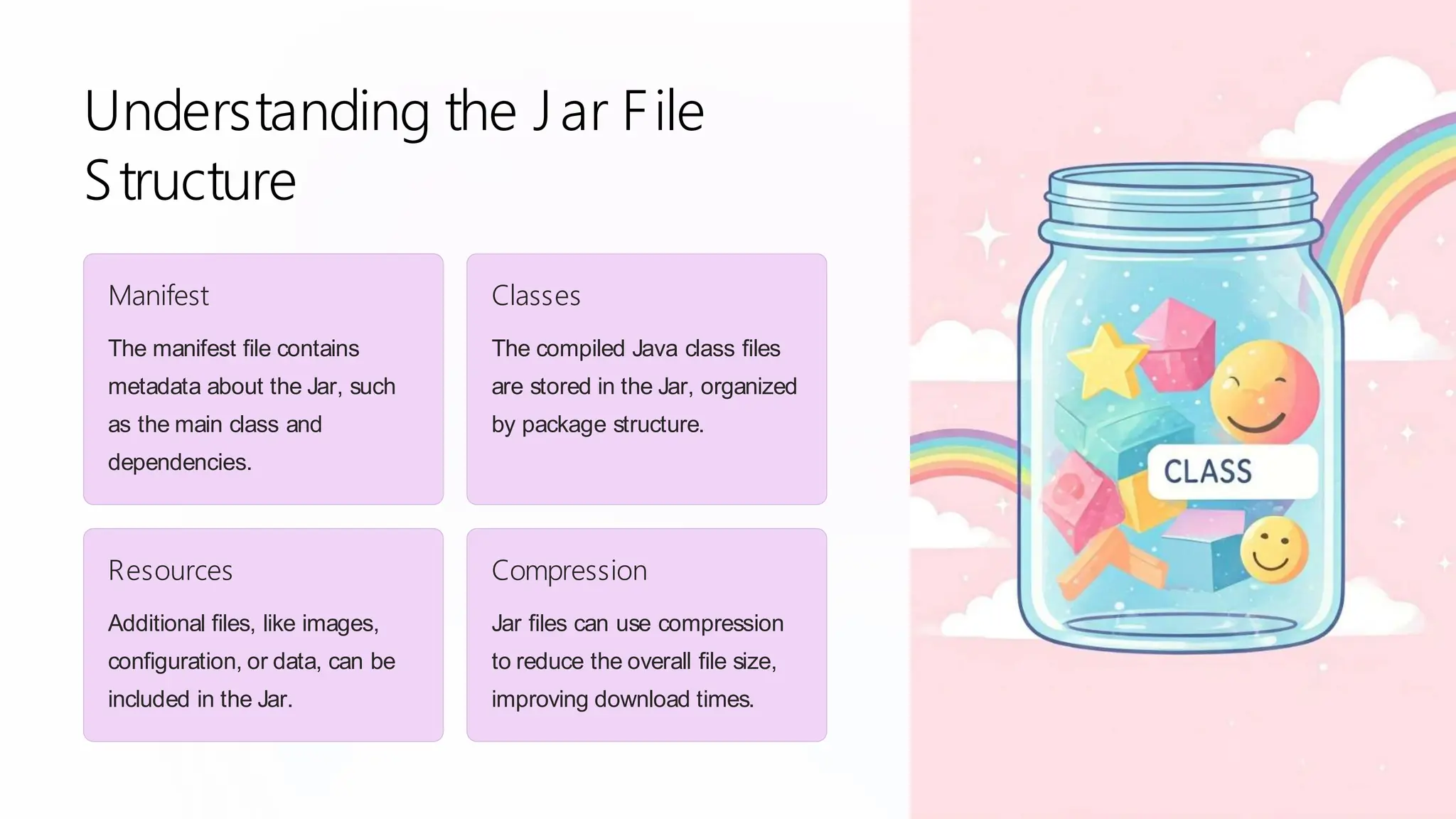
Classes
The compiled Java class files
are stored in the Jar, organized
by package structure.
Resources
Additional files, like images,
configuration, or data, can be
included in the Jar.
Compression
Jar files can use compression
to reduce the overall file size,
improving download times.
Creating a Jar File from the
Command Line
1 Compile
First, compile your Java source files into class files.
2 Package
Use the `jar` command to package the class files and other
resources into a Jar file.
3 Execute
Run the Jar file using the `java -jar` command to launch your
application.
The Importance of Manifest Files
1 Application Entry Point
The manifest specifies the main
class that should be executed
when the Jar is run.
2 Dependency Management
Jar file dependencies can be
declared in the manifest,
simplifying deployment.
3 Metadata
The manifest can store additional
information about the Jar, such as
the version and vendor.
Jar File Manifest Attributes
Main-Class
Specifies the entry point for the
application.
Class-Path
Lists the external dependencies
required by the Jar.
Created-By
Identifies the tool used to create the Jar
file.
Signing and Verifying Jar Files
Tamper-Proof
Signing a Jar file ensures its integrity and protects it from unauthorized modifications.
Trust and Verification
Verified signatures allow users to trust the source and contents of the Jar file.
Enhanced Security
Signed Jars can be used to grant specific permissions to the application.
Optimizing Jar File Performance
Compression
Effectively compressing the contents of the Jar can reduce its
overall size.
Dependency Management
Carefully managing external dependencies can minimize the
Jar's footprint.
Lazy Loading
Delaying the loading of non-essential resources can improve
startup performance.
Jar File Best Practices and
Troubleshooting
1 Consistent Versioning
Use a standardized
versioning scheme to
manage Jar file updates and
dependencies.
2 Proactive Maintenance
Regularly review and
update the Jar file to
address security
vulnerabilities and bugs.
3 Diagnostic Tools
Utilize tools like JarAnalyzer to identify and resolve Jar file-related
issues.

Unraveling the Jar File Format in advanced Java programming

  • 1.
    Unraveling the JarFile Format Jar files, or Java ARchive files, are a widely used packaging format for Java applications. They provide a convenient way to bundle Java classes, resources, and metadata into a single deployable unit, simplifying the distribution and management of Java software. by Keerthika G
  • 2.
    Understanding the JarFile Structure Manifest The manifest file contains metadata about the Jar, such as the main class and dependencies. Classes The compiled Java class files are stored in the Jar, organized by package structure. Resources Additional files, like images, configuration, or data, can be included in the Jar. Compression Jar files can use compression to reduce the overall file size, improving download times.
  • 3.
    Creating a JarFile from the Command Line 1 Compile First, compile your Java source files into class files. 2 Package Use the `jar` command to package the class files and other resources into a Jar file. 3 Execute Run the Jar file using the `java -jar` command to launch your application.
  • 4.
    The Importance ofManifest Files 1 Application Entry Point The manifest specifies the main class that should be executed when the Jar is run. 2 Dependency Management Jar file dependencies can be declared in the manifest, simplifying deployment. 3 Metadata The manifest can store additional information about the Jar, such as the version and vendor.
  • 5.
    Jar File ManifestAttributes Main-Class Specifies the entry point for the application. Class-Path Lists the external dependencies required by the Jar. Created-By Identifies the tool used to create the Jar file.
  • 6.
    Signing and VerifyingJar Files Tamper-Proof Signing a Jar file ensures its integrity and protects it from unauthorized modifications. Trust and Verification Verified signatures allow users to trust the source and contents of the Jar file. Enhanced Security Signed Jars can be used to grant specific permissions to the application.
  • 7.
    Optimizing Jar FilePerformance Compression Effectively compressing the contents of the Jar can reduce its overall size. Dependency Management Carefully managing external dependencies can minimize the Jar's footprint. Lazy Loading Delaying the loading of non-essential resources can improve startup performance.
  • 8.
    Jar File BestPractices and Troubleshooting 1 Consistent Versioning Use a standardized versioning scheme to manage Jar file updates and dependencies. 2 Proactive Maintenance Regularly review and update the Jar file to address security vulnerabilities and bugs. 3 Diagnostic Tools Utilize tools like JarAnalyzer to identify and resolve Jar file-related issues.