1
Orientation to Computing-I
L T P :2 0 0
www.lpu.in Lovely Professional University
Unit-2 (Operating System)
2
www.lpu.in Lovely Professional University
•Operating System: Operating Systems and its components, Windows
Operating Systems Versions and features, Installation process,
Directory Hierarchy of Windows Operating System (single level and
multiple level), Bootloader
•Linux Operating System: Linux OS and its features, Distribution
versions, installation process, Directory Hierarchy of Linux System
(single level and multiple level). Partitions: Understanding disk
partitions and obtaining partition information using system tools,
Comparison of windows and Linux OS, Virtual Machines
What is an Operating System?
• What is an Operating system?
– A program that acts as an intermediate/ interface between a user of a
computer and the computer hardware.
– Resource allocator (Managing the resources efficiently)
– Control Program
• Operating system goals:
– Execute user programs and make problem solving easier.
– Make the computer system convenient to use
– Efficiently use available resources
• An operating system is the one program that is running at all the times on
the computer- usually called the kernel.
• Kernel is a program that (allow) let the hardware to recognize and read the
program/process.
www.lpu.in Lovely Professional University
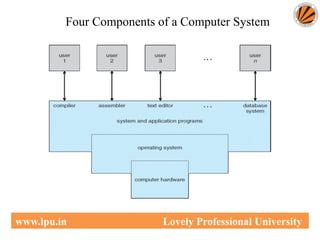
Computer System Structure
• Computer system can be divided into four components:
– Hardware – provides basic computing resources
• CPU, memory, I/O devices
– Operating system
• Controls and coordinates use of resources among various applications
and users
– System/Application programs – define the ways in which the system
resources are used to solving user problems
• Word processors, compilers, web browsers, database systems, video
games
– Users
• People, machines, other computers
www.lpu.in Lovely Professional University
Four Components of a Computer System
www.lpu.in Lovely Professional University
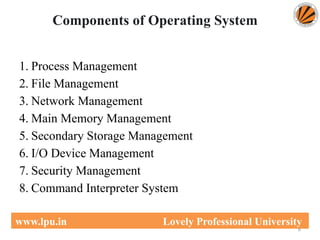
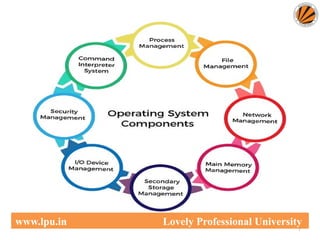
Components of Operating System
1. Process Management
2. File Management
3. Network Management
4. Main Memory Management
5. Secondary Storage Management
6. I/O Device Management
7. Security Management
8. Command Interpreter System
6
www.lpu.in Lovely Professional University
7
www.lpu.in Lovely Professional University
Process Management
• The process management component is a procedure for managing many processes
running simultaneously on the operating system. Every running software
application program has one or more processes associated with them.
• For example, when you use a search engine like Chrome, there is a process running
for that browser program.
• Process management keeps processes running efficiently. It also uses memory
allocated to them and shutting them down when needed.
• The execution of a process must be sequential so, at least one instruction should be
executed on behalf of the process.
8
www.lpu.in Lovely Professional University
Functions of process management
Here are the following functions of process management in the operating system, such
as:
• Process creation and deletion.
• Suspension and resumption.
• Synchronization process
• Communication process
9
www.lpu.in Lovely Professional University
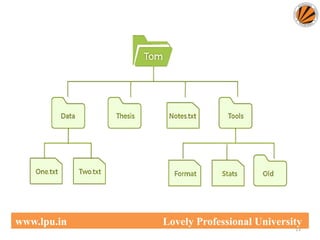
File Management
• A file is a set of related information defined by its creator. It
commonly represents programs (both source and object forms)
and data. Data files can be alphabetic, numeric, or
alphanumeric.
Function of file management
• The operating system has the following important activities in
connection with file management:
• File and directory creation and deletion.
• For manipulating files and directories.
• Mapping files onto secondary storage.
• Backup files on stable storage media.
10
www.lpu.in Lovely Professional University
11
www.lpu.in Lovely Professional University
Network Management
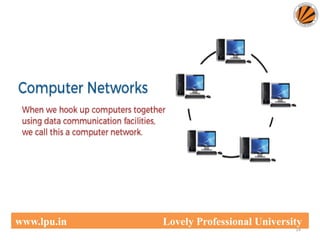
• Network management is the process of administering and managing computer
networks. It includes performance management, provisioning of networks, fault
analysis, and maintaining the quality of service.
• A distributed system is a collection of computers or processors that never share
their memory and clock.
• In this type of system, all the processors have their local memory, and the
processors communicate with each other using different communication cables,
such as fibre optics or telephone lines.
• The computers in the network are connected through a communication network,
which can configure in many different ways.
• The network can fully or partially connect in network management, which helps
users design routing and connection strategies that overcome connection and
security issues.
12
www.lpu.in Lovely Professional University
Functions of Network management
• Distributed systems help you to various computing resources in size and function.
They may involve minicomputers, microprocessors, and many general-purpose
computer systems.
• A distributed system also offers the user access to the various resources the network
shares.
• It helps to access shared resources that help computation to speed up or offers data
availability and reliability.
13
www.lpu.in Lovely Professional University
14
www.lpu.in Lovely Professional University
Main Memory management
• Main memory is a large array of storage or bytes, which has an address.
• The memory management process is conducted by using a sequence of reads or
writes of specific memory addresses.
• It should be mapped to absolute addresses and loaded inside the memory to execute
a program. The selection of a memory management method depends on several
factors
• However, it is mainly based on the hardware design of the system. Each algorithm
requires corresponding hardware support.
• Main memory offers fast storage that can be accessed directly by the CPU. It is
costly and hence has a lower storage capacity. However, for a program to be
executed, it must be in the main memory.
15
www.lpu.in Lovely Professional University
• Functions of Memory management
• An Operating System performs the following functions for Memory Management
in the operating system:
• It helps you to keep track of primary memory.
• Determine what part of it are in use by whom, what part is not in use.
• In a multiprogramming system, the OS decides which process will get memory and
how much.
• Allocates the memory when a process requests.
• It also de-allocates the memory when a process no longer requires or has been
terminated.
16
www.lpu.in Lovely Professional University
17
www.lpu.in Lovely Professional University
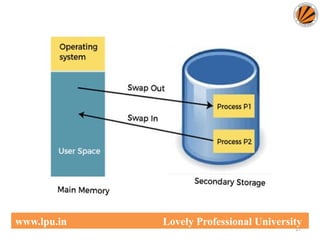
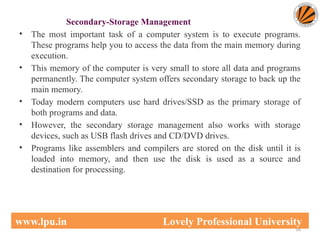
Secondary-Storage Management
• The most important task of a computer system is to execute programs.
These programs help you to access the data from the main memory during
execution.
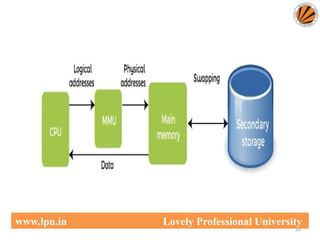
• This memory of the computer is very small to store all data and programs
permanently. The computer system offers secondary storage to back up the
main memory.
• Today modern computers use hard drives/SSD as the primary storage of
both programs and data.
• However, the secondary storage management also works with storage
devices, such as USB flash drives and CD/DVD drives.
• Programs like assemblers and compilers are stored on the disk until it is
loaded into memory, and then use the disk is used as a source and
destination for processing.
18
www.lpu.in Lovely Professional University
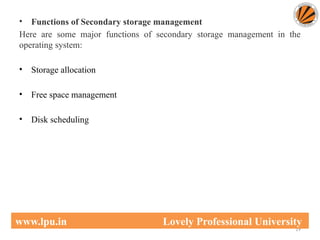
• Functions of Secondary storage management
Here are some major functions of secondary storage management in the
operating system:
• Storage allocation
• Free space management
• Disk scheduling
19
www.lpu.in Lovely Professional University
20
www.lpu.in Lovely Professional University
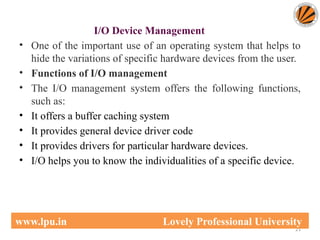
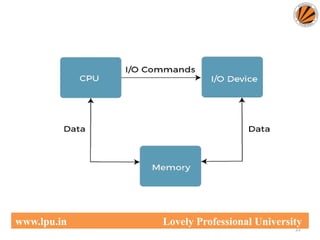
I/O Device Management
• One of the important use of an operating system that helps to
hide the variations of specific hardware devices from the user.
• Functions of I/O management
• The I/O management system offers the following functions,
such as:
• It offers a buffer caching system
• It provides general device driver code
• It provides drivers for particular hardware devices.
• I/O helps you to know the individualities of a specific device.
21
www.lpu.in Lovely Professional University
22
www.lpu.in Lovely Professional University
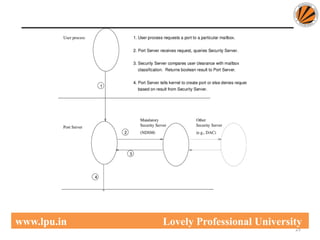
Security Management
• The various processes in an operating system need to be secured from
other activities.
• Therefore, various mechanisms can ensure those processes that want to
operate files, memory CPU, and other hardware resources should have
proper authorization from the operating system.
• Security refers to a mechanism for controlling the access of programs,
processes, or users to the resources defined by computer controls to be
imposed, together with some means of enforcement.
• For example, memory addressing hardware helps to confirm that a process
can be executed within its own address space.
• The time ensures that no process has control of the CPU without
renouncing it.
23
www.lpu.in Lovely Professional University
• Security Management
• No process is allowed to do its own I/O to protect, which helps you to keep
the integrity of the various peripheral devices.
• Security can improve reliability by detecting latent errors at the interfaces
between component subsystems.
• Early detection of interface errors can prevent the foulness of a healthy
subsystem by a malfunctioning subsystem.
• An unprotected resource cannot misuse by an unauthorized or incompetent
user.
24
www.lpu.in Lovely Professional University
25
www.lpu.in Lovely Professional University
Returns
• Command Interpreter System
• One of the most important components of an operating system is its
command interpreter. The command interpreter is the primary interface
between the user and the rest of the system.
• Many commands are given to the operating system by control statements.
A program that reads and interprets control statements is automatically
executed when a new job is started in a batch system or a user logs in to a
time-shared system. This program is variously called:
• The control card interpreter,
• The command-line interpreter,
• The shell (in UNIX), and so on.
• Its function is quite simple, get the next command statement, and execute
it. The command statements deal with process management, I/O handling,
secondary storage management, main memory management, file system
access, protection, and networking.
26
www.lpu.in Lovely Professional University
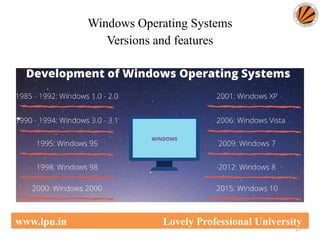
Windows Operating Systems
Versions and features
27
www.lpu.in Lovely Professional University
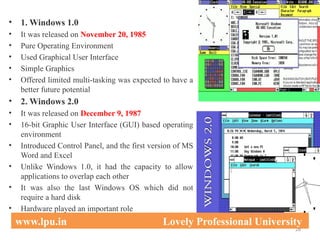
• 1. Windows 1.0
• It was released on November 20, 1985
• Pure Operating Environment
• Used Graphical User Interface
• Simple Graphics
• Offered limited multi-tasking was expected to have a
better future potential
• 2. Windows 2.0
• It was released on December 9, 1987
• 16-bit Graphic User Interface (GUI) based operating
environment
• Introduced Control Panel, and the first version of MS
Word and Excel
• Unlike Windows 1.0, it had the capacity to allow
applications to overlap each other
• It was also the last Windows OS which did not
require a hard disk
• Hardware played an important role
28
www.lpu.in Lovely Professional University
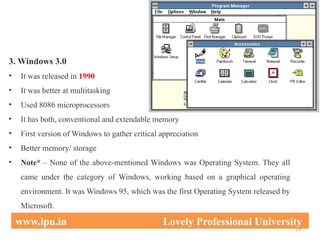
3. Windows 3.0
• It was released in 1990
• It was better at multitasking
• Used 8086 microprocessors
• It has both, conventional and extendable memory
• First version of Windows to gather critical appreciation
• Better memory/ storage
• Note* – None of the above-mentioned Windows was Operating System. They all
came under the category of Windows, working based on a graphical operating
environment. It was Windows 95, which was the first Operating System released by
Microsoft.
29
www.lpu.in Lovely Professional University
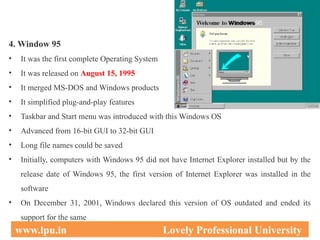
4. Window 95
• It was the first complete Operating System
• It was released on August 15, 1995
• It merged MS-DOS and Windows products
• It simplified plug-and-play features
• Taskbar and Start menu was introduced with this Windows OS
• Advanced from 16-bit GUI to 32-bit GUI
• Long file names could be saved
• Initially, computers with Windows 95 did not have Internet Explorer installed but by the
release date of Windows 95, the first version of Internet Explorer was installed in the
software
• On December 31, 2001, Windows declared this version of OS outdated and ended its
support for the same
30
www.lpu.in Lovely Professional University
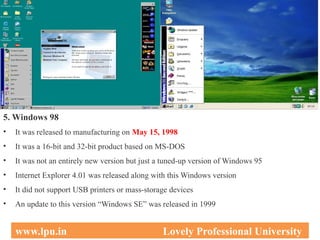
5. Windows 98
• It was released to manufacturing on May 15, 1998
• It was a 16-bit and 32-bit product based on MS-DOS
• It was not an entirely new version but just a tuned-up version of Windows 95
• Internet Explorer 4.01 was released along with this Windows version
• It did not support USB printers or mass-storage devices
• An update to this version “Windows SE” was released in 1999
31
www.lpu.in Lovely Professional University
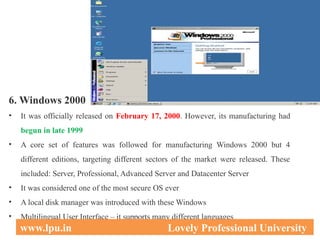
6. Windows 2000
• It was officially released on February 17, 2000. However, its manufacturing had
begun in late 1999
• A core set of features was followed for manufacturing Windows 2000 but 4
different editions, targeting different sectors of the market were released. These
included: Server, Professional, Advanced Server and Datacenter Server
• It was considered one of the most secure OS ever
• A local disk manager was introduced with these Windows
• Multilingual User Interface – it supports many different languages
32
www.lpu.in Lovely Professional University
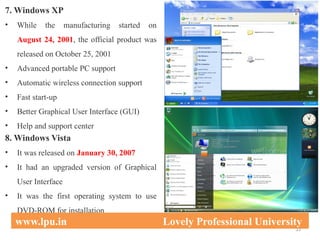
7. Windows XP
• While the manufacturing started on
August 24, 2001, the official product was
released on October 25, 2001
• Advanced portable PC support
• Automatic wireless connection support
• Fast start-up
• Better Graphical User Interface (GUI)
• Help and support center
8. Windows Vista
• It was released on January 30, 2007
• It had an upgraded version of Graphical
User Interface
• It was the first operating system to use
DVD-ROM for installation
33
www.lpu.in Lovely Professional University
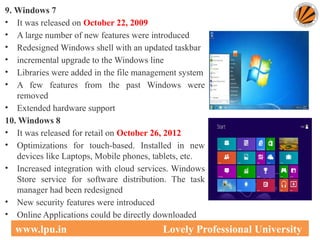
9. Windows 7
• It was released on October 22, 2009
• A large number of new features were introduced
• Redesigned Windows shell with an updated taskbar
• incremental upgrade to the Windows line
• Libraries were added in the file management system
• A few features from the past Windows were
removed
• Extended hardware support
10. Windows 8
• It was released for retail on October 26, 2012
• Optimizations for touch-based. Installed in new
devices like Laptops, Mobile phones, tablets, etc.
• Increased integration with cloud services. Windows
Store service for software distribution. The task
manager had been redesigned
• New security features were introduced
• Online Applications could be directly downloaded
34
www.lpu.in Lovely Professional University
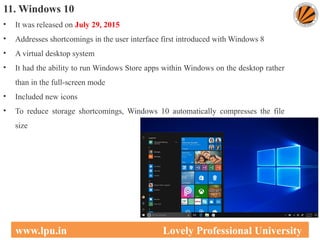
11. Windows 10
• It was released on July 29, 2015
• Addresses shortcomings in the user interface first introduced with Windows 8
• A virtual desktop system
• It had the ability to run Windows Store apps within Windows on the desktop rather
than in the full-screen mode
• Included new icons
• To reduce storage shortcomings, Windows 10 automatically compresses the file
size
35
www.lpu.in Lovely Professional University
Installation process
1. Set up the display environment
2. Erase the primary boot disk
3. Set up the BIOS
4. Install the operating system
5. Install the operating system, update the drivers, and run
operating system updates, as necessary.
36
www.lpu.in Lovely Professional University
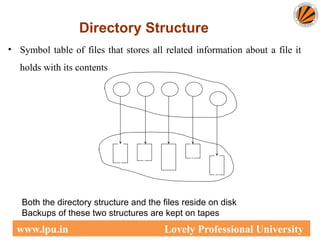
Directory Structure
• Symbol table of files that stores all related information about a file it
holds with its contents
F
1
F
2
F
3
F
4 F
n
Directory
Files
Both the directory structure and the files reside on disk
Backups of these two structures are kept on tapes
www.lpu.in Lovely Professional University
Operations Performed on Directory
Directory: collection of files or directories
• A Symbol Table that translates file names into their directory
entry.
Operations:
• Search for a file
• Create a file
• Delete a file
• List a directory
• Rename a file
• Traverse the file system : Search all directories/ sub directories
and files
www.lpu.in Lovely Professional University
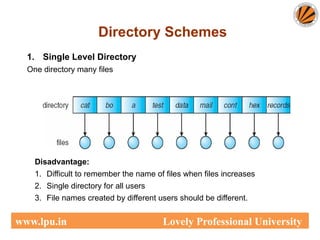
Single-Level Directory
1. Single Level Directory
One directory many files
Easy to support and understand.
Limitation:
When number of files increases or when the system has
more than one user, then Naming problem occurs. All files
should have unique names.
Directory Schemes
Disadvantage:
1. Difficult to remember the name of files when files increases
2. Single directory for all users
3. File names created by different users should be different.
www.lpu.in Lovely Professional University
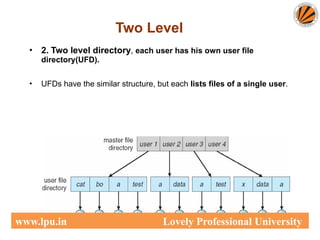
• 2. Two level directory, each user has his own user file
directory(UFD).
• UFDs have the similar structure, but each lists files of a single user.
Two Level
www.lpu.in Lovely Professional University
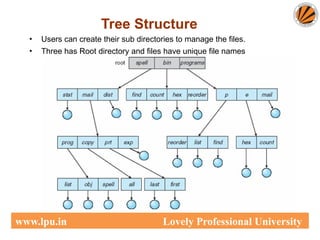
Tree Structure
• Users can create their sub directories to manage the files.
• Three has Root directory and files have unique file names
www.lpu.in Lovely Professional University
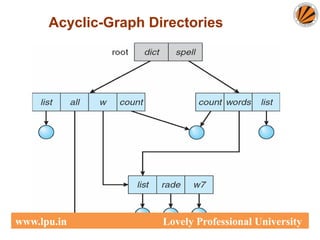
Acyclic-Graph Directories
• Multiple users can Have shared subdirectories and files
• Users have their own working directory and may have
one shared directory
• Shared subdirectory created by one user in one directory is
automatically visible to all users sharing that directory.
• Shared directory or file may exist at multiple places
simultaneously
• Because of sharing, a file may have multiple absolute
paths
• So different names can refer to same file
www.lpu.in Lovely Professional University
Acyclic-Graph Directories
www.lpu.in Lovely Professional University
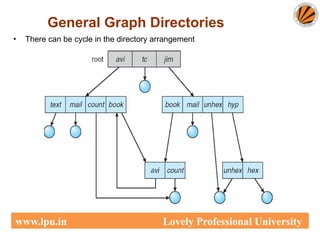
• Created by adding links to the existing directory
• Allows cycles in the same directory
• As all files are dependent / linked deleting a main file may
harm other files
• In case of deletion: Garbage Collection is used
• In First Pass: Traversing the entire file and marking
everything that can be accessed
• In Second Pass: Collect everything that is not marked as
the free space
General Graph Directories
www.lpu.in Lovely Professional University
General Graph Directory
General Graph Directories
• There can be cycle in the directory arrangement
www.lpu.in Lovely Professional University
Directory Implementation
• Directories need to be fast to search, insert, and delete, with a minimum of
wasted disk space.
1 Linear List
• A linear list is the simplest and easiest directory structure
• Finding a file requires a linear search.
• Deletions can be done by moving all or one entry to vacant position and
deleting the pointer.
2 Hash Table
• A hash table can also be used to speed up searches.
• Implementation is by using Hash value.
• (Division/Variant Method)
www.lpu.in Lovely Professional University
Bootloader
• A boot loader, also called a boot manager, is a small program that places
the operating system (OS) of a computer into memory.
• When a computer is powered-up or restarted, the basic input/output system
(BIOS) performs some initial tests, and then transfers control to the Master
Boot Record (MBR) where the boot loader resides.
• Most new computers are shipped with boot loaders for some version of
Microsoft Windows or the Mac OS.
• If a computer is to be used with Linux, a special boot loader must be
installed.
47
www.lpu.in Lovely Professional University
Bootloader
• The two most common boot loaders are known as:
– LILO (LInux LOader) and
– LOADLIN (LOAD LINux).
An alternative bootloader, called GRUB (GRand Unified Bootloader), is used
with Red Hat Linux.
LILO is the most popular boot loader among computer users that employs
Linux as the main, or only, operating system.
48
www.lpu.in Lovely Professional University
Bootloader
• LOADLIN is preferred by some users whose computers have multiple
operating systems, and who spend relatively little time in Linux.
• LOADLIN is sometimes used as a backup boot loader for Linux in case
LILO fails.
• GRUB is preferred by many users of Red Hat Linux, because it is the
default boot loader for that distribution.
49
www.lpu.in Lovely Professional University
File system management
50
www.lpu.in Lovely Professional University
File system management :
File system basics, Types of file systems( FAT, GFT, HFS, NDFS, UDF,
Extended file systems), Pipes and redirection, Searching the file system
using find and grep with simple regular expressions, Basic process control
using signals, pausing and resuming process from a Linux terminal,
terminating a process, Adding/removing from search path using PATH
variable.
Other Shell commands:
ls, cat, man, cd, touch, cp, mv, rmdir, mkdir, rm, chmod, pwd, ps, kill, etc,
Kernel and types of kernels.
Understanding File System
51
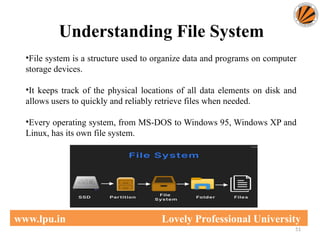
•File system is a structure used to organize data and programs on computer
storage devices.
•It keeps track of the physical locations of all data elements on disk and
allows users to quickly and reliably retrieve files when needed.
•Every operating system, from MS-DOS to Windows 95, Windows XP and
Linux, has its own file system.
www.lpu.in Lovely Professional University
52
www.lpu.in Lovely Professional University
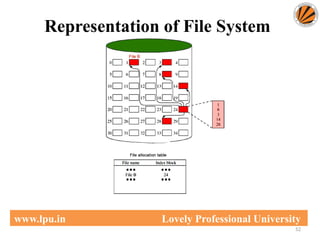
Representation of File System
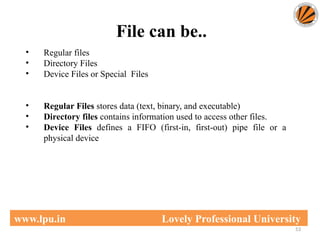
File can be..
53
• Regular files
• Directory Files
• Device Files or Special Files
• Regular Files stores data (text, binary, and executable)
• Directory files contains information used to access other files.
• Device Files defines a FIFO (first-in, first-out) pipe file or a
physical device
www.lpu.in Lovely Professional University
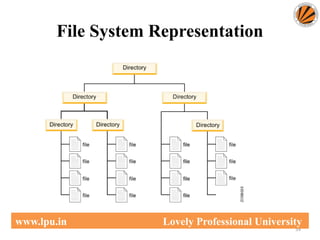
File System Representation
54
www.lpu.in Lovely Professional University
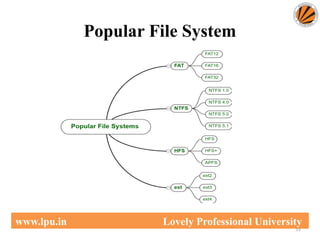
Popular File System
55
www.lpu.in Lovely Professional University
56
www.lpu.in Lovely Professional University
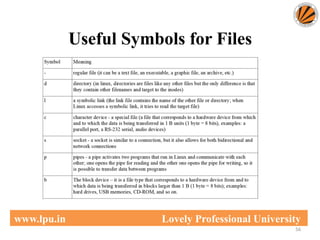
Useful Symbols for Files
Types of File Systems
57
www.lpu.in Lovely Professional University
• Following are the various file systems in a device:
– FAT – File Allocation Table
– GFS – Global File System
– HFS – Hierarchical File System
– DFS – Distributed File System
– UDF -
– Extended file system
– NTFS – New Technology File System
FAT File System
58
www.lpu.in Lovely Professional University
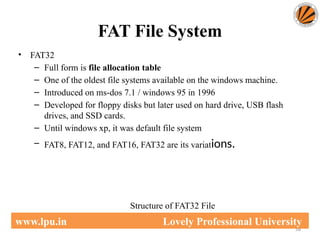
• FAT32
– Full form is file allocation table
– One of the oldest file systems available on the windows machine.
– Introduced on ms-dos 7.1 / windows 95 in 1996
– Developed for floppy disks but later used on hard drive, USB flash
drives, and SSD cards.
– Until windows xp, it was default file system
– FAT8, FAT12, and FAT16, FAT32 are its variations.
Structure of FAT32 File
FAT32 contd..
59
www.lpu.in Lovely Professional University
Advantages:
• Can hold up to 268,173,300 files
• The backup FAT table copy gets automatically relocated to the root folder
in FAT32 systems, which further can be used for the restoration of files.
• Drive sizes are between 2 and 16 tb with 64kb clusters.
• Is the official format for sd and sdhc cards.
Limitations:
• Each file can have a maximum size of 4GB (GigaBytes).
• No control over file permissions and data security.
• The native disk’s maximum disk size for FAT32 is 32 GB. It is possible to
expand it up to 2TB.
• FAT32 is no longer used on modern, internal Windows hard drives as most
systems have adopted the NTFS standard.
GFS File System
60
www.lpu.in Lovely Professional University
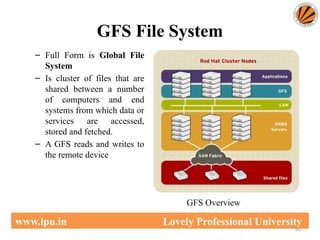
– Full Form is Global File
System
– Is cluster of files that are
shared between a number
of computers and end
systems from which data or
services are accessed,
stored and fetched.
– A GFS reads and writes to
the remote device
GFS Overview
NTFS (New Technology File
System)
61
www.lpu.in Lovely Professional University
• NTFS:-
• Current Windows versions beginning
with Windows XP — use the NTFS
file system to partition their code.
• It is possible to format external drives
with either FAT32 or NTFS.
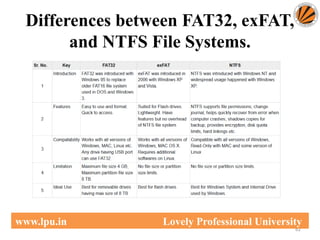
Differences between FAT32, exFAT,
and NTFS File Systems.
62
www.lpu.in Lovely Professional University
HFS File System
63
www.lpu.in Lovely Professional University
• A file with the HFS file extension is an HFS disk image file.
• Known as Hierarchical File System
• Used to store the files on floppy disks, CD-ROM discs, and hard drives of
older Apple Macintosh computers.
Btrfs
64
www.lpu.in Lovely Professional University
• Btrfs — "better file system" — is a newer, still in development, Linux file
system.
• It is a copy-on-write (CoW) filesystem.
• The goal is to provide additional features that allow Linux to scale up to
larger storage amounts.
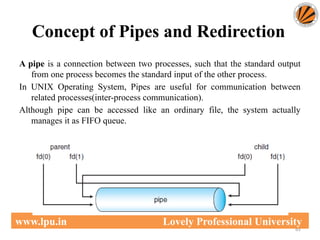
Concept of Pipes and Redirection
65
www.lpu.in Lovely Professional University
A pipe is a connection between two processes, such that the standard output
from one process becomes the standard input of the other process.
In UNIX Operating System, Pipes are useful for communication between
related processes(inter-process communication).
Although pipe can be accessed like an ordinary file, the system actually
manages it as FIFO queue.
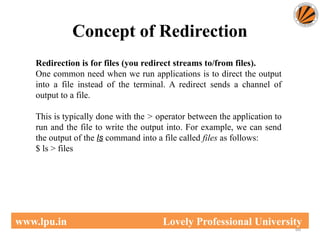
Concept of Redirection
66
www.lpu.in Lovely Professional University
Redirection is for files (you redirect streams to/from files).
One common need when we run applications is to direct the output
into a file instead of the terminal. A redirect sends a channel of
output to a file.
This is typically done with the > operator between the application to
run and the file to write the output into. For example, we can send
the output of the ls command into a file called files as follows:
$ ls > files
Searching the File System
67
www.lpu.in Lovely Professional University
• Use command- find
– It search for files in a directory hierarchy under Linux and
all other UNIX like operating systems.
– Examples:
• find . - name thisfile.txt. ...
• find /home -name *.jpg. Look for all . ...
Searching the File System contd..
68
www.lpu.in Lovely Professional University
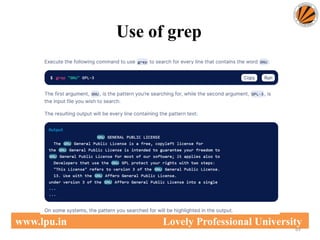
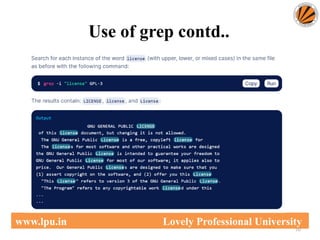
Use command- grep
• Grep is an acronym that stands for Global Regular Expression
Print.
The grep command searches through the file, looking for matches to
the pattern specified.
Grep is case-sensitive.
Example:
grep myname biodata
• Here biodata is file and myname is specific pattern for searching in
biodata file
Use of grep
69
www.lpu.in Lovely Professional University
Use of grep contd..
70
www.lpu.in Lovely Professional University
Process Signals
71
www.lpu.in Lovely Professional University
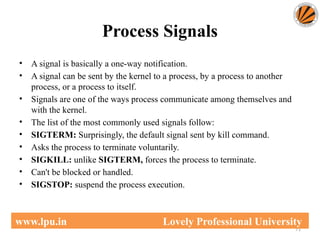
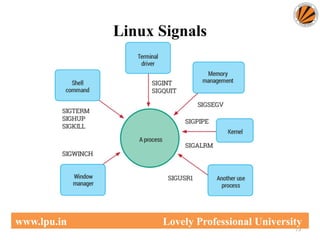
• A signal is basically a one-way notification.
• A signal can be sent by the kernel to a process, by a process to another
process, or a process to itself.
• Signals are one of the ways process communicate among themselves and
with the kernel.
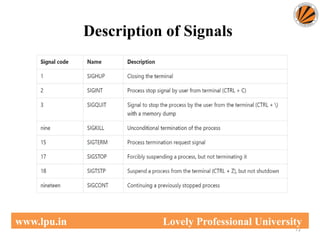
• The list of the most commonly used signals follow:
• SIGTERM: Surprisingly, the default signal sent by kill command.
• Asks the process to terminate voluntarily.
• SIGKILL: unlike SIGTERM, forces the process to terminate.
• Can't be blocked or handled.
• SIGSTOP: suspend the process execution.
72
www.lpu.in Lovely Professional University
Description of Signals
73
www.lpu.in Lovely Professional University
Linux Signals
Kill command
74
www.lpu.in Lovely Professional University
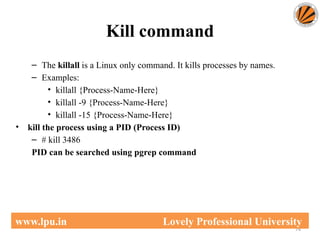
– The killall is a Linux only command. It kills processes by names.
– Examples:
• killall {Process-Name-Here}
• killall -9 {Process-Name-Here}
• killall -15 {Process-Name-Here}
• kill the process using a PID (Process ID)
– # kill 3486
PID can be searched using pgrep command
Path Variable
75
www.lpu.in Lovely Professional University
• It displays or set a search path for executable files at the command line.
• Syntax PATH pathname [;pathname] [;pathname] [;pathname]... PATH
PATH ; Key pathname : drive letter and/or folder ; : the command 'PATH ;'
will clear the path PATH without parameters will display the current path.
• The %PATH% environment variable contains a list of folders.
• The PATH variable is an environment variable containing an ordered
list of paths that Linux will search for executables when running a
command.
– For example, if we want to print Hello, world! in Bash, the command
echo can be used rather than /bin/echo, so long as /bin is in PATH:

Unit_2_CSE111.pptx computer orientation project

  • 1.
    1 Orientation to Computing-I LT P :2 0 0 www.lpu.in Lovely Professional University
  • 2.
    Unit-2 (Operating System) 2 www.lpu.inLovely Professional University •Operating System: Operating Systems and its components, Windows Operating Systems Versions and features, Installation process, Directory Hierarchy of Windows Operating System (single level and multiple level), Bootloader •Linux Operating System: Linux OS and its features, Distribution versions, installation process, Directory Hierarchy of Linux System (single level and multiple level). Partitions: Understanding disk partitions and obtaining partition information using system tools, Comparison of windows and Linux OS, Virtual Machines
  • 3.
    What is anOperating System? • What is an Operating system? – A program that acts as an intermediate/ interface between a user of a computer and the computer hardware. – Resource allocator (Managing the resources efficiently) – Control Program • Operating system goals: – Execute user programs and make problem solving easier. – Make the computer system convenient to use – Efficiently use available resources • An operating system is the one program that is running at all the times on the computer- usually called the kernel. • Kernel is a program that (allow) let the hardware to recognize and read the program/process. www.lpu.in Lovely Professional University
  • 4.
    Computer System Structure •Computer system can be divided into four components: – Hardware – provides basic computing resources • CPU, memory, I/O devices – Operating system • Controls and coordinates use of resources among various applications and users – System/Application programs – define the ways in which the system resources are used to solving user problems • Word processors, compilers, web browsers, database systems, video games – Users • People, machines, other computers www.lpu.in Lovely Professional University
  • 5.
    Four Components ofa Computer System www.lpu.in Lovely Professional University
  • 6.
    Components of OperatingSystem 1. Process Management 2. File Management 3. Network Management 4. Main Memory Management 5. Secondary Storage Management 6. I/O Device Management 7. Security Management 8. Command Interpreter System 6 www.lpu.in Lovely Professional University
  • 7.
  • 8.
    Process Management • Theprocess management component is a procedure for managing many processes running simultaneously on the operating system. Every running software application program has one or more processes associated with them. • For example, when you use a search engine like Chrome, there is a process running for that browser program. • Process management keeps processes running efficiently. It also uses memory allocated to them and shutting them down when needed. • The execution of a process must be sequential so, at least one instruction should be executed on behalf of the process. 8 www.lpu.in Lovely Professional University
  • 9.
    Functions of processmanagement Here are the following functions of process management in the operating system, such as: • Process creation and deletion. • Suspension and resumption. • Synchronization process • Communication process 9 www.lpu.in Lovely Professional University
  • 10.
    File Management • Afile is a set of related information defined by its creator. It commonly represents programs (both source and object forms) and data. Data files can be alphabetic, numeric, or alphanumeric. Function of file management • The operating system has the following important activities in connection with file management: • File and directory creation and deletion. • For manipulating files and directories. • Mapping files onto secondary storage. • Backup files on stable storage media. 10 www.lpu.in Lovely Professional University
  • 11.
  • 12.
    Network Management • Networkmanagement is the process of administering and managing computer networks. It includes performance management, provisioning of networks, fault analysis, and maintaining the quality of service. • A distributed system is a collection of computers or processors that never share their memory and clock. • In this type of system, all the processors have their local memory, and the processors communicate with each other using different communication cables, such as fibre optics or telephone lines. • The computers in the network are connected through a communication network, which can configure in many different ways. • The network can fully or partially connect in network management, which helps users design routing and connection strategies that overcome connection and security issues. 12 www.lpu.in Lovely Professional University
  • 13.
    Functions of Networkmanagement • Distributed systems help you to various computing resources in size and function. They may involve minicomputers, microprocessors, and many general-purpose computer systems. • A distributed system also offers the user access to the various resources the network shares. • It helps to access shared resources that help computation to speed up or offers data availability and reliability. 13 www.lpu.in Lovely Professional University
  • 14.
  • 15.
    Main Memory management •Main memory is a large array of storage or bytes, which has an address. • The memory management process is conducted by using a sequence of reads or writes of specific memory addresses. • It should be mapped to absolute addresses and loaded inside the memory to execute a program. The selection of a memory management method depends on several factors • However, it is mainly based on the hardware design of the system. Each algorithm requires corresponding hardware support. • Main memory offers fast storage that can be accessed directly by the CPU. It is costly and hence has a lower storage capacity. However, for a program to be executed, it must be in the main memory. 15 www.lpu.in Lovely Professional University
  • 16.
    • Functions ofMemory management • An Operating System performs the following functions for Memory Management in the operating system: • It helps you to keep track of primary memory. • Determine what part of it are in use by whom, what part is not in use. • In a multiprogramming system, the OS decides which process will get memory and how much. • Allocates the memory when a process requests. • It also de-allocates the memory when a process no longer requires or has been terminated. 16 www.lpu.in Lovely Professional University
  • 17.
  • 18.
    Secondary-Storage Management • Themost important task of a computer system is to execute programs. These programs help you to access the data from the main memory during execution. • This memory of the computer is very small to store all data and programs permanently. The computer system offers secondary storage to back up the main memory. • Today modern computers use hard drives/SSD as the primary storage of both programs and data. • However, the secondary storage management also works with storage devices, such as USB flash drives and CD/DVD drives. • Programs like assemblers and compilers are stored on the disk until it is loaded into memory, and then use the disk is used as a source and destination for processing. 18 www.lpu.in Lovely Professional University
  • 19.
    • Functions ofSecondary storage management Here are some major functions of secondary storage management in the operating system: • Storage allocation • Free space management • Disk scheduling 19 www.lpu.in Lovely Professional University
  • 20.
  • 21.
    I/O Device Management •One of the important use of an operating system that helps to hide the variations of specific hardware devices from the user. • Functions of I/O management • The I/O management system offers the following functions, such as: • It offers a buffer caching system • It provides general device driver code • It provides drivers for particular hardware devices. • I/O helps you to know the individualities of a specific device. 21 www.lpu.in Lovely Professional University
  • 22.
  • 23.
    Security Management • Thevarious processes in an operating system need to be secured from other activities. • Therefore, various mechanisms can ensure those processes that want to operate files, memory CPU, and other hardware resources should have proper authorization from the operating system. • Security refers to a mechanism for controlling the access of programs, processes, or users to the resources defined by computer controls to be imposed, together with some means of enforcement. • For example, memory addressing hardware helps to confirm that a process can be executed within its own address space. • The time ensures that no process has control of the CPU without renouncing it. 23 www.lpu.in Lovely Professional University
  • 24.
    • Security Management •No process is allowed to do its own I/O to protect, which helps you to keep the integrity of the various peripheral devices. • Security can improve reliability by detecting latent errors at the interfaces between component subsystems. • Early detection of interface errors can prevent the foulness of a healthy subsystem by a malfunctioning subsystem. • An unprotected resource cannot misuse by an unauthorized or incompetent user. 24 www.lpu.in Lovely Professional University
  • 25.
  • 26.
    • Command InterpreterSystem • One of the most important components of an operating system is its command interpreter. The command interpreter is the primary interface between the user and the rest of the system. • Many commands are given to the operating system by control statements. A program that reads and interprets control statements is automatically executed when a new job is started in a batch system or a user logs in to a time-shared system. This program is variously called: • The control card interpreter, • The command-line interpreter, • The shell (in UNIX), and so on. • Its function is quite simple, get the next command statement, and execute it. The command statements deal with process management, I/O handling, secondary storage management, main memory management, file system access, protection, and networking. 26 www.lpu.in Lovely Professional University
  • 27.
    Windows Operating Systems Versionsand features 27 www.lpu.in Lovely Professional University
  • 28.
    • 1. Windows1.0 • It was released on November 20, 1985 • Pure Operating Environment • Used Graphical User Interface • Simple Graphics • Offered limited multi-tasking was expected to have a better future potential • 2. Windows 2.0 • It was released on December 9, 1987 • 16-bit Graphic User Interface (GUI) based operating environment • Introduced Control Panel, and the first version of MS Word and Excel • Unlike Windows 1.0, it had the capacity to allow applications to overlap each other • It was also the last Windows OS which did not require a hard disk • Hardware played an important role 28 www.lpu.in Lovely Professional University
  • 29.
    3. Windows 3.0 •It was released in 1990 • It was better at multitasking • Used 8086 microprocessors • It has both, conventional and extendable memory • First version of Windows to gather critical appreciation • Better memory/ storage • Note* – None of the above-mentioned Windows was Operating System. They all came under the category of Windows, working based on a graphical operating environment. It was Windows 95, which was the first Operating System released by Microsoft. 29 www.lpu.in Lovely Professional University
  • 30.
    4. Window 95 •It was the first complete Operating System • It was released on August 15, 1995 • It merged MS-DOS and Windows products • It simplified plug-and-play features • Taskbar and Start menu was introduced with this Windows OS • Advanced from 16-bit GUI to 32-bit GUI • Long file names could be saved • Initially, computers with Windows 95 did not have Internet Explorer installed but by the release date of Windows 95, the first version of Internet Explorer was installed in the software • On December 31, 2001, Windows declared this version of OS outdated and ended its support for the same 30 www.lpu.in Lovely Professional University
  • 31.
    5. Windows 98 •It was released to manufacturing on May 15, 1998 • It was a 16-bit and 32-bit product based on MS-DOS • It was not an entirely new version but just a tuned-up version of Windows 95 • Internet Explorer 4.01 was released along with this Windows version • It did not support USB printers or mass-storage devices • An update to this version “Windows SE” was released in 1999 31 www.lpu.in Lovely Professional University
  • 32.
    6. Windows 2000 •It was officially released on February 17, 2000. However, its manufacturing had begun in late 1999 • A core set of features was followed for manufacturing Windows 2000 but 4 different editions, targeting different sectors of the market were released. These included: Server, Professional, Advanced Server and Datacenter Server • It was considered one of the most secure OS ever • A local disk manager was introduced with these Windows • Multilingual User Interface – it supports many different languages 32 www.lpu.in Lovely Professional University
  • 33.
    7. Windows XP •While the manufacturing started on August 24, 2001, the official product was released on October 25, 2001 • Advanced portable PC support • Automatic wireless connection support • Fast start-up • Better Graphical User Interface (GUI) • Help and support center 8. Windows Vista • It was released on January 30, 2007 • It had an upgraded version of Graphical User Interface • It was the first operating system to use DVD-ROM for installation 33 www.lpu.in Lovely Professional University
  • 34.
    9. Windows 7 •It was released on October 22, 2009 • A large number of new features were introduced • Redesigned Windows shell with an updated taskbar • incremental upgrade to the Windows line • Libraries were added in the file management system • A few features from the past Windows were removed • Extended hardware support 10. Windows 8 • It was released for retail on October 26, 2012 • Optimizations for touch-based. Installed in new devices like Laptops, Mobile phones, tablets, etc. • Increased integration with cloud services. Windows Store service for software distribution. The task manager had been redesigned • New security features were introduced • Online Applications could be directly downloaded 34 www.lpu.in Lovely Professional University
  • 35.
    11. Windows 10 •It was released on July 29, 2015 • Addresses shortcomings in the user interface first introduced with Windows 8 • A virtual desktop system • It had the ability to run Windows Store apps within Windows on the desktop rather than in the full-screen mode • Included new icons • To reduce storage shortcomings, Windows 10 automatically compresses the file size 35 www.lpu.in Lovely Professional University
  • 36.
    Installation process 1. Setup the display environment 2. Erase the primary boot disk 3. Set up the BIOS 4. Install the operating system 5. Install the operating system, update the drivers, and run operating system updates, as necessary. 36 www.lpu.in Lovely Professional University
  • 37.
    Directory Structure • Symboltable of files that stores all related information about a file it holds with its contents F 1 F 2 F 3 F 4 F n Directory Files Both the directory structure and the files reside on disk Backups of these two structures are kept on tapes www.lpu.in Lovely Professional University
  • 38.
    Operations Performed onDirectory Directory: collection of files or directories • A Symbol Table that translates file names into their directory entry. Operations: • Search for a file • Create a file • Delete a file • List a directory • Rename a file • Traverse the file system : Search all directories/ sub directories and files www.lpu.in Lovely Professional University
  • 39.
    Single-Level Directory 1. SingleLevel Directory One directory many files Easy to support and understand. Limitation: When number of files increases or when the system has more than one user, then Naming problem occurs. All files should have unique names. Directory Schemes Disadvantage: 1. Difficult to remember the name of files when files increases 2. Single directory for all users 3. File names created by different users should be different. www.lpu.in Lovely Professional University
  • 40.
    • 2. Twolevel directory, each user has his own user file directory(UFD). • UFDs have the similar structure, but each lists files of a single user. Two Level www.lpu.in Lovely Professional University
  • 41.
    Tree Structure • Userscan create their sub directories to manage the files. • Three has Root directory and files have unique file names www.lpu.in Lovely Professional University
  • 42.
    Acyclic-Graph Directories • Multipleusers can Have shared subdirectories and files • Users have their own working directory and may have one shared directory • Shared subdirectory created by one user in one directory is automatically visible to all users sharing that directory. • Shared directory or file may exist at multiple places simultaneously • Because of sharing, a file may have multiple absolute paths • So different names can refer to same file www.lpu.in Lovely Professional University
  • 43.
  • 44.
    • Created byadding links to the existing directory • Allows cycles in the same directory • As all files are dependent / linked deleting a main file may harm other files • In case of deletion: Garbage Collection is used • In First Pass: Traversing the entire file and marking everything that can be accessed • In Second Pass: Collect everything that is not marked as the free space General Graph Directories www.lpu.in Lovely Professional University
  • 45.
    General Graph Directory GeneralGraph Directories • There can be cycle in the directory arrangement www.lpu.in Lovely Professional University
  • 46.
    Directory Implementation • Directoriesneed to be fast to search, insert, and delete, with a minimum of wasted disk space. 1 Linear List • A linear list is the simplest and easiest directory structure • Finding a file requires a linear search. • Deletions can be done by moving all or one entry to vacant position and deleting the pointer. 2 Hash Table • A hash table can also be used to speed up searches. • Implementation is by using Hash value. • (Division/Variant Method) www.lpu.in Lovely Professional University
  • 47.
    Bootloader • A bootloader, also called a boot manager, is a small program that places the operating system (OS) of a computer into memory. • When a computer is powered-up or restarted, the basic input/output system (BIOS) performs some initial tests, and then transfers control to the Master Boot Record (MBR) where the boot loader resides. • Most new computers are shipped with boot loaders for some version of Microsoft Windows or the Mac OS. • If a computer is to be used with Linux, a special boot loader must be installed. 47 www.lpu.in Lovely Professional University
  • 48.
    Bootloader • The twomost common boot loaders are known as: – LILO (LInux LOader) and – LOADLIN (LOAD LINux). An alternative bootloader, called GRUB (GRand Unified Bootloader), is used with Red Hat Linux. LILO is the most popular boot loader among computer users that employs Linux as the main, or only, operating system. 48 www.lpu.in Lovely Professional University
  • 49.
    Bootloader • LOADLIN ispreferred by some users whose computers have multiple operating systems, and who spend relatively little time in Linux. • LOADLIN is sometimes used as a backup boot loader for Linux in case LILO fails. • GRUB is preferred by many users of Red Hat Linux, because it is the default boot loader for that distribution. 49 www.lpu.in Lovely Professional University
  • 50.
    File system management 50 www.lpu.inLovely Professional University File system management : File system basics, Types of file systems( FAT, GFT, HFS, NDFS, UDF, Extended file systems), Pipes and redirection, Searching the file system using find and grep with simple regular expressions, Basic process control using signals, pausing and resuming process from a Linux terminal, terminating a process, Adding/removing from search path using PATH variable. Other Shell commands: ls, cat, man, cd, touch, cp, mv, rmdir, mkdir, rm, chmod, pwd, ps, kill, etc, Kernel and types of kernels.
  • 51.
    Understanding File System 51 •Filesystem is a structure used to organize data and programs on computer storage devices. •It keeps track of the physical locations of all data elements on disk and allows users to quickly and reliably retrieve files when needed. •Every operating system, from MS-DOS to Windows 95, Windows XP and Linux, has its own file system. www.lpu.in Lovely Professional University
  • 52.
    52 www.lpu.in Lovely ProfessionalUniversity Representation of File System
  • 53.
    File can be.. 53 •Regular files • Directory Files • Device Files or Special Files • Regular Files stores data (text, binary, and executable) • Directory files contains information used to access other files. • Device Files defines a FIFO (first-in, first-out) pipe file or a physical device www.lpu.in Lovely Professional University
  • 54.
    File System Representation 54 www.lpu.inLovely Professional University
  • 55.
    Popular File System 55 www.lpu.inLovely Professional University
  • 56.
    56 www.lpu.in Lovely ProfessionalUniversity Useful Symbols for Files
  • 57.
    Types of FileSystems 57 www.lpu.in Lovely Professional University • Following are the various file systems in a device: – FAT – File Allocation Table – GFS – Global File System – HFS – Hierarchical File System – DFS – Distributed File System – UDF - – Extended file system – NTFS – New Technology File System
  • 58.
    FAT File System 58 www.lpu.inLovely Professional University • FAT32 – Full form is file allocation table – One of the oldest file systems available on the windows machine. – Introduced on ms-dos 7.1 / windows 95 in 1996 – Developed for floppy disks but later used on hard drive, USB flash drives, and SSD cards. – Until windows xp, it was default file system – FAT8, FAT12, and FAT16, FAT32 are its variations. Structure of FAT32 File
  • 59.
    FAT32 contd.. 59 www.lpu.in LovelyProfessional University Advantages: • Can hold up to 268,173,300 files • The backup FAT table copy gets automatically relocated to the root folder in FAT32 systems, which further can be used for the restoration of files. • Drive sizes are between 2 and 16 tb with 64kb clusters. • Is the official format for sd and sdhc cards. Limitations: • Each file can have a maximum size of 4GB (GigaBytes). • No control over file permissions and data security. • The native disk’s maximum disk size for FAT32 is 32 GB. It is possible to expand it up to 2TB. • FAT32 is no longer used on modern, internal Windows hard drives as most systems have adopted the NTFS standard.
  • 60.
    GFS File System 60 www.lpu.inLovely Professional University – Full Form is Global File System – Is cluster of files that are shared between a number of computers and end systems from which data or services are accessed, stored and fetched. – A GFS reads and writes to the remote device GFS Overview
  • 61.
    NTFS (New TechnologyFile System) 61 www.lpu.in Lovely Professional University • NTFS:- • Current Windows versions beginning with Windows XP — use the NTFS file system to partition their code. • It is possible to format external drives with either FAT32 or NTFS.
  • 62.
    Differences between FAT32,exFAT, and NTFS File Systems. 62 www.lpu.in Lovely Professional University
  • 63.
    HFS File System 63 www.lpu.inLovely Professional University • A file with the HFS file extension is an HFS disk image file. • Known as Hierarchical File System • Used to store the files on floppy disks, CD-ROM discs, and hard drives of older Apple Macintosh computers.
  • 64.
    Btrfs 64 www.lpu.in Lovely ProfessionalUniversity • Btrfs — "better file system" — is a newer, still in development, Linux file system. • It is a copy-on-write (CoW) filesystem. • The goal is to provide additional features that allow Linux to scale up to larger storage amounts.
  • 65.
    Concept of Pipesand Redirection 65 www.lpu.in Lovely Professional University A pipe is a connection between two processes, such that the standard output from one process becomes the standard input of the other process. In UNIX Operating System, Pipes are useful for communication between related processes(inter-process communication). Although pipe can be accessed like an ordinary file, the system actually manages it as FIFO queue.
  • 66.
    Concept of Redirection 66 www.lpu.inLovely Professional University Redirection is for files (you redirect streams to/from files). One common need when we run applications is to direct the output into a file instead of the terminal. A redirect sends a channel of output to a file. This is typically done with the > operator between the application to run and the file to write the output into. For example, we can send the output of the ls command into a file called files as follows: $ ls > files
  • 67.
    Searching the FileSystem 67 www.lpu.in Lovely Professional University • Use command- find – It search for files in a directory hierarchy under Linux and all other UNIX like operating systems. – Examples: • find . - name thisfile.txt. ... • find /home -name *.jpg. Look for all . ...
  • 68.
    Searching the FileSystem contd.. 68 www.lpu.in Lovely Professional University Use command- grep • Grep is an acronym that stands for Global Regular Expression Print. The grep command searches through the file, looking for matches to the pattern specified. Grep is case-sensitive. Example: grep myname biodata • Here biodata is file and myname is specific pattern for searching in biodata file
  • 69.
    Use of grep 69 www.lpu.inLovely Professional University
  • 70.
    Use of grepcontd.. 70 www.lpu.in Lovely Professional University
  • 71.
    Process Signals 71 www.lpu.in LovelyProfessional University • A signal is basically a one-way notification. • A signal can be sent by the kernel to a process, by a process to another process, or a process to itself. • Signals are one of the ways process communicate among themselves and with the kernel. • The list of the most commonly used signals follow: • SIGTERM: Surprisingly, the default signal sent by kill command. • Asks the process to terminate voluntarily. • SIGKILL: unlike SIGTERM, forces the process to terminate. • Can't be blocked or handled. • SIGSTOP: suspend the process execution.
  • 72.
    72 www.lpu.in Lovely ProfessionalUniversity Description of Signals
  • 73.
    73 www.lpu.in Lovely ProfessionalUniversity Linux Signals
  • 74.
    Kill command 74 www.lpu.in LovelyProfessional University – The killall is a Linux only command. It kills processes by names. – Examples: • killall {Process-Name-Here} • killall -9 {Process-Name-Here} • killall -15 {Process-Name-Here} • kill the process using a PID (Process ID) – # kill 3486 PID can be searched using pgrep command
  • 75.
    Path Variable 75 www.lpu.in LovelyProfessional University • It displays or set a search path for executable files at the command line. • Syntax PATH pathname [;pathname] [;pathname] [;pathname]... PATH PATH ; Key pathname : drive letter and/or folder ; : the command 'PATH ;' will clear the path PATH without parameters will display the current path. • The %PATH% environment variable contains a list of folders. • The PATH variable is an environment variable containing an ordered list of paths that Linux will search for executables when running a command. – For example, if we want to print Hello, world! in Bash, the command echo can be used rather than /bin/echo, so long as /bin is in PATH:

Editor's Notes

  • #36 https://www.computerhope.com/issues/ch001838.htm https://www.wikihow.com/Install-Windows-10