22ITC08
FULL STACK DEVELOPMENT
UNIT-III
Integration of Google MAPAPI and GPS Location
Tracking
Google Maps (API)
 Integrating Google Maps API and GPS location tracking provides a
powerful combination for creating location-based services.
 This integration allows applications to provide users with dynamic, real-
time location data and mapping capabilities.
Google Maps (API)
 Modern web browsers are equipped with powerful APIs that enable developers to
access and utilize geographical location data.
 One of the most significant features is the Geolocation API, which allows web
applications to retrieve the geographical position of a device.
 This API is built into most modern browsers and can be used to obtain latitude and
longitude coordinates, making it easier to implement location-based features.
Google Maps (API)
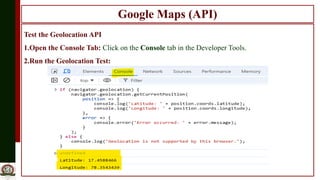
Test the Geolocation API
1.Open the Console Tab: Click on the Console tab in the Developer Tools.
2.Run the Geolocation Test:
Google Maps (API)
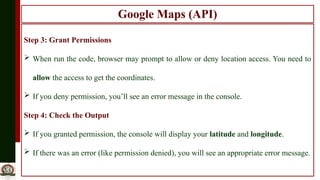
Step 3: Grant Permissions
 When run the code, browser may prompt to allow or deny location access. You need to
allow the access to get the coordinates.
 If you deny permission, you’ll see an error message in the console.
Step 4: Check the Output
 If you granted permission, the console will display your latitude and longitude.
 If there was an error (like permission denied), you will see an appropriate error message.
Google Maps (API)
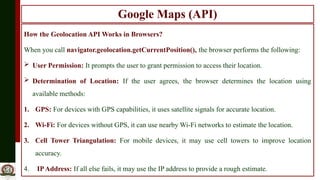
How the Geolocation API Works in Browsers?
When you call navigator.geolocation.getCurrentPosition(), the browser performs the following:
 User Permission: It prompts the user to grant permission to access their location.
 Determination of Location: If the user agrees, the browser determines the location using
available methods:
1. GPS: For devices with GPS capabilities, it uses satellite signals for accurate location.
2. Wi-Fi: For devices without GPS, it can use nearby Wi-Fi networks to estimate the location.
3. Cell Tower Triangulation: For mobile devices, it may use cell towers to improve location
accuracy.
4. IPAddress: If all else fails, it may use the IP address to provide a rough estimate.
Google Maps (API)
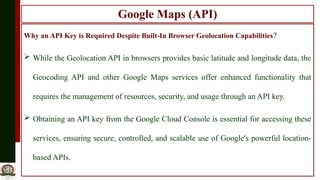
Why an API Key is Required Despite Built-In Browser Geolocation Capabilities?
 While the Geolocation API in browsers provides basic latitude and longitude data, the
Geocoding API and other Google Maps services offer enhanced functionality that
requires the management of resources, security, and usage through an API key.
 Obtaining an API key from the Google Cloud Console is essential for accessing these
services, ensuring secure, controlled, and scalable use of Google's powerful location-
based APIs.
Google Maps (API)
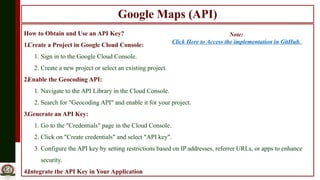
How to Obtain and Use an API Key?
1.Create a Project in Google Cloud Console:
1. Sign in to the Google Cloud Console.
2. Create a new project or select an existing project.
2.Enable the Geocoding API:
1. Navigate to the API Library in the Cloud Console.
2. Search for "Geocoding API" and enable it for your project.
3.Generate an API Key:
1. Go to the "Credentials" page in the Cloud Console.
2. Click on "Create credentials" and select "API key".
3. Configure the API key by setting restrictions based on IP addresses, referrer URLs, or apps to enhance
security.
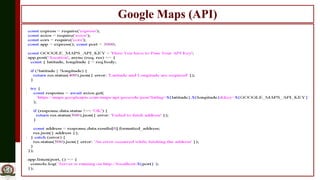
4.Integrate the API Key in Your Application
Note:
Click Here to Access the implementation in GitHub.
Google Maps (API)
Google Maps (API)
Real Time Applications:
1. Navigation Systems: Real-time turn-by-turn navigation using Google Maps and GPS data.
2. Ride-Sharing Services: Tracking the location of drivers and riders.
3. Delivery Services: Monitoring delivery vehicles and optimizing routes.
4. Fitness Apps: Tracking runs, bike rides, and other outdoor activities.
5. Geofencing: Triggering notifications or actions when entering or leaving predefined areas.

U3-03-Google Location Based Services.pptx

  • 1.
    22ITC08 FULL STACK DEVELOPMENT UNIT-III Integrationof Google MAPAPI and GPS Location Tracking
  • 2.
    Google Maps (API) Integrating Google Maps API and GPS location tracking provides a powerful combination for creating location-based services.  This integration allows applications to provide users with dynamic, real- time location data and mapping capabilities.
  • 3.
    Google Maps (API) Modern web browsers are equipped with powerful APIs that enable developers to access and utilize geographical location data.  One of the most significant features is the Geolocation API, which allows web applications to retrieve the geographical position of a device.  This API is built into most modern browsers and can be used to obtain latitude and longitude coordinates, making it easier to implement location-based features.
  • 4.
    Google Maps (API) Testthe Geolocation API 1.Open the Console Tab: Click on the Console tab in the Developer Tools. 2.Run the Geolocation Test:
  • 5.
    Google Maps (API) Step3: Grant Permissions  When run the code, browser may prompt to allow or deny location access. You need to allow the access to get the coordinates.  If you deny permission, you’ll see an error message in the console. Step 4: Check the Output  If you granted permission, the console will display your latitude and longitude.  If there was an error (like permission denied), you will see an appropriate error message.
  • 6.
    Google Maps (API) Howthe Geolocation API Works in Browsers? When you call navigator.geolocation.getCurrentPosition(), the browser performs the following:  User Permission: It prompts the user to grant permission to access their location.  Determination of Location: If the user agrees, the browser determines the location using available methods: 1. GPS: For devices with GPS capabilities, it uses satellite signals for accurate location. 2. Wi-Fi: For devices without GPS, it can use nearby Wi-Fi networks to estimate the location. 3. Cell Tower Triangulation: For mobile devices, it may use cell towers to improve location accuracy. 4. IPAddress: If all else fails, it may use the IP address to provide a rough estimate.
  • 7.
    Google Maps (API) Whyan API Key is Required Despite Built-In Browser Geolocation Capabilities?  While the Geolocation API in browsers provides basic latitude and longitude data, the Geocoding API and other Google Maps services offer enhanced functionality that requires the management of resources, security, and usage through an API key.  Obtaining an API key from the Google Cloud Console is essential for accessing these services, ensuring secure, controlled, and scalable use of Google's powerful location- based APIs.
  • 8.
    Google Maps (API) Howto Obtain and Use an API Key? 1.Create a Project in Google Cloud Console: 1. Sign in to the Google Cloud Console. 2. Create a new project or select an existing project. 2.Enable the Geocoding API: 1. Navigate to the API Library in the Cloud Console. 2. Search for "Geocoding API" and enable it for your project. 3.Generate an API Key: 1. Go to the "Credentials" page in the Cloud Console. 2. Click on "Create credentials" and select "API key". 3. Configure the API key by setting restrictions based on IP addresses, referrer URLs, or apps to enhance security. 4.Integrate the API Key in Your Application Note: Click Here to Access the implementation in GitHub.
  • 9.
  • 10.
    Google Maps (API) RealTime Applications: 1. Navigation Systems: Real-time turn-by-turn navigation using Google Maps and GPS data. 2. Ride-Sharing Services: Tracking the location of drivers and riders. 3. Delivery Services: Monitoring delivery vehicles and optimizing routes. 4. Fitness Apps: Tracking runs, bike rides, and other outdoor activities. 5. Geofencing: Triggering notifications or actions when entering or leaving predefined areas.