1 ENIS – GI 3 – 2017/2018 Mme. Amal ABID
TP 2 - Big Data - HBase
I. Introduction
Dans ce TD/TP, nous manipulerons l’API Java de HBase vue en cours.
II. Préparation du TP
1. Démarrez la machine virtuelle Cloudera.
2. Téléchargez le code qu’on va utiliser dans le TD à partir de ce lien :
https://docs.google.com/uc?authuser=0&id=0B4fI_1marvBZZVhjV
3JzcjJFb0k&export=download
- Puis déplacez ce fichier java dans un nouveau dossier TDHBase
« /home/cloudera/TDHBase »
- Vérifiez le nom du fichier téléchargé, il doit être « MyLittleHBaseClient.java ».
(Sinon renommez-le).
-
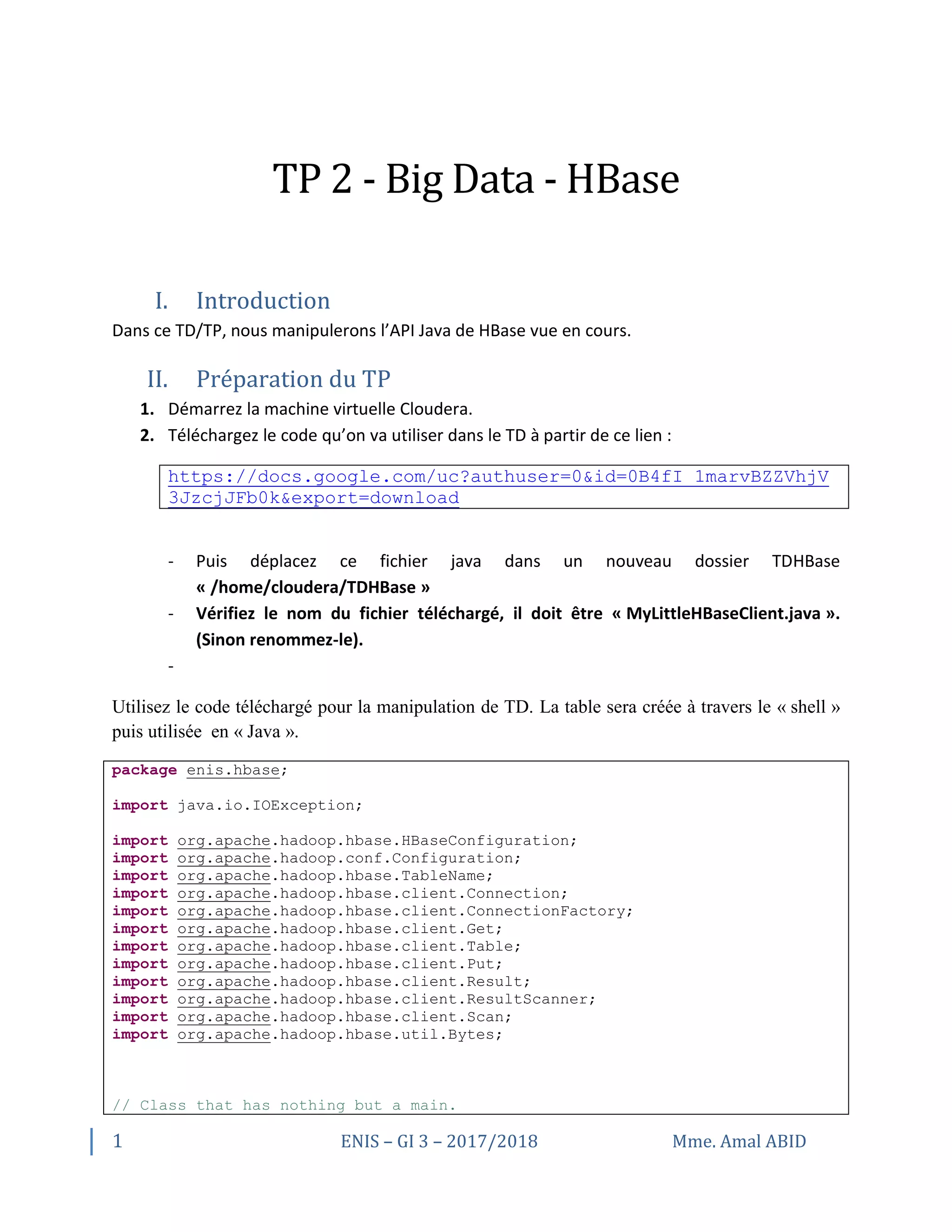
Utilisez le code téléchargé pour la manipulation de TD. La table sera créée à travers le « shell »
puis utilisée en « Java ».
package enis.hbase;
import java.io.IOException;
import org.apache.hadoop.hbase.HBaseConfiguration;
import org.apache.hadoop.conf.Configuration;
import org.apache.hadoop.hbase.TableName;
import org.apache.hadoop.hbase.client.Connection;
import org.apache.hadoop.hbase.client.ConnectionFactory;
import org.apache.hadoop.hbase.client.Get;
import org.apache.hadoop.hbase.client.Table;
import org.apache.hadoop.hbase.client.Put;
import org.apache.hadoop.hbase.client.Result;
import org.apache.hadoop.hbase.client.ResultScanner;
import org.apache.hadoop.hbase.client.Scan;
import org.apache.hadoop.hbase.util.Bytes;
// Class that has nothing but a main.
2 ENIS – GI 3 – 2017/2018 Mme. Amal ABID
// Does a Put, Get and a Scan against an hbase table.
// The API described here is since HBase 1.0.
public class MyLittleHBaseClient {
public static void main(String[] args) throws IOException {
// You need a configuration object to tell the client where to connect.
// When you create a HBaseConfiguration, it reads in whatever you've set
// into your hbase-site.xml and in hbase-default.xml, as long as these
can
// be found on the CLASSPATH
Configuration config = new Configuration();
config = HBaseConfiguration.create(config);
// Next you need a Connection to the cluster. Create one. When done with
it,
// close it. A try/finally is a good way to ensure it gets closed or use
// the jdk7 idiom, try-with-resources: see
//
https://docs.oracle.com/javase/tutorial/essential/exceptions/tryResourceClose
.html
//
// Connections are heavyweight. Create one once and keep it around. From
a Connection
// you get a Table instance to access Tables, an Admin instance to
administer the cluster,
// and RegionLocator to find where regions are out on the cluster. As
opposed to Connections,
// Table, Admin and RegionLocator instances are lightweight; create as
you need them and then
// close when done.
//
Connection connection = ConnectionFactory.createConnection(config);
try {
// The below instantiates a Table object that connects you to the
"myLittleHBaseTable" table
// (TableName.valueOf turns String into a TableName instance).
// When done with it, close it (Should start a try/finally after this
creation so it gets
// closed for sure the jdk7 idiom, try-with-resources: see
//
https://docs.oracle.com/javase/tutorial/essential/exceptions/tryResourceClose
.html)
Table table =
connection.getTable(TableName.valueOf("myLittleHBaseTable"));
try {
// To add to a row, use Put. A Put constructor takes the name of the
row
// you want to insert into as a byte array. In HBase, the Bytes
class has
// utility for converting all kinds of java types to byte arrays. In
the
// below, we are converting the String "myLittleRow" into a byte
array to
// use as a row key for our update. Once you have a Put instance, you
can
// adorn it by setting the names of columns you want to update on the
3 ENIS – GI 3 – 2017/2018 Mme. Amal ABID
row,
// the timestamp to use in your update, etc. If no timestamp, the
server
// applies current time to the edits.
Put p = new Put(Bytes.toBytes("myLittleRow"));
// To set the value you'd like to update in the row 'myLittleRow',
specify
// the column family, column qualifier, and value of the table cell
you'd
// like to update. The column family must already exist in your
table
// schema. The qualifier can be anything. All must be specified as
byte
// arrays as hbase is all about byte arrays. Lets pretend the table
// 'myLittleHBaseTable' was created with a family 'myLittleFamily'.
p.addColumn(Bytes.toBytes("myLittleFamily"),
Bytes.toBytes("someQualifier"),
Bytes.toBytes("Some Value"));
// Once you've adorned your Put instance with all the updates you
want to
// make, to commit it do the following (The HTable#put method takes
the
// Put instance you've been building and pushes the changes you made
into
// hbase)
table.put(p);
// Now, to retrieve the data we just wrote. The values that come back
are
// Result instances. Generally, a Result is an object that will
package up
// the hbase return into the form you find most palatable.
Get g = new Get(Bytes.toBytes("myLittleRow"));
Result r = table.get(g);
byte [] value = r.getValue(Bytes.toBytes("myLittleFamily"),
Bytes.toBytes("someQualifier"));
// If we convert the value bytes, we should get back 'Some Value',
the
// value we inserted at this location.
String valueStr = Bytes.toString(value);
System.out.println("GET: " + valueStr);
// Sometimes, you won't know the row you're looking for. In this
case, you
// use a Scanner. This will give you cursor-like interface to the
contents
// of the table. To set up a Scanner, do like you did above making a
Put
// and a Get, create a Scan. Adorn it with column names, etc.
Scan s = new Scan();
s.addColumn(Bytes.toBytes("myLittleFamily"),
Bytes.toBytes("someQualifier"));
ResultScanner scanner = table.getScanner(s);
try {
4 ENIS – GI 3 – 2017/2018 Mme. Amal ABID
// Scanners return Result instances.
// Now, for the actual iteration. One way is to use a while loop
like so:
for (Result rr = scanner.next(); rr != null; rr = scanner.next())
{
// print out the row we found and the columns we were looking
for
System.out.println("Found row: " + rr);
}
// The other approach is to use a foreach loop. Scanners are
iterable!
// for (Result rr : scanner) {
// System.out.println("Found row: " + rr);
// }
} finally {
// Make sure you close your scanners when you are done!
// Thats why we have it inside a try/finally clause
scanner.close();
}
// Close your table and cluster connection.
} finally {
if (table != null) table.close();
}
} finally {
connection.close();
}
}
}
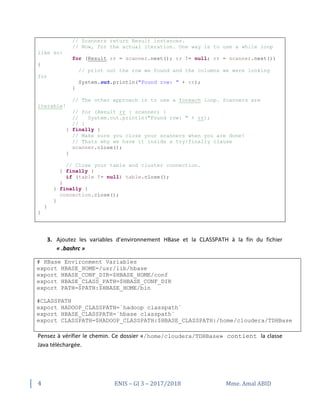
3. Ajoutez les variables d’environnement HBase et la CLASSPATH à la fin du fichier
« .bashrc »
# HBase Environment Variables
export HBASE_HOME=/usr/lib/hbase
export HBASE_CONF_DIR=$HBASE_HOME/conf
export HBASE_CLASS_PATH=$HBASE_CONF_DIR
export PATH=$PATH:$HBASE_HOME/bin
#CLASSPATH
export HADOOP_CLASSPATH=`hadoop classpath`
export HBASE_CLASSPATH=`hbase classpath`
export CLASSPATH=$HADOOP_CLASSPATH:$HBASE_CLASSPATH:/home/cloudera/TDHBase
Pensez à vérifier le chemin. Ce dossier «/home/cloudera/TDHBase» contient la classe
Java téléchargée.
5 ENIS – GI 3 – 2017/2018 Mme. Amal ABID
Après modification du fichier « .bashrc », et pour que le système prenne en compte cette
modification, redémarrez la machine : [sudo reboot] ou bien recharger le fichier ~/.bashrc :
[source ~/.bashrc].
4. Démarrez les services de HBase avec les commandes suivantes :
$ sudo service hbase-master restart
$ sudo service hbase-regionserver restart
III. Manipulation de l’exemple
5. Créez une table en utilisant le « shell » :
$ hbase shell
> create 'myLittleHBaseTable', 'myLittleFamily'
0 row(s) in 2.1110 seconds
=> Hbase::Table - myLittleHBaseTable
hbase(main):002:0> list
TABLE
myLittleHBaseTable
test
2 row(s) in 0.1510 seconds
=> ["myLittleHBaseTable", "test"]
6. Changez le répertoire courant :
$ cd TDHBase
7. Compilez le code de notre exemple :
$ javac -cp $CLASSPATH MyLittleHBaseClient.java
6 ENIS – GI 3 – 2017/2018 Mme. Amal ABID
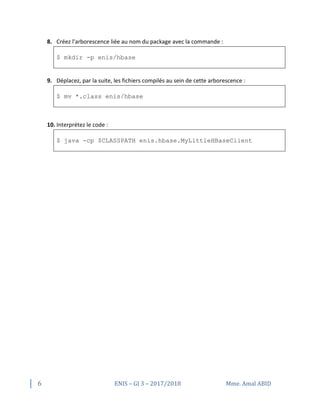
8. Créez l'arborescence liée au nom du package avec la commande :
$ mkdir -p enis/hbase
9. Déplacez, par la suite, les fichiers compilés au sein de cette arborescence :
$ mv *.class enis/hbase
10. Interprétez le code :
$ java -cp $CLASSPATH enis.hbase.MyLittleHBaseClient
7 ENIS – GI 3 – 2017/2018 Mme. Amal ABID
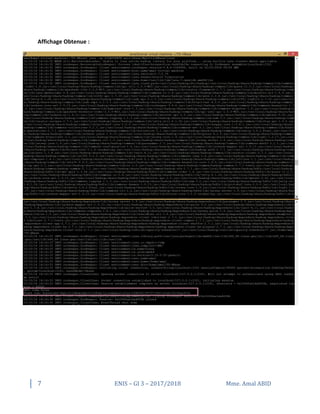
Affichage Obtenue :
8 ENIS – GI 3 – 2017/2018 Mme. Amal ABID
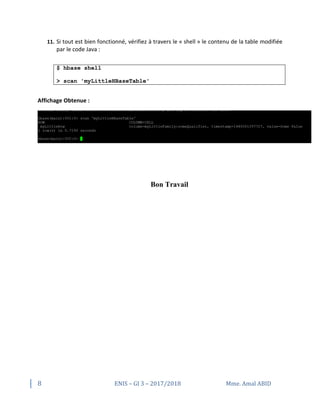
11. Si tout est bien fonctionné, vérifiez à travers le « shell » le contenu de la table modifiée
par le code Java :
$ hbase shell
> scan 'myLittleHBaseTable'
Affichage Obtenue :
Bon Travail

TP2 Big Data HBase

  • 1.
    1 ENIS –GI 3 – 2017/2018 Mme. Amal ABID TP 2 - Big Data - HBase I. Introduction Dans ce TD/TP, nous manipulerons l’API Java de HBase vue en cours. II. Préparation du TP 1. Démarrez la machine virtuelle Cloudera. 2. Téléchargez le code qu’on va utiliser dans le TD à partir de ce lien : https://docs.google.com/uc?authuser=0&id=0B4fI_1marvBZZVhjV 3JzcjJFb0k&export=download - Puis déplacez ce fichier java dans un nouveau dossier TDHBase « /home/cloudera/TDHBase » - Vérifiez le nom du fichier téléchargé, il doit être « MyLittleHBaseClient.java ». (Sinon renommez-le). - Utilisez le code téléchargé pour la manipulation de TD. La table sera créée à travers le « shell » puis utilisée en « Java ». package enis.hbase; import java.io.IOException; import org.apache.hadoop.hbase.HBaseConfiguration; import org.apache.hadoop.conf.Configuration; import org.apache.hadoop.hbase.TableName; import org.apache.hadoop.hbase.client.Connection; import org.apache.hadoop.hbase.client.ConnectionFactory; import org.apache.hadoop.hbase.client.Get; import org.apache.hadoop.hbase.client.Table; import org.apache.hadoop.hbase.client.Put; import org.apache.hadoop.hbase.client.Result; import org.apache.hadoop.hbase.client.ResultScanner; import org.apache.hadoop.hbase.client.Scan; import org.apache.hadoop.hbase.util.Bytes; // Class that has nothing but a main.
  • 2.
    2 ENIS –GI 3 – 2017/2018 Mme. Amal ABID // Does a Put, Get and a Scan against an hbase table. // The API described here is since HBase 1.0. public class MyLittleHBaseClient { public static void main(String[] args) throws IOException { // You need a configuration object to tell the client where to connect. // When you create a HBaseConfiguration, it reads in whatever you've set // into your hbase-site.xml and in hbase-default.xml, as long as these can // be found on the CLASSPATH Configuration config = new Configuration(); config = HBaseConfiguration.create(config); // Next you need a Connection to the cluster. Create one. When done with it, // close it. A try/finally is a good way to ensure it gets closed or use // the jdk7 idiom, try-with-resources: see // https://docs.oracle.com/javase/tutorial/essential/exceptions/tryResourceClose .html // // Connections are heavyweight. Create one once and keep it around. From a Connection // you get a Table instance to access Tables, an Admin instance to administer the cluster, // and RegionLocator to find where regions are out on the cluster. As opposed to Connections, // Table, Admin and RegionLocator instances are lightweight; create as you need them and then // close when done. // Connection connection = ConnectionFactory.createConnection(config); try { // The below instantiates a Table object that connects you to the "myLittleHBaseTable" table // (TableName.valueOf turns String into a TableName instance). // When done with it, close it (Should start a try/finally after this creation so it gets // closed for sure the jdk7 idiom, try-with-resources: see // https://docs.oracle.com/javase/tutorial/essential/exceptions/tryResourceClose .html) Table table = connection.getTable(TableName.valueOf("myLittleHBaseTable")); try { // To add to a row, use Put. A Put constructor takes the name of the row // you want to insert into as a byte array. In HBase, the Bytes class has // utility for converting all kinds of java types to byte arrays. In the // below, we are converting the String "myLittleRow" into a byte array to // use as a row key for our update. Once you have a Put instance, you can // adorn it by setting the names of columns you want to update on the
  • 3.
    3 ENIS –GI 3 – 2017/2018 Mme. Amal ABID row, // the timestamp to use in your update, etc. If no timestamp, the server // applies current time to the edits. Put p = new Put(Bytes.toBytes("myLittleRow")); // To set the value you'd like to update in the row 'myLittleRow', specify // the column family, column qualifier, and value of the table cell you'd // like to update. The column family must already exist in your table // schema. The qualifier can be anything. All must be specified as byte // arrays as hbase is all about byte arrays. Lets pretend the table // 'myLittleHBaseTable' was created with a family 'myLittleFamily'. p.addColumn(Bytes.toBytes("myLittleFamily"), Bytes.toBytes("someQualifier"), Bytes.toBytes("Some Value")); // Once you've adorned your Put instance with all the updates you want to // make, to commit it do the following (The HTable#put method takes the // Put instance you've been building and pushes the changes you made into // hbase) table.put(p); // Now, to retrieve the data we just wrote. The values that come back are // Result instances. Generally, a Result is an object that will package up // the hbase return into the form you find most palatable. Get g = new Get(Bytes.toBytes("myLittleRow")); Result r = table.get(g); byte [] value = r.getValue(Bytes.toBytes("myLittleFamily"), Bytes.toBytes("someQualifier")); // If we convert the value bytes, we should get back 'Some Value', the // value we inserted at this location. String valueStr = Bytes.toString(value); System.out.println("GET: " + valueStr); // Sometimes, you won't know the row you're looking for. In this case, you // use a Scanner. This will give you cursor-like interface to the contents // of the table. To set up a Scanner, do like you did above making a Put // and a Get, create a Scan. Adorn it with column names, etc. Scan s = new Scan(); s.addColumn(Bytes.toBytes("myLittleFamily"), Bytes.toBytes("someQualifier")); ResultScanner scanner = table.getScanner(s); try {
  • 4.
    4 ENIS –GI 3 – 2017/2018 Mme. Amal ABID // Scanners return Result instances. // Now, for the actual iteration. One way is to use a while loop like so: for (Result rr = scanner.next(); rr != null; rr = scanner.next()) { // print out the row we found and the columns we were looking for System.out.println("Found row: " + rr); } // The other approach is to use a foreach loop. Scanners are iterable! // for (Result rr : scanner) { // System.out.println("Found row: " + rr); // } } finally { // Make sure you close your scanners when you are done! // Thats why we have it inside a try/finally clause scanner.close(); } // Close your table and cluster connection. } finally { if (table != null) table.close(); } } finally { connection.close(); } } } 3. Ajoutez les variables d’environnement HBase et la CLASSPATH à la fin du fichier « .bashrc » # HBase Environment Variables export HBASE_HOME=/usr/lib/hbase export HBASE_CONF_DIR=$HBASE_HOME/conf export HBASE_CLASS_PATH=$HBASE_CONF_DIR export PATH=$PATH:$HBASE_HOME/bin #CLASSPATH export HADOOP_CLASSPATH=`hadoop classpath` export HBASE_CLASSPATH=`hbase classpath` export CLASSPATH=$HADOOP_CLASSPATH:$HBASE_CLASSPATH:/home/cloudera/TDHBase Pensez à vérifier le chemin. Ce dossier «/home/cloudera/TDHBase» contient la classe Java téléchargée.
  • 5.
    5 ENIS –GI 3 – 2017/2018 Mme. Amal ABID Après modification du fichier « .bashrc », et pour que le système prenne en compte cette modification, redémarrez la machine : [sudo reboot] ou bien recharger le fichier ~/.bashrc : [source ~/.bashrc]. 4. Démarrez les services de HBase avec les commandes suivantes : $ sudo service hbase-master restart $ sudo service hbase-regionserver restart III. Manipulation de l’exemple 5. Créez une table en utilisant le « shell » : $ hbase shell > create 'myLittleHBaseTable', 'myLittleFamily' 0 row(s) in 2.1110 seconds => Hbase::Table - myLittleHBaseTable hbase(main):002:0> list TABLE myLittleHBaseTable test 2 row(s) in 0.1510 seconds => ["myLittleHBaseTable", "test"] 6. Changez le répertoire courant : $ cd TDHBase 7. Compilez le code de notre exemple : $ javac -cp $CLASSPATH MyLittleHBaseClient.java
  • 6.
    6 ENIS –GI 3 – 2017/2018 Mme. Amal ABID 8. Créez l'arborescence liée au nom du package avec la commande : $ mkdir -p enis/hbase 9. Déplacez, par la suite, les fichiers compilés au sein de cette arborescence : $ mv *.class enis/hbase 10. Interprétez le code : $ java -cp $CLASSPATH enis.hbase.MyLittleHBaseClient
  • 7.
    7 ENIS –GI 3 – 2017/2018 Mme. Amal ABID Affichage Obtenue :
  • 8.
    8 ENIS –GI 3 – 2017/2018 Mme. Amal ABID 11. Si tout est bien fonctionné, vérifiez à travers le « shell » le contenu de la table modifiée par le code Java : $ hbase shell > scan 'myLittleHBaseTable' Affichage Obtenue : Bon Travail