行動APP開發管理實務
如何開發Android應用程式
開發準備、基本控制項、Layout
尹君耀 Xavier Yin
Outline
 開發App的事前準備
 Project Structure
 練習1
 基本控制項
 Intent
 Layout
 練習2
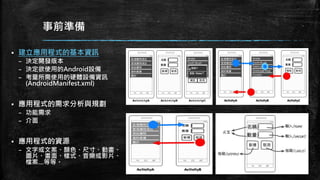
事前準備
 建立應用程式的基本資訊
– 決定開發版本
– 決定欲使用的Android設備
– 考量所需使用的硬體設備資訊
(AndroidManifest.xml)
 應用程式的需求分析與規劃
– 功能需求
– 介面
 應用程式的資源
– 文字或文案、顏色、尺寸、動畫、
圖片、畫面、樣式、音樂或影片、
檔案…等等。
事前準備
 Android開發環境
– JDK
 Download JDK (or from Oracle)
 Installation and Environment Variable Settings
– JAVA_HOME
– PATH
– Installation result on cmd
– Android SDK and Studio
 Download Android SDK and Studio (or from Android Developer)
 Installation
– Launch the .exe file you just downloaded
– Follow the setup wizard
事前準備
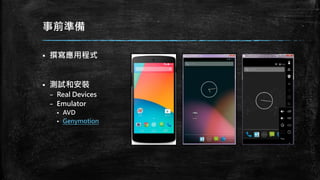
 撰寫應用程式
 測試和安裝
– Real Devices
– Emulator
 AVD
 Genymotion
Project Structure
 /app
– /src
 /main/java
– /your_package_name (ex: /com/tku/android -> com.tku.android)
 Java files
– AndroidManifest.xml
 /androidTest(For Android Test)
– /java/your_package_name
 Test cases
 /res
– /drawable
– /layout
– /values
 colors.xml, dimens.xml, strings.xml, styles.xml…etc.
 build.gradle
App Manifest
 Manifest file
– The manifest file presents essential information about your app to the
Android system, information the system must have before it can run
any of the app's code.
 Permission
– A basic Android application has no permissions associated with it by
default, meaning it cannot do anything that would adversely impact
the user experience or any data on the device.
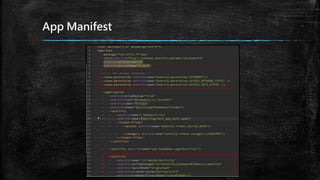
– To make use of protected features of the device, you must include in
your AndroidManifest.xml one or more <uses-permission> tags
declaring the permissions that your application needs.
App Manifest
Resources
 系統資源
– android.R.anim – 系統動畫資源。
– android.R.color – 系統顏色狀態資源。
– android.R.dimen – 系統尺寸資源。
– android.R.drawable – 系統圖形與繪圖資源。
– android.R.layout – 系統畫面配置資源。
– android.R.menu – 系統選單資源。
– android.R.string – 系統文字資源。
– android.R.style – 系統樣式資源。
 一般資源
– strings.xml – 文字資源。
– colors.xml – 顏色資源。
– dimens.xml – 尺寸資源。
– arrays.xml – 陣列資源。
– styles.xml – 樣式資源。
Dimens
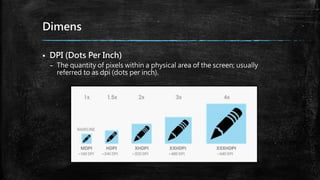
 DPI (Dots Per Inch)
– The quantity of pixels within a physical area of the screen; usually
referred to as dpi (dots per inch).
Dimens
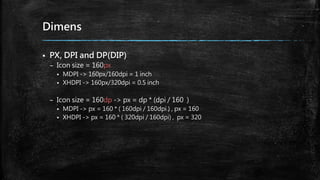
 PX, DPI and DP(DIP)
– Icon size = 160px
 MDPI -> 160px/160dpi = 1 inch
 XHDPI -> 160px/320dpi = 0.5 inch
– Icon size = 160dp -> px = dp * (dpi / 160 )
 MDPI -> px = 160 * ( 160dpi / 160dpi ) , px = 160
 XHDPI -> px = 160 * ( 320dpi / 160dpi) , px = 320
Dimens
 Suggestions
– Because it's important that you design and implement your layouts for
multiple densities, the guidelines below and throught the
documentation refer to layout dimensions with dp measurements
instead of pixels.
– Similarly, you should prefer the sp (scale-independent pixel) to define
text sizes. The sp scale factor depends on a user setting and the system
scales the size the same as it does for dp.
練習1
 請依照開發「App的事前準備」章節的步驟,討論並設計一個資料查詢App。
討論項目如下,並上台解說:
– App的需求(至少三種功能性需求與資料來源為何)
– App介面
– 資源
 系統資源
 一般資源
– 控制項與Layout
– 實作技術,範例如下:
 Volley與Gson – 使用目的為何?
 資料庫 – 在何種頁面應用?
 演算法 - 何種情境或設計中使用 ?
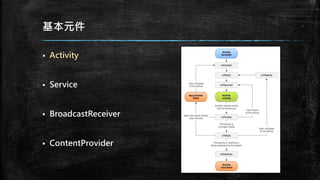
基本元件
 Activity
 Service
 BroadcastReceiver
 ContentProvider
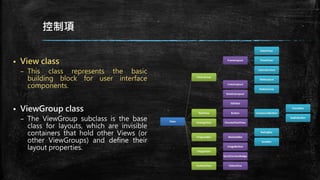
控制項
 View class
– This class represents the basic
building block for user interface
components.
 ViewGroup class
– The ViewGroup subclass is the base
class for layouts, which are invisible
containers that hold other Views (or
other ViewGroups) and define their
layout properties.
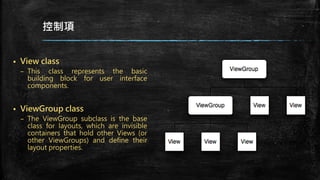
控制項
 View class
– This class represents the basic
building block for user interface
components.
 ViewGroup class
– The ViewGroup subclass is the base
class for layouts, which are invisible
containers that hold other Views (or
other ViewGroups) and define their
layout properties.
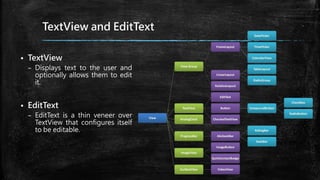
TextView and EditText
 TextView
– Displays text to the user and
optionally allows them to edit
it.
 EditText
– EditText is a thin veneer over
TextView that configures itself
to be editable.
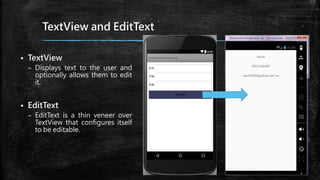
TextView and EditText
 TextView
– Displays text to the user and
optionally allows them to edit
it.
 EditText
– EditText is a thin veneer over
TextView that configures itself
to be editable.
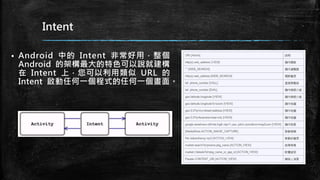
Intent
 Android 中的 Intent 非常好用,整個
Android 的架構最大的特色可以說就建構
在 Intent 上,您可以利用類似 URL 的
Intent 啟動任何一個程式的任何一個畫面。
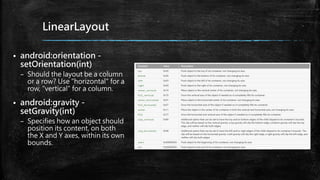
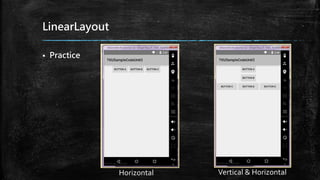
LinearLayout
 android:orientation -
setOrientation(int)
– Should the layout be a column
or a row? Use "horizontal" for a
row, "vertical" for a column.
 android:gravity -
setGravity(int)
– Specifies how an object should
position its content, on both
the X and Y axes, within its own
bounds.
LinearLayout
 Practice
Horizontal Vertical & Horizontal
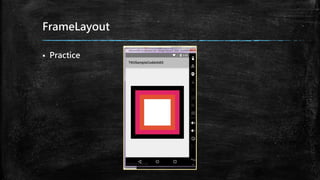
FrameLayout
 Practice
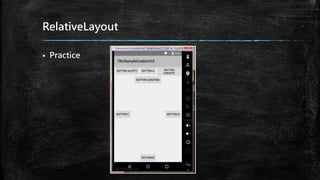
RelativeLayout
 android:layout_above, android:layout_below
– Positions the bottom edge of this view above or below the given anchor view ID.
 android:layout_alignParentBottom, android:layout_alignParentLeft,
android:layout_alignParentRight, android:layout_alignParentTop
– If true, makes the edge of this view match the edge you assign of the parent.
 android:layout_toLeftOf, android:layout_toRightOf
– Positions the right edge of this view to the left or right of the given anchor view
ID.
 android:layout_centerInParent
– If true, centers this child horizontally and vertically within its parent.
RelativeLayout
 Practice
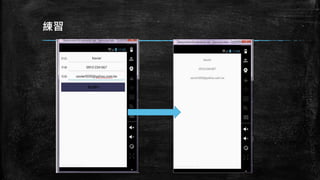
練習
練習
 Create a new project
– Empty project
 Define resources that you need
– Colors.xml, dimens.xml, strings.xml, styles.xml, drawable
 Prepare Layout files
– Add Android Resource Directory named layout within res folder
– Add a layout.xml
 LinearLayout
練習
 Bind the above files with your java files
– Activity
 SetContentView()
 FindViewById()
 Define App Manifest file
– Intent
 Launch your App in a device
Sample Code and Slides
 Slides
– http://www.slideshare.net/XavierYin/tkuappandroid
 Sample Code
– https://github.com/xavier0507/TKUInforTableSampleCode
References
 CodeData:
– http://www.codedata.com.tw/mobile/android-6-tutorial-1-4/
– http://www.codedata.com.tw/mobile/android-6-tutorial-2-1/
 Android developers:
– http://developer.android.com/design/index.html
 陳鍾誠的網站
– http://ccckmit.wikidot.com/ga:intentexample

Tku-行動app開發管理實務-如何開發Android應用程式

  • 1.
  • 2.
    Outline  開發App的事前準備  ProjectStructure  練習1  基本控制項  Intent  Layout  練習2
  • 3.
    事前準備  建立應用程式的基本資訊 – 決定開發版本 –決定欲使用的Android設備 – 考量所需使用的硬體設備資訊 (AndroidManifest.xml)  應用程式的需求分析與規劃 – 功能需求 – 介面  應用程式的資源 – 文字或文案、顏色、尺寸、動畫、 圖片、畫面、樣式、音樂或影片、 檔案…等等。
  • 4.
    事前準備  Android開發環境 – JDK Download JDK (or from Oracle)  Installation and Environment Variable Settings – JAVA_HOME – PATH – Installation result on cmd – Android SDK and Studio  Download Android SDK and Studio (or from Android Developer)  Installation – Launch the .exe file you just downloaded – Follow the setup wizard
  • 5.
    事前準備  撰寫應用程式  測試和安裝 –Real Devices – Emulator  AVD  Genymotion
  • 6.
    Project Structure  /app –/src  /main/java – /your_package_name (ex: /com/tku/android -> com.tku.android)  Java files – AndroidManifest.xml  /androidTest(For Android Test) – /java/your_package_name  Test cases  /res – /drawable – /layout – /values  colors.xml, dimens.xml, strings.xml, styles.xml…etc.  build.gradle
  • 7.
    App Manifest  Manifestfile – The manifest file presents essential information about your app to the Android system, information the system must have before it can run any of the app's code.  Permission – A basic Android application has no permissions associated with it by default, meaning it cannot do anything that would adversely impact the user experience or any data on the device. – To make use of protected features of the device, you must include in your AndroidManifest.xml one or more <uses-permission> tags declaring the permissions that your application needs.
  • 8.
  • 9.
    Resources  系統資源 – android.R.anim– 系統動畫資源。 – android.R.color – 系統顏色狀態資源。 – android.R.dimen – 系統尺寸資源。 – android.R.drawable – 系統圖形與繪圖資源。 – android.R.layout – 系統畫面配置資源。 – android.R.menu – 系統選單資源。 – android.R.string – 系統文字資源。 – android.R.style – 系統樣式資源。  一般資源 – strings.xml – 文字資源。 – colors.xml – 顏色資源。 – dimens.xml – 尺寸資源。 – arrays.xml – 陣列資源。 – styles.xml – 樣式資源。
  • 10.
    Dimens  DPI (DotsPer Inch) – The quantity of pixels within a physical area of the screen; usually referred to as dpi (dots per inch).
  • 11.
    Dimens  PX, DPIand DP(DIP) – Icon size = 160px  MDPI -> 160px/160dpi = 1 inch  XHDPI -> 160px/320dpi = 0.5 inch – Icon size = 160dp -> px = dp * (dpi / 160 )  MDPI -> px = 160 * ( 160dpi / 160dpi ) , px = 160  XHDPI -> px = 160 * ( 320dpi / 160dpi) , px = 320
  • 12.
    Dimens  Suggestions – Becauseit's important that you design and implement your layouts for multiple densities, the guidelines below and throught the documentation refer to layout dimensions with dp measurements instead of pixels. – Similarly, you should prefer the sp (scale-independent pixel) to define text sizes. The sp scale factor depends on a user setting and the system scales the size the same as it does for dp.
  • 13.
    練習1  請依照開發「App的事前準備」章節的步驟,討論並設計一個資料查詢App。 討論項目如下,並上台解說: – App的需求(至少三種功能性需求與資料來源為何) –App介面 – 資源  系統資源  一般資源 – 控制項與Layout – 實作技術,範例如下:  Volley與Gson – 使用目的為何?  資料庫 – 在何種頁面應用?  演算法 - 何種情境或設計中使用 ?
  • 14.
    基本元件  Activity  Service BroadcastReceiver  ContentProvider
  • 15.
    控制項  View class –This class represents the basic building block for user interface components.  ViewGroup class – The ViewGroup subclass is the base class for layouts, which are invisible containers that hold other Views (or other ViewGroups) and define their layout properties.
  • 16.
    控制項  View class –This class represents the basic building block for user interface components.  ViewGroup class – The ViewGroup subclass is the base class for layouts, which are invisible containers that hold other Views (or other ViewGroups) and define their layout properties.
  • 17.
    TextView and EditText TextView – Displays text to the user and optionally allows them to edit it.  EditText – EditText is a thin veneer over TextView that configures itself to be editable.
  • 18.
    TextView and EditText TextView – Displays text to the user and optionally allows them to edit it.  EditText – EditText is a thin veneer over TextView that configures itself to be editable.
  • 19.
    Intent  Android 中的Intent 非常好用,整個 Android 的架構最大的特色可以說就建構 在 Intent 上,您可以利用類似 URL 的 Intent 啟動任何一個程式的任何一個畫面。
  • 20.
    LinearLayout  android:orientation - setOrientation(int) –Should the layout be a column or a row? Use "horizontal" for a row, "vertical" for a column.  android:gravity - setGravity(int) – Specifies how an object should position its content, on both the X and Y axes, within its own bounds.
  • 21.
  • 22.
  • 23.
    RelativeLayout  android:layout_above, android:layout_below –Positions the bottom edge of this view above or below the given anchor view ID.  android:layout_alignParentBottom, android:layout_alignParentLeft, android:layout_alignParentRight, android:layout_alignParentTop – If true, makes the edge of this view match the edge you assign of the parent.  android:layout_toLeftOf, android:layout_toRightOf – Positions the right edge of this view to the left or right of the given anchor view ID.  android:layout_centerInParent – If true, centers this child horizontally and vertically within its parent.
  • 24.
  • 25.
  • 26.
    練習  Create anew project – Empty project  Define resources that you need – Colors.xml, dimens.xml, strings.xml, styles.xml, drawable  Prepare Layout files – Add Android Resource Directory named layout within res folder – Add a layout.xml  LinearLayout
  • 27.
    練習  Bind theabove files with your java files – Activity  SetContentView()  FindViewById()  Define App Manifest file – Intent  Launch your App in a device
  • 28.
    Sample Code andSlides  Slides – http://www.slideshare.net/XavierYin/tkuappandroid  Sample Code – https://github.com/xavier0507/TKUInforTableSampleCode
  • 29.
    References  CodeData: – http://www.codedata.com.tw/mobile/android-6-tutorial-1-4/ –http://www.codedata.com.tw/mobile/android-6-tutorial-2-1/  Android developers: – http://developer.android.com/design/index.html  陳鍾誠的網站 – http://ccckmit.wikidot.com/ga:intentexample