Thunderbolt 3 vs Thunderbolt 4: Understanding the Differences
Thunderbolt 3 vs Thunderbolt 4: Key differences in speed, video, power & security. Learn which suits your needs—40Gbps consistency, 8K support, or budget-friendly reliability.
Thunderbolt 3 vs Thunderbolt 4: Understanding the Differences
1.
Thunderbolt 3 vsThunderbolt 4:
Understanding the Differences
In the ever-evolving world of connectivity, Thunderbolt has emerged
as a powerhouse, revolutionizing how we connect devices to our
computers. With the introduction of Thunderbolt 4, many users find
themselves wondering: what sets it apart from Thunderbolt 3? In this
comprehensive guide, we’ll break down the key differences,
similarities, and practical implications of these two cutting-edge
technologies.
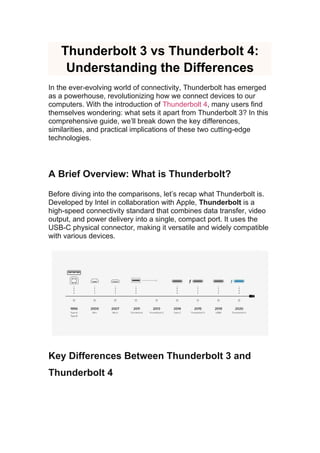
A Brief Overview: What is Thunderbolt?
Before diving into the comparisons, let’s recap what Thunderbolt is.
Developed by Intel in collaboration with Apple, Thunderbolt is a
high-speed connectivity standard that combines data transfer, video
output, and power delivery into a single, compact port. It uses the
USB-C physical connector, making it versatile and widely compatible
with various devices.
Key Differences Between Thunderbolt 3 and
Thunderbolt 4
2.
While Thunderbolt 3and 4 share some core features, several critical
upgrades in Thunderbolt 4 make it a more robust option. Let’s
explore these differences in detail:
1. Bandwidth and Data Transfer Speed
At first glance, both standards advertise a maximum data transfer
speed of 40 Gbps—but there’s a catch.
Thunderbolt 3: While it supports 40 Gbps, some
implementations (especially in lower-cost devices) may only
offer 20 Gbps due to relaxed certification requirements. This
can lead to inconsistent performance across devices.
Thunderbolt 4: Intel tightened the specifications,
requiring all Thunderbolt 4 devices to support the full 40 Gbps
bandwidth. This guarantees consistent speed across all
certified products.
2. Video Output Capabilities
For users who connect multiple monitors or high-resolution displays,
video output is a key consideration:
Thunderbolt 3: Supports up to two 4K displays (3840×2160) at
60Hz or one 5K display (5120×2880) at 60Hz.
Thunderbolt 4: Ups the ante by supporting up to two 4K
displays or one 8K display (7680×4320) at 60Hz. This makes it
ideal for professional workflows involving ultra-high-definition
content.
3. Power Delivery (PD)
Power delivery determines how much a Thunderbolt port can charge
connected devices:
Thunderbolt 3: Typically offers up to 100W of power, which is
sufficient for charging laptops, smartphones, and small
peripherals.
3.
Thunderbolt 4:Maintains the 100W maximum but includes
more efficient power management, ensuring stable charging
even when multiple devices are connected.
4. Security Features
Thunderbolt 4 introduces enhanced security measures:
Thunderbolt 3: Relies on optional security protocols, which
may not be enabled by default on all devices.
Thunderbolt 4: Mandates support for Intel VT-d (Virtualization
Technology for Directed I/O), which protects against physical
DMA (Direct Memory Access) attacks. This is a critical upgrade
for enterprise and government users handling sensitive data.
5. Compatibility and Daisy-Chaining
Both standards support daisy-chaining (connecting multiple devices
in a sequence), but Thunderbolt 4 improves flexibility:
Thunderbolt 3: Allows up to 6 devices in a daisy chain, but the
total bandwidth is shared across all connected devices.
Thunderbolt 4: Supports up to 4 devices in a daisy chain but
guarantees that each device gets the full 40 Gbps bandwidth
when needed. This reduces bottlenecks in complex setups.
Side-by-Side Comparison Table
Minimum Requirements Relaxed(some 20 Gbps devices) Strict (40 Gb
Which One Should You Choose?
Choose Thunderbolt 3 if: You’re on a budget, use basic
peripherals (e.g., external hard drives, 4K monitors), and don’t
need advanced security or 8K support. Many older laptops and
desktops still feature Thunderbolt 3, and it remains a reliable
choice for everyday use.
Choose Thunderbolt 4 if: You work with high-resolution media
(8K video, 3D rendering), need secure connections, or use
multiple devices in a daisy chain. It’s also future-proof, as more
8K displays and high-performance peripherals hit the market.
Conclusion
11.
Thunderbolt 4 buildson the strengths of Thunderbolt 3 with stricter
standards, improved video output, enhanced security, and consistent
performance. While Thunderbolt 3 is still capable for most users,
Thunderbolt 4 is the clear choice for professionals and anyone
looking to invest in long-term connectivity.
As technology advances, Thunderbolt continues to set the bar for
high-speed, versatile connectivity—whether you’re a content creator,
gamer, or office user, understanding these differences will help you
make informed decisions about your devices and peripherals.










![5G Explained! A High Level Overview [Introduction]](https://cdn.slidesharecdn.com/ss_thumbnails/5gexplainedahighleveloverview-260119165306-cc137a3e-thumbnail.jpg?width=640&height=640&fit=bounds)


