Tel: 310.313.0047 x 110
Cell: 310.918.7162
Fax: 310.313.1187
Email: intouch@therapistmate.com
Website: www.therapistmate.com
Try Therapistmate Software Free for 30 Days
Follow Us On
Therapistmate Software
Billing Demo
Billing Process
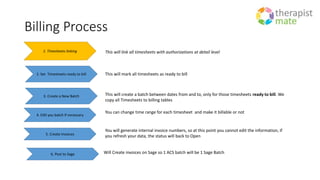
1. Timesheets linking This will link all timesheets with authorizations at detail level
2. Set Timesheets ready to bill This will mark all timesheets as ready to bill
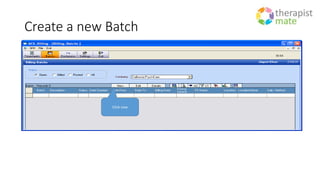
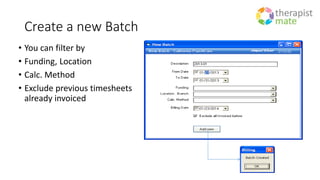
3. Create a New Batch This will create a batch between dates from and to, only for those timesheets ready to bill. We
copy all Timesheets to billing tables
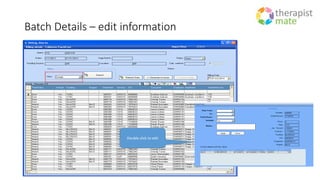
4. Edit you batch if necessary
You can change time range for each timesheet and make it billable or not
5. Create Invoices
You will generate internal invoice numbers, so at this point you cannot edit the information, if
you refresh your data, the status will back to Open
6. Post to Sage Will Create invoices on Sage so 1 ACS batch will be 1 Sage Batch
Tel: 310.313.0047 x 110
Cell: 310.918.7162
Fax: 310.313.1187
Email: intouch@therapistmate.com
Website: www.therapistmate.com
Try Therapistmate Software Free for 30 Days
Follow Us On
Basics
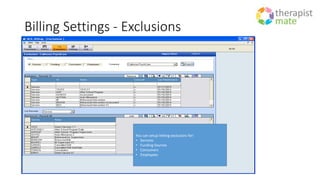
Billing Settings - Exclusions
You can setup linking exclusions for:
• Services
• Funding Sources
• Consumers
• Employees
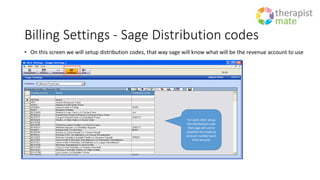
Billing Settings - Sage Distribution codes
• On this screen we will setup distribution codes, that way sage will know what will be the revenue account to use
For each client setup
the distribution code
that sage will use to
establish the revenue
account number each
time we post
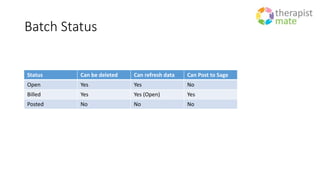
Batch Status
Status Can be deleted Can refresh data Can Post to Sage
Open Yes Yes No
Billed Yes Yes (Open) Yes
Posted No No No
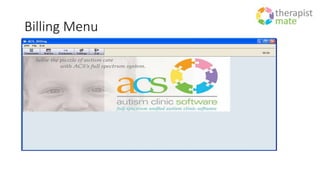
Billing Menu
Tel: 310.313.0047 x 110
Cell: 310.918.7162
Fax: 310.313.1187
Email: intouch@therapistmate.com
Website: www.therapistmate.com
Try Therapistmate Software Free for 30 Days
Follow Us On
Timesheet Linking
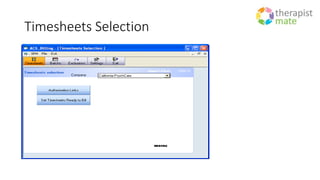
Timesheets Selection
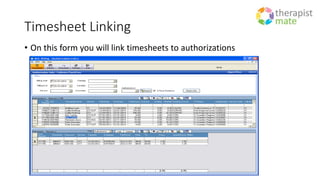
Timesheet Linking
• On this form you will link timesheets to authorizations
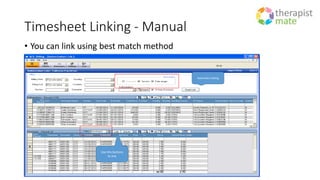
Timesheet Linking - Manual
• You can link using best match method
Use this buttons
to link
Automatic linking
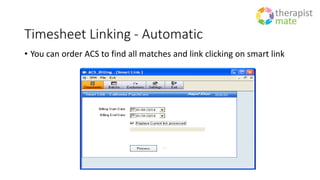
Timesheet Linking - Automatic
• You can order ACS to find all matches and link clicking on smart link
Tel: 310.313.0047 x 110
Cell: 310.918.7162
Fax: 310.313.1187
Email: intouch@therapistmate.com
Website: www.therapistmate.com
Try Therapistmate Software Free for 30 Days
Follow Us On
Set Timesheets
Ready to Bill
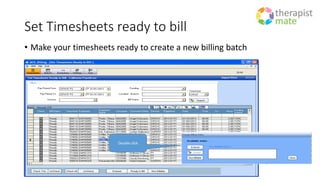
Set Timesheets ready to bill
• Make your timesheets ready to create a new billing batch
Double click
Tel: 310.313.0047 x 110
Cell: 310.918.7162
Fax: 310.313.1187
Email: intouch@therapistmate.com
Website: www.therapistmate.com
Try Therapistmate Software Free for 30 Days
Follow Us On
Create a New Batch
Create a new Batch
Click new
Create a new Batch
• You can filter by
• Funding, Location
• Calc. Method
• Exclude previous timesheets
already invoiced
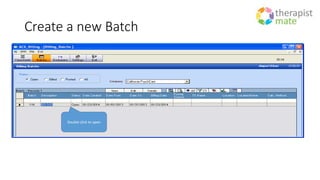
Create a new Batch
Double click to open
Tel: 310.313.0047 x 110
Cell: 310.918.7162
Fax: 310.313.1187
Email: intouch@therapistmate.com
Website: www.therapistmate.com
Try Therapistmate Software Free for 30 Days
Follow Us On
Edit Your Batch
Batch Details – edit information
Double click to edit
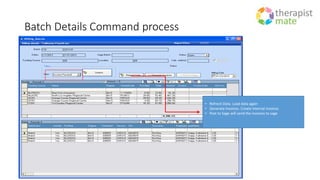
Batch Details Command process
• Refresh Data. Load data again
• Generate Invoices. Create internal invoices
• Post to Sage will send the invoices to sage
Tel: 310.313.0047 x 110
Cell: 310.918.7162
Fax: 310.313.1187
Email: intouch@therapistmate.com
Website: www.therapistmate.com
Try Therapistmate Software Free for 30 Days
Follow Us On
Create Invoices
Generate Invoices
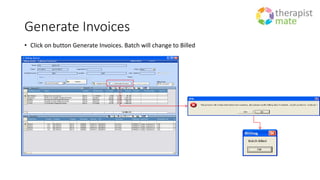
• Click on button Generate Invoices. Batch will change to Billed
Generate Invoices
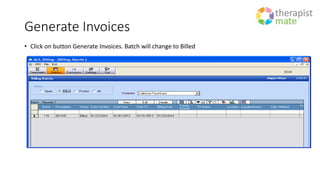
• Click on button Generate Invoices. Batch will change to Billed
Tel: 310.313.0047 x 110
Cell: 310.918.7162
Fax: 310.313.1187
Email: intouch@therapistmate.com
Website: www.therapistmate.com
Try Therapistmate Software Free for 30 Days
Follow Us On
Post to Sage 300 ERP
Post to Sage
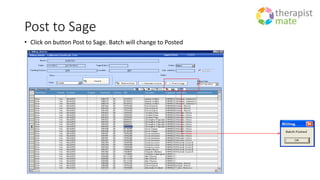
• Click on button Post to Sage. Batch will change to Posted
Post to Sage
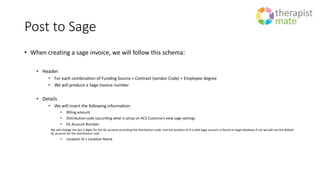
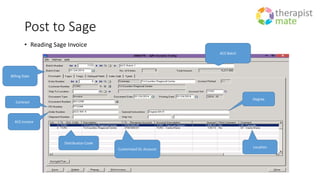
• When creating a sage invoice, we will follow this schema:
• Header
• For each combination of Funding Source + Contract (vendor Code) + Employee degree
• We will produce a Sage invoice number
• Details
• We will insert the following information:
• Billing amount
• Distribution code (according what is setup on ACS Customer) view sage settings
• GL Account Number
We will change the last 2 digits for the GL account according the distribution code and the location Id if a valid Sage account is found on Sage database if not we will use the default
GL account for the distribution code
• Location Id + Location Name
Tel: 310.313.0047 x 110
Cell: 310.918.7162
Fax: 310.313.1187
Email: intouch@therapistmate.com
Website: www.therapistmate.com
Try Therapistmate Software Free for 30 Days
Follow Us On
Post to Sage
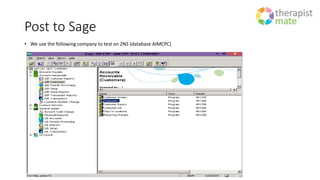
• We use the following company to test on ZNS (database AIMCPC)
Post to Sage
• Reading Sage Invoice
Contract
ACS Invoice
Degree
Billing Date
ACS Batch
Customized GL Account
Location
Distribution Code
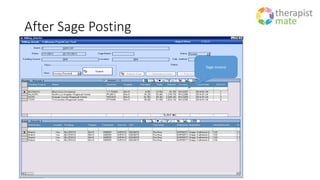
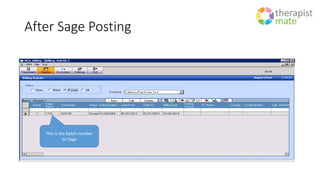
After Sage Posting
This is the batch number
on Sage
After Sage Posting
Sage Invoice
Tel: 310.313.0047 x 110
Cell: 310.918.7162
Fax: 310.313.1187
Email: intouch@therapistmate.com
Website: www.therapistmate.com
Try Therapistmate Software Free for 30 Days
Follow Us On
ACS Billing Forms
ACS Billing Forms
• ACS can automatically generate the following ABA billing forms:
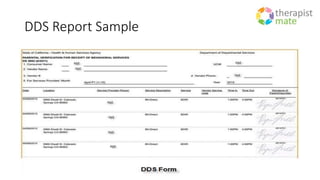
• DDS report
• Following the capture of parents’ signatures on a mobile device, e.g. an iPad, ACS can
produce the DDS report showing these signatures
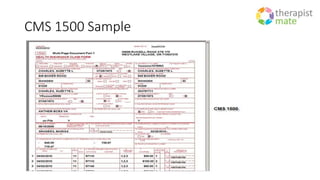
• CMS 1500
• 837 EDI
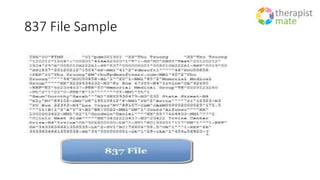
• ACS can produce the 837 EDI file for electronic transmission to the funding source using
Electronic Data Interchange (EDI)
DDS Report Sample
CMS 1500 Sample
837 File Sample
Tel: 310.313.0047 x 110
Cell: 310.918.7162
Fax: 310.313.1187
Email: intouch@therapistmate.com
Website: www.therapistmate.com
Try Therapistmate Software Free for 30 Days
Follow Us On

Therapistmate - Billing Demo

  • 1.
    Tel: 310.313.0047 x110 Cell: 310.918.7162 Fax: 310.313.1187 Email: intouch@therapistmate.com Website: www.therapistmate.com Try Therapistmate Software Free for 30 Days Follow Us On
  • 2.
  • 3.
    Billing Process 1. Timesheetslinking This will link all timesheets with authorizations at detail level 2. Set Timesheets ready to bill This will mark all timesheets as ready to bill 3. Create a New Batch This will create a batch between dates from and to, only for those timesheets ready to bill. We copy all Timesheets to billing tables 4. Edit you batch if necessary You can change time range for each timesheet and make it billable or not 5. Create Invoices You will generate internal invoice numbers, so at this point you cannot edit the information, if you refresh your data, the status will back to Open 6. Post to Sage Will Create invoices on Sage so 1 ACS batch will be 1 Sage Batch
  • 4.
    Tel: 310.313.0047 x110 Cell: 310.918.7162 Fax: 310.313.1187 Email: intouch@therapistmate.com Website: www.therapistmate.com Try Therapistmate Software Free for 30 Days Follow Us On
  • 5.
  • 6.
    Billing Settings -Exclusions You can setup linking exclusions for: • Services • Funding Sources • Consumers • Employees
  • 7.
    Billing Settings -Sage Distribution codes • On this screen we will setup distribution codes, that way sage will know what will be the revenue account to use For each client setup the distribution code that sage will use to establish the revenue account number each time we post
  • 8.
    Batch Status Status Canbe deleted Can refresh data Can Post to Sage Open Yes Yes No Billed Yes Yes (Open) Yes Posted No No No
  • 9.
  • 10.
    Tel: 310.313.0047 x110 Cell: 310.918.7162 Fax: 310.313.1187 Email: intouch@therapistmate.com Website: www.therapistmate.com Try Therapistmate Software Free for 30 Days Follow Us On
  • 11.
  • 12.
  • 13.
    Timesheet Linking • Onthis form you will link timesheets to authorizations
  • 14.
    Timesheet Linking -Manual • You can link using best match method Use this buttons to link Automatic linking
  • 15.
    Timesheet Linking -Automatic • You can order ACS to find all matches and link clicking on smart link
  • 16.
    Tel: 310.313.0047 x110 Cell: 310.918.7162 Fax: 310.313.1187 Email: intouch@therapistmate.com Website: www.therapistmate.com Try Therapistmate Software Free for 30 Days Follow Us On
  • 17.
  • 18.
    Set Timesheets readyto bill • Make your timesheets ready to create a new billing batch Double click
  • 19.
    Tel: 310.313.0047 x110 Cell: 310.918.7162 Fax: 310.313.1187 Email: intouch@therapistmate.com Website: www.therapistmate.com Try Therapistmate Software Free for 30 Days Follow Us On
  • 20.
  • 21.
    Create a newBatch Click new
  • 22.
    Create a newBatch • You can filter by • Funding, Location • Calc. Method • Exclude previous timesheets already invoiced
  • 23.
    Create a newBatch Double click to open
  • 24.
    Tel: 310.313.0047 x110 Cell: 310.918.7162 Fax: 310.313.1187 Email: intouch@therapistmate.com Website: www.therapistmate.com Try Therapistmate Software Free for 30 Days Follow Us On
  • 25.
  • 26.
    Batch Details –edit information Double click to edit
  • 27.
    Batch Details Commandprocess • Refresh Data. Load data again • Generate Invoices. Create internal invoices • Post to Sage will send the invoices to sage
  • 28.
    Tel: 310.313.0047 x110 Cell: 310.918.7162 Fax: 310.313.1187 Email: intouch@therapistmate.com Website: www.therapistmate.com Try Therapistmate Software Free for 30 Days Follow Us On
  • 29.
  • 30.
    Generate Invoices • Clickon button Generate Invoices. Batch will change to Billed
  • 31.
    Generate Invoices • Clickon button Generate Invoices. Batch will change to Billed
  • 32.
    Tel: 310.313.0047 x110 Cell: 310.918.7162 Fax: 310.313.1187 Email: intouch@therapistmate.com Website: www.therapistmate.com Try Therapistmate Software Free for 30 Days Follow Us On
  • 33.
    Post to Sage300 ERP
  • 34.
    Post to Sage •Click on button Post to Sage. Batch will change to Posted
  • 35.
    Post to Sage •When creating a sage invoice, we will follow this schema: • Header • For each combination of Funding Source + Contract (vendor Code) + Employee degree • We will produce a Sage invoice number • Details • We will insert the following information: • Billing amount • Distribution code (according what is setup on ACS Customer) view sage settings • GL Account Number We will change the last 2 digits for the GL account according the distribution code and the location Id if a valid Sage account is found on Sage database if not we will use the default GL account for the distribution code • Location Id + Location Name
  • 36.
    Tel: 310.313.0047 x110 Cell: 310.918.7162 Fax: 310.313.1187 Email: intouch@therapistmate.com Website: www.therapistmate.com Try Therapistmate Software Free for 30 Days Follow Us On
  • 37.
    Post to Sage •We use the following company to test on ZNS (database AIMCPC)
  • 38.
    Post to Sage •Reading Sage Invoice Contract ACS Invoice Degree Billing Date ACS Batch Customized GL Account Location Distribution Code
  • 39.
    After Sage Posting Thisis the batch number on Sage
  • 40.
  • 41.
    Tel: 310.313.0047 x110 Cell: 310.918.7162 Fax: 310.313.1187 Email: intouch@therapistmate.com Website: www.therapistmate.com Try Therapistmate Software Free for 30 Days Follow Us On
  • 42.
  • 43.
    ACS Billing Forms •ACS can automatically generate the following ABA billing forms: • DDS report • Following the capture of parents’ signatures on a mobile device, e.g. an iPad, ACS can produce the DDS report showing these signatures • CMS 1500 • 837 EDI • ACS can produce the 837 EDI file for electronic transmission to the funding source using Electronic Data Interchange (EDI)
  • 44.
  • 45.
  • 46.
  • 47.
    Tel: 310.313.0047 x110 Cell: 310.918.7162 Fax: 310.313.1187 Email: intouch@therapistmate.com Website: www.therapistmate.com Try Therapistmate Software Free for 30 Days Follow Us On