CHAPTER
TWELVE
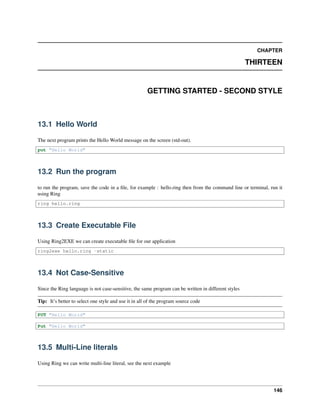
GETTING STARTED - FIRST STYLE
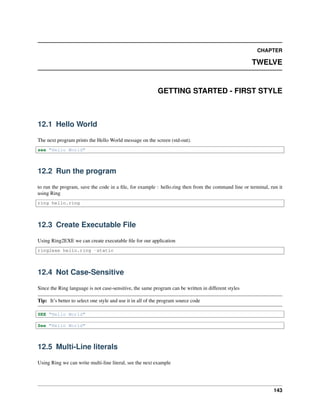
12.1 Hello World
The next program prints the Hello World message on the screen (std-out).
see "Hello World"
12.2 Run the program
to run the program, save the code in a file, for example : hello.ring then from the command line or terminal, run it
using Ring
ring hello.ring
12.3 Create Executable File
Using Ring2EXE we can create executable file for our application
ring2exe hello.ring -static
12.4 Not Case-Sensitive
Since the Ring language is not case-sensitive, the same program can be written in different styles
Tip: It’s better to select one style and use it in all of the program source code
SEE "Hello World"
See "Hello World"
12.5 Multi-Line literals
Using Ring we can write multi-line literal, see the next example
143
Ring Documentation, Release 1.6
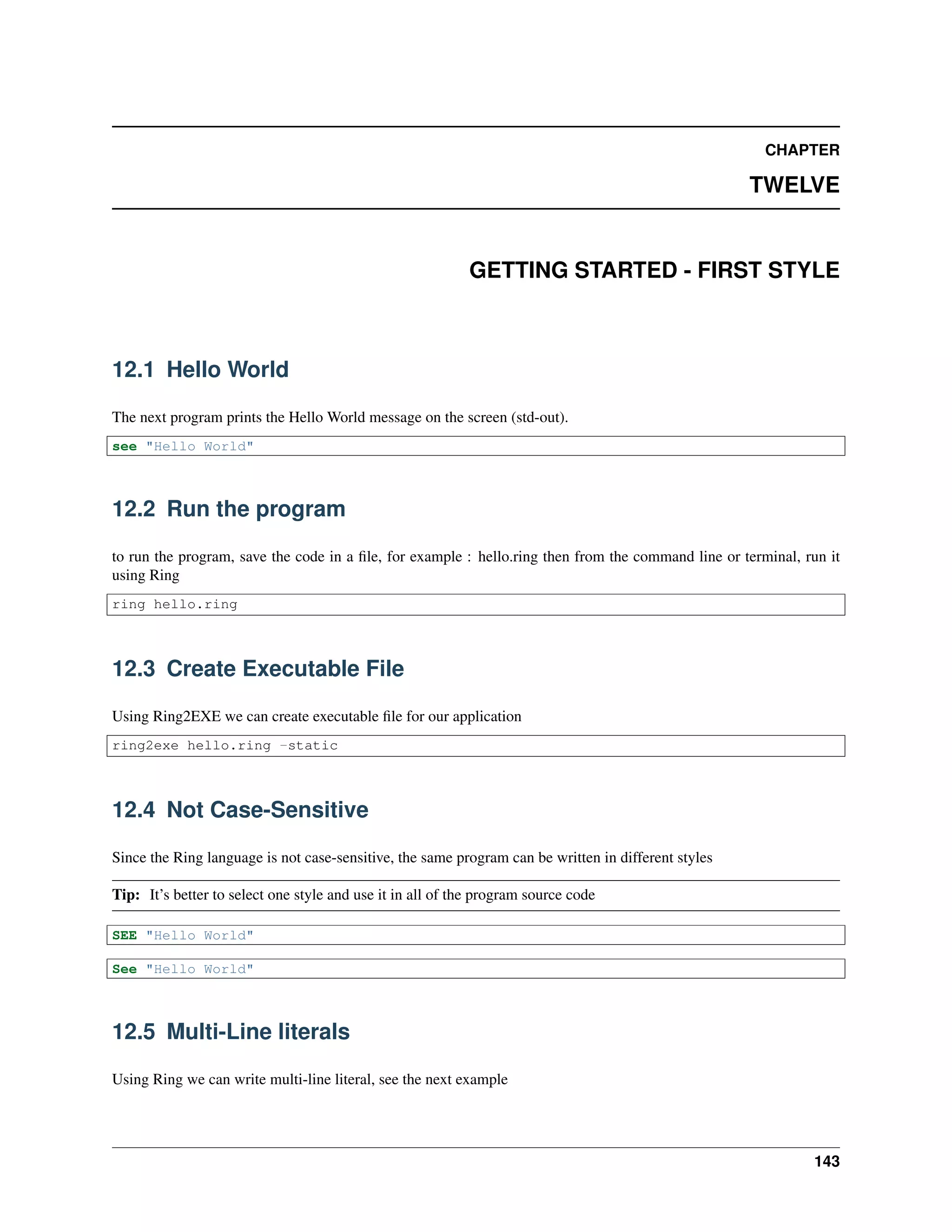
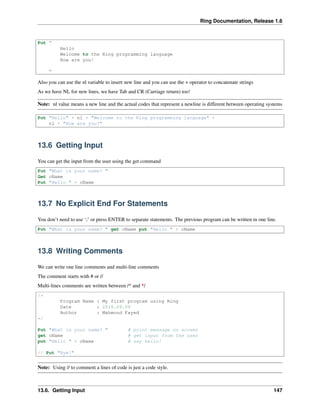
See "
Hello
Welcome to the Ring programming language
How are you?
"
Also you can use the nl variable to insert new line and you can use the + operator to concatenate strings
As we have NL for new lines, we have Tab and CR (Carriage return) too!
Note: nl value means a new line and the actual codes that represent a newline is different between operating systems
See "Hello" + nl + "Welcome to the Ring programming language" +
nl + "How are you?"
12.6 Getting Input
You can get the input from the user using the give command
See "What is your name? "
Give cName
See "Hello " + cName
12.7 No Explicit End For Statements
You don’t need to use ‘;’ or press ENTER to separate statements. The previous program can be written in one line.
See "What is your name? " give cName see "Hello " + cName
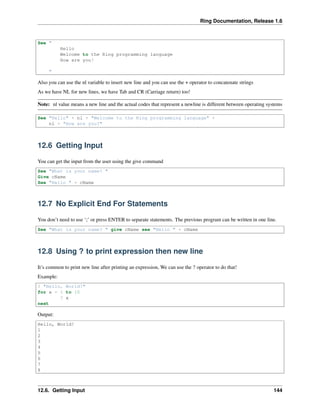
12.8 Using ? to print expression then new line
It’s common to print new line after printing an expression, We can use the ? operator to do that!
Example:
? "Hello, World!"
for x = 1 to 10
? x
next
Output:
Hello, World!
1
2
3
4
5
6
7
8
12.6. Getting Input 144
Ring Documentation, Release 1.6
9
10
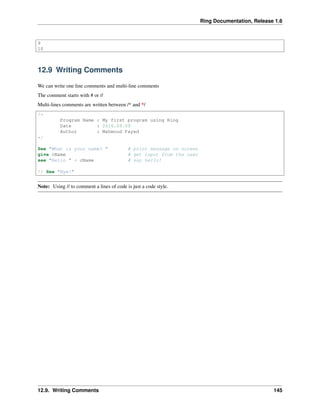
12.9 Writing Comments
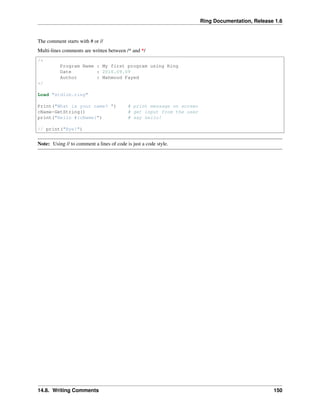
We can write one line comments and multi-line comments
The comment starts with # or //
Multi-lines comments are written between /* and */
/*
Program Name : My first program using Ring
Date : 2016.09.09
Author : Mahmoud Fayed
*/
See "What is your name? " # print message on screen
give cName # get input from the user
see "Hello " + cName # say hello!
// See "Bye!"
Note: Using // to comment a lines of code is just a code style.
12.9. Writing Comments 145
CHAPTER
THIRTEEN
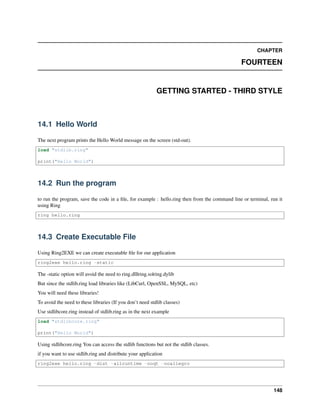
GETTING STARTED - SECOND STYLE
13.1 Hello World
The next program prints the Hello World message on the screen (std-out).
put "Hello World"
13.2 Run the program
to run the program, save the code in a file, for example : hello.ring then from the command line or terminal, run it
using Ring
ring hello.ring
13.3 Create Executable File
Using Ring2EXE we can create executable file for our application
ring2exe hello.ring -static
13.4 Not Case-Sensitive
Since the Ring language is not case-sensitive, the same program can be written in different styles
Tip: It’s better to select one style and use it in all of the program source code
PUT "Hello World"
Put "Hello World"
13.5 Multi-Line literals
Using Ring we can write multi-line literal, see the next example
146
Ring Documentation, Release 1.6
Put "
Hello
Welcome to the Ring programming language
How are you?
"
Also you can use the nl variable to insert new line and you can use the + operator to concatenate strings
As we have NL for new lines, we have Tab and CR (Carriage return) too!
Note: nl value means a new line and the actual codes that represent a newline is different between operating systems
Put "Hello" + nl + "Welcome to the Ring programming language" +
nl + "How are you?"
13.6 Getting Input
You can get the input from the user using the get command
Put "What is your name? "
Get cName
Put "Hello " + cName
13.7 No Explicit End For Statements
You don’t need to use ‘;’ or press ENTER to separate statements. The previous program can be written in one line.
Put "What is your name? " get cName put "Hello " + cName
13.8 Writing Comments
We can write one line comments and multi-line comments
The comment starts with # or //
Multi-lines comments are written between /* and */
/*
Program Name : My first program using Ring
Date : 2016.09.09
Author : Mahmoud Fayed
*/
Put "What is your name? " # print message on screen
get cName # get input from the user
put "Hello " + cName # say hello!
// Put "Bye!"
Note: Using // to comment a lines of code is just a code style.
13.6. Getting Input 147
CHAPTER
FOURTEEN
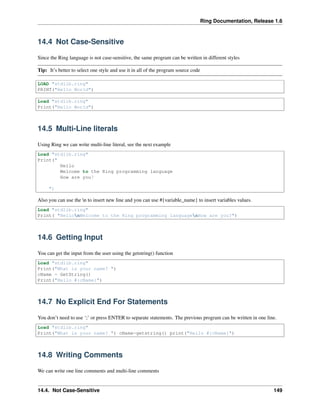
GETTING STARTED - THIRD STYLE
14.1 Hello World
The next program prints the Hello World message on the screen (std-out).
load "stdlib.ring"
print("Hello World")
14.2 Run the program
to run the program, save the code in a file, for example : hello.ring then from the command line or terminal, run it
using Ring
ring hello.ring
14.3 Create Executable File
Using Ring2EXE we can create executable file for our application
ring2exe hello.ring -static
The -static option will avoid the need to ring.dll|ring.so|ring.dylib
But since the stdlib.ring load libraries like (LibCurl, OpenSSL, MySQL, etc)
You will need these libraries!
To avoid the need to these libraries (If you don’t need stdlib classes)
Use stdlibcore.ring instead of stdlib.ring as in the next example
load "stdlibcore.ring"
print("Hello World")
Using stdlibcore.ring You can access the stdlib functions but not the stdlib classes.
if you want to use stdlib.ring and distribute your application
ring2exe hello.ring -dist -allruntime -noqt -noallegro
148
Ring Documentation, Release 1.6
14.4 Not Case-Sensitive
Since the Ring language is not case-sensitive, the same program can be written in different styles
Tip: It’s better to select one style and use it in all of the program source code
LOAD "stdlib.ring"
PRINT("Hello World")
Load "stdlib.ring"
Print("Hello World")
14.5 Multi-Line literals
Using Ring we can write multi-line literal, see the next example
Load "stdlib.ring"
Print("
Hello
Welcome to the Ring programming language
How are you?
")
Also you can use the n to insert new line and you can use #{variable_name} to insert variables values.
Load "stdlib.ring"
Print( "HellonWelcome to the Ring programming languagenHow are you?")
14.6 Getting Input
You can get the input from the user using the getstring() function
Load "stdlib.ring"
Print("What is your name? ")
cName = GetString()
Print("Hello #{cName}")
14.7 No Explicit End For Statements
You don’t need to use ‘;’ or press ENTER to separate statements. The previous program can be written in one line.
Load "stdlib.ring"
Print("What is your name? ") cName=getstring() print("Hello #{cName}")
14.8 Writing Comments
We can write one line comments and multi-line comments
14.4. Not Case-Sensitive 149
Ring Documentation, Release 1.6
The comment starts with # or //
Multi-lines comments are written between /* and */
/*
Program Name : My first program using Ring
Date : 2016.09.09
Author : Mahmoud Fayed
*/
Load "stdlib.ring"
Print("What is your name? ") # print message on screen
cName=GetString() # get input from the user
print("Hello #{cName}") # say hello!
// print("Bye!")
Note: Using // to comment a lines of code is just a code style.
14.8. Writing Comments 150
CHAPTER
FIFTEEN
USING RING NOTEPAD
In this chapter we will learn about using Ring Notepad to write and execute Ring programs quickly
Ring Notepad is just a simple application developed using the Ring language.
15.1 Ring Notepad - Main Window
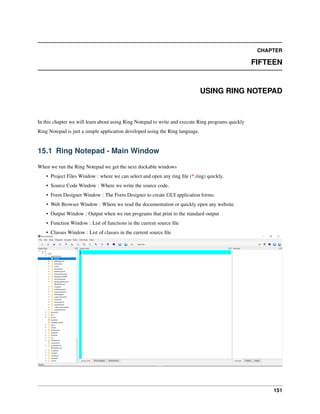
When we run the Ring Notepad we get the next dockable windows
• Project Files Window : where we can select and open any ring file (*.ring) quickly.
• Source Code Window : Where we write the source code.
• Form Designer Window : The Form Designer to create GUI application forms.
• Web Browser Window : Where we read the documentation or quickly open any website.
• Output Window : Output when we run programs that print to the standard output
• Function Window : List of functions in the current source file
• Classes Window : List of classes in the current source file
151
Ring Documentation, Release 1.6
15.2 Creating and running your first Console Application
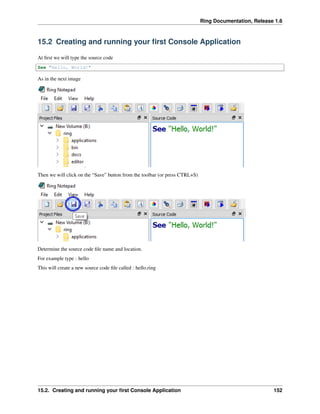
At first we will type the source code
See "Hello, World!"
As in the next image
Then we will click on the “Save” button from the toolbar (or press CTRL+S)
Determine the source code file name and location.
For example type : hello
This will create a new source code file called : hello.ring
15.2. Creating and running your first Console Application 152

The Ring programming language version 1.6 book - Part 18 of 189

  • 1.
    CHAPTER TWELVE GETTING STARTED -FIRST STYLE 12.1 Hello World The next program prints the Hello World message on the screen (std-out). see "Hello World" 12.2 Run the program to run the program, save the code in a file, for example : hello.ring then from the command line or terminal, run it using Ring ring hello.ring 12.3 Create Executable File Using Ring2EXE we can create executable file for our application ring2exe hello.ring -static 12.4 Not Case-Sensitive Since the Ring language is not case-sensitive, the same program can be written in different styles Tip: It’s better to select one style and use it in all of the program source code SEE "Hello World" See "Hello World" 12.5 Multi-Line literals Using Ring we can write multi-line literal, see the next example 143
  • 2.
    Ring Documentation, Release1.6 See " Hello Welcome to the Ring programming language How are you? " Also you can use the nl variable to insert new line and you can use the + operator to concatenate strings As we have NL for new lines, we have Tab and CR (Carriage return) too! Note: nl value means a new line and the actual codes that represent a newline is different between operating systems See "Hello" + nl + "Welcome to the Ring programming language" + nl + "How are you?" 12.6 Getting Input You can get the input from the user using the give command See "What is your name? " Give cName See "Hello " + cName 12.7 No Explicit End For Statements You don’t need to use ‘;’ or press ENTER to separate statements. The previous program can be written in one line. See "What is your name? " give cName see "Hello " + cName 12.8 Using ? to print expression then new line It’s common to print new line after printing an expression, We can use the ? operator to do that! Example: ? "Hello, World!" for x = 1 to 10 ? x next Output: Hello, World! 1 2 3 4 5 6 7 8 12.6. Getting Input 144
  • 3.
    Ring Documentation, Release1.6 9 10 12.9 Writing Comments We can write one line comments and multi-line comments The comment starts with # or // Multi-lines comments are written between /* and */ /* Program Name : My first program using Ring Date : 2016.09.09 Author : Mahmoud Fayed */ See "What is your name? " # print message on screen give cName # get input from the user see "Hello " + cName # say hello! // See "Bye!" Note: Using // to comment a lines of code is just a code style. 12.9. Writing Comments 145
  • 4.
    CHAPTER THIRTEEN GETTING STARTED -SECOND STYLE 13.1 Hello World The next program prints the Hello World message on the screen (std-out). put "Hello World" 13.2 Run the program to run the program, save the code in a file, for example : hello.ring then from the command line or terminal, run it using Ring ring hello.ring 13.3 Create Executable File Using Ring2EXE we can create executable file for our application ring2exe hello.ring -static 13.4 Not Case-Sensitive Since the Ring language is not case-sensitive, the same program can be written in different styles Tip: It’s better to select one style and use it in all of the program source code PUT "Hello World" Put "Hello World" 13.5 Multi-Line literals Using Ring we can write multi-line literal, see the next example 146
  • 5.
    Ring Documentation, Release1.6 Put " Hello Welcome to the Ring programming language How are you? " Also you can use the nl variable to insert new line and you can use the + operator to concatenate strings As we have NL for new lines, we have Tab and CR (Carriage return) too! Note: nl value means a new line and the actual codes that represent a newline is different between operating systems Put "Hello" + nl + "Welcome to the Ring programming language" + nl + "How are you?" 13.6 Getting Input You can get the input from the user using the get command Put "What is your name? " Get cName Put "Hello " + cName 13.7 No Explicit End For Statements You don’t need to use ‘;’ or press ENTER to separate statements. The previous program can be written in one line. Put "What is your name? " get cName put "Hello " + cName 13.8 Writing Comments We can write one line comments and multi-line comments The comment starts with # or // Multi-lines comments are written between /* and */ /* Program Name : My first program using Ring Date : 2016.09.09 Author : Mahmoud Fayed */ Put "What is your name? " # print message on screen get cName # get input from the user put "Hello " + cName # say hello! // Put "Bye!" Note: Using // to comment a lines of code is just a code style. 13.6. Getting Input 147
  • 6.
    CHAPTER FOURTEEN GETTING STARTED -THIRD STYLE 14.1 Hello World The next program prints the Hello World message on the screen (std-out). load "stdlib.ring" print("Hello World") 14.2 Run the program to run the program, save the code in a file, for example : hello.ring then from the command line or terminal, run it using Ring ring hello.ring 14.3 Create Executable File Using Ring2EXE we can create executable file for our application ring2exe hello.ring -static The -static option will avoid the need to ring.dll|ring.so|ring.dylib But since the stdlib.ring load libraries like (LibCurl, OpenSSL, MySQL, etc) You will need these libraries! To avoid the need to these libraries (If you don’t need stdlib classes) Use stdlibcore.ring instead of stdlib.ring as in the next example load "stdlibcore.ring" print("Hello World") Using stdlibcore.ring You can access the stdlib functions but not the stdlib classes. if you want to use stdlib.ring and distribute your application ring2exe hello.ring -dist -allruntime -noqt -noallegro 148
  • 7.
    Ring Documentation, Release1.6 14.4 Not Case-Sensitive Since the Ring language is not case-sensitive, the same program can be written in different styles Tip: It’s better to select one style and use it in all of the program source code LOAD "stdlib.ring" PRINT("Hello World") Load "stdlib.ring" Print("Hello World") 14.5 Multi-Line literals Using Ring we can write multi-line literal, see the next example Load "stdlib.ring" Print(" Hello Welcome to the Ring programming language How are you? ") Also you can use the n to insert new line and you can use #{variable_name} to insert variables values. Load "stdlib.ring" Print( "HellonWelcome to the Ring programming languagenHow are you?") 14.6 Getting Input You can get the input from the user using the getstring() function Load "stdlib.ring" Print("What is your name? ") cName = GetString() Print("Hello #{cName}") 14.7 No Explicit End For Statements You don’t need to use ‘;’ or press ENTER to separate statements. The previous program can be written in one line. Load "stdlib.ring" Print("What is your name? ") cName=getstring() print("Hello #{cName}") 14.8 Writing Comments We can write one line comments and multi-line comments 14.4. Not Case-Sensitive 149
  • 8.
    Ring Documentation, Release1.6 The comment starts with # or // Multi-lines comments are written between /* and */ /* Program Name : My first program using Ring Date : 2016.09.09 Author : Mahmoud Fayed */ Load "stdlib.ring" Print("What is your name? ") # print message on screen cName=GetString() # get input from the user print("Hello #{cName}") # say hello! // print("Bye!") Note: Using // to comment a lines of code is just a code style. 14.8. Writing Comments 150
  • 9.
    CHAPTER FIFTEEN USING RING NOTEPAD Inthis chapter we will learn about using Ring Notepad to write and execute Ring programs quickly Ring Notepad is just a simple application developed using the Ring language. 15.1 Ring Notepad - Main Window When we run the Ring Notepad we get the next dockable windows • Project Files Window : where we can select and open any ring file (*.ring) quickly. • Source Code Window : Where we write the source code. • Form Designer Window : The Form Designer to create GUI application forms. • Web Browser Window : Where we read the documentation or quickly open any website. • Output Window : Output when we run programs that print to the standard output • Function Window : List of functions in the current source file • Classes Window : List of classes in the current source file 151
  • 10.
    Ring Documentation, Release1.6 15.2 Creating and running your first Console Application At first we will type the source code See "Hello, World!" As in the next image Then we will click on the “Save” button from the toolbar (or press CTRL+S) Determine the source code file name and location. For example type : hello This will create a new source code file called : hello.ring 15.2. Creating and running your first Console Application 152