The ps command


       Kevin O'Brien
Washtenaw Linux Users Group
  http://www.lugwash.org
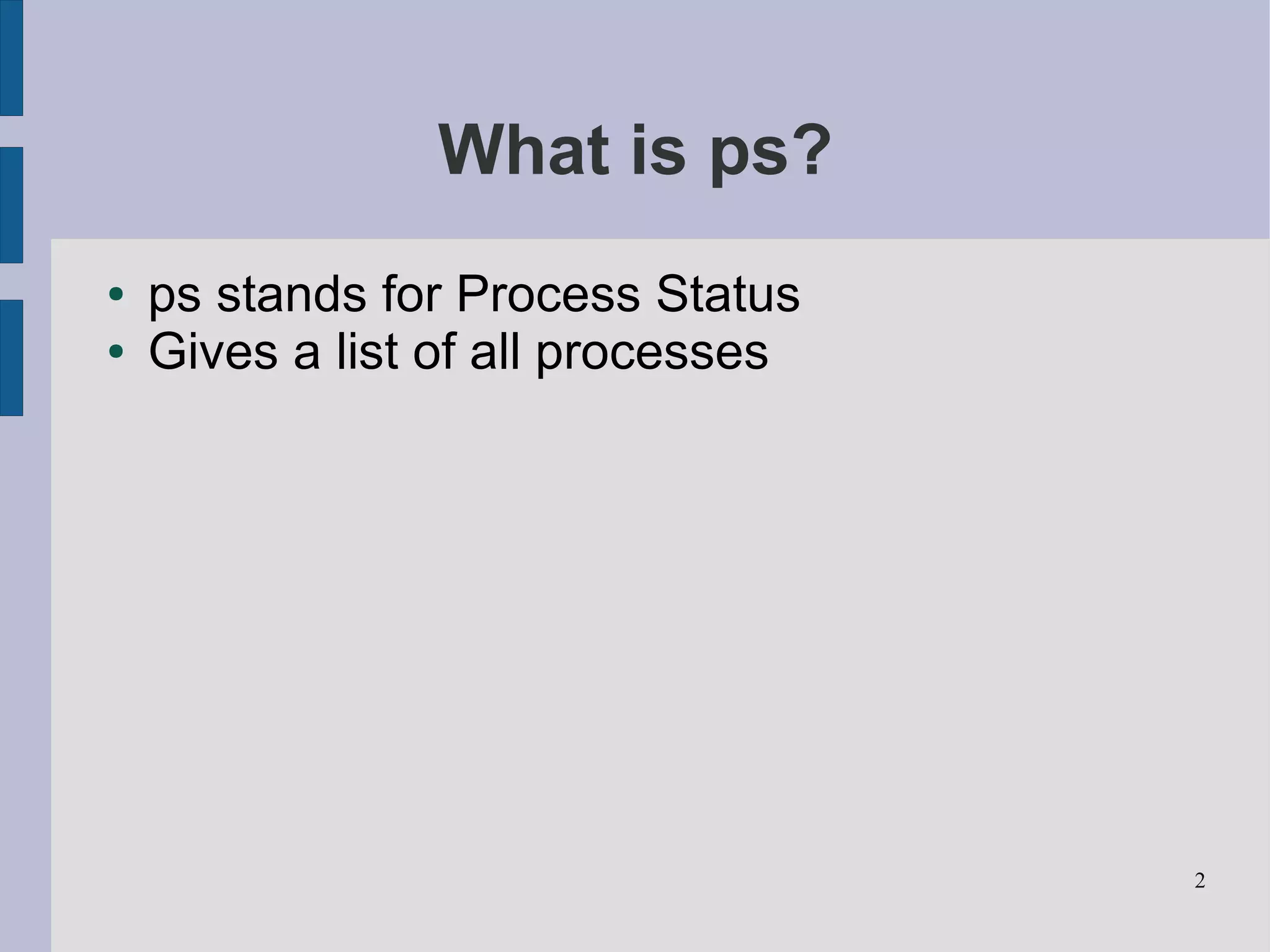
What is ps?
●   ps stands for Process Status
●   Gives a list of all processes


                                    2
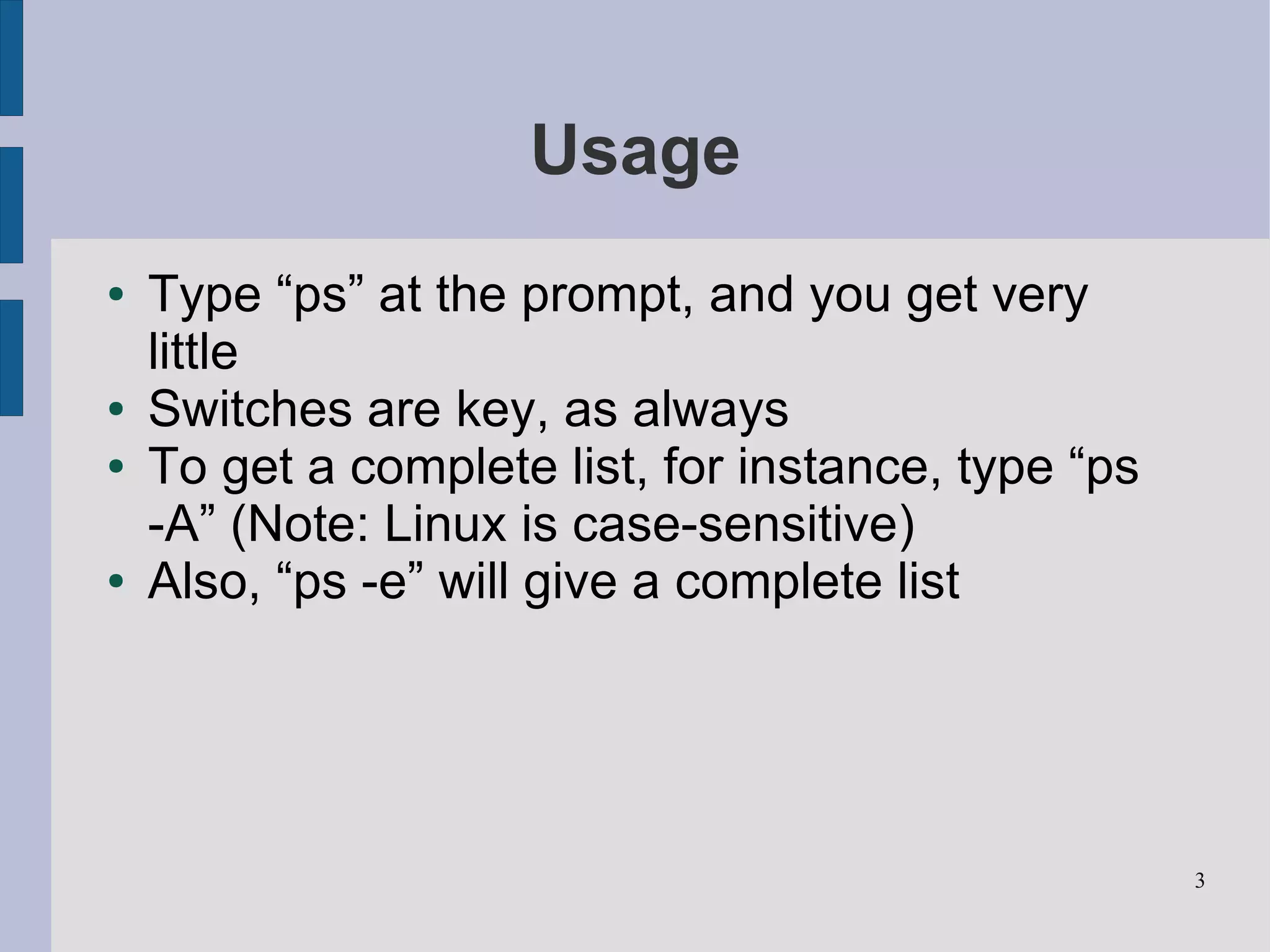
Usage
●   Type “ps” at the prompt, and you get very
    little
●   Switches are key, as always
●   To get a complete list, for instance, type “ps
    -A” (Note: Linux is case-sensitive)
●   Also, “ps -e” will give a complete list


                                                     3
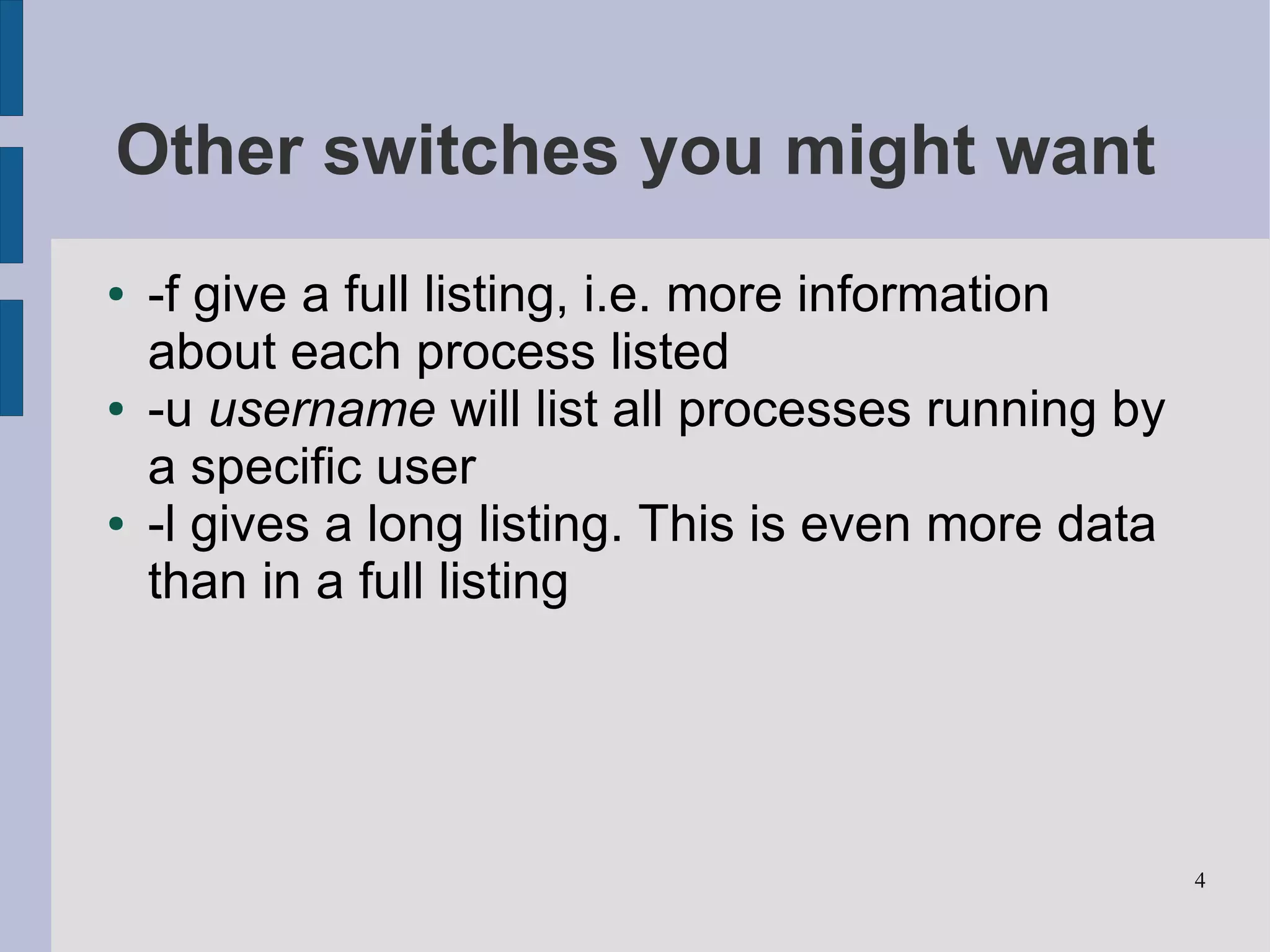
Other switches you might want
●   -f give a full listing, i.e. more information
    about each process listed
●   -u username will list all processes running by
    a specific user
●   -l gives a long listing. This is even more data
    than in a full listing


                                                      4
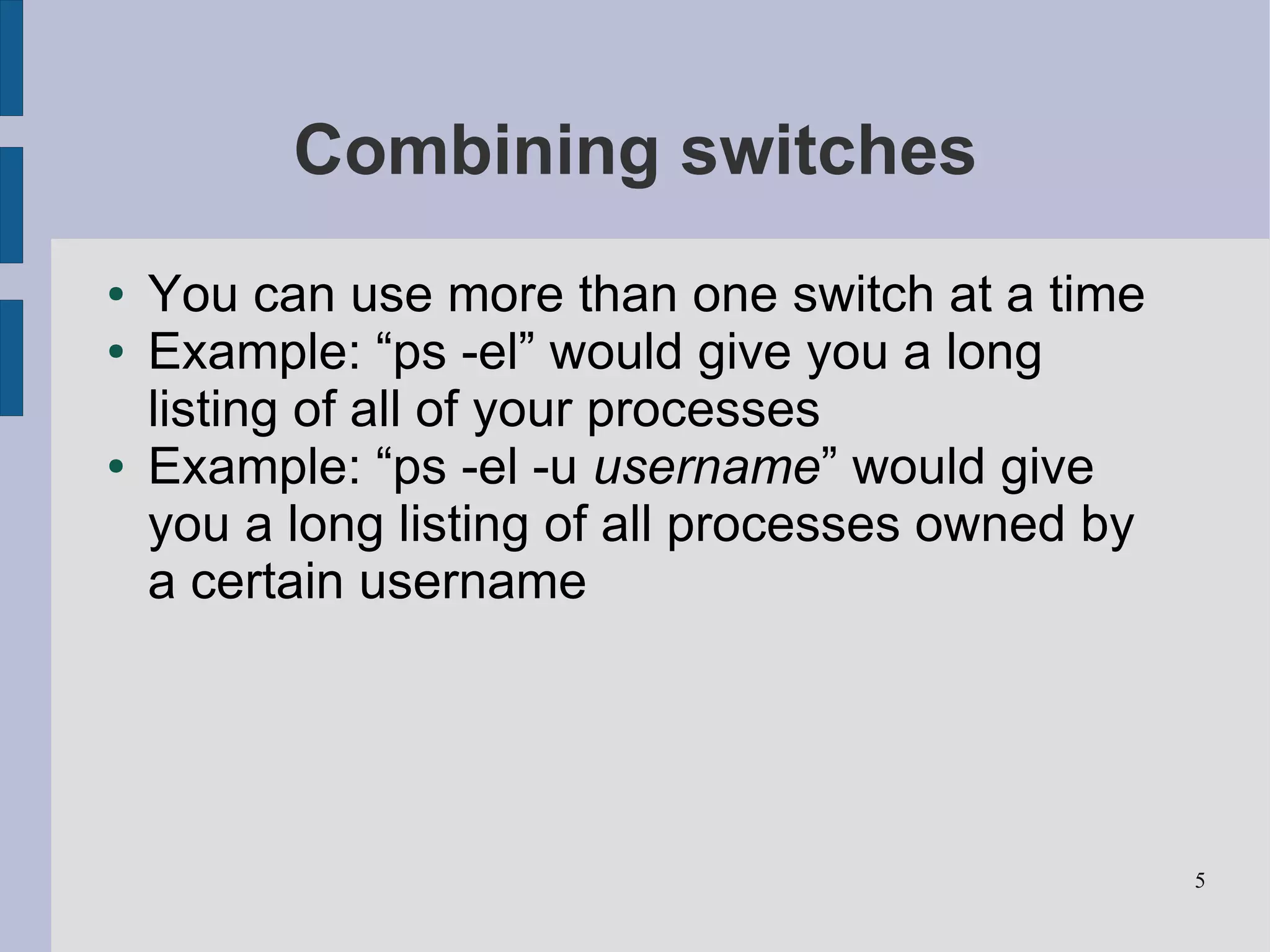
Combining switches
●   You can use more than one switch at a time
●   Example: “ps -el” would give you a long
    listing of all of your processes
●   Example: “ps -el -u username” would give
    you a long listing of all processes owned by
    a certain username


                                                   5
Common use
●   The most common reason to use ps is the
    get the process ID for a process that is out of
    control
●   With the process ID you can use the kill
    command (e.g. “kill 6985” would kill
    whichever process had that process ID)


                                                      6
Piping
●   Sometimes, the list of processes can be long
●   If you only need to get a process ID, try
    piping to grep
●   Example: Firefox is frozen and I need to kill it
●   “ps -e | grep firefox” would return one line
    with the process for Firefox
●   I can then easily enter the kill command


                                                       7

The ps Command

  • 1.
    The ps command Kevin O'Brien Washtenaw Linux Users Group http://www.lugwash.org
  • 2.
    What is ps? ● ps stands for Process Status ● Gives a list of all processes 2
  • 3.
    Usage ● Type “ps” at the prompt, and you get very little ● Switches are key, as always ● To get a complete list, for instance, type “ps -A” (Note: Linux is case-sensitive) ● Also, “ps -e” will give a complete list 3
  • 4.
    Other switches youmight want ● -f give a full listing, i.e. more information about each process listed ● -u username will list all processes running by a specific user ● -l gives a long listing. This is even more data than in a full listing 4
  • 5.
    Combining switches ● You can use more than one switch at a time ● Example: “ps -el” would give you a long listing of all of your processes ● Example: “ps -el -u username” would give you a long listing of all processes owned by a certain username 5
  • 6.
    Common use ● The most common reason to use ps is the get the process ID for a process that is out of control ● With the process ID you can use the kill command (e.g. “kill 6985” would kill whichever process had that process ID) 6
  • 7.
    Piping ● Sometimes, the list of processes can be long ● If you only need to get a process ID, try piping to grep ● Example: Firefox is frozen and I need to kill it ● “ps -e | grep firefox” would return one line with the process for Firefox ● I can then easily enter the kill command 7