BY: AKASH UGALE
Data Sores in Android
Operating System
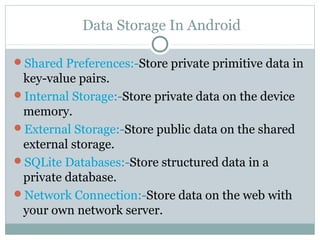
Data Storage In Android
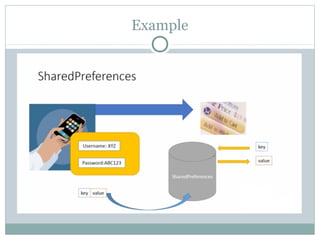
Shared Preferences:-Store private primitive data in
key-value pairs.
Internal Storage:-Store private data on the device
memory.
External Storage:-Store public data on the shared
external storage.
SQLite Databases:-Store structured data in a
private database.
Network Connection:-Store data on the web with
your own network server.
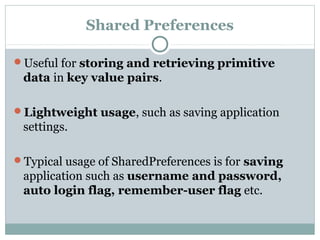
Shared Preferences
Useful for storing and retrieving primitive
data in key value pairs.
Lightweight usage, such as saving application
settings.
Typical usage of SharedPreferences is for saving
application such as username and password,
auto login flag, remember-user flag etc.
Shared Preferences Contd…..
The shared preferences information is stored in
an XML file on the device
 Typically in/data/data/<Your Application’s package
name>/shared_prefs
SharedPreferences can be associated with the entire
application, or to a specific activity.
Use the getSharedPrefernces() method to get access
to the preferences
Shared Preferences Contd…..
Example:
 SharedPrefernces prefs = this.getSharedPrefernces(‘myPrefs,
MODE_PRIVATE’)
If the preferences XML file exist, it is opened,
otherwise it is created.
To Control access permission to the file:
 MODE_PRIVATE:private only to the application
 MODE_WORLD_READABLE:all application can read XML file
 MODE_WORLD_WRITABLE:all application can write XML file
Shared Preferences Contd…..
To add Shared preferences, first an editor object is
needed
 Editor prefsEditor = prefs.edit();
Then,use the put() method to add the key-value pairs
 prefsEditor.putString(“username”,”D-Link”);
 prefsEditor.putString(“password”,”vlsi#1@2”);
 prefsEditor.putint(“times-login”,1);
 prefsEditor.commit();
Shared Preferences Contd…..
To retrieve shared preferences data:
 String username = prefsEditor.getString(“username”.” ”);
 String password = prefsEditor.getString(“password”.” ”);
If you are using SharedPrefernces for specific
activity, then use getPreferences() method
 No need to specify the name of the preferences file
Example
Internal Storage
Android can save files directly to the device
internal storage.
These files are private to the application and will
be removed if you uninstall the application.
We can create a file using openFileOutput() with
parameter as file name and the operating mode.
Generally not recommended to use files.
Internal Storage Contd….
Similarly, we can open the file using
openFileInput() passing the parameter as the
filename with extension.
File are use to store large amount of data
Use I/O interfaces provided by java.io.* libraries
to read/write files.
Only local files can be accessed.
File Operation(Read)
Use context.openFileInput(string name) to
open a private input file stream related to a program.
Throw FileNotFoundException when file does
not exist.
Syntax:-
fileinputStram.in=this.openfileinput(“xyz.txt”)
.
.
.
.
.
In.close()://Close input stream
File Operation (Write)
Use context.openFileOutput(string name,int
mode ) to open a private output file stream related
to a program.
The file will be created if it does not exist.
Output stream can be opened in append mode,
which means new data will be appended to end of
the file.
String mystring=“Hello World”
File Operation (write) Contd….
Syntax:-
FileOutputStream outfile = this.openFileOutput(“myfile.txt”,MODE_APPEND)
//Open and Write in”myfile.txt”,using append mode.
Outfile.write(mystring.getBytes());
Outfile.close();//close output stream
External Storage
Every Android-compatible device supports a shared
“external storage” that you can use to save files
 Removable storage media (such as an SD card)
 Internal (non-removable) storage
File saved to the external storage are world readable
and can be modified by the user when they enable
USB mass storage to transfer files on computer.
These files are private to the application and will
be removed when the application is uninstalled.
External Storage Continue
Must check whether external storage is available first
by calling getExternalStorageState()
 Also check whether it allows read/write before reading/writing
on it
getExternalFilesDir() takes a parameter such as
DIRECTORY_MUSIC,DIRECTORY_RINGTONE
etc,to open specific type of subdirectories.
For public shared directories,use
getExternalStoragePublicDirectory()
External Storage Contd…..
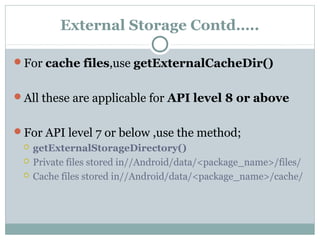
For cache files,use getExternalCacheDir()
All these are applicable for API level 8 or above
For API level 7 or below ,use the method;
 getExternalStorageDirectory()
 Private files stored in//Android/data/<package_name>/files/
 Cache files stored in//Android/data/<package_name>/cache/
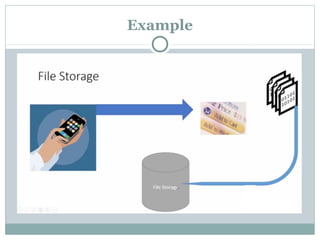
Example
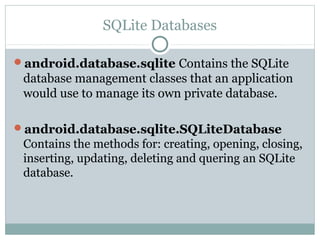
SQLite Databases
android.database.sqlite Contains the SQLite
database management classes that an application
would use to manage its own private database.
android.database.sqlite.SQLiteDatabase
Contains the methods for: creating, opening, closing,
inserting, updating, deleting and quering an SQLite
database.
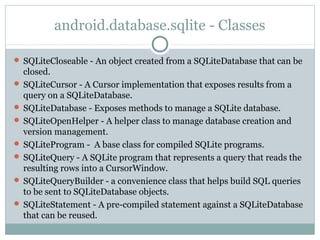
android.database.sqlite - Classes
 SQLiteCloseable - An object created from a SQLiteDatabase that can be
closed.
 SQLiteCursor - A Cursor implementation that exposes results from a
query on a SQLiteDatabase.
 SQLiteDatabase - Exposes methods to manage a SQLite database.
 SQLiteOpenHelper - A helper class to manage database creation and
version management.
 SQLiteProgram - A base class for compiled SQLite programs.
 SQLiteQuery - A SQLite program that represents a query that reads the
resulting rows into a CursorWindow.
 SQLiteQueryBuilder - a convenience class that helps build SQL queries
to be sent to SQLiteDatabase objects.
 SQLiteStatement - A pre-compiled statement against a SQLiteDatabase
that can be reused.
OpenOrCreateDatabase
This method will open an existing database or create
one in the application data area
 import android.database.sqlite.SQLiteDatabase;
SQLiteDatabase myDatabase;
myDatabase = openOrCreateDatabase ("my_sqlite_database.db" ,
SQLiteDatabase.CREATE_IF_NECESSARY , null);
Creating Tables
Create a static string containing the SQLite
CREATE statement, use the execSQL( ) method to
execute it.
 String createAuthor = "CREAT TABLE authors (
id INTEGER PRIMARY KEY AUTOINCREMENT,
fname TEXT,
lname TEXT);
myDatabase.execSQL(createAuthor);
insert( ), delete( )
long insert(String table, String nullColumnHack,
ContentValues values)
import android.content.ContentValues;
ContentValues values = new ContentValues( );
values.put("firstname" , "J.K.");
values.put("lastname" , "Rowling");
long newAuthorID = myDatabase.insert("tbl_authors" , "" ,
values);
int delete(String table, String whereClause, String[]
whereArgs)
public void deleteBook(Integer bookId) {
myDatabase.delete("tbl_books" , "id=?" ,
new String[ ] { bookId.toString( ) } ) ;
}
Update()
int update(String table, ContentValues values, String
whereClause, String[ ] whereArgs)
public void updateBookTitle(Integer bookId, String newTitle) {
ContentValues values = new ContentValues();
values.put("title" , newTitle);
myDatabase.update("tbl_books" , values ,
"id=?" , new String[ ] {bookId.toString() } );
}
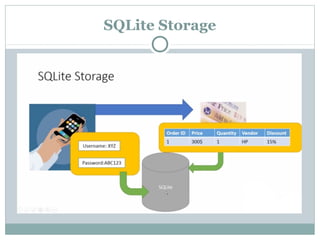
SQLite Storage
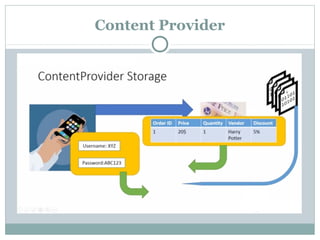
Content Provider
Cloud Storage
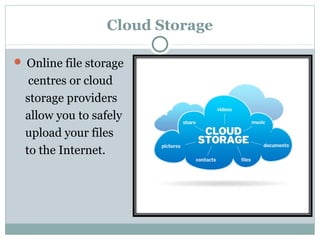
 Online file storage
centres or cloud
storage providers
allow you to safely
upload your files
to the Internet.
Cloud Storage Contd…..
There are various providers of cloud storage
Examples:
Apple iCloud(Gives 5GB of free storage )
Dropbox(Gives 2GB of free storage )
Google Drive(Gives 15GB of free storage )
Amazon Cloud Drive(Gives 5GB of free storage
Microsoft SkyDrive(Gives 7GB of free storage )
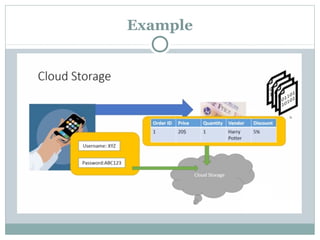
Example
Data Storage In Android

Data Storage In Android

  • 1.
    BY: AKASH UGALE DataSores in Android Operating System
  • 2.
    Data Storage InAndroid Shared Preferences:-Store private primitive data in key-value pairs. Internal Storage:-Store private data on the device memory. External Storage:-Store public data on the shared external storage. SQLite Databases:-Store structured data in a private database. Network Connection:-Store data on the web with your own network server.
  • 3.
    Shared Preferences Useful forstoring and retrieving primitive data in key value pairs. Lightweight usage, such as saving application settings. Typical usage of SharedPreferences is for saving application such as username and password, auto login flag, remember-user flag etc.
  • 4.
    Shared Preferences Contd….. Theshared preferences information is stored in an XML file on the device  Typically in/data/data/<Your Application’s package name>/shared_prefs SharedPreferences can be associated with the entire application, or to a specific activity. Use the getSharedPrefernces() method to get access to the preferences
  • 5.
    Shared Preferences Contd….. Example: SharedPrefernces prefs = this.getSharedPrefernces(‘myPrefs, MODE_PRIVATE’) If the preferences XML file exist, it is opened, otherwise it is created. To Control access permission to the file:  MODE_PRIVATE:private only to the application  MODE_WORLD_READABLE:all application can read XML file  MODE_WORLD_WRITABLE:all application can write XML file
  • 6.
    Shared Preferences Contd….. Toadd Shared preferences, first an editor object is needed  Editor prefsEditor = prefs.edit(); Then,use the put() method to add the key-value pairs  prefsEditor.putString(“username”,”D-Link”);  prefsEditor.putString(“password”,”vlsi#1@2”);  prefsEditor.putint(“times-login”,1);  prefsEditor.commit();
  • 7.
    Shared Preferences Contd….. Toretrieve shared preferences data:  String username = prefsEditor.getString(“username”.” ”);  String password = prefsEditor.getString(“password”.” ”); If you are using SharedPrefernces for specific activity, then use getPreferences() method  No need to specify the name of the preferences file
  • 8.
  • 9.
    Internal Storage Android cansave files directly to the device internal storage. These files are private to the application and will be removed if you uninstall the application. We can create a file using openFileOutput() with parameter as file name and the operating mode. Generally not recommended to use files.
  • 10.
    Internal Storage Contd…. Similarly,we can open the file using openFileInput() passing the parameter as the filename with extension. File are use to store large amount of data Use I/O interfaces provided by java.io.* libraries to read/write files. Only local files can be accessed.
  • 11.
    File Operation(Read) Use context.openFileInput(stringname) to open a private input file stream related to a program. Throw FileNotFoundException when file does not exist. Syntax:- fileinputStram.in=this.openfileinput(“xyz.txt”) . . . . . In.close()://Close input stream
  • 12.
    File Operation (Write) Usecontext.openFileOutput(string name,int mode ) to open a private output file stream related to a program. The file will be created if it does not exist. Output stream can be opened in append mode, which means new data will be appended to end of the file. String mystring=“Hello World”
  • 13.
    File Operation (write)Contd…. Syntax:- FileOutputStream outfile = this.openFileOutput(“myfile.txt”,MODE_APPEND) //Open and Write in”myfile.txt”,using append mode. Outfile.write(mystring.getBytes()); Outfile.close();//close output stream
  • 14.
    External Storage Every Android-compatibledevice supports a shared “external storage” that you can use to save files  Removable storage media (such as an SD card)  Internal (non-removable) storage File saved to the external storage are world readable and can be modified by the user when they enable USB mass storage to transfer files on computer. These files are private to the application and will be removed when the application is uninstalled.
  • 15.
    External Storage Continue Mustcheck whether external storage is available first by calling getExternalStorageState()  Also check whether it allows read/write before reading/writing on it getExternalFilesDir() takes a parameter such as DIRECTORY_MUSIC,DIRECTORY_RINGTONE etc,to open specific type of subdirectories. For public shared directories,use getExternalStoragePublicDirectory()
  • 16.
    External Storage Contd….. Forcache files,use getExternalCacheDir() All these are applicable for API level 8 or above For API level 7 or below ,use the method;  getExternalStorageDirectory()  Private files stored in//Android/data/<package_name>/files/  Cache files stored in//Android/data/<package_name>/cache/
  • 17.
  • 18.
    SQLite Databases android.database.sqlite Containsthe SQLite database management classes that an application would use to manage its own private database. android.database.sqlite.SQLiteDatabase Contains the methods for: creating, opening, closing, inserting, updating, deleting and quering an SQLite database.
  • 19.
    android.database.sqlite - Classes SQLiteCloseable - An object created from a SQLiteDatabase that can be closed.  SQLiteCursor - A Cursor implementation that exposes results from a query on a SQLiteDatabase.  SQLiteDatabase - Exposes methods to manage a SQLite database.  SQLiteOpenHelper - A helper class to manage database creation and version management.  SQLiteProgram - A base class for compiled SQLite programs.  SQLiteQuery - A SQLite program that represents a query that reads the resulting rows into a CursorWindow.  SQLiteQueryBuilder - a convenience class that helps build SQL queries to be sent to SQLiteDatabase objects.  SQLiteStatement - A pre-compiled statement against a SQLiteDatabase that can be reused.
  • 20.
    OpenOrCreateDatabase This method willopen an existing database or create one in the application data area  import android.database.sqlite.SQLiteDatabase; SQLiteDatabase myDatabase; myDatabase = openOrCreateDatabase ("my_sqlite_database.db" , SQLiteDatabase.CREATE_IF_NECESSARY , null);
  • 21.
    Creating Tables Create astatic string containing the SQLite CREATE statement, use the execSQL( ) method to execute it.  String createAuthor = "CREAT TABLE authors ( id INTEGER PRIMARY KEY AUTOINCREMENT, fname TEXT, lname TEXT); myDatabase.execSQL(createAuthor);
  • 22.
    insert( ), delete() long insert(String table, String nullColumnHack, ContentValues values) import android.content.ContentValues; ContentValues values = new ContentValues( ); values.put("firstname" , "J.K."); values.put("lastname" , "Rowling"); long newAuthorID = myDatabase.insert("tbl_authors" , "" , values); int delete(String table, String whereClause, String[] whereArgs) public void deleteBook(Integer bookId) { myDatabase.delete("tbl_books" , "id=?" , new String[ ] { bookId.toString( ) } ) ; }
  • 23.
    Update() int update(String table,ContentValues values, String whereClause, String[ ] whereArgs) public void updateBookTitle(Integer bookId, String newTitle) { ContentValues values = new ContentValues(); values.put("title" , newTitle); myDatabase.update("tbl_books" , values , "id=?" , new String[ ] {bookId.toString() } ); }
  • 24.
  • 25.
  • 26.
    Cloud Storage  Onlinefile storage centres or cloud storage providers allow you to safely upload your files to the Internet.
  • 27.
    Cloud Storage Contd….. Thereare various providers of cloud storage Examples: Apple iCloud(Gives 5GB of free storage ) Dropbox(Gives 2GB of free storage ) Google Drive(Gives 15GB of free storage ) Amazon Cloud Drive(Gives 5GB of free storage Microsoft SkyDrive(Gives 7GB of free storage )
  • 28.