System Measurement Program
SAP Basis Release 7.00
Quick Guide to perform a System Measurement
Content
Start System Measurement Program
Presettings
 System Data
 Clients
 Price Lists
 Default User Type
 User Types
 Addresses
Perform User Classification
User Classification Support Tools
 Mass Change
 Price List Migration
Technical Users
Classify Multiclient/-system Users
Enter comments
Perform System Measurement
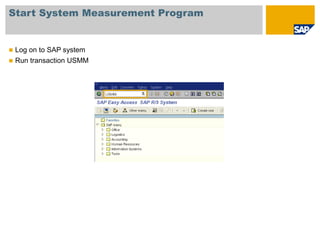
Start System Measurement Program
 Log on to SAP system
 Run transaction USMM
Presettings
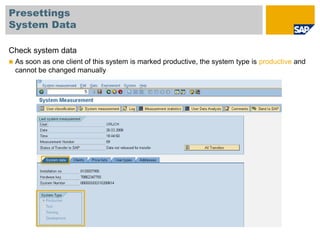
System Data
Check system data
 As soon as one client of this system is marked productive, the system type is productive and
cannot be changed manually
Presettings
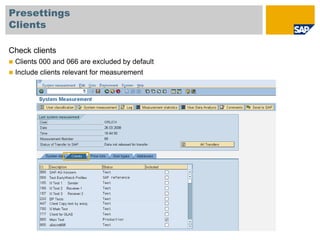
Clients
Check clients
 Clients 000 and 066 are excluded by default
 Include clients relevant for measurement
Presettings
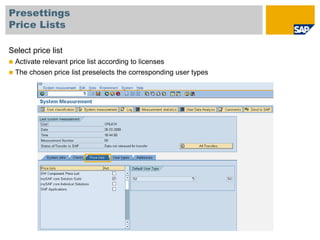
Price Lists
Select price list
 Activate relevant price list according to licenses
 The chosen price list preselects the corresponding user types
Presettings
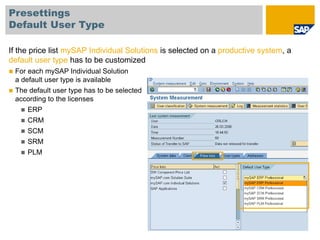
Default User Type
If the price list mySAP Individual Solutions is selected on a productive system, a
default user type has to be customized
 For each mySAP Individual Solution
a default user type is available
 The default user type has to be selected
according to the licenses
 ERP
 CRM
 SCM
 SRM
 PLM
Presettings
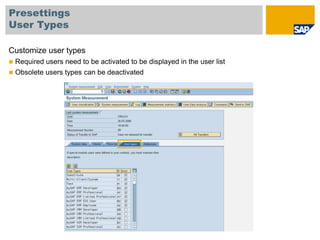
User Types
Customize user types
 Required users need to be activated to be displayed in the user list
 Obsolete users types can be deactivated
Presettings
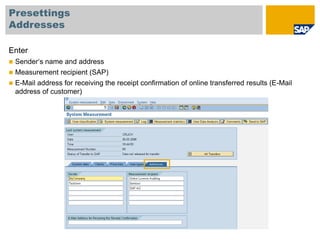
Addresses
Enter
 Sender‘s name and address
 Measurement recipient (SAP)
 E-Mail address for receiving the receipt confirmation of online transferred results (E-Mail
address of customer)
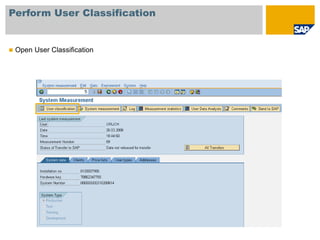
Perform User Classification
 Open User Classification
Perform User Classification
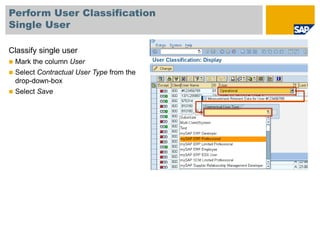
Single User
Classify single user
 Mark the column User
 Select Contractual User Type from the
drop-down-box
 Select Save
Perform User Classification
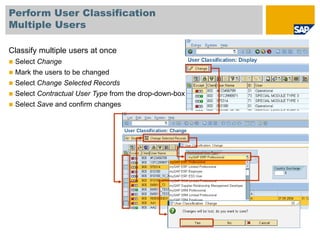
Multiple Users
Classify multiple users at once
 Select Change
 Mark the users to be changed
 Select Change Selected Records
 Select Contractual User Type from the drop-down-box
 Select Save and confirm changes
User Classification Support Tools
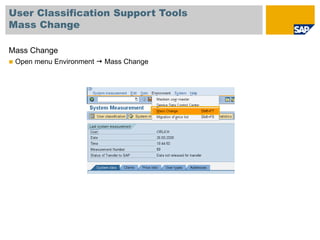
Mass Change
Mass Change
 Open menu Environment  Mass Change
User Classification Support Tools
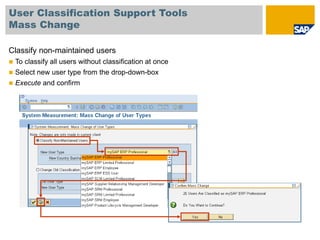
Mass Change
Classify non-maintained users
 To classify all users without classification at once
 Select new user type from the drop-down-box
 Execute and confirm
User Classification Support Tools
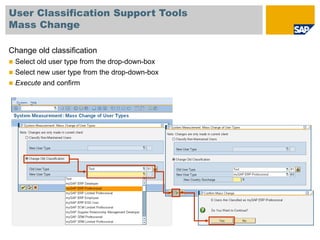
Mass Change
Change old classification
 Select old user type from the drop-down-box
 Select new user type from the drop-down-box
 Execute and confirm
User Classification Support Tools
Price List Migration
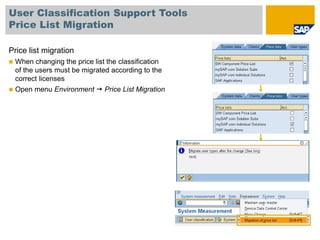
Price list migration
 When changing the price list the classification
of the users must be migrated according to the
correct licenses
 Open menu Environment  Price List Migration
User Classification Support Tools
Price List Migration
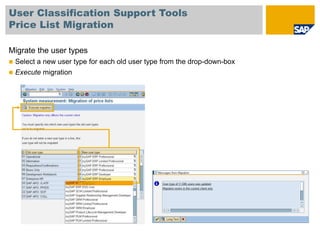
Migrate the user types
 Select a new user type for each old user type from the drop-down-box
 Execute migration
Technical Users
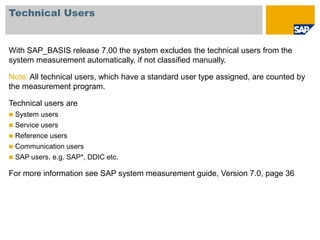
With SAP_BASIS release 7.00 the system excludes the technical users from the
system measurement automatically, if not classified manually.
Note: All technical users, which have a standard user type assigned, are counted by
the measurement program.
Technical users are
 System users
 Service users
 Reference users
 Communication users
 SAP users, e.g. SAP*, DDIC etc.
For more information see SAP system measurement guide, Version 7.0, page 36
Classify Multiclient/-system Users
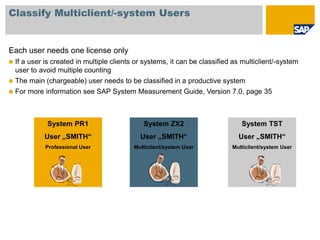
Each user needs one license only
 If a user is created in multiple clients or systems, it can be classified as multiclient/-system
user to avoid multiple counting
 The main (chargeable) user needs to be classified in a productive system
 For more information see SAP System Measurement Guide, Version 7.0, page 35
System PR1
User „SMITH“
Professional User
System ZX2
User „SMITH“
Multiclient/system User
System TST
User „SMITH“
Multiclient/system User
Classify Multiclient/-system Users
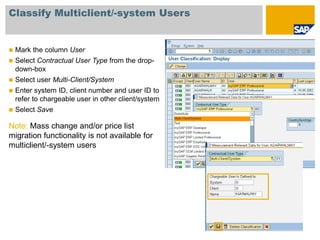
 Mark the column User
 Select Contractual User Type from the drop-
down-box
 Select user Multi-Client/System
 Enter system ID, client number and user ID to
refer to chargeable user in other client/system
 Select Save
Note: Mass change and/or price list
migration functionality is not available for
multiclient/-system users
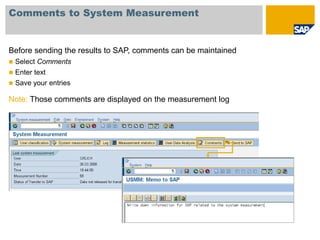
Comments to System Measurement
Before sending the results to SAP, comments can be maintained
 Select Comments
 Enter text
 Save your entries
Note: Those comments are displayed on the measurement log
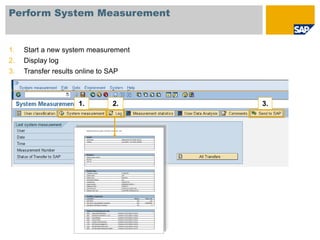
Perform System Measurement
1. Start a new system measurement
2. Display log
3. Transfer results online to SAP
1. 2. 3.

System Measurement Program SAP Basis Release 7.00

  • 1.
    System Measurement Program SAPBasis Release 7.00 Quick Guide to perform a System Measurement
  • 2.
    Content Start System MeasurementProgram Presettings  System Data  Clients  Price Lists  Default User Type  User Types  Addresses Perform User Classification User Classification Support Tools  Mass Change  Price List Migration Technical Users Classify Multiclient/-system Users Enter comments Perform System Measurement
  • 3.
    Start System MeasurementProgram  Log on to SAP system  Run transaction USMM
  • 4.
    Presettings System Data Check systemdata  As soon as one client of this system is marked productive, the system type is productive and cannot be changed manually
  • 5.
    Presettings Clients Check clients  Clients000 and 066 are excluded by default  Include clients relevant for measurement
  • 6.
    Presettings Price Lists Select pricelist  Activate relevant price list according to licenses  The chosen price list preselects the corresponding user types
  • 7.
    Presettings Default User Type Ifthe price list mySAP Individual Solutions is selected on a productive system, a default user type has to be customized  For each mySAP Individual Solution a default user type is available  The default user type has to be selected according to the licenses  ERP  CRM  SCM  SRM  PLM
  • 8.
    Presettings User Types Customize usertypes  Required users need to be activated to be displayed in the user list  Obsolete users types can be deactivated
  • 9.
    Presettings Addresses Enter  Sender‘s nameand address  Measurement recipient (SAP)  E-Mail address for receiving the receipt confirmation of online transferred results (E-Mail address of customer)
  • 10.
    Perform User Classification Open User Classification
  • 11.
    Perform User Classification SingleUser Classify single user  Mark the column User  Select Contractual User Type from the drop-down-box  Select Save
  • 12.
    Perform User Classification MultipleUsers Classify multiple users at once  Select Change  Mark the users to be changed  Select Change Selected Records  Select Contractual User Type from the drop-down-box  Select Save and confirm changes
  • 13.
    User Classification SupportTools Mass Change Mass Change  Open menu Environment  Mass Change
  • 14.
    User Classification SupportTools Mass Change Classify non-maintained users  To classify all users without classification at once  Select new user type from the drop-down-box  Execute and confirm
  • 15.
    User Classification SupportTools Mass Change Change old classification  Select old user type from the drop-down-box  Select new user type from the drop-down-box  Execute and confirm
  • 16.
    User Classification SupportTools Price List Migration Price list migration  When changing the price list the classification of the users must be migrated according to the correct licenses  Open menu Environment  Price List Migration
  • 17.
    User Classification SupportTools Price List Migration Migrate the user types  Select a new user type for each old user type from the drop-down-box  Execute migration
  • 18.
    Technical Users With SAP_BASISrelease 7.00 the system excludes the technical users from the system measurement automatically, if not classified manually. Note: All technical users, which have a standard user type assigned, are counted by the measurement program. Technical users are  System users  Service users  Reference users  Communication users  SAP users, e.g. SAP*, DDIC etc. For more information see SAP system measurement guide, Version 7.0, page 36
  • 19.
    Classify Multiclient/-system Users Eachuser needs one license only  If a user is created in multiple clients or systems, it can be classified as multiclient/-system user to avoid multiple counting  The main (chargeable) user needs to be classified in a productive system  For more information see SAP System Measurement Guide, Version 7.0, page 35 System PR1 User „SMITH“ Professional User System ZX2 User „SMITH“ Multiclient/system User System TST User „SMITH“ Multiclient/system User
  • 20.
    Classify Multiclient/-system Users Mark the column User  Select Contractual User Type from the drop- down-box  Select user Multi-Client/System  Enter system ID, client number and user ID to refer to chargeable user in other client/system  Select Save Note: Mass change and/or price list migration functionality is not available for multiclient/-system users
  • 21.
    Comments to SystemMeasurement Before sending the results to SAP, comments can be maintained  Select Comments  Enter text  Save your entries Note: Those comments are displayed on the measurement log
  • 22.
    Perform System Measurement 1.Start a new system measurement 2. Display log 3. Transfer results online to SAP 1. 2. 3.