어서오세요!
Markup Restaurant에…
2012.07.20
디자인실 김인숙
신나서 마크업을 요리하는
현직 웹 퍼블리셔 김슈기 씨 (35)
교육목표
 여러 브라우저에서 호환되는 CSS를 작성 할 수 있다.
 디자인 시안을 보고 적합한 마크업 언어로 구조화 할 수 있다.
 최근 기술동향에 대해 알 수 있다.
교육대상
바로…디자인실 여러분~
교육내용
 에피타이저
 스프
 샐러드
 메인디쉬 01~04 (중간에 실습 있어요.)
 디저트
 티타임
에피타이저
 왜 웹 표준인가?
 마크업 개발 프로세스
 왜 웹 표준인가?
1. 웹 표준을 지키면 좀 더 많은 사람에게 정보전달을 할 수 있다.
2. 웹 표준을 지키면 크로스 브라우징이 가능하다.
3. 데이터와 디자인을 분리하면 디자인 수정이 쉽다.
4. 검색결과에 상당한 영향을 미친다.
5. 서버 부하를 덜어 주게 되어 비용 절감의 효과
http://monoeyes.com/523
 …현실은
웹 접근성을
향상하려면?
JavaScript를 배워야 하나?
RIA는 또 뭐래?
Markup은 할 수록
어렵다…
문서
작성의
압박
양보다는 질 높은 코딩!
7개의 브라우저 테스트로
인한 야근의 압박
디자인과 개발의 의도에 맞게!
이슈를 최소화 하기
누가!!!! 인라인으로
스타일 지정했어!
 이러한 이유로…
1. HTML을 의미에 맞게 작성할 수 있다.
2. 디자인을 보다 정교하게 제어할 수 있다.
3. 브라우저 관련 이슈 발생 시 수정이 쉽다.
4. 자바스크립트와 연동이 쉽다.
 마크업 개발 프로세스
1. 환경분석과 시스템배치
2. 구조적 설계 (HTML Design)
3. 스타일시트 설계 (CSS Design)
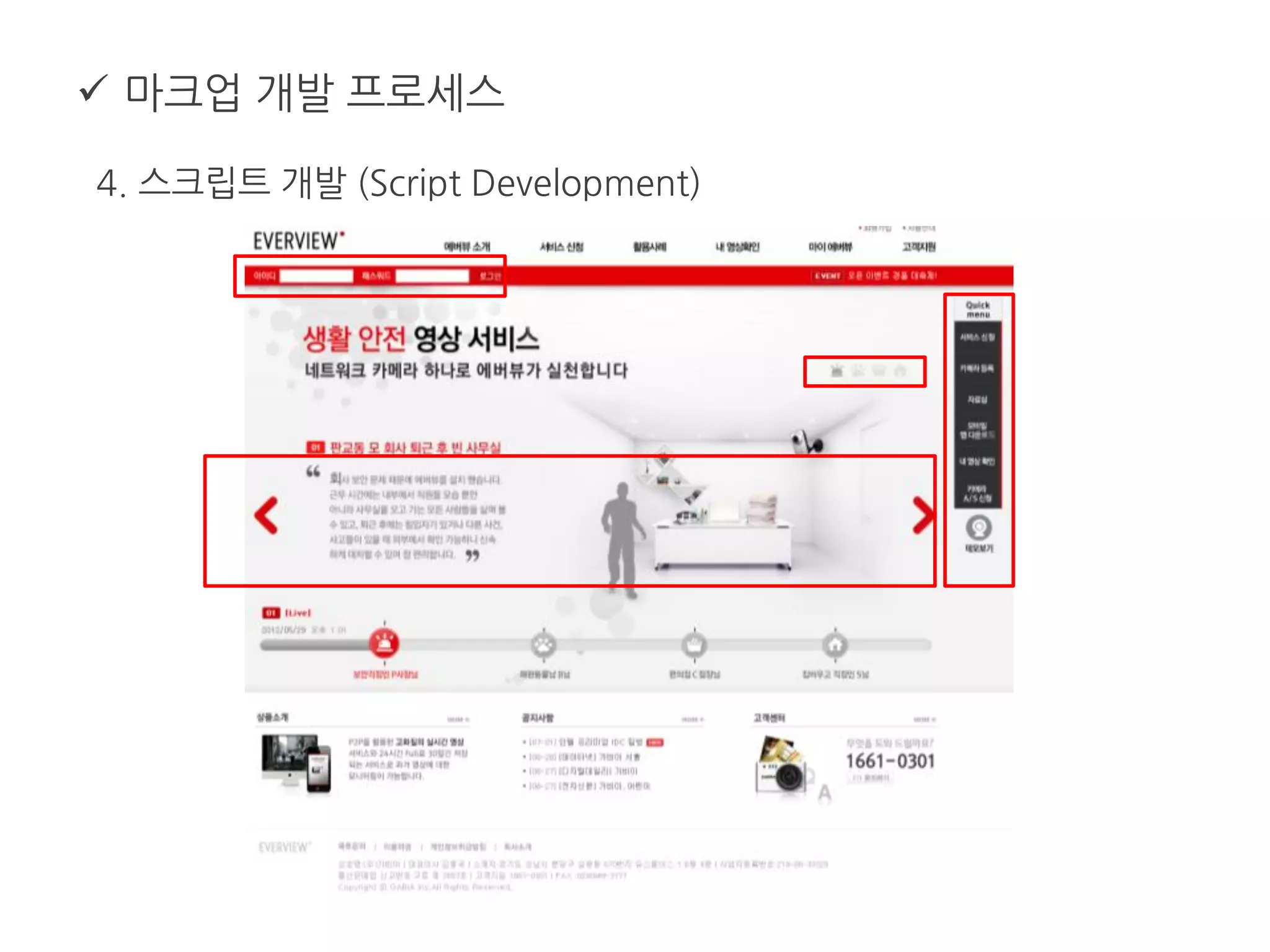
4. 스크립트 개발 (Script Development)
5. 테스트, 유효성 검사 (Test And Validation Check)
6. 웹 접근성 검사
7. 문서화
http://www.clearboth.org/markup_dev_7level/
 마크업 개발 프로세스
1. 환경분석과 시스템배치
 마크업 개발 프로세스
2. 구조적 설계 (HTML Design)
 마크업 개발 프로세스
3. 스타일시트 설계 (CSS Design)
 마크업 개발 프로세스
4. 스크립트 개발 (Script Development)
 마크업 개발 프로세스
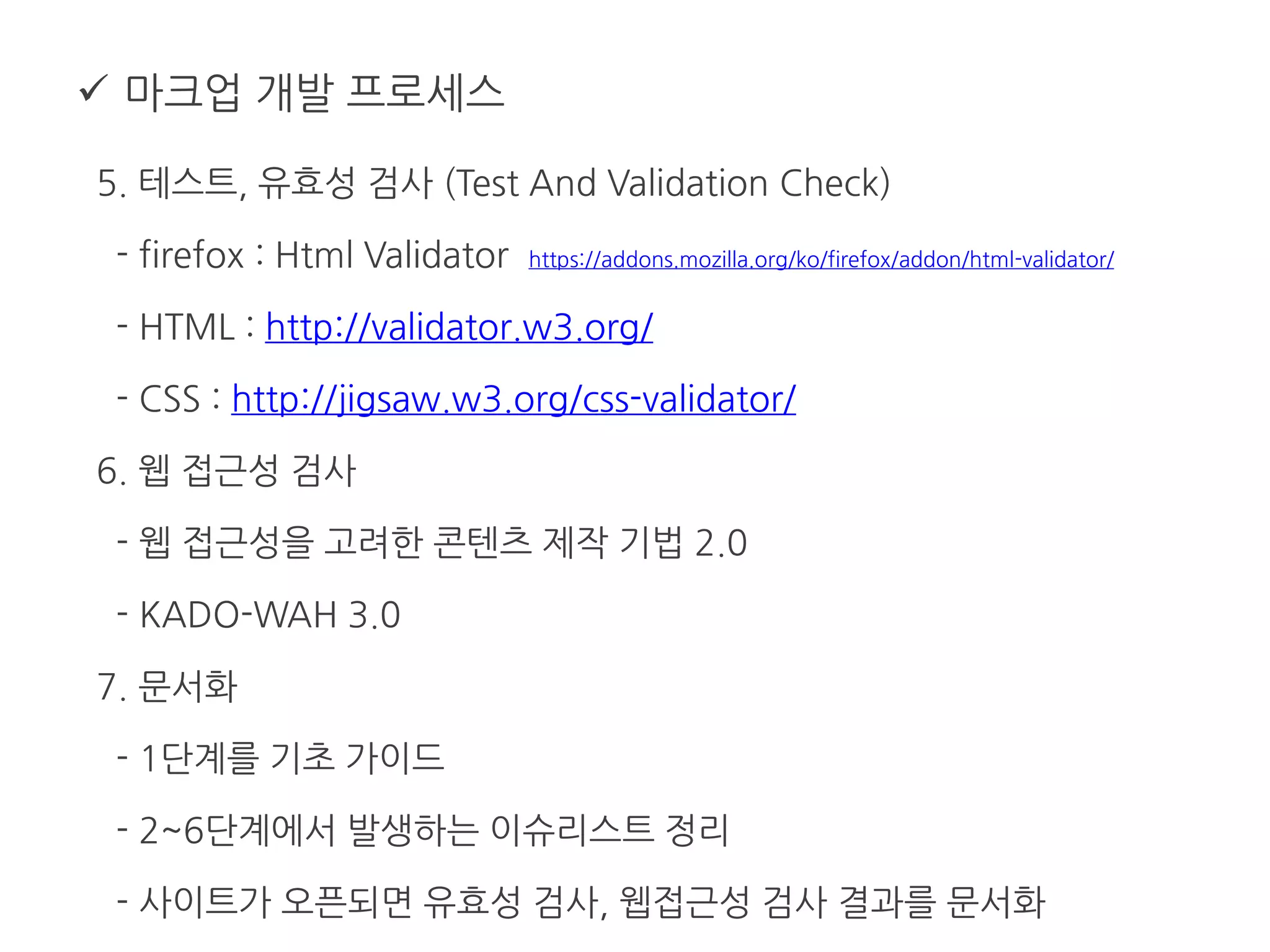
5. 테스트, 유효성 검사 (Test And Validation Check)
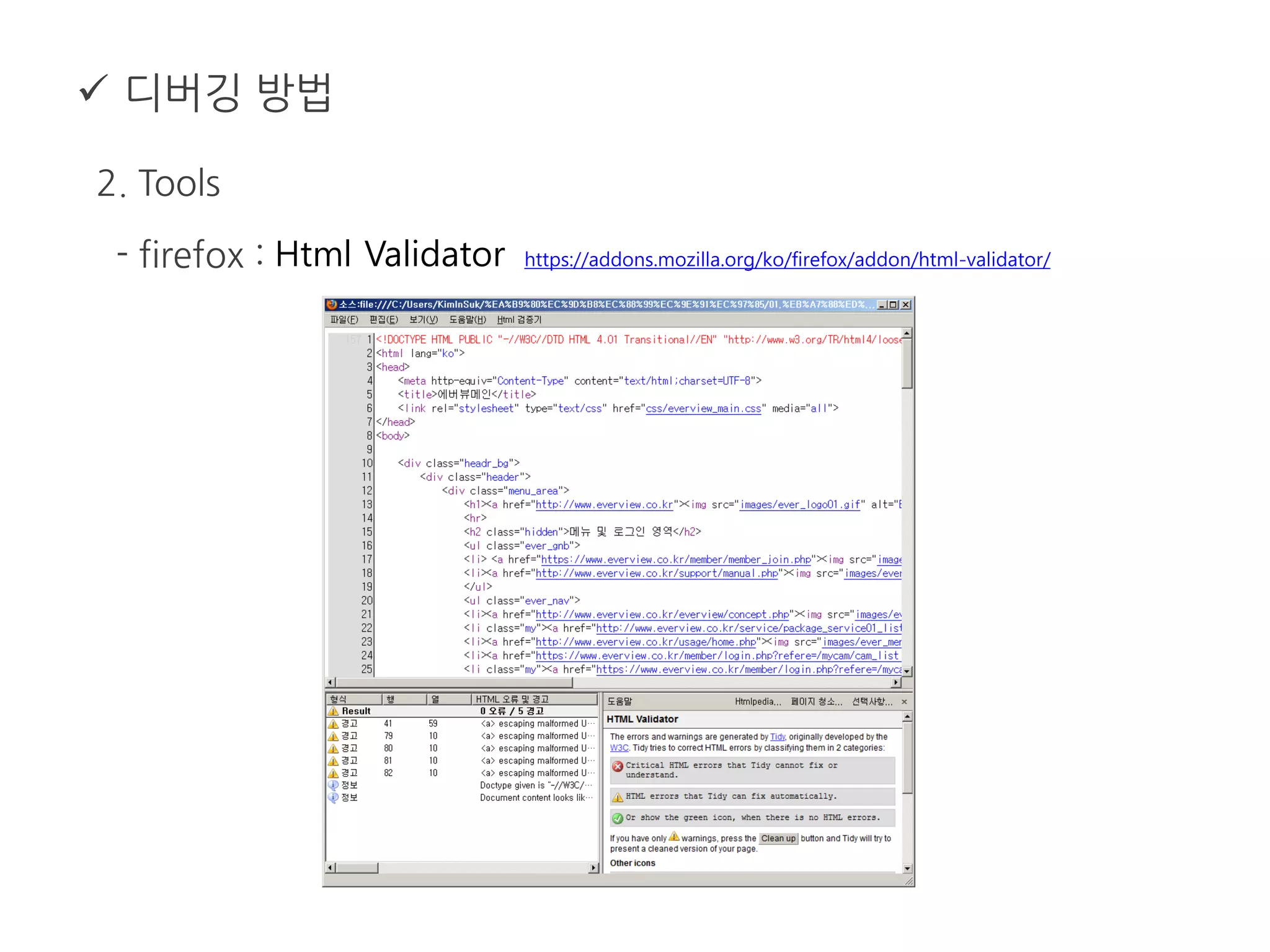
- firefox : Html Validator https://addons.mozilla.org/ko/firefox/addon/html-validator/
- HTML : http://validator.w3.org/
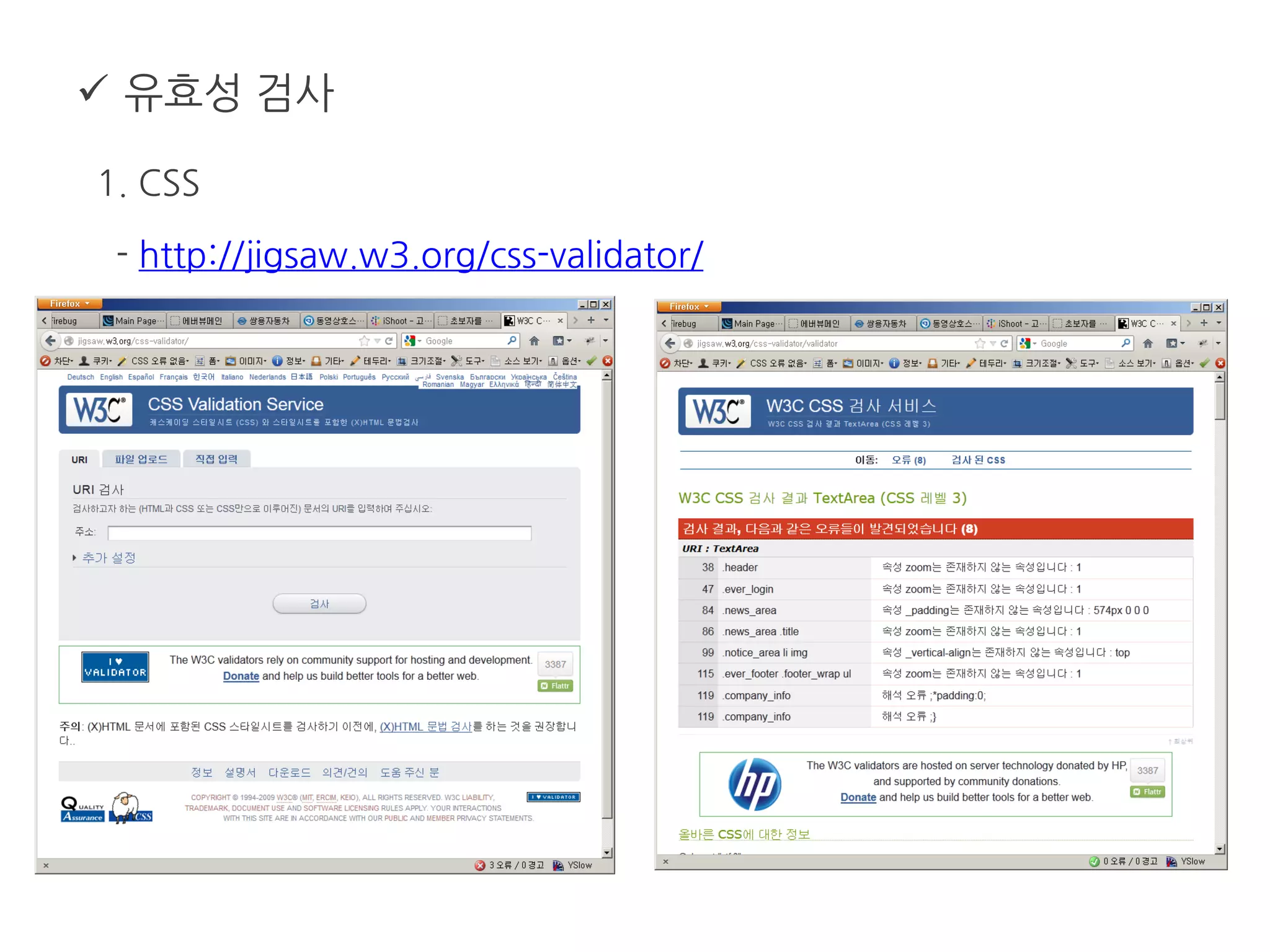
- CSS : http://jigsaw.w3.org/css-validator/
6. 웹 접근성 검사
- 웹 접근성을 고려한 콘텐츠 제작 기법 2.0
- KADO-WAH 3.0
7. 문서화
- 1단계를 기초 가이드
- 2~6단계에서 발생하는 이슈리스트 정리
- 사이트가 오픈되면 유효성 검사, 웹접근성 검사 결과를 문서화
스프
 마크업 언어
 마크업 언어
1. HTML 과 XHTML
- eXtensible HyperText Markup Language
- XHTML = HTML + XML
- xml 문법 기준을 따름
- 태그나 속성 등은 html을 따름
 마크업 언어
2. Syntax
- 태그의 중첩을 엄격하게 지킨다.
http://www.w3.org/TR/xhtml1/diffs.html
<p>웹 표준을 생각할 때에는 <em>사용자의 다양성을 이해하는 것이 무엇보다도 중요합니다.</p></em> (X)
<p>웹 표준을 생각할 때에는 <em>사용자의 다양성을 이해하는 것이 무엇보다도 중요합니다. </em></p> (O)
<p>문단을 나눌 때에는 p태그를 사용합니다.</p>
<p>p태그를 사용할때에는 닫는 태그를 생략하는 경우가 있는데 잘못된 경우 입니다. (X)
<p>문단을 나눌 때에는 p태그를 사용합니다.</p>
<p>p태그를 사용할때에는 닫는 태그를 생략하는 경우가 있는데 잘못된 경우 입니다. </p> (O)
 마크업 언어
2. Syntax
- 단독으로 사용되는 태그도 닫기 표기를 해야 한다.
- 속성의 값에 따옴표를 사용해야 한다.
http://www.w3.org/TR/xhtml1/diffs.html
줄 바꿈을 표하기 위해서는 &lt;br&gt; 태그를 사용합니다. <br> (X)
줄 바꿈을 표하기 위해서는 &lt;br&gt; 태그를 사용합니다. <br /> (O)
<table cellspacing=0 cellpadding=0 border=0> (X)
<table cellspacing="0" cellpadding="0" border="0"> (O)
 마크업 언어
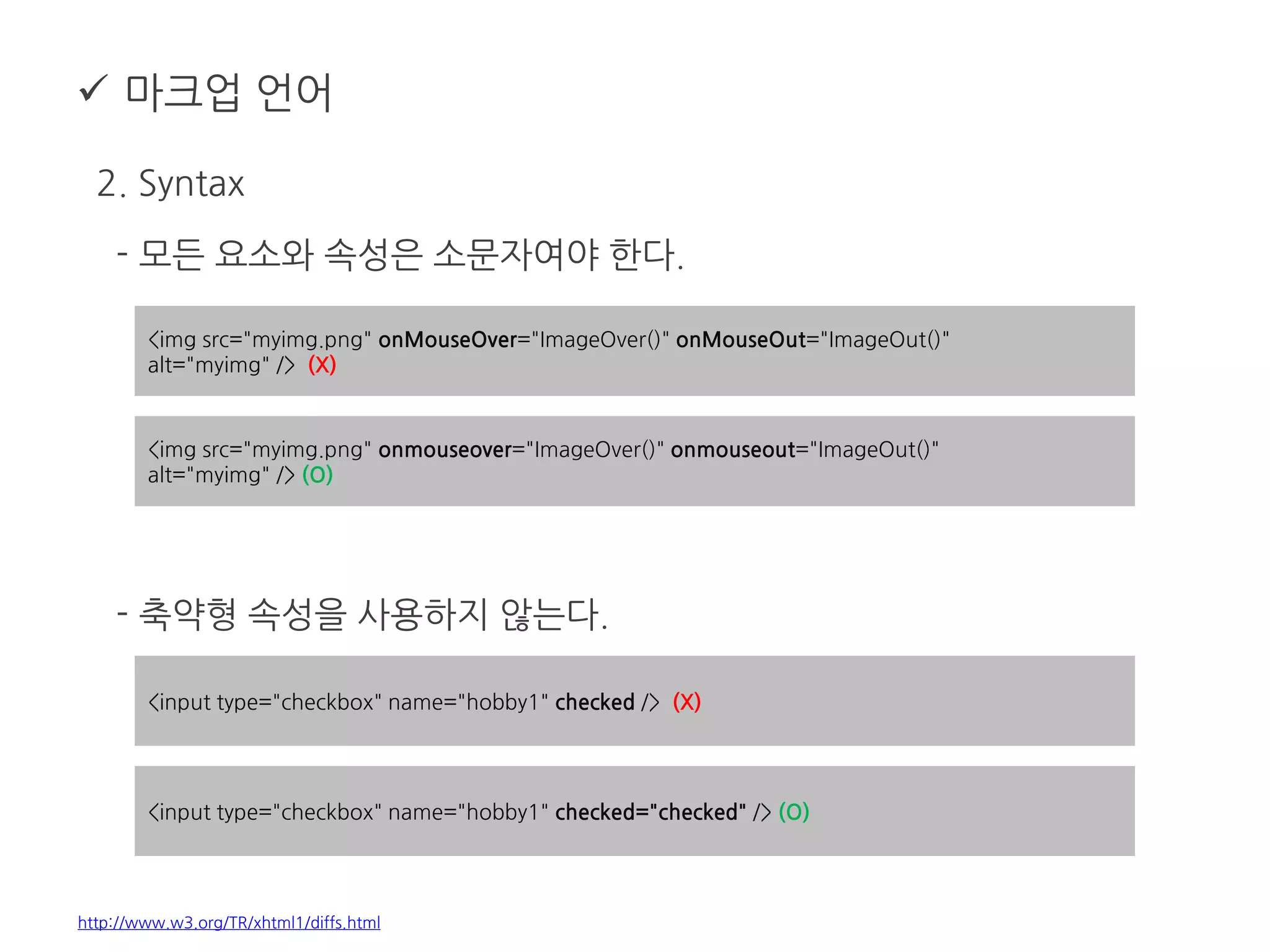
2. Syntax
- 모든 요소와 속성은 소문자여야 한다.
- 축약형 속성을 사용하지 않는다.
http://www.w3.org/TR/xhtml1/diffs.html
<img src="myimg.png" onMouseOver="ImageOver()" onMouseOut="ImageOut()"
alt="myimg" /> (X)
<img src="myimg.png" onmouseover="ImageOver()" onmouseout="ImageOut()"
alt="myimg" /> (O)
<input type="checkbox" name="hobby1" checked /> (X)
<input type="checkbox" name="hobby1" checked="checked" /> (O)
 마크업 언어
2. Syntax
- 숫자 뒤의 단위를 생략할 수 없다 (0은 제외).
- 스크립트와 스타일은 CDATA로 표기한다.
http://www.w3.org/TR/xhtml1/diffs.html
#id {margin:0 0 6 0;} (X)
#id {margin:0 0 6px 0;} (O)
<script type="text/javascript">
//<![CDATA[
if (a > b && a < 0) { // wrong : if (a &gt; b &amp;&amp; a &lt; 0) {
return true;
} else {
return false;
}
//]]>
</script>
 마크업 언어
2. Syntax
- HTML Entities
http://www.w3.org/TR/xhtml1/diffs.html
<a href="board_list.php?id=free&page=1&keyword=html"> (X)
<a href="board_list.php?id=free&amp;page=1&amp;keyword=html"> (O)
< &lt;
> &gt;
& &amp;
“ &quot;
 마크업 언어
3. Document Structure
- 기본 HTML 구조
<!DOCTYPE html PUBLIC "-//W3C//DTD XHTML 1.1//EN"
"http://www.w3.org/TR/xhtml11/DTD/xhtml11.dtd">
<html xmlns="http://www.w3.org/1999/xhtml" xml:lang="ko">
<head>
<meta http-equiv="Content-Type" content="text/html; charset=utf-8" />
<title>기본 XHTML 문서 구조</title>
</head>
<body>
<p>기본 XHTML 문서 구조입니다.</p>
</body>
</html>
 마크업 언어
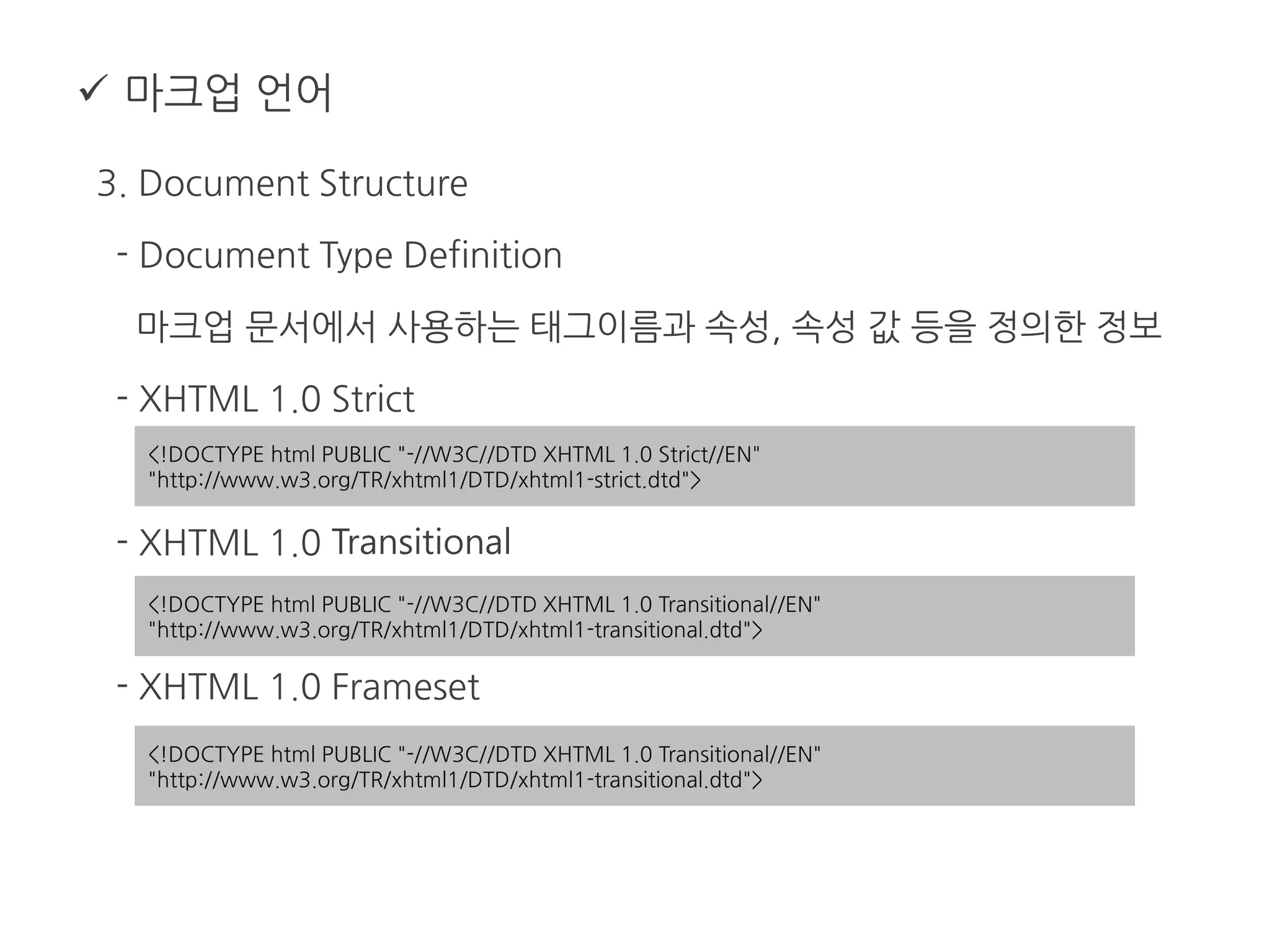
3. Document Structure
- Document Type Definition
마크업 문서에서 사용하는 태그이름과 속성, 속성 값 등을 정의한 정보
- XHTML 1.0 Strict
- XHTML 1.0 Transitional
- XHTML 1.0 Frameset
<!DOCTYPE html PUBLIC "-//W3C//DTD XHTML 1.0 Strict//EN"
"http://www.w3.org/TR/xhtml1/DTD/xhtml1-strict.dtd">
<!DOCTYPE html PUBLIC "-//W3C//DTD XHTML 1.0 Transitional//EN"
"http://www.w3.org/TR/xhtml1/DTD/xhtml1-transitional.dtd">
<!DOCTYPE html PUBLIC "-//W3C//DTD XHTML 1.0 Transitional//EN"
"http://www.w3.org/TR/xhtml1/DTD/xhtml1-transitional.dtd">
 마크업 언어
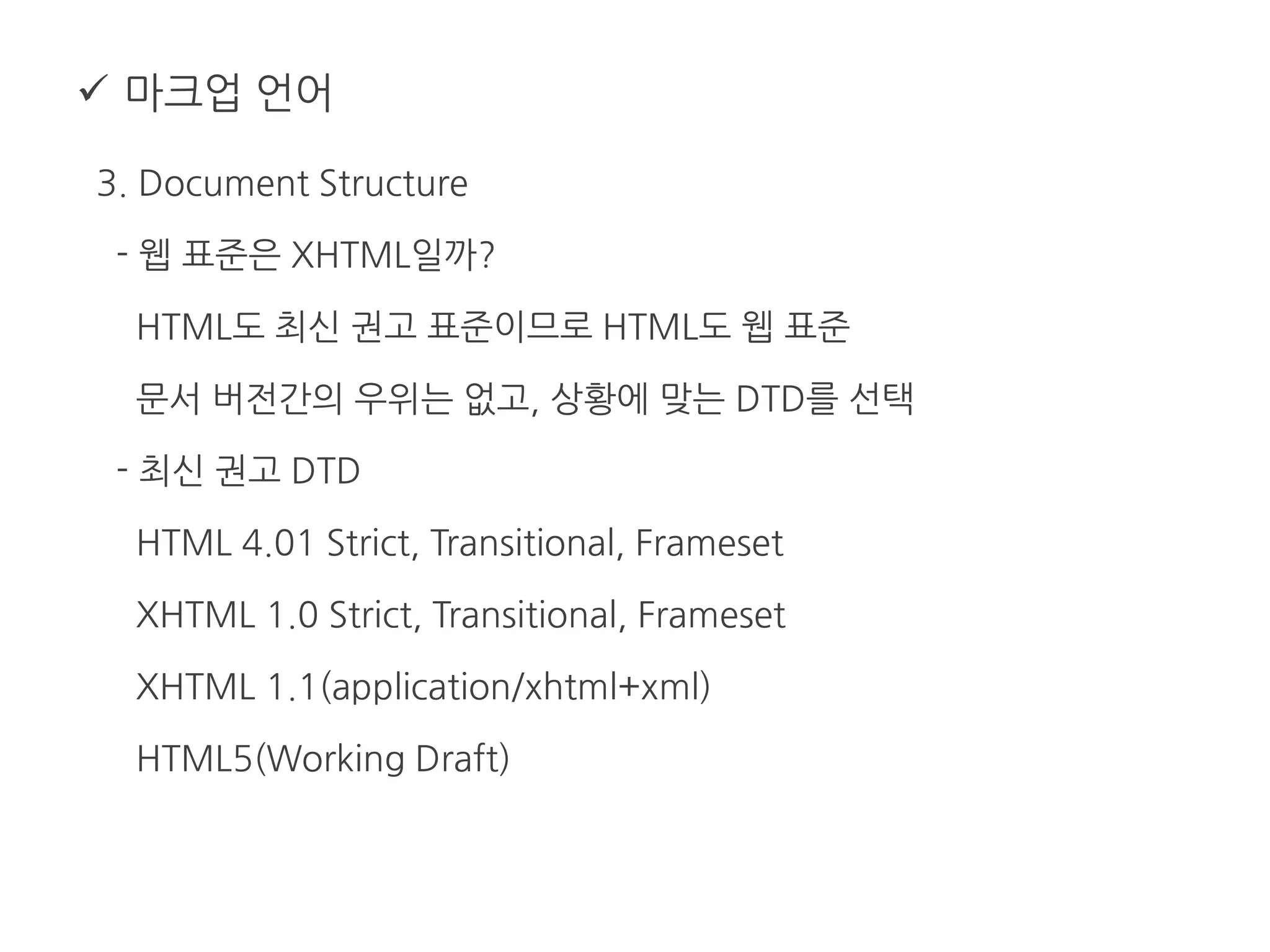
3. Document Structure
- 웹 표준은 XHTML일까?
HTML도 최신 권고 표준이므로 HTML도 웹 표준
문서 버전간의 우위는 없고, 상황에 맞는 DTD를 선택
- 최신 권고 DTD
HTML 4.01 Strict, Transitional, Frameset
XHTML 1.0 Strict, Transitional, Frameset
XHTML 1.1(application/xhtml+xml)
HTML5(Working Draft)
 마크업 언어
3. Document Structure
- Head & Body
* head : 문서의 정보를 나타내는 요소
title : 문서의 제목을 나타내는 요소
* body : 문서의 내용을 담고 있는 요소
id, class : 지시자, 연결자 역할
div, span : id, class와 함께 문서의 구조를 기술한다.
h1~ h6 : 내용 단위의 주제 (제목)을 기술한다.
 마크업 언어
3. Document Structure
- Head & Body
* 하나의 문서에는 하나의 h1 만 존재해야 하나?
HTML 권고안에는 h1 개수에 대한 언급은 없음.
보통의 웹 페이지는 하나의 주제를 가지고 있기 때문에 하나, 또는
2~3개의 h1이 존재하는 것이 적절함.
* 헤딩의 단계는 순차적이어야 한다.
h1, h2, h1은 맞음
h1, h3, h1은 h2가 건너 뛰어졌으므로 좋지 않은 구성
 마크업 언어
3. Document Structure
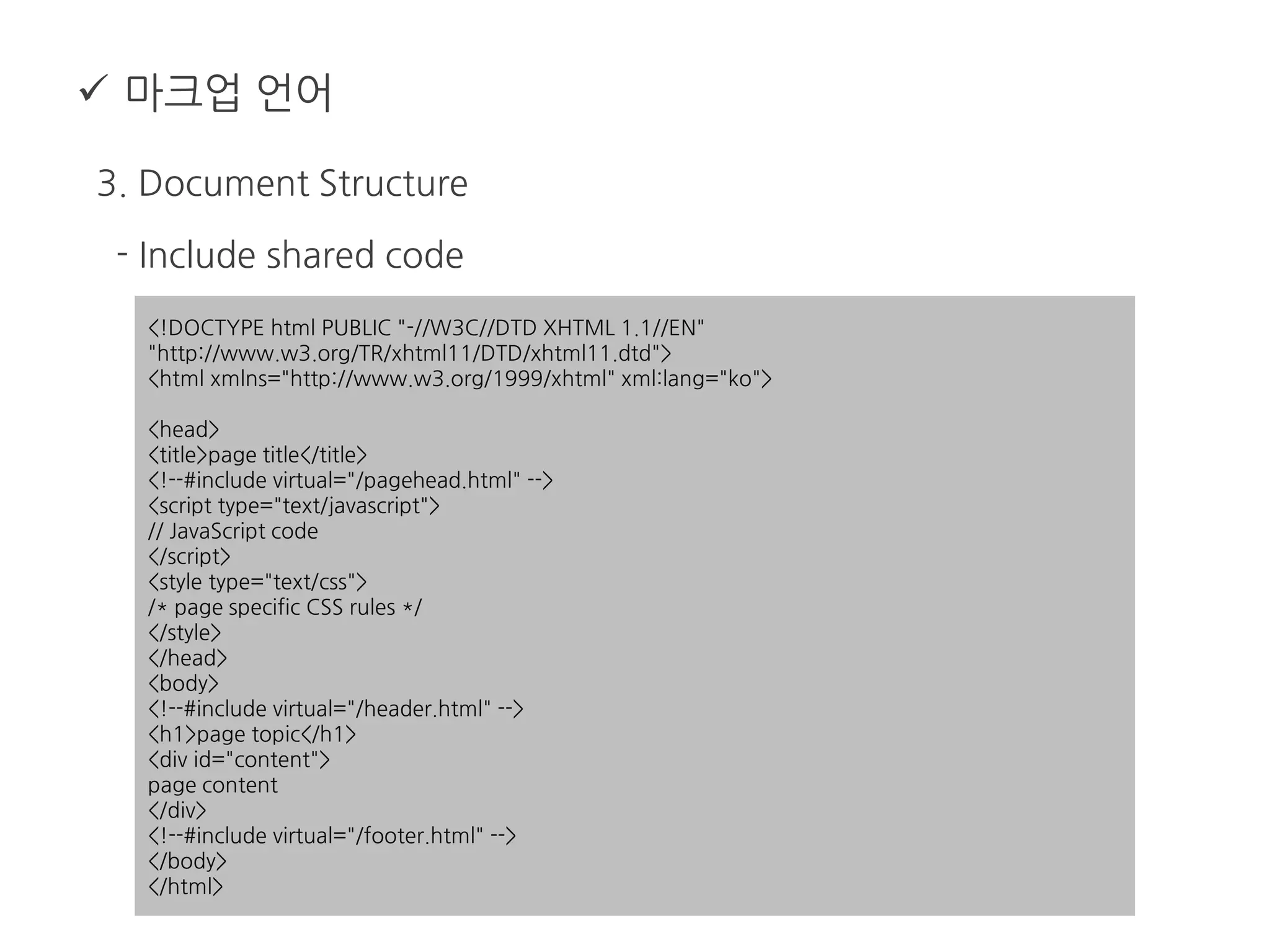
- Include shared code
* 사이트 전반적으로 공통적으로 사용되는 파일을 공용파일로 분리
* 매 페이지마다 바뀌는 부분
페이지 콘텐츠, Head안의 style, script 선언
* 매 페이지마다 바뀌지 않는 부분
DTD, Head 안의 공용 파일 인클루드, 페이지 레이아웃
 마크업 언어
3. Document Structure
- Include shared code
<!DOCTYPE html PUBLIC "-//W3C//DTD XHTML 1.1//EN"
"http://www.w3.org/TR/xhtml11/DTD/xhtml11.dtd">
<html xmlns="http://www.w3.org/1999/xhtml" xml:lang="ko">
<head>
<title>page title</title>
<!--#include virtual="/pagehead.html" -->
<script type="text/javascript">
// JavaScript code
</script>
<style type="text/css">
/* page specific CSS rules */
</style>
</head>
<body>
<!--#include virtual="/header.html" -->
<h1>page topic</h1>
<div id="content">
page content
</div>
<!--#include virtual="/footer.html" -->
</body>
</html>
샐러드
 CSS
 CSS
1. CSS 선택자
- Universal selector : 모든 요소 선택
* {
color: #000;
}
<div id="body">
<div id="notice">
<ul>
<li>
<span class="head">content head</span>
<a href="list.html">content title</a>
</li>
<li>
<span class="head">content head</span>
<a href="list.html">content title</a>
</li>
<li>
<span class="head">content head</span>
<span>content
<span>title</span>
</span>
</li>
</ul>
</div>
</div>
 CSS
1. CSS 선택자
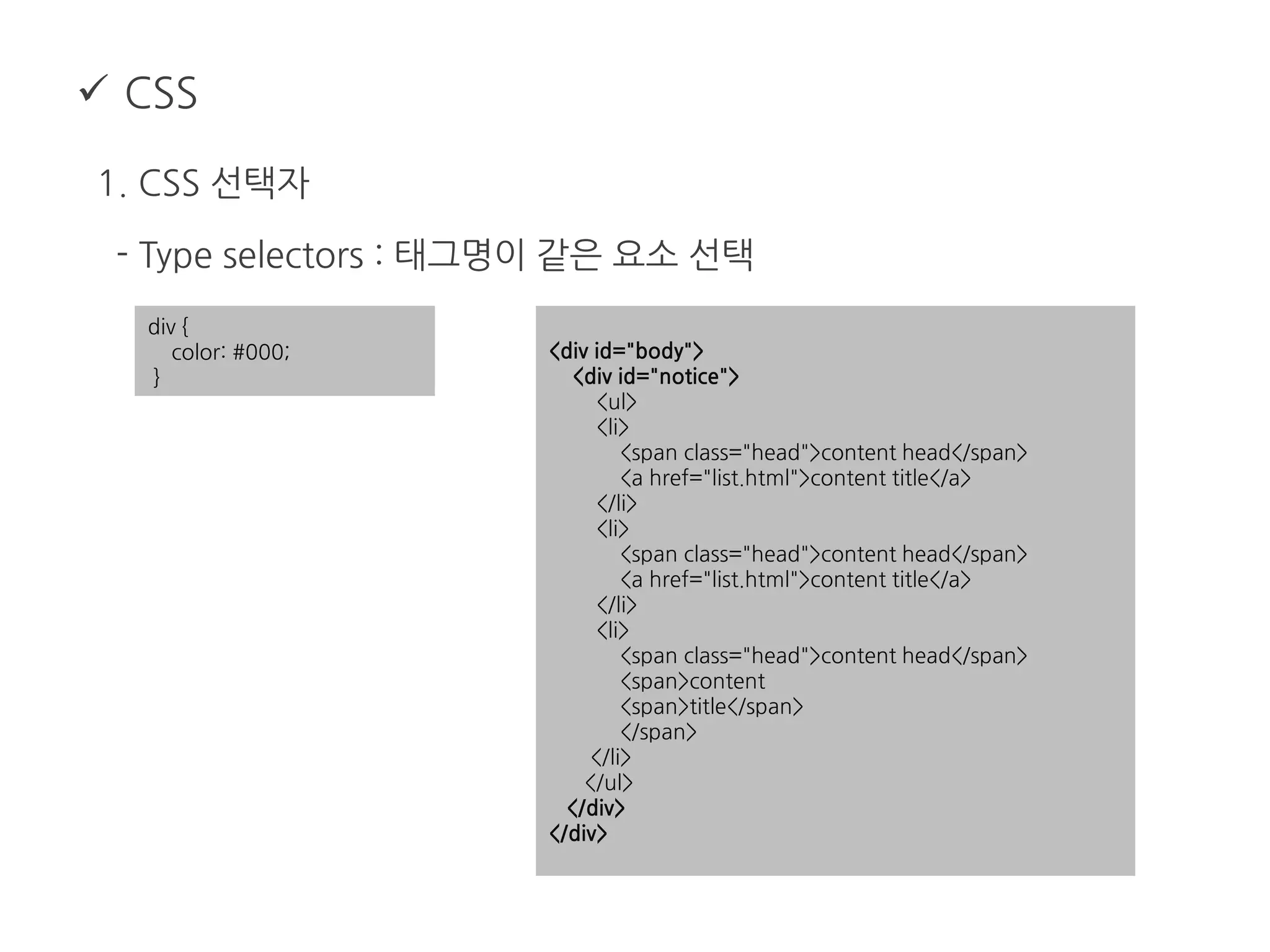
- Type selectors : 태그명이 같은 요소 선택
div {
color: #000;
}
<div id="body">
<div id="notice">
<ul>
<li>
<span class="head">content head</span>
<a href="list.html">content title</a>
</li>
<li>
<span class="head">content head</span>
<a href="list.html">content title</a>
</li>
<li>
<span class="head">content head</span>
<span>content
<span>title</span>
</span>
</li>
</ul>
</div>
</div>
 CSS
1. CSS 선택자
- Descendant selectors : 하위 요소 선택
ul span {
color: #000;
}
<div id="body">
<div id="notice">
<ul>
<li>
<span class="head">content head</span>
<a href="list.html">content title</a>
</li>
<li>
<span class="head">content head</span>
<a href="list.html">content title</a>
</li>
<li>
<span class="head">content head</span>
<span>content
<span>title</span>
</span>
</li>
</ul>
</div>
</div>
 CSS
1. CSS 선택자
- Child selectors : 한 단계 아래의 요소 선택, IE6 지원 안함.
li span {
color: #000;
}
<div id="body">
<div id="notice">
<ul>
<li>
<span class="head">content head</span>
<a href="list.html">content title</a>
</li>
<li>
<span class="head">content head</span>
<a href="list.html">content title</a>
</li>
<li>
<span class="head">content head</span>
<span>content
<span>title</span>
</span>
</li>
</ul>
</div>
</div>
 CSS
1. CSS 선택자
- First-child pseudo class : 첫번째 요소 선택, IE6 지원 안함.
li:first-child {
color: #000;
}
<div id="body">
<div id="notice">
<ul>
<li>
<span class="head">content head</span>
<a href="list.html">content title</a>
</li>
<li>
<span class="head">content head</span>
<a href="list.html">content title</a>
</li>
<li>
<span class="head">content head</span>
<span>content
<span>title</span>
</span>
</li>
</ul>
</div>
</div>
 CSS
1. CSS 선택자
- Link pseudo class : 링크 요소의 상태 선택, IE6 지원 안함.
a:link {
color: #000;
}
a:visited {
color: #000;
}
a:hover {
color: #000;
}
a:active {
color: #000;
}
a:focus {
color: #000;
}
<div id="body">
<div id="notice">
<ul>
<li>
<span class="head">content head</span>
<a href="list.html">content title</a>
</li>
<li>
<span class="head">content head</span>
<a href="list.html">content title</a>
</li>
<li>
<span class="head">content head</span>
<span>content
<span>title</span>
</span>
</li>
</ul>
</div>
</div>
 CSS
1. CSS 선택자
- Adjacent selectors : 인접한 요소 선택, IE6 지원 안함.
a:link {
color: #000;
}
<h3>heading</h3>
<p>This is a paragraph.</p>
<h3>heading</h3>
<p>This is a paragraph.</p>
<h3>heading</h3>
<p>This is a paragraph.</p>
 CSS
1. CSS 선택자
- Attribute selectors : 속성으로 요소 선택, IE6 지원 안함.
input[type=text] {
border: 1px solid #ccc;
}
<input type="text">
<input type="password">
<input type="radio">
<input type="checkbox">
<input type="text">
<input type="text">
 CSS
1. CSS 선택자
- Class selectors : 클래스 네임으로 요소 선택
.head {
color: #000;
}
<div id="body">
<div id="notice">
<ul>
<li>
<span class="head">content head</span>
<a href="list.html">content title</a>
</li>
<li>
<span class="head">content head</span>
<a href="list.html">content title</a>
</li>
<li>
<span class="head">content head</span>
<span>content
<span>title</span>
</span>
</li>
</ul>
</div>
</div>
 CSS
1. CSS 선택자
- ID selectors : 아이디로 요소 선택
#notice {
color: #000;
}
<div id="body">
<div id="notice">
<ul>
<li>
<span class="head">content head</span>
<a href="list.html">content title</a>
</li>
<li>
<span class="head">content head</span>
<a href="list.html">content title</a>
</li>
<li>
<span class="head">content head</span>
<span>content
<span>title</span>
</span>
</li>
</ul>
</div>
</div>
 CSS
1. CSS 선택자
- :first-line pseudo element : 첫 번째 줄 선택
p:first-line {
color: #000;
}
<p>Littering a dark and dreary road lay the past relics
of browser-specific tags, incompatible DOMs, and broken
CSS support.</p>
<p>Today, we must clear the mind of past practices. Web
enlightenment has been achieved thanks to the tireless
efforts of folk like the W3C, WaSP and the major browser
creators.</p>
<p>The css Zen Garden invites you to relax and meditate
on the important lessons of the masters. Begin to see
with clarity. Learn to use the (yet to be) time-honored
techniques in new and invigorating fashion. Become one
with the web.</p>
 CSS
1. CSS 선택자
- :first-letter pseudo element : 첫 번째 글자 선택
p:first-letter {
color: #000;
}
<p>Littering a dark and dreary road lay the past relics
of browser-specific tags, incompatible DOMs, and broken
CSS support.</p>
<p>Today, we must clear the mind of past practices. Web
enlightenment has been achieved thanks to the tireless
efforts of folk like the W3C, WaSP and the major browser
creators.</p>
<p>The css Zen Garden invites you to relax and meditate
on the important lessons of the masters. Begin to see
with clarity. Learn to use the (yet to be) time-honored
techniques in new and invigorating fashion. Become one
with the web.</p>
 CSS
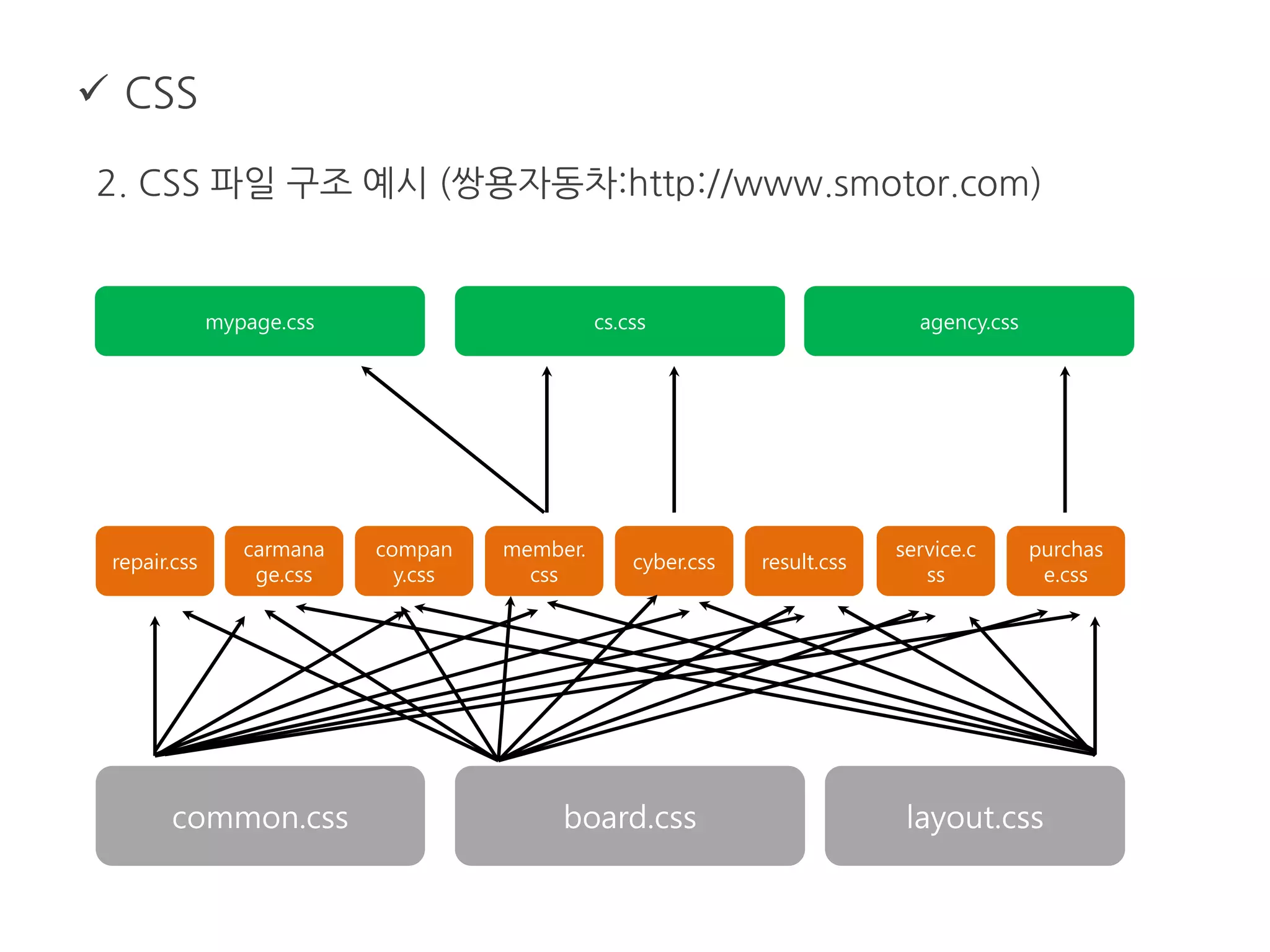
2. CSS 파일 구조
- 파일의 용도를 파악할 수 있는 파일명
연번은 지양하고 섹션 이름이나 디자인 모듈로 구분
- 선언된 CSS 룰의 위치를 파악할 수 있는 순서를 사용
페이지 순서와 HTML 코드 안에서의 순서를 따름
- 충돌을 피하기 위해 캐스캐이드 순서를 고려
 CSS
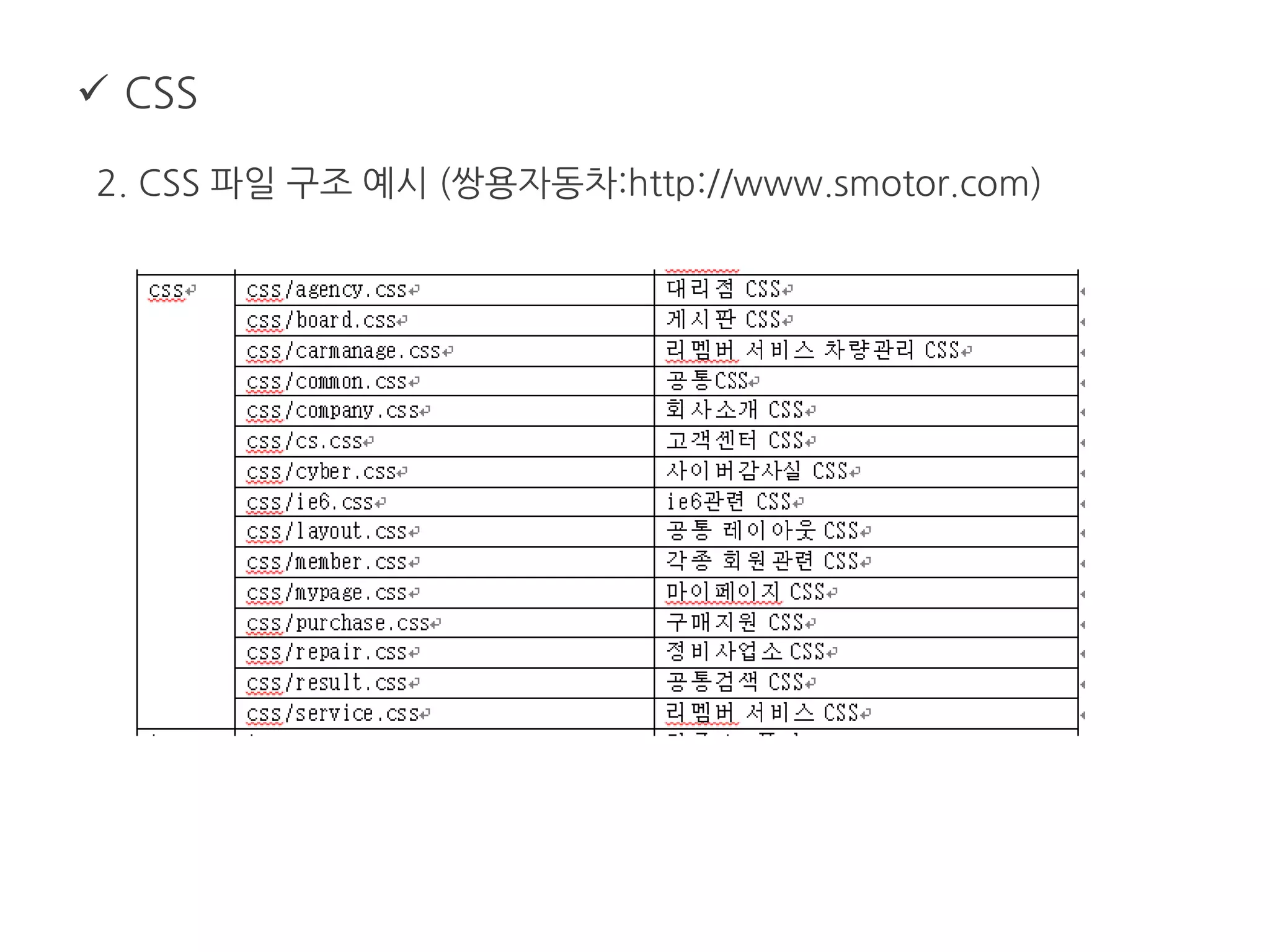
2. CSS 파일 구조 예시 (쌍용자동차:http://www.smotor.com)
 CSS
2. CSS 파일 구조 예시 (쌍용자동차:http://www.smotor.com)
common.css board.css layout.css
purchas
e.css
carmana
ge.css
compan
y.css
member.
css
cyber.css result.css
service.c
ss
repair.css
mypage.css cs.css agency.css
 CSS
3. 우선순위
- a, b, c, d 순으로 우선순위 결정
style attribute : a
ID attribute : b
other attribute, pseudo-class : c
element name, pseudo-element : d
* {} /* a=0 b=0 c=0 d=0 -> specificity = 0,0,0,0 */
li {} /* a=0 b=0 c=0 d=1 -> specificity = 0,0,0,1 */
li:first-line {} /* a=0 b=0 c=0 d=2 -> specificity = 0,0,0,2 */
ul li {} /* a=0 b=0 c=0 d=2 -> specificity = 0,0,0,2 */
ul ol+li {} /* a=0 b=0 c=0 d=3 -> specificity = 0,0,0,3 */
h1 + *[rel=up]{} /* a=0 b=0 c=1 d=1 -> specificity = 0,0,1,1 */
ul ol li.red {} /* a=0 b=0 c=1 d=3 -> specificity = 0,0,1,3 */
li.red.level {} /* a=0 b=0 c=2 d=1 -> specificity = 0,0,2,1 */
#x34y {} /* a=0 b=1 c=0 d=0 -> specificity = 0,1,0,0 */
style="" /* a=1 b=0 c=0 d=0 -> specificity = 1,0,0,0 */
 CSS
3. 우선순위
- ID selector + descendant selector
* ID selector와 descendant selector를 결합하여 충돌을 최소화
* ID selector는 웹 페이지의 가장 특징적인 모듈,
예를 들어 header, footer, sidebar 등을 정의
각 콘텐츠 별로 ID를 부여하여 충돌을 피할 수 있다.
* class는 공유되는 모듈이나 페이지 안에서 공유되는 요소에 부여
* 디자인 모듈에서 사용하는 ID와 서식 모듈에서 사용하는
ID를 사전 협의를 거쳐 충돌을 피해야 한다.
메인디쉬 01
 DTD & Rendering Mode
 Float & Clear
 Position
 Layout grid
 Block Alignment
 DTD & Rendering Mode
1. DTD (Document Type Definition)
- 마크업 문서에 사용되는 요소와 속성을 정의한 문서
예) HTML 4.01 Strict DTD : http://www.w3.org/TR/html4/strict.dtd
- 모든 마크업 문서의 상단에 DTD를 선언함
예) HTML 4.01
예) XHTML 1.1
<!DOCTYPE html PUBLIC "-//W3C//DTD HTML 4.01//EN" "http://
www.w3.org/TR/html4/strict.dtd">
<html lang="en">
<head>
<!DOCTYPE html PUBLIC "-//W3C//DTD XHTML 1.1//EN" "http://
www.w3.org/TR/xhtml11/DTD/xhtml11.dtd">
<html xmlns="http://www.w3.org/1999/xhtml" xml:lang="ko">
<head>
 DTD & Rendering Mode
1. DTD (Document Type Definition)
- DTD를 붙였는데도 비 표준으로 인식하는 경우
예) DTD가 아래와 같은 경우
예) DTD 위에 뭔가 넣었을 경우
<!DOCTYPE HTML PUBLIC "-//W3C//DTD HTML 4.01 Transitional//EN">
<script>
function fn_moveHtml(page){
var html = page;
if(html == ""){
alert("완성되지 않은 메뉴입니다.");
return;
}
location.href = page;
}
</script>
<!DOCTYPE html PUBLIC "-//W3C//DTD XHTML 1.1//EN" "http://
www.w3.org/TR/xhtml11/DTD/xhtml11.dtd">
 DTD & Rendering Mode
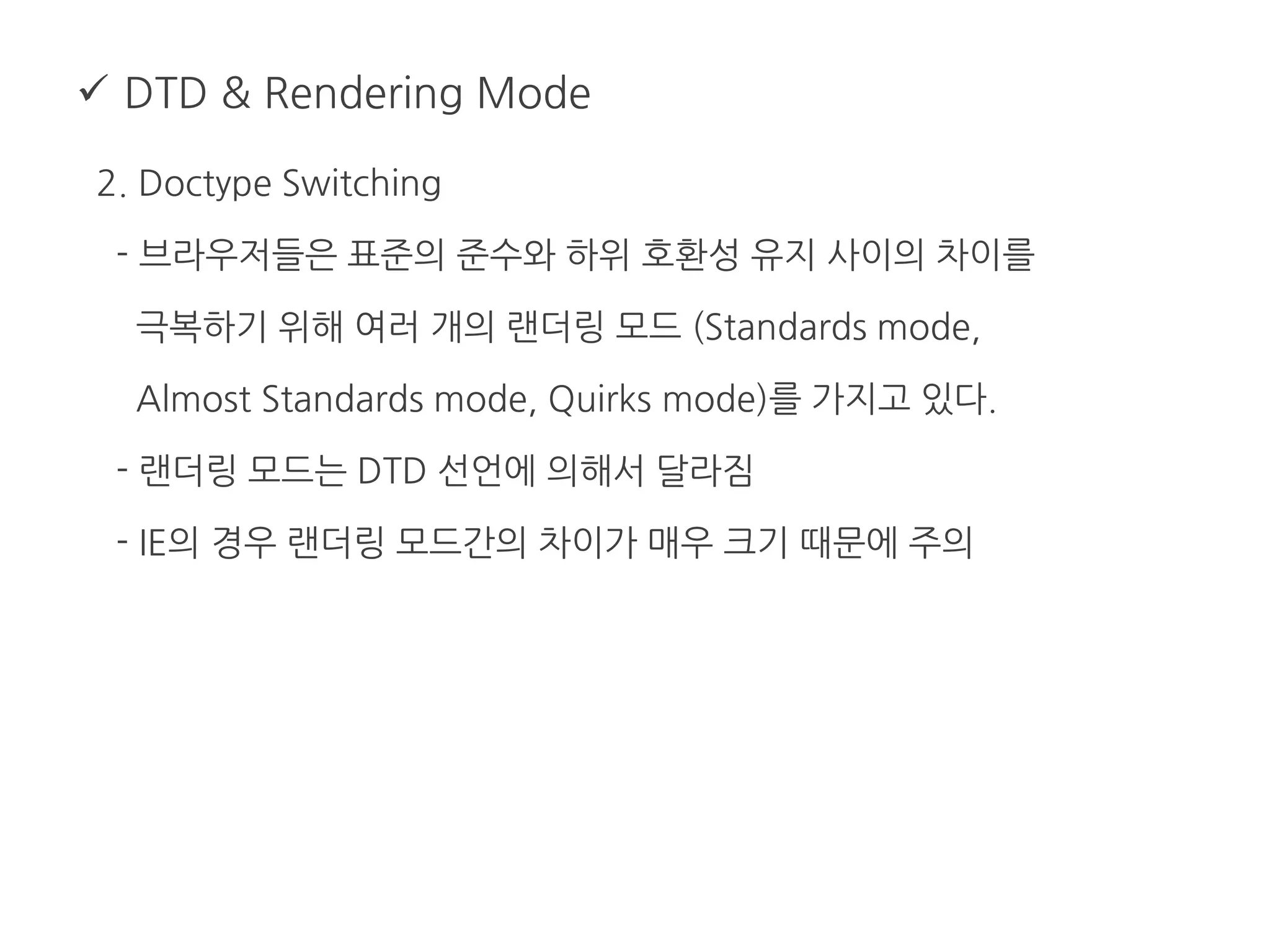
2. Doctype Switching
- 브라우저들은 표준의 준수와 하위 호환성 유지 사이의 차이를
극복하기 위해 여러 개의 랜더링 모드 (Standards mode,
Almost Standards mode, Quirks mode)를 가지고 있다.
- 랜더링 모드는 DTD 선언에 의해서 달라짐
- IE의 경우 랜더링 모드간의 차이가 매우 크기 때문에 주의
 DTD & Rendering Mode
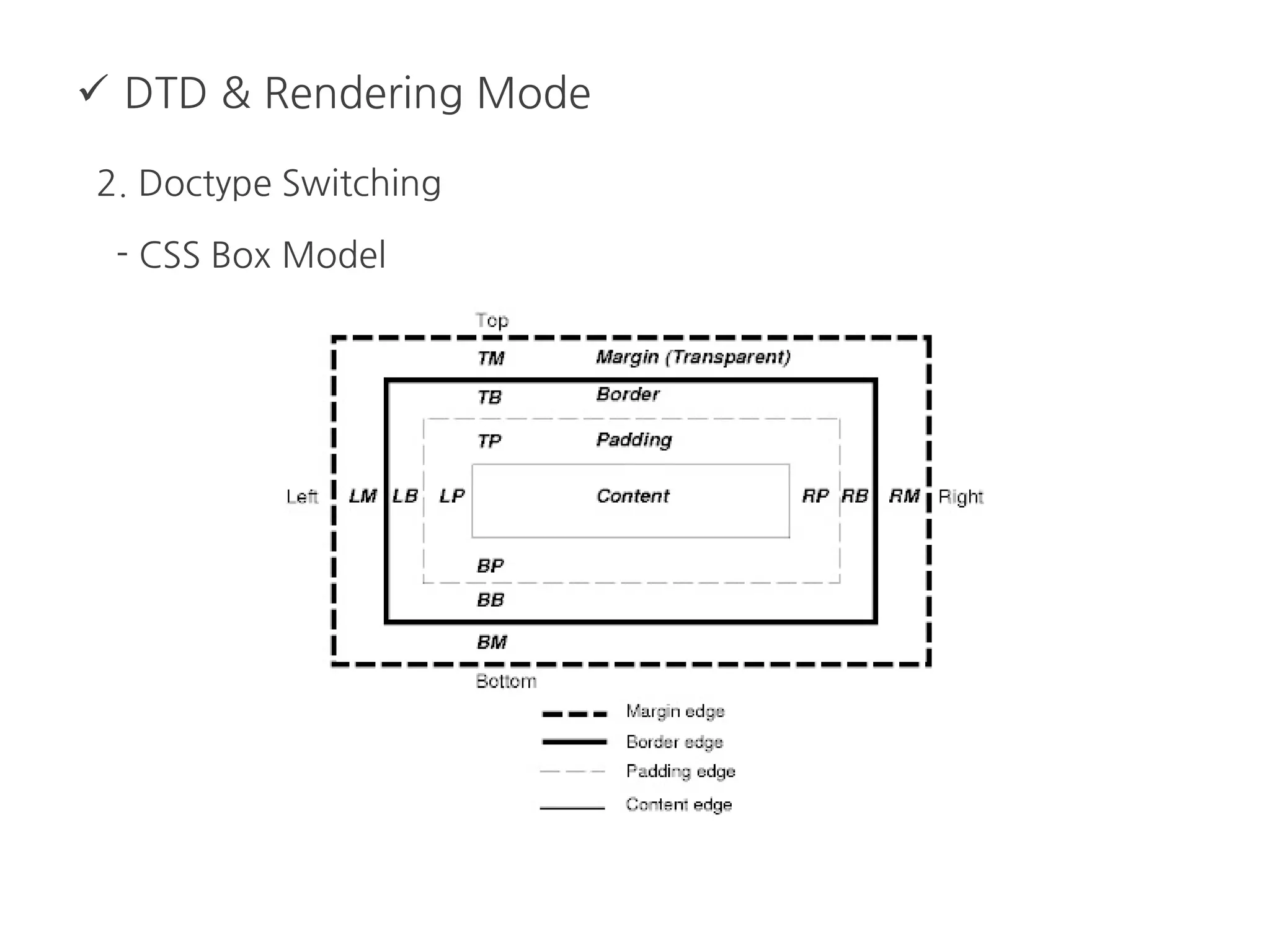
2. Doctype Switching
- CSS Box Model
 DTD & Rendering Mode
2. Doctype Switching
- W3C and Internet Explorer box models
 DTD & Rendering Mode
2. Doctype Switching
- IE6 Standards mode vs. Quirks mode
 Float & Clear
1. Float
- 박스를 좌측이나 우측으로 정렬한다.
float : left 좌측으로 정렬
float:right 우측으로 정렬
float:none float 을 사용하지 않음
- 코드의 순서가 레이아웃 구성에 영향을 많이 준다.
 Float & Clear
1. Float
- Floating
#floating img {
float: left;
margin: 0 1em 1em 0;
}
 Float & Clear
1. Float
- IE Floating 3-pixel jog
* 텍스트를 플로트 시키지 않을 경우 IE6에서 원인을 알 수 없는
3 픽셀 여백이 생긴다
 Float & Clear
1. Float
- Float layout
* 원래 float의 목적은 이미지나 작은 박스를 정렬 하는 것이었지만
레이아웃 구성용으로도 많이 쓰인다.
* 브라우저 호환성이 비교적 좋고 낮은 버전의 브라우저에서도 잘 지원된다.
 Float & Clear
1. Float
- Float layout : wrapper의 width를 고정
float:
left
float:left float:
left
float:
left
float:left float:
left
 Float & Clear
2. Clear
- 플로트 된 요소의 다음에서 플로트의 효과를 없애는 역할을 하는 속성.
clear : left 좌측 플로트 효과를 없앰
clear:right 우측 플로트 효과를 없앰
clear:both 좌측과 우측 플로트 효과를 없앰
 Float & Clear
2. Clear
- Clearing
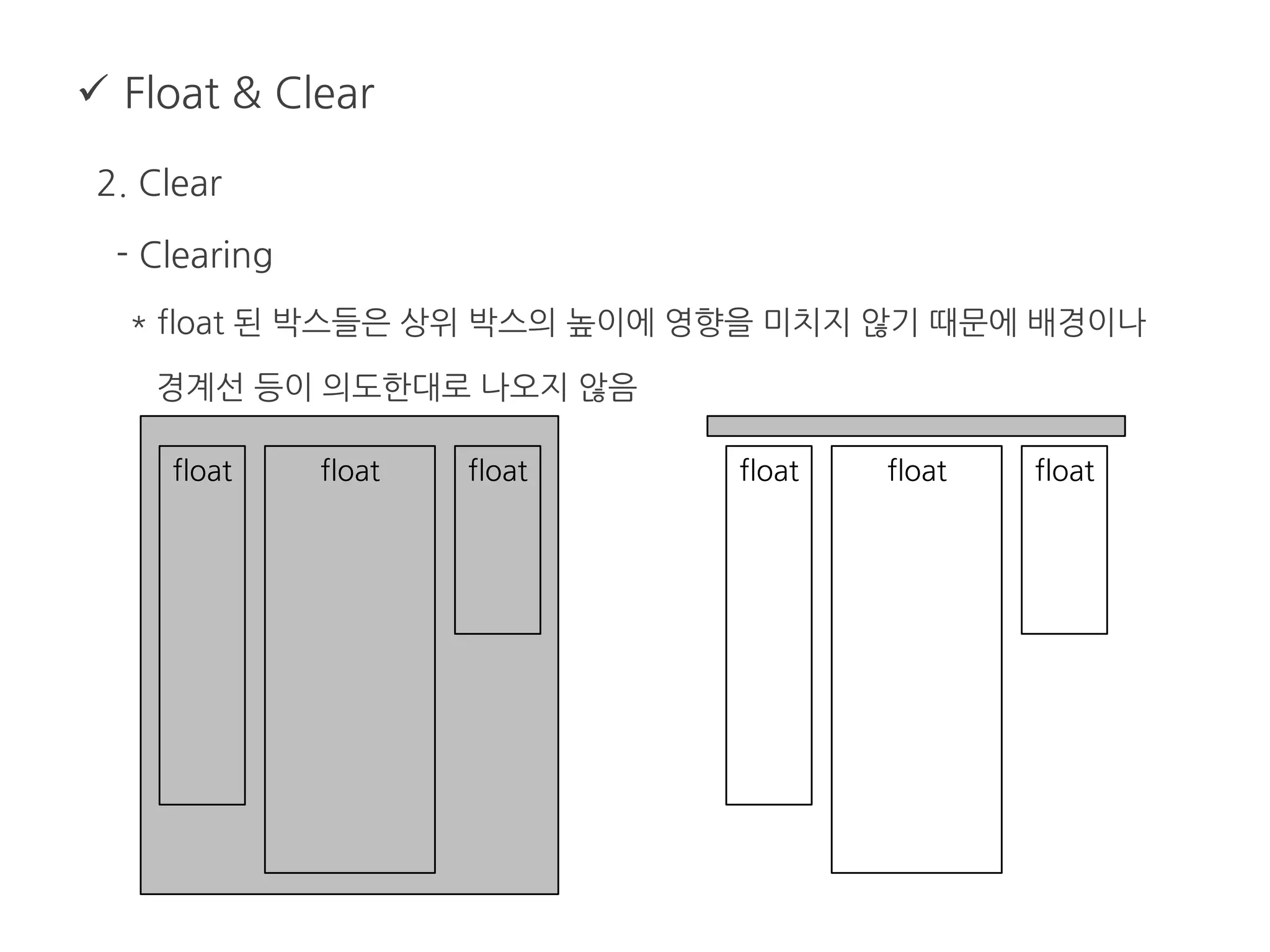
* float 된 박스들은 상위 박스의 높이에 영향을 미치지 않기 때문에 배경이나
경계선 등이 의도한대로 나오지 않음
float float float float float float
 Float & Clear
2. Clear
- Clearing
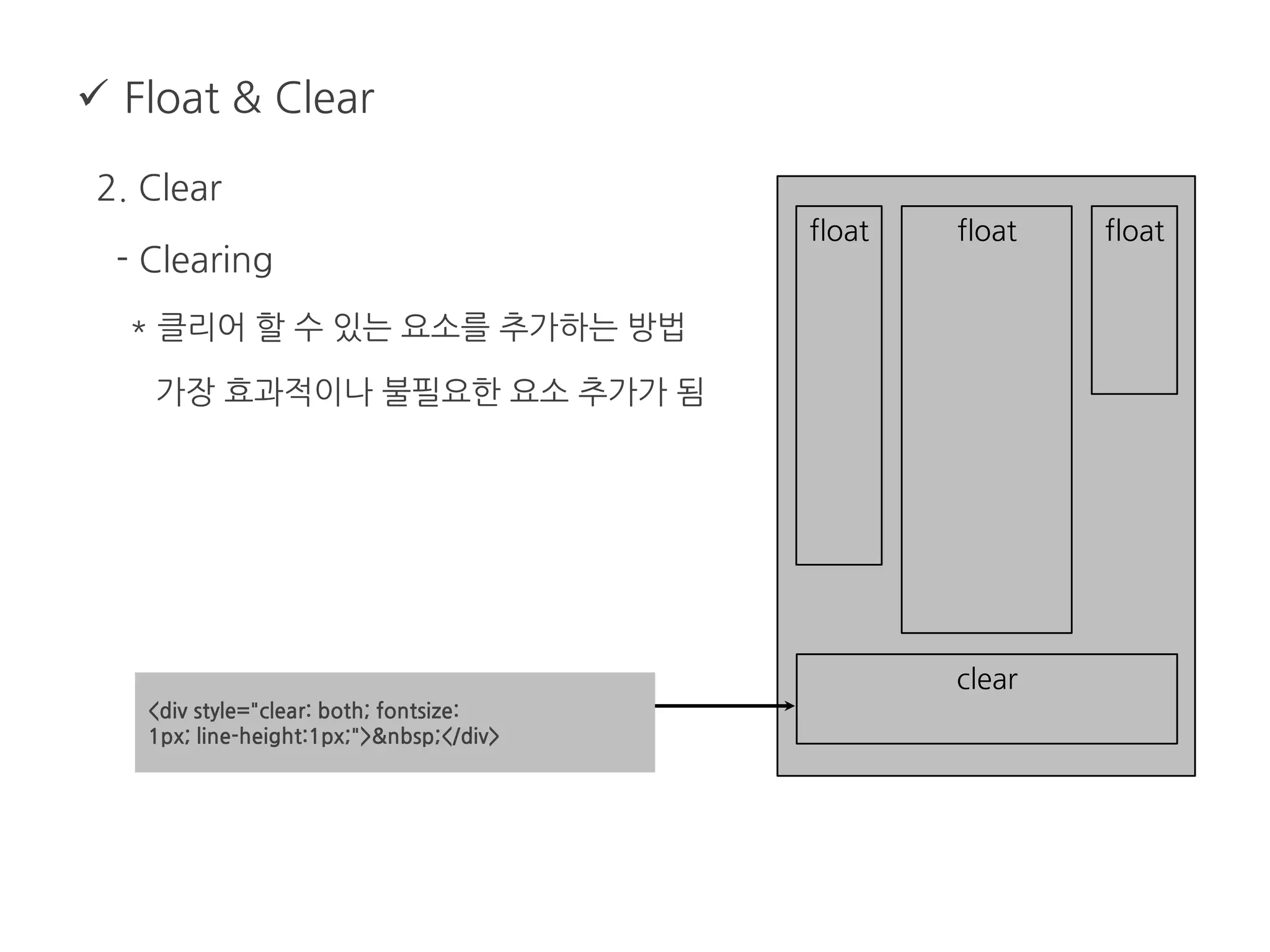
* 클리어 할 수 있는 요소를 추가하는 방법
가장 효과적이나 불필요한 요소 추가가 됨
float float float
clear
<div style="clear: both; fontsize:
1px; line-height:1px;">&nbsp;</div>
 Float & Clear
2. Clear
- Clearing
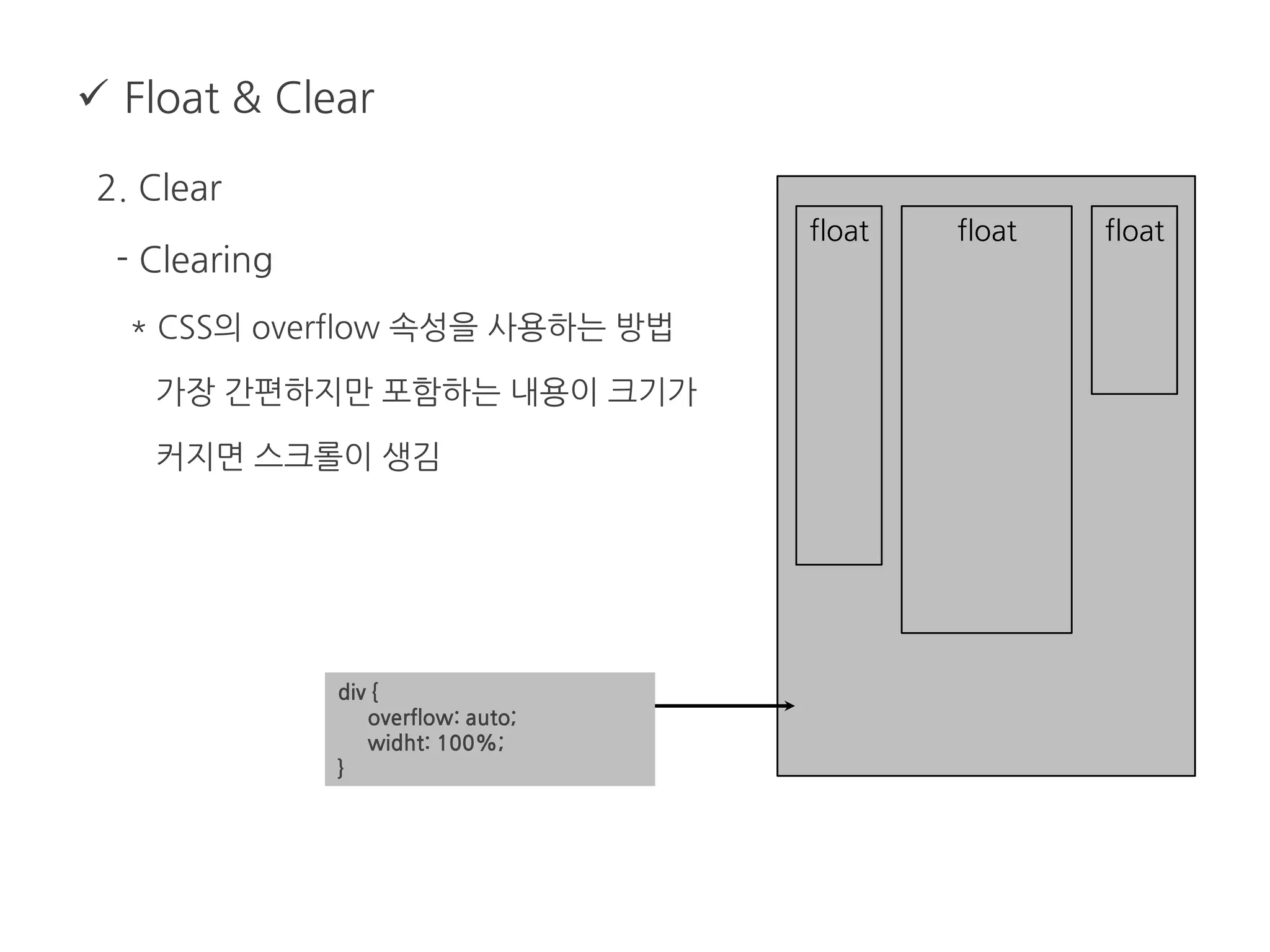
* CSS의 overflow 속성을 사용하는 방법
가장 간편하지만 포함하는 내용이 크기가
커지면 스크롤이 생김
float float float
div {
overflow: auto;
widht: 100%;
}
 Float & Clear
2. Clear
- Clearing
* CSS의 content 속성을 사용하는 방법
CSS 만으로 제어가 되기 때문에 의미상
좋은 방법이다. (IE는 hack을 사용)
float float float
content: "&nbsp";
.clearfix:after {
content: "";
display: block;
height: 0;
clear: both;
visibility: hidden;
}
* html .clearfix {height: 1%;}
 Position
1. Position
- 기준점으로 부터 element의 위치를 지정
- 픽셀 단위로 자유롭게 위치 지정 가능
- 코드의 위치와 상관없이 자유롭게 위치 지정 가능
- Static : 기본값, 보통의 블록들이 이 값을 가지고 있음.
- relative : static과 같지만 기준점을 지정할 수 있다.
- absolute : 공간을 차지하지 않으며 기준점에 의해 위치가 지정
 Position
2. hasLayout
* IE에서 포지션 속성을 사용할 때에는 반드시 너비나 높이 속성을 주어
박스의 형태를 갖게 해야 함.
 Layout grid
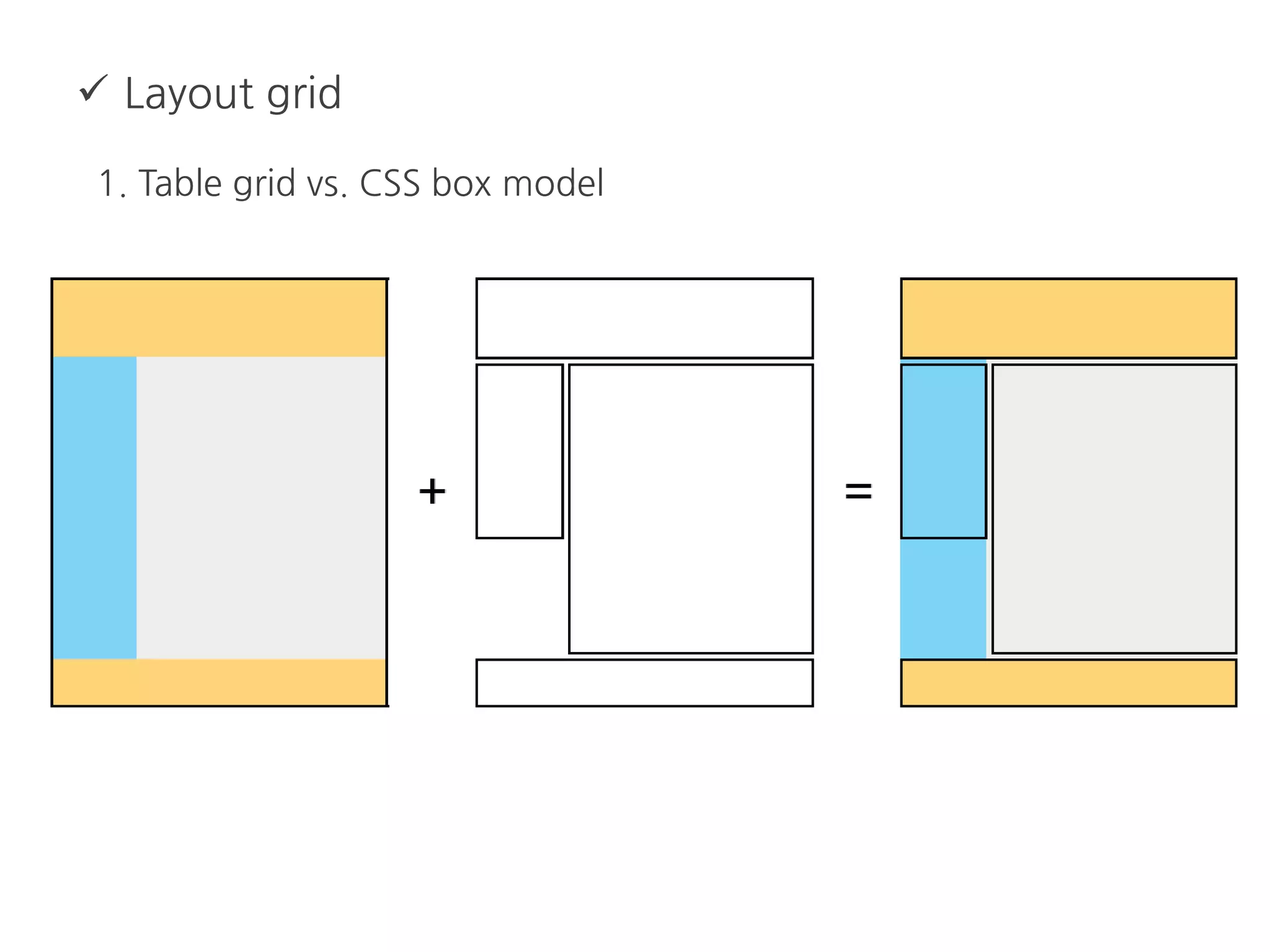
1. Table grid vs. CSS box model
 Layout grid
1. Table grid vs. CSS box model
 Block alignment
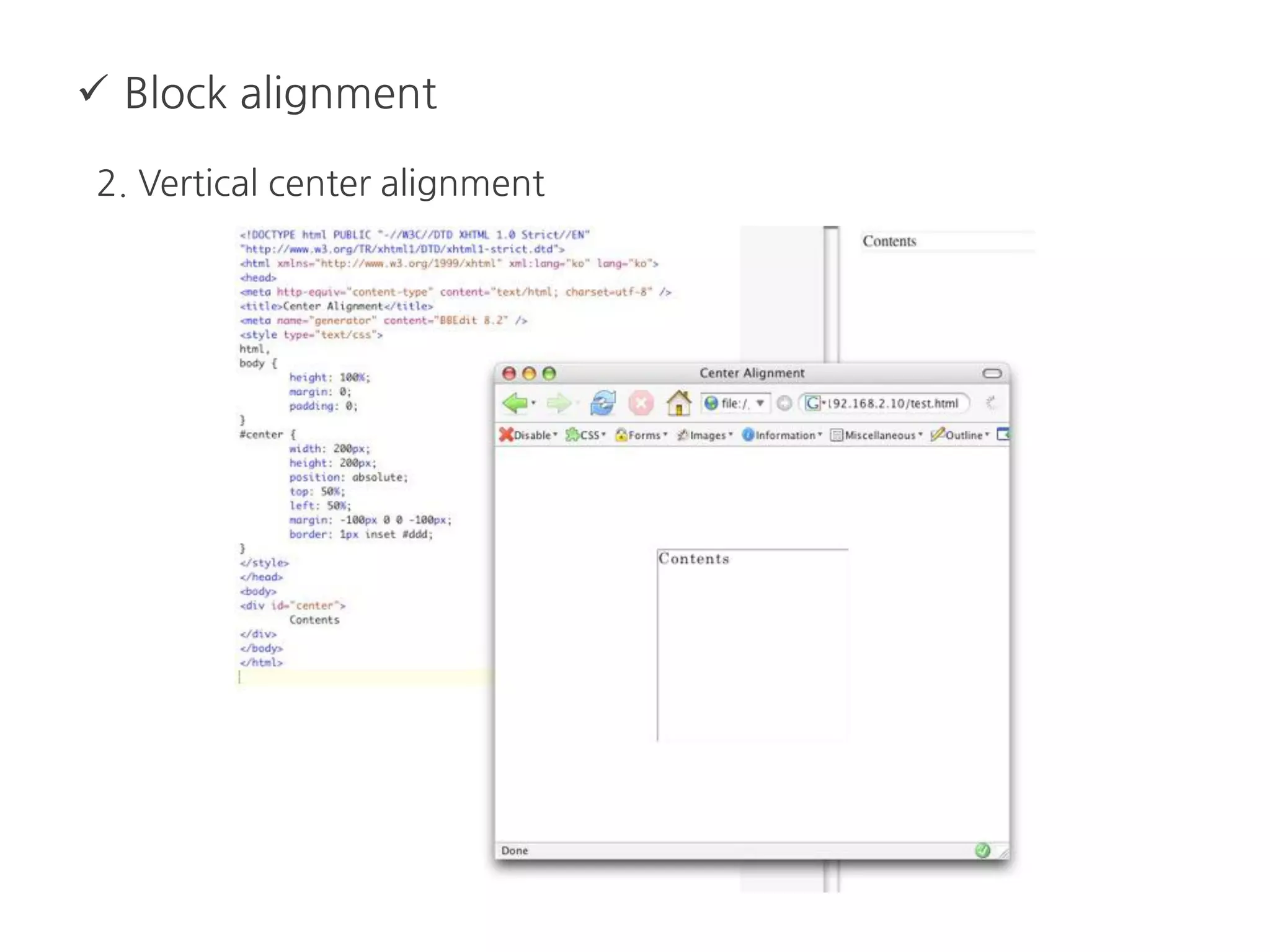
1. Center Alignment
- IE Quirks mode에서는 body에 text-align:center ; 가 있어야
같은 효과
 Block alignment
2. Vertical center alignment
메인디쉬 02
 Design Components
 유용한 CSS Tip
 Design Components
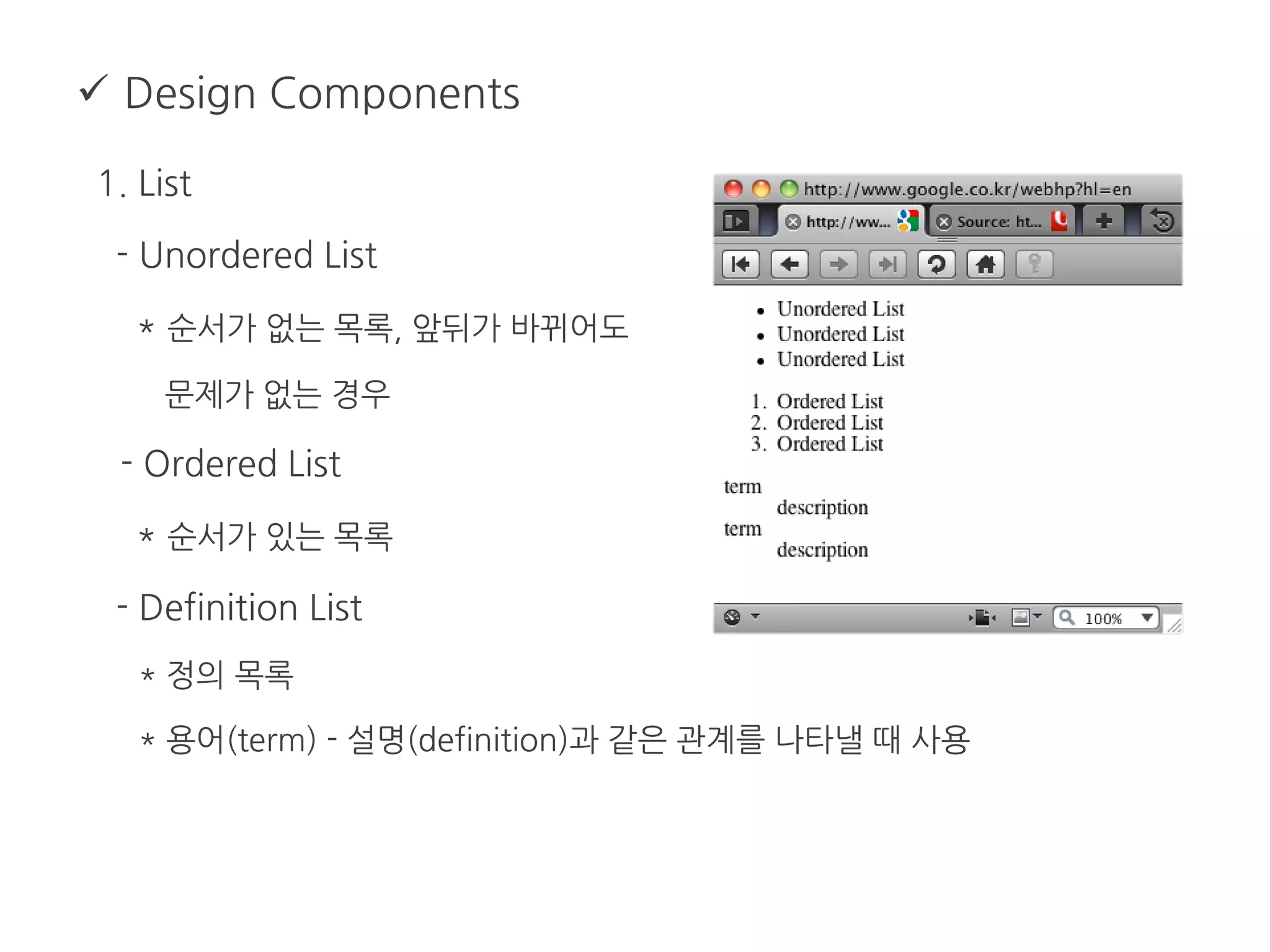
1. List
- Unordered List
* 순서가 없는 목록, 앞뒤가 바뀌어도
문제가 없는 경우
- Ordered List
* 순서가 있는 목록
- Definition List
* 정의 목록
* 용어(term) - 설명(definition)과 같은 관계를 나타낼 때 사용
 Design Components
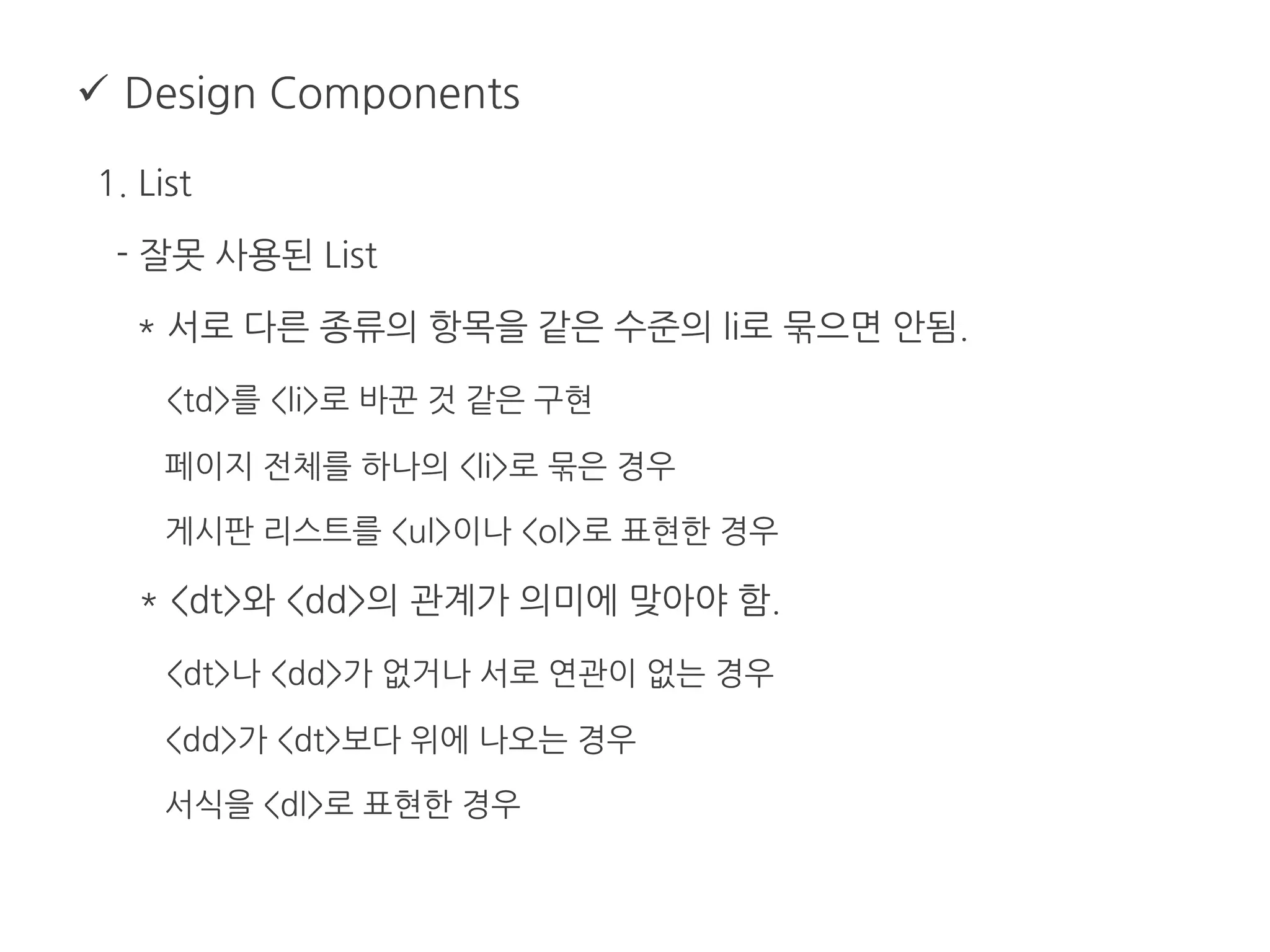
1. List
- 잘못 사용된 List
* 서로 다른 종류의 항목을 같은 수준의 li로 묶으면 안됨.
<td>를 <li>로 바꾼 것 같은 구현
페이지 전체를 하나의 <li>로 묶은 경우
게시판 리스트를 <ul>이나 <ol>로 표현한 경우
* <dt>와 <dd>의 관계가 의미에 맞아야 함.
<dt>나 <dd>가 없거나 서로 연관이 없는 경우
<dd>가 <dt>보다 위에 나오는 경우
서식을 <dl>로 표현한 경우
 Design Components
1. List
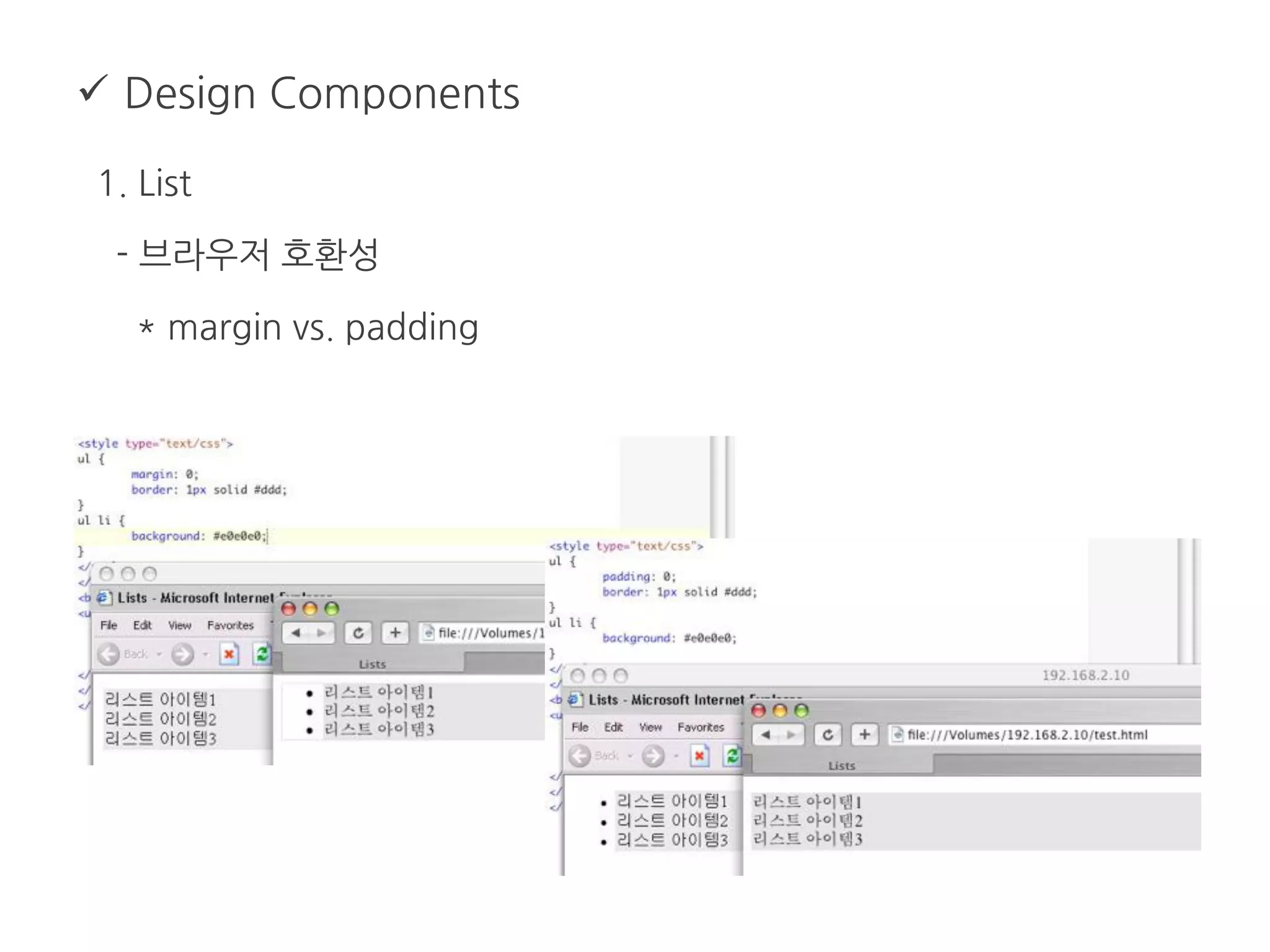
- 브라우저 호환성
* margin vs. padding
 Design Components
1. List
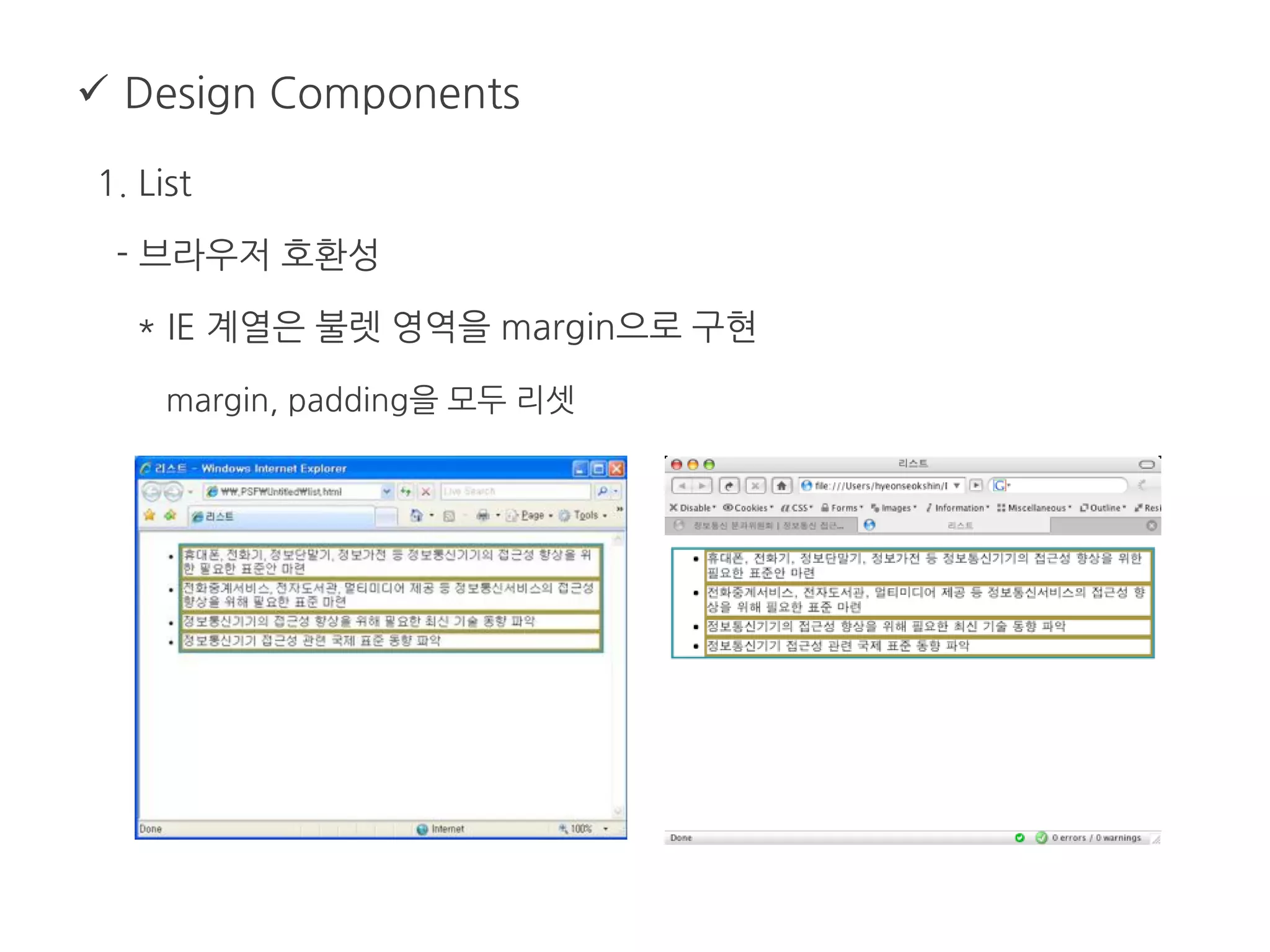
- 브라우저 호환성
* IE 계열은 불렛 영역을 margin으로 구현
margin, padding을 모두 리셋
 Design Components
1. List
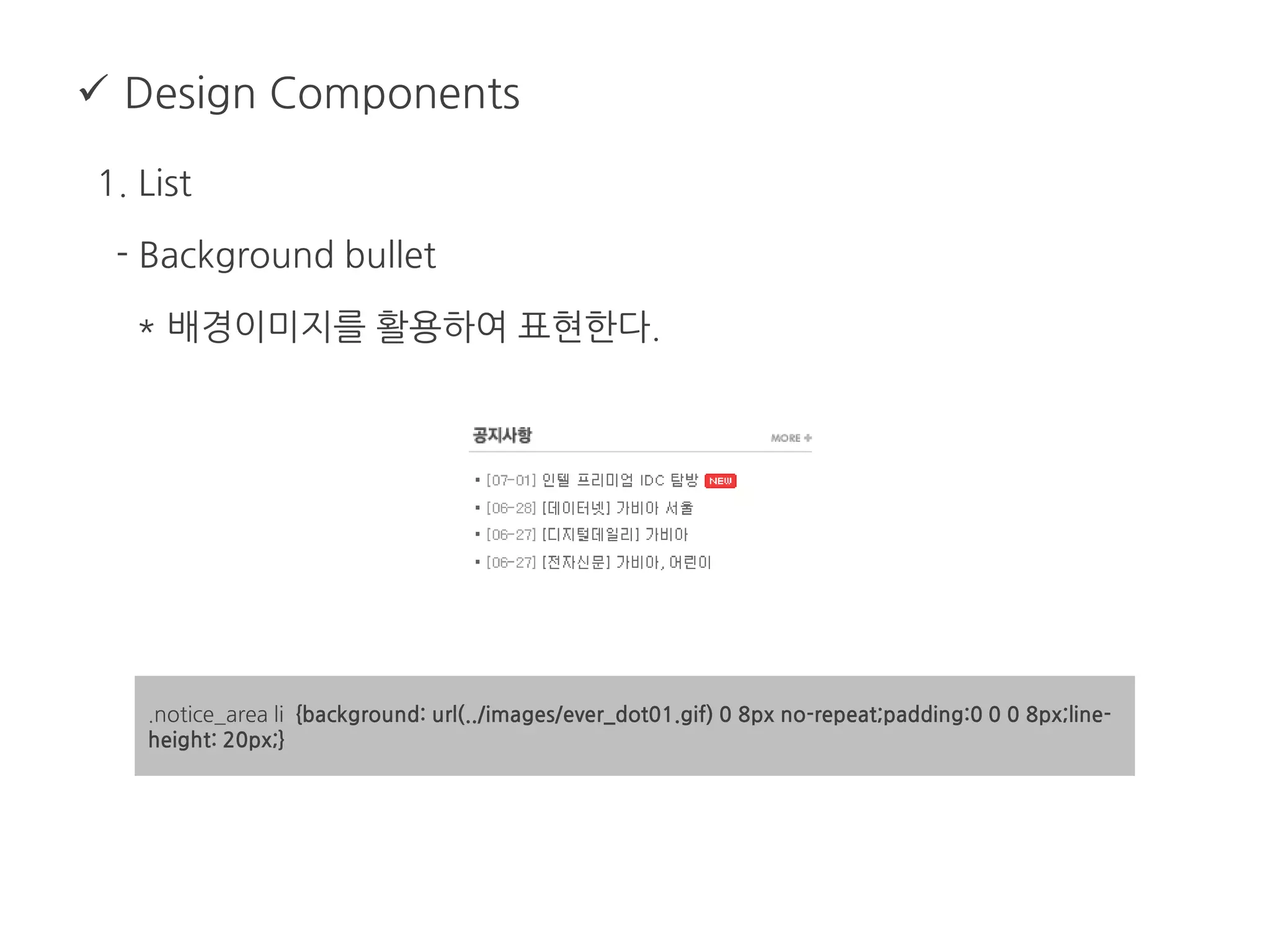
- Background bullet
* 배경이미지를 활용하여 표현한다.
.notice_area li {background: url(../images/ever_dot01.gif) 0 8px no-repeat;padding:0 0 0 8px;line-
height: 20px;}
 Design Components
2. Menu
- 세로 형태 메뉴
* 링크 요소(<a>)에 display: block을 이용하여 메뉴 항목의 클릭
영역을 최대화 할 수 있음
#submenu {
margin: 8px 0 0 16px;
padding: 0;
list-style: none;
width: 168px;
}
#submenu li {
border-bottom: 1px solid #ddd;
}
#submenu li a {
display: block;
width: 140px;
padding: 0.5em 10px 0.2em 18px;
color: #333;
text-decoration: none;
}
#submenu li a:hover,
#submenu li a:active,
#submenu li a.on {
background: #F5F5F5;
color: #069;
}
 Design Components
2. Menu
- 가로 형태 메뉴
* float를 이용하여 <li> 요소를 가로로 배열
 Design Components
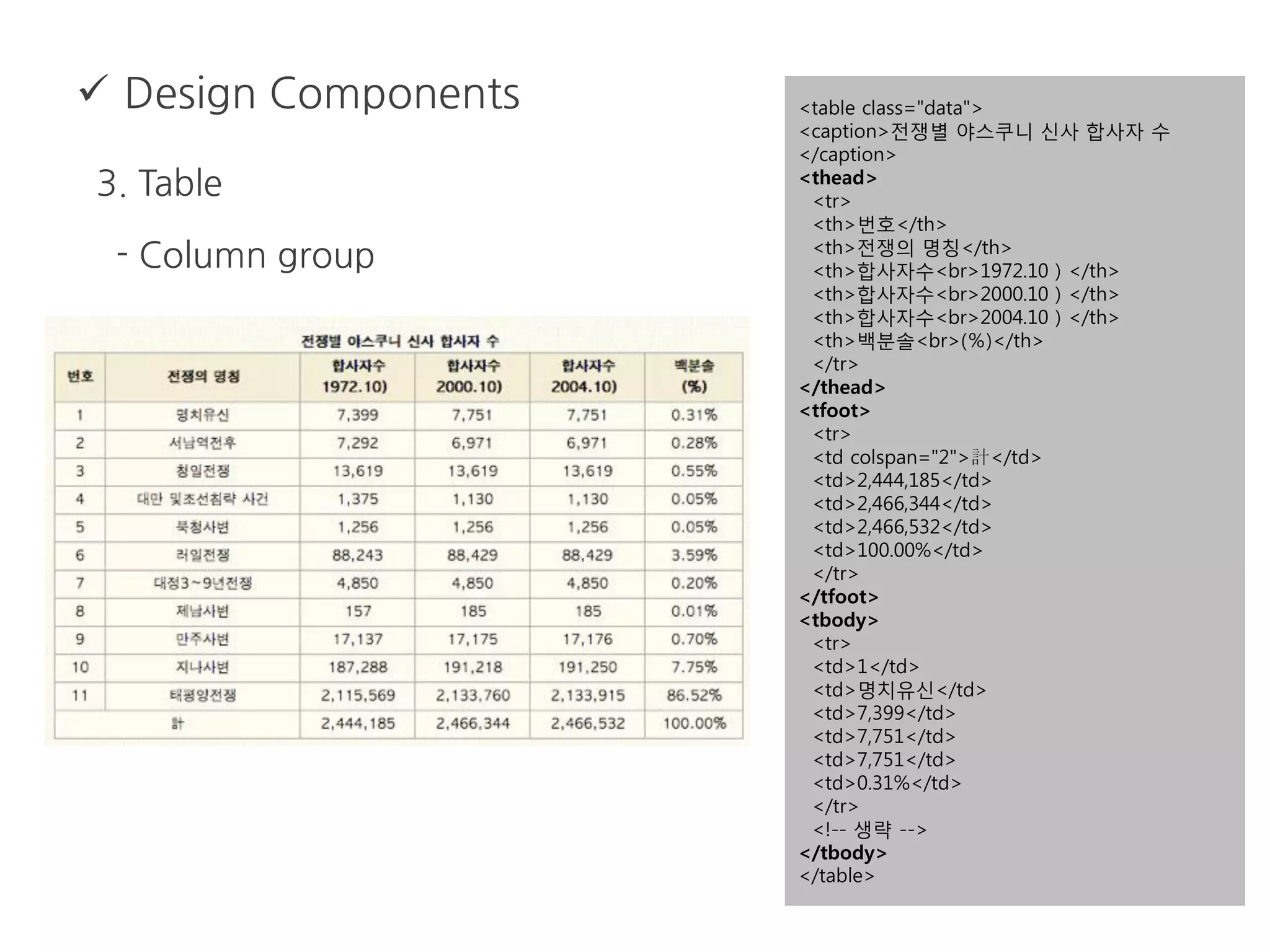
3. Table
- Row group tags
* <thead>, <tbody>, <tfoot>
- Column group tags
* <colgroup>, <col>
- Table Title
* <caption>
- Data Cell
* <th>, <td>
 Design Components
3. Table
- Column group
<table class="data">
<caption>전쟁별 야스쿠니 신사 합사자 수
</caption>
<thead>
<tr>
<th>번호</th>
<th>전쟁의 명칭</th>
<th>합사자수<br>1972.10)</th>
<th>합사자수<br>2000.10)</th>
<th>합사자수<br>2004.10)</th>
<th>백분솔<br>(%)</th>
</tr>
</thead>
<tfoot>
<tr>
<td colspan="2">計</td>
<td>2,444,185</td>
<td>2,466,344</td>
<td>2,466,532</td>
<td>100.00%</td>
</tr>
</tfoot>
<tbody>
<tr>
<td>1</td>
<td>명치유신</td>
<td>7,399</td>
<td>7,751</td>
<td>7,751</td>
<td>0.31%</td>
</tr>
<!-- 생략 -->
</tbody>
</table>
 Design Components
3. Table
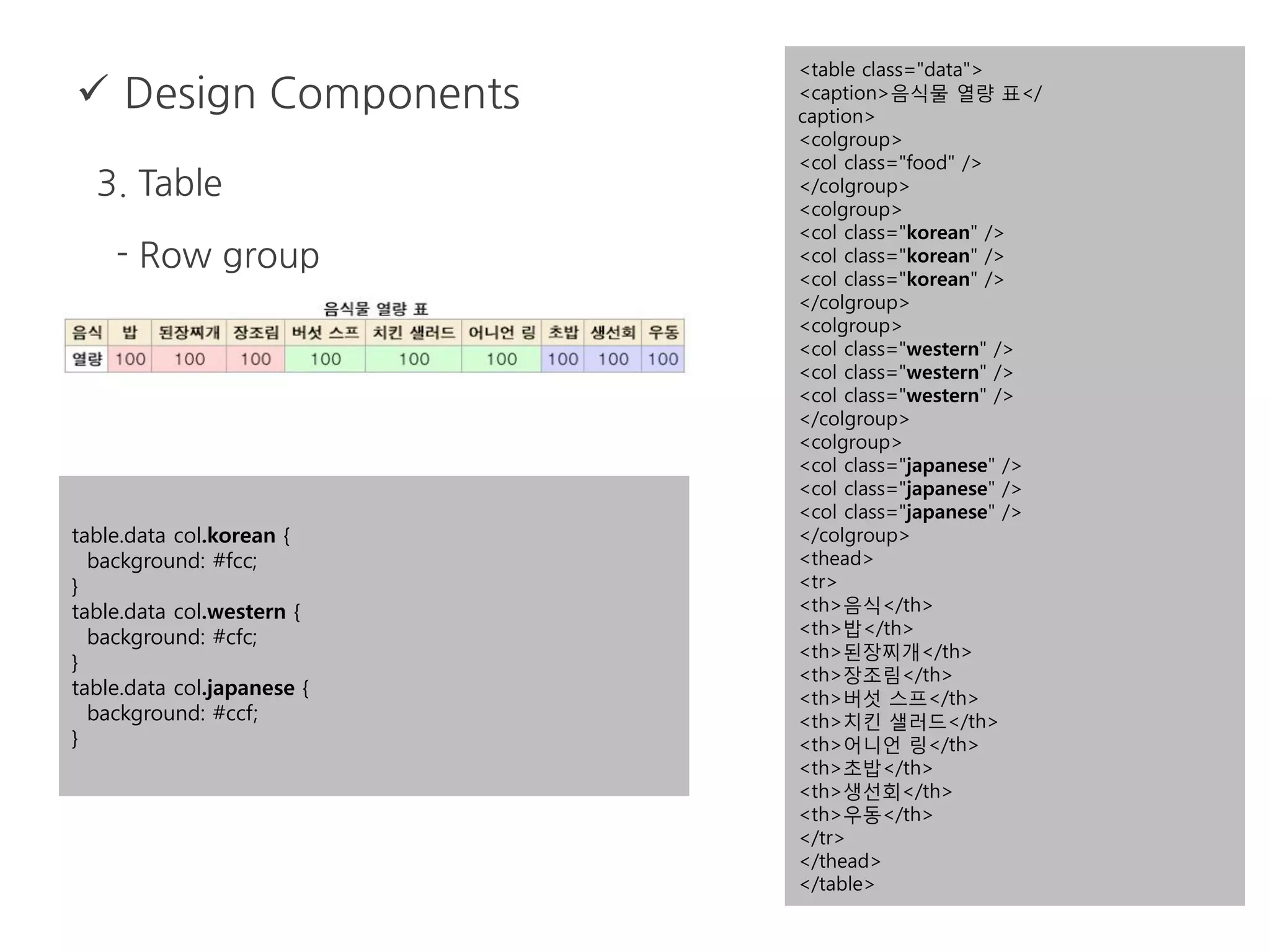
- Row group
<table class="data">
<caption>음식물 열량 표</
caption>
<colgroup>
<col class="food" />
</colgroup>
<colgroup>
<col class="korean" />
</colgroup>
<colgroup>
<col class="western" />
</colgroup>
<colgroup>
<col class="japanese" />
</colgroup>
<thead>
<tr>
<th>음식</th>
<th>밥</th>
<th>된장찌개</th>
<th>장조림</th>
<th>버섯 스프</th>
<th>치킨 샐러드</th>
<th>어니언 링</th>
<th>초밥</th>
<th>생선회</th>
<th>우동</th>
</tr>
</thead>
</table>
table.data col.korean {
background: #fcc;
}
table.data col.western {
background: #cfc;
}
table.data col.japanese {
background: #ccf;
}
 Design Components
3. Table
- cellpadding, cellspacing
* border-collapse, padding 속성을 이용해서 CSS로 대체
table {
border-collapse: collapse;
}
th, td {
padding: 0;
}
 Design Components
3. Table
- table-layout: fixed
* table width calculation algorithm을 거치지 않고
테이블 레이아웃을 고정하여 랜더링 속도를 향상
* 테이블의 첫번째 행의 너비를 기준으로 각 셀의 너비를 고정
하여 디자인이 틀어지지 않게 한다.
* 첫번째 행에 colspan을 사용했을 경우 <col>을 이용하여 너비를
지정할 수 있다.
 Design Components
3. Table
- table-layout: fixed
<table border="1" style="table-layout: fixed; width: 100%;">
<colgroup>
<col width="23%">
<col width="23%">
<col width="23%">
<col>
</colgroup>
<thead>
<tr>
<th colspan="3">heading1</th>
<th rowspan="2">heading2</th>
</tr>
<tr>
<th>sub-heading1</th>
<th>sub-heading2</th>
<th>sub-heading3</th>
</tr>
</thead>
<tbody>
<tr>
<td>data1</td>
<td>data2</td>
<td>data3</td>
<td>data4</td>
</tr>
<!-- 생략 -->
</tbody>
</table>
 Design Components
4. Board
 Design Components
5. Form
- Grouping
* <fieldset>, <legend>
- Label
* <label>, <label for="">
- Submit
* <input type="submit||image">, <button type="submit">
* <form action="">
 Design Components
5. Form
- Grouping
* <fieldset>, <legend>
폼 컨트롤 들을 서로 묶어주는 역할
하나의 <fieldset>에는 하나의 <legend>가 필요
브라우저 간의 랜더링 차이로 사용에 주의 필요
 Design Components
5. Form
- Label
* 레이블과 서식을 연결
* 명시적 연결
* 암시적 연결
<label for="user-id">아이디</label>
<input type="text" id="user-id" />
<label>
아이디
<input type="text" />
</label>
 유용한 CSS Tip
1. reset.css를 사용
- 각 브라우저 마다 렌더링 방식이 상이하므로 일관된 형태로
나타나게 하기 위해서
- 일반적으로 많이 사용하는 프레임워크
* Yahoo Reset CSS, Eric Meyer’s CSS, Tripoli
2. CSS 문장을 짧게 표시
- CSS코드 작성시 단축표기법을 사용하면 효율성 및 가독성이 높아짐
http://invalid.kr/useful-css-20-tips
 유용한 CSS Tip
3. !important 바로 알기
- !important는 기존 룰을 덮어쓰기 때문에 주의!
4. 텍스트 이미지 대체
- 실무에서 <h1>title<h1>을 이미지로 대치하는 경우가 있음.
http://invalid.kr/useful-css-20-tips
.page { background-color:blue !important; background-color:red; }
h1 {
text-indent:-9999px;
background:url("title.jpg") no-repeat;
width:100px;
height:50px;
}
 유용한 CSS Tip
5. CSS @import vs <link>
- @import : CSS 문서에서 다른 CSS문서를 부르는 방법
- <link> : HTML문서 내에서 CSS 문서를 부르는 방법
- IE6~7브라우저에서는 @import명령을 사용하면 사용자의 체감 성능을
떨어뜨림.
http://invalid.kr/useful-css-20-tips
실습!
(그동안 전 잠시 휴식…일까요?)
메인디쉬 03
 디버깅 방법
 유효성 검사
 풀리지 않는 버그 해결
 웹 접근성에 대해서
 디버깅 방법
1. Browser compatibility
- 브라우저 버그
표준을 100% 구현한 브라우저는 없다.
표준에 모든 상황이 기술되어 있지 않다.
브라우저 제작사들의 해석에 차이가 있다.
- 비표준 코드 사용
특정 브라우저에서만 작동되는 코드를 사용한다.
브라우저 호환성을 확보하기 위해서 validation은 매우 중요하다.
 디버깅 방법
1. Browser compatibility
- 버그가 발생하는 부분을 최소화 한다.
코드 최소화(minimize)를 통해 버그 범위를 좁힌다.
- 분석툴을 통해 원인을 파악한다.
분석툴에서 브라우저별로 해석된 코드를 확인 할 수 있다.
- 버그를 회피하고 다른 방법으로 구현한다.
CSS 핵(hack) 사용을 최소화 한다.
 디버깅 방법
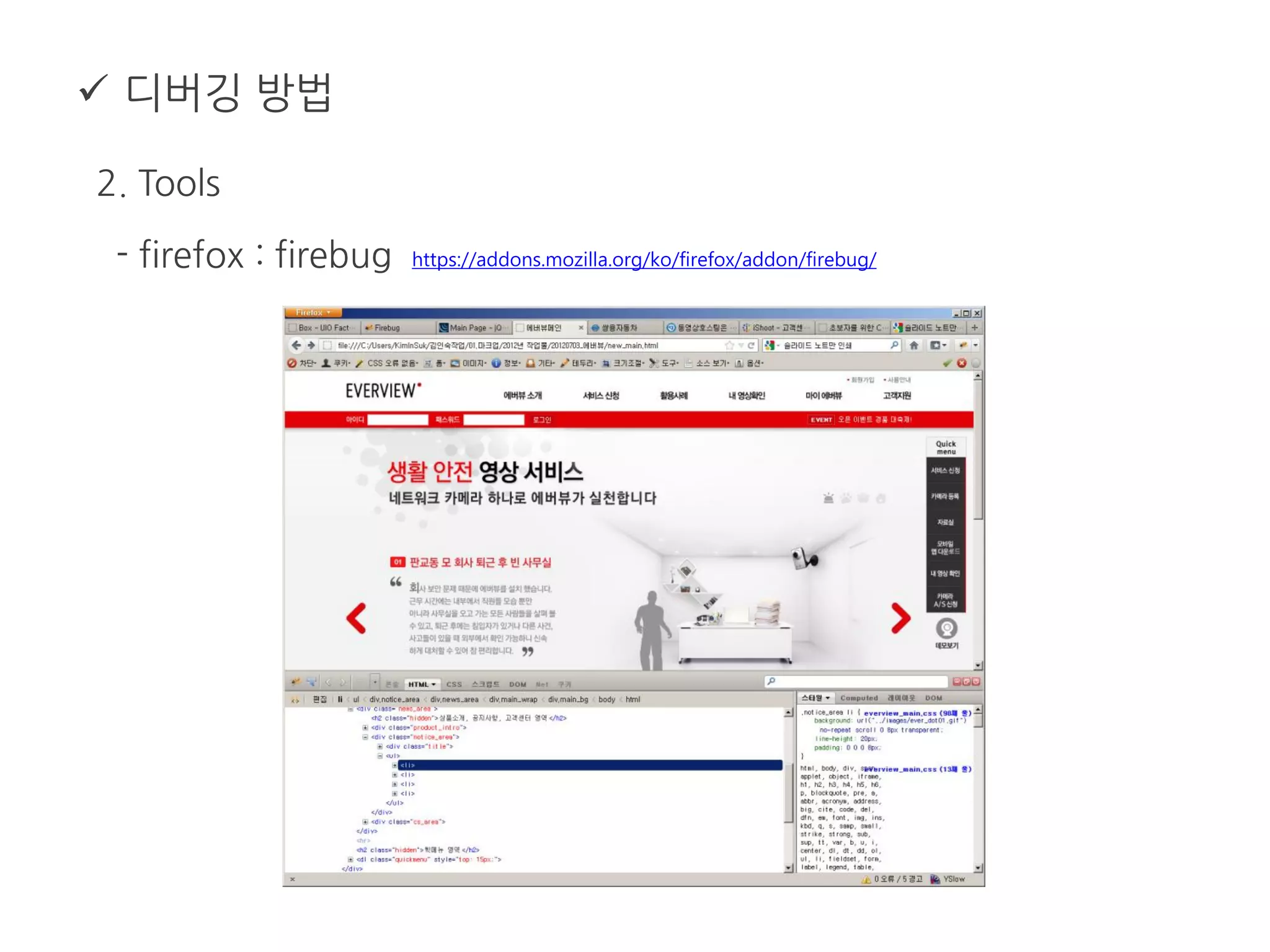
2. Tools
- firefox : firebug https://addons.mozilla.org/ko/firefox/addon/firebug/
 디버깅 방법
2. Tools
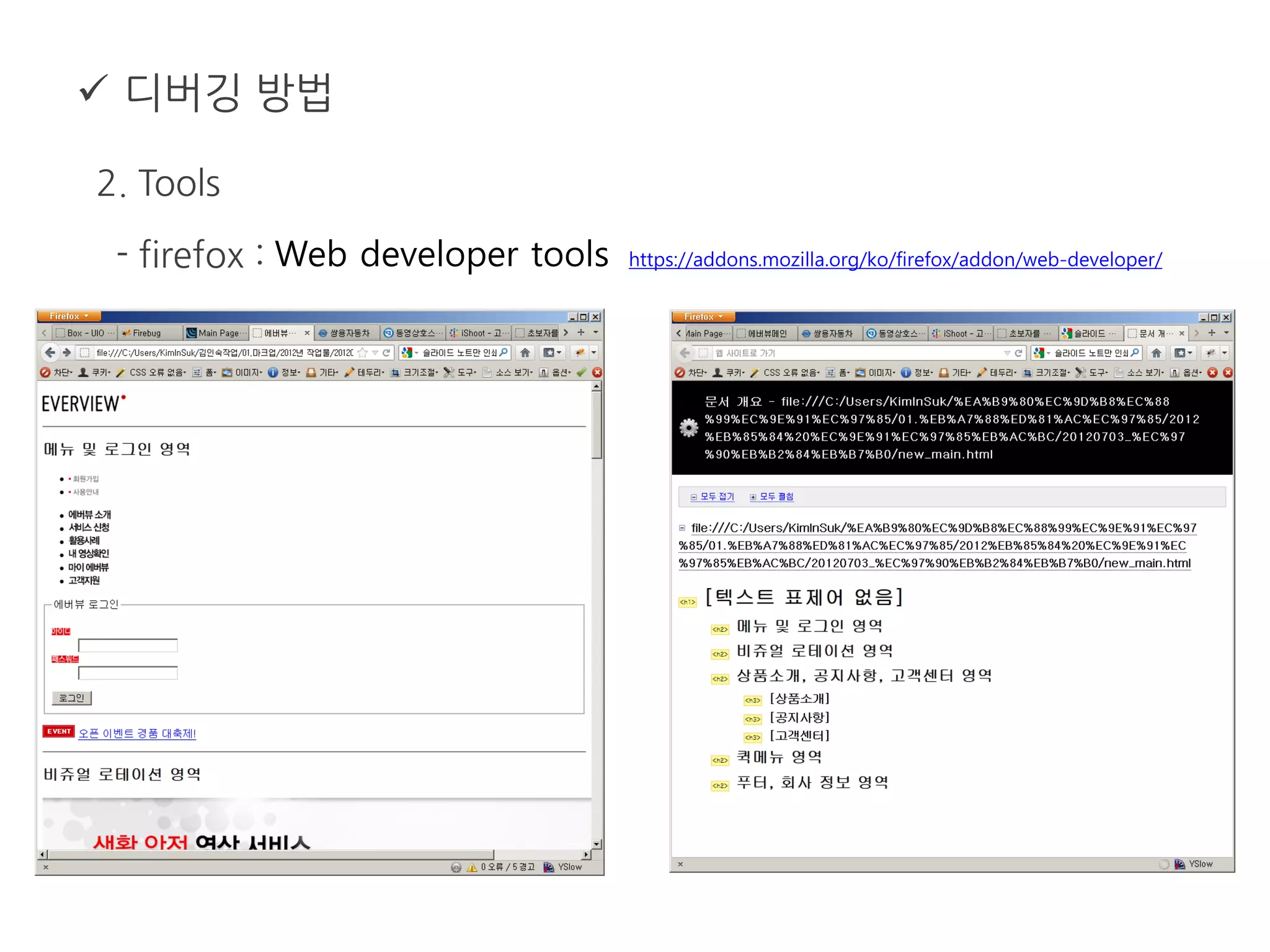
- firefox : Web developer tools https://addons.mozilla.org/ko/firefox/addon/web-developer/
 디버깅 방법
2. Tools
- firefox : Html Validator https://addons.mozilla.org/ko/firefox/addon/html-validator/
 디버깅 방법
2. Tools
- IE: 개발자 도구(F12)
 디버깅 방법
2. Tools
- IE: Debuger Bar http://www.debugbar.com/download.php
 디버깅 방법
2. Tools
- Opera: Dragonfly (ctrl + shift + I)
 디버깅 방법
2. Tools
- Chrome : Firebug (F12, Chrome webstore)
 디버깅 방법
2. Tools
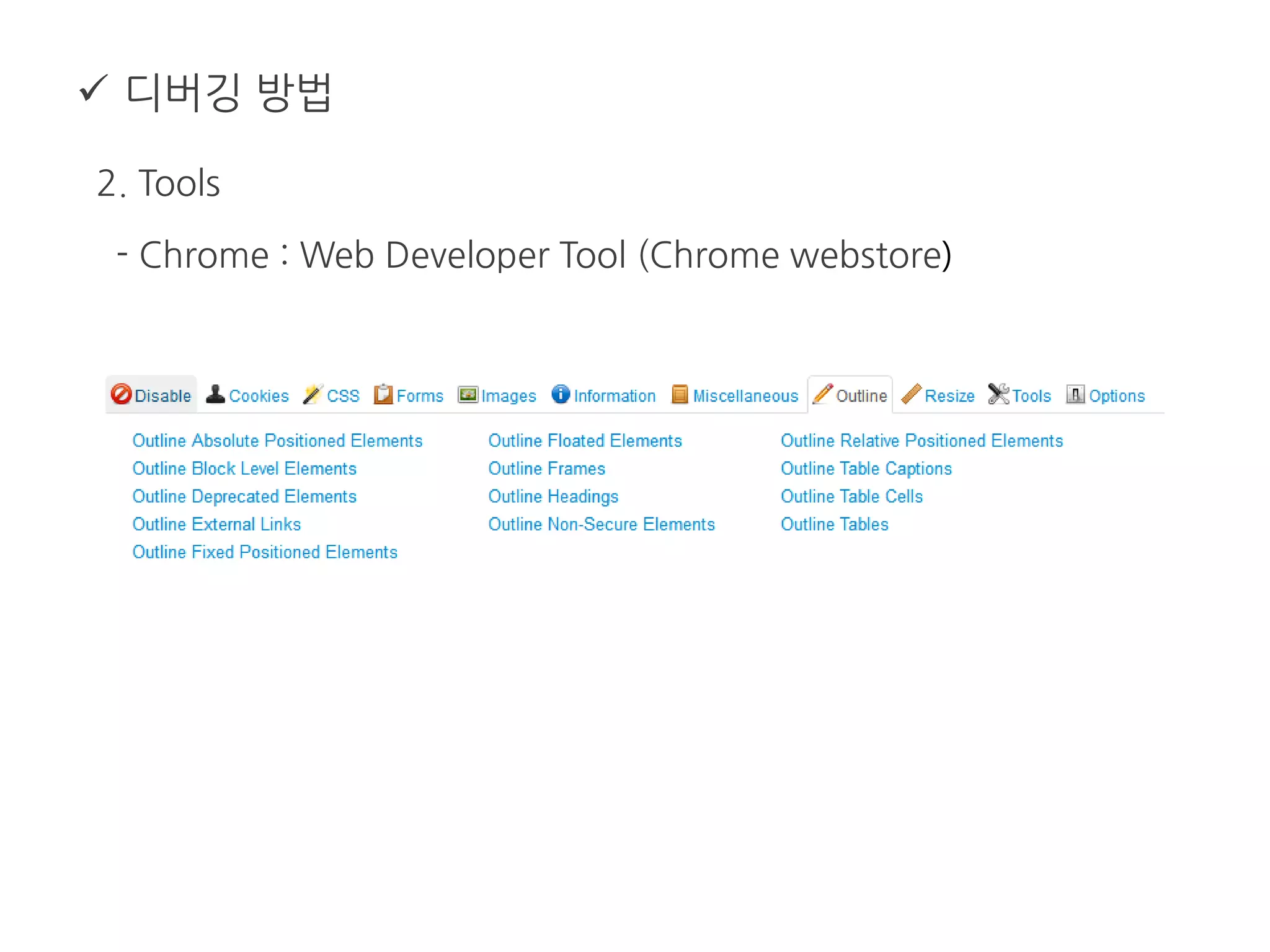
- Chrome : Web Developer Tool (Chrome webstore)
 디버깅 방법
2. Tools
- Chrome : 개발자 도구 (F12, ctrl + shift + I)
 디버깅 방법
2. Tools
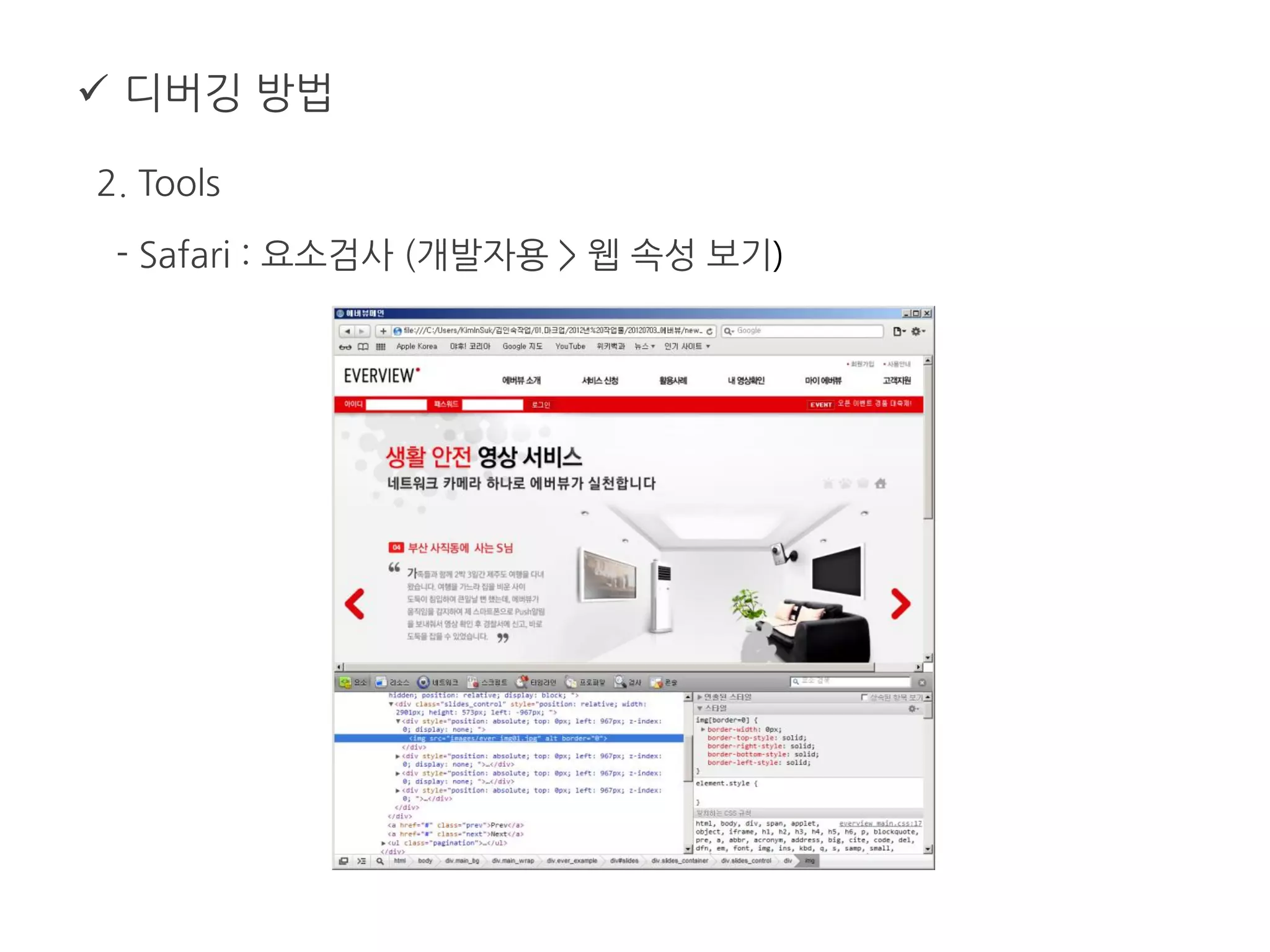
- Safari : 요소검사 (개발자용 > 웹 속성 보기)
 디버깅 방법
3. CSS Hack
- 왜 CSS핵을 사용할까?
* 브라우저 버그, 표준의 구현정도 차이 때문에
* 브라우저 별로 특화된 코드를 사용해야 하기 때문에
웹 표준에서 말하는 단일 코드로 다양한 브라우저를 호환시키는
개념에 완전히 배치된다
* 반드시 필요한 부분에만 사용
* IE 조건부 주석(conditional comment)도 피하는게 좋음.
 디버깅 방법
3. CSS Hack
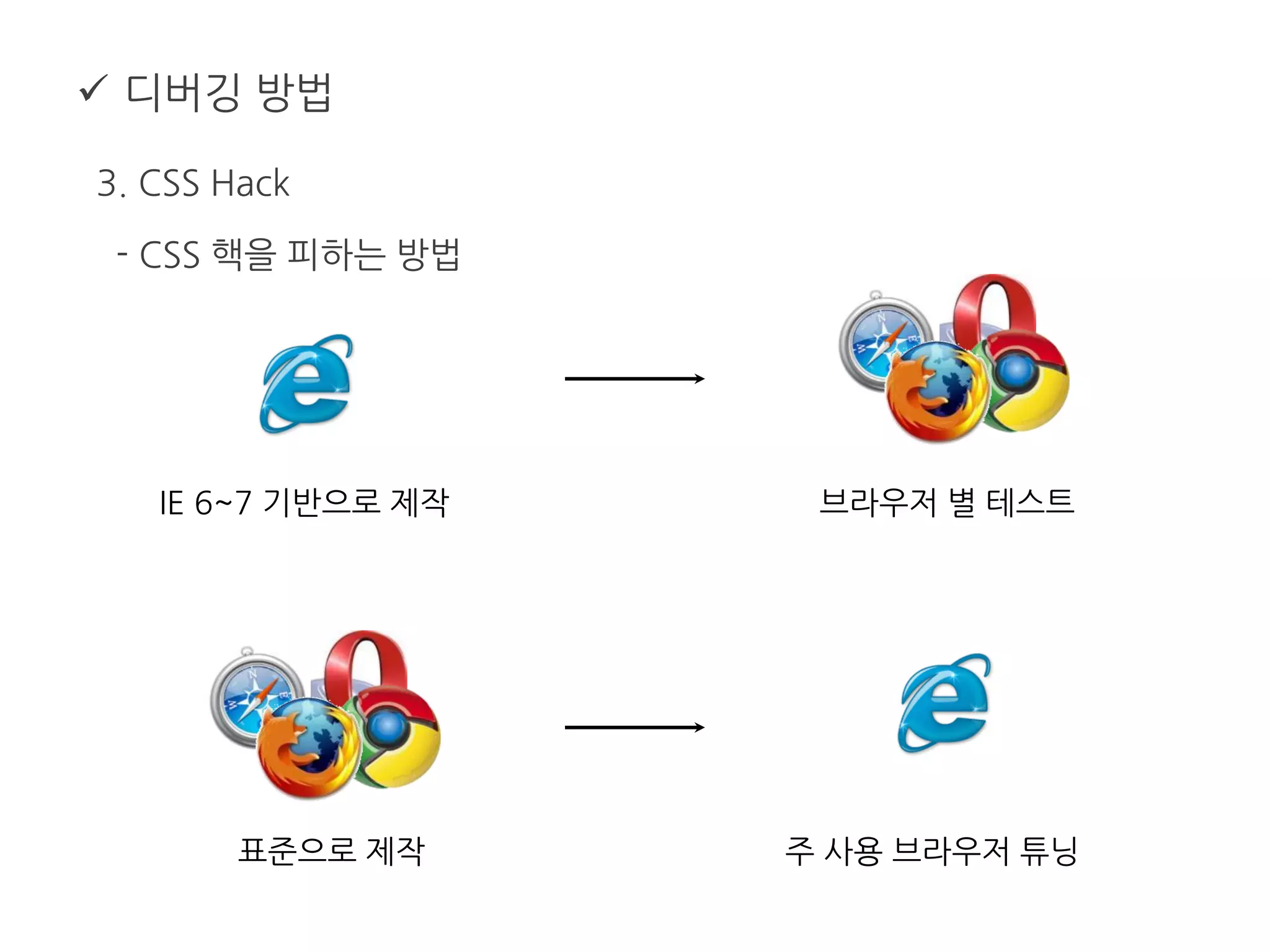
- CSS 핵을 피하는 방법
* 현존하는 웹 브라우저 종류 : http://goo.gl/OEz8n
* 대상 브라우저 선정
호환성을 유지해야 하는 브라우저 범위 선정
* 기본 브라우저 선정
가장 표준을 잘 지키는 브라우저와 표준을 지키지 않는 브라우저
제작과 테스트를 병행
 디버깅 방법
3. CSS Hack
- CSS 핵을 피하는 방법
IE 6~7 기반으로 제작 브라우저 별 테스트
표준으로 제작 주 사용 브라우저 튜닝
 유효성 검사
1. html, xhtml
- http://validator.w3.org/
 유효성 검사
1. html5
- http://html5.validator.nu/
 유효성 검사
1. CSS
- http://jigsaw.w3.org/css-validator/
 풀리지 않는 버그 해결
“그러니까 여러분은 네이버를 멀리하고
구글을 가까이하는 것이 낫습니다. “
 웹 접근성에 대해서
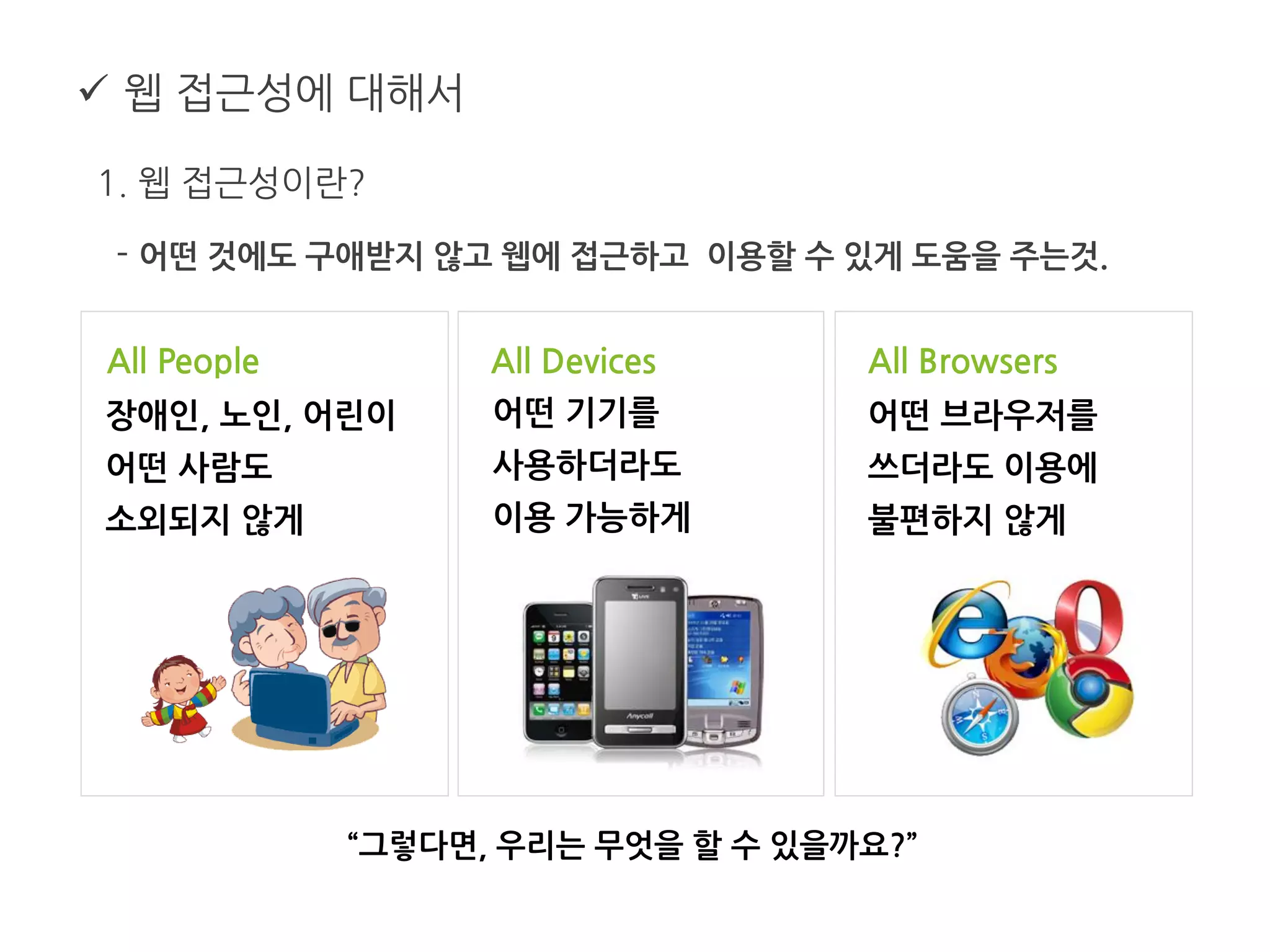
1. 웹 접근성이란?
- 어떤 것에도 구애받지 않고 웹에 접근하고 이용할 수 있게 도움을 주는것.
어떤 기기를
사용하더라도
이용 가능하게
어떤 브라우저를
쓰더라도 이용에
불편하지 않게
장애인, 노인, 어린이
어떤 사람도
소외되지 않게
“그렇다면, 우리는 무엇을 할 수 있을까요?”
All People All Devices All Browsers
 웹 접근성에 대해서
2. 웹 접근성 준수의 필요성
- 장애인, 고령자 등을 포함한 웹 이용자의 확대
- 장애인 차별 금지법 적용
- 디자인 및 설계 등에 대한 효율성을 제고, 비용절감 효과
- 공공기관 및 기업의 이미지 제고와 이윤을 창출하기 위해
- 검색엔진최적화에 따른 검색결과 최 상단 노출
 웹 접근성에 대해서
3. 웹 접근성에 대한 몇 가지 오해들
- 크로스 브라우징 하나면 웹 접근성 끝?
- 장애인의 접근성을 위해 장애인용 웹 사이트 별도 제작이 필요하다?
- 스크린리더를 사용하면 텍스트가 아닌 이미지나 플래시는 못 읽는다?
- 웹 접근성 향상하는 것은 엄청난 노력과 시간이 든다?
- 웹 접근성을 준수해서 사이트를 완성하면 그게 끝이다?
- 웹 접근성 준수 평가 기준은 지극히 주관적이다?
 웹 접근성에 대해서
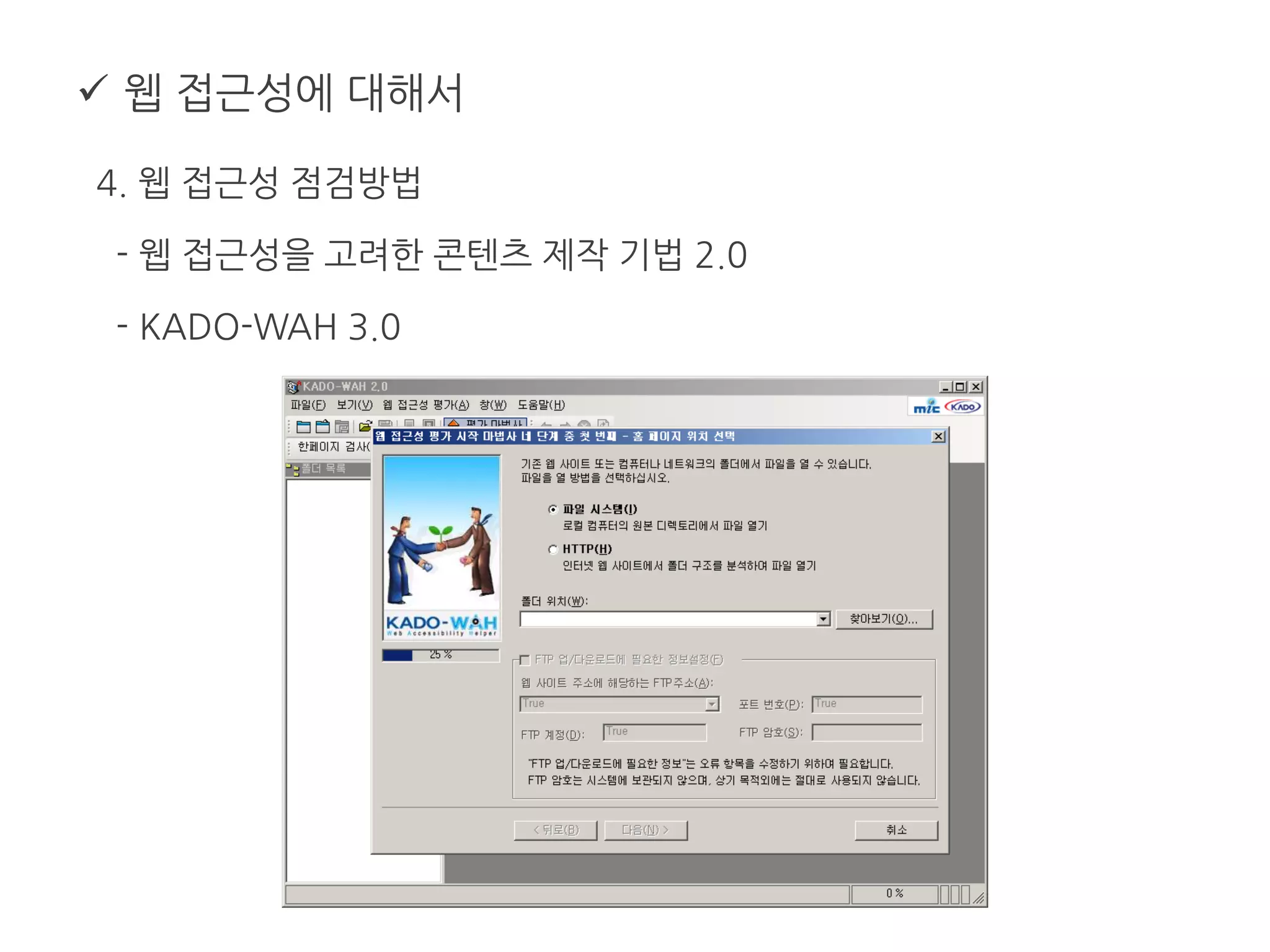
4. 웹 접근성 점검방법
- 웹 접근성을 고려한 콘텐츠 제작 기법 2.0
- KADO-WAH 3.0
메인디쉬 04
 이메일 마크업
 HTML5
 CSS3
 모바일 환경에서 마크업
 이메일 마크업
1. 아웃룩에서 지원하지 않는 목록
- no support for background images (HTML or CSS)
- no support for forms
- no support for Flash, or other plugins
- no support for CSS floats
- no support for replacing bullets with images in unordered lists
- no support for CSS positioning
- no support for animated GIFs
 이메일 마크업
2. 가이드라인
- 레이아웃 관련
* DTD를 붙이지 않는다.
* 1px의 라인은 인라인 스타일로 넣는다.
* 레이아웃은 테이블로 잡는다.
되도록이면 각 셀 마다 너비를 지정하고, 너비는 비율로 적지 않는다.
여백이나 패딩보다 중첩테이블을 이용한다.
본문 배경 색은 폭 100%의 테이블을 이용한다.
테이블 셀에 불필요한 공백은 피한다.
http://www.campaignmonitor.com/resources/will-it-work/guidelines/
 이메일 마크업
2. 가이드라인
- CSS와 일반 글꼴 서식
* CSS를 항상 인라인으로 작성한다.
* font 속성의 축약형을 사용하지 않는다.
* 링크 색상을 유지하려면, <span>으로 감싸고 인라인으로 스타일
- 모바일 이메일
* 폭 600픽셀 이하로 유지한다.
* 자동 텍스트 크기 조정에 주의한다.
http://www.campaignmonitor.com/resources/will-it-work/guidelines/
 이메일 마크업
2. 가이드라인
- HTML 이메일의 이미지
* 빈 1px 이미지는 피한다.
* 항상 이미지 크기를 포함한다.
* PNGs를 피한다.
* 배경이미지에 대한 대체 색상 제공
* 이미지에 대체 텍스트 (alt)를 넣는다. (gmail)
* 이미지에 display:block 속성을 설정한다. (hotmail)
* 이미지 정렬은 align을 이용한다.
http://www.campaignmonitor.com/resources/will-it-work/guidelines/
 HTML5
1. 꼭 알아야 하는 특징
- 새로운 DTD : <!DOCTYPE html>
- 스크립트나 링크에 Type 속성이 불필요
- 속성을 꼭 따옴표로 쌀 필요는 없으나 구조적인 문서로 만들려면 사용
- 새로운 input type email
- placeholders : 텍스트박스에 미리 문자열을 적어두는 것
- article, aside, details, figcaption, figure,
footer, header, hgroup, menu, nav, section등 새로운 태그
http://dreamgoer.net/222
 HTML5
2. IE와 HTML5
- 새로운 element를 기본으로 inline으로 인식해버림
- element로 인식시켜주기.
http://dreamgoer.net/222
header, footer, article, section, nav, menu, hgroup { display: block;}
document.createElement("article");
document.createElement("footer");
document.createElement("header");
document.createElement("hgroup");
document.createElement("nav");
document.createElement("menu");
<!--[if IE]>
<script src="http://html5shim.googlecode.com/svn/trunk/html5.js"></script>
<![endif]-->
 CSS3
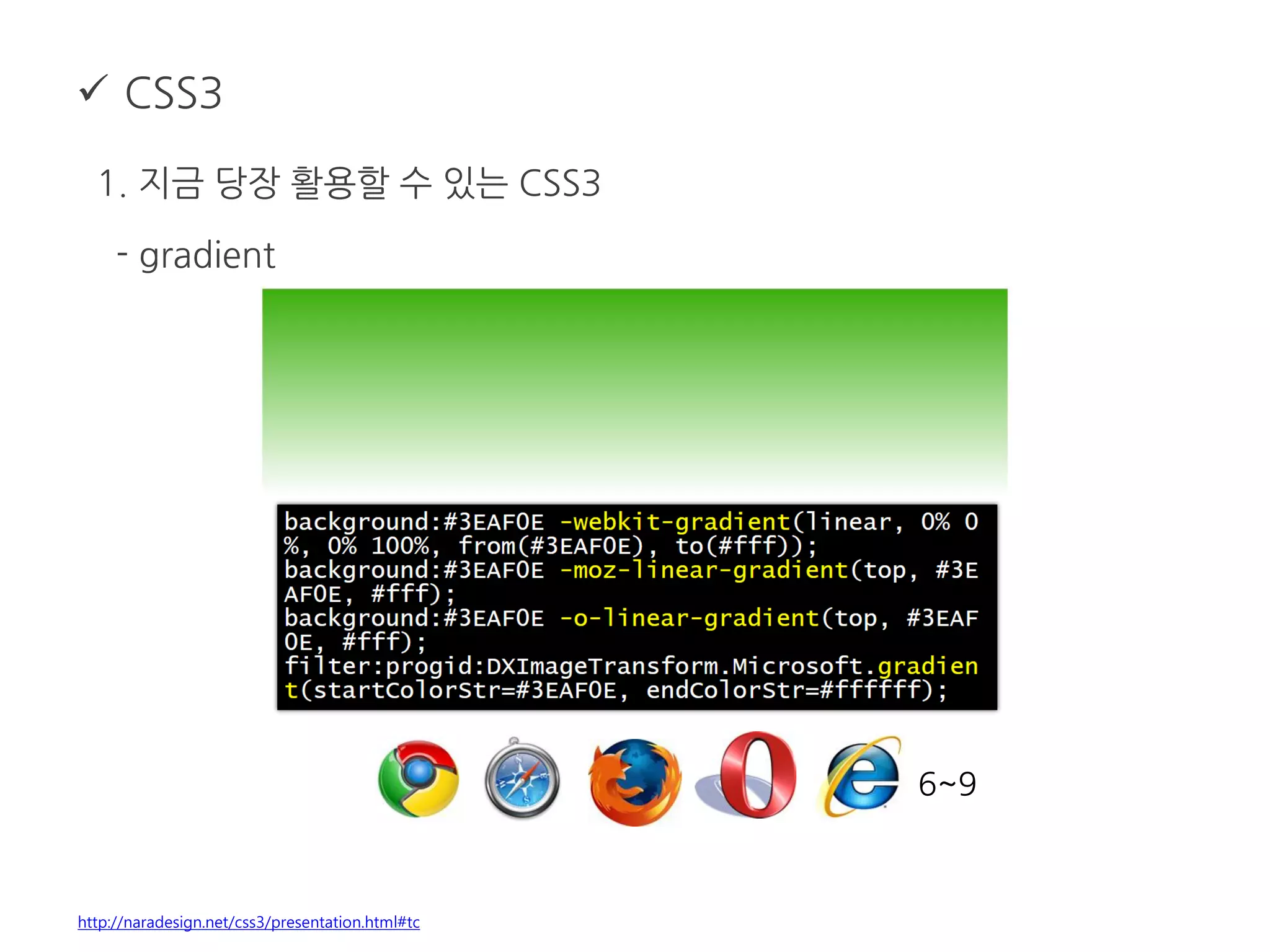
1. 지금 당장 활용할 수 있는 CSS3
- text-shadow
http://naradesign.net/css3/presentation.html#tc
6~9
 CSS3
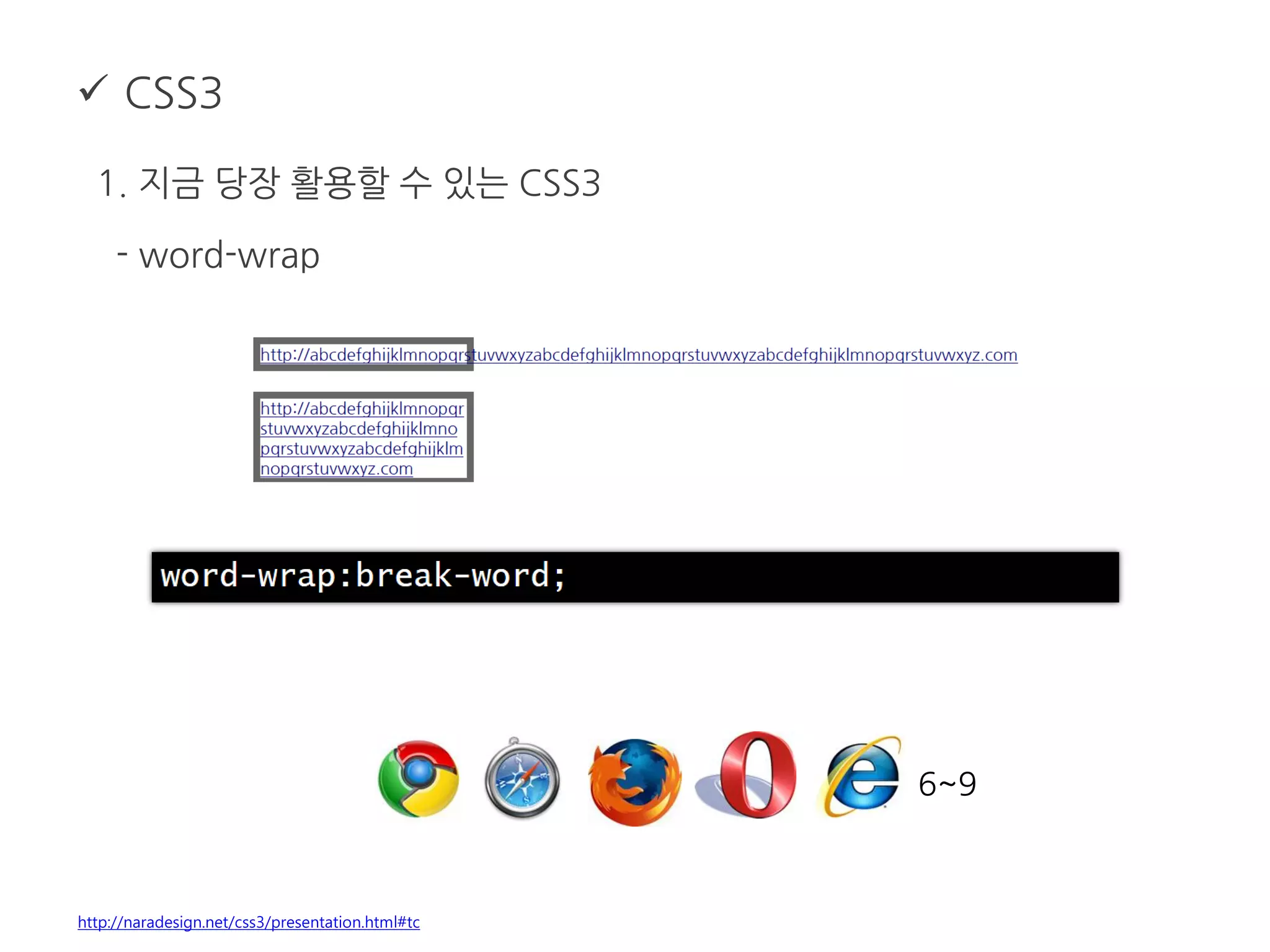
1. 지금 당장 활용할 수 있는 CSS3
- word-wrap
http://naradesign.net/css3/presentation.html#tc
6~9
 CSS3
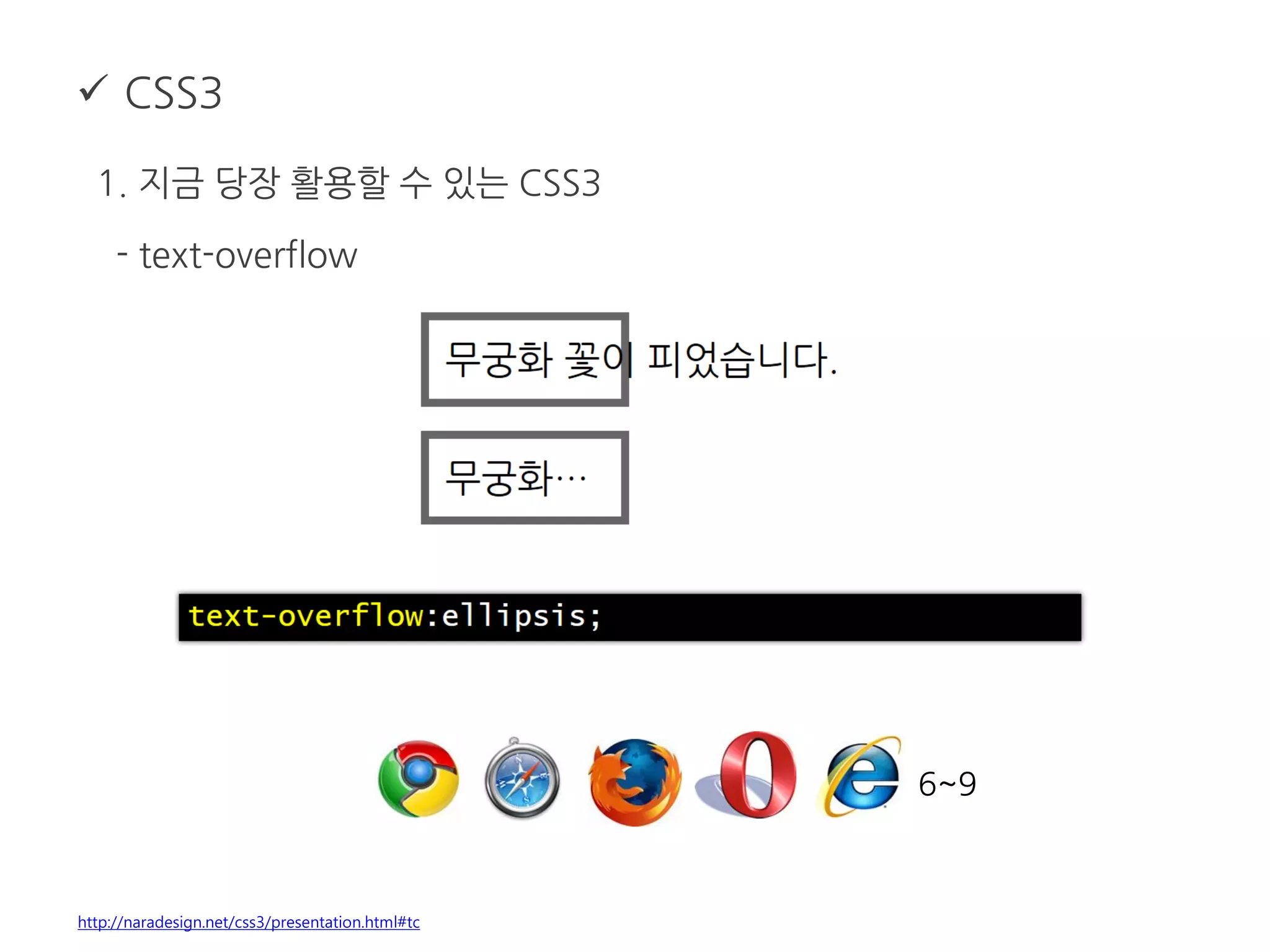
1. 지금 당장 활용할 수 있는 CSS3
- text-overflow
http://naradesign.net/css3/presentation.html#tc
6~9
 CSS3
1. 지금 당장 활용할 수 있는 CSS3
- @font-face
http://naradesign.net/css3/presentation.html#tc
6~9
 CSS3
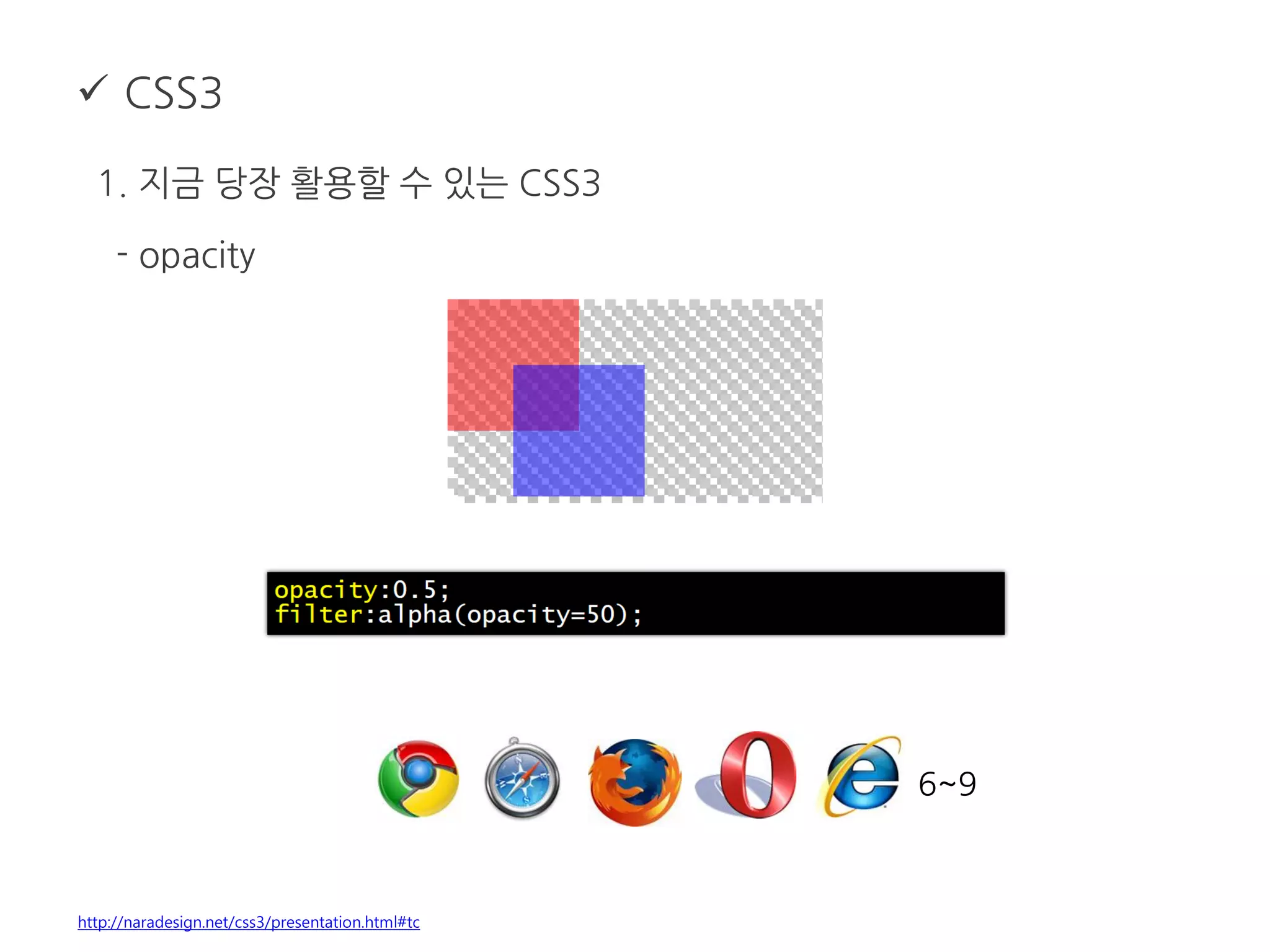
1. 지금 당장 활용할 수 있는 CSS3
- opacity
http://naradesign.net/css3/presentation.html#tc
6~9
 CSS3
1. 지금 당장 활용할 수 있는 CSS3
- box-shadow
http://naradesign.net/css3/presentation.html#tc
6~9
 CSS3
1. 지금 당장 활용할 수 있는 CSS3
- border-radius
http://naradesign.net/css3/presentation.html#tc
9
 CSS3
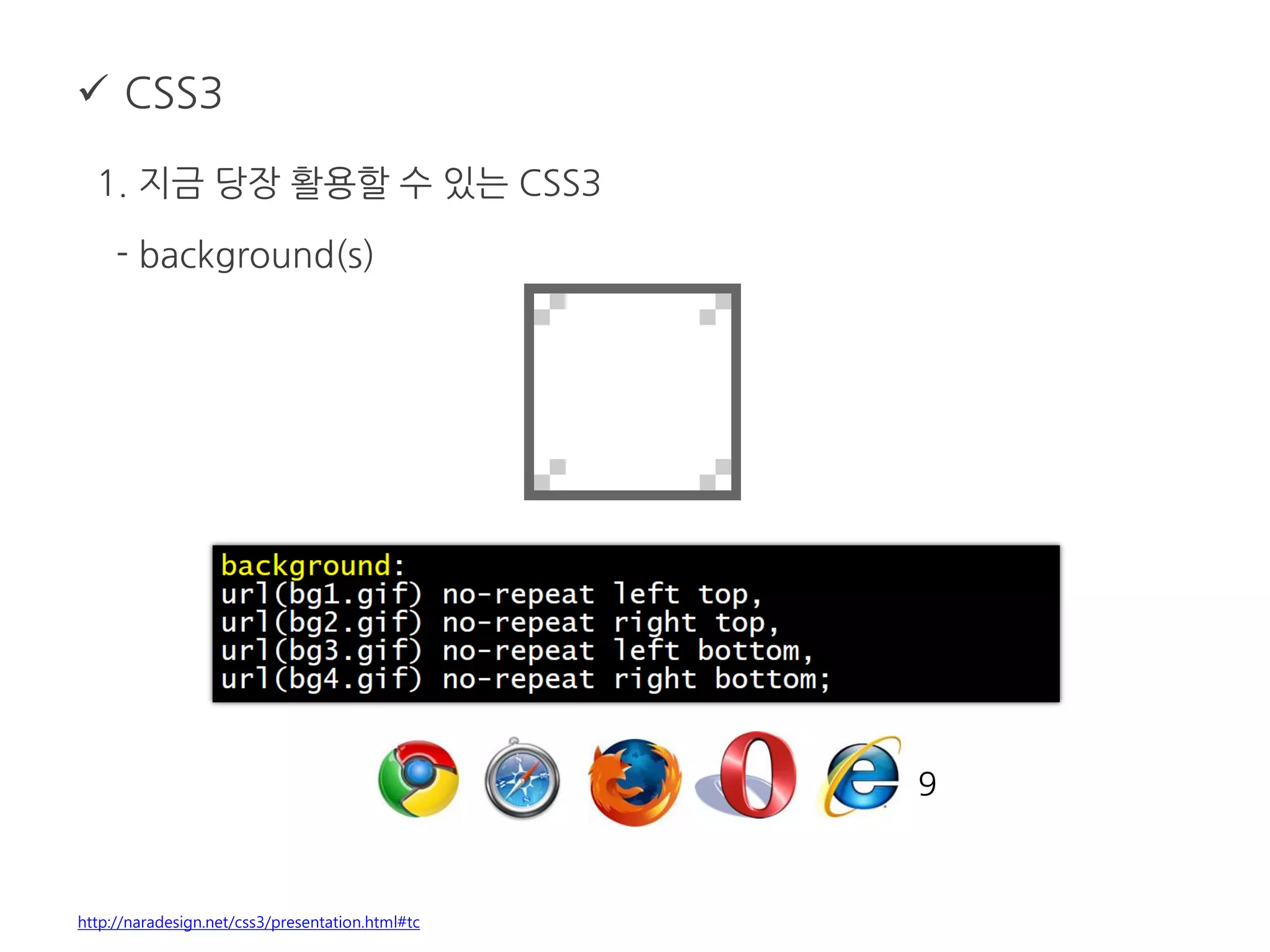
1. 지금 당장 활용할 수 있는 CSS3
- background(s)
http://naradesign.net/css3/presentation.html#tc
9
 CSS3
1. 지금 당장 활용할 수 있는 CSS3
- gradient
http://naradesign.net/css3/presentation.html#tc
6~9
 CSS3
1. 지금 당장 활용할 수 있는 CSS3
- transform
http://naradesign.net/css3/presentation.html#tc
6~9
 CSS3
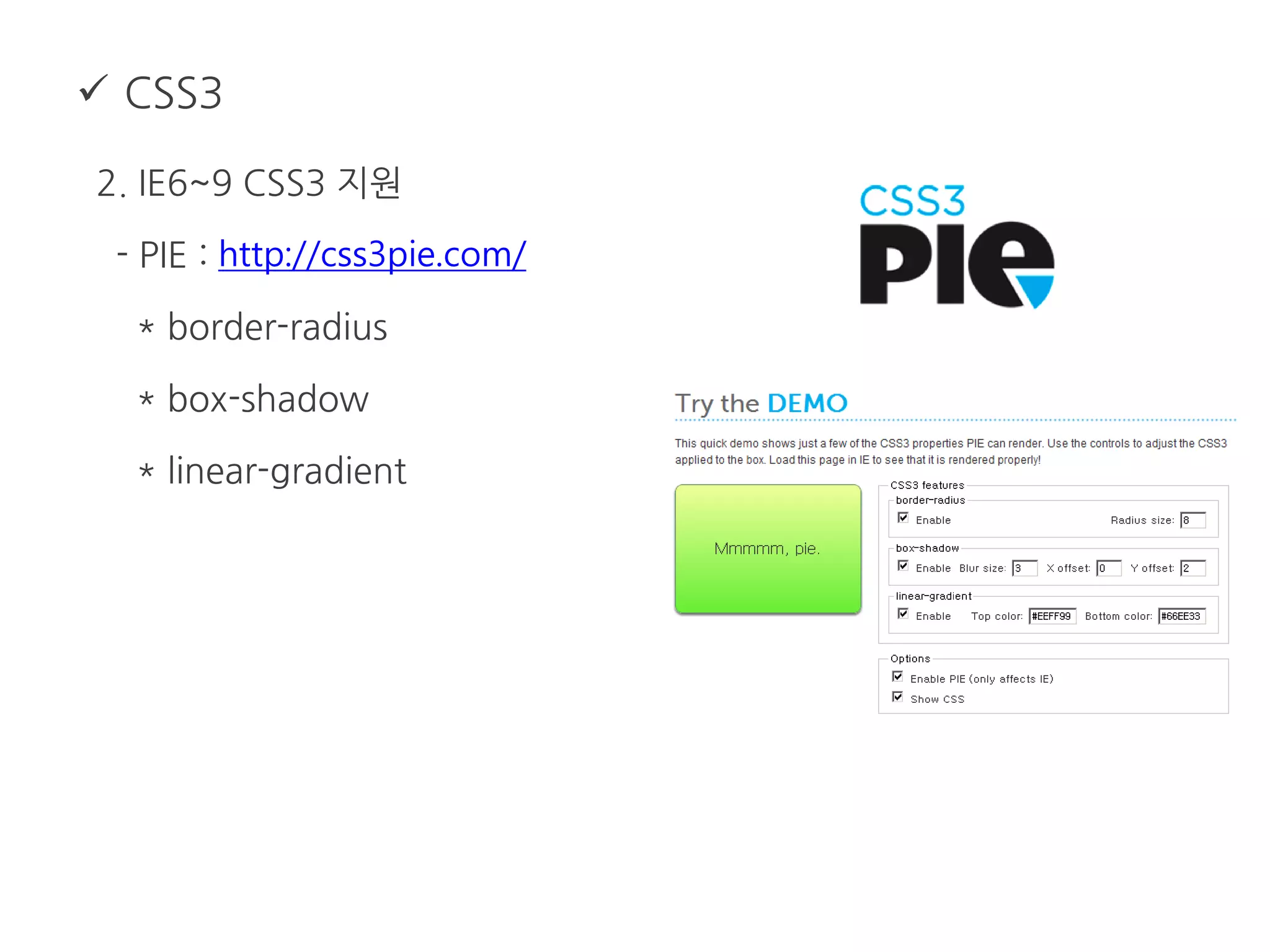
2. IE6~9 CSS3 지원
- PIE : http://css3pie.com/
* border-radius
* box-shadow
* linear-gradient
 모바일 환경에서 마크업
1. html5, CSS3 사용
2. viewpot 지정
3. 해상도 별 대응
- 안드로이드 : viewport내 dpi 지정, 이미지 사이즈/1.5로 적음.
- 아이폰 : 이미지를 2배 크기로 만든 후 사이즈와 위치를 ½로 배치
4. em 단위 활용
5. 미디어 쿼리 활용
디저트
 코딩을 빠르게 해주는 몇 가지 방법
 여러 디바이스 대응
 유용한 사이트
 코딩을 빠르게 해주는 몇 가지 방법
http://code.google.com/p/zen-coding/
 여러 디바이스 대응
1. 반응형 웹 디자인
2. 미디어 쿼리
- 디바이스 별 미디어 쿼리 정리 : http://firejune.com/1633
- 미디어 쿼리 상세 설명 : http://mydeute.com/txp/article/631
 유용한 사이트 및 추천도서
1. CSS Design Korea : http://cssdesign.kr/forum/
2. 웹 접근성 연구소 : http://www.wah.or.kr/
3. 클리어보스 : http://www.clearboth.org/
4. 유니버설 디자인을 위한 실전 UI 개발 가이드 :
http://naradesign.net/open_content/lecture/wp/#section0
5. 웹 표준 교과서, 다카히로 마시코 저, 디지털미디어리서치
6. 실전 HTML5 가이드 (PDF) http://webstandards.or.kr/html5/
7. 웹 표준 완전정복 세트, 댄 씨더홈, 앤디버드 외 저, 에이콘출판사
8. 웹 디자인 2.0 고급 CSS, 앤디 클락 저, 에이콘출판사
 참고자료
1. Web Standards & CSS Design 저자 : 신현석
2. 하나로드림 웹 접근성 교육자료
3. 웹 접근성을 고려한 콘텐츠 제작 기법 v2.0
티타임
 수업한 내용 중 궁금한 내용 질문
 그 외에 궁금한 내용
고맙습니다!
다음에 또 오세요~

웹표준 교육

  • 1.
    어서오세요! Markup Restaurant에… 2012.07.20 디자인실 김인숙 신나서마크업을 요리하는 현직 웹 퍼블리셔 김슈기 씨 (35)
  • 2.
    교육목표  여러 브라우저에서호환되는 CSS를 작성 할 수 있다.  디자인 시안을 보고 적합한 마크업 언어로 구조화 할 수 있다.  최근 기술동향에 대해 알 수 있다.
  • 3.
  • 4.
    교육내용  에피타이저  스프 샐러드  메인디쉬 01~04 (중간에 실습 있어요.)  디저트  티타임
  • 5.
    에피타이저  왜 웹표준인가?  마크업 개발 프로세스
  • 6.
     왜 웹표준인가? 1. 웹 표준을 지키면 좀 더 많은 사람에게 정보전달을 할 수 있다. 2. 웹 표준을 지키면 크로스 브라우징이 가능하다. 3. 데이터와 디자인을 분리하면 디자인 수정이 쉽다. 4. 검색결과에 상당한 영향을 미친다. 5. 서버 부하를 덜어 주게 되어 비용 절감의 효과 http://monoeyes.com/523
  • 7.
     …현실은 웹 접근성을 향상하려면? JavaScript를배워야 하나? RIA는 또 뭐래? Markup은 할 수록 어렵다… 문서 작성의 압박 양보다는 질 높은 코딩! 7개의 브라우저 테스트로 인한 야근의 압박 디자인과 개발의 의도에 맞게! 이슈를 최소화 하기 누가!!!! 인라인으로 스타일 지정했어!
  • 8.
     이러한 이유로… 1.HTML을 의미에 맞게 작성할 수 있다. 2. 디자인을 보다 정교하게 제어할 수 있다. 3. 브라우저 관련 이슈 발생 시 수정이 쉽다. 4. 자바스크립트와 연동이 쉽다.
  • 9.
     마크업 개발프로세스 1. 환경분석과 시스템배치 2. 구조적 설계 (HTML Design) 3. 스타일시트 설계 (CSS Design) 4. 스크립트 개발 (Script Development) 5. 테스트, 유효성 검사 (Test And Validation Check) 6. 웹 접근성 검사 7. 문서화 http://www.clearboth.org/markup_dev_7level/
  • 10.
     마크업 개발프로세스 1. 환경분석과 시스템배치
  • 11.
     마크업 개발프로세스 2. 구조적 설계 (HTML Design)
  • 12.
     마크업 개발프로세스 3. 스타일시트 설계 (CSS Design)
  • 13.
     마크업 개발프로세스 4. 스크립트 개발 (Script Development)
  • 14.
     마크업 개발프로세스 5. 테스트, 유효성 검사 (Test And Validation Check) - firefox : Html Validator https://addons.mozilla.org/ko/firefox/addon/html-validator/ - HTML : http://validator.w3.org/ - CSS : http://jigsaw.w3.org/css-validator/ 6. 웹 접근성 검사 - 웹 접근성을 고려한 콘텐츠 제작 기법 2.0 - KADO-WAH 3.0 7. 문서화 - 1단계를 기초 가이드 - 2~6단계에서 발생하는 이슈리스트 정리 - 사이트가 오픈되면 유효성 검사, 웹접근성 검사 결과를 문서화
  • 15.
  • 16.
     마크업 언어 1.HTML 과 XHTML - eXtensible HyperText Markup Language - XHTML = HTML + XML - xml 문법 기준을 따름 - 태그나 속성 등은 html을 따름
  • 17.
     마크업 언어 2.Syntax - 태그의 중첩을 엄격하게 지킨다. http://www.w3.org/TR/xhtml1/diffs.html <p>웹 표준을 생각할 때에는 <em>사용자의 다양성을 이해하는 것이 무엇보다도 중요합니다.</p></em> (X) <p>웹 표준을 생각할 때에는 <em>사용자의 다양성을 이해하는 것이 무엇보다도 중요합니다. </em></p> (O) <p>문단을 나눌 때에는 p태그를 사용합니다.</p> <p>p태그를 사용할때에는 닫는 태그를 생략하는 경우가 있는데 잘못된 경우 입니다. (X) <p>문단을 나눌 때에는 p태그를 사용합니다.</p> <p>p태그를 사용할때에는 닫는 태그를 생략하는 경우가 있는데 잘못된 경우 입니다. </p> (O)
  • 18.
     마크업 언어 2.Syntax - 단독으로 사용되는 태그도 닫기 표기를 해야 한다. - 속성의 값에 따옴표를 사용해야 한다. http://www.w3.org/TR/xhtml1/diffs.html 줄 바꿈을 표하기 위해서는 &lt;br&gt; 태그를 사용합니다. <br> (X) 줄 바꿈을 표하기 위해서는 &lt;br&gt; 태그를 사용합니다. <br /> (O) <table cellspacing=0 cellpadding=0 border=0> (X) <table cellspacing="0" cellpadding="0" border="0"> (O)
  • 19.
     마크업 언어 2.Syntax - 모든 요소와 속성은 소문자여야 한다. - 축약형 속성을 사용하지 않는다. http://www.w3.org/TR/xhtml1/diffs.html <img src="myimg.png" onMouseOver="ImageOver()" onMouseOut="ImageOut()" alt="myimg" /> (X) <img src="myimg.png" onmouseover="ImageOver()" onmouseout="ImageOut()" alt="myimg" /> (O) <input type="checkbox" name="hobby1" checked /> (X) <input type="checkbox" name="hobby1" checked="checked" /> (O)
  • 20.
     마크업 언어 2.Syntax - 숫자 뒤의 단위를 생략할 수 없다 (0은 제외). - 스크립트와 스타일은 CDATA로 표기한다. http://www.w3.org/TR/xhtml1/diffs.html #id {margin:0 0 6 0;} (X) #id {margin:0 0 6px 0;} (O) <script type="text/javascript"> //<![CDATA[ if (a > b && a < 0) { // wrong : if (a &gt; b &amp;&amp; a &lt; 0) { return true; } else { return false; } //]]> </script>
  • 21.
     마크업 언어 2.Syntax - HTML Entities http://www.w3.org/TR/xhtml1/diffs.html <a href="board_list.php?id=free&page=1&keyword=html"> (X) <a href="board_list.php?id=free&amp;page=1&amp;keyword=html"> (O) < &lt; > &gt; & &amp; “ &quot;
  • 22.
     마크업 언어 3.Document Structure - 기본 HTML 구조 <!DOCTYPE html PUBLIC "-//W3C//DTD XHTML 1.1//EN" "http://www.w3.org/TR/xhtml11/DTD/xhtml11.dtd"> <html xmlns="http://www.w3.org/1999/xhtml" xml:lang="ko"> <head> <meta http-equiv="Content-Type" content="text/html; charset=utf-8" /> <title>기본 XHTML 문서 구조</title> </head> <body> <p>기본 XHTML 문서 구조입니다.</p> </body> </html>
  • 23.
     마크업 언어 3.Document Structure - Document Type Definition 마크업 문서에서 사용하는 태그이름과 속성, 속성 값 등을 정의한 정보 - XHTML 1.0 Strict - XHTML 1.0 Transitional - XHTML 1.0 Frameset <!DOCTYPE html PUBLIC "-//W3C//DTD XHTML 1.0 Strict//EN" "http://www.w3.org/TR/xhtml1/DTD/xhtml1-strict.dtd"> <!DOCTYPE html PUBLIC "-//W3C//DTD XHTML 1.0 Transitional//EN" "http://www.w3.org/TR/xhtml1/DTD/xhtml1-transitional.dtd"> <!DOCTYPE html PUBLIC "-//W3C//DTD XHTML 1.0 Transitional//EN" "http://www.w3.org/TR/xhtml1/DTD/xhtml1-transitional.dtd">
  • 24.
     마크업 언어 3.Document Structure - 웹 표준은 XHTML일까? HTML도 최신 권고 표준이므로 HTML도 웹 표준 문서 버전간의 우위는 없고, 상황에 맞는 DTD를 선택 - 최신 권고 DTD HTML 4.01 Strict, Transitional, Frameset XHTML 1.0 Strict, Transitional, Frameset XHTML 1.1(application/xhtml+xml) HTML5(Working Draft)
  • 25.
     마크업 언어 3.Document Structure - Head & Body * head : 문서의 정보를 나타내는 요소 title : 문서의 제목을 나타내는 요소 * body : 문서의 내용을 담고 있는 요소 id, class : 지시자, 연결자 역할 div, span : id, class와 함께 문서의 구조를 기술한다. h1~ h6 : 내용 단위의 주제 (제목)을 기술한다.
  • 26.
     마크업 언어 3.Document Structure - Head & Body * 하나의 문서에는 하나의 h1 만 존재해야 하나? HTML 권고안에는 h1 개수에 대한 언급은 없음. 보통의 웹 페이지는 하나의 주제를 가지고 있기 때문에 하나, 또는 2~3개의 h1이 존재하는 것이 적절함. * 헤딩의 단계는 순차적이어야 한다. h1, h2, h1은 맞음 h1, h3, h1은 h2가 건너 뛰어졌으므로 좋지 않은 구성
  • 27.
     마크업 언어 3.Document Structure - Include shared code * 사이트 전반적으로 공통적으로 사용되는 파일을 공용파일로 분리 * 매 페이지마다 바뀌는 부분 페이지 콘텐츠, Head안의 style, script 선언 * 매 페이지마다 바뀌지 않는 부분 DTD, Head 안의 공용 파일 인클루드, 페이지 레이아웃
  • 28.
     마크업 언어 3.Document Structure - Include shared code <!DOCTYPE html PUBLIC "-//W3C//DTD XHTML 1.1//EN" "http://www.w3.org/TR/xhtml11/DTD/xhtml11.dtd"> <html xmlns="http://www.w3.org/1999/xhtml" xml:lang="ko"> <head> <title>page title</title> <!--#include virtual="/pagehead.html" --> <script type="text/javascript"> // JavaScript code </script> <style type="text/css"> /* page specific CSS rules */ </style> </head> <body> <!--#include virtual="/header.html" --> <h1>page topic</h1> <div id="content"> page content </div> <!--#include virtual="/footer.html" --> </body> </html>
  • 29.
  • 30.
     CSS 1. CSS선택자 - Universal selector : 모든 요소 선택 * { color: #000; } <div id="body"> <div id="notice"> <ul> <li> <span class="head">content head</span> <a href="list.html">content title</a> </li> <li> <span class="head">content head</span> <a href="list.html">content title</a> </li> <li> <span class="head">content head</span> <span>content <span>title</span> </span> </li> </ul> </div> </div>
  • 31.
     CSS 1. CSS선택자 - Type selectors : 태그명이 같은 요소 선택 div { color: #000; } <div id="body"> <div id="notice"> <ul> <li> <span class="head">content head</span> <a href="list.html">content title</a> </li> <li> <span class="head">content head</span> <a href="list.html">content title</a> </li> <li> <span class="head">content head</span> <span>content <span>title</span> </span> </li> </ul> </div> </div>
  • 32.
     CSS 1. CSS선택자 - Descendant selectors : 하위 요소 선택 ul span { color: #000; } <div id="body"> <div id="notice"> <ul> <li> <span class="head">content head</span> <a href="list.html">content title</a> </li> <li> <span class="head">content head</span> <a href="list.html">content title</a> </li> <li> <span class="head">content head</span> <span>content <span>title</span> </span> </li> </ul> </div> </div>
  • 33.
     CSS 1. CSS선택자 - Child selectors : 한 단계 아래의 요소 선택, IE6 지원 안함. li span { color: #000; } <div id="body"> <div id="notice"> <ul> <li> <span class="head">content head</span> <a href="list.html">content title</a> </li> <li> <span class="head">content head</span> <a href="list.html">content title</a> </li> <li> <span class="head">content head</span> <span>content <span>title</span> </span> </li> </ul> </div> </div>
  • 34.
     CSS 1. CSS선택자 - First-child pseudo class : 첫번째 요소 선택, IE6 지원 안함. li:first-child { color: #000; } <div id="body"> <div id="notice"> <ul> <li> <span class="head">content head</span> <a href="list.html">content title</a> </li> <li> <span class="head">content head</span> <a href="list.html">content title</a> </li> <li> <span class="head">content head</span> <span>content <span>title</span> </span> </li> </ul> </div> </div>
  • 35.
     CSS 1. CSS선택자 - Link pseudo class : 링크 요소의 상태 선택, IE6 지원 안함. a:link { color: #000; } a:visited { color: #000; } a:hover { color: #000; } a:active { color: #000; } a:focus { color: #000; } <div id="body"> <div id="notice"> <ul> <li> <span class="head">content head</span> <a href="list.html">content title</a> </li> <li> <span class="head">content head</span> <a href="list.html">content title</a> </li> <li> <span class="head">content head</span> <span>content <span>title</span> </span> </li> </ul> </div> </div>
  • 36.
     CSS 1. CSS선택자 - Adjacent selectors : 인접한 요소 선택, IE6 지원 안함. a:link { color: #000; } <h3>heading</h3> <p>This is a paragraph.</p> <p>This is a paragraph.</p> <p>This is a paragraph.</p> <p>This is a paragraph.</p> <h3>heading</h3> <p>This is a paragraph.</p> <p>This is a paragraph.</p> <p>This is a paragraph.</p> <p>This is a paragraph.</p> <h3>heading</h3> <p>This is a paragraph.</p> <p>This is a paragraph.</p>
  • 37.
     CSS 1. CSS선택자 - Attribute selectors : 속성으로 요소 선택, IE6 지원 안함. input[type=text] { border: 1px solid #ccc; } <input type="text"> <input type="password"> <input type="radio"> <input type="radio"> <input type="radio"> <input type="checkbox"> <input type="checkbox"> <input type="checkbox"> <input type="text"> <input type="text">
  • 38.
     CSS 1. CSS선택자 - Class selectors : 클래스 네임으로 요소 선택 .head { color: #000; } <div id="body"> <div id="notice"> <ul> <li> <span class="head">content head</span> <a href="list.html">content title</a> </li> <li> <span class="head">content head</span> <a href="list.html">content title</a> </li> <li> <span class="head">content head</span> <span>content <span>title</span> </span> </li> </ul> </div> </div>
  • 39.
     CSS 1. CSS선택자 - ID selectors : 아이디로 요소 선택 #notice { color: #000; } <div id="body"> <div id="notice"> <ul> <li> <span class="head">content head</span> <a href="list.html">content title</a> </li> <li> <span class="head">content head</span> <a href="list.html">content title</a> </li> <li> <span class="head">content head</span> <span>content <span>title</span> </span> </li> </ul> </div> </div>
  • 40.
     CSS 1. CSS선택자 - :first-line pseudo element : 첫 번째 줄 선택 p:first-line { color: #000; } <p>Littering a dark and dreary road lay the past relics of browser-specific tags, incompatible DOMs, and broken CSS support.</p> <p>Today, we must clear the mind of past practices. Web enlightenment has been achieved thanks to the tireless efforts of folk like the W3C, WaSP and the major browser creators.</p> <p>The css Zen Garden invites you to relax and meditate on the important lessons of the masters. Begin to see with clarity. Learn to use the (yet to be) time-honored techniques in new and invigorating fashion. Become one with the web.</p>
  • 41.
     CSS 1. CSS선택자 - :first-letter pseudo element : 첫 번째 글자 선택 p:first-letter { color: #000; } <p>Littering a dark and dreary road lay the past relics of browser-specific tags, incompatible DOMs, and broken CSS support.</p> <p>Today, we must clear the mind of past practices. Web enlightenment has been achieved thanks to the tireless efforts of folk like the W3C, WaSP and the major browser creators.</p> <p>The css Zen Garden invites you to relax and meditate on the important lessons of the masters. Begin to see with clarity. Learn to use the (yet to be) time-honored techniques in new and invigorating fashion. Become one with the web.</p>
  • 42.
     CSS 2. CSS파일 구조 - 파일의 용도를 파악할 수 있는 파일명 연번은 지양하고 섹션 이름이나 디자인 모듈로 구분 - 선언된 CSS 룰의 위치를 파악할 수 있는 순서를 사용 페이지 순서와 HTML 코드 안에서의 순서를 따름 - 충돌을 피하기 위해 캐스캐이드 순서를 고려
  • 43.
     CSS 2. CSS파일 구조 예시 (쌍용자동차:http://www.smotor.com)
  • 44.
     CSS 2. CSS파일 구조 예시 (쌍용자동차:http://www.smotor.com) common.css board.css layout.css purchas e.css carmana ge.css compan y.css member. css cyber.css result.css service.c ss repair.css mypage.css cs.css agency.css
  • 45.
     CSS 3. 우선순위 -a, b, c, d 순으로 우선순위 결정 style attribute : a ID attribute : b other attribute, pseudo-class : c element name, pseudo-element : d * {} /* a=0 b=0 c=0 d=0 -> specificity = 0,0,0,0 */ li {} /* a=0 b=0 c=0 d=1 -> specificity = 0,0,0,1 */ li:first-line {} /* a=0 b=0 c=0 d=2 -> specificity = 0,0,0,2 */ ul li {} /* a=0 b=0 c=0 d=2 -> specificity = 0,0,0,2 */ ul ol+li {} /* a=0 b=0 c=0 d=3 -> specificity = 0,0,0,3 */ h1 + *[rel=up]{} /* a=0 b=0 c=1 d=1 -> specificity = 0,0,1,1 */ ul ol li.red {} /* a=0 b=0 c=1 d=3 -> specificity = 0,0,1,3 */ li.red.level {} /* a=0 b=0 c=2 d=1 -> specificity = 0,0,2,1 */ #x34y {} /* a=0 b=1 c=0 d=0 -> specificity = 0,1,0,0 */ style="" /* a=1 b=0 c=0 d=0 -> specificity = 1,0,0,0 */
  • 46.
     CSS 3. 우선순위 -ID selector + descendant selector * ID selector와 descendant selector를 결합하여 충돌을 최소화 * ID selector는 웹 페이지의 가장 특징적인 모듈, 예를 들어 header, footer, sidebar 등을 정의 각 콘텐츠 별로 ID를 부여하여 충돌을 피할 수 있다. * class는 공유되는 모듈이나 페이지 안에서 공유되는 요소에 부여 * 디자인 모듈에서 사용하는 ID와 서식 모듈에서 사용하는 ID를 사전 협의를 거쳐 충돌을 피해야 한다.
  • 47.
    메인디쉬 01  DTD& Rendering Mode  Float & Clear  Position  Layout grid  Block Alignment
  • 48.
     DTD &Rendering Mode 1. DTD (Document Type Definition) - 마크업 문서에 사용되는 요소와 속성을 정의한 문서 예) HTML 4.01 Strict DTD : http://www.w3.org/TR/html4/strict.dtd - 모든 마크업 문서의 상단에 DTD를 선언함 예) HTML 4.01 예) XHTML 1.1 <!DOCTYPE html PUBLIC "-//W3C//DTD HTML 4.01//EN" "http:// www.w3.org/TR/html4/strict.dtd"> <html lang="en"> <head> <!DOCTYPE html PUBLIC "-//W3C//DTD XHTML 1.1//EN" "http:// www.w3.org/TR/xhtml11/DTD/xhtml11.dtd"> <html xmlns="http://www.w3.org/1999/xhtml" xml:lang="ko"> <head>
  • 49.
     DTD &Rendering Mode 1. DTD (Document Type Definition) - DTD를 붙였는데도 비 표준으로 인식하는 경우 예) DTD가 아래와 같은 경우 예) DTD 위에 뭔가 넣었을 경우 <!DOCTYPE HTML PUBLIC "-//W3C//DTD HTML 4.01 Transitional//EN"> <script> function fn_moveHtml(page){ var html = page; if(html == ""){ alert("완성되지 않은 메뉴입니다."); return; } location.href = page; } </script> <!DOCTYPE html PUBLIC "-//W3C//DTD XHTML 1.1//EN" "http:// www.w3.org/TR/xhtml11/DTD/xhtml11.dtd">
  • 50.
     DTD &Rendering Mode 2. Doctype Switching - 브라우저들은 표준의 준수와 하위 호환성 유지 사이의 차이를 극복하기 위해 여러 개의 랜더링 모드 (Standards mode, Almost Standards mode, Quirks mode)를 가지고 있다. - 랜더링 모드는 DTD 선언에 의해서 달라짐 - IE의 경우 랜더링 모드간의 차이가 매우 크기 때문에 주의
  • 51.
     DTD &Rendering Mode 2. Doctype Switching - CSS Box Model
  • 52.
     DTD &Rendering Mode 2. Doctype Switching - W3C and Internet Explorer box models
  • 53.
     DTD &Rendering Mode 2. Doctype Switching - IE6 Standards mode vs. Quirks mode
  • 54.
     Float &Clear 1. Float - 박스를 좌측이나 우측으로 정렬한다. float : left 좌측으로 정렬 float:right 우측으로 정렬 float:none float 을 사용하지 않음 - 코드의 순서가 레이아웃 구성에 영향을 많이 준다.
  • 55.
     Float &Clear 1. Float - Floating #floating img { float: left; margin: 0 1em 1em 0; }
  • 56.
     Float &Clear 1. Float - IE Floating 3-pixel jog * 텍스트를 플로트 시키지 않을 경우 IE6에서 원인을 알 수 없는 3 픽셀 여백이 생긴다
  • 57.
     Float &Clear 1. Float - Float layout * 원래 float의 목적은 이미지나 작은 박스를 정렬 하는 것이었지만 레이아웃 구성용으로도 많이 쓰인다. * 브라우저 호환성이 비교적 좋고 낮은 버전의 브라우저에서도 잘 지원된다.
  • 58.
     Float &Clear 1. Float - Float layout : wrapper의 width를 고정 float: left float:left float: left float: left float:left float: left
  • 59.
     Float &Clear 2. Clear - 플로트 된 요소의 다음에서 플로트의 효과를 없애는 역할을 하는 속성. clear : left 좌측 플로트 효과를 없앰 clear:right 우측 플로트 효과를 없앰 clear:both 좌측과 우측 플로트 효과를 없앰
  • 60.
     Float &Clear 2. Clear - Clearing * float 된 박스들은 상위 박스의 높이에 영향을 미치지 않기 때문에 배경이나 경계선 등이 의도한대로 나오지 않음 float float float float float float
  • 61.
     Float &Clear 2. Clear - Clearing * 클리어 할 수 있는 요소를 추가하는 방법 가장 효과적이나 불필요한 요소 추가가 됨 float float float clear <div style="clear: both; fontsize: 1px; line-height:1px;">&nbsp;</div>
  • 62.
     Float &Clear 2. Clear - Clearing * CSS의 overflow 속성을 사용하는 방법 가장 간편하지만 포함하는 내용이 크기가 커지면 스크롤이 생김 float float float div { overflow: auto; widht: 100%; }
  • 63.
     Float &Clear 2. Clear - Clearing * CSS의 content 속성을 사용하는 방법 CSS 만으로 제어가 되기 때문에 의미상 좋은 방법이다. (IE는 hack을 사용) float float float content: "&nbsp"; .clearfix:after { content: ""; display: block; height: 0; clear: both; visibility: hidden; } * html .clearfix {height: 1%;}
  • 64.
     Position 1. Position -기준점으로 부터 element의 위치를 지정 - 픽셀 단위로 자유롭게 위치 지정 가능 - 코드의 위치와 상관없이 자유롭게 위치 지정 가능 - Static : 기본값, 보통의 블록들이 이 값을 가지고 있음. - relative : static과 같지만 기준점을 지정할 수 있다. - absolute : 공간을 차지하지 않으며 기준점에 의해 위치가 지정
  • 65.
     Position 2. hasLayout *IE에서 포지션 속성을 사용할 때에는 반드시 너비나 높이 속성을 주어 박스의 형태를 갖게 해야 함.
  • 66.
     Layout grid 1.Table grid vs. CSS box model
  • 67.
     Layout grid 1.Table grid vs. CSS box model
  • 68.
     Block alignment 1.Center Alignment - IE Quirks mode에서는 body에 text-align:center ; 가 있어야 같은 효과
  • 69.
     Block alignment 2.Vertical center alignment
  • 70.
    메인디쉬 02  DesignComponents  유용한 CSS Tip
  • 71.
     Design Components 1.List - Unordered List * 순서가 없는 목록, 앞뒤가 바뀌어도 문제가 없는 경우 - Ordered List * 순서가 있는 목록 - Definition List * 정의 목록 * 용어(term) - 설명(definition)과 같은 관계를 나타낼 때 사용
  • 72.
     Design Components 1.List - 잘못 사용된 List * 서로 다른 종류의 항목을 같은 수준의 li로 묶으면 안됨. <td>를 <li>로 바꾼 것 같은 구현 페이지 전체를 하나의 <li>로 묶은 경우 게시판 리스트를 <ul>이나 <ol>로 표현한 경우 * <dt>와 <dd>의 관계가 의미에 맞아야 함. <dt>나 <dd>가 없거나 서로 연관이 없는 경우 <dd>가 <dt>보다 위에 나오는 경우 서식을 <dl>로 표현한 경우
  • 73.
     Design Components 1.List - 브라우저 호환성 * margin vs. padding
  • 74.
     Design Components 1.List - 브라우저 호환성 * IE 계열은 불렛 영역을 margin으로 구현 margin, padding을 모두 리셋
  • 75.
     Design Components 1.List - Background bullet * 배경이미지를 활용하여 표현한다. .notice_area li {background: url(../images/ever_dot01.gif) 0 8px no-repeat;padding:0 0 0 8px;line- height: 20px;}
  • 76.
     Design Components 2.Menu - 세로 형태 메뉴 * 링크 요소(<a>)에 display: block을 이용하여 메뉴 항목의 클릭 영역을 최대화 할 수 있음 #submenu { margin: 8px 0 0 16px; padding: 0; list-style: none; width: 168px; } #submenu li { border-bottom: 1px solid #ddd; } #submenu li a { display: block; width: 140px; padding: 0.5em 10px 0.2em 18px; color: #333; text-decoration: none; } #submenu li a:hover, #submenu li a:active, #submenu li a.on { background: #F5F5F5; color: #069; }
  • 77.
     Design Components 2.Menu - 가로 형태 메뉴 * float를 이용하여 <li> 요소를 가로로 배열
  • 78.
     Design Components 3.Table - Row group tags * <thead>, <tbody>, <tfoot> - Column group tags * <colgroup>, <col> - Table Title * <caption> - Data Cell * <th>, <td>
  • 79.
     Design Components 3.Table - Column group <table class="data"> <caption>전쟁별 야스쿠니 신사 합사자 수 </caption> <thead> <tr> <th>번호</th> <th>전쟁의 명칭</th> <th>합사자수<br>1972.10)</th> <th>합사자수<br>2000.10)</th> <th>합사자수<br>2004.10)</th> <th>백분솔<br>(%)</th> </tr> </thead> <tfoot> <tr> <td colspan="2">計</td> <td>2,444,185</td> <td>2,466,344</td> <td>2,466,532</td> <td>100.00%</td> </tr> </tfoot> <tbody> <tr> <td>1</td> <td>명치유신</td> <td>7,399</td> <td>7,751</td> <td>7,751</td> <td>0.31%</td> </tr> <!-- 생략 --> </tbody> </table>
  • 80.
     Design Components 3.Table - Row group <table class="data"> <caption>음식물 열량 표</ caption> <colgroup> <col class="food" /> </colgroup> <colgroup> <col class="korean" /> <col class="korean" /> <col class="korean" /> </colgroup> <colgroup> <col class="western" /> <col class="western" /> <col class="western" /> </colgroup> <colgroup> <col class="japanese" /> <col class="japanese" /> <col class="japanese" /> </colgroup> <thead> <tr> <th>음식</th> <th>밥</th> <th>된장찌개</th> <th>장조림</th> <th>버섯 스프</th> <th>치킨 샐러드</th> <th>어니언 링</th> <th>초밥</th> <th>생선회</th> <th>우동</th> </tr> </thead> </table> table.data col.korean { background: #fcc; } table.data col.western { background: #cfc; } table.data col.japanese { background: #ccf; }
  • 81.
     Design Components 3.Table - cellpadding, cellspacing * border-collapse, padding 속성을 이용해서 CSS로 대체 table { border-collapse: collapse; } th, td { padding: 0; }
  • 82.
     Design Components 3.Table - table-layout: fixed * table width calculation algorithm을 거치지 않고 테이블 레이아웃을 고정하여 랜더링 속도를 향상 * 테이블의 첫번째 행의 너비를 기준으로 각 셀의 너비를 고정 하여 디자인이 틀어지지 않게 한다. * 첫번째 행에 colspan을 사용했을 경우 <col>을 이용하여 너비를 지정할 수 있다.
  • 83.
     Design Components 3.Table - table-layout: fixed <table border="1" style="table-layout: fixed; width: 100%;"> <colgroup> <col width="23%"> <col width="23%"> <col width="23%"> <col> </colgroup> <thead> <tr> <th colspan="3">heading1</th> <th rowspan="2">heading2</th> </tr> <tr> <th>sub-heading1</th> <th>sub-heading2</th> <th>sub-heading3</th> </tr> </thead> <tbody> <tr> <td>data1</td> <td>data2</td> <td>data3</td> <td>data4</td> </tr> <!-- 생략 --> </tbody> </table>
  • 84.
  • 85.
     Design Components 5.Form - Grouping * <fieldset>, <legend> - Label * <label>, <label for=""> - Submit * <input type="submit||image">, <button type="submit"> * <form action="">
  • 86.
     Design Components 5.Form - Grouping * <fieldset>, <legend> 폼 컨트롤 들을 서로 묶어주는 역할 하나의 <fieldset>에는 하나의 <legend>가 필요 브라우저 간의 랜더링 차이로 사용에 주의 필요
  • 87.
     Design Components 5.Form - Label * 레이블과 서식을 연결 * 명시적 연결 * 암시적 연결 <label for="user-id">아이디</label> <input type="text" id="user-id" /> <label> 아이디 <input type="text" /> </label>
  • 88.
     유용한 CSSTip 1. reset.css를 사용 - 각 브라우저 마다 렌더링 방식이 상이하므로 일관된 형태로 나타나게 하기 위해서 - 일반적으로 많이 사용하는 프레임워크 * Yahoo Reset CSS, Eric Meyer’s CSS, Tripoli 2. CSS 문장을 짧게 표시 - CSS코드 작성시 단축표기법을 사용하면 효율성 및 가독성이 높아짐 http://invalid.kr/useful-css-20-tips
  • 89.
     유용한 CSSTip 3. !important 바로 알기 - !important는 기존 룰을 덮어쓰기 때문에 주의! 4. 텍스트 이미지 대체 - 실무에서 <h1>title<h1>을 이미지로 대치하는 경우가 있음. http://invalid.kr/useful-css-20-tips .page { background-color:blue !important; background-color:red; } h1 { text-indent:-9999px; background:url("title.jpg") no-repeat; width:100px; height:50px; }
  • 90.
     유용한 CSSTip 5. CSS @import vs <link> - @import : CSS 문서에서 다른 CSS문서를 부르는 방법 - <link> : HTML문서 내에서 CSS 문서를 부르는 방법 - IE6~7브라우저에서는 @import명령을 사용하면 사용자의 체감 성능을 떨어뜨림. http://invalid.kr/useful-css-20-tips
  • 91.
    실습! (그동안 전 잠시휴식…일까요?)
  • 92.
    메인디쉬 03  디버깅방법  유효성 검사  풀리지 않는 버그 해결  웹 접근성에 대해서
  • 93.
     디버깅 방법 1.Browser compatibility - 브라우저 버그 표준을 100% 구현한 브라우저는 없다. 표준에 모든 상황이 기술되어 있지 않다. 브라우저 제작사들의 해석에 차이가 있다. - 비표준 코드 사용 특정 브라우저에서만 작동되는 코드를 사용한다. 브라우저 호환성을 확보하기 위해서 validation은 매우 중요하다.
  • 94.
     디버깅 방법 1.Browser compatibility - 버그가 발생하는 부분을 최소화 한다. 코드 최소화(minimize)를 통해 버그 범위를 좁힌다. - 분석툴을 통해 원인을 파악한다. 분석툴에서 브라우저별로 해석된 코드를 확인 할 수 있다. - 버그를 회피하고 다른 방법으로 구현한다. CSS 핵(hack) 사용을 최소화 한다.
  • 95.
     디버깅 방법 2.Tools - firefox : firebug https://addons.mozilla.org/ko/firefox/addon/firebug/
  • 96.
     디버깅 방법 2.Tools - firefox : Web developer tools https://addons.mozilla.org/ko/firefox/addon/web-developer/
  • 97.
     디버깅 방법 2.Tools - firefox : Html Validator https://addons.mozilla.org/ko/firefox/addon/html-validator/
  • 98.
     디버깅 방법 2.Tools - IE: 개발자 도구(F12)
  • 99.
     디버깅 방법 2.Tools - IE: Debuger Bar http://www.debugbar.com/download.php
  • 100.
     디버깅 방법 2.Tools - Opera: Dragonfly (ctrl + shift + I)
  • 101.
     디버깅 방법 2.Tools - Chrome : Firebug (F12, Chrome webstore)
  • 102.
     디버깅 방법 2.Tools - Chrome : Web Developer Tool (Chrome webstore)
  • 103.
     디버깅 방법 2.Tools - Chrome : 개발자 도구 (F12, ctrl + shift + I)
  • 104.
     디버깅 방법 2.Tools - Safari : 요소검사 (개발자용 > 웹 속성 보기)
  • 105.
     디버깅 방법 3.CSS Hack - 왜 CSS핵을 사용할까? * 브라우저 버그, 표준의 구현정도 차이 때문에 * 브라우저 별로 특화된 코드를 사용해야 하기 때문에 웹 표준에서 말하는 단일 코드로 다양한 브라우저를 호환시키는 개념에 완전히 배치된다 * 반드시 필요한 부분에만 사용 * IE 조건부 주석(conditional comment)도 피하는게 좋음.
  • 106.
     디버깅 방법 3.CSS Hack - CSS 핵을 피하는 방법 * 현존하는 웹 브라우저 종류 : http://goo.gl/OEz8n * 대상 브라우저 선정 호환성을 유지해야 하는 브라우저 범위 선정 * 기본 브라우저 선정 가장 표준을 잘 지키는 브라우저와 표준을 지키지 않는 브라우저 제작과 테스트를 병행
  • 107.
     디버깅 방법 3.CSS Hack - CSS 핵을 피하는 방법 IE 6~7 기반으로 제작 브라우저 별 테스트 표준으로 제작 주 사용 브라우저 튜닝
  • 108.
     유효성 검사 1.html, xhtml - http://validator.w3.org/
  • 109.
     유효성 검사 1.html5 - http://html5.validator.nu/
  • 110.
     유효성 검사 1.CSS - http://jigsaw.w3.org/css-validator/
  • 111.
     풀리지 않는버그 해결 “그러니까 여러분은 네이버를 멀리하고 구글을 가까이하는 것이 낫습니다. “
  • 112.
     웹 접근성에대해서 1. 웹 접근성이란? - 어떤 것에도 구애받지 않고 웹에 접근하고 이용할 수 있게 도움을 주는것. 어떤 기기를 사용하더라도 이용 가능하게 어떤 브라우저를 쓰더라도 이용에 불편하지 않게 장애인, 노인, 어린이 어떤 사람도 소외되지 않게 “그렇다면, 우리는 무엇을 할 수 있을까요?” All People All Devices All Browsers
  • 113.
     웹 접근성에대해서 2. 웹 접근성 준수의 필요성 - 장애인, 고령자 등을 포함한 웹 이용자의 확대 - 장애인 차별 금지법 적용 - 디자인 및 설계 등에 대한 효율성을 제고, 비용절감 효과 - 공공기관 및 기업의 이미지 제고와 이윤을 창출하기 위해 - 검색엔진최적화에 따른 검색결과 최 상단 노출
  • 114.
     웹 접근성에대해서 3. 웹 접근성에 대한 몇 가지 오해들 - 크로스 브라우징 하나면 웹 접근성 끝? - 장애인의 접근성을 위해 장애인용 웹 사이트 별도 제작이 필요하다? - 스크린리더를 사용하면 텍스트가 아닌 이미지나 플래시는 못 읽는다? - 웹 접근성 향상하는 것은 엄청난 노력과 시간이 든다? - 웹 접근성을 준수해서 사이트를 완성하면 그게 끝이다? - 웹 접근성 준수 평가 기준은 지극히 주관적이다?
  • 115.
     웹 접근성에대해서 4. 웹 접근성 점검방법 - 웹 접근성을 고려한 콘텐츠 제작 기법 2.0 - KADO-WAH 3.0
  • 116.
    메인디쉬 04  이메일마크업  HTML5  CSS3  모바일 환경에서 마크업
  • 117.
     이메일 마크업 1.아웃룩에서 지원하지 않는 목록 - no support for background images (HTML or CSS) - no support for forms - no support for Flash, or other plugins - no support for CSS floats - no support for replacing bullets with images in unordered lists - no support for CSS positioning - no support for animated GIFs
  • 118.
     이메일 마크업 2.가이드라인 - 레이아웃 관련 * DTD를 붙이지 않는다. * 1px의 라인은 인라인 스타일로 넣는다. * 레이아웃은 테이블로 잡는다. 되도록이면 각 셀 마다 너비를 지정하고, 너비는 비율로 적지 않는다. 여백이나 패딩보다 중첩테이블을 이용한다. 본문 배경 색은 폭 100%의 테이블을 이용한다. 테이블 셀에 불필요한 공백은 피한다. http://www.campaignmonitor.com/resources/will-it-work/guidelines/
  • 119.
     이메일 마크업 2.가이드라인 - CSS와 일반 글꼴 서식 * CSS를 항상 인라인으로 작성한다. * font 속성의 축약형을 사용하지 않는다. * 링크 색상을 유지하려면, <span>으로 감싸고 인라인으로 스타일 - 모바일 이메일 * 폭 600픽셀 이하로 유지한다. * 자동 텍스트 크기 조정에 주의한다. http://www.campaignmonitor.com/resources/will-it-work/guidelines/
  • 120.
     이메일 마크업 2.가이드라인 - HTML 이메일의 이미지 * 빈 1px 이미지는 피한다. * 항상 이미지 크기를 포함한다. * PNGs를 피한다. * 배경이미지에 대한 대체 색상 제공 * 이미지에 대체 텍스트 (alt)를 넣는다. (gmail) * 이미지에 display:block 속성을 설정한다. (hotmail) * 이미지 정렬은 align을 이용한다. http://www.campaignmonitor.com/resources/will-it-work/guidelines/
  • 121.
     HTML5 1. 꼭알아야 하는 특징 - 새로운 DTD : <!DOCTYPE html> - 스크립트나 링크에 Type 속성이 불필요 - 속성을 꼭 따옴표로 쌀 필요는 없으나 구조적인 문서로 만들려면 사용 - 새로운 input type email - placeholders : 텍스트박스에 미리 문자열을 적어두는 것 - article, aside, details, figcaption, figure, footer, header, hgroup, menu, nav, section등 새로운 태그 http://dreamgoer.net/222
  • 122.
     HTML5 2. IE와HTML5 - 새로운 element를 기본으로 inline으로 인식해버림 - element로 인식시켜주기. http://dreamgoer.net/222 header, footer, article, section, nav, menu, hgroup { display: block;} document.createElement("article"); document.createElement("footer"); document.createElement("header"); document.createElement("hgroup"); document.createElement("nav"); document.createElement("menu"); <!--[if IE]> <script src="http://html5shim.googlecode.com/svn/trunk/html5.js"></script> <![endif]-->
  • 123.
     CSS3 1. 지금당장 활용할 수 있는 CSS3 - text-shadow http://naradesign.net/css3/presentation.html#tc 6~9
  • 124.
     CSS3 1. 지금당장 활용할 수 있는 CSS3 - word-wrap http://naradesign.net/css3/presentation.html#tc 6~9
  • 125.
     CSS3 1. 지금당장 활용할 수 있는 CSS3 - text-overflow http://naradesign.net/css3/presentation.html#tc 6~9
  • 126.
     CSS3 1. 지금당장 활용할 수 있는 CSS3 - @font-face http://naradesign.net/css3/presentation.html#tc 6~9
  • 127.
     CSS3 1. 지금당장 활용할 수 있는 CSS3 - opacity http://naradesign.net/css3/presentation.html#tc 6~9
  • 128.
     CSS3 1. 지금당장 활용할 수 있는 CSS3 - box-shadow http://naradesign.net/css3/presentation.html#tc 6~9
  • 129.
     CSS3 1. 지금당장 활용할 수 있는 CSS3 - border-radius http://naradesign.net/css3/presentation.html#tc 9
  • 130.
     CSS3 1. 지금당장 활용할 수 있는 CSS3 - background(s) http://naradesign.net/css3/presentation.html#tc 9
  • 131.
     CSS3 1. 지금당장 활용할 수 있는 CSS3 - gradient http://naradesign.net/css3/presentation.html#tc 6~9
  • 132.
     CSS3 1. 지금당장 활용할 수 있는 CSS3 - transform http://naradesign.net/css3/presentation.html#tc 6~9
  • 133.
     CSS3 2. IE6~9CSS3 지원 - PIE : http://css3pie.com/ * border-radius * box-shadow * linear-gradient
  • 134.
     모바일 환경에서마크업 1. html5, CSS3 사용 2. viewpot 지정 3. 해상도 별 대응 - 안드로이드 : viewport내 dpi 지정, 이미지 사이즈/1.5로 적음. - 아이폰 : 이미지를 2배 크기로 만든 후 사이즈와 위치를 ½로 배치 4. em 단위 활용 5. 미디어 쿼리 활용
  • 135.
    디저트  코딩을 빠르게해주는 몇 가지 방법  여러 디바이스 대응  유용한 사이트
  • 136.
     코딩을 빠르게해주는 몇 가지 방법
  • 137.
     코딩을 빠르게해주는 몇 가지 방법 http://code.google.com/p/zen-coding/
  • 138.
     여러 디바이스대응 1. 반응형 웹 디자인 2. 미디어 쿼리 - 디바이스 별 미디어 쿼리 정리 : http://firejune.com/1633 - 미디어 쿼리 상세 설명 : http://mydeute.com/txp/article/631
  • 139.
     유용한 사이트및 추천도서 1. CSS Design Korea : http://cssdesign.kr/forum/ 2. 웹 접근성 연구소 : http://www.wah.or.kr/ 3. 클리어보스 : http://www.clearboth.org/ 4. 유니버설 디자인을 위한 실전 UI 개발 가이드 : http://naradesign.net/open_content/lecture/wp/#section0 5. 웹 표준 교과서, 다카히로 마시코 저, 디지털미디어리서치 6. 실전 HTML5 가이드 (PDF) http://webstandards.or.kr/html5/ 7. 웹 표준 완전정복 세트, 댄 씨더홈, 앤디버드 외 저, 에이콘출판사 8. 웹 디자인 2.0 고급 CSS, 앤디 클락 저, 에이콘출판사
  • 140.
     참고자료 1. WebStandards & CSS Design 저자 : 신현석 2. 하나로드림 웹 접근성 교육자료 3. 웹 접근성을 고려한 콘텐츠 제작 기법 v2.0
  • 141.
    티타임  수업한 내용중 궁금한 내용 질문  그 외에 궁금한 내용
  • 142.