Alexandru Ioan Cuza University
Faculty of Computer Science


                      SQL2SPARQL

                              Students:
                       Dron Alexandru ISS21
                       Ifrim Alexandru ISS21
1.Install Guide – Preparing the environment


Summary

       1.1 MySql install
             1.1.1 Create database
             1.1.2 Import a sql file to database
       1.2 JRE install
             1.2.1 Set Path
       1.3 Jena install
       1.4 .NET framework


       1.1 MySql install

        You can get MySQL from the following address:
http://dev.mysql.com/downloads/mysql, select the right version for you, download
and install it. Go to MySQL folder and run mysql_installservice.bat to set mysql
server to be a service on the windows platform, if the installer didn`t already do
that for you. Then you can check if MySql service is running in Administrative
Tools/Services tab.

              1.1.1 Create database


               Go to your MySql installation folder using Command Prompt and
into the bin folder. Type in the following command :
               mysql.exe -u root -p
(the default password is blank and the user is "root").
            If everything was installed correct, now you are on the mysql
command line tool. To create our database, simply type:
            create database facultate

              1.1.2 Import a sql file to database

             First, we have to tell to mysql what database we want to use, to do
that we have to type:
             use facultate
             (the message from the MySql server should be "Database
changed").
To import our table structure and data, open the file called bd.sql,
       copy & paste the sql code to console. Alternatively you can type : quit, move the
       bd.sql file to the bin folder and type in the windows command prompt :
                       mysql -u root -p facultate < bd.sql
                       Another method to import is to use the phpmyadmin script, but you
       will need to have Apache and PHP installed.
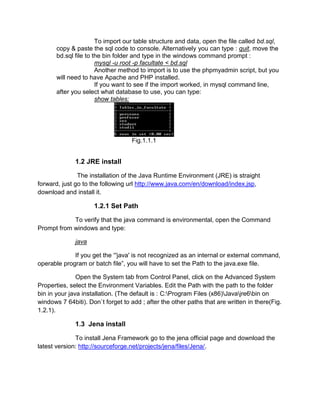
                       If you want to see if the import worked, in mysql command line,
       after you select what database to use, you can type:
                       show tables;


                                   Fig.1.1.1


              1.2 JRE install

               The installation of the Java Runtime Environment (JRE) is straight
forward, just go to the following url http://www.java.com/en/download/index.jsp,
download and install it.

                     1.2.1 Set Path

            To verify that the java command is environmental, open the Command
Prompt from windows and type:

              java

             If you get the “'java' is not recognized as an internal or external command,
operable program or batch file”, you will have to set the Path to the java.exe file.

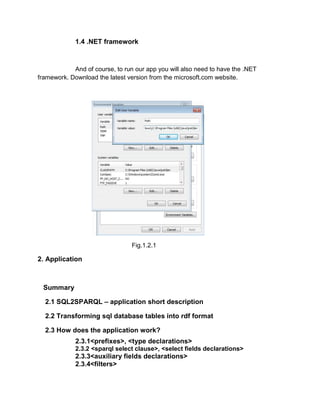
               Open the System tab from Control Panel, click on the Advanced System
Properties, select the Environment Variables. Edit the Path with the path to the folder
bin in your java installation. (The default is : C:Program Files (x86)Javajre6bin on
windows 7 64biti). Don`t forget to add ; after the other paths that are written in there(Fig.
1.2.1).

              1.3 Jena install

              To install Jena Framework go to the jena official page and download the
latest version: http://sourceforge.net/projects/jena/files/Jena/.
1.4 .NET framework


            And of course, to run our app you will also need to have the .NET
framework. Download the latest version from the microsoft.com website.


                                 Fig.1.2.1

2. Application


 Summary

  2.1 SQL2SPARQL – application short description

  2.2 Transforming sql database tables into rdf format

  2.3 How does the application work?
             2.3.1<prefixes>, <type declarations>
             2.3.2 <sparql select clause>, <select fields declarations>
             2.3.3<auxiliary fields declarations>
             2.3.4<filters>
2.1 SQL2SPARQL – application short description


       The „sql2sparql‟ application transforms sql queries that are entered by the user,
into sparql queries that will give the same result over the rdf transformation of the
database (by following some rules listed under).
       The application is a console application that takes an input from the user
representing a sql query, runs the query over „facultate‟ mysql database and shows the
results, and then converts the query to sparql, that is ran over the rdf file using jena.


       2.2 Transforming sql database tables into rdf format.

        There are some rules that we used when transforming the sql database tables
into rdf format. One of them (needed by the application to convert from sql queries to
sparql queries) is to write in a file, for every table, a line with the following format:
tableName[http://rdfTableNamespace]=fieldName1;fieldName2;…
As example for the table „persoana‟ with the fields: id, nume, prenume, data_nasterii,
sex; the file should contain the following line:
persoana[http://facultate.wad/persoana]=id;nume;prenume;data_nasterii;sex;
(The rdf would contain in this case a declaration of the namespace
xmlns:persoana=http://facultate.wad/persoana).

       This could have also been declared in the rdf file in the following record:
       <persoana:prototype>
                    <persoana:id></persoana:id>
                    <persoana:nume></persoana:nume>
                    <persoana:prenume></persoana:prenume>
                    <persoana:data_nasterii></persoana:data_nasterii>
                    <persoana:sex></persoana:sex>
       </persoana:prototype>
but parsing a smaller file would be more efficient and easier.

        Each record from the table will appear in the rdf file as: <tableName:record>, and
its values will contain the fields values as <tableName:tableField>. If the field type is of
int value, then this will also be declared in the rdf record (required for conditioning
where/filter).
For example, the following record from persoana (from the sql database):
+----+---------------+---------------+-------------------+-----+
       | id | nume           | prenume | data_nasterii | sex |
       +----+---------------+---------------+-------------------+-----+
       | 12 | campeanu | loredana | 1985-08-03 | F |
       +----+---------------+---------------+-------------------+-----+
       In the rdf file will look like this:
       <persoana:record>
                        <persoana:id
       rdf:datatype="http://www.w3.org/2001/XMLSchema#integer">12</persoana:id>
                        <persoana:nume>campeanu</persoana:nume>
                        <persoana:prenume>loredana</persoana:prenume>
                        <persoana:data_nasterii>1985-08-03</persoana:data_nasterii>
                        <persoana:sex>F</persoana:sex>
       </persoana:record>


       2.3 How does the application work?


        The application takes an input from the user which represents the sql query over
the „facultate‟ database (which was also manually converted to „facultate.rdf‟ using the
rules listed above). This can be entered on multiple lines (such as in mysql console
application), and will stop reading only if „;‟ is the last non-space character on the line.
       The command is then run over „facultate‟ database, and the results will be
displayed in the console. If any errors appear the application stops, since the query is
most probably invalid, and the resulting sparql query will be the same.
        In order to convert the sql query to a sparql query that will work over
„facultate.rdf‟ and show the same result that the sql query returns over „facultate‟
database, the input goes to several steps.


       Step 1


        In the first step the sql query is parsed into a dictionary with the keys “select”,
“from”, “where” and “alias” (which is set only for nested selects). The values of the keys
are strings that contain the entire „select‟, „from‟ and respectively „where‟ clauses of the
query (except nested select where the value is a dictionary with the same keys). This is
done by splitting the entire entered query at words such as „select‟, „from‟ and „where‟.
The „where‟ key might be missing in case no „where‟ clause was entered.
e.g.: “select * from persoana where persoana.id > 10” =>
[select = “*”; from=”persoana”; where=” persoana.id > 10”];
Step 2


       In the second step some more info is collected from the dictionary prepared in
step 1.
For the from clause, a new dictionary is created that contains the used tables and their
aliases (the dictionary keys will be the table aliases, or their name if no alias is set, and
their values will be the table names). This is done by splitting the „from‟ value into words
(the split is made after spaces as well as after „”,” and operators (such as „<‟, „>=‟, etc.),
and taking the first (table name) and last values (alias) from each group of words
separated by commas (the second word from a group might be „AS‟).
e.g.: “[from] persoana per1, persoana as per2, sex” =>
[per1=”persoana”; per2=”persoana”; sex=”sex”];
        For the select clause there is also a dictionary created which contains the fields
and aliases that will appear in the final result. In this case the dictionary keys will be the
field names (e.g.: persoana.id) while the values will be the aliases (for the ease of use in
further steps). If “*” is encountered in the „select‟ clause then all the fields belonging to
the „from‟ tables will be added into the dictionary. The list of fields that belong to a table
are retrieved from the conversion file described at „Transforming sql database tables
into rdf format‟.
e.g.: “[select] *” (from=[persoana=”persoana”]) =>
[persoana.id=”persoana.id”; persoana.nume=”persoana.nume”,
persoana.prenume=”persoana.prenume”; persoana.sex=”persoana.sex”;
persoana.data_nasterii=”persoana.data_nasterii”];
         For the where clause 1 list (array) and 1 dictionary are created. The list holds the
filter statements (expr1 operator expr2), while the other will hold the fields that are used
in these expressions, but which should not appear in the final result. The filter
statements can be combined by „and‟ and „or‟, which are modified to “&&” and “||” for
sparql. The filters list will have as the first element the left side expression of a filter
statement, the second will be the operator of the statement and the third will be the right
side of the statement. If there are more statements then there will be a 4 th element
which will be either “&&” or “||”, followed by at least 3 more objects composing a new
filter statement. Each „variable‟ found in expr1 or expr 2 will be formatted as
“?tableAlias_tableField”, and if the select dictionary does not include them then they‟re
added to the auxiliary fields dictionary as [tableAlias.tableField =
“?tableAlias_tablefield”];
e.g.: “[where] persoana.id > 10 and persoana.id+3<=15”
(select=[persoana.nume=persoana.nume]) =>
(filters){?persoana_id, >, 10, &&, ?persoana_id+3, <=, 15};
(auxFields)[persoana.id=?persoana_id];
Step 3


       In the 3rd step the sparql query is prepared using the info gathered and prepared
at the previous step. The sparql query will have the form:
<prefixes>
SELECT <sparql select clause>
WHERE {
<type declarations> .
<‟select‟ fields declarations> .
<auxiliary fields declarations>
FILTER ( <filters> )
}

                2.3.1<prefixes>, <type declarations>

                The prefixes are created from the dictionary created at step 2 for the „from‟
clause. This is done by going through the entire dictionary and getting the table names
used in the „from‟ clause. Using the file that describes the conversion rules from the
database to rdf the namespace for that table is retrieved from the file (the file is actually
read at application startup and stored in a dictionary for further use). The prefix for a
table „t‟ with alias „a‟ will look like: “PREFIX a: <namespaceForT>”.
        For every included table, a new value is also created in the type declarations:
“tableAlias a tableAlias:record”;
e.g.: (from)[persoana=persoana; s=student] =>
PREFIX persoana: <http://facultate.wad/persoana>
PREFIX s: <http://facultate.wad/student>

                2.3.2 <sparql select clause>, <select fields declarations>

                The sparql select clause and the type declarations are created by going
through the dictionary created at step 2 for the „select‟ clause. If the fields contained in
the dictionary contain aliases (the value of the alias does not contain “.”) then the select
clause for sparql will append the „field‟ “?alias”, otherwise it will append
“?tableAlias.fieldName”. The “field declarations” will have the form: “?tableAlias
tableAlias:tableField „field‟”.
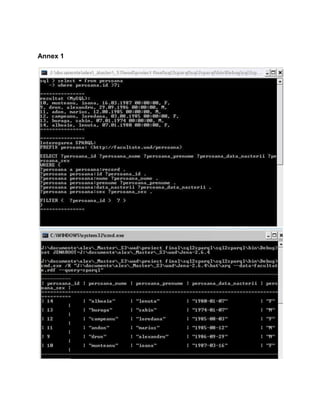
        e.g.: “SELECT * from ersoana” =>
<sparql select clause> = “?persoana_id ?persoana_nume ?persoana_prenume
?persoana_data_nasterii”
<field declarations> =
        “?persoana persoana:id ?persoana_id .
?persoana persoana:nume ?persoana_nume .
       ?persoana persoana:prenume ?persoana_prenume .
       ?persoana persoana:data_nasterii ?persoana_data_nasterii .
       ?persoana persoana:sex ?persoana_sex”

              2.3.3<auxiliary fields declarations>

              These are constructed the same way as the <field declarations>, but from
the contents of the dictionary created at step 2 for the „where‟ clause.

              2.3.4<filters>

               The filters are created by simply appending the values from the list of
filters created at step 2 for the „where‟ clause, everything being prepared at that step.
e.g.: “[where] persoana.id > 10 and persoana.id+3<=15” =>
“?persoana_id > 10 && ?persoana_id+3 <= 15}”;

              After the sparql query is prepared, it is written out on the console for the
user to see. The query is also written to a file (sparql), and jena is launched taking as
parameters the query file and the rdf file (facultate.rdf), showing the results of the sparql
query. Launching jena with the given parameters is done through a bat file with the
following content:
“set JENAROOT=[PATH TO JENA DIR]
cmd.exe /K "[PATH TO JENA ARQ BAT} --data=facultate.rdf --query=sparql"”.


3. Application overview

   Summary
   3.1 Console application
   3.2 Windows Forms application


       3.1 Console application

       To run our example or another in accordance with our rules, you will have to
modify some files. First open with a text editor the file called “jena_facultate_test.bat”.
Set the path to your jena installation folder, to the “arq.bat” file from the bin folder in your
jena and your rdf file. You will also need to add the “tables” in the file named
“database_fields.txt”, based on our rules, if you use another example.
Another thing to know, is that the application is using to connect to MySql the
user named “root” and no password. The database name that the app is looking for is
“facultate”.
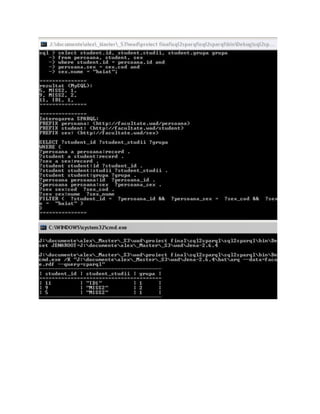
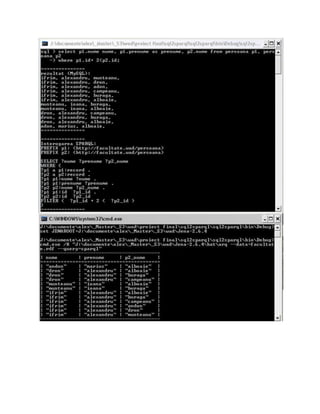
       You can see in Annex 1 some examples run on the console application.


       3.2 Windows Forms application


         The windows forms application is more easy to use, and that was our goal in the
first place, but we like the console application as well.
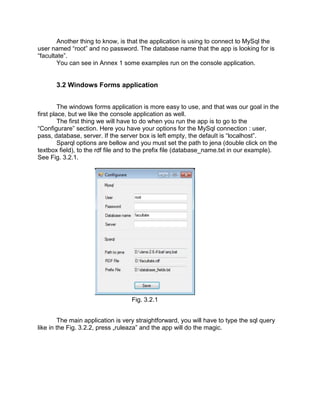
         The first thing we will have to do when you run the app is to go to the
“Configurare” section. Here you have your options for the MySql connection : user,
pass, database, server. If the server box is left empty, the default is “localhost”.
         Sparql options are bellow and you must set the path to jena (double click on the
textbox field), to the rdf file and to the prefix file (database_name.txt in our example).
See Fig. 3.2.1.


                                   Fig. 3.2.1


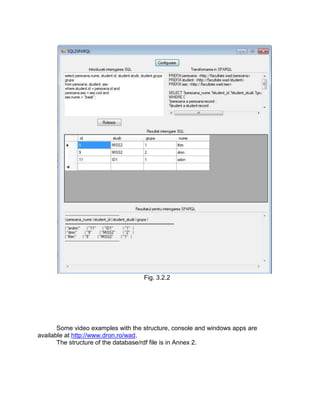
         The main application is very straightforward, you will have to type the sql query
like in the Fig. 3.2.2, press „ruleaza” and the app will do the magic.
Fig. 3.2.2


       Some video examples with the structure, console and windows apps are
available at http://www.dron.ro/wad.
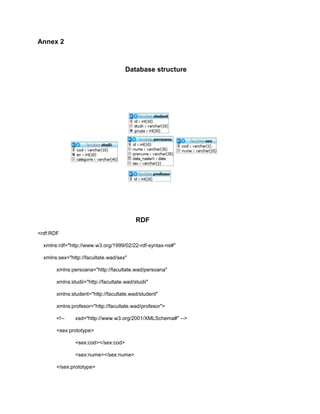
       The structure of the database/rdf file is in Annex 2.
Bibliografie


http://profs.info.uaic.ro/~adria/teach/wad/wad.html

http://profs.info.uaic.ro/~busaco/teach/courses/wade/web-film.html

http://www.w3.org/TR/rdf-sparql-query/

http://www.ibm.com/developerworks/xml/library/j-sparql/

http://www.cambridgesemantics.com/2008/09/sparql-by-example/#%281%29

http://www.zvon.org/xxl/RDFTutorial/General/contents.html

http://dev.mysql.com/doc/refman/5.5/en/
Annex 1
Annex 2


                                      Database structure


                                           RDF
<rdf:RDF

  xmlns:rdf="http://www.w3.org/1999/02/22-rdf-syntax-ns#"

  xmlns:sex="http://facultate.wad/sex"

       xmlns:persoana="http://facultate.wad/persoana"

       xmlns:studii="http://facultate.wad/studii"

       xmlns:student="http://facultate.wad/student"

       xmlns:profesor="http://facultate.wad/profesor">

       <!--    xsd="http://www.w3.org/2001/XMLSchema#" -->

       <sex:prototype>

               <sex:cod></sex:cod>

               <sex:nume></sex:nume>

       </sex:prototype>
<persoana:prototype>

                <persoana:id></persoana:id>

                <persoana:nume></persoana:nume>

                <persoana:prenume></persoana:prenume>

                <persoana:data_nasterii></persoana:data_nasterii>

                <persoana:sex></persoana:sex>

        </persoana:prototype>

<studii:prototype>

                <studii:cod></studii:cod>

                <studii:an></studii:an>

                <studii:categorie></studii:categorie>

        </studii:prototype>

<student:prototype>

                <student:id></student:id>

                <student:studii></student:studii>

                <student:grupa></student:grupa>

        </student:prototype>

<profesor:prototype>

                <profesor:id></profesor:id>

        </profesor:prototype>


                      Database_fields.txt – Prefixes/Conventions

sex[http://facultate.wad/sex]=cod;nume;

persoana[http://facultate.wad/persoana]=id;nume;prenume;data_nasterii;sex;

profesor[http://facultate.wad/profesor]=id;

student[http://facultate.wad/student]=id;studii;grupa;

studii[http://facultate.wad/studii]=cod;an;categorie;

SQL2SPARQL

  • 1.
    Alexandru Ioan CuzaUniversity Faculty of Computer Science SQL2SPARQL Students: Dron Alexandru ISS21 Ifrim Alexandru ISS21
  • 2.
    1.Install Guide –Preparing the environment Summary 1.1 MySql install 1.1.1 Create database 1.1.2 Import a sql file to database 1.2 JRE install 1.2.1 Set Path 1.3 Jena install 1.4 .NET framework 1.1 MySql install You can get MySQL from the following address: http://dev.mysql.com/downloads/mysql, select the right version for you, download and install it. Go to MySQL folder and run mysql_installservice.bat to set mysql server to be a service on the windows platform, if the installer didn`t already do that for you. Then you can check if MySql service is running in Administrative Tools/Services tab. 1.1.1 Create database Go to your MySql installation folder using Command Prompt and into the bin folder. Type in the following command : mysql.exe -u root -p (the default password is blank and the user is "root"). If everything was installed correct, now you are on the mysql command line tool. To create our database, simply type: create database facultate 1.1.2 Import a sql file to database First, we have to tell to mysql what database we want to use, to do that we have to type: use facultate (the message from the MySql server should be "Database changed").
  • 3.
    To import ourtable structure and data, open the file called bd.sql, copy & paste the sql code to console. Alternatively you can type : quit, move the bd.sql file to the bin folder and type in the windows command prompt : mysql -u root -p facultate < bd.sql Another method to import is to use the phpmyadmin script, but you will need to have Apache and PHP installed. If you want to see if the import worked, in mysql command line, after you select what database to use, you can type: show tables; Fig.1.1.1 1.2 JRE install The installation of the Java Runtime Environment (JRE) is straight forward, just go to the following url http://www.java.com/en/download/index.jsp, download and install it. 1.2.1 Set Path To verify that the java command is environmental, open the Command Prompt from windows and type: java If you get the “'java' is not recognized as an internal or external command, operable program or batch file”, you will have to set the Path to the java.exe file. Open the System tab from Control Panel, click on the Advanced System Properties, select the Environment Variables. Edit the Path with the path to the folder bin in your java installation. (The default is : C:Program Files (x86)Javajre6bin on windows 7 64biti). Don`t forget to add ; after the other paths that are written in there(Fig. 1.2.1). 1.3 Jena install To install Jena Framework go to the jena official page and download the latest version: http://sourceforge.net/projects/jena/files/Jena/.
  • 4.
    1.4 .NET framework And of course, to run our app you will also need to have the .NET framework. Download the latest version from the microsoft.com website. Fig.1.2.1 2. Application Summary 2.1 SQL2SPARQL – application short description 2.2 Transforming sql database tables into rdf format 2.3 How does the application work? 2.3.1<prefixes>, <type declarations> 2.3.2 <sparql select clause>, <select fields declarations> 2.3.3<auxiliary fields declarations> 2.3.4<filters>
  • 5.
    2.1 SQL2SPARQL –application short description The „sql2sparql‟ application transforms sql queries that are entered by the user, into sparql queries that will give the same result over the rdf transformation of the database (by following some rules listed under). The application is a console application that takes an input from the user representing a sql query, runs the query over „facultate‟ mysql database and shows the results, and then converts the query to sparql, that is ran over the rdf file using jena. 2.2 Transforming sql database tables into rdf format. There are some rules that we used when transforming the sql database tables into rdf format. One of them (needed by the application to convert from sql queries to sparql queries) is to write in a file, for every table, a line with the following format: tableName[http://rdfTableNamespace]=fieldName1;fieldName2;… As example for the table „persoana‟ with the fields: id, nume, prenume, data_nasterii, sex; the file should contain the following line: persoana[http://facultate.wad/persoana]=id;nume;prenume;data_nasterii;sex; (The rdf would contain in this case a declaration of the namespace xmlns:persoana=http://facultate.wad/persoana). This could have also been declared in the rdf file in the following record: <persoana:prototype> <persoana:id></persoana:id> <persoana:nume></persoana:nume> <persoana:prenume></persoana:prenume> <persoana:data_nasterii></persoana:data_nasterii> <persoana:sex></persoana:sex> </persoana:prototype> but parsing a smaller file would be more efficient and easier. Each record from the table will appear in the rdf file as: <tableName:record>, and its values will contain the fields values as <tableName:tableField>. If the field type is of int value, then this will also be declared in the rdf record (required for conditioning where/filter). For example, the following record from persoana (from the sql database):
  • 6.
    +----+---------------+---------------+-------------------+-----+ | id | nume | prenume | data_nasterii | sex | +----+---------------+---------------+-------------------+-----+ | 12 | campeanu | loredana | 1985-08-03 | F | +----+---------------+---------------+-------------------+-----+ In the rdf file will look like this: <persoana:record> <persoana:id rdf:datatype="http://www.w3.org/2001/XMLSchema#integer">12</persoana:id> <persoana:nume>campeanu</persoana:nume> <persoana:prenume>loredana</persoana:prenume> <persoana:data_nasterii>1985-08-03</persoana:data_nasterii> <persoana:sex>F</persoana:sex> </persoana:record> 2.3 How does the application work? The application takes an input from the user which represents the sql query over the „facultate‟ database (which was also manually converted to „facultate.rdf‟ using the rules listed above). This can be entered on multiple lines (such as in mysql console application), and will stop reading only if „;‟ is the last non-space character on the line. The command is then run over „facultate‟ database, and the results will be displayed in the console. If any errors appear the application stops, since the query is most probably invalid, and the resulting sparql query will be the same. In order to convert the sql query to a sparql query that will work over „facultate.rdf‟ and show the same result that the sql query returns over „facultate‟ database, the input goes to several steps. Step 1 In the first step the sql query is parsed into a dictionary with the keys “select”, “from”, “where” and “alias” (which is set only for nested selects). The values of the keys are strings that contain the entire „select‟, „from‟ and respectively „where‟ clauses of the query (except nested select where the value is a dictionary with the same keys). This is done by splitting the entire entered query at words such as „select‟, „from‟ and „where‟. The „where‟ key might be missing in case no „where‟ clause was entered. e.g.: “select * from persoana where persoana.id > 10” => [select = “*”; from=”persoana”; where=” persoana.id > 10”];
  • 7.
    Step 2 In the second step some more info is collected from the dictionary prepared in step 1. For the from clause, a new dictionary is created that contains the used tables and their aliases (the dictionary keys will be the table aliases, or their name if no alias is set, and their values will be the table names). This is done by splitting the „from‟ value into words (the split is made after spaces as well as after „”,” and operators (such as „<‟, „>=‟, etc.), and taking the first (table name) and last values (alias) from each group of words separated by commas (the second word from a group might be „AS‟). e.g.: “[from] persoana per1, persoana as per2, sex” => [per1=”persoana”; per2=”persoana”; sex=”sex”]; For the select clause there is also a dictionary created which contains the fields and aliases that will appear in the final result. In this case the dictionary keys will be the field names (e.g.: persoana.id) while the values will be the aliases (for the ease of use in further steps). If “*” is encountered in the „select‟ clause then all the fields belonging to the „from‟ tables will be added into the dictionary. The list of fields that belong to a table are retrieved from the conversion file described at „Transforming sql database tables into rdf format‟. e.g.: “[select] *” (from=[persoana=”persoana”]) => [persoana.id=”persoana.id”; persoana.nume=”persoana.nume”, persoana.prenume=”persoana.prenume”; persoana.sex=”persoana.sex”; persoana.data_nasterii=”persoana.data_nasterii”]; For the where clause 1 list (array) and 1 dictionary are created. The list holds the filter statements (expr1 operator expr2), while the other will hold the fields that are used in these expressions, but which should not appear in the final result. The filter statements can be combined by „and‟ and „or‟, which are modified to “&&” and “||” for sparql. The filters list will have as the first element the left side expression of a filter statement, the second will be the operator of the statement and the third will be the right side of the statement. If there are more statements then there will be a 4 th element which will be either “&&” or “||”, followed by at least 3 more objects composing a new filter statement. Each „variable‟ found in expr1 or expr 2 will be formatted as “?tableAlias_tableField”, and if the select dictionary does not include them then they‟re added to the auxiliary fields dictionary as [tableAlias.tableField = “?tableAlias_tablefield”]; e.g.: “[where] persoana.id > 10 and persoana.id+3<=15” (select=[persoana.nume=persoana.nume]) => (filters){?persoana_id, >, 10, &&, ?persoana_id+3, <=, 15}; (auxFields)[persoana.id=?persoana_id];
  • 8.
    Step 3 In the 3rd step the sparql query is prepared using the info gathered and prepared at the previous step. The sparql query will have the form: <prefixes> SELECT <sparql select clause> WHERE { <type declarations> . <‟select‟ fields declarations> . <auxiliary fields declarations> FILTER ( <filters> ) } 2.3.1<prefixes>, <type declarations> The prefixes are created from the dictionary created at step 2 for the „from‟ clause. This is done by going through the entire dictionary and getting the table names used in the „from‟ clause. Using the file that describes the conversion rules from the database to rdf the namespace for that table is retrieved from the file (the file is actually read at application startup and stored in a dictionary for further use). The prefix for a table „t‟ with alias „a‟ will look like: “PREFIX a: <namespaceForT>”. For every included table, a new value is also created in the type declarations: “tableAlias a tableAlias:record”; e.g.: (from)[persoana=persoana; s=student] => PREFIX persoana: <http://facultate.wad/persoana> PREFIX s: <http://facultate.wad/student> 2.3.2 <sparql select clause>, <select fields declarations> The sparql select clause and the type declarations are created by going through the dictionary created at step 2 for the „select‟ clause. If the fields contained in the dictionary contain aliases (the value of the alias does not contain “.”) then the select clause for sparql will append the „field‟ “?alias”, otherwise it will append “?tableAlias.fieldName”. The “field declarations” will have the form: “?tableAlias tableAlias:tableField „field‟”. e.g.: “SELECT * from ersoana” => <sparql select clause> = “?persoana_id ?persoana_nume ?persoana_prenume ?persoana_data_nasterii” <field declarations> = “?persoana persoana:id ?persoana_id .
  • 9.
    ?persoana persoana:nume ?persoana_nume. ?persoana persoana:prenume ?persoana_prenume . ?persoana persoana:data_nasterii ?persoana_data_nasterii . ?persoana persoana:sex ?persoana_sex” 2.3.3<auxiliary fields declarations> These are constructed the same way as the <field declarations>, but from the contents of the dictionary created at step 2 for the „where‟ clause. 2.3.4<filters> The filters are created by simply appending the values from the list of filters created at step 2 for the „where‟ clause, everything being prepared at that step. e.g.: “[where] persoana.id > 10 and persoana.id+3<=15” => “?persoana_id > 10 && ?persoana_id+3 <= 15}”; After the sparql query is prepared, it is written out on the console for the user to see. The query is also written to a file (sparql), and jena is launched taking as parameters the query file and the rdf file (facultate.rdf), showing the results of the sparql query. Launching jena with the given parameters is done through a bat file with the following content: “set JENAROOT=[PATH TO JENA DIR] cmd.exe /K "[PATH TO JENA ARQ BAT} --data=facultate.rdf --query=sparql"”. 3. Application overview Summary 3.1 Console application 3.2 Windows Forms application 3.1 Console application To run our example or another in accordance with our rules, you will have to modify some files. First open with a text editor the file called “jena_facultate_test.bat”. Set the path to your jena installation folder, to the “arq.bat” file from the bin folder in your jena and your rdf file. You will also need to add the “tables” in the file named “database_fields.txt”, based on our rules, if you use another example.
  • 10.
    Another thing toknow, is that the application is using to connect to MySql the user named “root” and no password. The database name that the app is looking for is “facultate”. You can see in Annex 1 some examples run on the console application. 3.2 Windows Forms application The windows forms application is more easy to use, and that was our goal in the first place, but we like the console application as well. The first thing we will have to do when you run the app is to go to the “Configurare” section. Here you have your options for the MySql connection : user, pass, database, server. If the server box is left empty, the default is “localhost”. Sparql options are bellow and you must set the path to jena (double click on the textbox field), to the rdf file and to the prefix file (database_name.txt in our example). See Fig. 3.2.1. Fig. 3.2.1 The main application is very straightforward, you will have to type the sql query like in the Fig. 3.2.2, press „ruleaza” and the app will do the magic.
  • 11.
    Fig. 3.2.2 Some video examples with the structure, console and windows apps are available at http://www.dron.ro/wad. The structure of the database/rdf file is in Annex 2.
  • 12.
  • 13.
  • 16.
    Annex 2 Database structure RDF <rdf:RDF xmlns:rdf="http://www.w3.org/1999/02/22-rdf-syntax-ns#" xmlns:sex="http://facultate.wad/sex" xmlns:persoana="http://facultate.wad/persoana" xmlns:studii="http://facultate.wad/studii" xmlns:student="http://facultate.wad/student" xmlns:profesor="http://facultate.wad/profesor"> <!-- xsd="http://www.w3.org/2001/XMLSchema#" --> <sex:prototype> <sex:cod></sex:cod> <sex:nume></sex:nume> </sex:prototype>
  • 17.
    <persoana:prototype> <persoana:id></persoana:id> <persoana:nume></persoana:nume> <persoana:prenume></persoana:prenume> <persoana:data_nasterii></persoana:data_nasterii> <persoana:sex></persoana:sex> </persoana:prototype> <studii:prototype> <studii:cod></studii:cod> <studii:an></studii:an> <studii:categorie></studii:categorie> </studii:prototype> <student:prototype> <student:id></student:id> <student:studii></student:studii> <student:grupa></student:grupa> </student:prototype> <profesor:prototype> <profesor:id></profesor:id> </profesor:prototype> Database_fields.txt – Prefixes/Conventions sex[http://facultate.wad/sex]=cod;nume; persoana[http://facultate.wad/persoana]=id;nume;prenume;data_nasterii;sex; profesor[http://facultate.wad/profesor]=id; student[http://facultate.wad/student]=id;studii;grupa; studii[http://facultate.wad/studii]=cod;an;categorie;