Importing and Exporting Data
Module Overview
•
Introduction to Transferring Data
•
Importing and Exporting Data
•
Copying or Moving a Database
Transferring Data
•
Overview of Data Transfer
•
Available Tools for Data Transfer
•
Improving the Performance of Data Transfers
•
Disabling and Rebuilding Indexes
•
Disabling and Enabling Constraints
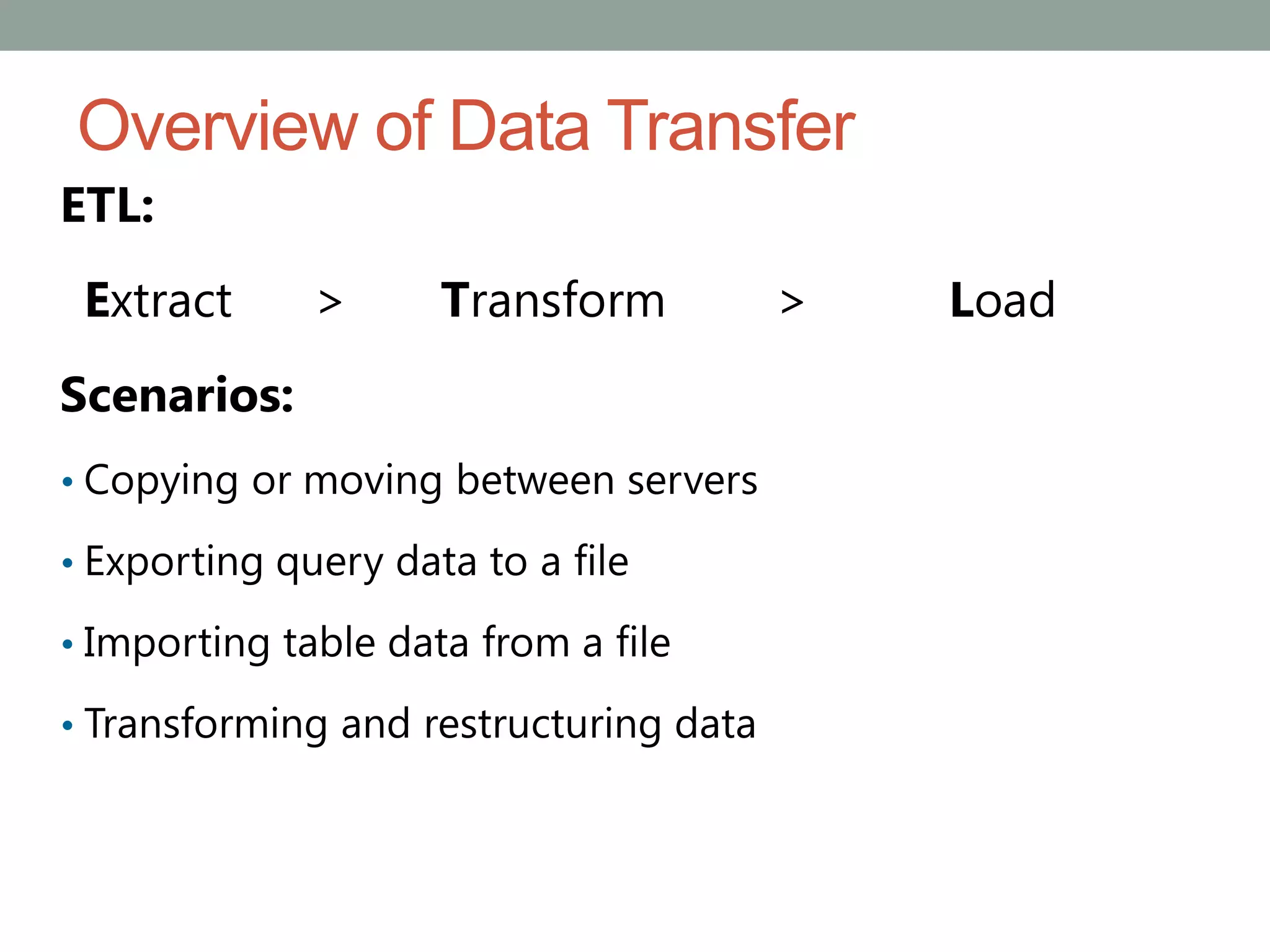
Overview of Data Transfer
ETL:
Extract > Transform > Load
Scenarios:
• Copying or moving between servers
• Exporting query data to a file
• Importing table data from a file
• Transforming and restructuring data
Available Tools for Data Transfer
• Import and Export Wizard
• SQL Server Integration Services
• Bulk Copy Program
• BULK INSERT
• OPENROWSET(BULK)
Improving the Performance of Data Transfers
• Disable constraints, indexes, and triggers:
• No need to check constraints as each row is loaded
• Indexes don’t need to be maintained during import
• Important to check business requirements before
disabling triggers
• Minimizing locking:
• Consider the use of TABLOCK to speed up the import
• Minimizing logging:
• Database must be in BULK_LOGGED or SIMPLE model
• Additional requirements on table structure and locking
Disabling and Rebuilding Indexes
• Disabling an index:
• Prevents user access to the index
• Prevents access to the data if it is a clustered index
• Keeps index definition in metadata
• Speeds up data import in tables
• Enabling an index:
• Rebuilds the index entirely
• Is easy to automate because the metadata is still
present
• Enabling and disabling indexes is an alternative to
dropping and recreating indexes for bulk imports
Disabling and Enabling Constraints
• Disabling PRIMARY KEY and UNIQUE constraints:
• Achieved by disabling the associated index
• Causes associated indexes to be rebuilt when enabled
• Can cause failures during re-enabling if duplicate
values exist
• Causes associated foreign key constraints to be
disabled
• Disabling FOREIGN KEY and CHECK constraints:
• Performed directly on the constraint
• Causes existing data to be unverified when re-enabled
Importing and Exporting Data
•
The SQL Server Import and Export Wizard
•
Demonstration: Using the Import and Export Wizard
•
The bcp Utility
•
Demonstration: Using the bcp Utility
•
The BULK INSERT Statement
•
Demonstration: Using the BULK INSERT Statement
•
The OPENROWSET Function
•
Demonstration: Using the OPENROWSET Function
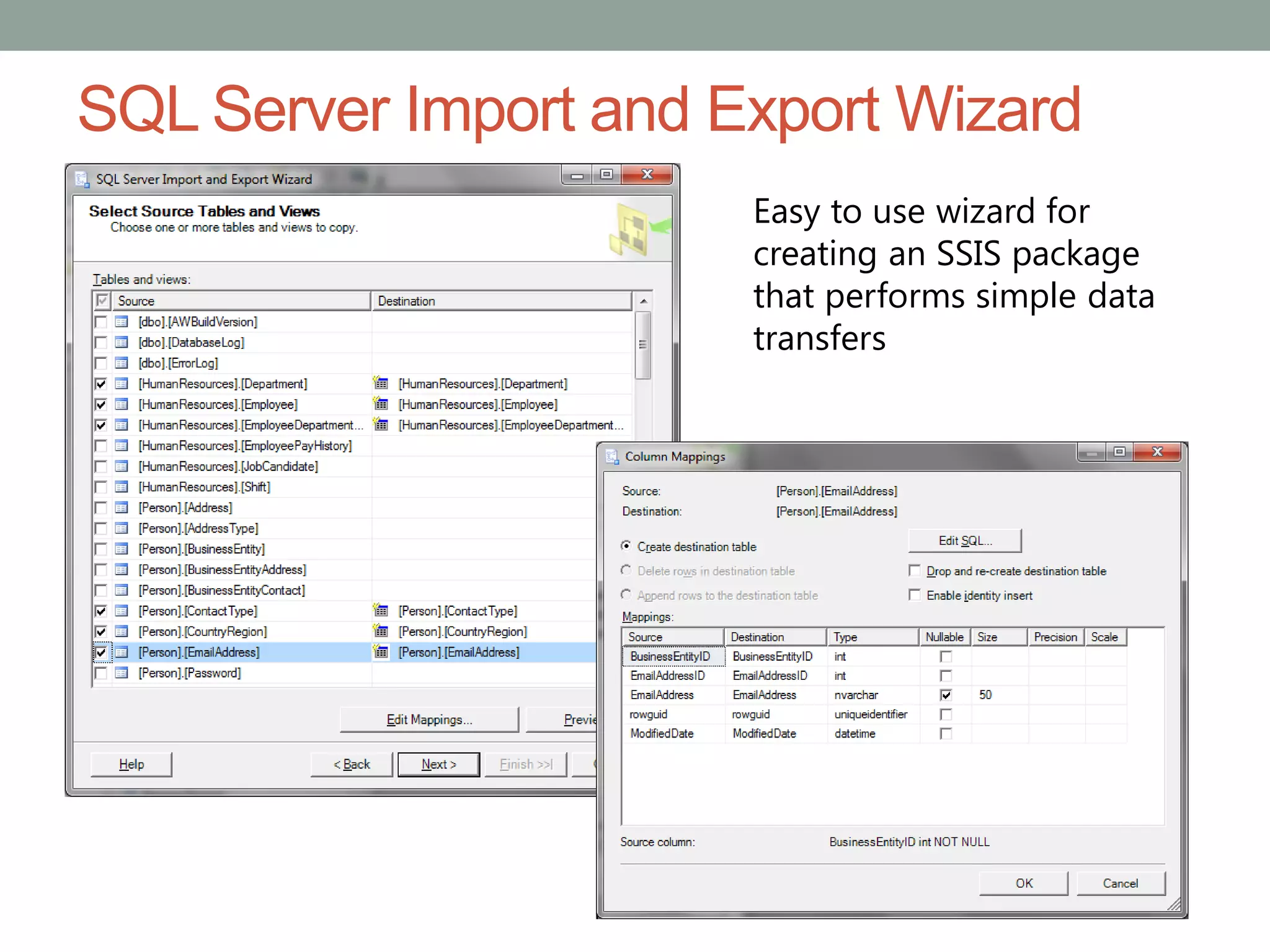
SQL Server Import and Export Wizard
Easy to use wizard for
creating an SSIS package
that performs simple data
transfers
Demonstration: Using the Import and Export
Wizard
In this demonstration, you will see how to:
• Use Import and Export Wizard to export data
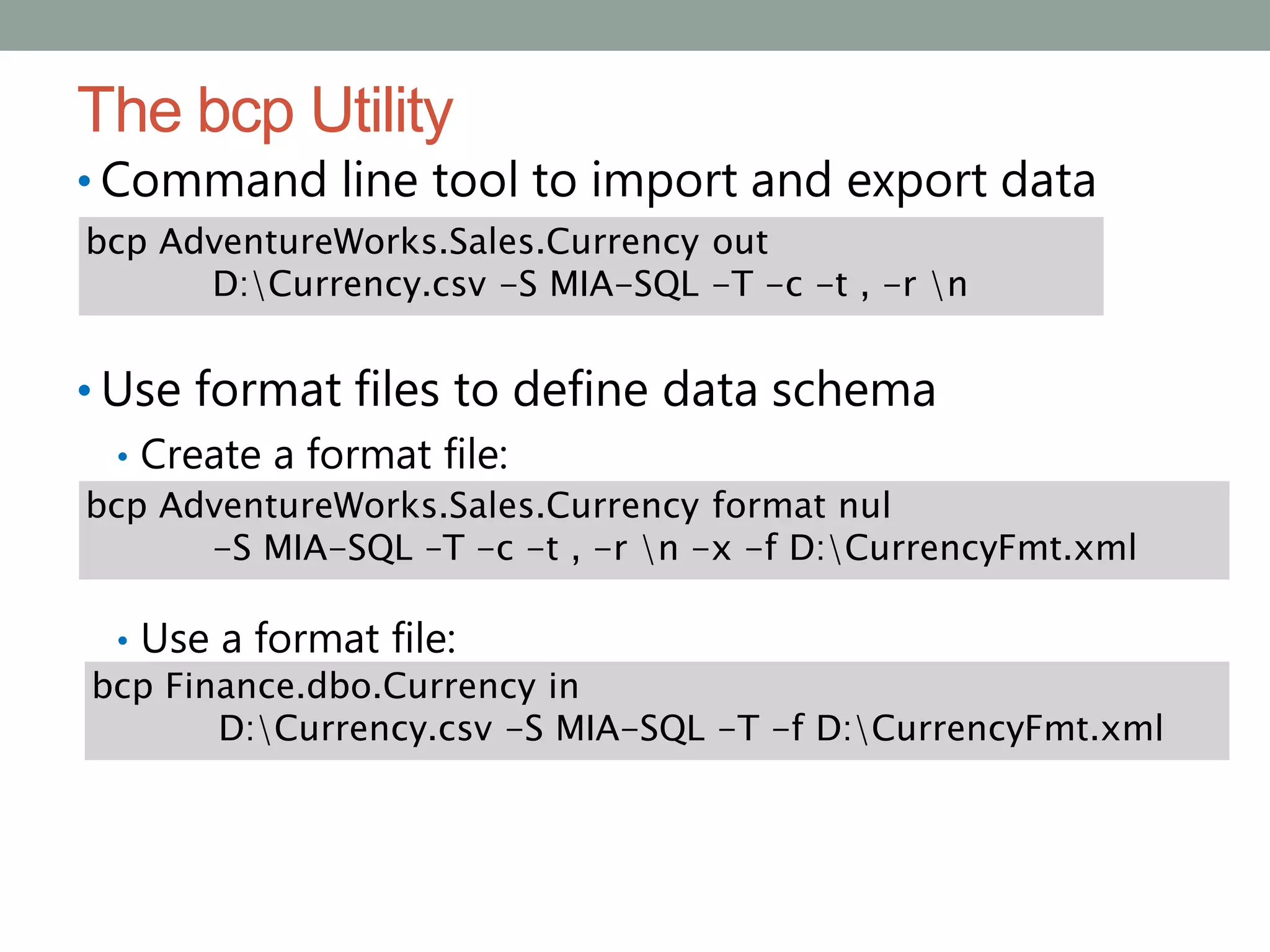
The bcp Utility
• Command line tool to import and export data
• Use format files to define data schema
• Create a format file:
• Use a format file:
bcp AdventureWorks.Sales.Currency out
D:Currency.csv -S MIA-SQL -T -c -t , -r n
bcp AdventureWorks.Sales.Currency format nul
-S MIA-SQL –T -c -t , -r n -x -f D:CurrencyFmt.xml
bcp Finance.dbo.Currency in
D:Currency.csv -S MIA-SQL -T -f D:CurrencyFmt.xml
Demonstration: Using the bcp Utility
In this demonstration, you will see how to:
• Use bcp to create a format file
• Use bcp to export data
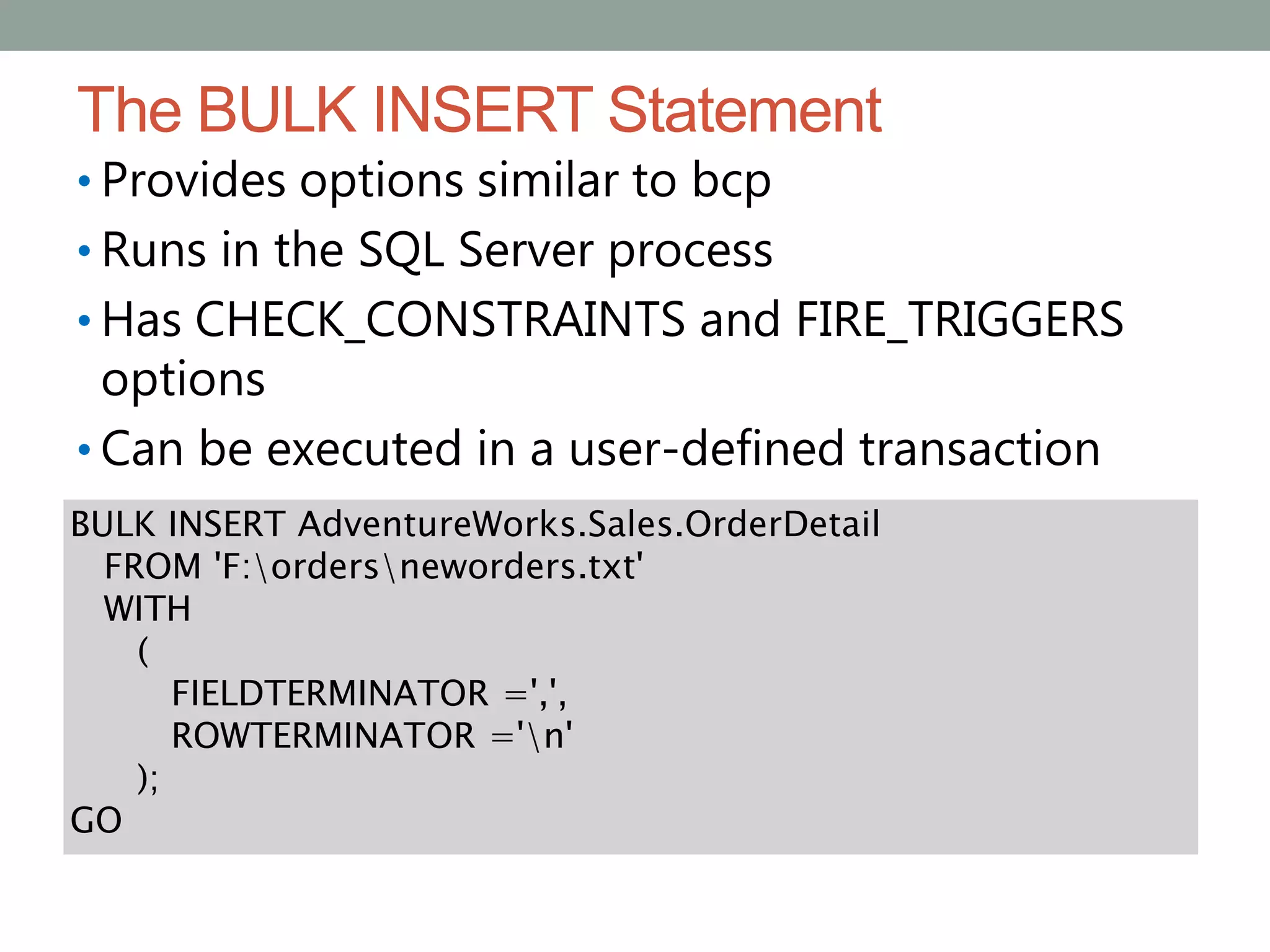
The BULK INSERT Statement
• Provides options similar to bcp
• Runs in the SQL Server process
• Has CHECK_CONSTRAINTS and FIRE_TRIGGERS
options
• Can be executed in a user-defined transaction
BULK INSERT AdventureWorks.Sales.OrderDetail
FROM 'F:ordersneworders.txt'
WITH
(
FIELDTERMINATOR =',',
ROWTERMINATOR ='n'
);
GO
Using the BULK INSERT Statement
In this demonstration, you will see how to:
• Use the BULK INSERT statement to import data
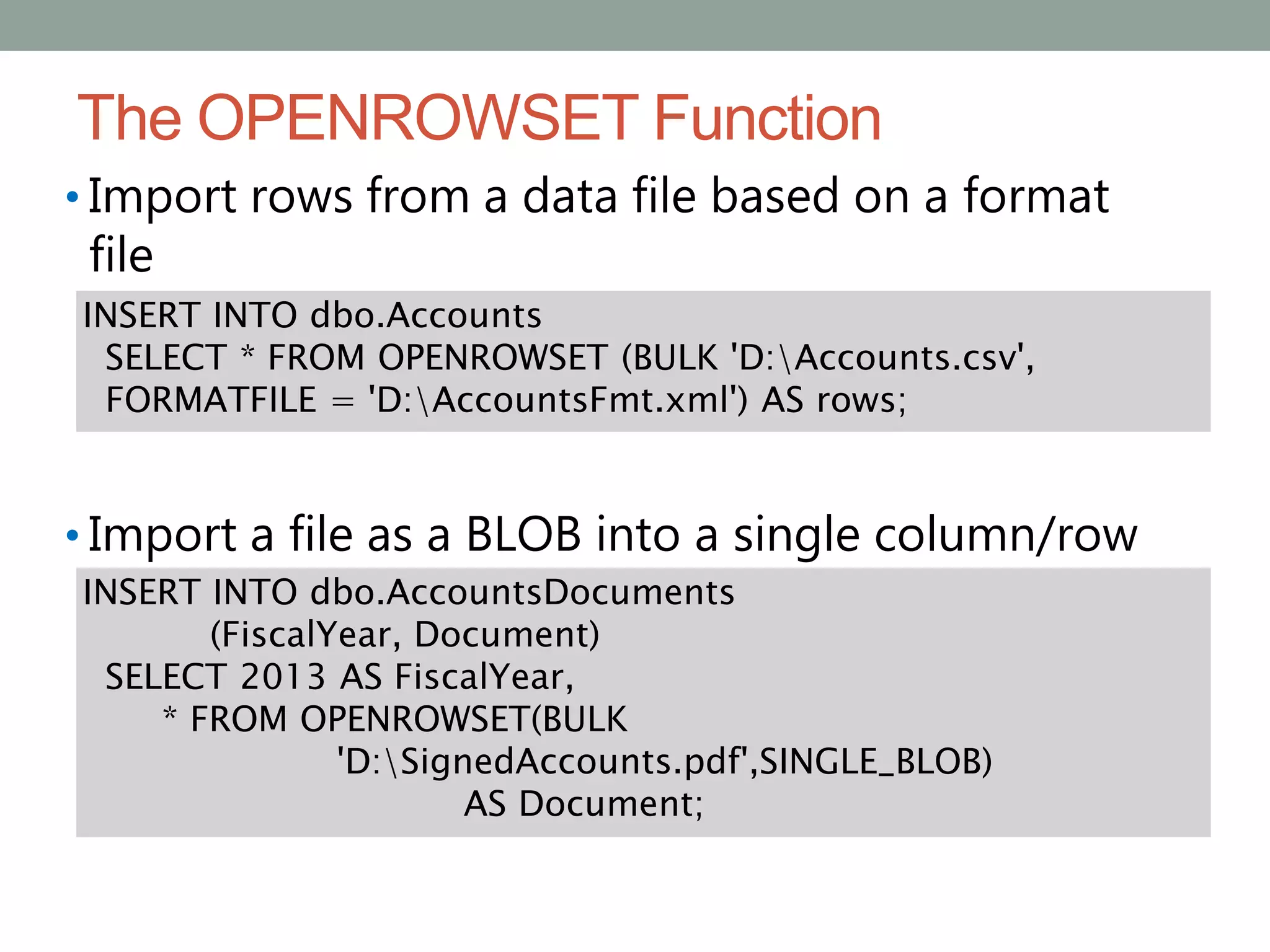
The OPENROWSET Function
• Import rows from a data file based on a format
file
• Import a file as a BLOB into a single column/row
INSERT INTO dbo.Accounts
SELECT * FROM OPENROWSET (BULK 'D:Accounts.csv',
FORMATFILE = 'D:AccountsFmt.xml') AS rows;
INSERT INTO dbo.AccountsDocuments
(FiscalYear, Document)
SELECT 2013 AS FiscalYear,
* FROM OPENROWSET(BULK
'D:SignedAccounts.pdf',SINGLE_BLOB)
AS Document;
Using the OPENROWSET Function
In this demonstration, you will see how to:
• Use the OPENROWSET function to import data
Copying or Moving a Database
•
Options for Copying or Moving Databases
•
The Copy Database Wizard
•
Demonstration: Using the Copy Database Wizard
•
Data-Tier Applications
•
Demonstration: Exporting and Importing a Data-tier
Application
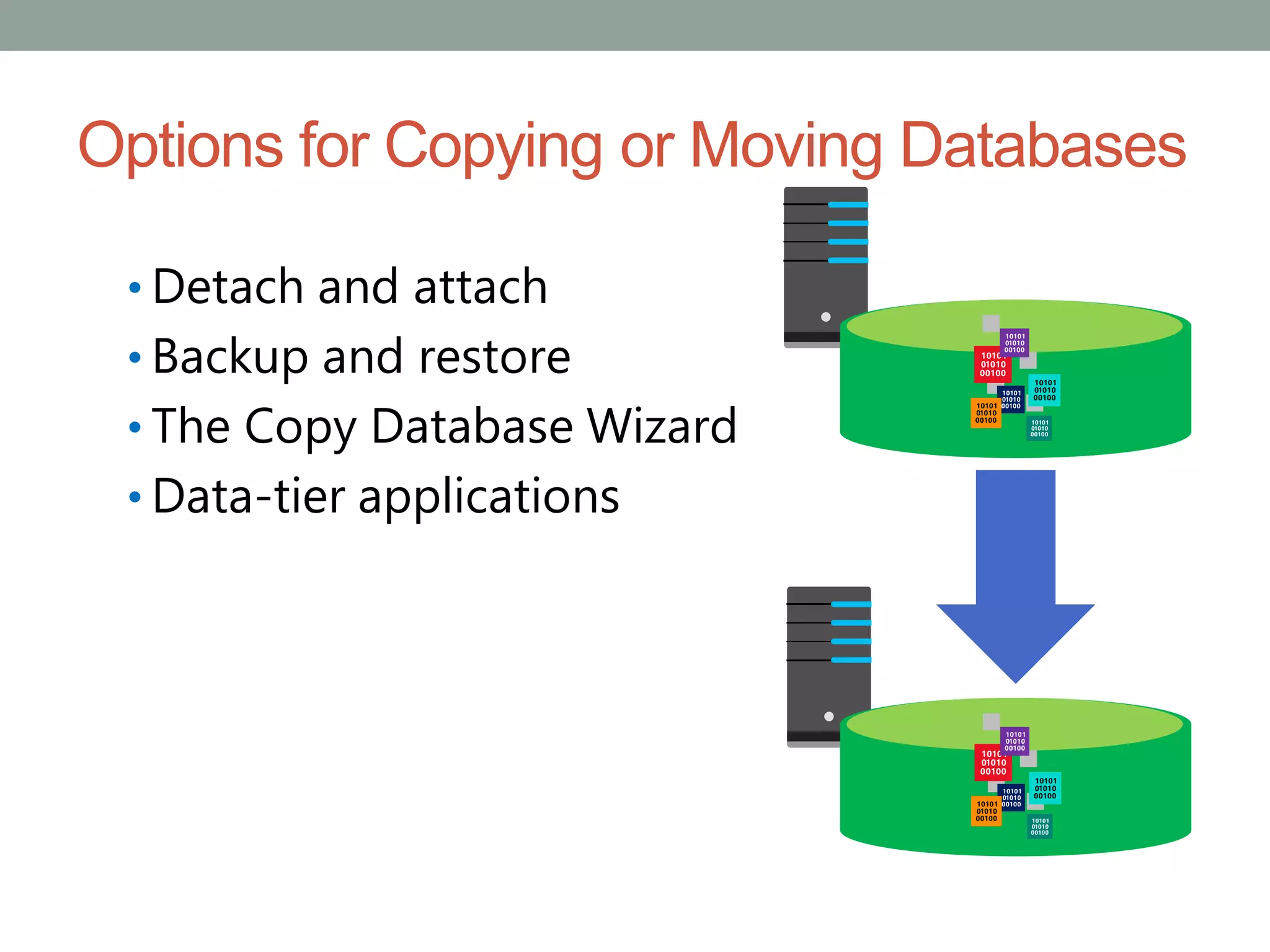
Options for Copying or Moving Databases
• Detach and attach
• Backup and restore
• The Copy Database Wizard
• Data-tier applications
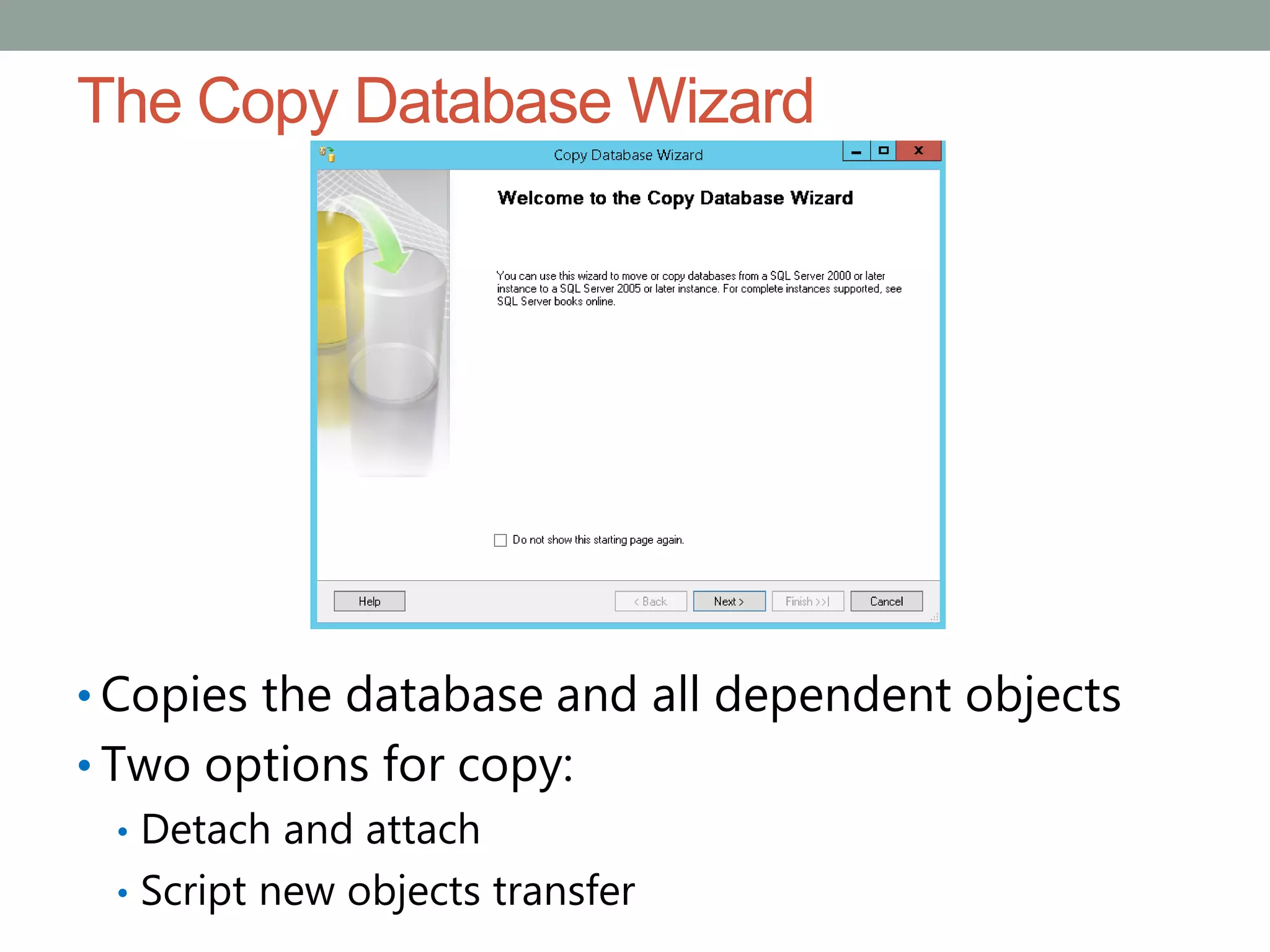
The Copy Database Wizard
• Copies the database and all dependent objects
• Two options for copy:
• Detach and attach
• Script new objects transfer
Demonstration: Using the Copy Database
Wizard
In this demonstration, you will see how to:
• Use the Copy Database Wizard
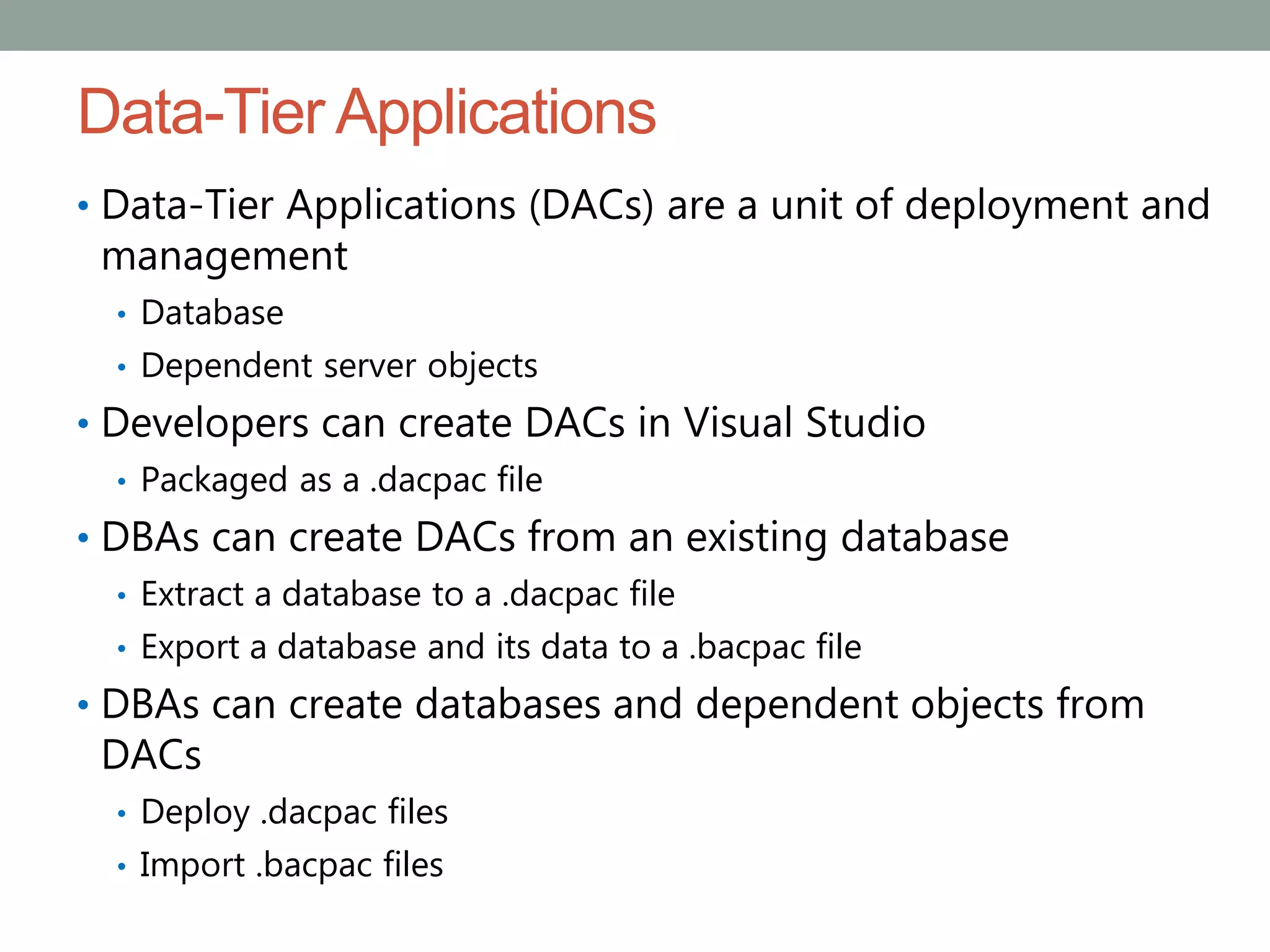
Data-Tier Applications
• Data-Tier Applications (DACs) are a unit of deployment and
management
• Database
• Dependent server objects
• Developers can create DACs in Visual Studio
• Packaged as a .dacpac file
• DBAs can create DACs from an existing database
• Extract a database to a .dacpac file
• Export a database and its data to a .bacpac file
• DBAs can create databases and dependent objects from
DACs
• Deploy .dacpac files
• Import .bacpac files
Demonstration: Exporting and Importing a Data-
tier Application
In this demonstration, you will see how to:
• Export a data-tier application
• Import a data-tier application
Lab: Importing and Exporting Data
•
Exercise 1: Using the SQL Server Import and Export
Wizard
•
Exercise 2: Using the bcp Utility
•
Exercise 3: Using the BULK INSERT Statement
•
Exercise 4: Using the OPENROWSET Function
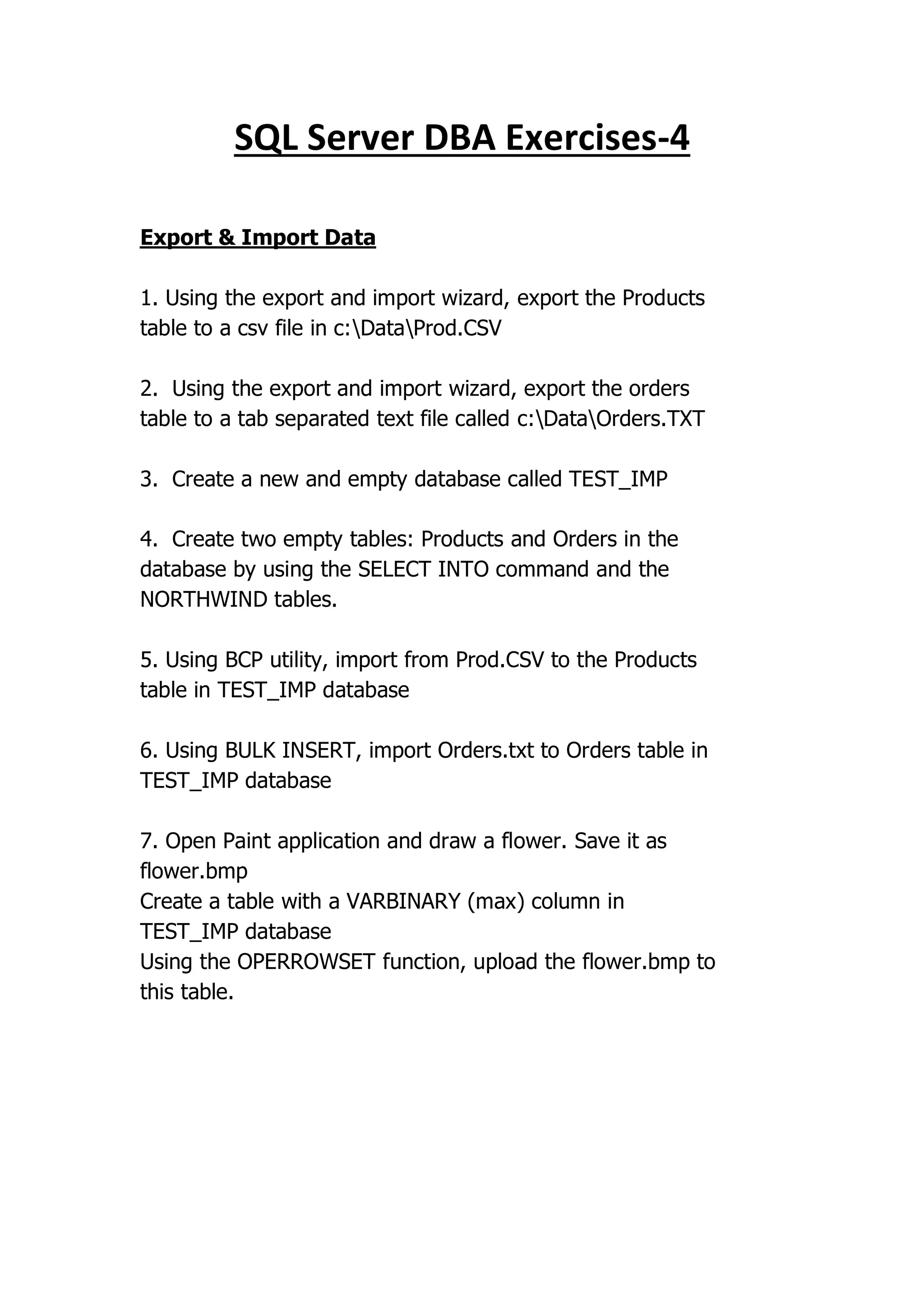
4
-
SQL Server DBA Exercises
Export & Import Data
1. Using the export and import wizard, export the Products
table to a csv file in c:DataProd.CSV
2. Using the export and import wizard, export the orders
table to a tab separated text file called c:DataOrders.TXT
3. Create a new and empty database called TEST_IMP
4. Create two empty tables: Products and Orders in the
database by using the SELECT INTO command and the
NORTHWIND tables.
5. Using BCP utility, import from Prod.CSV to the Products
table in TEST_IMP database
6. Using BULK INSERT, import Orders.txt to Orders table in
TEST_IMP database
7. Open Paint application and draw a flower. Save it as
flower.bmp
Create a table with a VARBINARY (max) column in
TEST_IMP database
Using the OPERROWSET function, upload the flower.bmp to
this table.

SQL - שינוע מידע.PDF

  • 1.
  • 2.
    Module Overview • Introduction toTransferring Data • Importing and Exporting Data • Copying or Moving a Database
  • 3.
    Transferring Data • Overview ofData Transfer • Available Tools for Data Transfer • Improving the Performance of Data Transfers • Disabling and Rebuilding Indexes • Disabling and Enabling Constraints
  • 4.
    Overview of DataTransfer ETL: Extract > Transform > Load Scenarios: • Copying or moving between servers • Exporting query data to a file • Importing table data from a file • Transforming and restructuring data
  • 5.
    Available Tools forData Transfer • Import and Export Wizard • SQL Server Integration Services • Bulk Copy Program • BULK INSERT • OPENROWSET(BULK)
  • 6.
    Improving the Performanceof Data Transfers • Disable constraints, indexes, and triggers: • No need to check constraints as each row is loaded • Indexes don’t need to be maintained during import • Important to check business requirements before disabling triggers • Minimizing locking: • Consider the use of TABLOCK to speed up the import • Minimizing logging: • Database must be in BULK_LOGGED or SIMPLE model • Additional requirements on table structure and locking
  • 7.
    Disabling and RebuildingIndexes • Disabling an index: • Prevents user access to the index • Prevents access to the data if it is a clustered index • Keeps index definition in metadata • Speeds up data import in tables • Enabling an index: • Rebuilds the index entirely • Is easy to automate because the metadata is still present • Enabling and disabling indexes is an alternative to dropping and recreating indexes for bulk imports
  • 8.
    Disabling and EnablingConstraints • Disabling PRIMARY KEY and UNIQUE constraints: • Achieved by disabling the associated index • Causes associated indexes to be rebuilt when enabled • Can cause failures during re-enabling if duplicate values exist • Causes associated foreign key constraints to be disabled • Disabling FOREIGN KEY and CHECK constraints: • Performed directly on the constraint • Causes existing data to be unverified when re-enabled
  • 9.
    Importing and ExportingData • The SQL Server Import and Export Wizard • Demonstration: Using the Import and Export Wizard • The bcp Utility • Demonstration: Using the bcp Utility • The BULK INSERT Statement • Demonstration: Using the BULK INSERT Statement • The OPENROWSET Function • Demonstration: Using the OPENROWSET Function
  • 10.
    SQL Server Importand Export Wizard Easy to use wizard for creating an SSIS package that performs simple data transfers
  • 11.
    Demonstration: Using theImport and Export Wizard In this demonstration, you will see how to: • Use Import and Export Wizard to export data
  • 12.
    The bcp Utility •Command line tool to import and export data • Use format files to define data schema • Create a format file: • Use a format file: bcp AdventureWorks.Sales.Currency out D:Currency.csv -S MIA-SQL -T -c -t , -r n bcp AdventureWorks.Sales.Currency format nul -S MIA-SQL –T -c -t , -r n -x -f D:CurrencyFmt.xml bcp Finance.dbo.Currency in D:Currency.csv -S MIA-SQL -T -f D:CurrencyFmt.xml
  • 13.
    Demonstration: Using thebcp Utility In this demonstration, you will see how to: • Use bcp to create a format file • Use bcp to export data
  • 14.
    The BULK INSERTStatement • Provides options similar to bcp • Runs in the SQL Server process • Has CHECK_CONSTRAINTS and FIRE_TRIGGERS options • Can be executed in a user-defined transaction BULK INSERT AdventureWorks.Sales.OrderDetail FROM 'F:ordersneworders.txt' WITH ( FIELDTERMINATOR =',', ROWTERMINATOR ='n' ); GO
  • 15.
    Using the BULKINSERT Statement In this demonstration, you will see how to: • Use the BULK INSERT statement to import data
  • 16.
    The OPENROWSET Function •Import rows from a data file based on a format file • Import a file as a BLOB into a single column/row INSERT INTO dbo.Accounts SELECT * FROM OPENROWSET (BULK 'D:Accounts.csv', FORMATFILE = 'D:AccountsFmt.xml') AS rows; INSERT INTO dbo.AccountsDocuments (FiscalYear, Document) SELECT 2013 AS FiscalYear, * FROM OPENROWSET(BULK 'D:SignedAccounts.pdf',SINGLE_BLOB) AS Document;
  • 17.
    Using the OPENROWSETFunction In this demonstration, you will see how to: • Use the OPENROWSET function to import data
  • 18.
    Copying or Movinga Database • Options for Copying or Moving Databases • The Copy Database Wizard • Demonstration: Using the Copy Database Wizard • Data-Tier Applications • Demonstration: Exporting and Importing a Data-tier Application
  • 19.
    Options for Copyingor Moving Databases • Detach and attach • Backup and restore • The Copy Database Wizard • Data-tier applications
  • 20.
    The Copy DatabaseWizard • Copies the database and all dependent objects • Two options for copy: • Detach and attach • Script new objects transfer
  • 21.
    Demonstration: Using theCopy Database Wizard In this demonstration, you will see how to: • Use the Copy Database Wizard
  • 22.
    Data-Tier Applications • Data-TierApplications (DACs) are a unit of deployment and management • Database • Dependent server objects • Developers can create DACs in Visual Studio • Packaged as a .dacpac file • DBAs can create DACs from an existing database • Extract a database to a .dacpac file • Export a database and its data to a .bacpac file • DBAs can create databases and dependent objects from DACs • Deploy .dacpac files • Import .bacpac files
  • 23.
    Demonstration: Exporting andImporting a Data- tier Application In this demonstration, you will see how to: • Export a data-tier application • Import a data-tier application
  • 24.
    Lab: Importing andExporting Data • Exercise 1: Using the SQL Server Import and Export Wizard • Exercise 2: Using the bcp Utility • Exercise 3: Using the BULK INSERT Statement • Exercise 4: Using the OPENROWSET Function
  • 25.
    4 - SQL Server DBAExercises Export & Import Data 1. Using the export and import wizard, export the Products table to a csv file in c:DataProd.CSV 2. Using the export and import wizard, export the orders table to a tab separated text file called c:DataOrders.TXT 3. Create a new and empty database called TEST_IMP 4. Create two empty tables: Products and Orders in the database by using the SELECT INTO command and the NORTHWIND tables. 5. Using BCP utility, import from Prod.CSV to the Products table in TEST_IMP database 6. Using BULK INSERT, import Orders.txt to Orders table in TEST_IMP database 7. Open Paint application and draw a flower. Save it as flower.bmp Create a table with a VARBINARY (max) column in TEST_IMP database Using the OPERROWSET function, upload the flower.bmp to this table.