





SharePoint & jQuery – What I Wish I
 Would Have Known When I Started…

Mark Rackley – Solutions Architect /
SharePoint Practice Lead / Developer
Email: mrackley@juniper-strategy.com
Blog: http://www.sharepointhillbilly.com
Twitter: http://www.twitter.com/mrackley
Agenda
• jQuery Overview
• jQuery & SharePoint – What’s the
  Point?
• Deployment, Maintenance, Upgrades
• SPServices
• Development & Debugging
• Examples
                           2
What is jQuery?
• JavaScript utility library
• Quickly write interactive and USABLE
  applications
• You don’t have to deploy assemblies (perfect
  for tightly controlled environments)
What Skills do I need?
• JavaScript (duh)
• CSS, XML
• A development background
   – It IS code
   – Uses development constructs
   – If you can’t write code, your ability to do magic will be limited to
     what you can copy/paste
• CAML, CAML, CAML… Sorry…
• Ability to think outside the box
   – Use all the pieces together
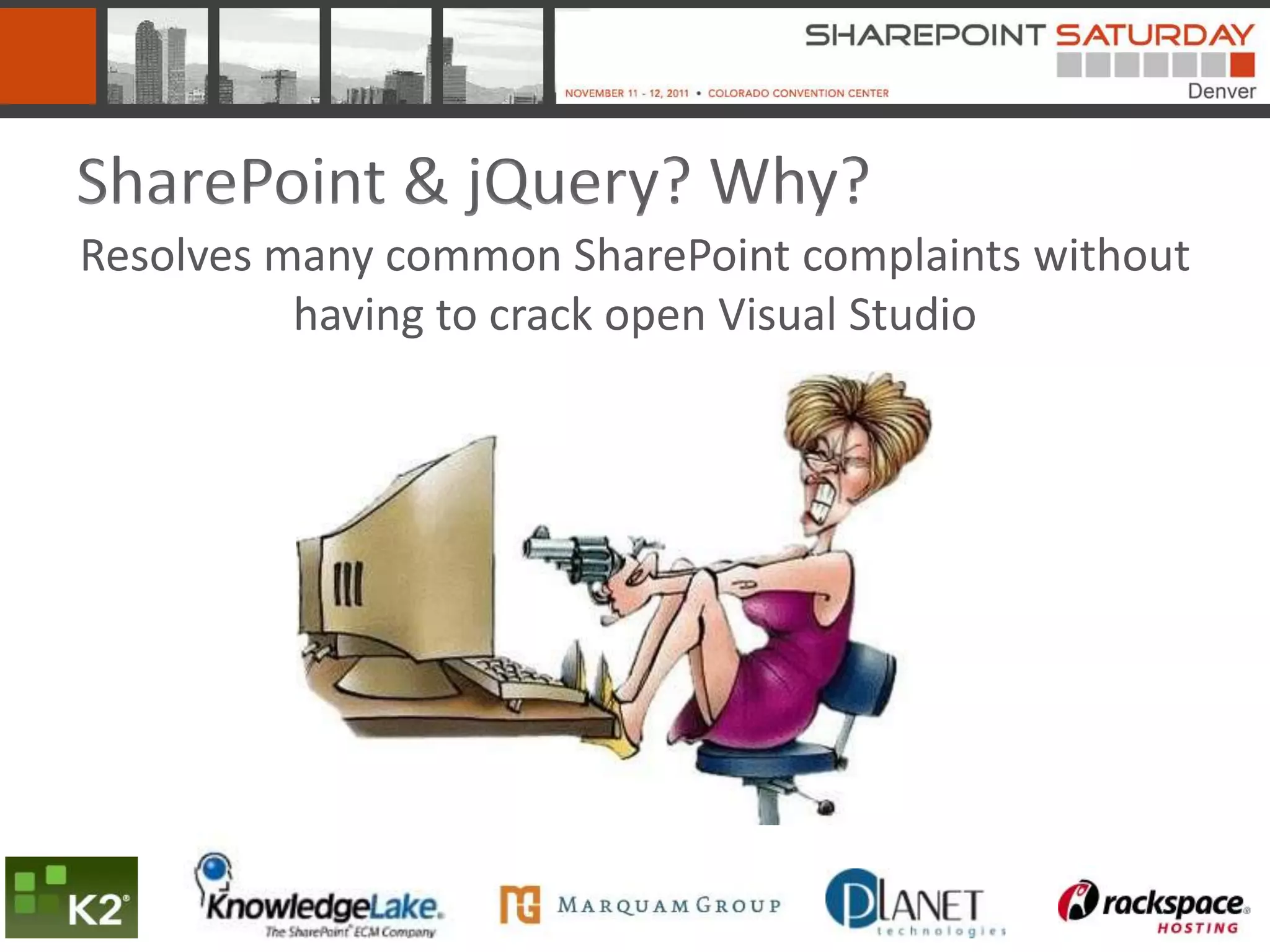
SharePoint & jQuery? Why?
Resolves many common SharePoint complaints without
          having to crack open Visual Studio
SharePoint & jQuery? Why?


        “It looks like SharePoint”
SharePoint & jQuery? Why?


            “That’s SharePoint?”
SharePoint & jQuery? Why?


   “I’m so sorry… SharePoint can’t do that out of the box”
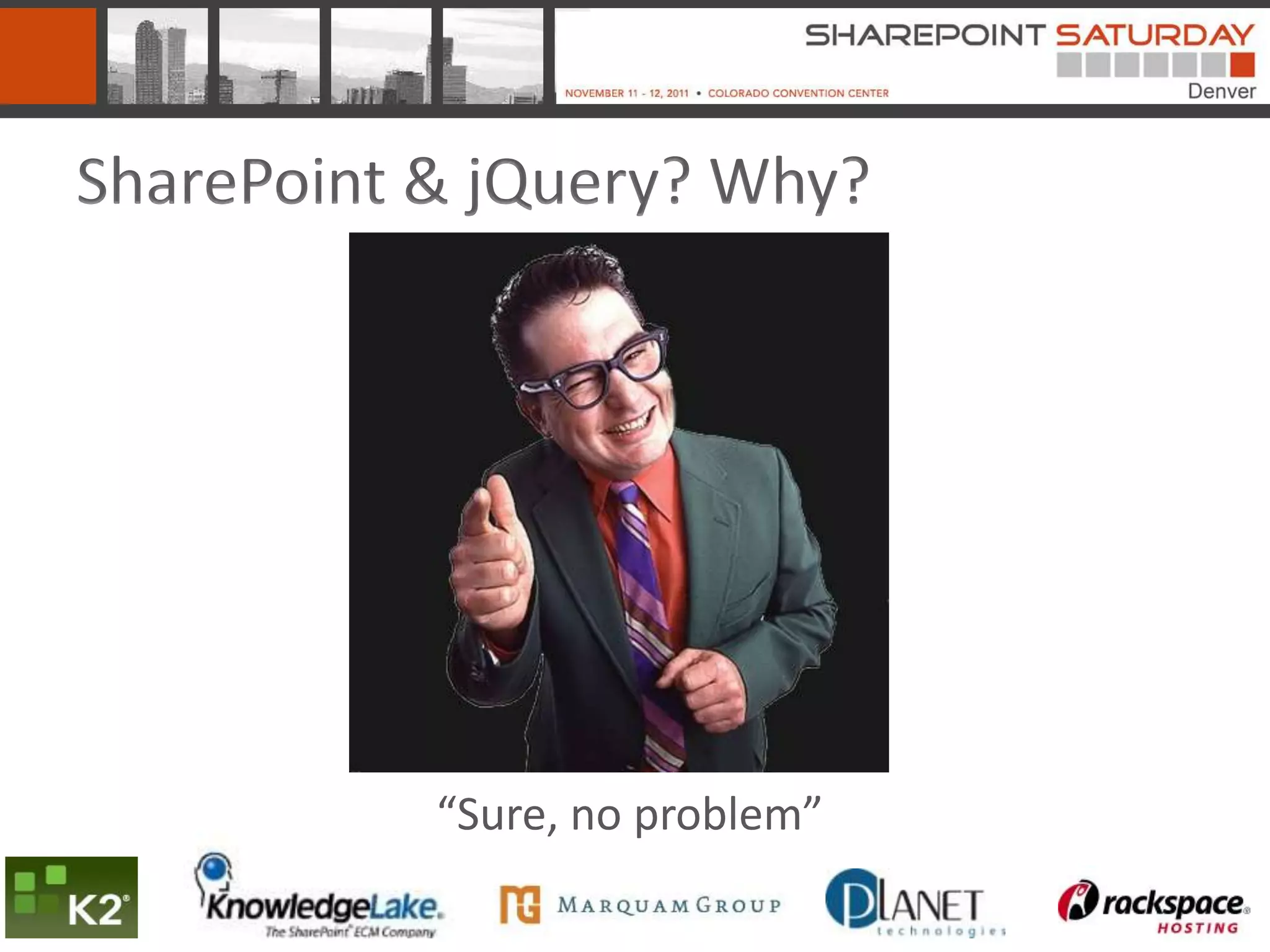
SharePoint & jQuery? Why?


           “Sure, no problem”
SharePoint & jQuery? Why?
 “That will take 3
 weeks???”
 becomes “2 days?
 Awesome! I love
 you… here, please
 accept this bonus
 for being such a
 wonderful
 developer”
jQuery makes your SharePoint
    applications USABLE
Common Myths
• It’s not secure
Busted… It uses SharePoint’s security. All scripts run with
privileges of current user
• It doesn’t perform well
Plausible… It performs very well if you use it correctly in the right
situations
• I can’t elevate privileges if I need to
Confirmed…
Yeah but…
• I can’t interact with SharePoint Lists and
  Libraries without screen scraping
You can call Web Services with JavaScript (SPServices is a
wonderful jQuery library that wraps SharePoints Web Service
calls) and the Client Object Model in 2010
• It has no real use in my environment because
  of “x”
Quickly prototype and tweak web parts before writing in Visual
Studio. In fact, in some environments it is the only development
option.
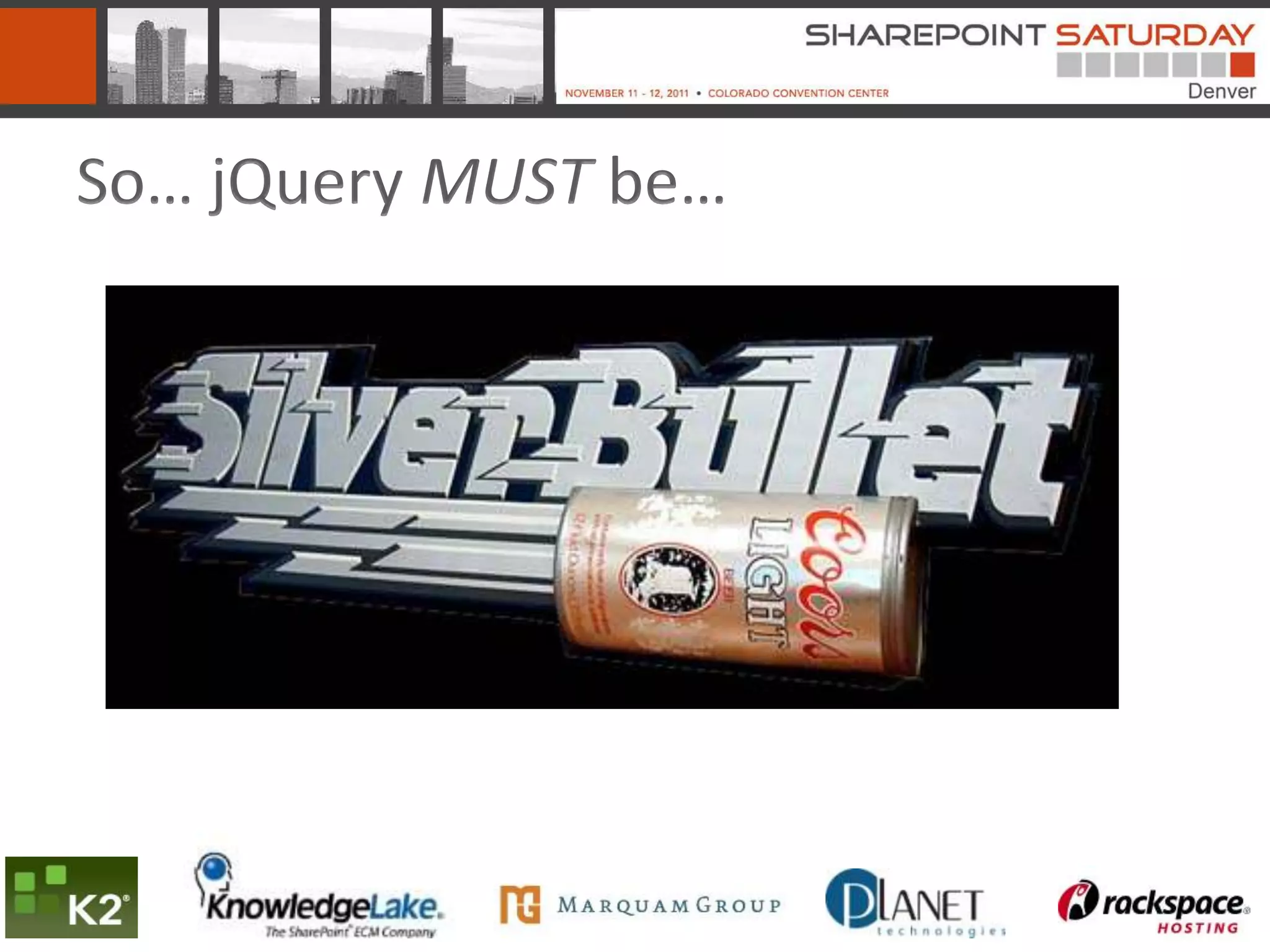
So… jQuery MUST be…
Not So Fast…
• It does “expose” business logic to user if they dig around
• It executes on the client side and can perform slow if
  manipulating larges amounts of data
• Be extra careful for external facing applications
• You can’t do EVERYTHING with jQuery like…
   –   Timer Jobs
   –   Workflows (although it can eliminate the need for some)
   –   Event Handlers
   –   Elevate Privliges
   –   Easily interact with all business systems
• jQuery CAN harm your farm!
Deployment Options
Deployment options
• Folders in SPD / Visual Studio Module
• File System
  – Deployed with a WSP (don’t think of manually
    copying)
  – Not an option for Office 365 or hosted SharePoint
    2010
• External Reference
  – Microsoft Ajax Content Delivery Network (CDN)
    http://www.asp.net/ajaxlibrary/cdn.ashx
Deployment options
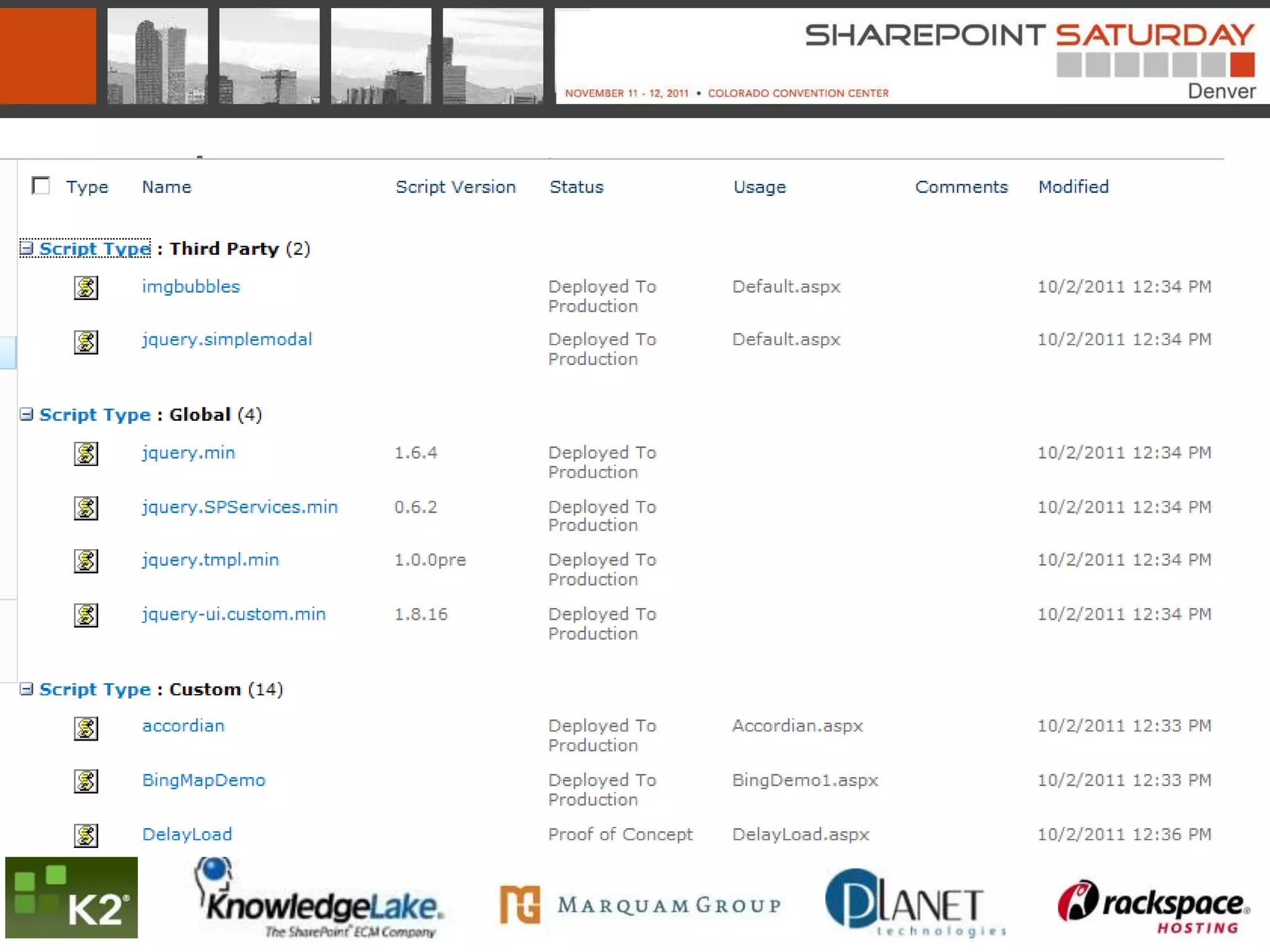
• Document Library
  – Easily modify scripts
  – Keep track of changes with Metadata
  – Recover from screw ups with Versioning
  – Less control, more flexibility versus other options
Deployment options
Reference Options
• ScriptLink
      • MasterPages, Delegate Controls, Web Parts, Controls, Custom
        Pages
      • Ensures Script is not loaded multiple times
      • Renders in the correct place in the markup
      • Need Visual Studio or SPD
      • More upfront work
• Content Editor Web Part (CEWP)
      • Quick & Easy
      • Don’t have to deploy anything
      • Adds CEWP overhead
Reference Options
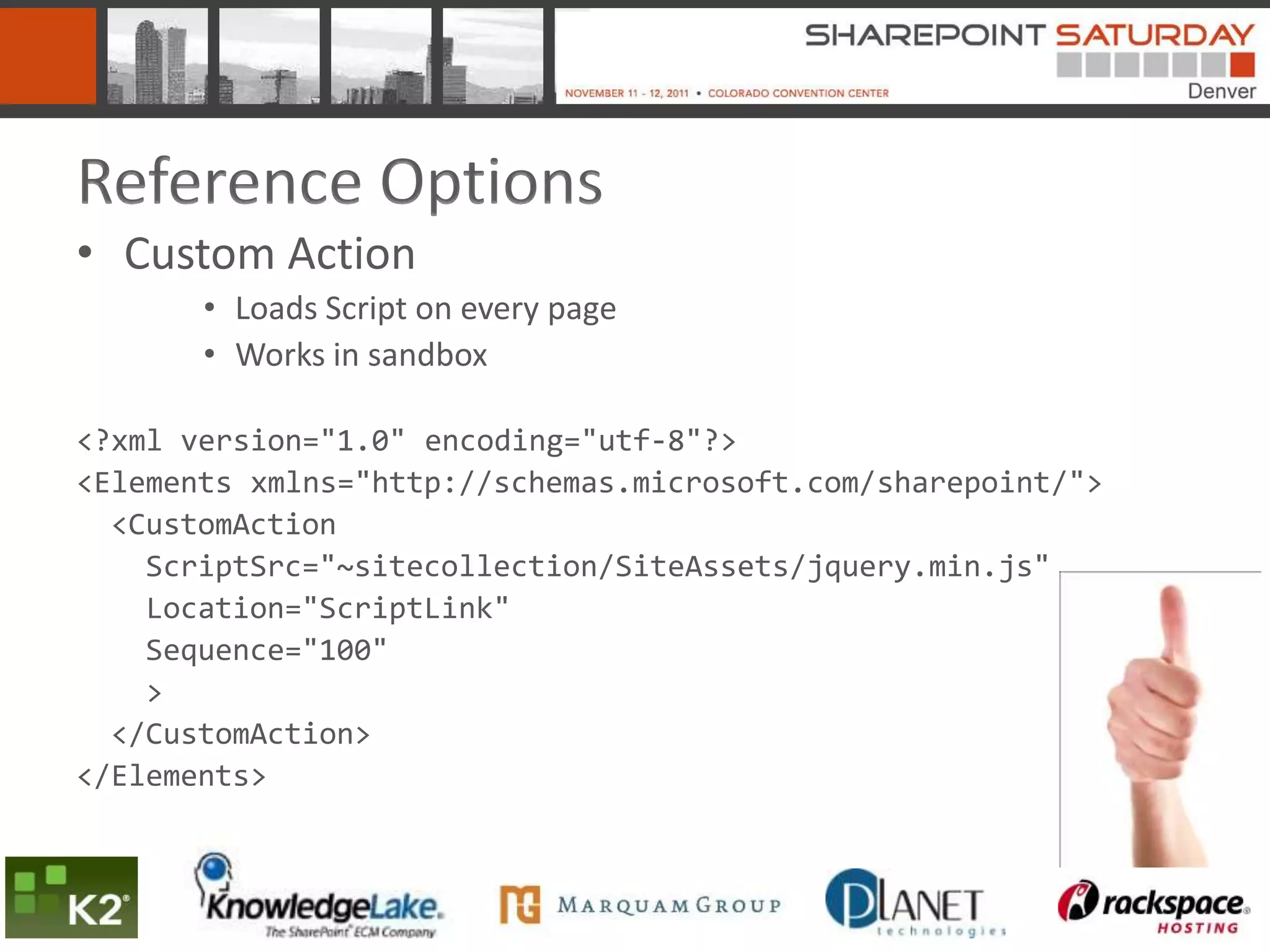
• Custom Action
       • Loads Script on every page
       • Works in sandbox

<?xml version="1.0" encoding="utf-8"?>
<Elements xmlns="http://schemas.microsoft.com/sharepoint/">
  <CustomAction
    ScriptSrc="~sitecollection/SiteAssets/jquery.min.js"
    Location="ScriptLink"
    Sequence="100"
    >
  </CustomAction>
</Elements>
Maintenance Best Practice
• Don’t add script directly in your Master Pages
  – Difficult to maintain
  – Must make modifications in SPD / Visual Studio
  – Use Custom Action instead
• Don’t add scripts directly in your CEWP
  – Using content link instead of editing the CEWP
     source.
  – No reuse
Moving Between Environments and
Upgrading to 2010
• It just works… (woo hoo)
  – Uses list names and not GUIDs so no issues
    moving from dev to prod
  – For the most part works identical in 2007 and
    2010 (I’m sure there’s the occasional issue but I’ve
    never run into it).
  – Might want to tweak in 2010 to take advantage of
    2010 features (ribbon, modal pop-ups)
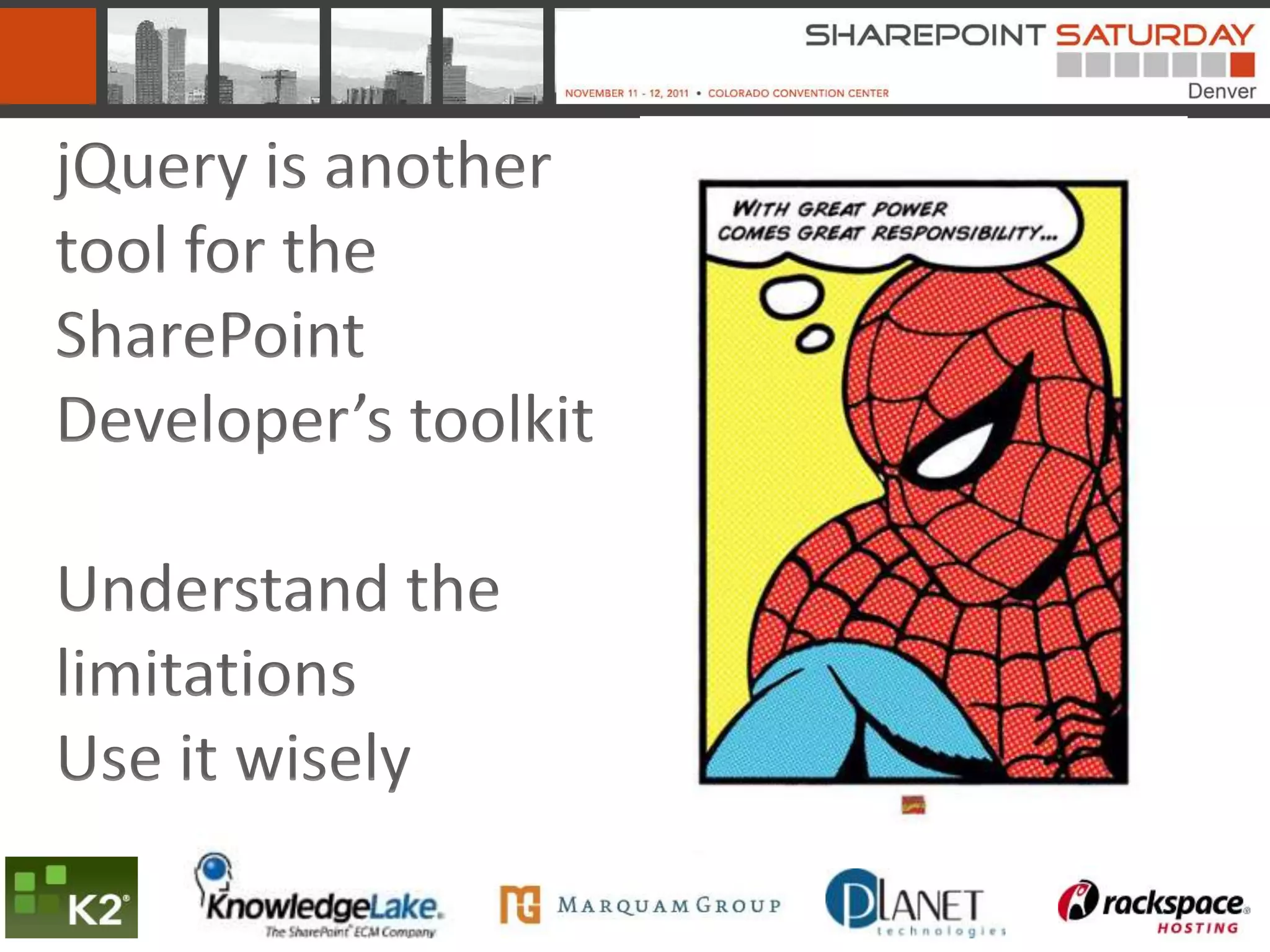
jQuery is another
tool for the
SharePoint
Developer’s toolkit

Understand the
limitations
Use it wisely
Development Basics
• jQuery methods are executed using jQuery() or $()
• $(document).ready() is your “main()”
   – Don’t HAVE to, but easy to quickly locate where script starts
• $(‘#elementID’) to interact with any element
   – Divs, tables, rows, cells, inputs, selects.. Etc.. Etc.. Etc…
   – <table id=‘myTable’></table>
   – $(‘#myTable’).append(‘<tr><td>add a row</td></tr>’);
• $(‘#elementID’).val() gets values of inputs
   – <input type=‘text’ id=‘myTextBox’ >
   – $(‘#myTextBox’).val();
• $(‘#elementID’).val([value]) sets the values of inputs
   – $(‘#myTextBox’).val(‘Hello World’);
Development Basics
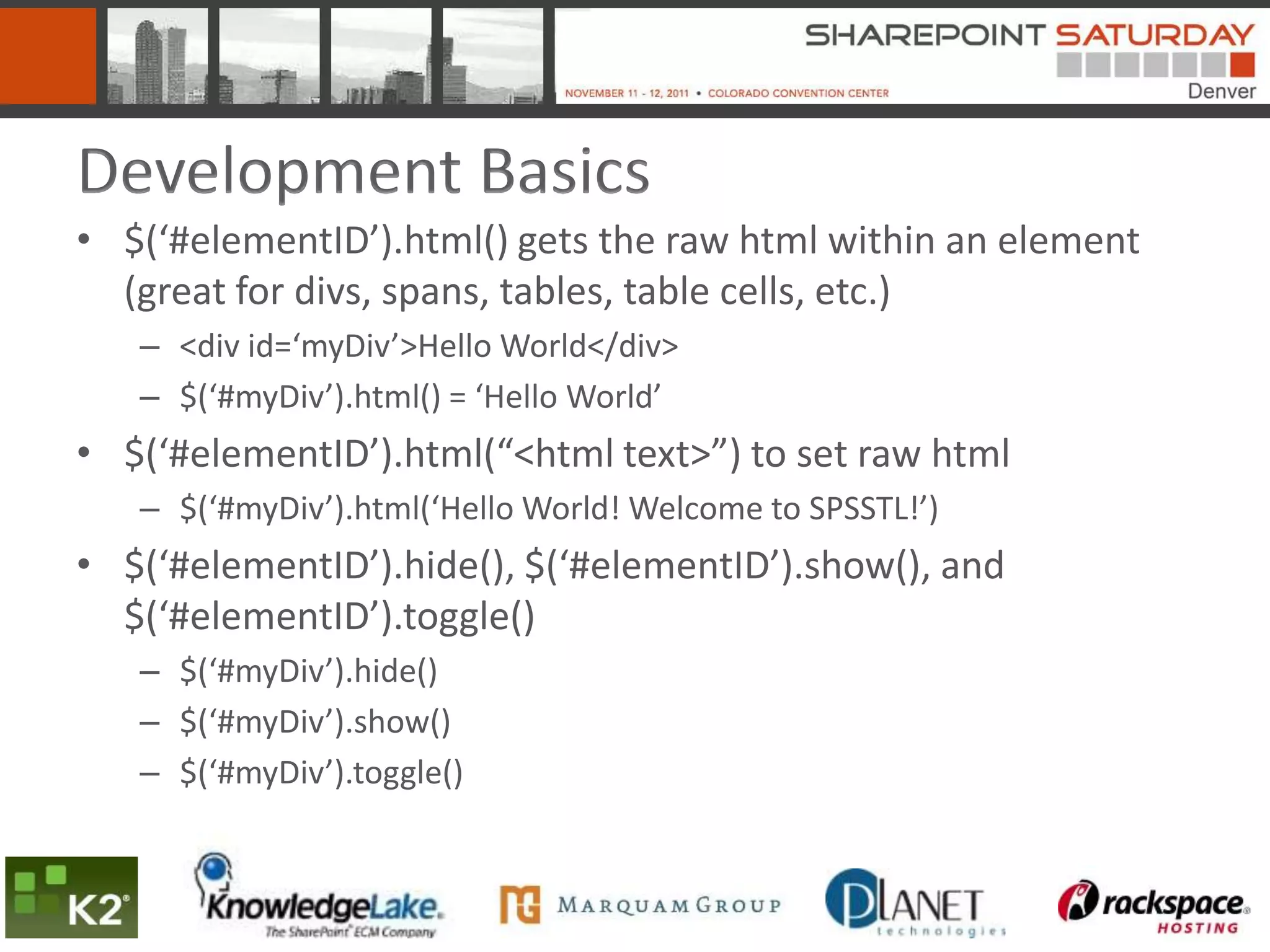
• $(‘#elementID’).html() gets the raw html within an element
  (great for divs, spans, tables, table cells, etc.)
   – <div id=‘myDiv’>Hello World</div>
   – $(‘#myDiv’).html() = ‘Hello World’
• $(‘#elementID’).html(“<html text>”) to set raw html
   – $(‘#myDiv’).html(‘Hello World! Welcome to SPSSTL!’)
• $(‘#elementID’).hide(), $(‘#elementID’).show(), and
  $(‘#elementID’).toggle()
   – $(‘#myDiv’).hide()
   – $(‘#myDiv’).show()
   – $(‘#myDiv’).toggle()
SharePoint Form Fields
//Text / Date Fields
$(“input[title=’Field Display Name’]”).val();

//LookUp / Choice Fields (be aware of >20 items in Lookup)
$(“select[title=’Field Display Name’]”).val();

//Is my check box checked?
if( $("input[title=’Field Display Name’]").is(':checked'))
{
       alert("it's checked");
}


More information:
http://bit.ly/jQueryAndSharePointFields
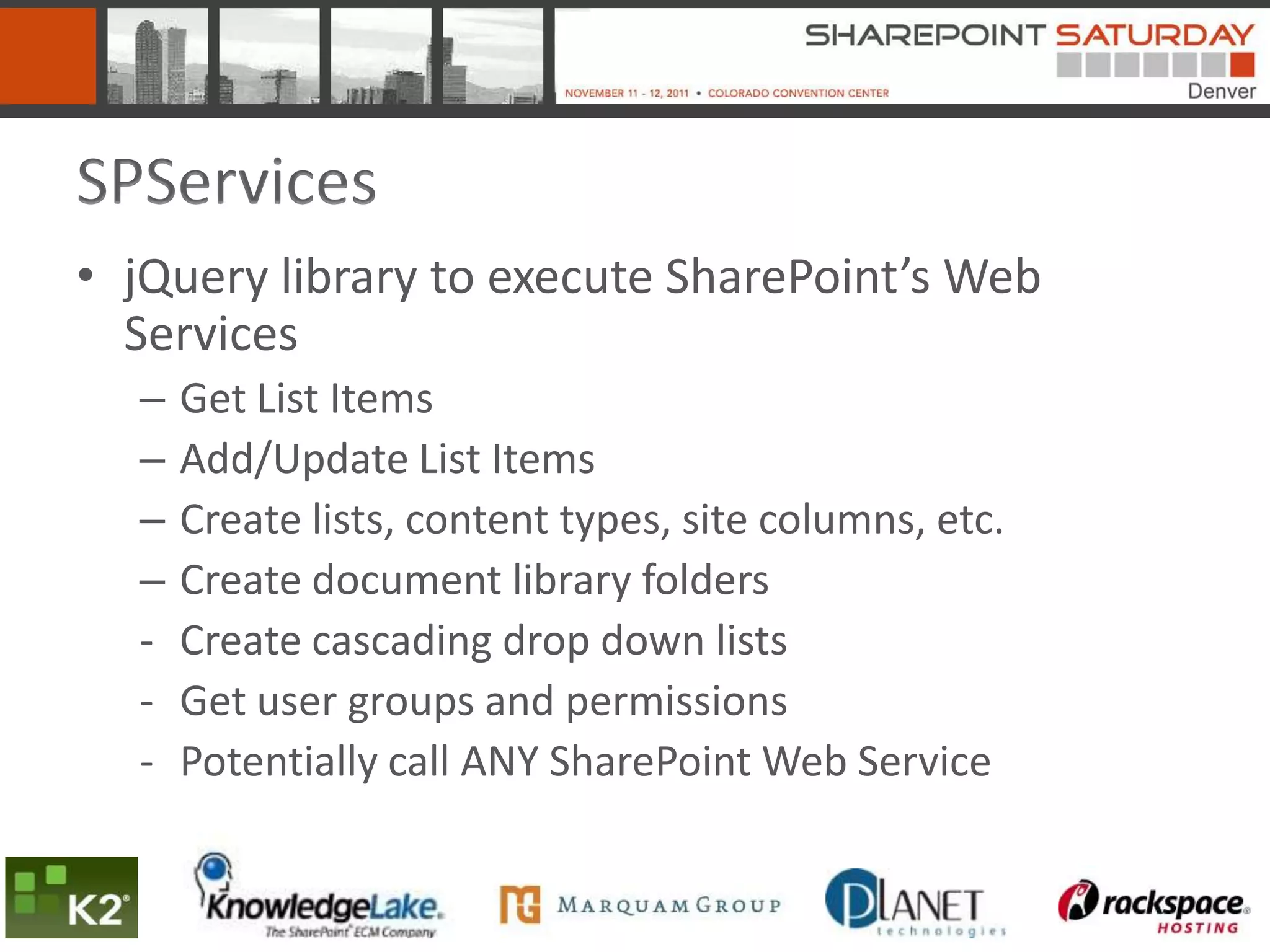
SPServices
• jQuery library to execute SharePoint’s Web
  Services
  –   Get List Items
  –   Add/Update List Items
  –   Create lists, content types, site columns, etc.
  –   Create document library folders
  -   Create cascading drop down lists
  -   Get user groups and permissions
  -   Potentially call ANY SharePoint Web Service
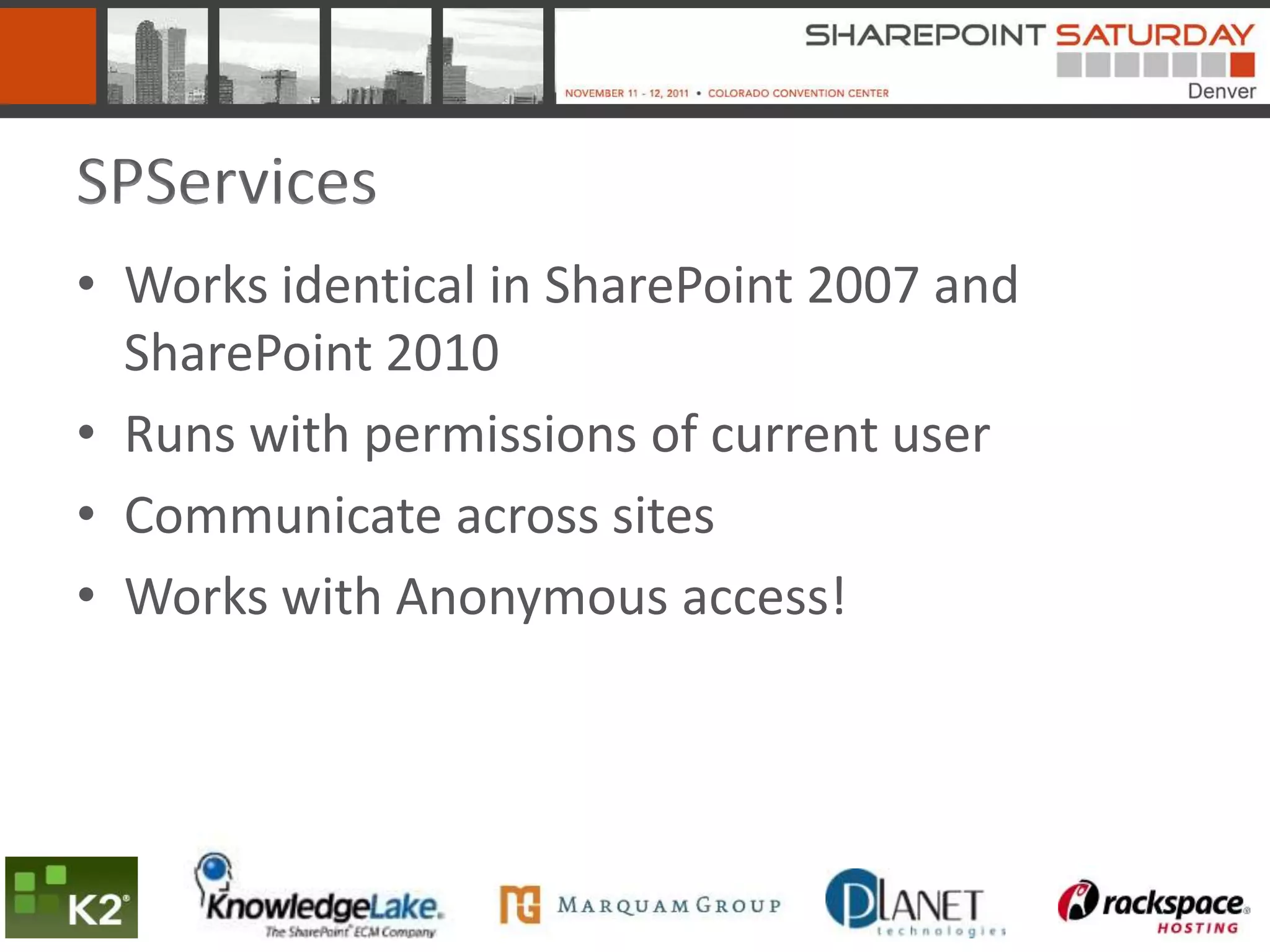
SPServices
• Works identical in SharePoint 2007 and
  SharePoint 2010
• Runs with permissions of current user
• Communicate across sites
• Works with Anonymous access!
SPServices - FYI
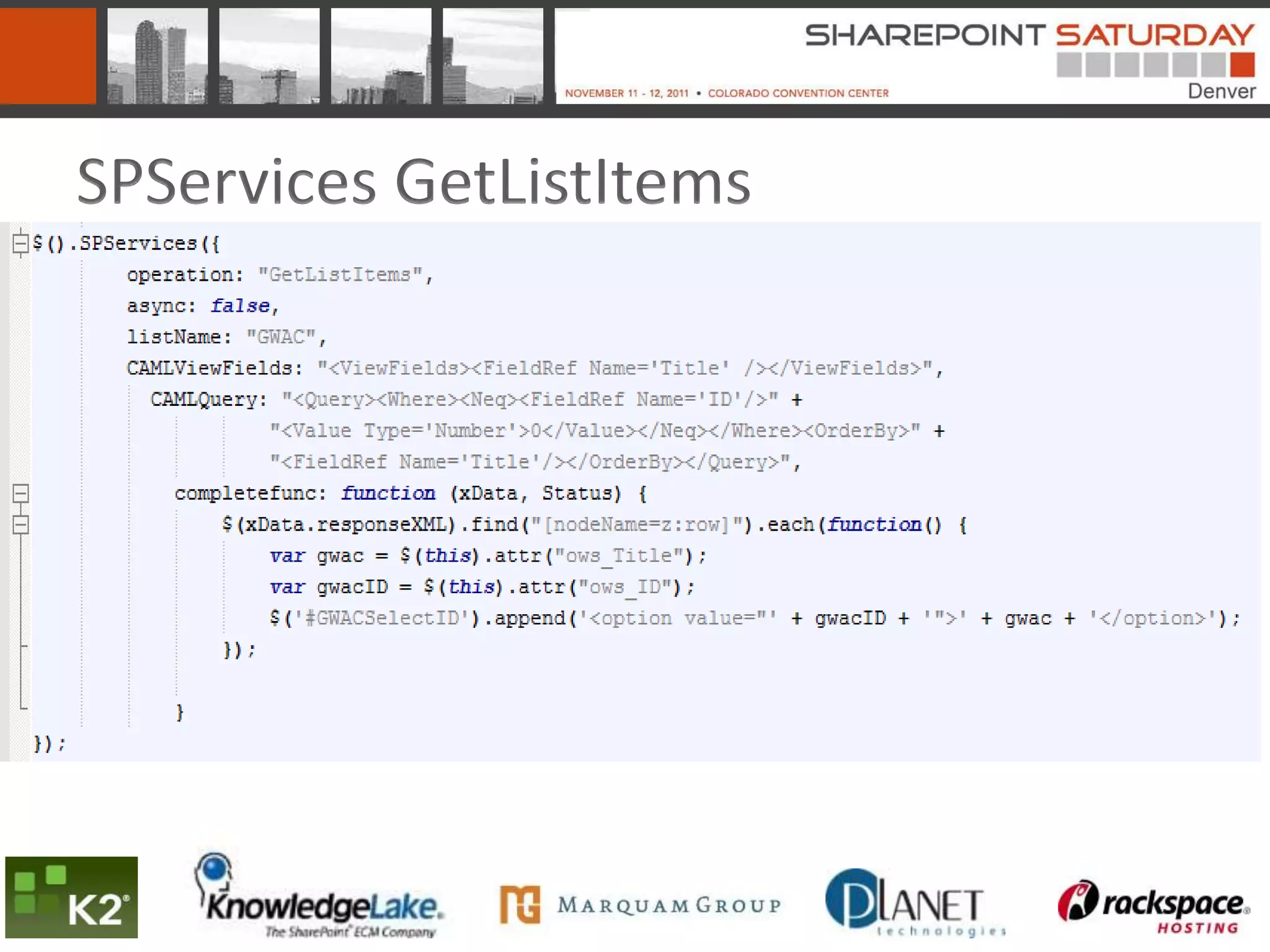
• Use internal field names
• Returned values have “ows_” in front of field
  names
  $(this).attr("ows_Title");
• Lookup & People fields
  – Value returned as “ID;#Value” (1;#Field Value)
• Check for new item ID on item add to make sure
  item added correctly
  var newID =
  $(xData.responseXML).find("[nodeName=z:row]").attr("ows_ID");
SPServices GetListItems
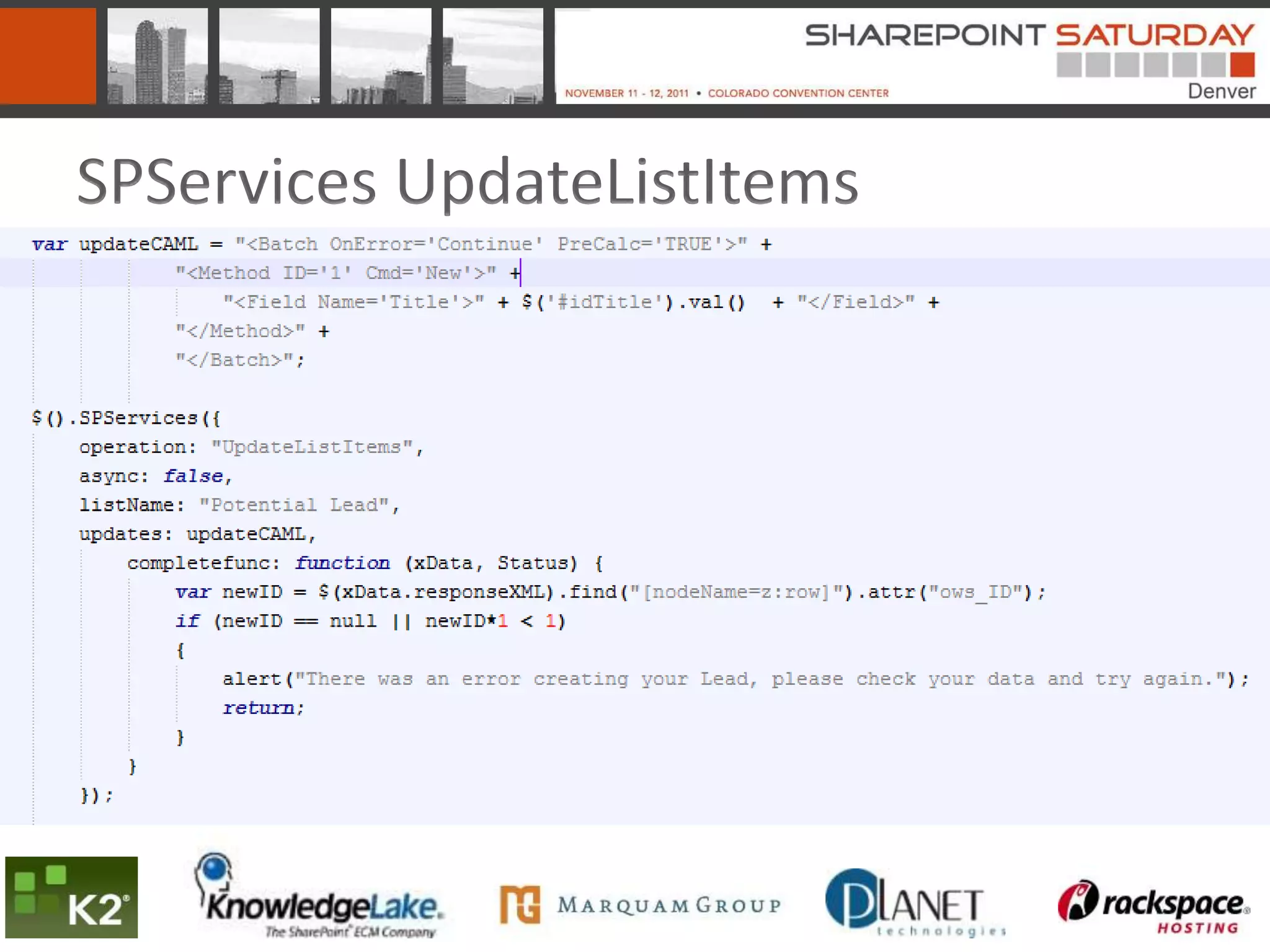
SPServices UpdateListItems
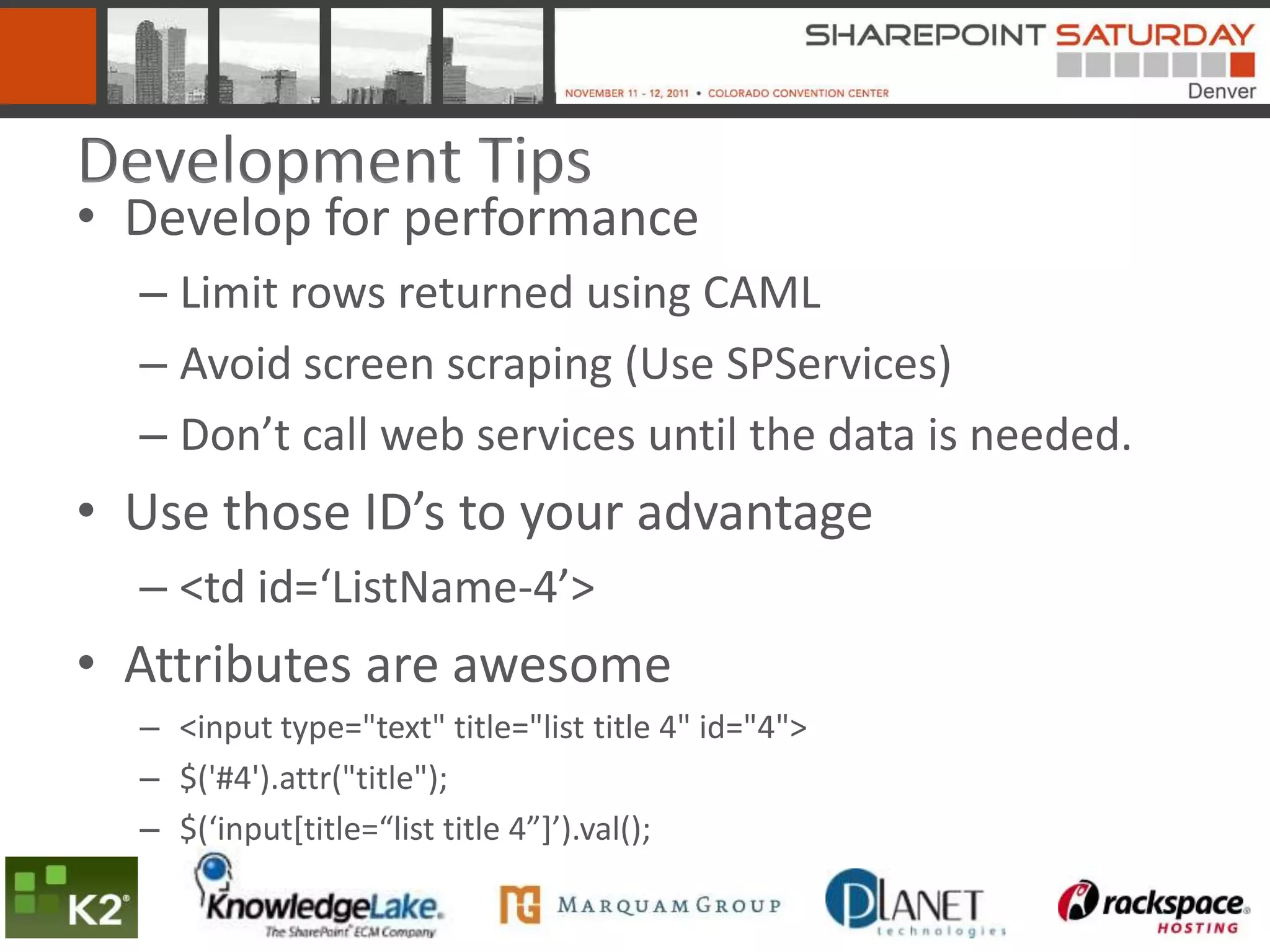
Development Tips
• Develop for performance
  – Limit rows returned using CAML
  – Avoid screen scraping (Use SPServices)
  – Don’t call web services until the data is needed.
• Use those ID’s to your advantage
  – <td id=‘ListName-4’>
• Attributes are awesome
  – <input type="text" title="list title 4" id="4">
  – $('#4').attr("title");
  – $(‘input*title=“list title 4”+’).val();
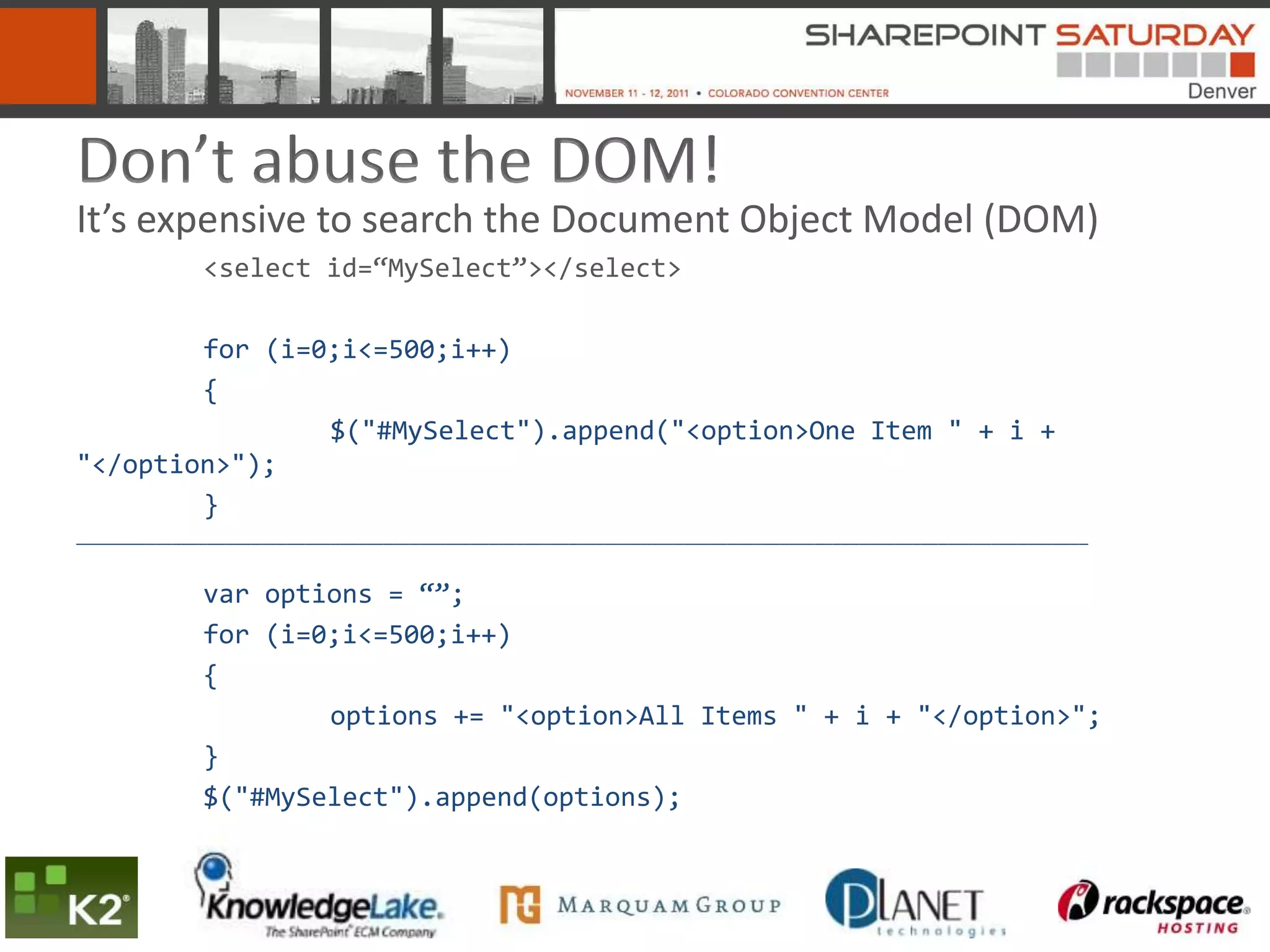
Don’t abuse the DOM!
It’s expensive to search the Document Object Model (DOM)
              <select id=“MySelect”></select>

        for (i=0;i<=500;i++)
        {
                $("#MySelect").append("<option>One Item " + i +
"</option>");
        }
___________________________________________________________________________________________________________________


              var options = “”;
              for (i=0;i<=500;i++)
              {
                      options += "<option>All Items " + i + "</option>";
              }
              $("#MySelect").append(options);
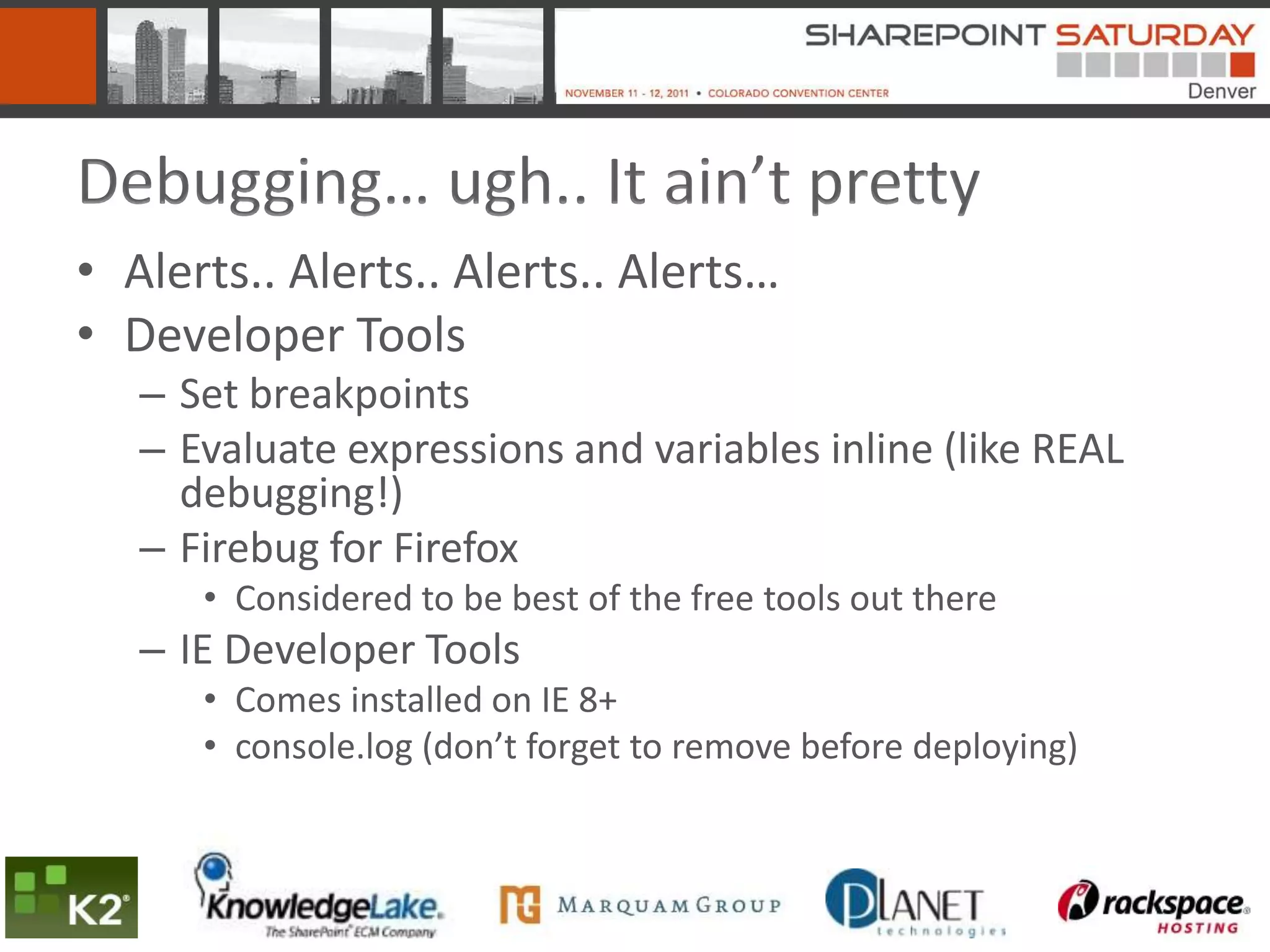
Debugging… ugh.. It ain’t pretty
• Alerts.. Alerts.. Alerts.. Alerts…
• Developer Tools
   – Set breakpoints
   – Evaluate expressions and variables inline (like REAL
     debugging!)
   – Firebug for Firefox
      • Considered to be best of the free tools out there
   – IE Developer Tools
      • Comes installed on IE 8+
      • console.log (don’t forget to remove before deploying)
Debugging… Common Errors
• Usually it means your library didn’t get loaded
   – Object Expected
   – Object doesn’t support method
• Make sure you don’t load scripts more than once
   – Null Object reference
• Check your braces
• Make sure you end lines with “;”
• Check for missing quotes
When all else fails, delete your script and rebuild it slowly in
chunks, testing as you go.
DEMOS
So, what’s the deal?
”Fast Food” Development
•   You don’t have to be a SharePoint Guru
•   It’s Cheap
•   It’s Quick
•   It’s Easy
•   It gets the job done
”Fast Food” Development
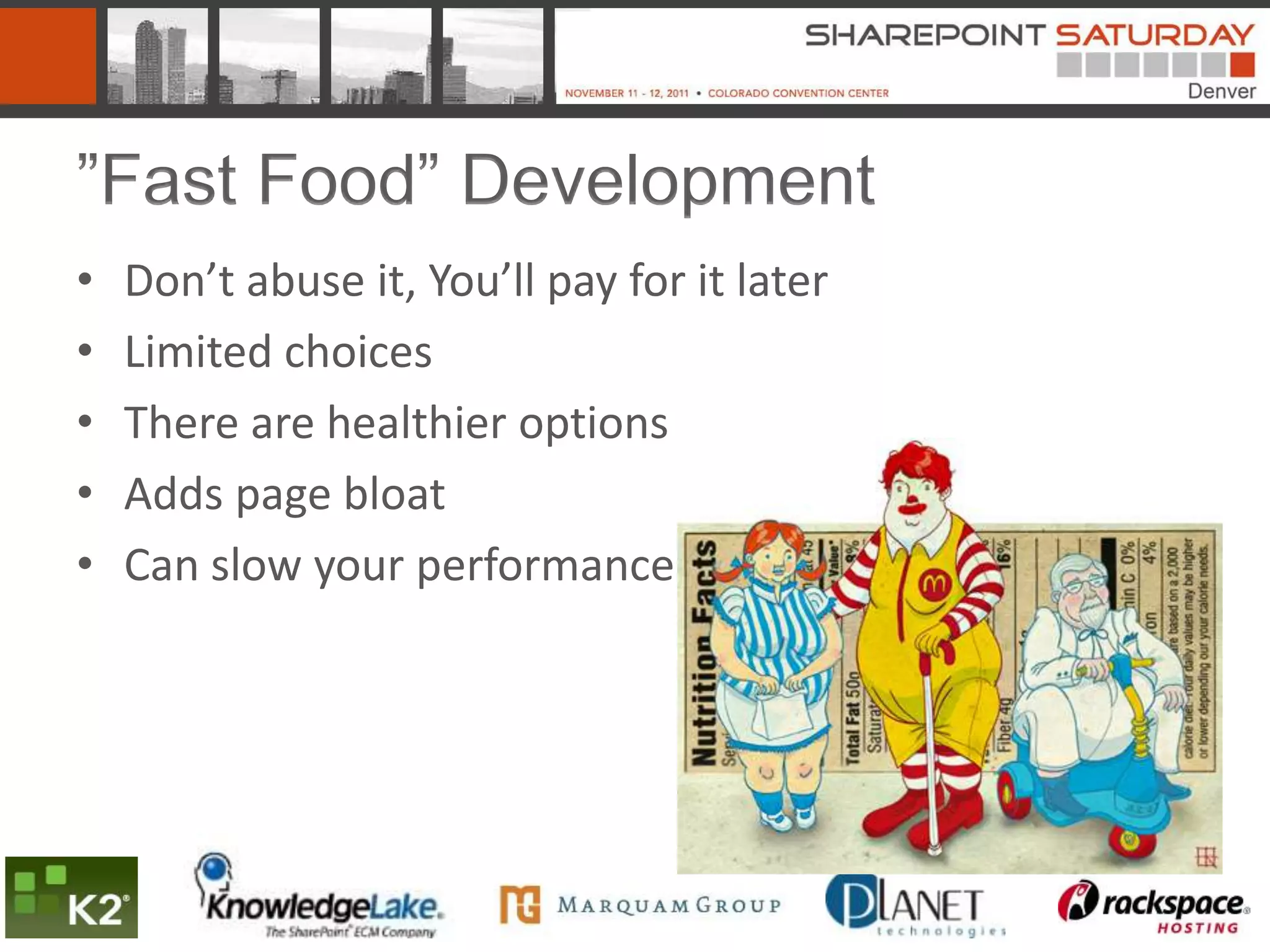
•   Don’t abuse it, You’ll pay for it later
•   Limited choices
•   There are healthier options
•   Adds page bloat
•   Can slow your performance
Getting Started…
• A Dummies Guide to SharePoint and jQuery
  – http://bit.ly/jQueryForDummies

• SPServices
  – http://spservices.codeplex.com

• Super Awesome 3rd party libraries that
  integrate well
  – Modal dialogs - http://www.ericmmartin.com/projects/simplemodal/
  – Calendar - http://arshaw.com/fullcalendar/
  – Charts - http://g.raphaeljs.com/
More jQuery Resources
• jQuery Pocket Reference
  – http://oreilly.com/catalog/0636920016182
• CSS Pocket Refernce
  – http://oreilly.com/catalog/9780596515058/
Questions?
      Don’t drink the
      haterade…


Mark Rackley
mrackley@juniper-strategy.com
www.twitter.com/mrackley
www.sharepointhillbilly.com
                                43

SPSDenver - SharePoint & jQuery - What I wish I would have known

  • 1.
    SharePoint & jQuery– What I Wish I Would Have Known When I Started… Mark Rackley – Solutions Architect / SharePoint Practice Lead / Developer Email: mrackley@juniper-strategy.com Blog: http://www.sharepointhillbilly.com Twitter: http://www.twitter.com/mrackley
  • 2.
    Agenda • jQuery Overview •jQuery & SharePoint – What’s the Point? • Deployment, Maintenance, Upgrades • SPServices • Development & Debugging • Examples 2
  • 3.
    What is jQuery? •JavaScript utility library • Quickly write interactive and USABLE applications • You don’t have to deploy assemblies (perfect for tightly controlled environments)
  • 4.
    What Skills doI need? • JavaScript (duh) • CSS, XML • A development background – It IS code – Uses development constructs – If you can’t write code, your ability to do magic will be limited to what you can copy/paste • CAML, CAML, CAML… Sorry… • Ability to think outside the box – Use all the pieces together
  • 5.
    SharePoint & jQuery?Why? Resolves many common SharePoint complaints without having to crack open Visual Studio
  • 6.
    SharePoint & jQuery?Why? “It looks like SharePoint”
  • 7.
    SharePoint & jQuery?Why? “That’s SharePoint?”
  • 8.
    SharePoint & jQuery?Why? “I’m so sorry… SharePoint can’t do that out of the box”
  • 9.
    SharePoint & jQuery?Why? “Sure, no problem”
  • 10.
    SharePoint & jQuery?Why? “That will take 3 weeks???” becomes “2 days? Awesome! I love you… here, please accept this bonus for being such a wonderful developer”
  • 11.
    jQuery makes yourSharePoint applications USABLE
  • 12.
    Common Myths • It’snot secure Busted… It uses SharePoint’s security. All scripts run with privileges of current user • It doesn’t perform well Plausible… It performs very well if you use it correctly in the right situations • I can’t elevate privileges if I need to Confirmed…
  • 13.
    Yeah but… • Ican’t interact with SharePoint Lists and Libraries without screen scraping You can call Web Services with JavaScript (SPServices is a wonderful jQuery library that wraps SharePoints Web Service calls) and the Client Object Model in 2010 • It has no real use in my environment because of “x” Quickly prototype and tweak web parts before writing in Visual Studio. In fact, in some environments it is the only development option.
  • 14.
  • 15.
    Not So Fast… •It does “expose” business logic to user if they dig around • It executes on the client side and can perform slow if manipulating larges amounts of data • Be extra careful for external facing applications • You can’t do EVERYTHING with jQuery like… – Timer Jobs – Workflows (although it can eliminate the need for some) – Event Handlers – Elevate Privliges – Easily interact with all business systems • jQuery CAN harm your farm!
  • 16.
  • 17.
    Deployment options • Foldersin SPD / Visual Studio Module • File System – Deployed with a WSP (don’t think of manually copying) – Not an option for Office 365 or hosted SharePoint 2010 • External Reference – Microsoft Ajax Content Delivery Network (CDN) http://www.asp.net/ajaxlibrary/cdn.ashx
  • 18.
    Deployment options • DocumentLibrary – Easily modify scripts – Keep track of changes with Metadata – Recover from screw ups with Versioning – Less control, more flexibility versus other options
  • 19.
  • 20.
    Reference Options • ScriptLink • MasterPages, Delegate Controls, Web Parts, Controls, Custom Pages • Ensures Script is not loaded multiple times • Renders in the correct place in the markup • Need Visual Studio or SPD • More upfront work • Content Editor Web Part (CEWP) • Quick & Easy • Don’t have to deploy anything • Adds CEWP overhead
  • 21.
    Reference Options • CustomAction • Loads Script on every page • Works in sandbox <?xml version="1.0" encoding="utf-8"?> <Elements xmlns="http://schemas.microsoft.com/sharepoint/"> <CustomAction ScriptSrc="~sitecollection/SiteAssets/jquery.min.js" Location="ScriptLink" Sequence="100" > </CustomAction> </Elements>
  • 22.
    Maintenance Best Practice •Don’t add script directly in your Master Pages – Difficult to maintain – Must make modifications in SPD / Visual Studio – Use Custom Action instead • Don’t add scripts directly in your CEWP – Using content link instead of editing the CEWP source. – No reuse
  • 23.
    Moving Between Environmentsand Upgrading to 2010 • It just works… (woo hoo) – Uses list names and not GUIDs so no issues moving from dev to prod – For the most part works identical in 2007 and 2010 (I’m sure there’s the occasional issue but I’ve never run into it). – Might want to tweak in 2010 to take advantage of 2010 features (ribbon, modal pop-ups)
  • 24.
    jQuery is another toolfor the SharePoint Developer’s toolkit Understand the limitations Use it wisely
  • 25.
    Development Basics • jQuerymethods are executed using jQuery() or $() • $(document).ready() is your “main()” – Don’t HAVE to, but easy to quickly locate where script starts • $(‘#elementID’) to interact with any element – Divs, tables, rows, cells, inputs, selects.. Etc.. Etc.. Etc… – <table id=‘myTable’></table> – $(‘#myTable’).append(‘<tr><td>add a row</td></tr>’); • $(‘#elementID’).val() gets values of inputs – <input type=‘text’ id=‘myTextBox’ > – $(‘#myTextBox’).val(); • $(‘#elementID’).val([value]) sets the values of inputs – $(‘#myTextBox’).val(‘Hello World’);
  • 26.
    Development Basics • $(‘#elementID’).html()gets the raw html within an element (great for divs, spans, tables, table cells, etc.) – <div id=‘myDiv’>Hello World</div> – $(‘#myDiv’).html() = ‘Hello World’ • $(‘#elementID’).html(“<html text>”) to set raw html – $(‘#myDiv’).html(‘Hello World! Welcome to SPSSTL!’) • $(‘#elementID’).hide(), $(‘#elementID’).show(), and $(‘#elementID’).toggle() – $(‘#myDiv’).hide() – $(‘#myDiv’).show() – $(‘#myDiv’).toggle()
  • 27.
    SharePoint Form Fields //Text/ Date Fields $(“input[title=’Field Display Name’]”).val(); //LookUp / Choice Fields (be aware of >20 items in Lookup) $(“select[title=’Field Display Name’]”).val(); //Is my check box checked? if( $("input[title=’Field Display Name’]").is(':checked')) { alert("it's checked"); } More information: http://bit.ly/jQueryAndSharePointFields
  • 28.
    SPServices • jQuery libraryto execute SharePoint’s Web Services – Get List Items – Add/Update List Items – Create lists, content types, site columns, etc. – Create document library folders - Create cascading drop down lists - Get user groups and permissions - Potentially call ANY SharePoint Web Service
  • 29.
    SPServices • Works identicalin SharePoint 2007 and SharePoint 2010 • Runs with permissions of current user • Communicate across sites • Works with Anonymous access!
  • 30.
    SPServices - FYI •Use internal field names • Returned values have “ows_” in front of field names $(this).attr("ows_Title"); • Lookup & People fields – Value returned as “ID;#Value” (1;#Field Value) • Check for new item ID on item add to make sure item added correctly var newID = $(xData.responseXML).find("[nodeName=z:row]").attr("ows_ID");
  • 31.
  • 32.
  • 33.
    Development Tips • Developfor performance – Limit rows returned using CAML – Avoid screen scraping (Use SPServices) – Don’t call web services until the data is needed. • Use those ID’s to your advantage – <td id=‘ListName-4’> • Attributes are awesome – <input type="text" title="list title 4" id="4"> – $('#4').attr("title"); – $(‘input*title=“list title 4”+’).val();
  • 34.
    Don’t abuse theDOM! It’s expensive to search the Document Object Model (DOM) <select id=“MySelect”></select> for (i=0;i<=500;i++) { $("#MySelect").append("<option>One Item " + i + "</option>"); } ___________________________________________________________________________________________________________________ var options = “”; for (i=0;i<=500;i++) { options += "<option>All Items " + i + "</option>"; } $("#MySelect").append(options);
  • 35.
    Debugging… ugh.. Itain’t pretty • Alerts.. Alerts.. Alerts.. Alerts… • Developer Tools – Set breakpoints – Evaluate expressions and variables inline (like REAL debugging!) – Firebug for Firefox • Considered to be best of the free tools out there – IE Developer Tools • Comes installed on IE 8+ • console.log (don’t forget to remove before deploying)
  • 36.
    Debugging… Common Errors •Usually it means your library didn’t get loaded – Object Expected – Object doesn’t support method • Make sure you don’t load scripts more than once – Null Object reference • Check your braces • Make sure you end lines with “;” • Check for missing quotes When all else fails, delete your script and rebuild it slowly in chunks, testing as you go.
  • 37.
  • 38.
  • 39.
    ”Fast Food” Development • You don’t have to be a SharePoint Guru • It’s Cheap • It’s Quick • It’s Easy • It gets the job done
  • 40.
    ”Fast Food” Development • Don’t abuse it, You’ll pay for it later • Limited choices • There are healthier options • Adds page bloat • Can slow your performance
  • 41.
    Getting Started… • ADummies Guide to SharePoint and jQuery – http://bit.ly/jQueryForDummies • SPServices – http://spservices.codeplex.com • Super Awesome 3rd party libraries that integrate well – Modal dialogs - http://www.ericmmartin.com/projects/simplemodal/ – Calendar - http://arshaw.com/fullcalendar/ – Charts - http://g.raphaeljs.com/
  • 42.
    More jQuery Resources •jQuery Pocket Reference – http://oreilly.com/catalog/0636920016182 • CSS Pocket Refernce – http://oreilly.com/catalog/9780596515058/
  • 43.
    Questions? Don’t drink the haterade… Mark Rackley mrackley@juniper-strategy.com www.twitter.com/mrackley www.sharepointhillbilly.com 43