









From PSD Image to XHTML+CSS


Svetlin Nakov
Technical Trainer
www.nakov.com
Telerik Web Design Course
html5course.telerik.com
Table of Contents
1.   From Image to XHTML+CSS: Step by Step
2.   Floating DIVs and DIVs Behaving Like Tables
3.   Vertical Alignment of DIVs
4.   Centering Site Contents
5.   Web Site with Frames
6.   Web Site with Tables
7.   Web Site with DIVs
8.   Slice and Dice: Showcases
                                                   2
From Image to XHTML+CSS
    Creating Web Sites Step by Step
From Image to XHTML+CSS
 Steps for converting a Web site image to

 XHTML + CSS ( + JavaScript )
  1. Decide on the layout type
    Fixed width – what resolution (800, 1024, …)?
    Fluid width – which parts will resize?
  2. Identify site sections
    Header, main, footer, columns, navigation, etc.
  3. Decide on the layout model
    DIVs vs. tables (any good reason to use tables?)
                                                        4
From Image to XHTML+CSS (2)
 Steps for converting a Web site image to

 XHTML + CSS ( + JavaScript )
  1. Distinguish between content and style
    Text vs. images – which belongs to the content
     and which is part of the styling?
  2. Create the page layout
    Create the layout DIVs and define their CSS
  3. Create the contents of each section
  4. Test the site in different Web browsers
                                                      5
Fixed vs. Fluid Layout
 Page layout can be fixed or fluid

 Fixed width

   Typical Web users use at least 1024 x 768
    resolution  900px-1000px page width is OK
   Mobile devices have smaller screen
 Fluid width

   Ensure the main page content resizes correctly
   Beware of very large screens (e.g. 1920 x 1200)
   Fix the min-width for the main <div>
                                                      6
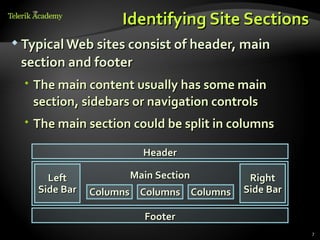
Identifying Site Sections
 Typical Web sites consist of header, main

 section and footer
   The main content usually has some main
    section, sidebars or navigation controls
   The main section could be split in columns

                       Header

      Left           Main Section         Right
    Side Bar   Columns Columns Columns   Side Bar

                       Footer
                                                    7
Frames vs. Table vs. DIVs?
   Site layout with frames is old-fashioned
   Using tables for columned design is incorrect!
     Tables are considered SEO unfriendly
   The other option is to use <div> tags
     To place them in columns they must be floating
     When they are floating, you can fix their width, but
      height is determined by their content (or is fixed)
     When height is determined by content, background
      may not be applied properly
     Footer must also be floating with clear:left
                                                             8
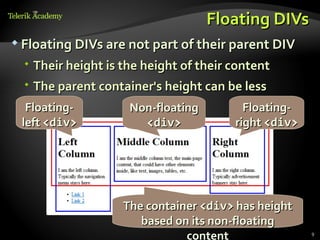
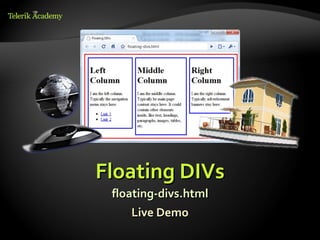
Floating DIVs
 Floating DIVs are not part of their parent DIV

   Their height is the height of their content
   The parent container's height can be less
  Floating-          Non-floating         Floating-
 left <div>            <div>            right <div>


                    The container <div> has height
                       based on its non-floating
                               content                9
Floating DIVs
 floating-divs.html
     Live Demo
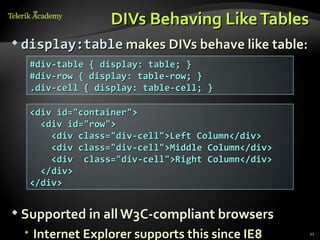
DIVs Behaving Like Tables
 display:table makes DIVs behave like table:

  #div-table { display: table; }
  #div-row { display: table-row; }
  .div-cell { display: table-cell; }

  <div id="container">
    <div id="row">
      <div class="div-cell">Left Column</div>
      <div class="div-cell">Middle Column</div>
      <div class="div-cell">Right Column</div>
    </div>
  </div>


 Supported in all W3C-compliant browsers
                   W3C-
  Internet Explorer supports this since IE8      11
DIVs Behaving Like Tables
       table-with-divs.html
            Live Demo
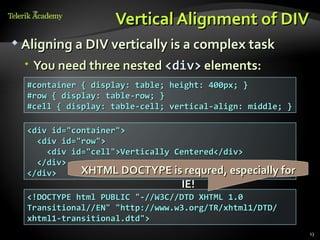
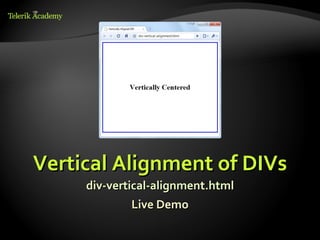
Vertical Alignment of DIV
 Aligning a DIV vertically is a complex task

   You need three nested <div> elements:
  #container { display: table; height: 400px; }
  #row { display: table-row; }
  #cell { display: table-cell; vertical-align: middle; }

  <div id="container">
    <div id="row">
      <div id="cell">Vertically Centered</div>
    </div>
  </div>     XHTML DOCTYPE is requred, especially for
                                 IE!
  <!DOCTYPE html PUBLIC "-//W3C//DTD XHTML 1.0
  Transitional//EN" "http://www.w3.org/TR/xhtml1/DTD/
  xhtml1-transitional.dtd">
                                                           13
Vertical Alignment of DIVs
     div-vertical-alignment.html
              Live Demo
Distinguish between
                          Content and Style
 Separating content from presentation

   The HTML content is the essential information
    published in the Web page, e.g. text + images
   The presentation is the layout and styles used
    to format the content or decorate it
 The content should live in the HTML

 The presentation should live in the CSS

 When the CSS is disabled, the site should look

 like an article with titles, lists and paragraphs
                                                     15
GIF, JPEG or PNG?
 GIF, JPEG and PNG are the three most

 common image formats in the Web
  JPEG is used for large images, e.g. photos
  GIF and PNG support transparency
    Used for bullets, icons and small images
    Transparent PNG not supported by old browsers
    PNG files are larger than GIF
    GIF supports less colors than PNG
    GIF supports animation

                                                     16
Centering a Fixed-Width Site
 Several ways to center the content of the site:

   Placing it in <center> tag – deprecated
   Using CSS text-align:center
    Will affect all child nodes too
   Using CSS margin:0 auto
    The width of the content is fixed
    The left and right margins are set to automatic

    width: 900px;
    margin: 20px auto;

                                                       17
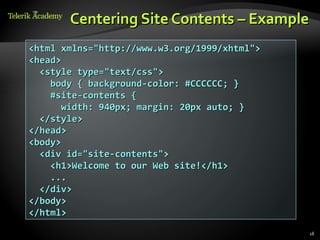
Centering Site Contents – Example
<html xmlns="http://www.w3.org/1999/xhtml">
<head>
  <style type="text/css">
    body { background-color: #CCCCCC; }
    #site-contents {
       width: 940px; margin: 20px auto; }
  </style>
</head>
<body>
  <div id="site-contents">
    <h1>Welcome to our Web site!</h1>
    ...
  </div>
</body>
</html>

                                              18
Centered Site Contents
        Live Demo
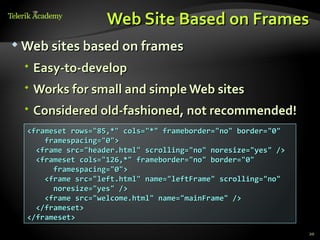
Web Site Based on Frames
 Web sites based on frames

  Easy-to-develop
  Works for small and simple Web sites
  Considered old-fashioned, not recommended!
  <frameset rows="85,*" cols="*" frameborder="no" border="0"
      framespacing="0">
    <frame src="header.html" scrolling="no" noresize="yes" />
    <frameset cols="126,*" frameborder="no" border="0"
        framespacing="0">
      <frame src="left.html" name="leftFrame" scrolling="no"
        noresize="yes" />
      <frame src="welcome.html" name="mainFrame" />
    </frameset>
  </frameset>
                                                                20
Web Site with Frames
       Live Demo
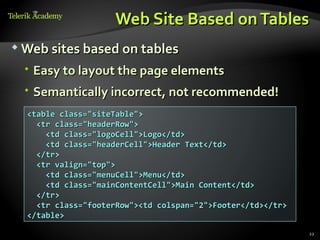
Web Site Based on Tables
 Web sites based on tables

   Easy to layout the page elements
   Semantically incorrect, not recommended!
  <table class="siteTable">
    <tr class="headerRow">
      <td class="logoCell">Logo</td>
      <td class="headerCell">Header Text</td>
    </tr>
    <tr valign="top">
      <td class="menuCell">Menu</td>
      <td class="mainContentCell">Main Content</td>
    </tr>
    <tr class="footerRow"><td colspan="2">Footer</td></tr>
  </table>

                                                             22
Web Site with Tables
       Live Demo
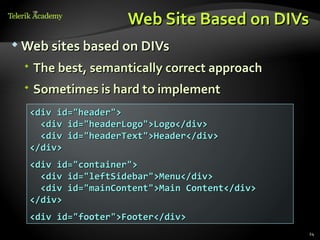
Web Site Based on DIVs
 Web sites based on DIVs

  The best, semantically correct approach
  Sometimes is hard to implement
  <div id="header">
    <div id="headerLogo">Logo</div>
    <div id="headerText">Header</div>
  </div>
  <div id="container">
    <div id="leftSidebar">Menu</div>
    <div id="mainContent">Main Content</div>
  </div>
  <div id="footer">Footer</div>
                                               24
Web Site with DIVs
      Live Demo
Creating a Web Site
  Slice and Dice: Showcases
Slice and Dice Showcase
 We should convert the following image to

 XHTML+CSS:


                                             27
Layout and Style
 Fixed width or fluid width?

   Fixed width will work well
   Need to center the content and use some
    background to fill the rest of the page
 Frames, tables or DIVs?

   DIVs with table layout will work best


                                              28
Step 1 – Determine the Pieces
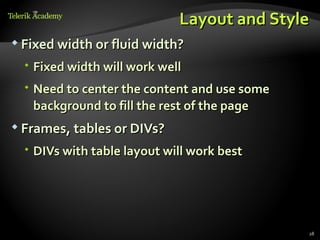
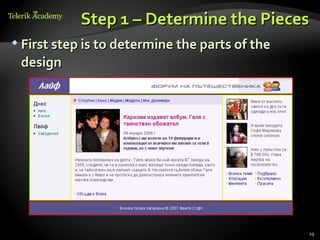
 First step is to determine the parts of the

 design


                                                29
Step 1 – Determine the Pieces (2)
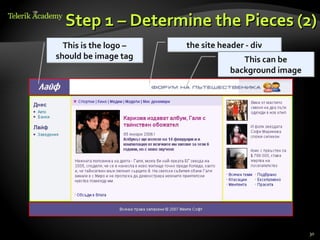
  This is the logo –   the site header - div
should be image tag                   This can be
                                   background image


                                                      30
Step 1 – Determine the Pieces (3)
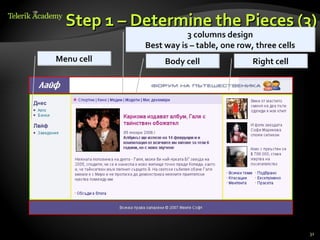
                       3 columns design
            Best way is – table, one row, three cells
Menu cell        Body cell               Right cell


                                                        31
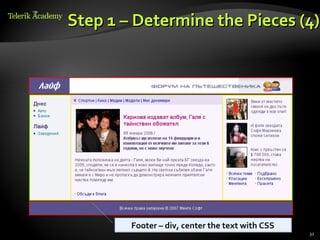
Step 1 – Determine the Pieces (4)


        Footer – div, center the text with CSS
                                                 32
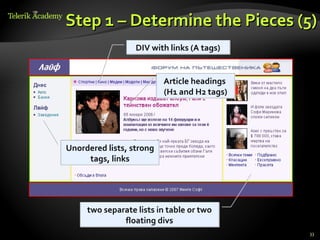
Step 1 – Determine the Pieces (5)
                  DIV with links (A tags)


                          Article headings
                          (H1 and H2 tags)


Unordered lists, strong
     tags, links


     two separate lists in table or two
              floating divs
                                             33
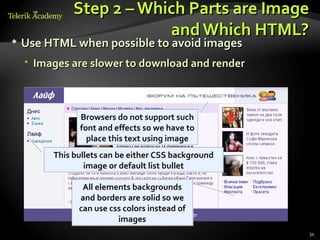
Step 2 – Which Parts are Image
                          and Which HTML?
   Use HTML when possible to avoid images
     Images are slower to download and render


               Browsers do not support such
               font and effects so we have to
                 place this text using image
         This bullets can be either CSS background
                 image or default list bullet

                All elements backgrounds
               and borders are solid so we
               can use css colors instead of
                         images
                                                     34
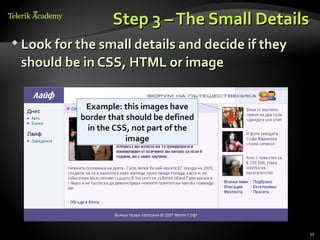
Step 3 – The Small Details
 Look for the small details and decide if they

 should be in CSS, HTML or image

            Example: this images have
           border that should be defined
            in the CSS, not part of the
                       image


                                                  35
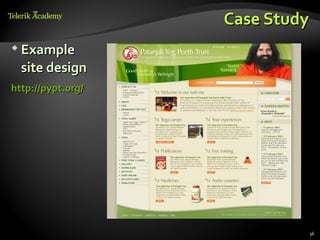
Case Study
 Example

  site design
http://pypt.org/


                            36
Case Study: Text or Image
 Three ways to create the top part:

   Use text over background image, absolute
    positioned DIVs
   Use table, slice the image to fit the needed rows
    and columns
   Leave the text in the image


                                                        37
Case Study:
                                 Two Backgrounds
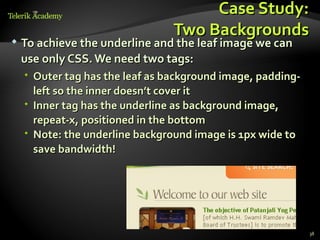
   To achieve the underline and the leaf image we can
    use only CSS. We need two tags:
     Outer tag has the leaf as background image, padding-
      left so the inner doesn’t cover it
     Inner tag has the underline as background image,
      repeat-x, positioned in the bottom
     Note: the underline background image is 1px wide to
      save bandwidth!


                                                             38
Case Study:
                                Rounded Corners
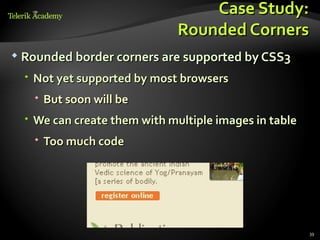
   Rounded border corners are supported by CSS3
     Not yet supported by most browsers
       But soon will be
     We can create them with multiple images in table
       Too much code


                                                         39
Slice and Dice


  html5course.telerik.com
                       40
Homework
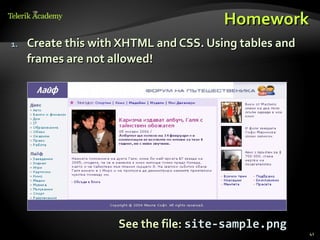
1.   Create this with XHTML and CSS. Using tables and
     frames are not allowed!


                     See the file: site-sample.png
                                                        41
Homework (2)
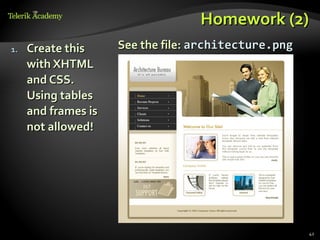
1.   Create this     See the file: architecture.png
     with XHTML
     and CSS.
     Using tables
     and frames is
     not allowed!


                                                      42

Slice and Dice

  • 1.
    From PSD Imageto XHTML+CSS Svetlin Nakov Technical Trainer www.nakov.com Telerik Web Design Course html5course.telerik.com
  • 2.
    Table of Contents 1. From Image to XHTML+CSS: Step by Step 2. Floating DIVs and DIVs Behaving Like Tables 3. Vertical Alignment of DIVs 4. Centering Site Contents 5. Web Site with Frames 6. Web Site with Tables 7. Web Site with DIVs 8. Slice and Dice: Showcases 2
  • 3.
    From Image toXHTML+CSS Creating Web Sites Step by Step
  • 4.
    From Image toXHTML+CSS  Steps for converting a Web site image to XHTML + CSS ( + JavaScript ) 1. Decide on the layout type  Fixed width – what resolution (800, 1024, …)?  Fluid width – which parts will resize? 2. Identify site sections  Header, main, footer, columns, navigation, etc. 3. Decide on the layout model  DIVs vs. tables (any good reason to use tables?) 4
  • 5.
    From Image toXHTML+CSS (2)  Steps for converting a Web site image to XHTML + CSS ( + JavaScript ) 1. Distinguish between content and style  Text vs. images – which belongs to the content and which is part of the styling? 2. Create the page layout  Create the layout DIVs and define their CSS 3. Create the contents of each section 4. Test the site in different Web browsers 5
  • 6.
    Fixed vs. FluidLayout  Page layout can be fixed or fluid  Fixed width  Typical Web users use at least 1024 x 768 resolution  900px-1000px page width is OK  Mobile devices have smaller screen  Fluid width  Ensure the main page content resizes correctly  Beware of very large screens (e.g. 1920 x 1200)  Fix the min-width for the main <div> 6
  • 7.
    Identifying Site Sections Typical Web sites consist of header, main section and footer  The main content usually has some main section, sidebars or navigation controls  The main section could be split in columns Header Left Main Section Right Side Bar Columns Columns Columns Side Bar Footer 7
  • 8.
    Frames vs. Tablevs. DIVs?  Site layout with frames is old-fashioned  Using tables for columned design is incorrect!  Tables are considered SEO unfriendly  The other option is to use <div> tags  To place them in columns they must be floating  When they are floating, you can fix their width, but height is determined by their content (or is fixed)  When height is determined by content, background may not be applied properly  Footer must also be floating with clear:left 8
  • 9.
    Floating DIVs  FloatingDIVs are not part of their parent DIV  Their height is the height of their content  The parent container's height can be less Floating- Non-floating Floating- left <div> <div> right <div> The container <div> has height based on its non-floating content 9
  • 10.
  • 11.
    DIVs Behaving LikeTables  display:table makes DIVs behave like table: #div-table { display: table; } #div-row { display: table-row; } .div-cell { display: table-cell; } <div id="container"> <div id="row"> <div class="div-cell">Left Column</div> <div class="div-cell">Middle Column</div> <div class="div-cell">Right Column</div> </div> </div>  Supported in all W3C-compliant browsers W3C-  Internet Explorer supports this since IE8 11
  • 12.
    DIVs Behaving LikeTables table-with-divs.html Live Demo
  • 13.
    Vertical Alignment ofDIV  Aligning a DIV vertically is a complex task  You need three nested <div> elements: #container { display: table; height: 400px; } #row { display: table-row; } #cell { display: table-cell; vertical-align: middle; } <div id="container"> <div id="row"> <div id="cell">Vertically Centered</div> </div> </div> XHTML DOCTYPE is requred, especially for IE! <!DOCTYPE html PUBLIC "-//W3C//DTD XHTML 1.0 Transitional//EN" "http://www.w3.org/TR/xhtml1/DTD/ xhtml1-transitional.dtd"> 13
  • 14.
    Vertical Alignment ofDIVs div-vertical-alignment.html Live Demo
  • 15.
    Distinguish between Content and Style  Separating content from presentation  The HTML content is the essential information published in the Web page, e.g. text + images  The presentation is the layout and styles used to format the content or decorate it  The content should live in the HTML  The presentation should live in the CSS  When the CSS is disabled, the site should look like an article with titles, lists and paragraphs 15
  • 16.
    GIF, JPEG orPNG?  GIF, JPEG and PNG are the three most common image formats in the Web  JPEG is used for large images, e.g. photos  GIF and PNG support transparency  Used for bullets, icons and small images  Transparent PNG not supported by old browsers  PNG files are larger than GIF  GIF supports less colors than PNG  GIF supports animation 16
  • 17.
    Centering a Fixed-WidthSite  Several ways to center the content of the site:  Placing it in <center> tag – deprecated  Using CSS text-align:center  Will affect all child nodes too  Using CSS margin:0 auto  The width of the content is fixed  The left and right margins are set to automatic width: 900px; margin: 20px auto; 17
  • 18.
    Centering Site Contents– Example <html xmlns="http://www.w3.org/1999/xhtml"> <head> <style type="text/css"> body { background-color: #CCCCCC; } #site-contents { width: 940px; margin: 20px auto; } </style> </head> <body> <div id="site-contents"> <h1>Welcome to our Web site!</h1> ... </div> </body> </html> 18
  • 19.
  • 20.
    Web Site Basedon Frames  Web sites based on frames  Easy-to-develop  Works for small and simple Web sites  Considered old-fashioned, not recommended! <frameset rows="85,*" cols="*" frameborder="no" border="0" framespacing="0"> <frame src="header.html" scrolling="no" noresize="yes" /> <frameset cols="126,*" frameborder="no" border="0" framespacing="0"> <frame src="left.html" name="leftFrame" scrolling="no" noresize="yes" /> <frame src="welcome.html" name="mainFrame" /> </frameset> </frameset> 20
  • 21.
    Web Site withFrames Live Demo
  • 22.
    Web Site Basedon Tables  Web sites based on tables  Easy to layout the page elements  Semantically incorrect, not recommended! <table class="siteTable"> <tr class="headerRow"> <td class="logoCell">Logo</td> <td class="headerCell">Header Text</td> </tr> <tr valign="top"> <td class="menuCell">Menu</td> <td class="mainContentCell">Main Content</td> </tr> <tr class="footerRow"><td colspan="2">Footer</td></tr> </table> 22
  • 23.
    Web Site withTables Live Demo
  • 24.
    Web Site Basedon DIVs  Web sites based on DIVs  The best, semantically correct approach  Sometimes is hard to implement <div id="header"> <div id="headerLogo">Logo</div> <div id="headerText">Header</div> </div> <div id="container"> <div id="leftSidebar">Menu</div> <div id="mainContent">Main Content</div> </div> <div id="footer">Footer</div> 24
  • 25.
    Web Site withDIVs Live Demo
  • 26.
    Creating a WebSite Slice and Dice: Showcases
  • 27.
    Slice and DiceShowcase  We should convert the following image to XHTML+CSS: 27
  • 28.
    Layout and Style Fixed width or fluid width?  Fixed width will work well  Need to center the content and use some background to fill the rest of the page  Frames, tables or DIVs?  DIVs with table layout will work best 28
  • 29.
    Step 1 –Determine the Pieces  First step is to determine the parts of the design 29
  • 30.
    Step 1 –Determine the Pieces (2) This is the logo – the site header - div should be image tag This can be background image 30
  • 31.
    Step 1 –Determine the Pieces (3) 3 columns design Best way is – table, one row, three cells Menu cell Body cell Right cell 31
  • 32.
    Step 1 –Determine the Pieces (4) Footer – div, center the text with CSS 32
  • 33.
    Step 1 –Determine the Pieces (5) DIV with links (A tags) Article headings (H1 and H2 tags) Unordered lists, strong tags, links two separate lists in table or two floating divs 33
  • 34.
    Step 2 –Which Parts are Image and Which HTML?  Use HTML when possible to avoid images  Images are slower to download and render Browsers do not support such font and effects so we have to place this text using image This bullets can be either CSS background image or default list bullet All elements backgrounds and borders are solid so we can use css colors instead of images 34
  • 35.
    Step 3 –The Small Details  Look for the small details and decide if they should be in CSS, HTML or image Example: this images have border that should be defined in the CSS, not part of the image 35
  • 36.
    Case Study  Example site design http://pypt.org/ 36
  • 37.
    Case Study: Textor Image  Three ways to create the top part:  Use text over background image, absolute positioned DIVs  Use table, slice the image to fit the needed rows and columns  Leave the text in the image 37
  • 38.
    Case Study: Two Backgrounds  To achieve the underline and the leaf image we can use only CSS. We need two tags:  Outer tag has the leaf as background image, padding- left so the inner doesn’t cover it  Inner tag has the underline as background image, repeat-x, positioned in the bottom  Note: the underline background image is 1px wide to save bandwidth! 38
  • 39.
    Case Study: Rounded Corners  Rounded border corners are supported by CSS3  Not yet supported by most browsers  But soon will be  We can create them with multiple images in table  Too much code 39
  • 40.
    Slice and Dice html5course.telerik.com 40
  • 41.
    Homework 1. Create this with XHTML and CSS. Using tables and frames are not allowed! See the file: site-sample.png 41
  • 42.
    Homework (2) 1. Create this See the file: architecture.png with XHTML and CSS. Using tables and frames is not allowed! 42