Slack to Google
Chat Migration
Guide for IT
Admins
Introduction
Transferring Slack data to Google Chat is complex
and needs planning.
Ensure accurate migration of Slack data
(messages, emojis, etc.).
Choose a reliable migration tool like CloudFuze.
CloudFuze excels in tailoring Slack to Google Chat
migrations.
Why Migrate from Slack to
Google Chat?
Benefits of migrating for enhanced collaboration.
Comparison reveals differences in features.
Reasons for migration include integration,
centralized collaboration, cost-efficiency, user
management, security, and compliance.
Challenges of Migrating
Migrating from Slack to Google Chat is challenging.
Key challenges include mapping user chats,
migrating messages, public/private channels, Slack
features, and incremental changes.
CloudFuze ensures zero data loss, minimal
disruption, and comprehensive data security.
Steps to Migrate
from Slack to
Google Chat
Step 1: Log in to CloudFuze
Go to webapp.cloudfuze.com and create a
CloudFuze account.
Step 2: Add Your Slack Account to CloudFuze
Locate the Slack logo in the business clouds list and
enter Slack account details.
Step 3: Enter Slack Login Credentials
Enter your company’s Slack login details and click on
the Sign-in button.
Step 4: Provide Access to CloudFuze
Click on the Allow button to provide access to
CloudFuze.
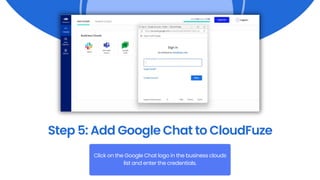
Step 5: Add Google Chat to CloudFuze
Click on the Google Chat logo in the business clouds
list and enter the credentials.
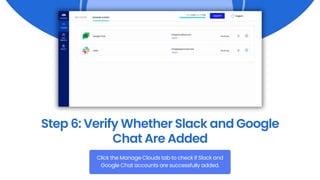
Step 6: Verify Whether Slack and Google
Chat Are Added
Click the Manage Clouds tab to check if Slack and
Google Chat accounts are successfully added.
Step 7: Select Source and Destination
Select Slack as the source and Google Chat as the
destination.
Step 8: Run Pre-Migration
Click the Run Pre-Migration button to analyze the
Slack source cloud and fetch details.
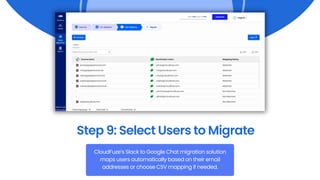
Step 9: Select Users to Migrate
CloudFuze’s Slack to Google Chat migration solution
maps users automatically based on their email
addresses or choose CSV mapping if needed.
Step 10: Select Channels to Migrate
Choose the channels to migrate to Google Chat.
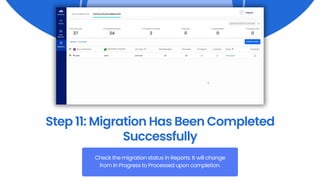
Step 11: Migration Has Been Completed
Successfully
Check the migration status in Reports. It will change
from In Progress to Processed upon completion.
VISIT OUR
WEBSITE!
support@cloudfuze.com
www.cloudfuze.com

Slack to Google Chat Migration Guide

  • 1.
    Slack to Google ChatMigration Guide for IT Admins
  • 2.
    Introduction Transferring Slack datato Google Chat is complex and needs planning. Ensure accurate migration of Slack data (messages, emojis, etc.). Choose a reliable migration tool like CloudFuze. CloudFuze excels in tailoring Slack to Google Chat migrations.
  • 3.
    Why Migrate fromSlack to Google Chat? Benefits of migrating for enhanced collaboration. Comparison reveals differences in features. Reasons for migration include integration, centralized collaboration, cost-efficiency, user management, security, and compliance.
  • 4.
    Challenges of Migrating Migratingfrom Slack to Google Chat is challenging. Key challenges include mapping user chats, migrating messages, public/private channels, Slack features, and incremental changes. CloudFuze ensures zero data loss, minimal disruption, and comprehensive data security.
  • 5.
    Steps to Migrate fromSlack to Google Chat
  • 6.
    Step 1: Login to CloudFuze Go to webapp.cloudfuze.com and create a CloudFuze account.
  • 7.
    Step 2: AddYour Slack Account to CloudFuze Locate the Slack logo in the business clouds list and enter Slack account details.
  • 8.
    Step 3: EnterSlack Login Credentials Enter your company’s Slack login details and click on the Sign-in button.
  • 9.
    Step 4: ProvideAccess to CloudFuze Click on the Allow button to provide access to CloudFuze.
  • 10.
    Step 5: AddGoogle Chat to CloudFuze Click on the Google Chat logo in the business clouds list and enter the credentials.
  • 11.
    Step 6: VerifyWhether Slack and Google Chat Are Added Click the Manage Clouds tab to check if Slack and Google Chat accounts are successfully added.
  • 12.
    Step 7: SelectSource and Destination Select Slack as the source and Google Chat as the destination.
  • 13.
    Step 8: RunPre-Migration Click the Run Pre-Migration button to analyze the Slack source cloud and fetch details.
  • 14.
    Step 9: SelectUsers to Migrate CloudFuze’s Slack to Google Chat migration solution maps users automatically based on their email addresses or choose CSV mapping if needed.
  • 15.
    Step 10: SelectChannels to Migrate Choose the channels to migrate to Google Chat.
  • 16.
    Step 11: MigrationHas Been Completed Successfully Check the migration status in Reports. It will change from In Progress to Processed upon completion.
  • 17.