DXC Proprietary and Confidential June 13, 2017
SharePoint Saturday
DC 2017
Correlation or Bust?
Toby McGrail
Senior SharePoint Technical Architect
June 13, 2017 2DXC Proprietary and Confidential
Agenda
1. Introduction 03
2. What is a Correlation ID? 04
3. Diagnostic Logging - Overview 05
4. Log Levels – Event Logging 06
5. Log Levels – Trace Logging 07
6. Usage and Health Data Collection 08
7. Health Analyzer 09
8. Developer Dashboard 10
9. Developer Browser Tools 11
10. Warm Up App Pools/Sites 12
11. Tools 13
12. PowerShell Commands 14
13. ULS Viewer 15
14. Search and Crawl Logs 16
15. Monitoring 17
16. Custom Error Pages 18
17. IIS App Pools and Sites 19
18. Counters and Thresholds 20
19. Network Troubleshooting 21
20. Client/Browser Issues 22
21. Recap 23
22. Questions? 24
June 13, 2017 3DXC Proprietary and Confidential
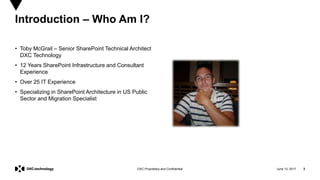
• Toby McGrail – Senior SharePoint Technical Architect
DXC Technology
• 12 Years SharePoint Infrastructure and Consultant
Experience
• Over 25 IT Experience
• Specializing in SharePoint Architecture in US Public
Sector and Migration Specialist
Introduction – Who Am I?
June 13, 2017 4DXC Proprietary and Confidential
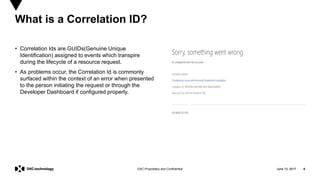
• Correlation Ids are GUIDs(Genuine Unique
Identification) assigned to events which transpire
during the lifecycle of a resource request.
• As problems occur, the Correlation Id is commonly
surfaced within the context of an error when presented
to the person initiating the request or through the
Developer Dashboard if configured properly.
What is a Correlation ID?
June 13, 2017 4
June 13, 2017 5DXC Proprietary and Confidential
June 13, 2017 6DXC Proprietary and Confidential
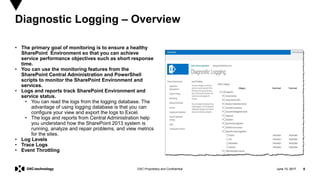
• The primary goal of monitoring is to ensure a healthy
SharePoint Environment so that you can achieve
service performance objectives such as short response
time.
• You can use the monitoring features from the
SharePoint Central Administration and PowerShell
scripts to monitor the SharePoint Environment and
services.
• Logs and reports track SharePoint Environment and
service status.
• You can read the logs from the logging database. The
advantage of using logging database is that you can
configure your view and export the logs to Excel.
• The logs and reports from Central Administration help
you understand how the SharePoint 2013 system is
running, analyze and repair problems, and view metrics
for the sites.
• Log Levels
• Trace Logs
• Event Throttling
Diagnostic Logging – Overview
June 13, 2017 6
June 13, 2017 7DXC Proprietary and Confidential
• It is important that you choose an appropriate severity level. The
severity level of an event is displayed in the Windows Event Log
and is used by administrators and registered by monitoring tools
to indicate how severe or important an event is. Choosing an
appropriate level is a key part of the health and monitoring design
for your component or system.
• Now to the Levels
• Critical Error - Events that demand the immediate attention of the
system administrator. They are generally directed at the global
(system-wide) level, such as System or Application. They can also
be used to indicate that an application or system has failed or
stopped responding.
• Error - Events that indicate problems, but in a category that does
not require immediate attention.
• Warning -Events that provide forewarning of potential problems;
although not a response to an actual error, a warning indicates that
a component or application is not in an ideal state and that some
further actions could result in a critical error.
• Information - Events that pass noncritical information to the
administrator, similar to a note that says: "For your information.“
• Verbose - Verbose status, such as progress or success messages.
Log Levels – Event Logging
June 13, 2017 7
June 13, 2017 8DXC Proprietary and Confidential
• When writing a trace log by using the ULS API, you must specify a
severity level. The severity level is displayed in the ULS trace log
and is commonly used by reporting or filtering tools. For this
reason, it is important to choose an appropriate level.
• Now to the Levels
• Unexpected - Similar to an Assert (an assumption in code that a
condition is true at a particular point), this message indicates that a
logic check failed that is atypical, or the message returns an
unexpected error code. These generally represent code bugs that
should be investigated and fixed.
• Monitorable - Traces that indicate a problem, but do not need
immediate investigation. The intent is to collect data and analyze it
over time, looking for problem trends.
• High - General functional detail, the high priority events that
happen in the environment. Examples include global configuration
modifications, service start and stop, timer jobs completed, and so
on
• Medium - Useful to help support or test teams debug customer or
environmental issues. These likely include messages indicating
that individual features have succeeded or failed, such as creating
a new list, modifying a page, and so on.
• Verbose - Useful primarily to help developers debug low-level code
failures. Not generally useful to anyone who does not have access
to source code or symbols. Most event tracing that does not need
to be enabled all the time should be set at the Verbose level.
• .
Log Levels – Trace (ULS)
June 13, 2017 8
June 13, 2017 9DXC Proprietary and Confidential
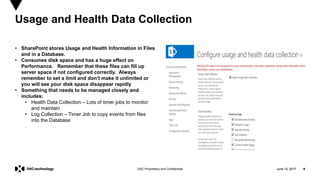
• SharePoint stores Usage and Health Information in Files
and in a Database.
• Consumes disk space and has a huge effect on
Performance. Remember that these files can fill up
server space if not configured correctly. Always
remember to set a limit and don’t make it unlimited or
you will see your disk space disappear rapidly
• Something that needs to be managed closely and
includes:
• Health Data Collection – Lots of timer jobs to monitor
and maintain
• Log Collection – Timer Job to copy events from files
into the Database
.
Usage and Health Data Collection
June 13, 2017 9
June 13, 2017 10DXC Proprietary and Confidential
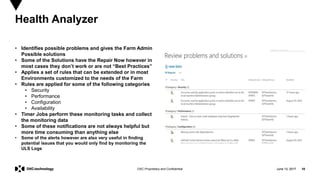
• Identifies possible problems and gives the Farm Admin
Possible solutions
• Some of the Solutions have the Repair Now however in
most cases they don’t work or are not “Best Practices”
• Applies a set of rules that can be extended or in most
Environments customized to the needs of the Farm
• Rules are applied for some of the following categories
• Security
• Performance
• Configuration
• Availability
• Timer Jobs perform these monitoring tasks and collect
the monitoring data
• Some of these notifications are not always helpful but
more time consuming than anything else
• Some of the alerts however are also very useful in finding
potential issues that you would only find by monitoring the
ULS Logs
Health Analyzer
June 13, 2017 10
June 13, 2017 11DXC Proprietary and Confidential
• Don’t be fooled by the name its more a tool to help you
troubleshoot problems and performance issues
• Easily Troubleshoot Problems with Page Rendering
• Three Types of modes that you need to be aware of
• Off - Not Displayed
• On – Rendering on Each and Every Page
• OnDemand – Hidden until you manually click on the
Developer Dashboard Icon
• Granular Control on Visibility provided – Users that
have Customization permissions by default
• Great way to Monitor Custom Code when the Developer
uses the SPMonitoredScope Tag – It’s a great idea to
make your solutions use this tag.
• Use PowerShell to enable DD in SP2013 and 2016.
• $ds= [Microsoft.SharePoint.Administration.SPWebService]::Co
ntentService.DeveloperDashboardSettings
$ds.DisplayLevel = 'OnDemand'
$ds.TraceEnabled = $true
$ds.Update()``
Developer Dashboard
June 13, 2017 12DXC Proprietary and Confidential
• SharePoint App Pools are part of IIS (By default they
recycle automatically) and Recycling App Pools are
essential to running fast on first load.
• Create a Warm Up Script that runs using Scheduled
tasks every morning.
– Run the task about 30 minutes before the first person
comes in the office. For example I have it run at 530
AM EST.
– Warm up all web applications and site collections for
more reliability
– Customize your script depending on environment and
run with Powershell!
• Sample Script
Warm Up App Pools and Sites
#------------------
# Ensure the SharePoint Snappin has been loaded
#------------------
if ( (Get-PSSnapin -Name "Microsoft.SharePoint.PowerShell" -ErrorAction SilentlyContinue) -eq $null ) {
Add-PSSnapin "Microsoft.SharePoint.PowerShell“
}
#------------------
# Simple method to write status code with a colour
#------------------
function Write-Status([Microsoft.PowerShell.Commands.WebResponseObject] $response) {
$foregroundColor = "DarkRed“
if($response.StatusCode -eq 200) {
$foregroundColor = "DarkGreen“
}
write-host ([string]::Format("{0} (Status code: {1})", $response.StatusDescription, $response.StatusCode)) -ForegroundColor
$foregroundColor }
#------------------
Warm-up all web applications
#------------------
Get-SPWebApplication | ForEach-Object {
write-host ([string]::Format("WebApplication request fired for {0} [{1}]. ", $_.DisplayName, $_.Url)) –NoNewline
Write-Status -response (Invoke-WebRequest $_.url -UseDefaultCredentials -UseBasicParsing) }
#------------------
# Since the root of web applications use different templates then other site collections, also load other sites of different # types.
This ensures their assemblies also get loaded in memory
#------------------
$additionalUrls = @("https://sharepoint.jmlfdc.mil/sites/search" ;, "https://sharepoint.jmlfdc.mil" ;,
,
"https:/sitename.com/sites/blog" ;,
"https://sitename/sites/SPTOBY" ;) $additionalUrls | ForEach-Object {
write-host ([string]::Format("Additional web request fired for Url: {0}. ", $_)) -NoNewline
Write-Status -response (Invoke-WebRequest $_ -UseDefaultCredentials -UseBasicParsing) }
June 13, 2017 13DXC Proprietary and Confidential
• Troubleshooting tools are key and will make your
job easier and help you resolve issues faster.
Resolutions are not always easy but having the
tools to resolve are. Here are some of the tools
that I use
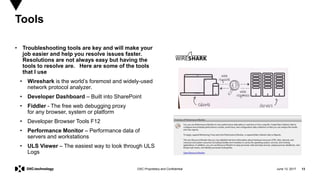
• Wireshark is the world’s foremost and widely-used
network protocol analyzer.
• Developer Dashboard – Built into SharePoint
• Fiddler - The free web debugging proxy
for any browser, system or platform
• Developer Browser Tools F12
• Performance Monitor – Performance data of
servers and workstations
• ULS Viewer – The easiest way to look through ULS
Logs
Tools
June 13, 2017 14DXC Proprietary and Confidential
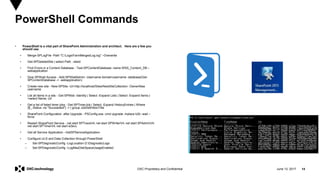
• PowerShell is a vital part of SharePoint Administration and architect. Here are a few you
should use
• Merge-SPLogFile -Path "C:LogsFarmMergedLog.log" –Overwrite
• Get-SPDeletedSite | select Path , siteid
• Find Errors in a Content Database - Test-SPContentDatabase -name WSS_Content_DB –
webapplication
• Give SPShell Access - Add-SPShellAdmin -Username domainusername -database(Get-
SPContentDatabase -> -webapplication)
• Create new site - New-SPSite -Url http://localhost/Sites/NewSiteCollection- OwnerAlias
username
• List all items in a site - Get-SPWeb -Identity | Select -Expand Lists | Select -Expand Items |-
>select Name, Url
• Get a list of failed timer jobs - Get-SPTimerJob | Select -Expand HistoryEntries | Where
{$_.Status -ne "Succeeded"} -> | group JobDefinitionTitle
• SharePoint Configuration after Upgrade - PSConfig.exe -cmd upgrade -inplace b2b -wait –
force
• Restart SharePoint Service - net start SPTraceV4; net start SPWriterV4; net start SPAdminV4;
net start SPTimerV4; net start w3svc
• Get all Service Application –GetSPServiceApplication
• Configure ULS and Data Collection through PowerShell
– Set-SPDiagnosticConfig -LogLocation D:DiagnosticLogs
– Set-SPDiagnosticConfig –LogMaxDiskSpaceUsageEnabled
PowerShell Commands
June 13, 2017 15DXC Proprietary and Confidential
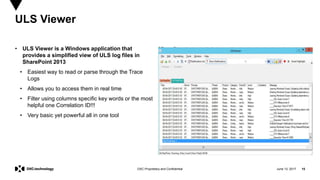
• ULS Viewer is a Windows application that
provides a simplified view of ULS log files in
SharePoint 2013
• Easiest way to read or parse through the Trace
Logs
• Allows you to access them in real time
• Filter using columns specific key words or the most
helpful one Correlation ID!!!
• Very basic yet powerful all in one tool
ULS Viewer
June 13, 2017 16DXC Proprietary and Confidential
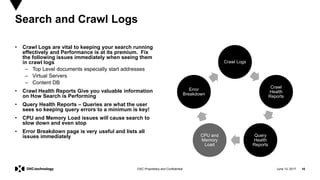
• Crawl Logs are vital to keeping your search running
effectively and Performance is at its premium. Fix
the following issues immediately when seeing them
in crawl logs
– Top Level documents especially start addresses
– Virtual Servers
– Content DB
• Crawl Health Reports Give you valuable information
on How Search is Performing
• Query Health Reports – Queries are what the user
sees so keeping query errors to a minimum is key!
• CPU and Memory Load issues will cause search to
slow down and even stop
• Error Breakdown page is very useful and lists all
issues immediately
Search and Crawl Logs
Crawl Logs
Crawl
Health
Reports
Query
Health
Reports
CPU and
Memory
Load
Error
Breakdown
June 13, 2017 17DXC Proprietary and Confidential
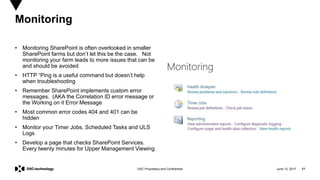
• Monitoring SharePoint is often overlooked in smaller
SharePoint farms but don’t let this be the case. Not
monitoring your farm leads to more issues that can be
and should be avoided
• HTTP “Ping is a useful command but doesn’t help
when troubleshooting
• Remember SharePoint implements custom error
messages. (AKA the Correlation ID error message or
the Working on it Error Message
• Most common error codes 404 and 401 can be
hidden
• Monitor your Timer Jobs, Scheduled Tasks and ULS
Logs
• Develop a page that checks SharePoint Services.
Every twenty minutes for Upper Management Viewing
Monitoring
June 13, 2017 18DXC Proprietary and Confidential
Create Custom Pages to allow for more in depth
logging.
Example HTTP Throttling for Performance Issue
Custom Error Page to help Admin and Support with user
with important data
• Correlation ID
• Web Front End Server
• Time of Error
• User affected
• Log Name
Custom Error Pages
June 13, 2017 19DXC Proprietary and Confidential
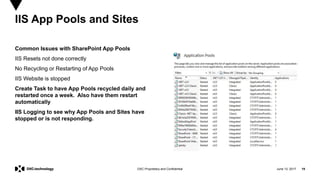
Common Issues with SharePoint App Pools
IIS Resets not done correctly
No Recycling or Restarting of App Pools
IIS Website is stopped
Create Task to have App Pools recycled daily and
restarted once a week. Also have them restart
automatically
IIS Logging to see why App Pools and Sites have
stopped or is not responding.
IIS App Pools and Sites
June 13, 2017 20DXC Proprietary and Confidential
Processor Utilization – Not to exceed 80 Percent but
ideally under 50 Percent
Available Memory – Greater then 10 Percent
Disk Latency Less then 25 MS but ideal situation is
15 MS
SQL Server is more like 10 MS
Counters and Thresholds
June 13, 2017 21DXC Proprietary and Confidential
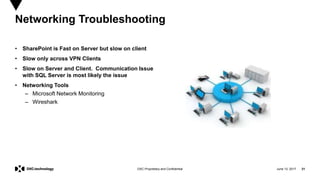
• SharePoint is Fast on Server but slow on client
• Slow only across VPN Clients
• Slow on Server and Client. Communication Issue
with SQL Server is most likely the issue
• Networking Tools
– Microsoft Network Monitoring
– Wireshark
Networking Troubleshooting
June 13, 2017 22DXC Proprietary and Confidential
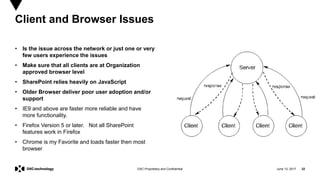
• Is the issue across the network or just one or very
few users experience the issues
• Make sure that all clients are at Organization
approved browser level
• SharePoint relies heavily on JavaScript
• Older Browser deliver poor user adoption and/or
support
• IE9 and above are faster more reliable and have
more functionality.
• Firefox Version 5 or later. Not all SharePoint
features work in Firefox
• Chrome is my Favorite and loads faster then most
browser
Client and Browser Issues
June 13, 2017 23DXC Proprietary and Confidential
Recap
• Know your Environment – Troubleshooting starts here!
• Performance Baselines help detect and limit issues and problems
• Monitoring is the Key!
• Pay attention to Log Files – Both Event and ULS Logs. ULS Viewer should become your best
friend next to PowerShell.
• Tools
– Developer Dashboard
– Browser Tools
– Fiddler
– Wireshark
– ULS Viewer
• Diagnose one issue at a time! Don’t always trust google when implementing a solution. Thoroughly
test in dev and/or test environments before moving it to the Production Farm
• PowerShell is like your Super Power of SharePoint Administration. Know the basics and use scripts
to keep your engine running at optimal speed and performance.
June 13, 2017 24DXC Proprietary and Confidential
• Do you have any issues that you have seen that
we have not covered
• Don’t forget to fill out a survey
• Visit our Wonderful Sponsors
My Blog
http://tobymcgrail.com:2020/SPADMIN
Contact Information:
Toby McGrail – toby.mcgrail@dxc.com
Twitter - @SPTOBY1
Questions?
DXC Proprietary and Confidential
Thank you.
June 13, 2017 26DXC Proprietary and Confidential
Housekeeping…
You must be present to win at the wrap-up…
Remember to stop by to say hi to our sponsors
June 13, 2017 27DXC Proprietary and Confidential
Thanks to our Sponsors!!!
June 13, 2017 28DXC Proprietary and Confidential
Join us at #SharePint after the conference!
Why? To network with fellow SharePoint
professionals
What? SharePint!!!
When? 4:45 PM
Where? Announced at Conference Wrap-Up

SharePoint Troubleshooting

  • 1.
    DXC Proprietary andConfidential June 13, 2017 SharePoint Saturday DC 2017 Correlation or Bust? Toby McGrail Senior SharePoint Technical Architect
  • 2.
    June 13, 20172DXC Proprietary and Confidential Agenda 1. Introduction 03 2. What is a Correlation ID? 04 3. Diagnostic Logging - Overview 05 4. Log Levels – Event Logging 06 5. Log Levels – Trace Logging 07 6. Usage and Health Data Collection 08 7. Health Analyzer 09 8. Developer Dashboard 10 9. Developer Browser Tools 11 10. Warm Up App Pools/Sites 12 11. Tools 13 12. PowerShell Commands 14 13. ULS Viewer 15 14. Search and Crawl Logs 16 15. Monitoring 17 16. Custom Error Pages 18 17. IIS App Pools and Sites 19 18. Counters and Thresholds 20 19. Network Troubleshooting 21 20. Client/Browser Issues 22 21. Recap 23 22. Questions? 24
  • 3.
    June 13, 20173DXC Proprietary and Confidential • Toby McGrail – Senior SharePoint Technical Architect DXC Technology • 12 Years SharePoint Infrastructure and Consultant Experience • Over 25 IT Experience • Specializing in SharePoint Architecture in US Public Sector and Migration Specialist Introduction – Who Am I?
  • 4.
    June 13, 20174DXC Proprietary and Confidential • Correlation Ids are GUIDs(Genuine Unique Identification) assigned to events which transpire during the lifecycle of a resource request. • As problems occur, the Correlation Id is commonly surfaced within the context of an error when presented to the person initiating the request or through the Developer Dashboard if configured properly. What is a Correlation ID? June 13, 2017 4
  • 5.
    June 13, 20175DXC Proprietary and Confidential
  • 6.
    June 13, 20176DXC Proprietary and Confidential • The primary goal of monitoring is to ensure a healthy SharePoint Environment so that you can achieve service performance objectives such as short response time. • You can use the monitoring features from the SharePoint Central Administration and PowerShell scripts to monitor the SharePoint Environment and services. • Logs and reports track SharePoint Environment and service status. • You can read the logs from the logging database. The advantage of using logging database is that you can configure your view and export the logs to Excel. • The logs and reports from Central Administration help you understand how the SharePoint 2013 system is running, analyze and repair problems, and view metrics for the sites. • Log Levels • Trace Logs • Event Throttling Diagnostic Logging – Overview June 13, 2017 6
  • 7.
    June 13, 20177DXC Proprietary and Confidential • It is important that you choose an appropriate severity level. The severity level of an event is displayed in the Windows Event Log and is used by administrators and registered by monitoring tools to indicate how severe or important an event is. Choosing an appropriate level is a key part of the health and monitoring design for your component or system. • Now to the Levels • Critical Error - Events that demand the immediate attention of the system administrator. They are generally directed at the global (system-wide) level, such as System or Application. They can also be used to indicate that an application or system has failed or stopped responding. • Error - Events that indicate problems, but in a category that does not require immediate attention. • Warning -Events that provide forewarning of potential problems; although not a response to an actual error, a warning indicates that a component or application is not in an ideal state and that some further actions could result in a critical error. • Information - Events that pass noncritical information to the administrator, similar to a note that says: "For your information.“ • Verbose - Verbose status, such as progress or success messages. Log Levels – Event Logging June 13, 2017 7
  • 8.
    June 13, 20178DXC Proprietary and Confidential • When writing a trace log by using the ULS API, you must specify a severity level. The severity level is displayed in the ULS trace log and is commonly used by reporting or filtering tools. For this reason, it is important to choose an appropriate level. • Now to the Levels • Unexpected - Similar to an Assert (an assumption in code that a condition is true at a particular point), this message indicates that a logic check failed that is atypical, or the message returns an unexpected error code. These generally represent code bugs that should be investigated and fixed. • Monitorable - Traces that indicate a problem, but do not need immediate investigation. The intent is to collect data and analyze it over time, looking for problem trends. • High - General functional detail, the high priority events that happen in the environment. Examples include global configuration modifications, service start and stop, timer jobs completed, and so on • Medium - Useful to help support or test teams debug customer or environmental issues. These likely include messages indicating that individual features have succeeded or failed, such as creating a new list, modifying a page, and so on. • Verbose - Useful primarily to help developers debug low-level code failures. Not generally useful to anyone who does not have access to source code or symbols. Most event tracing that does not need to be enabled all the time should be set at the Verbose level. • . Log Levels – Trace (ULS) June 13, 2017 8
  • 9.
    June 13, 20179DXC Proprietary and Confidential • SharePoint stores Usage and Health Information in Files and in a Database. • Consumes disk space and has a huge effect on Performance. Remember that these files can fill up server space if not configured correctly. Always remember to set a limit and don’t make it unlimited or you will see your disk space disappear rapidly • Something that needs to be managed closely and includes: • Health Data Collection – Lots of timer jobs to monitor and maintain • Log Collection – Timer Job to copy events from files into the Database . Usage and Health Data Collection June 13, 2017 9
  • 10.
    June 13, 201710DXC Proprietary and Confidential • Identifies possible problems and gives the Farm Admin Possible solutions • Some of the Solutions have the Repair Now however in most cases they don’t work or are not “Best Practices” • Applies a set of rules that can be extended or in most Environments customized to the needs of the Farm • Rules are applied for some of the following categories • Security • Performance • Configuration • Availability • Timer Jobs perform these monitoring tasks and collect the monitoring data • Some of these notifications are not always helpful but more time consuming than anything else • Some of the alerts however are also very useful in finding potential issues that you would only find by monitoring the ULS Logs Health Analyzer June 13, 2017 10
  • 11.
    June 13, 201711DXC Proprietary and Confidential • Don’t be fooled by the name its more a tool to help you troubleshoot problems and performance issues • Easily Troubleshoot Problems with Page Rendering • Three Types of modes that you need to be aware of • Off - Not Displayed • On – Rendering on Each and Every Page • OnDemand – Hidden until you manually click on the Developer Dashboard Icon • Granular Control on Visibility provided – Users that have Customization permissions by default • Great way to Monitor Custom Code when the Developer uses the SPMonitoredScope Tag – It’s a great idea to make your solutions use this tag. • Use PowerShell to enable DD in SP2013 and 2016. • $ds= [Microsoft.SharePoint.Administration.SPWebService]::Co ntentService.DeveloperDashboardSettings $ds.DisplayLevel = 'OnDemand' $ds.TraceEnabled = $true $ds.Update()`` Developer Dashboard
  • 12.
    June 13, 201712DXC Proprietary and Confidential • SharePoint App Pools are part of IIS (By default they recycle automatically) and Recycling App Pools are essential to running fast on first load. • Create a Warm Up Script that runs using Scheduled tasks every morning. – Run the task about 30 minutes before the first person comes in the office. For example I have it run at 530 AM EST. – Warm up all web applications and site collections for more reliability – Customize your script depending on environment and run with Powershell! • Sample Script Warm Up App Pools and Sites #------------------ # Ensure the SharePoint Snappin has been loaded #------------------ if ( (Get-PSSnapin -Name "Microsoft.SharePoint.PowerShell" -ErrorAction SilentlyContinue) -eq $null ) { Add-PSSnapin "Microsoft.SharePoint.PowerShell“ } #------------------ # Simple method to write status code with a colour #------------------ function Write-Status([Microsoft.PowerShell.Commands.WebResponseObject] $response) { $foregroundColor = "DarkRed“ if($response.StatusCode -eq 200) { $foregroundColor = "DarkGreen“ } write-host ([string]::Format("{0} (Status code: {1})", $response.StatusDescription, $response.StatusCode)) -ForegroundColor $foregroundColor } #------------------ Warm-up all web applications #------------------ Get-SPWebApplication | ForEach-Object { write-host ([string]::Format("WebApplication request fired for {0} [{1}]. ", $_.DisplayName, $_.Url)) –NoNewline Write-Status -response (Invoke-WebRequest $_.url -UseDefaultCredentials -UseBasicParsing) } #------------------ # Since the root of web applications use different templates then other site collections, also load other sites of different # types. This ensures their assemblies also get loaded in memory #------------------ $additionalUrls = @("https://sharepoint.jmlfdc.mil/sites/search" ;, "https://sharepoint.jmlfdc.mil" ;, , "https:/sitename.com/sites/blog" ;, "https://sitename/sites/SPTOBY" ;) $additionalUrls | ForEach-Object { write-host ([string]::Format("Additional web request fired for Url: {0}. ", $_)) -NoNewline Write-Status -response (Invoke-WebRequest $_ -UseDefaultCredentials -UseBasicParsing) }
  • 13.
    June 13, 201713DXC Proprietary and Confidential • Troubleshooting tools are key and will make your job easier and help you resolve issues faster. Resolutions are not always easy but having the tools to resolve are. Here are some of the tools that I use • Wireshark is the world’s foremost and widely-used network protocol analyzer. • Developer Dashboard – Built into SharePoint • Fiddler - The free web debugging proxy for any browser, system or platform • Developer Browser Tools F12 • Performance Monitor – Performance data of servers and workstations • ULS Viewer – The easiest way to look through ULS Logs Tools
  • 14.
    June 13, 201714DXC Proprietary and Confidential • PowerShell is a vital part of SharePoint Administration and architect. Here are a few you should use • Merge-SPLogFile -Path "C:LogsFarmMergedLog.log" –Overwrite • Get-SPDeletedSite | select Path , siteid • Find Errors in a Content Database - Test-SPContentDatabase -name WSS_Content_DB – webapplication • Give SPShell Access - Add-SPShellAdmin -Username domainusername -database(Get- SPContentDatabase -> -webapplication) • Create new site - New-SPSite -Url http://localhost/Sites/NewSiteCollection- OwnerAlias username • List all items in a site - Get-SPWeb -Identity | Select -Expand Lists | Select -Expand Items |- >select Name, Url • Get a list of failed timer jobs - Get-SPTimerJob | Select -Expand HistoryEntries | Where {$_.Status -ne "Succeeded"} -> | group JobDefinitionTitle • SharePoint Configuration after Upgrade - PSConfig.exe -cmd upgrade -inplace b2b -wait – force • Restart SharePoint Service - net start SPTraceV4; net start SPWriterV4; net start SPAdminV4; net start SPTimerV4; net start w3svc • Get all Service Application –GetSPServiceApplication • Configure ULS and Data Collection through PowerShell – Set-SPDiagnosticConfig -LogLocation D:DiagnosticLogs – Set-SPDiagnosticConfig –LogMaxDiskSpaceUsageEnabled PowerShell Commands
  • 15.
    June 13, 201715DXC Proprietary and Confidential • ULS Viewer is a Windows application that provides a simplified view of ULS log files in SharePoint 2013 • Easiest way to read or parse through the Trace Logs • Allows you to access them in real time • Filter using columns specific key words or the most helpful one Correlation ID!!! • Very basic yet powerful all in one tool ULS Viewer
  • 16.
    June 13, 201716DXC Proprietary and Confidential • Crawl Logs are vital to keeping your search running effectively and Performance is at its premium. Fix the following issues immediately when seeing them in crawl logs – Top Level documents especially start addresses – Virtual Servers – Content DB • Crawl Health Reports Give you valuable information on How Search is Performing • Query Health Reports – Queries are what the user sees so keeping query errors to a minimum is key! • CPU and Memory Load issues will cause search to slow down and even stop • Error Breakdown page is very useful and lists all issues immediately Search and Crawl Logs Crawl Logs Crawl Health Reports Query Health Reports CPU and Memory Load Error Breakdown
  • 17.
    June 13, 201717DXC Proprietary and Confidential • Monitoring SharePoint is often overlooked in smaller SharePoint farms but don’t let this be the case. Not monitoring your farm leads to more issues that can be and should be avoided • HTTP “Ping is a useful command but doesn’t help when troubleshooting • Remember SharePoint implements custom error messages. (AKA the Correlation ID error message or the Working on it Error Message • Most common error codes 404 and 401 can be hidden • Monitor your Timer Jobs, Scheduled Tasks and ULS Logs • Develop a page that checks SharePoint Services. Every twenty minutes for Upper Management Viewing Monitoring
  • 18.
    June 13, 201718DXC Proprietary and Confidential Create Custom Pages to allow for more in depth logging. Example HTTP Throttling for Performance Issue Custom Error Page to help Admin and Support with user with important data • Correlation ID • Web Front End Server • Time of Error • User affected • Log Name Custom Error Pages
  • 19.
    June 13, 201719DXC Proprietary and Confidential Common Issues with SharePoint App Pools IIS Resets not done correctly No Recycling or Restarting of App Pools IIS Website is stopped Create Task to have App Pools recycled daily and restarted once a week. Also have them restart automatically IIS Logging to see why App Pools and Sites have stopped or is not responding. IIS App Pools and Sites
  • 20.
    June 13, 201720DXC Proprietary and Confidential Processor Utilization – Not to exceed 80 Percent but ideally under 50 Percent Available Memory – Greater then 10 Percent Disk Latency Less then 25 MS but ideal situation is 15 MS SQL Server is more like 10 MS Counters and Thresholds
  • 21.
    June 13, 201721DXC Proprietary and Confidential • SharePoint is Fast on Server but slow on client • Slow only across VPN Clients • Slow on Server and Client. Communication Issue with SQL Server is most likely the issue • Networking Tools – Microsoft Network Monitoring – Wireshark Networking Troubleshooting
  • 22.
    June 13, 201722DXC Proprietary and Confidential • Is the issue across the network or just one or very few users experience the issues • Make sure that all clients are at Organization approved browser level • SharePoint relies heavily on JavaScript • Older Browser deliver poor user adoption and/or support • IE9 and above are faster more reliable and have more functionality. • Firefox Version 5 or later. Not all SharePoint features work in Firefox • Chrome is my Favorite and loads faster then most browser Client and Browser Issues
  • 23.
    June 13, 201723DXC Proprietary and Confidential Recap • Know your Environment – Troubleshooting starts here! • Performance Baselines help detect and limit issues and problems • Monitoring is the Key! • Pay attention to Log Files – Both Event and ULS Logs. ULS Viewer should become your best friend next to PowerShell. • Tools – Developer Dashboard – Browser Tools – Fiddler – Wireshark – ULS Viewer • Diagnose one issue at a time! Don’t always trust google when implementing a solution. Thoroughly test in dev and/or test environments before moving it to the Production Farm • PowerShell is like your Super Power of SharePoint Administration. Know the basics and use scripts to keep your engine running at optimal speed and performance.
  • 24.
    June 13, 201724DXC Proprietary and Confidential • Do you have any issues that you have seen that we have not covered • Don’t forget to fill out a survey • Visit our Wonderful Sponsors My Blog http://tobymcgrail.com:2020/SPADMIN Contact Information: Toby McGrail – toby.mcgrail@dxc.com Twitter - @SPTOBY1 Questions?
  • 25.
    DXC Proprietary andConfidential Thank you.
  • 26.
    June 13, 201726DXC Proprietary and Confidential Housekeeping… You must be present to win at the wrap-up… Remember to stop by to say hi to our sponsors
  • 27.
    June 13, 201727DXC Proprietary and Confidential Thanks to our Sponsors!!!
  • 28.
    June 13, 201728DXC Proprietary and Confidential Join us at #SharePint after the conference! Why? To network with fellow SharePoint professionals What? SharePint!!! When? 4:45 PM Where? Announced at Conference Wrap-Up