Accessibility for iOS
Raising the bar


Session 210
Chris Fleizach
iOS Accessibility


These are confidential sessions—please refrain from streaming, blogging, or taking pictures
Accessibility
Using technology to overcome challenges
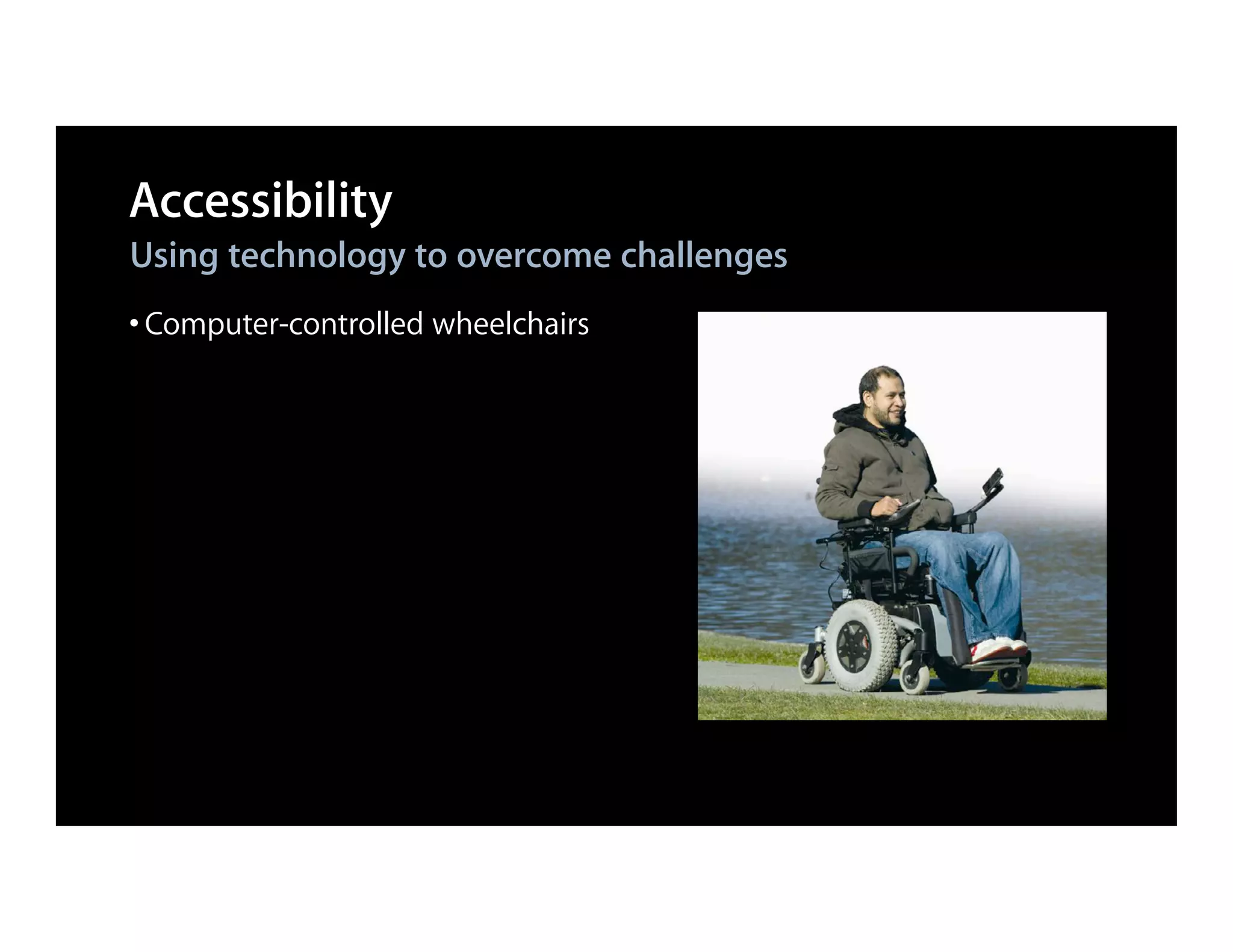
• Computer-controlled wheelchairs
Accessibility
Using technology to overcome challenges
• Computer-controlled wheelchairs
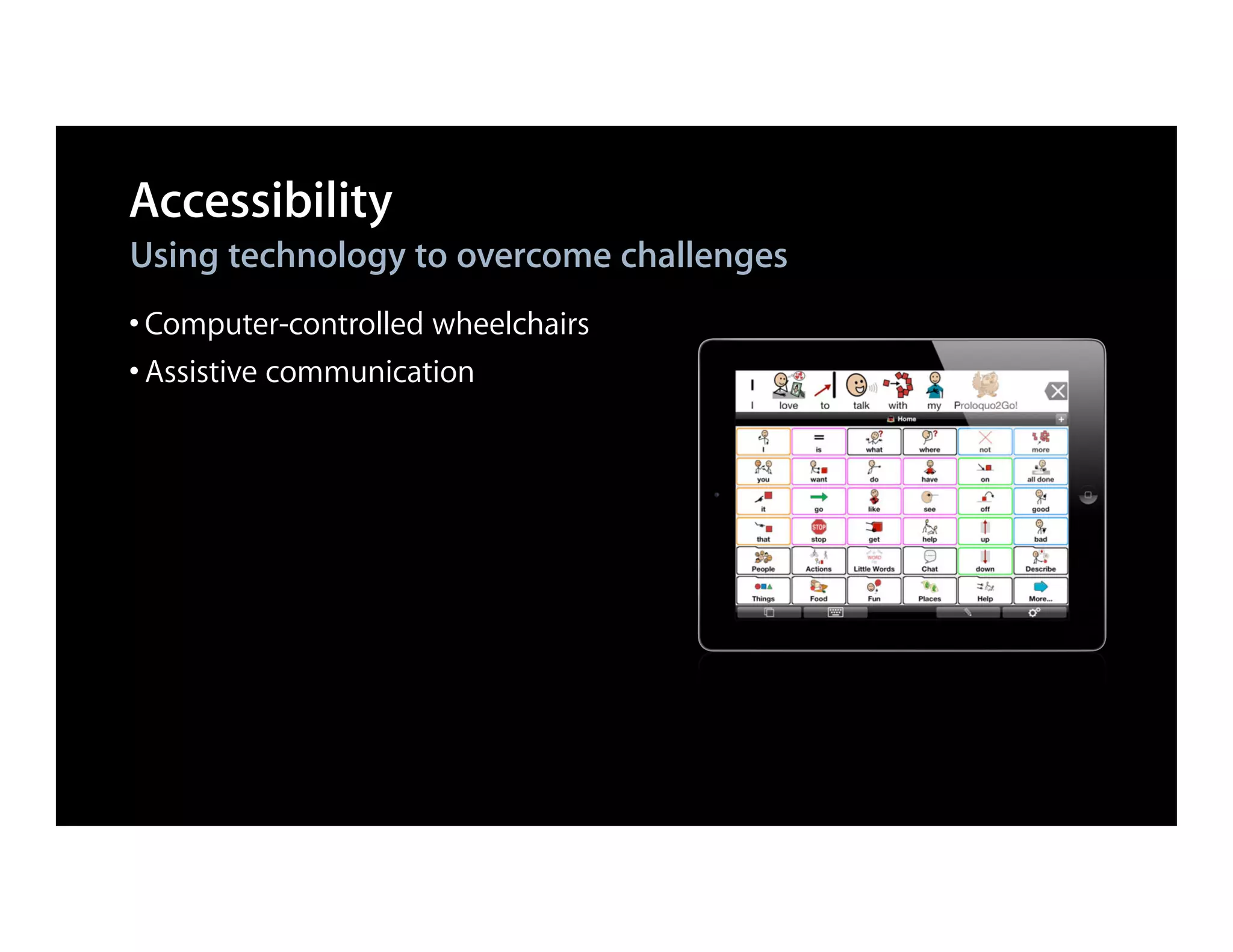
• Assistive communication
Accessibility
Using technology to overcome challenges
• Computer-controlled wheelchairs
• Assistive communication
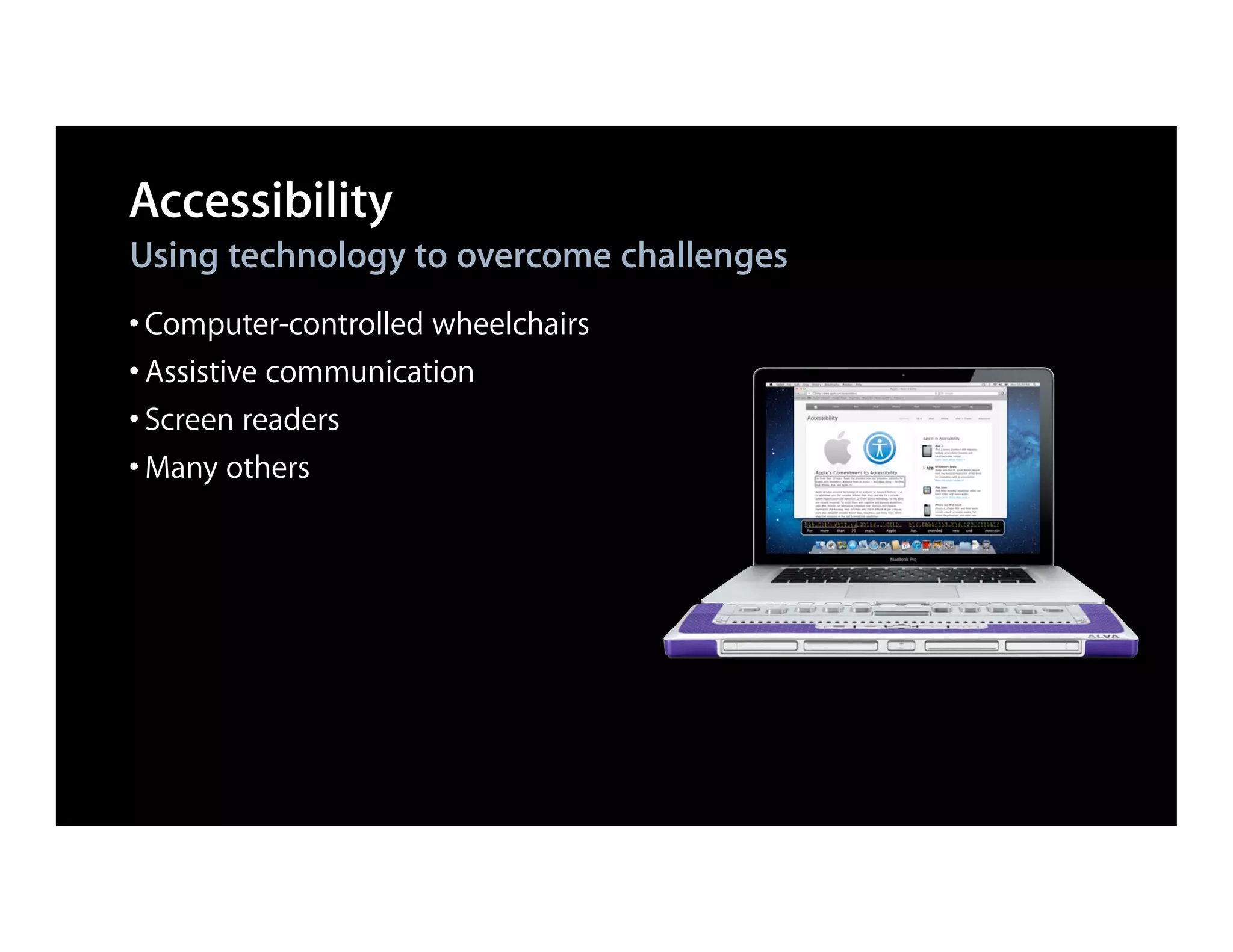
• Screen readers
• Many others
iOS Accessibility Features
VoiceOver
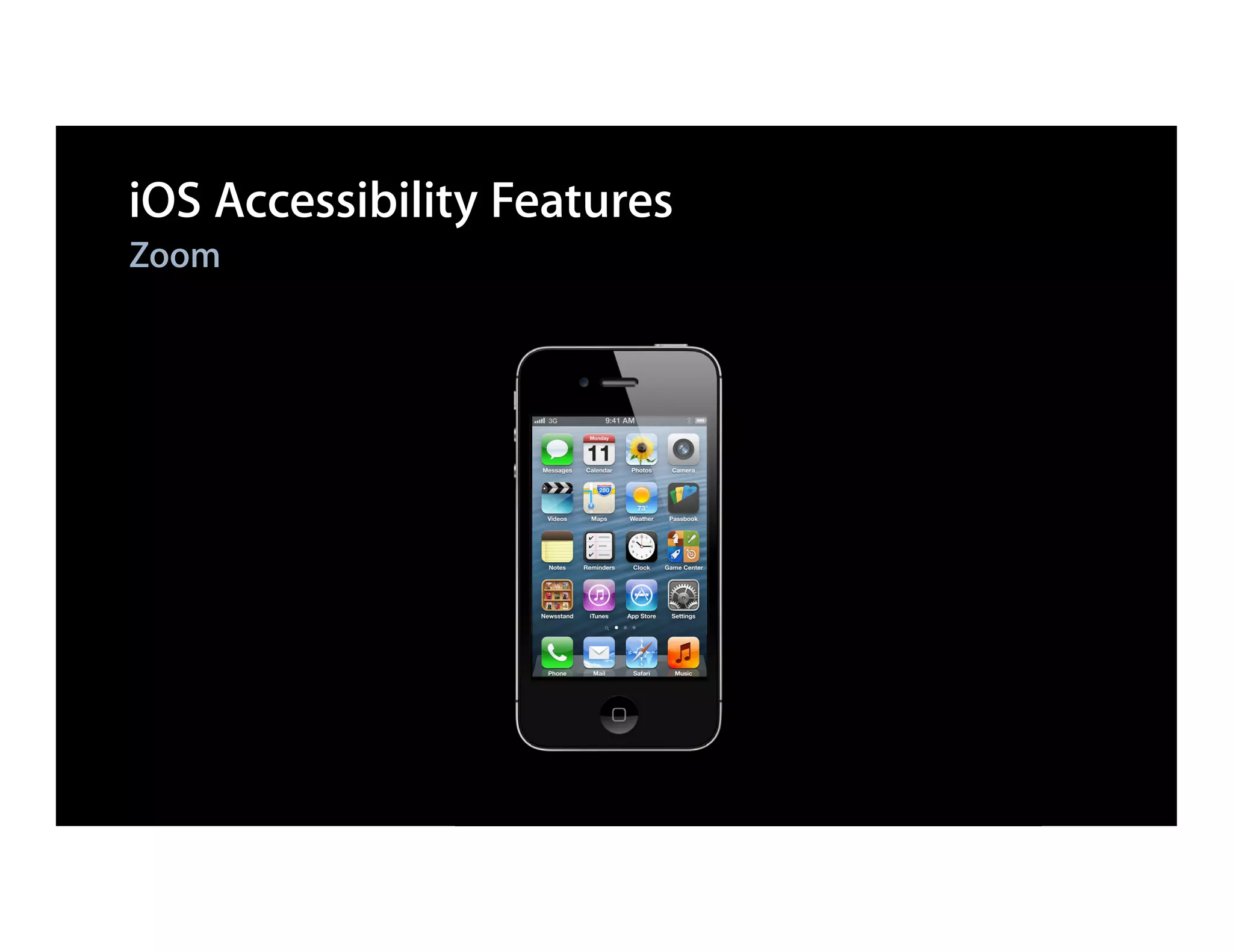
iOS Accessibility Features
Zoom
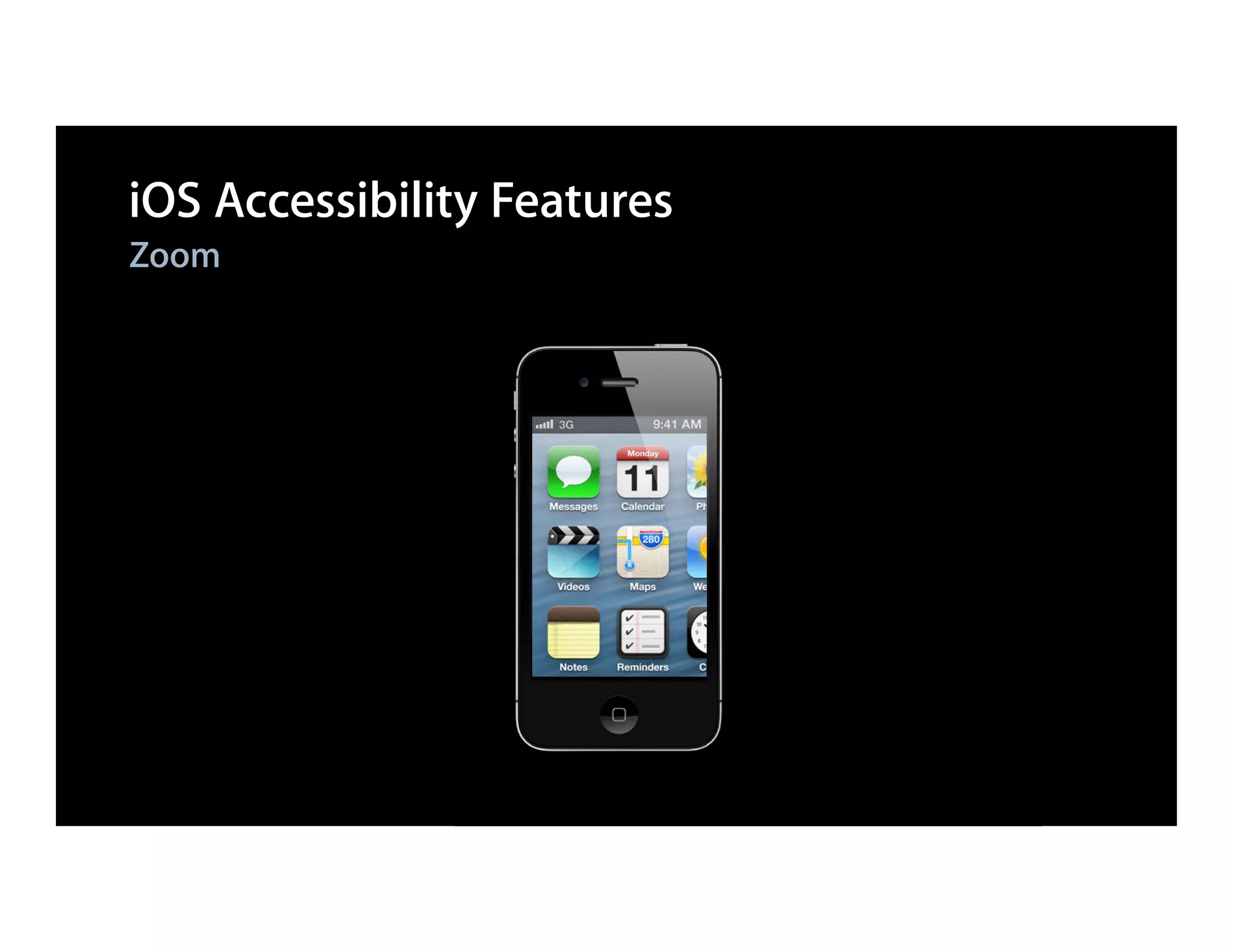
iOS Accessibility Features
Zoom
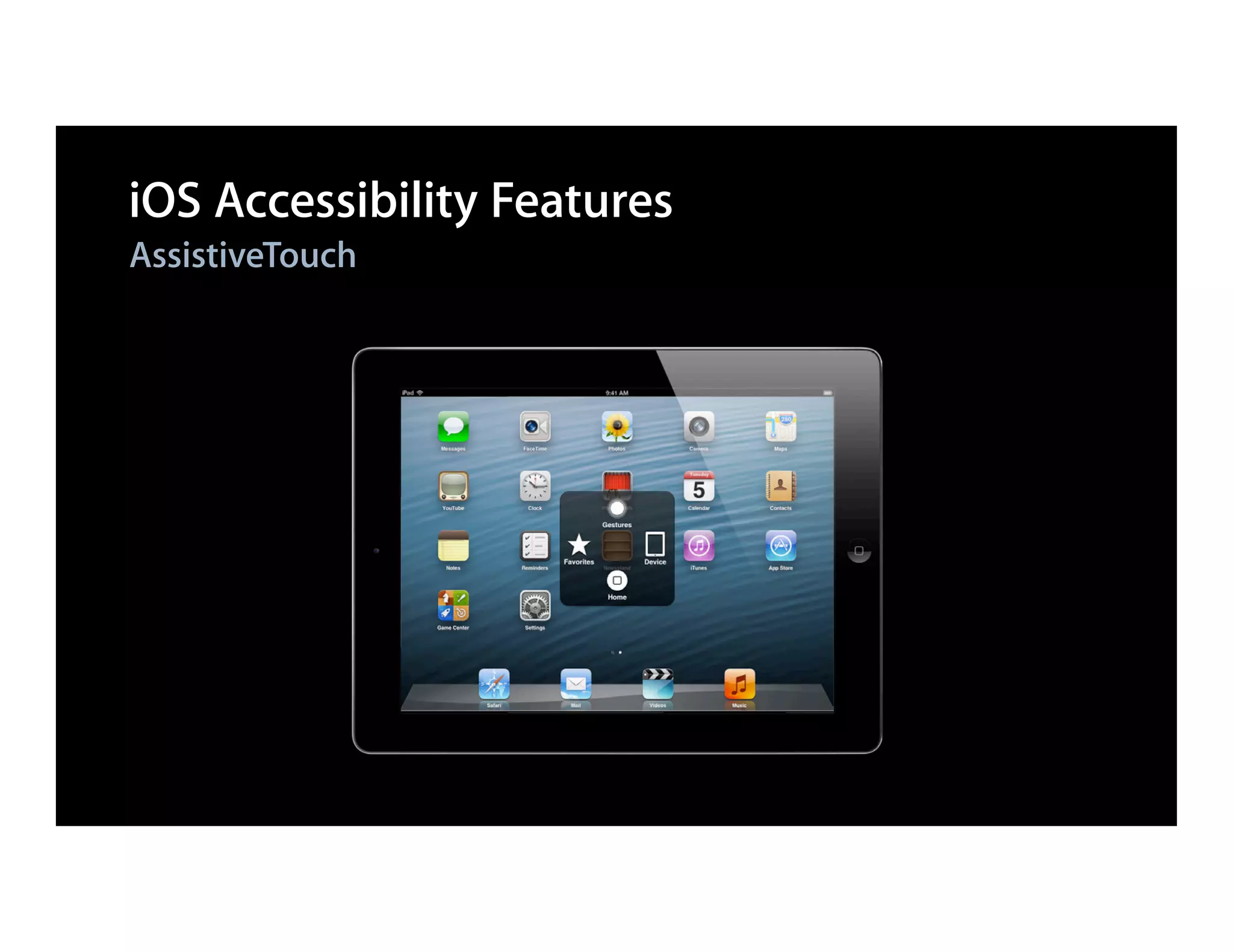
iOS Accessibility Features
AssistiveTouch
New in iOS 6
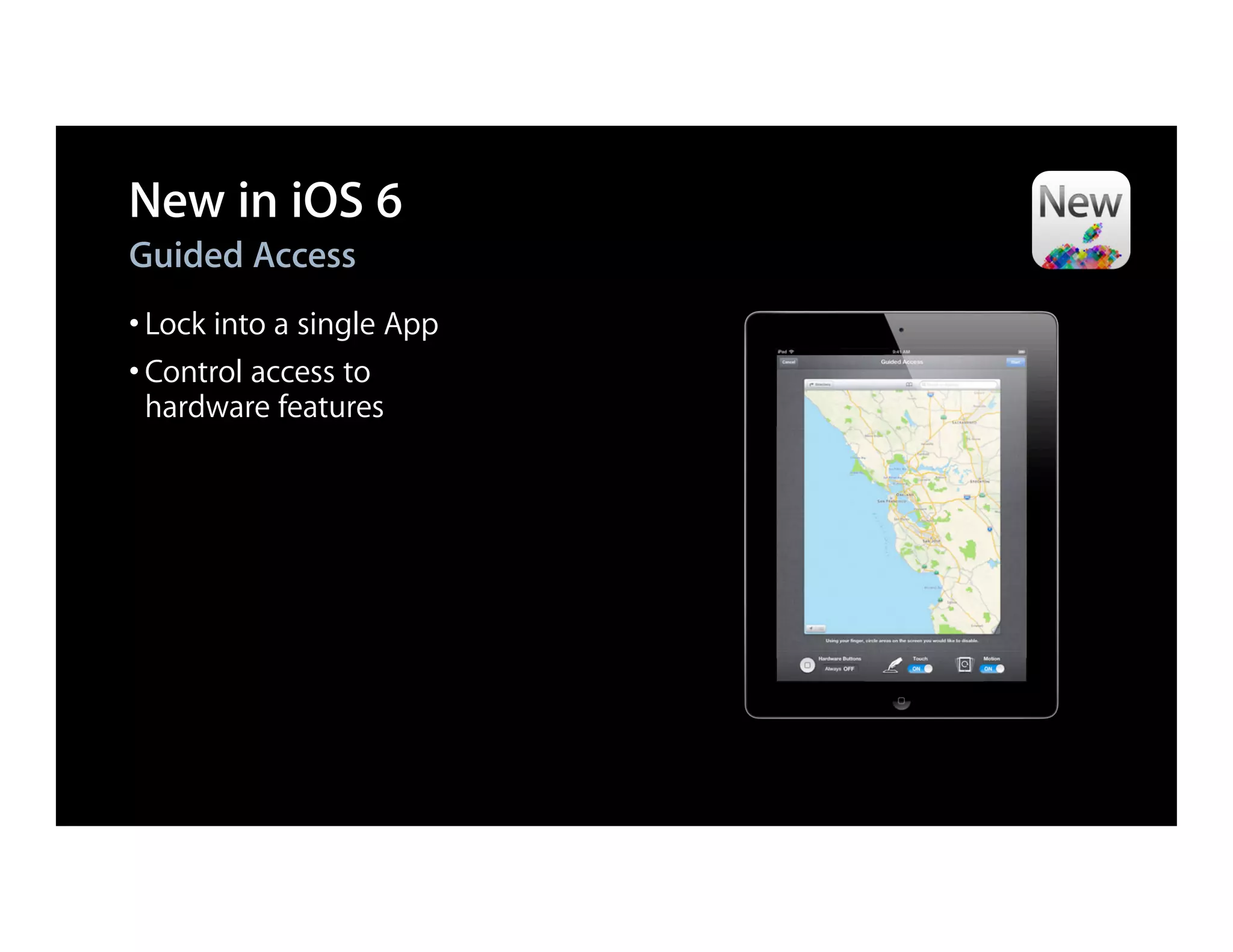
Guided Access
• Lock into a single App
• Control access to
 hardware features
New in iOS 6
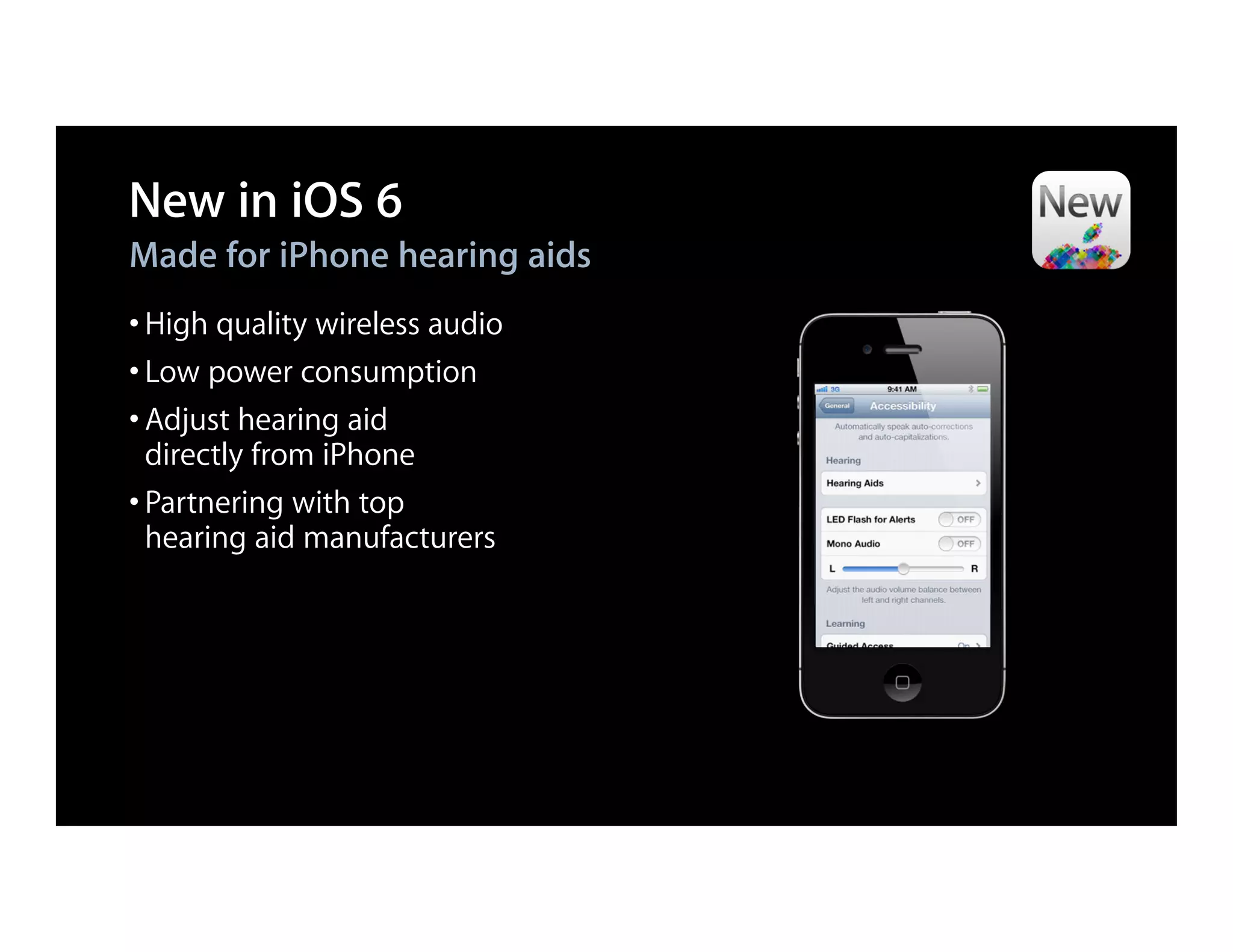
Made for iPhone hearing aids
• High quality wireless audio
• Low power consumption
• Adjust hearing aid
  directly from iPhone
• Partnering with top
  hearing aid manufacturers
New in iOS 6
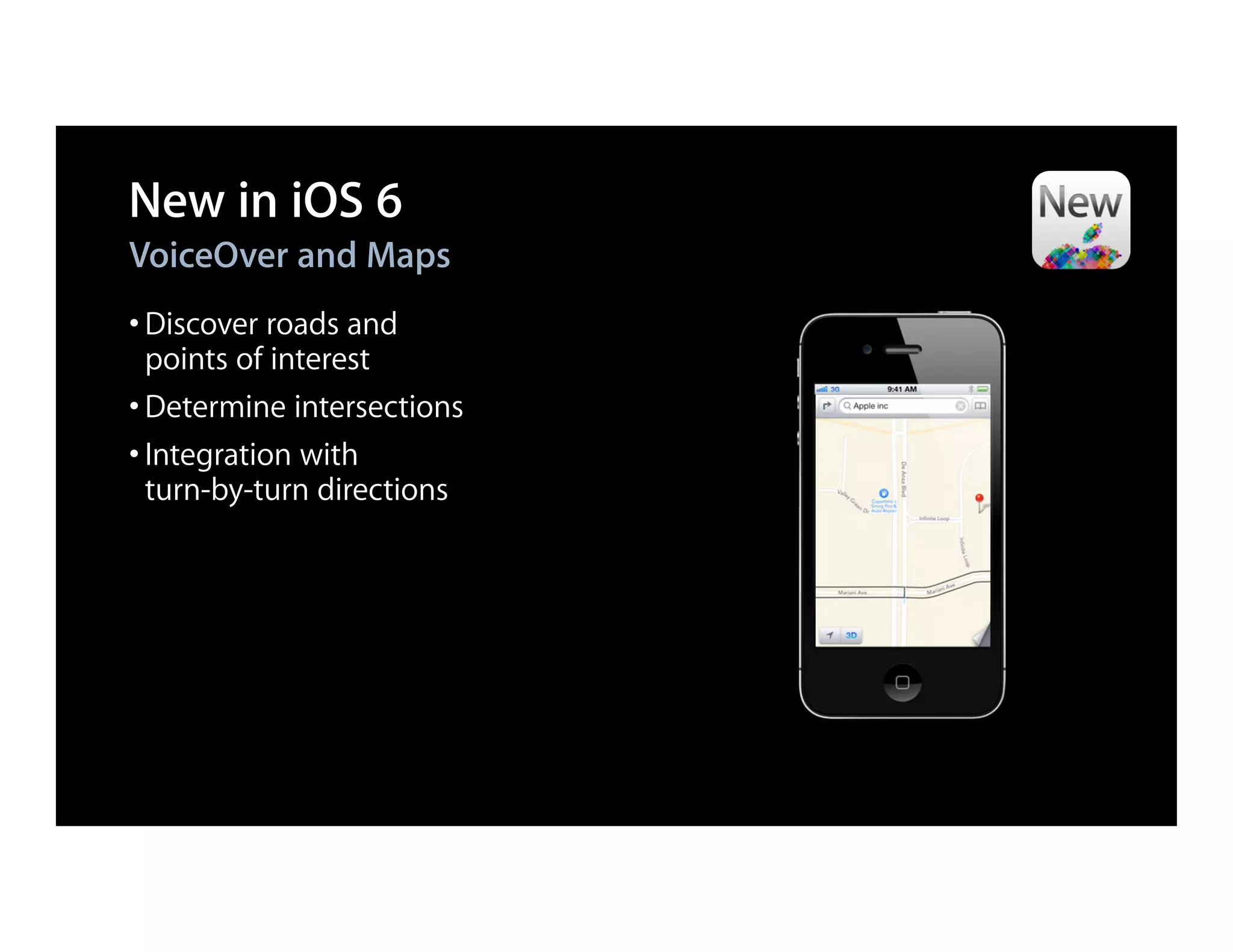
VoiceOver and Maps
• Discover roads and
  points of interest
• Determine intersections
• Integration with
  turn-by-turn directions
New in iOS 6
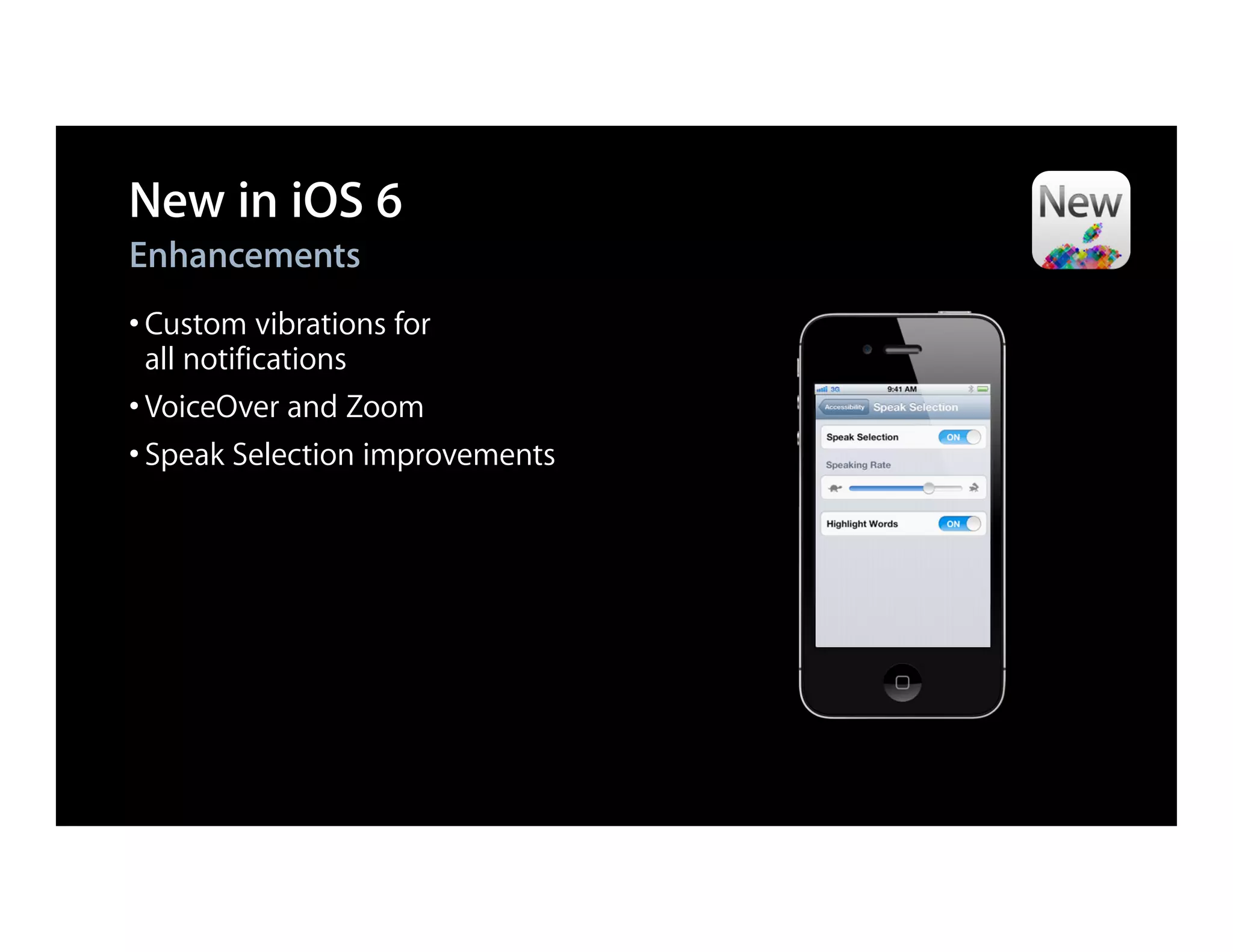
Enhancements
• Custom vibrations for
  all notifications
• VoiceOver and Zoom
• Speak Selection improvements
Demo
Speak Selection
What You’ll Learn
App accessibility
• UIAccessibility API
  ■ Basic
  ■ New


• In-depth UIAccessibility
  ■ Make anything accessible
  ■ Things you might not know
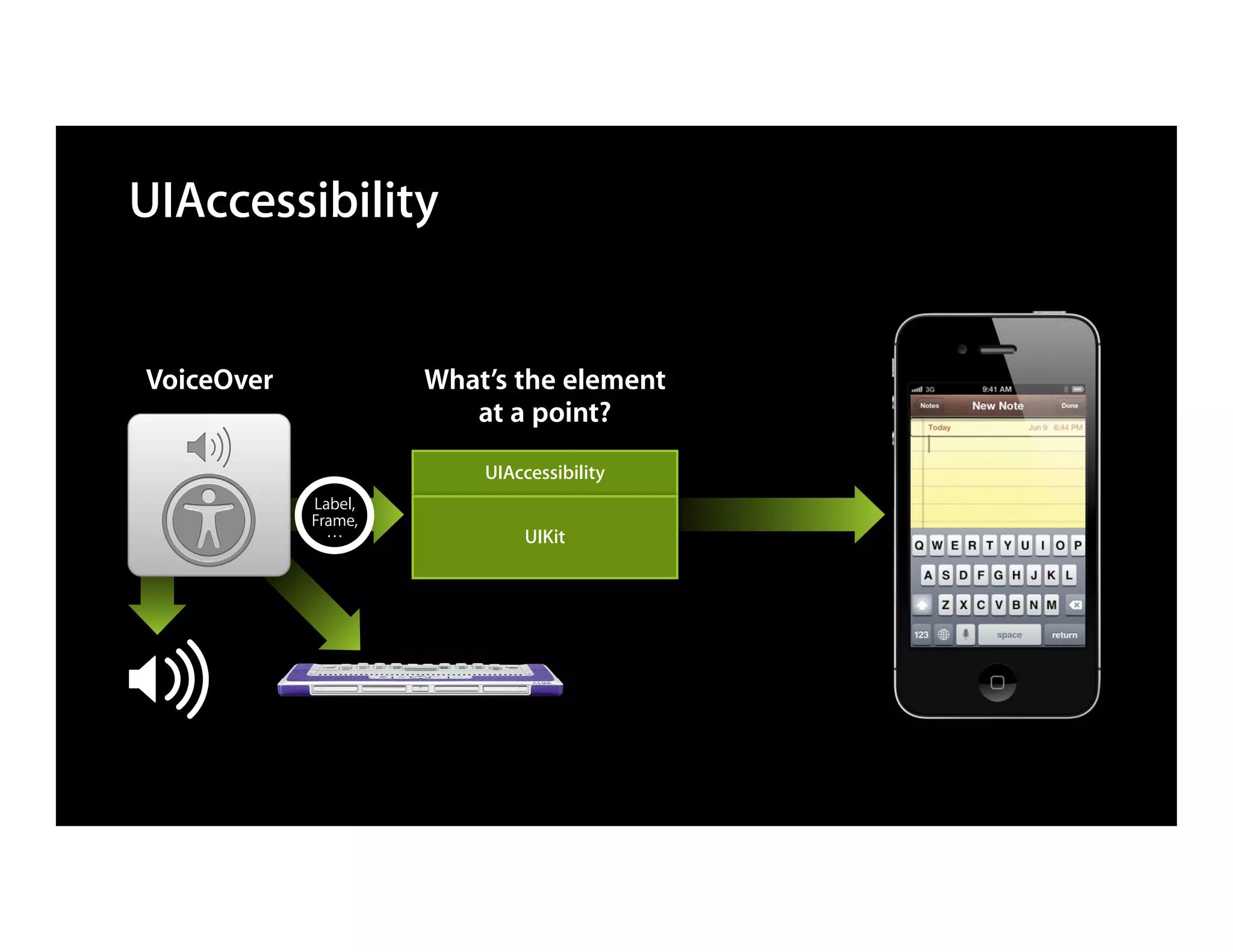
UIAccessibility


VoiceOver            What’s the element
                        at a point?
                         UIAccessibility
            Label,
            Frame,
              …              UIKit
Adding Accessibility to Your App

• Simple
• A lot comes for free
• “Just add labels”
UIAccessibility API: Attributes

• Attributes convey information
• VoiceOver transforms that information

 UIImageView *view = [[UIImageView alloc] initWithImage:image];


            "apple_logo512x512, image"
UIAccessibility API: Attributes

• Attributes convey information
• VoiceOver transforms that information

 UIImageView *view = [[UIImageView alloc] initWithImage:image];
 view.accessibilityLabel = @"Apple Logo";


                   "Apple logo, image"
Common Accessibility Attributes

#import <UIKit/UIAccessibility.h>

@property BOOL isAccessibilityElement
  ■ Return YES to make VoiceOver see this element
  ■ Default is YES for UIKit controls


@property(copy) NSString *accessibilityLabel
  ■   A textual representation of the element
Common Accessibility Attributes

@property(copy) NSString *accessibilityHint
  ■ Optional
  ■ Provides more information to aid VoiceOver users


@property UIAccessibilityTraits accessibilityTraits
  ■ Defines behavior
  ■ Bitmask of integers
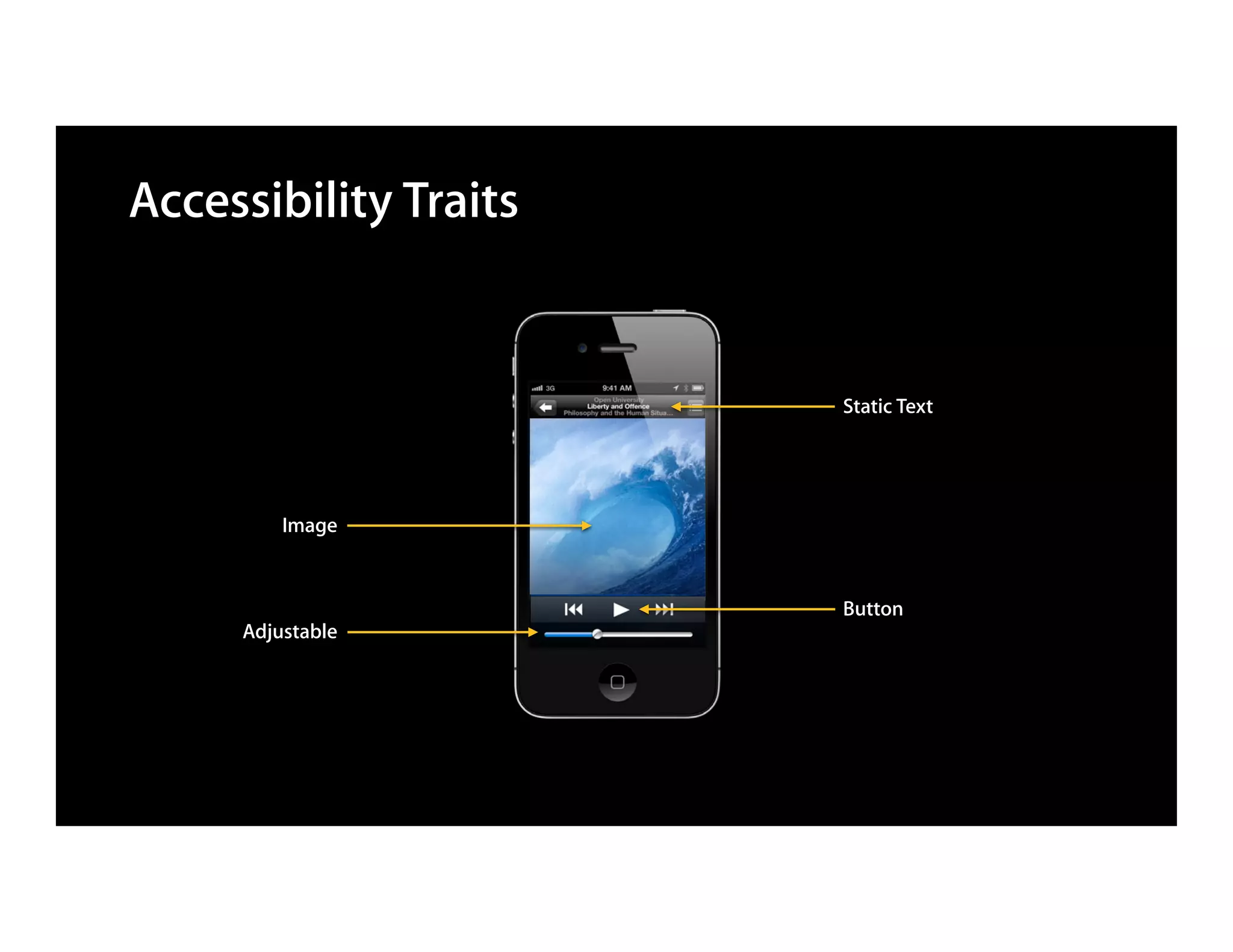
Accessibility Traits


                       Static Text


         Image


                       Button
     Adjustable
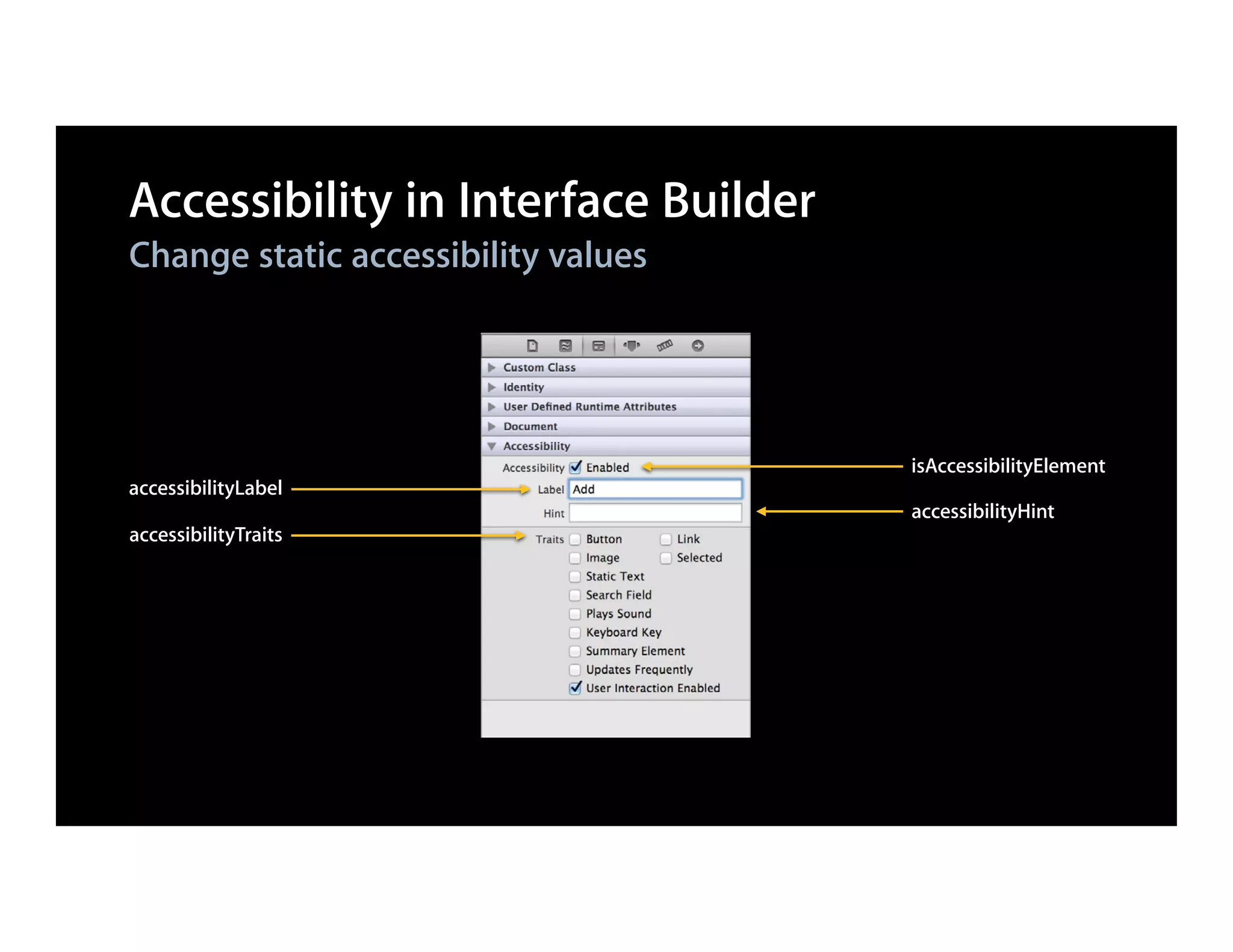
Accessibility in Interface Builder
Change static accessibility values


                                     isAccessibilityElement
accessibilityLabel
                                     accessibilityHint
accessibilityTraits
Adding Accessibility in Code
If accessibility values do not change, use setters
- (void)awakeFromNib {

    MyControl *control = [[MyControl alloc] initWithFrame:frame];


    control.isAccessibilityElement = YES;
    control.accessibilityLabel = @"Play";


    [window addSubview:control];
}
Adding Accessibility in Code
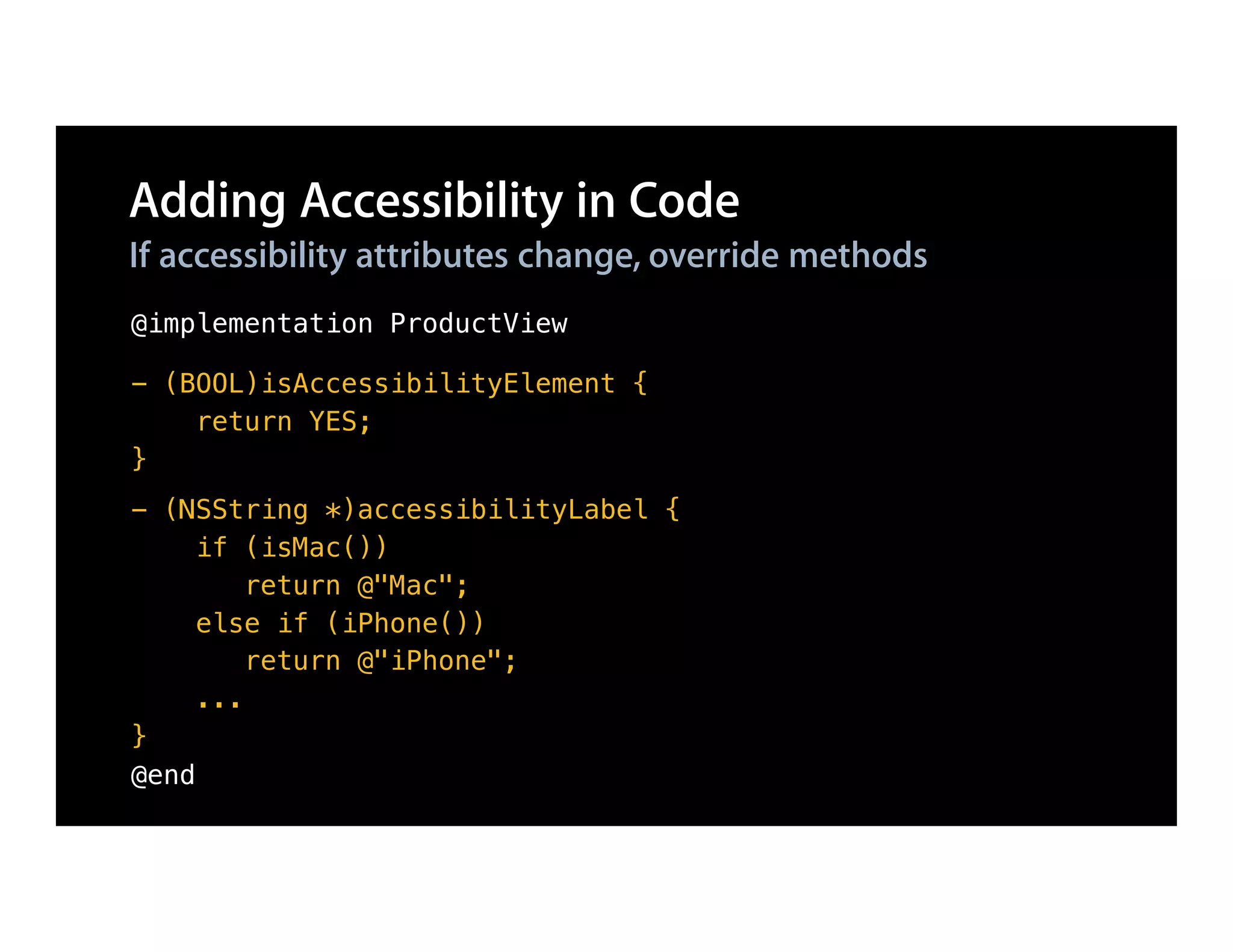
If accessibility attributes change, override methods
@implementation ProductView

- (BOOL)isAccessibilityElement {
    return YES;
}
- (NSString *)accessibilityLabel {
     if (isMac())
         return @"Mac";
     else if (iPhone())
         return @"iPhone";
     ...
}
@end
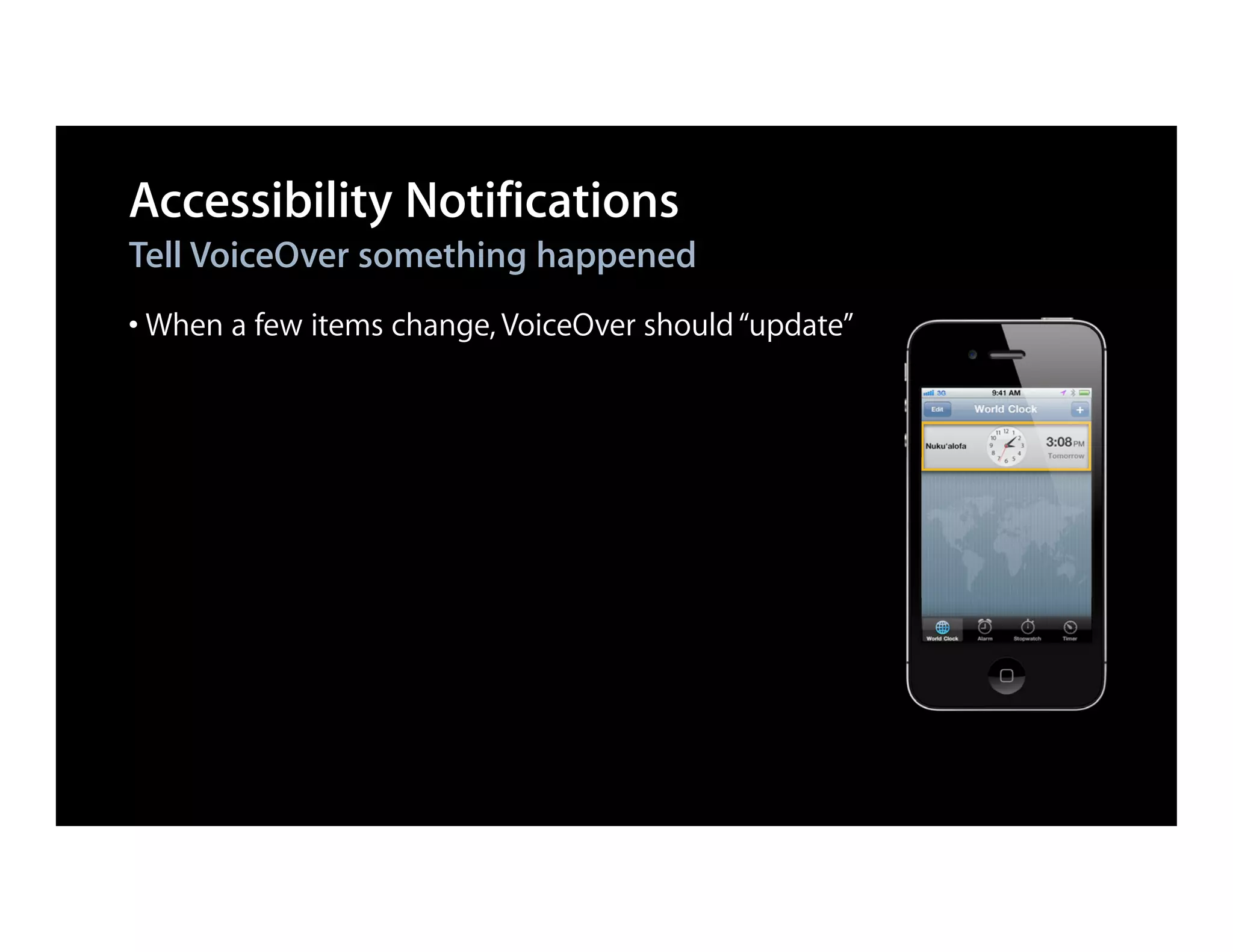
Accessibility Notifications
Tell VoiceOver something happened
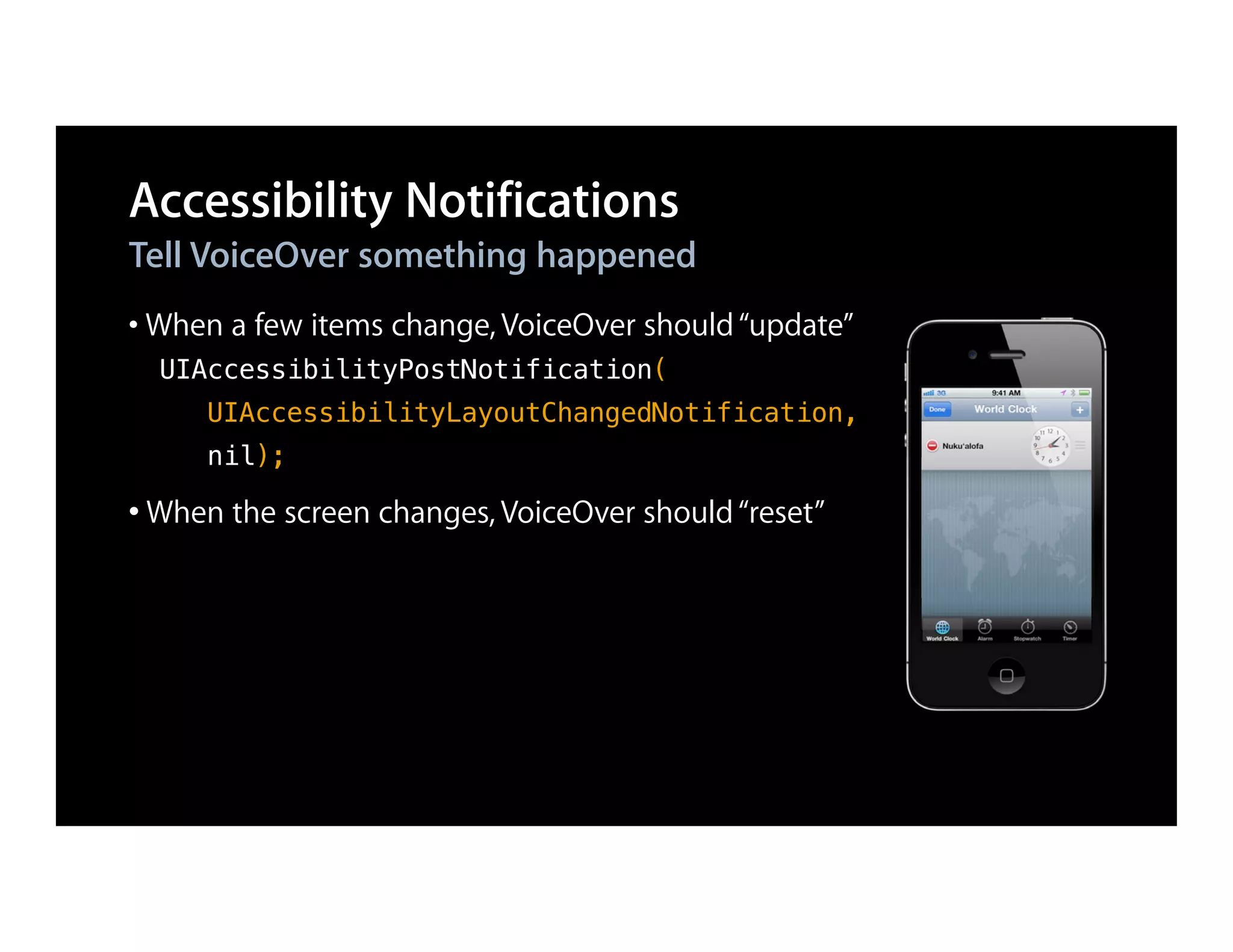
• When a few items change, VoiceOver should “update”
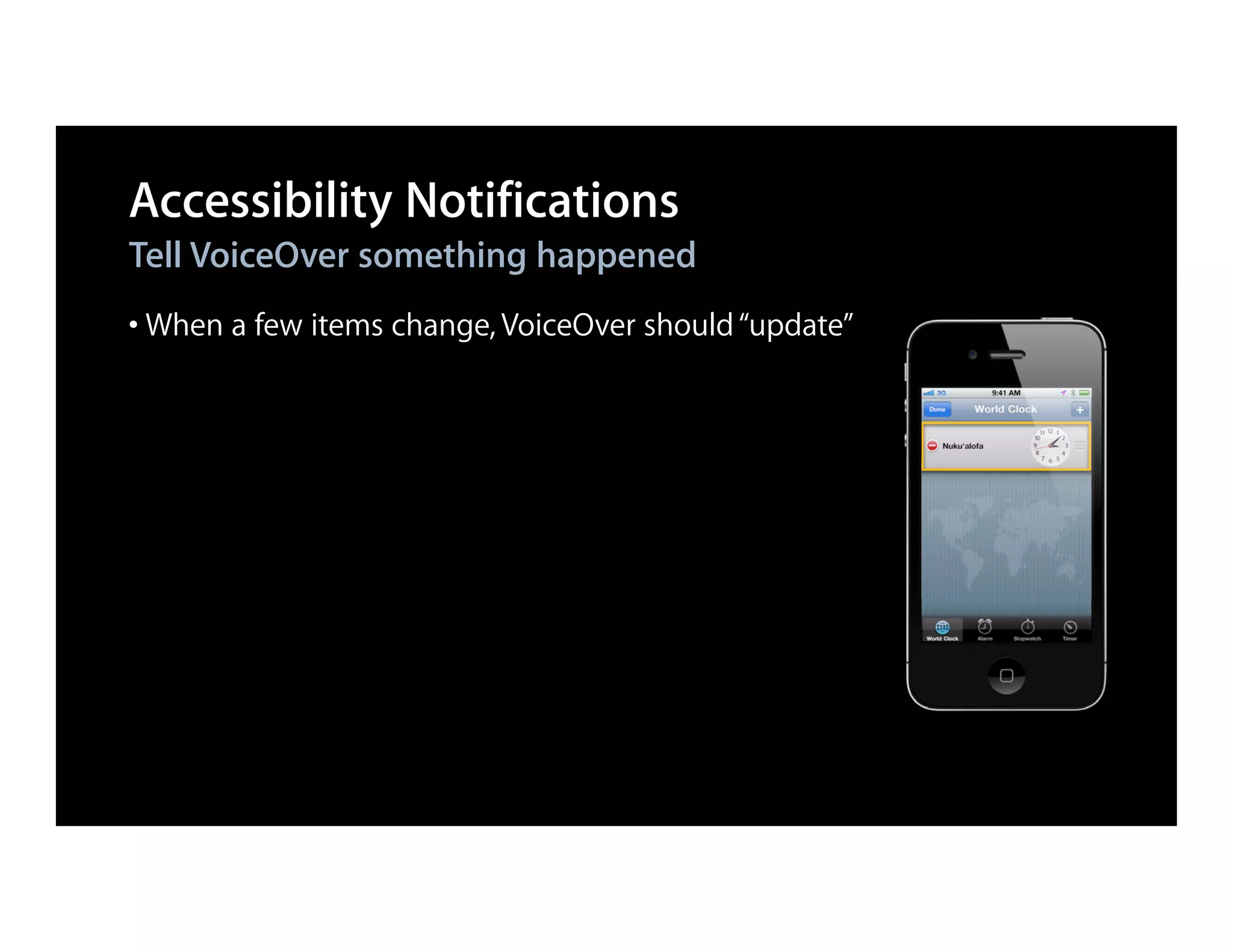
Accessibility Notifications
Tell VoiceOver something happened
• When a few items change, VoiceOver should “update”
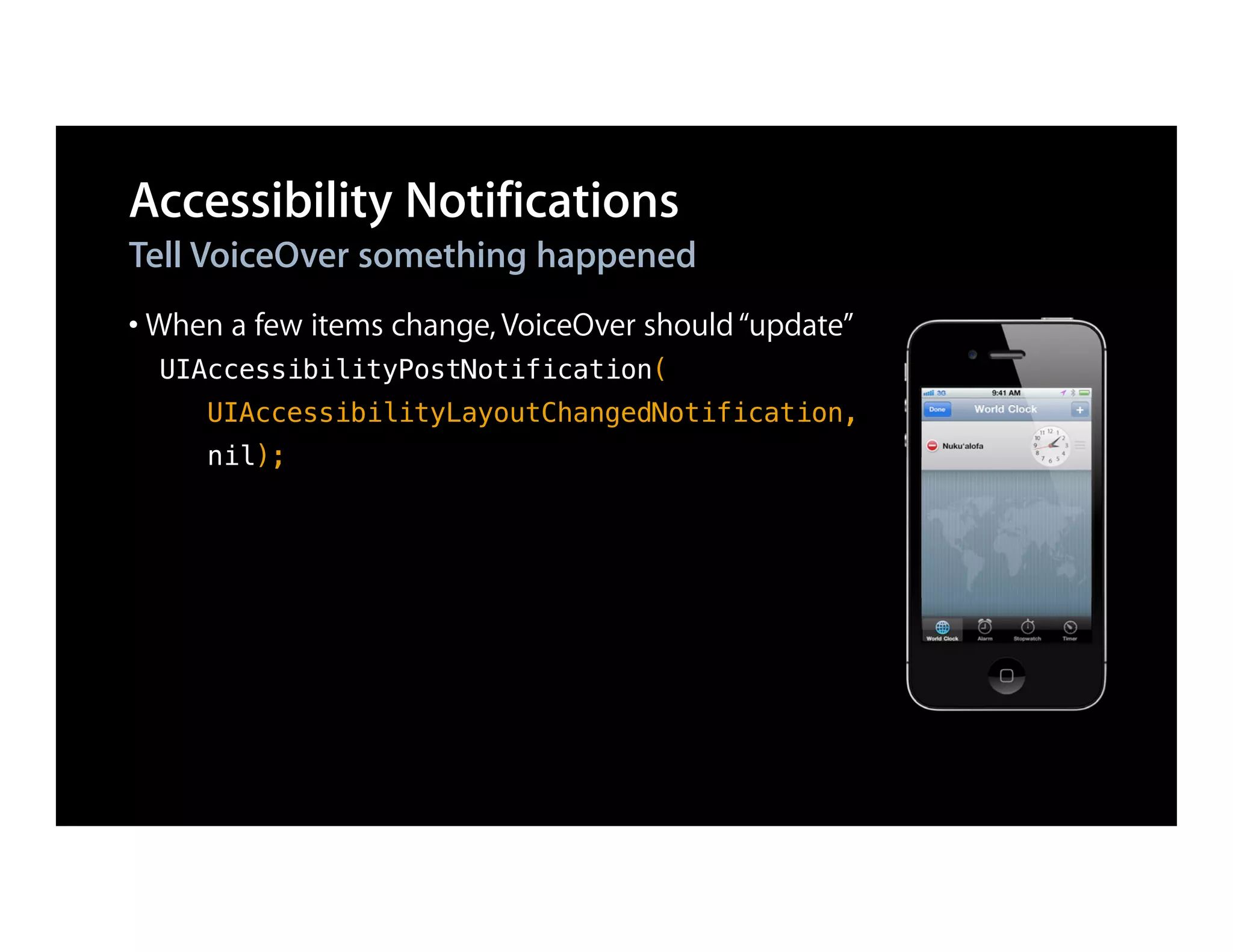
Accessibility Notifications
Tell VoiceOver something happened
• When a few items change, VoiceOver should “update”
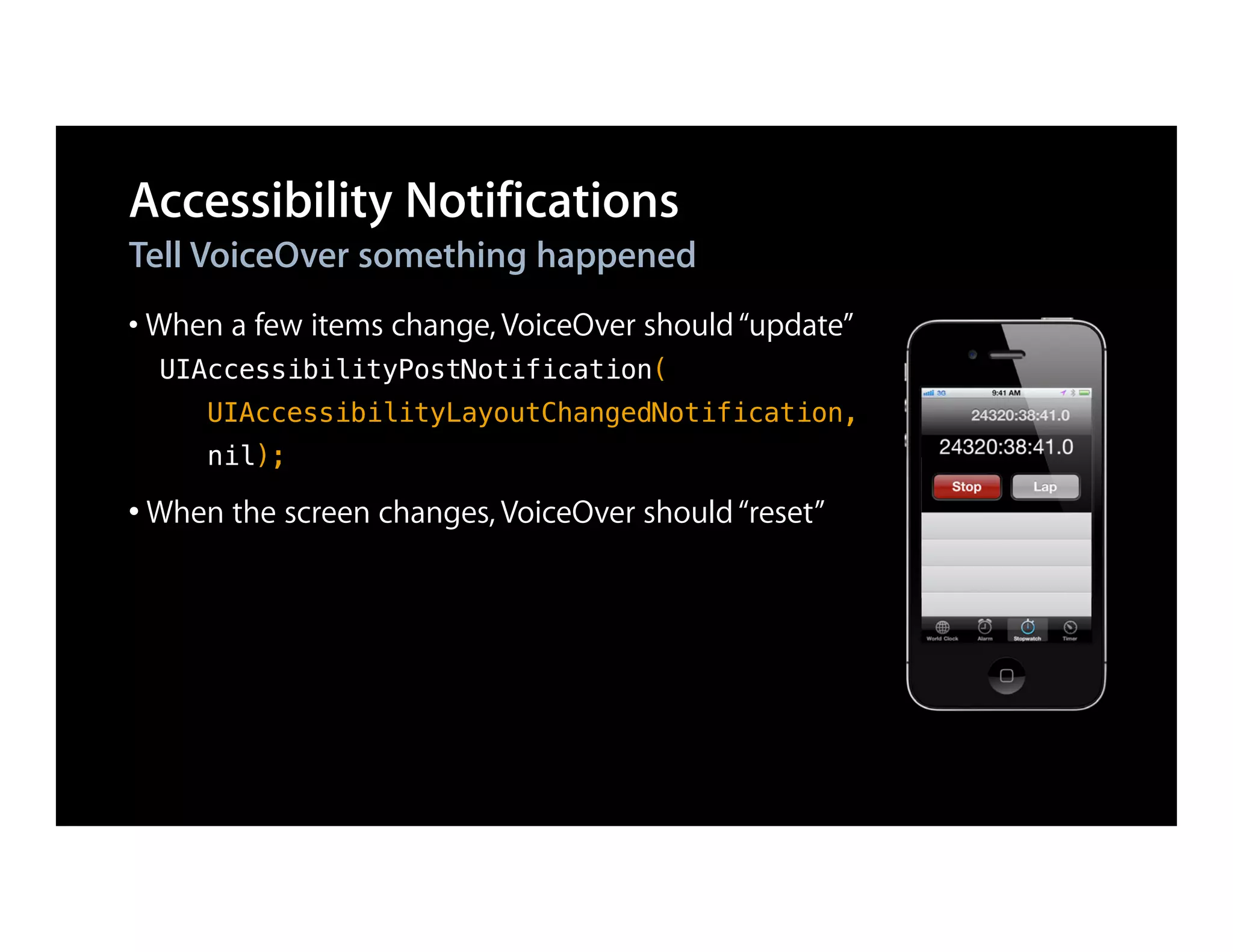
  UIAccessibilityPostNotification(
     UIAccessibilityLayoutChangedNotification,
     nil);
Accessibility Notifications
Tell VoiceOver something happened
• When a few items change, VoiceOver should “update”
  UIAccessibilityPostNotification(
     UIAccessibilityLayoutChangedNotification,
     nil);

• When the screen changes, VoiceOver should “reset”
Accessibility Notifications
Tell VoiceOver something happened
• When a few items change, VoiceOver should “update”
  UIAccessibilityPostNotification(
     UIAccessibilityLayoutChangedNotification,
     nil);

• When the screen changes, VoiceOver should “reset”
Accessibility Notifications
Tell VoiceOver something happened
• When a few items change, VoiceOver should “update”
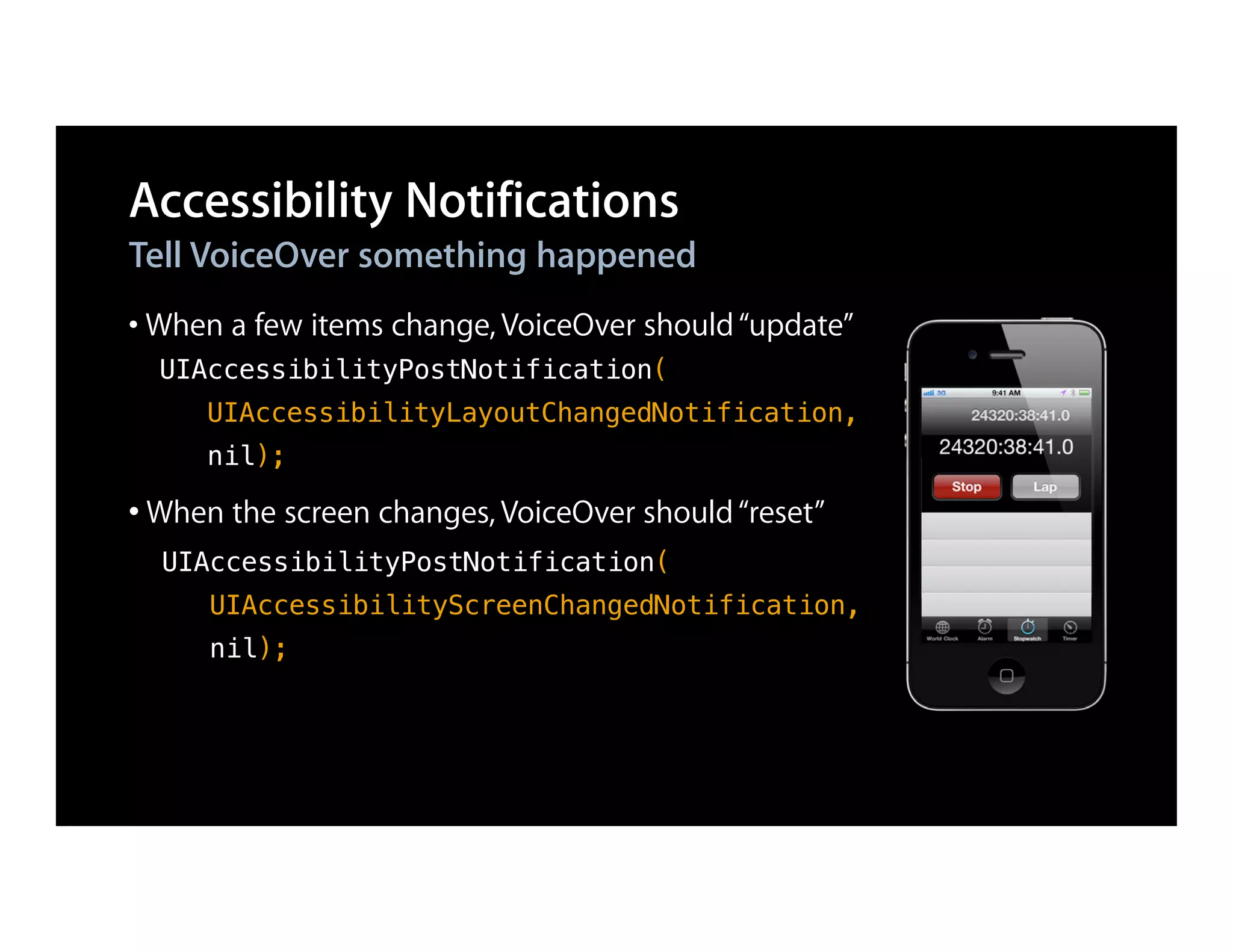
  UIAccessibilityPostNotification(
     UIAccessibilityLayoutChangedNotification,
     nil);

• When the screen changes, VoiceOver should “reset”
  UIAccessibilityPostNotification(
     UIAccessibilityScreenChangedNotification,
     nil);
Demo
Introduction to VoiceOver and UIAccessibility
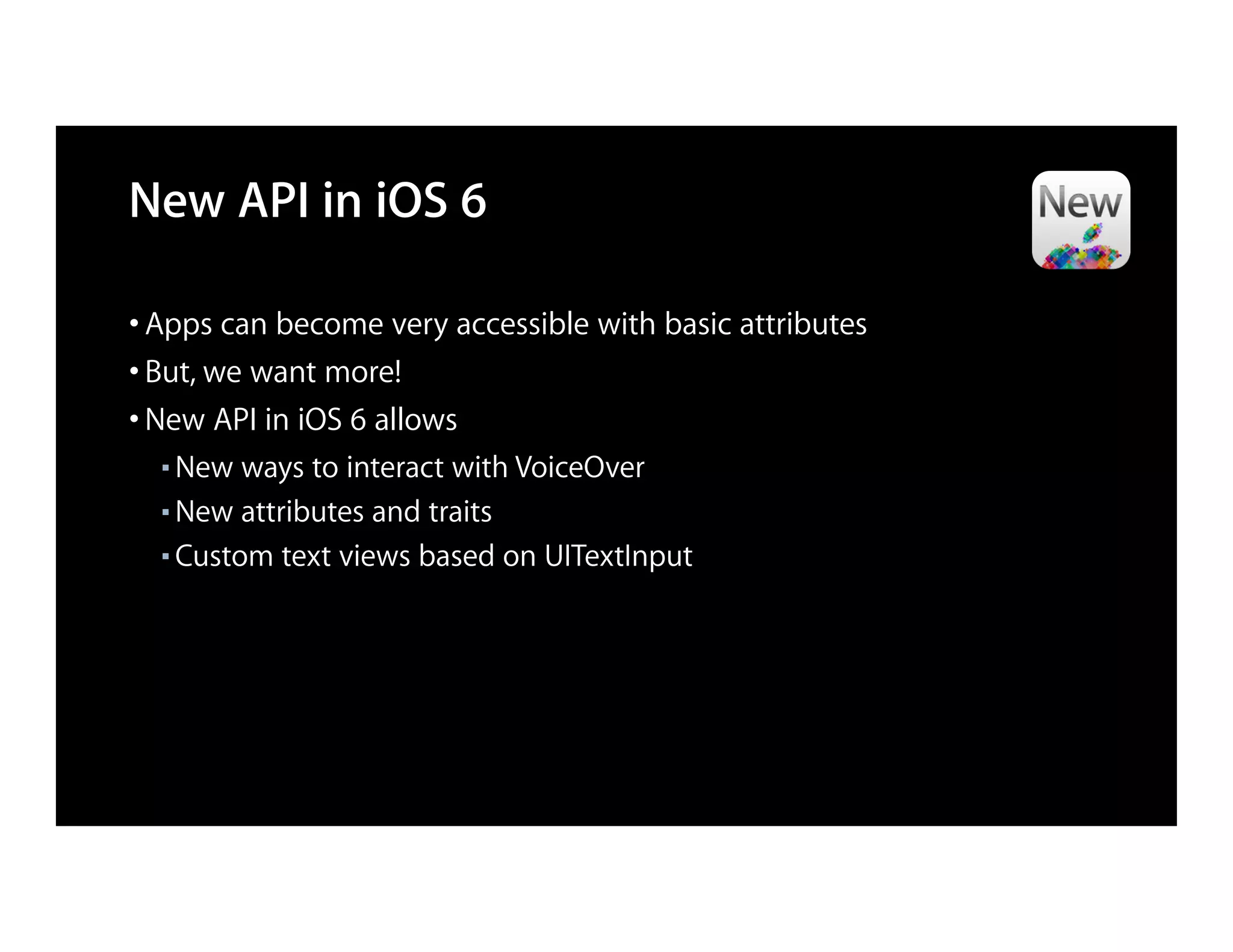
New API in iOS 6

• Apps can become very accessible with basic attributes
• But, we want more!
• New API in iOS 6 allows
  ■ New ways to interact with VoiceOver
  ■ New attributes and traits

  ■ Custom text views based on UITextInput
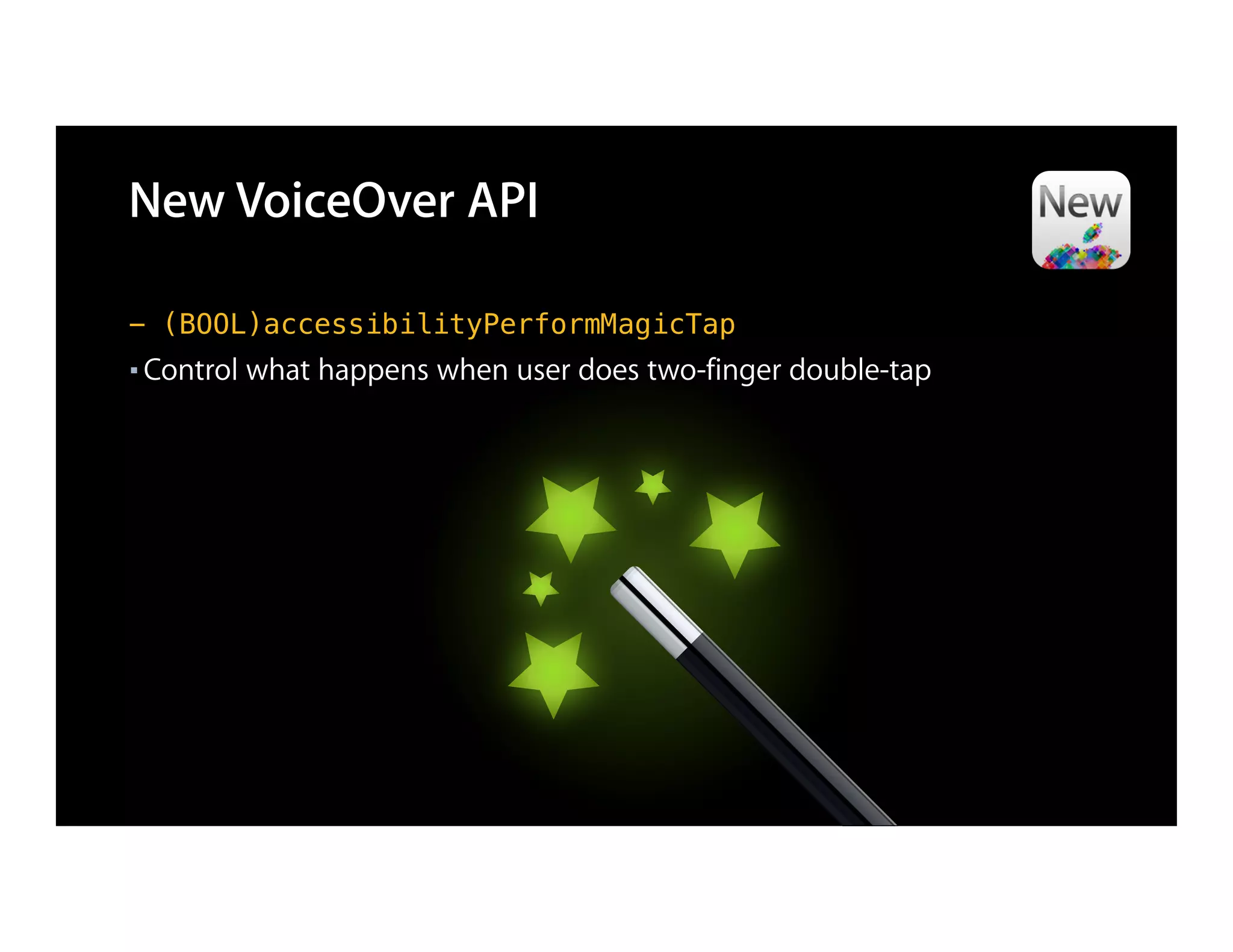
New VoiceOver API

- (BOOL)accessibilityPerformMagicTap
■   Control what happens when user does two-finger double-tap
New VoiceOver API
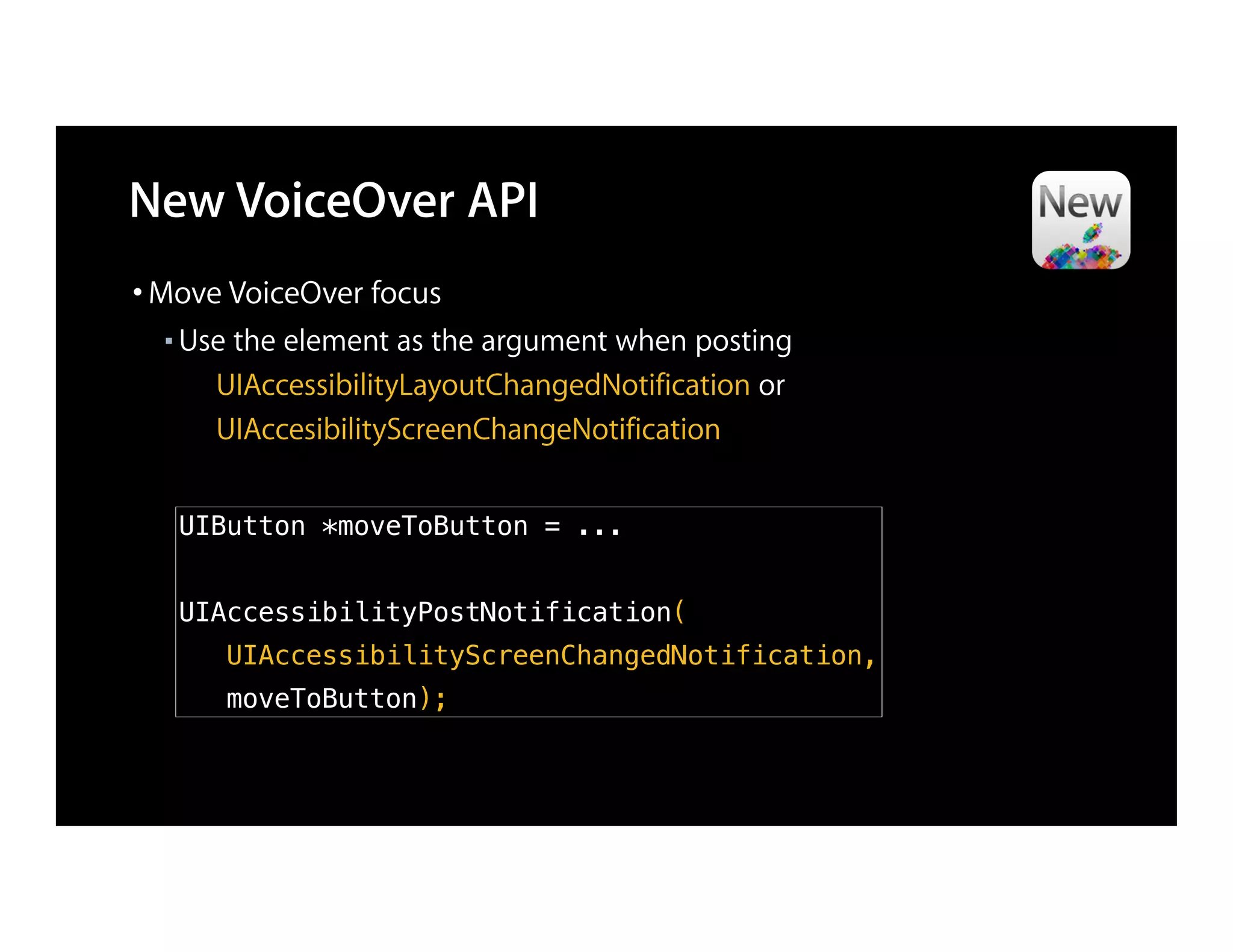
• Move VoiceOver focus
  ■   Use the element as the argument when posting
        UIAccessibilityLayoutChangedNotification or
        UIAccesibilityScreenChangeNotification


      UIButton *moveToButton = ...


      UIAccessibilityPostNotification(
         UIAccessibilityScreenChangedNotification,
         moveToButton);
New VoiceOver API
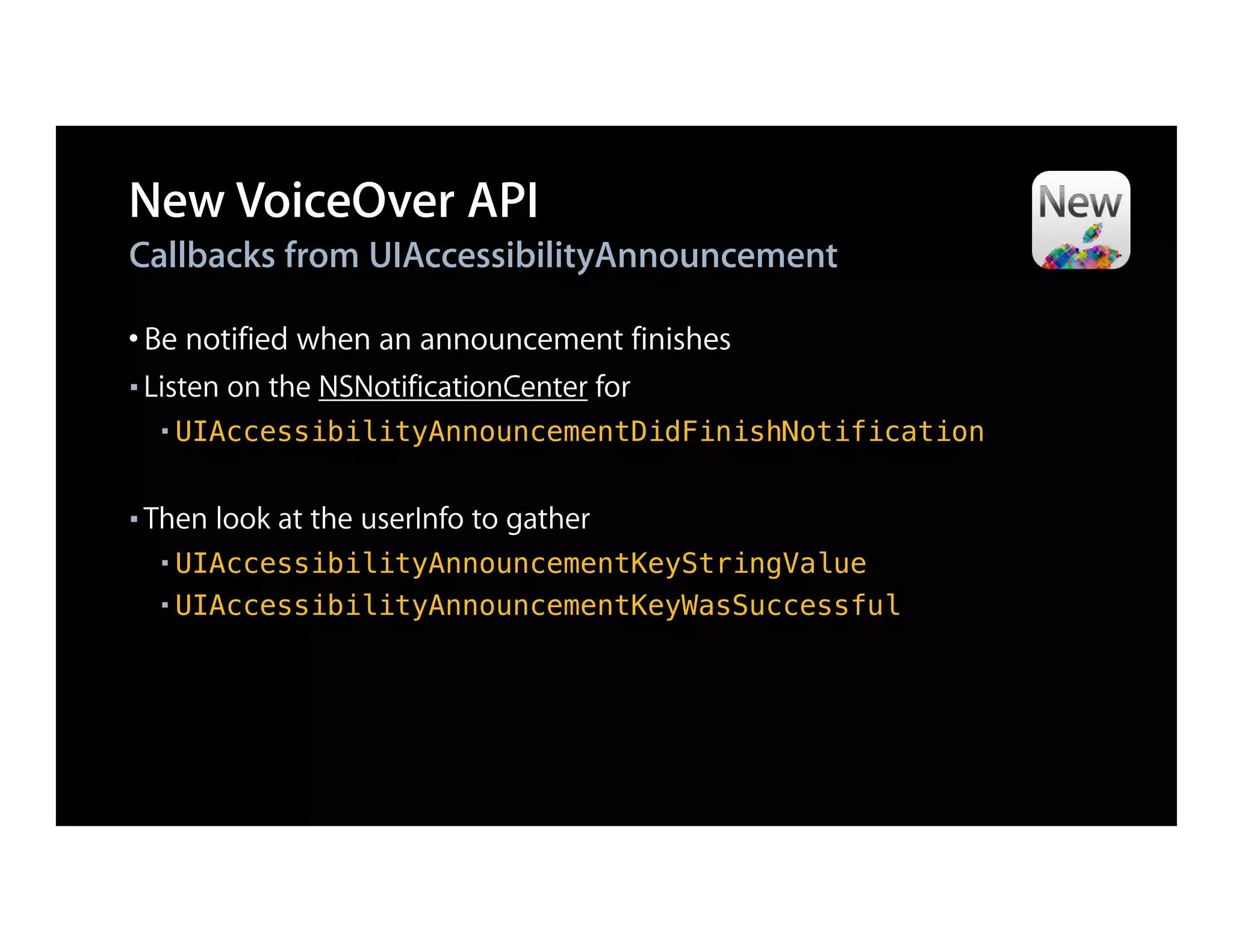
Callbacks from UIAccessibilityAnnouncement

• Be notified when an announcement finishes
■   Listen on the NSNotificationCenter for
     ■   UIAccessibilityAnnouncementDidFinishNotification

■   Then look at the userInfo to gather
     ■ UIAccessibilityAnnouncementKeyStringValue
     ■ UIAccessibilityAnnouncementKeyWasSuccessful
New Accessibility API

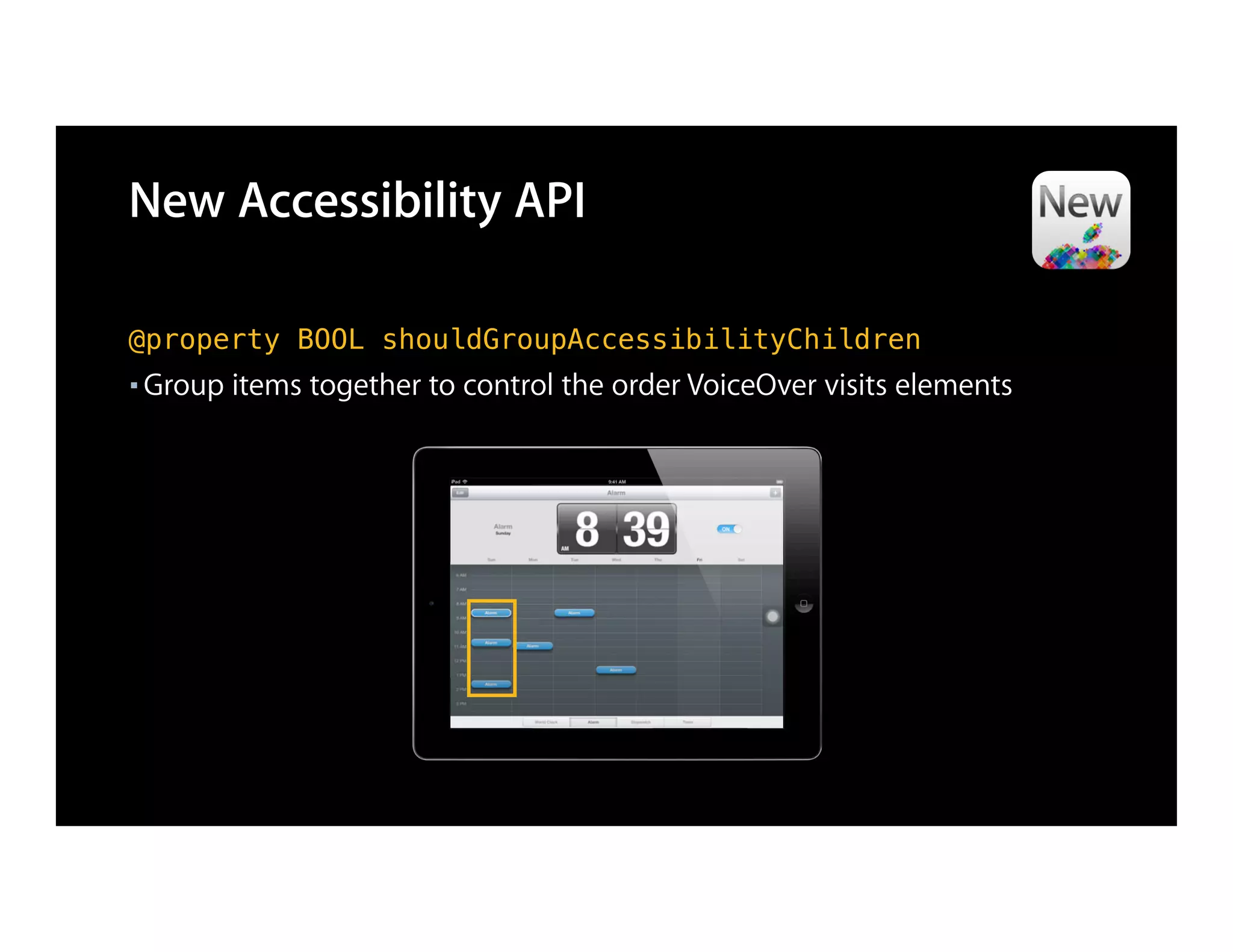
@property BOOL shouldGroupAccessibilityChildren
■   Group items together to control the order VoiceOver visits elements
New Accessibility API

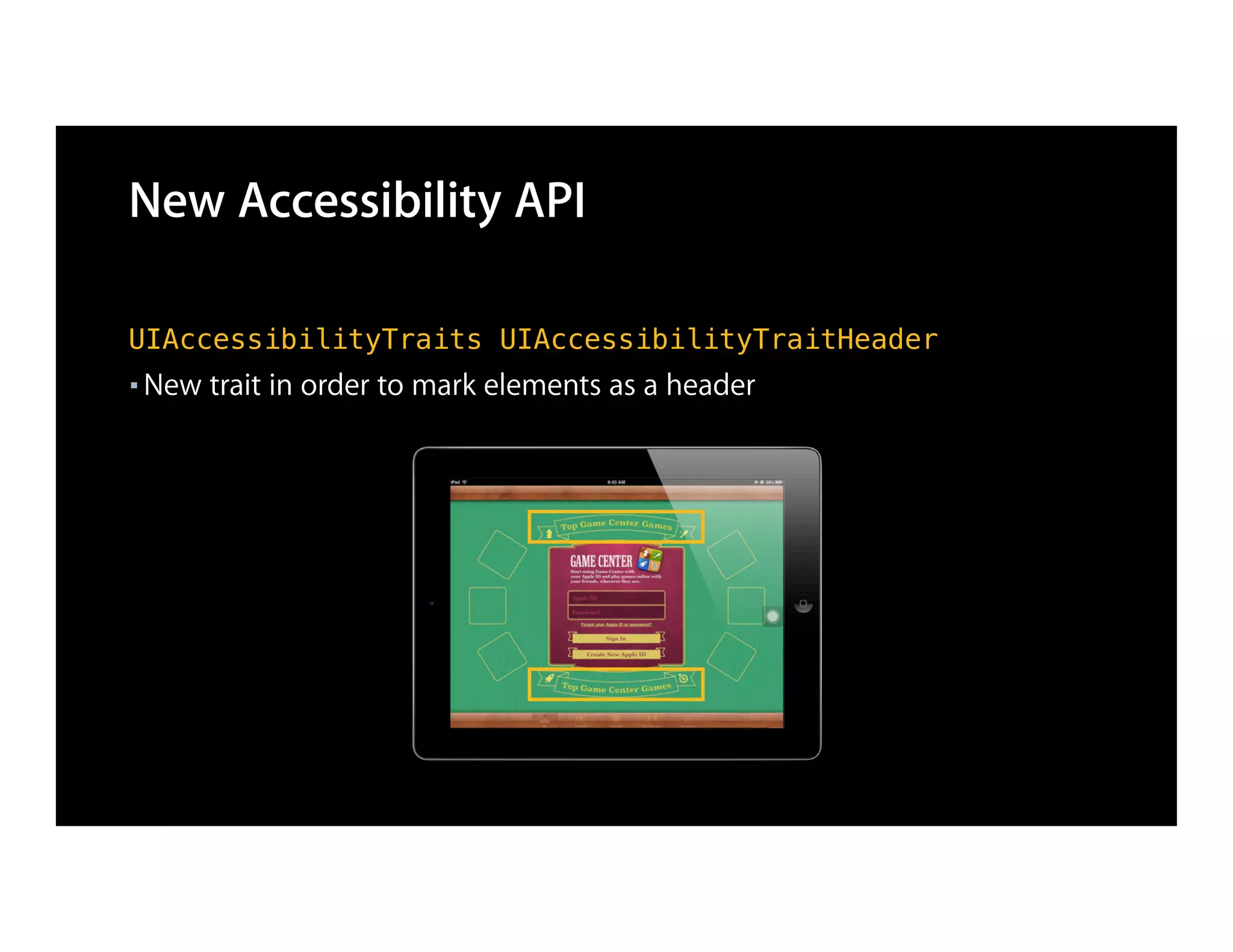
UIAccessibilityTraits UIAccessibilityTraitHeader
■   New trait in order to mark elements as a header
Demo
Using new API
Into the Deep End
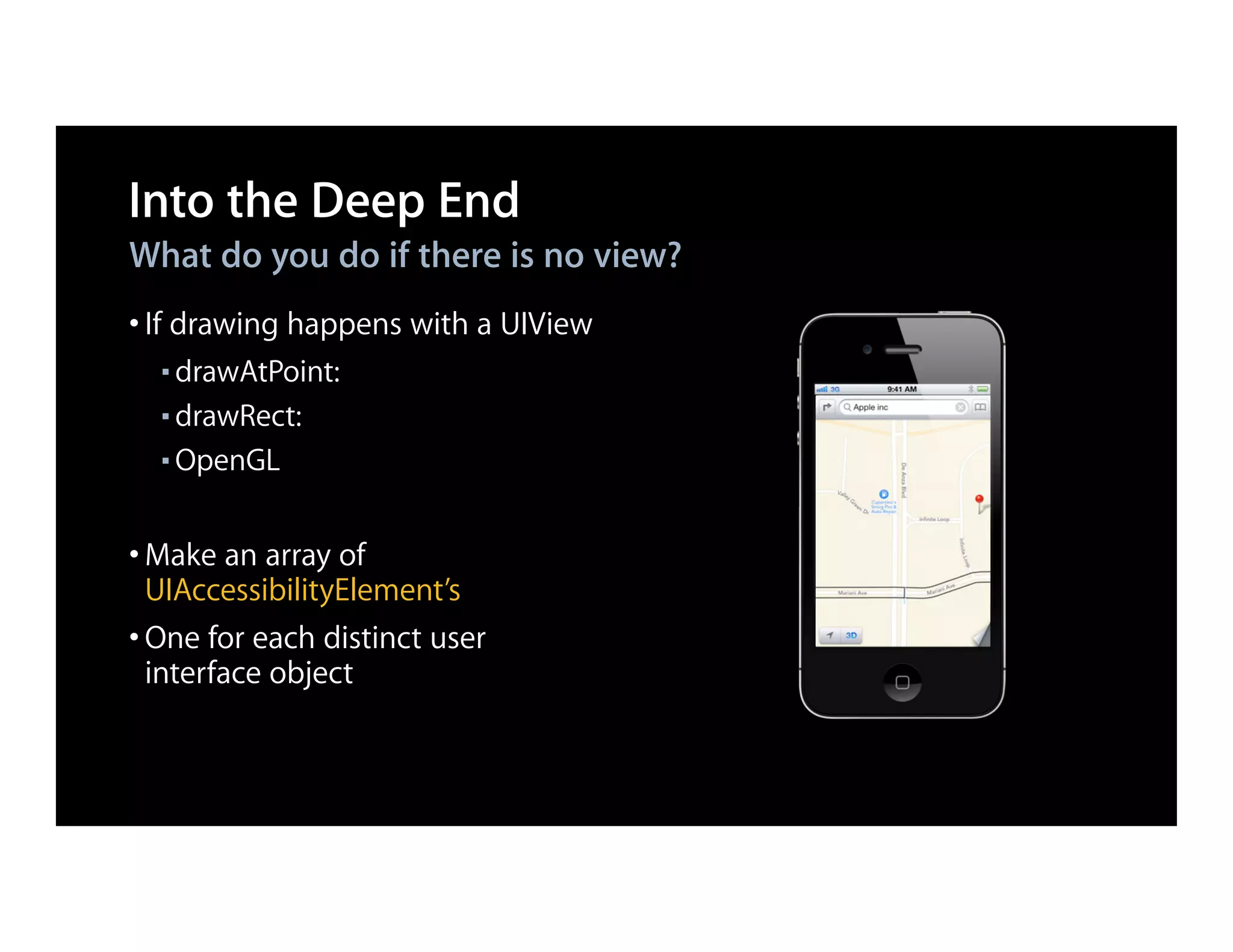
What do you do if there is no view?
• If drawing happens with a UIView
  ■ drawAtPoint:
  ■ drawRect:

  ■ OpenGL


• Make an array of
  UIAccessibilityElement’s
• One for each distinct user
  interface object
Into the Deep End
    What do you do if there is no view?
- (NSArray *)roads {
   if (roads != nil) {
      return roads;
   }

    roads = [[NSMutableArray alloc] init];
    UIAccessibilityElement *road =
      [[UIAccessibilityElement alloc] initWithAccessibilityContainer:self];
    road.accessibilityLabel = @"Infinite Loop";
    [roads addObject:road];
    return roads;
}
Into the Deep End
What do you do if there is no view?
• Implement UIAccessibilityContainer protocol
- (NSInteger)accessibilityElementCount {
    return self.roads.count;
}

- (NSInteger)indexOfAccessibilityElement:(id)element {
    return [self.roads indexOfObject:element];
}

- (id)accessibilityElementAtIndex:(NSInteger)index {
    return [self.roads objectAtIndex:index];
}
Into the Deep End
Get the right frame
• By default, UIAccessibilityElement’s do not have a “frame”
• You must set the frame in “screen” coordinates
 UIAccessibilityElement *road =
   [[UIAccessibilityElement alloc] initWithAccessibilityContainer:self];
 // Get the frame in "view" coordinates.
 CGRect viewFrame = CGRectMake(0, 100, 50, 100);

 // Convert frame to "window" coordinates.
 viewFrame = [self convertRect:viewFrame toView:[self window]];

 // Convert frame to "screen" coordinates.
 viewFrame = [[self window] convertRect:viewFrame toWindow:nil];

 road.accessibilityFrame = viewFrame;
Into the Deep End
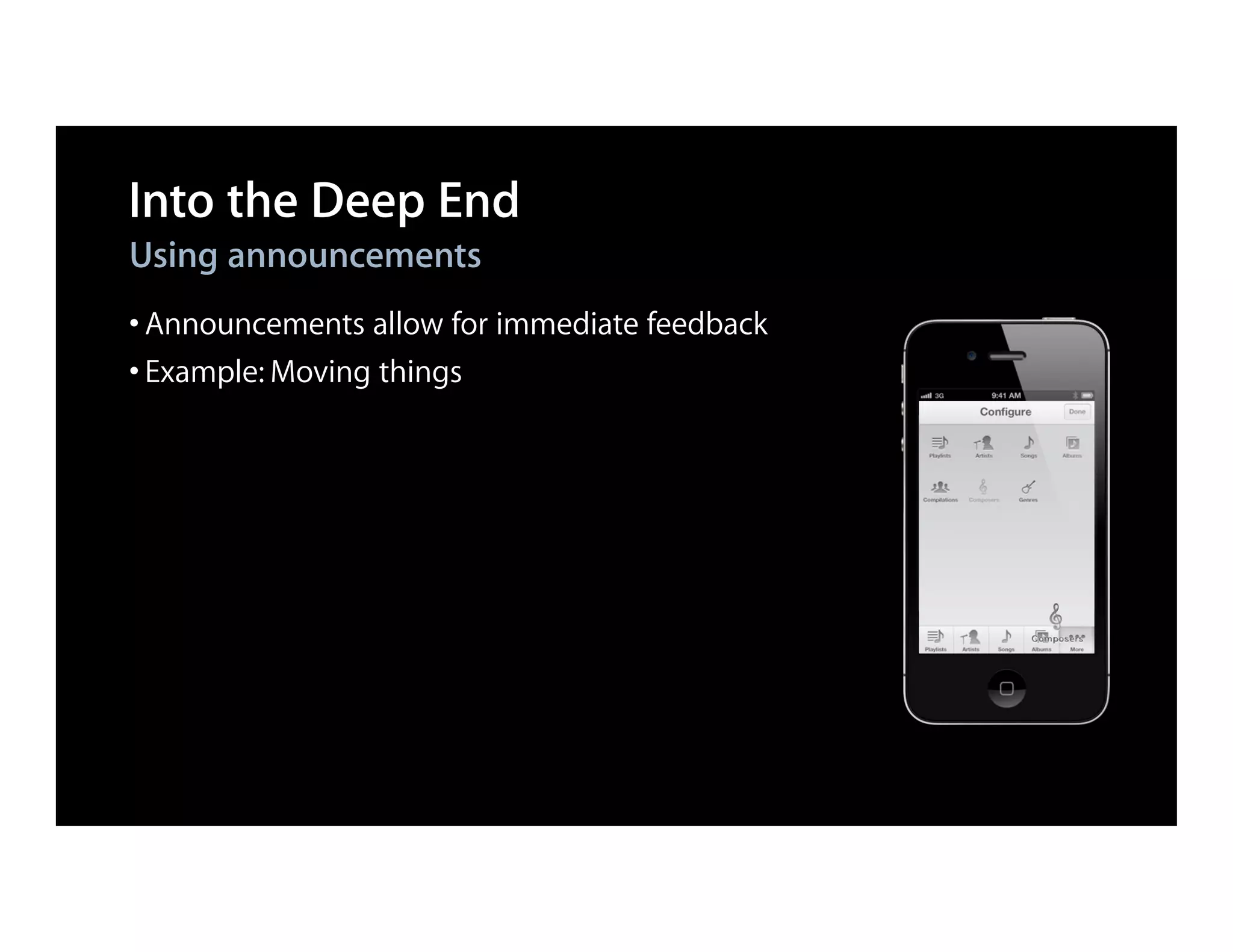
Using announcements
• Announcements allow for immediate feedback
• Example: Moving things
Into the Deep End
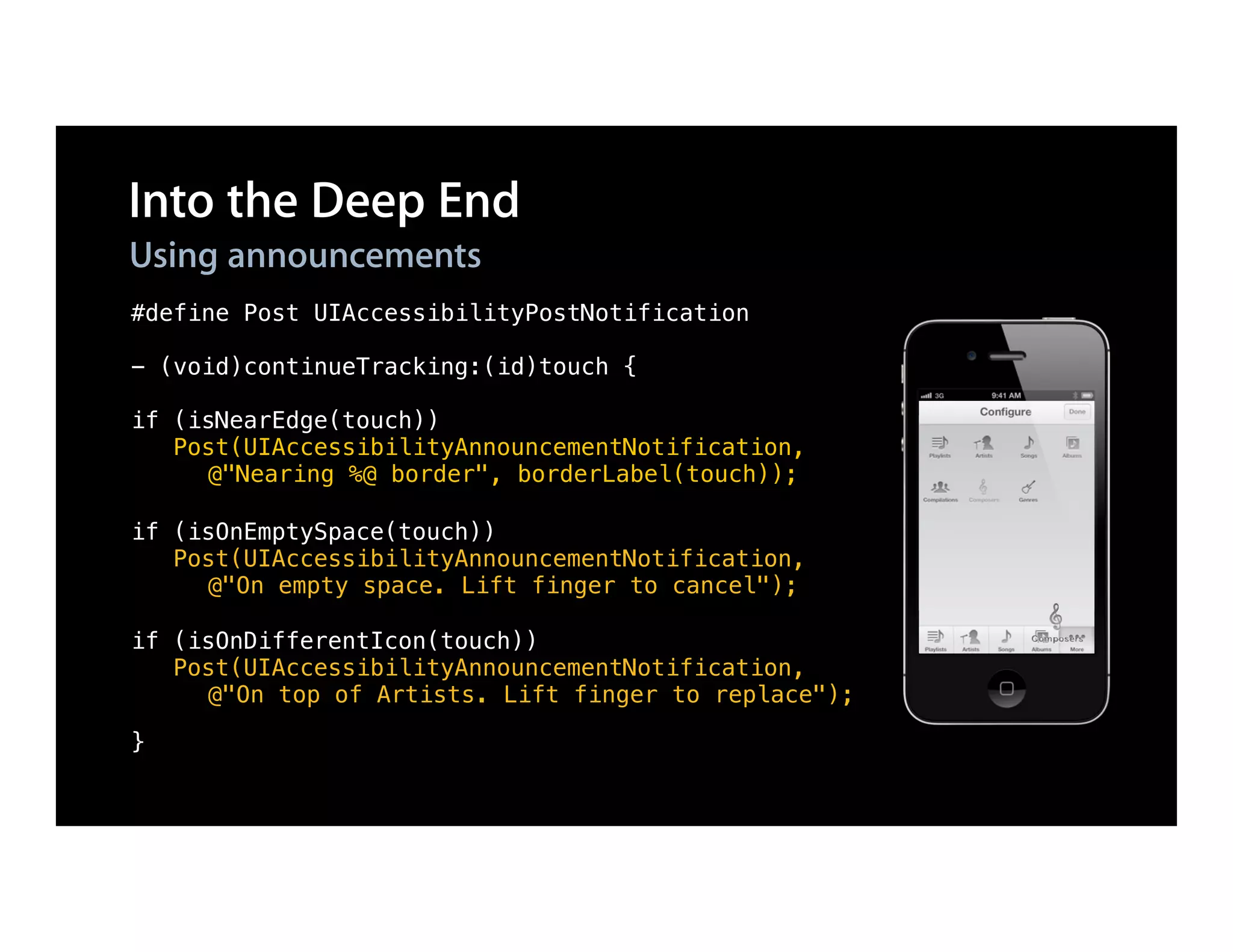
Using announcements
#define Post UIAccessibilityPostNotification

- (void)continueTracking:(id)touch {

if (isNearEdge(touch))
   Post(UIAccessibilityAnnouncementNotification,
     @"Nearing %@ border", borderLabel(touch));

if (isOnEmptySpace(touch))
   Post(UIAccessibilityAnnouncementNotification,
     @"On empty space. Lift finger to cancel");

if (isOnDifferentIcon(touch))
   Post(UIAccessibilityAnnouncementNotification,
     @"On top of Artists. Lift finger to replace");

}
Into the Deep End
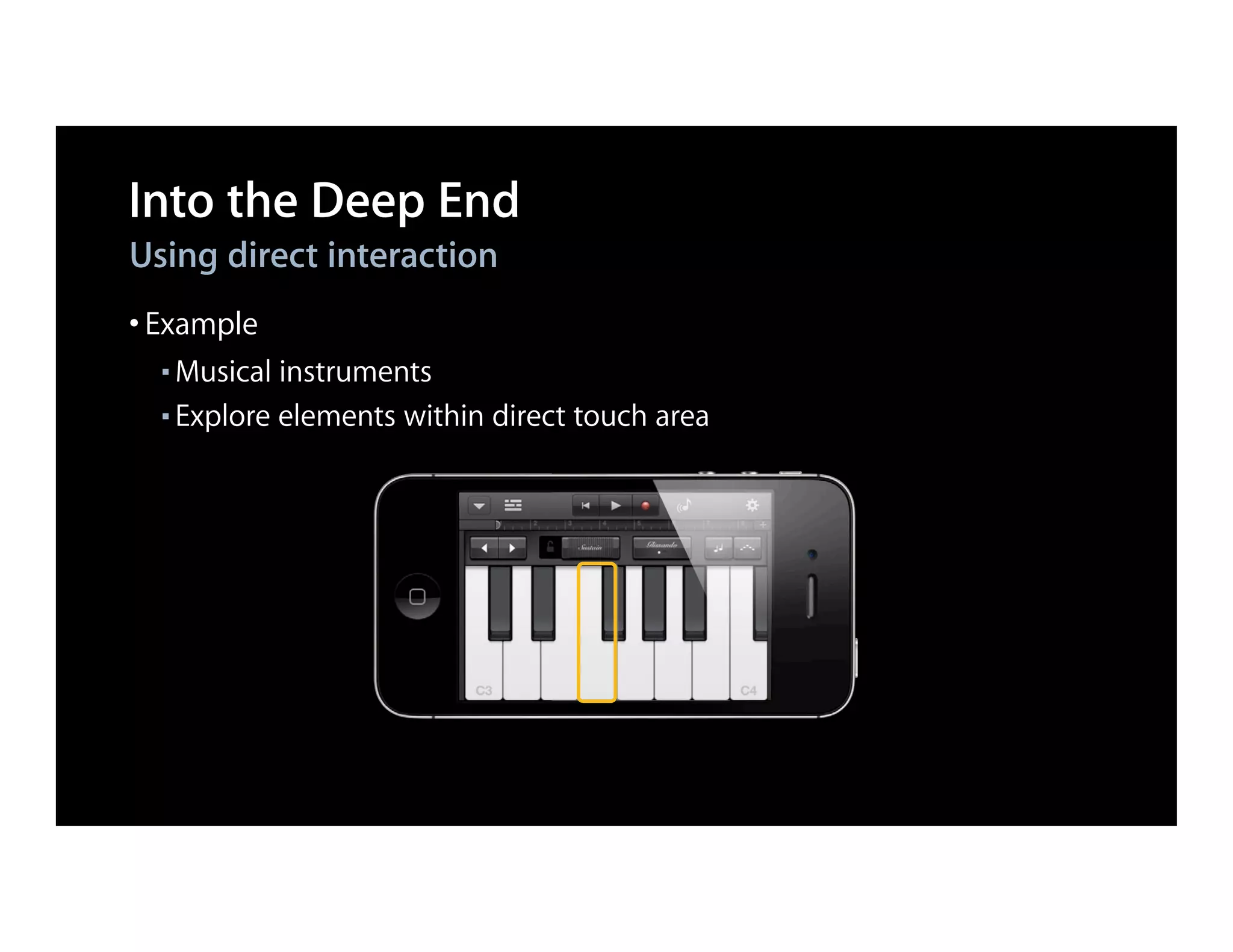
Using direct interaction
• Example
  ■ Musical instruments
  ■ Explore elements within direct touch area
Into the Deep End
Using direct interaction
@implementation PianoView

- (id)initWithFrame:(CGRect)frame {
    ...
    KeyView *aKey = [KeyView new];
    aKey.isAccessibilityElement = YES;
    aKey.accessibilityLabel = @"A";
    ....
}

- (UIAccessibilityTraits)accessibilityTraits {
    return UIAccessibilityTraitAllowsDirectInteraction;
}

- (BOOL)isAccessibilityElement {
    return YES;
}
Demo
Into the deep end
Things You Might Not Know
Language selection
• Control the language used for the entire App
[[UIApplication sharedApplication] setAccessibilityLanguage:@"fr-FR"]


• Control the language for a range within a string
NSAttributedString *attr =
[[NSAttributedString alloc] initWithString:@"こんにちは, My Friends"];


[attr addAttribute:@"accessibilityLanguage" value:@"ja-JP"
     range:NSMakeRange(0, 5)];

[element setAccessibilityLabel:(id)attr];
Things You Might Not Know
Controls without views
• UISegmentedControls
NSString *title = @"∫";
title.accessibilityLabel = @"Integral";

UIImage *image = [UIImage imageNamed:@"GearImage.png"];
image.accessibilityLabel = @”Settings”;

[segmentedControl insertedSegmentedWithTitle:title];
[segmentedControl insertedSegmentWithImage:image];
Things You Might Not Know
Controls without views
• UITableView index titles
- (NSArray *)sectionIndexTitlesForTableView:(id)tableView {

     NSString *a = @"A";
     NSString *b = @"B";

    a.accessibilityLabel = @"Alpha";
    b.accessibilityLabel = @"Beta";

     return @[a, b];
}
Summary

• Add accessibility
• Increases user base
• Great feedback from users
• Apple takes accessibility seriously
• You should too
Related Sessions

                                    Russian Hill
Keyboard Input in iOS               Wednesday 2:00PM

                                    Russian Hill
Improving Accessibility in iBooks   Thursday 9:00AM
Labs

                               App Services Lab B
Accessibility and Speech Lab   Wednesday 11:30AM
More Information

Jake Behrens
User Experience Evangelist
behrens@apple.com

Documentation
Accessibility Programming Guide for iOS
Search on http://developer.apple.com/ for Accessibility

UIAccessibility Protocol Reference
Search on http://developer.apple.com/ for UIAccessibility

VoiceOver User Manual
http://support.apple.com/manuals/iphone

Apple Developer Forums
http://devforums.apple.com

Session 210 _accessibility_for_ios

  • 1.
    Accessibility for iOS Raisingthe bar Session 210 Chris Fleizach iOS Accessibility These are confidential sessions—please refrain from streaming, blogging, or taking pictures
  • 2.
    Accessibility Using technology toovercome challenges • Computer-controlled wheelchairs
  • 3.
    Accessibility Using technology toovercome challenges • Computer-controlled wheelchairs • Assistive communication
  • 4.
    Accessibility Using technology toovercome challenges • Computer-controlled wheelchairs • Assistive communication • Screen readers • Many others
  • 5.
  • 6.
  • 7.
  • 8.
  • 9.
    New in iOS6 Guided Access • Lock into a single App • Control access to hardware features
  • 10.
    New in iOS6 Made for iPhone hearing aids • High quality wireless audio • Low power consumption • Adjust hearing aid directly from iPhone • Partnering with top hearing aid manufacturers
  • 11.
    New in iOS6 VoiceOver and Maps • Discover roads and points of interest • Determine intersections • Integration with turn-by-turn directions
  • 12.
    New in iOS6 Enhancements • Custom vibrations for all notifications • VoiceOver and Zoom • Speak Selection improvements
  • 13.
  • 14.
    What You’ll Learn Appaccessibility • UIAccessibility API ■ Basic ■ New • In-depth UIAccessibility ■ Make anything accessible ■ Things you might not know
  • 15.
    UIAccessibility VoiceOver What’s the element at a point? UIAccessibility Label, Frame, … UIKit
  • 16.
    Adding Accessibility toYour App • Simple • A lot comes for free • “Just add labels”
  • 17.
    UIAccessibility API: Attributes •Attributes convey information • VoiceOver transforms that information UIImageView *view = [[UIImageView alloc] initWithImage:image]; "apple_logo512x512, image"
  • 18.
    UIAccessibility API: Attributes •Attributes convey information • VoiceOver transforms that information UIImageView *view = [[UIImageView alloc] initWithImage:image]; view.accessibilityLabel = @"Apple Logo"; "Apple logo, image"
  • 19.
    Common Accessibility Attributes #import<UIKit/UIAccessibility.h> @property BOOL isAccessibilityElement ■ Return YES to make VoiceOver see this element ■ Default is YES for UIKit controls @property(copy) NSString *accessibilityLabel ■ A textual representation of the element
  • 20.
    Common Accessibility Attributes @property(copy)NSString *accessibilityHint ■ Optional ■ Provides more information to aid VoiceOver users @property UIAccessibilityTraits accessibilityTraits ■ Defines behavior ■ Bitmask of integers
  • 21.
    Accessibility Traits Static Text Image Button Adjustable
  • 22.
    Accessibility in InterfaceBuilder Change static accessibility values isAccessibilityElement accessibilityLabel accessibilityHint accessibilityTraits
  • 23.
    Adding Accessibility inCode If accessibility values do not change, use setters - (void)awakeFromNib { MyControl *control = [[MyControl alloc] initWithFrame:frame]; control.isAccessibilityElement = YES; control.accessibilityLabel = @"Play"; [window addSubview:control]; }
  • 24.
    Adding Accessibility inCode If accessibility attributes change, override methods @implementation ProductView - (BOOL)isAccessibilityElement { return YES; } - (NSString *)accessibilityLabel { if (isMac()) return @"Mac"; else if (iPhone()) return @"iPhone"; ... } @end
  • 25.
    Accessibility Notifications Tell VoiceOversomething happened • When a few items change, VoiceOver should “update”
  • 26.
    Accessibility Notifications Tell VoiceOversomething happened • When a few items change, VoiceOver should “update”
  • 27.
    Accessibility Notifications Tell VoiceOversomething happened • When a few items change, VoiceOver should “update” UIAccessibilityPostNotification( UIAccessibilityLayoutChangedNotification, nil);
  • 28.
    Accessibility Notifications Tell VoiceOversomething happened • When a few items change, VoiceOver should “update” UIAccessibilityPostNotification( UIAccessibilityLayoutChangedNotification, nil); • When the screen changes, VoiceOver should “reset”
  • 29.
    Accessibility Notifications Tell VoiceOversomething happened • When a few items change, VoiceOver should “update” UIAccessibilityPostNotification( UIAccessibilityLayoutChangedNotification, nil); • When the screen changes, VoiceOver should “reset”
  • 30.
    Accessibility Notifications Tell VoiceOversomething happened • When a few items change, VoiceOver should “update” UIAccessibilityPostNotification( UIAccessibilityLayoutChangedNotification, nil); • When the screen changes, VoiceOver should “reset” UIAccessibilityPostNotification( UIAccessibilityScreenChangedNotification, nil);
  • 31.
    Demo Introduction to VoiceOverand UIAccessibility
  • 32.
    New API iniOS 6 • Apps can become very accessible with basic attributes • But, we want more! • New API in iOS 6 allows ■ New ways to interact with VoiceOver ■ New attributes and traits ■ Custom text views based on UITextInput
  • 33.
    New VoiceOver API -(BOOL)accessibilityPerformMagicTap ■ Control what happens when user does two-finger double-tap
  • 34.
    New VoiceOver API •Move VoiceOver focus ■ Use the element as the argument when posting UIAccessibilityLayoutChangedNotification or UIAccesibilityScreenChangeNotification UIButton *moveToButton = ... UIAccessibilityPostNotification( UIAccessibilityScreenChangedNotification, moveToButton);
  • 35.
    New VoiceOver API Callbacksfrom UIAccessibilityAnnouncement • Be notified when an announcement finishes ■ Listen on the NSNotificationCenter for ■ UIAccessibilityAnnouncementDidFinishNotification ■ Then look at the userInfo to gather ■ UIAccessibilityAnnouncementKeyStringValue ■ UIAccessibilityAnnouncementKeyWasSuccessful
  • 36.
    New Accessibility API @propertyBOOL shouldGroupAccessibilityChildren ■ Group items together to control the order VoiceOver visits elements
  • 37.
    New Accessibility API UIAccessibilityTraitsUIAccessibilityTraitHeader ■ New trait in order to mark elements as a header
  • 38.
  • 39.
    Into the DeepEnd What do you do if there is no view? • If drawing happens with a UIView ■ drawAtPoint: ■ drawRect: ■ OpenGL • Make an array of UIAccessibilityElement’s • One for each distinct user interface object
  • 40.
    Into the DeepEnd What do you do if there is no view? - (NSArray *)roads { if (roads != nil) { return roads; } roads = [[NSMutableArray alloc] init]; UIAccessibilityElement *road = [[UIAccessibilityElement alloc] initWithAccessibilityContainer:self]; road.accessibilityLabel = @"Infinite Loop"; [roads addObject:road]; return roads; }
  • 41.
    Into the DeepEnd What do you do if there is no view? • Implement UIAccessibilityContainer protocol - (NSInteger)accessibilityElementCount { return self.roads.count; } - (NSInteger)indexOfAccessibilityElement:(id)element { return [self.roads indexOfObject:element]; } - (id)accessibilityElementAtIndex:(NSInteger)index { return [self.roads objectAtIndex:index]; }
  • 42.
    Into the DeepEnd Get the right frame • By default, UIAccessibilityElement’s do not have a “frame” • You must set the frame in “screen” coordinates UIAccessibilityElement *road = [[UIAccessibilityElement alloc] initWithAccessibilityContainer:self]; // Get the frame in "view" coordinates. CGRect viewFrame = CGRectMake(0, 100, 50, 100); // Convert frame to "window" coordinates. viewFrame = [self convertRect:viewFrame toView:[self window]]; // Convert frame to "screen" coordinates. viewFrame = [[self window] convertRect:viewFrame toWindow:nil]; road.accessibilityFrame = viewFrame;
  • 43.
    Into the DeepEnd Using announcements • Announcements allow for immediate feedback • Example: Moving things
  • 44.
    Into the DeepEnd Using announcements #define Post UIAccessibilityPostNotification - (void)continueTracking:(id)touch { if (isNearEdge(touch)) Post(UIAccessibilityAnnouncementNotification, @"Nearing %@ border", borderLabel(touch)); if (isOnEmptySpace(touch)) Post(UIAccessibilityAnnouncementNotification, @"On empty space. Lift finger to cancel"); if (isOnDifferentIcon(touch)) Post(UIAccessibilityAnnouncementNotification, @"On top of Artists. Lift finger to replace"); }
  • 45.
    Into the DeepEnd Using direct interaction • Example ■ Musical instruments ■ Explore elements within direct touch area
  • 46.
    Into the DeepEnd Using direct interaction @implementation PianoView - (id)initWithFrame:(CGRect)frame { ... KeyView *aKey = [KeyView new]; aKey.isAccessibilityElement = YES; aKey.accessibilityLabel = @"A"; .... } - (UIAccessibilityTraits)accessibilityTraits { return UIAccessibilityTraitAllowsDirectInteraction; } - (BOOL)isAccessibilityElement { return YES; }
  • 47.
  • 48.
    Things You MightNot Know Language selection • Control the language used for the entire App [[UIApplication sharedApplication] setAccessibilityLanguage:@"fr-FR"] • Control the language for a range within a string NSAttributedString *attr = [[NSAttributedString alloc] initWithString:@"こんにちは, My Friends"]; [attr addAttribute:@"accessibilityLanguage" value:@"ja-JP" range:NSMakeRange(0, 5)]; [element setAccessibilityLabel:(id)attr];
  • 49.
    Things You MightNot Know Controls without views • UISegmentedControls NSString *title = @"∫"; title.accessibilityLabel = @"Integral"; UIImage *image = [UIImage imageNamed:@"GearImage.png"]; image.accessibilityLabel = @”Settings”; [segmentedControl insertedSegmentedWithTitle:title]; [segmentedControl insertedSegmentWithImage:image];
  • 50.
    Things You MightNot Know Controls without views • UITableView index titles - (NSArray *)sectionIndexTitlesForTableView:(id)tableView { NSString *a = @"A"; NSString *b = @"B"; a.accessibilityLabel = @"Alpha"; b.accessibilityLabel = @"Beta"; return @[a, b]; }
  • 51.
    Summary • Add accessibility •Increases user base • Great feedback from users • Apple takes accessibility seriously • You should too
  • 52.
    Related Sessions Russian Hill Keyboard Input in iOS Wednesday 2:00PM Russian Hill Improving Accessibility in iBooks Thursday 9:00AM
  • 53.
    Labs App Services Lab B Accessibility and Speech Lab Wednesday 11:30AM
  • 54.
    More Information Jake Behrens UserExperience Evangelist behrens@apple.com Documentation Accessibility Programming Guide for iOS Search on http://developer.apple.com/ for Accessibility UIAccessibility Protocol Reference Search on http://developer.apple.com/ for UIAccessibility VoiceOver User Manual http://support.apple.com/manuals/iphone Apple Developer Forums http://devforums.apple.com