About Mobile
Accessibility
Young & Johnny
Young Feng
• Director of braille teaching
at Taiwan Foundation for the Blind.
• The committee of NCC.
• Trainer of web accessibility testing.
https://fb.com/j796160836
Johnny Sung
Mobile devices Developer
https://plus.google.com/+JohnnySung
http://about.me/j796160836
• I'm a visually impaired people
• How I use my iPhone
• The issues that I encountered
Agenda
Agenda
• I'm a mobile developer
• A few things you need to do
• The tips for making an
accessible app
Voice Over
iOS
How to open
• General > Accessibility > VoiceOver
Set the hotkey
• General > Accessibility > Accessibility Shortcut
Test it
• Press Home key for three times to open the menu.
VoiceOver Gestures
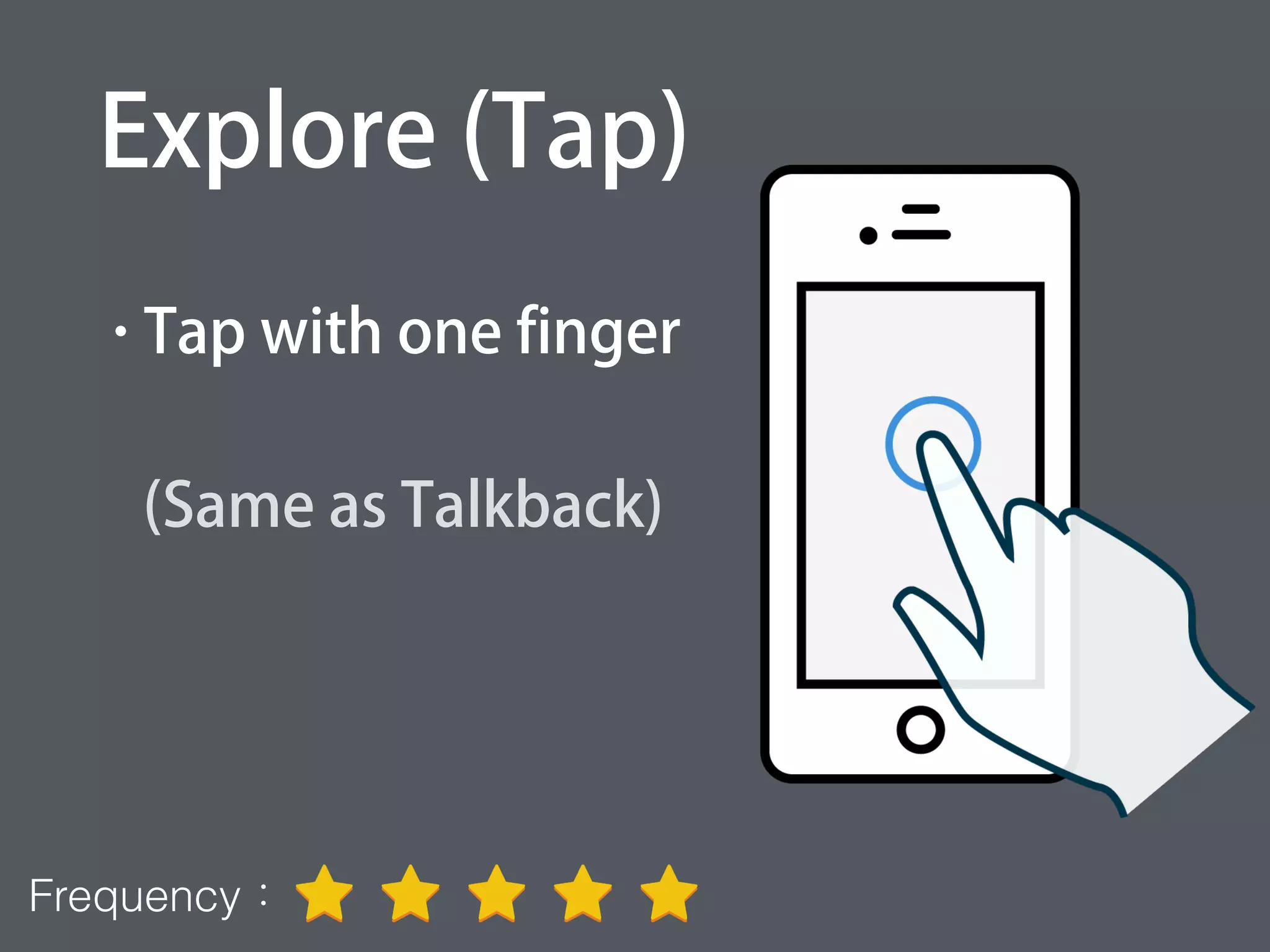
Explore (Tap)
• Tap with one finger
(Same as Talkback)
Frequency:
Switch focus
• Swipe left or right
(Same as Talkback)
Frequency:
Click
• Double Tap
(Same as Talkback)
Frequency:
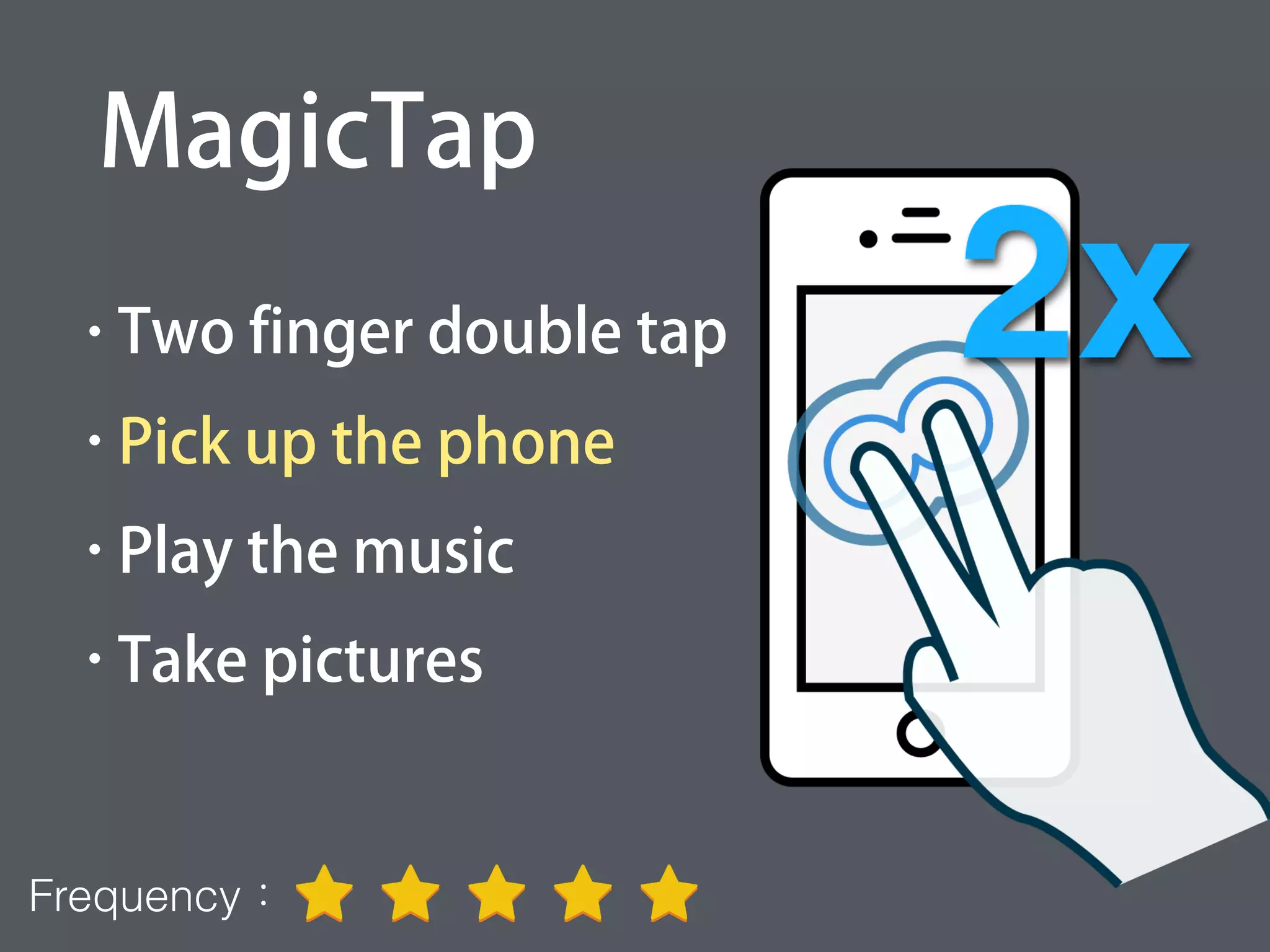
• Two finger double tap
• Pick up the phone
• Play the music
• Take pictures
MagicTap
Frequency:
• Two finger swipe up
Frequency:
Read all from first object
Read all from selected item
• Two finger swipe down
Frequency:
Scroll up / down
• Three finger swipe
up or down
Frequency:
Rotor
• Two finger rotate
Frequency:
Rotor
• Actions
• Characters
• Words
• Speech rate
• Containers
• Headings
Actions
• Activate item (default action)
• Delete
• More
• Flag
• Mark unread
(Require app support)
Changing value
• Swipe up or down
Frequency:
Go back
• Two finger scrub
back & forth
(Require app support)Frequency:
Toggle screen off
• Three finger tap
3 times
(Notice this gesture)
Frequency:
Demo
The problem is
Buttonbuttonbutton...?
Accessibility for iOS
• Setting the descriptions
NSString *accessibilityLabel;
NSString *accessibilityHint;
UIAccessibilityTraits accessibilityTraits;
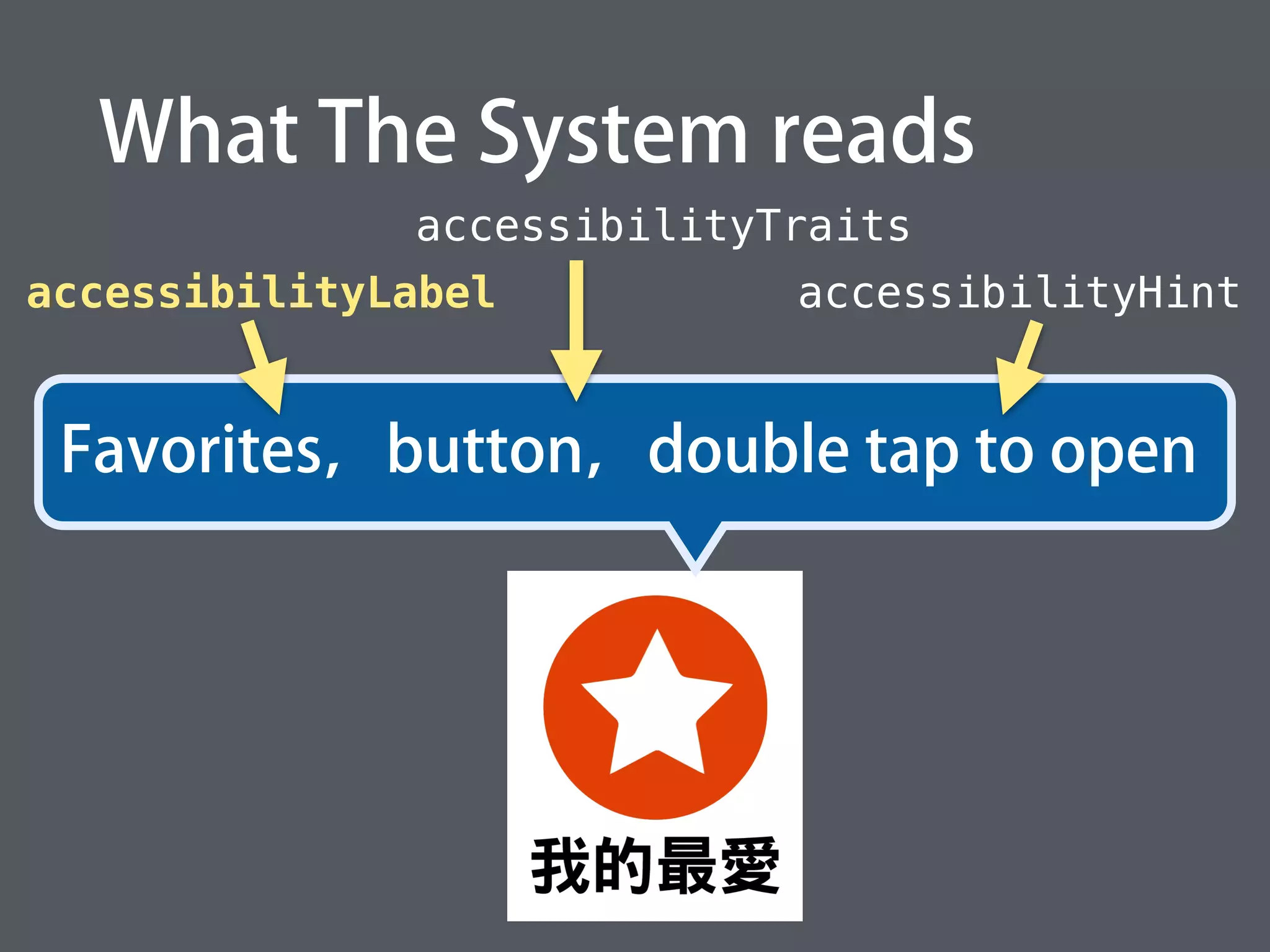
What The System reads
Favorites,button,double tap to open
accessibilityLabel accessibilityHint
accessibilityTraits
Setting in Xcode
• accessibilityLabel
• accessibilityHint
• accessibilityTraits
• If spec tell you wanna put a button
on screen like this
A scenario
You probably done by this way...
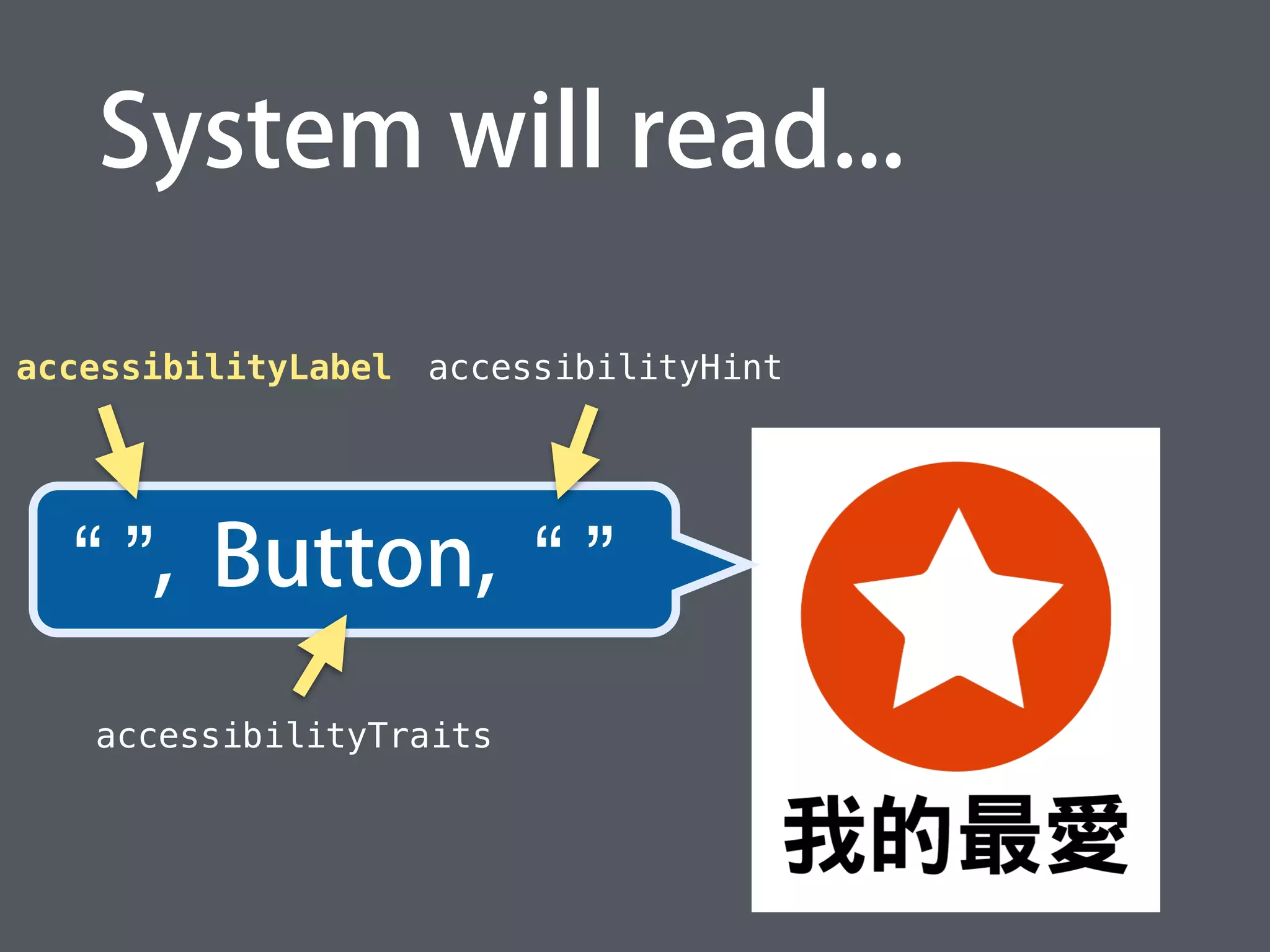
An empty button
Pictures
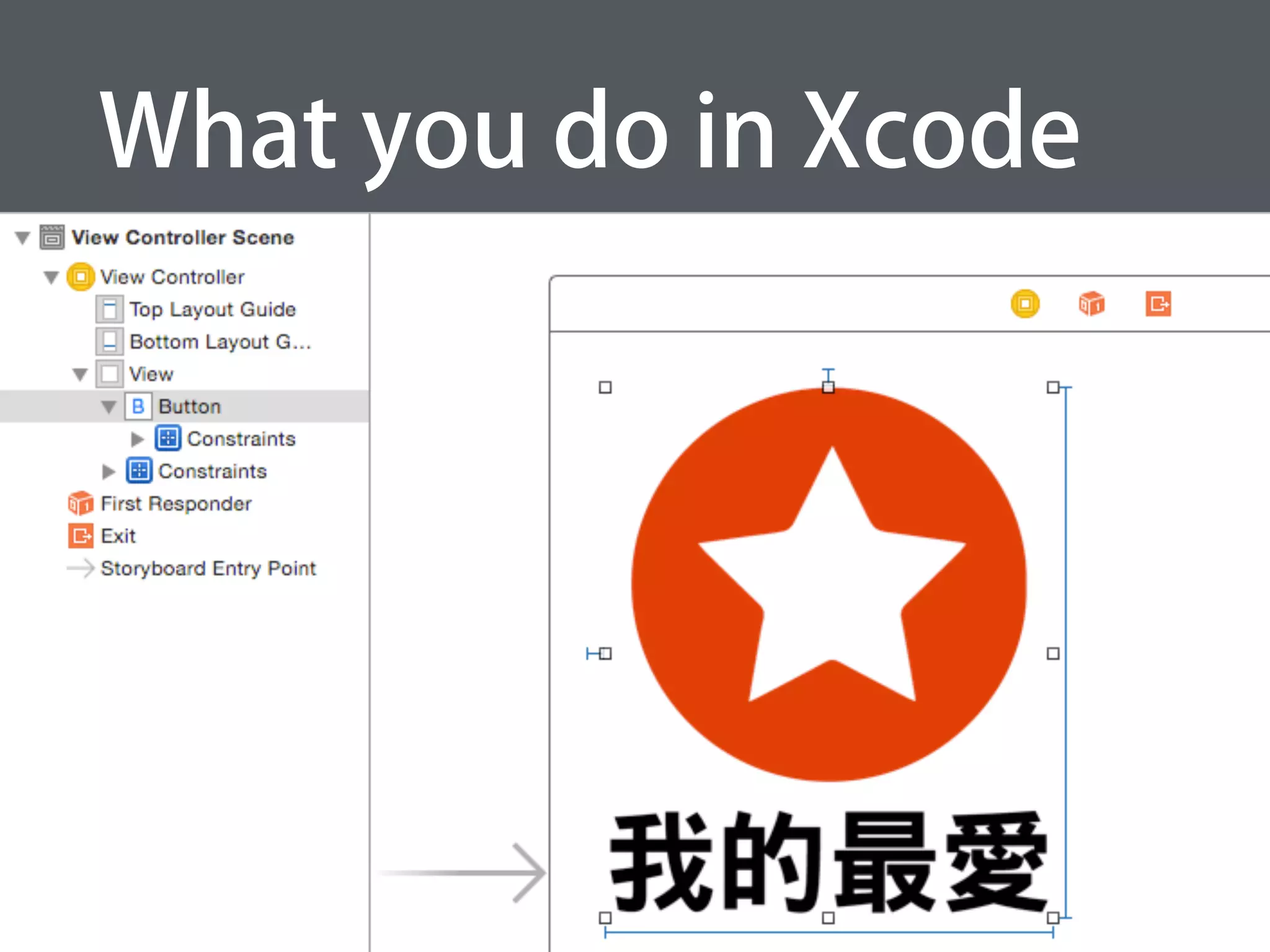
What you do in Xcode
System will read...
“ ”, Button, “ ”
accessibilityLabel accessibilityHint
accessibilityTraits
A button with background
You probably done by this way...
What you do in Xcode
System will read...
“btn.png”,button
You probably done by this way...
A button with background
Label
What you do in Xcode
Well...
There will be two problems
“btn.png”,button
Favorites
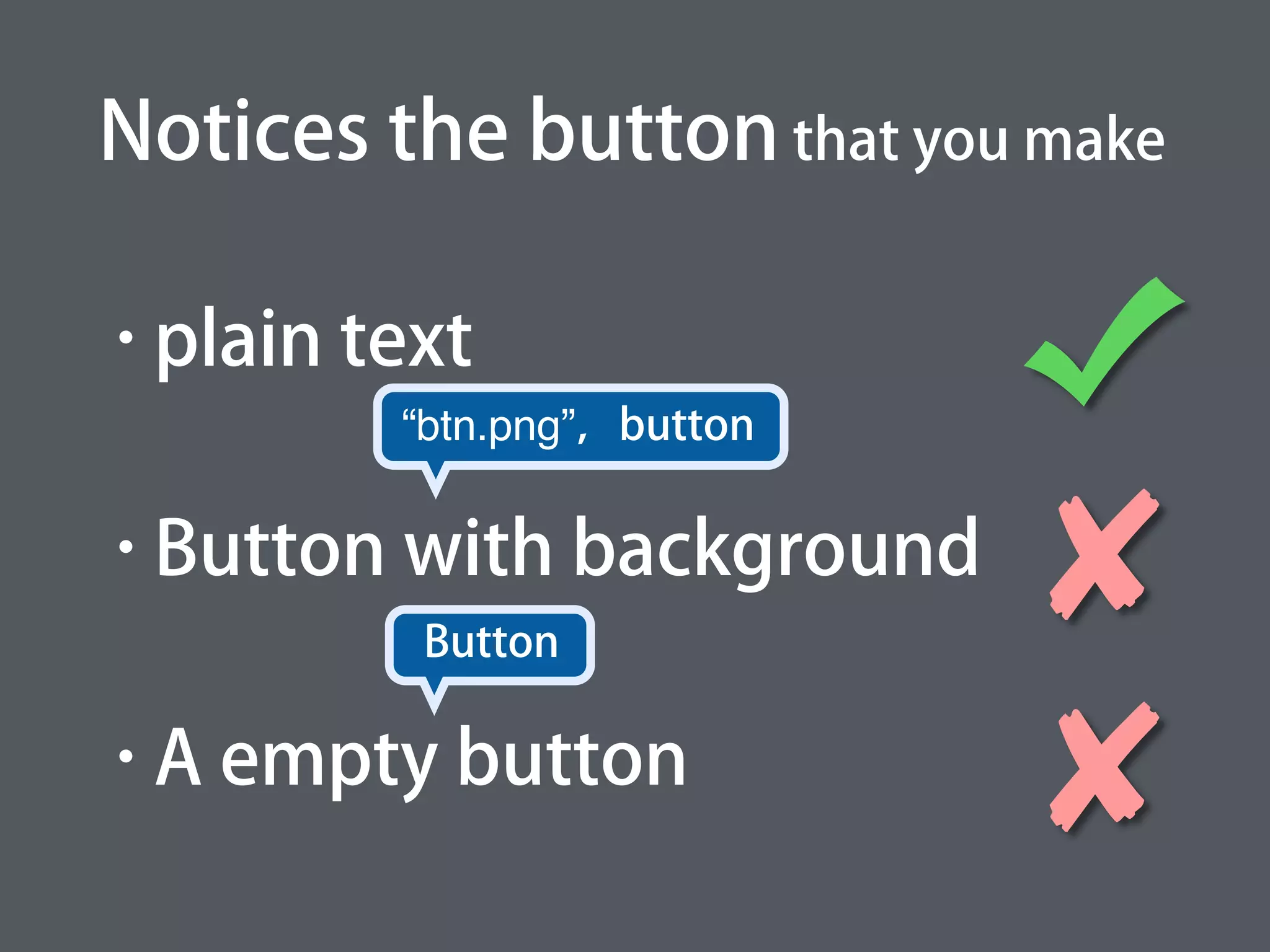
• plain text
• Button with background
• A empty button
Notices the button that you make
“btn.png”,button
Button
• Basic principles:From left to
right, from up to bottom
Focus sequences
• Custom sequences by using
Focus sequences
self.view.accessibilityElements
= @[view01, view02];
Detect VoiceOver Status
• Register the notificationsUIAccessibilityVoiceOverStatusChanged
• Determine VoiceOver statusUIAccessibilityIsVoiceOverRunning()
[[NSNotificationCenter defaultCenter]
addObserver:self
selector:@selector(voiceOverStatusChanged:)
name:UIAccessibilityVoiceOverStatusChanged
object:nil];
[[NSNotificationCenter defaultCenter]
removeObserver:self
name:UIAccessibilityVoiceOverStatusChanged
object:nil];
Register Notifications
Remove Notifications
Detect VoiceOver Status
-(void)voiceOverStatusChanged:(NSNotification *)n {
if (UIAccessibilityIsVoiceOverRunning()) {
// Voice over is running
} else {
// Voice over is not running
}
}
Determine whether VoiceOver is on or off
Detect VoiceOver Status
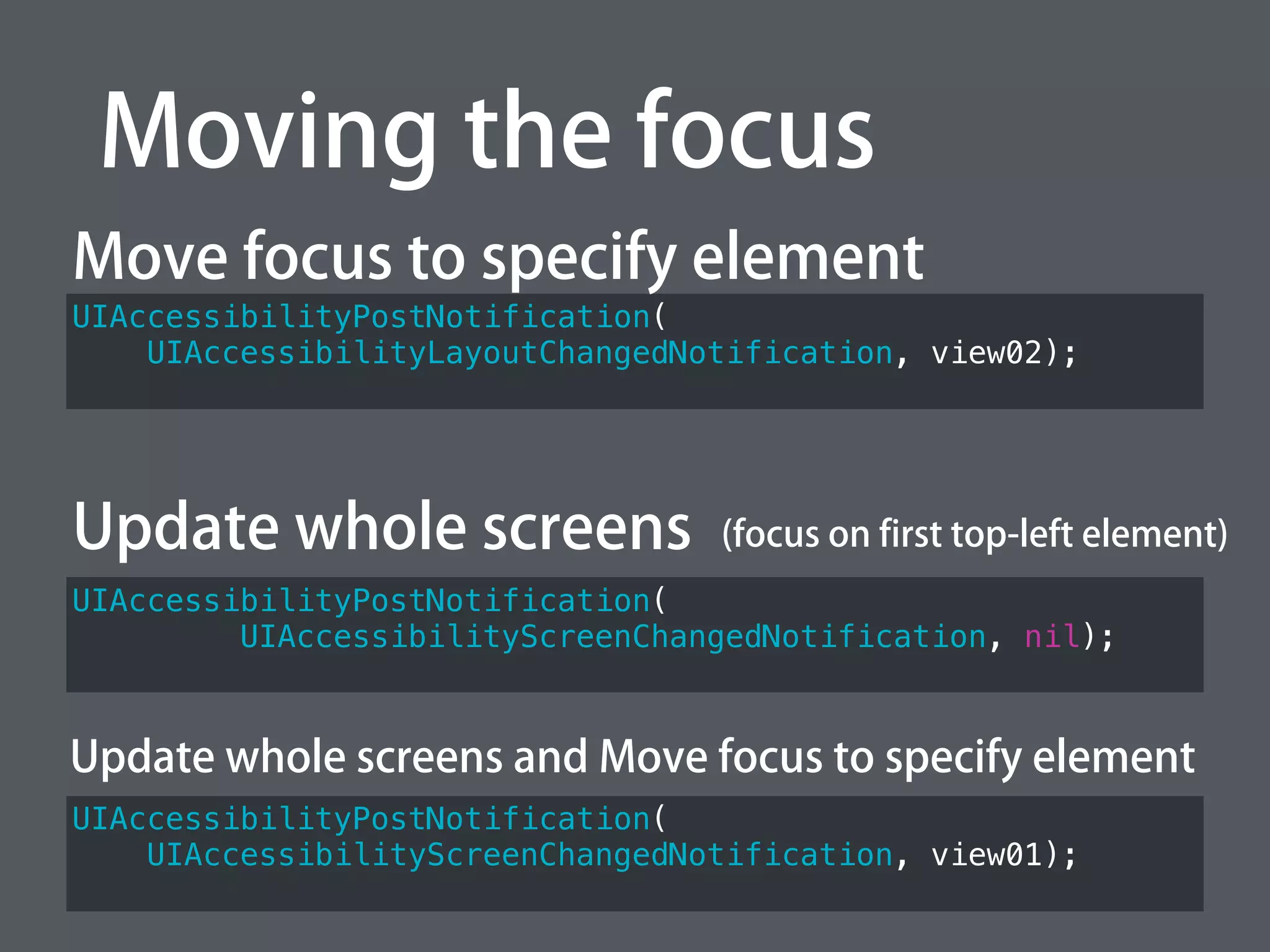
• Move focus toUIAccessibilityLayoutChangedNotification
• Update whole screens (Sound included)
UIAccessibilityScreenChangedNotification
Moving the focus
http://www.deque.com/blog/dynamic-notifications/
Moving the focus
UIAccessibilityPostNotification(
UIAccessibilityLayoutChangedNotification, view02);
Move focus to specify element
Update whole screens
UIAccessibilityPostNotification(
UIAccessibilityScreenChangedNotification, view01);
UIAccessibilityPostNotification(
UIAccessibilityScreenChangedNotification, nil);
Update whole screens and Move focus to specify element
(focus on first top-left element)
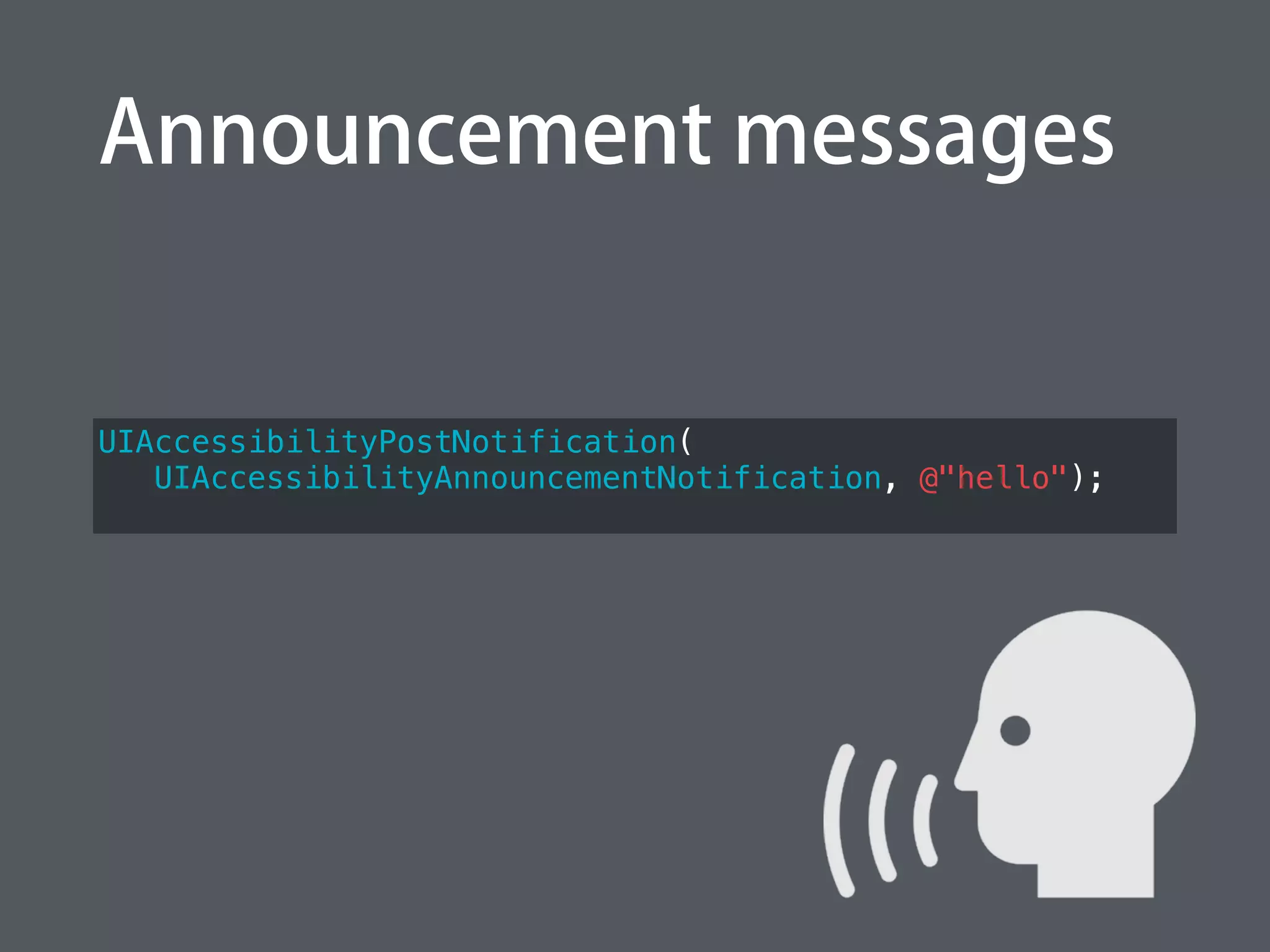
Announcement messages
UIAccessibilityPostNotification(
UIAccessibilityAnnouncementNotification, @"hello");
-(BOOL) accessibilityPerformMagicTap {
// Do something
}
• Implement the MagicTap actions
MagicTap (Two finger double tap)
Declare the rotor actions
UIAccessibilityCustomAction *a1 =
[[UIAccessibilityCustomAction alloc]
initWithName:@"Action 1"
target:self
selector:@selector(action01:)];
UIAccessibilityCustomAction *a2 =
[[UIAccessibilityCustomAction alloc]
initWithName:@"Action 2"
target:self
selector:@selector(action02:)];
self.myButton.accessibilityCustomActions
= @[a1, a2];
Declare the rotor actions
- (BOOL) action01:(UIAccessibilityCustomAction *)action {
// Do something
return YES;
}
- (BOOL) action02:(UIAccessibilityCustomAction *)action {
// Do something
return YES;
}
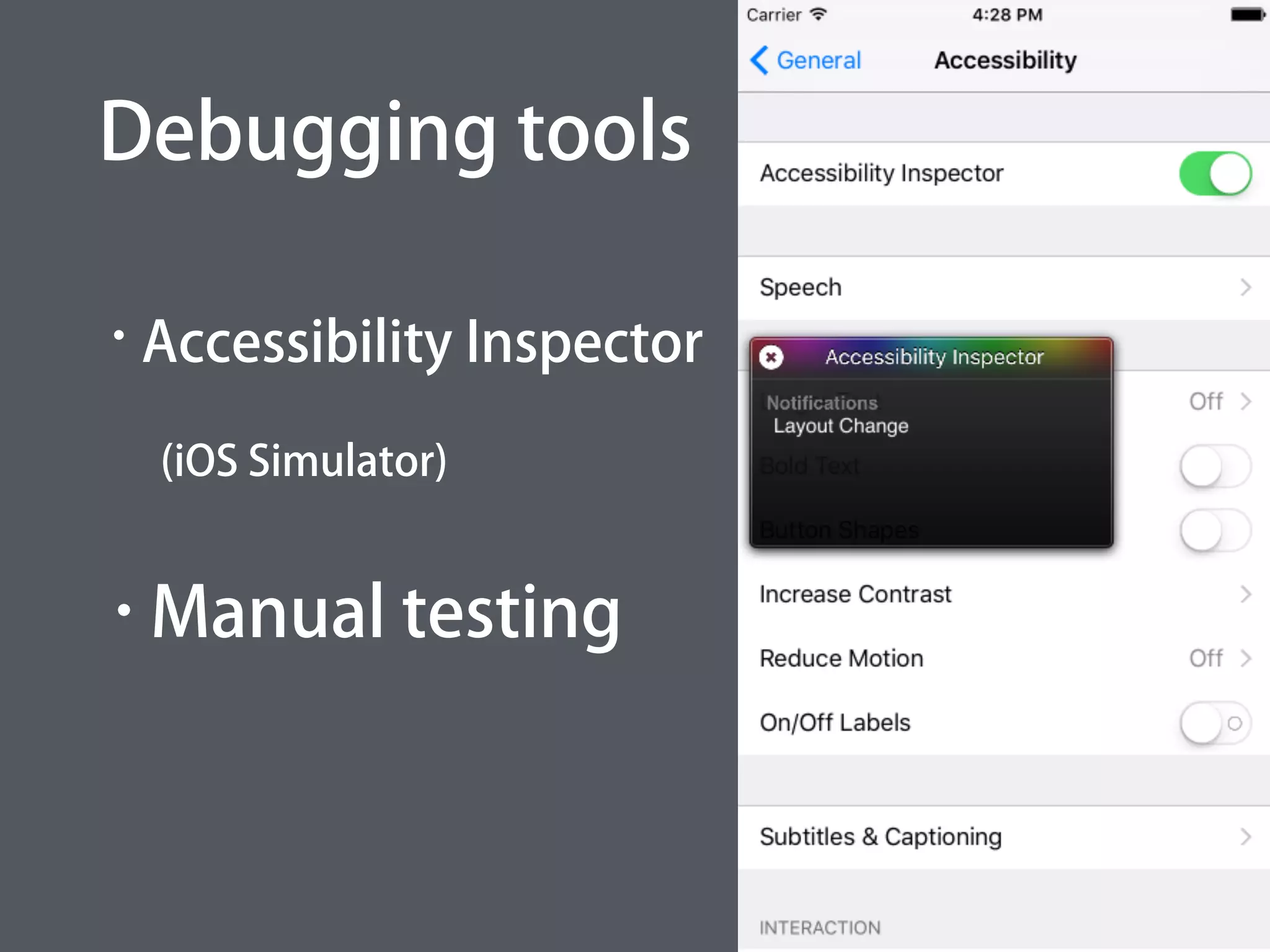
Debugging tools
• Accessibility Inspector
(iOS Simulator)
• Manual testing
Colors
Contrast ratio with text and background
• 4.5 : 1WCAG 2.0 AA
compliance
• 7 : 1WCAG 2.0 AAA compliance
http://www.w3.org/TR/2008/REC-WCAG20-20081211/#visual-audio-contrast-contrast
Web Content Accessibility Guidelines (WCAG) 2.0
Contrast checker
http://snook.ca/technical/colour_contrast/colour.html
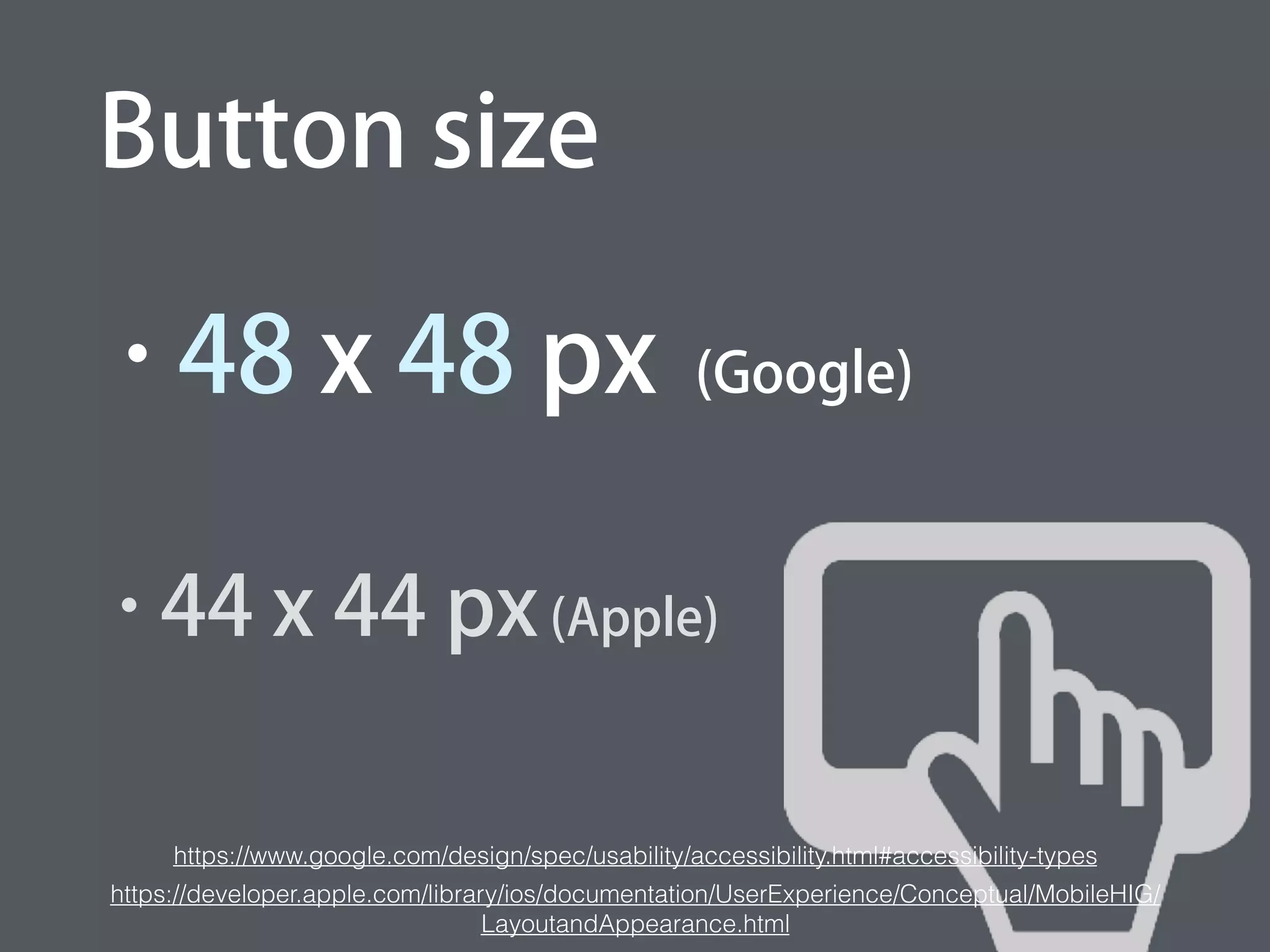
Button size
• 48 x 48 px (Google)
• 44 x 44 px (Apple)
https://www.google.com/design/spec/usability/accessibility.html#accessibility-types
ps://developer.apple.com/library/ios/documentation/UserExperience/Conceptual/MobileHIG/LayoutandAppearance.h
Q & A
References
• https://developer.apple.com/library/ios/documentation/UIKit/Reference/UIA
ccessibility_Protocol/
• http://www.deque.com/blog/dynamic-notifications/
• https://eyes-
free.googlecode.com/svn/trunk/documentation/android_access/index.html
• https://www.udemy.com/accessibility-features-on-android/
• http://blog.supertop.co/post/117642258462/custom-accessibility-options-in-
unread
• http://www.programcreek.com/java-api-
examples/index.php?api=android.view.accessibility.AccessibilityManager

About Mobile Accessibility

Editor's Notes