Setup IntelliJ and Seleniumwebdriver
Download the IntelliJ Community edition from
https://www.jetbrains.com/idea/download/
Download Selenium Server JAR
http://www.seleniumhq.org/download/
(named as Selenium Standalone Server)
Create New Project
● Click on new project
● Select Java in left pane and select java sdk then click next button twice
● Enter project name and set your preferred location (By default it has one location keep it
if you don’t have any preferences)
● Click on next
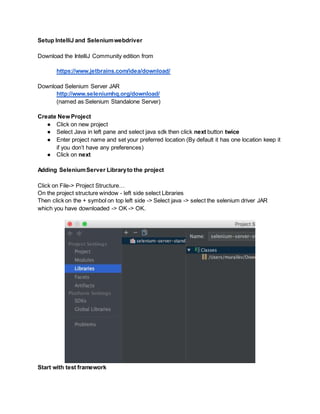
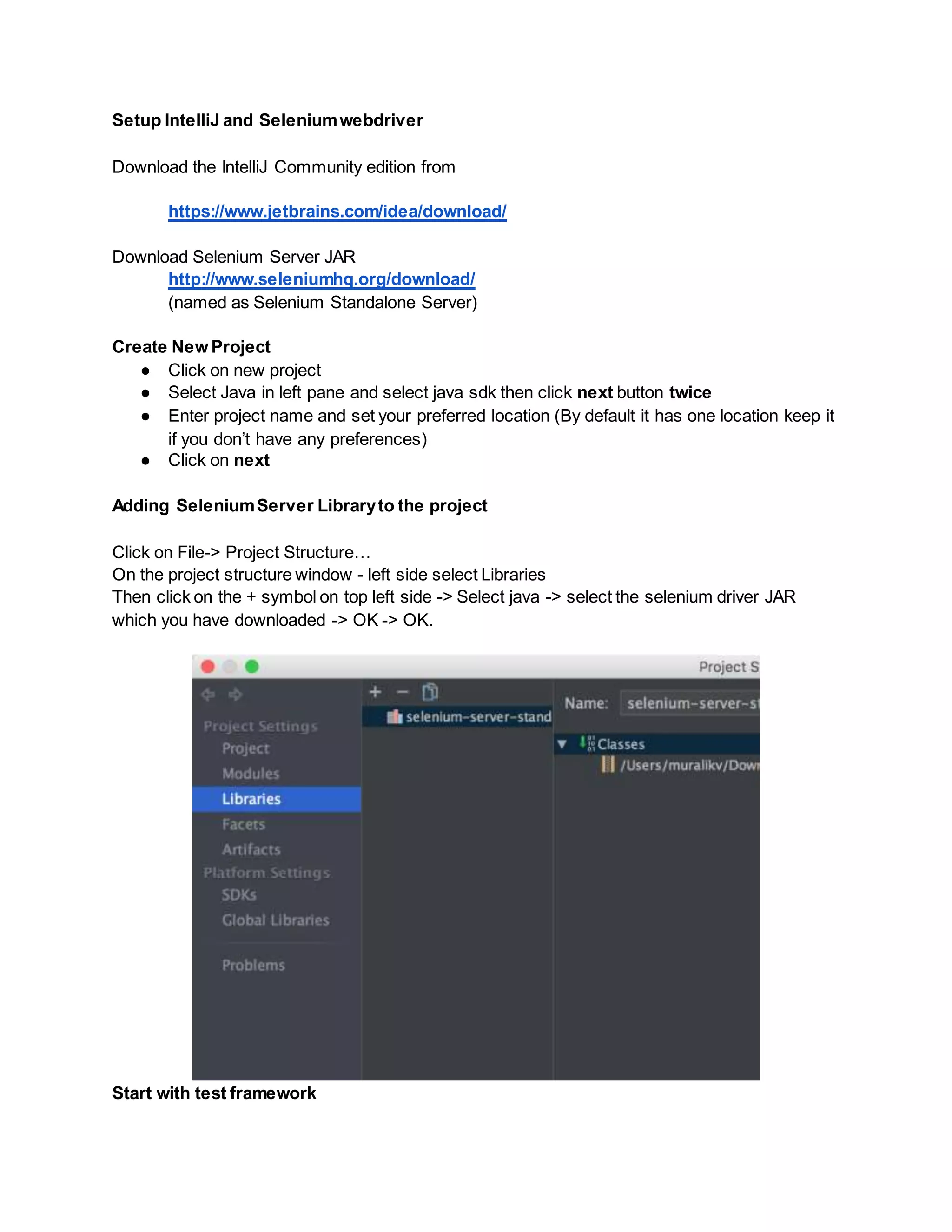
Adding SeleniumServer Libraryto the project
Click on File-> Project Structure…
On the project structure window - left side select Libraries
Then click on the + symbol on top left side -> Select java -> select the selenium driver JAR
which you have downloaded -> OK -> OK.
Start with test framework
Create package
Right click on src -> New -> Package
Enter package name(Example: app) -> click OK
Create new class
Right click on Package name -> New -> Java Class
Enter Name <ClassName> (Ex: Browser)
Create a test source file
Right click on ProjectName -> New -> Directory
Enter Name as test
Right click on the test directory -> Mark Directory As -> Test Sources Root
Right click on test -> New -> Package
Enter package name same as you did in src folder
Create a test class
Right click on Package name -> New -> Java Class
Enter Name <ClassNameTest> (Ex: BrowserTest)
Execute the scenario from IntelliJ
Right click on Class file -> Select Run ‘<ClassName>.main()’
(OR)
Or click on Run from the file menu -> Run ‘<ClassName>’
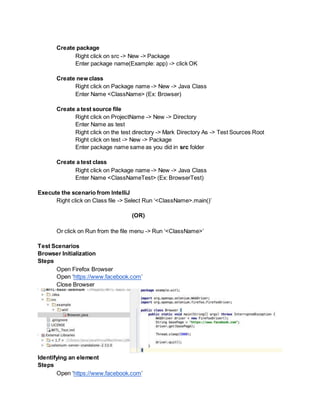
Test Scenarios
Browser Initialization
Steps
Open Firefox Browser
Open ‘https://www.facebook.com’
Close Browser
Identifying an element
Steps
Open ‘https://www.facebook.com’
Identify ‘username’ text box
Close browser
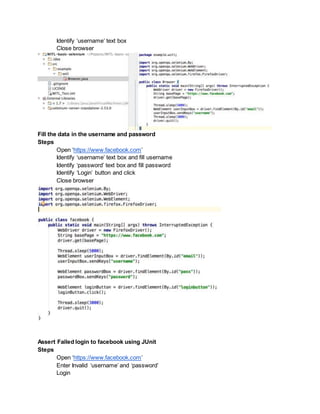
Fill the data in the username and password
Steps
Open ‘https://www.facebook.com’
Identify ‘username’ text box and fill username
Identify ‘password’ text box and fill password
Identify ‘Login’ button and click
Close browser
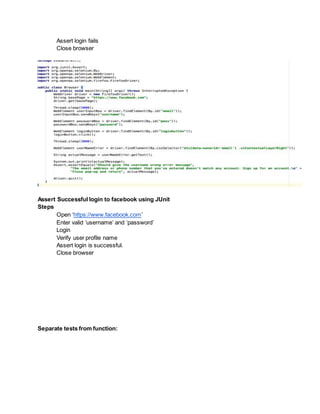
Assert Failed login to facebook using JUnit
Steps
Open ‘https://www.facebook.com’
Enter Invalid ‘username’ and ‘password’
Login
Assert login fails
Close browser
Assert Successful login to facebook using JUnit
Steps
Open ‘https://www.facebook.com’
Enter valid ‘username’ and ‘password’
Login
Verify user profile name
Assert login is successful.
Close browser
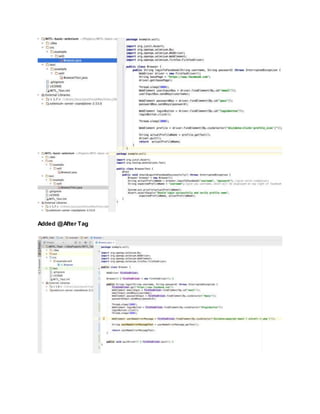
Separate tests from function:
Added @After Tag
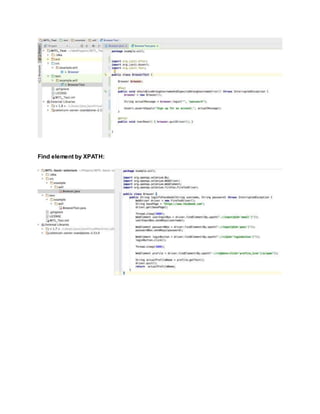
Find element by XPATH:

Selenium Basics

  • 1.
    Setup IntelliJ andSeleniumwebdriver Download the IntelliJ Community edition from https://www.jetbrains.com/idea/download/ Download Selenium Server JAR http://www.seleniumhq.org/download/ (named as Selenium Standalone Server) Create New Project ● Click on new project ● Select Java in left pane and select java sdk then click next button twice ● Enter project name and set your preferred location (By default it has one location keep it if you don’t have any preferences) ● Click on next Adding SeleniumServer Libraryto the project Click on File-> Project Structure… On the project structure window - left side select Libraries Then click on the + symbol on top left side -> Select java -> select the selenium driver JAR which you have downloaded -> OK -> OK. Start with test framework
  • 2.
    Create package Right clickon src -> New -> Package Enter package name(Example: app) -> click OK Create new class Right click on Package name -> New -> Java Class Enter Name <ClassName> (Ex: Browser) Create a test source file Right click on ProjectName -> New -> Directory Enter Name as test Right click on the test directory -> Mark Directory As -> Test Sources Root Right click on test -> New -> Package Enter package name same as you did in src folder Create a test class Right click on Package name -> New -> Java Class Enter Name <ClassNameTest> (Ex: BrowserTest) Execute the scenario from IntelliJ Right click on Class file -> Select Run ‘<ClassName>.main()’ (OR) Or click on Run from the file menu -> Run ‘<ClassName>’ Test Scenarios Browser Initialization Steps Open Firefox Browser Open ‘https://www.facebook.com’ Close Browser Identifying an element Steps Open ‘https://www.facebook.com’
  • 3.
    Identify ‘username’ textbox Close browser Fill the data in the username and password Steps Open ‘https://www.facebook.com’ Identify ‘username’ text box and fill username Identify ‘password’ text box and fill password Identify ‘Login’ button and click Close browser Assert Failed login to facebook using JUnit Steps Open ‘https://www.facebook.com’ Enter Invalid ‘username’ and ‘password’ Login
  • 4.
    Assert login fails Closebrowser Assert Successful login to facebook using JUnit Steps Open ‘https://www.facebook.com’ Enter valid ‘username’ and ‘password’ Login Verify user profile name Assert login is successful. Close browser Separate tests from function:
  • 5.
  • 6.