

Seesaw App Tutorial:
How to create a Seesaw Interactive Worksheet/Activity
Presenter: Lori Mignogna
(Seesaw Ambassador)
Students - use creative tools to take pictures,
draw, record videos and more to capture learning
in a portfolio.
Teachers - find or create activities to share with
students.
Families - only see their child's work and leave
comments and encouragement.
How does Seesaw work?
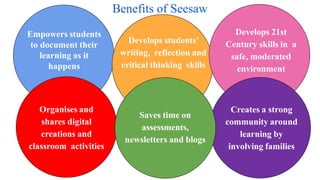
Empowers students
to document their
learning as it
happens
Develops 21st
Century skills in a
safe, moderated
environment
Benefits of Seesaw
Creates a strong
community around
learning by
involving families
Organises and
shares digital
creations and
classroom activities
Saves time on
assessments,
newsletters and blogs
Develops students’
writing, reflection and
critical thinking skills
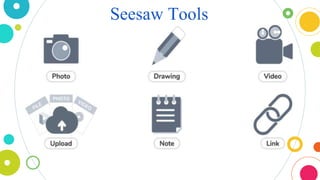
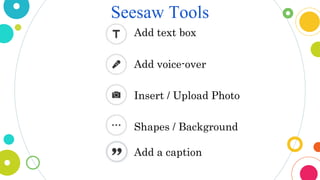
Seesaw Tools
Add text box
Seesaw Tools
Add voice-over
Insert / Upload Photo
Shapes / Background
Add a caption
Let’s begin!
• Create or scan work sheet as a PDF
• Convert worksheet to JPEG, JPG or PNG in
order to make it interactive
How to convert PDF to JPEG link:
https://helpx.adobe.com/au/acrobat/using/pdf-to-
jpg.html
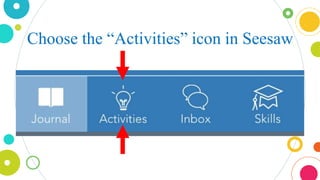
Choose the “Activities” icon in Seesaw
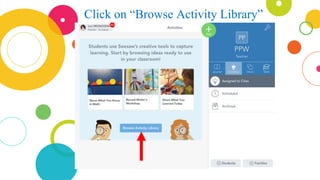
Click on “Browse Activity Library”
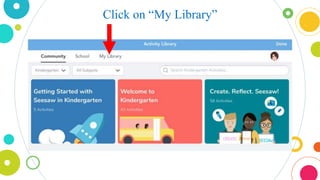
Click on “My Library”
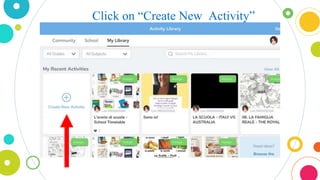
Click on “Create New Activity”
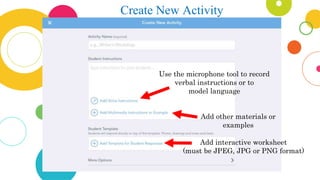
Create New Activity
Use the microphone tool to record
verbal instructions or to
model language
Add other materials or
examples
Add interactive worksheet
(must be JPEG, JPG or PNG format)
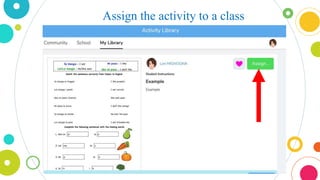
Assign the activity to a class
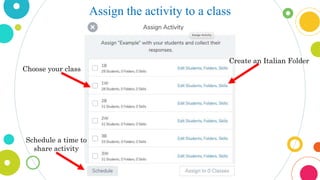
Create an Italian Folder
Choose your class
Schedule a time to
share activity
Useful Links
Seesaw Help Centre:
https://help.seesaw.me/hc/en-us/articles/115005113426-How-do-I-use-Activities-
YouTube Videos:
https://www.youtube.com/watch?v=bL3XPU9Jcps
https://www.youtube.com/watch?v=vSZRuwLnThQ

Seesaw App Tutorial 9 October 2019

  • 1.
    Seesaw App Tutorial: Howto create a Seesaw Interactive Worksheet/Activity Presenter: Lori Mignogna (Seesaw Ambassador)
  • 2.
    Students - usecreative tools to take pictures, draw, record videos and more to capture learning in a portfolio. Teachers - find or create activities to share with students. Families - only see their child's work and leave comments and encouragement. How does Seesaw work?
  • 3.
    Empowers students to documenttheir learning as it happens Develops 21st Century skills in a safe, moderated environment Benefits of Seesaw Creates a strong community around learning by involving families Organises and shares digital creations and classroom activities Saves time on assessments, newsletters and blogs Develops students’ writing, reflection and critical thinking skills
  • 4.
  • 5.
    Add text box SeesawTools Add voice-over Insert / Upload Photo Shapes / Background Add a caption
  • 6.
    Let’s begin! • Createor scan work sheet as a PDF • Convert worksheet to JPEG, JPG or PNG in order to make it interactive How to convert PDF to JPEG link: https://helpx.adobe.com/au/acrobat/using/pdf-to- jpg.html
  • 7.
  • 8.
    Click on “BrowseActivity Library”
  • 9.
    Click on “MyLibrary”
  • 10.
    Click on “CreateNew Activity”
  • 11.
    Create New Activity Usethe microphone tool to record verbal instructions or to model language Add other materials or examples Add interactive worksheet (must be JPEG, JPG or PNG format)
  • 12.
  • 13.
    Assign the activityto a class Create an Italian Folder Choose your class Schedule a time to share activity
  • 14.
    Useful Links Seesaw HelpCentre: https://help.seesaw.me/hc/en-us/articles/115005113426-How-do-I-use-Activities- YouTube Videos: https://www.youtube.com/watch?v=bL3XPU9Jcps https://www.youtube.com/watch?v=vSZRuwLnThQ