Quick Tutorial: Scayl Beta for Windows
August 2013
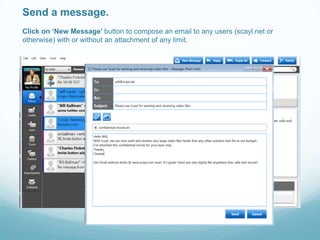
Send a message.
Click on ‘New Message’ button to compose an email to any users (scayl.net or
otherwise) with or without an attachment of any limit.
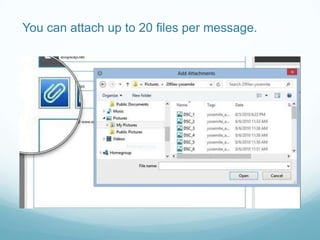
You can attach up to 20 files per message.
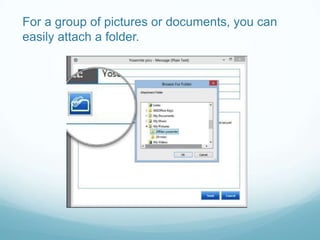
For a group of pictures or documents, you can
easily attach a folder.
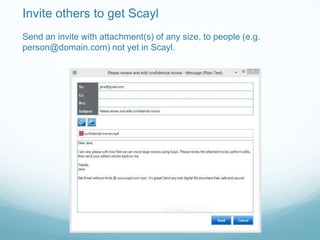
Invite others to get Scayl
Send an invite with attachment(s) of any size, to people (e.g.
person@domain.com) not yet in Scayl.
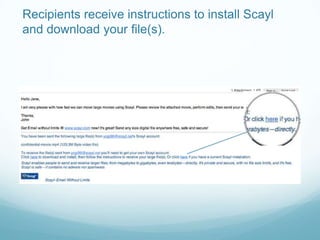
Recipients receive instructions to install Scayl
and download your file(s).
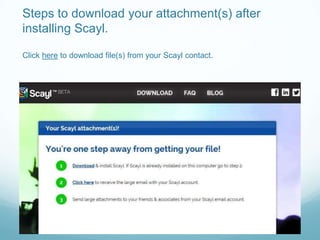
Steps to download your attachment(s) after
installing Scayl.
Click here to download file(s) from your Scayl contact.
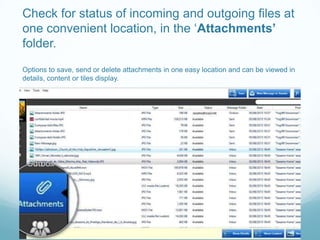
Check for status of incoming and outgoing files at
one convenient location, in the „Attachments’
folder.
Options to save, send or delete attachments in one easy location and can be viewed in
details, content or tiles display.
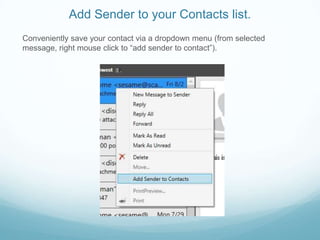
Add Sender to your Contacts list.
Conveniently save your contact via a dropdown menu (from selected
message, right mouse click to “add sender to contact”).
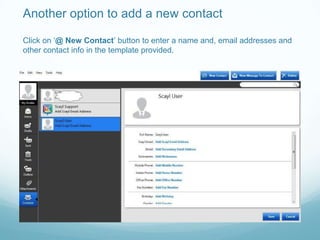
Another option to add a new contact
Click on „@ New Contact‟ button to enter a name and, email addresses and
other contact info in the template provided.
Presence Indication
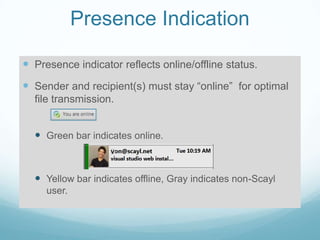
 Presence indicator reflects online/offline status.
 Sender and recipient(s) must stay “online” for optimal
file transmission.
 Green bar indicates online.
 Yellow bar indicates offline, Gray indicates non-Scayl
user.
V

Scayl quick windows tutorial 9 03 2013

  • 1.
    Quick Tutorial: ScaylBeta for Windows August 2013
  • 2.
    Send a message. Clickon ‘New Message’ button to compose an email to any users (scayl.net or otherwise) with or without an attachment of any limit.
  • 3.
    You can attachup to 20 files per message.
  • 4.
    For a groupof pictures or documents, you can easily attach a folder.
  • 5.
    Invite others toget Scayl Send an invite with attachment(s) of any size, to people (e.g. person@domain.com) not yet in Scayl.
  • 6.
    Recipients receive instructionsto install Scayl and download your file(s).
  • 7.
    Steps to downloadyour attachment(s) after installing Scayl. Click here to download file(s) from your Scayl contact.
  • 8.
    Check for statusof incoming and outgoing files at one convenient location, in the „Attachments’ folder. Options to save, send or delete attachments in one easy location and can be viewed in details, content or tiles display.
  • 9.
    Add Sender toyour Contacts list. Conveniently save your contact via a dropdown menu (from selected message, right mouse click to “add sender to contact”).
  • 10.
    Another option toadd a new contact Click on „@ New Contact‟ button to enter a name and, email addresses and other contact info in the template provided.
  • 11.
    Presence Indication  Presenceindicator reflects online/offline status.  Sender and recipient(s) must stay “online” for optimal file transmission.  Green bar indicates online.  Yellow bar indicates offline, Gray indicates non-Scayl user. V

Editor's Notes

  • #4 Click on an Attach icon in the compose window to attach file(s).
  • #5 Click on a folder icon to attach a folder in the compose window.
  • #7 Clickhere to download file received. Follow three steps to complete the download.
  • #9 One can sort by Name, Type, Size, Status, Message Folder, Date, or From. Viewing options, save, open, delete, and send a message to sender in one easy location.