GAME
AKT - JU
321
PUZZLE CASES
wALL
1
2
3
4
5
6
7
8 109
KUNCI
JAWABAN
Susunlah jurnal
umum dari
transaksi –
transaksi yang
terdapat dalam box
angka!
1
BACK
Tanggal 1 Mei Tn. MAMAT
menyetor uang pribadi ke
dalam perusahaan “MAMAT
TAILOR” sebagai modal
awal usaha jahit sebesar Rp
4.000.000,-
2Tanggal 2 Mei disewa sebuah
ruko untuk usaha jahit
dengan membayar Rp
1.200.000,- untuk 6 bulan.
BACK
3
Tanggal 4 Mei dibeli tunai
perlengkapan jahit dari
Toko Jaya dengan harga
Rp 800.000,-
BACK
4
Tanggal 10 Mei telah
diselesaikan jahitan
pakaian langganan seharga
Rp 300.000 dan langsung
diterima pembayarannya
BACK
5
Tanggal 12 Mei dibeli
peralatan jahit dari Toko
Sekawan seharga Rp
1.500.000,- baru dibayar
Rp500.000,-
BACK
6
Tanggal 18 Mei telah
diselesaikan jahitan
pakaian Tn. Ahmad seharga
Rp 1.700.000 sudah
dikirimkan tagihannya.
BACK
7Tanggal 19 Mei dibayar ke
Toko Sekawan Rp 800.000,-
atas pembelian peralatan
jahit tanggal 12 Mei.
BACK
8
Tanggal 20 Mei dibayar gaji
pegawai untuk 2 minggu
kerja Rp 200.000,-
BACK
9
21 Mei: Diterima pinjaman
dari Bank Rp 2.000.000,-
dikenakan biaya
administrasi Rp 250.000.
BACK
10
Tanggal 22 Mei Tn. Ali
mengambil uang
perusahaan untuk
keperluan pribadi Rp
400.000,-
BACK
1
back
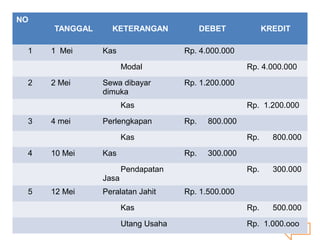
NO
TANGGAL KETERANGAN DEBET KREDIT
1 1 Mei Kas Rp. 4.000.000
Modal Rp. 4.000.000
2 2 Mei Sewa dibayar
dimuka
Rp. 1.200.000
Kas Rp. 1.200.000
3 4 mei Perlengkapan Rp. 800.000
Kas Rp. 800.000
4 10 Mei Kas Rp. 300.000
Pendapatan
Jasa
Rp. 300.000
5 12 Mei Peralatan Jahit Rp. 1.500.000
Kas Rp. 500.000
Utang Usaha Rp. 1.000.ooo
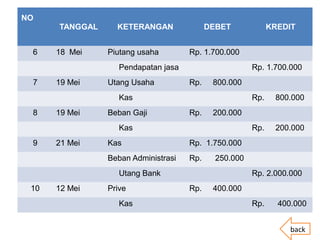
NO
TANGGAL KETERANGAN DEBET KREDIT
6 18 Mei Piutang usaha Rp. 1.700.000
Pendapatan jasa Rp. 1.700.000
7 19 Mei Utang Usaha Rp. 800.000
Kas Rp. 800.000
8 19 Mei Beban Gaji Rp. 200.000
Kas Rp. 200.000
9 21 Mei Kas Rp. 1.750.000
Beban Administrasi Rp. 250.000
Utang Bank Rp. 2.000.000
10 12 Mei Prive Rp. 400.000
Kas Rp. 400.000
back
BYE!!!
SEMOGA
BERMANFAAT…

Project 2 - Game PPT

  • 1.
  • 2.
  • 3.
    PUZZLE CASES wALL 1 2 3 4 5 6 7 8 109 KUNCI JAWABAN Susunlahjurnal umum dari transaksi – transaksi yang terdapat dalam box angka!
  • 4.
    1 BACK Tanggal 1 MeiTn. MAMAT menyetor uang pribadi ke dalam perusahaan “MAMAT TAILOR” sebagai modal awal usaha jahit sebesar Rp 4.000.000,-
  • 5.
    2Tanggal 2 Meidisewa sebuah ruko untuk usaha jahit dengan membayar Rp 1.200.000,- untuk 6 bulan. BACK
  • 6.
    3 Tanggal 4 Meidibeli tunai perlengkapan jahit dari Toko Jaya dengan harga Rp 800.000,- BACK
  • 7.
    4 Tanggal 10 Meitelah diselesaikan jahitan pakaian langganan seharga Rp 300.000 dan langsung diterima pembayarannya BACK
  • 8.
    5 Tanggal 12 Meidibeli peralatan jahit dari Toko Sekawan seharga Rp 1.500.000,- baru dibayar Rp500.000,- BACK
  • 9.
    6 Tanggal 18 Meitelah diselesaikan jahitan pakaian Tn. Ahmad seharga Rp 1.700.000 sudah dikirimkan tagihannya. BACK
  • 10.
    7Tanggal 19 Meidibayar ke Toko Sekawan Rp 800.000,- atas pembelian peralatan jahit tanggal 12 Mei. BACK
  • 11.
    8 Tanggal 20 Meidibayar gaji pegawai untuk 2 minggu kerja Rp 200.000,- BACK
  • 12.
    9 21 Mei: Diterimapinjaman dari Bank Rp 2.000.000,- dikenakan biaya administrasi Rp 250.000. BACK
  • 13.
    10 Tanggal 22 MeiTn. Ali mengambil uang perusahaan untuk keperluan pribadi Rp 400.000,- BACK
  • 14.
    1 back NO TANGGAL KETERANGAN DEBETKREDIT 1 1 Mei Kas Rp. 4.000.000 Modal Rp. 4.000.000 2 2 Mei Sewa dibayar dimuka Rp. 1.200.000 Kas Rp. 1.200.000 3 4 mei Perlengkapan Rp. 800.000 Kas Rp. 800.000 4 10 Mei Kas Rp. 300.000 Pendapatan Jasa Rp. 300.000 5 12 Mei Peralatan Jahit Rp. 1.500.000 Kas Rp. 500.000 Utang Usaha Rp. 1.000.ooo
  • 15.
    NO TANGGAL KETERANGAN DEBETKREDIT 6 18 Mei Piutang usaha Rp. 1.700.000 Pendapatan jasa Rp. 1.700.000 7 19 Mei Utang Usaha Rp. 800.000 Kas Rp. 800.000 8 19 Mei Beban Gaji Rp. 200.000 Kas Rp. 200.000 9 21 Mei Kas Rp. 1.750.000 Beban Administrasi Rp. 250.000 Utang Bank Rp. 2.000.000 10 12 Mei Prive Rp. 400.000 Kas Rp. 400.000 back
  • 16.

Editor's Notes

  • #2 <number>
  • #3 Animated countdown timer on textured background (Difficult) Tip: Some shape effects on this slide are created with the Combine Shapes commands. To access this command, you must add it to the Quick Access Toolbar, located above the File tab. To customize the Quick Access Toolbar, do the following: Click the arrow next to the Quick Access Toolbar, and then under Customize Quick Access Toolbar click More Commands. In the PowerPoint Options dialog box, in the Choose commands from list, select All Commands. In the list of commands, click Combine Shapes, and then click Add. To reproduce the donut shape effects on this slide, do the following: On the Home tab, in the Slides group, click Layout, and then click Blank. On the Insert tab, in the Illustrations group, click Shapes, and then under Basic Shapes click Donut. On the slide, drag to draw a donut. Drag the yellow sizing handle so that the donut is roughly 0.25” in thickness. Select the donut. Under Drawing Tools, on the Format tab, in the Size group, in the Height box enter 5” and in the Width box enter 5”. Also under Drawing Tools, on the Format tab, in the Shape Styles group, click Shape Outline and then click No Outline. On the Insert tab, in the Illustrations group, click Shapes, and then under Rectangles click Rectangle. On the slide, drag to draw a rectangle. Select the rectangle. Under Drawing Tools, on the Format tab, in the Size group, in the Height box enter 5.5” and in the Width box enter 0.08”. Also under Drawing Tools, on the Format tab, in the Shape Styles group, click Shape Outline and then click No Outline. Select the rectangle. On the Home tab, in the Clipboard group, click the arrow to the right of Copy, and then click Duplicate. Repeat this process this process 7 times for a total of 9 thin rectangles. Select a duplicate rectangle. Under Drawing Tools, on the Format tab, in the Size group, click the Size and Position dialog box launcher. In the Format Shape dialog box, click Size in the left pane, and in the Size pane, under Size and rotate, in the Rotation box enter 10. Select another duplicate rectangle. Under Drawing Tools, on the Format tab, in the Size group, click the Size and Position dialog box launcher. In the Format Shape dialog box, click Size in the left pane, and in the Size pane, under Size and rotate, in the Rotation box enter 20. Select another duplicate rectangle. Under Drawing Tools, on the Format tab, in the Size group, click the Size and Position dialog box launcher. In the Format Shape dialog box, click Size in the left pane, and in the Size pane, under Size and rotate, in the Rotation box enter 30. Select another duplicate rectangle. Under Drawing Tools, on the Format tab, in the Size group, click the Size and Position dialog box launcher. In the Format Shape dialog box, click Size in the left pane, and in the Size pane, under Size and rotate, in the Rotation box enter 40. Select another duplicate rectangle. Under Drawing Tools, on the Format tab, in the Size group, click the Size and Position dialog box launcher. In the Format Shape dialog box, click Size in the left pane, and in the Size pane, under Size and rotate, in the Rotation box enter 50. Select another duplicate rectangle. Under Drawing Tools, on the Format tab, in the Size group, click the Size and Position dialog box launcher. In the Format Shape dialog box, click Size in the left pane, and in the Size pane, under Size and rotate, in the Rotation box enter 60. Select another duplicate rectangle. Under Drawing Tools, on the Format tab, in the Size group, click the Size and Position dialog box launcher. In the Format Shape dialog box, click Size in the left pane, and in the Size pane, under Size and rotate, in the Rotation box enter 70. Select the last duplicate rectangle. Under Drawing Tools, on the Format tab, in the Size group, click the Size and Position dialog box launcher. In the Format Shape dialog box, click Size in the left pane, and in the Size pane, under Size and rotate, in the Rotation box enter 80. Press and hold CTRL, and then select all of the small thin rectangles. On the Quick Access Toolbar, click Combine Shapes, and then click Shape Union. Also on the Home tab, in the Clipboard group, click Copy, and then click Duplicate. Select the duplicate group of rectangles. On the Home tab, in the Drawing group, click Arrange, point to Rotate, and then click Rotate Right 90°. On the Home tab, in the Edit group, click Select, and then click Select All. Also on the Home tab, in the Drawing group, click Arrange, point to Align, and then do the following: Click Align to Slide. Click Align Middle. Click Align Center. Press and hold CTRL, select the donut shape, and then select the first group of rectangles. On the Quick Access Toolbar, click Combine Shapes, and then click Shape Subtract. Press and hold CTRL, select the donut shape, and then select the second group of rectangles. On the Quick Access Toolbar, click Combine Shapes, and then click Shape Subtract. On the Insert tab, in the Illustrations group, click Shapes, and then under Basic Shapes click Donut. On the slide, drag to draw a donut. Drag a sizing handle so that the donut is roughly 0.5” in thickness. Select the second donut. Under Drawing Tools, on the Format tab, in the Size group, in the Height box enter 5.21” and in the Width box enter 5.21”. Also under Drawing Tools, on the Format tab, in the Shape Styles group, click Shape Outline, and then click No Outline. Press and hold CTRL, select the second donut, and then select the first, segmented donut. On the Quick Access Toolbar, click Combine Shapes, and then click Shape Subtract. Select the remaining donut. Under Drawing Tools, on the Format tab, in the Shape Styles group, click the Format Shape dialog box launcher. In the Format Shape dialog box, click Fill in the left pane, in the Fill pane, click Gradient fill, and then do the following: Click the button next to Preset colors and then click Silver. In the Type list, select Linear. Also in the Format Shape dialog box, click Line Color in the left pane, and then in the Line Color pane click No line. Also in the Format Shape dialog box, click Shadow in the left pane, in the Shadow pane, click the button next to Presets, and then under Outer click Offset Center. Also in the Format Shape dialog box, click 3-D Format in the left pane, in the 3-D Format pane, under Bevel, click the button next to Top and then click Slope. On the Insert tab, in the Illustrations group, click Shapes, and then under Basic Shapes click Donut. On the slide, drag to draw a donut. Drag a sizing handle so that the donut is roughly 0.25” in thickness. Select the new donut. Under Drawing Tools, on the Format tab, in the Shape Styles group, click the Format Shape dialog box launcher. In the Format Shape dialog box, click Fill in the left pane, in the Fill pane, click the button next to Color, click More Colors, and then in the Colors dialog box, on the Custom tab, enter values for Red: 194, Green: 10, and Blue: 6. Also in the Format Shape dialog box, click Line Color in the left pane, and then in the Line Color pane click No line. Also in the Format Shape dialog box, click Size in the left pane, in the Size pane, under Size and rotate, in the Height box enter 5.14” and in the Width box enter 5.14”. Select the new donut. On the Home tab, in the Drawing group, click Arrange, and then click Send Backward. Press and hold CTRL, and then select the two donuts. On the Home tab, in the Drawing group, click Arrange, point to Align, and then do the following: Click Align Selected Objects. Click Align Center. Click Align Middle. With both donuts selected, drag the donuts so that the top edge is roughly 1” from the top edge of the slide. To reproduce the other shape effects on this slide, do the following: On the Insert tab, in the Illustrations group, click Shapes, and then under Rectangles click Rectangle. On the slide, drag to draw a rectangle. Select the rectangle. On the Home tab, in the Drawing tab, click the Format Shape dialog box launcher. In the Format Shape dialog box, click Fill in the left pane, in the Fill pane, click Gradient fill, and then do the following: In the Type list, select Linear. In the Angle box, enter 90. Under Gradient stops, click Add gradient stop or Remove gradient stop until three stops appear in the slider, then customize the gradient stops as follows: Select the first stop in the slider, and then do the following: In the Position box, enter 0%. Click the button next to Color, and then under Theme Colors click Black, Text 1 (first row, first option from the left). In the Transparency box, enter 75%. Select the next stop in the slider, and then do the following: In the Position box, enter 35%. Click the button next to Color, and then under Theme Colors click Black, Text 1 (first row, first option from the left). In the Transparency box, enter 0%. Select the last stop in the slider, and then do the following: In the Position box, enter 100%. Click the button next to Color, and then under Theme Colors click Black, Text 1 (first row, first option from the left). In the Transparency box, enter 100%. Also in the Format Shape dialog box, click Line Color in the left pane, and then in the Line Color pane click No line. Also in the Format Shape dialog box, click Size, and in the Height box enter 7.5, and in the Width box enter 2.83. On the slide, select the rectangle. On the Home tab, in the Drawing group, click Arrange, and then click Send Backward. Also on the Home tab, in the Drawing group, click Arrange, point to Align, and then click Align Middle and Align Center. To reproduce the text effects on this slide, do the following: On the Insert tab, in the Text group, click Text Box. On the slide, drag to draw a text box. Type “3” in the text box, and then select the text. On the Home tab, in the Font group, select Lucida Bright from the Font list, select White, Background 1 from the Font Color list, and then select 96 pt. from the Font Size list. Select the text box. On the Home tab, in the Clipboard group, click the arrow next to Copy, and then click Duplicate. Select the second text box. Change the text to “2.” Select the text box. On the Home tab, in the Clipboard group, click the arrow next to Copy, and then click Duplicate. Select the third text box. Change the text to “1.” Press and hold CTRL, and then select all three text boxes. On the Home tab, in the Drawing group, click Arrange, point to Align, and then do the following: Click Align Selected Objects. Click Align Middle. Click Align Center. With all three text boxes selected, position the text boxes in the center of the two donuts. To reproduce the animation effects on this slide, do the following: On the Home tab, in the Editing group, click Select, and then click Selection Pane. On the slide, select the silver, segmented donut. On the Animations tab, in the Advanced Animation group, click Add Animation, and then under Entrance click Grow & Turn. Also on the Animations tab, in the Timing group, do the following: In the Start list, select With Previous. In the Duration box, enter 1.00. On the slide, select the gradient-fill rectangle. On the Animations tab, in the Advanced Animation group, click Add Animation, and then click More Entrance Effects. In the Add Entrance Effect dialog box, under Subtle, click Expand. Also on the Animations tab, in the Timing group, do the following: In the Start list, select With Previous. In the Duration box, enter 1.00. On the slide, select the red, solid donut. On the Animations tab, in the Advanced Animation group, click Add Animation, and then under Entrance click Fade. Also on the Animations tab, in the Timing group, do the following: In the Start list, select After Previous. In the Duration box, enter 0.25. In the Selection and Visibility pane, select the “3” text box. On the Animations tab, in the Advanced Animation group, click Add Animation, and then under Entrance click Fade. Also on the Animations tab, in the Timing group, in the Duration box enter 0.50. Select the red, solid donut. On the Animations tab, in the Advanced Animation group, click Add Animation, and then under Exit click Wheel. Also on the Animations tab, in the Timing group, do the following: In the Start list, select With Previous. In the Duration box, enter 1.00. In the Selection and Visibility pane, select the “3” text box. On the Animations tab, in the Advanced Animation group, click Add Animation, and then under Exit click Fade. Also on the Animations tab, in the Timing group, do the following: In the Start list, select With Previous. In the Duration box, enter 0.50. In the Delay box, enter 0.50. In the Selection and Visibility pane, select the solid red donut. On the Animations tab, in the Advanced Animation group, click Add Animation, and then under Entrance click Fade. Also on the Animations tab, in the Timing group, do the following: In the Start list, select With Previous. In the Duration box, enter 0.25. In the Delay box, enter 1.00. In the Selection and Visibility pane, select the “2” text box. On the Animations tab, in the Advanced Animation group, click Add Animation, and then under Entrance click Fade. Also on the Animations tab, in the Timing group, do the following: In the Start list, select With Previous. In the Duration box, enter 0.50. In the Delay box, enter 1.00. Select the red, solid donut. On the Animations tab, in the Advanced Animation group, click Add Animation, and then under Exit click Wheel. Also on the Animations tab, in the Timing group, do the following: In the Start list, select With Previous. In the Duration box, enter 1.00. In the Selection and Visibility pane, select the “2” text box. On the Animations tab, in the Advanced Animation group, click Add Animation, and then under Exit click Fade. Also on the Animations tab, in the Timing group, do the following: In the Start list, select With Previous. In the Duration box, enter 0.50. In the Delay box, enter 1.50. In the Selection and Visibility pane, select the “1” text box. On the Animations tab, in the Advanced Animation group, click Add Animation, and then under Entrance click Fade. Also on the Animations tab, in the Timing group, do the following: In the Start list, select With Previous. In the Duration box, enter 0.50. In the Delay box, enter 1.50. In the Selection and Visibility pane, select the solid red donut. On the Animations tab, in the Advanced Animation group, click Add Animation, and then under Entrance click Fade. Also on the Animations tab, in the Timing group, do the following: In the Start list, select With Previous. In the Duration box, enter 0.25. In the Delay box, enter 1.00. In the Selection and Visibility pane, select the “1” text box. On the Animations tab, in the Advanced Animation group, click Add Animation, and then under Exit click Fade Also on the Animations tab, in the Timing group, do the following: In the Start list, select With Previous. In the Duration box, enter 0.50. In the Delay box, enter 2.00. Select the red, solid donut. On the Animations tab, in the Advanced Animation group, click Add Animation, and then under Exit click Wheel. Also on the Animations tab, in the Timing group, do the following: In the Start list, select With Previous. In the Duration box, enter 2.00. To reproduce the background effects on this slide, do the following: On the Insert tab, in the Illustrations group, click Shapes, and then under Rectangles click Rectangle. On the slide, drag to draw a rectangle. Select the rectangle. Under Drawing Tools, on the Format tab, in the Shape Styles group, click the Format Shape dialog box. In the Format Shape dialog box, click Fill in the left pane, in the Fill pane, click Picture or texture fill, and then do the following: Click the button next to Texture and select Brown Marble (fourth row, first option from the left). Clear the Tile picture as texture box. Also in the Format Picture dialog box, click Line Color in the left pane, and in the Line Color pane, click No line. Also in the Format Picture dialog box, click Picture Corrections in the left pane, and in the Picture Corrections pane, under Brightness and contrast, do the following: In the Brightness box, enter -42%. In the Contrast Box, enter -28%. Also in the Format Picture dialog box, click Picture Color in the left pane, and in the Picture Color pane, under Recolor, click the button next to Presets and then click Grayscale. Also in the Format Picture dialog box, click Artistic Effects in the left pane, and in the Artistic Effects pane, do the following: Click the button next to Artistic Effects and then click Blur. In the Radius box, enter 7. Also in the Format Picture dialog box, click Size in the left pane, and then under Size and rotate do the following: In the Height box, enter 7.5. In the Width box, enter 10. On the slide, select the rectangle. On the Home tab, in the Drawing group, click Arrange, point to Align, and then click Align Middle and Align Center. On the Home tab, in the Clipboard group, click the arrow to the right of Copy, and then click Duplicate. Select the second, duplicate rectangle. Under Drawing Tools, on the Format tab, in the Shape Styles group, click the Format Shape dialog box launcher. In the Format Shape dialog box, click Fill in the left pane, in the Fill pane, in the Transparency box, enter 90%. Also in the Format Picture dialog box, click Picture Corrections in the left pane, and in the Picture Corrections pane, under Brightness and contrast, do the following: In the Brightness box, enter 12%. In the Contrast Box, enter 44%. Also in the Format Picture dialog box, click Artistic Effects in the left pane, and in the Artistic Effects pane, do the following: Click the button next to Artistic Effects and then click Blur. In the Radius box, enter 9. On the slide, select the rectangle. On the Home tab, in the Drawing group, click Arrange, point to Align, and then click Align Middle and Align Center. On the Home tab, in the Clipboard group, click the arrow to the right of Copy, and then click Duplicate. Select the third, duplicate rectangle. Under Picture Tools, on the Format tab, in the Adjust group, click Reset Picture. Also under Picture Tools, on the Format tab, in the Picture Styles group, click the Format Picture dialog box launcher. In the Format Picture dialog box, click Fill in the left pane, and then in the Fill pane, do the following: Click the button next to Texture and then click Granite. Select Tile picture as texture. In the Transparency box, enter 94%. Also in the Format Picture dialog box, click Picture Corrections in the left pane, in the Picture Corrections pane, under Brightness and contrast, do the following: In the Brightness box, enter 2%. In the Contrast box, enter 70%. Also in the Format Picture dialog box, click Artistic Effects in the left pane, and then in the Artistic Effects pane, do the following: Click the button next to Artistic Effect and then click Photocopy. In the Detail box, enter 9. On the slide, select the third rectangle. On the Home tab, in the Drawing group, click Arrange, point to Align, and then click Align Middle and Align Center. On the Home tab, in the Clipboard group, click the arrow to the right of Copy, and then click Duplicate. Select the fourth, duplicate rectangle. On the Home tab, in the Drawing group, click the Format Shape dialog box launcher. In the Format Picture dialog box, click Fill in the left pane, in the Fill pane, click Gradient fill, and then do the following: In the Type list, select Radial. In the Direction list, select From Center. Under Gradient stops, click Add gradient stop or Remove gradient stop until two stops appear on the slider. Customize the gradient stops as follows: Select the first stop in the slider, and then do the following: In the Position box, enter 0%. Click the button next to Color, and then under Theme Colors click Black, Text 1 (first row, second option from the left). In the Transparency box, enter 100%. Select the last stop in the slider, and then do the following: In the Position box, enter 100%. Click the button next to Color, and then under Theme Colors click Black, Text 1 (first row, second option from the left). In the Transparency box, enter 50%. On the slide, select the fourth rectangle. On the Home tab, in the Drawing group, click Arrange, point to Align, and then click Align Middle and Align Center. Also on the Home tab, in the Editing group, click Select, and then click Select All. Also on the Home tab, in the Drawing group, click Arrange, and then click Group. On the slide, select the grouped rectangles. Also on the Home tab, in the Clipboard group, click Cut. Also on the Home tab, in the Clipboard group, click the arrow below Paste, and select Paste Special. In the Paste Special dialog box, select Paste, and then under As, select Picture (PNG). Also on the Home tab, in the Drawing group, click Arrange, point to Align and then click Align Middle and Align Center. <number>