U
Un
ni
if
fi
ie
er
r F
Fi
il
le
e T
Tr
ra
an
ns
sf
fe
er
r U
Ut
ti
il
li
it
ty
y I
In
ns
st
tr
ru
uc
ct
ti
io
on
ns
s
R
Re
el
le
ea
as
se
e 1
10
0.
.0
0
J
Ju
un
ne
e 2
20
01
14
4
3
Contents
Introduction ...................................................................................................................................... 5
About the Unifier File Transfer Utility ............................................................................................... 5
Installation Instructions.................................................................................................................... 5
Download and Install Java................................................................................................................ 6
Download and Install Unifier File Transfer Utility ............................................................................ 7
Choose Advanced File Transfer Option............................................................................................ 7
Uninstall the Unifier File Transfer Utility ........................................................................................... 9
For More Information........................................................................................................................ 9
Where to Get Documentation........................................................................................................... 9
Where to Get Training .....................................................................................................................15
Where to Get Support .....................................................................................................................16
Additional Support...........................................................................................................................16
Legal Notices .................................................................................................................................. 19
5
This guide describes how to download and install the Primavera Unifier File Transfer Utility.
In This Section
About the Unifier File Transfer Utility .........................................................................5
About the Unifier File Transfer Utility
The Unifier File Transfer Utility is used with the Oracle Java SE Runtime Environment (Java) for
transferring files between your local file system and Unifier.
Examples of file transfers include attaching files to business process forms, cost sheets, funding
sheets, schedule sheets, and uMail messages; and uploading and downloading files to and from
Unifier Document Manager, which manages project documents for access and collaboration by
project team members.
Unifier users can choose between three methods of transferring files. The File Transfer option you
choose determines how documents, spreadsheets, drawings and other files are transferred
between your local machine and Primavera Unifier. The File Transfer options are:
 Basic: HTML-based, does not require the installation of special software
 Intermediate: requires installation of Java
 Advanced: requires installation of Java and the Primavera Unifier File Transfer Utility
With the Advanced option, the Unifier File Transfer Utility works in conjunction with Java to
provide the greatest flexibility for uploading and downloading documents and folders. It
supports drag-and-drop uploading/downloading of multiple files and folders. Its advanced
functionality for managing reference file relationships in DWG and DGN drawing files makes it
easier for users to locate, upload, revise and download reference files. If you are using the
Space Manager, the Advanced option must be used for uploading drawing files into the Space
Manager.
The File Transfer option is selected in the Options tab of the User Preferences window. The
Advanced option is the default File Transfer selection for new users.
Introduction
Installation Instructions
Unifier File Transfer Utility Instructions
6
These instructions are for new and existing Unifier users who are installing or updating Unifier File
Transfer Utility. If you have a previous release already installed on your system, the installation of
a newer release will automatically override the previous version. It is not necessary to uninstall
previous versions to upgrade.
For the full list of system requirements, supported software, and versions, see the Tested
Configurations document under “Installation and Configuration Documentation” in the Primavera
Unifier Online Documentation Library.
Note: The Unifier File Transfer Utility and Java are installed locally and
run as client-side applications on your local system. If you access Unifier
from a different computer where you have not installed these applications,
and attempt to upload, download or attach files, you will be presented with
a screen suggesting installation of Java. A special copy of JRE is installed
automatically together with the file transfer utility.To use this utility, you
must install the Unifier File Transfer Utility on each computer you access.
Alternatively, if you do not wish to install Java on other computers, you can switch your File
Transfer Option (in User Preferences) to "Basic" to use the HTML-based method which does not
require the utility installed separately.
Download and Install Java
Oracle Java SE Runtime Environment (Java), formerly known as JRE, is required if you are using
the Intermediate or Advanced file transfer option, using the AutoVue viewer for graphic markups of
documents within Primavera Unifier, or running custom reports in Primavera Unifier. The
Advanced file transfer option also requires the download and installation of Primavera Unifier File
Transfer Utility (FTU).
The latest version of the FTU is available in this release of Primavera Unifier. A previous FTU
version may be compatible with the Primavera Unifier features you are using. If an upgrade to the
latest version is required, you will be prompted to download and install it. (You will not need to
uninstall the previous version first.)
Supported Java versions
Use the version of Java mentioned in the Tested Configurations document.
Download and install the latest version of Java SE
1) Sign out of Unifier, if you are currently signed in.
2) In your browser, go to
http://www.oracle.com/technetwork/java/javase/downloads/index.html?ssSourceSiteId=otnjp.
3) Download JRE for Java SE
Note: For the Java SE version, refer to the Tested Configurations
document.
Configure Java SE Runtime Environment
1) After installing Java, go to the Control Panel on your computer and open Java
Installation Instructions
7
2) In Java Control Panel window, click the Java tab, and click View
3) On the User tab, ensure that the Java that you have installed is marked enabled or selected
4) Click OK to go back to Java Control Panel
5) Click the Advanced tab, scroll to Default Java for browsers field, and ensure that:
 Microsoft Internet Explorer option is selected
 Mozilla family option is selected
6) Click OK, close the Control Panel on your computer, and close all open browsers
Download and Install Unifier File Transfer Utility
After you have verified that you have the Java on your machine, you are ready to download and
install the Unifier File Transfer Utility.
To download the Unifier File Transfer Utility
1) Sign in to Unifier.
2) In the Unifier, click Help and select Contact Support. The Support window opens.
3) Click the Download tab.
4) Click the link, Click here to download the application required for Advanced File
Transfer Option. The File Download screen opens.
5) Select Save to save the FileTransferSetup.zip file to a location on your local file system. This
zip file contains the installation file.
6) Double-click the FileTransferSetup.zip file to unzip the installation file
(UnifierFileTransferApp.exe) to a location on your local system.
To install the Unifier file transfer option:
1) Sign out of the Unifier system. Close any other open applications and all browser windows.
2) Double-click the installation file UnifierFileTransferApp.exe to begin the installation. The
FileTransferSetup window opens.
3) Double-click the UnifierFileTransferApp.exe file to start the installation. The Welcome
screen of the Unifier File Transfer Application Setup Wizard opens.
4) Click Next to continue. The File Transfer Utility Installation Options window opens; the File
Transfer Utility Files option is selected by default.
5) Click Install to start the installation process. If you have a previous version of the File Transfer
Utility already installed, this installation will replace the existing files.
6) The Installation Summary window displays when the Unifier File Transfer utility is
successfully installed. Click Next.
7) When the installation is complete, the final Unifier File Transfer Utility Setup Wizard window
opens. Click Finish to exit the setup window.
8) Close any windows that may remain open on the desktop upon completion of the installation.
Choose Advanced File Transfer Option
If you have not already done so, make sure your File Transfer option is set to Advanced in order to
use the File Transfer Utility.
Unifier File Transfer Utility Instructions
8
To select the Advanced File Transfer option:
1) Open a new browser window and sign in to Unifier
2) Go to Preferences
3) Go to Options tab
4) From File Transfer Option drop-down list select Advanced
5) Click Apply and then click OK
9
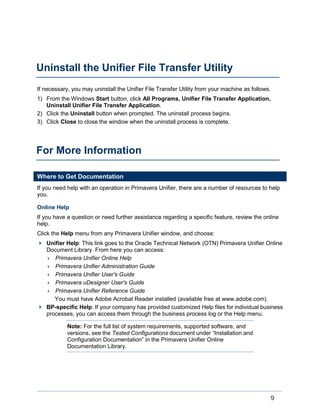
If necessary, you may uninstall the Unifier File Transfer Utility from your machine as follows.
1) From the Windows Start button, click All Programs, Unifier File Transfer Application,
Uninstall Unifier File Transfer Application.
2) Click the Uninstall button when prompted. The uninstall process begins.
3) Click Close to close the window when the uninstall process is complete.
Where to Get Documentation
If you need help with an operation in Primavera Unifier, there are a number of resources to help
you.
Online Help
If you have a question or need further assistance regarding a specific feature, review the online
help.
Click the Help menu from any Primavera Unifier window, and choose:
 Unifier Help: This link goes to the Oracle Technical Network (OTN) Primavera Unifier Online
Document Library. From here you can access:
 Primavera Unifier Online Help
 Primavera Unifier Administration Guide
 Primavera Unifier User's Guide
 Primavera uDesigner User's Guide
 Primavera Unifier Reference Guide
You must have Adobe Acrobat Reader installed (available free at www.adobe.com).
 BP-specific Help: If your company has provided customized Help files for individual business
processes, you can access them through the business process log or the Help menu.
Note: For the full list of system requirements, supported software, and
versions, see the Tested Configurations document under “Installation and
Configuration Documentation” in the Primavera Unifier Online
Documentation Library.
Uninstall the Unifier File Transfer Utility
For More Information
Unifier File Transfer Utility Instructions
10
Documentation
Note: Most documentation assumes a standard setup of the product with
full access rights to all features and functions.
For the most up-to-date versions of all manuals and technical documents related to installing,
administering, and using Primavera Unifier go to Primavera Unifier Online Documentation Library:
http://docs.oracle.com/cd/E51623_01/index.htm
(http://docs.oracle.com/cd/E51623_01/index.htm)
For all versions of all manuals and technical documents related to installing, administering, and
using all versions of Primavera Unifier go to the Primavera Unifier Documentation Libraries:
http://www.oracle.com/technetwork/documentation/default-1870233.html
You can also access the versions of the product manuals and technical documents that were
available at the time of the release from the Documentation Library by clicking index.htm in the
Documentation folder of the physical media or download.
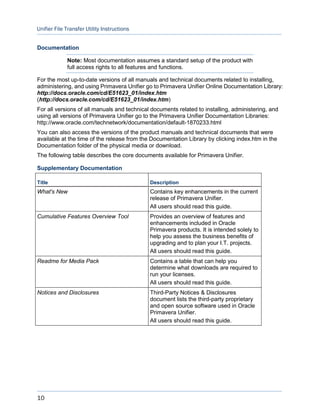
The following table describes the core documents available for Primavera Unifier.
Supplementary Documentation
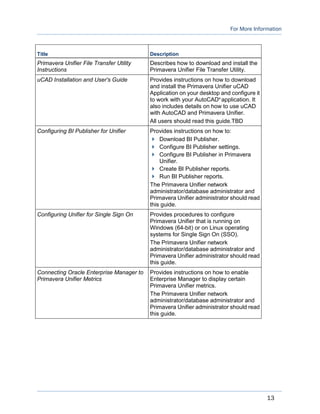
Title Description
What's New Contains key enhancements in the current
release of Primavera Unifier.
All users should read this guide.
Cumulative Features Overview Tool Provides an overview of features and
enhancements included in Oracle
Primavera products. It is intended solely to
help you assess the business benefits of
upgrading and to plan your I.T. projects.
All users should read this guide.
Readme for Media Pack Contains a table that can help you
determine what downloads are required to
run your licenses.
All users should read this guide.
Notices and Disclosures Third-Party Notices & Disclosures
document lists the third-party proprietary
and open source software used in Oracle
Primavera Unifier.
All users should read this guide.
For More Information
11
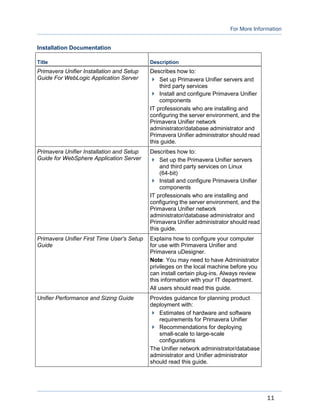
Installation Documentation
Title Description
Primavera Unifier Installation and Setup
Guide For WebLogic Application Server
Describes how to:
 Set up Primavera Unifier servers and
third party services
 Install and configure Primavera Unifier
components
IT professionals who are installing and
configuring the server environment, and the
Primavera Unifier network
administrator/database administrator and
Primavera Unifier administrator should read
this guide.
Primavera Unifier Installation and Setup
Guide for WebSphere Application Server
Describes how to:
 Set up the Primavera Unifier servers
and third party services on Linux
(64-bit)
 Install and configure Primavera Unifier
components
IT professionals who are installing and
configuring the server environment, and the
Primavera Unifier network
administrator/database administrator and
Primavera Unifier administrator should read
this guide.
Primavera Unifier First Time User's Setup
Guide
Explains how to configure your computer
for use with Primavera Unifier and
Primavera uDesigner.
Note: You may need to have Administrator
privileges on the local machine before you
can install certain plug-ins. Always review
this information with your IT department.
All users should read this guide.
Unifier Performance and Sizing Guide Provides guidance for planning product
deployment with:
 Estimates of hardware and software
requirements for Primavera Unifier
 Recommendations for deploying
small-scale to large-scale
configurations
The Unifier network administrator/database
administrator and Unifier administrator
should read this guide.
Unifier File Transfer Utility Instructions
12
Title Description
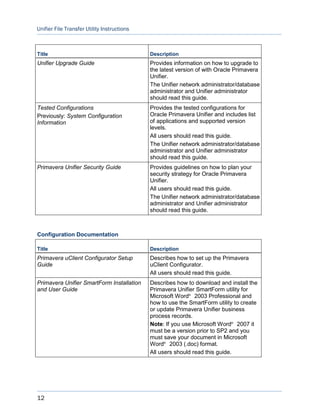
Unifier Upgrade Guide Provides information on how to upgrade to
the latest version of with Oracle Primavera
Unifier.
The Unifier network administrator/database
administrator and Unifier administrator
should read this guide.
Tested Configurations
Previously: System Configuration
Information
Provides the tested configurations for
Oracle Primavera Unifier and includes list
of applications and supported version
levels.
All users should read this guide.
The Unifier network administrator/database
administrator and Unifier administrator
should read this guide.
Primavera Unifier Security Guide Provides guidelines on how to plan your
security strategy for Oracle Primavera
Unifier.
All users should read this guide.
The Unifier network administrator/database
administrator and Unifier administrator
should read this guide.
Configuration Documentation
Title Description
Primavera uClient Configurator Setup
Guide
Describes how to set up the Primavera
uClient Configurator.
All users should read this guide.
Primavera Unifier SmartForm Installation
and User Guide
Describes how to download and install the
Primavera Unifier SmartForm utility for
Microsoft Word®
2003 Professional and
how to use the SmartForm utility to create
or update Primavera Unifier business
process records.
Note: If you use Microsoft Word®
2007 it
must be a version prior to SP2 and you
must save your document in Microsoft
Word®
2003 (.doc) format.
All users should read this guide.
For More Information
13
Title Description
Primavera Unifier File Transfer Utility
Instructions
Describes how to download and install the
Primavera Unifier File Transfer Utility.
uCAD Installation and User's Guide Provides instructions on how to download
and install the Primavera Unifier uCAD
Application on your desktop and configure it
to work with your AutoCAD®
application. It
also includes details on how to use uCAD
with AutoCAD and Primavera Unifier.
All users should read this guide.TBD
Configuring BI Publisher for Unifier Provides instructions on how to:
 Download BI Publisher.
 Configure BI Publisher settings.
 Configure BI Publisher in Primavera
Unifier.
 Create BI Publisher reports.
 Run BI Publisher reports.
The Primavera Unifier network
administrator/database administrator and
Primavera Unifier administrator should read
this guide.
Configuring Unifier for Single Sign On Provides procedures to configure
Primavera Unifier that is running on
Windows (64-bit) or on Linux operating
systems for Single Sign On (SSO).
The Primavera Unifier network
administrator/database administrator and
Primavera Unifier administrator should read
this guide.
Connecting Oracle Enterprise Manager to
Primavera Unifier Metrics
Provides instructions on how to enable
Enterprise Manager to display certain
Primavera Unifier metrics.
The Primavera Unifier network
administrator/database administrator and
Primavera Unifier administrator should read
this guide.
Unifier File Transfer Utility Instructions
14
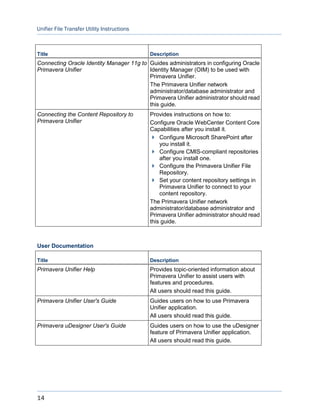
Title Description
Connecting Oracle Identity Manager 11g to
Primavera Unifier
Guides administrators in configuring Oracle
Identity Manager (OIM) to be used with
Primavera Unifier.
The Primavera Unifier network
administrator/database administrator and
Primavera Unifier administrator should read
this guide.
Connecting the Content Repository to
Primavera Unifier
Provides instructions on how to:
Configure Oracle WebCenter Content Core
Capabilities after you install it.
 Configure Microsoft SharePoint after
you install it.
 Configure CMIS-compliant repositories
after you install one.
 Configure the Primavera Unifier File
Repository.
 Set your content repository settings in
Primavera Unifier to connect to your
content repository.
The Primavera Unifier network
administrator/database administrator and
Primavera Unifier administrator should read
this guide.
User Documentation
Title Description
Primavera Unifier Help Provides topic-oriented information about
Primavera Unifier to assist users with
features and procedures.
All users should read this guide.
Primavera Unifier User's Guide Guides users on how to use Primavera
Unifier application.
All users should read this guide.
Primavera uDesigner User's Guide Guides users on how to use the uDesigner
feature of Primavera Unifier application.
All users should read this guide.
For More Information
15
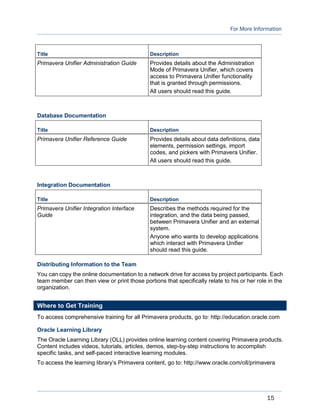
Title Description
Primavera Unifier Administration Guide Provides details about the Administration
Mode of Primavera Unifier, which covers
access to Primavera Unifier functionality
that is granted through permissions.
All users should read this guide.
Database Documentation
Title Description
Primavera Unifier Reference Guide Provides details about data definitions, data
elements, permission settings, import
codes, and pickers with Primavera Unifier.
All users should read this guide.
Integration Documentation
Title Description
Primavera Unifier Integration Interface
Guide
Describes the methods required for the
integration, and the data being passed,
between Primavera Unifier and an external
system.
Anyone who wants to develop applications
which interact with Primavera Unifier
should read this guide.
Distributing Information to the Team
You can copy the online documentation to a network drive for access by project participants. Each
team member can then view or print those portions that specifically relate to his or her role in the
organization.
Where to Get Training
To access comprehensive training for all Primavera products, go to: http://education.oracle.com
Oracle Learning Library
The Oracle Learning Library (OLL) provides online learning content covering Primavera products.
Content includes videos, tutorials, articles, demos, step-by-step instructions to accomplish
specific tasks, and self-paced interactive learning modules.
To access the learning library’s Primavera content, go to: http://www.oracle.com/oll/primavera
Unifier File Transfer Utility Instructions
16
Where to Get Support
If you have a question about using Oracle products that you or your network administrator cannot
resolve with information in the documentation or help, click http://support.oracle.com/. This page
provides the latest information on contacting Oracle Global Customer Support, knowledge
articles, and the support renewals process. For more information about working with Support, visit
https://support.oracle.com/epmos/faces/DocumentDisplay?id=888813.2 to view Support Tools
& Tips.
Access to Oracle Support
Oracle customers have access to electronic support through My Oracle Support. For information,
visit http://www.oracle.com/us/support/contact-068555.html or visit
http://www.oracle.com/us/corporate/accessibility/support/index.html if you are hearing impaired.
Using Primavera's Support Resource Centers
Primavera’s Support Resource Center provides links to important support and product
information. Primavera's Product Information Centers (PICs) organize documents found on My
Oracle Support (MOS), providing quick access to product and version specific information such as
important knowledge documents, Release Value Propositions, and Oracle University training.
PICs also offer documentation on Lifetime Management, from planning to installs, upgrades, and
maintenance.
Visit https://support.oracle.com/epmos/faces/DocumentDisplay?id=1486951.1 to access links to
all of the current PICs.
PICs also provide access to:
 Communities, which are moderated by Oracle providing a place for collaboration among
industry peers to share best practices.
 News from our development and strategy groups.
 Education via a list of available Primavera product trainings through Oracle University. The
Oracle Advisor Webcast program brings interactive expertise straight to the desktop using
Oracle Web Conferencing technology. This capability brings you and Oracle experts together
to access information about support services, products, technologies, best practices, and
more.
Additional Support
The following is a list of additional support are available in Unifier:
 Unifier Help
 Unifier Library
 Contact Support
 Download Plugins
 About Unifier
For More Information
17
Note: The Contact Support and Download Plugins options both open a
single window, Support. The only difference is as follows:
- Contact Support opens the Contact tab of the Support window by default
- Download Plugins opens the Download tab of the Support window by
default
Unifier Help
Click Help from the upper right-hand section of the Unifier window to open a contextual menu and
click Unifier Help to open the Unifier and uDesigner Help.
Unifier Library
Click Help from the upper right-hand section of the Unifier window to open a contextual menu and
click Unifier Library to open the Unifier documentation library.
Contact Support
Click Help from the upper right-hand section of the Unifier window to open a contextual menu and
click Contact Support to open the Support window.
The Support window has two tabs:
 Contact, which opens by default
 Download
In the Contact tab, Contact Information section, you can see the name, phone, and contact
instructions of someone at your company that you can contact when you need help with Primavera
Unifier. For assistance, try this person, first.
Note: This information is available only if your company administrator has
provided internal support contact information.
In the Contact tab, eLearning section, you see the location (Access), name of the contact
(Contact), and any instructions that you might need in order to access the eLearning materials.
Note: Your company may elect to provide access to the eLearning suite,
where you can access interactive Primavera Unifier learning materials.
Alternatively, your company may have its own customized support or
training materials that can be accessed on an internal site/location. If your
company administrator provides this contact information, it will be listed at
the bottom of the window.
In the Download tab, Download section, you can see a list of the following application and plug-ins
available to download, with installation instructions.
 File Transfer Application
 Unifier uCAD Plug-in
 Unifier SmartFOrm Plug-in
Each application and plug-in has two options:
 Download
Unifier File Transfer Utility Instructions
18
 Installation instructions
Follow the links within each option to proceed.
Download Plugins
Click Help from the upper right-hand section of the Unifier window to open a contextual menu and
click Download Plugins to open the Support window.
The Support window has two tabs:
 Contact
 Download, which opens by default
In the Download tab, Download section, you can see a list of the following application and plug-ins
available to download, with installation instructions.
 File Transfer Application
 Unifier uCAD Plug-in
 Unifier SmartFOrm Plug-in
Each application and plug-in has two options:
 Download
 Installation instructions
Follow the links within each option to proceed.
In the Contact tab, Contact Information section, you can see the name, phone, and contact
instructions of someone at your company that you can contact when you need help with Primavera
Unifier. For assistance, try this person, first.
Note: This information is available only if your company administrator has
provided internal support contact information.
In the Contact tab, eLearning section, you see the location (Access), name of the contact
(Contact), and any instructions that you might need in order to access the eLearning materials.
Note: Your company may elect to provide access to the eLearning suite,
where you can access interactive Primavera Unifier learning materials.
Alternatively, your company may have its own customized support or
training materials that can be accessed on an internal site/location. If your
company administrator provides this contact information, it will be listed at
the bottom of the window.
About Unifier
Click Help from the upper right-hand section of the Unifier window to open a contextual menu and
click About Unifier to access version number, copyright information, and software agreement
details for the Oracle Primavera Unifier.
19
Oracle Primavera Unifier File Transfer Utility Instructions
Copyright © 1998, 2014, Oracle and/or its affiliates. All rights reserved.
Oracle and Java are registered trademarks of Oracle and/or its affiliates. Other names may be
trademarks of their respective owners.
This software and related documentation are provided under a license agreement containing
restrictions on use and disclosure and are protected by intellectual property laws. Except as
expressly permitted in your license agreement or allowed by law, you may not use, copy,
reproduce, translate, broadcast, modify, license, transmit, distribute, exhibit, perform, publish or
display any part, in any form, or by any means. Reverse engineering, disassembly, or
decompilation of this software, unless required by law for interoperability, is prohibited.
The information contained herein is subject to change without notice and is not warranted to be
error-free. If you find any errors, please report them to us in writing.
If this is software or related documentation that is delivered to the U.S. Government or anyone
licensing it on behalf of the U.S. Government, the following notice is applicable:
U.S. GOVERNMENT END USERS: Oracle programs, including any operating system, integrated
software, any programs installed on the hardware, and/or documentation, delivered to U.S.
Government end users are “commercial computer software" pursuant to the applicable Federal
Acquisition Regulation and agency-specific supplemental regulations. As such, use, duplication,
disclosure, modification, and adaptation of the programs, including any operating system,
integrated software, any programs installed on the hardware, and/or documentation, shall be
subject to license terms and license restrictions applicable to the programs. No other rights are
granted to the U.S. Government.
This software or hardware is developed for general use in a variety of information management
applications. It is not developed or intended for use in any inherently dangerous applications,
including applications that may create a risk of personal injury. If you use this software or hardware
in dangerous applications, then you shall be responsible to take all appropriate failsafe, backup,
redundancy, and other measures to ensure its safe use. Oracle Corporation and its affiliates
disclaim any liability for any damages caused by use of this software or hardware in dangerous
applications.
This software or hardware and documentation may provide access to or information on content,
products and services from third-parties. Oracle Corporation and its affiliates are not responsible
for and expressly disclaim all warranties of any kind with respect to third-party content, products,
and services. Oracle Corporation and its affiliates will not be responsible for any loss, costs, or
damages incurred due to your access to or use of third-party content, products, or services.
Legal Notices

Primavera unifier file transfer_application_instructions

  • 1.
    U Un ni if fi ie er r F Fi il le e T Tr ra an ns sf fe er rU Ut ti il li it ty y I In ns st tr ru uc ct ti io on ns s R Re el le ea as se e 1 10 0. .0 0 J Ju un ne e 2 20 01 14 4
  • 3.
    3 Contents Introduction ...................................................................................................................................... 5 Aboutthe Unifier File Transfer Utility ............................................................................................... 5 Installation Instructions.................................................................................................................... 5 Download and Install Java................................................................................................................ 6 Download and Install Unifier File Transfer Utility ............................................................................ 7 Choose Advanced File Transfer Option............................................................................................ 7 Uninstall the Unifier File Transfer Utility ........................................................................................... 9 For More Information........................................................................................................................ 9 Where to Get Documentation........................................................................................................... 9 Where to Get Training .....................................................................................................................15 Where to Get Support .....................................................................................................................16 Additional Support...........................................................................................................................16 Legal Notices .................................................................................................................................. 19
  • 5.
    5 This guide describeshow to download and install the Primavera Unifier File Transfer Utility. In This Section About the Unifier File Transfer Utility .........................................................................5 About the Unifier File Transfer Utility The Unifier File Transfer Utility is used with the Oracle Java SE Runtime Environment (Java) for transferring files between your local file system and Unifier. Examples of file transfers include attaching files to business process forms, cost sheets, funding sheets, schedule sheets, and uMail messages; and uploading and downloading files to and from Unifier Document Manager, which manages project documents for access and collaboration by project team members. Unifier users can choose between three methods of transferring files. The File Transfer option you choose determines how documents, spreadsheets, drawings and other files are transferred between your local machine and Primavera Unifier. The File Transfer options are:  Basic: HTML-based, does not require the installation of special software  Intermediate: requires installation of Java  Advanced: requires installation of Java and the Primavera Unifier File Transfer Utility With the Advanced option, the Unifier File Transfer Utility works in conjunction with Java to provide the greatest flexibility for uploading and downloading documents and folders. It supports drag-and-drop uploading/downloading of multiple files and folders. Its advanced functionality for managing reference file relationships in DWG and DGN drawing files makes it easier for users to locate, upload, revise and download reference files. If you are using the Space Manager, the Advanced option must be used for uploading drawing files into the Space Manager. The File Transfer option is selected in the Options tab of the User Preferences window. The Advanced option is the default File Transfer selection for new users. Introduction Installation Instructions
  • 6.
    Unifier File TransferUtility Instructions 6 These instructions are for new and existing Unifier users who are installing or updating Unifier File Transfer Utility. If you have a previous release already installed on your system, the installation of a newer release will automatically override the previous version. It is not necessary to uninstall previous versions to upgrade. For the full list of system requirements, supported software, and versions, see the Tested Configurations document under “Installation and Configuration Documentation” in the Primavera Unifier Online Documentation Library. Note: The Unifier File Transfer Utility and Java are installed locally and run as client-side applications on your local system. If you access Unifier from a different computer where you have not installed these applications, and attempt to upload, download or attach files, you will be presented with a screen suggesting installation of Java. A special copy of JRE is installed automatically together with the file transfer utility.To use this utility, you must install the Unifier File Transfer Utility on each computer you access. Alternatively, if you do not wish to install Java on other computers, you can switch your File Transfer Option (in User Preferences) to "Basic" to use the HTML-based method which does not require the utility installed separately. Download and Install Java Oracle Java SE Runtime Environment (Java), formerly known as JRE, is required if you are using the Intermediate or Advanced file transfer option, using the AutoVue viewer for graphic markups of documents within Primavera Unifier, or running custom reports in Primavera Unifier. The Advanced file transfer option also requires the download and installation of Primavera Unifier File Transfer Utility (FTU). The latest version of the FTU is available in this release of Primavera Unifier. A previous FTU version may be compatible with the Primavera Unifier features you are using. If an upgrade to the latest version is required, you will be prompted to download and install it. (You will not need to uninstall the previous version first.) Supported Java versions Use the version of Java mentioned in the Tested Configurations document. Download and install the latest version of Java SE 1) Sign out of Unifier, if you are currently signed in. 2) In your browser, go to http://www.oracle.com/technetwork/java/javase/downloads/index.html?ssSourceSiteId=otnjp. 3) Download JRE for Java SE Note: For the Java SE version, refer to the Tested Configurations document. Configure Java SE Runtime Environment 1) After installing Java, go to the Control Panel on your computer and open Java
  • 7.
    Installation Instructions 7 2) InJava Control Panel window, click the Java tab, and click View 3) On the User tab, ensure that the Java that you have installed is marked enabled or selected 4) Click OK to go back to Java Control Panel 5) Click the Advanced tab, scroll to Default Java for browsers field, and ensure that:  Microsoft Internet Explorer option is selected  Mozilla family option is selected 6) Click OK, close the Control Panel on your computer, and close all open browsers Download and Install Unifier File Transfer Utility After you have verified that you have the Java on your machine, you are ready to download and install the Unifier File Transfer Utility. To download the Unifier File Transfer Utility 1) Sign in to Unifier. 2) In the Unifier, click Help and select Contact Support. The Support window opens. 3) Click the Download tab. 4) Click the link, Click here to download the application required for Advanced File Transfer Option. The File Download screen opens. 5) Select Save to save the FileTransferSetup.zip file to a location on your local file system. This zip file contains the installation file. 6) Double-click the FileTransferSetup.zip file to unzip the installation file (UnifierFileTransferApp.exe) to a location on your local system. To install the Unifier file transfer option: 1) Sign out of the Unifier system. Close any other open applications and all browser windows. 2) Double-click the installation file UnifierFileTransferApp.exe to begin the installation. The FileTransferSetup window opens. 3) Double-click the UnifierFileTransferApp.exe file to start the installation. The Welcome screen of the Unifier File Transfer Application Setup Wizard opens. 4) Click Next to continue. The File Transfer Utility Installation Options window opens; the File Transfer Utility Files option is selected by default. 5) Click Install to start the installation process. If you have a previous version of the File Transfer Utility already installed, this installation will replace the existing files. 6) The Installation Summary window displays when the Unifier File Transfer utility is successfully installed. Click Next. 7) When the installation is complete, the final Unifier File Transfer Utility Setup Wizard window opens. Click Finish to exit the setup window. 8) Close any windows that may remain open on the desktop upon completion of the installation. Choose Advanced File Transfer Option If you have not already done so, make sure your File Transfer option is set to Advanced in order to use the File Transfer Utility.
  • 8.
    Unifier File TransferUtility Instructions 8 To select the Advanced File Transfer option: 1) Open a new browser window and sign in to Unifier 2) Go to Preferences 3) Go to Options tab 4) From File Transfer Option drop-down list select Advanced 5) Click Apply and then click OK
  • 9.
    9 If necessary, youmay uninstall the Unifier File Transfer Utility from your machine as follows. 1) From the Windows Start button, click All Programs, Unifier File Transfer Application, Uninstall Unifier File Transfer Application. 2) Click the Uninstall button when prompted. The uninstall process begins. 3) Click Close to close the window when the uninstall process is complete. Where to Get Documentation If you need help with an operation in Primavera Unifier, there are a number of resources to help you. Online Help If you have a question or need further assistance regarding a specific feature, review the online help. Click the Help menu from any Primavera Unifier window, and choose:  Unifier Help: This link goes to the Oracle Technical Network (OTN) Primavera Unifier Online Document Library. From here you can access:  Primavera Unifier Online Help  Primavera Unifier Administration Guide  Primavera Unifier User's Guide  Primavera uDesigner User's Guide  Primavera Unifier Reference Guide You must have Adobe Acrobat Reader installed (available free at www.adobe.com).  BP-specific Help: If your company has provided customized Help files for individual business processes, you can access them through the business process log or the Help menu. Note: For the full list of system requirements, supported software, and versions, see the Tested Configurations document under “Installation and Configuration Documentation” in the Primavera Unifier Online Documentation Library. Uninstall the Unifier File Transfer Utility For More Information
  • 10.
    Unifier File TransferUtility Instructions 10 Documentation Note: Most documentation assumes a standard setup of the product with full access rights to all features and functions. For the most up-to-date versions of all manuals and technical documents related to installing, administering, and using Primavera Unifier go to Primavera Unifier Online Documentation Library: http://docs.oracle.com/cd/E51623_01/index.htm (http://docs.oracle.com/cd/E51623_01/index.htm) For all versions of all manuals and technical documents related to installing, administering, and using all versions of Primavera Unifier go to the Primavera Unifier Documentation Libraries: http://www.oracle.com/technetwork/documentation/default-1870233.html You can also access the versions of the product manuals and technical documents that were available at the time of the release from the Documentation Library by clicking index.htm in the Documentation folder of the physical media or download. The following table describes the core documents available for Primavera Unifier. Supplementary Documentation Title Description What's New Contains key enhancements in the current release of Primavera Unifier. All users should read this guide. Cumulative Features Overview Tool Provides an overview of features and enhancements included in Oracle Primavera products. It is intended solely to help you assess the business benefits of upgrading and to plan your I.T. projects. All users should read this guide. Readme for Media Pack Contains a table that can help you determine what downloads are required to run your licenses. All users should read this guide. Notices and Disclosures Third-Party Notices & Disclosures document lists the third-party proprietary and open source software used in Oracle Primavera Unifier. All users should read this guide.
  • 11.
    For More Information 11 InstallationDocumentation Title Description Primavera Unifier Installation and Setup Guide For WebLogic Application Server Describes how to:  Set up Primavera Unifier servers and third party services  Install and configure Primavera Unifier components IT professionals who are installing and configuring the server environment, and the Primavera Unifier network administrator/database administrator and Primavera Unifier administrator should read this guide. Primavera Unifier Installation and Setup Guide for WebSphere Application Server Describes how to:  Set up the Primavera Unifier servers and third party services on Linux (64-bit)  Install and configure Primavera Unifier components IT professionals who are installing and configuring the server environment, and the Primavera Unifier network administrator/database administrator and Primavera Unifier administrator should read this guide. Primavera Unifier First Time User's Setup Guide Explains how to configure your computer for use with Primavera Unifier and Primavera uDesigner. Note: You may need to have Administrator privileges on the local machine before you can install certain plug-ins. Always review this information with your IT department. All users should read this guide. Unifier Performance and Sizing Guide Provides guidance for planning product deployment with:  Estimates of hardware and software requirements for Primavera Unifier  Recommendations for deploying small-scale to large-scale configurations The Unifier network administrator/database administrator and Unifier administrator should read this guide.
  • 12.
    Unifier File TransferUtility Instructions 12 Title Description Unifier Upgrade Guide Provides information on how to upgrade to the latest version of with Oracle Primavera Unifier. The Unifier network administrator/database administrator and Unifier administrator should read this guide. Tested Configurations Previously: System Configuration Information Provides the tested configurations for Oracle Primavera Unifier and includes list of applications and supported version levels. All users should read this guide. The Unifier network administrator/database administrator and Unifier administrator should read this guide. Primavera Unifier Security Guide Provides guidelines on how to plan your security strategy for Oracle Primavera Unifier. All users should read this guide. The Unifier network administrator/database administrator and Unifier administrator should read this guide. Configuration Documentation Title Description Primavera uClient Configurator Setup Guide Describes how to set up the Primavera uClient Configurator. All users should read this guide. Primavera Unifier SmartForm Installation and User Guide Describes how to download and install the Primavera Unifier SmartForm utility for Microsoft Word® 2003 Professional and how to use the SmartForm utility to create or update Primavera Unifier business process records. Note: If you use Microsoft Word® 2007 it must be a version prior to SP2 and you must save your document in Microsoft Word® 2003 (.doc) format. All users should read this guide.
  • 13.
    For More Information 13 TitleDescription Primavera Unifier File Transfer Utility Instructions Describes how to download and install the Primavera Unifier File Transfer Utility. uCAD Installation and User's Guide Provides instructions on how to download and install the Primavera Unifier uCAD Application on your desktop and configure it to work with your AutoCAD® application. It also includes details on how to use uCAD with AutoCAD and Primavera Unifier. All users should read this guide.TBD Configuring BI Publisher for Unifier Provides instructions on how to:  Download BI Publisher.  Configure BI Publisher settings.  Configure BI Publisher in Primavera Unifier.  Create BI Publisher reports.  Run BI Publisher reports. The Primavera Unifier network administrator/database administrator and Primavera Unifier administrator should read this guide. Configuring Unifier for Single Sign On Provides procedures to configure Primavera Unifier that is running on Windows (64-bit) or on Linux operating systems for Single Sign On (SSO). The Primavera Unifier network administrator/database administrator and Primavera Unifier administrator should read this guide. Connecting Oracle Enterprise Manager to Primavera Unifier Metrics Provides instructions on how to enable Enterprise Manager to display certain Primavera Unifier metrics. The Primavera Unifier network administrator/database administrator and Primavera Unifier administrator should read this guide.
  • 14.
    Unifier File TransferUtility Instructions 14 Title Description Connecting Oracle Identity Manager 11g to Primavera Unifier Guides administrators in configuring Oracle Identity Manager (OIM) to be used with Primavera Unifier. The Primavera Unifier network administrator/database administrator and Primavera Unifier administrator should read this guide. Connecting the Content Repository to Primavera Unifier Provides instructions on how to: Configure Oracle WebCenter Content Core Capabilities after you install it.  Configure Microsoft SharePoint after you install it.  Configure CMIS-compliant repositories after you install one.  Configure the Primavera Unifier File Repository.  Set your content repository settings in Primavera Unifier to connect to your content repository. The Primavera Unifier network administrator/database administrator and Primavera Unifier administrator should read this guide. User Documentation Title Description Primavera Unifier Help Provides topic-oriented information about Primavera Unifier to assist users with features and procedures. All users should read this guide. Primavera Unifier User's Guide Guides users on how to use Primavera Unifier application. All users should read this guide. Primavera uDesigner User's Guide Guides users on how to use the uDesigner feature of Primavera Unifier application. All users should read this guide.
  • 15.
    For More Information 15 TitleDescription Primavera Unifier Administration Guide Provides details about the Administration Mode of Primavera Unifier, which covers access to Primavera Unifier functionality that is granted through permissions. All users should read this guide. Database Documentation Title Description Primavera Unifier Reference Guide Provides details about data definitions, data elements, permission settings, import codes, and pickers with Primavera Unifier. All users should read this guide. Integration Documentation Title Description Primavera Unifier Integration Interface Guide Describes the methods required for the integration, and the data being passed, between Primavera Unifier and an external system. Anyone who wants to develop applications which interact with Primavera Unifier should read this guide. Distributing Information to the Team You can copy the online documentation to a network drive for access by project participants. Each team member can then view or print those portions that specifically relate to his or her role in the organization. Where to Get Training To access comprehensive training for all Primavera products, go to: http://education.oracle.com Oracle Learning Library The Oracle Learning Library (OLL) provides online learning content covering Primavera products. Content includes videos, tutorials, articles, demos, step-by-step instructions to accomplish specific tasks, and self-paced interactive learning modules. To access the learning library’s Primavera content, go to: http://www.oracle.com/oll/primavera
  • 16.
    Unifier File TransferUtility Instructions 16 Where to Get Support If you have a question about using Oracle products that you or your network administrator cannot resolve with information in the documentation or help, click http://support.oracle.com/. This page provides the latest information on contacting Oracle Global Customer Support, knowledge articles, and the support renewals process. For more information about working with Support, visit https://support.oracle.com/epmos/faces/DocumentDisplay?id=888813.2 to view Support Tools & Tips. Access to Oracle Support Oracle customers have access to electronic support through My Oracle Support. For information, visit http://www.oracle.com/us/support/contact-068555.html or visit http://www.oracle.com/us/corporate/accessibility/support/index.html if you are hearing impaired. Using Primavera's Support Resource Centers Primavera’s Support Resource Center provides links to important support and product information. Primavera's Product Information Centers (PICs) organize documents found on My Oracle Support (MOS), providing quick access to product and version specific information such as important knowledge documents, Release Value Propositions, and Oracle University training. PICs also offer documentation on Lifetime Management, from planning to installs, upgrades, and maintenance. Visit https://support.oracle.com/epmos/faces/DocumentDisplay?id=1486951.1 to access links to all of the current PICs. PICs also provide access to:  Communities, which are moderated by Oracle providing a place for collaboration among industry peers to share best practices.  News from our development and strategy groups.  Education via a list of available Primavera product trainings through Oracle University. The Oracle Advisor Webcast program brings interactive expertise straight to the desktop using Oracle Web Conferencing technology. This capability brings you and Oracle experts together to access information about support services, products, technologies, best practices, and more. Additional Support The following is a list of additional support are available in Unifier:  Unifier Help  Unifier Library  Contact Support  Download Plugins  About Unifier
  • 17.
    For More Information 17 Note:The Contact Support and Download Plugins options both open a single window, Support. The only difference is as follows: - Contact Support opens the Contact tab of the Support window by default - Download Plugins opens the Download tab of the Support window by default Unifier Help Click Help from the upper right-hand section of the Unifier window to open a contextual menu and click Unifier Help to open the Unifier and uDesigner Help. Unifier Library Click Help from the upper right-hand section of the Unifier window to open a contextual menu and click Unifier Library to open the Unifier documentation library. Contact Support Click Help from the upper right-hand section of the Unifier window to open a contextual menu and click Contact Support to open the Support window. The Support window has two tabs:  Contact, which opens by default  Download In the Contact tab, Contact Information section, you can see the name, phone, and contact instructions of someone at your company that you can contact when you need help with Primavera Unifier. For assistance, try this person, first. Note: This information is available only if your company administrator has provided internal support contact information. In the Contact tab, eLearning section, you see the location (Access), name of the contact (Contact), and any instructions that you might need in order to access the eLearning materials. Note: Your company may elect to provide access to the eLearning suite, where you can access interactive Primavera Unifier learning materials. Alternatively, your company may have its own customized support or training materials that can be accessed on an internal site/location. If your company administrator provides this contact information, it will be listed at the bottom of the window. In the Download tab, Download section, you can see a list of the following application and plug-ins available to download, with installation instructions.  File Transfer Application  Unifier uCAD Plug-in  Unifier SmartFOrm Plug-in Each application and plug-in has two options:  Download
  • 18.
    Unifier File TransferUtility Instructions 18  Installation instructions Follow the links within each option to proceed. Download Plugins Click Help from the upper right-hand section of the Unifier window to open a contextual menu and click Download Plugins to open the Support window. The Support window has two tabs:  Contact  Download, which opens by default In the Download tab, Download section, you can see a list of the following application and plug-ins available to download, with installation instructions.  File Transfer Application  Unifier uCAD Plug-in  Unifier SmartFOrm Plug-in Each application and plug-in has two options:  Download  Installation instructions Follow the links within each option to proceed. In the Contact tab, Contact Information section, you can see the name, phone, and contact instructions of someone at your company that you can contact when you need help with Primavera Unifier. For assistance, try this person, first. Note: This information is available only if your company administrator has provided internal support contact information. In the Contact tab, eLearning section, you see the location (Access), name of the contact (Contact), and any instructions that you might need in order to access the eLearning materials. Note: Your company may elect to provide access to the eLearning suite, where you can access interactive Primavera Unifier learning materials. Alternatively, your company may have its own customized support or training materials that can be accessed on an internal site/location. If your company administrator provides this contact information, it will be listed at the bottom of the window. About Unifier Click Help from the upper right-hand section of the Unifier window to open a contextual menu and click About Unifier to access version number, copyright information, and software agreement details for the Oracle Primavera Unifier.
  • 19.
    19 Oracle Primavera UnifierFile Transfer Utility Instructions Copyright © 1998, 2014, Oracle and/or its affiliates. All rights reserved. Oracle and Java are registered trademarks of Oracle and/or its affiliates. Other names may be trademarks of their respective owners. This software and related documentation are provided under a license agreement containing restrictions on use and disclosure and are protected by intellectual property laws. Except as expressly permitted in your license agreement or allowed by law, you may not use, copy, reproduce, translate, broadcast, modify, license, transmit, distribute, exhibit, perform, publish or display any part, in any form, or by any means. Reverse engineering, disassembly, or decompilation of this software, unless required by law for interoperability, is prohibited. The information contained herein is subject to change without notice and is not warranted to be error-free. If you find any errors, please report them to us in writing. If this is software or related documentation that is delivered to the U.S. Government or anyone licensing it on behalf of the U.S. Government, the following notice is applicable: U.S. GOVERNMENT END USERS: Oracle programs, including any operating system, integrated software, any programs installed on the hardware, and/or documentation, delivered to U.S. Government end users are “commercial computer software" pursuant to the applicable Federal Acquisition Regulation and agency-specific supplemental regulations. As such, use, duplication, disclosure, modification, and adaptation of the programs, including any operating system, integrated software, any programs installed on the hardware, and/or documentation, shall be subject to license terms and license restrictions applicable to the programs. No other rights are granted to the U.S. Government. This software or hardware is developed for general use in a variety of information management applications. It is not developed or intended for use in any inherently dangerous applications, including applications that may create a risk of personal injury. If you use this software or hardware in dangerous applications, then you shall be responsible to take all appropriate failsafe, backup, redundancy, and other measures to ensure its safe use. Oracle Corporation and its affiliates disclaim any liability for any damages caused by use of this software or hardware in dangerous applications. This software or hardware and documentation may provide access to or information on content, products and services from third-parties. Oracle Corporation and its affiliates are not responsible for and expressly disclaim all warranties of any kind with respect to third-party content, products, and services. Oracle Corporation and its affiliates will not be responsible for any loss, costs, or damages incurred due to your access to or use of third-party content, products, or services. Legal Notices