Case Study
Operating System : Linux
1

By:
Veeral Bhateja
Features of modern OS






2

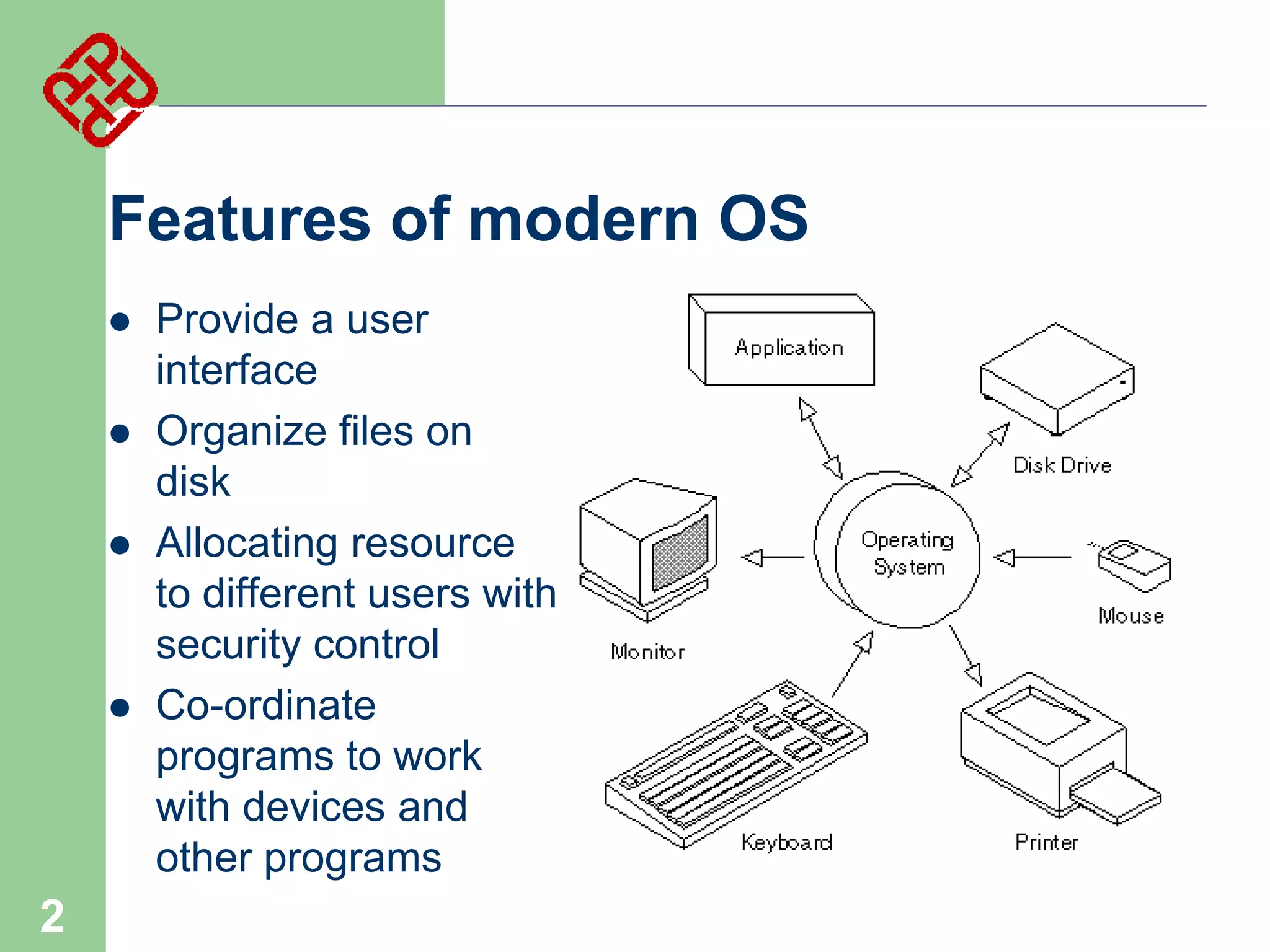
Provide a user
interface
Organize files on
disk
Allocating resource
to different users with
security control
Co-ordinate
programs to work
with devices and
other programs
Linux:
A. Development of Linux

3


Before Linux
–
–
–
–
–

4

In 80’s, Microsoft’s DOS was the dominated OS for
PC
Apple MAC is better, but expensive
UNIX is much better, but much much expensive. Only
for minicomputer for commercial applications
People was looking for a UNIX based system, which
is cheaper and can run on PC
Both DOS, MAC and UNIX are proprietary, i.e., the
source code of their kernel is protected
– No modification is possible without paying high
license fees


GNU project
–

–
–
–

–

5

Established in 1984 by Richard Stallman, who
believes that software should be free from restrictions
against copying or modification in order to make
better and efficient computer programs
GNU is a recursive acronym for “GNU's Not Unix”
Aim at developing a complete Unix-like operating
system which is free for copying and modification
Companies make their money by maintaining and
distributing the software, e.g. optimally packaging the
software with different tools (Redhat, Slackware,
Mandrake, SuSE, etc)
Stallman built the first free GNU C Compiler in 1991.
But still, an OS was yet to be developed


Beginning of Linux
–
–
–

–

–

6

A famous professor Andrew Tanenbaum developed
Minix, a simplified version of UNIX that runs on PC
Minix is for class teaching only. No intention for
commercial use
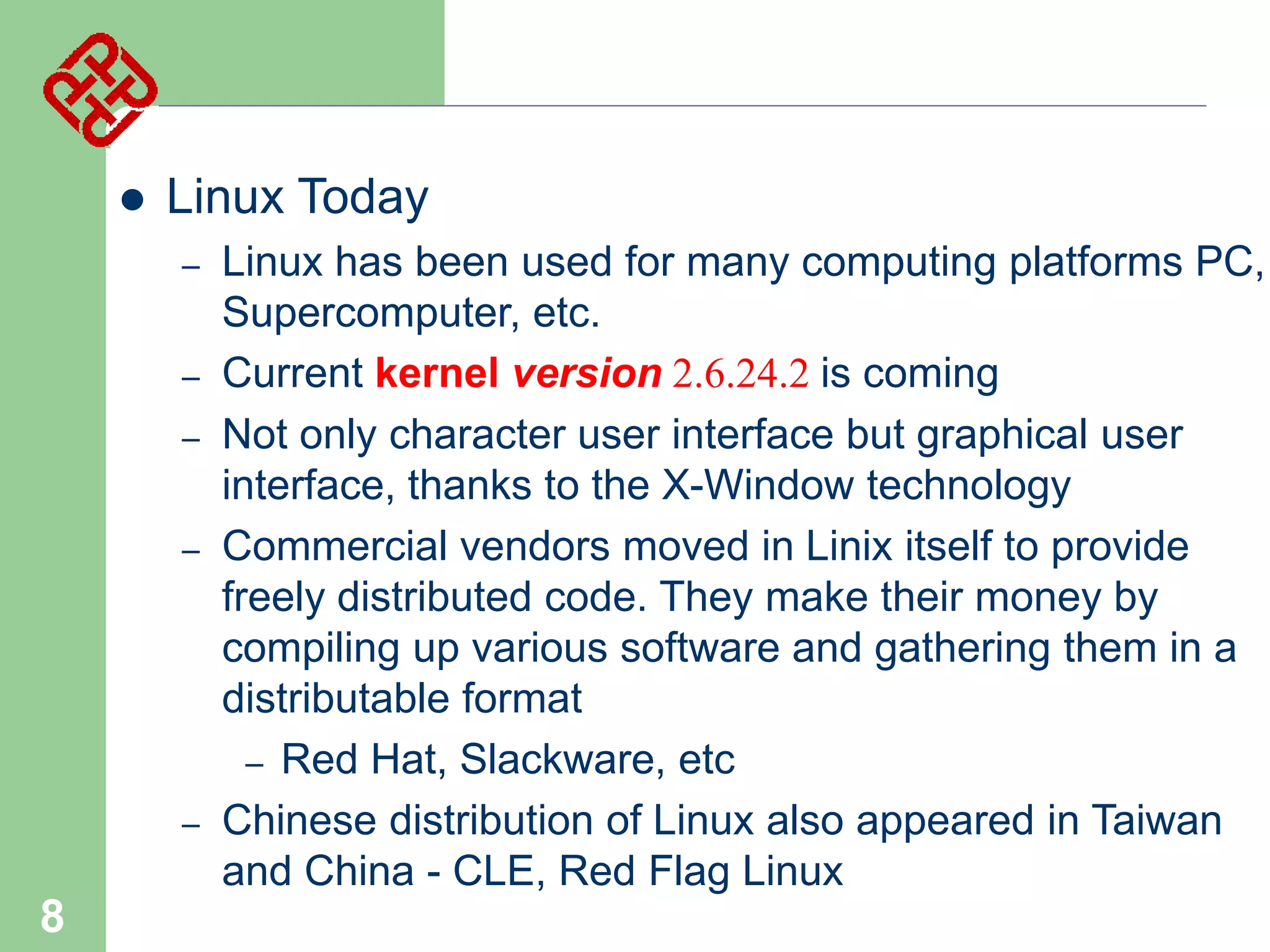
In Sept 1991, Linus Torvalds, a second year student
of Computer Science at the University of Helsinki,
developed the preliminary kernel of Linux, known as
Linux version 0.0.1
It was put to the Internet and received
enormous response from worldwide
software developers
By December came version 0.10. Still
Linux was little more than in skeletal form.


Confrontation and Development
–

Message from Professor Andrew Tanenbaum
–

–

–

–

7

" I still maintain the point that designing a monolithic kernel in
1991 is a fundamental error. Be thankful you are not my
student. You would not get a high grade for such a design :-)"
(Andrew Tanenbaum to Linus Torvalds)
"Linux is obsolete".
(Remark made by Andrew Tanenbaum)

But work went on. Soon more than a hundred people
joined the Linux camp. Then thousands. Then
hundreds of thousands
It was licensed under GNU General Public License,
thus ensuring that the source codes will be free for all
to copy, study and to change.


Linux Today
–
–
–

–

–

8

Linux has been used for many computing platforms PC,
Supercomputer, etc.
Current kernel version 2.6.24.2 is coming
Not only character user interface but graphical user
interface, thanks to the X-Window technology
Commercial vendors moved in Linix itself to provide
freely distributed code. They make their money by
compiling up various software and gathering them in a
distributable format
– Red Hat, Slackware, etc
Chinese distribution of Linux also appeared in Taiwan
and China - CLE, Red Flag Linux
Linux Pros and Cons


Advantages over Windows
–
–
–
–
–

It's almost free to relatively inexpensive
Source code is included
Bugs are fixed quickly and help is readily available
through the vast support in Internet
Linux is more stable than Windows
Linux is truly multi-user and multi-tasking
–
–

–

9

multiuser: OS that can simultaneously serve a number of users
multitasking: OS that can simultaneously execute a number of
programs

Linux runs on equipment that other operating systems
consider too underpowered, e.g. 386 systems, PDA, etc
Linux Pros and Cons (Cont)


Disadvantages compared with Windows
–
–
–
–





10

My program cannot run on Linux
Isn't as popular as Windows
No one commercial company is responsible for Linux
Linux is relatively hard to install, learn and use

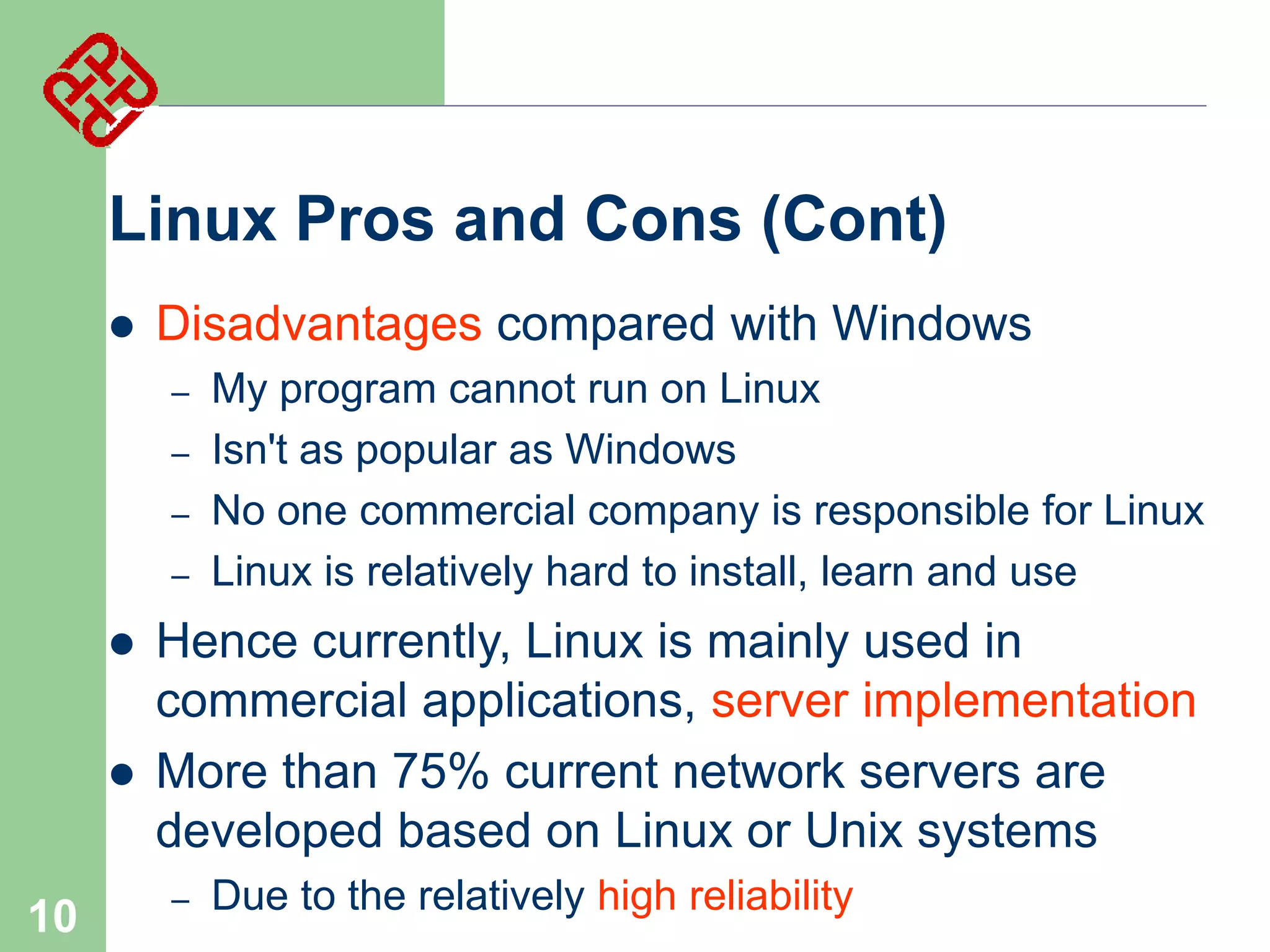
Hence currently, Linux is mainly used in
commercial applications, server implementation
More than 75% current network servers are
developed based on Linux or Unix systems
–

Due to the relatively high reliability
Linux:

Customer

11
12
Linux:

Security Enhanced Linux
(SELinux)
13
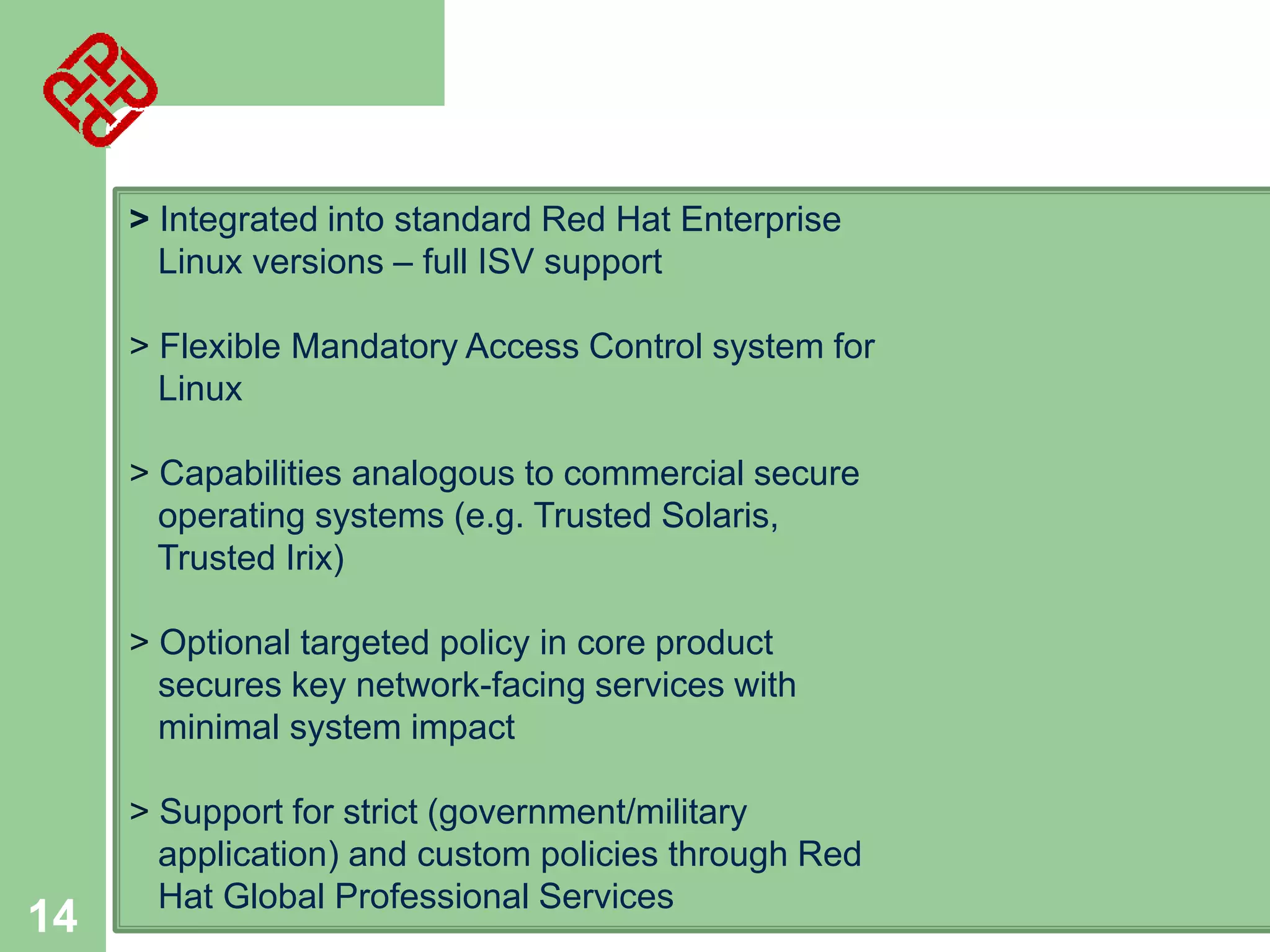
> Integrated into standard Red Hat Enterprise
Linux versions – full ISV support
> Flexible Mandatory Access Control system for
Linux
> Capabilities analogous to commercial secure
operating systems (e.g. Trusted Solaris,
Trusted Irix)
> Optional targeted policy in core product
secures key network-facing services with
minimal system impact

14

> Support for strict (government/military
application) and custom policies through Red
Hat Global Professional Services
Linux:
B. Linux System Architecture

15
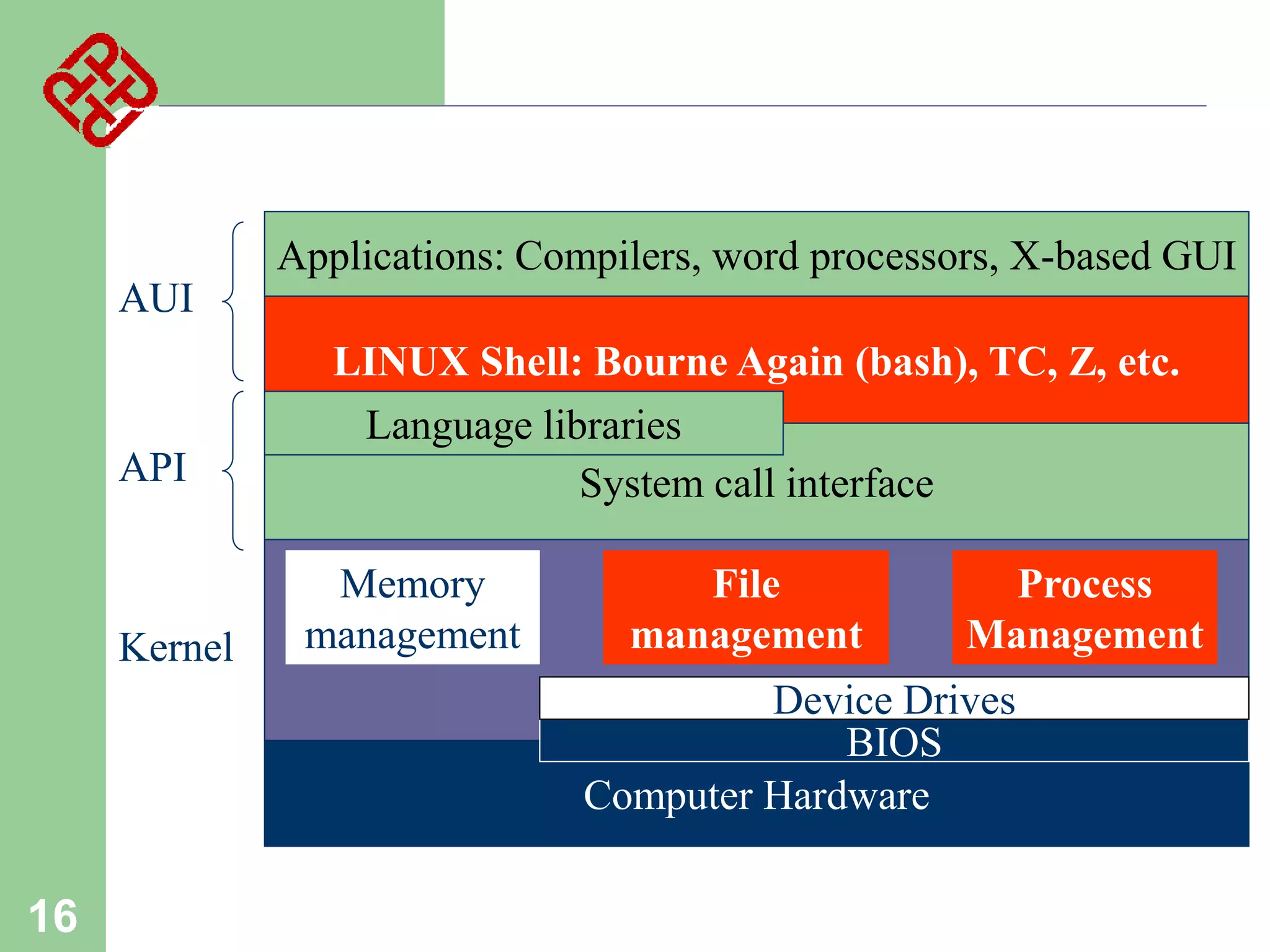
Applications: Compilers, word processors, X-based GUI
AUI

API

Kernel

LINUX Shell: Bourne Again (bash), TC, Z, etc.
Language libraries
System call interface
Memory
management

File
management

Process
Management

Device Drives
BIOS
Computer Hardware

16


Kernel
–



System call interface
–



Comprise a set of functions (often known as API) that
can be used by the applications and library routines
to use the services provided by the kernel

Application User’s Interface
–
–
–

17

The part of an OS where the real work is done

Interface between the kernel and user
Allow user to make commands to the system
Divided into text based and graphical based


File Management
–
–



Process Management
–
–
–

–
–

18

Control the creation, removal of files and provide directory
maintenance
For a multiuser system, every user should have its own right to
access files and directories

For a multitask system, multiple programs can be executed
simultaneously in the system
When a program starts to execute, it becomes a process
The same program executing at two different times will become
two different processes
Kernel manages processes in terms of creating, suspending,
and terminating them
A process is protected from other processes and can
communicate with the others


Memory management
–
–
–

–



Device drivers
–
–

19

Memory in a computer is divided into main memory
(RAM) and secondary storage (usually refer to hard disk
Memory is small in capacity but fast in speed, and hard
disk is vice versa
Data that are not currently used should be saved to hard
disk first, while data that are urgently needed should be
retrieved and stored in RAM
The mechanism is referred as memory management

Interfaces between the kernel and the BIOS
Different device has different driver
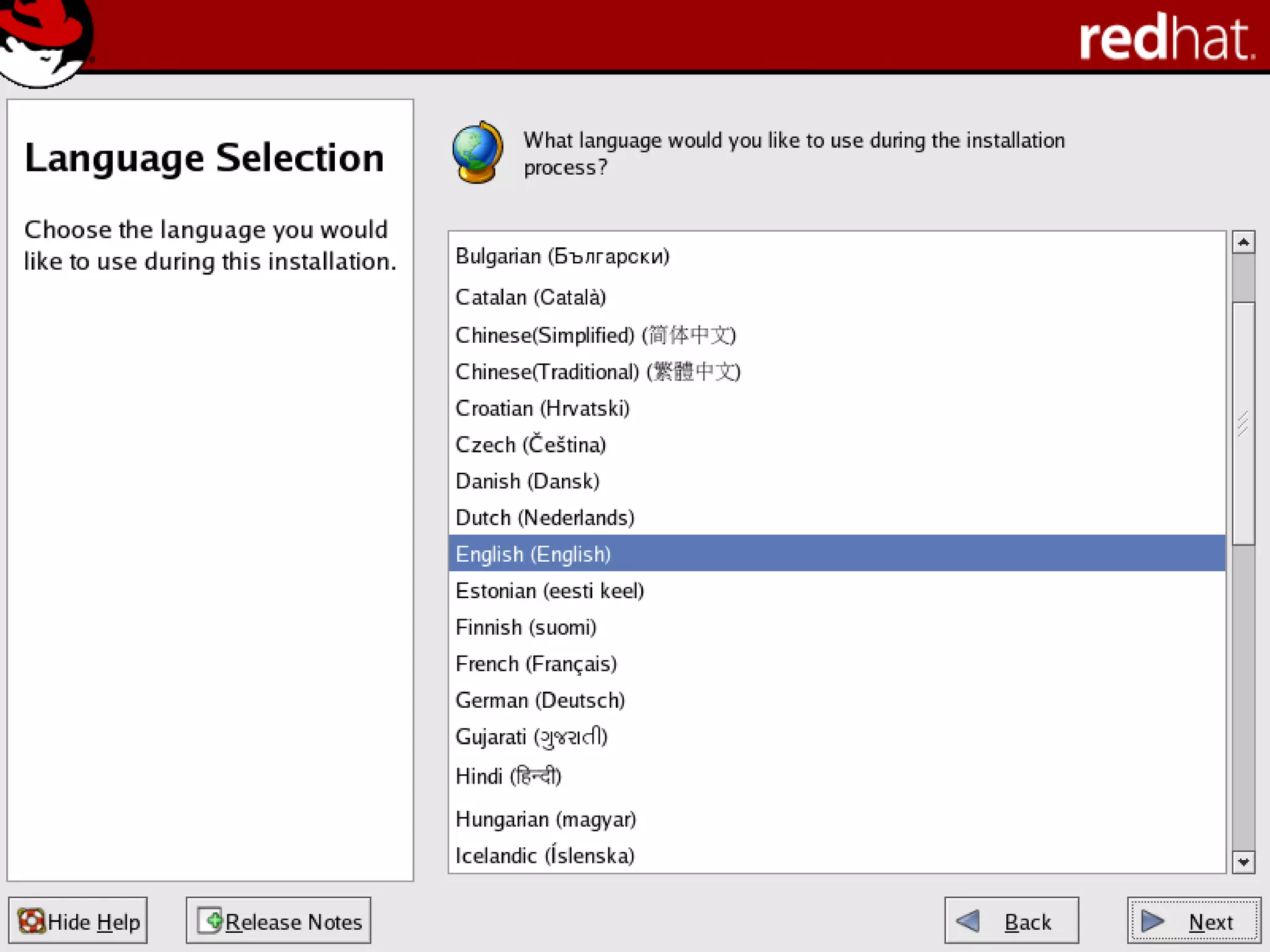
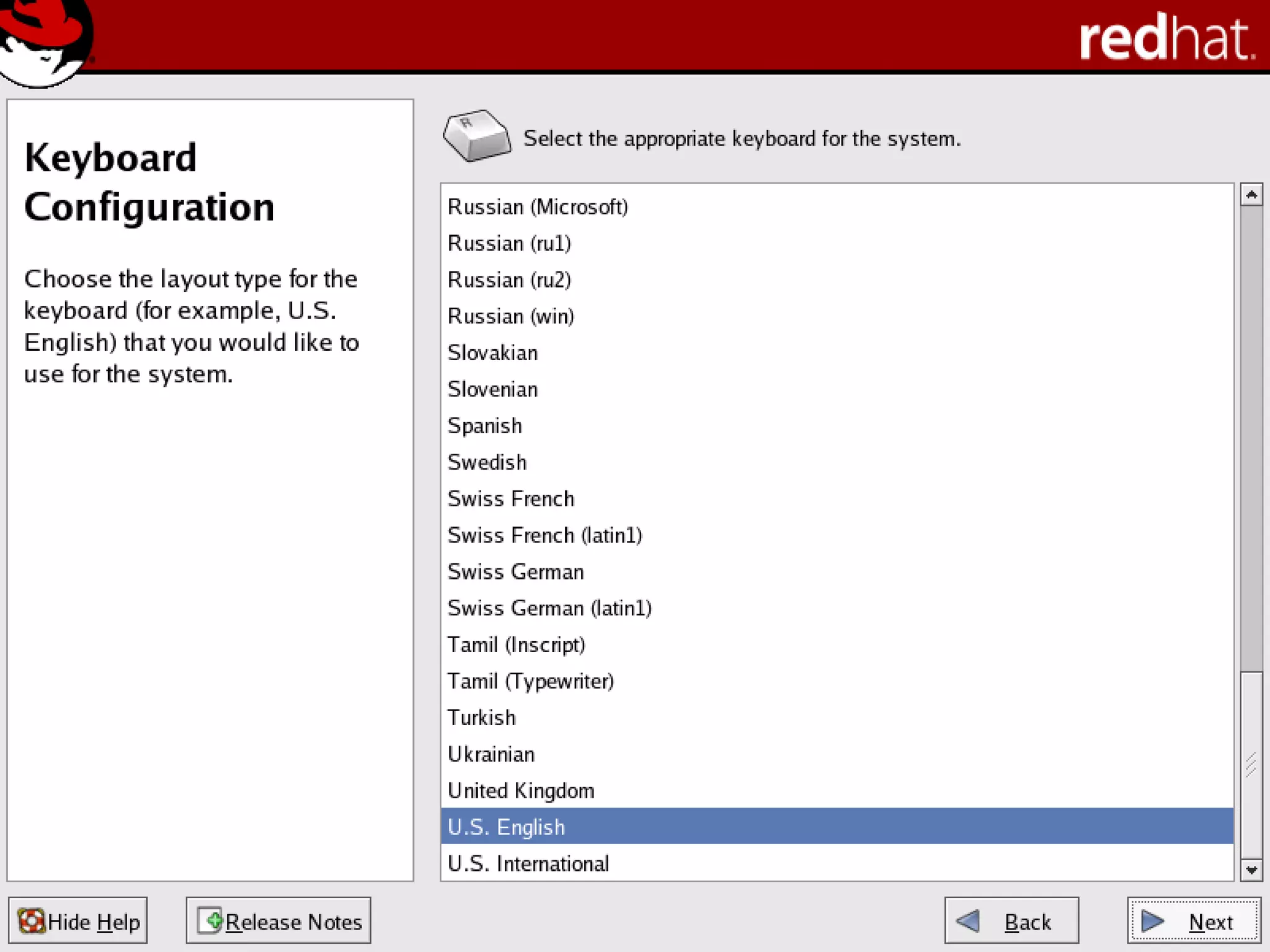
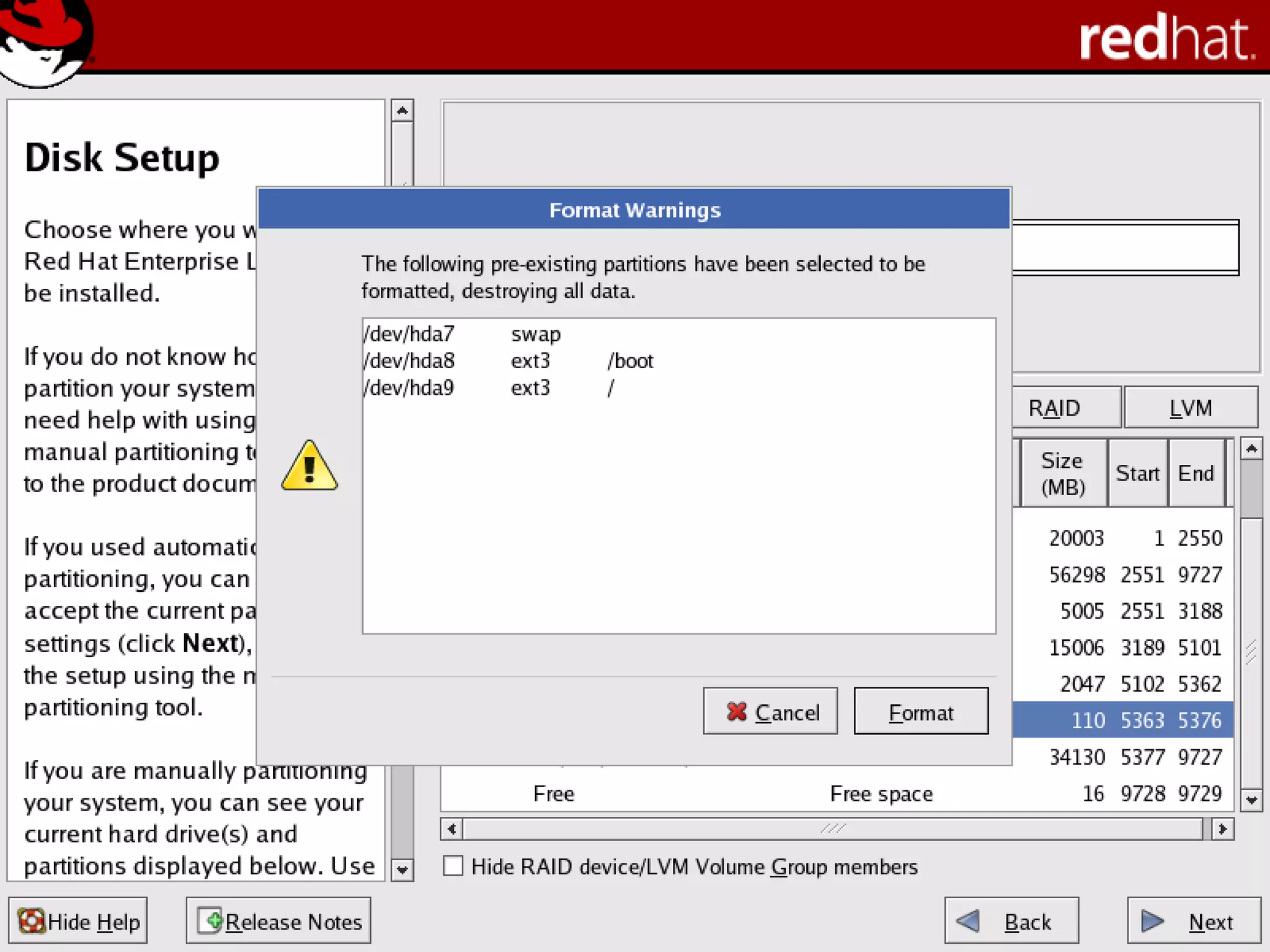
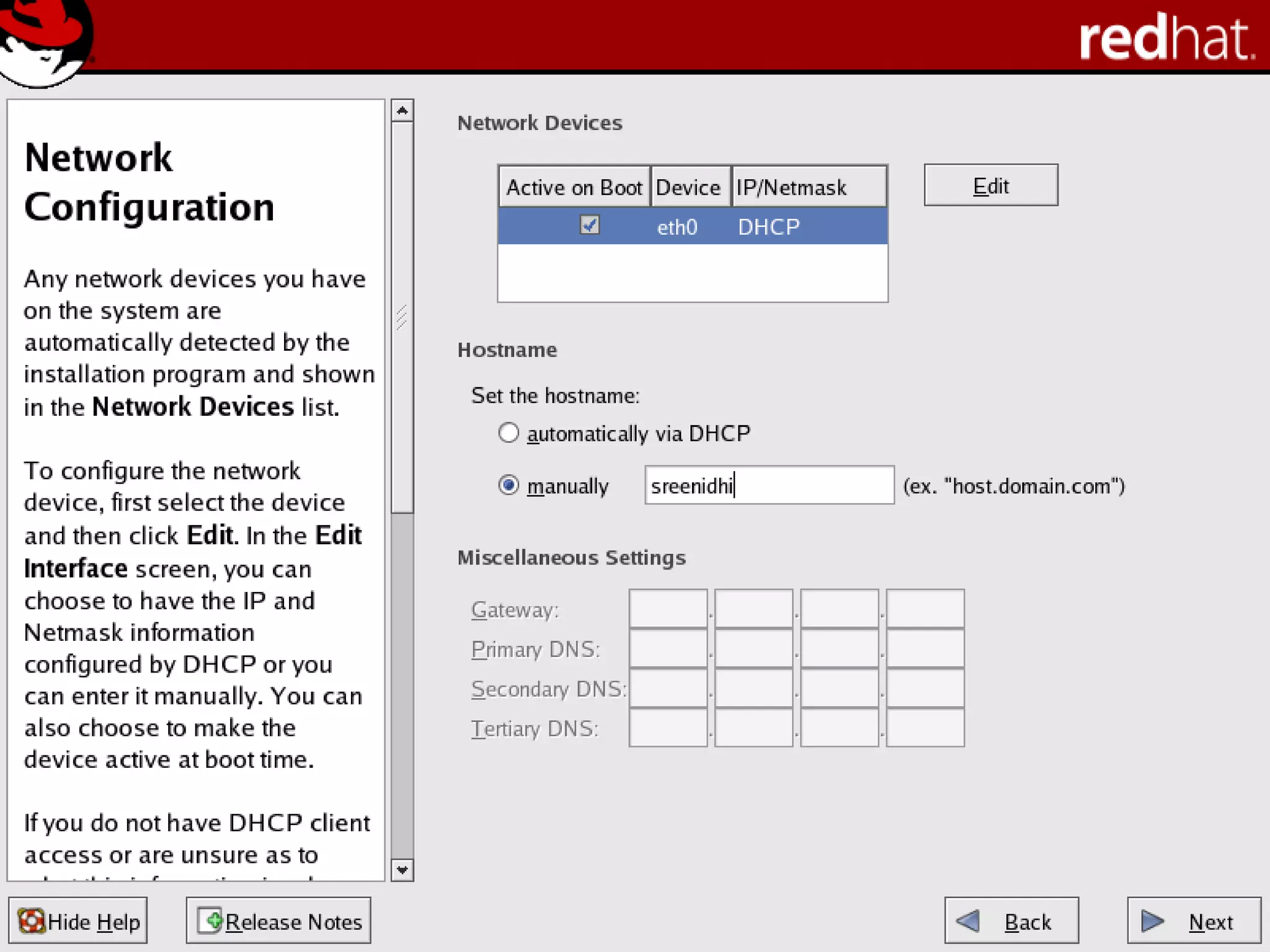
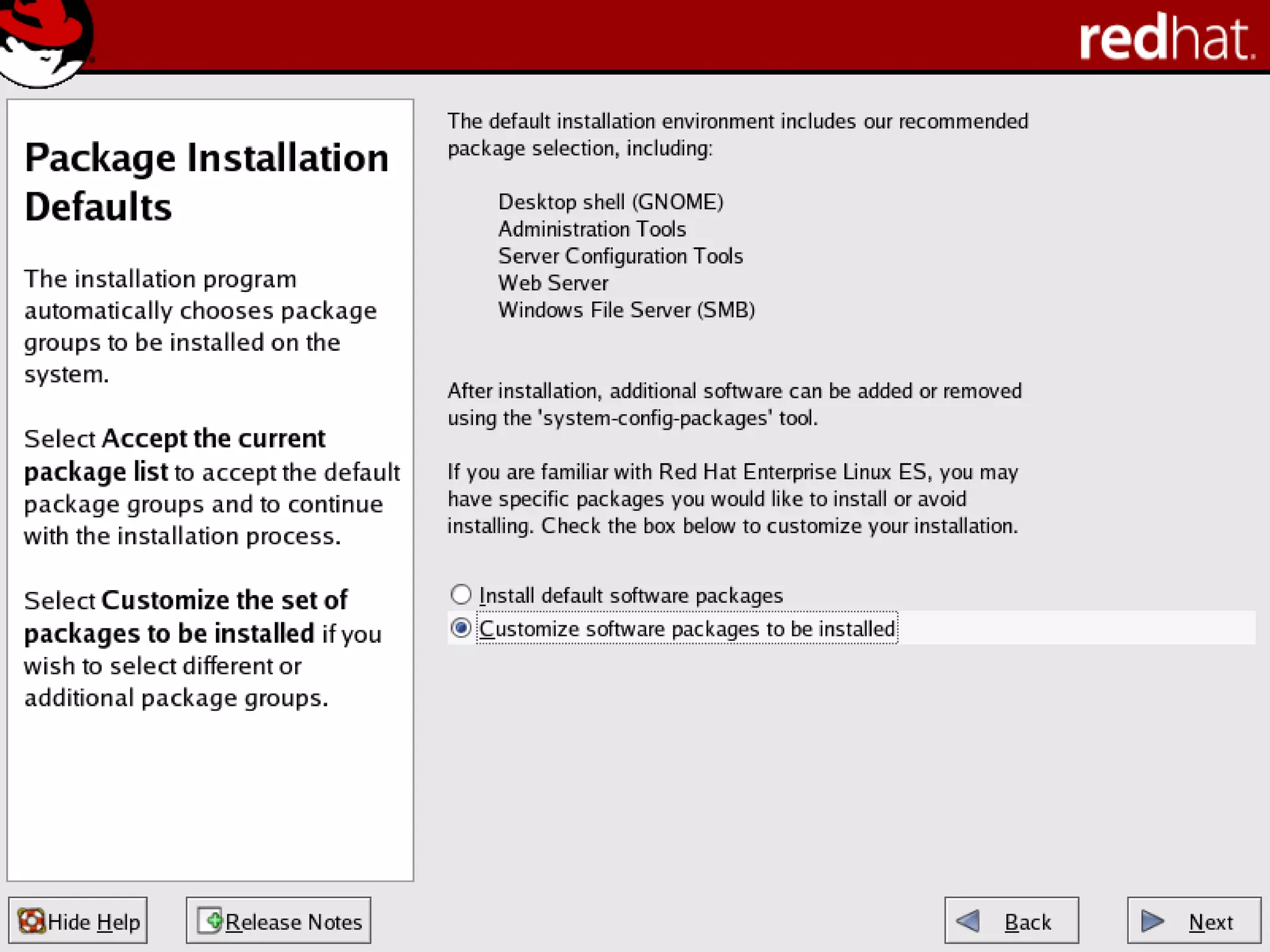
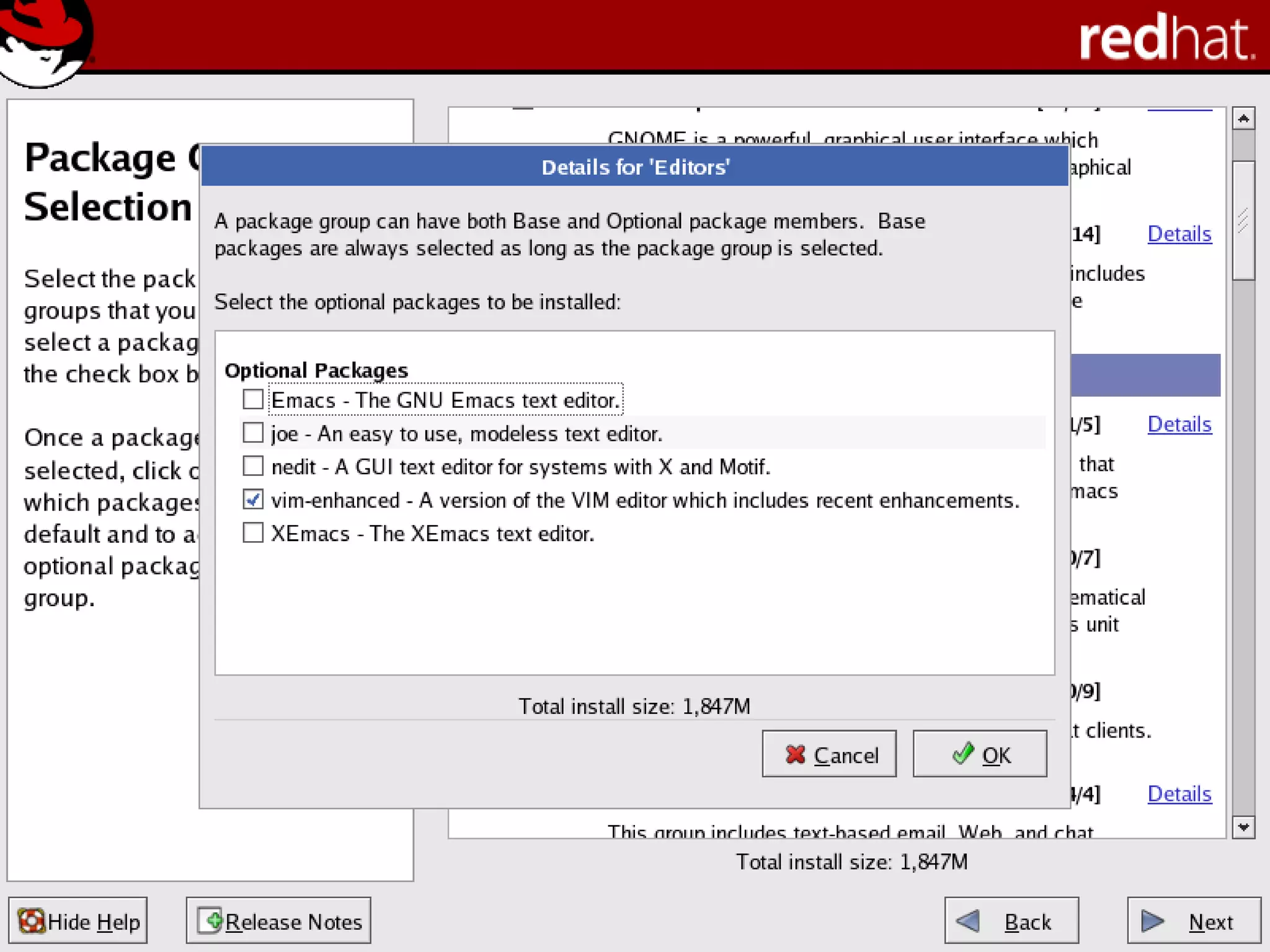
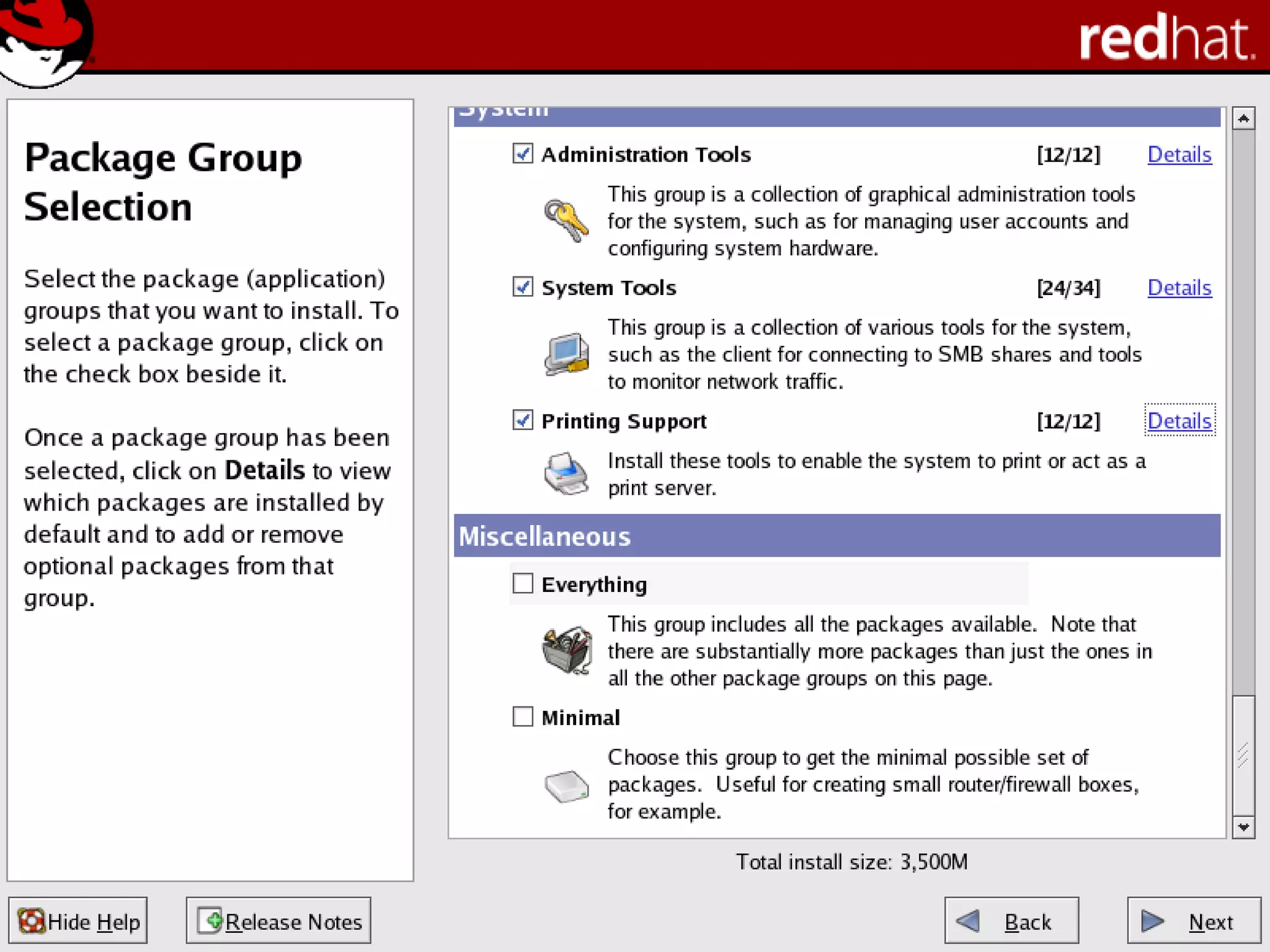
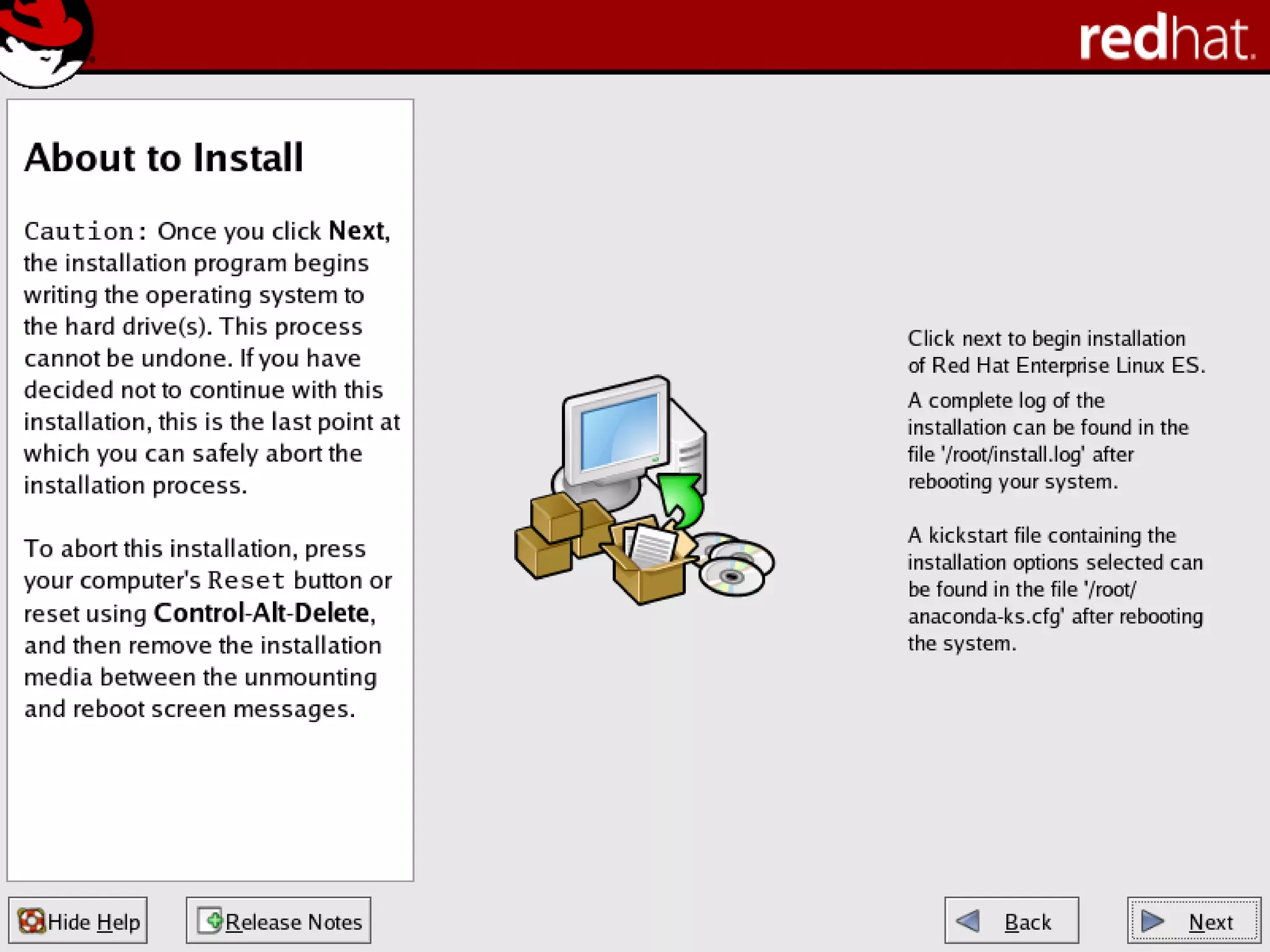
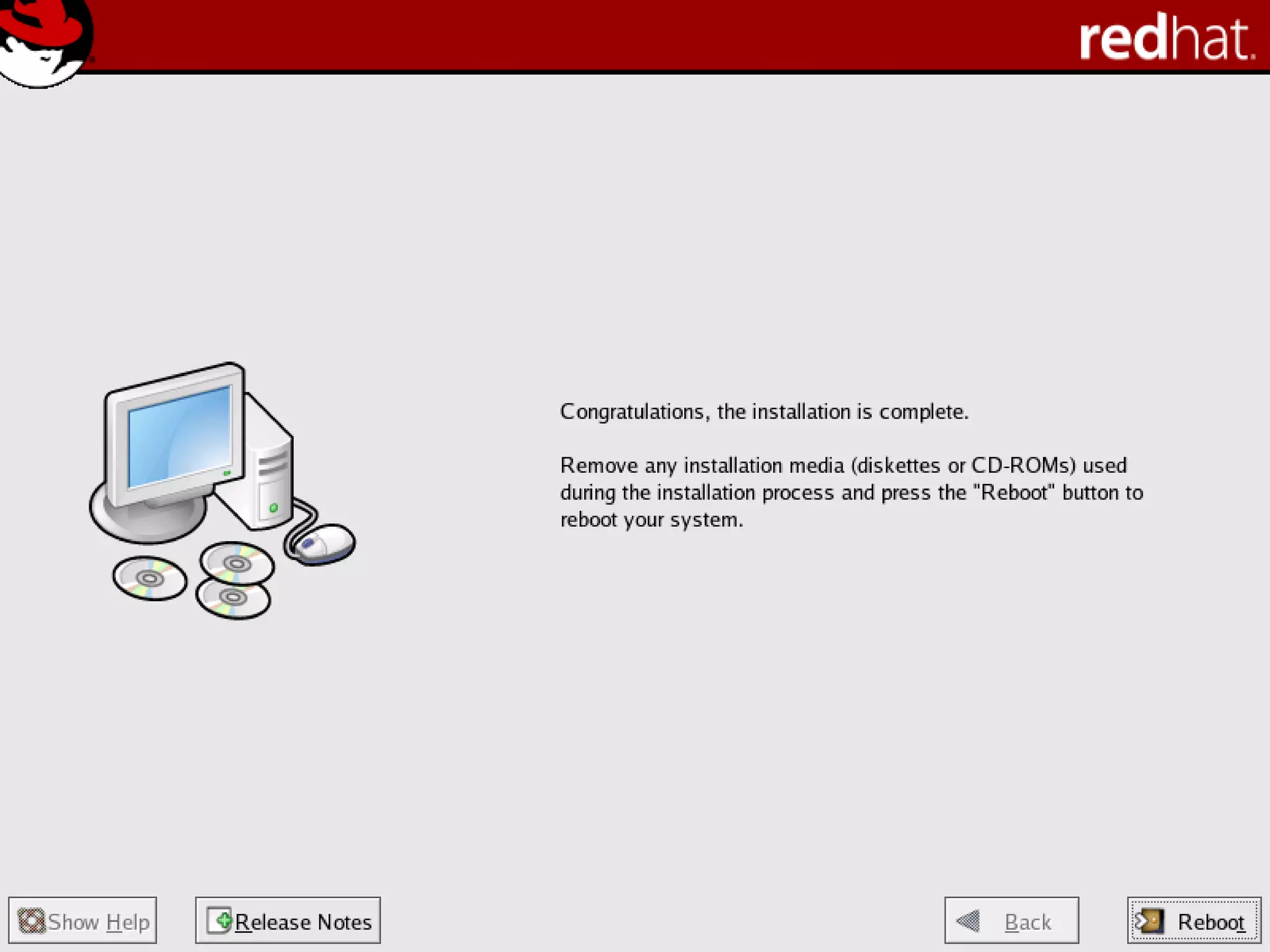
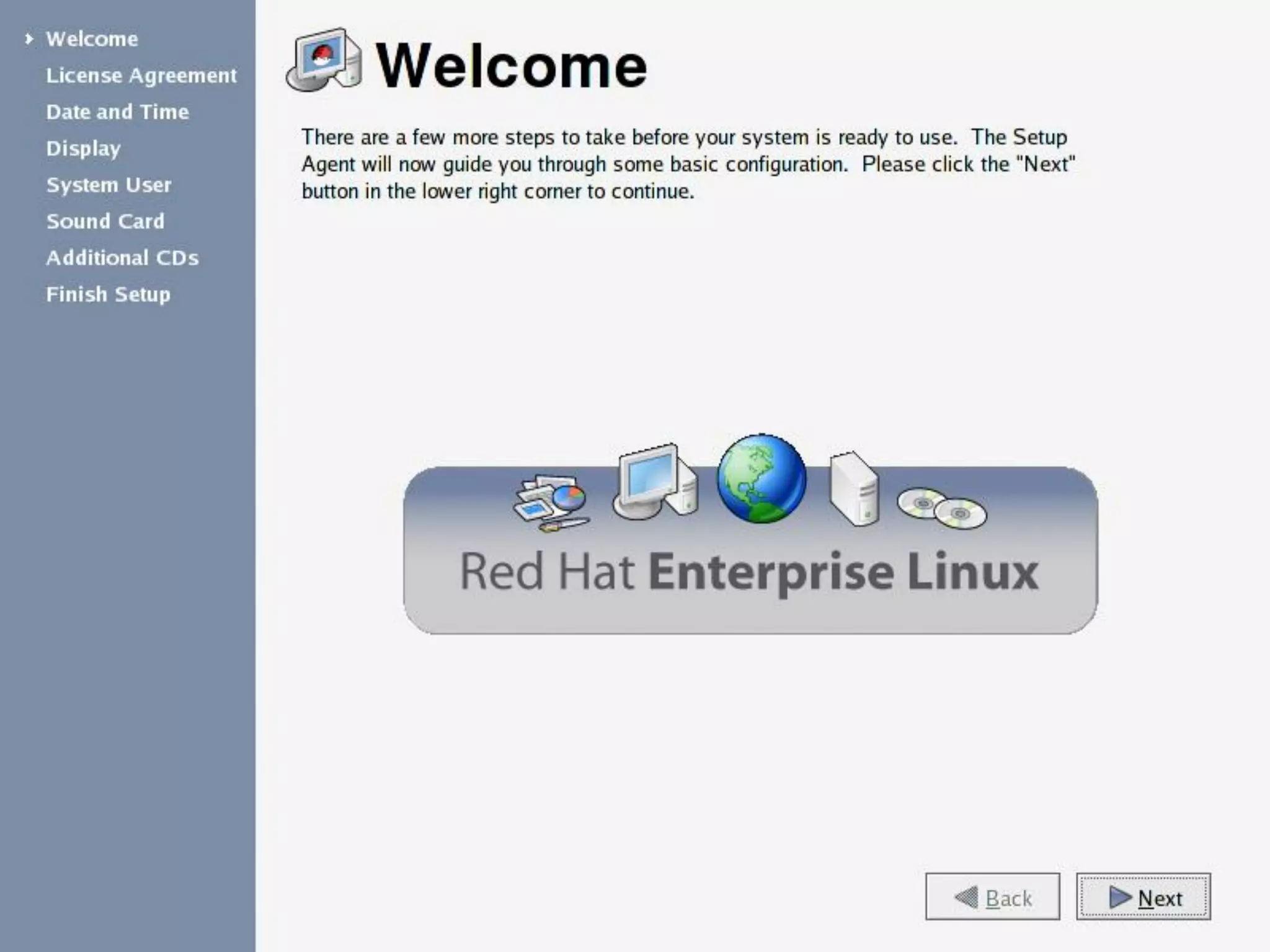
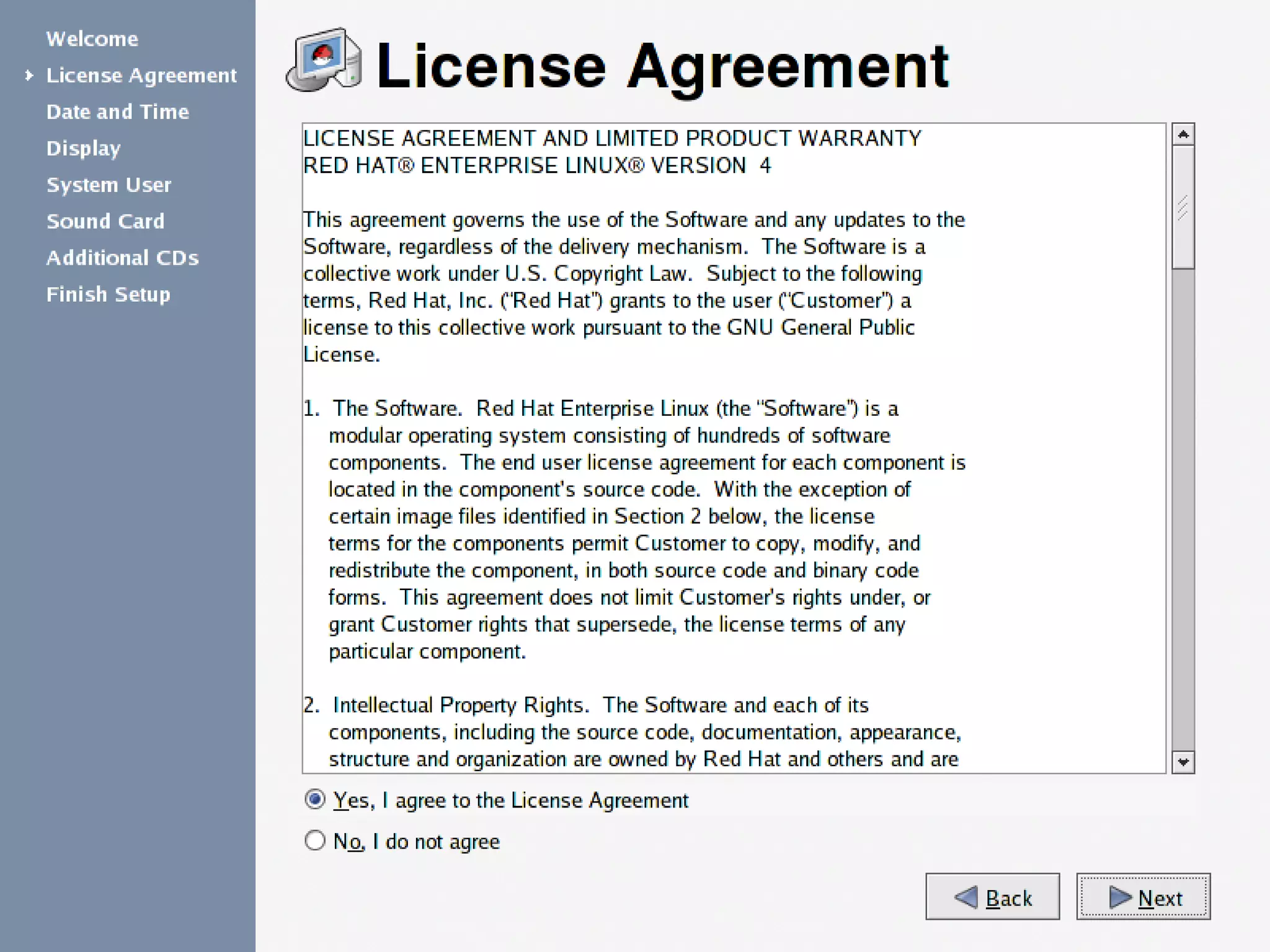
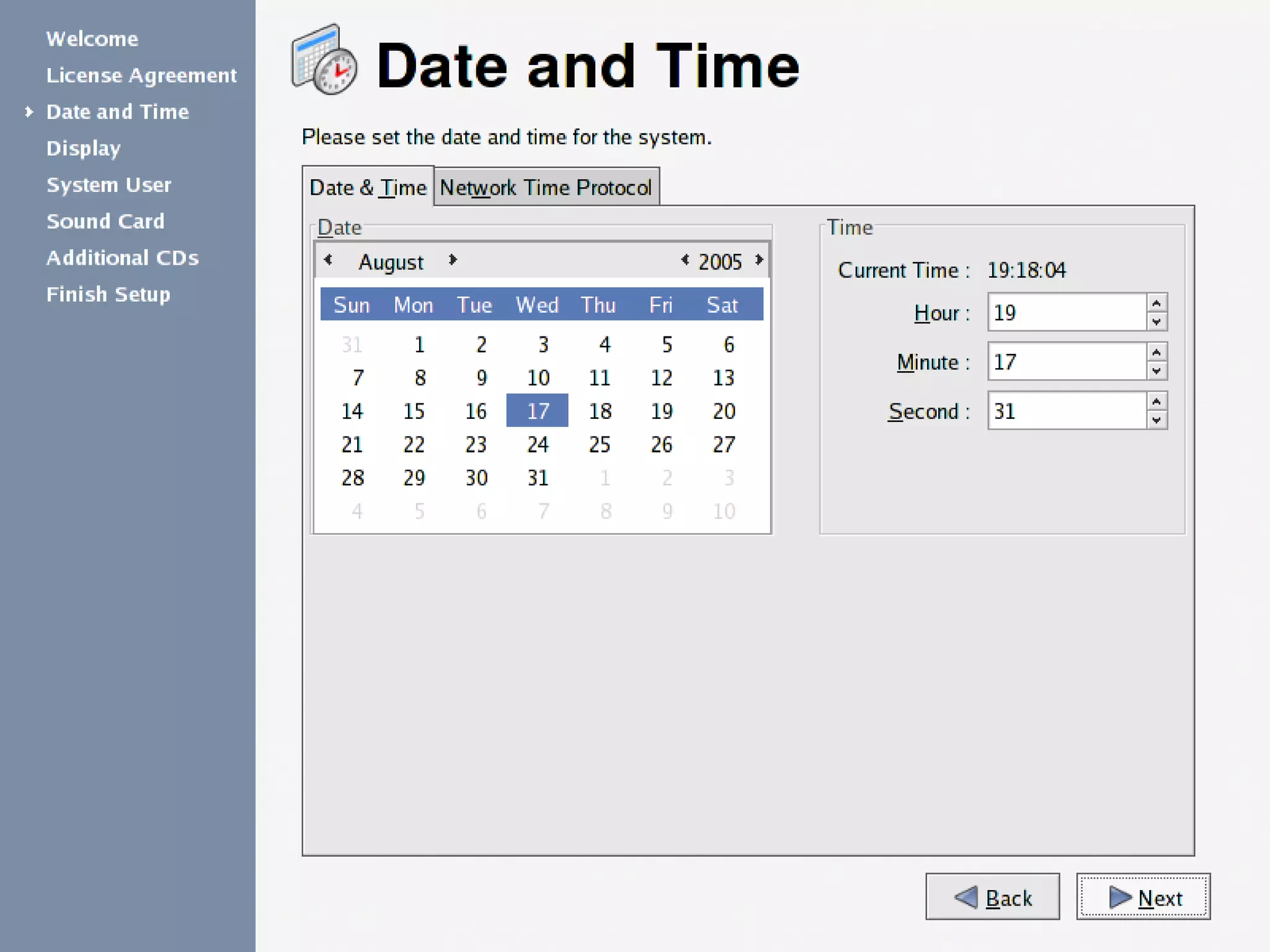
LINUX INSTALLATION:

20
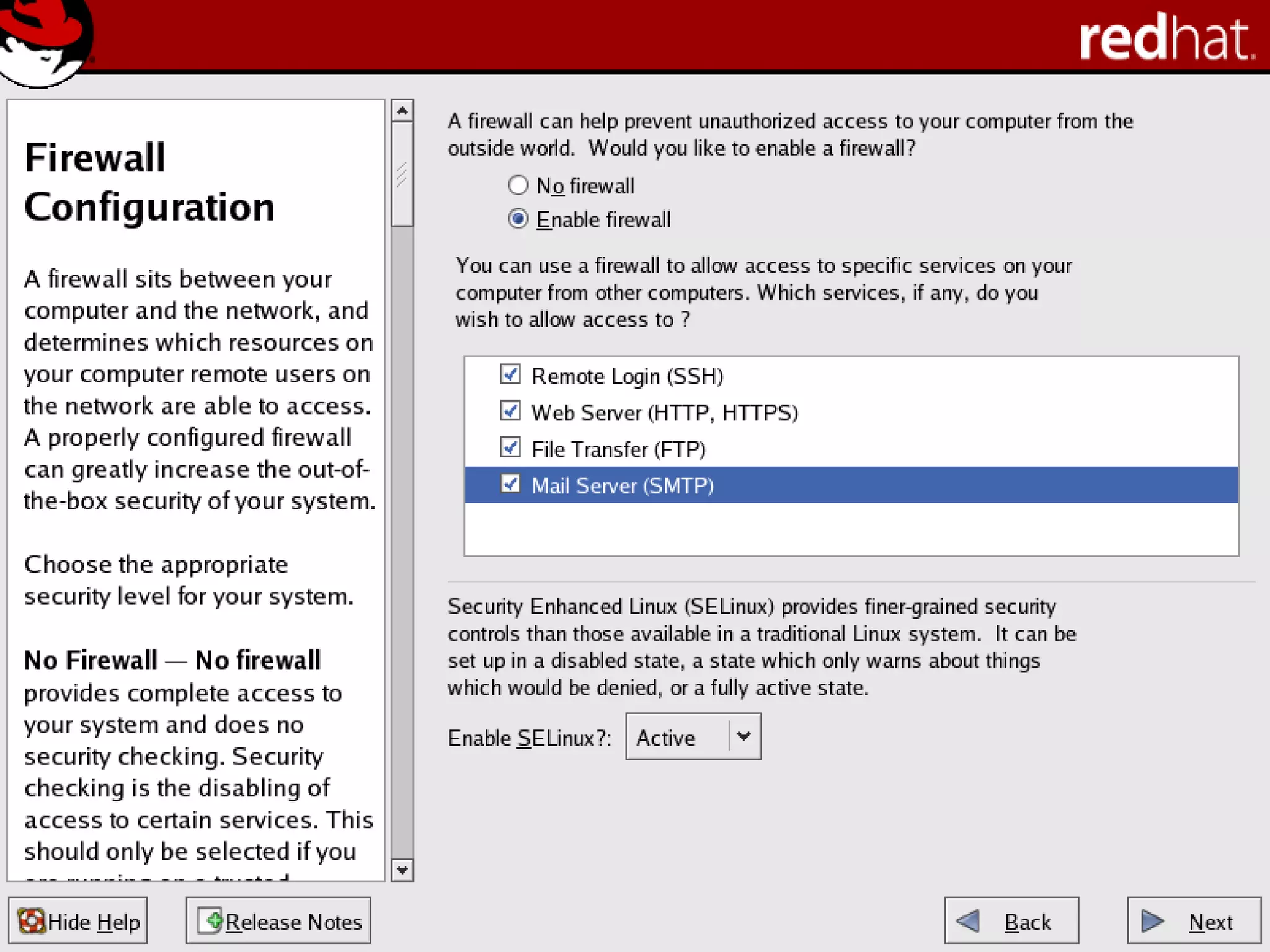
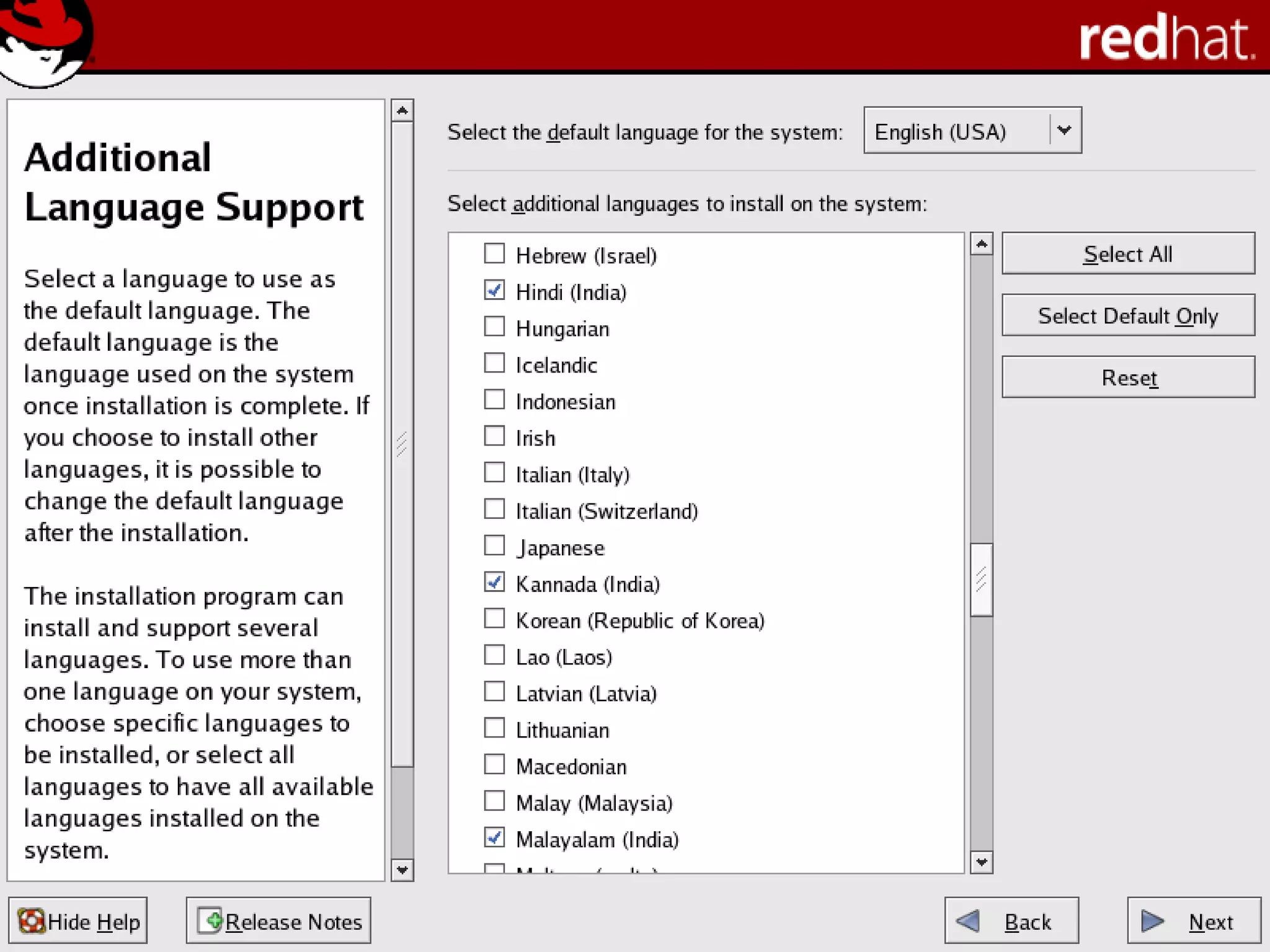
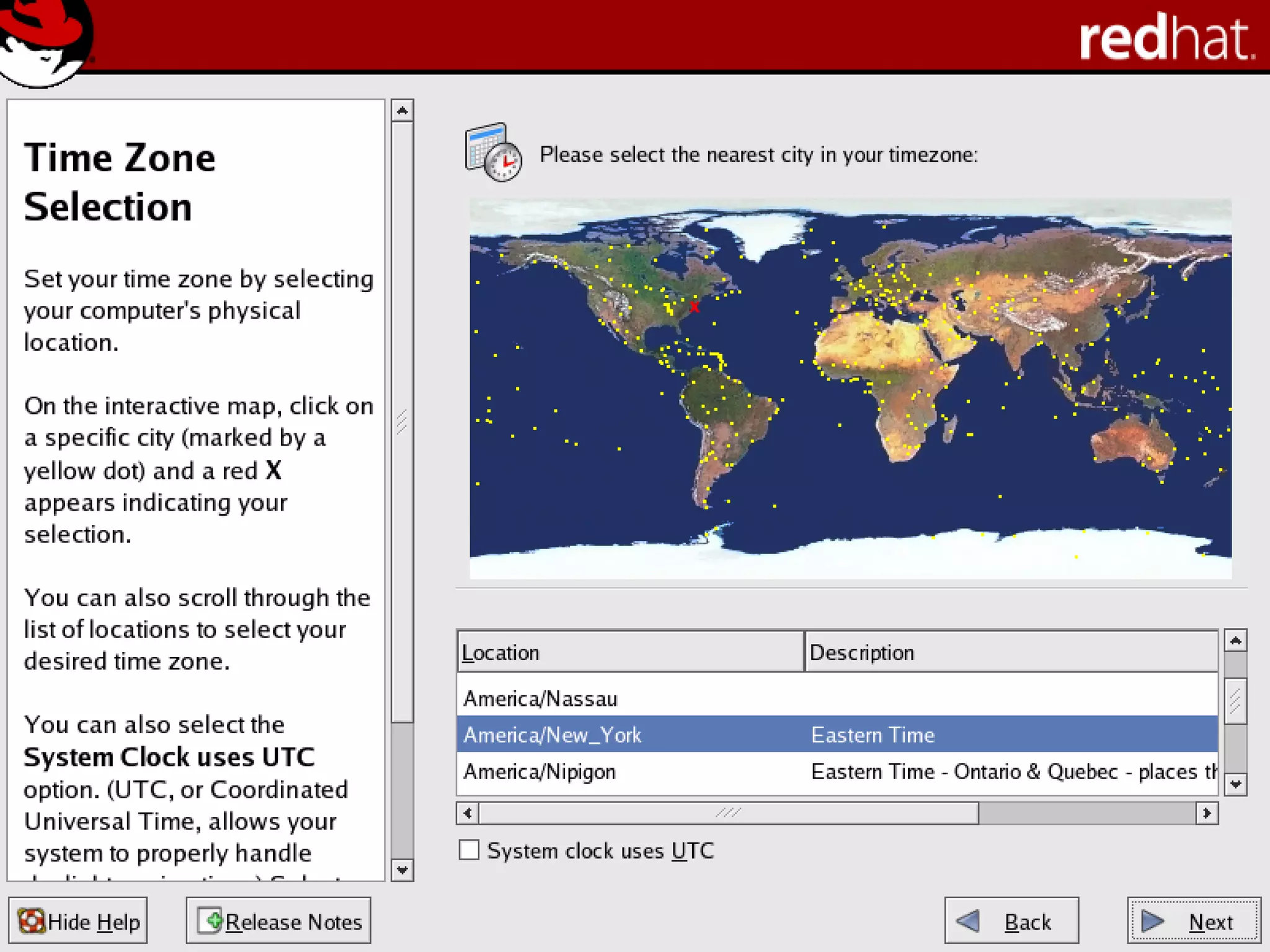
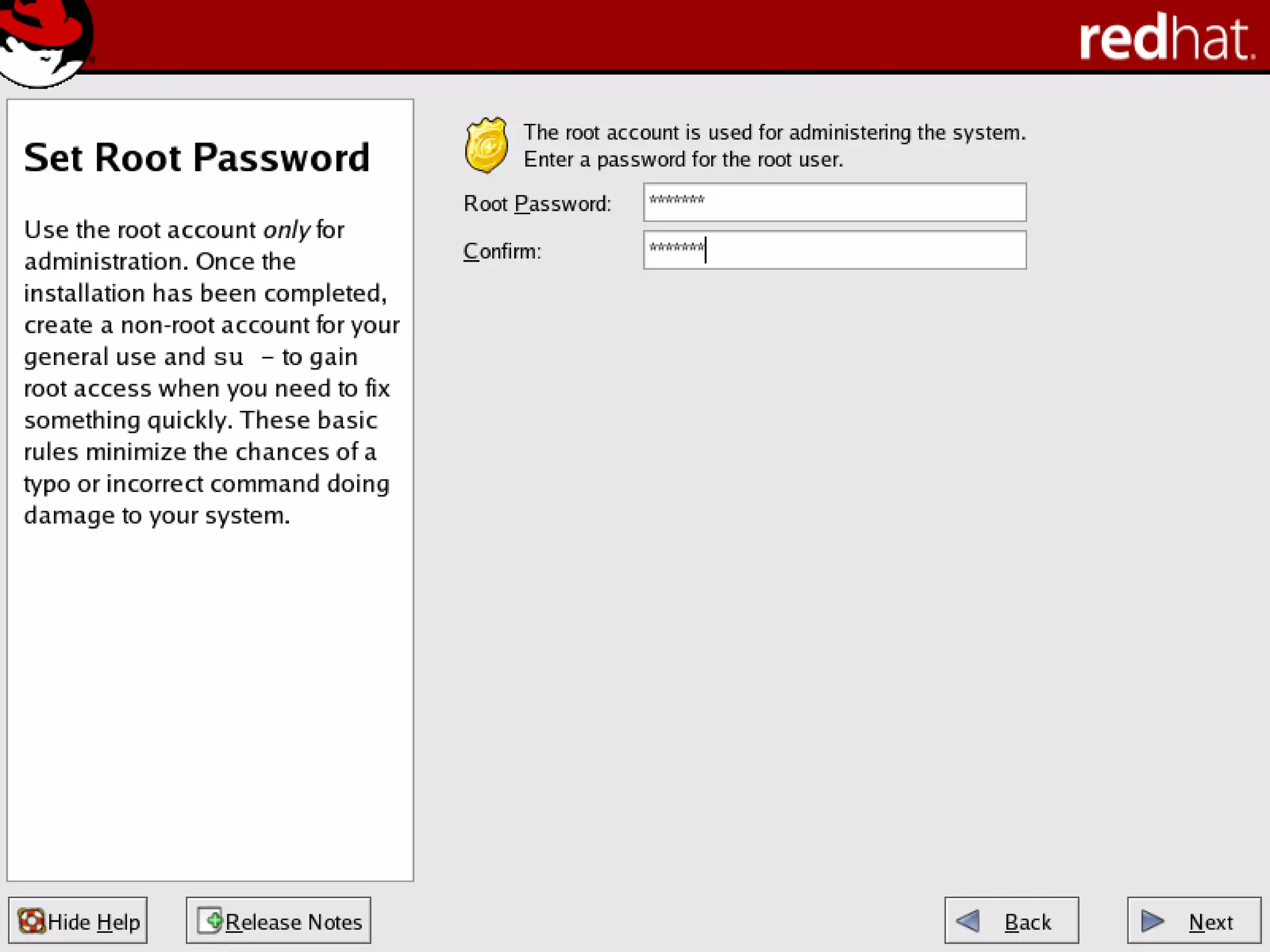
Download LINUX
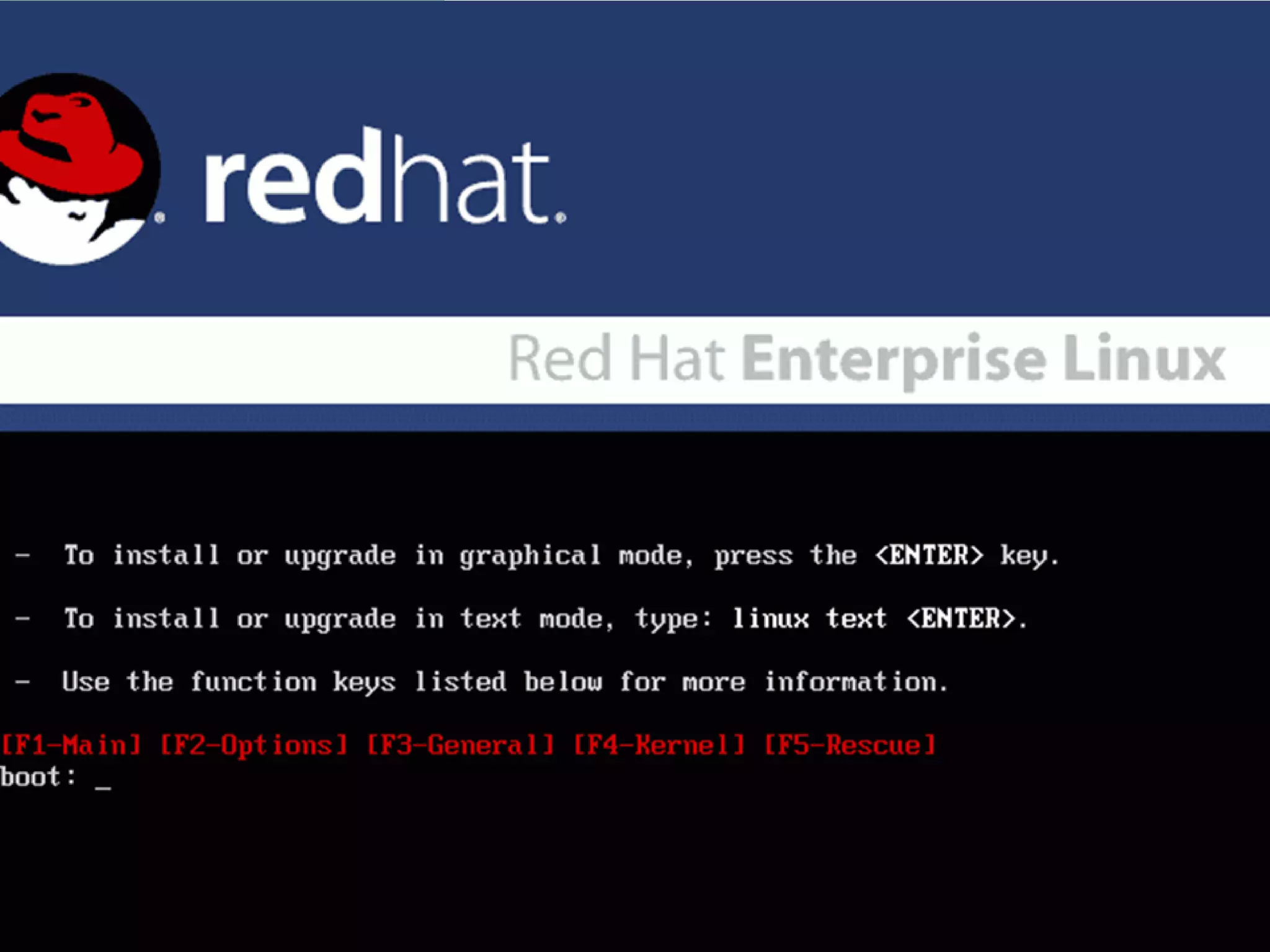
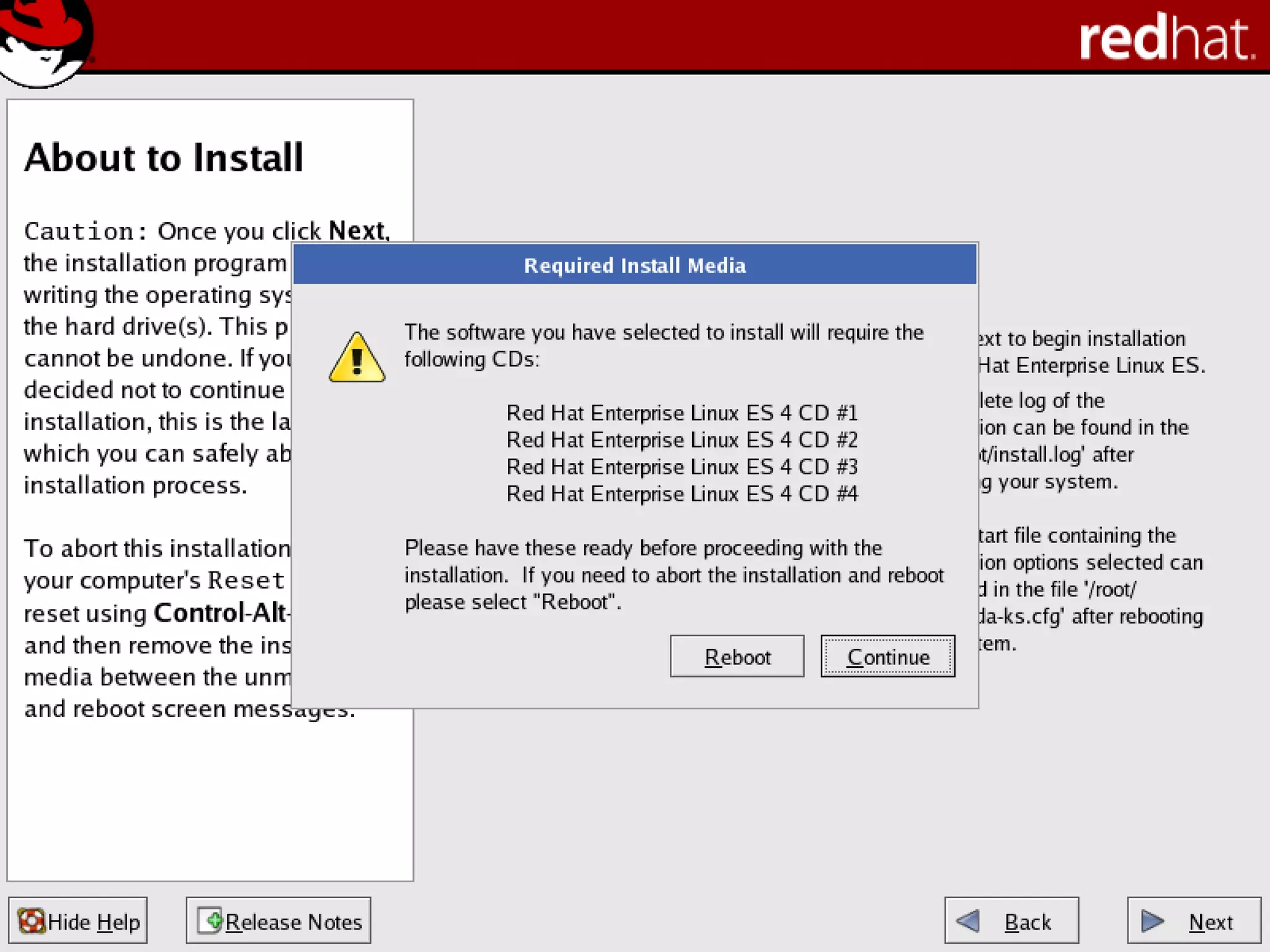
To install Red Hat, you will need to download the ISO
images (CD Images) of the installation CD-ROMs
from http://fedora.redhat.com
Download the i386 images for 32 Intel Processors,
PPC images for for Apple Macintosh and x86_64
for
for 64 bit AMD Processors

Burn the iso CD images on CDs and use these CDs
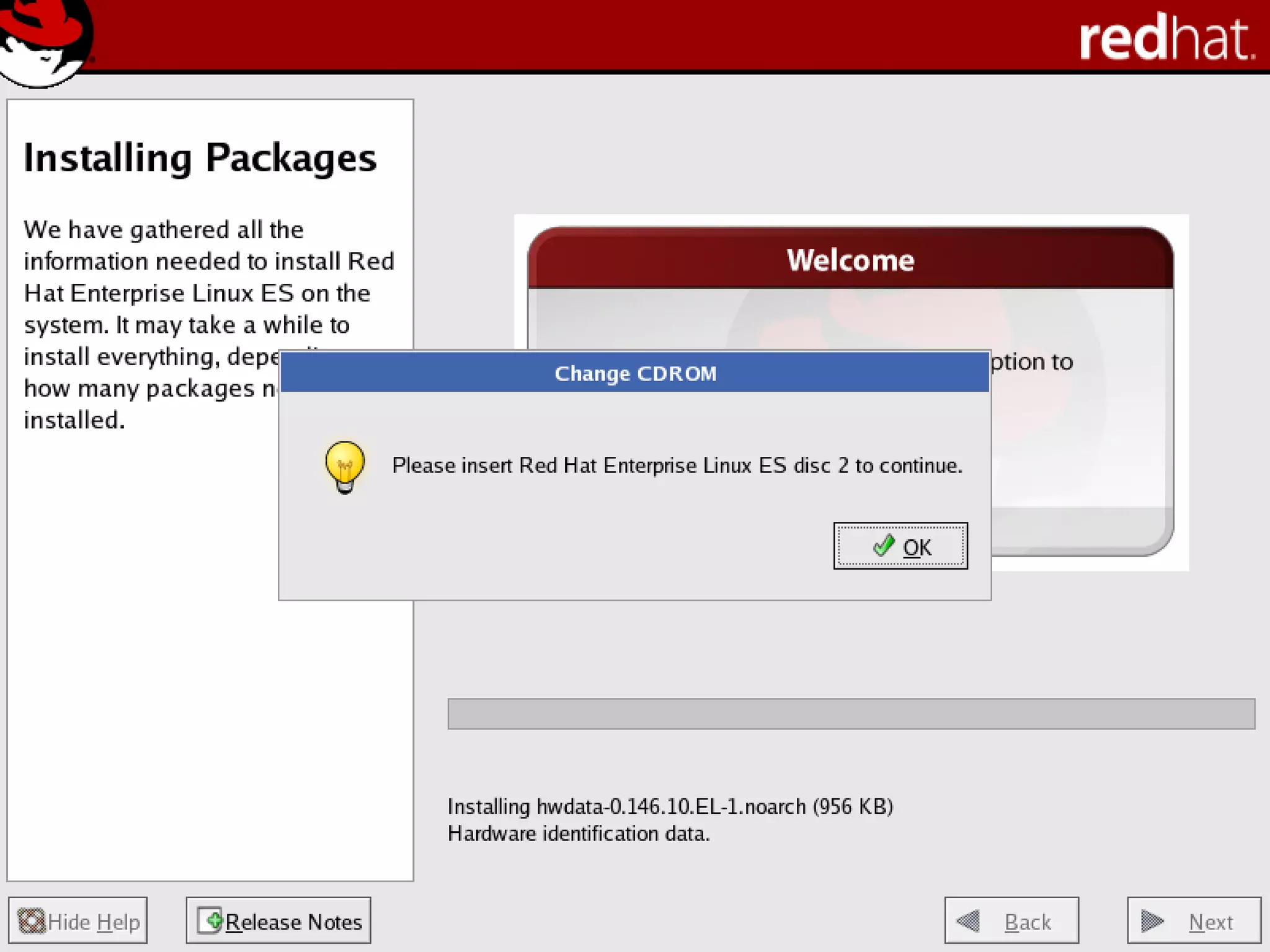
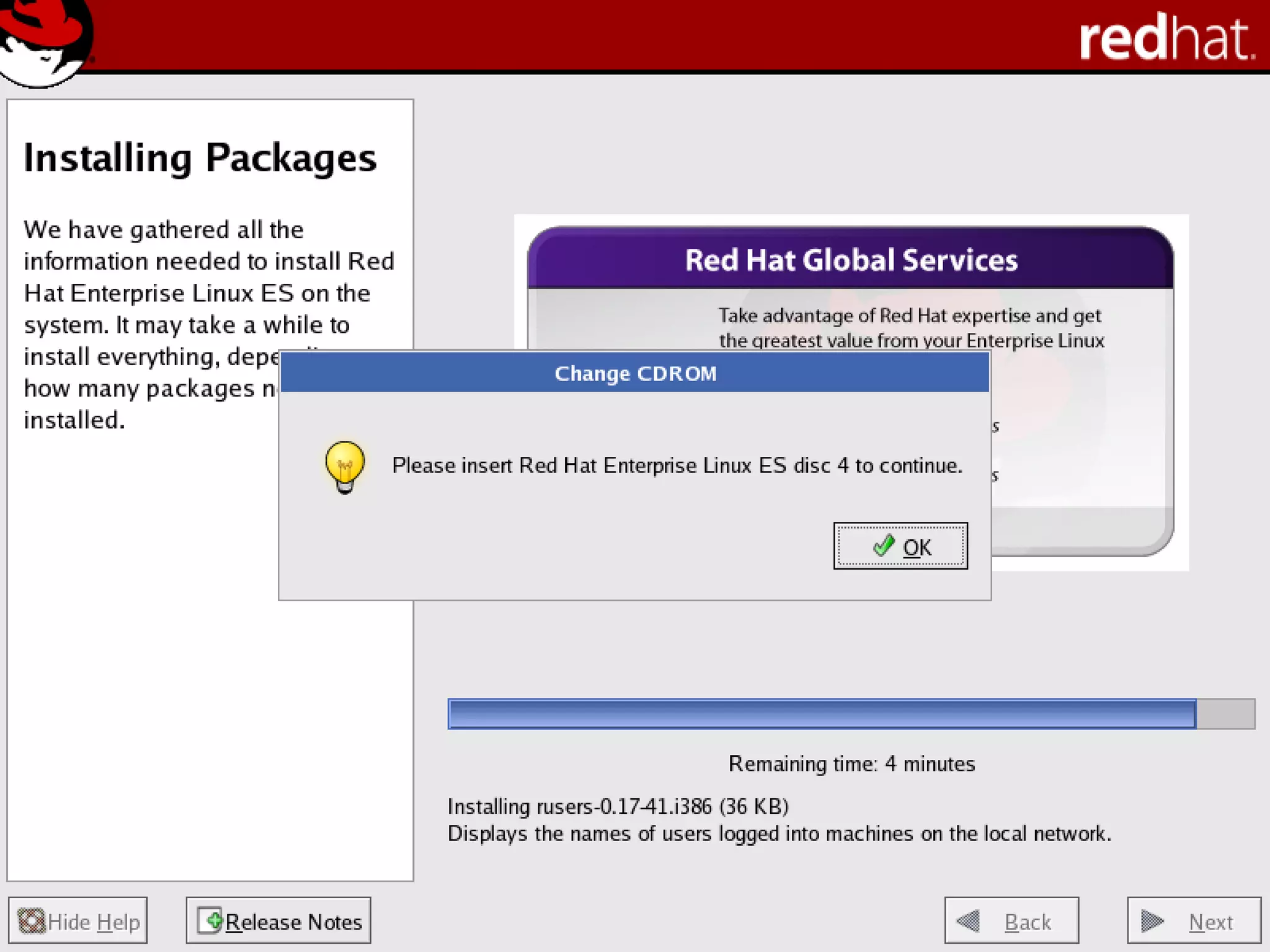
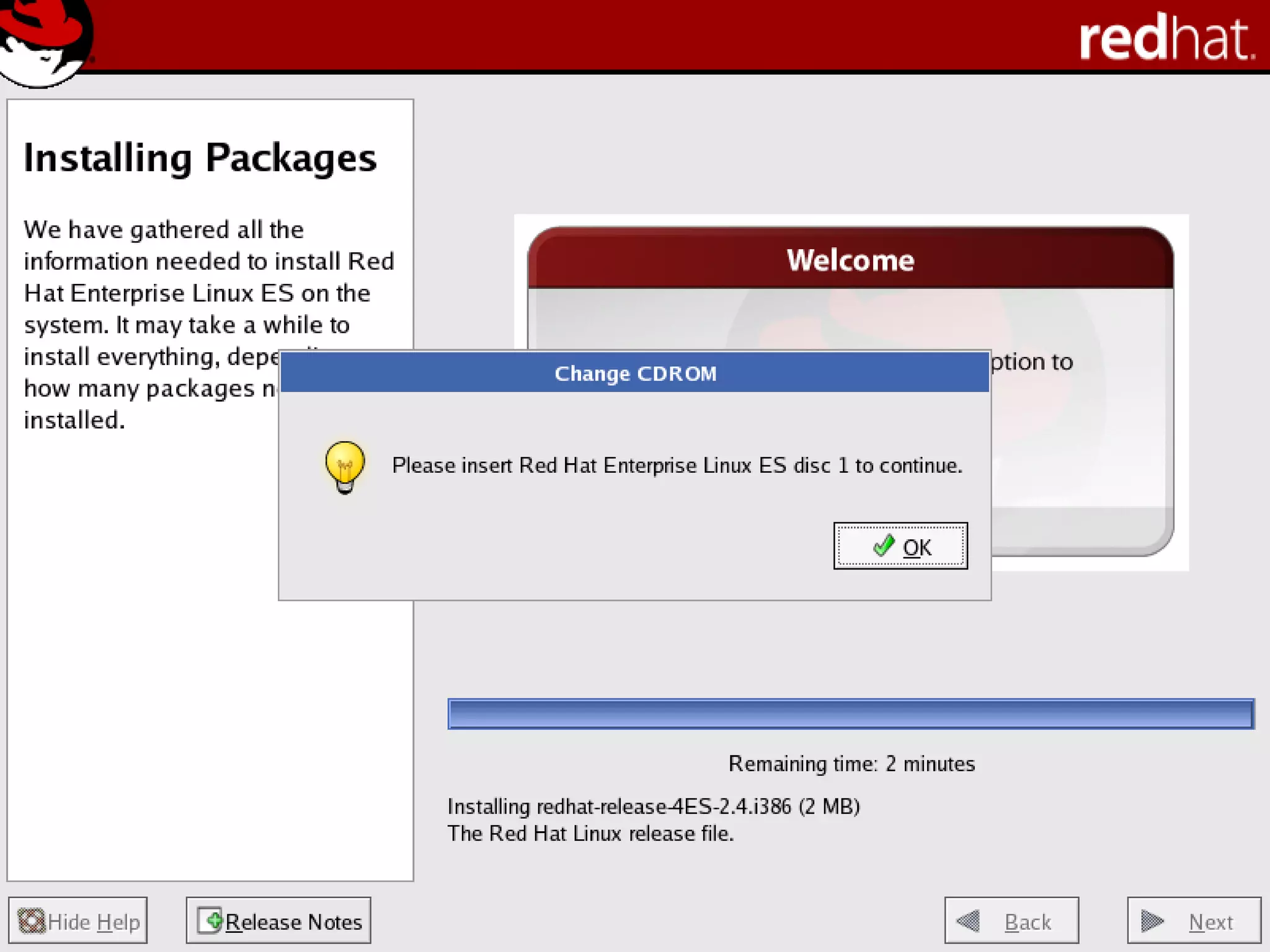
as Installation CDs (typically 4)

21
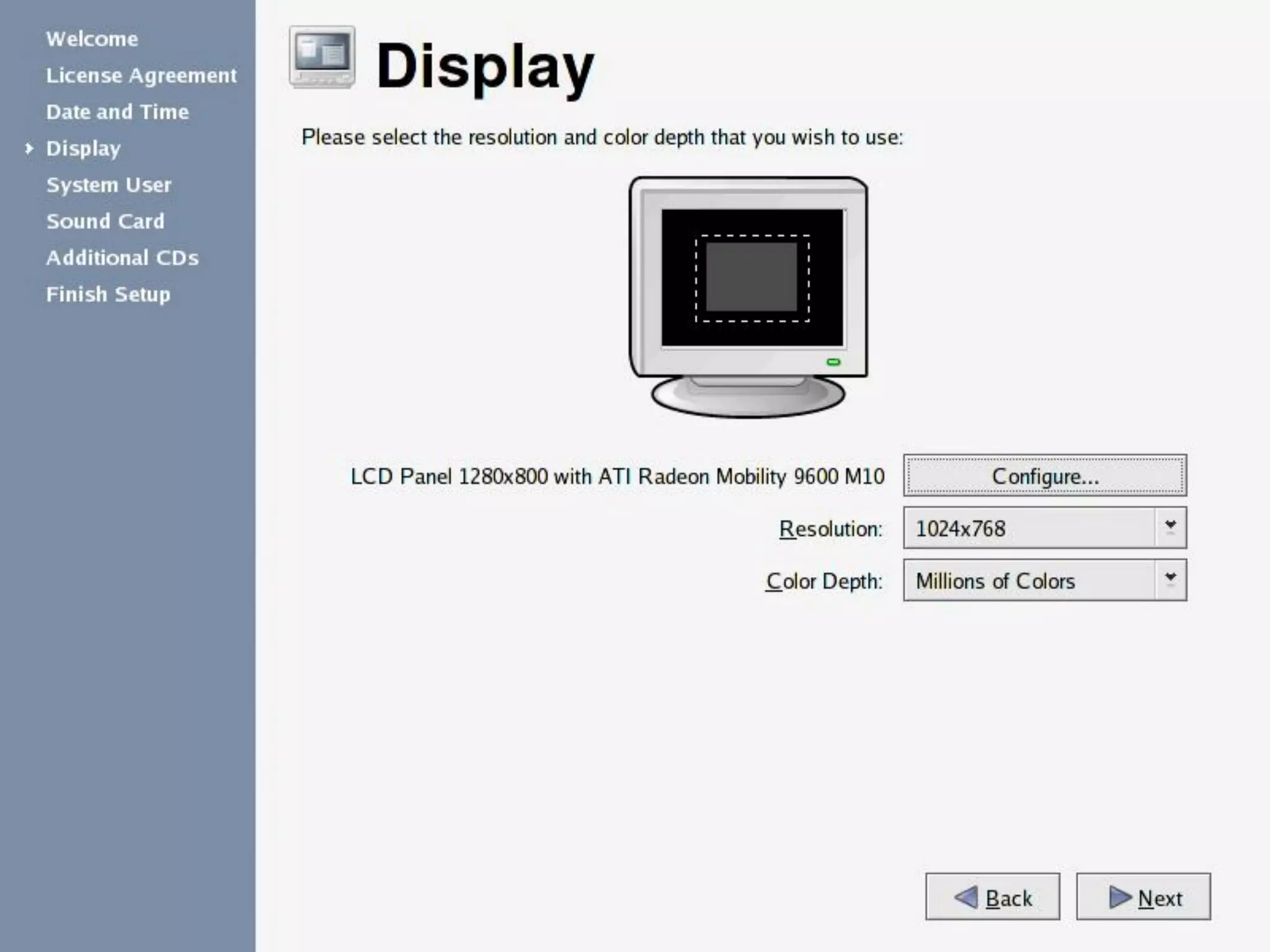
22
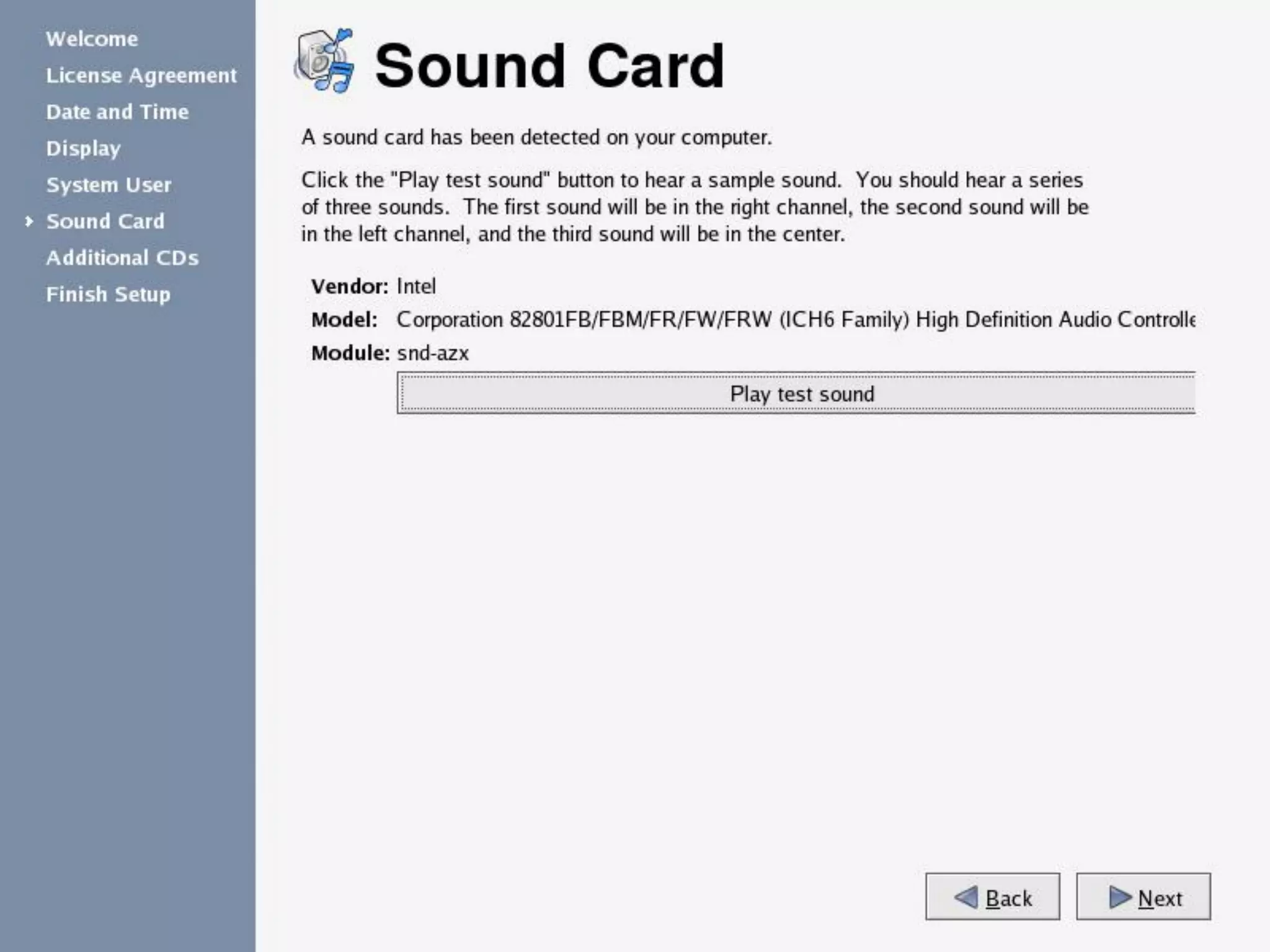
23
Linux Installation

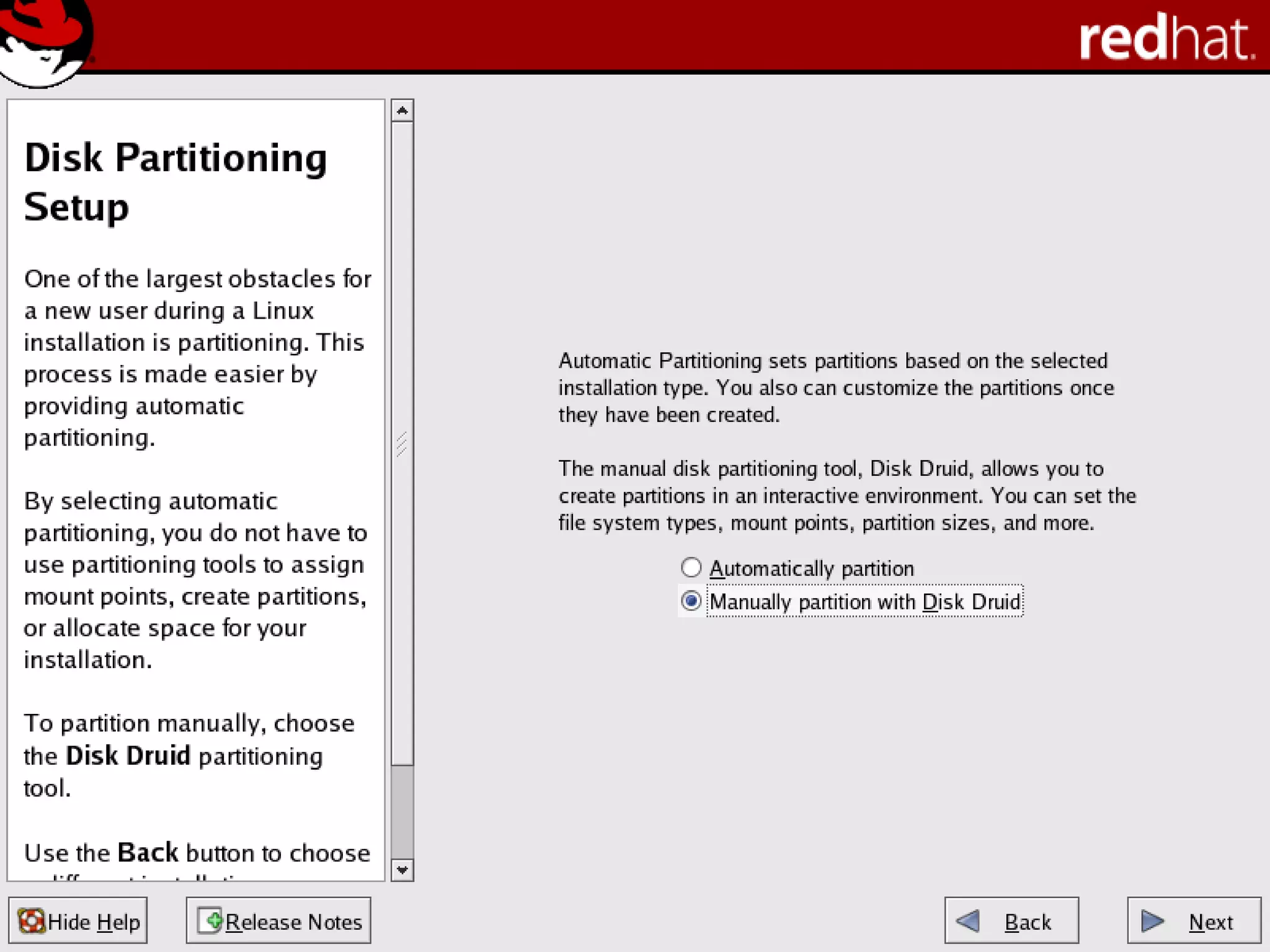
What is a Partition?
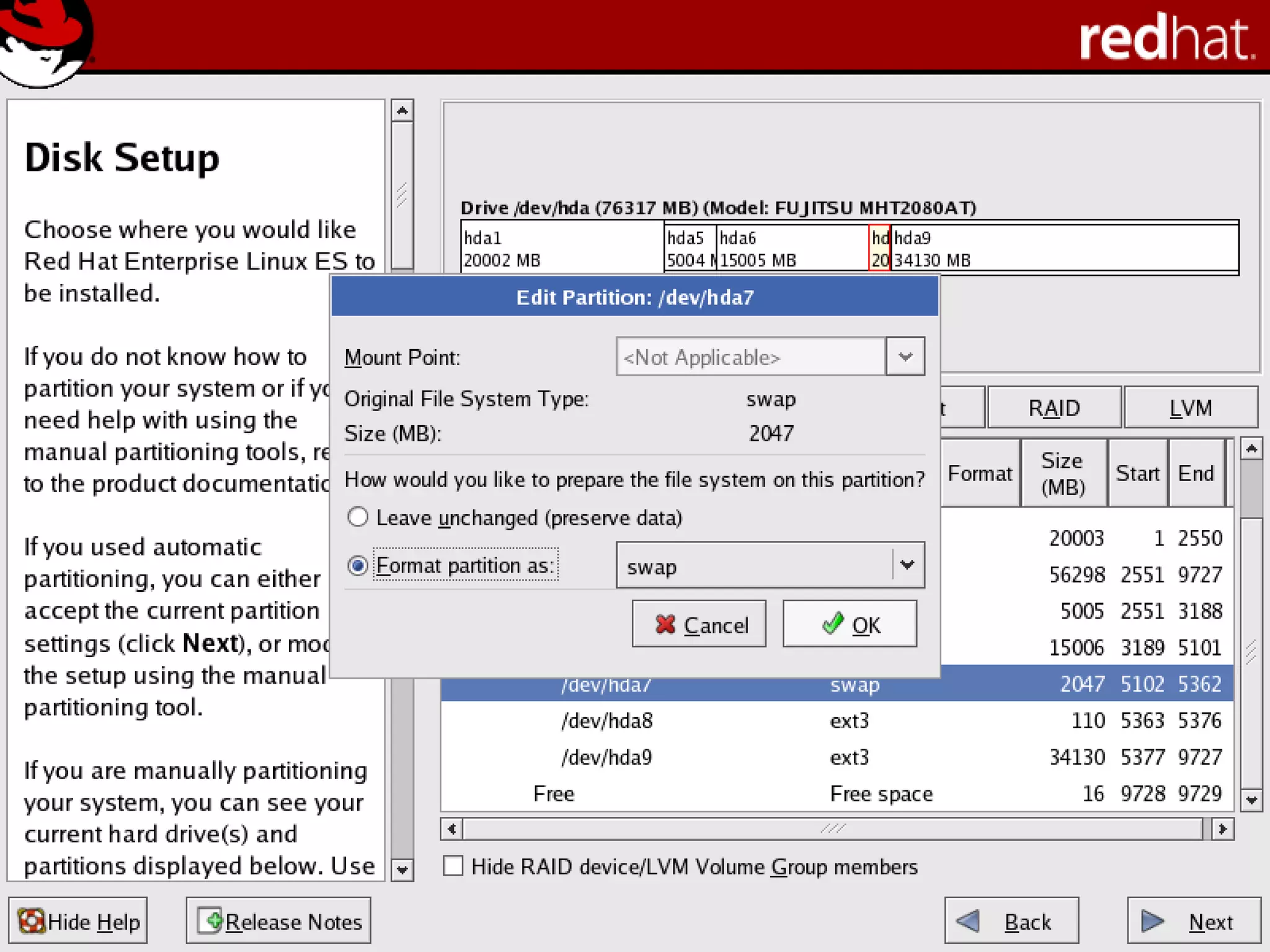
Partitioning is a means to divide a single hard drive
into many logical drives.
A partition is a contiguous set of blocks on a drive
that are treated as an independent disk.

A partition table is an index that relates sections of
the hard drive to partitions.

29
Linux Installation

Why have multiple partitions?
Reduce the risk of system failure in case a partition
becomes full. Runaway processes or maniacal users
can consume so much disk space that the operating
system no longer has room on the hard drive for its
bookkeeping operations. This will lead to disaster. By
segregating space, you ensure that things other than
the operating system die when allocated disk space is
exhausted.
Encapsulate your data. Since file system corruption is
local to a partition, you stand to lose only some of
your data if an accident occurs.

30
Linux Installation

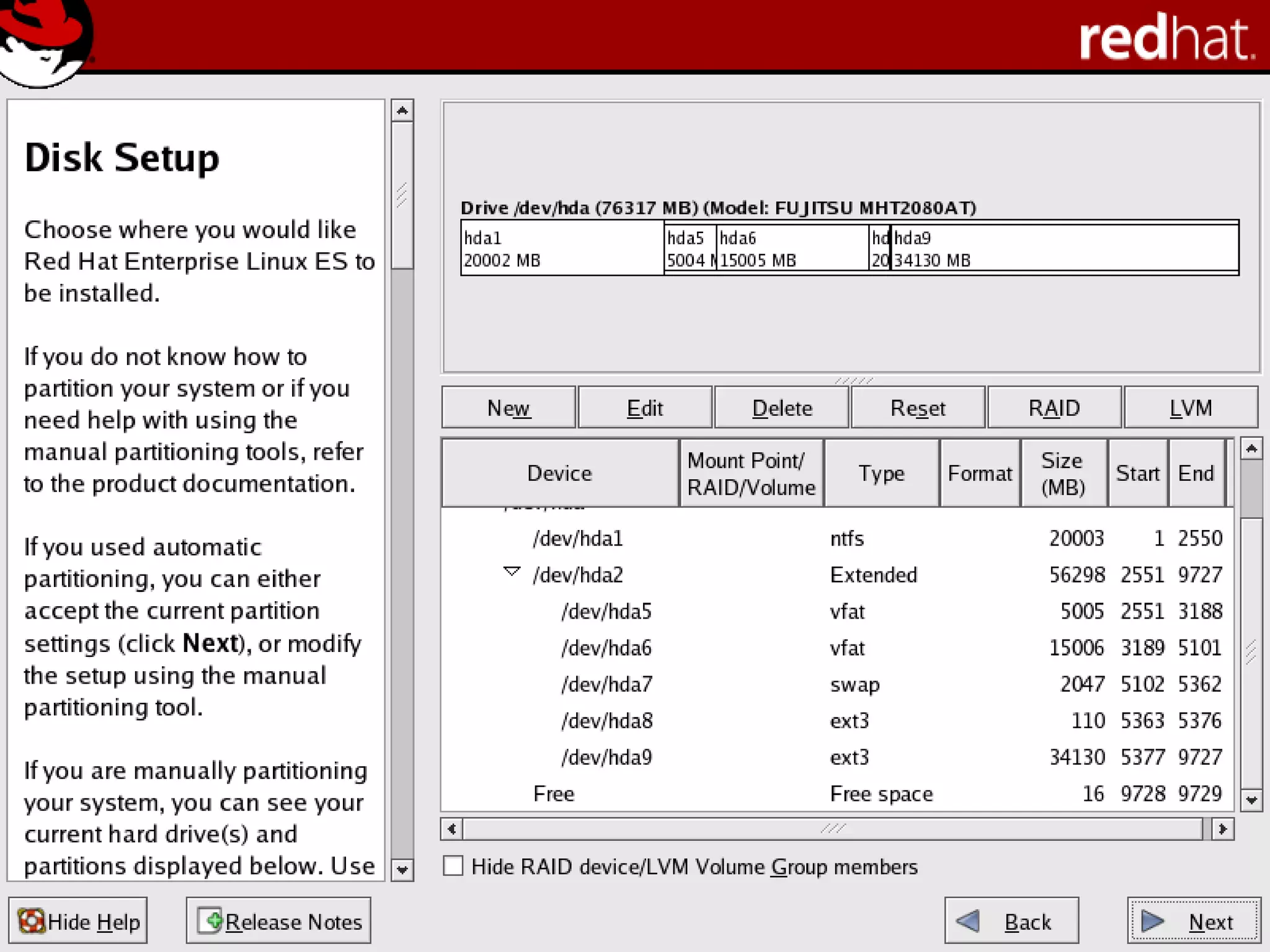
Partition Fields
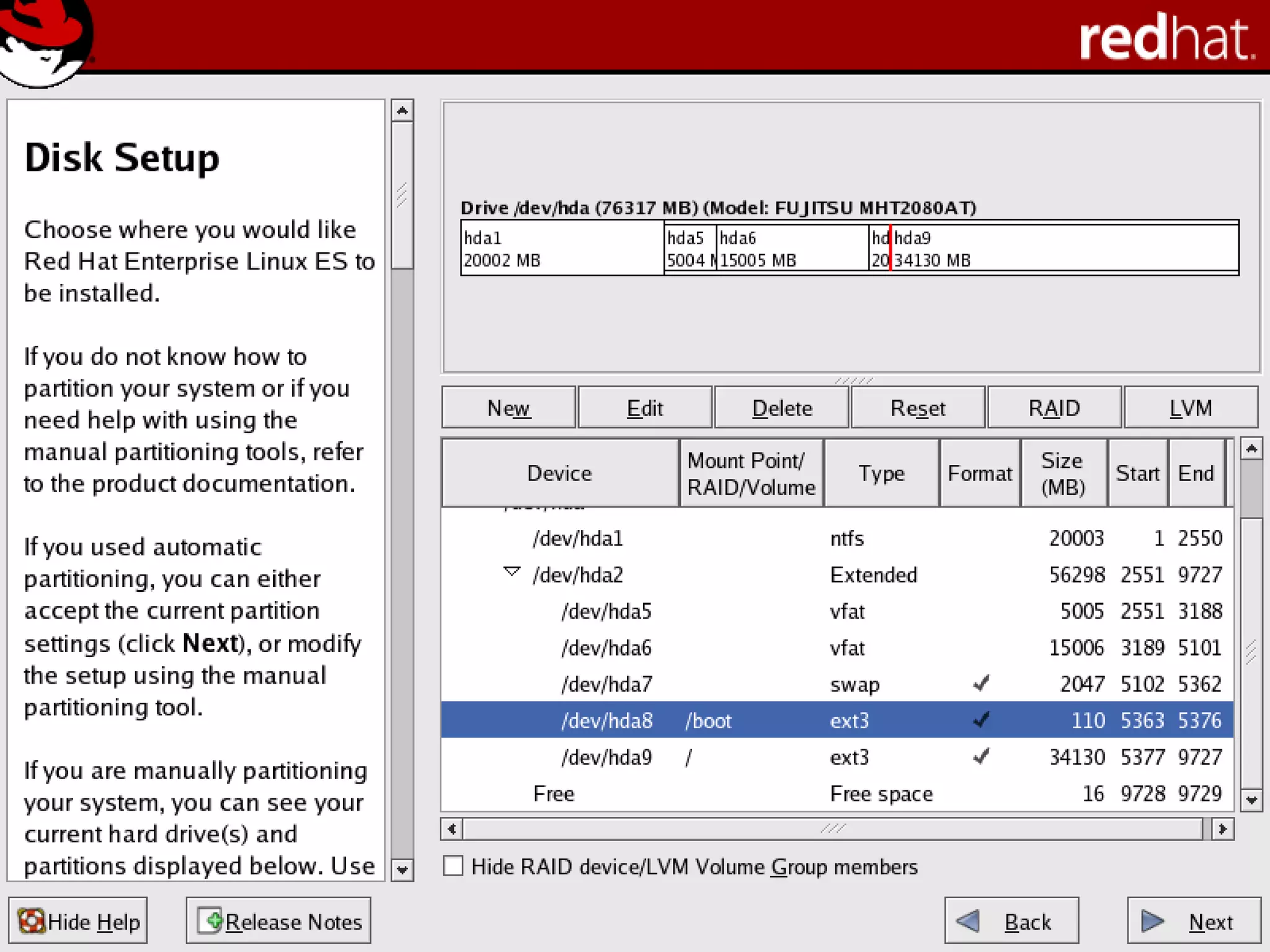
Device: This field displays the partition's device name.

Start: This field shows the sector on your hard drive
where the partition begins.
End: This field shows the sector on your hard drive where
the partition ends.
Size: This field shows the partition's size (in MB).
Type: This field shows the partition's type (for example,
ext2, ext3, or vfat).

31

Mount Point: A mount point is the location within the
directory hierarchy at which a volume exists; the volume is
"mounted" at this location. This field indicates where the
partition will be mounted.
Linux Installation

Filesystem Types

32

ext2 — An ext2 filesystem supports standard Unix file
types (regular files, directories, symbolic links, etc). It
provides the ability to assign long file names, up to 255
characters. Versions prior to Red Hat Linux 7.2 used ext2
filesystems by default.
ext3 — The ext3 filesystem is based on the ext2
filesystem and has one main advantage — journaling.
Using a journaling filesystem reduces time spent
recovering a filesystem after a crash as there is no need to
fsck the filesystem.
swap — Swap partitions are used to support virtual
memory. In other words, data is written to a swap partition
when there is not enough RAM to store the data your
system is processing.
vfat — The VFAT filesystem is a Linux filesystem that is
compatible with Windows 95/NT long filenames on the
FAT filesystem.
Linux Installation

Recommended Partitioning Scheme

33

Unless you have a reason for doing otherwise, it is
recommended that you create the following partitions:
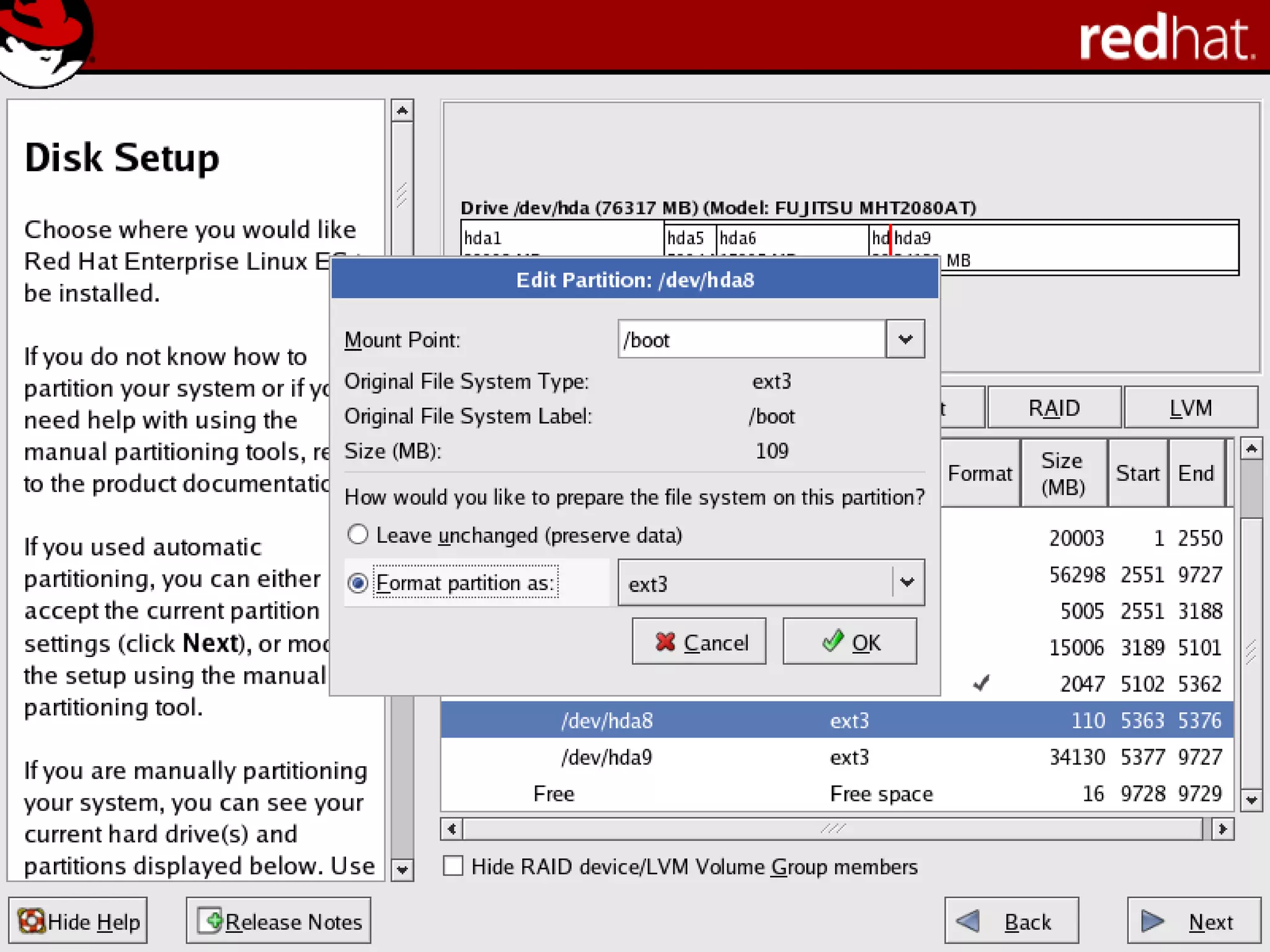
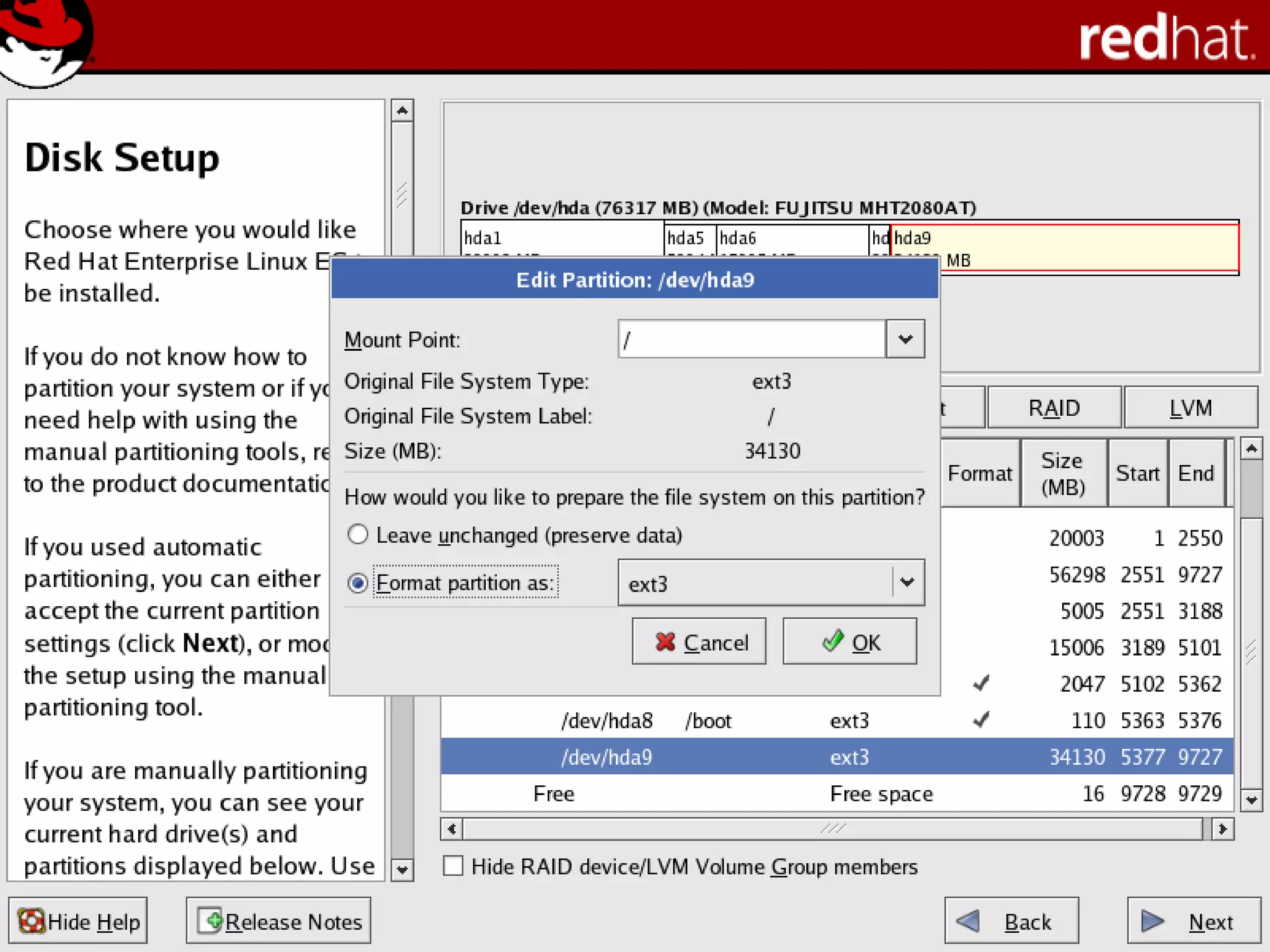
/boot partition – contains kernel images and grub
configuration and commands
/ partition
/var partition
/home partition
Any other partition based on application (e.g /usr/local
for squid)
swap partition — swap partitions are used to support
virtual memory. In other words, data is written to a
swap partition when there is not enough RAM to store
the data your system is processing. The size of your
swap partition should be equal to twice your
computer's RAM.
Linux Installation

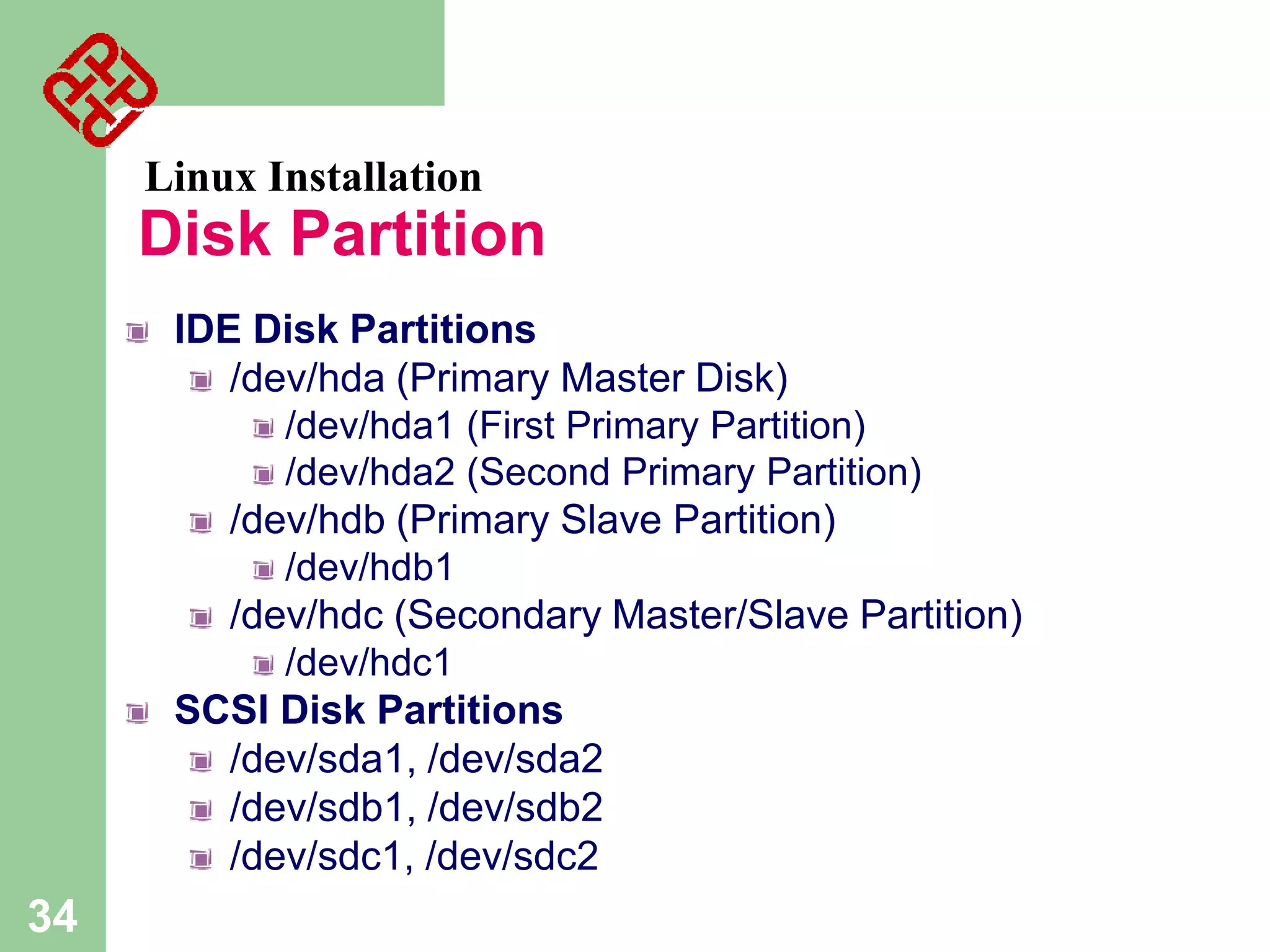
Disk Partition
IDE Disk Partitions
/dev/hda (Primary Master Disk)
/dev/hda1 (First Primary Partition)
/dev/hda2 (Second Primary Partition)
/dev/hdb (Primary Slave Partition)
/dev/hdb1
/dev/hdc (Secondary Master/Slave Partition)
/dev/hdc1
SCSI Disk Partitions
/dev/sda1, /dev/sda2
/dev/sdb1, /dev/sdb2
/dev/sdc1, /dev/sdc2

34
Linux Installation

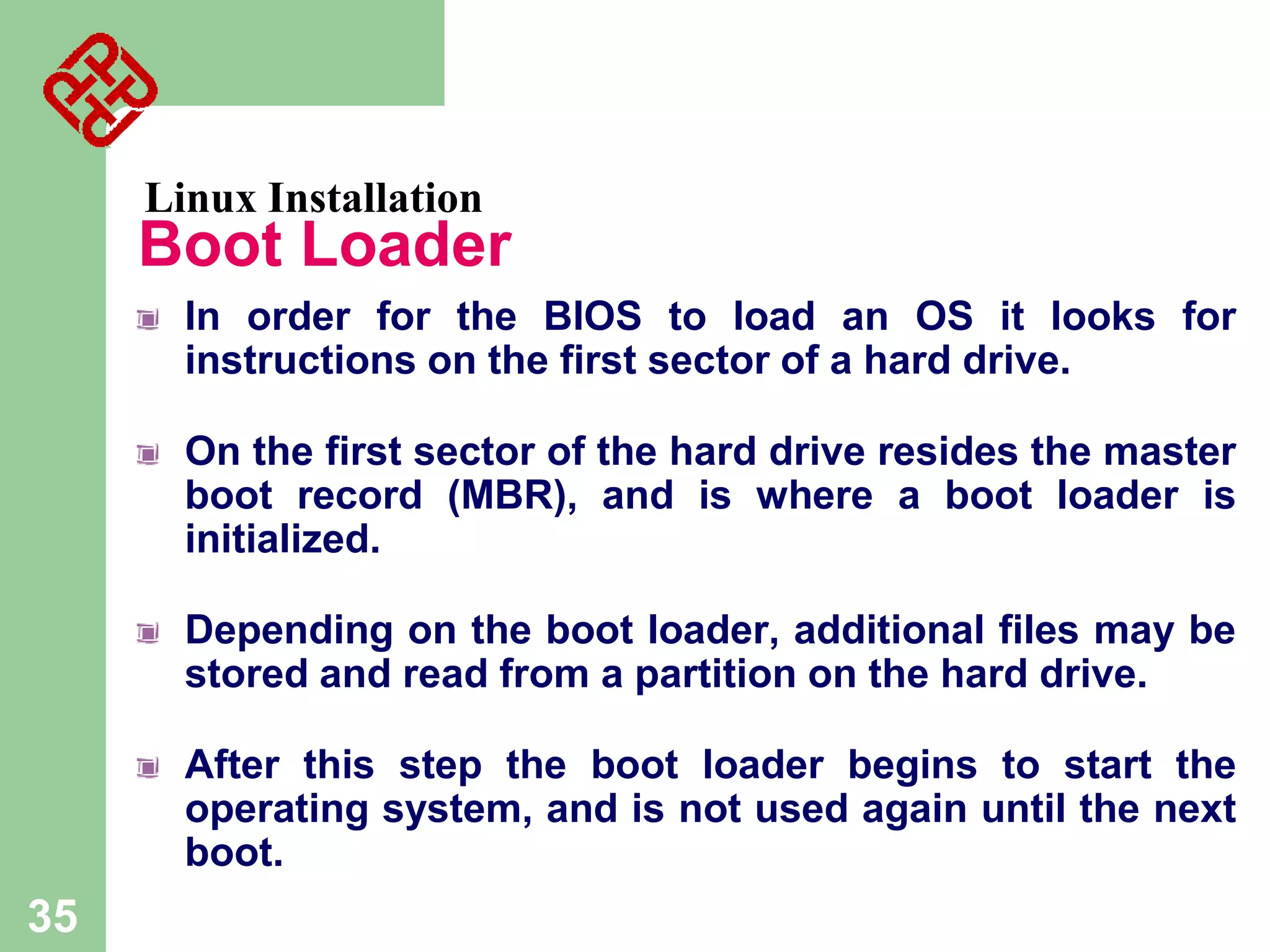
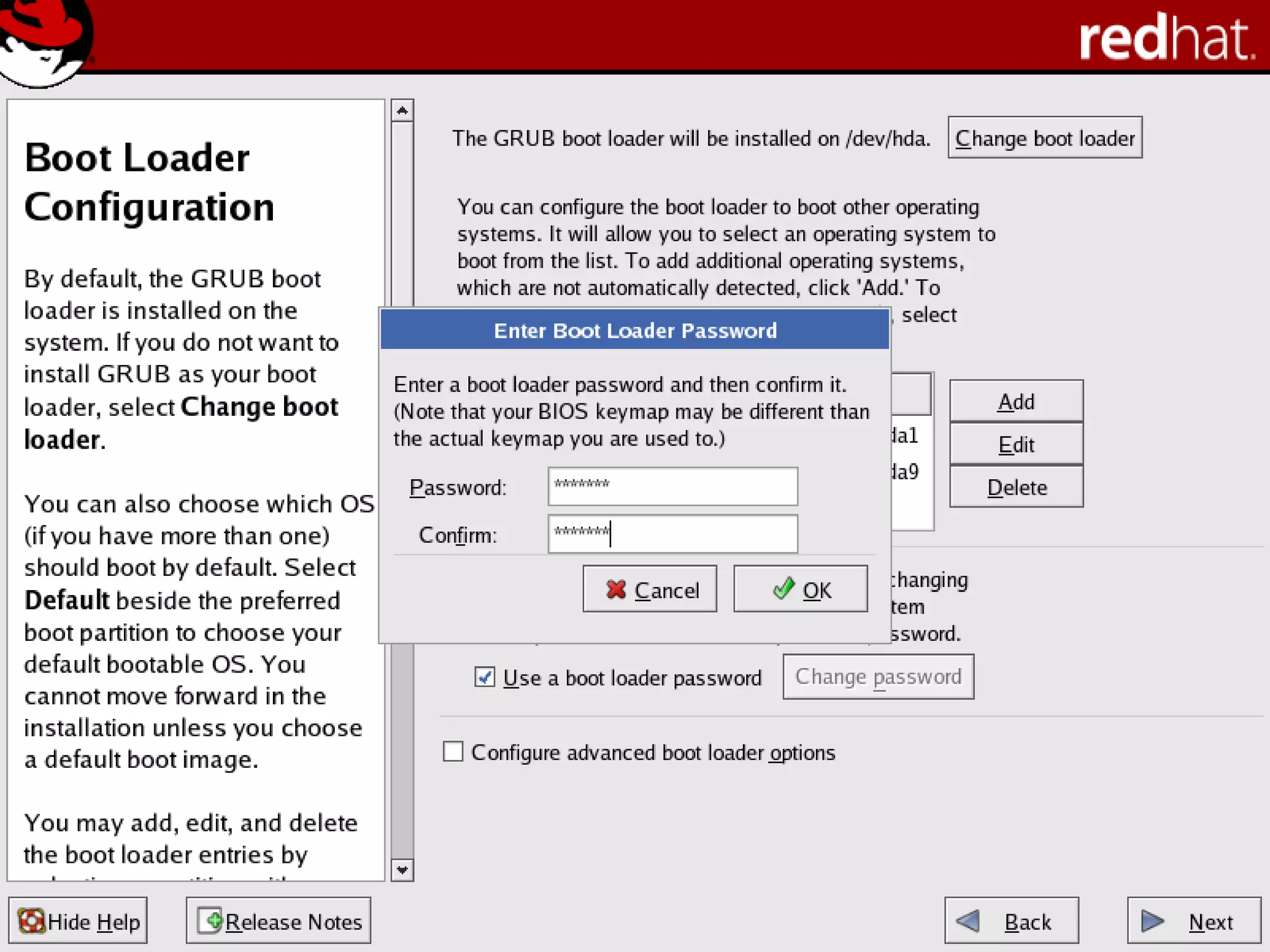
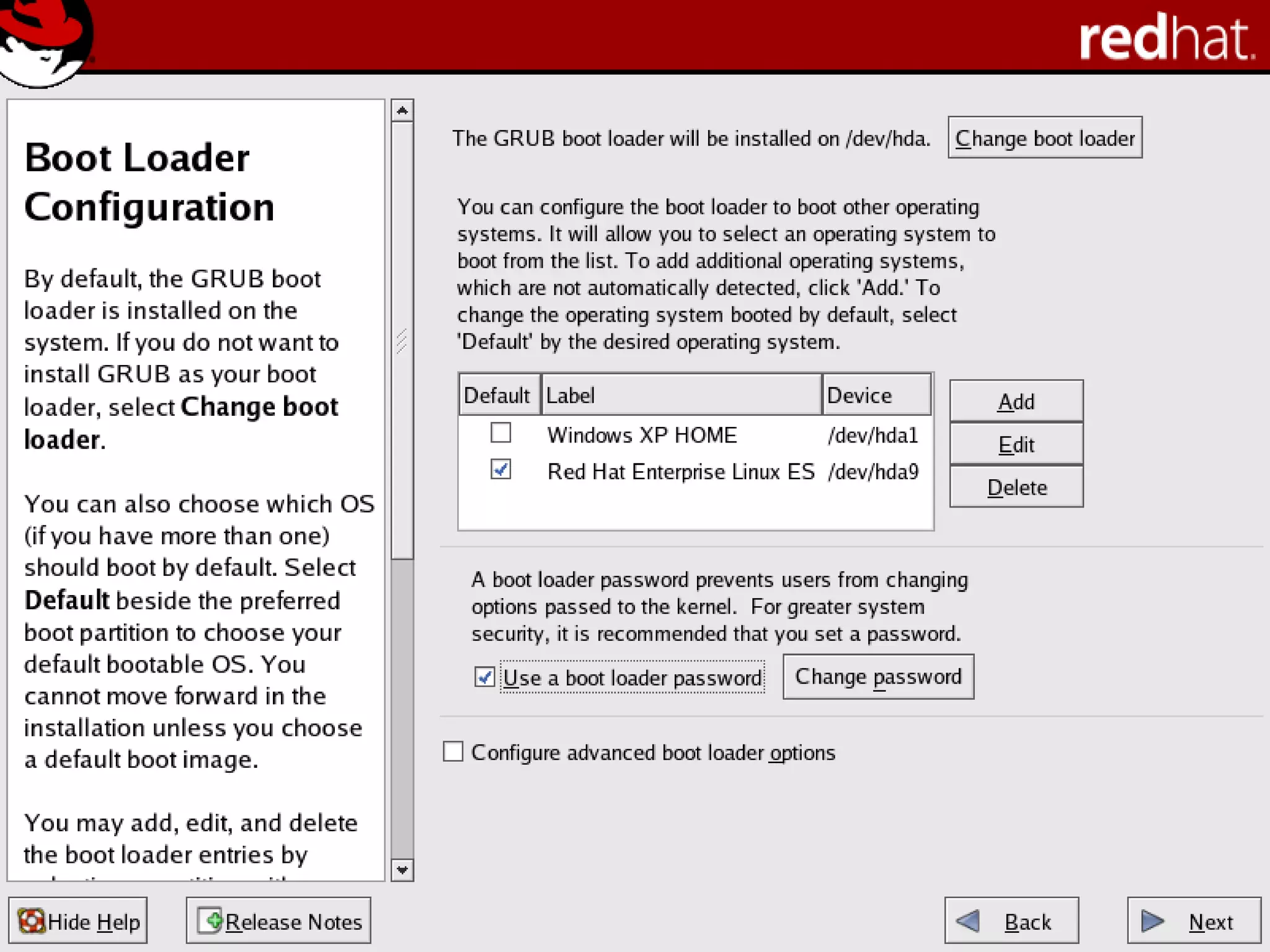
Boot Loader
In order for the BIOS to load an OS it looks for
instructions on the first sector of a hard drive.
On the first sector of the hard drive resides the master
boot record (MBR), and is where a boot loader is
initialized.
Depending on the boot loader, additional files may be
stored and read from a partition on the hard drive.

After this step the boot loader begins to start the
operating system, and is not used again until the next
boot.

35
Linux
B.1 User interface

65
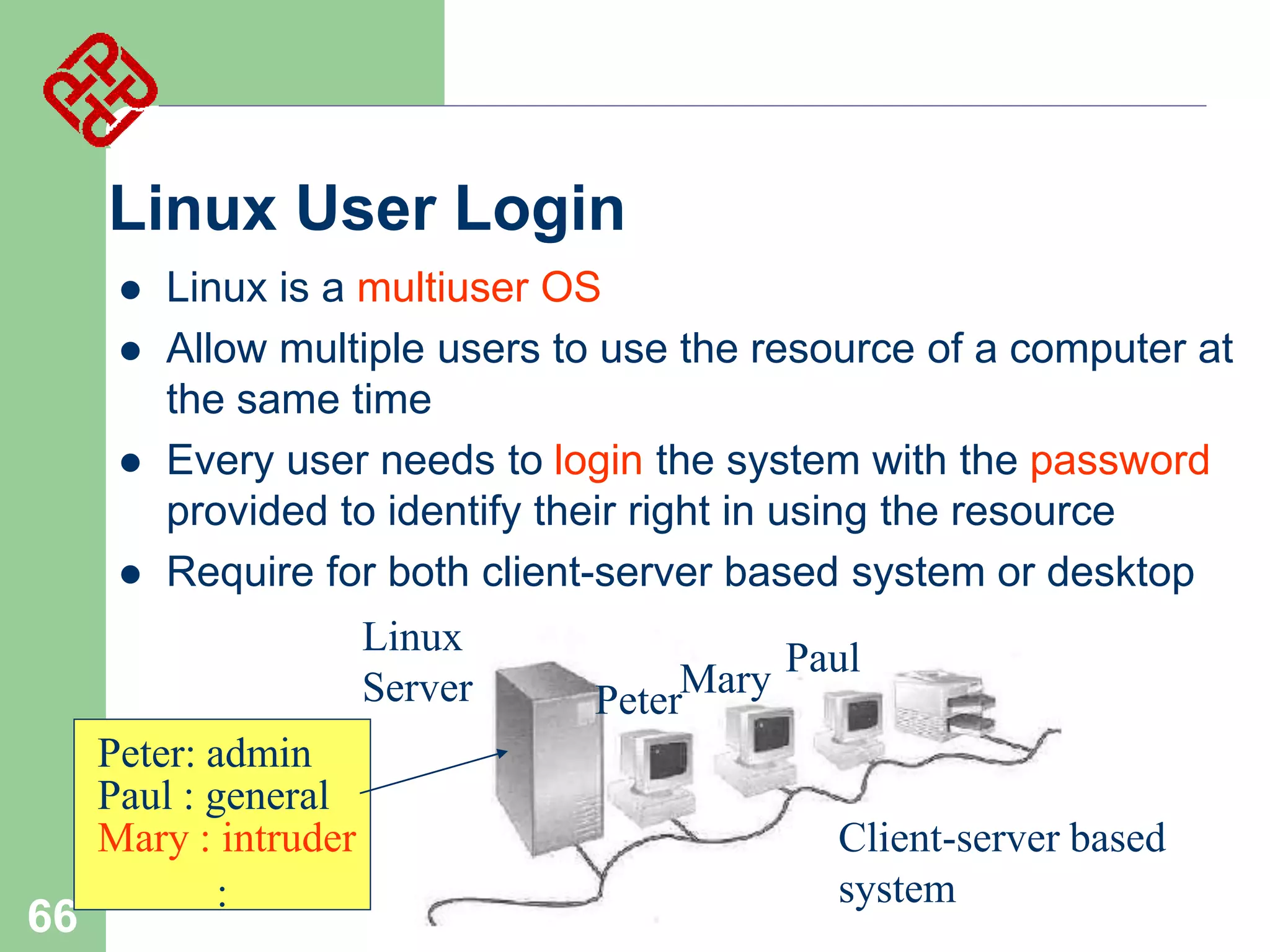
Linux User Login






Linux is a multiuser OS
Allow multiple users to use the resource of a computer at
the same time
Every user needs to login the system with the password
provided to identify their right in using the resource
Require for both client-server based system or desktop
Linux
Server

66

Peter: admin
Paul : general
Mary : intruder
:

Mary Paul
Peter
Client-server based
system
Linux User Interface


Traditional Linux (Unix also) uses commanddriven interface (or text-based interface)
–

–
–

–

67

User needs to type lines of command to instruct the
computer to work, similar to DOS
Advantage: fast in speed. Very few resource is
required for its implementation
Disadvantages: user needs to type, hence can
easily make error. Besides, user needs to memorize
all commands
Suitable for expert users and for the systems that
interaction with user is not frequent, such as servers


68

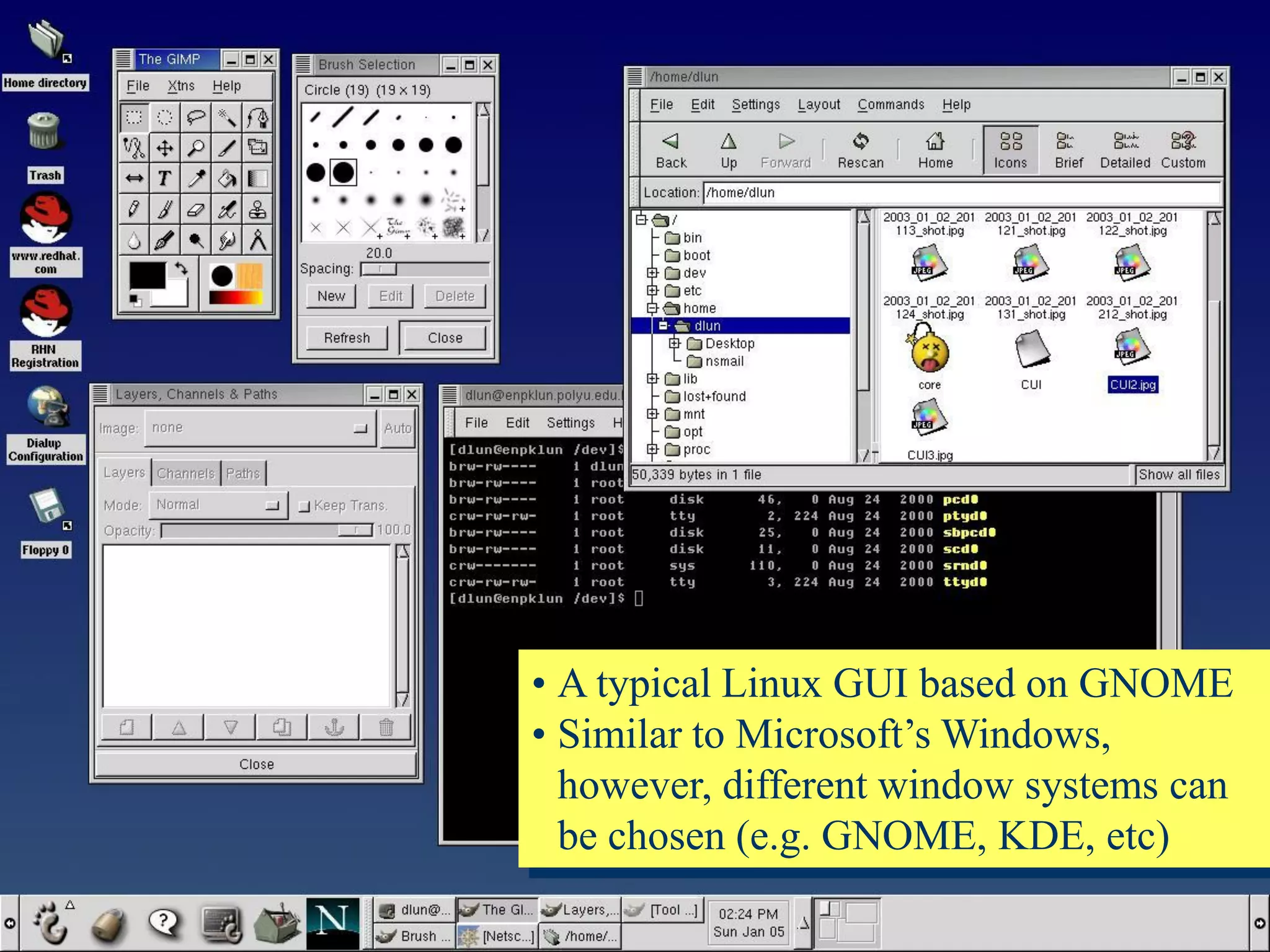
By adopting the X-Window technology, graphical user
interface (GUI) is available for Linux:
– Uses pointing devices (e.g. mouse) to control the
system, similar to Microsoft’s Windows
– Provide menu-driven and/or icon-driven interfaces
– menu-driven: user is provided with a menu of
choices. Each choice refers to a particular task
– icon-driven: tasks are represented by pictures
(icon) and shown to user. Click on an icon
invokes one task
– Advantages: No need to memorize commands.
Always select task from menus or icons
– Disadvantages: Slow and require certain resource
for its implementation
– Suitable for general users and systems, such as PC
• A typical Linux GUI based on GNOME
• Similar to Microsoft’s Windows,
however, different window systems can
be chosen (e.g. GNOME, KDE, etc)

69
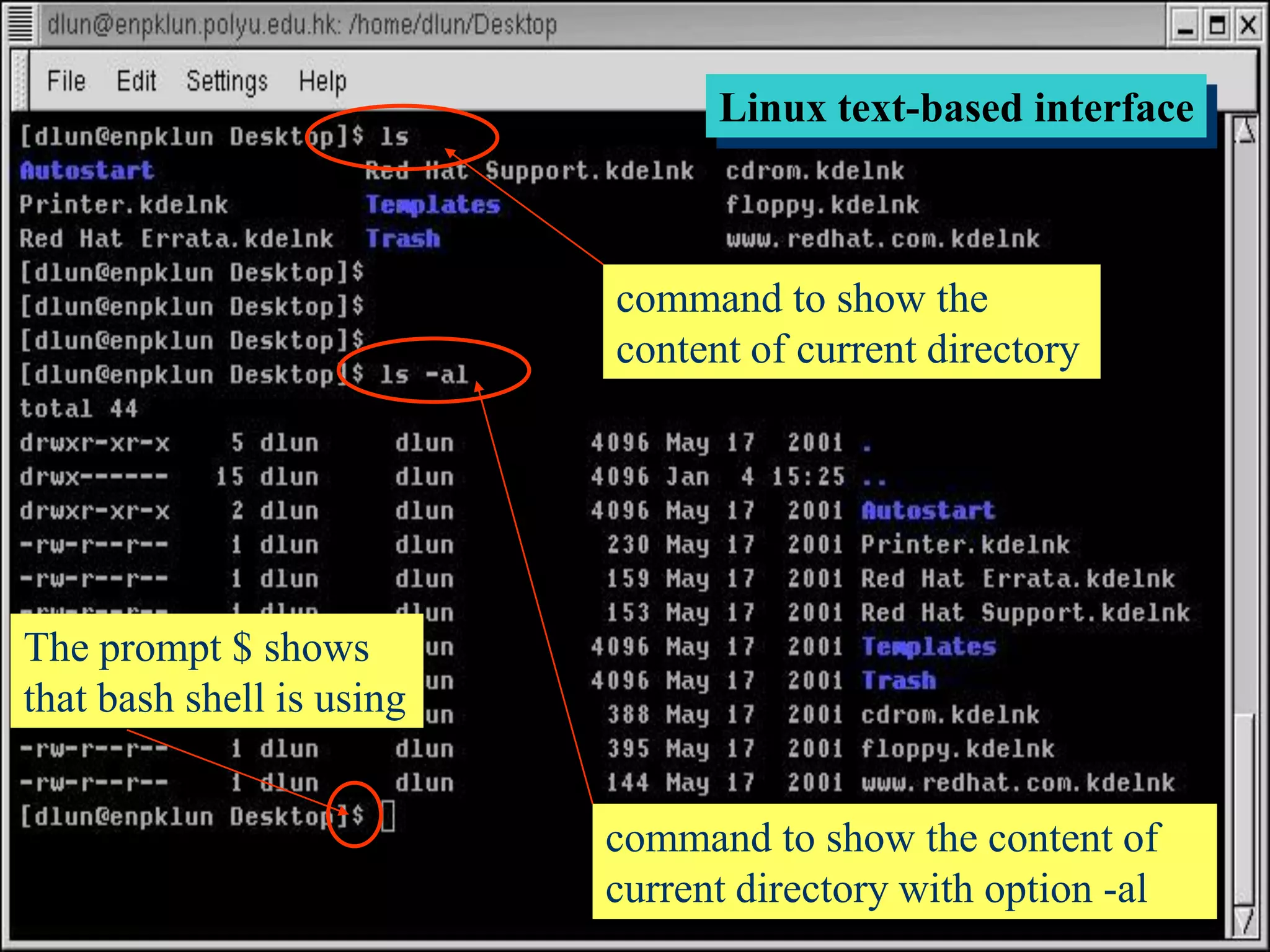
Linux text-based interface

command to show the
content of current directory

The prompt $ shows
that bash shell is using

70

command to show the content of
current directory with option -al
Linux Shell




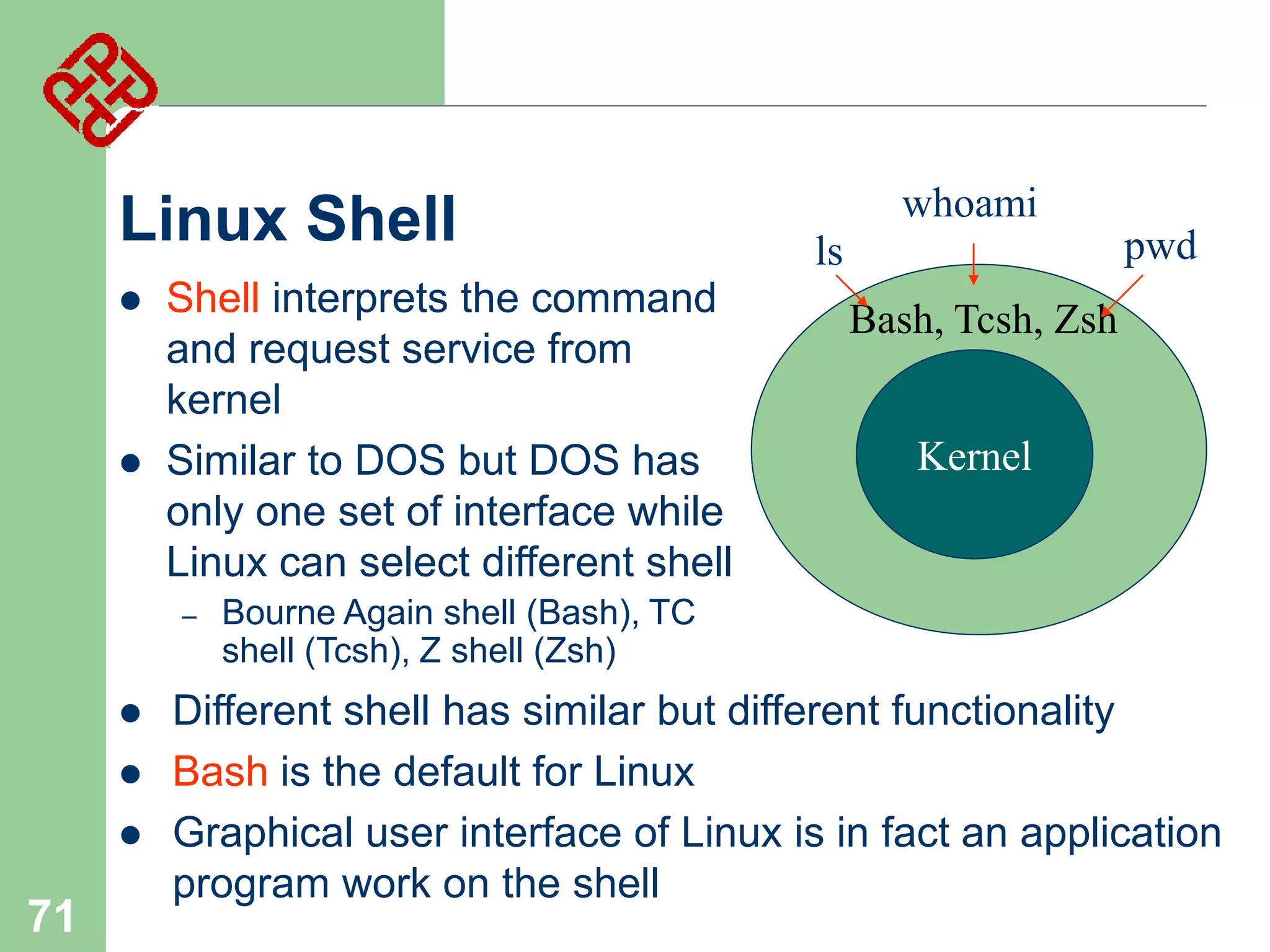
Shell interprets the command
and request service from
kernel
Similar to DOS but DOS has
only one set of interface while
Linux can select different shell
–






71

whoami
pwd

ls
Bash, Tcsh, Zsh
Kernel

Bourne Again shell (Bash), TC
shell (Tcsh), Z shell (Zsh)

Different shell has similar but different functionality
Bash is the default for Linux
Graphical user interface of Linux is in fact an application
program work on the shell


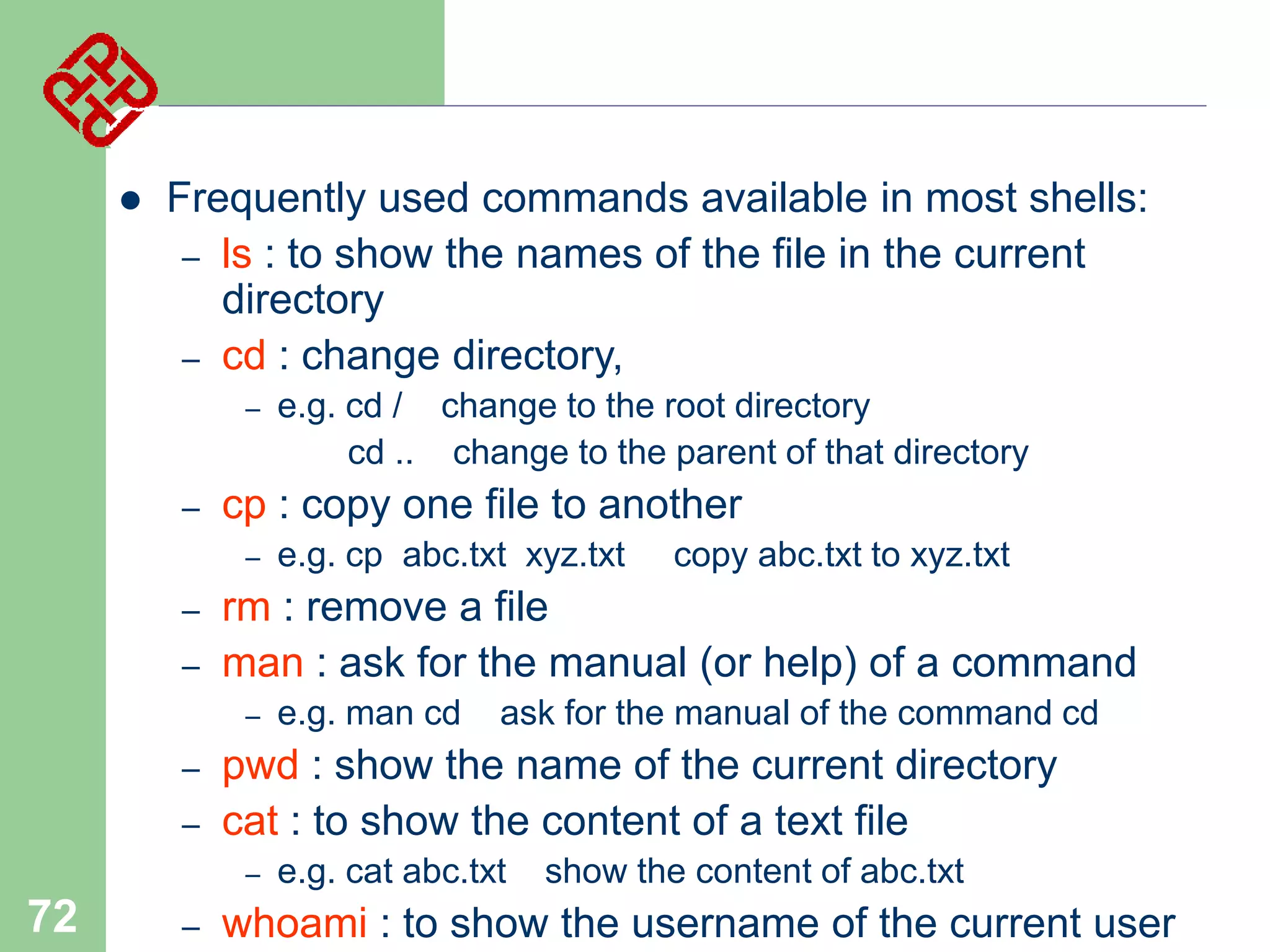
Frequently used commands available in most shells:
– ls : to show the names of the file in the current
directory
– cd : change directory,
–

–

cp : copy one file to another
–

–
–

–
–

copy abc.txt to xyz.txt

e.g. man cd

ask for the manual of the command cd

pwd : show the name of the current directory
cat : to show the content of a text file
–

72

e.g. cp abc.txt xyz.txt

rm : remove a file
man : ask for the manual (or help) of a command
–

–

e.g. cd / change to the root directory
cd .. change to the parent of that directory

e.g. cat abc.txt

show the content of abc.txt

whoami : to show the username of the current user
Linux:
B.2 File System Structure

73
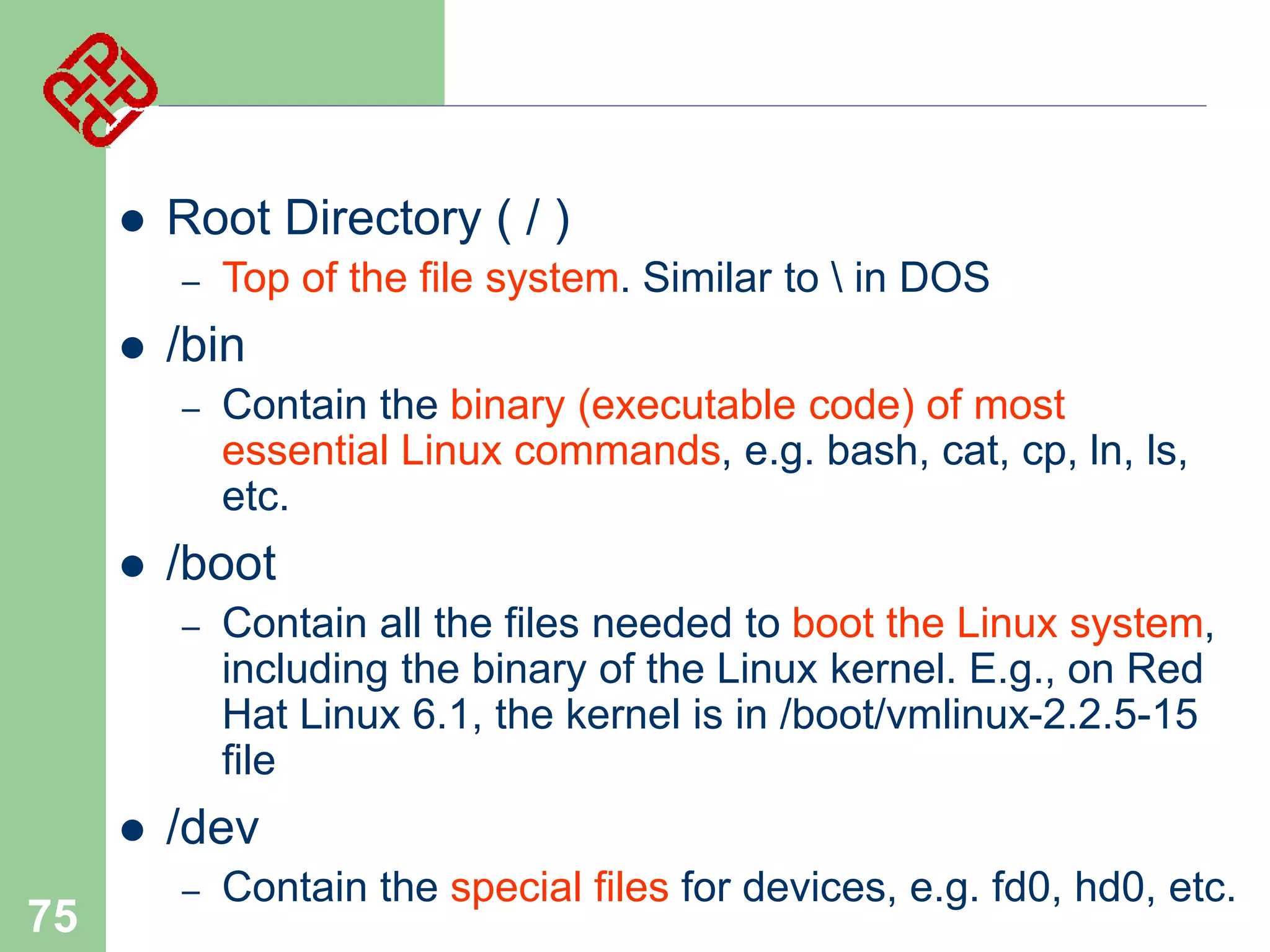
Linux File System Structure


According to the File System Standard (FSSTND)
proposed in 1994, every LINUX system should
contain a set of standard files and directories
root /
bin

lib

boot

74

fd

hd

lost+found
dev

etc

…
hd group passwd

mnt

directories
opt

proc

root

home

sbin
tmp

var
usr

file
dlun

guest

bin

lib

local


Root Directory ( / )
–



/bin
–



75

Contain the binary (executable code) of most
essential Linux commands, e.g. bash, cat, cp, ln, ls,
etc.

/boot
–



Top of the file system. Similar to  in DOS

Contain all the files needed to boot the Linux system,
including the binary of the Linux kernel. E.g., on Red
Hat Linux 6.1, the kernel is in /boot/vmlinux-2.2.5-15
file

/dev
–

Contain the special files for devices, e.g. fd0, hd0, etc.


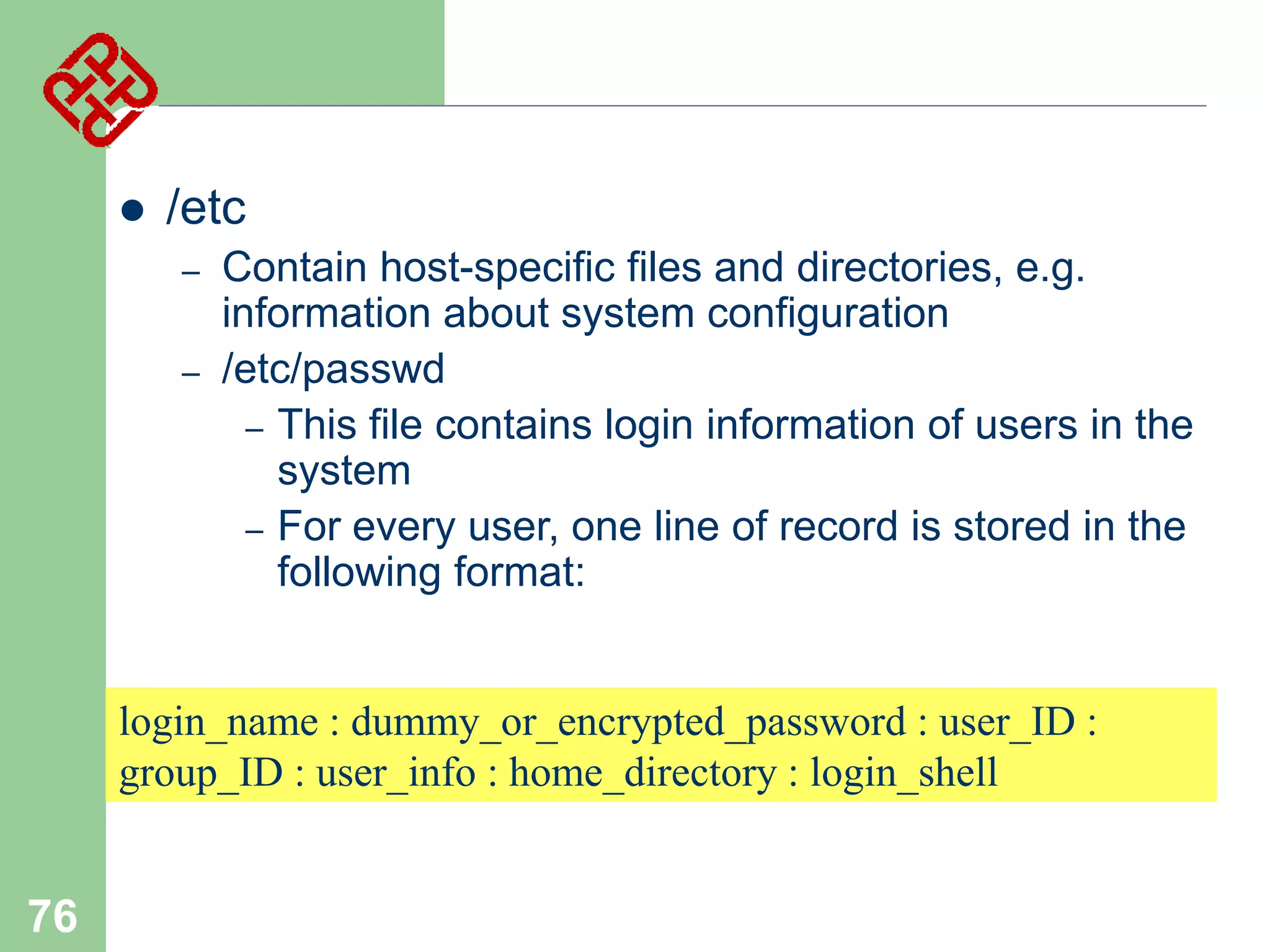
/etc
–
–

Contain host-specific files and directories, e.g.
information about system configuration
/etc/passwd
– This file contains login information of users in the
system
– For every user, one line of record is stored in the
following format:

login_name : dummy_or_encrypted_password : user_ID :
group_ID : user_info : home_directory : login_shell

76


77

E.g. veeral:x:501:501:veeral bhateja:/home/veeral:/bin/bash
– veeral : login name
– x : means that it is a dummy password. The encrypted
password is stored in /etc/shadow. This field can also be
used to store the actual encrypted password. In any
case, the original (unencrypted) password cannot be
seen by anyone, including the administrator
– 501 : a user id given to that user. Range from 0 to 65535
0 is assigned to super-user. 1 to 99 are reserved
– 501 : a group id given to that user to indicate which
group he belongs to. Range from 0 to 65535. 0 to 99
reserved
– Veeral Bhateja : user info, usually user’s full name
– /home/Veeral : home directory of the user
– /bin/bash : the location of the shell the user is using


/home
–



/lib
–



Store all essential libraries for different language
compilers

/lost+found
–
–

78

Contain the home directories of every user in the
system, e.g. veeral, guest, etc

Contain all the files on the system not connected to
any directory.
System administrator should determine the fate of
the files in this directory


/mnt
–
–
–
–
–

–

79

Use by system administrator to mount file systems
temporarily by using the mount command
Before using any devices, they have to be mounted
to the system for registration
For example, after mounting a CD-ROM, the file
system in it will be mapped to /mnt/cdrom directory
User can then read and write files in the CD-ROM
by accessing this directory
Similar to mapping a drive letter to a CD-ROM in
Windows
Different from the special file in /dev. Special file is
only a place where data of the CD-ROM is
transferred or stored. No file system concept


/opt
–



/proc
–



Home directory of the user root, usually the
administrator

/sbin
–

80

Contain process and system information

/root
–



Use to install add-on software packages, e.g. star
office, etc.

The directories /sbin, /usr/sbin, and /usr/local/sbin
contain system administration tools, utilities and
general root only commands, such as halt, reboot
and shutdown


/tmp
–



/usr
–

–



One of the largest sections of the Linux file system
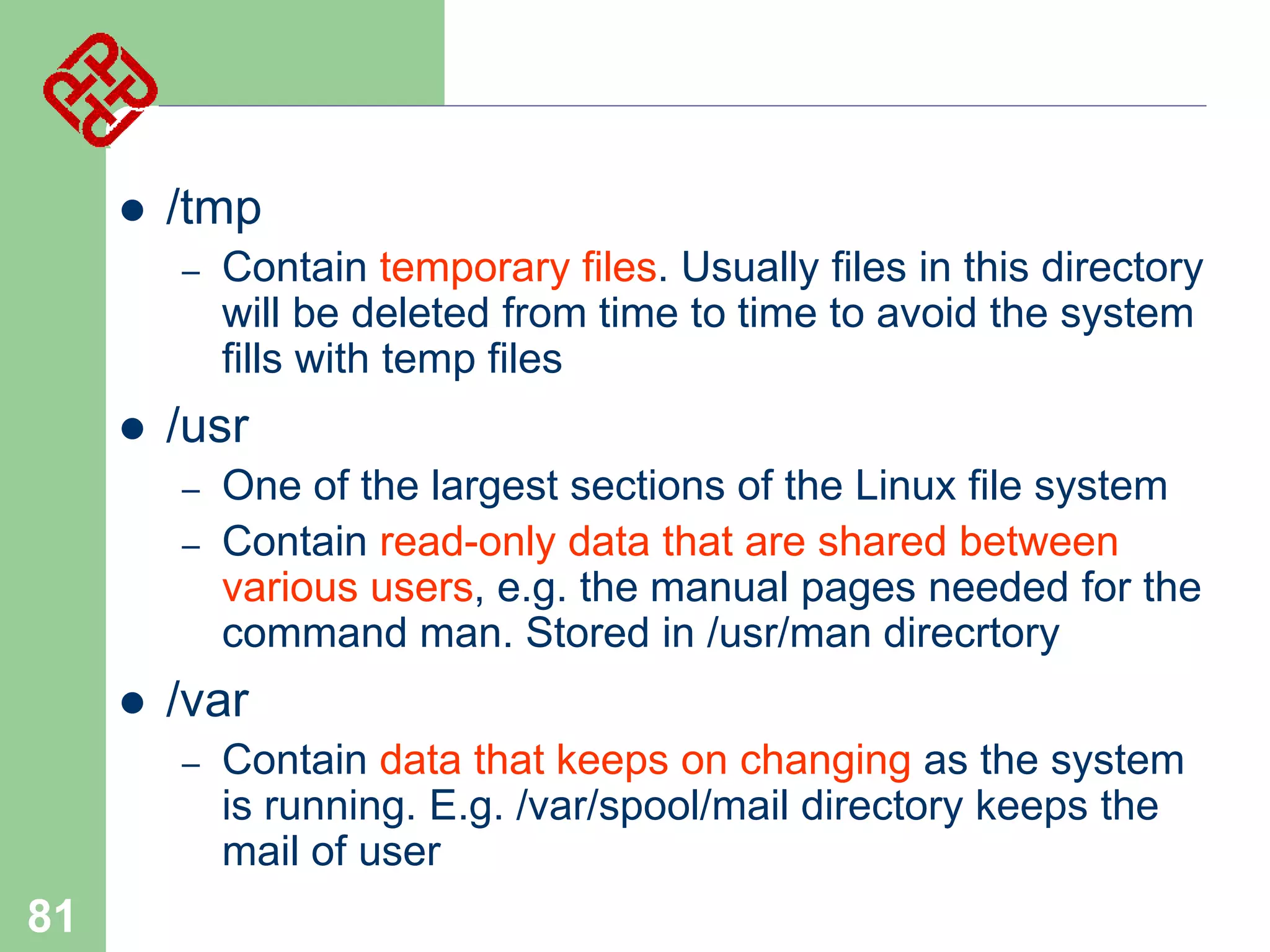
Contain read-only data that are shared between
various users, e.g. the manual pages needed for the
command man. Stored in /usr/man direcrtory

/var
–

81

Contain temporary files. Usually files in this directory
will be deleted from time to time to avoid the system
fills with temp files

Contain data that keeps on changing as the system
is running. E.g. /var/spool/mail directory keeps the
mail of user
Linux File Access Privilege






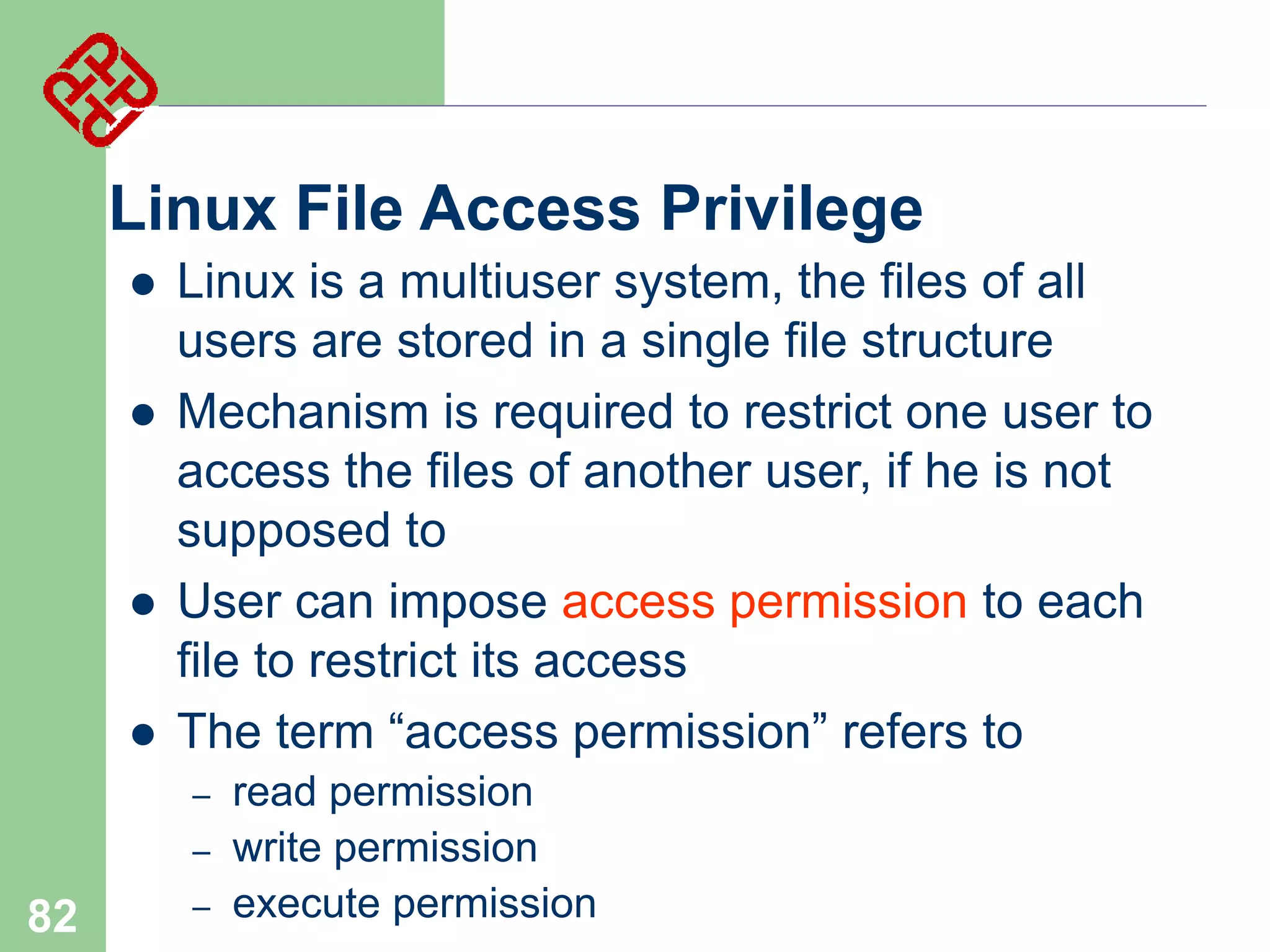
Linux is a multiuser system, the files of all
users are stored in a single file structure
Mechanism is required to restrict one user to
access the files of another user, if he is not
supposed to
User can impose access permission to each
file to restrict its access
The term “access permission” refers to
–
–

82

–

read permission
write permission
execute permission
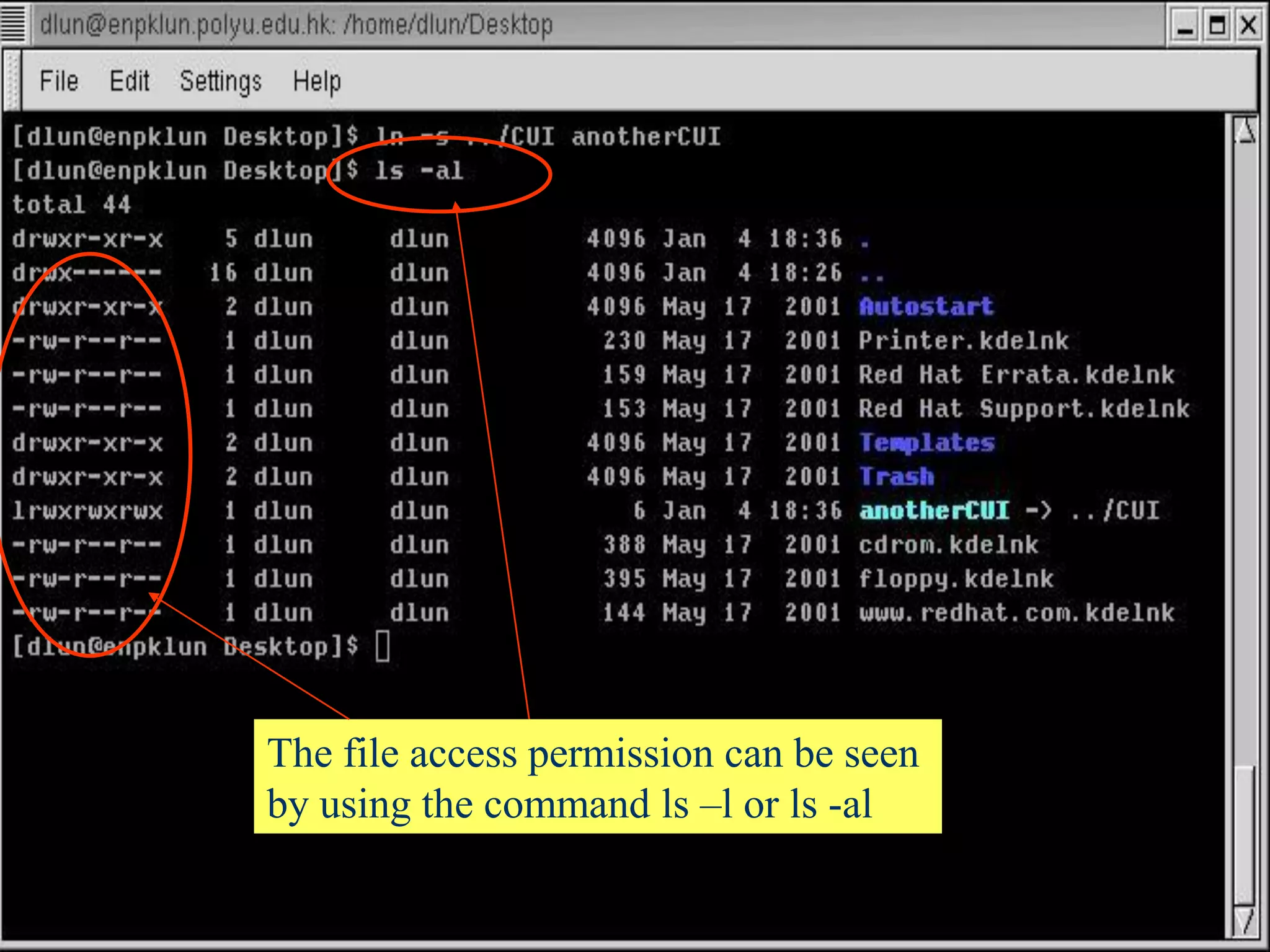
The file access permission can be seen
by using the command ls –l or ls -al

83
Hard
link no

Owner

Owner’s
group

File last
modified date

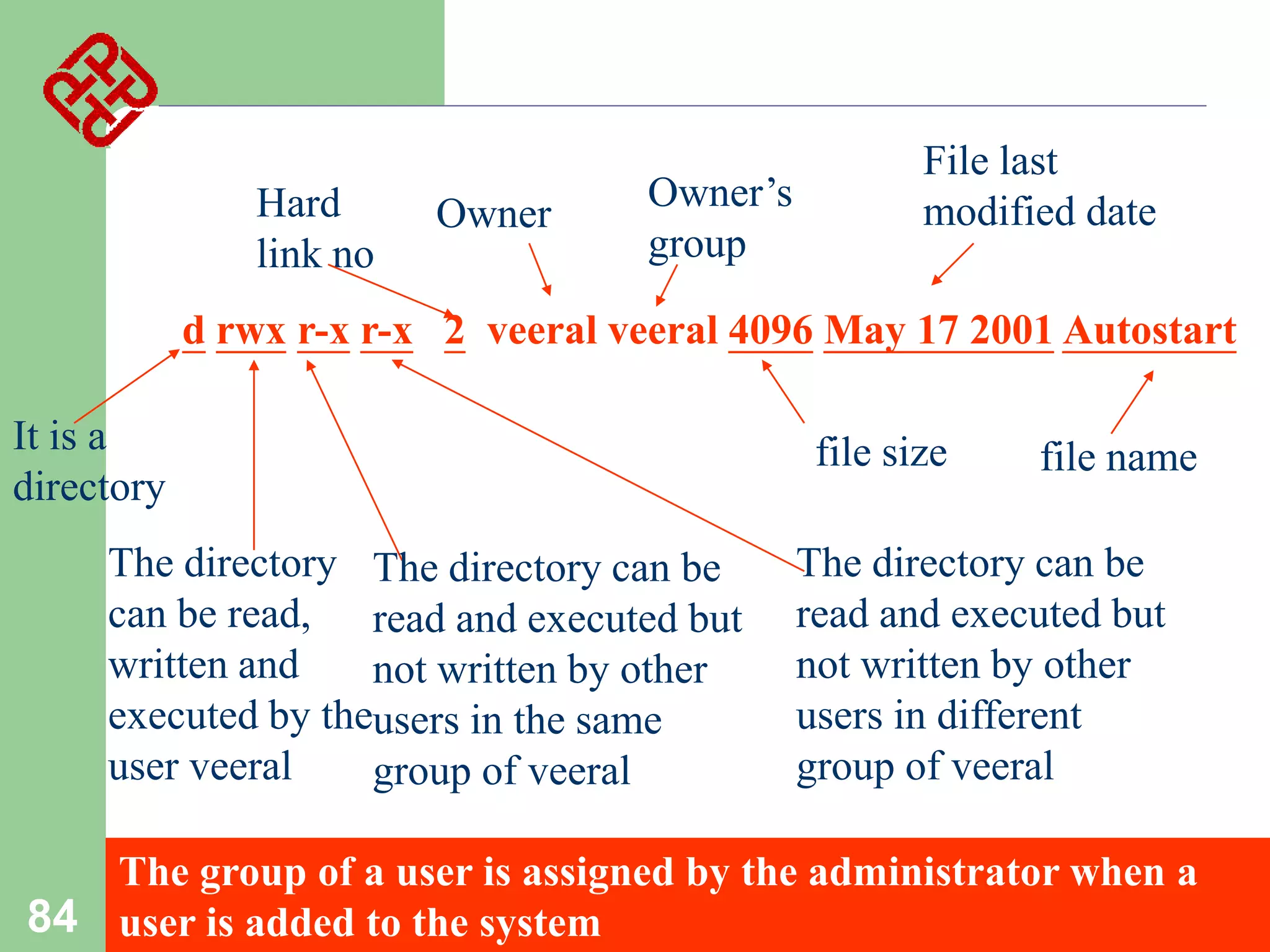
d rwx r-x r-x 2 veeral veeral 4096 May 17 2001 Autostart
It is a
directory
The directory The directory can be
can be read, read and executed but
written and
not written by other
executed by theusers in the same
user veeral
group of veeral

file size

file name

The directory can be
read and executed but
not written by other
users in different
group of veeral

The group of a user is assigned by the administrator when a
84 user is added to the system




Access permission can also be assigned to a
directory
Directory is also a file that contains the attributes
of the files inside it
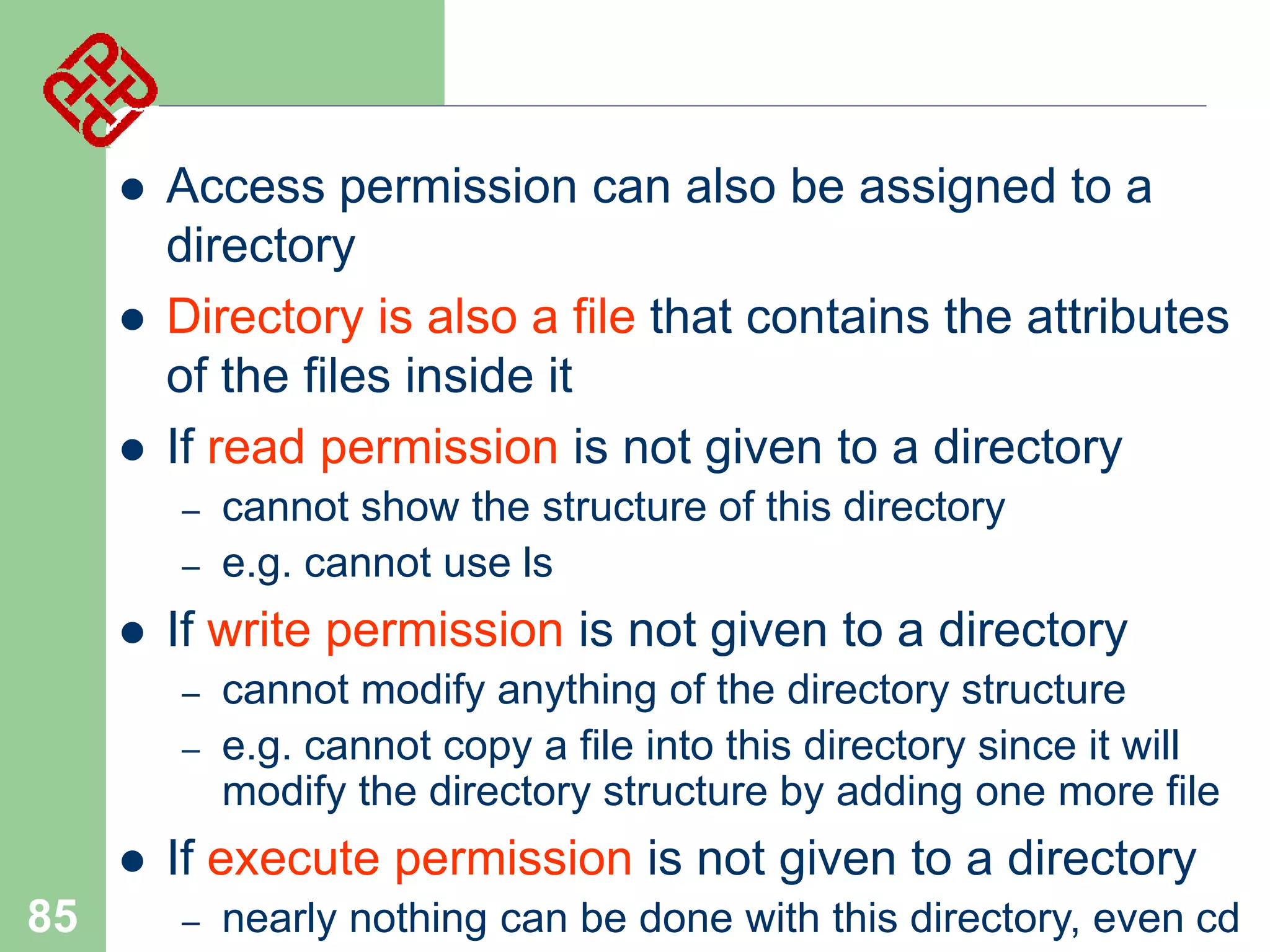
If read permission is not given to a directory
–

–



If write permission is not given to a directory
–
–



85

cannot show the structure of this directory
e.g. cannot use ls
cannot modify anything of the directory structure
e.g. cannot copy a file into this directory since it will
modify the directory structure by adding one more file

If execute permission is not given to a directory
–

nearly nothing can be done with this directory, even cd


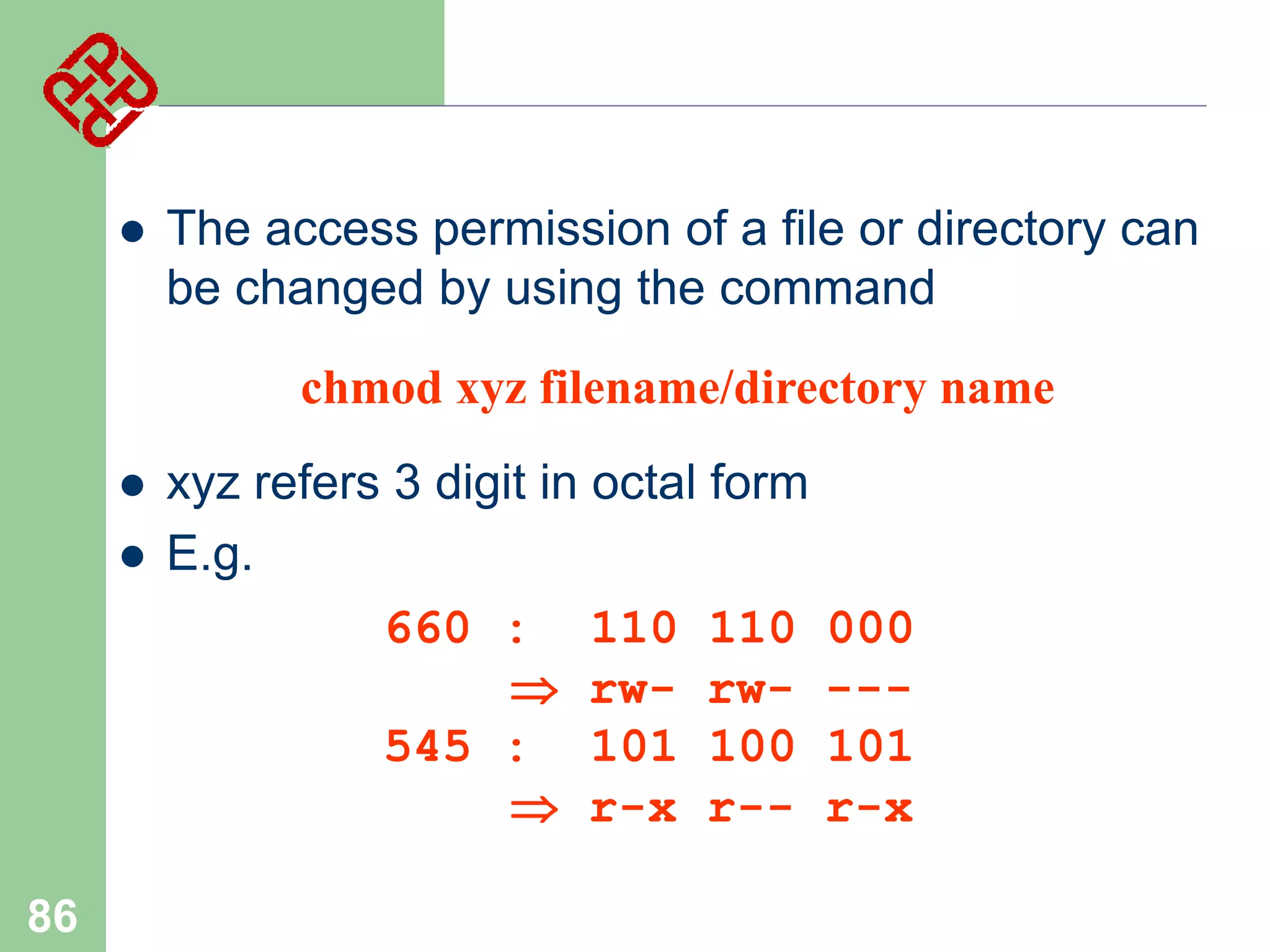
The access permission of a file or directory can
be changed by using the command
chmod xyz filename/directory name





86

xyz refers 3 digit in octal form
E.g.
660 : 110 110
 rw- rw545 : 101 100
 r-x r--

000
--101
r-x
File Storage in Linux


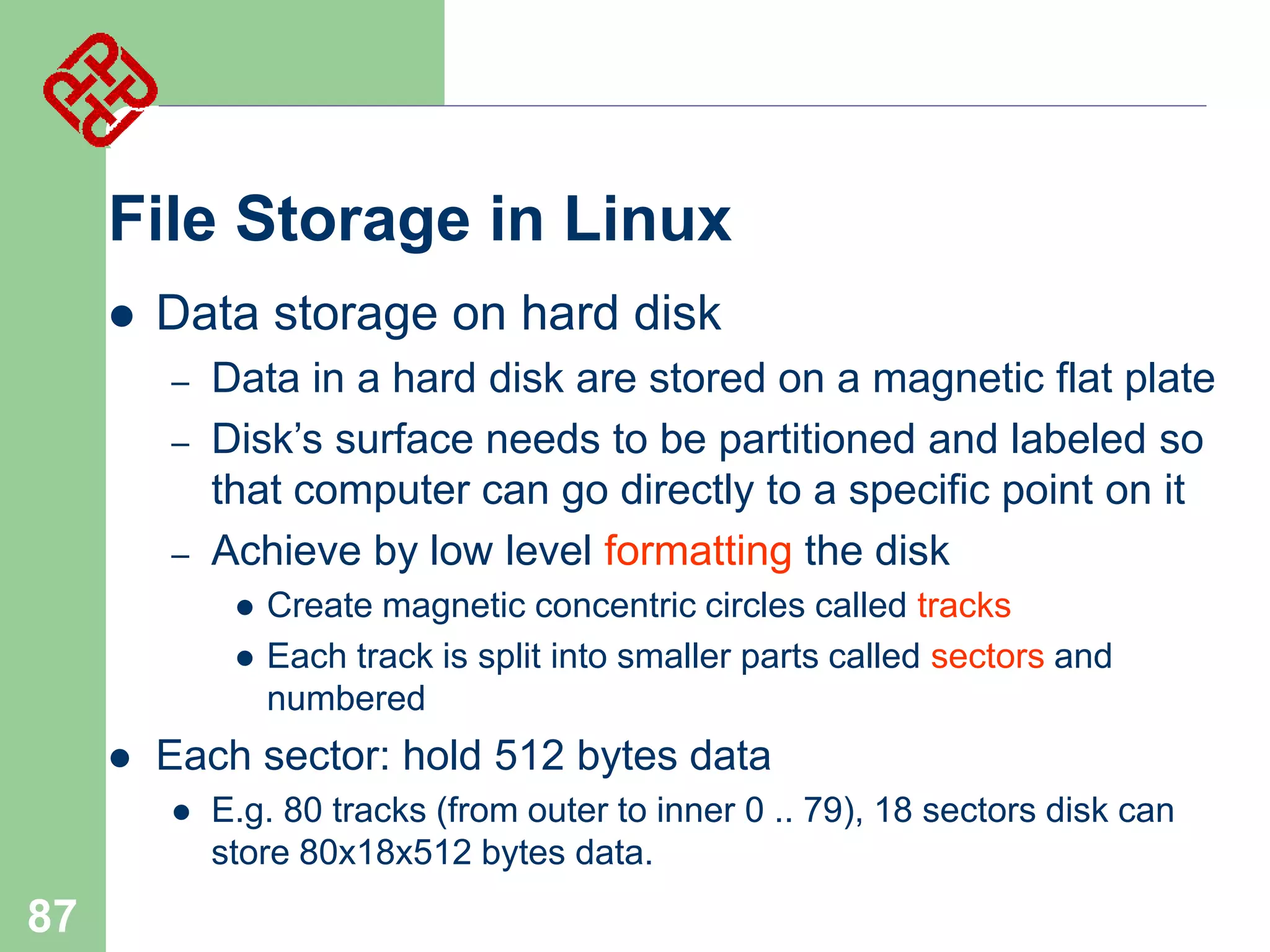
Data storage on hard disk
–
–

–

Data in a hard disk are stored on a magnetic flat plate
Disk’s surface needs to be partitioned and labeled so
that computer can go directly to a specific point on it
Achieve by low level formatting the disk





Each sector: hold 512 bytes data


87

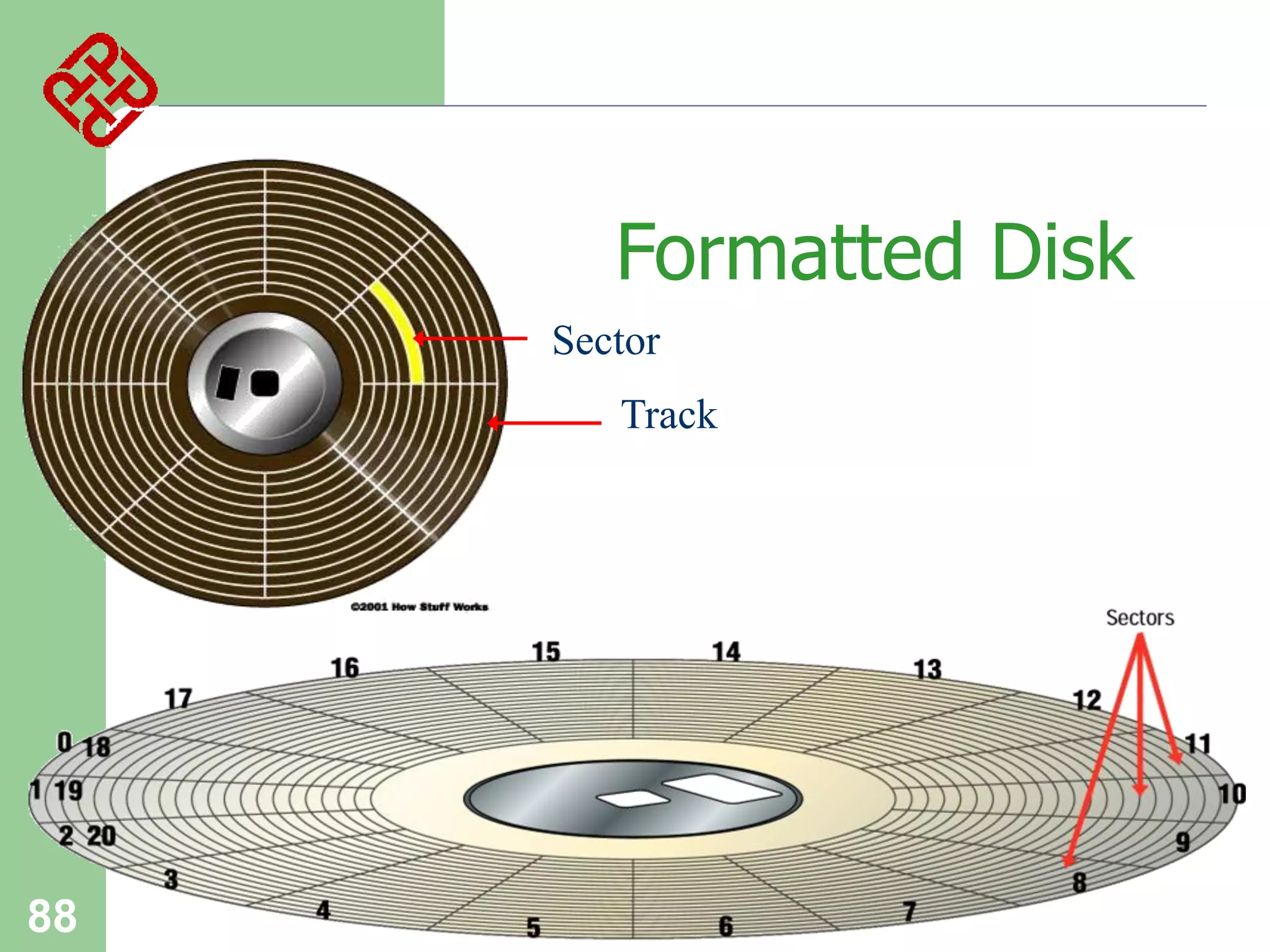
Create magnetic concentric circles called tracks
Each track is split into smaller parts called sectors and
numbered

E.g. 80 tracks (from outer to inner 0 .. 79), 18 sectors disk can
store 80x18x512 bytes data.
Formatted Disk
Sector
Track

88







89

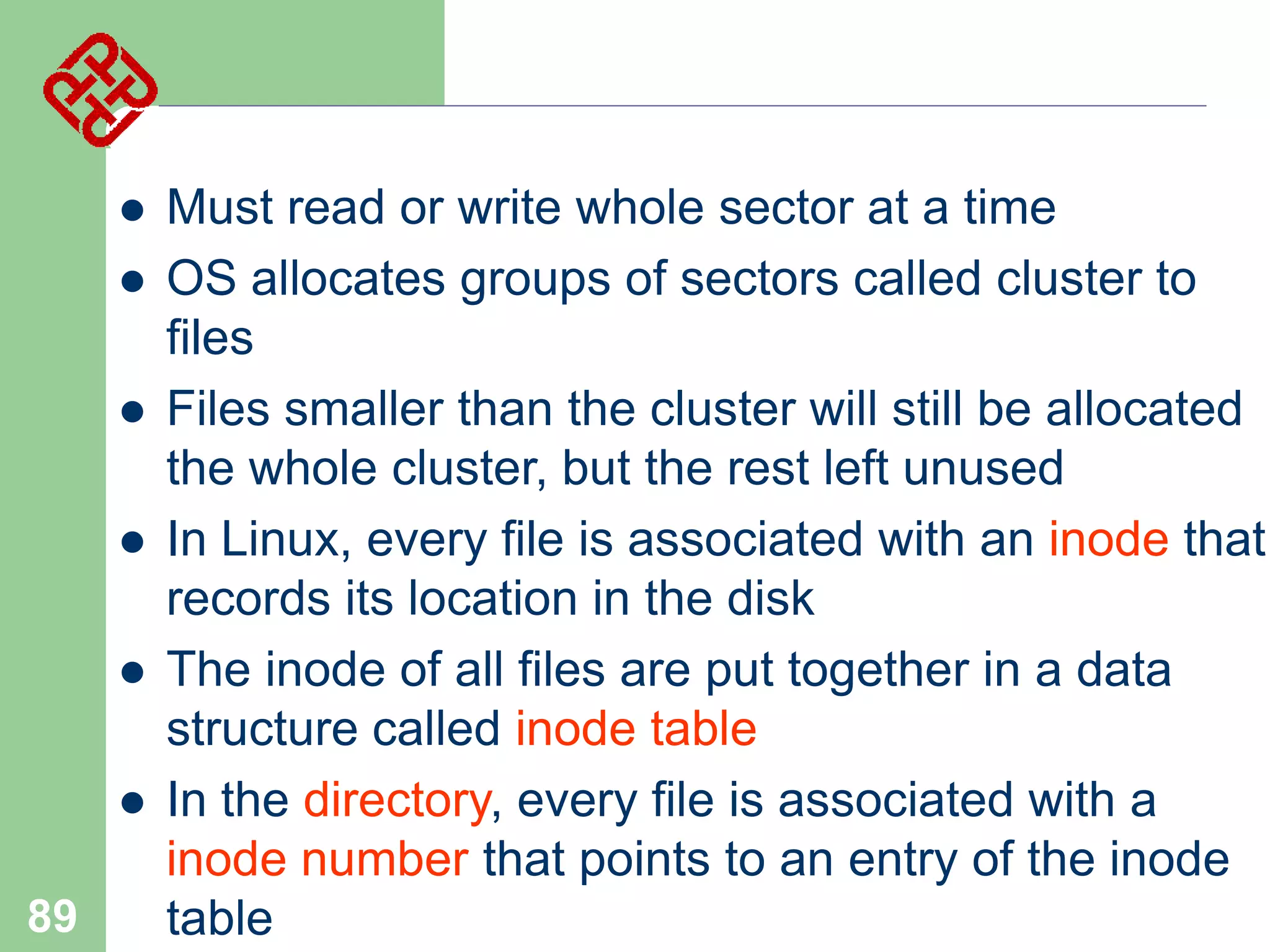
Must read or write whole sector at a time
OS allocates groups of sectors called cluster to
files
Files smaller than the cluster will still be allocated
the whole cluster, but the rest left unused
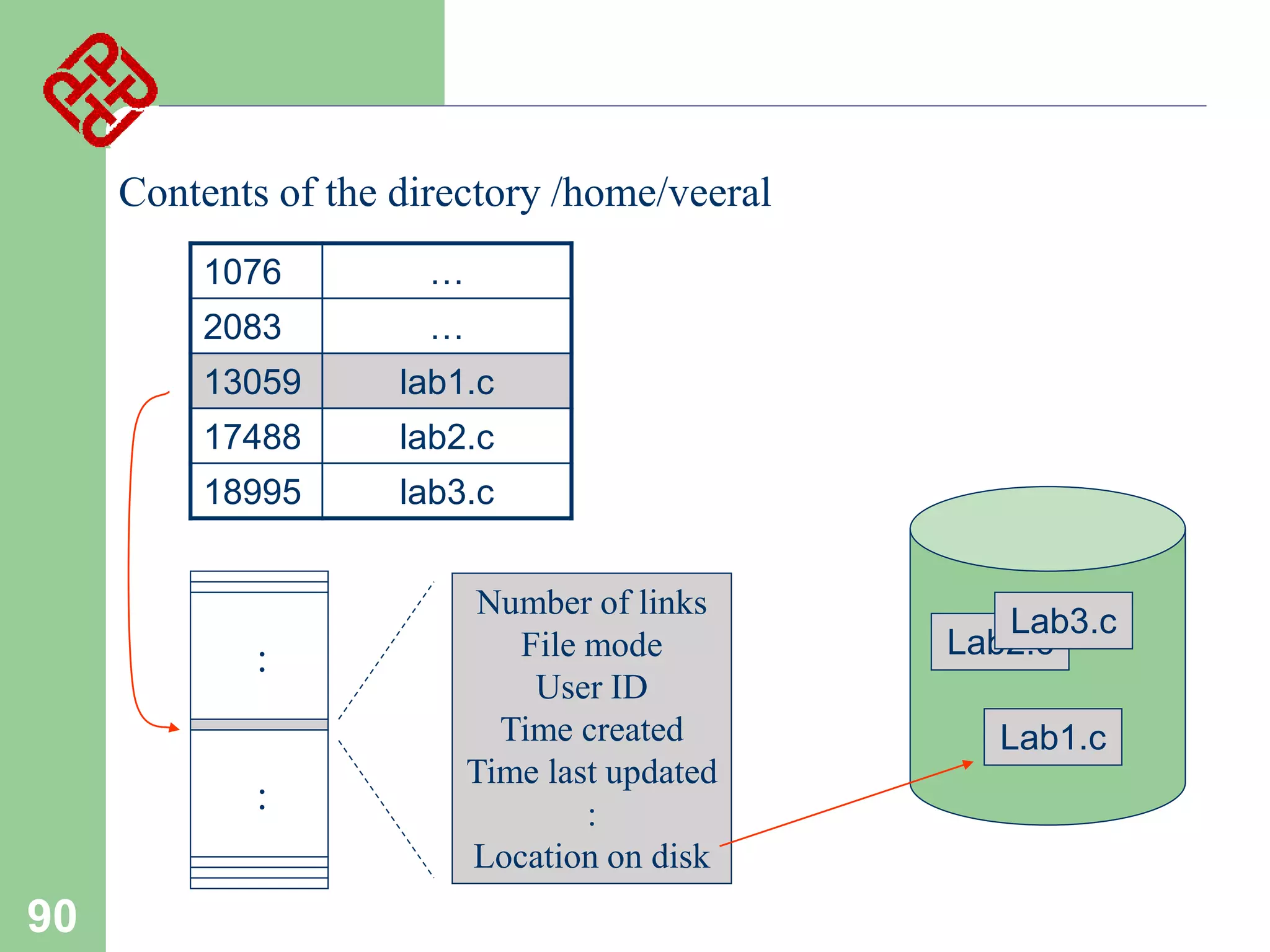
In Linux, every file is associated with an inode that
records its location in the disk
The inode of all files are put together in a data
structure called inode table
In the directory, every file is associated with a
inode number that points to an entry of the inode
table
Contents of the directory /home/veeral
1076

…

2083

…

13059

lab1.c

17488

lab2.c

18995

lab3.c

:
:

90

Number of links
File mode
User ID
Time created
Time last updated
:
Location on disk

Lab3.c
Lab2.c
Lab1.c
Linux:
B.3 Process management

91
Linux Process Management







92

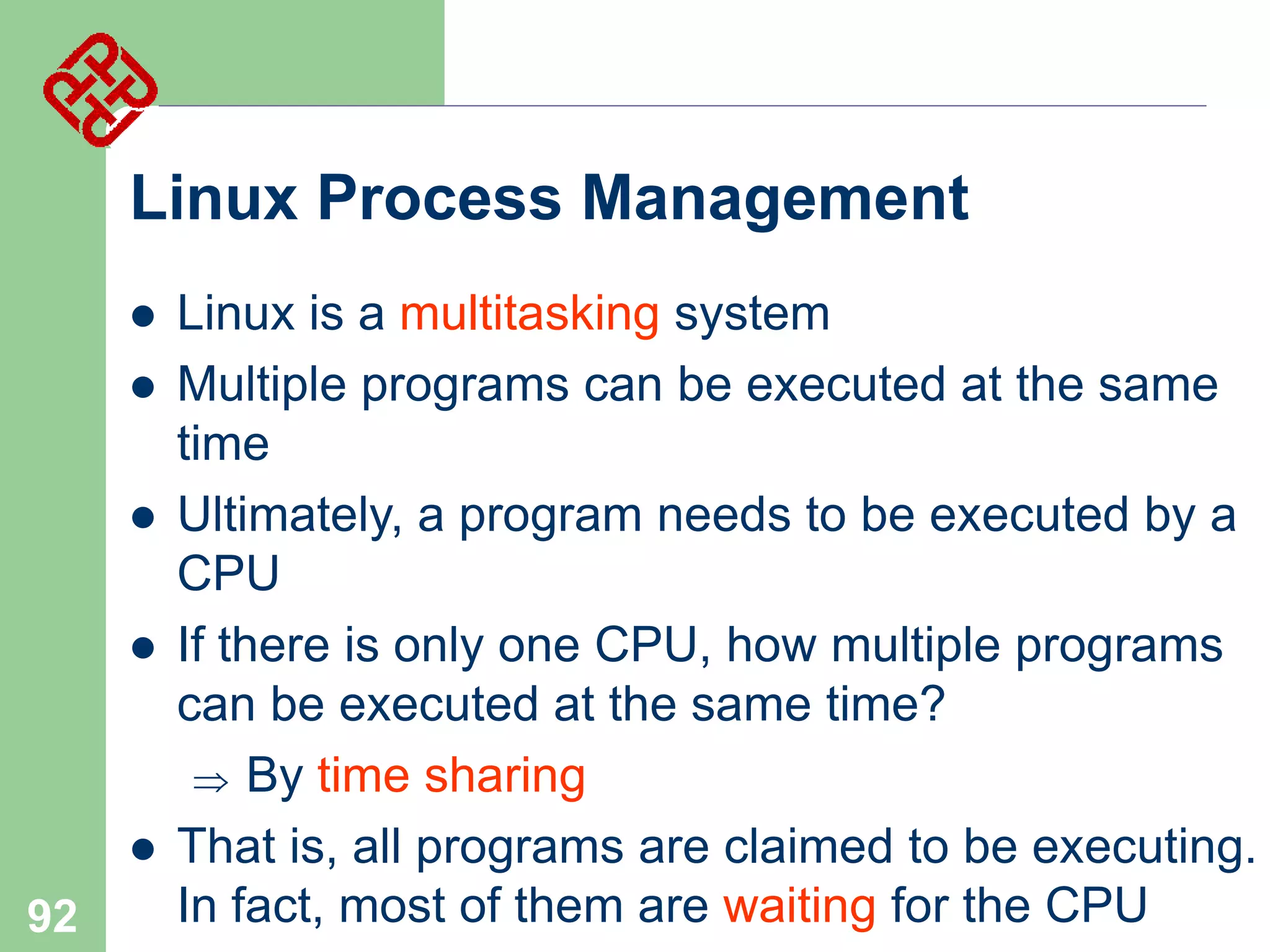
Linux is a multitasking system
Multiple programs can be executed at the same
time
Ultimately, a program needs to be executed by a
CPU
If there is only one CPU, how multiple programs
can be executed at the same time?
 By time sharing
That is, all programs are claimed to be executing.
In fact, most of them are waiting for the CPU




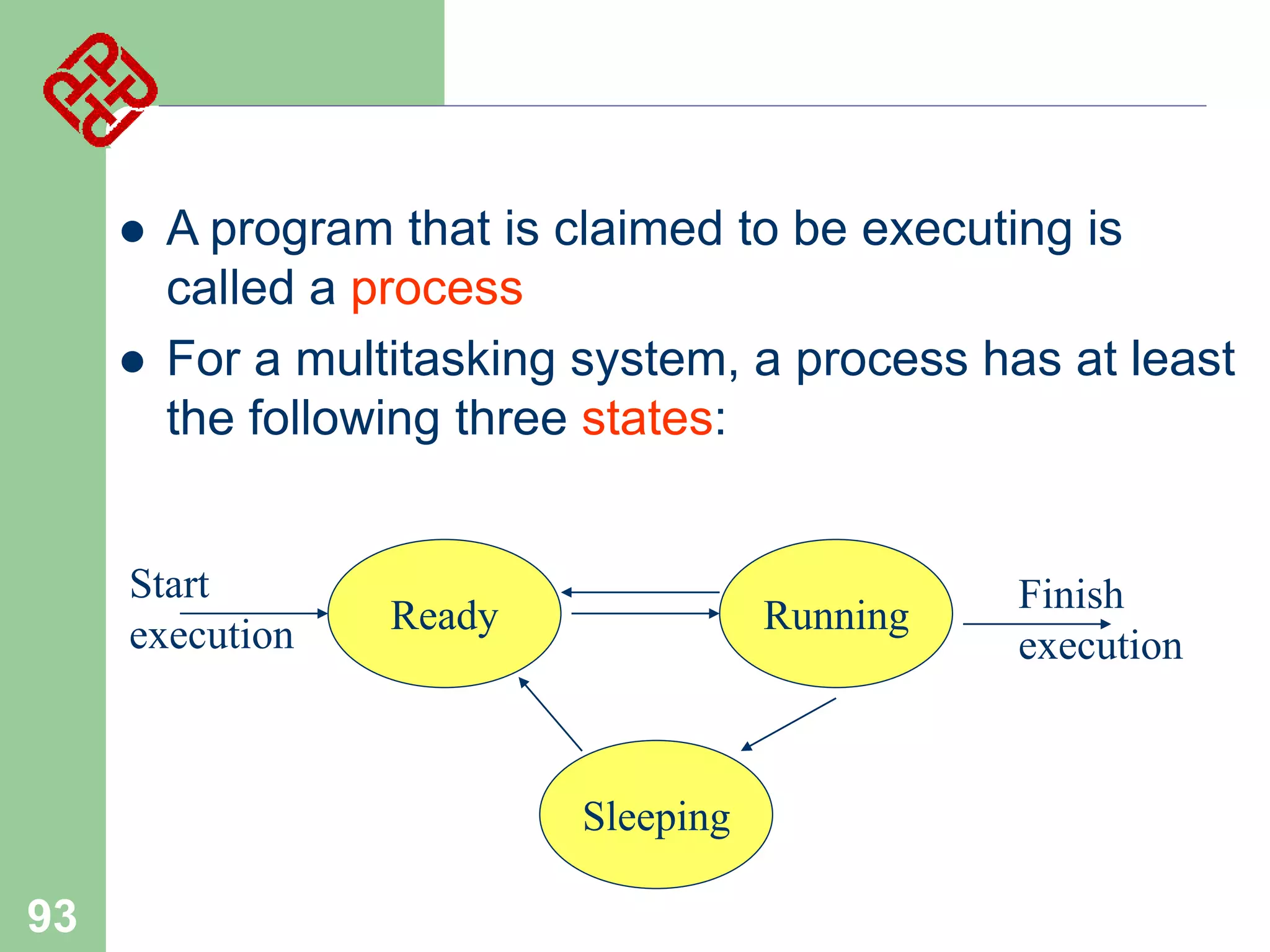
A program that is claimed to be executing is
called a process
For a multitasking system, a process has at least
the following three states:

Start
execution

Ready

Running

Sleeping

93

Finish
execution


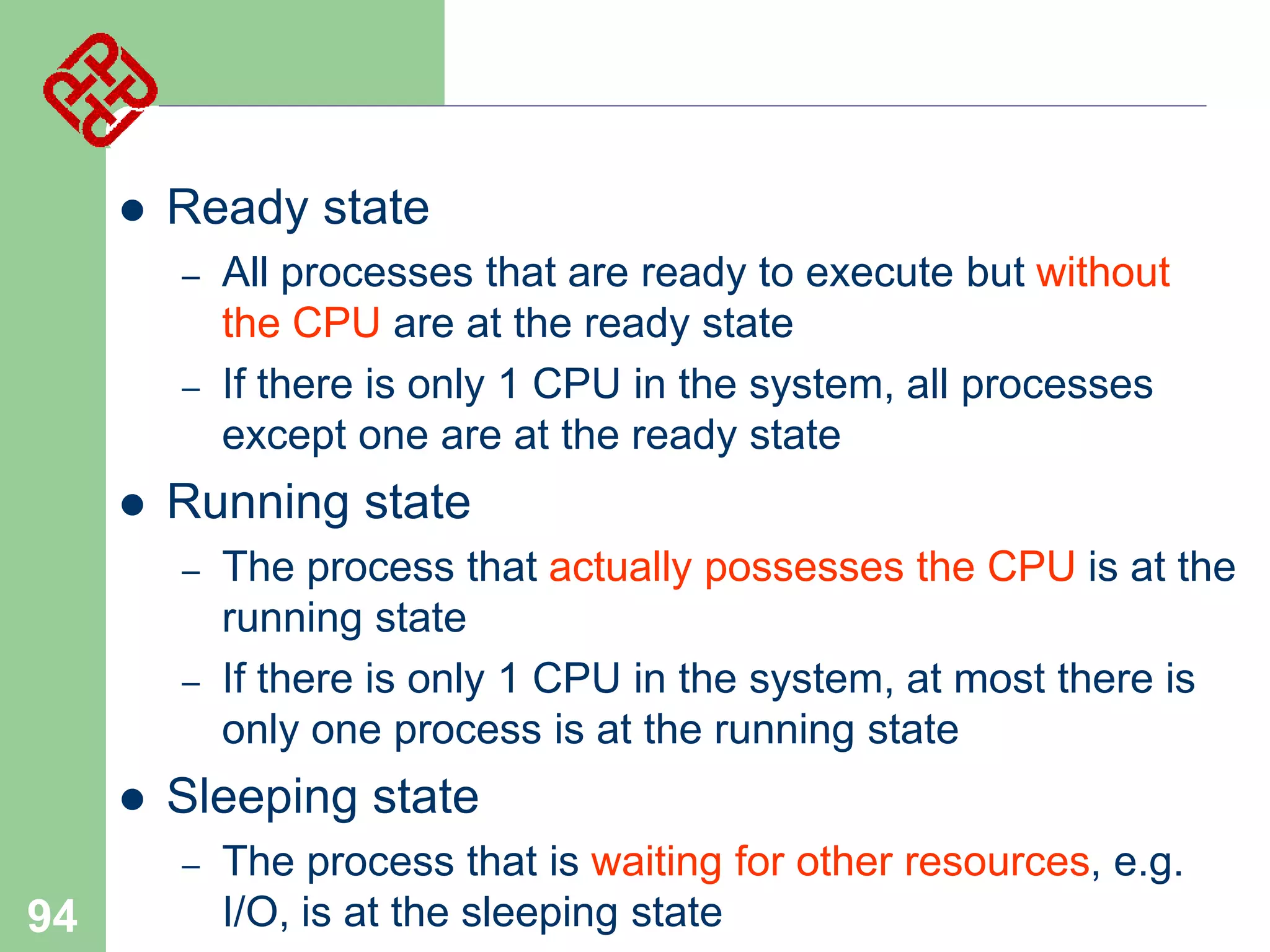
Ready state
–
–



Running state
–
–



The process that actually possesses the CPU is at the
running state
If there is only 1 CPU in the system, at most there is
only one process is at the running state

Sleeping state
–

94

All processes that are ready to execute but without
the CPU are at the ready state
If there is only 1 CPU in the system, all processes
except one are at the ready state

The process that is waiting for other resources, e.g.
I/O, is at the sleeping state
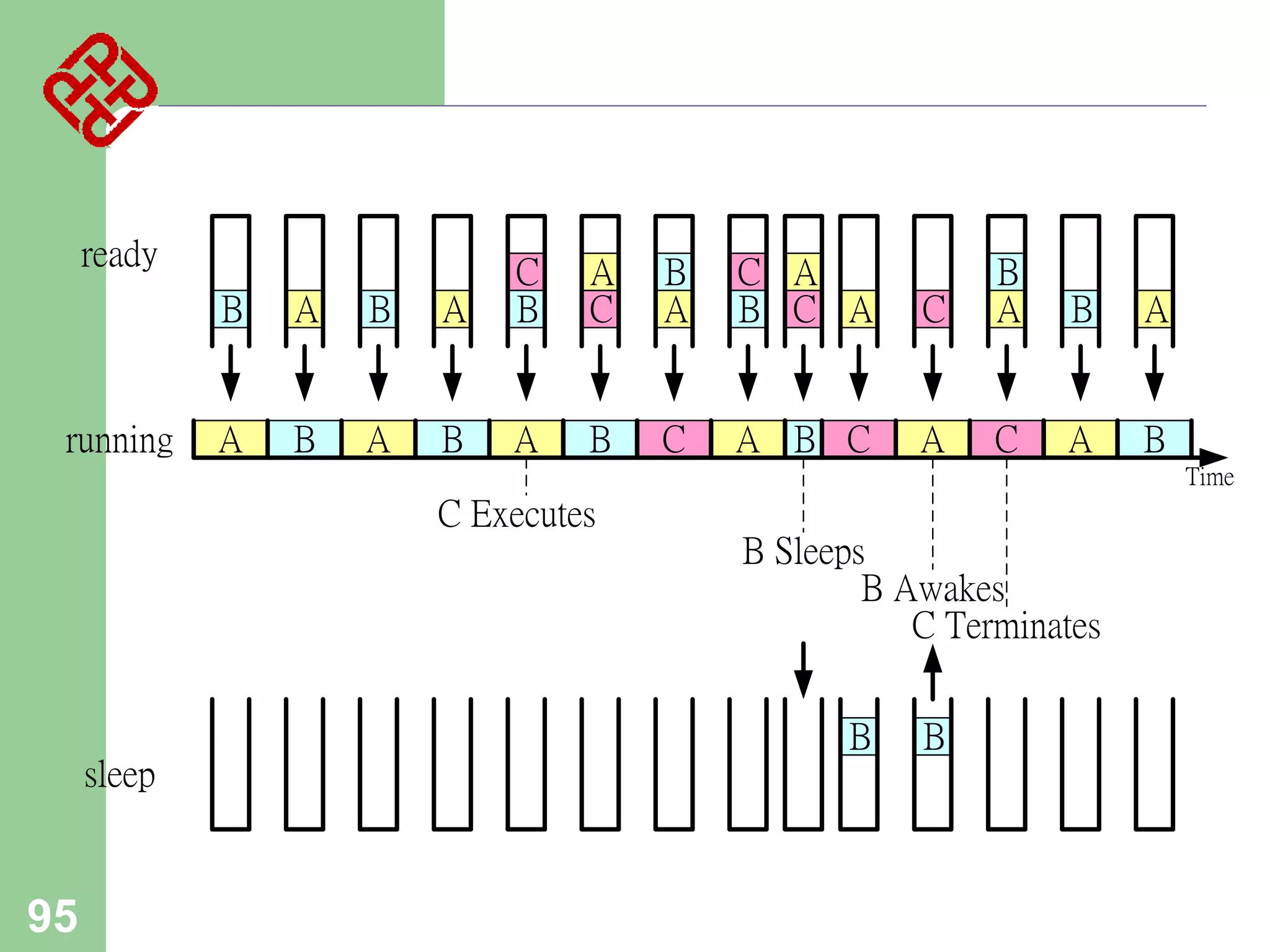
ready
B
running

A

B

A

C
B

A

B

A

B

A

A
C

B
A

C A
B C A

B

C

A B C

C

B
A

B

A

A

C

A

B
Time

C Executes

sleep

95

B Sleeps
B Awakes
C Terminates
B

B
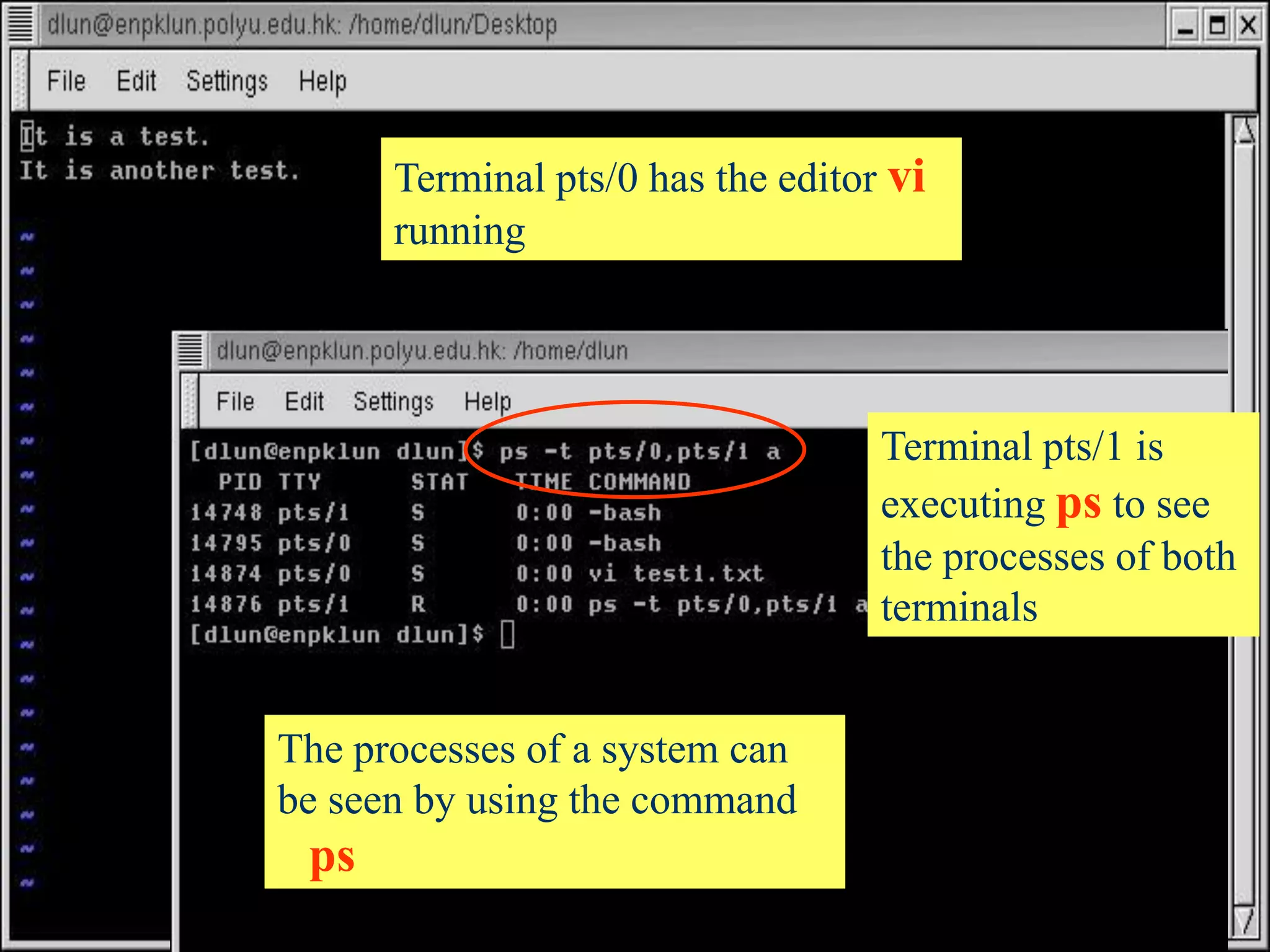
Terminal pts/0 has the editor vi
running

Terminal pts/1 is
executing ps to see
the processes of both
terminals

The processes of a system can
be seen by using the command

ps
96
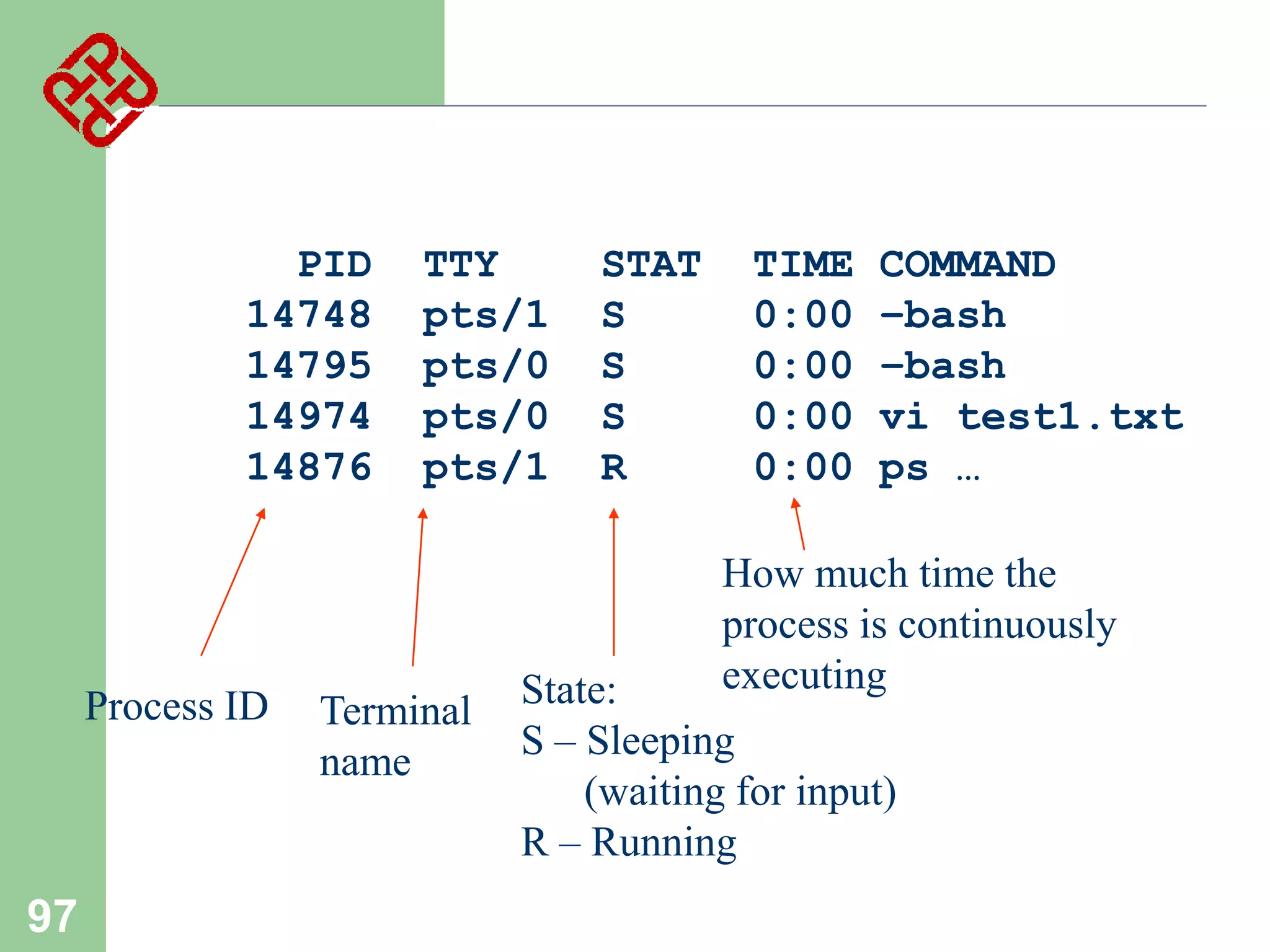
PID
14748
14795
14974
14876

Process ID

97

TTY
pts/1
pts/0
pts/0
pts/1

Terminal
name

STAT
S
S
S
R

TIME
0:00
0:00
0:00
0:00

COMMAND
–bash
–bash
vi test1.txt
ps …

How much time the
process is continuously
executing

State:
S – Sleeping
(waiting for input)
R – Running






98

For the example above, both bash processes,
which are the shell of both terminals, are
waiting for the input of user. They must be in
the sleeping state
The vi process, which is an editor, is also
waiting for the input of user. Hence it is also in
sleeping state
When ps reporting the processes in the
system, it is the only process that is running.
Hence it is in running state


99

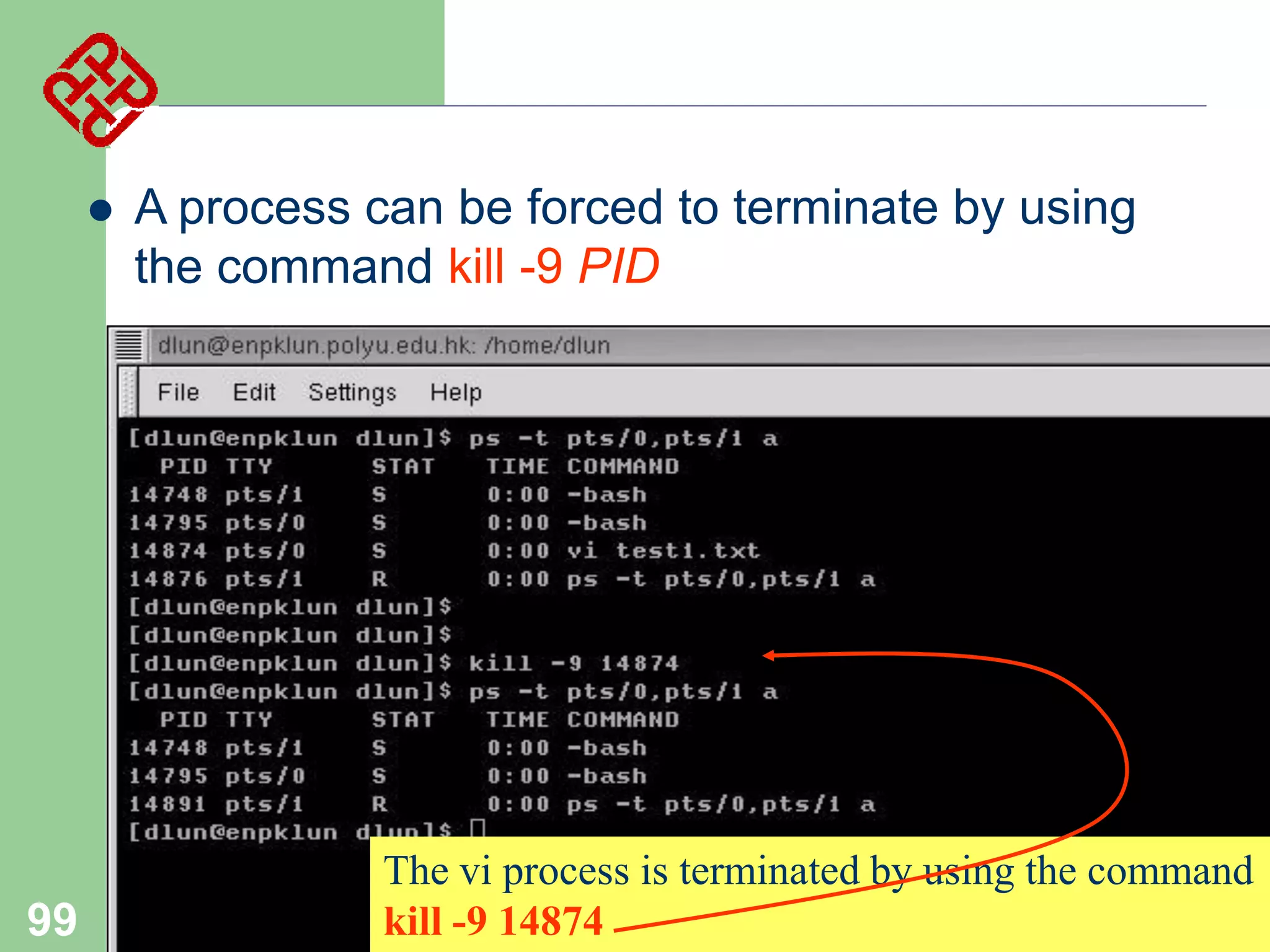
A process can be forced to terminate by using
the command kill -9 PID

The vi process is terminated by using the command
kill -9 14874
Thank You

100

Presented by
Veeral Bhateja

Presentation on linux

  • 1.
    Case Study Operating System: Linux 1 By: Veeral Bhateja
  • 2.
    Features of modernOS     2 Provide a user interface Organize files on disk Allocating resource to different users with security control Co-ordinate programs to work with devices and other programs
  • 3.
  • 4.
     Before Linux – – – – – 4 In 80’s,Microsoft’s DOS was the dominated OS for PC Apple MAC is better, but expensive UNIX is much better, but much much expensive. Only for minicomputer for commercial applications People was looking for a UNIX based system, which is cheaper and can run on PC Both DOS, MAC and UNIX are proprietary, i.e., the source code of their kernel is protected – No modification is possible without paying high license fees
  • 5.
     GNU project – – – – – 5 Established in1984 by Richard Stallman, who believes that software should be free from restrictions against copying or modification in order to make better and efficient computer programs GNU is a recursive acronym for “GNU's Not Unix” Aim at developing a complete Unix-like operating system which is free for copying and modification Companies make their money by maintaining and distributing the software, e.g. optimally packaging the software with different tools (Redhat, Slackware, Mandrake, SuSE, etc) Stallman built the first free GNU C Compiler in 1991. But still, an OS was yet to be developed
  • 6.
     Beginning of Linux – – – – – 6 Afamous professor Andrew Tanenbaum developed Minix, a simplified version of UNIX that runs on PC Minix is for class teaching only. No intention for commercial use In Sept 1991, Linus Torvalds, a second year student of Computer Science at the University of Helsinki, developed the preliminary kernel of Linux, known as Linux version 0.0.1 It was put to the Internet and received enormous response from worldwide software developers By December came version 0.10. Still Linux was little more than in skeletal form.
  • 7.
     Confrontation and Development – Messagefrom Professor Andrew Tanenbaum – – – – 7 " I still maintain the point that designing a monolithic kernel in 1991 is a fundamental error. Be thankful you are not my student. You would not get a high grade for such a design :-)" (Andrew Tanenbaum to Linus Torvalds) "Linux is obsolete". (Remark made by Andrew Tanenbaum) But work went on. Soon more than a hundred people joined the Linux camp. Then thousands. Then hundreds of thousands It was licensed under GNU General Public License, thus ensuring that the source codes will be free for all to copy, study and to change.
  • 8.
     Linux Today – – – – – 8 Linux hasbeen used for many computing platforms PC, Supercomputer, etc. Current kernel version 2.6.24.2 is coming Not only character user interface but graphical user interface, thanks to the X-Window technology Commercial vendors moved in Linix itself to provide freely distributed code. They make their money by compiling up various software and gathering them in a distributable format – Red Hat, Slackware, etc Chinese distribution of Linux also appeared in Taiwan and China - CLE, Red Flag Linux
  • 9.
    Linux Pros andCons  Advantages over Windows – – – – – It's almost free to relatively inexpensive Source code is included Bugs are fixed quickly and help is readily available through the vast support in Internet Linux is more stable than Windows Linux is truly multi-user and multi-tasking – – – 9 multiuser: OS that can simultaneously serve a number of users multitasking: OS that can simultaneously execute a number of programs Linux runs on equipment that other operating systems consider too underpowered, e.g. 386 systems, PDA, etc
  • 10.
    Linux Pros andCons (Cont)  Disadvantages compared with Windows – – – –   10 My program cannot run on Linux Isn't as popular as Windows No one commercial company is responsible for Linux Linux is relatively hard to install, learn and use Hence currently, Linux is mainly used in commercial applications, server implementation More than 75% current network servers are developed based on Linux or Unix systems – Due to the relatively high reliability
  • 11.
  • 12.
  • 13.
  • 14.
    > Integrated intostandard Red Hat Enterprise Linux versions – full ISV support > Flexible Mandatory Access Control system for Linux > Capabilities analogous to commercial secure operating systems (e.g. Trusted Solaris, Trusted Irix) > Optional targeted policy in core product secures key network-facing services with minimal system impact 14 > Support for strict (government/military application) and custom policies through Red Hat Global Professional Services
  • 15.
    Linux: B. Linux SystemArchitecture 15
  • 16.
    Applications: Compilers, wordprocessors, X-based GUI AUI API Kernel LINUX Shell: Bourne Again (bash), TC, Z, etc. Language libraries System call interface Memory management File management Process Management Device Drives BIOS Computer Hardware 16
  • 17.
     Kernel –  System call interface –  Comprisea set of functions (often known as API) that can be used by the applications and library routines to use the services provided by the kernel Application User’s Interface – – – 17 The part of an OS where the real work is done Interface between the kernel and user Allow user to make commands to the system Divided into text based and graphical based
  • 18.
     File Management – –  Process Management – – – – – 18 Controlthe creation, removal of files and provide directory maintenance For a multiuser system, every user should have its own right to access files and directories For a multitask system, multiple programs can be executed simultaneously in the system When a program starts to execute, it becomes a process The same program executing at two different times will become two different processes Kernel manages processes in terms of creating, suspending, and terminating them A process is protected from other processes and can communicate with the others
  • 19.
     Memory management – – – –  Device drivers – – 19 Memoryin a computer is divided into main memory (RAM) and secondary storage (usually refer to hard disk Memory is small in capacity but fast in speed, and hard disk is vice versa Data that are not currently used should be saved to hard disk first, while data that are urgently needed should be retrieved and stored in RAM The mechanism is referred as memory management Interfaces between the kernel and the BIOS Different device has different driver
  • 20.
  • 21.
    Download LINUX To installRed Hat, you will need to download the ISO images (CD Images) of the installation CD-ROMs from http://fedora.redhat.com Download the i386 images for 32 Intel Processors, PPC images for for Apple Macintosh and x86_64 for for 64 bit AMD Processors Burn the iso CD images on CDs and use these CDs as Installation CDs (typically 4) 21
  • 22.
  • 23.
  • 29.
    Linux Installation What isa Partition? Partitioning is a means to divide a single hard drive into many logical drives. A partition is a contiguous set of blocks on a drive that are treated as an independent disk. A partition table is an index that relates sections of the hard drive to partitions. 29
  • 30.
    Linux Installation Why havemultiple partitions? Reduce the risk of system failure in case a partition becomes full. Runaway processes or maniacal users can consume so much disk space that the operating system no longer has room on the hard drive for its bookkeeping operations. This will lead to disaster. By segregating space, you ensure that things other than the operating system die when allocated disk space is exhausted. Encapsulate your data. Since file system corruption is local to a partition, you stand to lose only some of your data if an accident occurs. 30
  • 31.
    Linux Installation Partition Fields Device:This field displays the partition's device name. Start: This field shows the sector on your hard drive where the partition begins. End: This field shows the sector on your hard drive where the partition ends. Size: This field shows the partition's size (in MB). Type: This field shows the partition's type (for example, ext2, ext3, or vfat). 31 Mount Point: A mount point is the location within the directory hierarchy at which a volume exists; the volume is "mounted" at this location. This field indicates where the partition will be mounted.
  • 32.
    Linux Installation Filesystem Types 32 ext2— An ext2 filesystem supports standard Unix file types (regular files, directories, symbolic links, etc). It provides the ability to assign long file names, up to 255 characters. Versions prior to Red Hat Linux 7.2 used ext2 filesystems by default. ext3 — The ext3 filesystem is based on the ext2 filesystem and has one main advantage — journaling. Using a journaling filesystem reduces time spent recovering a filesystem after a crash as there is no need to fsck the filesystem. swap — Swap partitions are used to support virtual memory. In other words, data is written to a swap partition when there is not enough RAM to store the data your system is processing. vfat — The VFAT filesystem is a Linux filesystem that is compatible with Windows 95/NT long filenames on the FAT filesystem.
  • 33.
    Linux Installation Recommended PartitioningScheme 33 Unless you have a reason for doing otherwise, it is recommended that you create the following partitions: /boot partition – contains kernel images and grub configuration and commands / partition /var partition /home partition Any other partition based on application (e.g /usr/local for squid) swap partition — swap partitions are used to support virtual memory. In other words, data is written to a swap partition when there is not enough RAM to store the data your system is processing. The size of your swap partition should be equal to twice your computer's RAM.
  • 34.
    Linux Installation Disk Partition IDEDisk Partitions /dev/hda (Primary Master Disk) /dev/hda1 (First Primary Partition) /dev/hda2 (Second Primary Partition) /dev/hdb (Primary Slave Partition) /dev/hdb1 /dev/hdc (Secondary Master/Slave Partition) /dev/hdc1 SCSI Disk Partitions /dev/sda1, /dev/sda2 /dev/sdb1, /dev/sdb2 /dev/sdc1, /dev/sdc2 34
  • 35.
    Linux Installation Boot Loader Inorder for the BIOS to load an OS it looks for instructions on the first sector of a hard drive. On the first sector of the hard drive resides the master boot record (MBR), and is where a boot loader is initialized. Depending on the boot loader, additional files may be stored and read from a partition on the hard drive. After this step the boot loader begins to start the operating system, and is not used again until the next boot. 35
  • 65.
  • 66.
    Linux User Login     Linuxis a multiuser OS Allow multiple users to use the resource of a computer at the same time Every user needs to login the system with the password provided to identify their right in using the resource Require for both client-server based system or desktop Linux Server 66 Peter: admin Paul : general Mary : intruder : Mary Paul Peter Client-server based system
  • 67.
    Linux User Interface  TraditionalLinux (Unix also) uses commanddriven interface (or text-based interface) – – – – 67 User needs to type lines of command to instruct the computer to work, similar to DOS Advantage: fast in speed. Very few resource is required for its implementation Disadvantages: user needs to type, hence can easily make error. Besides, user needs to memorize all commands Suitable for expert users and for the systems that interaction with user is not frequent, such as servers
  • 68.
     68 By adopting theX-Window technology, graphical user interface (GUI) is available for Linux: – Uses pointing devices (e.g. mouse) to control the system, similar to Microsoft’s Windows – Provide menu-driven and/or icon-driven interfaces – menu-driven: user is provided with a menu of choices. Each choice refers to a particular task – icon-driven: tasks are represented by pictures (icon) and shown to user. Click on an icon invokes one task – Advantages: No need to memorize commands. Always select task from menus or icons – Disadvantages: Slow and require certain resource for its implementation – Suitable for general users and systems, such as PC
  • 69.
    • A typicalLinux GUI based on GNOME • Similar to Microsoft’s Windows, however, different window systems can be chosen (e.g. GNOME, KDE, etc) 69
  • 70.
    Linux text-based interface commandto show the content of current directory The prompt $ shows that bash shell is using 70 command to show the content of current directory with option -al
  • 71.
    Linux Shell   Shell interpretsthe command and request service from kernel Similar to DOS but DOS has only one set of interface while Linux can select different shell –    71 whoami pwd ls Bash, Tcsh, Zsh Kernel Bourne Again shell (Bash), TC shell (Tcsh), Z shell (Zsh) Different shell has similar but different functionality Bash is the default for Linux Graphical user interface of Linux is in fact an application program work on the shell
  • 72.
     Frequently used commandsavailable in most shells: – ls : to show the names of the file in the current directory – cd : change directory, – – cp : copy one file to another – – – – – copy abc.txt to xyz.txt e.g. man cd ask for the manual of the command cd pwd : show the name of the current directory cat : to show the content of a text file – 72 e.g. cp abc.txt xyz.txt rm : remove a file man : ask for the manual (or help) of a command – – e.g. cd / change to the root directory cd .. change to the parent of that directory e.g. cat abc.txt show the content of abc.txt whoami : to show the username of the current user
  • 73.
  • 74.
    Linux File SystemStructure  According to the File System Standard (FSSTND) proposed in 1994, every LINUX system should contain a set of standard files and directories root / bin lib boot 74 fd hd lost+found dev etc … hd group passwd mnt directories opt proc root home sbin tmp var usr file dlun guest bin lib local
  • 75.
     Root Directory (/ ) –  /bin –  75 Contain the binary (executable code) of most essential Linux commands, e.g. bash, cat, cp, ln, ls, etc. /boot –  Top of the file system. Similar to in DOS Contain all the files needed to boot the Linux system, including the binary of the Linux kernel. E.g., on Red Hat Linux 6.1, the kernel is in /boot/vmlinux-2.2.5-15 file /dev – Contain the special files for devices, e.g. fd0, hd0, etc.
  • 76.
     /etc – – Contain host-specific filesand directories, e.g. information about system configuration /etc/passwd – This file contains login information of users in the system – For every user, one line of record is stored in the following format: login_name : dummy_or_encrypted_password : user_ID : group_ID : user_info : home_directory : login_shell 76
  • 77.
     77 E.g. veeral:x:501:501:veeral bhateja:/home/veeral:/bin/bash –veeral : login name – x : means that it is a dummy password. The encrypted password is stored in /etc/shadow. This field can also be used to store the actual encrypted password. In any case, the original (unencrypted) password cannot be seen by anyone, including the administrator – 501 : a user id given to that user. Range from 0 to 65535 0 is assigned to super-user. 1 to 99 are reserved – 501 : a group id given to that user to indicate which group he belongs to. Range from 0 to 65535. 0 to 99 reserved – Veeral Bhateja : user info, usually user’s full name – /home/Veeral : home directory of the user – /bin/bash : the location of the shell the user is using
  • 78.
     /home –  /lib –  Store all essentiallibraries for different language compilers /lost+found – – 78 Contain the home directories of every user in the system, e.g. veeral, guest, etc Contain all the files on the system not connected to any directory. System administrator should determine the fate of the files in this directory
  • 79.
     /mnt – – – – – – 79 Use by systemadministrator to mount file systems temporarily by using the mount command Before using any devices, they have to be mounted to the system for registration For example, after mounting a CD-ROM, the file system in it will be mapped to /mnt/cdrom directory User can then read and write files in the CD-ROM by accessing this directory Similar to mapping a drive letter to a CD-ROM in Windows Different from the special file in /dev. Special file is only a place where data of the CD-ROM is transferred or stored. No file system concept
  • 80.
     /opt –  /proc –  Home directory ofthe user root, usually the administrator /sbin – 80 Contain process and system information /root –  Use to install add-on software packages, e.g. star office, etc. The directories /sbin, /usr/sbin, and /usr/local/sbin contain system administration tools, utilities and general root only commands, such as halt, reboot and shutdown
  • 81.
     /tmp –  /usr – –  One of thelargest sections of the Linux file system Contain read-only data that are shared between various users, e.g. the manual pages needed for the command man. Stored in /usr/man direcrtory /var – 81 Contain temporary files. Usually files in this directory will be deleted from time to time to avoid the system fills with temp files Contain data that keeps on changing as the system is running. E.g. /var/spool/mail directory keeps the mail of user
  • 82.
    Linux File AccessPrivilege     Linux is a multiuser system, the files of all users are stored in a single file structure Mechanism is required to restrict one user to access the files of another user, if he is not supposed to User can impose access permission to each file to restrict its access The term “access permission” refers to – – 82 – read permission write permission execute permission
  • 83.
    The file accesspermission can be seen by using the command ls –l or ls -al 83
  • 84.
    Hard link no Owner Owner’s group File last modifieddate d rwx r-x r-x 2 veeral veeral 4096 May 17 2001 Autostart It is a directory The directory The directory can be can be read, read and executed but written and not written by other executed by theusers in the same user veeral group of veeral file size file name The directory can be read and executed but not written by other users in different group of veeral The group of a user is assigned by the administrator when a 84 user is added to the system
  • 85.
       Access permission canalso be assigned to a directory Directory is also a file that contains the attributes of the files inside it If read permission is not given to a directory – –  If write permission is not given to a directory – –  85 cannot show the structure of this directory e.g. cannot use ls cannot modify anything of the directory structure e.g. cannot copy a file into this directory since it will modify the directory structure by adding one more file If execute permission is not given to a directory – nearly nothing can be done with this directory, even cd
  • 86.
     The access permissionof a file or directory can be changed by using the command chmod xyz filename/directory name   86 xyz refers 3 digit in octal form E.g. 660 : 110 110  rw- rw545 : 101 100  r-x r-- 000 --101 r-x
  • 87.
    File Storage inLinux  Data storage on hard disk – – – Data in a hard disk are stored on a magnetic flat plate Disk’s surface needs to be partitioned and labeled so that computer can go directly to a specific point on it Achieve by low level formatting the disk    Each sector: hold 512 bytes data  87 Create magnetic concentric circles called tracks Each track is split into smaller parts called sectors and numbered E.g. 80 tracks (from outer to inner 0 .. 79), 18 sectors disk can store 80x18x512 bytes data.
  • 88.
  • 89.
          89 Must read orwrite whole sector at a time OS allocates groups of sectors called cluster to files Files smaller than the cluster will still be allocated the whole cluster, but the rest left unused In Linux, every file is associated with an inode that records its location in the disk The inode of all files are put together in a data structure called inode table In the directory, every file is associated with a inode number that points to an entry of the inode table
  • 90.
    Contents of thedirectory /home/veeral 1076 … 2083 … 13059 lab1.c 17488 lab2.c 18995 lab3.c : : 90 Number of links File mode User ID Time created Time last updated : Location on disk Lab3.c Lab2.c Lab1.c
  • 91.
  • 92.
    Linux Process Management      92 Linuxis a multitasking system Multiple programs can be executed at the same time Ultimately, a program needs to be executed by a CPU If there is only one CPU, how multiple programs can be executed at the same time?  By time sharing That is, all programs are claimed to be executing. In fact, most of them are waiting for the CPU
  • 93.
      A program thatis claimed to be executing is called a process For a multitasking system, a process has at least the following three states: Start execution Ready Running Sleeping 93 Finish execution
  • 94.
     Ready state – –  Running state – –  Theprocess that actually possesses the CPU is at the running state If there is only 1 CPU in the system, at most there is only one process is at the running state Sleeping state – 94 All processes that are ready to execute but without the CPU are at the ready state If there is only 1 CPU in the system, all processes except one are at the ready state The process that is waiting for other resources, e.g. I/O, is at the sleeping state
  • 95.
    ready B running A B A C B A B A B A A C B A C A B CA B C A B C C B A B A A C A B Time C Executes sleep 95 B Sleeps B Awakes C Terminates B B
  • 96.
    Terminal pts/0 hasthe editor vi running Terminal pts/1 is executing ps to see the processes of both terminals The processes of a system can be seen by using the command ps 96
  • 97.
    PID 14748 14795 14974 14876 Process ID 97 TTY pts/1 pts/0 pts/0 pts/1 Terminal name STAT S S S R TIME 0:00 0:00 0:00 0:00 COMMAND –bash –bash vi test1.txt ps… How much time the process is continuously executing State: S – Sleeping (waiting for input) R – Running
  • 98.
       98 For the exampleabove, both bash processes, which are the shell of both terminals, are waiting for the input of user. They must be in the sleeping state The vi process, which is an editor, is also waiting for the input of user. Hence it is also in sleeping state When ps reporting the processes in the system, it is the only process that is running. Hence it is in running state
  • 99.
     99 A process canbe forced to terminate by using the command kill -9 PID The vi process is terminated by using the command kill -9 14874
  • 100.