i
USER GUIDE
Polycom® VVX® 400 and 410 Business Media Phones
Software 4.1.4 | March 2013 | 1725-49090-001 Rev A
ii
Polycom® VVX® 400 and 410 Business Media Phones User Guide
Copyright ©2013, Polycom, Inc. All rights reserved.
6001 America Center Drive
San Jose, CA 95002
USA
No part of this document may be reproduced or transmitted in any form or by any means, electronic or mechanical,
for any purpose, without the express written permission of Polycom, Inc. Under the law, reproducing includes
translating into another language or format.
As between the parties, Polycom, Inc., retains title to and ownership of all proprietary rights with respect to the
software contained within its products. The software is protected by United States copyright laws and international
treaty provision. Therefore, you must treat the software like any other copyrighted material (e.g., a book or sound
recording).
Every effort has been made to ensure that the information in this manual is accurate. Polycom, Inc., is not
responsible for printing or clerical errors. Information in this document is subject to change without notice.
Trademarks
POLYCOM®, the Polycom logo and the names and marks associated with Polycom products are trademarks and/or
service marks of Polycom, Inc. and are registered and/or common law marks in the United States and various other
countries. All other trademarks are property of their respective owners. No portion hereof may be reproduced or
transmitted in any form or by any means, for any purpose other than the recipient's personal use, without the express
written permission of Polycom.
Disclaimer
While Polycom uses reasonable efforts to include accurate and up-to-date information in this document, Polycom
makes no warranties or representations as to its accuracy. Polycom assumes no liability or responsibility for any
typographical or other errors or omissions in the content of this document.
Limitation of Liability
Polycom and/or its respective suppliers make no representations about the suitability of the information contained in
this document for any purpose. Information is provided “as is” without warranty of any kind and is subject to change
without notice. The entire risk arising out of its use remains with the recipient. In no event shall Polycom and/or its
respective suppliers be liable for any direct, consequential, incidental, special, punitive or other damages whatsoever
(including without limitation, damages for loss of business profits, business interruption, or loss of business
information), even if Polycom has been advised of the possibility of such damages.
Customer Feedback
We are striving to improve our documentation quality and we appreciate your feedback. Email your opinions and
comments to VoiceDocumentationFeedback@polycom.com.
Visit the Polycom Voice Support Center for software downloads, product documents, product licenses,
troubleshooting tips, service requests, and more.
iii
Contents
About This Guide ................................................................................................................ix
Who Should Read this Guide? .................................................................................................... ix
How to Use this Guide.................................................................................................................. ix
Conventions Usedin this Guide....................................................................................................... x
Terms and Writing Conventions .................................................................................................. x
Information Elements.................................................................................................................... xii
Typographic Conventions ...........................................................................................................xiii
Related Documents .......................................................................................................................xiii
Chapter 1: Getting Started................................................................................................. 1
Phone Keys and Hardware .........................................................................................................1
Phone Views .................................................................................................................................2
Home View.......................................................................................................................................... 3
Lines View........................................................................................................................................... 4
Calls View............................................................................................................................................ 5
Understanding Phone Icons and Status Indicators................................................................ 6
Navigating Your Phone Interface...............................................................................................7
Entering Data and Updating Fields ...........................................................................................8
Using the Dialpad Keys on the Phone Console ............................................................................9
Registering the Phone............................................................................................................... 10
Configuring Your Phone Using the Web Configuration Utility ........................................... 10
Chapter 2: Using Basic Features.................................................................................... 13
How Your Phone Handles Calls............................................................................................... 13
Answering Calls ......................................................................................................................... 14
Answering Another Call...................................................................................................................15
Answering on a Shared Line ..........................................................................................................15
Answering Calls Automatically.......................................................................................................16
Managing Multiple Calls............................................................................................................ 16
Placing Calls............................................................................................................................... 17
Calling from the Dialer..................................................................................................................... 17
Placing Calls from Favorites, Recent Calls, and Directories.....................................................19
Redialing Numbers .......................................................................................................................... 20
Ending Calls................................................................................................................................ 20
Using Headsets .......................................................................................................................... 20
Enabling Headset Memory Mode ..................................................................................................21
Polycom® VVX® 400 and 410 Business Media Phones User Guide
iv
Responding to Incoming Calls................................................................................................. 21
Ignoring Incoming Calls...................................................................................................................22
Rejecting Incoming Calls ................................................................................................................22
Forwarding Incoming Calls to Another Person............................................................................22
During Calls ................................................................................................................................ 22
Holding Calls..................................................................................................................................... 23
Transferring Calls............................................................................................................................. 23
Setting Up and Handling Conference Calls ........................................................................... 24
Setting Up Conference Calls..........................................................................................................24
Holding and Resuming Conference Calls ....................................................................................25
Ending Conference Calls ................................................................................................................26
Splitting Conference Calls into Two Held Calls...........................................................................26
Managing Conference Call Participants .......................................................................................26
Changing the Way Calls are Answered .................................................................................. 28
Forwarding All Calls to Another Person........................................................................................28
Rejecting Calls from a Contact.......................................................................................................29
Diverting Calls from a Contact to Another Person ......................................................................30
Using Do Not Disturb....................................................................................................................... 30
Using Do Not Disturb with Multiple Lines .....................................................................................31
Listening to Voicemail............................................................................................................... 32
Viewing Recent Calls................................................................................................................. 32
Working with Your Contact Directory..................................................................................... 35
Working with a Corporate Directory ....................................................................................... 38
Controlling What is Heard ........................................................................................................ 40
Updating the Incoming Call Ringtone ...........................................................................................40
Updating a Contact’s Ringtone ......................................................................................................40
Changing the Speaker Volume......................................................................................................41
Changing the Ringer Volume .........................................................................................................41
Muting the Microphone.................................................................................................................... 41
Choosing Where You Hear Sound Effects...................................................................................41
Managing Favorites ................................................................................................................... 41
Working with Shared Lines ...................................................................................................... 44
Chapter 3: Using Advanced Features............................................................................ 45
Using Buddy Lists ..................................................................................................................... 45
Updating Your Status ...................................................................................................................... 46
Setting Up and Managing a Buddy List ........................................................................................48
Blocking Contacts from Viewing Your Status ..............................................................................48
Monitoring Buddies .......................................................................................................................... 49
Integrating with Microsoft Lync Server 2010......................................................................... 50
Using the Browser ..................................................................................................................... 51
Contents
v
Navigating the Main Browser .........................................................................................................52
Entering Information in the Main Browser ....................................................................................52
Broadcasting Messages Using Push-to-Talk and Group Paging....................................... 52
Push-to-Talk Mode........................................................................................................................... 53
Sending and Receiving PTT Broadcasts..................................................................................53
Sending PTT Broadcasts ........................................................................................................53
Receiving PTT Broadcasts .....................................................................................................54
Receiving PTT Broadcasts When You’re Not in an Active Call ........................................55
Receiving PTT Broadcasts During Active Calls...................................................................55
Replying to PTT Broadcasts.......................................................................................................55
Ending PTT Broadcasts ..............................................................................................................55
Adjusting the Volume of PTT Broadcasts.................................................................................56
Changing Where Broadcasts are Played .................................................................................56
Updating the Default Channel ....................................................................................................56
Updating Channel Subscriptions ...............................................................................................56
Allowing PTT Broadcasts to Play During Active Calls............................................................56
Group Paging Mode......................................................................................................................... 57
Sending and Receiving Pages...................................................................................................57
Sending Pages ......................................................................................................................... 57
Receiving Pages....................................................................................................................... 58
Receiving Pages When You’re Not in an Active Call .........................................................58
Receiving Pages During Active Calls....................................................................................58
Adjusting the Volume of Pages..................................................................................................58
Changing Where Pages are Played..........................................................................................59
Updating the Default Paging Group ..........................................................................................59
Updating Paging Group Subscriptions......................................................................................59
Allowing Pages to Play During Active Calls .............................................................................59
Using the Calendar .................................................................................................................... 60
Opening and Closing the Calendar ...............................................................................................62
Navigating Month View.................................................................................................................... 62
Navigating Day View........................................................................................................................ 63
Navigating Meeting View ................................................................................................................63
Working with Meeting Reminders..................................................................................................64
Joining Meetings from the Calendar .............................................................................................65
Using a Mouse and Keyboard with Your Phone ................................................................... 66
Using Your Computer’s Mouse and Keyboard with Your Phone..............................................66
Starting and Stopping Polycom Desktop Connector ..............................................................66
How to Use Your Computer’s Mouse and Keyboard with Your Phone ...............................67
Logging into Phones ................................................................................................................. 69
Logging In and Out of a Phone......................................................................................................70
Placing Calls from Phones that are in the Logged-Out State....................................................71
Changing Your Password ...............................................................................................................72
Polycom® VVX® 400 and 410 Business Media Phones User Guide
vi
Locking the Phone..................................................................................................................... 72
About Your User Password ............................................................................................................73
Locking and Unlocking Your Phone..............................................................................................73
Calling and Answering from a Locked Phone..............................................................................74
Accessing Features with Your Login Credentials ................................................................ 75
Chapter 4: Customizing the Phone’s Display............................................................... 77
Changing the Language on Your Phone ................................................................................ 77
Changing the Time and Date Display ..................................................................................... 77
Changing the Backlight............................................................................................................. 78
Changing the Phone’s Background Picture .......................................................................... 79
Changing the Background Picture.................................................................................................80
Using One of Your Own Pictures as the Background Picture...................................................80
Displaying Screen Savers......................................................................................................... 81
Setting Up a Screen Saver .............................................................................................................81
Interrupting and Disabling Screen Savers....................................................................................82
Chapter 5: Administrative Tasks .................................................................................... 83
Investigating Phone Warnings................................................................................................. 83
Restarting the Phone................................................................................................................. 84
Updating Phone Configuration ................................................................................................ 84
Testing Phone Hardware .......................................................................................................... 85
Chapter 6: Getting Help.................................................................................................... 87
Related Documents..................................................................................................................... 87
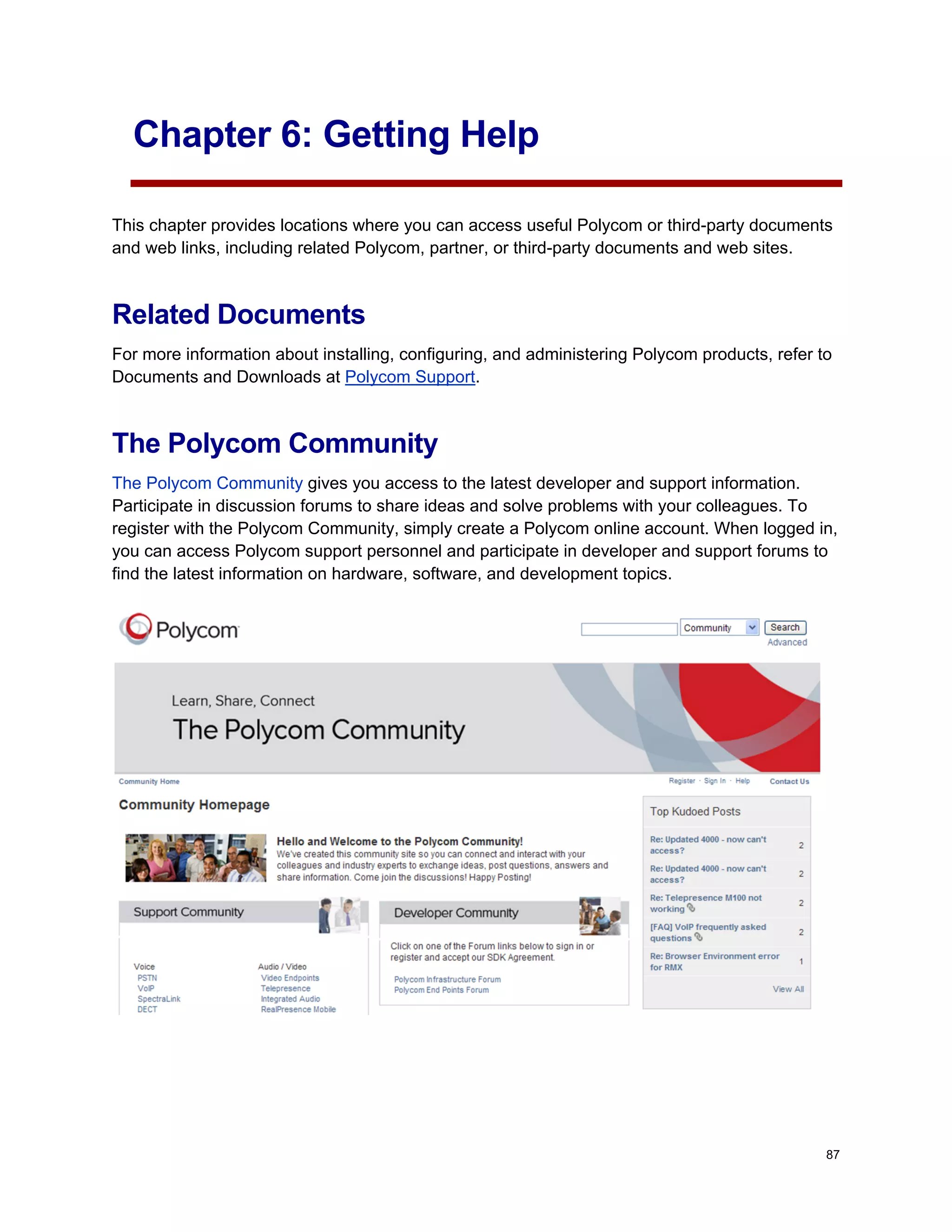
The Polycom Community............................................................................................................ 87
Copyright, Safety, and Regulatory Notices .................................................................. 89
Service Agreements ........................................................................................................................ 89
Governing Law.................................................................................................................................. 89
Limitations of Liability ...................................................................................................................... 89
Polycom Limited Warranty and Limitation Liability......................................................................89
Exclusions ......................................................................................................................................... 90
Warranty Exclusive .......................................................................................................................... 90
Safety, Compliance, and Disposal Information ...........................................................................91
Part 15 FCC Rules....................................................................................................................... 91
Class B Digital Device or Peripheral .........................................................................................91
Modifications ................................................................................................................................. 91
Installation Instructions................................................................................................................91
Plugs Acts as Disconnect Device ..............................................................................................91
Contents
vii
Industry Canada (IC) ...................................................................................................................92
CE and VCCI Mark....................................................................................................................... 92
CE Mark R & TTE Directive (EU only) ......................................................................................92
WARNING Electrical Safety .......................................................................................................94
Russian Compliance.................................................................................................................... 94
New Zealand Telepermit.............................................................................................................94
Special Conditions for this User Guide .................................................................................94
Australia......................................................................................................................................... 95
Operating Ambient Temperatures .............................................................................................95
Hearing Aid Compatibility (HAC) ...............................................................................................95
Waste Electrical and Electronic Equipment (WEEE)..............................................................95
Restriction of Hazardous Substances Directive (RoHS)........................................................95
Polycom Take Back ..................................................................................................................... 95
End-User License Agreement for Polycom® Software............................................... 97
ix
About This Guide
This guide applies to two phones: the Polycom® VVX® 400 and 410 business media phones.
You can use this guide if you have either phone.
This user guide will help you to navigate and use your VVX 400 or VVX 410 phone. It will give
you an overview of your phone, and walk you through tasks so you can successfully use your
phone to perform basic and advanced phone functions.
As you read this guide, the terms the phone and your phone refer to either the VVX 400 or VVX
410 phone. Unless specifically noted in this guide, both phones operate in the same way and
the information in this guide applies to both phones. Throughout the rest of this guide, VVX 400
is used to represent both the VVX 400 and 410 phones.
Who Should Read this Guide?
This guide contains overview information for people who are just starting to learn about their
VVX 400 or VVX 410 phone, or who have experience, but need a quick refresher. It is intended
for beginning users, as well as intermediate and advanced users who want to learn about their
phone’s features.
How to Use this Guide
This guide is organized into five chapters. The beginning chapters introduce the phone and
explain how to use the phone’s basic features. Later chapters describe advanced features, and
how to customize your phone to suit your needs. The guide also includes safety and legal
information.
• Chapter 1: Getting Started This chapter contains general information about your phone
that you’ll find helpful before you start using it. It describes phone hardware and phone views,
and how to navigate menus and enter data.
• Chapter 2: Using Basic Features All the basic features that your phone offers—such as
how to add contacts and favorites, or transfer or forward calls—are described in this chapter.
• Chapter 3: Using Advanced Features Advanced features that may not be available on the
phone, or that you may not use on a day-to-day basis, are described in this chapter.
Advanced features include recording calls, locking your phone, monitoring buddies, and
accessing a Browser.
Polycom® VVX® 400 and 410 Business Media Phones User Guide
x
• Chapter 4: Customizing Your Phone You can customize your phone in many ways,
including setting up a screen saver, or changing the backlight, background picture, or time
and date format. Read this chapter to personalize your phone.
• Chapter 5: Administrative Tasks This chapter describes tasks that your administrator
may ask you to perform. These tasks include investigating phone issues, restarting the
phone, updating the phone’s configuration, and testing the phone’s hardware.
• Copyright, Safety, and Regulatory Notices This section provides important safety and
compliance information relating to your phone.
• End-User License Agreement The End-User License Agreement outlines the legal
agreement between you and Polycom when you agree to install and use Polycom software.
Conventions Used in this Guide
This user guide contains terms, graphical elements, and a few typographic conventions.
Familiarizing yourself with these terms, elements, and conventions will help you perform phone
tasks.
Terms and Writing Conventions
• Your Phone / the phone These terms refer to either the VVX 400 or VVX 410 phone.
Unless specifically noted in this guide, both phones operate in the same way and the
information in this guide applies to both phones.
• Press This action refers to depressing a key on the keypad, a line key, an arrow key, a
hard key—like Hold or Microphone Mute—or pressing a soft key for a second or two.
• Select Submenu > Submenu > Submenu This convention describes how to access
submenus. Each submenu name is in boldface and separated by a ‘greater than’ symbol. If
the instructions indicate to select Basic > Preferences > Language, select the Basic
submenu, select the Preferences submenu, and select the Language submenu.
• Highlight This action refers to selecting an item on the screen so that its appearance
brightens. Soft keys apply to highlighted items.
• Select Selecting an item on the screen refers to using the arrow keys—up, down, left, and
right—to highlight an item. Press the central Select key so that another screen opens.
• Views Your phone has four main views: Home, Calls, Active Call, and Lines (the default)
view. A view is a specific screen on the phone interface that provides unique information and
enables you to perform specific tasks.
About This Guide
xi
• Dialpad The dialpad is the area of the keypad you use to enter numbers and characters.
The dialpad consists of all the number keys, as well as the asterisk (*) and pound (#) keys.
• Key This term refers to any button on the phone console. Phone keys include the dialpad
keys, , , , , , and .
• Option An option is one of a series of items you can select for a phone setting, such as
Enabled and Disabled.
• Held call This term describes any call (including a conference call) that is on hold. Audio for
held calls cannot be heard.
• Active call This term refers to a call (including a conference call) you’re currently in. An
active call has audio associated with it.
• Setting The name of a field for which you can define information or choose an option.
• Field This term describes the area of the screen next to a setting in which you can enter
information or select an option.
• Icon A picture on the screen. There are two types of icons:
» An icon that you can select to access a function, feature, setting, or application. For
example, when you’re in Home view, you can select the New Call icon ( ) to
place a call.
» An icon that provides phone information or status only. Selecting this type of icon
doesn’t access another function. For example, your phone may have an icon to
indicate you have a voicemail message simply to notify you of the current status.
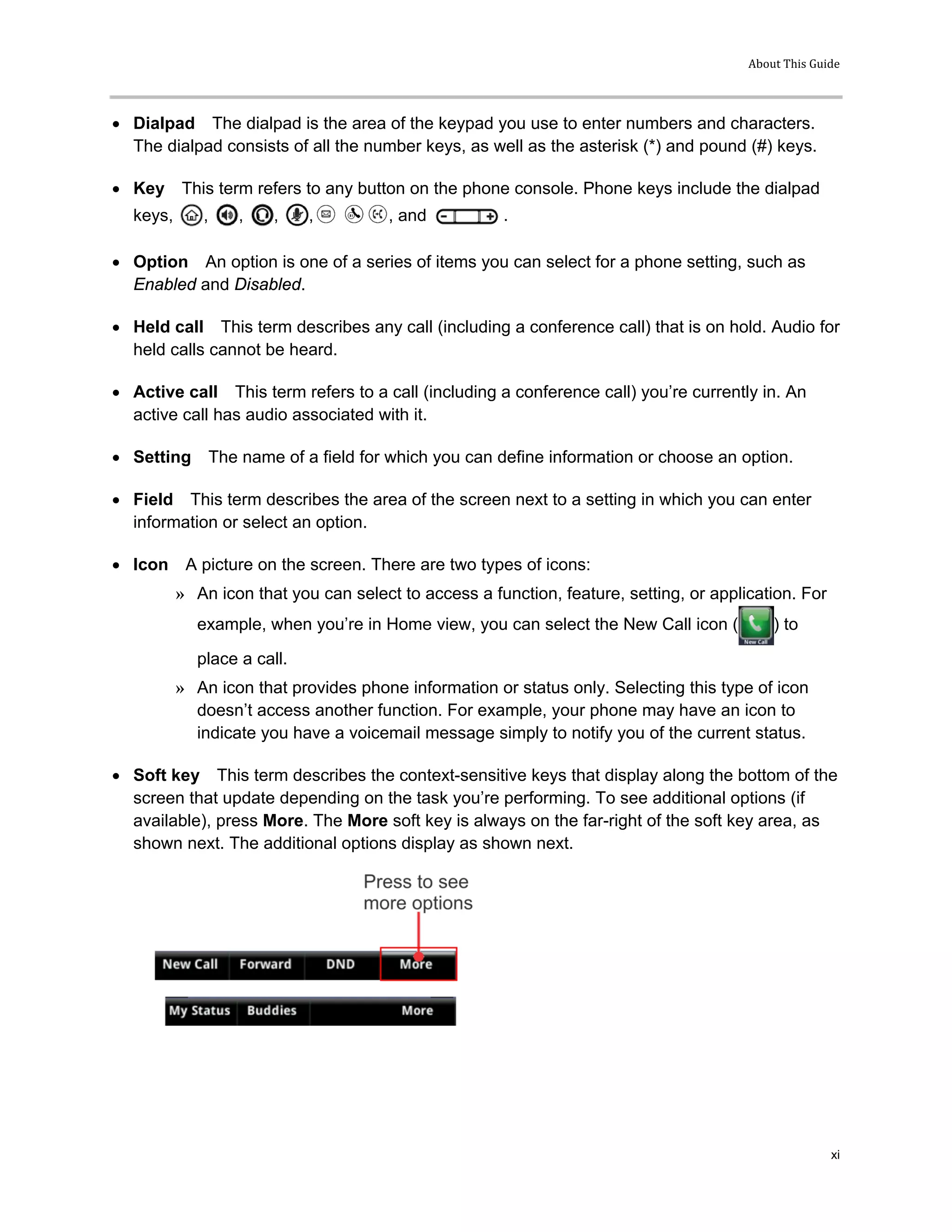
• Soft key This term describes the context-sensitive keys that display along the bottom of the
screen that update depending on the task you’re performing. To see additional options (if
available), press More. The More soft key is always on the far-right of the soft key area, as
shown next. The additional options display as shown next.
Polycom® VVX® 400 and 410 Business Media Phones User Guide
xii
• Soft key area The soft key area (shown above) is the area along the bottom of the screen
that displays context-sensitive soft keys.
• Status bar The status bar (shown next) is the top-most part of the screen. It displays the
time and date or other messages instead of the date display.
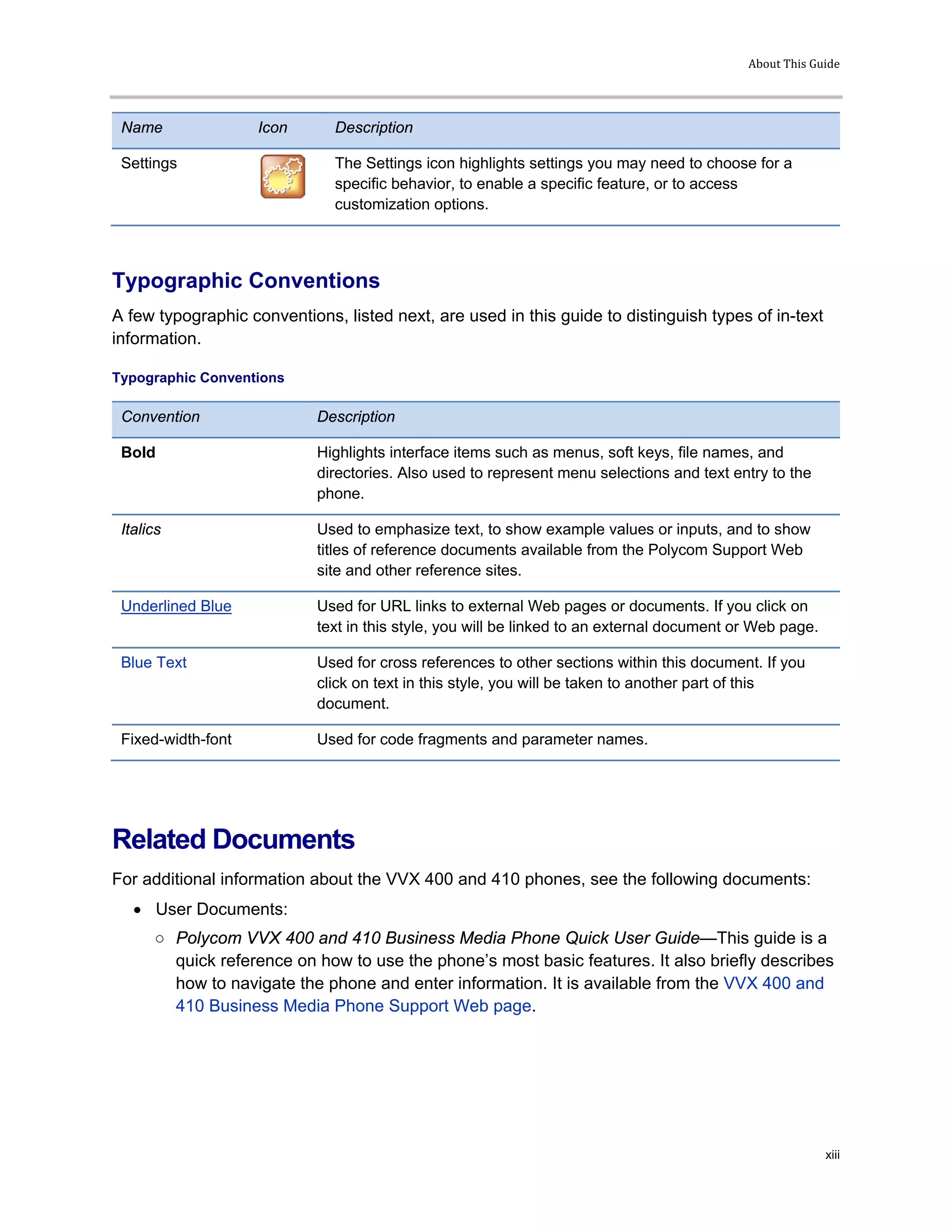
Information Elements
The following icons are used to alert you to various types of important information in this guide:
Icons Used in this Guide
Name Icon Description
Note The Note icon highlights information of interest or important information
needed to be successful in accomplishing a procedure or to understand
a concept.
Administrator Tip The Administrator Tip icon highlights techniques, shortcuts, or
productivity related tips.
Caution The Caution icon highlights information you need to know to avoid a
hazard that could potentially impact device performance, application
functionality, or successful feature configuration.
Warning The Warning icon highlights an action you must perform (or avoid) to
prevent issues that may cause you to lose information or your
configuration setup, and/or affect phone or network performance.
Web Info The Web Info icon highlights supplementary information available online
such as documents or downloads on support.polycom.com or other
locations.
Timesaver The Timesaver icon highlights a faster or alternative method for
accomplishing a method or operation.
Power Tip The Power Tip icon faster, alternative procedures for advanced
administrators already familiar with the techniques being discussed.
Troubleshooting The Troubleshooting icon highlights information that may help you solve
a relevant problem or to refer you to other relevant troubleshooting
resources.
About This Guide
xiii
Name Icon Description
Settings The Settings icon highlights settings you may need to choose for a
specific behavior, to enable a specific feature, or to access
customization options.
Typographic Conventions
A few typographic conventions, listed next, are used in this guide to distinguish types of in-text
information.
Typographic Conventions
Convention Description
Bold Highlights interface items such as menus, soft keys, file names, and
directories. Also used to represent menu selections and text entry to the
phone.
Italics Used to emphasize text, to show example values or inputs, and to show
titles of reference documents available from the Polycom Support Web
site and other reference sites.
Underlined Blue Used for URL links to external Web pages or documents. If you click on
text in this style, you will be linked to an external document or Web page.
Blue Text Used for cross references to other sections within this document. If you
click on text in this style, you will be taken to another part of this
document.
Fixed-width-font Used for code fragments and parameter names.
Related Documents
For additional information about the VVX 400 and 410 phones, see the following documents:
• User Documents:
○ Polycom VVX 400 and 410 Business Media Phone Quick User Guide—This guide is a
quick reference on how to use the phone’s most basic features. It also briefly describes
how to navigate the phone and enter information. It is available from the VVX 400 and
410 Business Media Phone Support Web page.
Polycom® VVX® 400 and 410 Business Media Phones User Guide
xiv
• Setup and maintenance documents:
○ Polycom VVX 400 and 410 Business Media Phone Quick Start Guide—This guide
describes the contents of your phone package, how to assemble the phone, and how to
connect the phone to the network. The quick start guide is included in your phone
package. It is also available from the VVX 400 and 410 Business Media Phone
Support Web page.
○ Polycom VVX 300, 310, 400, and 410 Business Media Phone Administrators’ Guide—
This guide provides detailed information about setting up and configuring your phone,
including how to configure features. It is available from the VVX 400 and 410 Business
Media Phone Support Web page.
○ Polycom VVX 300/310/400/410/500/600 Business Media Phone Wallmount
Instructions—This document provides detailed instructions for mounting your phone on
the wall. To install your phone on the wall, you’ll need the optional wallmount package.
The wallmount instructions are included in the optional wallmount package. They are
also available from the VVX 400 and 410 Business Media Phone Support Web page.
• Feature Descriptions and Technical Notifications for Polycom phones—These documents
describe workarounds to existing issues and provide expanded descriptions and examples
for phone settings and features. You can find these documents on the Polycom Support
Web site on the Polycom® Profiled UC Software Features and Polycom® Engineering
Advisories and Technical Notifications support pages.
1
Chapter 1: Getting Started
Before you use your Polycom® VVX® 400 phone, you may wish to take a few moments to
become familiar with its features and user interface. In this chapter, you learn about your
phone’s components and the screen layout. You’ll also learn how to configure your phone
remotely using the Polycom Web Configuration Utility.
Note: Accessing Features and Options
As you read this guide, keep in mind that certain phone features are configurable by your
system administrator or determined by your phone environment. As a result, some
features may not be enabled or may operate differently on your phone. The examples and
figures in this guide may not directly reflect what displays on your phone screen.
Phone Keys and Hardware
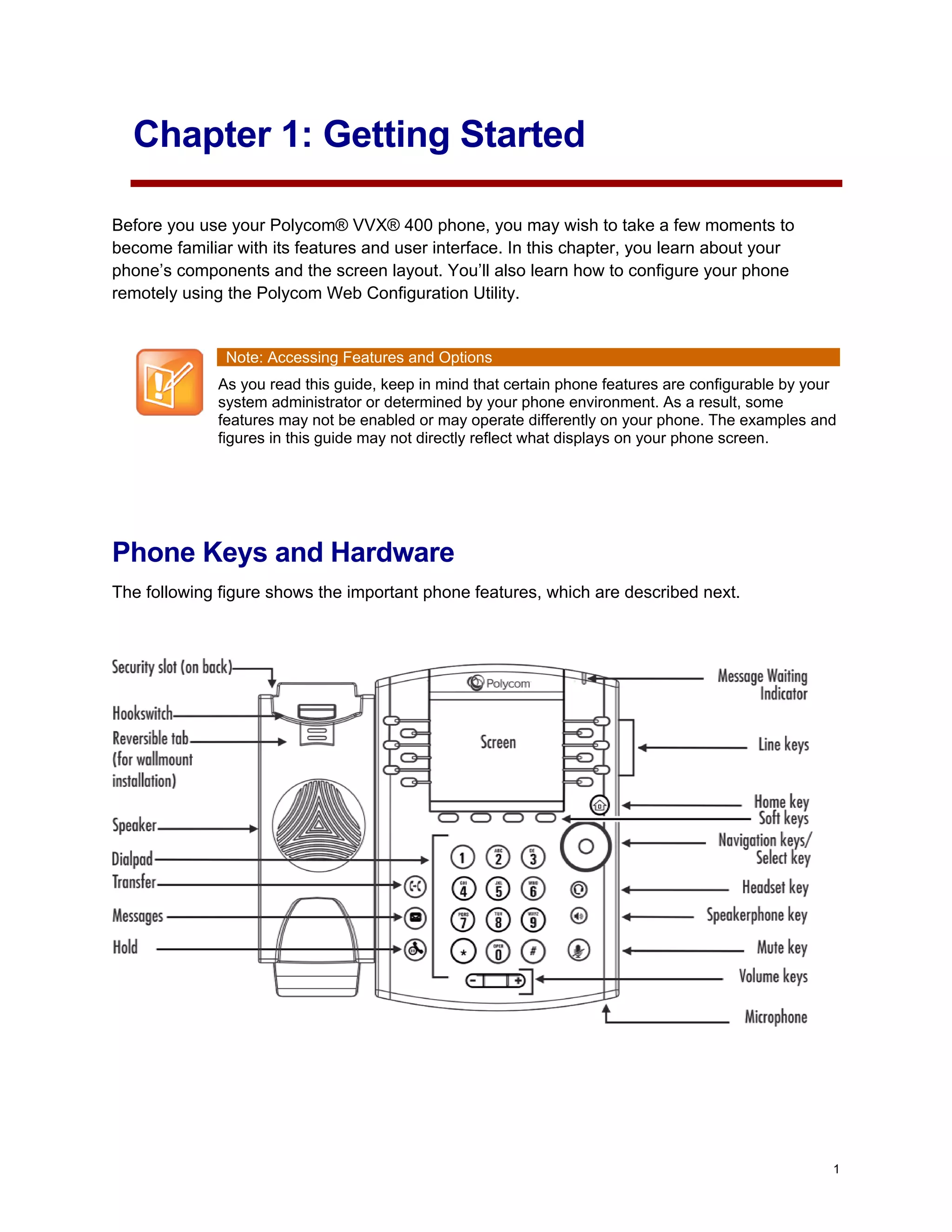
The following figure shows the important phone features, which are described next.
Polycom® VVX® 400 and 410 Business Media Phones User Guide
2
VVX 400 Phone Features
Feature Description
Speaker Provides ringer and hands-free (speakerphone) audio output.
Dialpad Enables you to enter numbers, letters, and special characters. You can
also use the dialpad keys to select menu items that have index numbers.
Security slot The connector on the back of your phone that enables you to attach a
laptop cable lock to your phone so you can secure it to a desktop. For
more information on locking your phone to the desktop, see
Security Slots on Polycom Phones (Technical Bulletin 64654).
Message Waiting Indicator Flashes red to indicate new messages.
Home key
Press from any screen to display Home view. From Home view,
press to display other phone views.
Screen The 3.5-inch diagonal screen is backlit.
Navigation keys/Select
key
Scroll through displayed information or options. Select a field of displayed
data.
Headset key Enables you to place and receive calls through a headset. The key glows
green when an analog headset is activated.
Speakerphone key Enables you to place and receive calls using the speakerphone. The key
glows green when activated.
Mute key Mutes local audio during calls and conferences. The key glows red when
activated.
Volume keys Adjust the volume of the handset, headset, speaker, and phone’s ringer.
Microphone Transmits sound to other phones.
Web Info: Attaching Phone Hardware
For information on attaching phone hardware, including how to connect your phone to the
network, see the Quick Start Guide for your phone, available by navigating to your phone
from the Polycom Business Media Phones Web page.
Phone Views
Your phone has three main views: Home, Calls, and Lines view (the default).
To change views:
• For Home view, press .
Chapter 1: Getting Started
3
• From Home view, press to display either Lines or Call view.
Troubleshooting: Why Can’t I Access a Certain View?
The views you can access depend on the number of calls your phone has, and if your
phone has an active call. If your phone is idle, you can access Home and Lines view. If
your phone has one call only—and it’s active—you can access Home and Lines view. If
your phone has multiple calls, or one held call, you can access Home, Lines, and Calls
view by pressing .
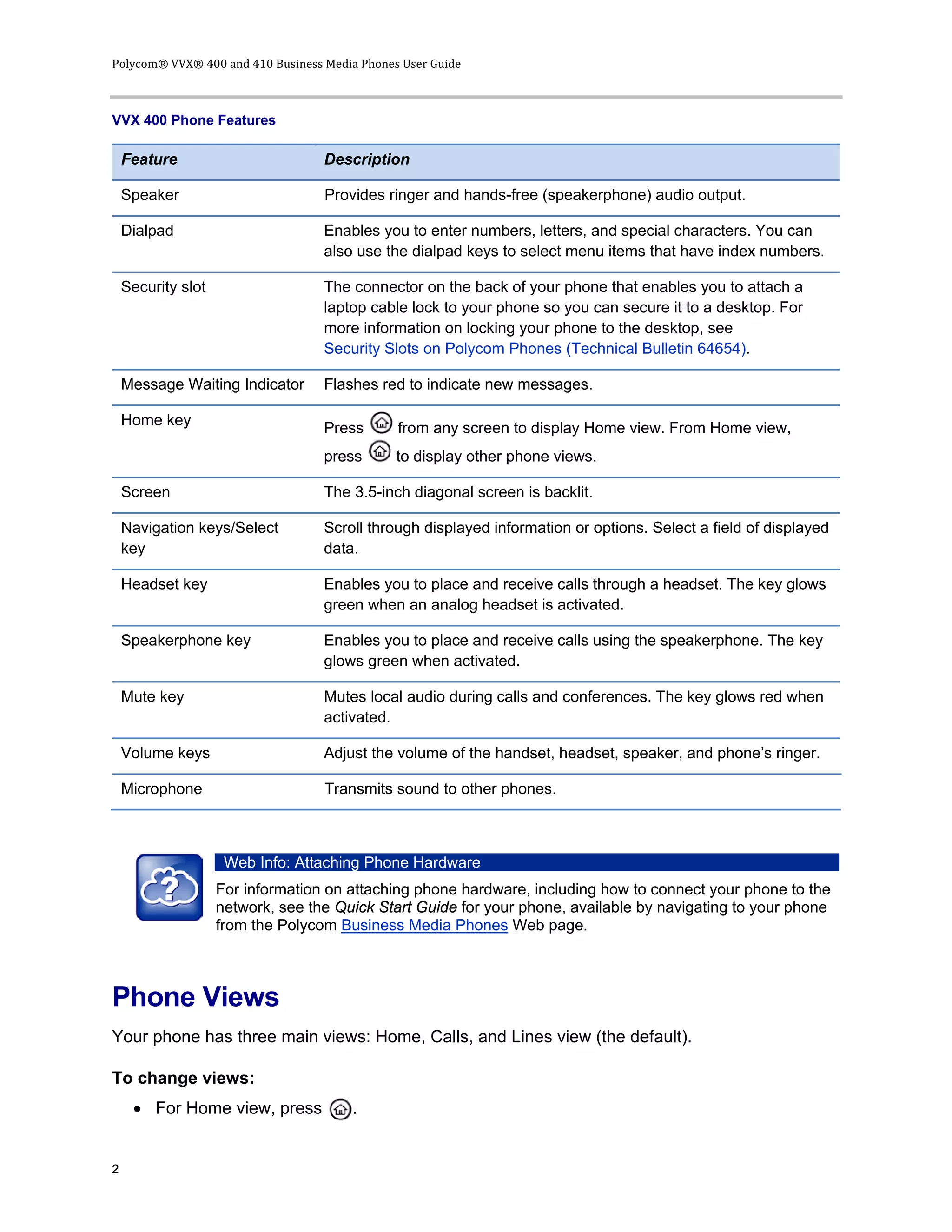
At the top of each view is a status bar, shown next. The status bar shows the date and time. If
your phone has information you should know about, messages will display, together with the
time.
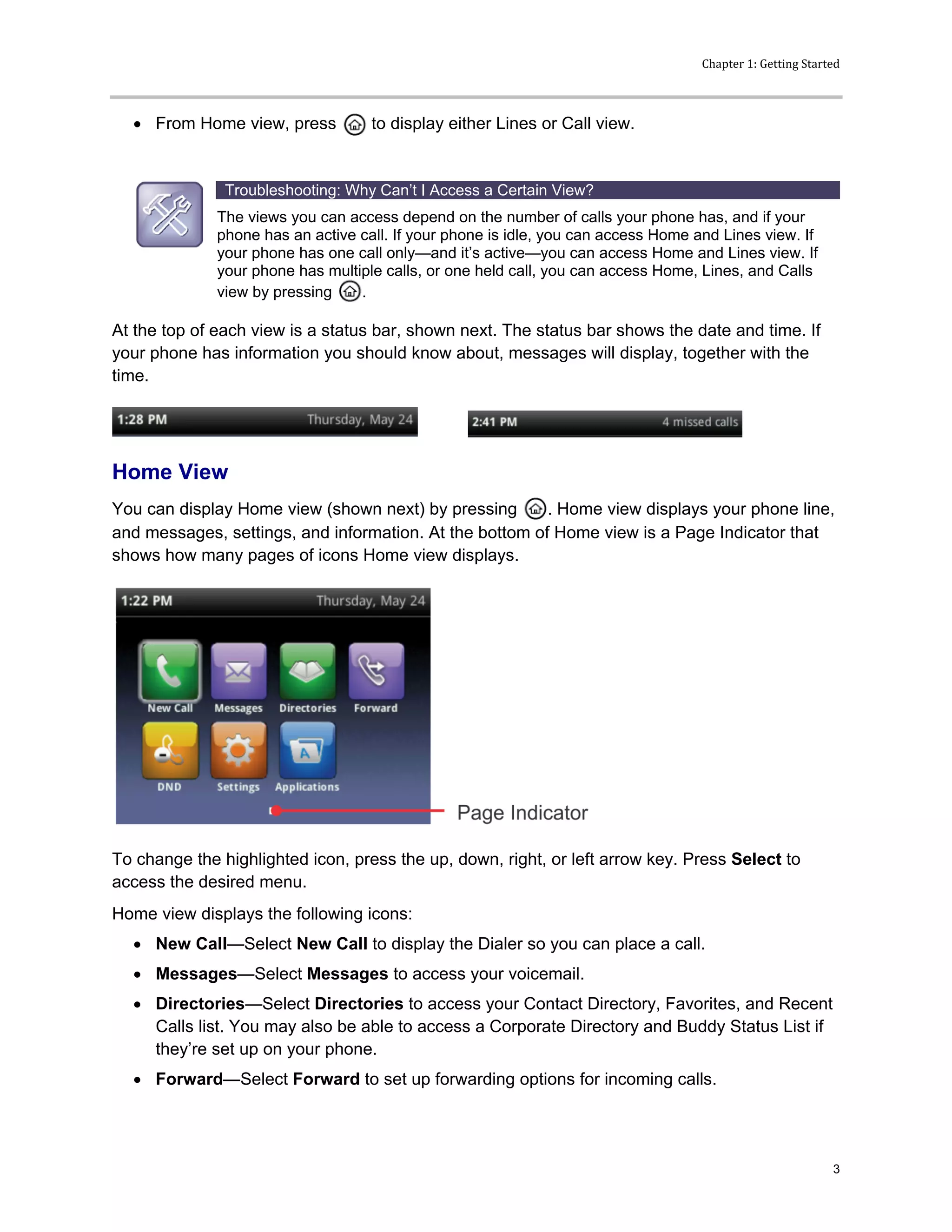
Home View
You can display Home view (shown next) by pressing . Home view displays your phone line,
and messages, settings, and information. At the bottom of Home view is a Page Indicator that
shows how many pages of icons Home view displays.
To change the highlighted icon, press the up, down, right, or left arrow key. Press Select to
access the desired menu.
Home view displays the following icons:
• New Call—Select New Call to display the Dialer so you can place a call.
• Messages—Select Messages to access your voicemail.
• Directories—Select Directories to access your Contact Directory, Favorites, and Recent
Calls list. You may also be able to access a Corporate Directory and Buddy Status List if
they’re set up on your phone.
• Forward—Select Forward to set up forwarding options for incoming calls.
Polycom® VVX® 400 and 410 Business Media Phones User Guide
4
• DND—Select DND to toggle DND (Do Not Disturb) on or off. When DND is enabled, your
phone won’t ring and incoming calls will go to voice mail.
• Settings—Select Settings to access phone features and settings to customize your
phone.
Additional icons may include:
• Applications—Select Applications to access a menu of custom applications. See your
administrator for information about any specific applications listed in this menu.
• Calendar—Select Calendar to show a calendar with your meeting details. Using the
Calendar feature, you can join meetings directly from your phone.
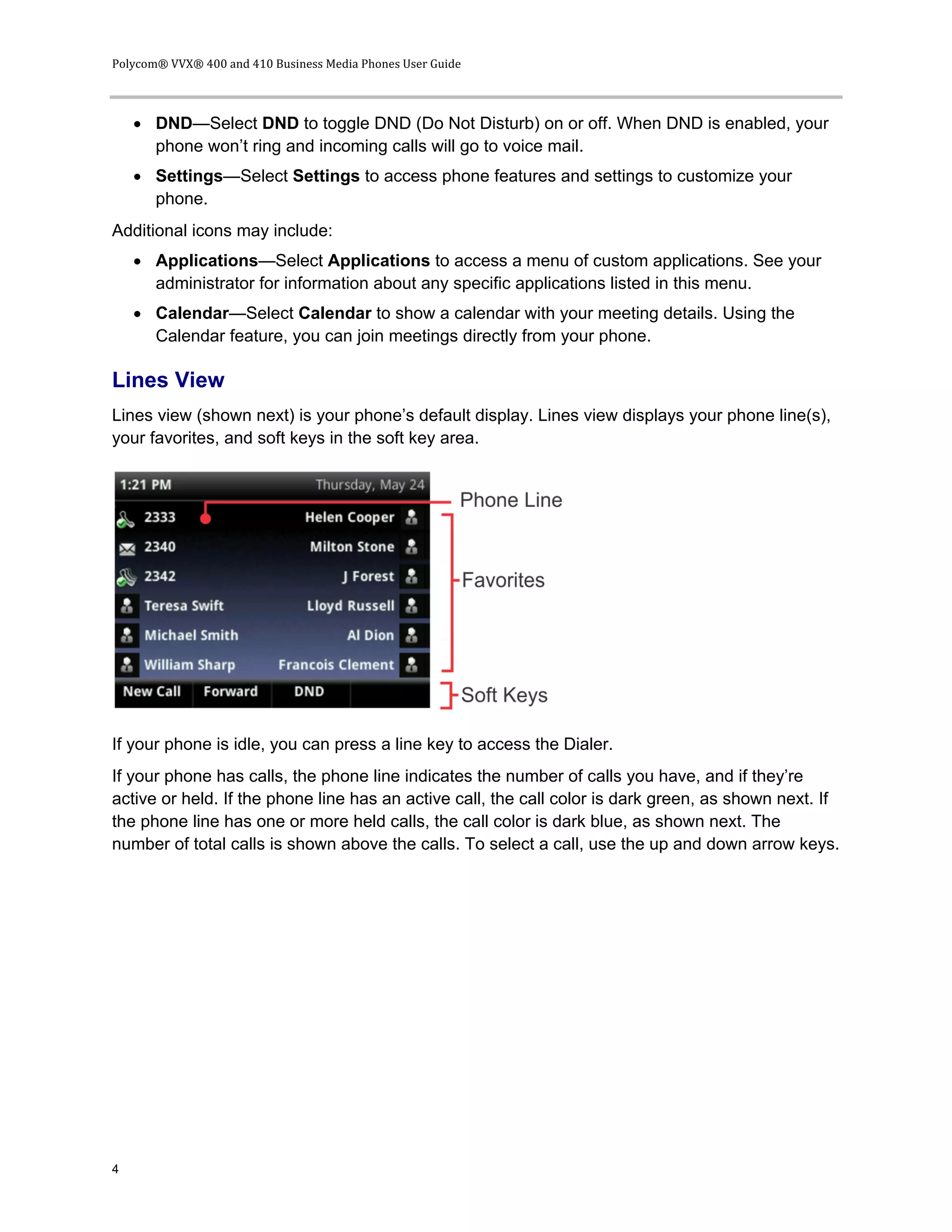
Lines View
Lines view (shown next) is your phone’s default display. Lines view displays your phone line(s),
your favorites, and soft keys in the soft key area.
If your phone is idle, you can press a line key to access the Dialer.
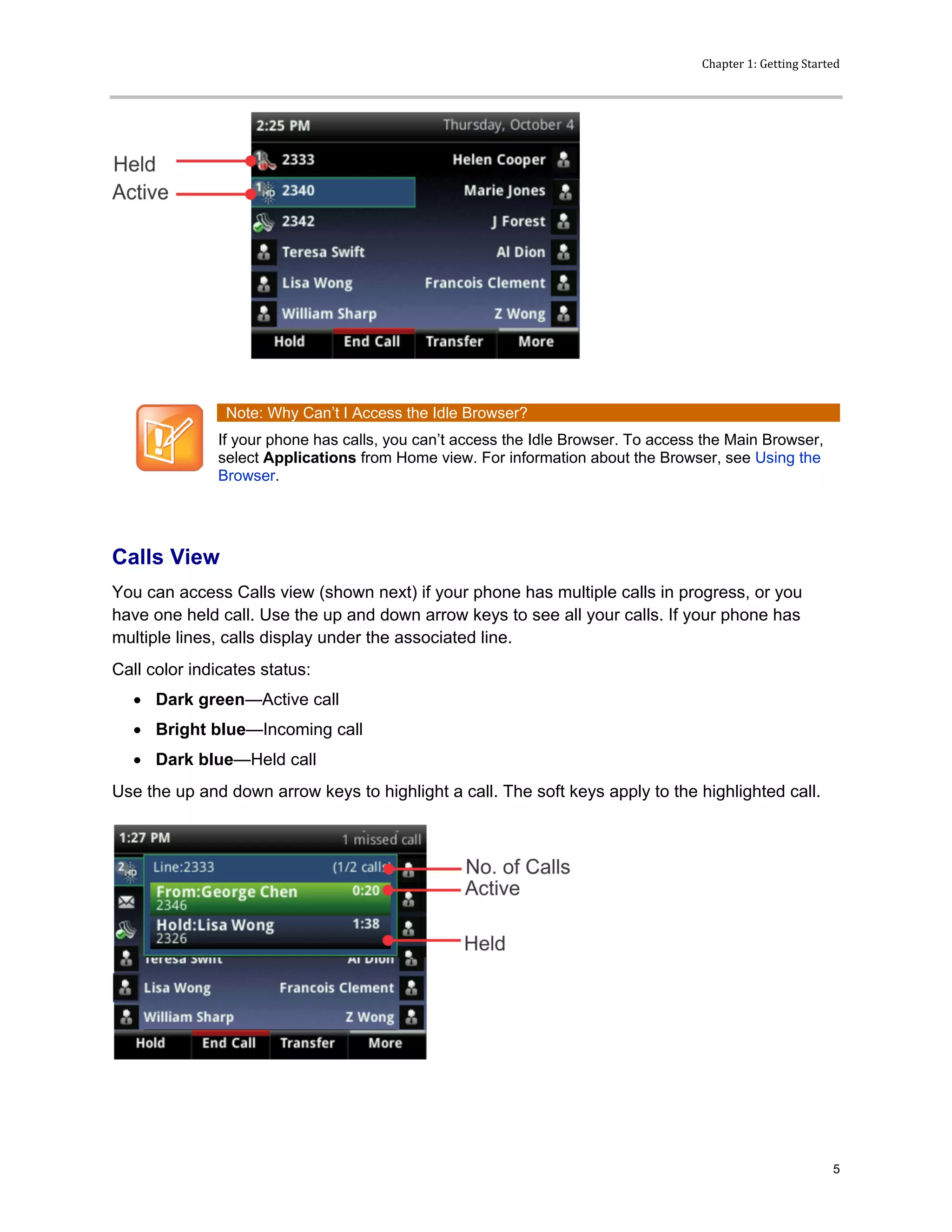
If your phone has calls, the phone line indicates the number of calls you have, and if they’re
active or held. If the phone line has an active call, the call color is dark green, as shown next. If
the phone line has one or more held calls, the call color is dark blue, as shown next. The
number of total calls is shown above the calls. To select a call, use the up and down arrow keys.
Chapter 1: Getting Started
5
Note: Why Can’t I Access the Idle Browser?
If your phone has calls, you can’t access the Idle Browser. To access the Main Browser,
select Applications from Home view. For information about the Browser, see Using the
Browser.
Calls View
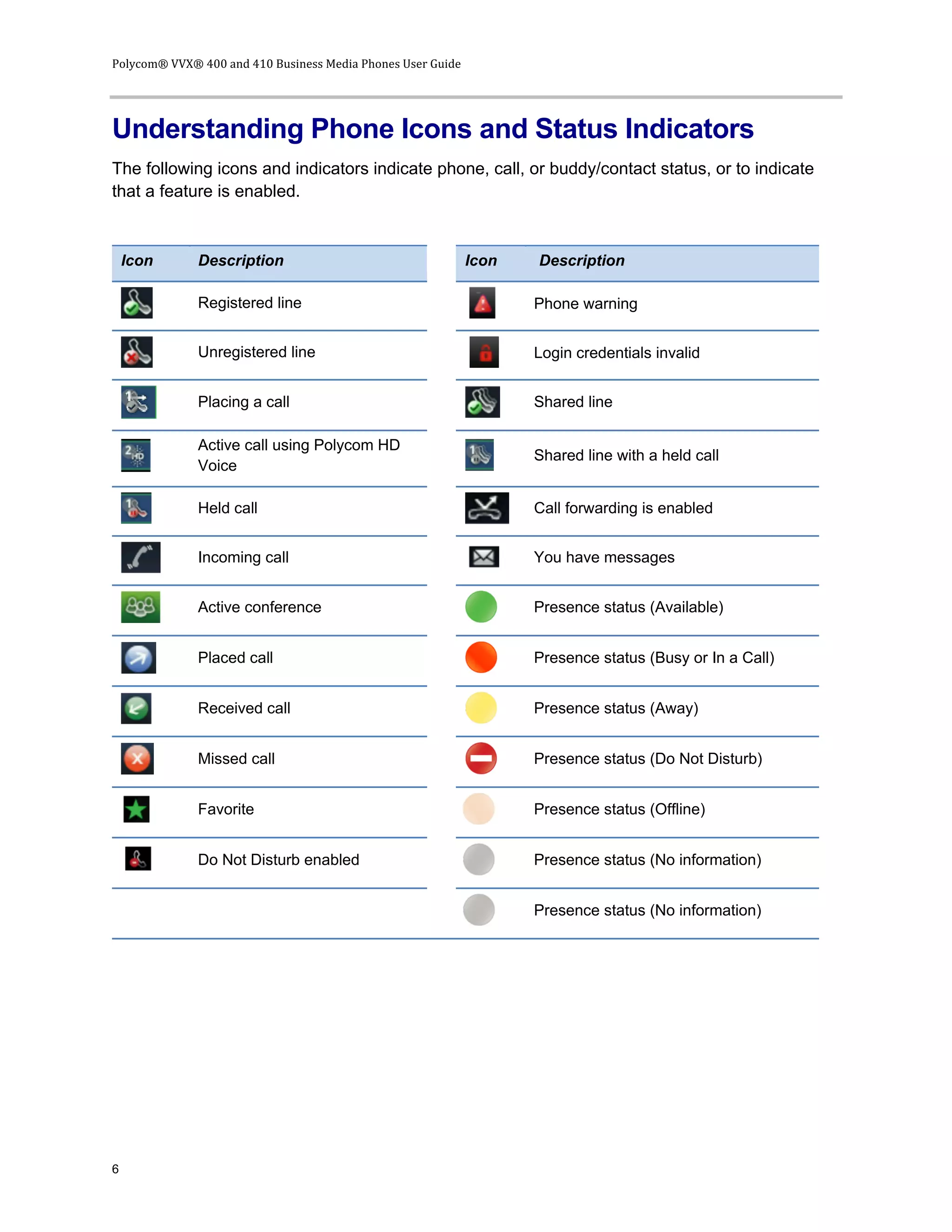
You can access Calls view (shown next) if your phone has multiple calls in progress, or you
have one held call. Use the up and down arrow keys to see all your calls. If your phone has
multiple lines, calls display under the associated line.
Call color indicates status:
• Dark green—Active call
• Bright blue—Incoming call
• Dark blue—Held call
Use the up and down arrow keys to highlight a call. The soft keys apply to the highlighted call.
Polycom® VVX® 400 and 410 Business Media Phones User Guide
6
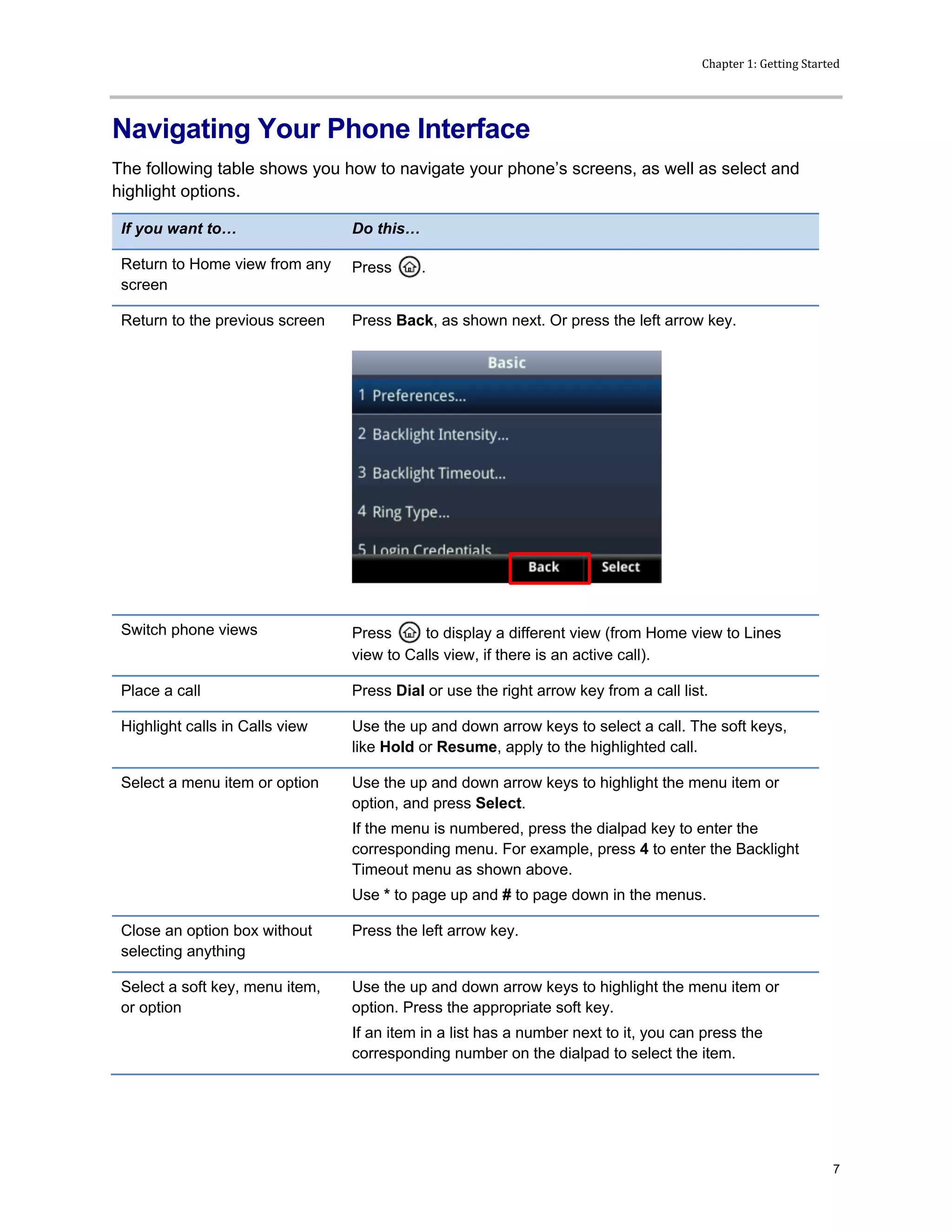
Understanding Phone Icons and Status Indicators
The following icons and indicators indicate phone, call, or buddy/contact status, or to indicate
that a feature is enabled.
Icon Description Icon Description
Registered line Phone warning
Unregistered line Login credentials invalid
Placing a call Shared line
Active call using Polycom HD
Voice
Shared line with a held call
Held call Call forwarding is enabled
Incoming call You have messages
Active conference Presence status (Available)
Placed call Presence status (Busy or In a Call)
Received call Presence status (Away)
Missed call Presence status (Do Not Disturb)
Favorite Presence status (Offline)
Do Not Disturb enabled Presence status (No information)
Presence status (No information)
Chapter 1: Getting Started
7
Navigating Your Phone Interface
The following table shows you how to navigate your phone’s screens, as well as select and
highlight options.
If you want to… Do this…
Return to Home view from any
screen
Press .
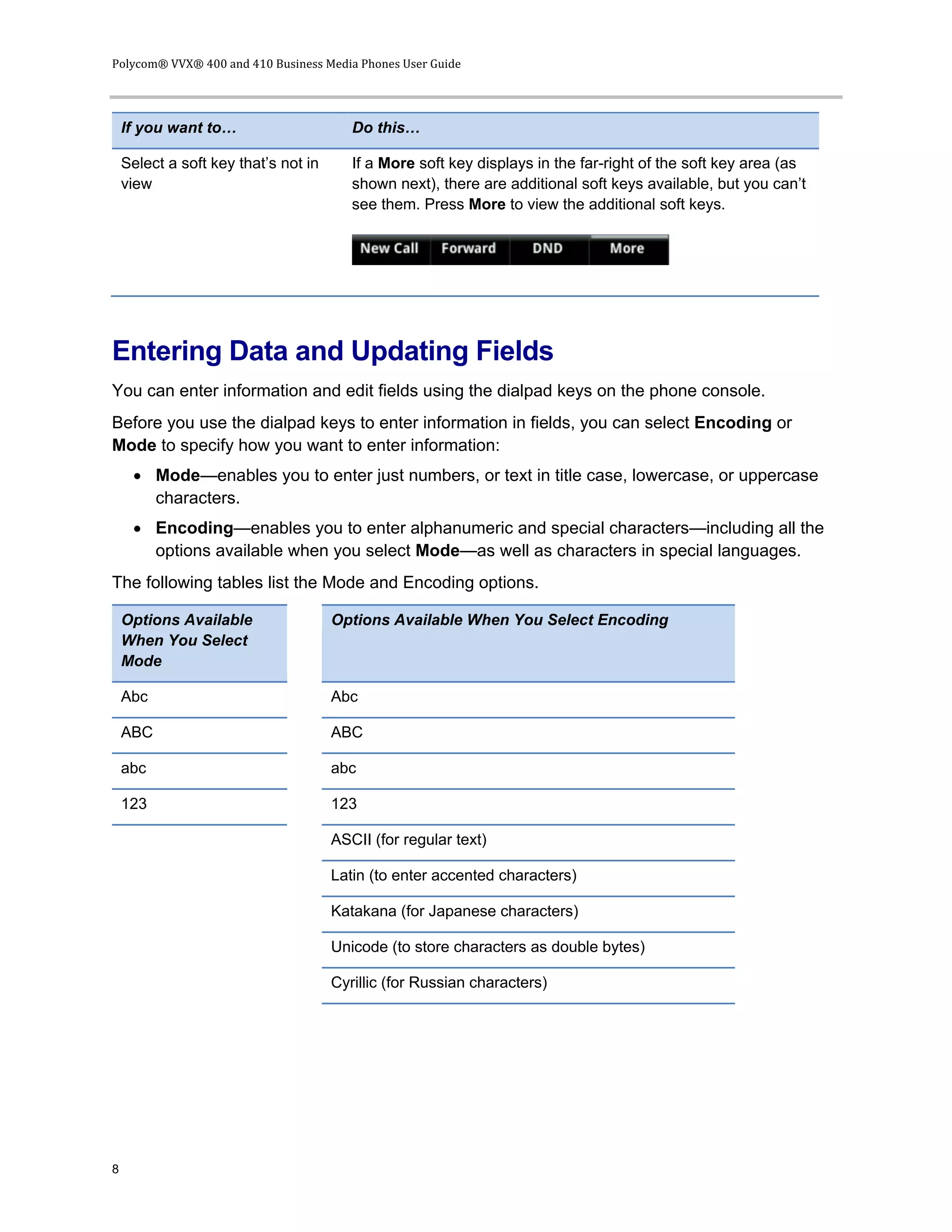
Return to the previous screen Press Back, as shown next. Or press the left arrow key.
Switch phone views Press to display a different view (from Home view to Lines
view to Calls view, if there is an active call).
Place a call Press Dial or use the right arrow key from a call list.
Highlight calls in Calls view Use the up and down arrow keys to select a call. The soft keys,
like Hold or Resume, apply to the highlighted call.
Select a menu item or option Use the up and down arrow keys to highlight the menu item or
option, and press Select.
If the menu is numbered, press the dialpad key to enter the
corresponding menu. For example, press 4 to enter the Backlight
Timeout menu as shown above.
Use * to page up and # to page down in the menus.
Close an option box without
selecting anything
Press the left arrow key.
Select a soft key, menu item,
or option
Use the up and down arrow keys to highlight the menu item or
option. Press the appropriate soft key.
If an item in a list has a number next to it, you can press the
corresponding number on the dialpad to select the item.
Polycom® VVX® 400 and 410 Business Media Phones User Guide
8
If you want to… Do this…
Select a soft key that’s not in
view
If a More soft key displays in the far-right of the soft key area (as
shown next), there are additional soft keys available, but you can’t
see them. Press More to view the additional soft keys.
Entering Data and Updating Fields
You can enter information and edit fields using the dialpad keys on the phone console.
Before you use the dialpad keys to enter information in fields, you can select Encoding or
Mode to specify how you want to enter information:
• Mode—enables you to enter just numbers, or text in title case, lowercase, or uppercase
characters.
• Encoding—enables you to enter alphanumeric and special characters—including all the
options available when you select Mode—as well as characters in special languages.
The following tables list the Mode and Encoding options.
Options Available
When You Select
Mode
Options Available When You Select Encoding
Abc Abc
ABC ABC
abc abc
123 123
ASCII (for regular text)
Latin (to enter accented characters)
Katakana (for Japanese characters)
Unicode (to store characters as double bytes)
Cyrillic (for Russian characters)
Chapter 1: Getting Started
9
Using the Dialpad Keys on the Phone Console
You can use the dialpad keys on your phone console to update field information. If a field
requires data input, select Encoding or Mode to specify how you want to enter data.
Use the tips in the following table to enter information using the dialpad.
If you want to… Do this…
Enter numbers, or characters in
uppercase, lowercase, or titlecase
mode
Select Encoding or Mode, and select one of the alphabetic
(ABC, abc, or Abc) options.
Enter only numbers Select Encoding or Mode, and select the numeric (123)
option.
Enter text in a special language Select Encoding, and select one of the language options.
Enter a character Press a dialpad key repeatedly to view the character options
and stop to select. When the character you want to enter
displays in the field, wait one second, and enter the next
character.
Enter a number Press a dialpad key repeatedly (depending what mode
you’re in) to enter the number that displays on that key.
Enter a special character Select Encoding, and select one of the alphabetic (Abc,
ABC, or abc) options. Then, press the 1, *, 0, or # key one
or more times to enter one of the following special
characters:
• 1 key: ! | ‘ ^  @ : 1
• * key: . * - & % + ; ( )
• 0 key: / , _ $ ~ = ? 0
• # key: # > < { } [ ] “ ‘
Note: You can’t access special characters when you’re in
numerical (123) mode.
Enter a space Select Encoding, and select one of the alphabetic (Abc,
ABC, or abc) options. Then, press the 0 key.
Note: You can’t enter a space when you’re in numerical
(123) mode.
Delete one or more characters Using the left and right arrow keys until the cursor is
positioned to the right of the character(s) you want to delete.
Then, press .
Polycom® VVX® 400 and 410 Business Media Phones User Guide
10
Registering the Phone
Generally, your phone will be deployed with multiple other phones. In this case, your system
administrator will configure the phone parameters beforehand, so that after you set up your
phone, the phone will be registered and ready to use.
If your phone is not part of a large phone deployment, your phone may not be registered after
you set it up. Before you use your phone, you or your system administrator will have to register
it.
Web Info: How to Register Your Phone
For detailed information on how to register your phone after you install it, see Registering
Standalone Polycom Phones (Quick Tip 44011).
Configuring Your Phone Using the Web Configuration
Utility
This section explains how to update phone settings from your phone, using the phone’s menu
commands. If you wish, you can also update these settings remotely with the Polycom Web
Configuration Utility.
The phone’s Web Configuration Utility enables you to view and configure phone behavior from a
computer using any compatible Web browser. The utility provides a browser-friendly view of
your phone’s current settings. Using the utility, you can perform many of the same updates from
your computer that you can perform using your phone’s menu system.
You can access the utility using any compatible Web browser installed on a computer that
resides on the same network as your phone. Before you begin, you’ll need to know the IP
address of your phone, and the user password to log in to the utility.
Web Info: Using the Utility
For detailed information on accessing, navigating, and using the utility, see the Polycom
Web Configuration Utility User Guide.
Chapter 1: Getting Started
11
To access the Web Configuration Utility for your phone:
1 Launch a Web browser from a computer on the same network as your phone.
2 In the Address Bar of your Web Browser, enter the IP address of your phone. For
example, if your phone’s IP address is 123.22.3.4, enter this information in the address
bar.
3 Press the Enter key.
4 From the Web Configuration Utility login screen, select User, and enter the user
password. The default user password is 123.
5 Click Submit.
The Web Configuration Utility Home screen is displayed.
13
Chapter 2: Using Basic Features
Now that you’re familiar with your phone’s user interface and how to interact with it, you’re ready
to perform baisc phone tasks that you’ll use on a daily basis. At the end of this chapter, you’ll
become expert at handling multiple calls at one time, manipulating incoming and active calls,
and accessing directories and lists so you can perform tasks quickly and efficiently.
In this chapter, you’ll learn about:
• Calling, answering, holding, and ending calls
• Ignoring, rejecting, forwarding, and transferring calls
• Setting up conference calls
• Enabling Do Not Disturb
• Listening to voicemail
• Handling Directories, Recent Calls, and Favorites
• Customizing ringtones
• Controlling phone volume
• Setting up Do Not Disturb
• Using headsets
• Managing shared lines
How Your Phone Handles Calls
Your phone can handle multiple calls at a time. However, only one active call—the call that has
audio associated with it—can be in progress at any given time. In addition to the active call, your
phone may have multiple other calls that are either held, or in an incoming or ringing state. Your
phone can handle a maximum of 6 calls at one time.
Your administrator can set up your phone to have up to 6 lines. Lines can have unique
extension numbers, or they can have the same extension number as other lines. Your phone
can supported a maximum of 24 calls.
You can place and answer calls in these ways:
• Using the handset
• Using the speakerphone
• Using a headset
Polycom® VVX® 400 and 410 Business Media Phones User Guide
14
During a call, you can alternate between handset, headset, or speakerphone modes by picking
up the handset, or pressing or . For example, if you’re using the handset, you can switch
to headset mode by pressing , or switch to speakerphone mode by pressing .
When you’re in speakerphone mode, glows green. When you’re in headset mode, glows
green if an analog headset is connected.
Troubleshooting: Why Doesn’t the Speakerphone Work?
If your speakerphone doesn’t work, your system administrator may have disabled it. You
must handle calls using the handset or a headset. If your system administrator disables
the speakerphone on your phone, Handsfree mode disabled appears on the screen after
you press .
Power Tip: Setting Up the Phone to Automatically Use Your Headset for All Calls
If you frequently use a headset, you can make the headset the default call path. To set
this up, see Enabling Headset Memory Mode
Answering Calls
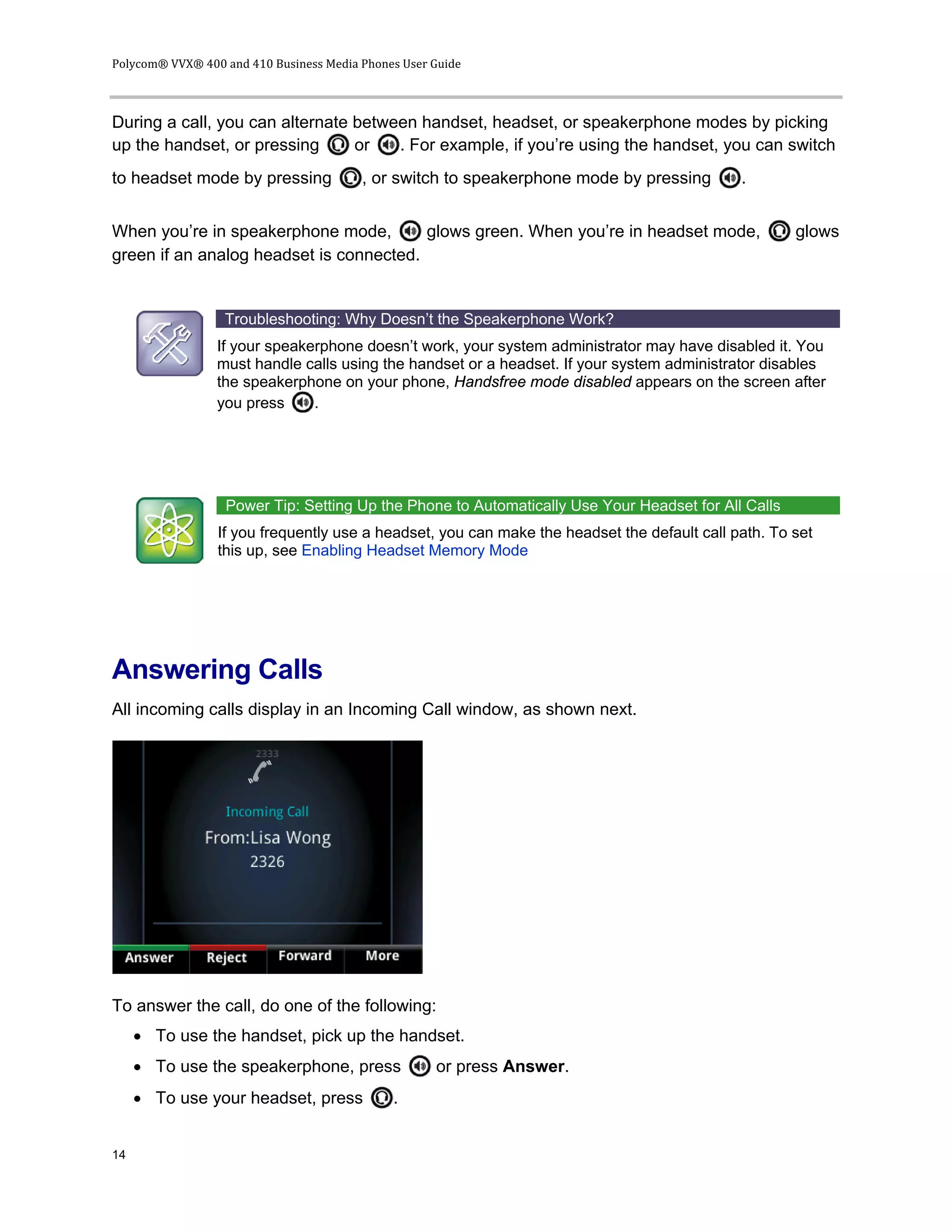
All incoming calls display in an Incoming Call window, as shown next.
To answer the call, do one of the following:
• To use the handset, pick up the handset.
• To use the speakerphone, press or press Answer.
• To use your headset, press .
Chapter 2: Using Basic Features
15
If you’re already in handset, speakerphone, or headset mode, press Answer, and the phone will
automatically use the mode you’re in.
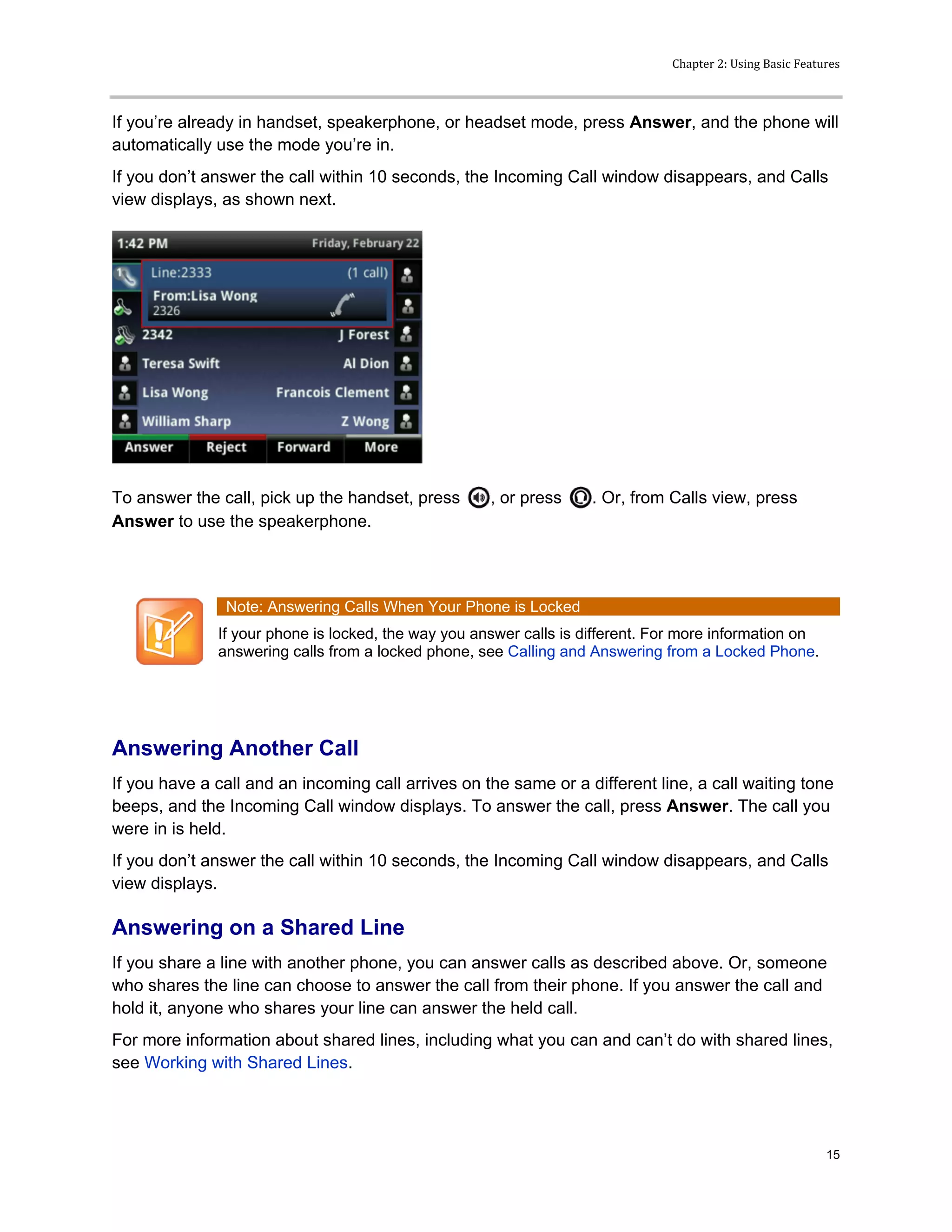
If you don’t answer the call within 10 seconds, the Incoming Call window disappears, and Calls
view displays, as shown next.
To answer the call, pick up the handset, press , or press . Or, from Calls view, press
Answer to use the speakerphone.
Note: Answering Calls When Your Phone is Locked
If your phone is locked, the way you answer calls is different. For more information on
answering calls from a locked phone, see Calling and Answering from a Locked Phone.
Answering Another Call
If you have a call and an incoming call arrives on the same or a different line, a call waiting tone
beeps, and the Incoming Call window displays. To answer the call, press Answer. The call you
were in is held.
If you don’t answer the call within 10 seconds, the Incoming Call window disappears, and Calls
view displays.
Answering on a Shared Line
If you share a line with another phone, you can answer calls as described above. Or, someone
who shares the line can choose to answer the call from their phone. If you answer the call and
hold it, anyone who shares your line can answer the held call.
For more information about shared lines, including what you can and can’t do with shared lines,
see Working with Shared Lines.
Polycom® VVX® 400 and 410 Business Media Phones User Guide
16
Answering Calls Automatically
You may find it convenient if your phone to auto-answer calls, so you don’t have to press a key
to answer a call. If you enable this feature, your phone will automatically answer incoming calls
using the speakerphone. Your system administrator sets how many times your phone will ring
before the call is auto-answered.
If Auto Answer is enabled and a call arrives while you’re already in a call, the incoming call will
be automatically answered if you end or hold the current call.
Note: Auto-Answered Calls and Microphone Mute
Your phone mutes the microphone for all auto-answered calls, so that the party calling you
can’t hear you. To unmute the microphone so the other party can hear you, press . To
enable or disable microphone mute for auto-answered calls, see step 2, below.
To enable your phone to automatically answer calls:
1 Select Settings from Home view, and select Basic > Preferences > Auto Answer.
2 From the Auto Answer screen, do the following:
○ To enable your phone to automatically answer SIP calls, select Auto Answer SIP
Calls, and select Yes. The default setting is No.
○ To mute the microphone for all auto-answered calls so the incoming caller can’t hear
you, select Microphone Mute, and select Yes. The default setting is Yes.
3 Press Save.
Managing Multiple Calls
You can easily manage multiple calls from Lines and Calls view.
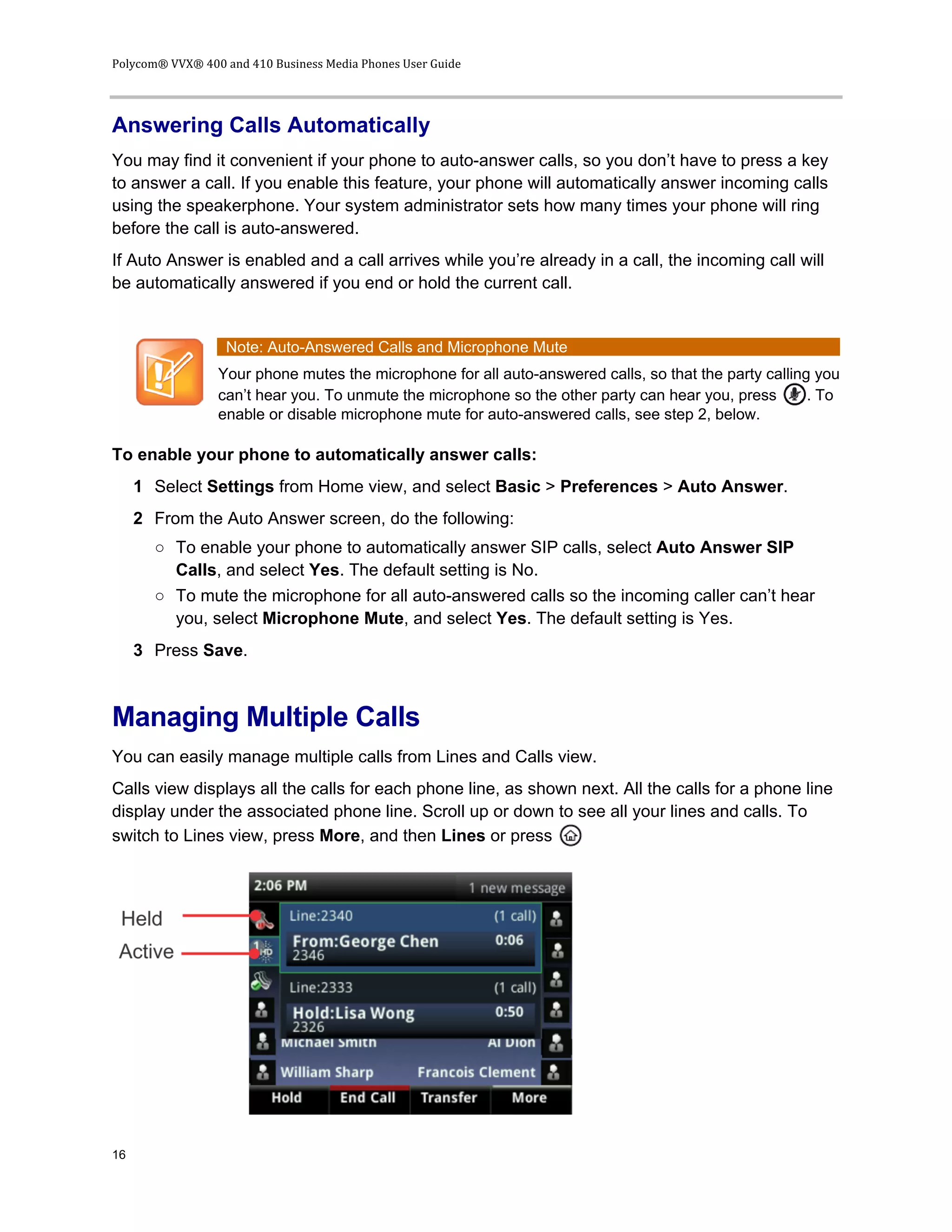
Calls view displays all the calls for each phone line, as shown next. All the calls for a phone line
display under the associated phone line. Scroll up or down to see all your lines and calls. To
switch to Lines view, press More, and then Lines or press
Chapter 2: Using Basic Features
17
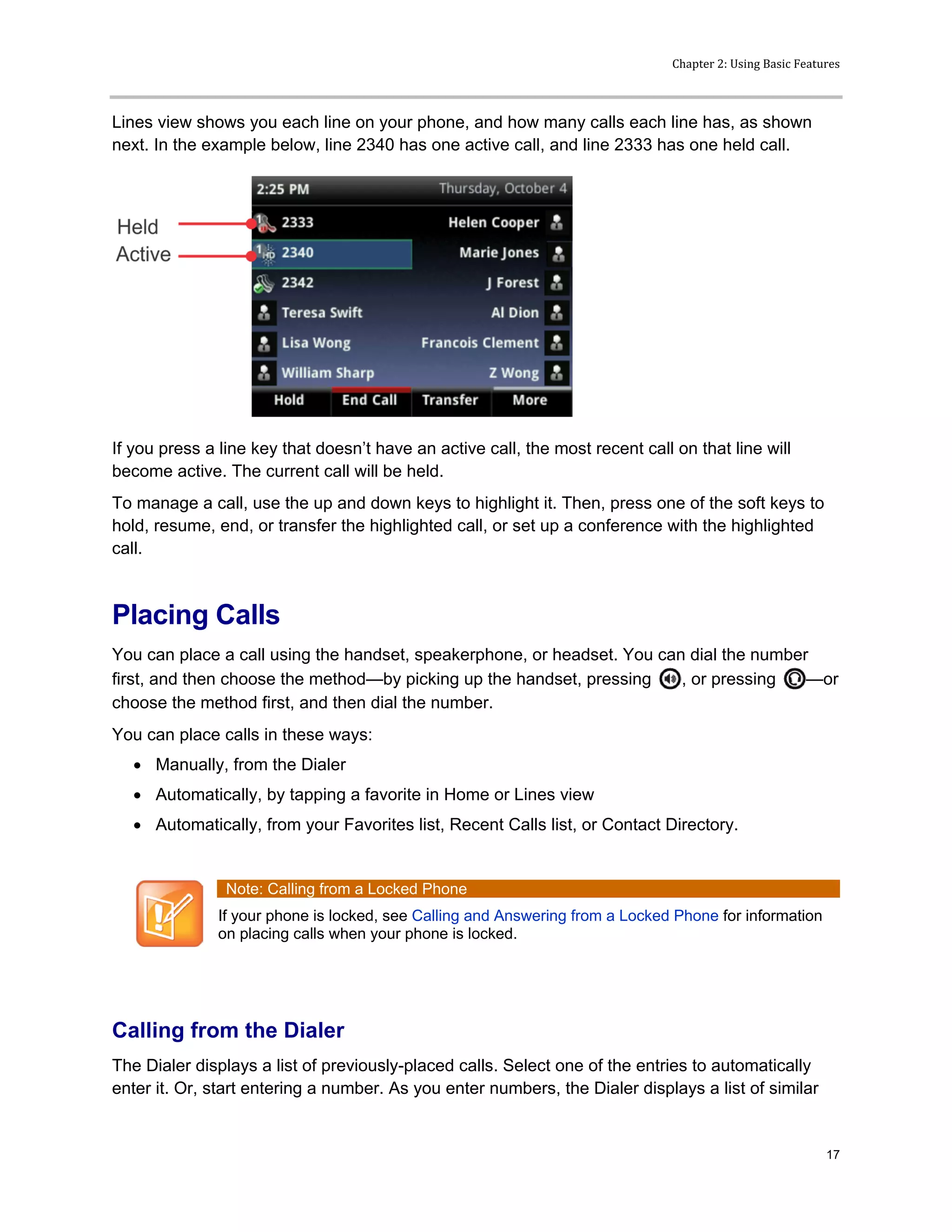
Lines view shows you each line on your phone, and how many calls each line has, as shown
next. In the example below, line 2340 has one active call, and line 2333 has one held call.
If you press a line key that doesn’t have an active call, the most recent call on that line will
become active. The current call will be held.
To manage a call, use the up and down keys to highlight it. Then, press one of the soft keys to
hold, resume, end, or transfer the highlighted call, or set up a conference with the highlighted
call.
Placing Calls
You can place a call using the handset, speakerphone, or headset. You can dial the number
first, and then choose the method—by picking up the handset, pressing , or pressing —or
choose the method first, and then dial the number.
You can place calls in these ways:
• Manually, from the Dialer
• Automatically, by tapping a favorite in Home or Lines view
• Automatically, from your Favorites list, Recent Calls list, or Contact Directory.
Note: Calling from a Locked Phone
If your phone is locked, see Calling and Answering from a Locked Phone for information
on placing calls when your phone is locked.
Calling from the Dialer
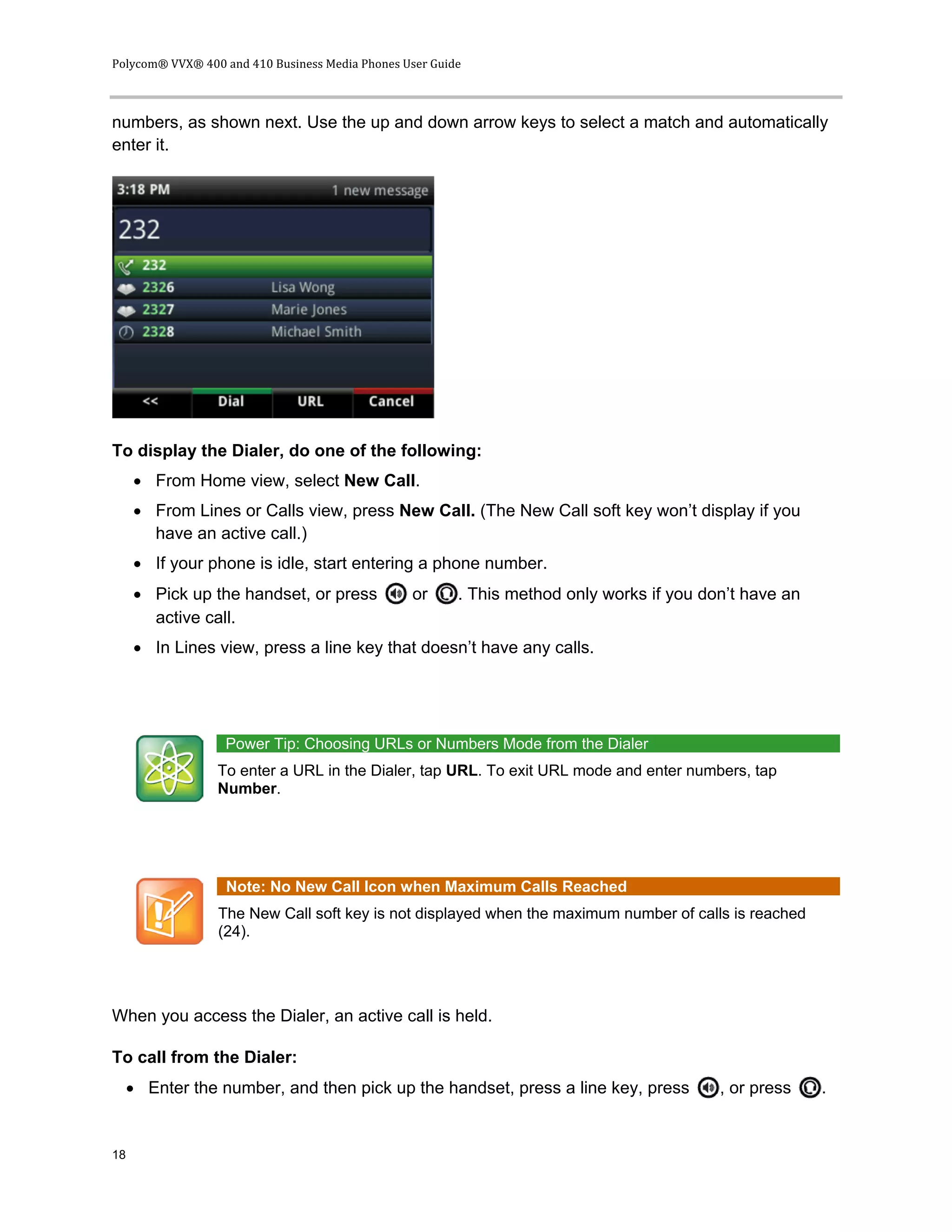
The Dialer displays a list of previously-placed calls. Select one of the entries to automatically
enter it. Or, start entering a number. As you enter numbers, the Dialer displays a list of similar
Polycom® VVX® 400 and 410 Business Media Phones User Guide
18
numbers, as shown next. Use the up and down arrow keys to select a match and automatically
enter it.
To display the Dialer, do one of the following:
• From Home view, select New Call.
• From Lines or Calls view, press New Call. (The New Call soft key won’t display if you
have an active call.)
• If your phone is idle, start entering a phone number.
• Pick up the handset, or press or . This method only works if you don’t have an
active call.
• In Lines view, press a line key that doesn’t have any calls.
Power Tip: Choosing URLs or Numbers Mode from the Dialer
To enter a URL in the Dialer, tap URL. To exit URL mode and enter numbers, tap
Number.
Note: No New Call Icon when Maximum Calls Reached
The New Call soft key is not displayed when the maximum number of calls is reached
(24).
When you access the Dialer, an active call is held.
To call from the Dialer:
• Enter the number, and then pick up the handset, press a line key, press , or press .
Chapter 2: Using Basic Features
19
or
• If you’re already in handset, speakerphone, or headset mode, enter the number, and press
Dial.
Note: Handling Automatically Placed Calls
Your administrator sets up your phone to automatically place the call after you enter a
certain number of digits. If your phone doesn’t automatically place the call, press Send. If
a call is placed before you enter all the digits, place the call as follows: enter the phone
number and press Send.
Placing Calls from Favorites, Recent Calls, and Directories
In addition to the Dialer, you can place calls from the Recent Calls list, Favorites list, or your
Directory. Or, you can quickly call a favorite from Home or Lines view.
To call from the Recent Calls list:
1 Access your Recent Calls list by doing one of the following:
○ From Home view, select Directories, and select Recent Calls.
or
○ From Lines view, press the right arrow key for the Placed Calls list, the down arrow key
for the Missed Calls list, or the left arrow key for the Received Calls list..
2 From the Recent Calls list, use the up and down arrow key to select the person you want
to call and press Dial.
To call from your Favorites list:
1 From Home view, select Directories, and select Favorites.
You can also press the up arrow key to access the Favorite list.
2 From your Favorites list, use the up and down arrow key to select the favorite you want to
call, and press Dial.
To call from your Directory:
1 From Home view, select Directories, and select Contact Directory.
2 From your Directory, use the up and down arrow key to select the contact you want to call.
3 Place the call by doing one of the following:
○ From the contact’s information screen—press Info, use the up and down arrow key to
select the contact, and press Dial.
○ Use the up and down arrow key to select the contact, and press Dial.
Polycom® VVX® 400 and 410 Business Media Phones User Guide
20
Redialing Numbers
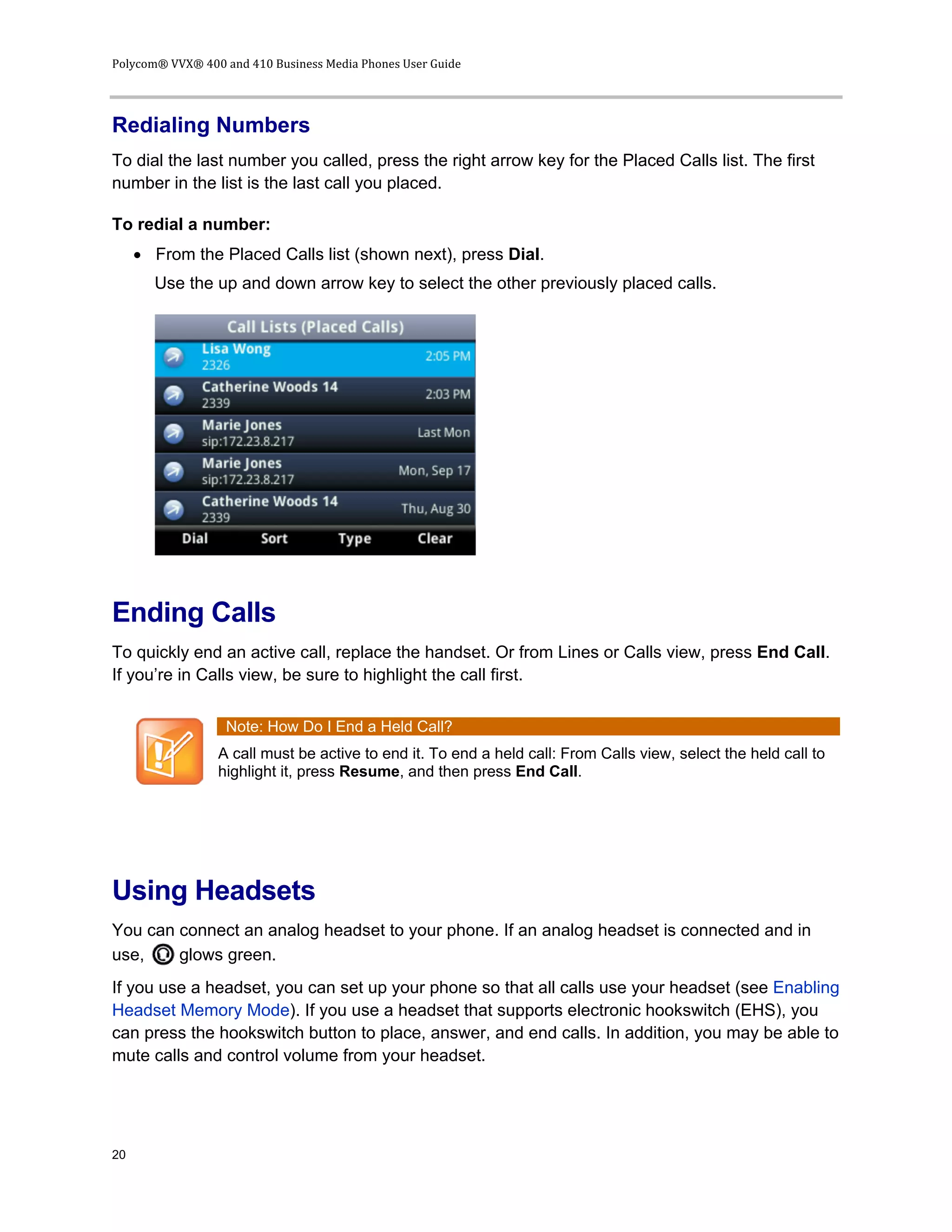
To dial the last number you called, press the right arrow key for the Placed Calls list. The first
number in the list is the last call you placed.
To redial a number:
• From the Placed Calls list (shown next), press Dial.
Use the up and down arrow key to select the other previously placed calls.
Ending Calls
To quickly end an active call, replace the handset. Or from Lines or Calls view, press End Call.
If you’re in Calls view, be sure to highlight the call first.
Note: How Do I End a Held Call?
A call must be active to end it. To end a held call: From Calls view, select the held call to
highlight it, press Resume, and then press End Call.
Using Headsets
You can connect an analog headset to your phone. If an analog headset is connected and in
use, glows green.
If you use a headset, you can set up your phone so that all calls use your headset (see Enabling
Headset Memory Mode). If you use a headset that supports electronic hookswitch (EHS), you
can press the hookswitch button to place, answer, and end calls. In addition, you may be able to
mute calls and control volume from your headset.
Chapter 2: Using Basic Features
21
Web Info: More Information About Headsets
• For information on how to connect a headset to your phone, see the Quick Start
Guide for your phone, available by navigating to your phone from the Polycom
Business Media Phones Web page.
• For information on your headset’s features, as well as how to sync your headset
with your phone, see your headset documentation.
• For a list of supported headsets, see the Headset Compatibility List (Technical
Bulletin 37477). For detailed information about how to use electronic hookswitch,
see Using an Electronic Hookswitch (Technical Bulletin 35150). All these
documents are available on the Polycom® Profiled UC Software Features and
Polycom® Engineering Advisories and Technical Notifications support pages
Enabling Headset Memory Mode
This feature is useful for permanent or full-time headset users. You can set up your phone so
that all incoming and outgoing calls use your headset. At any time, you can switch to handset or
speakerphone mode.
To use Headset Memory Mode, you must enable, and then activate, Headset Memory Mode.
When Headset Memory Mode is activated, flashes either green (for analog headsets) or
blue (for USB or Bluetooth headsets).
To enable Headset Memory Mode:
1 Select Settings from Home view, and select Basic > Preferences > Headset >
Headset Memory.
2 From the Headset Memory Mode screen, select Enabled.
3 Press .
4 To activate Headset Memory Mode, press twice. The Headset key will flash to indicate
that the phone is in Headset Memory Mode.
Now, whenever you answer a call, the call will connect to your headset automatically.
If you switch to the speakerphone or the handset, you deactivate Headset Memory Mode. Calls
will no longer automatically go to your headset, unless you choose this mode. To have calls go
to your headset again, activate Headset Memory Mode by pressing twice.
Responding to Incoming Calls
While your phone rings, you can do the following:
• Temporarily ignore the call before answering it.
• Reject the call so it goes directly to voicemail.
• Forward the call to another person.
Polycom® VVX® 400 and 410 Business Media Phones User Guide
22
Ignoring Incoming Calls
Ignore or silence a call to stop your phone from ringing. Even though the call is ignored, your
phone will still display the incoming call notification so you can still answer the call.
To ignore or silence a call:
• From the Incoming Call window, press Ignore (for private lines) or Silence (for shared
lines).
The Incoming Call window disappears, your phone stops ringing, and either Home or Calls view
displays.
Rejecting Incoming Calls
Reject a call to stop your phone from ringing and send the call directly to voice mail. Calls you
reject display in your Recent Calls list. Rejecting calls is not available for shared lines.
To reject an incoming call:
• From the Incoming Call window, press Reject. You can also reject an incoming call from
Lines and Calls view.
The call goes directly to voice mail.
Forwarding Incoming Calls to Another Person
While your phone rings, you can forward the call to another person.
To forward an incoming call to another person:
1 While your phone rings, press Forward.
2 From the Call Forwarding screen, enter the forwarding number, and press Forward.
Power Tip: Other Ways to Forward Calls
You can also set up your phone to forward all incoming calls to another person (see
Forwarding All Calls to Another Person), or forward all calls from a certain contact to
another person (see Diverting Calls from a Contact to Another Person).
During Calls
When you’re in a call, you can do the following:
• Hold the call.
• Transfer the call to another person.
• Set up a conference call with the person you’re talking with and another person.
Chapter 2: Using Basic Features
23
Holding Calls
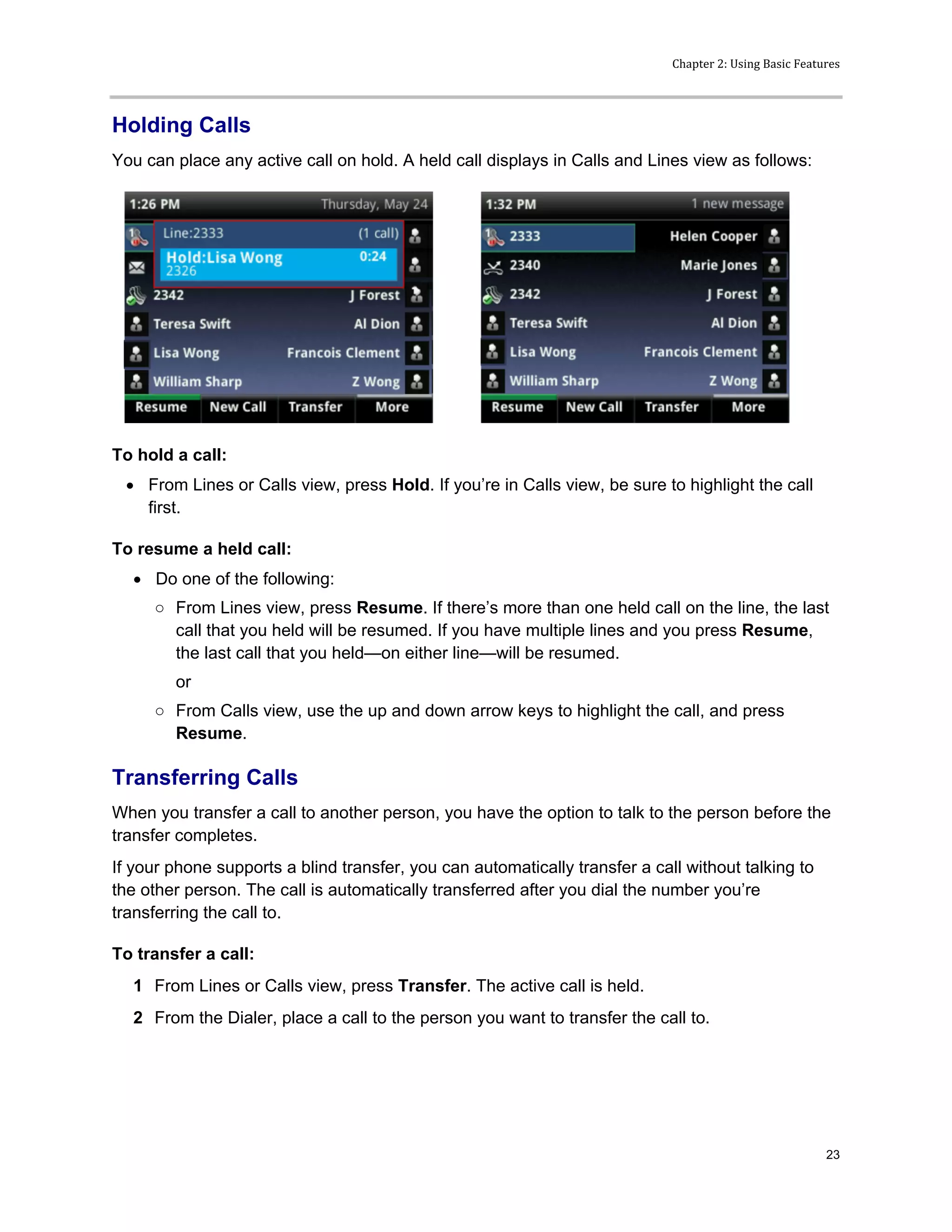
You can place any active call on hold. A held call displays in Calls and Lines view as follows:
To hold a call:
• From Lines or Calls view, press Hold. If you’re in Calls view, be sure to highlight the call
first.
To resume a held call:
• Do one of the following:
○ From Lines view, press Resume. If there’s more than one held call on the line, the last
call that you held will be resumed. If you have multiple lines and you press Resume,
the last call that you held—on either line—will be resumed.
or
○ From Calls view, use the up and down arrow keys to highlight the call, and press
Resume.
Transferring Calls
When you transfer a call to another person, you have the option to talk to the person before the
transfer completes.
If your phone supports a blind transfer, you can automatically transfer a call without talking to
the other person. The call is automatically transferred after you dial the number you’re
transferring the call to.
To transfer a call:
1 From Lines or Calls view, press Transfer. The active call is held.
2 From the Dialer, place a call to the person you want to transfer the call to.
Polycom® VVX® 400 and 410 Business Media Phones User Guide
24
3 When you hear the ring-back sound, press Transfer to complete the transfer. Or, if you
want to talk with the person before the transfer completes, connect and talk with the
person, and then press Transfer. To cancel the transfer before the call connects, tap
Cancel.
To perform a blind transfer:
1 From Lines or Calls view, press Transfer. The active call is held.
2 From the Dialer, press Blind, and place a call to the person you want to transfer the call
to. If you don’t see Blind, press More, and then Blind.
The call automatically transfers to the person you specified.
Timesaver: Completing a Transfer
If you’re using a handset, complete a transfer by replacing the handset.
Setting Up and Handling Conference Calls
You can set up a conference call with two other people. Depending on your phone system, you
may be able to add more than two people to your call; ask your system administrator for the
maximum number.
Just as with other calls, you can hold and resume conference calls. In addition, you’ll have the
option to split a conference call—end the conference and place the people you were talking with
on hold.
During a conference, you may have access to the conference management feature. This feature
allows you to manage each person in the conference call so that you can mute, hold, and
remove each person. Your system administrator can enabled this feature on your phone. For
more information, see Managing Conference Call Participants.
Setting Up Conference Calls
There are two ways to set up a conference: the conventional way—by calling two people and
using the Confrnc soft key—or joining two existing calls using the Join soft key.
To set up a conference call:
1 Call the first person.
2 From Lines or Calls view, press More and then Confrnc. The active call is held.
3 Using the Dialer, call the second person.
Chapter 2: Using Basic Features
25
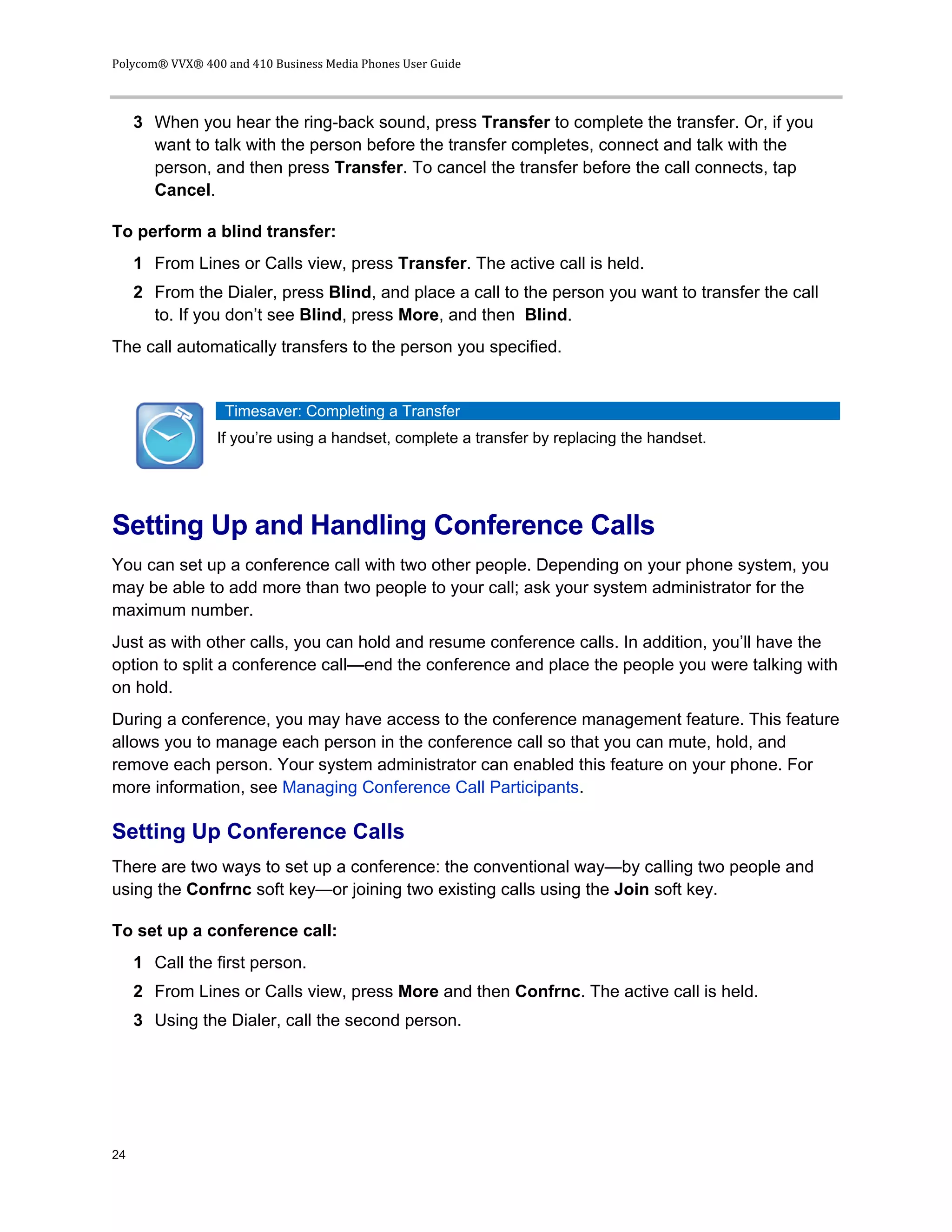
4 When the second person answers, press More and then Confrnc to join everyone in a
conference. The Active: Conference screen displays, as shown next.
Power Tip: How to Quickly Set Up a Conference
If your phone has an active call and one held call—on the same or a different line—press
More and then Join from either Lines or Calls view to automatically create a conference
call. The conference call takes place on the line from which you handled the last active
call.
Holding and Resuming Conference Calls
When you place a conference call on hold, you place the other two people in the call on hold.
No one in a held conference call can hear each other. To hold just one person, see Managing
Conference Call Participants.
To place a conference call on hold:
• From Lines or Calls view, press Hold. If you’re in Calls view, be sure to highlight the
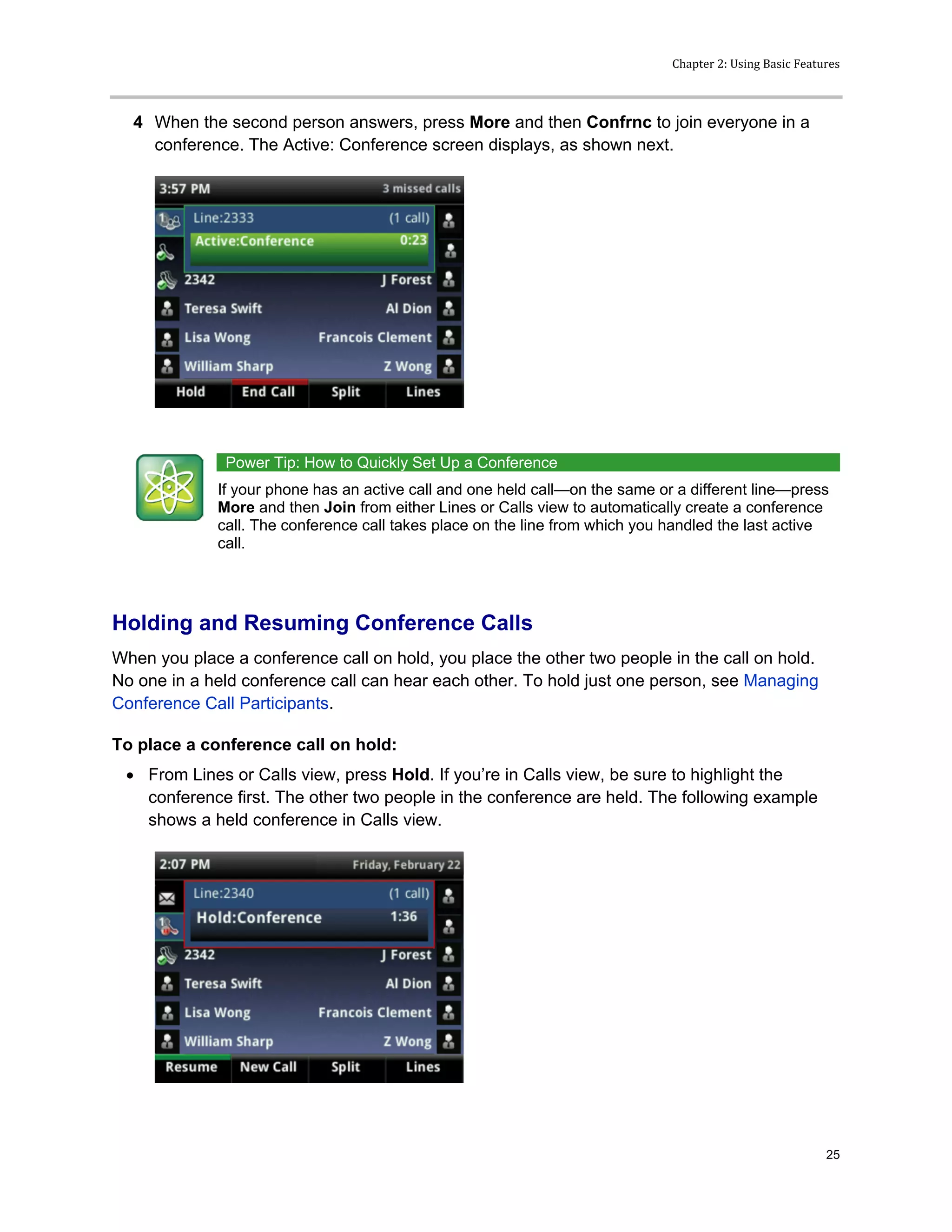
conference first. The other two people in the conference are held. The following example
shows a held conference in Calls view.
Polycom® VVX® 400 and 410 Business Media Phones User Guide
26
To resume a held conference call:
• From Lines or Calls view, press Resume.
Ending Conference Calls
To end a conference, and your connection to the other people, press End Call. By default,
when you press End Call, the other two people remain connected. However, your system
administrator may have set up your phone so that all connections end.
To end a conference call:
• From Lines or Calls view, press End Call.
The conference call ends. By default, the other two people remain connected.
Splitting Conference Calls into Two Held Calls
When you split a conference, you end the conference and place the other two people on hold.
You can split an active or held conference call.
To split a conference call:
• From Lines or Calls view, press Split.
The conference call ends. By default, the other two people are held.
Managing Conference Call Participants
If you’re able to manage the people in a conference call, you can:
• Mute a participant.
• Hold a participant.
• Remove a participant from the conference.
• List information about a participant, such as the participant’s name, number, and call
details—such as whether the call is muted, held, or is video-enabled.
Chapter 2: Using Basic Features
27
To manage a person in a conference call:
1 Set up an active conference call.
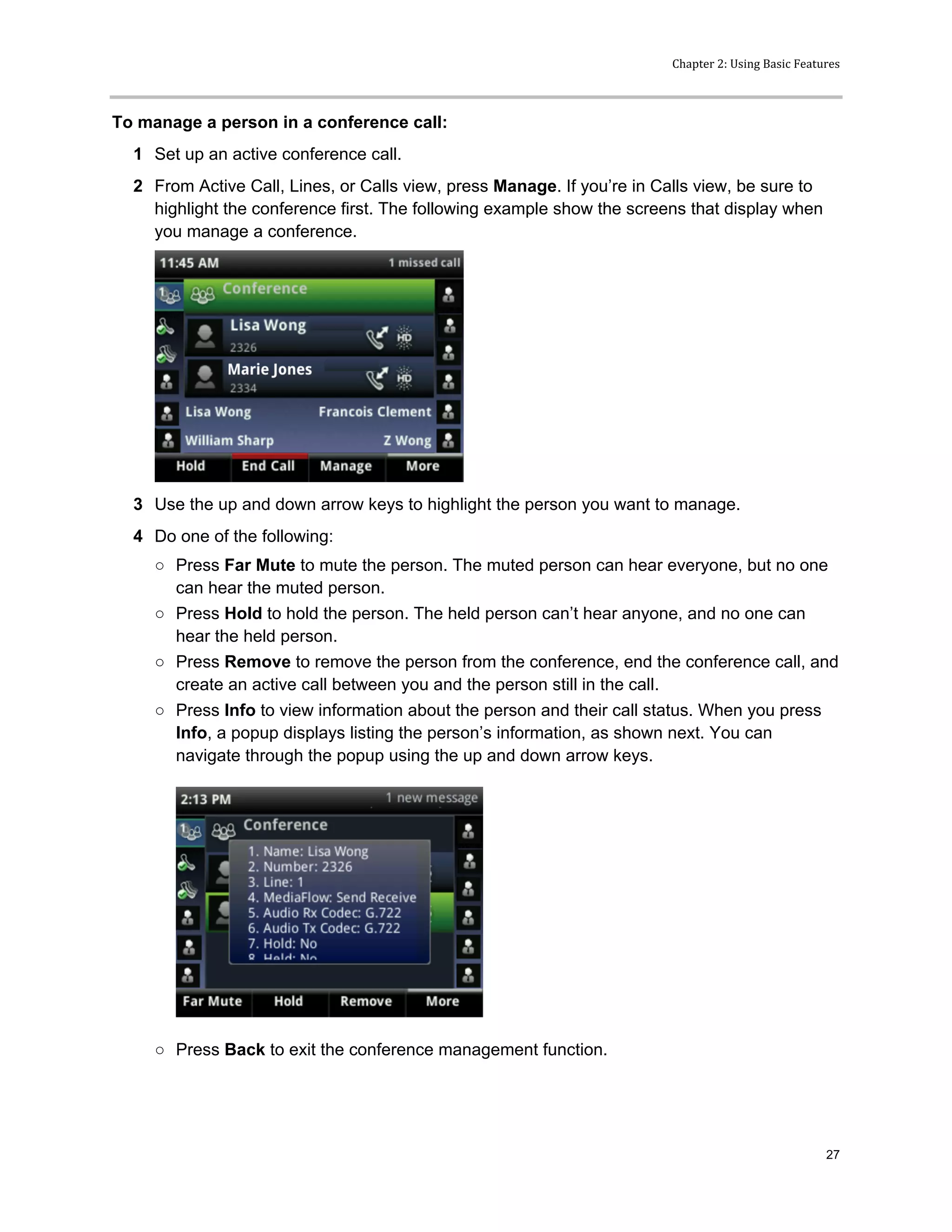
2 From Active Call, Lines, or Calls view, press Manage. If you’re in Calls view, be sure to
highlight the conference first. The following example show the screens that display when
you manage a conference.
3 Use the up and down arrow keys to highlight the person you want to manage.
4 Do one of the following:
○ Press Far Mute to mute the person. The muted person can hear everyone, but no one
can hear the muted person.
○ Press Hold to hold the person. The held person can’t hear anyone, and no one can
hear the held person.
○ Press Remove to remove the person from the conference, end the conference call, and
create an active call between you and the person still in the call.
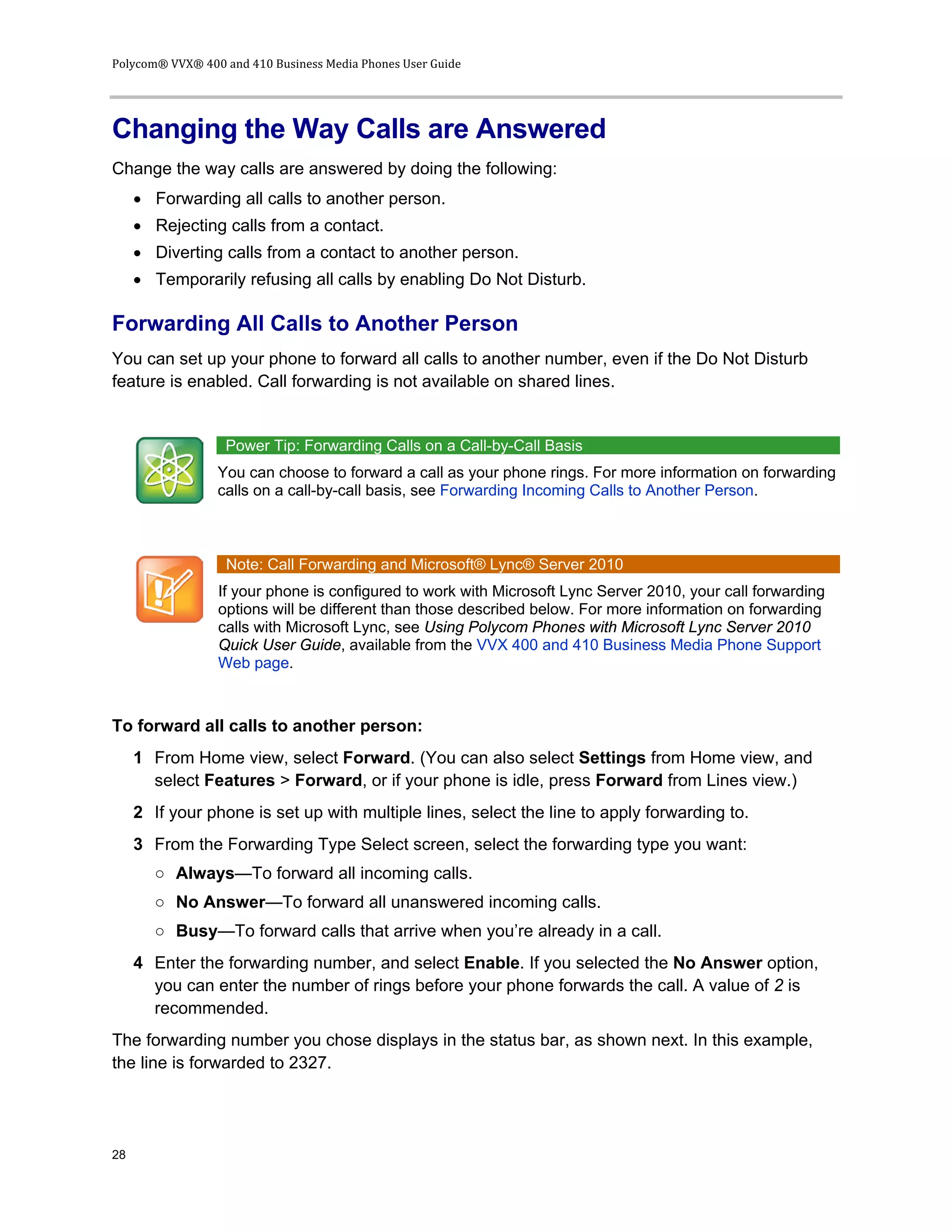
○ Press Info to view information about the person and their call status. When you press
Info, a popup displays listing the person’s information, as shown next. You can
navigate through the popup using the up and down arrow keys.
○ Press Back to exit the conference management function.
Polycom® VVX® 400 and 410 Business Media Phones User Guide
28
Changing the Way Calls are Answered
Change the way calls are answered by doing the following:
• Forwarding all calls to another person.
• Rejecting calls from a contact.
• Diverting calls from a contact to another person.
• Temporarily refusing all calls by enabling Do Not Disturb.
Forwarding All Calls to Another Person
You can set up your phone to forward all calls to another number, even if the Do Not Disturb
feature is enabled. Call forwarding is not available on shared lines.
Power Tip: Forwarding Calls on a Call-by-Call Basis
You can choose to forward a call as your phone rings. For more information on forwarding
calls on a call-by-call basis, see Forwarding Incoming Calls to Another Person.
Note: Call Forwarding and Microsoft® Lync® Server 2010
If your phone is configured to work with Microsoft Lync Server 2010, your call forwarding
options will be different than those described below. For more information on forwarding
calls with Microsoft Lync, see Using Polycom Phones with Microsoft Lync Server 2010
Quick User Guide, available from the VVX 400 and 410 Business Media Phone Support
Web page.
To forward all calls to another person:
1 From Home view, select Forward. (You can also select Settings from Home view, and
select Features > Forward, or if your phone is idle, press Forward from Lines view.)
2 If your phone is set up with multiple lines, select the line to apply forwarding to.
3 From the Forwarding Type Select screen, select the forwarding type you want:
○ Always—To forward all incoming calls.
○ No Answer—To forward all unanswered incoming calls.
○ Busy—To forward calls that arrive when you’re already in a call.
4 Enter the forwarding number, and select Enable. If you selected the No Answer option,
you can enter the number of rings before your phone forwards the call. A value of 2 is
recommended.
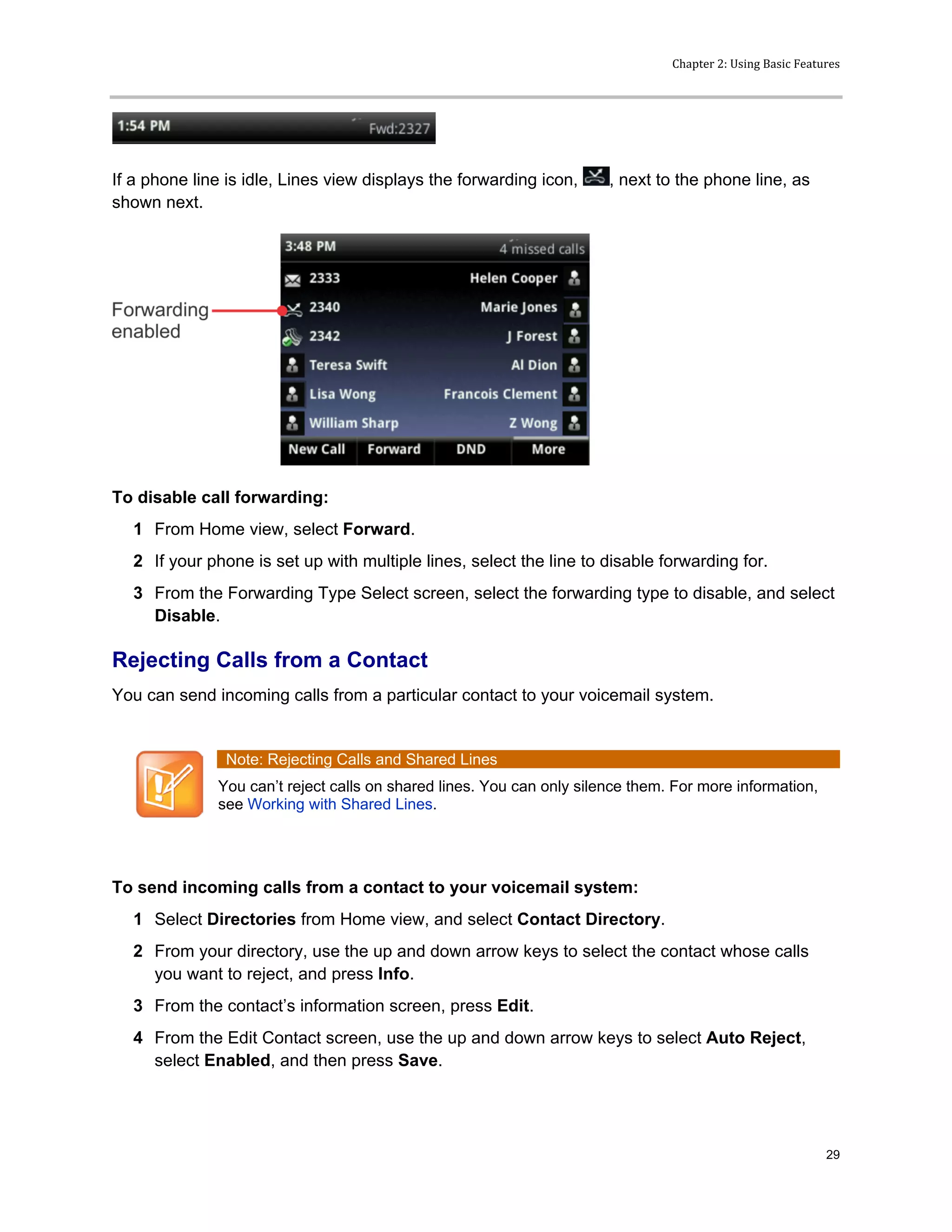
The forwarding number you chose displays in the status bar, as shown next. In this example,
the line is forwarded to 2327.
Chapter 2: Using Basic Features
29
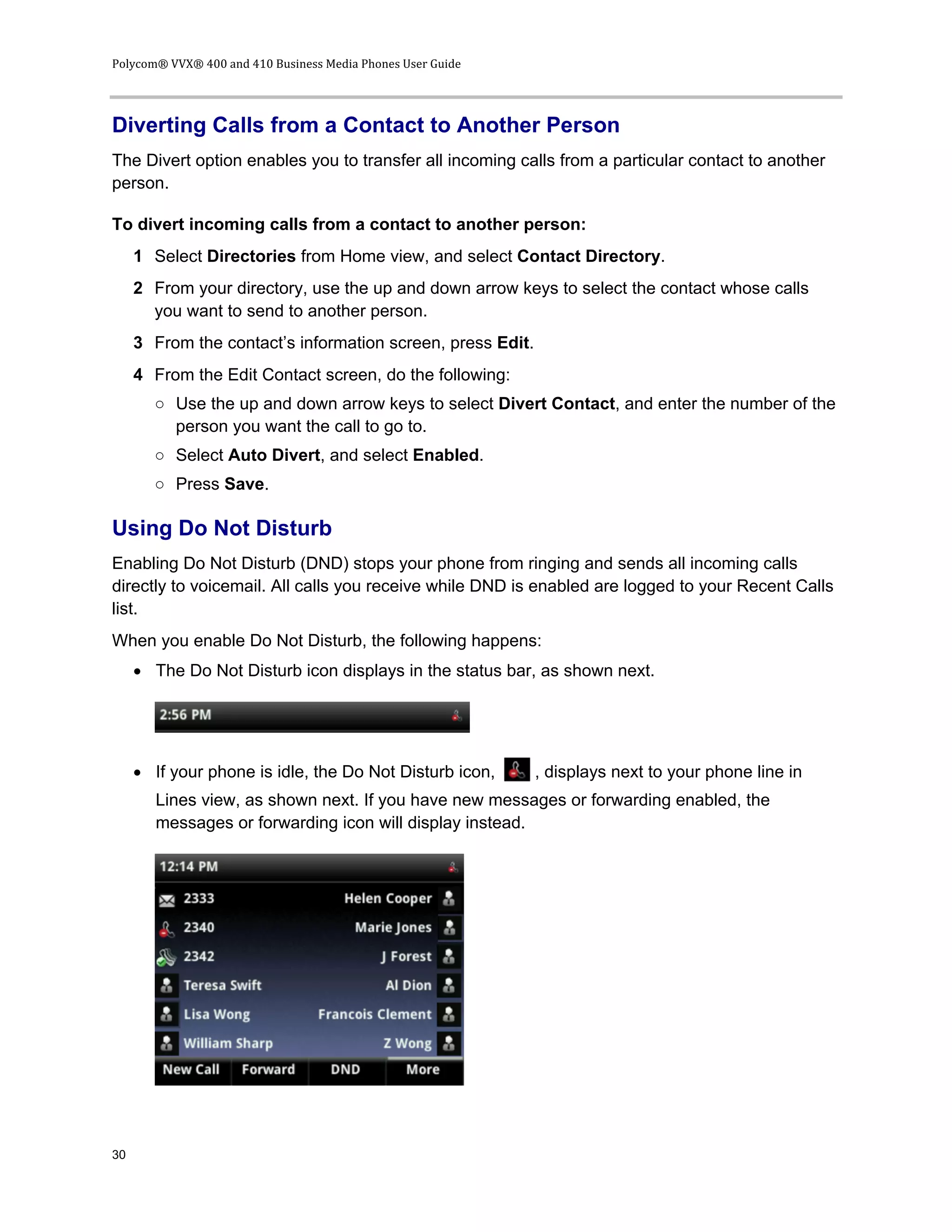
If a phone line is idle, Lines view displays the forwarding icon, , next to the phone line, as
shown next.
To disable call forwarding:
1 From Home view, select Forward.
2 If your phone is set up with multiple lines, select the line to disable forwarding for.
3 From the Forwarding Type Select screen, select the forwarding type to disable, and select
Disable.
Rejecting Calls from a Contact
You can send incoming calls from a particular contact to your voicemail system.
Note: Rejecting Calls and Shared Lines
You can’t reject calls on shared lines. You can only silence them. For more information,
see Working with Shared Lines.
To send incoming calls from a contact to your voicemail system:
1 Select Directories from Home view, and select Contact Directory.
2 From your directory, use the up and down arrow keys to select the contact whose calls
you want to reject, and press Info.
3 From the contact’s information screen, press Edit.
4 From the Edit Contact screen, use the up and down arrow keys to select Auto Reject,
select Enabled, and then press Save.
Polycom® VVX® 400 and 410 Business Media Phones User Guide
30
Diverting Calls from a Contact to Another Person
The Divert option enables you to transfer all incoming calls from a particular contact to another
person.
To divert incoming calls from a contact to another person:
1 Select Directories from Home view, and select Contact Directory.
2 From your directory, use the up and down arrow keys to select the contact whose calls
you want to send to another person.
3 From the contact’s information screen, press Edit.
4 From the Edit Contact screen, do the following:
○ Use the up and down arrow keys to select Divert Contact, and enter the number of the
person you want the call to go to.
○ Select Auto Divert, and select Enabled.
○ Press Save.
Using Do Not Disturb
Enabling Do Not Disturb (DND) stops your phone from ringing and sends all incoming calls
directly to voicemail. All calls you receive while DND is enabled are logged to your Recent Calls
list.
When you enable Do Not Disturb, the following happens:
• The Do Not Disturb icon displays in the status bar, as shown next.
• If your phone is idle, the Do Not Disturb icon, , displays next to your phone line in
Lines view, as shown next. If you have new messages or forwarding enabled, the
messages or forwarding icon will display instead.
Chapter 2: Using Basic Features
31
• The DND icon in Home view, , changes to , as shown next.
Note: Do Not Disturb and Shared Lines
Enabling Do Not Disturb on shared lines disables ringing only. You’ll still see a visual
notification of the call and have the option to answer the call.
Troubleshooting: Why Doesn’t the DND Icon Display?
If you’ve set your presence status to Do Not Disturb, as well as enabled DND for your
phone, the message My Status: Do Not Disturb will display instead the date display, and
the DND icon won’t display in the status bar.
To toggle Do Not Disturb on and off:
• From Home view, select DND. Or, if your phone is idle, press DND.
Using Do Not Disturb with Multiple Lines
By default, the Do Not Disturb feature applies to all lines on your phone. However, your phone
may be set up so that you can enable the feature on a per-line basis.
To enable or disable Do Not Disturb for a particular line:
1 From Home view, select DND.
2 From the Line Select screen, use the up and down arrow keys to select the line to enable
or disable Do Not Disturb on.
3 From the Do Not Disturb screen, select Enable or Disable.
Polycom® VVX® 400 and 410 Business Media Phones User Guide
32
Power Tip: Automatically Enabling or Disabling Do Not Disturb for All Lines
To automatically enable Do Not Disturb for all lines, press Set All. To automatically
disable the feature for all lines, press Clear All.
Listening to Voicemail
Your phone may indicate new voicemail messages by the following:
• A message in the status bar, as shown next. The message indicates the number of new
messages you have. The count is a total of all messages on all lines on the phone.
• A flashing Message Waiting Indicator, located at the top-right of your phone.
• An audible alert (if your phone is on-hook).
Note: Temporarily Removing Message Indicators
To temporarily remove the message counter, press , and select Message Center (or
select Messages from Home view, and select Message Center) and press Clear. After a
period of time—usually about an hour or two—the message indicators will display again.
To listen to voicemail messages:
1 Press , and select Message Center. Or, from Home view, select Messages, and
select Message Center.
2 If multiple lines are configured on your phone, the Line Select screen displays. Use the up
and down arrow keys to select the line that has the message.
3 From the Messages screen, press Connect and follow the prompts.
Viewing Recent Calls
Your phone maintains a Recent Calls list—a list of missed, received, and placed. Each list can
hold up to 100 entries.
From the Recent Calls list (shown next), you can:
• Sort, order, and filter calls (press Type). By default, the list displays all call types (missed,
placed, and received), with the most recent call displaying first, as shown next.
Chapter 2: Using Basic Features
33
• Remove certain calls from the list.
• Select a call record to view call details and manage the call.
• Use the up and down arrow keys to highlight an entry and press Dial to automatically call
the person.
Icons display next to a call to indicate the call type:
• Placed calls display .
• Received calls display .
• Missed calls display .
To view your Recent Calls list:
• From Home view, select Directories from Home view, and select Recent Calls.
To manage a call record:
1 From your Recent Calls list, use the up and down arrow keys to highlight an entry, and
press the right arrow key.
2 From the call details screen, shown next, you can:
○ Press Dial or the right arrow key to call the person.
○ Press Save to add the person to your Contact Directory. If the person is already in your
Contact Directory, but isn’t a Favorite, Add to Favorites displays instead. Press Add to
Favorites to automatically make the person a Favorite.
○ Press Delete to delete the call from the list.
○ Press Edit/Dial to edit the phone number before you dial the person.
Polycom® VVX® 400 and 410 Business Media Phones User Guide
34
To customize the list:
1 From Home view, select Directories from Home view, and select Recent Calls.
2 Press Type to filter calls for specific lines or types of calls.
When you filter calls, you can choose to display only missed, received, or placed calls. Or,
you can choose to display all call types (the default). You can choose to display only calls
from a certain line.
3 Press Sort to sort the calls.
When you sort calls by the time of the call, you can to order calls in ascending (oldest call
first) or descending (most recent call first) order.
When you sort calls by call name, you can order calls in ascending (alphabetical) or
descending (reverse-alphabetical) order.
Note: About Filtered Call Lists
You can’t save your filtered call list results. If you filter your Recent Calls list so that only a
certain call type—for example, only missed calls—display, the next time you display the
list, all call types (the default filter) will display.
To remove all calls from the list:
1 From Home view, select Directories from Home view, and select Recent Calls.
2 Press Clear.
All calls are deleted from the call list.
Chapter 2: Using Basic Features
35
Working with Your Contact Directory
You can store a large number of contacts in your phone’s local Contact Directory (shown next).
Contact your administrator for the exact number.
From your local Contact Directory, you can:
• View contact information.
• Search for contacts.
• Dial contacts.
If you can update your Contact Directory, you can also do the following:
• Add contacts.
• Update contact information.
• Delete contacts.
Note: Accessing a Corporate Directory
A Corporate Directory may be available on your phone. If you have access to a
Corporate Directory, you can dial people in the Corporate Directory, as well as save them
to your Contact Directory. For more information, see Working with a Corporate Directory.
To view your Contact Directory:
• Select Directories from Home view, and select Contact Directory.
From your Contact Directory, scroll to view contacts or enter search criteria to find one.
To view contact information:
• From your Contact Directory, use the up and down arrow keys to select the contact, and
press Info.
Polycom® VVX® 400 and 410 Business Media Phones User Guide
36
The contact’s information screen, including the contact’s name and phone number,
displays (as shown next). Additional information—such as a job title, label, or email
address—may also display.
To search for a contact:
1 From your Contact Directory, press Search.
2 From the Search screen, enter search criteria and press Search.
A list of search results is displayed. Press Back to display your Contact Directory again.
To dial a contact:
1 From your Contact Directory, use the up and down arrow keys to select the contact you
want to call, and press Info.
2 From the contact’s information screen (shown next), press Dial.
To add a contact:
1 Select Directories from Home view, and select Contact Directory.
2 Press Add.
3 From the Add Contact screen, enter contact information:
Chapter 2: Using Basic Features
37
Note: Directory Fields are Administrator-Set.
Your phone may not display all contact fields. For more information, see your
administrator. The only required field is the Contact field—the contact’s phone number.
○ For First Name, enter the contact’s first name.
○ Use the down arrow key to select Last Name, and enter the contact’s last name.
○ Use the down arrow key to select Contact, and enter the contact’s phone number.
The phone number must be unique, and can’t already exist in the directory. If you save
an entry with a non-unique phone number, the entry won’t be saved.
○ Use the down arrow key to select Job Title, and enter the contact’s job title, such as
Manager.
○ Use the down arrow key to select Email, and enter the contact’s email address.
○ Use the down arrow key to select Favorite Index, and enter a favorite index number.
The number can be any unused value, up to a maximum value of 9999. A contact that
has a favorite index number will automatically display in your Favorites list. For more
information about favorites, see Managing Favorites.
○ Use the down arrow key to select Label, and enter a label for the contact such as,
Marketing.
If you specify a label, the label will be the first item that displays for the contact on the
Directory screen, and in your Favorites list if the contact is a favorite.
○ Use the down arrow key to select Ring Type, and select the ringtone you want to use
for the contact.
○ Use the down arrow key to select Divert Contact, and enter the phone number of the
third party you want this contact’s calls sent to.
○ Use the down arrow key to select Auto Reject, and enable or disable the setting. The
default setting is Disabled.
If enabled, each time the contact calls, the call will be directed to your mail system.
○ Use the down arrow key to select Auto Divert, and enable or disable the setting. The
default setting is Disabled.
If enabled, each time the contact calls, the call will be directed to the third party you
specified in the Divert Contact field.
○ Use the down arrow key to select Watch Buddy, and enable or disable the setting. The
default setting is Disabled.
If enabled, you can monitor the contact’s status. For more information on monitoring
status, see Using Buddy Lists.
Polycom® VVX® 400 and 410 Business Media Phones User Guide
38
○ Use the down arrow key to select Block Buddy, and enable or disable the setting. The
default setting is Disabled.
If enabled, the contact can’t monitor your status. For more information on monitoring
status, see Using Buddy Lists.
4 Press Save.
Timesaver: Saving Recent Callers and Corporate Directory Contacts to Your Directory
You can automatically save a recent caller to your Directory. See Viewing Recent Calls.
If a Corporate Directory is available on your phone, you can add contacts from the
Corporate Directory to your Contact Directory. For information on how to update your
Contact Directory in this way, see Working with a Corporate Directory.
To update a contact’s information:
1 From the Contact Directory, use the up and down arrow keys to select the contact you
want to update, and press Info.
2 From the contact’s information screen, press Edit.
3 From the Edit Contact screen, update the contact’s information.
4 Press Save.
To delete a contact:
1 From your Contact Directory, use the up and down arrow keys to select the contact you
want to delete, and press Info.
2 From the contact’s information screen, press Delete. A confirmation message displays,
confirming that you want to delete the contact. Press Yes or No.
Working with a Corporate Directory
You may have access to portions of a Corporate Directory. The Corporate Directory is non-
editable; your administrator determines which contacts you can see.
From the Corporate Directory, you can do the following:
• Search for contacts.
• Dial contacts.
• Add contacts to your local Contact Directory.
To view the Corporate Directory:
• Select Directories from Home view, and select Corporate Directory. By default, a blank
search screen displays. To view entries, search for a person.
Chapter 2: Using Basic Features
39
Power Tip: Saving Corporate Directory Search Results
You can save your last search results, so that the next time you view Corporate Directory,
the results of your last search will display. To save Corporate Directory search results,
select Settings from Home view, and select Basic > Preferences > Corporate Directory
> View Persistency. From the View Persistency screen, select Enabled. The next time
you view Corporate Directory, your last search results will display.
To search the Corporate Directory:
• From the Corporate Directory, perform a quick search or an advanced search:
○ To perform a quick search, enter the first few characters of the contact’s first or last
name (depending on how the directory is organized), and press Submit.
or
○ To perform an advanced search, press AdvFind. From the Advanced Find screen,
enter your search criteria, and press Submit.
The screen displays a list of contacts, starting with the most successful matches. To view
information for the contact, press View. To erase all your search criteria and enter new criteria
before you submit your search, press multiple times.
To dial a Corporate Directory contact:
1 From the Corporate Directory, search for the contact you want to dial.
2 From the search results, use the up and down arrow keys to select the contact, and press
Dial.
To add a contact to your local Contact Directory:
1 From the Corporate Directory, search for the contact you want to add to your Contact
Directory.
2 From the search results, use the up and down arrow keys to select the contact, and press
View.
3 From the contact’s information screen, press Save. Only the first name, last name, and
phone number are saved. You may want to go to the Contact Directory to see if the
contact was saved correctly and to add additional contact information.
Polycom® VVX® 400 and 410 Business Media Phones User Guide
40
Controlling What is Heard
You can change what you hear by doing the following:
• Updating the incoming call ringtone.
• Updating a contact’s ringtone.
• Changing the speaker volume.
• Changing the ringer volume.
• Muting the microphone.
• Changing where you hear sound effects.
Updating the Incoming Call Ringtone
A simple way to personalize your phone is to change your phone’s ringtone. You can even pick
unique ringtones for the different lines on your phone.
To select an incoming call ringtone for your phone or a line:
1 Select Settings from Home view, and select Basic > Ring Type.
2 If multiple lines are configured on your phone, select the line you want to apply a new
ringtone to.
3 From the Ring Type screen, use the up and down arrow keys to select the ringtone you
want. To hear the ringtone before you change it, press Play. The default ringtone is Low
Trill.
Updating a Contact’s Ringtone
You might find it helpful to select unique ring tones for the various contacts in your Contact
Directory. In this way, you can quickly identify callers as your phone rings.
To select a ringtone for a contact:
1 From the Contact Directory, use the up and down arrow keys to select the contact you
want to update, and press Info.
2 From the contact’s information screen, press Edit.
3 From the Edit Contact screen, use the up and down arrow keys to select Ring Type.
4 Select the ringtone you want, and then press Save.
Chapter 2: Using Basic Features
41
Changing the Speaker Volume
To change the volume of what you hear during a call, press one of the Volume keys, ,
to lower or raise the speaker volume.
Changing the Ringer Volume
To change the volume of the incoming call ringtone, press one of the Volume keys, ,
while your phone is idle or ringing.
Muting the Microphone
Mute the microphone so other parties can’t hear you. Microphone Mute applies to all modes
(handset, headset, and speakerphone). You can still hear all other parties when you mute the
microphone.
To mute the microphone:
• During a call (including a conference call), press .
The Mute key glows red. The other parties can’t hear you. To disable Mute, press again.
Choosing Where You Hear Sound Effects
You can choose whether you hear sound effects—all phone sounds except call audio—from the
handset, headset, or speaker. For example, you can configure your phone to ring on your
headset, instead of the speaker. By default, you hear all sound effects from the speaker.
To choose where you hear sound effects:
1 Select Settings from Home view, and select Basic > Preferences > Audible Ringer.
2 From the Audible Ringer screen, select where you want to hear sound effects:
○ To hear sound effects only from the phone’s loudspeaker, select Speaker.
○ To hear sound effects only from the handset, select Handset.
○ To hear sound effects only from the headset, select Headset.
○ To hear sound effects only from the device you’re currently using to hear call audio,
select Active.
The default destination is Speaker.
Managing Favorites
Favorites are the contacts in your Contact Directory that you call most often. To make a contact
a favorite, you need to assign a contact a favorite index number. You do this from the Contact
Directory.
Polycom® VVX® 400 and 410 Business Media Phones User Guide
42
Contacts that have a favorite index number display , as shown next.
All your Favorites display in your Favorites list. A smaller number of Favorites (3 for the VVX
300 and 310 and 9 for the VVX 400 and 410) display in Lines view and from Home view.
The following figure shows a sample Favorites list.
The following figure shows your favorites in Lines view. Favorites display under the phone
line(s).
Chapter 2: Using Basic Features
43
Favorites display consecutively, according to their index number. The contact with the lowest
number displays first. To reorder your favorites, assign the contact a different index number.
To see your Favorites:
• Press , select Directories from Home view, and select Favorites.
To make a contact a Favorite:
• From your Contact Directory, select the contact. From the contact’s screen, press More,
and then Add to Favorites.
The contact will now have a star next to their name when you view the contact from the
Contact Directory.
Power Tip: Manually Assigning a Favorite Index Number when You Make a Favorite
After you press Add to Favorites, a dialog displays asking if you want to automatically
accept the next available index number, or manually enter your own. Press Yes to
automatically accept an index number, or press Edit Index to enter a unique index
number. You can enter a number up to 500.
To quickly call a Favorite:
• From your Favorites list or from Lines view, select the favorite you want to call. The call is
automatically placed.
To reorder your Favorites:
1 From your Contact Directory, select the contact.
2 From the contact’s screen, press Edit.
3 From the Edit Contact screen, use the up and down arrow keys to select Favorite Index,
and enter a new favorite index number.
4 Press Save.
To remove a Favorite from the list:
1 From your Contact Directory, select the contact.
2 From the contact’s screen, press Edit.
3 From the Edit Contact screen, use the up and down arrow keys to select Favorite Index,
and remove the favorite index number.
4 Press Save.
Polycom® VVX® 400 and 410 Business Media Phones User Guide
44
Working with Shared Lines
If your phone shares a line with other phones, an incoming call to the shared line will cause all
phones to ring. The call can be answered on any of the phones. You can transfer, hold, or set
up a conference with calls on shared lines.
If you have an incoming call on a shared line, you can stop your phone from ringing by tapping
Silence. Even though the phone doesn’t ring, the call’s visual notification will still display and
you’ll still have the option to answer the call.
In Lines view, the following icons and status indicators display for shared lines, depending if the
line is idle, has an active call, or has a held call:
Shared Line
Status
Icon and Status
Indicator
Status Indicator
Idle (No indicator)
Active call HD voice icon
Held call Hold icon
Note: Unsupported Features on Shared Lines
Call Forwarding is not available on shared lines.
Enabling Do Not Disturb on shared lines disables ringing only. You’ll still see a visual
notification of the call and have the option to answer the call.
45
Chapter 3: Using Advanced Features
You’ve mastered the basic features of your phone, but want to know all about the other
interesting and powerful features your phone has to offer. In this chapter, you’ll learn all about
those features that make your phone exciting to use, such as joining Microsoft® Outlook®
meetings with one tap of your finger, using your computer’s keyboard and mouse to handle
calls, viewing Web content, or monitoring other phone users to see when they’re available or
away from their desk.
This chapter shows you how to:
• Manage buddies
• Integrate with Microsoft Lync Server 2010
• View the browser
• Broadcast messages using Push-to-Talk and group paging
• Use the Calendar feature
• Use the Polycom Desktop Connector to link your computer keyboard and mouse to your
phone
• Log into other phones
• Lock your phone
• Access features with your login credentials
Note: Feature Availability
Your phone may not support all of the features described in this chapter. Check with your
system administrator to find out which features are available on your phone.
Using Buddy Lists
A Buddy list is a list of users/devices whose status—or presence—you can monitor. Users
update their presence setting, such as Be right back, Out to lunch, or Busy, and you can view
their status in real time from your Buddy list. You can also view your buddies’ status from Lines
view and Home view.
In this section, you’ll learn how to:
• Update your presence status
• Set up and manage a Buddy list
Polycom® VVX® 400 and 410 Business Media Phones User Guide
46
• Block people from monitoring your status
• Monitor your buddies from your phone
Note: Contacts and Microsoft Lync Server 2010
If your phone is configured to work with Microsoft Lync Server 2010, the way you manage
buddies (known as contacts) is different. See Integrating with Microsoft Lync Server 2010.
Updating Your Status
Update your status so that other people can monitor your status from their phones. When you
update your status, your status is automatically sent to the people watching you.
You can update your status to one of the following:
• Online
• Busy
• Be right back
• Away
• On the phone
• Out to lunch
• Do not disturb
Your phone also sends certain status information to the people watching you automatically—
such as if you’re in a call, enabled Do Not Disturb on your phone, or your phone is offline
because you restarted it. For example, if you enable the Do Not Disturb feature on your phone,
your availability automatically updates to Do Not Disturb.
Note: How Do Not Disturb Status and Use of Do Not Disturb Feature Interact
When you enable Do Not Disturb on your phone, your presence status automatically
changes to Do Not Disturb. When you disable Do Not Disturb on your phone, your
presence status automatically changes to Online or On the Phone.
When you update your presence status to Do Not Disturb, incoming calls will go to
voicemail, and My Status: Do Not Disturb will display in the status bar. Updating your
status to Do Not Disturb does not enable Do Not Disturb on your phone, and the Do Not
Disturb icon will not display next to phone lines.
Chapter 3: Using Advanced Features
47
When you select a presence setting other than online, the setting displays instead of the date
display on the status bar, as shown next.
You may be able to access status and a list of the people you are watching from the Lines view.
If you see a More soft key, press it to display My Status and Buddies.
To update your presence setting:
1 From Lines view, press More, and press My Status. Or, select Settings from Home view,
and select Features > Presence > My Status.
2 From the My Status screen, select the status you want.
Your new status is sent to phones watching you.
Power Tip: How to Automatically Change Your Status When Your Phone is Idle
You can enable your phone to automatically set your status to Away if your phone is idle
for a certain length of time. After you touch the screen or press a key on your phone, your
status changes to Online again. To enable this feature, select Settings from Home view,
and select Basic > Preferences > Presence > Idle Timeout. From the Idle Timeout
screen, enable an office hours and/or off hours timeout period, and enter the number of
minutes your phone should be idle before your status changes to Away.
Polycom® VVX® 400 and 410 Business Media Phones User Guide
48
Setting Up and Managing a Buddy List
If you want to monitor other people, you need to make sure they’re in your Buddy list. You add
people to your Buddy list from your Contact Directory; therefore, make sure the person you want
to monitor exists in your Contact Directory.
To update your Buddy list:
1 From your Contact Directory, select the contact you want to start or stop monitoring.
2 From the contact’s information screen, press Edit.
From the Edit Contact screen, using the up and down arrow keys to locate Watch Buddy,
and enable or disable the field. The default setting is Disabled. When enabled, the contact
is added to your Buddy list so you can monitor the contact’s status. When disabled, the
contact is removed from your Buddy list, and you won’t be able to monitor the contact’s
status.
3 Press Save.
If you enabled the Watch Buddy setting for a contact, the contact will display in your Buddy list.
To view your Buddy list, press More, and then Buddies from Lines view.
Power Tip: Dialing Buddies
You can quickly dial a buddy by accessing your Buddy list. Using the up and down arrow
keys to locate the buddy, and press Dial.
Blocking Contacts from Viewing Your Status
You can prevent someone from monitoring you by blocking the contact in your Contact
Directory. If you unblock the contact, the contact can add you to their Buddy list and monitor
you.
Power Tip: How to Access Your Blocked and Watcher Lists
To view a list of contacts that can and can’t monitor your status, do the following:
• To display contacts that can view your status, select Settings from Home view, and
select Features > Presence > Watcher List.
• To display contacts that can’t view your status, select Settings from Home view,
and select Features > Presence > Blocked List.
To block or unblock a contact from viewing your status:
1 From your Contact Directory, select the contact you want to block or unblock.
Chapter 3: Using Advanced Features
49
2 From the contact’s information screen, press Edit.
From the Edit Contact screen, tap Block Buddy, and enable or disable the field. The
default setting is Disabled. When enabled, the contact cannot watch your status, and the
contact will display in your Blocked List. When disabled, the contact can watch your
status, and the contact will display in your Watcher List.
3 Press Save.
Timesaver: How to Quickly Unblock a Contact
You can use your Blocked List to unblock a contact, rather than updating the Contact
Directory. Select Settings from Home view, and select Features > Presence > Blocked
List. From the Blocked List, select the contact you want to unblock, and press Unblock.
The contact can now watch your phone, and will display in your Watcher List.
Monitoring Buddies
You can monitor your buddies from your Buddy Status list. If a buddy is a favorite, you can also
monitor the buddy from Home and Lines view.
Your buddies display an icon next to their name to indicate their status. The following table
shows the icons and the status they represent.
Buddy Status Icon Buddy Status Icon
Available Do Not Disturb
Busy Offline
Away No information
Polycom® VVX® 400 and 410 Business Media Phones User Guide
50
The following table shows you how to monitor your buddies from your Buddy Status list, Home
view, and Lines view.
To monitor
buddies
from…
Do this…
Buddy list From Lines view, press More, and select Buddies. Or, from Home view, select
Settings, and select Features > Presence > Buddy Status. Your Buddy list
displays, as shown next.
Lines view From Home view, press . The buddies who are favorites display their status, as
shown next.
Integrating with Microsoft Lync Server 2010
Your system administrator can configure your phone to work with Microsoft Lync Server 2010
and communicate with others using Microsoft Lync. From your phone, you can monitor the
status of your Microsoft Lync contacts. For more information on integrating with Microsoft Lync
Server 2010, see your system administrator, or refer to Using Polycom Phones with Microsoft
Chapter 3: Using Advanced Features
51
Lync Server 2010 Quick User Guide, available by navigating to your phone from the Polycom
Business Media Phones Web page.
Using the Browser
You may be able to view an Idle Browser and a Main Browser on your phone if so configured by
your system administrator.
If your phone is idle, you may be able to view an Idle Browser—non-interactive Web content on
the idle screen—as you navigate between Home and Lines view. To see the Idle Browser, you
may need to set up the screen saver. If you are in an active call, the Idle Browser won’t display.
To view an interactive Main Browser, select Applications from Home view.
From the Main Browser, you can:
• Select hyperlinks to view more Web pages.
• Select a text box and enter information by using the dialpad keys on the phone console or
the editing icons.
• Move around by using the up, down, right, or left arrow keys. Scrolling indicators on the
screen indicate your position on the Web page.
Navigation and editing icons (shown next) display in a toolbar along the bottom of the Main
Browser.
The toolbar displays unless your system administrator changes the configuration.
The following sections describe how to navigate and enter information in the Main Browser.
Polycom® VVX® 400 and 410 Business Media Phones User Guide
52
Navigating the Main Browser
Navigation icons enable you to view previous Web pages, refresh the current page, return to the
Main Browser’s Home page, or go back to your phone’s Home screen.
Press this… To do this…
Go back to the previous Web page.
Refresh the current Web page.
Stop refreshing.
Return to the Main Browser’s home page.
Return to the phone’s Home screen.
Entering Information in the Main Browser
Editing icons enable you to enter information in text boxes. To display the editing icons, select a
text box in the Main Browser.
Tap this… To do this…
Select lowercase, uppercase, or numerical mode, or a special character encoding.
Hide the editing icons and display the navigation icons.
Broadcasting Messages Using Push-to-Talk and Group
Paging
The Group Paging feature enables you to make pages—one-way audio announcements—to
users subscribed to a page group. The Push-to-Talk (PTT) feature is a collaborative tool that
enables you to exchange broadcasts to users subscribed to a PTT channel, much like a walkie-
talkie. Your system administrator can set up both features on your phone.
Your system administrator can define up to 25 paging groups for Group Paging mode or
Channels for PTT mode. Your system administrator may assign a label to each group or
channel that easily identifies the phones in the group or channel, such as All, HR Dept, Shipping
Staff, or Executives. Each group or channel will have one of the following priorities:
Chapter 3: Using Advanced Features
53
Normal By default, broadcasts sent to Groups/Channels 1 to 23 are considered Normal
broadcasts. If two users begin a broadcast on the same group/channel at the same time, the
phone with the lower serial number will continue to transmit while the other phone will enter the
receiving state. By default, all phones are configured to receive broadcasts sent to
Group/Channel 1.
Priority By default, broadcasts sent to Group/Channel 24 are considered Priority broadcasts.
A Priority broadcast will interrupt Normal broadcasts or active calls. All phones receive Priority
broadcasts unless Do Not Disturb is enabled. Phones play Priority broadcasts at the phone’s
current audio level.
Emergency By default, broadcasts sent to Group/Channel 25 are considered Emergency
broadcasts. An Emergency broadcast will interrupt Normal broadcasts, Priority broadcasts, and
active calls and plays out at near maximum volume even if Do Not Disturb is turned on.
Push-to-Talk Mode
Your system administrator can enable your phone to operate in a broadcast mode called Push-
to-Talk (PTT). In order to send and receive PTT broadcasts, you have to subscribe to PTT
channels.
PTT broadcasts are collaborative: you can transmit messages and listen to replies.
Sending and Receiving PTT Broadcasts
By default, you’re subscribed to Channels 1, 24, and 25. This means that you can send and
receive PTT broadcasts on Channels 1, 24, and 25.
When you end a PTT broadcast, the channel remains open and enters a waiting period. This
waiting period gives people who received the broadcast a chance to respond. If no one
responds within the waiting period, the channel closes.
Sending PTT Broadcasts
Before you can send a PTT broadcast, you need to choose a channel to broadcast on. Or, you
can hold the Talk soft key to immediately begin broadcasting on Channel 1, the default channel.
You can change your default channel to any channel you want (see Updating the Default
Channel). When you change the default channel, you’re automatically subscribed to it.
To send a PTT broadcast:
1 From Lines view, press Talk and hold.
Timesaver: Automatically Sending a PTT Broadcast
To automatically send a PTT broadcast on the default channel, press and hold Talk, and
go to step 4.
Polycom® VVX® 400 and 410 Business Media Phones User Guide
54
2 From the PTT Channels List screen, select the channel to send the broadcast on.
The list displays the default channel, the most recent channel you sent a broadcast on,
and other channels you can broadcast on.
3 To start the broadcast, press and hold Talk. Be sure to press Talk throughout the entire
broadcast.
You’ll hear a ‘transmitting’ beep, and then the phone will display the channel information
such as the channel label.
4 Begin speaking.
Note: What Happens if I Release Talk During A Broadcast?
If you release Talk while you’re sending the broadcast, the broadcast temporarily stops
and enters a 10 second waiting period. During this period, the channel remains open to
give people a chance to reply. At any time during the waiting period, you can resume your
broadcast by pressing and holding Talk. If no one broadcasts during the waiting period,
the channel closes and the broadcast ends.
5 When you finish your broadcast, do one of the following:
○ Release Talk.
or
○ Press End PTT.
After you press End PTT , you can immediately initiate another broadcast on another
channel, even if the previous broadcast is still in its waiting period.
Receiving PTT Broadcasts
To receive a broadcast sent on a particular channel, you need to be subscribed to that channel.
To subscribe to a channel, see Updating Channel Subscriptions.
How you receive a PTT broadcast depends on the broadcast priority, whether you’re in an
active call, or if you’re allowed to receive broadcasts during active calls.
You’ll receive broadcasts on the channels you’re subscribed to as well as Channel 24 (the
Priority channel) and Channel 25 (the Emergency channel). If you’ve enabled Do Not Disturb
on your phone, you’ll only receive Emergency broadcasts. Non-emergency broadcasts won’t
display or play on your phone.
When a broadcast ends, your phone emits an end of transmission beep and enters a 10 second
waiting period. During this period, you can respond to the broadcast (see Replying to PTT
Broadcasts).
Chapter 3: Using Advanced Features
55
Receiving PTT Broadcasts When You’re Not in an Active Call
If you receive a broadcast and you’re not in an active call, the broadcast immediately plays,
regardless of the broadcast priority.
Receiving PTT Broadcasts During Active Calls
How you handle a broadcast when you’re in an active call depends on the broadcast priority and
if you’re allowed to receive a broadcast when you’re in an active call.
If the broadcast is a Normal broadcast:
• If your phone is set to receive broadcasts during active calls, the broadcast immediately
plays. You’ll hear both the original call and the broadcast. To listen to only the broadcast,
hold or end the call.
• If your phone isn’t allowed to receive broadcasts during active calls, the broadcast
displays as a Pending broadcast. To listen to the broadcast, hold or end the call, or select
the broadcast, and press Accept.
If the broadcast is a Priority or Emergency broadcast, the broadcast immediately plays. You’ll
hear both the original call and the broadcast. To listen to only the broadcast, hold or end the
call.
Replying to PTT Broadcasts
When a broadcast ends, the broadcast enters a 10 second waiting period. During this period,
the channel remains open to receive or send additional broadcasts.
During a waiting period, you can press and hold Talk and talk to all the people listening on the
channel. When you finish talking, release Talk. The broadcast will enter another waiting period
until someone broadcasts again. If no activity occurs within the waiting period, the channel
closes and no more broadcasts can take place.
Ending PTT Broadcasts
You can end a PTT broadcast by releasing Talk, or by pressing End PTT. After you end a
broadcast, the channel remains open so others can respond.
If you release Talk without pressing End PTT:
• You can resume the broadcast by pressing and holding Talk, if the broadcast is in a wait
period.
• You can’t initiate another broadcast on another channel until the waiting period ends.
If you press End PTT:
• You can’t resume the broadcast by pressing and holding Talk.
• You can immediately initiate another broadcast on another channel.
Polycom® VVX® 400 and 410 Business Media Phones User Guide
56
Adjusting the Volume of PTT Broadcasts
You can adjust the volume of PTT broadcasts while they play. During a broadcast, press one of
the Volume keys, , to raise or lower the volume of the broadcast.
If you adjust the volume of a non-emergency broadcast, your phone retains the adjusted volume
for all subsequent non-emergency broadcasts. However, only system administrators can adjust
the volume level of an Emergency broadcast.
Changing Where Broadcasts are Played
While you send a broadcast, you can pick up the handset, or press or , and continue
speaking. You can also press to mute your audio so that the people receiving your
broadcast won’t hear anything. This behavior is similar to a phone call.
When you listen to a broadcast, you can pick up the handset, or press or , and continue
listening to the broadcast.
Updating the Default Channel
If you press and hold Talk, your broadcast will automatically transmit on the default channel,
Channel 1. If you want, you can change the default channel.
To update the default channel:
1 Select Settings from Home view, and select Basic > Preferences >
Paging/PTT Configuration > PTT Push to Talk.
2 From the PTT Channel Configuration screen, select Default Channel, and select the
number of the channel you want to use.
Updating Channel Subscriptions
You can subscribe to any channel that has been enabled by your administrator and appears in
your channels list. When you subscribe to a channel, you can send and receive PTT broadcasts
on that channel.
To subscribe to additional PTT channels:
1 Select Settings from Home view, and select Basic > Preferences >
Paging/PTT Configuration > PTT Push to Talk.
2 From the PTT Channel Configuration screen, select Channel Subscriptions.
From the Channel Subscriptions screen, select the channel you want to subscribe to, and
press Yes. By default, you’re subscribed to Channels 1, 24, and 25.
Allowing PTT Broadcasts to Play During Active Calls
The Accept While Busy option determines what happens when you’re in a call and receive a
PTT broadcast. If you enable the option, a PTT broadcast will interrupt telephone calls and you’ll
hear the audio of both the telephone call and the broadcast. If you disable the option, the
Chapter 3: Using Advanced Features
57
incoming broadcast will be held in a Pending state—it won’t disrupt the telephone call, and you
won’t hear the broadcast. To hear the PTT broadcast, select the PTT broadcast and press
Accept (the telephone call will automatically be held). Or, hold or end the telephone call.
To allow or disallow PTT broadcasts to play during an active call:
1 Select Settings from Home view, and select Basic > Preferences >
Paging/PTT Configuration > PTT Push to Talk.
2 From the PTT Channel Configuration screen, press Accept While Busy, and enable or
disable the setting. The default setting is Disabled. When enabled, your phone will accept
and play broadcasts while you’re in an active call. When disabled, your phone won’t play
broadcasts while you’re in a call, but will hold them as Pending instead.
Group Paging Mode
Your phone may be enabled to operate in a broadcast mode called Group Paging mode. In this
mode, you can broadcast one-way announcements to a specified group of phones, called a
Paging Group. In Group Paging mode, users must subscribe to Paging Groups to send and
receive pages.
Sending and Receiving Pages
To send and receive pages, you need to subscribe to certain paging groups. By default, you’re
subscribed to Paging Groups 1, 24, and 25. This means that you can send and receive pages to
Paging Groups 1, 24, and 25.
Sending Pages
By default, when you send a group page, it’s automatically sent to Paging Group 1. This is your
default paging group.
You can change your default paging group to any group you want (see Updating the Default
Paging Group). If you change your default paging group, you’re automatically subscribed to it.
You can’t send a Page-mode page while you’re in an active call.
To send a page:
1 From Lines view, press Paging and hold.
Timesaver: Automatically Sending a Page
To automatically send a page to the default paging group, press and hold Paging, and go
to step 4.
2 From the Paging Groups List screen, select the paging group to send the page to.
Polycom® VVX® 400 and 410 Business Media Phones User Guide
58
3 To begin a page, press Page.
Just before the page starts, you’ll hear an alert tone, and then the page begins.
4 Begin speaking.
5 To end the page, press End Page.
Receiving Pages
To receive a page sent to a particular paging group, you need to be subscribed to that group. To
subscribe to a paging group, see Updating Paging Group Subscriptions.
How you receive a page depends on the priority of the page, whether you’re in an active call, or
if your phone is set to receive a page during an active call.
You’ll receive pages on the paging groups you’re subscribed to as well as Group 24 (Priority
pages) and Group 25 (Emergency pages). If you enabled Do Not Disturb, you’ll only receive
Emergency pages.
Non-emergency pages won’t display or play on your phone.
Receiving Pages When You’re Not in an Active Call
If you receive a page and you’re not in an active call, the page immediately plays, regardless of
the paging priority.
While a page plays, you can:
• Hold the page.
• End the page. This ends the page at your phone only.
• Place a new call.
Receiving Pages During Active Calls
How you handle a page when you’re in an active call depends on the page priority and if you’re
allowed to receive a page when you’re in an active call.
If the page is a Normal page:
• If your phone is allowed to receive pages during active calls, the page immediately plays.
You’ll hear both the original call and the page. To hear only the page, hold or end the call.
• If your phone isn’t allowed to receive pages during active calls, the page displays as a
Pending page. To listen to the page, select the page, and press Accept. Or, hold or end
the call.
If page is a Priority or Emergency page, the page immediately plays. You’ll hear both the
original call and the page. To hear just the page, hold or end the call.
Adjusting the Volume of Pages
You can adjust the volume of pages while they play. During a page, press one of the Volume
keys, , to raise or lower the page volume.
Chapter 3: Using Advanced Features
59
If you adjust the volume of a non-emergency page, your phone will use the adjusted volume for
subsequent non-emergency pages. However, only your system administrator can change the
volume of an Emergency page.
Changing Where Pages are Played
While you send a page, you can pick up the handset, or press or and continue
speaking. You can also press to mute your audio so that the people receiving your page
won’t hear anything. This behavior is similar to a phone call.
When you receive a page, the page is always played through the phone’s speakerphone—you
can’t play it through your handset or headset.
Updating the Default Paging Group
If you press and hold Paging, your page will automatically go to the default paging group,
Paging Group 1. If you want, you can change the default paging group.
To update the default Paging Group:
1 Select Settings from Home view, and select Basic > Preferences >
Paging/PTT Configuration > Group Paging.
2 From the Group Paging Configuration screen, select Default Group, and select a new
paging group number. The default paging group is 1.
Updating Paging Group Subscriptions
By default, you’re subscribed to Paging Groups 1, 24, and 25. This means that you can send
pages to and receive pages sent to these groups. You can change which groups you’re
subscribed to. However, you can’t disable your subscriptions to Paging Groups 24 and 25.
To update your Paging Group subscriptions:
1 Select Settings from Home view, and select Basic > Preferences >
Paging/PTT Configuration > Group Paging.
2 From the Group Paging Configuration screen, select Group Subscriptions.
3 From the Group Subscriptions screen, select the group you want to subscribe to, and
press Yes.
Allowing Pages to Play During Active Calls
The Accept While Busy option determines what happens when you’re in a call and receive a
page. If you enable the option, a page will interrupt telephone calls and you’ll hear the audio of
both the telephone call and the page. If you disable the option, the incoming page will be held in
a Pending state—it won’t disrupt the telephone call, and you won’t hear the page. To hear the
page, tap the page and press Accept (the telephone call will automatically be held). Or, hold or
end the telephone call.
Polycom® VVX® 400 and 410 Business Media Phones User Guide
60
To allow or disallow pages to play during an active call:
1 Select Settings from Home view, and select Basic > Preferences >
Paging/PTT Configuration > Group Paging.
2 From the Group Paging Configuration screen, scroll to Accept While Busy, and enable or
disable the setting.
The default setting is Disabled. When enabled, your phone will accept and play pages
while you’re in an active call. When disabled, your phone won’t play pages while you’re in
a call, but will hold them as Pending instead.
Using the Calendar
If your phone is configured to connect to the Microsoft Exchange Server, you can view and join
meetings scheduled in your Microsoft® Outlook® application from your phone.
If your phone is configured to connect to the Microsoft Exchange Server, and the
Polycom® Conferencing for Microsoft® Outlook® software feature is installed at your site, you
can schedule meetings using Polycom Conferencing for Outlook.
Your system administrator has assigned you login credentials—a domain, user name, and
password—so you can access the Calendar from your phone. If enabled, the Calendar icon
displays on the Home view. To use the Calendar feature, the phone must have your correct
Login Credentials.
Chapter 3: Using Advanced Features
61
Troubleshooting: What Happens if My Phone Has the Wrong Login Credentials?
If your phone has incorrect Login Credentials, or you need to re-submit them, the following
happens:
• The message Login Credentials have failed/Please update them if information is
correct displays on the screen.
• An icon, , displays under the time in the status bar to warn you that your
credentials have failed.
• The message Invalid login credentials displays instead of the date in the status bar.
• The Calendar icon that displays on the Home screen won’t be available.
To learn more about your Login Credentials and how to re-submit or update them, see
Accessing Features with Your Login Credentials.
Troubleshooting: Why Doesn’t the Calendar Display Anymore?
If you don’t see the Calendar icon in Home view, or you’re not receiving meeting
reminders, your phone may not be connected to the Microsoft Exchange Server. To re-
connect to the server and use the Calendar feature again, select Settings from Home
view, and select Features > Calendar. From the Calendar screen, select Connect to the
server.
Note: Accessing the Calendar When the User Login Feature is Enabled
If you log in to a phone that has the User Login feature enabled, and then want to access
the Calendar, you’ll need to re-enter your login credentials so that the Calendar will work.
For information about entering your login credentials, see Accessing Features with Your
Login Credentials.
Polycom® VVX® 400 and 410 Business Media Phones User Guide
62
Opening and Closing the Calendar
To open the calendar, select Calendar from Home view. The Calendar’s Day view displays (as
shown next), showing your meetings for the day. From Day view, you can access additional
Calendar views: Month View and Meeting view. To see Month view, press Month. To see
Meeting view, select a meeting.
To close the Calendar, press .
Troubleshooting: Why Doesn’t the Calendar Display?
If you select Calendar from Home view, but the Calendar doesn’t display, your Login
Credentials may be incorrect. To re-submit or update your Login Credentials, see
Accessing Features with Your Login Credentials.
Navigating Month View
To see Month view, press Month. Month view shows all the days in the month and displays a
dot next to the days that have meetings, as shown next. The current day is always indicated in
black, unless it’s selected—then it’s highlighted in grey.
To navigate in Month view:
• To view the previous month, press Previous.
• To view the next month, press Next.
• To select another day, use the up, down, left, or right arrow key to select the day.
• To close the Calendar and display the Home screen, press or Exit.
Chapter 3: Using Advanced Features
63
Navigating Day View
When you select a day in Month view, Day view displays. Day view shows all the meetings
scheduled for the selected day, including the time, subject, and location of each meeting, as
shown next.
To navigate in Day view:
• To view the meetings for the previous day, press Previous.
• To view the meetings for the next day, press Next.
• To view details for a specific meeting, select the meeting.
• To see the day’s meetings, scroll up and down using the up and down arrow keys.
• To return to Month view, press Month.
Navigating Meeting View
You can view meeting details from Meeting view, as shown next. To see Meeting view, select a
meeting in Day view.
From Meeting view, you can:
• View the meeting’s start and end time, location and organizer, required attendees, and
meeting description.
Polycom® VVX® 400 and 410 Business Media Phones User Guide
64
• View the numbers that you can call to join the meeting.
• Select a meeting number to join the meeting.
To navigate in Meeting view:
• To see the meeting details, scroll up or down.
• To return to Day view, press Day.
Working with Meeting Reminders
By default, your phone displays a meeting reminder 15 minutes before a meeting starts, as
shown next. Every minute before the meeting starts, the phone will emit an alert tone and
update the meeting timer. If a meeting starts, and you haven’t joined in, the reminder will let you
know that the meeting is overdue.
From the reminder, you can:
• Press the meeting number (on the far-left of the reminder), to join the meeting.
• Press Detail to view specific information about the meeting.
• Press Snooze to temporarily remove the reminder from the screen, until the next
scheduled reminder.
• Press Dismiss to permanently remove the reminder from the screen and stop all future
reminders for the meeting.
To enable or disable meeting reminders:
1 Select Settings from Home view, and select Basic > Preferences > Calendar Settings.
2 From the Calendar Settings screen, select Reminder, and enable or disable the setting.
The default setting is Enabled. When enabled, your phone will display reminders for all
meetings. When disabled, the phone won’t display reminders for any meeting.
Chapter 3: Using Advanced Features
65
Troubleshooting: Why Don’t My Meeting Reminders Display?
If you’ve enabled meeting reminders, but your phone isn’t displaying them, make sure that
your Login Credentials are correct (see Accessing Features with Your Login Credentials).
Joining Meetings from the Calendar
You can join meetings from the Calendar in two ways:
• From a meeting reminder.
• From Meeting view.
To join a meeting from a meeting reminder:
• From the reminder, press the meeting number that displays at the far-left of the reminder,
as shown next.
If you want to use another number to join the meeting, and the meeting organizer has
specified alternate meeting numbers you can call, press Detail from the reminder. The
Calendar displays Meeting view, which may list alternate numbers you can call. To dial
these numbers, press More Actions, and select one of the numbers.
To join a meeting from Meeting view:
1 From Day view, select the meeting you want to join.
2 From Meeting view, press the meeting number, as shown next.
Polycom® VVX® 400 and 410 Business Media Phones User Guide
66
If you want to use another number to join the meeting, and the meeting organizer has
specified alternate numbers you can call, press More Actions. A list of numbers that you
can dial is displayed. To join the meeting, select one of the numbers.
Using a Mouse and Keyboard with Your Phone
You can use your computer’s mouse and keyboard to enter information, select keys, and
navigate screens on your phone.
Using Your Computer’s Mouse and Keyboard with Your Phone
You can use your computer’s mouse and keyboard to enter information and navigate screens
on your phone. For example, you can enter phone numbers, contact directory information, and
select touchscreen objects without using the phone’s keypad. You can easily move the mouse
pointer back and forth between your computer and your phone depending on your task.
Before you can use your mouse and keyboard with your phone, you need to make sure the
Polycom Desktop Connector (PDC) application is installed and running on your computer. While
the PDC application is running, you can move your mouse pointer back and forth between your
computer and phone.
Web Info: Detailed Information About PDC
For more information about using your computer’s mouse and keyboard to navigate and
enter information on your phone, see Extend Your PC to Your Phone with the Polycom
Desktop Connector (Feature Profile 52855).
Starting and Stopping Polycom Desktop Connector
Before you can start using your mouse and keyboard with your phone, you’ll need to start the
PDC application from your computer.
You can close the application at any time to prevent your mouse pointer from moving to the
phone. If you stop it, you can restart it again at any time.
To start Polycom Desktop Connector:
1 From the Start Menu, select Programs > Polycom > Polycom Desktop Connector.
After a few seconds, the Polycom Desktop Connector icon, , displays on the
Windows system tray, and the message Allow remote control of device <MAC address of
phone>? displays on the computer. This message displays only the first time the
application is started.
2 Click OK.
Chapter 3: Using Advanced Features
67
When your phone is configured correctly, the Polycom Desktop Connector icon updates to
. When this icon displays, the application is enabled and connected to your phone, and
you’ll be able to use your mouse and keyboard with your phone. If the icon doesn’t
change, contact your system administrator.
Note: When Your Computer Restarts
The Polycom Desktop Connector application restarts automatically when your computer
restarts.
To quit Polycom Desktop Connector:
1 Right-click the Polycom Desktop Connector icon, , on the Windows system tray, and
select Exit.
2 The message Are you sure you want to stop Polycom Desktop Connector Server?
displays. Click Ok to confirm your action.
The icon is removed from the system tray and the application is terminated. You won’t be able
to use your mouse and keyboard with your phone.
How to Use Your Computer’s Mouse and Keyboard with Your Phone
When PDC is enabled, you can use your mouse and keyboard to navigate menus, make option
selections, and enter text and numeric values as an alternative to using your phone’s keypad
interface. For example, you can use your mouse and/or keyboard to select and copy text from
your computer and paste it into the editable fields on your phone’s screen.
To display the mouse pointer on your phone’s screen, drag the mouse pointer beyond the edge
of your computer screen in the direction of your phone screen. When you see the mouse pointer
on your phone screen, you can start selecting items, and entering data in fields that have a
flashing cursor. To enter information on your computer again, drag the mouse pointer back to
your computer screen.
Troubleshooting: Why Can’t I Use My Computer Keyboard to Enter Information in
Certain Fields?
If you can’t use your computer keyboard to enter information in a field on your phone,
check to see if the field has a flashing cursor. Entering information using your computer
keyboard will only work if the field has a flashing cursor.
When you use your mouse and keyboard with your phone, you can do the following:
• Use your keyboard to enter information on your phone screen.
• Use the number keys above the alphabetic characters to enter numeric information such
as phone numbers. If you enable the Num Lock function on your keyboard, you can also
use the numeric keypad on your keyboard.
Polycom® VVX® 400 and 410 Business Media Phones User Guide
68
• Copy information from your computer screen and paste it onto your phone screen, using
your keyboard’s shortcuts to cut, copy, and paste. You can’t copy information from your
phone screen and paste it onto your computer screen.
• Copy and paste information between fields on your phone screen by right-clicking the
field, and choosing a clipboard command such as Cut (Ctrl+X), Copy (Ctrl+C), and/or
Paste (Ctrl+V).
• Use your mouse pointer to highlight information on the phone.
• Delete information on your phone by highlighting the information using your cursor and
pressing the Delete or Backspace keys on your keyboard.
• Use the Home and End keys on your keyboard to position your cursor at the beginning or
the end of fields on your phone.
• Use the Arrow keys to move within text fields.
• Hold Alt + Up Arrow key to increase the volume, and Alt + Down Arrow key to decrease
the volume.
• Use the mouse scroll wheel to navigate through lists and menus.
Note: Placing Calls from Your Computer Keyboard
If you’re using PDC, you can’t place a call using New Call from Lines view. To place a
call, select New Call from Home view, enter the phone number, and press New Call. Or,
just enter the phone number and press New Call.
You can also use the function keys on your keyboard to save time and be more productive. The
function keys are mapped to features on your phone, as shown in the following table.
Press this on your
keyboard…
To do this on your phone…
F1 Press the left-most soft key
F2 Press the second soft key from the left
F3 Press the third soft key from the left
F4 Press the fourth soft key from the left
F6 Press
F7 Open Directories
F8 Open Messages
F9 Press Talk (if PTT enabled)
Chapter 3: Using Advanced Features
69
Press this on your
keyboard…
To do this on your phone…
F10 Press Automatic Call Distribution (ACD) Sign In (if enabled)
F11 Open Applications
F12 Press
Alt+F2 Press Redial
Alt+F3 Press Transfer
Alt+F4 Press Conference
Alt+F5 Press Hold key
Alt+F6 Enable or disable Do Not Disturb
Alt+F7 Enable of disable Microphone Mute ( )
Alt+F8 Press New Call
Alt+F9 Press End Call
Alt+F11 Press
Alt+F12 Press Automatic Call Distribution (ACD) Sign Out (if enabled)
Alt+Up arrow Press Volume Up key
Alt+Down arrow Press Volume Down key
Troubleshooting: Why Aren’t My Mouse Pointer and Cursor Responding?
If your computer has multiple programs open or is in any way unresponsive, the mouse
pointer or cursor may not respond as quickly on your phone. Try closing any unnecessary
programs.
Logging into Phones
If your system administrator has set up the User Login feature, you can view your personal
phone settings from any phone in the organization. This means you can access your contact
directory and speed dials, as well as other phone settings, even as you temporarily change work
areas.
Polycom® VVX® 400 and 410 Business Media Phones User Guide
70
If you change any settings while you’re logged in to a phone, the settings are saved—contacts
and call list information—and displayed the next time you log in to a phone. When you log out,
your personal phone settings no longer display.
You can log in to a phone by entering your user ID and password. Default passwords are preset
at the factory to the numerals 123.
Note: Placing a Call from a Phone in the Logged-Out State
If a phone is in the logged-out state and requires a user login, you may be able to use the
phone to place emergency calls to standard emergency numbers, such as 911, and other
pre-configured phone numbers. These numbers are configured by your administrator. For
information on how to place authorized calls, see Placing Calls from Phones that are in
the Logged-Out State.
If the User Login feature is set up on your company’s phones, you’ll need to know how to:
• Log in to a phone to access your personal phone settings.
• Log out of a phone after you finish using it.
• Place a call to an authorized number from a phone that is in the logged-out state and
requires a user login.
• Change your user password.
Logging In and Out of a Phone
Depending if the User Login feature is enabled and required, you may or may not have to log in
to the phone to use it. However, if you want to see your personal phone settings from the
phone, you’ll have to log in. If you don’t log in, you’ll see the phone’s default phone profile.
While logged in, you’ll have full access to your personal phone settings and your directory. After
you log out of the phone, you’ll no longer be able to view this information on the phone.
After you use a phone, be certain to log out of the phone to prevent access to your personal
settings.
Note: Accessing the Calendar When the User Login Feature is Enabled
If you log in to a phone that has the User Login feature enabled, and then want to access
features that require your login credentials, you’ll need to re-enter your login credentials so
that the features will work. For more information, see Accessing Features with Your Login
Credentials.
Chapter 3: Using Advanced Features
71
To log in to a phone:
1 If the User Login screen is in view, go to step 2. If the User Login screen isn’t in view, do
one of the following:
○ From Lines view, press Log in.
or
○ Select Settings from Home view, and select Features > User Login > Log in.
2 From the User Login screen, enter your user ID and password, and press Log in.
Default passwords are preset at the factory to the numerals 123. However, your system
administrator may have changed this for security reasons.
If your login credentials are accepted, the phone updates to display your personal phone profile.
If your credentials are not accepted, the message User login failed is displayed, and the User
Login screen displays again. If you need to confirm your credentials, ask your system
administrator.
To log out of a phone:
1 From Lines view, press Log out. Or, select Settings from Home view, and select
Features > User Login > Log out.
The Logout screen displays with a confirmation message.
3 Press Yes.
Your personal profile is no longer accessible, and the phone displays either the User Login
screen for the next user login, or the default phone profile for anonymous users.
Placing Calls from Phones that are in the Logged-Out State
If a phone doesn’t require a user login, you can use the phone to place calls to any number,
even though the phone may be in the logged-out state.
If a phone requires a user login, you may be able to place calls to authorized numbers when the
phone is in the logged-out state. If your system administrator has set up emergency numbers on
the phone, you can place calls to the standard emergency number, such as 911, and up to five
other authorized numbers. You won’t be able to call any other numbers until you log in to the
phone.
To place a call to an authorized number from a phone in the logged-out state:
1 Press New Call.
2 From the Place an Authorized Call screen, select the number you want to call, and press
Dial.
Polycom® VVX® 400 and 410 Business Media Phones User Guide
72
Changing Your Password
You can change your password from any phone that you’re currently logged in to.
Note: User Password Security Best Practices
By default, user passwords are factory preset to the numerals 123. Polycom recommends
that you change your password when you first log in to a phone. Your user credentials are
managed only by your administrator, meaning you can’t change them yourself.
To change your user password:
1 Log in to any phone on your network.
2 Select Settings from Home view, and select Features > User Login > Change User
Login Password.
3 From the Change User Login Password screen, enter your old password, enter a new
password and confirm it, and then press Enter.
Your password is changed. The next time you log in to a phone, you’ll need to enter this
password.
Locking the Phone
Lock your phone to do the following:
• Prevent unauthorized outgoing calls.
• Allow only authorized people to answer calls.
• Prevent people from viewing or modifying phone information, such as your directory, call
lists, or favorites.
When your phone is locked:
• You can only make an outgoing call to a number from a list of authorized numbers.
• You must enter a password to answer incoming calls.
• All keys and screen items are disabled, except those that allow you to unlock the phone,
make an authorized call, or view the browser if enabled.
• The messages The phone is locked and Authorized calls only display on the status bar in
Lines view. The messages that displayed before the phone was locked don’t display.
You can unlock the phone by entering your user password. If your phone restarts for any reason
while it’s locked, it will be locked when the phone restarts unless your phone is configured to
start up unlocked.
Chapter 3: Using Advanced Features
73
About Your User Password
You are assigned a user password so you can answer calls from your locked phone and unlock
the phone. By default, your user password is 123. You can change your user password at any
time.
To change your user password:
1 Select Settings from Home view, and select Advanced.
2 From the Password screen, enter your user password, and press Enter.
3 From the Advanced screen, press Change User Password.
4 From the Change User Password screen, enter your password information, and press
Enter.
Locking and Unlocking Your Phone
You can choose how you want your phone to handle incoming calls when it is locked. If you set
up your phone to allow incoming calls when it is locked (the default setting), incoming calls will
ring on your phone, and you can answer calls by entering your user password. If you set up
your phone to ignore incoming calls, Do Not Disturb will be applied to all lines on your phone,
and your phone won’t ring.
To lock your phone:
1 Select Settings from Home view, and select Basic > Lock Phone.
2 From the Lock Phone screen, select how you want incoming calls handled when your
phone is locked.
○ Allow ringing when locked—Select this option if you want your phone to ring when
you have an incoming call. If you choose this option, you can answer a call by entering
your password.
○ DND when locked—Select this option if you don’t want your phone to ring. You won’t
have the option to answer incoming calls. All incoming calls will go to your voicemail
system (if enabled) and display as a missed call in your Recent Calls list. Note that
enabling this option on shared lines disables ringing only. You will still see a visual
notification of the call and have the option to answer it.
The default setting is Allow ringing when locked.
3 Press Lock.
Your phone is locked.
Polycom® VVX® 400 and 410 Business Media Phones User Guide
74
Timesaver: A Quick Way to Lock Your Phone
Your phone may be set up so that you can quickly lock it by tapping Lock from Lines view.
If you do this, however, you can’t choose how to handle incoming calls. Your phone will
use the default setting—Allow ringing when locked—or the last setting you selected.
To unlock your phone:
1 Press Unlock.
2 Enter your user password, and press Enter.
The phone unlocks.
Calling and Answering from a Locked Phone
From a locked phone, anyone can dial the standard emergency number, such as 911, and up to
five other authorized numbers that an administrator can set up. You can’t call any other
numbers from a locked phone. If you set up your phone so you can answer incoming calls when
your phone is locked, you can answer calls by entering your user password.
To call an authorized number from a locked phone:
• Do one of the following:
○ Press New Call. From the Place an Authorized Call screen, select the number you
want to call, and press Dial.
or
○ Place a call to an authorized number by using the handset, headset, or speakerphone.
The call is placed.
Note: Which Termination is Used When Placing a Call to Authorized Number
When a call is placed to a number in the authorized list, it will placed through last used
termination (handset or speakerphone or headset).
The user must first press the speakerphone or headset key or lift the handset to trigger
the display of the authorized call list. The second press of the same key will cause display
of the idle screen.
To answer a call on a locked phone:
1 From the Incoming Call window, press Answer.
2 Enter your user password, and press Enter.
The call connects.
Chapter 3: Using Advanced Features
75
Accessing Features with Your Login Credentials
Your system administrator will assign you login credentials—a domain, user name, and
password—so your phone can access the Calendar feature or work with Microsoft Lync Server
2010. If there is a problem with your login credentials, you won’t be able to access your phone’s
Calendar or use features associated with Microsoft Lync Server 2010. When your phone has
incorrect login credentials, the following happens:
• An icon, , displays on the status bar.
• The message Login Credentials have failed/Please update them if information is incorrect
displays for 10 seconds.
• Your phone will have a Warning message. For information about phone Warnings, see
Investigating Phone Warnings.
To access the features again, re-submit or enter your login credentials.
Note: Accessing the Calendar when the User Login Feature is Enabled
If you log in to a phone that has the User Login feature enabled, and then want to access
features that require your login credentials, you’ll need to re-enter your login credentials so
that the features will work.
To re-submit or enter your login credentials:
1 Select Settings from Home view, and select Basic > Login Credentials.
2 From the Login Credentials screen, press Submit.
Your credentials are re-submitted and you have access to the feature(s) again.
Troubleshooting: What Happens if I Can’t Access Features?
If you still don’t have access to the feature(s), try entering your credentials, and pressing
Submit. If you still don’t have access, or you lock your account, see your system
administrator.
77
Chapter 4: Customizing the Phone’s
Display
In the previous chapters, you’ve learned how to customize calls—such as how to change call
volume, forward incoming calls in a special way, or divert calls from a contact. But what if you
want to customize the display? This chapter shows you how you can customize your phone’s
screen so that it’s unique to you. Basic customizations include changing the time and date
format and updating the screen brightness. If you want to get fancy, you can set up a
screen saver or change the background picture.
In this chapter, you’ll learn how to do the following:
• Change the language on your phone
• Change the time and date display
• Change the backlight settings
• Change the background picture
• Display a screen saver
• Use the phone as a digital picture frame
• Set up power saving mode
Changing the Language on Your Phone
Your phone supports several languages.
To change the language:
1 Select Settings from Home view, and select Basic > Preferences > Language.
2 From the Language screen, select the language you want. The language on your phone
updates automatically.
Changing the Time and Date Display
The time and date display in the status bar. If the phone can’t obtain a time and date, the time
and date display will flash. Contact your system administrator if the display flashes, or either the
time or date is incorrect.
You can choose from a variety of time and date display formats, including options to display the
day, month, or year. You can also turn the time and date display off, so it doesn’t display at all.
Select and set options that are right for you.
Polycom® VVX® 400 and 410 Business Media Phones User Guide
78
The following figure shows the default display for the time and date.
To update the time and date display:
1 Select Settings from Home view, and slect Basic > Preferences > Time & Date.
2 From the Time & Date screen, do one of the following:
○ To change the date format, press Clock Date.
or
○ To change the time format, press Clock Time.
or
○ To change the order of the time and date display, press Clock Order.
3 From the Clock Date, Clock Time, or Clock Order screen, select the format you want.
Note: Reduced Time and Date Format Options for Certain Languages
The time and date format options are reduced if you change the language displayed on
your phone to Simplified Chinese, Traditional Chinese, and Japanese.
To enable or disable the time and date display:
1 Select Settings from Home view, and select Basic > Preferences > Time & Date.
2 From the Time & Date screen, select Enable or Disable to turn on or off the time and date
display.
Changing the Backlight
Your phone’s backlight has two components:
• Backlight Intensity The brightness of the screen during phone activity and inactivity.
Backlight intensity has three settings:
○ Backlight On The brightness of the screen when there is phone activity.
○ Backlight Idle The brightness of the screen when there is no phone activity.
○ Maximum Intensity The brightness scale that applies to both Backlight On and
Backlight Idle intensities.
• Backlight Timeout—The number of seconds the phone is inactive before the backlight
dims to its Backlight Idle intensity. The backlight timeout period begins after your last key
press or the last phone event, such as an incoming call.
Chapter 4: Customizing the Phone’s Display
79
You can change the Backlight On intensity and the Backlight Idle intensity separately. You can
choose a high, medium, or low intensity, or turn off the backlight entirely.
When you change the Maximum Intensity, you modify the entire backlight intensity scale. For
example, if you decrease the Maximum Intensity, the low, medium, and high levels for both
Backlight On and Backlight Idle intensities decrease.
The backlight automatically turns on with any phone activity. By setting the Backlight Timeout,
you can determine how long the phone should be idle before the backlight dims to its Backlight
Idle intensity. By default, after the phone is idle for 40 seconds, the backlight dims.
To change the backlight intensity:
1 Select Settings from Home view, and select Basic > Backlight Intensity.
2 From the Backlight Intensity screen, select Backlight On Intensity.
3 From the Backlight On Intensity screen, select the intensity you want, and press Back.
The default is High.
4 From the Backlight Intensity screen, select Backlight Idle Intensity.
5 From the Backlight Idle Intensity screen, select the intensity you want, and press Back.
The default is Low.
6 From the Backlight Intensity screen, select Maximum Intensity.
7 From the Maximum Intensity screen, select Up or Down to increase or decrease the
maximum intensity the screen can display, and press Back.
To change the Backlight Timeout:
1 Select Settings from Home view, and press Basic > Backlight Timeout.
2 From the Backlight Timeout screen, enter the number of seconds the phone will be idle
before the backlight dims. The default is 40 seconds.
Changing the Phone’s Background Picture
You can change the background picture that displays on your phone. By default, your screen
displays a light grey background that is named Default.
Your system administrator sets up the background images for your phone. If no background
images are set up, only the light grey background, named Default, is available. If you want, you
can use a picture of your own as the background image. For more information, see Using One
of Your Own Pictures as the Background Picture.
Polycom® VVX® 400 and 410 Business Media Phones User Guide
80
Web Info: Adding a Web Page as the Background on Your Phone
You may be able to add a Web page as the background on your phone. For more
information, see Customizing the Display Background (Feature Profile 62470).
Changing the Background Picture
To change the background picture:
1 Select Settings from Home view, and select Basic > Preferences > Background.
The Background screen displays.
Depending how your system is set up, you may have to select Settings from Home view,
and select Basic > Preferences > Background > Select Background. The Select
Background screen will display instead.
The following figure shows a sample background screen. Your screen will have the default
option, as well as other options that your administrator may have added to your phone.
2 Select the background image you want.
Using One of Your Own Pictures as the Background Picture
You can use a picture that is stored on your computer as the background picture on your phone.
When you set one of your pictures as the background picture, the picture will display as Local
File in the Backgrounds list.
Chapter 4: Customizing the Phone’s Display
81
Note: Restrictions for Background Images
When you use one of your own pictures as the background image, keep in mind the
following:
• Progressive or multiscan JPEG images are not supported.
• The phone screen size is 220 x 108pixels. Smaller images will be centered and
surrounded with black space. Larger images will be scaled proportionally to fit the
screen. Horizontal or vertical black bars may be added to preserve the original
aspect ratio.
Web Info: Changing the Background Picture Using the Web Configuration Utility
You can use the Web Configuration Utility to change the background picture on your
phone. If you do not have access, contact your system administrator.
For detailed information on accessing, navigating, and using the utility, see the Polycom
Web Configuration Utility User Guide.
To change the background picture to one of your own pictures:
1 Log into the Web Configuration Utility. See Configuring Your Phone Using the Web
Configuration Utility.
2 From the menu bar, select Preferences > Background.
3 Click + adjacent to Add a new background image.
4 Click Choose File and browse to desired location.
A preview of the file displays.
5 Click Save.
The file is added to the list of possible backgrounds. To select the new file, see Changing
the Background Picture.
Displaying Screen Savers
Another way to personalize your phone is to use the idle browser as a screen saver. The screen
saver will automatically start each time your phone is idle a certain amount of time. You can
stop the screen saver at any time by pressing a soft key, line key, or hard key. If your phone is
idle again for a specified period of time, the screen saver will start again.
Setting Up a Screen Saver
You can select one of two screen savers for your phone.
To set up a screen saver:
1 Select Settings from Home view, and select Basic > Preferences > Screen Saver.
2 From the Screen Saver screen, do the following:
Polycom® VVX® 400 and 410 Business Media Phones User Guide
82
○ Select Screen Saver, and select Enabled.
○ Select Wait Time, and enter the number of minutes the phone should wait after no
activity before displaying the screen saver.
You can enter a minimum of 1 minute and a maximum of 9999 minutes. The default is
15 minutes.
○ Select Type, and select one of Default or Idle Browser.
○ Press Save.
Interrupting and Disabling Screen Savers
You can stop a screen saver at any time by pressing a soft key, line key, or hard key. After your
phone is idle for the specified period of time, the screen saver will start again.
You can disable a screen saver—prevent it from starting, even if your phone has been idle for
the specified period of time—by disabling the Screen Saver setting.
To disable the Screen Saver setting:
1 Select Settings from Home view, and select Basic > Preferences > Screen Saver.
2 From the Screen Saver screen, select Screen Saver, and select Disabled.
3 Press Save.
83
Chapter 5: Administrative Tasks
If your phone is unable to operate properly, you may have to investigate or troubleshoot issues.
To solve issues, your administrator may ask you to restart your phone, update the phone’s
configuration, or test phone hardware. This chapter shows you how to perform all these tasks.
Investigating Phone Warnings
If your phone is unable to perform certain tasks, a warning icon, , will display in the status
bar, as shown next. The warning icon lets you know that your phone has one or more important
issues. You can view details about the issues from the Warnings screen.
To view a detailed list of phone issues:
• Select Settings from Home view, and select Status > Diagnostics > Warnings.
The Warnings screen displays (as shown next), listing any phone issues.
After you view the phone warnings, you can press Clear Icon to remove the warning icon from
the status bar. However, the warning will still display in the Warnings list until the phone issue is
fixed.
Each time your phone has a warning that you haven’t viewed, the Warning icon displays.
Polycom® VVX® 400 and 410 Business Media Phones User Guide
84
Restarting the Phone
Your system administrator may ask you to restart your phone if your phone malfunctions or to
assist in troubleshooting.
Caution: Restarting Your Phone
• Before you restart your phone, contact your system administrator. If your phone is
malfunctioning, you may be able to restore normal operation without restarting the
phone. In addition, your administrator may want to troubleshoot your phone before
you restart it.
• If you need to update your phone’s configuration, don’t restart your phone. To
update the phone’s configuration, see Updating Phone Configuration.
To restart the phone:
1 Select Settings from Home view, and select Basic > Restart Phone.
The message Are you sure? displays.
2 If you still want to restart the phone, press Yes.
The restart process begins. The process ends when the default Home screen displays.
Updating Phone Configuration
Your system administrator may ask you to update your phone configuration. You may be able to
do this without restarting your phone.
To update your phone’s configuration:
1 Select Settings from Home view, and select Basic > Update Configuration.
The message Are you sure? displays.
2 To update the configuration, press Yes.
The configuration is updated. Your phone may restart, depending on the phone settings that
have changed.
Chapter 5: Administrative Tasks
85
Testing Phone Hardware
Your system administrator may ask you to access a diagnostics menu on your phone to test
your phone hardware. You can test your phone’s microphones, speaker, handset, third-party
headset (if present), keypad mappings, touchscreen, and LEDs . See your system administrator
for instructions on how to perform these tests.
To test your phone hardware:
1 Select Settings from Home view, and select Status > Diagnostics > Test Hardware.
2 From the Test Hardware screen, select one of the following:
○ Audio Diagnostics
○ Keypad Diagnostics
○ Display Diagnostics
○ Brightness Diagnostics
○ LED Diagnostics
87
Chapter 6: Getting Help
This chapter provides locations where you can access useful Polycom or third-party documents
and web links, including related Polycom, partner, or third-party documents and web sites.
Related Documents
For more information about installing, configuring, and administering Polycom products, refer to
Documents and Downloads at Polycom Support.
The Polycom Community
The Polycom Community gives you access to the latest developer and support information.
Participate in discussion forums to share ideas and solve problems with your colleagues. To
register with the Polycom Community, simply create a Polycom online account. When logged in,
you can access Polycom support personnel and participate in developer and support forums to
find the latest information on hardware, software, and development topics.
89
Copyright, Safety, and Regulatory Notices
Service Agreements
Please contact your Polycom Authorized Reseller for information about service agreements
applicable to your product.
Governing Law
This Limited Warranty and Limitation of Liability shall be governed by the laws of the State of
California, U.S.A., and by the laws of the United States, excluding their conflicts of laws
principles. The United Nations Convention on Contracts for the International Sale of Goods is
hereby excluded in its entirety from application to this Limited Warranty and Limitation of
Liability.
All rights reserved under International and Pan-American Copyright Conventions. No part of the
contents of this manual may be copied, reproduced, or transmitted in any form or by any means,
or translated into another language or format, in whole or part, without written consent from
Polycom, Inc. Do not remove (or allow anybody else to remove) any product identification,
copyright or other notices.
Limitations of Liability
LIMITATION OF LIABILITY. TO THE FULL EXTENT ALLOWED BY LAW, POLYCOM
EXCLUDES FOR ITSELF AND ITS SUPPLIERS ANY LIABILITY, WHETHER BASED IN
CONTRACT OR TORT (INCLUDING NEGLIGENCE), FOR INCIDENTAL, CONSEQUENTIAL,
INDIRECT, SPECIAL, OR PUNITIVE DAMAGES OF ANY KIND, OR FOR LOSS OF
REVENUE OR PROFITS, LOSS OF BUSINESS, LOSS OF INFORMATION OR DATA, OR
OTHER FINANCIAL LOSS ARISING OUT OF OR IN CONNECTION WITH THE SALE,
INSTALLATION, MAINTENANCE, USE, PERFORMANCE, FAILURE, OR INTERRUPTION OF
ITS PRODUCTS, EVEN IF POLYCOM OR ITS AUTHORIZED RESELLER HAS BEEN
ADVISED OF THE POSSIBILITY OF SUCH DAMAGES, AND LIMITS ITS LIABILITY TO
REPAIR, REPLACEMENT, OR REFUND OF THE PURCHASE PRICE PAID, AT POLYCOM’S
OPTION. THIS DISCLAIMER OF LIABILITY FOR DAMAGES WILL NOT BE AFFECTED IF
ANY REMEDY PROVIDED HEREIN SHALL FAIL OF ITS ESSENTIAL PURPOSE.
Polycom Limited Warranty and Limitation Liability
LIMITED WARRANTY. Polycom warrants to the end user (“Customer”) that this product is
expected to be free from defects in workmanship and materials, under normal use and service,
for one year from the date of purchase from Polycom or its authorized reseller.
Polycom’s sole obligation under this express warranty is at Polycom’s option and expense, to
repair the defective product or part, deliver to Customer an equivalent product or part to replace
the defective item, or if neither of the two foregoing options are reasonably available, Polycom
may, on its sole discretion, refund to Customer the purchase price paid for the defective
Polycom® VVX® 400 and 410 Business Media Phones User Guide
90
product. All products that are replaced will become the property of Polycom. Replacement
products or parts may be new or reconditioned.
Polycom is expected to warrant any replaced or repaired product or part for ninety (90) days
from shipment, or the remainder of the initial warranty period, whichever is longer. Products
returned to Polycom must be sent prepaid and packaged appropriately for safe shipment, and it
is recommended that they be insured or sent by a method that provides for tracking of the
package. Responsibility for loss or damage does not transfer to Polycom until the returned item
is received by Polycom. The repaired or replaced item will be shipped to Customer, at
Polycom’s expense, not later than thirty (30) days after Polycom receives the defective product,
and Polycom will retain risk of loss or damage until the item is delivered to Customer.
The product software comes with 90-day software warranty, providing for software updates
(minor releases/bug fixes). To continue to receive support, purchasing a maintenance contract
is the most economical solution.
Exclusions
Polycom will not be liable under this limited warranty if its testing and examination disclose that
the alleged defect or malfunction in the product does not exist or results from:
• Failure to follow Polycom’s installation, operation, or maintenance instructions.
• Unauthorized product modification or alteration.
• Unauthorized use of common carrier communication services accessed through the product.
• Abuse, misuse, negligent acts or omissions of Customer and persons under Customer’s
control; or
• Acts of third parties, acts of God, accident, fire, lightening, power surges or outages, or other
hazards.
Warranty Exclusive
IF A POLYCOM PRODUCT DOES NOT OPERATE AS WARRANTED ABOVE, CUSTOMER’S
SOLE REMEDY FOR BREACH OF THAT WARRANTY SHALL BE REPAIR, REPLACEMENT,
OR REFUND OF THE PURCHASE PRICE PAID, AT POLYCOM’S OPTION. TO THE FULL
EXTENT ALLOWED BY LAW, THE FOREGOING WARRANTIES AND REMEDIES ARE
EXCLUSIVE AND ARE IN LIEU OF ALL OTHER WARRANTIES, TERMS, OR CONDITIONS,
EXPRESS OR IMPLIED, EITHER IN FACT OR BY OPERATION OF LAW, STATUTORY OR
OTHERWISE, INCLUDING WARRANTIES, TERMS, OR CONDITIONS OF
MERCHANTABILITY, FITNESS FOR A PARTICULAR PURPOSE, SATISFACTORY QUALITY,
CORRESPONDENCE WITH DESCRIPTION, AND NON-INFRINGEMENT, ALL OF WHICH
ARE EXPRESSLY DISCLAIMED. POLYCOM NEITHER ASSUMES NOR AUTHORIZES ANY
OTHER PERSON TO ASSUME FOR IT ANY OTHER LIABILITY IN CONNECTION WITH THE
SALE, INSTALLATION, MAINTENANCE OR USE OF ITS PRODUCTS.
Copyright, Safety, and Regulatory Notices
91
Safety, Compliance, and Disposal Information
Part 15 FCC Rules
This device is compliant with Part 15 of the FCC Rules. Operation is subject to the following two
conditions:
1 This device may not cause harmful interference, and
2 This device must accept any interferences received, including interference that may cause
undesired operation.
Class B Digital Device or Peripheral
Note: This equipment is tested and complies with the limits for a Class B digital device,
pursuant to Part 15 of the FCC Rules. These limits are designed to provide reasonable
protection against harmful interference in a residential installation. This equipment generates,
uses, and can radiate radio frequency energy and, if not installed and used in accordance with
the instructions, may cause harmful interference to radio communications. However, there is no
guarantee that interference will not occur in a particular installation. If this equipment does
cause harmful interference to radio or television reception, which can be determined by turning
the equipment off and on, the user is encouraged to try to correct the interference by one or
more of the following measures:
1 Reorient or relocate the receiving antenna.
2 Increase the separation between the equipment and receiver.
3 Connect the equipment into an outlet on a circuit different from that to which the receiver is
connected.
4 Consult the dealer or an experienced radio/TV technician for help.
Modifications
In accordance with Part 15 of the FCC Rules, the user is cautioned that any changes or
modifications not expressly approved by Polycom, Inc. could void the user’s authority to operate
the equipment. This equipment may not be used on a coin service or party line.
Installation Instructions
Installation must be performed in accordance with all relevant national wiring rules.
L’Installation doit être exécutée conformément à tous les règlements nationaux applicable au
filage électrique.
When using Power over Ethernet (PoE), the equipment is to be connected only to PoE networks
without connections to the outside plant.
Plugs Acts as Disconnect Device
The socket outlet to which this apparatus is connected must be installed near the equipment
and must always be readily accessible.
Polycom® VVX® 400 and 410 Business Media Phones User Guide
92
La prise électrique à laquelle l’appareil est branché doit être installée près de l’équipement et
doit toujours être facilement accessible.
Industry Canada (IC)
This Class [B] digital apparatus complies with Canadian ICES-003.
Cet appareil numérique de la classe [B] est conforme à la norme NMB-003 du Canada.
CE and VCCI Mark
This VVX 400 and 410 phone is marked with the CE mark. This mark indicates compliance with
EC Directive 1999/5/EC. A full copy of the Declaration of Conformity can be obtained from
Polycom Ltd., 270 Bath Road, Slough, Berkshire, SL1 4DX, UK.
CE Mark R & TTE Directive (EU only)
Česky [Czech]: Polycom (UK) Ltd tímto prohlašuje, že tento VVX 400/VVX 410 je ve shodě se
základními požadavky a dalšími příslušnými ustanoveními směrnice 1999/5/ES.
Dansk [Danish]: Undertegnede Polycom (UK) Ltd erklærer herved, at følgende udstyr VVX
400/VVX 410 overholder de væsentlige krav og øvrige relevante krav i direktiv 1999/5/EF.
Deutsch [German]: Hiermit erklärt Polycom (UK) Ltd, dass sich das Gerät VVX 400/VVX 410
in Übereinstimmung mit den grundlegenden Anforderungen und den übrigen einschlägigen
Bestimmungen der Richtlinie 1999/5/EG befindet.
Eesti [Estonian]: Käesolevaga kinnitab Polycom (UK) Ltd seadme VVX 400/VVX 410
vastavust direktiivi 1999/5/EÜ põhinõuetele ja nimetatud direktiivist tulenevatele teistele
asjakohastele sätetele.
English: Hereby, Polycom (UK) Ltd. declares that this VVX 400/VVX 410 is in compliance with
the essential requirements and other relevant provisions of Directive 1999/5/EC.
Español [Spanish]: Por medio de la presente Polycom (UK) Ltd declara que el VVX 400/VVX
410 cumple con los requisitos esenciales y cualesquiera otras disposiciones aplicables o
exigibles de la Directiva 1999/5/CE.
Ελληνική [Greek]: ΜΕ ΤΗΝ ΠΑΡΟΥΣΑ Polycom (UK) Ltd ΔΗΛΩΝΕΙ ΟΤΙ VVX 400/VVX 410
ΣΥΜΜΟΡΦΩΝΕΤΑΙ ΠΡΟΣ ΤΙΣ ΟΥΣΙΩΔΕΙΣ ΑΠΑΙΤΗΣΕΙΣ ΚΑΙ ΤΙΣ ΛΟΙΠΕΣ ΣΧΕΤΙΚΕΣ
ΔΙΑΤΑΞΕΙΣ ΤΗΣ ΟΔΗΓΙΑΣ 1999/5/ΕΚ.
Français [French]: Par la présente Polycom (UK) Ltd déclare que l’appareil VVX 400/VVX 410
est conforme aux exigences essentielles et aux autres dispositions pertinentes de la directive
1999/5/CE.
Italiano [Italian]: Con la presente Polycom (UK) Ltd dichiara che questo VVX 400/VVX 410 è
conforme ai requisiti essenziali ed alle altre disposizioni pertinenti stabilite dalla direttiva
1999/5/CE.
Íslenska (Icelandic): Hér með lýsir Polycom (UK) Ltd yfir því að VVX 400/VVX 410 er í
samræmi við grunnkröfur og aðrar kröfur, sem gerðar eru í tilskipun 1999/5/EC
Copyright, Safety, and Regulatory Notices
93
Latviski [Latvian]: Ar šo Polycom (UK) Ltd deklarē, ka VVX 400/VVX 410 atbilst Direktīvas
1999/5/EK būtiskajām prasībām un citiem ar to saistītajiem noteikumiem.
Lietuvių [Lithuanian]: Šiuo Polycom (UK) Ltd deklaruoja, kad šis VVX 400/VVX 410 atitinka
esminius reikalavimus ir kitas 1999/5/EB Direktyvos nuostatas.
Nederlands [Dutch]: Hierbij verklaart Polycom (UK) Ltd dat het toestel VVX 400/VVX 410 in
overeenstemming is met de essentiële eisen en de andere relevante bepalingen van richtlijn
1999/5/EG.
Malti [Maltese]: Hawnhekk, Polycom (UK) Ltd, jiddikjara li dan VVX 400/VVX 410 jikkonforma
mal-ħtiġijiet essenzjali u ma provvedimenti oħrajn relevanti li hemm fid-Dirrettiva 1999/5/EC.
Magyar [Hungarian]: Alulírott, Polycom (UK) Ltd nyilatkozom, hogy a VVX 400/VVX 410
megfelel a vonatkozó alapvetõ követelményeknek és az 1999/5/EC irányelv egyéb elõírásainak.
Norsk [Norwegian]: Polycom (UK) Ltd erklærer herved at utstyret VVX 400/VVX 410 er i
samsvar med de grunnleggende krav og øvrige relevante krav i direktiv 1999/5/EF.
Polski [Polish]: Niniejszym Polycom (UK) Ltd oświadcza, że VVX 400/VVX 410 jest zgodne z
zasadniczymi wymaganiami oraz innymi stosownymi postanowieniami Dyrektywy 1999/5/WE
Português [Portuguese]: Polycom (UK) Ltd declara que este VVX 400/VVX 410 está conforme
com os requisitos essenciais e outras disposições da Directiva 1999/5/CE.
Slovensko [Slovenian]: Polycom (UK) Ltd izjavlja, da je ta VVX 400/VVX 410 v skladu z
bistvenimi zahtevami in ostalimi relevantnimi določili direktive 1999/5/ES.
Slovensky [Slovak]: Polycom (UK) Ltd týmto vyhlasuje, že VVX 400/VVX 410 spĺňa základné
požiadavky a všetky príslušné ustanovenia Smernice 1999/5/ES.
Suomi [Finnish]: Polycom (UK) Ltd vakuuttaa täten että VVX 400/VVX 410 tyyppinen laite on
direktiivin 1999/5/EY oleellisten vaatimusten ja sitä koskevien direktiivin muiden ehtojen
mukainen.
Svenska [Swedish]: Härmed intygar Polycom (UK) Ltd att denna VVX 400/VVX 410 står I
överensstämmelse med de väsentliga egenskapskrav och övriga relevanta bestämmelser som
framgår av direktiv 1999/5/EG.
Polycom® VVX® 400 and 410 Business Media Phones User Guide
94
WARNING Electrical Safety
To avoid electric shock, do not connect safety extra low voltage (SELV) circuits to
teleconference station network (TNV) circuits. LAN ports contain SELV circuit, and WAN ports
contain TNV circuits. Some LAN and WAN ports both use RJ-45 connectors. Use caution when
connecting cables.
This product is rated 48Vdc, 0.25A. When used with the optional external power supply
(PSA15A-480PV, or similar rated PSU), the power supply shall be a Listed power supply with a
LPS output, rated 48V, min. 0.25A.
Russian Compliance
VVX 400: Ministry of Information Technologies & Communication of the Russian Federation –
Declaration of Conformity. Д- СПД-6089 valid till 01/March/2016.
VVX 410: Ministry of Information Technologies & Communication of the Russian Federation –
Declaration of Conformity. Д- СПД-6092 valid till 01/March/2016.
New Zealand Telepermit
VVX 400: PTC 220/12/087
VVX 410: PTC 220/12/088
Special Conditions for this User Guide
• PTC General Warning
The grant of a Telepermit for any item of terminal equipment indicates only that
Telecom has accepted that the item complies with minimum conditions for connection
to its network. It indicates no endorsement of the product by Telecom, nor does it
provide any sort of warranty. Above all, it provides no assurance that any item will work
correctly in all respects with another item of Telepermitted equipment of a different
make or model, nor does it imply that any product is compatible with all of Telecom’s
network services.
• Echo Cancellation
Echo cancellers are not normally required in the Telecom PSTN because geographic
delays are acceptable where CPE return loss is maintained within Telepermit
limits. However, those private networks making use of Voice over IP technology are
required to provide echo cancellation for all voice calls. The combined effect of audio /
VoIP conversion delay and IP routing delay can cause the echo cancellation time of 64
mS or more to be required.
• Software Version in this Polycom VVX 400 and 410 VoIP Desktop Telephone When
Used on the Telecom Network
This telephone must be equipped with the software installed during the PTC testing
(version 6.4.1.0008) for compliance to be guaranteed.
Copyright, Safety, and Regulatory Notices
95
Australia
Warning
This equipment will not operate when mains power fails
WARNING FOR ALL POLCOM PHONES THAT USE HANDSETS
With respect to section 5.4.3.11 of the Australian Communications Authority as Telecommunications
Technical Standard AS/ACIF S004 2006:
You should be aware that, under certain operating conditions, the handset earpiece may retain small
metallic objects. If this occurs, these objects should be removed before using the handset.
Operating Ambient Temperatures
• Operating temperature: +32 to 104°F (0 to 40°C)
• Relative humidity: 5% to 95%, noncondensing
• Storage temperature: -40 to +160°F (-40 to +70°C)
Hearing Aid Compatibility (HAC)
This product is hearing aid compatible.
Waste Electrical and Electronic Equipment (WEEE)
All Polycom products that fall within the scope of the EU WEEE Directive carry the
crossed wheelie bin symbol which advises customers not to recycle electronic
products in the domestic waste stream but to recycle them safely as e-waste.
Restriction of Hazardous Substances Directive (RoHS)
All Polycom products comply with the requirements of the EU RoHS Directive. Statements of
compliance can be obtained from TypeApproval@polycom.com.
Polycom Take Back
In addition to any mandated take back requirement, Polycom offers free recycling of its branded
products to business users. Detailed information is available at
http://www.polycom.eu/documents/company/about_us/producer_responsibility_statement.pdf.
Polycom® VVX® 400 and 410 Business Media Phones User Guide
96
End-User License Agreement for
Polycom® Software
This End-User License Agreement (“Agreement”) is a legal agreement between you (either an individual
or a single entity) and Polycom, B.V for the Polycom Software Product licensed by Polycom B.V in
Europe, the Middle East, Africa, and Asia Pacific or Polycom, Inc., for the Polycom Software Product
licensed by Polycom, Inc. in the rest of the world (collectively, “Polycom”). The Software Product
includes the computer software included herewith and may include associated media, printed materials
and online or electronic documentation (“Software Product”). By clicking ‘I agree’ or by installing,
copying, or otherwise using the Software Product, you agree to be bound by the terms of this
Agreement. If you do not agree to the terms of this Agreement, do not install or use the Software
Product, and return it to your place of purchase for a full refund.
The Software Product is protected by copyright laws and international copyright treaties, as well as
other intellectual property laws and treaties. The Software Product is licensed (not sold) to you, and its
use is subject to the terms of this Agreement.
1. GRANT OF LICENSE.
Subject to the terms of this Agreement, Polycom grants to you a nonexclusive license to install and use
the Software Product included with the Polycom product that incorporates or uses the Software Product
(the “Product”). You may use the Software Product only in connection with the use of the Product. You
are not permitted to lease, rent, distribute or sublicense the Software Product or to use the Software
Product in a time-sharing arrangement or in any other unauthorized manner. Further, no license is
granted to you in the human readable code of the Software Product (source code). Except as provided
below, this License Agreement does not grant you any rights to patents, copyrights, trade secrets,
trademarks, or any other rights in respect to the Software Product.
2. DESCRIPTION OF OTHER RIGHTS AND LIMITATIONS.
2.1 Limitations on Reverse Engineering, Decompilation, and Disassembly. You may not reverse
engineer, decompile, or disassemble the Software Product, except and only to the extent that such
activity is expressly permitted by applicable law notwithstanding this limitation. The Software Product is
licensed as a single product. Its component parts may not be separated for use on more than one
Product.
2.2 Backup. Except as expressly provided for under this Agreement, you may not copy the Software
Product, except, however, you may keep one copy of the Software Product and, if applicable, one copy
of any previous version for back-up purposes, only to be used in the event of failure of the original. All
copies of the Software Product must be marked with the proprietary notices provided on the original
Software Product. You may not reproduce the supporting documentation accompanying the Software
Product.
Polycom® VVX® 400 and 410 Business Media Phones User Guide
2.3 Modifications. You may not modify, translate, or create derivative works of the Software Product.
2.4 Proprietary Notices. You may not remove or obscure any proprietary notices on or in the
Software Product or the supporting documentation.
2.5 Software Transfer. You may permanently transfer all of your rights under this Agreement
provided you retain no copies, you transfer all of the Software Product (including all component parts,
the media, any printed materials, any upgrades, this Agreement, and, if applicable, the Certificate of
Authenticity), and any recipient agrees to the terms of this Agreement. If the Software Product is an
upgrade, any transfer must include all prior versions of the Software Product. However, if the Software
Product is marked “Not for Resale” or “NFR,” you may not resell it or otherwise transfer it for value.
2.6 Copyright. All title and copyrights in and to the Software Product (including, but not limited to,
any images, photographs, animations, video, audio, music, text, and “applets” incorporated into the
Software Product), the accompanying printed materials, and any copies of the Software Product are
owned by Polycom or its suppliers. The Software Product is protected by copyright laws and
international treaty provisions. Title, ownership rights, and intellectual property rights in the Software
Product shall remain In Polycom or its suppliers. Title and related rights in the content accessed through
the Software Product is the property of such content owner and may be protected by applicable law.
This Agreement gives you no rights in such content.
2.7 Confidentiality. The Software Product contains valuable proprietary information and trade
secrets of Polycom and its suppliers and you shall protect the confidentiality of, and avoid disclosure and
unauthorized use of, the Software Product.
2.8 Dual-Media Software. You may receive the Software Product in more than one medium.
Regardless of the type or size of medium you receive, you may use only one medium that is appropriate
for your single Product. You may not use or install the other medium on another Product.
2.9 Reservation. Polycom reserves all rights in the Software Product not expressly granted to you in
this Agreement.
3. SUPPORT SERVICES.
Polycom may provide you with support services related to the Software Product (“Support Services”).
Use of Support Services is governed by the Polycom policies and programs described in the
Polycom-provided materials. Any supplemental software code provided to you as part of the Support
Services is considered part of the Software Product and is subject to the terms and conditions of this
Agreement. With respect to technical information you provide to Polycom as part of the Support
Services, Polycom may use such information for its business purposes, including for product support and
development. Polycom will not utilize such technical information in a form that personally identifies you.
4. TERMINATION.
Without prejudice to any other rights, Polycom may terminate this Agreement if you fail to comply with
any of the terms and conditions of this Agreement. In such event, you must destroy all copies of the
Software Product and all of its component parts. You may terminate this Agreement at any time by
destroying the Software Product and all of its component parts.
EULA
5. UPGRADES.
If the Software Product is labeled as an upgrade, you must be properly licensed to use the software
identified by Polycom as being eligible for the upgrade in order to use the Software Product. A Software
Product labeled as an upgrade replaces and/or supplements the software that formed the basis for your
eligibility for the upgrade. You may use the resulting upgraded Software Product only in accordance with
the terms of this Agreement. If the Software Product is an upgrade of a component of package of
software programs that you licensed as a single product, the Software Product may be used and
transferred only as part of that single Software Product package and may not be separated for use on
more than one Product.
6. WARRANTY AND WARRANTY EXCLUSIONS.
6.1 Limited Warranty. Polycom warrants that (a) the Software Product will perform substantially in
accordance with the accompanying documentation for a period of ninety (90) from the date of receipt
by you, and (b) any Support Services provided by Polycom shall be substantially as described in
applicable written materials provided to you by Polycom, and Polycom support engineers will make
commercially reasonable efforts to solve any problem issues. Polycom does not warrant that your use of
the Software Product will be uninterrupted or error free, or that all defects in the Software Product will
be corrected. Polycom’s sole obligation under this express warranty shall be, at Polycom’s option and
expense, to refund the purchase price paid by you for any defective software product which is returned
to Polycom with a copy of your receipt, or to replace any defective media with software which
substantially conforms to applicable Polycom published specifications. Any replacement Software
Product will be warranted for the remainder of the original warranty period or thirty (30) days,
whichever is longer.
6.2 Warranties Exclusive. If this Software Product does not operate as warranted above, your sole
remedy for breach of that warranty shall be repair, replacement, or refund of the purchase price paid, at
Polycom’s option. TO THE FULL EXTENT ALLOWED BY LAW, THE FOREGOING WARRANTIES AND
REMEDIES ARE EXCLUSIVE AND ARE IN LIEU OF All OTHER WARRANTIES, TERMS OR CONDITIONS,
EXPRESS OR IMPLIED, EITHER IN FACT OR BY OPERATION OF LAW, STATUTORY OR OTHERWISE,
INCLUDING WARRANTIES, TERMS OR CONDITIONS OF MERCHANTABILITY, FITNESS FOR A PARTICULAR
PURPOSE, SATISFACTORY QUALITY, CORRESPONDENCE WITH DESCRIPTION, AND NON-INFRINGEMENT,
ALL OF WHICH ARE EXPRESSLY DISCLAIMED. POLYCOM NEITHER ASSUMES NOR AUTHORIZES ANY
OTHER PERSON TO ASSUME FOR IT ANY OTHER LIABILITY IN CONNECTION WITH THE SALE,
INSTALLATION, MAINTENANCE, OR USE OF THIS SOFTWARE PRODUCT.
POLYCOM SHALL NOT BE LIABLE UNDER THIS WARRANTY IF ITS TESTING AND EXAMINATION DISCLOSE
THAT THE ALLEGED DEFECT OR MALFUNCTION IN THE SOFTWARE PRODUCT DOES NOT EXIST OR WAS
CAUSED BY YOUR OR ANY THIRD PERSON’S MISUSE, NEGLECT, IMPROPER INSTALLATION OR TESTING,
UNAUTHORIZED ATTEMPTS TO MODIFY THE PRODUCT, OR ANY OTHER CAUSE BEYOND THE RANGE OF
THE INTENDED USE, OR BY ACCIDENT, FIRE, LIGHTNING, POWER CUTS OR OUTAGES, OTHER HAZARDS,
OR ACTS OF GOD.
Polycom® VVX® 400 and 410 Business Media Phones User Guide
7. LIMITATION OF LIABILITY.
TO THE MAXIMUM EXTENT PERMITTED BY APPLICABLE LAW, IN NO EVENT SHALL POLYCOM OR ITS
SUPPLIERS BE LIABLE FOR ANY SPECIAL, INCIDENTAL, INDIRECT, OR CONSEQUENTIAL DAMAGES
WHATSOEVER (INCLUDING. WITHOUT LIMITATION, DAMAGES FOR LOSS OF BUSINESS PROFITS,
BUSINESS INTERRUPTION, LOSS OF BUSINESS INFORMATION, OR ANY OTHER PECUNIARY LOSS) ARISING
OUT OF THE USE OR INABILITY TO USE THE SOFTWARE PRODUCT OR THE PROVISION OF OR FAILURE TO
PROVIDE SUPPORT SERVICES, EVEN IF POLYCOM HAS BEEN ADVISED OF THE POSSIBILITY OF SUCH
DAMAGES. IN ANY CASE, POLYCOM’S ENTIRE LIABILITY SHALL BE LIMITED TO THE GREATER OF THE
AMOUNT ACTUALLY PAID BY YOU FOR THE SOFTWARE PRODUCT OR U.S. $5.00; PROVIDED, HOWEVER,
IF YOU HAVE ENTERED INTO A POLYCOM SUPPORT SERVICES AGREEEMNT, POLYCOM’S ENTIRE LIABILITY
REGARDING SUPPORT SERVICES SHALL BE GOVERNED BY THE TERMS OF THAT AGREEMENT.
8. DISCLAIMER.
Some countries, states, or provinces do not allow the exclusion or limitation of implied warranties or the
limitation of incidental or consequential damages for certain products supplied to consumers, or the
limitation of liability for personal injury, so the above limitations and exclusions may be limited in their
application to you When the implied warranties are not allowed to be excluded in their entirety, they
will be limited to the duration of the applicable written warranty. This warranty gives you specific legal
rights which may vary depending on local law.
9. EXPORT CONTROLS.
The Software Product may not be downloaded or otherwise exported or re-exported (i) into (or to a
national or resident of) Cuba, North Korea, Iran, Syria, Sudan, or any other country to which the U.S. has
embargoed goods; or (ii) to anyone on the U.S Treasury Department’s List of Specially Designated
Nationals or the U.S. Commerce Department’s Table of Denial Orders. By downloading or using this
Software Product, you are agreeing to the foregoing and you are representing and warranting that you
are not located in, under the control of, or a national or resident of any such country or on any such list.
If you obtained this Software Product outside of the United States, you are also agreeing that you will
not export or re-export it in violation of the laws of the country in which it was obtained.
10. MISCELLANEOUS.
10.1 Governing Law. This Agreement shall be governed by the laws of the State of California, as such
laws are applied to agreements entered into and to be performed entirely within California between
California residents, and by the laws of the United States. The United Nations Convention on Contracts
for the International Sale of Goods (1980) is hereby excluded in its entirety from application to this
Agreement.
10.2 General. This Agreement represents the complete agreement concerning this license and may be
amended only by a writing executed by both parties. If any provision of this Agreement is held to be
unenforceable, such provision shall be reformed only to the extent necessary to make it enforceable.
10.3 Contact. If you have any questions concerning this Agreement, or if you desire to contact
Polycom for any reason, please contact the Polycom office serving your country.
EULA
10.4 U.S. Government Restricted Rights. The software and documentation provided by Polycom
pursuant to this Agreement are “Commercial Items,” as the term is defined at 48 C.F.R. §2.101,
consisting of “Commercial Computer Software” and “Commercial Computer Software Documentation,”
as such terms are used in 48 C.F.R. §12.212 or 48 C.F.R. §227.7202, as applicable. Consistent with 48
C.F.R. §12.212 or 48 C.F.R. §§227.7202-1 through 227.7202-4, as applicable, the Commercial Computer
Software and Commercial Computer Software Documentation are licensed to United States
Government end users (1) only as Commercial Items and (2) with only those rights as are granted to all
other users pursuant to the terms of this Agreement.
www.polycom.com
Corporate Headquarters: 6001 America Center Drive, San Jose, CA 95002,
USA
Phone: 408.586.6000

Polycom vvx400 range user guide

  • 1.
    i USER GUIDE Polycom® VVX®400 and 410 Business Media Phones Software 4.1.4 | March 2013 | 1725-49090-001 Rev A
  • 2.
    ii Polycom® VVX® 400and 410 Business Media Phones User Guide Copyright ©2013, Polycom, Inc. All rights reserved. 6001 America Center Drive San Jose, CA 95002 USA No part of this document may be reproduced or transmitted in any form or by any means, electronic or mechanical, for any purpose, without the express written permission of Polycom, Inc. Under the law, reproducing includes translating into another language or format. As between the parties, Polycom, Inc., retains title to and ownership of all proprietary rights with respect to the software contained within its products. The software is protected by United States copyright laws and international treaty provision. Therefore, you must treat the software like any other copyrighted material (e.g., a book or sound recording). Every effort has been made to ensure that the information in this manual is accurate. Polycom, Inc., is not responsible for printing or clerical errors. Information in this document is subject to change without notice. Trademarks POLYCOM®, the Polycom logo and the names and marks associated with Polycom products are trademarks and/or service marks of Polycom, Inc. and are registered and/or common law marks in the United States and various other countries. All other trademarks are property of their respective owners. No portion hereof may be reproduced or transmitted in any form or by any means, for any purpose other than the recipient's personal use, without the express written permission of Polycom. Disclaimer While Polycom uses reasonable efforts to include accurate and up-to-date information in this document, Polycom makes no warranties or representations as to its accuracy. Polycom assumes no liability or responsibility for any typographical or other errors or omissions in the content of this document. Limitation of Liability Polycom and/or its respective suppliers make no representations about the suitability of the information contained in this document for any purpose. Information is provided “as is” without warranty of any kind and is subject to change without notice. The entire risk arising out of its use remains with the recipient. In no event shall Polycom and/or its respective suppliers be liable for any direct, consequential, incidental, special, punitive or other damages whatsoever (including without limitation, damages for loss of business profits, business interruption, or loss of business information), even if Polycom has been advised of the possibility of such damages. Customer Feedback We are striving to improve our documentation quality and we appreciate your feedback. Email your opinions and comments to VoiceDocumentationFeedback@polycom.com. Visit the Polycom Voice Support Center for software downloads, product documents, product licenses, troubleshooting tips, service requests, and more.
  • 3.
    iii Contents About This Guide................................................................................................................ix Who Should Read this Guide? .................................................................................................... ix How to Use this Guide.................................................................................................................. ix Conventions Usedin this Guide....................................................................................................... x Terms and Writing Conventions .................................................................................................. x Information Elements.................................................................................................................... xii Typographic Conventions ...........................................................................................................xiii Related Documents .......................................................................................................................xiii Chapter 1: Getting Started................................................................................................. 1 Phone Keys and Hardware .........................................................................................................1 Phone Views .................................................................................................................................2 Home View.......................................................................................................................................... 3 Lines View........................................................................................................................................... 4 Calls View............................................................................................................................................ 5 Understanding Phone Icons and Status Indicators................................................................ 6 Navigating Your Phone Interface...............................................................................................7 Entering Data and Updating Fields ...........................................................................................8 Using the Dialpad Keys on the Phone Console ............................................................................9 Registering the Phone............................................................................................................... 10 Configuring Your Phone Using the Web Configuration Utility ........................................... 10 Chapter 2: Using Basic Features.................................................................................... 13 How Your Phone Handles Calls............................................................................................... 13 Answering Calls ......................................................................................................................... 14 Answering Another Call...................................................................................................................15 Answering on a Shared Line ..........................................................................................................15 Answering Calls Automatically.......................................................................................................16 Managing Multiple Calls............................................................................................................ 16 Placing Calls............................................................................................................................... 17 Calling from the Dialer..................................................................................................................... 17 Placing Calls from Favorites, Recent Calls, and Directories.....................................................19 Redialing Numbers .......................................................................................................................... 20 Ending Calls................................................................................................................................ 20 Using Headsets .......................................................................................................................... 20 Enabling Headset Memory Mode ..................................................................................................21
  • 4.
    Polycom® VVX® 400and 410 Business Media Phones User Guide iv Responding to Incoming Calls................................................................................................. 21 Ignoring Incoming Calls...................................................................................................................22 Rejecting Incoming Calls ................................................................................................................22 Forwarding Incoming Calls to Another Person............................................................................22 During Calls ................................................................................................................................ 22 Holding Calls..................................................................................................................................... 23 Transferring Calls............................................................................................................................. 23 Setting Up and Handling Conference Calls ........................................................................... 24 Setting Up Conference Calls..........................................................................................................24 Holding and Resuming Conference Calls ....................................................................................25 Ending Conference Calls ................................................................................................................26 Splitting Conference Calls into Two Held Calls...........................................................................26 Managing Conference Call Participants .......................................................................................26 Changing the Way Calls are Answered .................................................................................. 28 Forwarding All Calls to Another Person........................................................................................28 Rejecting Calls from a Contact.......................................................................................................29 Diverting Calls from a Contact to Another Person ......................................................................30 Using Do Not Disturb....................................................................................................................... 30 Using Do Not Disturb with Multiple Lines .....................................................................................31 Listening to Voicemail............................................................................................................... 32 Viewing Recent Calls................................................................................................................. 32 Working with Your Contact Directory..................................................................................... 35 Working with a Corporate Directory ....................................................................................... 38 Controlling What is Heard ........................................................................................................ 40 Updating the Incoming Call Ringtone ...........................................................................................40 Updating a Contact’s Ringtone ......................................................................................................40 Changing the Speaker Volume......................................................................................................41 Changing the Ringer Volume .........................................................................................................41 Muting the Microphone.................................................................................................................... 41 Choosing Where You Hear Sound Effects...................................................................................41 Managing Favorites ................................................................................................................... 41 Working with Shared Lines ...................................................................................................... 44 Chapter 3: Using Advanced Features............................................................................ 45 Using Buddy Lists ..................................................................................................................... 45 Updating Your Status ...................................................................................................................... 46 Setting Up and Managing a Buddy List ........................................................................................48 Blocking Contacts from Viewing Your Status ..............................................................................48 Monitoring Buddies .......................................................................................................................... 49 Integrating with Microsoft Lync Server 2010......................................................................... 50 Using the Browser ..................................................................................................................... 51
  • 5.
    Contents v Navigating the MainBrowser .........................................................................................................52 Entering Information in the Main Browser ....................................................................................52 Broadcasting Messages Using Push-to-Talk and Group Paging....................................... 52 Push-to-Talk Mode........................................................................................................................... 53 Sending and Receiving PTT Broadcasts..................................................................................53 Sending PTT Broadcasts ........................................................................................................53 Receiving PTT Broadcasts .....................................................................................................54 Receiving PTT Broadcasts When You’re Not in an Active Call ........................................55 Receiving PTT Broadcasts During Active Calls...................................................................55 Replying to PTT Broadcasts.......................................................................................................55 Ending PTT Broadcasts ..............................................................................................................55 Adjusting the Volume of PTT Broadcasts.................................................................................56 Changing Where Broadcasts are Played .................................................................................56 Updating the Default Channel ....................................................................................................56 Updating Channel Subscriptions ...............................................................................................56 Allowing PTT Broadcasts to Play During Active Calls............................................................56 Group Paging Mode......................................................................................................................... 57 Sending and Receiving Pages...................................................................................................57 Sending Pages ......................................................................................................................... 57 Receiving Pages....................................................................................................................... 58 Receiving Pages When You’re Not in an Active Call .........................................................58 Receiving Pages During Active Calls....................................................................................58 Adjusting the Volume of Pages..................................................................................................58 Changing Where Pages are Played..........................................................................................59 Updating the Default Paging Group ..........................................................................................59 Updating Paging Group Subscriptions......................................................................................59 Allowing Pages to Play During Active Calls .............................................................................59 Using the Calendar .................................................................................................................... 60 Opening and Closing the Calendar ...............................................................................................62 Navigating Month View.................................................................................................................... 62 Navigating Day View........................................................................................................................ 63 Navigating Meeting View ................................................................................................................63 Working with Meeting Reminders..................................................................................................64 Joining Meetings from the Calendar .............................................................................................65 Using a Mouse and Keyboard with Your Phone ................................................................... 66 Using Your Computer’s Mouse and Keyboard with Your Phone..............................................66 Starting and Stopping Polycom Desktop Connector ..............................................................66 How to Use Your Computer’s Mouse and Keyboard with Your Phone ...............................67 Logging into Phones ................................................................................................................. 69 Logging In and Out of a Phone......................................................................................................70 Placing Calls from Phones that are in the Logged-Out State....................................................71 Changing Your Password ...............................................................................................................72
  • 6.
    Polycom® VVX® 400and 410 Business Media Phones User Guide vi Locking the Phone..................................................................................................................... 72 About Your User Password ............................................................................................................73 Locking and Unlocking Your Phone..............................................................................................73 Calling and Answering from a Locked Phone..............................................................................74 Accessing Features with Your Login Credentials ................................................................ 75 Chapter 4: Customizing the Phone’s Display............................................................... 77 Changing the Language on Your Phone ................................................................................ 77 Changing the Time and Date Display ..................................................................................... 77 Changing the Backlight............................................................................................................. 78 Changing the Phone’s Background Picture .......................................................................... 79 Changing the Background Picture.................................................................................................80 Using One of Your Own Pictures as the Background Picture...................................................80 Displaying Screen Savers......................................................................................................... 81 Setting Up a Screen Saver .............................................................................................................81 Interrupting and Disabling Screen Savers....................................................................................82 Chapter 5: Administrative Tasks .................................................................................... 83 Investigating Phone Warnings................................................................................................. 83 Restarting the Phone................................................................................................................. 84 Updating Phone Configuration ................................................................................................ 84 Testing Phone Hardware .......................................................................................................... 85 Chapter 6: Getting Help.................................................................................................... 87 Related Documents..................................................................................................................... 87 The Polycom Community............................................................................................................ 87 Copyright, Safety, and Regulatory Notices .................................................................. 89 Service Agreements ........................................................................................................................ 89 Governing Law.................................................................................................................................. 89 Limitations of Liability ...................................................................................................................... 89 Polycom Limited Warranty and Limitation Liability......................................................................89 Exclusions ......................................................................................................................................... 90 Warranty Exclusive .......................................................................................................................... 90 Safety, Compliance, and Disposal Information ...........................................................................91 Part 15 FCC Rules....................................................................................................................... 91 Class B Digital Device or Peripheral .........................................................................................91 Modifications ................................................................................................................................. 91 Installation Instructions................................................................................................................91 Plugs Acts as Disconnect Device ..............................................................................................91
  • 7.
    Contents vii Industry Canada (IC)...................................................................................................................92 CE and VCCI Mark....................................................................................................................... 92 CE Mark R & TTE Directive (EU only) ......................................................................................92 WARNING Electrical Safety .......................................................................................................94 Russian Compliance.................................................................................................................... 94 New Zealand Telepermit.............................................................................................................94 Special Conditions for this User Guide .................................................................................94 Australia......................................................................................................................................... 95 Operating Ambient Temperatures .............................................................................................95 Hearing Aid Compatibility (HAC) ...............................................................................................95 Waste Electrical and Electronic Equipment (WEEE)..............................................................95 Restriction of Hazardous Substances Directive (RoHS)........................................................95 Polycom Take Back ..................................................................................................................... 95 End-User License Agreement for Polycom® Software............................................... 97
  • 9.
    ix About This Guide Thisguide applies to two phones: the Polycom® VVX® 400 and 410 business media phones. You can use this guide if you have either phone. This user guide will help you to navigate and use your VVX 400 or VVX 410 phone. It will give you an overview of your phone, and walk you through tasks so you can successfully use your phone to perform basic and advanced phone functions. As you read this guide, the terms the phone and your phone refer to either the VVX 400 or VVX 410 phone. Unless specifically noted in this guide, both phones operate in the same way and the information in this guide applies to both phones. Throughout the rest of this guide, VVX 400 is used to represent both the VVX 400 and 410 phones. Who Should Read this Guide? This guide contains overview information for people who are just starting to learn about their VVX 400 or VVX 410 phone, or who have experience, but need a quick refresher. It is intended for beginning users, as well as intermediate and advanced users who want to learn about their phone’s features. How to Use this Guide This guide is organized into five chapters. The beginning chapters introduce the phone and explain how to use the phone’s basic features. Later chapters describe advanced features, and how to customize your phone to suit your needs. The guide also includes safety and legal information. • Chapter 1: Getting Started This chapter contains general information about your phone that you’ll find helpful before you start using it. It describes phone hardware and phone views, and how to navigate menus and enter data. • Chapter 2: Using Basic Features All the basic features that your phone offers—such as how to add contacts and favorites, or transfer or forward calls—are described in this chapter. • Chapter 3: Using Advanced Features Advanced features that may not be available on the phone, or that you may not use on a day-to-day basis, are described in this chapter. Advanced features include recording calls, locking your phone, monitoring buddies, and accessing a Browser.
  • 10.
    Polycom® VVX® 400and 410 Business Media Phones User Guide x • Chapter 4: Customizing Your Phone You can customize your phone in many ways, including setting up a screen saver, or changing the backlight, background picture, or time and date format. Read this chapter to personalize your phone. • Chapter 5: Administrative Tasks This chapter describes tasks that your administrator may ask you to perform. These tasks include investigating phone issues, restarting the phone, updating the phone’s configuration, and testing the phone’s hardware. • Copyright, Safety, and Regulatory Notices This section provides important safety and compliance information relating to your phone. • End-User License Agreement The End-User License Agreement outlines the legal agreement between you and Polycom when you agree to install and use Polycom software. Conventions Used in this Guide This user guide contains terms, graphical elements, and a few typographic conventions. Familiarizing yourself with these terms, elements, and conventions will help you perform phone tasks. Terms and Writing Conventions • Your Phone / the phone These terms refer to either the VVX 400 or VVX 410 phone. Unless specifically noted in this guide, both phones operate in the same way and the information in this guide applies to both phones. • Press This action refers to depressing a key on the keypad, a line key, an arrow key, a hard key—like Hold or Microphone Mute—or pressing a soft key for a second or two. • Select Submenu > Submenu > Submenu This convention describes how to access submenus. Each submenu name is in boldface and separated by a ‘greater than’ symbol. If the instructions indicate to select Basic > Preferences > Language, select the Basic submenu, select the Preferences submenu, and select the Language submenu. • Highlight This action refers to selecting an item on the screen so that its appearance brightens. Soft keys apply to highlighted items. • Select Selecting an item on the screen refers to using the arrow keys—up, down, left, and right—to highlight an item. Press the central Select key so that another screen opens. • Views Your phone has four main views: Home, Calls, Active Call, and Lines (the default) view. A view is a specific screen on the phone interface that provides unique information and enables you to perform specific tasks.
  • 11.
    About This Guide xi •Dialpad The dialpad is the area of the keypad you use to enter numbers and characters. The dialpad consists of all the number keys, as well as the asterisk (*) and pound (#) keys. • Key This term refers to any button on the phone console. Phone keys include the dialpad keys, , , , , , and . • Option An option is one of a series of items you can select for a phone setting, such as Enabled and Disabled. • Held call This term describes any call (including a conference call) that is on hold. Audio for held calls cannot be heard. • Active call This term refers to a call (including a conference call) you’re currently in. An active call has audio associated with it. • Setting The name of a field for which you can define information or choose an option. • Field This term describes the area of the screen next to a setting in which you can enter information or select an option. • Icon A picture on the screen. There are two types of icons: » An icon that you can select to access a function, feature, setting, or application. For example, when you’re in Home view, you can select the New Call icon ( ) to place a call. » An icon that provides phone information or status only. Selecting this type of icon doesn’t access another function. For example, your phone may have an icon to indicate you have a voicemail message simply to notify you of the current status. • Soft key This term describes the context-sensitive keys that display along the bottom of the screen that update depending on the task you’re performing. To see additional options (if available), press More. The More soft key is always on the far-right of the soft key area, as shown next. The additional options display as shown next.
  • 12.
    Polycom® VVX® 400and 410 Business Media Phones User Guide xii • Soft key area The soft key area (shown above) is the area along the bottom of the screen that displays context-sensitive soft keys. • Status bar The status bar (shown next) is the top-most part of the screen. It displays the time and date or other messages instead of the date display. Information Elements The following icons are used to alert you to various types of important information in this guide: Icons Used in this Guide Name Icon Description Note The Note icon highlights information of interest or important information needed to be successful in accomplishing a procedure or to understand a concept. Administrator Tip The Administrator Tip icon highlights techniques, shortcuts, or productivity related tips. Caution The Caution icon highlights information you need to know to avoid a hazard that could potentially impact device performance, application functionality, or successful feature configuration. Warning The Warning icon highlights an action you must perform (or avoid) to prevent issues that may cause you to lose information or your configuration setup, and/or affect phone or network performance. Web Info The Web Info icon highlights supplementary information available online such as documents or downloads on support.polycom.com or other locations. Timesaver The Timesaver icon highlights a faster or alternative method for accomplishing a method or operation. Power Tip The Power Tip icon faster, alternative procedures for advanced administrators already familiar with the techniques being discussed. Troubleshooting The Troubleshooting icon highlights information that may help you solve a relevant problem or to refer you to other relevant troubleshooting resources.
  • 13.
    About This Guide xiii NameIcon Description Settings The Settings icon highlights settings you may need to choose for a specific behavior, to enable a specific feature, or to access customization options. Typographic Conventions A few typographic conventions, listed next, are used in this guide to distinguish types of in-text information. Typographic Conventions Convention Description Bold Highlights interface items such as menus, soft keys, file names, and directories. Also used to represent menu selections and text entry to the phone. Italics Used to emphasize text, to show example values or inputs, and to show titles of reference documents available from the Polycom Support Web site and other reference sites. Underlined Blue Used for URL links to external Web pages or documents. If you click on text in this style, you will be linked to an external document or Web page. Blue Text Used for cross references to other sections within this document. If you click on text in this style, you will be taken to another part of this document. Fixed-width-font Used for code fragments and parameter names. Related Documents For additional information about the VVX 400 and 410 phones, see the following documents: • User Documents: ○ Polycom VVX 400 and 410 Business Media Phone Quick User Guide—This guide is a quick reference on how to use the phone’s most basic features. It also briefly describes how to navigate the phone and enter information. It is available from the VVX 400 and 410 Business Media Phone Support Web page.
  • 14.
    Polycom® VVX® 400and 410 Business Media Phones User Guide xiv • Setup and maintenance documents: ○ Polycom VVX 400 and 410 Business Media Phone Quick Start Guide—This guide describes the contents of your phone package, how to assemble the phone, and how to connect the phone to the network. The quick start guide is included in your phone package. It is also available from the VVX 400 and 410 Business Media Phone Support Web page. ○ Polycom VVX 300, 310, 400, and 410 Business Media Phone Administrators’ Guide— This guide provides detailed information about setting up and configuring your phone, including how to configure features. It is available from the VVX 400 and 410 Business Media Phone Support Web page. ○ Polycom VVX 300/310/400/410/500/600 Business Media Phone Wallmount Instructions—This document provides detailed instructions for mounting your phone on the wall. To install your phone on the wall, you’ll need the optional wallmount package. The wallmount instructions are included in the optional wallmount package. They are also available from the VVX 400 and 410 Business Media Phone Support Web page. • Feature Descriptions and Technical Notifications for Polycom phones—These documents describe workarounds to existing issues and provide expanded descriptions and examples for phone settings and features. You can find these documents on the Polycom Support Web site on the Polycom® Profiled UC Software Features and Polycom® Engineering Advisories and Technical Notifications support pages.
  • 15.
    1 Chapter 1: GettingStarted Before you use your Polycom® VVX® 400 phone, you may wish to take a few moments to become familiar with its features and user interface. In this chapter, you learn about your phone’s components and the screen layout. You’ll also learn how to configure your phone remotely using the Polycom Web Configuration Utility. Note: Accessing Features and Options As you read this guide, keep in mind that certain phone features are configurable by your system administrator or determined by your phone environment. As a result, some features may not be enabled or may operate differently on your phone. The examples and figures in this guide may not directly reflect what displays on your phone screen. Phone Keys and Hardware The following figure shows the important phone features, which are described next.
  • 16.
    Polycom® VVX® 400and 410 Business Media Phones User Guide 2 VVX 400 Phone Features Feature Description Speaker Provides ringer and hands-free (speakerphone) audio output. Dialpad Enables you to enter numbers, letters, and special characters. You can also use the dialpad keys to select menu items that have index numbers. Security slot The connector on the back of your phone that enables you to attach a laptop cable lock to your phone so you can secure it to a desktop. For more information on locking your phone to the desktop, see Security Slots on Polycom Phones (Technical Bulletin 64654). Message Waiting Indicator Flashes red to indicate new messages. Home key Press from any screen to display Home view. From Home view, press to display other phone views. Screen The 3.5-inch diagonal screen is backlit. Navigation keys/Select key Scroll through displayed information or options. Select a field of displayed data. Headset key Enables you to place and receive calls through a headset. The key glows green when an analog headset is activated. Speakerphone key Enables you to place and receive calls using the speakerphone. The key glows green when activated. Mute key Mutes local audio during calls and conferences. The key glows red when activated. Volume keys Adjust the volume of the handset, headset, speaker, and phone’s ringer. Microphone Transmits sound to other phones. Web Info: Attaching Phone Hardware For information on attaching phone hardware, including how to connect your phone to the network, see the Quick Start Guide for your phone, available by navigating to your phone from the Polycom Business Media Phones Web page. Phone Views Your phone has three main views: Home, Calls, and Lines view (the default). To change views: • For Home view, press .
  • 17.
    Chapter 1: GettingStarted 3 • From Home view, press to display either Lines or Call view. Troubleshooting: Why Can’t I Access a Certain View? The views you can access depend on the number of calls your phone has, and if your phone has an active call. If your phone is idle, you can access Home and Lines view. If your phone has one call only—and it’s active—you can access Home and Lines view. If your phone has multiple calls, or one held call, you can access Home, Lines, and Calls view by pressing . At the top of each view is a status bar, shown next. The status bar shows the date and time. If your phone has information you should know about, messages will display, together with the time. Home View You can display Home view (shown next) by pressing . Home view displays your phone line, and messages, settings, and information. At the bottom of Home view is a Page Indicator that shows how many pages of icons Home view displays. To change the highlighted icon, press the up, down, right, or left arrow key. Press Select to access the desired menu. Home view displays the following icons: • New Call—Select New Call to display the Dialer so you can place a call. • Messages—Select Messages to access your voicemail. • Directories—Select Directories to access your Contact Directory, Favorites, and Recent Calls list. You may also be able to access a Corporate Directory and Buddy Status List if they’re set up on your phone. • Forward—Select Forward to set up forwarding options for incoming calls.
  • 18.
    Polycom® VVX® 400and 410 Business Media Phones User Guide 4 • DND—Select DND to toggle DND (Do Not Disturb) on or off. When DND is enabled, your phone won’t ring and incoming calls will go to voice mail. • Settings—Select Settings to access phone features and settings to customize your phone. Additional icons may include: • Applications—Select Applications to access a menu of custom applications. See your administrator for information about any specific applications listed in this menu. • Calendar—Select Calendar to show a calendar with your meeting details. Using the Calendar feature, you can join meetings directly from your phone. Lines View Lines view (shown next) is your phone’s default display. Lines view displays your phone line(s), your favorites, and soft keys in the soft key area. If your phone is idle, you can press a line key to access the Dialer. If your phone has calls, the phone line indicates the number of calls you have, and if they’re active or held. If the phone line has an active call, the call color is dark green, as shown next. If the phone line has one or more held calls, the call color is dark blue, as shown next. The number of total calls is shown above the calls. To select a call, use the up and down arrow keys.
  • 19.
    Chapter 1: GettingStarted 5 Note: Why Can’t I Access the Idle Browser? If your phone has calls, you can’t access the Idle Browser. To access the Main Browser, select Applications from Home view. For information about the Browser, see Using the Browser. Calls View You can access Calls view (shown next) if your phone has multiple calls in progress, or you have one held call. Use the up and down arrow keys to see all your calls. If your phone has multiple lines, calls display under the associated line. Call color indicates status: • Dark green—Active call • Bright blue—Incoming call • Dark blue—Held call Use the up and down arrow keys to highlight a call. The soft keys apply to the highlighted call.
  • 20.
    Polycom® VVX® 400and 410 Business Media Phones User Guide 6 Understanding Phone Icons and Status Indicators The following icons and indicators indicate phone, call, or buddy/contact status, or to indicate that a feature is enabled. Icon Description Icon Description Registered line Phone warning Unregistered line Login credentials invalid Placing a call Shared line Active call using Polycom HD Voice Shared line with a held call Held call Call forwarding is enabled Incoming call You have messages Active conference Presence status (Available) Placed call Presence status (Busy or In a Call) Received call Presence status (Away) Missed call Presence status (Do Not Disturb) Favorite Presence status (Offline) Do Not Disturb enabled Presence status (No information) Presence status (No information)
  • 21.
    Chapter 1: GettingStarted 7 Navigating Your Phone Interface The following table shows you how to navigate your phone’s screens, as well as select and highlight options. If you want to… Do this… Return to Home view from any screen Press . Return to the previous screen Press Back, as shown next. Or press the left arrow key. Switch phone views Press to display a different view (from Home view to Lines view to Calls view, if there is an active call). Place a call Press Dial or use the right arrow key from a call list. Highlight calls in Calls view Use the up and down arrow keys to select a call. The soft keys, like Hold or Resume, apply to the highlighted call. Select a menu item or option Use the up and down arrow keys to highlight the menu item or option, and press Select. If the menu is numbered, press the dialpad key to enter the corresponding menu. For example, press 4 to enter the Backlight Timeout menu as shown above. Use * to page up and # to page down in the menus. Close an option box without selecting anything Press the left arrow key. Select a soft key, menu item, or option Use the up and down arrow keys to highlight the menu item or option. Press the appropriate soft key. If an item in a list has a number next to it, you can press the corresponding number on the dialpad to select the item.
  • 22.
    Polycom® VVX® 400and 410 Business Media Phones User Guide 8 If you want to… Do this… Select a soft key that’s not in view If a More soft key displays in the far-right of the soft key area (as shown next), there are additional soft keys available, but you can’t see them. Press More to view the additional soft keys. Entering Data and Updating Fields You can enter information and edit fields using the dialpad keys on the phone console. Before you use the dialpad keys to enter information in fields, you can select Encoding or Mode to specify how you want to enter information: • Mode—enables you to enter just numbers, or text in title case, lowercase, or uppercase characters. • Encoding—enables you to enter alphanumeric and special characters—including all the options available when you select Mode—as well as characters in special languages. The following tables list the Mode and Encoding options. Options Available When You Select Mode Options Available When You Select Encoding Abc Abc ABC ABC abc abc 123 123 ASCII (for regular text) Latin (to enter accented characters) Katakana (for Japanese characters) Unicode (to store characters as double bytes) Cyrillic (for Russian characters)
  • 23.
    Chapter 1: GettingStarted 9 Using the Dialpad Keys on the Phone Console You can use the dialpad keys on your phone console to update field information. If a field requires data input, select Encoding or Mode to specify how you want to enter data. Use the tips in the following table to enter information using the dialpad. If you want to… Do this… Enter numbers, or characters in uppercase, lowercase, or titlecase mode Select Encoding or Mode, and select one of the alphabetic (ABC, abc, or Abc) options. Enter only numbers Select Encoding or Mode, and select the numeric (123) option. Enter text in a special language Select Encoding, and select one of the language options. Enter a character Press a dialpad key repeatedly to view the character options and stop to select. When the character you want to enter displays in the field, wait one second, and enter the next character. Enter a number Press a dialpad key repeatedly (depending what mode you’re in) to enter the number that displays on that key. Enter a special character Select Encoding, and select one of the alphabetic (Abc, ABC, or abc) options. Then, press the 1, *, 0, or # key one or more times to enter one of the following special characters: • 1 key: ! | ‘ ^ @ : 1 • * key: . * - & % + ; ( ) • 0 key: / , _ $ ~ = ? 0 • # key: # > < { } [ ] “ ‘ Note: You can’t access special characters when you’re in numerical (123) mode. Enter a space Select Encoding, and select one of the alphabetic (Abc, ABC, or abc) options. Then, press the 0 key. Note: You can’t enter a space when you’re in numerical (123) mode. Delete one or more characters Using the left and right arrow keys until the cursor is positioned to the right of the character(s) you want to delete. Then, press .
  • 24.
    Polycom® VVX® 400and 410 Business Media Phones User Guide 10 Registering the Phone Generally, your phone will be deployed with multiple other phones. In this case, your system administrator will configure the phone parameters beforehand, so that after you set up your phone, the phone will be registered and ready to use. If your phone is not part of a large phone deployment, your phone may not be registered after you set it up. Before you use your phone, you or your system administrator will have to register it. Web Info: How to Register Your Phone For detailed information on how to register your phone after you install it, see Registering Standalone Polycom Phones (Quick Tip 44011). Configuring Your Phone Using the Web Configuration Utility This section explains how to update phone settings from your phone, using the phone’s menu commands. If you wish, you can also update these settings remotely with the Polycom Web Configuration Utility. The phone’s Web Configuration Utility enables you to view and configure phone behavior from a computer using any compatible Web browser. The utility provides a browser-friendly view of your phone’s current settings. Using the utility, you can perform many of the same updates from your computer that you can perform using your phone’s menu system. You can access the utility using any compatible Web browser installed on a computer that resides on the same network as your phone. Before you begin, you’ll need to know the IP address of your phone, and the user password to log in to the utility. Web Info: Using the Utility For detailed information on accessing, navigating, and using the utility, see the Polycom Web Configuration Utility User Guide.
  • 25.
    Chapter 1: GettingStarted 11 To access the Web Configuration Utility for your phone: 1 Launch a Web browser from a computer on the same network as your phone. 2 In the Address Bar of your Web Browser, enter the IP address of your phone. For example, if your phone’s IP address is 123.22.3.4, enter this information in the address bar. 3 Press the Enter key. 4 From the Web Configuration Utility login screen, select User, and enter the user password. The default user password is 123. 5 Click Submit. The Web Configuration Utility Home screen is displayed.
  • 27.
    13 Chapter 2: UsingBasic Features Now that you’re familiar with your phone’s user interface and how to interact with it, you’re ready to perform baisc phone tasks that you’ll use on a daily basis. At the end of this chapter, you’ll become expert at handling multiple calls at one time, manipulating incoming and active calls, and accessing directories and lists so you can perform tasks quickly and efficiently. In this chapter, you’ll learn about: • Calling, answering, holding, and ending calls • Ignoring, rejecting, forwarding, and transferring calls • Setting up conference calls • Enabling Do Not Disturb • Listening to voicemail • Handling Directories, Recent Calls, and Favorites • Customizing ringtones • Controlling phone volume • Setting up Do Not Disturb • Using headsets • Managing shared lines How Your Phone Handles Calls Your phone can handle multiple calls at a time. However, only one active call—the call that has audio associated with it—can be in progress at any given time. In addition to the active call, your phone may have multiple other calls that are either held, or in an incoming or ringing state. Your phone can handle a maximum of 6 calls at one time. Your administrator can set up your phone to have up to 6 lines. Lines can have unique extension numbers, or they can have the same extension number as other lines. Your phone can supported a maximum of 24 calls. You can place and answer calls in these ways: • Using the handset • Using the speakerphone • Using a headset
  • 28.
    Polycom® VVX® 400and 410 Business Media Phones User Guide 14 During a call, you can alternate between handset, headset, or speakerphone modes by picking up the handset, or pressing or . For example, if you’re using the handset, you can switch to headset mode by pressing , or switch to speakerphone mode by pressing . When you’re in speakerphone mode, glows green. When you’re in headset mode, glows green if an analog headset is connected. Troubleshooting: Why Doesn’t the Speakerphone Work? If your speakerphone doesn’t work, your system administrator may have disabled it. You must handle calls using the handset or a headset. If your system administrator disables the speakerphone on your phone, Handsfree mode disabled appears on the screen after you press . Power Tip: Setting Up the Phone to Automatically Use Your Headset for All Calls If you frequently use a headset, you can make the headset the default call path. To set this up, see Enabling Headset Memory Mode Answering Calls All incoming calls display in an Incoming Call window, as shown next. To answer the call, do one of the following: • To use the handset, pick up the handset. • To use the speakerphone, press or press Answer. • To use your headset, press .
  • 29.
    Chapter 2: UsingBasic Features 15 If you’re already in handset, speakerphone, or headset mode, press Answer, and the phone will automatically use the mode you’re in. If you don’t answer the call within 10 seconds, the Incoming Call window disappears, and Calls view displays, as shown next. To answer the call, pick up the handset, press , or press . Or, from Calls view, press Answer to use the speakerphone. Note: Answering Calls When Your Phone is Locked If your phone is locked, the way you answer calls is different. For more information on answering calls from a locked phone, see Calling and Answering from a Locked Phone. Answering Another Call If you have a call and an incoming call arrives on the same or a different line, a call waiting tone beeps, and the Incoming Call window displays. To answer the call, press Answer. The call you were in is held. If you don’t answer the call within 10 seconds, the Incoming Call window disappears, and Calls view displays. Answering on a Shared Line If you share a line with another phone, you can answer calls as described above. Or, someone who shares the line can choose to answer the call from their phone. If you answer the call and hold it, anyone who shares your line can answer the held call. For more information about shared lines, including what you can and can’t do with shared lines, see Working with Shared Lines.
  • 30.
    Polycom® VVX® 400and 410 Business Media Phones User Guide 16 Answering Calls Automatically You may find it convenient if your phone to auto-answer calls, so you don’t have to press a key to answer a call. If you enable this feature, your phone will automatically answer incoming calls using the speakerphone. Your system administrator sets how many times your phone will ring before the call is auto-answered. If Auto Answer is enabled and a call arrives while you’re already in a call, the incoming call will be automatically answered if you end or hold the current call. Note: Auto-Answered Calls and Microphone Mute Your phone mutes the microphone for all auto-answered calls, so that the party calling you can’t hear you. To unmute the microphone so the other party can hear you, press . To enable or disable microphone mute for auto-answered calls, see step 2, below. To enable your phone to automatically answer calls: 1 Select Settings from Home view, and select Basic > Preferences > Auto Answer. 2 From the Auto Answer screen, do the following: ○ To enable your phone to automatically answer SIP calls, select Auto Answer SIP Calls, and select Yes. The default setting is No. ○ To mute the microphone for all auto-answered calls so the incoming caller can’t hear you, select Microphone Mute, and select Yes. The default setting is Yes. 3 Press Save. Managing Multiple Calls You can easily manage multiple calls from Lines and Calls view. Calls view displays all the calls for each phone line, as shown next. All the calls for a phone line display under the associated phone line. Scroll up or down to see all your lines and calls. To switch to Lines view, press More, and then Lines or press
  • 31.
    Chapter 2: UsingBasic Features 17 Lines view shows you each line on your phone, and how many calls each line has, as shown next. In the example below, line 2340 has one active call, and line 2333 has one held call. If you press a line key that doesn’t have an active call, the most recent call on that line will become active. The current call will be held. To manage a call, use the up and down keys to highlight it. Then, press one of the soft keys to hold, resume, end, or transfer the highlighted call, or set up a conference with the highlighted call. Placing Calls You can place a call using the handset, speakerphone, or headset. You can dial the number first, and then choose the method—by picking up the handset, pressing , or pressing —or choose the method first, and then dial the number. You can place calls in these ways: • Manually, from the Dialer • Automatically, by tapping a favorite in Home or Lines view • Automatically, from your Favorites list, Recent Calls list, or Contact Directory. Note: Calling from a Locked Phone If your phone is locked, see Calling and Answering from a Locked Phone for information on placing calls when your phone is locked. Calling from the Dialer The Dialer displays a list of previously-placed calls. Select one of the entries to automatically enter it. Or, start entering a number. As you enter numbers, the Dialer displays a list of similar
  • 32.
    Polycom® VVX® 400and 410 Business Media Phones User Guide 18 numbers, as shown next. Use the up and down arrow keys to select a match and automatically enter it. To display the Dialer, do one of the following: • From Home view, select New Call. • From Lines or Calls view, press New Call. (The New Call soft key won’t display if you have an active call.) • If your phone is idle, start entering a phone number. • Pick up the handset, or press or . This method only works if you don’t have an active call. • In Lines view, press a line key that doesn’t have any calls. Power Tip: Choosing URLs or Numbers Mode from the Dialer To enter a URL in the Dialer, tap URL. To exit URL mode and enter numbers, tap Number. Note: No New Call Icon when Maximum Calls Reached The New Call soft key is not displayed when the maximum number of calls is reached (24). When you access the Dialer, an active call is held. To call from the Dialer: • Enter the number, and then pick up the handset, press a line key, press , or press .
  • 33.
    Chapter 2: UsingBasic Features 19 or • If you’re already in handset, speakerphone, or headset mode, enter the number, and press Dial. Note: Handling Automatically Placed Calls Your administrator sets up your phone to automatically place the call after you enter a certain number of digits. If your phone doesn’t automatically place the call, press Send. If a call is placed before you enter all the digits, place the call as follows: enter the phone number and press Send. Placing Calls from Favorites, Recent Calls, and Directories In addition to the Dialer, you can place calls from the Recent Calls list, Favorites list, or your Directory. Or, you can quickly call a favorite from Home or Lines view. To call from the Recent Calls list: 1 Access your Recent Calls list by doing one of the following: ○ From Home view, select Directories, and select Recent Calls. or ○ From Lines view, press the right arrow key for the Placed Calls list, the down arrow key for the Missed Calls list, or the left arrow key for the Received Calls list.. 2 From the Recent Calls list, use the up and down arrow key to select the person you want to call and press Dial. To call from your Favorites list: 1 From Home view, select Directories, and select Favorites. You can also press the up arrow key to access the Favorite list. 2 From your Favorites list, use the up and down arrow key to select the favorite you want to call, and press Dial. To call from your Directory: 1 From Home view, select Directories, and select Contact Directory. 2 From your Directory, use the up and down arrow key to select the contact you want to call. 3 Place the call by doing one of the following: ○ From the contact’s information screen—press Info, use the up and down arrow key to select the contact, and press Dial. ○ Use the up and down arrow key to select the contact, and press Dial.
  • 34.
    Polycom® VVX® 400and 410 Business Media Phones User Guide 20 Redialing Numbers To dial the last number you called, press the right arrow key for the Placed Calls list. The first number in the list is the last call you placed. To redial a number: • From the Placed Calls list (shown next), press Dial. Use the up and down arrow key to select the other previously placed calls. Ending Calls To quickly end an active call, replace the handset. Or from Lines or Calls view, press End Call. If you’re in Calls view, be sure to highlight the call first. Note: How Do I End a Held Call? A call must be active to end it. To end a held call: From Calls view, select the held call to highlight it, press Resume, and then press End Call. Using Headsets You can connect an analog headset to your phone. If an analog headset is connected and in use, glows green. If you use a headset, you can set up your phone so that all calls use your headset (see Enabling Headset Memory Mode). If you use a headset that supports electronic hookswitch (EHS), you can press the hookswitch button to place, answer, and end calls. In addition, you may be able to mute calls and control volume from your headset.
  • 35.
    Chapter 2: UsingBasic Features 21 Web Info: More Information About Headsets • For information on how to connect a headset to your phone, see the Quick Start Guide for your phone, available by navigating to your phone from the Polycom Business Media Phones Web page. • For information on your headset’s features, as well as how to sync your headset with your phone, see your headset documentation. • For a list of supported headsets, see the Headset Compatibility List (Technical Bulletin 37477). For detailed information about how to use electronic hookswitch, see Using an Electronic Hookswitch (Technical Bulletin 35150). All these documents are available on the Polycom® Profiled UC Software Features and Polycom® Engineering Advisories and Technical Notifications support pages Enabling Headset Memory Mode This feature is useful for permanent or full-time headset users. You can set up your phone so that all incoming and outgoing calls use your headset. At any time, you can switch to handset or speakerphone mode. To use Headset Memory Mode, you must enable, and then activate, Headset Memory Mode. When Headset Memory Mode is activated, flashes either green (for analog headsets) or blue (for USB or Bluetooth headsets). To enable Headset Memory Mode: 1 Select Settings from Home view, and select Basic > Preferences > Headset > Headset Memory. 2 From the Headset Memory Mode screen, select Enabled. 3 Press . 4 To activate Headset Memory Mode, press twice. The Headset key will flash to indicate that the phone is in Headset Memory Mode. Now, whenever you answer a call, the call will connect to your headset automatically. If you switch to the speakerphone or the handset, you deactivate Headset Memory Mode. Calls will no longer automatically go to your headset, unless you choose this mode. To have calls go to your headset again, activate Headset Memory Mode by pressing twice. Responding to Incoming Calls While your phone rings, you can do the following: • Temporarily ignore the call before answering it. • Reject the call so it goes directly to voicemail. • Forward the call to another person.
  • 36.
    Polycom® VVX® 400and 410 Business Media Phones User Guide 22 Ignoring Incoming Calls Ignore or silence a call to stop your phone from ringing. Even though the call is ignored, your phone will still display the incoming call notification so you can still answer the call. To ignore or silence a call: • From the Incoming Call window, press Ignore (for private lines) or Silence (for shared lines). The Incoming Call window disappears, your phone stops ringing, and either Home or Calls view displays. Rejecting Incoming Calls Reject a call to stop your phone from ringing and send the call directly to voice mail. Calls you reject display in your Recent Calls list. Rejecting calls is not available for shared lines. To reject an incoming call: • From the Incoming Call window, press Reject. You can also reject an incoming call from Lines and Calls view. The call goes directly to voice mail. Forwarding Incoming Calls to Another Person While your phone rings, you can forward the call to another person. To forward an incoming call to another person: 1 While your phone rings, press Forward. 2 From the Call Forwarding screen, enter the forwarding number, and press Forward. Power Tip: Other Ways to Forward Calls You can also set up your phone to forward all incoming calls to another person (see Forwarding All Calls to Another Person), or forward all calls from a certain contact to another person (see Diverting Calls from a Contact to Another Person). During Calls When you’re in a call, you can do the following: • Hold the call. • Transfer the call to another person. • Set up a conference call with the person you’re talking with and another person.
  • 37.
    Chapter 2: UsingBasic Features 23 Holding Calls You can place any active call on hold. A held call displays in Calls and Lines view as follows: To hold a call: • From Lines or Calls view, press Hold. If you’re in Calls view, be sure to highlight the call first. To resume a held call: • Do one of the following: ○ From Lines view, press Resume. If there’s more than one held call on the line, the last call that you held will be resumed. If you have multiple lines and you press Resume, the last call that you held—on either line—will be resumed. or ○ From Calls view, use the up and down arrow keys to highlight the call, and press Resume. Transferring Calls When you transfer a call to another person, you have the option to talk to the person before the transfer completes. If your phone supports a blind transfer, you can automatically transfer a call without talking to the other person. The call is automatically transferred after you dial the number you’re transferring the call to. To transfer a call: 1 From Lines or Calls view, press Transfer. The active call is held. 2 From the Dialer, place a call to the person you want to transfer the call to.
  • 38.
    Polycom® VVX® 400and 410 Business Media Phones User Guide 24 3 When you hear the ring-back sound, press Transfer to complete the transfer. Or, if you want to talk with the person before the transfer completes, connect and talk with the person, and then press Transfer. To cancel the transfer before the call connects, tap Cancel. To perform a blind transfer: 1 From Lines or Calls view, press Transfer. The active call is held. 2 From the Dialer, press Blind, and place a call to the person you want to transfer the call to. If you don’t see Blind, press More, and then Blind. The call automatically transfers to the person you specified. Timesaver: Completing a Transfer If you’re using a handset, complete a transfer by replacing the handset. Setting Up and Handling Conference Calls You can set up a conference call with two other people. Depending on your phone system, you may be able to add more than two people to your call; ask your system administrator for the maximum number. Just as with other calls, you can hold and resume conference calls. In addition, you’ll have the option to split a conference call—end the conference and place the people you were talking with on hold. During a conference, you may have access to the conference management feature. This feature allows you to manage each person in the conference call so that you can mute, hold, and remove each person. Your system administrator can enabled this feature on your phone. For more information, see Managing Conference Call Participants. Setting Up Conference Calls There are two ways to set up a conference: the conventional way—by calling two people and using the Confrnc soft key—or joining two existing calls using the Join soft key. To set up a conference call: 1 Call the first person. 2 From Lines or Calls view, press More and then Confrnc. The active call is held. 3 Using the Dialer, call the second person.
  • 39.
    Chapter 2: UsingBasic Features 25 4 When the second person answers, press More and then Confrnc to join everyone in a conference. The Active: Conference screen displays, as shown next. Power Tip: How to Quickly Set Up a Conference If your phone has an active call and one held call—on the same or a different line—press More and then Join from either Lines or Calls view to automatically create a conference call. The conference call takes place on the line from which you handled the last active call. Holding and Resuming Conference Calls When you place a conference call on hold, you place the other two people in the call on hold. No one in a held conference call can hear each other. To hold just one person, see Managing Conference Call Participants. To place a conference call on hold: • From Lines or Calls view, press Hold. If you’re in Calls view, be sure to highlight the conference first. The other two people in the conference are held. The following example shows a held conference in Calls view.
  • 40.
    Polycom® VVX® 400and 410 Business Media Phones User Guide 26 To resume a held conference call: • From Lines or Calls view, press Resume. Ending Conference Calls To end a conference, and your connection to the other people, press End Call. By default, when you press End Call, the other two people remain connected. However, your system administrator may have set up your phone so that all connections end. To end a conference call: • From Lines or Calls view, press End Call. The conference call ends. By default, the other two people remain connected. Splitting Conference Calls into Two Held Calls When you split a conference, you end the conference and place the other two people on hold. You can split an active or held conference call. To split a conference call: • From Lines or Calls view, press Split. The conference call ends. By default, the other two people are held. Managing Conference Call Participants If you’re able to manage the people in a conference call, you can: • Mute a participant. • Hold a participant. • Remove a participant from the conference. • List information about a participant, such as the participant’s name, number, and call details—such as whether the call is muted, held, or is video-enabled.
  • 41.
    Chapter 2: UsingBasic Features 27 To manage a person in a conference call: 1 Set up an active conference call. 2 From Active Call, Lines, or Calls view, press Manage. If you’re in Calls view, be sure to highlight the conference first. The following example show the screens that display when you manage a conference. 3 Use the up and down arrow keys to highlight the person you want to manage. 4 Do one of the following: ○ Press Far Mute to mute the person. The muted person can hear everyone, but no one can hear the muted person. ○ Press Hold to hold the person. The held person can’t hear anyone, and no one can hear the held person. ○ Press Remove to remove the person from the conference, end the conference call, and create an active call between you and the person still in the call. ○ Press Info to view information about the person and their call status. When you press Info, a popup displays listing the person’s information, as shown next. You can navigate through the popup using the up and down arrow keys. ○ Press Back to exit the conference management function.
  • 42.
    Polycom® VVX® 400and 410 Business Media Phones User Guide 28 Changing the Way Calls are Answered Change the way calls are answered by doing the following: • Forwarding all calls to another person. • Rejecting calls from a contact. • Diverting calls from a contact to another person. • Temporarily refusing all calls by enabling Do Not Disturb. Forwarding All Calls to Another Person You can set up your phone to forward all calls to another number, even if the Do Not Disturb feature is enabled. Call forwarding is not available on shared lines. Power Tip: Forwarding Calls on a Call-by-Call Basis You can choose to forward a call as your phone rings. For more information on forwarding calls on a call-by-call basis, see Forwarding Incoming Calls to Another Person. Note: Call Forwarding and Microsoft® Lync® Server 2010 If your phone is configured to work with Microsoft Lync Server 2010, your call forwarding options will be different than those described below. For more information on forwarding calls with Microsoft Lync, see Using Polycom Phones with Microsoft Lync Server 2010 Quick User Guide, available from the VVX 400 and 410 Business Media Phone Support Web page. To forward all calls to another person: 1 From Home view, select Forward. (You can also select Settings from Home view, and select Features > Forward, or if your phone is idle, press Forward from Lines view.) 2 If your phone is set up with multiple lines, select the line to apply forwarding to. 3 From the Forwarding Type Select screen, select the forwarding type you want: ○ Always—To forward all incoming calls. ○ No Answer—To forward all unanswered incoming calls. ○ Busy—To forward calls that arrive when you’re already in a call. 4 Enter the forwarding number, and select Enable. If you selected the No Answer option, you can enter the number of rings before your phone forwards the call. A value of 2 is recommended. The forwarding number you chose displays in the status bar, as shown next. In this example, the line is forwarded to 2327.
  • 43.
    Chapter 2: UsingBasic Features 29 If a phone line is idle, Lines view displays the forwarding icon, , next to the phone line, as shown next. To disable call forwarding: 1 From Home view, select Forward. 2 If your phone is set up with multiple lines, select the line to disable forwarding for. 3 From the Forwarding Type Select screen, select the forwarding type to disable, and select Disable. Rejecting Calls from a Contact You can send incoming calls from a particular contact to your voicemail system. Note: Rejecting Calls and Shared Lines You can’t reject calls on shared lines. You can only silence them. For more information, see Working with Shared Lines. To send incoming calls from a contact to your voicemail system: 1 Select Directories from Home view, and select Contact Directory. 2 From your directory, use the up and down arrow keys to select the contact whose calls you want to reject, and press Info. 3 From the contact’s information screen, press Edit. 4 From the Edit Contact screen, use the up and down arrow keys to select Auto Reject, select Enabled, and then press Save.
  • 44.
    Polycom® VVX® 400and 410 Business Media Phones User Guide 30 Diverting Calls from a Contact to Another Person The Divert option enables you to transfer all incoming calls from a particular contact to another person. To divert incoming calls from a contact to another person: 1 Select Directories from Home view, and select Contact Directory. 2 From your directory, use the up and down arrow keys to select the contact whose calls you want to send to another person. 3 From the contact’s information screen, press Edit. 4 From the Edit Contact screen, do the following: ○ Use the up and down arrow keys to select Divert Contact, and enter the number of the person you want the call to go to. ○ Select Auto Divert, and select Enabled. ○ Press Save. Using Do Not Disturb Enabling Do Not Disturb (DND) stops your phone from ringing and sends all incoming calls directly to voicemail. All calls you receive while DND is enabled are logged to your Recent Calls list. When you enable Do Not Disturb, the following happens: • The Do Not Disturb icon displays in the status bar, as shown next. • If your phone is idle, the Do Not Disturb icon, , displays next to your phone line in Lines view, as shown next. If you have new messages or forwarding enabled, the messages or forwarding icon will display instead.
  • 45.
    Chapter 2: UsingBasic Features 31 • The DND icon in Home view, , changes to , as shown next. Note: Do Not Disturb and Shared Lines Enabling Do Not Disturb on shared lines disables ringing only. You’ll still see a visual notification of the call and have the option to answer the call. Troubleshooting: Why Doesn’t the DND Icon Display? If you’ve set your presence status to Do Not Disturb, as well as enabled DND for your phone, the message My Status: Do Not Disturb will display instead the date display, and the DND icon won’t display in the status bar. To toggle Do Not Disturb on and off: • From Home view, select DND. Or, if your phone is idle, press DND. Using Do Not Disturb with Multiple Lines By default, the Do Not Disturb feature applies to all lines on your phone. However, your phone may be set up so that you can enable the feature on a per-line basis. To enable or disable Do Not Disturb for a particular line: 1 From Home view, select DND. 2 From the Line Select screen, use the up and down arrow keys to select the line to enable or disable Do Not Disturb on. 3 From the Do Not Disturb screen, select Enable or Disable.
  • 46.
    Polycom® VVX® 400and 410 Business Media Phones User Guide 32 Power Tip: Automatically Enabling or Disabling Do Not Disturb for All Lines To automatically enable Do Not Disturb for all lines, press Set All. To automatically disable the feature for all lines, press Clear All. Listening to Voicemail Your phone may indicate new voicemail messages by the following: • A message in the status bar, as shown next. The message indicates the number of new messages you have. The count is a total of all messages on all lines on the phone. • A flashing Message Waiting Indicator, located at the top-right of your phone. • An audible alert (if your phone is on-hook). Note: Temporarily Removing Message Indicators To temporarily remove the message counter, press , and select Message Center (or select Messages from Home view, and select Message Center) and press Clear. After a period of time—usually about an hour or two—the message indicators will display again. To listen to voicemail messages: 1 Press , and select Message Center. Or, from Home view, select Messages, and select Message Center. 2 If multiple lines are configured on your phone, the Line Select screen displays. Use the up and down arrow keys to select the line that has the message. 3 From the Messages screen, press Connect and follow the prompts. Viewing Recent Calls Your phone maintains a Recent Calls list—a list of missed, received, and placed. Each list can hold up to 100 entries. From the Recent Calls list (shown next), you can: • Sort, order, and filter calls (press Type). By default, the list displays all call types (missed, placed, and received), with the most recent call displaying first, as shown next.
  • 47.
    Chapter 2: UsingBasic Features 33 • Remove certain calls from the list. • Select a call record to view call details and manage the call. • Use the up and down arrow keys to highlight an entry and press Dial to automatically call the person. Icons display next to a call to indicate the call type: • Placed calls display . • Received calls display . • Missed calls display . To view your Recent Calls list: • From Home view, select Directories from Home view, and select Recent Calls. To manage a call record: 1 From your Recent Calls list, use the up and down arrow keys to highlight an entry, and press the right arrow key. 2 From the call details screen, shown next, you can: ○ Press Dial or the right arrow key to call the person. ○ Press Save to add the person to your Contact Directory. If the person is already in your Contact Directory, but isn’t a Favorite, Add to Favorites displays instead. Press Add to Favorites to automatically make the person a Favorite. ○ Press Delete to delete the call from the list. ○ Press Edit/Dial to edit the phone number before you dial the person.
  • 48.
    Polycom® VVX® 400and 410 Business Media Phones User Guide 34 To customize the list: 1 From Home view, select Directories from Home view, and select Recent Calls. 2 Press Type to filter calls for specific lines or types of calls. When you filter calls, you can choose to display only missed, received, or placed calls. Or, you can choose to display all call types (the default). You can choose to display only calls from a certain line. 3 Press Sort to sort the calls. When you sort calls by the time of the call, you can to order calls in ascending (oldest call first) or descending (most recent call first) order. When you sort calls by call name, you can order calls in ascending (alphabetical) or descending (reverse-alphabetical) order. Note: About Filtered Call Lists You can’t save your filtered call list results. If you filter your Recent Calls list so that only a certain call type—for example, only missed calls—display, the next time you display the list, all call types (the default filter) will display. To remove all calls from the list: 1 From Home view, select Directories from Home view, and select Recent Calls. 2 Press Clear. All calls are deleted from the call list.
  • 49.
    Chapter 2: UsingBasic Features 35 Working with Your Contact Directory You can store a large number of contacts in your phone’s local Contact Directory (shown next). Contact your administrator for the exact number. From your local Contact Directory, you can: • View contact information. • Search for contacts. • Dial contacts. If you can update your Contact Directory, you can also do the following: • Add contacts. • Update contact information. • Delete contacts. Note: Accessing a Corporate Directory A Corporate Directory may be available on your phone. If you have access to a Corporate Directory, you can dial people in the Corporate Directory, as well as save them to your Contact Directory. For more information, see Working with a Corporate Directory. To view your Contact Directory: • Select Directories from Home view, and select Contact Directory. From your Contact Directory, scroll to view contacts or enter search criteria to find one. To view contact information: • From your Contact Directory, use the up and down arrow keys to select the contact, and press Info.
  • 50.
    Polycom® VVX® 400and 410 Business Media Phones User Guide 36 The contact’s information screen, including the contact’s name and phone number, displays (as shown next). Additional information—such as a job title, label, or email address—may also display. To search for a contact: 1 From your Contact Directory, press Search. 2 From the Search screen, enter search criteria and press Search. A list of search results is displayed. Press Back to display your Contact Directory again. To dial a contact: 1 From your Contact Directory, use the up and down arrow keys to select the contact you want to call, and press Info. 2 From the contact’s information screen (shown next), press Dial. To add a contact: 1 Select Directories from Home view, and select Contact Directory. 2 Press Add. 3 From the Add Contact screen, enter contact information:
  • 51.
    Chapter 2: UsingBasic Features 37 Note: Directory Fields are Administrator-Set. Your phone may not display all contact fields. For more information, see your administrator. The only required field is the Contact field—the contact’s phone number. ○ For First Name, enter the contact’s first name. ○ Use the down arrow key to select Last Name, and enter the contact’s last name. ○ Use the down arrow key to select Contact, and enter the contact’s phone number. The phone number must be unique, and can’t already exist in the directory. If you save an entry with a non-unique phone number, the entry won’t be saved. ○ Use the down arrow key to select Job Title, and enter the contact’s job title, such as Manager. ○ Use the down arrow key to select Email, and enter the contact’s email address. ○ Use the down arrow key to select Favorite Index, and enter a favorite index number. The number can be any unused value, up to a maximum value of 9999. A contact that has a favorite index number will automatically display in your Favorites list. For more information about favorites, see Managing Favorites. ○ Use the down arrow key to select Label, and enter a label for the contact such as, Marketing. If you specify a label, the label will be the first item that displays for the contact on the Directory screen, and in your Favorites list if the contact is a favorite. ○ Use the down arrow key to select Ring Type, and select the ringtone you want to use for the contact. ○ Use the down arrow key to select Divert Contact, and enter the phone number of the third party you want this contact’s calls sent to. ○ Use the down arrow key to select Auto Reject, and enable or disable the setting. The default setting is Disabled. If enabled, each time the contact calls, the call will be directed to your mail system. ○ Use the down arrow key to select Auto Divert, and enable or disable the setting. The default setting is Disabled. If enabled, each time the contact calls, the call will be directed to the third party you specified in the Divert Contact field. ○ Use the down arrow key to select Watch Buddy, and enable or disable the setting. The default setting is Disabled. If enabled, you can monitor the contact’s status. For more information on monitoring status, see Using Buddy Lists.
  • 52.
    Polycom® VVX® 400and 410 Business Media Phones User Guide 38 ○ Use the down arrow key to select Block Buddy, and enable or disable the setting. The default setting is Disabled. If enabled, the contact can’t monitor your status. For more information on monitoring status, see Using Buddy Lists. 4 Press Save. Timesaver: Saving Recent Callers and Corporate Directory Contacts to Your Directory You can automatically save a recent caller to your Directory. See Viewing Recent Calls. If a Corporate Directory is available on your phone, you can add contacts from the Corporate Directory to your Contact Directory. For information on how to update your Contact Directory in this way, see Working with a Corporate Directory. To update a contact’s information: 1 From the Contact Directory, use the up and down arrow keys to select the contact you want to update, and press Info. 2 From the contact’s information screen, press Edit. 3 From the Edit Contact screen, update the contact’s information. 4 Press Save. To delete a contact: 1 From your Contact Directory, use the up and down arrow keys to select the contact you want to delete, and press Info. 2 From the contact’s information screen, press Delete. A confirmation message displays, confirming that you want to delete the contact. Press Yes or No. Working with a Corporate Directory You may have access to portions of a Corporate Directory. The Corporate Directory is non- editable; your administrator determines which contacts you can see. From the Corporate Directory, you can do the following: • Search for contacts. • Dial contacts. • Add contacts to your local Contact Directory. To view the Corporate Directory: • Select Directories from Home view, and select Corporate Directory. By default, a blank search screen displays. To view entries, search for a person.
  • 53.
    Chapter 2: UsingBasic Features 39 Power Tip: Saving Corporate Directory Search Results You can save your last search results, so that the next time you view Corporate Directory, the results of your last search will display. To save Corporate Directory search results, select Settings from Home view, and select Basic > Preferences > Corporate Directory > View Persistency. From the View Persistency screen, select Enabled. The next time you view Corporate Directory, your last search results will display. To search the Corporate Directory: • From the Corporate Directory, perform a quick search or an advanced search: ○ To perform a quick search, enter the first few characters of the contact’s first or last name (depending on how the directory is organized), and press Submit. or ○ To perform an advanced search, press AdvFind. From the Advanced Find screen, enter your search criteria, and press Submit. The screen displays a list of contacts, starting with the most successful matches. To view information for the contact, press View. To erase all your search criteria and enter new criteria before you submit your search, press multiple times. To dial a Corporate Directory contact: 1 From the Corporate Directory, search for the contact you want to dial. 2 From the search results, use the up and down arrow keys to select the contact, and press Dial. To add a contact to your local Contact Directory: 1 From the Corporate Directory, search for the contact you want to add to your Contact Directory. 2 From the search results, use the up and down arrow keys to select the contact, and press View. 3 From the contact’s information screen, press Save. Only the first name, last name, and phone number are saved. You may want to go to the Contact Directory to see if the contact was saved correctly and to add additional contact information.
  • 54.
    Polycom® VVX® 400and 410 Business Media Phones User Guide 40 Controlling What is Heard You can change what you hear by doing the following: • Updating the incoming call ringtone. • Updating a contact’s ringtone. • Changing the speaker volume. • Changing the ringer volume. • Muting the microphone. • Changing where you hear sound effects. Updating the Incoming Call Ringtone A simple way to personalize your phone is to change your phone’s ringtone. You can even pick unique ringtones for the different lines on your phone. To select an incoming call ringtone for your phone or a line: 1 Select Settings from Home view, and select Basic > Ring Type. 2 If multiple lines are configured on your phone, select the line you want to apply a new ringtone to. 3 From the Ring Type screen, use the up and down arrow keys to select the ringtone you want. To hear the ringtone before you change it, press Play. The default ringtone is Low Trill. Updating a Contact’s Ringtone You might find it helpful to select unique ring tones for the various contacts in your Contact Directory. In this way, you can quickly identify callers as your phone rings. To select a ringtone for a contact: 1 From the Contact Directory, use the up and down arrow keys to select the contact you want to update, and press Info. 2 From the contact’s information screen, press Edit. 3 From the Edit Contact screen, use the up and down arrow keys to select Ring Type. 4 Select the ringtone you want, and then press Save.
  • 55.
    Chapter 2: UsingBasic Features 41 Changing the Speaker Volume To change the volume of what you hear during a call, press one of the Volume keys, , to lower or raise the speaker volume. Changing the Ringer Volume To change the volume of the incoming call ringtone, press one of the Volume keys, , while your phone is idle or ringing. Muting the Microphone Mute the microphone so other parties can’t hear you. Microphone Mute applies to all modes (handset, headset, and speakerphone). You can still hear all other parties when you mute the microphone. To mute the microphone: • During a call (including a conference call), press . The Mute key glows red. The other parties can’t hear you. To disable Mute, press again. Choosing Where You Hear Sound Effects You can choose whether you hear sound effects—all phone sounds except call audio—from the handset, headset, or speaker. For example, you can configure your phone to ring on your headset, instead of the speaker. By default, you hear all sound effects from the speaker. To choose where you hear sound effects: 1 Select Settings from Home view, and select Basic > Preferences > Audible Ringer. 2 From the Audible Ringer screen, select where you want to hear sound effects: ○ To hear sound effects only from the phone’s loudspeaker, select Speaker. ○ To hear sound effects only from the handset, select Handset. ○ To hear sound effects only from the headset, select Headset. ○ To hear sound effects only from the device you’re currently using to hear call audio, select Active. The default destination is Speaker. Managing Favorites Favorites are the contacts in your Contact Directory that you call most often. To make a contact a favorite, you need to assign a contact a favorite index number. You do this from the Contact Directory.
  • 56.
    Polycom® VVX® 400and 410 Business Media Phones User Guide 42 Contacts that have a favorite index number display , as shown next. All your Favorites display in your Favorites list. A smaller number of Favorites (3 for the VVX 300 and 310 and 9 for the VVX 400 and 410) display in Lines view and from Home view. The following figure shows a sample Favorites list. The following figure shows your favorites in Lines view. Favorites display under the phone line(s).
  • 57.
    Chapter 2: UsingBasic Features 43 Favorites display consecutively, according to their index number. The contact with the lowest number displays first. To reorder your favorites, assign the contact a different index number. To see your Favorites: • Press , select Directories from Home view, and select Favorites. To make a contact a Favorite: • From your Contact Directory, select the contact. From the contact’s screen, press More, and then Add to Favorites. The contact will now have a star next to their name when you view the contact from the Contact Directory. Power Tip: Manually Assigning a Favorite Index Number when You Make a Favorite After you press Add to Favorites, a dialog displays asking if you want to automatically accept the next available index number, or manually enter your own. Press Yes to automatically accept an index number, or press Edit Index to enter a unique index number. You can enter a number up to 500. To quickly call a Favorite: • From your Favorites list or from Lines view, select the favorite you want to call. The call is automatically placed. To reorder your Favorites: 1 From your Contact Directory, select the contact. 2 From the contact’s screen, press Edit. 3 From the Edit Contact screen, use the up and down arrow keys to select Favorite Index, and enter a new favorite index number. 4 Press Save. To remove a Favorite from the list: 1 From your Contact Directory, select the contact. 2 From the contact’s screen, press Edit. 3 From the Edit Contact screen, use the up and down arrow keys to select Favorite Index, and remove the favorite index number. 4 Press Save.
  • 58.
    Polycom® VVX® 400and 410 Business Media Phones User Guide 44 Working with Shared Lines If your phone shares a line with other phones, an incoming call to the shared line will cause all phones to ring. The call can be answered on any of the phones. You can transfer, hold, or set up a conference with calls on shared lines. If you have an incoming call on a shared line, you can stop your phone from ringing by tapping Silence. Even though the phone doesn’t ring, the call’s visual notification will still display and you’ll still have the option to answer the call. In Lines view, the following icons and status indicators display for shared lines, depending if the line is idle, has an active call, or has a held call: Shared Line Status Icon and Status Indicator Status Indicator Idle (No indicator) Active call HD voice icon Held call Hold icon Note: Unsupported Features on Shared Lines Call Forwarding is not available on shared lines. Enabling Do Not Disturb on shared lines disables ringing only. You’ll still see a visual notification of the call and have the option to answer the call.
  • 59.
    45 Chapter 3: UsingAdvanced Features You’ve mastered the basic features of your phone, but want to know all about the other interesting and powerful features your phone has to offer. In this chapter, you’ll learn all about those features that make your phone exciting to use, such as joining Microsoft® Outlook® meetings with one tap of your finger, using your computer’s keyboard and mouse to handle calls, viewing Web content, or monitoring other phone users to see when they’re available or away from their desk. This chapter shows you how to: • Manage buddies • Integrate with Microsoft Lync Server 2010 • View the browser • Broadcast messages using Push-to-Talk and group paging • Use the Calendar feature • Use the Polycom Desktop Connector to link your computer keyboard and mouse to your phone • Log into other phones • Lock your phone • Access features with your login credentials Note: Feature Availability Your phone may not support all of the features described in this chapter. Check with your system administrator to find out which features are available on your phone. Using Buddy Lists A Buddy list is a list of users/devices whose status—or presence—you can monitor. Users update their presence setting, such as Be right back, Out to lunch, or Busy, and you can view their status in real time from your Buddy list. You can also view your buddies’ status from Lines view and Home view. In this section, you’ll learn how to: • Update your presence status • Set up and manage a Buddy list
  • 60.
    Polycom® VVX® 400and 410 Business Media Phones User Guide 46 • Block people from monitoring your status • Monitor your buddies from your phone Note: Contacts and Microsoft Lync Server 2010 If your phone is configured to work with Microsoft Lync Server 2010, the way you manage buddies (known as contacts) is different. See Integrating with Microsoft Lync Server 2010. Updating Your Status Update your status so that other people can monitor your status from their phones. When you update your status, your status is automatically sent to the people watching you. You can update your status to one of the following: • Online • Busy • Be right back • Away • On the phone • Out to lunch • Do not disturb Your phone also sends certain status information to the people watching you automatically— such as if you’re in a call, enabled Do Not Disturb on your phone, or your phone is offline because you restarted it. For example, if you enable the Do Not Disturb feature on your phone, your availability automatically updates to Do Not Disturb. Note: How Do Not Disturb Status and Use of Do Not Disturb Feature Interact When you enable Do Not Disturb on your phone, your presence status automatically changes to Do Not Disturb. When you disable Do Not Disturb on your phone, your presence status automatically changes to Online or On the Phone. When you update your presence status to Do Not Disturb, incoming calls will go to voicemail, and My Status: Do Not Disturb will display in the status bar. Updating your status to Do Not Disturb does not enable Do Not Disturb on your phone, and the Do Not Disturb icon will not display next to phone lines.
  • 61.
    Chapter 3: UsingAdvanced Features 47 When you select a presence setting other than online, the setting displays instead of the date display on the status bar, as shown next. You may be able to access status and a list of the people you are watching from the Lines view. If you see a More soft key, press it to display My Status and Buddies. To update your presence setting: 1 From Lines view, press More, and press My Status. Or, select Settings from Home view, and select Features > Presence > My Status. 2 From the My Status screen, select the status you want. Your new status is sent to phones watching you. Power Tip: How to Automatically Change Your Status When Your Phone is Idle You can enable your phone to automatically set your status to Away if your phone is idle for a certain length of time. After you touch the screen or press a key on your phone, your status changes to Online again. To enable this feature, select Settings from Home view, and select Basic > Preferences > Presence > Idle Timeout. From the Idle Timeout screen, enable an office hours and/or off hours timeout period, and enter the number of minutes your phone should be idle before your status changes to Away.
  • 62.
    Polycom® VVX® 400and 410 Business Media Phones User Guide 48 Setting Up and Managing a Buddy List If you want to monitor other people, you need to make sure they’re in your Buddy list. You add people to your Buddy list from your Contact Directory; therefore, make sure the person you want to monitor exists in your Contact Directory. To update your Buddy list: 1 From your Contact Directory, select the contact you want to start or stop monitoring. 2 From the contact’s information screen, press Edit. From the Edit Contact screen, using the up and down arrow keys to locate Watch Buddy, and enable or disable the field. The default setting is Disabled. When enabled, the contact is added to your Buddy list so you can monitor the contact’s status. When disabled, the contact is removed from your Buddy list, and you won’t be able to monitor the contact’s status. 3 Press Save. If you enabled the Watch Buddy setting for a contact, the contact will display in your Buddy list. To view your Buddy list, press More, and then Buddies from Lines view. Power Tip: Dialing Buddies You can quickly dial a buddy by accessing your Buddy list. Using the up and down arrow keys to locate the buddy, and press Dial. Blocking Contacts from Viewing Your Status You can prevent someone from monitoring you by blocking the contact in your Contact Directory. If you unblock the contact, the contact can add you to their Buddy list and monitor you. Power Tip: How to Access Your Blocked and Watcher Lists To view a list of contacts that can and can’t monitor your status, do the following: • To display contacts that can view your status, select Settings from Home view, and select Features > Presence > Watcher List. • To display contacts that can’t view your status, select Settings from Home view, and select Features > Presence > Blocked List. To block or unblock a contact from viewing your status: 1 From your Contact Directory, select the contact you want to block or unblock.
  • 63.
    Chapter 3: UsingAdvanced Features 49 2 From the contact’s information screen, press Edit. From the Edit Contact screen, tap Block Buddy, and enable or disable the field. The default setting is Disabled. When enabled, the contact cannot watch your status, and the contact will display in your Blocked List. When disabled, the contact can watch your status, and the contact will display in your Watcher List. 3 Press Save. Timesaver: How to Quickly Unblock a Contact You can use your Blocked List to unblock a contact, rather than updating the Contact Directory. Select Settings from Home view, and select Features > Presence > Blocked List. From the Blocked List, select the contact you want to unblock, and press Unblock. The contact can now watch your phone, and will display in your Watcher List. Monitoring Buddies You can monitor your buddies from your Buddy Status list. If a buddy is a favorite, you can also monitor the buddy from Home and Lines view. Your buddies display an icon next to their name to indicate their status. The following table shows the icons and the status they represent. Buddy Status Icon Buddy Status Icon Available Do Not Disturb Busy Offline Away No information
  • 64.
    Polycom® VVX® 400and 410 Business Media Phones User Guide 50 The following table shows you how to monitor your buddies from your Buddy Status list, Home view, and Lines view. To monitor buddies from… Do this… Buddy list From Lines view, press More, and select Buddies. Or, from Home view, select Settings, and select Features > Presence > Buddy Status. Your Buddy list displays, as shown next. Lines view From Home view, press . The buddies who are favorites display their status, as shown next. Integrating with Microsoft Lync Server 2010 Your system administrator can configure your phone to work with Microsoft Lync Server 2010 and communicate with others using Microsoft Lync. From your phone, you can monitor the status of your Microsoft Lync contacts. For more information on integrating with Microsoft Lync Server 2010, see your system administrator, or refer to Using Polycom Phones with Microsoft
  • 65.
    Chapter 3: UsingAdvanced Features 51 Lync Server 2010 Quick User Guide, available by navigating to your phone from the Polycom Business Media Phones Web page. Using the Browser You may be able to view an Idle Browser and a Main Browser on your phone if so configured by your system administrator. If your phone is idle, you may be able to view an Idle Browser—non-interactive Web content on the idle screen—as you navigate between Home and Lines view. To see the Idle Browser, you may need to set up the screen saver. If you are in an active call, the Idle Browser won’t display. To view an interactive Main Browser, select Applications from Home view. From the Main Browser, you can: • Select hyperlinks to view more Web pages. • Select a text box and enter information by using the dialpad keys on the phone console or the editing icons. • Move around by using the up, down, right, or left arrow keys. Scrolling indicators on the screen indicate your position on the Web page. Navigation and editing icons (shown next) display in a toolbar along the bottom of the Main Browser. The toolbar displays unless your system administrator changes the configuration. The following sections describe how to navigate and enter information in the Main Browser.
  • 66.
    Polycom® VVX® 400and 410 Business Media Phones User Guide 52 Navigating the Main Browser Navigation icons enable you to view previous Web pages, refresh the current page, return to the Main Browser’s Home page, or go back to your phone’s Home screen. Press this… To do this… Go back to the previous Web page. Refresh the current Web page. Stop refreshing. Return to the Main Browser’s home page. Return to the phone’s Home screen. Entering Information in the Main Browser Editing icons enable you to enter information in text boxes. To display the editing icons, select a text box in the Main Browser. Tap this… To do this… Select lowercase, uppercase, or numerical mode, or a special character encoding. Hide the editing icons and display the navigation icons. Broadcasting Messages Using Push-to-Talk and Group Paging The Group Paging feature enables you to make pages—one-way audio announcements—to users subscribed to a page group. The Push-to-Talk (PTT) feature is a collaborative tool that enables you to exchange broadcasts to users subscribed to a PTT channel, much like a walkie- talkie. Your system administrator can set up both features on your phone. Your system administrator can define up to 25 paging groups for Group Paging mode or Channels for PTT mode. Your system administrator may assign a label to each group or channel that easily identifies the phones in the group or channel, such as All, HR Dept, Shipping Staff, or Executives. Each group or channel will have one of the following priorities:
  • 67.
    Chapter 3: UsingAdvanced Features 53 Normal By default, broadcasts sent to Groups/Channels 1 to 23 are considered Normal broadcasts. If two users begin a broadcast on the same group/channel at the same time, the phone with the lower serial number will continue to transmit while the other phone will enter the receiving state. By default, all phones are configured to receive broadcasts sent to Group/Channel 1. Priority By default, broadcasts sent to Group/Channel 24 are considered Priority broadcasts. A Priority broadcast will interrupt Normal broadcasts or active calls. All phones receive Priority broadcasts unless Do Not Disturb is enabled. Phones play Priority broadcasts at the phone’s current audio level. Emergency By default, broadcasts sent to Group/Channel 25 are considered Emergency broadcasts. An Emergency broadcast will interrupt Normal broadcasts, Priority broadcasts, and active calls and plays out at near maximum volume even if Do Not Disturb is turned on. Push-to-Talk Mode Your system administrator can enable your phone to operate in a broadcast mode called Push- to-Talk (PTT). In order to send and receive PTT broadcasts, you have to subscribe to PTT channels. PTT broadcasts are collaborative: you can transmit messages and listen to replies. Sending and Receiving PTT Broadcasts By default, you’re subscribed to Channels 1, 24, and 25. This means that you can send and receive PTT broadcasts on Channels 1, 24, and 25. When you end a PTT broadcast, the channel remains open and enters a waiting period. This waiting period gives people who received the broadcast a chance to respond. If no one responds within the waiting period, the channel closes. Sending PTT Broadcasts Before you can send a PTT broadcast, you need to choose a channel to broadcast on. Or, you can hold the Talk soft key to immediately begin broadcasting on Channel 1, the default channel. You can change your default channel to any channel you want (see Updating the Default Channel). When you change the default channel, you’re automatically subscribed to it. To send a PTT broadcast: 1 From Lines view, press Talk and hold. Timesaver: Automatically Sending a PTT Broadcast To automatically send a PTT broadcast on the default channel, press and hold Talk, and go to step 4.
  • 68.
    Polycom® VVX® 400and 410 Business Media Phones User Guide 54 2 From the PTT Channels List screen, select the channel to send the broadcast on. The list displays the default channel, the most recent channel you sent a broadcast on, and other channels you can broadcast on. 3 To start the broadcast, press and hold Talk. Be sure to press Talk throughout the entire broadcast. You’ll hear a ‘transmitting’ beep, and then the phone will display the channel information such as the channel label. 4 Begin speaking. Note: What Happens if I Release Talk During A Broadcast? If you release Talk while you’re sending the broadcast, the broadcast temporarily stops and enters a 10 second waiting period. During this period, the channel remains open to give people a chance to reply. At any time during the waiting period, you can resume your broadcast by pressing and holding Talk. If no one broadcasts during the waiting period, the channel closes and the broadcast ends. 5 When you finish your broadcast, do one of the following: ○ Release Talk. or ○ Press End PTT. After you press End PTT , you can immediately initiate another broadcast on another channel, even if the previous broadcast is still in its waiting period. Receiving PTT Broadcasts To receive a broadcast sent on a particular channel, you need to be subscribed to that channel. To subscribe to a channel, see Updating Channel Subscriptions. How you receive a PTT broadcast depends on the broadcast priority, whether you’re in an active call, or if you’re allowed to receive broadcasts during active calls. You’ll receive broadcasts on the channels you’re subscribed to as well as Channel 24 (the Priority channel) and Channel 25 (the Emergency channel). If you’ve enabled Do Not Disturb on your phone, you’ll only receive Emergency broadcasts. Non-emergency broadcasts won’t display or play on your phone. When a broadcast ends, your phone emits an end of transmission beep and enters a 10 second waiting period. During this period, you can respond to the broadcast (see Replying to PTT Broadcasts).
  • 69.
    Chapter 3: UsingAdvanced Features 55 Receiving PTT Broadcasts When You’re Not in an Active Call If you receive a broadcast and you’re not in an active call, the broadcast immediately plays, regardless of the broadcast priority. Receiving PTT Broadcasts During Active Calls How you handle a broadcast when you’re in an active call depends on the broadcast priority and if you’re allowed to receive a broadcast when you’re in an active call. If the broadcast is a Normal broadcast: • If your phone is set to receive broadcasts during active calls, the broadcast immediately plays. You’ll hear both the original call and the broadcast. To listen to only the broadcast, hold or end the call. • If your phone isn’t allowed to receive broadcasts during active calls, the broadcast displays as a Pending broadcast. To listen to the broadcast, hold or end the call, or select the broadcast, and press Accept. If the broadcast is a Priority or Emergency broadcast, the broadcast immediately plays. You’ll hear both the original call and the broadcast. To listen to only the broadcast, hold or end the call. Replying to PTT Broadcasts When a broadcast ends, the broadcast enters a 10 second waiting period. During this period, the channel remains open to receive or send additional broadcasts. During a waiting period, you can press and hold Talk and talk to all the people listening on the channel. When you finish talking, release Talk. The broadcast will enter another waiting period until someone broadcasts again. If no activity occurs within the waiting period, the channel closes and no more broadcasts can take place. Ending PTT Broadcasts You can end a PTT broadcast by releasing Talk, or by pressing End PTT. After you end a broadcast, the channel remains open so others can respond. If you release Talk without pressing End PTT: • You can resume the broadcast by pressing and holding Talk, if the broadcast is in a wait period. • You can’t initiate another broadcast on another channel until the waiting period ends. If you press End PTT: • You can’t resume the broadcast by pressing and holding Talk. • You can immediately initiate another broadcast on another channel.
  • 70.
    Polycom® VVX® 400and 410 Business Media Phones User Guide 56 Adjusting the Volume of PTT Broadcasts You can adjust the volume of PTT broadcasts while they play. During a broadcast, press one of the Volume keys, , to raise or lower the volume of the broadcast. If you adjust the volume of a non-emergency broadcast, your phone retains the adjusted volume for all subsequent non-emergency broadcasts. However, only system administrators can adjust the volume level of an Emergency broadcast. Changing Where Broadcasts are Played While you send a broadcast, you can pick up the handset, or press or , and continue speaking. You can also press to mute your audio so that the people receiving your broadcast won’t hear anything. This behavior is similar to a phone call. When you listen to a broadcast, you can pick up the handset, or press or , and continue listening to the broadcast. Updating the Default Channel If you press and hold Talk, your broadcast will automatically transmit on the default channel, Channel 1. If you want, you can change the default channel. To update the default channel: 1 Select Settings from Home view, and select Basic > Preferences > Paging/PTT Configuration > PTT Push to Talk. 2 From the PTT Channel Configuration screen, select Default Channel, and select the number of the channel you want to use. Updating Channel Subscriptions You can subscribe to any channel that has been enabled by your administrator and appears in your channels list. When you subscribe to a channel, you can send and receive PTT broadcasts on that channel. To subscribe to additional PTT channels: 1 Select Settings from Home view, and select Basic > Preferences > Paging/PTT Configuration > PTT Push to Talk. 2 From the PTT Channel Configuration screen, select Channel Subscriptions. From the Channel Subscriptions screen, select the channel you want to subscribe to, and press Yes. By default, you’re subscribed to Channels 1, 24, and 25. Allowing PTT Broadcasts to Play During Active Calls The Accept While Busy option determines what happens when you’re in a call and receive a PTT broadcast. If you enable the option, a PTT broadcast will interrupt telephone calls and you’ll hear the audio of both the telephone call and the broadcast. If you disable the option, the
  • 71.
    Chapter 3: UsingAdvanced Features 57 incoming broadcast will be held in a Pending state—it won’t disrupt the telephone call, and you won’t hear the broadcast. To hear the PTT broadcast, select the PTT broadcast and press Accept (the telephone call will automatically be held). Or, hold or end the telephone call. To allow or disallow PTT broadcasts to play during an active call: 1 Select Settings from Home view, and select Basic > Preferences > Paging/PTT Configuration > PTT Push to Talk. 2 From the PTT Channel Configuration screen, press Accept While Busy, and enable or disable the setting. The default setting is Disabled. When enabled, your phone will accept and play broadcasts while you’re in an active call. When disabled, your phone won’t play broadcasts while you’re in a call, but will hold them as Pending instead. Group Paging Mode Your phone may be enabled to operate in a broadcast mode called Group Paging mode. In this mode, you can broadcast one-way announcements to a specified group of phones, called a Paging Group. In Group Paging mode, users must subscribe to Paging Groups to send and receive pages. Sending and Receiving Pages To send and receive pages, you need to subscribe to certain paging groups. By default, you’re subscribed to Paging Groups 1, 24, and 25. This means that you can send and receive pages to Paging Groups 1, 24, and 25. Sending Pages By default, when you send a group page, it’s automatically sent to Paging Group 1. This is your default paging group. You can change your default paging group to any group you want (see Updating the Default Paging Group). If you change your default paging group, you’re automatically subscribed to it. You can’t send a Page-mode page while you’re in an active call. To send a page: 1 From Lines view, press Paging and hold. Timesaver: Automatically Sending a Page To automatically send a page to the default paging group, press and hold Paging, and go to step 4. 2 From the Paging Groups List screen, select the paging group to send the page to.
  • 72.
    Polycom® VVX® 400and 410 Business Media Phones User Guide 58 3 To begin a page, press Page. Just before the page starts, you’ll hear an alert tone, and then the page begins. 4 Begin speaking. 5 To end the page, press End Page. Receiving Pages To receive a page sent to a particular paging group, you need to be subscribed to that group. To subscribe to a paging group, see Updating Paging Group Subscriptions. How you receive a page depends on the priority of the page, whether you’re in an active call, or if your phone is set to receive a page during an active call. You’ll receive pages on the paging groups you’re subscribed to as well as Group 24 (Priority pages) and Group 25 (Emergency pages). If you enabled Do Not Disturb, you’ll only receive Emergency pages. Non-emergency pages won’t display or play on your phone. Receiving Pages When You’re Not in an Active Call If you receive a page and you’re not in an active call, the page immediately plays, regardless of the paging priority. While a page plays, you can: • Hold the page. • End the page. This ends the page at your phone only. • Place a new call. Receiving Pages During Active Calls How you handle a page when you’re in an active call depends on the page priority and if you’re allowed to receive a page when you’re in an active call. If the page is a Normal page: • If your phone is allowed to receive pages during active calls, the page immediately plays. You’ll hear both the original call and the page. To hear only the page, hold or end the call. • If your phone isn’t allowed to receive pages during active calls, the page displays as a Pending page. To listen to the page, select the page, and press Accept. Or, hold or end the call. If page is a Priority or Emergency page, the page immediately plays. You’ll hear both the original call and the page. To hear just the page, hold or end the call. Adjusting the Volume of Pages You can adjust the volume of pages while they play. During a page, press one of the Volume keys, , to raise or lower the page volume.
  • 73.
    Chapter 3: UsingAdvanced Features 59 If you adjust the volume of a non-emergency page, your phone will use the adjusted volume for subsequent non-emergency pages. However, only your system administrator can change the volume of an Emergency page. Changing Where Pages are Played While you send a page, you can pick up the handset, or press or and continue speaking. You can also press to mute your audio so that the people receiving your page won’t hear anything. This behavior is similar to a phone call. When you receive a page, the page is always played through the phone’s speakerphone—you can’t play it through your handset or headset. Updating the Default Paging Group If you press and hold Paging, your page will automatically go to the default paging group, Paging Group 1. If you want, you can change the default paging group. To update the default Paging Group: 1 Select Settings from Home view, and select Basic > Preferences > Paging/PTT Configuration > Group Paging. 2 From the Group Paging Configuration screen, select Default Group, and select a new paging group number. The default paging group is 1. Updating Paging Group Subscriptions By default, you’re subscribed to Paging Groups 1, 24, and 25. This means that you can send pages to and receive pages sent to these groups. You can change which groups you’re subscribed to. However, you can’t disable your subscriptions to Paging Groups 24 and 25. To update your Paging Group subscriptions: 1 Select Settings from Home view, and select Basic > Preferences > Paging/PTT Configuration > Group Paging. 2 From the Group Paging Configuration screen, select Group Subscriptions. 3 From the Group Subscriptions screen, select the group you want to subscribe to, and press Yes. Allowing Pages to Play During Active Calls The Accept While Busy option determines what happens when you’re in a call and receive a page. If you enable the option, a page will interrupt telephone calls and you’ll hear the audio of both the telephone call and the page. If you disable the option, the incoming page will be held in a Pending state—it won’t disrupt the telephone call, and you won’t hear the page. To hear the page, tap the page and press Accept (the telephone call will automatically be held). Or, hold or end the telephone call.
  • 74.
    Polycom® VVX® 400and 410 Business Media Phones User Guide 60 To allow or disallow pages to play during an active call: 1 Select Settings from Home view, and select Basic > Preferences > Paging/PTT Configuration > Group Paging. 2 From the Group Paging Configuration screen, scroll to Accept While Busy, and enable or disable the setting. The default setting is Disabled. When enabled, your phone will accept and play pages while you’re in an active call. When disabled, your phone won’t play pages while you’re in a call, but will hold them as Pending instead. Using the Calendar If your phone is configured to connect to the Microsoft Exchange Server, you can view and join meetings scheduled in your Microsoft® Outlook® application from your phone. If your phone is configured to connect to the Microsoft Exchange Server, and the Polycom® Conferencing for Microsoft® Outlook® software feature is installed at your site, you can schedule meetings using Polycom Conferencing for Outlook. Your system administrator has assigned you login credentials—a domain, user name, and password—so you can access the Calendar from your phone. If enabled, the Calendar icon displays on the Home view. To use the Calendar feature, the phone must have your correct Login Credentials.
  • 75.
    Chapter 3: UsingAdvanced Features 61 Troubleshooting: What Happens if My Phone Has the Wrong Login Credentials? If your phone has incorrect Login Credentials, or you need to re-submit them, the following happens: • The message Login Credentials have failed/Please update them if information is correct displays on the screen. • An icon, , displays under the time in the status bar to warn you that your credentials have failed. • The message Invalid login credentials displays instead of the date in the status bar. • The Calendar icon that displays on the Home screen won’t be available. To learn more about your Login Credentials and how to re-submit or update them, see Accessing Features with Your Login Credentials. Troubleshooting: Why Doesn’t the Calendar Display Anymore? If you don’t see the Calendar icon in Home view, or you’re not receiving meeting reminders, your phone may not be connected to the Microsoft Exchange Server. To re- connect to the server and use the Calendar feature again, select Settings from Home view, and select Features > Calendar. From the Calendar screen, select Connect to the server. Note: Accessing the Calendar When the User Login Feature is Enabled If you log in to a phone that has the User Login feature enabled, and then want to access the Calendar, you’ll need to re-enter your login credentials so that the Calendar will work. For information about entering your login credentials, see Accessing Features with Your Login Credentials.
  • 76.
    Polycom® VVX® 400and 410 Business Media Phones User Guide 62 Opening and Closing the Calendar To open the calendar, select Calendar from Home view. The Calendar’s Day view displays (as shown next), showing your meetings for the day. From Day view, you can access additional Calendar views: Month View and Meeting view. To see Month view, press Month. To see Meeting view, select a meeting. To close the Calendar, press . Troubleshooting: Why Doesn’t the Calendar Display? If you select Calendar from Home view, but the Calendar doesn’t display, your Login Credentials may be incorrect. To re-submit or update your Login Credentials, see Accessing Features with Your Login Credentials. Navigating Month View To see Month view, press Month. Month view shows all the days in the month and displays a dot next to the days that have meetings, as shown next. The current day is always indicated in black, unless it’s selected—then it’s highlighted in grey. To navigate in Month view: • To view the previous month, press Previous. • To view the next month, press Next. • To select another day, use the up, down, left, or right arrow key to select the day. • To close the Calendar and display the Home screen, press or Exit.
  • 77.
    Chapter 3: UsingAdvanced Features 63 Navigating Day View When you select a day in Month view, Day view displays. Day view shows all the meetings scheduled for the selected day, including the time, subject, and location of each meeting, as shown next. To navigate in Day view: • To view the meetings for the previous day, press Previous. • To view the meetings for the next day, press Next. • To view details for a specific meeting, select the meeting. • To see the day’s meetings, scroll up and down using the up and down arrow keys. • To return to Month view, press Month. Navigating Meeting View You can view meeting details from Meeting view, as shown next. To see Meeting view, select a meeting in Day view. From Meeting view, you can: • View the meeting’s start and end time, location and organizer, required attendees, and meeting description.
  • 78.
    Polycom® VVX® 400and 410 Business Media Phones User Guide 64 • View the numbers that you can call to join the meeting. • Select a meeting number to join the meeting. To navigate in Meeting view: • To see the meeting details, scroll up or down. • To return to Day view, press Day. Working with Meeting Reminders By default, your phone displays a meeting reminder 15 minutes before a meeting starts, as shown next. Every minute before the meeting starts, the phone will emit an alert tone and update the meeting timer. If a meeting starts, and you haven’t joined in, the reminder will let you know that the meeting is overdue. From the reminder, you can: • Press the meeting number (on the far-left of the reminder), to join the meeting. • Press Detail to view specific information about the meeting. • Press Snooze to temporarily remove the reminder from the screen, until the next scheduled reminder. • Press Dismiss to permanently remove the reminder from the screen and stop all future reminders for the meeting. To enable or disable meeting reminders: 1 Select Settings from Home view, and select Basic > Preferences > Calendar Settings. 2 From the Calendar Settings screen, select Reminder, and enable or disable the setting. The default setting is Enabled. When enabled, your phone will display reminders for all meetings. When disabled, the phone won’t display reminders for any meeting.
  • 79.
    Chapter 3: UsingAdvanced Features 65 Troubleshooting: Why Don’t My Meeting Reminders Display? If you’ve enabled meeting reminders, but your phone isn’t displaying them, make sure that your Login Credentials are correct (see Accessing Features with Your Login Credentials). Joining Meetings from the Calendar You can join meetings from the Calendar in two ways: • From a meeting reminder. • From Meeting view. To join a meeting from a meeting reminder: • From the reminder, press the meeting number that displays at the far-left of the reminder, as shown next. If you want to use another number to join the meeting, and the meeting organizer has specified alternate meeting numbers you can call, press Detail from the reminder. The Calendar displays Meeting view, which may list alternate numbers you can call. To dial these numbers, press More Actions, and select one of the numbers. To join a meeting from Meeting view: 1 From Day view, select the meeting you want to join. 2 From Meeting view, press the meeting number, as shown next.
  • 80.
    Polycom® VVX® 400and 410 Business Media Phones User Guide 66 If you want to use another number to join the meeting, and the meeting organizer has specified alternate numbers you can call, press More Actions. A list of numbers that you can dial is displayed. To join the meeting, select one of the numbers. Using a Mouse and Keyboard with Your Phone You can use your computer’s mouse and keyboard to enter information, select keys, and navigate screens on your phone. Using Your Computer’s Mouse and Keyboard with Your Phone You can use your computer’s mouse and keyboard to enter information and navigate screens on your phone. For example, you can enter phone numbers, contact directory information, and select touchscreen objects without using the phone’s keypad. You can easily move the mouse pointer back and forth between your computer and your phone depending on your task. Before you can use your mouse and keyboard with your phone, you need to make sure the Polycom Desktop Connector (PDC) application is installed and running on your computer. While the PDC application is running, you can move your mouse pointer back and forth between your computer and phone. Web Info: Detailed Information About PDC For more information about using your computer’s mouse and keyboard to navigate and enter information on your phone, see Extend Your PC to Your Phone with the Polycom Desktop Connector (Feature Profile 52855). Starting and Stopping Polycom Desktop Connector Before you can start using your mouse and keyboard with your phone, you’ll need to start the PDC application from your computer. You can close the application at any time to prevent your mouse pointer from moving to the phone. If you stop it, you can restart it again at any time. To start Polycom Desktop Connector: 1 From the Start Menu, select Programs > Polycom > Polycom Desktop Connector. After a few seconds, the Polycom Desktop Connector icon, , displays on the Windows system tray, and the message Allow remote control of device <MAC address of phone>? displays on the computer. This message displays only the first time the application is started. 2 Click OK.
  • 81.
    Chapter 3: UsingAdvanced Features 67 When your phone is configured correctly, the Polycom Desktop Connector icon updates to . When this icon displays, the application is enabled and connected to your phone, and you’ll be able to use your mouse and keyboard with your phone. If the icon doesn’t change, contact your system administrator. Note: When Your Computer Restarts The Polycom Desktop Connector application restarts automatically when your computer restarts. To quit Polycom Desktop Connector: 1 Right-click the Polycom Desktop Connector icon, , on the Windows system tray, and select Exit. 2 The message Are you sure you want to stop Polycom Desktop Connector Server? displays. Click Ok to confirm your action. The icon is removed from the system tray and the application is terminated. You won’t be able to use your mouse and keyboard with your phone. How to Use Your Computer’s Mouse and Keyboard with Your Phone When PDC is enabled, you can use your mouse and keyboard to navigate menus, make option selections, and enter text and numeric values as an alternative to using your phone’s keypad interface. For example, you can use your mouse and/or keyboard to select and copy text from your computer and paste it into the editable fields on your phone’s screen. To display the mouse pointer on your phone’s screen, drag the mouse pointer beyond the edge of your computer screen in the direction of your phone screen. When you see the mouse pointer on your phone screen, you can start selecting items, and entering data in fields that have a flashing cursor. To enter information on your computer again, drag the mouse pointer back to your computer screen. Troubleshooting: Why Can’t I Use My Computer Keyboard to Enter Information in Certain Fields? If you can’t use your computer keyboard to enter information in a field on your phone, check to see if the field has a flashing cursor. Entering information using your computer keyboard will only work if the field has a flashing cursor. When you use your mouse and keyboard with your phone, you can do the following: • Use your keyboard to enter information on your phone screen. • Use the number keys above the alphabetic characters to enter numeric information such as phone numbers. If you enable the Num Lock function on your keyboard, you can also use the numeric keypad on your keyboard.
  • 82.
    Polycom® VVX® 400and 410 Business Media Phones User Guide 68 • Copy information from your computer screen and paste it onto your phone screen, using your keyboard’s shortcuts to cut, copy, and paste. You can’t copy information from your phone screen and paste it onto your computer screen. • Copy and paste information between fields on your phone screen by right-clicking the field, and choosing a clipboard command such as Cut (Ctrl+X), Copy (Ctrl+C), and/or Paste (Ctrl+V). • Use your mouse pointer to highlight information on the phone. • Delete information on your phone by highlighting the information using your cursor and pressing the Delete or Backspace keys on your keyboard. • Use the Home and End keys on your keyboard to position your cursor at the beginning or the end of fields on your phone. • Use the Arrow keys to move within text fields. • Hold Alt + Up Arrow key to increase the volume, and Alt + Down Arrow key to decrease the volume. • Use the mouse scroll wheel to navigate through lists and menus. Note: Placing Calls from Your Computer Keyboard If you’re using PDC, you can’t place a call using New Call from Lines view. To place a call, select New Call from Home view, enter the phone number, and press New Call. Or, just enter the phone number and press New Call. You can also use the function keys on your keyboard to save time and be more productive. The function keys are mapped to features on your phone, as shown in the following table. Press this on your keyboard… To do this on your phone… F1 Press the left-most soft key F2 Press the second soft key from the left F3 Press the third soft key from the left F4 Press the fourth soft key from the left F6 Press F7 Open Directories F8 Open Messages F9 Press Talk (if PTT enabled)
  • 83.
    Chapter 3: UsingAdvanced Features 69 Press this on your keyboard… To do this on your phone… F10 Press Automatic Call Distribution (ACD) Sign In (if enabled) F11 Open Applications F12 Press Alt+F2 Press Redial Alt+F3 Press Transfer Alt+F4 Press Conference Alt+F5 Press Hold key Alt+F6 Enable or disable Do Not Disturb Alt+F7 Enable of disable Microphone Mute ( ) Alt+F8 Press New Call Alt+F9 Press End Call Alt+F11 Press Alt+F12 Press Automatic Call Distribution (ACD) Sign Out (if enabled) Alt+Up arrow Press Volume Up key Alt+Down arrow Press Volume Down key Troubleshooting: Why Aren’t My Mouse Pointer and Cursor Responding? If your computer has multiple programs open or is in any way unresponsive, the mouse pointer or cursor may not respond as quickly on your phone. Try closing any unnecessary programs. Logging into Phones If your system administrator has set up the User Login feature, you can view your personal phone settings from any phone in the organization. This means you can access your contact directory and speed dials, as well as other phone settings, even as you temporarily change work areas.
  • 84.
    Polycom® VVX® 400and 410 Business Media Phones User Guide 70 If you change any settings while you’re logged in to a phone, the settings are saved—contacts and call list information—and displayed the next time you log in to a phone. When you log out, your personal phone settings no longer display. You can log in to a phone by entering your user ID and password. Default passwords are preset at the factory to the numerals 123. Note: Placing a Call from a Phone in the Logged-Out State If a phone is in the logged-out state and requires a user login, you may be able to use the phone to place emergency calls to standard emergency numbers, such as 911, and other pre-configured phone numbers. These numbers are configured by your administrator. For information on how to place authorized calls, see Placing Calls from Phones that are in the Logged-Out State. If the User Login feature is set up on your company’s phones, you’ll need to know how to: • Log in to a phone to access your personal phone settings. • Log out of a phone after you finish using it. • Place a call to an authorized number from a phone that is in the logged-out state and requires a user login. • Change your user password. Logging In and Out of a Phone Depending if the User Login feature is enabled and required, you may or may not have to log in to the phone to use it. However, if you want to see your personal phone settings from the phone, you’ll have to log in. If you don’t log in, you’ll see the phone’s default phone profile. While logged in, you’ll have full access to your personal phone settings and your directory. After you log out of the phone, you’ll no longer be able to view this information on the phone. After you use a phone, be certain to log out of the phone to prevent access to your personal settings. Note: Accessing the Calendar When the User Login Feature is Enabled If you log in to a phone that has the User Login feature enabled, and then want to access features that require your login credentials, you’ll need to re-enter your login credentials so that the features will work. For more information, see Accessing Features with Your Login Credentials.
  • 85.
    Chapter 3: UsingAdvanced Features 71 To log in to a phone: 1 If the User Login screen is in view, go to step 2. If the User Login screen isn’t in view, do one of the following: ○ From Lines view, press Log in. or ○ Select Settings from Home view, and select Features > User Login > Log in. 2 From the User Login screen, enter your user ID and password, and press Log in. Default passwords are preset at the factory to the numerals 123. However, your system administrator may have changed this for security reasons. If your login credentials are accepted, the phone updates to display your personal phone profile. If your credentials are not accepted, the message User login failed is displayed, and the User Login screen displays again. If you need to confirm your credentials, ask your system administrator. To log out of a phone: 1 From Lines view, press Log out. Or, select Settings from Home view, and select Features > User Login > Log out. The Logout screen displays with a confirmation message. 3 Press Yes. Your personal profile is no longer accessible, and the phone displays either the User Login screen for the next user login, or the default phone profile for anonymous users. Placing Calls from Phones that are in the Logged-Out State If a phone doesn’t require a user login, you can use the phone to place calls to any number, even though the phone may be in the logged-out state. If a phone requires a user login, you may be able to place calls to authorized numbers when the phone is in the logged-out state. If your system administrator has set up emergency numbers on the phone, you can place calls to the standard emergency number, such as 911, and up to five other authorized numbers. You won’t be able to call any other numbers until you log in to the phone. To place a call to an authorized number from a phone in the logged-out state: 1 Press New Call. 2 From the Place an Authorized Call screen, select the number you want to call, and press Dial.
  • 86.
    Polycom® VVX® 400and 410 Business Media Phones User Guide 72 Changing Your Password You can change your password from any phone that you’re currently logged in to. Note: User Password Security Best Practices By default, user passwords are factory preset to the numerals 123. Polycom recommends that you change your password when you first log in to a phone. Your user credentials are managed only by your administrator, meaning you can’t change them yourself. To change your user password: 1 Log in to any phone on your network. 2 Select Settings from Home view, and select Features > User Login > Change User Login Password. 3 From the Change User Login Password screen, enter your old password, enter a new password and confirm it, and then press Enter. Your password is changed. The next time you log in to a phone, you’ll need to enter this password. Locking the Phone Lock your phone to do the following: • Prevent unauthorized outgoing calls. • Allow only authorized people to answer calls. • Prevent people from viewing or modifying phone information, such as your directory, call lists, or favorites. When your phone is locked: • You can only make an outgoing call to a number from a list of authorized numbers. • You must enter a password to answer incoming calls. • All keys and screen items are disabled, except those that allow you to unlock the phone, make an authorized call, or view the browser if enabled. • The messages The phone is locked and Authorized calls only display on the status bar in Lines view. The messages that displayed before the phone was locked don’t display. You can unlock the phone by entering your user password. If your phone restarts for any reason while it’s locked, it will be locked when the phone restarts unless your phone is configured to start up unlocked.
  • 87.
    Chapter 3: UsingAdvanced Features 73 About Your User Password You are assigned a user password so you can answer calls from your locked phone and unlock the phone. By default, your user password is 123. You can change your user password at any time. To change your user password: 1 Select Settings from Home view, and select Advanced. 2 From the Password screen, enter your user password, and press Enter. 3 From the Advanced screen, press Change User Password. 4 From the Change User Password screen, enter your password information, and press Enter. Locking and Unlocking Your Phone You can choose how you want your phone to handle incoming calls when it is locked. If you set up your phone to allow incoming calls when it is locked (the default setting), incoming calls will ring on your phone, and you can answer calls by entering your user password. If you set up your phone to ignore incoming calls, Do Not Disturb will be applied to all lines on your phone, and your phone won’t ring. To lock your phone: 1 Select Settings from Home view, and select Basic > Lock Phone. 2 From the Lock Phone screen, select how you want incoming calls handled when your phone is locked. ○ Allow ringing when locked—Select this option if you want your phone to ring when you have an incoming call. If you choose this option, you can answer a call by entering your password. ○ DND when locked—Select this option if you don’t want your phone to ring. You won’t have the option to answer incoming calls. All incoming calls will go to your voicemail system (if enabled) and display as a missed call in your Recent Calls list. Note that enabling this option on shared lines disables ringing only. You will still see a visual notification of the call and have the option to answer it. The default setting is Allow ringing when locked. 3 Press Lock. Your phone is locked.
  • 88.
    Polycom® VVX® 400and 410 Business Media Phones User Guide 74 Timesaver: A Quick Way to Lock Your Phone Your phone may be set up so that you can quickly lock it by tapping Lock from Lines view. If you do this, however, you can’t choose how to handle incoming calls. Your phone will use the default setting—Allow ringing when locked—or the last setting you selected. To unlock your phone: 1 Press Unlock. 2 Enter your user password, and press Enter. The phone unlocks. Calling and Answering from a Locked Phone From a locked phone, anyone can dial the standard emergency number, such as 911, and up to five other authorized numbers that an administrator can set up. You can’t call any other numbers from a locked phone. If you set up your phone so you can answer incoming calls when your phone is locked, you can answer calls by entering your user password. To call an authorized number from a locked phone: • Do one of the following: ○ Press New Call. From the Place an Authorized Call screen, select the number you want to call, and press Dial. or ○ Place a call to an authorized number by using the handset, headset, or speakerphone. The call is placed. Note: Which Termination is Used When Placing a Call to Authorized Number When a call is placed to a number in the authorized list, it will placed through last used termination (handset or speakerphone or headset). The user must first press the speakerphone or headset key or lift the handset to trigger the display of the authorized call list. The second press of the same key will cause display of the idle screen. To answer a call on a locked phone: 1 From the Incoming Call window, press Answer. 2 Enter your user password, and press Enter. The call connects.
  • 89.
    Chapter 3: UsingAdvanced Features 75 Accessing Features with Your Login Credentials Your system administrator will assign you login credentials—a domain, user name, and password—so your phone can access the Calendar feature or work with Microsoft Lync Server 2010. If there is a problem with your login credentials, you won’t be able to access your phone’s Calendar or use features associated with Microsoft Lync Server 2010. When your phone has incorrect login credentials, the following happens: • An icon, , displays on the status bar. • The message Login Credentials have failed/Please update them if information is incorrect displays for 10 seconds. • Your phone will have a Warning message. For information about phone Warnings, see Investigating Phone Warnings. To access the features again, re-submit or enter your login credentials. Note: Accessing the Calendar when the User Login Feature is Enabled If you log in to a phone that has the User Login feature enabled, and then want to access features that require your login credentials, you’ll need to re-enter your login credentials so that the features will work. To re-submit or enter your login credentials: 1 Select Settings from Home view, and select Basic > Login Credentials. 2 From the Login Credentials screen, press Submit. Your credentials are re-submitted and you have access to the feature(s) again. Troubleshooting: What Happens if I Can’t Access Features? If you still don’t have access to the feature(s), try entering your credentials, and pressing Submit. If you still don’t have access, or you lock your account, see your system administrator.
  • 91.
    77 Chapter 4: Customizingthe Phone’s Display In the previous chapters, you’ve learned how to customize calls—such as how to change call volume, forward incoming calls in a special way, or divert calls from a contact. But what if you want to customize the display? This chapter shows you how you can customize your phone’s screen so that it’s unique to you. Basic customizations include changing the time and date format and updating the screen brightness. If you want to get fancy, you can set up a screen saver or change the background picture. In this chapter, you’ll learn how to do the following: • Change the language on your phone • Change the time and date display • Change the backlight settings • Change the background picture • Display a screen saver • Use the phone as a digital picture frame • Set up power saving mode Changing the Language on Your Phone Your phone supports several languages. To change the language: 1 Select Settings from Home view, and select Basic > Preferences > Language. 2 From the Language screen, select the language you want. The language on your phone updates automatically. Changing the Time and Date Display The time and date display in the status bar. If the phone can’t obtain a time and date, the time and date display will flash. Contact your system administrator if the display flashes, or either the time or date is incorrect. You can choose from a variety of time and date display formats, including options to display the day, month, or year. You can also turn the time and date display off, so it doesn’t display at all. Select and set options that are right for you.
  • 92.
    Polycom® VVX® 400and 410 Business Media Phones User Guide 78 The following figure shows the default display for the time and date. To update the time and date display: 1 Select Settings from Home view, and slect Basic > Preferences > Time & Date. 2 From the Time & Date screen, do one of the following: ○ To change the date format, press Clock Date. or ○ To change the time format, press Clock Time. or ○ To change the order of the time and date display, press Clock Order. 3 From the Clock Date, Clock Time, or Clock Order screen, select the format you want. Note: Reduced Time and Date Format Options for Certain Languages The time and date format options are reduced if you change the language displayed on your phone to Simplified Chinese, Traditional Chinese, and Japanese. To enable or disable the time and date display: 1 Select Settings from Home view, and select Basic > Preferences > Time & Date. 2 From the Time & Date screen, select Enable or Disable to turn on or off the time and date display. Changing the Backlight Your phone’s backlight has two components: • Backlight Intensity The brightness of the screen during phone activity and inactivity. Backlight intensity has three settings: ○ Backlight On The brightness of the screen when there is phone activity. ○ Backlight Idle The brightness of the screen when there is no phone activity. ○ Maximum Intensity The brightness scale that applies to both Backlight On and Backlight Idle intensities. • Backlight Timeout—The number of seconds the phone is inactive before the backlight dims to its Backlight Idle intensity. The backlight timeout period begins after your last key press or the last phone event, such as an incoming call.
  • 93.
    Chapter 4: Customizingthe Phone’s Display 79 You can change the Backlight On intensity and the Backlight Idle intensity separately. You can choose a high, medium, or low intensity, or turn off the backlight entirely. When you change the Maximum Intensity, you modify the entire backlight intensity scale. For example, if you decrease the Maximum Intensity, the low, medium, and high levels for both Backlight On and Backlight Idle intensities decrease. The backlight automatically turns on with any phone activity. By setting the Backlight Timeout, you can determine how long the phone should be idle before the backlight dims to its Backlight Idle intensity. By default, after the phone is idle for 40 seconds, the backlight dims. To change the backlight intensity: 1 Select Settings from Home view, and select Basic > Backlight Intensity. 2 From the Backlight Intensity screen, select Backlight On Intensity. 3 From the Backlight On Intensity screen, select the intensity you want, and press Back. The default is High. 4 From the Backlight Intensity screen, select Backlight Idle Intensity. 5 From the Backlight Idle Intensity screen, select the intensity you want, and press Back. The default is Low. 6 From the Backlight Intensity screen, select Maximum Intensity. 7 From the Maximum Intensity screen, select Up or Down to increase or decrease the maximum intensity the screen can display, and press Back. To change the Backlight Timeout: 1 Select Settings from Home view, and press Basic > Backlight Timeout. 2 From the Backlight Timeout screen, enter the number of seconds the phone will be idle before the backlight dims. The default is 40 seconds. Changing the Phone’s Background Picture You can change the background picture that displays on your phone. By default, your screen displays a light grey background that is named Default. Your system administrator sets up the background images for your phone. If no background images are set up, only the light grey background, named Default, is available. If you want, you can use a picture of your own as the background image. For more information, see Using One of Your Own Pictures as the Background Picture.
  • 94.
    Polycom® VVX® 400and 410 Business Media Phones User Guide 80 Web Info: Adding a Web Page as the Background on Your Phone You may be able to add a Web page as the background on your phone. For more information, see Customizing the Display Background (Feature Profile 62470). Changing the Background Picture To change the background picture: 1 Select Settings from Home view, and select Basic > Preferences > Background. The Background screen displays. Depending how your system is set up, you may have to select Settings from Home view, and select Basic > Preferences > Background > Select Background. The Select Background screen will display instead. The following figure shows a sample background screen. Your screen will have the default option, as well as other options that your administrator may have added to your phone. 2 Select the background image you want. Using One of Your Own Pictures as the Background Picture You can use a picture that is stored on your computer as the background picture on your phone. When you set one of your pictures as the background picture, the picture will display as Local File in the Backgrounds list.
  • 95.
    Chapter 4: Customizingthe Phone’s Display 81 Note: Restrictions for Background Images When you use one of your own pictures as the background image, keep in mind the following: • Progressive or multiscan JPEG images are not supported. • The phone screen size is 220 x 108pixels. Smaller images will be centered and surrounded with black space. Larger images will be scaled proportionally to fit the screen. Horizontal or vertical black bars may be added to preserve the original aspect ratio. Web Info: Changing the Background Picture Using the Web Configuration Utility You can use the Web Configuration Utility to change the background picture on your phone. If you do not have access, contact your system administrator. For detailed information on accessing, navigating, and using the utility, see the Polycom Web Configuration Utility User Guide. To change the background picture to one of your own pictures: 1 Log into the Web Configuration Utility. See Configuring Your Phone Using the Web Configuration Utility. 2 From the menu bar, select Preferences > Background. 3 Click + adjacent to Add a new background image. 4 Click Choose File and browse to desired location. A preview of the file displays. 5 Click Save. The file is added to the list of possible backgrounds. To select the new file, see Changing the Background Picture. Displaying Screen Savers Another way to personalize your phone is to use the idle browser as a screen saver. The screen saver will automatically start each time your phone is idle a certain amount of time. You can stop the screen saver at any time by pressing a soft key, line key, or hard key. If your phone is idle again for a specified period of time, the screen saver will start again. Setting Up a Screen Saver You can select one of two screen savers for your phone. To set up a screen saver: 1 Select Settings from Home view, and select Basic > Preferences > Screen Saver. 2 From the Screen Saver screen, do the following:
  • 96.
    Polycom® VVX® 400and 410 Business Media Phones User Guide 82 ○ Select Screen Saver, and select Enabled. ○ Select Wait Time, and enter the number of minutes the phone should wait after no activity before displaying the screen saver. You can enter a minimum of 1 minute and a maximum of 9999 minutes. The default is 15 minutes. ○ Select Type, and select one of Default or Idle Browser. ○ Press Save. Interrupting and Disabling Screen Savers You can stop a screen saver at any time by pressing a soft key, line key, or hard key. After your phone is idle for the specified period of time, the screen saver will start again. You can disable a screen saver—prevent it from starting, even if your phone has been idle for the specified period of time—by disabling the Screen Saver setting. To disable the Screen Saver setting: 1 Select Settings from Home view, and select Basic > Preferences > Screen Saver. 2 From the Screen Saver screen, select Screen Saver, and select Disabled. 3 Press Save.
  • 97.
    83 Chapter 5: AdministrativeTasks If your phone is unable to operate properly, you may have to investigate or troubleshoot issues. To solve issues, your administrator may ask you to restart your phone, update the phone’s configuration, or test phone hardware. This chapter shows you how to perform all these tasks. Investigating Phone Warnings If your phone is unable to perform certain tasks, a warning icon, , will display in the status bar, as shown next. The warning icon lets you know that your phone has one or more important issues. You can view details about the issues from the Warnings screen. To view a detailed list of phone issues: • Select Settings from Home view, and select Status > Diagnostics > Warnings. The Warnings screen displays (as shown next), listing any phone issues. After you view the phone warnings, you can press Clear Icon to remove the warning icon from the status bar. However, the warning will still display in the Warnings list until the phone issue is fixed. Each time your phone has a warning that you haven’t viewed, the Warning icon displays.
  • 98.
    Polycom® VVX® 400and 410 Business Media Phones User Guide 84 Restarting the Phone Your system administrator may ask you to restart your phone if your phone malfunctions or to assist in troubleshooting. Caution: Restarting Your Phone • Before you restart your phone, contact your system administrator. If your phone is malfunctioning, you may be able to restore normal operation without restarting the phone. In addition, your administrator may want to troubleshoot your phone before you restart it. • If you need to update your phone’s configuration, don’t restart your phone. To update the phone’s configuration, see Updating Phone Configuration. To restart the phone: 1 Select Settings from Home view, and select Basic > Restart Phone. The message Are you sure? displays. 2 If you still want to restart the phone, press Yes. The restart process begins. The process ends when the default Home screen displays. Updating Phone Configuration Your system administrator may ask you to update your phone configuration. You may be able to do this without restarting your phone. To update your phone’s configuration: 1 Select Settings from Home view, and select Basic > Update Configuration. The message Are you sure? displays. 2 To update the configuration, press Yes. The configuration is updated. Your phone may restart, depending on the phone settings that have changed.
  • 99.
    Chapter 5: AdministrativeTasks 85 Testing Phone Hardware Your system administrator may ask you to access a diagnostics menu on your phone to test your phone hardware. You can test your phone’s microphones, speaker, handset, third-party headset (if present), keypad mappings, touchscreen, and LEDs . See your system administrator for instructions on how to perform these tests. To test your phone hardware: 1 Select Settings from Home view, and select Status > Diagnostics > Test Hardware. 2 From the Test Hardware screen, select one of the following: ○ Audio Diagnostics ○ Keypad Diagnostics ○ Display Diagnostics ○ Brightness Diagnostics ○ LED Diagnostics
  • 101.
    87 Chapter 6: GettingHelp This chapter provides locations where you can access useful Polycom or third-party documents and web links, including related Polycom, partner, or third-party documents and web sites. Related Documents For more information about installing, configuring, and administering Polycom products, refer to Documents and Downloads at Polycom Support. The Polycom Community The Polycom Community gives you access to the latest developer and support information. Participate in discussion forums to share ideas and solve problems with your colleagues. To register with the Polycom Community, simply create a Polycom online account. When logged in, you can access Polycom support personnel and participate in developer and support forums to find the latest information on hardware, software, and development topics.
  • 103.
    89 Copyright, Safety, andRegulatory Notices Service Agreements Please contact your Polycom Authorized Reseller for information about service agreements applicable to your product. Governing Law This Limited Warranty and Limitation of Liability shall be governed by the laws of the State of California, U.S.A., and by the laws of the United States, excluding their conflicts of laws principles. The United Nations Convention on Contracts for the International Sale of Goods is hereby excluded in its entirety from application to this Limited Warranty and Limitation of Liability. All rights reserved under International and Pan-American Copyright Conventions. No part of the contents of this manual may be copied, reproduced, or transmitted in any form or by any means, or translated into another language or format, in whole or part, without written consent from Polycom, Inc. Do not remove (or allow anybody else to remove) any product identification, copyright or other notices. Limitations of Liability LIMITATION OF LIABILITY. TO THE FULL EXTENT ALLOWED BY LAW, POLYCOM EXCLUDES FOR ITSELF AND ITS SUPPLIERS ANY LIABILITY, WHETHER BASED IN CONTRACT OR TORT (INCLUDING NEGLIGENCE), FOR INCIDENTAL, CONSEQUENTIAL, INDIRECT, SPECIAL, OR PUNITIVE DAMAGES OF ANY KIND, OR FOR LOSS OF REVENUE OR PROFITS, LOSS OF BUSINESS, LOSS OF INFORMATION OR DATA, OR OTHER FINANCIAL LOSS ARISING OUT OF OR IN CONNECTION WITH THE SALE, INSTALLATION, MAINTENANCE, USE, PERFORMANCE, FAILURE, OR INTERRUPTION OF ITS PRODUCTS, EVEN IF POLYCOM OR ITS AUTHORIZED RESELLER HAS BEEN ADVISED OF THE POSSIBILITY OF SUCH DAMAGES, AND LIMITS ITS LIABILITY TO REPAIR, REPLACEMENT, OR REFUND OF THE PURCHASE PRICE PAID, AT POLYCOM’S OPTION. THIS DISCLAIMER OF LIABILITY FOR DAMAGES WILL NOT BE AFFECTED IF ANY REMEDY PROVIDED HEREIN SHALL FAIL OF ITS ESSENTIAL PURPOSE. Polycom Limited Warranty and Limitation Liability LIMITED WARRANTY. Polycom warrants to the end user (“Customer”) that this product is expected to be free from defects in workmanship and materials, under normal use and service, for one year from the date of purchase from Polycom or its authorized reseller. Polycom’s sole obligation under this express warranty is at Polycom’s option and expense, to repair the defective product or part, deliver to Customer an equivalent product or part to replace the defective item, or if neither of the two foregoing options are reasonably available, Polycom may, on its sole discretion, refund to Customer the purchase price paid for the defective
  • 104.
    Polycom® VVX® 400and 410 Business Media Phones User Guide 90 product. All products that are replaced will become the property of Polycom. Replacement products or parts may be new or reconditioned. Polycom is expected to warrant any replaced or repaired product or part for ninety (90) days from shipment, or the remainder of the initial warranty period, whichever is longer. Products returned to Polycom must be sent prepaid and packaged appropriately for safe shipment, and it is recommended that they be insured or sent by a method that provides for tracking of the package. Responsibility for loss or damage does not transfer to Polycom until the returned item is received by Polycom. The repaired or replaced item will be shipped to Customer, at Polycom’s expense, not later than thirty (30) days after Polycom receives the defective product, and Polycom will retain risk of loss or damage until the item is delivered to Customer. The product software comes with 90-day software warranty, providing for software updates (minor releases/bug fixes). To continue to receive support, purchasing a maintenance contract is the most economical solution. Exclusions Polycom will not be liable under this limited warranty if its testing and examination disclose that the alleged defect or malfunction in the product does not exist or results from: • Failure to follow Polycom’s installation, operation, or maintenance instructions. • Unauthorized product modification or alteration. • Unauthorized use of common carrier communication services accessed through the product. • Abuse, misuse, negligent acts or omissions of Customer and persons under Customer’s control; or • Acts of third parties, acts of God, accident, fire, lightening, power surges or outages, or other hazards. Warranty Exclusive IF A POLYCOM PRODUCT DOES NOT OPERATE AS WARRANTED ABOVE, CUSTOMER’S SOLE REMEDY FOR BREACH OF THAT WARRANTY SHALL BE REPAIR, REPLACEMENT, OR REFUND OF THE PURCHASE PRICE PAID, AT POLYCOM’S OPTION. TO THE FULL EXTENT ALLOWED BY LAW, THE FOREGOING WARRANTIES AND REMEDIES ARE EXCLUSIVE AND ARE IN LIEU OF ALL OTHER WARRANTIES, TERMS, OR CONDITIONS, EXPRESS OR IMPLIED, EITHER IN FACT OR BY OPERATION OF LAW, STATUTORY OR OTHERWISE, INCLUDING WARRANTIES, TERMS, OR CONDITIONS OF MERCHANTABILITY, FITNESS FOR A PARTICULAR PURPOSE, SATISFACTORY QUALITY, CORRESPONDENCE WITH DESCRIPTION, AND NON-INFRINGEMENT, ALL OF WHICH ARE EXPRESSLY DISCLAIMED. POLYCOM NEITHER ASSUMES NOR AUTHORIZES ANY OTHER PERSON TO ASSUME FOR IT ANY OTHER LIABILITY IN CONNECTION WITH THE SALE, INSTALLATION, MAINTENANCE OR USE OF ITS PRODUCTS.
  • 105.
    Copyright, Safety, andRegulatory Notices 91 Safety, Compliance, and Disposal Information Part 15 FCC Rules This device is compliant with Part 15 of the FCC Rules. Operation is subject to the following two conditions: 1 This device may not cause harmful interference, and 2 This device must accept any interferences received, including interference that may cause undesired operation. Class B Digital Device or Peripheral Note: This equipment is tested and complies with the limits for a Class B digital device, pursuant to Part 15 of the FCC Rules. These limits are designed to provide reasonable protection against harmful interference in a residential installation. This equipment generates, uses, and can radiate radio frequency energy and, if not installed and used in accordance with the instructions, may cause harmful interference to radio communications. However, there is no guarantee that interference will not occur in a particular installation. If this equipment does cause harmful interference to radio or television reception, which can be determined by turning the equipment off and on, the user is encouraged to try to correct the interference by one or more of the following measures: 1 Reorient or relocate the receiving antenna. 2 Increase the separation between the equipment and receiver. 3 Connect the equipment into an outlet on a circuit different from that to which the receiver is connected. 4 Consult the dealer or an experienced radio/TV technician for help. Modifications In accordance with Part 15 of the FCC Rules, the user is cautioned that any changes or modifications not expressly approved by Polycom, Inc. could void the user’s authority to operate the equipment. This equipment may not be used on a coin service or party line. Installation Instructions Installation must be performed in accordance with all relevant national wiring rules. L’Installation doit être exécutée conformément à tous les règlements nationaux applicable au filage électrique. When using Power over Ethernet (PoE), the equipment is to be connected only to PoE networks without connections to the outside plant. Plugs Acts as Disconnect Device The socket outlet to which this apparatus is connected must be installed near the equipment and must always be readily accessible.
  • 106.
    Polycom® VVX® 400and 410 Business Media Phones User Guide 92 La prise électrique à laquelle l’appareil est branché doit être installée près de l’équipement et doit toujours être facilement accessible. Industry Canada (IC) This Class [B] digital apparatus complies with Canadian ICES-003. Cet appareil numérique de la classe [B] est conforme à la norme NMB-003 du Canada. CE and VCCI Mark This VVX 400 and 410 phone is marked with the CE mark. This mark indicates compliance with EC Directive 1999/5/EC. A full copy of the Declaration of Conformity can be obtained from Polycom Ltd., 270 Bath Road, Slough, Berkshire, SL1 4DX, UK. CE Mark R & TTE Directive (EU only) Česky [Czech]: Polycom (UK) Ltd tímto prohlašuje, že tento VVX 400/VVX 410 je ve shodě se základními požadavky a dalšími příslušnými ustanoveními směrnice 1999/5/ES. Dansk [Danish]: Undertegnede Polycom (UK) Ltd erklærer herved, at følgende udstyr VVX 400/VVX 410 overholder de væsentlige krav og øvrige relevante krav i direktiv 1999/5/EF. Deutsch [German]: Hiermit erklärt Polycom (UK) Ltd, dass sich das Gerät VVX 400/VVX 410 in Übereinstimmung mit den grundlegenden Anforderungen und den übrigen einschlägigen Bestimmungen der Richtlinie 1999/5/EG befindet. Eesti [Estonian]: Käesolevaga kinnitab Polycom (UK) Ltd seadme VVX 400/VVX 410 vastavust direktiivi 1999/5/EÜ põhinõuetele ja nimetatud direktiivist tulenevatele teistele asjakohastele sätetele. English: Hereby, Polycom (UK) Ltd. declares that this VVX 400/VVX 410 is in compliance with the essential requirements and other relevant provisions of Directive 1999/5/EC. Español [Spanish]: Por medio de la presente Polycom (UK) Ltd declara que el VVX 400/VVX 410 cumple con los requisitos esenciales y cualesquiera otras disposiciones aplicables o exigibles de la Directiva 1999/5/CE. Ελληνική [Greek]: ΜΕ ΤΗΝ ΠΑΡΟΥΣΑ Polycom (UK) Ltd ΔΗΛΩΝΕΙ ΟΤΙ VVX 400/VVX 410 ΣΥΜΜΟΡΦΩΝΕΤΑΙ ΠΡΟΣ ΤΙΣ ΟΥΣΙΩΔΕΙΣ ΑΠΑΙΤΗΣΕΙΣ ΚΑΙ ΤΙΣ ΛΟΙΠΕΣ ΣΧΕΤΙΚΕΣ ΔΙΑΤΑΞΕΙΣ ΤΗΣ ΟΔΗΓΙΑΣ 1999/5/ΕΚ. Français [French]: Par la présente Polycom (UK) Ltd déclare que l’appareil VVX 400/VVX 410 est conforme aux exigences essentielles et aux autres dispositions pertinentes de la directive 1999/5/CE. Italiano [Italian]: Con la presente Polycom (UK) Ltd dichiara che questo VVX 400/VVX 410 è conforme ai requisiti essenziali ed alle altre disposizioni pertinenti stabilite dalla direttiva 1999/5/CE. Íslenska (Icelandic): Hér með lýsir Polycom (UK) Ltd yfir því að VVX 400/VVX 410 er í samræmi við grunnkröfur og aðrar kröfur, sem gerðar eru í tilskipun 1999/5/EC
  • 107.
    Copyright, Safety, andRegulatory Notices 93 Latviski [Latvian]: Ar šo Polycom (UK) Ltd deklarē, ka VVX 400/VVX 410 atbilst Direktīvas 1999/5/EK būtiskajām prasībām un citiem ar to saistītajiem noteikumiem. Lietuvių [Lithuanian]: Šiuo Polycom (UK) Ltd deklaruoja, kad šis VVX 400/VVX 410 atitinka esminius reikalavimus ir kitas 1999/5/EB Direktyvos nuostatas. Nederlands [Dutch]: Hierbij verklaart Polycom (UK) Ltd dat het toestel VVX 400/VVX 410 in overeenstemming is met de essentiële eisen en de andere relevante bepalingen van richtlijn 1999/5/EG. Malti [Maltese]: Hawnhekk, Polycom (UK) Ltd, jiddikjara li dan VVX 400/VVX 410 jikkonforma mal-ħtiġijiet essenzjali u ma provvedimenti oħrajn relevanti li hemm fid-Dirrettiva 1999/5/EC. Magyar [Hungarian]: Alulírott, Polycom (UK) Ltd nyilatkozom, hogy a VVX 400/VVX 410 megfelel a vonatkozó alapvetõ követelményeknek és az 1999/5/EC irányelv egyéb elõírásainak. Norsk [Norwegian]: Polycom (UK) Ltd erklærer herved at utstyret VVX 400/VVX 410 er i samsvar med de grunnleggende krav og øvrige relevante krav i direktiv 1999/5/EF. Polski [Polish]: Niniejszym Polycom (UK) Ltd oświadcza, że VVX 400/VVX 410 jest zgodne z zasadniczymi wymaganiami oraz innymi stosownymi postanowieniami Dyrektywy 1999/5/WE Português [Portuguese]: Polycom (UK) Ltd declara que este VVX 400/VVX 410 está conforme com os requisitos essenciais e outras disposições da Directiva 1999/5/CE. Slovensko [Slovenian]: Polycom (UK) Ltd izjavlja, da je ta VVX 400/VVX 410 v skladu z bistvenimi zahtevami in ostalimi relevantnimi določili direktive 1999/5/ES. Slovensky [Slovak]: Polycom (UK) Ltd týmto vyhlasuje, že VVX 400/VVX 410 spĺňa základné požiadavky a všetky príslušné ustanovenia Smernice 1999/5/ES. Suomi [Finnish]: Polycom (UK) Ltd vakuuttaa täten että VVX 400/VVX 410 tyyppinen laite on direktiivin 1999/5/EY oleellisten vaatimusten ja sitä koskevien direktiivin muiden ehtojen mukainen. Svenska [Swedish]: Härmed intygar Polycom (UK) Ltd att denna VVX 400/VVX 410 står I överensstämmelse med de väsentliga egenskapskrav och övriga relevanta bestämmelser som framgår av direktiv 1999/5/EG.
  • 108.
    Polycom® VVX® 400and 410 Business Media Phones User Guide 94 WARNING Electrical Safety To avoid electric shock, do not connect safety extra low voltage (SELV) circuits to teleconference station network (TNV) circuits. LAN ports contain SELV circuit, and WAN ports contain TNV circuits. Some LAN and WAN ports both use RJ-45 connectors. Use caution when connecting cables. This product is rated 48Vdc, 0.25A. When used with the optional external power supply (PSA15A-480PV, or similar rated PSU), the power supply shall be a Listed power supply with a LPS output, rated 48V, min. 0.25A. Russian Compliance VVX 400: Ministry of Information Technologies & Communication of the Russian Federation – Declaration of Conformity. Д- СПД-6089 valid till 01/March/2016. VVX 410: Ministry of Information Technologies & Communication of the Russian Federation – Declaration of Conformity. Д- СПД-6092 valid till 01/March/2016. New Zealand Telepermit VVX 400: PTC 220/12/087 VVX 410: PTC 220/12/088 Special Conditions for this User Guide • PTC General Warning The grant of a Telepermit for any item of terminal equipment indicates only that Telecom has accepted that the item complies with minimum conditions for connection to its network. It indicates no endorsement of the product by Telecom, nor does it provide any sort of warranty. Above all, it provides no assurance that any item will work correctly in all respects with another item of Telepermitted equipment of a different make or model, nor does it imply that any product is compatible with all of Telecom’s network services. • Echo Cancellation Echo cancellers are not normally required in the Telecom PSTN because geographic delays are acceptable where CPE return loss is maintained within Telepermit limits. However, those private networks making use of Voice over IP technology are required to provide echo cancellation for all voice calls. The combined effect of audio / VoIP conversion delay and IP routing delay can cause the echo cancellation time of 64 mS or more to be required. • Software Version in this Polycom VVX 400 and 410 VoIP Desktop Telephone When Used on the Telecom Network This telephone must be equipped with the software installed during the PTC testing (version 6.4.1.0008) for compliance to be guaranteed.
  • 109.
    Copyright, Safety, andRegulatory Notices 95 Australia Warning This equipment will not operate when mains power fails WARNING FOR ALL POLCOM PHONES THAT USE HANDSETS With respect to section 5.4.3.11 of the Australian Communications Authority as Telecommunications Technical Standard AS/ACIF S004 2006: You should be aware that, under certain operating conditions, the handset earpiece may retain small metallic objects. If this occurs, these objects should be removed before using the handset. Operating Ambient Temperatures • Operating temperature: +32 to 104°F (0 to 40°C) • Relative humidity: 5% to 95%, noncondensing • Storage temperature: -40 to +160°F (-40 to +70°C) Hearing Aid Compatibility (HAC) This product is hearing aid compatible. Waste Electrical and Electronic Equipment (WEEE) All Polycom products that fall within the scope of the EU WEEE Directive carry the crossed wheelie bin symbol which advises customers not to recycle electronic products in the domestic waste stream but to recycle them safely as e-waste. Restriction of Hazardous Substances Directive (RoHS) All Polycom products comply with the requirements of the EU RoHS Directive. Statements of compliance can be obtained from TypeApproval@polycom.com. Polycom Take Back In addition to any mandated take back requirement, Polycom offers free recycling of its branded products to business users. Detailed information is available at http://www.polycom.eu/documents/company/about_us/producer_responsibility_statement.pdf.
  • 110.
    Polycom® VVX® 400and 410 Business Media Phones User Guide 96
  • 111.
    End-User License Agreementfor Polycom® Software This End-User License Agreement (“Agreement”) is a legal agreement between you (either an individual or a single entity) and Polycom, B.V for the Polycom Software Product licensed by Polycom B.V in Europe, the Middle East, Africa, and Asia Pacific or Polycom, Inc., for the Polycom Software Product licensed by Polycom, Inc. in the rest of the world (collectively, “Polycom”). The Software Product includes the computer software included herewith and may include associated media, printed materials and online or electronic documentation (“Software Product”). By clicking ‘I agree’ or by installing, copying, or otherwise using the Software Product, you agree to be bound by the terms of this Agreement. If you do not agree to the terms of this Agreement, do not install or use the Software Product, and return it to your place of purchase for a full refund. The Software Product is protected by copyright laws and international copyright treaties, as well as other intellectual property laws and treaties. The Software Product is licensed (not sold) to you, and its use is subject to the terms of this Agreement. 1. GRANT OF LICENSE. Subject to the terms of this Agreement, Polycom grants to you a nonexclusive license to install and use the Software Product included with the Polycom product that incorporates or uses the Software Product (the “Product”). You may use the Software Product only in connection with the use of the Product. You are not permitted to lease, rent, distribute or sublicense the Software Product or to use the Software Product in a time-sharing arrangement or in any other unauthorized manner. Further, no license is granted to you in the human readable code of the Software Product (source code). Except as provided below, this License Agreement does not grant you any rights to patents, copyrights, trade secrets, trademarks, or any other rights in respect to the Software Product. 2. DESCRIPTION OF OTHER RIGHTS AND LIMITATIONS. 2.1 Limitations on Reverse Engineering, Decompilation, and Disassembly. You may not reverse engineer, decompile, or disassemble the Software Product, except and only to the extent that such activity is expressly permitted by applicable law notwithstanding this limitation. The Software Product is licensed as a single product. Its component parts may not be separated for use on more than one Product. 2.2 Backup. Except as expressly provided for under this Agreement, you may not copy the Software Product, except, however, you may keep one copy of the Software Product and, if applicable, one copy of any previous version for back-up purposes, only to be used in the event of failure of the original. All copies of the Software Product must be marked with the proprietary notices provided on the original Software Product. You may not reproduce the supporting documentation accompanying the Software Product.
  • 112.
    Polycom® VVX® 400and 410 Business Media Phones User Guide 2.3 Modifications. You may not modify, translate, or create derivative works of the Software Product. 2.4 Proprietary Notices. You may not remove or obscure any proprietary notices on or in the Software Product or the supporting documentation. 2.5 Software Transfer. You may permanently transfer all of your rights under this Agreement provided you retain no copies, you transfer all of the Software Product (including all component parts, the media, any printed materials, any upgrades, this Agreement, and, if applicable, the Certificate of Authenticity), and any recipient agrees to the terms of this Agreement. If the Software Product is an upgrade, any transfer must include all prior versions of the Software Product. However, if the Software Product is marked “Not for Resale” or “NFR,” you may not resell it or otherwise transfer it for value. 2.6 Copyright. All title and copyrights in and to the Software Product (including, but not limited to, any images, photographs, animations, video, audio, music, text, and “applets” incorporated into the Software Product), the accompanying printed materials, and any copies of the Software Product are owned by Polycom or its suppliers. The Software Product is protected by copyright laws and international treaty provisions. Title, ownership rights, and intellectual property rights in the Software Product shall remain In Polycom or its suppliers. Title and related rights in the content accessed through the Software Product is the property of such content owner and may be protected by applicable law. This Agreement gives you no rights in such content. 2.7 Confidentiality. The Software Product contains valuable proprietary information and trade secrets of Polycom and its suppliers and you shall protect the confidentiality of, and avoid disclosure and unauthorized use of, the Software Product. 2.8 Dual-Media Software. You may receive the Software Product in more than one medium. Regardless of the type or size of medium you receive, you may use only one medium that is appropriate for your single Product. You may not use or install the other medium on another Product. 2.9 Reservation. Polycom reserves all rights in the Software Product not expressly granted to you in this Agreement. 3. SUPPORT SERVICES. Polycom may provide you with support services related to the Software Product (“Support Services”). Use of Support Services is governed by the Polycom policies and programs described in the Polycom-provided materials. Any supplemental software code provided to you as part of the Support Services is considered part of the Software Product and is subject to the terms and conditions of this Agreement. With respect to technical information you provide to Polycom as part of the Support Services, Polycom may use such information for its business purposes, including for product support and development. Polycom will not utilize such technical information in a form that personally identifies you. 4. TERMINATION. Without prejudice to any other rights, Polycom may terminate this Agreement if you fail to comply with any of the terms and conditions of this Agreement. In such event, you must destroy all copies of the Software Product and all of its component parts. You may terminate this Agreement at any time by destroying the Software Product and all of its component parts.
  • 113.
    EULA 5. UPGRADES. If theSoftware Product is labeled as an upgrade, you must be properly licensed to use the software identified by Polycom as being eligible for the upgrade in order to use the Software Product. A Software Product labeled as an upgrade replaces and/or supplements the software that formed the basis for your eligibility for the upgrade. You may use the resulting upgraded Software Product only in accordance with the terms of this Agreement. If the Software Product is an upgrade of a component of package of software programs that you licensed as a single product, the Software Product may be used and transferred only as part of that single Software Product package and may not be separated for use on more than one Product. 6. WARRANTY AND WARRANTY EXCLUSIONS. 6.1 Limited Warranty. Polycom warrants that (a) the Software Product will perform substantially in accordance with the accompanying documentation for a period of ninety (90) from the date of receipt by you, and (b) any Support Services provided by Polycom shall be substantially as described in applicable written materials provided to you by Polycom, and Polycom support engineers will make commercially reasonable efforts to solve any problem issues. Polycom does not warrant that your use of the Software Product will be uninterrupted or error free, or that all defects in the Software Product will be corrected. Polycom’s sole obligation under this express warranty shall be, at Polycom’s option and expense, to refund the purchase price paid by you for any defective software product which is returned to Polycom with a copy of your receipt, or to replace any defective media with software which substantially conforms to applicable Polycom published specifications. Any replacement Software Product will be warranted for the remainder of the original warranty period or thirty (30) days, whichever is longer. 6.2 Warranties Exclusive. If this Software Product does not operate as warranted above, your sole remedy for breach of that warranty shall be repair, replacement, or refund of the purchase price paid, at Polycom’s option. TO THE FULL EXTENT ALLOWED BY LAW, THE FOREGOING WARRANTIES AND REMEDIES ARE EXCLUSIVE AND ARE IN LIEU OF All OTHER WARRANTIES, TERMS OR CONDITIONS, EXPRESS OR IMPLIED, EITHER IN FACT OR BY OPERATION OF LAW, STATUTORY OR OTHERWISE, INCLUDING WARRANTIES, TERMS OR CONDITIONS OF MERCHANTABILITY, FITNESS FOR A PARTICULAR PURPOSE, SATISFACTORY QUALITY, CORRESPONDENCE WITH DESCRIPTION, AND NON-INFRINGEMENT, ALL OF WHICH ARE EXPRESSLY DISCLAIMED. POLYCOM NEITHER ASSUMES NOR AUTHORIZES ANY OTHER PERSON TO ASSUME FOR IT ANY OTHER LIABILITY IN CONNECTION WITH THE SALE, INSTALLATION, MAINTENANCE, OR USE OF THIS SOFTWARE PRODUCT. POLYCOM SHALL NOT BE LIABLE UNDER THIS WARRANTY IF ITS TESTING AND EXAMINATION DISCLOSE THAT THE ALLEGED DEFECT OR MALFUNCTION IN THE SOFTWARE PRODUCT DOES NOT EXIST OR WAS CAUSED BY YOUR OR ANY THIRD PERSON’S MISUSE, NEGLECT, IMPROPER INSTALLATION OR TESTING, UNAUTHORIZED ATTEMPTS TO MODIFY THE PRODUCT, OR ANY OTHER CAUSE BEYOND THE RANGE OF THE INTENDED USE, OR BY ACCIDENT, FIRE, LIGHTNING, POWER CUTS OR OUTAGES, OTHER HAZARDS, OR ACTS OF GOD.
  • 114.
    Polycom® VVX® 400and 410 Business Media Phones User Guide 7. LIMITATION OF LIABILITY. TO THE MAXIMUM EXTENT PERMITTED BY APPLICABLE LAW, IN NO EVENT SHALL POLYCOM OR ITS SUPPLIERS BE LIABLE FOR ANY SPECIAL, INCIDENTAL, INDIRECT, OR CONSEQUENTIAL DAMAGES WHATSOEVER (INCLUDING. WITHOUT LIMITATION, DAMAGES FOR LOSS OF BUSINESS PROFITS, BUSINESS INTERRUPTION, LOSS OF BUSINESS INFORMATION, OR ANY OTHER PECUNIARY LOSS) ARISING OUT OF THE USE OR INABILITY TO USE THE SOFTWARE PRODUCT OR THE PROVISION OF OR FAILURE TO PROVIDE SUPPORT SERVICES, EVEN IF POLYCOM HAS BEEN ADVISED OF THE POSSIBILITY OF SUCH DAMAGES. IN ANY CASE, POLYCOM’S ENTIRE LIABILITY SHALL BE LIMITED TO THE GREATER OF THE AMOUNT ACTUALLY PAID BY YOU FOR THE SOFTWARE PRODUCT OR U.S. $5.00; PROVIDED, HOWEVER, IF YOU HAVE ENTERED INTO A POLYCOM SUPPORT SERVICES AGREEEMNT, POLYCOM’S ENTIRE LIABILITY REGARDING SUPPORT SERVICES SHALL BE GOVERNED BY THE TERMS OF THAT AGREEMENT. 8. DISCLAIMER. Some countries, states, or provinces do not allow the exclusion or limitation of implied warranties or the limitation of incidental or consequential damages for certain products supplied to consumers, or the limitation of liability for personal injury, so the above limitations and exclusions may be limited in their application to you When the implied warranties are not allowed to be excluded in their entirety, they will be limited to the duration of the applicable written warranty. This warranty gives you specific legal rights which may vary depending on local law. 9. EXPORT CONTROLS. The Software Product may not be downloaded or otherwise exported or re-exported (i) into (or to a national or resident of) Cuba, North Korea, Iran, Syria, Sudan, or any other country to which the U.S. has embargoed goods; or (ii) to anyone on the U.S Treasury Department’s List of Specially Designated Nationals or the U.S. Commerce Department’s Table of Denial Orders. By downloading or using this Software Product, you are agreeing to the foregoing and you are representing and warranting that you are not located in, under the control of, or a national or resident of any such country or on any such list. If you obtained this Software Product outside of the United States, you are also agreeing that you will not export or re-export it in violation of the laws of the country in which it was obtained. 10. MISCELLANEOUS. 10.1 Governing Law. This Agreement shall be governed by the laws of the State of California, as such laws are applied to agreements entered into and to be performed entirely within California between California residents, and by the laws of the United States. The United Nations Convention on Contracts for the International Sale of Goods (1980) is hereby excluded in its entirety from application to this Agreement. 10.2 General. This Agreement represents the complete agreement concerning this license and may be amended only by a writing executed by both parties. If any provision of this Agreement is held to be unenforceable, such provision shall be reformed only to the extent necessary to make it enforceable. 10.3 Contact. If you have any questions concerning this Agreement, or if you desire to contact Polycom for any reason, please contact the Polycom office serving your country.
  • 115.
    EULA 10.4 U.S. GovernmentRestricted Rights. The software and documentation provided by Polycom pursuant to this Agreement are “Commercial Items,” as the term is defined at 48 C.F.R. §2.101, consisting of “Commercial Computer Software” and “Commercial Computer Software Documentation,” as such terms are used in 48 C.F.R. §12.212 or 48 C.F.R. §227.7202, as applicable. Consistent with 48 C.F.R. §12.212 or 48 C.F.R. §§227.7202-1 through 227.7202-4, as applicable, the Commercial Computer Software and Commercial Computer Software Documentation are licensed to United States Government end users (1) only as Commercial Items and (2) with only those rights as are granted to all other users pursuant to the terms of this Agreement. www.polycom.com Corporate Headquarters: 6001 America Center Drive, San Jose, CA 95002, USA Phone: 408.586.6000