Module 5
Planning and Configuring Messaging Client
Connectivity
‫الخامس‬ ‫الدرس‬
Planning and configuring
Messaging Client
Connectivity
‫الدرس‬ ‫عن‬ ‫االساسية‬ ‫المعلومات‬
What Is Outlook Web App?
What Is Outlook Anywhere?
What Is Exchange ActiveSync?
What Is Outlook Web App offline?
What Is OWA?
• ‫خلال‬ ‫من‬ ‫البريد‬ ‫صندوق‬ ‫دخول‬ ‫للمستخدمين‬ ‫يسمح‬
‫المتصفح‬
• Outlook Web App ‫:يقدم‬
1. ‫خلال‬ ‫من‬ ‫البريد‬ ‫صندوق‬ ‫أجزاء‬ ‫كافة‬ ‫الى‬ ‫الدخول‬ ‫امكانية‬
‫المتصفح‬
2. ‫الحمايه‬
3. ‫مميزات‬ ‫الى‬ ‫الدخول‬‫الايميل‬‫سيرفر‬2013‫توجد‬ ‫لم‬ ‫التي‬
‫بالاصدارات‬‫السابقه‬
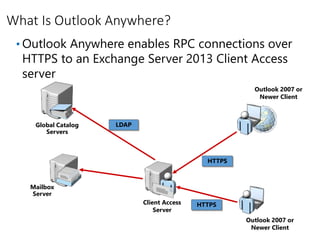
What Is Outlook Anywhere?
• Outlook Anywhere enables RPC connections over
HTTPS to an Exchange Server 2013 Client Access
server
Mailbox
Server
Client Access
Server
Outlook 2007 or
Newer Client
Global Catalog
Servers
HTTPS
LDAP
Outlook 2007 or
Newer Client
HTTPS
What Is Exchange ActiveSync?
• is a protocol that enables mobile devices to access
Exchange Server data
• It provides synchronization and management
capabilities for mobile platforms
• It is supported on most current mobile platforms
with various level of functionality
What Is Outlook Web App Light?
• Outlook Web App Light is an application within
Outlook Web App that works with older browsers
• Outlook Web App Light provides:
• Connectivity to user mailbox from mobile browsers
• Subset of functionalities of Outlook Web App
• Secure authentication
What Is Office Web Apps Server Integration?
• ‫المرفقات‬ ‫إدارة‬ ‫لتسهيل‬ ‫للمستخدم‬ ‫تحسينات‬ ‫يقدم‬
• ‫المستندات‬ ‫و‬ ‫الوثائق‬ ‫لتقديم‬ ‫يستخدم‬
• ‫الانتر‬ ‫عبر‬ ‫المستندات‬ ‫تعديل‬ ‫يستطيعون‬ ‫المستخدمين‬‫نت‬
Using Outlook Web App in Offline Mode
• ‫للمستخدمين‬ ‫يقدم‬‫القدره‬‫صندوق‬ ‫الى‬ ‫الدخول‬ ‫على‬
‫اتصال‬ ‫وجود‬ ‫عدم‬ ‫في‬ ‫حتى‬ ‫الملفات‬ ‫و‬ ‫البريد‬
• Offline Outlook Web App:
‫معينه‬ ‫لمتصفحات‬ ‫فقط‬ ‫يعمل‬
‫محدده‬ ‫مهمات‬ ‫لعمل‬ ‫للمستخدمين‬ ‫يسمح‬
‫قواعد‬ ‫خلال‬ ‫من‬ ‫به‬ ‫التحكم‬ ‫يمكن‬OWA
The End
Faisal Al-Nuaim
Nawaf Al-Enizi
Mohammed Al-Zahrani

Planning and configuring client connectivity exchange server

  • 1.
    Module 5 Planning andConfiguring Messaging Client Connectivity ‫الخامس‬ ‫الدرس‬ Planning and configuring Messaging Client Connectivity
  • 2.
    ‫الدرس‬ ‫عن‬ ‫االساسية‬‫المعلومات‬ What Is Outlook Web App? What Is Outlook Anywhere? What Is Exchange ActiveSync? What Is Outlook Web App offline?
  • 3.
    What Is OWA? •‫خلال‬ ‫من‬ ‫البريد‬ ‫صندوق‬ ‫دخول‬ ‫للمستخدمين‬ ‫يسمح‬ ‫المتصفح‬ • Outlook Web App ‫:يقدم‬ 1. ‫خلال‬ ‫من‬ ‫البريد‬ ‫صندوق‬ ‫أجزاء‬ ‫كافة‬ ‫الى‬ ‫الدخول‬ ‫امكانية‬ ‫المتصفح‬ 2. ‫الحمايه‬ 3. ‫مميزات‬ ‫الى‬ ‫الدخول‬‫الايميل‬‫سيرفر‬2013‫توجد‬ ‫لم‬ ‫التي‬ ‫بالاصدارات‬‫السابقه‬
  • 4.
    What Is OutlookAnywhere? • Outlook Anywhere enables RPC connections over HTTPS to an Exchange Server 2013 Client Access server Mailbox Server Client Access Server Outlook 2007 or Newer Client Global Catalog Servers HTTPS LDAP Outlook 2007 or Newer Client HTTPS
  • 5.
    What Is ExchangeActiveSync? • is a protocol that enables mobile devices to access Exchange Server data • It provides synchronization and management capabilities for mobile platforms • It is supported on most current mobile platforms with various level of functionality
  • 6.
    What Is OutlookWeb App Light? • Outlook Web App Light is an application within Outlook Web App that works with older browsers • Outlook Web App Light provides: • Connectivity to user mailbox from mobile browsers • Subset of functionalities of Outlook Web App • Secure authentication
  • 7.
    What Is OfficeWeb Apps Server Integration? • ‫المرفقات‬ ‫إدارة‬ ‫لتسهيل‬ ‫للمستخدم‬ ‫تحسينات‬ ‫يقدم‬ • ‫المستندات‬ ‫و‬ ‫الوثائق‬ ‫لتقديم‬ ‫يستخدم‬ • ‫الانتر‬ ‫عبر‬ ‫المستندات‬ ‫تعديل‬ ‫يستطيعون‬ ‫المستخدمين‬‫نت‬
  • 8.
    Using Outlook WebApp in Offline Mode • ‫للمستخدمين‬ ‫يقدم‬‫القدره‬‫صندوق‬ ‫الى‬ ‫الدخول‬ ‫على‬ ‫اتصال‬ ‫وجود‬ ‫عدم‬ ‫في‬ ‫حتى‬ ‫الملفات‬ ‫و‬ ‫البريد‬ • Offline Outlook Web App: ‫معينه‬ ‫لمتصفحات‬ ‫فقط‬ ‫يعمل‬ ‫محدده‬ ‫مهمات‬ ‫لعمل‬ ‫للمستخدمين‬ ‫يسمح‬ ‫قواعد‬ ‫خلال‬ ‫من‬ ‫به‬ ‫التحكم‬ ‫يمكن‬OWA
  • 9.
    The End Faisal Al-Nuaim NawafAl-Enizi Mohammed Al-Zahrani

Editor's Notes

  • #2 Presentation: 105 minutes Lab: 75 minutes After completing this module, students will be able to: Describe connectivity to the Client Access server. Configure Outlook Web App. Plan and configure mobile messaging. Configure secure Internet access for Client Access server. Required materials To teach this module, you need the Microsoft® Office PowerPoint® file 20341B_05.pptx. Important: We recommend that you use Office PowerPoint® 2007 or newer to display the slides for this course. If you use PowerPoint Viewer or an earlier version of Office PowerPoint, some features of the slides might not display correctly. Preparation tasks To prepare for this module: Read all of the materials for this module. Practice performing the demonstrations. Practice performing the labs. Work through the Module Review and Takeaways section, and determine how you will use this section to reinforce student learning and promote knowledge transfer to on-the-job performance. As you prepare for this class, it is imperative that you complete the labs yourself so that you understand how they work and the concepts that are covered in each. This will allow you to provide meaningful hints to students who may get stuck in a lab, and it also will help guide your lecture to ensure that you cover the concepts that the labs cover.
  • #3 At the beginning of this lesson, ask the students about their previous experience with services covered in this lesson. If they are familiar with these technologies, you can proceed quickly through this lesson.
  • #4 Many of the students already may be familiar with Outlook Web App. Ask the students whether they are using Outlook Web App in their organization. If they are using it, ask them how it is being used. The students’ answers will vary. Some organizations use Outlook Web App almost entirely for external access to email; other organizations use it as an alternative to a full Messaging Application Programming Interface (MAPI) client such as Outlook. Emphasize the new features in Outlook Web App in Exchange Server 2013. Also mention that you can use Outlook Web App to provide access to some of the Exchange Server 2013 features, such as Web Apps integration, that will not be available in an Outlook client until the next version of Outlook is released.
  • #5 It is important to point out that the main purpose of Outlook Anywhere is that it enables users to use the full Outlook client while traveling with a portable computer. This removes the need for VPN connections, POP3, or IMAP4 connections, and even Outlook Web App. Emphasize that both internal and external clients now use Outlook Anywhere to connect.
  • #6 You should describe Exchange ActiveSync by comparing it to Outlook Anywhere. In both cases, the connection between the client device and the Client Access server uses HTTPS. In both cases, HTTPS is used to synchronize messages so that the messages are cached locally on the mobile device. This means that extra features on the Exchange server are required to manage the mobile devices.
  • #7 Describe Outlook Web App Light and the scenarios in which you should use it. Emphasize some of the potential security issues with this technology. You may want to explain to the students the advantages of using ActiveSync.
  • #8 Explain Office Web Apps Server integration. You probably cannot demonstrate Office Web Apps and how they integrate with Exchange OWA.
  • #9 Define Offline Outlook Web App. Explain how it works, and describe some of the security considerations.