Pixel Deployment Guide
For Online Retargeting Programs
Getting Started

Installing HTML Tagging Code

What is the tagging code?

Tagging code is a single line of personalized HTML Pixel code (customized specifically for your site) that
we will provide to you after we create your campaign. You can apply this code to any or all pages on your
site. This code will anonymously tag your visitors, so that when those visitors go to other sites in the Open
X and Recrue network, they will see your banner ad on those pages.

With respect to targeting across a number of different marketplaces/networks beyond just the Open X /
Recrue MaX platform, your IT department will be provided a special javascript code to place on your site.
They would only need to place one tag on each page (and we would piggyback multiple pixels via that
javascript). If your site is unable to accept javascript, we would need to issue a separate tag for each
network we wanted to retarget against.


                                         Sample Pixel Code
<!-- Advertiser 'Recrue', Include user in segment 'SAMPLE University - NE 2021 PX 1' - DO NOT
MODIFY THIS PIXEL IN ANY WAY -->
<img src="http://ad.yieldmanager.com/pixel?id=612624&t=2" width="1" height="1" />
<!-- End of segment tag -->


What resources are needed to implement the tagging code?

The person in charge of maintaining your site should simply copy and paste the HTML code onto the
body of each page that you wish to track. If you’d like to target different segments of your audience with
different creative, we will provide you with a tag for each specific segment which will then need to be
placed on the appropriate page(s). We recommend three tags as the maximum number to use when
setting up your initial program.


Placement of the Tracking Code on Web pages

The tracking code should be inserted immediately after the open <BODY> tag on the HTML pages.
Alternatively, the code may be placed in an include file such as the header or footer; however, the include
file cannot be a .js file. If your website uses frames, place the Tracking Code on the frameset page after
the <HEAD> tag. The Tracking Code should be placed on all pages to which PPCSEs and other online
marketing campaigns direct visitors to your website – also known as entry or landing pages.
Standard Placement

The tracking code should be inserted immediately after the open <BODY> tag on HTML pages.

<HEAD>
    <<header code>>
</HEAD>
<BODY>
      Tracking Code
<BODY>


Placement with Framesets

If your website uses frames, place the Tracking Code on the frameset page after the <HEAD> tag.


<HEAD>
       Tracking Code
</HEAD>
   <FRAMESET>
          <FRAME src=”http://www.yoursite.com/page.html”>
   </FRAMESET>


How do I check if my tagging code is correctly installed?

   1.   Go to the page where your tagging code was placed.
   2.   Right click on the page itself and look for an option to "View Source" or "View Page Source."
   3.   Search for the text string "OpenX"
   4.   If you find this, your tagging code is on the page.
   5.   OR – request validation from Steven Bogue, Recrue Media, 401-484-2400 or
        sbogue@recruemedia.com.

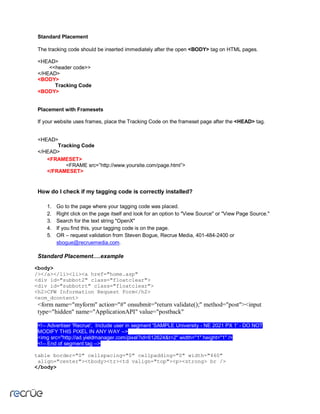
Standard Placement….example

<body>
/></a></li><li><a href="home.asp"
<div id="subbot2" class="floatclear">
<div id="subbotrt" class="floatclear">
<h2>CFW Information Request Form</h2>
<ecm_dcontent>
<form name="myform" action="#" onsubmit="return validate();" method="post"><input
type="hidden" name="ApplicationAPI" value="postback"

<!-- Advertiser 'Recrue', Include user in segment 'SAMPLE University - NE 2021 PX 1' - DO NOT
MODIFY THIS PIXEL IN ANY WAY -->
<img src="http://ad.yieldmanager.com/pixel?id=612624&t=2" width="1" height="1" />
<!-- End of segment tag -->

table border="0" cellspacing="0" cellpadding="0" width="460"
 align="center"><tbody><tr><td valign="top"><p><strong> br />
</body>
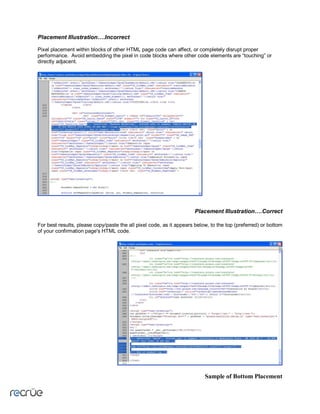
Placement Illustration….Incorrect

Pixel placement within blocks of other HTML page code can affect, or completely disrupt proper
performance. Avoid embedding the pixel in code blocks where other code elements are “touching” or
directly adjacent.


                                                                     Placement Illustration….Correct

For best results, please copy/paste the all pixel code, as it appears below, to the top (preferred) or bottom
of your confirmation page's HTML code.


                                                                          Sample of Bottom Placement
Contact Information:


For more information regarding retargeting and on line marketing, please contact:


            Steven Bogue                             Mark Landon
         Recrue Media, L.L.C.                    Recrue Media, L.L.C.
           401-484-2400                             310-517-1818
       sbogue@recruemedia.com                mlandon@recruemedia.com

                                Melissa Prince
                            Recrue Media, L.L.C.
                                972-867-4177
                          mprince@recruemedia.com


                             www.recruemedia.com

Pixel Deployment Guide

  • 1.
    Pixel Deployment Guide ForOnline Retargeting Programs
  • 2.
    Getting Started Installing HTMLTagging Code What is the tagging code? Tagging code is a single line of personalized HTML Pixel code (customized specifically for your site) that we will provide to you after we create your campaign. You can apply this code to any or all pages on your site. This code will anonymously tag your visitors, so that when those visitors go to other sites in the Open X and Recrue network, they will see your banner ad on those pages. With respect to targeting across a number of different marketplaces/networks beyond just the Open X / Recrue MaX platform, your IT department will be provided a special javascript code to place on your site. They would only need to place one tag on each page (and we would piggyback multiple pixels via that javascript). If your site is unable to accept javascript, we would need to issue a separate tag for each network we wanted to retarget against. Sample Pixel Code <!-- Advertiser 'Recrue', Include user in segment 'SAMPLE University - NE 2021 PX 1' - DO NOT MODIFY THIS PIXEL IN ANY WAY --> <img src="http://ad.yieldmanager.com/pixel?id=612624&t=2" width="1" height="1" /> <!-- End of segment tag --> What resources are needed to implement the tagging code? The person in charge of maintaining your site should simply copy and paste the HTML code onto the body of each page that you wish to track. If you’d like to target different segments of your audience with different creative, we will provide you with a tag for each specific segment which will then need to be placed on the appropriate page(s). We recommend three tags as the maximum number to use when setting up your initial program. Placement of the Tracking Code on Web pages The tracking code should be inserted immediately after the open <BODY> tag on the HTML pages. Alternatively, the code may be placed in an include file such as the header or footer; however, the include file cannot be a .js file. If your website uses frames, place the Tracking Code on the frameset page after the <HEAD> tag. The Tracking Code should be placed on all pages to which PPCSEs and other online marketing campaigns direct visitors to your website – also known as entry or landing pages.
  • 3.
    Standard Placement The trackingcode should be inserted immediately after the open <BODY> tag on HTML pages. <HEAD> <<header code>> </HEAD> <BODY> Tracking Code <BODY> Placement with Framesets If your website uses frames, place the Tracking Code on the frameset page after the <HEAD> tag. <HEAD> Tracking Code </HEAD> <FRAMESET> <FRAME src=”http://www.yoursite.com/page.html”> </FRAMESET> How do I check if my tagging code is correctly installed? 1. Go to the page where your tagging code was placed. 2. Right click on the page itself and look for an option to "View Source" or "View Page Source." 3. Search for the text string "OpenX" 4. If you find this, your tagging code is on the page. 5. OR – request validation from Steven Bogue, Recrue Media, 401-484-2400 or sbogue@recruemedia.com. Standard Placement….example <body> /></a></li><li><a href="home.asp" <div id="subbot2" class="floatclear"> <div id="subbotrt" class="floatclear"> <h2>CFW Information Request Form</h2> <ecm_dcontent> <form name="myform" action="#" onsubmit="return validate();" method="post"><input type="hidden" name="ApplicationAPI" value="postback" <!-- Advertiser 'Recrue', Include user in segment 'SAMPLE University - NE 2021 PX 1' - DO NOT MODIFY THIS PIXEL IN ANY WAY --> <img src="http://ad.yieldmanager.com/pixel?id=612624&t=2" width="1" height="1" /> <!-- End of segment tag --> table border="0" cellspacing="0" cellpadding="0" width="460" align="center"><tbody><tr><td valign="top"><p><strong> br /> </body>
  • 4.
    Placement Illustration….Incorrect Pixel placementwithin blocks of other HTML page code can affect, or completely disrupt proper performance. Avoid embedding the pixel in code blocks where other code elements are “touching” or directly adjacent. Placement Illustration….Correct For best results, please copy/paste the all pixel code, as it appears below, to the top (preferred) or bottom of your confirmation page's HTML code. Sample of Bottom Placement
  • 5.
    Contact Information: For moreinformation regarding retargeting and on line marketing, please contact: Steven Bogue Mark Landon Recrue Media, L.L.C. Recrue Media, L.L.C. 401-484-2400 310-517-1818 sbogue@recruemedia.com mlandon@recruemedia.com Melissa Prince Recrue Media, L.L.C. 972-867-4177 mprince@recruemedia.com www.recruemedia.com