Digital Photo Management 
October 7, 2014 
Richard Gillespie 
1
2
What Picasa is NOT 
• Web app 
• Container 
• Mobile App 
• Multi-User 
• Drawing 
• Image Manipulation 
3
What Picasa is! 
Picasa software 
provides a simple way 
to organize, view, edit 
and share the photos 
on your computer 
4
Two things to know 
5 
Picasa does not store the 
photos on your computer 
Your original photos are 
always preserved
File - Folder - Album? 
• Folders – Folders represent the folders on your 
computer. YOU control the folders. Changes you make 
to folders in Picasa affect the corresponding folders on 
your computer. 
• Files – The individual pictures/movies that make up a 
Folder. 
• Album – Unlike folders, albums exist ONLY in Picasa. 
Albums allow you to create virtual groups of photos 
taken from multiple folders without actually moving the 
photo – it’s like a playlist. When you delete a photo from 
an album, the original file remains in its original folder. 
6
Set Up 
7
Set Up 
8
Set Up 
9
Set Up 
10
Set Up 
11
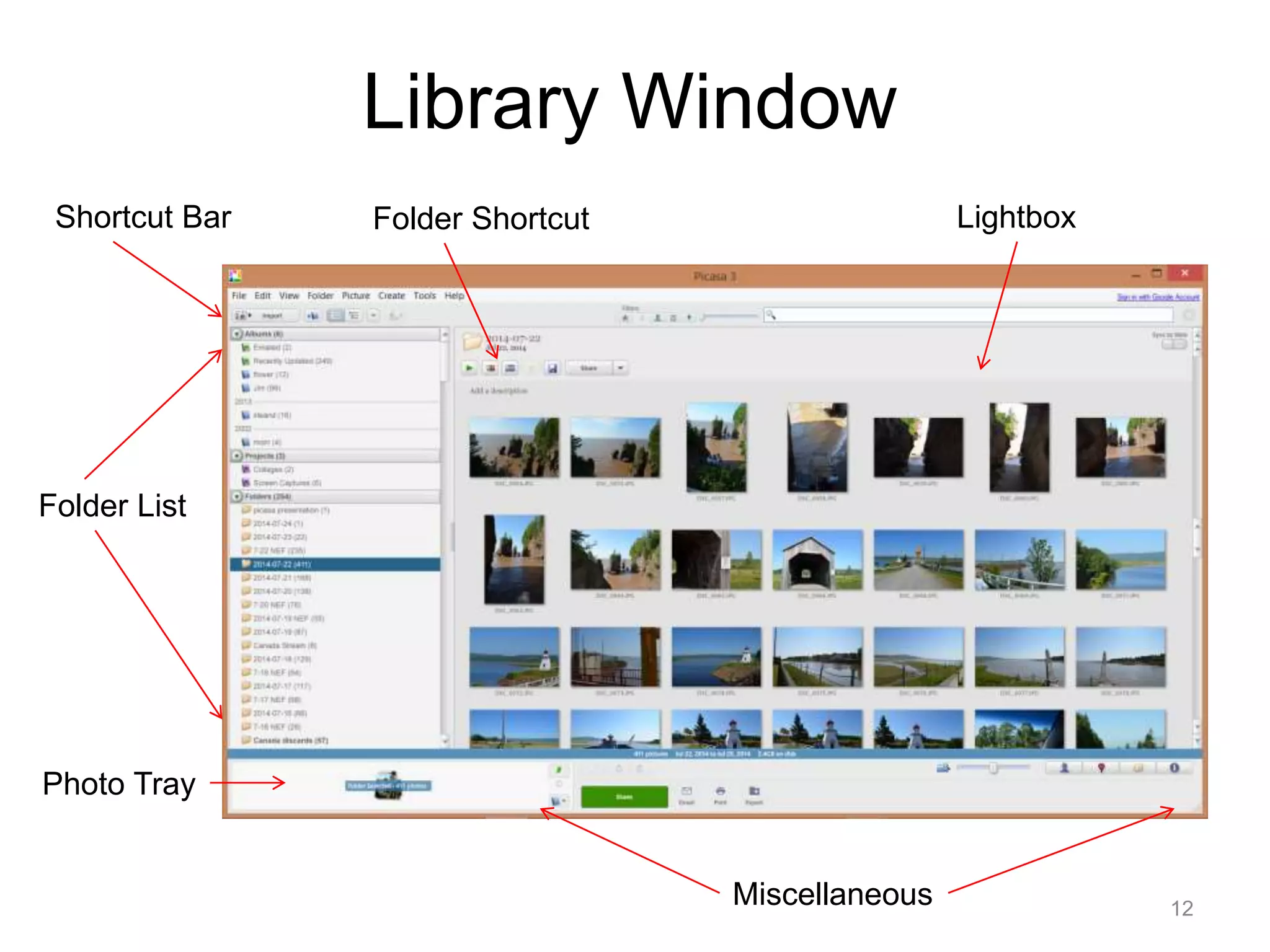
Library Window 
Shortcut Bar Folder Shortcut 
Folder List 
Photo Tray 
Miscellaneous 
Lightbox 
12
Library Window 
Shortcut Bar 
Import 
New 
Album 
View 
Options 
Video 
Capture Filters 
Folder Tree 
Structure 
Notes 
Import – Get Photos from camera, scanner or other media 
New Album – Create a new album within Picasa 
Folder Tree Structure – Set view to show folder tree structure 
View Options – Options on sort Folders 
Video Capture – capture photo or video from webcam or other video device 
Filters – Show only Starred photos, faces, movies, geotag, date range 
Search – The ability to search within Picasa 
13 
Search
Library Window 
Folder List / Flat Folder List / Tree 
14
Library Window 
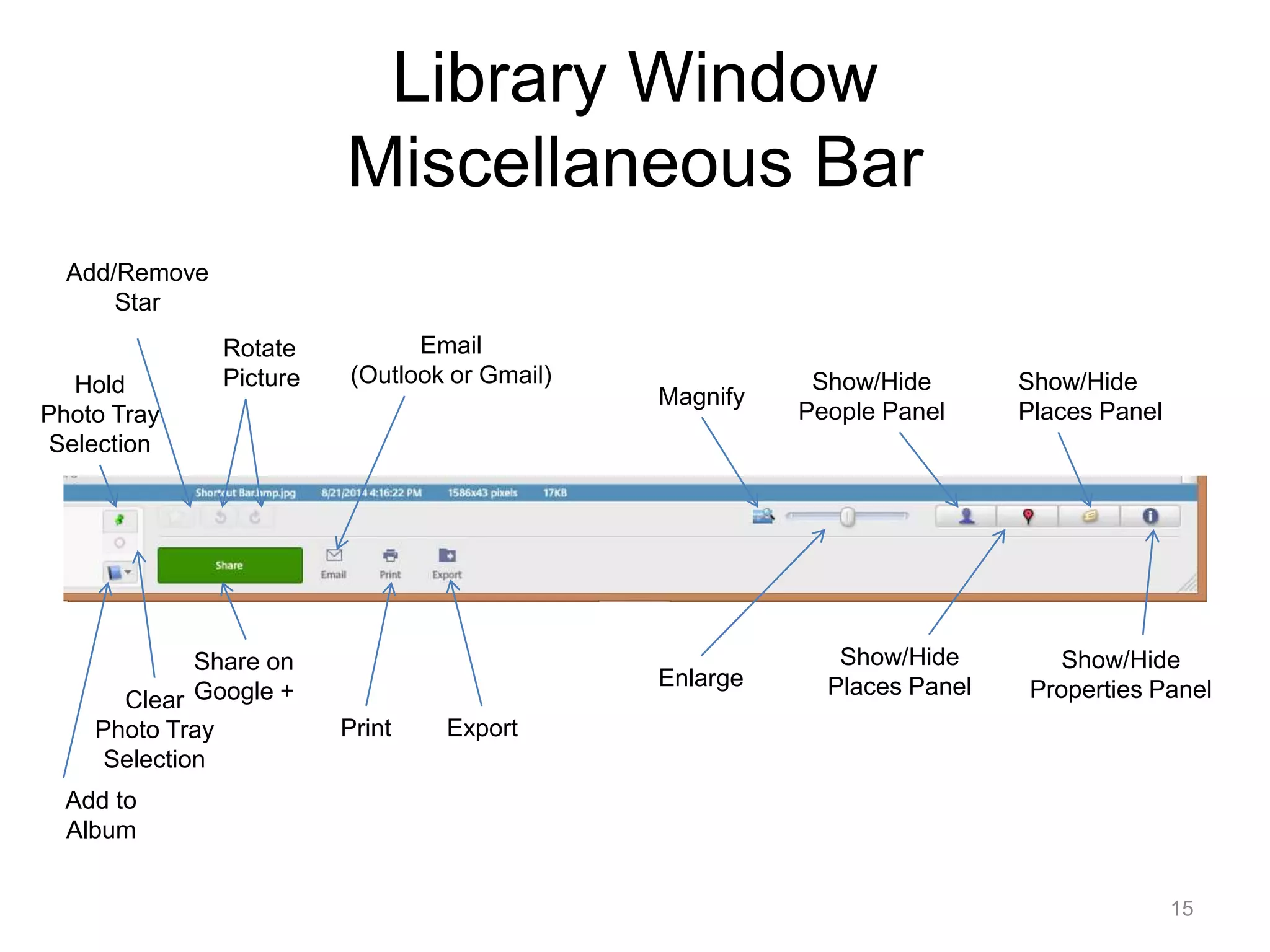
Miscellaneous Bar 
Show/Hide 
People Panel 
Show/Hide 
Places Panel 
Show/Hide 
Places Panel 
Show/Hide 
Properties Panel 
Email 
(Outlook or Gmail) 
Print Export 
Add/Remove 
Share on 
Google + 
Star 
Rotate 
Hold Picture 
Photo Tray 
Selection 
Clear 
Photo Tray 
Selection 
Add to 
Album 
Magnify 
Enlarge 
15
Folder Management 
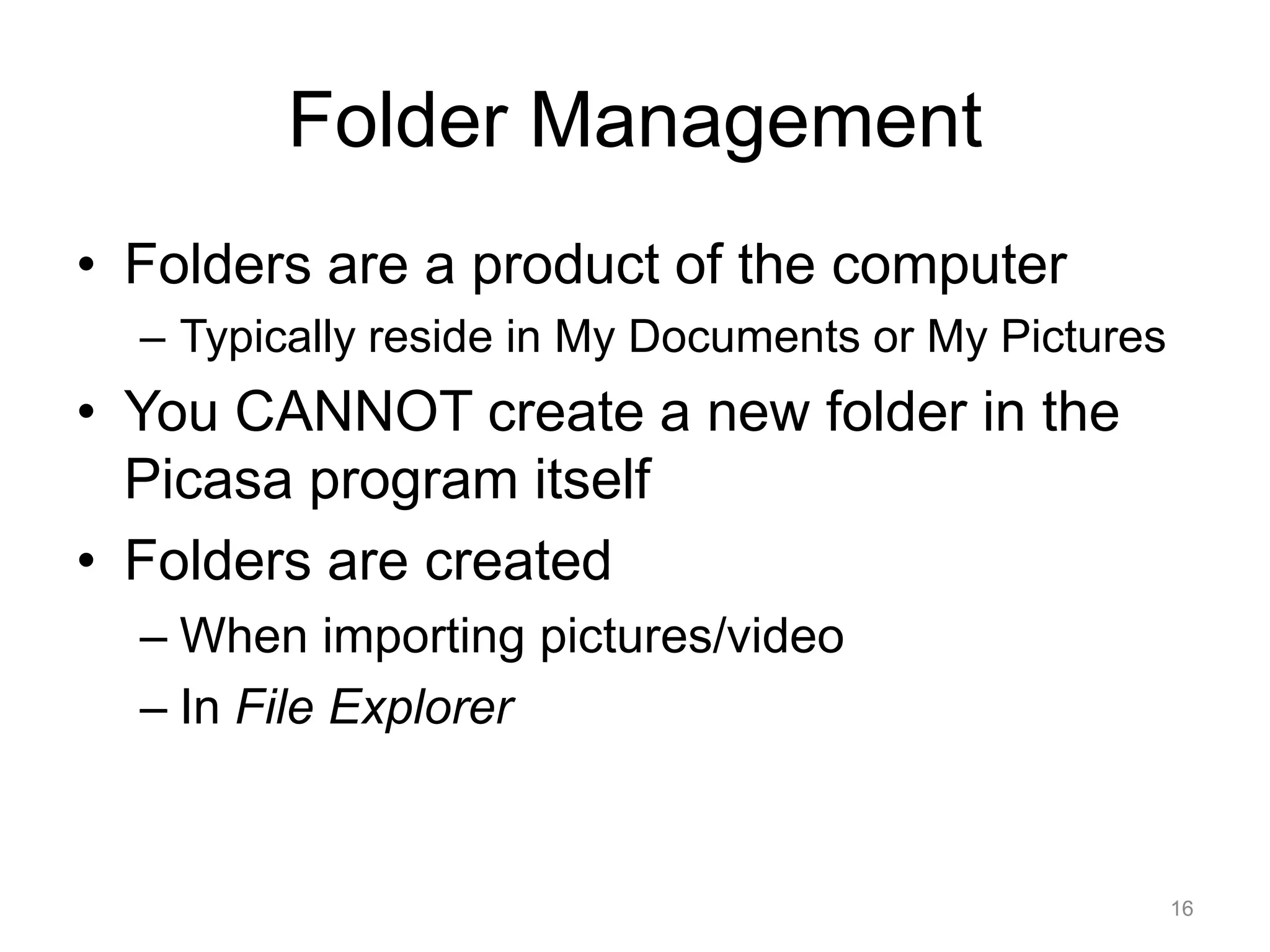
• Folders are a product of the computer 
– Typically reside in My Documents or My Pictures 
• You CANNOT create a new folder in the 
Picasa program itself 
• Folders are created 
– When importing pictures/video 
– In File Explorer 
16
Folder Management 
Importing Pictures 
17 
Click on 
Import
Folder Management 
Importing Pictures 
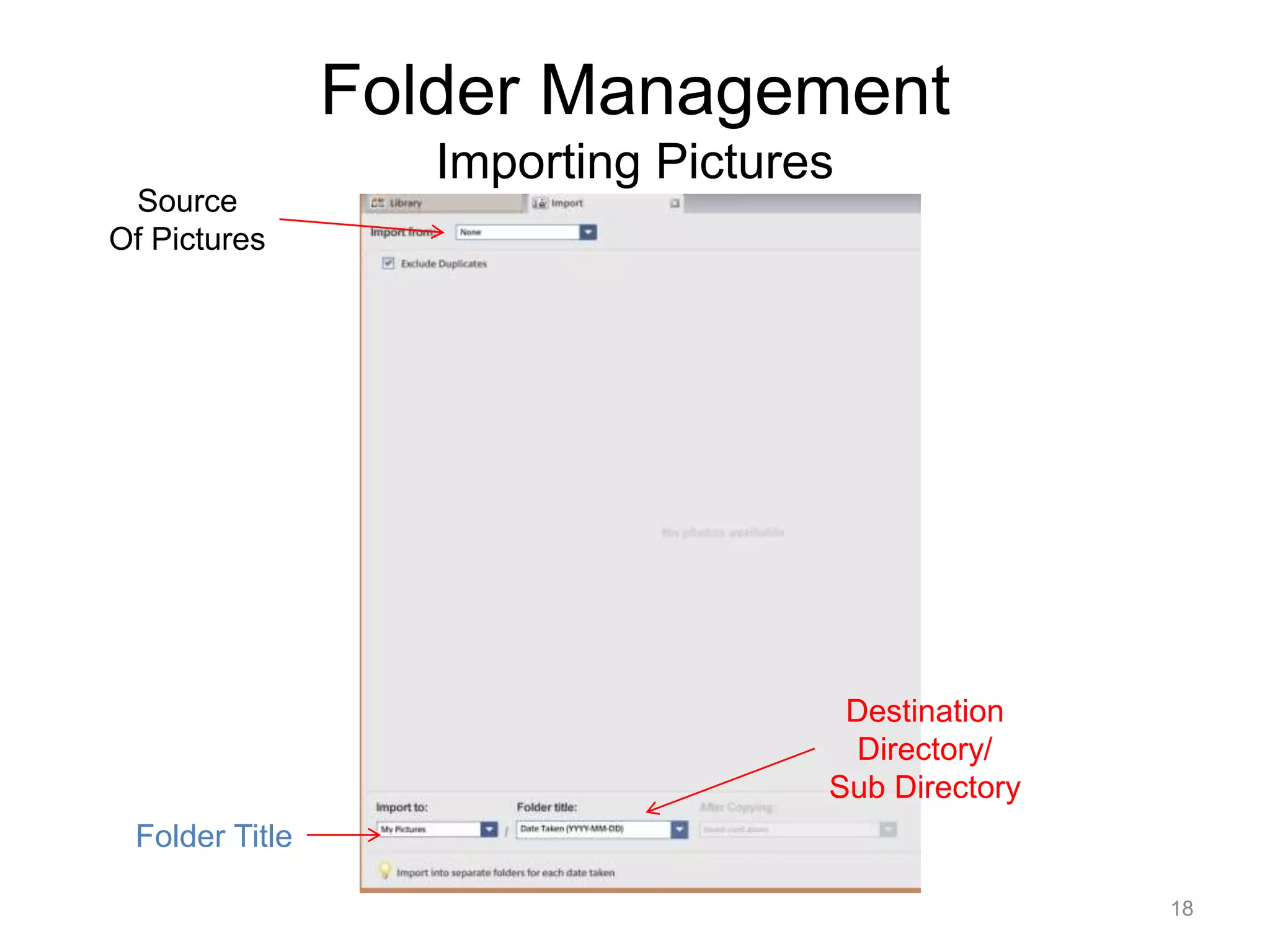
18 
Source 
Of Pictures 
Folder Title 
Destination 
Directory/ 
Sub Directory
Folder Management 
Importing Pictures 
19 
Leave for My Pictures 
Or 
Select existing Folder 
Or 
Choose
Folder Management 
Importing Pictures 
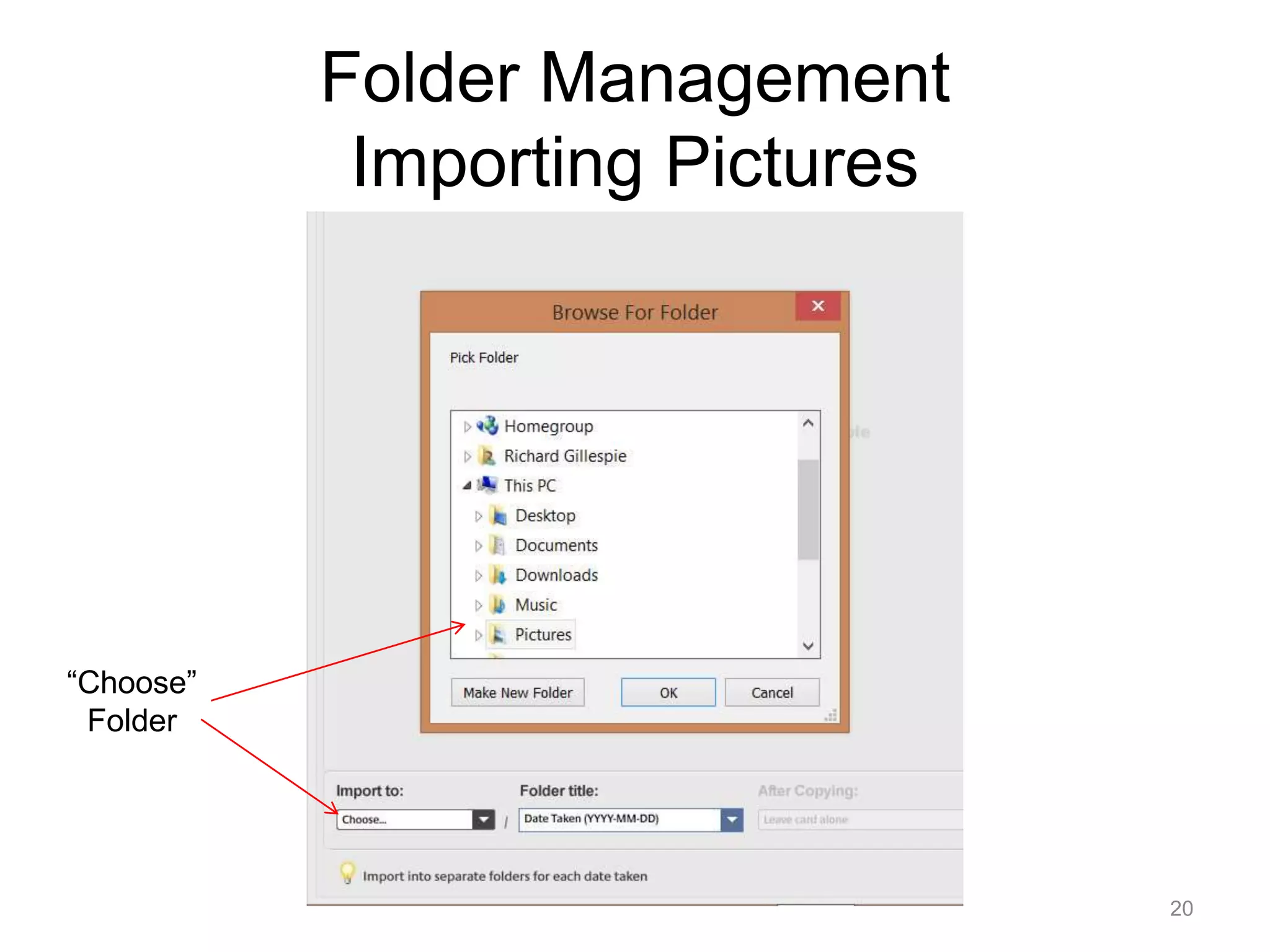
20 
“Choose” 
Folder
Folder Management 
Importing Pictures 
21 
or 
Make 
New Folder
Folder Management 
Importing Pictures 
22 
Folder Title 
Enter a New Title or 
Todays Date or 
Date of Picture
Folder Management 
Importing Pictures 
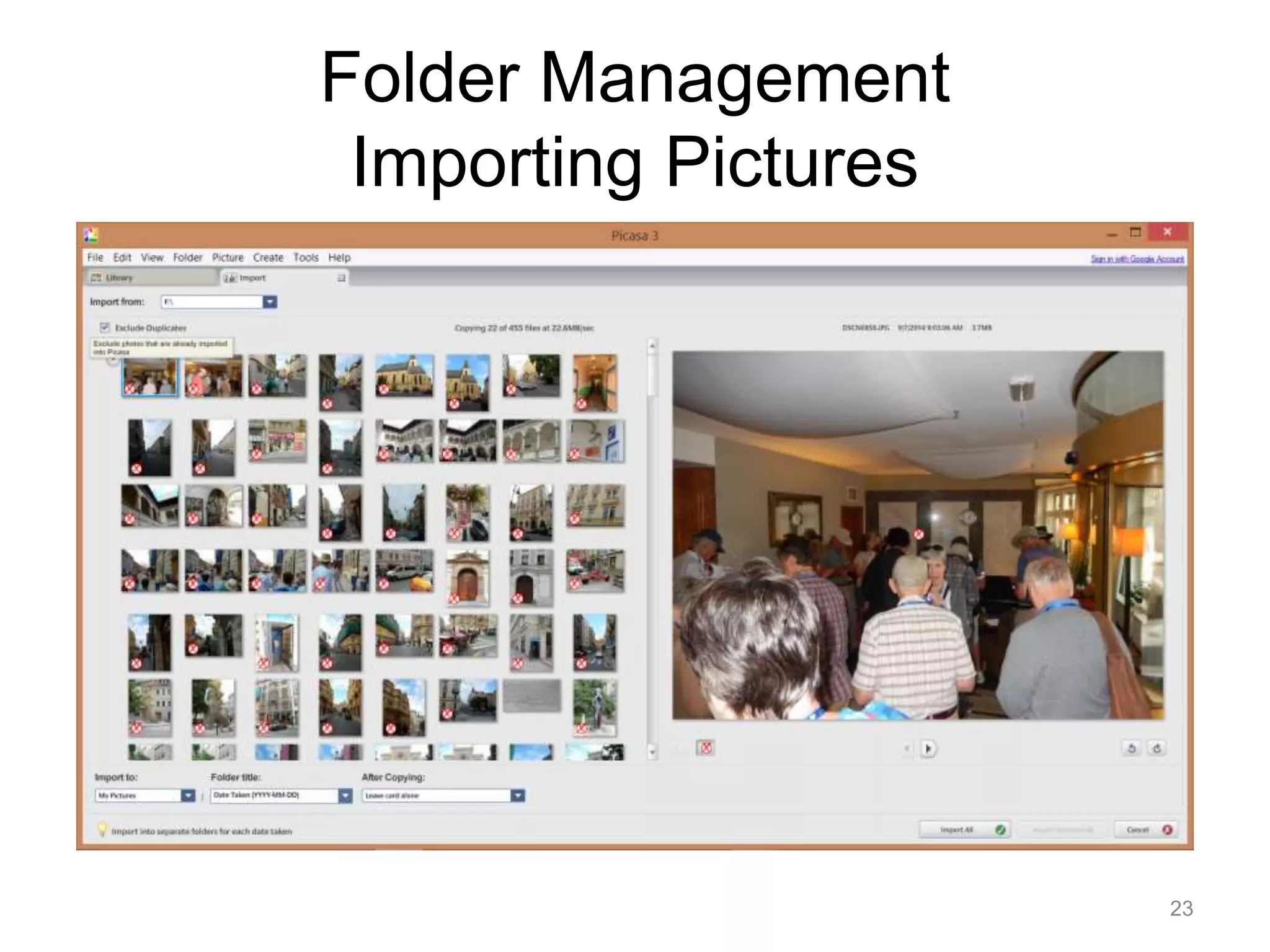
23
Folder Management 
Importing Pictures 
24
Folder Management 
Managing Folders 
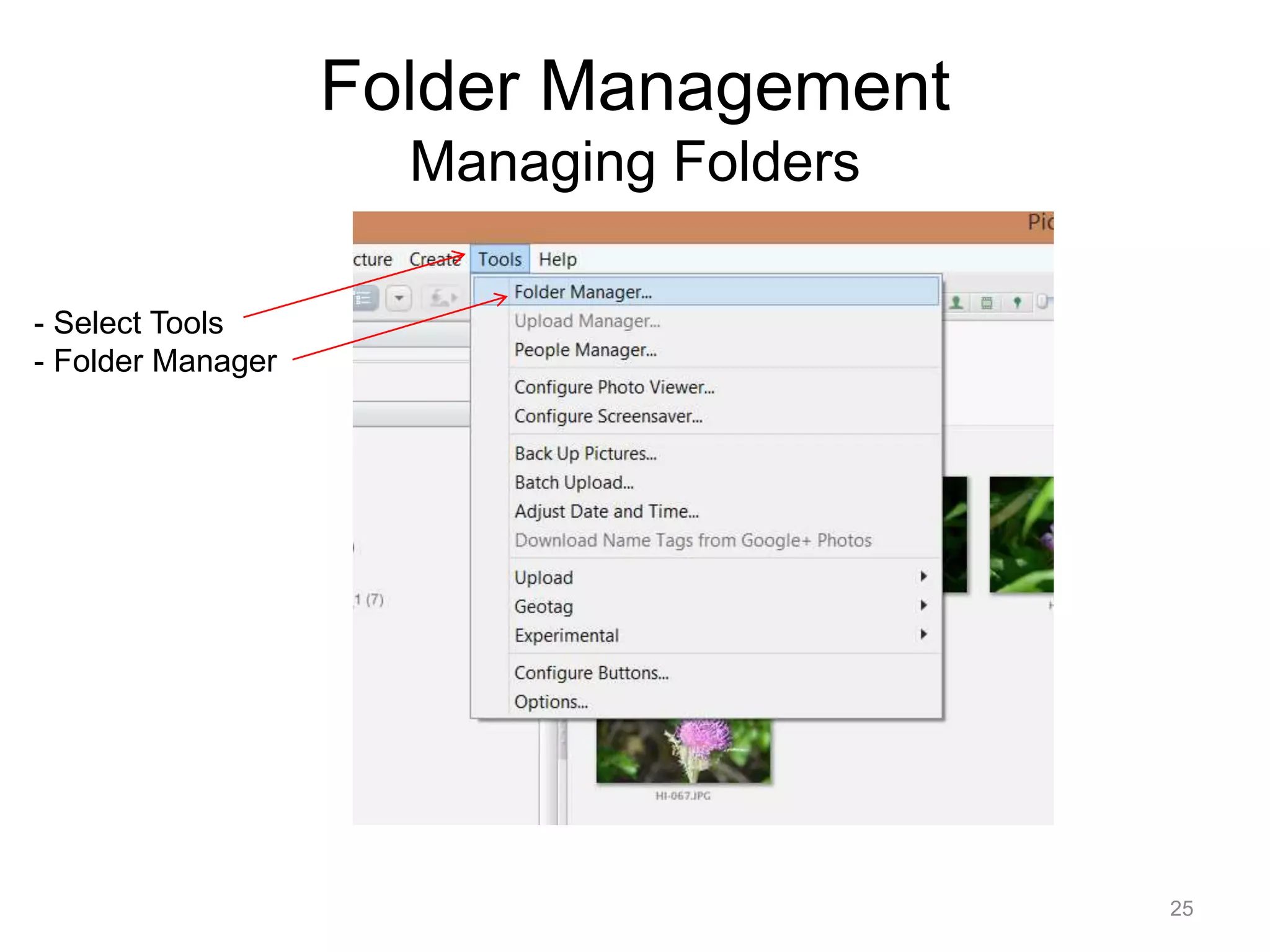
25 
- Select Tools 
- Folder Manager
Folder Management 
Managing Folders 
26 
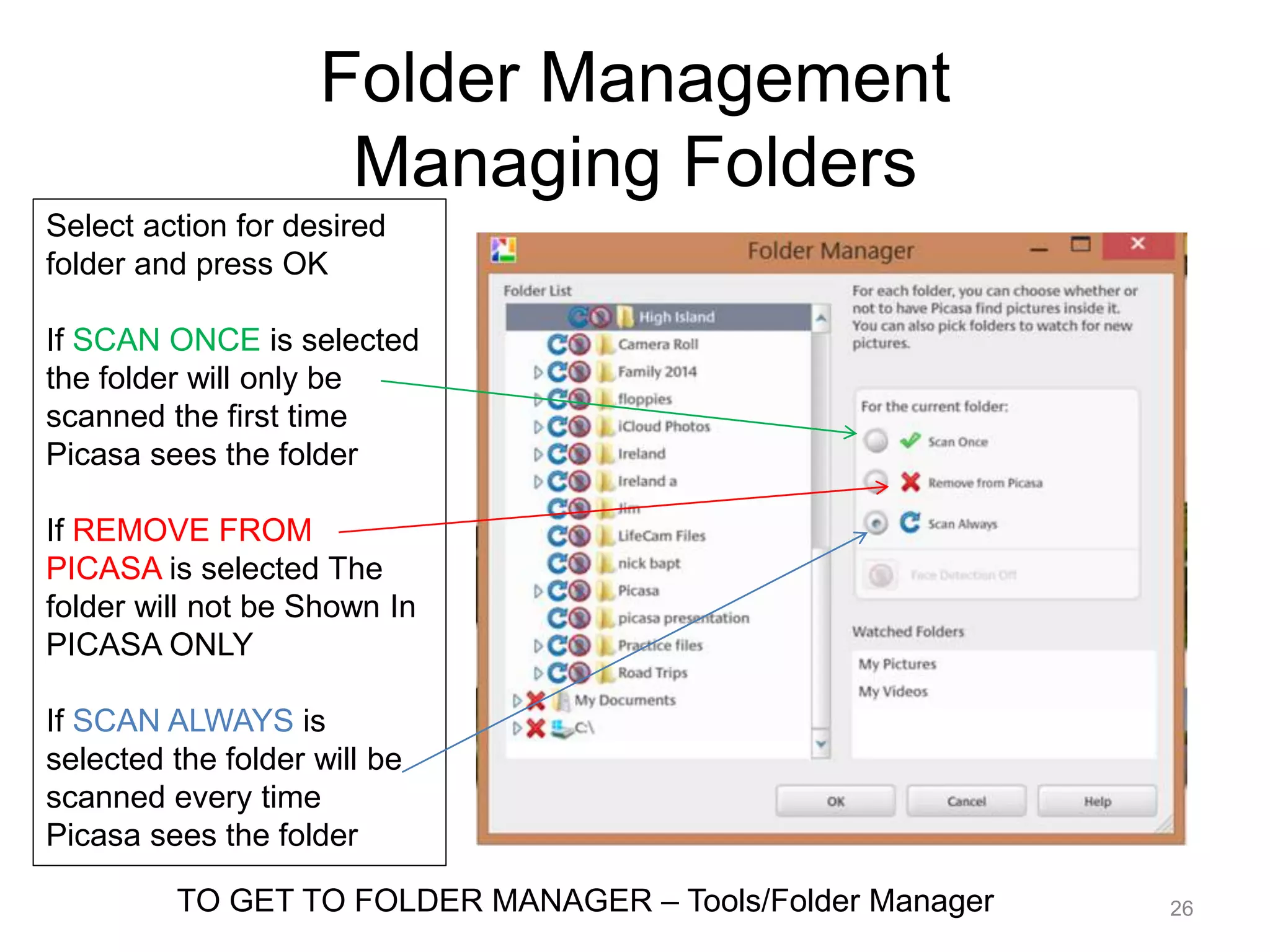
Select action for desired 
folder and press OK 
If SCAN ONCE is selected 
the folder will only be 
scanned the first time 
Picasa sees the folder 
If REMOVE FROM 
PICASA is selected The 
folder will not be Shown In 
PICASA ONLY 
If SCAN ALWAYS is 
selected the folder will be 
scanned every time 
Picasa sees the folder 
TO GET TO FOLDER MANAGER – Tools/Folder Manager
Folder Management 
Lightbox 
27 
Filters Search 
Scroll Bar
Folder Management 
Lightbox - Properties 
28
Folder Management 
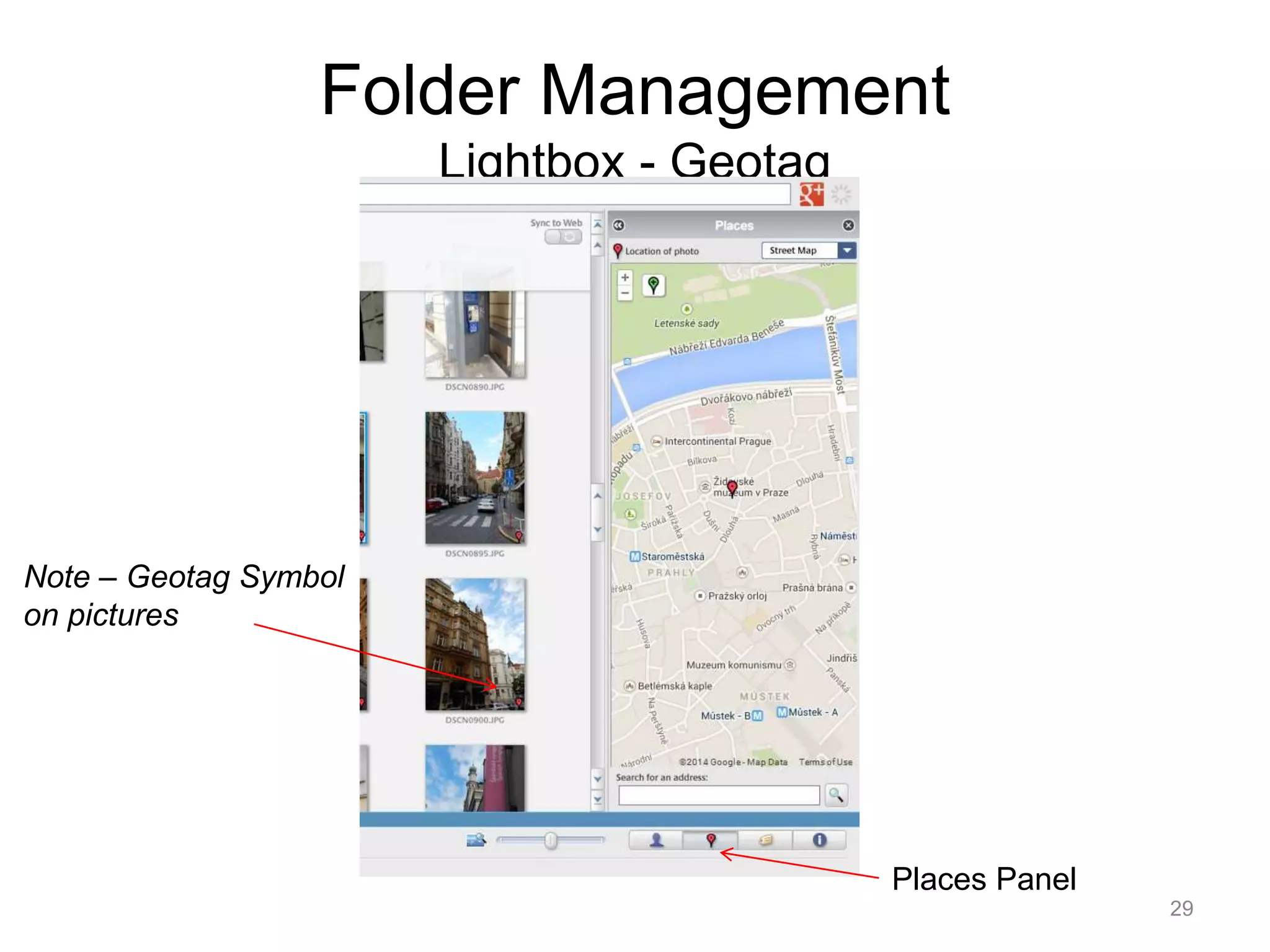
Lightbox - Geotag 
Places Panel 
Note – Geotag Symbol 
on pictures 
29
Folder Management 
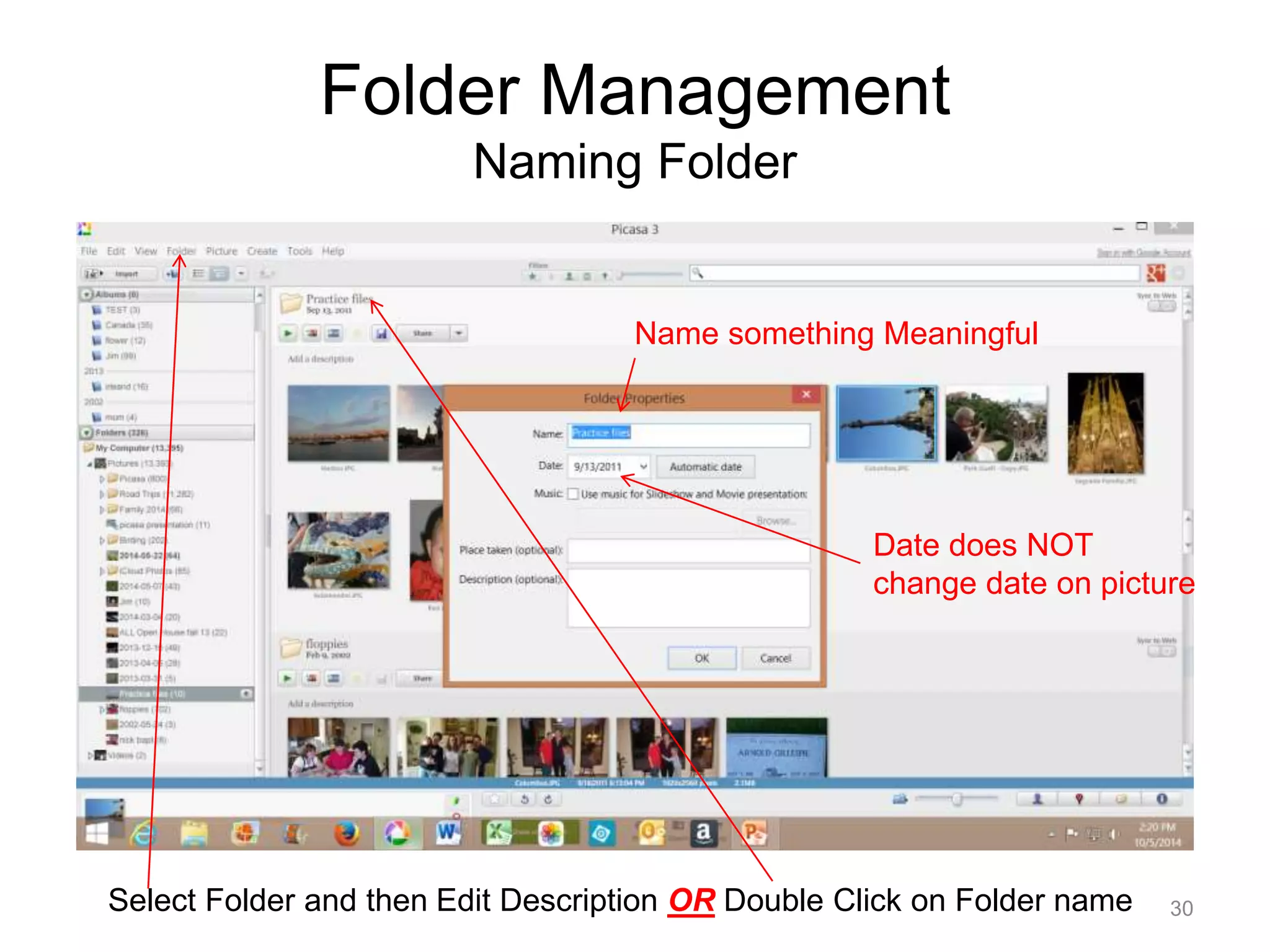
Naming Folder 
Name something Meaningful 
Date does NOT 
change date on picture 
Select Folder and then Edit Description OR Double Click on Folder name 30
File Management 
31 
By Default the Thumbnails do NOT show File name
File Management 
32 
Select View - Thumbnail Caption - Filename
File Management 
Rearrange Order of Thumbnails 
Left Click on desired Thumbnail 
and hold then “drag” to desired 
location. 
33
File Management 
Star and Rotate 
Star a photo – select photo and click star 
To Rotate – Select Picture and Press 
34
File Management 
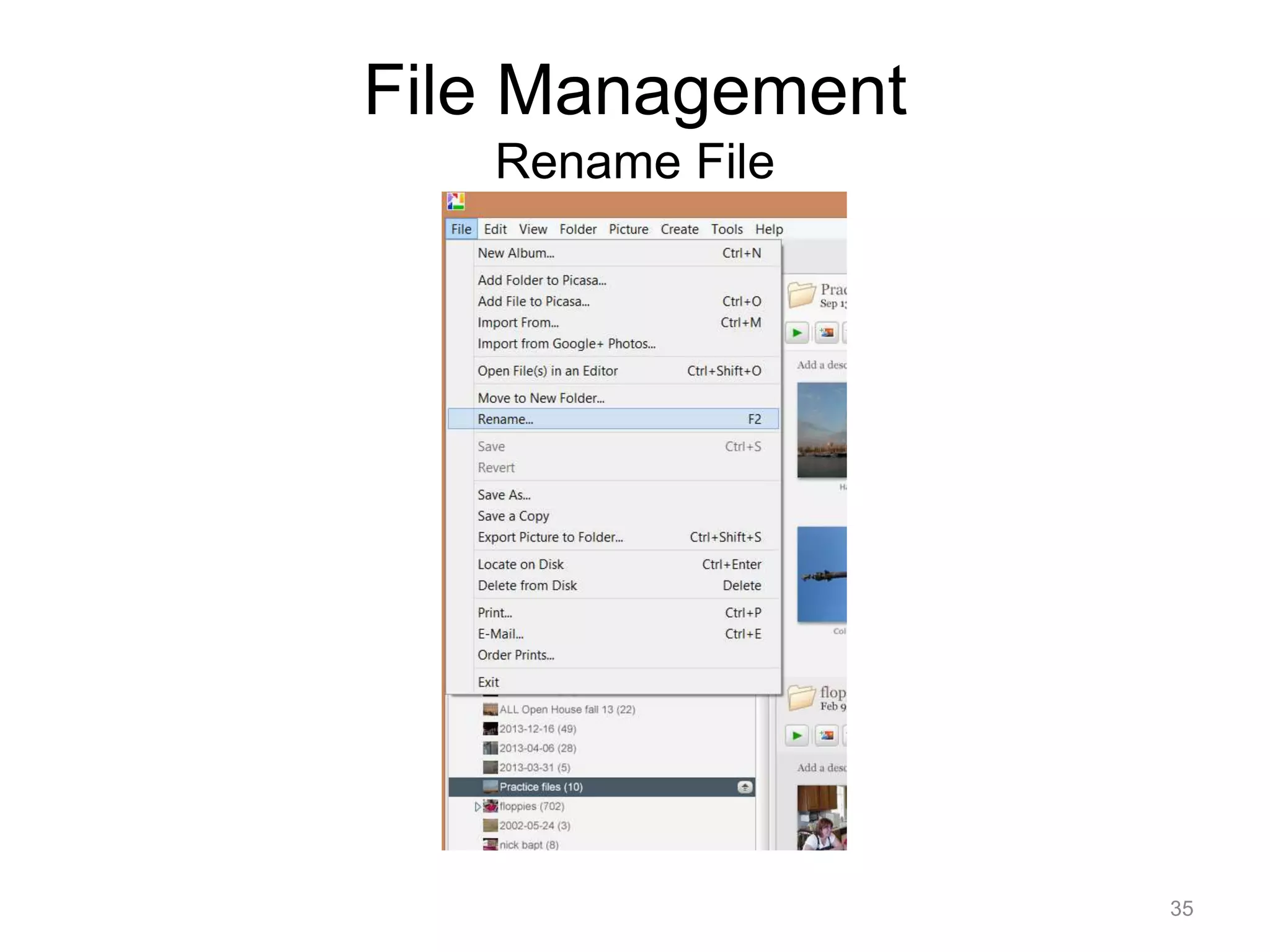
Rename File 
35
File Management 
Rename File 
36 
Another way Press <F2> and the pop up will appear
Editing Pictures 
37 
Double Click on 
Picture to Edit
Editing Picture 
Commonly Needed Fixes 
38
Editing Picture 
Commonly Needed Fixes 
39 
Crop – Crop this 
photo in a different 
format 
Straighten – Fix a 
crooked photo 
I’m Feeling Lucky - 
One click fix for lighting 
And color. 
Retouch – Repair 
Blemishes, dust and 
Scratches 
Redeye – repair 
redeye flaws in this 
photo. 
Auto Color – Removes 
Color cast automatically 
Auto Contrast – Fix 
exposure without 
affecting color 
Text – Add/edit text 
on a photo. 
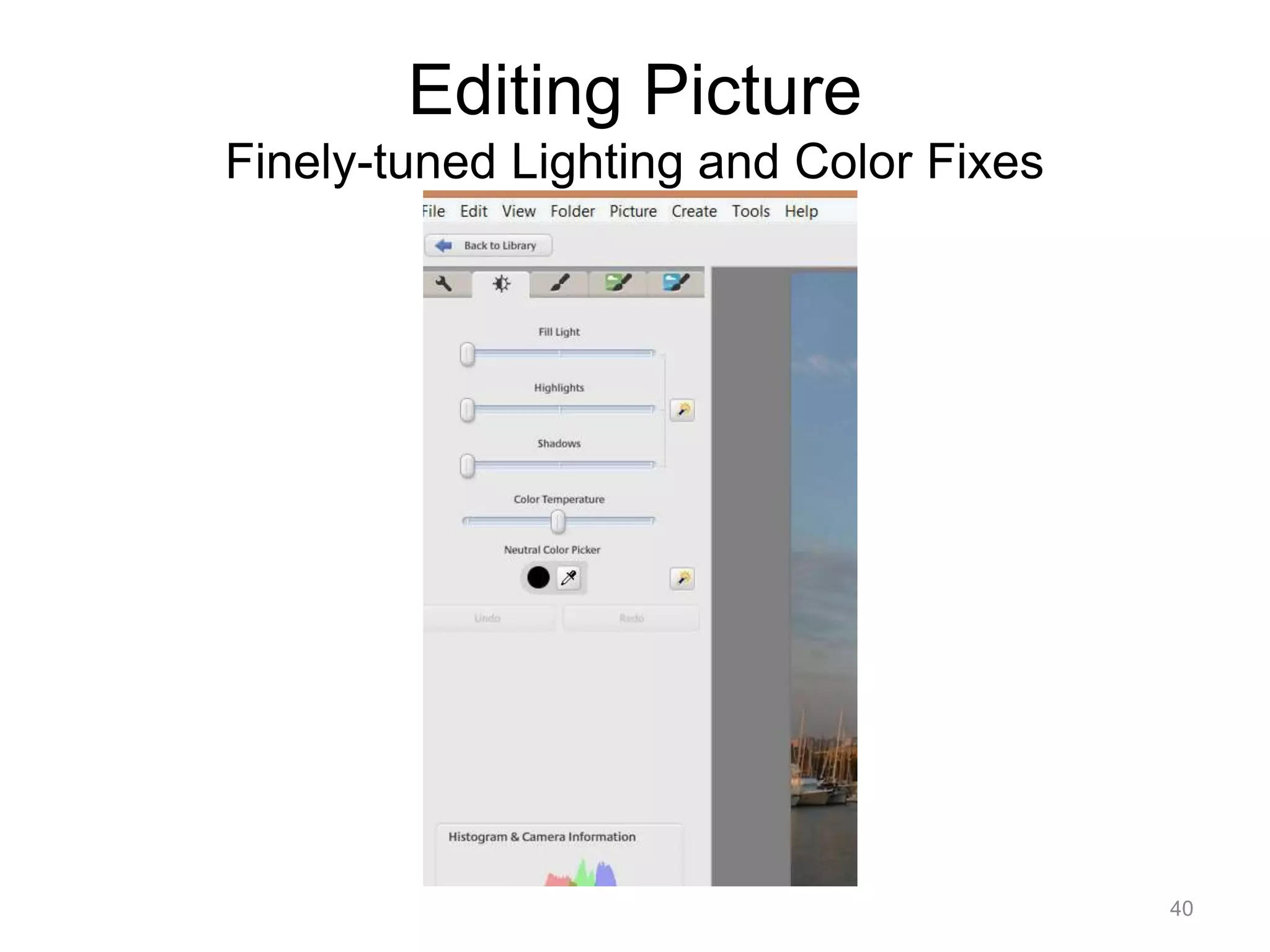
Fill Light –Adjust the 
Ambient light in the photo
Editing Picture 
Finely-tuned Lighting and Color Fixes 
40
Editing Picture 
Fun and Useful Image Processing 
41
Editing Picture 
More Fun and Useful Image Processing 
42
Editing Picture 
Even More Fun and Useful Image Processing 
43
Editing Picture 
Comparison A/B 
44
Editing Picture 
Comparison A/A 
45
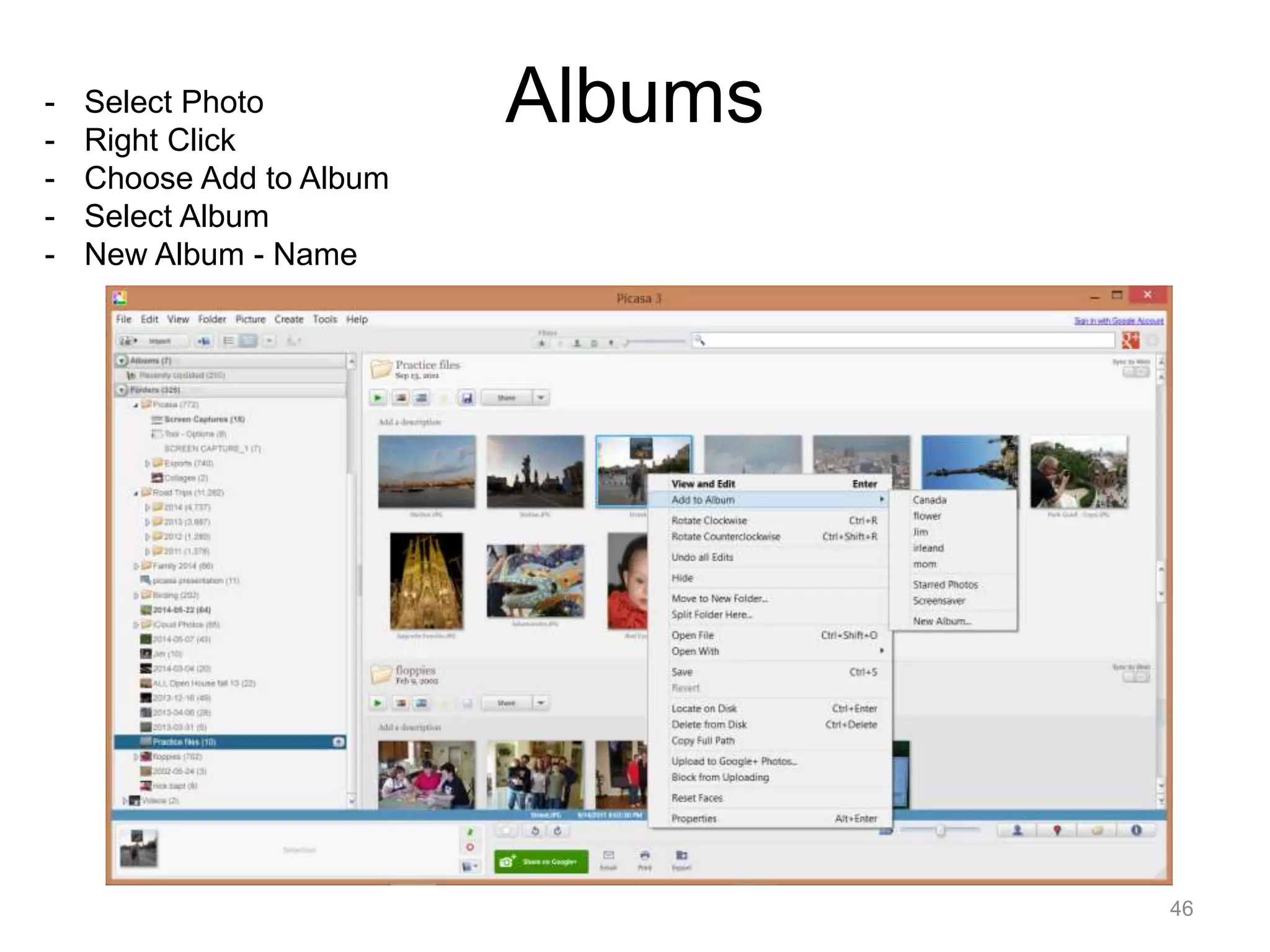
Albums 
46 
- Select Photo 
- Right Click 
- Choose Add to Album 
- Select Album 
- New Album - Name
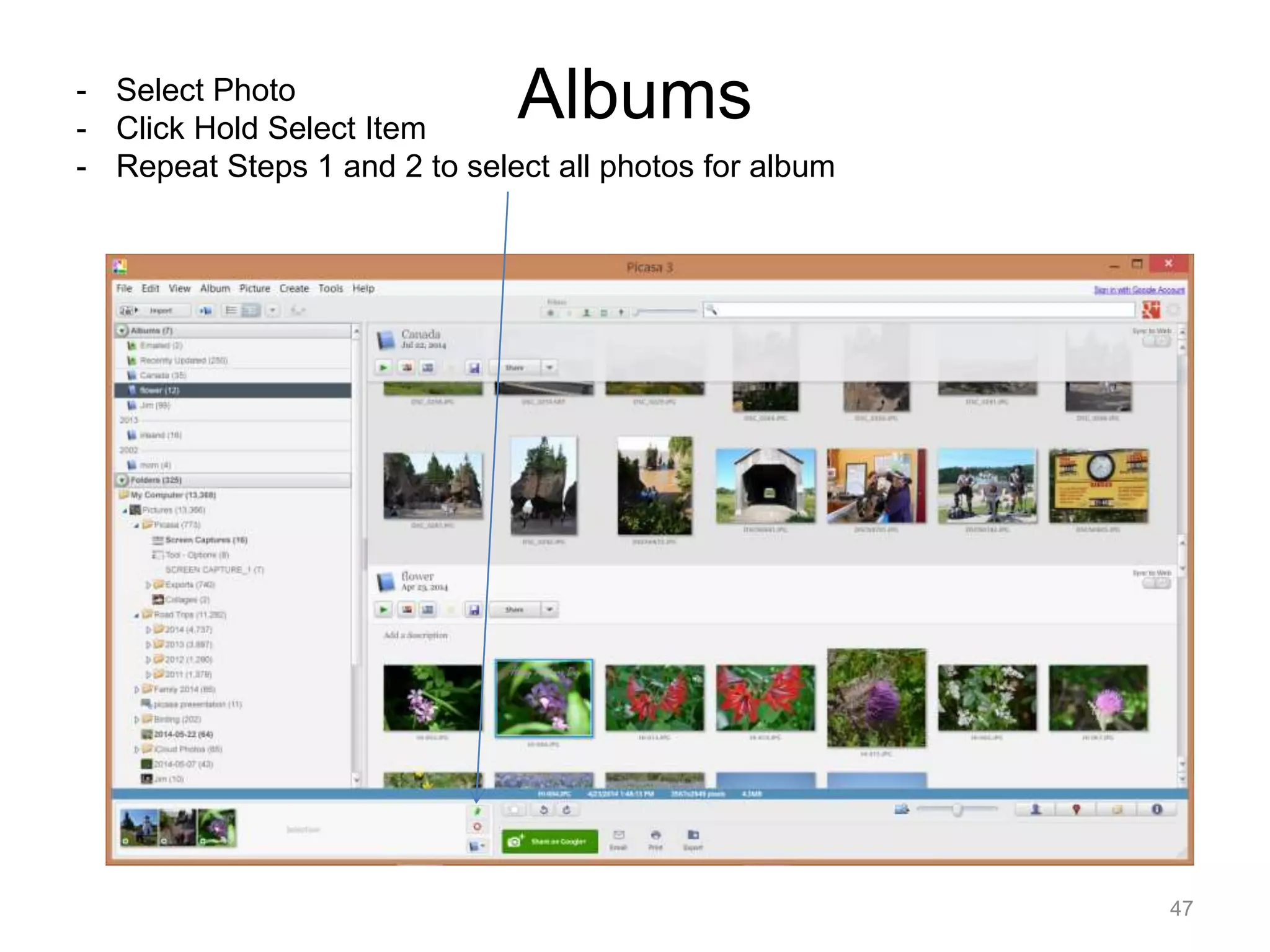
Albums 
47 
- Select Photo 
- Click Hold Select Item 
- Repeat Steps 1 and 2 to select all photos for album
Albums 
48 
- Click on Add Selected 
Items to album 
- Select Album
Printing 
49 
Select and hold desired photos in Photo Tray 
Select Print Button
Printing 
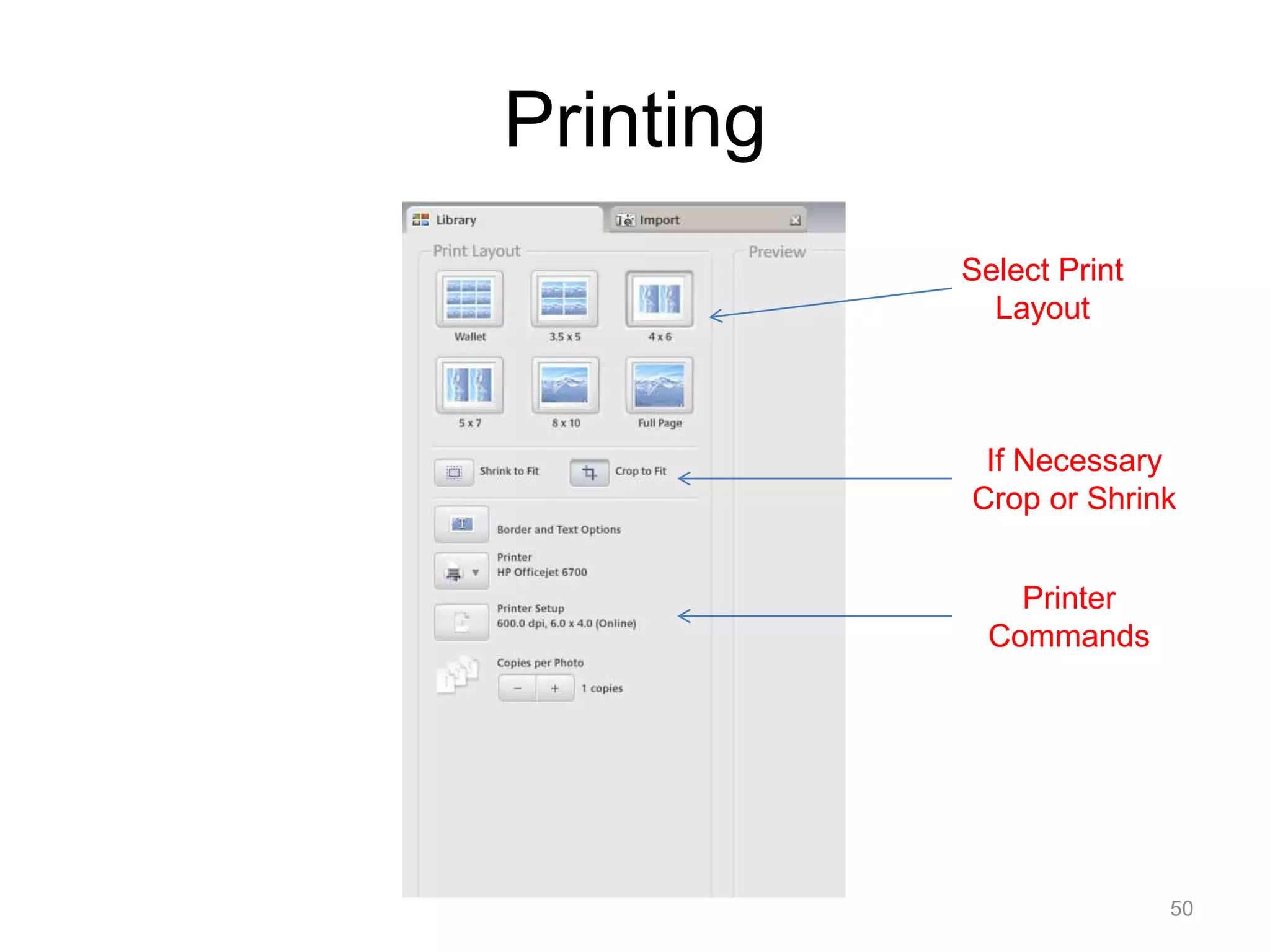
If Necessary 
Crop or Shrink 
50 
Select Print 
Layout 
Printer 
Commands
Printing 
51 
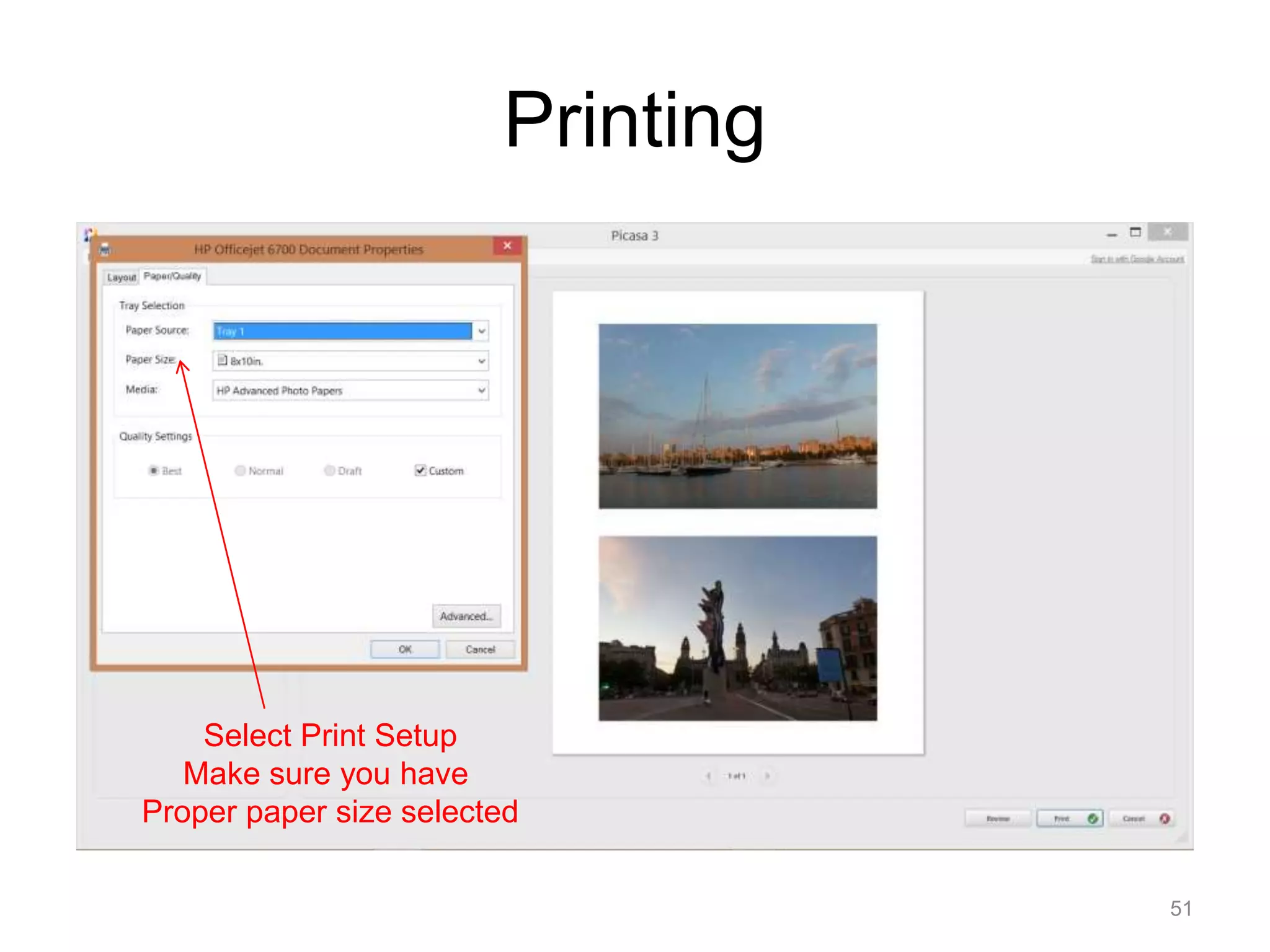
Select Print Setup 
Make sure you have 
Proper paper size selected
Ordering Product 
52
Ordering Product 
53
Ordering Product 
54
Ordering Product 
55
Ordering Product 
Shop 56
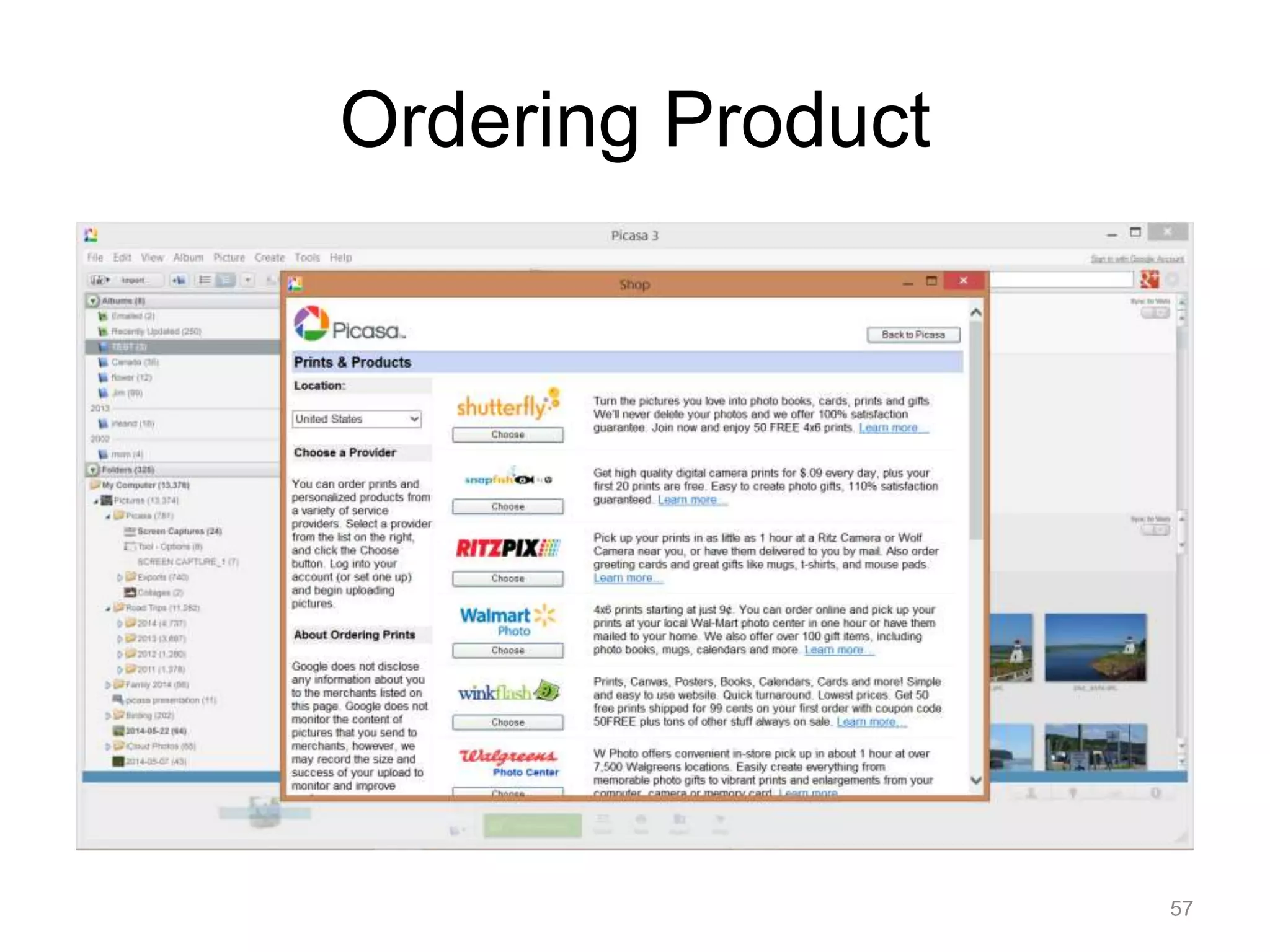
Ordering Product 
57
Reference and Help 
• Picasa Help and Support 
– https://support.google.com/picasa/?ctx=picasa#to 
pic=4538690 
• Geeks On Tour 
– http://www.geeksontour.com/ 
• You Tube 
– http://www.youtube.com/ 
• Book 
– Digital Photo Editing with Picasa for Seniors 
• Available from Amazon and Barnes and Noble 
58

Picasa Photo Management

  • 1.
    Digital Photo Management October 7, 2014 Richard Gillespie 1
  • 2.
  • 3.
    What Picasa isNOT • Web app • Container • Mobile App • Multi-User • Drawing • Image Manipulation 3
  • 4.
    What Picasa is! Picasa software provides a simple way to organize, view, edit and share the photos on your computer 4
  • 5.
    Two things toknow 5 Picasa does not store the photos on your computer Your original photos are always preserved
  • 6.
    File - Folder- Album? • Folders – Folders represent the folders on your computer. YOU control the folders. Changes you make to folders in Picasa affect the corresponding folders on your computer. • Files – The individual pictures/movies that make up a Folder. • Album – Unlike folders, albums exist ONLY in Picasa. Albums allow you to create virtual groups of photos taken from multiple folders without actually moving the photo – it’s like a playlist. When you delete a photo from an album, the original file remains in its original folder. 6
  • 7.
  • 8.
  • 9.
  • 10.
  • 11.
  • 12.
    Library Window ShortcutBar Folder Shortcut Folder List Photo Tray Miscellaneous Lightbox 12
  • 13.
    Library Window ShortcutBar Import New Album View Options Video Capture Filters Folder Tree Structure Notes Import – Get Photos from camera, scanner or other media New Album – Create a new album within Picasa Folder Tree Structure – Set view to show folder tree structure View Options – Options on sort Folders Video Capture – capture photo or video from webcam or other video device Filters – Show only Starred photos, faces, movies, geotag, date range Search – The ability to search within Picasa 13 Search
  • 14.
    Library Window FolderList / Flat Folder List / Tree 14
  • 15.
    Library Window MiscellaneousBar Show/Hide People Panel Show/Hide Places Panel Show/Hide Places Panel Show/Hide Properties Panel Email (Outlook or Gmail) Print Export Add/Remove Share on Google + Star Rotate Hold Picture Photo Tray Selection Clear Photo Tray Selection Add to Album Magnify Enlarge 15
  • 16.
    Folder Management •Folders are a product of the computer – Typically reside in My Documents or My Pictures • You CANNOT create a new folder in the Picasa program itself • Folders are created – When importing pictures/video – In File Explorer 16
  • 17.
    Folder Management ImportingPictures 17 Click on Import
  • 18.
    Folder Management ImportingPictures 18 Source Of Pictures Folder Title Destination Directory/ Sub Directory
  • 19.
    Folder Management ImportingPictures 19 Leave for My Pictures Or Select existing Folder Or Choose
  • 20.
    Folder Management ImportingPictures 20 “Choose” Folder
  • 21.
    Folder Management ImportingPictures 21 or Make New Folder
  • 22.
    Folder Management ImportingPictures 22 Folder Title Enter a New Title or Todays Date or Date of Picture
  • 23.
  • 24.
  • 25.
    Folder Management ManagingFolders 25 - Select Tools - Folder Manager
  • 26.
    Folder Management ManagingFolders 26 Select action for desired folder and press OK If SCAN ONCE is selected the folder will only be scanned the first time Picasa sees the folder If REMOVE FROM PICASA is selected The folder will not be Shown In PICASA ONLY If SCAN ALWAYS is selected the folder will be scanned every time Picasa sees the folder TO GET TO FOLDER MANAGER – Tools/Folder Manager
  • 27.
    Folder Management Lightbox 27 Filters Search Scroll Bar
  • 28.
  • 29.
    Folder Management Lightbox- Geotag Places Panel Note – Geotag Symbol on pictures 29
  • 30.
    Folder Management NamingFolder Name something Meaningful Date does NOT change date on picture Select Folder and then Edit Description OR Double Click on Folder name 30
  • 31.
    File Management 31 By Default the Thumbnails do NOT show File name
  • 32.
    File Management 32 Select View - Thumbnail Caption - Filename
  • 33.
    File Management RearrangeOrder of Thumbnails Left Click on desired Thumbnail and hold then “drag” to desired location. 33
  • 34.
    File Management Starand Rotate Star a photo – select photo and click star To Rotate – Select Picture and Press 34
  • 35.
  • 36.
    File Management RenameFile 36 Another way Press <F2> and the pop up will appear
  • 37.
    Editing Pictures 37 Double Click on Picture to Edit
  • 38.
    Editing Picture CommonlyNeeded Fixes 38
  • 39.
    Editing Picture CommonlyNeeded Fixes 39 Crop – Crop this photo in a different format Straighten – Fix a crooked photo I’m Feeling Lucky - One click fix for lighting And color. Retouch – Repair Blemishes, dust and Scratches Redeye – repair redeye flaws in this photo. Auto Color – Removes Color cast automatically Auto Contrast – Fix exposure without affecting color Text – Add/edit text on a photo. Fill Light –Adjust the Ambient light in the photo
  • 40.
    Editing Picture Finely-tunedLighting and Color Fixes 40
  • 41.
    Editing Picture Funand Useful Image Processing 41
  • 42.
    Editing Picture MoreFun and Useful Image Processing 42
  • 43.
    Editing Picture EvenMore Fun and Useful Image Processing 43
  • 44.
  • 45.
  • 46.
    Albums 46 -Select Photo - Right Click - Choose Add to Album - Select Album - New Album - Name
  • 47.
    Albums 47 -Select Photo - Click Hold Select Item - Repeat Steps 1 and 2 to select all photos for album
  • 48.
    Albums 48 -Click on Add Selected Items to album - Select Album
  • 49.
    Printing 49 Selectand hold desired photos in Photo Tray Select Print Button
  • 50.
    Printing If Necessary Crop or Shrink 50 Select Print Layout Printer Commands
  • 51.
    Printing 51 SelectPrint Setup Make sure you have Proper paper size selected
  • 52.
  • 53.
  • 54.
  • 55.
  • 56.
  • 57.
  • 58.
    Reference and Help • Picasa Help and Support – https://support.google.com/picasa/?ctx=picasa#to pic=4538690 • Geeks On Tour – http://www.geeksontour.com/ • You Tube – http://www.youtube.com/ • Book – Digital Photo Editing with Picasa for Seniors • Available from Amazon and Barnes and Noble 58