Lesson 2
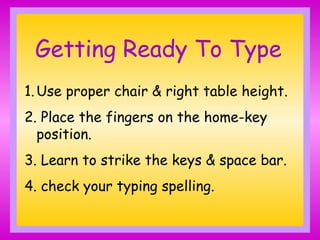
Getting Ready To Type
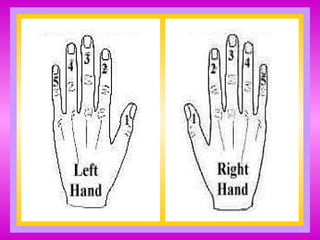
1.Use proper chair & right table height.
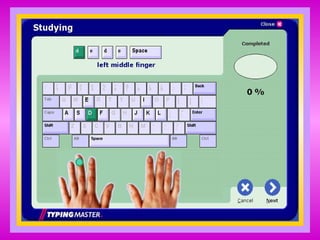
2. Place the fingers on the home-key
position.
3. Learn to strike the keys & space bar.
4. check your typing spelling.
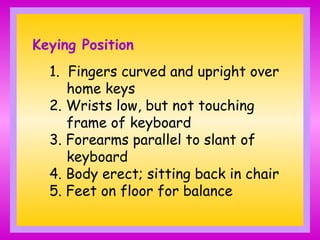
Keying Position
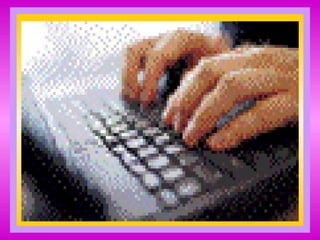
1. Fingers curved and upright over
home keys
2. Wrists low, but not touching
frame of keyboard
3. Forearms parallel to slant of
keyboard
4. Body erect; sitting back in chair
5. Feet on floor for balance
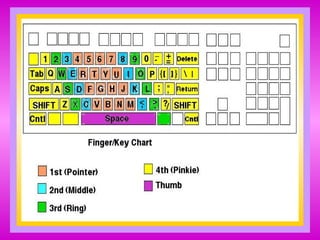
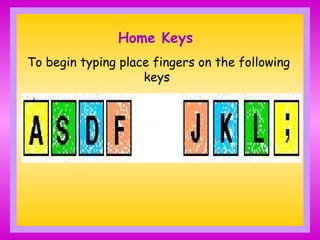
Home Keys
To begin typing place fingers on the following
keys
Parts
of the
Computer
A computer is an
electronic machine
that accept
information for
processing.

- H A R D W A R E -
* Input Hardware
* Processing Hardware
* Output Hardware
* Storage Hardware
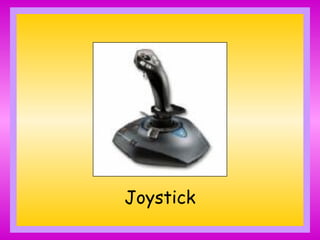
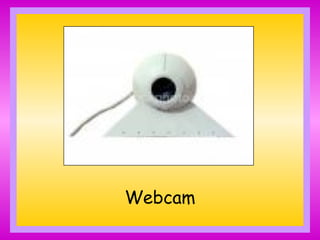
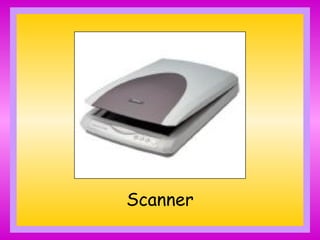
Input Hardware are equipments
used to feed data to the computer.
Webcam
Scanner
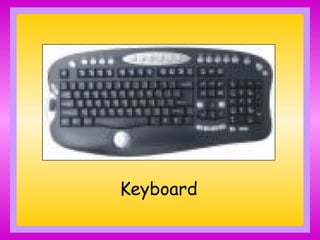
Keyboard
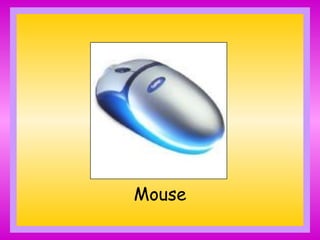
Mouse
Joystick
Keyboard
Mouse
Joystick
Webcam
Scanner
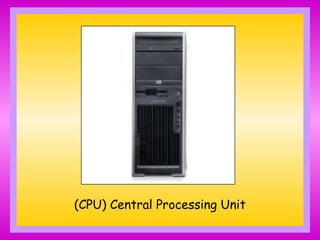
Processing Hardware is used to
retrieve, interpret and direct the
execution of software instructions.
(CPU) Central Processing Unit
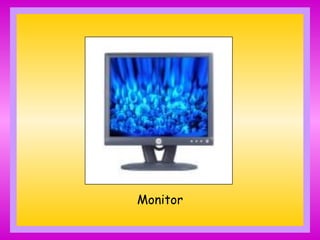
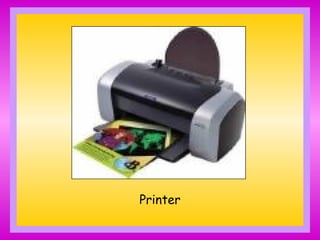
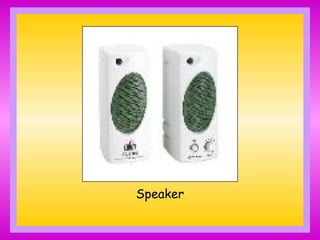
Output Hardware are used to
produce a Hard copy of a soft copy
form.
Monitor
Printer
Speaker
Monitor
Printer
Speaker
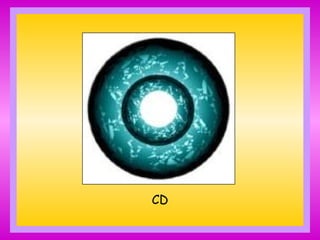
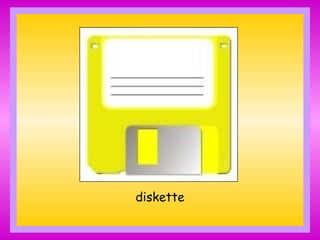
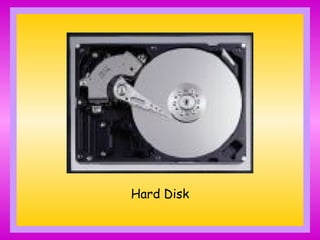
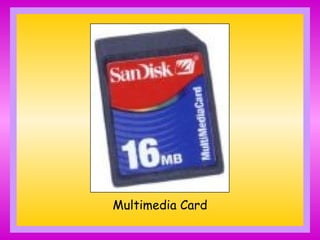
Storage Hardware are devices
that are connected to the computer
system which are used to save data or
information.
CD
diskette
Hard Disk
Multimedia Card
CD
diskette
Hard Disk
Multimedia Card
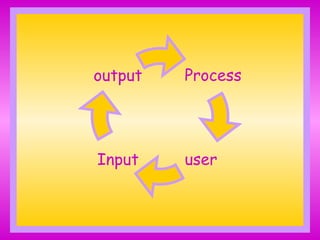
How does a Computer
System Work?
?
?
?
Process
output
user
Input
- Soft Ware -
term used to describe
the instructions that tells
the hardware how to
perform a task.
- people -
the one who perform
or operate the Computer
System.
- Procedure -
is the instruction for
the computer created by
the people.
- Data -
- are the facts, figures
and concept of instruction.
- these can be in the form
of letters, numbers, pictures,
sounds and symbols..
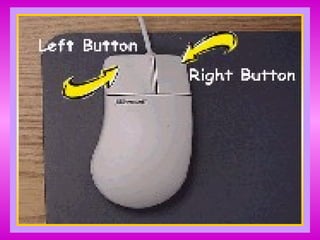
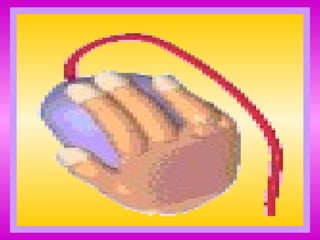
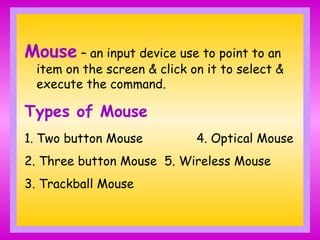
Mouse – an input device use to point to an
item on the screen & click on it to select &
execute the command.
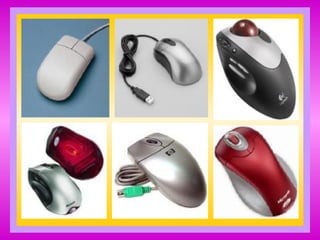
Types of Mouse
1. Two button Mouse 4. Optical Mouse
2. Three button Mouse 5. Wireless Mouse
3. Trackball Mouse
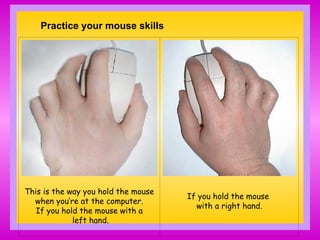
Practice your mouse skills
This is the way you hold the mouse
when you’re at the computer.
If you hold the mouse with a
left hand.
If you hold the mouse
with a right hand.
Learning to use the Mouse
One Click - means to press and
release the mouse button. One
click selects an icon or function.
Double Click - means press twice
and release the mouse button. Do
not move the mouse between clicks.
Right click - means to press and release
the mouse button on the right. Designed
to show menus, right clicking gives you
access to settings and information.
Dragging - You can "drag" many things on
your computer. Point to an item, press and
hold down the left mouse button. Move
the mouse pointer to a new location &
release the mouse button.

partsofcomputerkeyboardingmouse-100627041056-phpapp01.ppt

  • 1.
  • 2.
    Getting Ready ToType 1.Use proper chair & right table height. 2. Place the fingers on the home-key position. 3. Learn to strike the keys & space bar. 4. check your typing spelling.
  • 3.
    Keying Position 1. Fingerscurved and upright over home keys 2. Wrists low, but not touching frame of keyboard 3. Forearms parallel to slant of keyboard 4. Body erect; sitting back in chair 5. Feet on floor for balance
  • 6.
    Home Keys To begintyping place fingers on the following keys
  • 9.
  • 11.
    A computer isan electronic machine that accept information for processing.
  • 13.
    - H AR D W A R E - * Input Hardware * Processing Hardware * Output Hardware * Storage Hardware
  • 14.
    Input Hardware areequipments used to feed data to the computer. Webcam Scanner Keyboard Mouse Joystick
  • 15.
  • 16.
  • 17.
  • 18.
  • 19.
  • 20.
    Processing Hardware isused to retrieve, interpret and direct the execution of software instructions. (CPU) Central Processing Unit
  • 21.
  • 22.
    Output Hardware areused to produce a Hard copy of a soft copy form. Monitor Printer Speaker
  • 23.
  • 24.
  • 25.
  • 26.
    Storage Hardware aredevices that are connected to the computer system which are used to save data or information. CD diskette Hard Disk Multimedia Card
  • 27.
  • 28.
  • 29.
  • 30.
  • 31.
    How does aComputer System Work? ? ? ?
  • 32.
  • 33.
    - Soft Ware- term used to describe the instructions that tells the hardware how to perform a task.
  • 34.
    - people - theone who perform or operate the Computer System.
  • 35.
    - Procedure - isthe instruction for the computer created by the people.
  • 36.
    - Data - -are the facts, figures and concept of instruction. - these can be in the form of letters, numbers, pictures, sounds and symbols..
  • 38.
    Mouse – aninput device use to point to an item on the screen & click on it to select & execute the command. Types of Mouse 1. Two button Mouse 4. Optical Mouse 2. Three button Mouse 5. Wireless Mouse 3. Trackball Mouse
  • 42.
    Practice your mouseskills This is the way you hold the mouse when you’re at the computer. If you hold the mouse with a left hand. If you hold the mouse with a right hand.
  • 43.
    Learning to usethe Mouse One Click - means to press and release the mouse button. One click selects an icon or function. Double Click - means press twice and release the mouse button. Do not move the mouse between clicks.
  • 44.
    Right click -means to press and release the mouse button on the right. Designed to show menus, right clicking gives you access to settings and information. Dragging - You can "drag" many things on your computer. Point to an item, press and hold down the left mouse button. Move the mouse pointer to a new location & release the mouse button.