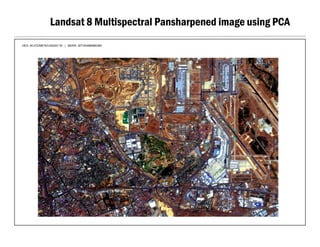
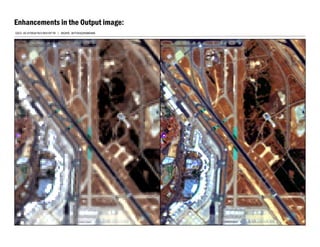
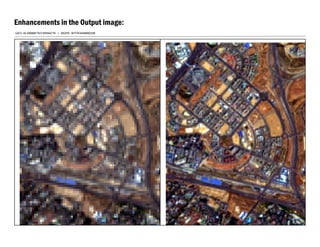
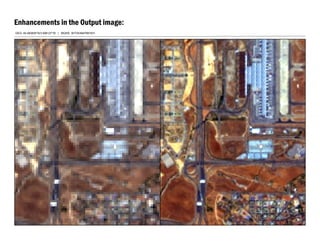
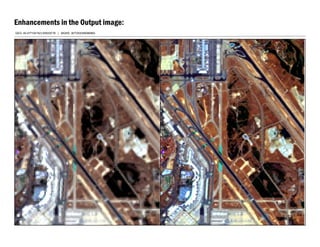
A Python implementation of Principal Component Analysis (PCA) based pansharpening for enhancing multispectral satellite imagery using high-resolution panchromatic data.
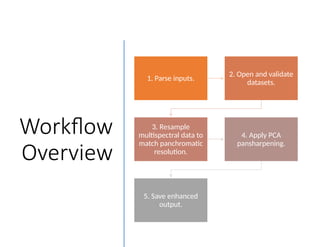
Workflow
Overview
1. Parse inputs.
2.Open and validate
datasets.
3. Resample
multispectral data to
match panchromatic
resolution.
4. Apply PCA
pansharpening.
5. Save enhanced
output.
3.
PCA Pansharpening Algorithm
1.Perform PCA
Algorithm.
1
2. Replace the first
principal
component with
panchromatic
intensity data.
2
3. Reconstruct
multispectral data
using modified
PCA components.
3
4.
Algorithm
Flowchart
Start Parse Inputs
Openand Validate
Datasets
Resample
Multispectral Data
Apply PCA
Replace the 1st
PCA
component with
Panchromatic band
InversePCT Save Output
End