Create your own storage
cloud service powered by
raspberry PI
Bilel korbosli
– LinkedIn: https://www.linkedin.com/in/bilelkorbosli/
– E-mail: Bilel.kor@gmail.comowncloud.org 2
About Me
What ?! Why ?!
• Where is my data? (“cloud is just another word for somebody’s else computer”)
• Who can access my data? (NSA/China/businesses/thieves)
• How is my data used? (it says more about you than you think)
• "We are all vulnerable to everyone because the
NSA wanted us to be vulnerable to them." -Bruce
Schneier
owncloud.org 3
Take back your data
OwnCloud
owncloud.org 4
Get back my data
• Also
Easy to use
Easy to install
Easy to extend
>8 mln users
Free and open-source web
application for:
• Data synchronization
• File sharing
• Remote storage of documents ("cloud
storage").
owncloud.org 5
owncloud.org 6
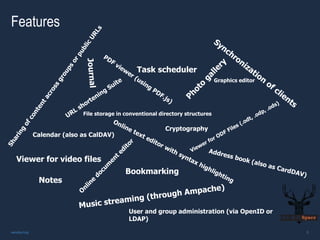
Features
Cryptography
File storage in conventional directory structures
Bookmarking
Viewer for video files
Task scheduler
Calendar (also as CalDAV)
Graphics editor
Notes
User and group administration (via OpenID or
LDAP)
Overview
owncloud.org 7
Overview
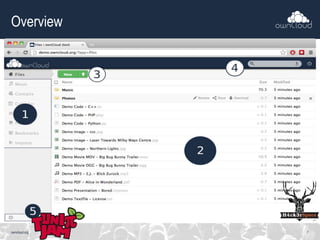
• 1 Navigation bar: Allows navigation between different parts of ownCloud, provided by apps. Not all apps depicted in this screen
shot are installed and enabled by default.
• 2 Application view: This is where apps show their content. By default, this will show the files and directory (file view) of your user
on the ownCloud installation.
• 3 Upload/Create button: This allows you to create new files or upload existing ones from your device. Note that you can also drop
files from Explorer or Finder onto the ownCloud file view and they will get uploaded to ownCloud.
• 4 Search/Logout: Search allows you to look for files and directories. Currently, ownCloud does not provide a full text search, but
this may change in future releases.
• 5 Settings: This button provides access to the settings menu, where you can change your personal settings, such as the interface
language or your password. You can also retrieve the WebDAV URL (see next chapter) and show your quota. Administrators will also
get access to user management (Users), the apps settings (Apps) and administrative settings (Admin) including access to
ownCloud’s log.
owncloud.org 8
Additional information
• Site
– https://owncloud.org
● Commercial version
– https://owncloud.com
● User documentation:
– https://doc.owncloud.org
owncloud.org 9
Skills you should have today
-Installing OwnCloud
-Configuring
-Manipulation of OwnCloud
 Creating content
 Sharing content:
– with Team
– with the World
 Web editing text files and documents
-Configuring ssl for HTTPS
-Configuring no ip for dynamic IP
owncloud.org 10
owncloud.org
Q&A
IF YOU HAVE ANY QUESTION
11

owncloud overview

  • 1.
    Create your ownstorage cloud service powered by raspberry PI Bilel korbosli
  • 2.
    – LinkedIn: https://www.linkedin.com/in/bilelkorbosli/ –E-mail: Bilel.kor@gmail.comowncloud.org 2 About Me
  • 3.
    What ?! Why?! • Where is my data? (“cloud is just another word for somebody’s else computer”) • Who can access my data? (NSA/China/businesses/thieves) • How is my data used? (it says more about you than you think) • "We are all vulnerable to everyone because the NSA wanted us to be vulnerable to them." -Bruce Schneier owncloud.org 3
  • 4.
    Take back yourdata OwnCloud owncloud.org 4
  • 5.
    Get back mydata • Also Easy to use Easy to install Easy to extend >8 mln users Free and open-source web application for: • Data synchronization • File sharing • Remote storage of documents ("cloud storage"). owncloud.org 5
  • 6.
    owncloud.org 6 Features Cryptography File storagein conventional directory structures Bookmarking Viewer for video files Task scheduler Calendar (also as CalDAV) Graphics editor Notes User and group administration (via OpenID or LDAP)
  • 7.
  • 8.
    Overview • 1 Navigationbar: Allows navigation between different parts of ownCloud, provided by apps. Not all apps depicted in this screen shot are installed and enabled by default. • 2 Application view: This is where apps show their content. By default, this will show the files and directory (file view) of your user on the ownCloud installation. • 3 Upload/Create button: This allows you to create new files or upload existing ones from your device. Note that you can also drop files from Explorer or Finder onto the ownCloud file view and they will get uploaded to ownCloud. • 4 Search/Logout: Search allows you to look for files and directories. Currently, ownCloud does not provide a full text search, but this may change in future releases. • 5 Settings: This button provides access to the settings menu, where you can change your personal settings, such as the interface language or your password. You can also retrieve the WebDAV URL (see next chapter) and show your quota. Administrators will also get access to user management (Users), the apps settings (Apps) and administrative settings (Admin) including access to ownCloud’s log. owncloud.org 8
  • 9.
    Additional information • Site –https://owncloud.org ● Commercial version – https://owncloud.com ● User documentation: – https://doc.owncloud.org owncloud.org 9
  • 10.
    Skills you shouldhave today -Installing OwnCloud -Configuring -Manipulation of OwnCloud  Creating content  Sharing content: – with Team – with the World  Web editing text files and documents -Configuring ssl for HTTPS -Configuring no ip for dynamic IP owncloud.org 10
  • 11.