2
Copyright © Oracle Corporation, 2001. All rights reserved.
Getting Started with the Oracle Server
2-2 Copyright © Oracle Corporation, 2001. All rights reserved.
Objectives
After completing this lesson, you should be able to do
the following:
• Identify common database administration tools
available to a DBA
• Identify the features of the Oracle Universal Installer
• Use SQL*Plus to interact and manipulate an Oracle
database
• List the main components of Oracle Enterprise
Manager
2-3 Copyright © Oracle Corporation, 2001. All rights reserved.
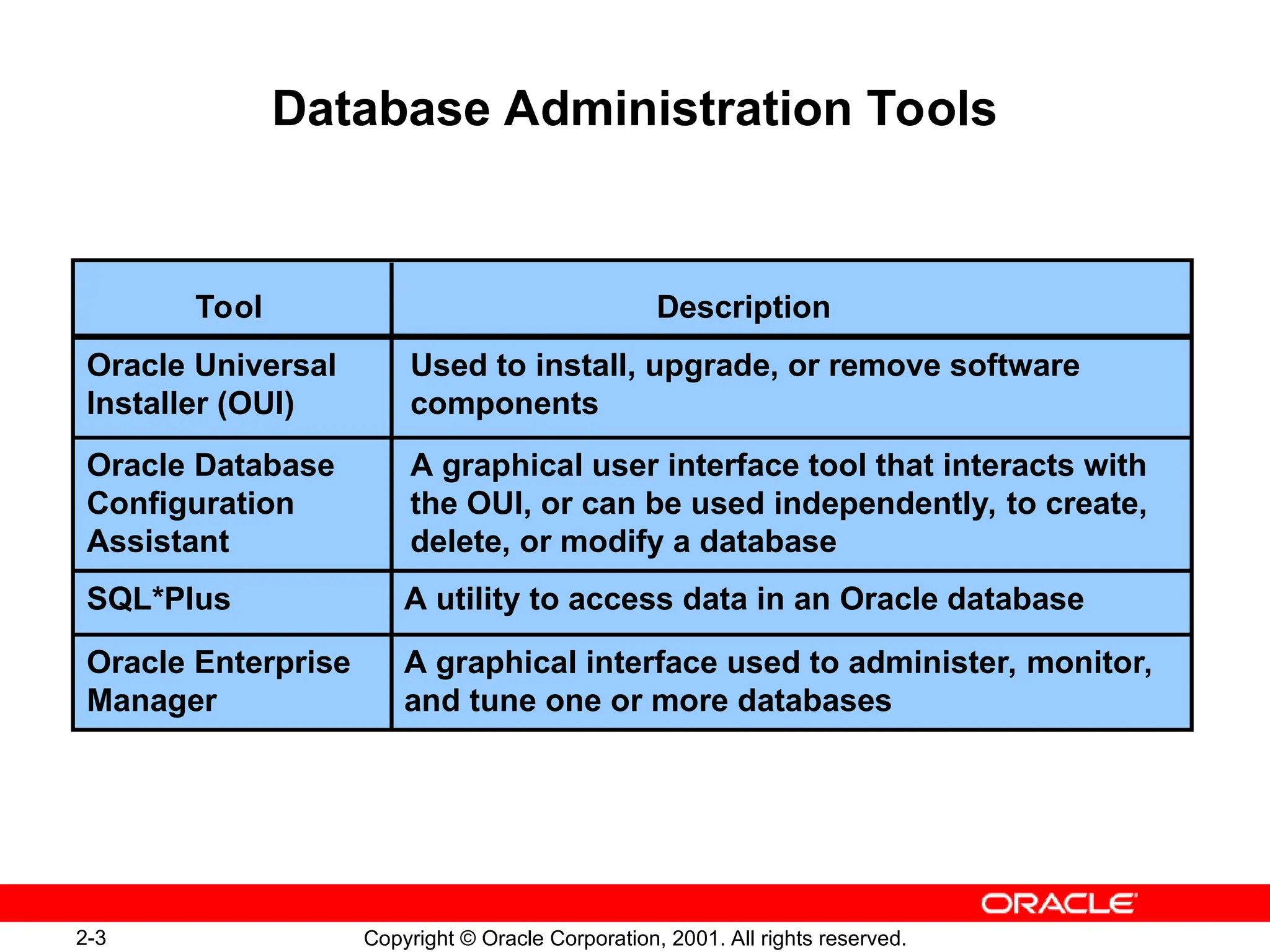
Database Administration Tools
Description
Tool
Used to install, upgrade, or remove software
components
Oracle Universal
Installer (OUI)
A graphical user interface tool that interacts with
the OUI, or can be used independently, to create,
delete, or modify a database
Oracle Database
Configuration
Assistant
A utility to access data in an Oracle database
SQL*Plus
A graphical interface used to administer, monitor,
and tune one or more databases
Oracle Enterprise
Manager
2-4 Copyright © Oracle Corporation, 2001. All rights reserved.
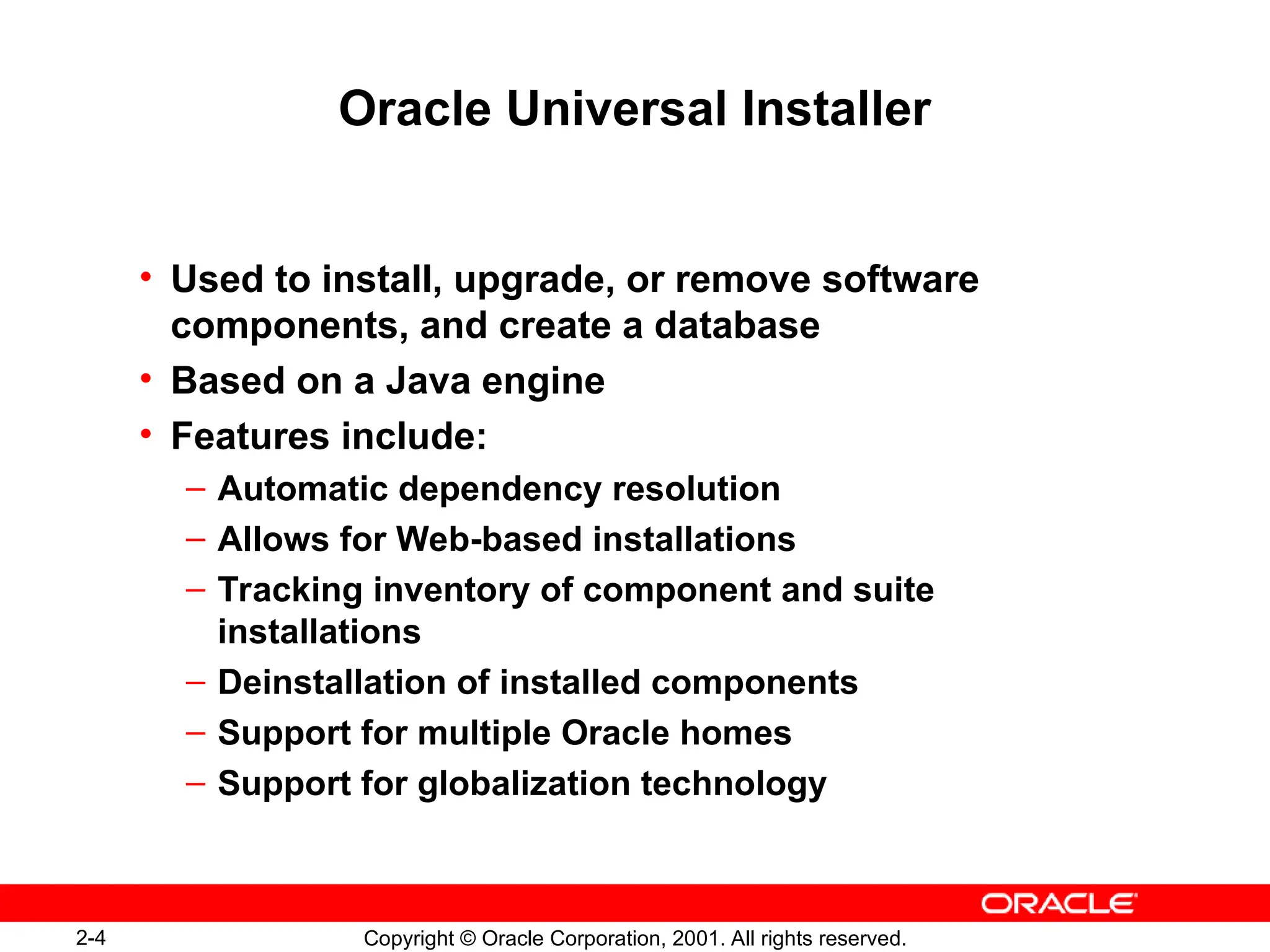
Oracle Universal Installer
• Used to install, upgrade, or remove software
components, and create a database
• Based on a Java engine
• Features include:
– Automatic dependency resolution
– Allows for Web-based installations
– Tracking inventory of component and suite
installations
– Deinstallation of installed components
– Support for multiple Oracle homes
– Support for globalization technology
2-5 Copyright © Oracle Corporation, 2001. All rights reserved.
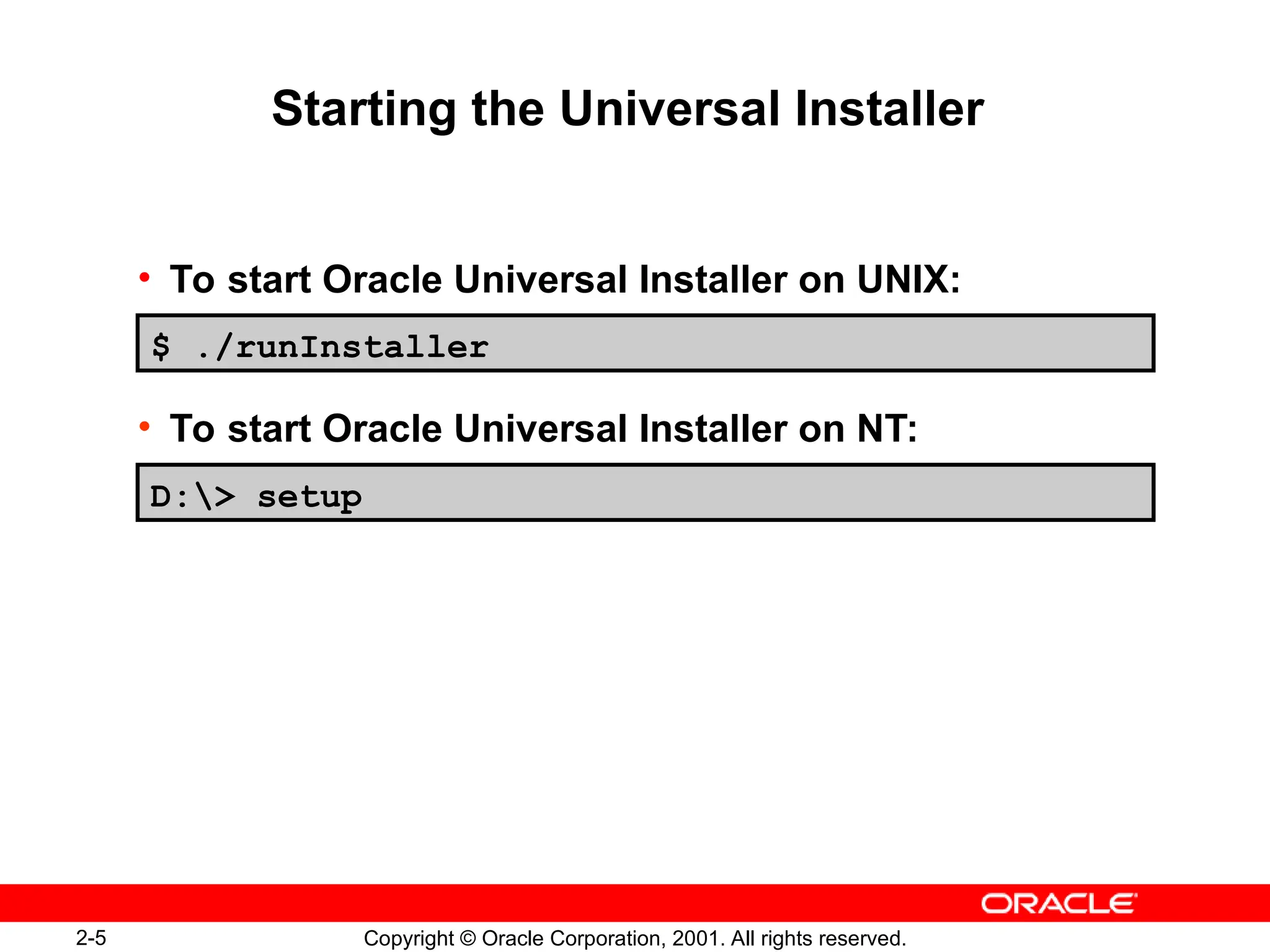
Starting the Universal Installer
• To start Oracle Universal Installer on UNIX:
• To start Oracle Universal Installer on NT:
$ ./runInstaller
D:> setup
2-6 Copyright © Oracle Corporation, 2001. All rights reserved.
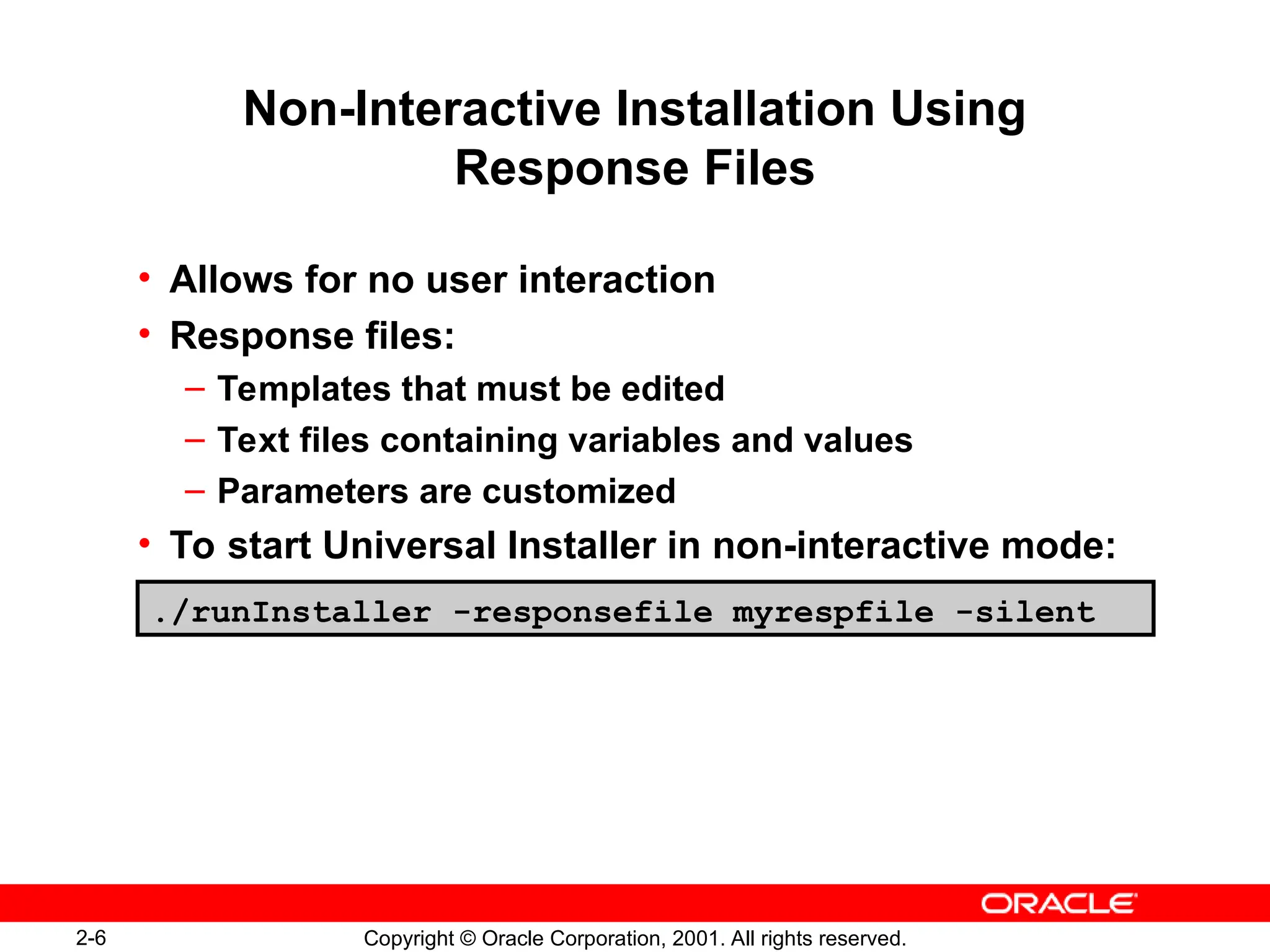
Non-Interactive Installation Using
Response Files
• Allows for no user interaction
• Response files:
– Templates that must be edited
– Text files containing variables and values
– Parameters are customized
• To start Universal Installer in non-interactive mode:
./runInstaller -responsefile myrespfile -silent
2-9 Copyright © Oracle Corporation, 2001. All rights reserved.
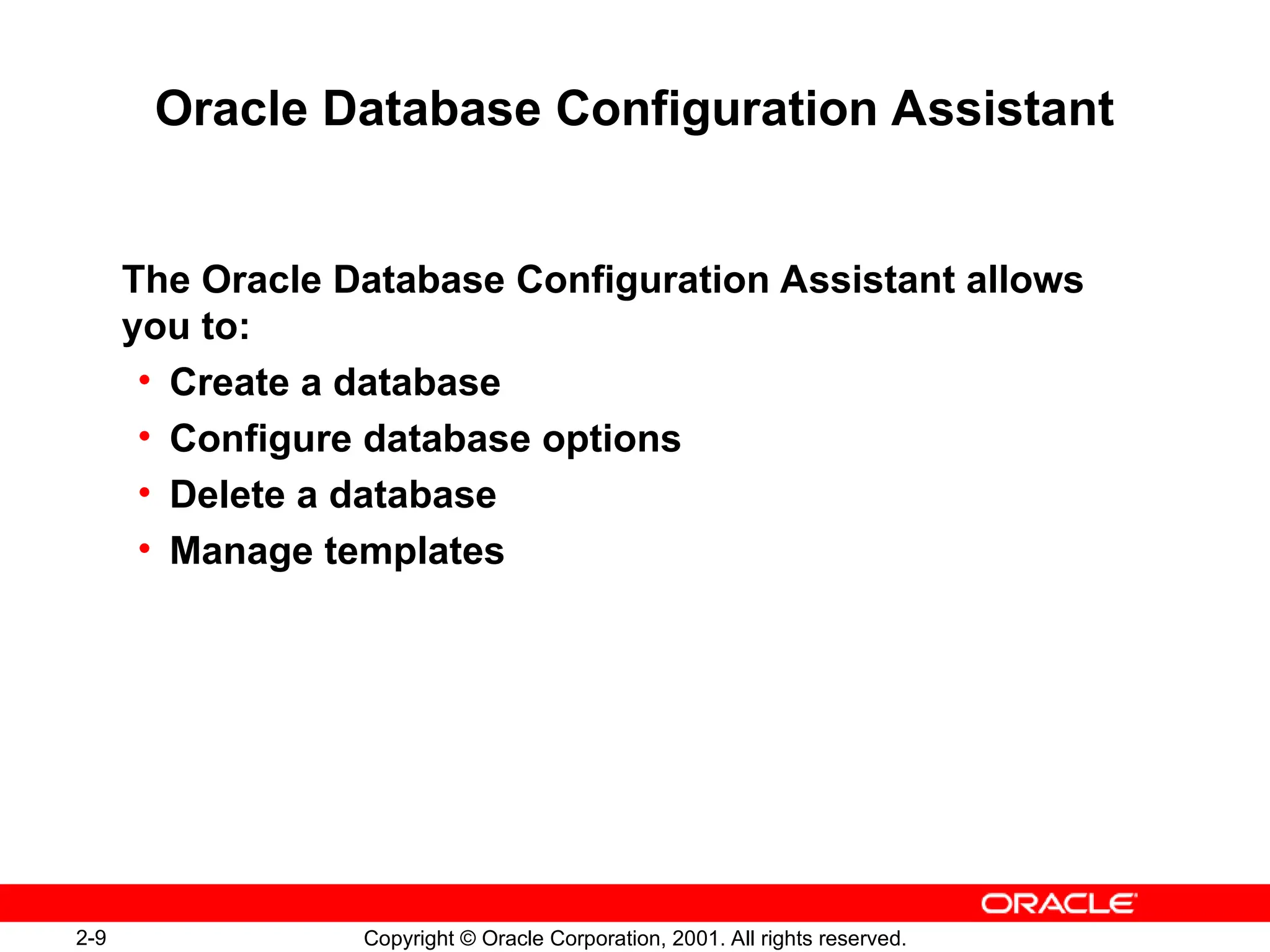
Oracle Database Configuration Assistant
The Oracle Database Configuration Assistant allows
you to:
• Create a database
• Configure database options
• Delete a database
• Manage templates
2-10 Copyright © Oracle Corporation, 2001. All rights reserved.
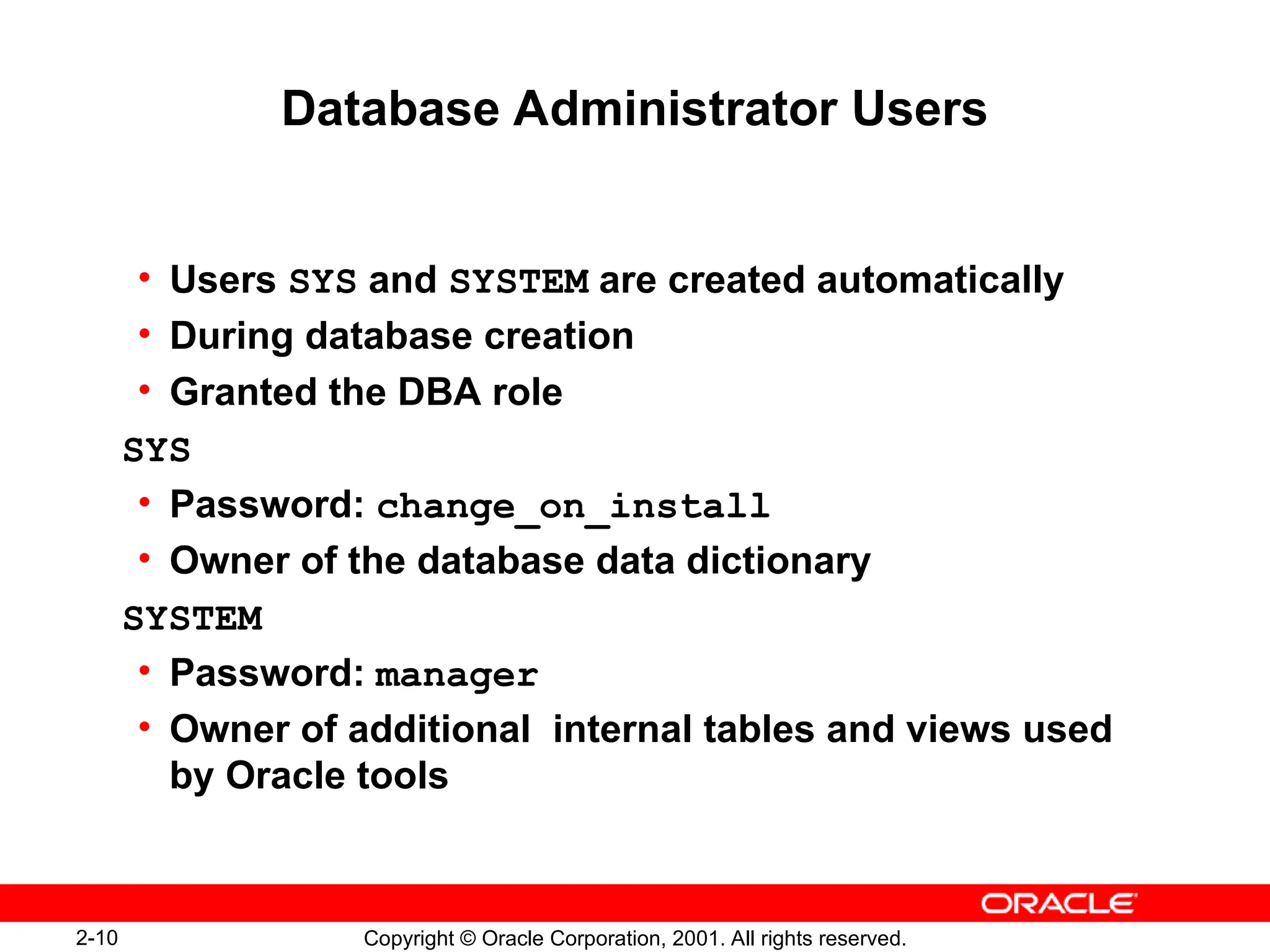
Database Administrator Users
• Users SYS and SYSTEM are created automatically
• During database creation
• Granted the DBA role
SYS
• Password: change_on_install
• Owner of the database data dictionary
SYSTEM
• Password: manager
• Owner of additional internal tables and views used
by Oracle tools
2-11 Copyright © Oracle Corporation, 2001. All rights reserved.
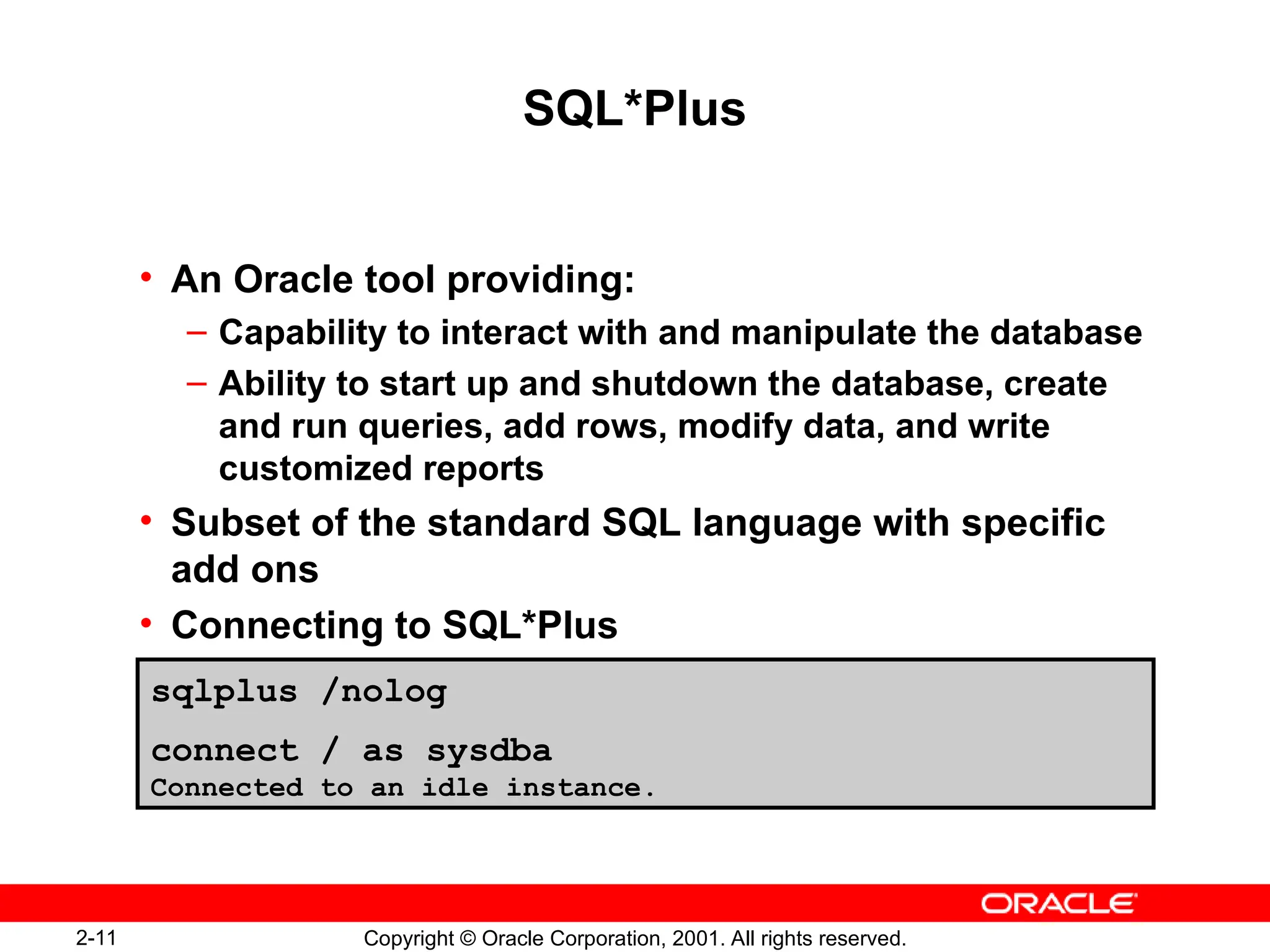
SQL*Plus
• An Oracle tool providing:
– Capability to interact with and manipulate the database
– Ability to start up and shutdown the database, create
and run queries, add rows, modify data, and write
customized reports
• Subset of the standard SQL language with specific
add ons
• Connecting to SQL*Plus
sqlplus /nolog
connect / as sysdba
Connected to an idle instance.
2-12 Copyright © Oracle Corporation, 2001. All rights reserved.
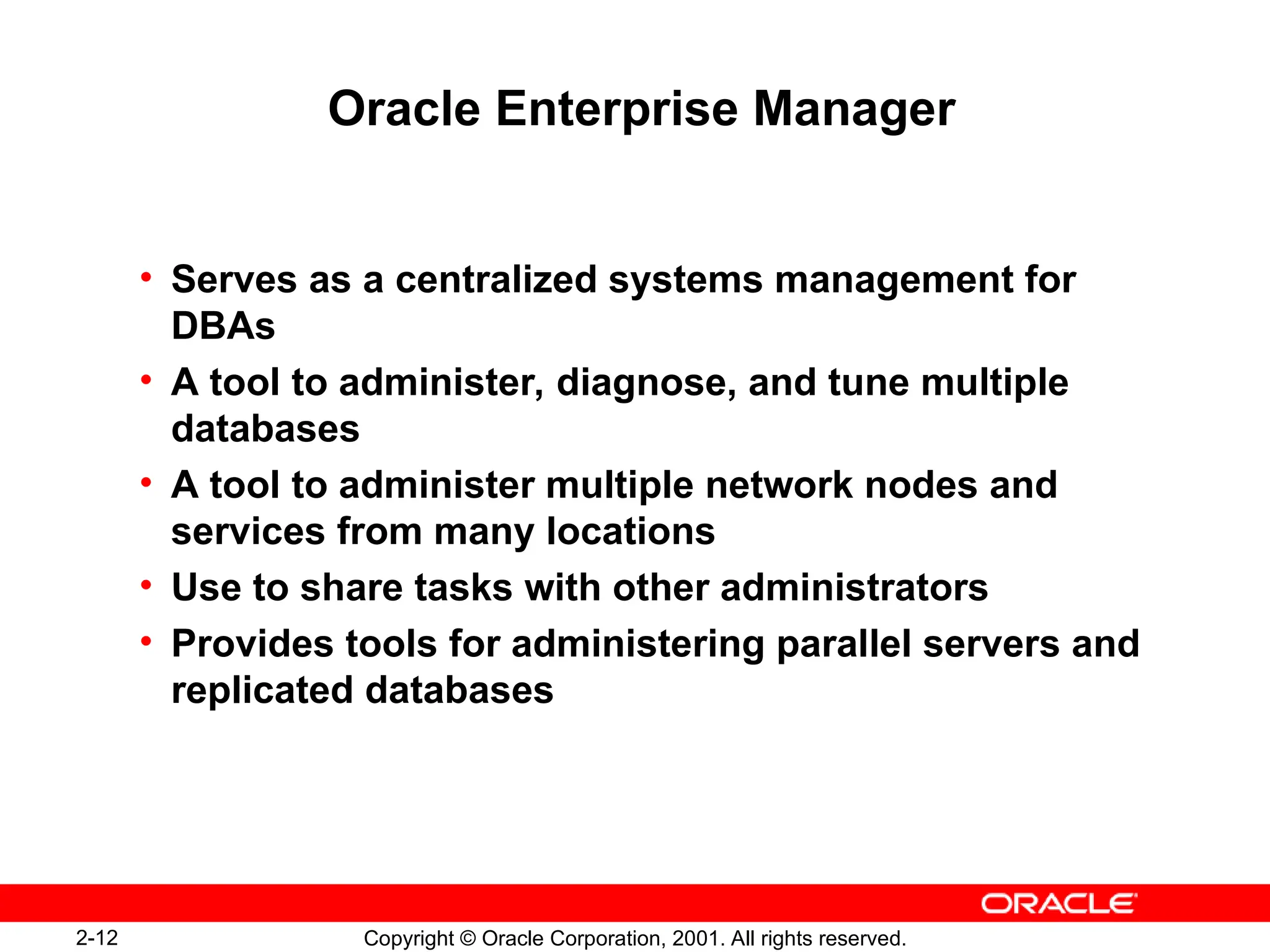
Oracle Enterprise Manager
• Serves as a centralized systems management for
DBAs
• A tool to administer, diagnose, and tune multiple
databases
• A tool to administer multiple network nodes and
services from many locations
• Use to share tasks with other administrators
• Provides tools for administering parallel servers and
replicated databases
2-13 Copyright © Oracle Corporation, 2001. All rights reserved.
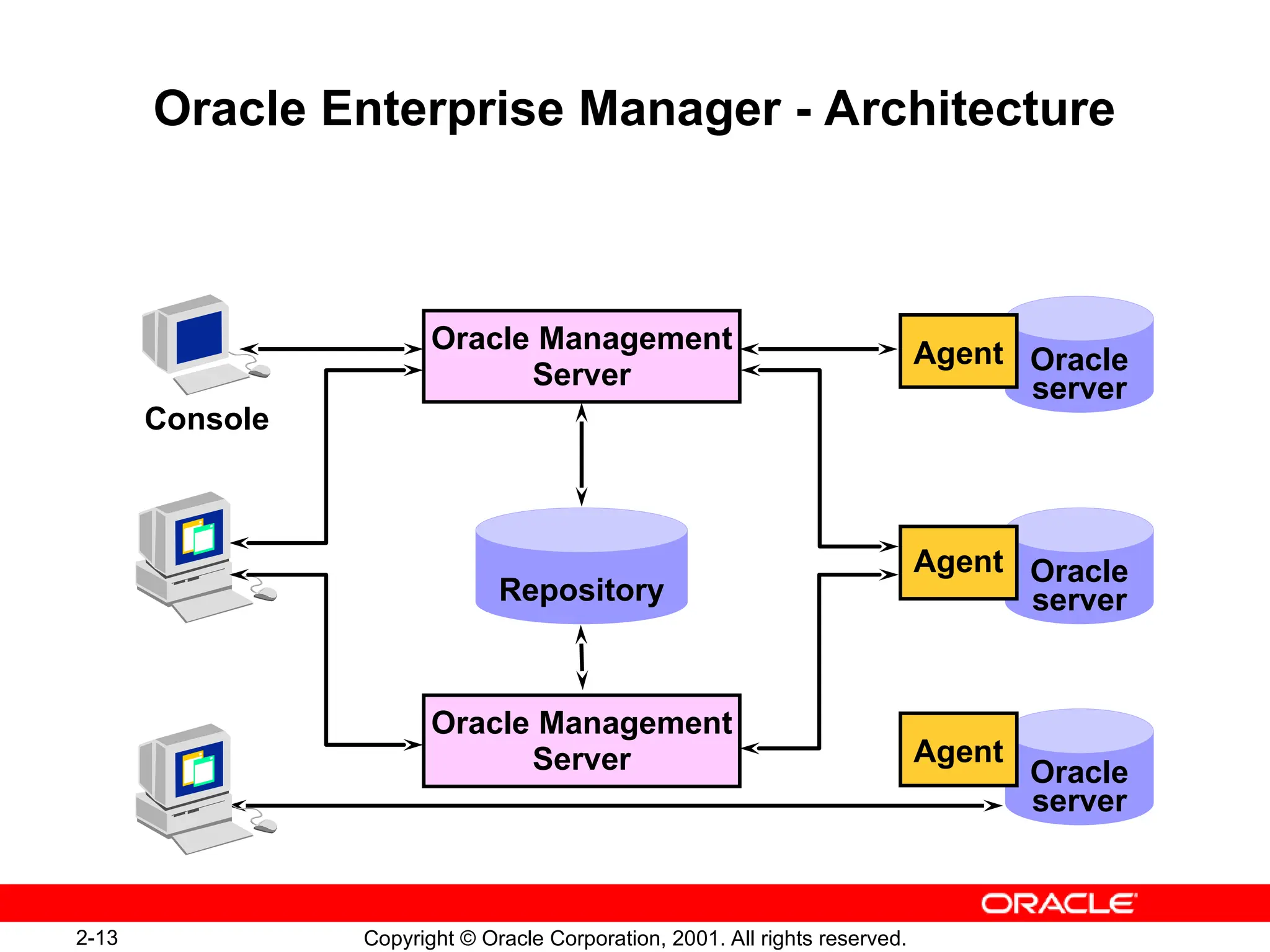
Oracle Enterprise Manager - Architecture
Oracle
server
Oracle
server
Oracle
server
Oracle Management
Server
Agent
Agent
Console
Oracle Management
Server Agent
Repository
2-15 Copyright © Oracle Corporation, 2001. All rights reserved.
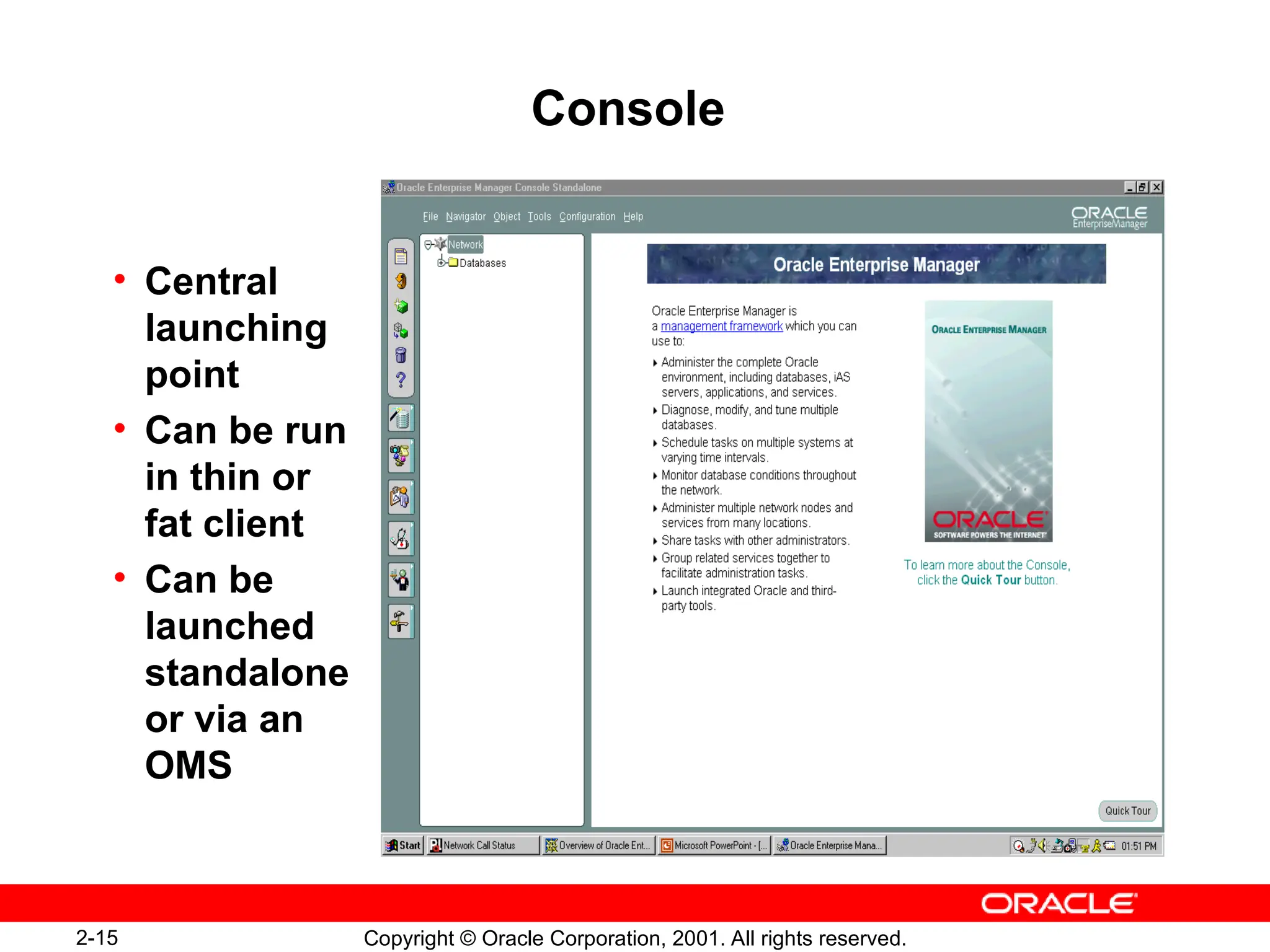
Console
• Central
launching
point
• Can be run
in thin or
fat client
• Can be
launched
standalone
or via an
OMS
2-17 Copyright © Oracle Corporation, 2001. All rights reserved.
Summary
In this lesson, you should have learned to:
• Identify database administration tools
• Identify the features of the Oracle Universal Installer
• Use SQL*Plus to interact and manipulate the
database
• Identify the main components of Oracle Enterprise
Manager
2-18 Copyright © Oracle Corporation, 2001. All rights reserved.
Practice 2 Overview
This practice covers the following topics:
• Connecting to SQL*Plus
• Connecting to Enterprise Manager Console
2-22 Copyright © Oracle Corporation, 2001. All rights reserved.

Overview of Primary Components of the Oracle

  • 1.
    2 Copyright © OracleCorporation, 2001. All rights reserved. Getting Started with the Oracle Server
  • 2.
    2-2 Copyright ©Oracle Corporation, 2001. All rights reserved. Objectives After completing this lesson, you should be able to do the following: • Identify common database administration tools available to a DBA • Identify the features of the Oracle Universal Installer • Use SQL*Plus to interact and manipulate an Oracle database • List the main components of Oracle Enterprise Manager
  • 3.
    2-3 Copyright ©Oracle Corporation, 2001. All rights reserved. Database Administration Tools Description Tool Used to install, upgrade, or remove software components Oracle Universal Installer (OUI) A graphical user interface tool that interacts with the OUI, or can be used independently, to create, delete, or modify a database Oracle Database Configuration Assistant A utility to access data in an Oracle database SQL*Plus A graphical interface used to administer, monitor, and tune one or more databases Oracle Enterprise Manager
  • 4.
    2-4 Copyright ©Oracle Corporation, 2001. All rights reserved. Oracle Universal Installer • Used to install, upgrade, or remove software components, and create a database • Based on a Java engine • Features include: – Automatic dependency resolution – Allows for Web-based installations – Tracking inventory of component and suite installations – Deinstallation of installed components – Support for multiple Oracle homes – Support for globalization technology
  • 5.
    2-5 Copyright ©Oracle Corporation, 2001. All rights reserved. Starting the Universal Installer • To start Oracle Universal Installer on UNIX: • To start Oracle Universal Installer on NT: $ ./runInstaller D:> setup
  • 6.
    2-6 Copyright ©Oracle Corporation, 2001. All rights reserved. Non-Interactive Installation Using Response Files • Allows for no user interaction • Response files: – Templates that must be edited – Text files containing variables and values – Parameters are customized • To start Universal Installer in non-interactive mode: ./runInstaller -responsefile myrespfile -silent
  • 7.
    2-9 Copyright ©Oracle Corporation, 2001. All rights reserved. Oracle Database Configuration Assistant The Oracle Database Configuration Assistant allows you to: • Create a database • Configure database options • Delete a database • Manage templates
  • 8.
    2-10 Copyright ©Oracle Corporation, 2001. All rights reserved. Database Administrator Users • Users SYS and SYSTEM are created automatically • During database creation • Granted the DBA role SYS • Password: change_on_install • Owner of the database data dictionary SYSTEM • Password: manager • Owner of additional internal tables and views used by Oracle tools
  • 9.
    2-11 Copyright ©Oracle Corporation, 2001. All rights reserved. SQL*Plus • An Oracle tool providing: – Capability to interact with and manipulate the database – Ability to start up and shutdown the database, create and run queries, add rows, modify data, and write customized reports • Subset of the standard SQL language with specific add ons • Connecting to SQL*Plus sqlplus /nolog connect / as sysdba Connected to an idle instance.
  • 10.
    2-12 Copyright ©Oracle Corporation, 2001. All rights reserved. Oracle Enterprise Manager • Serves as a centralized systems management for DBAs • A tool to administer, diagnose, and tune multiple databases • A tool to administer multiple network nodes and services from many locations • Use to share tasks with other administrators • Provides tools for administering parallel servers and replicated databases
  • 11.
    2-13 Copyright ©Oracle Corporation, 2001. All rights reserved. Oracle Enterprise Manager - Architecture Oracle server Oracle server Oracle server Oracle Management Server Agent Agent Console Oracle Management Server Agent Repository
  • 12.
    2-15 Copyright ©Oracle Corporation, 2001. All rights reserved. Console • Central launching point • Can be run in thin or fat client • Can be launched standalone or via an OMS
  • 13.
    2-17 Copyright ©Oracle Corporation, 2001. All rights reserved. Summary In this lesson, you should have learned to: • Identify database administration tools • Identify the features of the Oracle Universal Installer • Use SQL*Plus to interact and manipulate the database • Identify the main components of Oracle Enterprise Manager
  • 14.
    2-18 Copyright ©Oracle Corporation, 2001. All rights reserved. Practice 2 Overview This practice covers the following topics: • Connecting to SQL*Plus • Connecting to Enterprise Manager Console
  • 15.
    2-22 Copyright ©Oracle Corporation, 2001. All rights reserved.

Editor's Notes

  • #3 Examples of Common Database Administration Tools The tools listed are covered in this course, but they are only a subset of the utilities supplied by Oracle.
  • #4 Features of the Oracle Universal Installer The Java-based Oracle Universal Installer offers an installation solution for all Java-enabled platforms, allowing for a common installation flow and user experience independent of the platform. The Universal Installer: Detects dependencies among components and performs an installation accordingly. Can be used to point to a URL where a release or staging area was defined and install software remotely over HTTP. Can be used to remove products installed. The deinstallation actions are the “undo” of installation actions. Maintains an inventory of all the Oracle homes on a target machine, their names, products, and the versions of the products installed on them. Detects the language of the operating system and runs the installation session in that language. Can be run in interactive mode or silent mode. Oracle Universal Installer is run in silent (or non-interactive) mode using a response file.
  • #5 Interactive Installation UNIX: The installation program is called runInstaller and is located in the INSTALL\install\solaris directory. On UNIX do not run the Installer as a root user. NT: The installation program is called setup.exe and is located in the install/win32 directory. Note: See your operating system specific Oracle documentation for information about installing Oracle Server on your platform.
  • #6 Non-Interactive Installation Using Response Files Non-interactive installation is done when no user action is intended or if non-graphical terminals are used for installation. Installation parameters are customized using a response file. A response file is a text file containing variables and values used by Oracle Universal Installer during the installation process. Example of installation parameters include values for ORACLE_HOME and installation types (that is, Typical or Custom Install). The user first needs to copy and edit the response file to specify the components to install. UNIX: Response file templates are available in the stage/response directory. ./runInstaller -responsefile filename [-silent] [-nowelcome] NT: Response file templates are available in the Response directory on the CD-ROM. setup.exe –responsefile filename [-silent] Note: This is not character mode.
  • #7 Launching the Oracle Universal Installer in Non-Interactive mode Example: Launch the Oracle Universal Installer in non-interactive mode. UNIX: ./runInstaller –responsefile FILENAME [-SILENT] [-NOWELCOME] where: FILENAME: Identifies the response file SILENT: Runs Oracle Universal Installer in silent mode NOWELCOME: Does not display the Welcome window. If using SILENT, this parameter is not necessary Sample response file for UNIX: [General] RESPONSEFILE_VERSION=1.7.0 [Session] UNIX_GROUP_NAME="dba" FROM_LOCATION="/u01/stage/products.jar" ORACLE_HOME="/u01/app/oracle/ora9i" ORACLE_HOME_NAME="Ora9i" TOPLEVEL_COMPONENT={"oracle.server", "9.0.1.1.1"} SHOW_COMPONENT_LOCATIONS_PAGE=false SHOW_SUMMARY_PAGE=false SHOW_INSTALL_PROGRESS_PAGE=false SHOW_REQUIRED_CONFIG_TOOL_PAGE=false SHOW_OPTIONAL_CONFIG_TOOL_PAGE=false SHOW_END_SESSION_PAGE=false NEXT_SESSION=true SHOW_SPLASH_SCREEN=true SHOW_WELCOME_PAGE=false SHOW_ROOTSH_CONFIRMATION=true SHOW_EXIT_CONFIRMATION=true INSTALL_TYPE="Typical” s_GlobalDBName="u01.us.oracle.com" s_mountPoint="/u01/app/oracle/ora9i/dbs" s_dbSid="db09" b_createDB=true
  • #8 Launching the Oracle Universal Installer in Non-Interactive mode Sample response file (continued): The General section specifies the version number of the response file. The Sessions section lists various dialogs of the Universal Installer. Some of the dialogs include: FROM LOCATION specifies the location of the source of the products to be installed ORACLE_HOME, value for ORACLE_HOME ORACLE_HOME_NAME, value for ORACLE_HOME_NAME SHOW INSTALL PROGRESS is the install progress page that appears during the install phase SHOW ROOTISH CONFIRMATION is set to TRUE if the confirmation dialog to run the root.sh script needs to be shown SHOW EXIT CONFIRMATION is set to TRUE if the confirmation when exiting the installer needs to be shown Note: Refer to the operating system–specific installation guide for complete details on setting up a response file.
  • #9 Oracle Database Configuration Assistant Creating a database using Oracle Database Configuration Assistant is covered in the “Creating a Database” lesson.
  • #10 The Database Administrator Users Extra privileges are necessary to execute administrative duties on the Oracle server, such as creating users. Two database user accounts, SYS and SYSTEM, are created automatically with the database and granted the DBA role. That is, a predefined role that is created automatically with every database. The DBA role has all database system privileges. SYS When a database is created, the user SYS, identified initially by the password change_on_install, is created. SYS owns the vitally important data dictionary. When connecting as SYS it should be made as SYSDBA or SYSOPER. If you attempt to connect without SYSDBA or SYSOPER privileges, you will receive the error: ORA-28009 connecting to SYS should be SYSDBA or SYSOPER. SYSTEM When a database is created, the user SYSTEM, identified initially by the password manager, is also created automatically. Additional tables and views owned by the user SYSTEM are created. They contain administrative information used by Oracle tools. Additional users may be created depending on the mode of database creation, that is, manually or by using Database Creation Assistant. You should create at least one additional administrator username to use when performing daily administrative tasks. For security reasons, the default passwords of SYS and SYSTEM should be changed immediately after database creation.
  • #11 SQL*Plus SQL*Plus is Oracle’s command line tool used to run the standard SQL (Structured Query Language) suite of commands. SQL is a functional language that users use to communicate with Oracle to retrieve, add, update, or modify data in the database.
  • #12 Oracle Enterprise Manager The Oracle Enterprise Manager is a unified management framework consisting of a Java-based Console, a suite of tools and services, and a network of management servers and intelligent agents. It includes both hierarchical tree and graphical representations of the objects and their relationships in the system. The common services, including job scheduling and management, event management, database discovery and management, service discovery and management, all provide a complete framework for the Oracle Enterprise Manager. In addition, Oracle Enterprise Manager includes integrated applications that allow you to perform both routine and advanced administration tasks. They include the optional packs such as Diagnostics Pack, Tuning Pack, and Change Management Pack, and other applications such as Oracle Net Manager, Spatial Index Advisor, and Text Manager.
  • #13 Oracle Enterprise Manager Architecture Oracle Enterprise Manager utilizes a three-tier architecture, which includes: First tier: Console clients and integrated tools provide a graphical interface for administrators. Second tier: Oracle Management Servers and a database repository provide a scalable middle tier for processing system management tasks. Third tier: Intelligent Agents installed on each node monitor its services and execute tasks from the Management Server. Since not all situations need to implement Oracle Enterprise Manager as a three tier system, Oracle Enterprise Manager is also available in a two-tier architecture, which connects directly to the databases. The console launched standalone allows a single person to use one or more applications without requiring an Oracle Management Server or Intelligent Agent. A standalone console is used if you want to perform basic administrative tasks that do not require the job, event, or group system.
  • #14 Oracle Enterprise Manager Architecture (continued) Console: The first tier comprises clients such as consoles and management applications, which present graphical user interfaces to administrators for all management tasks. The first tier depends on the second tier Oracle Management Server for the bulk of its application logic. Note: As of Oracle9i, connection to the console can be done as standalone. Prior to Oracle9i, all connections to the console were made through an Oracle Management Server. Oracle Management Server: The second tier component of Oracle Enterprise Manager is the Oracle Management Server (OMS). The OMS is the core of the Oracle Enterprise Manager framework and provides administrative user accounts, processes functions such as jobs and events, and manages the flow of information between the console (first tier) and the managed nodes (third tier). The OMS uses a repository to store all system data, application data, information about the state of the managed nodes, and information about any system-managed packs. Oracle Enterprise Manager repository: The repository is a set of tables, created when you set up the OMS. The OMS uses the repository as its persistent back-end store. If necessary, more than one OMS can be used. Multiple OMSs share a repository and provide reliability and fault tolerance. Nodes: The third tier consists of managed nodes, which contain targets such as databases and other managed services. Residing on each node is an Oracle Intelligent Agent, which communicates with the OMS and performs tasks sent by consoles and client applications. Only one Intelligent Agent is required per node. An Intelligent Agent functions independently from the database as well as the console and Oracle Management Server. By running independently of other components, Intelligent Agents can perform such tasks as starting up and shutting down a database and staying operational if another part of the system is down. The ID for the Intelligent Agent is dbsnmp.
  • #15 Console Features The console provides a graphical interface for administrators and a central launching point for all management applications and tools. In addition, SQL*Plus Worksheet can be launched from the console. The console can be run either in thin mode through the Web or as a fat client. Thin clients use a Web browser to connect to a server where console files are installed, whereas fat clients require console files to be installed locally. The console can be launched either in standalone mode or by connecting to Oracle Management Server. Note: This course is not intended to give you details about Oracle Enterprise Manager, the console, or Oracle Management Server. For complete details on using Oracle Enterprise Manager refer to the Oracle Enterprise Manager 9i course.
  • #16 How to Start the Oracle Enterprise Manager Console Example: Start Oracle Enterprise Manager Console. 1. Launch the console: Start > Programs > Oracle-OraHome90 > Enterprise Manager Console Select to start the console by selecting one of the options: Login to the Oracle Management Server Launch standalone Click OK.
  • #19 Practice 2: Getting Started with the Oracle Server This practice is instructor led. Your instructor will provide you with login accounts and walk you through logging into your account. Write the information provided by your instructor below. Host name: _________________________________ SID name: __________________________________ 1 Connect to SQL*Plus as SYSDBA. Hint: - Connect to your account using instructions provided by your instructor - Start SQL*Plus - Connect as the user SYS AS SYSDBA 2 Using SQL*Plus, run the following query to verify the connection to the database has been made. 3 Launch Oracle Enterprise Manager in standalone mode. - Navigate to Start > Programs > Oracle-OraHome90 > Enterprise Manager Console - Select Launch standalone option. - Select OK.
  • #20 Practice 2: Getting Started with the Oracle Server 4 Launch Oracle Enterprise Manager using Oracle Management Service. - For an Oracle Classroom Only: If you are in an Oracle Classroom you must perform the following four steps that are particular to the Oracle Classroom setup: 1. Click on the omsconfig file update icon on the desktop Enter the name of the Unix server your class is using. Your instructor will provide the server name. Please enter it exactly as it is given to you. This is a case sensitive entry. 2. Open an MSDOS window. 3. At the command prompt enter: oemctl start oms. Wait for the message: "The Oracleoracle901_homeManagementServer service was started successfully." 4. Close the MSDOS window. - Start the OEM Console and select the Login to the Oracle Management Server option. Login as follows: Administrator: sysman Note: Case is important. Password: oem_temp Note: Case is important. When prompted change the password to oracle. Note: Case is important. Management Server: (Instructor supplied) - Once the OEM Console is opened, go to the main menu and navigate to: Navigator > Discover Nodes. The Discovery Wizard dialog box will appear. - Select Next to continue. - Enter the name of the node you want to manage: that is, designated database server hostname. (Instructor supplied) - Select Next. - Once discovery is complete, select OK. Note: Alert the instructor if discovery is not successful. - Expand the Database folder on the navigation tree. - Double click on your designated database provided by your instructor. (continued onto next page)
  • #21 Practice 2: Getting Started with the Oracle Server 4 Launch Oracle Enterprise Manager using Oracle Management Service. (continued) - Supply the connection information: User: (Instructor supplied) Password: (Instructor supplied) As: SYSDBA - Next set the node credentials for running jobs. - From the main menu navigate to: Configuration > Preferences. - Select the Preferred Credentials page. - Scroll to the bottom of the window and select the entry for your designated database. - Supply the following: Username: (Instructor supplied) Password: (Instructor supplied) Confirm Password: Role: SYSDBA - Select OK. 5 Start SQL*Plus Worksheet SQL*Plus Worksheet can be started within the Oracle Enterprise Manager Console using the following navigation: - Navigate to Tools > Database Applications > SQL*Plus Worksheet SQL*Plus Worksheet can also be started from the Windows NT menu by doing the following: - Navigate to Start > Programs > Oracle-OraHome90 > Integrated Management Tools > SQLPlus Worksheet Connect directly to the database defined by the instructor. Enter: Username, Password, and Service Connect as: SYSDBA Click OK. Note: Each time you log in as a different user (within SQL*Plus Worksheet) the service name must be included in the connection string.