Uploading and
Editing your GPS data
 on OpenStreetMap
        Gregory King
      学生証番号:47116803
Contents:

What is GPS?
Uploading GPS data to OpenStreetMap
Editing/Tracing your GPS data in
OpenStreetMap
Output File Sample
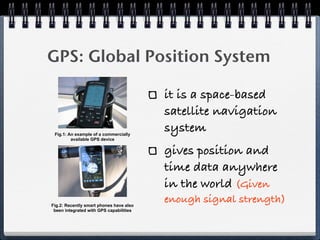
GPS: Global Position System

                                         it is a space-based
                                         satellite navigation
 Fig.1: An example of a commercially
                                         system
         available GPS device


                                         gives position and
                                         time data anywhere
                                         in the world (Given
Fig.2: Recently smart phones have also
                                         enough signal strength)
 been integrated with GPS capabilities
Uploading GPS Data
How to upload your GPS
data to OpenStreetMap


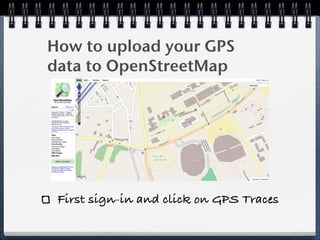
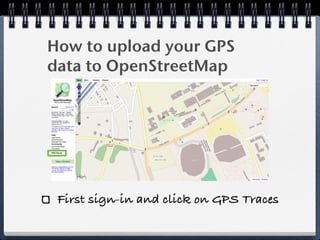
 First sign-in and click on GPS Traces
How to upload your GPS
data to OpenStreetMap


 First sign-in and click on GPS Traces
Public GPS traces

                                           Trace Type (visibility)

                                                 Tags
                                              Uploader


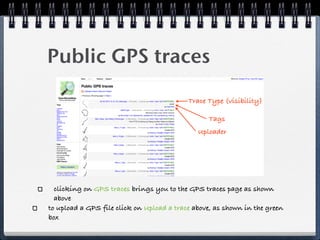
  clicking on GPS traces brings you to the GPS traces page as shown
  above
to upload a GPS file click on Upload a trace above, as shown in the green
box
Public GPS traces

                                           Trace Type (visibility)

                                                 Tags
                                              Uploader


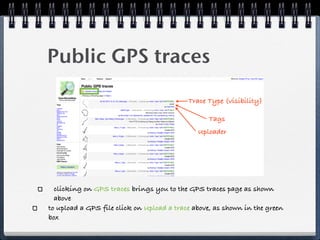
  clicking on GPS traces brings you to the GPS traces page as shown
  above
to upload a GPS file click on Upload a trace above, as shown in the green
box
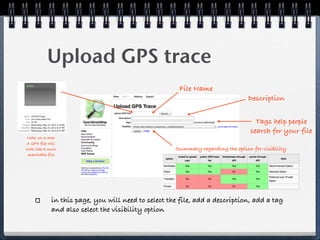
Upload GPS trace
                                                       File Name
                                                                                 Description


                                                                                    Tags help people
                                                                                  search for your file
 Note: on a mac
 a GPX file will
look like a Unix                                     Summary regarding the option for visibility
 executable file


             in this page, you will need to select the file, add a description, add a tag
             and also select the visibility option
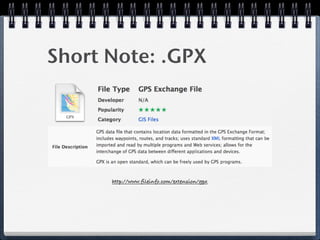
Short Note: .GPX


      http://www.fileinfo.com/extension/gpx
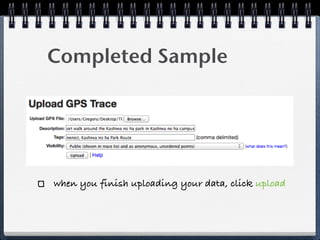
Completed Sample


when you finish uploading your data, click upload
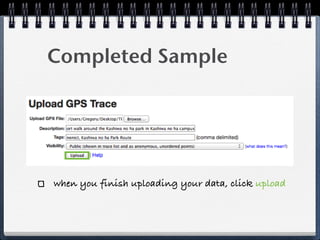
Completed Sample


when you finish uploading your data, click upload
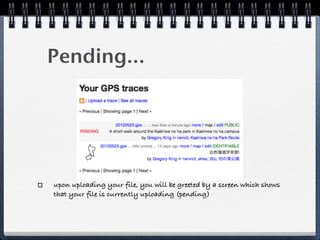
Pending...


upon uploading your file, you will be greeted by a screen which shows
that your file is currently uploading (pending)
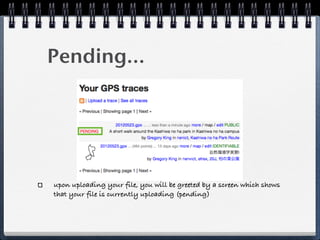
Pending...


upon uploading your file, you will be greeted by a screen which shows
that your file is currently uploading (pending)
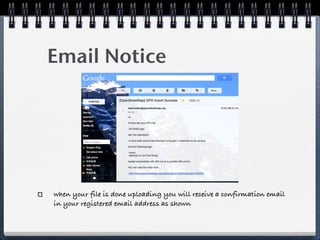
Email Notice


when your file is done uploading you will receive a confirmation email
in your registered email address as shown
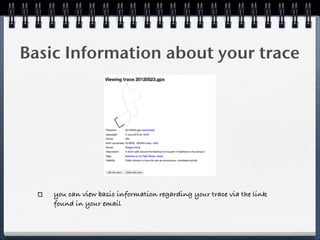
Basic Information about your trace


    you can view basic information regarding your trace via the link
    found in your email
Editing GPS
Trace Data
Editing GPS trace data


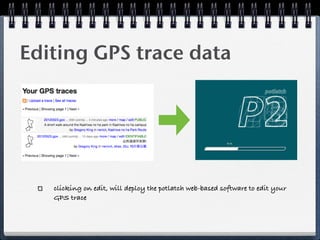
   clicking on edit, will deploy the potlatch web-based software to edit your
   GPS trace
Editing GPS trace data


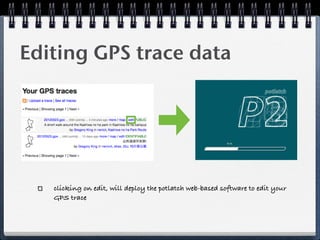
   clicking on edit, will deploy the potlatch web-based software to edit your
   GPS trace
My GPS trace


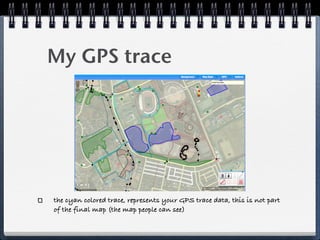
the cyan colored trace, represents your GPS trace data, this is not part
of the final map (the map people can see)
Changing the Background
Settings
                                                      Dim Off


       Dim On


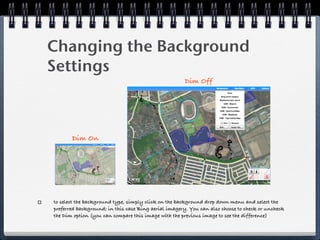
to select the background type, simply click on the background drop down menu and select the
preferred background; in this case Bing aerial imagery. You can also choose to check or uncheck
the Dim option (you can compare this image with the previous image to see the difference)
Changing the Background
Settings
                                                      Dim Off


       Dim On


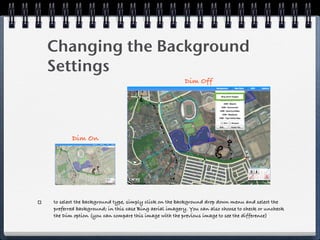
to select the background type, simply click on the background drop down menu and select the
preferred background; in this case Bing aerial imagery. You can also choose to check or uncheck
the Dim option (you can compare this image with the previous image to see the difference)
Changing the Background
Settings
                                                      Dim Off


       Dim On


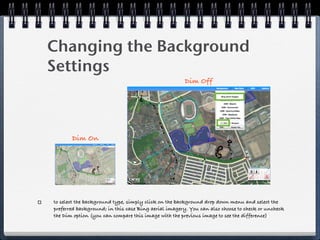
to select the background type, simply click on the background drop down menu and select the
preferred background; in this case Bing aerial imagery. You can also choose to check or uncheck
the Dim option (you can compare this image with the previous image to see the difference)
Tracing your map


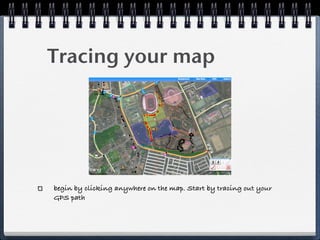
begin by clicking anywhere on the map. Start by tracing out your
GPS path
Adding Attributes to your
trace


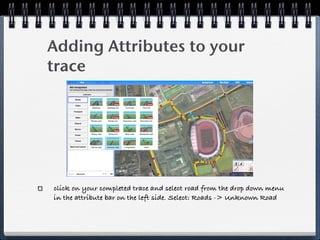
click on your completed trace and select road from the drop down menu
in the attribute bar on the left side. Select: Roads -> Unknown Road
Adding Attributes to your
trace 2


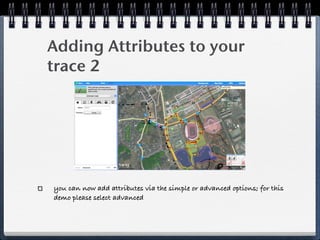
you can now add attributes via the simple or advanced options; for this
demo please select advanced
Adding Attributes to your
trace 2


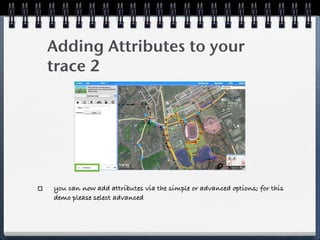
you can now add attributes via the simple or advanced options; for this
demo please select advanced
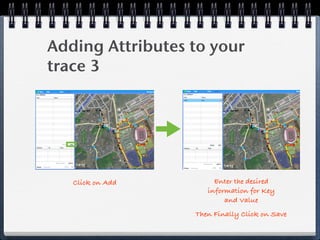
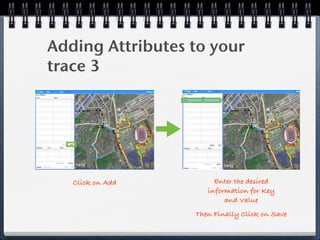
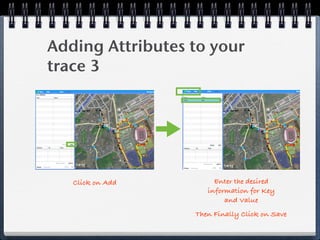
Adding Attributes to your
trace 3


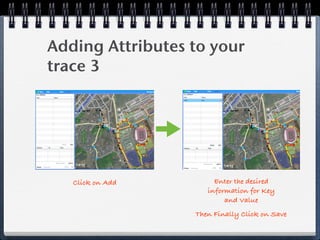
   Click on Add        Enter the desired
                     information for Key
                          and Value
                  Then Finally Click on Save
Adding Attributes to your
trace 3


   Click on Add        Enter the desired
                     information for Key
                          and Value
                  Then Finally Click on Save
Adding Attributes to your
trace 3


   Click on Add        Enter the desired
                     information for Key
                          and Value
                  Then Finally Click on Save
Adding Attributes to your
trace 3


   Click on Add        Enter the desired
                     information for Key
                          and Value
                  Then Finally Click on Save
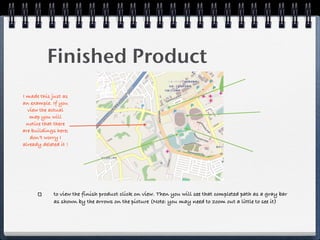
Finished Product
I made this just as
an example. If you
  view the actual
   map you will
  notice that there
are buildings here;
   don’t worry I
already deleted it !


             to view the finish product click on view. Then you will see that completed path as a gray bar
             as shown by the arrows on the picture (Note: you may need to zoom out a little to see it)
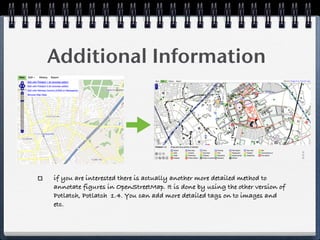
Additional Information


if you are interested there is actually another more detailed method to
annotate figures in OpenStreetMap. It is done by using the other version of
Potlatch, Potlatch 1.4. You can add more detailed tags on to images and
etc.
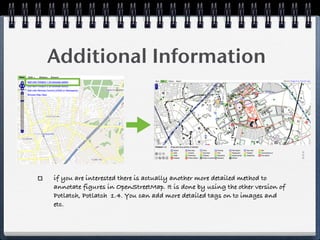
Additional Information


if you are interested there is actually another more detailed method to
annotate figures in OpenStreetMap. It is done by using the other version of
Potlatch, Potlatch 1.4. You can add more detailed tags on to images and
etc.
That’s all, Thank you


   Disclaimer: all images were taken via screenshot or via wikipedia

Open streetmap gps gregory_king

  • 1.
    Uploading and Editing yourGPS data on OpenStreetMap Gregory King 学生証番号:47116803
  • 2.
    Contents: What is GPS? UploadingGPS data to OpenStreetMap Editing/Tracing your GPS data in OpenStreetMap Output File Sample
  • 3.
    GPS: Global PositionSystem it is a space-based satellite navigation Fig.1: An example of a commercially system available GPS device gives position and time data anywhere in the world (Given Fig.2: Recently smart phones have also enough signal strength) been integrated with GPS capabilities
  • 4.
  • 5.
    How to uploadyour GPS data to OpenStreetMap First sign-in and click on GPS Traces
  • 6.
    How to uploadyour GPS data to OpenStreetMap First sign-in and click on GPS Traces
  • 7.
    Public GPS traces Trace Type (visibility) Tags Uploader clicking on GPS traces brings you to the GPS traces page as shown above to upload a GPS file click on Upload a trace above, as shown in the green box
  • 8.
    Public GPS traces Trace Type (visibility) Tags Uploader clicking on GPS traces brings you to the GPS traces page as shown above to upload a GPS file click on Upload a trace above, as shown in the green box
  • 9.
    Upload GPS trace File Name Description Tags help people search for your file Note: on a mac a GPX file will look like a Unix Summary regarding the option for visibility executable file in this page, you will need to select the file, add a description, add a tag and also select the visibility option
  • 10.
    Short Note: .GPX http://www.fileinfo.com/extension/gpx
  • 11.
    Completed Sample when youfinish uploading your data, click upload
  • 12.
    Completed Sample when youfinish uploading your data, click upload
  • 13.
    Pending... upon uploading yourfile, you will be greeted by a screen which shows that your file is currently uploading (pending)
  • 14.
    Pending... upon uploading yourfile, you will be greeted by a screen which shows that your file is currently uploading (pending)
  • 15.
    Email Notice when yourfile is done uploading you will receive a confirmation email in your registered email address as shown
  • 16.
    Basic Information aboutyour trace you can view basic information regarding your trace via the link found in your email
  • 17.
  • 18.
    Editing GPS tracedata clicking on edit, will deploy the potlatch web-based software to edit your GPS trace
  • 19.
    Editing GPS tracedata clicking on edit, will deploy the potlatch web-based software to edit your GPS trace
  • 20.
    My GPS trace thecyan colored trace, represents your GPS trace data, this is not part of the final map (the map people can see)
  • 21.
    Changing the Background Settings Dim Off Dim On to select the background type, simply click on the background drop down menu and select the preferred background; in this case Bing aerial imagery. You can also choose to check or uncheck the Dim option (you can compare this image with the previous image to see the difference)
  • 22.
    Changing the Background Settings Dim Off Dim On to select the background type, simply click on the background drop down menu and select the preferred background; in this case Bing aerial imagery. You can also choose to check or uncheck the Dim option (you can compare this image with the previous image to see the difference)
  • 23.
    Changing the Background Settings Dim Off Dim On to select the background type, simply click on the background drop down menu and select the preferred background; in this case Bing aerial imagery. You can also choose to check or uncheck the Dim option (you can compare this image with the previous image to see the difference)
  • 24.
    Tracing your map beginby clicking anywhere on the map. Start by tracing out your GPS path
  • 25.
    Adding Attributes toyour trace click on your completed trace and select road from the drop down menu in the attribute bar on the left side. Select: Roads -> Unknown Road
  • 26.
    Adding Attributes toyour trace 2 you can now add attributes via the simple or advanced options; for this demo please select advanced
  • 27.
    Adding Attributes toyour trace 2 you can now add attributes via the simple or advanced options; for this demo please select advanced
  • 28.
    Adding Attributes toyour trace 3 Click on Add Enter the desired information for Key and Value Then Finally Click on Save
  • 29.
    Adding Attributes toyour trace 3 Click on Add Enter the desired information for Key and Value Then Finally Click on Save
  • 30.
    Adding Attributes toyour trace 3 Click on Add Enter the desired information for Key and Value Then Finally Click on Save
  • 31.
    Adding Attributes toyour trace 3 Click on Add Enter the desired information for Key and Value Then Finally Click on Save
  • 32.
    Finished Product I madethis just as an example. If you view the actual map you will notice that there are buildings here; don’t worry I already deleted it ! to view the finish product click on view. Then you will see that completed path as a gray bar as shown by the arrows on the picture (Note: you may need to zoom out a little to see it)
  • 33.
    Additional Information if youare interested there is actually another more detailed method to annotate figures in OpenStreetMap. It is done by using the other version of Potlatch, Potlatch 1.4. You can add more detailed tags on to images and etc.
  • 34.
    Additional Information if youare interested there is actually another more detailed method to annotate figures in OpenStreetMap. It is done by using the other version of Potlatch, Potlatch 1.4. You can add more detailed tags on to images and etc.
  • 35.
    That’s all, Thankyou Disclaimer: all images were taken via screenshot or via wikipedia