Anymeta training
Editors Module
Anne Cramwinckel & Evelyn Grooten
especially for Amsterdam Museum


14th of July 2011


                                    1
Block 3


The admin
- How to get there
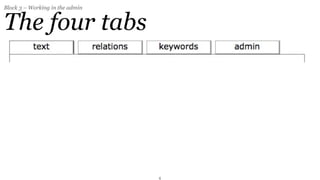
- The four tabs
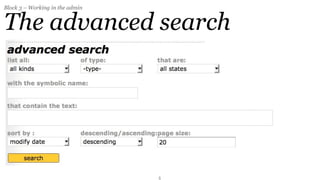
- The advanced search
- Creating things
- Assignment 1
- Assignment 2


                        2
Block 3 – Working in the admin


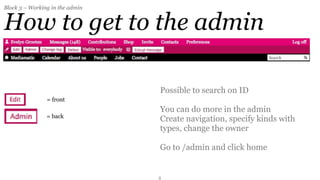
How to get to the admin

                                 Possible to search on ID
                = front
                                 You can do more in the admin
                = back
                                 Create navigation, specify kinds with
                                 types, change the owner

                                 Go to /admin and click home


                                 3
Block 3 – Working in the admin


The four tabs


                                 4
Block 3 – Working in the admin


The advanced search


                                 5
Block 3 – Working in the admin


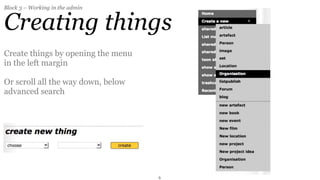
Creating things
Create things by opening the menu
in the left margin

Or scroll all the way down, below
advanced search


                                    6
Block 3 – Working in the admin


Assignment 1
1. Find a location on ons.amsterdammuseum.nl (and write down the ID)
2. Go to your profile and click Admin
3. Find the role Lives and connect the location to your profile
4. You may delete it again by choosing ‘disconnect’ in the dropdown
5. Don’t forget to save your changes


                                               7
Block 3 – Introduction into the admin


Assignment 2
1. Make an alternative uri for the content you added earlier. Try if it works.
2. Remove the alternative uri.
3. Make a redirect uri for your content. Try if it works.
4. Remove the redirect uri.


                                                8
Block 4


Structuring content
- Influencing the right column
- Assignment 1
- Set and Listpublish
- Assignment 2
- Homepage, navigation, symbolic name
- Theme
- Assignment 3
- Merging things
- Delete things


                                        9
Block 4 – Structuring content


Influencing the right column
  The matching column automatically fills itself due to the metadata that is added to the
  different contributions, but it ís possible to influence this a bit, with...
- Choose keywords and tags
- About role
  only when semantically correct

- Extra context
  add your thing to the matching results

- Fixed context
  replace matching results with your things


                                               10
Block 4 – Structuring content


Assignment 1
- Add your profile to your article or event with the role ‘extra content’.
- Check in the frontend what happens
- Disconnect your profile
- Add your profile to your article or event with the role ‘fixed content’
- Check in the frontend what happens
- Disconnect your profile


                                                11
Block 4 – Structuring content


Set and Listpublish
  Two ways of making lists:


  - Set


  - Listpublish


                                12
Block 4 – Structuring content


Set and Listpublish
  Two ways of making lists:


  - Set
  a hand picked selection of things


  - Listpublish


                                      13
Block 4 – Structuring content


Set and Listpublish
  Two ways of making lists:


  - Set
  a hand picked selection of things


  - Listpublish
  results of an automatic search query


                                         14
Block 4 – Structuring content


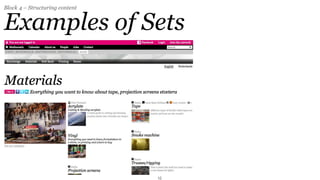
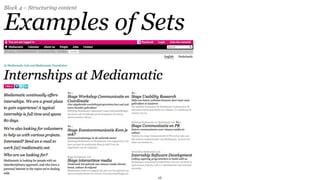
Examples of Sets


                                15
Block 4 – Structuring content


Examples of Sets


                                16
Block 4 – Structuring content


Listpublish
  You can specify...


- the things you want to show
- the order
- how many results per page


  Examples: search, calendar, latest comments, list of participants, all pictures taken at an
  event


                                                17
Block 4 – Structuring content


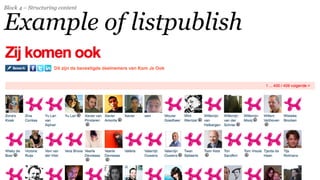
Example of listpublish


                                18
Block 4 – Structuring content


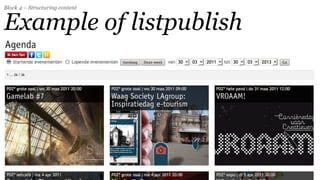
Example of listpublish


                                19
Block 4 – Structuring content


Set or listpublish?
- I have 1200 pictures that are taken at yesterday’s event
- Overview of 4 specific artists that were involved in the latest exhibition
- I have a growing list of workshops since 2004 that need to be updated weekly
- I want to make a list of job openings that I want to update when the job is filled
- I want to automatically show the latest news items in a list


                                                20
Block 4 – Structuring content


Assignment 2
- Go to the /admin and create a new set
- Title ‘[your name]’s set’
- Give it a short title
- Add your article, event and profile as setmembers
- Change the order of the set members
- Make it visible to me only
- Publish


                                              21
Block 4 – Structuring content


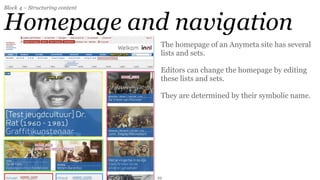
Homepage and navigation
                                 The homepage of an Anymeta site has several
                                 lists and sets.

                                 Editors can change the homepage by editing
                                 these lists and sets.

                                 They are determined by their symbolic name.


                                22
Block 4 – Structuring content


Theme navigation


                                23
Block 4 – Structuring content


Theme navigation


                                24
Block 4 – Structuring content


Theme navigation


                                25
Block 4 – Structuring content


Assignment 3
  In the set you created in assignment 2, please:
- Go to the admin of your set and check the theme ‘Anymeta training’
- Check ‘navigation’ in your set (for a dropdown)


  Go to the admin of the pages in your set and check the theme ‘anymeta training’
- Now go to the set ‘Anymeta training navigation set’ (3696) and add your set as a setmember
  of this set


- After the assignment is evaluated, uncheck the theme for all users!


                                               26
Block 4 – Structuring content


Merging things
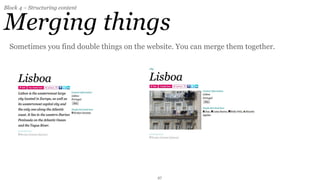
  Sometimes you find double things on the website. You can merge them together.


                                            27
Block 4 – Structuring content


Merging things
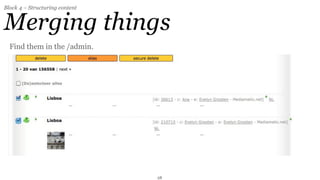
  Find them in the /admin.


                                28
Block 4 – Structuring content


Merging things
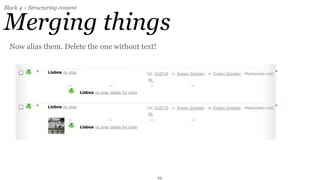
  Now alias them. Delete the one without text!


                                                 29
Block 4 – Structuring content


Merging things
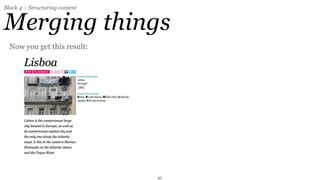
  Now you get this result:


                                30
Block 4 – Structuring content


Deleting things
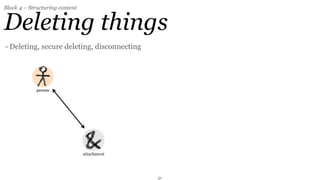
- Deleting, secure deleting, disconnecting


                                             31
Block 4 – Structuring content


Deleting things
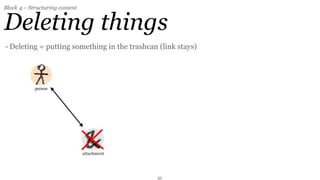
- Deleting = putting something in the trashcan (link stays)


                                              32
Block 4 – Structuring content


Deleting things
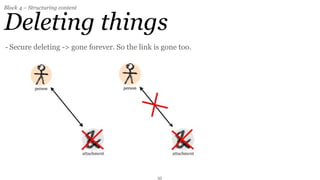
- Secure deleting -> gone forever. So the link is gone too.


                                                33
Block 4 – Structuring content


Deleting things
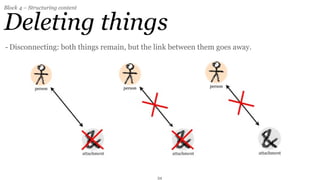
- Disconnecting: both things remain, but the link between them goes away.


                                             34
Block 4 – Structuring content


Last assignment
- Delete your set
- Go to My contributions
- Go to the /admin of your content
- Make sure all training (test) content is deleted (secure deleted)


                                                35
End of the Editors Module

Questions?
Congratulations!


                   36

Ons Amsterdam Training, redacteurenmodule

  • 1.
    Anymeta training Editors Module AnneCramwinckel & Evelyn Grooten especially for Amsterdam Museum 14th of July 2011 1
  • 2.
    Block 3 The admin -How to get there - The four tabs - The advanced search - Creating things - Assignment 1 - Assignment 2 2
  • 3.
    Block 3 –Working in the admin How to get to the admin Possible to search on ID = front You can do more in the admin = back Create navigation, specify kinds with types, change the owner Go to /admin and click home 3
  • 4.
    Block 3 –Working in the admin The four tabs 4
  • 5.
    Block 3 –Working in the admin The advanced search 5
  • 6.
    Block 3 –Working in the admin Creating things Create things by opening the menu in the left margin Or scroll all the way down, below advanced search 6
  • 7.
    Block 3 –Working in the admin Assignment 1 1. Find a location on ons.amsterdammuseum.nl (and write down the ID) 2. Go to your profile and click Admin 3. Find the role Lives and connect the location to your profile 4. You may delete it again by choosing ‘disconnect’ in the dropdown 5. Don’t forget to save your changes 7
  • 8.
    Block 3 –Introduction into the admin Assignment 2 1. Make an alternative uri for the content you added earlier. Try if it works. 2. Remove the alternative uri. 3. Make a redirect uri for your content. Try if it works. 4. Remove the redirect uri. 8
  • 9.
    Block 4 Structuring content -Influencing the right column - Assignment 1 - Set and Listpublish - Assignment 2 - Homepage, navigation, symbolic name - Theme - Assignment 3 - Merging things - Delete things 9
  • 10.
    Block 4 –Structuring content Influencing the right column The matching column automatically fills itself due to the metadata that is added to the different contributions, but it ís possible to influence this a bit, with... - Choose keywords and tags - About role only when semantically correct - Extra context add your thing to the matching results - Fixed context replace matching results with your things 10
  • 11.
    Block 4 –Structuring content Assignment 1 - Add your profile to your article or event with the role ‘extra content’. - Check in the frontend what happens - Disconnect your profile - Add your profile to your article or event with the role ‘fixed content’ - Check in the frontend what happens - Disconnect your profile 11
  • 12.
    Block 4 –Structuring content Set and Listpublish Two ways of making lists: - Set - Listpublish 12
  • 13.
    Block 4 –Structuring content Set and Listpublish Two ways of making lists: - Set a hand picked selection of things - Listpublish 13
  • 14.
    Block 4 –Structuring content Set and Listpublish Two ways of making lists: - Set a hand picked selection of things - Listpublish results of an automatic search query 14
  • 15.
    Block 4 –Structuring content Examples of Sets 15
  • 16.
    Block 4 –Structuring content Examples of Sets 16
  • 17.
    Block 4 –Structuring content Listpublish You can specify... - the things you want to show - the order - how many results per page Examples: search, calendar, latest comments, list of participants, all pictures taken at an event 17
  • 18.
    Block 4 –Structuring content Example of listpublish 18
  • 19.
    Block 4 –Structuring content Example of listpublish 19
  • 20.
    Block 4 –Structuring content Set or listpublish? - I have 1200 pictures that are taken at yesterday’s event - Overview of 4 specific artists that were involved in the latest exhibition - I have a growing list of workshops since 2004 that need to be updated weekly - I want to make a list of job openings that I want to update when the job is filled - I want to automatically show the latest news items in a list 20
  • 21.
    Block 4 –Structuring content Assignment 2 - Go to the /admin and create a new set - Title ‘[your name]’s set’ - Give it a short title - Add your article, event and profile as setmembers - Change the order of the set members - Make it visible to me only - Publish 21
  • 22.
    Block 4 –Structuring content Homepage and navigation The homepage of an Anymeta site has several lists and sets. Editors can change the homepage by editing these lists and sets. They are determined by their symbolic name. 22
  • 23.
    Block 4 –Structuring content Theme navigation 23
  • 24.
    Block 4 –Structuring content Theme navigation 24
  • 25.
    Block 4 –Structuring content Theme navigation 25
  • 26.
    Block 4 –Structuring content Assignment 3 In the set you created in assignment 2, please: - Go to the admin of your set and check the theme ‘Anymeta training’ - Check ‘navigation’ in your set (for a dropdown) Go to the admin of the pages in your set and check the theme ‘anymeta training’ - Now go to the set ‘Anymeta training navigation set’ (3696) and add your set as a setmember of this set - After the assignment is evaluated, uncheck the theme for all users! 26
  • 27.
    Block 4 –Structuring content Merging things Sometimes you find double things on the website. You can merge them together. 27
  • 28.
    Block 4 –Structuring content Merging things Find them in the /admin. 28
  • 29.
    Block 4 –Structuring content Merging things Now alias them. Delete the one without text! 29
  • 30.
    Block 4 –Structuring content Merging things Now you get this result: 30
  • 31.
    Block 4 –Structuring content Deleting things - Deleting, secure deleting, disconnecting 31
  • 32.
    Block 4 –Structuring content Deleting things - Deleting = putting something in the trashcan (link stays) 32
  • 33.
    Block 4 –Structuring content Deleting things - Secure deleting -> gone forever. So the link is gone too. 33
  • 34.
    Block 4 –Structuring content Deleting things - Disconnecting: both things remain, but the link between them goes away. 34
  • 35.
    Block 4 –Structuring content Last assignment - Delete your set - Go to My contributions - Go to the /admin of your content - Make sure all training (test) content is deleted (secure deleted) 35
  • 36.
    End of theEditors Module Questions? Congratulations! 36

Editor's Notes

  • #2 \n
  • #3 Introduction of block 3\n
  • #4 After showing this, we will go into the /admin. Here we will go over the 4 tabs of a thing and over the advanced search in the /admin. Also, we will show the two places to make a new thing in the /admin.\n
  • #5 Here we will go over the 4 tabs of a thing \n
  • #6 Go over the advanced search in the /admin. \n
  • #7 Also, we will show the two places to make a new thing in the /admin.\n
  • #8 \n
  • #9 \n
  • #10 Introduction of block 4, part 1\n
  • #11 \n
  • #12 \n
  • #13 \n
  • #14 \n
  • #15 \n
  • #16 \n
  • #17 \n
  • #18 \n
  • #19 \n
  • #20 \n
  • #21 Quiz style!\n
  • #22 \n
  • #23  Standard anymeta websites have a home article, and two lists and navigation on their homepage. \n For the template to know which list needs to be on what spot, all these elements get a symbolic name.\n\n
  • #24 \n
  • #25 \n
  • #26 \n
  • #27 \n
  • #28 \n
  • #29 \n
  • #30 \n
  • #31 \n
  • #32 Link between me and a picture\n
  • #33 I put the picture in the trashcan. The picture is not really gone, it is just invisible for normal users. The link between me and the picture stays.\n
  • #34 I can also secure delete the thing. Then it is gone-gone. I cannot bring it back. The link will also disappear. \n
  • #35 I can also delete the link between two things, but then the two things still remain on the website. \n
  • #36 \n
  • #37 \n