OMRON RFID SYSTEM
V680S SERIES
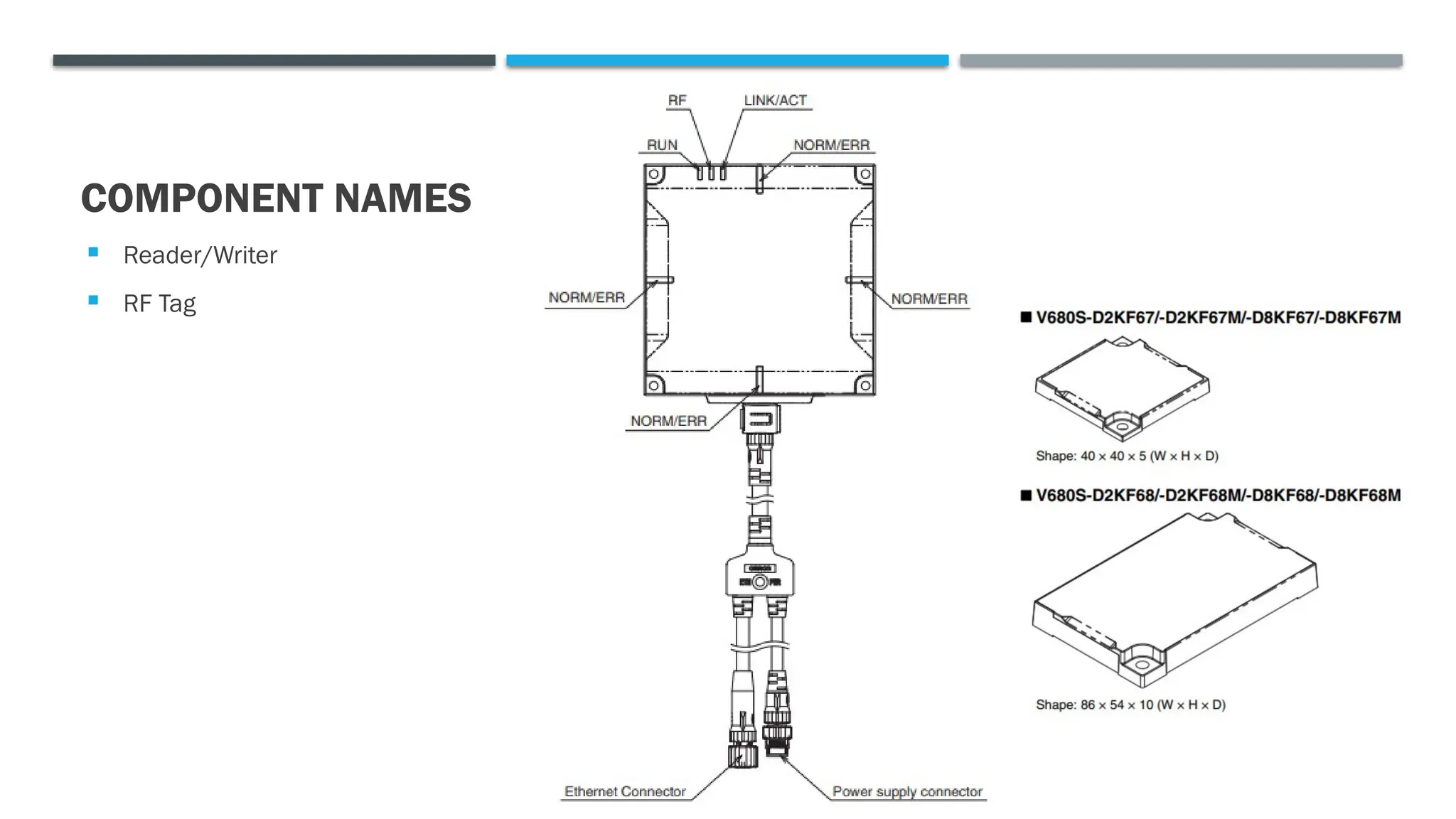
COMPONENT NAMES
 Reader/Writer
 RF Tag
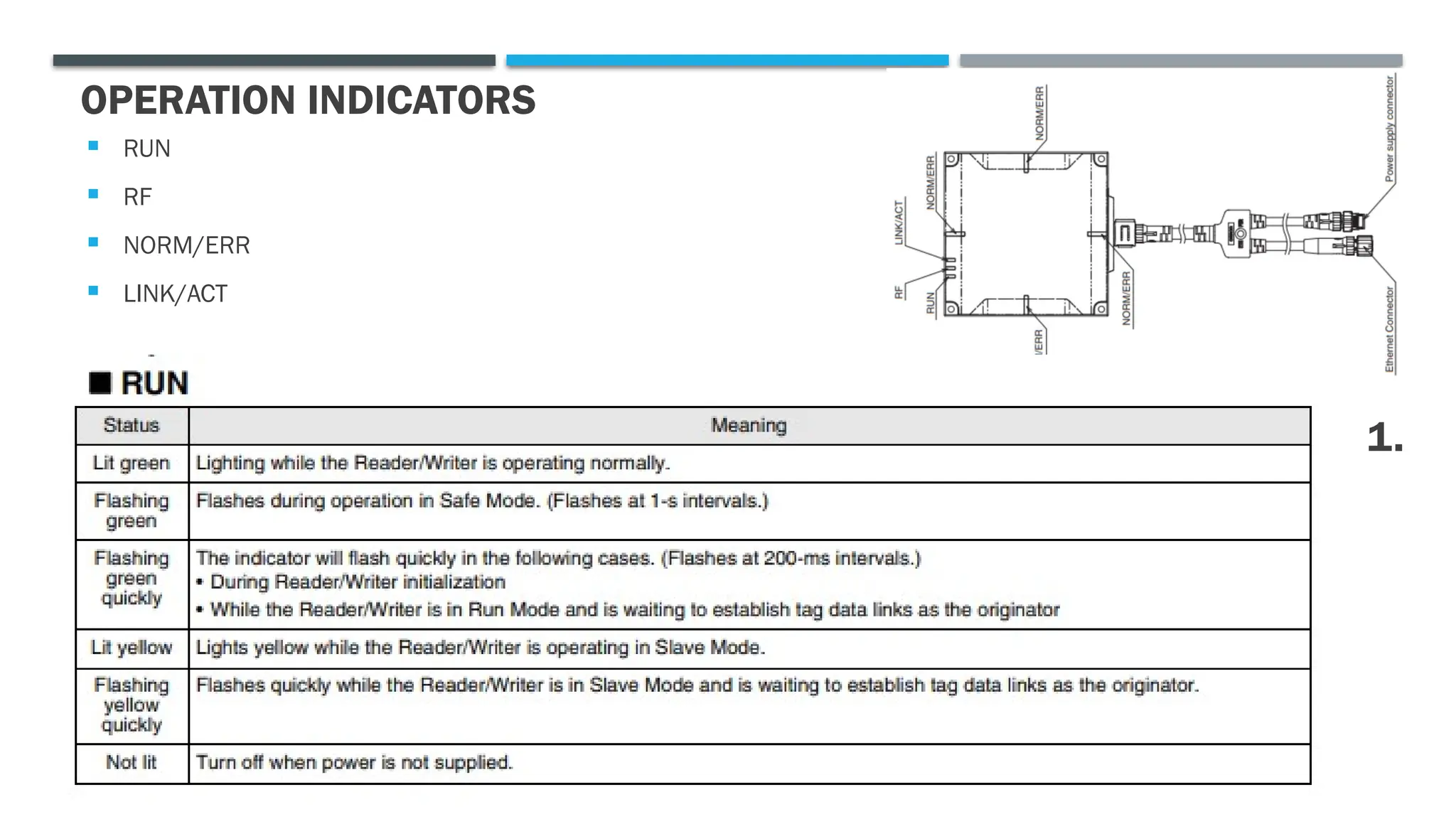
OPERATION INDICATORS
 RUN
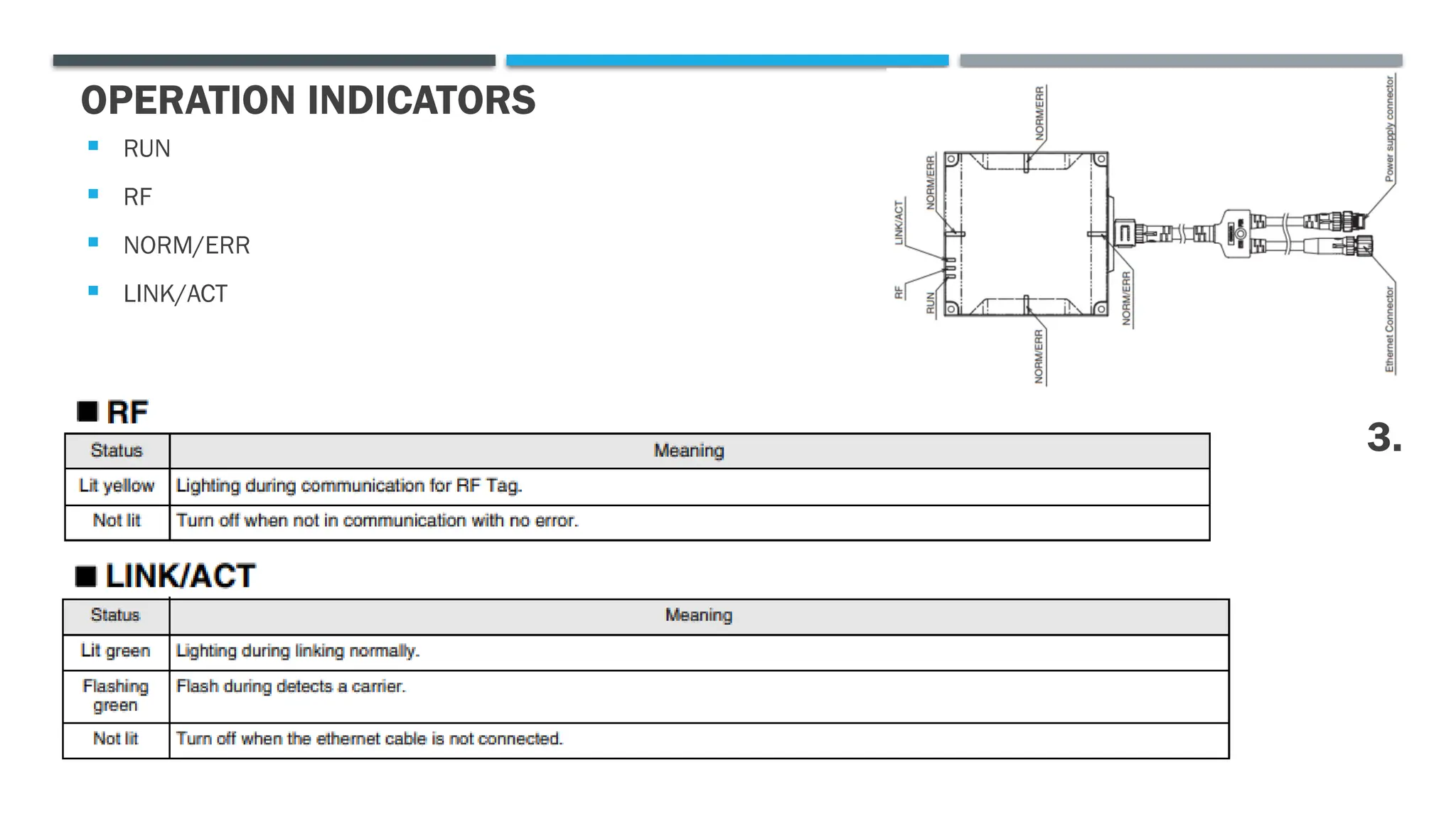
 RF
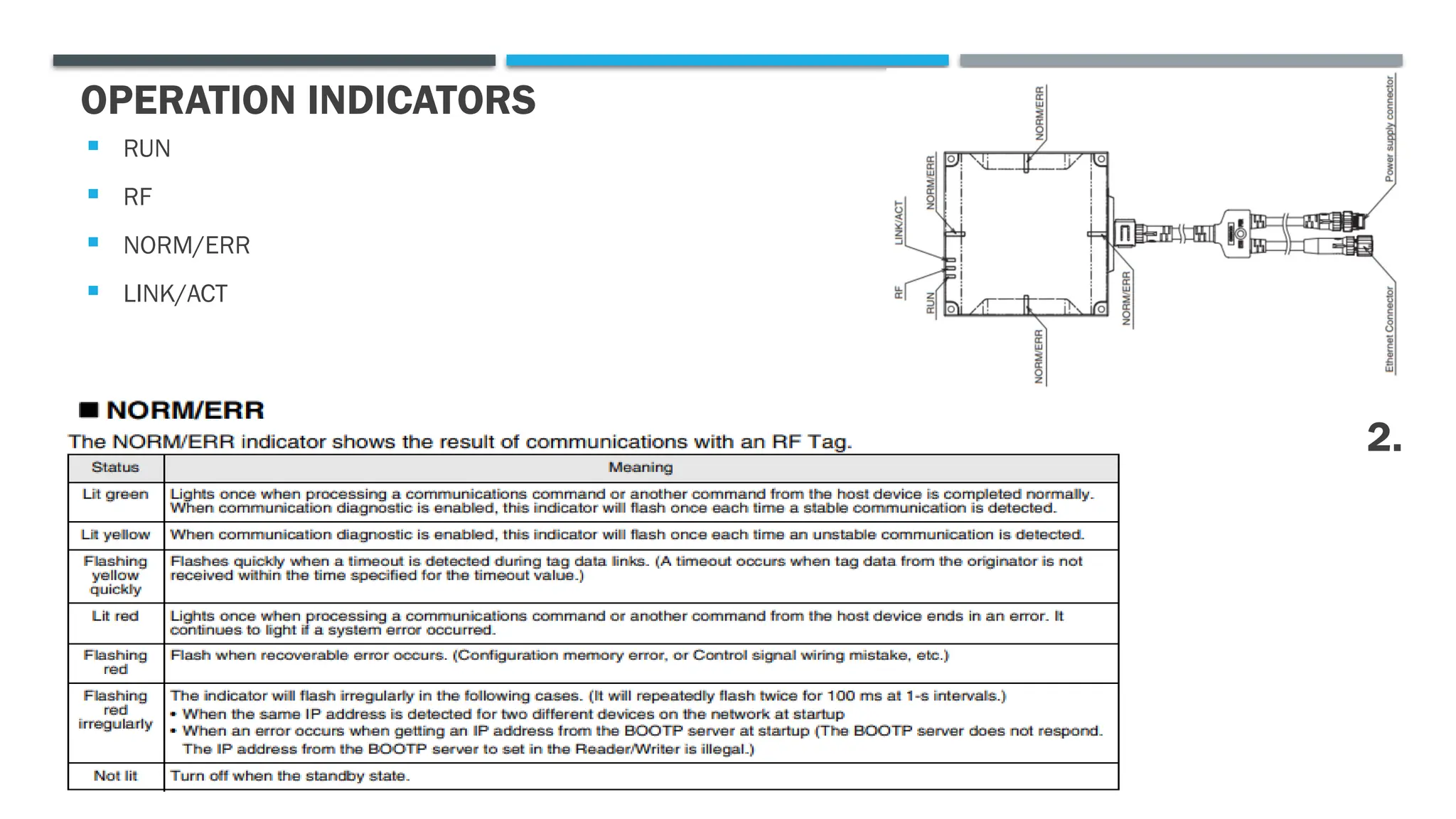
 NORM/ERR
 LINK/ACT
1.
OPERATION INDICATORS
 RUN
 RF
 NORM/ERR
 LINK/ACT
2.
OPERATION INDICATORS
 RUN
 RF
 NORM/ERR
 LINK/ACT
3.
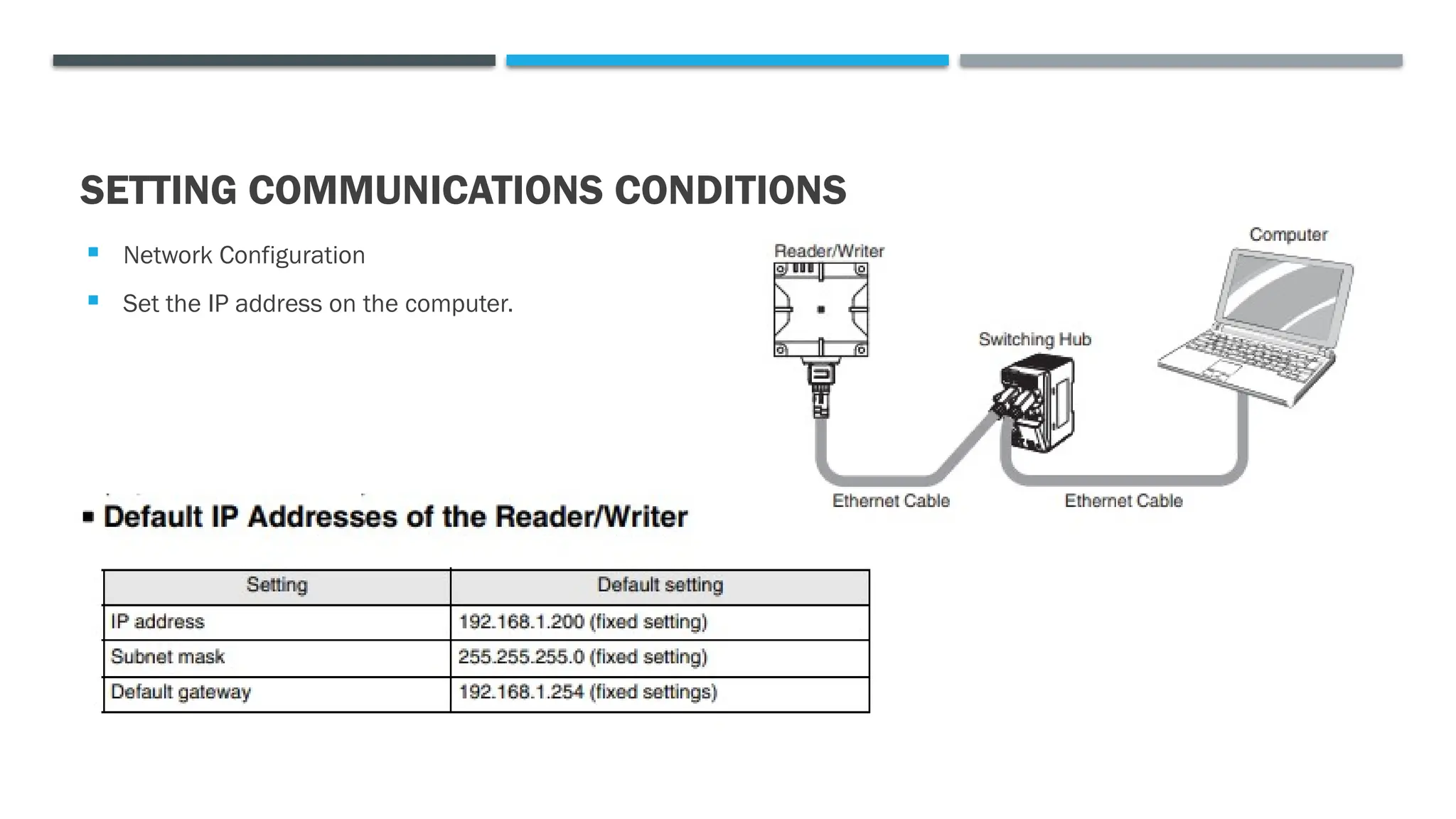
 Network Configuration
 Set the IP address on the computer.
SETTING COMMUNICATIONS CONDITIONS
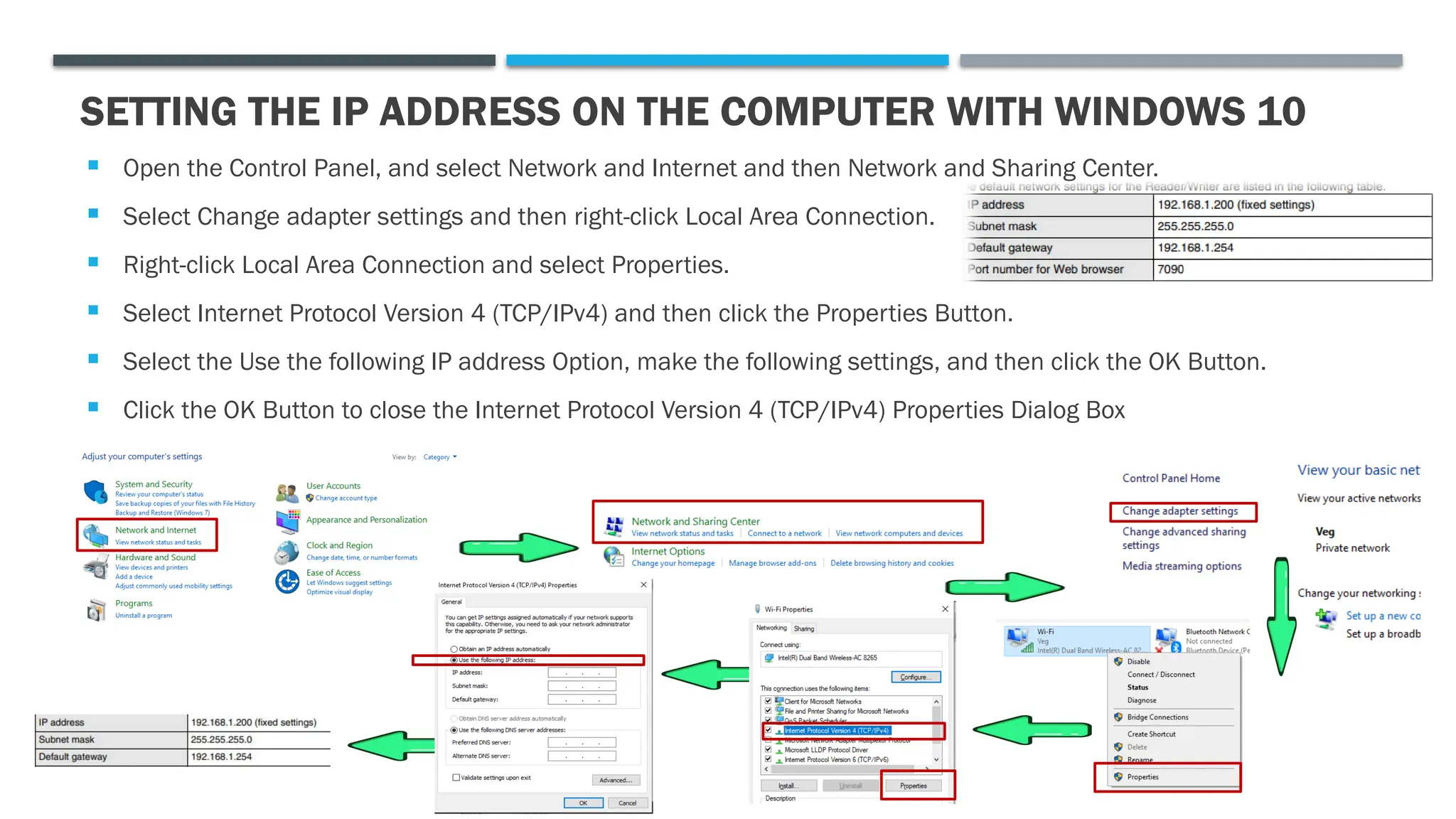
 Open the Control Panel, and select Network and Internet and then Network and Sharing Center.
 Select Change adapter settings and then right-click Local Area Connection.
 Right-click Local Area Connection and select Properties.
 Select Internet Protocol Version 4 (TCP/IPv4) and then click the Properties Button.
 Select the Use the following IP address Option, make the following settings, and then click the OK Button.
 Click the OK Button to close the Internet Protocol Version 4 (TCP/IPv4) Properties Dialog Box
SETTING THE IP ADDRESS ON THE COMPUTER WITH WINDOWS 10
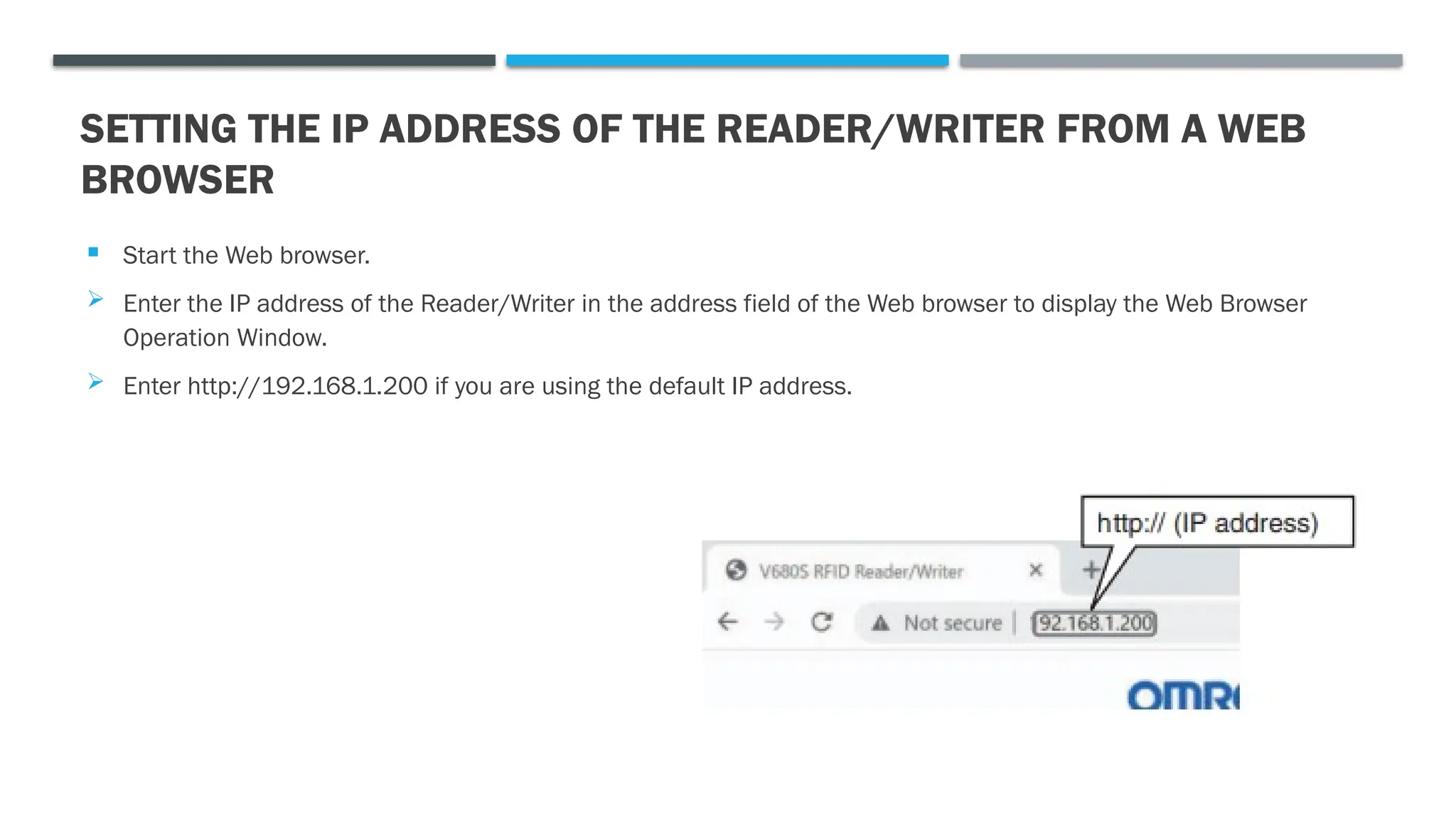
 Start the Web browser.
 Enter the IP address of the Reader/Writer in the address field of the Web browser to display the Web Browser
Operation Window.
 Enter http://192.168.1.200 if you are using the default IP address.
SETTING THE IP ADDRESS OF THE READER/WRITER FROM A WEB
BROWSER
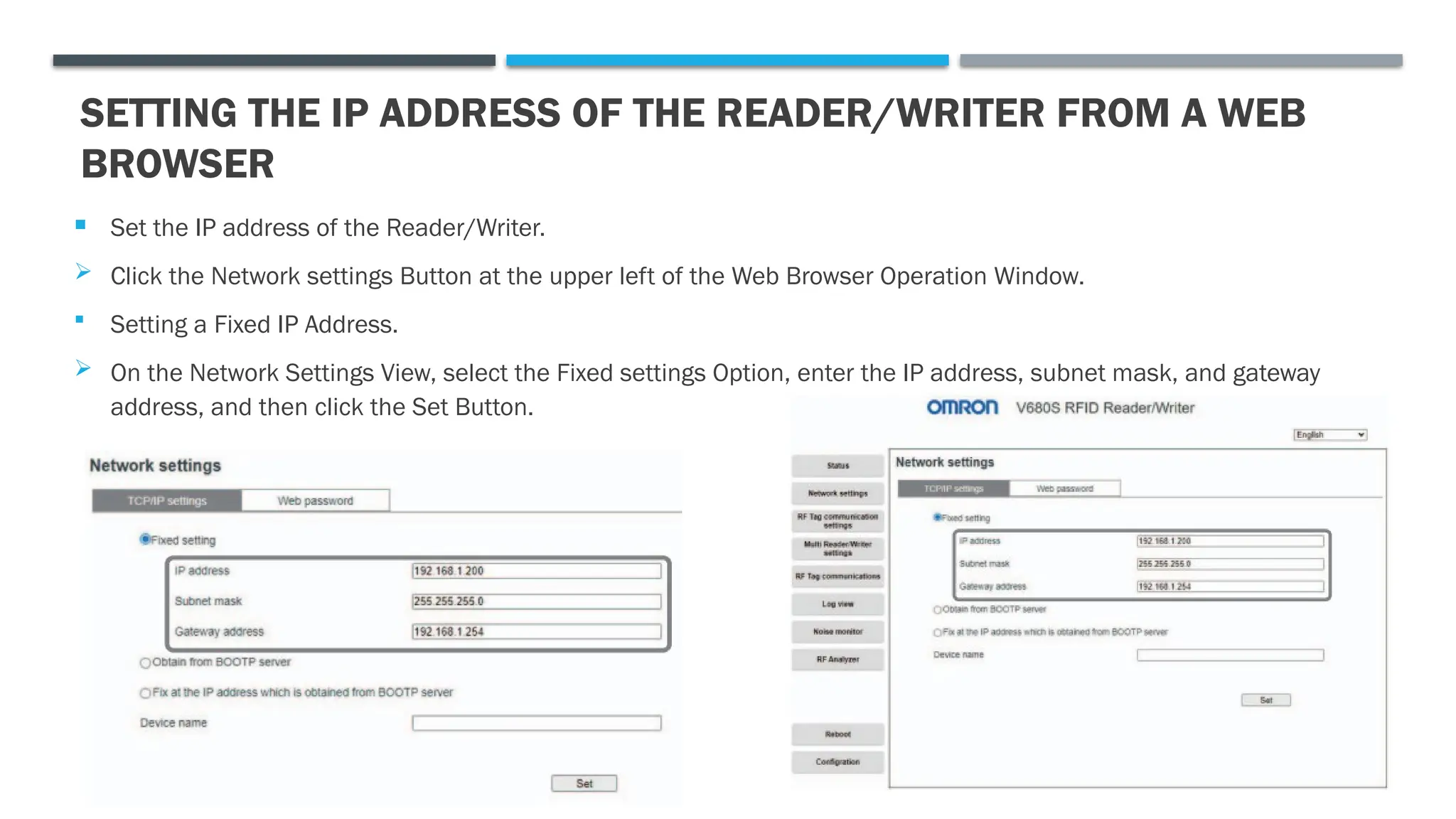
SETTING THE IP ADDRESS OF THE READER/WRITER FROM A WEB
BROWSER
 Set the IP address of the Reader/Writer.
 Click the Network settings Button at the upper left of the Web Browser Operation Window.
 Setting a Fixed IP Address.
 On the Network Settings View, select the Fixed settings Option, enter the IP address, subnet mask, and gateway
address, and then click the Set Button.

Omron offers comprehensive Radio Frequency Identification (RFID) systems, including the V680/V680S Series (HF band) and V780 Series (UHF band), designed for industrial automation and traceability applications.

  • 1.
  • 2.
  • 3.
    OPERATION INDICATORS  RUN RF  NORM/ERR  LINK/ACT 1.
  • 4.
    OPERATION INDICATORS  RUN RF  NORM/ERR  LINK/ACT 2.
  • 5.
    OPERATION INDICATORS  RUN RF  NORM/ERR  LINK/ACT 3.
  • 6.
     Network Configuration Set the IP address on the computer. SETTING COMMUNICATIONS CONDITIONS
  • 7.
     Open theControl Panel, and select Network and Internet and then Network and Sharing Center.  Select Change adapter settings and then right-click Local Area Connection.  Right-click Local Area Connection and select Properties.  Select Internet Protocol Version 4 (TCP/IPv4) and then click the Properties Button.  Select the Use the following IP address Option, make the following settings, and then click the OK Button.  Click the OK Button to close the Internet Protocol Version 4 (TCP/IPv4) Properties Dialog Box SETTING THE IP ADDRESS ON THE COMPUTER WITH WINDOWS 10
  • 8.
     Start theWeb browser.  Enter the IP address of the Reader/Writer in the address field of the Web browser to display the Web Browser Operation Window.  Enter http://192.168.1.200 if you are using the default IP address. SETTING THE IP ADDRESS OF THE READER/WRITER FROM A WEB BROWSER
  • 9.
    SETTING THE IPADDRESS OF THE READER/WRITER FROM A WEB BROWSER  Set the IP address of the Reader/Writer.  Click the Network settings Button at the upper left of the Web Browser Operation Window.  Setting a Fixed IP Address.  On the Network Settings View, select the Fixed settings Option, enter the IP address, subnet mask, and gateway address, and then click the Set Button.