Nexus Q
Agenda


    Overview

    Specifications

    Design

    Setup

    Nexus Q App

    Features

    User Reviews
Introduction


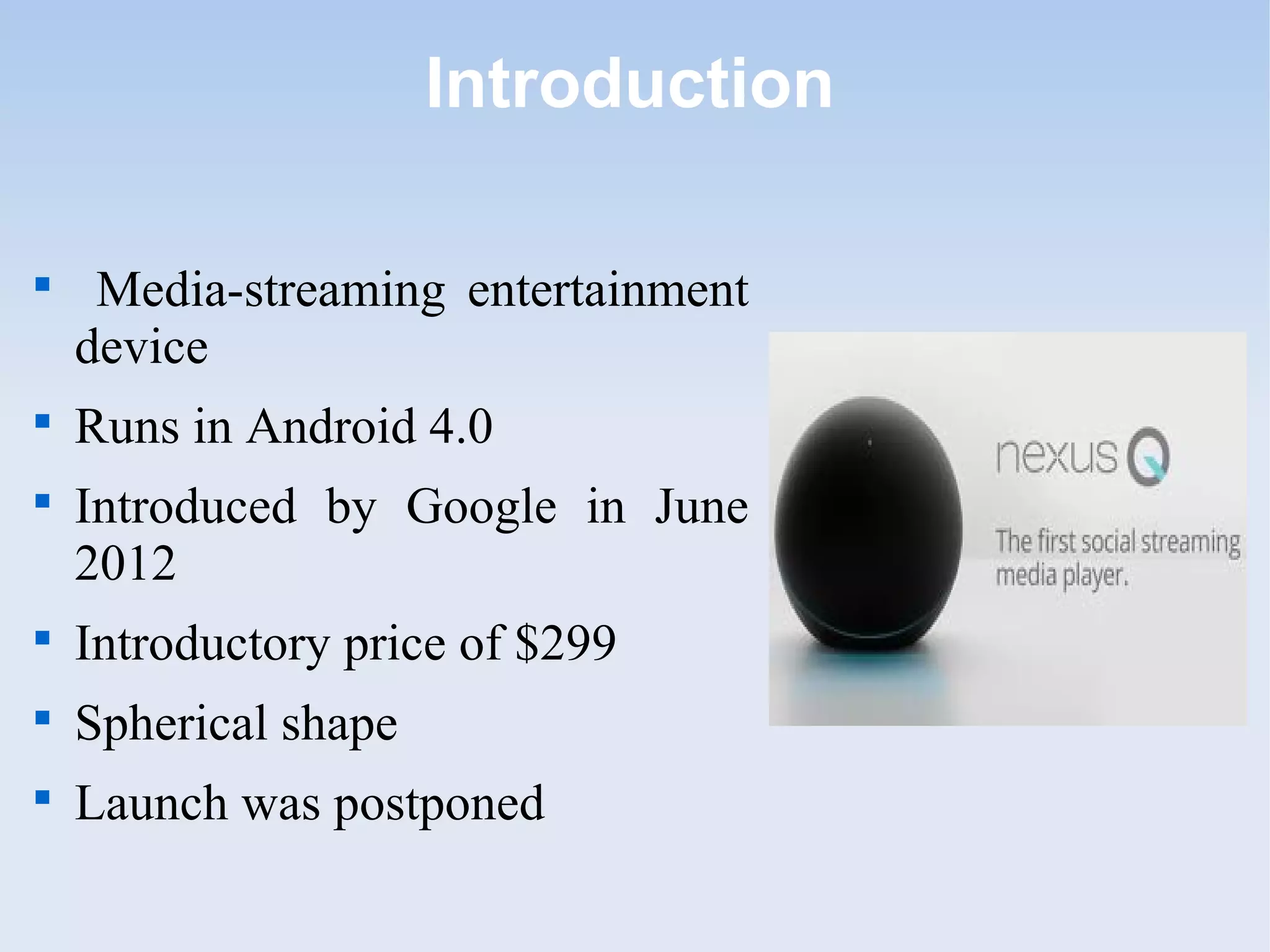
     Media-streaming entertainment
    device

    Runs in Android 4.0

    Introduced by Google in June
    2012

    Introductory price of $299

    Spherical shape

    Launch was postponed
General Specifications


    Diameter       -   4.6 inches (116 mm)

    Weight         -   2 pounds (923 g)

    H/W controls   -   Rotating top dome volume control
                       Capacitive touch sensor for mute on/off

    CPU            -   OMAP 4460 (dual-core ARM Cortex-A9 CPU
                       and SGX540 graphics core)

    Memory         -   1 GB LPDDR RAM
                       16GB NAND flash memory

    OS             -   Android 4.0 (Ice Cream Sandwich)
Technical Specification


    Android Control    - Phone/Tablet


           Software


    Audio
        - Amplifier,     Outputs

         Stream
Design


    Bocce ball

    Innovative design

    breaking     out      sharp-angled
    dimensions of devices

    Flattened, well-weighted bottom

    The black orb, with a soft, matte
    finish

    Bisected diagonally by a thin ring
    of LEDs
Setup


    Easy to Setup

    Controlled by a Nexus Q App.

    Android 2.3 Gingerbread or later

    The app connects automatically
    to the orb over Bluetooth

    Wi-Fi password, designating the
    room

    Setup less than 2 minutes
Nexus Q App


     First Launching App – forces to
    connects to the new hardware.

    The app automatically picks up the
    running Nexus Q hardware in a
    room

    Established a link by having user
    log in to their Google account.

    This app can control multiple Q's
    on the same network

    The app by default sets My Home
Communicate with Device


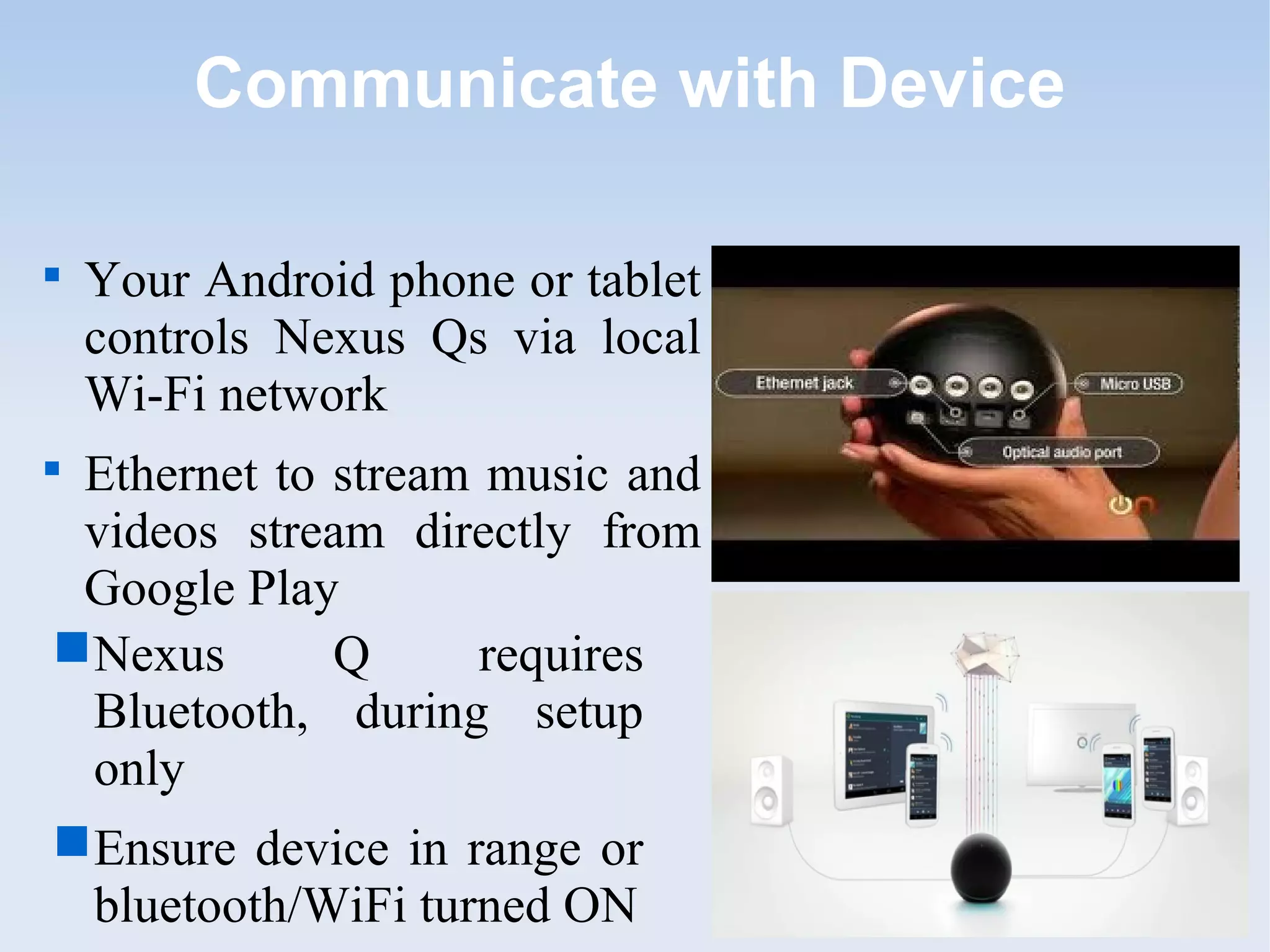
    Your Android phone or tablet
    controls Nexus Qs via local
    Wi-Fi network

 Ethernet to stream music and
 videos stream directly from
 Google Play
 Nexus      Q      requires
  Bluetooth, during setup
  only
 Ensure device in range or
  bluetooth/WiFi turned ON
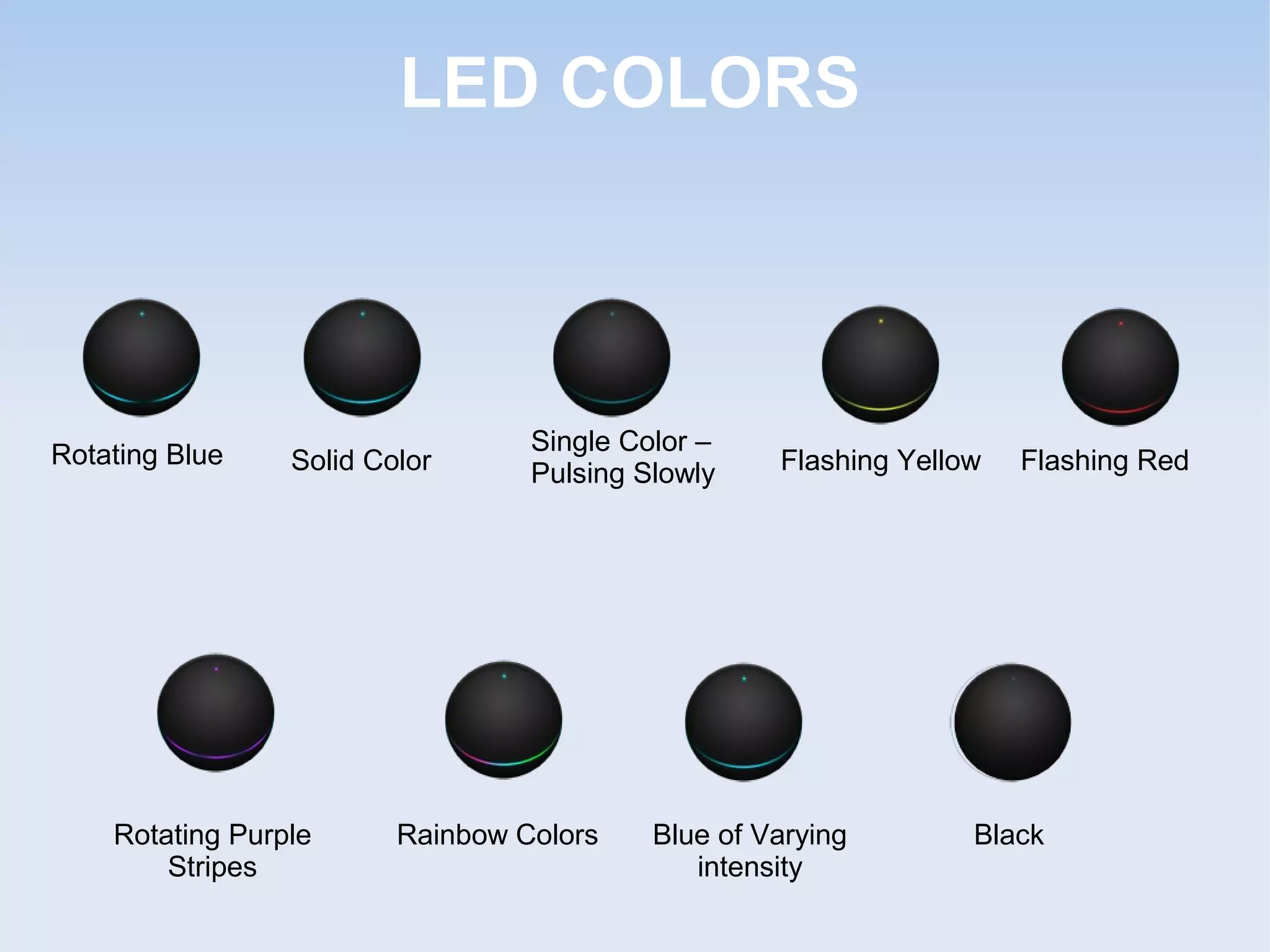
LED COLORS


Rotating Blue                     Single Color –
                 Solid Color      Pulsing Slowly    Flashing Yellow   Flashing Red


    Rotating Purple      Rainbow Colors    Blue of Varying        Black
        Stripes                               intensity
Remote & Direct controls


    Use the volume button on your phone or
    tablet.

    Turn the upper half of the Nexus Q
    clockwise or Anti-clockwise

    The LED turns blue while volume is
    being adjusted, glowing more intensely
    as it gets louder.

    To mute or un mute your Nexus Q.
    touch the LED on its top.
Streaming


    Can set up one or more Nexus Qs,

    Use the Google Play Music app to
    play music through them

    One Nexus Q

    Multiple Nexus Qs

    Each Nexus Q has its own music
    queue

    Combine many Nexus Qs at the
    same time
Play YouTube videos

     
         you can stream videos using the
         YouTube app
     
         You can still play YouTube
         videos on your phone or tablet in
         the usual way
     
         Must connected to a TV with an
         HDMI cable, and the TV is on
     
         It's not possible to stream more
         than one Nexus Q at a time.
Invite Friends


    You can allow your friends play their own music
    through your Nexus Qs

    Settings open to guests  On

    Touch Invite guests.

    Enter your Friends Email Address

    Give them the name and password for the Wi-Fi
    network

    Turn off guests
Sound and Light Show


    Play Music and tapped a
    streaming media icon on the
    top of the screen

    In HDTV pretty dancing
    visuals on the screen

    LEDs on the edges of the Q's
    dome also pulsed in color
    and in time to the music.

    Dozen themes (e.g. warm,
    cold, blue), make it brighter
    or dimmer
User Reviews


    It doesn't allow users to stream content already
    stored in smartphone or Tablet

    costlier compared to Apple TV which costs only
    $99

    Android dependent

    Less functionality and usability
Queries...

Nexus Q

  • 1.
  • 2.
    Agenda  Overview  Specifications  Design  Setup  Nexus Q App  Features  User Reviews
  • 3.
    Introduction  Media-streaming entertainment device  Runs in Android 4.0  Introduced by Google in June 2012  Introductory price of $299  Spherical shape  Launch was postponed
  • 4.
    General Specifications  Diameter - 4.6 inches (116 mm)  Weight - 2 pounds (923 g)  H/W controls - Rotating top dome volume control Capacitive touch sensor for mute on/off  CPU - OMAP 4460 (dual-core ARM Cortex-A9 CPU and SGX540 graphics core)  Memory - 1 GB LPDDR RAM 16GB NAND flash memory  OS - Android 4.0 (Ice Cream Sandwich)
  • 5.
    Technical Specification  Android Control - Phone/Tablet Software  Audio - Amplifier, Outputs Stream
  • 6.
    Design  Bocce ball  Innovative design  breaking out sharp-angled dimensions of devices  Flattened, well-weighted bottom  The black orb, with a soft, matte finish  Bisected diagonally by a thin ring of LEDs
  • 7.
    Setup  Easy to Setup  Controlled by a Nexus Q App.  Android 2.3 Gingerbread or later  The app connects automatically to the orb over Bluetooth  Wi-Fi password, designating the room  Setup less than 2 minutes
  • 8.
    Nexus Q App  First Launching App – forces to connects to the new hardware.  The app automatically picks up the running Nexus Q hardware in a room  Established a link by having user log in to their Google account.  This app can control multiple Q's on the same network  The app by default sets My Home
  • 9.
    Communicate with Device  Your Android phone or tablet controls Nexus Qs via local Wi-Fi network  Ethernet to stream music and videos stream directly from Google Play  Nexus Q requires Bluetooth, during setup only  Ensure device in range or bluetooth/WiFi turned ON
  • 10.
    LED COLORS Rotating Blue Single Color – Solid Color Pulsing Slowly Flashing Yellow Flashing Red Rotating Purple Rainbow Colors Blue of Varying Black Stripes intensity
  • 11.
    Remote & Directcontrols  Use the volume button on your phone or tablet.  Turn the upper half of the Nexus Q clockwise or Anti-clockwise  The LED turns blue while volume is being adjusted, glowing more intensely as it gets louder.  To mute or un mute your Nexus Q. touch the LED on its top.
  • 12.
    Streaming  Can set up one or more Nexus Qs,  Use the Google Play Music app to play music through them  One Nexus Q  Multiple Nexus Qs  Each Nexus Q has its own music queue  Combine many Nexus Qs at the same time
  • 13.
    Play YouTube videos  you can stream videos using the YouTube app  You can still play YouTube videos on your phone or tablet in the usual way  Must connected to a TV with an HDMI cable, and the TV is on  It's not possible to stream more than one Nexus Q at a time.
  • 14.
    Invite Friends  You can allow your friends play their own music through your Nexus Qs  Settings open to guests  On  Touch Invite guests.  Enter your Friends Email Address  Give them the name and password for the Wi-Fi network  Turn off guests
  • 15.
    Sound and LightShow  Play Music and tapped a streaming media icon on the top of the screen  In HDTV pretty dancing visuals on the screen  LEDs on the edges of the Q's dome also pulsed in color and in time to the music.  Dozen themes (e.g. warm, cold, blue), make it brighter or dimmer
  • 16.
    User Reviews  It doesn't allow users to stream content already stored in smartphone or Tablet  costlier compared to Apple TV which costs only $99  Android dependent  Less functionality and usability
  • 17.