CORSO BASE IPHONE
                                 Parte 2


martedì 18 ottobre 2011
PROGRAMMA DI OGGI


          Esempi di Codice
               •          Gli strumenti per la persistenza dei dati su iOS
               •          Interfacciamento con dati esterni (web services)
               •          Cenni di utilizzo di Map Kit e Location APIì


          Concetti
               •          Debugging e Testing delle applicazioni per iOS
               •          Distribuzione delle applicazioni su “App Store”
               •          Risorse utili per gli sviluppatori iOS


martedì 18 ottobre 2011
DATI PERSISTENTI


    • Impostazioni Applicazioni

    • supporto              SQLlite

    • Lettura             Scrittura Files


martedì 18 ottobre 2011
APPLICATION SETTINGS
                            Dati Persistenti


martedì 18 ottobre 2011
DATI PERSISTENTI: IMPOSTAZIONI APPLICAZIONE


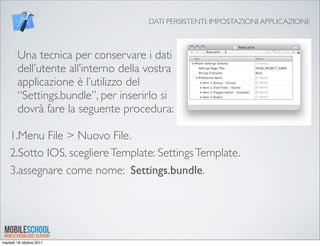
        Una tecnica per conservare i dati
        dell’utente all’interno della vostra
        applicazione è l’utilizzo del
        “Settings.bundle”, per inserirlo si
        dovrà fare la seguente procedura:

    1.Menu File > Nuovo File.
    2.Sotto IOS, scegliere Template: Settings Template.
    3.assegnare come nome: Settings.bundle.


martedì 18 ottobre 2011
DATI PERSISTENTI: IMPOSTAZIONI APPLICAZIONE


        Una volta impostato il Settings.bundle e il
        root.plist.
        Si potrà accedere ai dati conservati con il
        seguente snippet:
         NSUserDefaults *defaults =
              [NSUserDefaults standardUserDefaults];
         [self setShouldPlaySounds:
              [defaults boolForKey:@"miaPreferenza"]];


martedì 18 ottobre 2011
SQLLITE - USARE IL DATABASE
                          Dati Persistenti


martedì 18 ottobre 2011
DATI PERSISTENTI: SQLLITE


        Un’altra tecnica per conservare dati all’interno delle vostre
        applicazioni IOS è l’utilizzo del supporto sqlLite, integrato nel
        vostro device. Per attivarlo bisogna fare i seguenti passaggi:

    1.Importare la libreria “libsqlite3.0.dylib”
    2.Definire una classe di accesso ai dati (es. Data.h/m)
    3.Creare un database sqlLite (con sqlLite Manager o altri tools)
    4.Importare il database creato
    5.Accedere ai dati e gestirli dalla vostra APP


martedì 18 ottobre 2011
DATI PERSISTENTI: SQLLITE


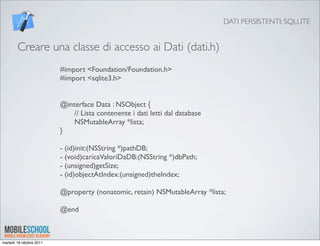
        Creare una classe di accesso ai Dati (dati.h)
                          #import <Foundation/Foundation.h>
                          #import <sqlite3.h>


                          @interface Data : NSObject {
                          	

 // Lista contenente i dati letti dal database
                          	

 NSMutableArray *lista;
                          }

                          - (id)init:(NSString *)pathDB;
                          - (void)caricaValoriDaDB:(NSString *)dbPath;
                          - (unsigned)getSize;
                          - (id)objectAtIndex:(unsigned)theIndex;

                          @property (nonatomic, retain) NSMutableArray *lista;

                          @end


martedì 18 ottobre 2011
DATI PERSISTENTI: SQLLITE


        Creare una classe di accesso ai Dati (dati.m)
                          #import "Data.h"

                          static sqlite3 *database = nil;
                          @implementation Data
                          @synthesize lista;
                          // Inizializziamo l'oggetto della classe Data
                          - (id)init:(NSString *)pathDB{
                          	

      // carichiamo i valori dal database
                          	

      [self caricaValoriDaDB:pathDB];
                               return self;
                          }
                          +(void)finalizeStatements {
                          	

      if(database)


     sqlite3_close(database);
                          }
                          -(void)dealloc {
                          	

      [lista release];
                          	

      [super dealloc];
                          }
                          //..implementazione metodi di lettura...
                          @end


martedì 18 ottobre 2011
DATI PERSISTENTI: SQLLITE


        Creare una classe di accesso ai Dati (dati.m)
       - (void)caricaValoriDaDB:(NSString *)dbPath {
       	

      NSLog(@"path: %@",dbPath);
       	

      // lista temporanea
       	

      NSMutableArray *listaTemp = [[NSMutableArray alloc] init];
       	

      // Oggetto che contiene i vari elementi
           NSMutableDictionary *dictionary;


      NSMutableString *idPersona;//id della persona
       	

      NSMutableString *nome;//nome della persona
       	

      NSMutableString *cognome;//cognome della persona


      if (sqlite3_open([dbPath UTF8String], &database) == SQLITE_OK) {


        // query che ricava i valori


        const char *sql = "select ID, Nome, Cognome from PERSONA";


        sqlite3_stmt *selectstmt;


        if(sqlite3_prepare_v2(database, sql, -1, &selectstmt, NULL) == SQLITE_OK) {


        while(sqlite3_step(selectstmt) == SQLITE_ROW) {


      // ricaviamo i valori letti dalla query


      idPersona = [NSString stringWithUTF8String:(char *)sqlite3_column_text(selectstmt, 0)];


      nome = [NSString stringWithUTF8String:(char *)sqlite3_column_text(selectstmt, 1)];


      cognome = [NSString stringWithUTF8String:(char *)sqlite3_column_text(selectstmt, 2)];


      // inseriamo tutti i valori letti in un unico oggetto


      dictionary = [[NSMutableDictionary alloc] initWithObjectsAndKeys:idPersona, @"id", nome, @"nome", cognome, @"cognome", nil];


      [listaTemp addObject:dictionary];


      [dictionary release];


        }


    }


        self.lista = listaTemp;


        [listaTemp release];
       	

      }
       	

      else


        sqlite3_close(database);
       	

      NSLog(@"tutto ok");
       }


martedì 18 ottobre 2011
DATI PERSISTENTI: SQLLITE


        E ora accediamo ai nostri dati da una qualsiasi classe
        dell’Applicazione:
           //leggiamo il path del database
           ! NSString *defaultDBPath = [[[NSBundle mainBundle] resourcePath]
           stringByAppendingPathComponent:@"persone.sqlite"];
           !
           ! //creiamo la lista degli autori
           ! dataList = [[Data alloc] init:defaultDBPath];


martedì 18 ottobre 2011
LAVORARE CON I FILES
                                Dati Persistenti


martedì 18 ottobre 2011
DATI PERSISTENTI: LAVORARE SUI FILES


        L’ultimo metodo per la gestione dei dati all’interno della vostra
        APP è quello che permette la lettura e la scrittura dei files.

        Gli usi sono molteplici, dalla possibilità di inserire informazioni,
        fino alla possibilità di conservare immagini scaricate (caching).


martedì 18 ottobre 2011
DATI PERSISTENTI: LAVORARE SUI FILES


        Salvare un NSArray in un file:
           NSArray *paths = NSSearchPathForDirectoriesInDomains(NSDocumentDirectory,
           NSUserDomainMask, YES);
           NSString *documentsDirectory = [paths objectAtIndex:0];
           NSString *filePath = [documentsDirectory stringByAppendingPathComponent:FILE_NAME];

           [myArray writeToFile:filePath atomically:TRUE];


        Leggere un NSArray da un file:
            NSArray *paths = NSSearchPathForDirectoriesInDomains(NSDocumentDirectory,
            NSUserDomainMask, YES);
            NSString *documentsDirectory = [paths objectAtIndex:0];
            NSString *filePath = [documentsDirectory stringByAppendingPathComponent:FILE_NAME];

            myArray = [NSArray arrayWithContentsOfFile:filePath];


martedì 18 ottobre 2011
DATI PERSISTENTI: LAVORARE SUI FILES


        Verificare se il file Esiste e salvare un immagine:
          if(![[NSFileManager defaultManager] fileExistsAtPath: uniquePath])
             {

                NSData *data = [[NSData alloc] initWithContentsOfURL: ImageURL];
                UIImage *image = [[UIImage alloc] initWithData: data];
                image = [self roundCorners: image];
                if([ImageURLString rangeOfString: @".png" options:
        NSCaseInsensitiveSearch].location != NSNotFound)
                {
                    [UIImagePNGRepresentation(image) writeToFile: uniquePath atomically: YES];
                }
                else if(
                         [ImageURLString rangeOfString: @".jpg" options:
        NSCaseInsensitiveSearch].location != NSNotFound ||
                         [ImageURLString rangeOfString: @".jpeg" options:
        NSCaseInsensitiveSearch].location != NSNotFound
                         )
                {
                    [UIImageJPEGRepresentation(image, 100) writeToFile: uniquePath atomically:
        YES];
                }
            }


martedì 18 ottobre 2011
DATI PERSISTENTI: LAVORARE SUI FILES


        Leggere un immagine da un file:

         - (UIImage *) getCachedImage: (NSString *) ImageURLString
         {
             NSString *filename = [[something unique, perhaps the image name]];
             NSString *uniquePath = [TMP stringByAppendingPathComponent: filename];

             UIImage *image;
             if([[NSFileManager defaultManager] fileExistsAtPath: uniquePath])
             {
                  image = [UIImage imageWithContentsOfFile: uniquePath]; // this is the cached
         image
             }
             else
             {
                  [self cacheImage: ImageURLString];
                  image = [UIImage imageWithContentsOfFile: uniquePath];
             }
             return image;
         }


martedì 18 ottobre 2011
LEGGERE DATI DALLA RETE
                          Dati Persistenti


martedì 18 ottobre 2011
LEGGERE DATI DALLA RETE


        Il massimo delle potenzialità un’app le raggiunge quanto può
        connettersi al web ed acquisire dati direttamente da servizi
        esterni come per esempio attraverso i file XML.

        Esistono vari framework per ottenere dati dal web (es
        ASIHTTPREQUEST) ma la più semplice prevede l’utilizzo di
        questo snippet:
              NSURL *URL=[[NSURL alloc] initWithString:stringForURL];
              NSString *results =
                   [[NSString alloc] initWithContentsOfURL :URL];

        e l’utilizzo di una classe “parser” che prepari un elenco di dati
        da un NSString contenente XML


martedì 18 ottobre 2011
LEGGERE DATI DALLA RETE: UN SEMPLICE PARSER XML (DA STRINGA)


                                             Interfaccia


         #import <Foundation/Foundation.h>


         @interface XmlServer : NSObject <NSXMLParserDelegate>{


         }
         //Creiamo un singleton:
         + (id)sharedXmlServer;


martedì 18 ottobre 2011
LEGGERE DATI DALLA RETE


                                                  Implementazione
         #import <Foundation/Foundation.h>
         #import <Foundation/NSXMLParser.h>

         - (void)parserDidStartDocument:(NSXMLParser *)parser{!
         !   NSLog(@"found file and started parsing");
         }

         - (id)parseXMLFileForString:(NSString *)xmlString
         {
         !
         !   NSData *rssXmlData = [rssXmlString dataUsingEncoding: NSUTF8StringEncoding];!
             NSXMLParser *rssParser = [[NSXMLParser alloc] initWithData:MYDATA];
             [rssParser setDelegate:self];
         !   [rssParser setShouldProcessNamespaces:NO];
         !   [rssParser setShouldReportNamespacePrefixes:NO];
         !   [rssParser setShouldResolveExternalEntities:NO];
         !   [rssParser parse];
         !   [rssParser release];
         }

         - (void)parser:(NSXMLParser *)parser didStartElement:(NSString *)elementName namespaceURI:(NSString *)namespaceURI
         qualifiedName:(NSString *)qName attributes:(NSDictionary *)attributeDict{!!   !
             NSLog(@"found this element: %@", elementName);
         }

         - (void)parser:(NSXMLParser *)parser didEndElement:(NSString *)elementName namespaceURI:(NSString *)namespaceURI
         qualifiedName:(NSString *)qName{
         }

         - (void)parser:(NSXMLParser *)parser foundCharacters:(NSString *)string{
         }

         - (void)parser:(NSXMLParser *)parser parseErrorOccurred:(NSError *)parseError {
         !   NSString * errorString = [NSString stringWithFormat:@"Unable parse XML error number:%i )", [parseError code]];
         !   NSLog(@"Errore Analisi XML: %@,", errorString, [parseError description]);!
         }


martedì 18 ottobre 2011
INTRODUZIONE AL MAPKIT
                          Strumenti Avanzati


martedì 18 ottobre 2011
MAPKIT


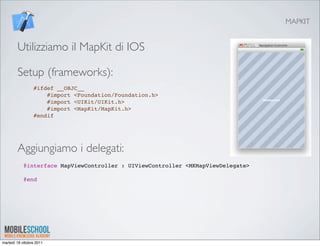
        Utilizziamo il MapKit di IOS

        Setup (frameworks):
                 #ifdef __OBJC__
                     #import <Foundation/Foundation.h>
                     #import <UIKit/UIKit.h>
                     #import <MapKit/MapKit.h>
                 #endif


        Aggiungiamo i delegati:
            @interface MapViewController : UIViewController <MKMapViewDelegate>
             
            @end


martedì 18 ottobre 2011
MAPKIT


        Inseriamo la Mappa nella nostra View:
                          - (void)loadView {
                              self.title = @"Mappa";
                              MKMapView *map= [[[MKMapView alloc] init] autorelease];
                              map.delegate = self;
                              map.showsUserLocation = YES;
                              self.view = map;
                          }


          Zoommiamo sulla posizione dell’utente
             - (void)mapView:(MKMapView *)mapView didAddAnnotationViews:(NSArray *)views {
                 for (MKAnnotationView *annotationView in views) {
                     if (annotationView.annotation == mapView.userLocation) {
                         MKCoordinateSpan span = MKCoordinateSpanMake(0.3, 0.3);
                         MKCoordinateRegion region = MKCoordinateRegionMake
             (mapView.userLocation.coordinate, span);
                         [mapView setRegion:region animated:YES];
                     }
                 }
             }


martedì 18 ottobre 2011
MAPKIT


        Aggiungere pushpin - la classe Annotation
                          @interface MobileSchoolAnnotation : NSObject <MKAnnotation>   {
                          " CLLocationCoordinate2D coordinate;
                          }
                           
                          @end

                          #import "MobileSchoolAnnotation.h"
                           
                          @implementation MobileSchoolAnnotation
                           
                          - (id)init {
                               coordinate.longitude = -122.084095;
                               coordinate.latitude = 37.422006;
                               return [super init];
                          }
                          @synthesize coordinate;
                          - (NSString *)title {
                               return @"MobileSchool";
                          }
                          - (NSString *)subtitle {
                               return @"Corso IOS!";
                          }
                          @end


martedì 18 ottobre 2011
MAPKIT


        Aggiungere i pushpin alla nostra Mappa
            [map addAnnotation:[[[MobileSchoolAnnotation alloc] init]
            autorelease]];


        Usare i delegati per personalizzare il click sui pushpin:
           - (MKAnnotationView *)mapView:(MKMapView *)mapView viewForAnnotation:(id )annotation {
               if (annotation == mapView.userLocation) {
                   return nil;
               }
               MKPinAnnotationView *pinView =
           [[[MKPinAnnotationView alloc] initWithAnnotation:annotation reuseIdentifier:@"Pin"] autorelease];
               pinView.pinColor = MKPinAnnotationColorPurple;
               pinView.canShowCallout = YES;
               pinView.rightCalloutAccessoryView = [UIButton buttonWithType:UIButtonTypeDetailDisclosure];
               pinView.animatesDrop = YES;
               return pinView;
           }


            - (void)mapView:(MKMapView *)mapView annotationView:(MKAnnotationView *)view calloutAccessoryControlTapped:
            (UIControl *)control {
            "   [self.navigationController pushViewController:[[[UIViewController alloc] init] autorelease] animated:YES];
            }


martedì 18 ottobre 2011
MAPKIT TIPS


        Creare viste personalizzate per i nostri PushPin
           - (MKAnnotationView *)mapView:(MKMapView *)mapView viewForAnnotation:(id
           <MKAnnotation>)annotation {
               if (annotation == mapView.userLocation) {
                   return nil;
               }
               MKAnnotationView *annotationView = [[[MKAnnotationView alloc]
           initWithAnnotation:annotation reuseIdentifier:@"Pin"] autorelease];
               annotationView.image = [UIImage imageNamed:@"google.png"];
               annotationView.canShowCallout = YES;
               annotationView.rightCalloutAccessoryView = [UIButton
           buttonWithType:UIButtonTypeDetailDisclosure];
               return annotationView;
           }


martedì 18 ottobre 2011
DEBUG E TEST DELLE APPS
                          Concetti


martedì 18 ottobre 2011
CONCETTI: DEBUG DELLE APPLICAZIONI


      Le nostre applicazioni prima di poter essere distribuite dovranno
      essere testate. In tal senso grazie ad Xcode e alla programmazione
      Xcode possiamo mettere in atto le nostre tecniche di analisi e
      verifica delle applicazioni che dovranno rispecchiare uno schema
      simile al seguente per ciascuna delle feature da noi inserite:
           •Verifica funzionale su simulatore
           •Verifica funzionale su terminale
           •Casi Limite (es. verifica input utente/problemi di rete etc.)
      Le nostre app se risponderanno positivamente a tutti i test
      potranno passare alla fase finale di testing e successivamente alla
      pubblicazione sull’AppleStore


martedì 18 ottobre 2011
CONCETTI: DEBUG DELLE APPLICAZIONI


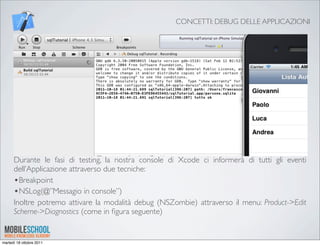
      Durante le fasi di testing, la nostra console di Xcode ci informerà di tutti gli eventi
      dell’Applicazione attraverso due tecniche:
      •Breakpoint
      •NSLog(@”Messagio in console”)
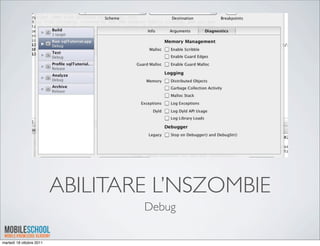
      Inoltre potremo attivare la modalità debug (NSZombie) attraverso il menu: Product->Edit
      Scheme->Diagnostics (come in figura seguente)


martedì 18 ottobre 2011
ABILITARE L’NSZOMBIE
                                  Debug

martedì 18 ottobre 2011
DISTRIBUZIONE
                              Concetti


martedì 18 ottobre 2011
CONCETTI: DISTRIBUIRE LE APP


      Una volta che le nostre applicazioni sono pronte per il
      pubblico (o per il cliente) si dovrà procedere alla
      “distribuzione”. Per fare ciò vi necessita il certificato di
      Distribuzione (ottenibile attraverso l’IOS Provisioning
      Profile) e i “mobileProvisioning” certificate.

      Esistono 2 tipologie principali di pubblicazione:
      •Ad-Hoc
      •AppStore
martedì 18 ottobre 2011
CONCETTI: DISTRIBUIRE LE APP


      •La distribuzione ad-hoc: serve per inviare la vostra
      applicazione ad una cerchia ristretta di persone (Es. i
      vostri amici per fare dei test o il vostro cliente per
      l’approvazione).
      •La distribuzione AppStore: è l’invio definitivo della
      vostra app verso lo store mondiale di apple. in questo
      caso la vostra applicazione sarà sottoposta a una
      revisione da parte dei tecnici apple e se riceverete esito
      positivo potrete vedere e scaricare la vostra app
      direttamente dall’AppleStore.

martedì 18 ottobre 2011
CONCETTI: DISTRIBUZIONE AD-HOC


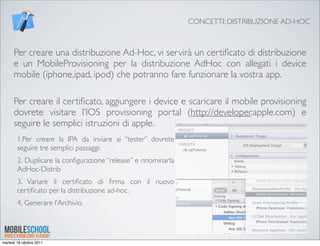
      Per creare una distribuzione Ad-Hoc, vi servirà un certificato di distribuzione
      e un MobileProvisioning per la distribuzione AdHoc con allegati i device
      mobile (iphone,ipad, ipod) che potranno fare funzionare la vostra app.

      Per creare il certificato, aggiungere i device e scaricare il mobile provisioning
      dovrete visitare l’IOS provisioning portal (http://developer.apple.com) e
      seguire le semplici istruzioni di apple.
        1.Per creare la IPA da inviare ai “tester” dovrete
        seguire tre semplici passaggi:
        2. Duplicare la configurazione “release” e rinominarla
        AdHoc-Distrib
        3. Variare il certificato di firma con il nuovo
        certificato per la distribuzione ad-hoc.
        4. Generare l’Archivio.


martedì 18 ottobre 2011
CONCETTI: DISTRIBUZIONE AD-HOC


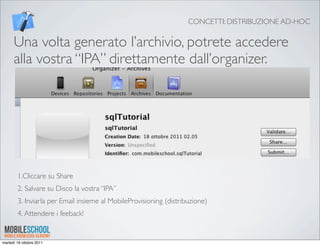
      Una volta generato l’archivio, potrete accedere
      alla vostra “IPA” direttamente dall’organizer.


        1.Cliccare su Share
        2. Salvare su Disco la vostra “IPA”
        3. Inviarla per Email insieme al MobileProvisioning (distribuzione)
        4. Attendere i feeback!


martedì 18 ottobre 2011
CONCETTI: DISTRIBUZIONE AD-HOC


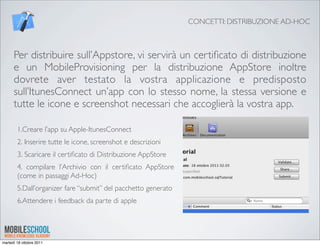
      Per distribuire sull’Appstore, vi servirà un certificato di distribuzione
      e un MobileProvisioning per la distribuzione AppStore inoltre
      dovrete aver testato la vostra applicazione e predisposto
      sull’ItunesConnect un’app con lo stesso nome, la stessa versione e
      tutte le icone e screenshot necessari che accoglierà la vostra app.

        1.Creare l’app su Apple-ItunesConnect
        2. Inserire tutte le icone, screenshot e descrizioni
        3. Scaricare il certificato di Distribuzione AppStore
        4. compilare l’Archivio con il certificato AppStore
        (come in passaggi Ad-Hoc)
        5.Dall’organizer fare “submit” del pacchetto generato
        6.Attendere i feedback da parte di apple


martedì 18 ottobre 2011
RISORSE UTILI
                              Concetti


martedì 18 ottobre 2011
CONCETTI: RISORSE UTILI


      •MobileSchool: http://www.mobileschool.it
      •StackOverflow: http://stackoverflow.com/
      •Ios Develper library: http://developer.apple.com/library/ios/navigation/
      #section=Resource%20Types&topic=Guides

      •Itunes Connect: https://itunesconnect.apple.com/
      •IPhone Dev Book: www.iphonedevbook.com/
      •IphoneDeveloper tips: http://iphonedevelopertips.com/


martedì 18 ottobre 2011
GRAZIE PER L’ATTENZIONE
      Visitate mobileschool.it per scaricare le demo delle applicazioni
                        realizzate durante il corso!


martedì 18 ottobre 2011

MS_corso base iOS iPhone_partII

  • 1.
    CORSO BASE IPHONE Parte 2 martedì 18 ottobre 2011
  • 2.
    PROGRAMMA DI OGGI Esempi di Codice • Gli strumenti per la persistenza dei dati su iOS • Interfacciamento con dati esterni (web services) • Cenni di utilizzo di Map Kit e Location APIì Concetti • Debugging e Testing delle applicazioni per iOS • Distribuzione delle applicazioni su “App Store” • Risorse utili per gli sviluppatori iOS martedì 18 ottobre 2011
  • 3.
    DATI PERSISTENTI • Impostazioni Applicazioni • supporto SQLlite • Lettura Scrittura Files martedì 18 ottobre 2011
  • 4.
    APPLICATION SETTINGS Dati Persistenti martedì 18 ottobre 2011
  • 5.
    DATI PERSISTENTI: IMPOSTAZIONIAPPLICAZIONE Una tecnica per conservare i dati dell’utente all’interno della vostra applicazione è l’utilizzo del “Settings.bundle”, per inserirlo si dovrà fare la seguente procedura: 1.Menu File > Nuovo File. 2.Sotto IOS, scegliere Template: Settings Template. 3.assegnare come nome: Settings.bundle. martedì 18 ottobre 2011
  • 6.
    DATI PERSISTENTI: IMPOSTAZIONIAPPLICAZIONE Una volta impostato il Settings.bundle e il root.plist. Si potrà accedere ai dati conservati con il seguente snippet: NSUserDefaults *defaults = [NSUserDefaults standardUserDefaults]; [self setShouldPlaySounds: [defaults boolForKey:@"miaPreferenza"]]; martedì 18 ottobre 2011
  • 7.
    SQLLITE - USAREIL DATABASE Dati Persistenti martedì 18 ottobre 2011
  • 8.
    DATI PERSISTENTI: SQLLITE Un’altra tecnica per conservare dati all’interno delle vostre applicazioni IOS è l’utilizzo del supporto sqlLite, integrato nel vostro device. Per attivarlo bisogna fare i seguenti passaggi: 1.Importare la libreria “libsqlite3.0.dylib” 2.Definire una classe di accesso ai dati (es. Data.h/m) 3.Creare un database sqlLite (con sqlLite Manager o altri tools) 4.Importare il database creato 5.Accedere ai dati e gestirli dalla vostra APP martedì 18 ottobre 2011
  • 9.
    DATI PERSISTENTI: SQLLITE Creare una classe di accesso ai Dati (dati.h) #import <Foundation/Foundation.h> #import <sqlite3.h> @interface Data : NSObject { // Lista contenente i dati letti dal database NSMutableArray *lista; } - (id)init:(NSString *)pathDB; - (void)caricaValoriDaDB:(NSString *)dbPath; - (unsigned)getSize; - (id)objectAtIndex:(unsigned)theIndex; @property (nonatomic, retain) NSMutableArray *lista; @end martedì 18 ottobre 2011
  • 10.
    DATI PERSISTENTI: SQLLITE Creare una classe di accesso ai Dati (dati.m) #import "Data.h" static sqlite3 *database = nil; @implementation Data @synthesize lista; // Inizializziamo l'oggetto della classe Data - (id)init:(NSString *)pathDB{ // carichiamo i valori dal database [self caricaValoriDaDB:pathDB]; return self; } +(void)finalizeStatements { if(database) sqlite3_close(database); } -(void)dealloc { [lista release]; [super dealloc]; } //..implementazione metodi di lettura... @end martedì 18 ottobre 2011
  • 11.
    DATI PERSISTENTI: SQLLITE Creare una classe di accesso ai Dati (dati.m) - (void)caricaValoriDaDB:(NSString *)dbPath { NSLog(@"path: %@",dbPath); // lista temporanea NSMutableArray *listaTemp = [[NSMutableArray alloc] init]; // Oggetto che contiene i vari elementi NSMutableDictionary *dictionary; NSMutableString *idPersona;//id della persona NSMutableString *nome;//nome della persona NSMutableString *cognome;//cognome della persona if (sqlite3_open([dbPath UTF8String], &database) == SQLITE_OK) { // query che ricava i valori const char *sql = "select ID, Nome, Cognome from PERSONA"; sqlite3_stmt *selectstmt; if(sqlite3_prepare_v2(database, sql, -1, &selectstmt, NULL) == SQLITE_OK) { while(sqlite3_step(selectstmt) == SQLITE_ROW) { // ricaviamo i valori letti dalla query idPersona = [NSString stringWithUTF8String:(char *)sqlite3_column_text(selectstmt, 0)]; nome = [NSString stringWithUTF8String:(char *)sqlite3_column_text(selectstmt, 1)]; cognome = [NSString stringWithUTF8String:(char *)sqlite3_column_text(selectstmt, 2)]; // inseriamo tutti i valori letti in un unico oggetto dictionary = [[NSMutableDictionary alloc] initWithObjectsAndKeys:idPersona, @"id", nome, @"nome", cognome, @"cognome", nil]; [listaTemp addObject:dictionary]; [dictionary release]; } } self.lista = listaTemp; [listaTemp release]; } else sqlite3_close(database); NSLog(@"tutto ok"); } martedì 18 ottobre 2011
  • 12.
    DATI PERSISTENTI: SQLLITE E ora accediamo ai nostri dati da una qualsiasi classe dell’Applicazione: //leggiamo il path del database ! NSString *defaultDBPath = [[[NSBundle mainBundle] resourcePath] stringByAppendingPathComponent:@"persone.sqlite"]; ! ! //creiamo la lista degli autori ! dataList = [[Data alloc] init:defaultDBPath]; martedì 18 ottobre 2011
  • 13.
    LAVORARE CON IFILES Dati Persistenti martedì 18 ottobre 2011
  • 14.
    DATI PERSISTENTI: LAVORARESUI FILES L’ultimo metodo per la gestione dei dati all’interno della vostra APP è quello che permette la lettura e la scrittura dei files. Gli usi sono molteplici, dalla possibilità di inserire informazioni, fino alla possibilità di conservare immagini scaricate (caching). martedì 18 ottobre 2011
  • 15.
    DATI PERSISTENTI: LAVORARESUI FILES Salvare un NSArray in un file: NSArray *paths = NSSearchPathForDirectoriesInDomains(NSDocumentDirectory, NSUserDomainMask, YES); NSString *documentsDirectory = [paths objectAtIndex:0]; NSString *filePath = [documentsDirectory stringByAppendingPathComponent:FILE_NAME]; [myArray writeToFile:filePath atomically:TRUE]; Leggere un NSArray da un file: NSArray *paths = NSSearchPathForDirectoriesInDomains(NSDocumentDirectory, NSUserDomainMask, YES); NSString *documentsDirectory = [paths objectAtIndex:0]; NSString *filePath = [documentsDirectory stringByAppendingPathComponent:FILE_NAME]; myArray = [NSArray arrayWithContentsOfFile:filePath]; martedì 18 ottobre 2011
  • 16.
    DATI PERSISTENTI: LAVORARESUI FILES Verificare se il file Esiste e salvare un immagine: if(![[NSFileManager defaultManager] fileExistsAtPath: uniquePath]) { NSData *data = [[NSData alloc] initWithContentsOfURL: ImageURL]; UIImage *image = [[UIImage alloc] initWithData: data]; image = [self roundCorners: image]; if([ImageURLString rangeOfString: @".png" options: NSCaseInsensitiveSearch].location != NSNotFound) { [UIImagePNGRepresentation(image) writeToFile: uniquePath atomically: YES]; } else if( [ImageURLString rangeOfString: @".jpg" options: NSCaseInsensitiveSearch].location != NSNotFound || [ImageURLString rangeOfString: @".jpeg" options: NSCaseInsensitiveSearch].location != NSNotFound ) { [UIImageJPEGRepresentation(image, 100) writeToFile: uniquePath atomically: YES]; } } martedì 18 ottobre 2011
  • 17.
    DATI PERSISTENTI: LAVORARESUI FILES Leggere un immagine da un file: - (UIImage *) getCachedImage: (NSString *) ImageURLString { NSString *filename = [[something unique, perhaps the image name]]; NSString *uniquePath = [TMP stringByAppendingPathComponent: filename]; UIImage *image; if([[NSFileManager defaultManager] fileExistsAtPath: uniquePath]) { image = [UIImage imageWithContentsOfFile: uniquePath]; // this is the cached image } else { [self cacheImage: ImageURLString]; image = [UIImage imageWithContentsOfFile: uniquePath]; } return image; } martedì 18 ottobre 2011
  • 18.
    LEGGERE DATI DALLARETE Dati Persistenti martedì 18 ottobre 2011
  • 19.
    LEGGERE DATI DALLARETE Il massimo delle potenzialità un’app le raggiunge quanto può connettersi al web ed acquisire dati direttamente da servizi esterni come per esempio attraverso i file XML. Esistono vari framework per ottenere dati dal web (es ASIHTTPREQUEST) ma la più semplice prevede l’utilizzo di questo snippet: NSURL *URL=[[NSURL alloc] initWithString:stringForURL]; NSString *results = [[NSString alloc] initWithContentsOfURL :URL]; e l’utilizzo di una classe “parser” che prepari un elenco di dati da un NSString contenente XML martedì 18 ottobre 2011
  • 20.
    LEGGERE DATI DALLARETE: UN SEMPLICE PARSER XML (DA STRINGA) Interfaccia #import <Foundation/Foundation.h> @interface XmlServer : NSObject <NSXMLParserDelegate>{ } //Creiamo un singleton: + (id)sharedXmlServer; martedì 18 ottobre 2011
  • 21.
    LEGGERE DATI DALLARETE Implementazione #import <Foundation/Foundation.h> #import <Foundation/NSXMLParser.h> - (void)parserDidStartDocument:(NSXMLParser *)parser{! ! NSLog(@"found file and started parsing"); } - (id)parseXMLFileForString:(NSString *)xmlString { ! ! NSData *rssXmlData = [rssXmlString dataUsingEncoding: NSUTF8StringEncoding];! NSXMLParser *rssParser = [[NSXMLParser alloc] initWithData:MYDATA]; [rssParser setDelegate:self]; ! [rssParser setShouldProcessNamespaces:NO]; ! [rssParser setShouldReportNamespacePrefixes:NO]; ! [rssParser setShouldResolveExternalEntities:NO]; ! [rssParser parse]; ! [rssParser release]; } - (void)parser:(NSXMLParser *)parser didStartElement:(NSString *)elementName namespaceURI:(NSString *)namespaceURI qualifiedName:(NSString *)qName attributes:(NSDictionary *)attributeDict{!! ! NSLog(@"found this element: %@", elementName); } - (void)parser:(NSXMLParser *)parser didEndElement:(NSString *)elementName namespaceURI:(NSString *)namespaceURI qualifiedName:(NSString *)qName{ } - (void)parser:(NSXMLParser *)parser foundCharacters:(NSString *)string{ } - (void)parser:(NSXMLParser *)parser parseErrorOccurred:(NSError *)parseError { ! NSString * errorString = [NSString stringWithFormat:@"Unable parse XML error number:%i )", [parseError code]]; ! NSLog(@"Errore Analisi XML: %@,", errorString, [parseError description]);! } martedì 18 ottobre 2011
  • 22.
    INTRODUZIONE AL MAPKIT Strumenti Avanzati martedì 18 ottobre 2011
  • 23.
    MAPKIT Utilizziamo il MapKit di IOS Setup (frameworks): #ifdef __OBJC__ #import <Foundation/Foundation.h> #import <UIKit/UIKit.h> #import <MapKit/MapKit.h> #endif Aggiungiamo i delegati: @interface MapViewController : UIViewController <MKMapViewDelegate>   @end martedì 18 ottobre 2011
  • 24.
    MAPKIT Inseriamo la Mappa nella nostra View: - (void)loadView { self.title = @"Mappa"; MKMapView *map= [[[MKMapView alloc] init] autorelease]; map.delegate = self; map.showsUserLocation = YES; self.view = map; } Zoommiamo sulla posizione dell’utente - (void)mapView:(MKMapView *)mapView didAddAnnotationViews:(NSArray *)views { for (MKAnnotationView *annotationView in views) { if (annotationView.annotation == mapView.userLocation) { MKCoordinateSpan span = MKCoordinateSpanMake(0.3, 0.3); MKCoordinateRegion region = MKCoordinateRegionMake (mapView.userLocation.coordinate, span); [mapView setRegion:region animated:YES]; } } } martedì 18 ottobre 2011
  • 25.
    MAPKIT Aggiungere pushpin - la classe Annotation @interface MobileSchoolAnnotation : NSObject <MKAnnotation> { " CLLocationCoordinate2D coordinate; }   @end #import "MobileSchoolAnnotation.h"   @implementation MobileSchoolAnnotation   - (id)init { coordinate.longitude = -122.084095; coordinate.latitude = 37.422006; return [super init]; } @synthesize coordinate; - (NSString *)title { return @"MobileSchool"; } - (NSString *)subtitle { return @"Corso IOS!"; } @end martedì 18 ottobre 2011
  • 26.
    MAPKIT Aggiungere i pushpin alla nostra Mappa [map addAnnotation:[[[MobileSchoolAnnotation alloc] init] autorelease]]; Usare i delegati per personalizzare il click sui pushpin: - (MKAnnotationView *)mapView:(MKMapView *)mapView viewForAnnotation:(id )annotation { if (annotation == mapView.userLocation) { return nil; } MKPinAnnotationView *pinView = [[[MKPinAnnotationView alloc] initWithAnnotation:annotation reuseIdentifier:@"Pin"] autorelease]; pinView.pinColor = MKPinAnnotationColorPurple; pinView.canShowCallout = YES; pinView.rightCalloutAccessoryView = [UIButton buttonWithType:UIButtonTypeDetailDisclosure]; pinView.animatesDrop = YES; return pinView; } - (void)mapView:(MKMapView *)mapView annotationView:(MKAnnotationView *)view calloutAccessoryControlTapped: (UIControl *)control { " [self.navigationController pushViewController:[[[UIViewController alloc] init] autorelease] animated:YES]; } martedì 18 ottobre 2011
  • 27.
    MAPKIT TIPS Creare viste personalizzate per i nostri PushPin - (MKAnnotationView *)mapView:(MKMapView *)mapView viewForAnnotation:(id <MKAnnotation>)annotation { if (annotation == mapView.userLocation) { return nil; } MKAnnotationView *annotationView = [[[MKAnnotationView alloc] initWithAnnotation:annotation reuseIdentifier:@"Pin"] autorelease]; annotationView.image = [UIImage imageNamed:@"google.png"]; annotationView.canShowCallout = YES; annotationView.rightCalloutAccessoryView = [UIButton buttonWithType:UIButtonTypeDetailDisclosure]; return annotationView; } martedì 18 ottobre 2011
  • 28.
    DEBUG E TESTDELLE APPS Concetti martedì 18 ottobre 2011
  • 29.
    CONCETTI: DEBUG DELLEAPPLICAZIONI Le nostre applicazioni prima di poter essere distribuite dovranno essere testate. In tal senso grazie ad Xcode e alla programmazione Xcode possiamo mettere in atto le nostre tecniche di analisi e verifica delle applicazioni che dovranno rispecchiare uno schema simile al seguente per ciascuna delle feature da noi inserite: •Verifica funzionale su simulatore •Verifica funzionale su terminale •Casi Limite (es. verifica input utente/problemi di rete etc.) Le nostre app se risponderanno positivamente a tutti i test potranno passare alla fase finale di testing e successivamente alla pubblicazione sull’AppleStore martedì 18 ottobre 2011
  • 30.
    CONCETTI: DEBUG DELLEAPPLICAZIONI Durante le fasi di testing, la nostra console di Xcode ci informerà di tutti gli eventi dell’Applicazione attraverso due tecniche: •Breakpoint •NSLog(@”Messagio in console”) Inoltre potremo attivare la modalità debug (NSZombie) attraverso il menu: Product->Edit Scheme->Diagnostics (come in figura seguente) martedì 18 ottobre 2011
  • 31.
    ABILITARE L’NSZOMBIE Debug martedì 18 ottobre 2011
  • 32.
    DISTRIBUZIONE Concetti martedì 18 ottobre 2011
  • 33.
    CONCETTI: DISTRIBUIRE LEAPP Una volta che le nostre applicazioni sono pronte per il pubblico (o per il cliente) si dovrà procedere alla “distribuzione”. Per fare ciò vi necessita il certificato di Distribuzione (ottenibile attraverso l’IOS Provisioning Profile) e i “mobileProvisioning” certificate. Esistono 2 tipologie principali di pubblicazione: •Ad-Hoc •AppStore martedì 18 ottobre 2011
  • 34.
    CONCETTI: DISTRIBUIRE LEAPP •La distribuzione ad-hoc: serve per inviare la vostra applicazione ad una cerchia ristretta di persone (Es. i vostri amici per fare dei test o il vostro cliente per l’approvazione). •La distribuzione AppStore: è l’invio definitivo della vostra app verso lo store mondiale di apple. in questo caso la vostra applicazione sarà sottoposta a una revisione da parte dei tecnici apple e se riceverete esito positivo potrete vedere e scaricare la vostra app direttamente dall’AppleStore. martedì 18 ottobre 2011
  • 35.
    CONCETTI: DISTRIBUZIONE AD-HOC Per creare una distribuzione Ad-Hoc, vi servirà un certificato di distribuzione e un MobileProvisioning per la distribuzione AdHoc con allegati i device mobile (iphone,ipad, ipod) che potranno fare funzionare la vostra app. Per creare il certificato, aggiungere i device e scaricare il mobile provisioning dovrete visitare l’IOS provisioning portal (http://developer.apple.com) e seguire le semplici istruzioni di apple. 1.Per creare la IPA da inviare ai “tester” dovrete seguire tre semplici passaggi: 2. Duplicare la configurazione “release” e rinominarla AdHoc-Distrib 3. Variare il certificato di firma con il nuovo certificato per la distribuzione ad-hoc. 4. Generare l’Archivio. martedì 18 ottobre 2011
  • 36.
    CONCETTI: DISTRIBUZIONE AD-HOC Una volta generato l’archivio, potrete accedere alla vostra “IPA” direttamente dall’organizer. 1.Cliccare su Share 2. Salvare su Disco la vostra “IPA” 3. Inviarla per Email insieme al MobileProvisioning (distribuzione) 4. Attendere i feeback! martedì 18 ottobre 2011
  • 37.
    CONCETTI: DISTRIBUZIONE AD-HOC Per distribuire sull’Appstore, vi servirà un certificato di distribuzione e un MobileProvisioning per la distribuzione AppStore inoltre dovrete aver testato la vostra applicazione e predisposto sull’ItunesConnect un’app con lo stesso nome, la stessa versione e tutte le icone e screenshot necessari che accoglierà la vostra app. 1.Creare l’app su Apple-ItunesConnect 2. Inserire tutte le icone, screenshot e descrizioni 3. Scaricare il certificato di Distribuzione AppStore 4. compilare l’Archivio con il certificato AppStore (come in passaggi Ad-Hoc) 5.Dall’organizer fare “submit” del pacchetto generato 6.Attendere i feedback da parte di apple martedì 18 ottobre 2011
  • 38.
    RISORSE UTILI Concetti martedì 18 ottobre 2011
  • 39.
    CONCETTI: RISORSE UTILI •MobileSchool: http://www.mobileschool.it •StackOverflow: http://stackoverflow.com/ •Ios Develper library: http://developer.apple.com/library/ios/navigation/ #section=Resource%20Types&topic=Guides •Itunes Connect: https://itunesconnect.apple.com/ •IPhone Dev Book: www.iphonedevbook.com/ •IphoneDeveloper tips: http://iphonedevelopertips.com/ martedì 18 ottobre 2011
  • 40.
    GRAZIE PER L’ATTENZIONE Visitate mobileschool.it per scaricare le demo delle applicazioni realizzate durante il corso! martedì 18 ottobre 2011