ca Intellicenter 
MS Project Integration: Tips, 
Tricks and What's New for You 
Mindy Calderon 
Senior Instructor, North America 
CA Technologies 
ICX17E #CAWorld
Abstract 
 Have you scheduled in Microsoft Project (MSP) and are now presented with the "Tasks" to 
maintain a schedule in CA Clarity? Is your organization using CA Clarity but still wants to 
schedule in MS Project? Have you noticed that the logic in how CA Clarity schedules is different 
in MS Project? And most importantly - wouldn't it be awesome to be able to explain why CA 
Clarity and MS Project behave differently but ultimately get you the same result? The session 
will show you where and how MSP and CA Clarity bi-directionally map data, how to create and 
manage tasks, assignments and scheduling, as well as updating task status and work. It 
includes a broad discussion where and when data should be entered in Clarity and MS Project, 
on defining data elements and how to capture them. 
Mindy 
Calderon 
CA Technologies 
Senior Instructor 
2 © 2014 CA. ALL RIGHTS RESERVED.
Agenda 
INTEGRATION OVERVIEW 
CUSTOM VIEWS 
WORK BREAKDOWN STRUCTURE 
RESOURCES AND MS PROJECT 
Q & A 
3 © 2014 CA. ALL RIGHTS RESERVED.
Summary 
A Few Words to Describe MS Project Integration with Clarity 
Results 
MS Project and CA Clarity PPM bi-directionally maps data, manages tasks, assignments and scheduling as 
well as updating task status. The Clarity project acts as the ‘umbrella’ for PM methodology . The result is a 
project that follows Project Management and Scheduling standards. 
4 © 2014 CA. ALL RIGHTS RESERVED.
Definitions 
INTEGRATION – BIDIRECTIONAL DATA FLOW USING NEW XML DRIVER 
METHODOLOGY – CONSISTENT AND REPEATABLE SCHEDULING AND MANAGING PROCESSES 
* 
* 
This is NOT a Technical Session: Understand from a Functional Perspective 
5 © 2014 CA. ALL RIGHTS RESERVED.
Integration Overview
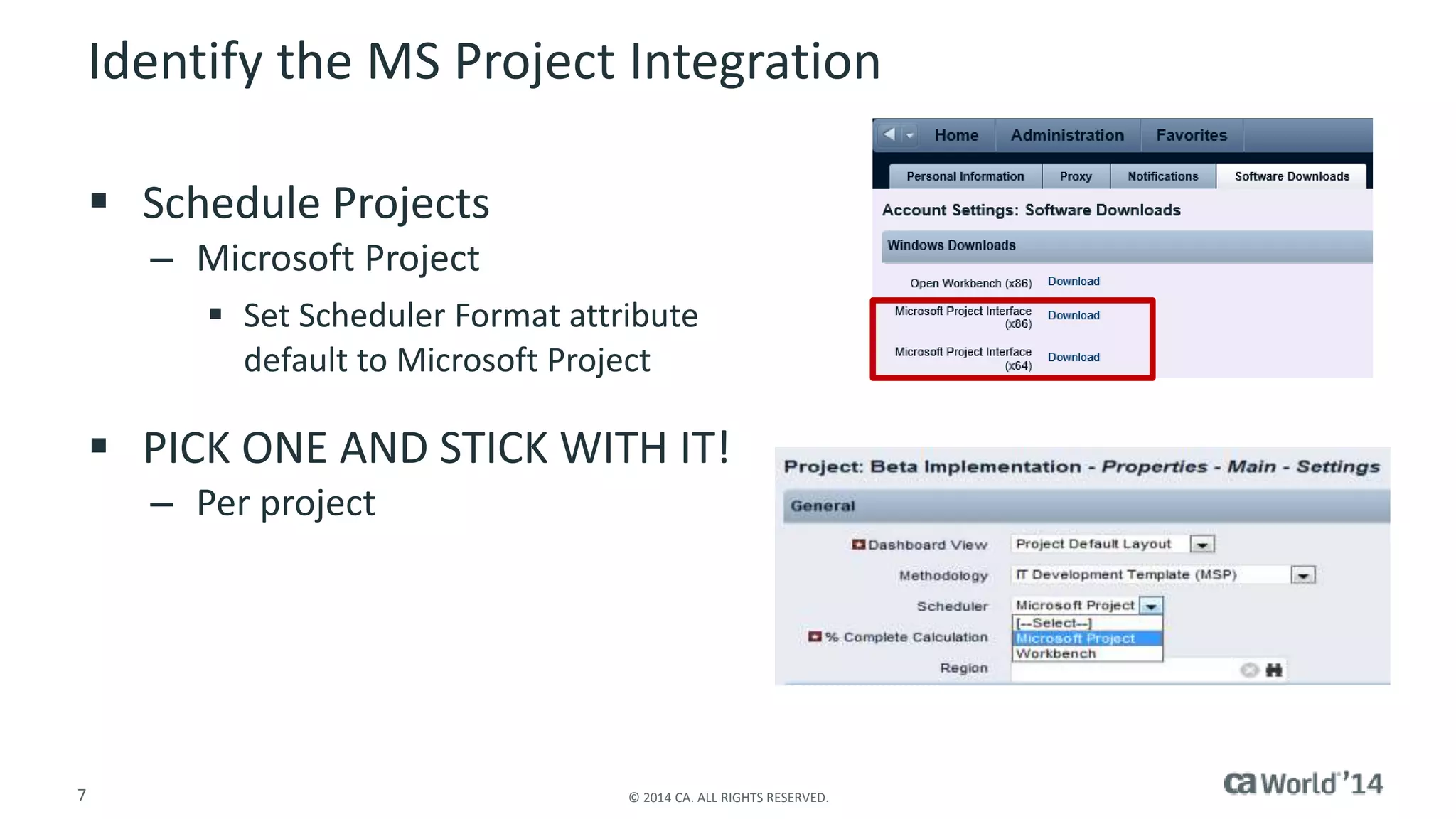
Identify the MS Project Integration 
 Schedule Projects 
– Microsoft Project 
 Set Scheduler Format attribute 
default to Microsoft Project 
 PICK ONE AND STICK WITH IT! 
– Per project 
7 © 2014 CA. ALL RIGHTS RESERVED.
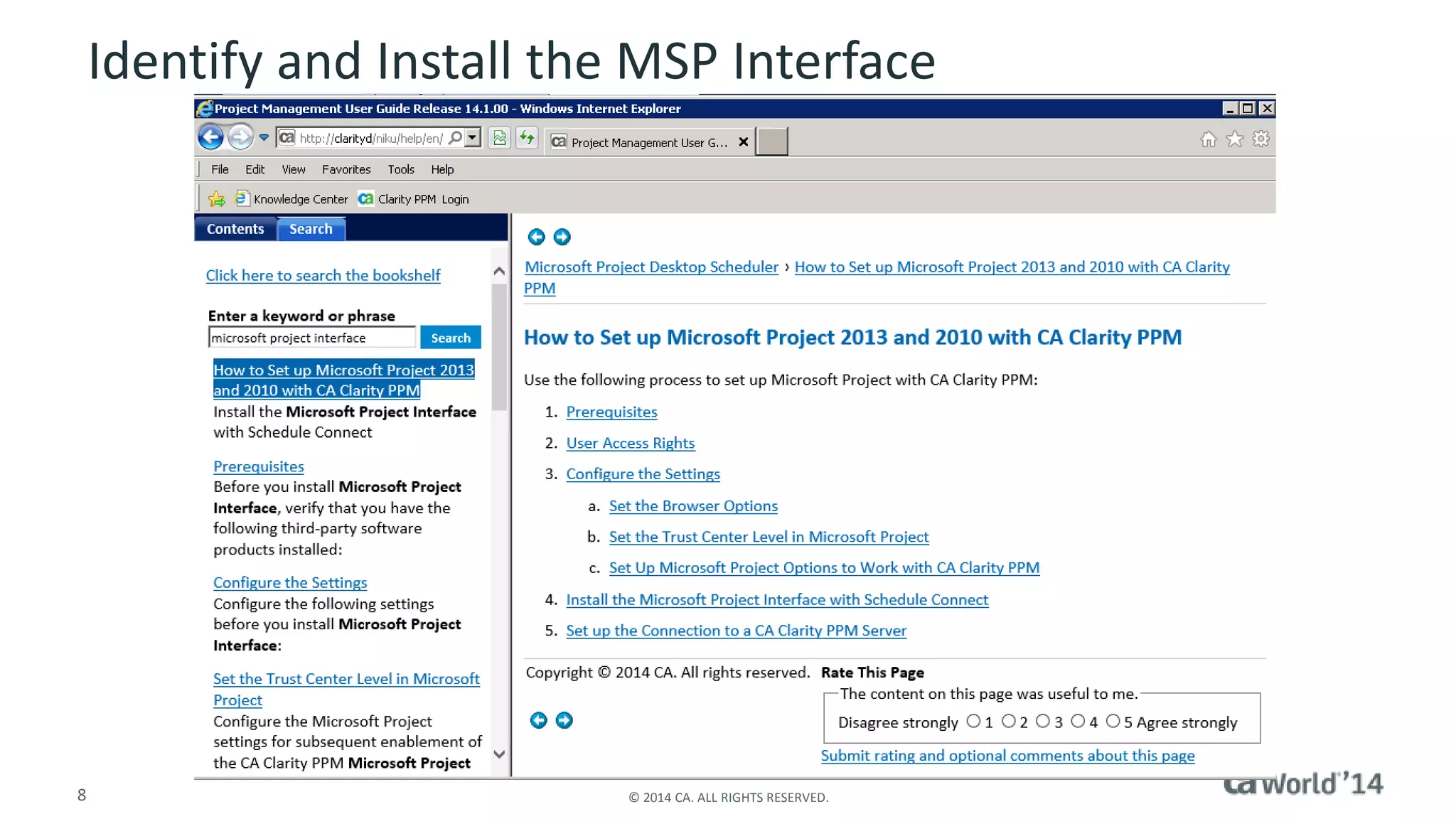
Identify and Install the MSP Interface 
8 © 2014 CA. ALL RIGHTS RESERVED.
Bi-Directional 
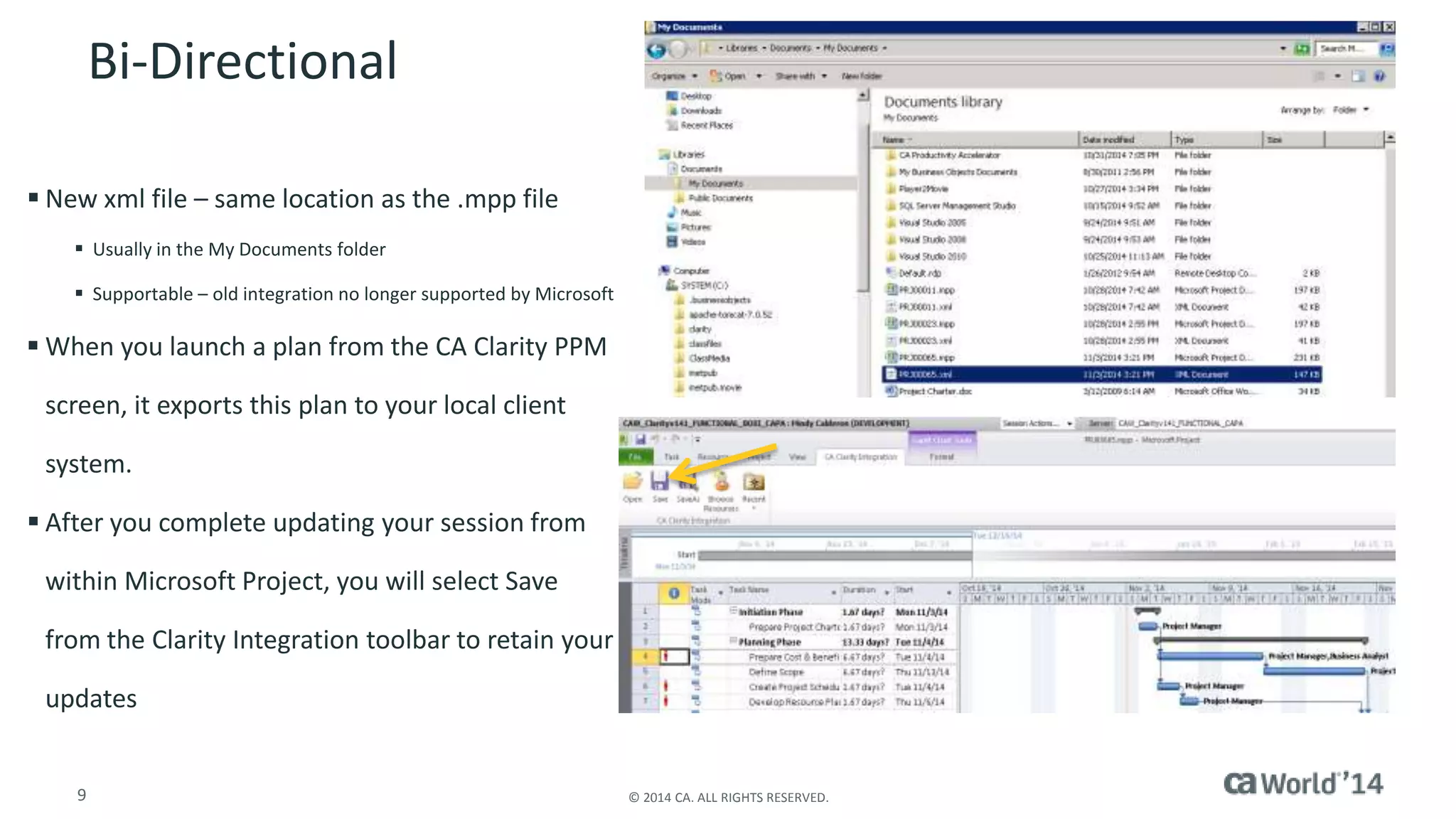
 New xml file – same location as the .mpp file 
 Usually in the My Documents folder 
 Supportable – old integration no longer supported by Microsoft 
 When you launch a plan from the CA Clarity PPM 
screen, it exports this plan to your local client 
system. 
 After you complete updating your session from 
within Microsoft Project, you will select Save 
from the Clarity Integration toolbar to retain your 
updates 
9 © 2014 CA. ALL RIGHTS RESERVED.
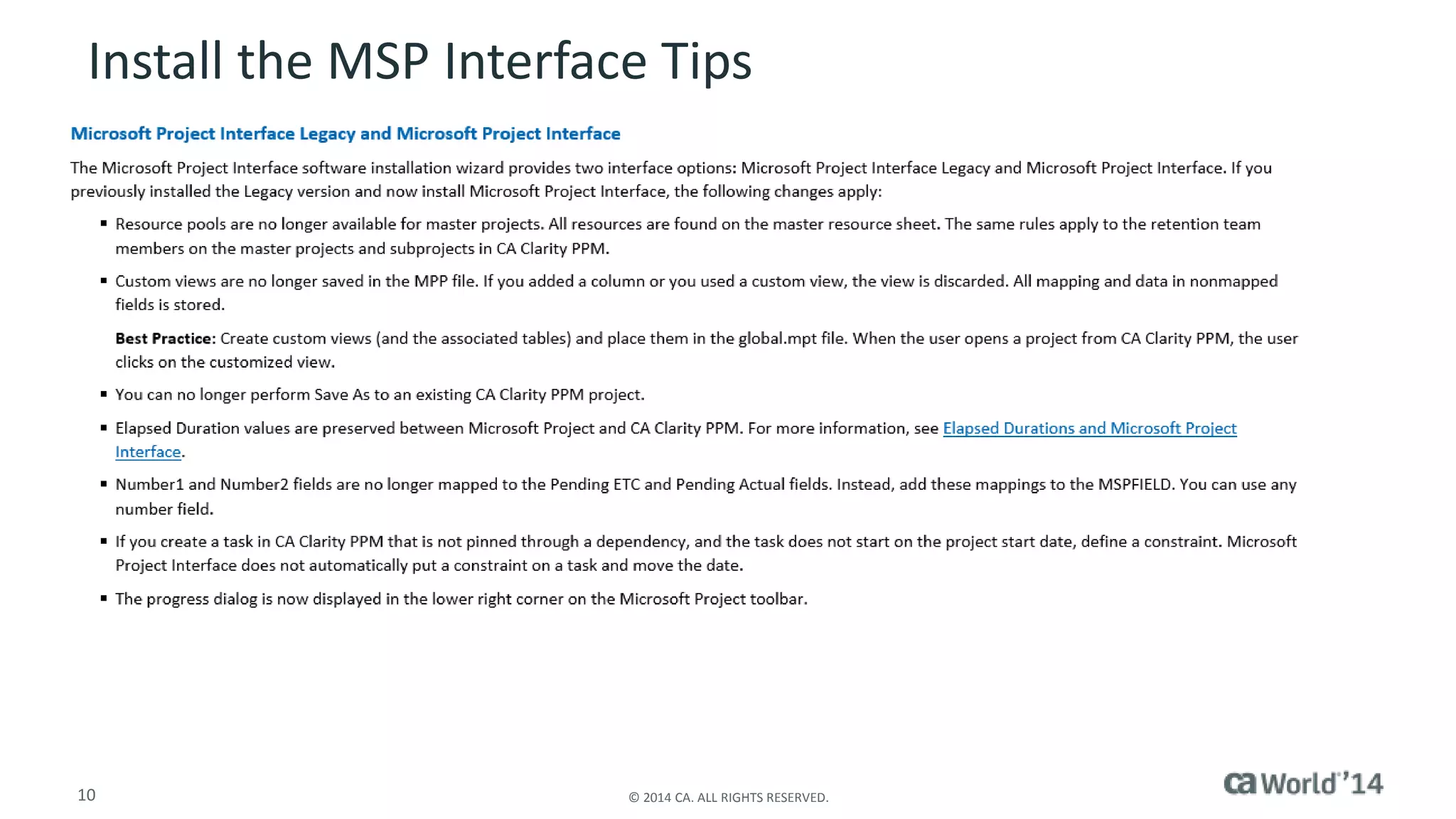
Install the MSP Interface Tips 
10 © 2014 CA. ALL RIGHTS RESERVED.
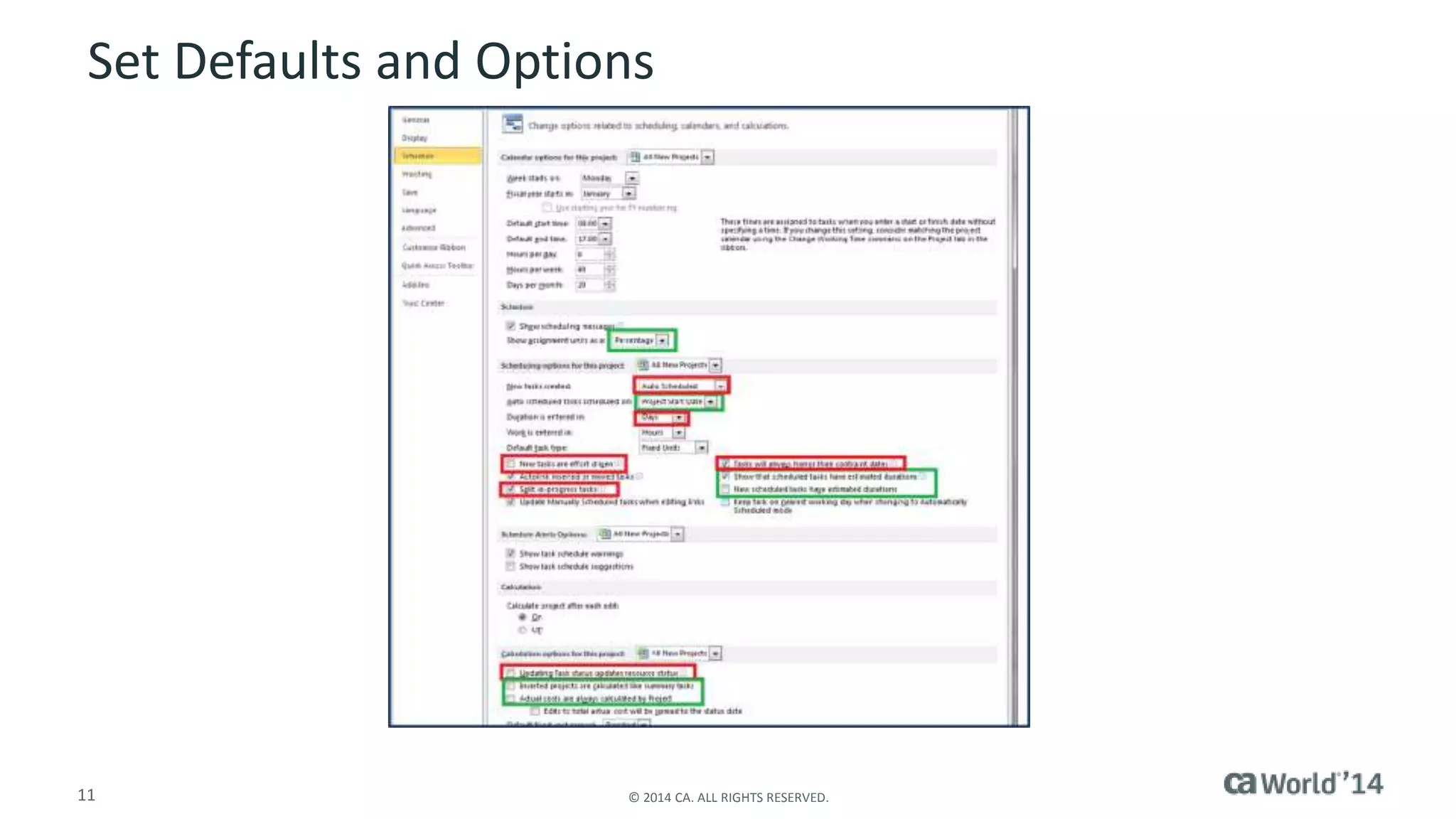
Set Defaults and Options 
11 © 2014 CA. ALL RIGHTS RESERVED.
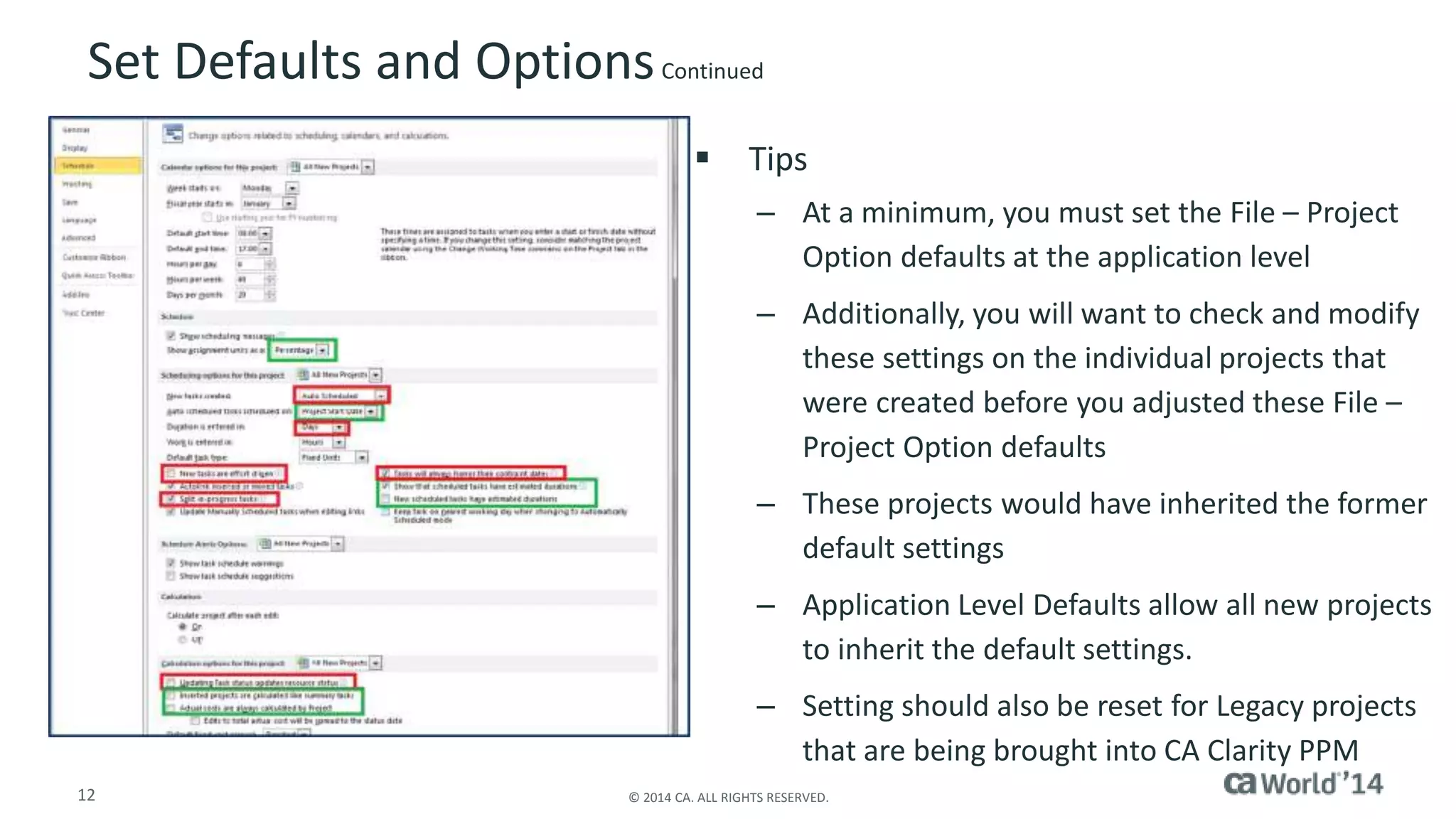
Set Defaults and Options Continued 
 Tips 
– At a minimum, you must set the File – Project 
Option defaults at the application level 
– Additionally, you will want to check and modify 
these settings on the individual projects that 
were created before you adjusted these File – 
Project Option defaults 
– These projects would have inherited the former 
default settings 
– Application Level Defaults allow all new projects 
to inherit the default settings. 
– Setting should also be reset for Legacy projects 
that are being brought into CA Clarity PPM 
12 © 2014 CA. ALL RIGHTS RESERVED.
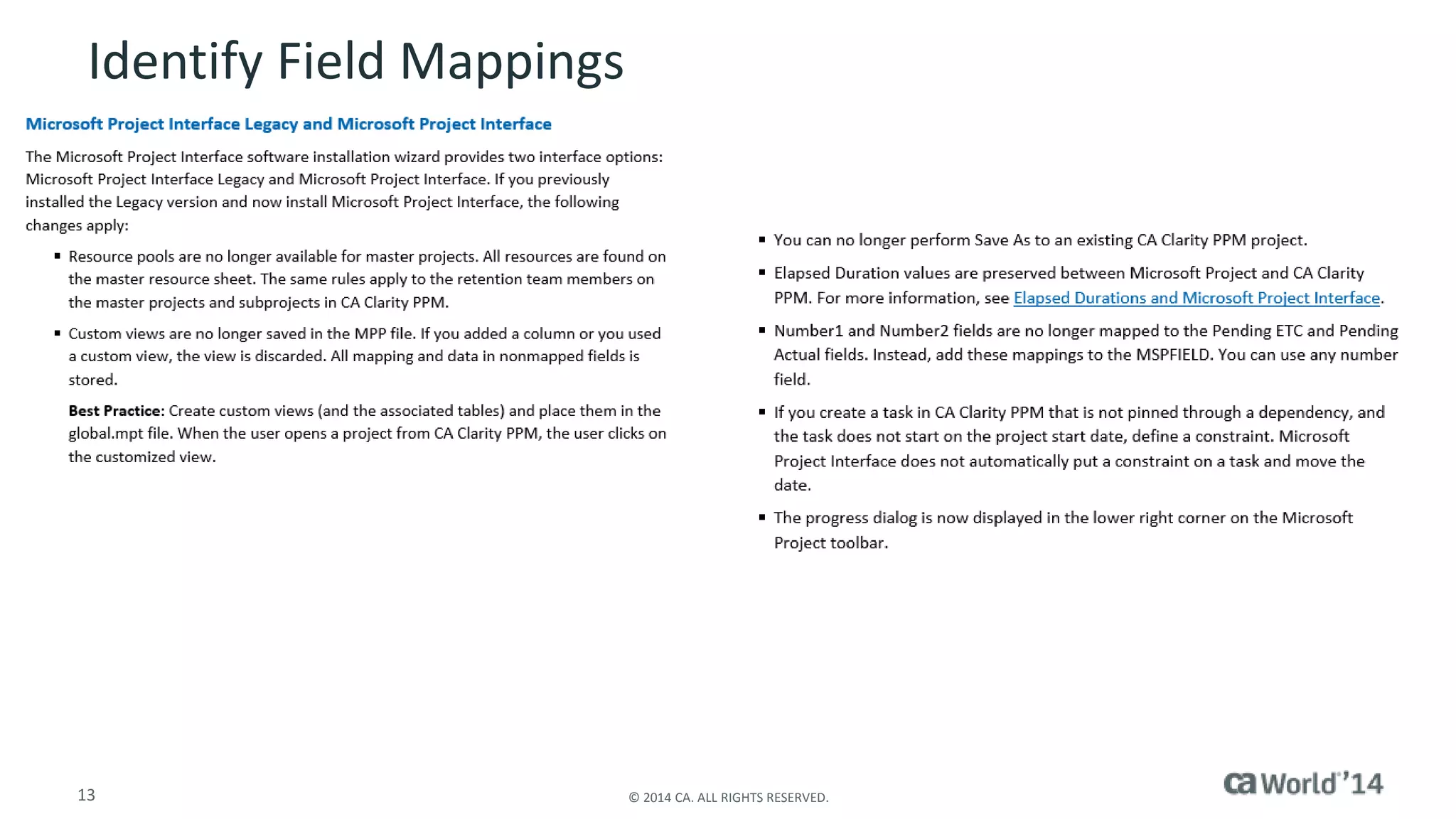
Identify Field Mappings 
13 © 2014 CA. ALL RIGHTS RESERVED.
Custom Views and Creating a Project
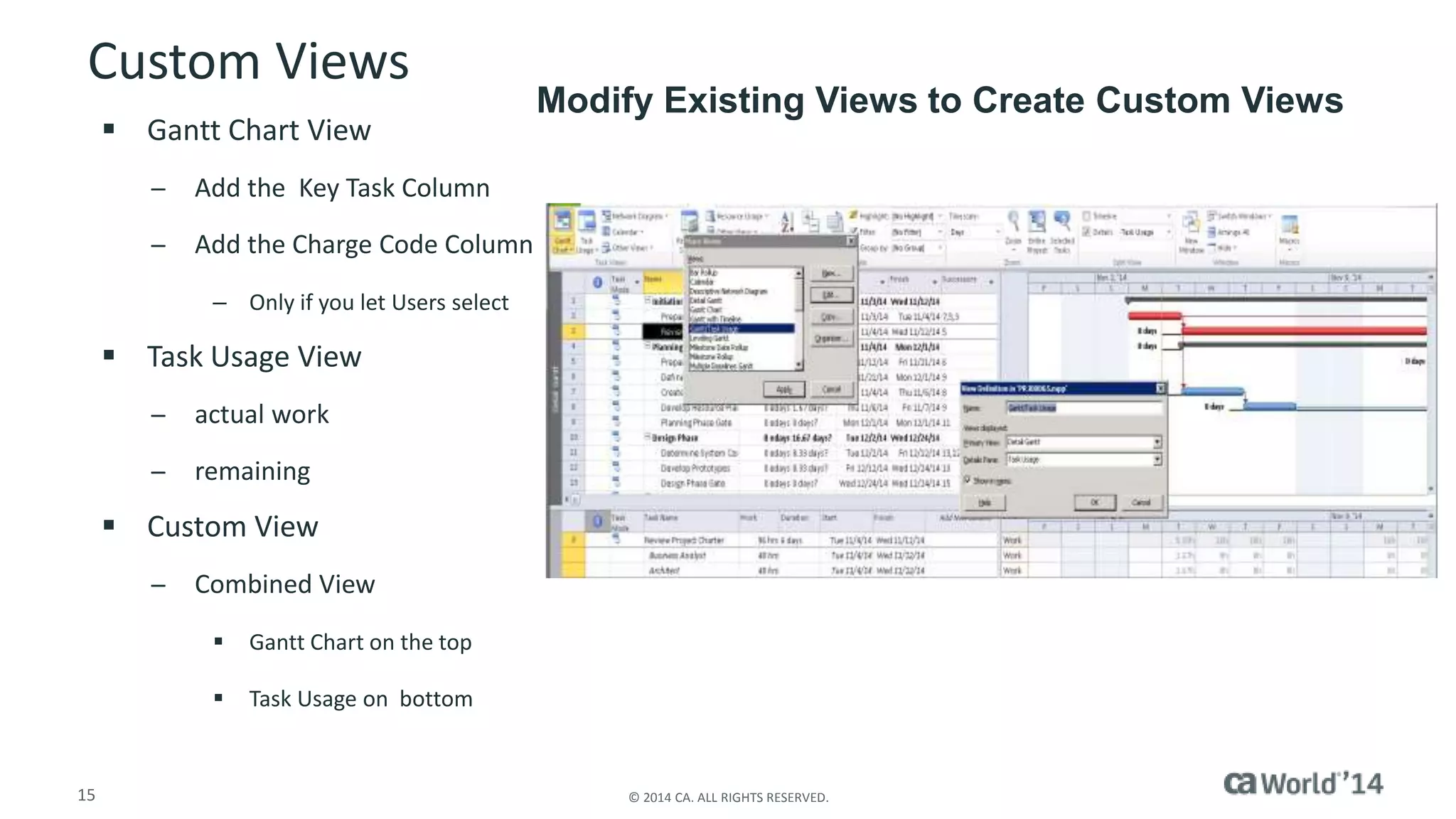
Custom Views 
 Gantt Chart View 
̶ Add the Key Task Column 
̶ Add the Charge Code Column 
– Only if you let Users select 
 Task Usage View 
̶ actual work 
̶ remaining 
 Custom View 
̶ Combined View 
 Gantt Chart on the top 
 Task Usage on bottom 
Modify Existing Views to Create Custom Views 
15 © 2014 CA. ALL RIGHTS RESERVED.
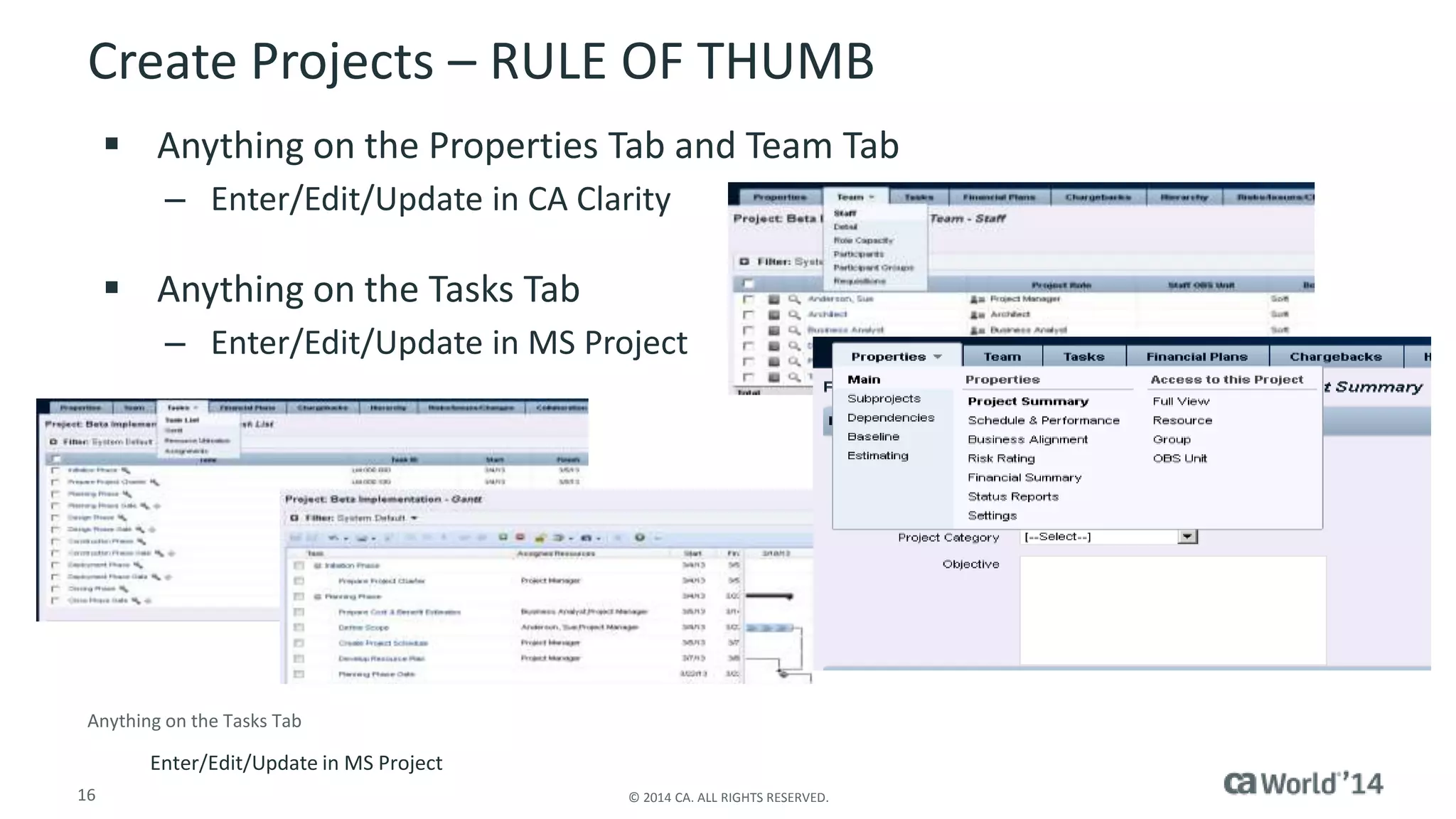
Create Projects – RULE OF THUMB 
 Anything on the Properties Tab and Team Tab 
– Enter/Edit/Update in CA Clarity 
 Anything on the Tasks Tab 
– Enter/Edit/Update in MS Project 
Anything on the Tasks Tab 
Enter/Edit/Update in MS Project 
16 © 2014 CA. ALL RIGHTS RESERVED.
Resources and MS Project
Resources and MS Project 
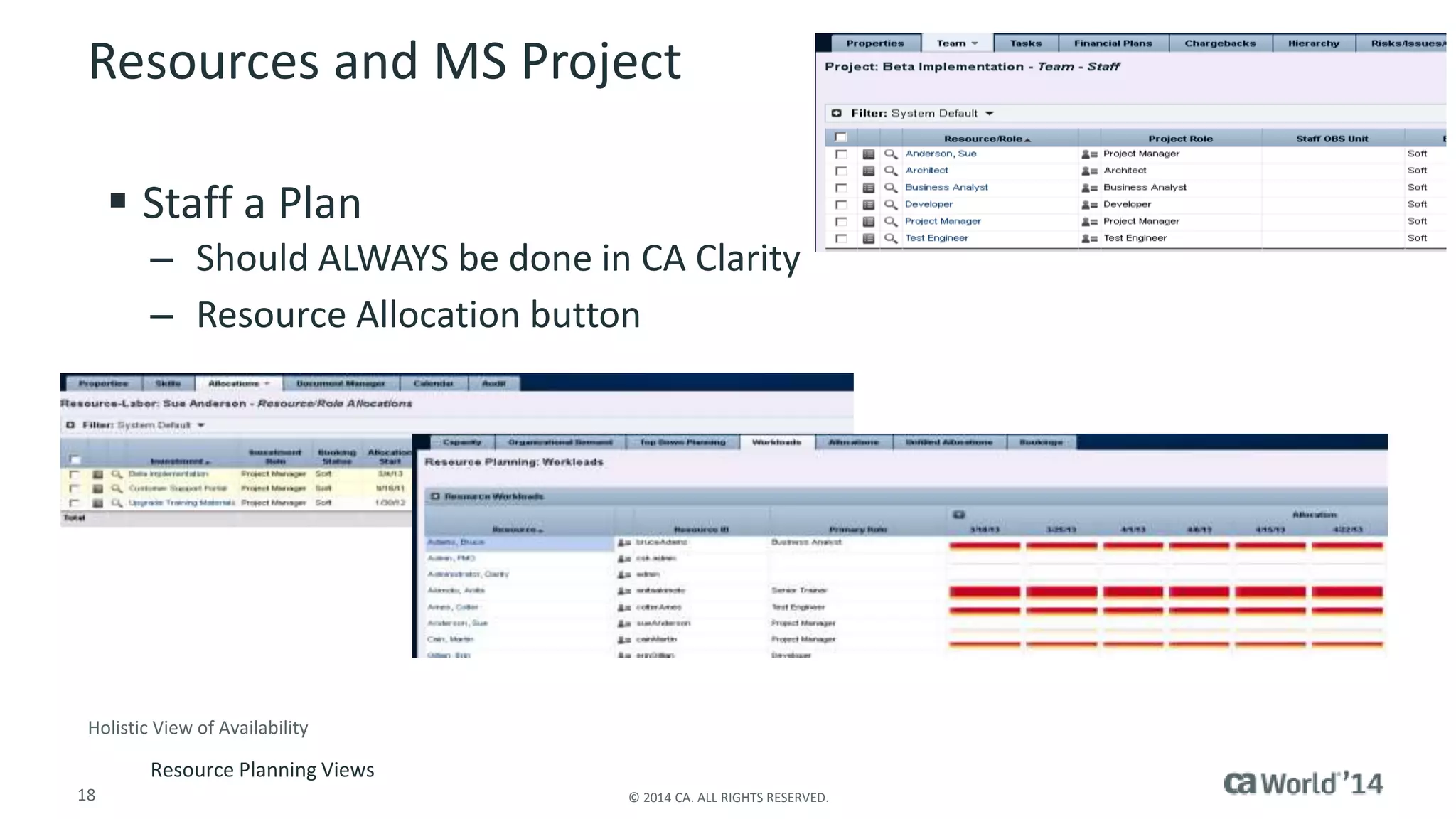
 Staff a Plan 
– Should ALWAYS be done in CA Clarity 
– Resource Allocation button 
Holistic View of Availability 
Resource Planning Views 
18 © 2014 CA. ALL RIGHTS RESERVED.
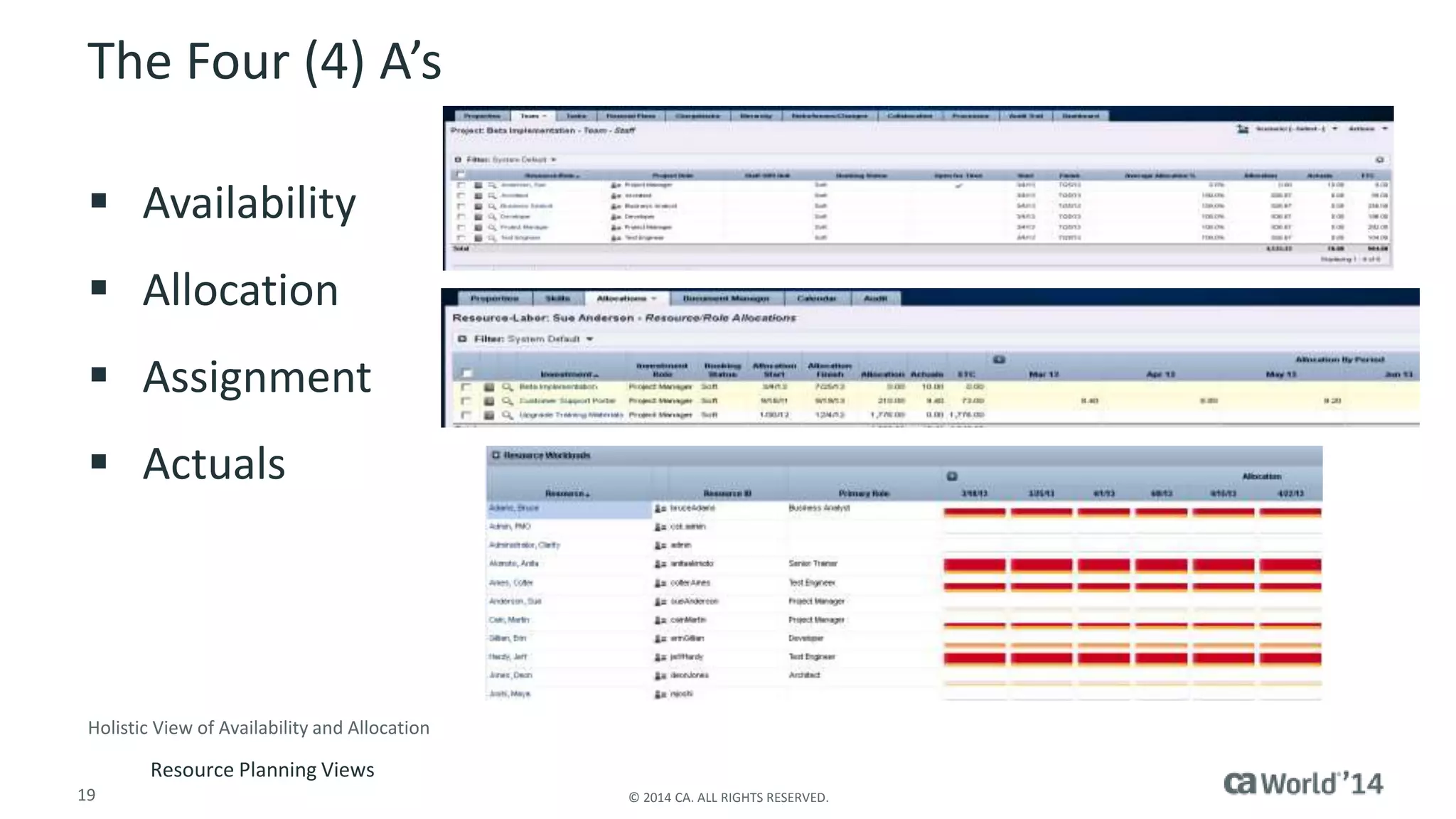
The Four (4) A’s 
 Availability 
 Allocation 
 Assignment 
 Actuals 
Holistic View of Availability and Allocation 
Resource Planning Views 
19 © 2014 CA. ALL RIGHTS RESERVED.
Work Breakdown Structure 
There are often misunderstandings about the meanings 
of the terms “duration” and “work” 
A task has duration amount and work amount, 
which may not always be equivalent values
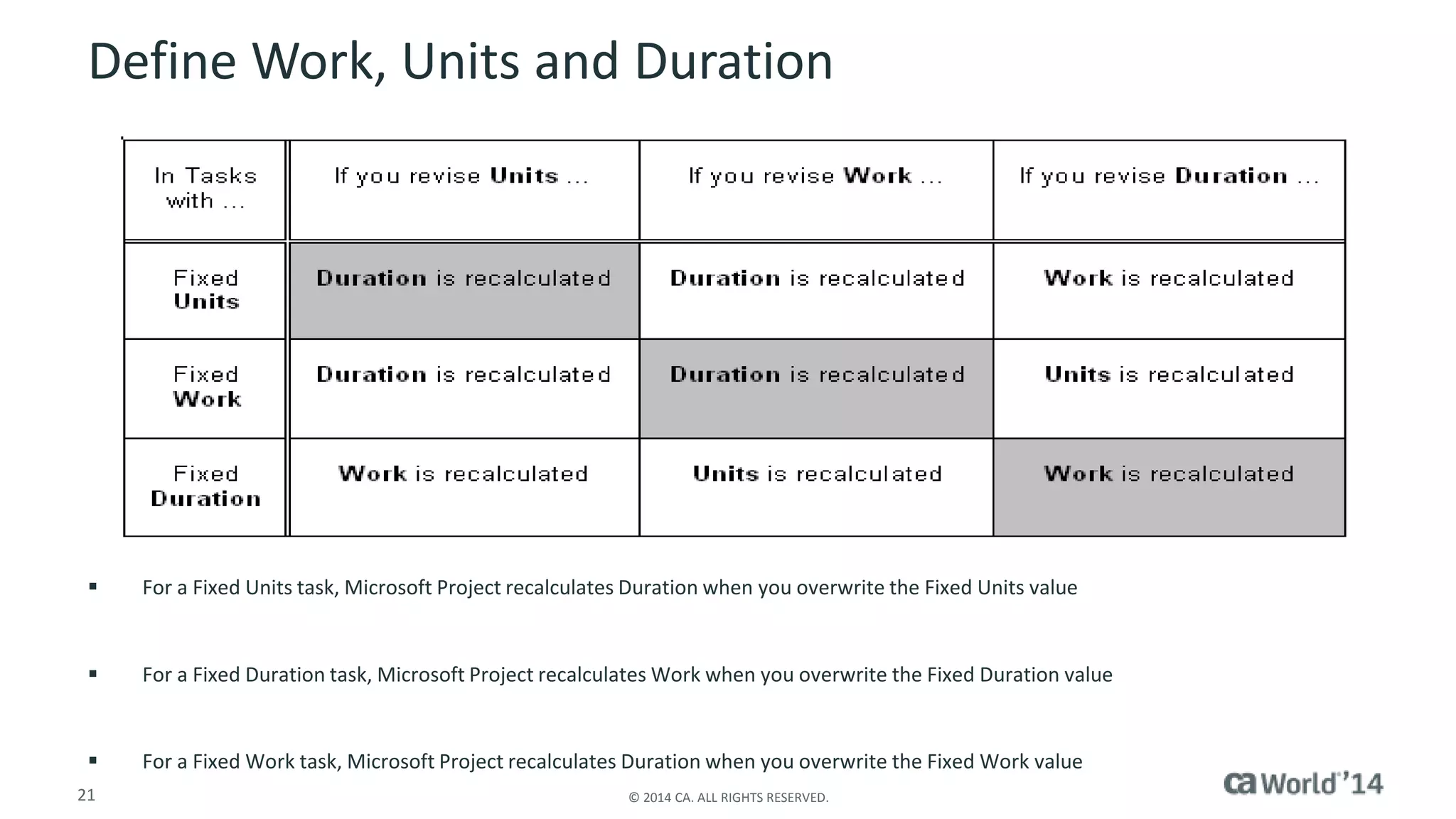
Define Work, Units and Duration 
 For a Fixed Units task, Microsoft Project recalculates Duration when you overwrite the Fixed Units value 
 For a Fixed Duration task, Microsoft Project recalculates Work when you overwrite the Fixed Duration value 
 For a Fixed Work task, Microsoft Project recalculates Duration when you overwrite the Fixed Work value 
21 © 2014 CA. ALL RIGHTS RESERVED.
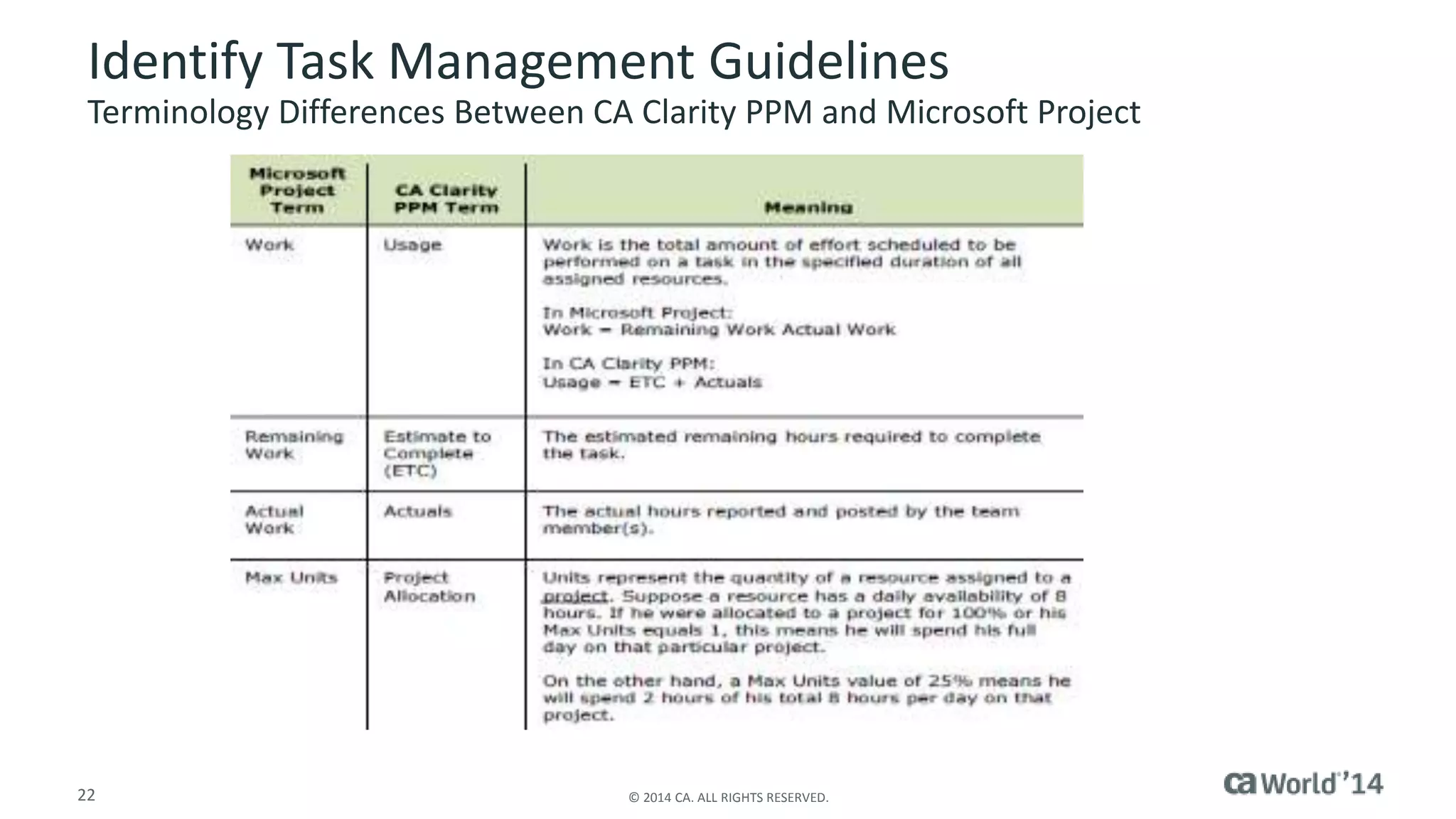
Identify Task Management Guidelines 
Terminology Differences Between CA Clarity PPM and Microsoft Project 
22 © 2014 CA. ALL RIGHTS RESERVED.
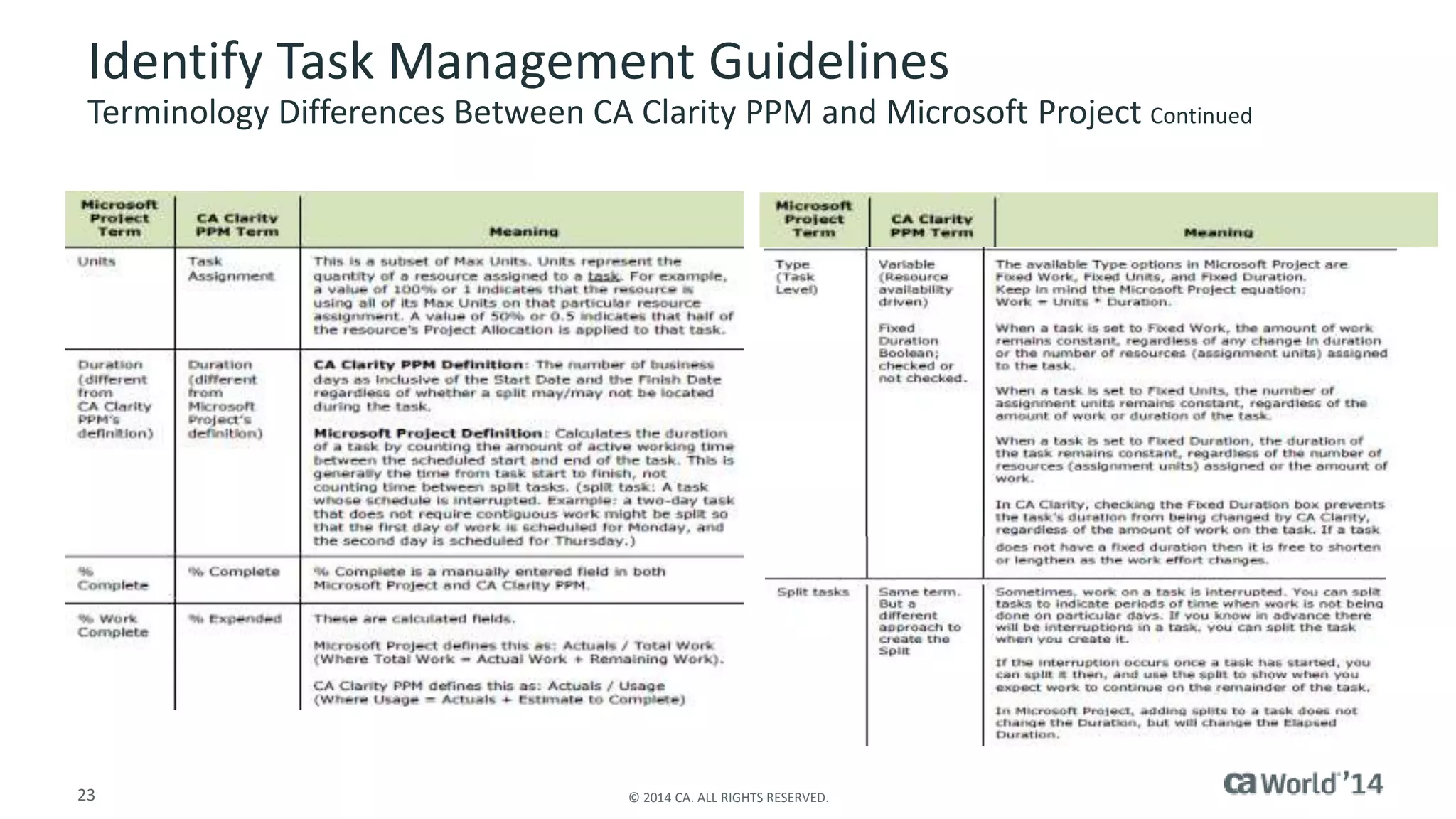
Identify Task Management Guidelines 
Terminology Differences Between CA Clarity PPM and Microsoft Project Continued 
23 © 2014 CA. ALL RIGHTS RESERVED.
Determine the Schedule 
 Some of the common elements of 
Project Management get a bit more 
complicated when using CA Clarity and 
Microsoft Project together 
 Status = Complete 
– Microsoft Project 
 Zero out remaining work for all 
resource assignments 
– CA Clarity 
24 © 2014 CA. ALL RIGHTS RESERVED. 
 Zero-out the Estimate to Complete 
value, select ‘Completed’ from the 
drop-down in the ‘Status’ field 
 Remaining Work & Pending Estimate To 
Complete 
– Entry Precedence 
– Work Contour 
– Summary Tasks 
– Blank Task Names
Control the Project
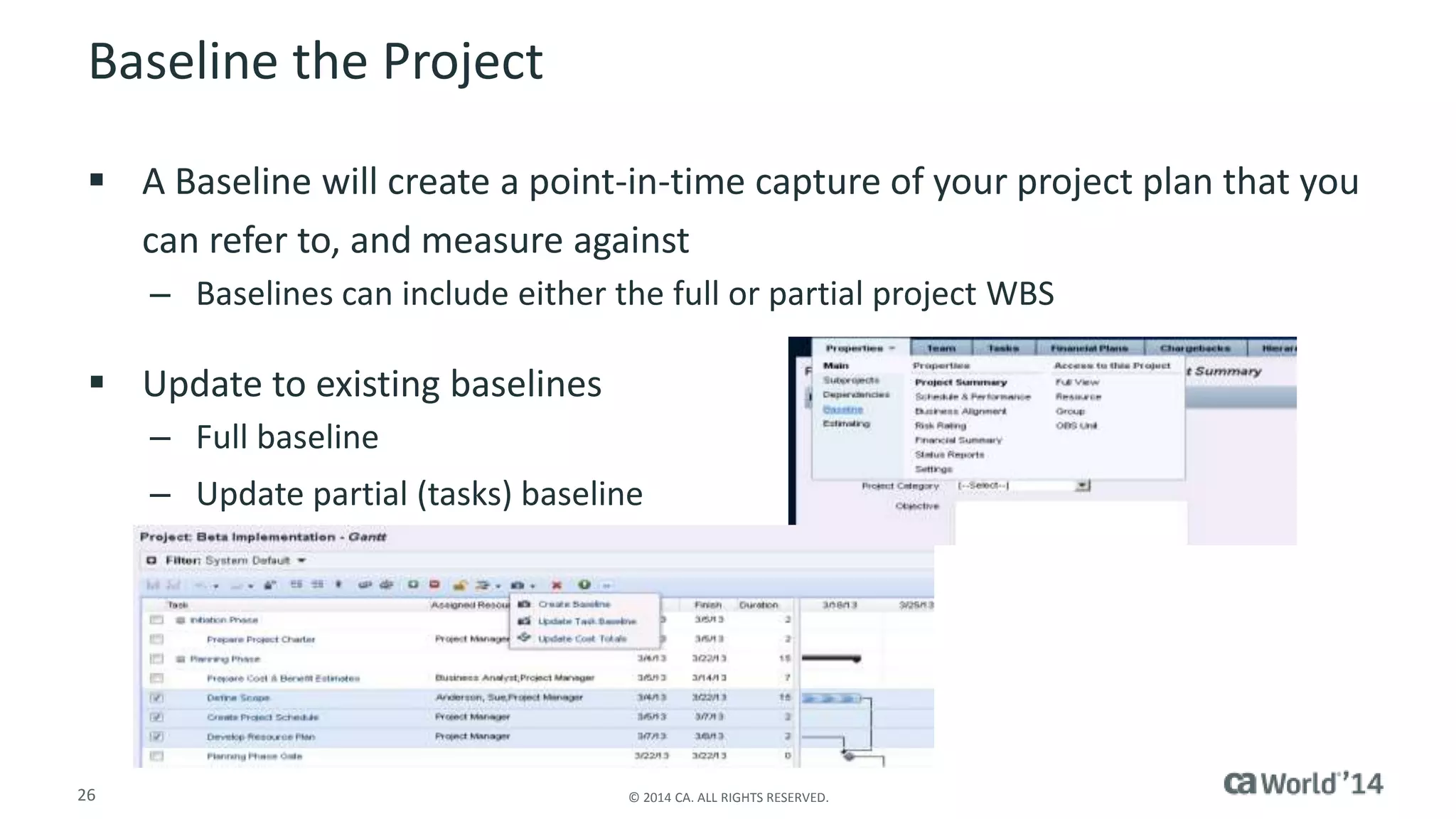
Baseline the Project 
 A Baseline will create a point-in-time capture of your project plan that you 
can refer to, and measure against 
– Baselines can include either the full or partial project WBS 
 Update to existing baselines 
– Full baseline 
– Update partial (tasks) baseline 
26 © 2014 CA. ALL RIGHTS RESERVED.
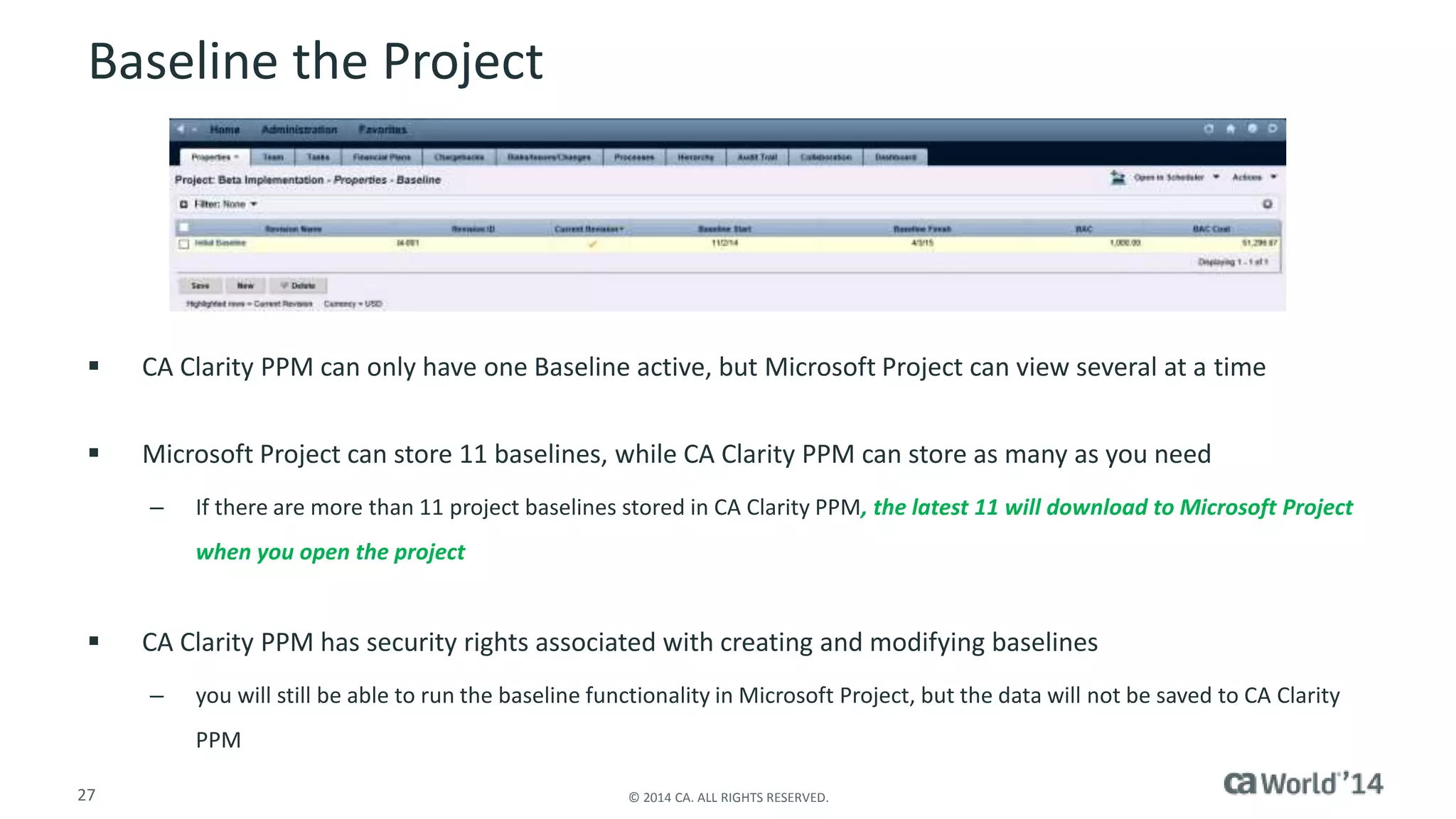
Baseline the Project 
 CA Clarity PPM can only have one Baseline active, but Microsoft Project can view several at a time 
 Microsoft Project can store 11 baselines, while CA Clarity PPM can store as many as you need 
– If there are more than 11 project baselines stored in CA Clarity PPM, the latest 11 will download to Microsoft Project 
when you open the project 
 CA Clarity PPM has security rights associated with creating and modifying baselines 
– you will still be able to run the baseline functionality in Microsoft Project, but the data will not be saved to CA Clarity 
PPM 
27 © 2014 CA. ALL RIGHTS RESERVED.
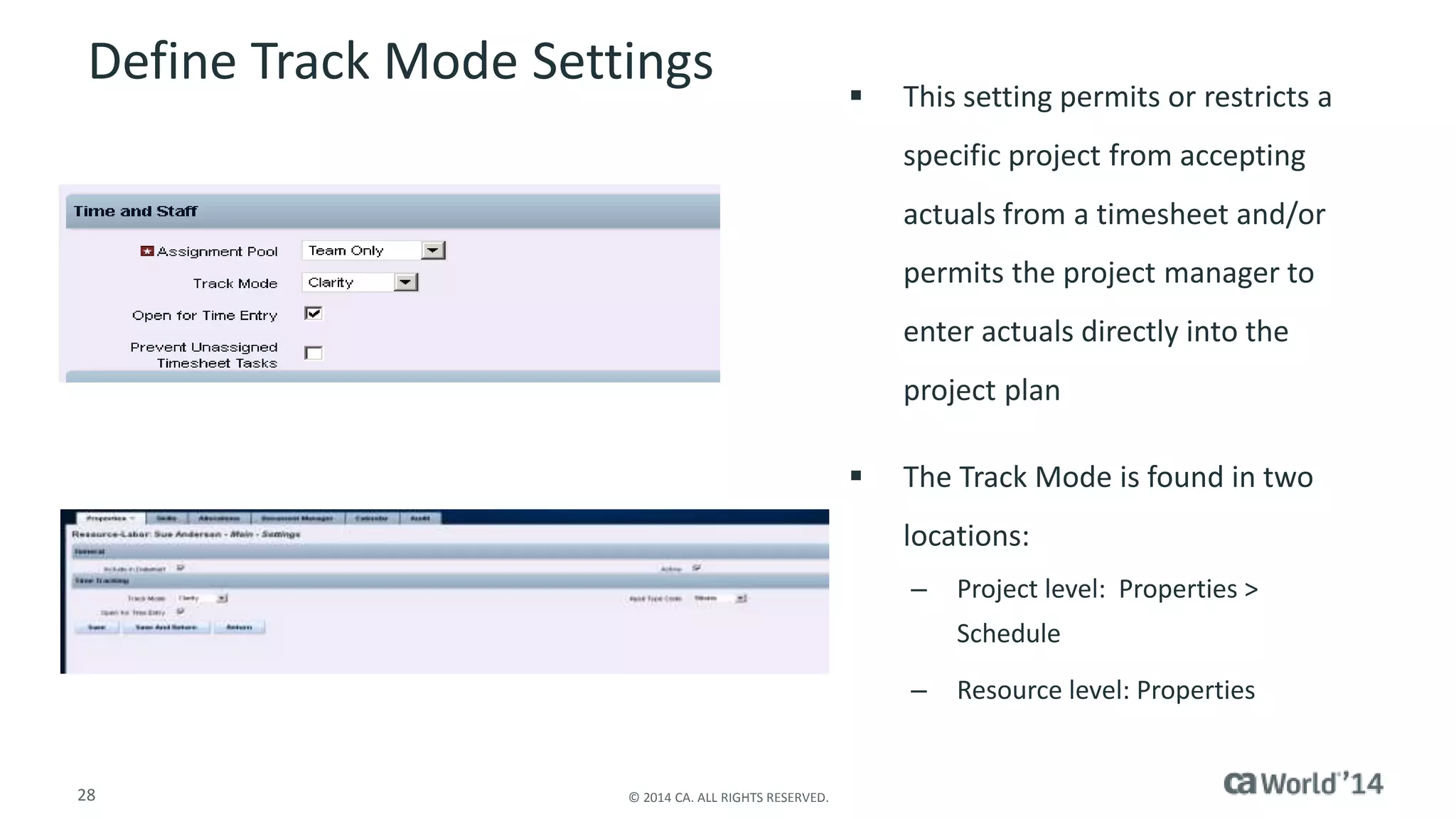
Define Track Mode Settings  This setting permits or restricts a 
28 © 2014 CA. ALL RIGHTS RESERVED. 
specific project from accepting 
actuals from a timesheet and/or 
permits the project manager to 
enter actuals directly into the 
project plan 
 The Track Mode is found in two 
locations: 
– Project level: Properties > 
Schedule 
– Resource level: Properties
Define Track Mode Settings 
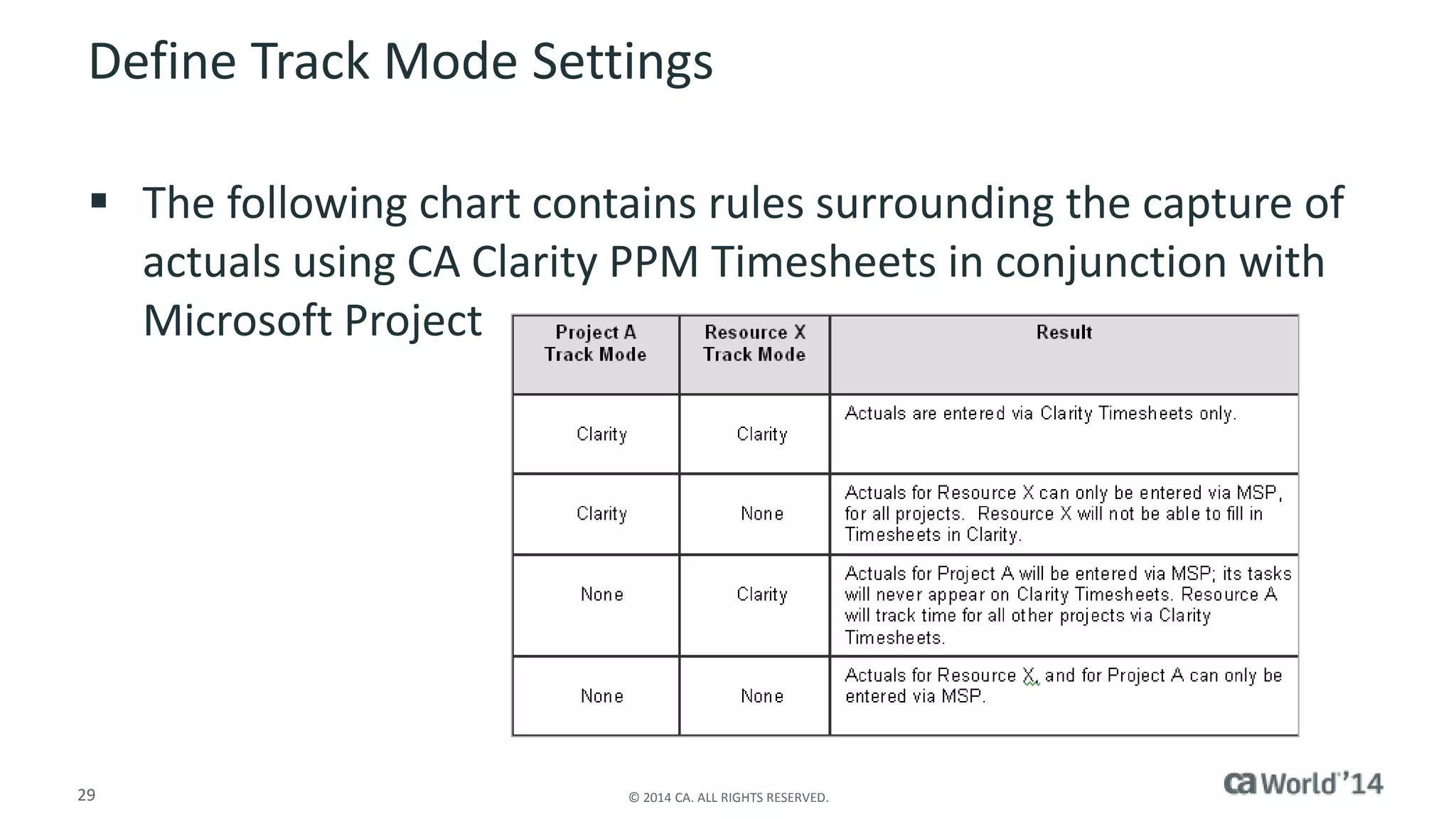
 The following chart contains rules surrounding the capture of 
actuals using CA Clarity PPM Timesheets in conjunction with 
Microsoft Project 
29 © 2014 CA. ALL RIGHTS RESERVED.
Tips 
 Resources can be open for time entry at the resource, project and project assignment 
level. If a resource is not open for time entry in all three places, they are not able to use 
CA Clarity PPM timesheets. 
 Time periods should be created and status (open or closed) should be managed by an 
application administrator 
 Timesheets are submitted, approved and posted in CA Clarity PPM Timesheets – only 
posted timesheets appear as actuals 
– Actuals on Timesheets, which have been saved but not yet posted, will appear as Pending Actuals 
in Microsoft Project. These can be viewed using MSP mapping 
– Do not update Actuals in Microsoft Project if the Track Mode is Clarity or Other 
30 © 2014 CA. ALL RIGHTS RESERVED.
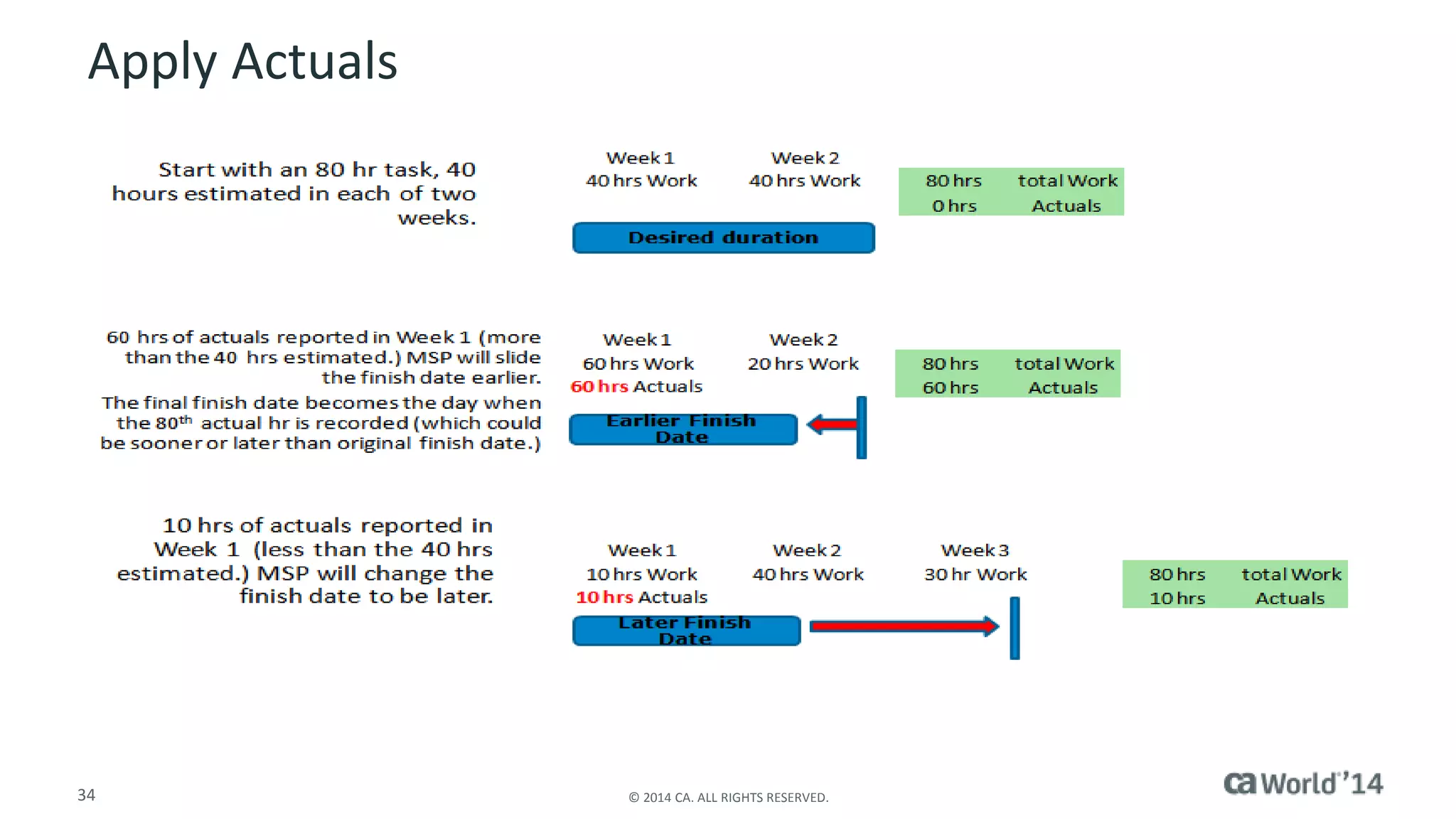
Apply Actuals 
 Be Vigilant on Timesheets 
– When work begins on the project, actuals will begin to be recorded against the 
plan 
– Impress upon your team members to track their time accurately and on the 
appropriate day or your plan‘s finish date may unnecessarily be delayed 
 Tasks not reported on a time sheet may change due to the posting of the 
assigned resource‘s time sheet. CA Clarity PPM assumes that a person's 
time sheet is a complete accounting of the project work they completed 
that week. If a scheduled task did not appear on the time sheet, it implies 
no work was completed by the resource on that task, and must be 
rescheduled for the following week or beyond 
31 © 2014 CA. ALL RIGHTS RESERVED.
Pending Actuals 
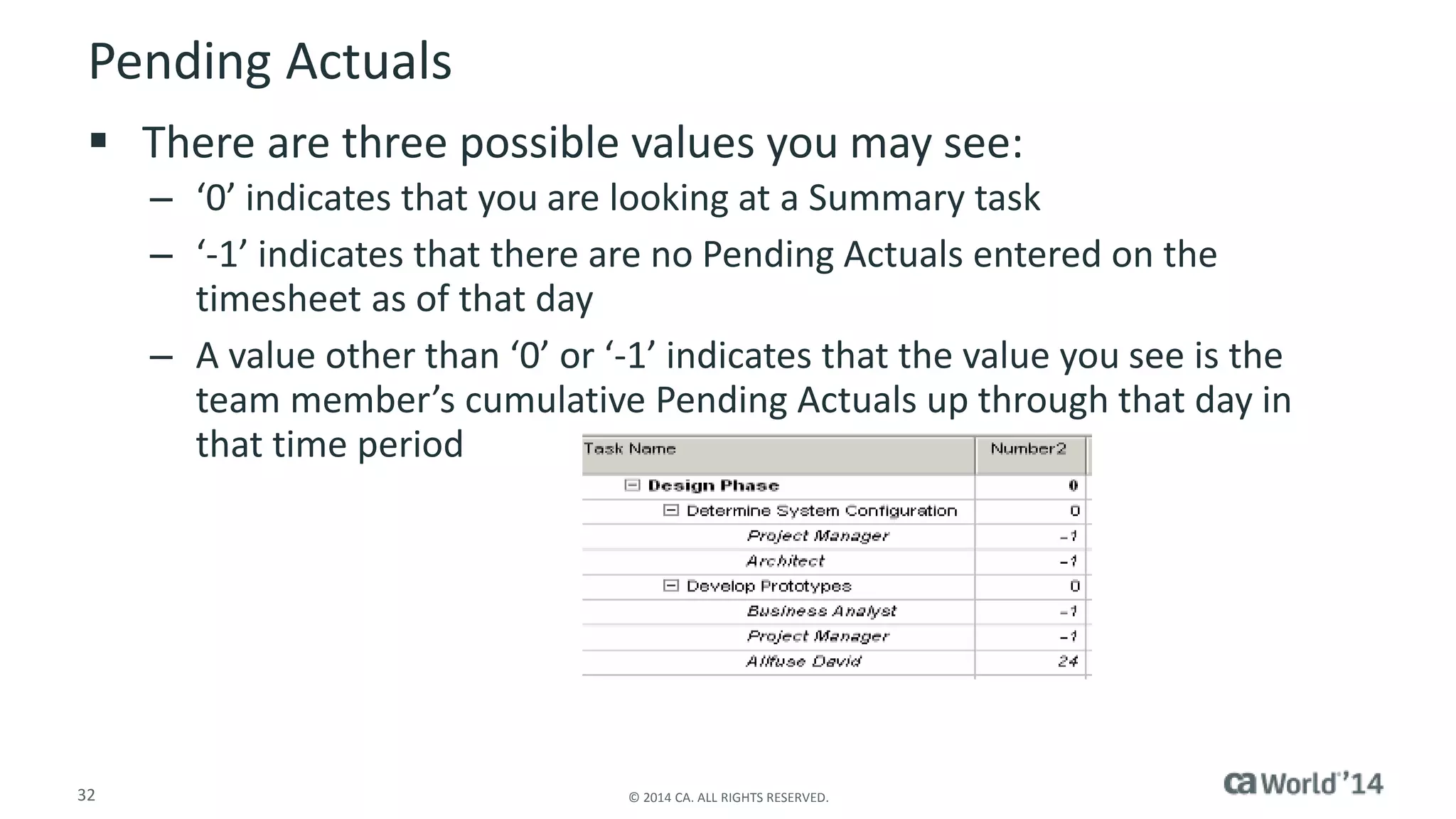
 There are three possible values you may see: 
– ‘0’ indicates that you are looking at a Summary task 
– ‘-1’ indicates that there are no Pending Actuals entered on the 
timesheet as of that day 
– A value other than ‘0’ or ‘-1’ indicates that the value you see is the 
team member’s cumulative Pending Actuals up through that day in 
that time period 
32 © 2014 CA. ALL RIGHTS RESERVED.
Pending Estimates 
 There are three possible values you may see: 
– ‘0’ indicates that you are looking at a Summary task 
– ‘-1’ indicates that a Pending Estimate has not been entered for the task 
– A value other than ‘0’ or ‘-1’ indicates that the team member has 
entered a Pending Estimate to identify a revision to the remaining 
estimate for the task 
33 © 2014 CA. ALL RIGHTS RESERVED.
Apply Actuals 
34 © 2014 CA. ALL RIGHTS RESERVED.
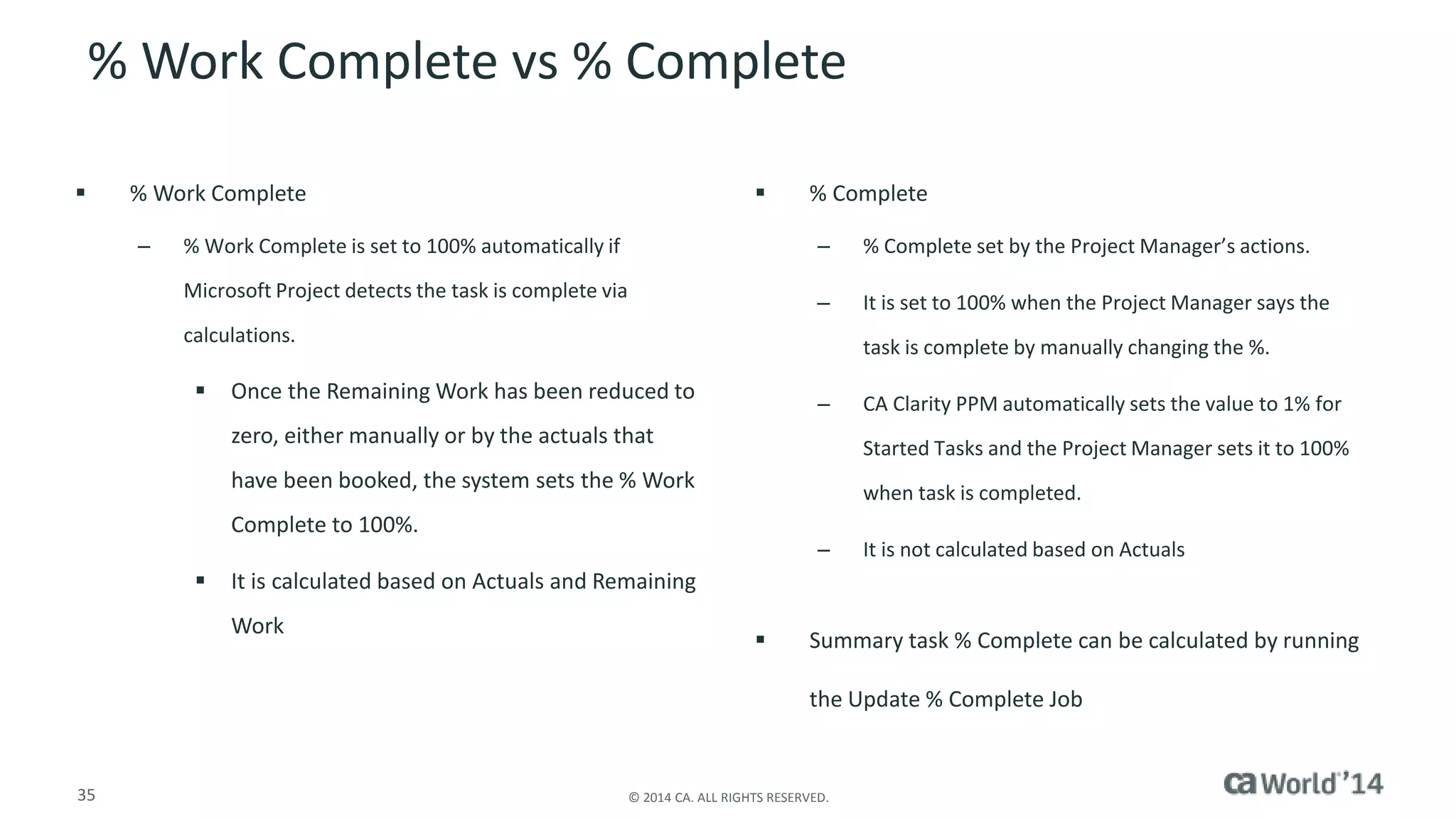
% Work Complete vs % Complete 
 % Work Complete 
– % Work Complete is set to 100% automatically if 
Microsoft Project detects the task is complete via 
calculations. 
 Once the Remaining Work has been reduced to 
zero, either manually or by the actuals that 
have been booked, the system sets the % Work 
Complete to 100%. 
 It is calculated based on Actuals and Remaining 
Work 
 % Complete 
– % Complete set by the Project Manager’s actions. 
– It is set to 100% when the Project Manager says the 
35 © 2014 CA. ALL RIGHTS RESERVED. 
task is complete by manually changing the %. 
– CA Clarity PPM automatically sets the value to 1% for 
Started Tasks and the Project Manager sets it to 100% 
when task is completed. 
– It is not calculated based on Actuals 
 Summary task % Complete can be calculated by running 
the Update % Complete Job
For More Information 
Insert appropriate screenshot and text overlay 
from following “More Info Graphics” slide here; 
Management Cloud 
ensure it links to correct page 
To learn more about Management Cloud, 
please visit: 
http://bit.ly/1wEnPhz 
36 © 2014 CA. ALL RIGHTS RESERVED.
For Informational Purposes Only 
Terms of this Presentation 
© 2014 CA. All rights reserved. All trademarks referenced herein belong to their respective companies. 
This presentation provided at CA World 2014 is intended for information purposes only and does not form any type of warranty. 
Some of the specific slides with customer references relate to customer's specific use and experience of CA products and solutions so actual 
results may vary. 
37 © 2014 CA. ALL RIGHTS RESERVED.

MS Project Integration: Tips, Tricks and What's New for You

  • 1.
    ca Intellicenter MSProject Integration: Tips, Tricks and What's New for You Mindy Calderon Senior Instructor, North America CA Technologies ICX17E #CAWorld
  • 2.
    Abstract  Haveyou scheduled in Microsoft Project (MSP) and are now presented with the "Tasks" to maintain a schedule in CA Clarity? Is your organization using CA Clarity but still wants to schedule in MS Project? Have you noticed that the logic in how CA Clarity schedules is different in MS Project? And most importantly - wouldn't it be awesome to be able to explain why CA Clarity and MS Project behave differently but ultimately get you the same result? The session will show you where and how MSP and CA Clarity bi-directionally map data, how to create and manage tasks, assignments and scheduling, as well as updating task status and work. It includes a broad discussion where and when data should be entered in Clarity and MS Project, on defining data elements and how to capture them. Mindy Calderon CA Technologies Senior Instructor 2 © 2014 CA. ALL RIGHTS RESERVED.
  • 3.
    Agenda INTEGRATION OVERVIEW CUSTOM VIEWS WORK BREAKDOWN STRUCTURE RESOURCES AND MS PROJECT Q & A 3 © 2014 CA. ALL RIGHTS RESERVED.
  • 4.
    Summary A FewWords to Describe MS Project Integration with Clarity Results MS Project and CA Clarity PPM bi-directionally maps data, manages tasks, assignments and scheduling as well as updating task status. The Clarity project acts as the ‘umbrella’ for PM methodology . The result is a project that follows Project Management and Scheduling standards. 4 © 2014 CA. ALL RIGHTS RESERVED.
  • 5.
    Definitions INTEGRATION –BIDIRECTIONAL DATA FLOW USING NEW XML DRIVER METHODOLOGY – CONSISTENT AND REPEATABLE SCHEDULING AND MANAGING PROCESSES * * This is NOT a Technical Session: Understand from a Functional Perspective 5 © 2014 CA. ALL RIGHTS RESERVED.
  • 6.
  • 7.
    Identify the MSProject Integration  Schedule Projects – Microsoft Project  Set Scheduler Format attribute default to Microsoft Project  PICK ONE AND STICK WITH IT! – Per project 7 © 2014 CA. ALL RIGHTS RESERVED.
  • 8.
    Identify and Installthe MSP Interface 8 © 2014 CA. ALL RIGHTS RESERVED.
  • 9.
    Bi-Directional  Newxml file – same location as the .mpp file  Usually in the My Documents folder  Supportable – old integration no longer supported by Microsoft  When you launch a plan from the CA Clarity PPM screen, it exports this plan to your local client system.  After you complete updating your session from within Microsoft Project, you will select Save from the Clarity Integration toolbar to retain your updates 9 © 2014 CA. ALL RIGHTS RESERVED.
  • 10.
    Install the MSPInterface Tips 10 © 2014 CA. ALL RIGHTS RESERVED.
  • 11.
    Set Defaults andOptions 11 © 2014 CA. ALL RIGHTS RESERVED.
  • 12.
    Set Defaults andOptions Continued  Tips – At a minimum, you must set the File – Project Option defaults at the application level – Additionally, you will want to check and modify these settings on the individual projects that were created before you adjusted these File – Project Option defaults – These projects would have inherited the former default settings – Application Level Defaults allow all new projects to inherit the default settings. – Setting should also be reset for Legacy projects that are being brought into CA Clarity PPM 12 © 2014 CA. ALL RIGHTS RESERVED.
  • 13.
    Identify Field Mappings 13 © 2014 CA. ALL RIGHTS RESERVED.
  • 14.
    Custom Views andCreating a Project
  • 15.
    Custom Views Gantt Chart View ̶ Add the Key Task Column ̶ Add the Charge Code Column – Only if you let Users select  Task Usage View ̶ actual work ̶ remaining  Custom View ̶ Combined View  Gantt Chart on the top  Task Usage on bottom Modify Existing Views to Create Custom Views 15 © 2014 CA. ALL RIGHTS RESERVED.
  • 16.
    Create Projects –RULE OF THUMB  Anything on the Properties Tab and Team Tab – Enter/Edit/Update in CA Clarity  Anything on the Tasks Tab – Enter/Edit/Update in MS Project Anything on the Tasks Tab Enter/Edit/Update in MS Project 16 © 2014 CA. ALL RIGHTS RESERVED.
  • 17.
  • 18.
    Resources and MSProject  Staff a Plan – Should ALWAYS be done in CA Clarity – Resource Allocation button Holistic View of Availability Resource Planning Views 18 © 2014 CA. ALL RIGHTS RESERVED.
  • 19.
    The Four (4)A’s  Availability  Allocation  Assignment  Actuals Holistic View of Availability and Allocation Resource Planning Views 19 © 2014 CA. ALL RIGHTS RESERVED.
  • 20.
    Work Breakdown Structure There are often misunderstandings about the meanings of the terms “duration” and “work” A task has duration amount and work amount, which may not always be equivalent values
  • 21.
    Define Work, Unitsand Duration  For a Fixed Units task, Microsoft Project recalculates Duration when you overwrite the Fixed Units value  For a Fixed Duration task, Microsoft Project recalculates Work when you overwrite the Fixed Duration value  For a Fixed Work task, Microsoft Project recalculates Duration when you overwrite the Fixed Work value 21 © 2014 CA. ALL RIGHTS RESERVED.
  • 22.
    Identify Task ManagementGuidelines Terminology Differences Between CA Clarity PPM and Microsoft Project 22 © 2014 CA. ALL RIGHTS RESERVED.
  • 23.
    Identify Task ManagementGuidelines Terminology Differences Between CA Clarity PPM and Microsoft Project Continued 23 © 2014 CA. ALL RIGHTS RESERVED.
  • 24.
    Determine the Schedule  Some of the common elements of Project Management get a bit more complicated when using CA Clarity and Microsoft Project together  Status = Complete – Microsoft Project  Zero out remaining work for all resource assignments – CA Clarity 24 © 2014 CA. ALL RIGHTS RESERVED.  Zero-out the Estimate to Complete value, select ‘Completed’ from the drop-down in the ‘Status’ field  Remaining Work & Pending Estimate To Complete – Entry Precedence – Work Contour – Summary Tasks – Blank Task Names
  • 25.
  • 26.
    Baseline the Project  A Baseline will create a point-in-time capture of your project plan that you can refer to, and measure against – Baselines can include either the full or partial project WBS  Update to existing baselines – Full baseline – Update partial (tasks) baseline 26 © 2014 CA. ALL RIGHTS RESERVED.
  • 27.
    Baseline the Project  CA Clarity PPM can only have one Baseline active, but Microsoft Project can view several at a time  Microsoft Project can store 11 baselines, while CA Clarity PPM can store as many as you need – If there are more than 11 project baselines stored in CA Clarity PPM, the latest 11 will download to Microsoft Project when you open the project  CA Clarity PPM has security rights associated with creating and modifying baselines – you will still be able to run the baseline functionality in Microsoft Project, but the data will not be saved to CA Clarity PPM 27 © 2014 CA. ALL RIGHTS RESERVED.
  • 28.
    Define Track ModeSettings  This setting permits or restricts a 28 © 2014 CA. ALL RIGHTS RESERVED. specific project from accepting actuals from a timesheet and/or permits the project manager to enter actuals directly into the project plan  The Track Mode is found in two locations: – Project level: Properties > Schedule – Resource level: Properties
  • 29.
    Define Track ModeSettings  The following chart contains rules surrounding the capture of actuals using CA Clarity PPM Timesheets in conjunction with Microsoft Project 29 © 2014 CA. ALL RIGHTS RESERVED.
  • 30.
    Tips  Resourcescan be open for time entry at the resource, project and project assignment level. If a resource is not open for time entry in all three places, they are not able to use CA Clarity PPM timesheets.  Time periods should be created and status (open or closed) should be managed by an application administrator  Timesheets are submitted, approved and posted in CA Clarity PPM Timesheets – only posted timesheets appear as actuals – Actuals on Timesheets, which have been saved but not yet posted, will appear as Pending Actuals in Microsoft Project. These can be viewed using MSP mapping – Do not update Actuals in Microsoft Project if the Track Mode is Clarity or Other 30 © 2014 CA. ALL RIGHTS RESERVED.
  • 31.
    Apply Actuals Be Vigilant on Timesheets – When work begins on the project, actuals will begin to be recorded against the plan – Impress upon your team members to track their time accurately and on the appropriate day or your plan‘s finish date may unnecessarily be delayed  Tasks not reported on a time sheet may change due to the posting of the assigned resource‘s time sheet. CA Clarity PPM assumes that a person's time sheet is a complete accounting of the project work they completed that week. If a scheduled task did not appear on the time sheet, it implies no work was completed by the resource on that task, and must be rescheduled for the following week or beyond 31 © 2014 CA. ALL RIGHTS RESERVED.
  • 32.
    Pending Actuals There are three possible values you may see: – ‘0’ indicates that you are looking at a Summary task – ‘-1’ indicates that there are no Pending Actuals entered on the timesheet as of that day – A value other than ‘0’ or ‘-1’ indicates that the value you see is the team member’s cumulative Pending Actuals up through that day in that time period 32 © 2014 CA. ALL RIGHTS RESERVED.
  • 33.
    Pending Estimates There are three possible values you may see: – ‘0’ indicates that you are looking at a Summary task – ‘-1’ indicates that a Pending Estimate has not been entered for the task – A value other than ‘0’ or ‘-1’ indicates that the team member has entered a Pending Estimate to identify a revision to the remaining estimate for the task 33 © 2014 CA. ALL RIGHTS RESERVED.
  • 34.
    Apply Actuals 34© 2014 CA. ALL RIGHTS RESERVED.
  • 35.
    % Work Completevs % Complete  % Work Complete – % Work Complete is set to 100% automatically if Microsoft Project detects the task is complete via calculations.  Once the Remaining Work has been reduced to zero, either manually or by the actuals that have been booked, the system sets the % Work Complete to 100%.  It is calculated based on Actuals and Remaining Work  % Complete – % Complete set by the Project Manager’s actions. – It is set to 100% when the Project Manager says the 35 © 2014 CA. ALL RIGHTS RESERVED. task is complete by manually changing the %. – CA Clarity PPM automatically sets the value to 1% for Started Tasks and the Project Manager sets it to 100% when task is completed. – It is not calculated based on Actuals  Summary task % Complete can be calculated by running the Update % Complete Job
  • 36.
    For More Information Insert appropriate screenshot and text overlay from following “More Info Graphics” slide here; Management Cloud ensure it links to correct page To learn more about Management Cloud, please visit: http://bit.ly/1wEnPhz 36 © 2014 CA. ALL RIGHTS RESERVED.
  • 37.
    For Informational PurposesOnly Terms of this Presentation © 2014 CA. All rights reserved. All trademarks referenced herein belong to their respective companies. This presentation provided at CA World 2014 is intended for information purposes only and does not form any type of warranty. Some of the specific slides with customer references relate to customer's specific use and experience of CA products and solutions so actual results may vary. 37 © 2014 CA. ALL RIGHTS RESERVED.