Microsoft Project 2003


By:
Percy K. Parakh
Academic Computing
Agenda

• Managing your Projects with Project 2003
• Understand what a good project management tool
  can help you do
• Different versions of Project 2003
• Starting Project 2003
• Identify the major parts of the Project Window
• Use views to work with project plan details in
  different ways
(contd.)

•   Use reports to print project plan details
•   Create a project plan and enter a project start date.
•   Set the working and non-working times for a project
•   Enter tasks in a Project
•   Creating durations for Tasks
•   Create Milestones in a Project
•   Creating Task Dependancies
•   Creating a Gantt Chart
What is Project Management?

• Project management is a broadly practiced art and
  science
• Project management is a toolbox of skills and
  tools that help you predict and control the
  outcomes of endeavors your organization
  undertakes
What is a Project?

• Projects are distinct from ongoing operations
• Projects are temporary endeavors undertaken to
  create some sort of unique deliverable or end
  result
Project Management System

A Project Management System should be able
to answer questions such as:
• What tasks must be done to produce the
  deliverable of the project ?
• Who will complete these tasks?
• What’s the best way to communicate project
  details to people who have an interest in the
  project?
(contd.)

• When should each task be performed?
• How much will it cost?
• What if some tasks are not completed as
  scheduled?
Failure/Success

• Good project management does not guarantee the
  success of every project, but poor project
  management usually guarantees failure !
Managing Your Projects with Project


Microsoft Project 2003 can and should help you
to accomplish the following:
• Track all the info. you gather about work, duration,
  costs, and resource requirements for your project
• Visualize and present your project plan in
  standard, well-defined formats.
• Schedule tasks and resources consistently and
  effectively
(contd.)

• Exchange project info. with other Microsoft Office
  applications (ex. Visio)
• Communicate with resources and other
  stakeholders while you, the project manager,
  retains ultimate control of the project
• Manage projects using a program with the same
  look and feel as other Microsoft applications.
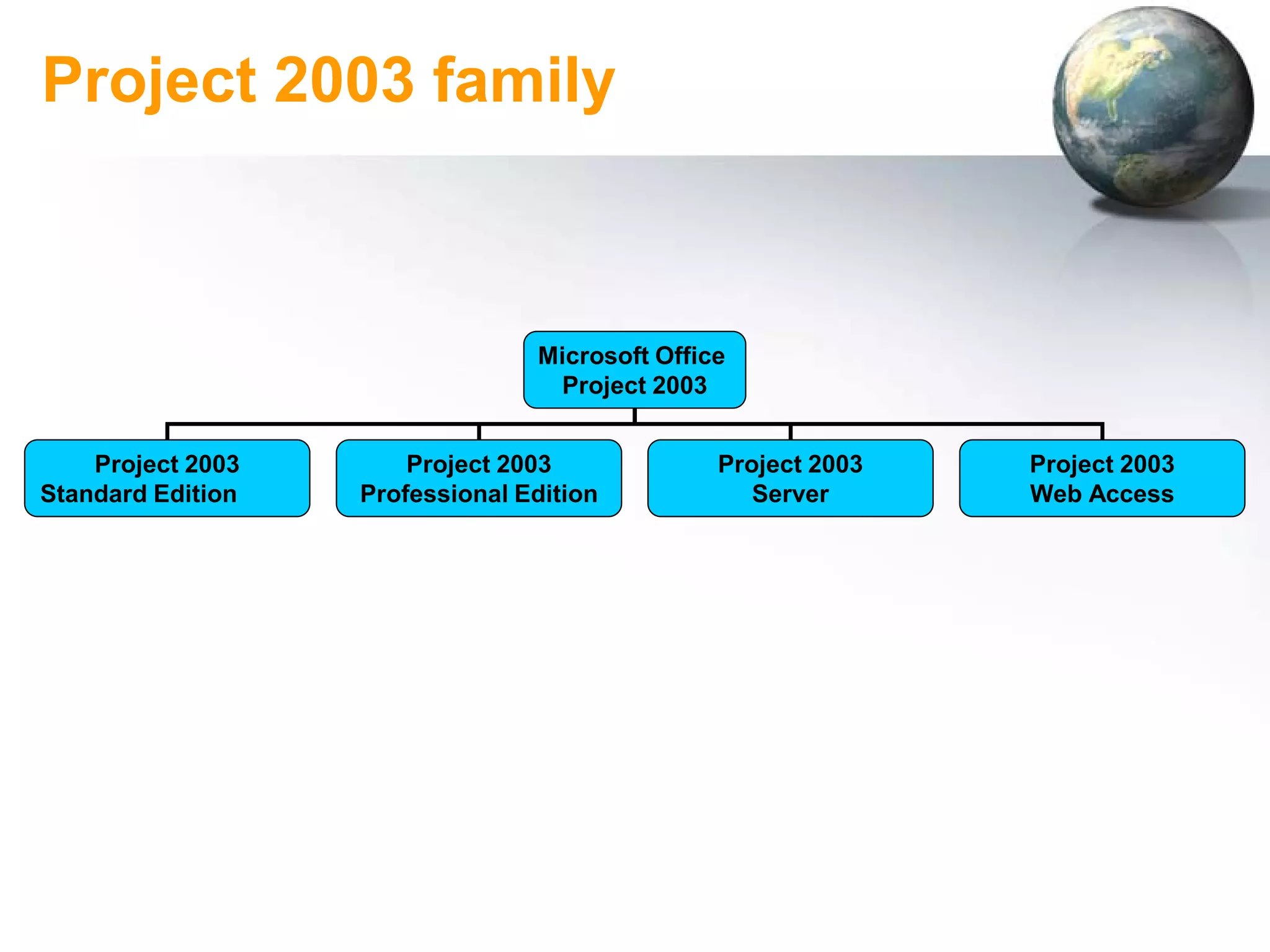
Project 2003 family


                                 Microsoft Office
                                  Project 2003


    Project 2003       Project 2003             Project 2003   Project 2003
Standard Edition   Professional Edition            Server      Web Access
(contd.)

• Project 2003 Standard – is designed for the single
  project manager and does not interact with Project
  Server
• Project 2003 Professional – can be used with
  Project Server – additional project team planning
  and communications features
• Project 2003 Server – an intranet based solution
  that enables enterprise-level project collaboration
• Project 2003 Web Access – Internet Explorer
  based interface for Project Server
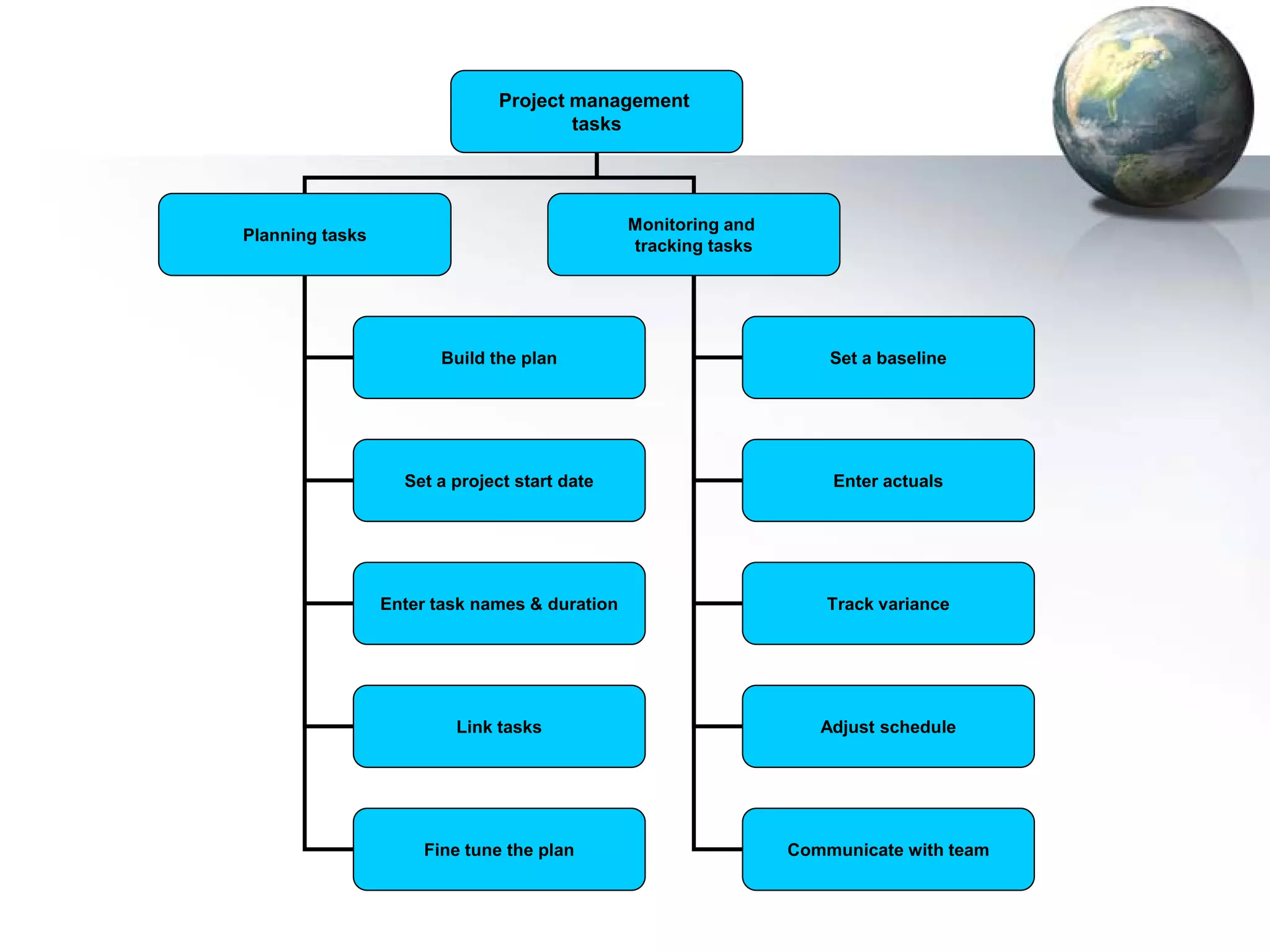
Project management
                                      tasks


                                               Monitoring and
Planning tasks
                                               tracking tasks


                       Build the plan                               Set a baseline


                   Set a project start date                         Enter actuals


                 Enter task names & duration                        Track variance


                         Link tasks                                Adjust schedule


                     Fine tune the plan                         Communicate with team
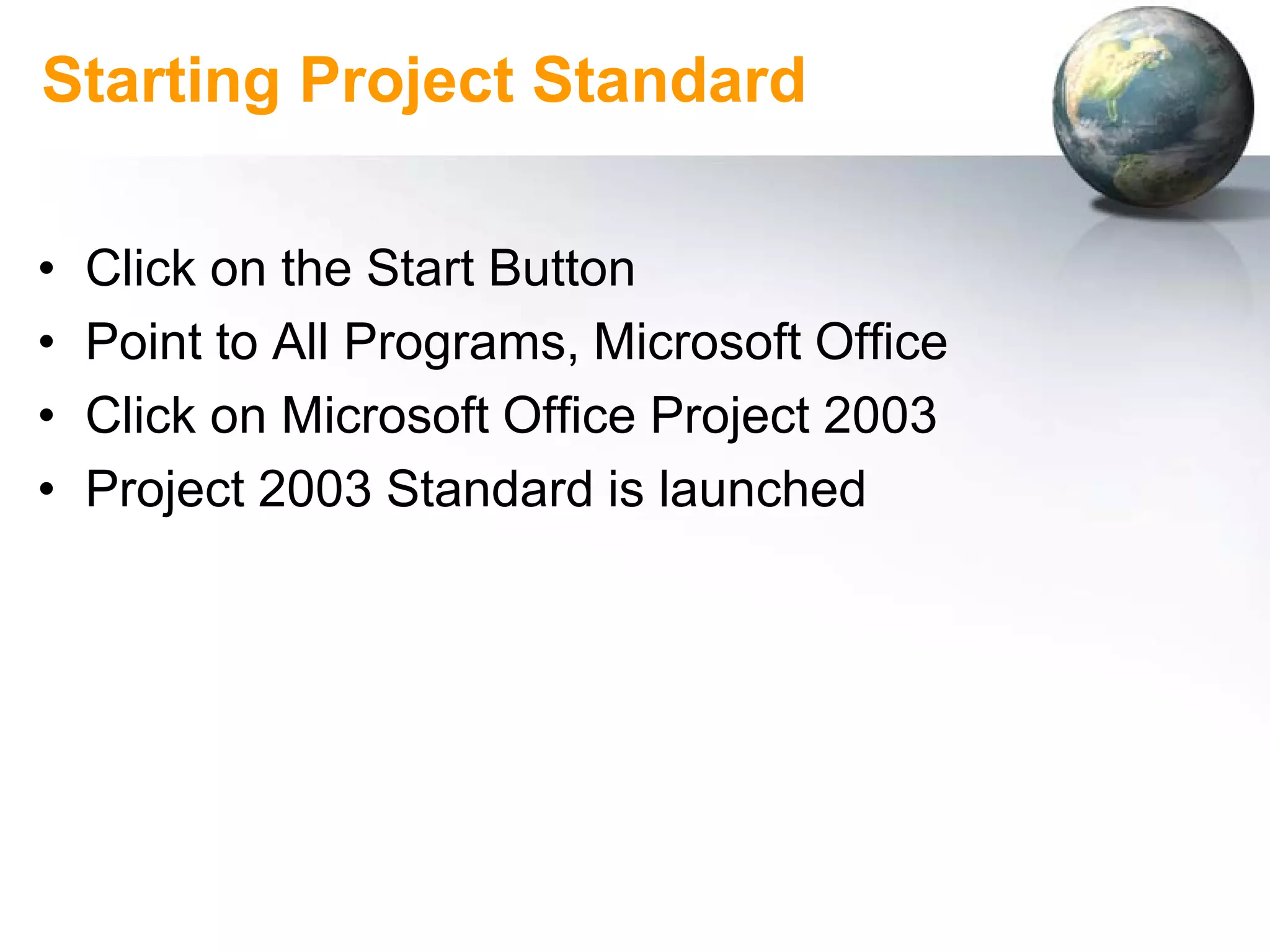
Starting Project Standard

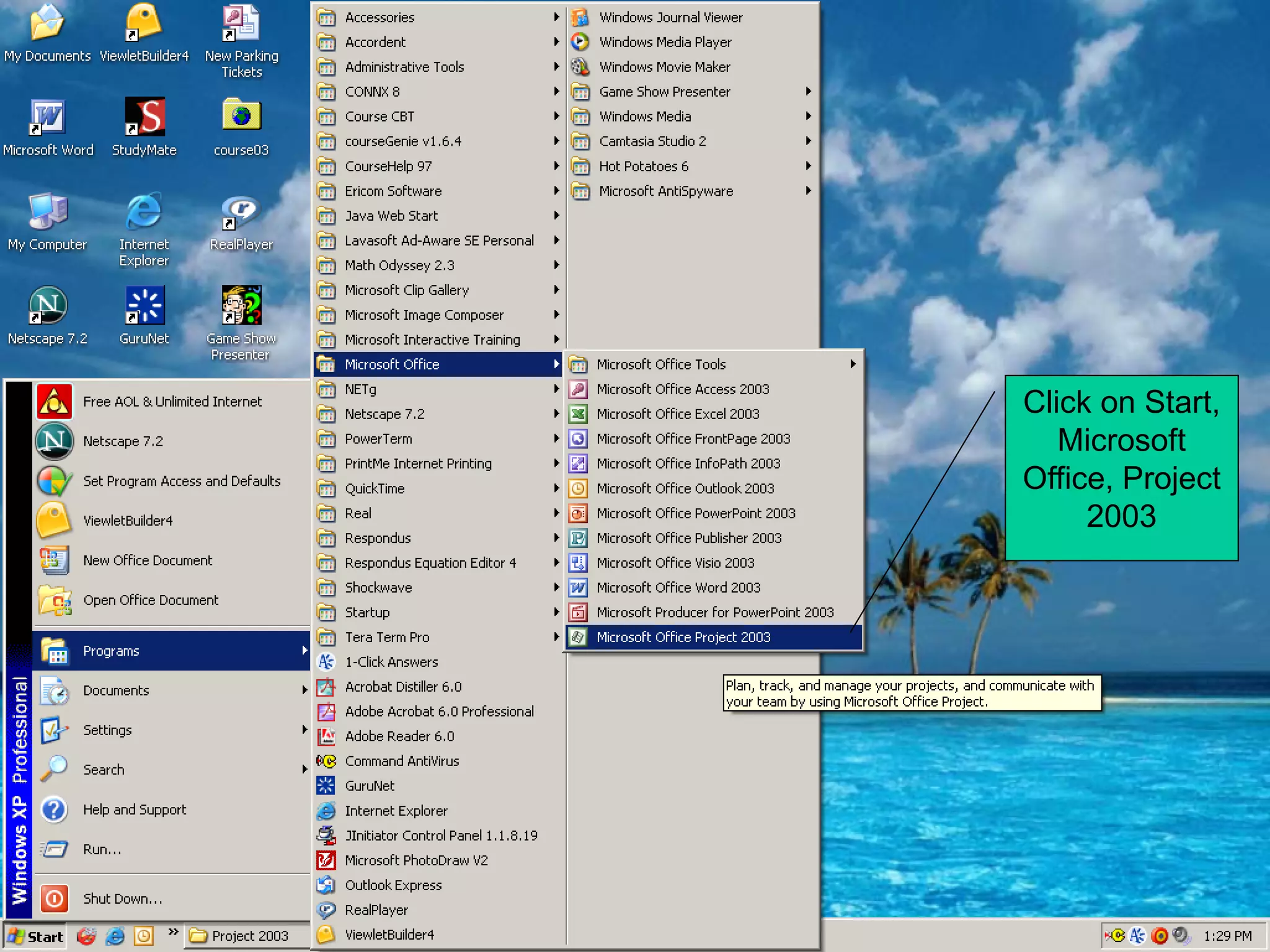
•   Click on the Start Button
•   Point to All Programs, Microsoft Office
•   Click on Microsoft Office Project 2003
•   Project 2003 Standard is launched
Click on Start,
   Microsoft
Office, Project
     2003
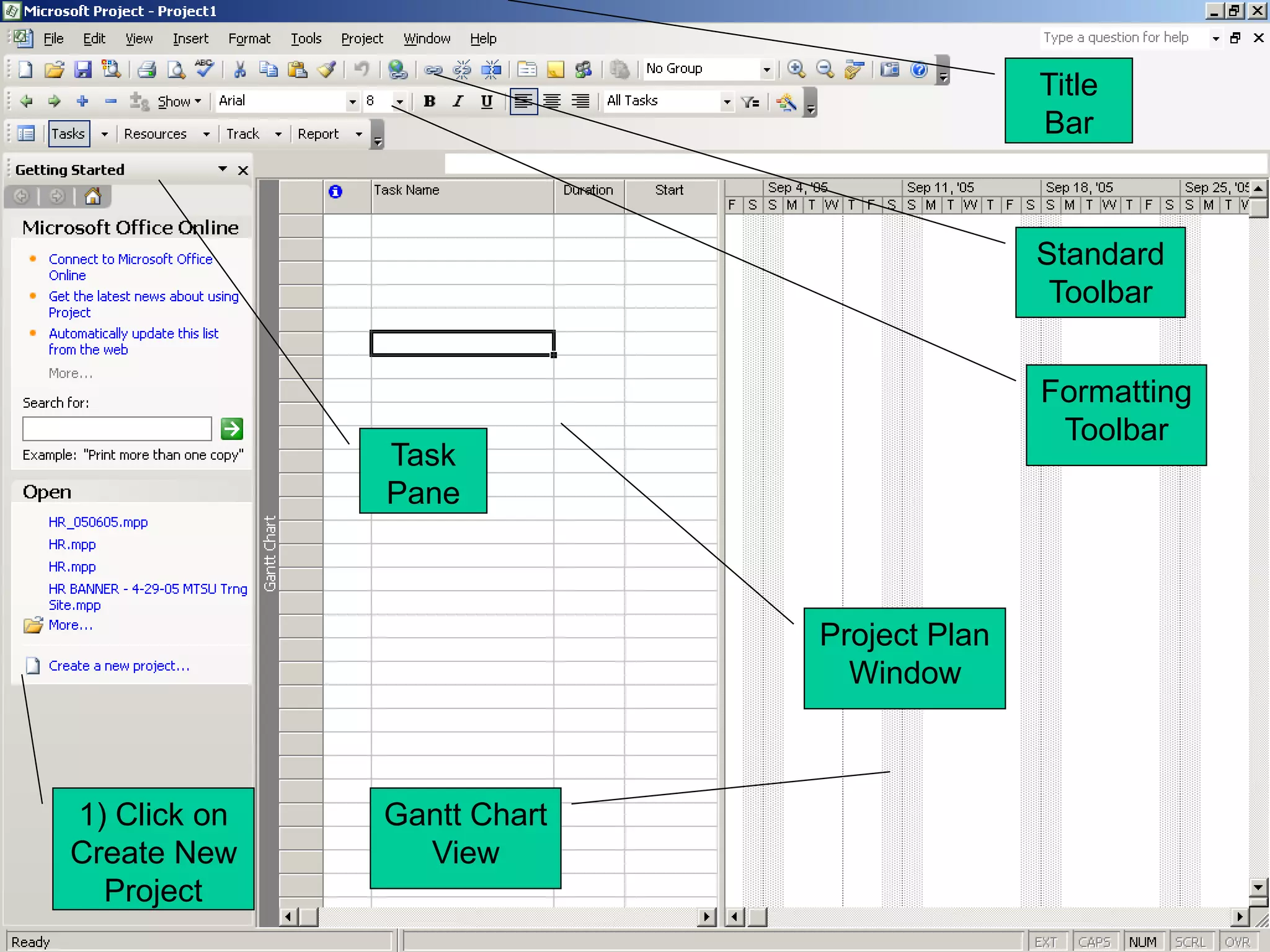
Title
                                           Bar


                                           Standard
                                            Toolbar


                                           Formatting
                                            Toolbar
              Task
              Pane


                            Project Plan
                              Window


1) Click on   Gantt Chart
Create New      View
  Project
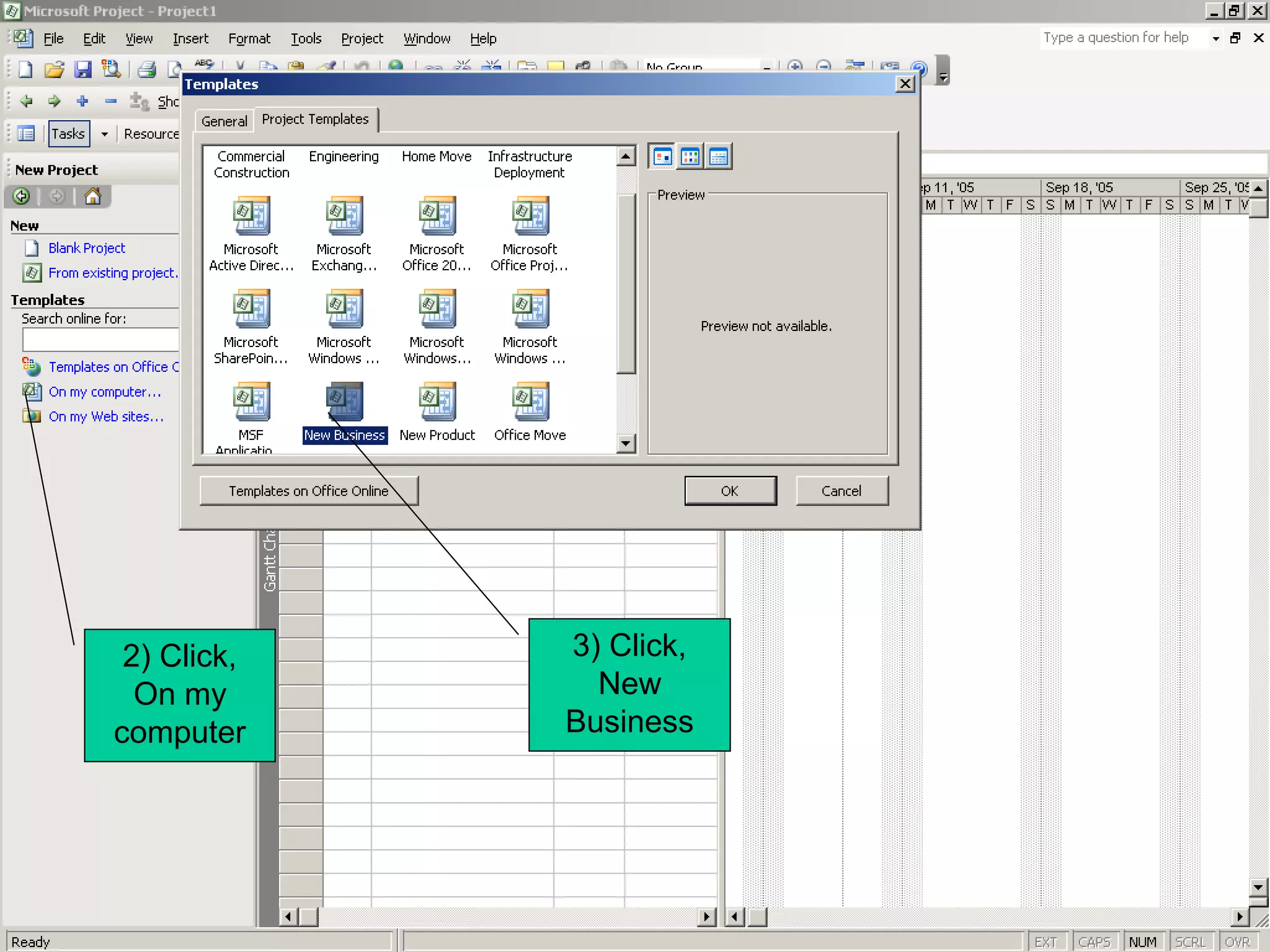
2) Click,   3) Click,
  On my        New
computer     Business
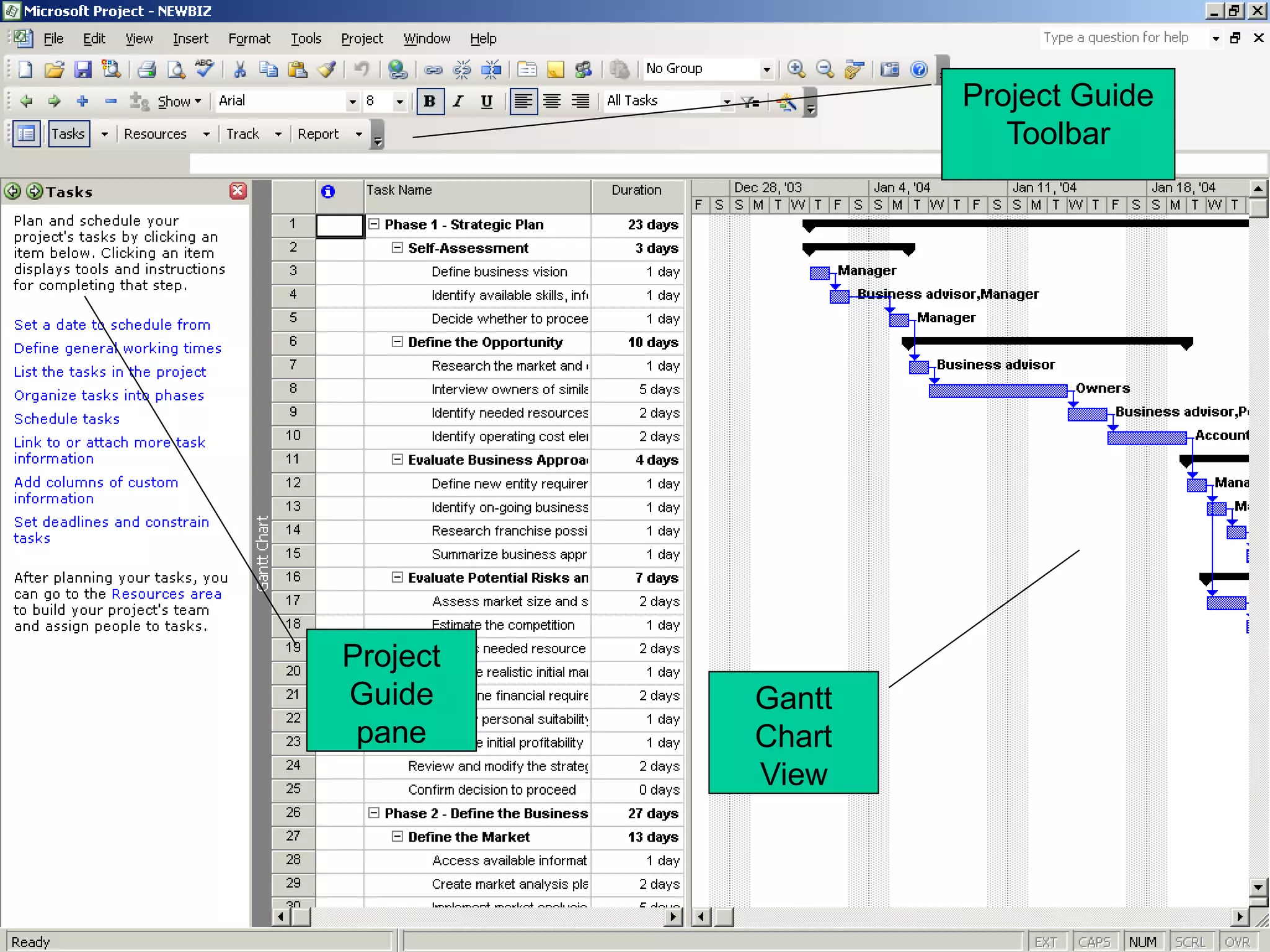
Project Guide
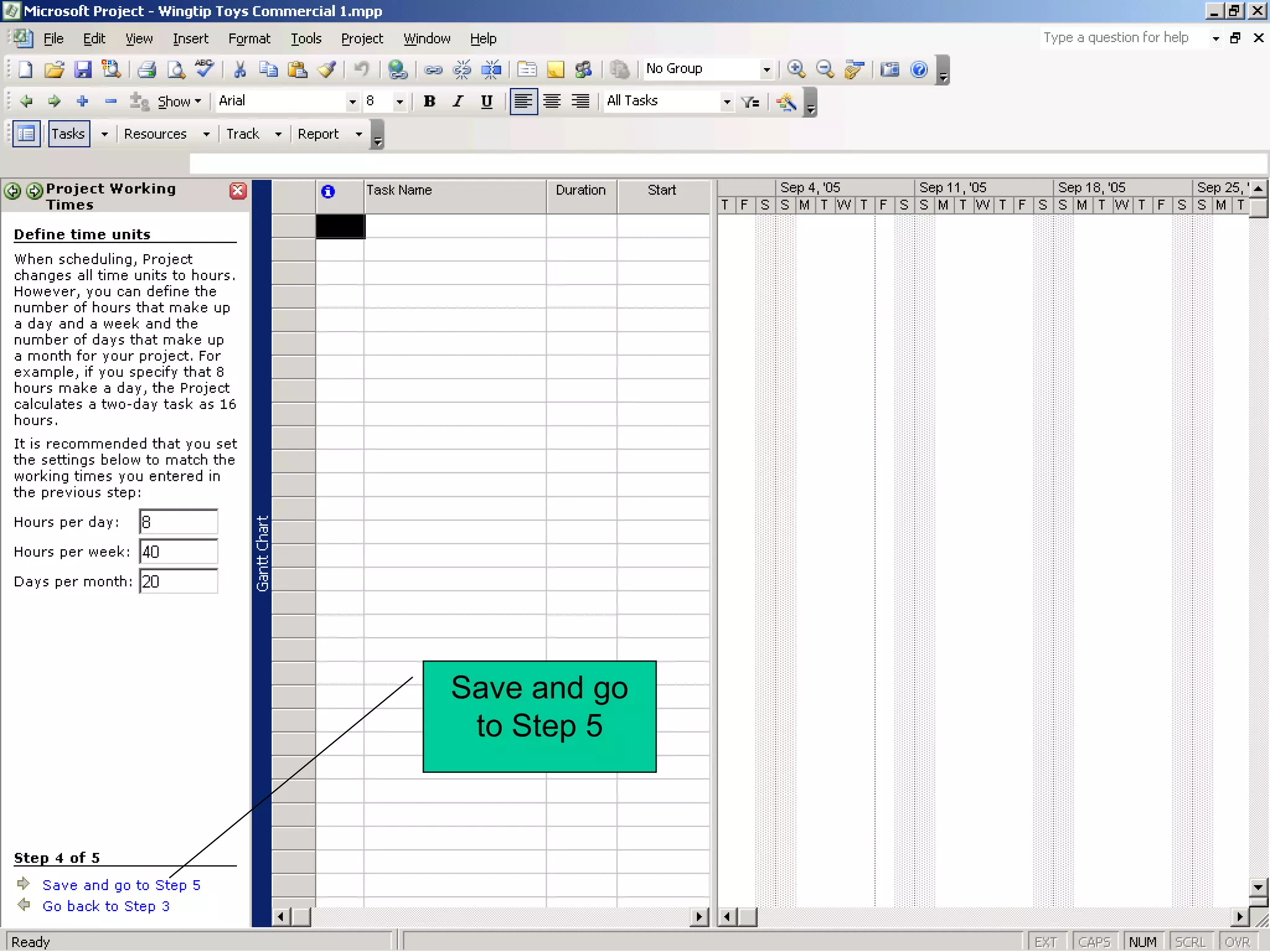
                     Toolbar


Project
Guide     Gantt
 pane     Chart
          View
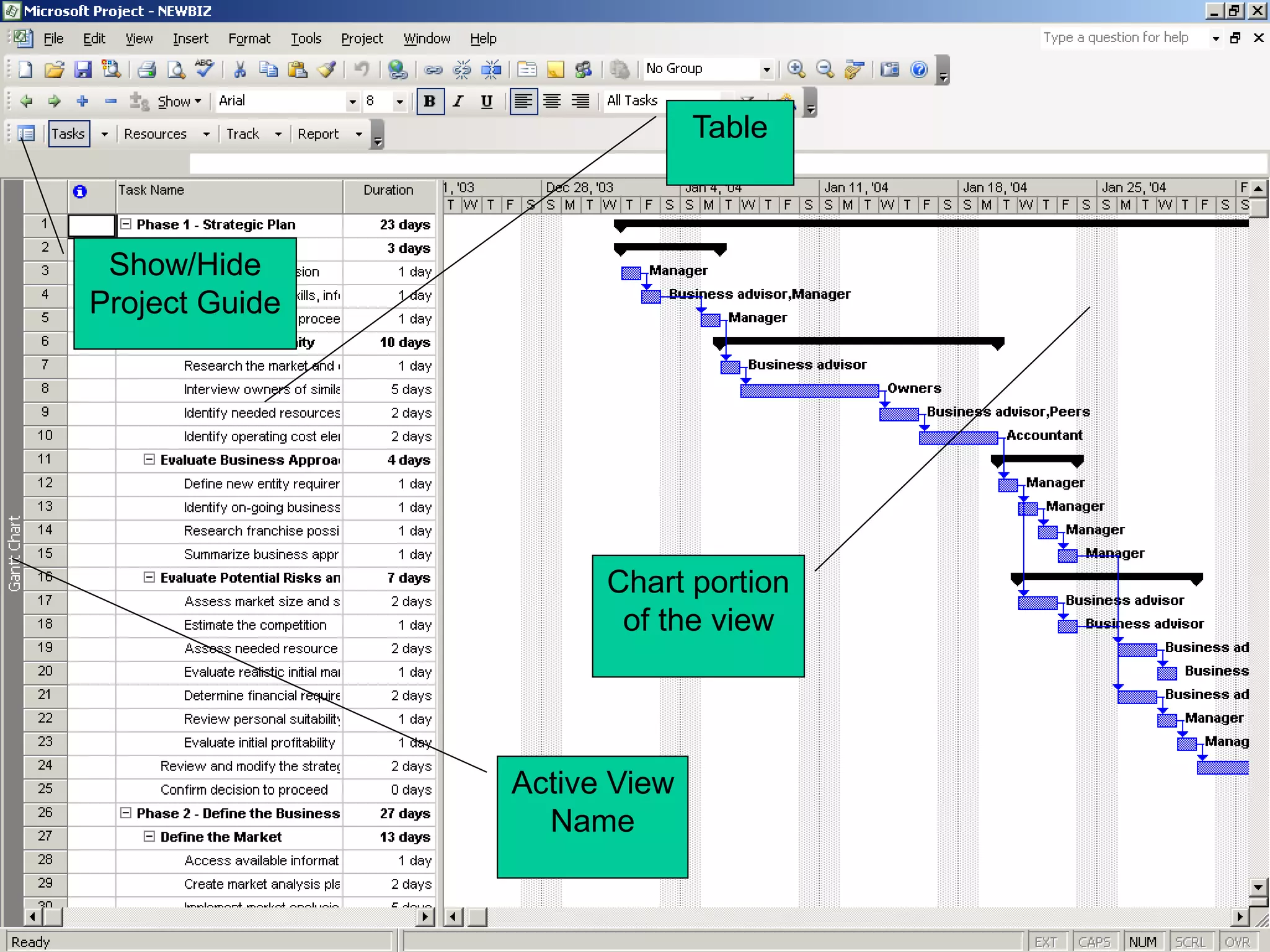
Table


 Show/Hide
Project Guide


                      Chart portion
                       of the view


                Active View
                  Name
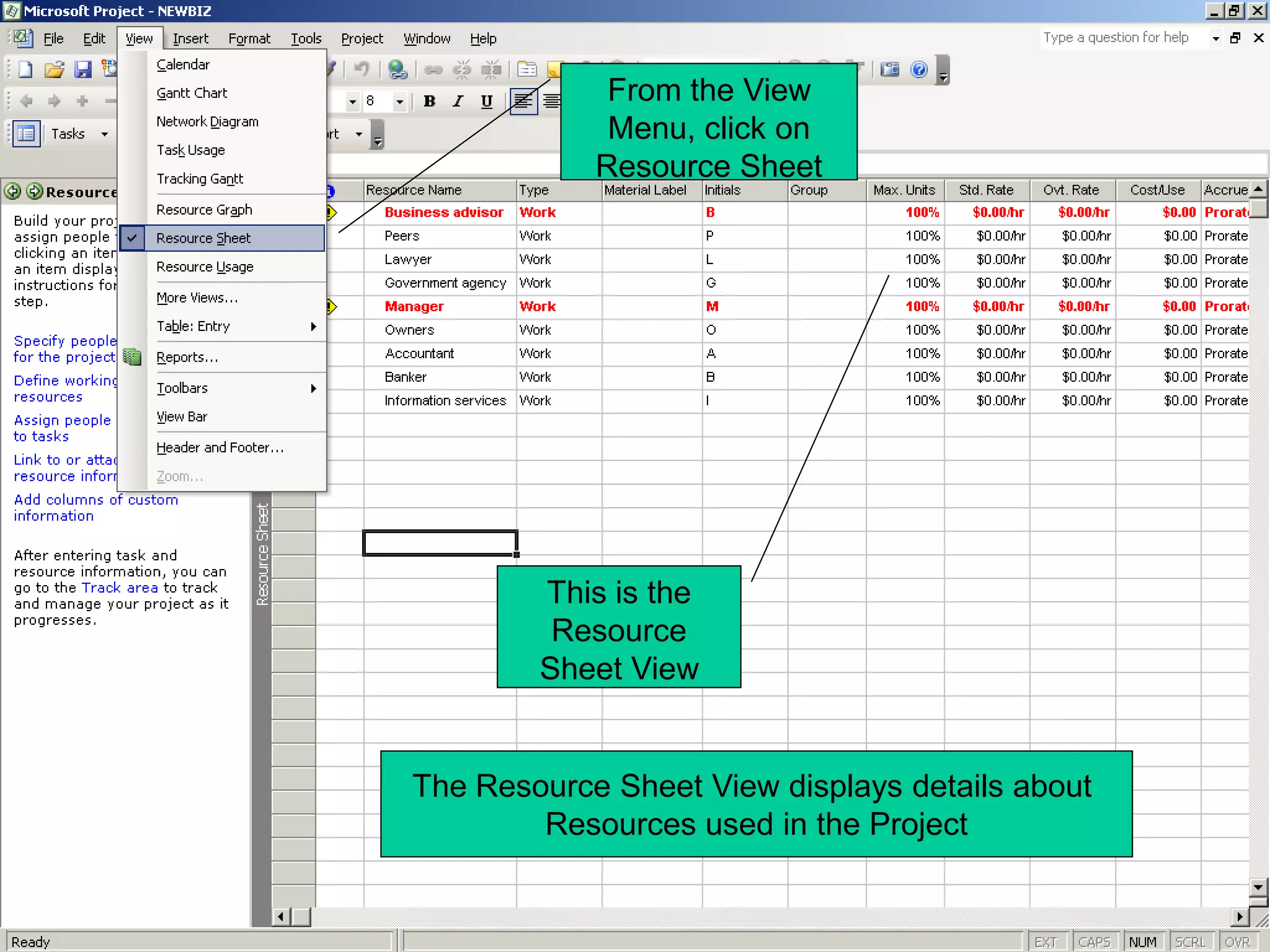
From the View
             Menu, click on
            Resource Sheet


        This is the
         Resource
        Sheet View


The Resource Sheet View displays details about
        Resources used in the Project
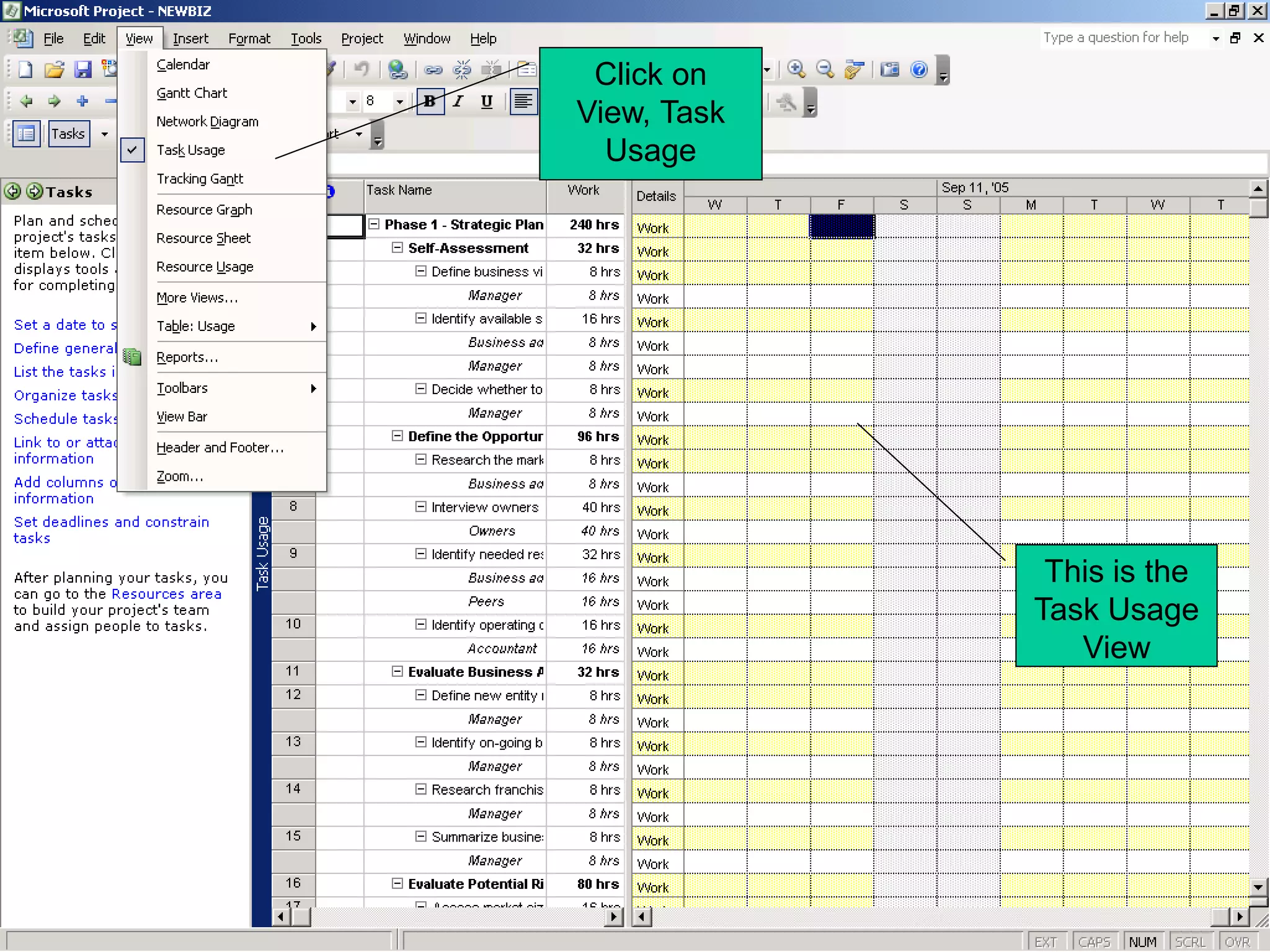
Click on
View, Task
  Usage


              This is the
             Task Usage
                View
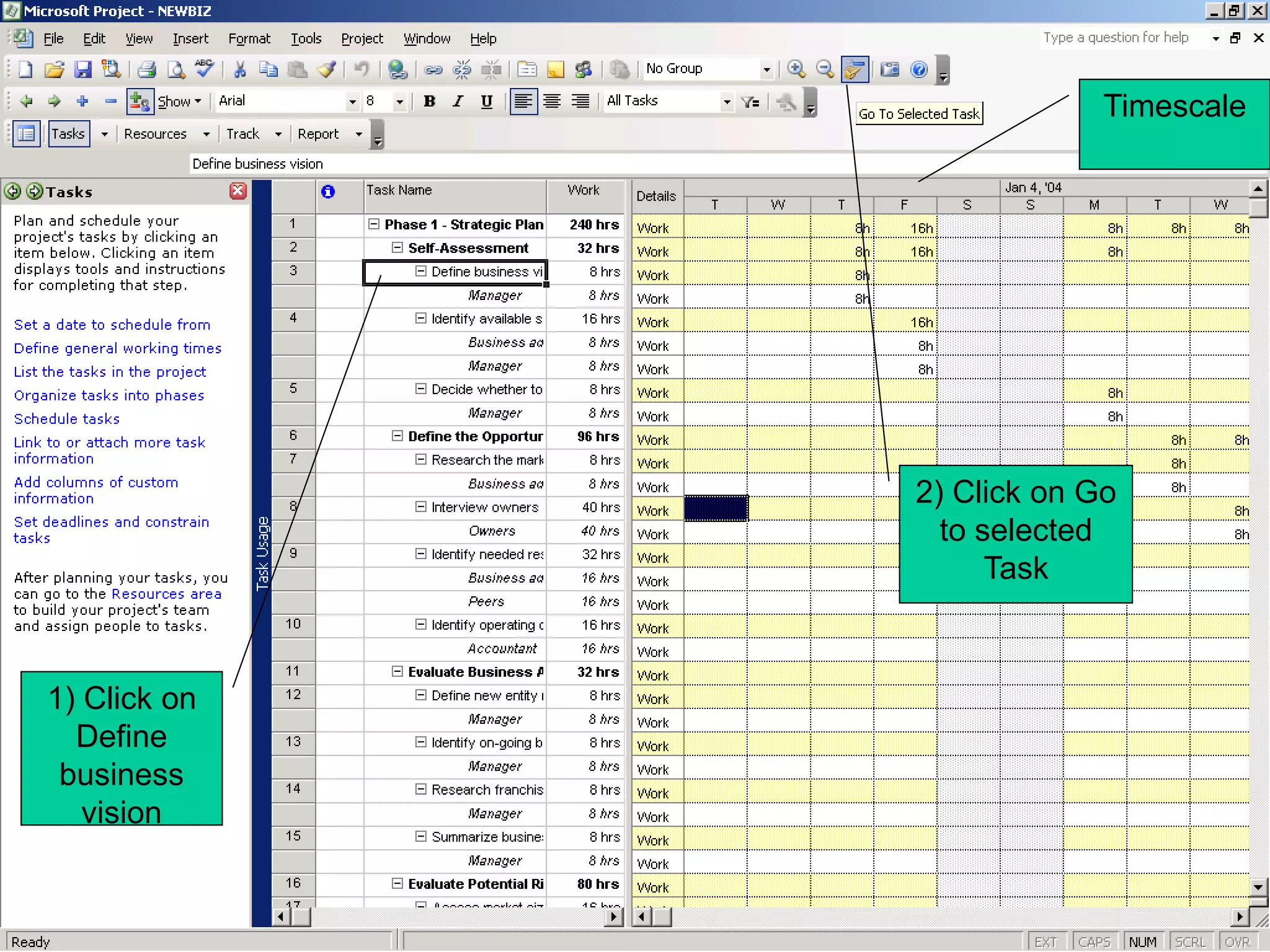
Timescale


              2) Click on Go
                to selected
                    Task


1) Click on
  Define
 business
   vision
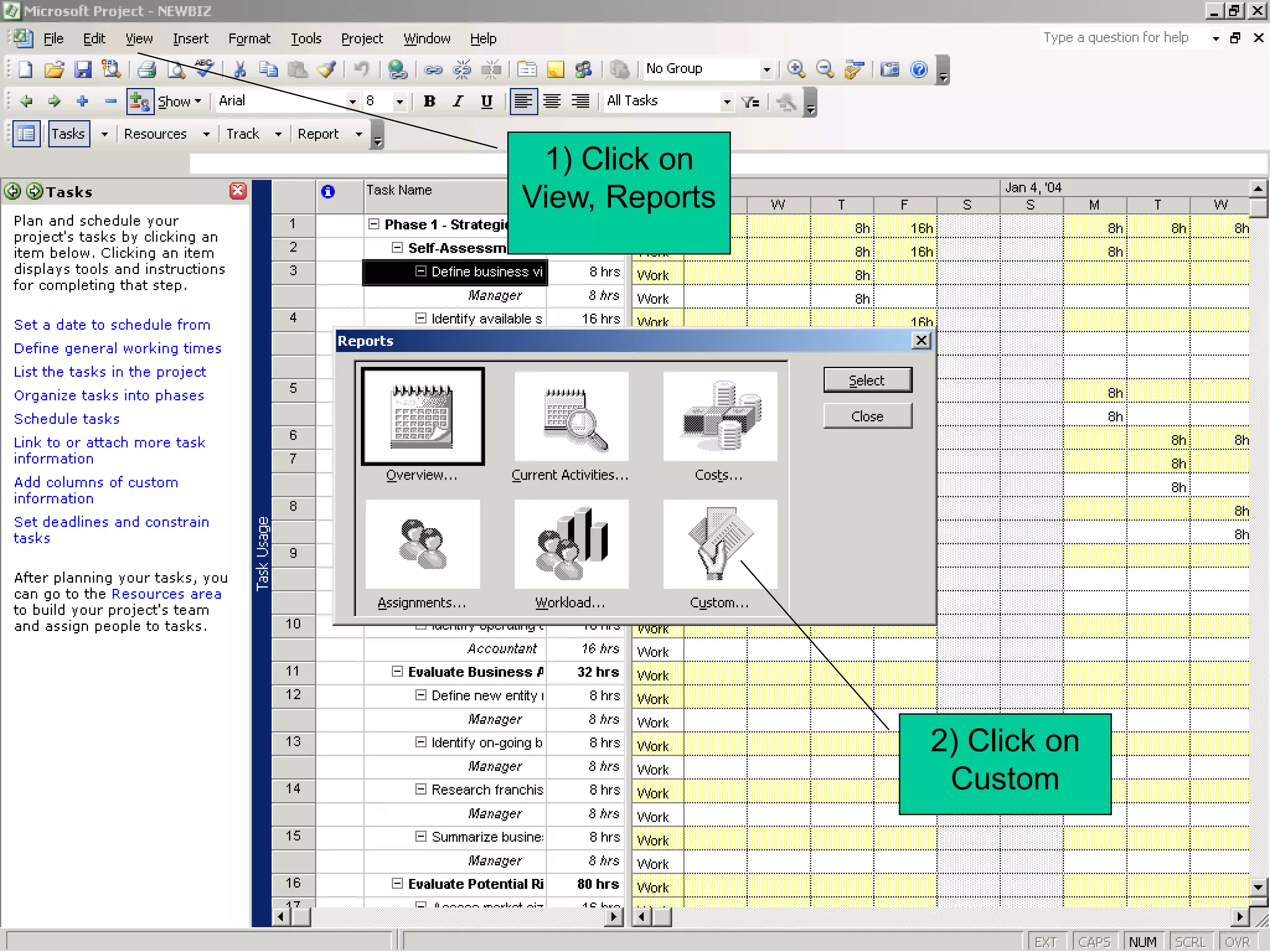
1) Click on
View, Reports


                2) Click on
                 Custom
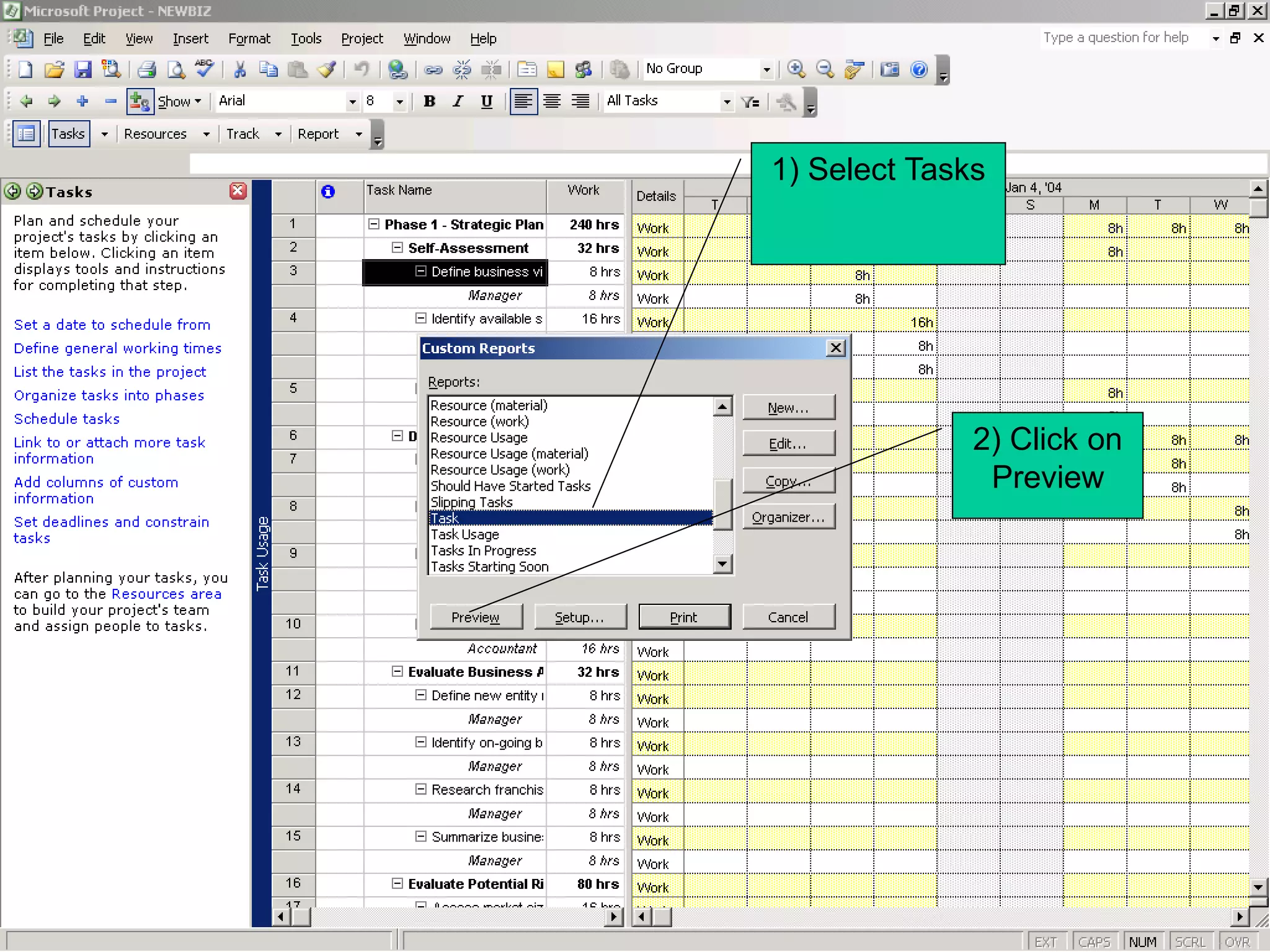
1) Select Tasks


              2) Click on
               Preview
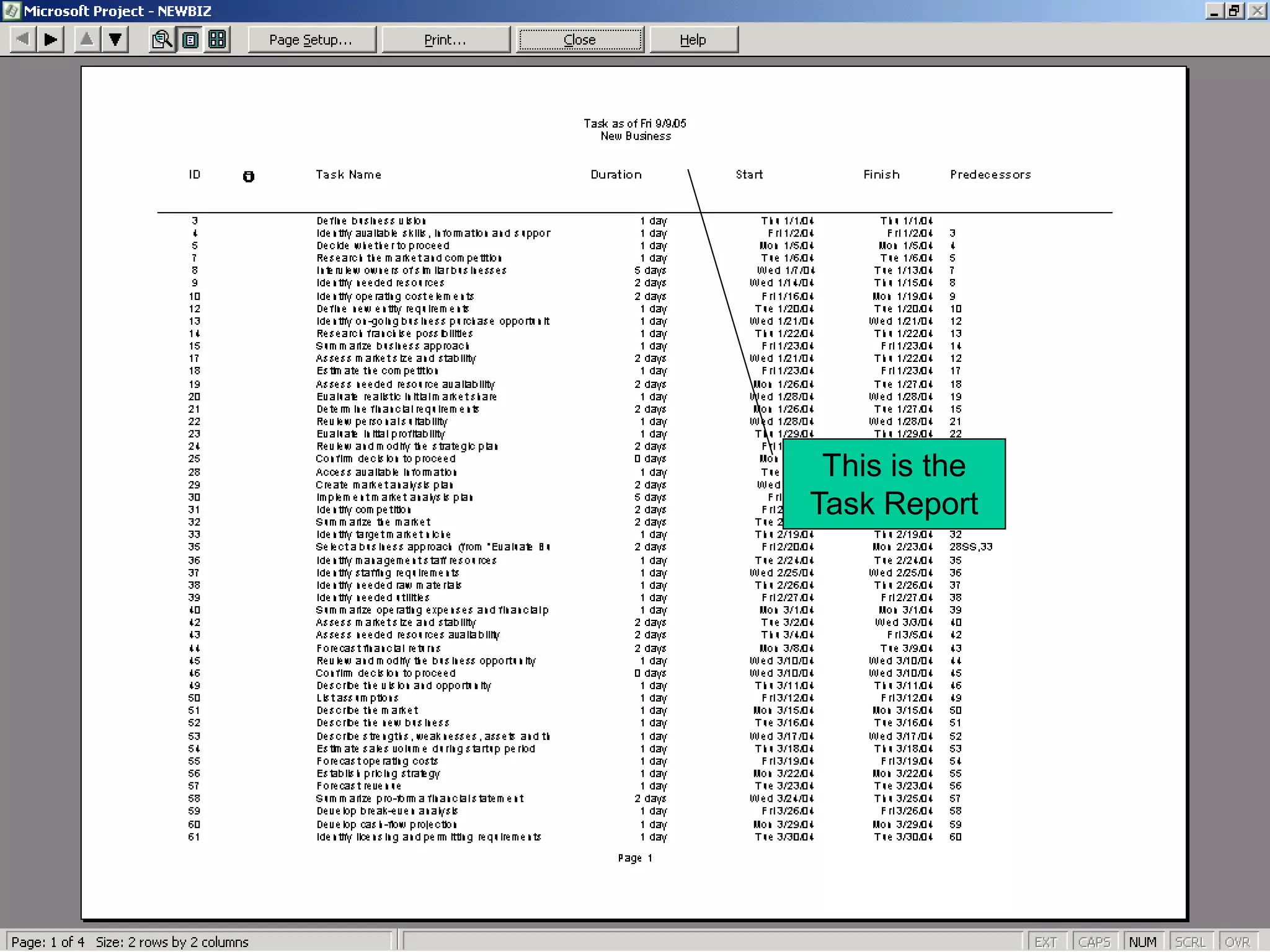
This is the
Task Report
Create a New Project Plan

• On the File menu, click on New
• Under New, click on Blank Project
• Project 2003 create a New Project, and the New
  Project task pane is replaced by the Tasks panes
  of the Project Guide
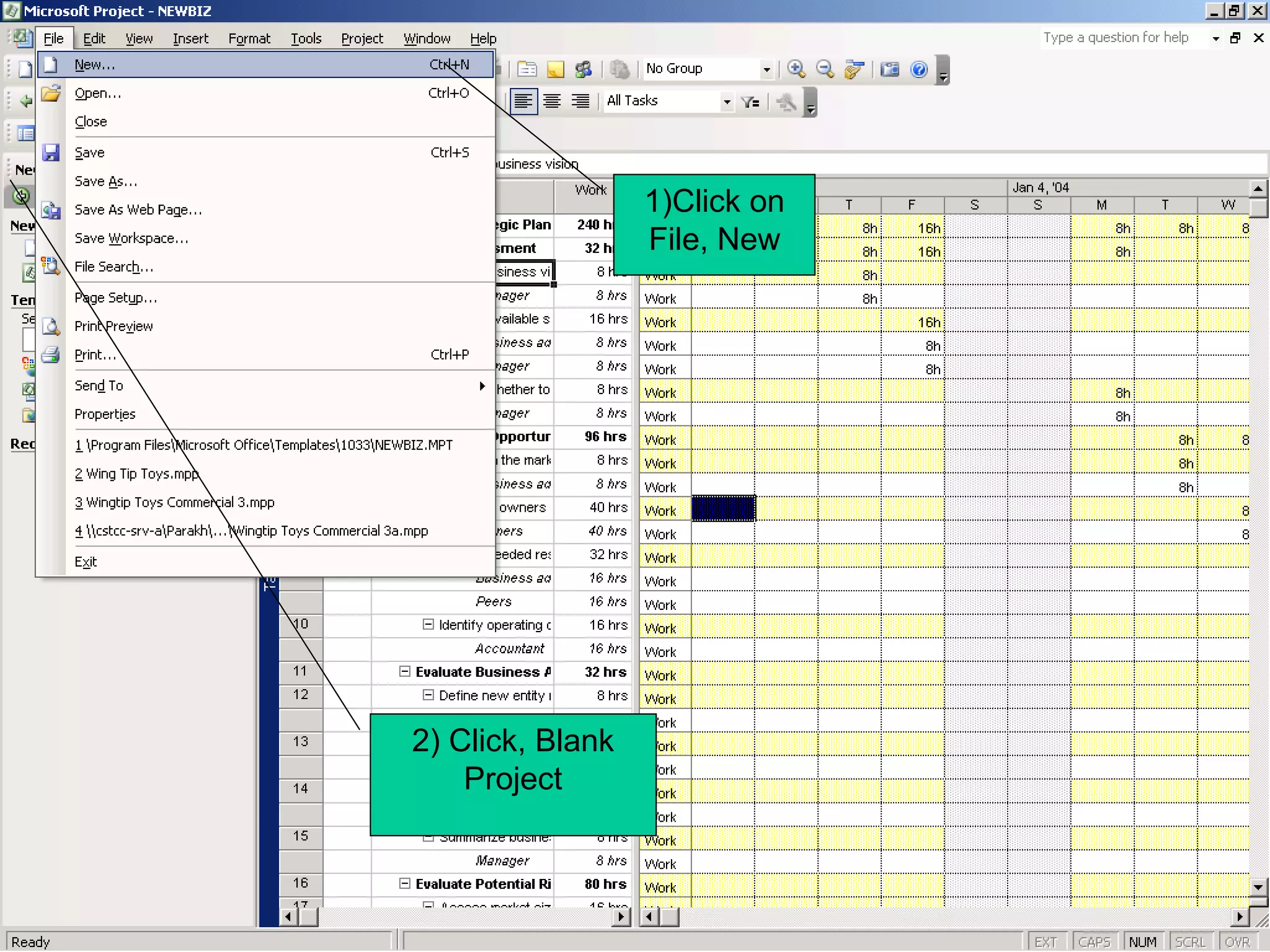
1)Click on
                  File, New


2) Click, Blank
    Project
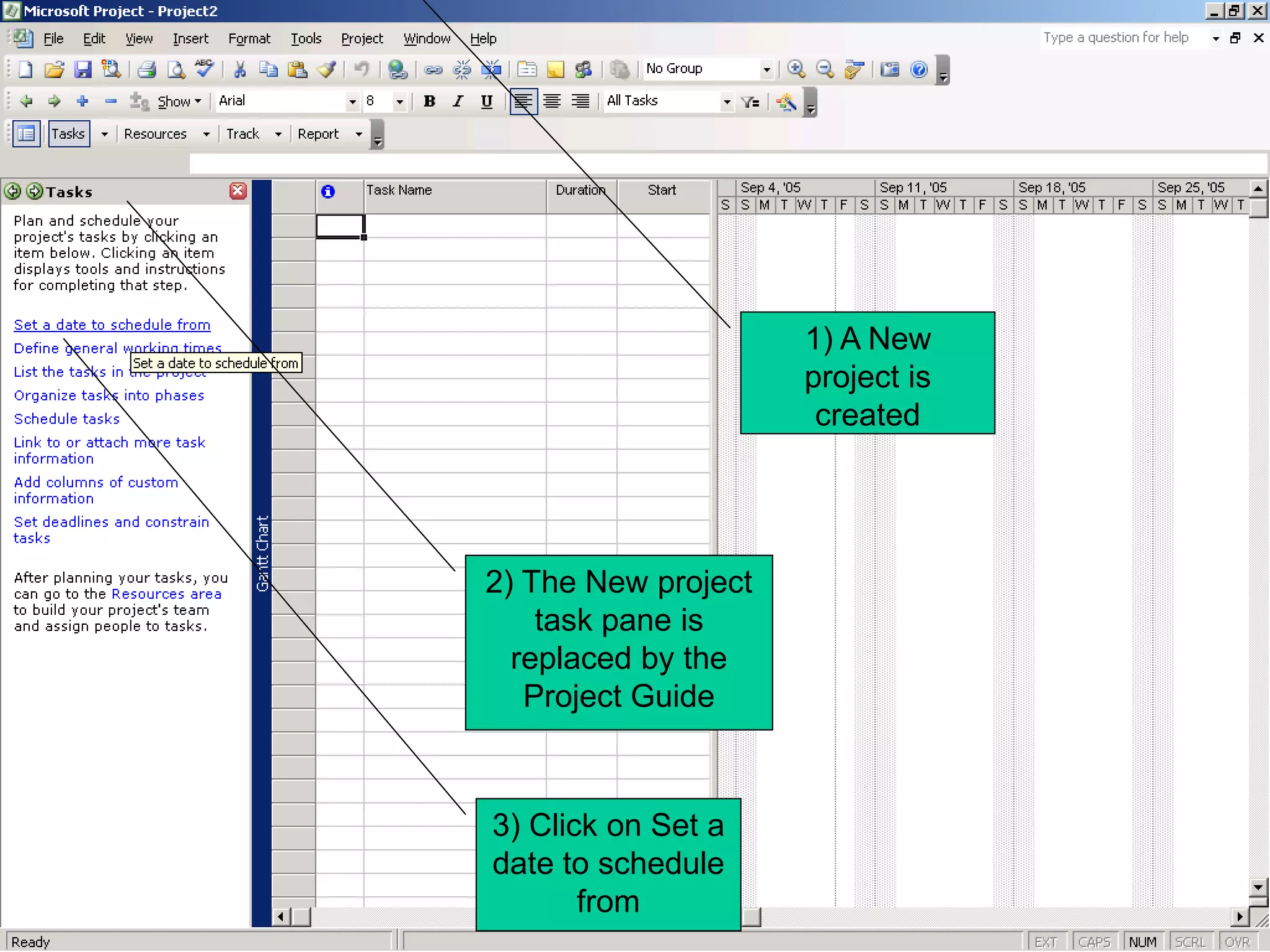
1) A New
                     project is
                      created


2) The New project
    task pane is
  replaced by the
   Project Guide


3) Click on Set a
date to schedule
       from
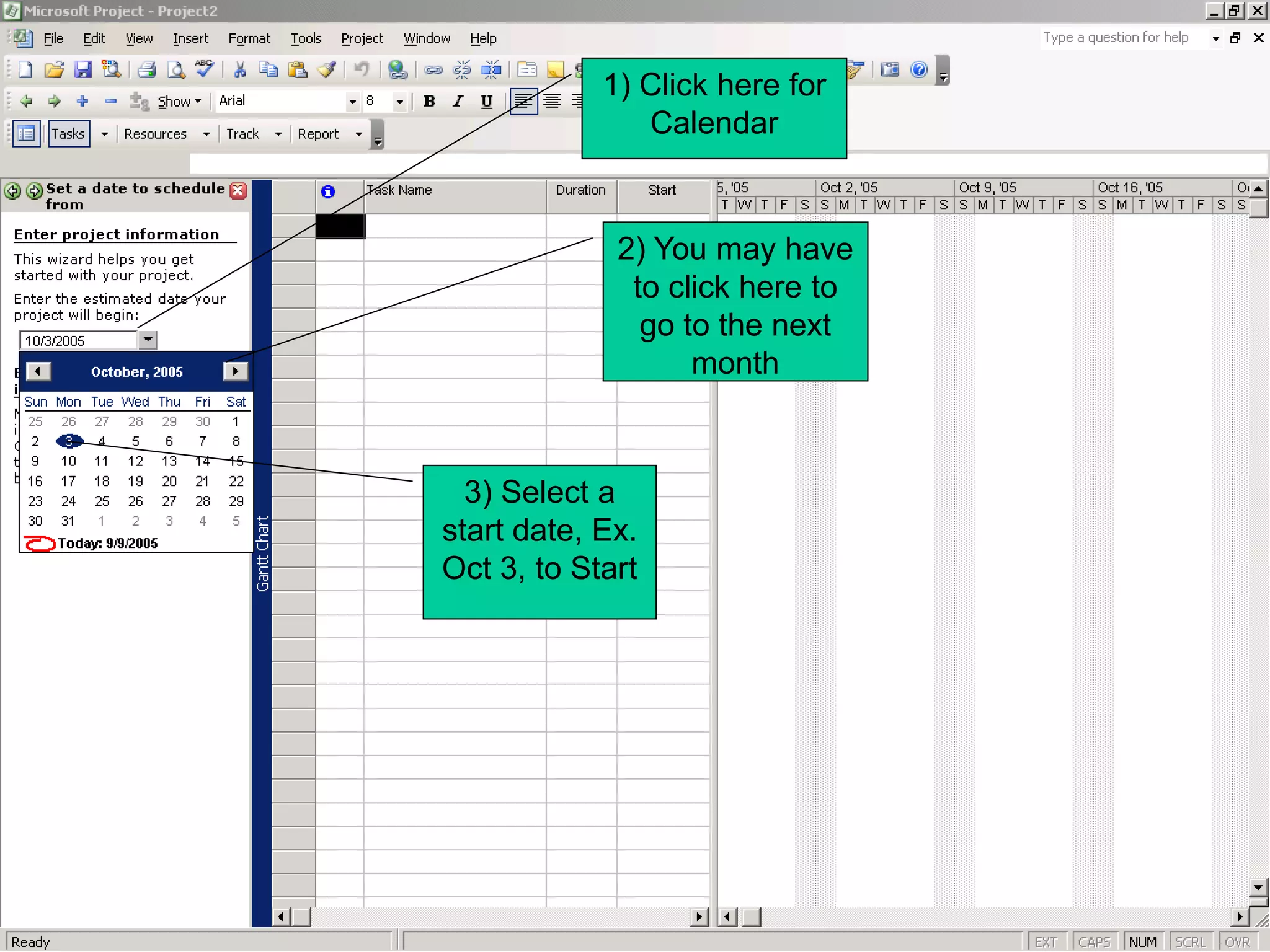
1) Click here for
               Calendar


             2) You may have
              to click here to
               go to the next
                   month


  3) Select a
start date, Ex.
Oct 3, to Start
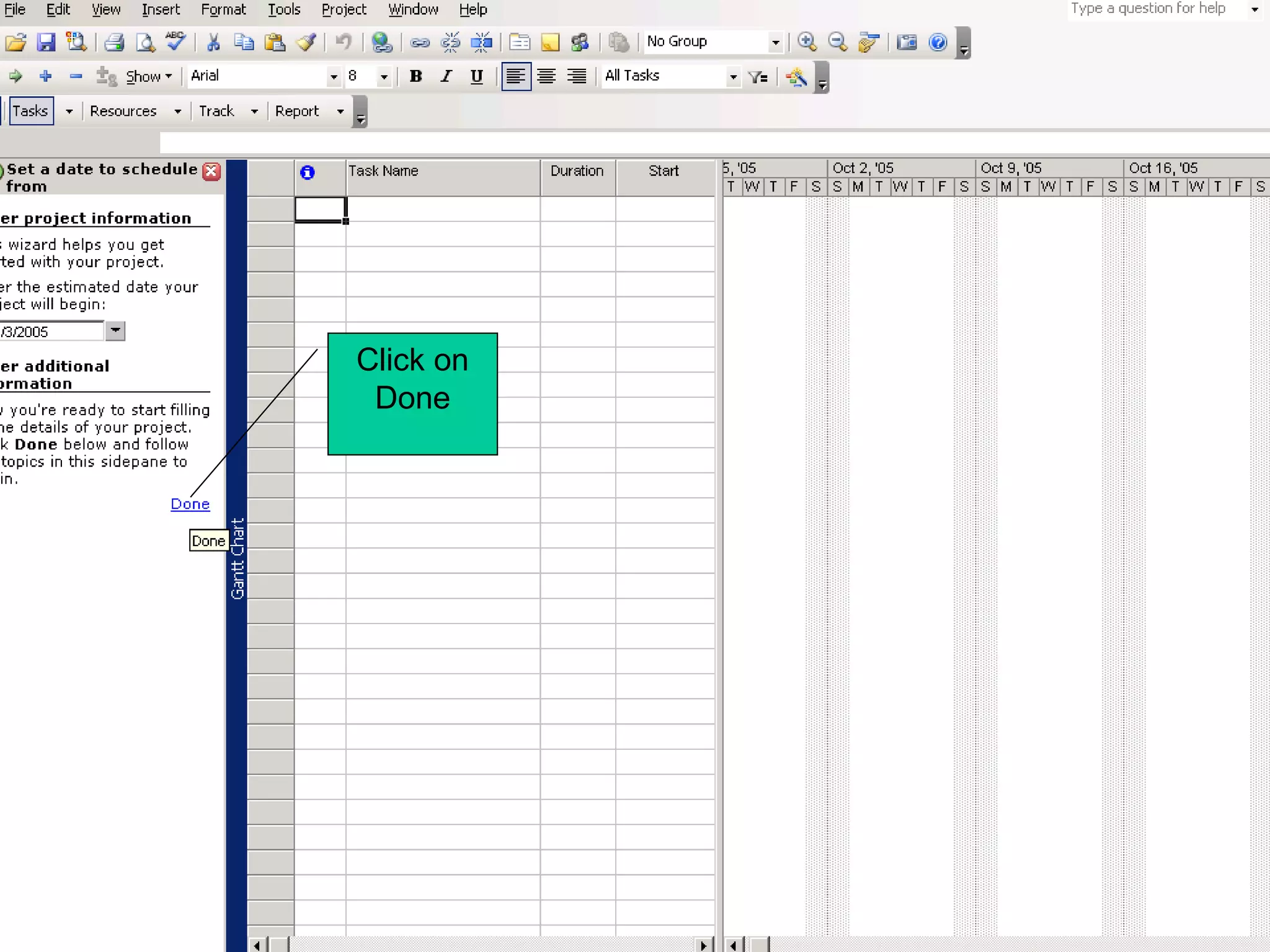
Click on
 Done
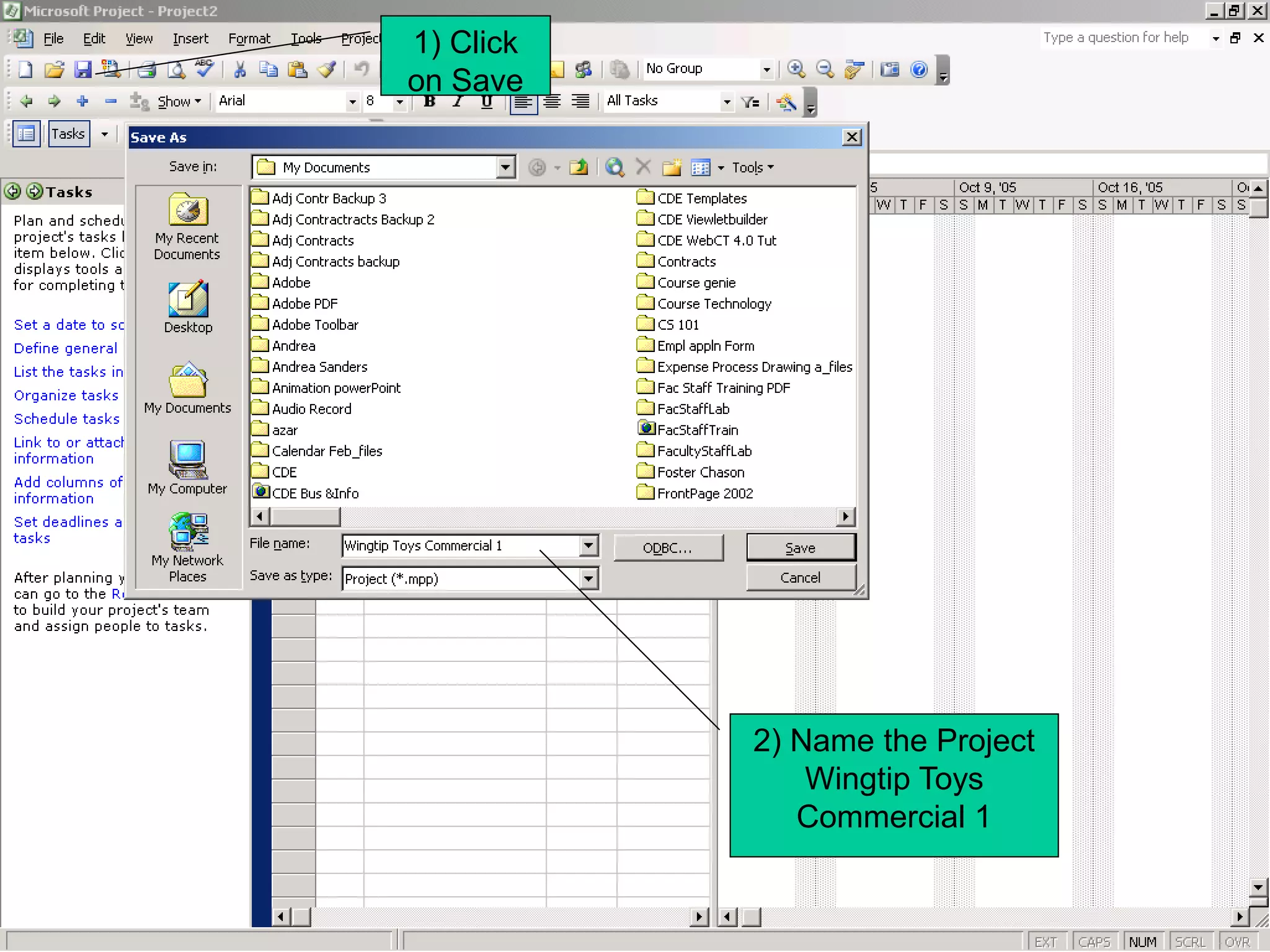
1) Click
on Save


           2) Name the Project
               Wingtip Toys
              Commercial 1
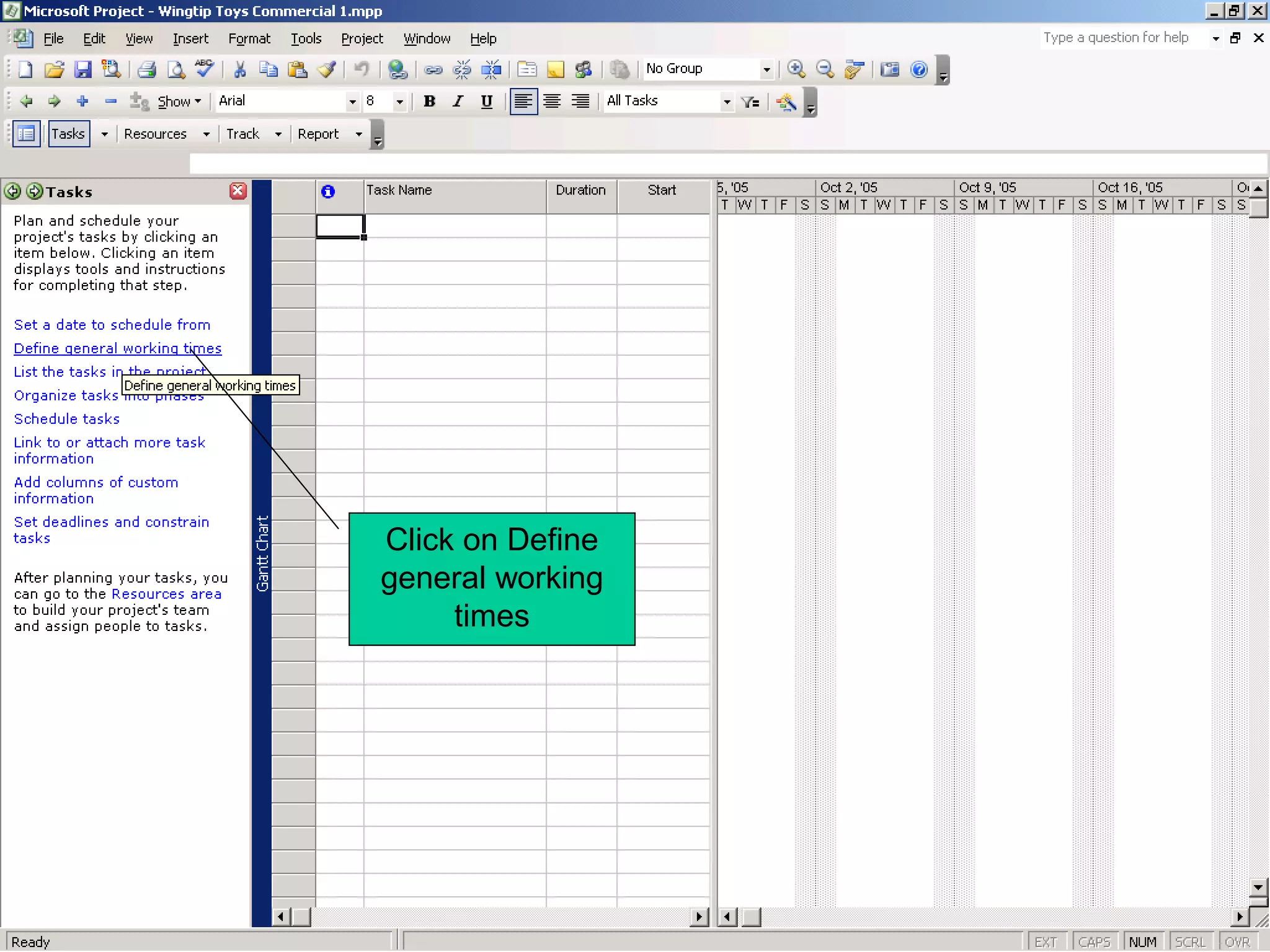
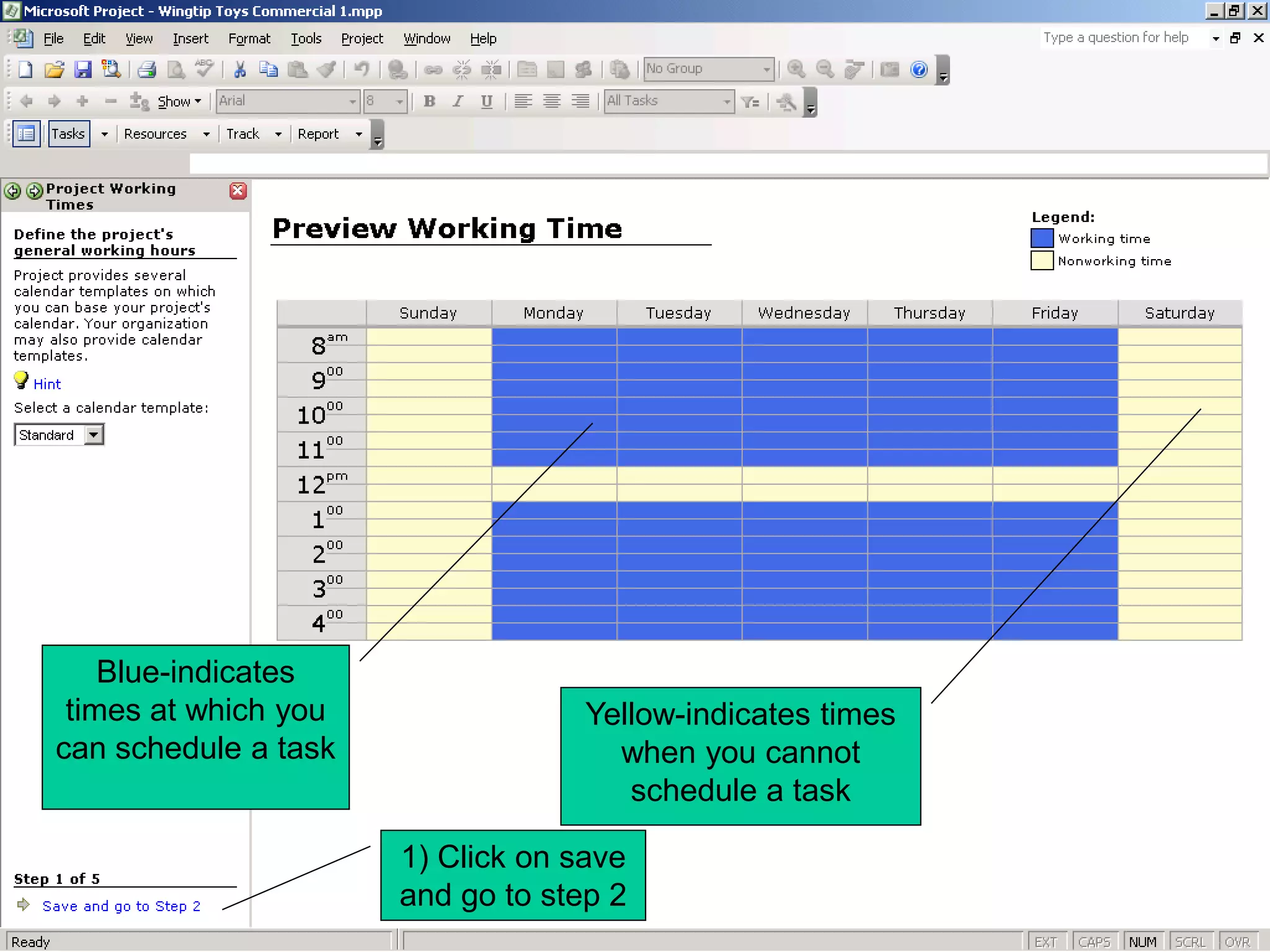
Click on Define
general working
     times
Blue-indicates
 times at which you                Yellow-indicates times
can schedule a task                  when you cannot
                                      schedule a task

                      1) Click on save
                      and go to step 2
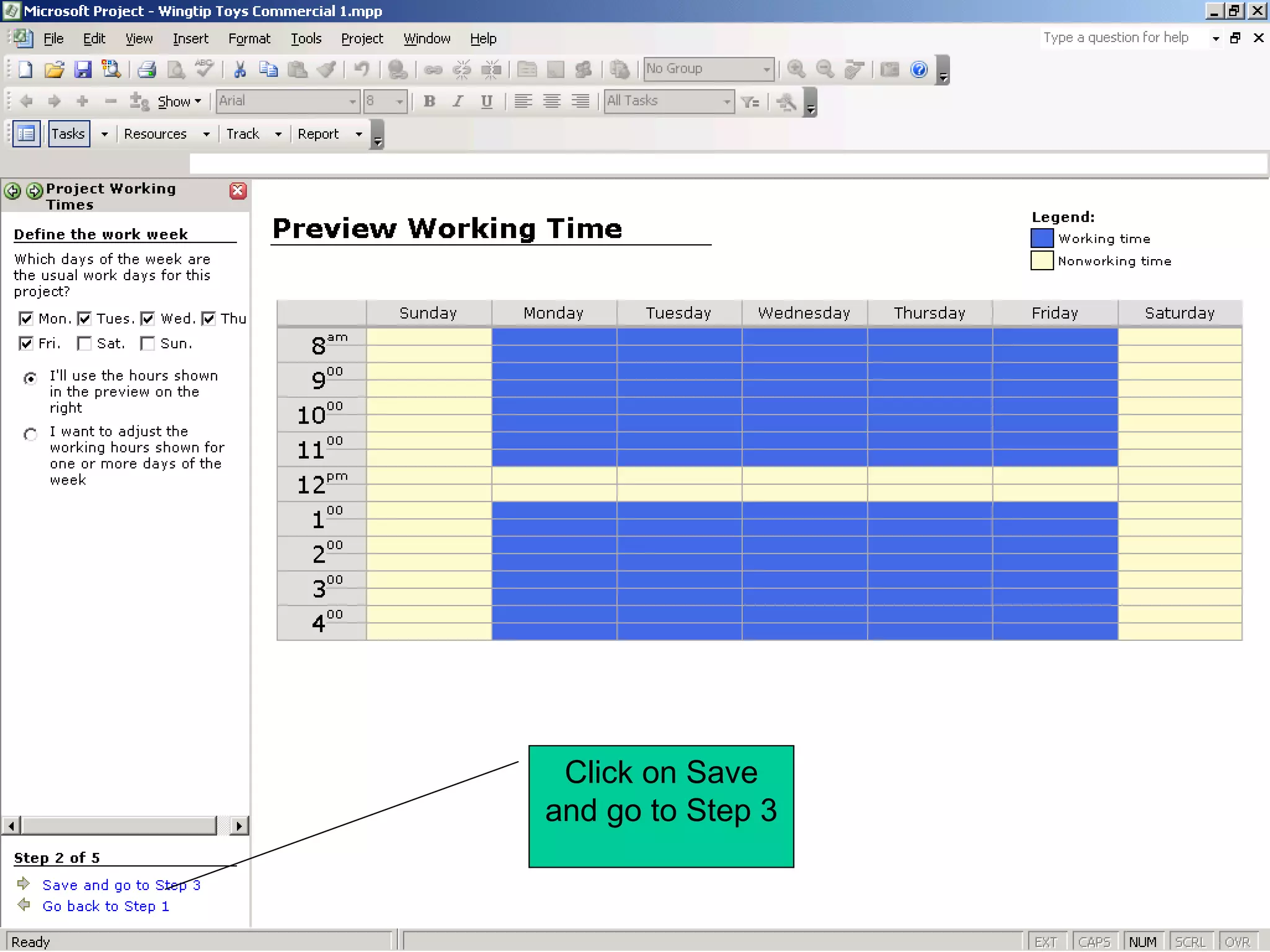
Click on Save
and go to Step 3
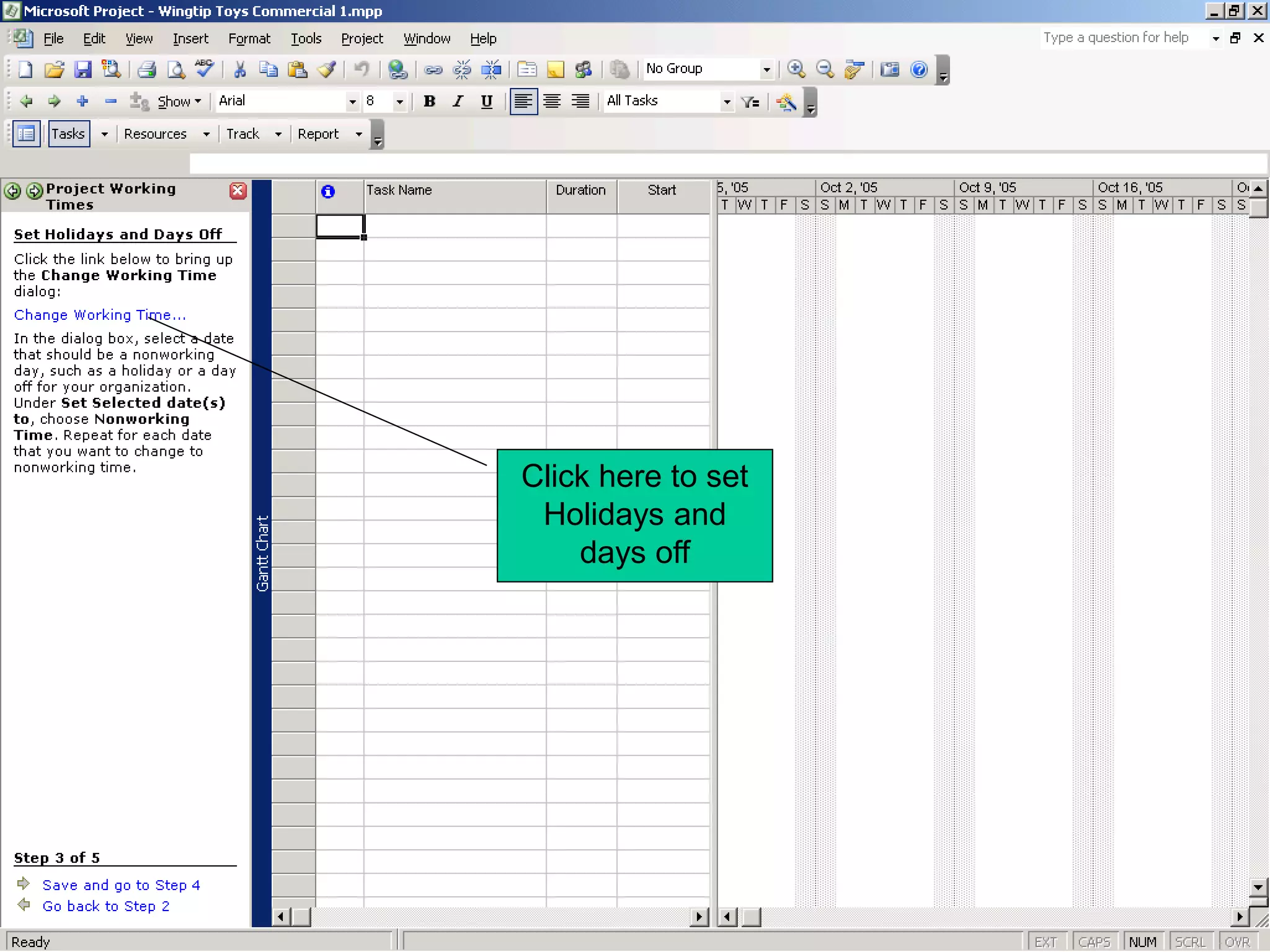
Click here to set
 Holidays and
    days off
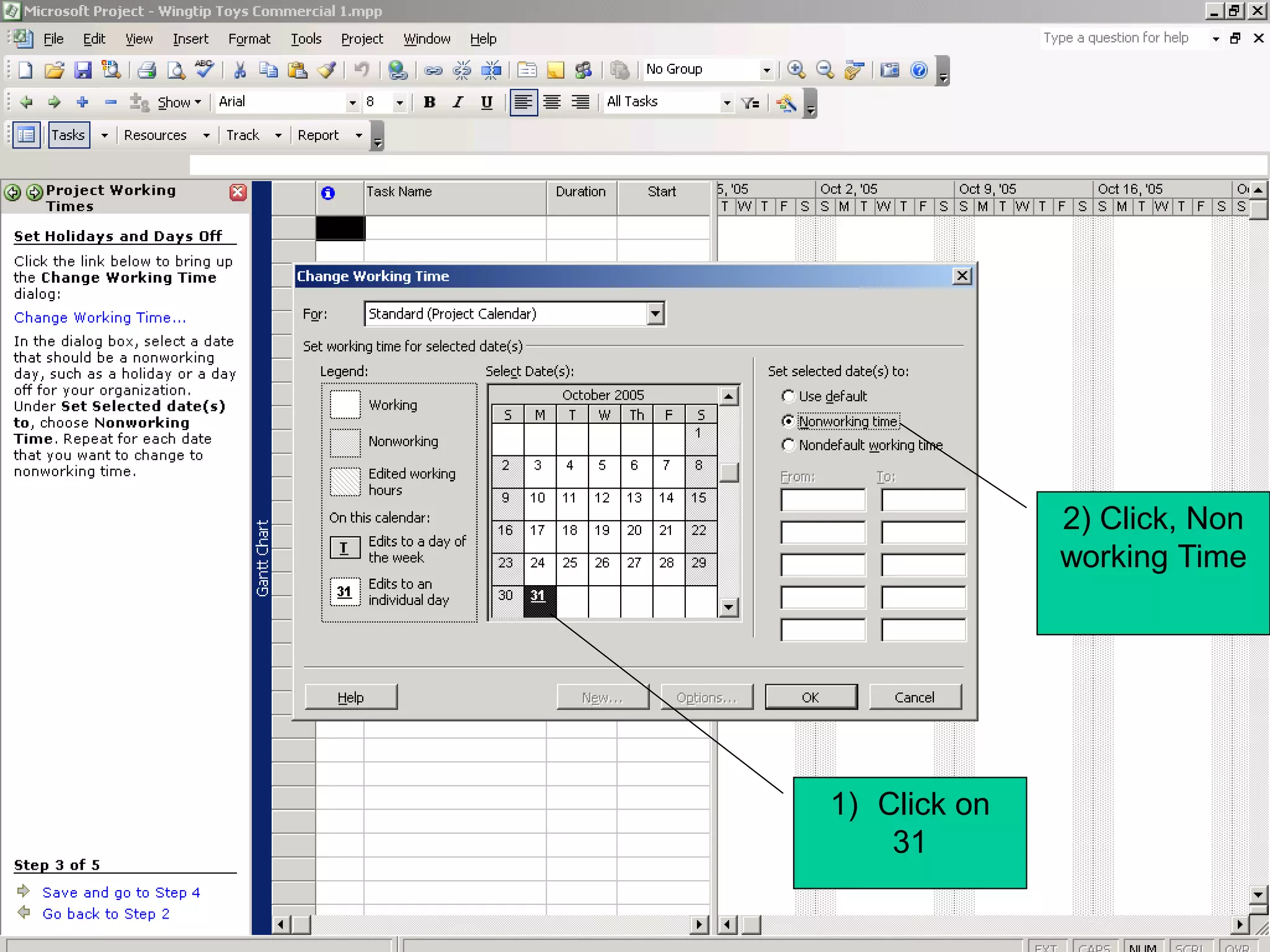
2) Click, Non
              working Time


1) Click on
    31
Save and go
 to Step 5
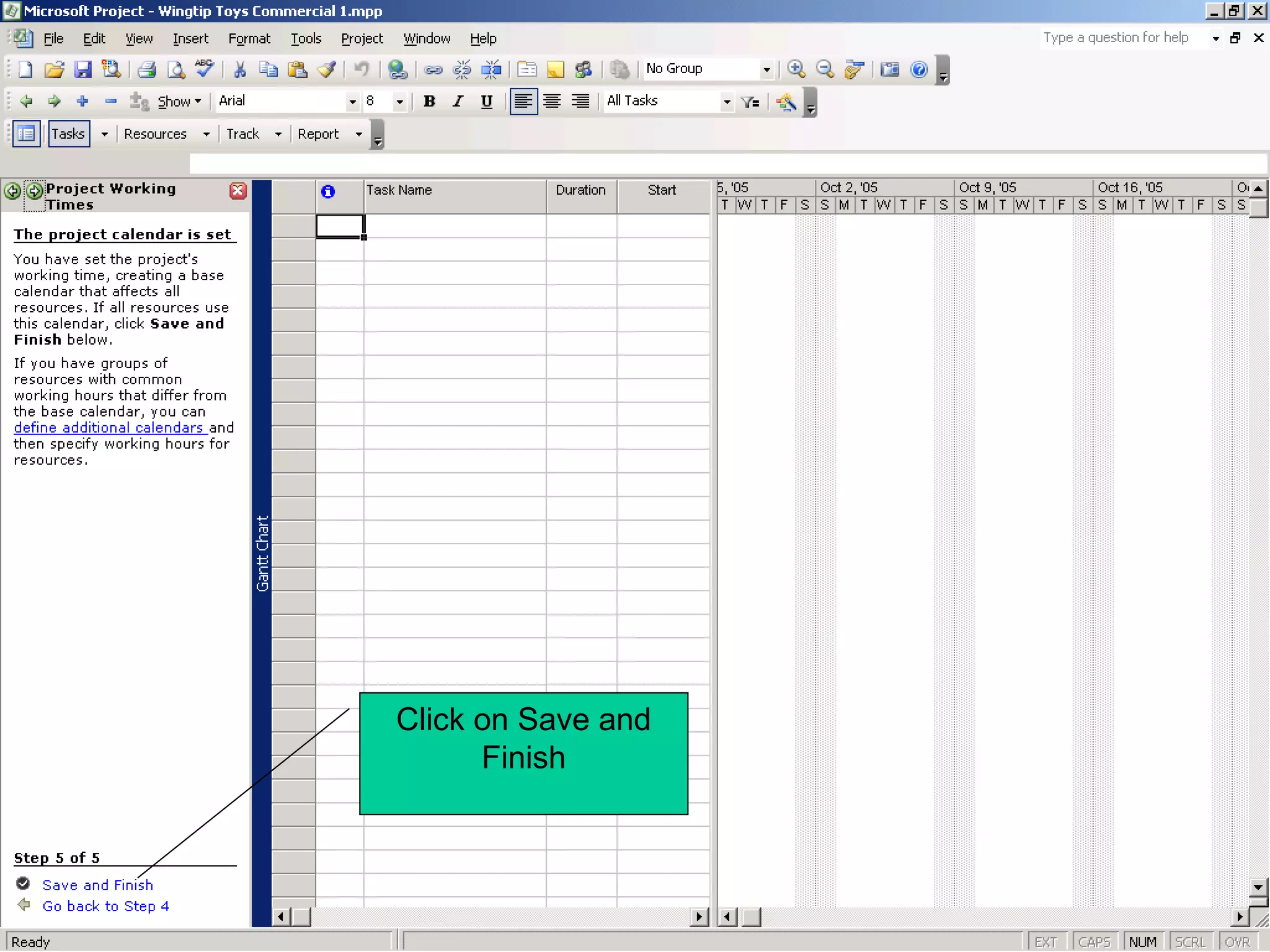
Click on Save and
      Finish
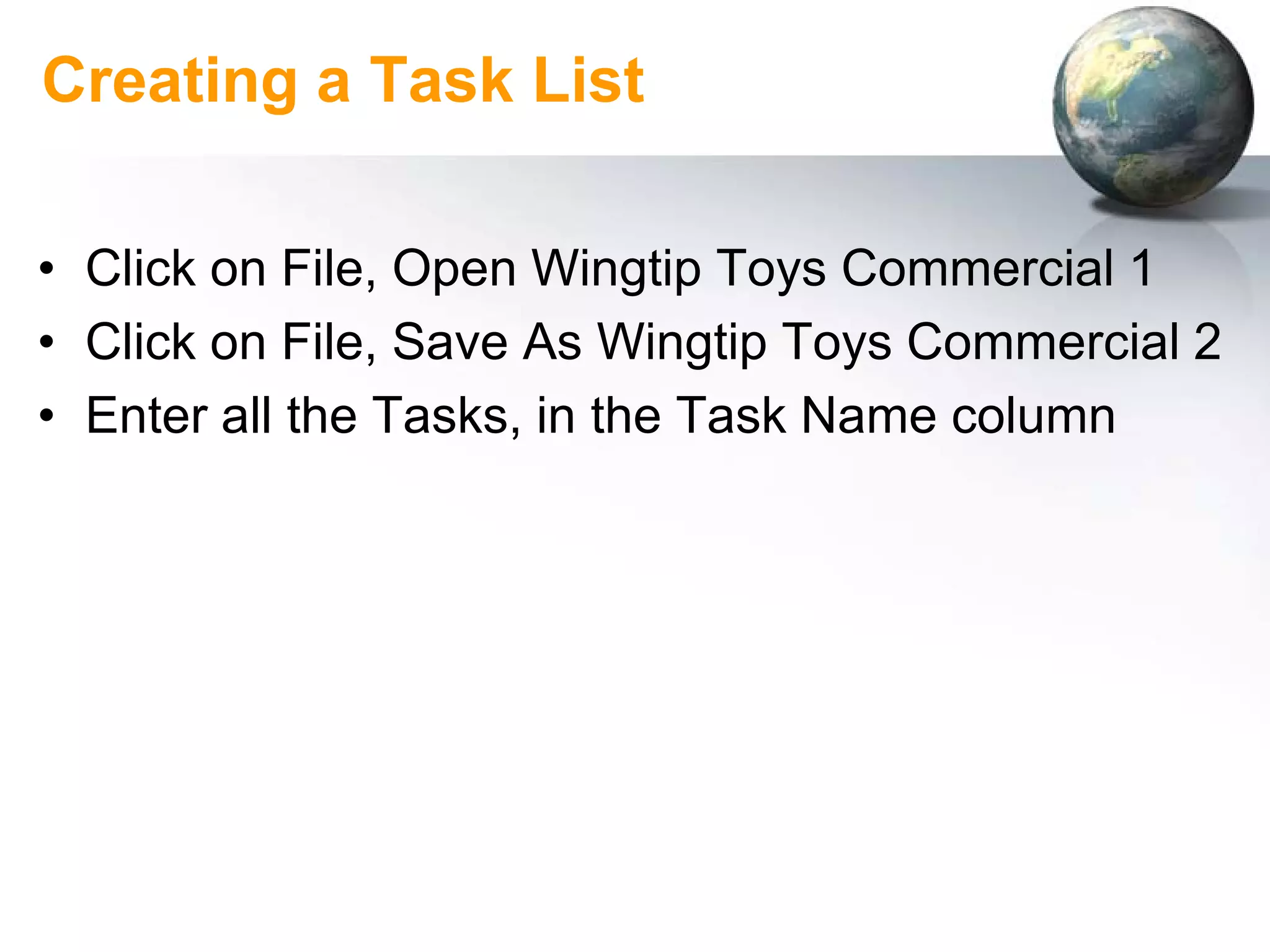
Creating a Task List

• Click on File, Open Wingtip Toys Commercial 1
• Click on File, Save As Wingtip Toys Commercial 2
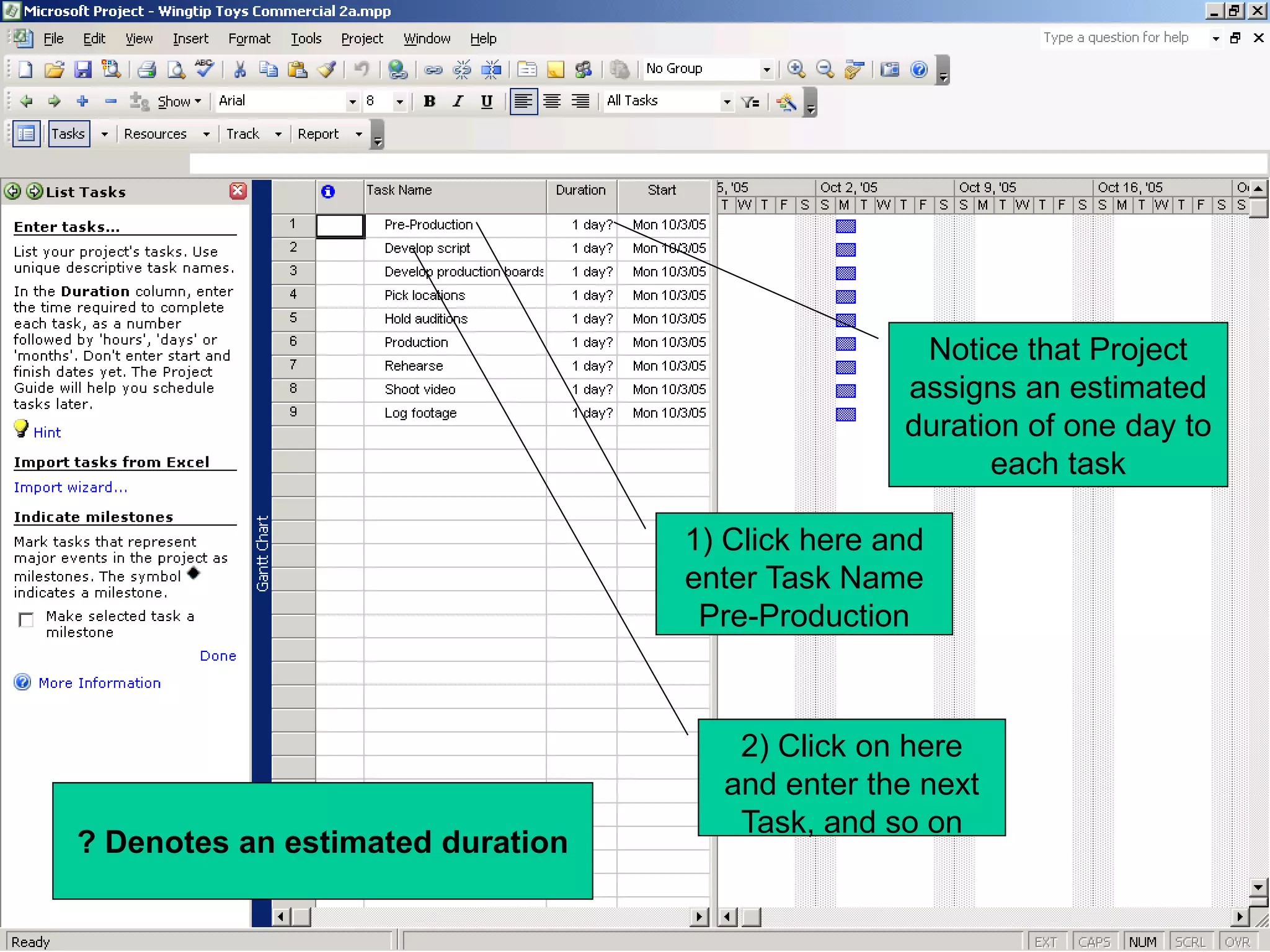
• Enter all the Tasks, in the Task Name column
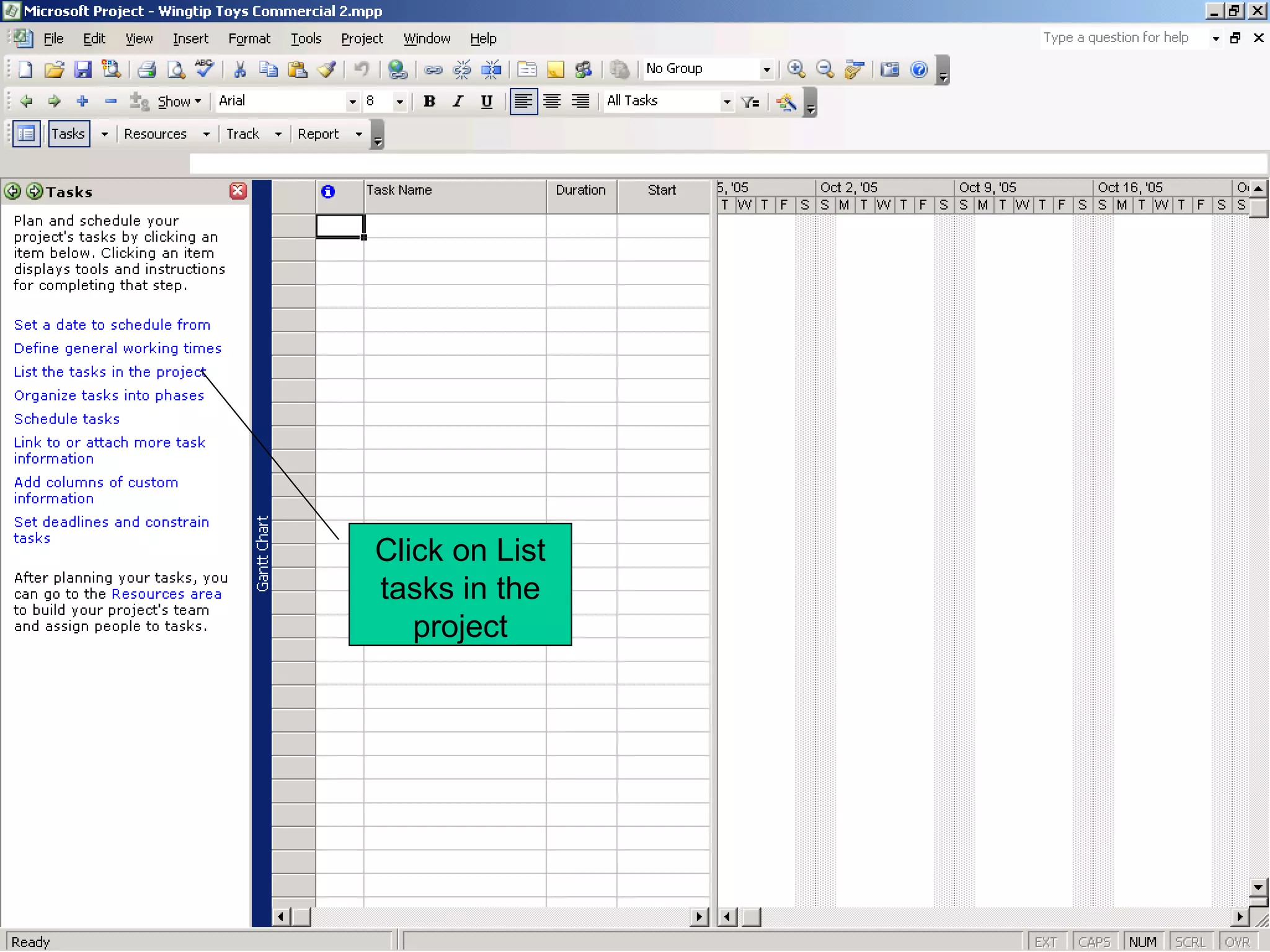
Click on List
tasks in the
   project
Notice that Project
                                                 assigns an estimated
                                                 duration of one day to
                                                       each task

                                  1) Click here and
                                  enter Task Name
                                   Pre-Production


                                     2) Click on here
                                    and enter the next
                                     Task, and so on
? Denotes an estimated duration
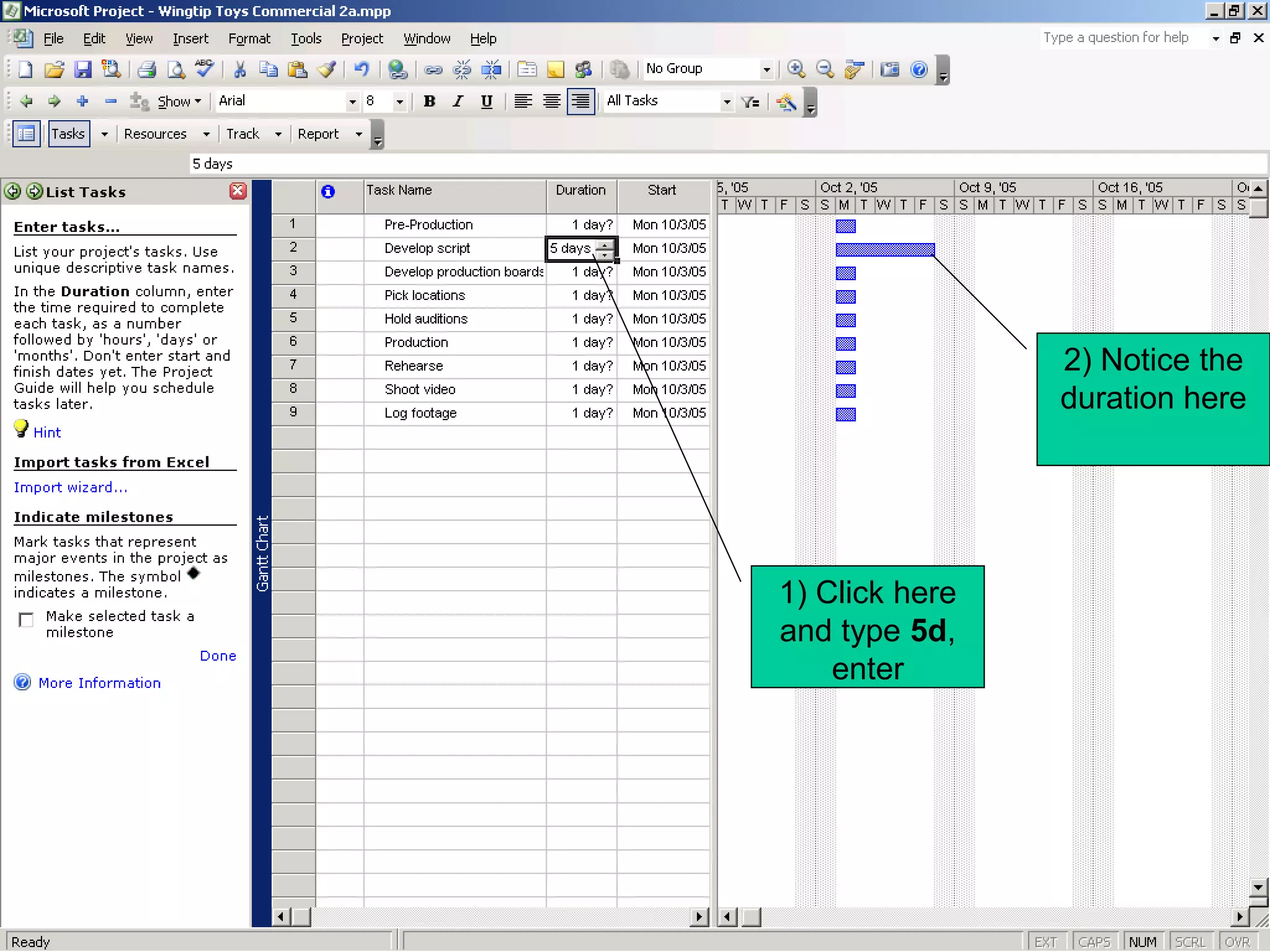
2) Notice the
                duration here


1) Click here
and type 5d,
    enter
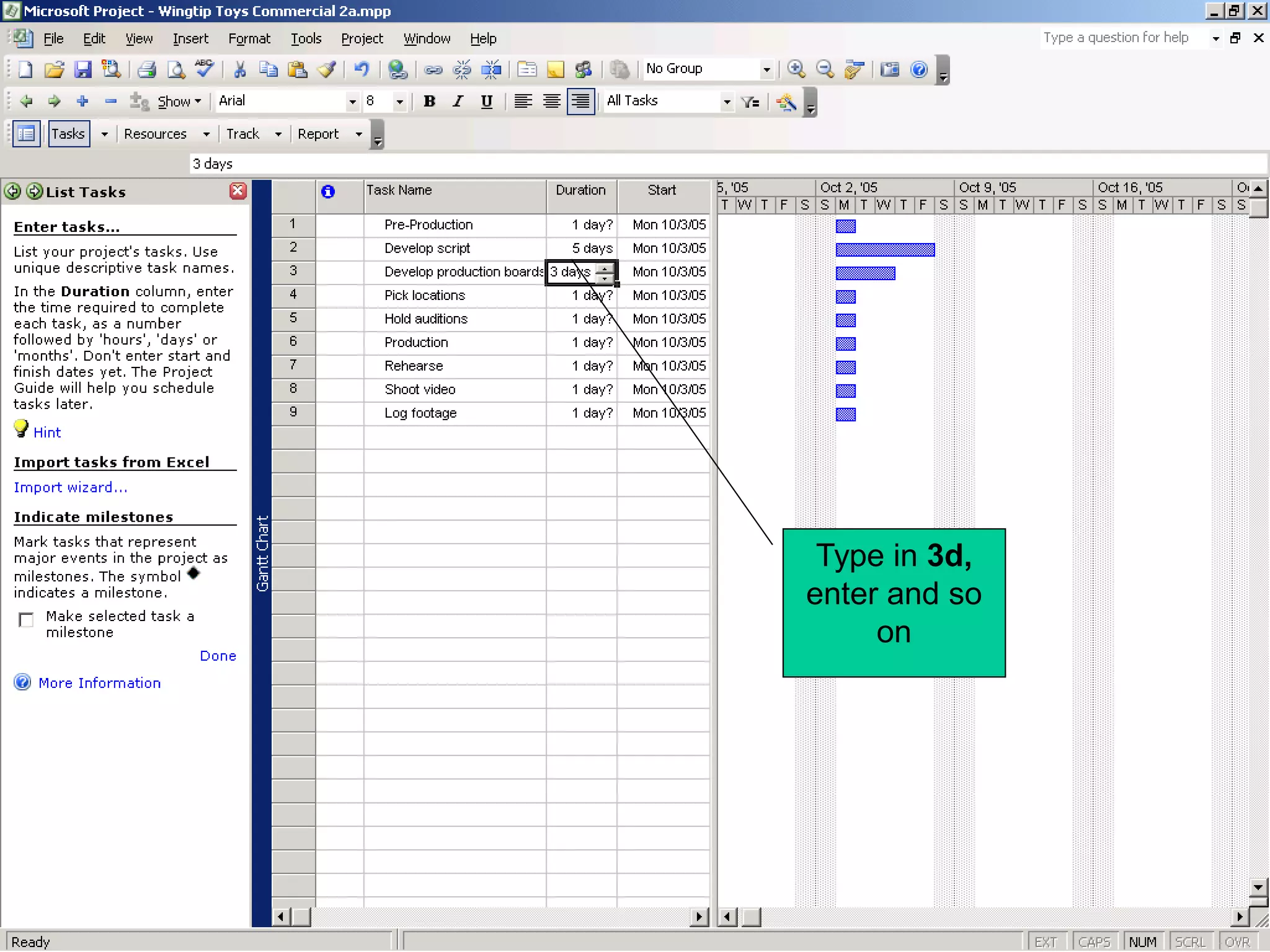
Type in 3d,
enter and so
     on
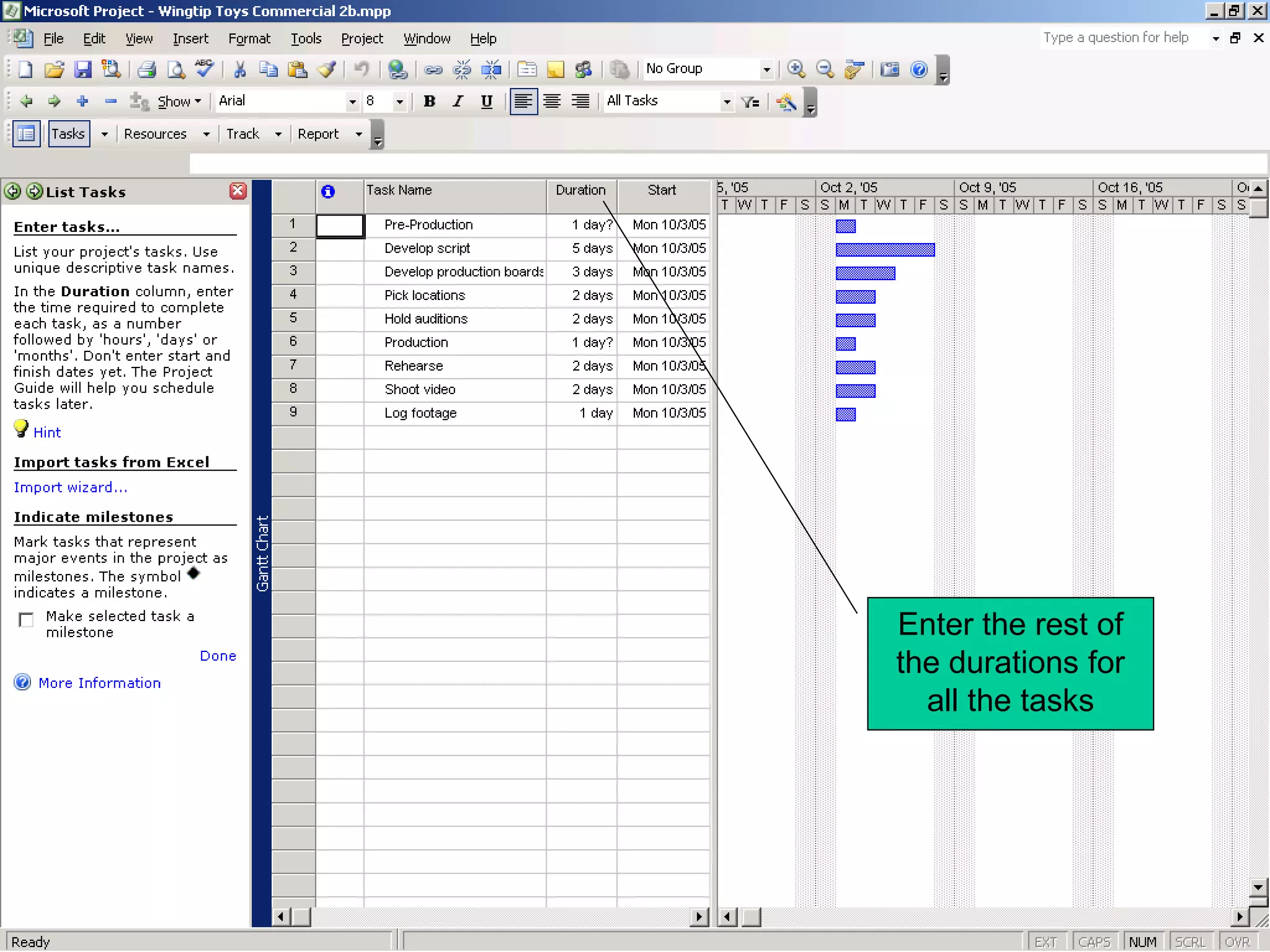
Enter the rest of
the durations for
  all the tasks
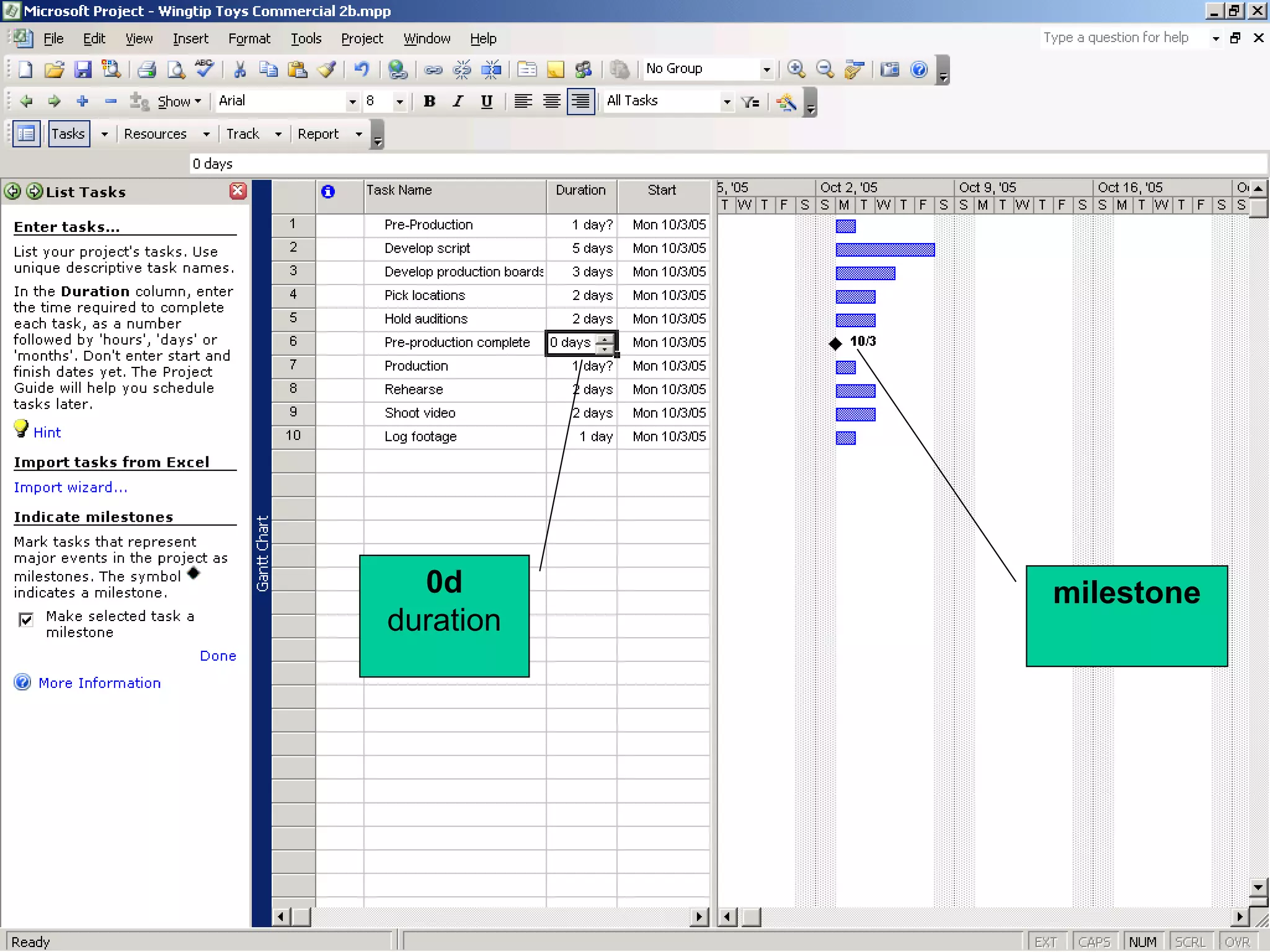
Entering a Milestone

• Click on task 6, Production
• On the Insert menu, click New Task
• Type in Pre-Production complete! for the new
  task name
• Assign it a duration of 0d
• A task with a 0d duration is a milestone
0d       milestone
duration
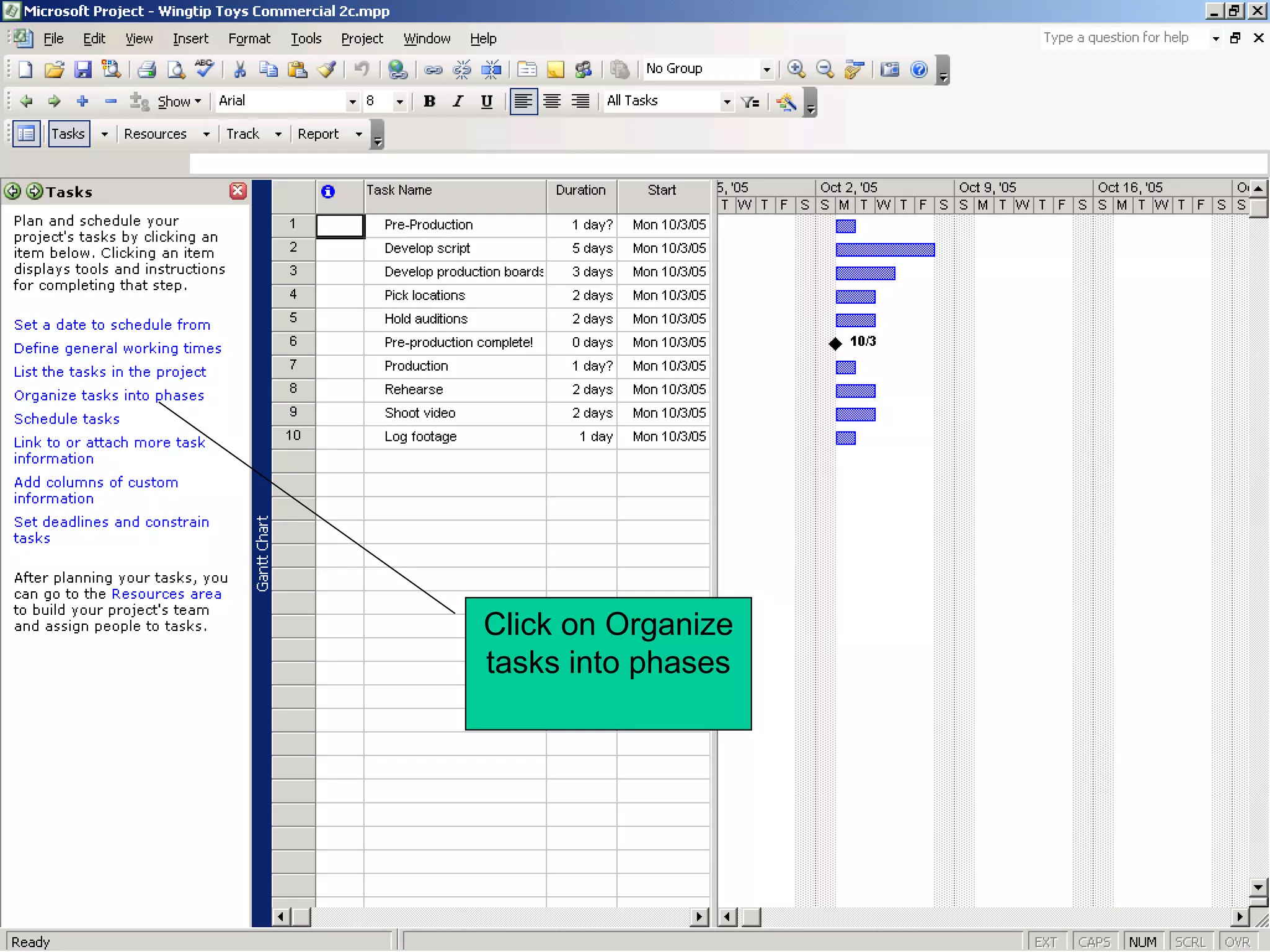
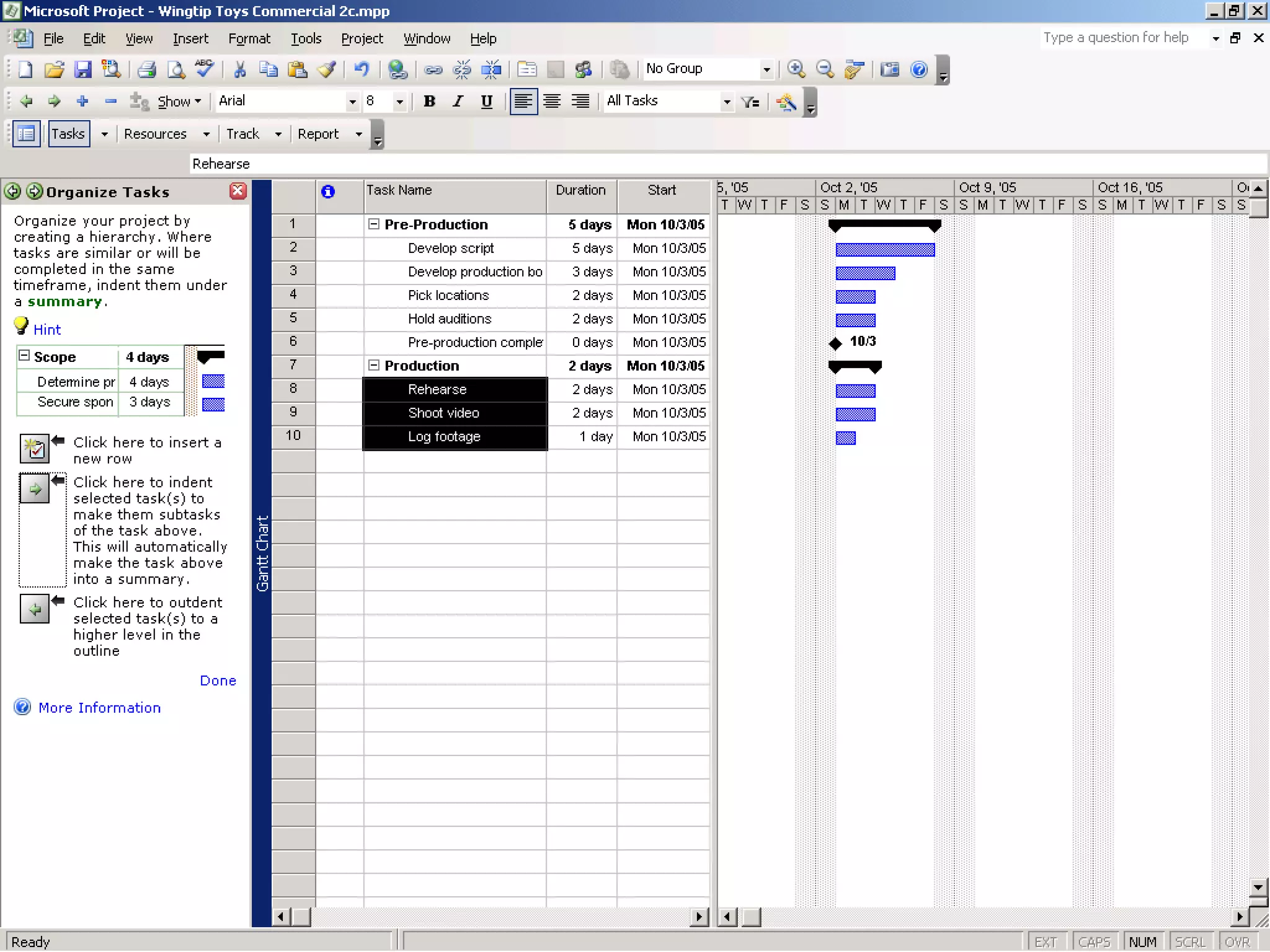
Click on Organize
tasks into phases
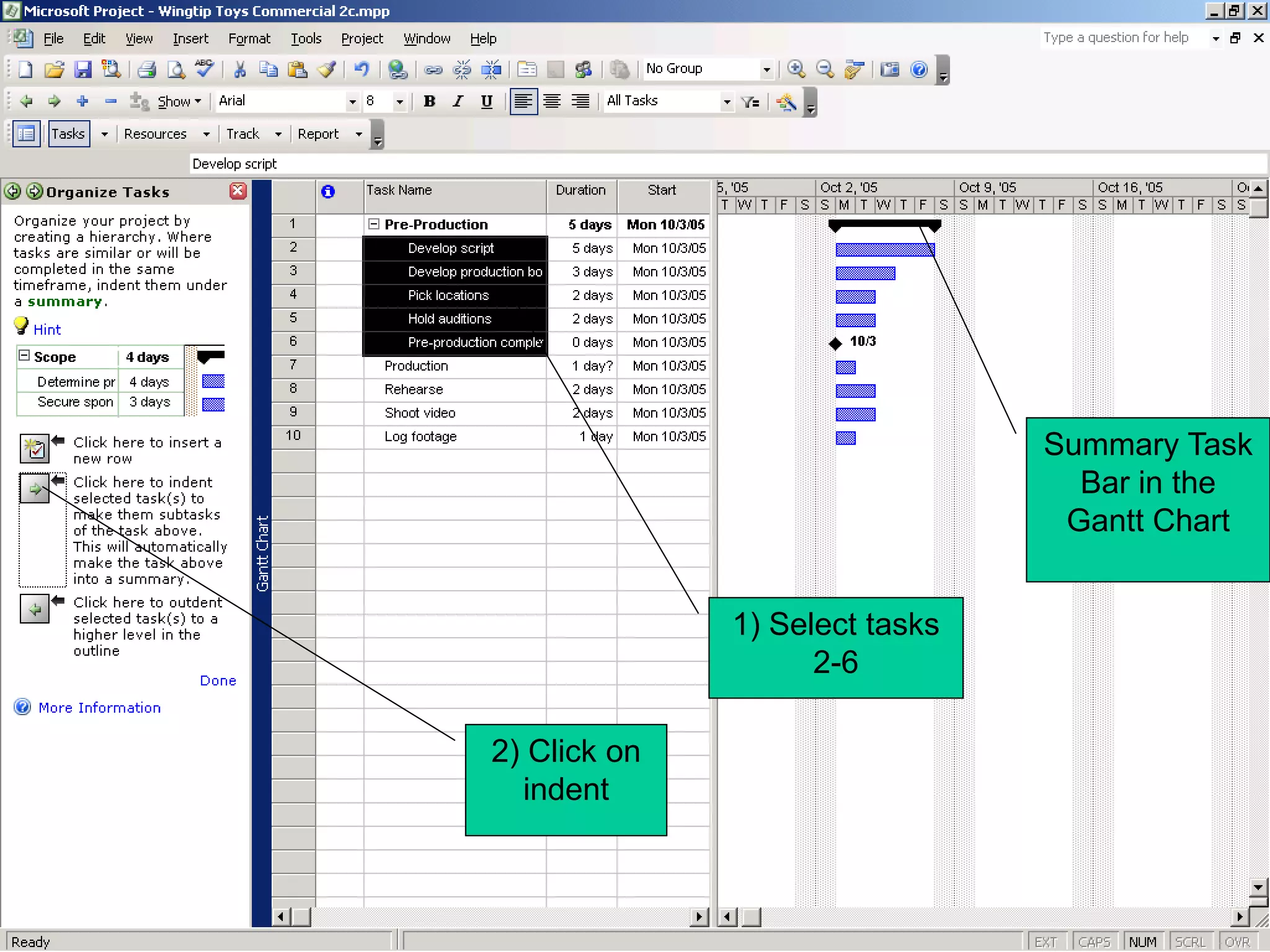
Summary Task
                                  Bar in the
                                 Gantt Chart


              1) Select tasks
                    2-6

2) Click on
  indent
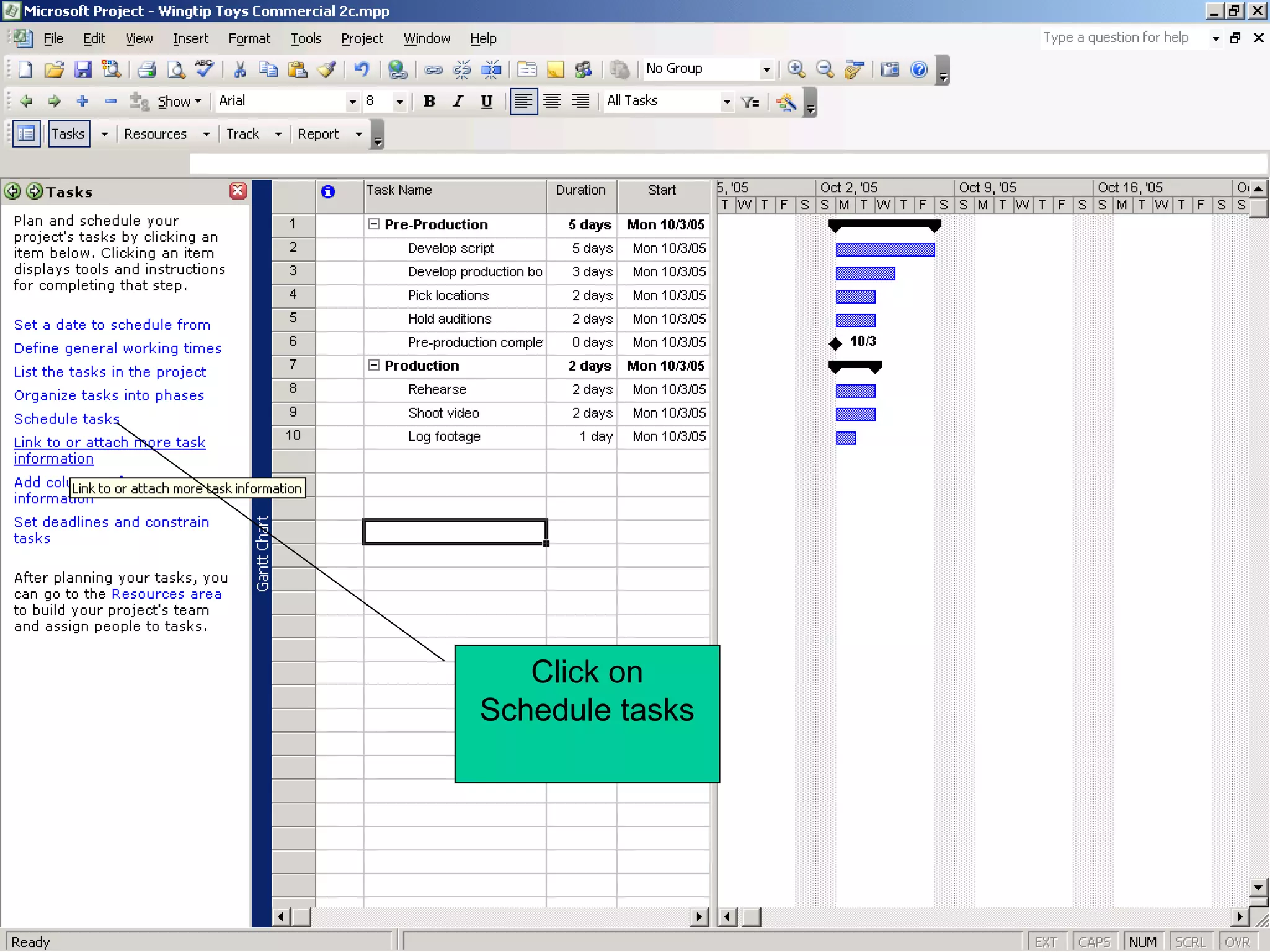
Click on
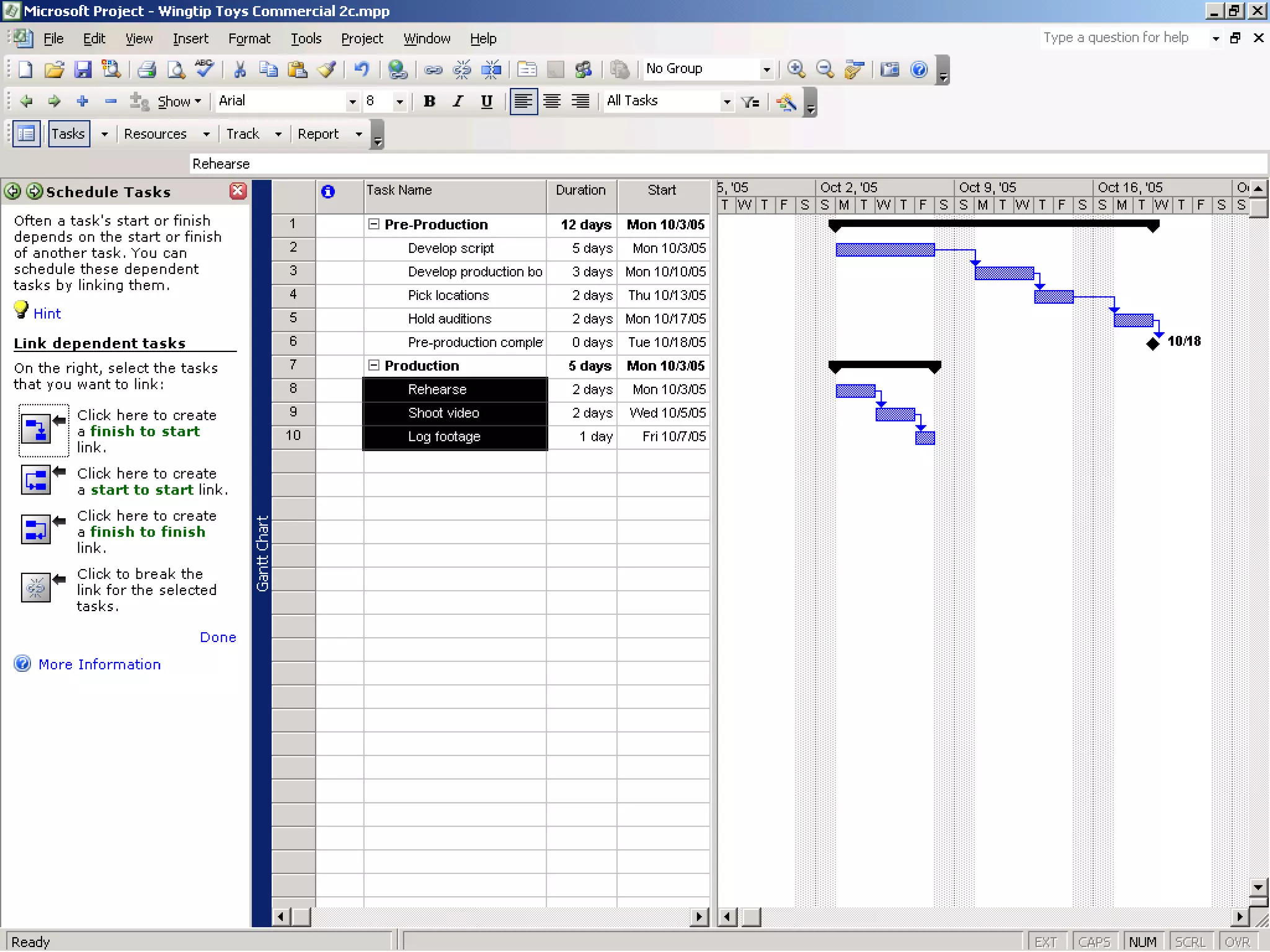
Schedule tasks
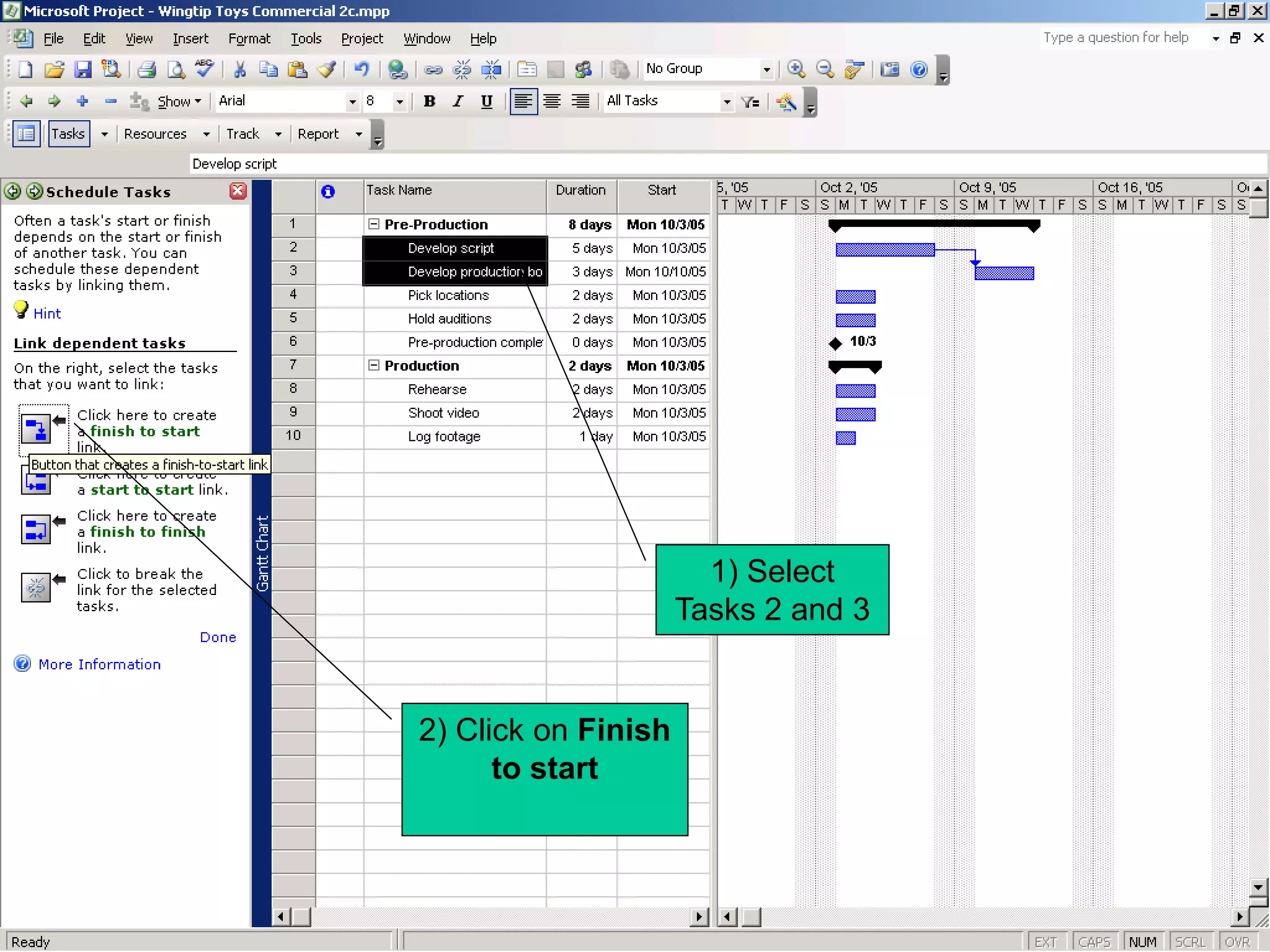
1) Select
                     Tasks 2 and 3


2) Click on Finish
      to start
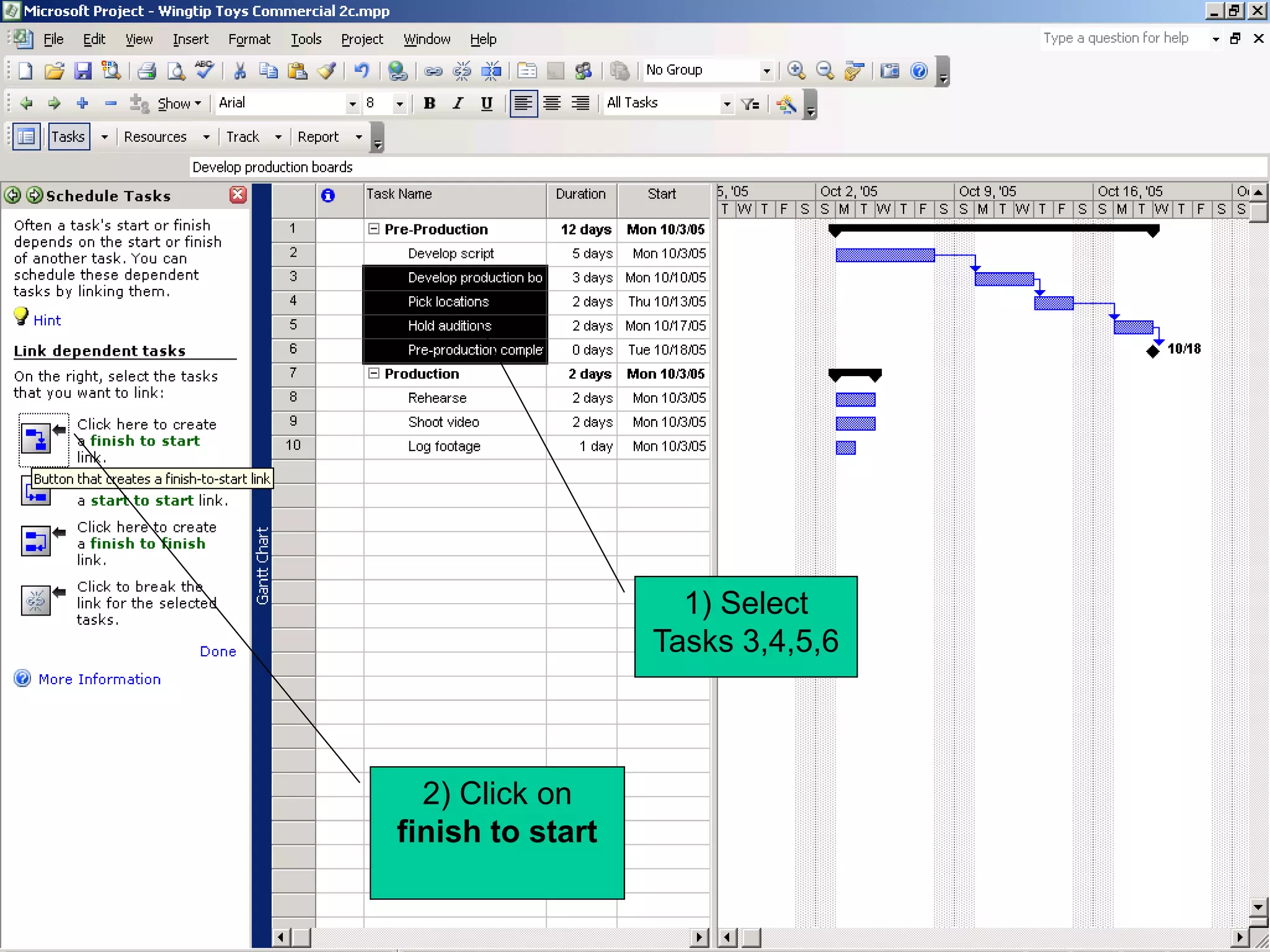
1) Select
                  Tasks 3,4,5,6


  2) Click on
finish to start
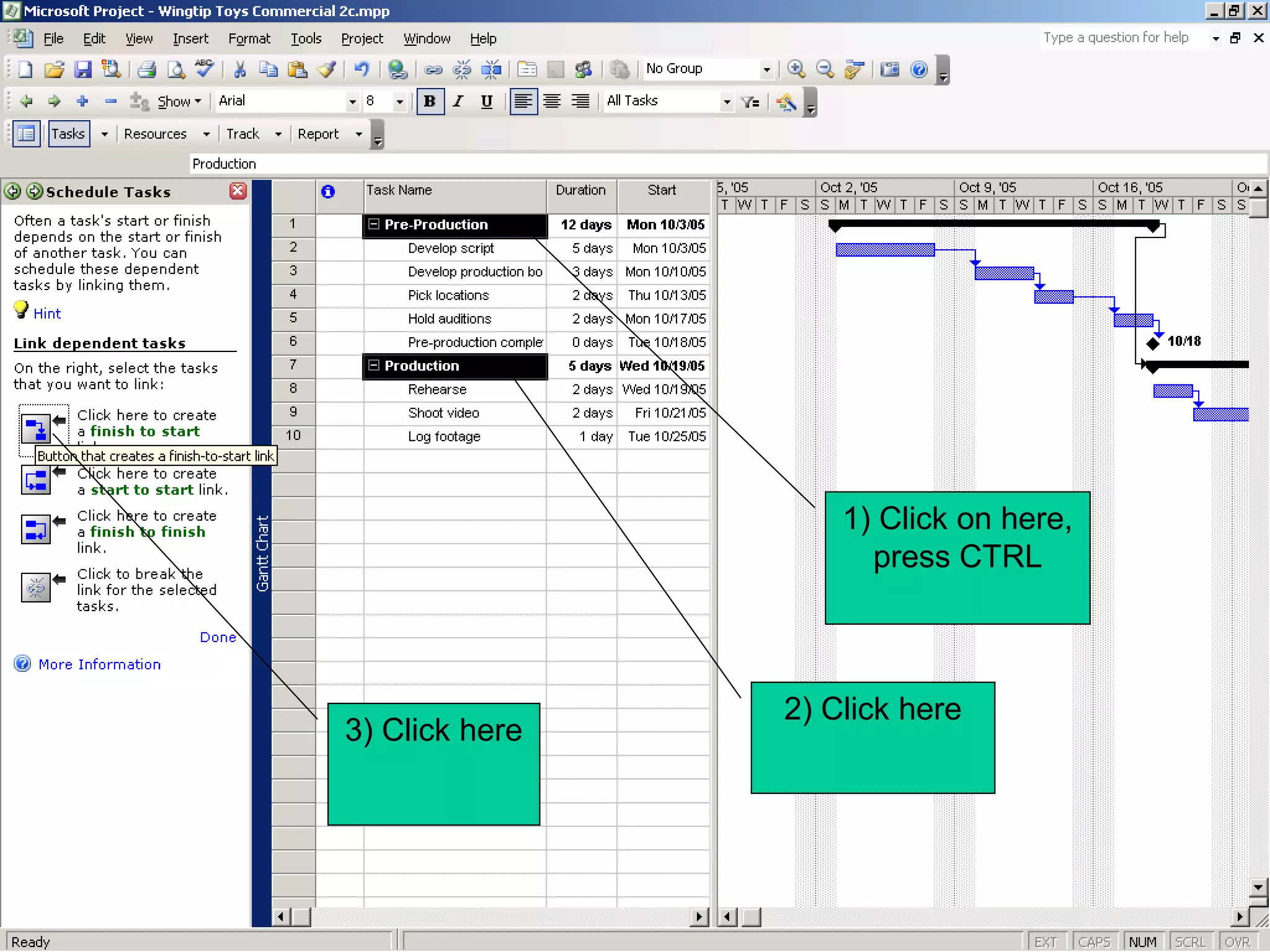
1) Click on here,
                      press CTRL


                2) Click here
3) Click here
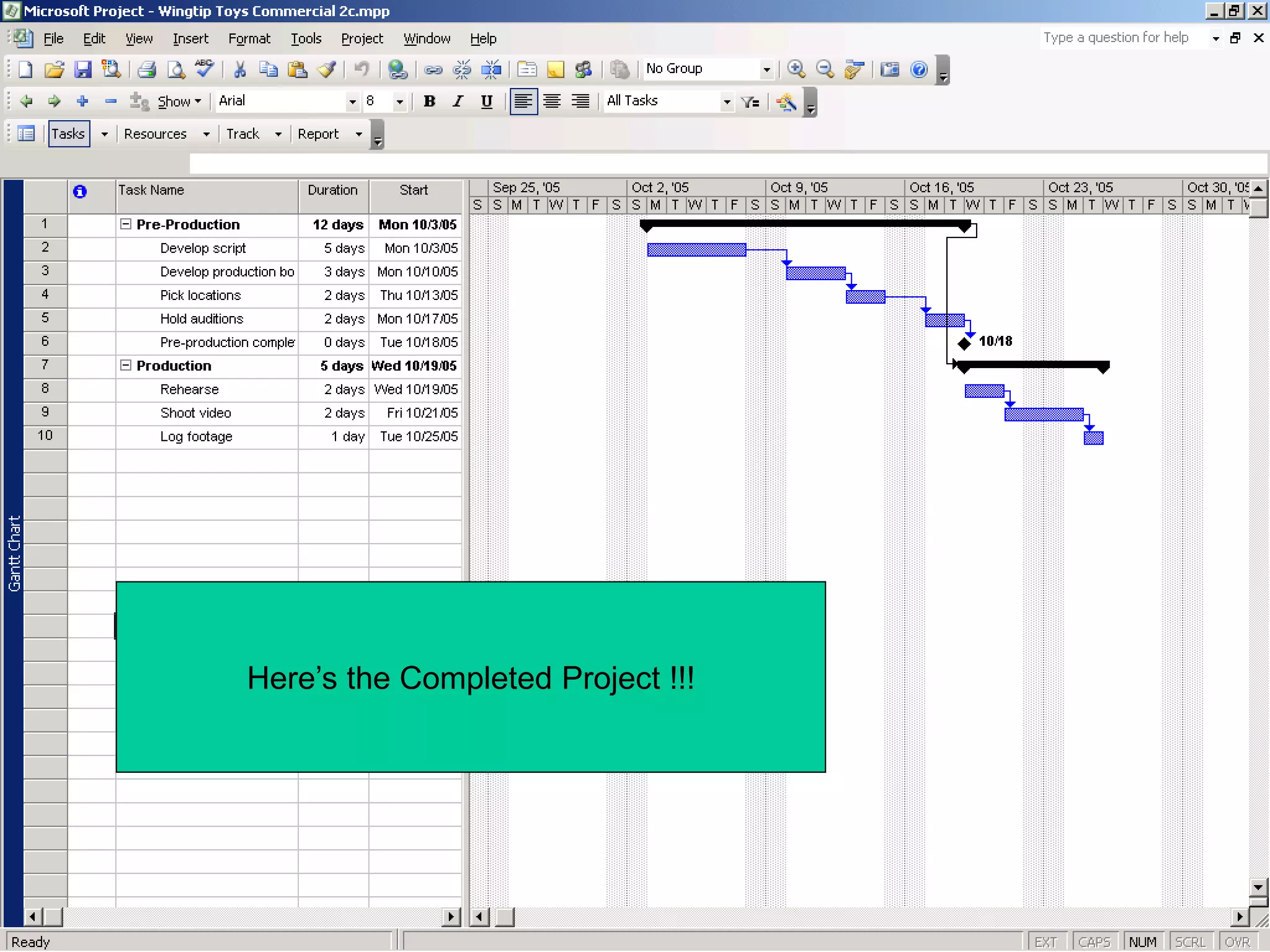
Here’s the Completed Project !!!

Microsoft project 2003

  • 1.
    Microsoft Project 2003 By: PercyK. Parakh Academic Computing
  • 2.
    Agenda • Managing yourProjects with Project 2003 • Understand what a good project management tool can help you do • Different versions of Project 2003 • Starting Project 2003 • Identify the major parts of the Project Window • Use views to work with project plan details in different ways
  • 3.
    (contd.) • Use reports to print project plan details • Create a project plan and enter a project start date. • Set the working and non-working times for a project • Enter tasks in a Project • Creating durations for Tasks • Create Milestones in a Project • Creating Task Dependancies • Creating a Gantt Chart
  • 4.
    What is ProjectManagement? • Project management is a broadly practiced art and science • Project management is a toolbox of skills and tools that help you predict and control the outcomes of endeavors your organization undertakes
  • 5.
    What is aProject? • Projects are distinct from ongoing operations • Projects are temporary endeavors undertaken to create some sort of unique deliverable or end result
  • 6.
    Project Management System AProject Management System should be able to answer questions such as: • What tasks must be done to produce the deliverable of the project ? • Who will complete these tasks? • What’s the best way to communicate project details to people who have an interest in the project?
  • 7.
    (contd.) • When shouldeach task be performed? • How much will it cost? • What if some tasks are not completed as scheduled?
  • 8.
    Failure/Success • Good projectmanagement does not guarantee the success of every project, but poor project management usually guarantees failure !
  • 9.
    Managing Your Projectswith Project Microsoft Project 2003 can and should help you to accomplish the following: • Track all the info. you gather about work, duration, costs, and resource requirements for your project • Visualize and present your project plan in standard, well-defined formats. • Schedule tasks and resources consistently and effectively
  • 10.
    (contd.) • Exchange projectinfo. with other Microsoft Office applications (ex. Visio) • Communicate with resources and other stakeholders while you, the project manager, retains ultimate control of the project • Manage projects using a program with the same look and feel as other Microsoft applications.
  • 11.
    Project 2003 family Microsoft Office Project 2003 Project 2003 Project 2003 Project 2003 Project 2003 Standard Edition Professional Edition Server Web Access
  • 12.
    (contd.) • Project 2003Standard – is designed for the single project manager and does not interact with Project Server • Project 2003 Professional – can be used with Project Server – additional project team planning and communications features • Project 2003 Server – an intranet based solution that enables enterprise-level project collaboration • Project 2003 Web Access – Internet Explorer based interface for Project Server
  • 13.
    Project management tasks Monitoring and Planning tasks tracking tasks Build the plan Set a baseline Set a project start date Enter actuals Enter task names & duration Track variance Link tasks Adjust schedule Fine tune the plan Communicate with team
  • 14.
    Starting Project Standard • Click on the Start Button • Point to All Programs, Microsoft Office • Click on Microsoft Office Project 2003 • Project 2003 Standard is launched
  • 15.
    Click on Start, Microsoft Office, Project 2003
  • 16.
    Title Bar Standard Toolbar Formatting Toolbar Task Pane Project Plan Window 1) Click on Gantt Chart Create New View Project
  • 17.
    2) Click, 3) Click, On my New computer Business
  • 18.
    Project Guide Toolbar Project Guide Gantt pane Chart View
  • 19.
    Table Show/Hide Project Guide Chart portion of the view Active View Name
  • 20.
    From the View Menu, click on Resource Sheet This is the Resource Sheet View The Resource Sheet View displays details about Resources used in the Project
  • 21.
    Click on View, Task Usage This is the Task Usage View
  • 22.
    Timescale 2) Click on Go to selected Task 1) Click on Define business vision
  • 23.
    1) Click on View,Reports 2) Click on Custom
  • 24.
    1) Select Tasks 2) Click on Preview
  • 25.
  • 26.
    Create a NewProject Plan • On the File menu, click on New • Under New, click on Blank Project • Project 2003 create a New Project, and the New Project task pane is replaced by the Tasks panes of the Project Guide
  • 27.
    1)Click on File, New 2) Click, Blank Project
  • 28.
    1) A New project is created 2) The New project task pane is replaced by the Project Guide 3) Click on Set a date to schedule from
  • 29.
    1) Click herefor Calendar 2) You may have to click here to go to the next month 3) Select a start date, Ex. Oct 3, to Start
  • 30.
  • 31.
    1) Click on Save 2) Name the Project Wingtip Toys Commercial 1
  • 32.
  • 33.
    Blue-indicates times atwhich you Yellow-indicates times can schedule a task when you cannot schedule a task 1) Click on save and go to step 2
  • 34.
    Click on Save andgo to Step 3
  • 35.
    Click here toset Holidays and days off
  • 36.
    2) Click, Non working Time 1) Click on 31
  • 37.
    Save and go to Step 5
  • 38.
    Click on Saveand Finish
  • 39.
    Creating a TaskList • Click on File, Open Wingtip Toys Commercial 1 • Click on File, Save As Wingtip Toys Commercial 2 • Enter all the Tasks, in the Task Name column
  • 40.
    Click on List tasksin the project
  • 41.
    Notice that Project assigns an estimated duration of one day to each task 1) Click here and enter Task Name Pre-Production 2) Click on here and enter the next Task, and so on ? Denotes an estimated duration
  • 42.
    2) Notice the duration here 1) Click here and type 5d, enter
  • 43.
  • 44.
    Enter the restof the durations for all the tasks
  • 45.
    Entering a Milestone •Click on task 6, Production • On the Insert menu, click New Task • Type in Pre-Production complete! for the new task name • Assign it a duration of 0d • A task with a 0d duration is a milestone
  • 46.
    0d milestone duration
  • 47.
  • 48.
    Summary Task Bar in the Gantt Chart 1) Select tasks 2-6 2) Click on indent
  • 50.
  • 51.
    1) Select Tasks 2 and 3 2) Click on Finish to start
  • 52.
    1) Select Tasks 3,4,5,6 2) Click on finish to start
  • 54.
    1) Click onhere, press CTRL 2) Click here 3) Click here
  • 55.