
Return to Table of Contents
MicrosoftMicrosoft
ExcelExcel
Return to Table of Contents
Table of ContentsTable of Contents
1_ Introduction to Excel
2_ Overview of the Excel Screen
3_ The Excel Menus:
File Menu
Edit Menu
Insert Menu
Format Menu
View Menu
Help Menu and Office Assistant
4_ Excel Worksheets
5_ Entering Formulas and Data
6_ Formatting Workbooks
7_ Charts
8_ Freezing Panes
9_ Printing
10_ Keyboard Shortcuts
Return to Table of Contents
Excel is a computer program used to create electronic
spreadsheets. Within Excel, users can organize data,
create charts, and perform calculations. Excel is a
convenient program because it allows the user to create
large spreadsheets, reference information from other
spreadsheets, and it allows for better storage and
modification of information. Excel operates like other
Microsoft (MS) Office programs and has many of the
same functions and shortcuts of other MS programs.
Introduction to ExcelIntroduction to Excel
Return to Table of Contents
Overview of the ExcelOverview of the Excel
ScreenScreen
Before working with Excel, it is essential to first become familiar with the
Excel screen. The following will help you to recognize the various parts of an
Excel screen and their functions.
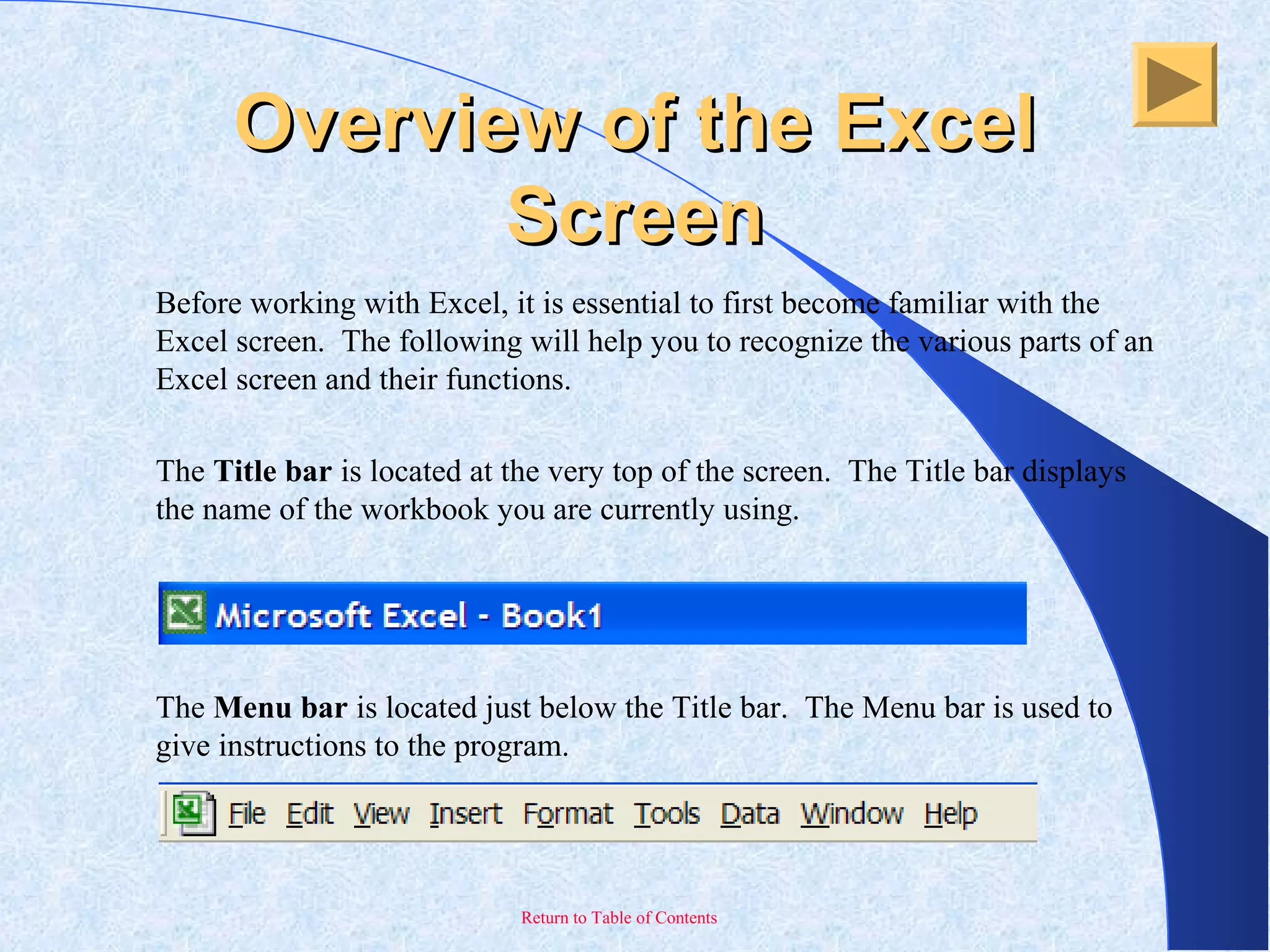
The Title bar is located at the very top of the screen. The Title bar displays
the name of the workbook you are currently using.
The Menu bar is located just below the Title bar. The Menu bar is used to
give instructions to the program.
Return to Table of Contents
Overview of the ExcelOverview of the Excel
ScreenScreen
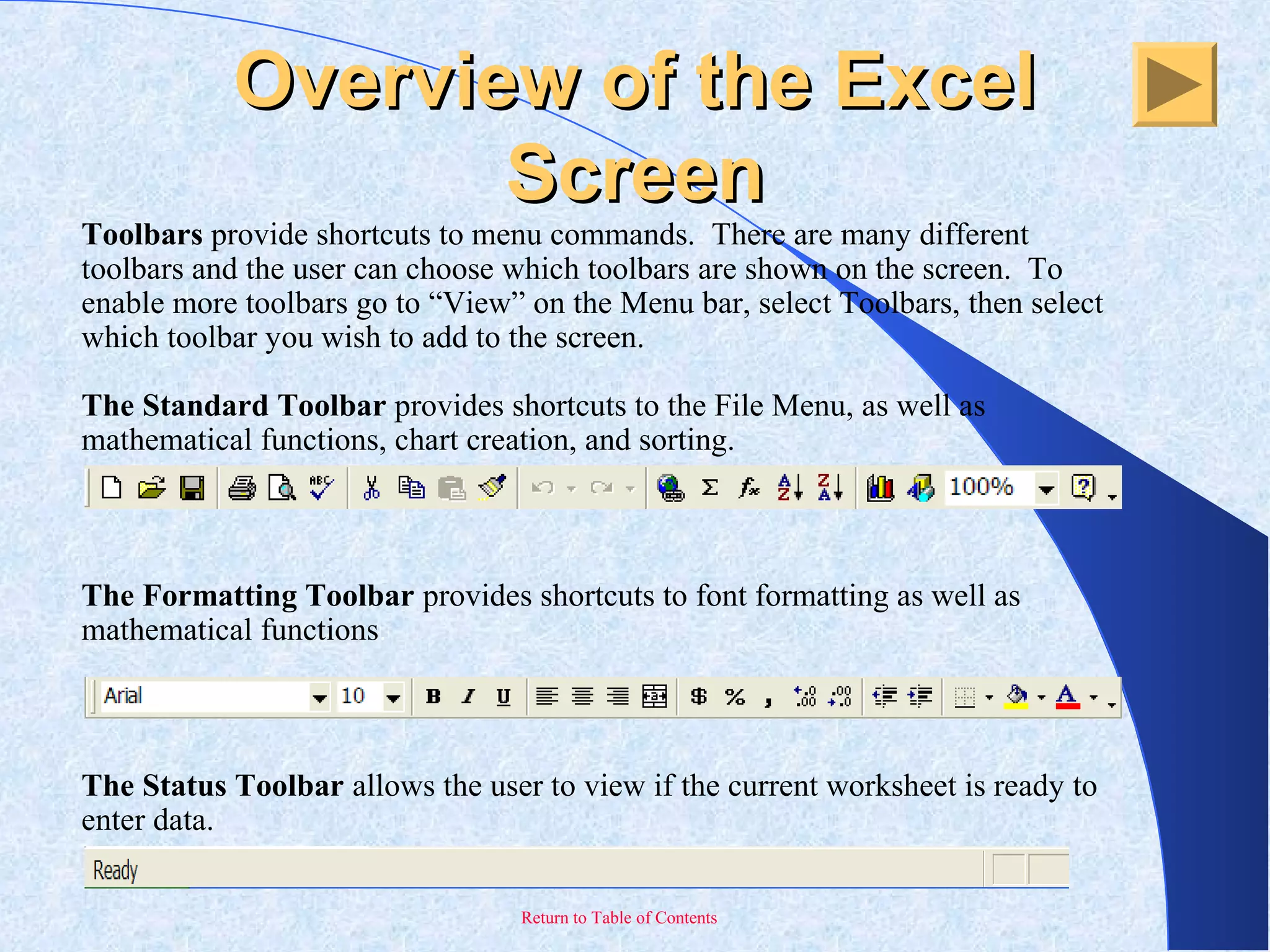
Toolbars provide shortcuts to menu commands. There are many different
toolbars and the user can choose which toolbars are shown on the screen. To
enable more toolbars go to “View” on the Menu bar, select Toolbars, then select
which toolbar you wish to add to the screen.
The Standard Toolbar provides shortcuts to the File Menu, as well as
mathematical functions, chart creation, and sorting.
The Formatting Toolbar provides shortcuts to font formatting as well as
mathematical functions.
The Status Toolbar allows the user to view if the current worksheet is ready to
enter data.
Return to Table of Contents
Overview of the ExcelOverview of the Excel
ScreenScreen
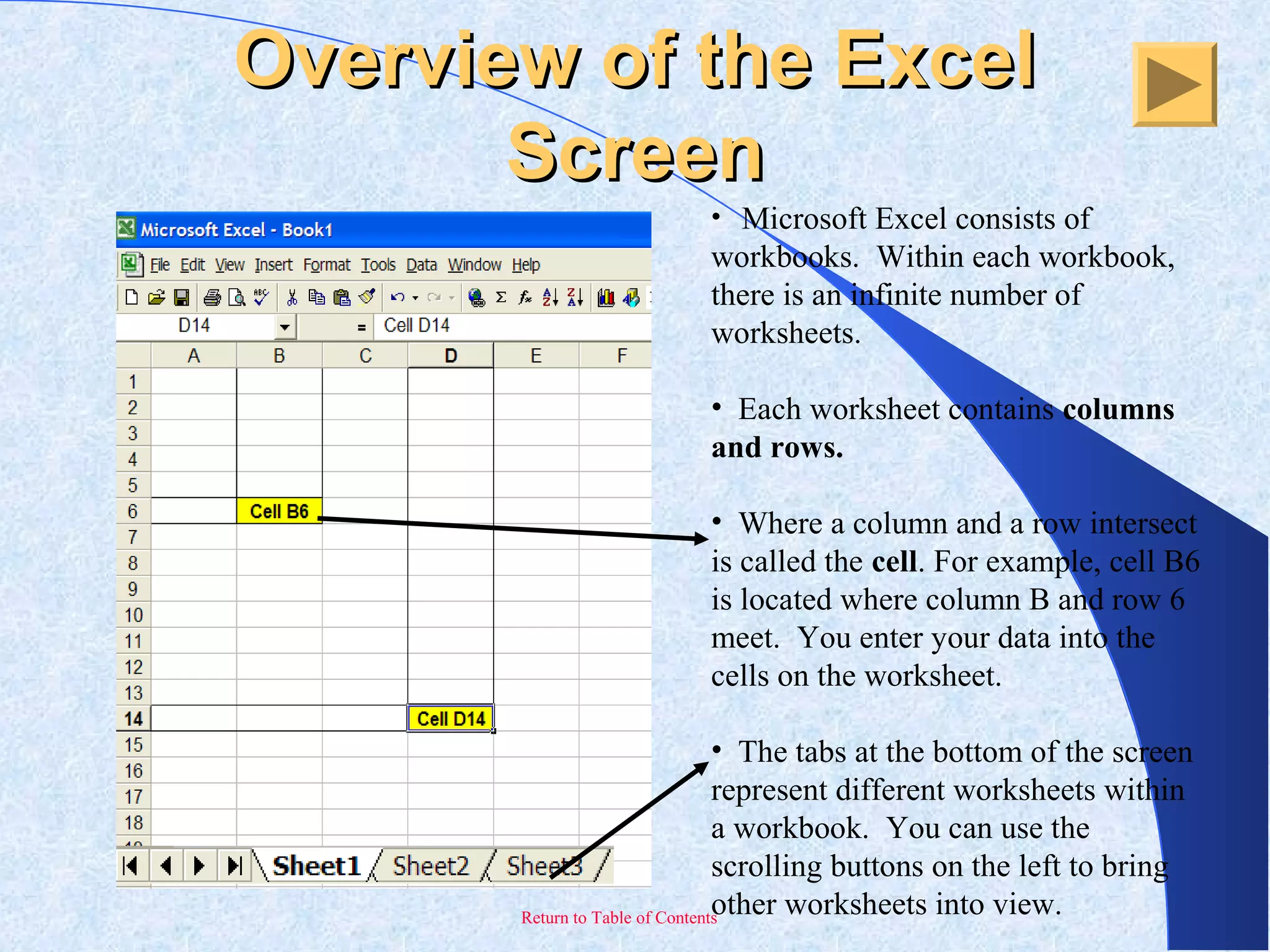
• Microsoft Excel consists of
workbooks. Within each workbook,
there is an infinite number of
worksheets.
• Each worksheet contains columns
and rows.
• Where a column and a row intersect
is called the cell. For example, cell B6
is located where column B and row 6
meet. You enter your data into the
cells on the worksheet.
• The tabs at the bottom of the screen
represent different worksheets within
a workbook. You can use the
scrolling buttons on the left to bring
other worksheets into view.
Return to Table of Contents
Overview of the ExcelOverview of the Excel
ScreenScreen
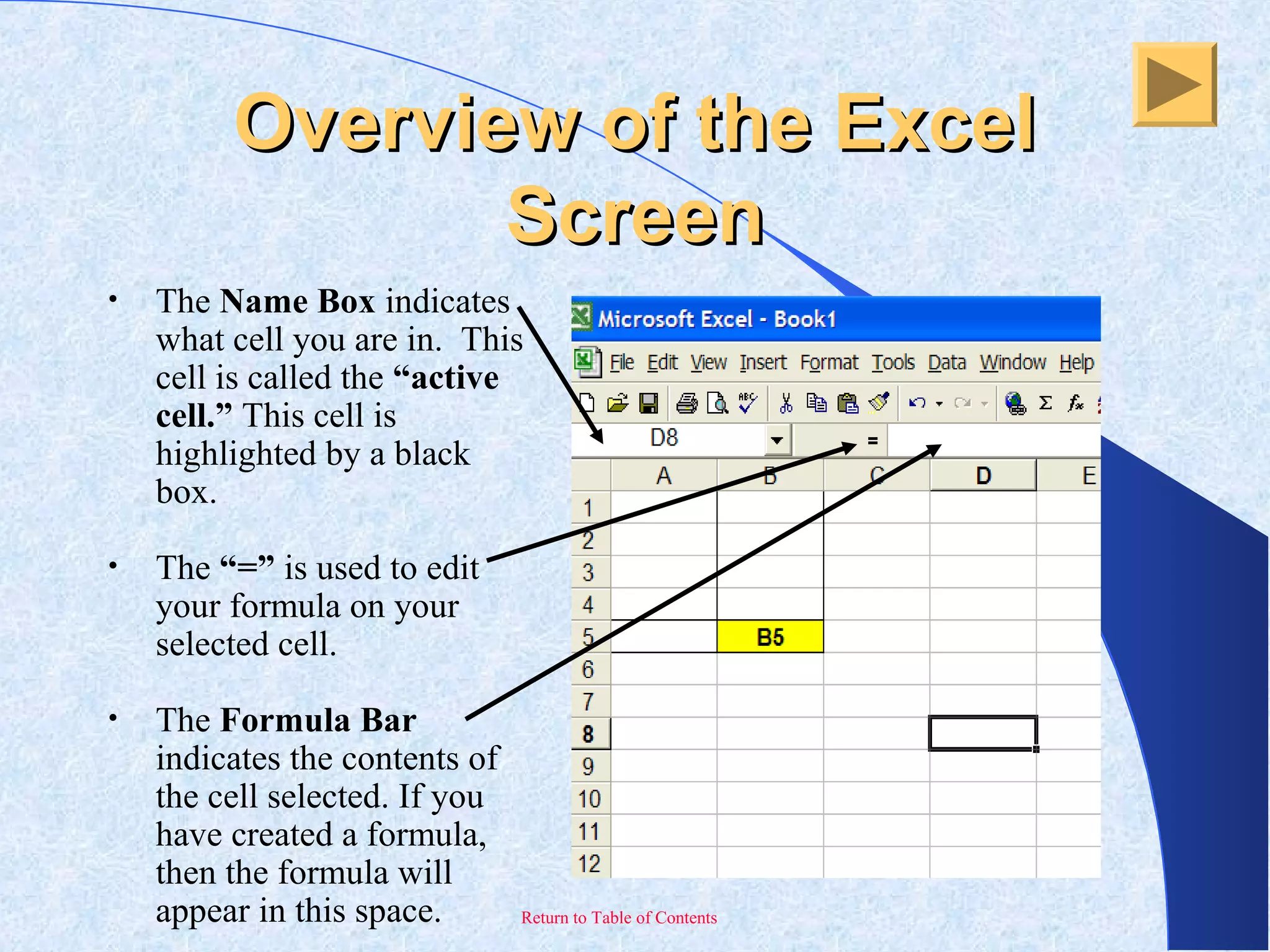
• The Name Box indicates
what cell you are in. This
cell is called the “active
cell.” This cell is
highlighted by a black
box.
• The “=” is used to edit
your formula on your
selected cell.
• The Formula Bar
indicates the contents of
the cell selected. If you
have created a formula,
then the formula will
appear in this space.
Return to Table of Contents
File MenuFile Menu
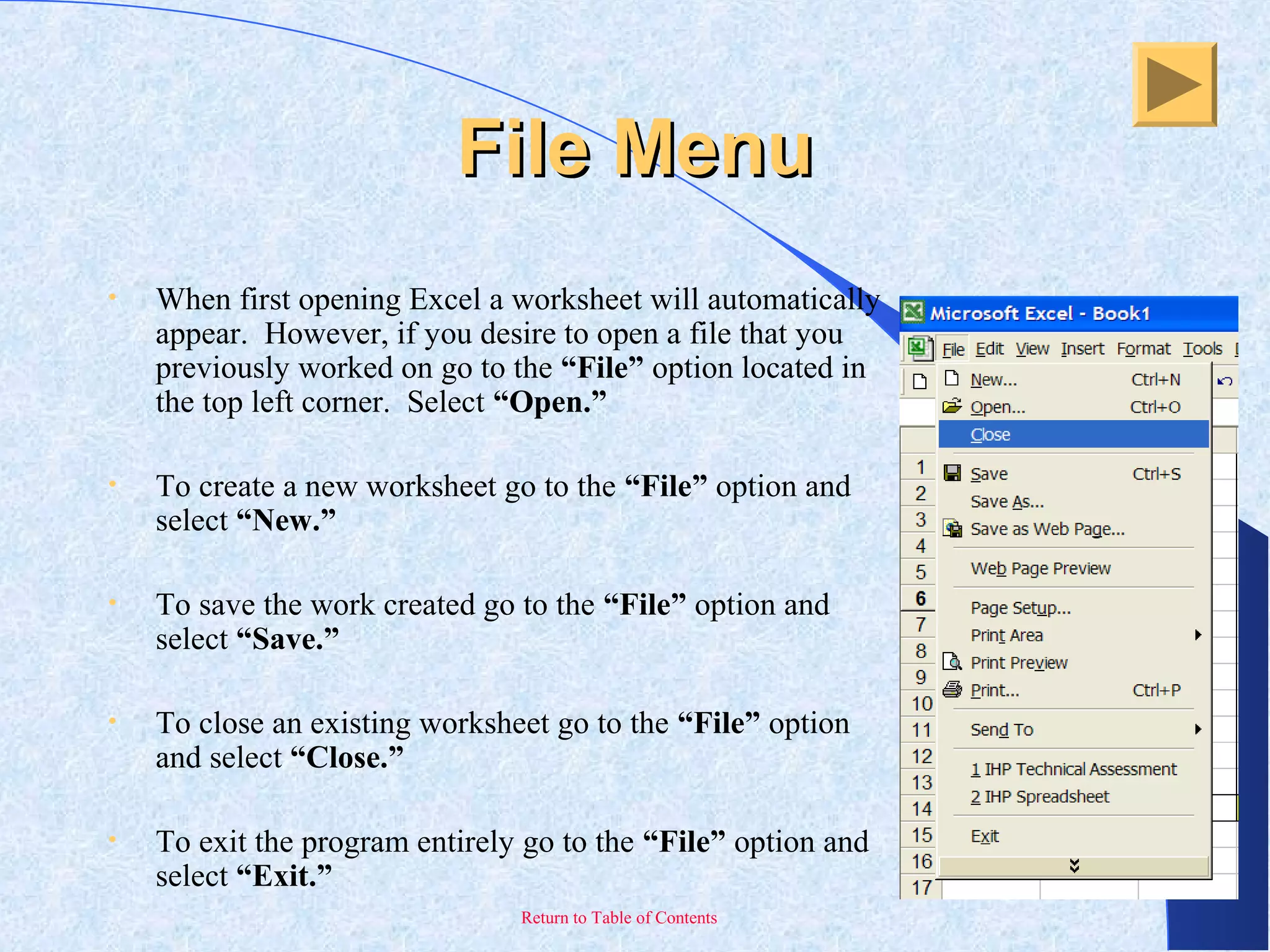
• When first opening Excel a worksheet will automatically
appear. However, if you desire to open a file that you
previously worked on go to the “File” option located in
the top left corner. Select “Open.”
• To create a new worksheet go to the “File” option and
select “New.”
• To save the work created go to the “File” option and
select “Save.”
• To close an existing worksheet go to the “File” option
and select “Close.”
• To exit the program entirely go to the “File” option and
select “Exit.”
Return to Table of Contents
Edit MenuEdit Menu
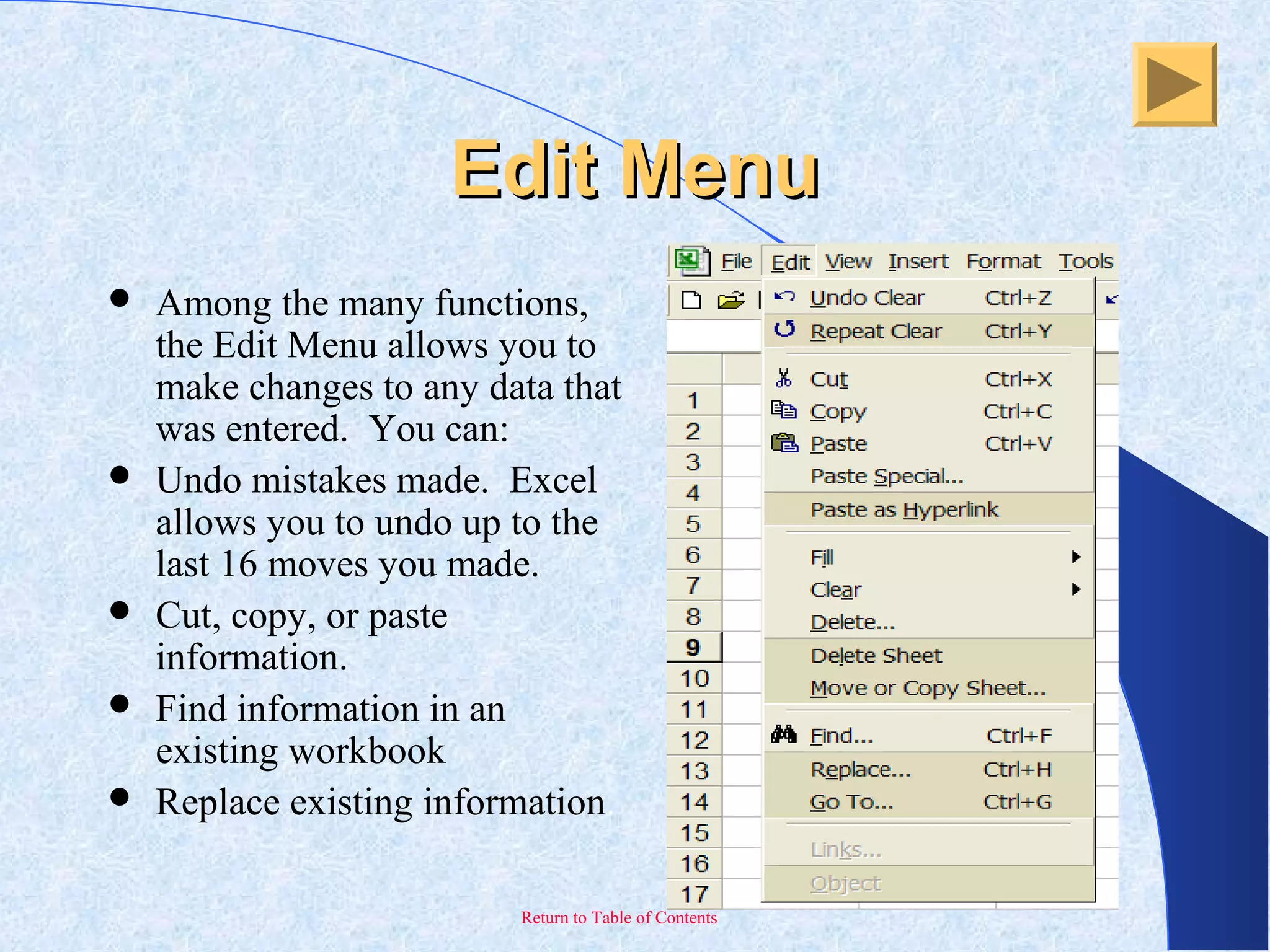
 Among the many functions,
the Edit Menu allows you to
make changes to any data that
was entered. You can:
 Undo mistakes made. Excel
allows you to undo up to the
last 16 moves you made.
 Cut, copy, or paste
information.
 Find information in an
existing workbook
 Replace existing information.
Return to Table of Contents
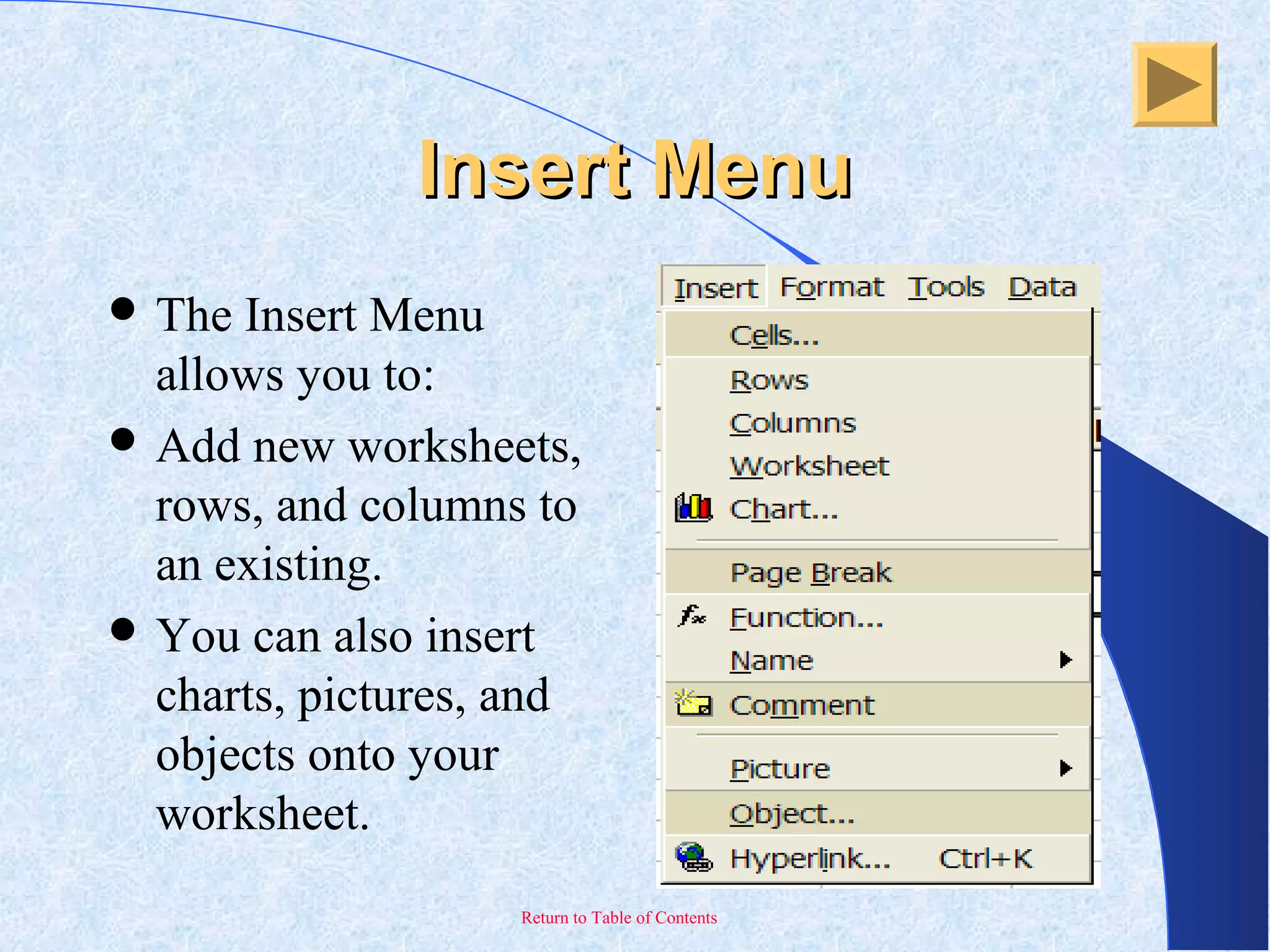
Insert MenuInsert Menu
 The Insert Menu
allows you to:
 Add new worksheets,
rows, and columns to
an existing.
 You can also insert
charts, pictures, and
objects onto your
worksheet.
Return to Table of Contents
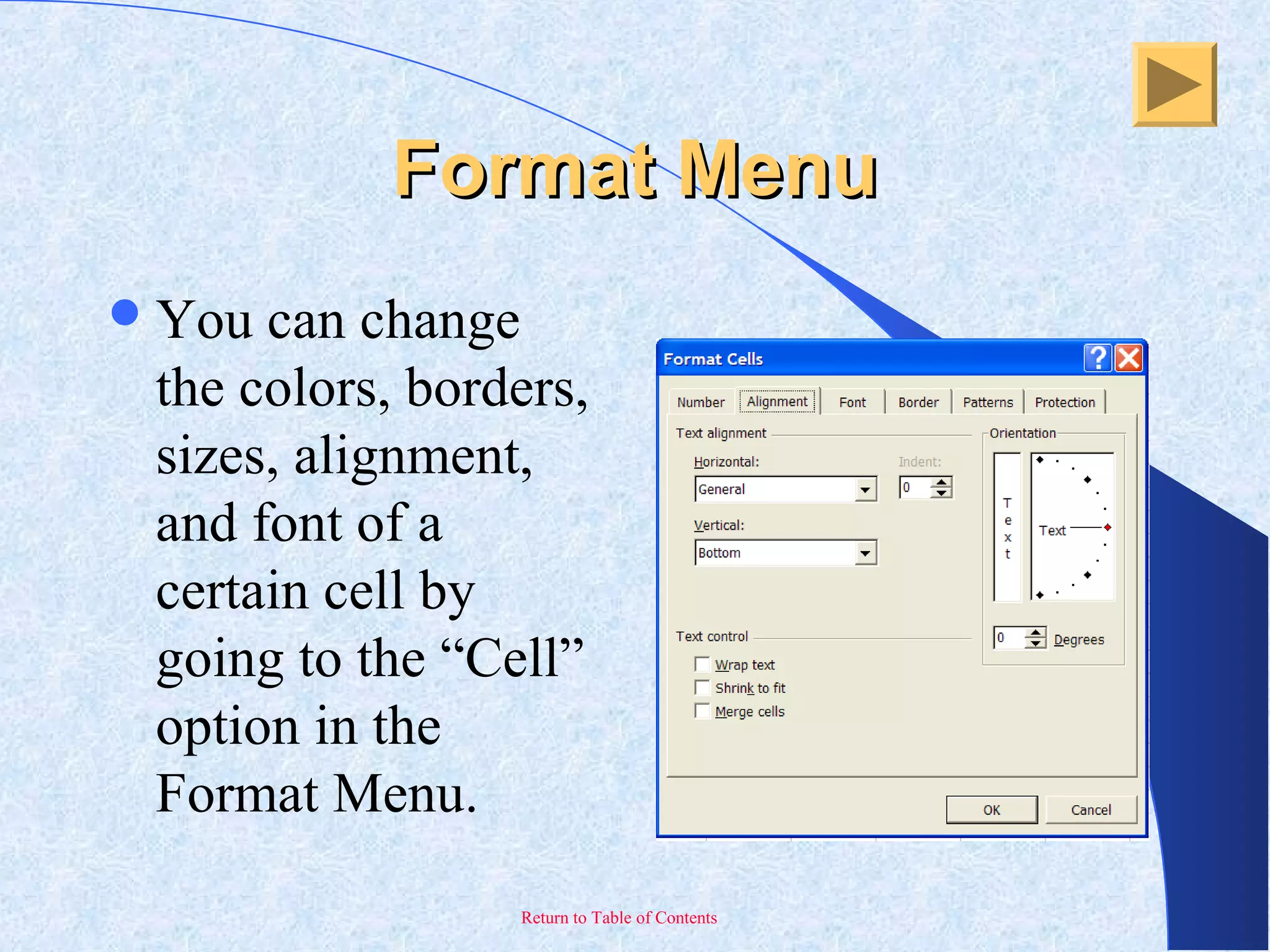
Format MenuFormat Menu
You can change
the colors, borders,
sizes, alignment,
and font of a
certain cell by
going to the “Cell”
option in the
Format Menu.
Return to Table of Contents
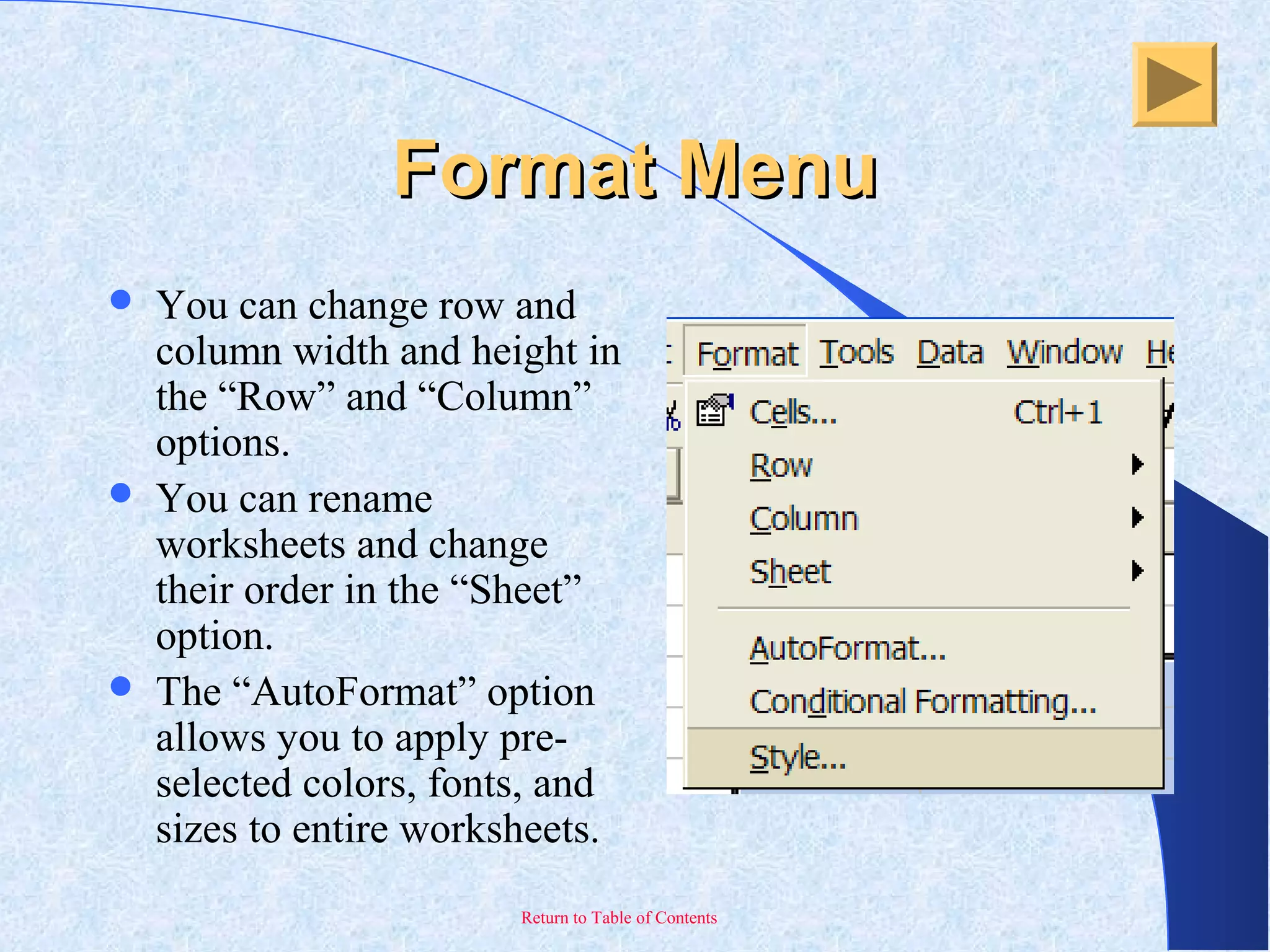
Format MenuFormat Menu
 You can change row and
column width and height in
the “Row” and “Column”
options.
 You can rename
worksheets and change
their order in the “Sheet”
option.
 The “AutoFormat” option
allows you to apply pre-
selected colors, fonts, and
sizes to entire worksheets.
Return to Table of Contents
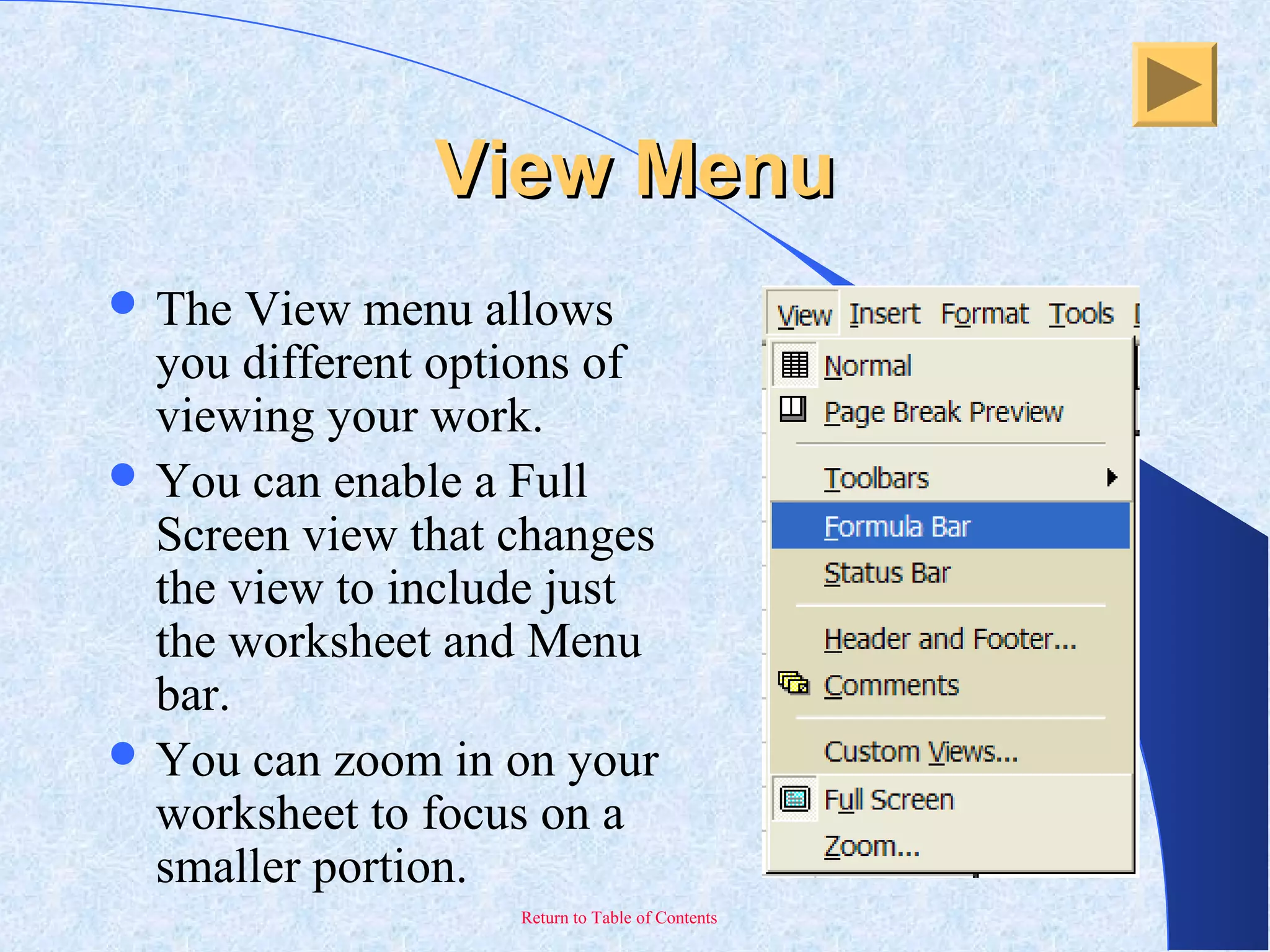
View MenuView Menu
 The View menu allows
you different options of
viewing your work.
 You can enable a Full
Screen view that changes
the view to include just
the worksheet and Menu
bar.
 You can zoom in on your
worksheet to focus on a
smaller portion.
Return to Table of Contents
View MenuView Menu
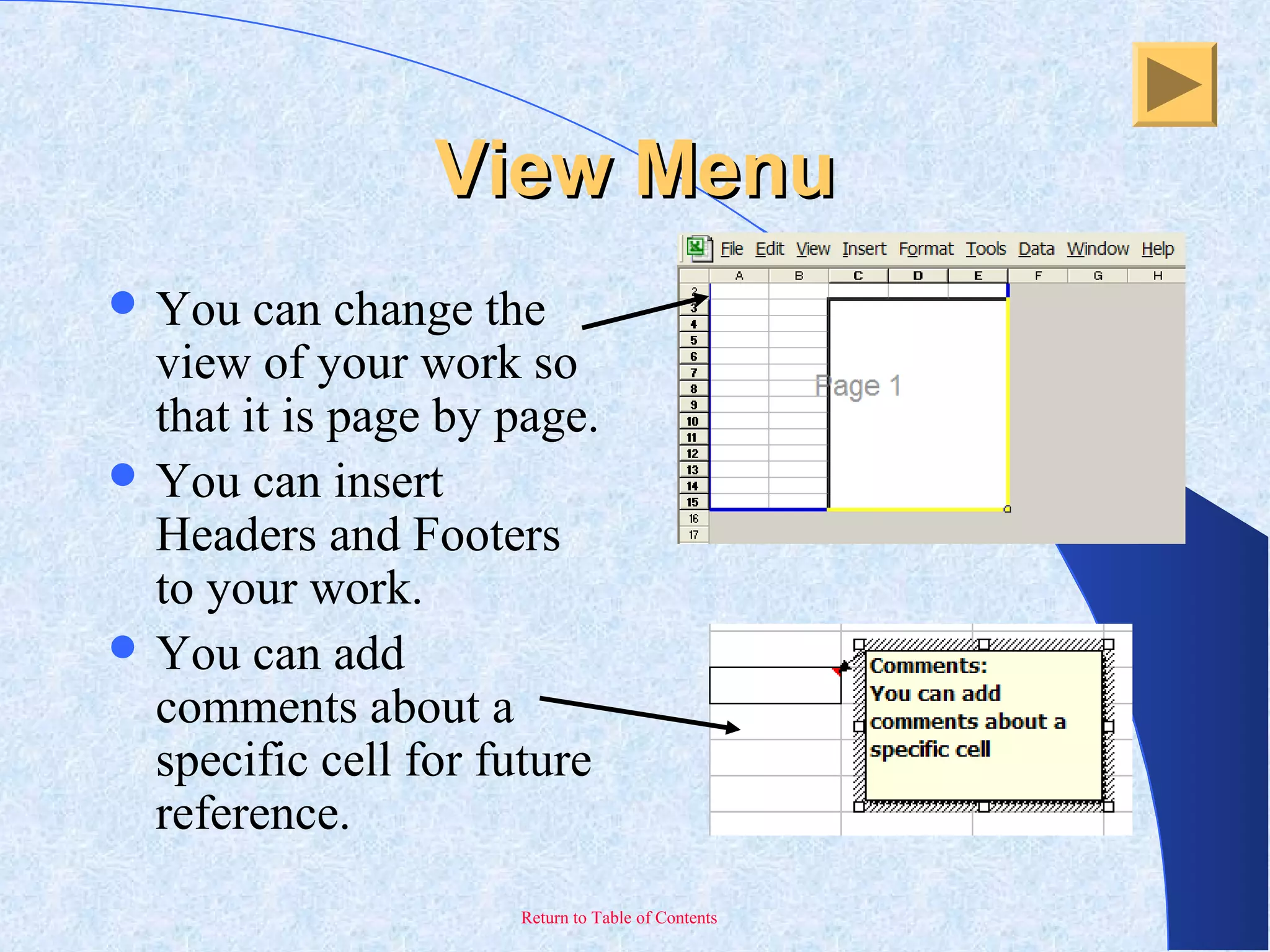
 You can change the
view of your work so
that it is page by page.
 You can insert
Headers and Footers
to your work.
 You can add
comments about a
specific cell for future
reference.
Return to Table of Contents
Excel WorksheetsExcel Worksheets
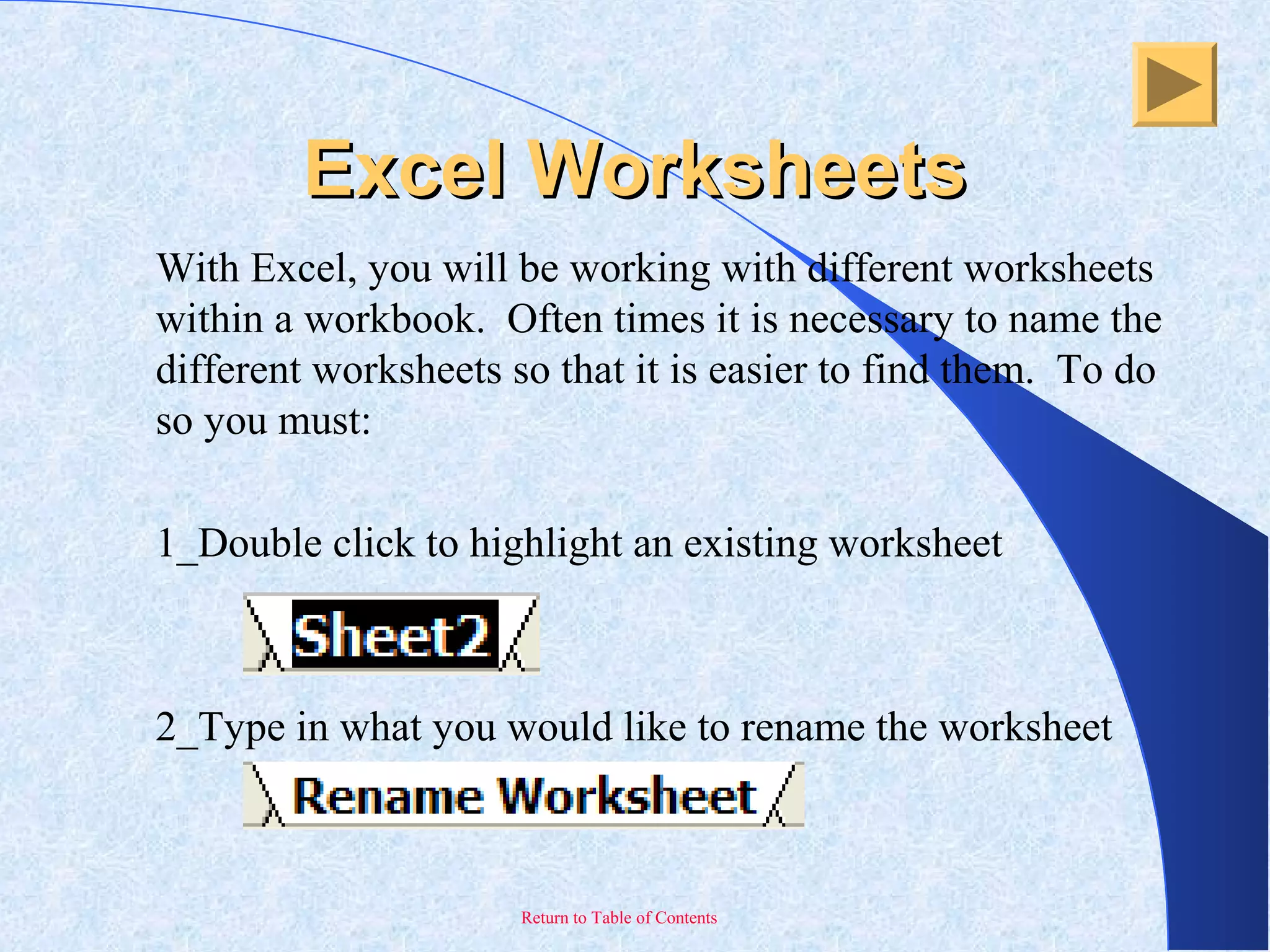
With Excel, you will be working with different worksheets
within a workbook. Often times it is necessary to name the
different worksheets so that it is easier to find them. To do
so you must:
1_Double click to highlight an existing worksheet
2_Type in what you would like to rename the worksheet
Return to Table of Contents
Entering FormulasEntering Formulas
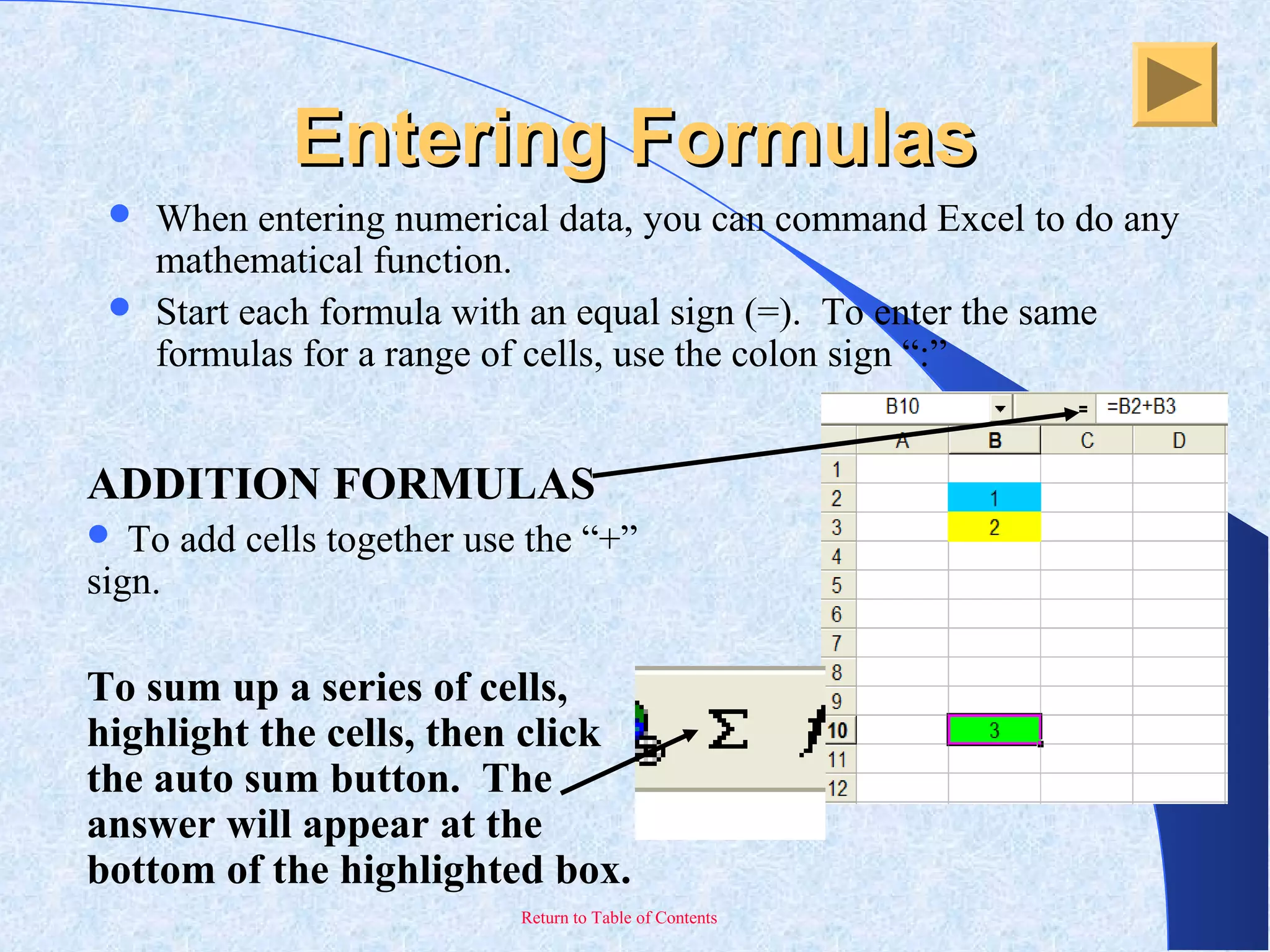
 When entering numerical data, you can command Excel to do any
mathematical function.
 Start each formula with an equal sign (=). To enter the same
formulas for a range of cells, use the colon sign “:”
ADDITION FORMULAS
 To add cells together use the “+”
sign.
To sum up a series of cells,
highlight the cells, then click
the auto sum button. The
answer will appear at the
bottom of the highlighted box.
Return to Table of Contents
Entering FormulasEntering Formulas
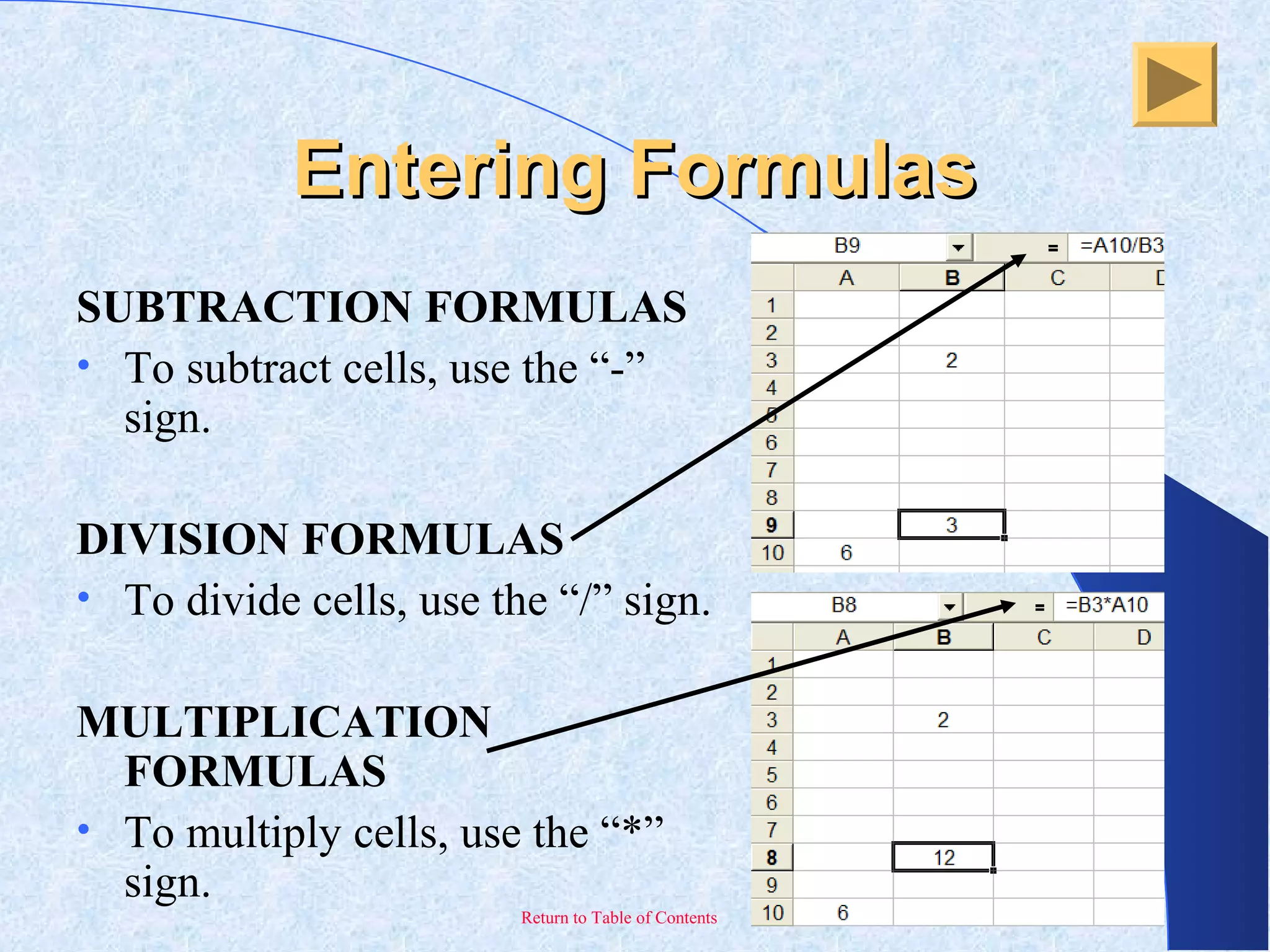
SUBTRACTION FORMULAS
• To subtract cells, use the “-”
sign.
DIVISION FORMULAS
• To divide cells, use the “/” sign.
MULTIPLICATION
FORMULAS
• To multiply cells, use the “*”
sign.
Return to Table of Contents
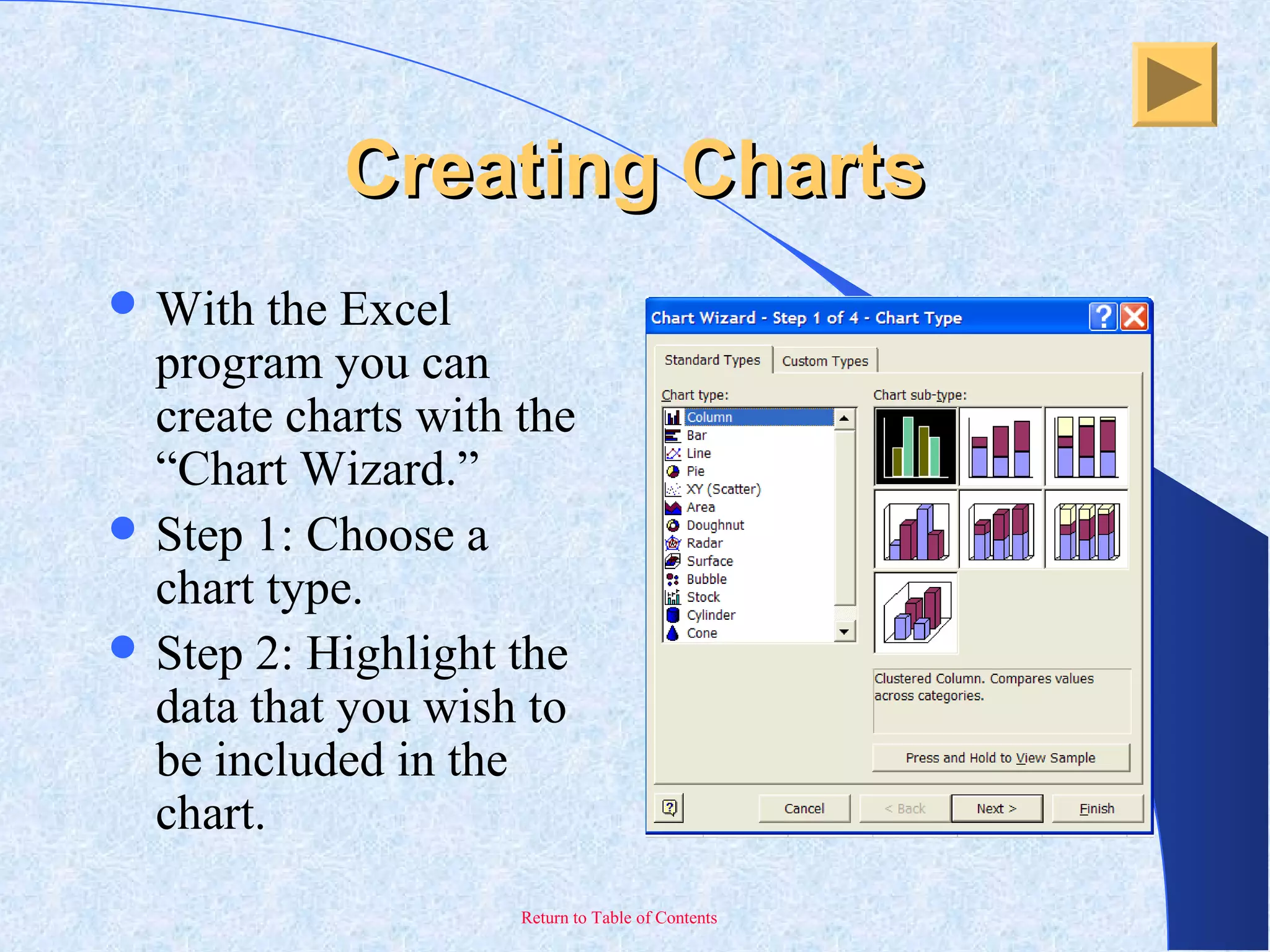
Creating ChartsCreating Charts
 With the Excel
program you can
create charts with the
“Chart Wizard.”
 Step 1: Choose a
chart type.
 Step 2: Highlight the
data that you wish to
be included in the
chart.
Return to Table of Contents
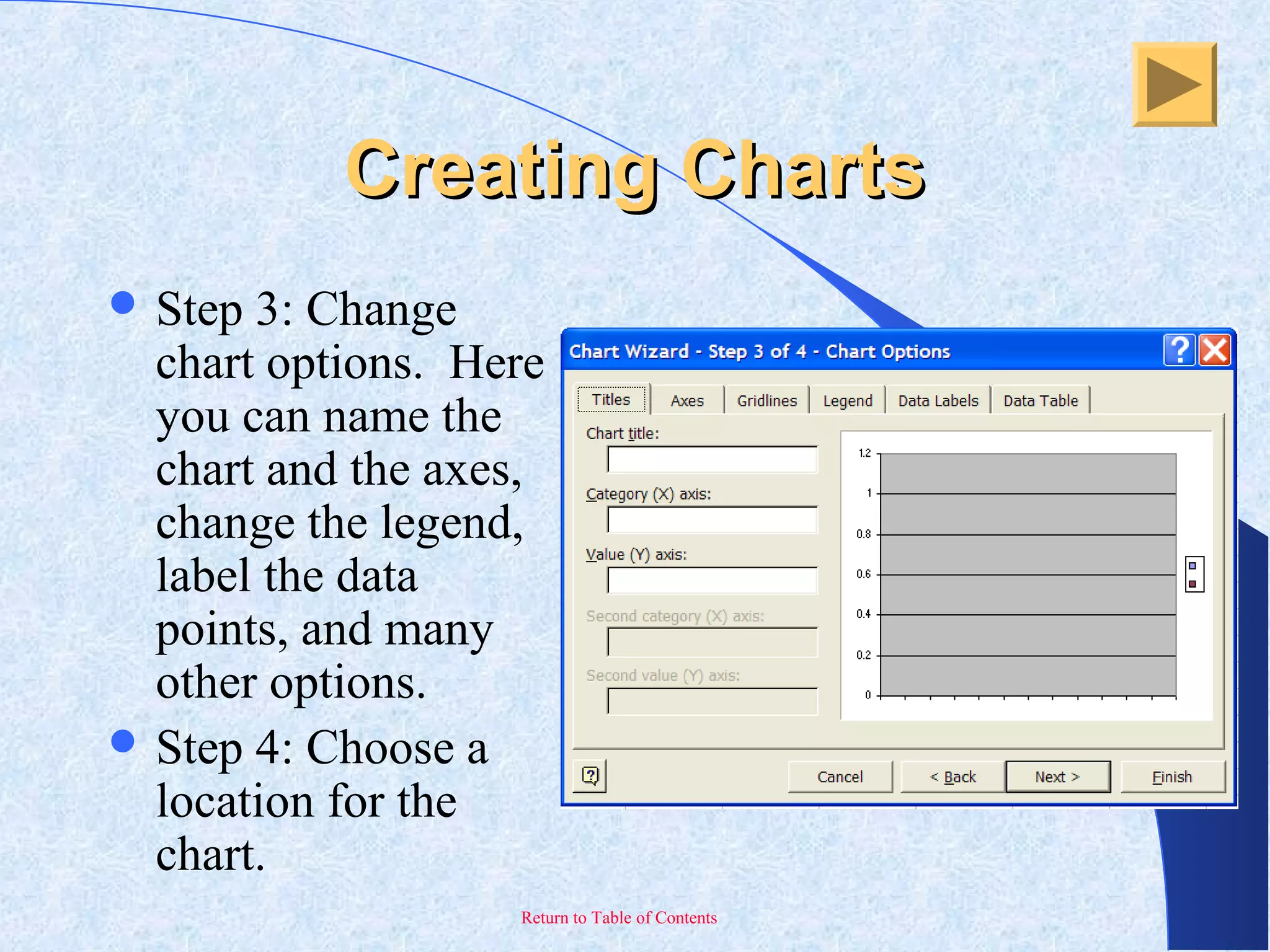
Creating ChartsCreating Charts
 Step 3: Change
chart options. Here
you can name the
chart and the axes,
change the legend,
label the data
points, and many
other options.
 Step 4: Choose a
location for the
chart.
Return to Table of Contents
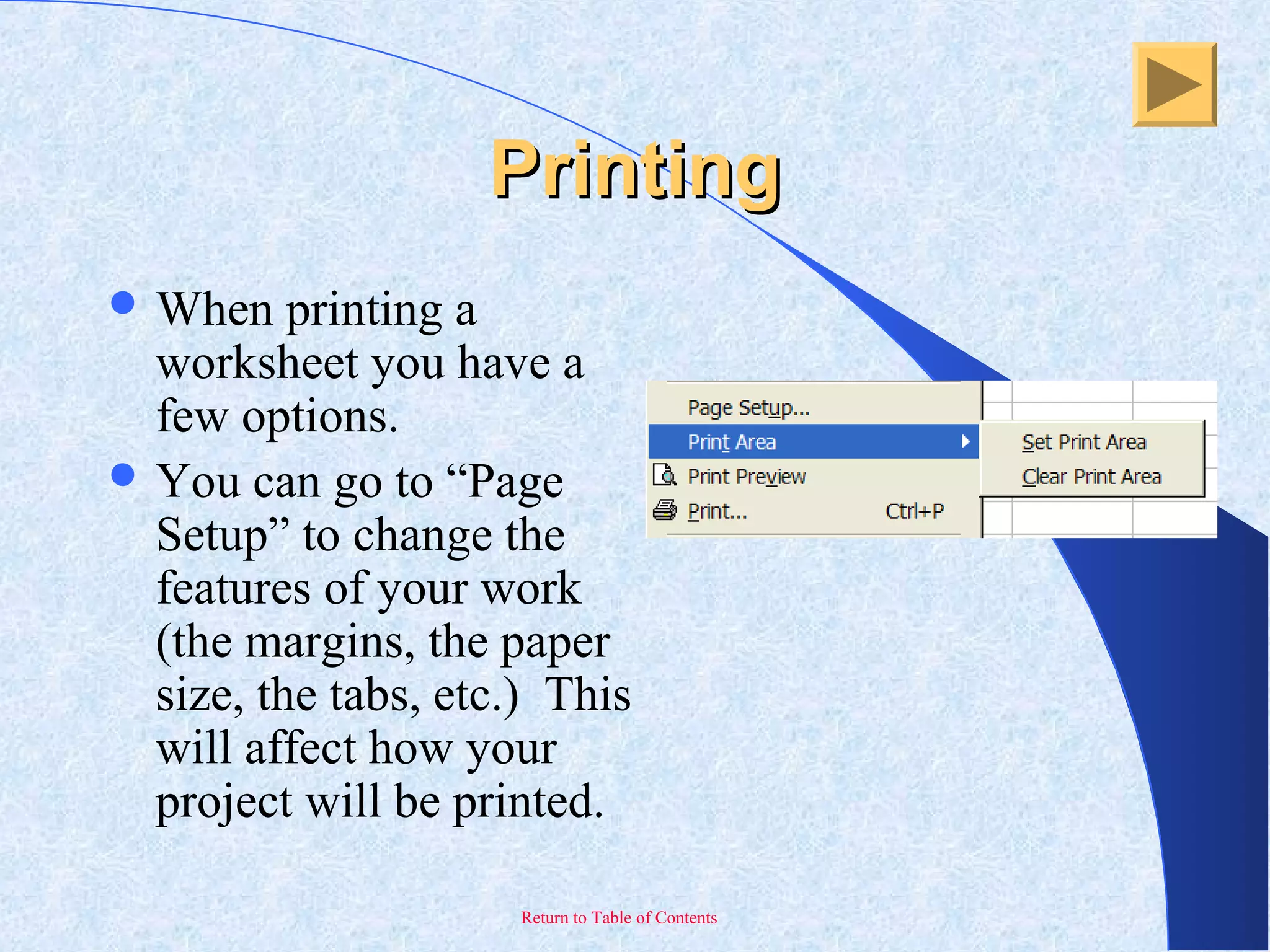
PrintingPrinting
 When printing a
worksheet you have a
few options.
 You can go to “Page
Setup” to change the
features of your work
(the margins, the paper
size, the tabs, etc.) This
will affect how your
project will be printed.
Return to Table of Contents
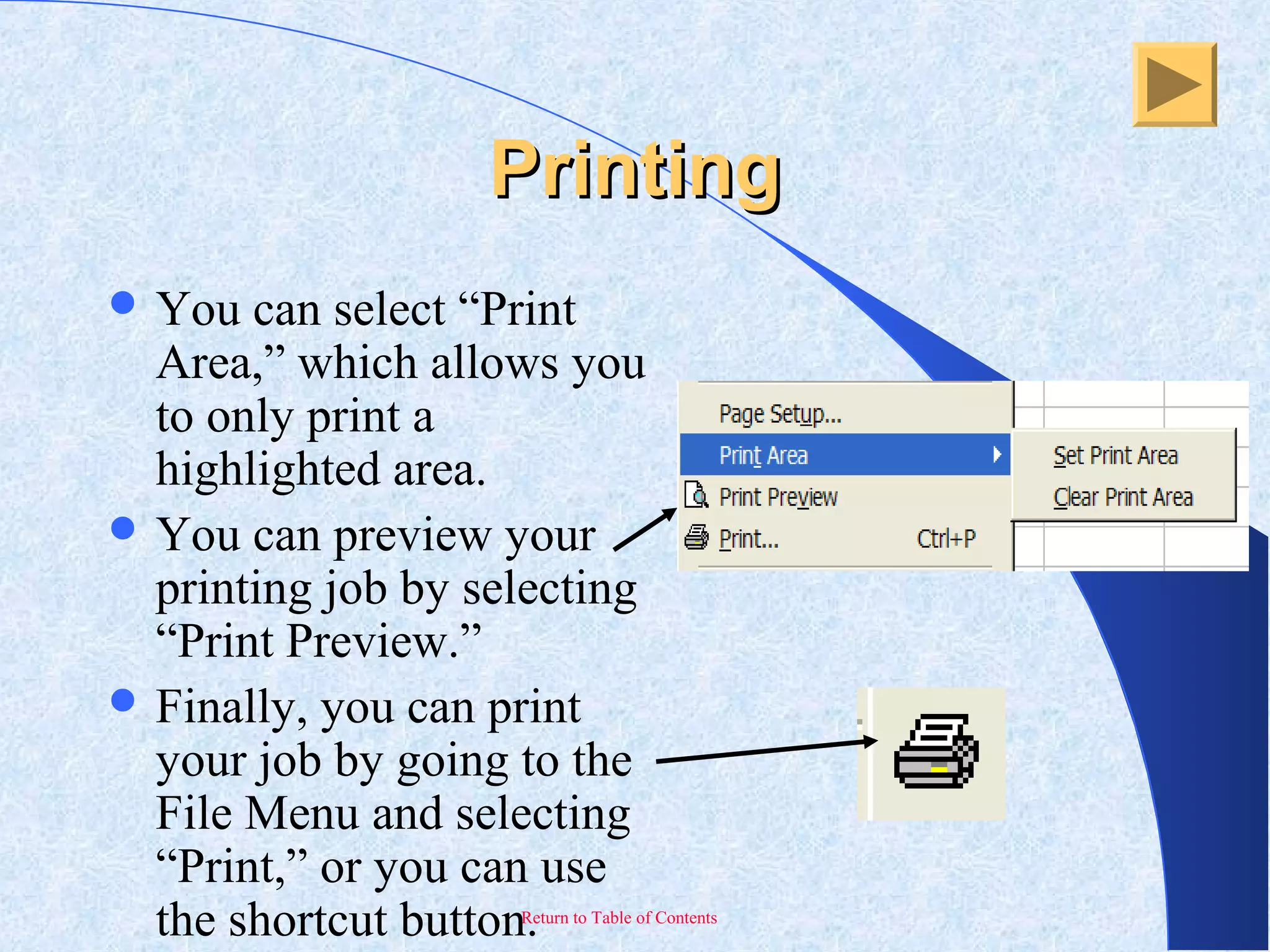
PrintingPrinting
 You can select “Print
Area,” which allows you
to only print a
highlighted area.
 You can preview your
printing job by selecting
“Print Preview.”
 Finally, you can print
your job by going to the
File Menu and selecting
“Print,” or you can use
the shortcut button.
Return to Table of Contents
Keyboard ShortcutsKeyboard Shortcuts
 Here are some basic keyboard shortcuts:
– Shift + arrow key = highlight information
– CTLR + A = Select All
– CTRL + C = Copy Information
– CTRL + X = Cut Information
– CTRL + V = Paste Information
– CTRL + Z = Undo Information
– HOME = Move to the beginning of the worksheet
Return to Table of Contents
Ranges in Ms excelRanges in Ms excel
A range is a group or block of cells in a worksheet that
have been selected or highlighted. When cells have been
selected they are surrounded by an outline or border.
Normally there is only one cell in the worksheet with a
black outline. This is the active cell. Whatever command
is executed by Excel affects the active cell.
Using the mouse, keyboard or Name Box, more than one
cell can be selected to create a range, and commands
executed by Excel will affect the entire range..
Return to Table of Contents
Formula’s in excelFormula’s in excel
Writing the Formula
Excel formulas starts with the equal sign ( = ) rather than ending
with it.
The equal sign always goes in the cell where you want the formula
answer to appear.
• Excel formulas look like this: =3 + 2.
Operators used in formula
• Subtraction - minus sign ( - )
• Addition - plus sign ( + )
• Division - forward slash ( / )
• Multiplication - asterisk (* )
Return to Table of Contents
Formula’s in excelFormula’s in excel
Entering the Data
 Type a 3 in cell A1 and press the ENTER key on the keyboard.
 Type a 2 in cell A2 and press the ENTER key on the keyboard.
 Click on cell C1 with your mouse pointer.
 Type the equal sign in cell C1.
 Click on cell A1 with the mouse pointer to enter the cell reference into the
formula.
 Type a plus (+) sign.(you can use other operators also and the whole procedure
remains same).
 Click on cell A2 with the mouse pointer to enter the cell reference into the
formula.
 Press the ENTER key on the keyboard.
 The answer 5 should appear in cell C1.
Return to Table of Contents
Functions in excelFunctions in excel

ms excel for mba first sem students of dr hs gour university sagar(m.p)

  • 1.
    Return to Tableof Contents MicrosoftMicrosoft ExcelExcel
  • 2.
    Return to Tableof Contents Table of ContentsTable of Contents 1_ Introduction to Excel 2_ Overview of the Excel Screen 3_ The Excel Menus: File Menu Edit Menu Insert Menu Format Menu View Menu Help Menu and Office Assistant 4_ Excel Worksheets 5_ Entering Formulas and Data 6_ Formatting Workbooks 7_ Charts 8_ Freezing Panes 9_ Printing 10_ Keyboard Shortcuts
  • 3.
    Return to Tableof Contents Excel is a computer program used to create electronic spreadsheets. Within Excel, users can organize data, create charts, and perform calculations. Excel is a convenient program because it allows the user to create large spreadsheets, reference information from other spreadsheets, and it allows for better storage and modification of information. Excel operates like other Microsoft (MS) Office programs and has many of the same functions and shortcuts of other MS programs. Introduction to ExcelIntroduction to Excel
  • 4.
    Return to Tableof Contents Overview of the ExcelOverview of the Excel ScreenScreen Before working with Excel, it is essential to first become familiar with the Excel screen. The following will help you to recognize the various parts of an Excel screen and their functions. The Title bar is located at the very top of the screen. The Title bar displays the name of the workbook you are currently using. The Menu bar is located just below the Title bar. The Menu bar is used to give instructions to the program.
  • 5.
    Return to Tableof Contents Overview of the ExcelOverview of the Excel ScreenScreen Toolbars provide shortcuts to menu commands. There are many different toolbars and the user can choose which toolbars are shown on the screen. To enable more toolbars go to “View” on the Menu bar, select Toolbars, then select which toolbar you wish to add to the screen. The Standard Toolbar provides shortcuts to the File Menu, as well as mathematical functions, chart creation, and sorting. The Formatting Toolbar provides shortcuts to font formatting as well as mathematical functions. The Status Toolbar allows the user to view if the current worksheet is ready to enter data.
  • 6.
    Return to Tableof Contents Overview of the ExcelOverview of the Excel ScreenScreen • Microsoft Excel consists of workbooks. Within each workbook, there is an infinite number of worksheets. • Each worksheet contains columns and rows. • Where a column and a row intersect is called the cell. For example, cell B6 is located where column B and row 6 meet. You enter your data into the cells on the worksheet. • The tabs at the bottom of the screen represent different worksheets within a workbook. You can use the scrolling buttons on the left to bring other worksheets into view.
  • 7.
    Return to Tableof Contents Overview of the ExcelOverview of the Excel ScreenScreen • The Name Box indicates what cell you are in. This cell is called the “active cell.” This cell is highlighted by a black box. • The “=” is used to edit your formula on your selected cell. • The Formula Bar indicates the contents of the cell selected. If you have created a formula, then the formula will appear in this space.
  • 8.
    Return to Tableof Contents File MenuFile Menu • When first opening Excel a worksheet will automatically appear. However, if you desire to open a file that you previously worked on go to the “File” option located in the top left corner. Select “Open.” • To create a new worksheet go to the “File” option and select “New.” • To save the work created go to the “File” option and select “Save.” • To close an existing worksheet go to the “File” option and select “Close.” • To exit the program entirely go to the “File” option and select “Exit.”
  • 9.
    Return to Tableof Contents Edit MenuEdit Menu  Among the many functions, the Edit Menu allows you to make changes to any data that was entered. You can:  Undo mistakes made. Excel allows you to undo up to the last 16 moves you made.  Cut, copy, or paste information.  Find information in an existing workbook  Replace existing information.
  • 10.
    Return to Tableof Contents Insert MenuInsert Menu  The Insert Menu allows you to:  Add new worksheets, rows, and columns to an existing.  You can also insert charts, pictures, and objects onto your worksheet.
  • 11.
    Return to Tableof Contents Format MenuFormat Menu You can change the colors, borders, sizes, alignment, and font of a certain cell by going to the “Cell” option in the Format Menu.
  • 12.
    Return to Tableof Contents Format MenuFormat Menu  You can change row and column width and height in the “Row” and “Column” options.  You can rename worksheets and change their order in the “Sheet” option.  The “AutoFormat” option allows you to apply pre- selected colors, fonts, and sizes to entire worksheets.
  • 13.
    Return to Tableof Contents View MenuView Menu  The View menu allows you different options of viewing your work.  You can enable a Full Screen view that changes the view to include just the worksheet and Menu bar.  You can zoom in on your worksheet to focus on a smaller portion.
  • 14.
    Return to Tableof Contents View MenuView Menu  You can change the view of your work so that it is page by page.  You can insert Headers and Footers to your work.  You can add comments about a specific cell for future reference.
  • 15.
    Return to Tableof Contents Excel WorksheetsExcel Worksheets With Excel, you will be working with different worksheets within a workbook. Often times it is necessary to name the different worksheets so that it is easier to find them. To do so you must: 1_Double click to highlight an existing worksheet 2_Type in what you would like to rename the worksheet
  • 16.
    Return to Tableof Contents Entering FormulasEntering Formulas  When entering numerical data, you can command Excel to do any mathematical function.  Start each formula with an equal sign (=). To enter the same formulas for a range of cells, use the colon sign “:” ADDITION FORMULAS  To add cells together use the “+” sign. To sum up a series of cells, highlight the cells, then click the auto sum button. The answer will appear at the bottom of the highlighted box.
  • 17.
    Return to Tableof Contents Entering FormulasEntering Formulas SUBTRACTION FORMULAS • To subtract cells, use the “-” sign. DIVISION FORMULAS • To divide cells, use the “/” sign. MULTIPLICATION FORMULAS • To multiply cells, use the “*” sign.
  • 18.
    Return to Tableof Contents Creating ChartsCreating Charts  With the Excel program you can create charts with the “Chart Wizard.”  Step 1: Choose a chart type.  Step 2: Highlight the data that you wish to be included in the chart.
  • 19.
    Return to Tableof Contents Creating ChartsCreating Charts  Step 3: Change chart options. Here you can name the chart and the axes, change the legend, label the data points, and many other options.  Step 4: Choose a location for the chart.
  • 20.
    Return to Tableof Contents PrintingPrinting  When printing a worksheet you have a few options.  You can go to “Page Setup” to change the features of your work (the margins, the paper size, the tabs, etc.) This will affect how your project will be printed.
  • 21.
    Return to Tableof Contents PrintingPrinting  You can select “Print Area,” which allows you to only print a highlighted area.  You can preview your printing job by selecting “Print Preview.”  Finally, you can print your job by going to the File Menu and selecting “Print,” or you can use the shortcut button.
  • 22.
    Return to Tableof Contents Keyboard ShortcutsKeyboard Shortcuts  Here are some basic keyboard shortcuts: – Shift + arrow key = highlight information – CTLR + A = Select All – CTRL + C = Copy Information – CTRL + X = Cut Information – CTRL + V = Paste Information – CTRL + Z = Undo Information – HOME = Move to the beginning of the worksheet
  • 23.
    Return to Tableof Contents Ranges in Ms excelRanges in Ms excel A range is a group or block of cells in a worksheet that have been selected or highlighted. When cells have been selected they are surrounded by an outline or border. Normally there is only one cell in the worksheet with a black outline. This is the active cell. Whatever command is executed by Excel affects the active cell. Using the mouse, keyboard or Name Box, more than one cell can be selected to create a range, and commands executed by Excel will affect the entire range..
  • 24.
    Return to Tableof Contents Formula’s in excelFormula’s in excel Writing the Formula Excel formulas starts with the equal sign ( = ) rather than ending with it. The equal sign always goes in the cell where you want the formula answer to appear. • Excel formulas look like this: =3 + 2. Operators used in formula • Subtraction - minus sign ( - ) • Addition - plus sign ( + ) • Division - forward slash ( / ) • Multiplication - asterisk (* )
  • 25.
    Return to Tableof Contents Formula’s in excelFormula’s in excel Entering the Data  Type a 3 in cell A1 and press the ENTER key on the keyboard.  Type a 2 in cell A2 and press the ENTER key on the keyboard.  Click on cell C1 with your mouse pointer.  Type the equal sign in cell C1.  Click on cell A1 with the mouse pointer to enter the cell reference into the formula.  Type a plus (+) sign.(you can use other operators also and the whole procedure remains same).  Click on cell A2 with the mouse pointer to enter the cell reference into the formula.  Press the ENTER key on the keyboard.  The answer 5 should appear in cell C1.
  • 26.
    Return to Tableof Contents Functions in excelFunctions in excel