The document contains a monthly planner for October 2020 with various calendar views showing dates, days of the week, and weeks. It includes blank calendar templates and calendars filled with information about the planets in our solar system.
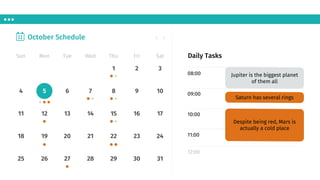
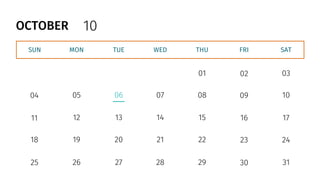
October Schedule
Sun MonTue Wed Thu Fri Sat Daily Tasks
08:00
09:00
10:00
11:00
12:00
4
11
18
25
5
12
19
26
6
13
20
27
7
14
21
28
1
8
15
22
29
2
9
16
23
30
3
10
17
24
31
Jupiter is the biggest planet
of them all
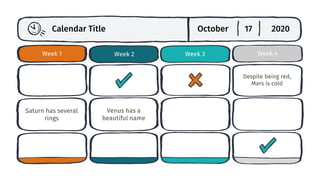
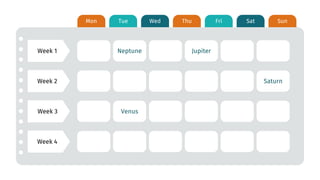
Saturn has several rings
Despite being red, Mars is
actually a cold place
10.
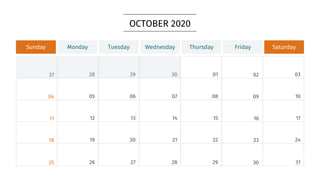
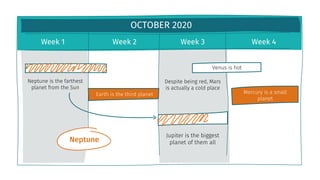
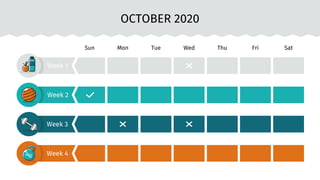
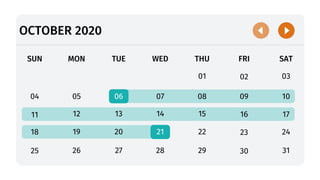
OCTOBER 2020
Week 1Week 2 Week 3 Week 4
Neptune is the farthest
planet from the Sun
Jupiter is the biggest
planet of them all
Earth is the third planet Mercury is a small
planet
Despite being red, Mars
is actually a cold place
Venus is hot
Neptune
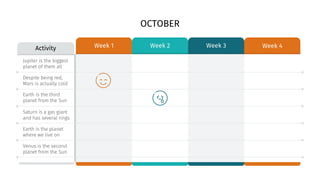
Activity Week 3Week 4
Week 1 Week 2
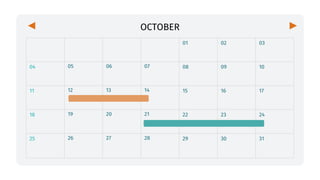
OCTOBER
Jupiter is the biggest
planet of them all
Despite being red,
Mars is actually cold
Earth is the third
planet from the Sun
Saturn is a gas giant
and has several rings
Earth is the planet
where we live on
Venus is the second
planet from the Sun
Su Mo TuWe Th Fr Sa
4
11
18
25
5
12
19
26
6
13
20
27
7
14
21
28
1
8
15
22
29
2
9
16
23
30
3
10
17
24
31
O
C
T
29.
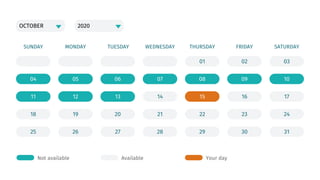
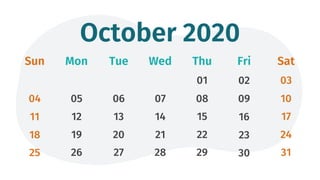
OCTOBER
Su M TuW Th F Sa
4
11
18
25
5
12
19
26
6
13
20
27
7
14
21
28
1
8
15
22
29
2
9
16
23
30
3
10
17
24
31
30.
MON SUN
TUE WEDTHU FRI SAT
WEEK 1
WEEK 2
WEEK 3
WEEK 4
OCTOBER
31.
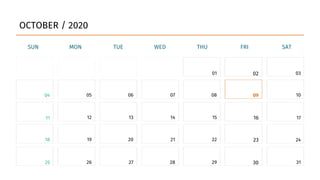
OCTOBER
Su M TuW Th F Sa
4
11
18
25
5
12
19
26
6
13
20
27
7
14
21
28
1
8
15
22
29
2
9
16
23
30
3
10
17
24
31
32.
Instructions for use
Inorder to use this template, you must credit Slidesgo and Freepik in your final presentation and
include links to both websites.
You are allowed to:
- Modify this template.
- Use it for both personal and commercial projects.
You are not allowed to:
- Sublicense, sell or rent any of Slidesgo Content (or a modified version of Slidesgo Content).
- Distribute Slidesgo Content unless it has been expressly authorized by Slidesgo.
- Include Slidesgo Content in an online or offline database or file.
- Offer Slidesgo templates (or modified versions of Slidesgo templates) for download.
- Acquire the copyright of Slidesgo Content.
For more information about editing slides, please read our FAQs or visit Slidesgo School:
https://slidesgo.com/faqs and https://slidesgo.com/slidesgo-school
33.
Infographics
You can addand edit some infographics to your presentation to show your data in a visual way.
● Choose your favourite infographic and insert it in your presentation using Ctrl C
+ Ctrl V or Cmd C + Cmd V in Mac.
● Select one of the parts and ungroup it by right-clicking and choosing
“Ungroup”.
● Change the color by clicking on the paint bucket.
● Then resize the element by clicking and dragging one of the square-shaped
points of its bounding box (the cursor should look like a double-headed arrow).
Remember to hold Shift while dragging to keep the proportions.
● Group the elements again by selecting them, right-clicking and choosing
“Group”.
● Repeat the steps above with the other parts and when you’re done editing, copy
the end result and paste it into your presentation.
● Remember to choose the “Keep source formatting” option so that it keeps the
design. For more info, please visit Slidesgo School.