Microsoft 365 Exchange Online:
Administration and Configuration
Module Release 20201117
Instructor Introduction
• Name
• Specialty
• Experience
Attendee Introductions
• Name
• Job/Team/Specialty
• Experience with Exchange (on-
premises and online) and
PowerShell
• What do you want to gain from
this WorkshopPLUS?
Goals upon completion of this WorkshopPLUS
• Understand Exchange Online hybrid
• Navigate management tool choices
• Be familiar with the identity models
• Review how mail flow works
• Use Diagnostic tools for troubleshooting
• Plan an archiving and retention layout design
• Understand Public Folder options
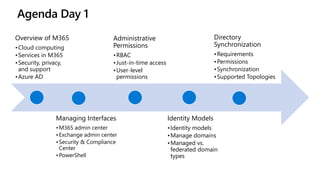
Agenda Day 1
Overview of M365
•Cloud computing
•Services in M365​
•Security, privacy,
and support​
•Azure AD
Managing Interfaces
•M365 admin center​
•Exchange admin center​
•Security & Compliance
Center​
•PowerShell
Administrative
Permissions
•RBAC
•Just-in-time access
•User-level
permissions
Identity Models
•Identity models
•Manage domains
•Managed vs.
federated domain
types
Directory
Synchronization
•Requirements​
•Permissions​
•Synchronization​
•Supported Topologies
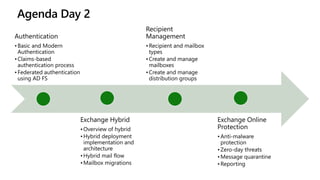
Agenda Day 2
Authentication
•Basic and Modern
Authentication​
•Claims-based
authentication process​
•Federated authentication
using AD FS
Exchange Hybrid
•Overview of hybrid
•Hybrid deployment
implementation and
architecture​
•Hybrid mail flow​
•Mailbox migrations
Recipient
Management
•Recipient and mailbox
types
•Create and manage
mailboxes​
•Create and manage
distribution groups
Exchange Online
Protection
•Anti-malware
protection​
•Zero-day threats​
•Message quarantine​
•Reporting
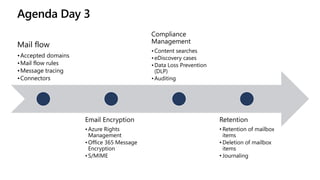
Agenda Day 3
Mail flow
•Accepted domains
•Mail flow rules
•Message tracing
•Connectors
Email Encryption
•Azure Rights
Management
•Office 365 Message
Encryption
•S/MIME
Compliance
Management
•Content searches​
•eDiscovery cases​
•Data Loss Prevention
(DLP)​
•Auditing
Retention
• Retention of mailbox
items
• Deletion of mailbox
items
• Journaling
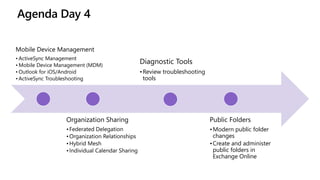
Agenda Day 4
Mobile Device Management
• ActiveSync Management​
• Mobile Device Management (MDM)
• Outlook for iOS/Android​
• ActiveSync Troubleshooting
Organization Sharing
•Federated Delegation​
•Organization Relationships​
•Hybrid Mesh​
•Individual Calendar Sharing
Diagnostic Tools
•Review troubleshooting
tools
Public Folders
•Modern public folder
changes​
•Create and administer
public folders in
Exchange Online
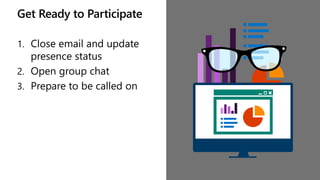
Get Ready to Participate
1. Close email and update
presence status
2. Open group chat
3. Prepare to be called on
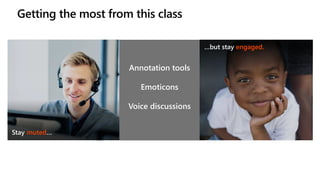
Getting the most from this class
…but stay engaged.
Annotation tools
Emoticons
Voice discussions
Stay muted…
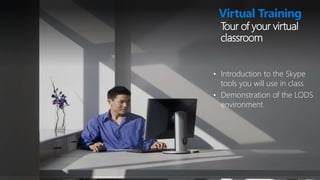
Tour of your virtual
classroom
• Introduction to the Skype
tools you will use in class
• Demonstration of the LODS
environment
Virtual Training
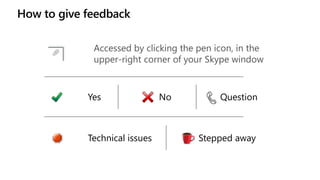
How to give feedback
Accessed by clicking the pen icon, in the
upper-right corner of your Skype window
Yes No Question
Technical issues Stepped away
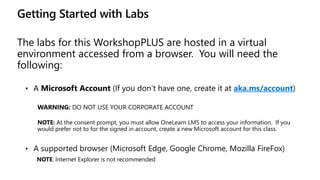
Getting Started with Labs
The labs for this WorkshopPLUS are hosted in a virtual
environment accessed from a browser. You will need the
following:
• A Microsoft Account (If you don’t have one, create it at aka.ms/account)
WARNING: DO NOT USE YOUR CORPORATE ACCOUNT
NOTE: At the consent prompt, you must allow OneLearn LMS to access your information. If you
would prefer not to for the signed in account, create a new Microsoft account for this class.
• A supported browser (Microsoft Edge, Google Chrome, Mozilla FireFox)
NOTE: Internet Explorer is not recommended
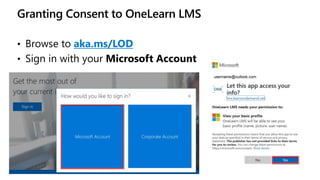
Granting Consent to OneLearn LMS
• Browse to aka.ms/LOD
• Sign in with your Microsoft Account
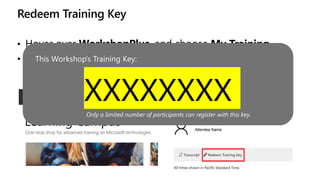
Redeem Training Key
• Hover over WorkshopPlus, and choose My Training
• Then select Redeem Training Key
This Workshop’s Training Key:
XXXXXXXX
Only a limited number of participants can register with this key.
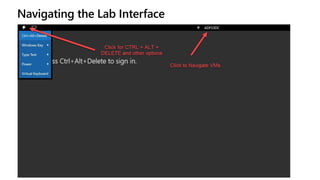
Navigating the Lab Interface
Changing your Lab Screen Resolution
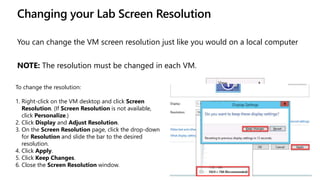
You can change the VM screen resolution just like you would on a local computer
NOTE: The resolution must be changed in each VM.
To change the resolution:
1. Right-click on the VM desktop and click Screen
Resolution. (If Screen Resolution is not available,
click Personalize.)
2. Click Display and Adjust Resolution.
3. On the Screen Resolution page, click the drop-down
for Resolution and slide the bar to the desired
resolution.
4. Click Apply.
5. Click Keep Changes.
6. Close the Screen Resolution window.
Lab Tips
• When you see in the lab instructions, clicking it will type
the indicated text in the lab environment
• Similarly, if a server name is bold/highlighted, clicking it
will navigate to that VM
• Copy/Paste is not directly supported between the labs and
your workstation
• Use > Type Text > Type Clipboard Text to paste text into
the dialog and into the environment
Lab Tips cont.
• The administrator credentials for your lab's Office 365
tenant are located on the Resources tab
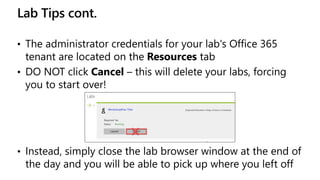
• DO NOT click Cancel – this will delete your labs, forcing
you to start over!
• Instead, simply close the lab browser window at the end of
the day and you will be able to pick up where you left off
© Copyright Microsoft Corporation. All rights reserved.

Module 00 - Workshop Introduction.pptx

  • 1.
    Microsoft 365 ExchangeOnline: Administration and Configuration Module Release 20201117
  • 2.
    Instructor Introduction • Name •Specialty • Experience
  • 3.
    Attendee Introductions • Name •Job/Team/Specialty • Experience with Exchange (on- premises and online) and PowerShell • What do you want to gain from this WorkshopPLUS?
  • 4.
    Goals upon completionof this WorkshopPLUS • Understand Exchange Online hybrid • Navigate management tool choices • Be familiar with the identity models • Review how mail flow works • Use Diagnostic tools for troubleshooting • Plan an archiving and retention layout design • Understand Public Folder options
  • 5.
    Agenda Day 1 Overviewof M365 •Cloud computing •Services in M365​ •Security, privacy, and support​ •Azure AD Managing Interfaces •M365 admin center​ •Exchange admin center​ •Security & Compliance Center​ •PowerShell Administrative Permissions •RBAC •Just-in-time access •User-level permissions Identity Models •Identity models •Manage domains •Managed vs. federated domain types Directory Synchronization •Requirements​ •Permissions​ •Synchronization​ •Supported Topologies
  • 6.
    Agenda Day 2 Authentication •Basicand Modern Authentication​ •Claims-based authentication process​ •Federated authentication using AD FS Exchange Hybrid •Overview of hybrid •Hybrid deployment implementation and architecture​ •Hybrid mail flow​ •Mailbox migrations Recipient Management •Recipient and mailbox types •Create and manage mailboxes​ •Create and manage distribution groups Exchange Online Protection •Anti-malware protection​ •Zero-day threats​ •Message quarantine​ •Reporting
  • 7.
    Agenda Day 3 Mailflow •Accepted domains •Mail flow rules •Message tracing •Connectors Email Encryption •Azure Rights Management •Office 365 Message Encryption •S/MIME Compliance Management •Content searches​ •eDiscovery cases​ •Data Loss Prevention (DLP)​ •Auditing Retention • Retention of mailbox items • Deletion of mailbox items • Journaling
  • 8.
    Agenda Day 4 MobileDevice Management • ActiveSync Management​ • Mobile Device Management (MDM) • Outlook for iOS/Android​ • ActiveSync Troubleshooting Organization Sharing •Federated Delegation​ •Organization Relationships​ •Hybrid Mesh​ •Individual Calendar Sharing Diagnostic Tools •Review troubleshooting tools Public Folders •Modern public folder changes​ •Create and administer public folders in Exchange Online
  • 9.
    Get Ready toParticipate 1. Close email and update presence status 2. Open group chat 3. Prepare to be called on
  • 10.
    Getting the mostfrom this class …but stay engaged. Annotation tools Emoticons Voice discussions Stay muted…
  • 11.
    Tour of yourvirtual classroom • Introduction to the Skype tools you will use in class • Demonstration of the LODS environment Virtual Training
  • 12.
    How to givefeedback Accessed by clicking the pen icon, in the upper-right corner of your Skype window Yes No Question Technical issues Stepped away
  • 13.
    Getting Started withLabs The labs for this WorkshopPLUS are hosted in a virtual environment accessed from a browser. You will need the following: • A Microsoft Account (If you don’t have one, create it at aka.ms/account) WARNING: DO NOT USE YOUR CORPORATE ACCOUNT NOTE: At the consent prompt, you must allow OneLearn LMS to access your information. If you would prefer not to for the signed in account, create a new Microsoft account for this class. • A supported browser (Microsoft Edge, Google Chrome, Mozilla FireFox) NOTE: Internet Explorer is not recommended
  • 14.
    Granting Consent toOneLearn LMS • Browse to aka.ms/LOD • Sign in with your Microsoft Account
  • 15.
    Redeem Training Key •Hover over WorkshopPlus, and choose My Training • Then select Redeem Training Key This Workshop’s Training Key: XXXXXXXX Only a limited number of participants can register with this key.
  • 16.
  • 17.
    Changing your LabScreen Resolution You can change the VM screen resolution just like you would on a local computer NOTE: The resolution must be changed in each VM. To change the resolution: 1. Right-click on the VM desktop and click Screen Resolution. (If Screen Resolution is not available, click Personalize.) 2. Click Display and Adjust Resolution. 3. On the Screen Resolution page, click the drop-down for Resolution and slide the bar to the desired resolution. 4. Click Apply. 5. Click Keep Changes. 6. Close the Screen Resolution window.
  • 18.
    Lab Tips • Whenyou see in the lab instructions, clicking it will type the indicated text in the lab environment • Similarly, if a server name is bold/highlighted, clicking it will navigate to that VM • Copy/Paste is not directly supported between the labs and your workstation • Use > Type Text > Type Clipboard Text to paste text into the dialog and into the environment
  • 19.
    Lab Tips cont. •The administrator credentials for your lab's Office 365 tenant are located on the Resources tab • DO NOT click Cancel – this will delete your labs, forcing you to start over! • Instead, simply close the lab browser window at the end of the day and you will be able to pick up where you left off
  • 20.
    © Copyright MicrosoftCorporation. All rights reserved.

Editor's Notes

  • #2 1/27/2023
  • #3 1/27/2023
  • #4 1/27/2023
  • #5 4
  • #6 1/27/2023
  • #7 1/27/2023
  • #8 1/27/2023
  • #9 1/27/2023
  • #10 1/27/2023
  • #11 1/27/2023
  • #12 11
  • #13 1/27/2023
  • #14 1/27/2023
  • #15 14
  • #16 Corporate credentials MAY work, but usually the OneLearn LMS System requests too much access to account information, resulting in an “access denied” message. Preferred method is to use a MSA. For Macs: There have been some issues with Safari – recommended to use Google Chrome instead, if possible
  • #17 INSTRUCTOR: Replace XXXXXXX with training key for this workshop, then unhighlight it.
  • #19 INSTRUCTOR: Replace XXXXXXX with training key for this workshop, then unhighlight it.
  • #24 1/27/2023